The biggest soccer event has begun. Millions of the soccer fans across the globe are pumped to cheer for their teams. It happens once every four years when all the football fans go super crazy. Football is one such sport which has the fans following all over the world. This is also a golden chance for the companies to take advantage of all the excitements around and promote their businesses. But wait! You need to know that FIFA has strict rules and regulations for how the official marks can be used. To check out the details click here.
What is common in eCommerce and Soccer?
There are few similarities in the Football and eCommerce. The energetic game has so many learning’s which can be used to implement a successful strategy for your online store. The commercials and the news regarding the soccer match also give an idea to promote the products and services. Here we will discuss some similarities in Soccer and eCommerce.
Similarity 1: Study the moves of the competitor players and teams
In order to create a successful strategy for winning the match, it is required for the teams to study the moves of the top players of the competitor team and analyze the game plan of the competitor team.
Similarly, in eCommerce, it is required to keep the track of the competitors in order to stay ahead of the competition. You just can’t afford to ignore even the smallest factor as it may prove hazardous.
Listed below are some of the key points that should be kept in mind while competitor analysis –
1) What strategy are they using for the lead generation?
2) What special promotions they are running?
3) What strategy are they using for the SEO?
4) How are they promoting their products and services on Social Media?
5) How are they retargeting their customers?
6) How they are using the email marketing to reach existing customers and what is the email frequency?
7) What is the customer retention techniques used by the competitor stores?
Similarity 2: The ball is faster than the players
To win a match, it is essential for the players to spread out and cover the entire field. If the players will keep on moving the ball then they will able to make a goal. In order to achieve the same, the teams use the different formations. This is the best way by which players organize themselves at the ground is with a formation like 4-4-2, 4-4-1-1, 4-4-3 etc.
In a similar manner, the eCommerce companies need to spread out their wings and tap the various opportunities, trends and technological advancements. Here are some of the points that you to take care of:
1) User-friendly website
2) Beautiful and clear images of the products
3) Well organized product description
4) Awesome promotions
5) Social media presence
6) Multi-channel selling
7) Customer experience – Return, refund, replacement, live chat, helpdesk, shipping, payments etc
8) Review and testimonials
9) Mobile friendly websites/Mobile apps
10) Customer loyalty programs
Now that you are geared up with the rules and the similarities between Football and eCommerce, wonder what should you do next? Here’s the answer.
Prepare your game plan
If you are running any kind of promotion to seek advantage of the soccer-fever you need to play smartly. There are some key points which you need to consider before preparing your promotion strategy. There are 32 countries which are participating in 2018 World Cup. So, if your target audience is from one of these countries, you can plan your promotions based on the national team. Additionally, you can plan promotions based on the interest of the fans in your country. Make sure to follow the instructions given by FIFA regarding the use of the trademarks.
How can Knowband’s extension help you?
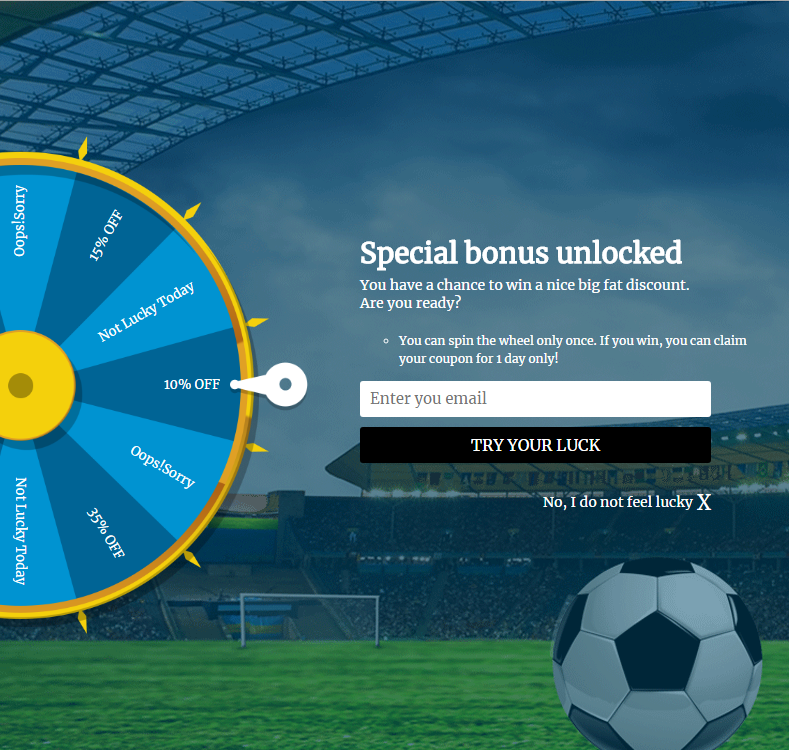
Knowband offers “Spin and Win Popup Extension” for Prestashop, Magento1, Magento2, Opencart and Shopify with the Soccer theme to trigger the sports feel of the fans and motivate them to shop from your site. With the eye-catchy soccer theme, you can grab the attention of the site visitors instantly. This will also help you to increase the rate of customer retention and boost the overall leads. As of now, 2 generic themes and one theme for the selected country are available. You can use these themes to grab the attention of your store visitors; this will help you to achieve your sales goals for the year 2018.
Why should you use Soccer theme at your site?
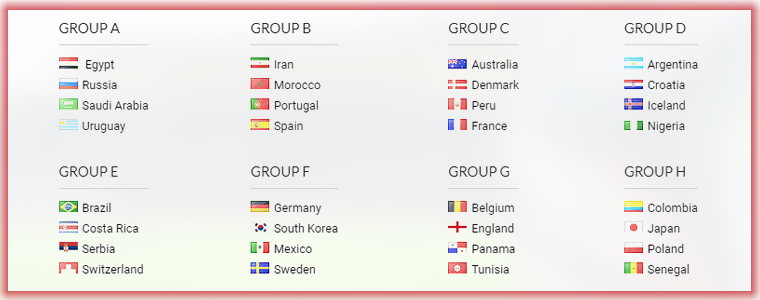
The viewership and fan-following of soccer are in millions across the world. It is the national sport of around 60 nations. There are 32 teams participating in the World Cup. The teams are following:
If your national team is participating in the World Cup, then, you can show your support for the team and even let your customers get the enticing discount during this sports season.
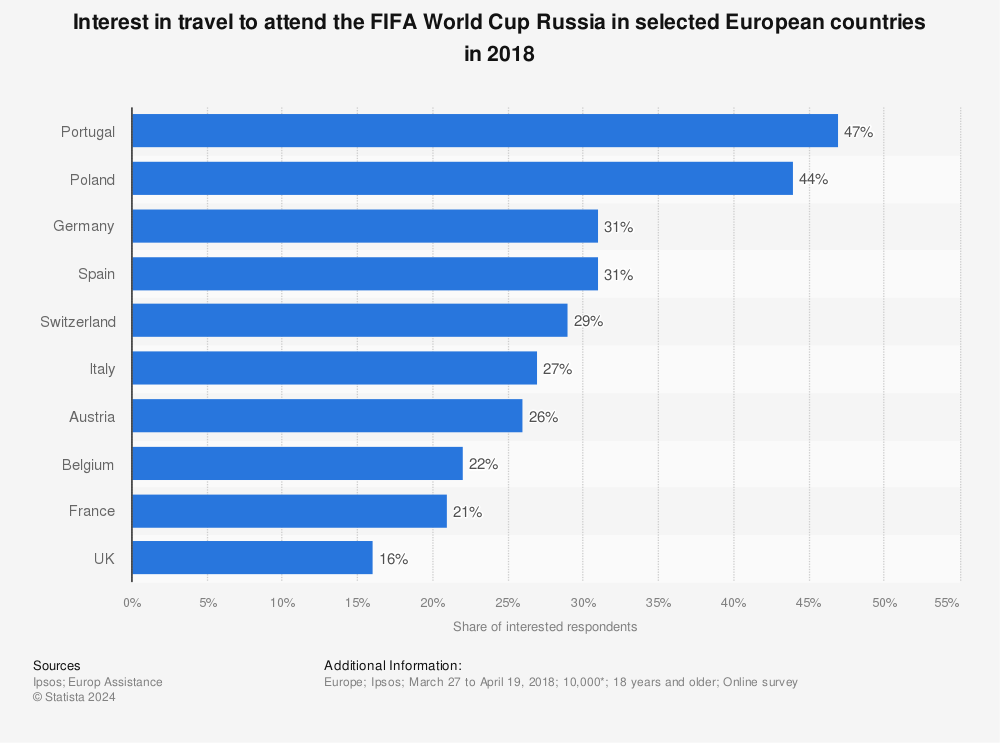
By analyzing these stats we can say that everyone loves the magic of soccer and this is the golden opportunity for you to promote your business as well as reach your business goals.
What is new in the Spin and Win?
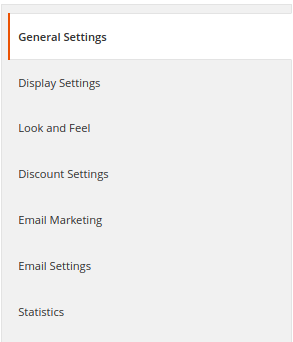
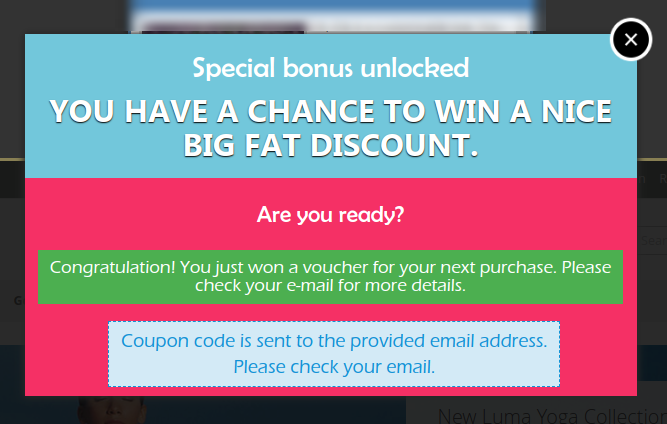
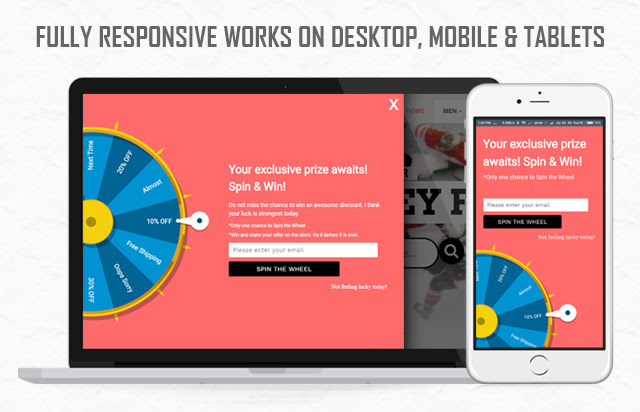
We have added some new themes for the Prestashop Spin and Win Popup module. The store admin can change the theme of the Spin and Win Welcome Popup from the back-office. Please see the attached screenshots:
Apart from the generic themes of country, wise themes are also available which will help you to spread the magic of soccer and win the new customers.
Click here to get the Spin and Win Popup module for your Prestashop store.
Click here to get the Spin and Win Popup module for your Magento Store.
Click here to get the Spin and Win Popup module for your Magento 2 Store.
Exit popup offering discounts in exchange for email Ids has become very important when it comes to the e-commerce business. Exit Intent popup nowadays are one of the most important factors in customer engagement and increase revenue. Most e-commerce store owners use Exit popups as a tool to engage customers with the store.
Exit pop-up uses Exit-intent technology which tracks the movement of the mouse cursor and soon as the customer tries to leave the page the Exit popup appears offering discounts in exchange of the email Ids.
We at Knowband has developed an Exit Intent popup for Magento 2 users popularly known as Magento 2 Exit popup extension. This Magento 2 extension offers various features which make this Exit Intent extension far better than other Exit intent popups used. This Magento 2 Exit Intent extension offers look and feel settings which allows admin to customize the Exit popup in endless ways.
Magento 2 Exit pop up(email subscription) extension displays a responsive newsletter pop up every time a visitor tries to leave the store. The Magento 2 extension offers discount coupons to the visitors who enters their email Id in the subscription pop up and subscribe them for a newsletter or register them for a new user.
Magento 2 Exit popup offers integration with popular email service providers like MailChimp, Klaviyo, and Constant contact. All the email Ids entered in the Exit intent newsletter popup are automatically synced to the databases of these email service providers. Magento 2 admin can use these email Ids for personalized promotions or Mail campaigns.
1.1. Features of Magento 2 Exit popup extension
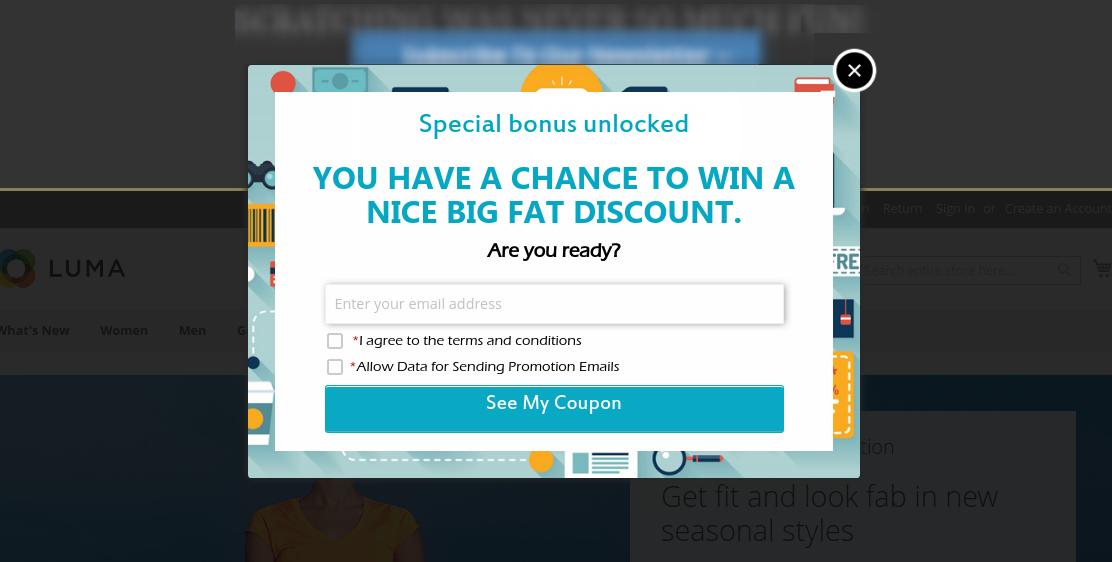
The Magento 2 Responsive exit popup extension incorporates the email subscription popup at Magento store front. The Newsletter popup appears as soon as the visitor tries to leave the website giving them one extra chance to engage with the store.
Magento 2 Exit popup extension offers Email Recheck option to prevent the same user to avail the discount more than once.
Magento 2 admin has an option to show the fireworks when a customer wins a discount by offering his/her email Id to make it more enticing and attractive.
Magento 2 Exit popup extension also allows admin the control over the display of the Exit popup by allowing “Popup display option”, Magento 2 admin can enter the number of days after which the popup is to be displayed to the same customer.
Magento 2 Exit Intent popup offers Custom CSS and JS for endless customizations without even touching the base code of the extension.
Magento 2 extension offers display settings under which the admin can set the maximum screen size compatibility of the Exit popup. The Exit popup will work efficiently in all the screen sizes above the selected size.
Magento 2 admin can also set the maximum display frequency for the Exit popup, the email subscription popup will appear as per the frequency selected from the dropdown.
Magento 2 admin can set the date range between which s/he wants to display the Exit intent popup to the visitors by selecting the data from the date picker field.
Magento 2 Exit popup extension allows admin to select the user group to whom s/he wants to display the Exit popup, the email subscription popup will be displayed to the selected user group only.
Magento 2 Exit Intent email subscription popup allows the admin to select the GEO locations where s/he wants to display the Exit Intent popup. The popup will be displayed only in the selected GEO location.
Magento 2 admin can also add a background image and website logo on the Exit intent popup.
Magento 2 admin can customize the text on the popup as per the requirement by customizing the Text settings offered by the Exit popup extension.
Magento 2 admin can set the discount being offered to the visitors using Discount settings, Magento admin can set the discount to be a percentage or fixed discount. Magento admin can also set the Coupon expiry time in days.
This even engages visitors for a longer time on your eCommerce store and increases the percentage of the customer retention.
Magento 2 exit intent popup offers integration with email service providers like Mailchimp, Klaviyo, and Constant contact.
Magento 2 email subscription popup offers 5 Readymade email templates which can be later customized by the admin as per the requirement.
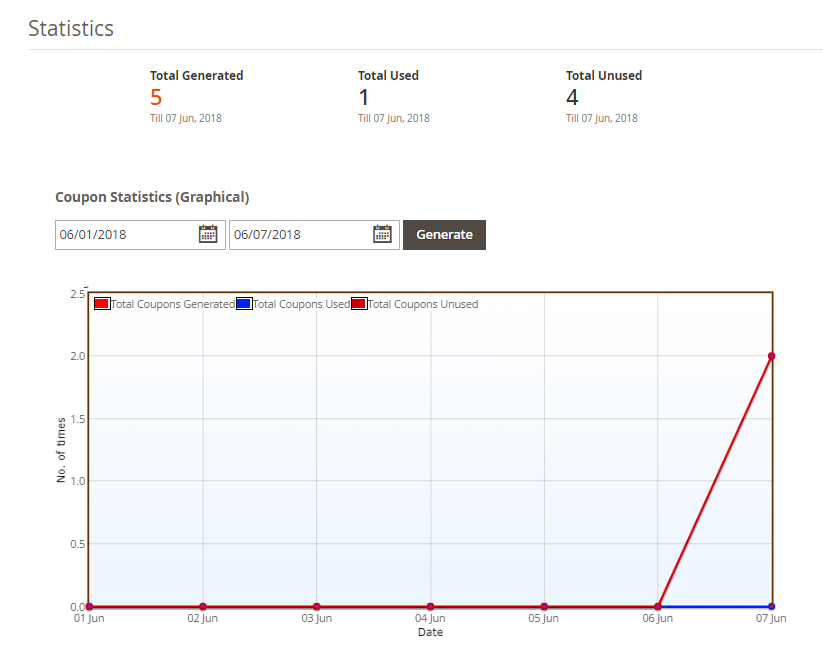
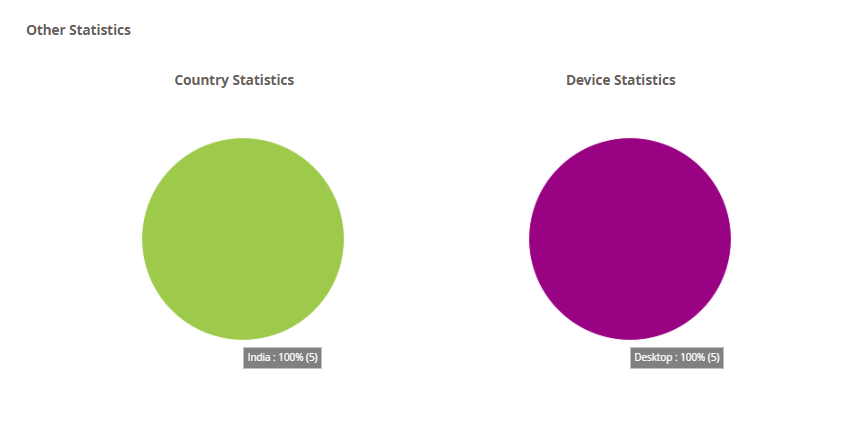
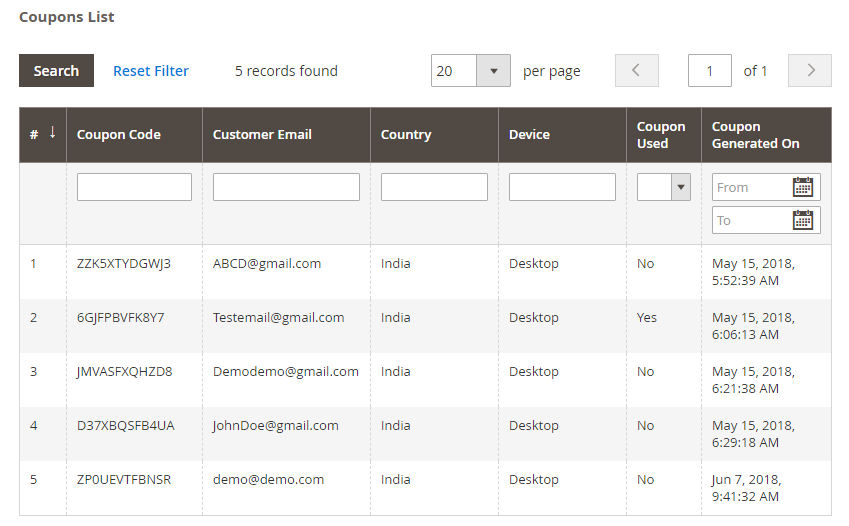
Magento 2 Exit intent email subscription popup offers a detailed report for all the Generated and used coupons, country where the Exit popup was used and in which device and the details of the customers who have entered the email Id and won the discount in terms of beautiful Line and Pie charts.
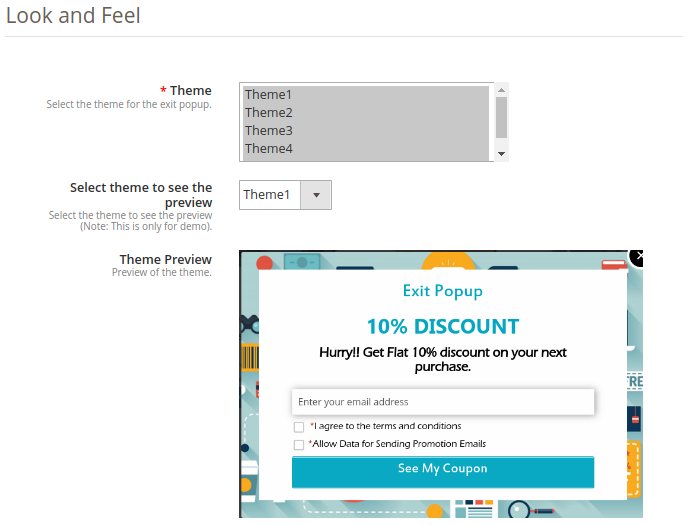
Magento 2 Exit Popup Plugin allows you to apply various appealing themes for the exit popup(email subscription popup). Theme preview option is also available for the admin before making it live.
With this Magento exit popup extension, admin can generate fixed type coupons or new coupon every time.
High Impact on sales, drastically increase store conversions
Multi lingual support
Compatible with all themes
Desktop, Mobile and Tablet responsive design
1.2. Installation
Follow the following steps in order to install Magento 2 Exit Popup extension in your store:
Download the Magento 2 Exit Popup module package from Knowband store.
You’ll receive a zipped file containing the user manual and the source code of Magento 2 Exit Popup plugin. Unzip the package.
Create a folder {Magento root}/app/code/Knowband/Exitpopup
Upload the extracted content in the above folder via FTP manager (like Filezilla or WinSCP – download here: https://filezilla-project.org/).
6. In Admin Panel go to the main menu -> Knowband -> Exit.
7. The Magento 2 Exit popup extension is now ready for use.
This User Manual will guide the users through the Magento 2 Exit popup extension configuration and settings.
2.0 Admin Interface
The admin Panel of Magento 2 Exit Popup module contains the 8 following tabs.
General Settings
Display Settings
Look and Feel Settings
Text Settings
Discount Settings
Email Marketing
Email Settings
Statistics
2.1. General Settings
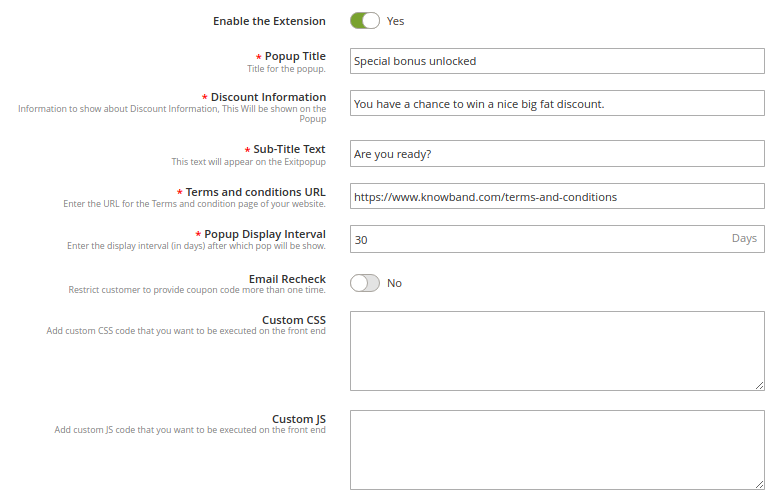
1. Enable the Extension
Toggle this button in order to enable the Magento 2 Exit Intent email subscription popup extension. If enabled, the module and all its settings will work on the store.
2. Popup Title
This option allows you to set a custom title for the exit popup or email subscription popup.
3. Discount Information
Using this option, you can set any text which will be shown as discount information on the exit popup.
4. Sub-Title Text
This information is also shown on the exit popup below the main exit popup title.
5. Terms and Conditions URL
Using this option, you can set a URL for the Terms and Conditions page of your website.
6. Popup Display Interval
Using this setting Magento 2 admin can set the number of days after which the email subscription popup will display again to the same customer.
7. Email Recheck
Magento 2 Newsletter popup extension offers email recheck option to prevent same User/Email Id to avail the discount more than once. Toggle this button in order to enable/disable the Email recheck on the Exit Popup.
8. Custom CSS and JS
Magento 2 Exit Popup extension offers custom CSS and JS options to Magento admin for endless customization. The Newsletter popup can be completely customized and Magento 2 admin can match with the store theme.
2.2 Display Settings
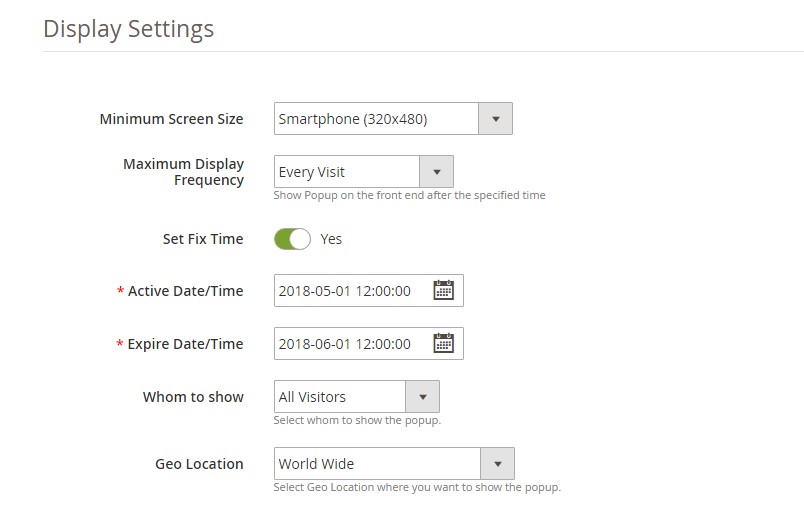
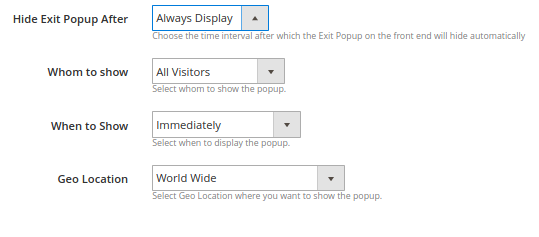
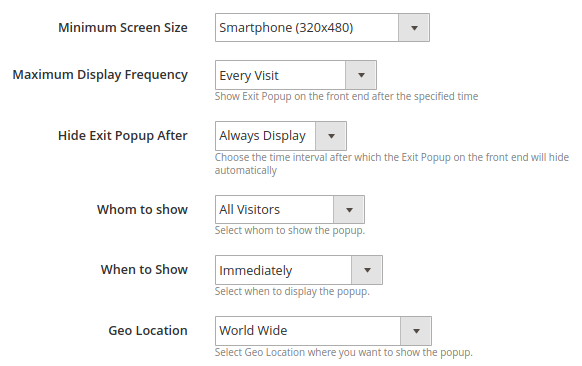
Magento 2 Exit popup extension by Knowband offers Display settings using which Magento 2 admin can control the display of the popup, like whom to show the newsletter subscription popup, in which country to show the newsletter popup etc. Let us see them in detail. But first please look at the screenshot below:
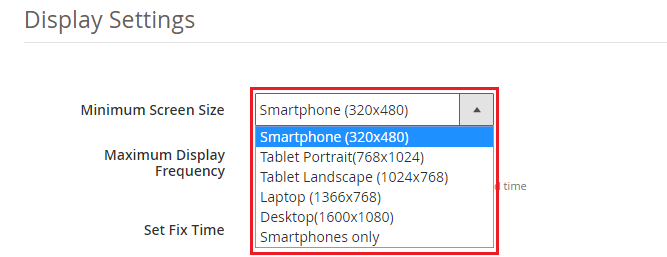
1. Minimum Screen Size
If mobile is selected as the Minimum screen size then the Exit Intent email subscription popup will work on all the screen sizes higher than the Mobile phone and on Mobile phone, if Desktop is selected as the Minimum size screen then the Newsletter popup will not display in the Mobile phone and any size screen smaller than the Desktop.
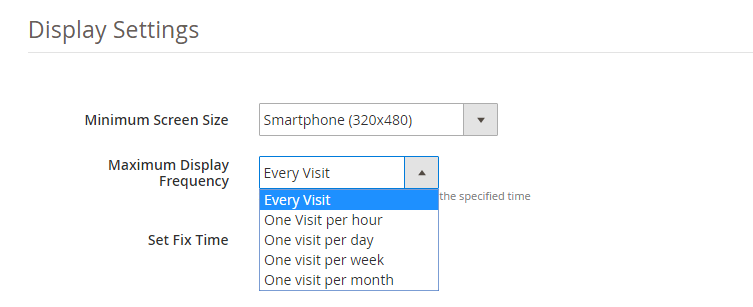
2. Maximum Display Frequency
Magento 2 Admin can set the Maximum Display Frequency of the Newsletter subscription popup using this option. The Admin can decide to show the Exit popup at every visit of the customer, or one visit per hour, per day, per week, and per month. If every visit is selected the Exit Intent popup will appear at every visit of the customer.
3. Hide Exit Popup After
This option of Magento 2 Exit Intent popup extension allows you to set the time interval after which the exit popup will automatically hide on the frontend.
4. Whom to Show
Magento 2 Exit popup extension offers store admin to choose the customer group whom to show the Newsletter popup using this setting. Magento 2 store admin can select to display the Exit intent popup only to the new visitors, only to the returning visitors or to all the visitors on the store. Please refer to the screenshot below:
6. When to Show
This option allows you to set the time after which the email subscription is shown to the user: immediately, after some time, after scroll down percentage or upon exit.
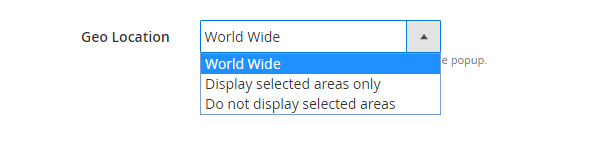
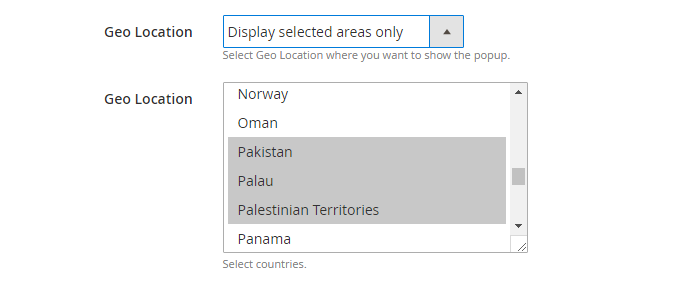
7. GEO Location
Magento 2 Exit Popup extension allows admin to select the GEO locations where s/he wants to display the Exit intent email subscription popup. Please refer to the screenshots below.
Screenshot 1
Screenshot 2
2.3 Look and Feel Settings
Magento 2 Exit popup extension gives an option to select and apply pre-defined templates for the exit popup.
1. Theme
Magento 2 store admin can choose any theme for the exit popup.
2. Preview:
The store admin can select any theme to see the preview. This option is helpful as they can check the theme before making it live on the store.
2.5 Discount Settings
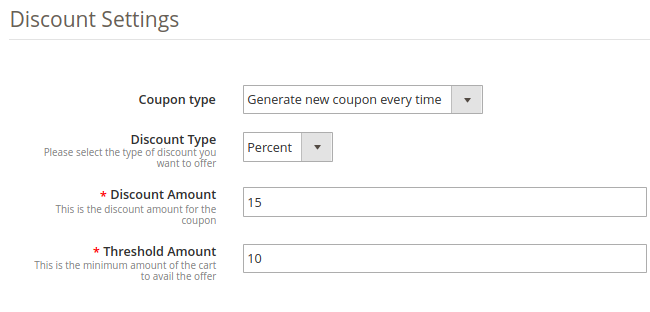
Discount settings offered by this Magento 2 Exit Intent email subscription popup extension allows Magento store owner to set the discount offered to the visitor who enters his/her email Id in the email subscription popup. Admin can offer the discount randomly or some fixed discount. There are three choices that have been provided to the store owner to set the discount. These are discussed below:
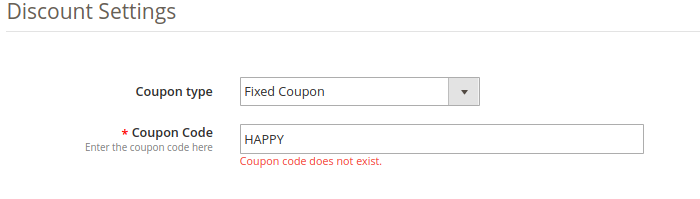
1. Coupon Type: Using this option, admin can set the coupon type as a fixed-type coupon or variable-type. In fixed type coupon, admin can specify the code which has to be first generated from the admin back-office under the Cart Price Rule Settings.
Note: If the admin tries to set a coupon code which has not been set under Cart Price Rule Settings, the following error will be shown to them:
2. Discount Type: With this option, admin can set the discount type as fixed or percentage which will be offered to the user through exit popup.
3. Discount Amount: If the admin has selected the discount type as fixed, they can set any value as a discount. If the discount type is selected as a percentage they have to set a percentage discount value.
4. Threshold Amount: This option sets the minimum cart threshold value which is required to avail the offer.
2.6 Email Marketing
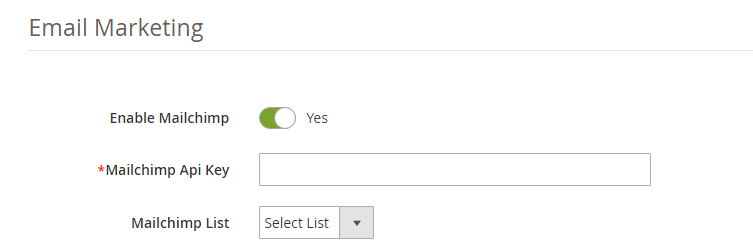
Magento 2 Exit popup extension offers Integrations with popular email service providers like MailChimp, Klaviyo, and Constant Contact. The email Ids captured by this Email subscription popup are automatically synced to the database of these email service providers which can be later used by the store admin to send personalized or promotional emails. Let us see how we can configure them.
1. MailChimp Integration:
Magento store admin is required to enter the MailChimp API key in order to sync it with your web store. Follow the below mentioned steps for the API key:
Step 1: Log in to your MailChimp account at https://mailchimp.com.
Step 2: Click on your Username from the menu on the top right corner.
Step 3: Select the Account in the flyout menu.
Step 4: From the account page select Extras and then API Keys.
Step 5: Your API Key will be listed in the table labeled Your API Keys. Copy the API key from there and paste in the “MailChimp API key” field.
Once this is done, the MailChimp account is synchronized.
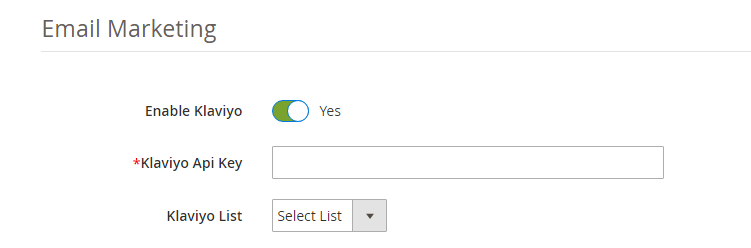
2. Klaviyo Integration:
In order to Integrate Klaviyo with the store, Magento admin have to add the Klaviyo API Key in the provided field.
Step 1: Log in to your Klaviyo account at https://www.klaviyo.com/
Step 2: Click on your Username from the menu on the top right corner.
Step 3: Select the Account in the flyout menu.
Step 4: From the account page select Settings and then API Keys.
Step 5: Your API Key will be listed in the table labeled Your API Keys. Copy the API key from there and paste in the “Klaviyo API key” field.
Once this is done, the Klaviyo account is synchronized.
3. Constant Contact Integration:
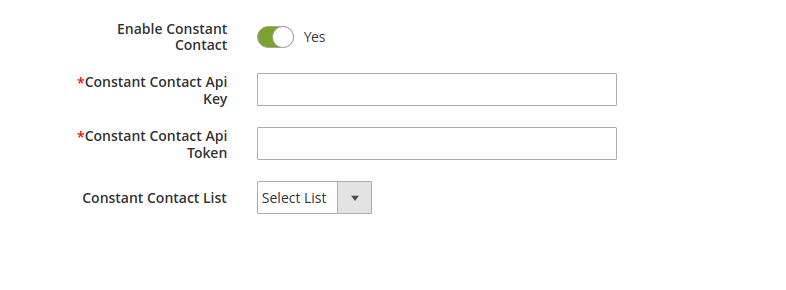
In order to enable Constant Contact integration, toggle the Enable Constant Contact button as shown in the image below:
Enter the API key, API token in order to set up the integration. Select the list in which you want to sync the captured email IDs.
In order to generate the API Key of Constant Contact, follow the steps mentioned-below:
Step 2: Enter the Application Name field. Scroll to the bottom of the page and check the box indicating you agree to the terms of service and click Register Application.
You will, then,get your API Key information.
Step 3: Click the Get Access Token button, in order to obtain the Access Token.
2.7 Email Settings
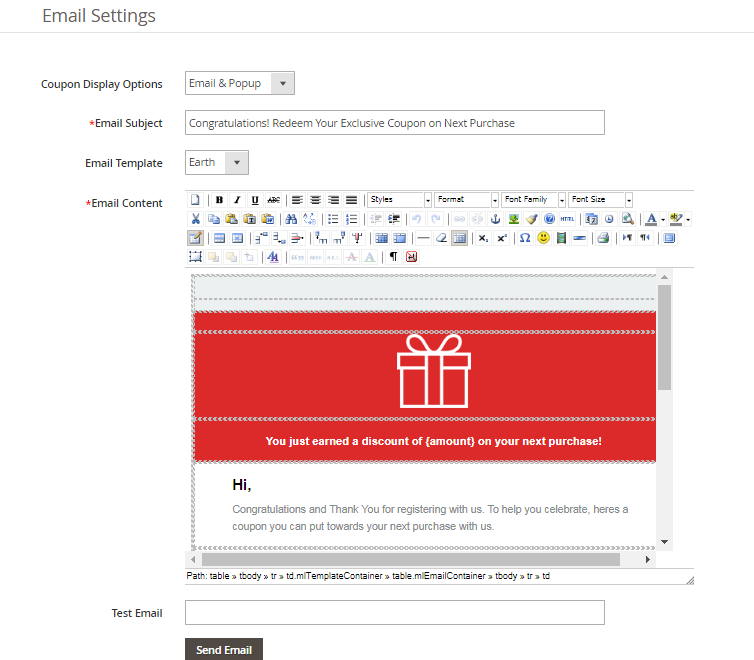
Magento 2 Exit popup extension offers Email Settings to manage the Email sent to the customer with discount coupon codes. The extension offers readymade email templates which can be customized further as per the requirement. There are three options in which admin can share the coupon code with the customers i.e. display the coupon code in the newsletter popup itself, share the coupon code in the email sent to the customer and an option to choose both. The coupon codes are generated automatically and the emails are sent automatically as soon as a customer enters the Email Id in the email subscription popup.
Coupon Display option: Magento 2 admin can choose how to display the coupon code to the customer i.e. either on the exit intent popup, either via email or admin can choose both the options.
Email Subject: Magento 2 exit popup allows store admin to set the Email subject for the email that is sent to the customer. Emails are sent automatically but the admin has full control over the customization of the Email template.
Email Template: Magento 2 exit popup extension offers 5 Readymade email templates. These email templates are fully customizable as per the requirement.
Test Email: Magento 2 newsletter subscription popup extension by Knowband offers Test email field option to test the functionality of the emails sent.
2.8 Statistics
Magento 2 Exit popup extension offers statistics of its performance. The statistics show the comparison between the total generated and used coupons. Magento 2 newsletter subscription popup extension offers interactive graphs for total generated and used coupons. Magento 2 admin can filter the stats by selecting the date range from the date picker field, refer to image below:
Not only this Email subscription popup extension also shows the statistics in a beautiful and interactive pie charts, in which country the Exit popup extension is used and in which device, refer to the screenshot below:
Tabular Report: Magento 2 Exit popup extension generates tabular reports which shows information of the customer who has entered the email Id in the Newsletter subscription popup. The information like Email Id, the Coupon code allotted, the country where the Exit Intent popups, the device on which it was used and if the customer has used the coupon or not, refer to the screenshot below:
3.0 Front Interface
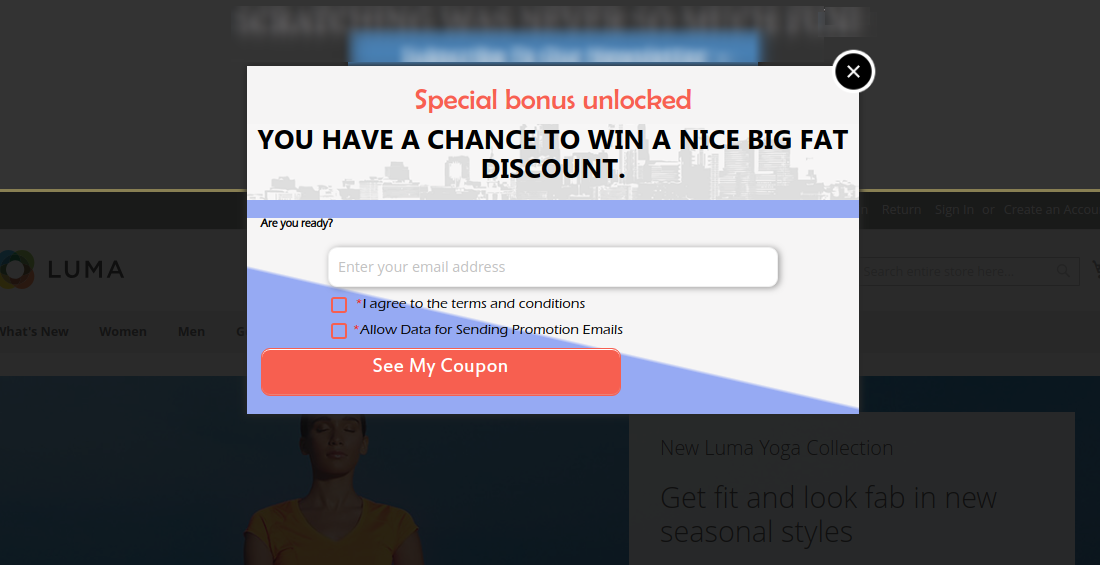
A) Magento 2 Exit popup with Theme 1
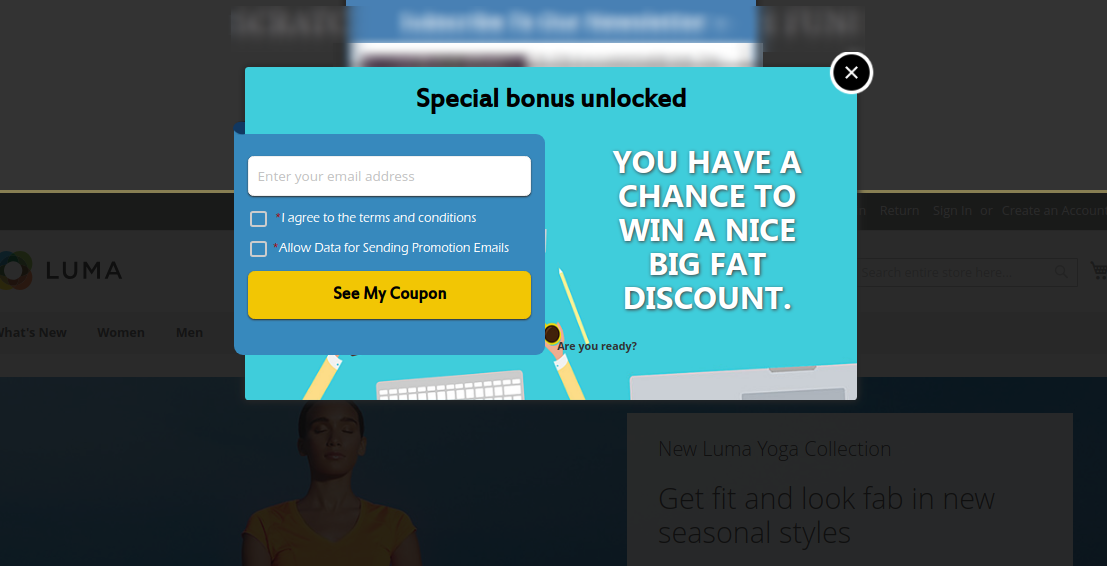
B) Magento 2 Exit popup with Theme 2
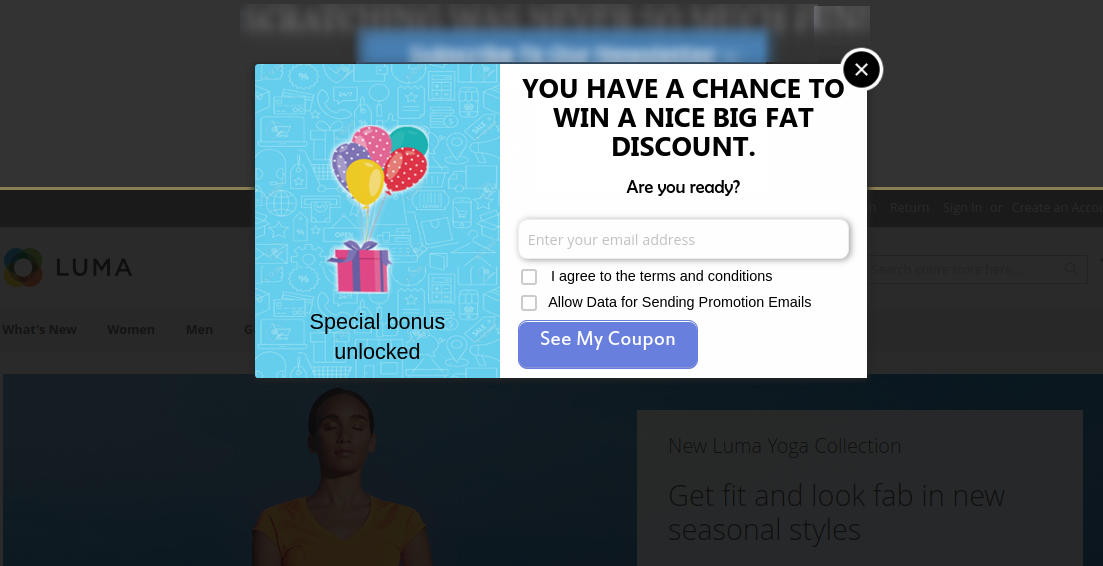
C) Magento 2 Exit popup with Theme 3
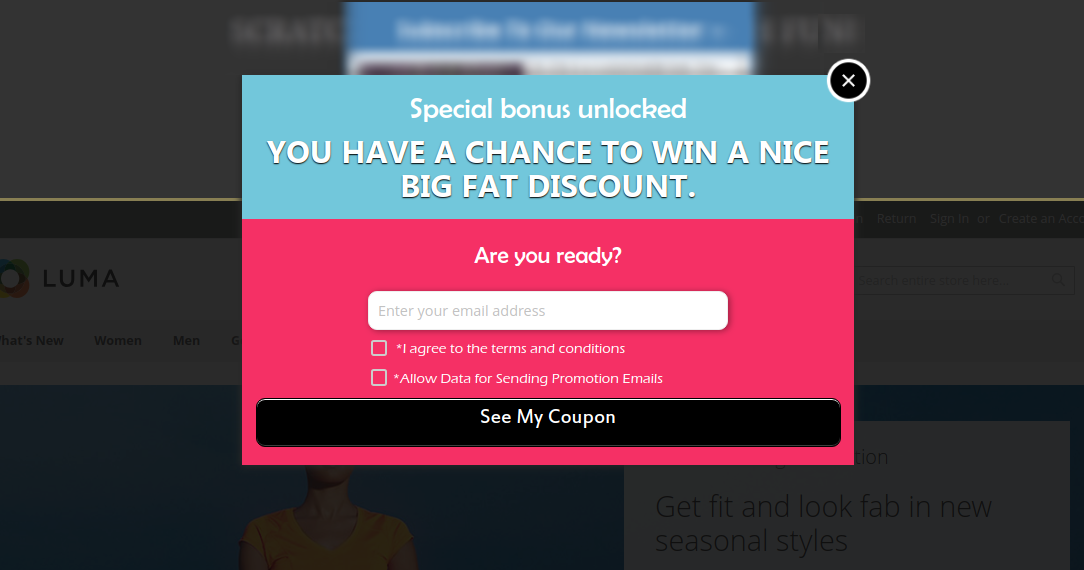
D) Magento 2 Exit popup with Theme 4
E) Magento 2 Exit popup with Theme 5
As the customer enters their email address, the following screen will be shown to them.
Disclaimer: In case the “Exit” popup does not display at the front, kindly clear the cache or delete the cookies. Sometimes cookies prevent the popup from displaying at front.
In order to achieve the success in the eCommerce business, it is important to stay up to date with the latest trends in the industry. Staying abreast with the current technological advancements and market trends can keep you ahead of the competitors. One of the best ways to achieve your business goals is to steps into the shoes of the well-established businesses and get inspirations from them. The ideal workflow of the eCommerce business should attract the shoppers to the website, filer the prospective customers from the website traffic and then convert them into the paying customers. This can be done by improved customer experience, customer retention strategy and ultimately winning the customer loyalty.
It won’t be wrong to state that even the digital era word-of-mouth plays a vital role. If you offer better services and improved customer experience at your store, then, you will certainly win back old customers and attract new ones. Social media also provides a platform to the online sellers to reach out to the new customers. In this post, we will discuss the most popular strategies which will help you to achieve your business goals in the year 2018.
Strategy#1 Attracting New Customers and Retaining old ones:
Effective lead generation strategy is the secret of the success in the e-commerce. Most of the time, when you visit established e-commerce sites, you may come across the welcome popup offering enticing discounts on the first purchase. In order to avail of this special discount, the visitors need to provide their email-ids. All the top e-commerce giants leave no chances to capture the email-id of the customers. The email address is the best way to establish a new and long-lasting relationship with the customers.
Getting the email addresses of the visitors is not an easy task. In order to get the email id of the visitors, you need to offer special deals to the new visitors. You can offer free shipping or enticing discount on the first purchase. Most of the top brands use this strategy to reach out to the more customers.
How can you use this strategy for your online business?
Gamified Welcome Popup-
Gamification of the site is the best way to retain the customers. Spin and Win popup is a gamified popup which allows the visitors to win the enticing discounts by spinning the wheel just like the roulette-game. The Spin and Win popup is one of the best ways to display an interactive popup to gather the customer information. Customers need to enter their email ids to play the game. The gamified interface develops the interest of the customers and they happily provide their email-ids to play the game.
Exit Intent Popup monitors the mouse movement and as soon as the visitor intends to exit, it displays an awesome popup with the discount offer. Special encourages the customers to complete their purchase and helps you to grow your email list.
The latest trend in the eCommerce world is to offer free shipping. Customers prefer to buy with the free shipping option. Most of the sellers on the top marketplace like Amazon, Etsy, Walmart, eBay offers the free shipping.
Why is Free Shipping a must?
1) Shoppers Love Free Shipping option – According to the studies, the online shoppers prefer placing the order of the products if the shipping is free. 2) Competition – The marketplaces like Amazon, eBay, Walmart, Etsy and many more are expanding their presence and offering great benefits to the customers including the free shipping services. So, it is a must for the online business to offer free shipping to retain their existing customers. 3) Free shipping reduces shopping cart abandonment – Most of the time customer leave the cart abandoned because of the additional costs (shipping and taxes). 4) Free Shipping Increases Average Order Value – Shoppers buy more products to qualify for the free shipping.
Tactics to offer free shipping
1) One of the methods to offer free shipping is to include the shipping cost in the product price itself. This approach will work if you offer unique products to your niche market and there are not so many competitors.
2) You can create special promotional to offer free shipping on the products that have a higher margin.
3) You can offer free shipping only for a particular cart value. Orders with the cart value higher than the set limit will be eligible for the free shipping.
4) You can offer free shipping on special sale occasions or during the holiday season.
eCommerce extensions to offer better shipping services:
a) Free Shipping Manager
The Free Shipping Manager extension is available for the Prestashop platform. This addon allows the store admin to create the rules, terms and conditions for shipping charges. The merchants can fix the cart limit beyond which free shipping will be offered. This module can help you to increase revenue and conversion rate of the site. Click here for the details.
b) Shipping Cost by ZipCode:
Sometimes you need to offer shipping charges based on the location of the user. The Shiping Cost by ZipCode extension is the best way to offer shipping charges based on the location of the user. The Shipping Cost by ZipCode module is available for the Prestashop. Similar extension Product Availability check by ZipCode is available for the Magento 1 platform.
Strategy#3 Improve Customer Experience
Better customer experience at your store encourages the customer to browse more products which helps to increase the chances of the purchase. As per the latest trends in the industry, you should try to offer the best experience to the visitors to convert them into a customer.
There are following extensions which can be helpful to you to achieve the same.
a) Infinite Scroll
In the recent years, the growth of mobile devices brings a revolution in the eCommerce world. Now, most of the users prefer to browse the internet by using their handheld devices like mobiles and iPad. Infinite scrolling allows the users to browse more products with ease and improves the user experience for the touch devices. Moreover, the infinite scrolling option works efficiently while mobile browsing as well. Infinite Scroll extension developed by Knowband is available for the Magento 1, Magento 2 and Prestashop platforms.
b) Size Chart
If you sell Footwear or Clothing, then, a size chart on the product page is a must. The Size Chart helps the users to select the correct fit and also reduces the chances of the return. Size Chart extension developed by Knowband is available for the Magento 1, Magento 2, and Prestashop platforms.
c) Product Video
Instead of going through the long text, the users prefer to watch the video for the better understanding of the product. Product videos are more engaging than the text. Knowband offers the Product video extension which allows you to display the videos on the product pages from the video channels like YouTube, Vimeo. Product Video extension is available for the Prestashop, Magento 1 and OpenCart platforms.
d) Wishlist
With the dynamic growth of the marketplaces in the last few years, a new trend emerged in the eCommerce industry. Now shoppers prefer to search for the products on Google or marketplaces like Amazon, Etsy, Walmart, eBay, Cdiscount etc to get a better comparative price and offers before making their purchase decisions. Wishlist feature allows the shoppers to shortlist the products of their choice, so that, they can later place their order for the products. After adding the products to the Wishlist a shopper can access his/her wishlist any time. This saves the time of the shoppers as they can easily add the wishlist products to the cart to place their final order. The Wishlist extension is available for the Prestashop, Magento 1, Magento 2 and OpenCart platforms.
e) Express Checkout
The easy checkout process is the key factor to get the higher sales. Most of the online businesses provide the one step checkout to make the shopping experience of the shoppers hassle-free. One step checkout allows the user to enter the all the details at a single page and reduces the cart abandonment. The one step checkout allows the shoppers to create the account, place order as a guest or login to the account at the checkout page. Knowband offers the One Page Checkout module for the Magento 1, Magento 2, Prestashop and OpenCart platforms.
Strategy#4 Customer Retention Techniques
a) Helpdesk
If you have observed most of the online businesses offers the 24*7 chat support. Recently Chat Boats have also provided an effective tool to improve the customer engagements. By assisting the customers and visitors to make their purchase decisions and after sale inquires you can develop a bond between your brand and the customers. This long-lasting relationship might convert the customers into loyal customers. The Helpdesk extension is available for the Prestashop and Magento 1 platforms.
b) Loyalty Points
Offering loyalty points for each purchase of the customers helps you to retain the customers for a long time. As for each order, customers get the store credit which they can use towards their further purchases encourages the customer to return back to the store to use the store credit available in the account. The Loyalty Points module is available for the Prestashop platform.
c) Return Management
Efficient return policies are one of the most important aspects to retain the customers. The return and refund policy of the online store also encourages the customers to place their orders. In order to offer the hassle free return management online stores can use the Return Manager Extension. Knowband offers the Return Manager Extension for the Prestashop, Magento 1 and Magento 2 platforms.
d) Birthday Surprise
Everyone loves surprises because it shows how much the businesses value the customers. In order to win the trust of the customers, businesses need to go beyond the normal services and offers. You can offer an additional discount to the customers on their birthday. Knowband offers Birthday Coupon module for the Prestashop platform.
Strategy #5 Multi-channel selling
With the evolving technology and changing shopping habits of the customers, it is must for all the sellers to sell their products through multiple channels. All the top marketplaces like Amazon, eBay, Walmart, Etsy etc provides a platform to the sellers to sell their products through the marketplace.
Selling through the multiple channels is the best way to increase the brand reorganization.
In order to sell on multiple channels, the biggest challenge for the sellers is the management of the inventory and shipping. Knowband has developed the Marketplace Integration extensions for the top marketplaces like eBay, Walmart and Etsy. The marketplace integration module automates the product listing process and allows the sellers to manage the inventory and shipping for the marketplace from their existing online store.
As the GDPR is in enforcement now and after a lot of hassle most of the online businesses in EU are now compliant with the new data protection law. To help the Prestashop store owners to achieve the GDPR compliance, Knowband released the Prestashop GDPR module which handles the rights of the customers and automates the entire process for the hassle-free management. As the other module which has been installed in your Prestashop store also stores the data of the customers so it is required to make these modules compliant with the GDPR so that on the data export or deletion request of the GDPR required action can be performed. In this blog post, we will go through all the details of the GDPR and share the details of all the GDPR compliant modules so that you can upgrade your store to achieve the GDPR compliance.
We will start with the Prestashop GDPR Compliance module by Knowband, Prestashop GDPR module handles the following rights of the customers:
1) Right of access
2) Right to data portability
3) Right to rectification
4) Right to erasure
5) Rights related to the automated decision making
6) Right to restrict processing
Other features of the Prestashop GDPR Compliance Addon:
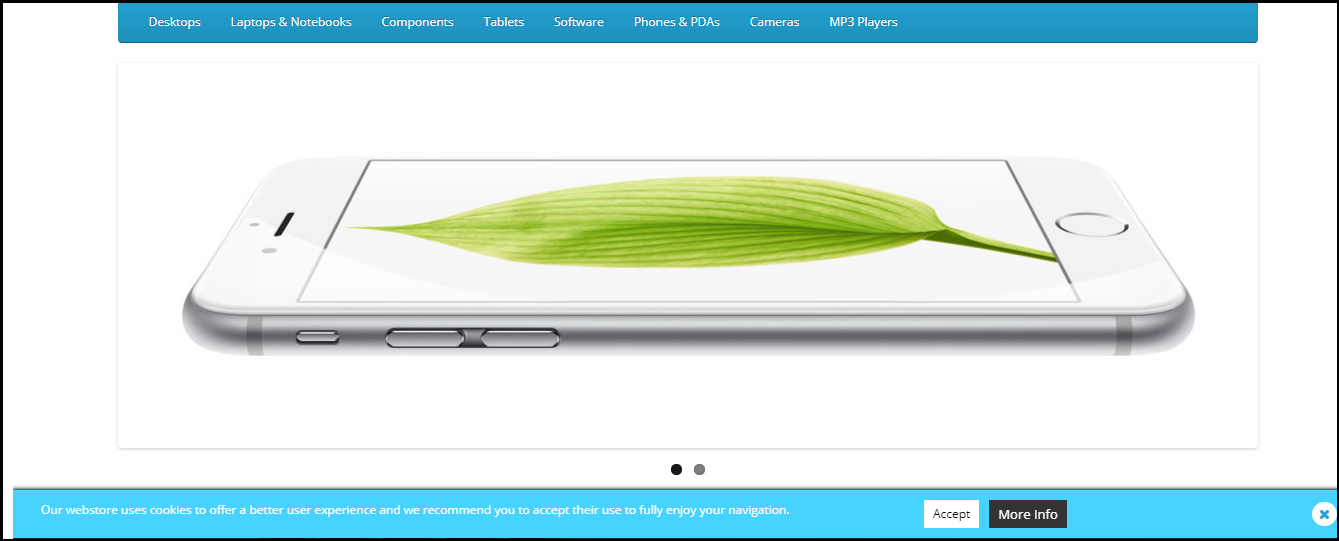
1) Cookies consent bar and cookie blocker
2) Allow guest users to access the GDPR rights
3) Download customer data from the back-office
4) Delete customer data from the back-office
5) Advance settings for the data deletion
6) Data anonymization
7) Compatibility with the other GDPR compliance module
8) User consent (checkboxes) at the registration and contact form
For more details regarding the Prestashop GDPR module click here.
As we informed our valued customers through the newsletter that Prestashop has introduced 4 types of hooks to make the Prestashop modules (which collects the personal data of the customers) compliant with the GDPR. In order to make the Prestashop modules compliant with the official GDPR module developers need to integrate these hooks to the module. After integrating these hooks customer will be able to export the data captured by the respective module. Similarly, on the data deletion request, the customer data will be deleted from the modules. For the details on how to make your module compliant with the GDPR module, please click here.
In order to make the native modules GDPR compliant Prestashop has also released the 2 new versions of the Prestashop – 1.7.3.3 and 1.6.1.19. Please click here for the details.
Express checkout is the best way to improve the conversion rate of your store. The one page checkout module allows you to display billing address, shipping address, payment and shipping options on the same page and saves the time of the user to complete the order. You can enable the one step checkout for the guest users and new users can also easily create an account with ease. Social login option is one of the best features of the One Page Checkout module. One Page checkout module by Knowband supports multiple shipping and payment methods. Prestashop One Page Checkout Module is now GDPR compliant. Click here to upgrade your One Page checkout Module. Note: If you have made any custom changes in the module then we will recommend you to contact our support team to save the changes. Please click here to get in touch with the helpdesk team.
Prestashop Marketplace module allows the store admin to convert their Prestashop store into a marketplace like Amazon, Walmart, Etsy etc, so that multiple sellers can list their items in the marketplace. Converting your store into a marketplace helps you to offer more products and services to the customers at a better price. You can earn commision from the sellers listed on the marketplace. Prestashop GDPR Module is now GDPR compliant. Click here to check the details.
Note: If you have made any custom changes in the module then we will recommend you to contact our support team to save the changes. Please click here to get in touch with the helpdesk team.
The Spin and Win Popup module is one of the best ways to collect the leads. The gamified popup design of the module allows the customer to spin the wheel to get the enticing discount on their purchase. Prestashop Spin and Win Popup module is now GDPR compliant. Click here for the details.
The Prestashop Wishlist module allows the customers to save the products of their choice to the wishlist so that later they can view and place their order for these products. This saves the time of the customers and improves the customer experience at your store. The Wishlist module also helpful for the store admin to understand the customer behavior. Admin can check the statistics of the products saved in the Wishlist. Advance WishList Module is now GDPR compliant. Click here for the details.
The Return Manager module is one of the must-have extension for the Prestashop store owners. If you are in EU then this module can help you to comply with the EU laws. As per EU law customers have the 14 days cool off period in which they can return the product. By using the Return Manager addon you can provide a hassle free return process for the customer. The Return Manager Module also helps the sellers to manage the returns effectively and you can also keep the track of all the returned items. Prestashop Return Manager Module is now GDPR compliant. Click here for the details.
The Prestashop Abandoned Cart module is an effective way to reduce the cart abandonment and win back the customers. You can send the serial reminders to the customers to complete their purchase. Prestashop Abandoned Cart Module is now GDPR compliant. Please click here for the details.
The Gift Card Manager Addon helps you to boost the sales. By using the Gift Card Module you can create and sell gift cards on your store. The customers can purchase the gift cards and share it with their friends. Prestashop Gift Card Manager Addon is now GDPR compliant. Please click here for the details.
Prestashop Reward Points addon allows the sellers to award their customers on completing their purchase. The Reward Points helps the store owner to retain the customers so that they can keep on visiting the store to use the reward points. Prestashop Reward Points Module is now GDPR compliant. Click here for the details.
The Prestashop Birthday Coupon module allows the store admin to send the birthday wishes to the customers. Admin can offer a special discount to the customers on their birthday. Prestashop Birthday Coupon Module is now GDPR compliant. Click here for the details.
Product reviews are the must to win the customer trust. You can ask for the reviews to the customers who have purchased your store products. You can also offer some additional discount to the customers to post their reviews. Prestashop Review Incentive Module is now GDPR compliant. Click here for the details.
Prestashop Order Custom Field Module allows the store admin to add the additional details on the checkout page. By adding the custom fields on the checkout page admin can collect the additional details from the customers. This information can be used for the effective marketing. Prestashop Order Custom Field Module is now GDPR compliant. Click here for the details.
In order to increase the customer engagement on the store, the admin can allow the customers to set the alert for the drop in the product price. In case of any drop in the product price, the customer will get the email notification with the product link. Prestashop Price Alert Module is now GDPR compliant. Please click here for the details.
Instead of disabling the out of stock products the Prestashop store admin can use the Back in Stock Notification module to convert the visitors into the customers. Customers can set the alert for the restocking so that as soon as the product will be restocked the customer will receive the email notification for the same. Prestashop Back in Stock Notification module is now GDPR compliant. Please click here for the details.
The Prestashop Product Update Notification module allows the customers to set the alert for the products. On opting for the price alert the customer will receive the alert for the stock alert and price change. Prestashop Product Update Notification module is now GDPR compliant. Please click here for the details.
We will keep updating this post for the more GDPR compliant modules.
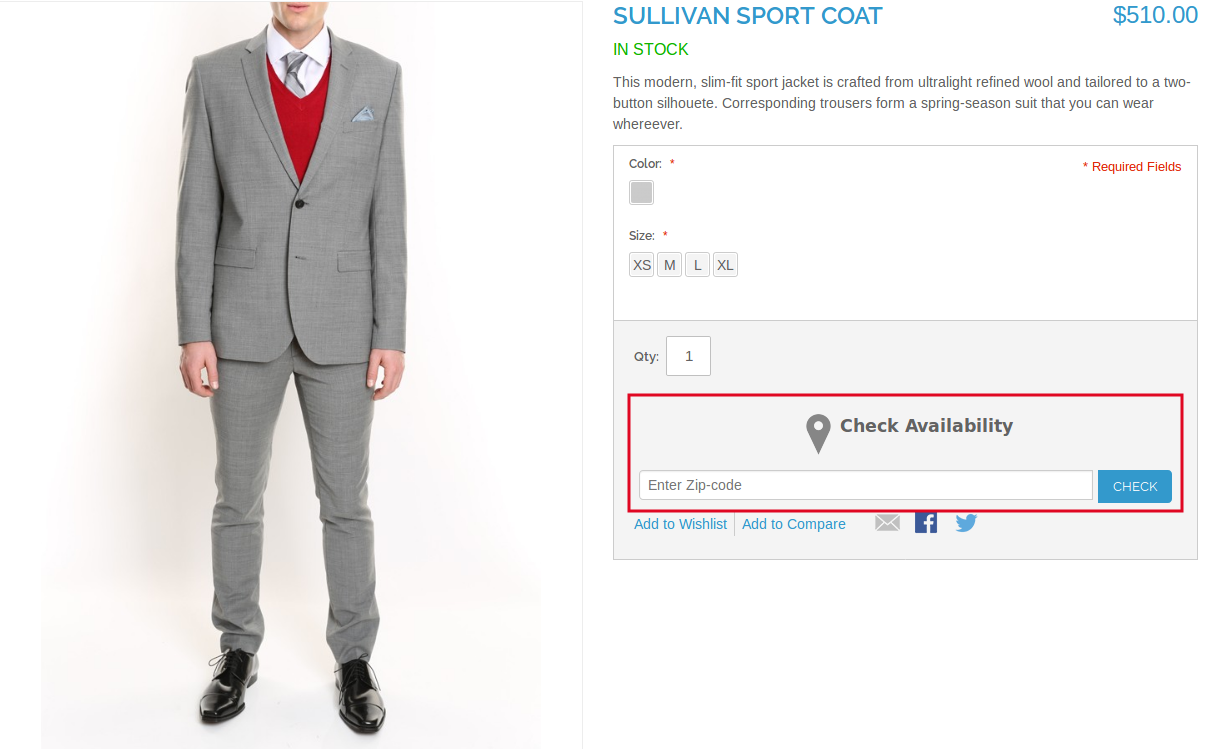
Magento Product Availability Check by Zipcode Extension by Knowband allows the user to check the availability of the product in a particular area just by entering the zipcode. The Magento Product Availability extension also offers the admin to restrict the availability in the particular area(s). With the help of this Magento Zipcode extension, the admin can change the availability status whenever he wants to.
1.1 Features offered by Magento Product Availability by Postal Code Extension:
By installing the Magento product availability by zipcode, the store admin can allow the store visitors to check the availability of the product in a particular region based on the zipcode.
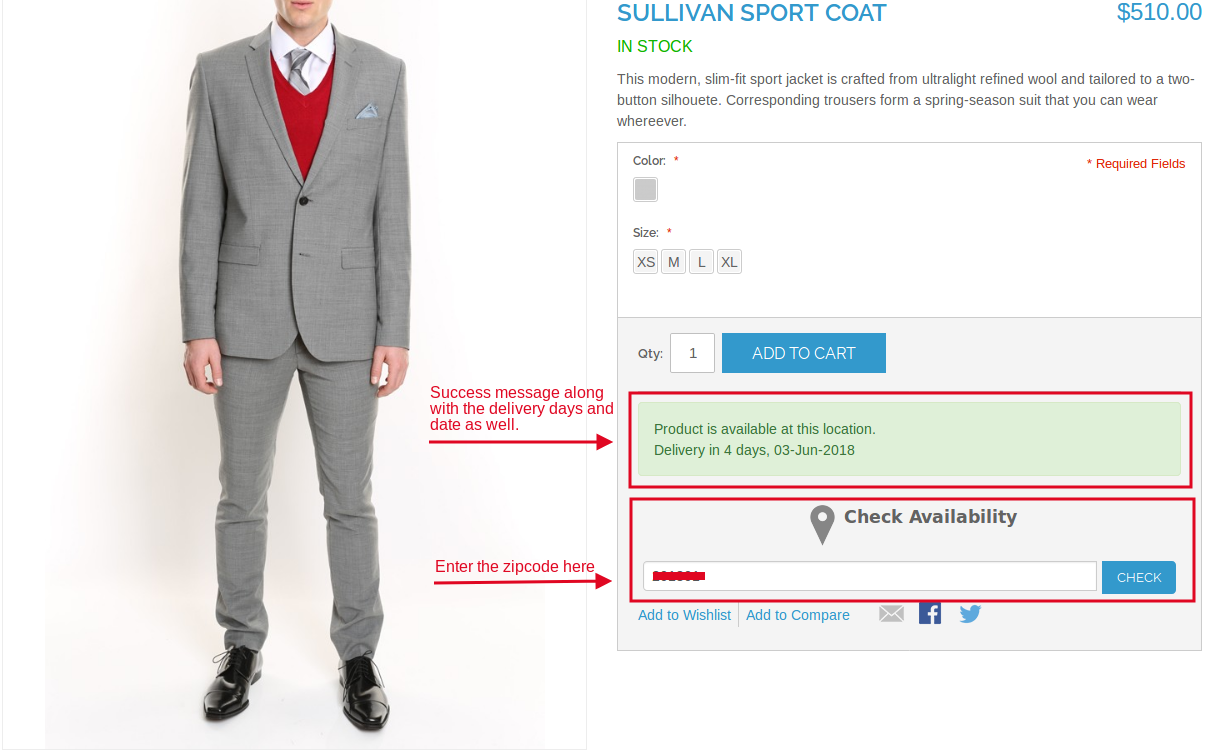
The Magento Product Availability Check by Zipcode Extension allows the admin to show number of days with estimated delivery date if the product is available to the entered zipcode.
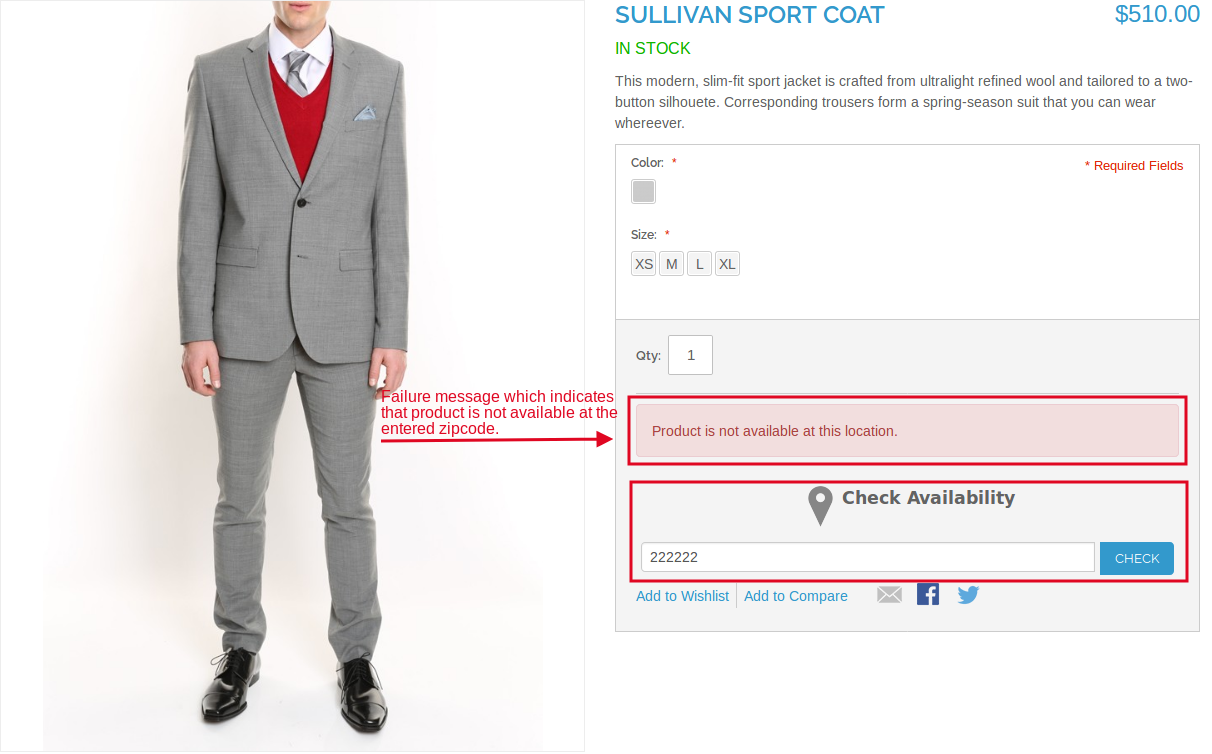
The Magento Product zipcode validator module offers the admin to disable the checkout option if the product is not available to the entered zipcode.
The admin can create various global zones.
The Magento product zipcode validator extension allows the admin to view all the list of created zones as well under the “Global Zone” configuration interface.
The module allows the admin to map the zones with product in order to specify their availability.
The global zone can be edited/deleted as well.
The admin can edit or delete the zipcodes from the created zones.
The admin can add/delete the any product(s) from the selected zone also.
The Product-Zone Mapping can be done manually or by uploading the CSV file as well.
The admin can restrict the availability in the particular area.
The admin can create the separate zones for the available and unavailable products.
2.0 Installation Steps of Magento Product Availability Check by Zipcode Extension:
Follow the simple steps in order to install the Magento Product Zipcode Validator Module:
1. Download the extension package from the Knowband store.
2. You’ll get a zipped file. Unzip the package on the root folder of your Magento setup via FTP manager (like Filezilla or WinSCP – download here: https://filezilla-project.org/). You’ll find the files and folders as shown in the image below:
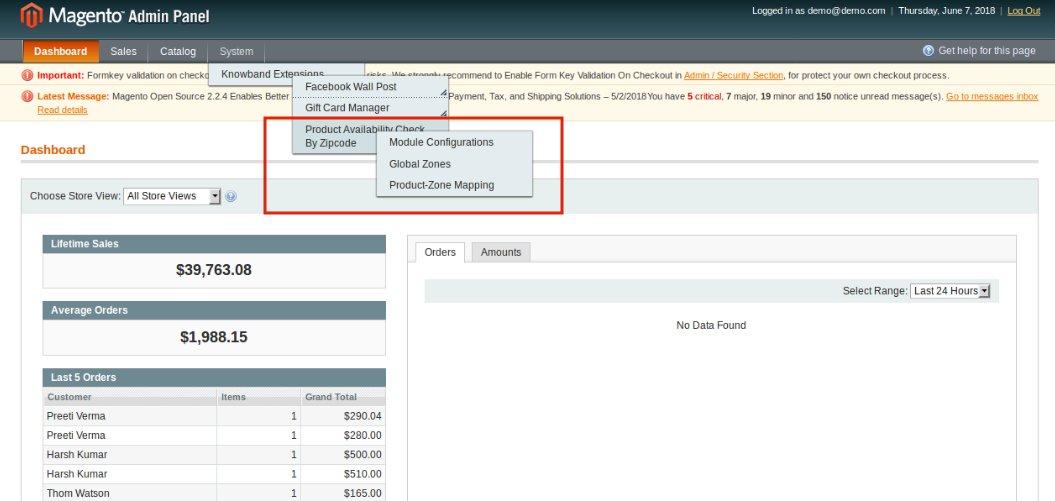
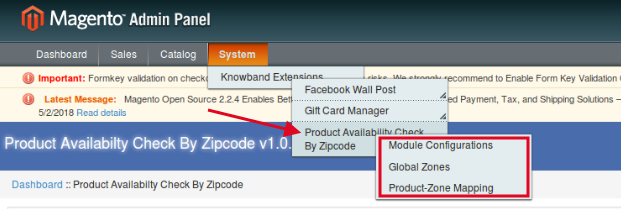
3. The extension is now installed and ready for use. In Admin Panel, go to “System > Knowband Extensions > Product Availability Check by Zipcode”.
You can now configure and use the Magento Product Availability extension.
3.0 Admin Interface of the Magento product zipcode validator extension:
The product zipcode validator Magento Extension offers following interfaces to be configured:
Module Configuration
Global Zones
Product-Zone Mapping
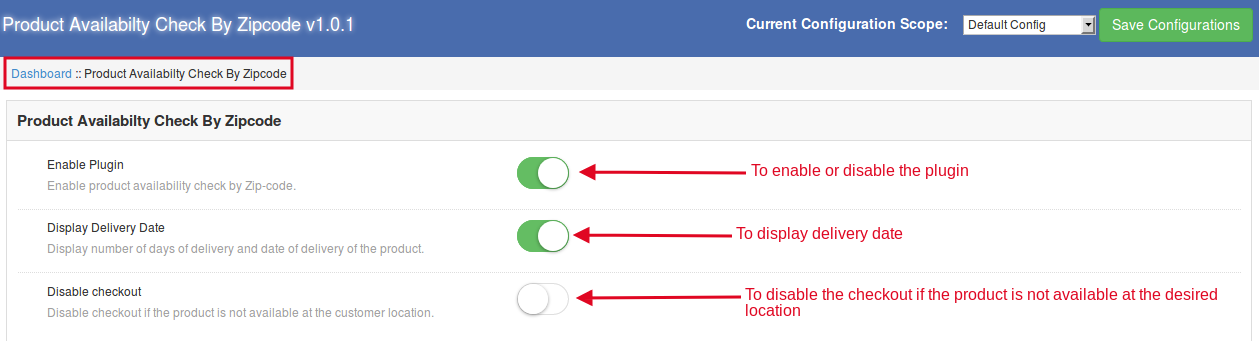
3.1 Module Configuration of Magento Product Availability by Zipcode extension:
Enable Plugin: Enable the Magento Product Zipcode validator module by toggling this button. After enabling this, it will display a block on the product page to check the availability.
Display Delivery Date: Enable this toggle button to display the estimated delivery date of the product.
Disable Checkout: If this button is enabled, then, the customer can not place the order.
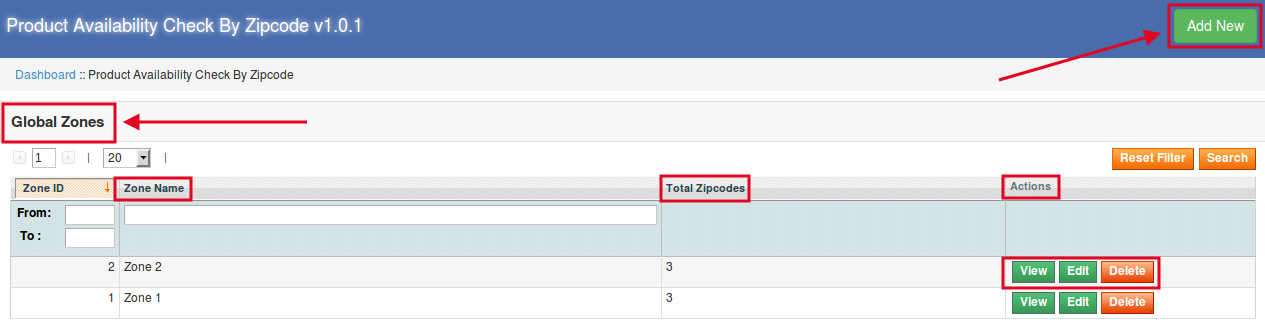
3.2 Global Zone Configuration of the Magento product zipcode validator extension:
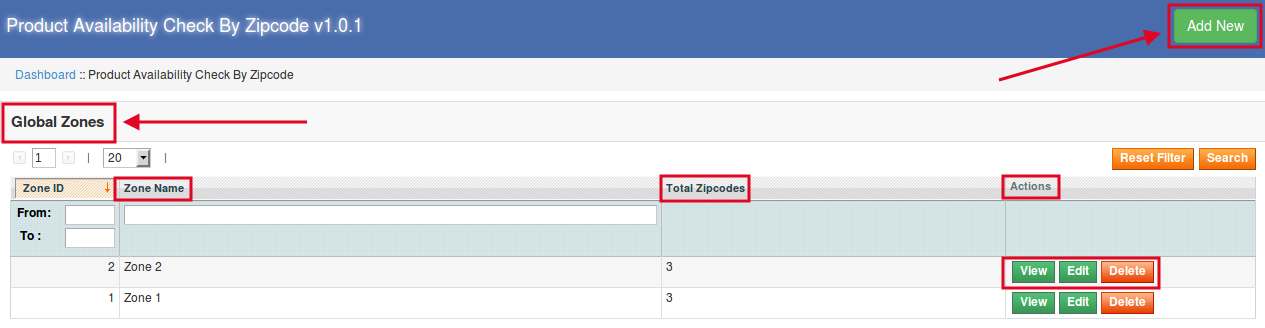
This interface contains the list of all the zones created by the store admin. The admin can add any number of global zones to make the product available or not available to the desired zipcode(s).
3.2.1 How to add New Zone?
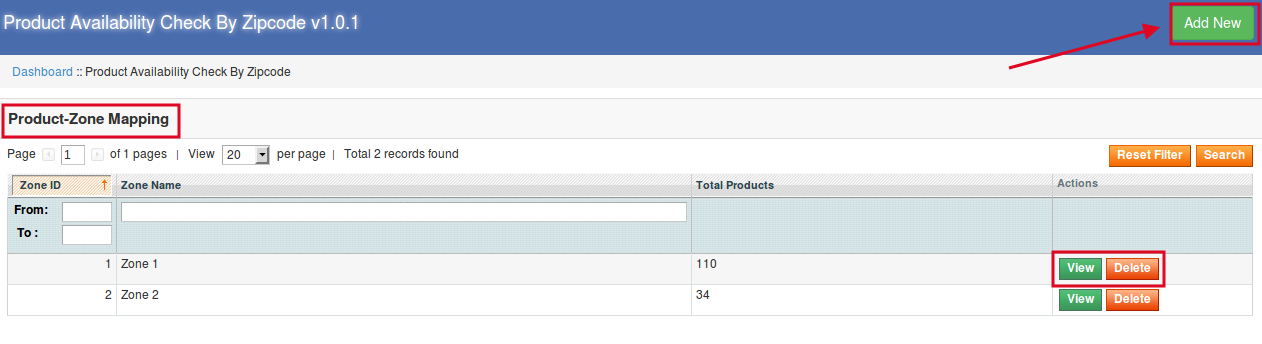
In order to create new zones click on the ‘Add New’ link at the top right section of the admin interface.
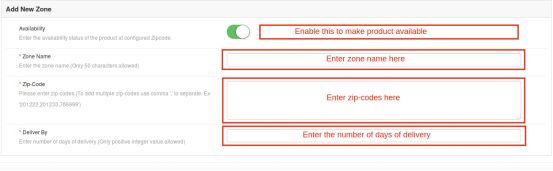
After clicking on the “Add New” button, you will see the following fields to configure:
Availability: Enable this button to make the product available for that particular zone.
Zone Name: Enter the name of the zone here.
Zipcode: Enter the zipcodes that are to be included in that particular zone. In case there are multiple zipcodes, enter the same separated by the comma.
Deliver By: Enter the number of days within which the products will be delivered to the customer. Only the positive integer value can be entered.
3.2.2 How to View/Edit/Delete the Global Zone(s)?
After clicking on the Global Zone configuration option, an interface will open containing all the list of created Global Zones. You can View/Edit/Delete the any of the Global Zones here.
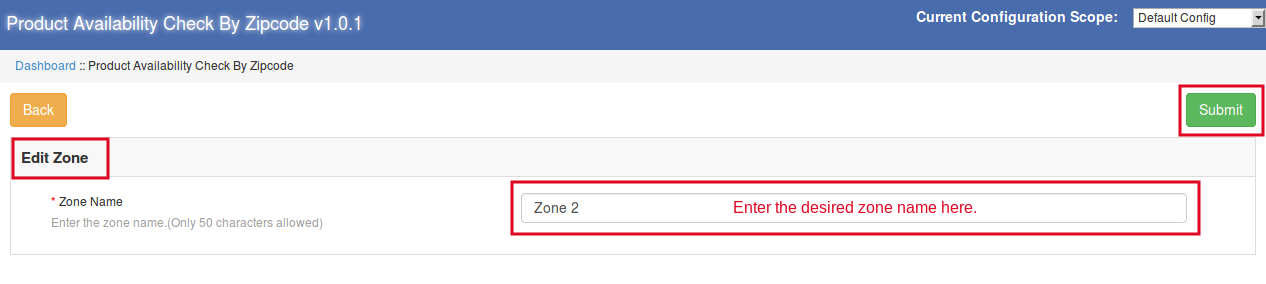
In order to edit the zones, click on the “Edit” button. On clicking here, you will be redirected to the new web page. Here you can change the zone name and click on “Submit “ button to make changes visible.
Editing the zone
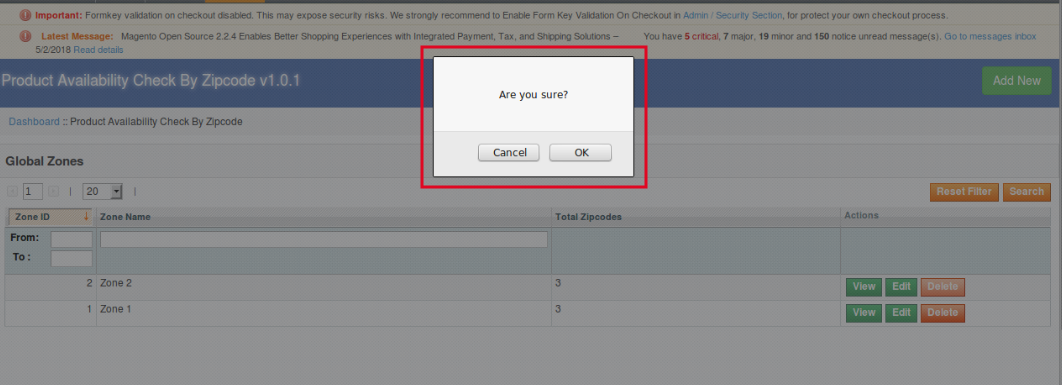
When the admin clicks on the “Delete” button under the “Global Zones” option, a popup will be shown quickly asking for the confirmation to delete the selected zone. Let’s take a look at the screen shot below:
Deleting the zone
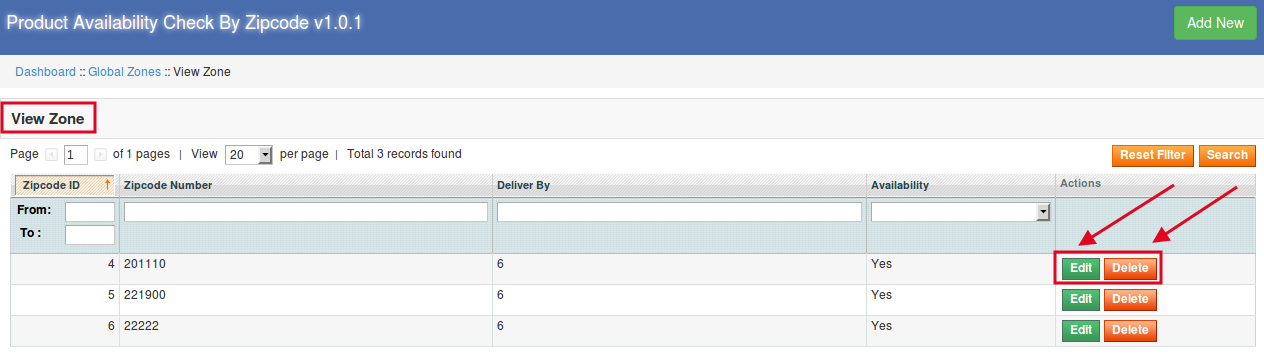
3.2.2.1 How to edit/delete the Zipcodes?
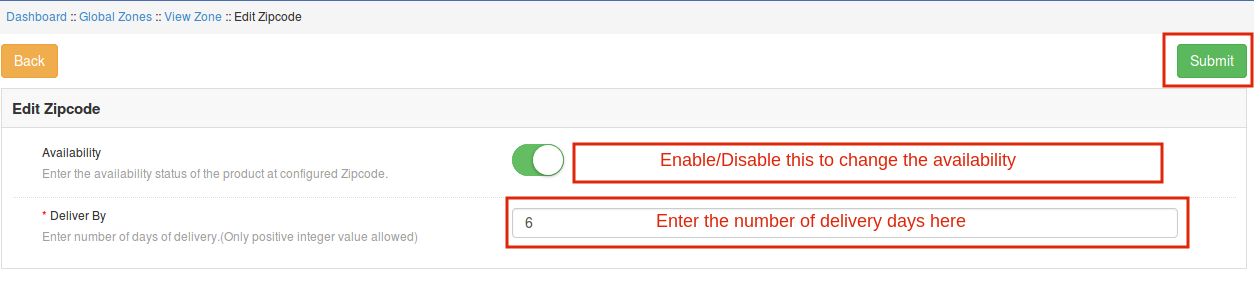
When you click on the edit option under the “View Zone”, you will get to see the following interface, where you can change the product availability for the particular zipcode and days of delivery as well.
Editing the zipcode
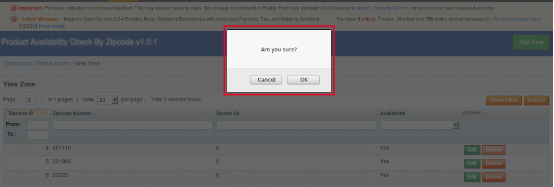
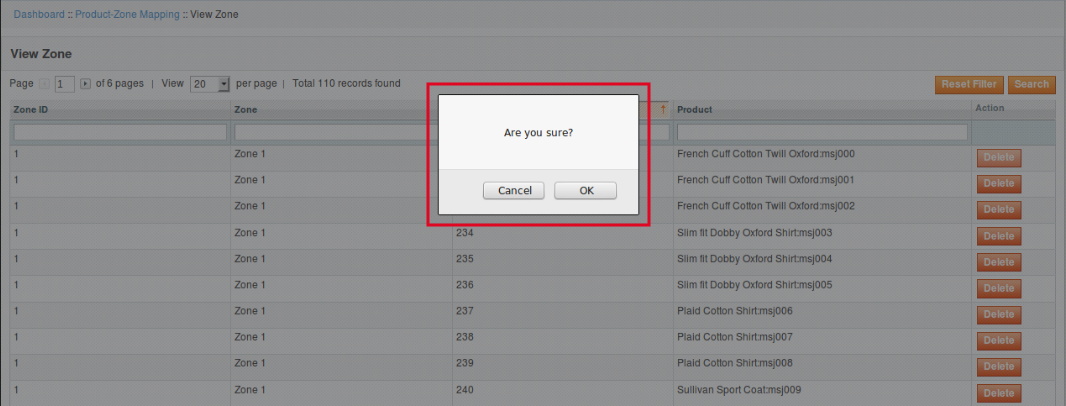
When you click on the “Delete” button under “View Zone” option, then a popup will appear asking for your confirmation whether to delete the zipcode or not. Take a look at the screenshot below:
Deleting the zipcode
3.3 Product-Zone Mapping Configuration:
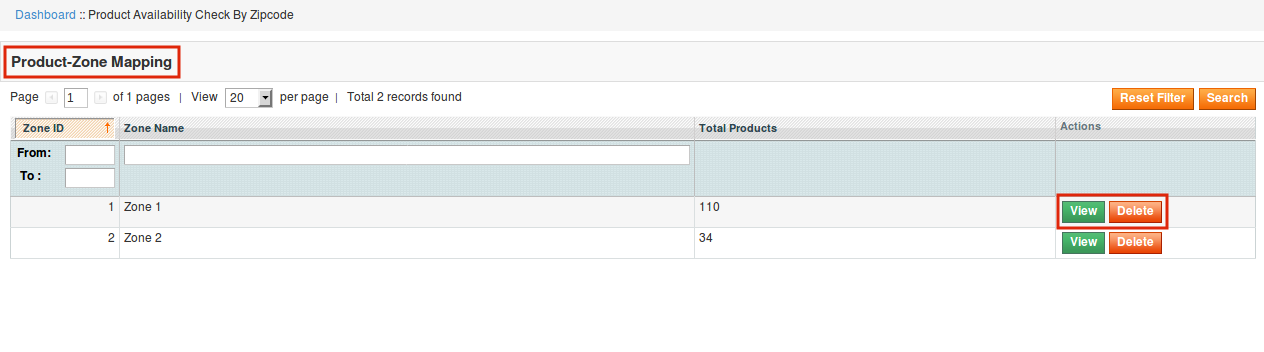
When you click on Product-Zone Mapping configuration, you will see the following interfaces to be configured.
In this interface, the admin can add new product-zone mapping. He can do the same manually or by uploading the CSV file.
3.3.1 How to View/Delete the Zone:
When the admin will click on “View” option, a new interface will be shown containing zone id, zone name, product id and product name along with the action of deletion of the product. Let’s take a look at the screen shot below:
View the zone
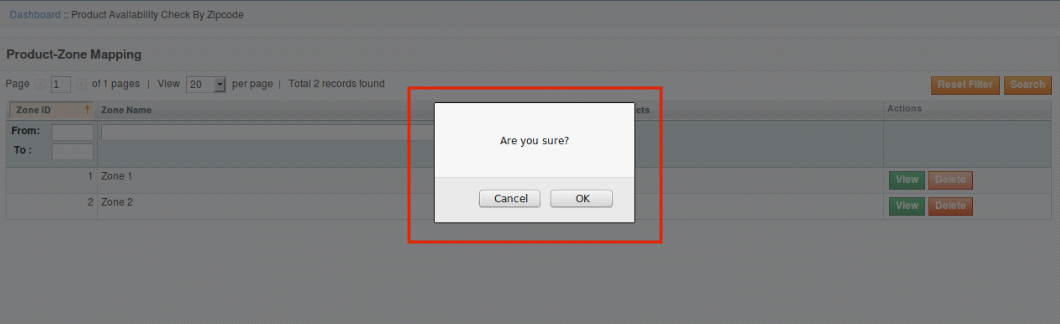
To delete the zone, the admin will just need to click on the “Delete” button. Once you click on the “Delete” button, a popup window will appear asking for the confirmation for the deletion. Take a look at the screen shot below:
Delete the zone
3.3.3.1 How to delete the product(s) from the zone:
Deletion of the product
If the admin wants to delete any particular product(s) from any zone, then he can do the same just by clicking on the “Delete” button under the Action category of the View Zone.
3.3.2 How to map the Product-Zone:
There are two ways of Product-Zone mapping. The admin can map the product-zone manually or he can do the same by uploading the CSV file as well.
3.3.2.1 How to Map the Product-Zone Manually:
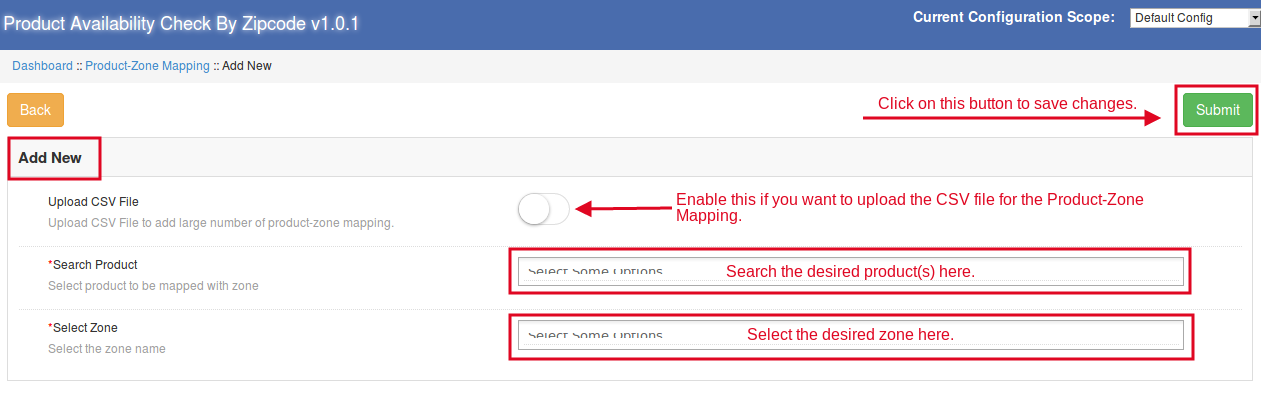
Upload CSV File: This will be disabled if the admin is mapping the product-zone manually.
Search Product: Search and select the desired products from here.
Select Zone: Select the desired zone from here to which the admin wants to map the above-selected products.
3.3.2.2 How to Map Product Zone by Uploading the CSV File:
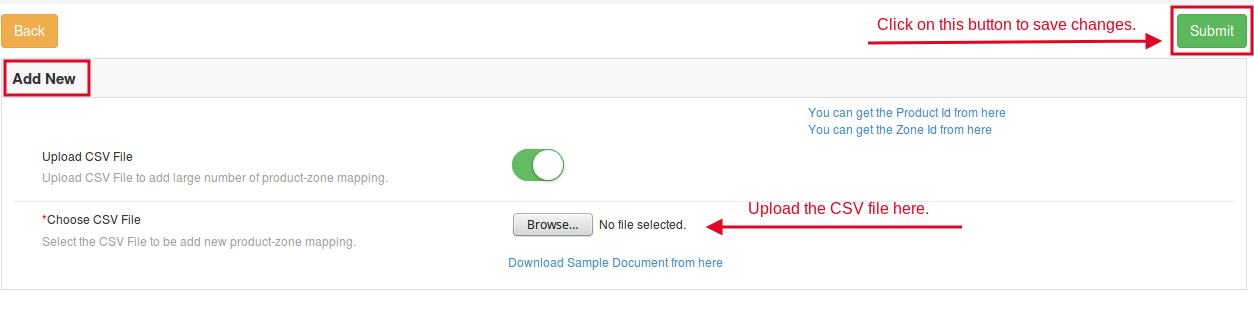
If you enable the “Upload CSV File” option, then you will see the option to upload the CSV file. By clicking on “Browse” option, you will be able to upload the CSV file. After doing this, click on “Submit” button to save the changes.
4.0 Front End of the Magento product zipcode validator extension:
Once you configure all the interfaces of this Magento product zipcode validator extension, you will see a block on the product page where the users can enter the zipcode and check the availability of the product.
When the product is available:
When the product is not available:
Find more details about this Magento extension below:
Facebook launched the Marketplace in the year 2016, the main objective of the Facebook Marketplace was to allow the users buy and sell locally. In order to promote the marketplace, Facebook has started showing it in the main navigation bar. Facebook Marketplace allows the users to browse the products and services from the people in their localities. As posted on the Facebook business page “Over the past few months, we’ve enabled businesses to list a variety of offerings in Marketplace such as used vehicles, home rentals, home services and jobs. And now, businesses can advertise in Marketplace to reach people where they’re actively shopping.
Ads from businesses appear alongside other products and services in Marketplace, and extending your ads to Marketplace is easy. By selecting Automatic Placements, your ads can appear across our various placement options such as News Feed, Instagram, Messenger, Audience Network and now, Marketplace. Advertising across our platforms enables you to reach your target audience wherever they’re spending time, giving you more opportunities to connect with people likely to be interested in your offerings.
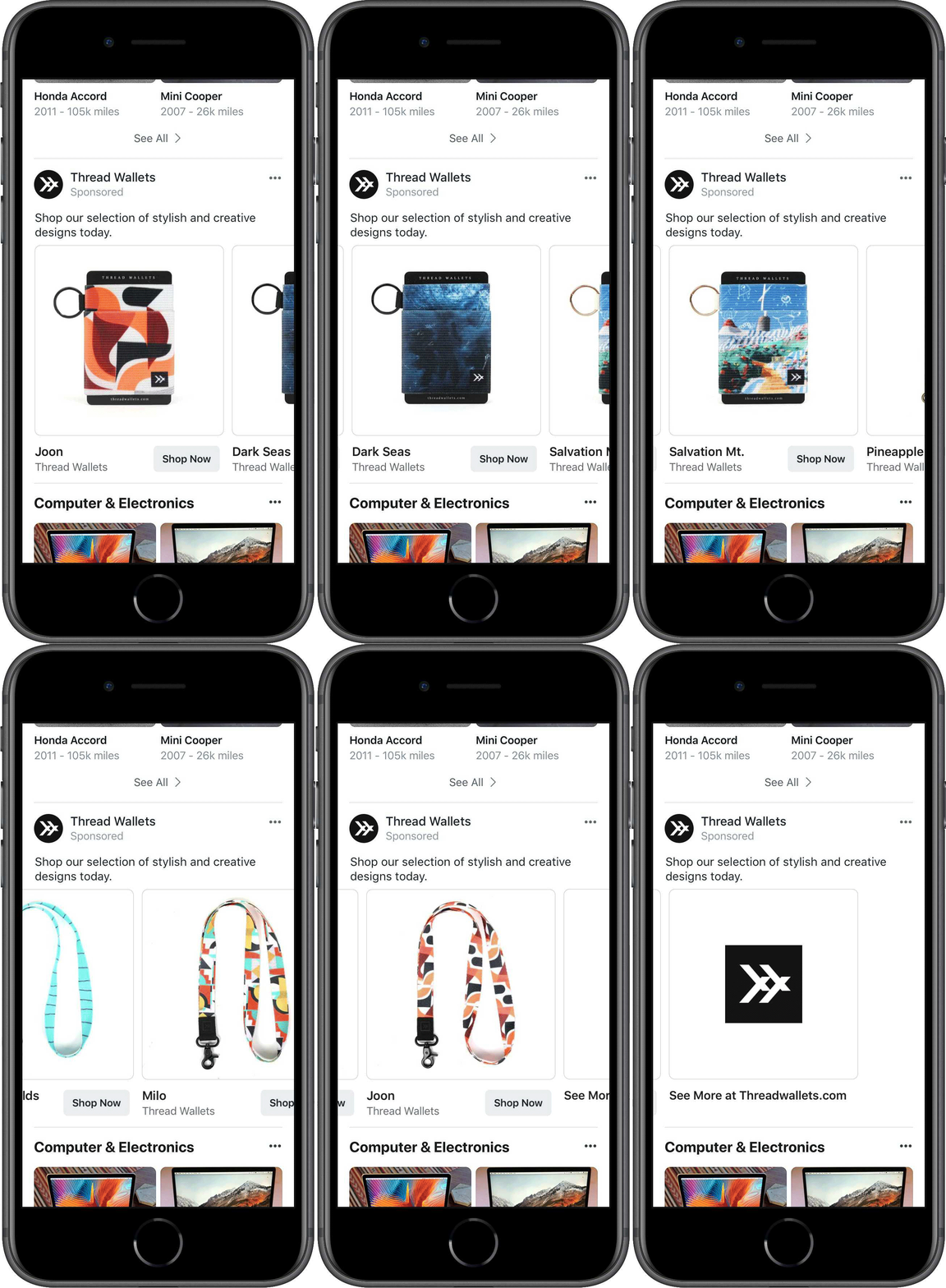
Businesses are already seeing results using ads in Marketplace. Thread Wallets, an accessories company, generated more than 300 purchases while increasing its year-over-year return on ad spend by 41% after adding Marketplace as a placement for its conversions campaigns.
Over the next few weeks, all advertisers targeting audiences in the US, Canada, Australia and New Zealand will be able to run ads in Marketplace using the traffic, conversions, product catalog, video views and reach objectives.”
Use Facebook Shop to grow your business faster
Facebook provides an interface to the users and brands to showcase their products and services on their page. Facebook Shop allows you to display the products from your shop on Facebook. It helps sellers to reach to more audience, in order to reduce the additional efforts of listing the products one by one Facebook has also released the Shop API to automate the process of listing the products on Facebook Shop. By using the Facebook Shop, you can allow the customers to browse and discover the products with ease.
Knowband offers the FB Store Module for the Prestashop store owners to make the process of creating the Facebook Shop hassle-free for the Prestashop store owners.
Benefits of the using FB Shop Module developed by Knowband:
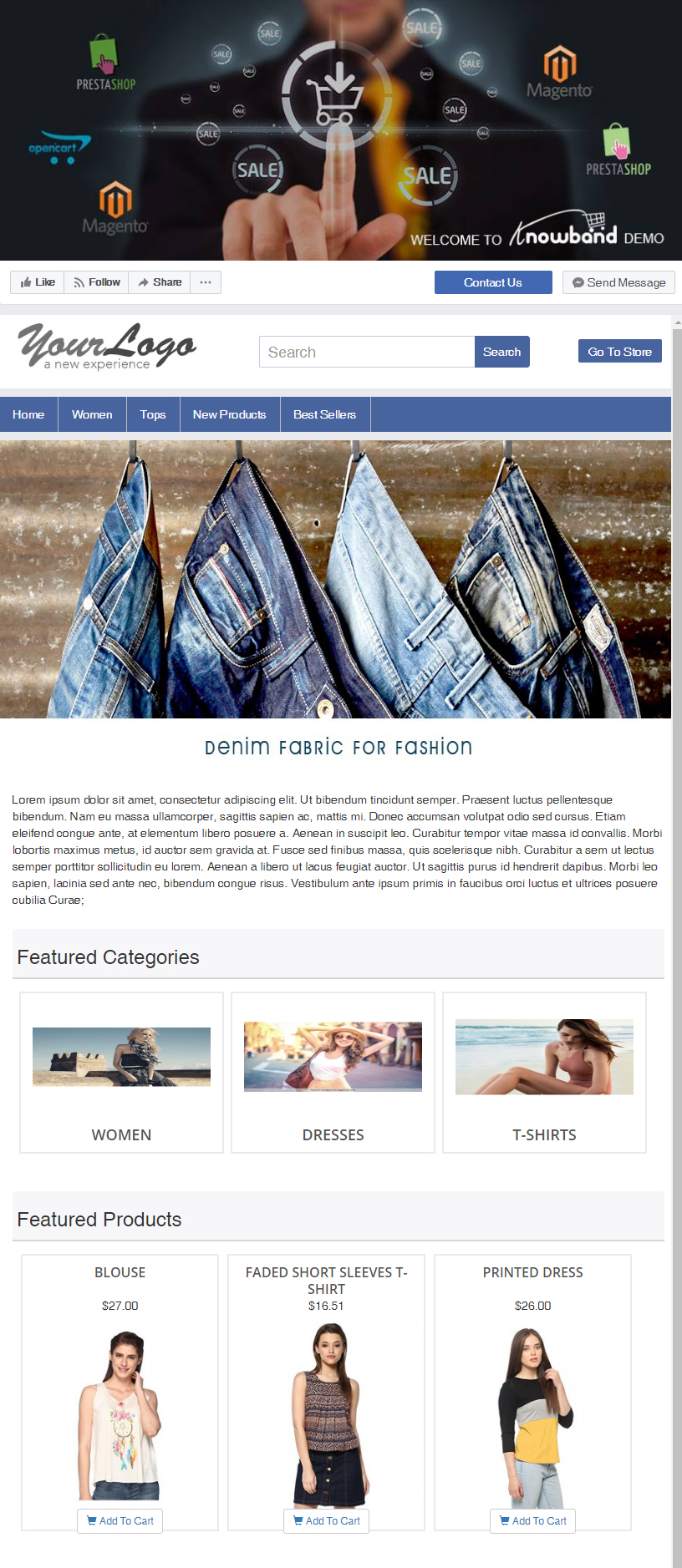
1) Interactive banner to promote your brand:
For the businesses, it is important to win the customer trust. The banner on your Facebook shop allows you to show the vision and purpose, your core values, your culture and behavior. By displaying an attractive homepage banner you can create your brand value.
2) Home Page content:
In this section, you can explain the product and services you offers.
3) Navigation Menu:
You can display the Navigation Menu on the Facebook Shop and highlight the top categories of your Prestashop store on the Facebook Shop page.
4) Featured categories and featured products:
This section allows you to display the featured categories and products on the Facebook shop page.
Please refer to the attached screenshot of the demo Facebook Shop page:
The new buzz in the ecommerce industry is the Adobe’s acquisition of ecommerce platform provider Magento. Magento is an open source platform with its presence worldwide. The revenue of the Magento in the year 2017 was around $150 Million and Adobe agreed to acquire Magento for $1.68 billion. Adobe is the leader in designing and have a world-class experience in delivering the digital services with the best ever tools like Adobe Experience Manager, Adobe Analytics and Adobe Campaign. There were rumors in the industry that Adobe is looking forward to making an entry in the commerce solution and the decision of acquiring Magento is quite surprising for the ecommerce world.
The transaction is expected to close during the third quarter of Adobe’s 2018 fiscal year. Until the transaction closes, each company will continue to operate independently. As per the press release by Adobe –
“Adobe is the only company with leadership in content creation, marketing, advertising, analytics and now commerce – enabling real-time experiences across the entire customer journey,” said Brad Rencher, executive vice president and general manager, Digital Experience, Adobe. “Embedding commerce into the Adobe Experience Cloud with Magento enables Adobe to make every moment personal and every experience shoppable.”
“Adobe and Magento share a vision for the future of digital experiences that brings together Adobe’s strength in content and data with Magento’s open commerce innovation,” said Mark Lavelle, CEO, Magento. “We’re excited to join Adobe and believe this will be a great opportunity for our customers, partners and developer community.”
Adobe stated they envision Magento as a good fit to their portfolio for the mid- and enterprise markets and again highlighted that both Adobe and Magento share some customers such as Coca-Cola, Warner Music Group, Nestlé and Cathay Pacific.
The company revealed that Magento’s 2017 revenues were in the neighborhood of $150 million and that Magento currently employs about 750 people.
Executives from Adobe kept highlighting the cloud business Magento developed over the last couple of years and that the platform’s development has been Cloud-First.
They also hinted that Adobe will be concentrating on extending capabilities of the cloud platforms between the two companies.
Another area they highlighted to investors was the 300,000 plus strong developer network Magento brings to Adobe.
It’s a bit unclear how Adobe counted these developers and in a fact sheet released about the acquisition, it also mentions 1,150+ Magento partners.
Most likely, they did an estimated “headcount” of developers that work at Magento partners who are involved in active development on products and services that integrate with the Magento platform.
As posted on the Magento blog “As Content + Commerce capabilities have become inextricably linked, commerce plays a more integral part of the consumer experience than ever before.
With Magento’s position as the world’s most popular commerce platform and Adobe’s leadership in designing and delivering great digital experiences, we will enable every business to create and deliver compelling real-time experiences, engage with customers across every touchpoint, and transact anywhere across the entire customer journey for both B2C and B2B.
We stand at the forefront of a tremendous opportunity:
To offer even greater value to customers, partners and developers across their commerce investment
To accelerate our product roadmap enabled by the breadth and depth of Adobe’s product capabilities and cloud technology
To tap Adobe’s global operational scale to accelerate our penetration into new verticals and geographies
To harness the creative passion of our Community towards our mission of using technology to connect and empower people”
Post your products on your Facebook page automatically with the help of Magento Facebook Wall Post Extension by Knowband. This Facebook Wall Post Extension Magento lets the admin boost their brand visibility on one of the most engaged social media platforms, Facebook, where billions of users come daily. The advanced and easy to configure Facebook Wall Post Magento Extension boosts the users’ engagement and helps in increasing the traffic of the website as well.
1.1 Merchant benefits of Magento Facebook Wall Post Extension
Facebook Wall Post Extension Magento helps in increasing the visibility of your products/brand on social media platform.
Facebook Wall Post Magento Extension helps in increasing the overall traffic of the website by redirecting the users from Facebook to the site.
Magento Facebook Post Extension increases customer’s engagement even while they are surfing their Facebook account.
Magento Facebook Wall Post Extension provides an easier way to showcase your products, new arrivals and coupon codes to the target audience.
1.2 Features of Magento Facebook Wall Post Extension
The Facebook post extension for Magento offers the admin to post their category(s) and products automatically..
The Magento Facebook Post extension offers the admin to post the products manually as well.
The admin can post the choice of the category(s) on the Facebook wall.
The Magento Facebook wall post extension allows the admin to select which type of description he wants to display on the Facebook wall, i.e long description, short or meta description.
The Magento Facebook wall post extension allows the admin to display the product price along with the wall post.
The Facebook post description is fully customizable. The admin can post his choice of description just in one click.
The Magento FB post module offers the admin to display the stock alert on Facebook post.
The Magento FB Post extension provides the admin to enter the desired quantity, below which the stock alert will be shown on the Facebook post.
The Facebook post extension for Magento also generates coupon for the stock alert.
The Magento Facebook wall post extension allows the admin to customize the coupon/voucher code as per his preferences.
The Facebook wall post extension Magento offers the feature to customize the voucher name, type, validity, and value as well.
The Magento FB post module offers two types of voucher to be given to the customers, i.e. Absolute or Percentage based.
The FB wall post extension Magento is easy to install, configure, and understand as well.
2.0 Installation Steps of Magento Facebook Post Extension
The steps to install the Magento Facebook Wall Post Extension are mentioned below:
Buy the Facebook Wall Post Extension Magento from Knowband. You can download the extension package.
The package has a zipped file that contains the user manual and the source code of Magento Facebook Wall Post Extension. Unzip the package.
Create a folder {Magento root}/app/code/Knowband/fbwallpost
Upload the extracted content in the above folder via FTP manager (like Filezilla or WinSCP – download here: https://filezilla-project.org/).
Now run below commands to install the Magento Facebook Wall Post Extension :
php -f bin/magento module:enable –clear-static-content Knowband_ fbwallpost
php -f bin/magento setup:upgrade
php -f bin/magento setup:di:compile
php bin/magento setup:static-content:deploy
The extension is now installed and ready for use. In Admin Panel go to “Knowband Extensions > FB Wall Post”.
You can now configure and use the Facebook Wall Post Extension Magento.
3.0 Admin Interface of the Facebook Wall Post Magento Extension
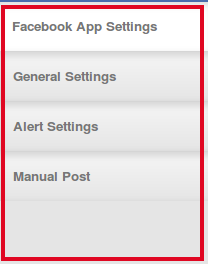
Magento Facebook Wall Post Extension offers following interfaces to be configured:
Facebook App Settings
General Settings
Alert Settings
Manual Post
Below is the detailed description of all the tabs of this Facebook Wall Post Extension Magento.
3.1 Facebook App Settings:
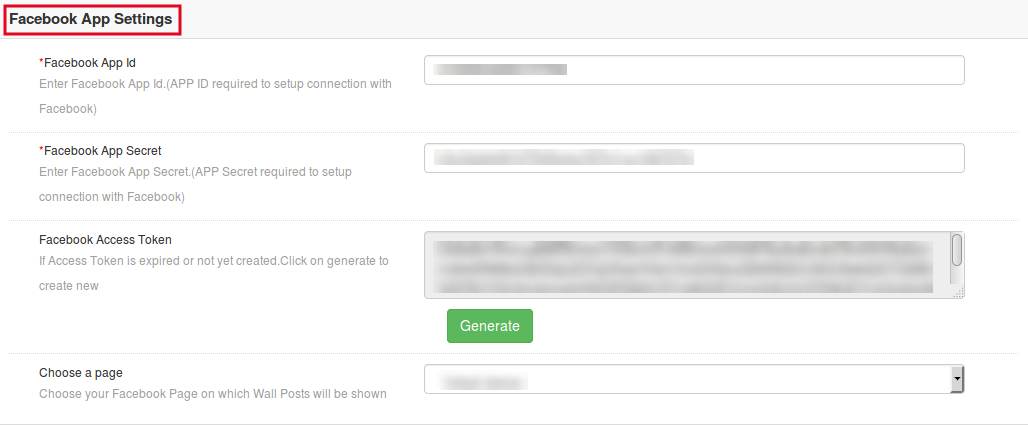
This interface of the Facebook Wall Post Magento Extension contains following fields to be configured:
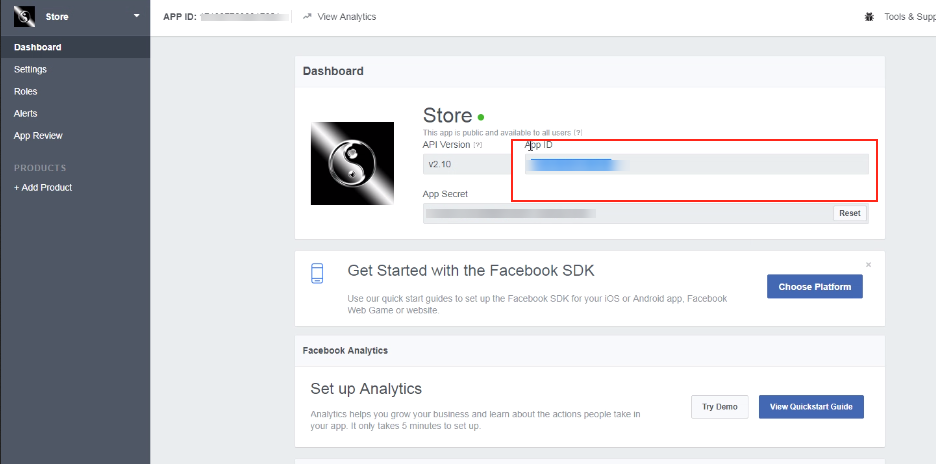
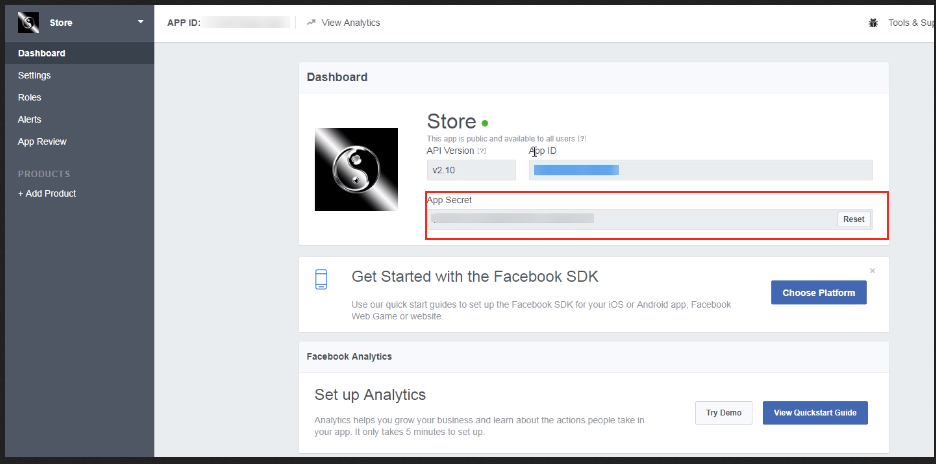
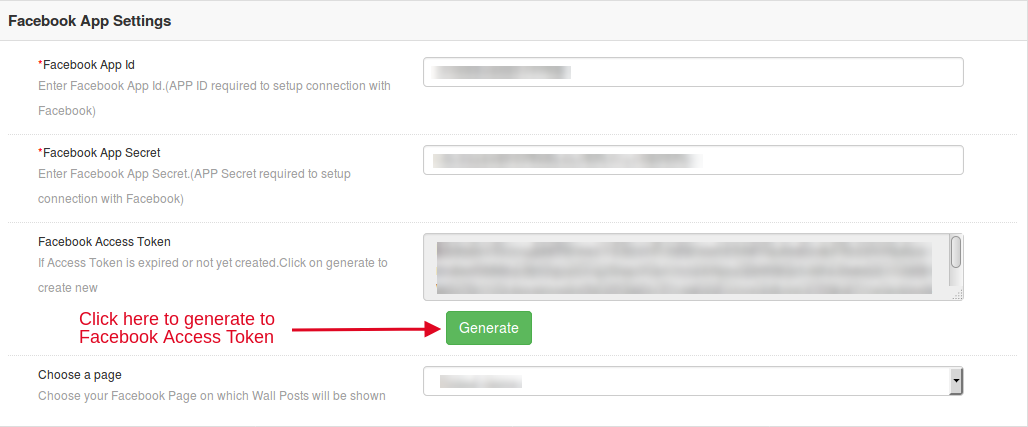
Facebook App ID: In this field of the Facebook Wall Post for Magento, enter your Facebook App ID that is required to set up the connection with Facebook. In order to find the App id, go to the dashboard of your Facebook App. Copy the app id from the column shown in the image below and paste it in the setup page of the module.
Facebook App Secret: In this field of Magento Facebook Post Extension, the admin needs to enter the Facebook App Secret. Copy the App Secret from the next column as shown in the image below.
Facebook Access Token: After entering the Facebook App ID and App Secret, the admin will need to generate the Facebook Access token. The Facebook Wall Post for Magento allows the admin to generate the Facebook Access Token just by clicking on “Generate” option of the Magento Facebook Post Extension.
Choose A Page: This field of Magento Facebook Wall Post Extension allows the admin to select the desired Facebook page on which he wants to display the wall posts.
3.2 General Settings of the Facebook Wall Post Extension Magento
This interface of the Facebook Wall Post Magento Extension contains following fields to be configured:
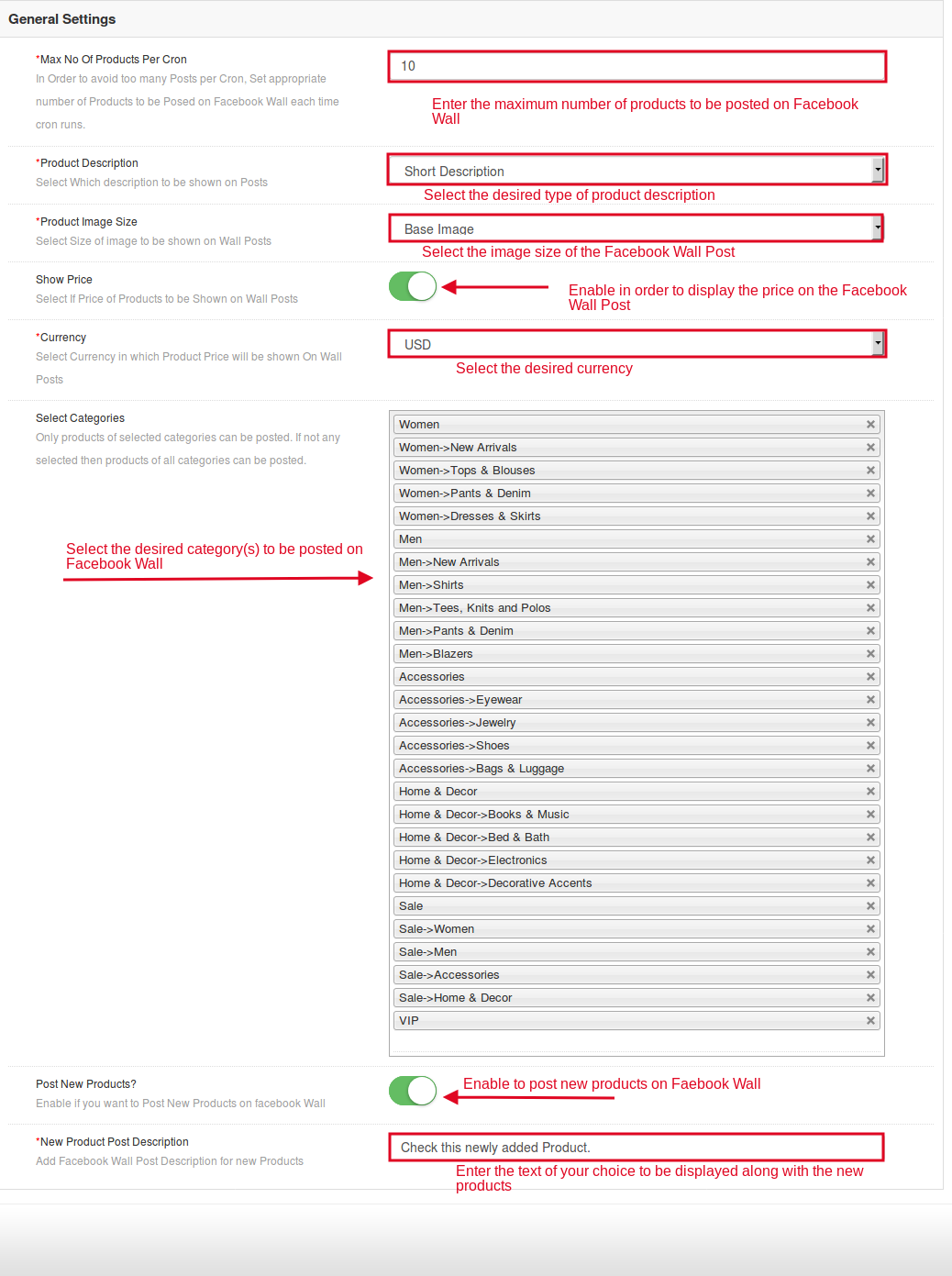
Max No Of Products Per Cron: The admin can set the maximum number of products that has to be posted after the cron is executed. This field of the Facebook Wall Post for Magento offered the admin to avoid too many posts per cron. Magento Facebook Post Extension allows the admin to set the appropriate number of the products to be posted on the Facebook wall each time cron runs.
Product Description: This field of the Magento Facebook Wall Post Extension allows the admin to select the type of product description that they want to display in the Facebook wall post. It can be Short, Long or Meta Description.
Product Image Size: The Magento Facebook Wall Post Extension offers the admin to select the size of the image to be shown on the Facebook wall post.
Show Price: If the admin wants he can display the price of the products at the Facebook wall post.
Select Currency: The Facebook Wall Post Extension Magento provides the e-merchants to select the desired currency to be displayed on the Facebook wall post.
Select Categories: This Facebook Wall Post Magento Extension lets the admin to select the categories. The products of the selected category will be posted on the Facebook wall. If the admin will not select any of the category then products of all categories can be posted.
Post New Products: This field of Facebook Wall Post for Magento allows the admin to post the new products. In order to do so, he just need to toggle a button.
New Product Post Description: The admin can even change the description that will be displayed along with the wall post of new products. With the help of this field of the Magento Facebook Post Extension, the admin can do the same quickly.
3.3 Alert Settings of the Facebook Wall Post for Magento
In the alert settings of the Magento Facebook Post Extension, there are following fields to be configured:
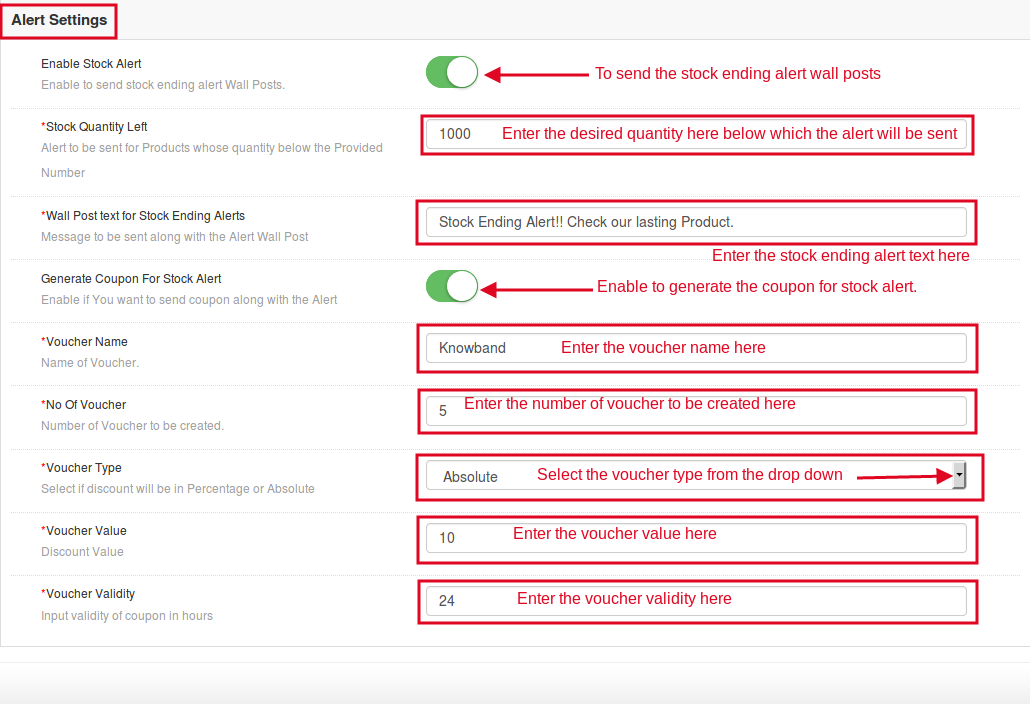
Enable Stock Alert: Enable this button of the Magento Facebook Wall Post Extension in order to display stock ending alert at the Facebook wall posts.
Stock Quantity Left: In this field of Facebook Wall Post Extension Magento, enter the quantity, below which the stock alert will be displayed at the Facebook wall post.
Wall Post text for Stock Ending Alerts: In this field of the Facebook Wall Post Magento Extension, the admin can enter the text of his choice that would be displayed along with the stock alert. The stock alert message can trigger instant purchase intention of the prospective customers.
Generate Coupon For Stock Alert: This field of the Facebook Wall Post for Magento allows the admin to display the coupon code along with the stock alert.
Voucher Name: In this field of Magento Facebook Wall Post Extension offers the admin to enter the voucher name as per his preferences.
No Of Voucher: This field of Facebook Wall Post Extension Magento allows the admin to enter the number of voucher to be created.
Voucher Type: The Facebook Wall Post Extension Magento offers the e-merchants to select which type of voucher he wants to display at the Facebook wall. The admin can display whether vouchers with Absolute or percentage based discounts.
Voucher Value: This field of the Facebook Wall Post for Magento lets the admin enter the voucher value as per requirement.
Voucher Validity: This field of the Magento Facebook Post Extension allows the admin to enter the validity of the voucher as per his preferences.
3.4 Manual Post Settings of the Facebook Wall Post Extension Magento
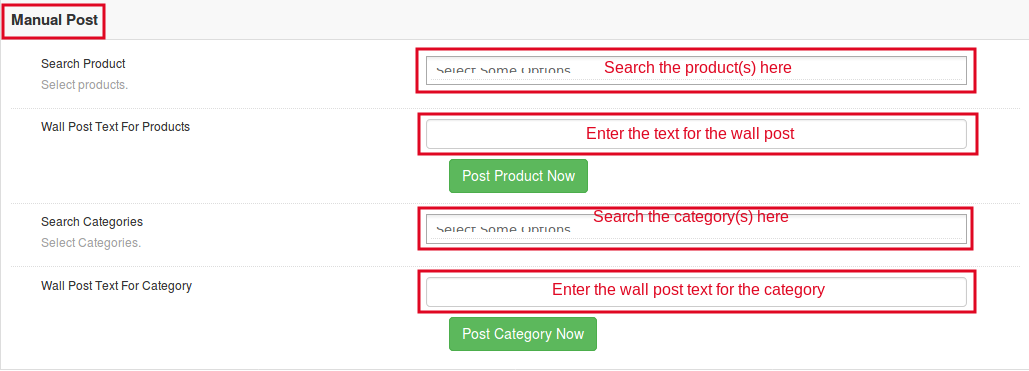
This interface of the Magento Facebook Wall Post Extension has following fields for the manual posting of products:
Search Products: This field of the Magento Facebook Post Extension allows the admin to search for the desired product(s) to be posted on Facebook wall. The Facebook Wall Post for Magento offers the admin to post multiple products at a time.
Wall Post Text for Products: The Facebook Wall Post Magento Extension allows the admin to enter the text of his choice that would be displayed along with the product(s) on Facebook wall.
Search Categories: This field of the Facebook Wall Post Extension Magento allows the admin to search for the categories. The products of the selected category will be posted on Facebook wall. The admin can post multiple categories at a time.
Wall Post Text For Category: The Magento Facebook Wall Post Extension offers the admin to enter the text of his choice to be displayed along with the selected category post.
4.0 Front End of the Magento Facebook Wall Post Extension
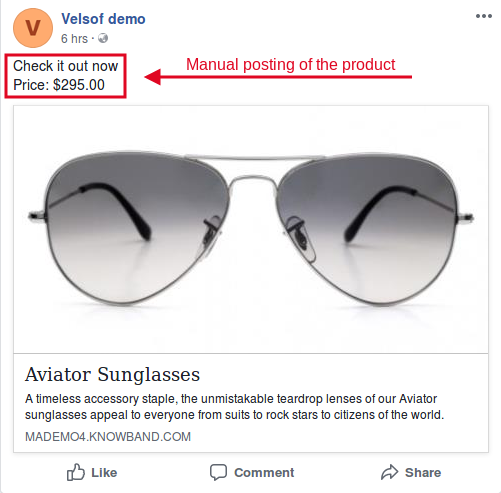
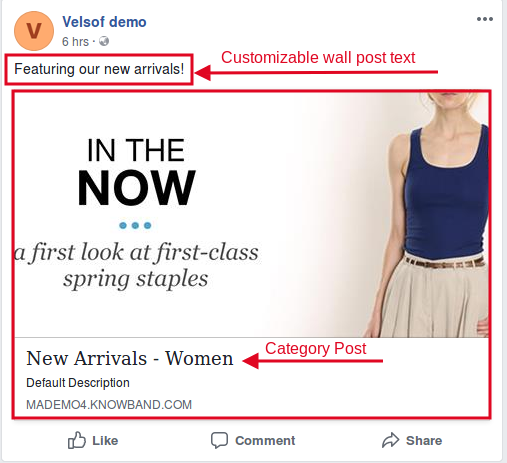
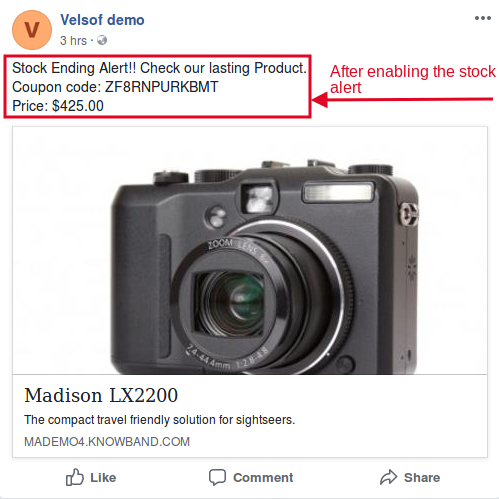
Below is the screen shot of how the Facebook Wall Post will look like after configuring all the settings of the Magento Facebook Wall Post Extension.
When the product is posted manually:
When the products of desired category is posted:
When the stock alert is enabled:
Find more details about this Magento Facebook Wall Post Extension by Knowband below:
The OpenCart GDPR module by Knowband provides a tool to the OpenCart store owners to meet the GDPR requirements imposed by the European Parliament. GDPR directives provide more rights to the EU citizens to protect their personal data.
New Data Protection Rights under GDPR:
1) Right of access by the data subject
2) Right to rectification
3) Right to erasure (‘right to be forgotten’)
4) Right to restriction of processing
5) Notification obligation regarding rectification or erasure of personal data or restriction of processing
6) Right to data portability
7) Right to object
8) Automated individual decision-making, including profiling
The GDPR Extension for the OpenCart platform helps the store owner to provide an interface to the customers so that they can meet the GDPR requirements.
How can OpenCart GDPR module help you?
The OpenCart GDPR module by Knowband helps the sellers to comply with the GDPR directives without putting any extra efforts. By installing the OpenCart GDPR compliance module admin can display the GDPR Tools option on the account details page at the front-end of the customer or admin has the option to enable the GDPR rights for the guest users. The OpenCart GDPR Extension handles the following requests:
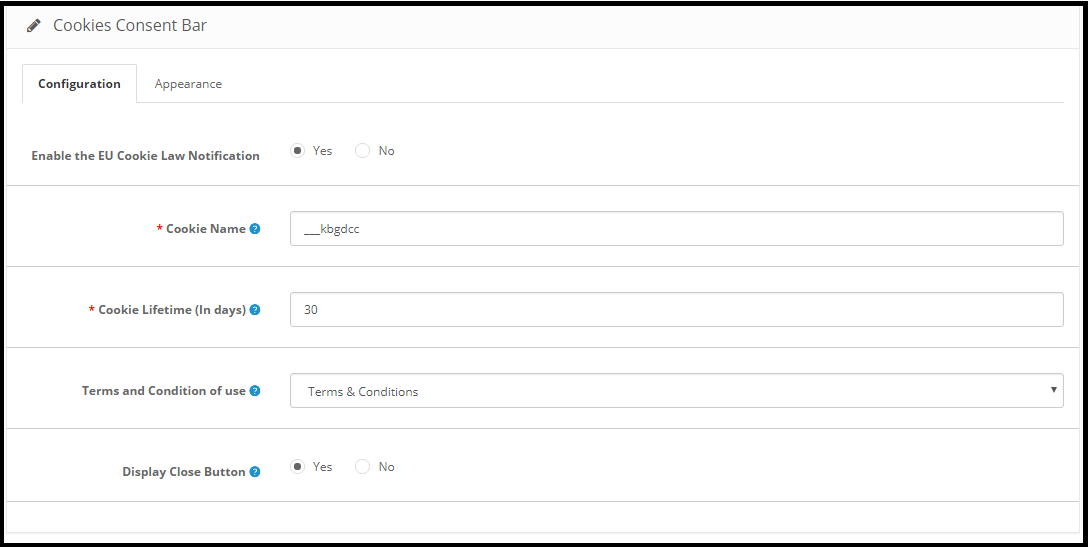
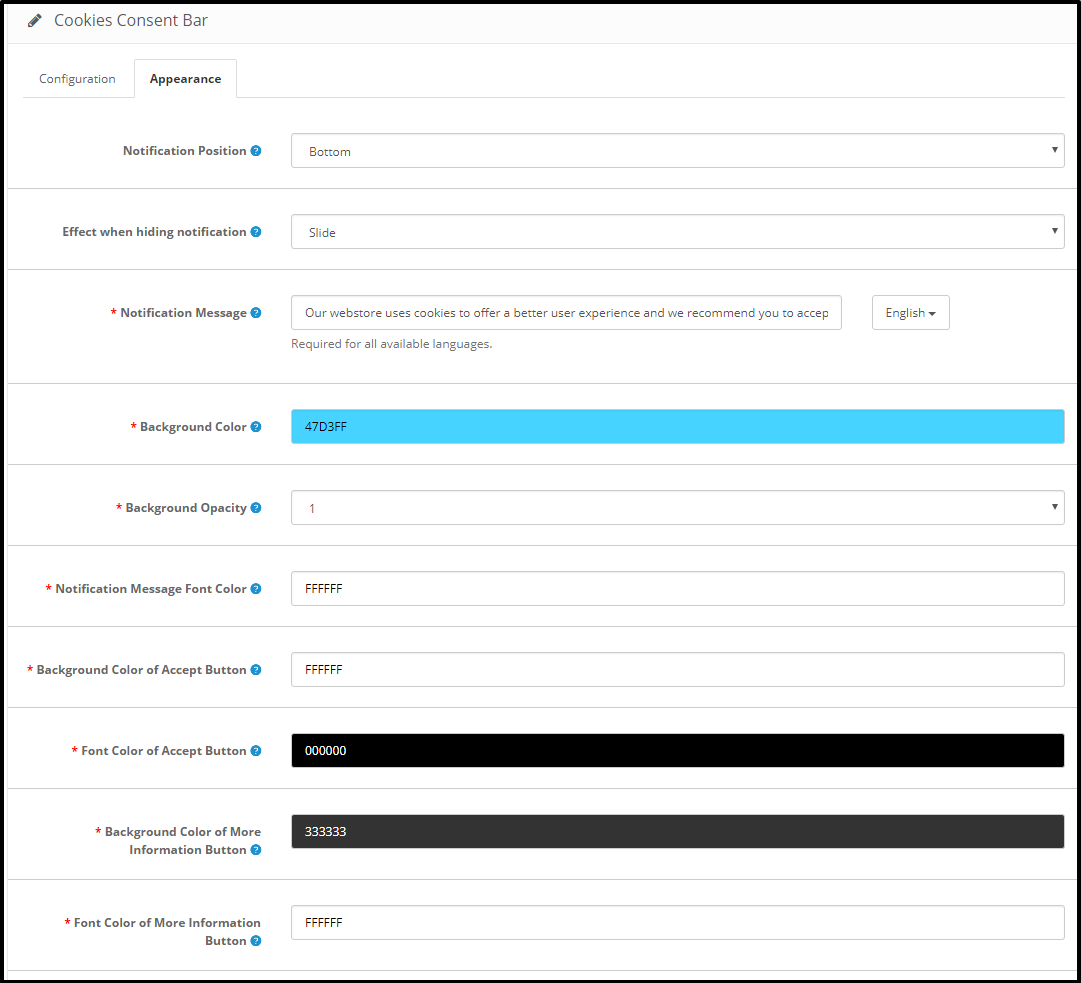
1) Cookies Consent Bar
2) Right of access to the personal data
3) Right to data portability
4) Right to be anonymous
5) Right to be forgotten
6) Right to data rectification
7) Right to restriction of processing
8) Rights related to the automated decision making
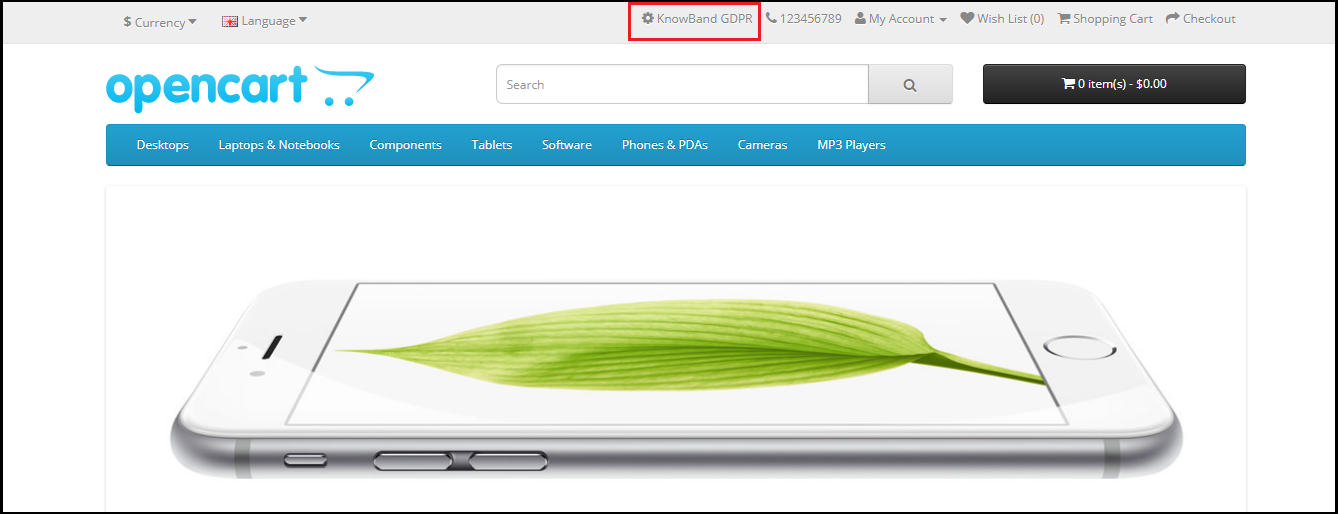
If the GDPR rights are enabled for the guest user then the GDPR Rights text will appear on the top of the home page. As per the need admin can modify the text.
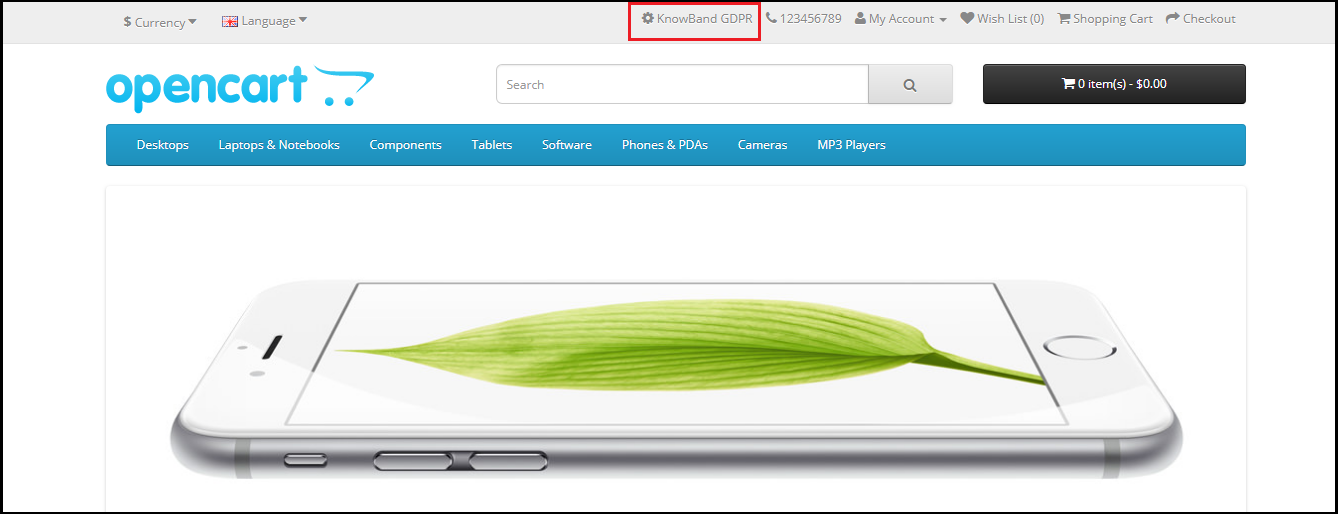
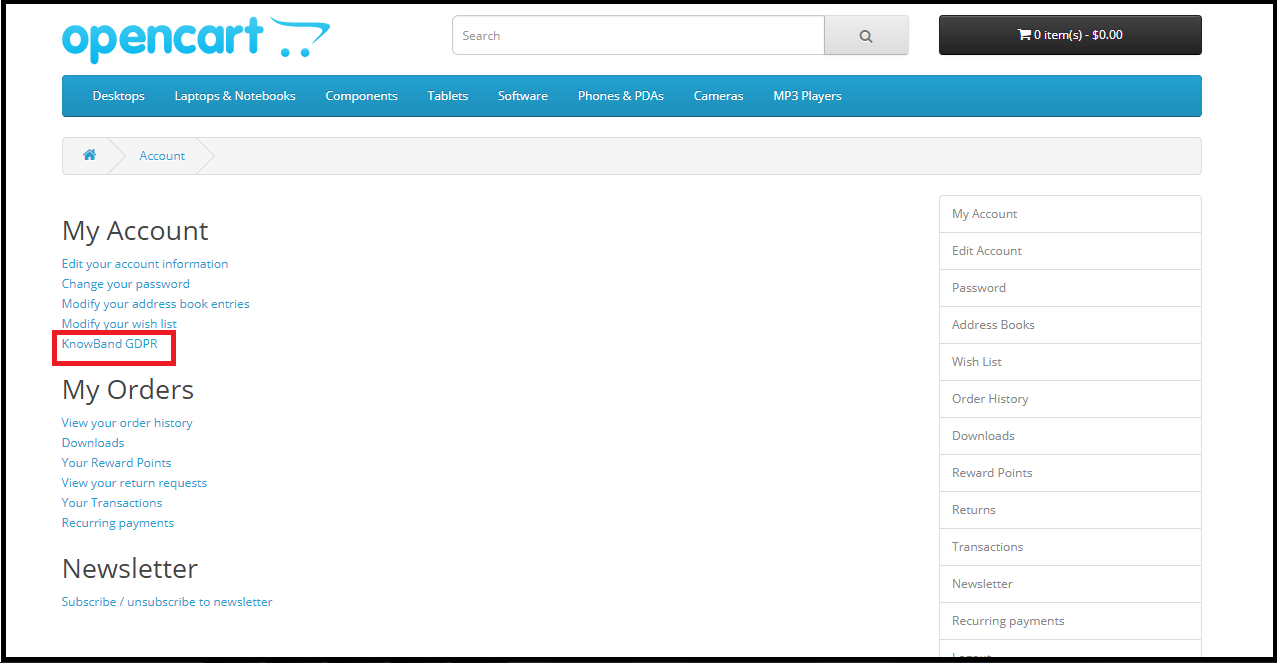
If the GDPR rights are enabled for the registered users only then the customers will be able to access the GDPR rights after logging into their account. Under My Account section there will be an option to access the GDR rights. Please refer to the attaced screenshot:
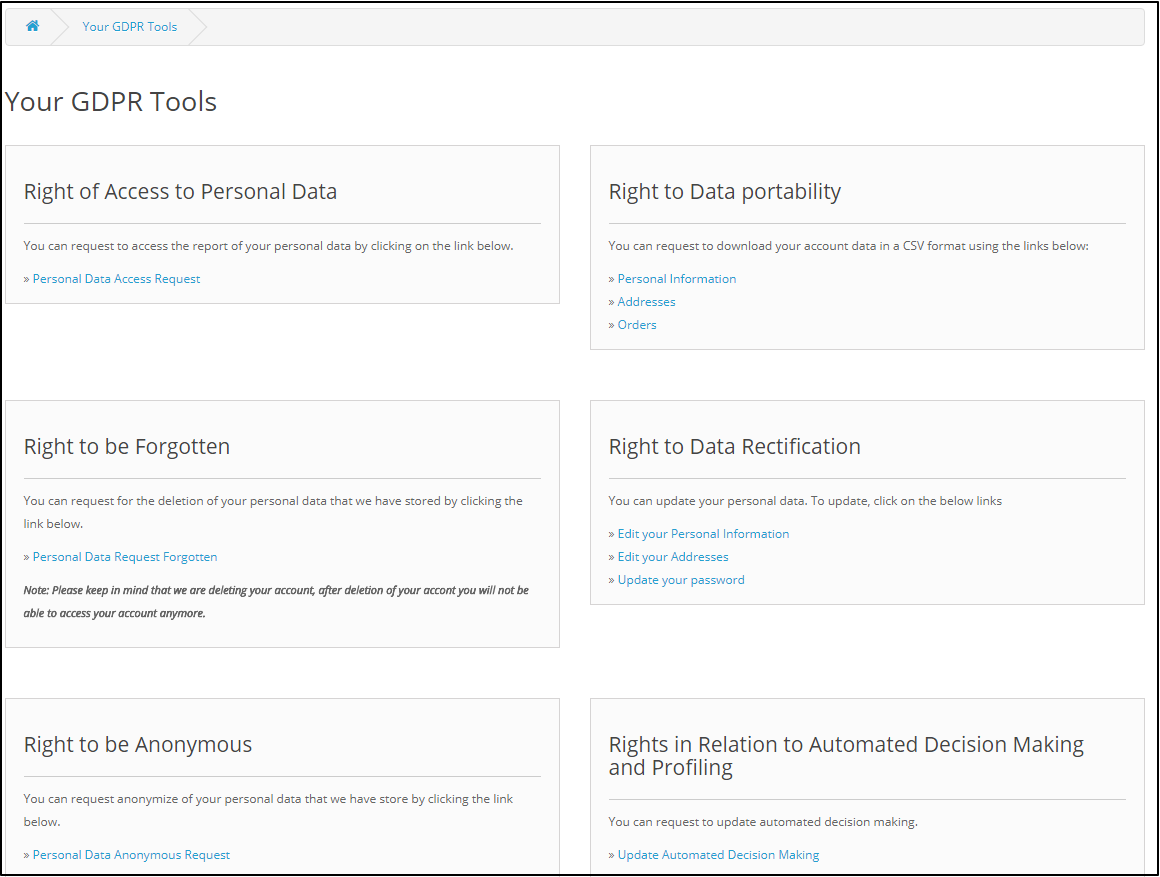
On clicking the GDPR settings tab the customer will be directed to a new page.
As per the requirement admin has the choice to enable/disable any of these rights.
2.0 Installation of OpenCart GDPR Module:
After placing your order for the OpenCart GDPR plugin you can download the zip file of the module. This zip file contains:
1) OC_GDPR_v1.0.0.zip (source code of the module)
2) User Manual
In order to install the extension in your OpenCart store follow the below-mentioned steps:
1) Unzip the zip file.
2. Copy all the files and folders of the zip file in the Root Directory of OpenCart setup via FTP manager.
3. The OpenCart GDPR module is now installed and is ready to use. Go to Admin -> Main Menu -> Extensions
3.0 Admin Interface of OpenCart GDPR Plugin:
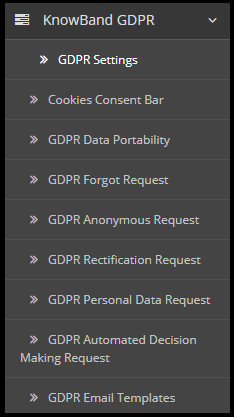
In the admin section of the OpenCart GDPR Customer rights module following options are available:
GDPR Settings
Cookies Consent Bar
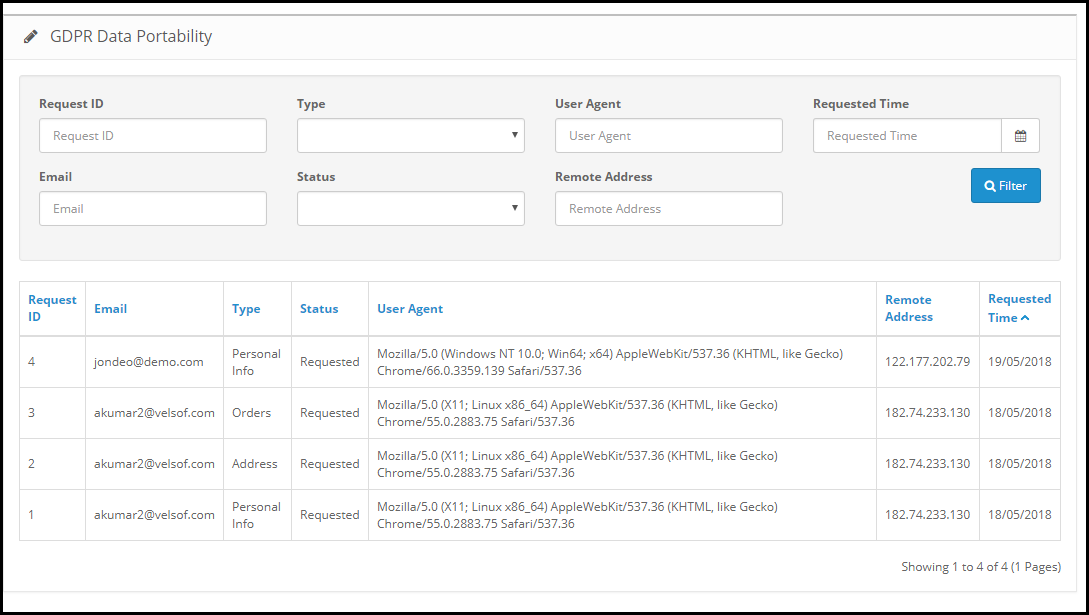
GDPR Data Portability
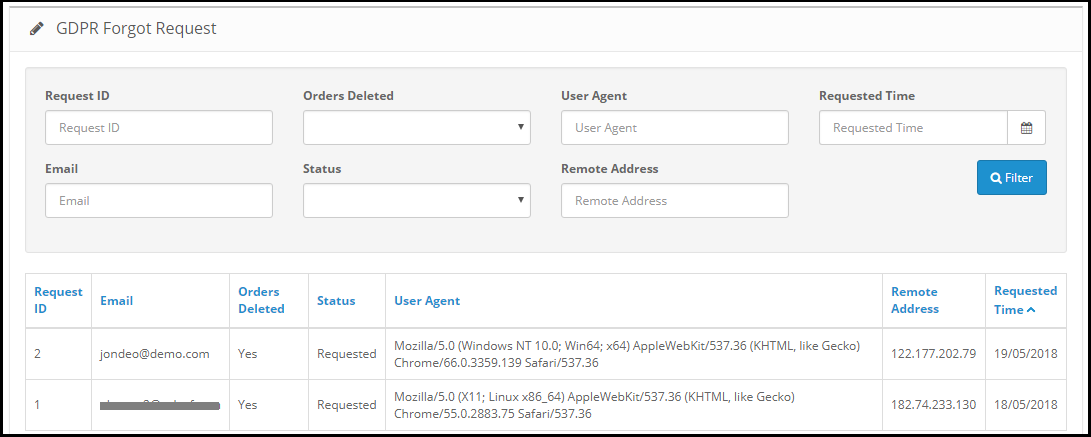
GDPR Forgot Request
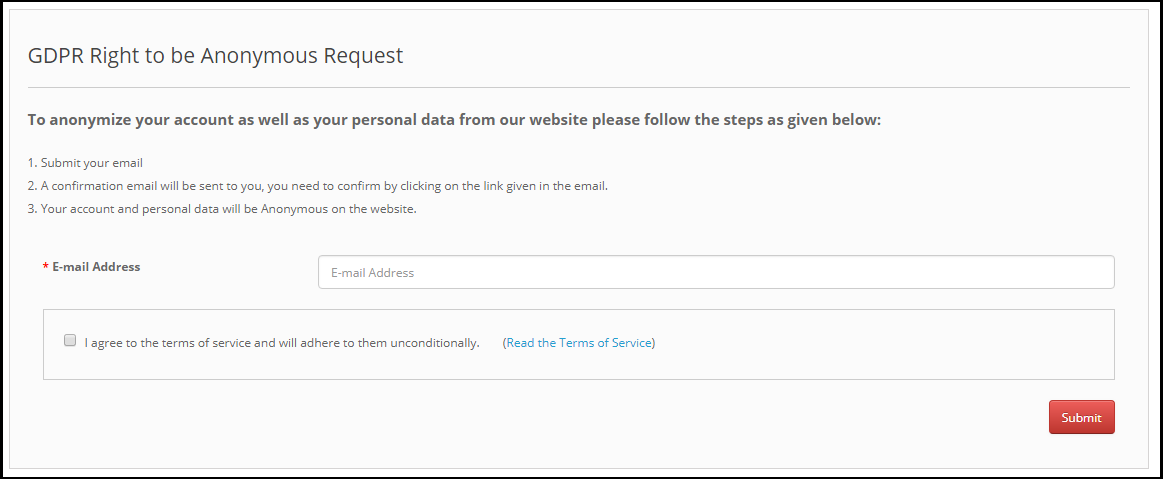
GDPR Anonymous Request
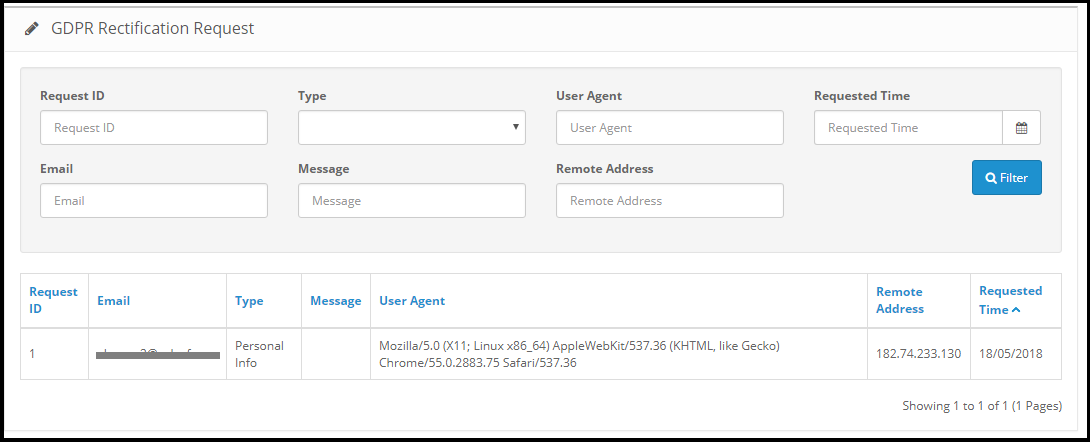
GDPR Rectification Request
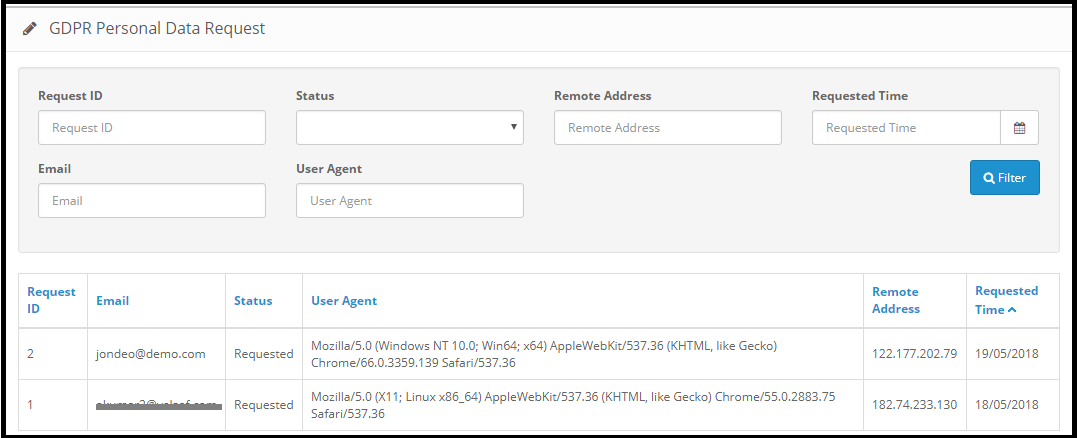
GDPR Personal Data Request
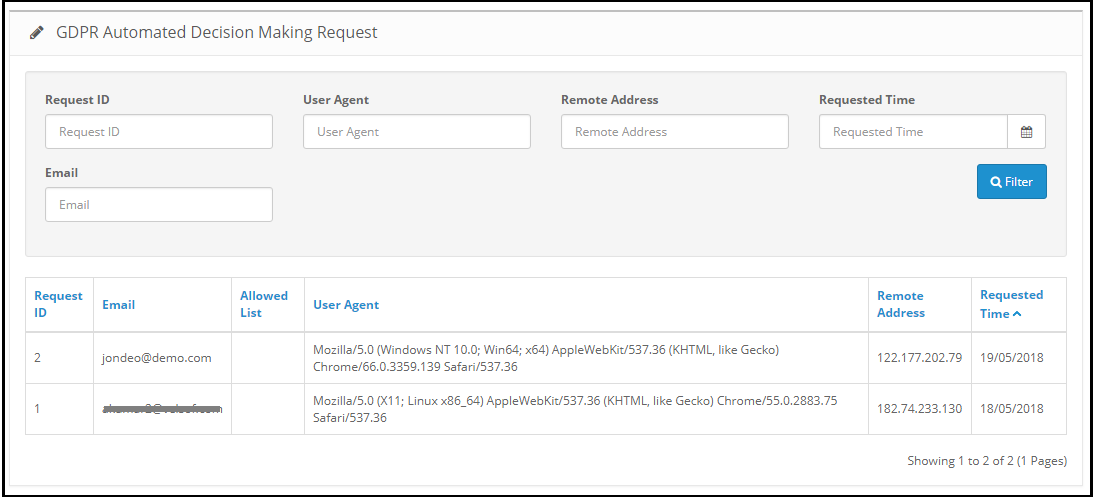
GDPR Automated Decision Making Request
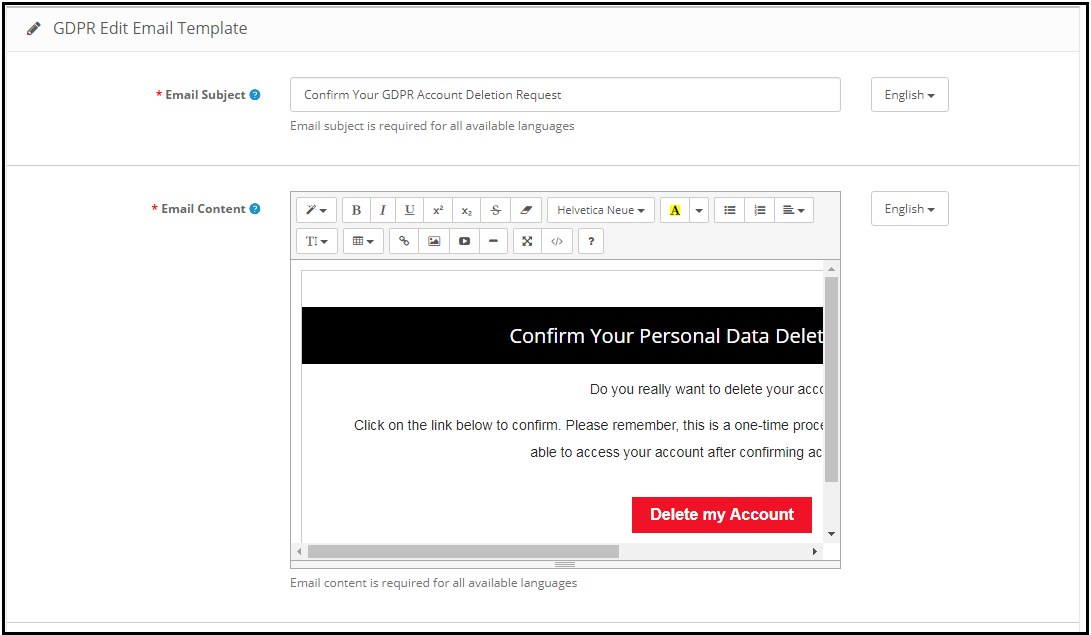
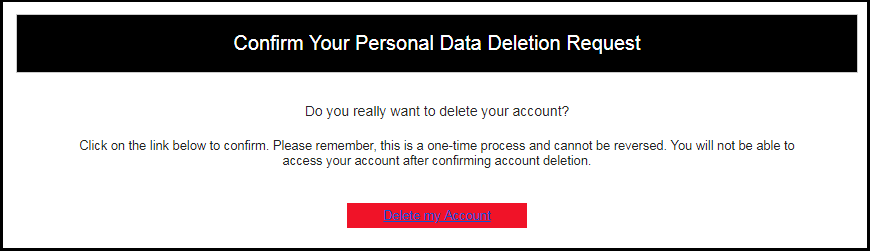
GDPR Email Templates
3.1 GDPR Settings:
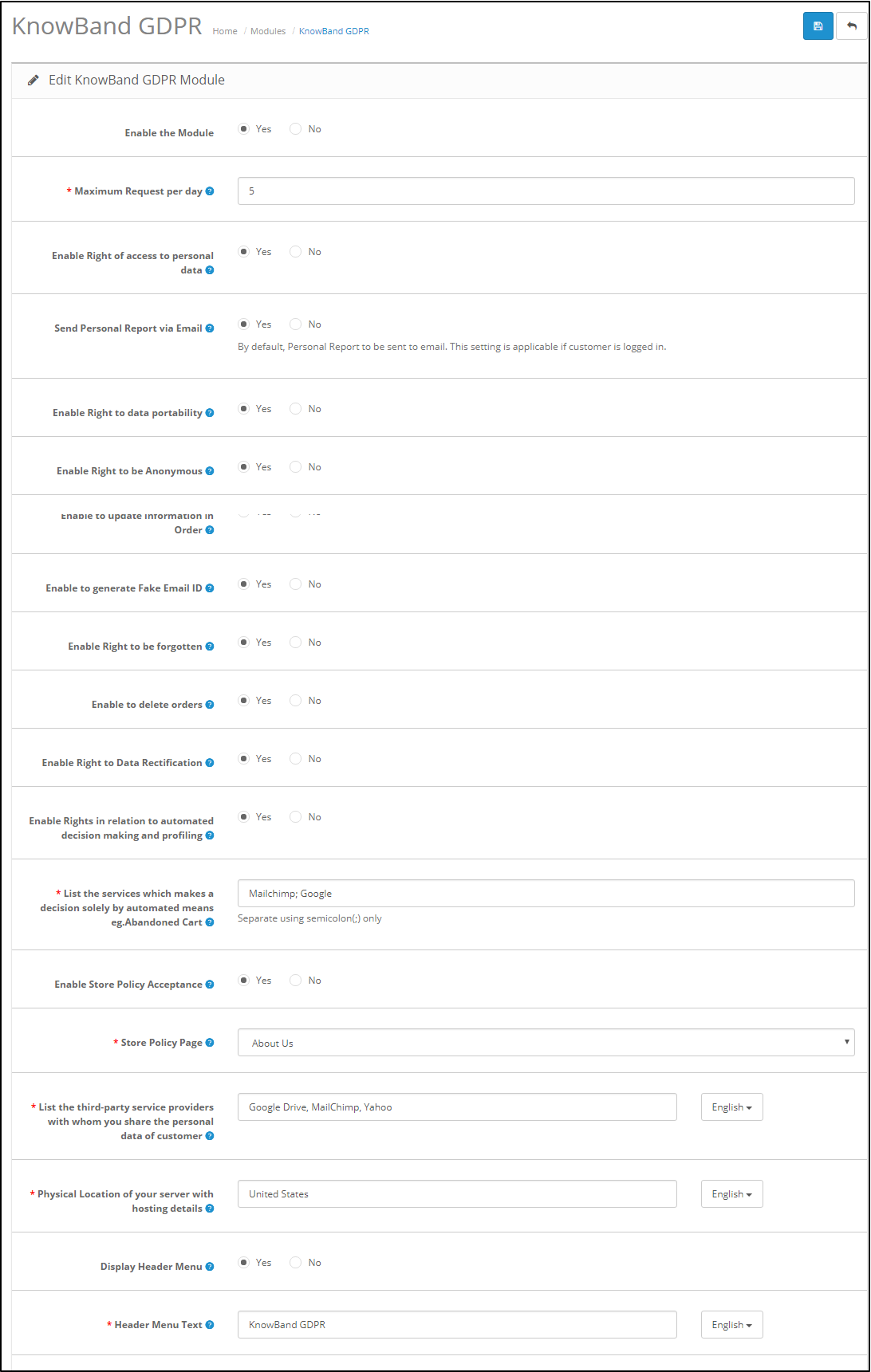
The GDPR Settings tab of the OpenCart GDPR Rights of the Individuals module allows the store admin to enable/disable the customer’s rights as per need. As per the settings enabled by the admin, the customer will be able to access the rights from his/her account. Please refer to the attached screenshot below:
Enable the Module: As per the requirement, admin can Enable/Disable the OpenCart GDPR Compliance Module.
Maximum request per day: Customers have the right to make request for the GDPR rights. Admin can set the limit for the requests on daily basis. It will be recommended to set the maximum requests per day to a minimum number to avoid the spam requests.
Enable Right of access to personal data: The right of access to personal data allows the customers to request for their personal details which they have shared with the data controller.
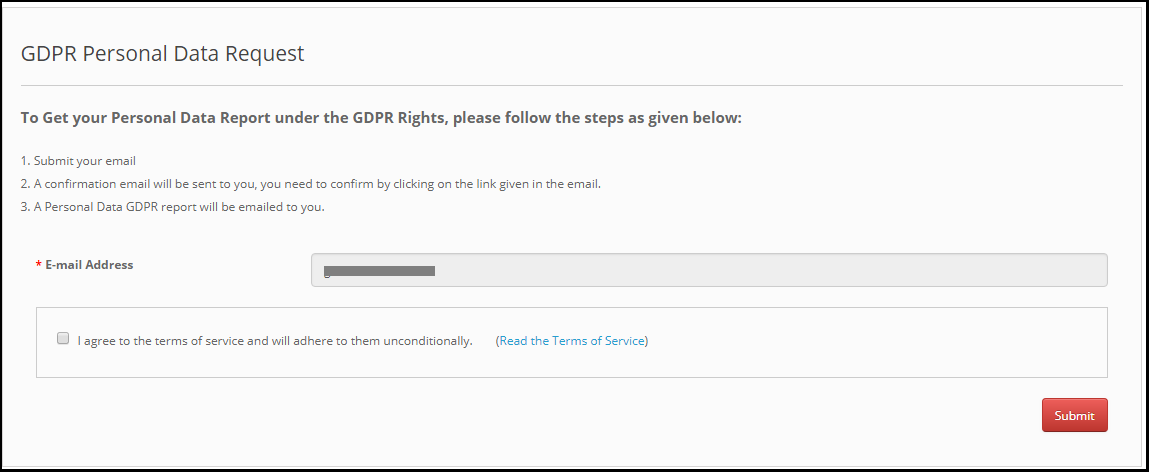
If this setting is enabled from the admin interface of the OpenCart GDPR plugin only then customers will be able to check their personal details by logging into their account. The screenshot of customer end has been attached below:
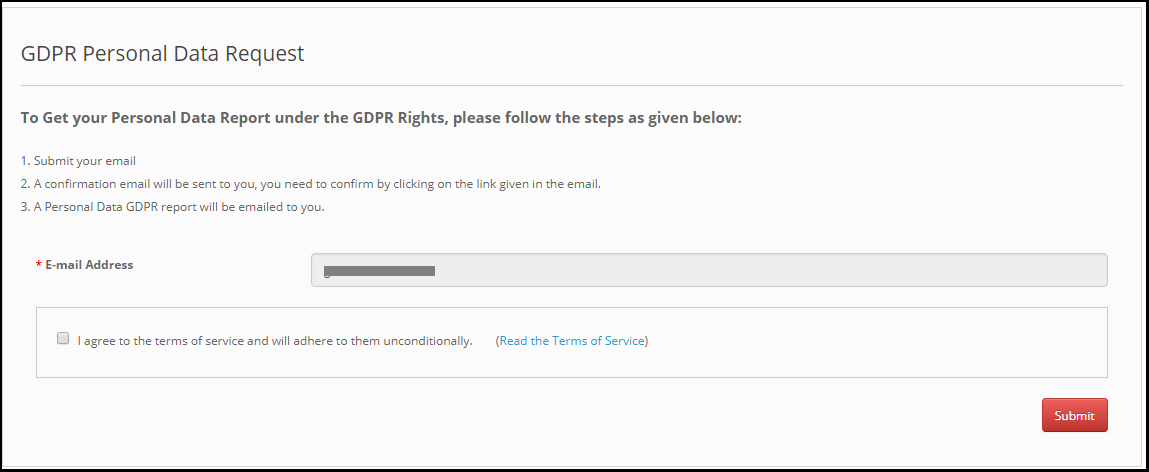
Step-1 – Request for the GDPR Personal Data report – OpenCart GDPR Extension
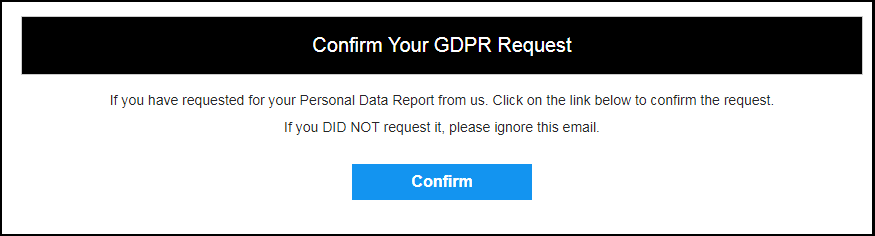
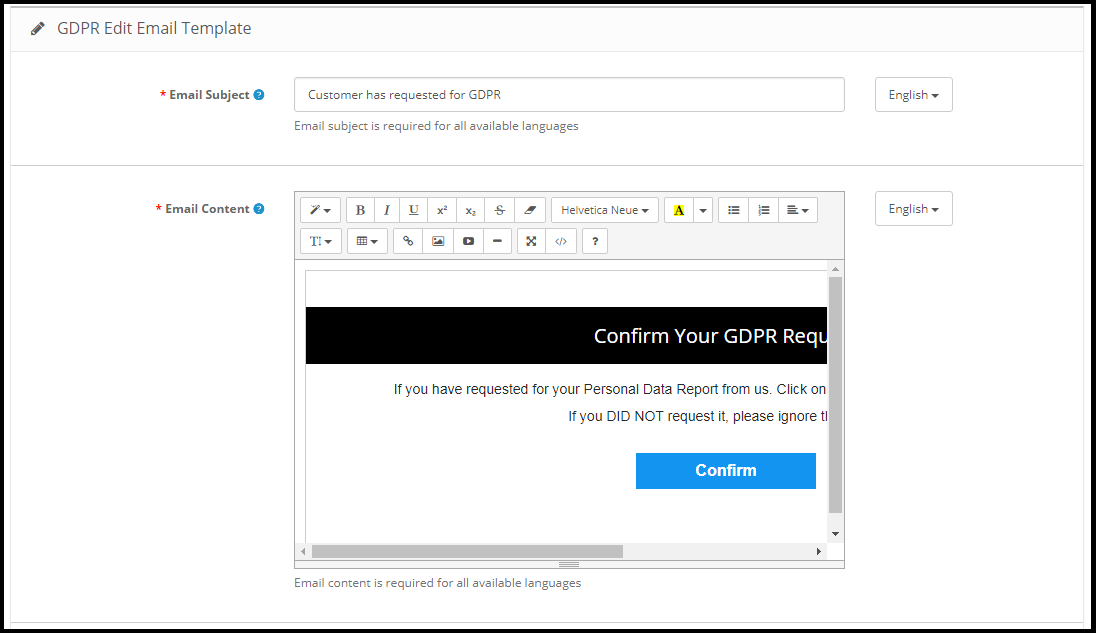
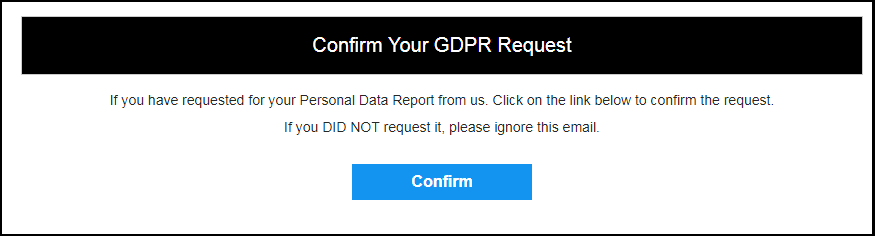
Step: 2 – Confirm the GDPR Request
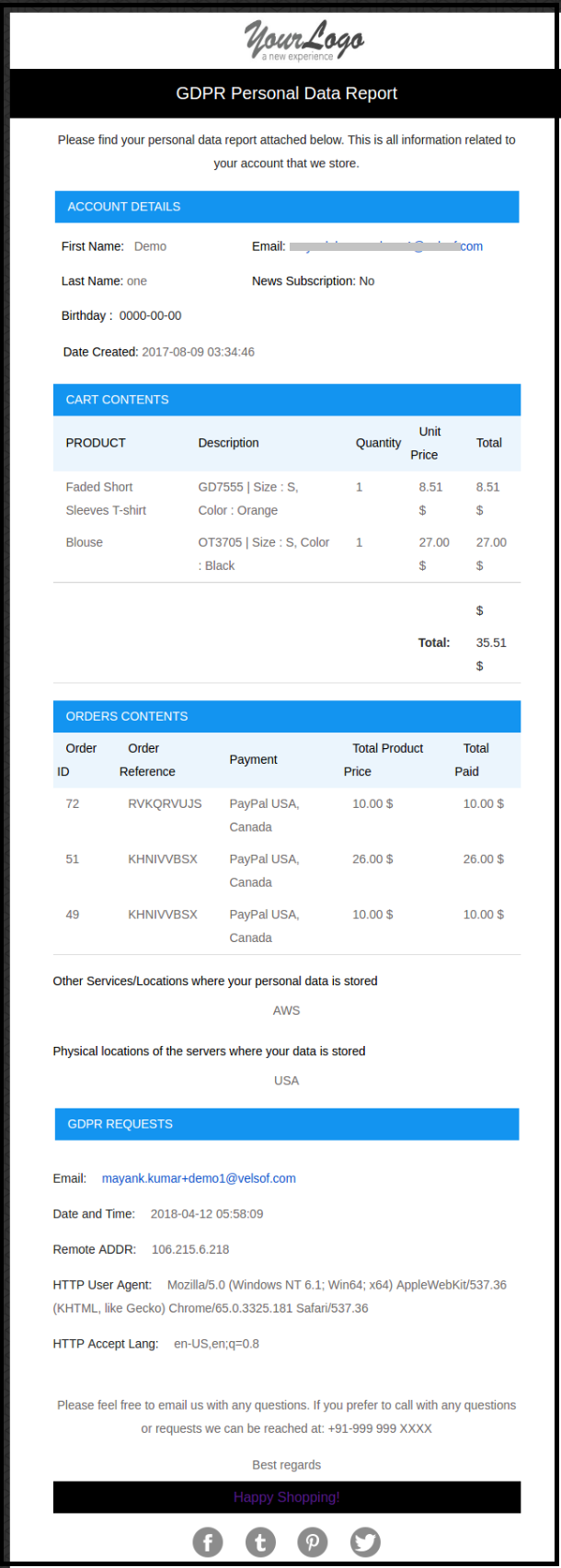
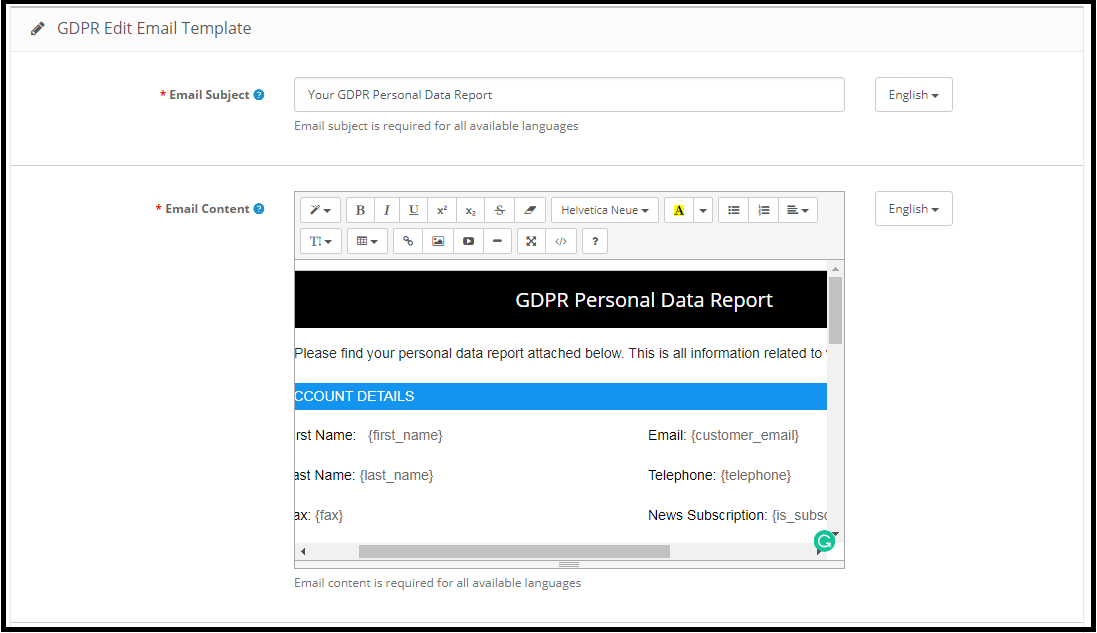
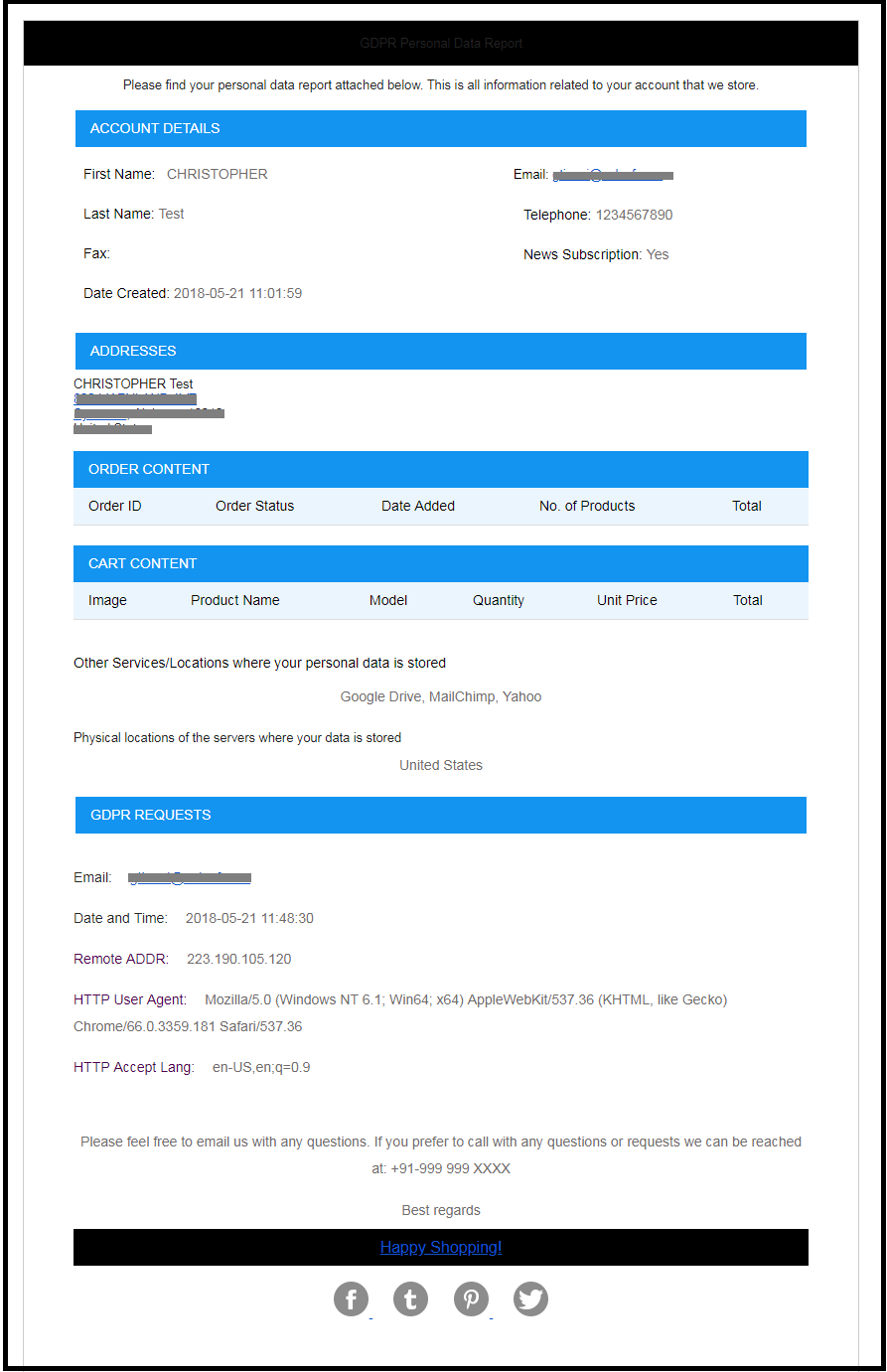
Step: 3 – As soon as customer will confirm the GDPR Personal Data Request, an email with the customer details will be sent to the customer.
Step: 4 – Send personal report via email:
Admin has the choice to display the customer data on the front-end or send the report to the entered email address. This setting will work for the logged-in customers only.
Step: 5 – Enable Right to Data Portability:
Right to data portability allows the customer to download his/her personal data so that he/she can access and reuse this data.
If this setting is enabled from the admin interface of the OpenCart GDPR Module only then the customer will be able to download their personal data in CSV format. As of now, the OpenCart GDPR Module allows the customers to download their personal data like –
Account information
Address details
Order details
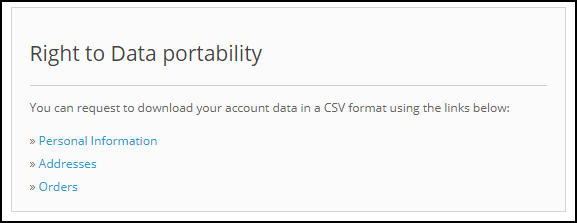
The screenshot of the interface at the customer end has been attached below:
On requesting for the data portability customer will be able to download the CSV file with the required details.
Step: 6 – Data anonymization request:
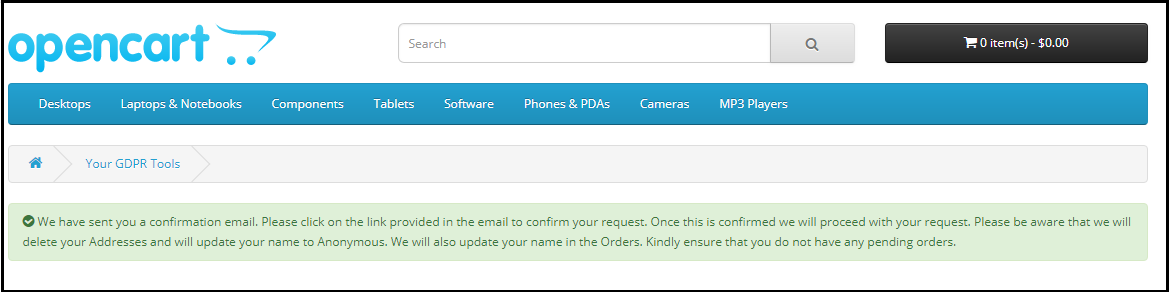
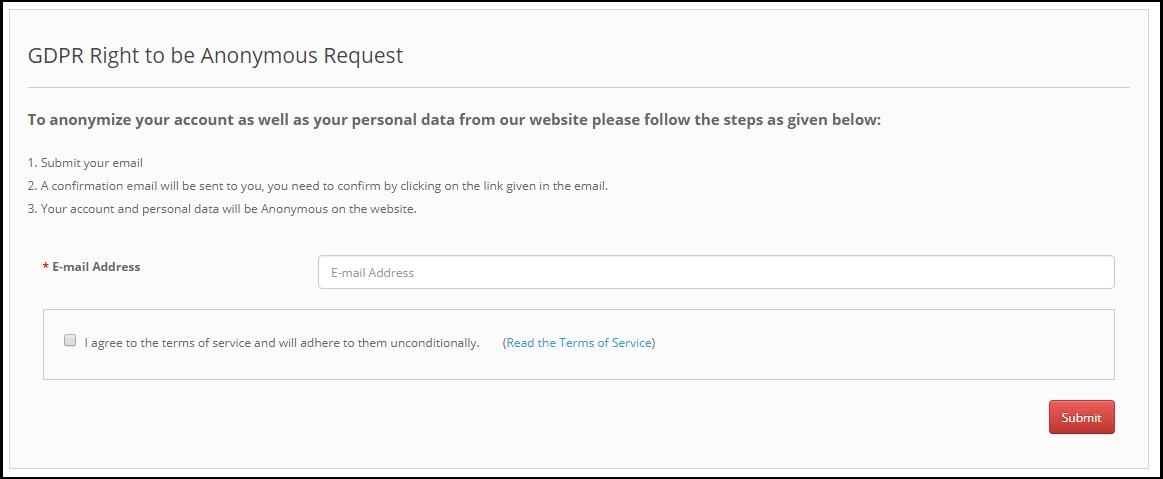
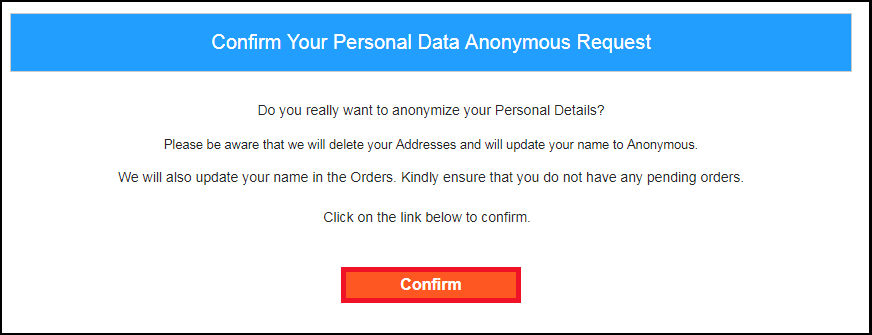
Data anonymization option allows the customer to replace the personal details with the random data. The name, email-id and order details can be anonymized. As soon as customer will request for the data anonymization a confirmation email will be sent to the customer. If customer confirms the data anonymization request, as per the settings enable by the admin personal details like Name, Email Id will be replaced by random details. To process the data anonymization request the admin has the following option:
Enable the Data anonymization settings:
If the data anonymization settings are enabled from the admin interface of the OpenCart GDPR compliance module then customer will be able to request for the data anonymization and in this case, only customer name will be replaced by the random name.
If a customer request for the Data anonymization, then a confirmation email will be sent to the entered email address and customer will be requested to confirm the request.
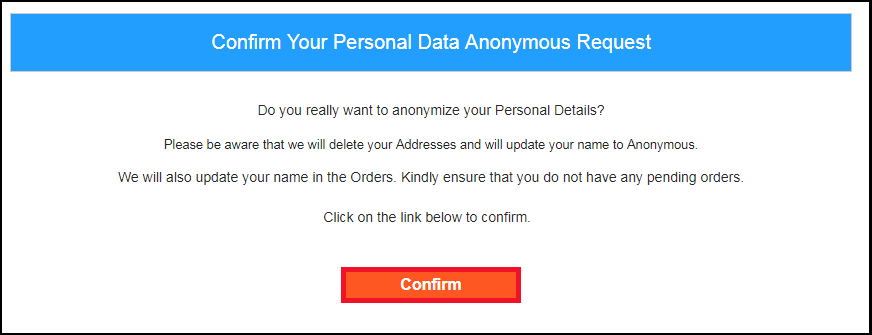
Email confirmation:
On requesting for the data anonymization customer will receive the email with request to confirm the data anonymization request.
Note: In case you are using the third-party services and sharing the customer data with third-party, then you need to make the required changes as per the procedure followed by the service provider. This GDPR module will anonymize the data which you have stored in your database only.
Step: 7 – Enable to update information in Order:
If customer requests to make his/her information anonymous then admin can select the option to enable/disable the changes to the previous orders. If this setting is enabled from the admin interface of the OpenCart GDPR module then the previous order details will also get modified and shipping and billing details will be deleted.
Step: 8 – Enable to generate Fake Email ID:
Admin can select the option to replace the email id of the customer by fake email id. If the setting is enabled from the admin then after requesting for the Data anonymization customer will be requested to confirm the email-id anonymization. Please refer to the attached screenshot:
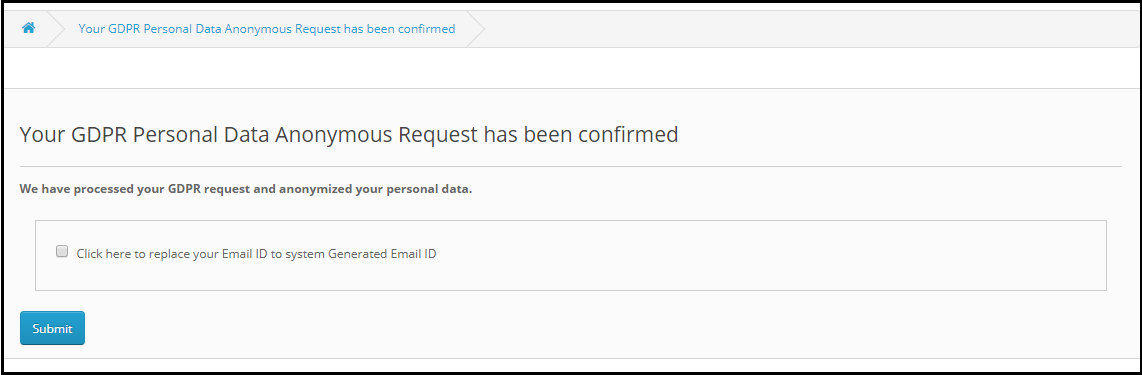
If customer submits the request for email-id anonymization then the email id of the customer will be replaced by the system generated email address. Please refer to the attached screenshot.
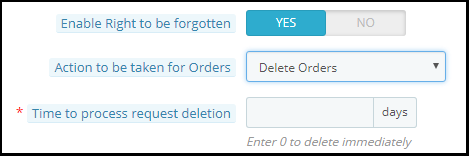
Step: 9 – Enable right to be Forgotten:
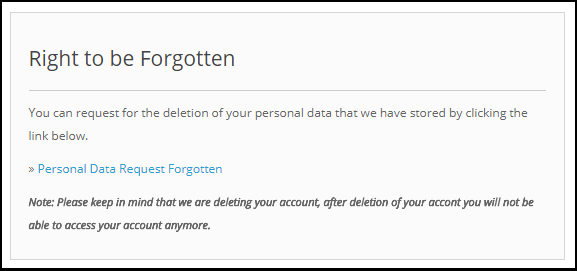
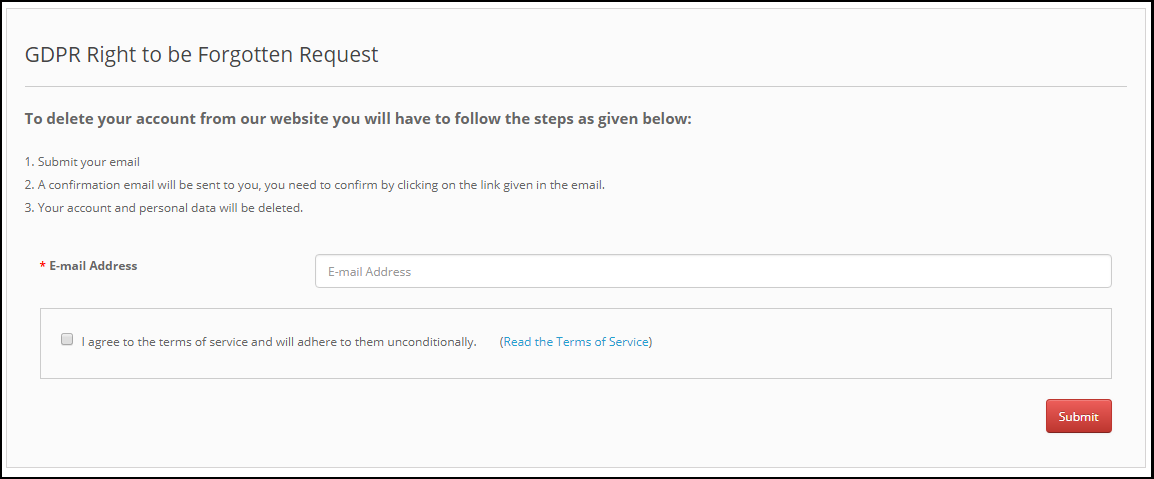
As per the new GDPR Directives customer has the right to request for the deletion of the personal data. OpenCart GDPR Compliance Module allows the customer to request for the deletion of his/her data by accessing his/her account. After receiving the request of the customer a confirmation email will be sent to the customer and as per customer’s approval, entire details of the customer will be deleted from the database.
The report request interface for the customer will be as below:
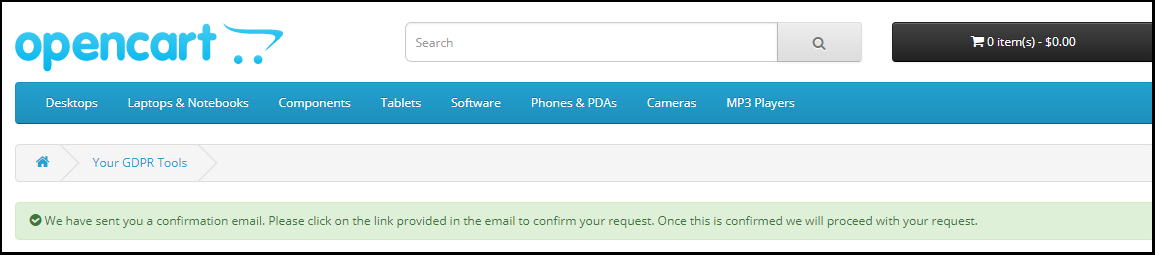
On requesting for the Account deletion request the customer will be notified that an email with the confirmation request has been sent to the registered email id.
Note: 1) It is recommended to consult with your legal team before enabling this setting. After deleting the customer’s personal data it cannot be retrieved. Admin has the option to enable the delete order setting which has been explained in the next topic. 2) In case you are sharing the customer data with third-party service providers then you need to delete the customer data manually. As of now, this module does not support the feature to delete the data shared with the third-party service providers. Example: If you are using MailChimp for sending promotional emails then you have to delete the customer details from MailChimp list manually.
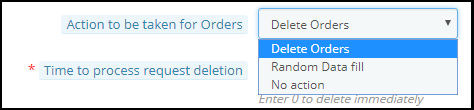
Step: 10 – Enable to Delete Orders:
If a customer has requested for the data deletion request under the GDPR, then the admin has the choice to delete the personal data of the customer along with the previous order details. If this setting is not enabled from the admin interface of the GDPR module then only personal data will be deleted and order information will remain as it is.
Note: It is recommended to consult with your legal team before enabling the order deletion settings. The order details deleted from the system cannot be retrieved.
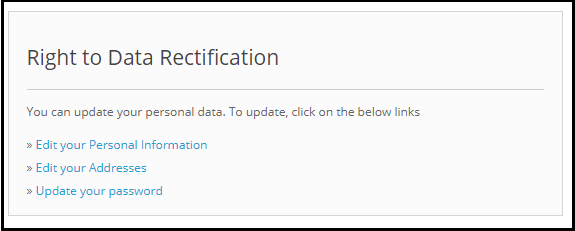
Step: 10 – Enable the right to data rectification:
A customer has the right to update the incorrect personal data. The OpenCart GDPR Customer Rights Module allows the store admin to let the customer modify the personal data like personal details, address etc.
Step: 11 – Enable the right to data rectification:
A customer has the right to update the incorrect personal data. The OpenCart GDPR Customer Rights Module allows the store admin to let the customer modify the personal data like personal details, address etc.
Step: 12 – Enable Rights in relation to automated decision making and profiling:
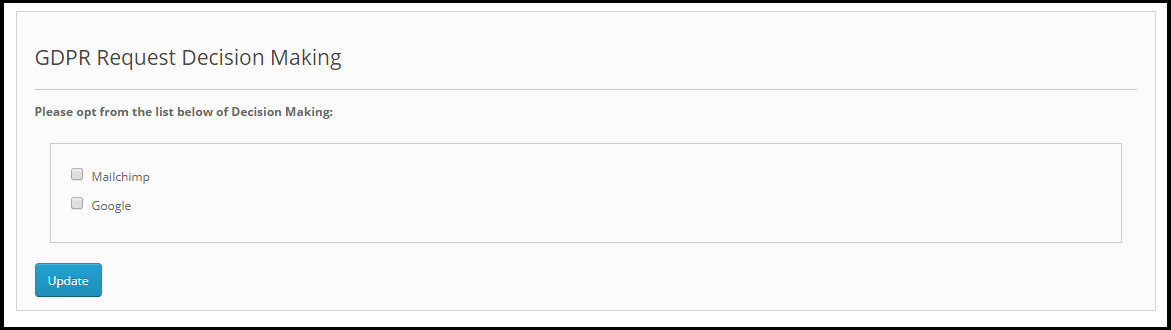
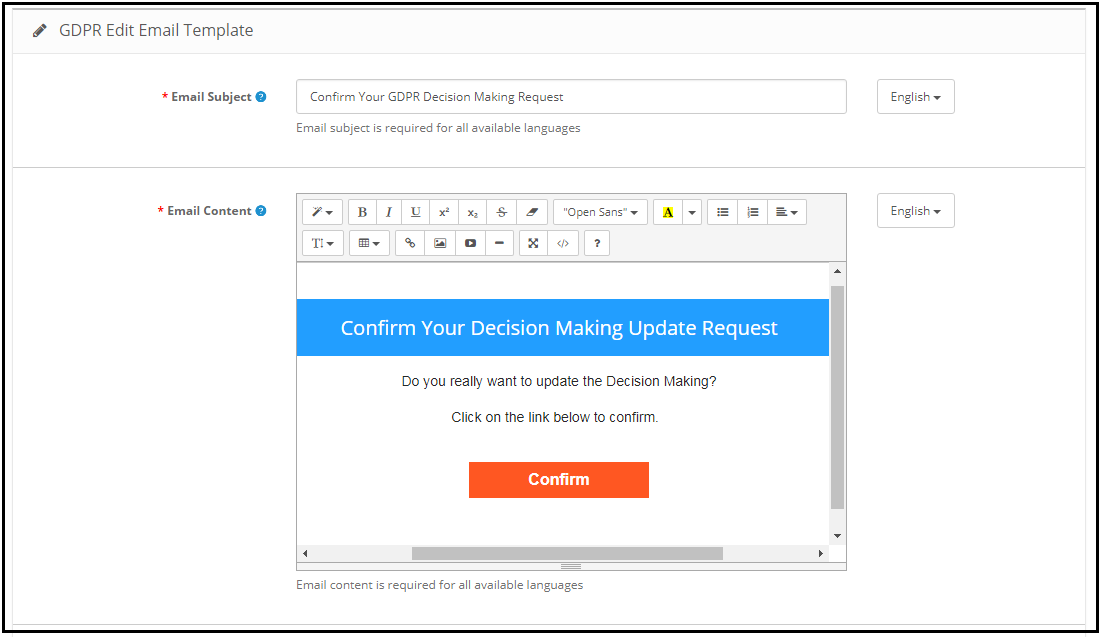
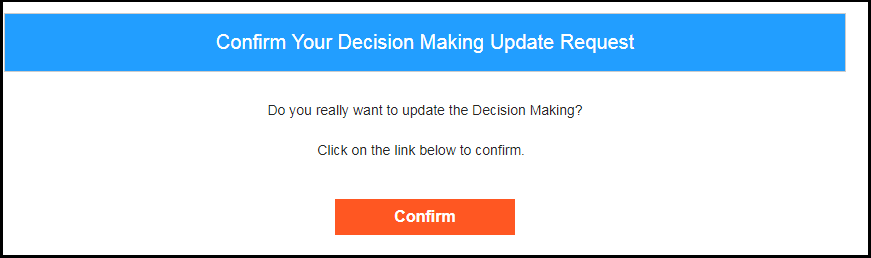
If this setting is enabled from the admin panel of the OpenCart GDPR compliance module then store admin will be able to list the services which make a decision by automated means. If a customer requests for the services which makes decision by automated means then customer will get email to confirm the request. As soon as the user will confirm the request, user will be redirected to a new link. Here all the services with the automated decision making will be listed and user can select the one which he/she would like to continue.
Admin can list all the such services to the under the List the services which makes a decision solely by automated means.
Step: 13 – Enable Store Policy Acceptance:
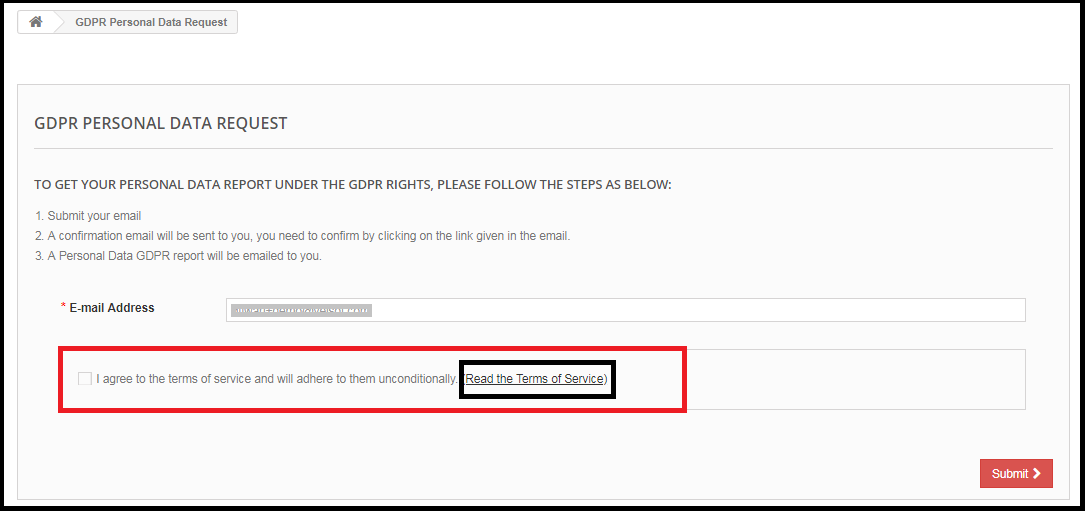
The admin interface of the OpenCart General data Protection Regulation Plugin allows the store admin to enable the setting so that a checkbox with the option to accept the Terms and Conditions will be displayed to the customer before requesting for the GDPR reports.
Step: 14 – Store Policy Page:
Admin can add the URL of the page on which all the Terms and Conditions are listed. The customer can check the Terms and Conditions by clicking the link available with the message at the time of raising the request.
Step: 15 – Services/ Other locations where you store customer data:
The third party services which process the customer data like MailChimp or you have stored the customer data on different places like Google Drive then you can list the details of the third party services which uses the customer data.
Step: 16 – Physical locations of servers where you host your website and other data:
You can mention the server location here, where you store the customer data.
Step: 17 – Display Header Menu
Display Header Menu option of the OpenCart GDPR compliance Plugin allows the store admin to display the GDPR option in the header section of the website. By enabling “Display Header Menu” setting of the OpenCart GDPR Plugin, store admin can allow the guest users to access the GDPR rights.
Step: 18 – Header Menu Text
Admin can define the text for the Header Menu.
3.2 Cookie Consent Bar:
The OpenCart GDPR Module allows the store admin to display the Cookie Consent Bar at the front end with the option to accept the cookie or discard the message. Admin can easily customize the appearance settings as well as the message on the cookie bar.
The Cookie Consent Bar tab has following settings:
1) Configuration: Admin has following options to set-up the Cookie Consent Bar.
Enable the EU Cookie Law Notification: The Admin can enable or disable the cookie message on the website.
Cookie Name: In this section define the name of the cookie to get the user consent. Please do not use the space to the cookie name.
Cookie Lifetime: Cookie Lifetime allows the store admin to set up the cookie duration that how long the cookie will be stored on the user’s device.
Terms and Condition of use: The admin can list the cookies details on a Cookie Policy page and add the link to the page on the message displayed to the user.
Display Close Button: Admin has the option to remove the Close button from the Cookie Consent Bar.
2) Appearance Settings:
Admin can easily control the following options for the Cookie Consent Bar.
Notification Position: Admin can select the position of the Cookie Notice on the Bottom of the page or Top.
Effect when hiding the notification: Admin can select the options like Fade, Hide or Slide from the drop-down list.
Notification Message: Admin can easily update the notification message as per the requirement.
Background Color
Background Opacity
Notification Message Font Color
Notification Message Font Color
Background Color of Accept Button
Font Color of Accept Button
Background Color of More Information Button
Font Color of More Information Button
3.3 GDPR Data Portability:
In the GDPR data portability section of OpenCart GDPR Module, admin can check the log of the data portability requests from the back-end.
3.4 GDPR Forgot Request:
OpenCart GDPR extension keeps the log of the data deletion requests. Admin can use this information to remove the customer data from the third party services.
Note:
1. As soon as customer request for the deletion of his/her details a confirmation email will be sent to the customer. As per the customer’s confirmation the details of the customer will be deleted from the system.
2. The OpenCart GDPR Module allows the admin to exclude the previous orders so that only the personal details of the customer will be deleted but order details will be saved for the future reference. Please use this setting carefully because the data deleted once cannot be retrieved. It is strongly recommended to consult with your legal team to make sure how to use this setting.
3. The OpenCart GDPR Module only deletes the customer data from the store database. If you share the customer data with the third-party service providers (eg. MailChimp) or store it on third-party platform (eg. Google Drive) then you need to delete the customer data from these platforms manually.
3.5 GDPR Anonymous Request
OpenCart GDPR extension keeps the log of the data anonymization requests. Admin can use this information to remove the customer data from the third party services.
3.6 GDPR Rectification Request
OpenCart GDPR extension keeps the log of the data rectification requests. Admin can use this information to modify the customer data on the third party services.
3.7 GDPR Personal Data Report Request
OpenCart GDPR Plugin keeps the log of all the personal data requests.
Note: As of now the OpenCart GDPR Module by Knowband allows the store admin to share the details like Personal Information, Address Details, Newsletter Subscription, Shopping Cart Contents, Order Details, Admin can also list all the third-party service providers details and the physical location of the server along with the details of the hosting company.
3.9 GDPR Automated Decision Making Request
3.10 GDPR Email Templates:
The OpenCart GDPR Plugin by Knowband allows the admin to sending following emails to the customer:
Confirm Your GDPR Account Deletion Request
Confirm Your GDPR Personal Data Anonymous Request
Customer has requested for GDPR
Your GDPR Personal Data Report
Customer has confirmed GDPR Request
Confirm Your GDPR Decision Making Request
Confirm Your GDPR Personal Data Portability Request
Confirm Your GDPR Account Deletion Request:
Admin can update the Subject line and the email text by using the GDPR Email Template Settings.
Default format of the email template is as below:
Confirm Your GDPR Personal Data Anonymous Request:
Admin can update the Subject line and the email text by using the GDPR Email Template Settings.
Default format of the email template is as below:
Customer has requested for GDPR
This Email template is used to send confirmation mail to the customer when customer requested for Personal Data Report.
The email at the customer end will be like below:
Your GDPR Personal Data Report
This email template will be used to send the Personal Data of the customer requested under the GDPR Right to the access to the Personal Data.
At the customer end the email design will be as below:
Customer has confirmed GDPR Request
Confirm Your GDPR Decision Making Request
This email template will be used to request the customer for the confirmation of the automated decision-making requests.
Email at the Customer end:
Note: The purpose of these features is to help you to meet with the GDPR requirements. Installing this module only does not guarantee merchant sites’ compliance with the new obligations imposed by the GDPR. It is your responsibility to put in place all the necessary measures to ensure you comply.
The enforcement date of the GDPR is approaching. Yet, most of the businesses are still struggling to make their online store GDPR compliance. In order to make it easier for the Prestashop store owners to meet the GDPR requirements, Knowband has developed the Prestashop GDPR Addon – Rights of the Individual. As per the suggestions of our valuable customers and by referring the discussions on the various forums, we have added some additional features to the Prestashop GDPR Addon. We will release the new version of the Prestashop GDPR Module on May 23, 2018. In order to give a glimpse of the new features to our valuable customers, we are sharing the details and interface design here.
New features of Prestashop GDPR Module
The purpose of these features is to provide additional control to the Prestashop store admin to comply with the GDPR directives. Please find the details of the new features below:Right to be forgottenAdmin has the advanced options to process the data deletion request.Now, admin can select the options like Delete Order, Random data fill or No Action.Delete Order: If the Delete Order option is selected then on requesting for the Data Deletion the order details will be deleted.Random Fill: If the Random Data Fill option is selected then on requesting for the Data Deletion the personal details of the customer will be anonymized. It will help the store admin to keep the statistics of the order and product sale.No action: If the No action option is selected then on requesting for the Data deletion previous order details will remain untouched.Time to process request deletion: Admin can select the option to delete the customer data immediately or after some days. If the admin would like to delete the customer data after some days then admin need to specify the number of days. (Make sure to delete the customer data within 30 days of the request)Deletion of the customer data from Back-office: In order to handle the data deletion requests which have been received through other sources like email, the Prestashop GDPR module provides an interface to the admin to delete the customer data. Follow the steps listed below to complete the data deletion action:
Go to the GDPR Forgot Request Tab
Click on the Delete Customer’s Data option as highlighted in the screenshot
On clicking the Delete Customer’s Data a new tab will open. Please refer to the attached screenshot.
Admin needs to enter the customer name or the email id to find the customer details. The details will appear like.
From here, admin can check the customer details and also select the option to delete the customer data. Admin can also notify the customer regarding the data deletion through email.Note: As of now, the Prestashop GDPR Compliance Module by Knowband does not keep the record of the data deletion requests processed from the back-office.Purge request day: This option allows the store admin to define the data retention period for the GDPR requests. As per the number of days defined by the admin GDPR request log will get deleted automatically (cron setup for the data deletion).Cron setup: To enable the option to delete the customer data after a specified day and the purge request day, the admin has the options to set up the cron.User Consent: The user consent option allows the store admin to display the checkboxes on the Signup and Contact form.Please refer to the attached screenshot:Title: This is for the internal use. The title of the consent box will appear in the back-office details.Content: The text entered here will be displayed to the user at the front-end.Form Type: Admin can select the Registration Form or the Contact form to display the additional information.Consent URL: Admin can add the link to the Privacy Page or Terms and Conditions page.Required: Admin has the choice to make the field a mandatory filed.After enabling the checkboxes on the registration form the store admin can record the customer permission. To check the customer permission customer need to go to the Customers section. Here at the bottom of the page Under the GDPR Consent – the permission of the customer will be listed. Please refer to the attached screenshot (as per the title entered by the store admin the user consent will be recorded)Tips for updating the Module URL:In order to generate the SEO friendly URL for any third party module page. Please follow the below steps:
Navigate to the Preferences >> SEO & URLs
Click on the Add New Page.
Select the “Modules Page” from the Drop-down (in case of Knowband GDPR Module select the kbgdpr – gdpr)
Now enter all the required details and save the changes.
5) Here is your updated URL of the page.5 must have Prestashop Extensions to increase the Average Order Value.
Making a sense of urgency by displaying the count-down time to avail the offer is one of the popular trick used by the online businesses. This encourages the customer to place their orders to get the advantage of the offer. The flash sale timer addon is the best way to achieve the same. By using this module admin can display the countdown timer on the selected product or category. Click here to get this addon.
As per the business requirement sometimes COD option is required on the website. To achieve this goal the store admin can use the Cash on Delivery Addon with Fee. By using this addon store admin can offer COD payment option to the customer and add a minimal fee for the service. Click here to get this addon.
Admin can offer the free products over a fixed order value. Offering freebie helps to encourage the customer to shop more and increase the cart total. Gift the product addon helps the store admin to set a minimum cart value over which the customer will be able to select the free gift. Click here to get this addon.
Cross-selling and Upselling are the important factors to increase the averageorder value. By showing the similar products at a higher price or related products you can encourage the customer to buy more. The automatic related products addon allows the store admin to display the related products based on the multiple criteria like manufacturer, color etc. Click here to get this addon.
The Free shipping option puts a psychological effect in the customer’s mind. eCommerce store can offer the free shipping over a fixed cart value. In order to get the free shipping customer will buy more products and it will help you to increase the revenue. Click here to get this addon.