PrestaShop Google Custom Search addon incorporates a Google Custom Search bar on your PrestaShop website. The custom search bar specifically displays your website results for the searches made by a user, thus shrinking the overall Google search results to your website specific results only.
If you want to filter out your website products from a thousand products available on Google, PrestaShop Google Custom Search is everything you need. It functions just like the actual Google search engine except that the search results are customized or say restricted to your website only.
Let’s talk about the features and benefits.
Features of PrestaShop Google Custom Search
1. Replace your default search bar with Google Custom Search Bar
PrestaShop Google Custom Search addon adds a Google Custom Search Bar on your website by replacing the default search bar.
In case you want to switch to the default one, simply disable the “Replace with default Search bar” option under the configuration of this PrestaShop addon.
2. Specify the number of results per page
Mention the number of search results that you would like to display for every page. The search results per page can range from 1 to 20.
3. Sorting available as per relevance and date
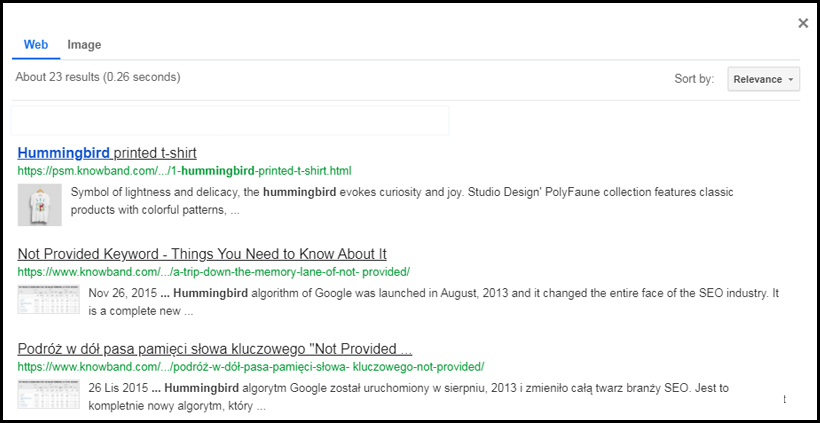
Online visitors can filter out the search results based on the relevancy or the date posted. Relevant sorting will help a user to find the most useful results while sorting as per the posting date will help in finding the latest updates.
On disabling the sorting function, the results will, by default, be displayed as per their relevancy.
4. Add an image tab on the search results
Display images based on the searched keyword by enabling the “Image search” option under PrestaShop Google Custom Search configurations.
5. Autocomplete
The autocomplete feature helps a user to find the relevant results quickly. The search bar starts displaying results in real-time, as soon as the user starts typing his search query.
Note: Sorting, Autocomplete and Image search can be enabled/disabled from the Custom Search Control Panel as well.
6. Open link in new tab
Every search result will open in a new tab so that you do not lose your visitors off on existing pages.
Benefits of Google Custom Search
1. Improve your SEO rankings
Wondering how? Well, the searches made through the Google Custom Search bar are indexed like a normal Google search query, which helps in improving your website ranking on the Google Search Engine.
So, do not get confused on how the Google Custom Search Bar is different from a normal search bar.
2. Increase your website traffic
Since the search results are restricted to your website only, PrestaShop Google Custom Search makes a great opportunity to increase the traffic on your website.
Apart from these, Google Custom Search helps you reduce your website’s bounce rate which eventually increases the average site time.
There is no default functionality to persist the GET parameters while using “Paginator” helper in CakePHP. As per default functionality of CakePHP paginatior helper, the GET parameters will remove from the URL if you navigate to the next page. So in this blog we will learn how to add the GET parameters in the URL of page number in CakePhp version 2.0?
Solution
If you are facing this issue then you need to add a few lines of code in the beforeRender function. This function is defined in the paginator.php file (File Location: cake\libs\view\helpers\paginator.php). You need to add the following lines shown in the brown color:
public function beforeRender($viewFile) {
            $this->options['url'] = array_merge($this->request->params['pass'], $this->request->params['named']);
//Start of code
              if (!empty($this->request->query)) {
                       $get_param = $this->request->query;
                       unset($get_param['url']);
                       $this->options['url']['?'] = $get_param;
                }
// End of code
                parent::beforeRender($viewFile);
}
We are glad to announce that KnowBand has achieved yet another feat by grabbing the Superhero Seller badge on the PrestaShop addon store.
It is the result of extreme hard work and perseverance by our entire team at KnowBand, a special mention of our skilful Developers who put their day and night in making things work out the best. Not to forget our valued customers who have put their trust in us over the years and helped us receive this expertise ranking on the official PrestaShop platform.
What is Expertise Ranking on the PrestaShop platform?
PrestaShop expertise ranking help merchants pick the relevant modules as per their requirements.
A community of developers lists their products on the PrestaShop Marketplace and each developer is assigned a level of expertise based on Seniority, Average Rating, Positive ratings, and Support Quality.
The level of expertise(from low to high) are Conqueror, Captain and Superhero.
Let’s try to understand how the expertise level is decided on the official PrestaShop platform.
Conqueror: Seniority ≥ 3 months, Average ratings ≥ 2.5(out of 5), Positive Ratings ≥ 1 and Support Quality ≥ 75%
No badge is provided failing to match any of the mentioned criteria.
Captain: Seniority ≥ 6 months, Average ratings ≥ 3.5, Positive Ratings ≥ 3 and Support Quality ≥ 85%
Superhero: Seniority ≥ 12 months, Average ratings ≥ 4, Positive Ratings ≥ 5 and Support Quality ≥ 95%
With our continuous efforts in providing the best eCommerce solutions, we have been rewarded with the Superhero level expertise.
Why choose KnowBand?
KnowBand is among the leading names in the list of “Best eCommerce Service Providers.” We provide eCommerce development services for PrestaShop, OpenCart, Magento, Magento 2 and WooCommerce platform.
Over the years, we have helped merchants with our highest quality modules. Some of our best selling modules on the PrestaShop addon store are:
This PrestaShop addon has 1000+ Downloads and 50+ 5-star ratings.
Note: KnowBand also made Multi-vendor Marketplace compatible with Mobile App Builder allowing you to convert online marketplace into Android & iOS app.
This addon is also compatible with PrestaShop Booking & Rental System addon to convert online booking marketplace into the mobile app.
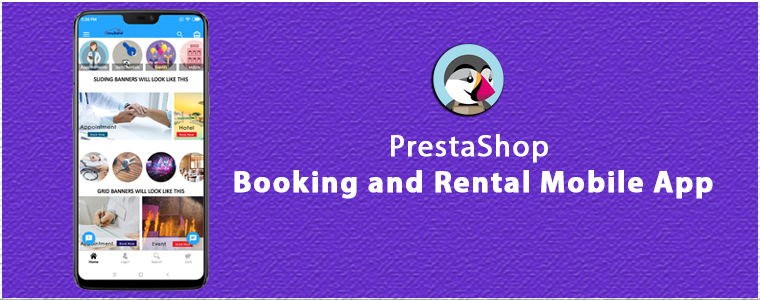
Transform your online booking PrestaShop website into a Mobile App, make your booking and reservation system easier than ever, and manage your online bookings effortlessly with the help of PrestaShop Booking and Rental Mobile App.
Mobile Apps have made the online experience way too smooth and convenient for customers. Today, people desire an app for every small need.
Why?
Because apps are easy to use and most importantly, time-saving. Unlike a website where a user has to first open Google, enter the URL and then do the required work, the mobile app makes it a one-click task.
Feeling the importance and high demand of mobile apps, Knowband has recently launched the PrestaShop Booking and Rental Mobile App for those PrestaShop website owners who are running an online booking website and require a mobile app for the same to make the online booking experience even better for their customers.
So instead of purchasing both the modules separately, we have formed it into one single module so that the merchants can enjoy the overall benefits by just purchasing the PrestaShop Booking and Rental Mobile App.
What does PrestaShop Booking and Rental Mobile App offers?
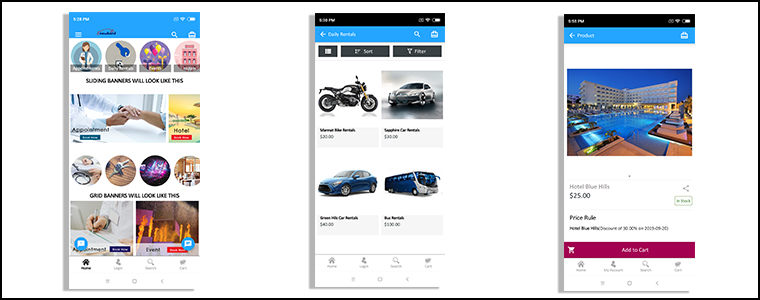
The PrestaShop Booking and Rental App helps you manage your online booking services, ranging from appointments and hotel bookings to daily and hourly rental services.
People are using online booking services on a daily basis. Booking a cab or a room or an appointment requires just a few taps. If you want to provide a similar booking convenience to your customers, PrestaShop Booking App is the one-stop solution for you.
Let’s look at the key features of PrestaShop Booking and Rental Mobile App.
Manage your Appointments
Taking appointments over the call can be hectic. Even if you have hired an assistant, the task can be daunting.
Get rid of the manual bookings and let your customers book an appointment as per their convenience right from the app with the help of PrestaShop Appointment Booking App.
Appointment configurations:
1. Allow customers to pick Home Service or Branch visit.
2. Specify the number of appointments that can be generated in a single day.
3. Set an initial price for the customers to avail the booking facility.
4. Mark your location on the map so that customers face no trouble in reaching your place.
5. Select the days for which the customers can generate an appointment.
6. Similarly, you can define the time slot as per your availability.
7. Adjust the booking price for different time slots.
Manage your Hotel Bookings
Let people book rooms without any inconvenience and manage your bookings comfortably with PrestaShop Hotel Booking App.
Hotel booking configurations:
1. Add your rooms without any hassle.
2. Define the room type, for example, if it is a single bedroom or double bedroom.
3. Provide a category to your rooms.
4. Set an initial price for the customers to book a room.
5. Mention the date range within which customers can book a room.
6. Adjust the booking price for different days.
7. Adjust the booking price for different room types.
8. Add hotel amenities so that customers get a clear idea of what they can expect in your hotel and rooms.
9. Specify the check-in and check-out time.
10. Mention the minimum and the maximum number of adults and children allowed.
11. Display hotel ratings to help customers make a better choice.
12. Mention the minimum and maximum numbers of days for which the customers can book rooms.
Manage your Rental Bookings
Rental bookings are always high in demand, be it a car rental for a vacation, bike rental for a small trip or costumes rental on Halloween. If you have a rental business, going digital with the mobile app will add a huge sum to your revenue.
Daily Rental configurations:
1. Specify the number of bookings for a day.
2. Set an initial booking price.
3. Mark the days on which the daily rental service can be availed.
4. Specify the time slot for booking a daily rental.
5. Adjust the booking price as per the time slots.
6. Mention the facilities that would be provided.
Hourly Rental configurations:
1. Specify the number of bookings for a day.
2. Set an initial booking price.
3. Specify the minimum and maximum hours to book an hourly rental service.
4. Mark the days on which the hourly rental service can be availed.
5. Adjust the booking price for different days.
Conclusion
PrestaShop Booking and Rental Mobile App is a perfect solution to deal with the difficulties in managing your online bookings.
Delight your customers by announcing your mobile app and enhance their booking experience. It also makes the perfect opportunity for you to double up your sales.
Try out the PrestaShop Booking and Rental Mobile App today!
Magento Google Shopping Integration addon by Knowband offers a hassle-free way to upload the products of the Magento store on Google Shopping. Displaying the product ads on the search result is one of the ways to get thousands of visitors on your site.
Google Shopping allows the e-merchants to display its product on Google’s search result page. Powered by AdWords and Google Merchant Center, this is one of the ways to allows the users to search for the products on online shopping websites and compare prices between different vendors. The Magento Google Shopping Integration makes it easier for the store owners to display their products on Google’s SERP.
The Magento Google Shopping Integration module automatically syncs feed from the Magento store to the Google Merchant Center Account. Also, the store admin can sync the product status back to the store’s database by executing cron in the back-end of the Google Shopping Magento Feed Synchronization plugin.
1.1 Features offered by Knowband’s Magento Google Shopping integrator
The Magento Google Shopping Integration addon automates the entire process of listing the products on Google Shopping from the eCommerce site.
The store admin can automatically update the product inventory between the two stores from the back-end of the Google Shopping Magento Integration extension.
The Magento Google Shopping API integration offers real-time synchronization of products, inventory and between the Google Shopping API and Magento store is an easy means to excel the online businesses.
The store admin gets an option to create N number of profiles in the back-end of the Magento Google Shopping Integration extension.
The profile-based upload allows the admin to list the products in bulk. Moreover, any changes required in the product details can be done by making changes in the profile created in the back-end of the Google Shopping Magento API integration addon.
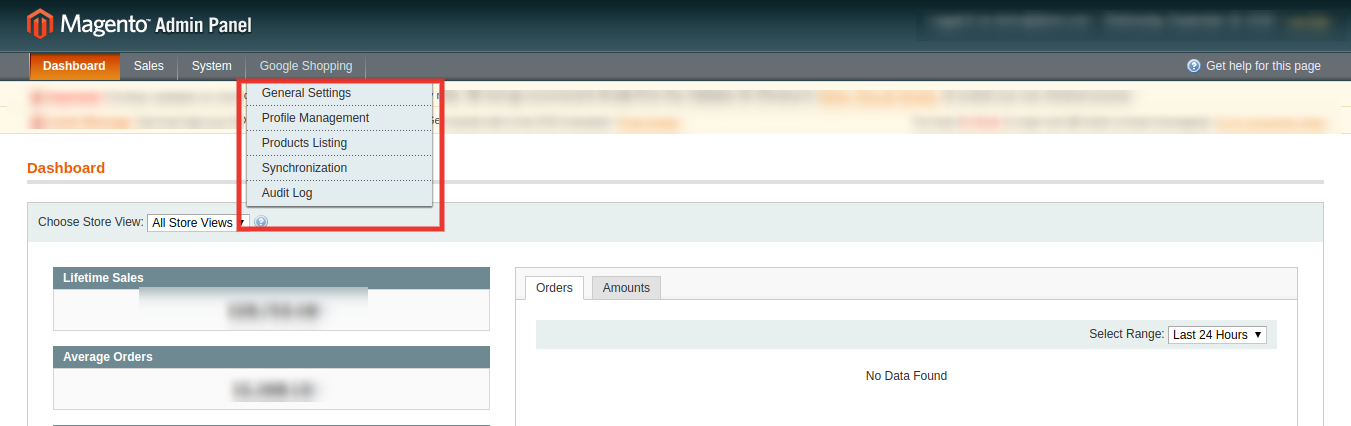
The store admin gets an easy option to keep a track of the products listed in the Google merchant center in the ‘Product Listing’ tab of the Magento Google Shopping connector.
Magento Google Shopping Feed synchronization plugin even allows the admin to delete the products or view the errors that occurred while product listing.
The real-time synchronization offered by the Magento Google Shopping Integration module makes tracking and feed management easier for the store admin.
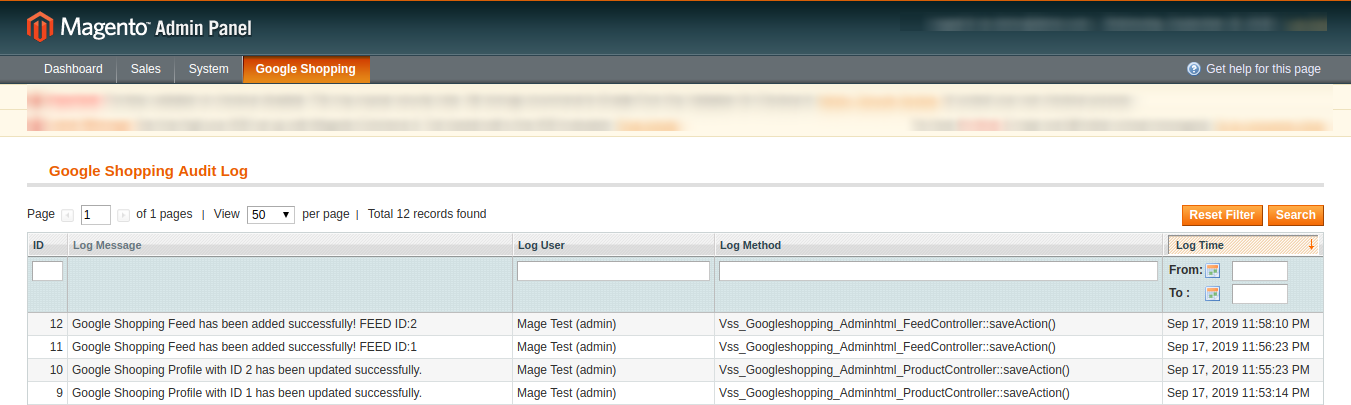
The status of the actions performed can be viewed in the audit log section of the Google Shopping Magento Integrator.
2.0 Installation
Download the extension package of the Magento Google Shopping integration plugin from Knowband.
Unzip the package in your root folder of Magento setup via FTP manager (like Filezilla or WinSCP – download here: https://filezilla-project.org/).
In Admin Panel go to Google Shopping Marketplace in the main menu.
The Magento Google Shopping integrator is now ready for use.
This User Manual will guide the users through the Magento Google Shopping synchronization extension configuration and settings.
3.0 Admin Interface
Once the Magento Google Shopping Integration extension add-on is installed, it will display 5 tabs in the main menu of the admin interface. Each tab is explained one-by-one in the next section.
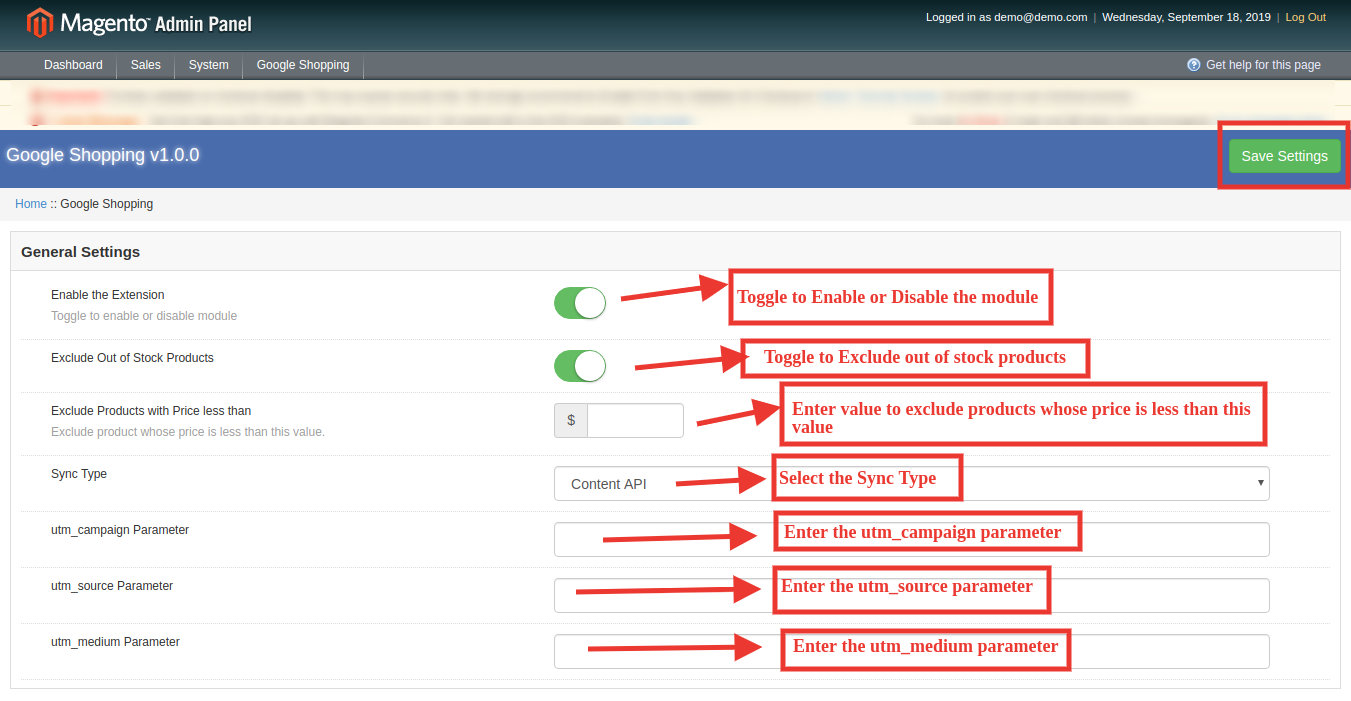
3.1 General Settings
Enable the Extension: Toggle to Enable or Disable the module.
Exclude Out of Stock Products: Toggle to Exclude out of stock products.
Exclude Products with Price less than: Enter value to exclude products whose price is less than this value.
Sync Type: Select the Sync Type.
utm_campaign Parameter: Enter the utm_campaign parameter.
utm_source Parameter: Enter the utm_source parameter.
utm_medium Parameter: Enter the utm_medium parameter.
3.2 Profile Management
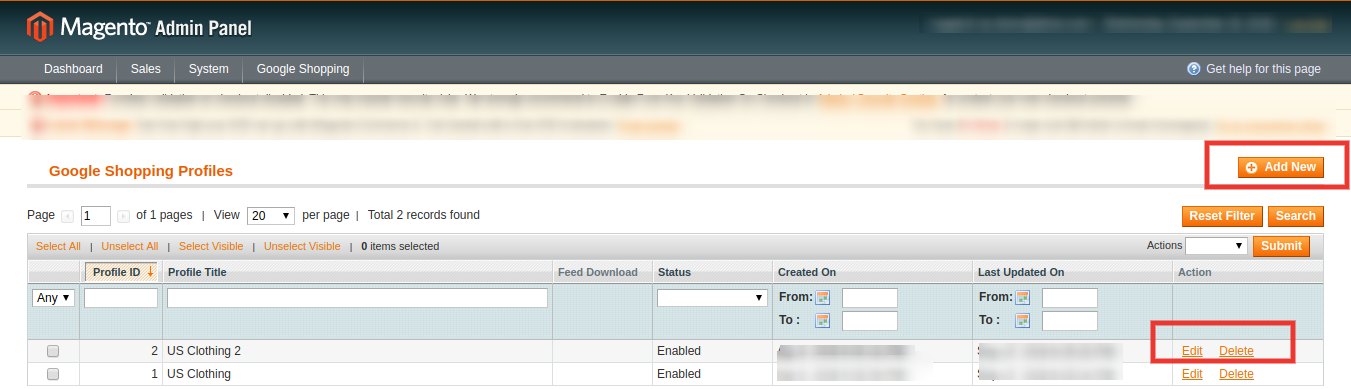
The admin can create, edit or delete profiles from this tab of the Magento Google Shopping Integration extension.
3.2.1 How to Create a New Profile?
Click on the ‘Add New’ button sign to create a new profile.
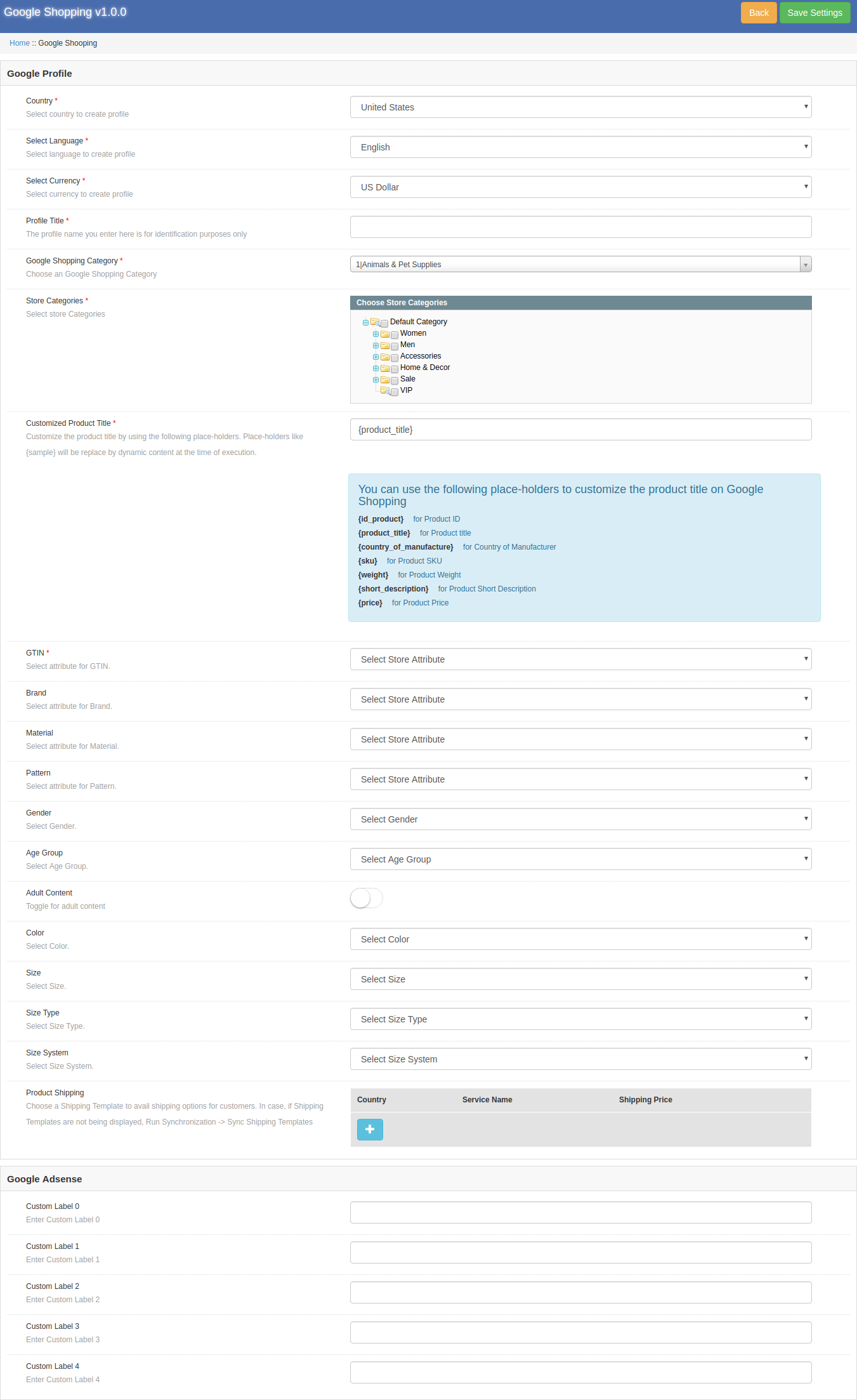
You’ll be redirected to the profile creation page of the Google Shopping Magento Integrator as given below.
Select the Country from the drop-down list.
After this, you will get a full list of settings as the screenshot below:
Country: Select the country to create a profile.
Select Language: Select language to create a profile.
Select Currency: Select currency to create a profile.
Profile Title: The profile name you enter here is for identification purposes only.
Google Shopping Category: Choose Google Shopping Category.
Store Categories: Select store Categories.
GTIN: Select attribute for GTIN.
Brand: Select attribute for Brand.
Material: Select attribute for Material.
Pattern: Select attribute for Pattern.
Gender: Select Gender.
Age Group: Select Age Group.
Adult Content: Toggle for adult content.
Color: Select Color.
Size: Select Size.
Size Type: Select Size Type.
Size System: Select Size System.
Product Shipping: Choose a Shipping Template to avail of shipping options for customers. In case, if Shipping Templates are not being displayed, Run Synchronization -> Sync Shipping Templates.
Google Adsense
Custom Label 0: Enter Custom Label 0
Custom Label 1: Enter Custom Label 1
Custom Label 2: Enter Custom Label 2
Custom Label 3: Enter Custom Label 3
Custom Label 4: Enter Custom Label 4
3.2.2 How to Edit or Delete the Existing Profile?
The created profile in the Magento Google Shopping Synchronization addon can be viewed in the admin interface. Click on ‘Edit’ to edit the profile or click on ‘Delete’ to delete the existing profile. The edit option opens the page filled with all the details shown in the above screenshot. You can edit and save it accordingly.
3.3 Products Listing
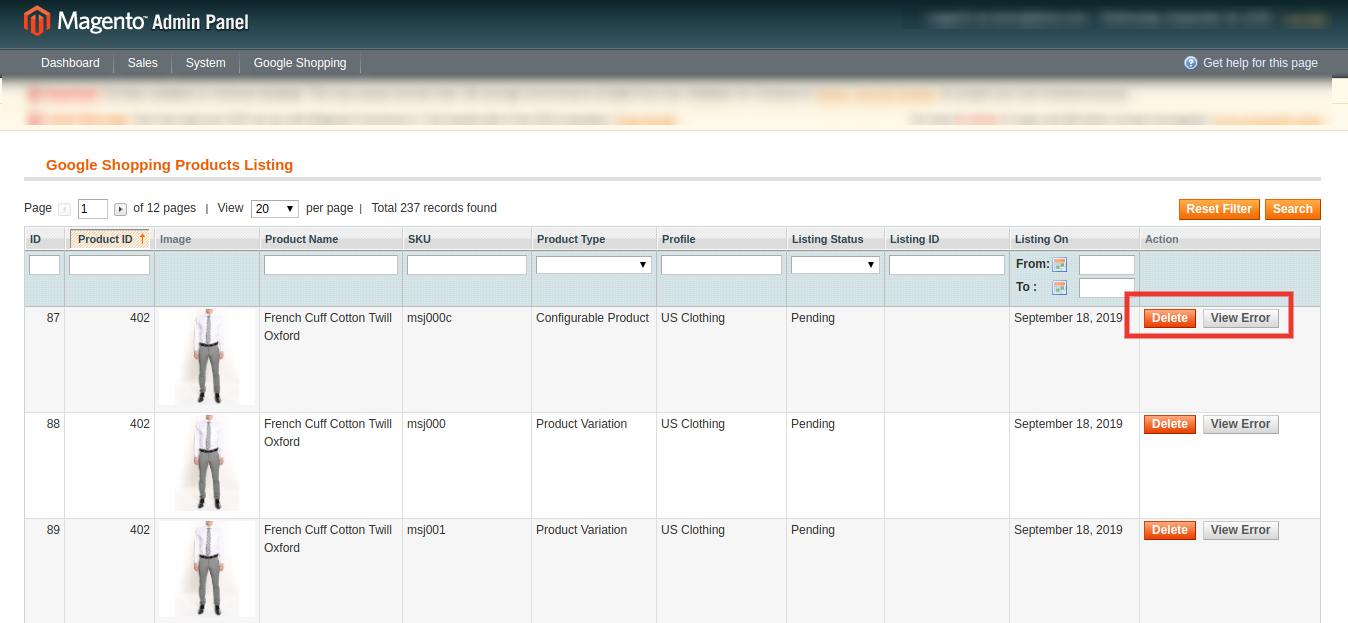
The listed products can be viewed in this section of the Google Shopping Magento Connector as shown in the image below.
The admin can remove the product by clicking on ‘Delete’.
The admin can view the Error occurred while uploading the product.
3.4 Synchronization
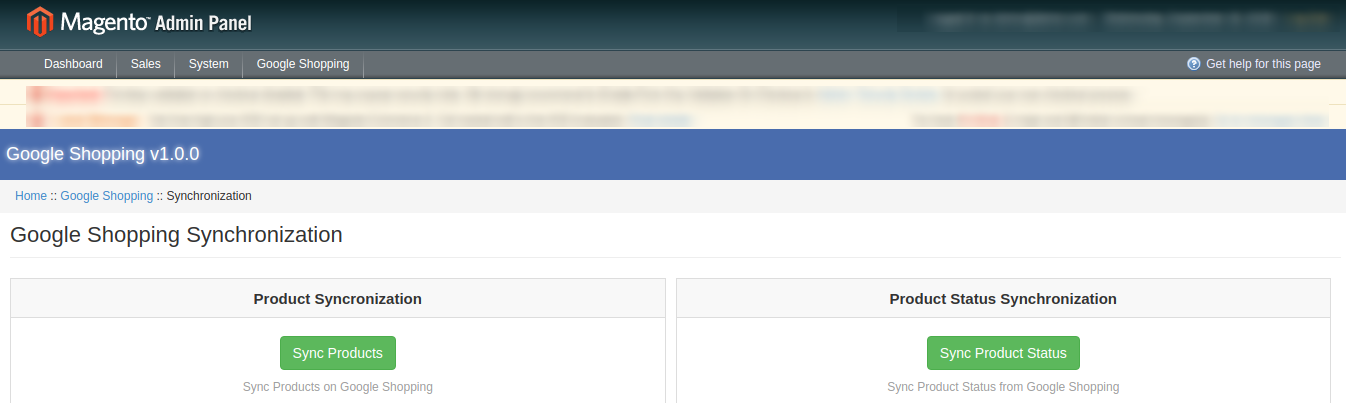
The Synchronization tab of the Magento Google Shopping Integration extension offers easy integration with the help of cron jobs. The Magento Google Shopping Feed synchronization allows the admin to sync the feeds to Google merchant and syncs the product status back to the store.
Product Synchronization: This cron will synchronize the products on Google Shopping.
Product Status Synchronization: This cron will synchronize the product status on Google Shopping.
3.5 Audit Log
The admin can view all the jobs running and the errors occurred in the same. The status of the jobs can be viewed in this tab of the Magento Google Shopping Integration plugin.
For more values, please follow the below URL and read the documentation:
The search functionality of your eCommerce website plays a crucial role in the purchase decision of a customer. If customers do not easily find what they are looking for, they will likely take an exit and never return, making you lose out on potential customers.
This is why the search functionality holds very high importance to gain customer loyalty and provide customers with a hassle-free online shopping experience.
For PrestaShop website owners, we present the PrestaShop Search Auto-suggest addon that can improve the search functionality of the website and help people find the desired products easily.
Auto-suggest or autocomplete is a feature that predicts what the user is looking for, even before the user has finished typing his/her search query.
Features to look out in PrestaShop Search Auto-suggest addon:
1. Choose minimum letters to start performing a search
Set the minimum number of letters that need to be entered in the search box for the search function to work. For example, if a customer is looking for a pair of shoes, the search results would be displayed only after the customer has typed “sho” and not before it.
2. Search with the category name
Search for a particular category by typing the category name in the search box.
3. Search with the product name
Search for a particular product by typing the product name in the search box.
4. Display price along with the products
PrestaShop Search Auto-suggest addon lets you display the product price in the search results. If enabled, the product price will be mentioned right below the product name when a user types a search query.
5. Set a limit for the search results
With the help of PrestaShop Quick search addon, you can choose how many results you want to display in the search results, at once.
6. Allow search with product description, tags, SKU, UPC, EAN
A user can search for a product with its description, tags, EAN(European Article Number), UPC(Universal Product Code) and SKU(Stock Inventory Unit).
7. Get a complete analysis of the searched terms
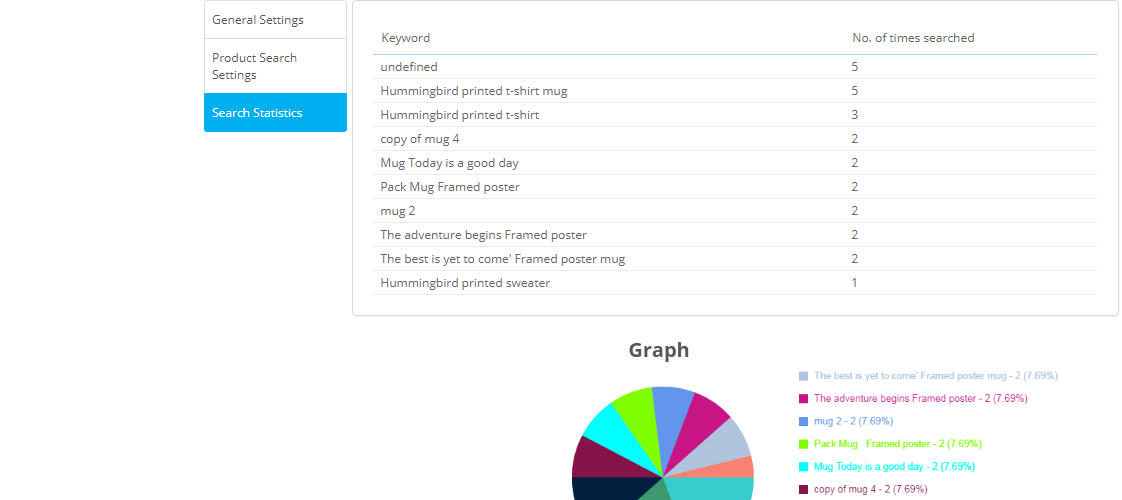
PrestaShop Search Auto-suggest addon provides you with the statistics of the most searched keywords in your eCommerce website.
It displays the keywords along with the number of times they have been searched.
The stats can also be seen in the form of a pie chart.
8. Filter search results based on the stock status
With PrestaShop Search Auto-complete addon, you can display only those items that are currently in stock and hide the out-of-stock ones. Or you can display every kind in the search results, whether it is in stock or out of stock.
PrestaShop auto-suggest also provides you with the option to display only the products that have a specific quantity. For example, if you set the quantity range from 0 to 5, then only if the quantity of the product that a user is trying to search is between 0 and 5, products will be shown in the search results.
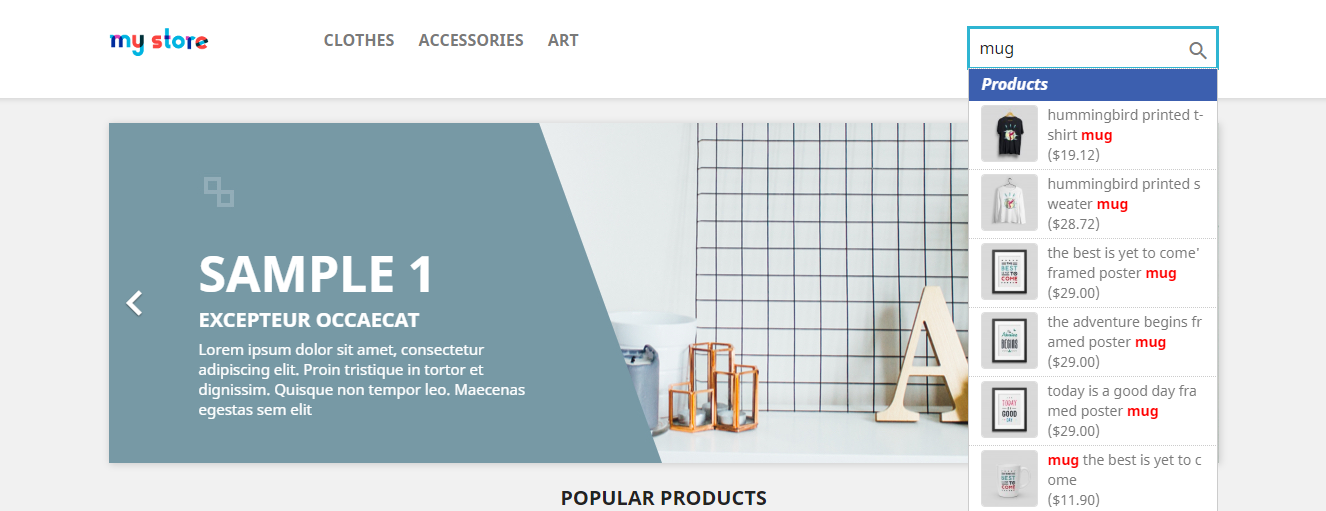
9. Instant display of results as a drop-down list
The search results are displayed instantly with the images as a drop-down list.
10. Customize your search bar
Adjust the colour of the highlighted keyword, background colour of the heading and the font colour to give your search bar an appealing look.
Why should you have PrestaShop Search Auto-suggest addon?
1. Easy and quick search functionality
2. Enhance user experience
3. Reduce bounce rate by displaying relevant results to users
4. Help customers find the desired product in no time.
The PrestaShop Search Auto-suggest addon is fully responsive, SSL compatible, multi-store compatible, multi-browsers compatible and compatible with all PrestaShop themes.
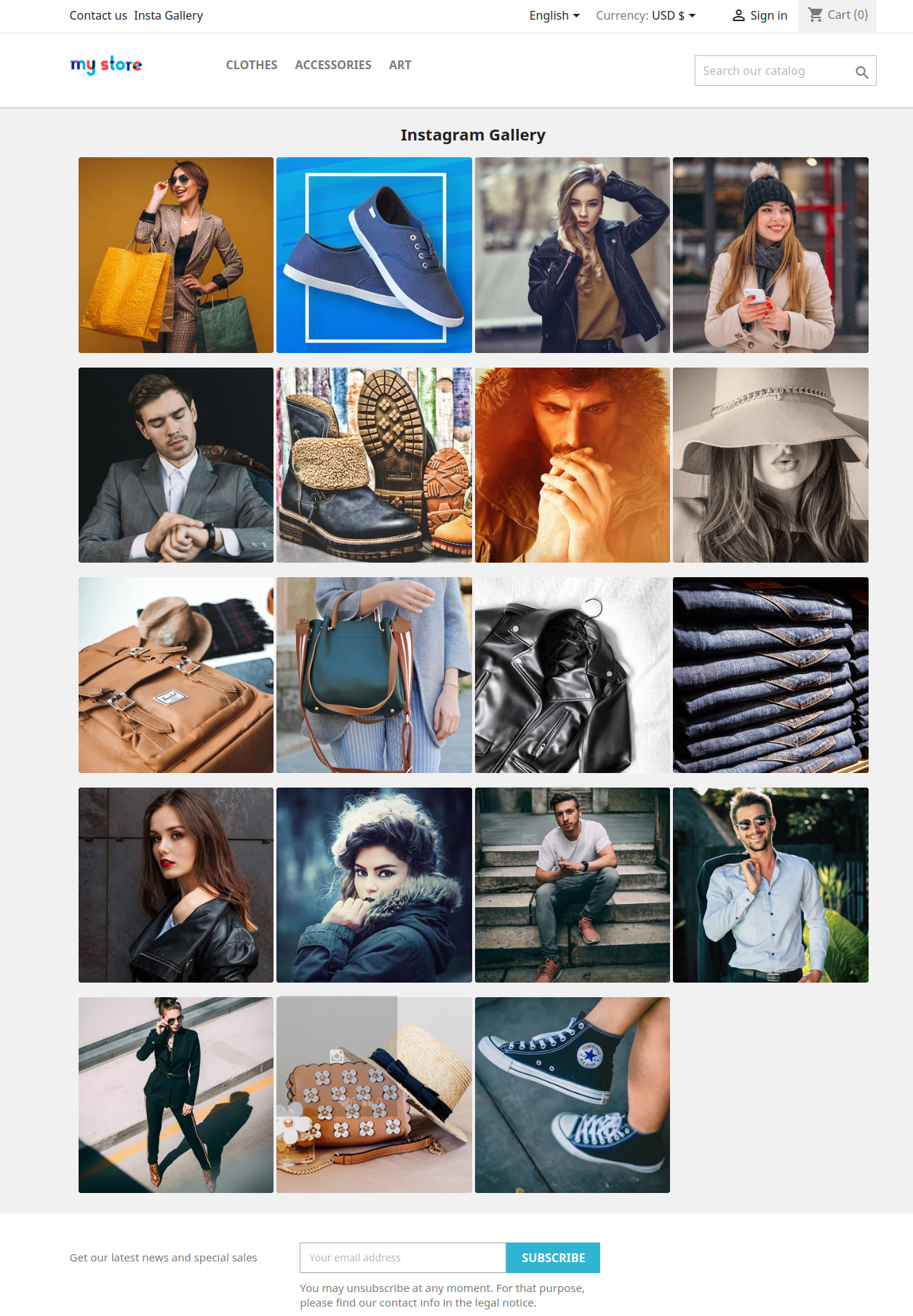
The online store merchant can use one of the most popular social media platforms .ie Instagram for increasing website conversion rate and sales by showing already tagged Instagram images on the website pages. Knowband offers Prestashop Instagram Shop Gallery module implements functionality to showcase Instagram photos on the website pages. Admin can also show a specific top navigation link on the website. The online users can click on the link and view all the Instagram images in Insta Gallery. The online merchant has an option to show related products on the Instagram photo popup. The online users can buy the products by clicking on the “Shop Now” link.
1.1 Salient Features of Instagram Integration Extension
With the help of this PrestaShop Instagram Shop Gallery addon, the online store admin can show already tagged Instagram photos on the eCommerce website.
It is very easy to install, configure and customize the Prestashop Instagram Shop Gallery module. The admin can enable or disable the overall functionality anytime from the admin interface of the Shoppable Instagram plugin for PrestaShop.
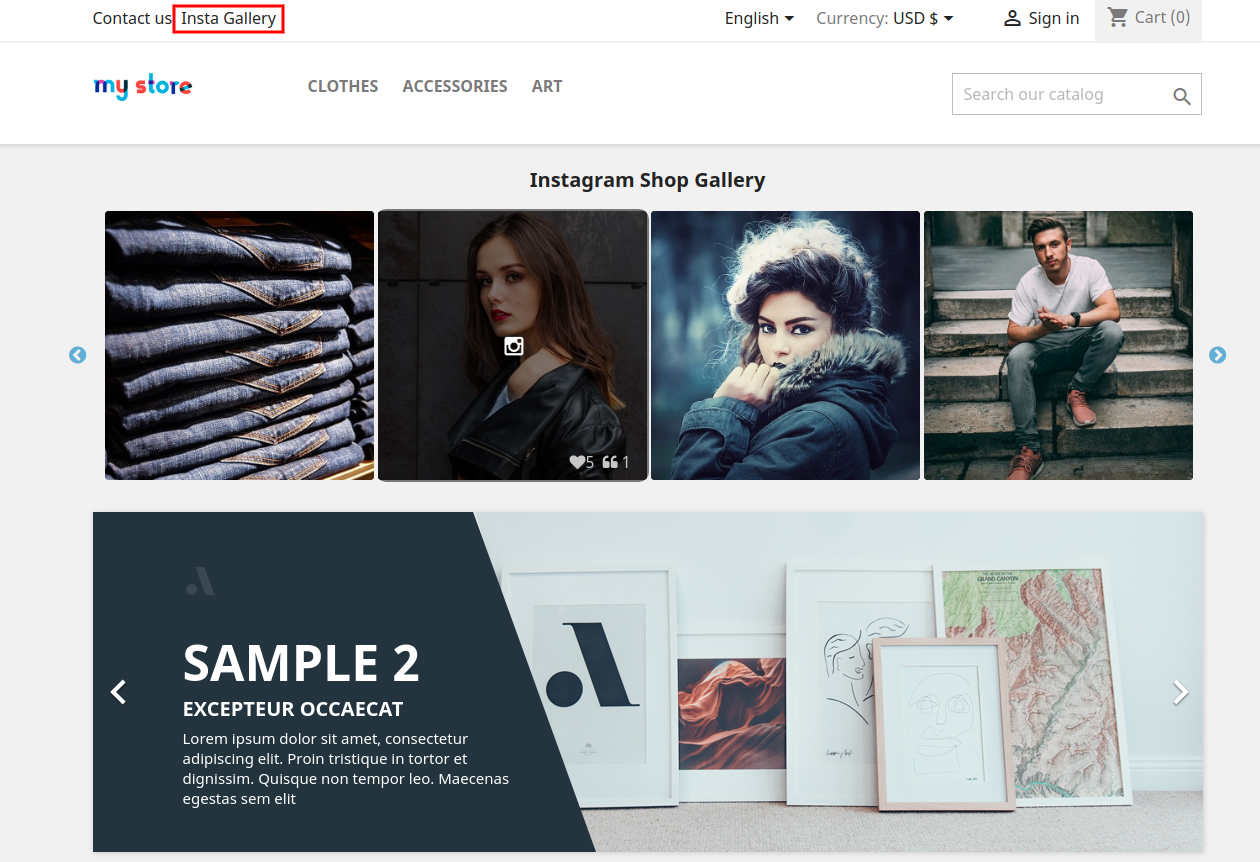
The online merchant can show the top navigation link on the website. Online visitors can view all the enable Instagram photos just by clicking on this link.
Admin can map products with the Instagram images and allow online users to buy it just by clicking on the “Shop Now” button.
Admin can also create and improve business profiles using this Prestashop Instagram Shop Gallery module.
The online merchant can display all the Instagram photos, approved photos, photos having related products and approved photos having related products as per his preferences.
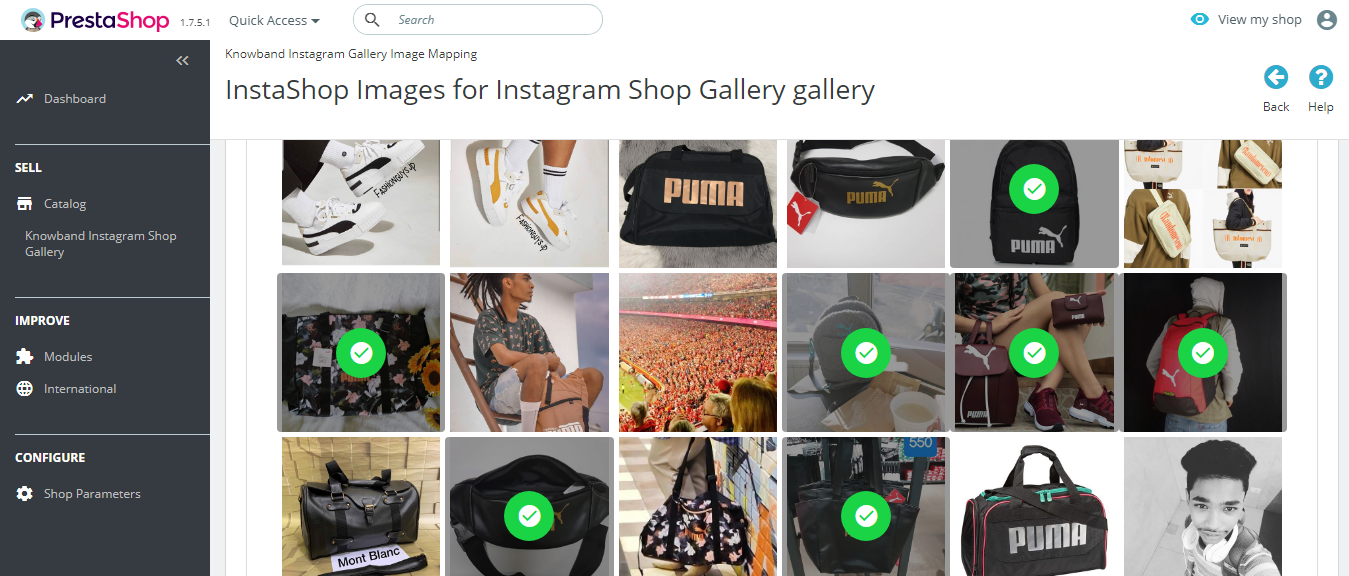
With multiple image select feature, admin can also select multiple images or photos simultaneously which he wants to show on the website.
Admin can set the URL key for the Instagram galley page from the admin interface of this Shoppable Instagram plugin for PrestaShop.
The PrestaShop Instagram extension allows the eCommerce store admin to create new Instagram galleries and update it easily.
The eCommerce store merchant can set title, image visibility and limitations. The store merchant can also show it on the main Insta Gallery page.
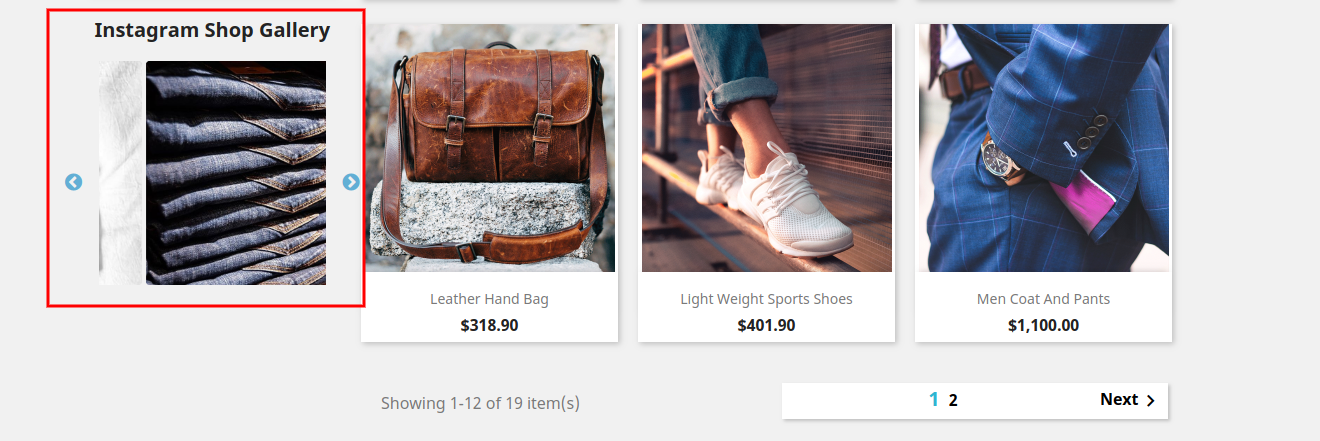
The online merchant can set the position of Instagram photos for almost every website page.
Prestashop store admin can show multiple photos on the Instagram gallery from the admin interface of the PrestaShop Instagram Shop Gallery addon.
Admin can fetch the Instagram photo using the hashtag. This Shoppable Instagram module allows selecting Instagram tagged photos or saved photos.
Admin can enable or disable any photo, approve/disapprove it and also show related products by mapping it.
The PrestaShop Instagram product tag feed module is multi-lingual compatible.
This PrestaShop Instagram Shop Gallery addon has a mobile responsive layout.
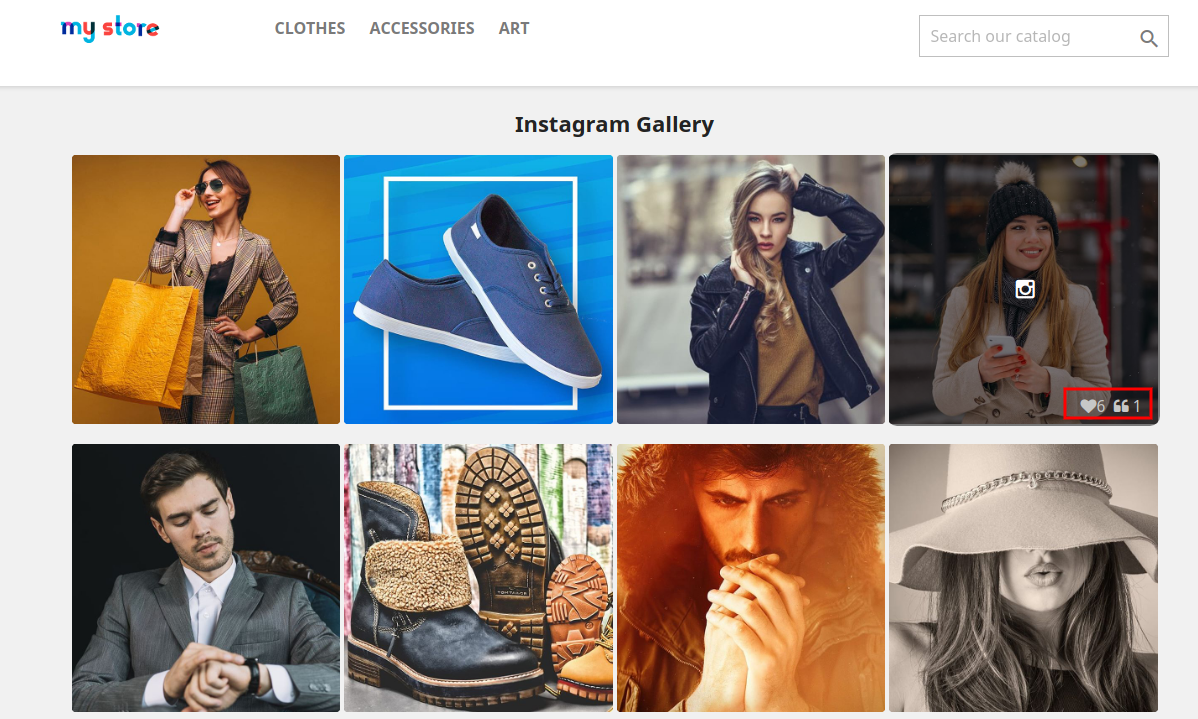
This Instagram Integration Extension automatically shows likes, comments and date of posting of every Instagram photo.
1.2 Benefits of this PrestaShop Instagram extension
The online merchant can use this PrestaShop Instagram Shop Gallery addon for showing Instagram photos on the website without changing even a single line of codes.
The online merchant can offer a better store experience and attract store visitors by showing eye-catchy photos on almost every website page.
PrestaShop Instagram extension is highly customizable and offers smooth functioning.
There is no need to change even a single line of codes while using Instagram Integration Extension.
The mobile responsive layout of this PrestaShop Instagram gallery shop module allows store visitors to view the functionality on their mobile devices.
Customers can view attractive Instagram images on the website pages and click on any image to view it.
There is no need to authenticate the account for viewing the images.
2.0 Steps to Install this PrestaShop Instagram Extension
You will get these files after purchasing this PrestaShop Instagram Shop Gallery addon:
1. A zipped file consists of the source code of this Prestashop Instagram Shop Gallery module.
2. User Manual
Follow these steps to install the PrestaShop Instagram gallery shop module:
Unzip the zipped file. This file includes some files and folders.
Now copy the overall content of the folder and paste it into the “Modules” folder of the store’s directory. The admin can follow the path – Root Directory/modules/.
3. As a store admin, you can install the PrestaShop Instagram product tag feed module. You can find that in Store Admin -> Modules and Services.
Now, you just need to click on the “Install” button to install this Instagram Integration Extension. A confirmation pop-up will be shown. Click on “Proceed with the installation” option. This step will install the Instagram Integration Extension and show notification – “Module(s) installed successfully”.
3.0 Admin Interface
After successful installation, the online store admin can easily configure the Prestashop Instagram Shop Gallery module for showing Instagram gallery on the website.
A. Configuration Page
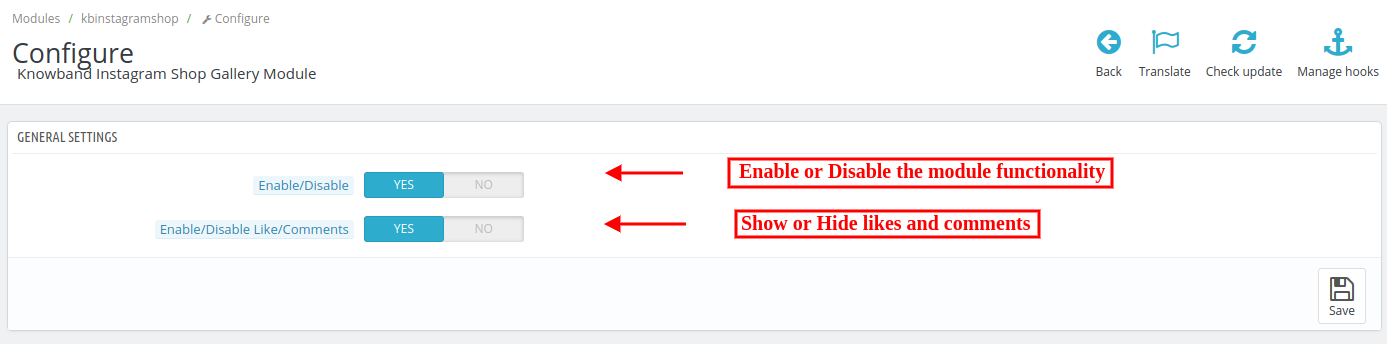
Admin can apply General Settings from this section. There are two basic settings as shown below:
Enable/Disable: Activate or Deactivate this option for enabling/disabling module functionality.
Enable/Disable Like/Comment: Enable this option if you want to show likes and comments of Instagram photos.
Apart from general settings, these are the configuration options for showing Insta gallery on the website:
Check the configuration method which is described below mentioned sections.
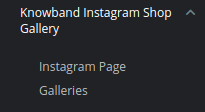
3.1 Instagram Page
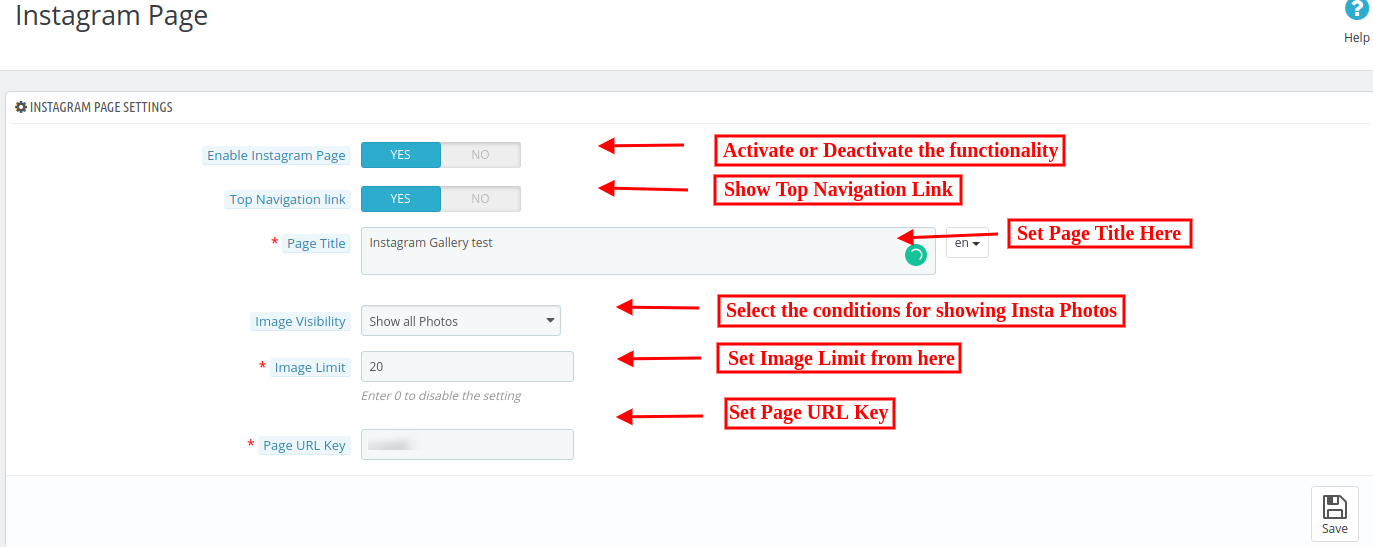
Here, you can apply settings for showing the Instagram page on the website. These are the configuration options, the admin needs to know:
Enable Instagram Page: Enable or Disable the PrestaShop Instagram Shop Gallery addon functionality.
Top Navigation Link: Enable to show navigation links on the top of the website.
Page Title: Enter the title which you want to show as the page title. You can set the title in multiple languages. This PrestaShop Instagram Shop Gallery addon is multi-lingual compatible.
Image Visibility: You can control the image visibility from here. You can showcase all the photos, only approved photos, photos having related products or those approved photos which also have related products.
Image Limit: You can set an image limit for showing a particular number of photos. If you don’t want to apply any limit on the number of photos then set image limit 0.
Page URL key: Here, you can enter the key for showing on the Instagram page URL.
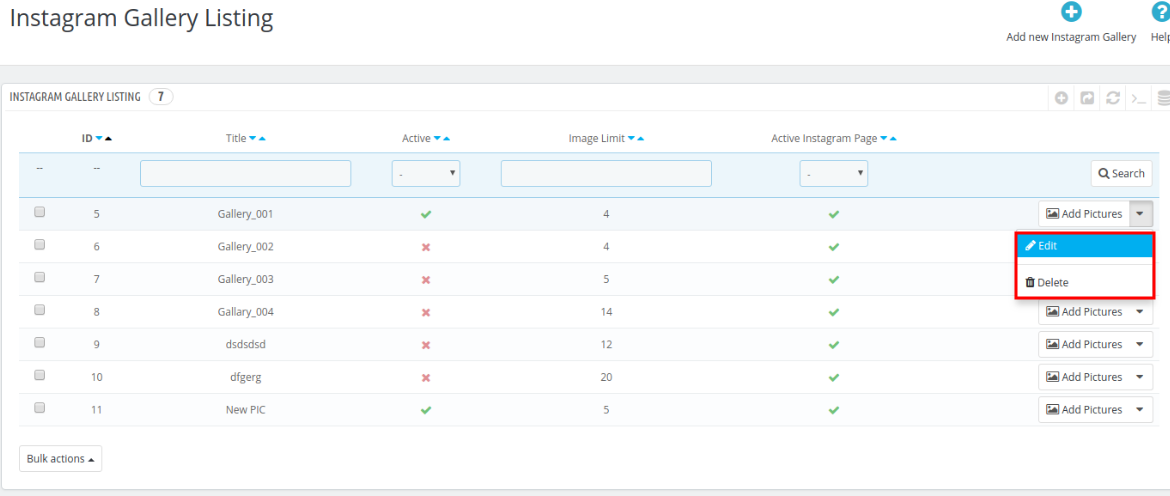
3.2 Instagram Gallery Listing
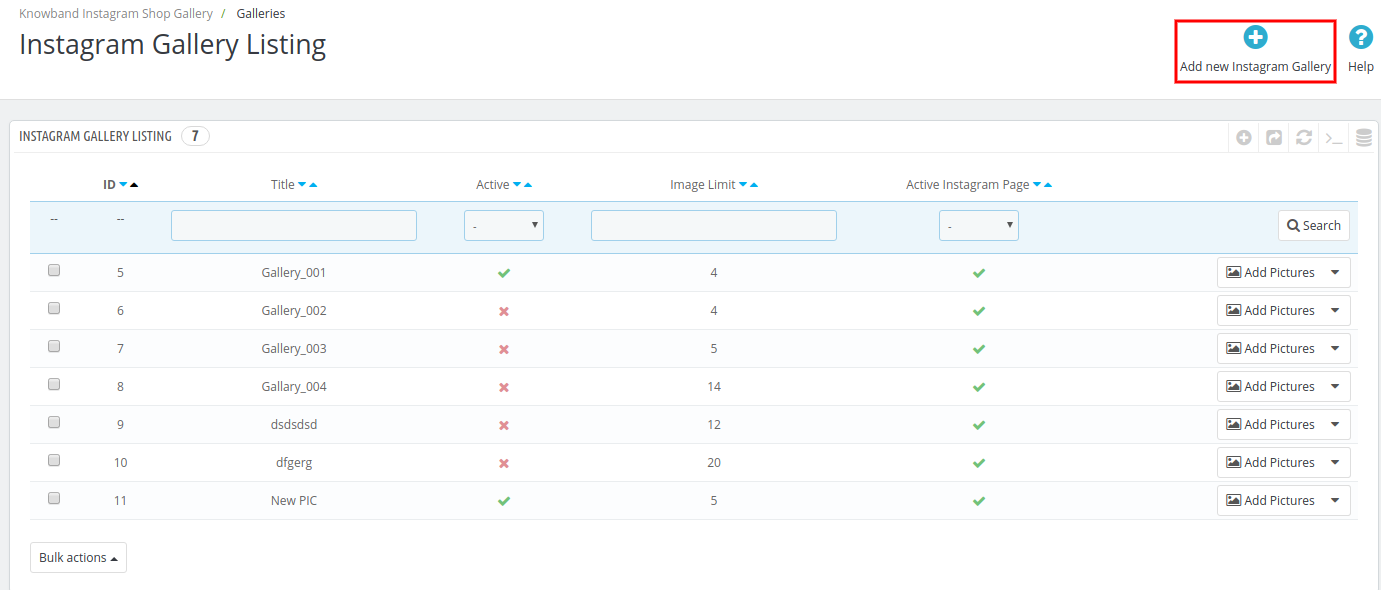
In the Instagram gallery list, you can view a list of all Instagram galleries. You can also add a new Instagram gallery, update the previously created galleries or delete it. In this list, you can view the title of the Instagram gallery, activate/deactivate it, view the image limit and activate/deactivate the Instagram page. As an eCommerce store admin, you can also add pictures in any Instagram gallery from the admin interface of Shop on your Instagram gallery addon.
3.2.1 Add new Instagram Gallery
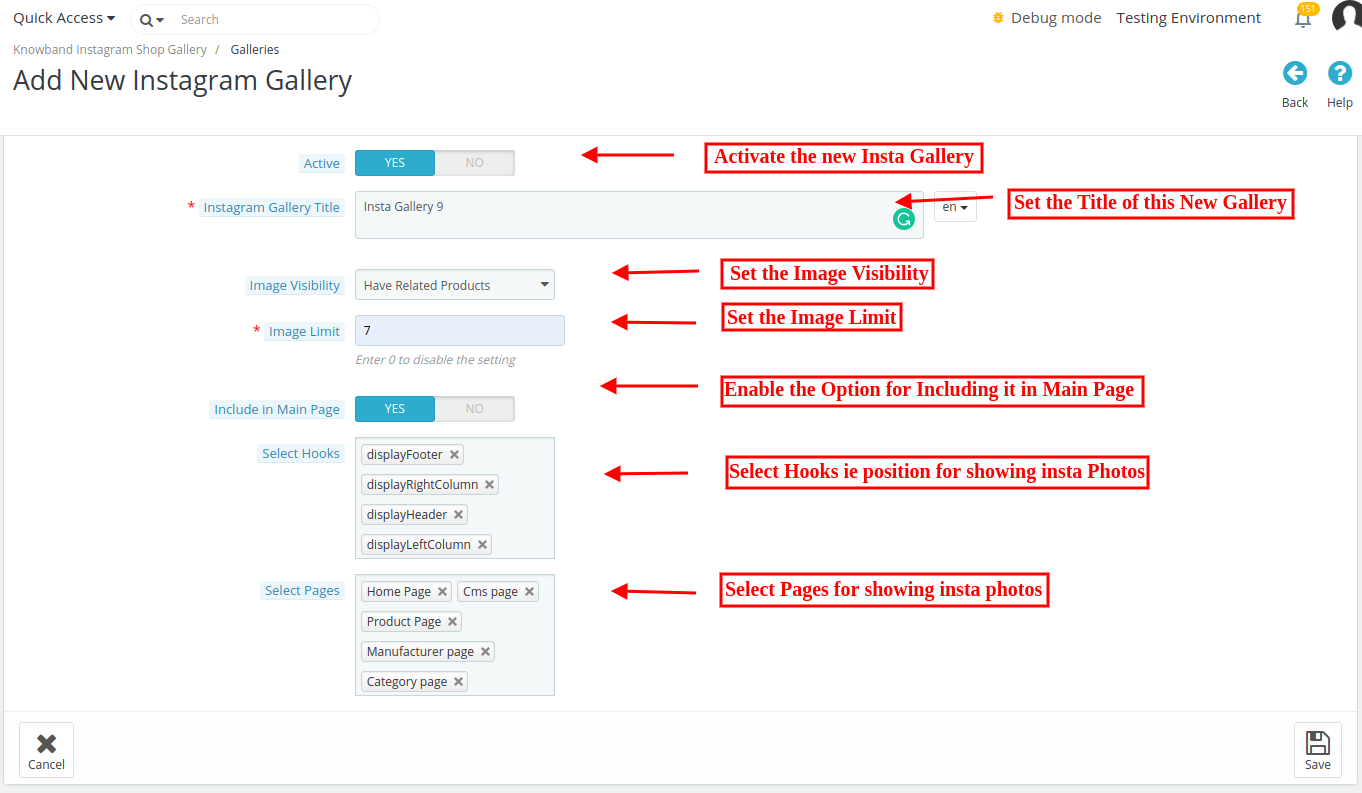
You can click on the “+” sign for adding a new Instagram gallery. Please follow these steps for customization:
Active: Enable or disable new Instagram gallery.
Instagram Gallery Title: Set the gallery title in different languages.
Image Visibility: You can control the image visibility by showing all photos, approved images, images having related products and approved images with related products.
Image Limit: Enter the maximum number of images which you want to show from this gallery.
Include in Main Page: Enable the settings if you want to show this Instagram gallery on the Instagram page.
Select Hooks: You can select the position where you want to show Instagram gallery. This Prestashop Instagram Shop Gallery module allows displaying the gallery at header, footer, left column or right column. You can select multiple options if you wish to do so.
Select Pages: As a store merchant you can select product page, category page, the home page, CSM page and manufacturer page also.
3.2.2 Update Instagram Gallery
Click on the “Edit” button and apply the required changes easily.
3.2.3 Delete Instagram Gallery
On clicking the “Delete” button, you will see a popup warning. Click yes and the module will delete the particular gallery.
3.3 How to Add Photos in Instagram gallery
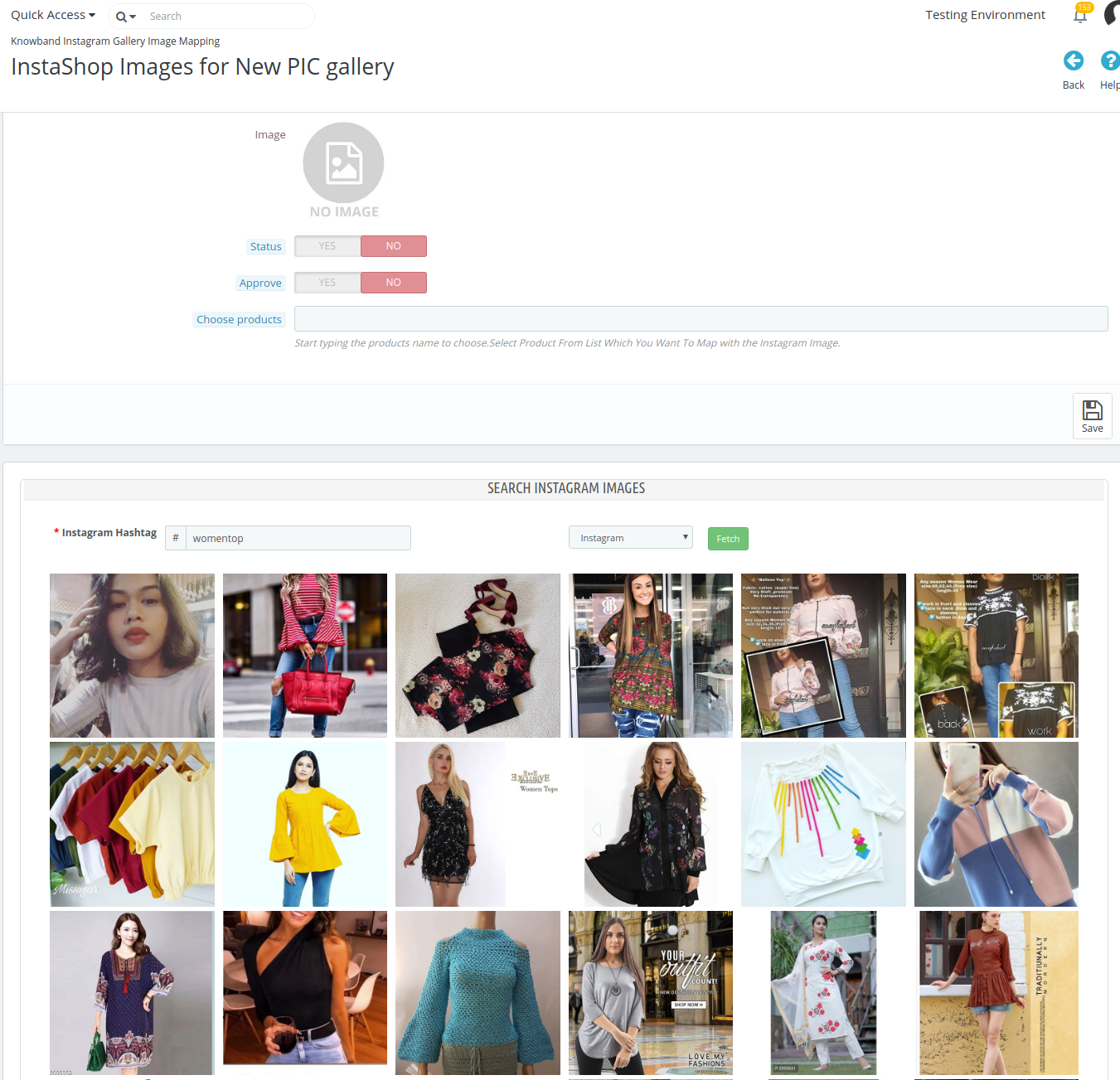
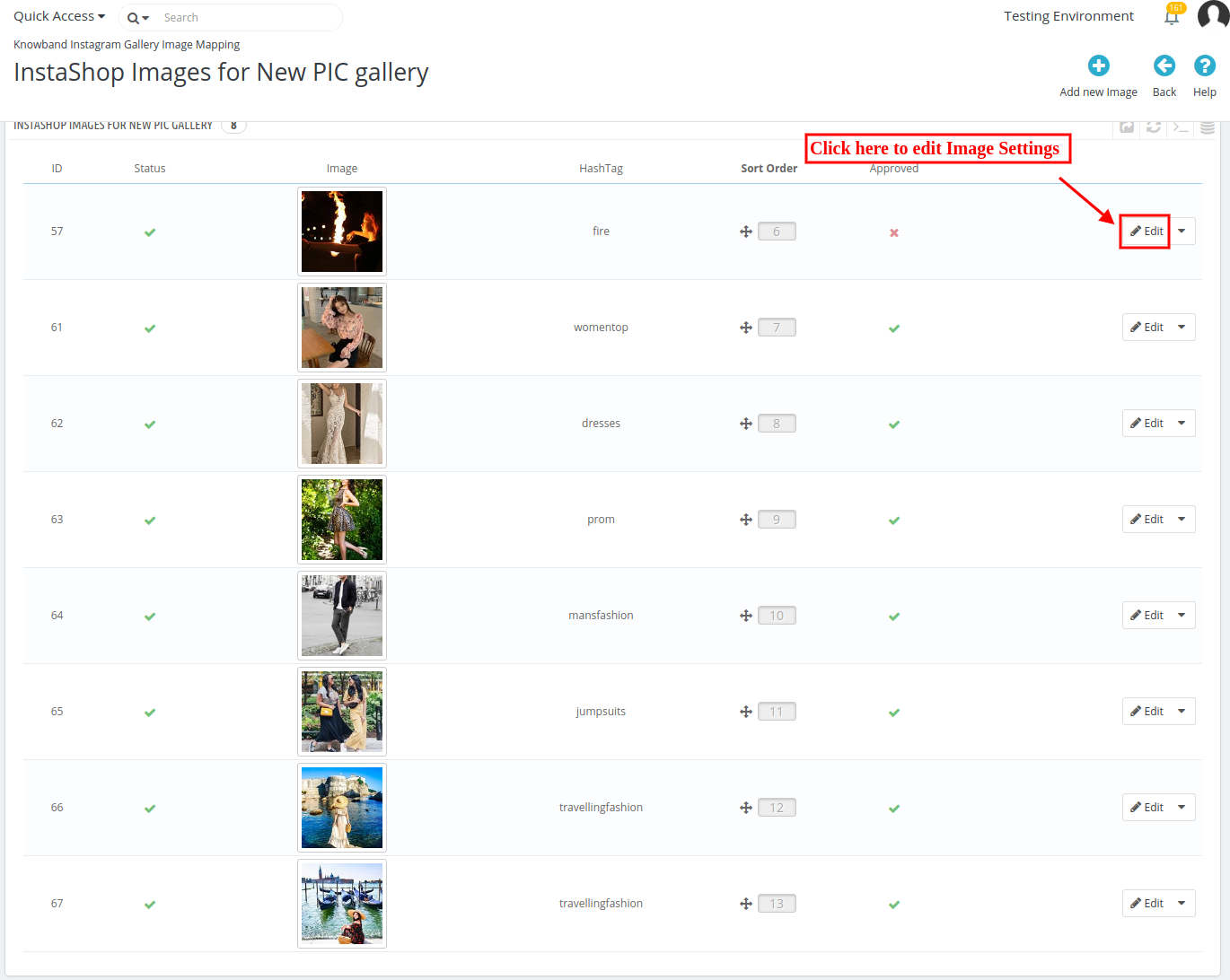
Here, you can view the list of previously added images. As a store merchant, you can also modify and delete image anytime. You can view the image status, image, hashtag, sort order of the image and check if the image is approved or not. For adding a new image, you just need to click on “Add New Image” button.
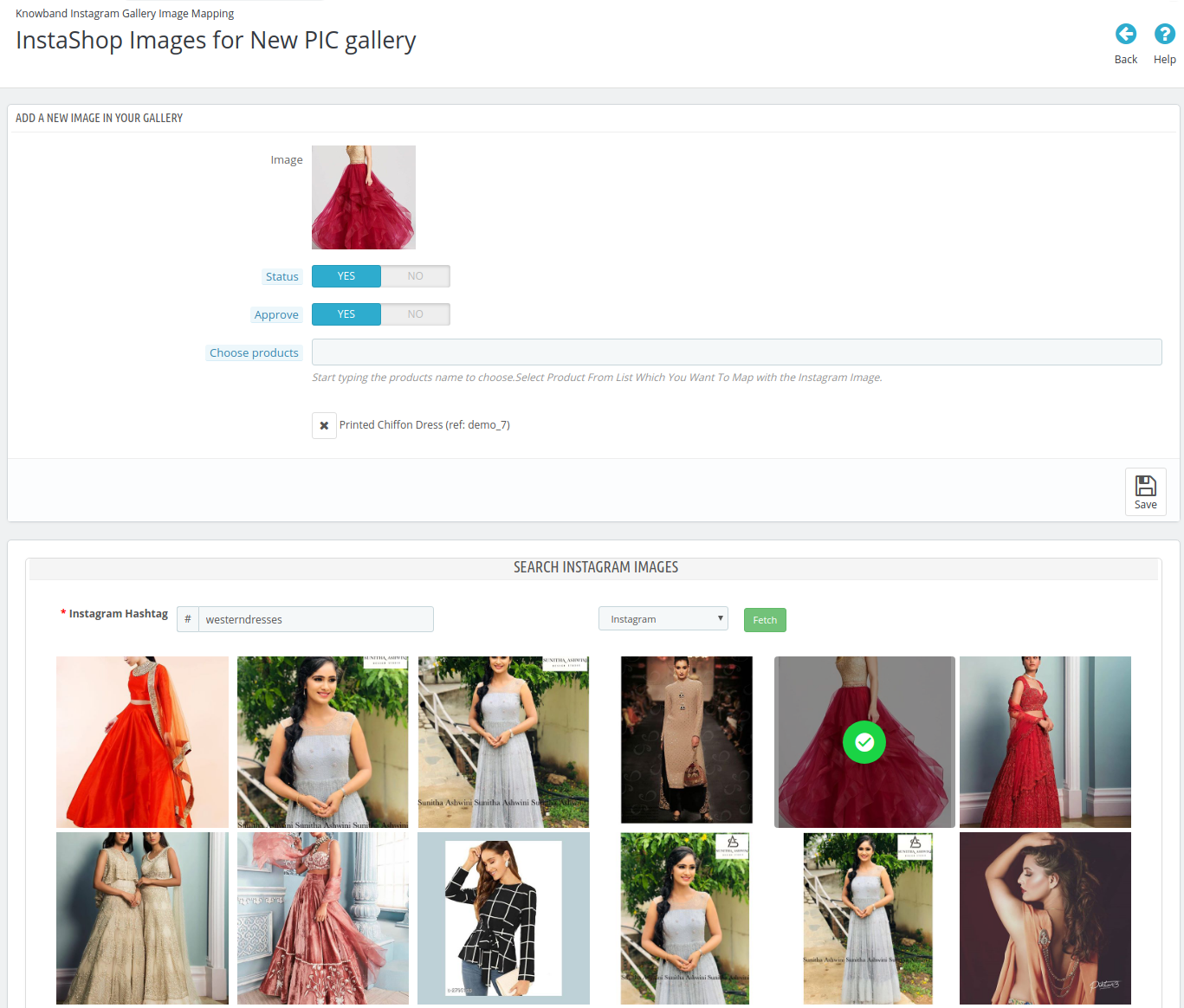
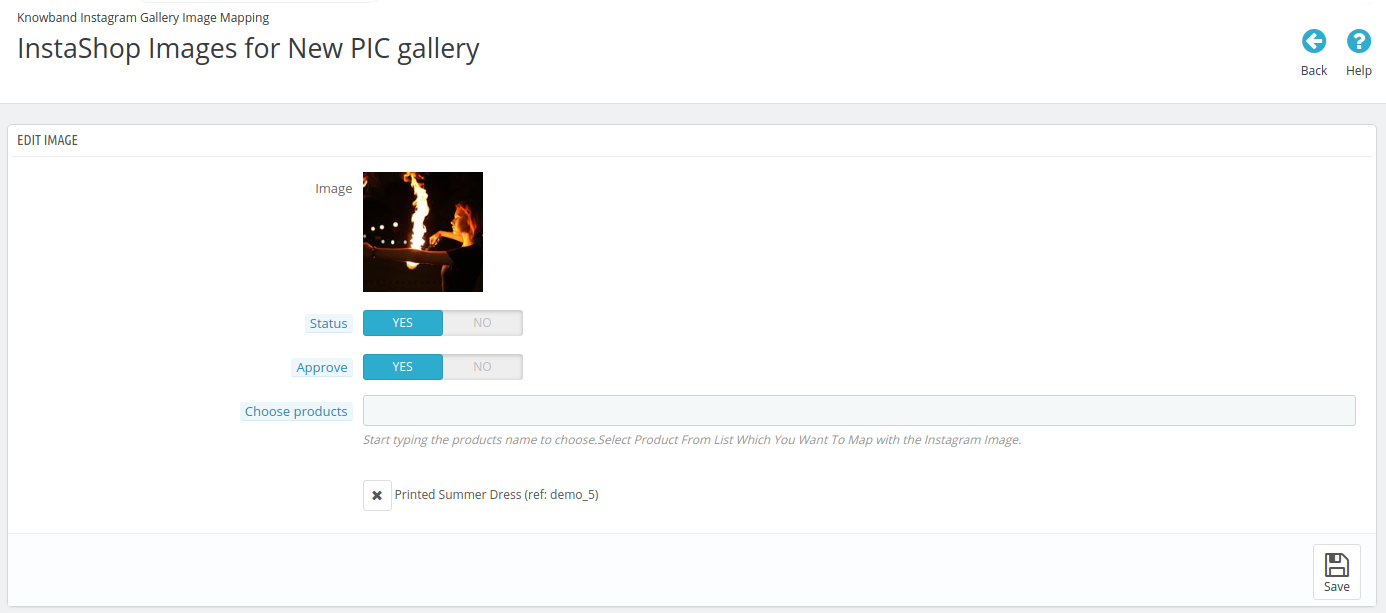
Instagram Hashtag: Enter the Instagram hashtag for searching images according to it. You can search for images from Instagram or show from saved images. After clicking on the “Fetch” button, you will get multiple images based on a searched hashtag. You can select the image for showing in the gallery.
Image: Here, you will view the selected image.
>> MULTIPLE IMAGE SELECT
Status: Enable or disable the image status.
Approve: You can approve or disapprove this image.
Choose Products: You can select some products for mapping with the Instagram image.
On Front-end Interface, the image will look as below:
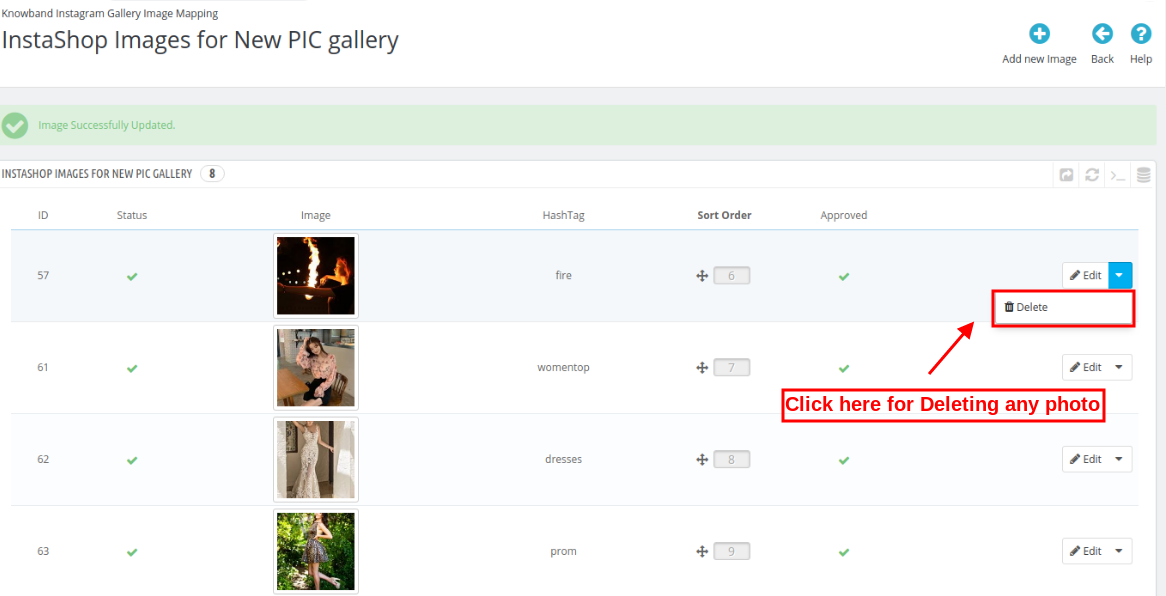
Admin can also delete and edit any image from the admin interface of this Instagram shop module. Admin can view the list of all the images and edit or update any image from the admin interface.
After clicking on Edit button, you just need to apply the required changes and save it.
Admin can also delete any image by clicking on “Delete” button from the admin interface.
4.0 Front-end Interface
After full configuration, the online merchant can implement an Instagram gallery on the website.
A.Instagram Shop Page:
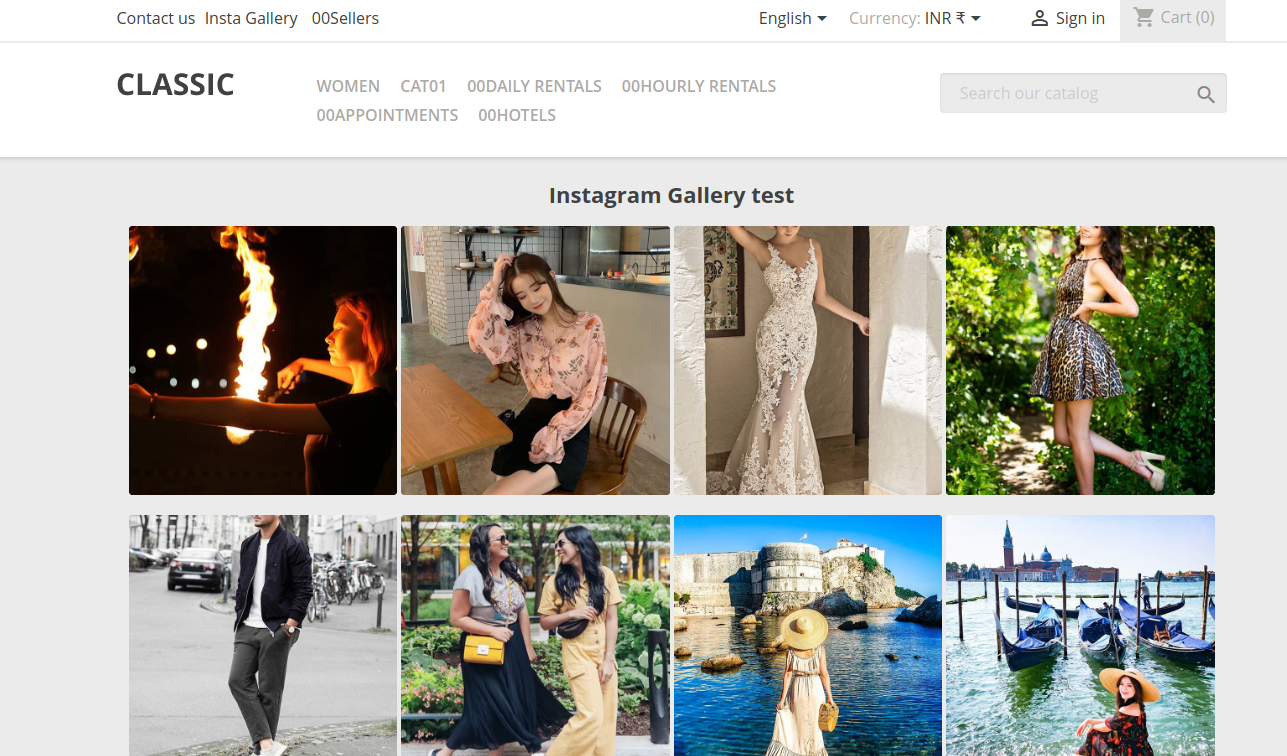
The online users can view a header link for visiting the gallery page. They can view all the activate images on the Gallery page as shown below:
B. Likes and Comments:
Online buyers can view image likes and comments easily as shown below:
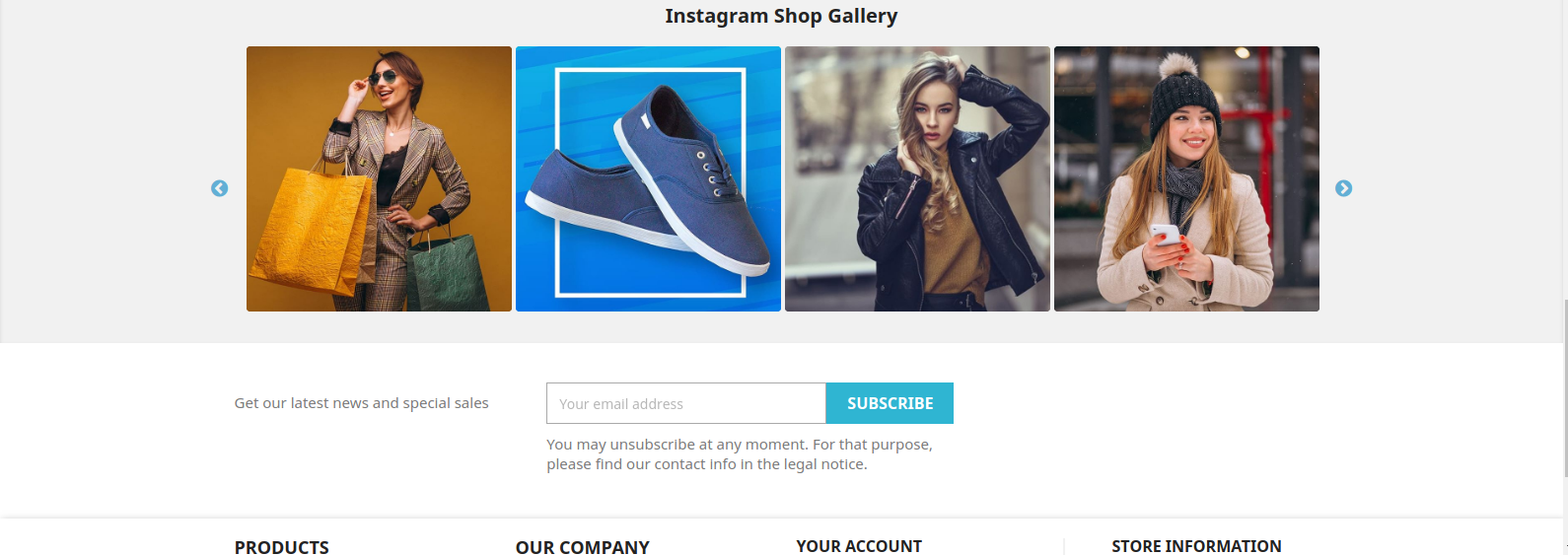
The online merchant can show Insta photos on different website pages like homepage, product pages, category pages, CMS pages and manufacturer pages in different positions.
1. Homepage View:
Admin can show Insta photos on different positions like below:
Header:
Footer:
2.Category Page View:
Similarly, an online merchant can show Insta photos on category page in different positions.
Sidebar bottom view:
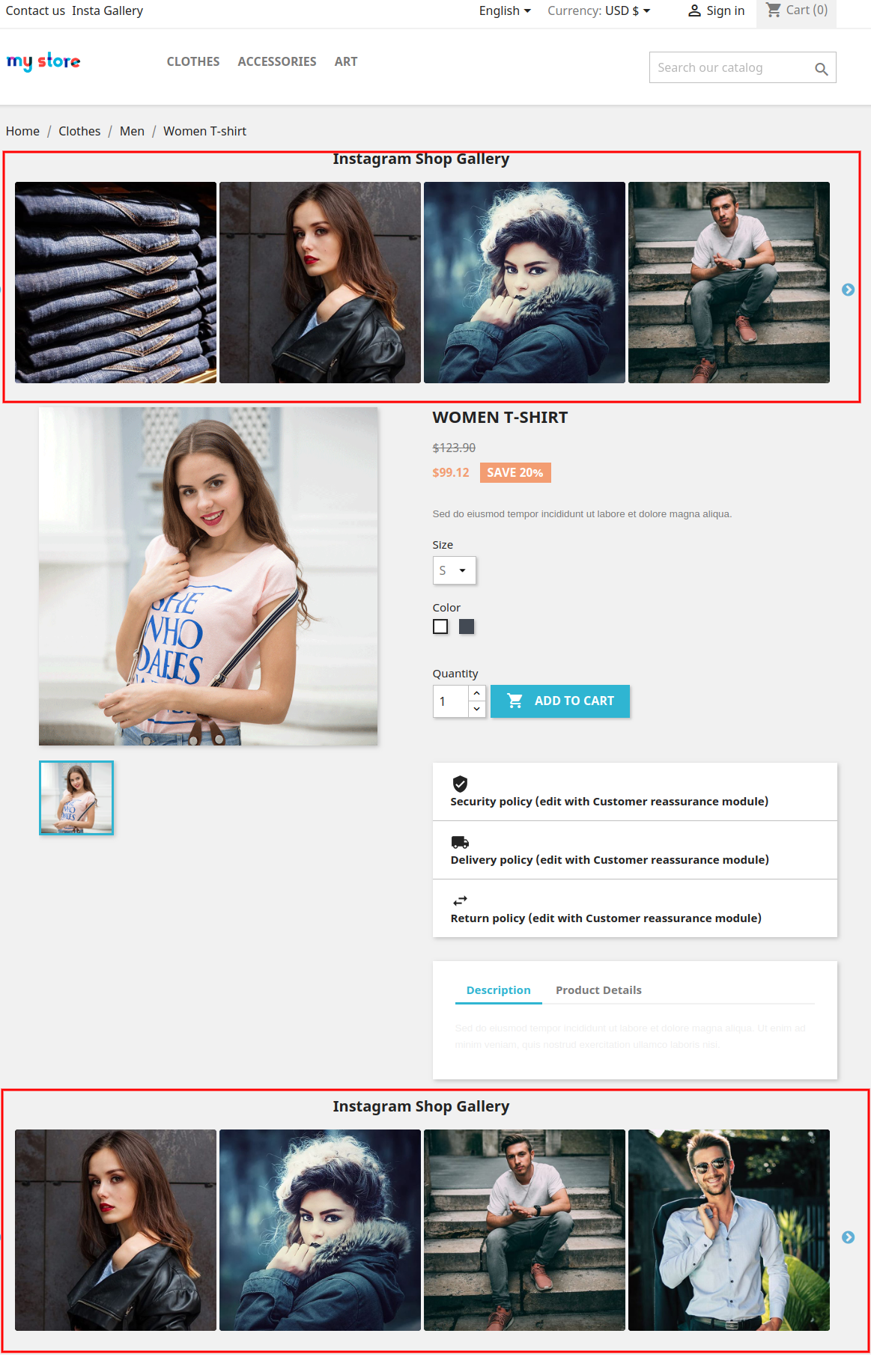
3.Product page View:
The online users can also show Insta photos on the product page at header and footer
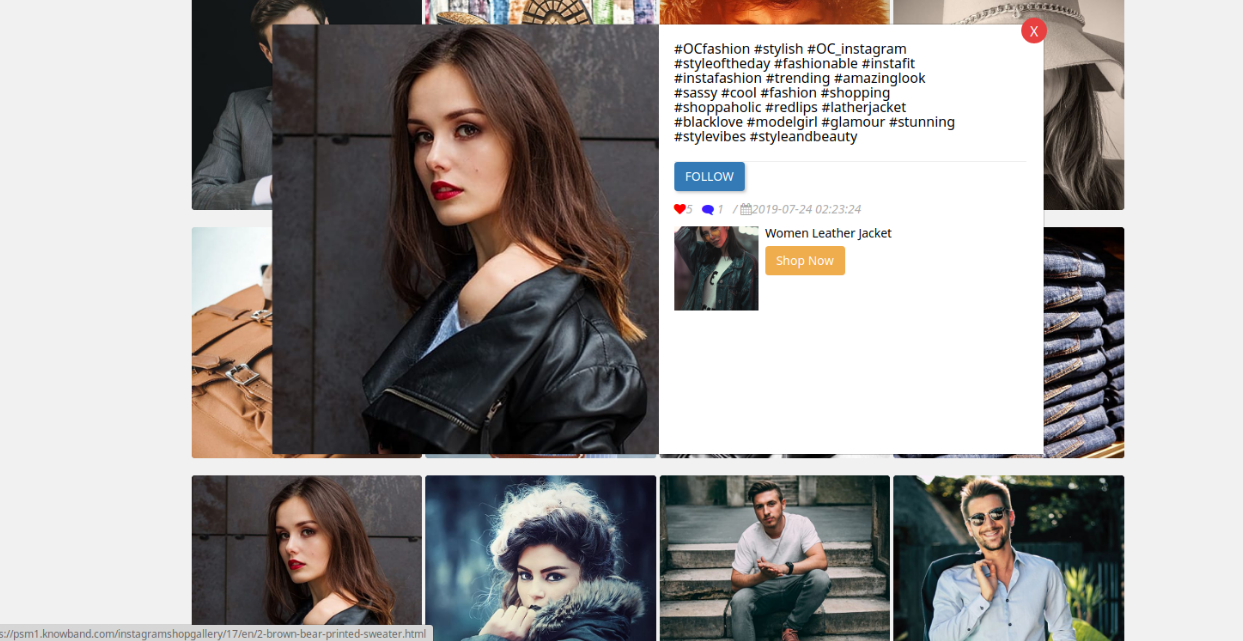
Online users can click on the photo and view the Instagram image popup. In Instagram image popup, customers can view likes, comments and date of posting.
Online users can also click on the Follow button for following the profile. Online users can also buy mapped related products by clicking on Shop now.
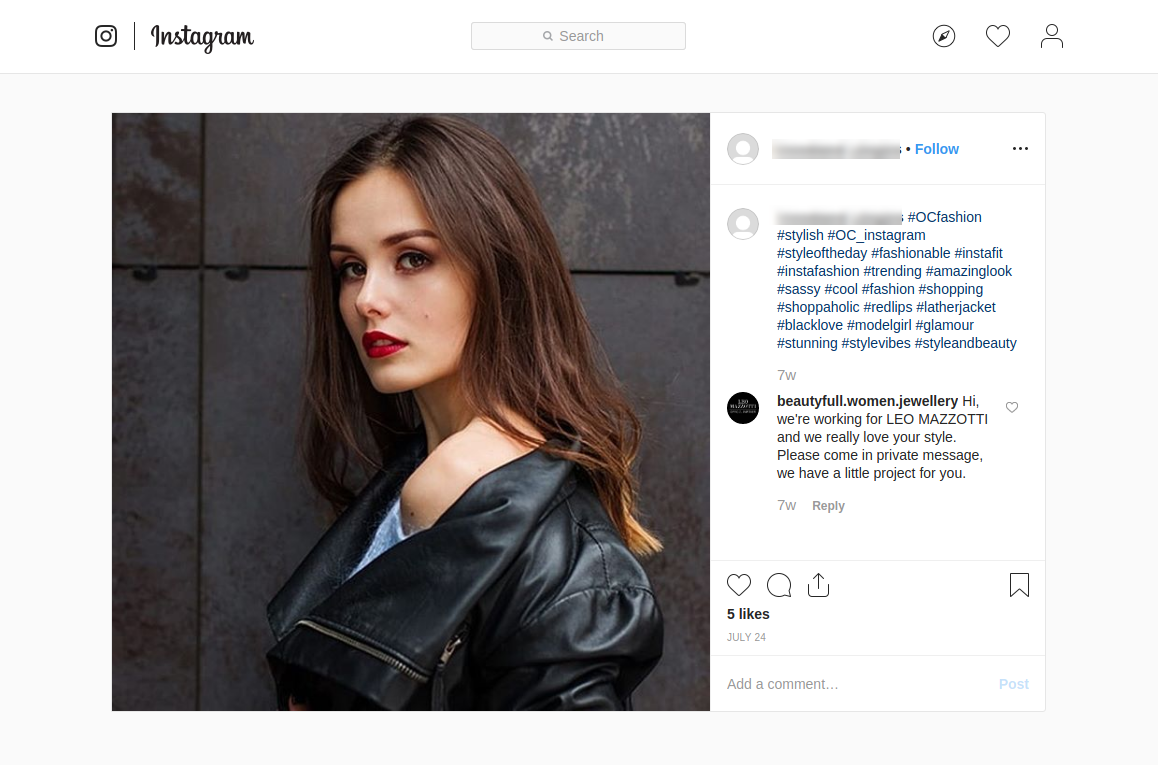
Online users will be redirected on clicking the Follow button from the Instagram image popup. Here, they can follow the particular profile from which the image has been posted.
This way, the online store merchant can use this Shoppable Instagram plugin for PrestaShop and showcase already tagged Instagram images on the website. The Shoppable Instagram plugin for PrestaShop provides an option to show unlimited attractive images on different website pages. The online users can view Instagram images and also check the related products with the Insta photos. The online store admin can this way promote the products indirectly and increase sales on the website. It is very easy to implement the PrestaShop Instagram extension and use it. The Instagram Integration Extension is mobile responsive and offers smooth functioning also.
For more details about Shoppable Instagram plugin for PrestaShop, Please Visit here:
The spooky Halloween Day is not so far away. Soon, you would see people in a ghostly get-up or wearing a freaky pumpkin mask.
The time has arrived for the eCommerce merchants to start planning their holiday marketing ideas, and Halloween is the first one to begin with, followed by Thanksgiving, Black Friday, Cyber Monday, Christmas and New Year.
Did you know? The Halloween sales hit an estimated $9 billion mark in the U.S last year, as per a report by National Retail Federation. It has shown spectacular growth over the years and would catch up a very high number in the upcoming years.
Halloween is one of the most popular holidays. It is not only rejoiced by the consumers but also makes an excellent opportunity for the e-retailers to boost their sales.
In this article, I will provide you with some useful Halloween marketing strategies to catch up with the Halloween spirit and increase your sales.
Here are some of the effective Halloween Marketing Ideas:
1. Give a Halloween look to your website design
The first and the foremost thing to perform for Halloween marketing would be customizing your store as per Halloween. Let your visitors and customers get the Halloween feel as soon as they enter your website. Add some spooky elements on your Home Page, Product Page, Registration form, etc. Use spooky fonts. Design your banner in such a way that leaves people startled.
If you are displaying some offers, make sure they contain the Halloween touch.
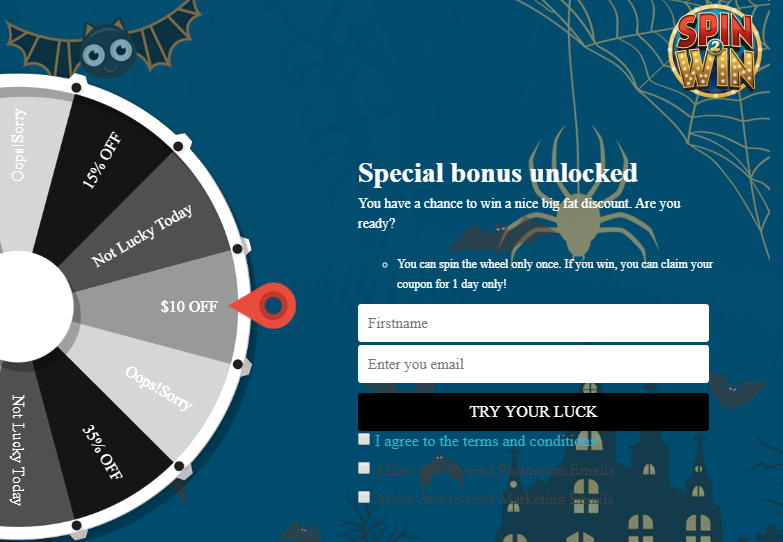
For example, if you are having a Spin and Popup on your website, you can choose a Halloween theme to add the festive touch to the wheel.
Below is the example of KnowBand’s Spin and Win addon for PrestaShop. It offers pre-existing templates not only for Halloween but also for other major occasions. Such popup themes help you grab more customer engagement.
2. Design a Halloween-themed Logo
Another Halloween marketing idea would be to add a Halloween touch to your brand logo with some scary elements like spooky pumpkin, haunted house, bats, etc. This way you would be able to catch the Halloween spirit and obviously your visitors’ attention.
Have a look at how Google set up its logo on one of the Halloween occasions.
3. Tweak your Social Media Pages with Halloween elements
Adding to the list of Halloween marketing ideas, you should look to replace your current Brand page profile and cover picture with a Halloween related image on your social media pages. It should bring to the notice of your followers and give them a reminder about the arrival of the coming holiday season.
In fact, if you are running an offer or promotion, you can mention it on your cover picture.
4. Host contests or launch a user-generated content campaign
One of the most effective Halloween Marketing strategies would be hosting Halloween contests or running a user-generated content campaign where you can ask users to upload and submit their pictures in Halloween costumes by using a specific Hashtag.
In return, you can provide the ones with most spooky look with some gift cards or discount coupons. These kinds of activities make your Brand popular on social media platforms.
5. Create a spooky brand video
Video marketing is gaining huge popularity. Following the rise, brands are missing no opportunity to showcase their creative skills in front of their audience.
The holiday season is the perfect time to get your brand noticed, and there is no better way to do it than having a creative video that could contain a bit of humour along with a message.
Brainstorm some ideas and come up with something which you could relate to your brand. You can set a marketing example for others and make people remember your Brand if your Halloween Marketing video gets viral.
6. Give a spooky look to your Gift Cards
If you have a gift card section in your store, designing your gift cards as per Halloween would make up a great idea for Halloween Marketing.
Digital Gift cards are sold in huge numbers during the holiday season as people are busy and in a hurry to purchase gifts for their loved ones. This is when Gift cards save their much important time. By adding a festive flair to your gift cards, you would give more than enough reasons to consumers to go for the gift card purchase.
You can have a look at our PrestaShop Gift Card addon that comes with pre-existing gift card templates for Halloween, Christmas, New Year, etc. Using this addon, you can create your gift card templates as per your requirements.
7. Provide a Halloween touch to your email marketing campaigns
If you have been going conventional till now, it is time to change the approach. Email marketing brings a lot of benefits and adding a festive touch to your newsletters or promotional emails can make a great impact in terms of sales and brand awareness.
Include your offers in your emails and let your subscribers know what benefits they can take from your store during the Halloween days.
Also, maintain a frequency. Don’t be salesy every time, else it might turn your subscribers off.
8. Do not forget to design for mobile app
If your business has a mobile app, it is the perfect opportunity to add some Halloween elements to it. You should, in fact, give a Halloween look to your app icon as well.
Mobile Commerce has overtaken desktop sales and the numbers are going to be humongous over the next few years. So, everything you plan for the desktop version should also be optimized for mobile as well. Moreover, you can run specific offers and promotions exclusively for the mobile app.
You should also take the maximum advantage of Push Notifications to announce your Halloween Marketing campaigns.
9. Showcase Halloween related products on the top of the Home Page
Be a step ahead of your competitors by not only providing discounts to your customers but also helping them choose a perfect Halloween gift for their friends or family.
Display the relevant items to capture people’s attention right on the Home Page and motivate them to shop. This way, you will be able to generate the gift ideas in your customers’ mind and help them in finding a gift which they would have themselves not expected.
10. Provide a small gift on every purchase
Include a small theme-based gift on every order placed by the customer to enhance their shopping experience. It will likely put a smile on their face and customers would remember your brand next time they come to shop at your store during Halloween.
Conclusion
The upcoming 3-4 months are going to be hectic for the eCommerce merchants. They would be looking to grab as many sales as they can during the peak holiday season.
Start your Holiday marketing with Halloween. Though the primary focus would be towards sales, do not forget to get involved in the fun activities with your customers and followers.
Pay attention to these 10 Halloween Marketing ideas and you would surely be able to see an elevation in your sales graph.
Mandatory sign-ups have been an annoyance for long. People just hate creating an account every time they visit a new eCommerce website. While some get irked by the lengthy and a time-consuming registration form, some just do not like sharing their personal details at all.
The compulsory account creation forms a barrier in your conversions as well. While being on the checkout page, consumers are presented with a sign-up form, which breaks the checkout flow and sometimes becomes a major reason for cart abandonment. In addition, you fail to gather customer data.
Now, get rid of the mandatory registration forms and reduce the obstacles in your checkout process by allowing users/customers to sign in to your Magento 2 store easily with their social media accounts.
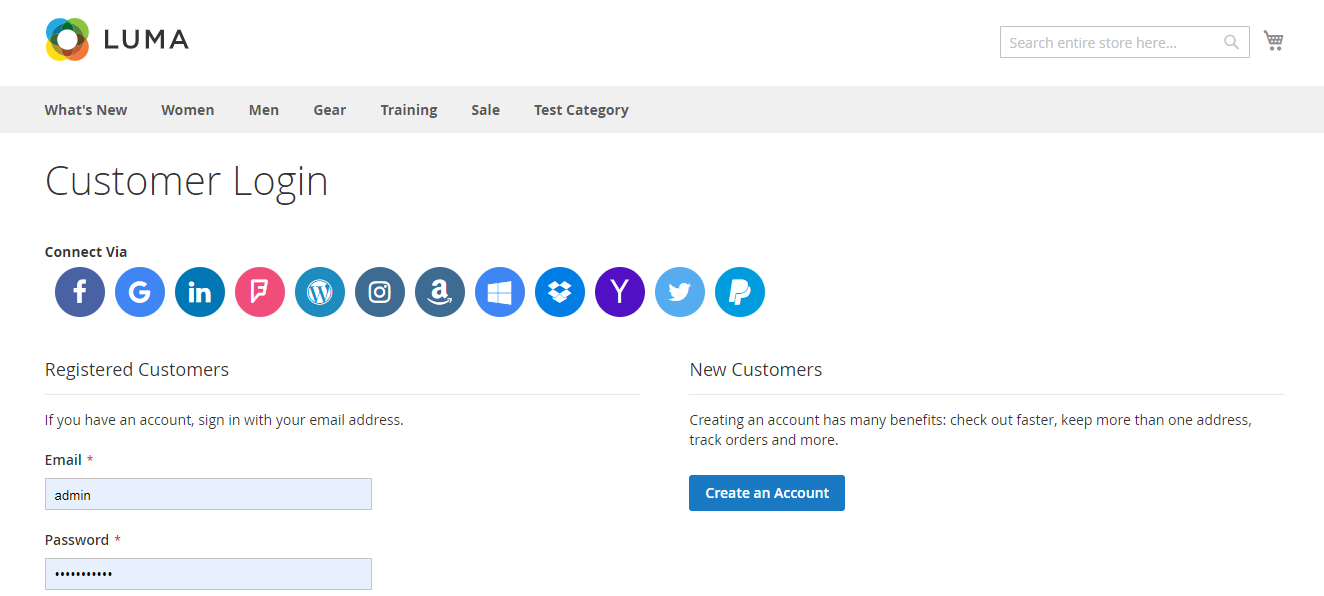
The Magento 2 Social Login extension is designed to provide an easy and quick login facility to your visitors by avoiding the manual registration task and providing them with various social login options. Hence, customers do not need to create an account and remember the login credentials.
Social Login extension for Magento 2 provides up to 12 social login options to your customers. The social networks supported by this extension are:
Facebook
Google
Instagram
Twitter
LinkedIn
Amazon
PayPal
Yahoo
WordPress
Foursquare
Live
Dropbox
2. Display the social login block at multiple pages
The Social Login extension for Magento 2 allows you to place the social login block at multiple pages like Login Page, Registration Page, Checkout Page, etc.
3. Sort social icons
You can arrange the social icons as per your requirements. For example, you can keep the major social networks like Facebook, Google, Twitter and Instagram on the top and rest of the icons below them.
4. Customize icons
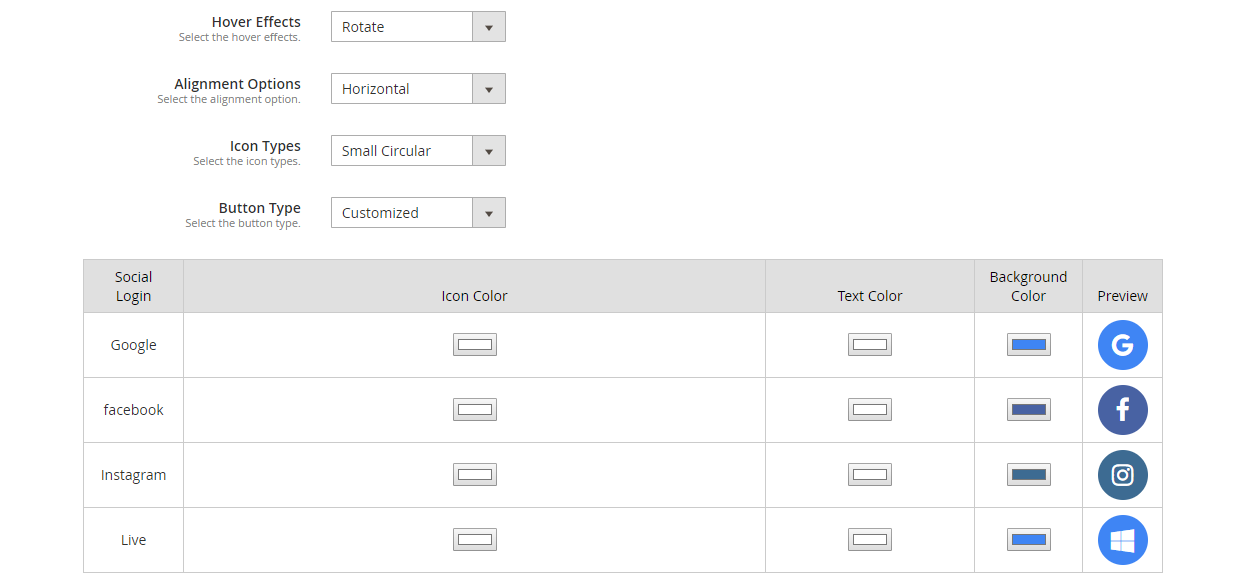
Magento 2 Social Login extension allows you to customize the social icons. It includes:
Alignment of the icons: Choose whether you want to display the icons vertically or horizontally.
Add effects to the icons: The social icons with either get highlighted, rotate or zoom when clicked.
Icon type: Select how you want your icons to be displayed. It consists of options such as small circular, small rectangular, large rectangular, small rounded, large rounded.
Button type: Choose the default button of the social networks or you can adjust the icon colour, text colour and background colour accordingly. A preview will be displayed as you make custom changes.
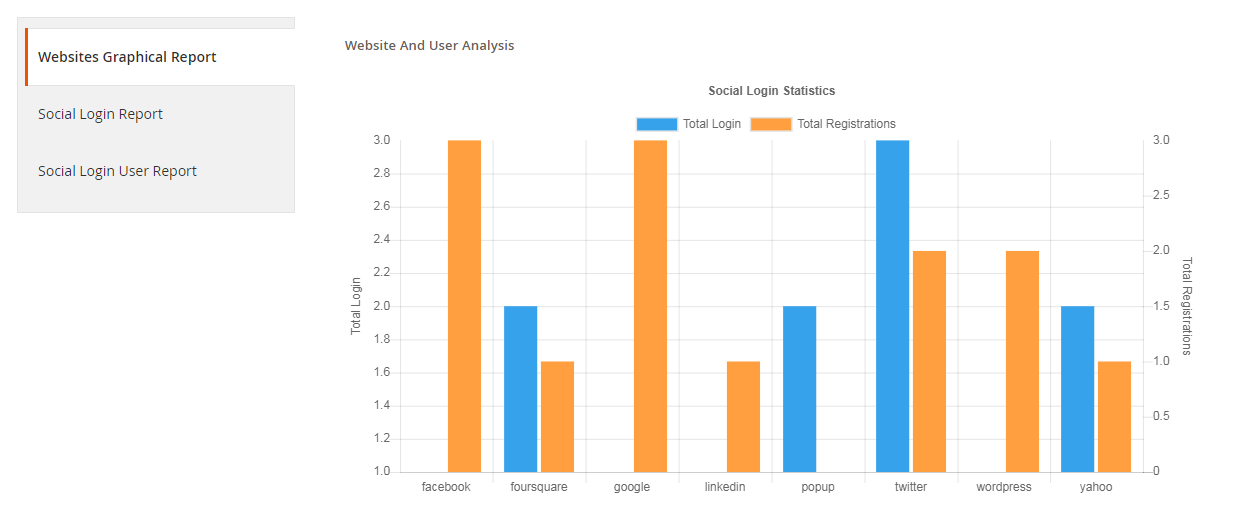
5. Get a complete analysis of the social registrations
Check which social login users preferred the most for signing in, how many login and registrations have been captured in total.
You can also track the email address of the users and check which user came from which platform.
6. Fully compatible with One Page Checkout
Magento 2 Social Login extension is fully compatible with our popular Magento 2 One Page Checkout. The Magento 2 One Page Checkout has in-built social login option but it is only restricted to Facebook and Google login. However, by installing the Magento 2 Social Login extension, you can provide your users with up to 12 social login options.
Why should you choose Magento 2 Social loginizer?
1. Quick and easy login
2. Capture more sign-ups
3. Simplify and speed up the registration process
4. Customers do not need to remember passwords
5. Excellent for target marketing
6. Increase conversions
7. Reduce cart abandonment rate
8. Lower bounce rate
Adding to a fact that 77% of the users find social login to be a perfect solution for registration and 60% of the users are more likely to use it on mobile (Source: Annex Cloud), you should definitely consider this Magento extension for your Magento store.
1. Upload *.crt file to Certificate File to convert
2. Choose Type of Current Certificate to “Standard PEM”
3. Choose Type to Convert to “PFX/PKCS#12”
4. Upload *.key file to Private Key File
5. Upload *.ca file to Chain Certificate File(Optional)
6. Set Password to PFX Password
Copy the *.pfx file to the Server
Open the Internet Information Services (IIS) Manager. From the Start screen, click or search for Internet Information Services (IIS) Manager and open it.
In the IIS Manager, select the server node on the top left under Connections.
Click on the server name.
From the center menu, double-click the Server Certificates button in the IIS section (it is in the middle of the menu).
From the Actions pane on the top right, select Import.
Browse to *.pfx in order to upload Certificate File(.pfx) and then enter the Password of the *.pfx file and then select “Web Hosting” as Certificate Store and Click OK to install the certificate.
After successful installation of SSL certificate to the server, you will need to assign that SSL certificate to the suitable website using IIS.
Choose the name of the server to which the certificate was installed from the Connections menu in the main IIS Manager window.
Under Sites select the site to be secured with SSL.
From the Actions menu (on the right), click on Bindings… This will open the Site Bindings window.
In the Site Bindings window, click Add… This will open the Add Site Binding window.
Under Type choose https. The IP address should be the IP address of the site or All Unassigned, and the port over which traffic will be secured by SSL is usually 443. The SSL Certificate field should specify the certificate that was installed. Click on OK then Close the Site Bindings window.
To Verify Installation: Test your SSL certificate by using a browser to connect to your server. Use the https protocol directive. For example, if your SSL was issued to secure.mysite.com, enter https://secure.mysite.com into your browser. Your browser’s padlock icon will be displayed in the locked position if your certificate is installed correctly and the server is properly configured for SSL.