Buyer Motivation – How to Motivate a Visitor to Buy a Product

Motivation is the driving force behind buying decisions, as customers are constantly looking to fulfil their needs. It promotes impulse buys, constant engagement with your brand, and makes them more likely to want to learn more about you.

If you could know precisely why a prospect is looking to buy, you would have no trouble tailoring an appropriate sales plan to suit their desires and inclinations. If you could consider the motives of your customer, you will never miss out on a contract.

Even though telepathy isn’t real (as far as we know), there are still ways to sense the underlying buying motivations that motivate most purchases. To influence the buying decision, you must produce a greater justification for them.

Understanding Buyer Motivation:

Consumers do not come in one form. People have several reasons for buying any product or services:

Broadly we can classify the buyer motivations in three different types:

1)    Fear influences buyer’s motivation

The most strong of the three B2B buyer motives, fear, will be the driving force for the next few months or the whole year as companies and governments continue to follow their ‘defend,’ ‘diversify,’ ‘disrupt’ and ‘fast-track’ strategies. Consumers and businesses alike have built-in fears about parting with their capital.

2)    Logic drives the buyer motivation

Unfortunately, the weakest from a motivational point of view, reasoning buying is about business sense and is dedicated to developing and building on a place to prevent being irrelevant. Logic purchasing is proactive and intentional.

3)    Benefit Driven buyer motivation

This buying style is best aligned with the years leading up to economic downturns, such as the GFC, or the time immediately before the deep recession that the world is experiencing as a result of COVID-19. Benefit-driven buying boosts development or pushes the brand’s ‘feel good’ position. Organizations and individuals had ample resources at their disposal, and little concern or danger if it did not take place.

Let’s examine these and explore the buyer motivation prevalent in B2B and B2C buyers.

Psychological Reasons that Motivates a Buyer

1)    The desire for financial gain

Emphasizing these gains and how they apply directly to the decision-maker will make a major difference to a sales call. The more adept the telemarketer is at explaining these advantages, the more likely it will be to overcome the fear of failure in the decision-mind.

2)    Convenience and comfort

They want the comfort and convenience that a service or product can offer. They want to experience the pride and ownership of a commodity, or they can buy to fulfill the needs of love and ego. The prevailing purchasing motive may be the comfort and convenience of a new layout and new cupboards.

3)    Security and safety

A desire for protection or security is a significant reasonable purchasing motive that affects many purchases. For example, iron safes or safety lockers are purchased by people because they want to protect their cash, jewelry, etc. against theft. Protect your website from spam and bots and do not forget to take the SSL certificate.

4)    Pride of ownership

Pride of ownership is a psychic term. Psychologically, others feel better about buying rather than renting. Typically this is illustrated with good care of the house, but not always.

5)    Pleasure or Recreation

Desire for fun or enjoyment is often one of the emotional motivations for buying. For example, radios, musical instruments, etc. are purchased by people because of their desire for fun or enjoyment.

6)    FOMO- Fear of missing out

FOMO (Fear of missing out) refers to the feeling or belief that others are having more fun, living better lives, or experiencing more than you are. It involves a strong sense of jealousy, and it affects self-esteem.

7)    Impulse buying

Personality, enjoyment, and product associations can all contribute to impulse purchases. The purchasing of impulses is normal behavior today. Our culture of consumption allows us to succumb to temptation and to purchase something without taking into account the implications of purchasing something.

Other reasons:

You’ll find that the amount of acts you want to take is quite a few. You’re probably going to want someone to subscribe to your newsletter, get a free sample, suggest a friend, or most of all, buy something. Whatever the action, give attention to it, get interested, create desire, and then ask for action. Ask customers to take the action! CTAs can help.

If you want them to click on it, put it down simply. If you want them to buy, please ask for the sale very clearly (as in “Buy Now”). Much of the sales are missed at the last moment because no one has asked the customer to purchase them. Don’t be shy, then. Ask for the step to take.

Patronage buyer motivation

Patronage buying motivations are the reasons why a consumer prefers one store or service provider over another. These buying motives are considerations or reasons why the shopper would want to patronize a certain retailer instead of another retailer while purchasing a product or service.

Emotional patronage of purchasing reasons includes:

  • The appearance of the store/location/UI
  • Product Display
  • Recommendation from others
  • Imitation or emulation
  • Habit
  • Prestige

Buying motive is the driving force behind what makes your consumers decide to buy on your platform.

Engaging with them at every point of their journey, understanding the right psychological factors at play, and being able to know yourself and how to place your goods on the market correctly complete this image.

How to find Buyer Motivation

Pay attention to the type of traffic and the platform it is coming from.

Where’s the traffic coming from?

Knowing where your customers have found you online is one of the key factors of how you can decide what they’re purchasing. Start by defining the acquisition or marketing channels from which you get the most traffic volume.

What are the consumers’ demographics?

The social aspects of your customers are also essential sources of inspiration for the purchaser. Demographics such as age, gender, and location would immediately give you some insight into who and what your customers are and their potential purchasing motives.

What items are most of the customers browsing?

Keep your eye on Google Analytics reports and other marketing campaign analysis data. These detailed reports help you understand the customer’s behaviors and when are they converting.

Conclusion:

To make the most of this sales strategy, telemarketers need to consider the motives of the prospect as clearly as possible. This is the product of opening a discussion early in the conversation and building up a relationship with the decision-maker. The more effective telemarketers can do this the more convincing their calls will be.

Making a few small improvements to your telemarketing strategy can have a huge effect on the results you achieve. To find out more or to learn how we can help you improve the efficiency of your calls, visit our site – or get in contact with a member of our expert team.


This may interest you:

Powerful Ways of Using Customer Reviews to Boost Conversion

Although we live in a digital marketing age, the importance of word of mouth cannot be underestimated. However, how digital marketing related to word-of-mouth? Do word-of-mouth has any connection with “Customer Reviews”?

You may have come across this term several times. Demonstrating how word of mouth and online reviews have already become inextricably linked. Marketing experts are using testimonials and feedbacks to give a unique identity to the brand.

User-generated content (UGC) fosters trust in the brand. It does, however, provide you with free content to supplement your marketing efforts.

Powerful Ways of Using Customer Reviews to Boost Conversion

Customer Reviews build consumer trust, establishes social evidence, and establishes a clear line of communication with customers. That is why every online retailer desires to see those coveted five-star color-coded ratings.

It is, without a doubt, worthwhile to focus on improving the online reviews or at the very least, to encourage consumers to leave constructive feedback and share their experiences.

When a customer sees that more than 50 customers have purchased a product, he or she may want to check it out as well. It translates to a higher conversion rate for your business.

The connection between customer reviews and customer journey

To understand the relationship between customer behavior and their feedback, we have to understand the types of customer reviews and draw an interpretation with that

1.   It tells you about Product and Brand Health

This review gives you an idea of how consumers feel about your company and goods, and it can help you track long-term trends in brand image and sales success. Comparing various versions of products or similar types of products you sell can be aided by product and brand research.

2.   Decide the best with Customer Satisfaction Reviews

For brands to understand points of change in the customer engagement journey, customer satisfaction research is important. Online and offline sources of reviews are often combined in a comprehensive customer satisfaction report. Brands may update or exclude goods from the market based on the findings.

3.   Brand Loyalty Reviews

Analyzing brand loyalty allows you to identify areas of your market where you can improve as well as areas where you can improve. Return transactions, use of loyalty plans or gift cards, consumer word-of-mouth, customer service, and overall shopping experience are all examples of brand loyalty. Brand loyalty analysis will also help you understand how consumers feel about your product or service.

Read: Benefits of Customer Loyalty Programs for your Online Business

4.   Reviews make you understand Customer Preferences

Customers will quickly provide input by selecting their interests. Giving customers the option to self-select their preferences aids in the development of buyer personas, the identification of customer interests, and the proper targeting of users. Customer interests can be discovered through reviews, which can aid in overall website design, marketing campaigns, sales tactics, and other facets of your company.

5.   Sales Reviews

Customer reviews on sales will help you figure out whether your sales tactics are working and provide insights to help salespeople improve their skills. Using an email or text message to follow up on the customers’ sales experience keeps your reviews current and meaningful. You can collect sales reviews using WhatsApp or any other social media messenger after each purchase.

6.   Customer star ratings

Customers appreciate star ratings because they have a visual representation of their satisfaction. When scrolling through your emails or browsing your website, customers will be able to understand a star rating. Start ratings are very impactful and influence the sales decision.

7.   Mentions on Social Media

Brand mentions on social media platforms, another type of social evidence, are some of the purest types of user-generated content. Keep an eye on your tags and mentions to get a sense of how people are using your products and to amplify your brand message.

Must Read: How to Get Customer Feedback?

Use Customer Reviews in marketing campaign

Customer reviews can be used to generate additional product details, which is a brilliant use of them. It’s a golden opportunity to offer shoppers as much detail as possible during the decision-making process in order to increase conversions.

Include customer reviews in tailored promotions and incorporate them into the marketing activities. Use past purchases, preferences, or places to personalize where you can. Consider how you can integrate your ratings into paid advertisements and social media promotions.

1.   Welcome Email

Marketing is the lifeblood of every company, whether it’s an online business or a brick-and-mortar store. You may provide testimonials from your customers in your crafted welcome email. It is not necessary to write it in a forceful manner; instead, a subtle approach will suffice. You can use sales reviews, customer satisfaction reviews, and social media testimonials to a welcome email.

2.   Follow-up Email

Another email that businesses use is follow-up email. There are two ways you can write a follow-up email. One is for collecting the customer review and another one where you can highlight the review of the other customers. Include brand health reviews in your follow up email.

3.   Abandoned Cart Reminders

Cart abandonment has a variety of causes, but one of the most common is that a shopper is undecided about which brand to buy from.

When chasing the abandoned cart and sending reminders to your customer, you can use UGC to persuade them to choose you by including customer feedback. People trust their word of mouth more than brands. Using well-selected reviews in your abandoned cart reminder email, be it a pop-up, push notification, or email, can help you motivate the buyers.

4.   On Product Page

A product review is just about the quality and performance of the products and that is what matters. Since customer reviews appear on each product’s page, reviews can aid in page discovery via unique keywords in search engines. Furthermore, consumers who post products they’ve reviewed on social media give those products and the brand more attention.

Read: 10 Must-have Addons to Optimize Prestashop Product Pages

5.   Advertising Campaign

You can use ratings in more than just email marketing to increase conversions. Customers can return to your site if you use positive feedback of your services, products, or brand in visual retargeting advertising. If you are running paid ads on Instagram or Facebook, give it a whirl!

How Do I Install Product Review Functionality?

It is now obvious that any e-commerce platform that wants to have a successful shopping experience must-have product feedback. The easiest way to monitor and optimize revisions is on your own website.

Generate Feedback with Customer Reviews Extensions that offers incentives

If you’re just starting to think about introducing a framework to gather feedback, a useful software or extension will assist you in doing so professionally. Here are some smart solutions that you might find useful if you run an online store:

PrestaShop Review and Rating Module

OpenCart Review and Rating Module

Magento 2 Review and Rating Module

Magento Review and Rating Module

Shopify Review and Rating Module

Customers would gladly leave reviews and ratings if you reward them. You can use the review and reminder modules to incentivize customers for all of their accepted reviews.

KnowBand is a brand that has a solution for all your eCommerce website problems. Ready-made plugins to a customized website, and mobile apps to PWAs, we deliver all with perfection. Get in touch with our experts to discuss your requirements.

PrestaShop Back in Stock Module- Unique Approach to Capture Lost Sales

Notify customers when products are back in stock, and your PrestaShop revenue will increase quickly. Use the PrestaShop Back in Stock module to start recapturing missing revenue. Send notifications to consumers as soon as the products return to stock. It takes just 5 minutes to set up.

PrestaShop Back-in-Stock – Unique Approach to Capture Lost Sales

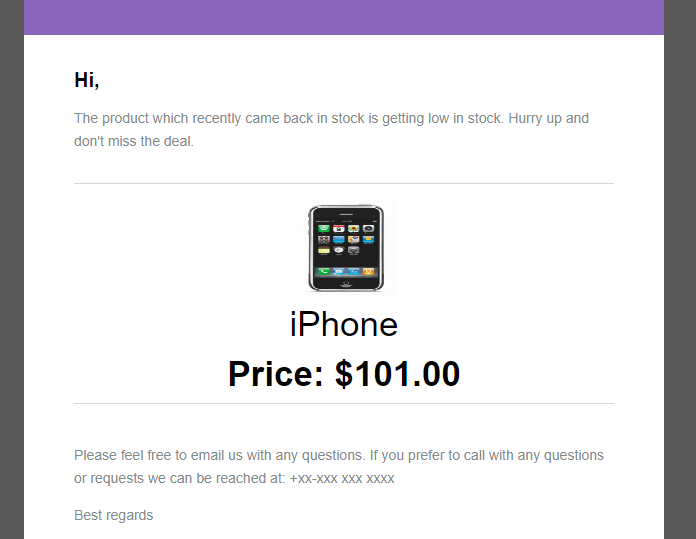
Back-in-stock alerts are a perfect way for PrestaShop stores to boost sales. Don’t miss out on sales because the products are out of stock. Increase your sales with web push notifications for back-in-stock products. You can send an initial email when a customer subscribes for a back-in-stock alert, low-stock alerts, and a final notification email with the Back-in-stock message.

We’ve all discovered things that were out of stock but we don’t go back to the store to see if it’s still there. Why do you expect your customers to do it? Influence them using emails and send push notifications to bring them back to your online store. You will get more sales and observe a boost in conversion rate.

Adding an email opt-in to your subscriber list will help you grow your list

The majority of low stock and back-in-stock warning forms only obtain the customer’s email address to inform them when a product returns to stock. Take advantage of the fact that they’re paying attention by asking them to join your email list at the same time. Sellers who use this strategy see a large improvement in their email subscriber list size, which leads to increased sales.

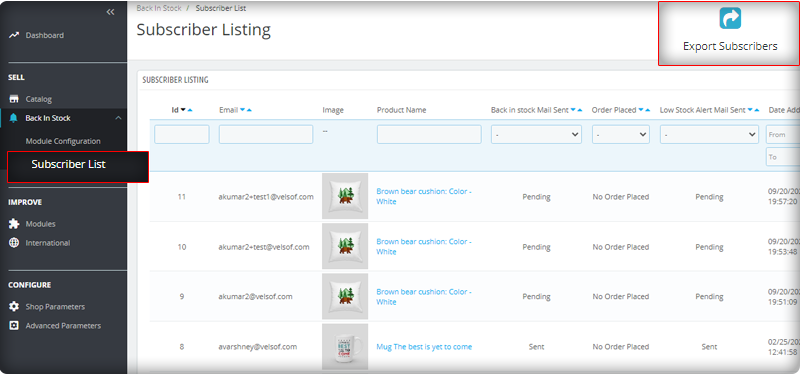
You can observe the subscriber listing on the admin panel at the left menu where all the installed modules are listed.

V3 Google reCaptcha is integrated with PrestaShop Back in Stock module to keep away the spammers and bots.

Add Custom Field in the Back in stock Subscription Box

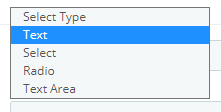
Collecting information from customers to send personalized emails will be easier. PrestaShop Back in stock addon provides an option to add custom fields in the subscription box. You can now add text, radio option, and other custom fields to gather more details about the customers.

Send automated emails for Low-stock and Back-in-stock

The PrestaShop Back-in-stock Module is a tool for email marketing. Customers usually receive hundreds of promotional emails and most of them are ignored but an email with a catchy subject line has more chances of getting opened. The module allows sellers to send a customized email with tailored text and subject lines. Along with an initial welcome email, you can send low-stock alerts to the subscribers and notify them about the restocked products.

Add related products to email template and cross-sell

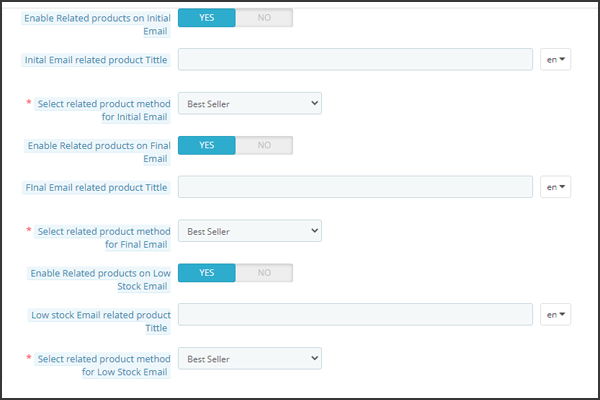
Heard the phrase ‘killing two birds from one stone, the module works the same way. It lets you send back in stock alerts as well as has an option to send related products. A seller can add details like bestsellers, products of the same category, specific products, etc. If a seller opts for the Specific products option, then he will have to specify the products in the respective tab as shown in the image below.

Send alerts via your email provider like Mailchimp

It is critical that you build your brand, and one way to do so is to ensure that the emails you send are sent from your domain. You’ll be able to use a variety of features to boost the success of your back in stock campaigns if you use an advanced eCommerce email provider like Mailchimp, Klavio, or Sendinblue. And, the PrestaShop back-in-stock module allows you to do so.

Real-time Analytics for PrestaShop

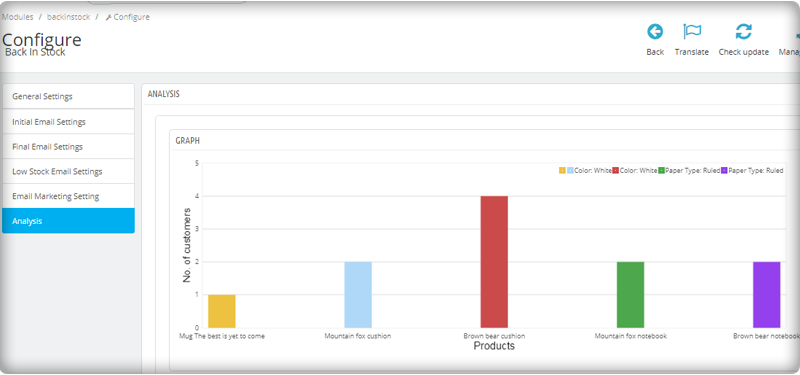
View a full report on customers who have subscribed to web push alerts for back-in-stock products. To increase sales, identify the most successful items, maximize inventory, and run promotional campaigns.

The new version has UTM Parameters

The UTM parameters are short text codes, you insert into URLs (or links) to monitor the success of a webpage or a campaign. Built-in analytics are available on social media sites. These allow you to track key metrics such as likes, shares, and website clicks. You can add UTM parameters to the PrestaShop Back in stock module and take advantage.

To wrap up: The Back-in-Stock emails are one-of-a-kind alerts as they create curiosity, influence the buying motives, and increase the chances of sales. If you are not sending alerts like low-stock or back-in-stock to your customers, you are making a huge mistake. Get your ‘Back-in-stock’ module today to grab your lost sales.

For eCommerce website development, module requirements, or mobile app development for your online store, KnowBand has experts and ready-made tools. Visit us at www.knowband.com or drop a message at support@knowband.com.

Recommended Reads:

OpenCart Extension to Send Back-In-Stock and Low Stock Alerts

Ecommerce companies always look for options that can bring more and more sales. Store optimization for speed, engagement, customer acquisition, and retention rates are on the top of the list. To add to this, KnowBand launched a super easy-to-handle OpenCart plugin for Back-in-stock alerts and low stock notifications. The Back in Stock alerts notify customers about the subscribed products when they are available in stock and increase customer retention rate.

OpenCart Back-in-Stock plugin- Unique way to Capture Lost Sales

Does every customer like to receive emails from the eCommerce website? Is it worth sending alerts to all the customers visiting your store? Are your ongoing campaigns working well?

If your answer is ‘No’ for any of the questions asked, you must stick to this article and read further. Let me give you a brief about the plugin and how you can boost sales with this tool

Display a subscription box on the product page

On your website, you must have added pop-ups for email subscriptions to grow your email list. But, it won’t tell you if the customer is interested in any particular product. For this, you can use the OpenCart Back-in-Stock plugin. With this, a customer can subscribe for back-in-stock alerts for a specific product on your OpenCart store.

OpenCart Back-in-stock alert is a 3-in-1 extension. It allows you to send alerts at three different points in time

  • Send initial subscription email: As the customer subscribes to your custom alerts, you can send a customized welcome email with a text that states about the subscribed product.
  • Notify customer with a low-stock alert: If the subscribed product is low in quantity, a low-stock notification will be sent automatically with the OpenCart Back-in-stock plugin.
  • Send an email with ‘Back-in-stock’ custom text: The third email category is Back-in-stock. Make the best use of the OpenCart back-in-stock plugin when the product is again available in your store.

Auto-trigger Low stock and Back-in-stock alerts

Every time you send an email, there are chances that you miss out on some of the other details.

The OpenCart extension for low stock or back-in-stock allows the sender to save the default email templates. The template options are available for all three, the initial email, low-stock email, and the back-in-stock email.

In addition, it has cron functionality that sends your email alerts automatically to subscribers. For instance, set the low-stock alert quantity to 4, it will auto-trigger an email as the quantity reaches 4.

Real-time Analytics for Opencart

The best part of this extension is its analytical reports. Data gives you an insight into everything.

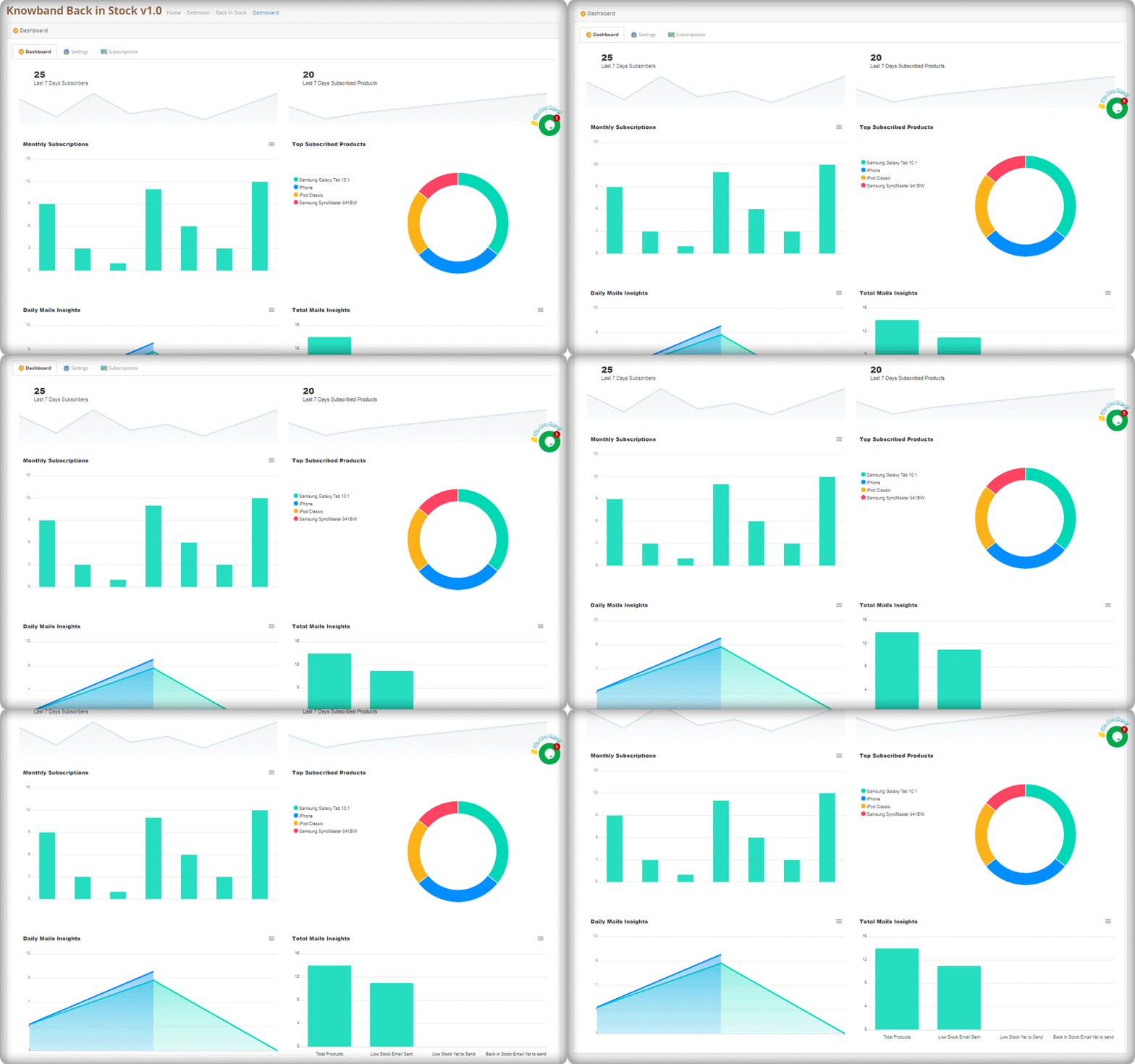
The graphical reports with pie diagrams display the number of subscribers (weekly), monthly subscription data, number of products subscribed, top subscribed products, and daily reports of the subscriptions.

The OpenCart Back-in-stock plugin gives well-analyzed reports. Anyone with or without an analytics degree can depict the results by looking at those colorful graphs.

Send alerts via your email provider like Mailchimp

Use this as an opportunity to run your email marketing campaign. The MailChimp synchronization with the module will build up your email list. Use this data for every other marketing campaign you run by email. Why just the stock alerts, but you can send welcome emails, discounted emails, abandoned cart alerts, and a lot more. If you haven’t started with email marketing, it’s time to buckle down.

If you have a marketplace on the OpenCart platform, you can use this plugin to never lose a potential customer. Marketplaces have a huge audience base. This is a marketplace guide to create yours on the OpenCart platform with a Multi-vendor vendor marketplace extension.

Conclusion:

This all-in-one email subscription and back-in-stock alert extension is a must-have for every OpenCart eCommerce store. You can send as many alerts as you want! Create customized templates for email and the product page subscription block. Customers won’t miss out on their favorite products and the merchant won’t lose any sales.

If there’s a feature you desire on your OpenCart site, there’s a good chance an Opencart plugin will let you achieve it; if you can’t find one, you can always contact us for custom plugin creation.

OpenCart Automatic Related Product – User Manual

1.0 Introduction

With the help of the OpenCart Automatic Related Product extension, the eCommerce merchants can easily get the customers to increase their cart value. Further, this is done by displaying the Related Products block on the front-end. Hence, when the merchant displays related products on the website pages including Product Page, Home Page, Checkout Page, and others. With the help of the OpenCart Automatic Related Product Module, the store admin can easily integrate the feature of displaying related products on the website to generate more sales.

1.1 Benefits for Merchants

  1. This OpenCart related products module helps the admin encourage the customers to increase their cart value.
  2. The OpenCart similar products extension builds potential sales. Thus, by allowing the customers to see what similar options they have in the similar product block, they choose better.
  3. The store admin can showcase absolutely relevant products to increase sales and offer a better store experience to the customers.
  4. The OpenCart related products plugin allows the admin to place the Related Products block in the right place on the website. Further, this is done where the customers can easily notice the products.
  5. There are multiple conditions available for showing similar products in an advanced way.
  6. This OpenCart related products extension allows the store admin to hide the ‘Out-of-Stock products’. In addition, only the in-stock products will be displayed.
  7. With the help of this OpenCart alike product module, the admin can reduce the bounce rate of the website. Moreover, it is done by engaging the customers with similar products.
  8. With the OpenCart advance related product extension, the admin can display new arrivals, bestsellers, and selected products as similar products. In fact, the merchant can show any product in order to promote it.
  9. The OpenCart Automatic Related Product module allows the store admin to display the related products on different website pages. For instance, Home Page, Product Page, Category Page, Cart Page, Manufacturer Page, and Order Confirmation Page.

1.2 Salient Features of the OpenCart Automatic Related Product module:

  1. The store admin can display the relevant products on the different pages of the website. The pages include Home Page, Product Page, Category Page, Cart Page, Manufacturer Page, and Order Confirmation Page. He/she can do it easily with the OpenCart product cross-selling module.
  2. The admin can effortlessly hide the out-of-stock products and display only the in-stock products on the front end. With the help of the OpenCart Automatic Related Product extension, the admin can disable the out-of-stock products from showing on the front-end.
  3. The OpenCart advance related product extension provides the opportunity to the admin to show different categories in the related products block. The merchant can display specific products, top visited products, best sellers, new arrivals or even use the user history for showing the related products.
  4. The admin can easily set the maximum number of the related product to be shown on the different pages. He/she can fix the number from the back-end of the OpenCart similar products extension.
  5. The OpenCart related products extension allows the admin to set the method priority to show the related products.

2.0 Installation Guide

Before beginning the installation, make the purchase of the OpenCart related products plugin from Knowband. Once purchased, the admin will receive the following files on your registered email.

  • The zipped file consists of the source code of this Automatic Related Product extension.
  • User Manual

Next, follow these steps to install the OpenCart Automatic Related Product extension:

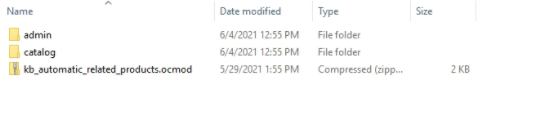
The admin needs to unzip the zipped file. This file includes some files and folders and paste them into the “Modules” folder of the store’s directory. Further, the admin can follow the path – Root Directory/modules/.

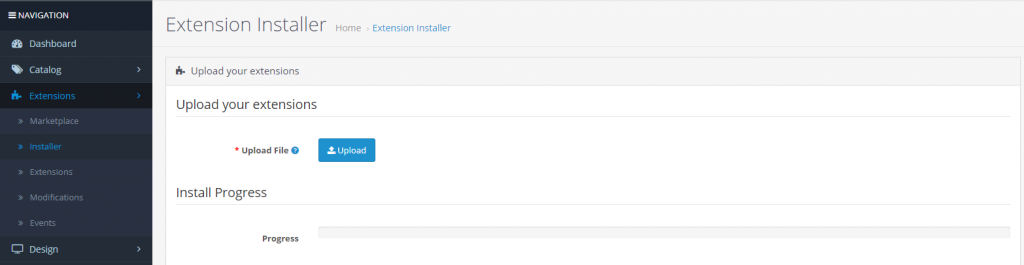
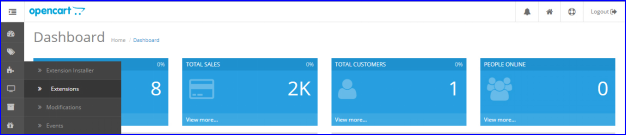
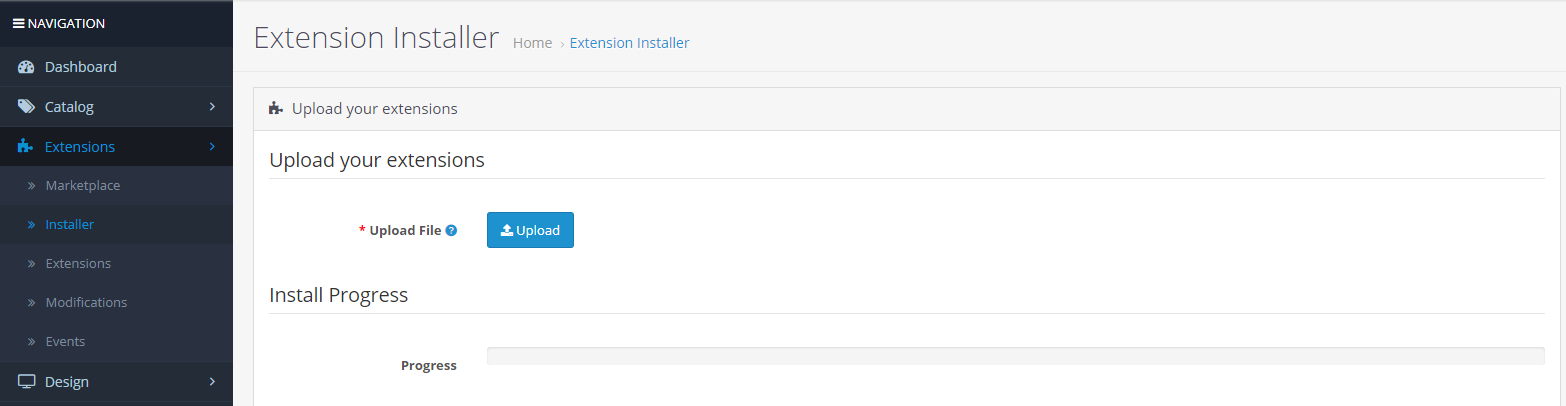
  • Now in the admin panel, click on Extensions in the left side menu. Then click on Installer (Home->extension).

After uploading the OCMOD file your module will be ready to use.

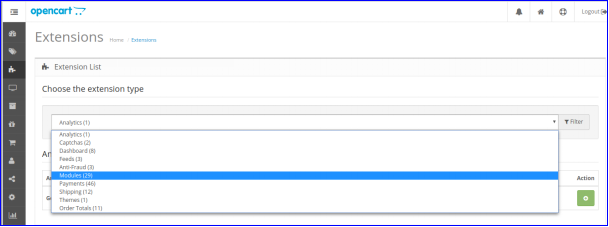
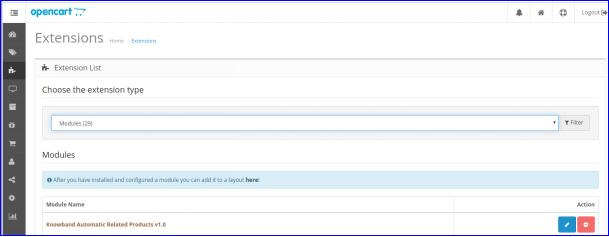
Now, the store owner can install the Automatic Related Product extension. In fact, as an eCommerce store owner, the admin can find that in Extensions. Follow the image below:

3.0 Admin Interface

The Admin Interface includes the following main settings:

  1. Basic Settings
  2. Home Page Settings
  3. Product Page Settings
  4. Category Page Settings
  5. Cart Page Settings
  6. Manufacturer Page Settings
  7. Order Confirmation Settings

3.0.1 Basic Settings

Through this setting of OpenCart similar products extension, the admin can do a lot of changes. Further, follow below to know all the settings. The screen will look like as shown below:

  • Status: The admin can click on the tab to either enable the OpenCart related products plugin or disable it.
  • Show only in-stock products: When the admin enables this setting, only the ‘in-stock will be displayed on the front-end in the Related Products block. If disabled, both – out of stock and in-stock products will be shown.
  • Show price with tax included: When the admin enables this function, the product prices will include the tax and be displayed to the customer. If disabled, the product prices will exclude the tax from the price.
  • Enter slider Previous/Next button Color: This setting of the OpenCart related products extension allows the admin to change the color of the Previous/Next button color on the front end.
  • Custom CSS: With this setting of the OpenCart alike product module, the admin can add the Custom CSS.
  • Custom JS: With this setting of the OpenCart advance related product extension, the admin can add the Custom JS.

3.0.2 Home Page Settings

  • Enable/Disable Home Page Setting: With this part of the setting for Home Page, the admin can click the button to either enable the function or disable it. Furthermore, the admin can either display the Related Products block on the Home Page or hide it.
  • Block Title: With the Block Title setting, the admin can change the name of the Related Products block on the front.
  • Show Home block title on the front: With this setting of the OpenCart Automatic Related Product extension, the admin can either display or hide the Block Title on the front end.
  • Select Display Column: When the admin clicks on this setting, he/she can show the related products on the content top, left column, right column, or page bottom.
  • Select Display Position: When the admin clicks on this setting of the OpenCart related products module, he/she can change the position of the related products. The Related Products block can be displayed at the top, below slideshow, below featured, or below the carousel.
  • Select Methods: The admin can select the method which has to be displayed on the front-end. There are various methods including top-visited products, bestsellers, new products, user’s user history products, and specific products.
  • Choose Specific Products: In this setting of the OpenCart similar products extension, the store admin can type in the name of specific products that he/she wants to display in the Related Products section.
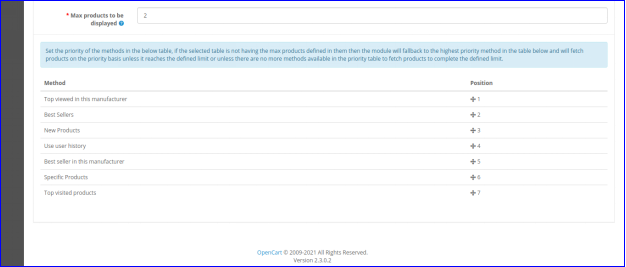
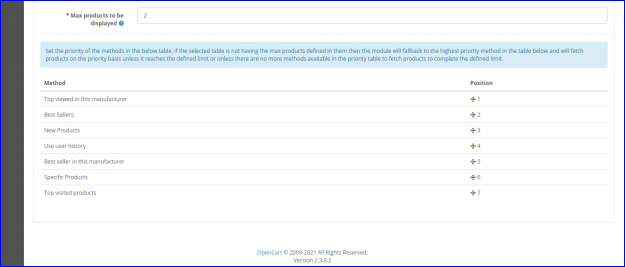
  • Max Products to be Displayed: The store admin can select the maximum number of products to display as related products.

The store admin can set the priority of the methods. if there is no product on the higher priority method, then the OpenCart advance related product extension will show the product from the lower priority.

3.0.3 Product Page Settings

  • Enable/Disable Product Page Setting: This setting of the OpenCart Automatic Related Product extension allows the store admin to either enable the function of Related Products on the front-end or disable it.
  • Block Title: The store admin can change the title of the Related Products block on the front end with this setting.
  • Show Home block title on the front: This setting of the OpenCart related products module allows the admin can choose to either display or hide the Block Title on the front end.
  • Select Display Column: The Related Products section can be displayed at various columns including top, column left, column right, or bottom of the content.
  • Select Display Position: The store admin can set the position of the related products with this setting of OpenCart similar products extension. The Related Products block can be displayed at the top.
  • Select Methods: The store admin can choose the methods which have to be shown on the front-end. The methods included in this setting are top-visited products, bestsellers, new products, user’s user history products, and specific products.
  • Choose Specific Products: With this setting of the OpenCart related products plugin, the store admin can enter the name of specific products that he/she wants to display in the Related Products section.
  • Max Products to be Displayed: The store admin can select the maximum number of products to display as related products.

The store admin can set the priority of the methods. if there is no product on the higher priority method, then the OpenCart related products extension will show the product from the lower priority.

3.0.4 Category Page Settings

  • Enable/Disable Category Page Setting: The store admin can change the settings for Home Page. If the admin wants to either enable the function or disable it, the admin can do that. By doing so, the admin can either display the Related Products block on the Category Page or hide it.
  • Block Title: This setting of the OpenCart related products plugin allows the admin to change the title of the Related Products block on the front end.
  • Show Home block title on the front: With this setting of the OpenCart alike product module, the admin can choose to either display or hide the Block Title on the front end.
  • Select Display Column: The Related Products block can be displayed at the different columns of the page. The columns can be content top, column left, column right, or content bottom.
  • Select Display Position: The store admin can set the position of the related products with this setting of OpenCart advance related product extension. The Related Products block can be displayed at the top, below slideshow, below featured, or below the carousel.
  • Select Methods: The store admin can choose the methods which have to be shown on the front-end. The methods included in this setting are top-visited products, bestsellers, new products, user’s user history products, and specific products.
  • Choose Specific Products: With this setting of the OpenCart product cross-selling module, the store admin can enter the name of specific products that he/she wants to display in the Related Products section.
  • Max Products to be Displayed: The store admin can select the maximum number of products to display as related products.

The store admin can set the priority of the methods. if there is no product on the higher priority method, then the OpenCart Automatic Related Product extension will show the product from the lower priority.

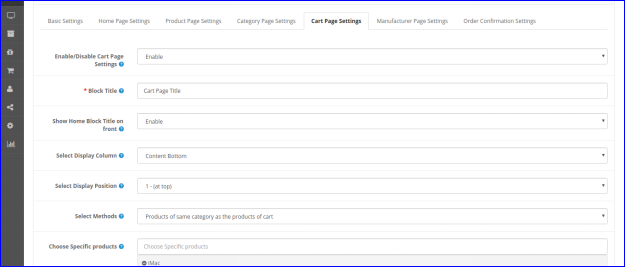
3.0.5 Cart Page Settings

  • Enable/Disable Cart Page Setting: The store admin can change the settings for Home Page. Moreover, if the admin wants to either enable the function or disable it, the admin can do that. By doing so, the admin can either display the Related Products block on the Cart Page or hide it.
  • Block Title: This setting allows the admin to change the title of the Relevant Products block on the front end.
  • Show Home block title on the front: With this setting of the OpenCart advance related product extension, the admin can choose to either display or hide the Block Title on the front end.
  • Select Display Column: The Related Products block can be displayed at the different columns of the page. The columns can be content top, column left, column right, or content bottom.
  • Select Display Position: The store admin can set the position of the related products with this setting of OpenCart product cross-selling extension. The Related Products block can display at the top, below slideshow, below featured, or below the carousel.
  • Select Methods: The store admin can choose the methods which have to be shown on the front-end. The methods included in this setting are top-visited products, bestsellers, new products, user’s user history products, and specific products.
  • Choose Specific Products: With this setting, the store admin can enter the name of specific products that he/she wants to display in the Related Products section.
  • Max Products to be Displayed: The store admin can select the maximum number of products to display as related products.

The store admin can set the priority of the methods. Howsoever, if there is no product on the higher priority method, then the OpenCart related products module will show the product from the lower priority.

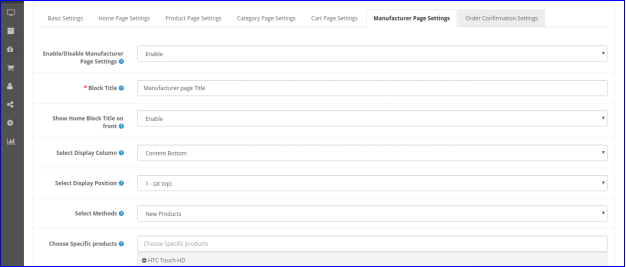
3.0.6 Manufacturer Page Settings

  • Enable/Disable Manufacturer Page Setting: Using this setting, the admin can either display the function of Related Products or hide it.
  • Block Title: The store admin can change the name/title of the Related Products block on the front with this setting.
  • Show Home block title on the front: With this setting OpenCart similar products extension, the admin can either display or hide the Block Title on the front end.
  • Select Display Column: The store admin can show the related products on the different columns of the page. The columns include content top, left column, right column, or page bottom.
  • Select Display Position: The store admin can change the position of the related products. The Related Products block can be shown at the top, below slideshow, below featured, or below the carousel.
  • Select Methods: The admin can select the method which has to be displayed on the front-end. There are various methods included in this setting. For instance, top-visited products, bestsellers, new products, user’s user history products, and specific products.
  • Choose Specific Products: In this setting of the OpenCart similar products extension, the store admin can type in the name of specific products. The ones that he/she wants to display in the Related Products section.
  • Max Products to be Displayed: The store admin can select the maximum number of products to display as related products.

The store admin changes the priority of the methods. Moreover, if there is no product on the higher priority method, then the OpenCart related products plugin will show the product from the lower priority.

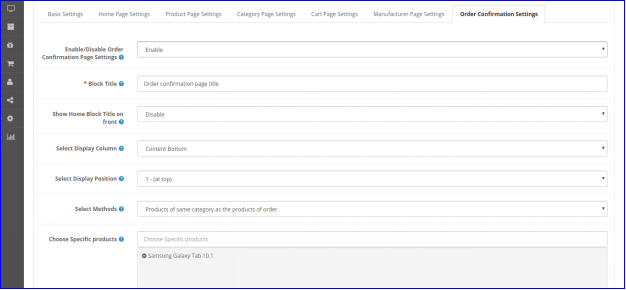
3.0.7 Order Confirmation Settings

  • Enable/Disable Category Page Setting: The store admin choose to either enable the function or disable it from the front-end.
  • Block Title: This setting allows the admin to change the title of the Related Products block using the OpenCart Automatic Related Product extension
  • Show Home block title on the front: With this setting, the store admin can choose to either display or hide the Block Title on the front end.
  • Select Display Column: The Related Products block can display in the different columns of the page. The columns can be top, column left, column right, or bottom of the content.
  • Select Display Position: The store admin can set the position of the related products with this setting of OpenCart advance related product extension. The Related Products block can be displayed at the top.
  • Select Methods: The store admin can choose the methods which have to be shown on the front-end. Furthermore, the methods included in this setting are many. For instance, top-visited products, bestsellers, new products, user’s user history products, same category products from the, and specific products.
  • Choose Specific Products: With this setting, the store admin can enter the name of specific products to display in the Related Products section.
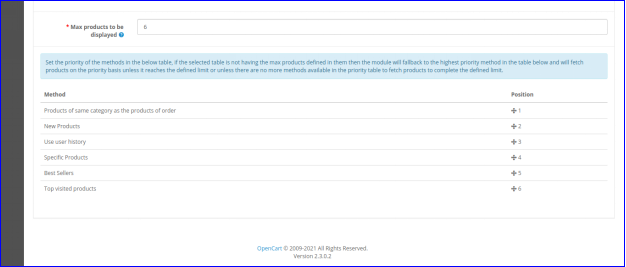
  • Max Products to be Displayed: The store admin can select the maximum number of products to display as related products.

The store admin can set the priority of the methods. Further, if there is no product on the higher priority method, then the OpenCart related products extension will show the product from the lower priority.

4.0 Front-end Interface

The customers can view the related products as shown in the below-mentioned images.

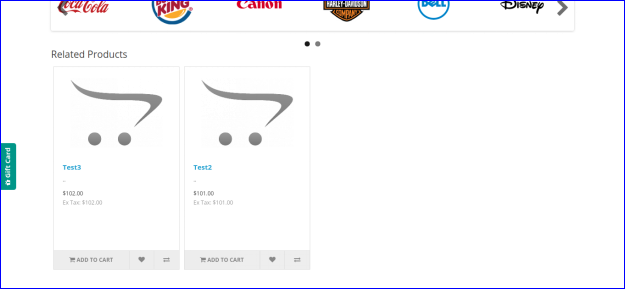
4.0.1 Home Page

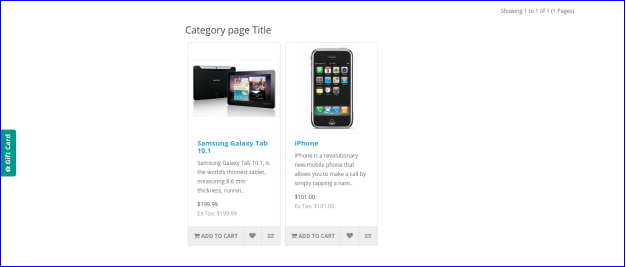
4.0.2 Category Page

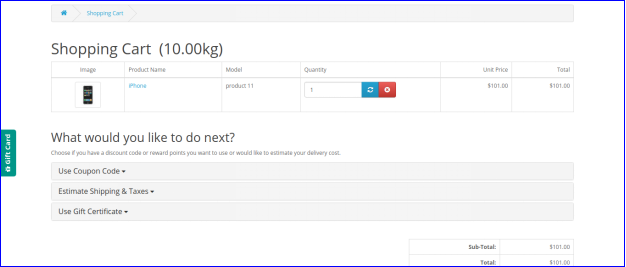
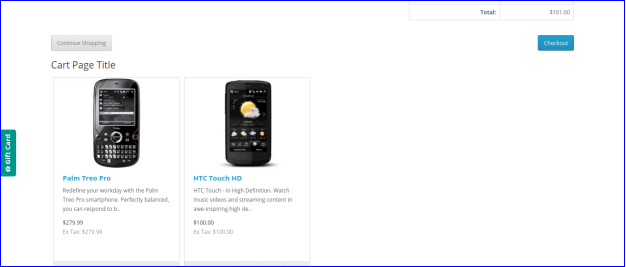
4.0.3 Cart Page

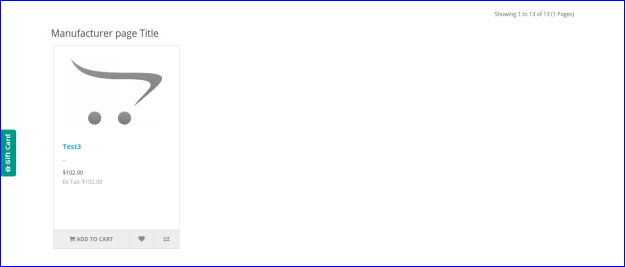
4.0.4 Manufacturer Page

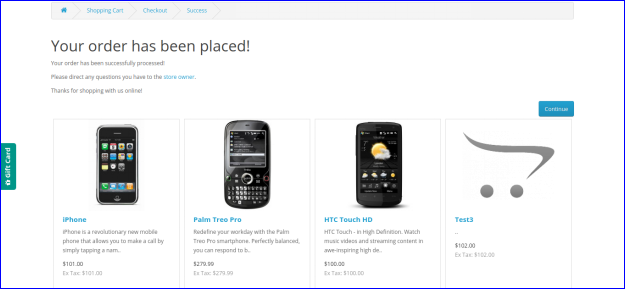
4.0.5 Order Confirmation

For more, you can visit Knowband.

The OpenCart Automatic Related Product extension Product Page

OpenCart similar products extension Admin Demo link

The OpenCart product cross-selling extension Front Demo link

OpenCart alike product module User Manual link

Please contact us at support@knowband.com for any query or custom change request as per your business requirement.

Offer Birthday Coupons to Your PrestaShop Customers And Win their Loyalty

The best way to keep customers is to delight them and create an emotional bond with them. The Prestashop Birthday Coupon addon will assist you in forming a bond with your loyal customers. Coupons are a perfect way to supplement your online marketing efforts. Although these discounts or deals can go unnoticed at times, the personalized message will easily capture the attention of consumers. You can now expand the scope of your eCommerce store with email wishes.

Give special promo codes to customers to wish them a happy birthday. On a specific date, the module will send out emails with warm greetings and discounts. Not only for your customers but also for your brand, birthdays can be a real treat. Take the time to build campaigns that will make the customers feel good on their special day.

PrestaShop Birthday Coupon Addon

Send emails to customers on their birthdays using PrestaShop Birthday Coupon addon. The email triggers may be sent on the birthday itself, or a few days before or after their birthday. Also, send them an email congratulating them on their one-year anniversary of account formation.

This is one of the ways to keep in touch with your customers and give them a reason to come back to your shop. As a result, it’s an excellent tool for consumer satisfaction and providing promotional deals on special occasions.

Give it a glance! The Birthday Coupon Addon to send unique and customized emails. The Birthday Coupon module is also available on the PrestaShop Addon store.

Key features of PrestaShop Birthday Coupon addon

Some of the best features of this amazing addon are compiled here for your reference.

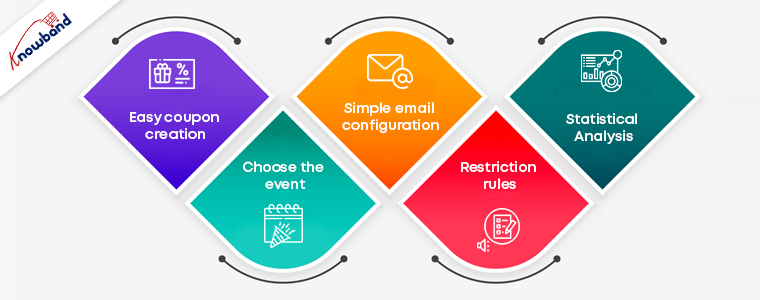
Easy coupon creation: The Prestashop Birthday coupon addon makes it simple for the administrator to generate coupons or gift vouchers. As a token of gratitude, you can give a discount on the next purchase or a free product. In just a few simple steps, you can set the discount number, percentage, and free gifts. You may also specify how long the coupons will be valid.

Choose the event: With the Prestashop birthday vouchers module, you can send email triggers for two separate occasions. You can submit it on the customers’ birthdays or when their accounts have been open for a year. In either case, the coupons and emails can be created and personalized in a few simple steps.

Simple email configuration: The Prestashop birthday coupon addon comes with a variety of default email templates to choose from. The administrator can also personalize the emails and make any adjustments he or she wants. You can submit your wishes in a variety of languages thanks to the multilingual compatibility.

Restriction rules: You can limit which countries can take advantage of the deals as required. You may also eliminate categories that you don’t want to give discounts on. All you have to do now is choose the groups to which the restrictions will be applied.

Statistical Analysis: The administrator has access to the whole marketing strategy report. Both graphical and tabular representations of the coupons produced and their status are available.

Benefits offered by Birthday Coupon Addon

  1. Make your customers feel special on their special day to establish a personal bond.
  2. On their birthdays, giving a personalized experience to customers will enhance brand loyalty.
  3. Customers shop more from the online store if they receive free coupons on their birthday.
  4. They can find it easier to complete their purchase with the ready-to-use coupon codes.

Add Birthday Coupon Module to surprise your customers with offers and discounts!

Use Code NEW20 to get an additional 20% off on the instant purchase of this module.

Give your customers a satisfactory experience on their Birthday and make them feel special on their special day! For any assistance on eCommerce modules, reach out to us at support@knowband.com.

You may like to read:

Top 10 Opencart Extensions to Boost Customer Experience

Better customer experience can increase customer retention. The sole requirement that every business owner has is that the buyer returns to the site after making a single transaction. Thanks to Knowband! It provides some excellent extensions for your eCommerce store which can enhance customer satisfaction and customer experience.

10 Customer experience solutions for your OpenCart store

I am sharing a compiled list of 10 smart solutions for your eCommerce store that boosts the online shopping experience on your OpenCart store.

1.     Smooth communications with Auto Switch Language And Currency- Opencart Extensions

Communication is what builds the bond between two things or individuals. But, if the language and currency become the barrier, the customer will be unable to shop from your store. Make it a multilingual store with OpenCart Auto Switch Language and Currency extension provided by Knowbandand add some value to the customer experience. Key features of this module include:

  • OpenCart Auto Switch Language and Currency extension automatically change the Language and Currency of the store according to customers geolocation
  • Uses IP address to fetch the customer details like country and region.
  • SSL compatible
  • multi-store compatible and Journal theme compatible

Read: How to Overcome Language and Currency Barriers while Selling (Online) Globally

2.    Customers can select a delivery time

Allowing your customer to choose a delivery time will amend their experience at your store. With the Preferred delivery time extension, users can select the desired delivery date and time on the checkout tab. The store administrator can provide a better customer experience by providing personalized service.

  • Admin can send a push notification or email for delivery details
  • Customer can get the product at their convenience
  • It is a mobile responsive extension

To know more about ‘Preferred delivery time extension’ for the OpenCart store by Knowband, you can visit our store or explore the module features on the OpenCart store.

Read: Tips to Make Delivery Management More Efficient Using Delivery Boy App

3.     Store locator to pick up the order

With the OpenCart Store locator, online users can view the physical store’s location in the shop area. They can now pick the product as per their comfort. This store locator makes it easy for the customer to set their schedule and allows them easy pick-up. Customers can save money on shipping charges.

This Store Locator helps a customer with this new feature of order pick-up. You can add a Store locator to your OpenCart store to enhance the customer experience. After the COVID-19 outbreak, the OpenCart Store locator by Knowband seems to be a good addon for your store.

Read: Buy Online and Pick up In-Store: How Click and Collect can Win Customers and Grow Sales

4.     Reward customers with Loyalty points

Rewards and discounts have an important role to play in attracting consumers and making shopping interesting. Knowband provides Opencart Loyalty Points Extension, which handles the Admin’s reward points scheme. The Extension provides loyalty points for both new and current customers. This increases customer retention. With loyalty points, the admin can earn the trust of the customer.

Who doesn’t want a loyal customer? Knowband store is a one-stop solution for all your eCommerce store issues. With Loyalty points, the Opencart extension by Knowband helps your customer getting a satisfying customer experience.

  • The customers get different reward points based on many conditions set by the admin.
  • The Loyalty points can be offered for Sign-Ups, first-order, etc.
  • Upgrades conversions and customer experience

Read: Benefits of Customer Loyalty Programs for your Online Business

5.     Improve checkout experience with One Page Checkout

Ecommerce stores that have a one-page checkout allow their customers to make fewer clicks than their customers to check out a store that has a multi-page checkout. It seems simpler than multi-step checkout which makes it user-friendly and augments the customer experience.

The concept of a one-page checkout can initially seem easier to complete, as fewer steps will appeal to time-conscious customers. Some key features of One-page checkout by OpenCart are:

  • Saves Customers time with a faster loading speed
  • Improves Conversion rate
  • Appealing appearance of the user interface attracts more customer
  • Comes with social login options

Knowband’s One-page checkout for Opencart is one of the best-sellers as it improves the online shopping experience and conversions. Also, it reduces the abandoned cart rate.

Read: Build Responsive Single Page Checkout for OpenCart in Few Clicks

Get an additional 20% off on the instant purchase of plugins with Code NEW20 on the KnowBand store.

6.     Build Mobile Application for OpenCart website

OpenCart Mobile App Builder by Knowband comes with many distinct features. Its User-friendly interface makes it a must-buy OpenCart extension for your OpenCart store.

Give your customers a better User experience with OpenCart’s Mobile App builder

Read: OpenCart Delivery Boy App and Mobile App Success Story of Lokale Winkels

7.     Allow them to sign in with Social Login

A registration form looks boring and discourages your customer from making the checkout. With social login options, you can now motivate your customer to log in quickly on the OpenCart store. Social Loginizer extension for OpenCart by Knowband comes with 8 different login options including Facebook, Google+, and Twitter.

  • Increases registration with more precise data
  • Decreases fraud or fake logins
  • The data can be utilized in email marketing
  • Its dynamic UI boosts customer experience

Read: Why, What, and How Social Login can Help Grow Your Business?

8.     Customers can Save for Later with Advance Wish List

Advance Wish List / Save for Later – OpenCart Extensions allows users to move the product from cart to wishlist. Sometimes customer changes their mind while shopping and they move their products to the wishlist. This extension allows your customer to do so in just one click. This extension increases customer experience and customer retention.

  • Allows customer to maintain a private wishlist
  • Admin and analyze the product demands with statistical data available on the backend
  • Advance Wish List / Save for Later – OpenCart Extensions by Knowband allows the customer to move their favorite product to the wishlist which they can buy later. This way it increases the customer experience.

Read: What is a Wishlist and Why Wishlist is important for eCommerce?

9.     Easier to find the right fit with Product Size Chart

How can a product size chart be helpful to improve the eCommerce customer experience? Maximum product return is observed in the clothing industry. This takes extra effort and time of the store owner. Stop wasting your time and add this Knowband’s OpenCart Product Size Chart – Extension to your store which can help you create multiple size charts and map them to the product pages. This Opencart product size chart module offers a user-friendly interface

  • It helps you create multiple size charts and map them to the product pages.
  • Store admin can also map the size chart with a Manufacturer.
  • Admin can add images, HTML content, text, and guidelines for supporting the size chart.

A product with perfect fit and quality will give joy to your customers and will jack up the customer experience.

Read: 8 Simple Tips to Reduce Product Returns in eCommerce

10.  Customers feel valued with Better Thank You page

Knowband’s Better Thankyou Page extension for the Opencart store turns your usual order success page into a marketing page where you can show relevant items to consumers along with a discount coupon for their next purchase. The Better thank you page benefits the user and the store merchant in many ways:

  • Encourage Cross-selling on the thank you page
  • Use Thank you page to collect Feedback or you can add promotional banners with greetings.
  • With Knowband’s Better Thank you page, ensure Customer Retention by offering a Coupon Code which will anyway add to the better customer experience.

Also, check out our other OpenCart extensions for your eCommerce store which can help you increase customer retention and customer engagement.

As things are moving in eCommerce, many shopping websites are creating their marketplaces. If you are giving it a thought then OpenCart Marketplace Plugin can be the right choice. It has a separate admin panel and seller dashboards to manage customers, orders, and inventories. Click here to get a better understanding of the features that you should consider before selecting the marketplace plugin.

For any eCommerce solutions, you can always rely on our expert team. Drop us an email at support@knowband.com and our team will get in touch with you right away.
Recommended Reads by the Author:

OpenCart Back in Stock Notification – User Manual

1.0 Introduction

Online shoppers get disappointed when the product they are looking to purchase is out-of-stock. This majorly happens during the launch of a smartphone when it gets out of stock even before the user has added it to his cart. Furthermore, if the shopper is not notified, when the product comes back in stock, the store owner can lose that sale. Hence, this problem can be solved with the help of the simple Back in Stock notification with the OpenCart Back in Stock Extension by Knowband.

1.0.1 What is Back in Stock notification?

A back-in-stock notification is an email that is sent to those users who have subscribed to receive updates regarding an out-of-stock product. When the product is back-in-stock, the shoppers are informed via email about its availability so that they can purchase it as soon as possible or before it goes out of stock again.

Many of the users can miss out on the purchase if they aren’t notified and this eventually leads to some lost revenue.

The sole purpose of the back-in-stock email is to boost your sales. Besides, it helps you drive huge traffic to your website, encourages customer retention, helps you understand the touchpoint of your customers, and builds a strong connection between the brand and the consumers.

To save these missed out sales and make the shopper buy the product when it comes back in stock, You need to mail every shopper which will take a lot of time and effort.

Hereby, the OpenCart Back in Stock Extension will simplify this for you. This module allows the Admin to view all the customers who have subscribed to the product and can send the back-in-stock email accordingly. The admin can also create, edit or use the default email template for notification. The Admin can also choose to whether send a Low Stock Alert email or not via this module.

1.0.2 How does it work?

The working of the OpenCart Back in Stock module is explained by the following points.

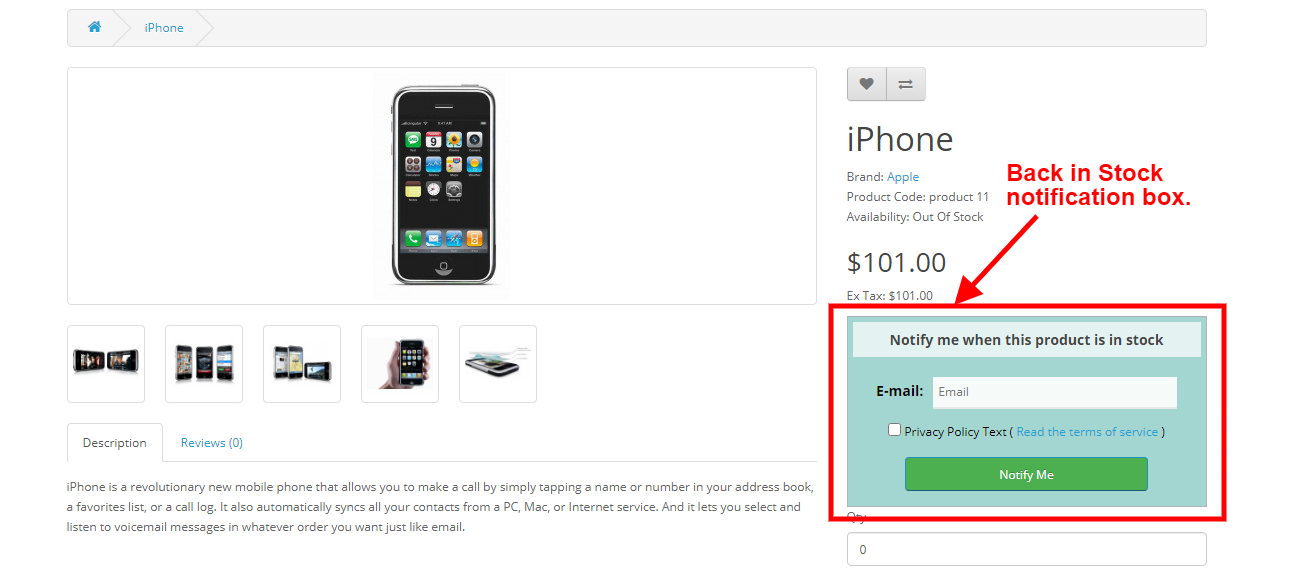
  1. If the shopper visits a product page where the product is out of stock, The user will be shown a Back in the Stock box where the user can add his/her email id to get subscribed to that product.
  2. Once a product is subscribed it will be shown to the Admin, Where The Admin can see who and which product has subscribed and whether the email is sent to them or not.
  3. Admin can manually run or schedule the cron file to send the Back in Stock email. The cron file will automatically send the email to the users who have subscribed to the product. It will also check whether the email is not sent to the user already to prevent spam.

  4. If the Admin has enabled the Low Stock Alert functionality, Then Admin can also send the Low Stock alerts via Cron file using a similar process.

1.0.3 Salient Features of the OpenCart Back in Stock extension

  1. The online merchant can use this OpenCart Back in Stock module for sending email notifications of the product back in stock to those users who subscribed for the same.
  2. Admin can enable privacy policy settings and apply the related configurations from the admin interface of this OpenCart Back in Stock module.
  3. In OpenCart Back in Stock module, the online users have an option to view the subscribed products list.
  4. The online merchant can also send low stock alert notifications to the subscribers for the subscribed products.
  5. OpenCart Back in Stock module allows adjusting the color of the notification box as well as the background color of the heading using the color picker tool.
  6. Admin can also enter the custom CSS and JS code for the advanced look and feel management.
  7. The Admin can integrate Mailchimp, Constant Contact email integrator for creating a list of customers for email marketing activities in the future.
  8. The store admin can view a list of highly demanded products from the dashboard section.
  9. The Admin can download the subscriber list in CSV format from the subscriptions tab of the Back In Stock Module.
  10. The OpenCart Back in Stock module offers multi-store and multi-lingual support.
  11. OpenCart Back in Stock module Admin can share subscribed products, in stock, and low stock updates via email. The Admin can easily customize the subject and body of the emails.

2.0 Installation Guide

Once purchased, you will receive the following files in your registered email.

  1. Source code of OpenCart Back in Stock module in zipped file format.
  2. User Manual of OpenCart Back in Stock module.

Now to install this on your OpenCart Store, follow the given steps:

  • Unzip the zip file. You will get the folders as shown in the image below

  • Now choose the OpenCart version according to your store and open that specific OC folder. After opening it you will see the following content.

  • Copy and paste the content inside the upload folder inside your Opencart store folder.
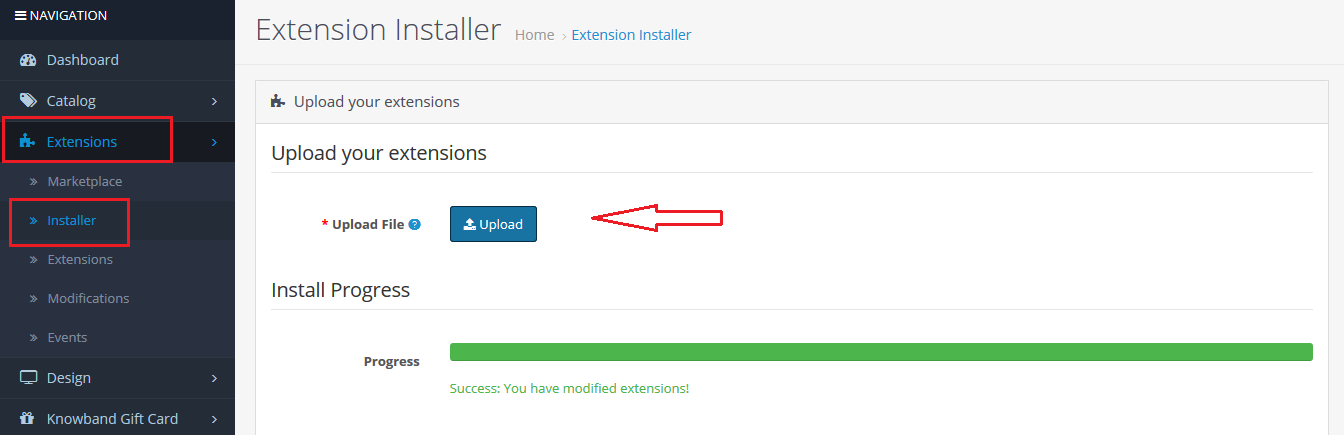
  • Go to Extensions and then Installer. From here, you can upload the ” kbback_in_stock.ocmod.zip” (for OC3.0.x) file and install the extension.

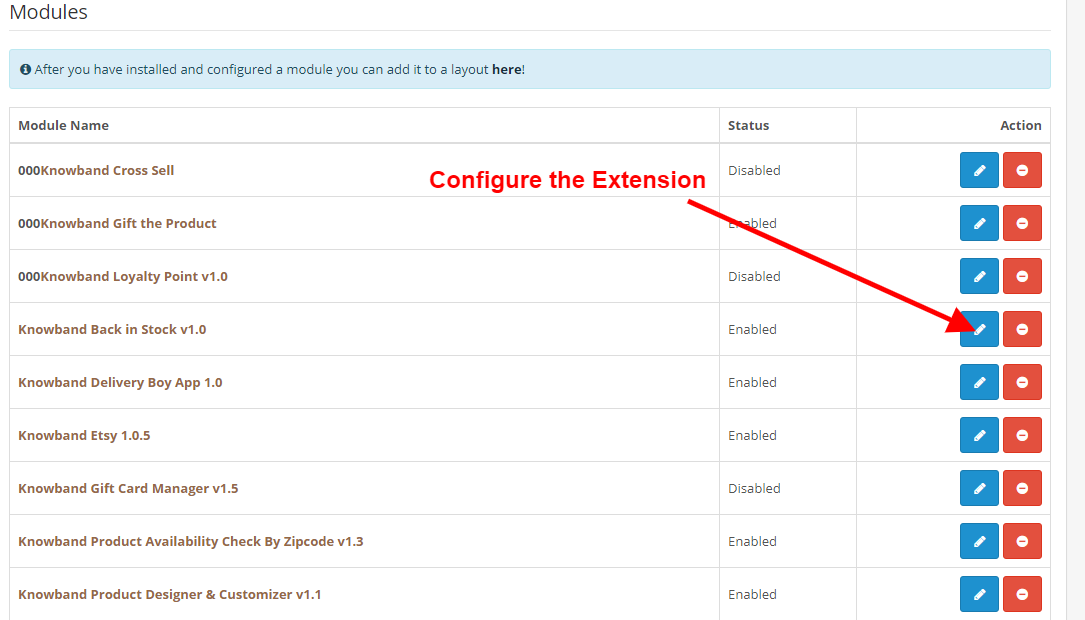
So, Opencart Back in Stock Extension is now successfully installed and is ready to use at your store. Go to the admin menu and click on the extensions. Choose the Extension Type as Modules. You will find a list of modules. Select the Knowband Back in Stock.

3.0 Admin Interface

The Admin Interface of OpenCart Back in Stock extension includes the following main settings:

  • Dashboard
  • Settings
  • Subscriptions

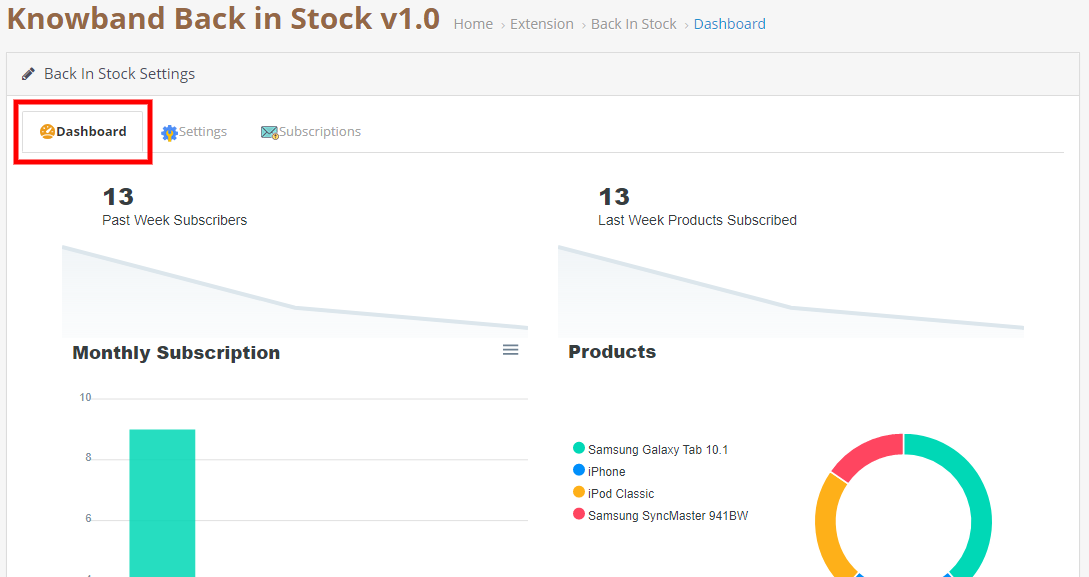
3.0.1 Dashboard

This tab is used to display different types of graphs which can be used to analyze which products are most subscribed, past week subscription, etc.

3.0.2 Settings

This tab consists of all the module configurationally settings.

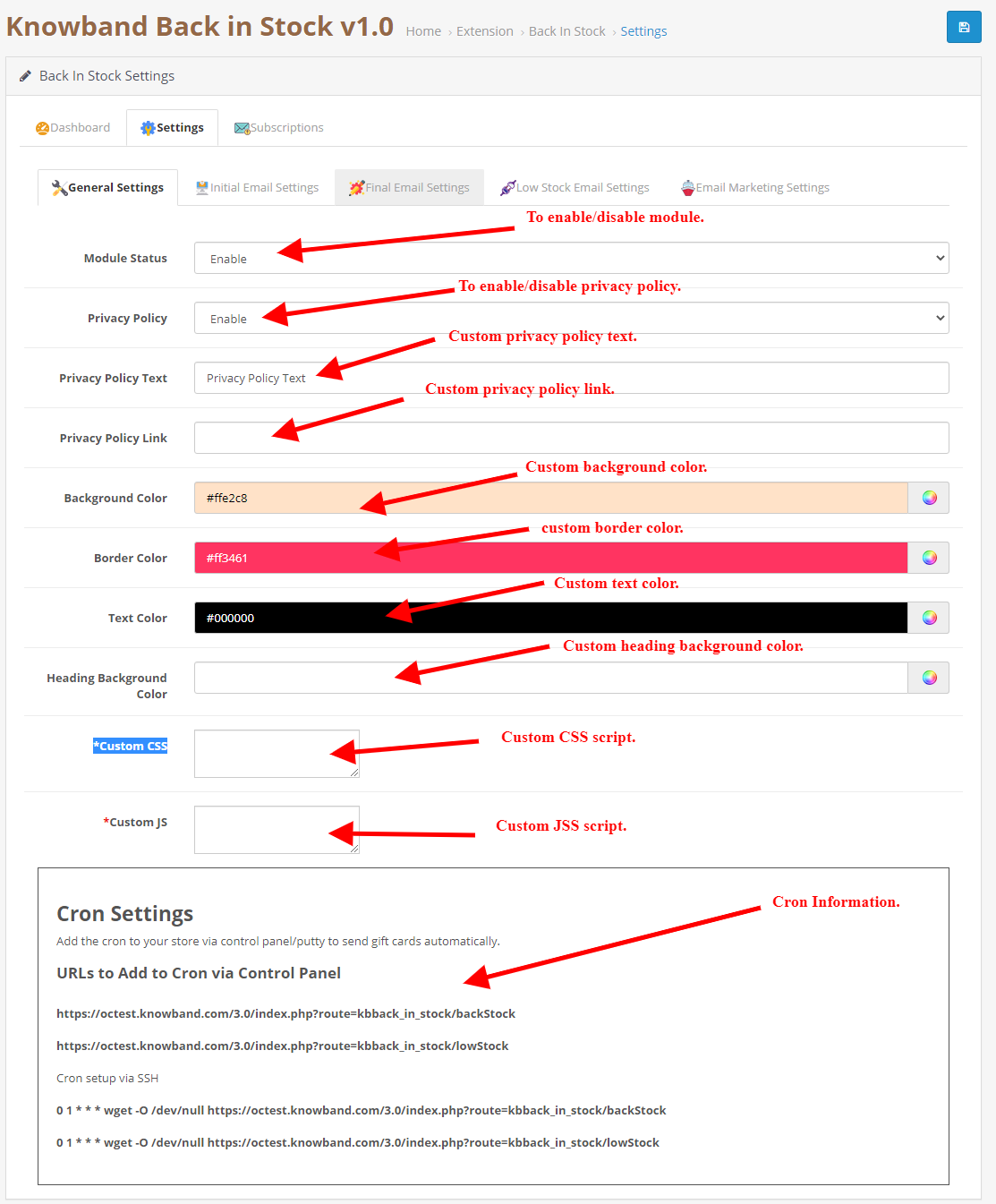
3.0.2.1 General Settings

  • Enable/Disable: Initially, this field of OpenCart back in the stock module by Knowband will be “OFF”. Admin can enable/disable the Opencart module by turning ON/OFF in this setting.
  • Privacy Policy: Enable this toggle button to display the privacy policy option at the front end. The Privacy Policy will be shown at Notify Me block.
  • Privacy Policy Text: The admin can enter the desired text for a privacy policy. The text can be changed whenever needed.
  • Privacy Policy Page URL: The admin can easily set his choice of URL to the privacy policy.
  • Background Color: Initially, this field of our module will be filled with some default values. Admin can change the background color of the subscription box by picking the color from the color picker that will be reflected on the front end of the OpenCart back in the stock notification module.
  • Border Color: Using this option of the OpenCart back in stock notification module, the admin can set the border color of the subscribed box using the color picker.
  • Text Color: This field of OpenCart back in the stock module allows the admin to change the text color of the notify box.
  • Heading Background Color: This field of OpenCart Back in Stock Extension allows the admin to change the Heading background color of the notify box.
  • Custom CSS: This option of the OpenCart stock alert module allows the admin to write their CSS as per requirement and will be reflected in the front end of this OpenCart module.
  • Custom JS: This field of OpenCart Back in Stock Extension allows the admin to write their JavaScript as required.

3.0.2.2 Initial Email Settings

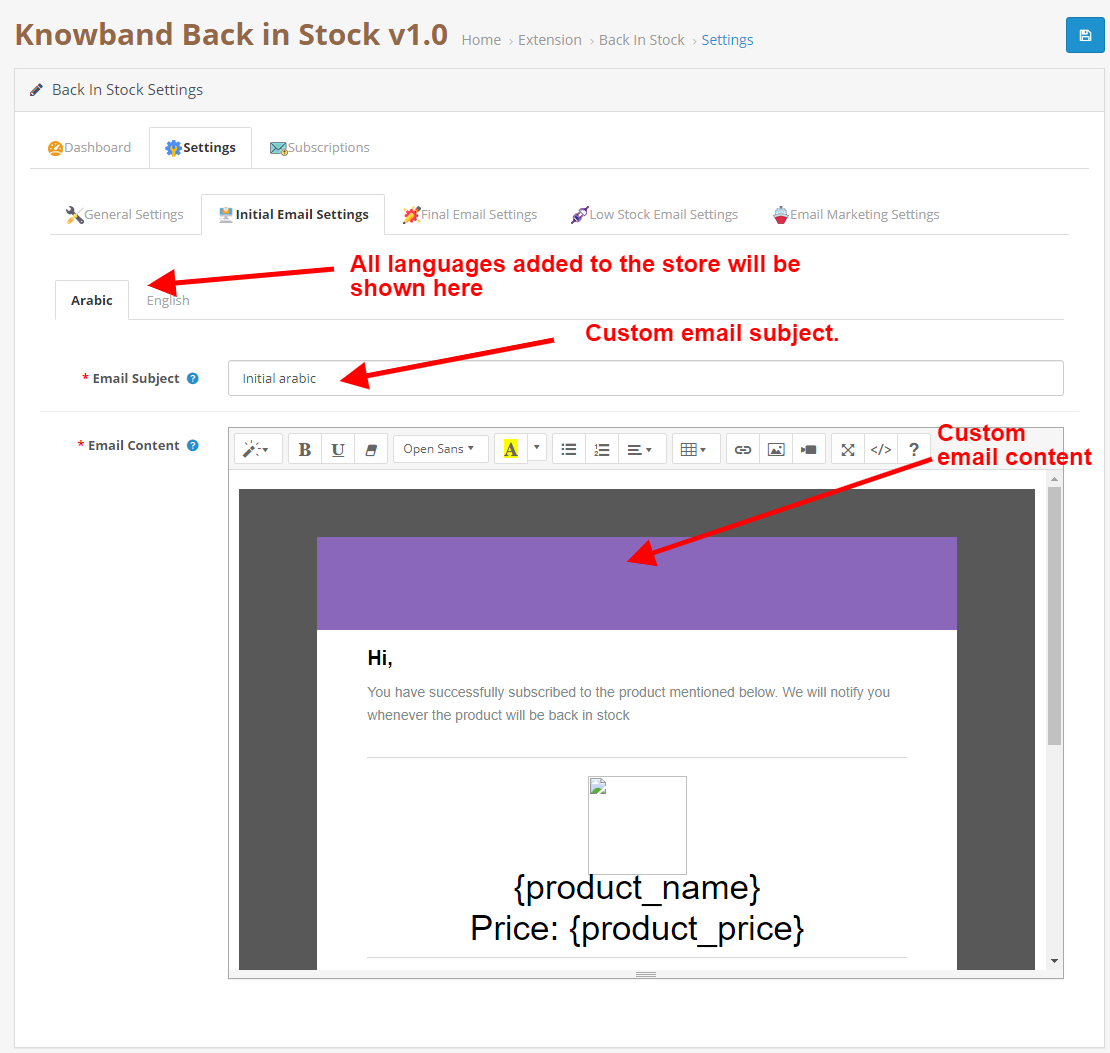
In this tab, you can configure custom subject and content for the initial email which will be sent to the user for subscription confirmation.

3.0.2.2 Final Email Settings

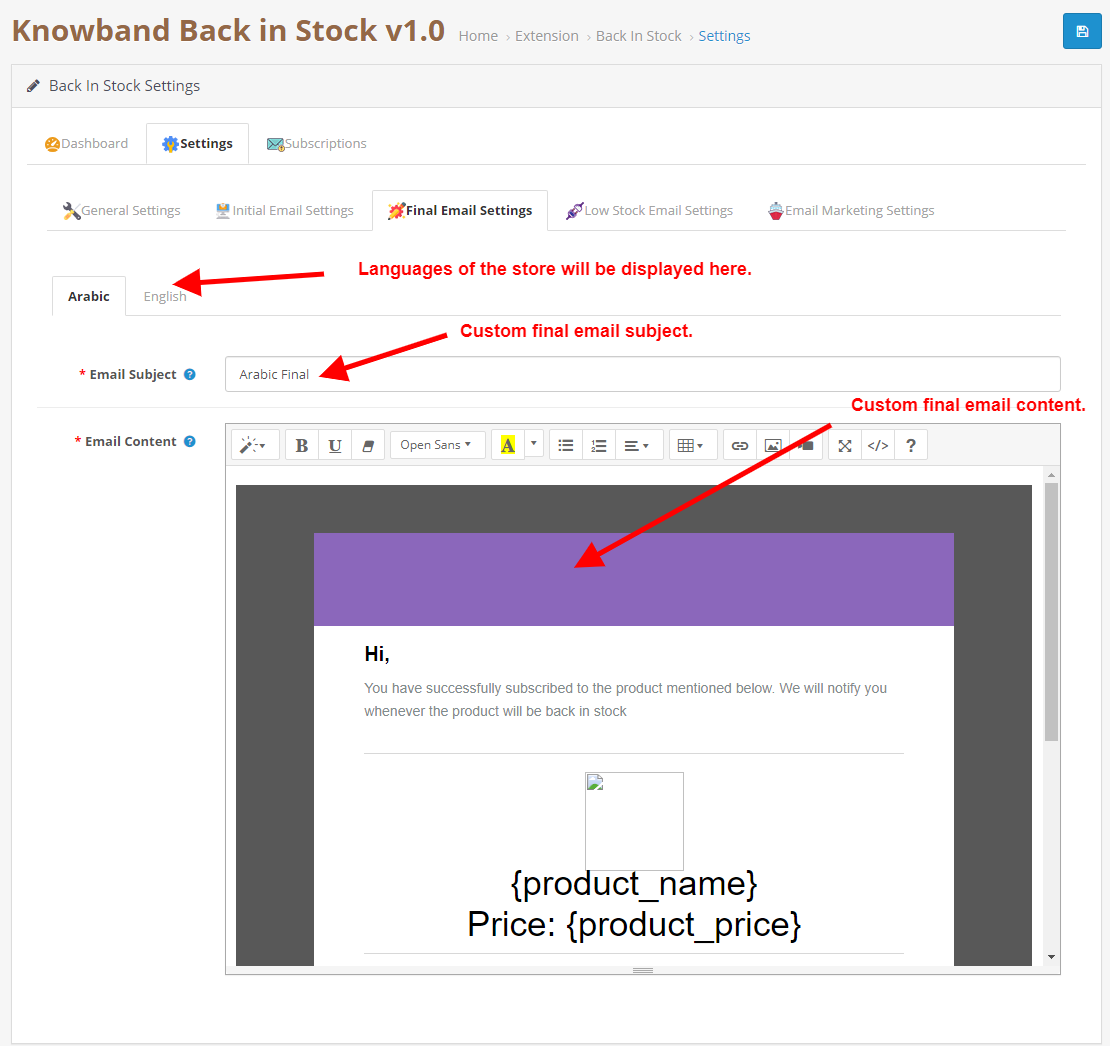
In this tab, you can configure custom subject and content for the final email which will be sent to the user when the product comes back in stock.

3.0.2.2 Low Stock Email Settings

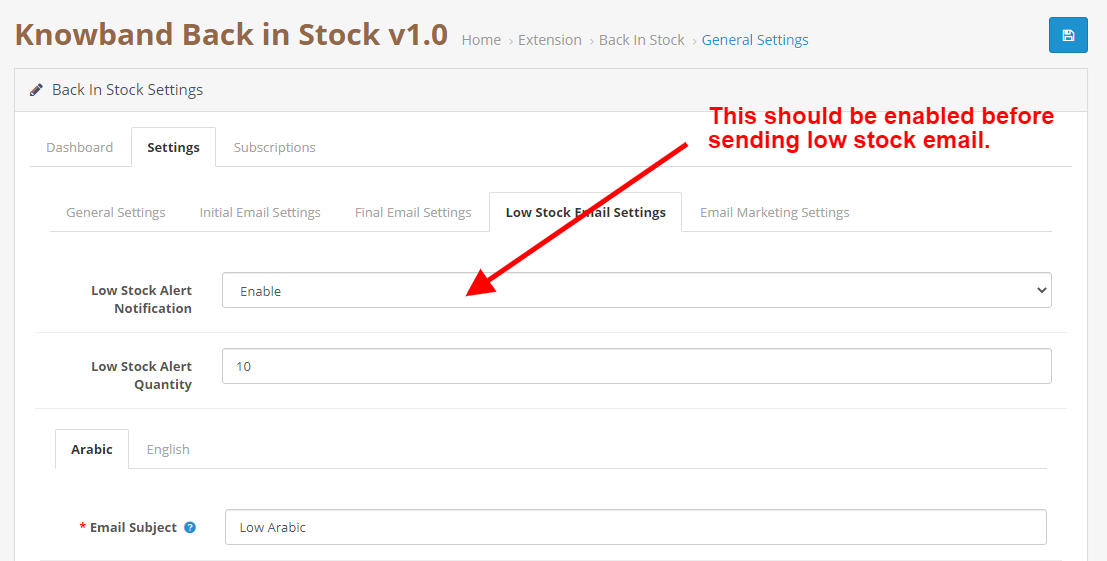
In this tab, you can configure enable/disable the low stock alert functionality. You can also configure the custom subject and content for the low stock alert email which will be sent to the user when the product goes low in stock than the specified quantity.

3.0.2.3 Email Marketing Settings

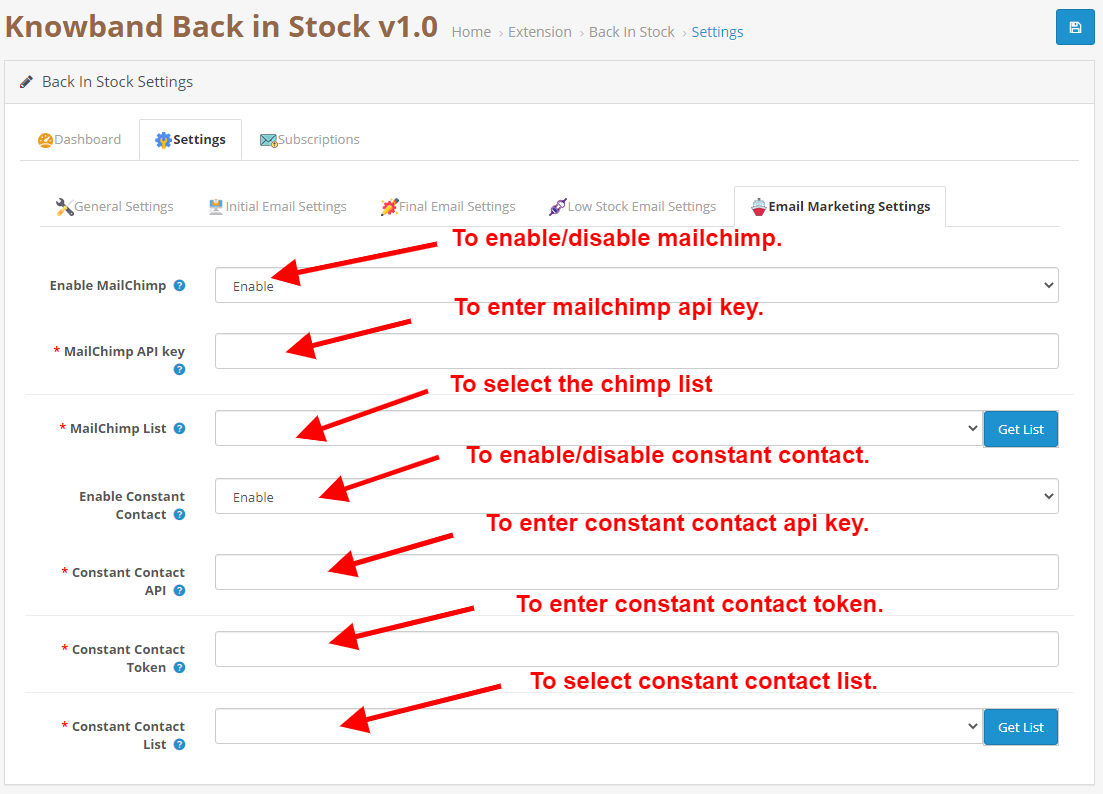
To enable/disable the Mailchimp/Constant Contact functionality this tab is used.

3.0.3 Subscription

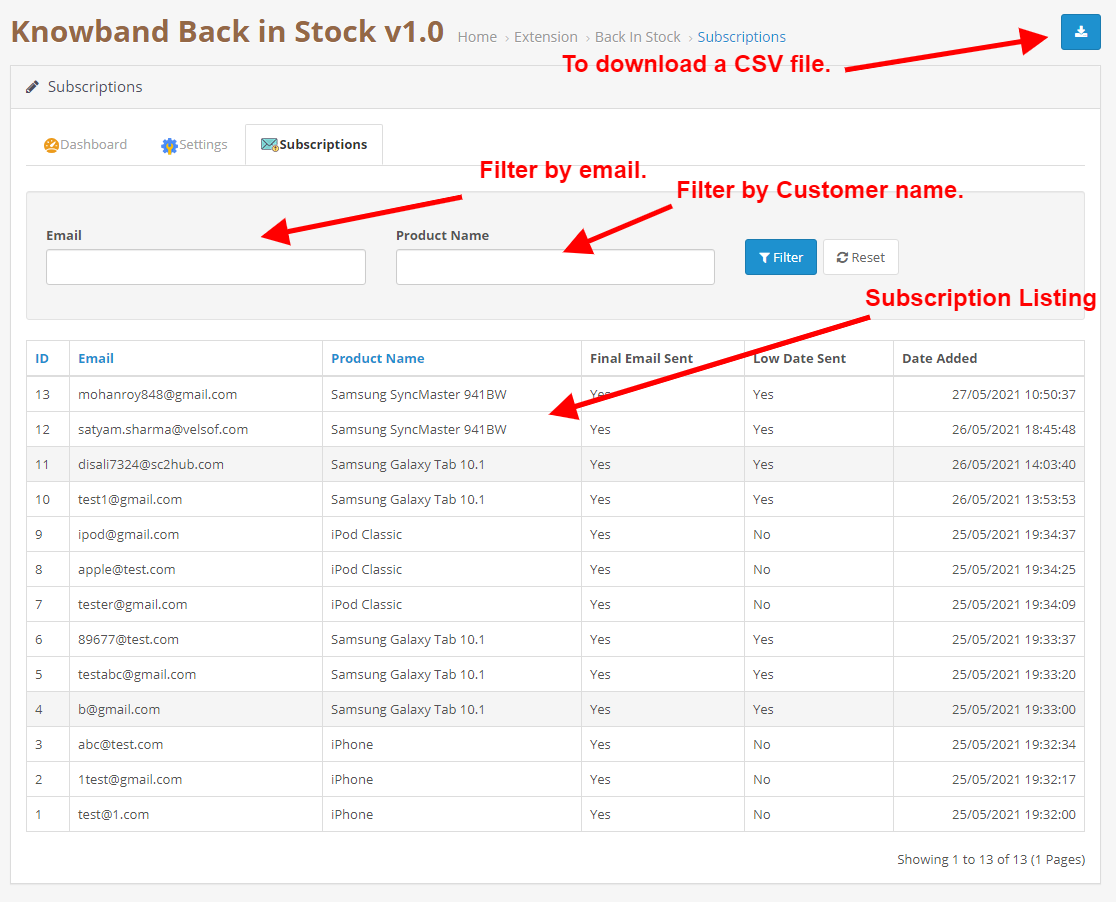
This tab contains the list of all the subscriptions and It also contains a button that is used to download the CSV file for the subscriptions.

3.0.4 Useful Cron Instructions

3.0.4.1 Reasons/Cases when the email is not sent to the customers

  • Low Stock Alert not sent.

  • Check the product quantity if an email is not sent for a particular product, The product might still be out of stock (quantity = 0).
  • If you have not set up the Cron properly or if the Cron is not working.

3.0.4.2 Types of Crons

Two types of cron can run according to Admin con settings.

  • Cron to send Back in the Stock email: This is used to send the back in stock emails to all the customers in the list of the subscription if they did have already sent them back in stock for the same product.
  • Cron to send the low stock email: This cron will send the low stock alert email if it is enabled from the settings tab. It will check the quantity of the product is lower than the specified quantity in the module settings and If the back-in-stock mail is already sent to the customer then it will send low stock alert mail.

3.0.4.3 Procedure to configure CRON job

What is a cron?

A cron is a service that allows a user to automatically execute a script at a specific time.

For example, you can set a particular PHP script to be automatically executed every day at midnight.

Add the cron to your store via control panel/putty to send reminder mail automatically.

Example URLs to Add the Cron via Control Panel

https://octest.knowband.com/test2.3_1/index.php?route=kbback_in_stock/cron/backStock

https://octest.knowband.com/test2.3_1/index.php?route=kbback_in_stock/cron/lowStock

Cron setup via SSH

10 * * * * wget -O /dev/null https://octest.knowband.com/test2.3_1/index.php?route=kbback_in_stock/cron/backStock

5 * * * * wget -O /dev/null https://octest.knowband.com/test2.3_1/index.php?route=kbback_in_stock/cron/lowStock

4.0 User Interface

4.1

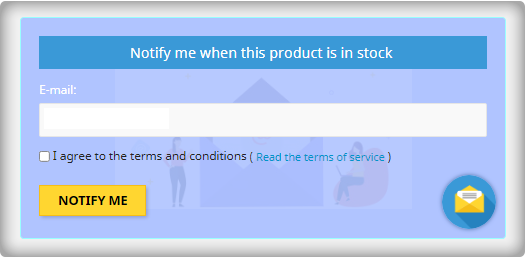
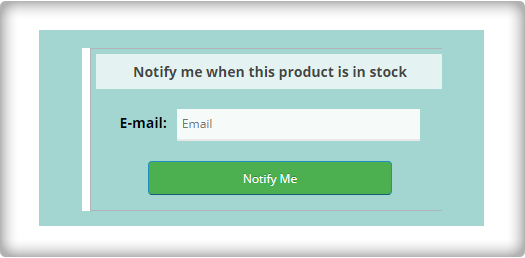
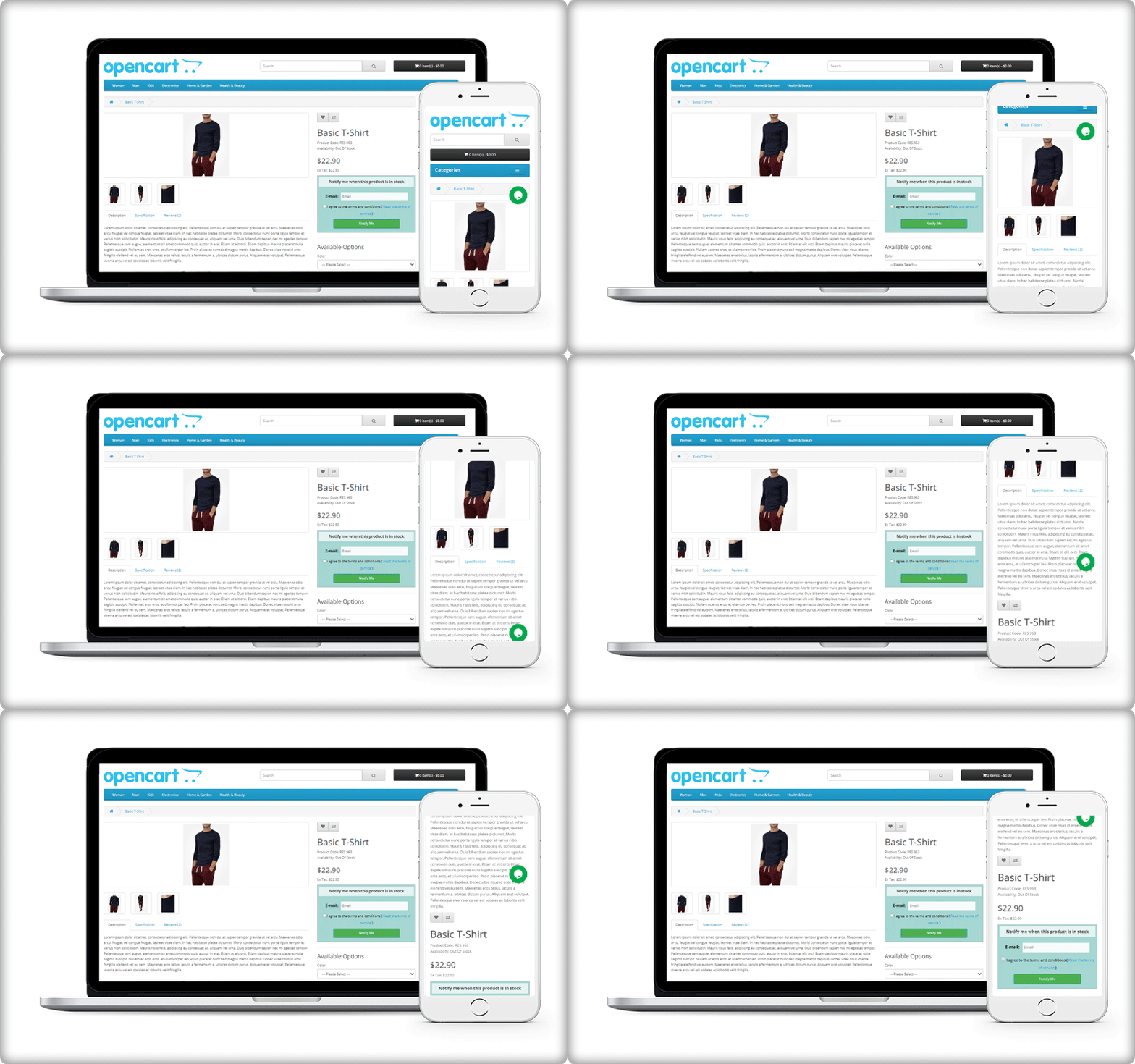
The online users can view an out-of-stock product notification box on the product pages which are out of stock and they can share email id for notification. The subscription block of the OpenCart Back in Stock module would appear as follows:

4.2

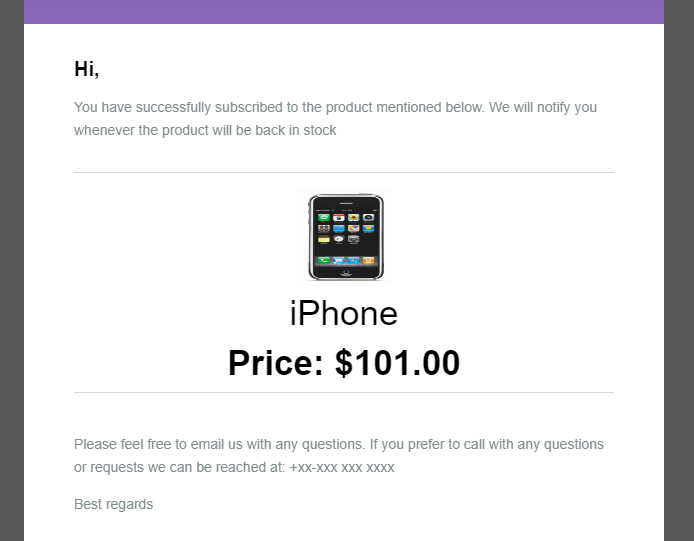
When the customer enters the email id and clicks on the button notify me the initial mail is sent to the entered email address and the message showing subscribed.

4.3

OpenCart Back in stock module will prevent the customer from subscribing to the same product twice. It will display an “already subscribed” message on the front end of the store.

4.4

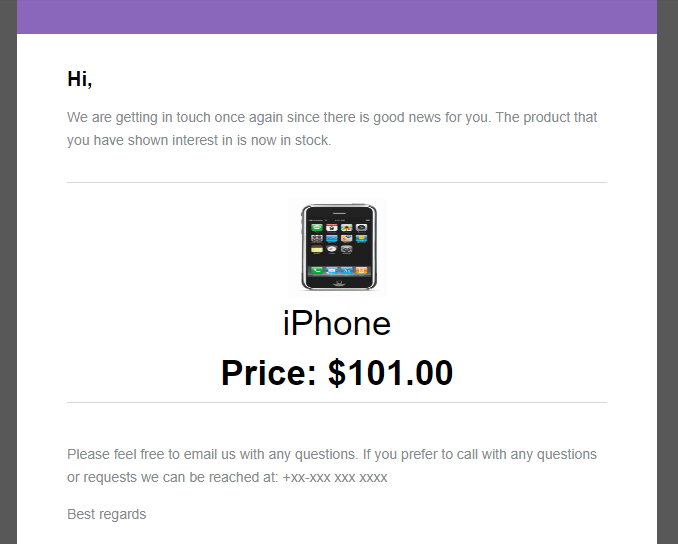
The users can get an email notification when the product is available in stock.

4.5

They can also view a low stock alert email for the subscribed product in the case of running stocks.

In case of any issue, drop an email to support@knowband.com OR click here to raise the ticket.
Buy OpenCart Back in Stock Extension: https://www.knowband.com/opencart-back-in-stock-notification
Admin Demo: https://opencartdemo.knowband.com/3.0/backinstock/admin/
Front Demo: https://opencartdemo.knowband.com/3.0/backinstock/

OpenCart Gift The Product Extension – User Manual

1.0 Introduction:

The Knowband’s OpenCart Gift The Product extension gives benefits to the customer and the consumer as well. This extension allows the admin to encourage the customer to increase their value in order to get the free gift product on their purchase. This extension also helps in increasing user engagement and generating more sales.

1.1 Salient Features of Gift The Product Extension

  • The visitors get attracted by the free exciting gift on their every purchase.
  • This will increase the number of visitors to the store and also affects the sale of the store in a positive aspect.
  • Admin has the ability to provide a different variety of products to their customers as per their cart price.
  • The cart price will decide the range of the Gift Products and the Admin have the ability to increase the cart price for the particular order.
  • The admin can manage what products to be displayed on the front end either from a particular category or any specific products.
  • This extension allows the admin to encourage the customer to increase the cart value which will result in more sales.

1.2 What’s New in the Recent Enhancements?

The enhanced Knowband’s Opencart Gift the Product extension now allows store admins to configure specific product rules, choosing particular items eligible as gifts. Additionally, admins can select specific gift products for different items, offering greater flexibility and personalization in gifting options.

Knowband’s Opencart Gift the Product Extension

Let customers easily send gifts from your store with the OpenCart Gift the Product Extension by Knowband.

SHOP NOW

2.0 Objectives

With the help of this Knowband’s OpenCart Gift The Product extension, the store owners can get the following things:

  • Helps to improve the visitor’s engagement.
  • Assists in reducing cart abandonment.
  • Helps to increase sales and customer engagement in the store.
  • It encourages the visitors to buy more items.
  • User will be rewarded with the free products as Gifts.

This Knowband’s OpenCart Gift The Product Extension will be one of the best options for the merchant to drive visitors to their store and make them shop.

3.0 Installation

Before starting the installation process, you have to buy the OpenCart Gift The Product extension either from the Knowband store or from the OpenCart Marketplace. Once purchased, you will receive the mail notification containing the following files on your registered email.

  • Source code of OpenCart Gift The Product Extension in zipped file format.
  • User Manual of OpenCart Gift The Product Extension.

Now in order to install this OpenCart Gift The Product on your online shop, follow the below steps:

  1. Unzip the zip file. You will get the following folders as shown in the image below:
  1. Copy all the folders of the zip file in the Root Directory of  OpenCart setup via FTP manager.

3.1 Steps to install the OCMOD file:

  • After unzipping the folder, you will find a file named kbgiftproduct.ocmod.zip(for OC3.0.x) and kbgiftproduct.ocmod.xml(for OC2.3.x)  as shown below:

  • Now in the admin panel, click on Extensions in the left side menu. Then click on Installer (Home->extension).

  • Now, Upload the kbgiftproduct.ocmod.zip. A success message is displayed once the file is uploaded.
  • After the file is uploaded go to  Home->Modification
  • Here you will find a file with the name Knowband Gift The Product (that means the OCMOD has been installed successfully). Here click on the corresponding “+” icon to enable the installed file. The green plus icon turns into a red minus icon as shown below.
  • Finally, click on the refresh button on the top right corner of the page (This is mandatory).

So, OpenCart Gift The Product extension is now successfully installed and is ready to use at your store. Go to the admin menu and click on the Extensions and then on Modules. Click the pencil icon next to Knowband Gift The Product to configure the module settings.

4.0 Administration Module:

On the admin side of the extension, you’ll find the following options to configure this OpenCart Gift The Product extension:

  1. General Setting
  2. Listing Rules

Both the sections are described in details as follows:

4.1 General Setting:

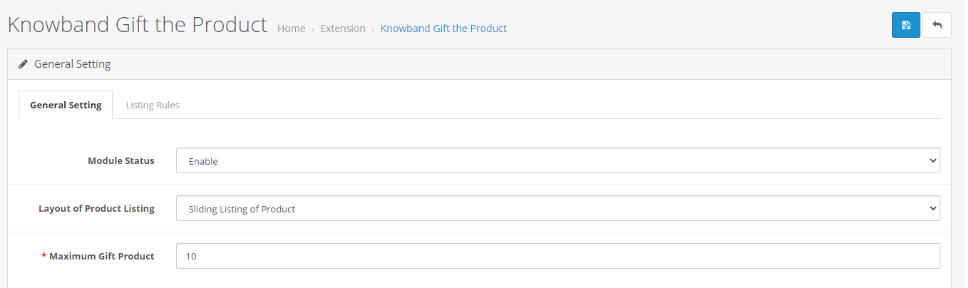
Through this setting of OpenCart Gift The Product Extension, you can Enable/Disable the whole module with just one click. The options under this tab will look like as shown below:

This section of OpenCart gift the product extension will have the following options to configure the module:

  1. Enable/Disable

    This option has a dropdown list with two specific values, i.e. Enable and Disable. This OpenCart Gift The Product extension will only work if this is set to Enable. If you select Disable, then none of the features will work. By default, this option is set to Disable. You’ll need to select Enable.

  2. The layout of Product Listing

    This option of Knowband’s OpenCart Gift The Product extension allows the admin to select how to display the Gift Products on the front end of the store. There are two layouts available:

  • Normal Listing of Products
  • Sliding Listing of Product
  1. Maximum Gift Products

    This field of OpenCart Gift The Product extension specifies the total maximum number of products that will be displayed in the Gift The Product Box at the front end.

4.2 Listing Rules:

Through this setting of OpenCart Gift The Product extension, you can make the rules for Gift Products on the basis of a range of cart amount and range of the amount of the products that will appear in the Gift Products list. The options under this tab will look like as shown below:

Edit a Rule

You can edit an existing rule using the Edit option. The screens for Editing Rule will be the same as Adding a Rule. The only difference will be that Edit will have the fields already filled.

Delete a Rule:

You can delete an existing rule by clicking on the ‘Trash’ Icon. A pop up will show up asking for the Confirmation for deletion. You can click yes and the Rule will be deleted.

Add a Rule

You can add a Rule by Clicking on the option provided on the Top Right Corner of the Page. The following screen will show up:

While adding the new rule or editing an existing rule in an OpenCart Gift The Product extension, the admin will have to complete the form by filling the following fields that will decide the item displayed as the Gift Products at the frond-end.

  1.  Price Rule Name: This field needs to be filled uniquely and it consists of the name of the price rule.
  2. Minimum Cart Amount: In this, the admin will have to set the minimum cart amount to decide that if the Cart is eligible for the Gift Products.
  3. Least Cart Amount: In this, the admin will have to set the maximum cart amount to limit the cart price for being eligible for the Gift Products.
  4. Minimum Gift Product Amount: In this, the field of OpenCart Gift The Product extension by Knowband, the admin will have to enter the minimum product amount that is eligible for the gift products. 
  5. Maximum Gift Product Amount: In this field of OpenCart Gift The Product extension by Knowband, the admin will have to enter the maximum product amount that is eligible for the gift products. 

The Gift products which will be in between the entered price range will be shown to the customer in the front end as the Gift Product.

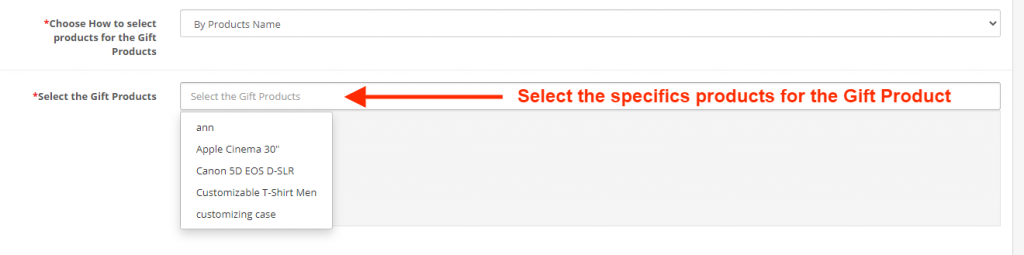
  1. Choose How to select products for the Gift Products: In this field, the admin can select how to choose the products which will be available as the Gift Products in the front end.

There are two options in this field:

  • By-Products Name
  • By Category Name 

  1. Status: In this field of OpenCart Gift The Product extension by Knowband, the admin can Enable/Disable the particular Rule.

4.3 Product Rule:

The Opencart Gift the product extension also comes with an option to configure the product rule. The store admin can choose particular products that are applicable to the gift items.

Further, we have also provided an option to choose specific gifting products for different products.

  1. Rule Type: This section allows the admin to choose between price rules or product rules.
  2. Price Rule Name: Enter the price rule name in this section.
  3. Choose Products: You can add the products that are applicable for the free gift items in the following text field.
  4. Choose Specific Gift Products: This section allows the store admin to select the items that will be provided as a gift while adding the specific products to the cart.
  5. Status: Enable/Disable the gifting rule from this option.

5.0 Front End Module

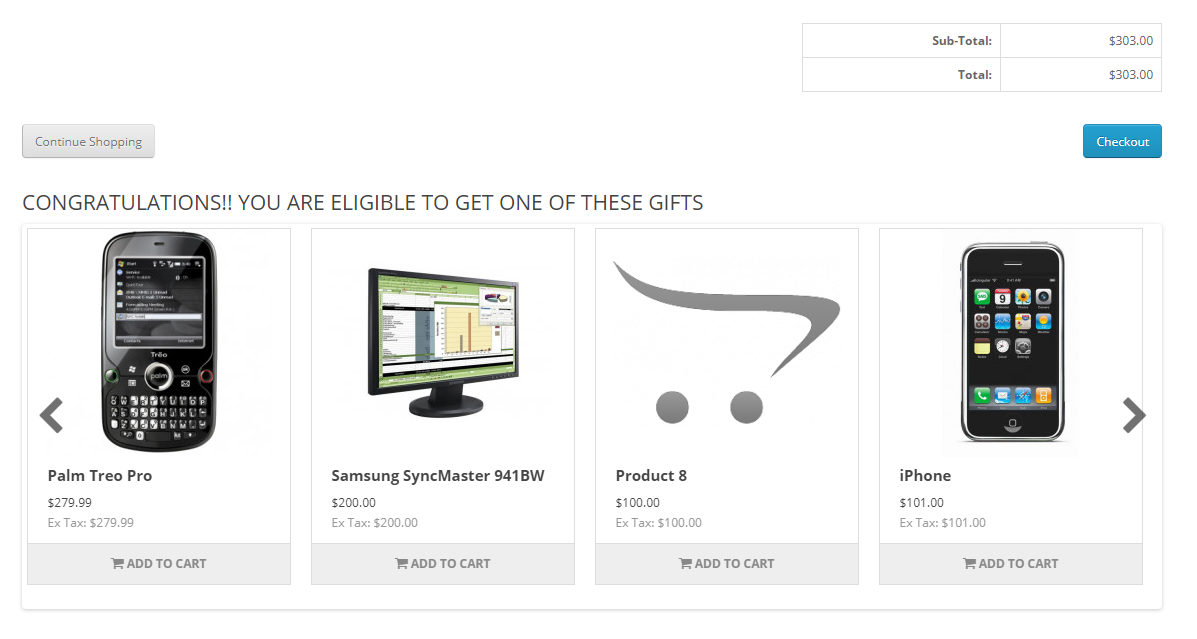
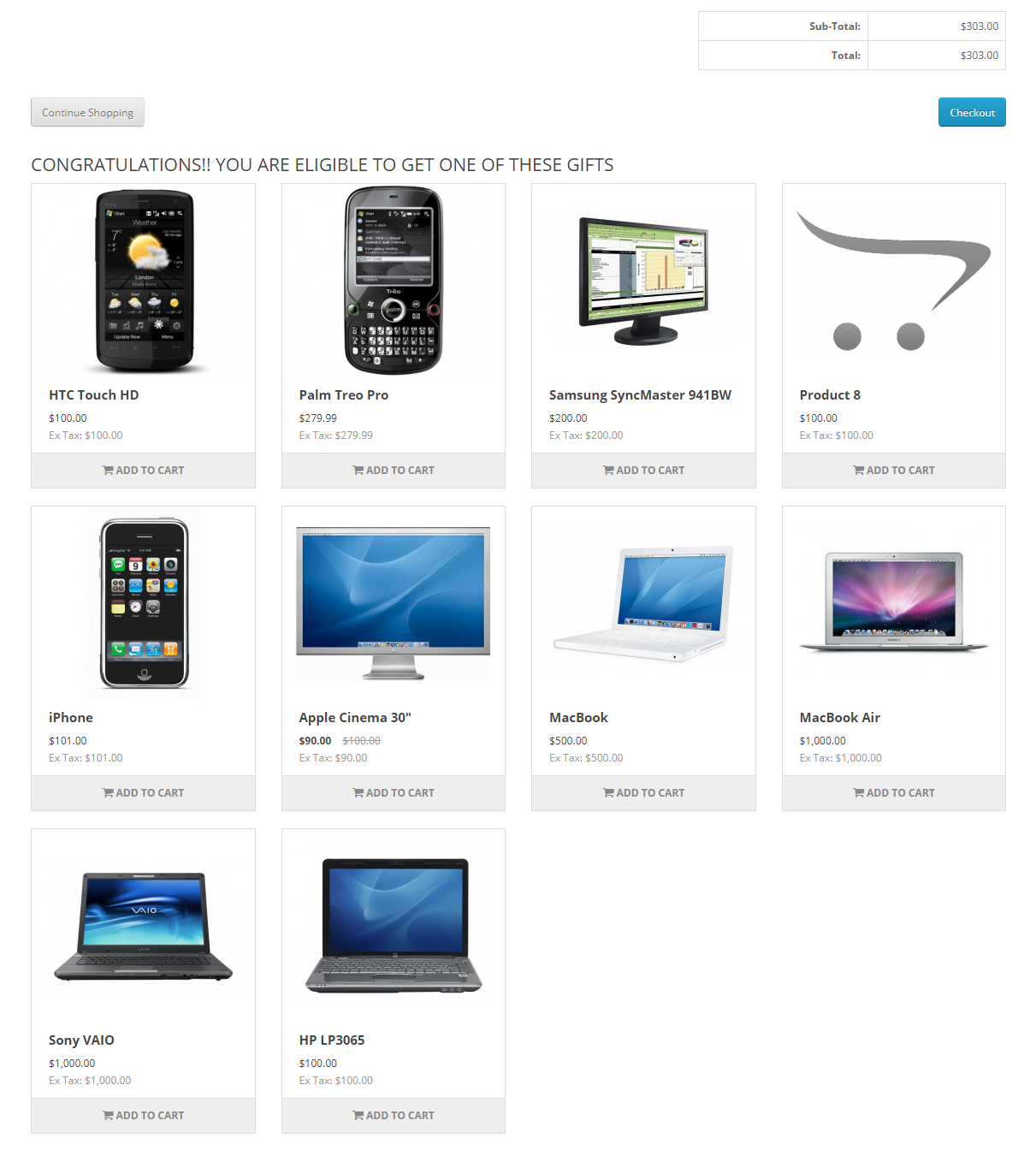
Once the Knowband’s OpenCart Gift The Product extension is enabled, a block will appear just below the cart summary on the front end displaying the message “CONGRATULATIONS!! YOU ARE ELIGIBLE TO GET ONE OF THESE GIFTS”. This block will display all the gifts product as per the listing rules set by the admin in the backend of the Gift the Product extension.

  • Layout: Below is the types of the defined layout that can be used to display the gift product on the front end.
  • Sliding Listing of Products: In this layout of Knowband’s OpenCart Gift The Product extension, the customer will have to click on the desired product. By doing so, the customer is redirected to the product page of the particular product and then the user can add that product in their cart from there itself.
  • Normal Listing of Products:


We hope that we have covered all the concerns regarding the installation and product guide of Knowband’s OpenCart Gift The Product extension.

Buy OpenCart Gift The Product Extension

Admin Demo of the Gift the Product Extension for Opencart

Front Demo of the Gift the Product Extension for Opencart


Best Free Shipping Manager Extension for OpenCart Store

The Opencart Free Shipping Manager module is a feature-rich module that enables online merchants to offer online users free shipping. Conditions and guidelines for the management of free shipping may be enforced by the store merchant.

Shipping costs are the biggest component of the price of your order fulfillment, worse if you sell huge bulky goods. But the thing is the delivery service providers raise their rates every year when you have to keep prices low to remain competitive. As a small businessman, giants like Amazon can afford to subsidize their deliveries, so what do you do to get free shipping? My previous blog on ‘How to reduce shipping cost‘ might help you with this alarming issue.

In this article, I am going to discuss the OpenCart Free Shipping Manager extension that can help you handle the costs in a hassle-free manner. This comes with several benefits that make it an effective tool for shipping management.

Reasons to offer free shipping on your store?

  • Free shipping increases sales
  • It influences customers to add more products to their carts. Hence, increases the average cart value.
  • It reduces cart abandonment rate
  • You get more loyal customers

Free Shipping Manager Extension for OpenCart Store

Customers get encouraged to shop more with a free shipping option on their orders and this module is the top-notch option for that.

#1- Define the minimum amount

You can specify from the back-end configurations the minimum amount a customer needs to shop for if he or she wants to get free shipping on his or her order.

#2- Display the Free Shipping tab on the home screen

The online users will display a free-shipping block on the cart summary tab.

#3- Set the minimum order quantity and weight

Offering free shipping to the customer increase sales and decrease cart abandonment rate.The Opencart Free Shipping Manager plugin enables administrators to set the minimum order quantity and weight for free shipping.

Similarly, if the customer wants to enjoy the free shipping benefit, you can specify the weight that must be looked at.

#4- Location filters to offer free shipping

Free shipping greatly increases the probability of conversion and lets you increase your average order value as well. For specific countries, the extension also allows you to disable the free shipping facility.

#5- Allows you to define rules and guidelines

OpenCart Free Shipping Manager only allows you to offer free shipping to customers if they meet the back-end eligibility criteria set by you.

Conclusion:

Your company needs to pick the right shipping extension. If you do not adopt the right strategy at the right time in the right condition, your customers will be driven away easily and might go to the competitors. I am sure that doesn’t sound good.

Get the Free Shipping Manager extension for your OpenCart store today and entice your customers by offering free shipping.

We hope that the above information about shipping software has helped you to easily select the best one for your company.

Check Free Shipping Manager Extension Demo:

Admin Demo: Click Here

Front Demo: Click Here