shopping cart abandonments can let your eCommerce business down that can drastically affect your sales. This not only affects your brand reputation but also the trust of your loyal customers. You can’t guess which element on your eCommerce store might work against you and can turn away your potential customers from your site.
Abandoned Carts can bring your conversions and sales to a great halt. Although, you will surely employ various techniques and approaches to deal with shopping cart abandonment there is one PrestaShop module that has brought a considerable change in the whole scenario. PrestaShop Abandoned Cart module is remarkable work from the Knowband team!
Let us explore more about this amazing module by taking a quick look at the various features and functionalities that are explained below:
1. capture the shopping carts of guest and logged- in customers
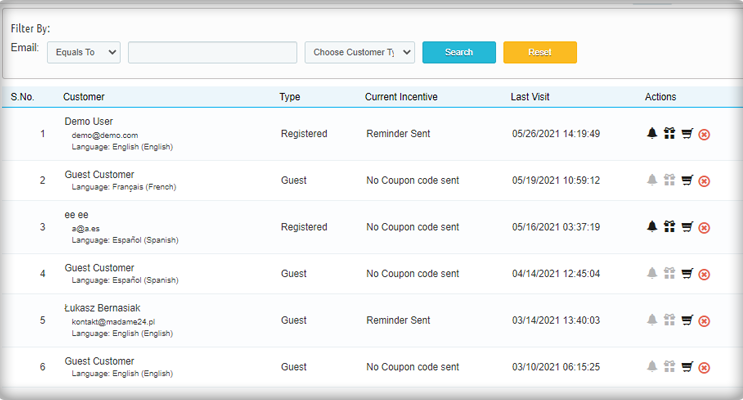
With the help of this PrestaShop module, you can keep a track of the guest and logged-in customer’s shopping carts that have been left abandoned. With its detailed analytics report, it is now much easier to target abandoners in order to boost your sales and conversions. This PrestaShop Abandoned Cart module can simplify the task of customer retargeting and conversion rate optimization.
2. Reminder email templates in multiple languages
You might have customers from different regions. If you want to grab higher conversions and sales for your eCommerce store, you need to provide preferential treatment to your targeted customers. The language translation feature of this PrestaShop Abandoned Cart module helps in sending personalized reminder emails or you can choose an email template from the listed ones to your abandoned customers in their native language that encourages a swift cart recovery.
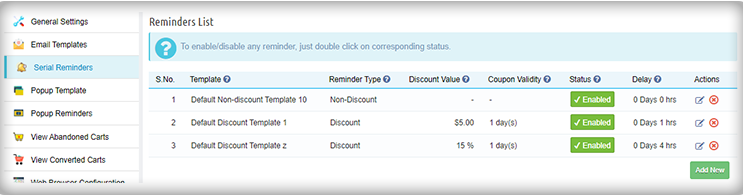
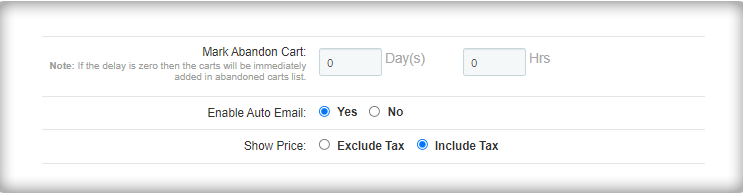
With this module, the store owner can send emails automatically after a set delay. Also, the carts are marked abandoned in the same manner.
3. Send them a push notification when surfing through the browser
Not all your customers use the mobile app but are your PrestaShop store is ready for browser surfing? Progressive web apps are the new trend followed by almost every popular online website. In case you have an abandoner who is reaching you through the browser, you can use the push notification feature to grab their attention. Of course, emails are the best tool but sometimes customers just avoid them.
4. Inclusion of coupon codes and other appealing offers
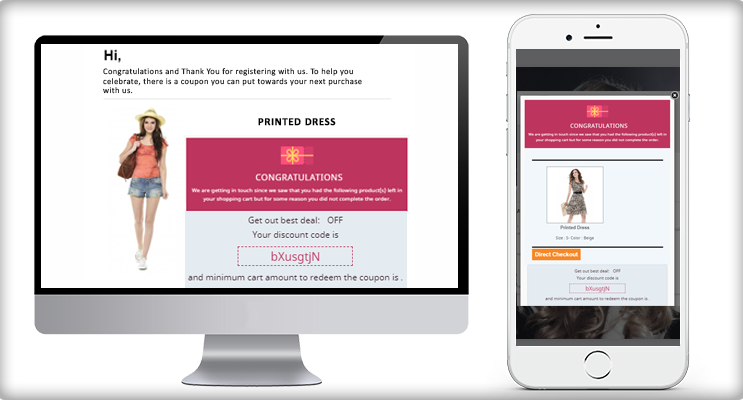
There are times when your persuasive words in an email may not work for your eCommerce store and maybe completely futile. In these circumstances, you need to try out the last resorted option in the form of coupon code inclusion for making the desired conversion rates and cart recovery. It is one of the brilliant features of this PrestaShop Abandoned Cart module that allows the store managers to offer appealing coupon codes, discounts on the shopping cart products for effective customer targeting and sales.
5. Display a pop-up with a discount coupon that motivates
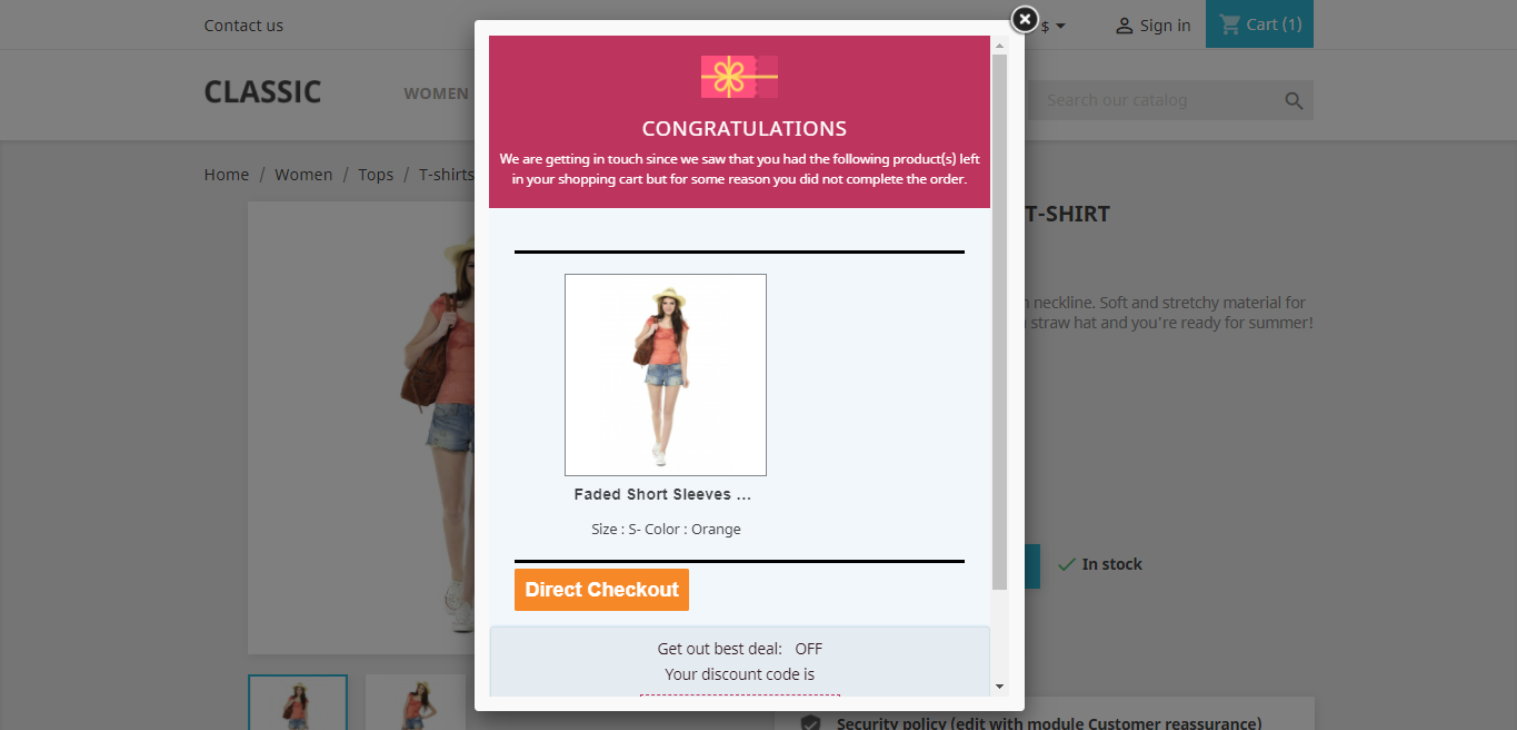
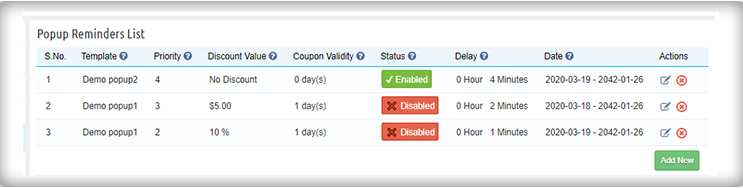
After targeting your customers with emails and push notifications, you can also display a pop-up on their screen whenever they visit your store. The abandoned cart pop-up window can be displayed on one or multiple pages. You can even add some discounts on the entry popup or exit pop-up that can encourage impulse buying. The PrestaShop Abandoned Cart module is different and has several unique features that make it different from any other available module.
6. Detailed statistical report about abandoned carts and converted carts
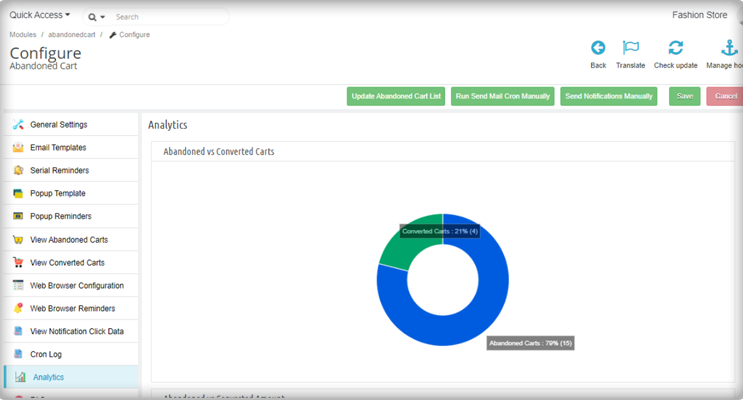
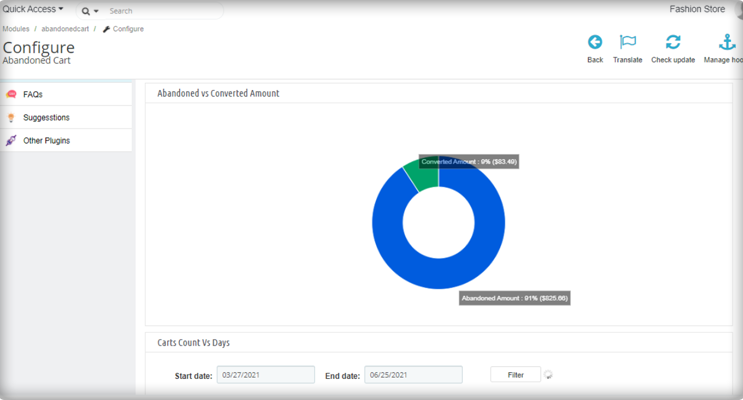
With this PrestaShop Abandoned Cart module, store admin can get a detailed report about abandoned carts like the number of abandoned carts, the number of recovered carts, conversion rates achieved, and other such crucial information. By having this data, it will be much easier for your store to plan your eCommerce marketing strategies and the pain points to achieve the desired conversions and sales.
Finally,
It is time to keep your abandoned carts under check and think about ways to control and get them converted back again in a seamless manner. For providing expert assistance in this critical task, you need to install this feature-loaded PrestaShop Abandoned Cart module from the Knowband store for a drastic makeover. It will surely make your online store the most preferred destination for making a quick product purchase and improve your business gains.
Customers have now become more selective during online shopping and are not in a mood to compromise with quality, delivery time, and price of the product. They are always looking for a product that is high in terms of quality and performance that is available without any significant delay and comes with the most economical price among other available products.
It may sound to be a hyperbole statement but it is actually what online shoppers are expecting from their eCommerce store owners. On top of it, if they are not getting the required product/services, they will not think twice about leaving a site and will contribute towards shopping cart abandonments.
It could be a severe blow to the reputation of your company if you are unable to control the shopping cart abandonments. If you are not having enough clue about how to check the increasing abandoned carts in your store, it is time to explore this PrestaShop Abandoned Cart module from the Knowband store. Let us explain to you more about the amazing features of this PrestaShop extension for the growth and expansion of your eCommerce store.
Display attractive pop-ups and send endless push notifications-
Many a time, email marketing strategies fail to deliver the expected results because of the frequency of average emails sent or received every day. To combat this situation, the PrestaShop module for Abandoned Cart is integrated with the web-browser push notification feature and entry/exit pop-up for sending a reminder alert to abandoners.
Option to personalize emails in various languages
Personalization makes a tremendous impact on the minds of your customers and can help in effective customer engagement in your store. This PrestaShop Abandoned Cart module provides the facility to create customized emails for your targeted customers by making various personalization attempts. Keep in mind that there are several types of customers and you have to be creative and you have to be creative to entice them.
Functionality to choose CRON jobs as and when required
With this module, it is now possible to manually or automatically update the list of abandoned carts on your store for achieving higher conversion rates and sales. For the orders that are not claimed in the given period of time, the module will mark them abandoned automatically. It allows you to send sequence reminder mails by setting a delay time once a cart is marked abandoned.
Provides facility to include coupon codes in your reminder alerts
Online shoppers are always looking for attractive shopping offers, discounts, and coupon codes that can persuade them to make a quick product purchase. Understanding this mindset, it is now much easier to include engaging discount coupons in your reminder emails for effective targeting of your customers.
Seamless cart recovery for higher customer engagement and sales
One of the main reasons that hamper the conversion of abandoned carts is the ease of cart recovery. This is one of the crucial issues that have been handled effectively by this PrestaShop Abandoned Cart module. Abandoned customers are provided with reminder emails that consist of a direct checkout button that can take users back to their shopping carts with all the added products and cart details. Customers don’t have to scratch their heads anymore for retrieving their abandoned cart due to the presence of this outstanding module.
Boosts decision-making process with analytical reports
This Prestashop extension provides a detailed analytical report about abandoned carts and converted carts in the form of graphs and other statistics. By studying the data of these representation figures, you can seamlessly improve your conversion rates and product sales. The abandoned and converted carts of both logged-in users and guest customers can be tracked with this amazing module.
Wrap-up
If you have been struggling with the sales and conversions on your store, it is time to make amends with the help of this PrestaShop Abandoned Cart module from the Knowband store. In spite of having numerous options in this field, this eCommerce extension has made its own place and mark due to the presence of various unmatched features and functionalities. Don’t be a victim of shopping cart abandonments anymore and take the required action with the support of this extraordinary Knowband module.
Today, Online Customers on eCommerce sites browse through multiple products but only make a purchase of a selected product at a particular instance of time because the goal of the shoppers is not to make an immediate purchase always. Sometimes, the customers just visit to have a look at the product and add it to their cart, so that later when they would need the product they can buy it. Moreover, they check the other store prices and checkout. The Prestashop Advanced Wishlist addon by Knowband provides a special feature to display the shortlisted, recently viewed and recommended products/banners into the website. This Prestashop wishlist module allows the customer to shortlist their favorite products so that they can be aware of the products they want to purchase or view later. This Prestashop save for later extension is like a basket in hand where you add whatever you like and can change the quantity at last when making the purchase.
Knowband Prestashop Advanced Wishlist addon is integrated with GDPR hooks. GDPR settings are added in the module using which the Prestashop admin can comply with the rules of the GDPR. Please refer to the General Settings to know more about the GDPR.
The Prestashop advanced wishlist module by Knowband is beneficial for both merchant and the customer. Let us discuss how Prestashop wishlist addon is working.
1.1 Benefits for the Merchant
This Prestashop advanced wishlist addon is a help to the store owners for tracking the Customer requirement.
This Prestashop wishlist module shows the bar at the bottom of every page containing three different blocks as ‘My Shortlist’, ‘Recently Viewed’ and ‘Recommendations’. Each block has a pop-up containing respective data. This bar is managed by the admin according to the need.
This Knowband Prestashop advanced wishlist addon shows my wishlist block which is controlled by the online merchant. My Shortlist pop-up shows the products shortlisted by the customer.
This Prestashop advanced wishlist extension shows the recommendations block which is totally controlled by the Store Owner. Store the admin can choose products or banners as per choice.
This Prestashop save for later extension gives the access to the admin to enable/disable the recently viewed block that shows the products which are recently viewed by the customer.
This Prestashop wishlist addon helps the admin to view the product details which product is high on demand or which product is added in the wishlist the most. The Graph shows the whole information about the wishlist product.
This Prestashop advanced wishlist extension allows the admin to know what customers wish to purchase.
The Prestashop save for later extension helps for re-marketing.
This Prestashop wishlist addon reduces the abandoned cart of the website.
This module helps the admin in boosting sales and conversion rates for your online store.
The admin can easily customize the save for later addon.
The online store admin can set the number of products which he wants to show on the customer’s wishlist page.
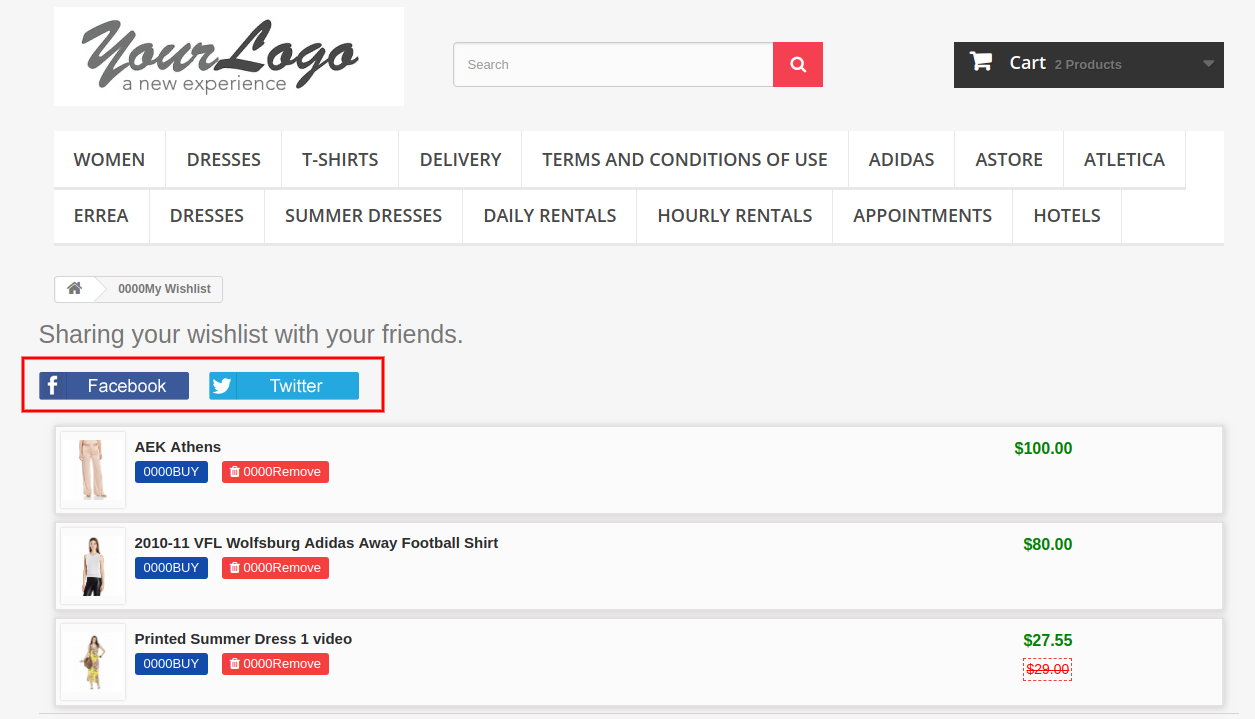
The online store merchant can also provide an option to share wish-listed products on Social media platforms like Facebook, Twitter and WhatsApp.
Customers can view wishlist products, recently viewed products and recommendations.
The Prestashop wishlist module offers a userfriendly and eye-catchy interface.
The Prestashop wishlist addon is mobile responsive, multi-lingual compatible and offers multi-store support.
Admin can show specific Wishlist tab on the website.
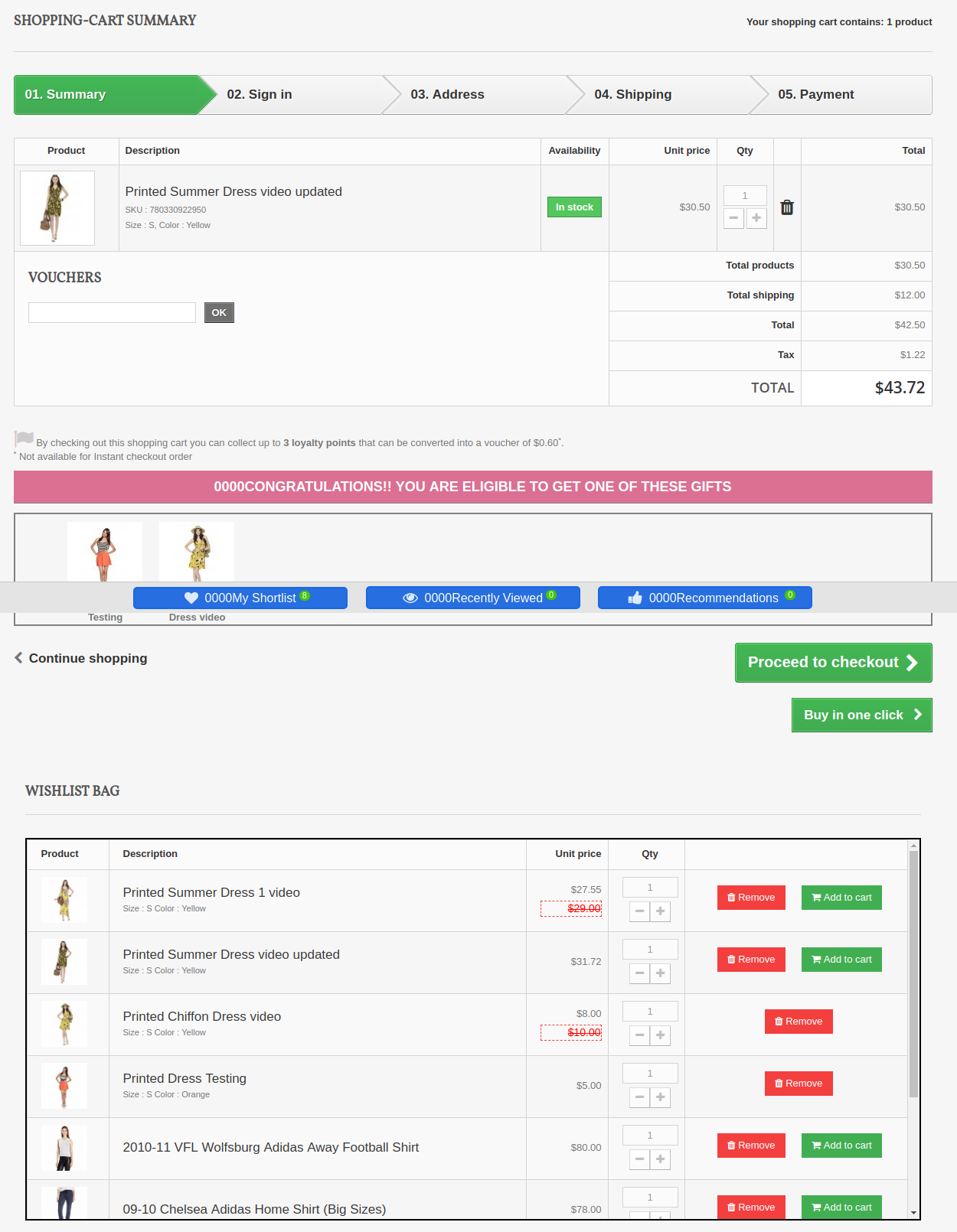
The Prestashop plugin shows wishlist on the checkout page.
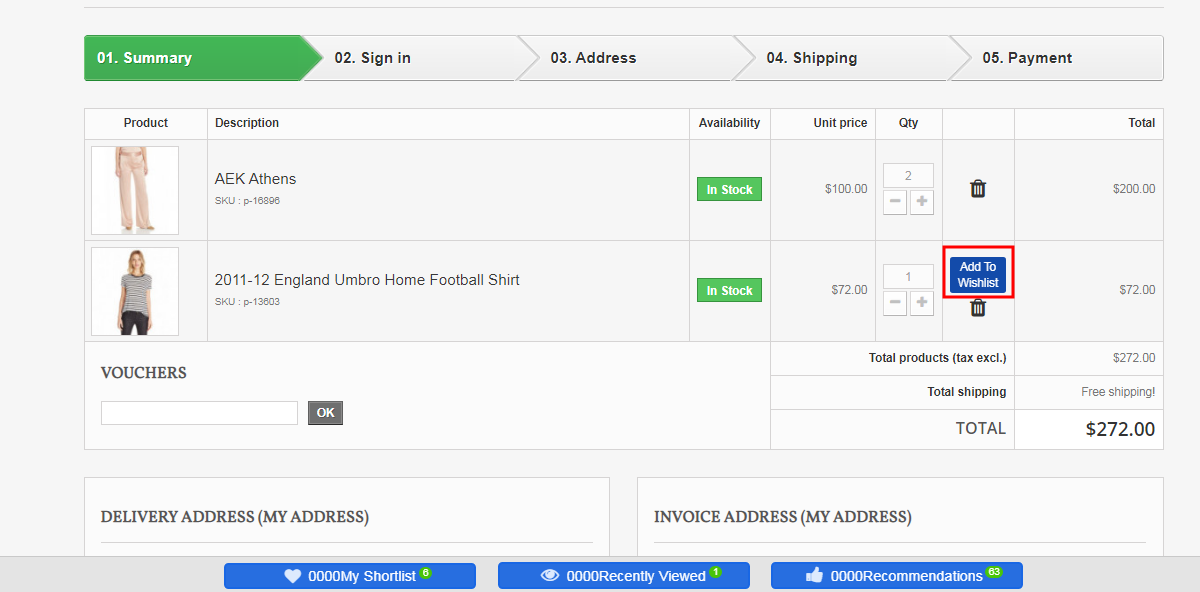
The customers can add available products from wishlist and move any product from cart to wishlist.
1.2 Benefits for the Customer
This Prestashop favorite product list addon helps online shoppers to add products to their wishlist and feel free to buy it later.
This Prestashop save for later module by Knowband is mobile responsive and allows the customers to use the Wishlist feature both on their mobile phones and desktop.
Customers can add product from the wishlist while checkout.
The online users can move any product to wishlist by clicking on “Add to Wishlist” button.
The online users can also share their wishlist on Facebook, Twitter and Whatsapp.
2.0 Installation
After purchasing the Prestashop advanced wishlist addon, you will get the following files as listed below:
1. Compressed File in ZIP format (contains source code of the module)
2. User Manual
Follow the following steps to install the Prestashop save for later extension:
1. Unzip the compressed file. It would contain files and folders as shown below –
2.Copy all the files and folders of the unzipped folder into your store “modules” directory on the path – Root Directory/modules/.
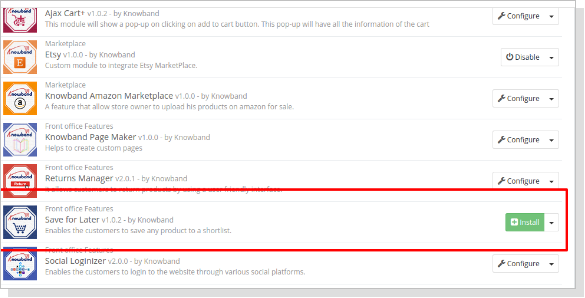
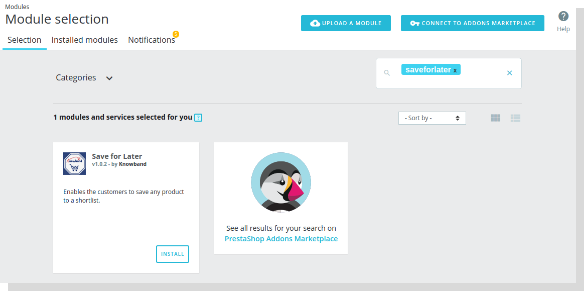
3. Now, the module is ready to be installed on your store and you can find that in Store the admin -> Modules and Services. It would shown as below –
PrestaShop 1.6
PrestaShop 1.7
4. Before installing the module, please make sure that ‘Customer.php’ does not exist in ‘Root Directory/override/classes/ folder. If it exists, then please remove it. Also, clear cache before installing the module.
5. Click on “Install” button to install the module. It would show a pop-up for your confirmation. Click on “Proceed with the installation” option. This step will install the module and show notification – “Module(s) installed successfully”.
3.0 How to configure module?
Once the Prestashop wishlist addon is configurable, the Store Owner can setup or configure this Prestashop save for later module through the Admin Panel of the store. There are following sections available to configure this module –
Go to Store the admin -> Modules and Services
Find “Advanced WishList Addon” and click “configure” button given corresponding to the module i.e. shown below-
After clicking on the “configure” button, you will see a window like the one mentioned below-
4.0 Admin Interface
After installing the Prestashop wishlist addon into the Prestashop store, the admin interface is designed in such a way that a Prestashop store owner can make the changes without any hassles. There are the following sections available on the admin interface: –
General Settings
Save for Later
Recently Viewed
Recommendations
Social Sharing
Recommendations
Product Analysis
Customer Analysis
Order Analysis
Above 5 points are actually one section which comes under “Settings” but as described here as a separate entity for more clarity.
Each section of this Prestashop save for later module is explained below.
4.1 Settings Tab
4.1.1 General Settings
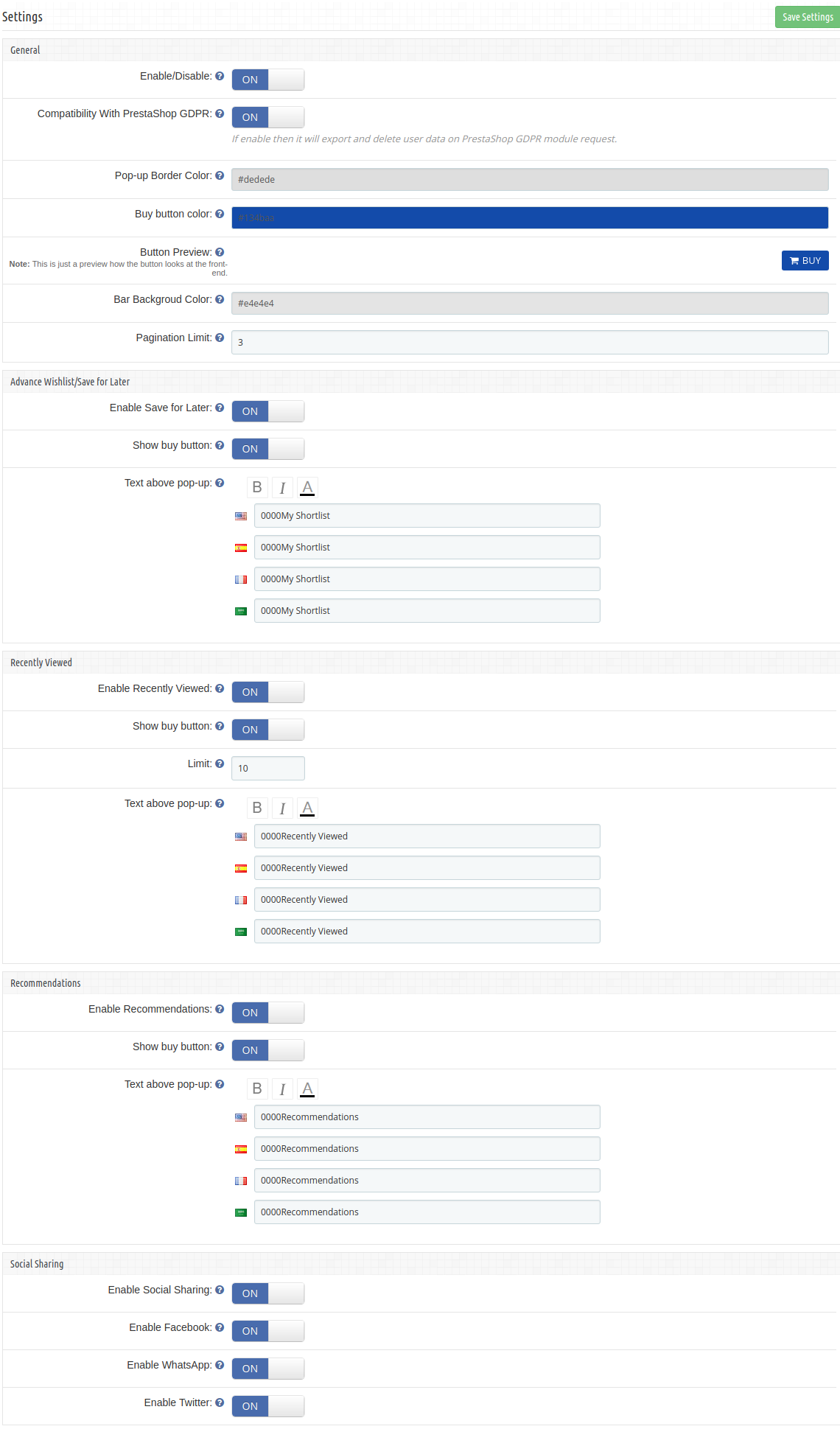
In the General settings tab, we have five options which the admin can use to manage the store;
Below mentioned is the general setting tab image-
This tab contains the following input fields which the Store Owner or the admin can update –
Enable/Disable: Initially, this will be notified as “OFF” And the admin can enable/disable the module by turning ON/OFF this option.
Compatibility with Prestashop GDPR Module: The Admin can enable the GDPR option. The Customer has an access to request the admin to delete and export the personal data from the back-office. The Admin can also export the customer data from the back-end.
Note: If you are using the official GDPR module then you must need to enable this setting. The main purpose of this feature is export and deletes user data on PrestaShop GDPR module request. It is also compatible with Prestashop GDPR Module developed by Knowband.
Pop-up Border Color: This setting enables the admin to change the border color of the pop-ups appearing at the front-end. Initially, it has a default color that best suits the pop-ups.
Buy Button Color: This setting enables the admin to change the buy button color appearing at the front-end, in front of every product in the pop-ups. Initially, it has a default color that best suits the button.
Button Preview: This option is not a setting, it is just a preview window of the buy-button appearing on the front-end. When the color of the buy button is changed using the above setting, then the color of the button preview will change dynamically displaying the current appearance of the buy button.
Bar Background Color: This Prestashop Advanced Wishlist addon enables the admin to change the background color for the bottom bar that appears at every page on the front-end. Initially, it has a default color that best suits the background of the bar.
Pagination Limit: The online merchant can set the number of products which he wants to show in a single page.
4.1.2 Save For later
In this section, the Prestashop Save for later addon allows Store Owner or the admin to update the settings of “My Shortlist” section of the Front-end. Through this section, the Store Owner or the admin can do the following things –
1.Enable/Disable “My Shortlist” section in the Store Front.
2.Show/Hide the Buy button
3. Add some text to “My Shortlist” popup which will be shown at the top of popup.
This Prestashop Advanced Wishlist extension form contains the following input fields which the Store Owner can update:
Enable Save for Later: Initially, this will be displayed as “OFF”. the admin can enable/disable the shortlist option by toggling the button.
Show buy Button : This Prestashop save for later addon allows the admin to choose whether to display the buy button in front of the products in the Shortlist pop-up or not.
Text above pop up: This Prestashop advanced wishlist addon allows the admin to enter the text that should be displayed at the front-end as a heading for the shortlist pop-up. the admin can enter the different text for different languages available in the system and can also customize the appearance (i.e. bold, italic and color of text) of the text using the font-style options.
4.1.3 Recently Viewed
Through this section, the Store Owner or the admin can do following things –
1.Enable/Disable “Recently Viewed” section in Store Front.
2.Show/Hide the Buy button
3.Limit the number of products to display
Add some text to the “Recently Viewed” popup which will be shown at the top of pop-up.
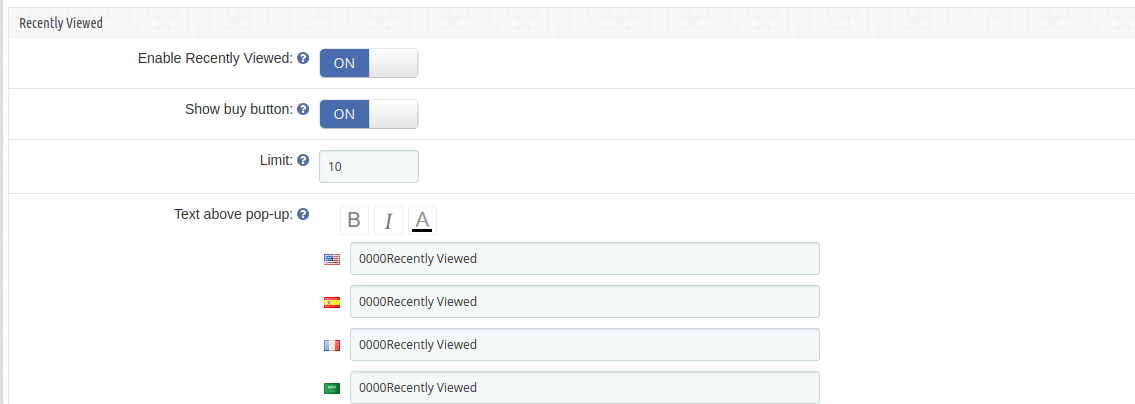
This Section contains the following input fields which the Store Owner or the admin can update –
1. Enable Recently Viewed: Initially, this will be OFF. Admin can enable/disable Recently viewed option by turning ON/OFF this setting.
2. Show buy Button : This setting enables the admin to choose whether to display the buy button in front of the products in the Recently viewed pop-up.
3. Limit: Admin can limit the products to display in recently viewed product section.
4. Text above pop up: This setting enables the admin to enter text that should be displayed at the front-end as a heading for the recently viewed pop-up. The admin can enter different text for different languages available in the system and can also customize the appearance (i.e. bold, italic and color of text) of the text using the font-style options.
4.1.4 Recommendations
In this tab, change the settings for the Recommendations block of the plugin. Here, the admin can recommend various things to the customer as per the need. the admin can enable/disable it and can also customize the text above the recommendations popup.
1.Enable/Disable “Recommendations” section in the Store Front.
2.Show/Hide Buy Button
3.Add some text to the “Recommendations” popup which will be shown at the top of pop-up.
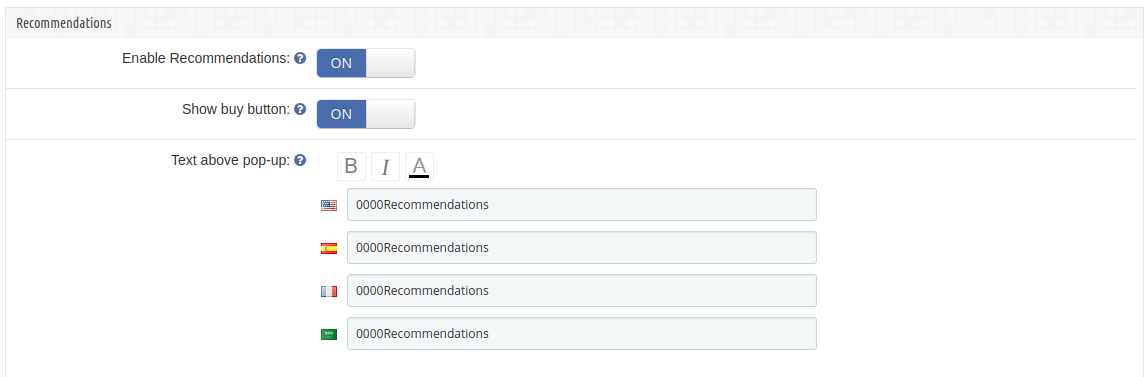
This form contains the following input fields which Store Owner or the admin can update –
1. Enable Recommendations : Initially, this will be OFF. Admin can enable/disable Recommendations option by turning ON/OFF this setting.
2. Show buy Button : This setting enables the admin to choose whether to display the buy button in front of the products(if admin wants to recommends products to customers) in the Recommendations pop-up.
3. Text above pop up : This setting enables the admin to enter text that should be displayed at the front-end as a heading for the Recommendations pop-up. The admin can enter different text for different languages available in the system and can also customize the appearance (i.e. bold, italic and color of text) of the text using the font-style options.
4.1.5 Social Sharing
The online store merchant can allow the online buyers to share wish list products in various Social Media Platform.
Enable Social Sharing: Enable or Disable social sharing option
Enable Facebook: Activate or deactivate to allow users to share wish-listed products on Facebook.
Enable Whatapp: Allow/disallow customers to share products on Whatsapp.
Enable Twitter: Enable the functionality to allow customers to share wish-listed products on Twitter.
5.0 Recommendations
This Prestashop advanced wishlist addon by Knowband allows the Store Owner or the admin to setup the content of Recommendation pop-up to display at Store Front.
There are 3 options available for Store Owner:
1.Banner
2.Related Products
3.Selected Products.
The admin can only choose one of them to display at Store Front as the content of Recommendations Pop-up.
5.1 Banners
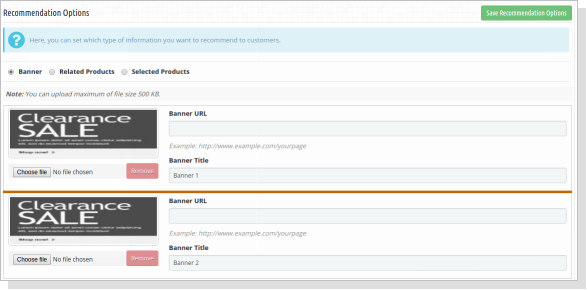
Using this option, the admin can upload a maximum of two banners for the recommendations popup, there is also an option to enter the URls for the banners uploaded.
You have to follow steps given below to show banners in Recommendations Pop-up –
Go to the Module and Services -> Module and Services
It would list out all the modules of store. Find ‘Save for Later’ in modules list.
Now click on the ‘Configure’ button given corresponding to the ‘Save for Later’ module.
It would redirect the Store Owner or the admin to a module settings page. Now click on “Recommendations” option listed at left side column.
It would open a new section. Choose “Banner” option. It would display the section where you can upload/change banners (Max. 2) with their Title and Link. You can find the screenshot below –
Click on “Save Recommendation Options” button. It would validate the data and submit the form.
5.2 Related Products
You have to follow the steps given below to show the related products in the Recommendations Pop-up –
Go to the Module and Services -> Module and Services
It would list all the modules of the store. Find ‘Save for Later’ in modules list.
Now click on ‘Configure’
button given corresponding to the ‘Save for Later’ module.It would redirect the Store Owner or the admin to a module settings page. Now click on “Recommendations” option listed at left side column.
It would open a new section. Choose “Related Products” option. You can find the screenshot below –
Click on “Save Recommendation Options” button. It would validate the data and submit the form.
That’s It.
5.3 Selected Products
You have to follow the steps given below to show selected products in Recommendations Pop-up –
Go to the Module and Services -> Module and Services
It would list all the modules of the store. Find ‘Save for Later’ in modules list.
Now click on ‘Configure’ button given corresponding to the ‘Save for Later’ module.
It would redirect the Store Owner or the admin to a module settings page. Now click on “Recommendations” option listed at left side column.
It would open a new section. Choose “Selected Products” option. You can find the screenshot below –
After choosing “Selected Products” option, the module will ask to choose Category and then the Products to display at Store Front. Choose Products and module will list them one by one in a list. The admin can remove selected one from this list if needed.
Click on “Save Recommendation Options” button. It would validate the data and submit the form.
That’s It.
6.0 Product Analysis
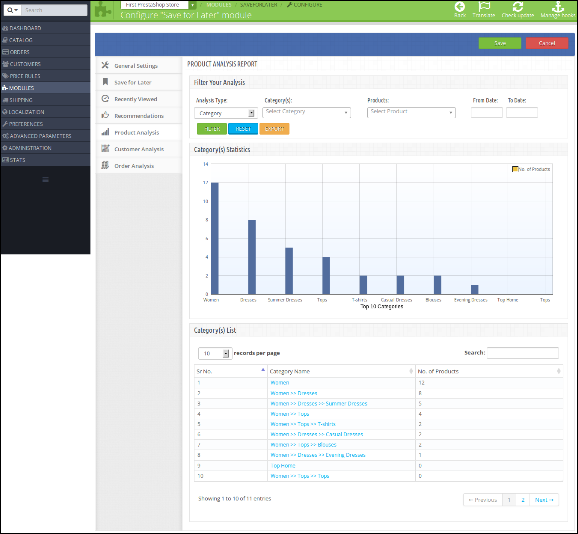
This Prestashop save for later addon tab will display the category/product reports in the form of graphs and list. The graph will display top ten categories/products shortlisted by customers in descending order. You can find the screenshot below –
Below is the screen of this Product wishlist module product analysis tab:
1. Filter your analysis: The filter will be used for filtering data. There are folowing parameters on the basis of you can filter report:
Analysis Type: This will be the dropdown list. With this filter, you can change the behavior of report such displaying report for top 10 categories or top 10 products.
Category(s): Here you can select multiple categories to filter the report. This option will be hidden if you select analysis type as Products.
Products: The products will be in this drop-down will be displayed on the basis of categories you have selected. If analysis typeset as Product, it will display all the products.
Start and Date: To Specify start and end date.
Filter: To display filtered data, the user must have to click on this button.
Reset: On clicking this button, the module will reset all parameter and display default report i.e displaying report according to categories.
Export: To export the current report in excel.
2. Category(s)/Product(s) Statistics: This Prestashop wishlist addon by Knowband shows a bar graph which will display top 10 categories or top 10 products on the basis of analysis type.
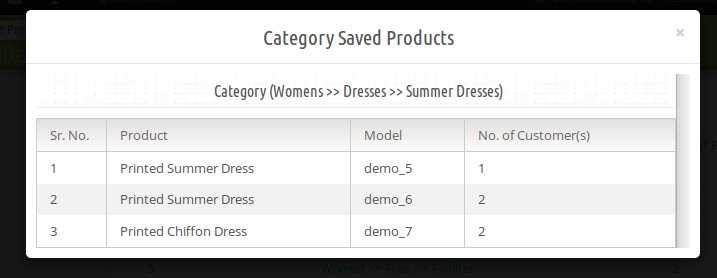
3. Category(s)/Product(s) List: In this, Prestashop advanced wishlist addon will list all the categories/products in descending order. If the analysis type is “Category” the module will display the category name in this list as clickable. On clicking the category, the module will display how many and which products of this category shortlisted by customers in the pop up box as shown in the below screen:
7.0 Customer Analysis
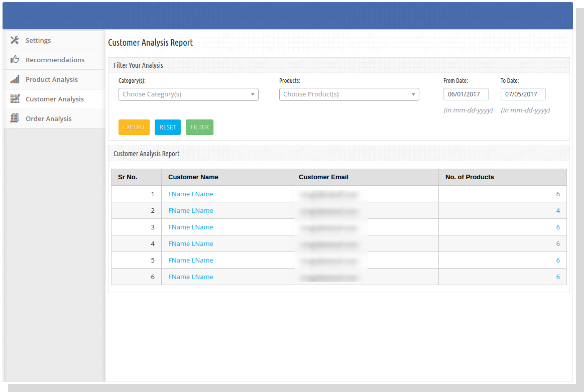
This Knowband Prestashop advanced wishlist addon shows the tab to display the list of customers with their number of shortlisted products. Here, the admin can also view the products list shortlisted by the particular customer.
1. Filter your analysis: The filter will be used for filtering data. There are folowing parameters on the basis of you can filter report:
Category(s): Here you can select multiple categories to filter the report.
Products: The products will be in this drop down will be displayed on the basis of categories you have selected.
Start and Date: To Specify start and end date.
Filter: To display filtered data, the user must have to click on this button.
Reset: On clicking this button, the Prestashop save for later module will reset all parameter and display default report i.e displaying report according to categories.
Export: To export the current report in excel.
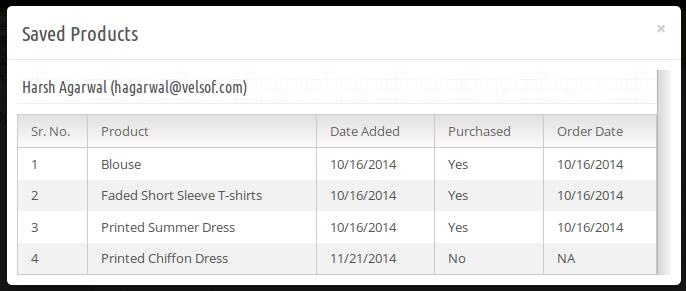
2. Customer Analysis Report: In this, the Prestashop wishlist module will list all the registered customers and guest customers (who have placed an order as the guest) with how many products he/she has shortlisted. The customer email in this link will be clickable. On clicking email, a popup will display to showcase which product he/she has shortlisted and among these, which products are bought by corresponding customers as shown below:
8.0 Order Analysis
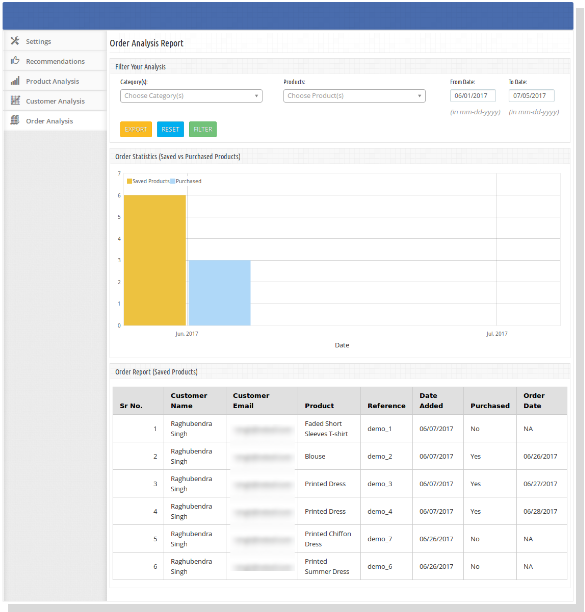
This tab is for doing analysis on the basis of how many products are ordered after shortlisted by the customer as shown in below screen:
1. Filter your analysis: The filter will be used for filtering data. There are folowing parameters on the basis of you can filter report:
Category(s): Here you can select multiple categories to filter the report.
Products: The products will be in this drop-down will be displayed on the basis of categories you have selected.
Start and Date: To Specify start and end date.
Filter: To display filtered data, the user must have to click on this button.
Reset: On clicking this button, Prestashop save for later addon will reset all parameter and display default report i.e displaying report according to categories.
Export: To export the current report in excel.
2. Order Report: In this, Prestashop advance wishlist addon by Knowband will list all the products which are shortlisted by customers with Purchased status. This Purchased status will tell you that this product is bought after shortlisted by the same customer.
9.0 Front End
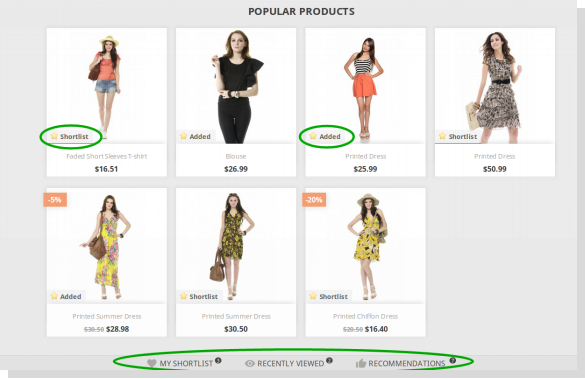
After enabling the Prestashop wishlist addon the front-end user will see a bottom bar at every page of the front-end containing the blocks as they are enabled using the admin panel of the plugin.
The bottom bar at the front-end appears as follows:
PrestaShop Advanced Wishlist Addon 1.6
PrestaShop Advanced Wishlist Addon 1.7
The highlighted Shortlist button will allow customers to shortlist corresponding products into the separate bucket. This bucket displays at the bottom of the page as highlighted in above screen.
When the customer clicks on Shortlist button, the product will be added into bucket and button text will be changed from Shortlist to Added.
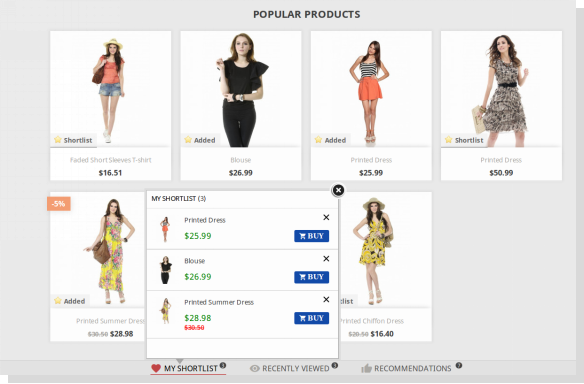
My Shortlist Pop-up
This Prestashop advanced wishlist addon by Knowband shows pop-up contains the products that are shortlisted by the customer. The customer can also remove the products from the shortlist by using the cross sign in front of products from the pop-up.
PrestaShop Wishlist Addon 1.6
PrestaShop Wishlist Addon 1.7
Recently Viewed Pop-up
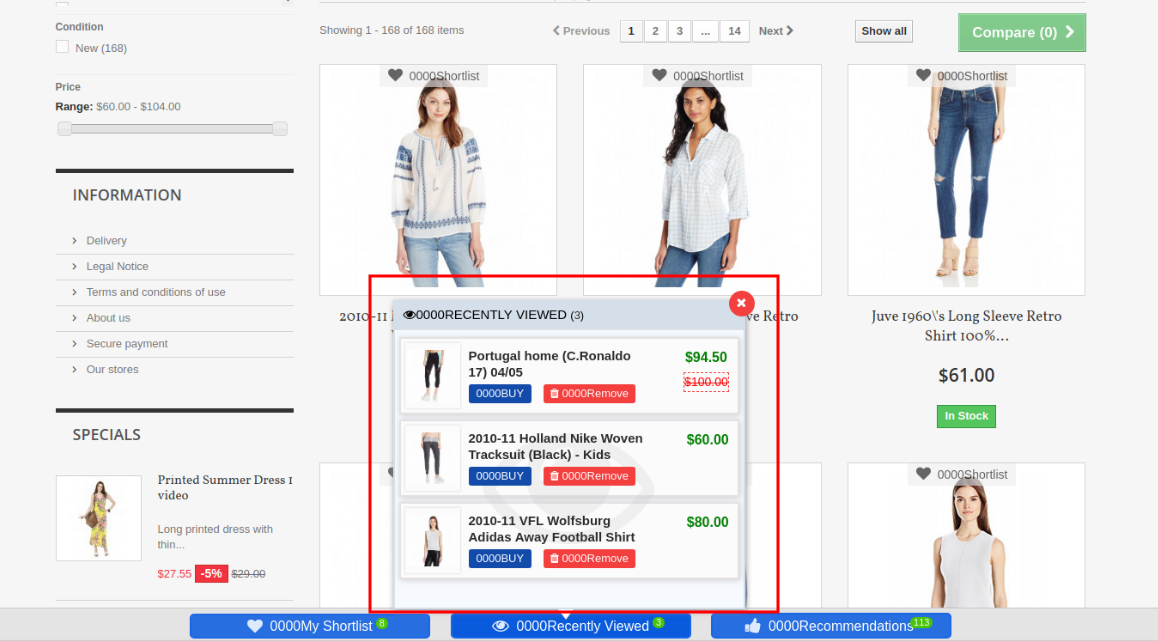
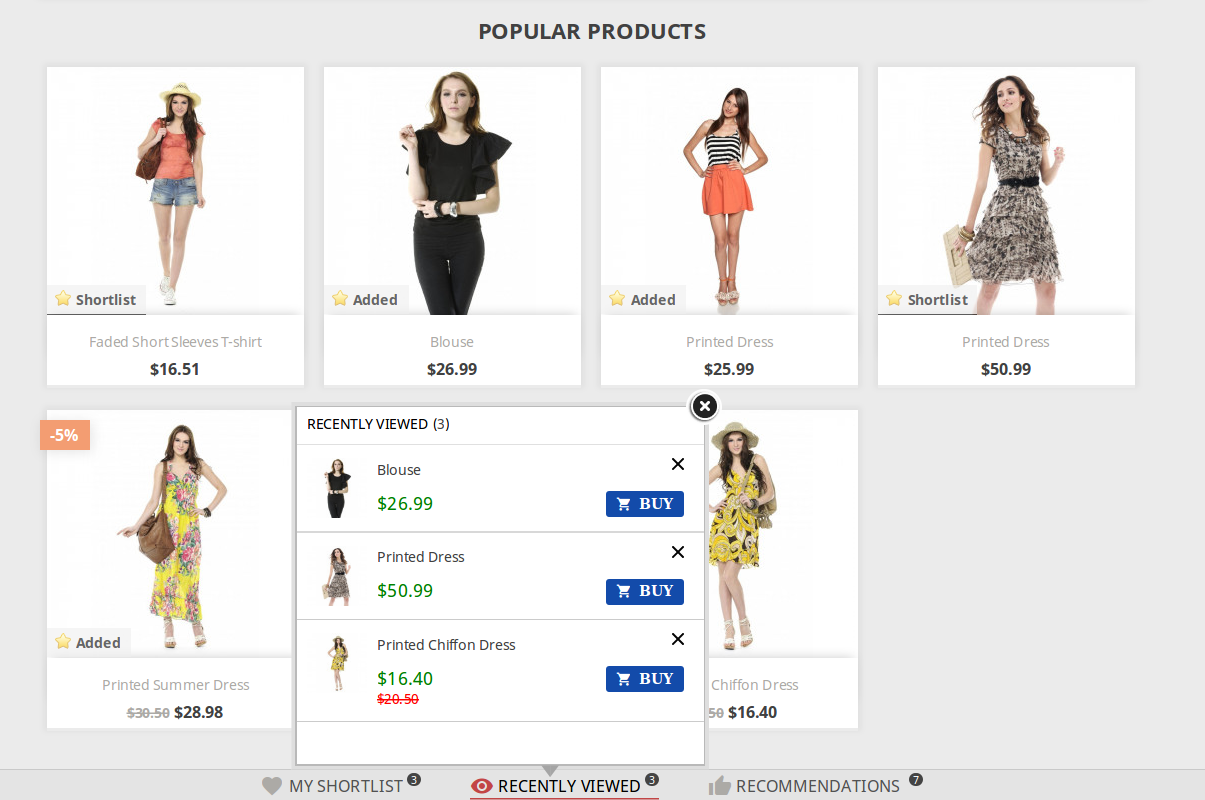
This pop-up contains the products that are recently viewed by the customer. They can directly go to the product detail page of any product listed in this pop-up by clicking on the product name or by clicking on the ‘Buy’ button in front of the respective product.
PrestaShop Advanced Wishlist Addon 1.6
PrestaShop Advanced Wishlist Addon 1.7
Recommendations
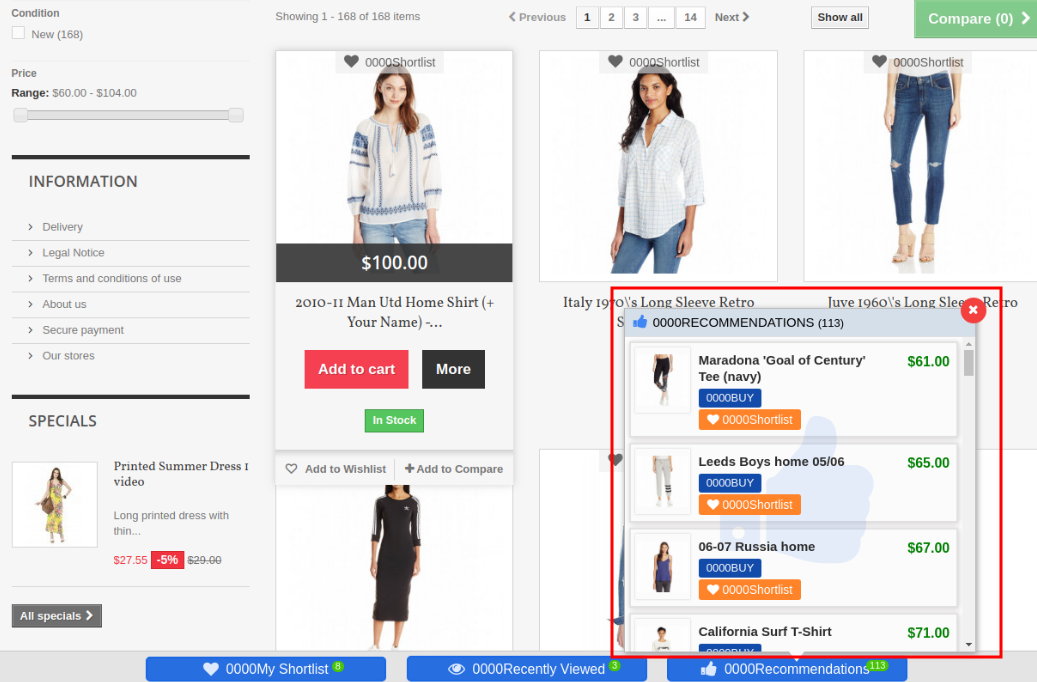
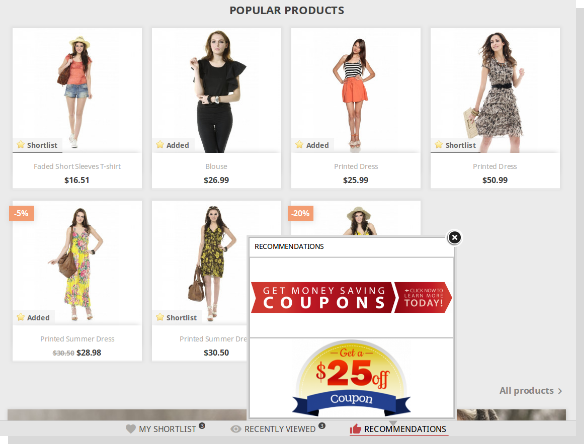
Content of this pop-up depends upon the choice of the admin. This Prestashop wishlist addon may have a list of selected products, it may have related products based on the browsing history of the customer or it can also have a maximum of two banners with an option of the link over them.
The recommendation pop-up with banners looks as follows:
PrestaShop Advanced Wishlist Addon 1.6
PrestaShop Advance Wishlist Addon 1.7
The online store admin can provide an option to share wish listed products on social media platforms like Facebook, Twitter and Whatsapp:
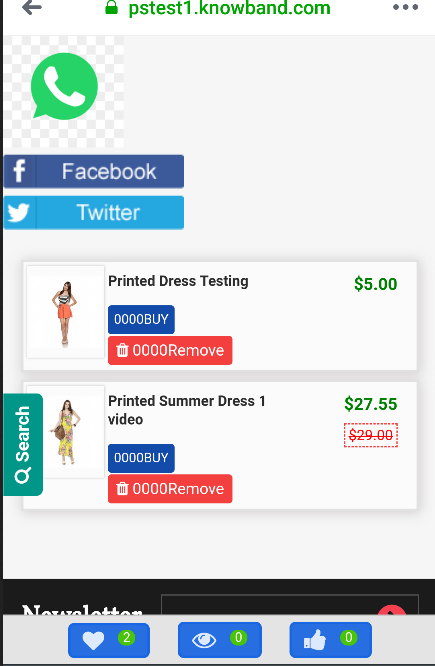
Online users can view whatsapp sharing option on their mobile devices:
The online users can view a specific tab for viewing wish list.
The online users can view wishlist on checkout page.
The online users get an option to move any cart product in wishlist:
Important Things
Refresh home page of your store every time you enable/disable plugin. If Prestashop favorite product list module is not working after installation then please check permissions on modules folder. The folder should be writable. Please make the folder permission to 755.
Before Installing Prestashop wishlist module, please check that Customer.php file already exists in root/override/classes/ folder. if yes, then Please remove it and clear the cache. We prefere that if exist, then please contact to our support to doing the same.
Now you can try Prestashop advanced wishlist addon by Knowband for on your Prestashop website. KnowBand Prestashop save for later addon helps you engage more customer to your store & increase the customer base.
In the Present time, customers are demanding more details and specific information about the product that they want to purchase. Showing more and more details is also used as the selling point of view. This is one of the most important factors to provide the look and feel of the product to the customers. Knowband offers Prestashop Product Video module for the Prestashop store admin that allows him/her to add the product videos on their store’s product pages. This PrestaShop extension allows the sellers to present their products confidently that make the customers sure about their products.
This PrestaShop addon will provide an interface and functionality to the Prestashop eCommerce website admin to show their product pages with high-quality product videos from YouTube, Vimeo, and Daily Motion. The Prestashop Product Video addon is basically an plugin for PrestaShop eCommerce sites. As we know that, Product details are the very crucial part of any product page on the eCommerce stores. Products details significantly affect the sales of any items on an eCommerce store. That is why we have implemented this Product Video addon for PrestaShop sites where the site admins can add product videos on their product pages. This Prestashop extension will provide an interface and functionality to the site admins to embed their product pages with high-quality product videos from YouTube, Vimeo, and Daily Motion.
Here are some basic features of the Prestashop product video module:
It is very simple to install and configure this PrestaShop addon.
The eCommerce store admin can easily enable/disable this Prestashop product video addon.
The Prestashop youtube addon offers a simple and user-friendly interface.
No coding is required for uploading product videos.
The Prestashop product video upload module offers a hassle-free implementation.
This adding video extension is highly customizable.
The Prestashop Dailymotion addon offers multiple layouts and positions for showing product videos.
The e-merchant can add custom CSS and JS codes to customize the look and feel.
The Prestashop product video upload addon allows adding multiple videos on the product page.
The e-merchant can add videos from multiple platforms like YouTube, DailyMotion, and Vimeo.
This Prestashop Vimeo addon module is multi-store compatible.
The Prestashop video upload addon is compatible with SSL enabled stores.
The eCommerce store owner can show display controls also.
The Prestashop adding video plugin allows showing related videos also.
The admin can enable/disable auto-play video option anytime.
The store admin can insert the video link for showing the product video.
This Prestashop product video addon is mobile responsive also.
Here are some of the benefits which need to be highlighted:
Easy to implement: The best part of Prestashop product video addon is that it has simple and easy-to-use admin interface.
Confidence building: Product video creates more confidence about store’s products in the buyers.
Detailed Information: Customer gets specified information about that particular product.
Product reviews videos: eCommerce store admin can also include product review videos to provide product description details.
Customer engagement: With the help of product videos store admin can enhance customer engagement on the store.
Multiple Layouts: This Prestashop Product Video addon has a variety of layouts to select for the video.
Position Selection: Admin can select the position where he/she wants to show video. The position can be product footer or in product right column.
Auto-play option: Admin can Select whether to auto-play video on page load or not.
Real life view: Customer gets a real-life view and it clear all the confusion of customer about the product.
Steps for Installation
To install this Prestashop product video addon, please follow the following steps:
Add the Prestashop adding video folder under modules folder of your system.
After adding this addon folder, system will list the addon on module page under “front office feature”category as given below:
After installation of the Prestashop youtube addon, you need to configure it for the first use on your site.
Find out the Prestashop vimeo addon in the list of modules installed on your site.
Select “Configure” option given on the right side of the extension list.
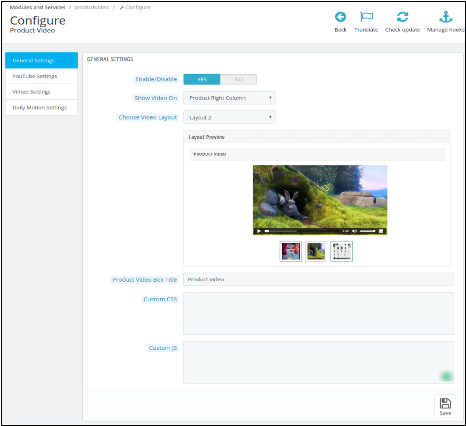
After clicking the Configure option you will see a window like the one mentioned below:
Enable/Disable: Click “Enable” to use the Prestashop Dailymotion addon on your site.
Show Video on: You can Select the position of the video.
Product Footer: Select this option if you want to show your product video in the footer of your product(s) page.
Product Right Column: Select this option if you want to show your product video in the Right Column of the product(s) page.
Choose Video Layout: Select the type of the layout or interface you want to show for your product video. Once you select any of the layout options, you will be able to see the preview of the layout.
Product Video Box Title: Give a title for your product video box.
Custom CSS and Custom JS: Modify the Look and feel of the product video on the product page by giving your custom CSS and custom JavaScript.
You can do further configurations of the three video sharing platforms that are implemented on this module.
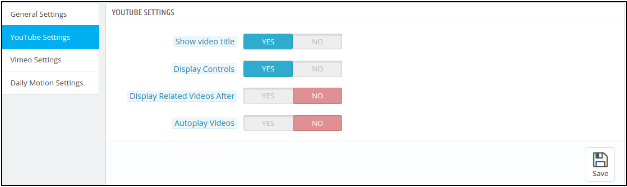
YouTube Settings:
Click on the YouTube Setting. You will be able to see a window like the image below:
Show Video Title: You can show the video title on the product page by clicking yes.
Display Controls: Choose yes, if you want to show the playback controls on the product video.
Display Related videos: Admin can control whether to show related videos on product page after one video or not.
Auto-play Videos: Select yes to auto-play the video once the product page is visited by a customer.
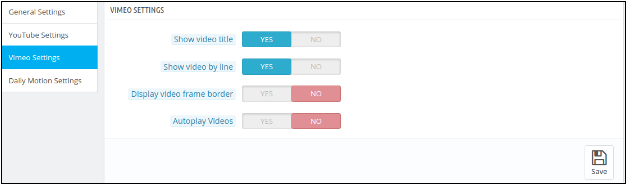
Vimeo Settings:
Click on Vimeo Setting. You will be able to see a window like the image below:
Show Video Title: You can show the video title on the product page by clicking yes.
Show Video By Line: Choose yes, if you want to show all your videos from the particular product line by line.
Display Video Frame Border: Select yes in order to show the border of the video frame.
Auto-play Videos: Select yes to auto-play the video once the product page is visited by a customer.
Configure Daily Motion:
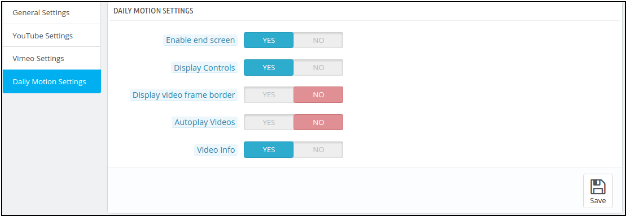
Click on Daily Motion Setting. You will be able to see a window like the image below:
Enable end screen: Select yes to enable the end screen option.
Display Controls: Choose yes to show the playback controls on the video.
Display Video Frame Border: Choose yes, if you want to show the border of the video frame.
Auto-play Videos: Select yes to auto-play the video once the product page is visited by a customer.
Video Info: Choose yes to show the video information on the product video.
What will be the changes on Product Menu?
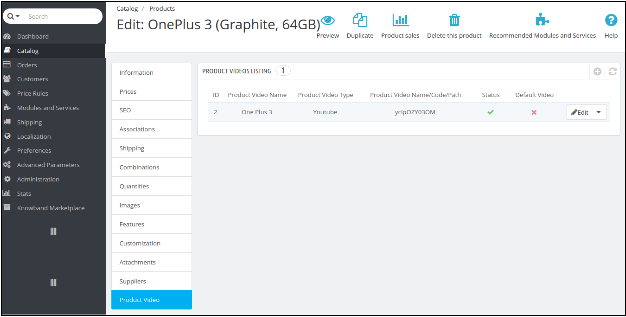
After the addon installation, a sub menu for the Product Video will be displayed in each product upload or product edit page as shown in the image below:
When the admin will go to the “catalog”, select “the products” option on Prestashop admin side and click “Edit” on any product listed there, then the system will open this window. Here the admin can:
1. Edit the already Added product Video(s).
OR
2. Add a video to a new product.
1. When Admin wants to Edit the already Added product Video(s):
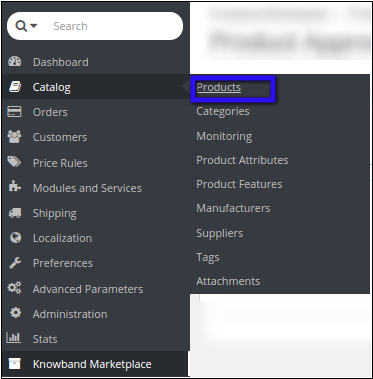
Go to the “Catalog”, then select “Products” using the PrestaShop menu tab.
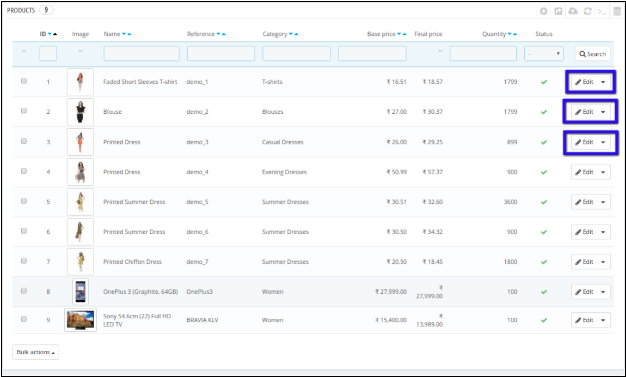
When you click the Products, a new window will open with the list of products.
Select the product in which you want to update or add a new video.
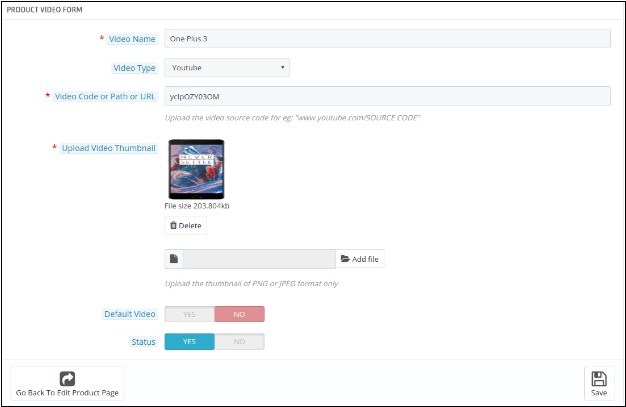
Select the Edit option and click on Product Video option given at the bottom of the menu. A list of products will appear. Here, you have to click on the “edit” option to get to the product video upload page.
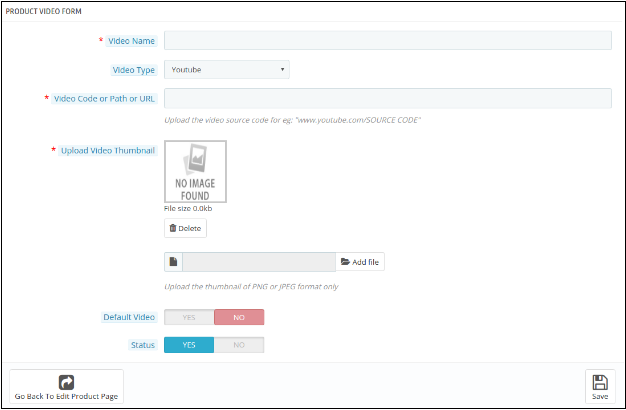
Video Name: Give a name to your product video.
Video Type: Select the type of video you want to attach. (YouTube, Vimeo, or Daily Motion)
Video Code or Path or URL: Give the URL of the video. You can give the YouTube, Vimeo, or Daily Motion link of the video.
Upload Video Thumbnail: Upload a thumbnail that will be shown on the video link on the product page.
Default: You can select the particular by default video which you want to show in case of more than one product videos.
Status: Here, you can enable or disable the video respectively.
NOTE: THIS MODULE IS ALSO COMPATIBLE WITH KNOWEBAND MARKETPLACE MODULE (v1.0.4) TO EDIT OR ADD NEW VIDEOS OF SELLER ADMIN CAN FOLLOW THE FOLLOEING STEPS.
1. Edit the already Added product Video(s).
OR
2. Add a video to a new product.
1. When Admin wants to add a new Video to a new product:
Follow all the steps as in the above section except in Step IV, you have to click on the Add new icon as given below in this screenshot below.
The similar window appears as in Step IV. Fill all the details as specified in the previous section. Refer to the screenshot below for better understanding.
Fill all the details and click Save to save your settings.
2. When Admin wants to Edit the already Added product Video(s):
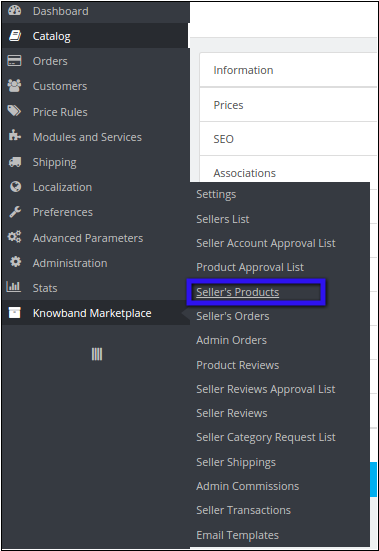
I. Navigate to Sellers products using the Knowband menu tab
II. After clicking Sellers Products, a new window appears with the list of sellers products.
III. Select the product in which you want to update or add a new video. Click on View menu on the right side of the product listing.
IV. A new window appears where you have to click on Product Video option given at the bottom of the menu. A list of products appears. Here you have to click on “edit” option to get to the product video upload page.
Menu Location
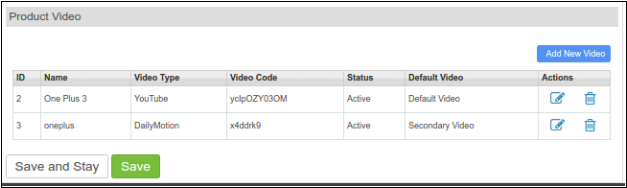
After installation, a menu will be displayed to the seller in the product upload or product edit page as shown in below screen:
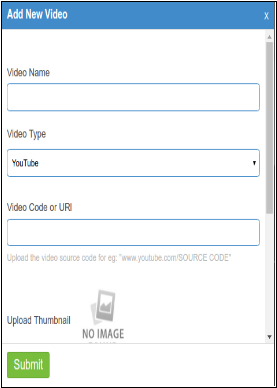
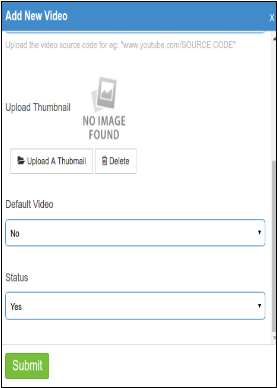
To add a new video the seller has to click on “Add New Video” option. A new Pop-up window appears as given below.
Video Name: The seller needs to give a name to the Product Video.
Video Type: Select the type of video is YouTube, Vimeo, or Daily Motion.
Video Code or URL: Give the link of the product video.
Upload Thumbnail: Upload Thumbnail image to show on the product page.
Default Video: If you are giving multiple Videos on a product, then you need to specify if your current video is to be shown as default video on the product page.
Status: Select the status as YES or NO to enable or disable the video.
Submit: Click submit to save your settings.
Front End Module
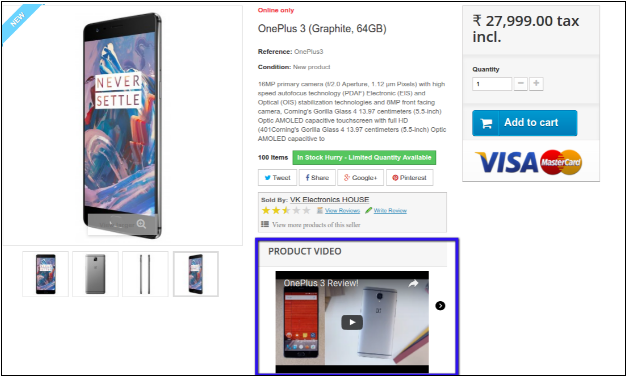
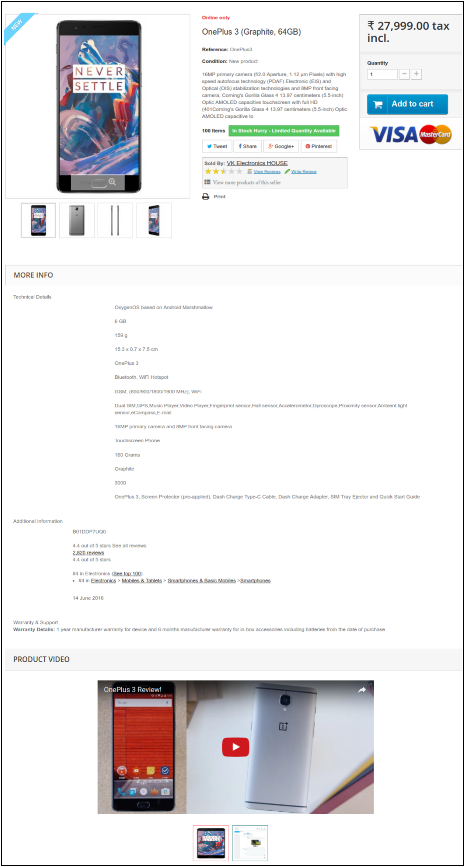
The Product video is shown to customer on a product page in two ways:
1. At the Footer, as shown in the screenshot below.
2. At the Right column of the product page as shown in the screenshot below:
An increase in shopping cart abandonment is certainly giving jitters to numerous e-commerce organizations around the world. They are not only affecting product sales but are also affecting the global reputation of the business organizations. Online shoppers are leaving their shopping cart orders in the middle and are not making a product purchase due to several reasons.
Some of the most common reasons for these shopping cart abandonments are the complex checkout process, insecure online payment method, the appearance of the hidden charges during the final payment option, and other such factors. But, this grave situation is going to change soon due to the emergence of this Prestashop Abandoned Cart plugin. Here are a few reasons that can explain why it is making so much noise in the e-commerce business segment. Additionally, it will help you reduce shopping cart abandonment.
Send manual and auto-triggered reminders
The plugin is capable to send manual as well as auto-triggered reminder emails to customers who have abandoned shopping carts. With the reminder email, you can inform them about the left-out cart including the previous purchases. It is a very useful feature as there are numerous store admins that are not comfortable with CRON configuration, hence they can use the manual email reminder option.
Track abandoned carts of guest customers and existing customers
The Prestashop Abandoned Cart module has a feature through which you can easily capture the email IDs of the guest shoppers from the checkout page. Now you can send reminder emails to guest customers to reduce shopping cart abandonment. So, the module is capable to handle both, guest shopping cart abandonments besides the regular logged-in customers’ shopping cart abandonment.
Customize abandoned cart reminder emails
With this plugin, store admins can easily target their abandoned shopping cart customers effectively by sending personalized reminder email messages in the native language of the customers. Further, selecting different email templates, using email translation features, the addition of dynamic content, and other such tailored email tactics can increase the effectiveness and readability of your reminder emails to a great extent.
Show abandoned cart pop-ups and send Push notifications
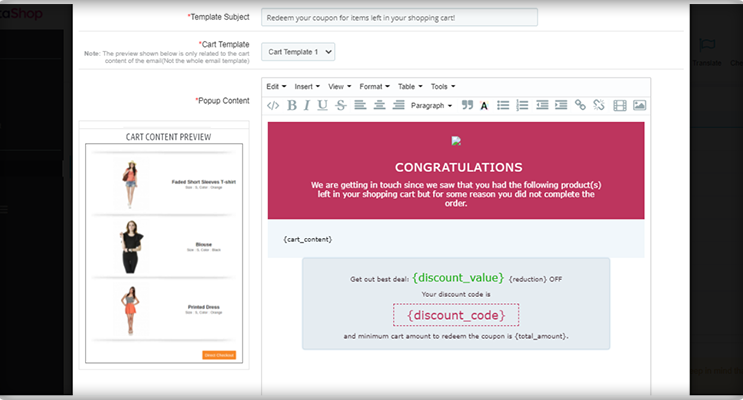
The popup provides a list of abandoned cart items as well as a discount coupon code that consumers can use to save money. You can build and change as many reminder popup templates as you like with the PrestaShop Cart Abandoned Addon. The popup’s content can also be customized by the administrator. The PrestaShop Abandoned Cart module shows a popup to alert customers about the things they left in their carts but did not purchase. When customers are not logged into your store, the PrestaShop admin will give them a web browser alert notification. They can also track whether or not customers have clicked on the notification.
Easy recovery of the abandoned shopping cart
Now, the customers can easily recover their abandoned shopping carts by clicking on a checkout button on reminder emails. Further, any available shopping coupon on the email will automatically be added to the checkout process for increasing the completion rate of the pending abandoned shopping cart orders.
Provides detailed information about the shopping cart abandonment rate
This Prestashop module provides detailed abandoned shopping cart information to store owners in the form of graphs and statistical data. By studying this information, business organizations can easily decide if their efforts are paying desired results or not. They can make necessary changes in their business strategies to reduce the number of shopping cart abandonments.
This Prestashop Abandoned Cart plugin is definitely the true worth of its price and can reduce shopping cart abandonment on your e-commerce store. So, order this great plugin from our e-commerce store www.knowband.com now and improve your conversion rates to a great extent. You would not be disappointed with your purchase at all.
Receiving a product return request from a customer appears like a cumbersome task due to the numerous formalities and complications involved in the whole process. This whole experience becomes an unforgettable nightmare if there are no easy provisions regarding the efficient product return policy.
Due to this increasing problem in the returning policy, customers, as well as the e-commerce organizations, are paying a heavy price and the trust deficit between them is brewing at a faster pace. To simplify the whole return policy and to streamline the return process e-commerce organizations are increasingly adopting Prestashop Return Manager Addon. Here are the few reasons that explain the unlimited fan frenzy about this Prestashop addon.
Easy user-friendly interface-
The module is equally a delight for customers as well due to its easy, user-friendly interface. The updated version of the PrestaShop Return Manager addon has easy to access options. The seller can directly configure the module from the left menu of the admin panel. Also, the product listing details can be checked on the dashboard itself and can be accessed with a single click.
It provides three options to the customers during the product return process which are namely- Get Credit, Replace and Refund. Additionally, order cancellation is also possible with the updated version of the PrestaShop Return Manager addon. Moreover, it provides added functionality to its customers to check the status and history of their product return requests. Customers can choose a reason for their product return request and to show the damaged goods, it allows them to upload the image in the return request form.
Seamless product return policy-
This Prestashop Addon has redefined the whole process of product return to a new level. It is now easier to make a product return request or order cancellation request for any item without involving any terms and conditions and complications. The store owner has the freedom to set the return policy and reasons.
Due to this simplified process, the site admin can easily process the product return request for even a single product or partial order out of a completely given order. Moreover, it has provided the freedom to the admin to approve or deny any product return request if the return request is found to be illegitimate in nature.
In the latest version of PrestaShop Return Manager, the policy time can be calculated after a defined product status. It can be ‘Delivered’, ‘Shipped’, ‘In Process’ etc.
Effective handling of the return product database-
With the help of this Prestashop Return Manager Addon, managing the record of every product return request has become a cakewalk. Every product return request is effectively stored in the store database and is available even after the uninstallation of the module.
The store manager can filter various product listings by sorting them with the customer ID, Return ID, or date. Moreover, the module provides the facility of exporting the completed return request in CSV format. In order to facilitate faster searching of the records, a filter option is provided in the archive list.
Enhanced power to the site admin-
The module has unleashed new powers and flexibility to the site admins and has made them a focal point of the whole product return policy. Merchants can easily process a product return request from the back end of their module on the behalf of their customers.
With PrestaShop Return Manager addon, features like email translation and email template customization are possible so as to make the product return process more simplified and less time-consuming. Now the seller can send a test email, add a customized text message with the order status that can be used in email templates.
In conclusion
So, Prestashop Return Manager Addon has reduced loads of formalities, paperwork, and complications that used to come uninvited with the product return request. It is time to take a long breathe and ease your tensions by purchasing this Prestashop addon from the Knowband store to provide a seamless user experience to customers.
Looking for a module to send abandoned cart emails to your customers? Keeping the conversion rate at desired level has become more complex with the grown-up rate of cart abandonment. Where everyone in the B2B eCommerce market is looking for ways to curb the abandoned carts on their sites, optimizing conversion rates seems to be a mega task. Experience drop-down in abandoned cart with Prestashop Abandoned Cart email Addon. This tool is thumb-stopping and will uplift your sales.
Introduction to Prestashop Abandoned Cart email Addon
By sending reminders through emails, push notifications, or a pop-up, you will be able to follow up on lost sales. It will be easier to track prospects who failed to complete the purchase and left their cart abandoned.
PrestaShop Abandoned Cart email addon allows you to send customized discounted and non-discounted follow-up emails. In order to entice customers, the store owners can even craft a promotional discount reminder email.
Show your customers how concerned you are by sending personalized abandoned cart emails, which will help you build strong trust and customer loyalty for your business. Customers will feel appreciated by the fact that you value them. Trying to resolve things with them will make them feel privileged. With this feeling, they might make a move to return to the cart and purchase from your store.
Top-notch Features of Prestashop Abandoned Cart Email Addon
Easy to send recovery emails to bring customers back:
Just a couple of seconds can bring change to your business. The addon has automated cron functionality that auto triggers email and helps you in recovering the sale.
Display a pop-up on the screen when they visit the store
With PrestaShop Abandoned Cart email Addon it is now easy to display a reminder pop-up to your visitors who have left something in their cart.
Send unlimited push notifications about the abandoned cart
Another way you can send reminders is by push notifications. Send unlimited push notifications to your customers and consider reminding them about the abandoned cart.
Enable customers to automatically recover their carts
One-click auto-recovery is another feature that makes the PrestaShop abandoned cart reminder email module unique.
Include shopping cart details in the reminder emailsHow effective will this become when you can send abandoned cart details in your email. A reminder email with cart details increases the chances of conversion.
How to send a reminder email with Prestashop Abandoned Cart email Addon?
From installation to configuration, the PrestaShop abandoned cart plugin is easy to operate. It has end-less features for the admin and gives complete freedom to configure from the back-end. You can restrict the carts to enter the abandoned cart flow for the guest users. The store owner has the option to disable the abandoned cart flow for the guest customers.
Three ways to notify:
Send abandoned cart reminder emails
Display pop-up reminder, and
Send unlimited push notifications
1. Create Custom email templates
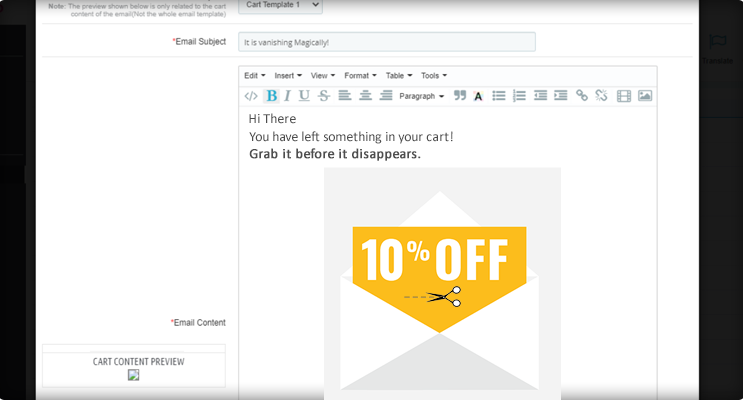
Use PrestaShop abandoned cart email addon to create your own email template by using text, images, HTML, etc. You can add coupon codes for every email and send discounted emails. Option to customize email template by adding customized variables. This includes customer name, product information, discount, and offers.
2. Personalize abandoned cart pop up
Why lose any chance when you have an option to send an abandoned cart Pop-up? Do it with PrestaShop abandoned cart reminder addon.
3. Push notifications to recover abandoned carts
Send unlimited push notifications to shoppers who have left their carts after adding products to them.
4. Track the abandoned carts
You can easily get access to information on abandoned orders and order number.
5. Decide when to send an alert
Send an alert manually or automatically! You will have full control over reminders, i.e he can decide after how much time delay he wants to send an alert to the customer.
A shopping cart will be assumed as an abandoned cart after a decided time. You can set a time to send emails automatically.
Easily manage and view all abandoned cart entries with PrestaShop abandoned cart email addon. You can monitor the performance based on the total number of carts that have been converted to sales and orders.
8. Which platform is working well for the campaign?
With the new feature, every customer’s UTM parameter data will be available and can be used to track the email campaign’s progress. Google analytics reports will help you plan your future campaigns.
Why Your Business needs Prestashop Abandoned Cart email Addon?
Prestashop Abandoned Cart module allows you to attract visitors back to your store to complete the checkout process. An abandoned cart alert email is sent to the customer’s account that gives him/her detailed information about pending orders. The functionality of this addon allows you to recover sales from orders that stepped away before checking out.
Benefits of PrestaShop Abandoned Cart email module
Increase conversions by effectively recovering lost sales
3-in-1 addon that sends reminder email, push alerts, and pop-up
Increase customer loyalty
Increase ROI for your business
Provides insight into visitor’s shop behavior
With the collected information about the customers, you can implement exceptional marketing strategies to gain profits in your business. Install this module to bring down cart abandonment rates on your store by implementing a strong shopping cart recovery strategy.
Customer Benefits of PrestaShop Abandoned Cart email Addon
Customers abandoned their cart when they are in hurry. This causes you a potential seller and they lose their wishlist products. Receiving an email with abandoned cart details reminds them about the left-out cart.
As a customer, they get happy when they receive a discounted email. Sometimes they get a bonus after cart abandonment.
Finally,
With PrestaShop abandoned cart email addon, you cannot just optimize your conversion rate, but can also create a strategy to grab lost sales of your eCommerce website. Sending reminder emails to your customers is something that can play for you in the whole game of conversion acquisition, in order to get some serious advantages against your rival sites.