eCommerce Extensions to help you Achieve your Business goals in the Year 2023

In order to achieve the success in the eCommerce business, it is important to stay up to date with the latest trends in the industry. Staying abreast with the current technological advancements and market trends can keep you ahead of the competitors. One of the best ways to achieve your business goals is to steps into the shoes of the well-established businesses and get inspirations from them. The ideal workflow of the eCommerce business should attract the shoppers to the website, filer the prospective customers from the website traffic and then convert them into the paying customers. This can be done by improved customer experience, customer retention strategy and ultimately winning the customer loyalty.

It won’t be wrong to state that even the digital era word-of-mouth plays a vital role. If you offer better services and improved customer experience at your store, then, you will certainly win back old customers and attract new ones. Social media also provides a platform to the online sellers to reach out to the new customers. In this post, we will discuss the most popular strategies which will help you to achieve your business goals in the year 2018.

knowband-blog

Strategy#1 Attracting New Customers and Retaining old ones:

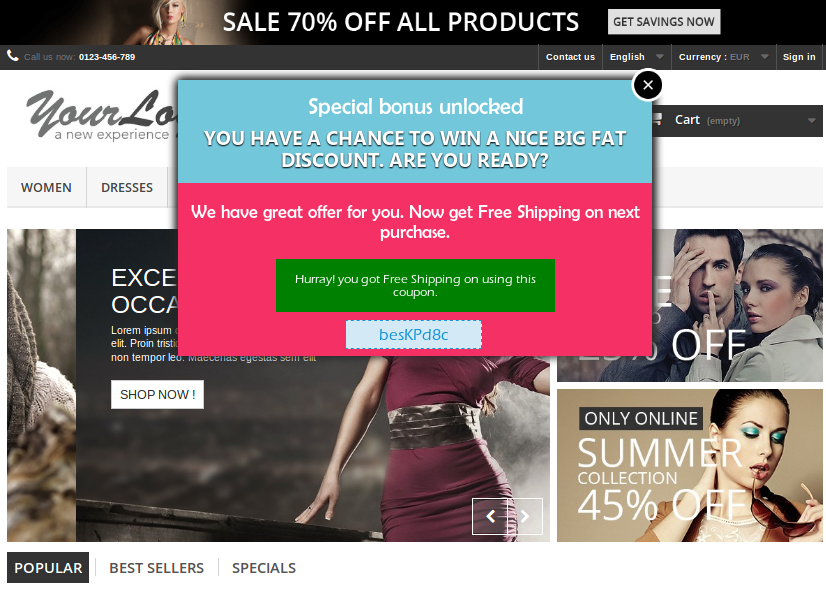
Effective lead generation strategy is the secret of the success in the e-commerce. Most of the time, when you visit established e-commerce sites, you may come across the welcome popup offering enticing discounts on the first purchase. In order to avail of this special discount, the visitors need to provide their email-ids. All the top e-commerce giants leave no chances to capture the email-id of the customers. The email address is the best way to establish a new and long-lasting relationship with the customers.

Getting the email addresses of the visitors is not an easy task. In order to get the email id of the visitors, you need to offer special deals to the new visitors. You can offer free shipping or enticing discount on the first purchase. Most of the top brands use this strategy to reach out to the more customers.

How can you use this strategy for your online business?

Gamified Welcome Popup-

Gamification of the site is the best way to retain the customers. Spin and Win popup is a gamified popup which allows the visitors to win the enticing discounts by spinning the wheel just like the roulette-game. The Spin and Win popup is one of the best ways to display an interactive popup to gather the customer information. Customers need to enter their email ids to play the game. The gamified interface develops the interest of the customers and they happily provide their email-ids to play the game.
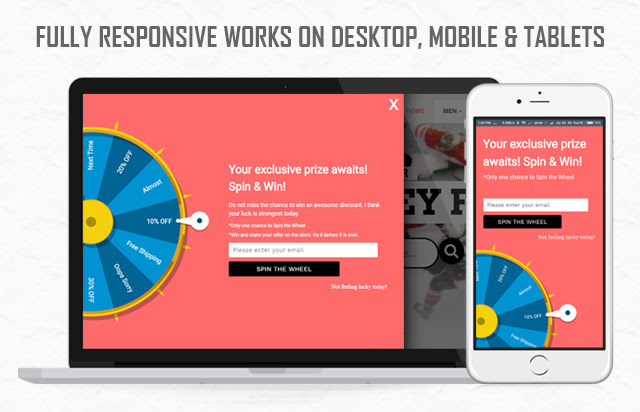
Spin and Win gamified popup is available for the Magento1, Magento2, Prestashop, OpenCart and Shopify platforms.

Exit Intent Popup

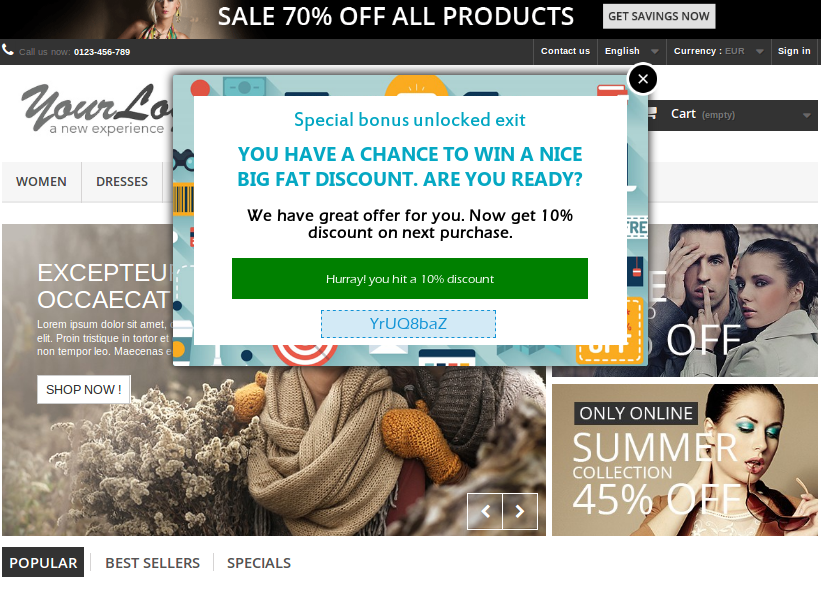
Exit Intent Popup monitors the mouse movement and as soon as the visitor intends to exit, it displays an awesome popup with the discount offer. Special encourages the customers to complete their purchase and helps you to grow your email list.

Exit Intent Popup is available for the Magento1, Magento2, PrestaShop and OpenCart platforms.

Strategy#2 Offer Free Shipping

The latest trend in the eCommerce world is to offer free shipping. Customers prefer to buy with the free shipping option. Most of the sellers on the top marketplace like Amazon, Etsy, Walmart, eBay offers the free shipping.

Why is Free Shipping a must?

1) Shoppers Love Free Shipping option – According to the studies, the online shoppers prefer placing the order of the products if the shipping is free.
2) Competition – The marketplaces like Amazon, eBay, Walmart, Etsy and many more are expanding their presence and offering great benefits to the customers including the free shipping services. So, it is a must for the online business to offer free shipping to retain their existing customers.
3) Free shipping reduces shopping cart abandonment – Most of the time customer leave the cart abandoned because of the additional costs (shipping and taxes).
4) Free Shipping Increases Average Order Value – Shoppers buy more products to qualify for the free shipping.

Tactics to offer free shipping

1) One of the methods to offer free shipping is to include the shipping cost in the product price itself. This approach will work if you offer unique products to your niche market and there are not so many competitors.
2) You can create special promotional to offer free shipping on the products that have a higher margin.
3) You can offer free shipping only for a particular cart value. Orders with the cart value higher than the set limit will be eligible for the free shipping.
4) You can offer free shipping on special sale occasions or during the holiday season.

eCommerce extensions to offer better shipping services:

a) Free Shipping Manager
The Free Shipping Manager extension is available for the Prestashop platform. This addon allows the store admin to create the rules, terms and conditions for shipping charges. The merchants can fix the cart limit beyond which free shipping will be offered. This module can help you to increase revenue and conversion rate of the site. Click here for the details.

b) Shipping Cost by ZipCode:
Sometimes you need to offer shipping charges based on the location of the user. The Shiping Cost by ZipCode extension is the best way to offer shipping charges based on the location of the user. The Shipping Cost by ZipCode module is available for the Prestashop. Similar extension Product Availability check by ZipCode is available for the Magento 1 platform.

Strategy#3 Improve Customer Experience

Better customer experience at your store encourages the customer to browse more products which helps to increase the chances of the purchase. As per the latest trends in the industry, you should try to offer the best experience to the visitors to convert them into a customer.
There are following extensions which can be helpful to you to achieve the same.

a) Infinite Scroll
In the recent years, the growth of mobile devices brings a revolution in the eCommerce world. Now, most of the users prefer to browse the internet by using their handheld devices like mobiles and iPad. Infinite scrolling allows the users to browse more products with ease and improves the user experience for the touch devices. Moreover, the infinite scrolling option works efficiently while mobile browsing as well. Infinite Scroll extension developed by Knowband is available for the Magento 1, Magento 2 and Prestashop platforms.

b) Size Chart
If you sell Footwear or Clothing, then, a size chart on the product page is a must. The Size Chart helps the users to select the correct fit and also reduces the chances of the return. Size Chart extension developed by Knowband is available for the Magento 1, Magento 2, and Prestashop platforms.

c) Product Video
Instead of going through the long text, the users prefer to watch the video for the better understanding of the product. Product videos are more engaging than the text. Knowband offers the Product video extension which allows you to display the videos on the product pages from the video channels like YouTube, Vimeo. Product Video extension is available for the Prestashop, Magento 1 and OpenCart platforms.

d) Wishlist
With the dynamic growth of the marketplaces in the last few years, a new trend emerged in the eCommerce industry. Now shoppers prefer to search for the products on Google or marketplaces like Amazon, Etsy, Walmart, eBay, Cdiscount etc to get a better comparative price and offers before making their purchase decisions. Wishlist feature allows the shoppers to shortlist the products of their choice, so that, they can later place their order for the products. After adding the products to the Wishlist a shopper can access his/her wishlist any time. This saves the time of the shoppers as they can easily add the wishlist products to the cart to place their final order. The Wishlist extension is available for the Prestashop, Magento 1, Magento 2 and OpenCart platforms.

e) Express Checkout
The easy checkout process is the key factor to get the higher sales. Most of the online businesses provide the one step checkout to make the shopping experience of the shoppers hassle-free. One step checkout allows the user to enter the all the details at a single page and reduces the cart abandonment. The one step checkout allows the shoppers to create the account, place order as a guest or login to the account at the checkout page. Knowband offers the One Page Checkout module for the Magento 1, Magento 2, Prestashop and OpenCart platforms.

Strategy#4 Customer Retention Techniques

a) Helpdesk
If you have observed most of the online businesses offers the 24*7 chat support. Recently Chat Boats have also provided an effective tool to improve the customer engagements. By assisting the customers and visitors to make their purchase decisions and after sale inquires you can develop a bond between your brand and the customers. This long-lasting relationship might convert the customers into loyal customers. The Helpdesk extension is available for the Prestashop and Magento 1 platforms.

b) Loyalty Points
Offering loyalty points for each purchase of the customers helps you to retain the customers for a long time. As for each order, customers get the store credit which they can use towards their further purchases encourages the customer to return back to the store to use the store credit available in the account. The Loyalty Points module is available for the Prestashop platform.

c) Return Management
Efficient return policies are one of the most important aspects to retain the customers. The return and refund policy of the online store also encourages the customers to place their orders. In order to offer the hassle free return management online stores can use the Return Manager Extension. Knowband offers the Return Manager Extension for the Prestashop, Magento 1 and Magento 2 platforms.

d) Birthday Surprise
Everyone loves surprises because it shows how much the businesses value the customers. In order to win the trust of the customers, businesses need to go beyond the normal services and offers. You can offer an additional discount to the customers on their birthday. Knowband offers Birthday Coupon module for the Prestashop platform.

Strategy #5 Multi-channel selling

With the evolving technology and changing shopping habits of the customers, it is must for all the sellers to sell their products through multiple channels. All the top marketplaces like Amazon, eBay, Walmart, Etsy etc provides a platform to the sellers to sell their products through the marketplace.

Selling through the multiple channels is the best way to increase the brand reorganization.

In order to sell on multiple channels, the biggest challenge for the sellers is the management of the inventory and shipping. Knowband has developed the Marketplace Integration extensions for the top marketplaces like eBay, Walmart and Etsy. The marketplace integration module automates the product listing process and allows the sellers to manage the inventory and shipping for the marketplace from their existing online store.

eBay Marketplace Integration: eBay Marketplace integration extension is available for the Prestashop, Magento 1 and OpenCart platform.

Etsy Marketplace Integration: Etsy Marketplace integration extension is available for the Prestashop, Magento 1, Magento 2 and OpenCart platform.

Walmart Marketplace Integration: Walmart Marketplace integration extension is available for the Prestashop, Magento 1 and OpenCart platform.

You may also like: 

The Pluses and Minuses of becoming a Walmart Marketplace seller

https://www.knowband.com/blog/ecommerce-blog/pluses-minuses-becoming-walmart-marketplace-seller/

Multi-vendor marketplace: 6 Ways to deals with the Post-holiday glitches

What are sandbox sites in eBay Marketplace?

Prestashop Exit Pop Up(Email Subscription) Module – User Manual

Introduction to Prestashop Exit pop up(email subscription) addon


Prestashop Exit pop up is a highly responsive Prestashop addon which shows an email subscription pop-up whenever any user visits or intend to leave your store. The feature-rich email subscription pop up encourages the visitors to complete their purchases by giving them discounts or coupon code when they are about to exit the site. With the help of the Prestashop addon, you can even subscribe them to the newsletter or register them for a new user. Prestashop exit popup also serves as an entry popup for the visitors hence gains customer attention as they enter to the website. By offering attractive discounts, the admin is able to attain customer loyalty as they enter to the store or when they wish to close the website window.

Prestashop Exit intent (email subscription)popup offers a lead generation strategy to engage the customer on the website for a longer duration by showing an engaging email subscription pop up.It is a great tool to get your customers registered for email subscriptions. The Prestashop addon curbs the exit of the store visitors when they are just about to leave the website. The hold back visitor feature of this Prestashop subscription pop up addon is beneficial to the store owners especially when the visitor decides never to return back to the store. This addon ensures that the customer will either stay back or return to the site in future for grabbing special discounts.

Features of Exit intent (email subscription) pop up addon:

  • The Prestashop exit pop-up addon provides discount and enticing offers to the customers just when they are about to leave the site.
  • This reduces the exit rate of the site and increases the average session time of each visitor.
  • The fully customizable Prestashop Email subscription Pop up addon can be matched with the theme of your Prestashop store.
  • The admin can set two different themes for entry popup and exit popup.
  • The store admin gets an option to change the look and feel of the email subscription pop up that is displayed on the front-end of the website.
  • The admin can view the performance of Exit pop up by comparing the total generated vs used coupons.
  • The Prestashop extension even allows you to test the subscription block before it is incorporated into the store.
  • The admin gets Custom CSS and JS option to customize the email subscription pop up.
  • Mail Chimp Integration syncs the email generated by the Prestashop subscription pop-up with the Mail Chimp account of the seller. The other email marketing services include Klaviyo and SendinBlue.
  • The e-marketers can send Automated emails with discount coupon codes.
  • The Prestashop store owners can subscribe your store visitors to the newsletter or register them for a new user.
  • Multi-lingual support.
  • Compatible with all Prestashop themes.
  • The Prestashop plugin has a responsive design and is compatible with multiple devices.

Benefits to the Merchant

  • The email subscription pop up encourages the store visitors to stay on the site for a longer duration.
  • The coupon codes motivates them to complete their purchases
  • This is one of the ways to reduces the Abandoned Carts.
  • With an increase in the user engagement, the store conversions increase drastically.
  • The store admin can convert your store visitors into your subscribers for the newsletter
  • Collects emails which can be later used for Mail marketing or Personalized promotions.
  • Admin can set differernt themes for welcome and exit intent popup.
  • With this entry-exit popup module, admin can control whether popup needs to be displayed on user entry, user exit or both.

Installation of Exit pop up-email subscription addon

After purchasing this responsive Exit pop up addon, you will get following files as listed below:

1. Compressed File in ZIP format (contains source code of the module)

2. User Manual

Follow the steps to install the extension:

  1. Unzip the compressed file. It would contain files and folders as shown below –

  1. Copy all the files and folders of an unzipped folder into your PrestaShop store “modules” directory on the path – Root Directory/modules/.
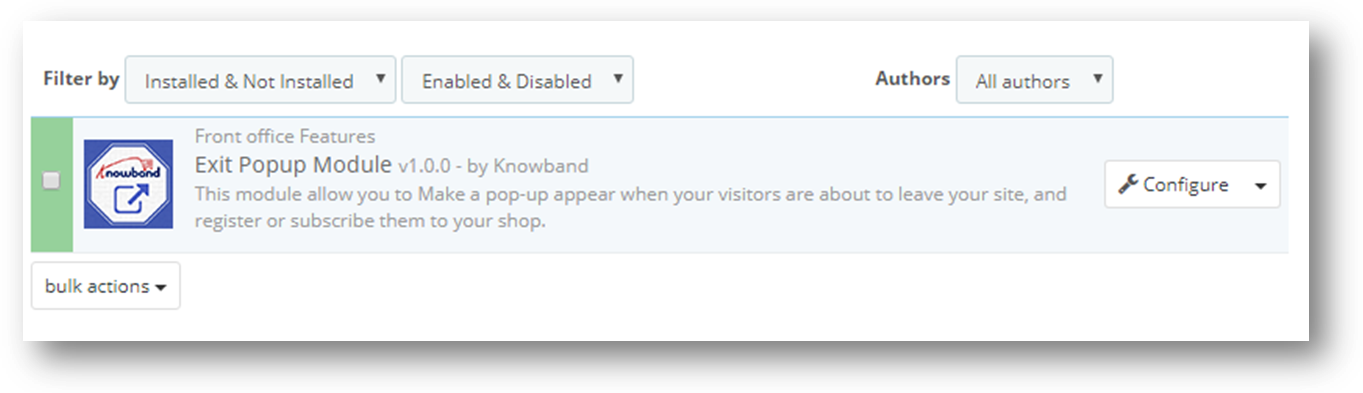
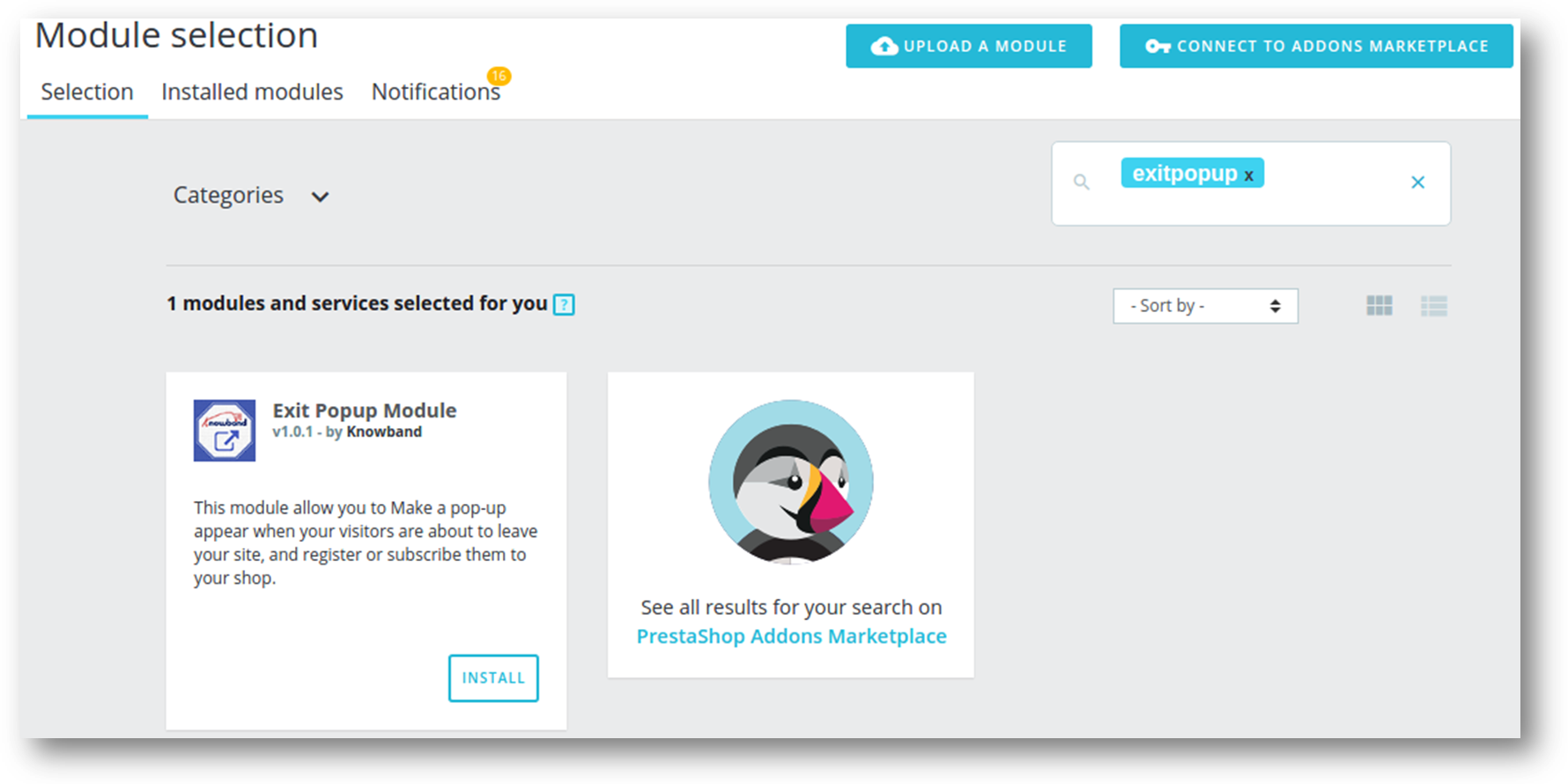
  2. Now the exit pop up(email subscription)is ready to be installed on your store and you can find that in Store Admin -> Modules and Services. It would be shown as below –

For Prestashop 1.6.x.x-

For Prestashop 1.7.x.x-

4. Click on “Install” button to install the addon. It would show a pop-up for your confirmation. Click on “Proceed with the installation” option. This step will install the addon and show notification – “Module(s) installed successfully”.

How to configure Exit pop up-email subscription addon?

This addon is configurable and Prestashop Store Owner or Prestashop Store Admin can setup or configure this email subscription pop up through Admin Panel of store by following steps –

  1. Go to Store Admin -> Modules and Services.
  2. Find “Exit popup” and click “configure” button given corresponding to the addon.
  3. It would open a new page as shown below.

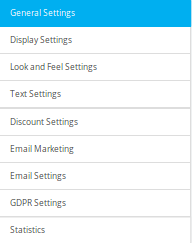
The configuration settings of this Prestashop welcome popup are divided into seven sections namely:

  1. General Settings
  2. Display Settings
  3. Look and Feel Settings
  4. Text Settings
  5. Discount Settings
  6. Email Marketing Settings
  7. Email Settings
  8. GDPR Settings
  9. Statistics

Each section is described below.

Dashboard

You will see four statistics data in the dashboard.

Total Visitors- This is the count of total visitors who have seen the Email subscription pop up on exit.

Total Stayed User-This is the count of total users who stayed on your site after the Exit pop up appears on Prestashop storefront.On hover, you will also see the percentage of stayed users.

Total Newsletter Email subscription-This is the count of total newsletter subscription by the exit pop up addon.On hover, you will also see the percentage of total newsletter email subscriptions.

Total Coupons Generated- This is the count of total coupons generated by the email subscription pop up.On hover, you will see the percentage of total used coupons by Prestashop store visitors.

General Settings

You have to follow steps given below to configure General Settings –

  1. Goto the Module and Services -> Module and Services
  2. It would list all the modules of the Prestashop store. Find ‘Exit popup’ in modules list.
  3. Now click on ‘Configure’ button given corresponding to the ‘Exit popup’ addon.
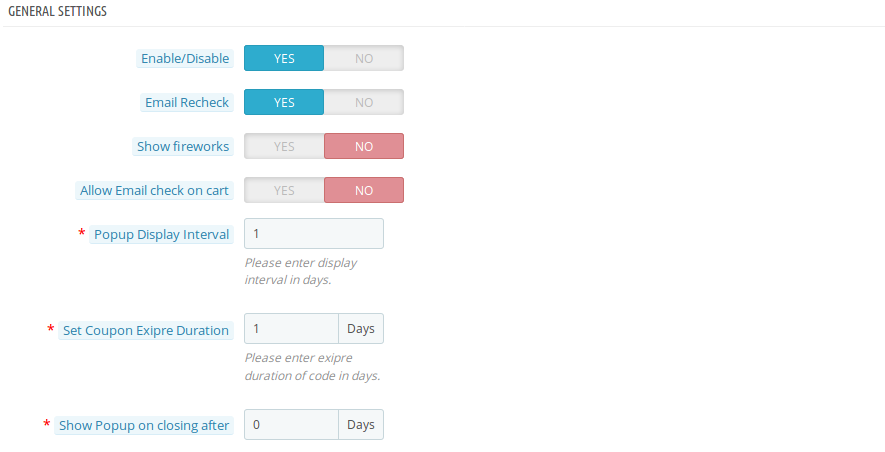
  4. It would redirect Prestashop Store Owner or Admin to the general settings page as shown below
  5. Update the values of given fields corresponding to ‘General Settings’ as per need.
  6. Now click on ‘Save’ and it would validate and save the provided values.
  7. That’s it.

This section has following input field which Prestashop store admin can update –

  1. Enable/Disable: To enable the plugin, switch the enable button from OFF to ON. The default value will be set to “OFF”.
  2. Email Recheck: This option lets admin to ensure that no user is provided coupon more than one time.
  3. Show Fireworks: Admin can show fireworks in the background as the customer wins the coupon code.
  4. Allow email check on cart: This option allows the admin to check whether the actual owner of this coupon and the one who is applying the coupon code are same or not. If this option is enabled, then no duplicate email ids will be accepted.
  5. Popup Display Interval: Enter display interval(in days) after which the popup will be shown once the coupon is generated.
  6. Set Coupon Expire Duration: This option lets you set the expire duration of the coupon(in days).
  7. Show Popup on closing after: This allows the admin to set the number of days after which the entry popup or exit popup will be shown once closed by the user.
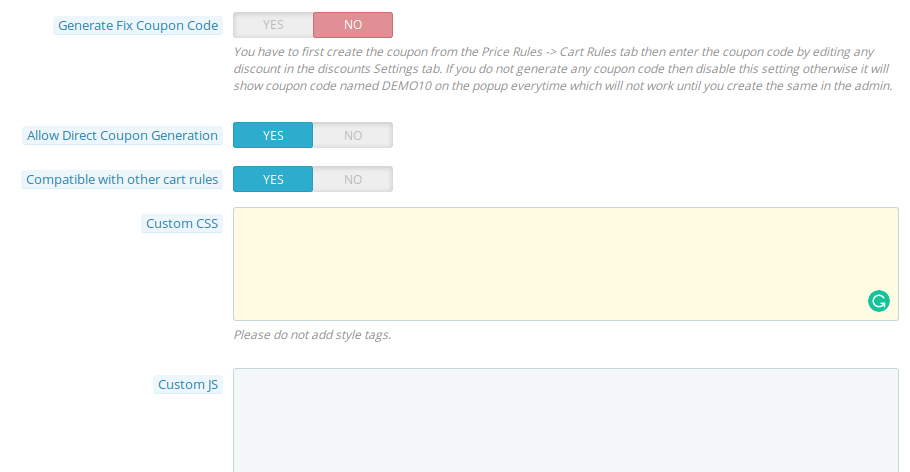
  8. Generate Fix Coupon Code: Using this option, you can generate and set a fix coupon code for entry popup and exit poup.
  9. Allow Direct Coupon Generation: If this setting is enabled, then the customer can generate the coupon code just by clicking the Get Coupon Code button.
  10. Compatible with other Cart Rules: If you want that coupon generated from exit popup should not be used with the coupons generated from other sources, then set its compatibilty OFF.
  11. Custom CSS and Custom JS: Admin can update the CSS and JS to customize the email subscription pop up without touching the base code of the addon. This field can help you in customizing the email subscription pop up according to your Prestashop store theme.

Display Settings

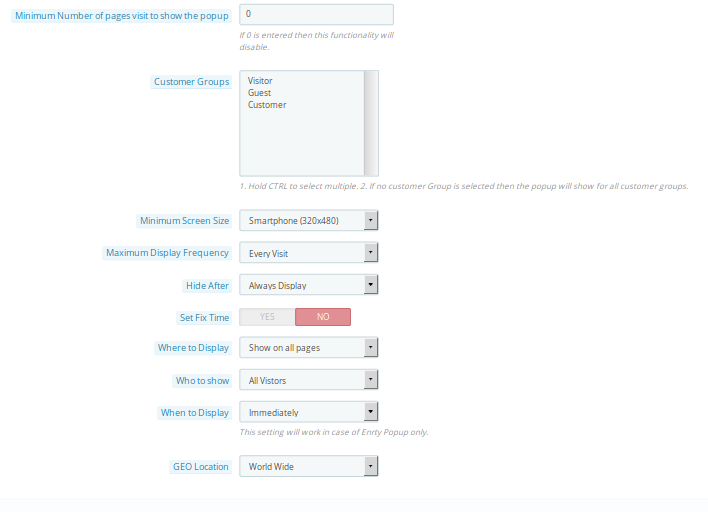
  1. Maximum number of page visits to show popup: This option sets the page visit count after which the exit popup will be shown to the user.
  2. Customer Groups: Admin can select the customer group from choices: Visitor, Guest or Customer.
  3. Minimum Screen Size: Admin can select minimum screen size configuration to show entry-exit popup.
  4. Maximum Display Frequency: Admin can also set maximum display frequency to display entry-exit popup.
  5. Hide After: Select the time after which the popup hides automatically.
  6. Set Fix Time: Admin can set fix time under which the customers can win discount coupons. This includes active popup date and expire popup date.
  7. Where to Display: Admin can select the site pages where they want to display the entry-exit popup.
  8. Who to Show: Admin can set the category of customers to which the entry-exit popup will be shown. This includes new visitors, returning visitors or all visitors.
  9. When to Display: Admin can set when to display the popup to the users, after some specified time, scroll down percentage or immediately as the user enters the site. This setting will only work for entry popup.
  10. Geolocation: Admin can set the geolocation where they want to show this entry-exit popup to the site users.

Look and Feel Settings

You have to follow steps given below to configure Look and Feel Settings –

  1. Goto the Module and Services -> Module and Services
  2. It would list all the modules of the store. Find ‘Exit popup’ in modules list.
  3. Now click on ‘Configure’ button given corresponding to the ‘Exit popup’ addon.
  4. It would redirect Prestashop store admin to a new page. Click on “Look and Feel Settings” tab and it would open a new section as shown below.
  5. Update the values of given fields corresponding to ‘Look and Feel Settings’ as per need.
  6. Now click on ‘Save’ and it would validate and save the provided values.
  7. That’s it.

This section has following input field which Prestashop store admin can update –

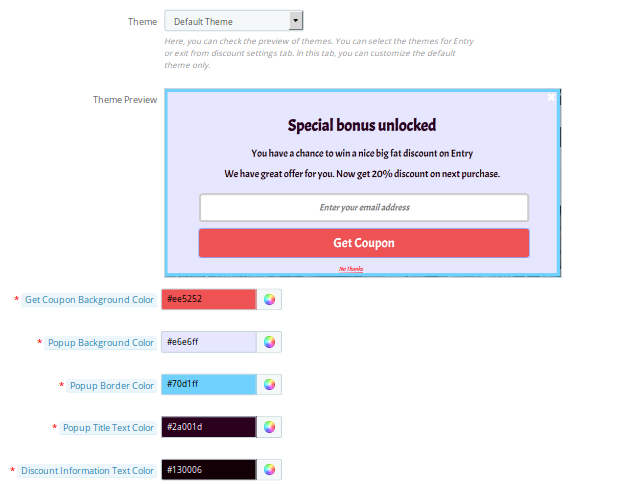
This Prestashop addon offers multiple themes to choose from. Other than five ready made popup templates, there is one default theme which is fully configurable from the backend interface. If the admin chooses any pre-defined template then he only requires to choose the background image for the entry-exit popup. But choosing default theme gives the following listed features to the admin.


  1. Theme Preview: This option allows admin to preview various theme selection done in the above option.
  2. Get Coupon background color: This option sets the background color of get coupon button shown over entry-exit popup.
  3. Popup background color: Admin can set the background color of this  exit popup using this option.
  4. Pop up border color: Configures the border color of the Email subscription exit pop up.
  5. Pop up title text Color: Configures the Title color of the Email subscription Exit Popup.You can set any color which matches your theme.

  6. Discount information text color: Admin can configure the color of discount information text.
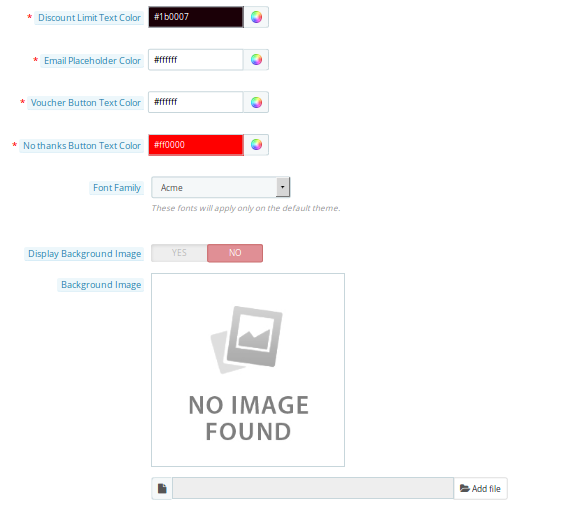
  7. Discount limit text color: Admin can set the color of discount limit text.
  8. Email Placeholder color: This option changes the background color of email placeholder.
  9. Voucher button text color: Change font color of get coupon text using this option.
  10. No thanks button text color: Change font color on No Thanks button.
  11. Font family: Change font family of text shown over popup.
  12. Display background image: Show or hide background image on popup.
  13. Background image: If the above option is enabled, then you can browse and select desired image as background image.


Text Settings

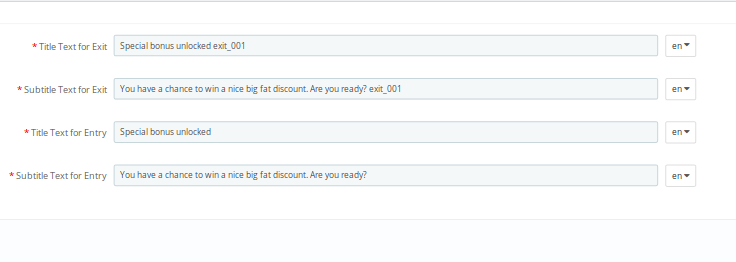
The text settings for Prestashop Exit Popup can be configured using the following options. The admin can set the various texts in different languages.

  1. Title Text for Exit: This option sets the title text for the exit popup.
  2. Subtitle text for Exit: This option sets the subtitle text for exit popup.
  3. Title text for Entry: This option sets the title text for entry popup.
  4. Subtitle text for Entry: This option sets the subtitle text for entry popup.

Discount Settings

You have to follow steps given below to configure Discount Settings –

  1. Goto the Module and Services -> Module and Services
  2. It would list all the modules of the store. Find ‘Exit popup’ in modules list.
  3. Now click on ‘Configure’ button given corresponding to the ‘Exit popup’ module.
  4. It would redirect Store Owner or Prestashop store admin to a new page. Click on “Discount Settings” tab and it would open a new section.
  5. Update the values of given fields corresponding to ‘Discount Settings’ as per need.
  6. Now click on ‘Save’ and it would validate and save the provided values.
  7. That’s it.

This section has following input field which Prestashop store admin can update –

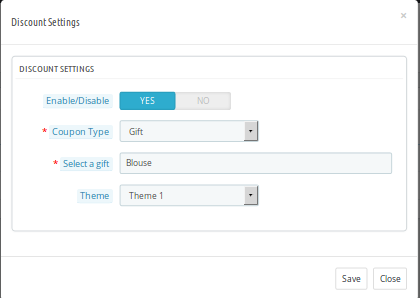
Admin can see the details of various discounts set for entry and exit popup. By clicking on the edit option admin can configure each of the set discounts separately. The discount settings popup contains the following options:

Enable/Disable: Admin can enable or disable the discount offered corresponding to welcome or exit popup.

Coupon Type: This option allows the admin to set the type of offer they want to provide on the entry-exit popup. It can be in the form of a fixed or percencentage discount, free shipping or a gift.

Select a Gift/Value: If its value then set the fixed or percentage value you want to offer as discount. If its a gift then select the product that you want to offer as gift to your customers.

Theme: This option allows the admin to set a separate theme for entry and exit popup.


Email Marketing

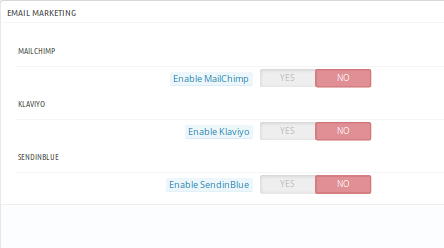
This section of Prestashop email subscription exit popup provides you three inbuilt choices for email marketing as given below:

This Prestashop module offers you three email marketing options as

  • MailChimp
  • Klaviyo
  • Sendin Blue

Each of them can be separately enabled/disabled and can be configured by setting up the required API keys from this backend panel.

Email Settings

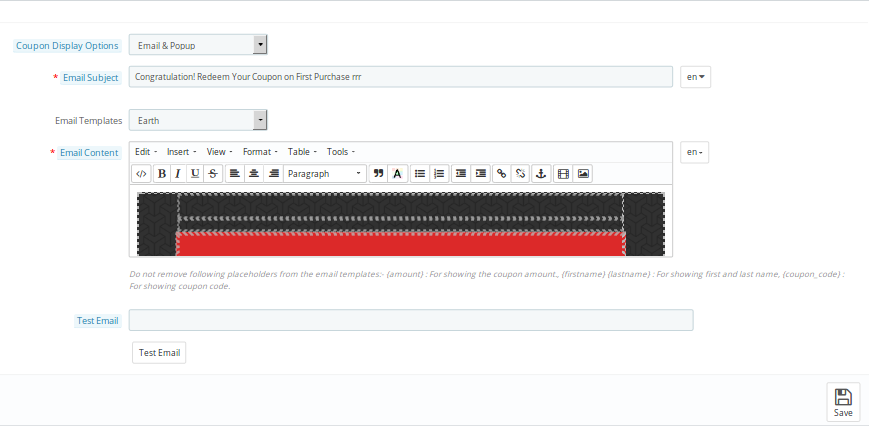
The email settings of Prestashop entry-exit(email subscription) popup offers you following configuration settings as given below:

  1. Coupon Display Options: Admin can choose whether they want to display the coupon code on popup only, email only or both.
  2. Email Subject: Admin can set the subject for the email sent to the customers as they win the discount coupon.
  3. Email Template: This options lets admin choose the template for the discount winning email. This email template is same for entry and exit popup.
  4. Email Content: Admin can set the content of the discount email sent to the customers. They can specify the coupon code and coupon validity in the discount email.
  5. Test Email: Admin can use this option to test the discount emails on a specific email before sending them to the actual user.

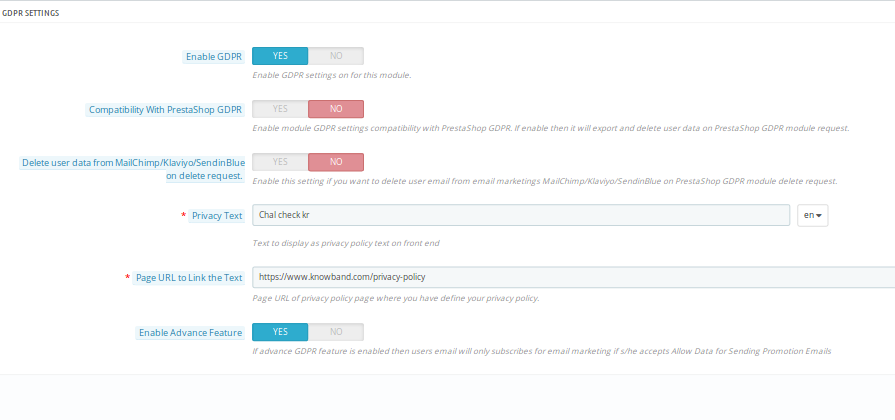
GDPR Settings

Prestashop email subscription exit popup addon is GDPR compatible and so the various GDPR settings can be configured using the given options listed below:

  1. Enable GDPR: Enable or disable GDPR settings for this Prestashop exit popup module.
  2. Compatibilty with Prestashop GDPR: Enable/disable module GDPR settings compatibility with PrestaShop GDPR. If enable then it will export and delete user data on PrestaShop GDPR module request.
  3. Delete user data based on email marketing service request: Enable this setting if you want to delete user email from email marketings MailChimp/Klaviyo/SendinBlue based on PrestaShop GDPR module delete request.
  4. Privacy Text: Admin can set a privacy text shown over the entry, exit popup.
  5. Page URL to link the text: Admin can set a specific page URL of privacy policy page where you have defined your privacy policy for your website.
  6. Enable Advance Feature: If advance GDPR feature is enabled then users email will only subscribes for email marketing if s/he accepts Allow Data for Sending Promotion Emails.

Statistics

You have to follow steps given below to configure Statistics-

  1. Goto the Module and Services -> Module and Services
  2. It would list all the modules of the store. Find ‘Exit popup’ in modules list.
  3. Now click on ‘Configure’ button given corresponding to the ‘Exit popup’ addon.
  4. It would redirect Prestashop store admin to a new page. Click on “Statistics” tab and it would open a new section as shown below –

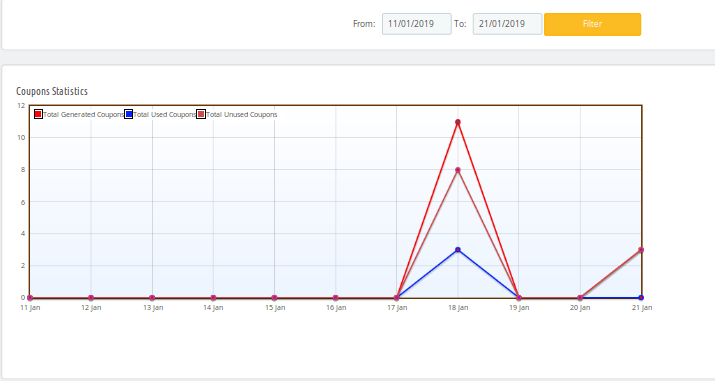
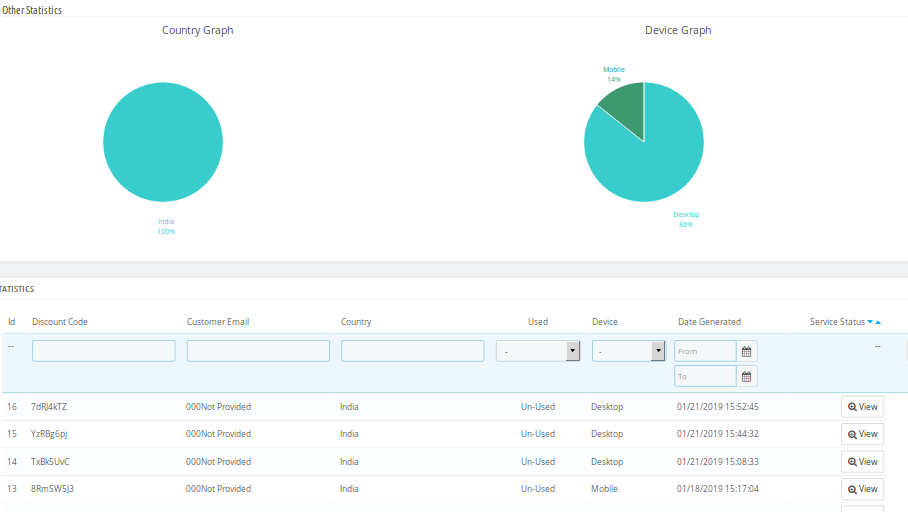
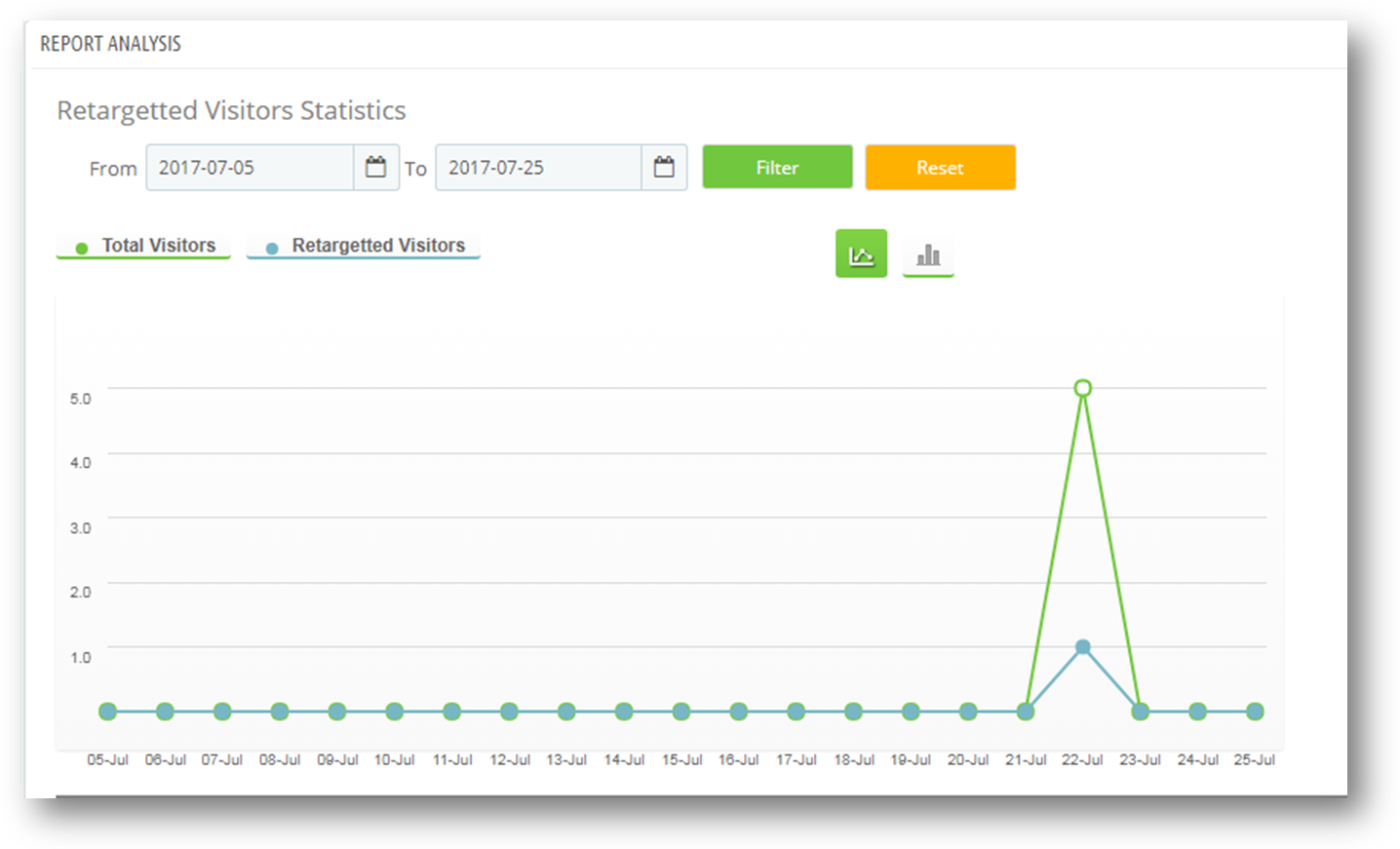
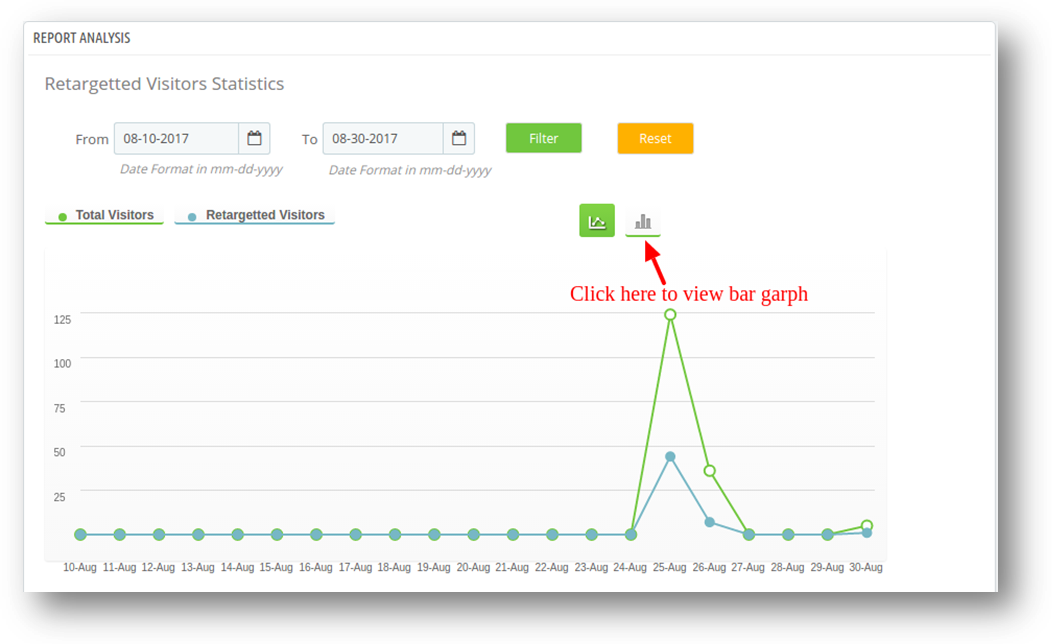
This tab shows the report analysis in graphs.You can filter the graph by selecting the date range in the ‘from’ and ‘to’ date fields.

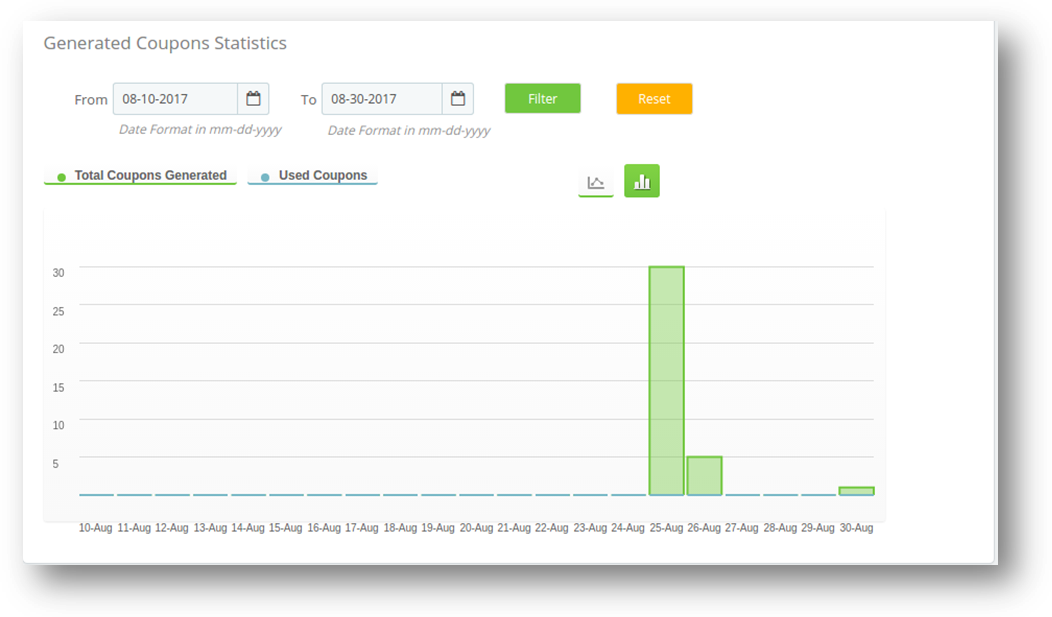
There are two graphs in this tab-

  1. Visitor graph: This is the graph between total visitors and retargeting visitors.

X-axis- Date and time

Y-axis- Total visitors and total staying users

  1. Coupon Graph: This is the graph between the total generated coupon and total used coupons.

X-axis- Date and time

Y-axis- Total generated coupons and total used coupons

You can also view the graph in two form 1. Lines 2. Bars

1. Line graphs

  1. Bar graph: To view bar graph.You need to click on its icon as shown in the following figure.

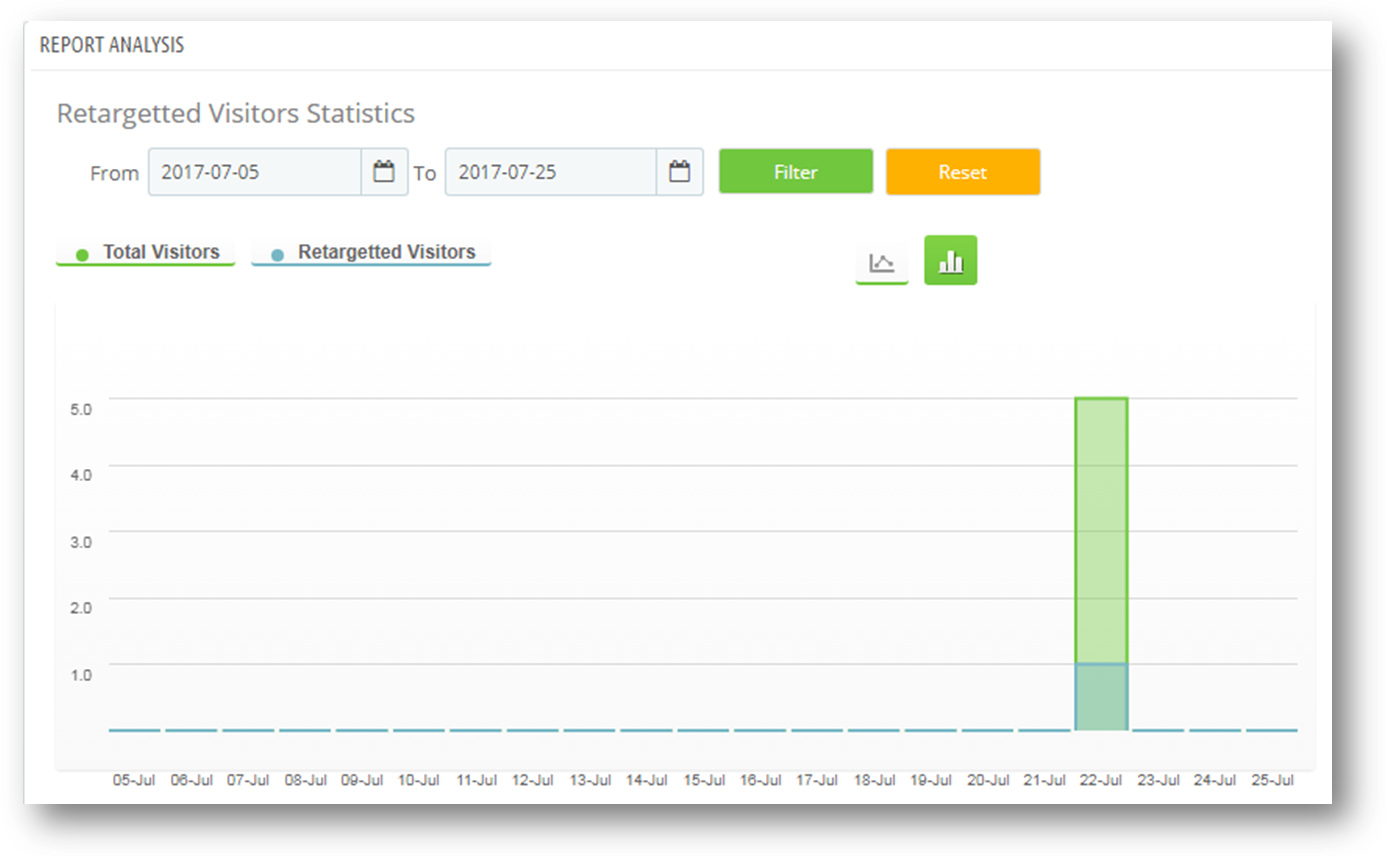
Bar graph will look like this.

MailChimp Settings

You have to follow steps given below to configure Statistics-

  1. Goto the Module and Services -> Module and Services
  2. It would list all the modules of the store. Find ‘Exit popup’ in modules list.
  3. Now click on ‘Configure’ button given corresponding to the ‘Exit popup’ addon.

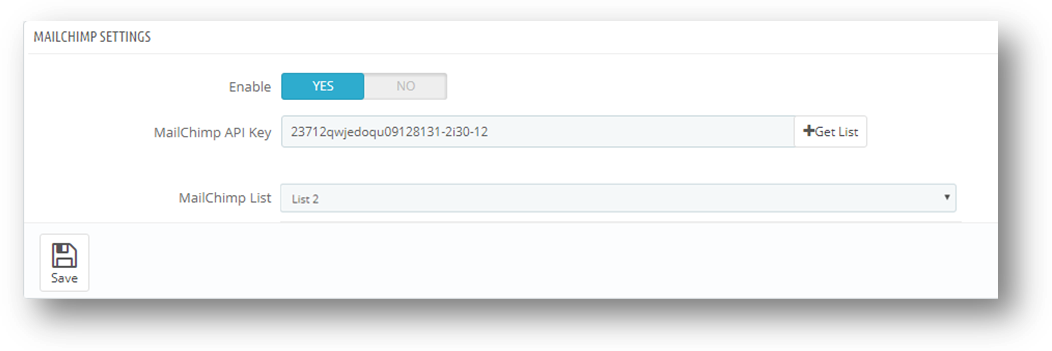
It would redirect Prestashop store admin to a new page. Click on “MailChimp settings” tab and it would open a new section as shown below –

Enable/Disable: The admin can enable/disable the Mailchimp settings. It will be initially set to “OFF”.

MailChimp API Key: MailChimp API key is the key that the user created on his/her MailChimp account at https://www.mailchimp.com. This API key will be used to connect to the MailChimp API. When user fills the “MailChimp API Key” field with a valid API key and click Get List button then the lists related to that MailChimp API key will display.

MailChimp Lists: MailChimp Lists will be available when the MailChimp API key is provided.

Frontend

  • Prestashop Welcome or Entry popup shown as the customers enters on the site.

  •  Prestashop Exit popup as the customer intends to leave the site or intends to close the window.

Recommendations

– If the plugin is not working after installation then please check permissions on modules folder. The folder should have write access. Please make the folder permission to 755.

Disclaimer: In case the “Exit” popup does not display at the front, kindly clear the cache or delete the cookies. Sometimes cookies prevent the popup from displaying at front.


Buy Prestashop Exit Pop up module on the Addon store

You may also be interested in:

Exit Intent popup with gamified interface: https://www.knowband.com/prestashop-spin-and-win
User Manual: https://www.knowband.com/blog/user-manual/prestashop-spin-win-module/

You Might Also Like: