OpenCart Cash on Delivery with Fees Extension – User Manual

1.0 Introduction

Most of the users believe that online payment methods are unsafe while shopping from an eCommerce store. As this involves sharing the details of payment cards, the majority of users find risk in transacting their product orders.

Knowband offers OpenCart Cash on Delivery with Fees extension which helps site admin to add a COD payment method at the checkout page for guests and registered users. Using this COD with Fee facility, the shopper has to pay an extra charge as a delivery service for that product. They have to pay the order cost when the product is delivered in hands by the merchants or sellers. This COD additional amount is decided by the site owner from the backend of this Opencart extension.

1.1 Striking Features of OpenCart Cash on Delivery with Fees Extension

OpenCart Cash on Delivery plugin offers many customizable features that can be set as per business requirements. No coding or technicalities are involved in the implementation and creating ‘N’ number of COD profiles from the backend interface. Let us explore the striking features of this COD module one by one.

  • OpenCart Cash on Delivery with Fees extension charges an extra amount from the customer as delivery fees for the product.
  • Cash on delivery fees extension for OpenCart integrates a pay on delivery option for your site products.
  • Customers can pay the product cost along with COD charges when they get the product delivered in their hands.
  • The site merchants can create an unlimited number of COD rules or profiles which can be modified and deleted as per requirements from the backend of this OpenCart cash on delivery facility module.
  • With OpenCart Cash on Delivery with the surcharge module, you can set the name of the payment profile.
  • The OpenCart COD option incorporated using this cash on delivery fees extension can be quickly enabled or disabled from the backend.
  • With OpenCart Cash on Delivery with the surcharge module, admin can specify different terms and conditions for every COD rule or condition.
  • Admin can enable or disable any of the COD profiles from the backend of this Cash on Delivery With Fee extension.
  • Admin can set the type and value for the COD fee charged from the customer using OpenCart CoD with the Fees module.
  • For percentage type COD charge, admin can set a base amount (with or without shipping ) on which the delivery charge is calculated.
  • With OpenCart cash on delivery with extra charges extension, admin can set a percentage amount which is calculated over the base amount.
  • With OpenCart Cash on Delivery with the surcharge module, the admin can specify the minimum and maximum order value upon which the COD will be calculated and charged from the customer.
  • With the help of OpenCart cash on delivery with extra charges extension, admin can enable COD with fee options for selected shipping or carrier methods.
  • This OpenCart COD with fee extension allows admin to select the location or country where they want to offer this cash on delivery with extra fee facility on product orders.
  • This COD with fee payment option integrated using OpenCart Cash on the Delivery plugin is shown to selected customer groups including guest users and customers.
  • With OpenCart CoD with the Fees module, an eCommerce site admin can choose a priority order or value for each of the COD profiles. The highest priority COD rule will be executed on the frontend.
  • Using OpenCart cash on delivery facility module, admin can also set initial order status for every COD profile.
  • OpenCart Cash on the Delivery plugin is multi-lingual compatible.
  • OpenCart cash on delivery with extra charges extension is multi-store compatible.
  • OpenCart Cash on Delivery with surcharge option is the browser and mobile-friendly.

2.0 Installation Guide of OpenCart Cash on Delivery with Surcharge Module

Purchase OpenCart Cash on Delivery with Fees extension from Knowband. You will receive these files after purchasing the OpenCart Module:

  • Source code of OpenCart CoD with Fees module in zipped file format.
  • User Manual of OpenCart CoD with Fees module.

Follow below-mentioned steps to install OpenCart Cash on Delivery with Fees extension on your online shop:

1. Unzip the received zip file. You will get the folders.

OpenCart Cash on Delivery with Fees

2. Copy all the folders of the zip file in the Root Directory of OpenCart setup via FTP manager.

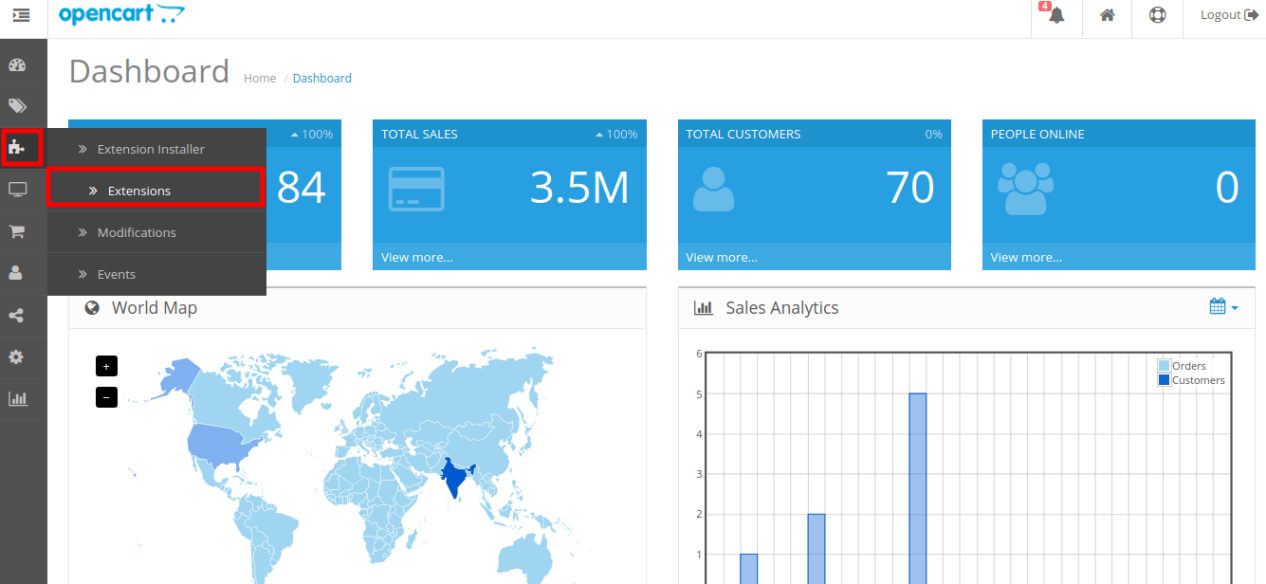
There will be a file named kbcodfee.ocmod.xml (In case of Openvar v3.0.x file name would be kbcodfee.ocmod.zip). Upload the same file from the page “Admin -> Extension -> Extension Installer -> upload”.

So, OpenCart CoD with Fees module is now successfully installed and ready to use at your store.

3.0 Admin Settings

Just after the successful installation of OpenCart Cash on Delivery with Fees, you can create and configure the COD profiles as per your requirements. Navigate the settings in the given order: Admin Panel > Extensions > Payments > Knowband Cash on Delivery with Fee.
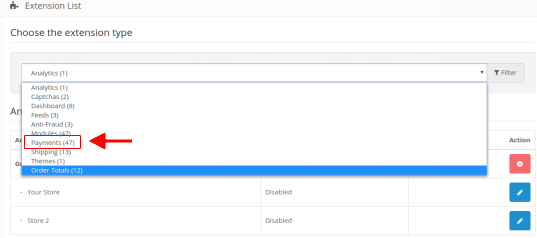
The simple to understand admin interface of OpenCart Cash on Delivery with Fees extension has been divided into two broad sections namely:

1. General Settings
2.Payment Profiles

Each of these sections have been discussed in detail below.

3.1 General Settings

The general settings of OpenCart cash on delivery facility module have been listed one by one.
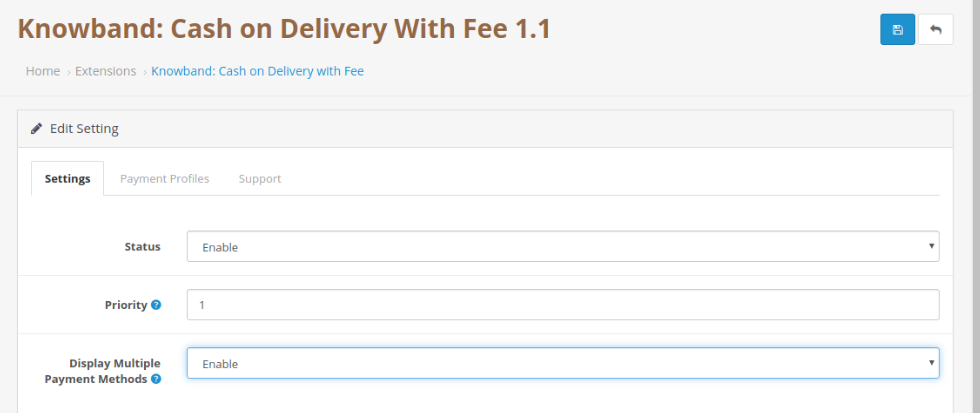
  • Status: This option enables or disables the complete functionality of OpenCart Cash on Delivery plugin on the store.
  • Priority: This option allows you to set the priority of this module among other payment modules on the store.

3.2 Payment Profiles

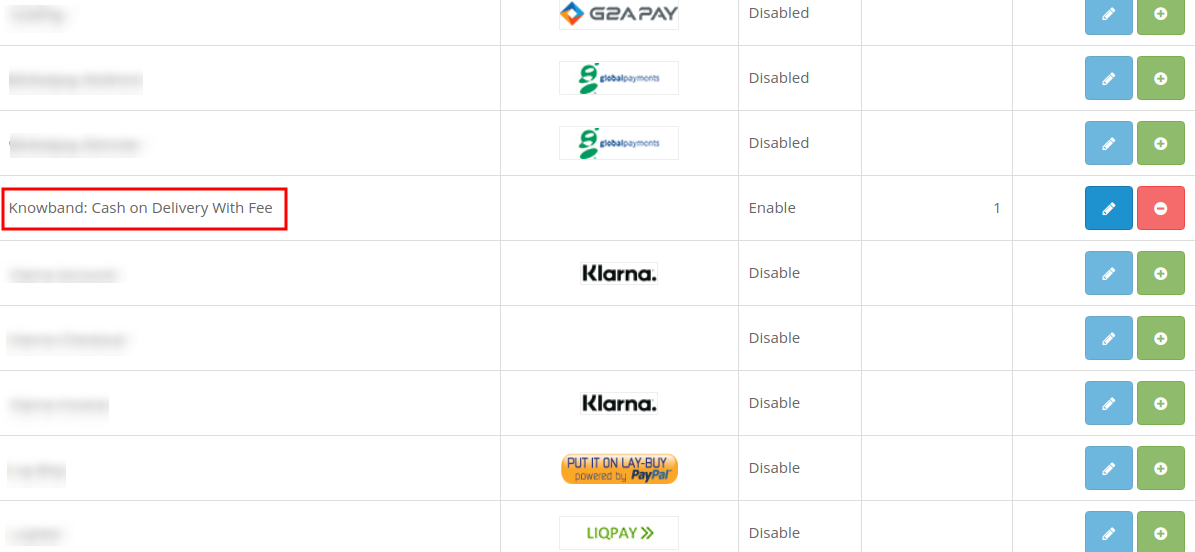
Using OpenCart Cash on Delivery with Fees, admin can create as many payment profiles for their website. The below image shows the list of existing COD profiles which can be modified by clicking the ”Edit” button corresponding to the listing.
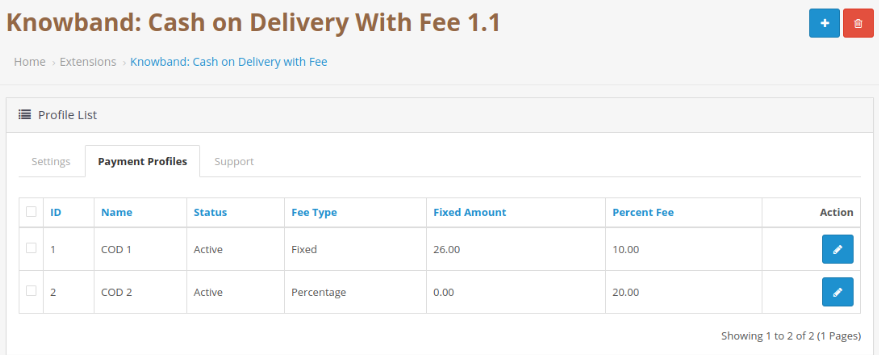
To add a new payment profile, click on the “+” button at the top right corner of admin panel. You will see the following fields as listed:
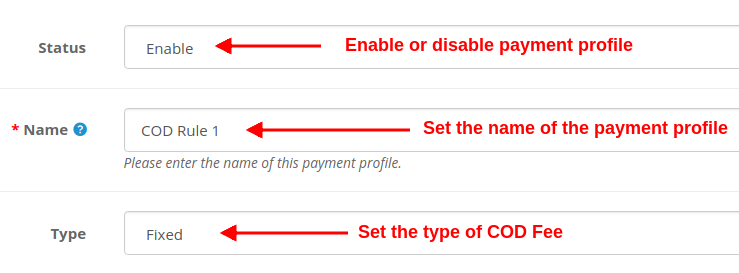
  • Status: Using this option, you can enable or disable the selected payment profile.
  • Name: This option will set the name for the payment profile.
  • Type: This option sets the type of COD fee charged from the customers. It can be fixed or percentage.
    If the “Type” field is selected as Fixed, then the following field is shown.

  • Fixed Amount: This option sets the fixed COD fee amount which is charged from the customer upon product delivery. If the “Type” field is selected as a Percentage, then the following fields are shown.
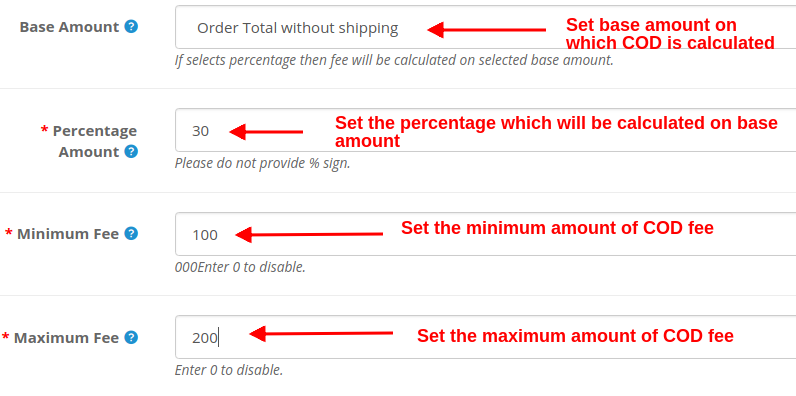
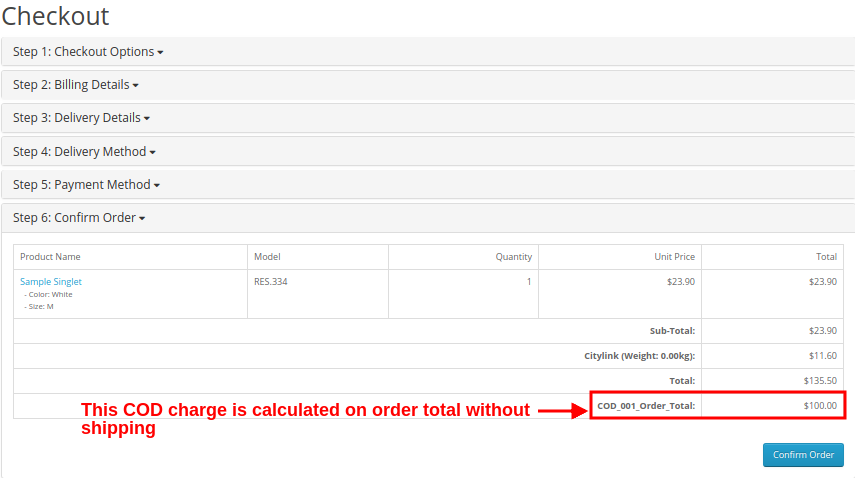
  • Base Amount: Select the base amount type on which the COD charge will be calculated. The two options are: Order Total and Order Total Without Shipping.
  • Percentage Amount: This option sets the percentage amount which is calculated over the base amount.
  • Minimum Fee: This option will set the minimum amount of COD fee which will be charged from the customer. Set this value 0 to disable.
  • Maximum Fee: This option will set the maximum amount of COD fee which will be charged from the customer. Set this value 0 to disable.

Apart from these settings offered by OpenCart Cash on Delivery with Fees, some more common settings are offered for setting up a payment profile. Check below.
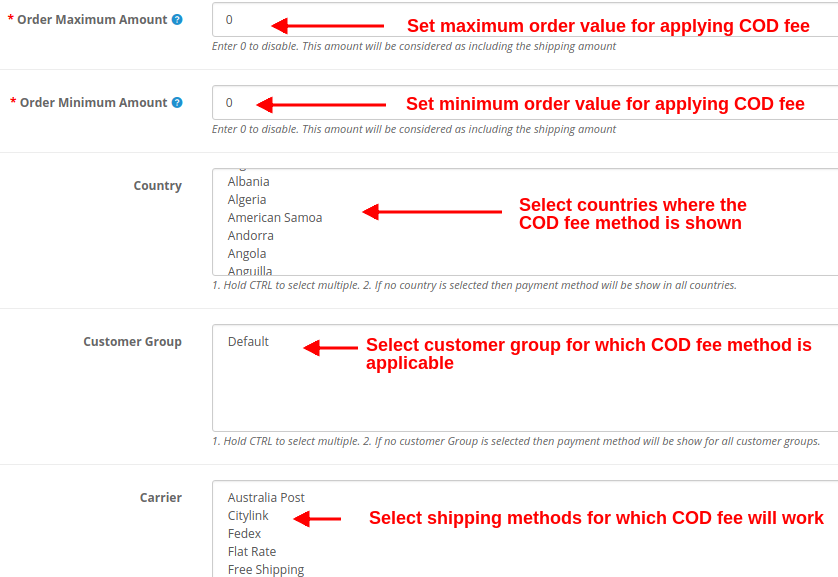
  • Order Maximum Amount: This option sets the maximum product order amount which is required to apply COD with fee facility. A customer cannot apply COD with fee facility on an order value above this Order Maximum Amount.
    Note: Enter 0 to disable. This amount will be considered as including the shipping amount.
  • Order Minimum Amount: This option sets the minimum product order amount which is required to apply COD with fee facility. A customer cannot apply COD with fee facility on an order value below this Order Minimum Amount.
    Note: Enter 0 to disable. This amount will be considered as including the shipping amount.
  • Country: Using this option, admin can show and provide the COD with fee facility in selected regions or country.
    Note: Hold the CTRL button to select multiple countries. If no country is selected then COD with Fee payment method will be shown in all countries.
  • Customer Group: This option allows admin to select the customer groups where the Cash on Delivery with Fee mode is applicable. Guest and Registered users can avail of the benefits of COD with Fee facility.

Note: Hold the CTRL button to select multiple customer groups. If no customer Group is selected then COD with fee method will be shown to all customer groups.

  • Carrier: You can select the carrier or shipping methods for which the COD with Fee module will be shown.
    Note: Hold the CTRL button to select multiple carriers. If no carrier is selected then the payment method will be shown for all carriers.

  • Initial Order Status: This option sets the initial order status for the selected COD rule.
  • Priority: This option sets the priority of the COD rule or profile.

Note: The highest priority rule is displayed on the front of the customers.

At last, click on the “Save” button at the top right corner of the admin interface in order to save the configured settings.

4.0 Front Interface

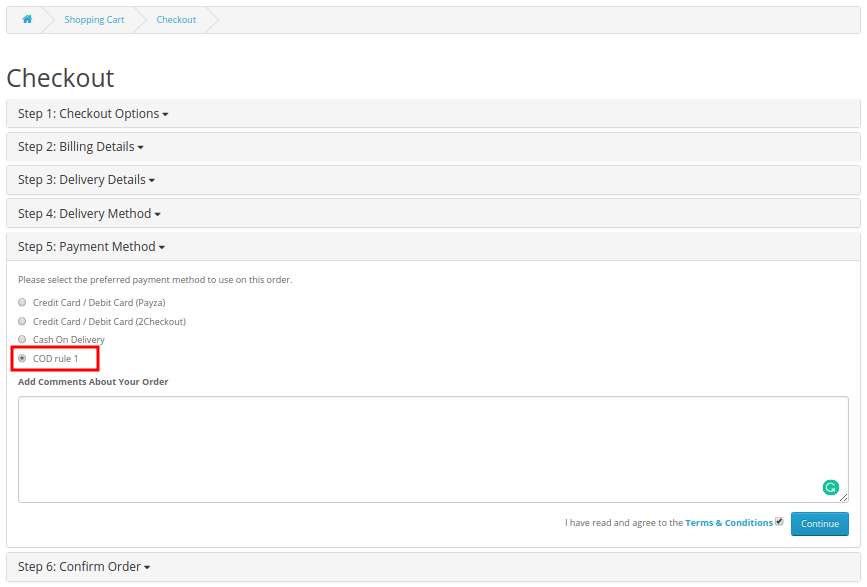
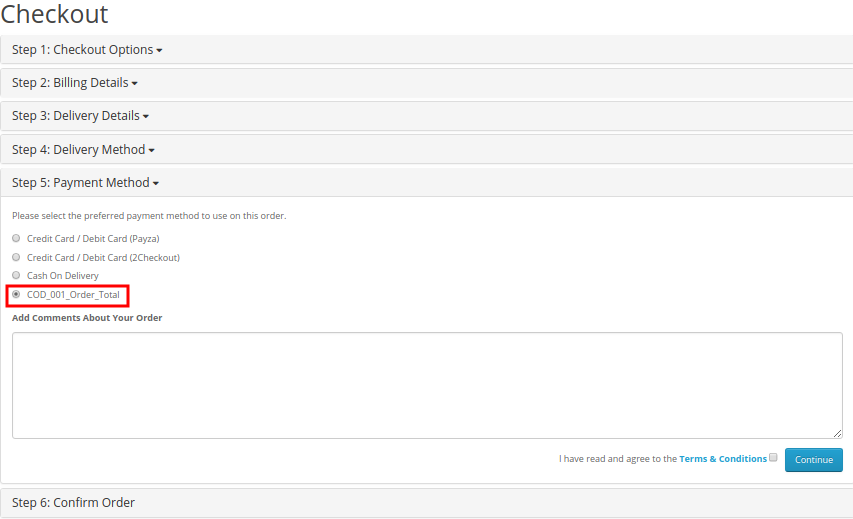
How can registered customers or guest users avail this facility? To use COD with additional charge facility on product orders, shoppers have to perform simple checkout for the product. They have to add the product to their cart and select the desired shipping method. Depending upon the type of shipping method selected by the user, OpenCart Cash on Delivery with Fees shows the payment methods as shown in the image below:

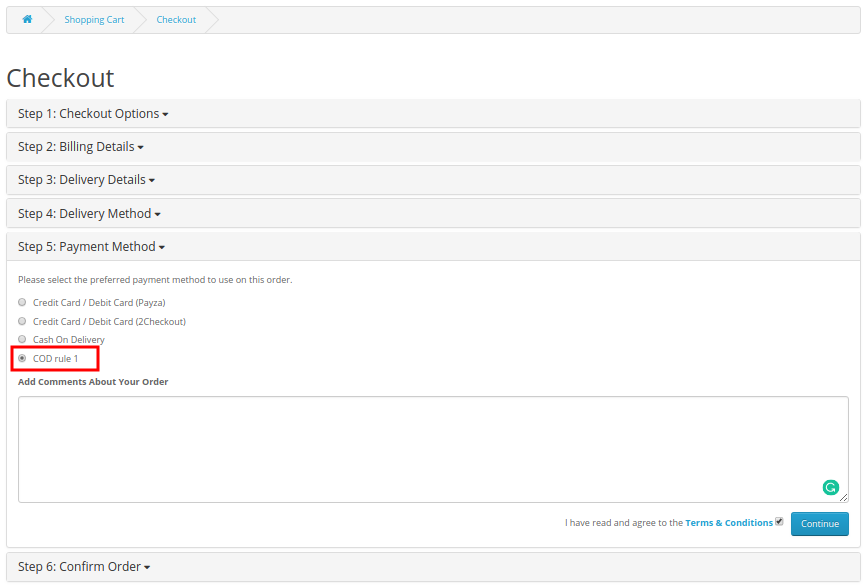
Now, as the customer will select the COD with fee option, they will be shown the total order cost along with the surcharge as shown in the image below:
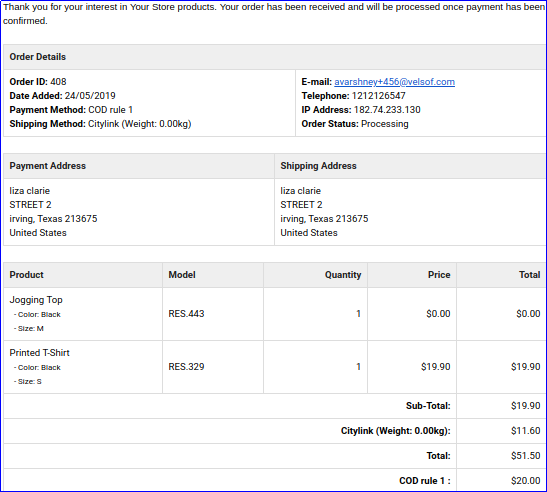
Now, as the customer will confirm their “COD with fee” order, then they will get a confirmation email detailing the order price details including the COD additional charge.

A) Fixed Type COD Price Rule

B) Percentage Type COD Price Rule
This way, the online merchant can offer a facility to pay at delivery time. Customers can easily pay the cash to the delivery person at the time of delivery. Most of the time customers do not trust the online store, especially while placing the first order. This way, the e-merchant can open doors for the first time buyers and those customers who don’t like paying the order amount online. OpenCart Cash on Delivery with Fees extension is highly customizable and offers the complete setup for offering cash on delivery option. The online merchant can create multiple payment profiles from the admin interface of this OpenCart Cash on Delivery plugin and set a fixed/percentage-based fee. The OpenCart Cash on Delivery with surcharge module is highly customizable and allows the store admin to select the countries, customer groups and carrier options for applying cash on delivery fees. The cash on delivery module with extra fee is mobile responsive, multi-lingual compatible, and SSL compatible also.

Check out our Tutorial Guides for the OpenCart Cash on Delivery with Fee Extension by KnowBand

These tutorials walk you through:

  • Installing the OpenCart Cash on Delivery with Fee Extension

  • Configuring COD fees for different payment options

  • Setting up minimum and maximum order amounts for COD

  • Managing fee rules based on customer groups or locations

  • Testing the checkout process with COD fees applied

These step-by-step guides are ideal for store owners who want an easy-to-follow, beginner-friendly approach to adding and managing COD fees without any technical hassle.

For more details about this OpenCart CoD with Fees module, visit here:

OpenCart Cash on Delivery with Fees extension link

OpenCart Cash on Delivery plugin Admin Demo

OpenCart Cash on Delivery with surcharge module Front-end Demo

5 ways to Manage eCommerce Returns

Managing eCommerce returns can be a headache for online retailers. If a rise in sales makes eCommerce merchants extremely happy, an increase in product return neutralizes that happiness.

It is to be of no doubt that online stores have higher return rates than offline stores and there are strong reasons to back this fact.

When customers visit a brick-and-mortar store, there is no confusion regarding the product size. There are no possibilities of getting the wrong product. Most importantly, what it looks is what it is, which is not possible during online shopping.

Basically, customers can try out a product in a physical store. They can touch it, hold it, feel it and find out the flaws at that moment, which is not possible in the case of an online store. This is why e-retailers face excessive returns and it becomes quite a difficult task to manage them.

In this article, we will discuss how you can manage eCommerce returns and improve customer satisfaction.

1. Create a flexible Return Policy

One of the important points in the returns management best practices is to craft your return policies well. Be clear about the terms and conditions. Mention what kind of returns you accept, what should be the condition of the item to get its replacement, what is the time span for returning an item, what is the procedure to raise a return request, etc.

A well-written eCommerce return policy helps a user to understand your return procedure better. Also, avoid using any hard language that is difficult for a user to understand.

Product return policy not just helps you handle customer returns efficiently but also encourages users in their purchase decision process.

Want to know how you can write an effective return policy?

 2. Allow Customers to make a Return Choice

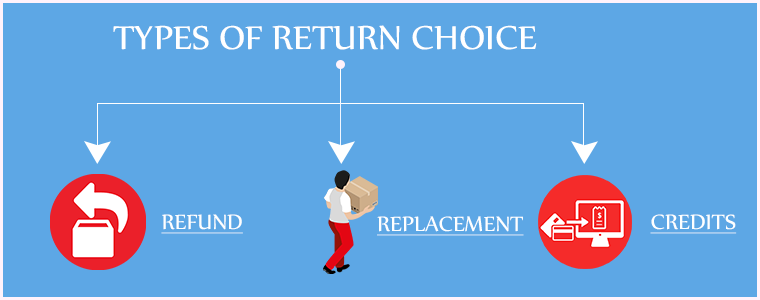
Adding to the list of eCommerce returns management is letting customers decide what they want to do with the product they wish to return. Whether they want to replace the product, raise a full refund or need the product amount in the form of points/store credits, the choice should be left to them.

Providing a return choice is a persuasive tactic to make customers return to your store in the future. For example, if a customer opts for the credits worth the product amount, providing him with that would ensure that the customer is going to come back to your store in the nearby future and make a purchase.

Put simply, it improves customer retention on your website.

 3. Automate your Return Process

If you have a large e-commerce store, you will have more product returns. Imagine how difficult it would get if you manually handle product returns. Moreover, it will be very time-consuming.

Automating your eCommerce returns can save you a lot of time and effort. You would not need to handle each and every step on your own. From informing the customer about the placed return request to notifying them about the return status until the process is over, make everything an automatic process. This will decrease the return processing time.

 4. Speed up your eCommerce returns

Speeding up your return process is a vital point in eCommerce returns best practices.

Right after a customer places the return request, they expect their money’s worth in some form to the earliest. Though it can take a few days at least, you should not make your customers wait for too long. A long delay creates frustration among customers and they would think a few times before placing an order from your store again. Make sure the returns are processed as quickly as possible. It improves customer loyalty.

5. Provide free shipping

Customers do not like to pay an extra penny for returning a product. In fact, no one would like to pay some extra amount for a product that is defective or doesn’t match their expectations. If there is already a defect and on top of that, customers are asked to pay a small charge for returning it, they will feel annoyed.

To avoid this, you can allow free shipping on returns and keep your customers happy and satisfied.

Return Manager module by KnowBand

Considering all the above points, if you want to handle your product returns easily and make the product return process on your store well-structured, you can opt for our Return Manager module.

Knowband provides the RMA extension to various e-commerce platforms such as PrestaShop, Magento, Magneto 2. Check out

PrestaShop Return Manager

Magento Return Manager

Magento 2 Return Manager

Key Features of Return Manager-

1. Provide your customers with the option of Credit, Refund or Replacement

The Return Manager module allows three return methods: Credit, Refund, and Replacement. Through Credit, a customer can ask for the product amount to be transferred to their store account in the form of credits so that they can use them for the future purchase or they can simply ask for a refund or a replacement.

2. Customers can highlight the defect by uploading the product image

This addon allows customers to upload an image on the product return form to point out the defect so that the merchants can easily know the issue that led to product return.

3. Make it easy for the customers to specify their return reason

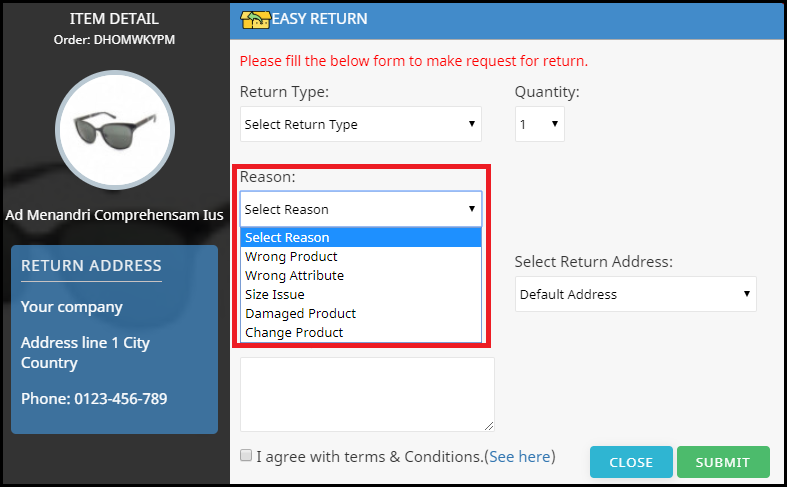
The product return manager enables you to create a list of possible reasons for product return. When a customer is raising a return request, he or she would be able to select the return reason from the drop-down list in the product return form.

4. Update customers with return status

Similarly, you can create a list of return status that defines whether the return is in process, returned, rejected, etc. and update your customers accordingly.

5. Set up multiple store addresses

If you have multiple stores located in different areas, you can set up multiple addresses and display them in the return form. When a customer places a return request, he/she can choose the return address based on the area where he/she lives.

Some of the other features that the module provides are-

6. You can track your returns from the back-end, allowing you to check how many return requests have been raised and how many have been approved.

7. Customers can further submit their query regarding their return by creating a new ticket under their return history.

8. The RMA extension also allows you to place a return on your customer’s behalf.

9. You can set up your return policies and return guidelines.

10. You can customize the emails as per your choice.

Look out for your preferred module to check its complete features and benefits.

The Bottom Line

Ecommerce returns management is highly important for customer retention. If customers face difficulty in placing a return request, it will discourage them to make a purchase on your store from next time onwards, and you will eventually lose them.

But if you make the return process convenient, customers will be more likely to visit your store again in the future despite receiving an incorrect order sometimes.

Do try the Return manager module and apply the above-suggested 5 ways to manage your eCommerce returns.

Also Read:

8 Simple Tips to Reduce Product Returns in eCommerce

Benefits of Google Accelerated Mobile Pages (AMP) for eCommerce

The world has witnessed an enormous increase in mobile users count in the last few years. According to Statista, the number of mobile phone users, worldwide, is expected to cross the 5 billion mark by 2020, which makes an estimate of 65% of the total world population (7.8 Billion by March 2020) having access to mobile phones. Talking about Internet users, 56.1% of the world’s population has access to the Internet, as of April 2019. (Source: Wikipedia)

With such a vast majority of people having access to mobile devices and the Internet, it leaves no question why Google gives high priority to faster loading of web pages on mobile phones.

Research says that 40% of mobile users abandon the website or the web page if it takes more than 3 seconds to load. Considering the importance of page load speed, Google launched Accelerated Mobile Pages or AMP that loads pages lightning fast in mobile devices. Google showed the AMP versions of web pages in mobile search results for the first time in February 2016.

What exactly are Accelerated Mobile Pages?

AMP is an open-source initiative by Google that primarily focuses on the faster loading of web pages on mobile to provide an enhanced and smooth browsing experience to mobile users without interrupting the desktop view. Whether you are an e-commerce company, a publisher or an advertiser, AMP is the need today to improve the experience of mobile users on the web.

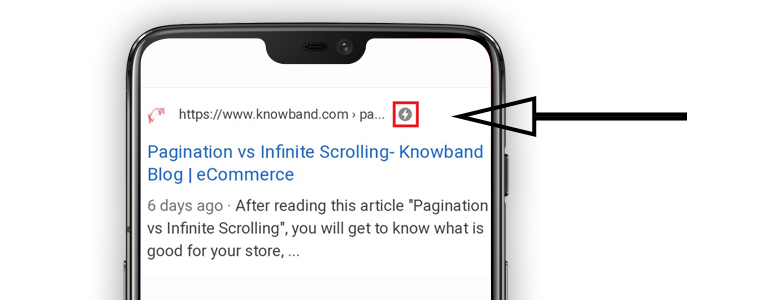
AMP-enabled pages show a lightning symbol right next to the page URL.

Google AMP for eCommerce

Since a majority of online shoppers use mobile phones to shop, page load speed, therefore, holds extreme value. As per the stats collected by Statista, mobile commerce accounted for 63.5% of the total sales worldwide in 2018. M-commerce already surpassed eCommerce in 2016 and the sales count is expected to reach nearly 73% by 2021.

The percentage reflects the change in the trend of online shopping and how m-commerce is continuously dominating eCommerce year-over-year. The introduction of Accelerated Mobile Pages has helped eCommerce businesses scale-up their conversions by improving their performance and visibility on mobile searches.

Let’s now try to understand the benefits of Google AMP for eCommerce

Benefits of Accelerated Mobile Pages for eCommerce

1. Increases the Page Load Speed

Accelerated Mobile Pages improve the web page load speed or say reduces the page load time of your website. It avoids clunky elements that might slow down your site speed and enables quick browsing facility across mobile devices.

Your website might be amazing but if there’s a lag in loading or if it is not mobile-friendly, users will leave it straight away. Better the site speed, better the conversion rate.

2. Reduces Bounce Rate

Since AMP offers quick loading, it puts an end to the troublesome experience that users face due to slow page loading. The increased load speed leads to reduced bounce rate, higher user engagement and the boosts the average site time.

3. Increase in Mobile Search Engine Rankings

The swift loading offered by Google AMP improves the mobile rankings in the Search Engine Result Pages(SERPs). Your web pages might not be ranking well on the search engine when browsing from a desktop, enabling AMP on your e-commerce website can improve the chances of ranking those pages at a better position when browsing via mobile devices, though it is not guaranteed as rankings depend on so many factors.

4. Accelerated Mobile Pages improve Website’s Performance

Accelerated Mobile Pages create a rich and mobile-friendly version of your eCommerce website and bring in high click-through rates and the AMP pages can be adjusted for multiple browsers. Besides, you do not need to make an XML sitemap for the AMP pages. Google automatically creates the sitemaps for your AMP pages.

5. AMP can be implemented across various pages on your Website

You can implement Google AMP on multiple pages on your eCommerce website and make it easier for your mobile visitors to surf your store’s content without any trouble.

Accelerated Mobile Pages Module by Knowband

The AMP module by Knowband accelerates the web page loading on mobile devices and allows you to enable AMPs for multiple pages on your website like Home Page, Category Page, Product Page, CMS pages. Knowband currently offers this module to Prestashop and OpenCart platforms. Do check out-

Accelerated Mobile Pages(AMP)- Prestashop addon

Accelerated Mobile Pages(AMP)- OpenCart extension

Key features

The AMP module offers some remarkable features:

1. Generate AMP on your

Home Page

Category Page

Product Page

CMS Pages

2. Display a YouTube video, Instagram and Twitter posts, etc. on your AMP-enabled website.

3. The AMP extension allows the store admin to customize the look and feel of their e-commerce website on hand-held devices.

Apart from this, you get many other features to enhance the experience of your mobile users.

Note: For the AMP module to work, your website must have an HTTPS protocol. AMP will not function with the HTTP version.

Final word

AMP is powerful. You should definitely consider implementing it on your eCommerce website. With so much to offer, it can be a powerful tool to take your eCommerce business to new heights.

If your website is already AMP-enabled, do let me know what changes it brought to your online business.

Also read:

What is Google’s AMP and how it will impact eCommerce businesses?

AMP Extension for OpenCart

Web Push Notifications: 5 Best Practices to Boost eCommerce Conversions

Web Push Notification is a widely adopted method used by eCommerce merchants to reach out to the prospects and drive more conversions. It creates a communication channel between the brand and the customers to deliver important or useful information to the latter. Through this article, we will try to understand the tactics behind using Web Push Notifications and how marketers are using this channel to boost eCommerce conversions.

What are Web Push Notifications?

Web Push Notifications, also known as the Browser Notifications or Web Browser Push Notifications are messages that appear on a subscriber’s device even if he or she is not present at your website. Web Push Notification is a smart marketing strategy to engage with your audience(subscribers) and increase conversions without being an annoyance.

Browsers that currently support Web Push Notifications are Chrome, Firefox, Opera and Safari. These notifications can be sent across mobiles and desktops.

How Do Web Push Notifications work?

For Website Push Notifications to work, your visitors/users need to subscribe to your notifications. When they land on your website, a popup appears asking users to allow/approve or deny receiving updates from your end, and only if they click on the latter, you would be able to send them notifications. Web Push Notifications do not require users to provide their email address.

Web Push Notifications- Best Practices to Increase Conversions

Having an eCommerce website? Here are the 5 best practices for marketers to increase conversions and scale-up their revenue using Browser Push Notifications.

1. Announcing a Limited-time Sale

Online shoppers do get a bit excited when they hear about a flash sale, especially from a store from where they shop regularly. You can use this to your advantage and announce a limited-time sale as soon as the sale goes live.

You can create urgency to purchase by mentioning how long will the sale last, in your notifications. It increases the open rate and maximizes the chances of conversion. You can also try adding the coupon code too in the same if there’s any.

2. Announcing New Arrivals

Another one in the best practices for web push notifications would be making your subscribed audience aware of your newly introduced products. Not only it provides free marketing but also generates curiosity in the online shoppers to check out what’s new in the store.

For example, if you deal with electronics or mobile gadgets, you can send web push notifications regarding the arrival of new smartphones on your store.

3. Let Customers know when a product is Back in Stock

Loyal customers wait patiently for the product to be available again in the store. And nothing gives them more happiness than seeing the product which was out of stock earlier, back in stock. Though there is a sense of excitement to see the “Buy Now” option, there is also the fear of missing out on the purchase. You never know when a product goes out of stock again.

Website push notifications make sure that your customers are not missing out on the product that they wished to buy, and they are informed as soon as it is back in stock. This pushes the customer to make a quick purchase, enhancing your conversion rate.

4. Recover Abandoned Carts

Adding to the list of best practices for web push notifications is sending out alerts to the abandoned cart users. Many times, a user just adds an item to the cart but does not buy. This leads to cart abandonment. Though there can be multiple reasons for cart abandonment, you can take a follow-up by asking the abandoned cart users to complete the purchase by sending out notifications regarding the pending items in the cart.

Abandoned Cart Web Push Notifications make a great way to recover the lost sales and increase conversions.

Related: 12 Ways to Reduce Shopping Cart Abandonment

5. Inform buyers when there is a price drop

Customers have an option to negotiate the product price in a brick-and-mortar store. Unfortunately, such an option is not available for an online store. This is why customers rejoice when they witness a price drop while shopping online. Through browser push notifications, you can let the prospects know as soon as the price drops below than what it was during their last visit.

These types of notifications are very effective to trigger impulse buying, encouraging customers to buy their desired product at a price lower than the original price. It leads to more conversions and creates higher sales.

The Bottom Line

Web Push Notifications create higher engagement and this is the reason why they are also known as engaging push notifications. They are effective and provide you with excellent opportunities to make the best use of it to increase conversions in your eCommerce website.

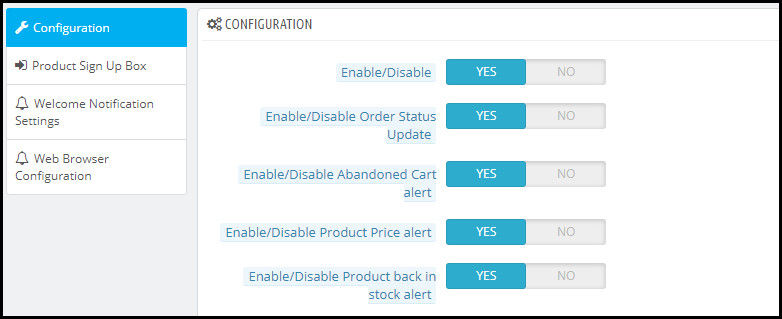
Looking to add the Web Push Notifications functionality on your website? Check out Knowband’s Web Push Notification module that will cover almost all your major requirements. The Web Push Notification lets you send-

Flash Sale Notifications

Product Price Alert Notifications

Product Back in Stock Alert Notifications

Abandoned Cart Reminder Notifications

Order Status Update Notifications

Apart from this, you can create multiple web push notification templates of your own choice. You also get the option to send a notification immediately or at a fixed time.

KnowBand currently offers this module to Prestashop, Magento, and Magento 2 platforms. Check out to know their complete features and benefits:

PrestaShop Web Push Notification

Magento Web Push Notification extension

Web Push Notification for Magento 2

Hope you liked knowing about the “Web Push Notifications Best Practices to Increase Conversions” and got an idea of different types of web push notifications you can use for your website.

Also Read:

7 Major Benefits of Using Web Push Notifications in eCommerce

11 Checkout Page Optimization Practices to Increase Conversions

8 Simple Tips to Reduce Product Returns in eCommerce

Returns are a part of the e-commerce space. If you run an eCommerce website, you will have to deal with the horror of product returns. As per the return rate stats collected by Invesp, at least 30% of the products ordered online are returned. Though eCommerce returns cannot be eradicated, it can be controlled.

In this article, I will provide you with 8 simple tips to reduce product returns in eCommerce. Before I start, let’s try to figure out some of the reasons why customers place a product return request.

1. Product ordered is incorrect

2. Product has a size issue

3. Product delivered is defective

4. Product failing to match customer’s expectations

The above-mentioned reasons are common for most of the eCommerce businesses. Considering the reasons, let’s now try to understand how to reduce returns in eCommerce.

How to Reduce Product Returns?

I have put forward eight simple yet effective ways to control customer returns. Let’s begin.

1. Provide a Brief and Accurate Product Description

Briefly describe all your products with accurate information to reduce product returns. Do not mislead your customers into believing something which the product doesn’t hold true. Provide them with a clear idea of what they will be receiving. Be specific about measurements.

Unlike physical stores, customers cannot touch a product when they shop online. So, ensure you are providing a detailed description if you do not want to face the product returns.

2. Encourage Customer Ratings and Reviews

Reviews and Ratings are the most effective return prevention techniques.

Reviews play an important role in the customer’s buying decision. The chances of a consumer making purchases almost get doubled if the product they are thinking to purchase has good ratings defined. Ratings help prospects get an idea of the product, whether it is worth buying or not. For example, a product having a 4+ rating(out of 5) will capture fewer returns as compared to a product having a rating around 2 or 3.

Apart from ratings, allow user comments as well on every product. Comments help potential customers know the reviews of the people who have already purchased that product. Well yes, there will be some negative comments that can discourage them from purchasing the product but the positive comments can boost confidence in a consumer and encourage them to go for the purchase.

Either way, you will at least, create an environment that will less likely attract product returns. Moreover, if you are having negative comments in higher numbers, it is a sign for you to understand that the product itself has flaws.

3. Use High-Resolution Photos

Product photos create a picture in the mind of consumers about how the product will look when they receive it physically. It is the primary reason why customers opt for the purchase in the first place.

Low pixel photographs can restrict a prospect from buying a product. Also, if there is a colour difference between the products listed on the website and when a customer receives it, the possibility of customer returns increases. The stats shared by Invesp says that 22% of the online shoppers return a product because it looked different when they received it.

So make sure to use high-resolution photos to eliminate colour differences, and most importantly, do not over-edit your product pictures.

4. Proper Size Guides

An incorrect sized product is one of the major reasons for product returns.

Mostly, people remain confused about the product size. They are in doubt until the product arrives and keep thinking about whether it would fit them or not.

Place size guides on every product page to avoid confusion regarding the product size. Customers want to be sure about the size before they finally confirm the order. Having a proper size guide decreases the possibility of a product return.

Want to add a size chart on your product pages? Check out Knowband’s Size Chart module that is available for PrestaShop, OpenCart, Magento and Magento 2.

PrestaShop Size Chart Addon

OpenCart Size Chart Extension

Magento Size Chart Extension

Magento 2 Size Chart Extension

5. Ask for the Reasons for Return

One of the best ways to reduce eCommerce return rate is by knowing the reasons behind the return request. Ask your customers what went wrong and try to rectify those issues. It creates an indirect communication between you and your customers and helps you understand the defect in your product.

In your product return form, provide an option where customers can mention their issue. In fact, add some of the common return reasons on your own so that customers can pick it easily while placing a return request.

6. Enhance your Customer Support

Customer can have n number of questions before or after receiving the product. It can be about an issue in the product or maybe they want to clear some doubts regarding the product.

Excellent customer service is highly important to address the concerns of your customers. Ensure you are providing sufficient mediums to your customers to connect with you. For example, you can provide a direct live chat option along with your support mail and customer support contact number.

You should also add a FAQ section on the product pages to eliminate customers’ doubts regarding the product.

7. On-time Delivery

Today, customers want the product to reach them as soon as possible. With services like Prime Delivery which guarantees product delivery within a single day, it has become important for the eCommerce businesses to match the same set of expectations for their customers.

You simply cannot make your customers wait for too long. The estimated delivery time should not be more than 3-4 days. If it is taking too long to deliver, customers will cancel the order mid-way.

8. Ensure Good Packaging

The products might be in good condition when they leave the warehouse but are they getting delivered in the same state to the customers? This does happen often. Customers receive damaged products and sometimes due to improper packaging, it puts them in doubt regarding the product, that eventually leads to them placing a return request.

Pack your items carefully and tightly so that they do not slide during transportation. This can help you reduce the return rate on your website.

Final word

Genuine problems in a product should surely be considered for a return but you should pay focus to the issues that can arise the product return possibility. You cannot do anything with what’s not in your hand, but whatever can be done from your end to avoid product returns, you must do it.

Reducing your e-commerce returns even by a slight margin would help you save a huge operational cost.  Follow these 6 tips to reduce customer returns on your e-commerce store.

Finding it difficult to manage your e-commerce returns?

Read: 5 ways to Manage eCommerce Returns

You may also like to read:

6 Pieces of Advice for an Effective eCommerce Return Policy

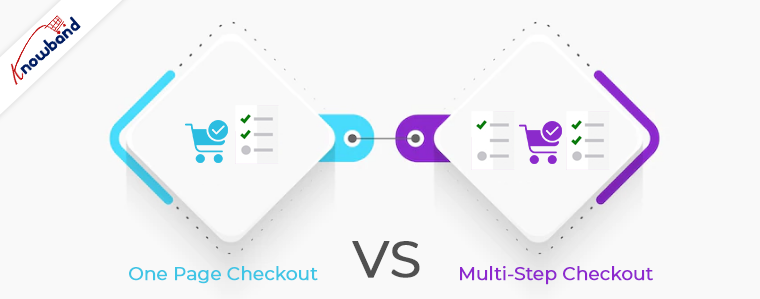
One Page Checkout vs Multi-Page Checkout

The success of your eCommerce business does not depend on how many people visit your website but on how many of them convert. The more conversions you get, the more revenue you make and it majorly depends on your checkout page.

Which checkout process do you follow? One Page Checkout or Multi-Page Checkout?

Customers desire a simplified checkout experience. A long and complicated checkout hampers the shopping experience which eventually results in cart abandonment. For a convenient checkout process, website owners are shifting towards one-step checkout, leaving the traditional multi-step checkout process behind.

The debate revolving around a One-page checkout vs Multi-page checkout is never-ending. While some eCommerce professionals prefer one-step checkout, some feel a multi-step checkout is a better option.

In this article, I will put forward the differences between the checkout process and help you make a better choice.

One Page Checkout

One Page Checkout puts up all the elements of a standard checkout process on a single page and lets the customers fill out the checkout fields in any particular order.

Pros of One Page Checkout

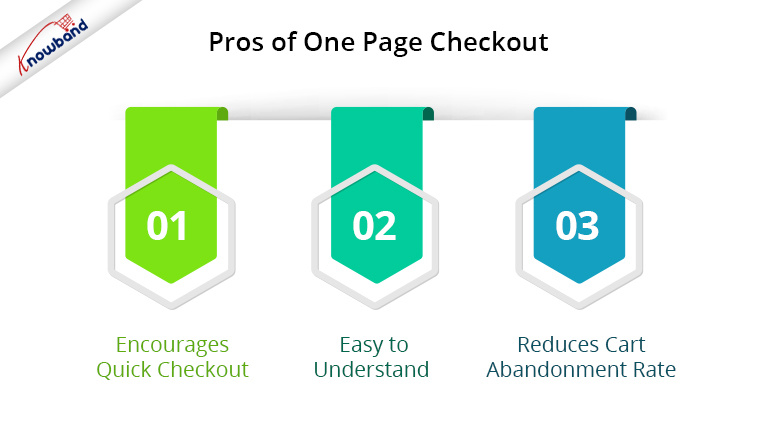
1. Encourages Quick Checkout

With all the checkout-related details upfront, it allows customers to check out quickly. They get rid of clicking multiple times to head towards the next step (in the case of multi-step checkout) and can enter all their details regarding billing, shipping, and payment on the same page.

2. Easy to Understand

A one-step checkout makes the page design simple and easy to understand and presents a clear picture in front of the customers. This also makes it easy for them to verify their details since they do not need to switch between pages.

3. Reduces Cart Abandonment Rate

An intricate checkout is one of the main reasons for shopping cart abandonment. It is therefore important to optimize your checkout process and provide customers with a smooth checkout experience- One Page Checkout is the best way to do that.

Recommended Read: 10 Benefits of Social Login in eCommerce

Cons of One Page Checkout

1. Slow Loading

Displaying a high volume of content on a single page can cause slow loading on your website. A slow checkout can turn away your visitors and make them search for the product on your competitor’s store.

2. Uncomfortable

Customers who are familiar with a multi-page checkout might not find the one-page checkout comforting.  A long checkout form can seem clunky and might discourage a customer from making the purchase.

Multi-Page Checkout

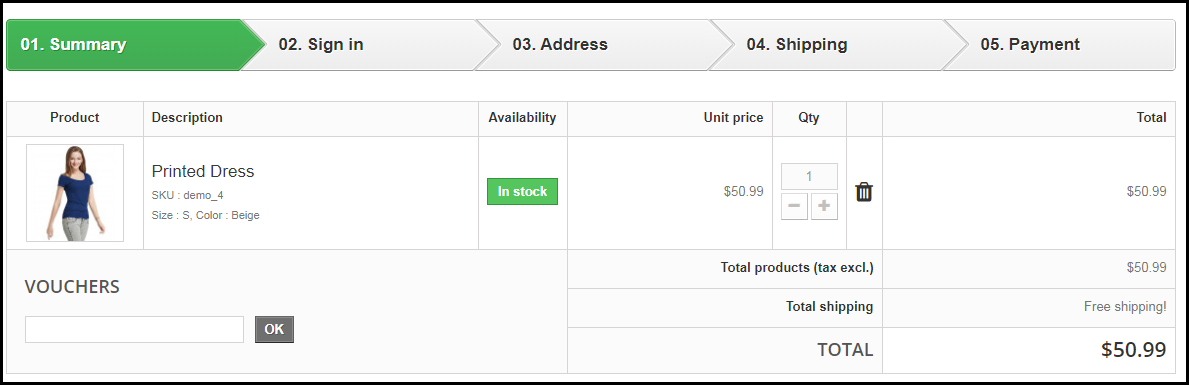
A multi-page or multi-step checkout breaks down the entire checkout process into several pages. Customers have to fill in their details on each page separately to finish the checkout process.

Pros of a Multi-Page Checkout

1. Customers Feel More Secure

Filling all the required details step by step makes customers feel more secure about their purchase, especially if they are purchasing something expensive.

2. Layout Looks Clean

The layout of a multi-step checkout does not look bulky since the checkout fields are divided into several pages which makes the layout clean and uncluttered.

Recommended Read: 8 Checkout Page Mistakes that may be Killing your Conversions

Cons of Multi-Page Checkout

1. Lengthy and Time-Consuming

Because of more number of pages, shoppers find multi-page checkout a lengthy and time-consuming process. Ultimately, customers run out of patience and are compelled to abandon their shopping carts. What’s worse is they decide to purchase from a different store.

2. Difficulties in Correcting Information

Mistakes happen very often while filling out the checkout fields. In a multi-page checkout, customers are left with no choice except to return to the previous page and correct the information. On many e-commerce websites, there is no option to edit and customers are asked to fill in the entire details again. This causes frustration among customers and creates a high chance of cart abandonment.

One Page Checkout vs Multi-Step Checkout: Which one to choose?

If you are in a dilemma about which one has better benefits, I would say- Go with a single-page checkout. These days, a single-page checkout is overtaking multi-page checkout because store owners are more focused on providing customers with a way to complete their transactions in one go rather than asking them to follow several steps.

Consider this: You go to an offline store. After you are done picking what you want, you go to one of the billing counters to make the payment. Tell me which counter do you look for? The counter is less crowded and takes less time for you to make the payment and check out from the store, right? Similar is the case with online stores. Shoppers want to check out as early as possible.

One Page Checkout by Knowband

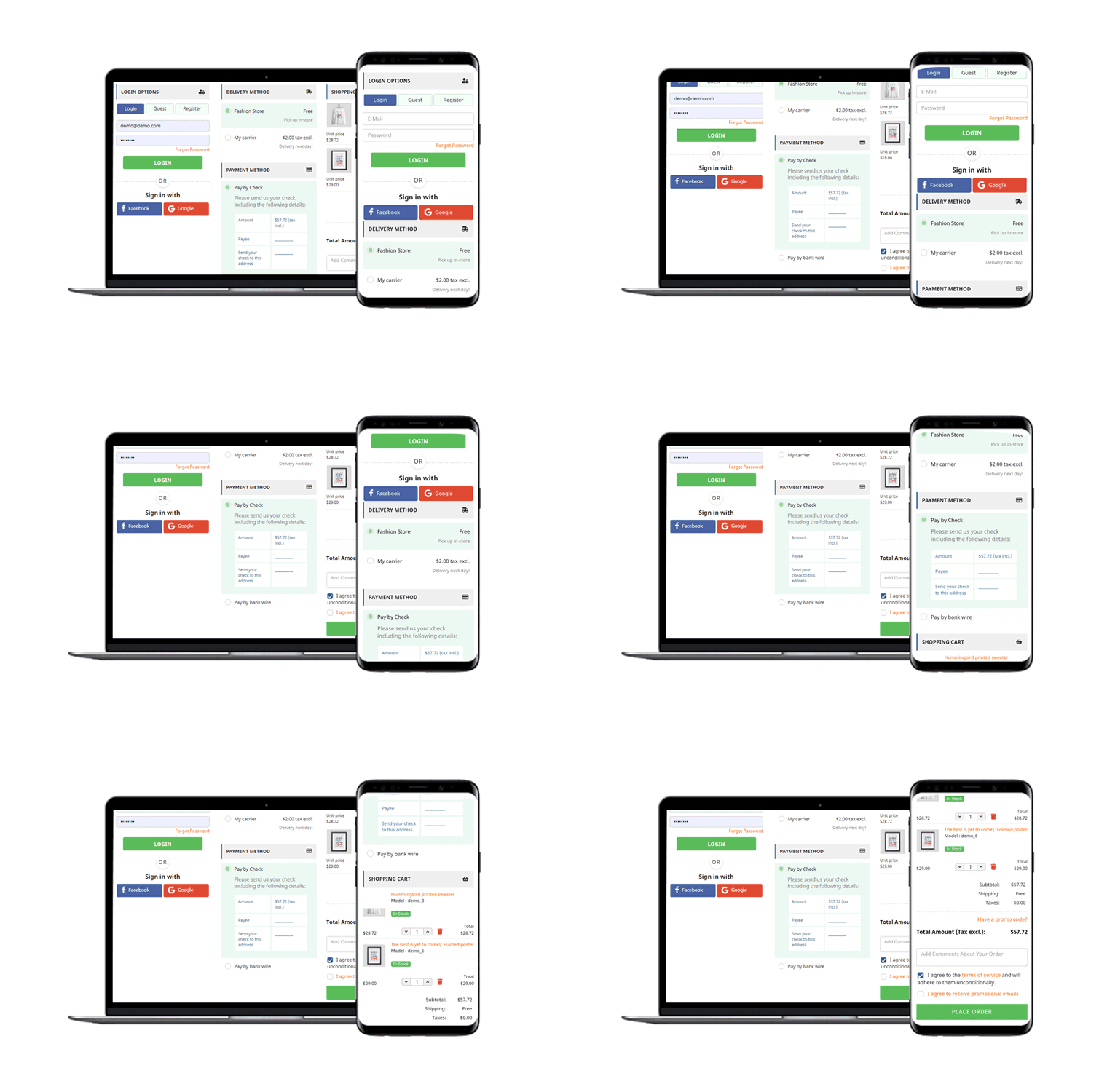
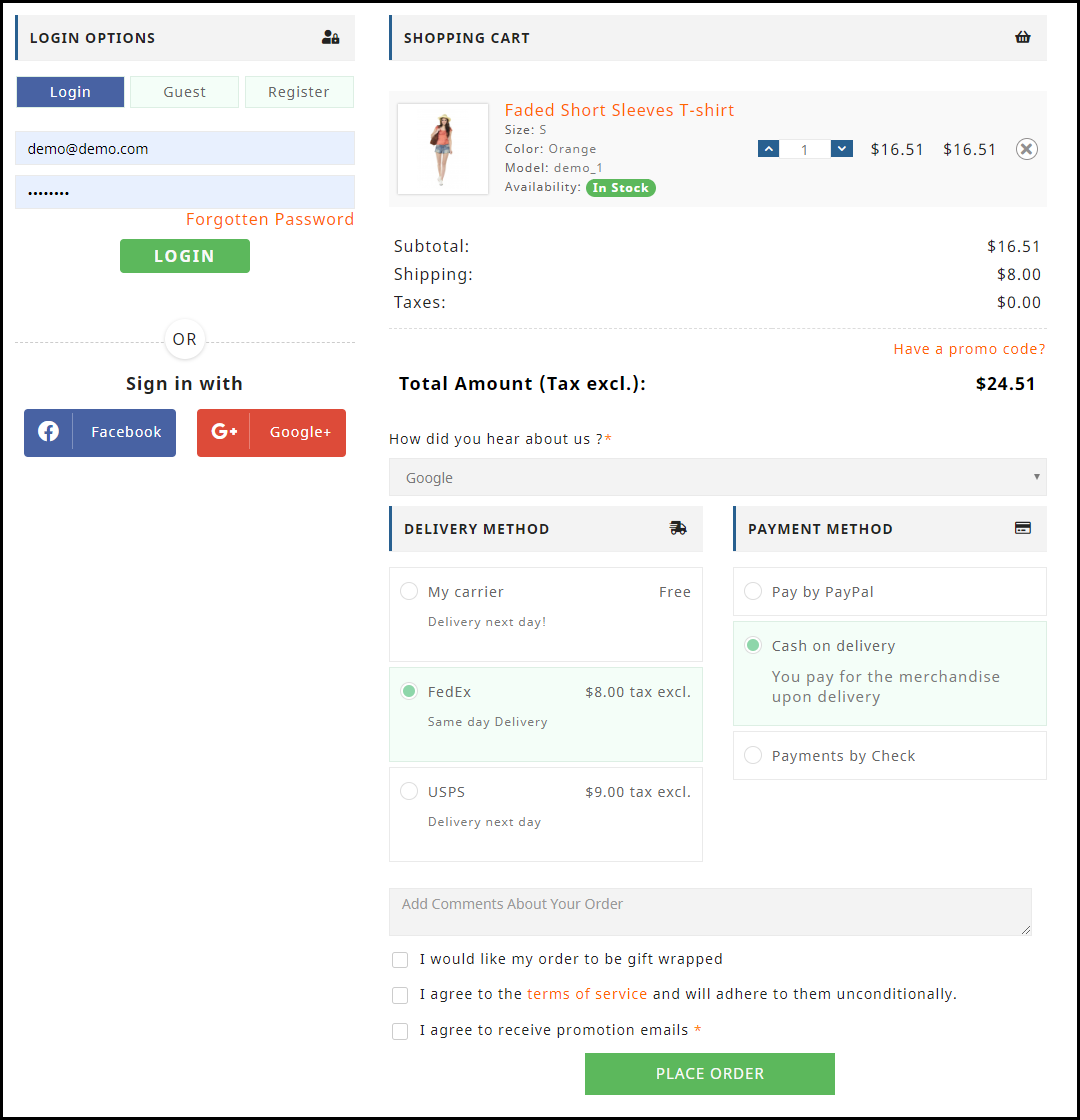
Our One-page checkout offers various rich features that enhance your store’s checkout process and make it fast and convenient. The module is available for PrestaShop, OpenCart, Magento and Magento 2.

PrestaShop One Page Checkout

OpenCart One Page Checkout

Magento 2 One Page Checkout

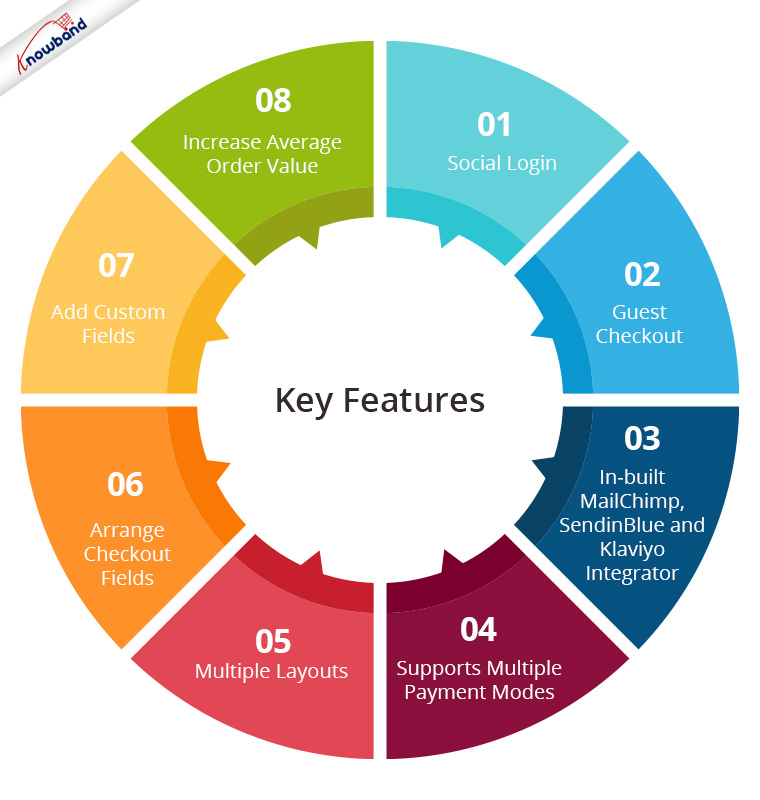
Key Features of One Page Checkout Module

1. Social Login

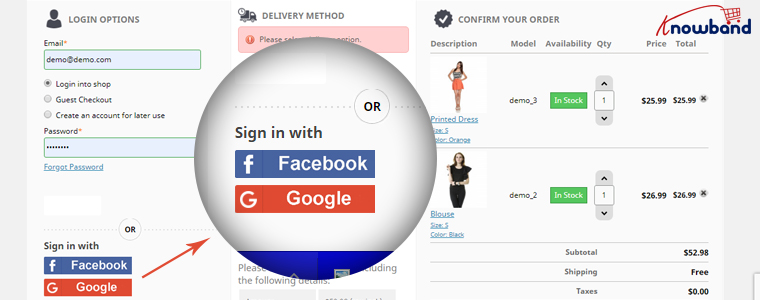
One page Quick Checkout offers social login options that allow users to register on your store with their Facebook, Google and PayPal accounts

2. Guest Checkout

Visitors who want to shop from your store without getting registered can make a purchase easily with the Guest Checkout option.

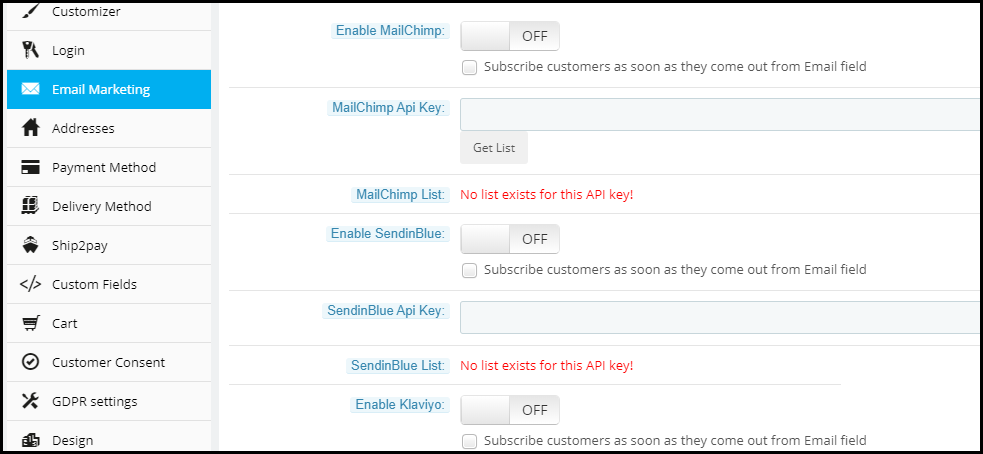
3. In-built MailChimp, SendinBlue and Klaviyo Integrator

You can collect the email address of your subscribers directly from the respective email service providers as soon as they log in to your store or subscribe to your newsletters.

4. Supports Multiple Payment modes and Shipping Services

Apart from Credit and Debit cards, Our Quick Checkout module supports various payment methods such as PayPal, PayU, Stripe, Sage Pay, Mobilpay, Ogone, Pago Facil, QuickPay, First Data, Paysera, Braintree, Checkout, etc.

Besides, it supports various shipping services such as Mondial Relay, So Colissimo, Ulozenka Delivery,  LP Express 24 Delivery, Webshipr, Zasielkovn Delivery, Paczkomaty InPost, Paczka w Ruchu, etc.

5. Multiple Layouts

One Page Fast Checkout module offers 3 layout designs: 1-column, 2-column, and 3-column. You can customize the layout accordingly.

6. Arrange Checkout Fields

Set the checkout fields’ priority with the drag and drop feature. Pick a checkout field and drop it to the desired position.

7. Add custom fields

If you want to add some additional fields to your checkout page, you can do it easily with the One Page Fast Checkout module.

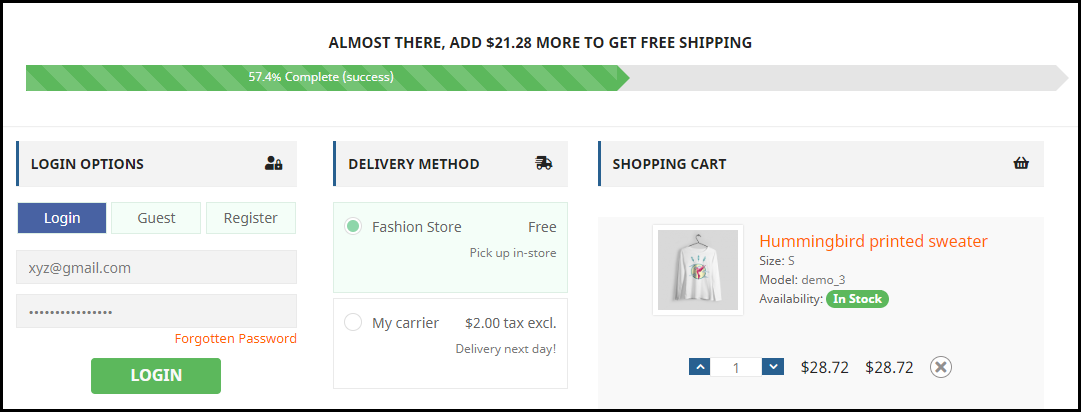
8. Increase Average Order value by displaying a Free shipping banner

This feature is specifically for the PrestaShop platform where the admin can specify the minimum amount for the customers to avail of the free shipping facility. If the customer’s cart amount is lesser than the specified amount, he or she will be displayed the extra amount they need to shop for if they want to get free shipping. This eventually increases your average order value.

9. Choose Total Price Display Methods

The e-merchant can now select from a variety of approaches for how to show the total cost of the items on the checkout page. From the One Page SuperCheckout addon’s back office, the store admin can select the PrestaShop default price, price inclusive of tax, price exclusive of tax, or both inclusive and exclusive of tax.

10) Track Customer Checkout Behaviour

In order to eliminate the pointless processes that are annoying the clients, the admin can evaluate the percentage of data filled or skipped by online users who abandoned their cart.

One page checkout is GDPR compatible and has a fully mobile responsive layout. It has multi-lingual support.

Final Thoughts

Whether you follow one step checkout or a multi-step checkout process, make sure to maintain the checkout flow. Ask for relevant information only. Get into the zone of your customers and try to figure out what changes you can make to improve the customer experience.

At the end of the day, it is totally your call. If you have some more points to add to this article, do let me know in the comments below. I would like to know your take as well. What do you prefer for your eCommerce website?

11 Checkout Page Optimization Practices to Increase Conversions

This article revolves around Checkout optimization and provides you with 11 effective ways to optimize your eCommerce Checkout and bring more conversions.

Out of all the elements in an eCommerce website, the checkout page surpasses every other factor in terms of importance. It is the page that brings you conversions or you can say it is the place where visitors turn into customers.

Your website might have an attractive layout and a user-friendly interface. You may even have a wide range of products but it is only good enough to increase the traffic to your website. Yes, it is important but none of it matters if the high percentage of your website traffic is not making it past the checkout page.

Simply expressed, it refers to a high cart abandonment rate, which shows that customers are adding things to their carts but then declining to purchase once they reach the checkout stage.

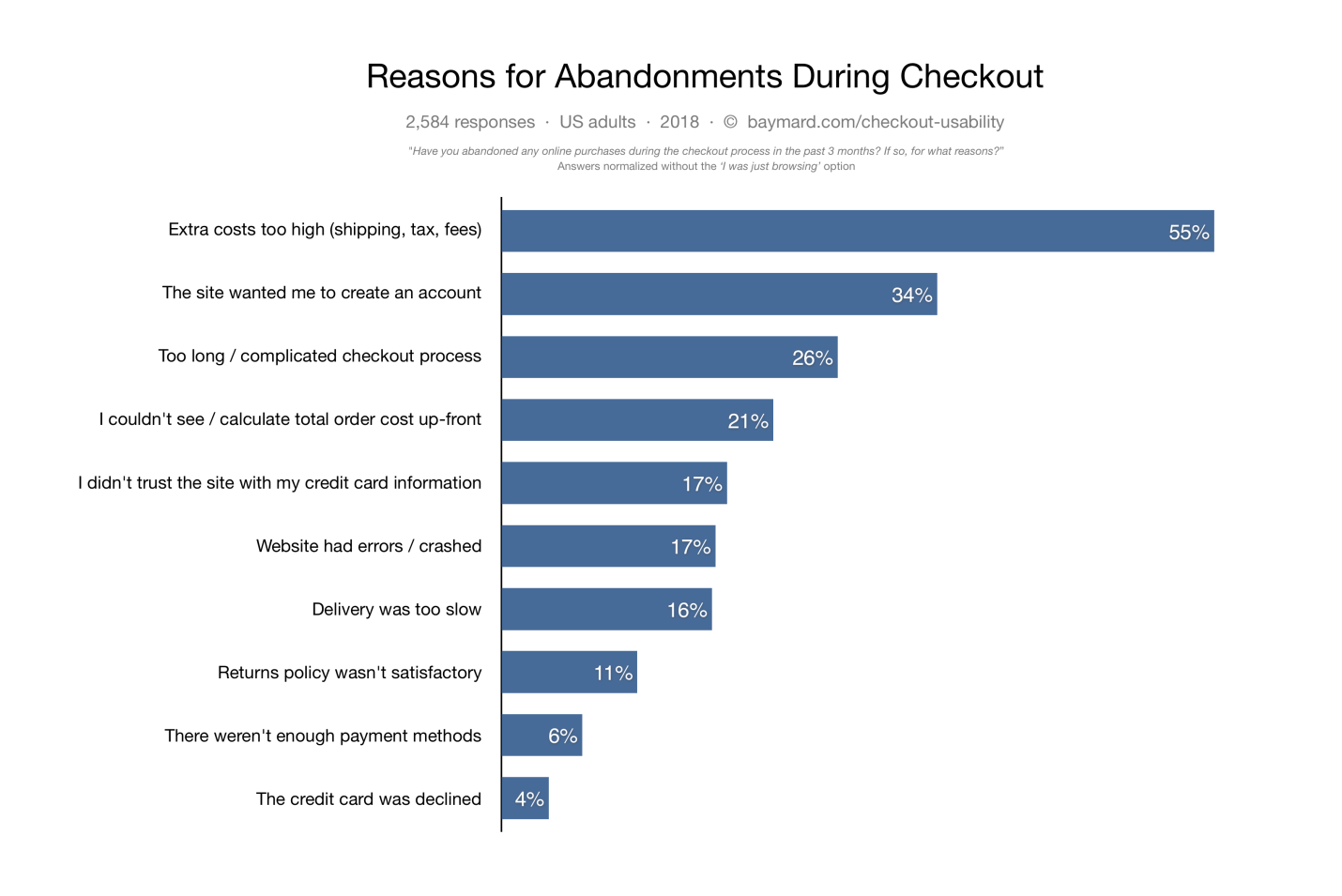
Cart abandonment can have multiple reasons. According to data gathered by the Baymard Institute, some of the causes of cart abandonment are listed below.

Did you know the average cart abandonment rate is 70%? Every 7 out of 10 customers abandon their cart for some reason. The percentage reflects that e-retailers lose out on huge sales due to shopping cart abandonment.

The best approach to reducing cart abandonment and increasing conversions is optimizing your checkout page, and this is what I am going to cover today.

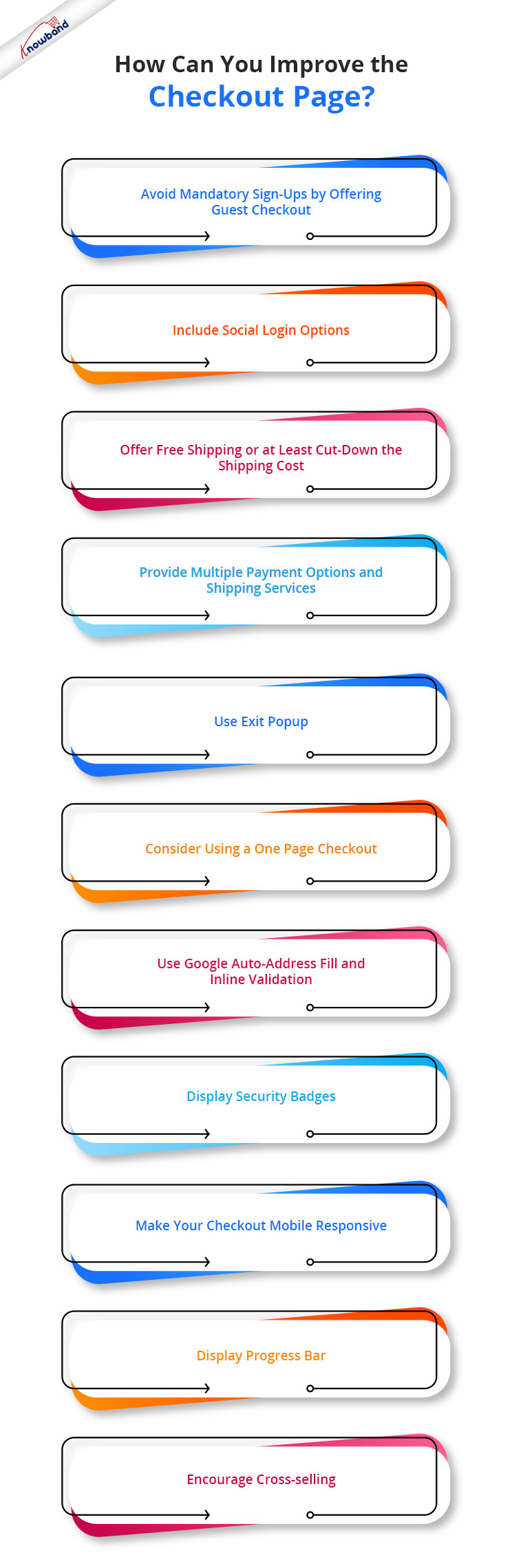
In this article, I will suggest the top 11 best checkout page optimization practices to recover your lost sales.

How to optimize your Checkout page?

To contribute to a smooth checkout process and provide your customers with a seamless checkout experience, consider the below-mentioned eCommerce checkout best practices.

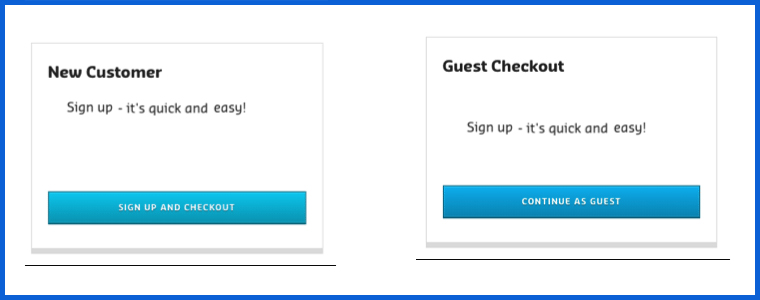
1. Avoid mandatory sign-ups by offering Guest Checkout

If we look from a merchant’s point of view, it is quite understandable that they want to obtain customer data for their marketing campaigns but they also need to understand that not everyone wants to be a part of their campaigns, promotions or newsletters.

The percentage of such customers might be low, but it does make an impact on your sales.

So, skip the mandatory registration process and provide a Guest Checkout facility on your eCommerce website, avoiding the need to create an account. It is one of the best practices for eCommerce checkout optimization.

2. Include Social Login options

While some visitors do not want to register, some feel reluctant to sign-up. The checkout flow is broken and the customer experience is hampered when a registration form is displayed on the checkout page.

Since some websites follow a lengthy registration process, it might compel the visitors to abandon their cart and leave the store.

You can help such visitors by offering them the social login facility, basically something like Facebook login and Google login.

Social login paves the way for a quick checkout by speeding up the registration process, and it also maintains the checkout flow.

It is a single-click registration, considering that the visitor is already logged in to the social network he or she is using to sign in on the website.

Social login is among the effective checkout optimization strategy.

You can try out our Social Loginizer module if you want to offer multiple social login options to your visitors. It offers up to 15 social login options.

The Social Loginizer module is available for PrestaShop, OpenCart, and Magento 2. Check out-

This might also interest you:

Recommended Blogs: 10 Benefits of Social Login in eCommerce

3. Offer Free Shipping or at least cut down the shipping cost

Another eCommerce checkout optimization practice would be to provide a free shipping facility to the customers.

High shipping cost has remained to be a disappointment for online shoppers and it is to be of no doubt why it is the major reason for shopping cart abandonment in Baymard’s study.

The extra added amount at the final checkout step unwillingly forces customers to abandon their cart. Some e-commerce stores charge a heavy shipping amount and it is enough to turn away the interest of the customer from the purchase.

To reduce the possibility of cart abandonment and persuade prospects to make a purchase, offering free shipping can be an ideal way.

Free shipping can surely enhance the chances of conversion. It gives customers a sense of joy when the product amount remains the same throughout.

And you do not need to compromise on your profit. You can slightly adjust the product price to absorb the shipping cost.

PrestaShop website owners can try out our Free Shipping Manager and set up their shipping rules to provide free shipping.

Related: Free Shipping Strategies: Why to offer? What to offer? When to offer?

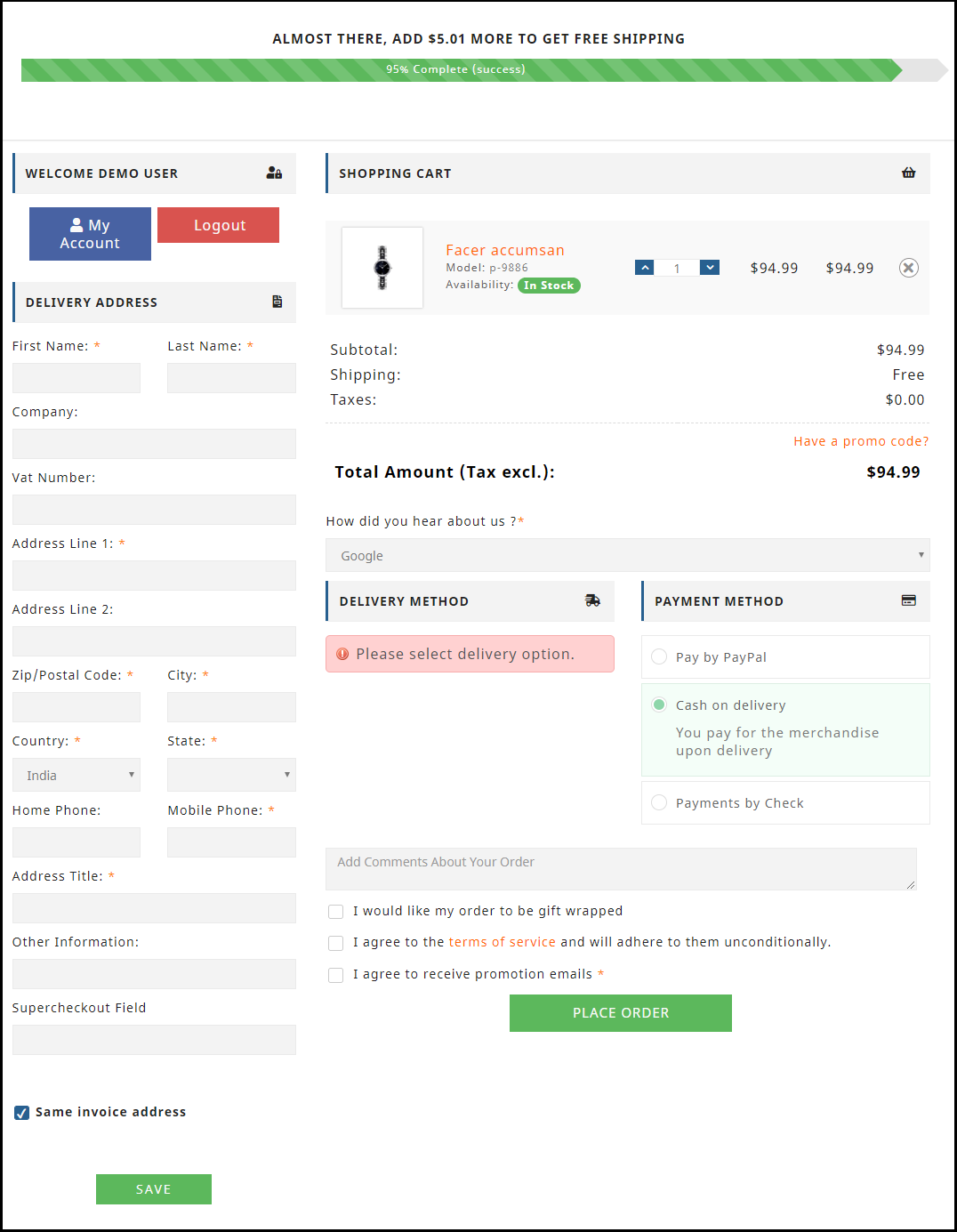
4. Provide Multiple Payment Options and Shipping Services

Adding to the checkout page best practices is to expand your payment and shipping options.

Around 6% of the online shoppers abandon the checkout page due to the lack of payment modes and some 4% are left with no choice but to purchase as their credit card gets declined. So approximately, 10% of the people are having payment-related issues.

It can be overcome by offering multiple payment options. It is also important because different customers have their trust attached to different payment modes.

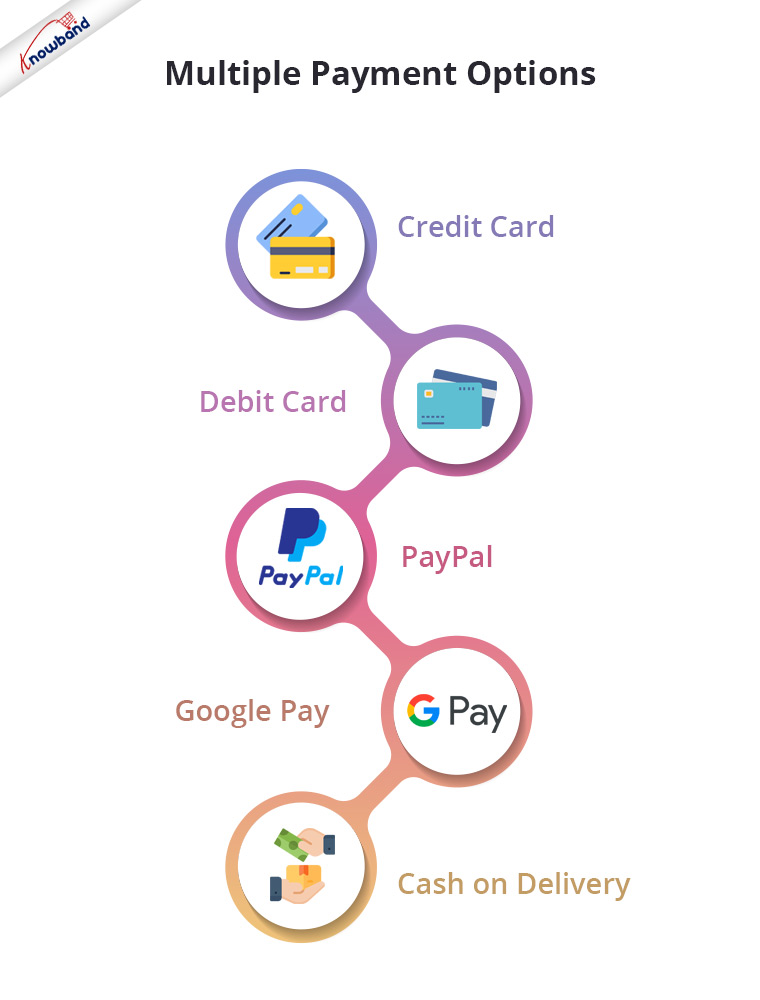
So, let the people choose their desired payment mode from a variety of payment options. It will result in a higher conversion rate. Apart from Credit Card and Debit Card, you must include digital wallets like PayPal, Google Pay, etc. and Cash on Delivery.

Similarly, you should provide people with multiple shipping services. Different shipping stores have different delivery times, so let the users decide how quickly they want their item to get delivered.

Some shipping service providers even guarantee a 1-day delivery and this can be very helpful, especially for a user who wants to receive his/her order within 24 hours.

5. Use Exit Popup

Another checkout optimization tactic would be enticing the shoppers with some attractive offers and discounts when they are about to leave your website after almost making it through the entire checkout process.

Even when you are unable to pinpoint the precise reason why the user is leaving the checkout page, you should try your hardest right up until the very end to persuade them to make a purchase.

It can be done by using the Exit popup functionality. It tracks the mouse movement of the user and displays your store offers as soon as the user intends to take an exit.

Try out Knowband’s Exit Popup. It is a feature-rich module that has so much to offer to make your popup effective. Most importantly, you can enable the exit popup functionality for multiple pages, not just for the checkout page. Check out-

PrestaShop Exit Popup

OpenCart Exit Popup

Magento 2 Exit Popup

6. Consider using a One Page Checkout

One of the best ways to optimize your checkout process is by implementing a Page Checkout on your website, also called a single page checkout.

This checkout optimization simplifies the checkout process by placing all the checkout fields on a single page. It offers an easy, fast and convenient checkout, and results in a better conversion rate.

I am not undermining the multi-page checkout process but I feel One Page Checkout has a slight upper hand over the multi-step checkout.

To know the in-depth analysis of both the checkout processes, read:

One Page Checkout vs Multi-Page Checkout

Our One Page Checkout module offers Guest Checkout, Social Login (Facebook, Google and PayPal), supports multiple payment methods and shipping services, and whatnot.

It is a perfect solution to all your checkout problems. We have-

One Page Checkout for PrestaShop

OpenCart One Page Checkout

OpenCart One Page Advanced Checkout

One Page Checkout for Magento 2

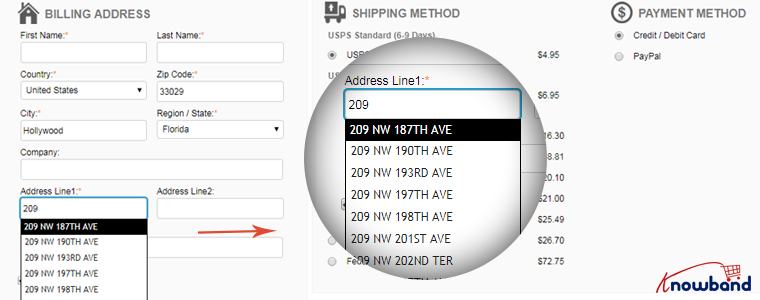
7. Use Google Auto-address fill and Inline Validation

Save users’ time and allow them to check out quickly by enabling the Google Auto-address to full functionality on your website.

It displays the address suggestions as soon as the visitor types his/her address in the address field. Upon picking up an address, the rest of the address fields are filled automatically.

You should also include the option to use the shipping address for the billing address as well.

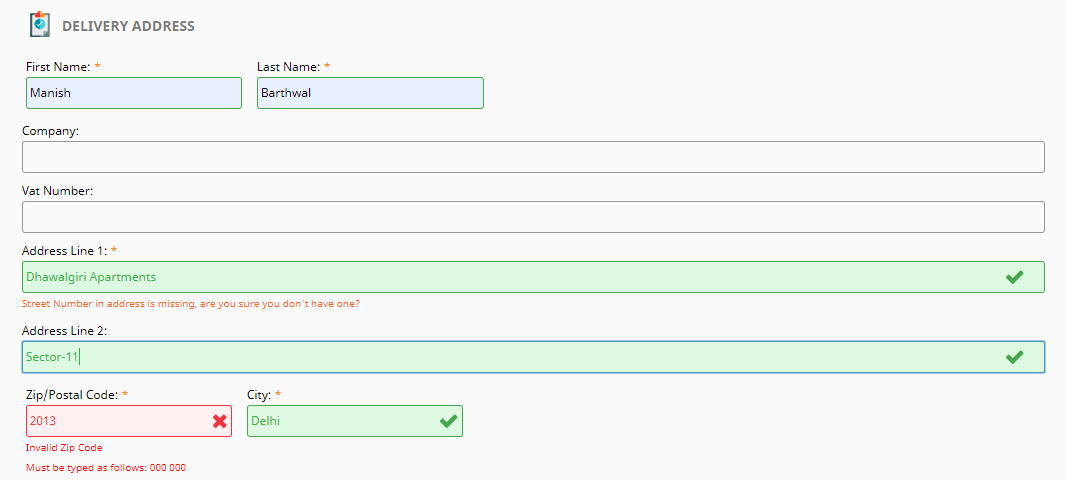
Along with autofill, enable Inline Validation(also called Data validation). It helps a user to identify the mistake while putting up the details on the checkout fields. When the user switches between fields, it checks whether the inputs provided by the user are correct or not.

Both of these methods play a crucial part in eCommerce checkout optimization.

8. Display Security Badges

People often doubt the security level of a website, especially new visitors. They do not trust a site easily and hence they feel a bit of concern when providing their payment details.

Image Source: Conversion Monk

Make visitors feel that your website is trustworthy and their payments are secured. Display them the trust seals. It can include the logos of the payment options, security badges from Norton, McAfee, Padlocks, or even a short text that reads “Fast and secure payment”.

You must also add an SSL Certificate to your website to maintain the trust throughout.

9. Make your Checkout Mobile Responsive

Today, most people prefer to do online shopping via their mobile devices.

According to a report by Statista, 72.9% of all retail e-commerce is expected to be generated via m-commerce, by 2021 and this is the main reason why online businesses are paying more focus towards convenient mobile browsing to ensure their visitors enjoy a seamless checkout experience not only from desktop but also from a hand-held device.

So, make sure your checkout page is mobile responsive if you want to gain high conversions from mobile devices.

A mobile-friendly checkout page is an essential factor in checkout page optimization.

10. Display Progress Bar

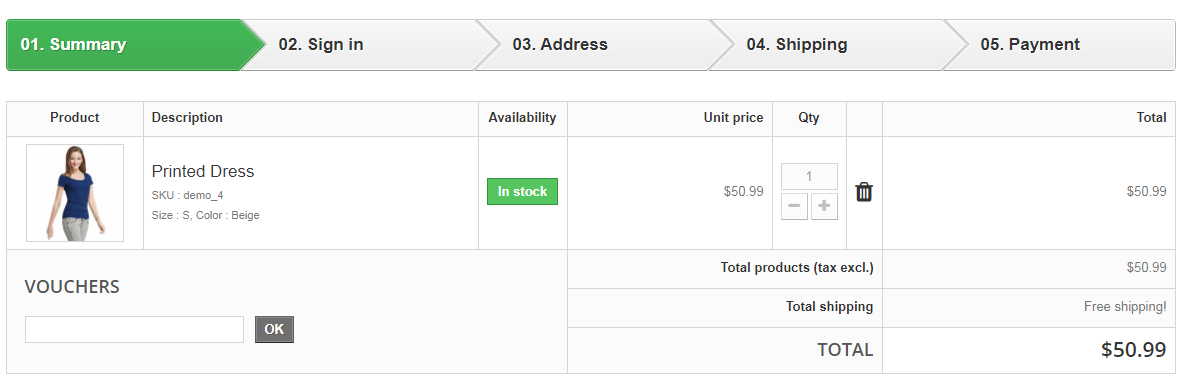
Though I suggested above to have a one-page checkout, you can continue with the multi-step checkout process if you aren’t a fan of a single-page checkout but make sure it displays a progress bar.

A lengthy checkout process can often irk users if they have no idea how long the checkout process is going to take.

Help them by displaying a progress bar/progress indicator so that it is clear beforehand what steps they need to go through to complete the checkout.

People are less likely to abandon the checkout page if they can see their checkout progress.

11. Encourage Cross-selling

When you talk about checkout optimization, cross-selling can never be neglected. Right after the user makes a purchase, display their related products that would go well with their purchase.

Besides, you can at least encourage customers to shop for more by thanking them and providing them with a coupon code for their next purchase.

Related: A complete guide to Cross-selling and Upselling in eCommerce

The Bottom Line

Optimization of checkout pages is not limited to a few set tactics. You will find plenty of ways to optimize your checkout page, however, I found the above-suggested methods to be the most helpful but it is not as easy as it seems.

Checkout optimization takes a lot of effort and time. You need to keep doing A/B testing at regular intervals to identify what works out the best for you.

Remember even a slight decrement in the abandoned carts can add up a huge amount to your total revenue.

That’s it. If you liked these 11 Checkout Page Optimization best practices. Feel free to add any point which you feel can help in providing a seamless checkout experience.

For any assistance regarding the module functionality, you can reach out to us at support@knowband.com

Magento 2 Google Shopping Integrator Extension User Manual

1.0 Introduction

The eCommerce store owners can now submit their products to Google Shopping and bring in new visitors to their site from the search engine with Knowband’s Magento 2 Google Shopping integration extension. The Magento 2 extension is designed to connect the store with the Google Merchant Center.

The Google Shopping Magento 2 integration module creates XML feeds and syncs them with the merchant center with the help of the cron jobs. All you need to do is to have a merchant account in the Google Merchant Center. The connection between the account and the store is done with the help of the API details.

1.1. Admin Features of Magento 2 Google Shopping Integrator:

Here are some of the key highlights of the Google Shopping Magento 2 connector:

  1. The connection between the Magento store and the Google Merchant Center is set up at a few clicks.
  2. The real-time synchronization makes the products listing, feed synchronization, and inventory management effortless.
  3. Once the connection is established, the admin can list the products and related details with the help of a profile-based approach. The Magento 2 Google Shopping connector supports all types of products, simple, configurable, or downloadable.
  4. The profile-based listing enables many-to-one category mapping options. The products of the selected category are synced in bulk with Google Shopping Magento 2 connector.
  5. The attribute mapping becomes effortless with Google Shopping Magento 2 synchronization extension as well.
  6. Additionally, the admin can view the product listing from the back-end of the Magento 2 Google Shopping integrator. The e-merchants can remove the listed products by clicking a button.
  7. The Magento 2 Google Merchant Center connector is designed to achieve an error-free listing. However, in case any product is not listed successfully, you can view the error details at a button click.
  8. The admin can create feeds for the profiles and sync them with the Google Merchant Center by executing cron in the back-end of the Google Shopping Magento 2 integrator. You can even schedule the time for feed synchronization.
  9. The cron options offered by Magento 2 Google Shopping integrator even allow the store admin to sync the status of the products from Google Shopping to the store.
  10. The audit log section of the Google Shopping Magento 2 connector keeps track of the status of the various task running in the back-end.

2.0 Installation

After purchasing Magento 2 Google Shopping Integration extension, the store admin will get the following files:

1. Knowband_Googleshopping.zip which contains the source code of the Google Shopping Integration Magento 2 plugin.
2. User Manual which includes all the details and helps regarding the extension.

Follow the steps mentioned below to install the Magento 2 Google Shopping Integration module at your store:

This extension requires Google Client API, so you need to add the “google/apiclient”: “^2.2” into the composer.json file and update the composer.

  • Get the Magento 2 Google Shopping Integrator from the Knowband store and download the extension package.
  • The package has a zipped file. Unzip the package.
  • Create a folder {Magentoroot}/app/code/Knowband/Google Shopping
  • Upload the extracted content in the above folder via FTP manager (like Filezilla or WinSCP – download here: https://filezilla-project.org/).
  • Now run below commands to install the plugin:

php -f bin/magento module:enable –clear-static-content Knowband_Googleshopping
php -f bin/magento setup:upgrade
php -f bin/magento setup:di:compile
php bin/magento setup:static-content:deploy
The extension is now installed and ready for use. In Admin Panel go to “Knowband Extensions >Google Shopping”.
You can now configure and use the Magento 2 Google Shopping Integrator.

3.0 Admin Interface

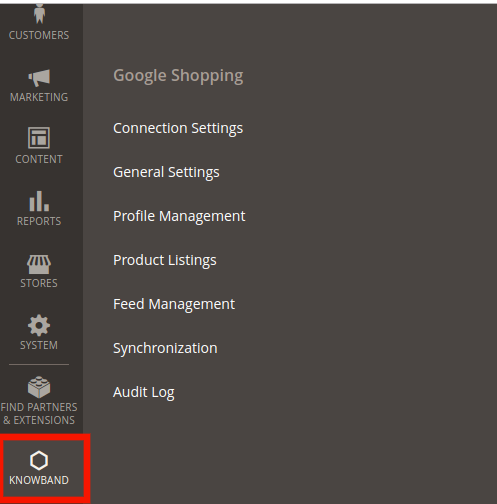
Once the installation is complete, you can find the Magento 2 Google Shopping API integrator in the main menu. Click on Knowband and you’ll find the module as shown in the image below:

3.1. Connection Settings

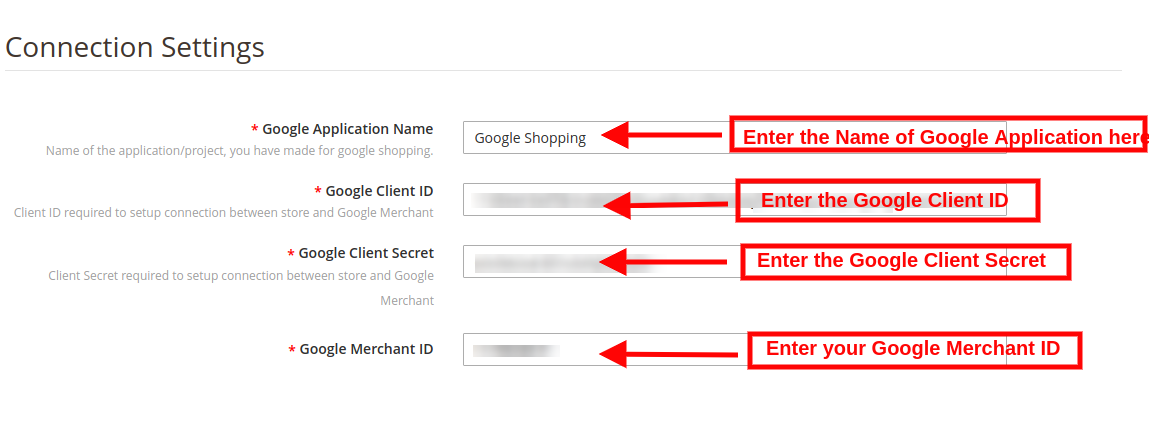
The connection can be set up between the Google Merchant Center and the Magento store from this tab of Google Shopping Magento 2 integration plugin. You need to create an account at Google Merchant Center and obtain the client ID, client Secret and Merchant ID. Refer to Appendix A.

  • Google Application Name: Enter the name of the project/application that you created for Google Shopping in this section.
  • Google Client ID: Obtain the Client ID from your Merchant account and enter the same here. This will authenticate the connection between the store and the Google Merchant.
  • Google Client Secret: Enter the client secret to set up the connection.
  • Google Merchant ID: Provide the merchant ID of your Google merchant center account here.

3.2. General Settings

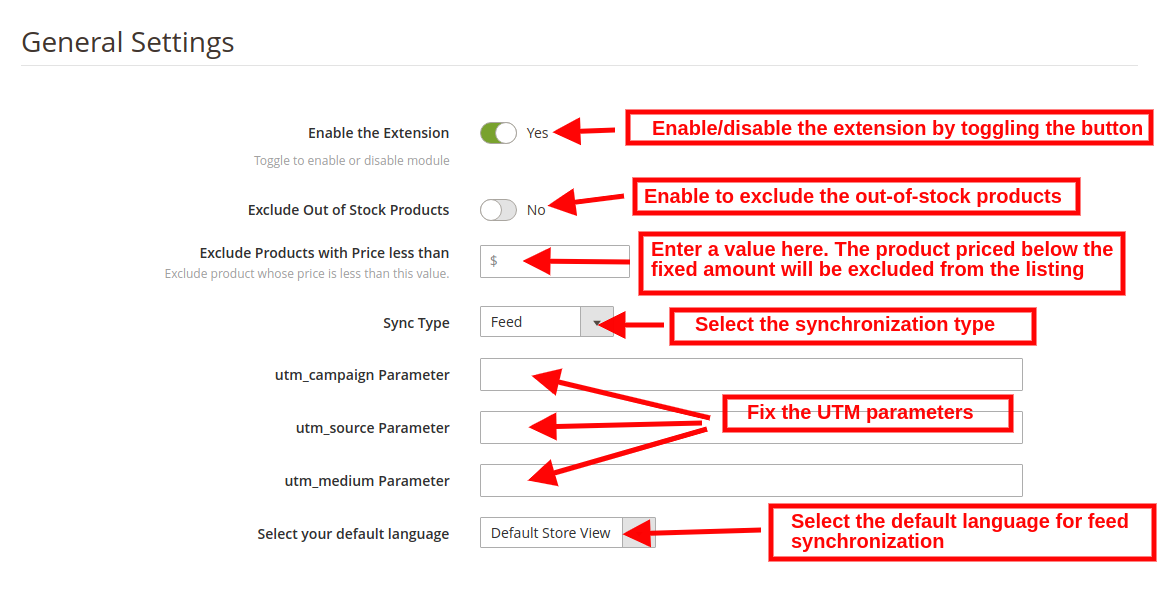
You can do the basic configuration changes in this section of the Magento 2 Google Shopping integrator. The various fields of this tab are discussed below:

Enabled: Toggle this button to activate this Google Shopping Magento 2 API integration plugin.

Exclude Out of Stock Products: The Google Shopping Magento 2 connector allows you to create a profile and list the products in bulk at the Merchant Center. However, some products may go out of stock. The admin can disable out-of-stock products by enabling this button. If enabled, only the in-stock product will be displayed in Google search results.

Exclude Products with Price less than: Enter a fixed amount. Only the products that are priced above the fixed amount will be displayed in the search results.

Sync Type: Select the synchronization type from the drop-down menu. The two options: Content API and Feed.

utm_campaign Parameter, utm_source Parameter, utm_medium Parameter: Enter the UTM for tracking the traffic received via Google Shopping.

Select your default language: The module offers multi-lingual support. Select the default language from this section.

3.3. Profile Management

The admin can create, edit or delete profiles from this tab of the Magento 2 Google Shopping Integration extension.

3.3.1 How to Create New Profiles?

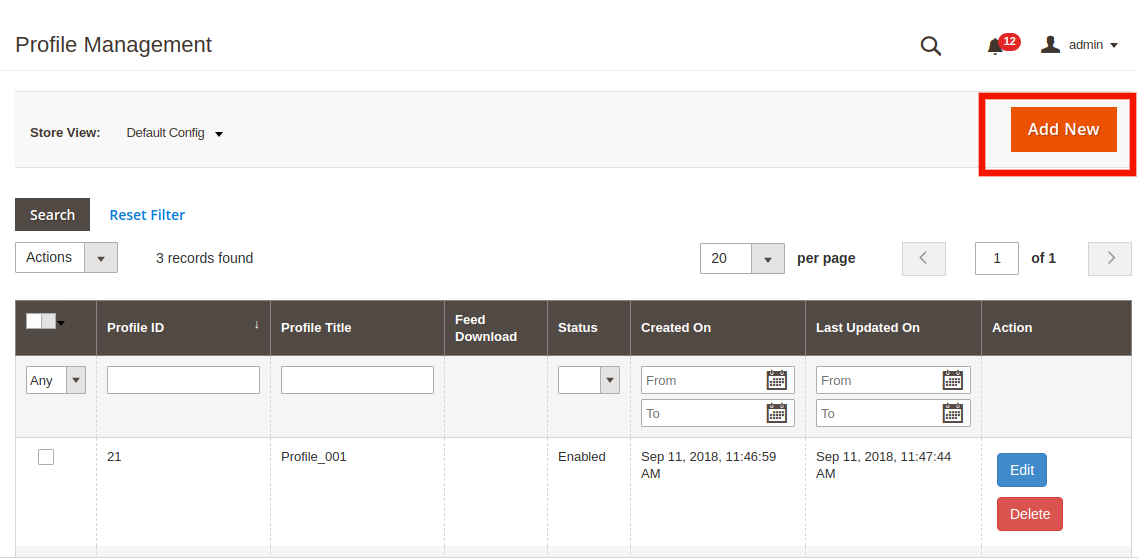
Click on the ‘Add New Profile’ or ‘+’ sign in order to create a new profile.

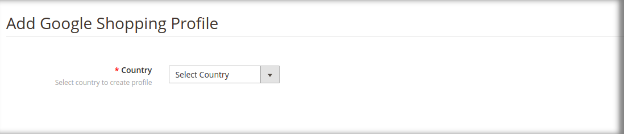
This will redirect you to the profile management section.

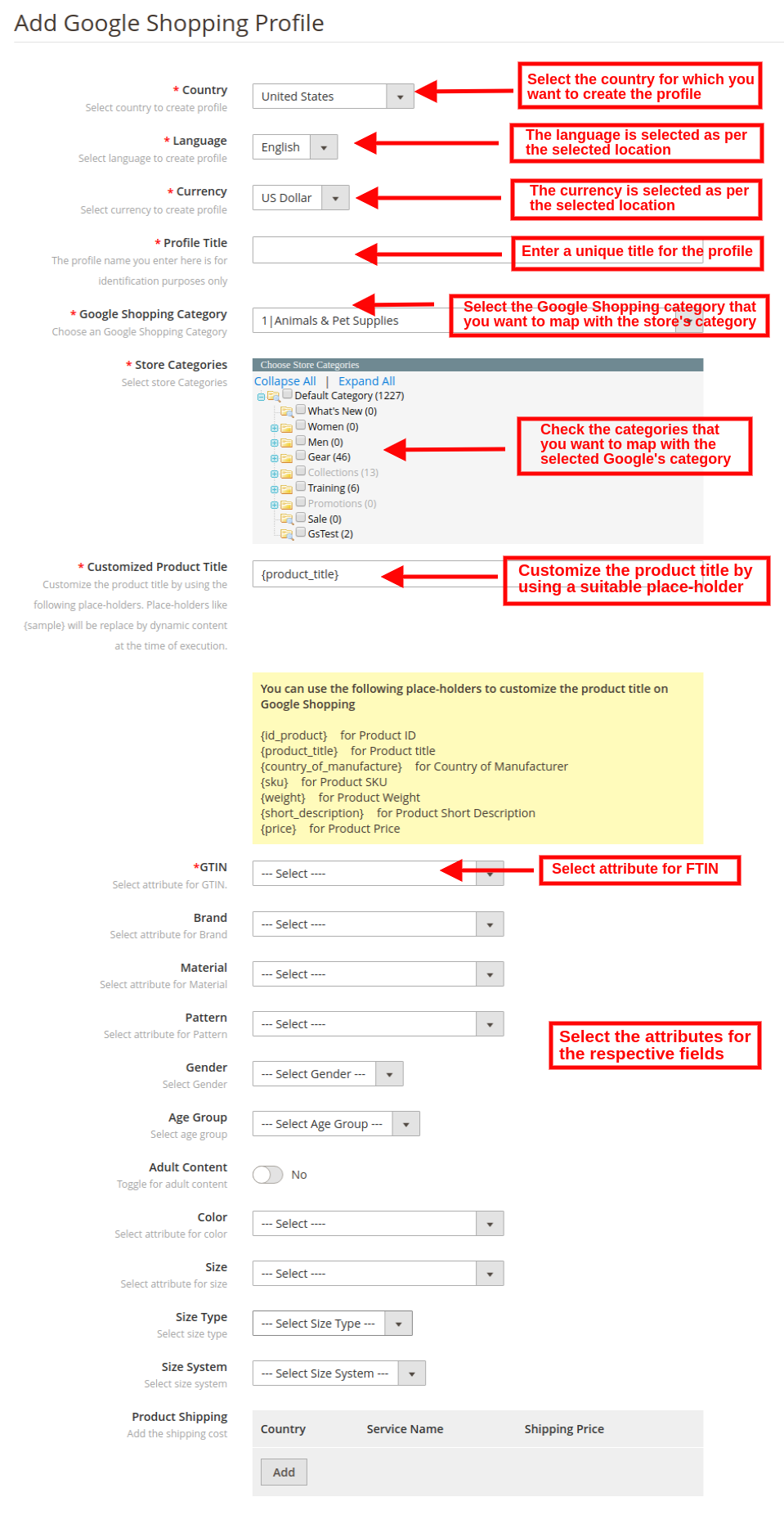
Country: Select the Country from the drop-down list.


  • Language: The language will be selected by default as per the country selected.
  • Currency: The currency will be displayed by default according to the country selected.
  • Profile Title: Enter the name of the profile here.
  • Google Category: Select the Google category that you want to map the categories of the store.
  • Store Category: Expand the category and check the categories that you want to map with the selected category of Google.
  • GTIN: Here, you will map the product unique field so that the Magento 2 Google Shopping Connector can identify products according to the mapped attribute. You must also have to provide unique field mapping for product attributes as well. The various options to choose from include: Reference No., UPC, EAN13. The mapping can then be done based on the selected attribute.
  • Customize Product Title: Customize the product title by using the following place-holders.
    {id_product} for Product ID
    {product_title} for Product title
    {manufacturer_name} for Manufacturer name
    {supplier_name} for Supplier name
    {reference} for Product Reference
    {ean13} for Product EAN13
    {short_description} for Product Short Description
    {price} for Product Price
  • Material: Select the material of the product.
  • Pattern: Choose the pattern from the drop-down menu.
  • Gender: Select the Gender for which the product is intended. The options are Male, Female or Unisex.
  • Age Group: Select the age group that is expected to use the product.
  • Adult Content: Specify if the product has any adult content or not.
  • Color: Use the color attribute to describe your product’s color. This information helps create accurate filters, which users can use to narrow search results.
  • Size: The size attribute describes the standardized size of your product. Your product Ad will appear in the results that are filtered by size.
  • Size Type: The attribute describes the cut of your product. The supported value for this field includes regular, petite, plus, big, tall and others. This helps create accurate filters.
  • Size System: With this attribute, you can explain which country’s sizing system your product uses.
  • Product Shipping: Select the shipping method for the particular product.


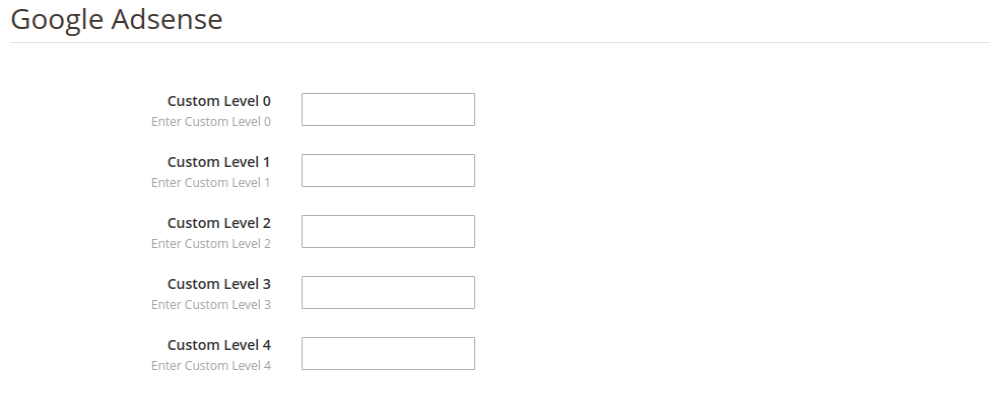
Google Adsense:

Google Adsense refers to the campaign that you’ll run on Google Adwords. Custom labels, Custom Label 0 through Custom Label 4, allow you to create specific filters to use in your Shopping campaigns. Use these filters for reporting and bidding on groups of products. The information you include in these attributes won’t be shown to users.

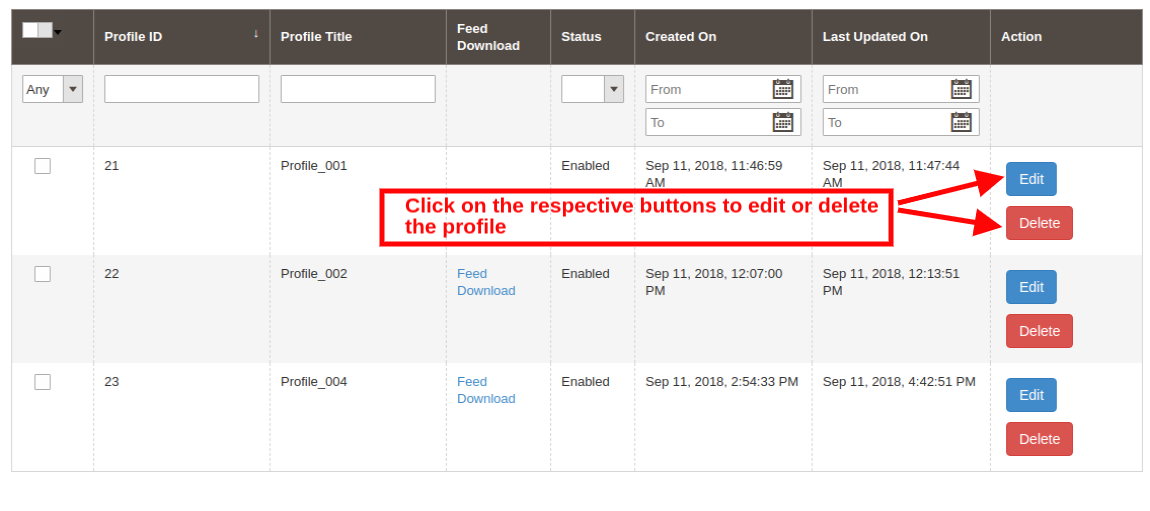
3.3.2 How to Edit the Existing Profile?

The admin can even edit or delete the profile at a button click.


Click on the Edit or Delete button corresponding to each profile respectively, in order to edit or delete them.

3.4. Feed Management

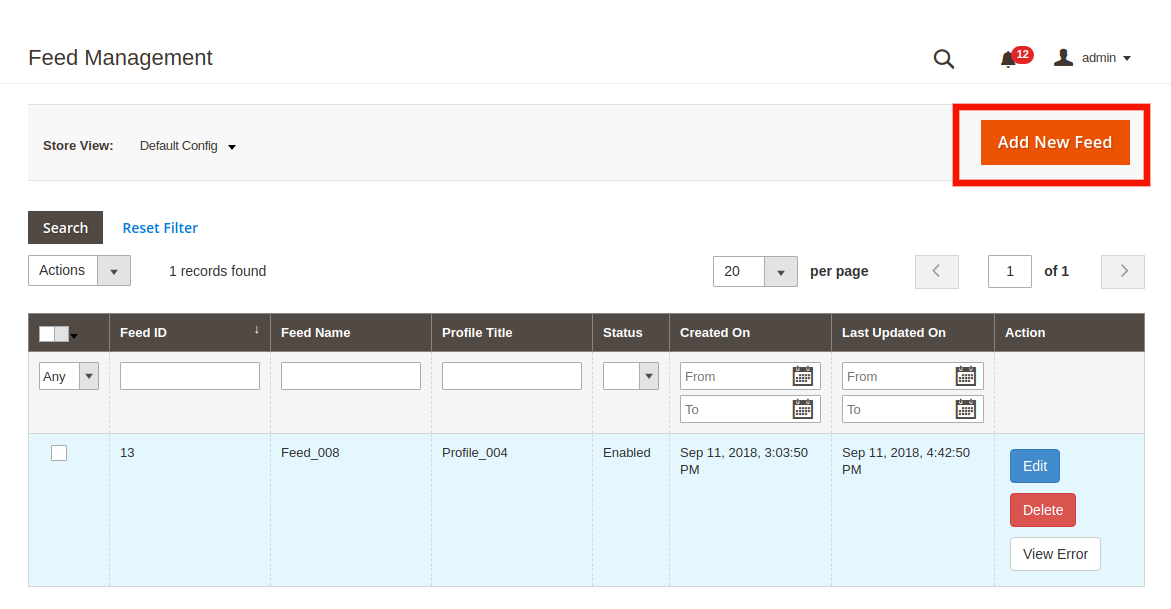
The feed is created in order to display the products on Google search results. The admin can create N number of feeds and schedule the same for synchronization.

3.4.1 How to create new feeds?

Click on the ‘Add New Feed’ or ‘+’ sign in order to create a new profile.


This will redirect you to the feed creation page of the Magento 2 Google Shopping synchronization extension. The various fields of the interface are discussed below:

Select Profile: The list of the profiles created in the profile management tab of the Magento 2 Google Shopping Integration module will be shown this tab. Select the profile whose product you want to sync with Google Merchant Center.

Feed Label: Enter a unique name for the Feed.
Feed Upload Schedule: Select the schedule of the feed upload.

Set Hour: Select the number of hours in which you want to schedule the feed.

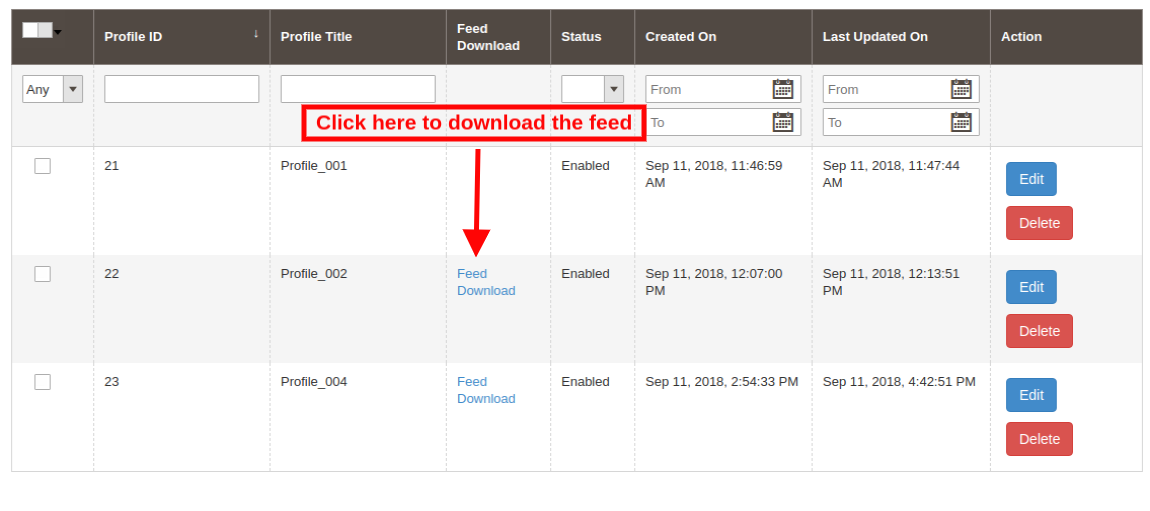
3.4.2 How to download feeds?

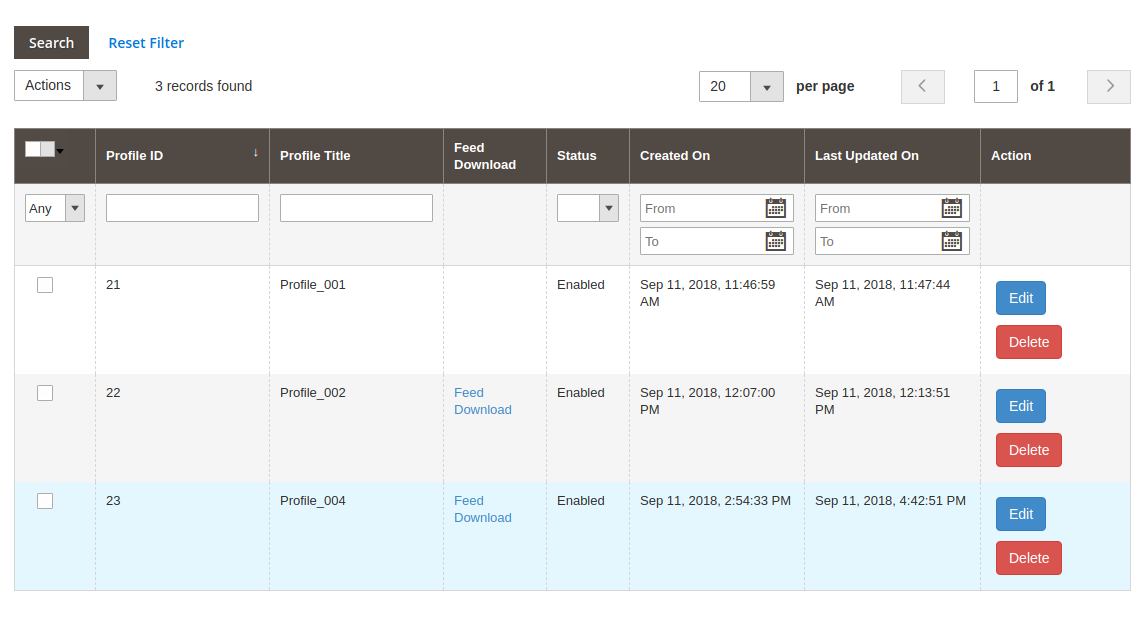
The admin can even download the feed from the respective profile. For this go to the Profile Management tab of Google Shopping Magento 2 integrator. The download option will be shown in the Feed Download section as shown below:

3.4.3 How to Edit/Delete feeds?

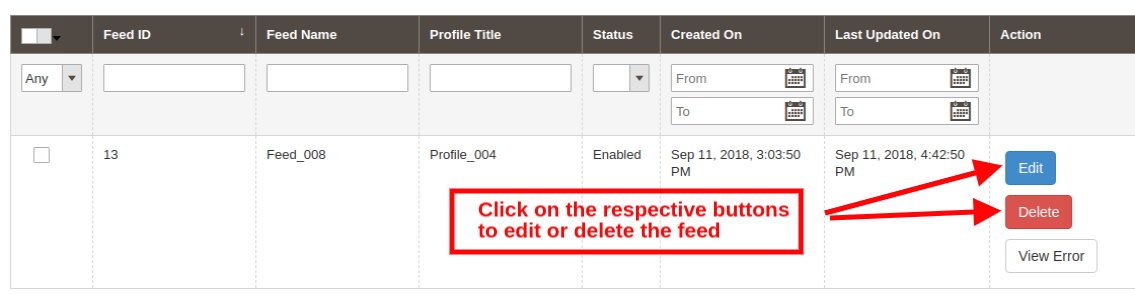
In order to edit or delete the feeds, click on the Edit or Delete button corresponding to each feed.

The admin even gets an option to view the report in case any error occurs while feed synchronization. This can be done by clicking on the View Error option as shown in the image below:

3.5. Product Listing

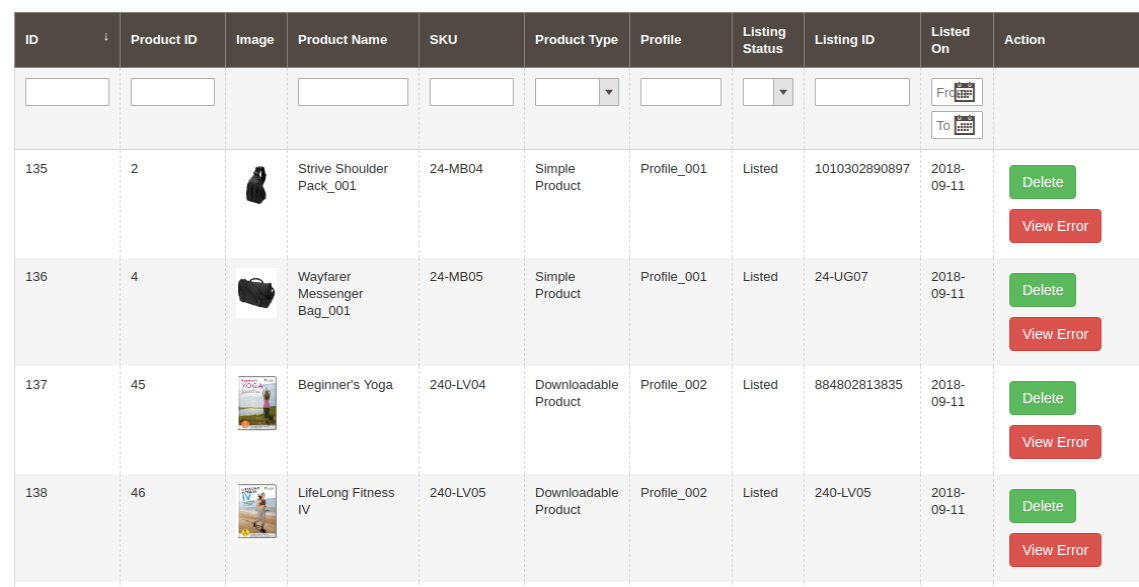
This section of the Magento 2 Google Shopping integration plugin shows the report of the products listed at the Merchant Center.

The Google Shopping Magento 2 integration module allows the following action to the admin.

  • Renew: The Renew button can relist the products whose listing has expired. Once this action is executed successfully, the action will be changed to ‘Halt’.
  • Delete: The admin can remove the product by clicking on ‘Delete’.
  • View Error: The admin can View Error occurred while listing the product.

3.6. Synchronization

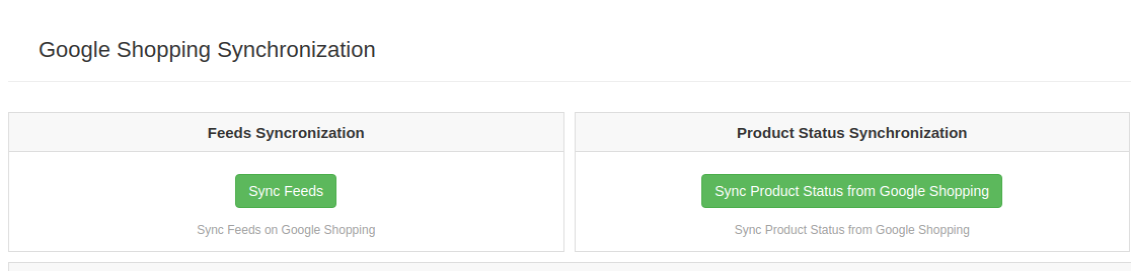
The Synchronization tab of the Magento 2 Google Shopping Integration module offers a cron option for real-time synchronization. Here are the cron options available.

  • Sync Feed on Google Shopping: ‘Sync Feed’ cron will synchronize the feed on Google Shopping.
  • Sync Products Status from Google Shopping: This button can sync the product status from Google shopping to the web store.

3.7. Audit Log

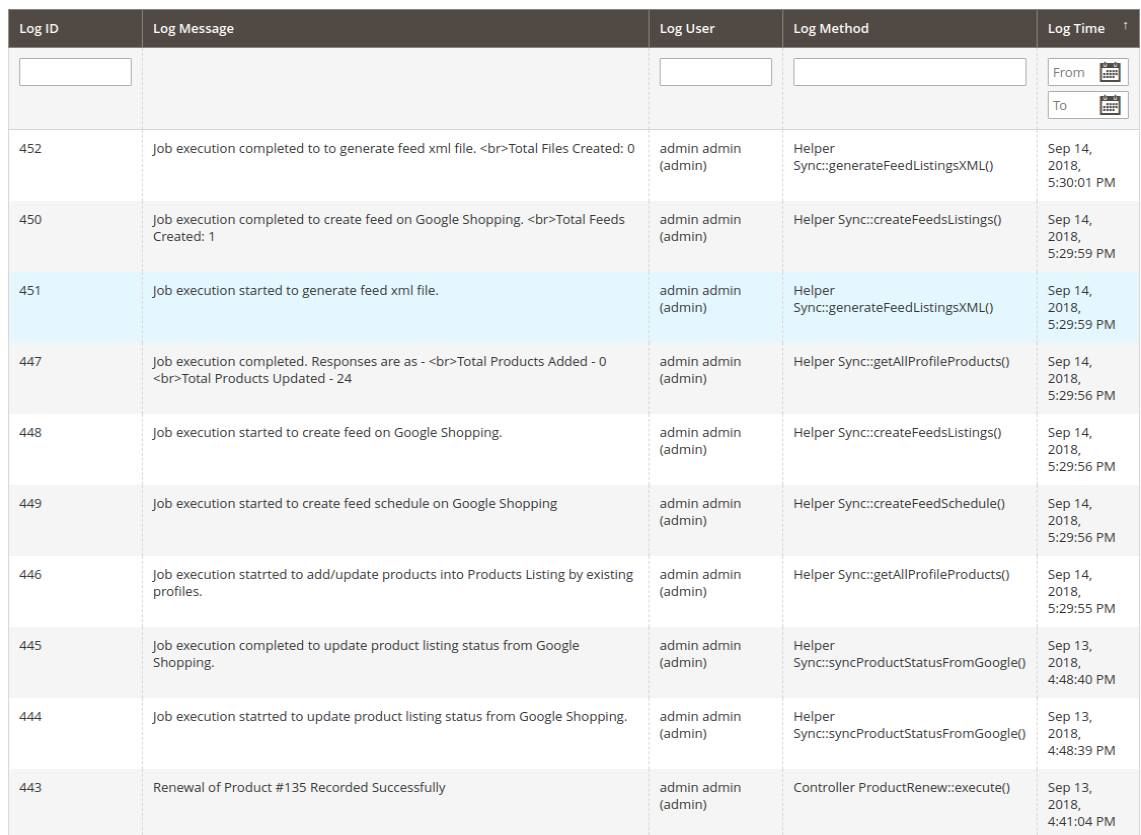
The admin can view the status of the task running in the back-end in the Audit Log tab of Google Shopping Magento 2 Integration plugin.

4.0. Appendix

How to Create Google Shopping Account?

Before uploading your products on Google shopping, you must have your Google merchant account. If you don’t have then please follow the below URL:

https://merchants.Google.com
Follow the instructions given on the above URL and create your account.

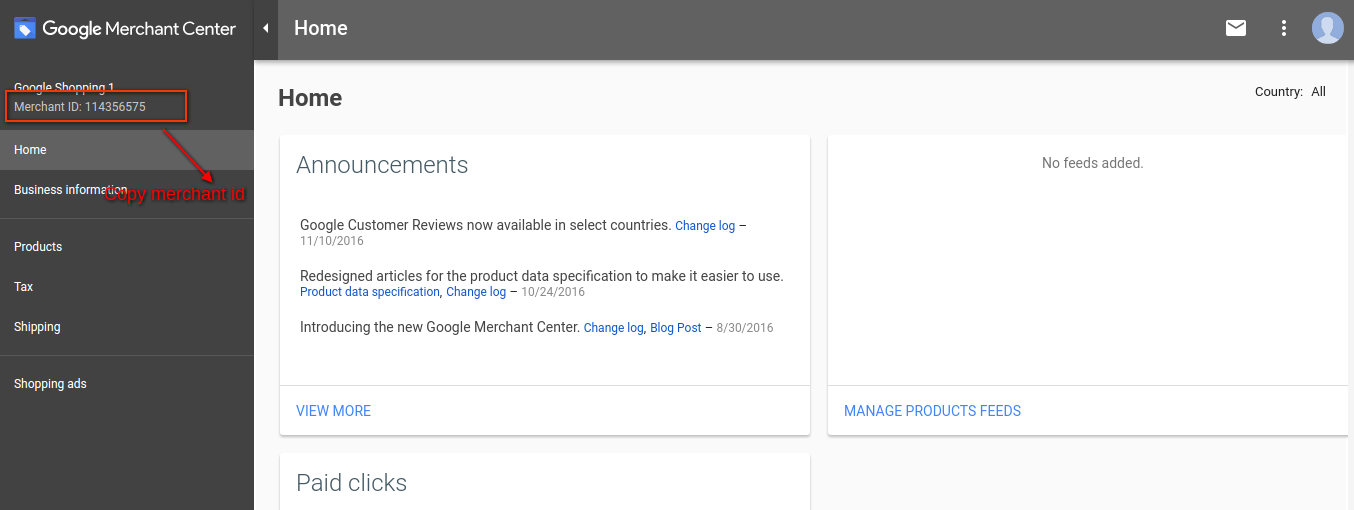
After creating your account, you will be redirected to your merchant center homepage as shown in below screen:

Copy your merchant id highlighted in the above screen and save it in module configurations.

Verify your Website for Google Merchant Account

This verification process is a compulsory process to upload your products to Google Shopping. If you do not verify your site then the module will not be able to upload products and may result in an error.

To verify your website, please follow the below instructions:

Step 1: Go to the “Business Information” tab in your Google Merchant Account.

Step 2: Under “About Your Business” tab, provide the URL of your store. For example, https://www.example.com. Save URL.

Step 3: After saving the website URL, Under the “Website” tab, Click on “Claim Your Website” link. This will show you the link to an HTML file. Download this file and upload it to your root directory of the store.

Step 4: After uploading the HTML file, execute the URL given by Google in step 3.

Step 5: Click on the “Verify & Claim” link.

4.1 How to get a Client ID and Secret?

To get Google client id and secret you need to create a project in Google developer account. Please go to the below URL to sign into the Google developer account.

https://console.developers.Google.com

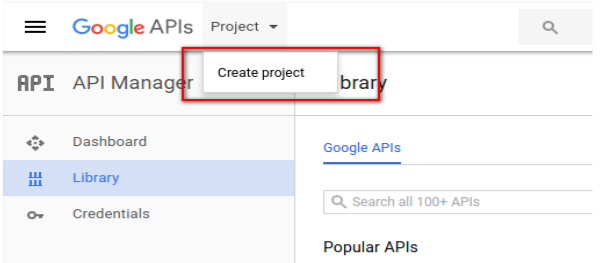
On the above URL, create a project by clicking the link shown in below screen:

Step 1: Name your Project Name and then click on the “Create” link. After creating a project, Google will redirect to the same page and your new project will be selected.

Step 2: Go to the library tab, search for “Content API for Shopping ”. Enable this API for this project.

Step 3: Click on the “Credentials” tab. This tab will show 3 tabs.

Step 4: Set your application name in “OAuth Consent Screen” and save it.

Step 5: Click on the “Credentials” tab and click on the “Create Credentials” button.

Step 6: After clicking the “Create Credentials” button, Google will be shown credentials type options. Choose “Auth client ID”.

Step 7: Set application type as “Web Application”.

Step 8: Set the “Authorized Redirect URIs” field. Your redirect URI is given on the module configuration page. Please copy from there and paste it into this field.

Step 9: Click on the “Create” button. After saving credentials, Google will generate the client id and secret for you. Copy and paste them into the corresponding field in module configuration.

Note: For more details instructions, follow URL https://developers.Google.com/identity/sign-in/web/devconsole-project

Note: If you are getting an error while getting your refresh token. Please also try after “Allowing Less Secure App” in your Google account.

For more values, please follow the below URL and read the documentation:

https://support.google.com/merchants/answer/7052112?hl=en

How to delete products from MercadoLibre Marketplace?

Objective of the blog

After reading this blog, you can understand how the seller can delete the products from MercadoLibre marketplace.

Method to delete Products from MercadoLibre Marketplace:

You can delete products from MercadoLibre marketplace by two methods:

  • Delete manually from the merchant account
  • Using CSV file.

1. Delete manually from the merchant account

1. Login into MercadoLibre merchant account (URL: https://cbt.mercadolibre.com/secure/login/merchant/).

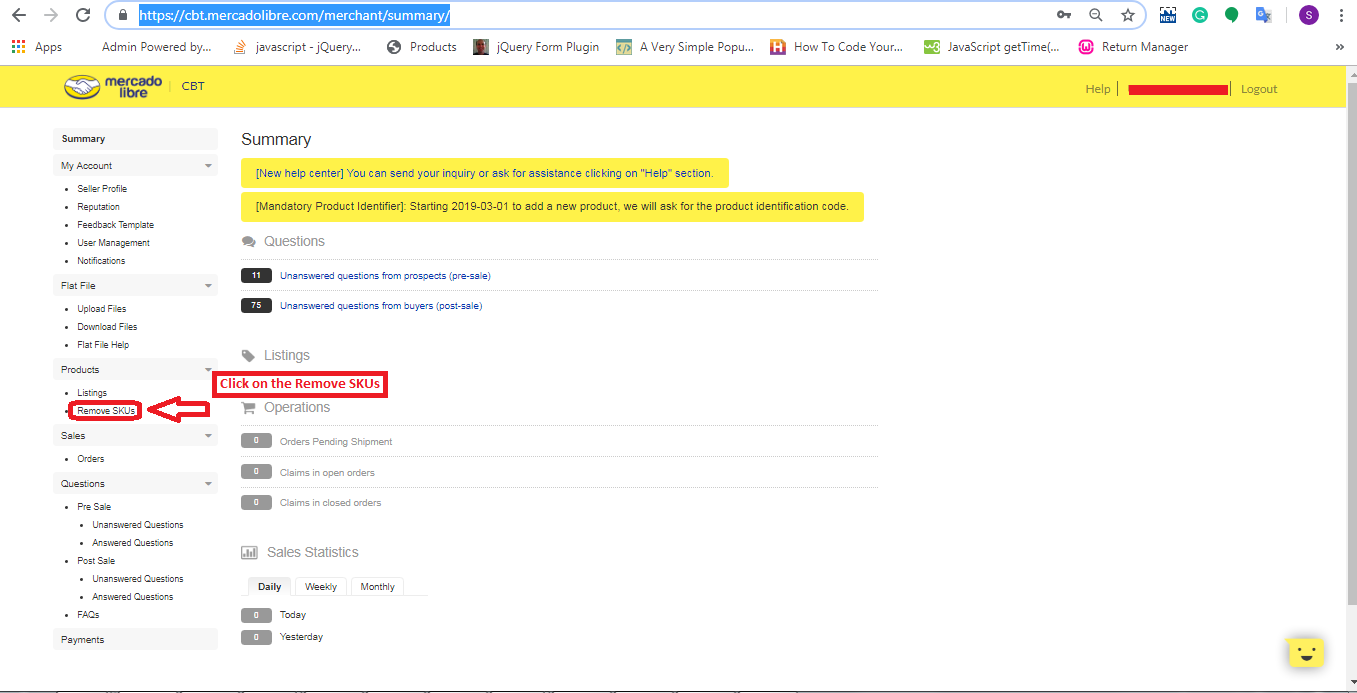
2. After login, you will be redirected to the summary page where you will need to click on the “Remove SKUs” link on the left side as shown in the image below:

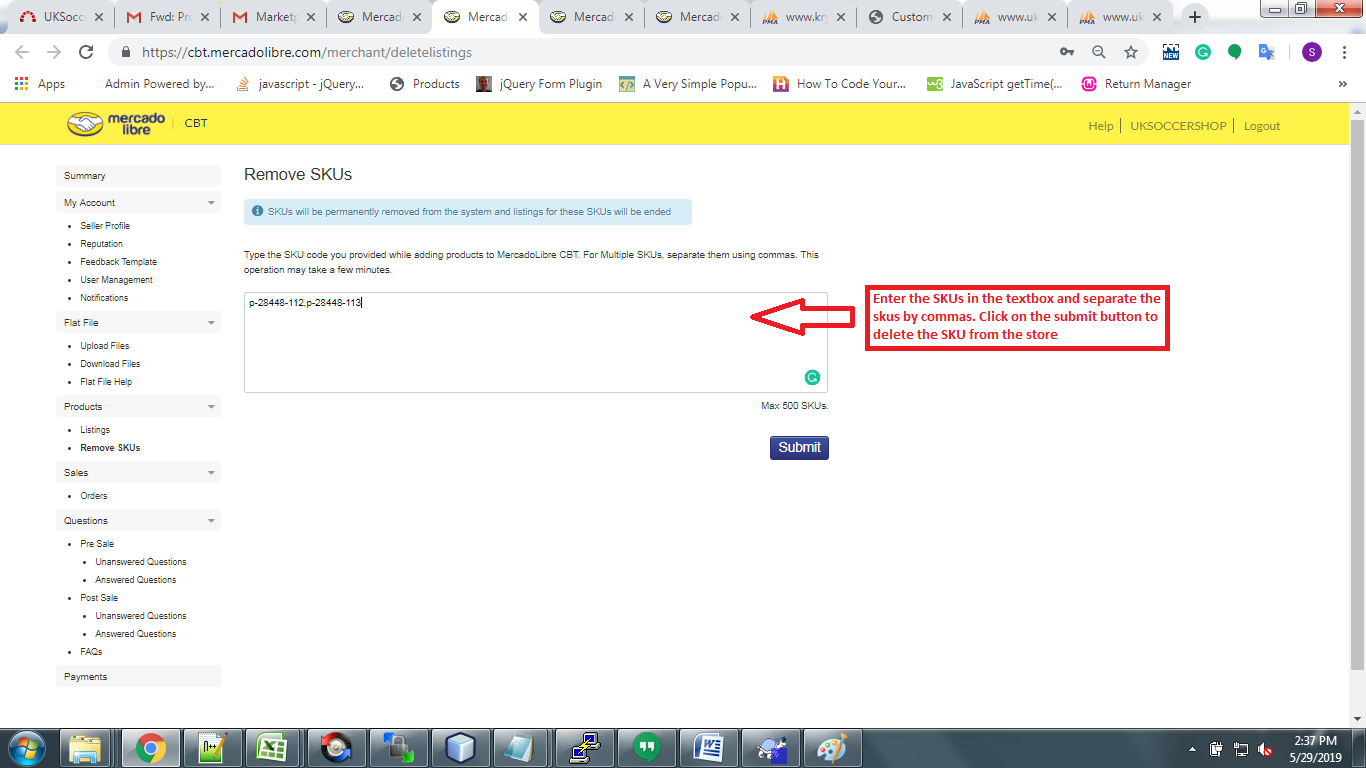
3. Then, You will need to enter product SKUs in the textbox and click on the submit button to delete as shown in the image below:

2. Using csv file

You can delete products in bulk from Mercadolibre marketplace using a CSV file.

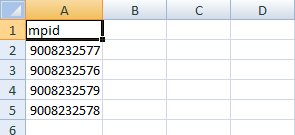
1) Create a “CSV” File with a column name: “mpid” and add all the MPID.

Example:

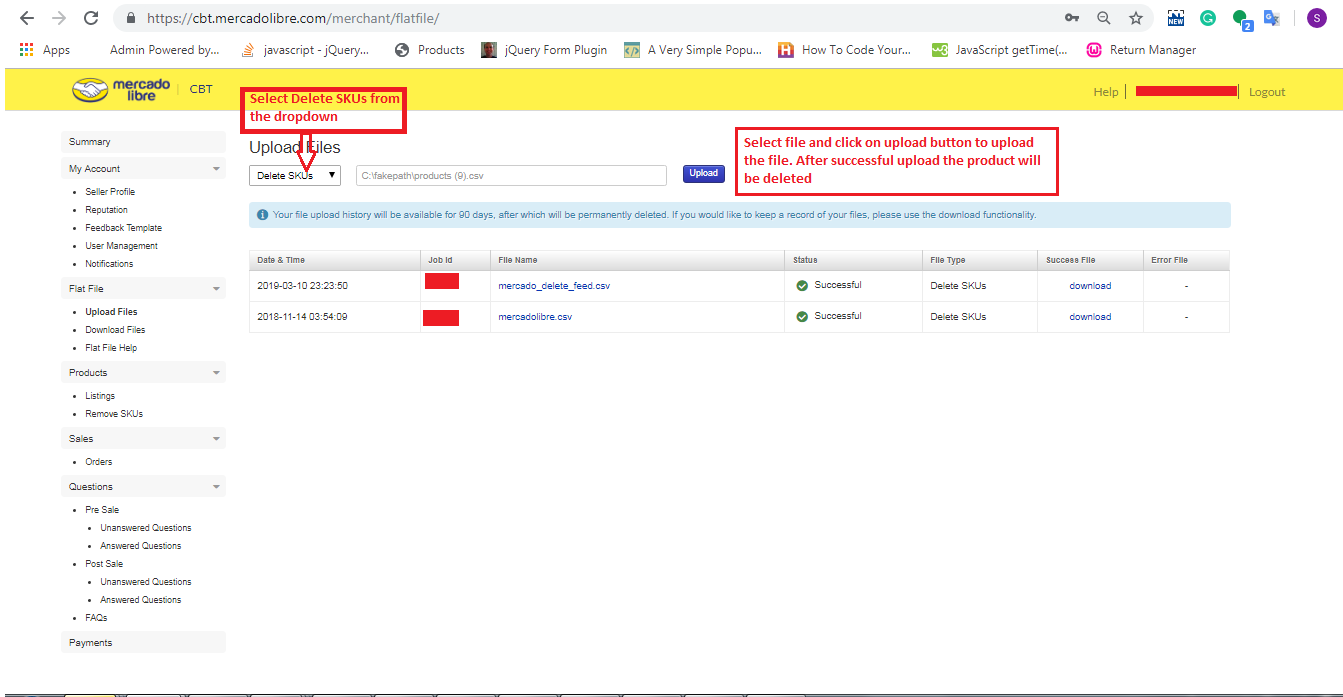
2) Go to the Merchant Portal -> Flat Files -> Upload Files

  • Select “Delete SKUs” option
  • Here you can upload CSV file that you have created in step 1 to delete the products as shown in the image below:

Hope it helps. Do let me know in the comments in case of any confusion.

JavaScript Desktop Notification

Objectives of the blog

After reading this blog, you will able to setup the desktop notification for your site. You will also be able to customize your notification by your own message, image, icon etc.

Benefit of Desktop Notification

Suppose you want to notify your customer outside the webpage then we can use the desktop notification as if you have enabled desktop notification for email, you don’t need to check emails regularly. In every email, you got a notification.

Code for Desktop Notification

Add the below function in the script tag in the head of the HTML.

function showNotification() {
    // Verify if the user's browser supports notifications or not
    if (!("Notification" in window)) {
        alert("Your browser does not support the desktop notification");
    }
    // Verify if notification's permissions have already been granted or not
    else if (Notification.permission === "granted") {
 
        // Create Notification
        var options = {
            body: 'Simple notification message line 1.\nSecond line of notification message.', // body of the notification
            dir: 'ltr', // direction of message ltr: left to right. rtl : right to left.
            image: 'https://www.knowband.com/blog/wp-content/uploads/2016/09/cropped-knowband_logo-v2.png', // Add image if required to show
            icon: 'https://www.knowband.com/blog/wp-content/uploads/2016/09/cropped-knowband_logo-v2.png', // Add icon if required to show
        }
 
        var title = "Knowband Blog";
        var notification = new Notification(title, options);
 
 
        //Add the notification click link
        notification.onclick = function (event) {
            event.preventDefault(); // prevent the browser from focusing the Notification's tab
            window.open('https://www.knowband.com/blog/', '_blank');
            notification.close();//Close the notification after click
        }
    }
 
    // If no permissions, ask the user for permission
    else if (Notification.permission !== "denied") {
        Notification.requestPermission().then(function (permission) {
            // If the user accepts, let's create a notification
            if (permission === "granted") {
                var notification = new Notification("Hi there!");
            }
        });
    }
}

You can trigger this function through event as you wish. For testing purpose, you can check this by adding a button. Use below code for button in the body

<button onclick="showNotification()">Show Notification!</button>

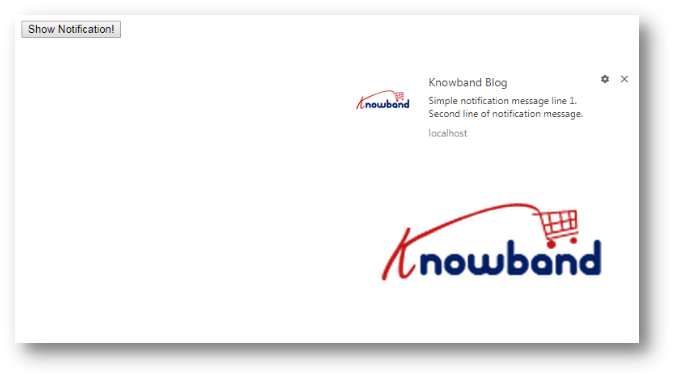
Note: If you are running this code on the local system then use the local sever i.e. localhost.

Output Screen