The enforcement date of the GDPR is approaching. Yet, most of the businesses are still struggling to make their online store GDPR compliance. In order to make it easier for the Prestashop store owners to meet the GDPR requirements, Knowband has developed the Prestashop GDPR Addon – Rights of the Individual. As per the suggestions of our valuable customers and by referring the discussions on the various forums, we have added some additional features to the Prestashop GDPR Addon. We will release the new version of the Prestashop GDPR Module on May 23, 2018. In order to give a glimpse of the new features to our valuable customers, we are sharing the details and interface design here.
New features of Prestashop GDPR Module
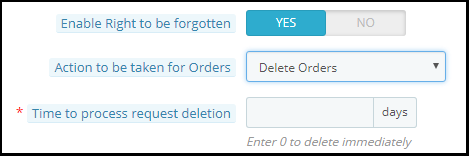
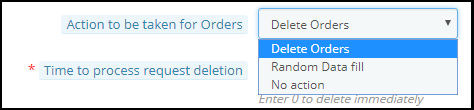
The purpose of these features is to provide additional control to the Prestashop store admin to comply with the GDPR directives. Please find the details of the new features below:Right to be forgottenAdmin has the advanced options to process the data deletion request.Now, admin can select the options like Delete Order, Random data fill or No Action.Delete Order: If the Delete Order option is selected then on requesting for the Data Deletion the order details will be deleted.Random Fill: If the Random Data Fill option is selected then on requesting for the Data Deletion the personal details of the customer will be anonymized. It will help the store admin to keep the statistics of the order and product sale.No action: If the No action option is selected then on requesting for the Data deletion previous order details will remain untouched.Time to process request deletion: Admin can select the option to delete the customer data immediately or after some days. If the admin would like to delete the customer data after some days then admin need to specify the number of days. (Make sure to delete the customer data within 30 days of the request)Deletion of the customer data from Back-office: In order to handle the data deletion requests which have been received through other sources like email, the Prestashop GDPR module provides an interface to the admin to delete the customer data. Follow the steps listed below to complete the data deletion action:
Go to the GDPR Forgot Request Tab
Click on the Delete Customer’s Data option as highlighted in the screenshot
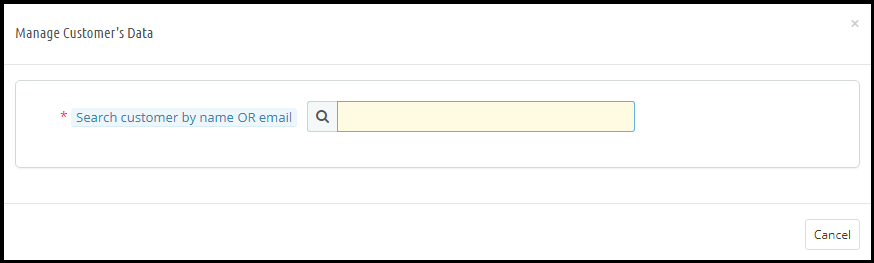
On clicking the Delete Customer’s Data a new tab will open. Please refer to the attached screenshot.
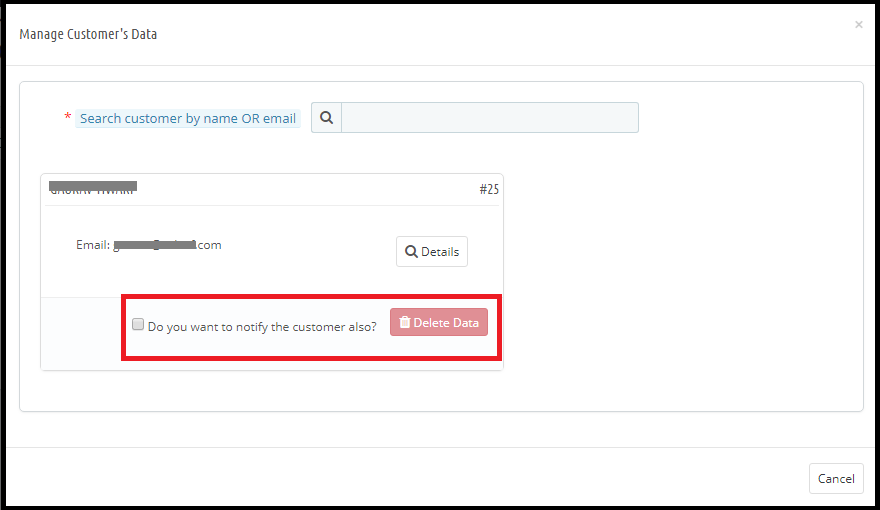
Admin needs to enter the customer name or the email id to find the customer details. The details will appear like.
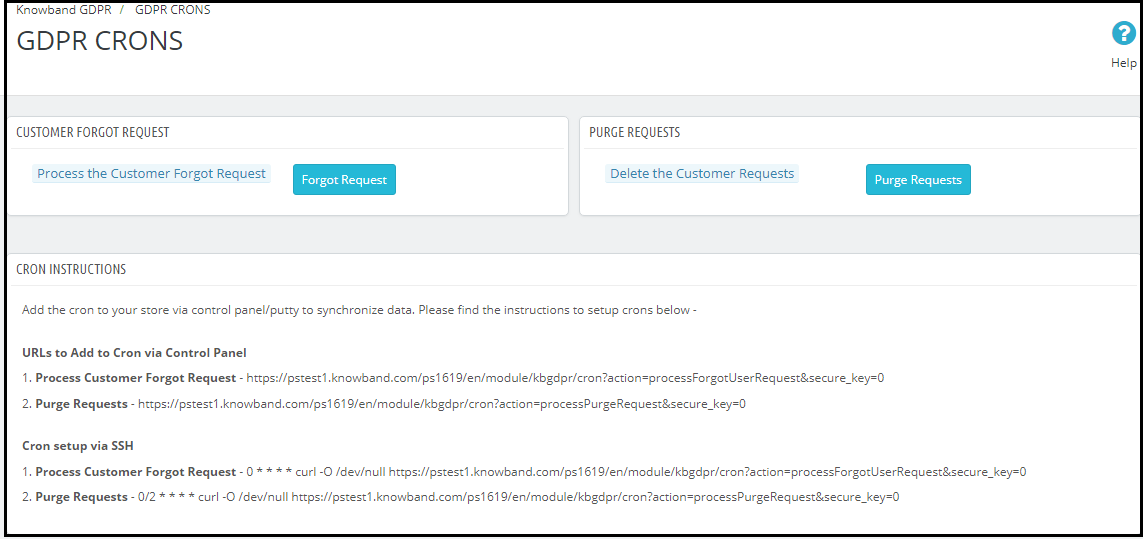
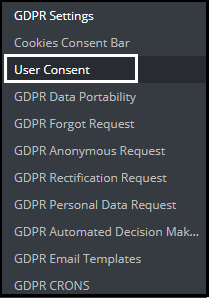
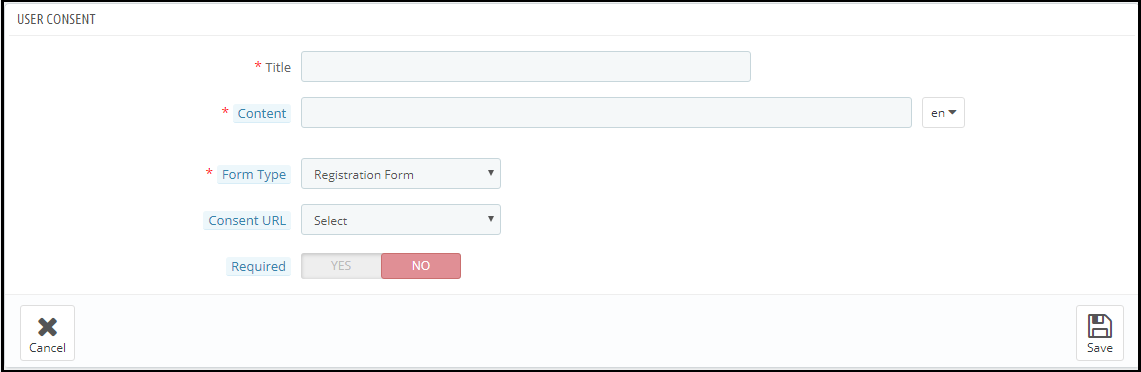
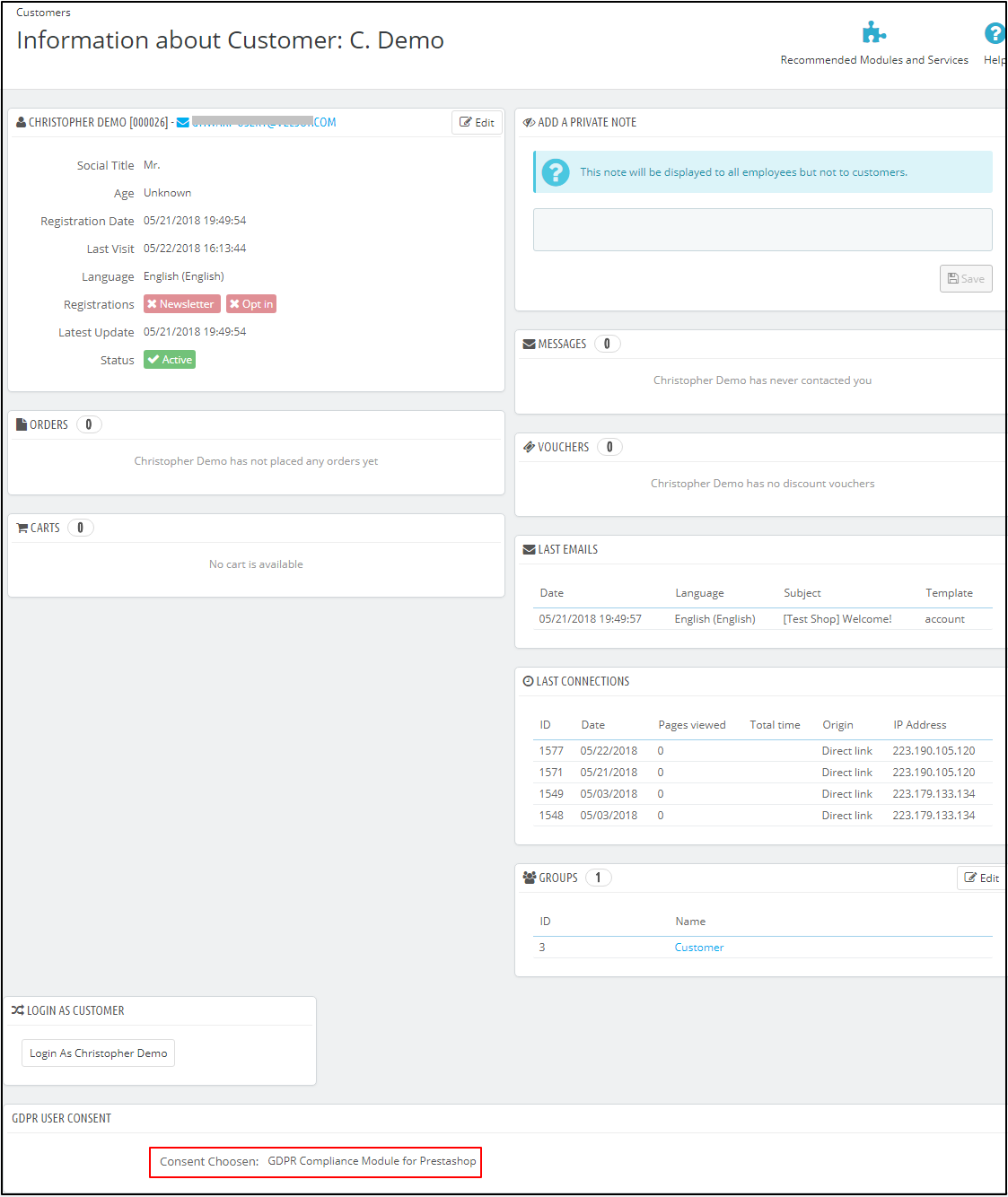
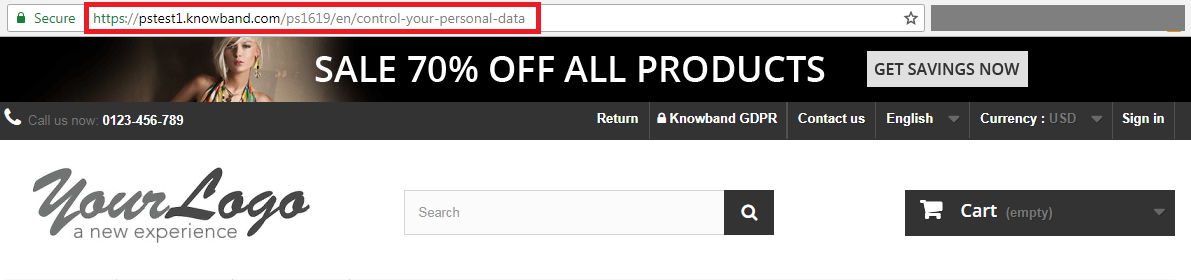
From here, admin can check the customer details and also select the option to delete the customer data. Admin can also notify the customer regarding the data deletion through email.Note: As of now, the Prestashop GDPR Compliance Module by Knowband does not keep the record of the data deletion requests processed from the back-office.Purge request day: This option allows the store admin to define the data retention period for the GDPR requests. As per the number of days defined by the admin GDPR request log will get deleted automatically (cron setup for the data deletion).Cron setup: To enable the option to delete the customer data after a specified day and the purge request day, the admin has the options to set up the cron.User Consent: The user consent option allows the store admin to display the checkboxes on the Signup and Contact form.Please refer to the attached screenshot:Title: This is for the internal use. The title of the consent box will appear in the back-office details.Content: The text entered here will be displayed to the user at the front-end.Form Type: Admin can select the Registration Form or the Contact form to display the additional information.Consent URL: Admin can add the link to the Privacy Page or Terms and Conditions page.Required: Admin has the choice to make the field a mandatory filed.After enabling the checkboxes on the registration form the store admin can record the customer permission. To check the customer permission customer need to go to the Customers section. Here at the bottom of the page Under the GDPR Consent – the permission of the customer will be listed. Please refer to the attached screenshot (as per the title entered by the store admin the user consent will be recorded)Tips for updating the Module URL:In order to generate the SEO friendly URL for any third party module page. Please follow the below steps:
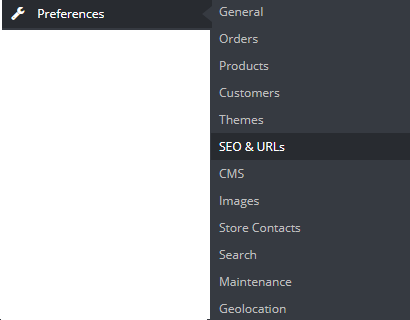
Navigate to the Preferences >> SEO & URLs
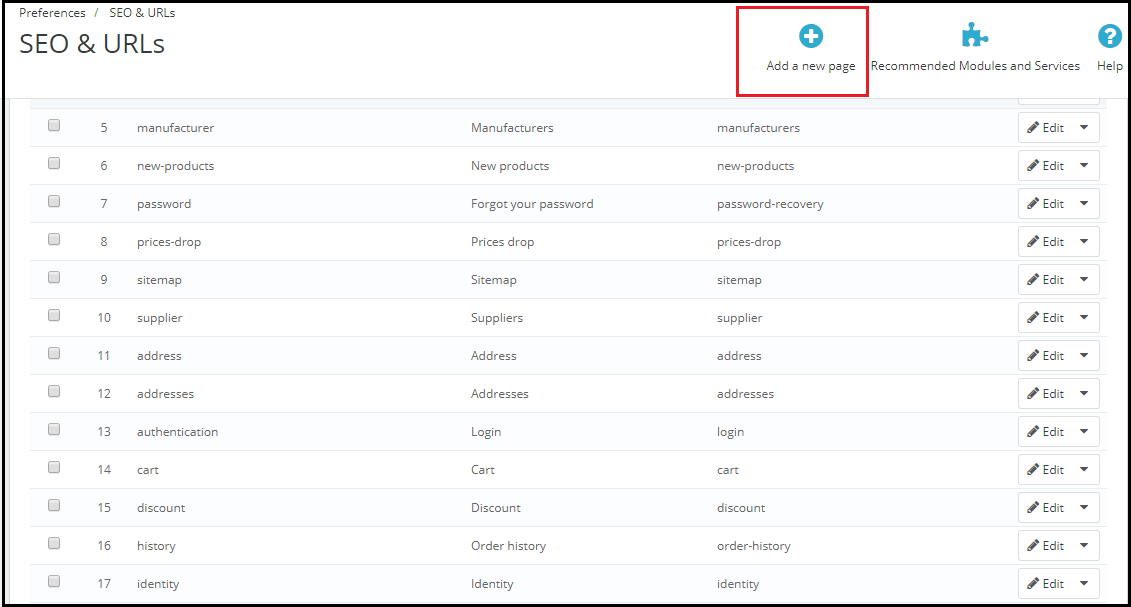
Click on the Add New Page.
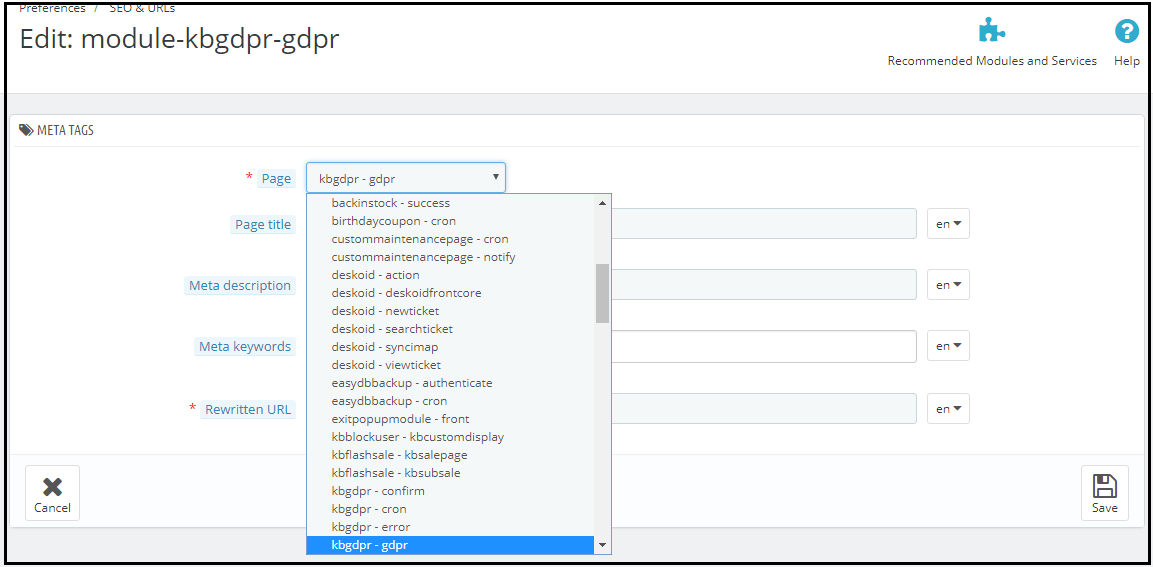
Select the “Modules Page” from the Drop-down (in case of Knowband GDPR Module select the kbgdpr – gdpr)
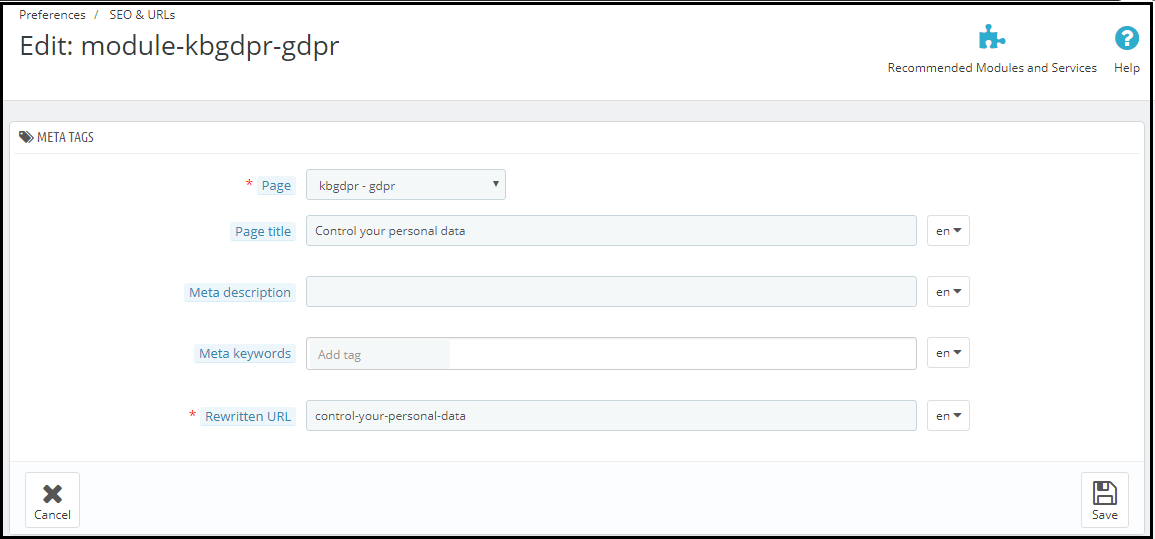
Now enter all the required details and save the changes.
5) Here is your updated URL of the page.5 must have Prestashop Extensions to increase the Average Order Value.
Making a sense of urgency by displaying the count-down time to avail the offer is one of the popular trick used by the online businesses. This encourages the customer to place their orders to get the advantage of the offer. The flash sale timer addon is the best way to achieve the same. By using this module admin can display the countdown timer on the selected product or category. Click here to get this addon.
As per the business requirement sometimes COD option is required on the website. To achieve this goal the store admin can use the Cash on Delivery Addon with Fee. By using this addon store admin can offer COD payment option to the customer and add a minimal fee for the service. Click here to get this addon.
Admin can offer the free products over a fixed order value. Offering freebie helps to encourage the customer to shop more and increase the cart total. Gift the product addon helps the store admin to set a minimum cart value over which the customer will be able to select the free gift. Click here to get this addon.
Cross-selling and Upselling are the important factors to increase the averageorder value. By showing the similar products at a higher price or related products you can encourage the customer to buy more. The automatic related products addon allows the store admin to display the related products based on the multiple criteria like manufacturer, color etc. Click here to get this addon.
The Free shipping option puts a psychological effect in the customer’s mind. eCommerce store can offer the free shipping over a fixed cart value. In order to get the free shipping customer will buy more products and it will help you to increase the revenue. Click here to get this addon.
As suggested by the Prestashop team regarding the adaption of the new hooks to make the Prestashop Modules compliant with the official GDPR module, we are happy to announce the release of our first module with the hooks introduced by the Prestashop team. (Click here to know the details regarding the Prestashop hook to make a Prestashop addon compliant with the official Prestashop GDPR module).
The Spin and Win pop-up addon, that can be used as a welcome or Exit intent pop-up is now in compliance with the GDPR. The GDPR compliant version of the Spin and Win Popup module will be released on Monday, May 21st, 2018.
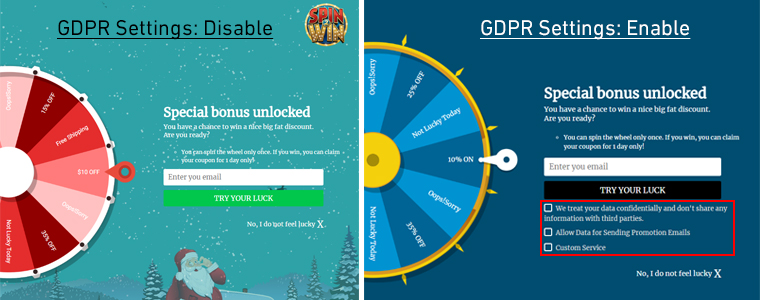
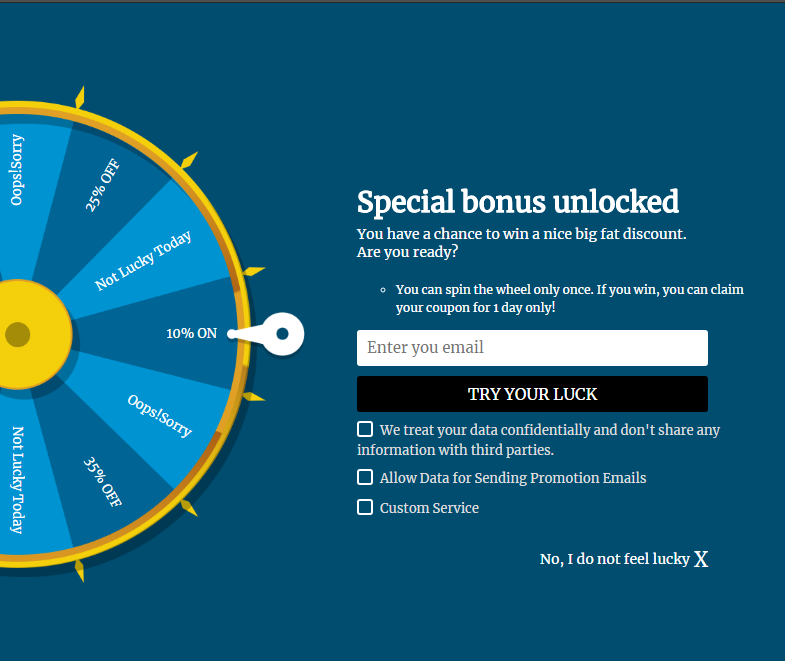
The Spin and Win Pop-up module is an interactive, gamified pop-up that allows the Prestashop store admin to display a unique wheel with the various discount options at the store front-end. Admin has so many options to customize the look and feel of the pop-up. Customers also like this welcome pop-up as by just spinning a wheel they get awesome discounts to make their purchase. In order to spin the wheel, it is required to enter the email id, as per the settings enabled by the store admin the coupon code will be displayed to the customer. Admin has the choice to send the coupon code via email. As this pop-up module captures the personal details of the visitor so we have made the required changes in the module to make it compliant with GDPR. Please refer to the attached screenshots:
Here, are the details of the Spin and Win module with the new changes.
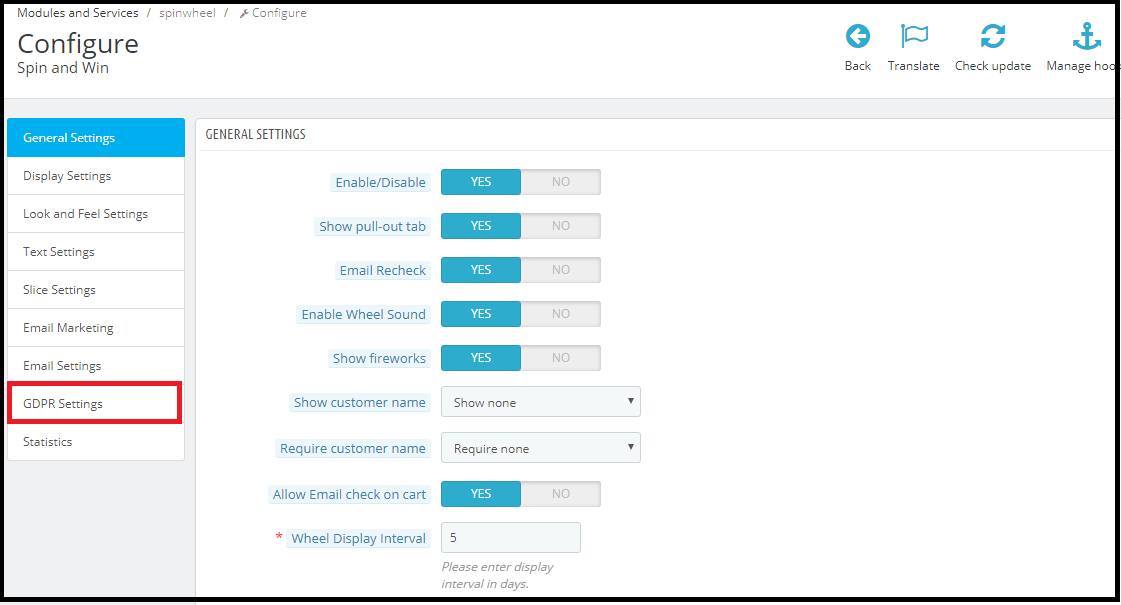
GDPR Settings Tab: In the configure section of the Prestashop Spin and Win module a new tab GDPR has been added. The EU merchants can enable the GDPR settings from this tab. Please refer to the attached screenshot in which we have highlighted the GDPR Settings tab.
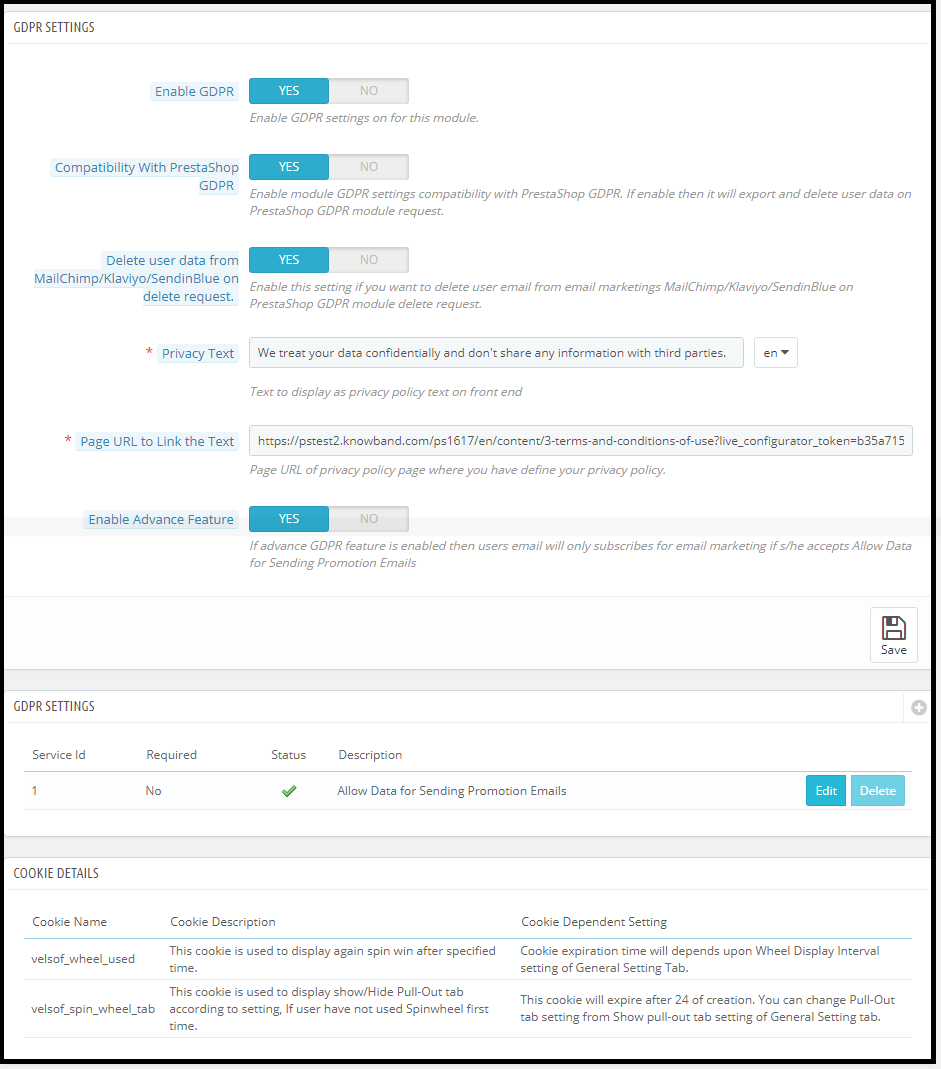
2) GDPR Settings: The GDPR settings tab has the option to enable or disable the GDPR options. There are following options in the GDPR settings tab for the merchants to make the popup module compliant with the GDPR.
a)Enable GDPR: Enable GDPR option allows the store admin to enable/disable the GDPR settings. By default, the GDPR settings will remain disabled and as per the business need, store admin needs to enable it.
b) Compatibility with Prestashop GDPR: Admin has the option to enable/disable this feature. If you are using the official GDPR module then you must need to enable this setting. The main purpose of this feature is export and deletes user data on PrestaShop GDPR module request. It is also compatible with Prestashop GDPR Module developed by Knowband. Click here to check the details.
Note: Benefits of using Prestashop GDPR Module by Knowband:
Free 3 months support
Advance features
Automated process
c) Delete user data from MailChimp/Klaviyo/SendinBlue on delete request: As the Spin and Win pop-up addon syncs the captured email ids to the MailChimp/Klaviyo/SendinBlue email service providers (third-party service providers, so if this setting is enabled and you use the services of any one of these email service provider then on the data deletion request the subscriber details will get deleted automatically.
d) Privacy Text: The module will add a checkbox to the pop-up design with the privacy text; this text will be visible to the front-end user at the time of entering email id in the email box.
e) Page URL to Link the Text: Admin can add the link to “Privacy Policy” or any other page with this message.
f) Enable Advanced Feature: This option allows the store admin to add more checkboxes to the pop-up design for marketing permission or any other permission like age verification (age should be 16+). (For Age verification module – click here).
If the Advance Feature setting is enabled then admin will be able to access the additional checkbox setting option. As per requirement, admin can add multiple checkboxes.
i) Service Settings: All the additional checkboxes which have been added by the admin will be listed under the Service Settings. Admin can add the multiple checkboxes with ease.
How to add a new checkbox:
Click on the (+) sign to add a new checkbox.
Note: By default one service will be listed on the service list and admin can update the text for the service.
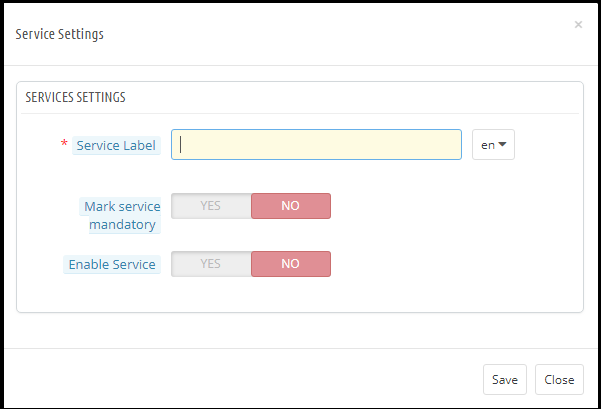
2. On clicking the + sign will open a pop-up and admin need to enter the details like – Service Label, Make service mandatory and Enable Service.
Service Label: This is a text input field. The text entered here will be visible to the front-end user.
Make Service Mandatory: This is a toggle button. If this is set to Yes, then this field will be marked as Mandatory and without confirming the checkbox visitors will not be able to get the offer.
Enable Service: Admin has the choice the Enable/Disable a service at any time.
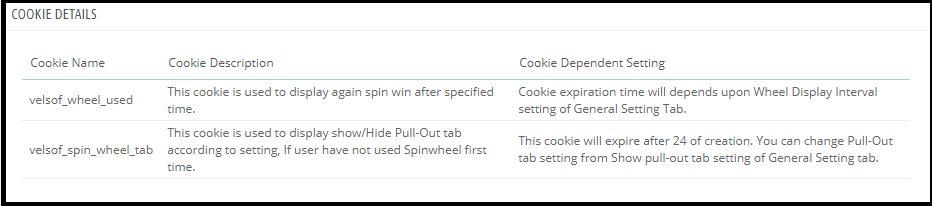
Cookie Details:
As the Spin and Win module uses the Cookies so the description and the use of these cookies have been listed in the section so that admin can put these details on the Cookie Policy or Privacy Policy page.
Record of consent:
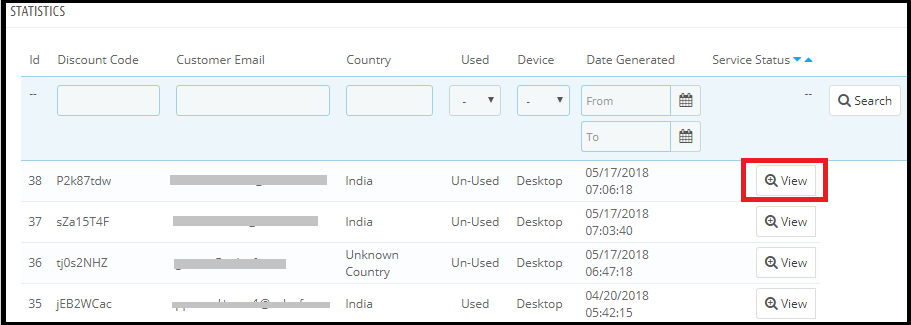
As soon as the user opt-in for the promotion and spin and the wheel to get the discount coupon code. The Spin and Win Pop-up module keep the proof of the opt-in, as it is required for the lawful processing of the captured data. As the unique coupon code is generated each time so the Statistics tab of the Spin and Win GDPR Compliant Module also record the permissions of the users. Please refer to the attached screenshot.
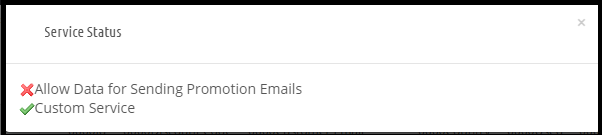
On clicking the view button admin can check the permission of the user.
The GDPR compliant version of the Spin and Win module will be available on our store from Monday, May 21st, 2018. After enabling the GDPR Settings the Spin and Win pop-up design will look like –
Knowband has developed more than 70+ Prestashop Modules which are also available on the Addons store. Please click here to browse the Prestashop Addon store.
5 Must have Prestashop addons to improve the conversion rate.
One page checkout: One-page checkout addon reduces the additional efforts to complete the order and offers the better customer experience at the checkout page. Customers also like the one step checkout process because it offers so many options like edit/ deletes the products, update product quantity, use the coupon code, social login option (Google and Facebook) etc to the customers. Get the One Click Checkout module for your store.
Abandoned Cart Module: The abandoned cart module helps the admin to keep the track of the cart abandonment. Admin can send the reminder emails to the customers to encourage them to complete the order. Get the Prestashop Abandoned Cart Module for your store.
Return Manager Module: Customer engagement and better customer service is the key to success in eCommerce. To offer the better return management services the best solution is the Prestashop RMA extension. The Return Manager addon by Knowband allows the store admin to offer the return/refund or store credit refund options to the customers. The Return Manager addon automates the refund process and also makes it easy to handle the return requests. Get the Prestashop Return Manager Addon for your store.
Advance Wishlist Addon: Wishlist addon allows the customers to save the products of their choice to a list so that they can complete their purchase later. The Prestashop wishlist module also helps the store admin to analyze the most popular products of the store. Get the Prestashop Advance Wishlist Module for your store.
Free Shiping Manager Addon: The Free shipping option puts a psychological effect in the customer’s mind. eCommerce store can offer the free shipping over a fixed cart value. In order to get the free shipping customer will buy more products and it will help you to increase the revenue. Get the Prestashop Free Shipping Module for your store.
The General Data Protection Regulation (GDPR) is a replacement for the European Union Data Protection Directive which will be enforced on May 25, 2018. The new directives have been passed, as per the new technologies and business advances; a new approach to protection of the personal data has been introduced.
GDPR provides more control to the customers to control their personal data. Customers have the right to request for the deletion of the data. It is mandatory for the store admin to honor the customer request within 30 days. The Prestashop GDPR addon – Data deletion and data anonymization allows the store admin to provide an interface to the customer so that they can request for the deletion of the data under the GDPR directives.
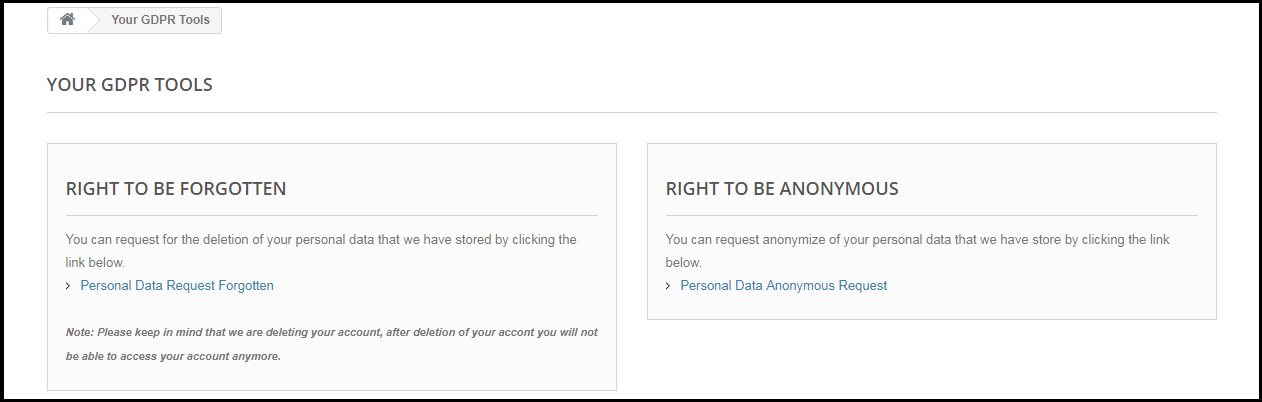
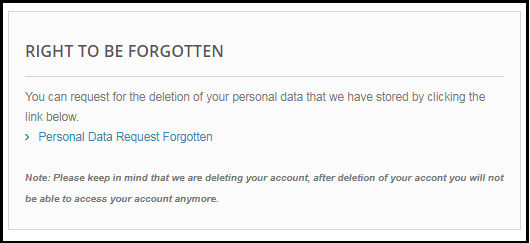
The customer-end interface of the Prestashop GDPR Module –
As per the requirement, the admin has the choice to enable/disable any of these rights.
Installation of Prestashop GDPR Module
After placing your order for the Prestashop GDPR module you can download the zip file of the module. This zip file contains:
1) GDPR.zip (source code of the module)
2) User Manual
In order to install the extension in your Prestashop store follow the below-mentioned steps:
1) Unzip the gdpr.zip file.
2) Copy the entire content, that is, the files and folders of the unzipped folder. Paste the same into the “Modules” folder of your store’s directory. Follow the below-mentioned address path – Root Directory/modules/.
3) The Prestashop GDPR plugin is all set to be installed in the store. Go to the Store Admin and then to ‘Modules and Services’.
4) Click on the “Install” button just next to your module. It would show a pop-up for your confirmation. Click on “Proceed with the installation” option. This step will install the module and show notification – “Module(s) installed successfully”.
5) Once the installation is complete, you will get the access to the admin interface of the module by clicking on the “Configure” button.
Admin Interface of Prestashop GDPR Addon
In the admin section of the Prestashop GDPR Customer rights module following options are available:
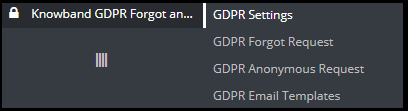
1) GDPR Settings
2) GDPR Forgot Request
3) GDPR Anonymous Request
4) GDPR Email Templates
GDPR Settings
The GDPR Settings tab of the Prestashop GDPR Addon allows the store admin to enable the rights of the customer. The Settings tab of the Prestashop GDPR module has the following options:
1) Enable the Plugin:
As per the requirement, admin can Enable/Disable the data deletion and data anonymization option for the customer.
2) Maximum request per day:
The customer can request for the deletion of the data, the admin can set the limit for the requests by each user on daily basis. It will be recommended to set the maximum requests per day to a minimum number to avoid the spam requests.
3) Data anonymization request:
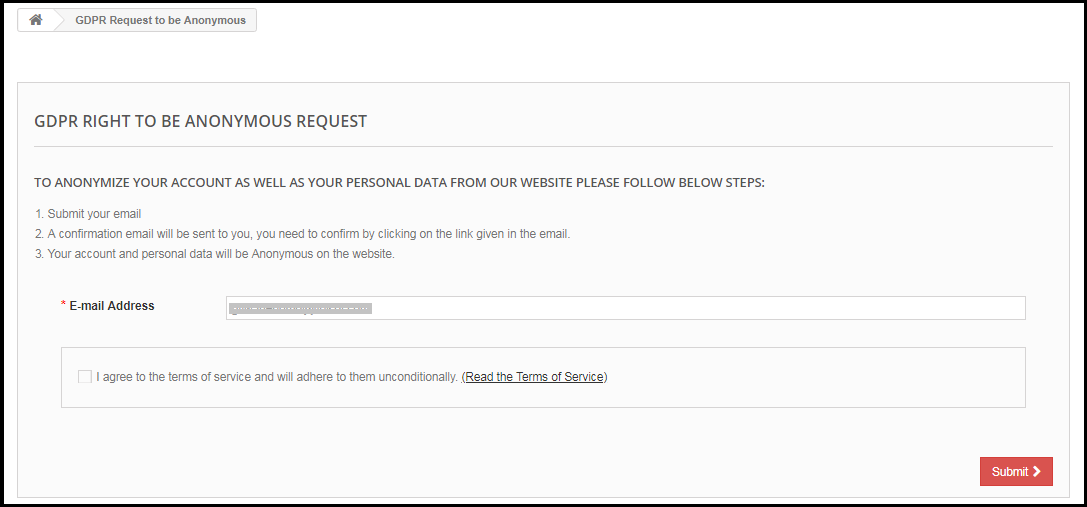
If the setting for the Right to be Anonymous is enabled from the admin panel of the Prestashop GDPR addon – data deletion and data anonymization, then the customer will be able to make a request for data anonymization. As soon as the customer will request for the data anonymization a confirmation email will be sent to the customer. As per the customer’s confirmation, customer details will be anonymized. Admin has the choice to anonymize the personal details of the customer like Name and email-id. The admin has the option to override the changes to the previous orders.
Enable the Data anonymization settings:
If the data anonymization settings are enabled from the admin interface of the Prestashop GDPR module then the customer will be able to request for the data anonymization and in this case, only customer name will be replaced by the random name.
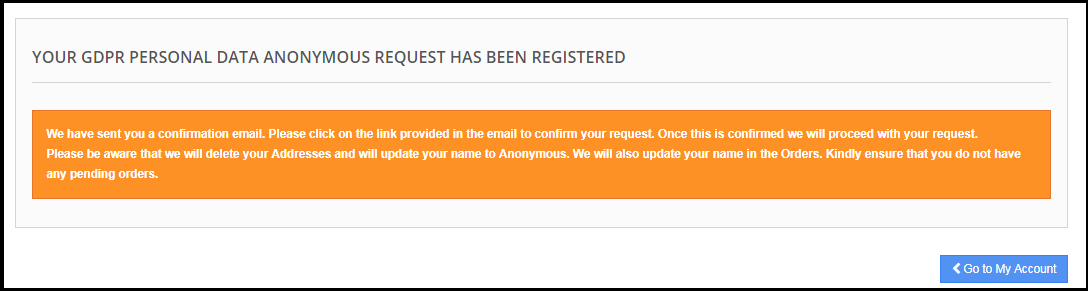
If a customer request for the Data anonymization, then a confirmation email will be sent to the registered email address and the customer will be requested to confirm the request.
Email confirmation:
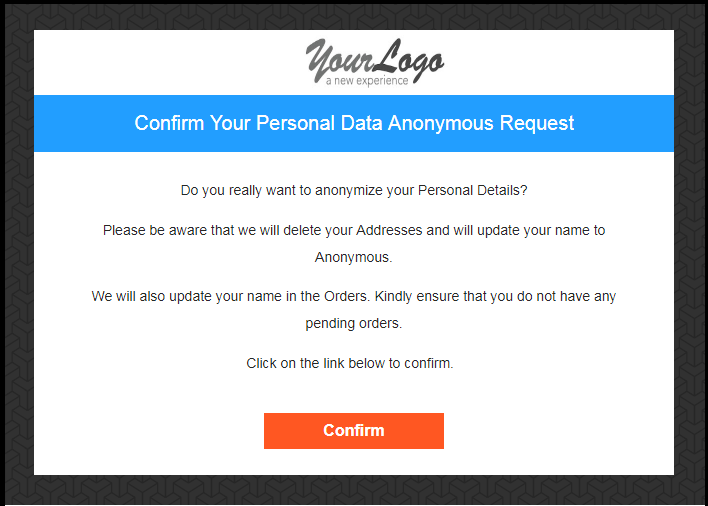
After requesting for the data anonymization customer will receive an email with a request to confirm the data anonymization request.
Note:
In case you are using the third-party services and sharing the customer data with third-party, then you need to make the required changes as per the procedure followed by the service provider. This GDPR module will anonymize the data which you have stored in your database only. The data anonymization process is just like the data deletion request.
4) Enable to update information in Order:
If a customer requests to make his/her information anonymous then admin can select the option to enable/disable the changes to the previous orders. If this setting is enabled from the admin interface of the Prestashop GDPR addon then the previous order details will be overridden.
5) Enable to generate Fake Email ID:
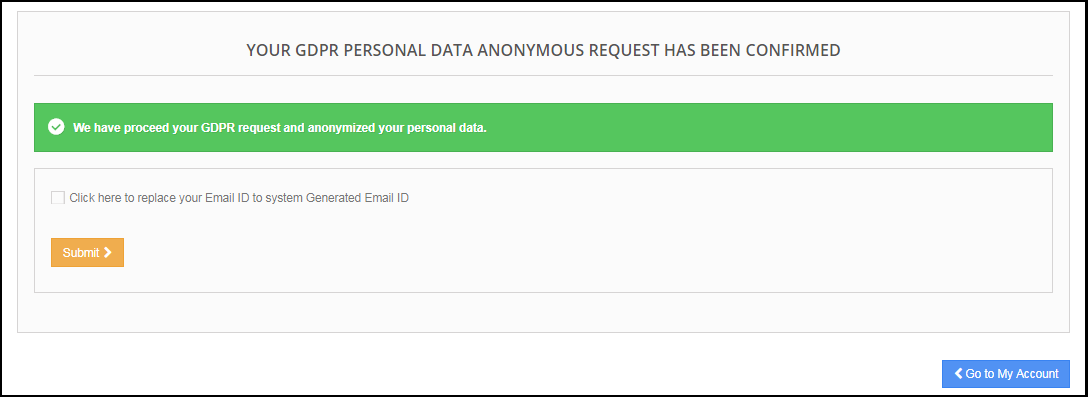
Admin has the choice to enable the settings to replace the customer’s email id by the system generated email-id. If the customer would like to anonymize his/her email id then they can submit the request for email id anonymization.
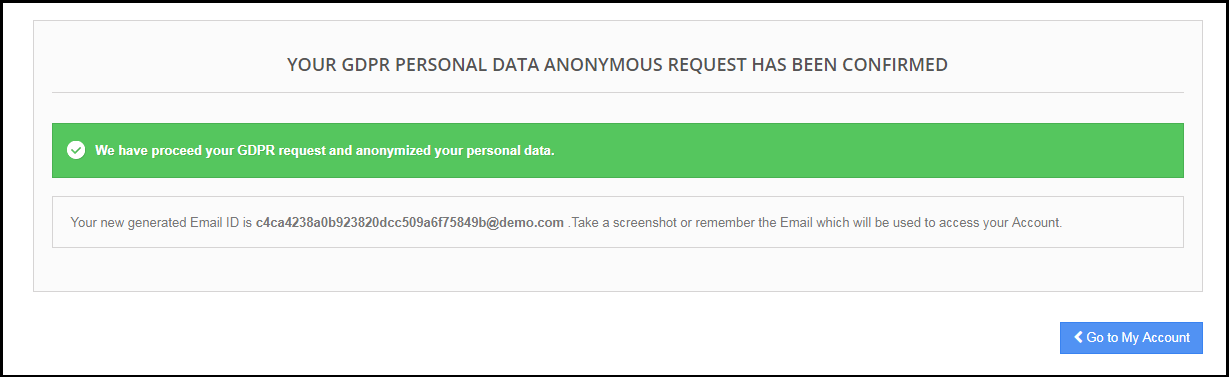
If the customer submits the request to anonymize the email id also. Then the customer email id will be replaced by a system generated an email.
The customer can save the system generated email id to access his/her account.
6) Enable right to be Forgotten:
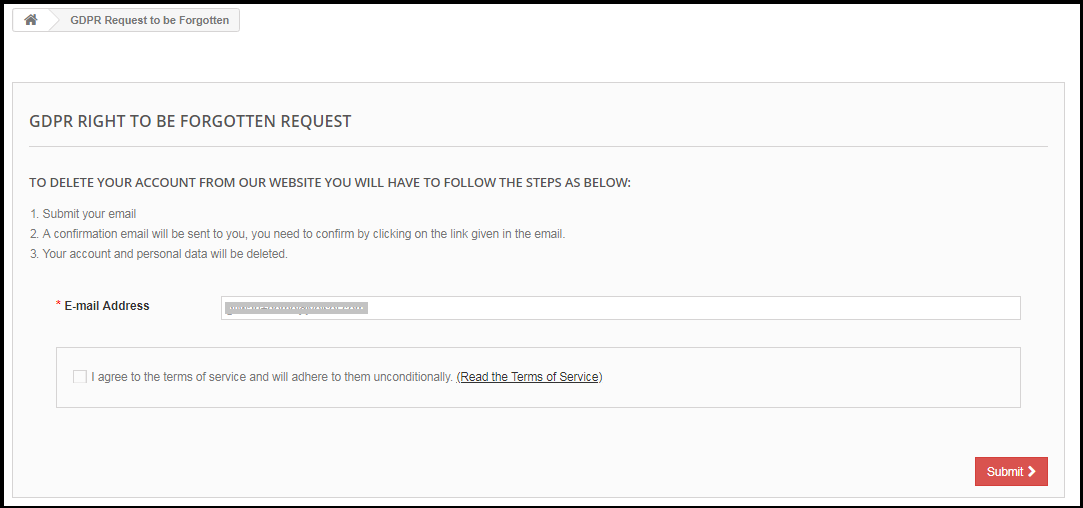
The new GDPR Directives allow the customer to erase their personal data. By using the Prestashop GDPR Addon module by Knowband, the admin can provide an interface to the customers to raise requests for the data deletion.
The data deletion report request interface for the customer will be as below:
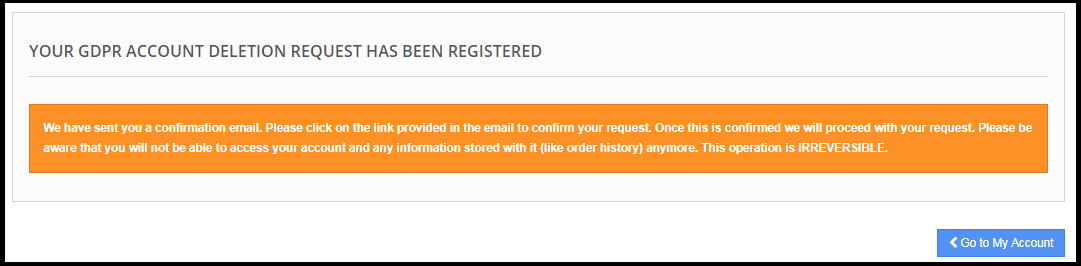
After requesting for the Account deletion the customer will be notified that an email with the confirmation request has been sent to the registered email id.
Note:
1) It is recommended to consult with your legal team before enabling this setting. After deleting the customer’s personal data it cannot be retrieved. Admin has the option to enable the delete order setting which has been explained in the next topic.
2) In case you are sharing the customer data with third-party service providers then you need to delete the customer data manually. As of now, this module does not support the feature to delete the data shared with the third-party service providers.
Example: If you are using MailChimp for sending promotional emails then you have to delete the customer details from MailChimp list manually.
9) Enable to Delete Orders:
If a customer has requested for the data deletion request under the GDPR, then the admin has the choice to delete the personal data of the customer along with the previous order details. If this setting is not enabled from the admin interface of the GDPR module then only personal data will be deleted and order information will remain as it is.
Note:
It is recommended to consult with your legal team before enabling the order deletion settings. The order details deleted from the system cannot be retrieved.
8) Enable Store Policy Acceptance:
If a customer would like to raise a request under GDPR rights then admin can add the condition to accept the Privacy Policy link before requesting for the Account Deletion or Data Anonymization. The admin interface of the Prestashop General data Protection Regulation addon allows the store admin to enable the setting so that for each request customer need to accept the terms and policy.
9) Store Policy Page:
Admin can add the URL of the page on which all the Terms and Conditions are listed. The customer can check the Terms and Conditions by clicking the link available with the message at the time of raising the request.
10) Display Header Menu
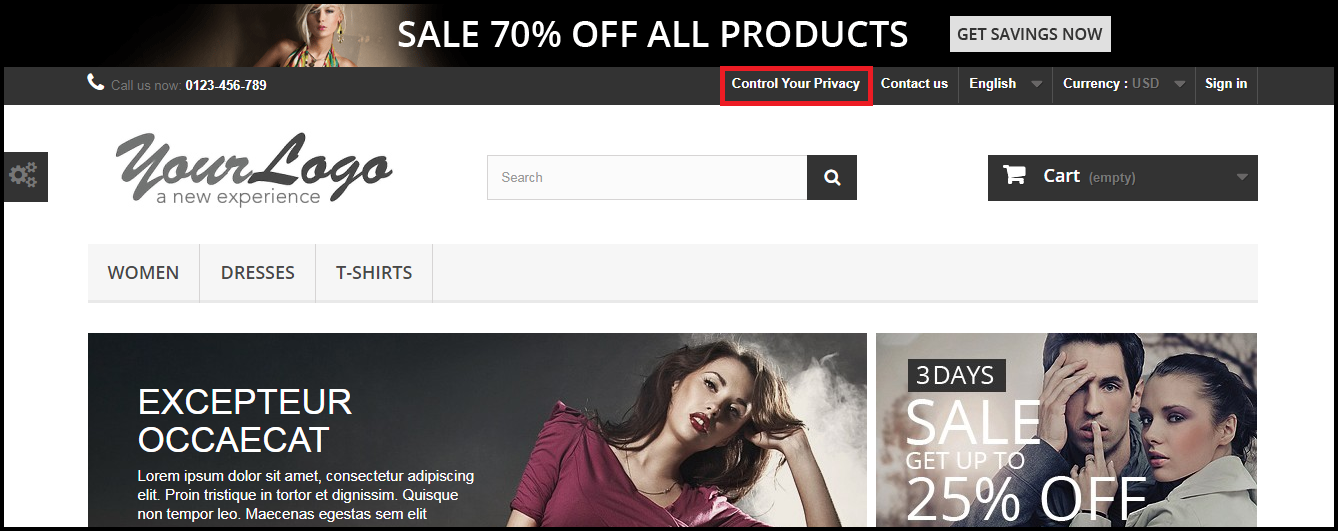
Display Header Menu option of the Prestashop GDPR compliance addon allows the store admin to display the GDPR option in the header section of the website. By enabling “Display Header Menu” setting of the Prestashop GDPR addon, store admin can allow the guest users to access the GDPR rights.
11) Header Menu Text
Admin can define the text for the Header Menu.
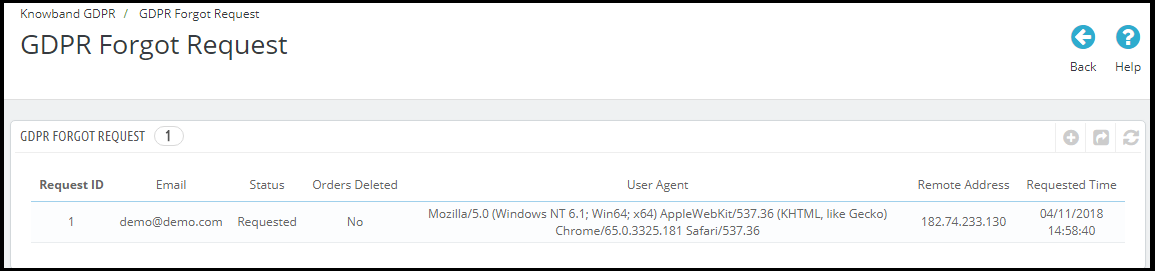
GDPR Forgot Request
The Prestashop GDPR Addon keeps the log of all the data deletion requests. This log is helpful for the admin to verify that the customer details have been deleted or not. Admin can also use this log to remove the customer data from the third-party service providers.
Note:
As soon as a customer request for the deletion of his/her details a confirmation email will be sent to the customer. As per the customer’s confirmation, the details of the customer will be deleted from the system.
The Prestashop GDPR Module allows the admin to exclude the previous orders so that only the personal details of the customer will be deleted but order details will be saved for the future reference. Please use this setting carefully because the data deleted once cannot be retrieved. It is strongly recommended to consult with your legal team to make sure how to use this setting.
The Prestashop GDPR Module only deletes the customer data from the store database. If you share the customer data with the third-party service providers (eg. MailChimp) or store it on the third-party platform (eg. Google Drive) then you need to delete the customer data from these platforms manually.
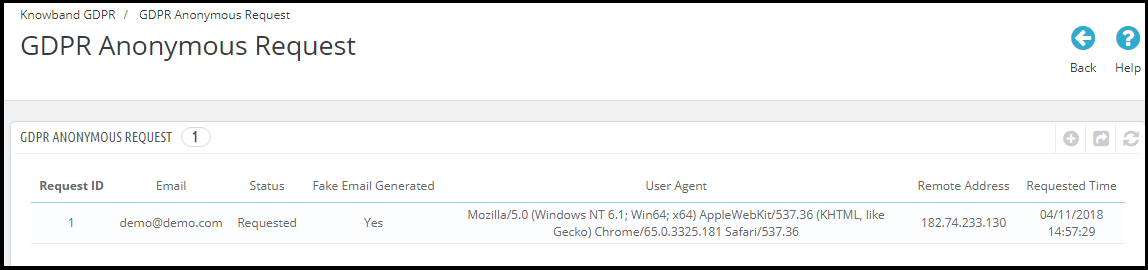
GDPR Anonymous Request
The Prestashop GDPR Addon keeps the log of the Data Anonymization requests. Admin can use this log to verify the status of the data anonymization requests.
GDPR Email Templates
The Prestashop GDPR Addon by Knowband allows the admin to send following emails to the customer on raising a request under the GDPR.
Confirm Your GDPR Account Deletion Request
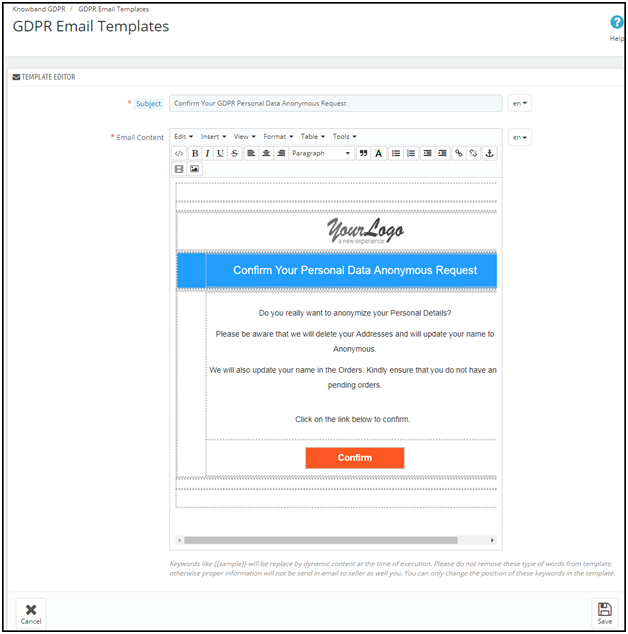
Confirm Your GDPR Personal Data Anonymous Request
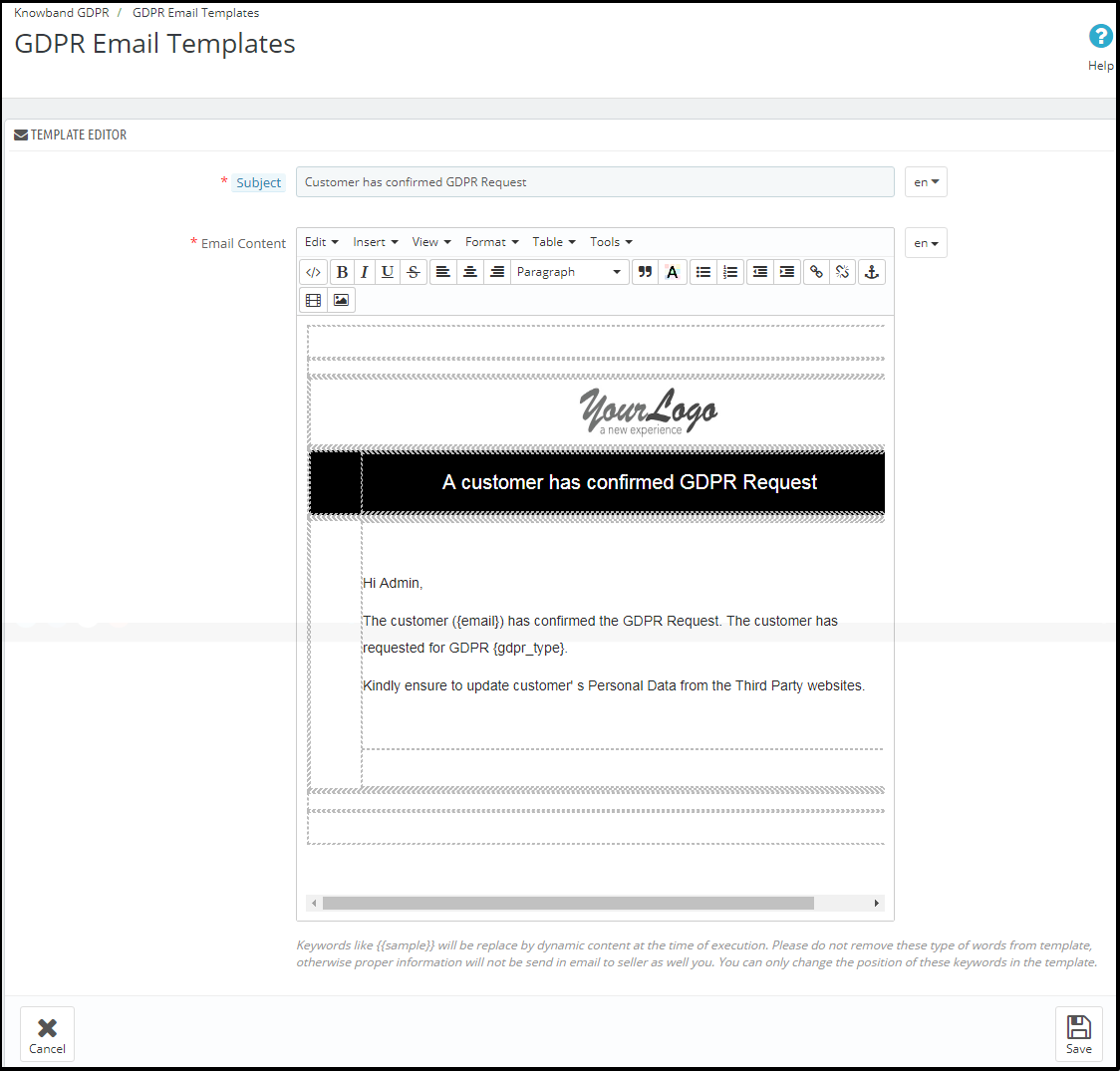
Customer has confirmed GDPR Request
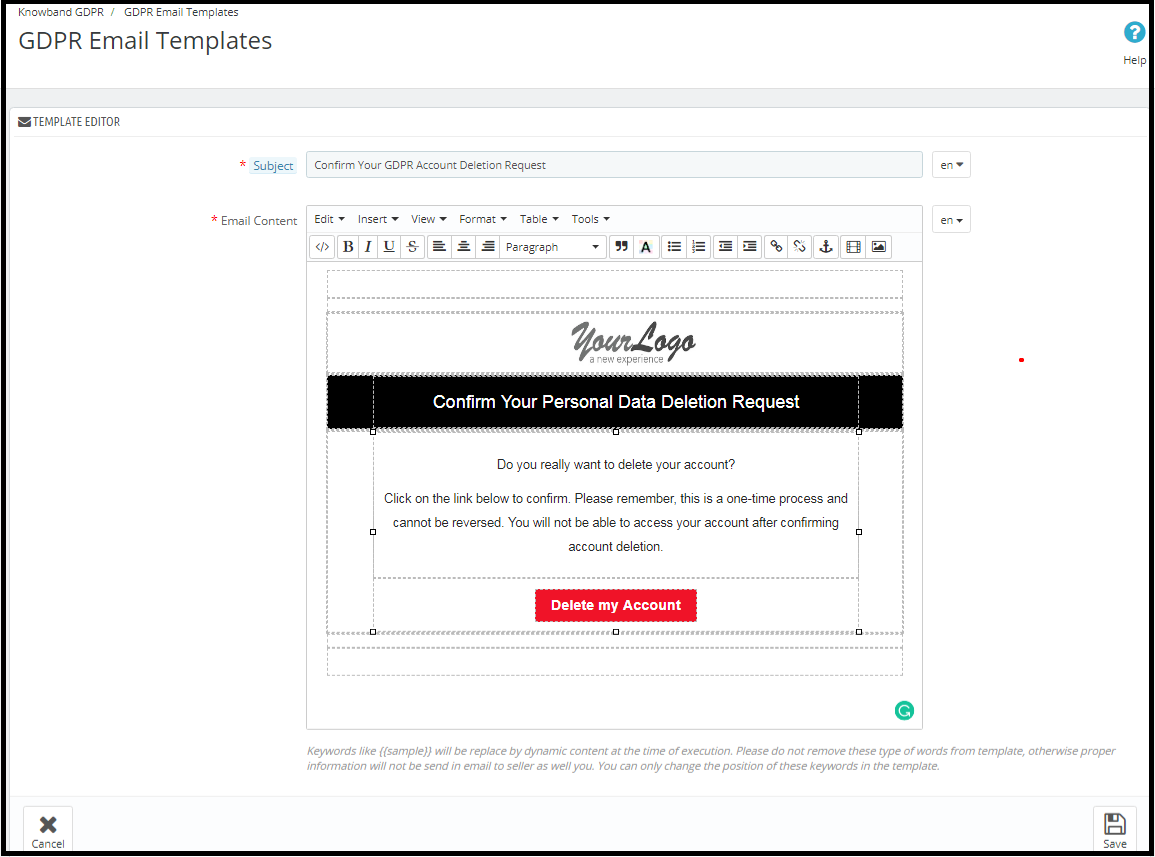
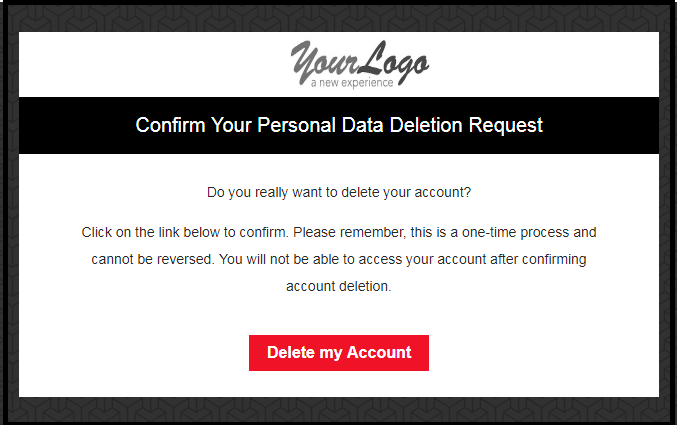
Confirm Your GDPR Account Deletion Request
Admin can update the Subject line and the email text by using the GDPR Email Template Settings.
The default format of the email template is as below:
Confirm Your GDPR Personal Data Anonymous Request
Admin can update the Subject line and the email text by using the GDPR Email Template Settings.
the default format of the email template is as below:
Customer has confirmed GDPR Request
Note: The purpose of these features is to help you to meet with the GDPR requirements. Installing this module only does not guarantee merchant sites’ compliance with the new obligations imposed by the GDPR. It is your responsibility to put in place all the necessary measures to ensure you comply.
The General Data Protection Regulation (GDPR) is a replacement for the European Union Data Protection Directive which will be enforced on May 25, 2018. The new directives have been passed, as per the new technologies and business advances; a new approach to protection of the personal data has been introduced.
The Prestashop GDPR Module – Right to access and data portability helps the store admin to manage the data access and data portability requests of the customers. By using the Prestashop GDPR Module by Knowband admin can provide an interface to the customers so that they can request for their personal information and if the required customer can also download the data as a CSV file.
To enable the GDPR Rights for the customers, download the zip file of the module from the Downloads section of your Knowband account.
1) GDPR.zip (source code of the module)
2) User Manual
In order to install the extension in your Prestashop store follow the below-mentioned steps:
1) Unzip the gdpr.zip file.
2) Copy the entire content, that is, the files and folders of the unzipped folder. Paste the same into the “Modules” folder of your store’s directory. Follow the below-mentioned address path – Root Directory/modules/.
3) The Prestashop GDPR plugin is all set to be installed in the store. Go to the Store Admin and then to ‘Modules and Services’.
4) Click on the “Install” button just next to your module. It would show a pop-up for your confirmation. Click on “Proceed with the installation” option. This step will install the module and show notification – “Module(s) installed successfully”.
5) Once the installation is complete, you will get the access to the admin interface of the module by clicking on the “Configure” button.
1.2.0 Front-end interface of the Prestashop GDPR Module:
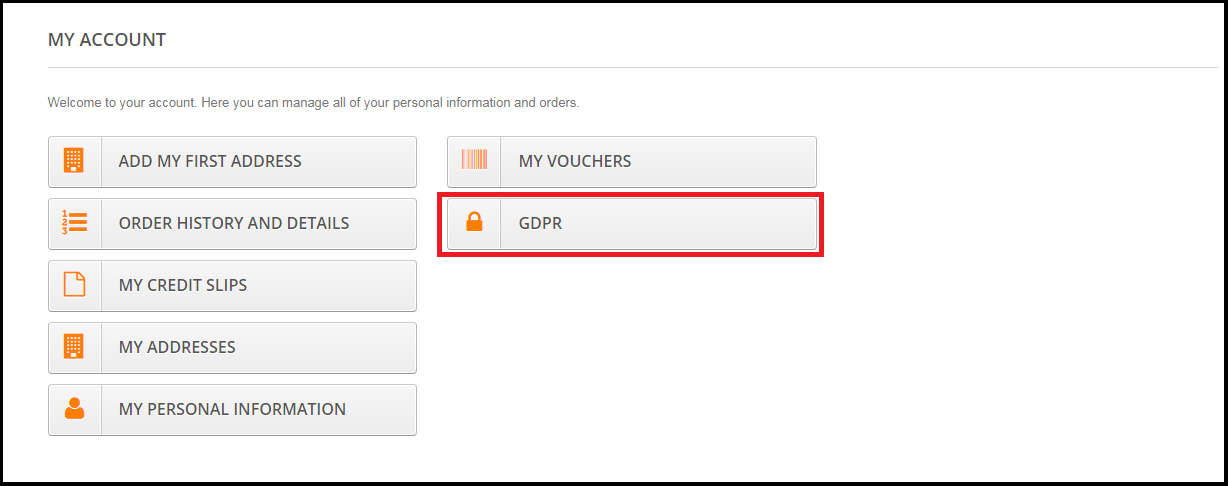
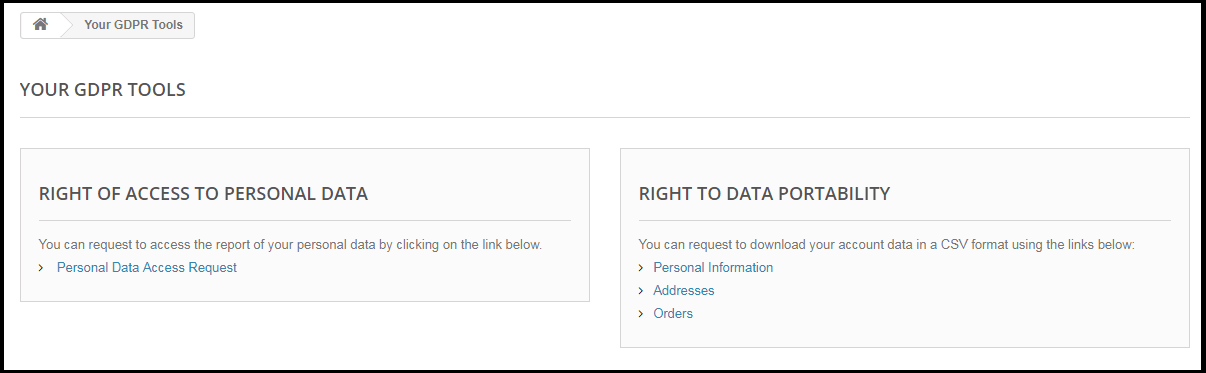
Customers will be able to access the GDPR rights by navigating to the My account section. Here, a separate tab GDPR will be visible to the customers. By using the GDPR tab customers can access their GDPR rights – Right to access and Right to data portability.
On clicking the GDPR tab the customer will be redirected to the GDPR tools page, from here customer can request for their personal data and also download their personal details like personal information, addresses and orders.
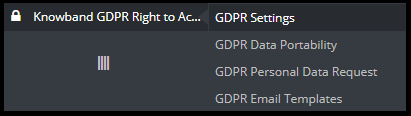
The Prestashop GDPR Module – Right of access and data portability, allows the store admin to enable the GDPR settings for the guest users so that guest users can also request for the details of their personal data. If the GDPR rights are enabled for the guest user then it will appear in the header section. Please refer to the attached screenshot.
1.3.0 Admin Interface of Prestashop GDPR Addon – Right to access and data portability:
The admin section of the Prestashop GDPR addon has the following options:
1) GDPR Settings
2) GDPR Data Portability
3) GDPR Personal Data Request
4) GDPR Email Templates
1.3.1 GDPR Settings:
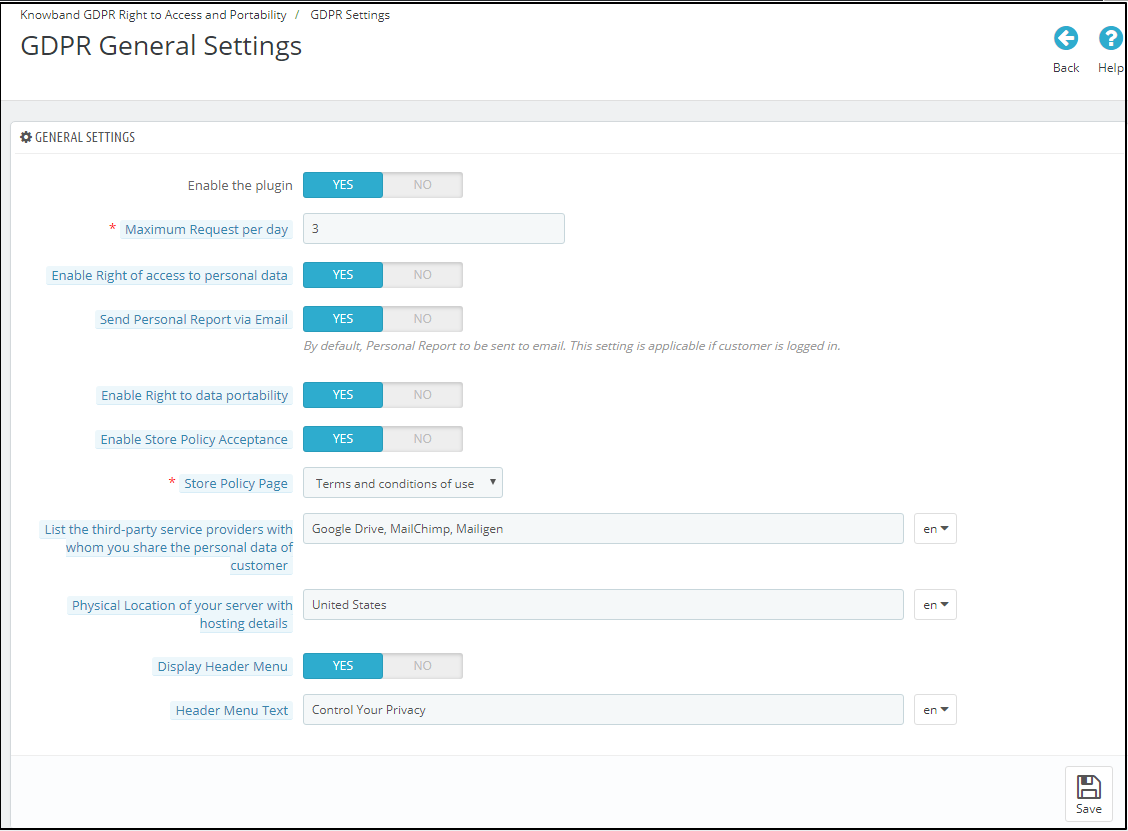
The GDPR Settings tab of the Prestashop GDPR Addon – Rights to access and data portability has the following options. Please refer to the attached screenshot below:
a)Enable the Plugin:
Admin can enable the customer rights by using the Enable the plugin toggle button.
b) Maximum request per day:
Admin has the options to set the max limit for the Personal data request.
c) Enable Right of access to personal data:
The right of access to personal data allows the customers to request for the personal data. Admin has the option to display the report immediately or admin can enable the setting to send the GDPR Personal data report over email.
d) Send Personal report via email:
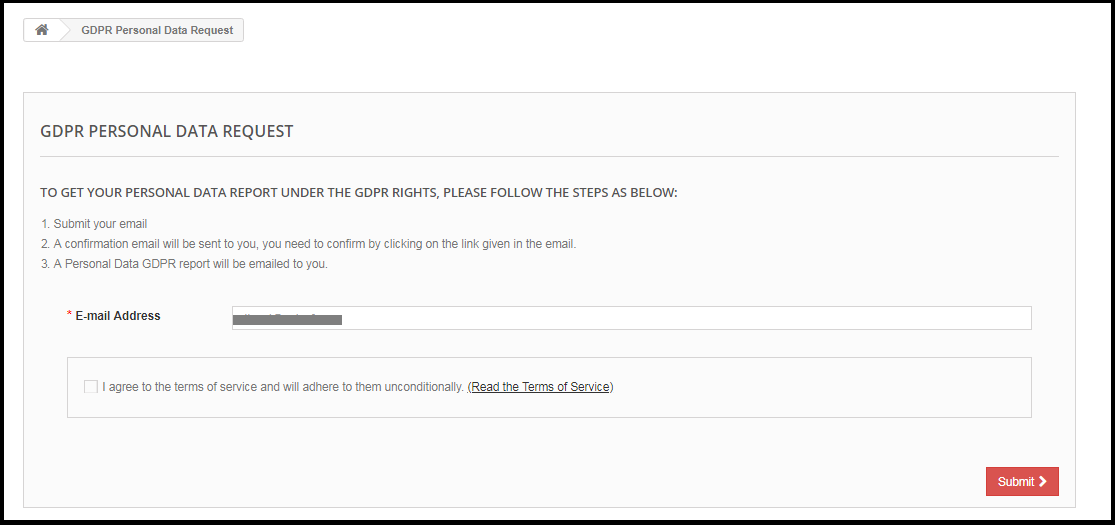
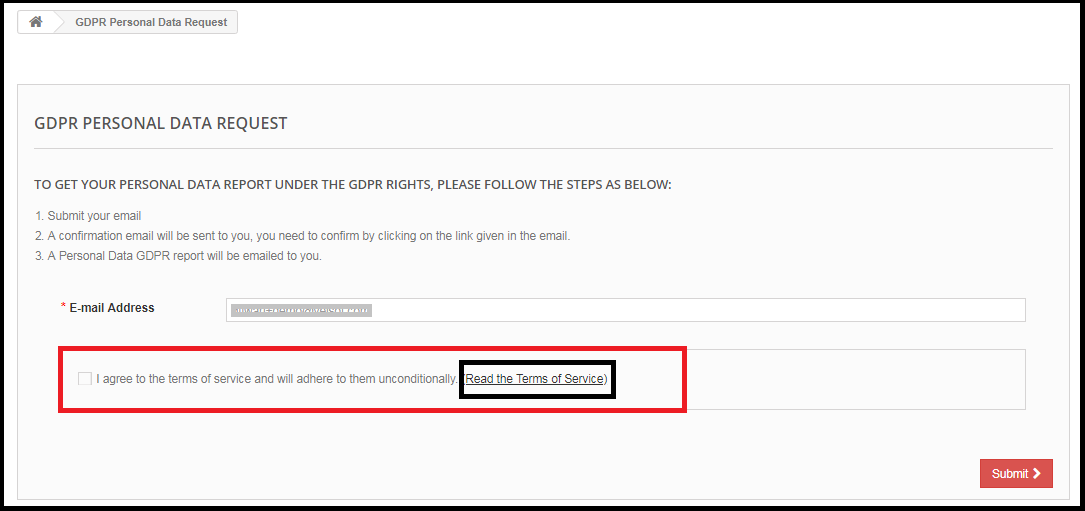
If this setting is enabled then the Personal data report will be sent via the email. Steps for the request for the personal data are listed below:
Step-1:
Request for the GDPR Personal Data report – Prestashop GDPR Addon
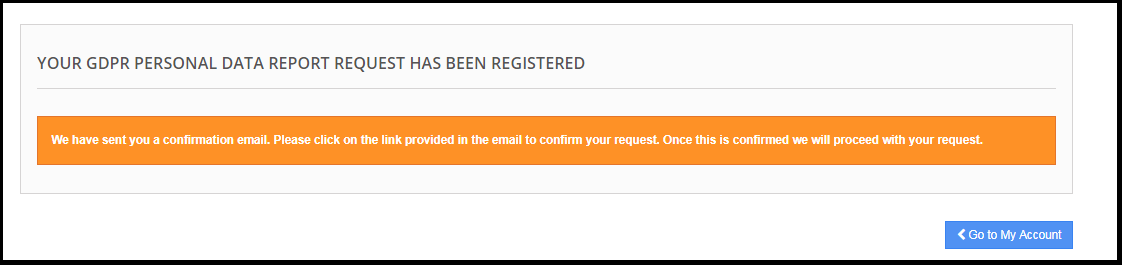
Step: 2
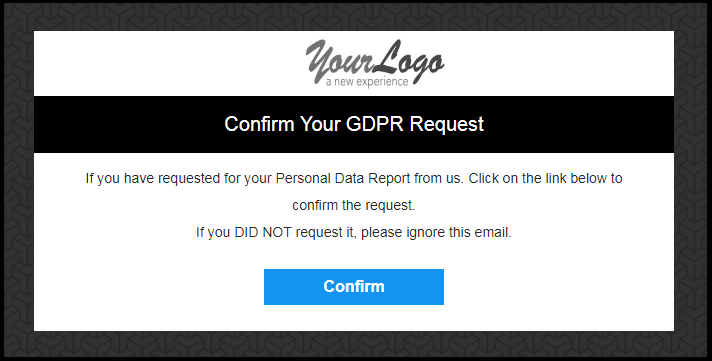
Confirm the GDPR Request.
Step: 3
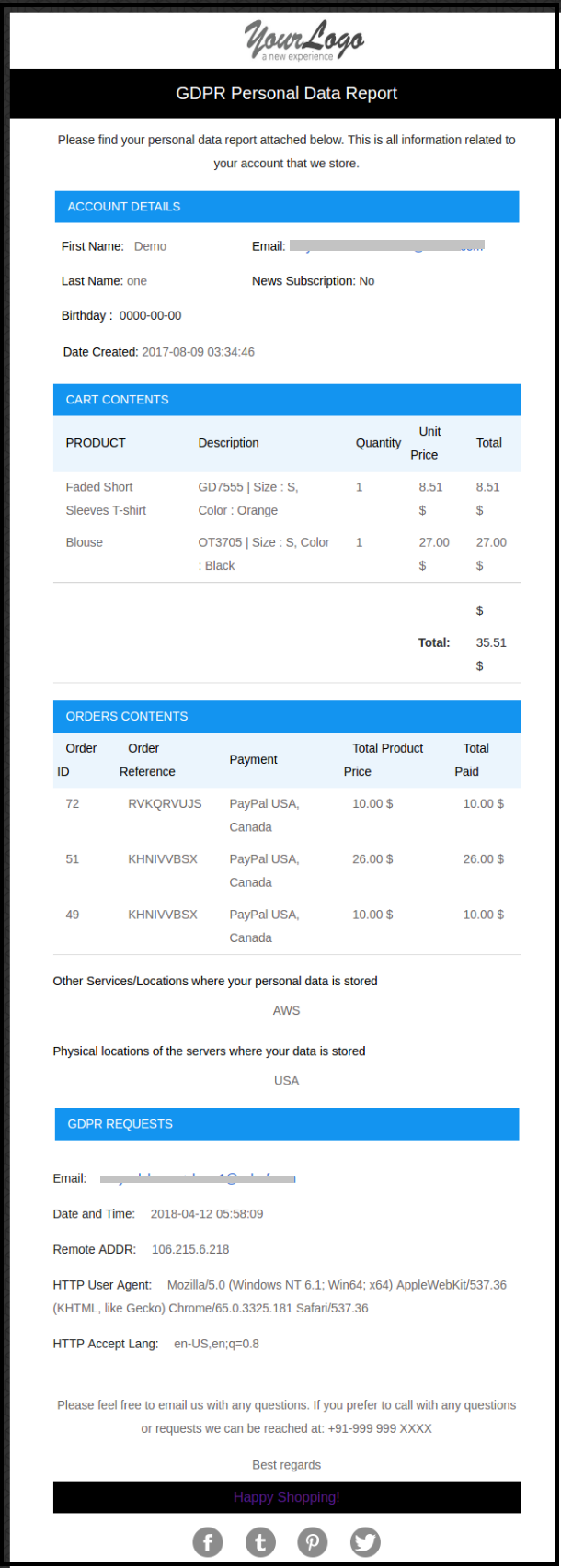
As soon as the customer will confirm the GDPR Personal Data Request, an email with the customer details will be sent to the customer.
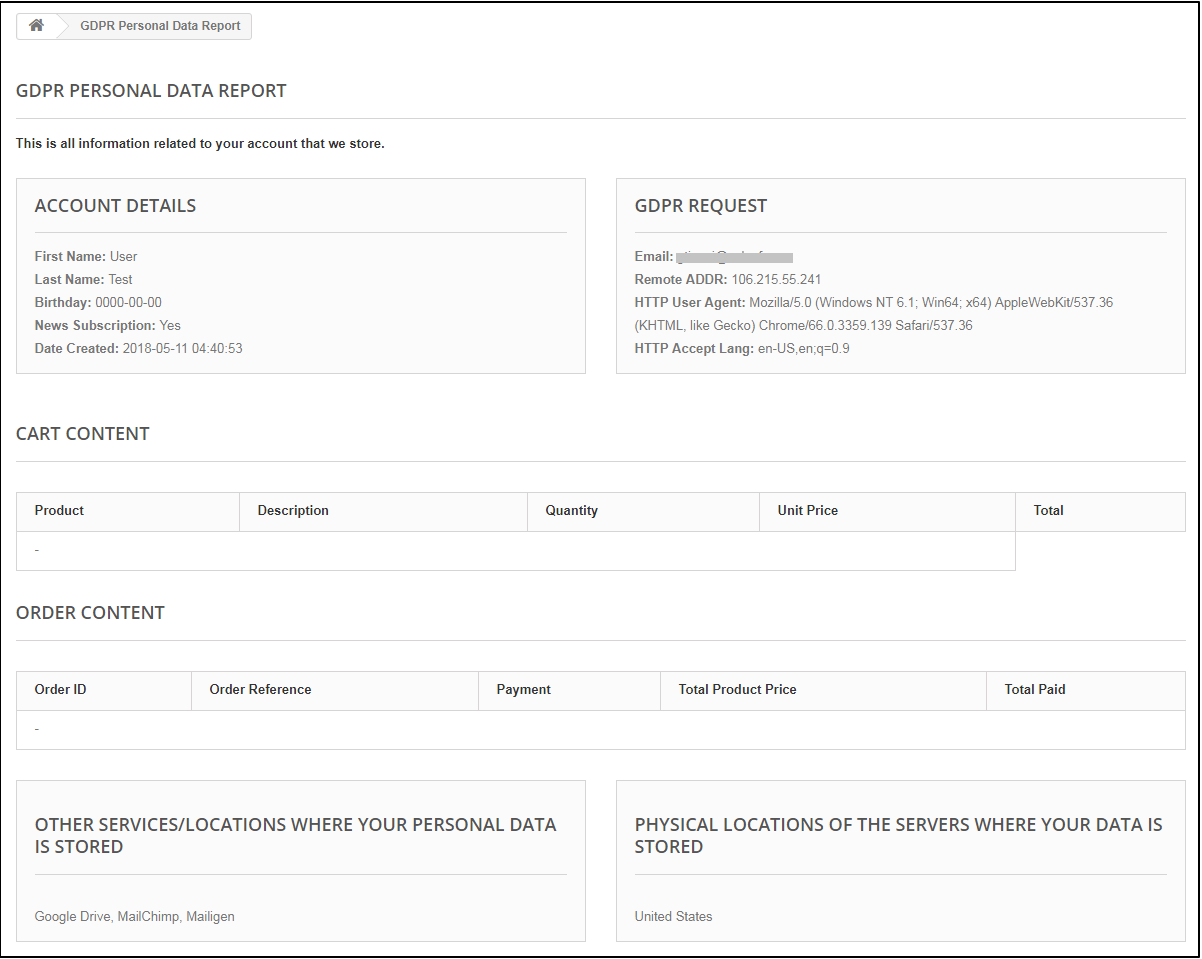
If the Send Personal Report via Email setting is disabled then the personal data report will be displayed immediately. Please refer to the attached screenshot.
e) Enable Right to Data Portability:
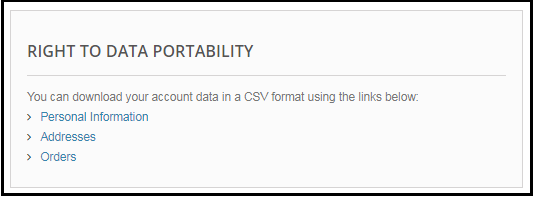
Right to data portability allows the customers to download their personal information which they have provided to the data controller.
The Prestashop GDPR addon – Right to access and data portability allows the store admin to provide an interface to the customers so that they can easily download their data like personal details, addresses and orders.
In case the customer is logged in then he/she can directly download the report. For the guest users, it is mandatory to verify the data download request only after successful verification the guest user will be able to download the data.
Personal Information Report example:
f) Enable Store Policy Acceptance:
If a customer would like to raise a request under GDPR rights then admin can add the condition to accept the Terms and Conditions before requesting for the GDPR request for the Personal Data. The admin interface of the Prestashop GDPR addon allows the store admin to enable the setting so that for each request customer need to accept the terms and policy.
g) Store Policy Page:
Admin can add the URL of the page on which all the Terms and Conditions are listed.
h) Services/ Other locations where you store customer data:
Admin can list all the third-party service providers’ details to share the details with the customer.
i) Physical locations of servers where you host your website and other data:
Admin can define the physical server location of the server where the data has been stored.
j) Display Header Menu:
If the admin would like to enable the GDPR rights for the guest users then admin can enable the Display Header Menu setting. Admin has the choice to update the text for the GDPR rights, this text will be visible in the header section of the website and customers can access their rights by using this interface.
k) Header Menu Text:
Admin can define the text for the Header Menu.
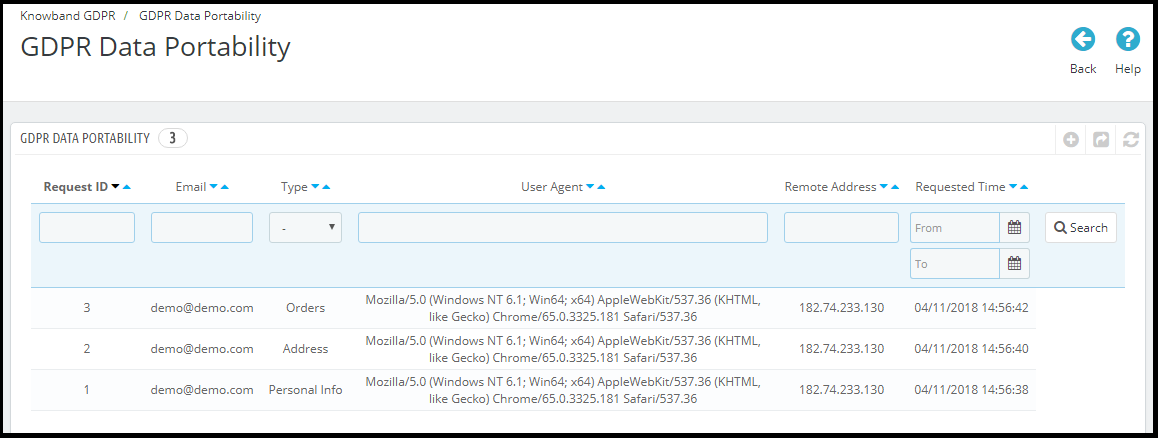
1.3.2 GDPR Data Portability
The Prestashop GDPR Module – Right to access and data portability, keeps the log of all the GDPR data portability requests processed.
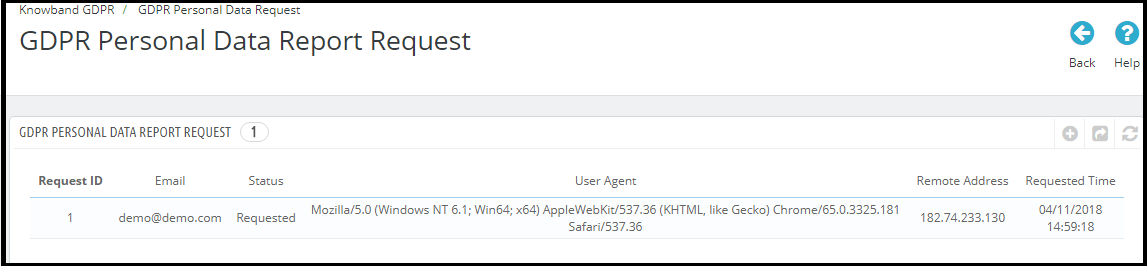
1.3.3 GDPR Personal Data Report Request
The Prestashop GDPR Addon – Right to access and data portability, keeps a log of all the personal data requests processed.
1.3.4 GDPR Email Templates
The Prestashop GDPR Addon by Knowband allows the admin to send following emails to the customer on raising a request under the GDPR.
Customer has requested for GDPR
Your GDPR Personal Data Report
Confirm Your GDPR Personal Data Portability Request
Customer has confirmed GDPR Request
Note: The purpose of these features is to help you to meet the GDPR requirements. Installing this module only does not guarantee merchant sites’ compliance with the new obligations imposed by the GDPR. It is your responsibility to put in place all the necessary measures to ensure you comply.
We are glad to share the news that Knowband’s Prestashop addons have now been verified as PrestaTrust by Prestashop.
What is PrestaTrust?
As explained, on the Prestashop official blog “PrestaTrust is the first Trust Label for modules sold on PrestaShop Addons. The authenticity of all PrestaTrusted modules is 100% guaranteed.
PrestaTrust creates a bond of trust between module developers and module users, by authenticating the code of the module and safely keeping track of its sales data in the blockchain.
Traceability is based on the Ethereum blockchain and guarantees a secure and irrefutable authentication of open source code. Module developers will be able to:
build direct trust with their customers
do support real customers and avoid doing support for not purchased module licences
give access to module updates only to real module buyers
increase their visibility thanks to the Trust Label stamped on their module.”
For the detailed information regarding the Presta Trust please visit the link below:
Currently, following modules have received the PrestaTrust Badge:
Knowband- Marketplace Module:
The Prestashop Marketplace addon by Knowband allows the sellers to convert their Prestashop store into a fully-functional marketplace. The third-party sellers can list their products in the marketplace and start selling without any hassle. By converting their Prestashop store into the marketplace, the store admin can offer more product options, competitive pricing, and better services to the customer. To know more about the Prestashop Multi-vendor Marketplace, please click here.
Knowband – Search Auto Suggest Addon:
For the Prestashop store owners, it is really important to offer the best search features. The search feature helps the eCommerce store owners to offer the better customer experience which in turn improves the customer loyalty. This results in an improved conversion rate of the site. To know more about the Search Auto Suggest Prestashop addon, please click here.
Knowband – Reward Points Addon:
Reward points are one of the best tools for customer retention. Reward point program helps the store owners to improve the customer loyalty and also helps to acquire new customers. To know more about the Prestashop Reward Points module please click here.
Knowband – FB Store Addon:
The FB Store addon allows the sellers to integrate their Prestashop store with the Facebook page. By integrating the Prestashop store with the Prestashop store, the admin can easily allow the customers to browse the store products on the Shop section of the Facebook Page. To know more about the FB Store addon please click here.
From the home page of the site to the checkout page, every component of the conversion funnel contributes to the overall conversions of the eCommerce site. If each component is considered individually, probably the product page happens to be the most important one. This is where the actual sales pitch is presented to potential customers. No matter how much effort you put into the promotion of your site, it is the product page where the deal is closed.
Why is a product page important for online businesses?
The product page is where a majority of the consumers decide to make a purchase. Most eCommerce merchants focus on optimizing their checkout page. I agree, a checkout page holds more value for store owners but to bring customers to the checkout page, there needs to be a solid product page that compels a customer to go further. E-commerce giants across the world have realized the fact that it’s not just the end-product that matters. The overall experience around the product contributes to the purchase intention of the shoppers. A good product page is where the real magic of conversion happens.
If you own a Prestashop store, here are the 10 product page modules to optimize the PrestaShop store. Ready to grab a few more conversions? Read on.
1. Prestashop Product tab Addon
The real purchase process starts from the product page. Hence, you need to design it, so that, they stand out. The page layout and the way the contents are organized should be appealing. Use the Prestashop Product Tab module to add new information tabs on the product page. The admin can display product text, product images, or videos on the webpage. You can increase customer engagement with the proper use of video features. This is one way to make the most of limited space by providing as much detail as possible about the goods.
2. Prestashop Product Video Addon
One of the drawbacks of online shopping is the inability to touch, feel or hold the product to examine it properly. and the product images are not enough. To minimize the product-related concerns of customers, you can try adding videos to your product pages. Nowadays, customers prefer to watch videos for a better understanding.
Prestashop Product Video module allows you to include the videos on product pages without making any sort of code changes. You can add the product videos on the product pages from various platforms like Vimeo, YouTube, and Dailymotion. This helps customers make better decisions regarding their purchases.
3. Prestashop Product Size Chart Addon
Next in the list of Product page modules to optimize the PrestaShop store is the Size Chart. Let’s see why it is important. A majority of the e-commerce returns take place due to incorrect product size. Customers become indecisive about their purchase when they are not able to figure out the perfect size fit for them. The bottom line can be reduced by providing correct size guides.
You can boost customer confidence in placing orders online and reduce the returns just by creating a comprehensive size chart with Prestashop Product Size Chart extension. This allows your customers to get the apt size and avoid unpleasant surprises for them later. Not just the clothes or shes but products like furniture, sleeping bags, and fishing rods all require a size chart. Add this to your store to reduce product returns.
4. Prestashop Product Review Reminder and Incentives Addon
Product Reviews create a sense of trust among users. Research by Spiegel Research Center says that the purchase chances of a product with a minimum of 5 reviews 270% higher than the product with no reviews. Reviews and ratings can be best used in various marketing tactics like welcome email, abandoned cart notifications, etc.
So, why not use this idea to trigger some purchase intentions? Prestashop Product Review Reminder and Incentives Plugin can encourage existing customers to drop their feedback and review for the products to get a reward. This is one of the ways to boost the review and ratings of your product pages. You can now amp up the acquisition rate of your site.
5. Prestashop Back in Stock Addon
A sold-out item doesn’t have to mean you lose a customer. Loyal customers wait patiently for the product to get back in stock. Now compel your store visitors to return back to the store by sending them a reminder, once the product is back in stock. The Prestashop Back in Stock extension allows the customers to subscribe for a notification whenever the product of their choice is in stock. It displays a customized pop-up on the product page with an email subscription tab.
6. Prestashop Sales Count Addon
Along with interactive reviews and testimonials, the sales count of a particular product also motivates the customer to opt for that item. Word of mouth can trigger instant purchase decisions of store visitors. And when you have an online store, displaying a total number of sales is easier. Prestashop Sales Count extension displays the total count of the product purchase. These sales pitches are aimed at creating a shopping experience where the customers feel that they are opting for the right product.
7. Prestashop Price Alert Addon
Another way to bring back customers is with price alerts. Fluctuation in the product price is quite common in online stores. Customers keep looking for the price drop, especially while thinking to purchase an expensive item. Keeping a regular check can be difficult and customers can still miss out on the price drop.
The Prestashop Extension has a user interface that is both simple and feature-rich, allowing customers to quickly set up price alerts for future reference. The Prestashop Price Alert plugin allows the customers to subscribe for the notification when the price of a particular product reduces to a certain limit. This is one of the ways to motivate the return of the visitors who left because of the price hike.
8. Prestashop Automatic Related Products Addon
In the competitive scenario, motivating the customers to the product page is quite a challenging task. Hence, once the visitor browses the product, it is the responsibility of the marketers to make full use of it. Use the Prestashop Automatic Related Products module to display the related items on the web page automatically. You can boost the upsell and cross-sell with the least hassle.
Customer personalization is the new way of treating your customers that increases customer satisfaction. For instance, when a customer shops on an online cake shop, the seller requires details like delivery time, pin code, and customized message.
With Prestashop Advance Product Attribute/Field, the seller can add custom fields on the product page of the site to collect more information from the customer. The store owners can now offer a better service.
10. Prestashop Product Availability Check by Zipcode
The last module in the list of Product Page is for checking the product availability. Non-availability of products at a particular location can increase the cart abandonment rate of your site. Provide an option to your customers to check the availability of the item just by entering the zip code. Prestashop Product Availability Check by Zipcode extension is one of the ways to incorporate this functionality in the product pages of your e-commerce store.
Conclusion
If you’re getting enough website traffic, but the conversions are not satisfactory, it may be high time to take serious action for product page optimization. Add the above-mentioned product page features on your site and create a well-rounded shopping experience that the visitors can’t help rave about.
For PrestaShop Module assistance, drop an email at support@knowband.com or visit the KnowBand store and find out the solution to your eCommerce issues.
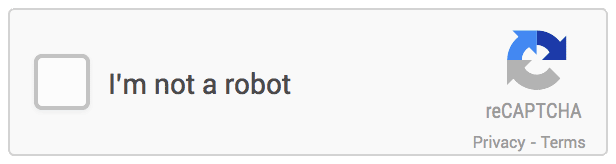
Google reCaptcha technology has been one of the handiest means to prevent the sites from the robots and spam traffic. Instead of putting in fuzzy codes, clicking on a few images has been reinvented the method of spam detection. You should always have a Captcha type security on your store. It adds an extra layer of unbreakable protection for your website. Google has recently come up with a new update. As per the Google update,
Any calls to the v1 API will not work after March 31, 2018”. Starting in November 2017, a percentage of reCAPTCHA v1 users have been noticing information that the old API will soon be retired.
If your site still uses reCAPTCHA v1, you need to upgrade to reCAPTCHA v2 immediately. For the Prestashop eCommerce store owners, Knowband offers Prestashop Google reCaptcha addon. Prestashop Google reCaptcha module is designed to verify that the user is a human and not bot without getting them involved into the annoying codes. Prestashop Google reCaptcha extension is v2 compatible, thus, the eCommerce store owners can easily protect their site from spammers can bots.
Why should you use Prestashop Google reCaptcha module?
Before getting into the configuration part, let us first discuss why you should use this Prestashop addon.
The Google reCaptcha for Prestashop store is v2 compatible, thus, the users need not worry about the latest update of Google.
The admin can easily set the reCaptcha option on multiple web pages of the site.
The store admin can even change the look and feel of the Google reCaptcha.
The admin gets an option to enter custom CSS and JS code, in order to change the appearance of it’s UI.
The Prestashop Google reCaptcha v2 plugin is SSL compatible and easy-to-install and use.
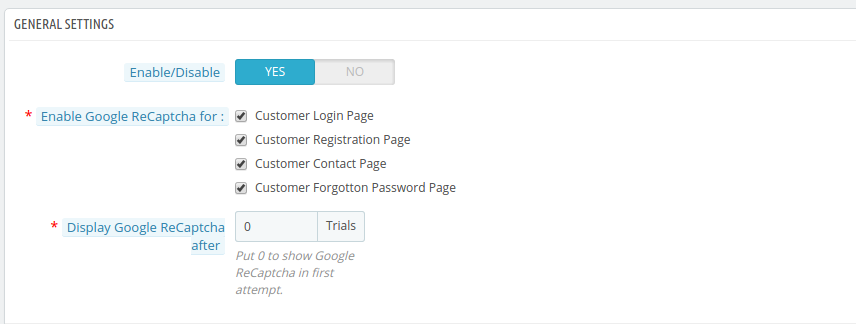
Prestashop Google reCaptcha module allows the admin to choose the number of login trails before the reCaptcha will be displayed.
This article will guide you to integrate the very popular Prestashop Google reCaptcha on your PrestaShop store.
Adding Google reCaptcha v2 on a PrestaShop store
There are several ways to add Captcha Protection to your store. However, Google reCaptcha is one of the most user-friendly and secure captcha types that are used by the majority of websites today. Knowband’s Google reCaptcha module for Prestashop site offers an easy means to incorporate this security feature on the site. The store admin can set up the entire thing in a few simple steps without making any code changes.
The store admin is required to get Google Site Key and Secret Key for the reCaptcha setup.
How to get Google Site key and Secret key?
You can follow these steps to get the Site key and Secret key for entering in the ReCaptcha Settings tab of the module.
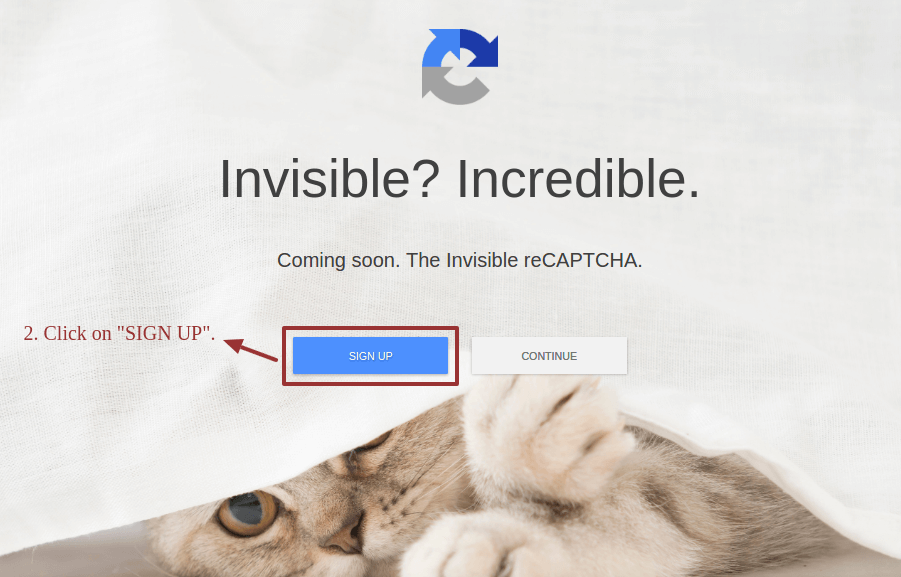
Step 2: Click on Sign up button on the screen that opens from the link
Step 3: On the next page you will be asked to sign in to your Google account if you are not signed in already. Enter the account credentials and login to your Gmail account.
Step 4: Next, it will open the “Register a new site” interface if you have not already registered any other site previously.
Fill up the form as specified in the image below:
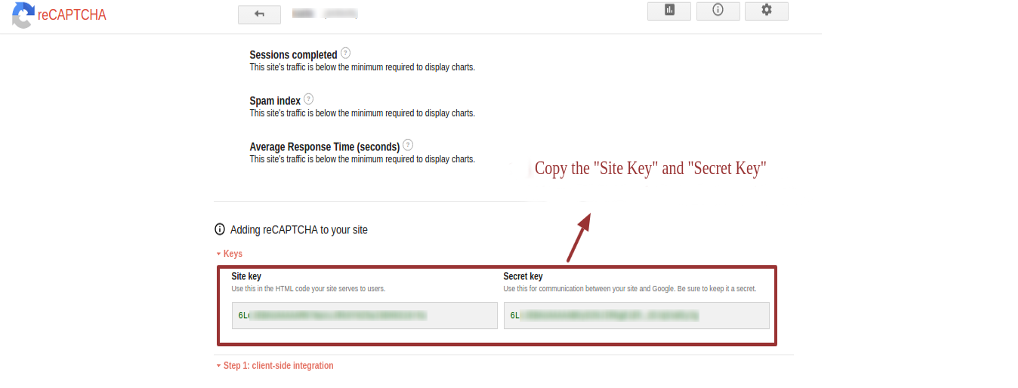
Step 5: After Clicking on Register, you will be directed to a new page, where you can see your Site Key and Secret Key. Copy these keys.
Once the Site Key and Secret Key is retrieved, it is easy to add the security verification in the site.
We will use our PrestaShop Google reCaptcha module to do the integration without editing our PrestaShop codes. Messing with the core PrestaShop files could be dangerous, so we take the easy approach here.
To add Google reCaptcha protection on your PrestaShop store using the Google reCaptcha module, please follow these steps:
Step 2: After completing the purchase, visit your Knowband account and download the module’s zip file from the “My Downloads” section.
Step 3: Now, Login to your PrestaShop store as an Admin user. Using FTP or direct upload, install the module on your store.
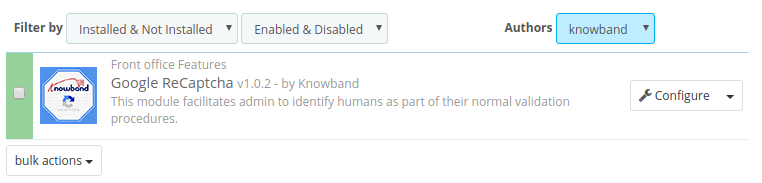
Step 4: After successful installation, you will find the module listed in “Installed Modules ” section.
Step 5: Click on the “Configure” button at the right side of the module listing. It will open the module configuration interface.
Module configuration
The configuration of this Prestashop addon is easy. The module configuration has three tabs namely- General Settings, ReCaptcha Settings, and Look and Feel settings.
Step 6: First of all, in General, Settings, check if the Prestashop Google reCaptcha extension is enabled or disabled. If it is disabled already, toggle the button to enable it.
Step 7: Now, select the pages from the store where you want to show the Google reCaptcha. You have four major pages on your website where you should definitely use the reCaptcha.
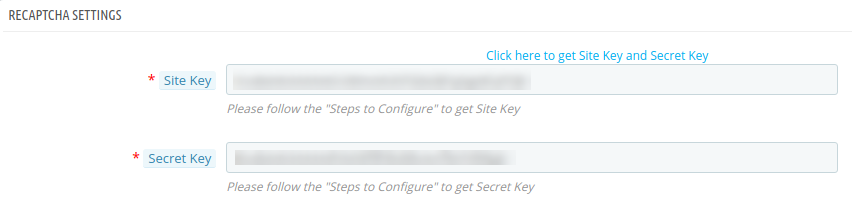
Step 8: Now, click on the “ReCaptcha Settings” tab. Here you will need to enter the Google Site key and Secret key to save and enable the Google ReCaptcha protection on your PrestaShop store.
Step 9: Paste the copied keys in the specified fields of the ReCaptcha Settings tab in Google reCaptcha module. Save the settings and you are done.
Step 10: The Prestashop Google reCaptcha v2 comes with a number of themes. The admin can select the one that matches his site theme.
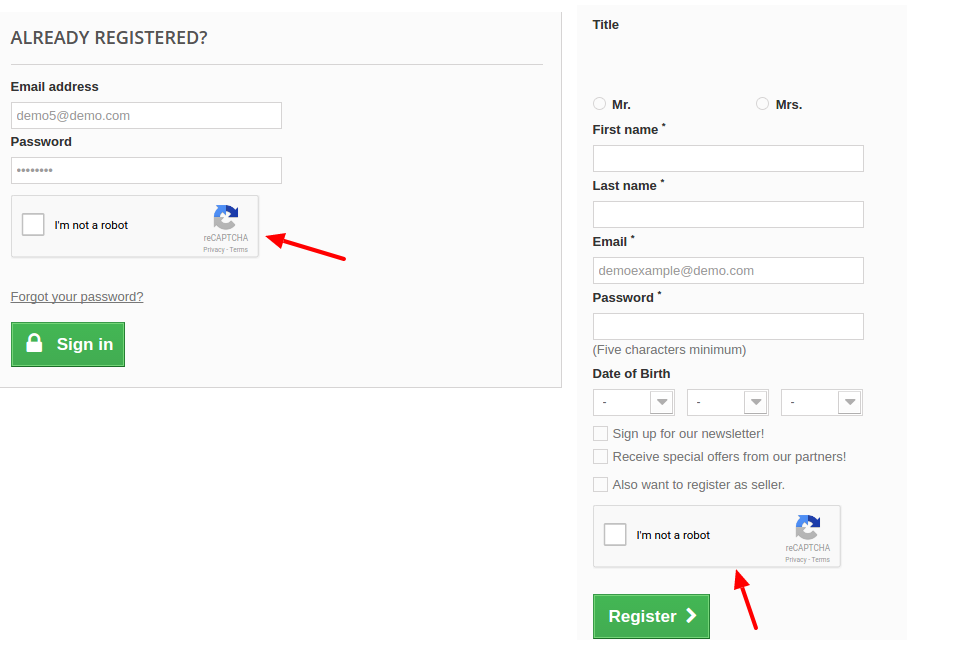
That’s it. After entering and saving the Site key and Secret key, your store is ready with the Google reCaptcha protection. Clear the cache and open the customer login page, registration page etc, you will see the Google reCaptcha standing there and protecting your store.
Over to you
So, this is how you can enable the Google reCaptcha protection on your PrestaShop store without any hassle and mess with the core files. You also can try by yourself on the free demo of the Google reCaptcha module and see how it works. Here, you can also change the look and feel of the reCaptcha block right from the backend itself. Similarly, OpenCart Google reCaptcha plugin is available for OpenCart platforms as well.
Prestashop Walmart Integrator by Knowband gives you a handy mechanism to list the product on Walmart and manage the order in a few simple steps directly from the Prestashop store.
Walmart is one of the largest retail companies and has made a prominent presence in the eCommerce industry over the years. The marketplace is famous for Electronic goods and even deals with other products including home and furniture, home improvement, clothing, footwear, jewelry, toys, health and beauty, grocery, etc. The Prestashop store owners can now sync their store and sell the products on Walmart.com.
Walmart Prestashop Integration module by Knowband allows the store owners to integrate the store with Walmart.com. The Prestashop Walmart API Integrator automates the entire process of store synchronization, product and inventory management as well as order processing.
1.1 Features offered by Prestashop Walmart Integrator are listed below:
The Prestashop Walmart Integration Module connects the Prestashop store with Walmart.com in a few button clicks.
Real-time product listing from the back-end of the Prestashop Walmart integration plugin makes it easier for the sellers to display their products to the customers of the marketplace.
The easy inventory management and product synchronization of the Prestashop Walmart Integration extension allows the vendors to manage the products with minimal hassle.
The profile-based listing of the Prestashop Walmart Integration Module allows the admin to upload the products in bulk. The admin can update the prices and inventory by executing the cron from the admin interface of the Prestashop Walmart integrator.
The admin can even change the price of the product on the marketplace without changing their cost at their site.
Prestashop Walmart Integration addon offers easy order management that makes it easier for the store admin to keep a track of the orders received from the marketplace and manage the same from a single interface.
With easy shipping and product management from the back-end of the Prestashop Walmart Marketplace integration plugin, the store owners can effortlessly boost the overall revenue of their company.
The Prestashop Walmart API integration addon allows the admin to manage the shipping carrier and shipping methods with ease.
The admin gets an option to get the buy box report just by executing cron in the back-end of the Prestashop Walmart integration addon.
Based on the performance of the products, the admin can reprice the products and sync the same with the marketplace at a button click with the help of Walmart Prestashop integration addon.
Walmart Prestashop connector makes it easier for the admin to provide the tax code of Walmart Categories.
Admin can view the overall sales report along with the sales report of individual products from the admin interface of the Prestashop Walmart integrator.
The sellers can easily manage the lag time of the products from the back-end of the Walmart Prestashop connector.
1.2 Merchant Benefits of the Prestashop Walmart integration addon:
Walmart Prestashop Integration plugin automates the entire process of store integration.
With the help of Walmart Prestashop API integrator, the store admin can list the products and the corresponding details in the marketplace and manage the inventory without any manual synchronization.
Not just the inventory, even the orders received can be synced in the store by executing cron in the back-end of the Walmart integration module.
The orders can, then, be processed from the store and the status of the orders can be updated to Walmart.com at a button click.
The store admin can map the category of their store with that of the category of the marketplace with the help of the Prestashop Walmart integration extension.
Even the attributes of the products can be mapped with the attribute of the marketplace with the help of this Prestashop Walmart Marketplace Integration extension.
The Walmart Prestashop integration module is easy is to understand and use.
The Walmart Prestashop integration extension comes with free support of 3 months.
Along with version compatibility, the Prestashop Walmart Integration plugin doesn’t conflict with other modules of the store.
1.3 Project Objectives
Listed below are the project objectives of Walmart Prestashop Connector:
The installation process of the Prestashop Walmart integrator.
The process of seller account set-up in Walmart.com
Profile creation and synchronization in the marketplace.
Product listing and status update of the products on Walmart.
Order synchronization from Walmart and status updates.
2.0 Installation
Once the Prestashop Walmart Integration module is purchased from the store, you will get the zipped file (containing the source code of the Prestashop Walmart marketplace integration addon) along with the user manual. Please follow the below steps to install it:
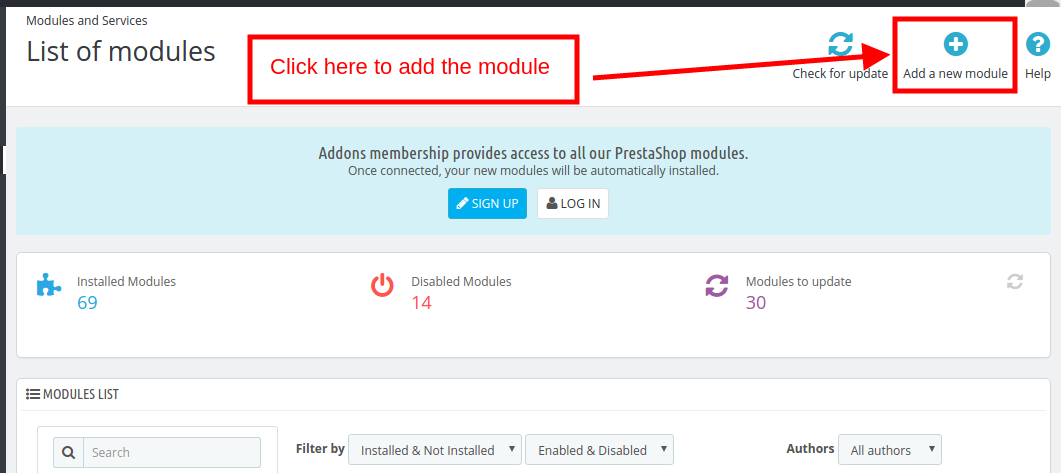
Step 1: Go to Module listing page and “Add New Module” button.
Step 2: Upload the downloaded zipped file.
Step 3: Once this is done, the Prestashop Walmart Marketplace Integration extension will be listed on the module listing page as shown in below screen:
Step 4: Click on the install button. The module will be installed in your Prestashop store.
Note: Please set the read/to write permission on the module folder before installing the module into the system.
3.0 How to configure Walmart Magento Integrator Extension?
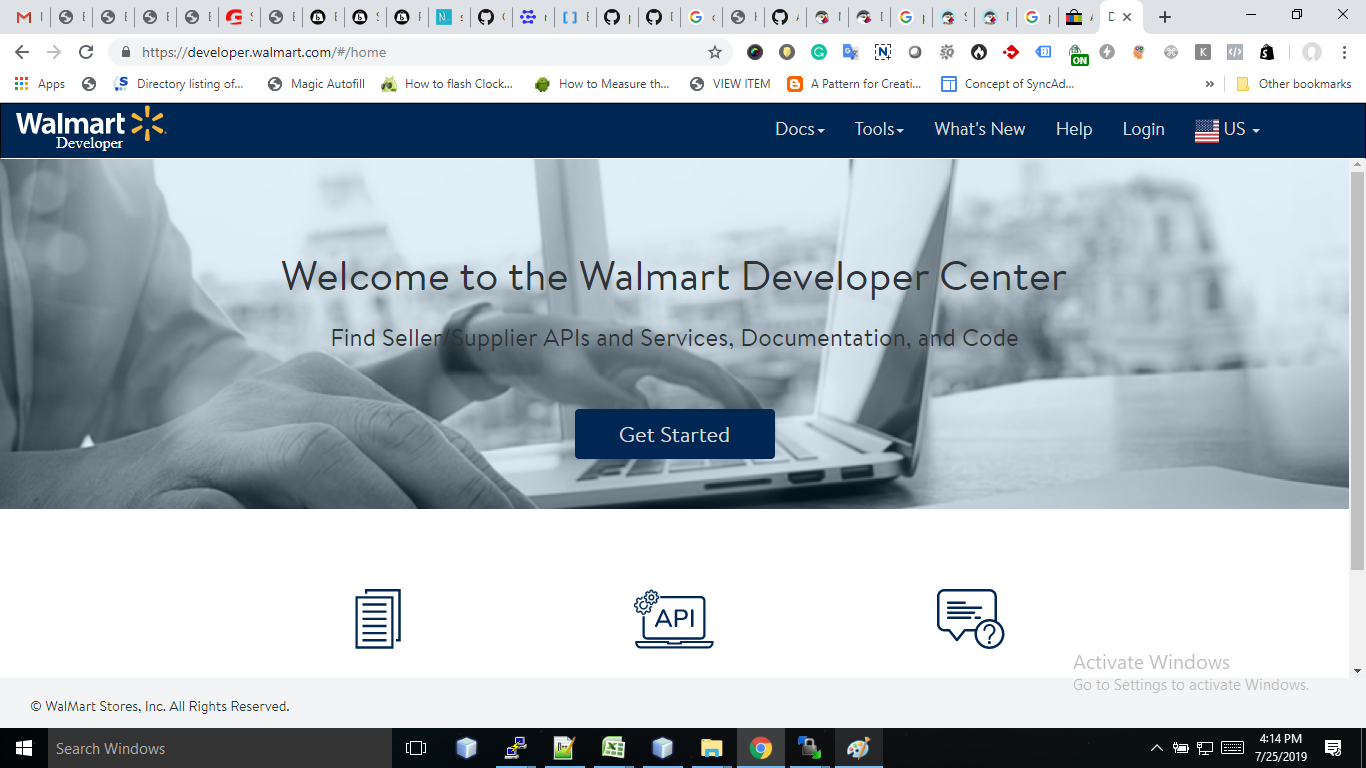
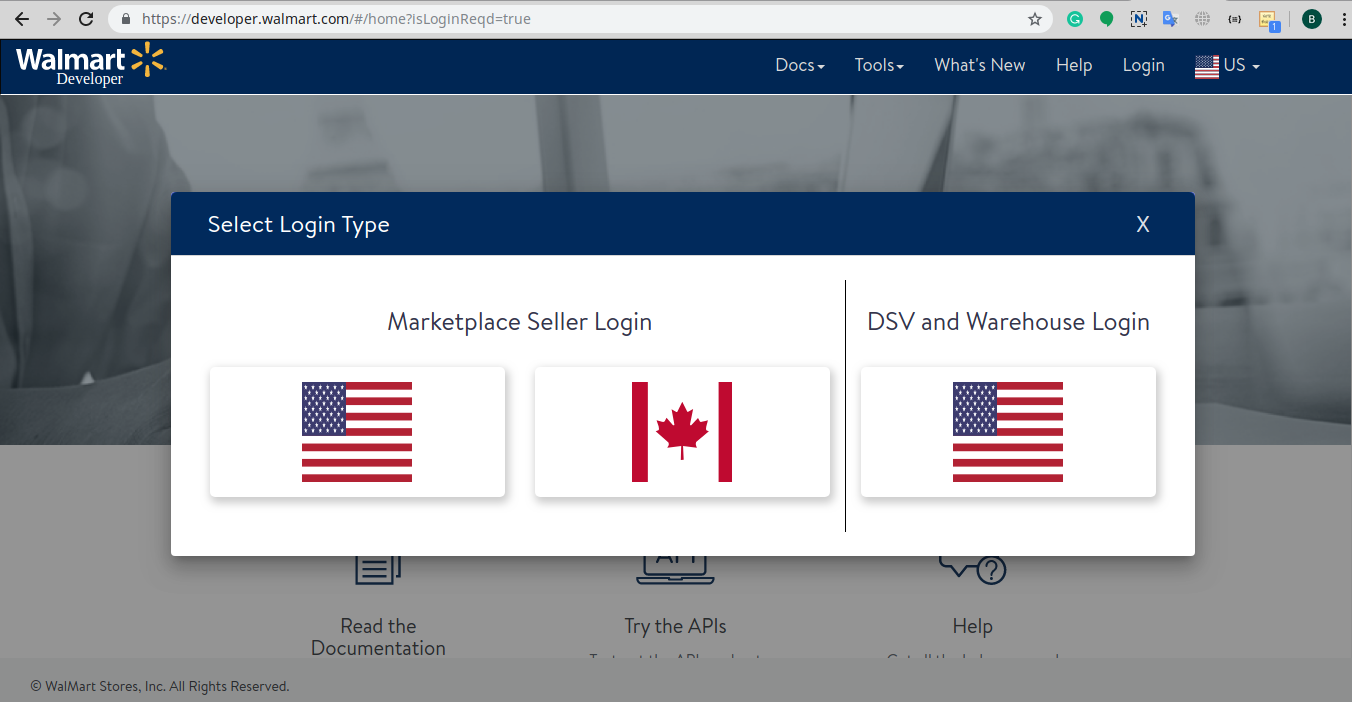
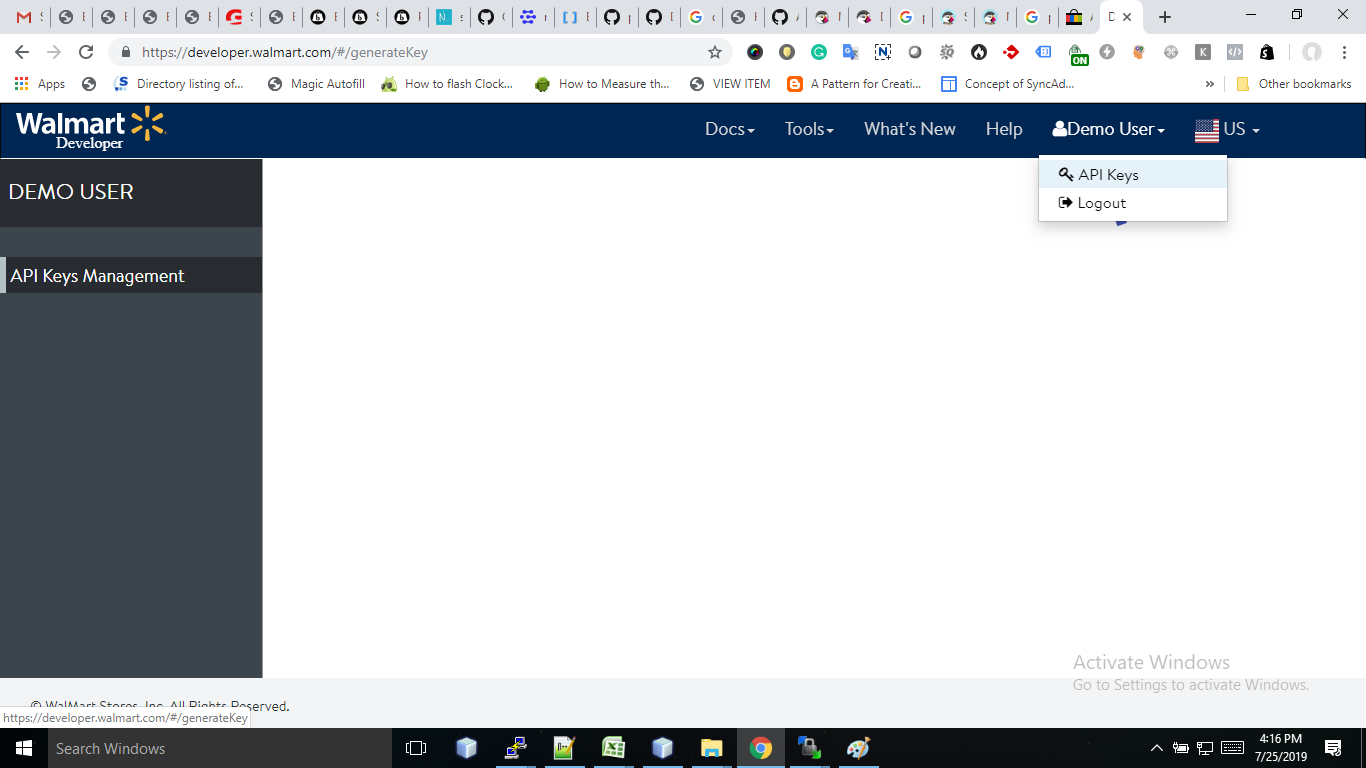
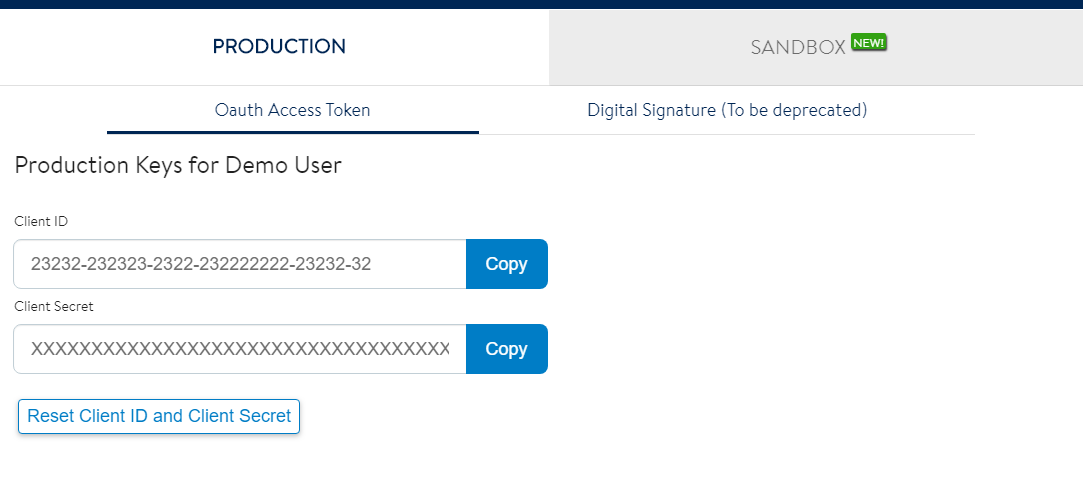
To configure the Walmart Marketplace Integrator, store admin needs to get the Client ID and Client Secret. In order to obtain Walmart Client ID, and Client Secret, follow the process given below:
5. Now you can get the New “Client ID” and “Client Secret” from here.
4.0 Admin Interface
Once the seller account setup is complete, the merchant can configure his shop on Walmart.com
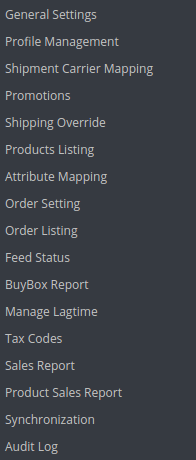
The Prestashop Walmart Marketplace Integration extension offers 17 configuration tabs in the main menu of the admin interface. These options include the following:
General Settings
Profile Management
Shopping Carrier Mapping
Promotions
Shipping Override
Product Listing
Attribute Mapping
Order Setting
Order Listing
Feed Status
BuyBox Report
Manage Lagtime
Tax Report
Sales Report
Product Sales Report
Synchronization
Audit Log
Each option is discussed in detail below.
4.1. General Setting
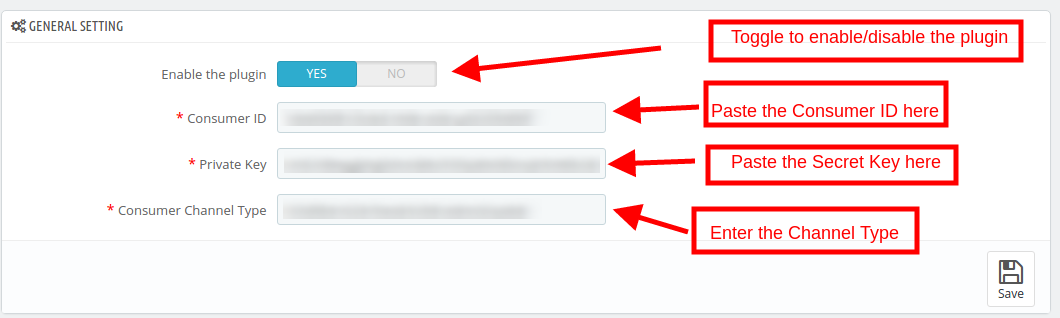
To authenticate the Prestashop to Walmart integration, the Prestashop store admin needs to fill-up the following field:
1. Enabled the Plugin
Toggle the button to enable/disable the Prestashop Walmart Marketplace Integration addon from the store.
2. Consumer ID
Enter the Walmart Consumer ID that was copied while setting up the connection.
3. Private Key
Enter Walmart API Secret Key here that was copied from the seller’s account. It is mandatory for authenticating the integration between the store and Walmart Marketplace.
4. Consumer Channel Type
The value for the Channel Type header is used to send information to the API.
4.2. Profile Management
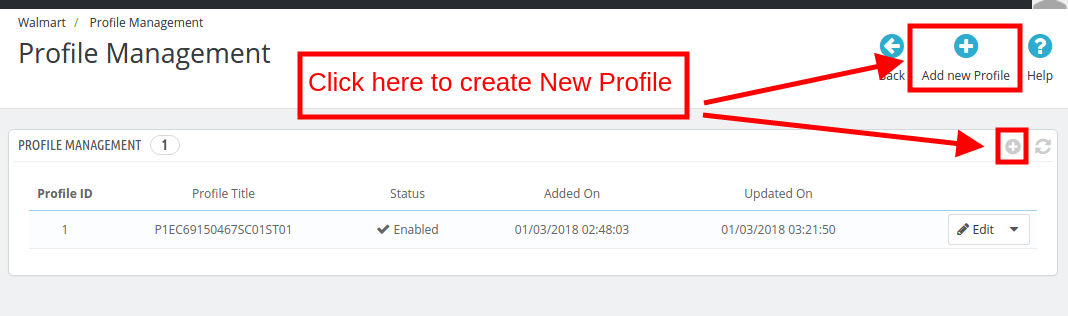
The Prestashop store admin can create, edit or delete N number of profiles from the back-end.
4.2.1 How to Create a New Profile?
Click on the ‘Add New Profile’ or ‘+’ sign to create a new profile.
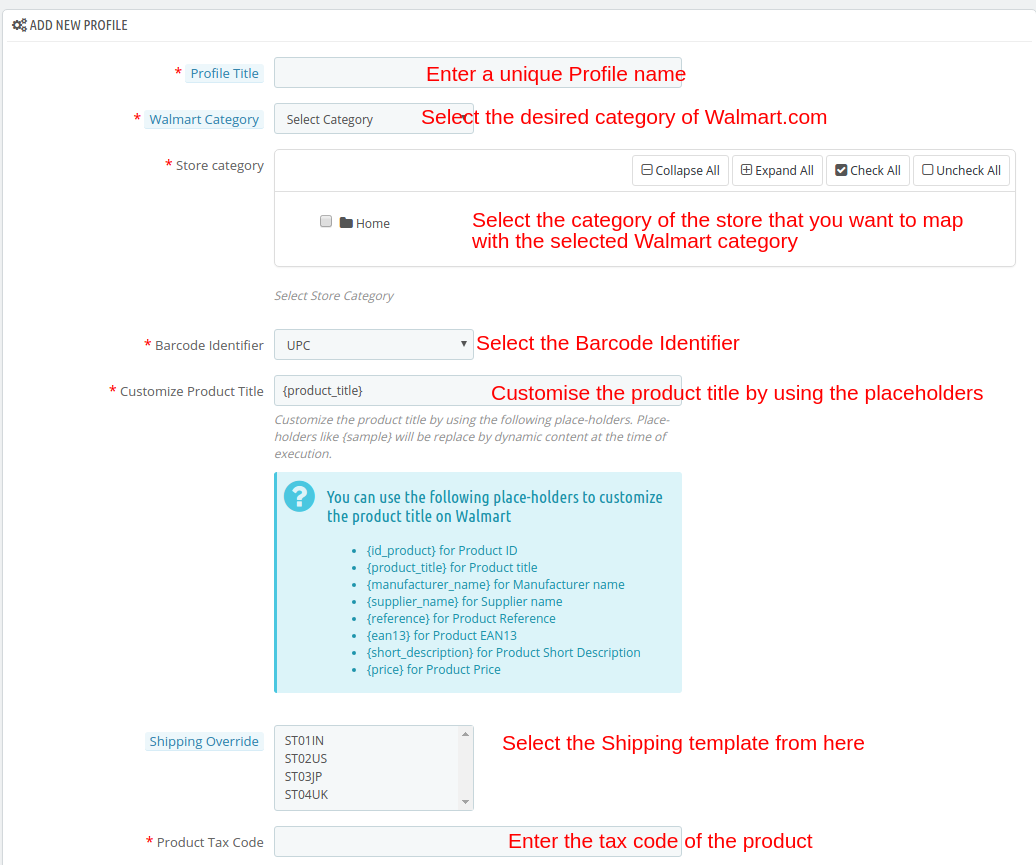
Once the button is clicked, the admin will be redirected to the profile creation page. Here are the fields that you need to fill.
Profile Title: Enter a unique name for the profile.
Walmart Category: Select the category of the Walmart where you want to map the category of the store.
Store Category: Expand the category and select the category of the Prestashop that you want to map in the category of Walmart.com.
Barcode Identifier: This is the unique field of the product. Select anyone from the dropdown list, so that, the Prestashop extension can identify the product according to the mapped attribute. The various options to choose from include: UPC, EAN13.
The various place-holders are listed below.
{id_product} for Product ID
{product_title} for Product title
{manufacturer_name} for Manufacturer name
{supplier_name} for Supplier name
{reference} for Product Reference
{ean13} for Product EAN13
{short_description} for Product Short Description
{price} for Product Price
Enable Custom Pricing: Enable this option to change the price of the product without changing the price of the product on the Prestashop site.
The admin can enter the custom price change in this section.
Select whether you want to change the price by a fixed amount or a percentage amount.
Select whether you want to increase or decrease the price of the products by that particular value.
For instance, the admin chooses ‘Fixed’ and ‘Increase’ and enters the custom price of $5, then, the price of all the products of that particular profile will increase by $5.
Shipping Override: This is an optional field. Select the shipping options from the list provided. This section includes all the shipping templates added in the Shipping Override tab.
Product Tax Code: Enter the product tax code in this section.
Also, the store admin can add relevant attributes of the products.
4.2.2 How to Edit the Existing Profiles?
You can find the list of the created profile in the Profile Management tab of the admin interface.
To edit the profile, click on the ‘Edit’ button corresponding to the profile.
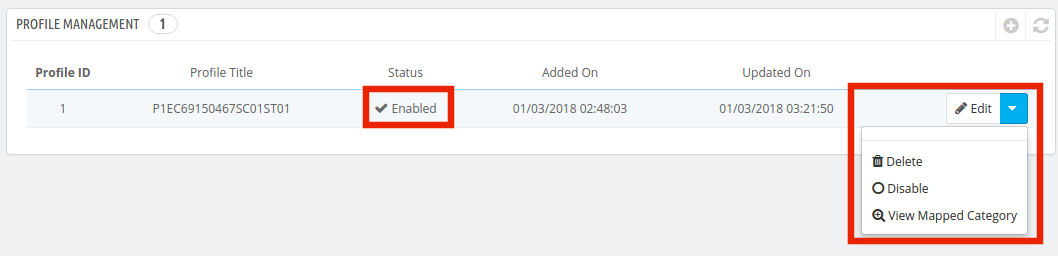
The Prestashop store admin can enable/disable by changing the status as shown in the image below.
The category mapped can even be viewed by clicking the ‘View Mapped Category’ button shown in the above image.
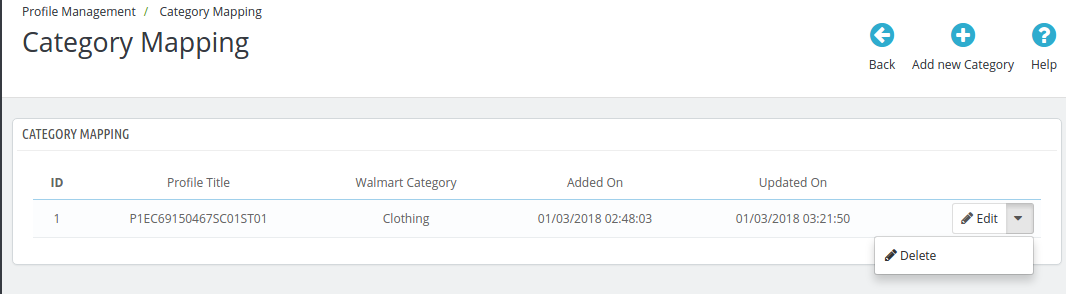
The mapped categories will be shown as the image below:
The store admin can even add new categories for mapping.
4.2.3 How to Add New Category?
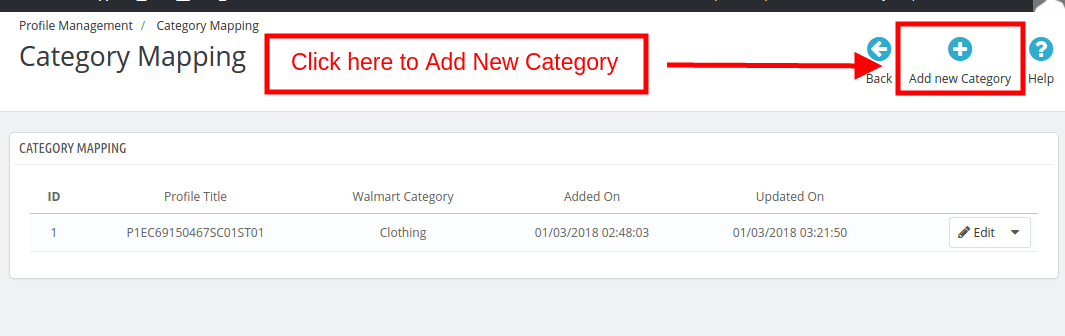
To add a new category click on the ‘Add New Category’ on the top right side of the admin interface.
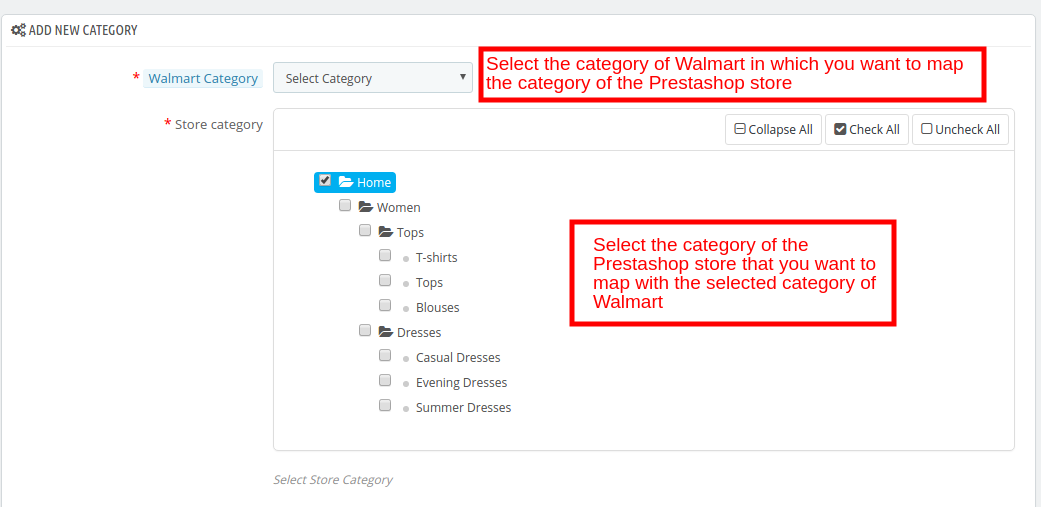
You’ll be redirected to the category creation page as shown below.
Walmart Category: Select the category of Walmart in which you want to map the category of the Prestashop store.
Store Category: Select the category of the Prestashop store that you want to map with the selected category of Walmart.
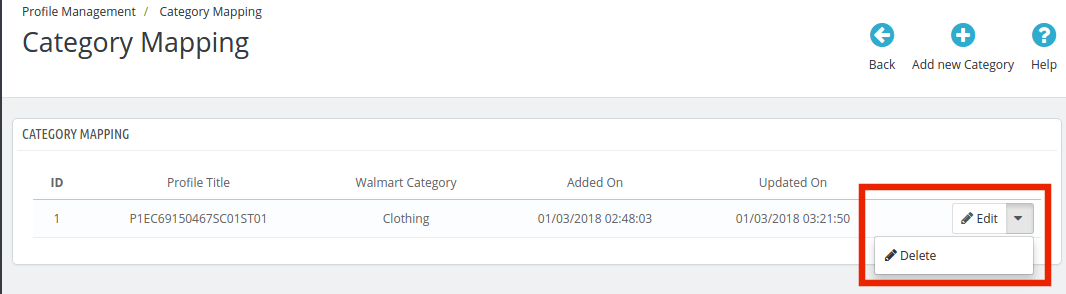
4.2.4 How to Edit/Delete the Categories?
There is an Edit and Delete button corresponding to every category as shown below. Click on the respective buttons to Edit and Delete the categories.
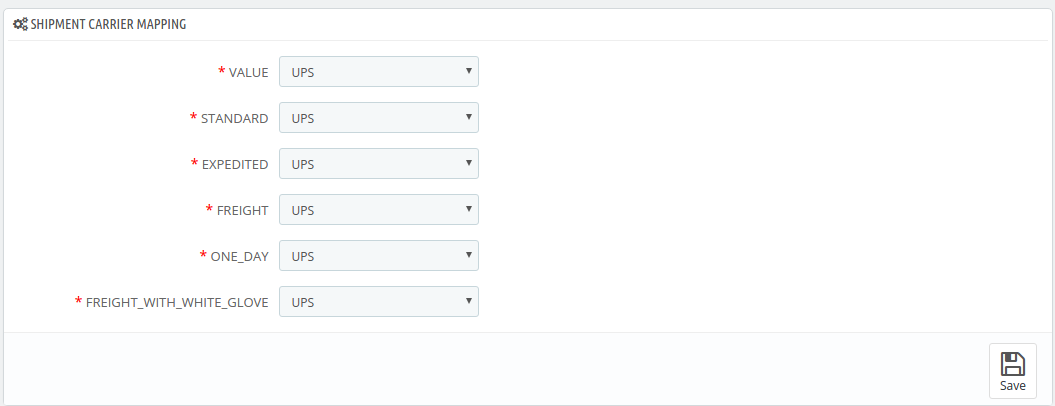
4.3. Shipment Carrier Mapping
The Prestashop Walmart Integration addon allows the admin to map the shipping carrier with ease.
Just the options from the drop-down menu for the various shipment carrier methods.
4.4. Promotions
The admin gets an option to add promotional deals for the marketplace customers with the help of the Prestashop Walmart Integration addon.
4.4.1 How to add Promotions on the Walmart marketplace?
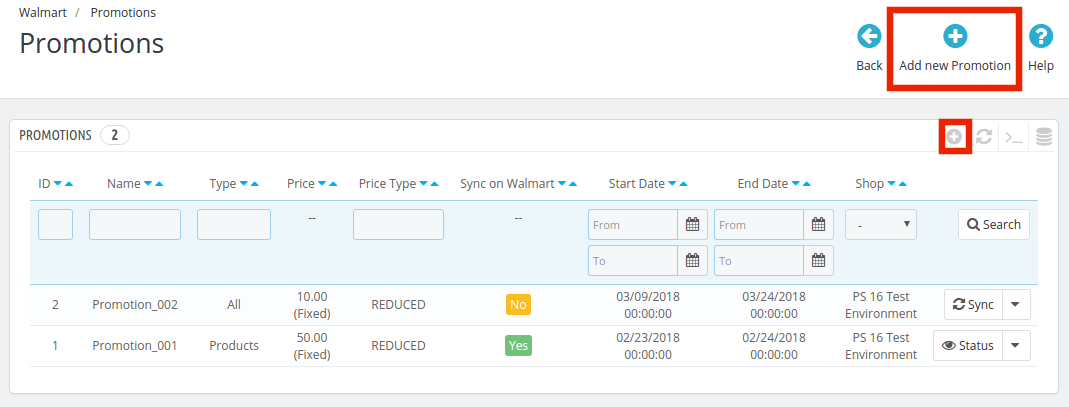
To add promotional deals, click on the ‘+’ sign or ‘Add New Promotion’ on the top right side of the Walmart Prestashop Integration module.
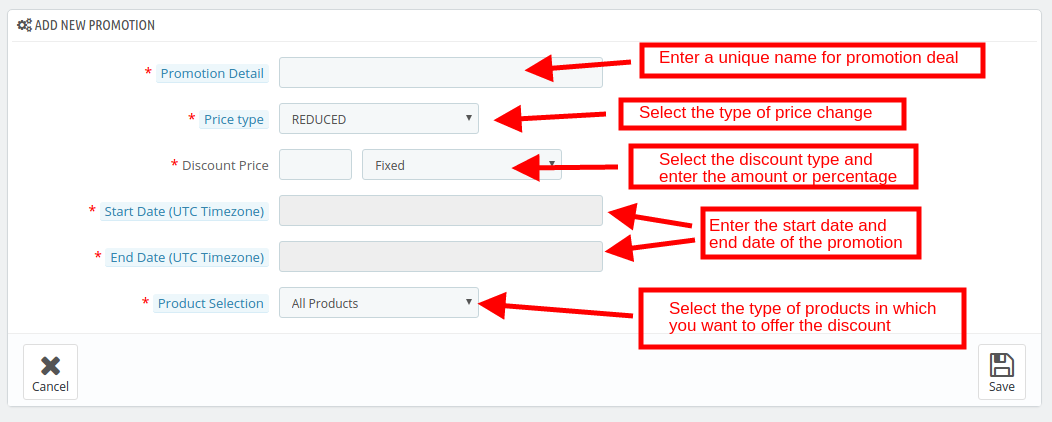
You’ll be redirected to the promotion creation page. Fill in the required details that are discussed below:
Promotion Detail: Enter the detail of the promotion in this section. Price Type: Select the price change type. It can be Reduced or Clearance. Discount Price: Select the discount type, Fixed or Percentage. Enter the fixed amount or the percentage amount. Start Date: Enter the start date of the deal. End Date: Enter the date when the deal will end. Product Selection: Select the product group in which you want to offer the discount. It has 3 options:
All Products: This will apply for the promotion of all the products listed in the marketplace.
Products of Selected Profile: This will apply the deal on all the products of the selected profile. Once this option is selected, all the profiles will be listed in the Select Profile section.
Selected Products: This will allow the admin to offer discounts on the selected products. The products can be selected in the Select Product section.
4.4.1 How to Sync and Edit/Delete the Promotions?
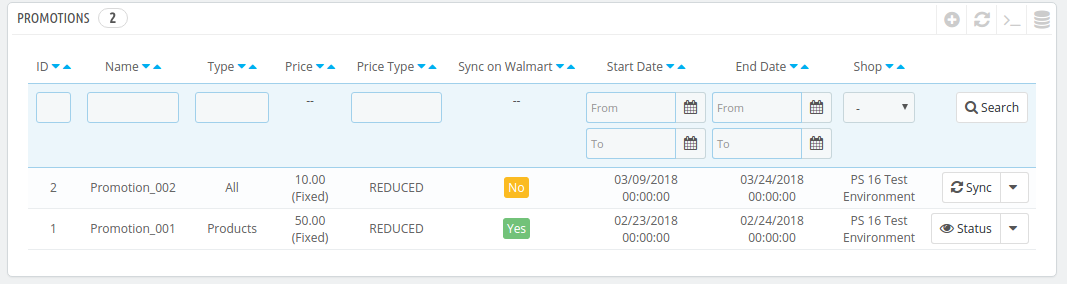
The promotion deals will be listed in this tab of the Prestashop Walmart API integration extension as shown in the image below:
The promotions can be synced with the Walmart marketplace by hitting on the ‘Sync’ button corresponding to each promotion rules.
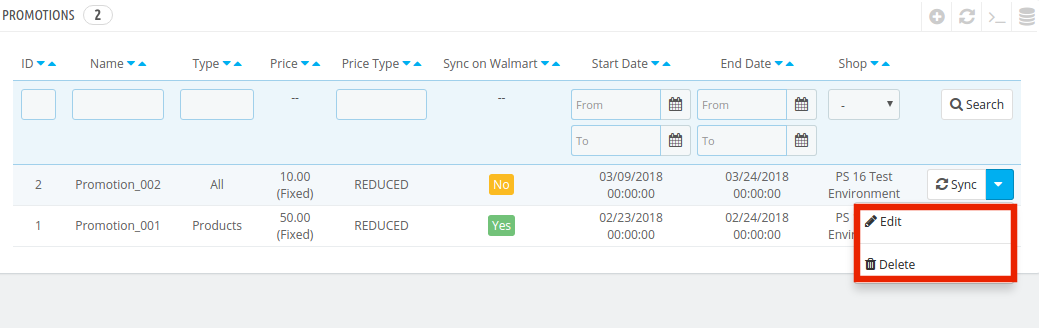
To edit or delete the promotion rules, click on the ‘Edit’ or ‘Delete’ button corresponding to each rule as shown below:
4.5 Shipping Override
The Prestashop Walmart Integration extension allows the store admin to add shipping methods for the Walmart consumers.
4.5.1 How to Create New Shipping Override?
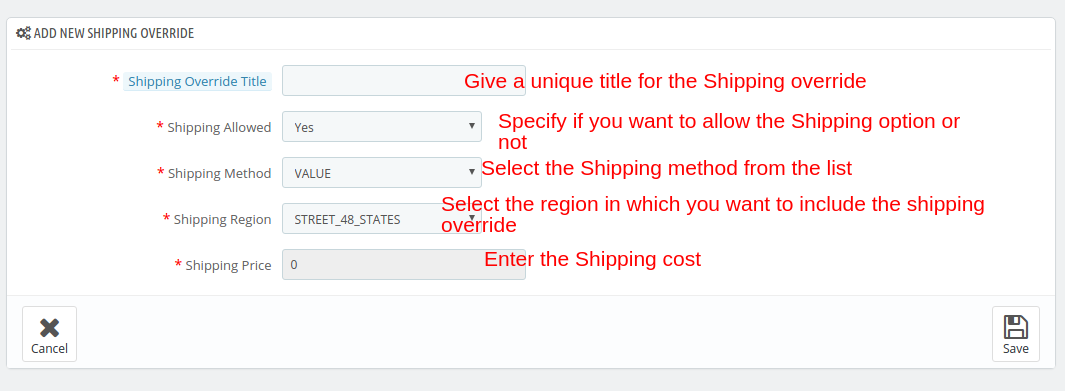
The various information fields in this tab of the Prestashop Walmart Integration extension are listed below:
Shipping Override Title: Enter a unique title for the Shipping override.
Shipping Allowed: The dropdown menu includes the option of Yes and No. Select Yes, if you want to allow this shipping override.
Shipping Method: Select the shipping method that you want to include in this Shipping override.
Shipping Region: Select the region in which you want to incorporate the shipping override.
Shipping Price: Enter the shipping cost here.
Note: All the Shipping Override options created here will be listed in the Profile Management section.
4.5.2 How to Edit/Delete Shipping Override?
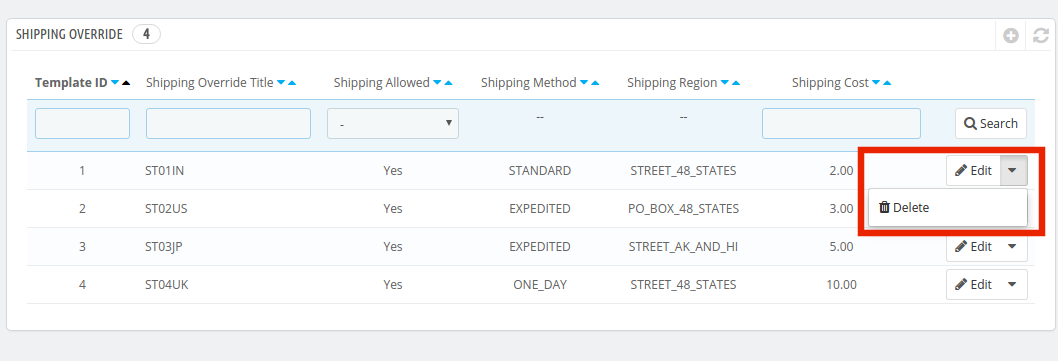
All the Shipping Override options can be viewed in this tab of the Prestashop Walmart Marketplace Integration plugin. To edit or delete the shipping override option, click on the Edit or Delete button corresponding to each option as shown in the image below.
4.6. Product Listing
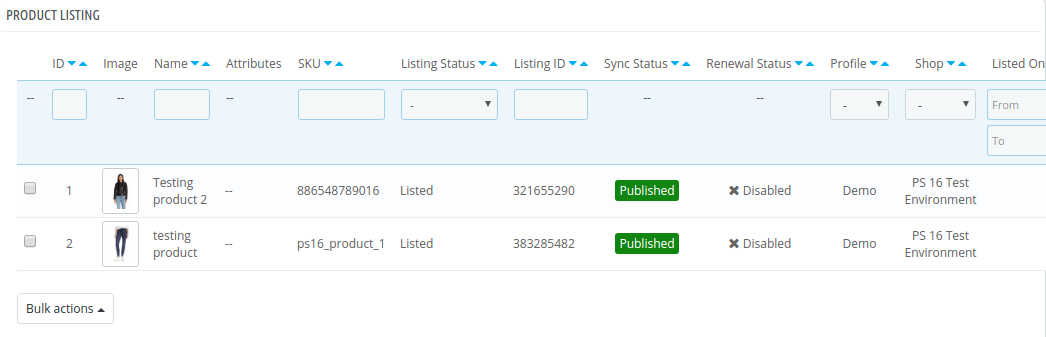
The listed products can be viewed from the back-end of the Prestashop Walmart integration module as shown in the image below. The Prestashop Walmart Integration addon allows the admin to renew, delete or remove the product from the marketplace. These actions can be performed for individual products as well as in bulk.
This section shows the list of all the products listed on Walmart Marketplace with their statuses.
To list the products on Walmart, run the Sync Inventory to Walmart cron. The products will get listed on the Walmart marketplace. (See Section 4.16)
Once the inventory is synced, the corresponding product details will be synchronized accordingly. To sync the price of the products, run the ‘Sync Price of the Product’ cron in the Synchronization tab.
Here are some of the options offered in this section:
Product Listing Renewal
The Prestashop store admin can renew the product, in case the listing has expired from the Walmart Marketplace or the product is updated, by clicking on the “Renew” action corresponding to each product.
After the renewal of the products, action “Renew” will be changed to “Halt” action. This action is used to stop product renewal in case needed.
Product Listing Deletion
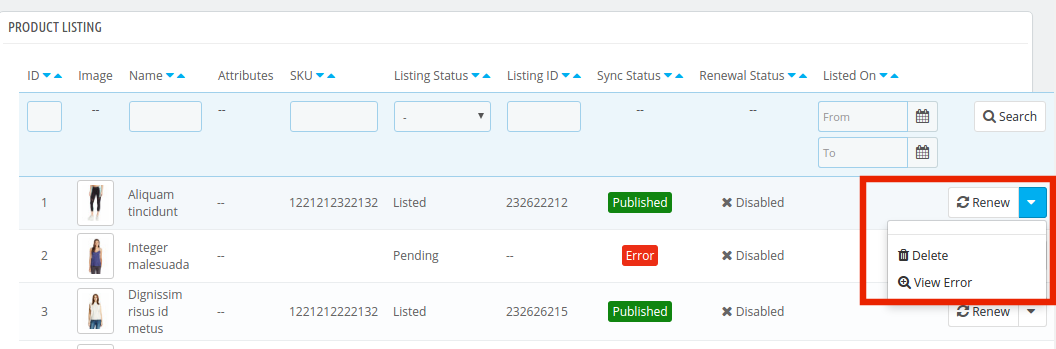
The store admin can disable the product from the marketplace by clicking on the “Delete” button corresponding to each product listing. To revert the action, click on the “Relist” button. The delete action will then be replaced with Relist action. Execute the Sync Products on Walmart cron to remove the products or mark them as inactive in the product listing page.
View Error
The admin can view the error occurred in listing the product by click on ‘View Error’ action.
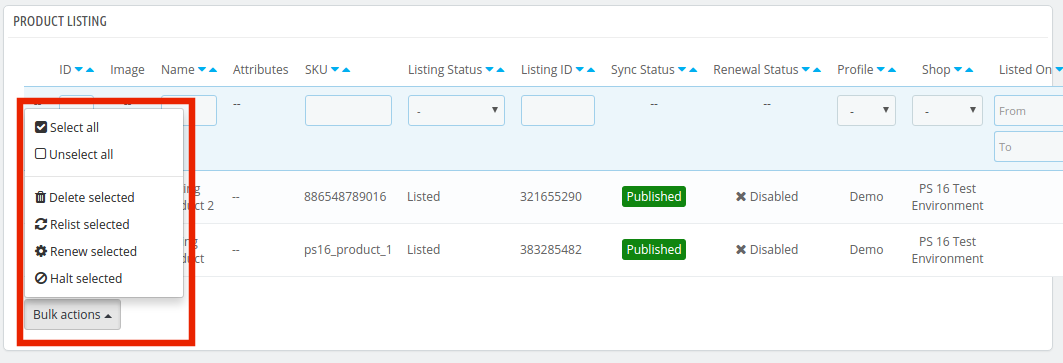
Bulk Update of Products
The Walmart Prestashop integration addon allows the admin to update the products in bulk. The bulk action offers the following options:
Delete Selected
RelistSelected
RenewSelected
HaltSelected
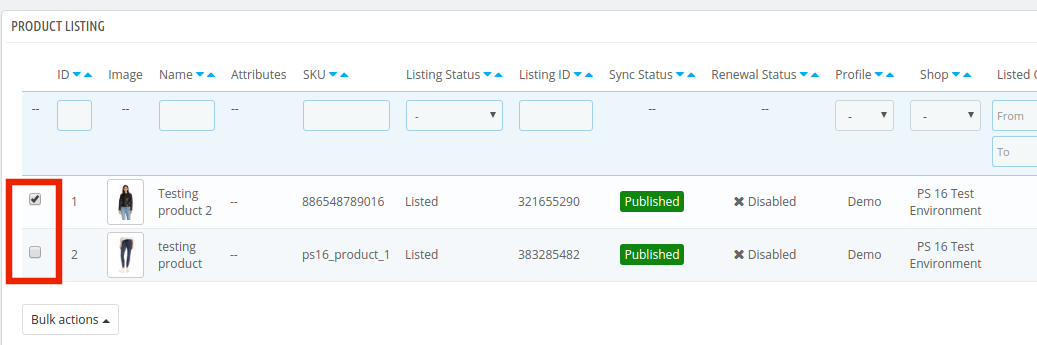
Select the products in which you want to perform any of the above-mentioned action as shown in the image below:
Once the products are selected, click on the action that you want to perform. The same action will be performed on all the selected products.
Mapping of Existing Products on Walmart
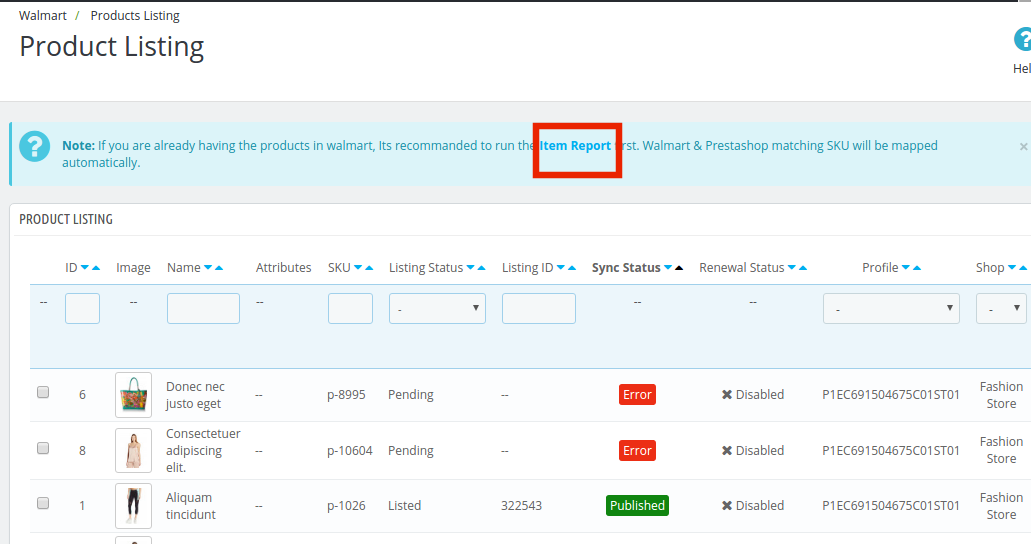
If you already have the products in Walmart, execute the Item Report cron first. Once this cron is executed, Walmart & Prestashop matching SKU will be mapped automatically. They can match the SKU, create the Listing ID and change the status as ‘Published’.
4.7. Attribute Mapping
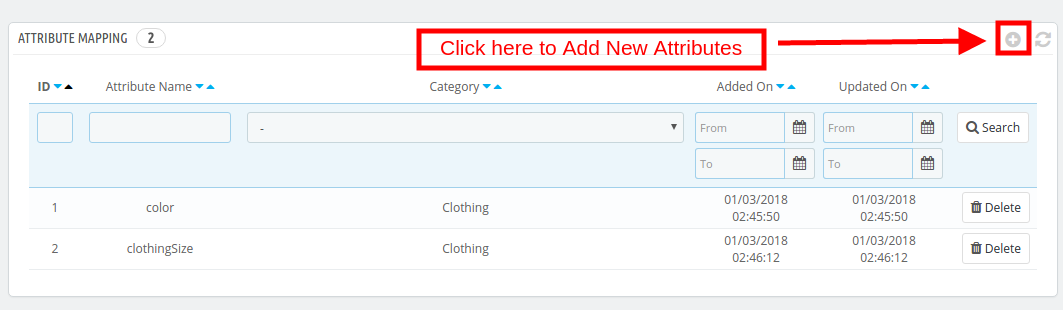
The Prestashop Walmart Integration extension offers easy means to map the attribute of the Prestashop store with the Walmart marketplace. The store admin can map the attribute of Walmart.com with the attribute of the Prestashop eCommerce store in this tab.
4.7.1. How to create New Attribute Mapping?
To create new attributes, click on the ‘+’ sign on the top right side of the admin interface. You’ll be redirected to the Attribute creation page. Follow the steps below for the Attribute mapping.
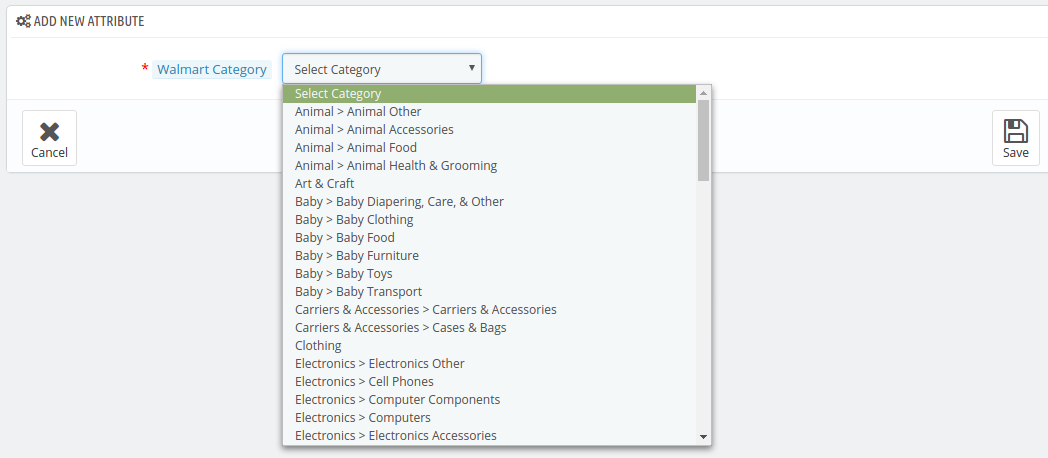
Select the Walmart Category in which you want to map the attribute as shown in the image below:
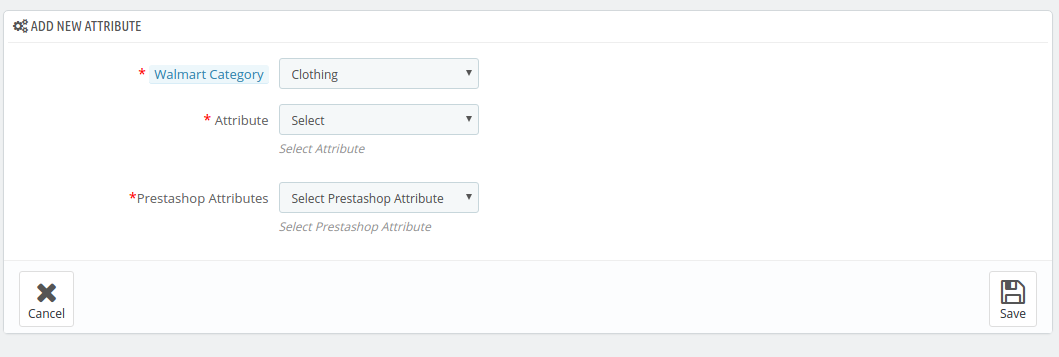
Attribute: Select the attribute of Walmart in which you want to map the attribute of the Prestashop.
Prestashop Attribute: Select the attribute of the Prestashop store that you want to map with the attribute of the marketplace.
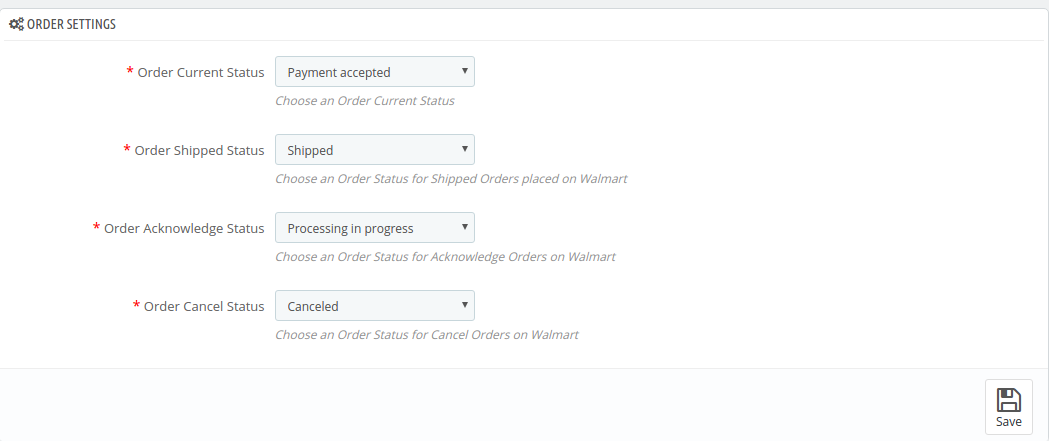
4.8. Order Setting
The store admin can set the status of orders placed on Walmart that are mapped in the Prestashop store from the Order Setting tab of the Prestashop Walmart Integration plugin. This section consists of four different order statuses. They are:
Order Current Status, Order Shipped Status, Order Acknowledgment Status, and Order Cancel Status.
Once the status of the order is changed in the Prestashop store, run the ‘Update Order Status to Walmart’ cron. This will sync all the changes to the marketplace. (See Section 4.16)
4.9. Order Listing
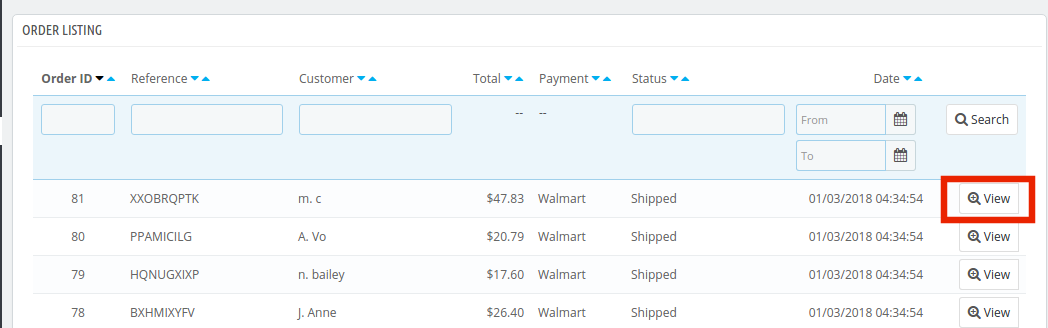
The orders received from the Walmart.com is listed in the admin interface of the Prestashop Walmart API Integration. For this, the store owner needs to run the ‘Sync Order Listing from Walmart’ cron. (See Section 4.16)
Once the cron is executed, the entire orders will be synced in the Prestashop store. These orders can then be processed by clicking on the ‘View’ button as shown below.
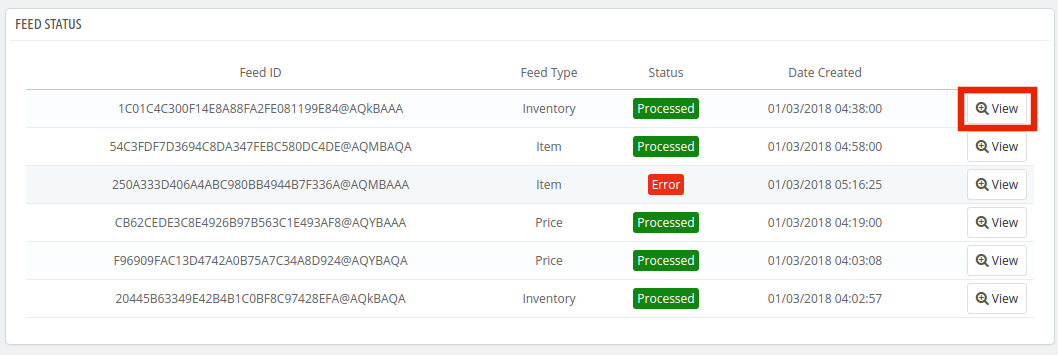
4.10. Feed Status
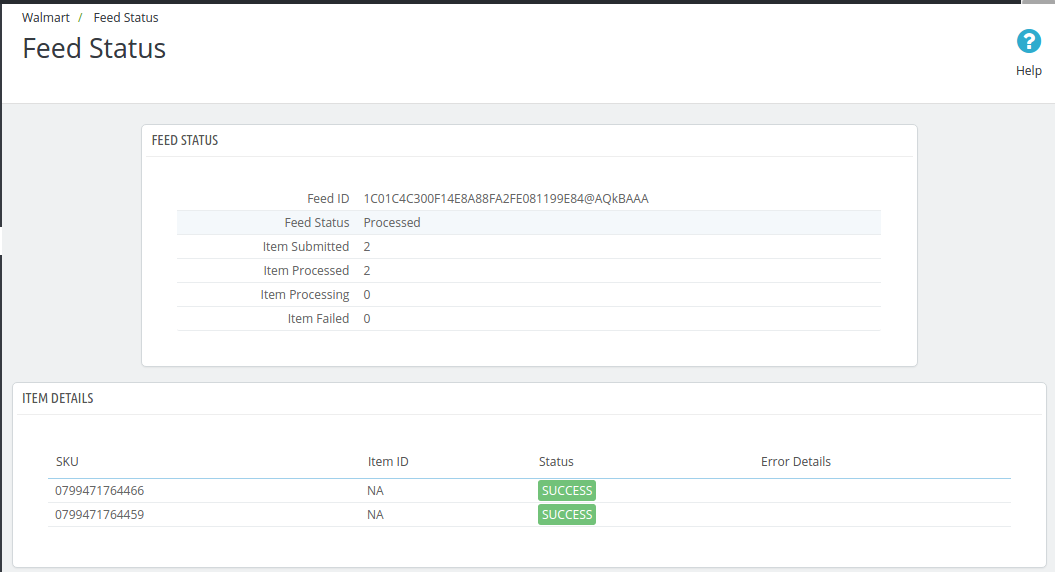
Every time a cron is executed, a Feed will be created in this tab as shown here. The status of the feeds can be seen by clicking on the ‘View’ button.
On clicking the button, you’ll be redirected to the feed status detail page.
4.11. BuyBox Report
In case more than one seller is selling the same product, walmart.com displays them on a single page. This page displays the products and their pricing to the customer. Out of these products, one item wins the Buy Box. The customers are drawn to the very first option that they see. Hence, winning the buy box is essential for the vendors.
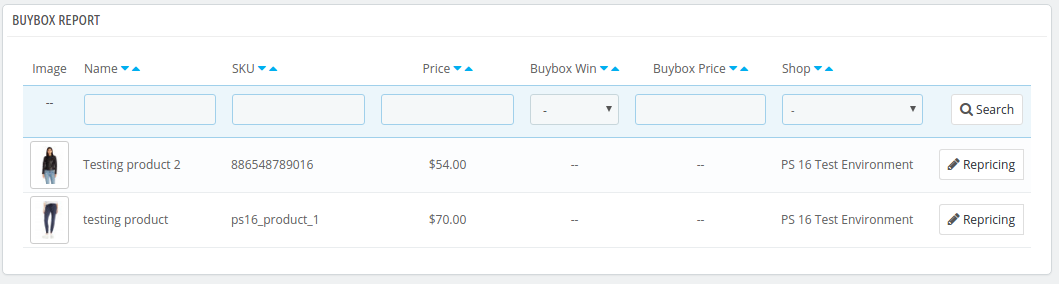
The sellers can see the products listed on the Buy Box with their status in the ‘Buy Box’ tab of the Prestashop Walmart Integration extension. To sync the latest buy box report, execute a cron job in the Synchronization tab of the Walmart Prestashop API integration addon. (See Section 4.16)
Also, Prestashop Walmart Integrator offers an easy means to reprice the products to win the buy box. The sellers can reduce the cost to boost their product visibility.
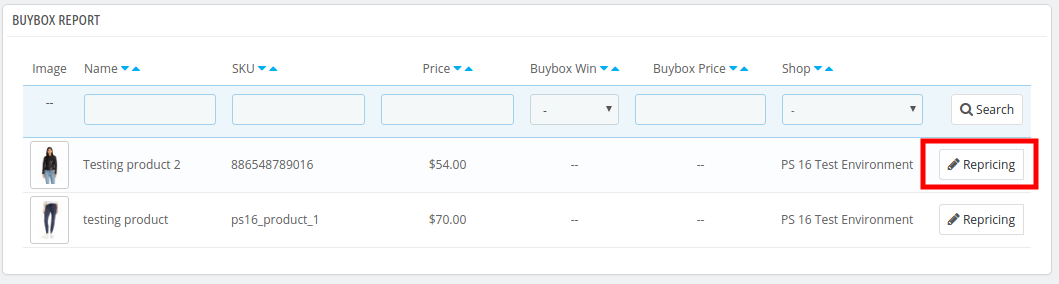
To reprice the products, click on the ‘Repricing’ option corresponding to each product.
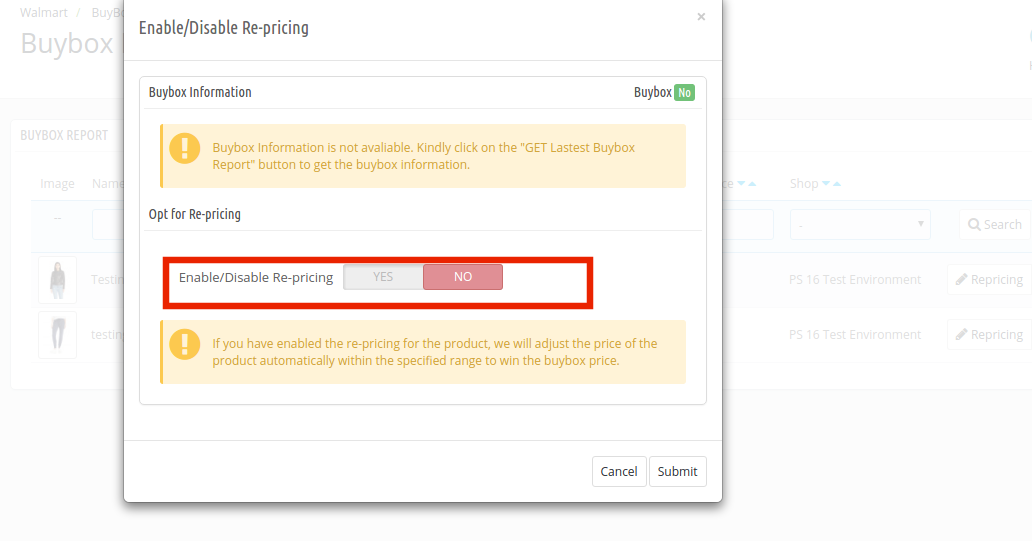
Once you click here, you’ll get a popup. Toggle the Enable/Disable Re-pricing option for the same.
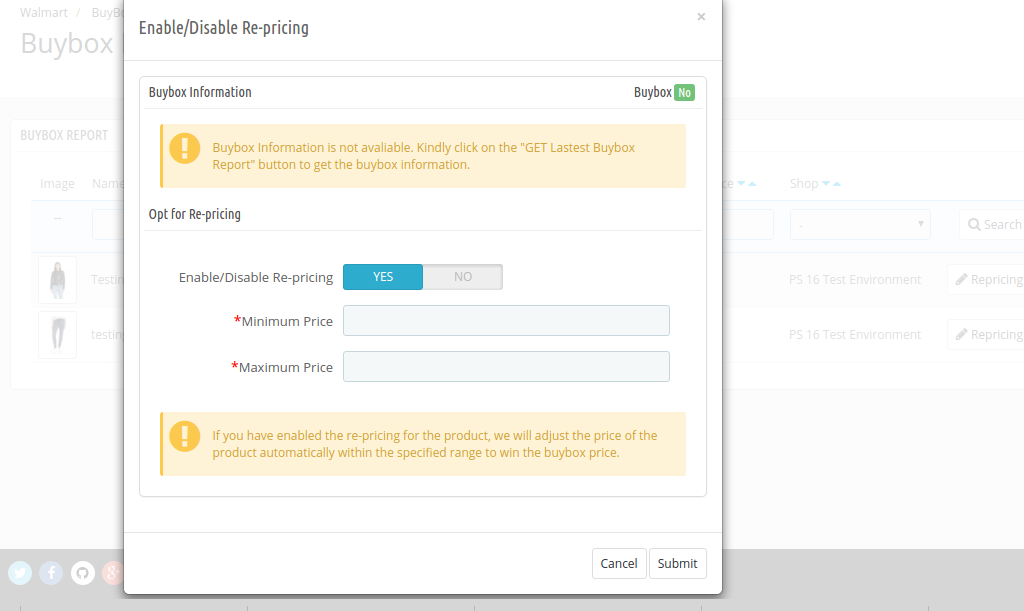
Once you enable this functionality, you’ll be asked to enter the Minimum and Maximum Price.
Enter the minimum and maximum price and click on the ‘Submit’ button. Sync the reprice with the marketplace by executing cron in the Synchronization tab of the Prestashop Walmart API integration addon. (See Section 4.16)
4.12. Lag Time
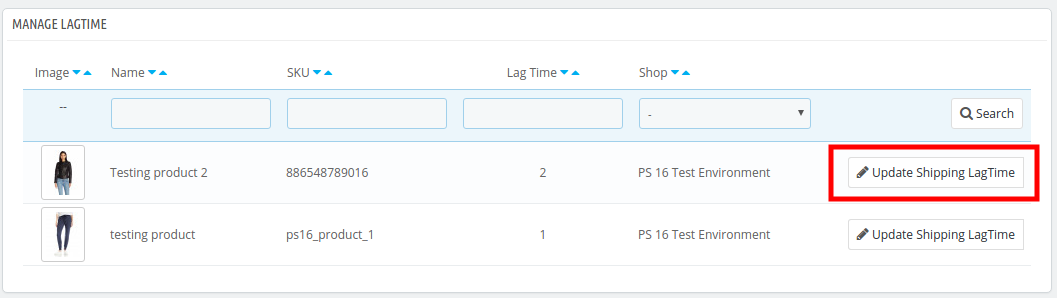
Lag Time refers to the minimum number of days when the shipment of the order is initiated. The lag time is the interval between the day when the order is placed and when it is shipped.
To update the shipping lag time, the admin is required to click on the ‘Update Lag Time’ button as shown below.
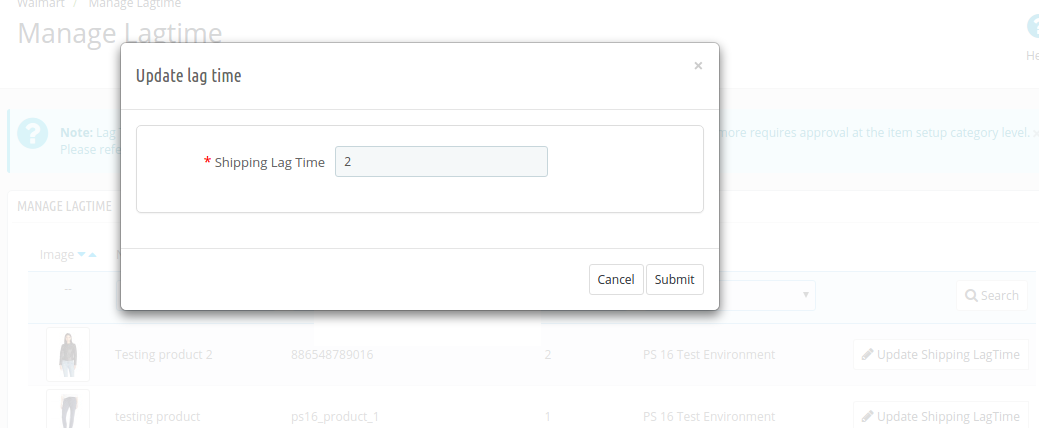
On clicking, a popup will appear as shown below:
Enter the lag time for each product. Once this is done, the admin can sync the lag time in bulk by executing cron in the synchronization tab of the Prestashop Walmart connector.
Refer to Section 4.15 for the cron job details.
4.13. Tax Code
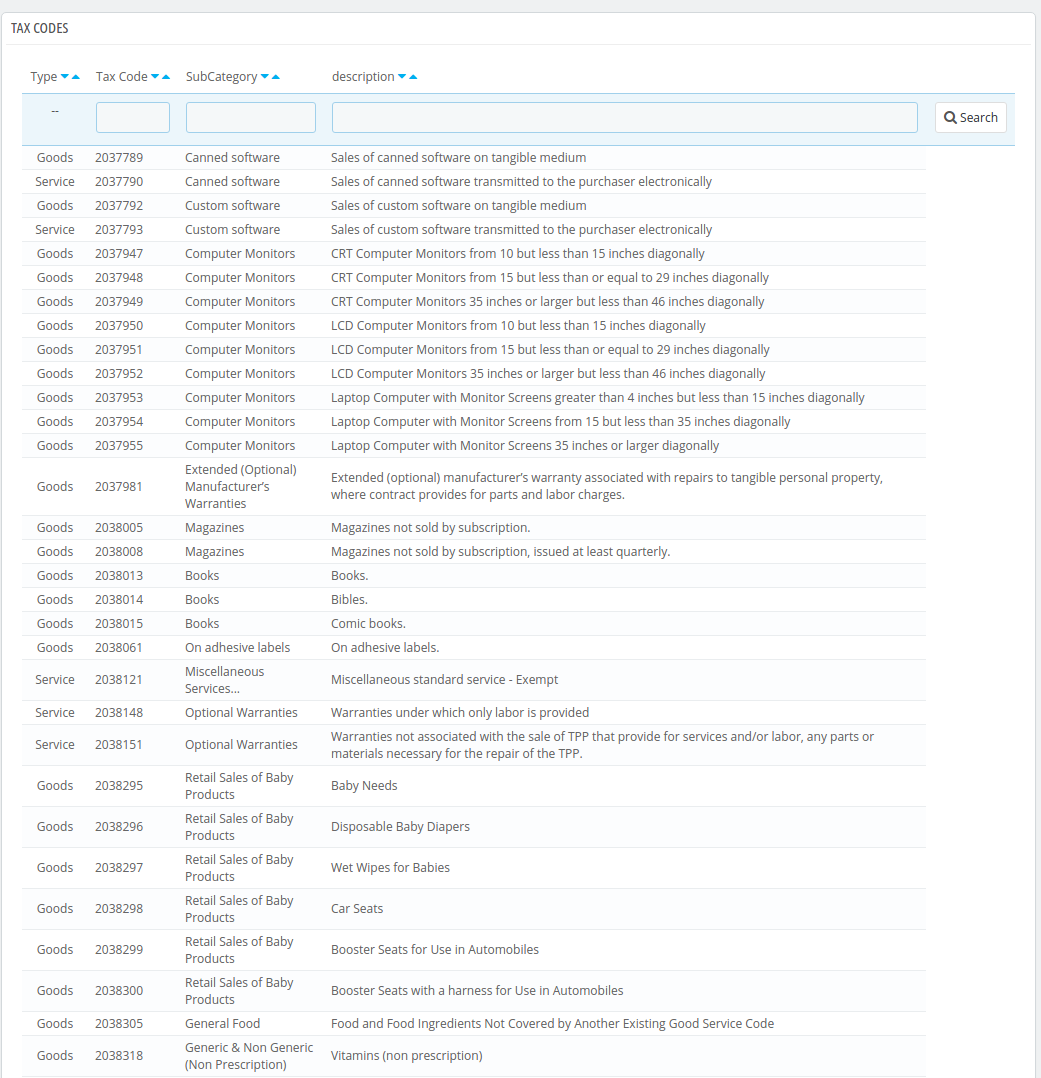
Walmart makes it mandatory for the sellers to provide the Tax Code for the products at the time of product listing. The store admin can check tax codes in this tab of the Prestashop Walmart marketplace integration module.
4.14. Sales Report
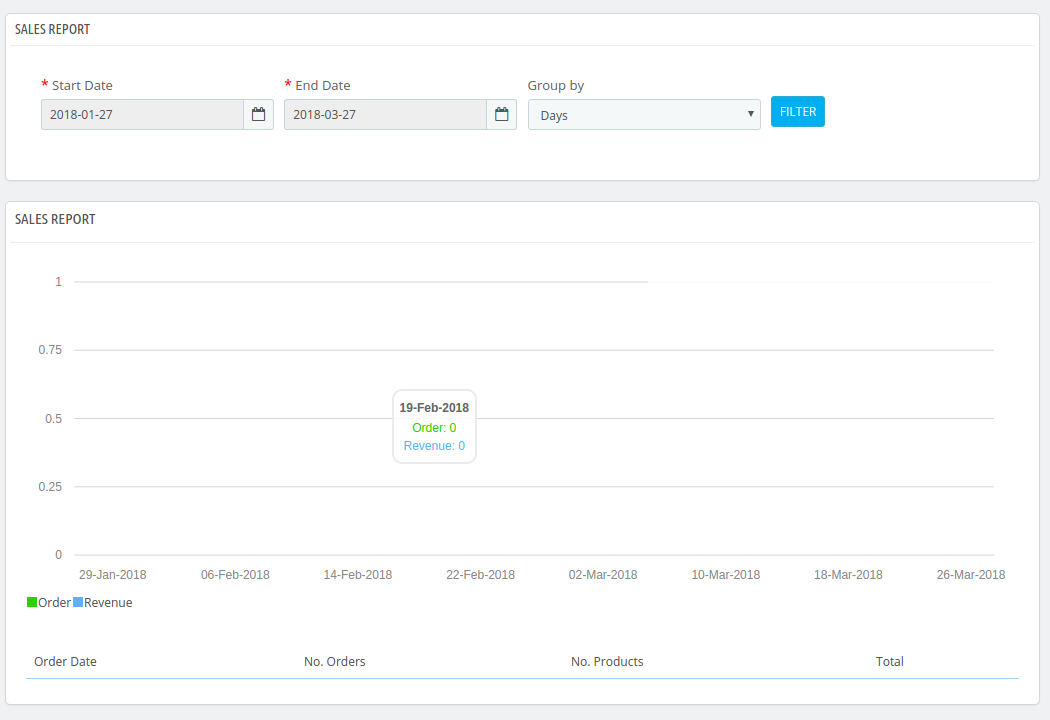
The seller gets a complete report of the marketplace sales from the Sales Report tab of the Walmart Prestashop connector. The sales report will appear in both graphical and tabular format.
Apply filter by selecting the Start and End date. The seller can even group the report by days, months and years.
4.15. Product Sales Report
The seller can even view the sales report of a particular product in the Product Sales Report tab of Walmart Prestashop Integrator.
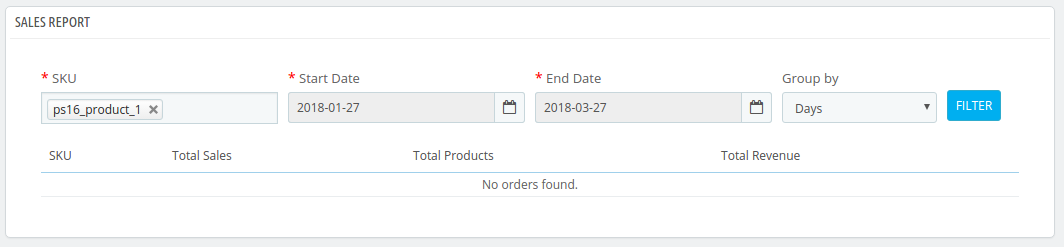
Enter the SKU, Start Date, End Date and apply the filter to view the sales report of that particular product.
4.16. Synchronization
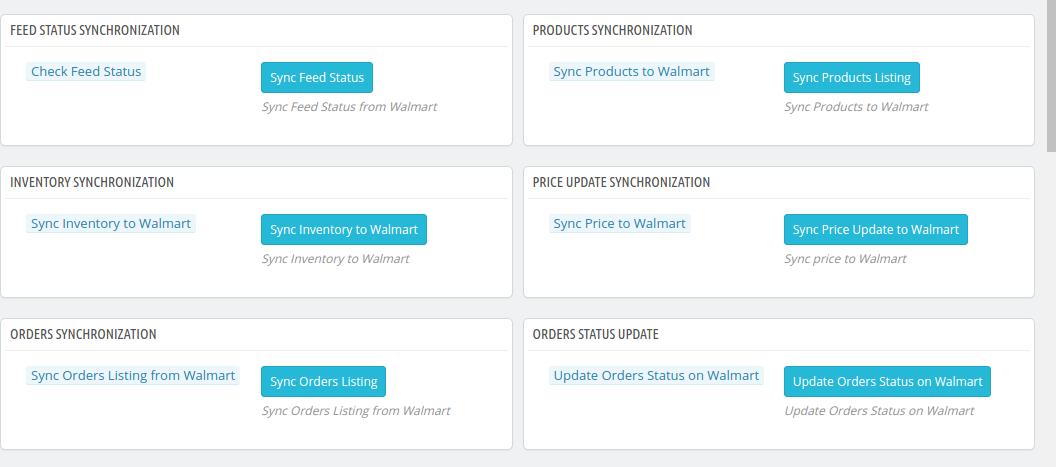
This tab of the Prestashop Walmart Integration module synchronizes all the settings and changes done in the other tabs of the Prestashop Walmart Marketplace Integration Module. The synchronization between Prestashop Store and Walmart Marketplace and vice-versa can be done from the ‘Synchronize‘ tab.
The various cron jobs to synchronize the settings between Store and Walmart Marketplace are shown below –
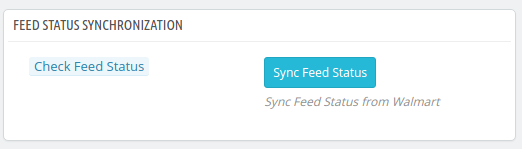
4.16.1 How to sync the status of the Feed?
Every time a cron is executed, a feed is created in the Feed Management tab. The initial status of the feed is submitted. To change the status of submitted or processing feed, click on Sync Feed Status.
It would perform following actions –
A feed will be created every time a cron is executed in the admin interface.
This particular cron updates the status of the Feeds.
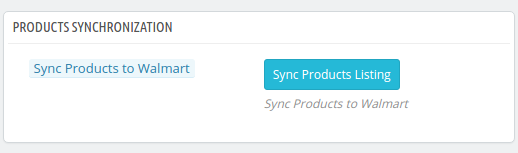
4.16.2 How to sync Products to Walmart Marketplace?
The product listed in the Prestashop Walmart Marketplace Integration addon will be synced to Walmart.com by clicking on ‘Sync Products to Walmart’.
It would perform following actions –
The cron will update the products list in the Walmart marketplace.
It will add products on the Walmart Marketplace with the respective product details (e.g. Price, Quantity, Image, etc.).
It will update the products on the Walmart marketplace which are already listed.
It will update the expired products on Walmart Marketplace for the items in which ‘Renewal’ is enabled.
It will remove the products from Walmart Marketplace which are marked deleted on Store.
4.16.3 How to sync Inventory to Walmart Marketplace?
The quantity of the products can be updated on the Walmart Marketplace by executing the ‘Sync Inventory to Walmart’ cron from the Prestashop Walmart Integration module.
It would perform following actions –
It updates the quantity status of each product listed on Walmart Marketplace.
4.16.4 How to sync the price of the products to Walmart Marketplace?
The price of the products can be synced to the marketplace by executing ‘Sync Price to Walmart’ cron
It would perform following actions –
The cron execution will display the updated price of the products on Walmart Marketplace.
It will update the changes in the price of the products.
4.16.5 How to sync Order Listing from Walmart Marketplace?
The orders received from the Walmart Marketplace can be synced in the store by executing ‘Sync Order Listing from Walmart’ cron.
It would perform following actions –
The cron will sync the Orders and Transaction details from Walmart Marketplace.
It creates Orders into the Store as per the order received from Walmart Marketplace.
4.16.6 How to sync Lag time with the marketplace?
The lag time of the products fixed in the Lag time tab of the Prestashop Walmart Integration addon can be synced with the marketplace by executing ‘Sync Lag time on Walmart’ cron.
It would perform following actions –
The cron will sync the lagtime with the marketplace.
Any change in the lag time can be updated just by executing cron.
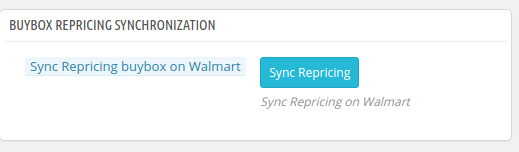
4.16.7 How to sync Repricing Buy Box on the marketplace?
The admin can sync the Buy Box repricing by executing ‘Sync Repricing Buy Box on Walmart’.
It would perform following actions –
The cron will sync the change in the price of the Buy Box products.
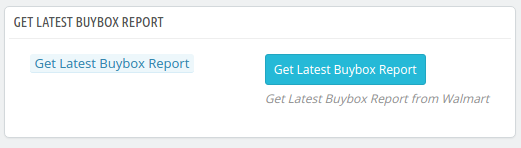
4.16.8 How to get the latest Buy Box report from the marketplace?
The sellers can get the latest buy box report from the marketplace by executing the ‘Sync Latest Buy Box Report’ cron.
It would perform following actions –
The cron syncs the latest buy box report from the marketplace to the Prestashop Walmart API integrator.
Note:
On successful completion of synchronization, a message will be display – “Success”. Otherwise “Failed” will be displayed.
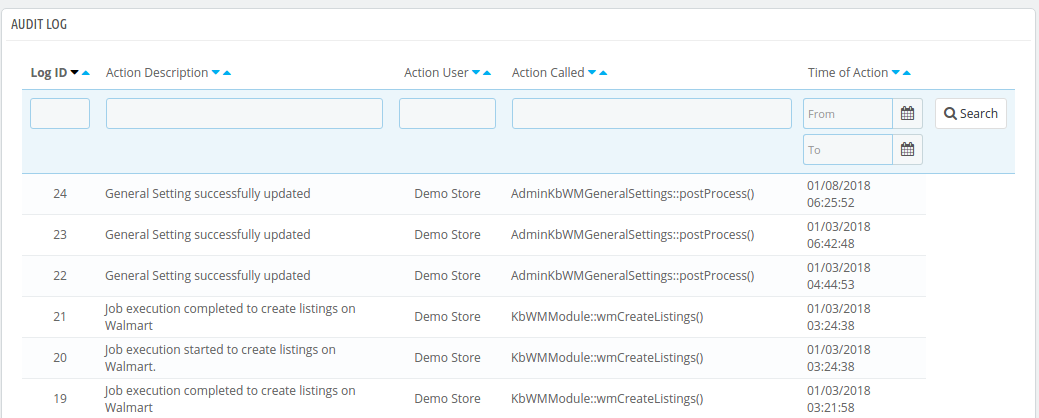
4.15. Audit Log
The admin can view all the jobs running occurred in the Audit Log tab of the Prestashop Walmart Integration extension. The status of the jobs can be viewed in this tab.
You can get Prestashop Walmart Integration at budget-friendly prices from the Knowband store.
Today, when only the biggest eCommerce sites like Amazon, Alibaba, eBay, Etsy, etc are the only ones with huge global acknowledgment, why it is still said that eCommerce is a hit?
The reason is, despite only a few big sites are in the global limelight, the niche based inventory model sites are doing so well in their limited local market. The brick and mortar based business owners are budding into eCommerce entrepreneurs by adopting easiest solutions to make their retail an online shop.
The easiest solutions that I am talking about are the various eCommerce platforms that provide a ready-made eCommerce site on the go. PrestaShop is one such eCommerce platform which is becoming popular among the eCommerce entrepreneurs day after day. A large number of eCommerce business aspirants has chosen this platform to launch the eCommerce site of their dreams and claim their share in the huge profit that eCommerce generates each second.
Current stats about PrestaShop
PrestaShop was launched on 31st July 2008, in France.
Currently, it is powering more than 250,000 eCommerce sites worldwide in 60 different languages.
PrestaShop Shares the total market share of 9% for open-source eCommerce platforms.
According to W3Techs, there are total 0.5% PrestaShop websites out of all the websites on the internet.
This is an impressive stat. 0.5% of total websites on the internet is a huge share. So, PrestaShop is very popular I guess.
In all these good talks about PrestaShop, haven’t we ignored the fact that PrestaShop is not the most popular eCommerce platform? I mean if PrestaShop is the best that you can have for your startup, why Magento, Shopify, WooCommerce etc are being chosen by several other entrepreneurs?
The reason is, none of the eCommerce platforms can be said to be a perfect solution. Factors that differentiate these platforms and allow them to survive parallelly highly depend on requirements, usability, flexibility, modules, ease of use and a lot more.
This is where you need to ask yourself “Is PrestaShop a perfect solution for your eCommerce stratup?” Let’s examine it.
Factors that make PrestaShop better than others
1. Ease of use
Usability is one factor that makes PrestaShop better than most of the eCommerce platforms. Most of the entrepreneurs come from a non-technical background. They hardly have the knowledge of coding and other technical stuff.
Luckily PrestaShop has been designed to be used by any kind of user. It doesn’t matter if you are a tech savvy user or have zero coding skills, You can setup a store and manage it all without any hassle.
From installation to configuring the whole website, from product uploads to managing the orders from your customers, you get the easiest interfaces to do it all.
You can install PrestaShop using the guided interface that clearly explains everything you need to do in the process. In fact, the cloud version of PrestaShop saves you from the hassle of installation and directly provides the ready-made store, waiting for you to upload the products and start selling on the go.
2. Highly extensible
PrestaShop possesses a number of built-in features to get a ready made store for you. These features include:
Store personalization
SEO friendly URLs
Product upload management
Shipping management
Supply management
Customer management
Discount management
Order Management etc.
Apart from these features, the platform allows the addition of any number of new features through PrestaShop modules. By simply installing a PrestaShop module, you can add a functionality that has not been given in the default system. Moreover, you can also enhance the built-in functionalities through these modules.
For example, Social Login is a quite important requirement for the eCommerce website to improve their site’s usability for their customers but is not present in default PrestaShop system. The good news is, you can easily integrate this functionality by installing a social login module.
The extensiveness in PrestaShop is not limited to the modules only. It saves you from the cost and effort of designing your new eCommerce store by simply allowing third party PrestaShop themes to be installed.
Frankly, every other eCommerce platform allows the module and theme extension, then how it makes PrestaShop better than them? This question takes me to my next point.
3. Huge number of modules and themes
PrestaShop has a huge community of users, developers, and website owners. It is one of the most active communities where you can find the solutions for everything about PrestaShop.
This highly active community consist of a very big population of third-party PrestaShop developers. These developers contribute to the community by developing the PrestaShop modules, themes, and templates for every trending need and requirement.
The official PrestaShop marketplace is a hub of all your modules, themes, and template requirements. Moreover, some big community developers also sell their modules and other developments on their own official sites. You need to just Google your requirement, and a large number of PrestaShop modules fulfilling them would be shown to you in the SERPs.
This is where PrestaShop beats most of the eCommerce platforms available today. As compared to other eCommerce platforms, PrestaShop modules and themes are so easily available and at a very lower cost than others. It is because of the massive competition among the developers, you can get some pretty fair deal in modules, themes and other custom developments from these developers.
4. Mobile Friendliness
Mobile Optimization is not an option, it has become a necessity today. If your eCommerce site is not optimized for mobile viewing you will loose your business in no time.
PrestaShop is a mobile-ready platform, which has been fully optimized for responsive viewing. The well optimized mobile responsive shopping cart allows your customers to easily shop on your site from their mobile phones.
Not just the shopping cart, the default PrestaShop theme is also fully mobile responsive. That means, your shoppers can browse anything and everything on your site without having an irritating experience on their mobile phones.
Moreover, almost all of the third-party modules and themes are also mobile responsive as the developers too know that mobile is important for your business. This mobile friendliness of PrestaShop is enough to make it one of the best eCommerce platforms in terms of usability for the customers.
5. A guided and well-supported platform
PrestaShop is one of the best platforms in terms of user support and guidance to use the platform. You can get all the valuable documentations and support whenever you need them. In fact, you can find all the documentations about all the PrestaShop versions on the website of PrestaShop itself.
This mainly includes comprehensive information about installation, features, settings, version upgrade, and much more. There are official as well as third-party forums and communities that support the website owners in various tasks and issue resolution activities.
The PrestaShop forums or community officially support the users by answering their queries. Moreover, they also provide paid support and training courses whenever you require. This also includes custom module development as per your requirement.
6. It’s highly flexible
There is very little left to talk about the flexibility as I have talked a lot about it when I mentioned about the modules and themes to extend the functionalities. Something that I would like to add in this would be the possibility of developing a module for almost every requirement you can think of. Other platforms also allow modules and themes to be installed, so what’s the difference here?
The difference is there in the feasibility to develop modules for a wide variety of needs and requirement. In fact, with a single module installation, you can even get even the most complex functionalities.
A perfect example of one such module is the “Marketplace Module”. A single PrestaShop module that can convert your whole PrestaShop store into a fully-fledged marketplace site.
Before the first marketplace module was introduced, no one would have thought that an originally inventory based eCommerce platform can also be used to develop a huge marketplace site. A site where you can add and manage new sellers/vendors.
This is the kind of flexibility that PrestaShop provides which is not found in most of the other eCommerce platforms.
7. It’s free to use
PrestaShop is fully open-source and free eCommerce platform. This means you don’t need to spend a penny if you want to use PrestaShop platform to build your online store. You can download the PrestaShop file for free and install it on your web server. As soon as you install it, you are ready to start selling from your store without spending a single amount.
Unlike various other hosted eCommerce platforms like Shopify, BigCommerce, Volusion etc, PrestaShop does not charge you for using it as a platform to build your site.
The places where you will need to spend some money are:
Installing a paid PrestaShop theme
Installing a paid PrestaShop module
Getting a custom theme or module
Hosting your website with a paid web host and
Paid training courses
These expenditures are important, necessary, and you will happily pay for them if you require them. With PrestaShop, at least you can save the money that would have been spent it getting an access to the platform itself.
8. I didn’t miss the basic features
The features and benefits of PrestaShop that I have mentioned in the above points are the ones that make PrestaShop stand out from the rest. However, I have not mentioned the basic functions because it’s understandable that PrestaShop does not omit these basic features either. PrestaShop seamlessly provides these features too:
Fully functional and easy to use Back-end interface.
Flexibility to support a large number of payment options.
Flexibility to Provide multiple payment options to customers at a time.
SEO friendly URLs for any controller or page on your store.
CMS page management.
Extensive shipping management.
Multi-lingual platform- more than 60 languages.
Multi-store feature.
Easily available latest security patches and upgrades.
Comprehensive reporting system etc.
Places where you might find PrestaShop difficult
As mentioned in the beginning, PrestaShop is not the most popular platform. What could be the reasons? Is it a wrong turn to adopt PrestaShop?
I can certainly say, it would not be a wrong turn to choose PrestaShop. It is just that not all the eCommerce platforms have everything you would need. The needs and requirements for a perfect and highly competitive eCommerce platform are changing day by day. The platform which can match up with the changing trends can only become the entrepreneurs choice.
1. It highly depends on the modules
Despite PrestaShop already provides all the essential features by default, it lags some important trends that have become a necessity for today’s entrepreneur. For example, It has been ages when social login feature was introduced to the websites and developers.
Even after so many upgrades and updates, PrestaShop has not included this feature in the default installation. A website owner seeking this very basic feature has to purchase a third party module for the same.
PrestaShop depends on third party and official modules for most of the trending features. Probably they do not want to burden the default installation with the features that can be easily achieved by installing a simple module.
2. The major upgrades do not support carry-forward
By carry-forward I mean the ability of the PrestaShop modules to be used with all the major versions without any change in the module.
The recent major upgrades still supported by PrestaShop include:
PrestaShop version 1.5
PrestaShop version 1.6
PrestaShop version 1.7
Each time when a new major upgrade is released and if you decide to upgrade to the new version you will not be able to use your old PrestaShop modules or theme on the new version. That is, either you need to upgrade your module according to the new PrestaShop version or buy a new module developed for the new major version.
Luckily, there is not much to worry as a PrestaShop store owner. Third party developers are highly active and they make their modules compatible with the new version as soon as it is released. If you are lucky you need to just ask your module developers for the upgrade they will provide you the new module version without any cost.
3. Scalability could be a problem
PrestaShop is best suited for small to medium sized businesses. When it comes to scaling it as a fully-fledged giant eCommerce site, it is not the best option. With a massively increased scale of the store, you may notice lags in the various aspects like page loading time, back-ends performance, database overload etc.
By a fully fledged website, we mean the very big eCommerce sites that can be compared with the biggest eCommerce giants. If you have the intention to build another Amazon, probably you must look for an enterprise level solution like Magento Enterprise edition or build your own framework.
Scalability limit on PrestaShop is not that small as it seems. You can handle thousands of SKUs, Sellers, and Customers without any hassle. In case if you have millions of SKUs in your mind then PrestaShop could be a wrong turn.
To Roundup
PrestaShop has proven to be an efficient eCommerce platform and is still trying its best to prove better on various grounds. Of course, it’s not a perfect solution, and there are limitations with major upgrades, scalability. However, considering its target users, it has got everything they would need to launch a successful medium sized eCommerce site.
Nevertheless, it offers various benefits and greater flexibility with a competitively lower investment cost. It cannot be termed as a perfect platform but would not be a wrong turn either.
I can say that Magento is a better solution than PrestaShop for large scale eCommerce sites. While PrestaShop could be a great choice for small to medium sized business which is comparatively more in number.
The commencement of the holiday season demands the eCommerce store to stay one step ahead and plan for the occasion. The beginning of holiday sales provides the web store with better opportunities to connect with the visitors, treat them well, and in return gain better sales from them. This is the main reason that every store owner wants to be prepared for the holiday sales and plan it a long ago.
In order to be sure that the sales made are better than last time, shopping sites not only need to equip themselves with quality products but take into consideration the expectation of the buyer as well. While the greetings and best wishes play an important role in establishing a better customer-seller relationship, the buyer expects a bit more which could make their holiday season a feast for their pockets.
There are various ways in which a web store can make sure that the customers are happy with the service provided and make sure they return to the store even after the holiday sales to make future purchases. Some of the things a customer expects from the web store during holiday sales are discussed below.
Occasional discounts
Discounts are a part of online shopping. Even during the non-holiday sales, a regular customer would expect the store to provide them some discounts or incentives on their purchase, but this expectation gets high especially during this season.
Thus, in order to make your store standout amongst the crowd of many stores, you need to provide the customers with deals that they can’t turn their eyes off to. It will help you to make better sales and at the same time the customers are highly motivated to make a purchase using the discounts provided by the web store. It just sets the bar high for your sales.
Personalized Experience
Every customer desires to get a unique experience while visiting their favorite store. To make this happen, the store owner can provide custom personalization with products and services as per their requirements. Customer experience personalization involves designing or producing services and products to meet the individual requirements of the customer.
Surveys say that a growth of 5 to 15% can be observed if a store starts providing custom solutions to every individual customer. To collect information, the store owner can run surveys with popup forms; add extra fields on the product page and checkout page. The customer experience can be improved with better greetings while a customer visits the store and after he makes the purchase.
This is a fast and simple way to implement a personalized customer journey that will inevitably lead to happy future customers.
Notifications
The holiday season is the busiest time of the year. Every customer cannot turn towards the store to check for the availability of products. Therefore, it becomes the responsibility of the eCommerce stores to provide them with that information. The holiday preparation of the eCommerce stores should include the marketing tactics to keep the customers informed.
He customers are highly delighted when they see a product or an offer on a product which they would like to make a purchase on. These types of initiatives by the web stores are highly appreciated by the buyers and they are more likely to visit the store. The shopping sit can provide these kinds of updates to the user in many forms such as through calls, emails, or push notifications.
The web store should not restrict them to customer-oriented marketing, they can use the social media platforms to make the general customers aware of the store sales and the better opportunities they might be missing if they don’t take a look at the web store.
Free shipping
One of the biggest concern for the buyers during the holiday sales is the receiving of the products. As it is peak time and all the customers are highly encouraged to involve themselves in other activities. The eCommerce sites could come front and provide them with the free delivery option.
It will enlighten the mood of the customers and will help in increasing their trust in your store. The online stores need to manage their free shipping efficiently. The Prestashop free shipping module is one such module that can help the Prestashop store.
The module makes sure that the customers are made available to fee shipping by taking their product value in mind. The sellers can set free shipping priorities by zones, price, and weight. These types of commitment made by the stores are highly expected by the buyers and they love to get these types of treatments.
Win back campaigns
There must always be some time of encouragement for the customers to keep making a purchase. Every customer wants to enroll themselves into a bigger part of something. This can be made available by the web store by keeping the win-back campaigns.
The buyers can make a purchase from the site and in return, each of them has an equal chance of winning a grand prize or something like that. Here are various ways the websites can provide those opportunities to the customers either through a luck draw a number system. This keeps the buyer occupied and boosts them to make sales to improve their chances of winning the bigger prize.
Help and support
The sales can be confusing even for the customers. Therefore, they can require help anytime. In order to be sure that the visitors are provided with every possible help, the stores must encourage the 24/7 services with the live chat feature where the customers can clear their doubts regarding every product related provable.
These types of services prove to be an effective means of encouraging customers to make a purchase and boost their motivation level. The chat feature is becoming more common but the holiday sales demand a better assistance system. Redirecting the conversation from negative to positive places focus on the proposed solution.
When the outcome takes center stage, it reduces the odds that customers will be upset. A better help and support team to improve the sales made during the holiday sales.
Over to You
The web store must consider the fact that a customer will only make a purchase when he thinks the store is providing them with available services. If this is not the case then the chances of making sales are lowered during these sales. Therefore, the web-store must be prepared with all available elements to improve the conversions during holiday sales.