
Your shopping cart is empty!

-740x740.webp "OpenCart Catalogue Import Export Scheduler Pro")
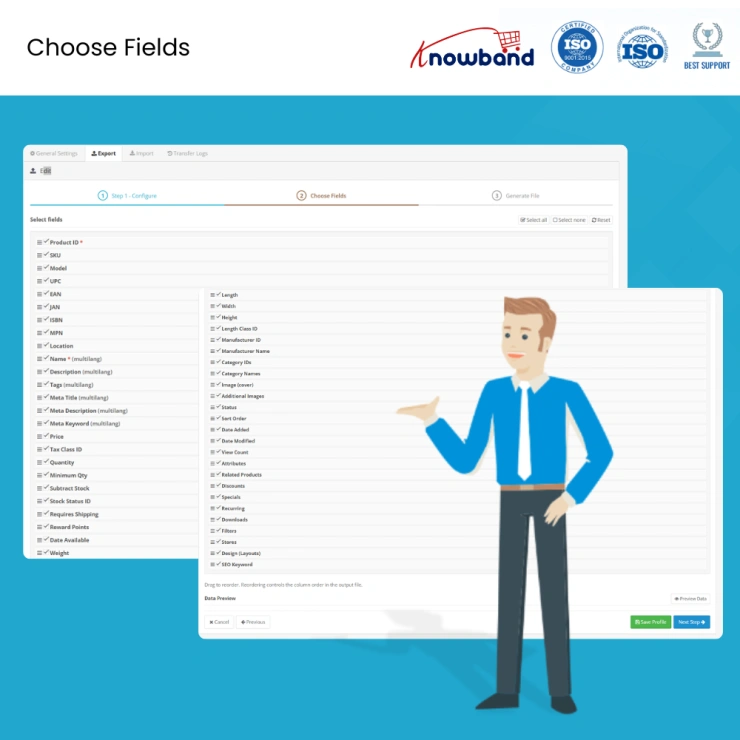
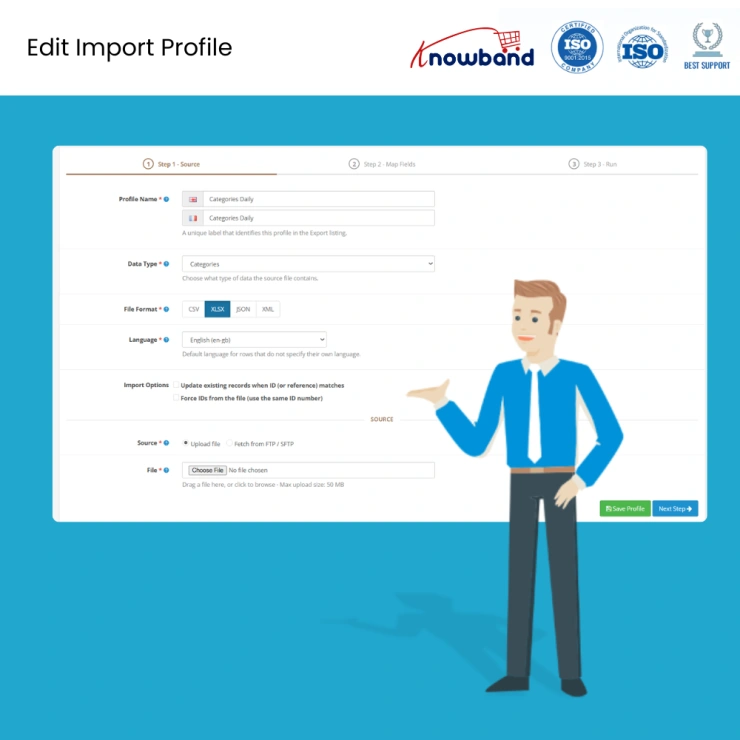
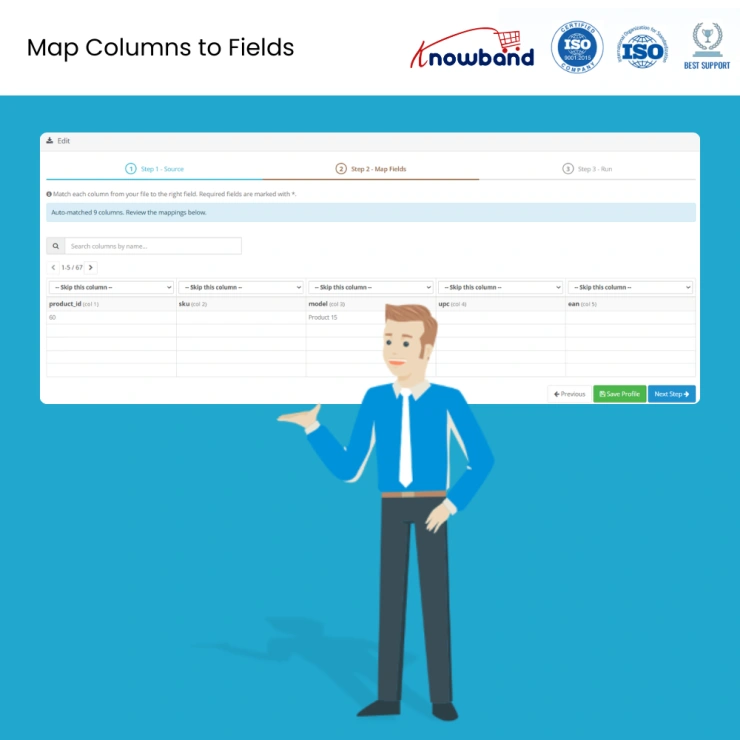
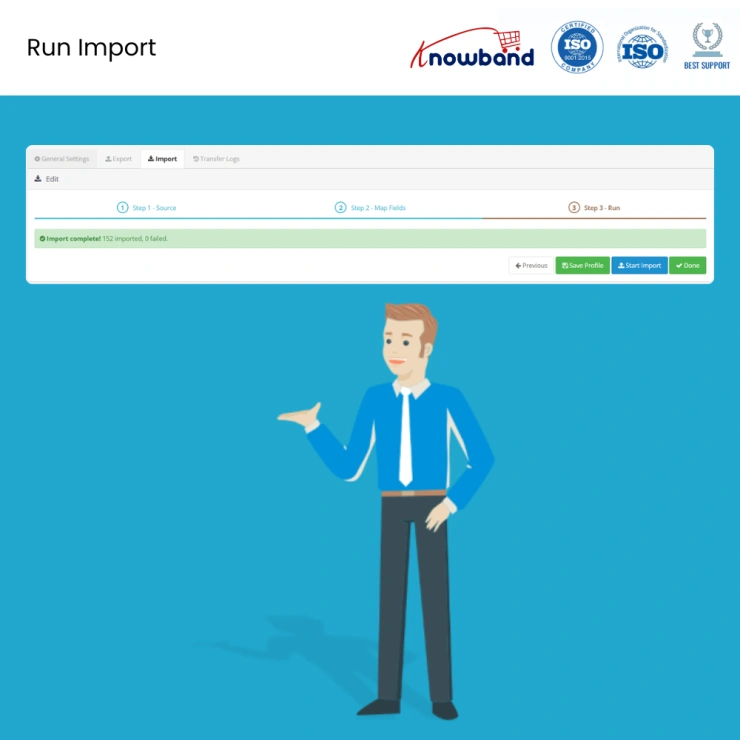
OpenCart Import Export Scheduler Pro: This OpenCart Bulk Catalogue Import Export Extension gives you complete control over your store data, import and export products, product combinations, features, attributes, specific prices, meta details and categories details all from one place. Fully compatible with the OpenCart multi-store feature, making it the ideal bulk import export solution for merchants managing large or multi-store OpenCart catalogues.
 Watch Video

The OpenCart Import Export Scheduler Pro handles product and category transfers in CSV, XLSX, JSON, and XML directly from the OpenCart admin panel. Import supplier feeds, run a bulk catalog update, or carry out catalog migration for OpenCart without writing a single line of code. Built-in profiles, FTP and SFTP connectivity, cron support, and combination handling mean the team spends less time on data transfers and does not need a developer on call for every catalog job.
The OpenCart Bulk Product Import Export Extension supports products and categories in CSV, XLSX, JSON, and XML. Every format works for both import and export. Supplier files arrive in CSV, finance teams work in XLSX, and developers send JSON or XML. This extension reads all four without asking you to convert anything first.
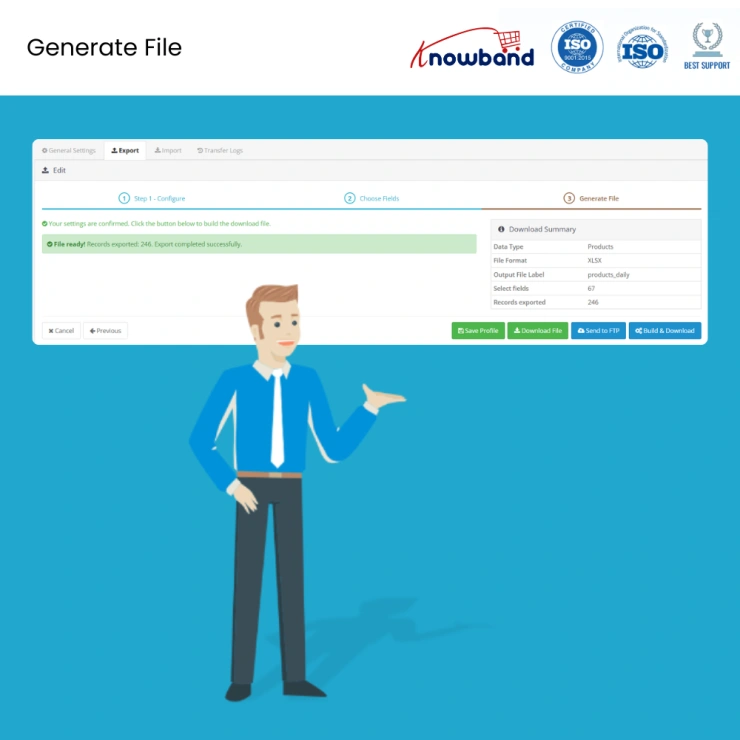
Both import and export work through a three-step process. No technical knowledge is needed to run either.
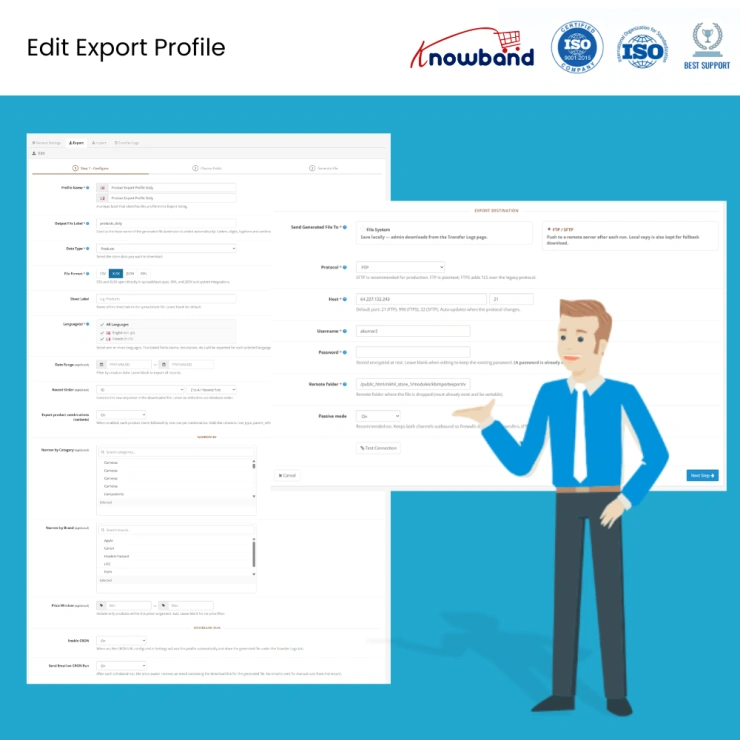
Export: Select what you want to export and in which format, choose the columns, set any filters, then simply either download the file or send it to a remote server.
Import: Choose the file source and format, map the columns against a live preview of the file, then run.
The column mapping screen loads actual rows from your uploaded file, so you can match columns against real data instead of guessing. Common header names are detected and filled in automatically. If the same field is mapped twice, it gets flagged before the import starts. Any required field left unmapped triggers a warning; nothing runs until the mapping is clean.
Products with size, color, or material variants export as separate rows, each linked to the main product. When imported into another store, any missing attribute groups or values are created on their own. This applies even for stores with no existing attributes, making it straightforward to run a catalog migration for OpenCart that includes combination products.
Export profiles push the generated file to a remote FTP (port 21) or SFTP (port 22) server. Import profiles pull files from FTP or SFTP on a schedule. Each profile includes a connection test that checks credentials against the live server before saving, so the first scheduled run goes through cleanly. If a push fails, the file is kept locally, and the admin gets a failure notification.
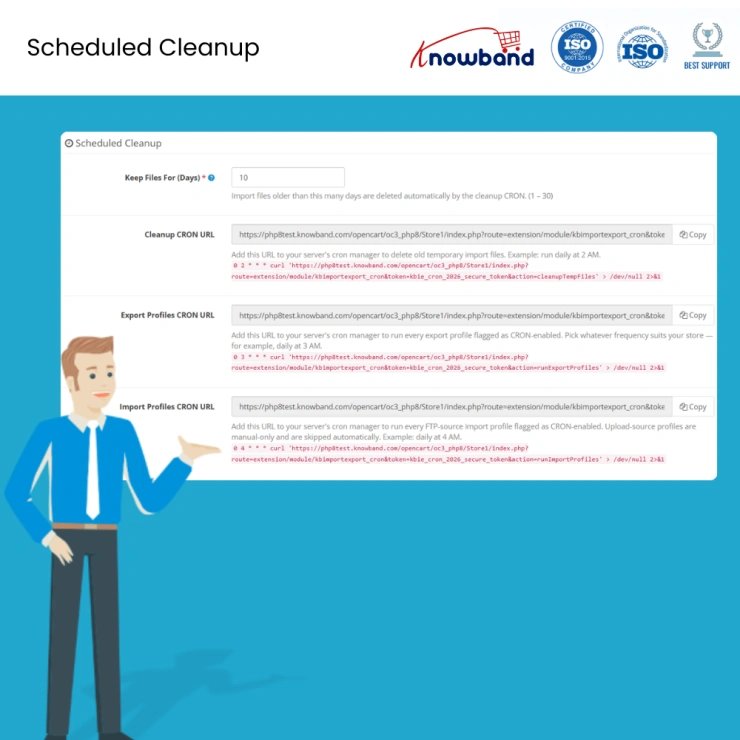
Any saved profile can run on a cron schedule. The Settings page generates three cron URLs: one to trigger exports, one for imports, and one to clear old files. Admins can paste the relevant URL into the server cron manager or OpenCart's scheduled tasks and set the interval. OpenCart cron import export means supplier feeds, daily backups, and price updates all run without anyone logging in.
Translation data is carried through the full transfer cycle in all four supported formats. CSV and XLSX exports produce one row per language with a clearly labeled language column. JSON and XML bundle all translations under each product record. The importer reads both structures and assigns languages back to the right product without extra configuration.
Once a cron-enabled profile finishes, a notification email goes out automatically. It covers whether the run passed or failed, how many records were processed, a download link for the exported file, and the exact reason for any record that did not go through.
Every run creates a log entry with the date, filename, entity type, direction, status, and record counts. Partial failures show how many records passed and how many did not. Opening the log for any failed run shows exactly which rows had errors and why. Fix only those rows and re-import, no need to redo the entire file.
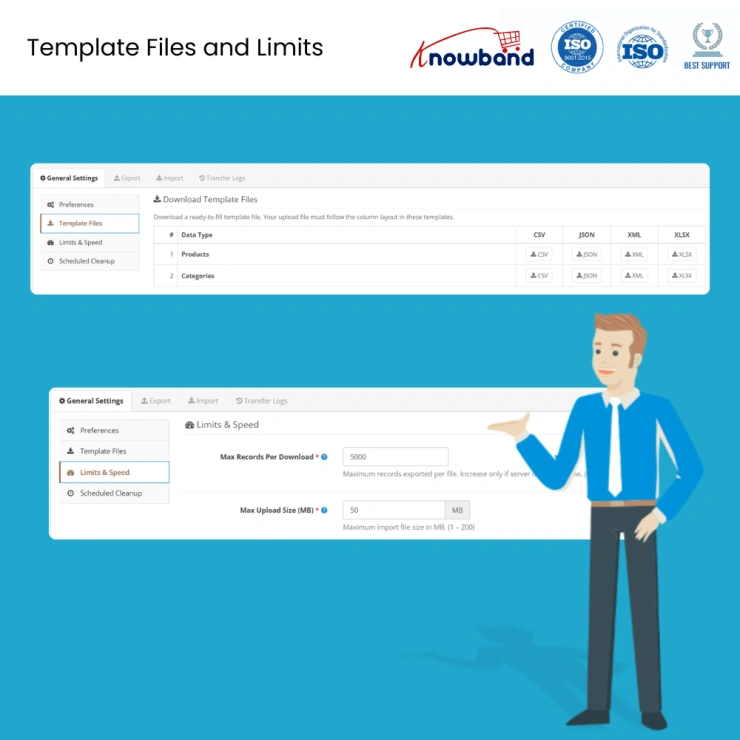
The number of rows processed per import is adjustable. Stores on shared hosting that time out on large files can set a smaller batch size to keep transfers running smoothly. The maximum upload size and the export record limit both have safe defaults and can be increased based on your server capacity.
Files stored in the extension folder are removed automatically after a set number of days. This runs alongside scheduled profiles, so disk usage stays predictable on stores running daily automated transfers.
Saved profiles remove repetitive setup. A weekly supplier price update that used to mean re-selecting every setting now runs in one click, or runs automatically before anyone opens the admin panel.
The three-step guided process and live column preview mean any team member can handle file transfers on day one. The OpenCart product upload extension handles the technical side, the admin confirms what they see on screen, and clicks run.
Export products to CSV or XLSX, edit prices or stock numbers in any spreadsheet tool, and import back. Only the mapped fields change. Everything else in the catalog stays exactly as it was.
Set an import profile to pull from a supplier's FTP location, switch on cron, and pick the interval. The OpenCart supplier feed import runs on schedule, it fetches the file, processes the data, sends a completion notification, and clears the local copy. No action is needed after the first setup.
A scheduled export pushing to FTP with timestamp-appended filenames builds a dated backup history automatically. Every run creates a new, uniquely named file. Any previous version can be retrieved from the Transfer Logs page or pulled directly from the FTP server.
Mapping validation catches problems before the import runs. Row-level error logs flag anything that fails mid-transfer. The catalog does not need a manual review after every run. The extension reports exactly what happened at the record level.
Export products from one OpenCart store and import them into another. Combinations, translations, and category assignments are all in the same file. No database access, no custom scripts, and no rebuilding the catalog on the new store from scratch. Catalog migration for OpenCart is fully supported end-to-end.
Knowband, a leading name as an eCommerce development company provides Opencart plugin development services to enhance the functionality of your eCommerce stores. For providing Opencart plugin development, we have hired experienced Opencart developers who work with full dedication to offer Opencart development and support services.
If there is a feature you want on your Opencart site, chances are that an Opencart plugin will allow you to do it, if you don't find any such plugin you can always contact us for your custom plugin development requirements.
The OpenCart Import Export Scheduler Pro by Knowband merchants import and export products and categories in CSV, XLSX, JSON, and XML. It includes reusable profiles, column mapping with validation, FTP and SFTP file transfer, OpenCart cron import export scheduling, email notifications, and transfer logs, all managed from the OpenCart admin panel.
You can bulk upload in OpenCart using a CSV file by opening the Import tab and creating a new import profile. Select CSV as the format, upload the file or pull it from FTP, and go to the column mapping screen. The plugin matches common header names automatically and shows the first rows of the actual file for verification. Confirm the mapping and click Start Import. Sample CSV templates are available from the Settings page.
This plugin handles full combination round-trips. Products with size, color, or material variants export as individual rows linked to the parent product. On re-import, missing attribute groups and values are created automatically. No manual preparation is needed for stores with no existing attributes.
Create an import profile, set FTP or SFTP as the file source, and switch on cron in the scheduling section. Copy the Import Profiles cron URL from the Settings page and add it to the server cron manager with the required interval. The plugin fetches the file and runs the import automatically at each tick, no manual login required.
Yes. Export products to CSV, selecting only the reference and stock quantity columns. Update the numbers in any spreadsheet tool. Import the file back using an existing profile, only the mapped fields update, and the rest of the product data stays unchanged. For stores receiving supplier inventory files regularly, the full OpenCart inventory import export cycle runs automatically via cron.
Yes. Export profiles push the generated file to a remote FTP or SFTP server. Import profiles pull files from FTP or SFTP on a schedule. A connection test built into each profile checks credentials before saving. FTP uses port 21, and SFTP uses port 22.
Yes. Each export profile lets you pick the output format. CSV and XLSX produce one row per language with a labeled language column. JSON and XML bundle all translations under each product record. Different profiles can export the same catalog in different formats for different destinations.
Create an import profile in the OpenCart Automated Catalog Manager and select Category as the data type. Pick the file format, upload the file or pull from FTP, map the columns on the preview screen, and run. The OpenCart bulk import export module supports category imports in all four formats using the same three-step process as product imports.
Create an import profile pointing to the supplier's FTP or SFTP location and switch on cron. The plugin fetches the supplier's latest file at each scheduled interval, maps it using the saved column setup, runs the import, and sends a completion notification. The full OpenCart supplier feed import cycle runs without any manual action after the first setup.
Every run creates a log entry in the Transfer Logs tab. Partial failures show exactly how many records succeeded and how many did not. Opening the log detail for any failed run shows row-level error messages for each problem row. Fix only those rows in the source file and re-import them; the full file does not need to be reprocessed.
Create an export profile for products in the preferred format, set the destination to an FTP or SFTP backup server, switch on cron, and set the schedule. The plugin adds a timestamp to each filename automatically, so daily backups build up without overwriting earlier files. Past export files can be re-downloaded from the Transfer Logs page.
Yes. All four formats handle multi-language data. CSV and XLSX use one row per language with a language column. JSON and XML bundle all translations under each product. The importer reads both structures and assigns languages automatically.
The OpenCart Import Export Scheduler Pro is compatible with OpenCart
 Sale
Sale
Getting Opencart Mobile App for online stores has never been so easy u...
$159.99 $199.99
Sale
Automate the content generation and translations on your Opencart eCom...
$55.99 $69.99
Sale
Effortlessly create unique, SEO-friendly content and translate product...
$39.99 $49.99
Sale
Enhance your customer engagement with Knowband's OpenCart WhatsApp Liv...
$31.99 $39.99


