We all are aware of the Android Antitrust battle going between Google and the European Union. Google reacted to the fine imposed over them by EU with imposing a licensing fee on the Android smartphone makers in Europe. On Tuesday, 16th of Oct 2018, the tech giant announced that a licensing fee will be there for the device manufacturers to access the Google Play Store.
What good could licensing fee do to Google?
The European Commission hit Google with $5B for Android Antitrust Abuse on July of 18th this year. Google straightaway gainsaid all the allegations of market dominance over them and came up quoting, “Android has always provided more choices for everyone, not less”. The company claimed that the platform has been a reason abaft the livelihood of European developers.
And, now when Google has played its move of putting charges over the usage of Android apps in Europe, the question arises, is it an intellectual move? There is a marginal possibility that with this attempt the company might lose their grip on the search and browser industry as they have today. This decision of Google has withal opened the doors for other device makers as well to come up with their own stores.
For instance, Samsung could bring their galaxy apps into the phones in lieu of going for the paid chrome and Google search. So now, in the upcoming time, we might even witness the smartphones without Google Apps. This could leave the company with more competitors and increasing culls.
Closing Arguments
The Google had earlier appealed against the fine in the European court of law on the 9th of this month and now they have come up with this latest licensing policy. Looks like, they perceived that their appeal isn’t going at any conclusion.
So, this can’t be soothsaid right now will this action of the tech biggie would redress their balance for good this time or it will land them in hot waters. That, only time will tell.
One of the biggest challenges for the eCommerce store owners is to achieve customer retention. Of course, acquiring new leads is great, but retaining existing customers should be your primary focus. Studies have found that 68% of sales come from existing customers. In order to increase customer retention, Knowband offers the Magento Birthday discount module for Magento store owners. Magento Birthday coupon is an effortless way to please your customers by offering the discount coupon or free gifts to the customers on their birthday or on completion of a year of account creation. By sending a personalized birthday message with the discounted coupon code, the store admin can encourage the customer to return to the store and shop again. This is really helpful to develop a strong bond between the brand and the customers.
Alternatively, this Magento Birthday coupon addon can also be used for sending the THANK YOU message to the customer on completion of one year.
1.1 Features
Magento Birthday discount module by Knowband automatically sends discount coupons to the customers on their birthday.
The Birthday Coupon Extension for Magento even enables the store admin to send the discount email to the customers after one year of account creation.
The admin can change the prefix of the Birthday coupons from the back-end of the Magento Birthday Coupon plugin.
By using this Magento Birthday Coupon Module, the admin can set the name of the Birthday Coupon which will be displayed in the cart summary and as well as on the invoice.
The admin in Magento Birthday gift addon can select the occasion for the sending the discount coupons.
Birthday Present extension for Magento offers an option to the admin to set coupon code validity in days.
The Magento store owner in Magento Birthday gift module can set the minimum cart value required for the customer to use the coupon code. Below the specified amount the coupon code will not be valid.
With the help of this Magento Birthday Voucher Extension, the online retailer can set the number of days before the Birthday when you want to send the email (send an email before given number of day(s) from the birth date or registration date).
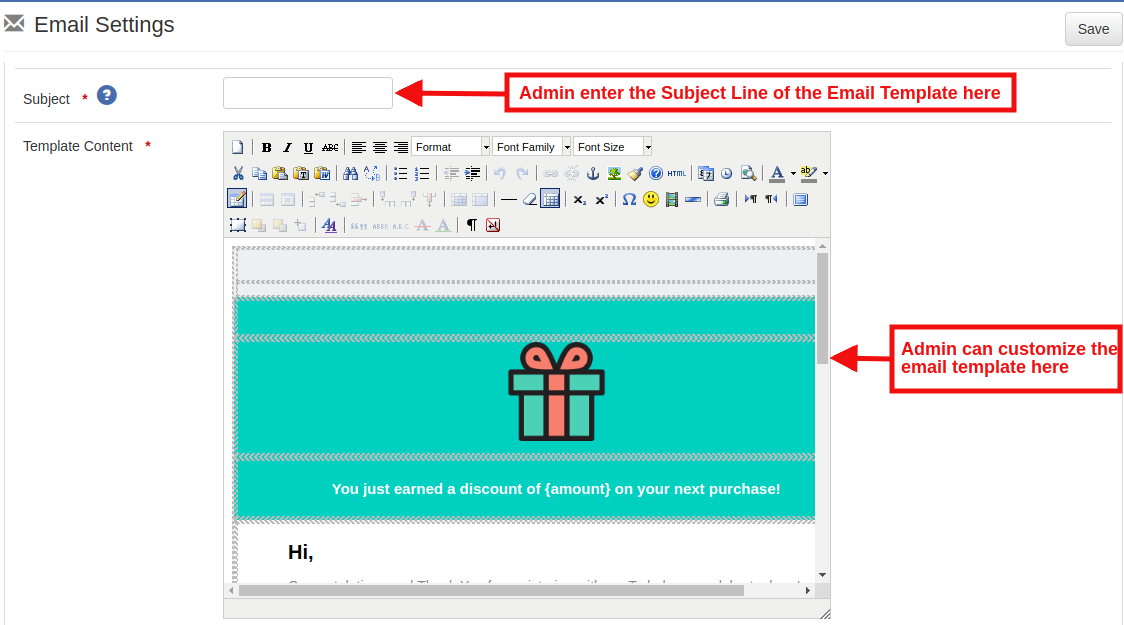
Knowband Magento Birthday coupon addon allows the store admin to customize the email template subject line and content as per need.
Magento Birthday Gift Module by Knowband offers the Country and Category restriction option. The store admin can select the country and category where they want to offer these discounts.
In Magento Birthday gift module, the Admin can view the statistics of the Birthday Coupon received by the customers.
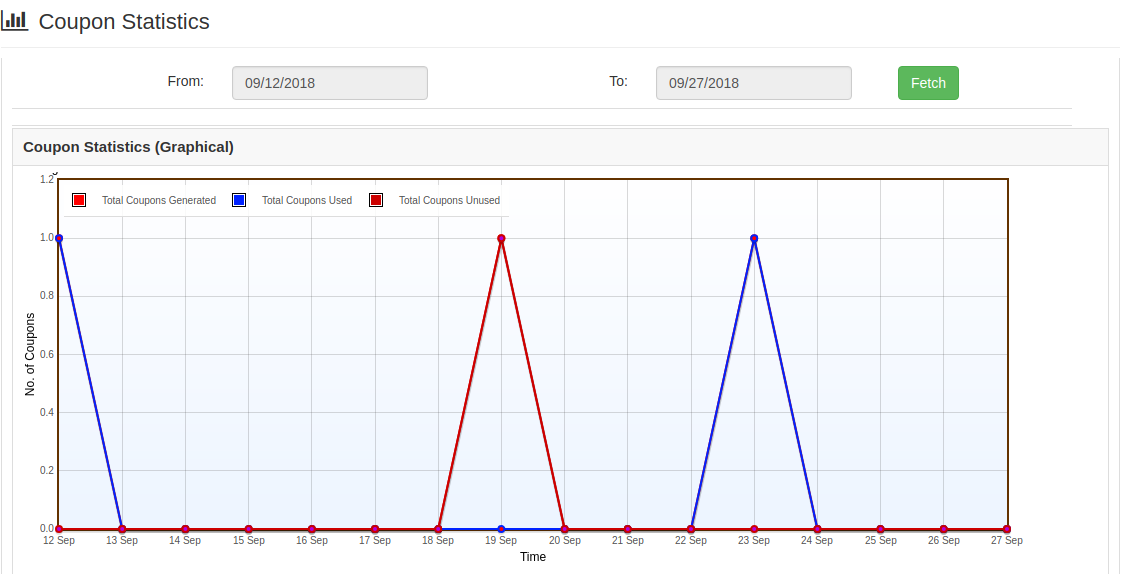
Knowband Magento Birthday Coupon Extension gives an option to the admin to view the entire report of the marketing campaign. The coupons generated and the status of the same can be viewed in both graphical and tabular form.
Magento Birthday Present Module is extremely easy to use back-end interface.
2.0 Installation
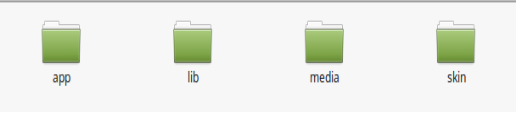
The folder structure of the Magento Birthday Coupon Module is shown below:
2. Copy all the folders into Magento root directory and clear the cash (if enabled).
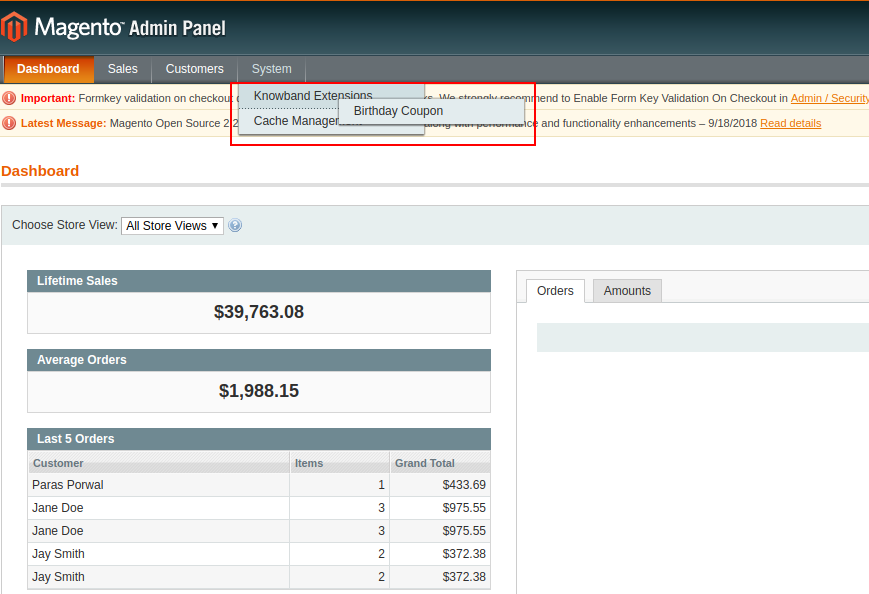
3. You will be able to find the “Birthday Coupon” option inside the “System > Knowband Extensions > Birthday Coupon”.
3.0 Admin Interface
After installing the Birthday Coupon Extension into the Magento store, the online merchant can easily manage the settings. The store owner can make basic changes in the coupons, email triggers and can even set restrictions on the offers. The various configuration options in Magento Birthday gift addon are mentioned below:
General Settings
Email Settings
Country Restrictions
Category Restrictions
User Statistics
Coupon Statistics
CRON Configuration
Each section of Birthday Present Extension for Magento is discussed in details:
3.1. General Settings
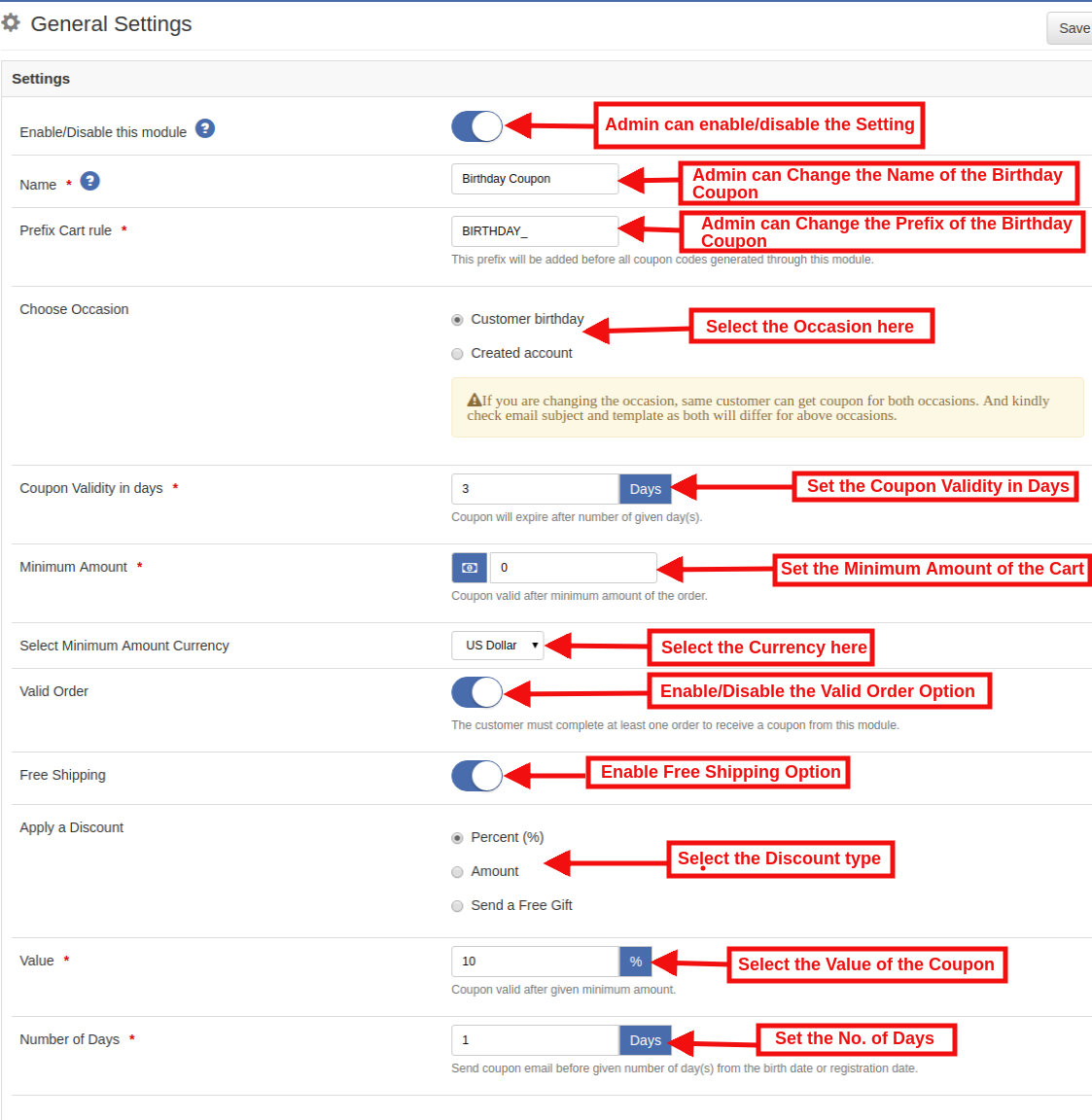
The General Settings tab of Magento Birthday coupon addon by Knowband offers the basic configuration options to the store admin. These options are listed below:
Enable/Disable the module: In this section of Magento Birthday Coupon Extension, the admin can enable/disable the birthday coupon settings.
Name: Enter the name of the Birthday Coupon. This name will be visible in the shopping cart summary as well as the invoice.
Prefix Cart Rule: In this field, the admin can set the prefix of the Birthday coupon.
Choose Occasion: In Magento Birthday gift addon, admin can select the occasion for sending the coupon. They can select anyone from the ‘Birthday Coupon’ option or ‘Created Account’ option.
Coupon Validity in Days: In this field, the store admin has to set the validity of the coupons in days.
For example, in case, the admin has set voucher validity for 10 days. Then, the discount coupon will valid for 10 days from the day the mail was sent.
Minimum Amount: In this field of Magento Birthday discount module by Knowband, the Magento store admin has to enter the minimum cart value required for the store admin to use the coupon code. Below the specified amount, this coupon code will not be applicable on the checkout page.
Select Minimum Amount Currency: The Magento Birthday Gift Extension enables the admin to select the currency from the drop-down list of the minimum amount value.
Valid Order: This validates the eligibility of the customers for availing the offers. If it is enabled, then, the customer must have completed at least one order in order to get the offers.
Free Shipping: The Admin in Magento Birthday coupon addon can select the free shipping option if they want to offers this setting.
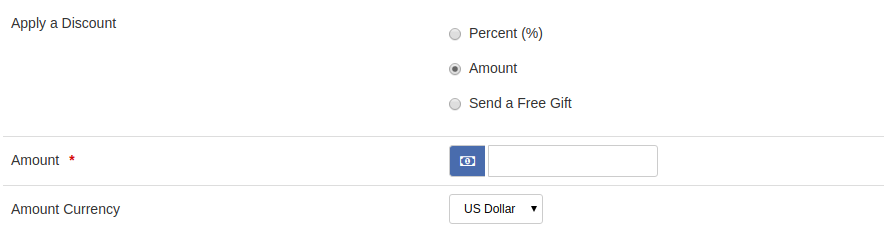
Apply a Discount: In this field, the online eCommerce merchant has to select the discount type.
Percent Discount: In this field admin can set the percentage value.
Amount: In this field of Magento Birthday Coupon Extension, the admin can set the amount option and enter the value and then select the currency in which you want to offer the discount.
Send a Free Gift: In this section of Birthday Gift for Magento, the admin can select the send a free option, after selecting this option, the admin gift a product for free to the customer. The admin can search the product as shown in the image below:
Value: The Admin can select the value of the coupon. Coupon will be valid after given minimum amount.
Number of Days: With the help of this Magento Birthday Voucher Extension, the online retailer can set the no of days before the Birthday when you want to send the email.(send coupon email before given number of day(s) from the birth date or registration date.)
3.2 Email Settings
In this tab of Magento Birthday Coupon Extension, the store admin can define the subject of the email. Even, the admin can customize the email template as per the requirement. The admin has the option to change the image and text of the email body.
3.3 Country Restriction
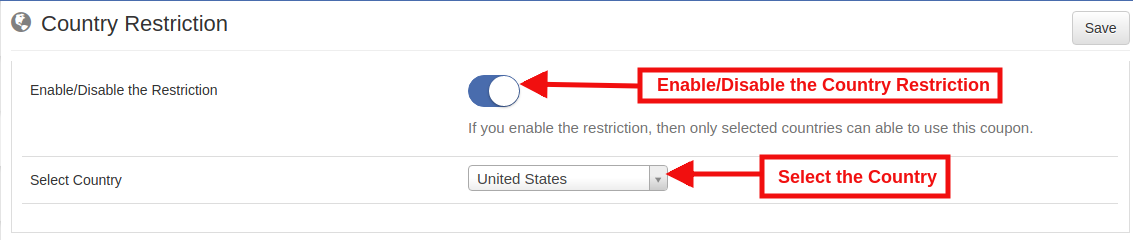
In this section of Magento Birthday Coupon Extension, the admin can select a particular country where they want to offers this option. Enable the button as shown below and select the country from the list. The offer will then be applicable for the selected countries only.
For example: If you select the Country United States the sent coupon code can be used by the customer’s only United States cities.
3.4 Category Restriction
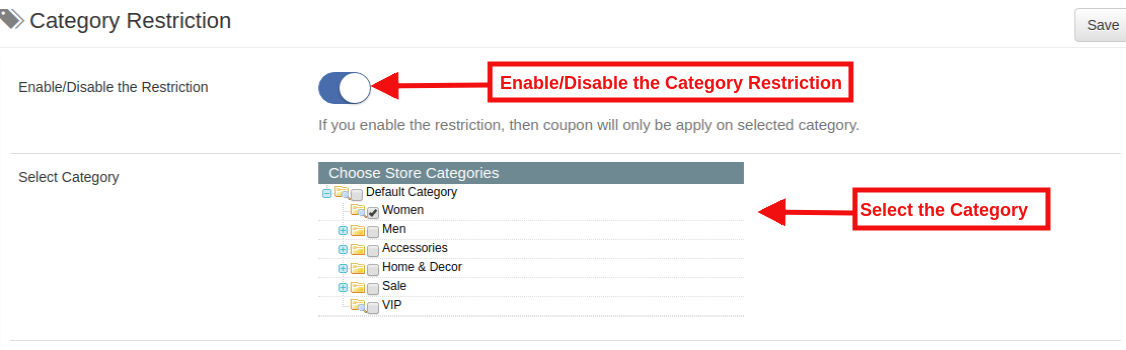
In this section of Knowband’s Magento Birthday Present Extension, the admin can select the category for coupon code validity. The coupon code offered to the customer in Magento Birthday voucher addon will be applicable to all the categories available in the site if no category restriction is applied. If the Magento store owner wants to send birthday coupon applicable to a particular category, then, they have to enable this category restriction functionality and select the desired category. The coupon will apply only to the selected categories.
3.5 User Statistics
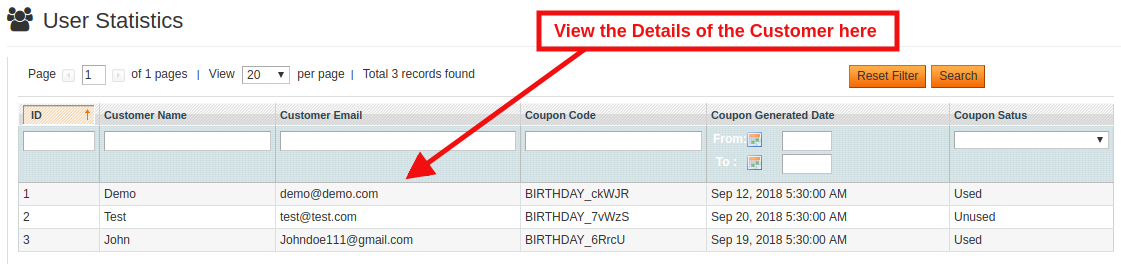
In this tab of Magento Birthday Coupon Extension, the admin can view details of the customers who have ordered on the store and used the birthday gift voucher after receiving the email.
3.6 Coupon Statistics
The Magento Birthday Coupon Module offers a detailed report of the coupon. In the admin interface of the Magento Birthday gift module, the store admin can find the entire list of the coupon generated as well as the status of the coupons in the Statistic tab. The report is generated in both tabular and graphical format.
3.7 CRON Configuration
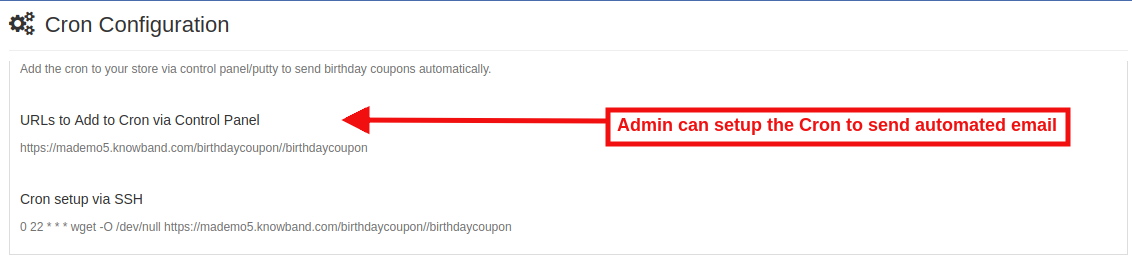
In order to automate the settings, the store can run the CRON manually.
Add the Cron to your store via control panel/putty to send birthday coupons automatically.
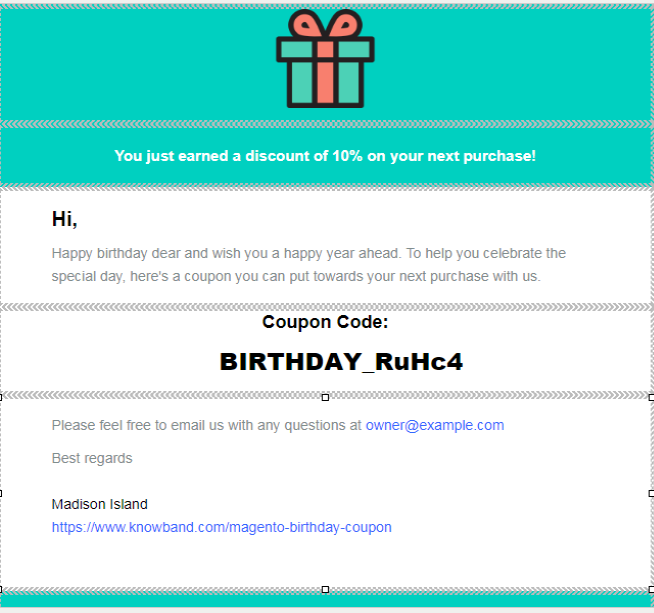
After configuring the settings, when customers registered your website at the same they fill the date of birth respective. As per the settings enabled by admin in Magento Birthday discount module, the automatic coupon code will be sent to their Birthday via email. Below find the screenshot of the Birthday Coupon email:
Note: As per the requirement store admin in Magento Birthday voucher addon can customize the email template.
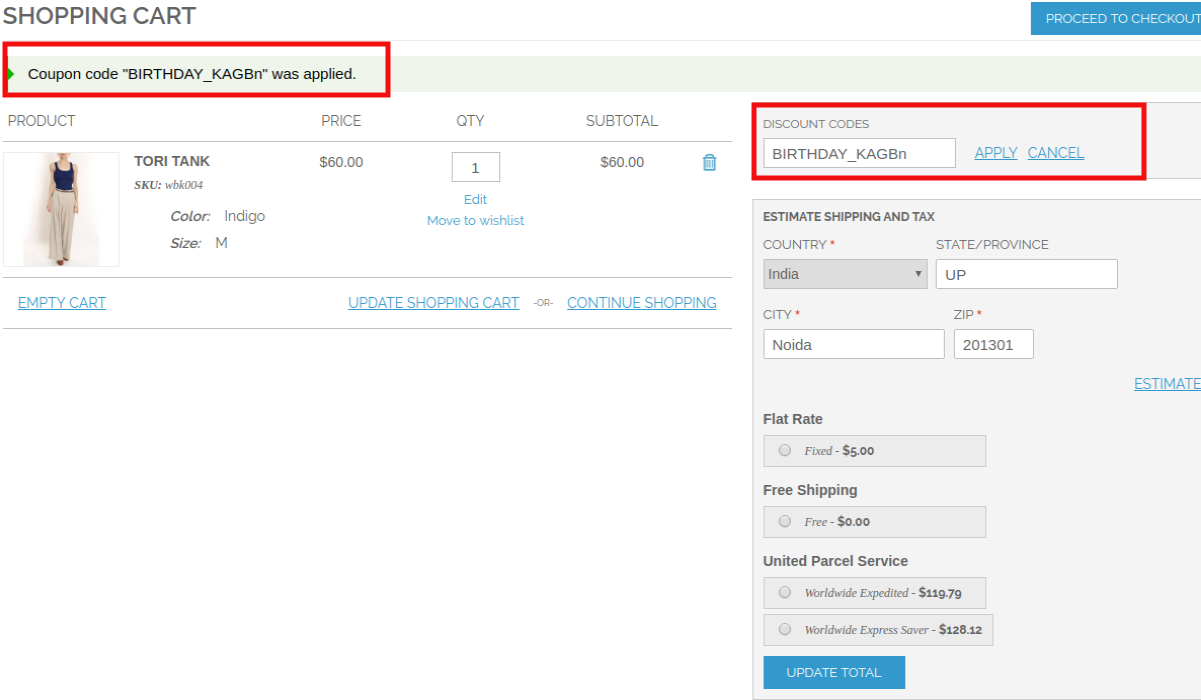
After getting the coupon the customer would like to redeem the coupon. So they can apply the coupon at the checkout page and get the discount of the total amount. Below find the screenshot:
Have you recently migrated to Magento 2.x from Magento 1.x? It’s time to build native Apps for your store. We all are aware that eCommerce mobile apps are one of the most unavoidable needs of online businesses today. So, if you are a Magento 2 store owner and planning to take your website to the Mobile platform, KnowBand has made the job simpler for you. Find out how?
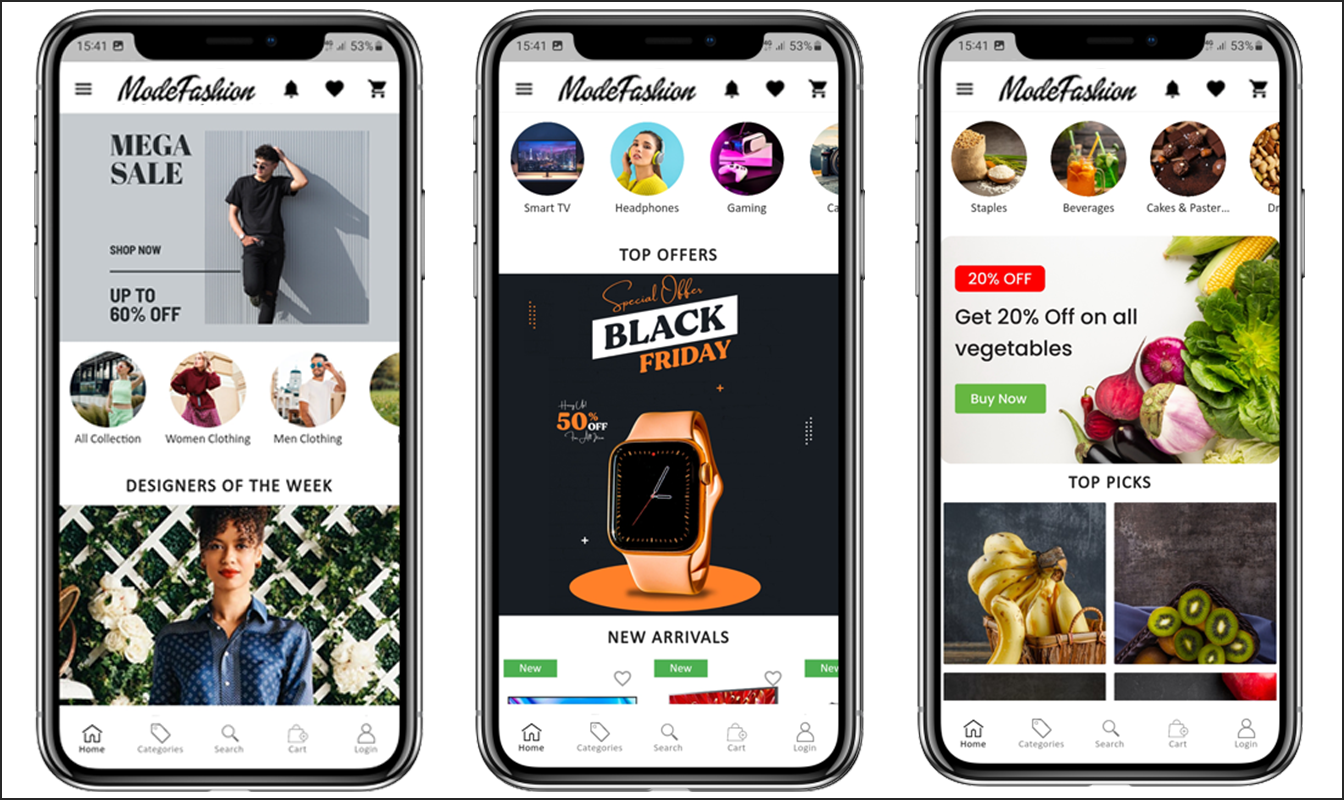
The Magento 2 Mobile App Builder extension lets you upgrade your eCommerce store into a pair of featured & flawless Mobile Apps. The fully functional Android & iOS apps developed with Magento 2 Mobile App Maker would definitely fulfill all the requirements for the growth of your store. This is the most seamless solution for mCommerce development. All you need to do is to specify your business requirements and leave the rest to our skilled development team.
The Mobile Apps for Magento 2 stores developed by this ready-to-go solution provide a flawless and reliable shopping experience to the users. This will definitely boost conversions & sales of your store.
1.1 New Updates:
a) Home Screen Layout Backend Preview:
In the latest version (v1.0.6) of Magento 2 Mobile App Creator, the store admin can preview the home screen layout there only while setting up it from the admin panel. No need to open the app, refresh every time to visualize the changes. Just design your home screen with more ease and change it whenever required.
b) Flutter Update:
We have recently updated our both Android and iOS Mobile Apps to the latest Mobile App Development technology Flutter. Now, users can experience robust speed with all the updated features.
c) QR Code/Bar Code Scanner:
Now, the mobile app users can also search their favourite data by searching via QR/Bar codes. Android and iOS App users can find the updated option on the search page.
d) Video Banner Elements:
Knowband’s Magento 2 Mobile App Builder now includes video banner components on the home page. This feature allows store admins to showcase engaging videos by uploading them directly or embedding YouTube videos, enhancing the visual appeal and user experience of the app’s home page.
e) List/Grid View:
With Knowband’s Magento 2 Native Mobile App Builder for Android and iOS, app users can seamlessly switch between list and grid views while browsing products. This feature enhances the overall shopping experience by offering a flexible and visually appealing way to explore products. Users can easily toggle between the views using the list/grid button available on the product listing pages.
f) Video/Banner Options on Category Product Listing Pages:
The updated Knowband Mobile App Maker for Magento 2 now allows store admins to enhance category product listing pages with video and banner upload options. Admins can upload videos (under 2 MB) or directly showcase YouTube videos, offering a more engaging and dynamic browsing experience. This feature provides greater UI control for the store admin while significantly improving customer interaction and experience.
g) Automated Banner Sliders:
The latest Knowband Magento 2 Mobile App Builder introduces an automated banner slider feature, enabling store admins to configure the sliding interval directly from the module backend. This functionality is particularly useful for the “Banner Horizontal Sliders” on the home page, where admins can add both video and image banners for a dynamic and engaging display.
h) Enhanced Review Section:
The Knowband mobile app offers an enhanced review section. Approved reviews are now displayed with an improved UI, providing a visually appealing and seamless experience for both Android and iOS app users.
i) Login and Sign-up Pop-up option:
Capturing the visitors’ emails is one of the biggest challenges in eCommerce. However, we have simplified this process by introducing the login/sign-up pop-up in the recent Mobile App Builder version.
The store admin can add a login pop-up that will appear for non-logged-in customers, increasing the email opt-in chances by providing simple login options to the users.
1.2 Module Installation
The steps to install the Magento 2 Mobile App Creator module are mentioned below:
The package has a zipped file that contains the user manual and the source code of the Mobile App Builder Extension. Unzip the package.
Create a folder{Magentoroot}/app/code/Knowband/Mobileappbuilder
Upload the extracted content in the above folder via FTP manager (like Filezilla or WinSCP – download here: https://filezilla-project.org/).
Now run the below commands to install the plugin:
php -f bin/magento module:enable –clear-static-content Knowband_Mobileappbuilder
php -f bin/magento setup:upgrade
php -f bin/magento setup:di:compile
php bin/magento setup:static-content:deploy
The extension is now installed and ready for use. In Admin Panel go to “Knowband > Mobile App Builder”. You can now configure and use the Magento 2 Mobile App Builder module.
2.0 Magento 2 Mobile App Demo
Before going for the purchase of the Magento 2 Mobile App Maker extension, it’s better to test our demo apps.
2.1 View Our Demo Store working on Apps
We have developed two demo apps & set us a demo store for seamless testing of the module before actual Mobile App development. Follow the steps mentioned below:
Step 1: Download and install Nautica Magento 2 Mobile Apps on your testing device. Here, are the links to Magento 2 Android & iOS Apps: Apple App Store Google Play Store
Step 2: Open the App and tap “View Demo” option. That’s it, you can easily test all the app functionalities now.
Note: To access the Admin Panel of KnowBand’s Magento 2 Mobile App Builder on our demo store, visit here.
2.2 View Your Store working on Demo Apps
Want to test your own website on these demo Mobile Apps? We even made that possible in just 3 simple steps:
Step 2: Install the Demo Apps (links in the previous section) on your mobile device. Open the App & enter your website URL in the “View Your Store” option.
Step 3: Tap “View Your Store” and start analyzing your own website working on our demo apps.
Note: This Free version of Mobile App Builder is just for the demo purpose & no APK/IPA files will be provided with this module. In order to get your own APK/IPA files, you need to purchase the paid version of the Magento 2 Mobile App Builder.
3.0 Build your own Magento 2 Mobile Apps
After successful testing of Magento 2 Mobile App Builder, build a pair of mobile apps for your website. KnowBand has made it as simple as it could get.
Step 1: Purchase & Install Module on your website.
Purchase Magento 2 Mobile App Builder & install the same on your store using your store FTP details.
Step 2: Share your App Specifications
Share some details regarding app development with us through a pre-requisite form.
Step 3: Get Your Android & iOS Apps in 1-2 days
The final APK & IPA files can be shared with you in just 2-3 days. You can review the same & suggest changes (if any).
Note: You can publish these APK/IPA files on respective app stores. Refer to the following links for the same:
If there is any issue while app publishing, we would get it done for you.
4.0 Admin Panel Screens
After the successful installation of Magento 2 Mobile App Builder, the store admin will get the following tabs for customization:
4.1 General Settings:
Enable the Extension: Enable the Magento 2 Mobile App Builder to make the mobile apps work on the user’s devices.
Redirect to Cart Page when Add To Cart: Whenever any user clicks on Add To Cart button, it will be redirected to the shopping cart screen.
Display Short Description: Enable to display of the short product description on the product screen.
Enable Request Log Reporting: Enable the error log on the mobile apps which is used to identify & rectify any abnormal behavior of the mobile apps.
Show App Preview: This option will show/hide a preview of the app.
Enable/Disable Spin and Win: If you are using Knowband’s Spin and Win module, this option will enable/disable the spin and win pop-up in the apps.
Enable Social Login: This option will enable/disable social login options in the apps.
Enable/Disable Fingerprint Login: Enable Fingerprint login on the Mobile Apps.
Enable/Disable Phone Number Login: Enable Phone Number login on the Mobile Apps.
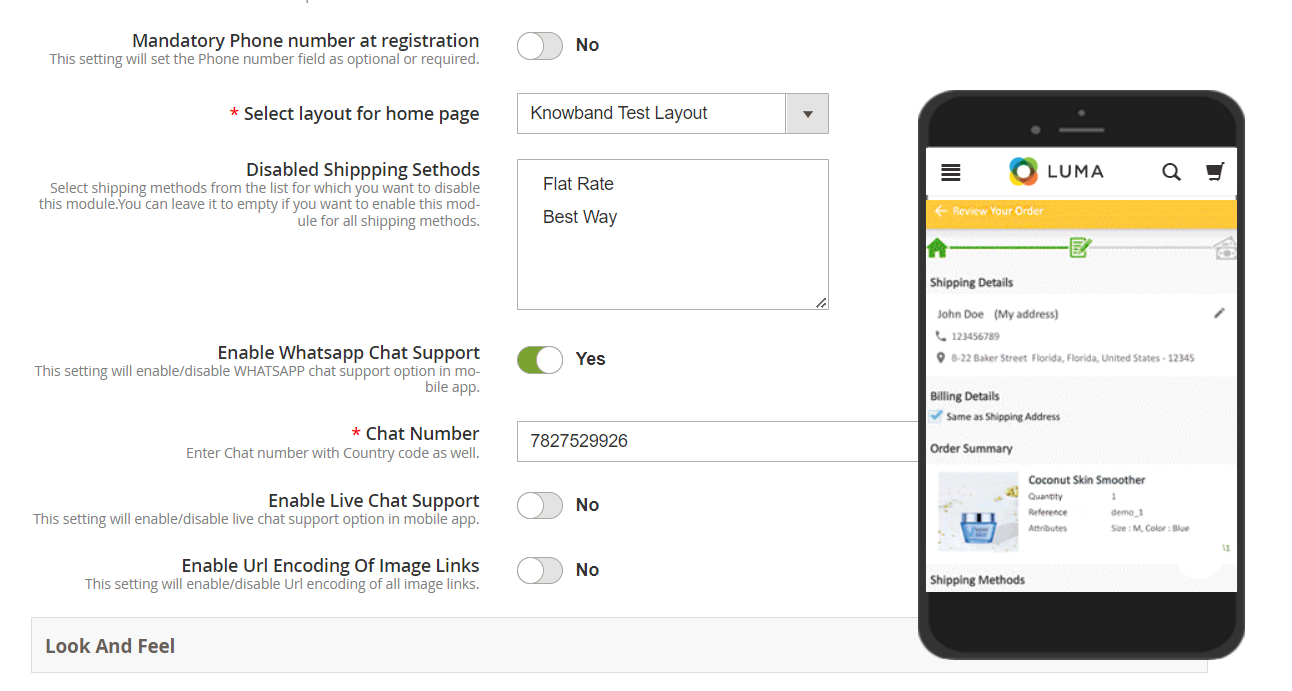
Mandatory Phone number at registration: The store admins can make the mobile number optional/mandatory by the help of the following button.
Select Layout for Home Page: Choose the desired Home Screen layout for the mobile apps.
Display Notifications in App: Show/Hide Notification tab in the app for the customers.
Enable/Disable Login Pop-up: The admin can enable the login pop-up on the home page with this button.
Disabled Shipping Methods: The admins can disable specific shipping methods for the app only from the following button.
Enable Live Chat Support: Enable/disable Zopim(Zendesk) chat option on mobile apps. You need to enter the chat API key provided along with the final apps.
Enable WhatsApp Chat Support: Enable/disable the WhatsApp chat option on mobile apps.
Enable Logo: Enable logo on your mobile apps. You can upload the logo image which will be displayed on the header of the mobile apps.
Select Font of the apps: With the help of the following button, the admins can change the fonts of both Android and iOS Apps.
App Button Color: Choose the button color for your apps.
App Theme Color: Choose the theme color for your apps.
App Button Text Color: Choose the button-text color for your apps.
App Background Color: Choose the background color for your apps.
App Icon Theme Color: Choose the app icon theme color.
4.2 Menu Settings:
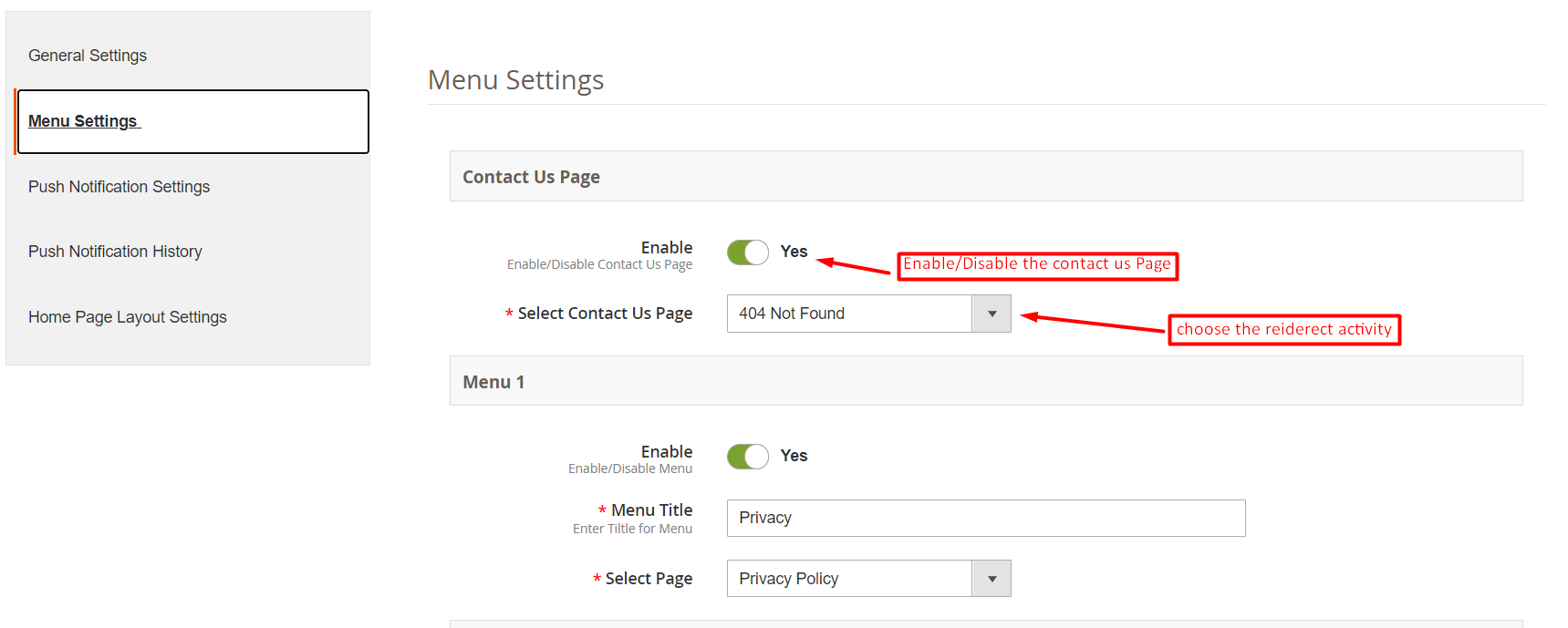
With the Menu Settings tab in Magento 2 Mobile App Maker, you can easily add and manage CMS pages on your mobile app. The Contact Us page can be enabled or disabled as per your preference, and you can also add new CMS pages to the menu. This allows you to provide your customers with easy access to important information such as your store policies, FAQs, and more. Additionally, you can customize the order of the menu items to make it easier for your customers to navigate through the app.
4.3 Push Notifications:
Service Account JSON: With the deprecation of the traditional Firebase push messaging API, it has been replaced by a Service Account JSON file. This section allows admins to configure the JSON file obtained from their Firebase account. You can either set this up on your own, or we will provide the Service Account JSON file during the app creation process for your convenience.
Order Success Notification: Configure automated Order Creation push notification which would be sent automatically to the user’s apps who successfully create an order through your app.
Order Status Update Notification: Configure Order Status Update notification which would be sent automatically to the users whenever there is an update in order delivery status.
Abandoned Cart Notification: Configure automated Abandoned Cart notification which would be sent automatically to the users who left their products in the cart.
4.4 Push Notifications History:
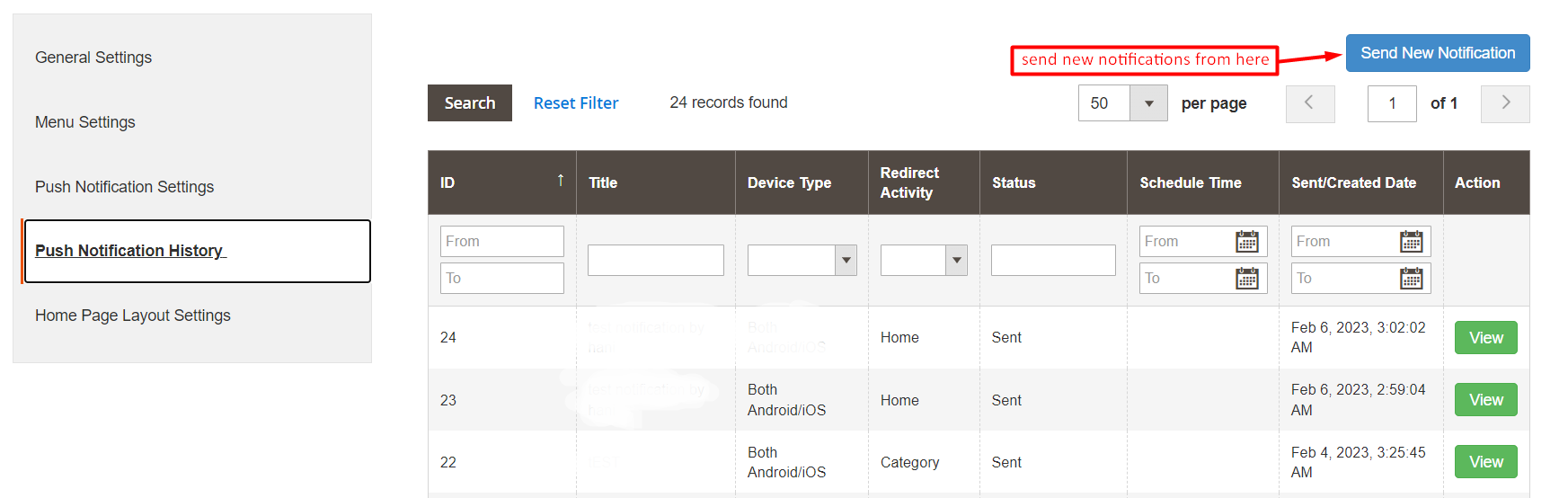
In the following tab, we have provided the option to check all the previously shared notifications along with the date and time. Moreover, by clicking on the send a new notification, the users can also send new notifications to the app users.
We have also added a special feature in the Magento 2 mobile app Builder module. Now the admins can send new notifications immediately or can also schedule them for the future.
4.5 Home Page Layout
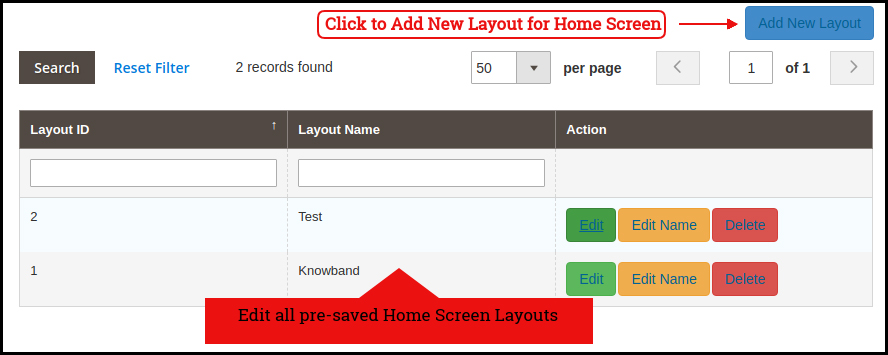
The Magento 2 Mobile App Builder offers a customizable Home Screen with all sorts of design elements in the module backend. You can create any layout for your mobile app’s Home Screen & offer it to your users.
After adding the layout, click on the Edit option & start configuring various designing attributes for your Magento 2 App Home Screen.
The store admin can configure the following design elements under the Home Page Layout tab of the Magento 2 Mobile App Builder:
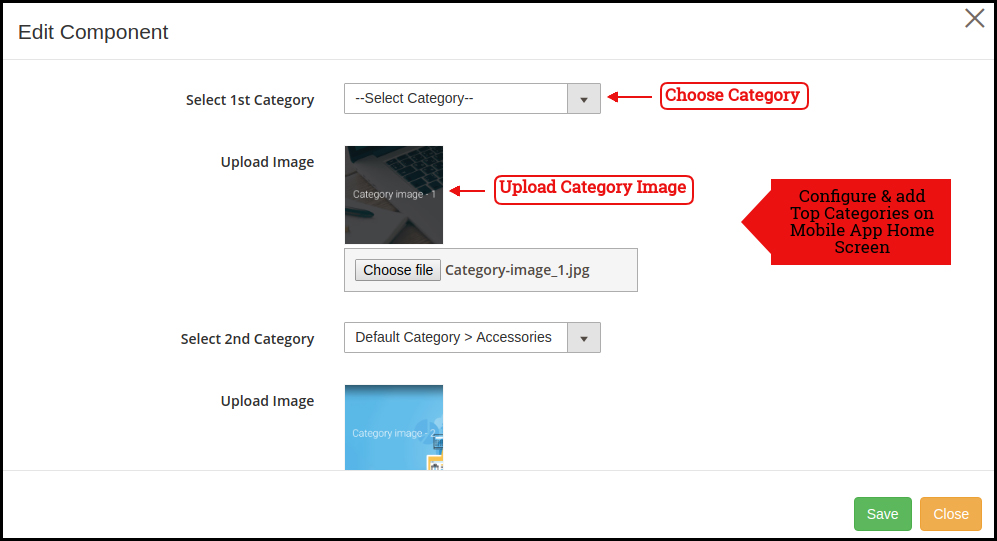
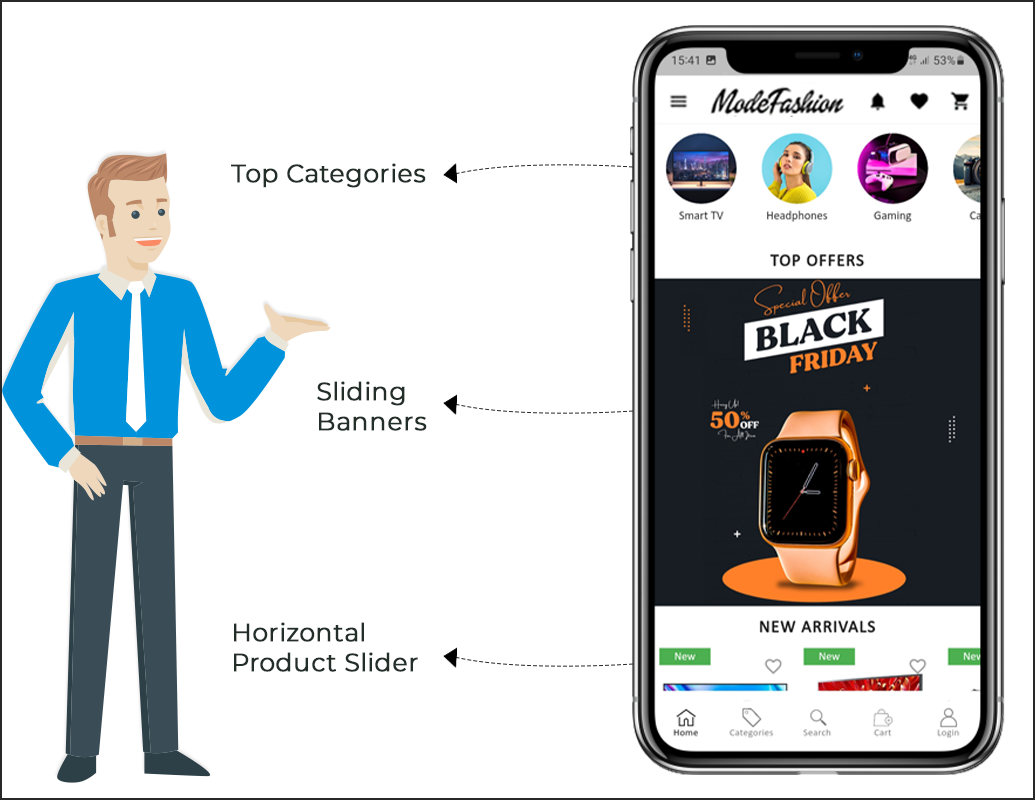
Top Categories:
These square-shaped categories can be used to highlight all the major categories of your website on the Home Screen. These categories can be added from the module backend as shown in the below snapshot:
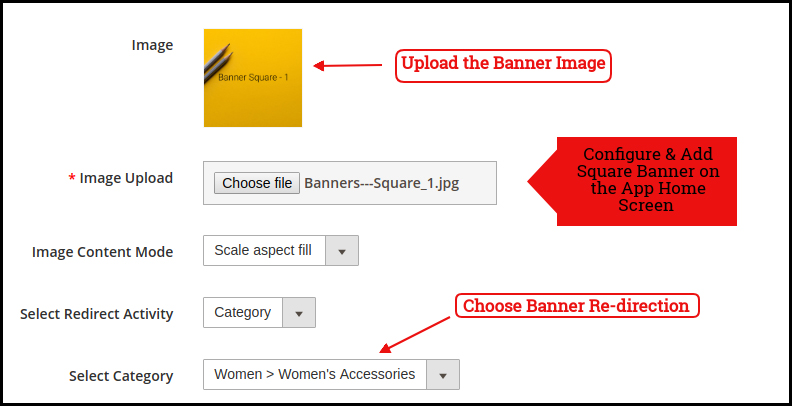
Square Banner:
The Banner can be displayed in square form on the Mobile App Home Screen. Now, the store admin can add or upload YouTube videos for the banner square layout components with the relevant options provided in the redirect activity section. The landing page, image can be configured as shown in the below snapshot:
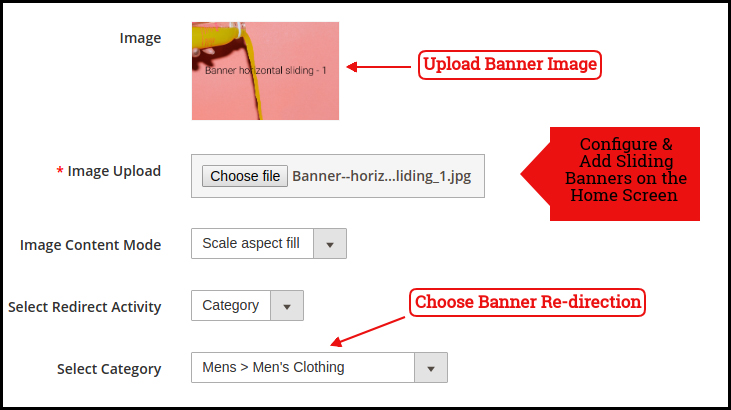
Sliding Banner:
The Magento 2 store admin can also add video elements in the horizontal sliders. We have also provided a time interval section in the recent updates that will allow the admin to configure the interval for the automated banner sliders.
The sliding banners can be displayed on the mobile app Home Screen which can be configured as shown in the snapshot below:
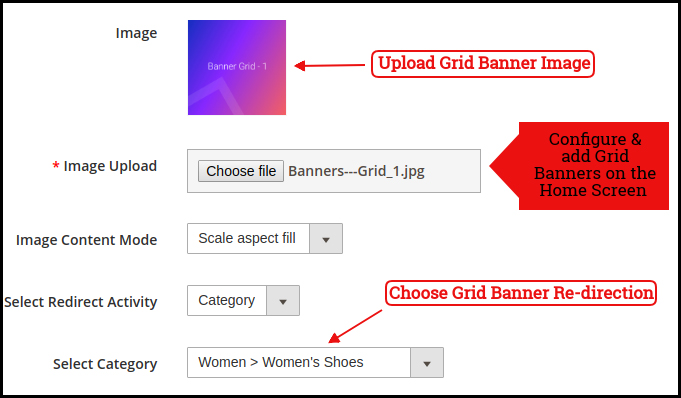
Grid Banner:
Like horizontal banner sliders, the store admin can also add videos in the grid banner layout components. These are the banners for the app home screen displayed in the form of a grid listing & can be customized as shown in the below snapshot:
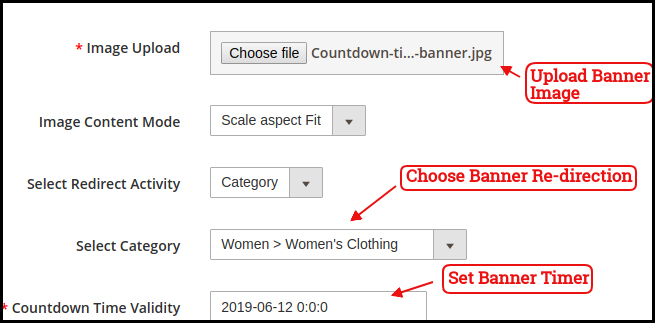
Countdown Timer Banner
Display a countdown timer banner on Magento 2 Mobile App home screens & offer a time-based/flash sale to your users:
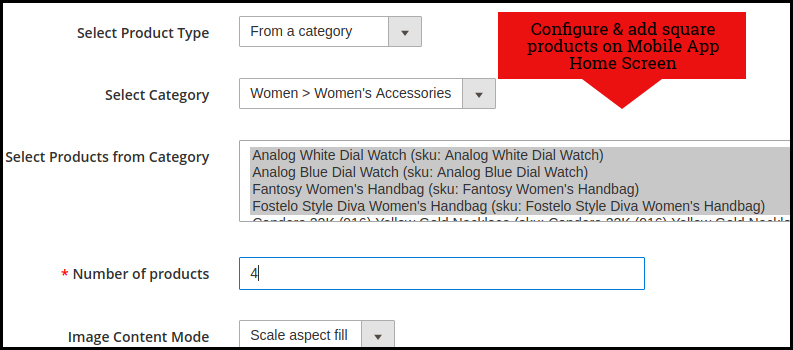
Square Products:
The products can also be listed in the square listing on the Mobile App Home Screen. This can be configured as shown in the snapshot below:
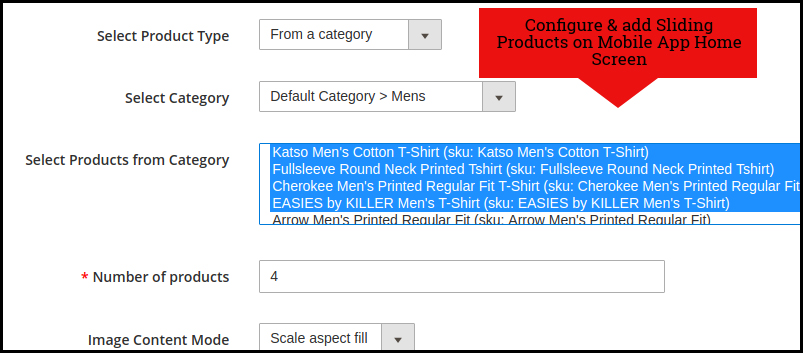
Sliding Products
The products can be displayed in the slider view on the mobile app Home Screen & can be configured from backend panel.
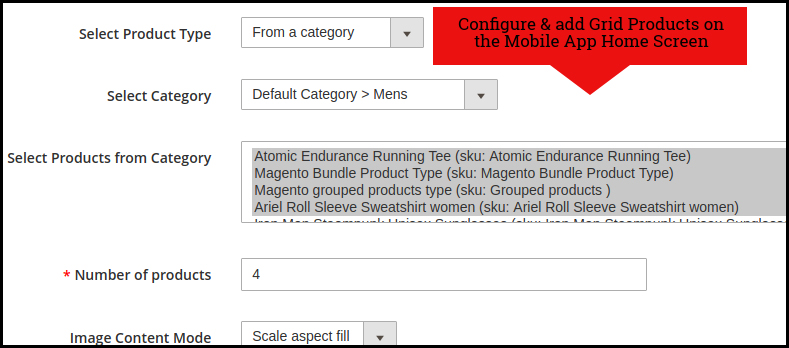
Grid Products:
The products can be displayed in the grid view on the Mobile App Home Screen:
Products Recently Accessed:
The Magento 2 Mobile App Creator offers the recent products tab on the mobile app home screen which displays recent products viewed by the user. You can just add the element in your layout to display the same on the home screen.
Login Pop-Up:
The enhanced Magento 2 Mobile App Maker comes with a login pop-up on the home page. With the help of this layout component, the admin can showcase a login pop-up on the home screen of the app. This pop-up will only appear for non-logged-in users.
Note: The store admin can add up to 20 elements while designing a layout in the backend panel.
5.0 Mobile App Screens
5.1 Home Screen:
The Magento 2 Mobile App Builder brings the complete flexibility to design the mobile app Home Screen on your own. The Android & iOS mobile apps can be designed from the backend panel using the following designing attributes:
–> Top Categories
–> Square Banners
–> Sliding Banners
–> Grid Banners
–> Square Products
–> Sliding Products
–> Grid Products
–> Countdown Timer Banner
–> Recently Viewed Products –> Login Pop-Up.
–> Video Banner Elements
–> Enhanced Review Page.
The positioning of all the elements can be changed with a simple drag & drop.
a) Dynamic Layouts: Create & save various alluring & intuitive layouts in the backend & change your app’s look & feel in just one click.
b) Store Logo: Add your store logo image in the module backend & display the same on the header of the apps.
c) Search: The Magento 2 Mobile Apps have keyword search options that allow users to search for products without any hassle. Along with Keywords, the users can also search products via QR and Bar code scanner.
d) Wishlist: Wishlist option in Magento 2 Mobile App lets you bookmark the desired products for future purchases.
e) Shopping Cart: The users can easily access the shopping cart from the top-right corner of the home screen.
f) WhatsApp: The Magento 2 Mobile App Maker offers two live chat options in mobile apps with Zopim & WhatsApp. The app users can directly message you regarding any issue or query regarding purchase.
g) Login-in Pop-up: We have recently introduced the all new login-signup pop-up in Magento 2 Android and iOS Apps. If the customer is not logged in, he simply complete the login/signup buttons provided under the sing-up pop-up.
5.2 Accordion Menu (Navigation Bar)
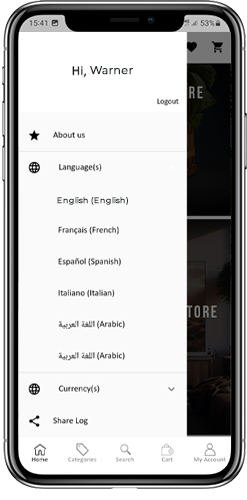
The Magento 2 Mobile App Maker offers an Accordion Menu in the mobile apps which displays the store categories on the Mobile Apps. Your app users can easily browse all the categories from this menu & access all CMS pages. This menu has the following options:
Categories: All sorts of categories on your store are fetched on the Android & iOS mobile apps as well. The apps even offer a multi-level categorization & allow the users to browse products with ease.
CMS Pages: All CMS pages on your store like About Us, Contact Us, Terms & Conditions, etc will be displayed on this Menu.
Language(s): The Magento 2 eCommerce Mobile Apps are both multi-lingual & RTL languages supported. The users can choose the desired app language & the entire app contents will be translated accordingly. Every sort of language available in the store is displayed here under this menu.
Currency(s): Just like multiple languages, all sorts of currency options running on your website will be displayed in Magento 2 Mobile Apps. This allows app users to make payments with the desired currency option.
5.3 Category Screen:
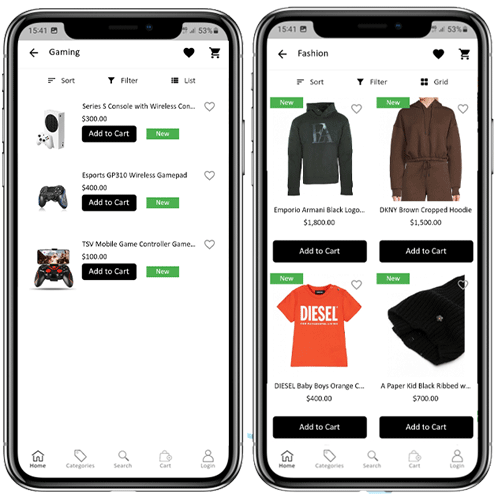
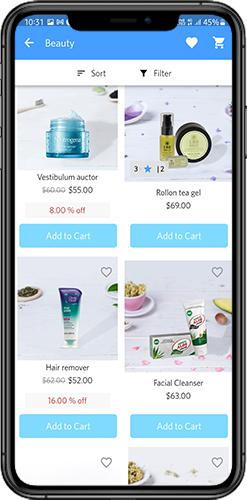
All categories on your Magento 2 website are fetched on the Magento 2 Mobile Apps as well. The category screen of the Magento 2 Mobile App has two views: Grid & List view. This screen has the following options:
Grid & List View:
The products can be displayed in both grid & list view.
Sort:
The sort option in Magento 2 Mobile Apps allows the users to view products in the Low to High or High to Low categories.
Filter:
Filter down the category products with various attributes like price, cost, etc. & search for desired products without any effort.
5.4 Product Screen:
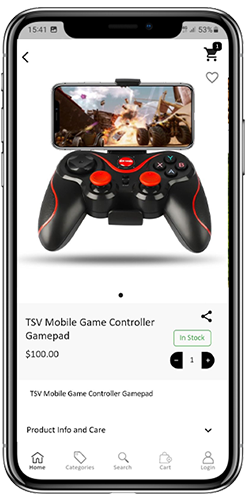
The Magento 2 Mobile App product screen is completely clutter-free & appealing. Every product has multiple images displayed along with its name & price. The product availability is also displayed as “In Stock” or “Out Of Stock” along with the price discounts. The Product Screen has the following options:
Product Options:
Various options related to the product like size, color, etc. are displayed on the product screen. These options are the same as those available on your website.
Short Description:
Users get to read the short description of your product to quickly make up their minds. The Magento 2 Mobile App displays both short & full descriptions of the products.
Product Info & Care:
All the information related to the specific product is displayed in this section. This is the same information as on the website.
Add To Wishlist:
The users can even add the products to the wishlist bag from here. The products added to the wishlist are bookmarked for future purchases.
Add To Cart:
The Add To Cart button allows you to add products to the cart which can be processed further in successful order creation.
Product Social Sharing:
The Magento 2 Mobile App has the option to share the products on different social platforms, Bluetooth & e-mail. The users can share the products with their friends & relatives & bring potential users to your store.
5.5 Wishlist Screen:
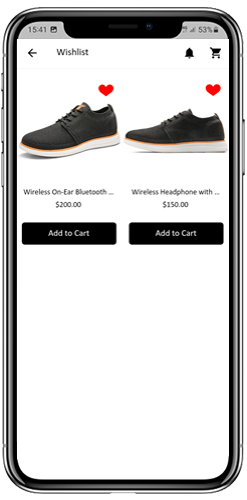
The Magento 2 Mobile App Builder offers a wishlist bag allowing the users to bookmark products for future purchases. The app users can view the list of all wishlist products from this screen. It has the following options:
Add To Cart:
The app users can add the wishlist product directly into the shopping cart with Add To Cart option.
Remove From Wishlist:
The users can even remove any wishlist product with a remove option if required.
5.6 Login Screen
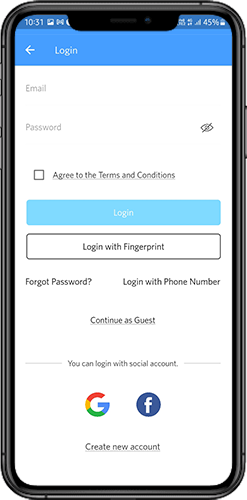
The Magento 2 Mobile App Maker offers various one-tap login with the following options:
1. E-mail Login
2. Google & Facebook Login
3. OTP & Fingerprint Login
Login:
The Magento 2 App users can authenticate & access using e-mail sign-in credentials.
Sign Up:
All the new users can sign-up & create their account on the store from the mobile App. The sign-up form for the Magento 2 Mobile App is fully seamless.
Login with Phone Number:
Your Magento 2 Mobile App comes up with a phone number login option allowing the users to verify OTP.
Login with Fingerprint:
Your app users also get an option to log in with a fingerprint. This biometric authentication makes the app log in just a matter of a few seconds.
Login with Facebook:
The users can log in to mobile apps using their Facebook Account Credentials.
Log in with Google+:
The users can log in to the app using their Google+ Account Credentials.
5.7 Shopping Cart Screen:
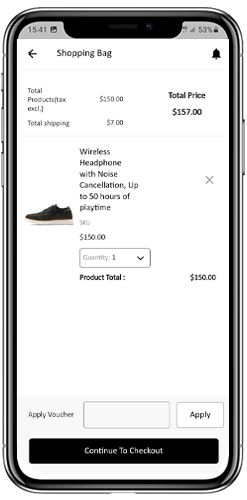
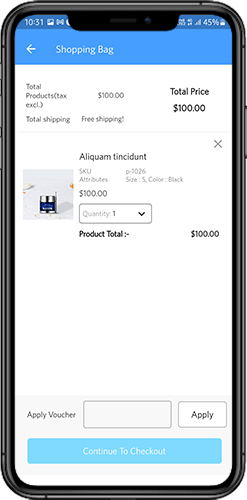
The Shopping Cart screen of the Magento 2 Mobile App will display all products added to the shopping cart. The mobile app users can view Product name, quantity, total price & shipping cost from the cart. The Shopping Cart screen has the following options:
Apply Voucher:
This option allows the users to get discounts & offers by entering valid coupons & vouchers running on your website.
Total Product Price:
The users can view the complete cost of their shopping bag which is automatically updated as per any addition to the cart.
Update Product Quantity:
The users can even update the specific product quantity.
Remove Product:
The app users can simply remove the product from the cart.
Continue Shopping:
The app users can leave the cart to browse more products on your app. The shoppers will be redirected to the home screen by tapping the Continue Shopping option.
Continue To Checkout:
The app users can proceed further to the checkout & payment screens just by tapping the “Continue To Checkout” option. It will redirect users to the checkout screen.
5.8 Checkout Process
The Magento2 mobile app Builder consists of a simplified checkout process. The front-end mobile app users have the option to select shipping details, billing details, order numbers, order comments, and so on in the checkout process of the mobile app.
Users of the Android and iOS apps only need to follow a few simple steps to place their orders.
1. Customers can select the desired product and add it to the shopping cart. After clicking on the shopping bag, he or she can also select the desired product quantity. Moreover, the front-end mobile app users can see the total number of products and shipping costs.
The customer also has the option to apply any voucher and coupon code at the bottom of the same page.
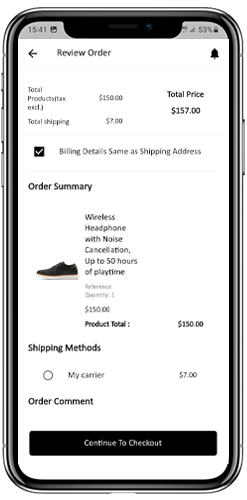
2. After clicking on the Continue to Checkout option, the user can review the order where he or she can see several details. Such as product price, shipping cost, shipping address (It can be edited on the same page), order summary (Number of the products), total price, and so on.
Additionally, the customer has the option to select their preferred mode of shipping on the same page. The user can also put his or her special request or requirement in the order comment option appearing at the bottom of the screen.
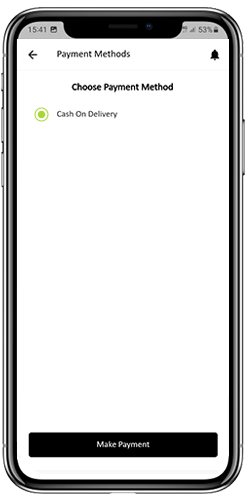
The user will be redirected to the payment method screen after clicking on the continue to checkout option.
On this screen, users have the option to select from all of the website payment options. By default, the shopping app consists of a cash-on-delivery option as a mode of payment.
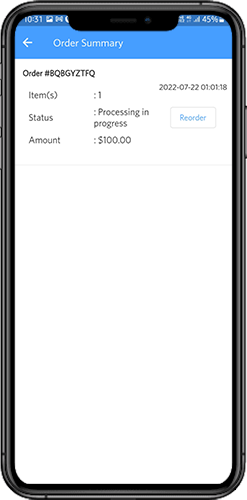
When the user performs the payment activity, then he or she will be redirected to the order summary screen. where the customer can see the order status, order number, amount, and so on. The front-end mobile app users will get the order confirmation popup message on their mobile phone screens as well.
5.9 My Account Screen
My Account screen of the Magento 2 Android/iOS App allows the users to view the complete account details including a list of all previous orders. This screen has the following options:
Order History:
The users can view the complete details of their past orders, including the date of submission, order reference, pricing, and delivery status.
Update Profile:
The users can update their profile details, such as their first and last name, phone number, and password, using the app’s account settings.
Shipping Address(s):
The users can view all the saved shipping addresses in the Magento2 Mobile App, and they can also add a new shipping address from this screen.
Order Details:
The Magento2 Mobile App allows users to view their order history in the app. The users can see a list of all their previous orders, along with the order date, order number, order status, and total cost. They can also view the details of each order, including the products ordered, shipping and billing address, payment method, and delivery status. This feature makes it easy for users to keep track of their past purchases and reorder products if needed.
6.0 Order Detail Screen
The Order Details screen in your Magento2 eCommerce App displays the complete order details, including the shipping address, product summary, shipping and payment method, and total cost summary. The app users can track the delivery of previously placed orders directly from this screen, providing them with a hassle-free shopping experience.
7.0 Advanced Magento 2 Marketplace with Mobile App
KnowBand’s Magento 2 Marketplace converts your online website into a fully-fledged marketplace. The Magento 2 Mobile App Builder is fully compatible with Magento 2 Marketplace extension. This means you can bring the entire marketplace listing on the same Magento 2 Mobile Apps. Thus, launch a pair of Marketplace-compatible Mobile Apps with KnowBand & attract a large base of sellers & customers to your store.
–> As the user clicks on the Seller option, he/she is redirected to the Seller page of the mobile store. The user can view the list of the sellers in the marketplace along with their ratings.
–> The customers can click on the name of the seller in order to see his profile and the product being offered. The sellers can log in with their username and password. They are then redirected to the dashboard.
Get to know more about Magento 2 Marketplace with Mobile App from here.
That’s it! For More Info on KnowBand’s Magento 2 Mobile App Builder, refer the following links:
Google was fined over the allegations of misusing the power for creating their dominance in the market. Google had been accused of pushing the users to its search engine with the motive to enfeeble its competitors. EC said that the company had been imposing illegal restrictions on Android device manufacturers for very long time to cement its dominant position in the search.
It was even said, back then, that the company has made various illegal dealings with different Android smartphone manufacturers by paying them. But, the search engine has always been in a denial to all the allegations. Google’s spokesman Al Verney even quoted, “Android has always provided more choice for everyone, not less“. Indian origin Google CEO urged that the company has always allowed the developers to make a living through the platform.
What is the Google’s take now?
On Tuesday 9th October 2018, Google said, “We have now filed our appeal of the EC’s Android decision at the General Court of the EU“. Now, Google is counter attacking this fine by making an appeal in the European Court.
Closing thoughts
This fight between the European Commission and Google does not seem to be getting anywhere near a conclusion. The lawsuit is getting complex day by day and looks like neither of the parties are going to leave it without a fight. A final appeal in the lawsuit may occur at European Court soon.
PayU is an online payment method that is highly popular in the eCommerce industry. The rise in popularity of PayU money is the main reason why every eCommerce store merchant is looking to integrate this payment mode into their store. Thus, PayU is one of the fast & secure payment gateways.
The users can easily complete their transaction process with the PayU payment method. So, Let’s find out the advantages of the PayU payment mode.
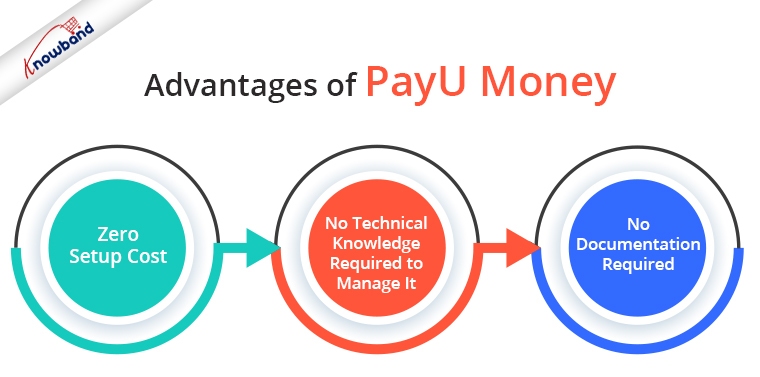
Advantages of PayU Money
Zero Setup Cost.
No technical knowledge is required to manage it.
No documentation is required to use PayU money as a payment gateway.
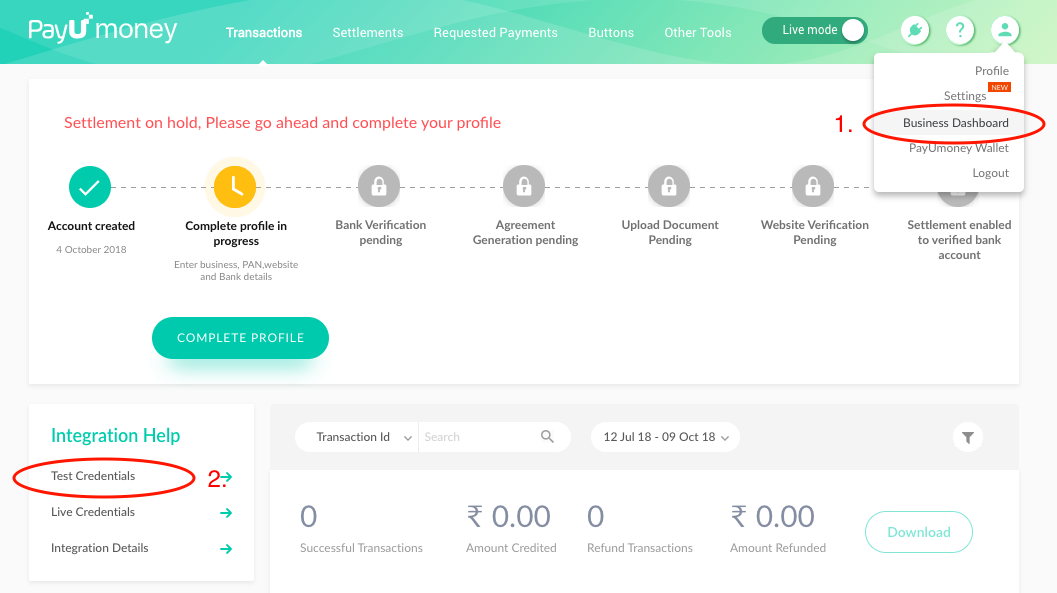
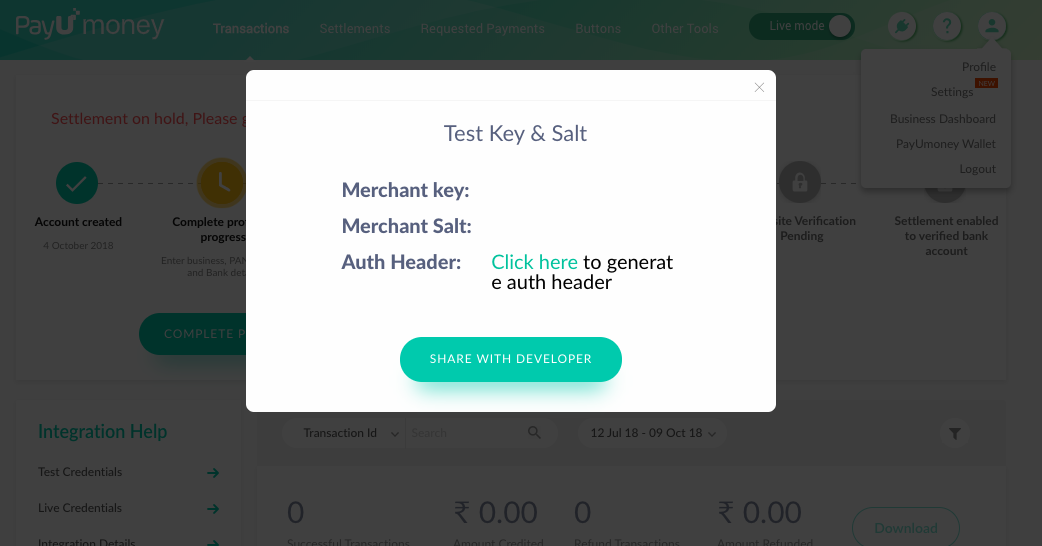
2. You can find your PayU Test Key & Salt in Business Dashboard. Check the below screenshots reference.
3. You have to download Payu SDK by using the command “$ git clone –recursive https://github.com/payu-intrepos/PayUMoney-IOS-SDK.git” in the terminal. We need Payu Frameworks from this SDK. However, it may fail sometime but it will work. For instance, for me, it failed 8-9 times.
error: RPC failed; curl 18 transfer closed with outstanding read data remaining
fatal: The remote end hung up unexpectedly
fatal: early EOF
fatal: index-pack failed
fatal: clone of ‘https://github.com/citruspay/citruspay-ios-sdk.git’ into submodule path ‘/Users/mac/Desktop/PayUMoney-IOS-SDK/Dependencies/CitrusGraphics’ failed
Failed to clone ‘Dependencies/CitrusGraphics’. Retry scheduled
Cloning into ‘/Users/mac/Desktop/PayUMoney-IOS-SDK/Dependencies/CitrusGraphics’…
error: RPC failed; curl 18 transfer closed with outstanding read data remaining
fatal: The remote end hung up unexpectedly
fatal: early EOF
fatal: index-pack failed
fatal: clone of ‘https://github.com/citruspay/citruspay-ios-sdk.git’ into submodule path ‘/Users/mac/Desktop/PayUMoney-IOS-SDK/Dependencies/CitrusGraphics’ failed
Failed to clone ‘Dependencies/CitrusGraphics’ a second time, aborting
OR
Also, You can download the required frameworks from this link.
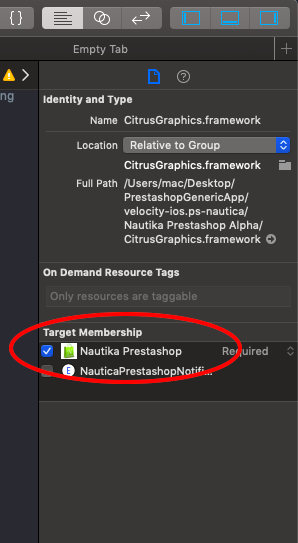
4. Open your Xcode project. Move PayUMoney-IOS-SDK/Dependencies/CitrusGraphics/Framework/graphics-sdk/CitrusGraphics.framework into your project. Then, remember to select Add to Targets when moving into the Xcode project.
Next, move PayUMoney-IOS-SDK/CoreSDK/PayUMoneyCoreSDK.framework into your project. After that, add to Targets when moving into the Xcode project.
Then, move PayUMoney-IOS-SDK/PlugNPlay/PlugNPlay.framework into your project. Next, add to Targets when moving into the Xcode project.
5. Note:
If you missed to add targets or you are getting an error that these files are missing or in case you get an Apple o linker error for these files then adds “Target Memberships” to these frameworks.
6. Add the below line in the podfile –
# For payu integration
pod ‘PayUmoney_PnP’
# For hash creation
pod ‘CryptoSwift’
7. Run command – pod install
8. After pod installation is complete make sure that you are using “project.xcworkspace” Xcode project.
Note: Please don’t use “project.xcodeproj” Xcode project.
9. To use Objective C code in Swift we need to create a Bridging header. First, you can create a new Bridging header manually and add it to Build settings > Objective -C Bridging Header.
OR
Also, you can create a new C file ( .m file or .h file). It will automatically create a new bridging header.
10. Generally Bridging Header file will be empty. You can add the below code in Bridging Header either at the bottom or at the top of the file –
#import <PlugNPlay/PlugNPlay.h>
11. Import the CryptoSwift library into your controller. import CryptoSwift
Note: There are chances that you don’t get “CryptoSwift” in the import suggestion. Don’t worry, you can manually type the same code shown above.
12. The function below in your ViewController class where from which you will initiate the PayU transaction.
* Below code is used to create a formatted hashString from the Payu Transaction parameters
* **Author:** Asharma
* **Date:** 09-Oct-2018
*/
let hashString = “\(txnParam.key!)|\(txnParam.txnID!)|\(txnParam.amount!)|\(txnParam.productInfo!)|\(txnParam.firstname!)|\(txnParam.email!)|\(txnParam.udf1!)|\(txnParam.udf2!)|\(txnParam.udf3!)|\(txnParam.udf4!)|\(txnParam.udf5!)||||||\(kMerchantSalt)”
/*
* Below code is used to create dynamic hash from hashString
* **Author:** Asharma
* **Date:** 09-Oct-2018
*/
let data = hashString.data(using: .utf8)
txnParam.hashValue = data?.sha512().toHexString()
PlugNPlay.presentPaymentViewController(withTxnParams: txnParam, on: self) { (response, error, extraParam) in
print(“response”)
print(error)
}
}
13. When you want to start a PayU transaction, you can call the setupPayu() function. Then, either on the tap of a button or inside another function.
Example: I have created a button on my project. Created an IBAction of the button. This IBAction is a function that will be called on the tap or button that I created.
@IBAction func onTapBtnPay(_ sender: Any) {
setupPayu()
}
14. You have completed the integration part of PayU integration.
Create your eCommerce mobile app with Knowband’s mobile app builder and integrate PayU just by following these below simple steps. With KnowBand’s eCommerce Mobile App Builder, you can create and release a pair of fully native Android and iOS apps for your eCommerce website.
You may start selling on mobile devices and draw a global audience to your store with the help of our feature-rich eCommerce Mobile App Builder solution. As a producer of eCommerce mobile apps, Knowband is a well-known brand. Our major goal is to build strong, yet simple to use, eCommerce mobile apps that may provide any eCommerce enterprise with a competitive edge. The eCommerce Mobile App Builder from Knowband enables you to design a user-friendly environment and makes it simpler for e-merchants to reach their consumer base. Every handheld device is totally compatible with the lightweight, straightforward applications offered by the eCommerce mobile app provider.
4. Add the below line into the podfile and install pods.
# Pods for Apple Pay Demo
pod ‘Stripe/ApplePay’
5. After pod installation, make sure that you are using “project. xcworkspace”.
Note: Please don’t use “project.xcodeproj”
6. Add the below code at the top of your Controller class to import pod libraries. There are chances that you don’t find these SDKs in the suggestion. Don’t worry it will take some time. Or you can type the code manually.
import Stripe
import PassKit
7. Extend your view controller class with the “PKPaymentAuthorizationViewControllerDelegate” class.
class ViewController: UIViewController, PKPaymentAuthorizationViewControllerDelegate
8. Add the below code in your controller class.
var paymentRequest: PKPaymentRequest!
var transactionId = “”
var status = “”
var amount = 100
/**
* This function is called on tap of the ApplePay Payment option on Payment Page.
let item = PKPaymentSummaryItem(label: “Order Total”, amount: NSDecimalNumber(string: “\(amount)”))
paymentRequest.paymentSummaryItems = [item]
let applePayVC = PKPaymentAuthorizationViewController(paymentRequest: paymentRequest)
applePayVC.delegate = self
self.present(applePayVC, animated: true, completion: nil)
}
else
{
// Notify the user that he/she needs to set up Apple Pay on the device
// Below code calls a common function to display an alert message. You can either create an alert or can just print something on console.
CommonMethods.displayAlert(message: “Apple Pay is not available on this device.”, viewController: self)
print(“Apple Pay is not available on this device”)
}
}
/**
* This function is called when Apple Pay payment will be authorized.
{
// Payment token can be found like this
print(payment.token)
// Get response from the server and set the PKPaymentAuthorizationStatus
let status = PKPaymentAuthorizationStatus(rawValue: 0)!
9. You can call the function setup apple pay() whenever you want to start an Apple Pay transaction. Either you can call the same function in viewDidLoad() or you can call this function with the tap of a button.
Example: In the case of a button tap, you need to add a button in UI, and draw the IBAction of the button. IBAction is a function that will be called on a tap of the button from which is referenced. In this action, you can call this function.
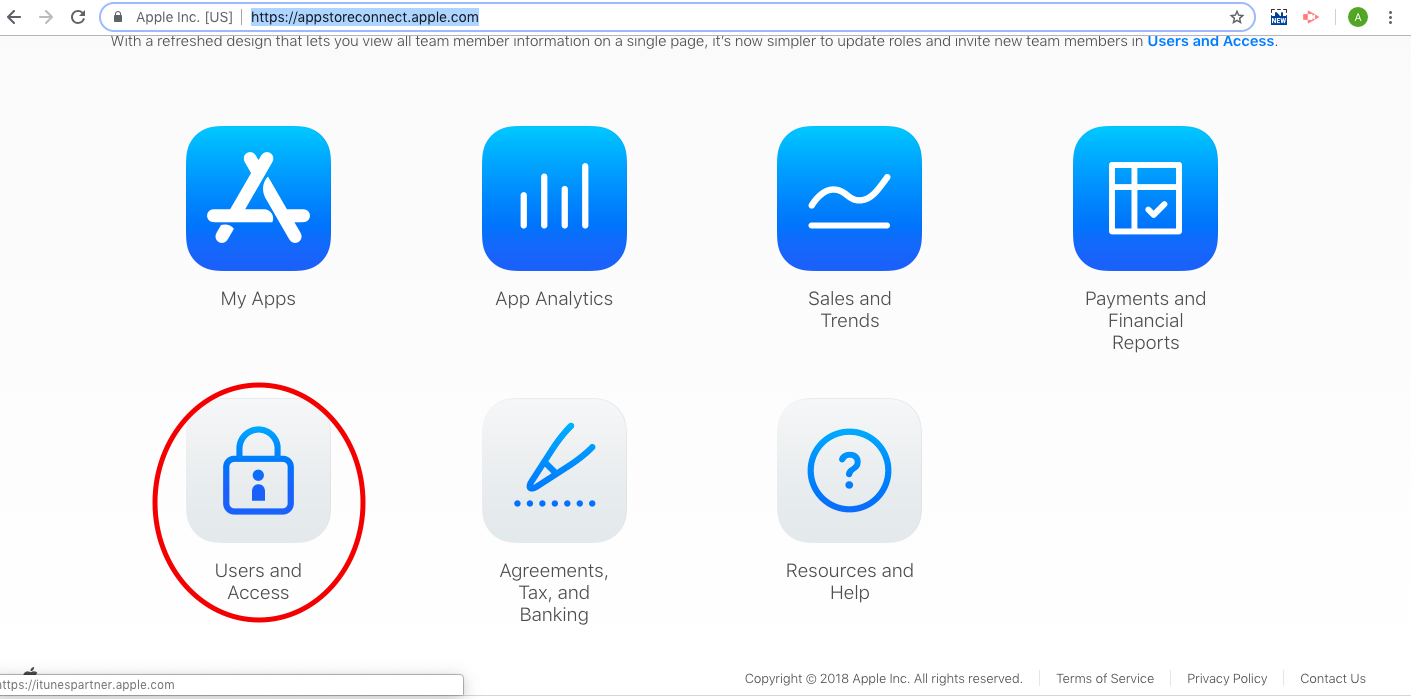
a) Login to https://appstoreconnect.apple.com/
b) Select Users and Access.
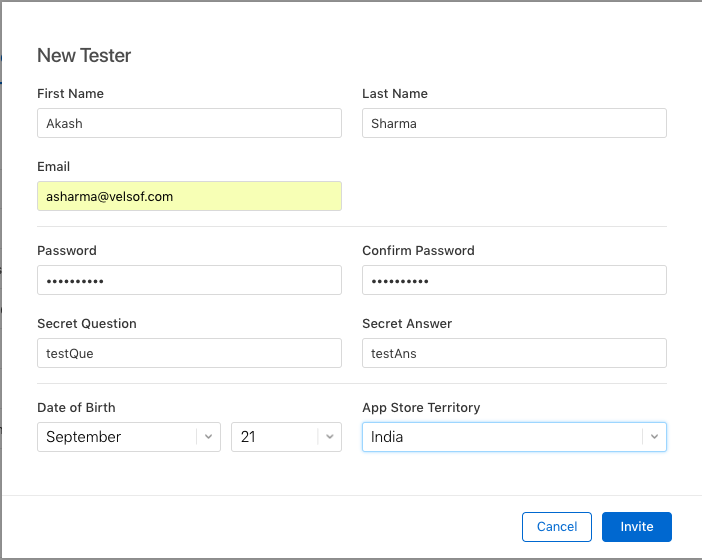
c) Go to the testers section in the left navigation menu. Then click on the “+” button.
d) A popup will appear. Please fill out that form.
Note: Please use mail that is not registered with Apple.
f) Sign out of your Apple ID on all testing devices and sign back in with your new sandbox tester account.
2. Adding a test card number :
a) Make sure you have logged out from iCloud and iTunes.
b) Sign into your test device using the sandbox tester account you created.
c) Add a sandbox card.
Example :
FPAN: 4761 1200 1000 0492
Expiration Date: 11/2022
CVV: 533
You can find more cards here.
Note: The issue you might face is that the card will not be added. It will show some errors. Possible resolution maybe – you might have not logged out of the device completely. Please log out from iCloud and iTunes.
d) After adding the card, you can proceed with the Apple Pay transaction.
Wrap UP
Create your eCommerce mobile app with Knowband’s mobile app builder and integrate PayU just by following these simple steps. You can develop and publish a pair of entirely native Android and iOS apps for your eCommerce website with KnowBand’s eCommerce Mobile App Builder.
With the aid of our feature-rich eCommerce Mobile App Builder solution, you can start selling on mobile devices and attract customers from all over the world to your store. Knowband is a well-known brand that creates eCommerce mobile apps. Our main objective is to create robust yet user-friendly eCommerce mobile apps that may provide any eCommerce business with a competitive edge. You can create a user-friendly environment and make it easier for e-merchants to reach their customer base using Knowband’s eCommerce Mobile App Builder.
If you already own a Magento store, you can now start selling your shop’s products to the Facebook community as well. Whether you want to showcase your products on the social platform or you want to drive Facebook audience to your store, you can simply accomplish it by setting up a Facebook Shop. Magento Facebook Store Extension integrates your online store with the Facebook page in just a few clicks and allows you to showcase your products on the Facebook business page.
Connect & Sell to over 2 Billion+ Facebook users with the help of Magento FB Store extension. Store merchants can effortlessly customize the Facebook store product catalog to showcase the best products and offers they would like to sell on Facebook. Using Magento Facebook Shop extension, they can add desired products from the Magento store on their FB Store page and style up the page interface to make it look attractive to the Facebook users. The potential customers can view the store products direct from the FB Shop page and can shop for the desired products by clicking ‘Add to Cart’ button. Clicking the button will redirect them to your Magento store.
1.1 Striking Features of Magento FB store Integration for merchants
The ease in install and configuration of Magento FB Shop extension eliminates the need for any coding efforts, so the store admins can implement FB store on their Magento website without any assistance. Moreover, Magento Facebook shop integration offers other numerous features to the merchant that are listed below:
Magento FB Store extension lets you integrate your online shop with your Facebook page which requires a Facebook App ID to setup connection with Facebook.
Admin can use the Google Analytics feature to gain the insight of their Facebook Shop page performance using Magento Facebook store extension.
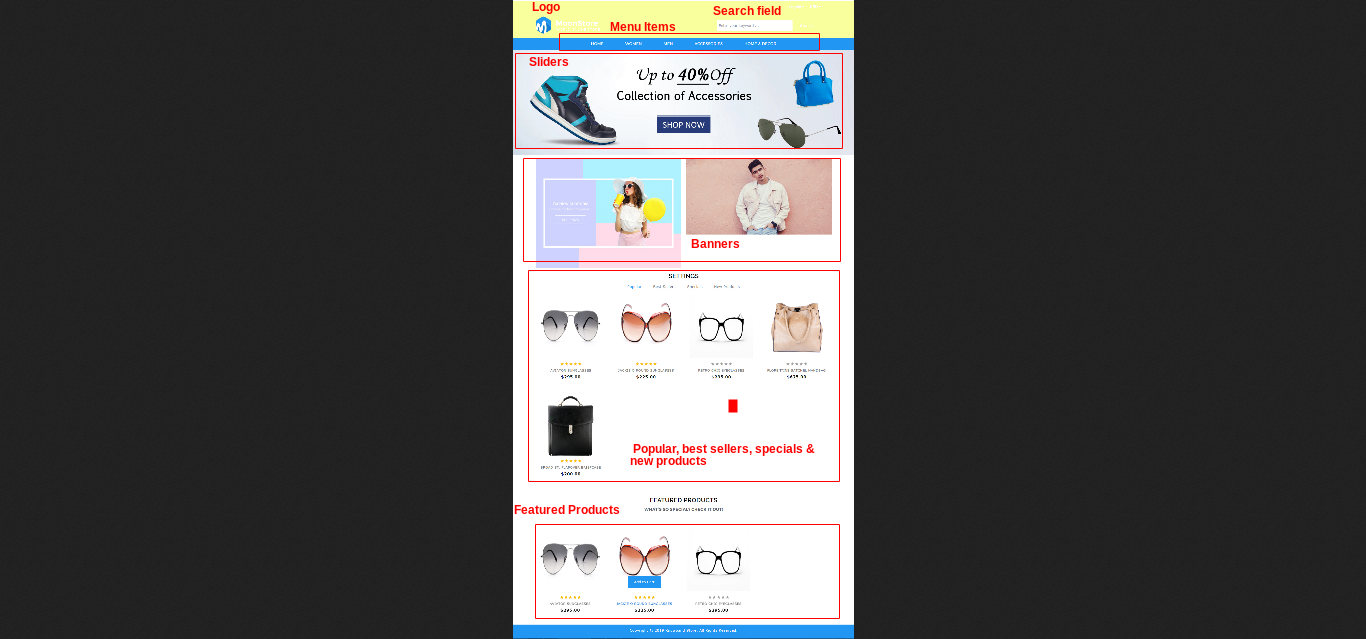
With Magento Facebook Shop extension, admin can change the look and feel of the Facebook Store by adding a logo image, multiple sliders, banners on the FB Store Homepage.
Additionally, admin can even set a theme color and font color for their FB Store page.
Magento Facebook Store Integration module allows admin to show popular, best sellers, specials and new products on their FB Store page.
Store merchants can even add a footer to their FB Store to add a store appeal.
Magento Facebook Store Setup adds a search field at the top of FB page which allows the customers to search for a particular product and service.
With Magento Facebook Integration extension, Admin can easily select the menu items for the configurable navigation bar present at the top of the FB store.
Using Magento FB shop integration module, Admin can also set featured products and featured categories on Homepage of their Facebook business page.
1.2 Magento FB Shop Benefits to Customer
Magento FB Store extension offers the ease of browsing and shopping to the customers for the store products while accessing their Facebook account.
The ‘Add to Cart’ button added using Magento Facebook Integration extension automatically redirects the customers to the Magento eCommerce store.
1.3 Technology for Development
Language: PHP Frame Work: Magento
2.0 Installation Guide for Magento Facebook Store Extension
The store admin can follow these simple steps for installing the Magento FB Store extension:
1. First of all download the extension package from the Knowband store.
2. You will get a zipped file containing the source code and user manual. Unzip the package on the root folder of your Magento setup via FTP manager (like Filezilla or WinSCP – download here: https://filezilla-project.org/). You’ll find the files and folders as shown in the image below:
The extension is now installed and ready for use. Now the store admin can now use and configure the Magento Facebook integration extension.
3.0 Admin Interface of Magento FB Store extension
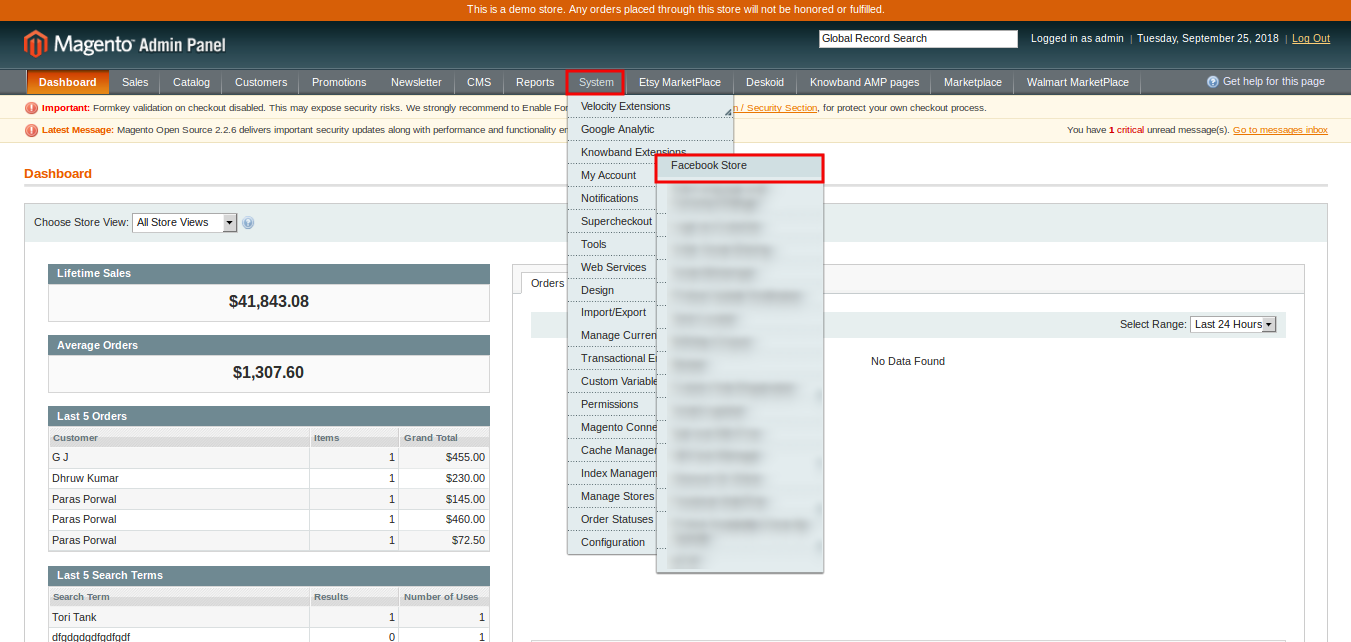
Just after successful installation of Magento Facebook Store Setup on the Magento site, you can configure the FB Store module as per your needs. In the Admin Panel, go to System > Knowband Extensions > Facebook Store.
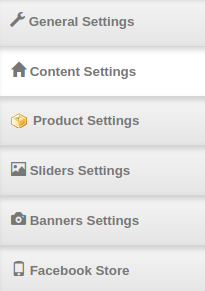
This Knowband extension offers you the following sections:
General Settings
Content Settings
Product Settings
Sliders Settings
Banners Settings
Facebook Store
Each Tab of the Magento FB store extension are discussed below:
3.1 General Settings
On clicking on the General Settings tab, you will see the following options as given below:
Initially, the above fields are set to their default values.
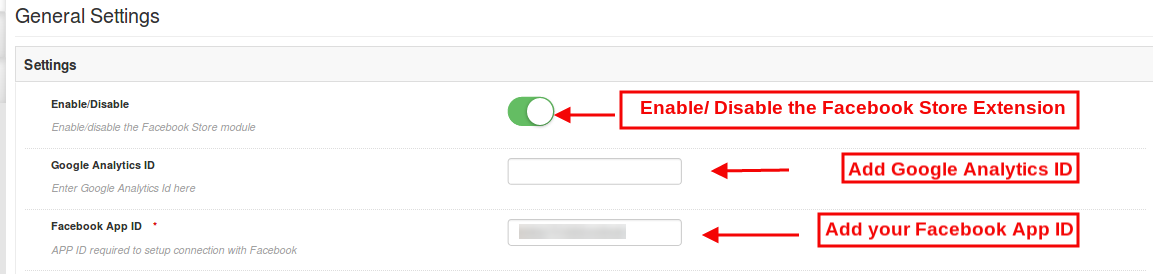
Enable/Disable: Initially, Magento Facebook Shop extension is enabled, you can disable its functionality by turning OFF this setting.
Google Analytics ID: You can enter the Google Analytics ID in this section and track the traffic and performance of your Facebook shop in Google Analytics.
Facebook App ID: Input the Facebook App ID required to setup connection with the Facebook. Admin can generate Facebook ID and add it to their Facebook Store. Refer the section 3.1.1 to obtain the Facebook App ID.
After this, click on the “Save” button shown at the top right corner of admin panel to save the module settings.
3.1.1 Steps to generate Facebook app ID
In order to generate Facebook app id please follow these steps:
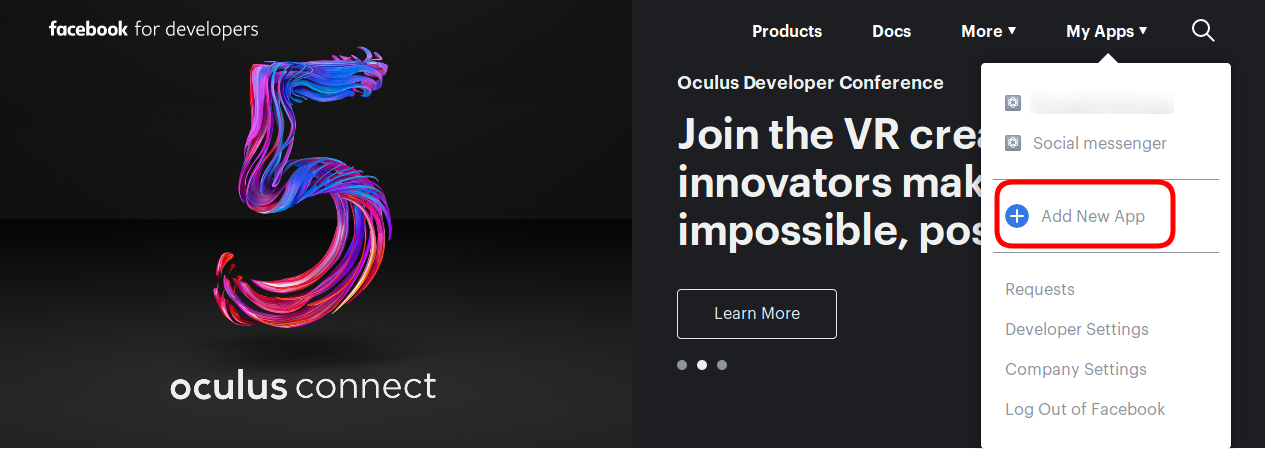
First of all log-in to the Facebook account and go to the link mentioned here: https://developers.Facebook.com/
Go to “MY APPS” and click on the ”ADD NEW APP” option.
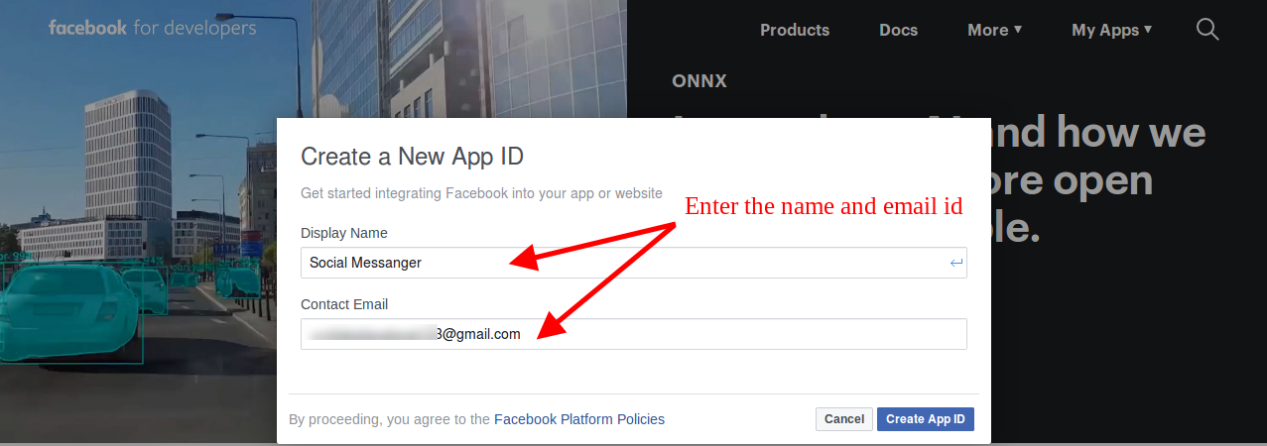
Enter the details in “Display Name” and “contact email ID”. After that, click on the “Create APP ID” button.
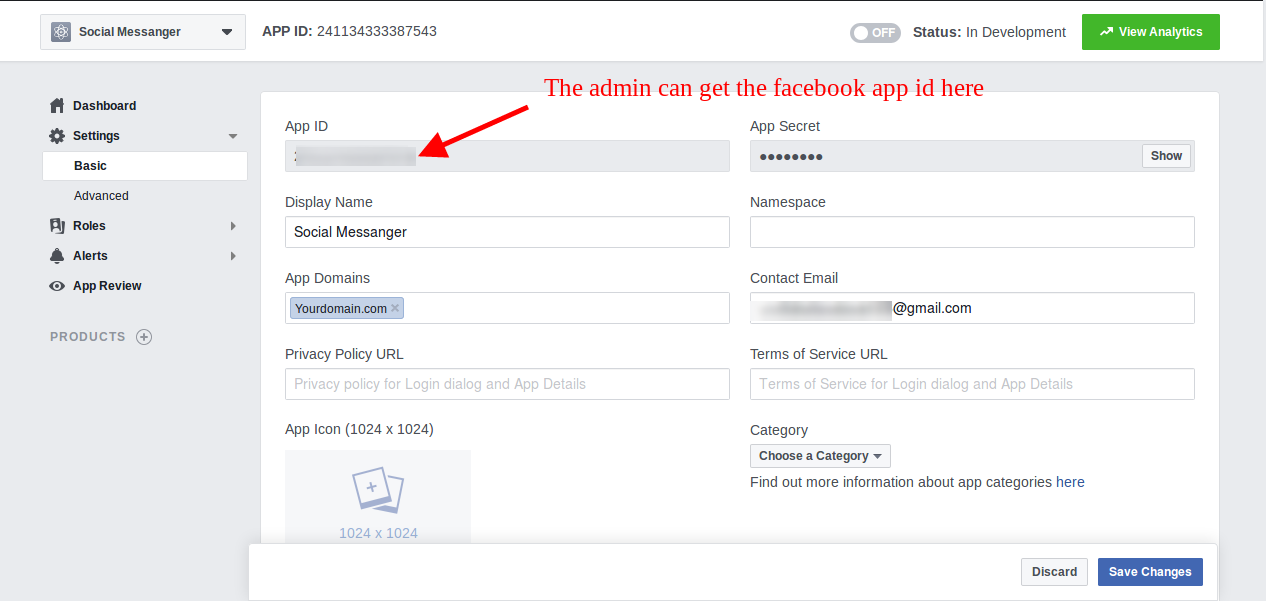
After clicking the “create app id” button, go to the “Settings” and then select “Basic” option. Here, the store admin can view the APP ID. The admin needs to copy this Facebook app id and copy to the admin interface app id option.
Admin can insert the App Domain. After that click on the “save changes” option.
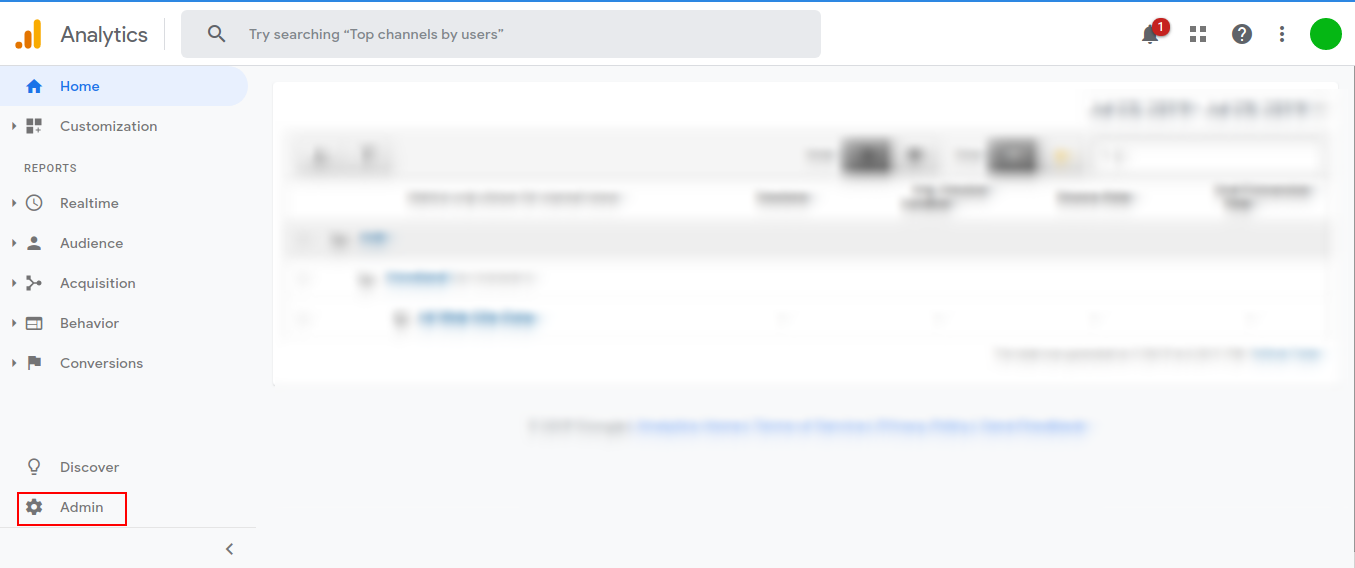
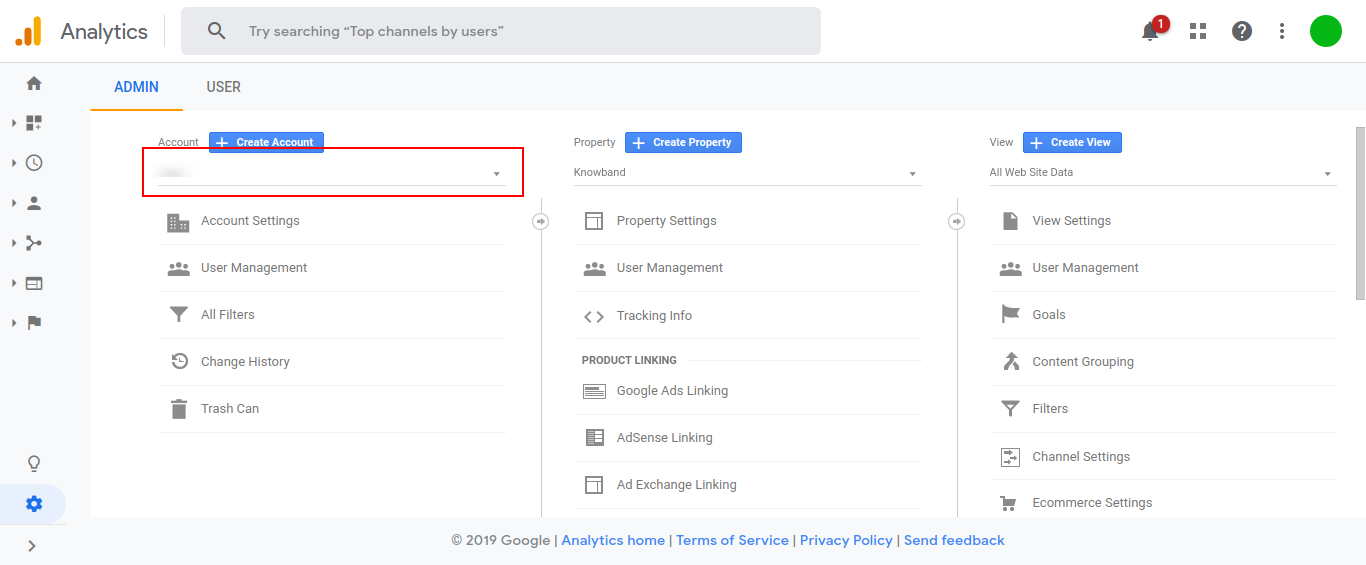
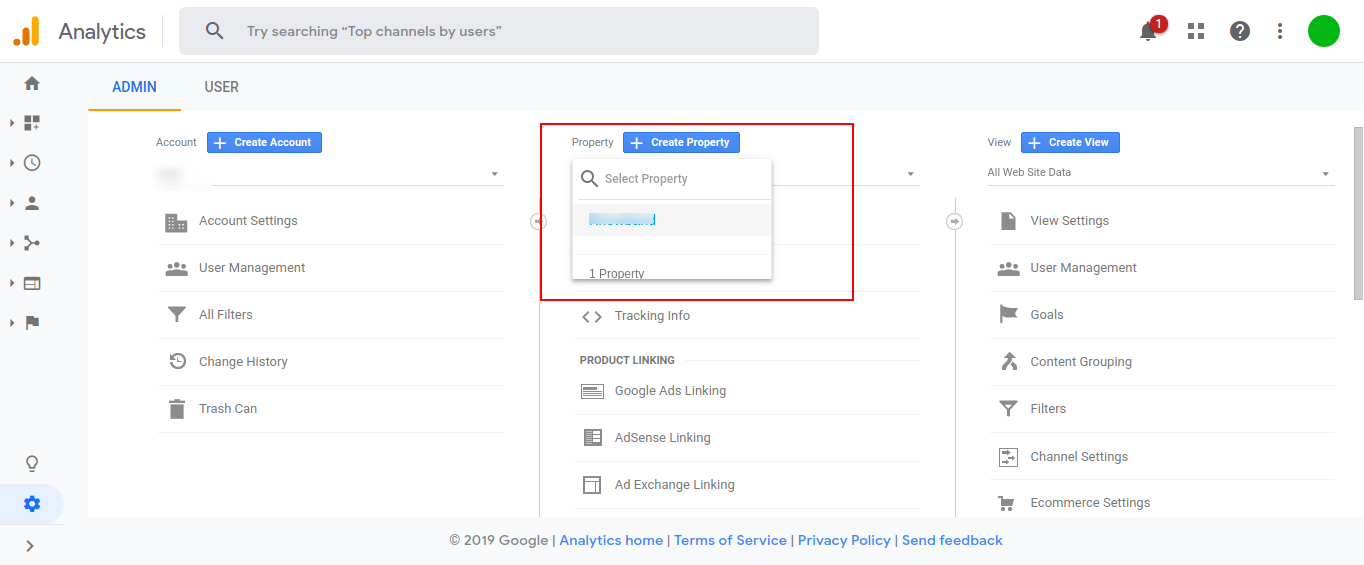
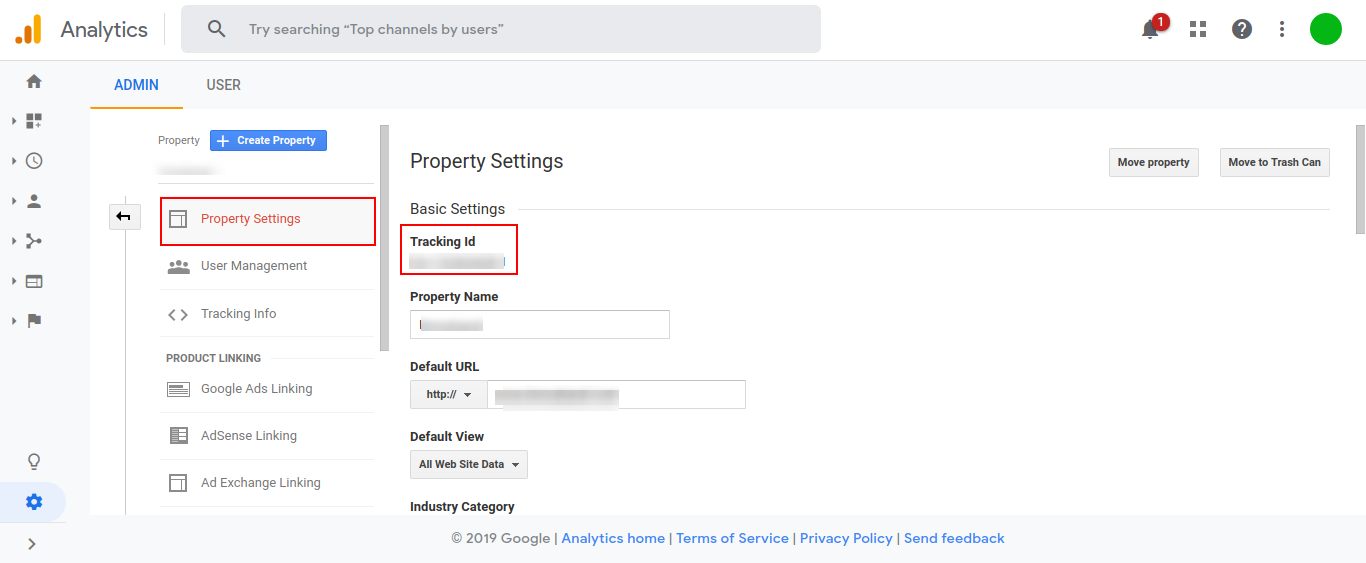
Select an account from the menu in the ACCOUNT column.
Select a property from the menu in the PROPERTY column.
Under PROPERTY, click Tracking Info > Tracking Code. Your Google Analytics ID is displayed at the top of the page.
3.2 Content Settings
The various fields of this section of Magento Facebook store extension are mentioned below.
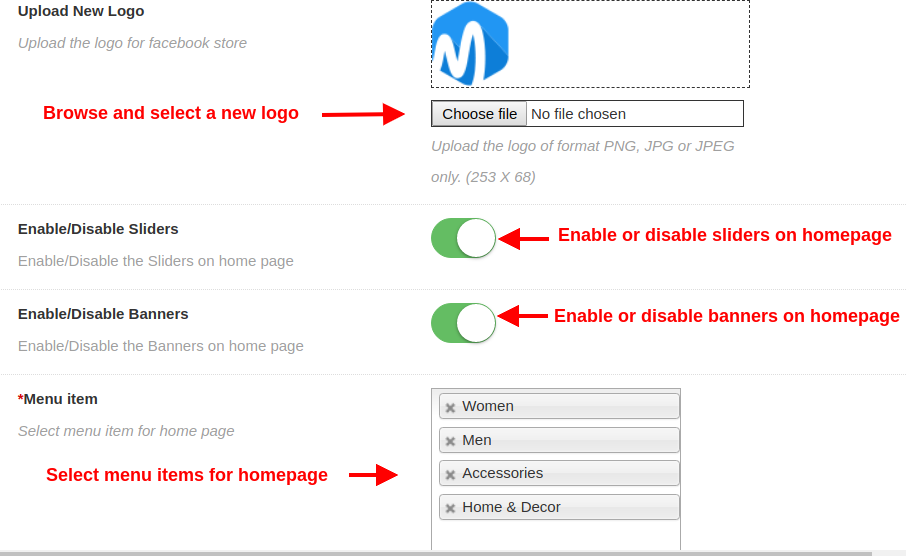
Upload New Logo: Admin can set a custom logo for their Facebook Store by uploading the logo image of format PNG, JPG, or JPEG only.
Enable/Disable Sliders: Admin can enable or disable the slider images shown on the Facebook store page.
Enable/Disable Banners: Admin can enable or disable the banner images shown on the Facebook store page.
Menu Item: Admin can select the menu items that will be displayed on the FB shop.
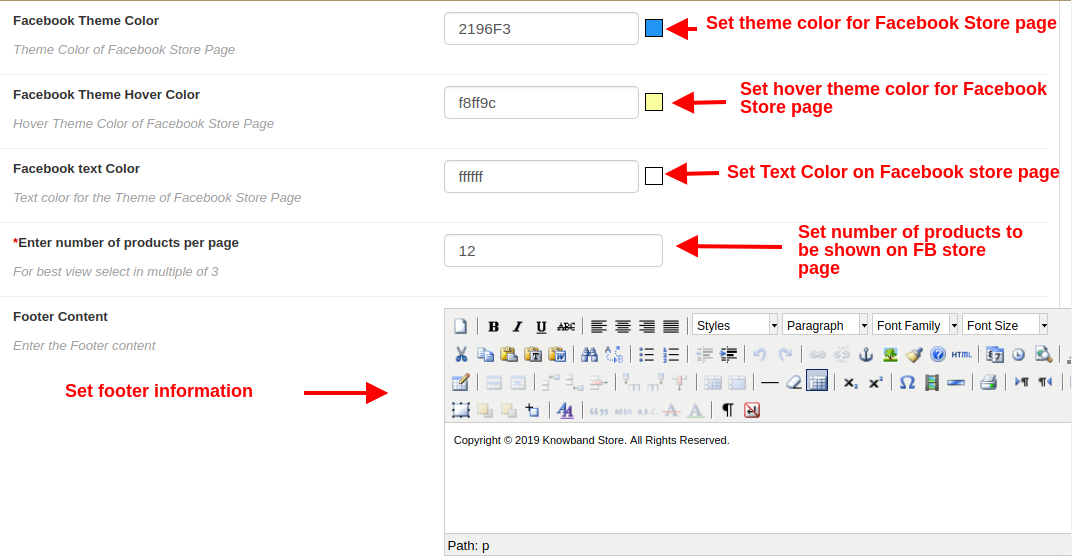
Facebook Theme Color: Using this option of Magento Facebook store extension, admin can set the theme color for their Facebook Store.
Facebook Theme Hover Color: With this option, admin can set the theme hover color for their Facebook Store.
Facebook Text Color: Admin can even set the font color for the text displayed on Facebook Shop page.
Enter Number of Products per Page: Admin can specify the count of products which will be displayed on the Facebook store page.
Footer Content: Admin can specify the Footer content which is to be displayed at the bottom of the Facebook Store.
3.3 Product Settings
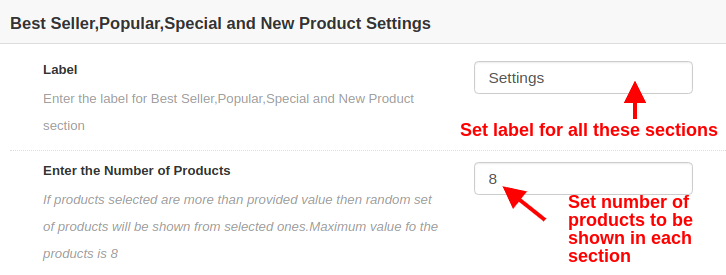
Label: Admin can enter the label for displaying bestseller, popular, special, and new products on the Homepage.
Enter the number of products: Admin can set the number of products which will be displayed in each section of products.
FOR BEST SELLER PRODUCTS
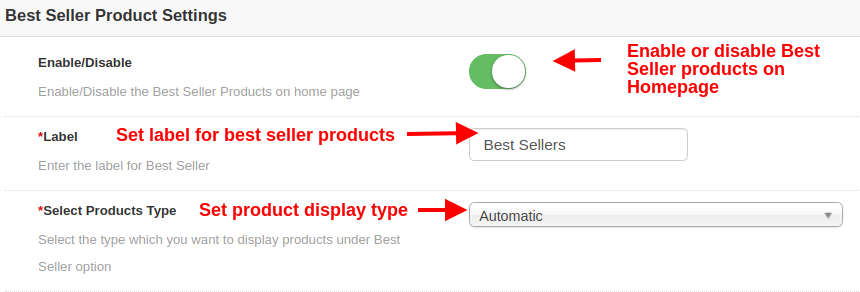
Enable/Disable: This option will enable or disable the Best Seller products on Homepage.
Label: This option sets the label for displaying Best Seller products on Homepage.
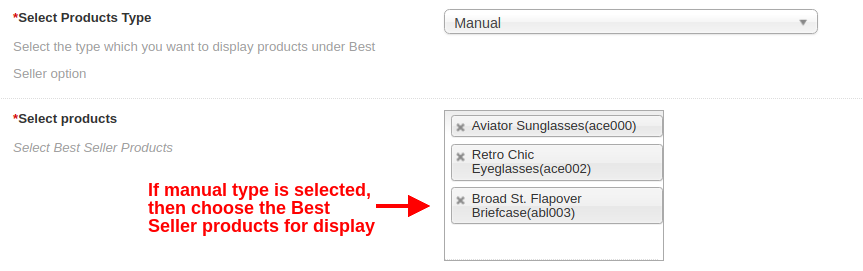
Select Products Type: This option selects the product display type as automatic or manual. If automatic is selected then random products will be shown from Best Seller category of the website.
Select Products Type: If this option is selected as manual, then the products selected below will be shown on the Homepage under Best Seller section.
Select Products: Using this option, admin can choose the desired products shown as Best Seller products.
FOR NEW PRODUCTS
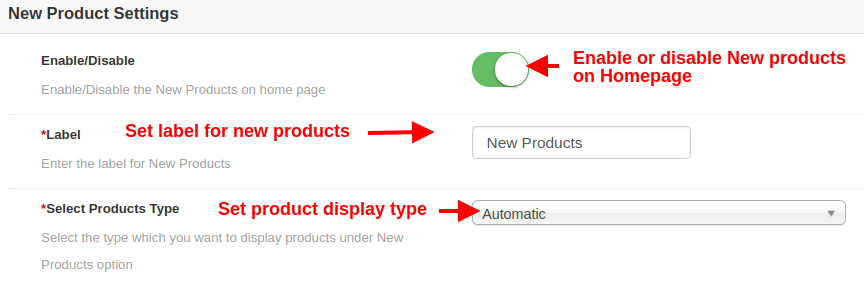
Enable/Disable: This option will enable or disable the New products on Homepage.
Label: This option sets the label for displaying New products on Homepage.
Select Products Type: This option selects the product display type as automatic or manual. If automatic is selected then random products will be shown from New products category of the website.
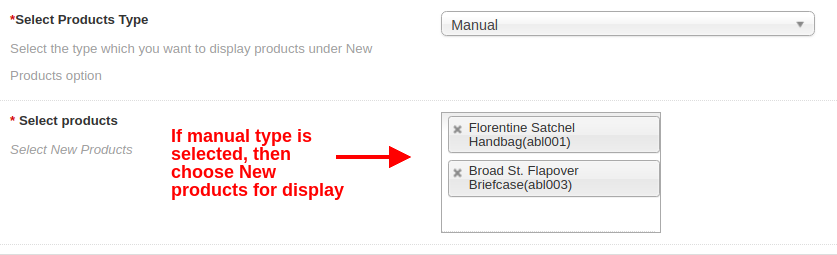
Select Products Type: If this option is selected as manual, then the products selected below will be shown on the Homepage under New Products section.
Select Products: Using this option, admin can choose the desired products shown as New products.
FOR POPULAR PRODUCTS
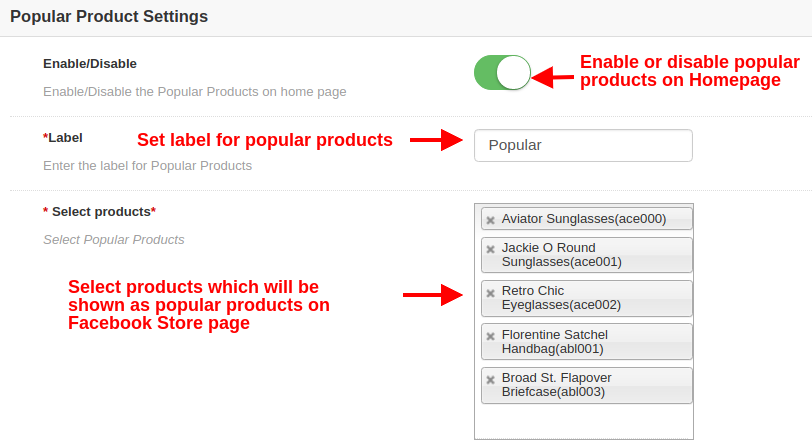
Enable/Disable: This option will enable or disable the popular products on Homepage.
Label: This option sets the label for displaying popular products on Homepage.
Select Products: Using this option, admin can choose the desired products to show as Popular products on Homepage.
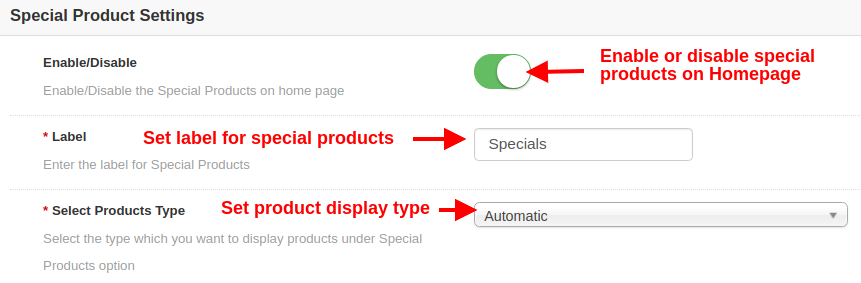
FOR SPECIAL PRODUCTS
Enable/Disable: This option will enable or disable the Special products on Homepage.
Label: This option sets the label for displaying Special products on Homepage.
Select Products Type: This option selects the product display type as automatic or manual. If automatic is selected then random products will be shown from Special products category of the website.
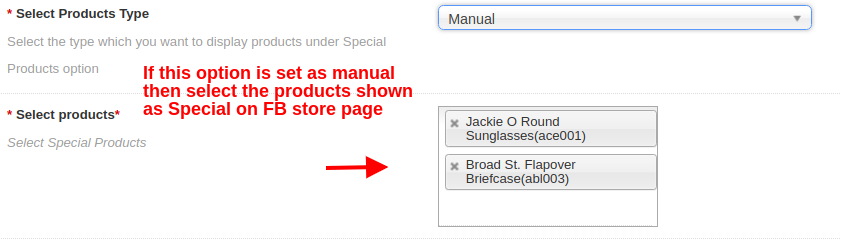
Select Products Type: If this option is selected as manual, then the products selected below will be shown on the Homepage under Special Products section.
Select Products: Using this option, admin can choose the desired products shown as Special products.
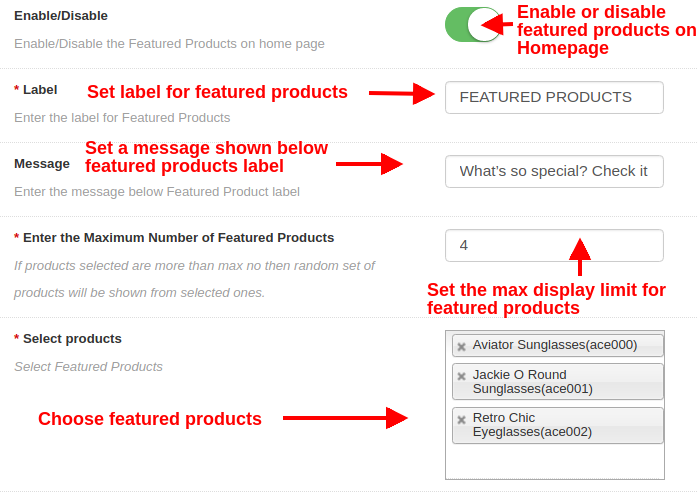
FOR FEATURED PRODUCTS
Enable/Disable: This option will enable or disable the featured products on Homepage.
Label: This option sets the label for displaying featured products on Homepage.
Message: This option sets a message shown below featured products label.
Enter the Maximum Number of Featured Products: With this option, you can set the maximum display limit for featured products.
Select Products: Using this option, admin can choose the desired products they want to show as featured products on Homepage.
3.4 Slider Settings
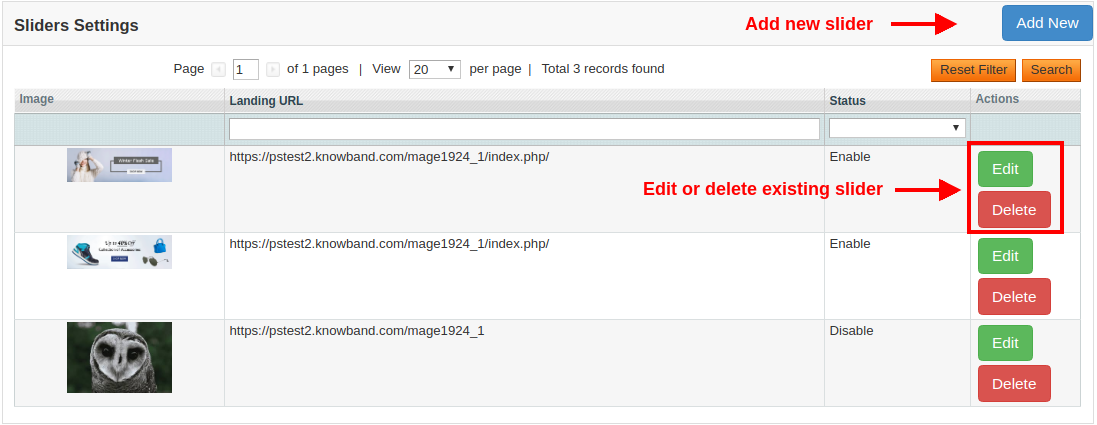
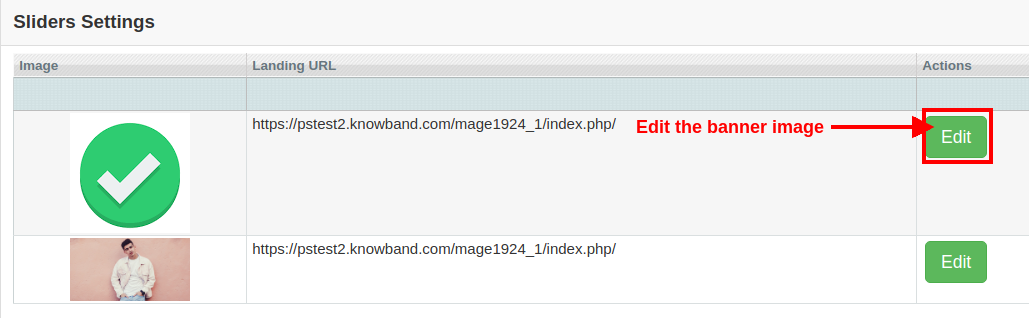
From this section, you can add and show as many sliders on the Facebook store homepage. These sliders are shown on the top of the Facebook store page. Below screen shows a list of existing sliders, there are shown randomly on the FB store homepage. You can either delete each of the sliders or can modify their settings by clicking on the “Edit” and “Delete” buttons respectively.
To add a new slider, click on the “Add New” button at the top right side of the admin screen. It will show the following configuration options:
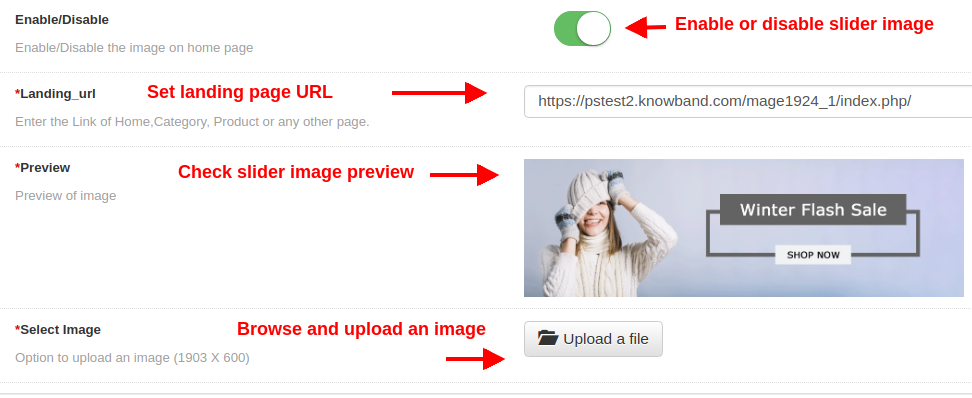
Enable/Disable: This option enables or disables the slider image on the FB store homepage.
Landing URL: By this option, admin can set a link of Homepage, Product Page, Category Page or any other page of the website. On clicking this slider image, the customer will be redirected to the specific link.
Preview: This option shows the preview of the image which is selected from the below option.
Select Image: This option allows the admin to browse and upload any image as a slider image.
3.5 Banner Settings
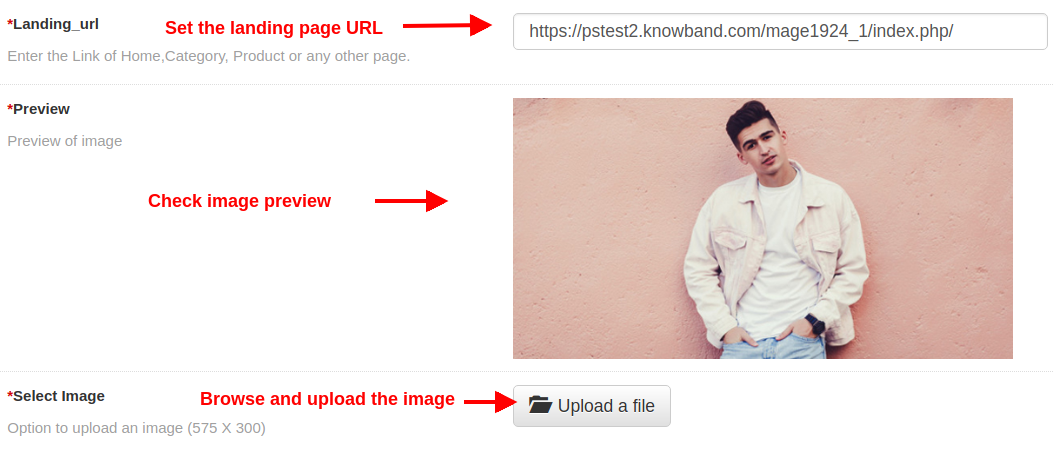
From this section, you can add and show as many banners on the Facebook store homepage. These banners are shown just below the sliders on the Facebook store page. Below screen shows a list of existing banner images. You can modify their settings by clicking on the “Edit” button corresponding to the record.
Landing URL: By this option, admin can set a link of Homepage, Product Page, Category Page or any other page of the website. On clicking this banner image, the customer will be redirected to the specific link.
Preview: This option shows the preview of the image which is selected from the below option.
Select Image: This option allows the admin to browse and upload any image as a banner image.
4.0 Front Interface of Magento Facebook Store Integration Module
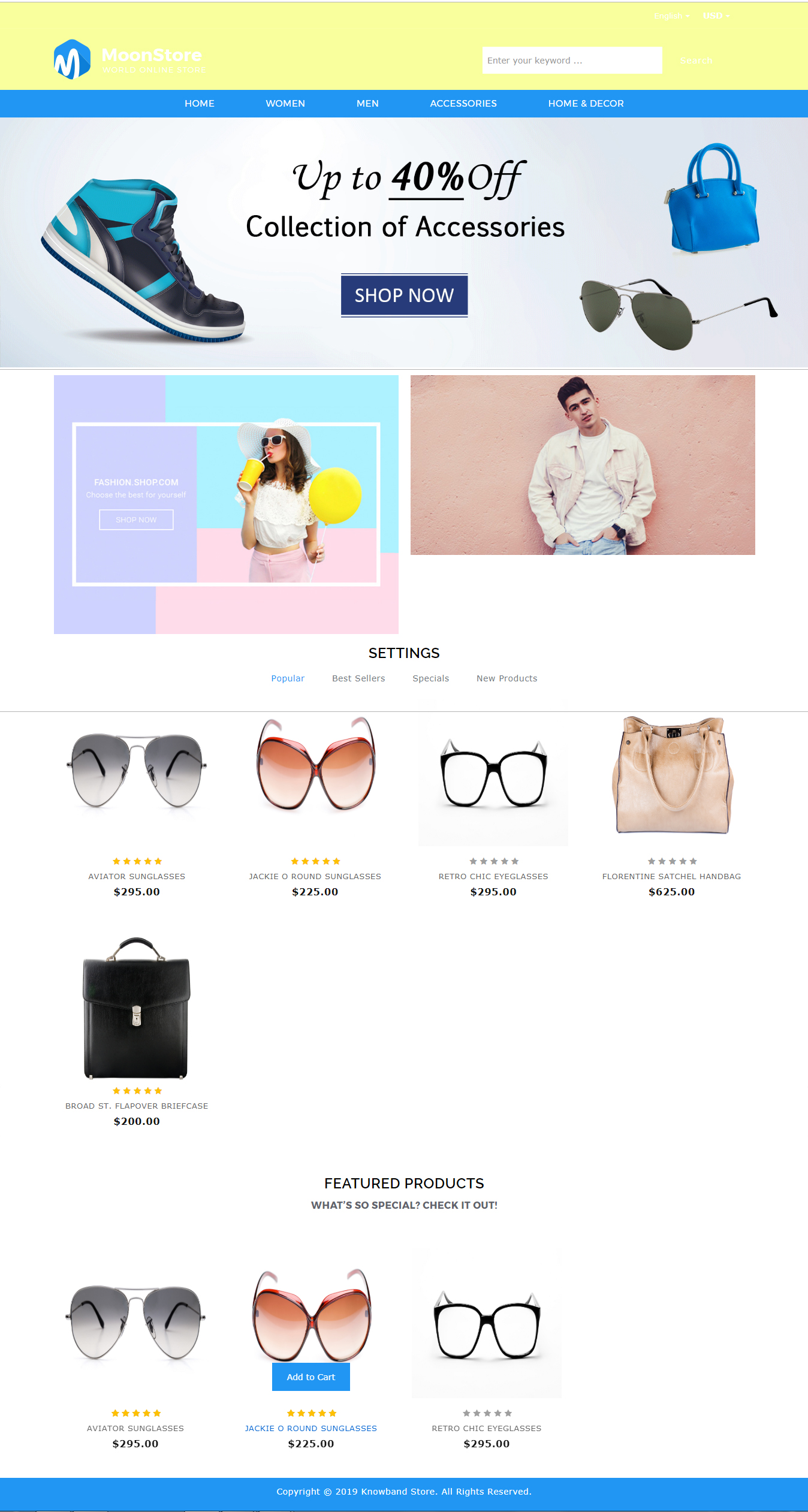
Once after setting up the Facebook App ID and the configuration settings, your customers can find the Facebook shop tab in your Facebook account.
Below screenshot gives you complete understanding about different elements of FB Store page.
Find below more details about this Magento Facebook Store Extension:
Walmart is one online platform that is giving quite a tough competition for the eCommerce giant Amazon. With its recent acquisition of Flipkart in India and Jet.com earlier in 2016, the company has made it very clear that nothing is stopping them. The eCommerce marketplace is not just shopping for a bigger with the biggies of the industry, but it has also opened up doors for the small vendors to dive into the tech-savvy market.
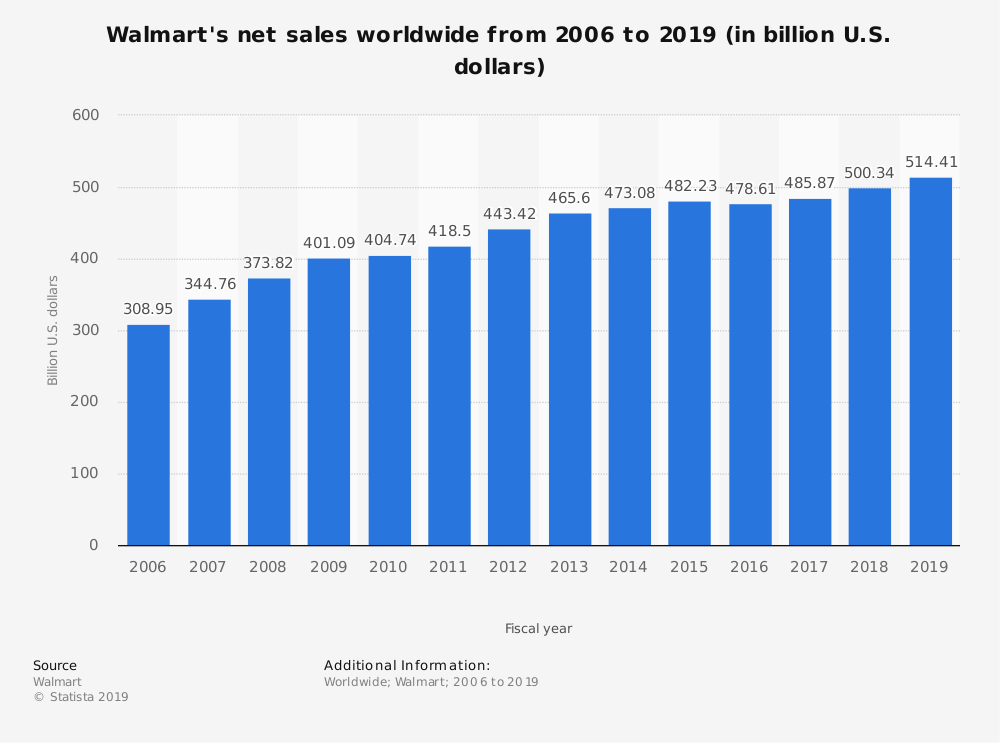
Walmart is the second-largest online shopping destination (after Amazon) in the US. With 495.76 billion U.S. Dollars global net sales, it has marked its presence all over the world and is continuing to gain more success in the future.
Moreover, the eCommerce site has marked its presence in over 27 countries worldwide. Thus, it is indeed a great platform for the e-sellers to reach out to yet another chunk of ready buyers. However, with great opportunity comes great responsibility. The consumer-centric market sought nothing, but the best. Thus, the jam-packed platforms require the sellers to stay at their toes when it comes to catering to the customers with efficiency.
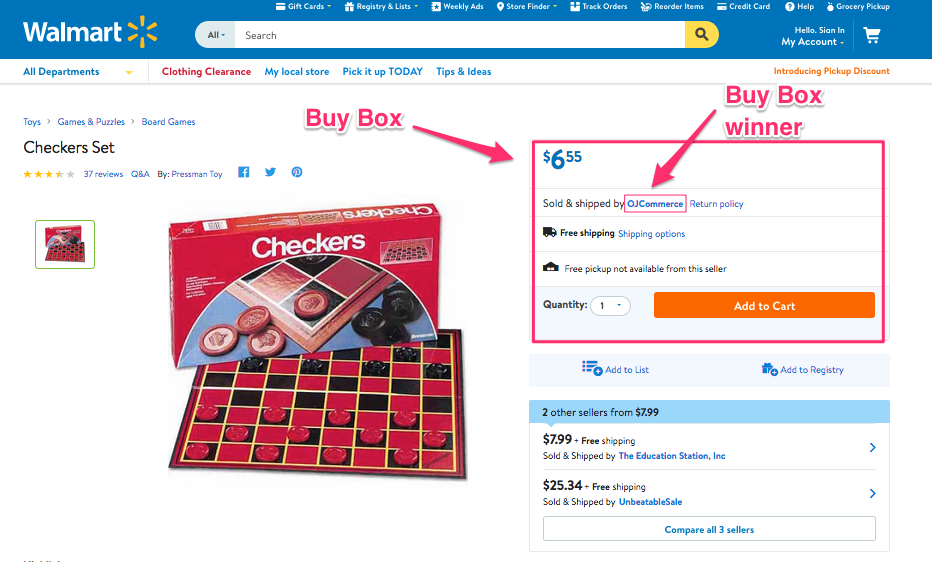
If more than one seller is selling the same product, then, walmart.com displays them on a single page. This page displays the products and their pricing to the customer. Out of these products, one item wins the Buy Box. The customers are drawn to the very first option that they see. As per reports, approximately 85-90 percent of sales are acquired by the seller who wins the Walmart buy box. Hence, winning the buy box is essential for the vendors.
How to win the BuyBox on Walmart?
Product Listing at the lowest price
An online marketplace is a place where multiple vendors are offering the same item at different prices. At this point, the seller that offers the products at the best or the lowest price wins the BuyBox. Content Analytics offers you an automated notification whenever you lose the buy box. Additionally, for the CMS-based eCommerce sites, there are plugins available that help you import the BuyBox report in your store. Thus, you can track the pricing report of the other vendors and reprice the product accordingly. Extensions like Prestashop Walmart integrator, Magento 2, Magento Walmart Integration extension, OpenCart Walmart Integrator Extension, and Shopify Walmart Integrator Extension offers the same functionality for the respective platforms.
In case you manage your Walmart shop without any extension, you can make use of the Walmart Repricer. This tool checks out the lowest price of products on the Walmart store. Not just this, it even changes the price of the product accordingly. On the other hand, if the competitors’ price is higher than that of yours, you can lower the prices, but keep it less than theirs.
Keep the products in-stock
Walmart.com’s buy box algorithm structured to check the inventory of the item competing to win the BuyBox as well. After the pricing is checked, it will see if the products are in-stock or not. If it doesn’t, then, the seller will lose, even if it is being offered at the lowest price. Try to keep the products in stock that are in the wishlist or popular between customers as its unavailability could make you lose potential customers. Ranking of products is also necessary as they should be visible in the search results of customers resulting in good sales and profits.
Offer Cheap Shipping Option
Winning the BuyBox is dependent on the order cost of the order. Thus, the shipping charges can be one of the deciding factors. Thus, it is recommended to use free ‘Value Shipping’. On Walmart, if the total cart value is more than $50. Offer free delivery to the customers along with lower prices.
How can the Knowband’s Walmart Integration extension help you win the BuyBox?
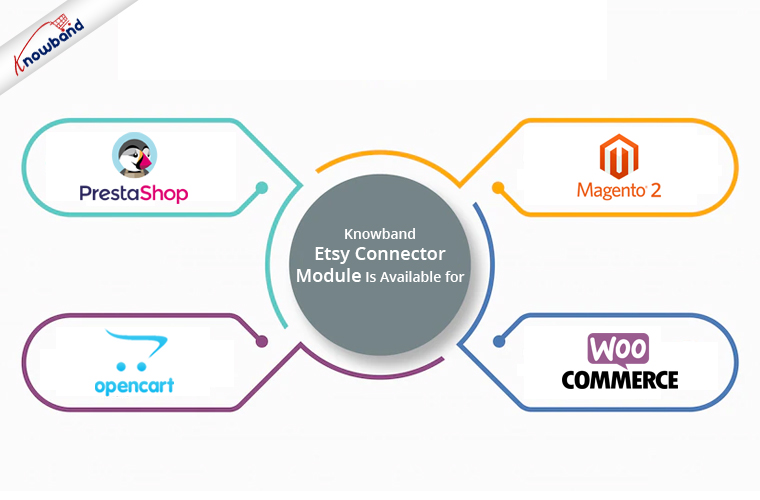
Knowband offers Walmart marketplace integrators for various CMS platforms such as Prestashop, Magento 2, Magento, OpenCart, and Shopify. This is how the plugins can help the e-sellers to win the BuyBox:
You can import the BuyBox report of the Walmart marketplace by executing cron in the back-end of the Walmart integrator.
You can track the price of your competitor and reprice your product accordingly.
The change in the price is synced with the marketplace with the help of the cron job offered by Knowband’s Walmart integrator.
Etsy is an eCommerce shopping platform that mainly deals with unique factory-manufactured items. It is the fastest revenue-growing e-shop across the globe.
If you are a seller at Etsy, then you must reconsider your Etsy SEO strategies. Earlier, it was easier to optimize Etsy listings for ranking higher in the search results. Vendors used to fill a few key areas in listing forms and pull off good-enough Etsy ranks for their products. They could even measure their SEO success in the popular marketplace. However, things have changed with time. Taking themselves up a notch in terms of technology, Etsy has changed its search algorithm and is now using Artificial Intelligence (AI). With the smarter search engine, the vendors need to stay in sync with the latest development and optimize their Etsy shop accordingly.
So, how does the Etsy Search work and how to deal with it?
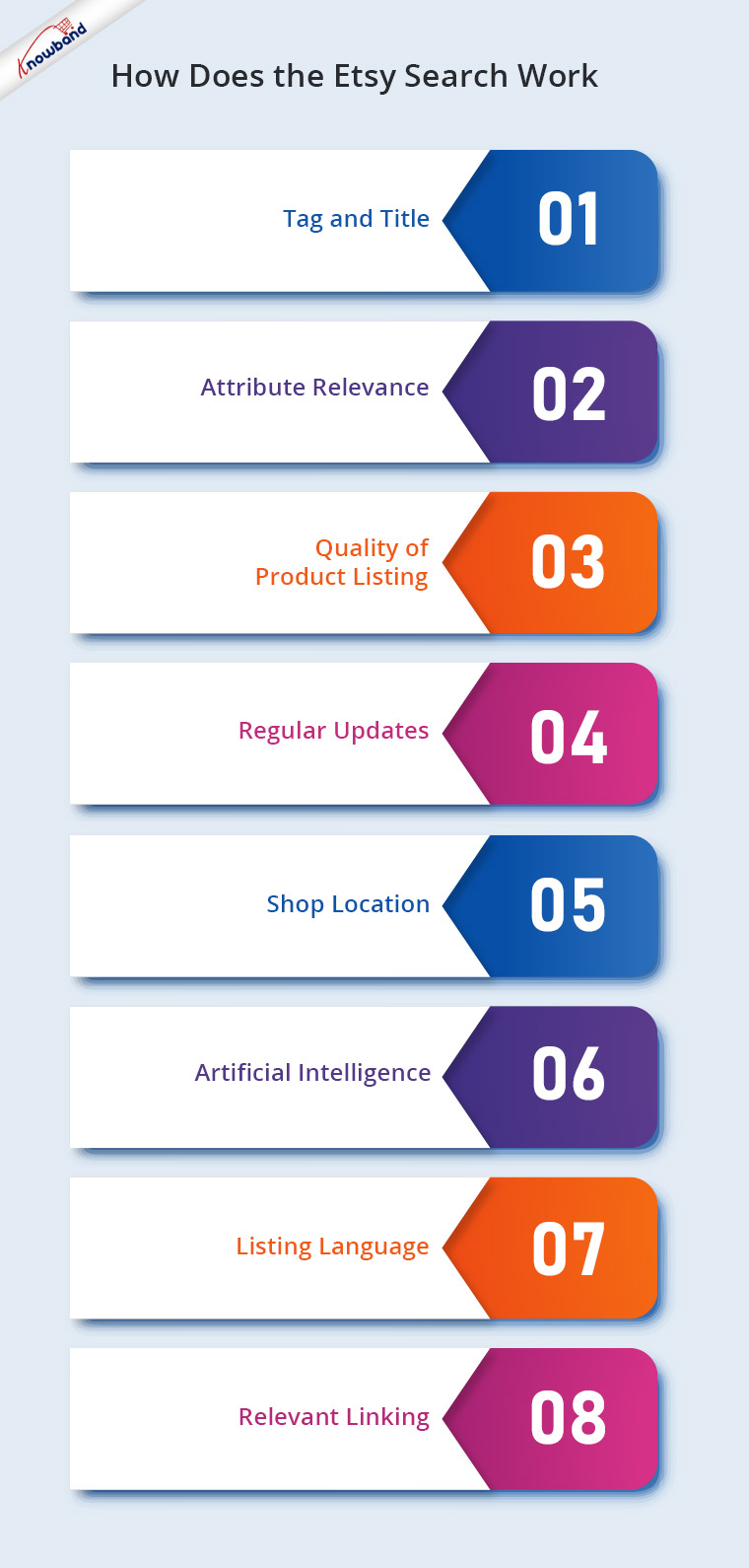
Before we start discussing the optimization tips, you need to understand the exact functioning of the Etsy search engine. Read on to know how exactly it works:
Consider Etsy as Google. Just like the latter, the tags and title being used in product details must match the buyer’s search word or phrase. In case, the search terms are not present, then, the product won’t be included in the results.
How to take care of it?
While some of the ranking factors might not be under your control, this one is. Doing a bit of research and curating the product description that includes the title, tags, attributes, and descriptions should be the first thing you do before getting the products listed.
Here are some of the quick tips that can help you tailor a result-driven item description:
a) The product title should be search-friendly. The exact phrase term is given a higher priority. So, keep a check on the product description of the vendors selling the same product. Create the titles on a similar line.
b) Include other relevant keywords and long-tail query terms in the tags and the product description. Etsy allows you to include 13 keywords. So, you should make sure that no tags are left behind.
c) The character limit for the title is 140 characters, however, the search result will only show the first 55 characters, so, the keywords should appear in the beginning.
d) Along with the titles, the tags are considered by the Etsy search engine as well. These search terms hold commercial and intentional relevance. So, make sure that you opt for the tags wisely.
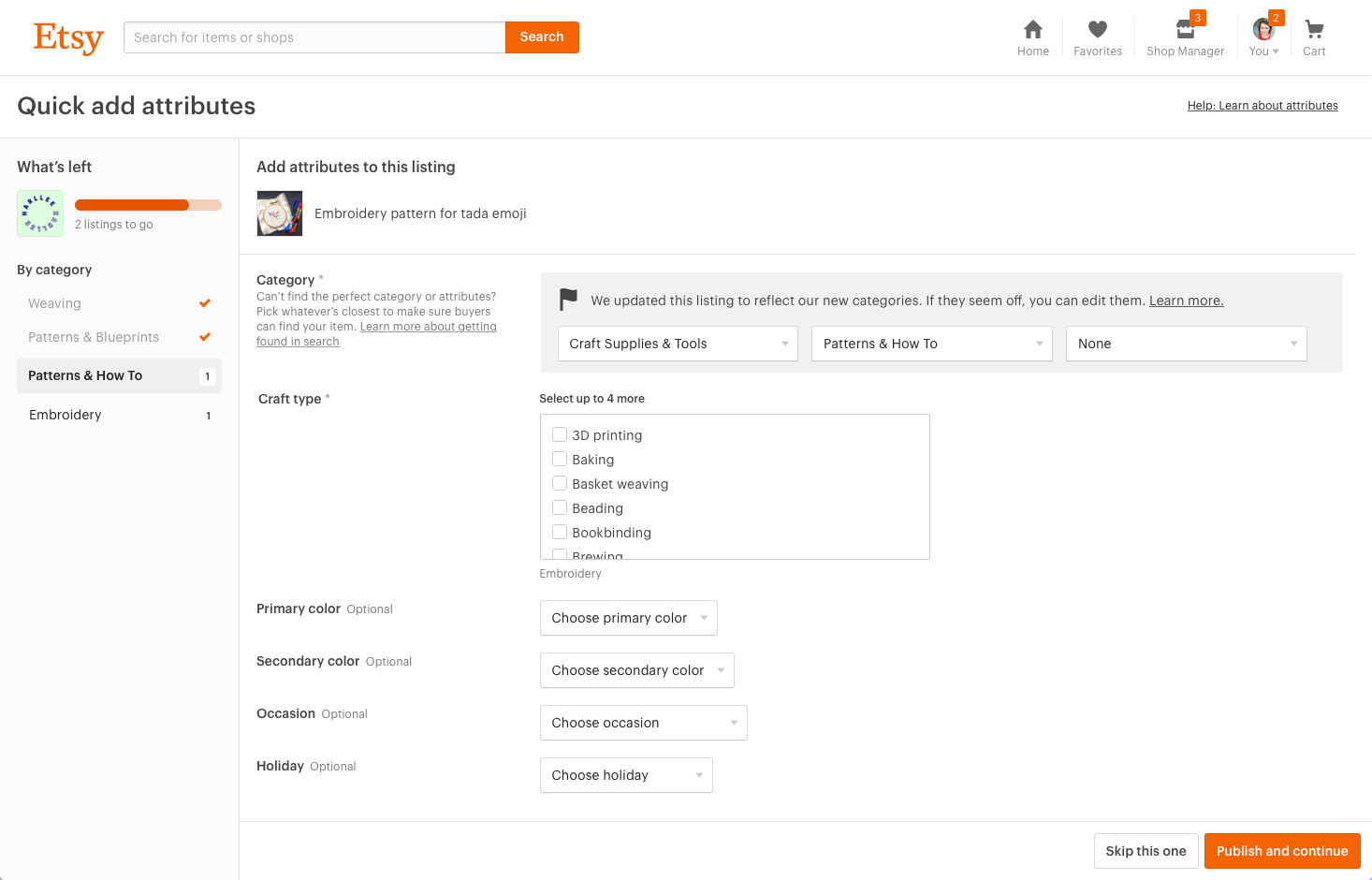
Attributes are another important factor in search relevance. Similar to titles and tags, the attributes can be the deciding factor as the users tend to search for queries such as ‘Black Shoes’, ‘White Princess Dress’ and others.
How to take care of it?
Ideally, a category is been chosen first and then the sub-category while listing the products. This helps you to define the types of attributes to be used, like colour, size and many more. Select as many accurate attributes as each item has related to. This will help in maximizing the brand exposure of your products in search results.
Relevant categories display your products to the right buyers, so It’s important to add some more specific information about the product. This will make it easier for buyers to find your product and go for instant purchase. Sellers can easily map their product categories on Etsy by integrating their eCommerce store with Etsy Marketplace in just a few simple steps.
3. Quality of Product Listing
The more clicks, favourites, or purchases an item, the more its chances to do well in the search result. This is known as ‘listing quality’. However, new shops and the latest listings have a neutral quality score and have no impact on the placement.
How to take care of it?
Etsy has an automated approach in this regard. The added products on Etsy that are grabbing more attention, that is, the products that are getting more clicks items are added to the favourite list more times and have high conversion rates will be given preference. Make sure you are offering unique products and the quality you are providing to the customers is high.
Here are some of the tips that you need to take care of in this regard:
a) Ensure that the buyers get at par experience while using your product.
b) Positive reviews on the product pages provide you with an edge over your competitors.
c) The About Us section of your shop and the seller’s policy must be clear. This can even ensure placement in the Etsy search results.
d) Price can be one of the factors that may lead to low clicks. Avoid pricing the products too low or very high. Do some competitor’s research in this regard and come up with an apt solution.
Etsy’s search algorithm prefers to rank the products that were recently updated. It takes into consideration how recently an item was listed or relisted.
How to take care of it?
Update the product details, title, and tags regularly. Keep the content fresh and up-to-date with time.
Etsy search considers the shop location of the vendor and this makes search results more prominent. If searches are made in other countries, then the shop location might not be taken into account. The shop location makes your store prominent and results in a higher ranking of your products. You can even update the shipping profile on Etsy.
How to take care of it?
The rationale behind this is to ensure a faster delivery to online shoppers. The third-party vendors do not have any control over it.
6. Artificial Intelligence
As per Etsy, their search system is now attempting to highlight “results most relevant to the specific buyer” based on some factors. These factors may be the time of day, preferences, and others. This may help the shoppers to get accurate search results, but for the vendors, it’s quite a hurdle. This is because they will no longer see the same results every time you type in a search. Even if they make the searches in incognito mode, they won’t get the same result.
How to take care of it?
With the latest technology coming into play, tracking the search results have become quite an issue for Etsy sellers. Here are a few ways to track the same:
Etsy Rank
It is a rank checker tool that searches Etsy for your items and filters out personalization results. This is a free tool and even allows filtering out bulk reports.
Etsy Stats
The sellers can use the “Search Terms” section to see which keywords are being used by the customers to find your items.
7. Listing Language:
When you sign up on Etsy, it’s important to list the products in the shop language to sell your products. All the listing information of a product should be in the native language of a Marketplace. For example, If a Marketplace works in the French language then the English keywords would not be recognized by the search algorithm of that Marketplace.
How to take care of it?
All the listing information of the product should be in the Etsy Marketplace language only otherwise it will never help to bring up your items.
8. Relevant linking:
Links play an important role in higher search engine ranking. It is a great idea to link your shop page with the product and policies listed on the Etsy Marketplace. The shop page information should contain the following information:
Shop Name
Shop Description
Sales Count
Start Date
The shop page information available at the Marketplace will promote the brand and enhance visibility which will ultimately bring more traffic to the store.
Since the competition is at its peak, you need to stay at the edge in every aspect of marketing. No matter what is the quality of the products that you are offering, they won’t be of any worth if it is not visible to prospective customers.
Knowband offers Etsy integrator for the various CMS platforms like Prestashop Etsy Integration Addon, Etsy Magento 2 connector, OpenCart Etsy Integration plugin as well as WooCommerce Etsy Integrator which can make product listing effortless. You can now list the products and the descriptions with a few button clicks. Thus, it becomes easier to update the details in bulk. Moreover, attribute mapping becomes a cakewalk with the automated approach. So, stay in sync with the guidelines of Etsy and optimize the ranking of your products in the search results.
Qualcomm and Apple’s long-running lawsuit took a new turn yesterday. The chipmaker biggie came up with a new accusation on the iPhone maker of misusing their powers by supplying its tech secrets to the Intel, one of the biggest rival.
Qualcomm’s allegations over Apple
On Tuesday, 24th September 2018, Qualcomm came with a legal filing stating that “Appleengaged in a years-long campaign of false promises, stealth, and subterfuge designed to steal it’s confidential information and trade secrets in order to help Intel and other rivals field competing for mobile chips.” The submitted legal document even claimed that Apple’s goal was to buy mobile chips from Intel instead of depending on Qualcomm.
Now, if we believe the chip biz allegations, Apple swiped their secrets to Intel with the motive of paving the way for improved semiconductors in the iPhones. Qualcomm even said that the secret trading has already cost them billions of dollar sales.
Apple response over the allegations
Apple responded to the allegations with the statement – “Qualcomm’s illegal business practices are harming Apple and the entire industry“. The iPhone maker went on with the counter saying that the chip biz has always been supplying the single connectivity component and yet asking a percentage share of the total cost of our products. In short, the organization charged a huge amount for a simple technology.
Summing it up
Well, while both the tech giants are pointing fingers at each other, Intel is missing the fight-ring. The company has not uttered a word over the issue yet. This battle between the Apple and Qualcomm is seemed to be going too far. Last year, Apple filed a lawsuit over the illegal licensing terms of Qualcomm and stated that they are being asked for unfair compensation. As the case proceeded, Qualcomm counter back with asking blueprints to Intel chips used in iPhones.
Qualcomm even settled its Antitrust dispute with Taiwan, last year. But, this case seems nowhere near a settlement right now. Let’s wait and watch if both the organizations will lower the sword or the fight will still go on.