In today’s competitive eCommerce space, standing out requires more than just great products. It demands immersive, informative, and visually engaging shopping experiences. While product images serve as a basic necessity, they often fail to deliver the full picture. This is where video content becomes a game-changer—and why merchants across platforms are turning to modern video solutions to enhance the aesthetic appeal of their stores and connect with today’s visual-first customers.
Recognizing this growing demand, Knowband has launched the much-anticipated VideoMate Addon. Now available for PrestaShop, WooCommerce, and OpenCart, VideoMate is an all-in-one eCommerce video solution designed to bring your store to life with high-impact video marketing. Whether you want to display how-to guides, showcase product reviews, tell your brand story, or integrate short-form content from social platforms, this robust e-commerce video module simplifies it all.
Why Your Store Needs Video
To begin with, modern customers prefer to see products in action. The video gives them the next best thing to a hands-on experience, offering clarity, confidence, and connection that static visuals can’t match.
Studies show that customers are more likely to convert after watching a product video. That’s because video:
Provides better product understanding
Reduces hesitation and return rates
Builds trust through authenticity
Enhances emotional engagement
Increases time-on-site and improves SEO
Clearly, integrating video isn’t just a creative enhancement—it’s a conversion strategy.
How Video Content Influences Buyer Behavior
More specifically, video content speaks directly to the way online customers consume information. A PrestaShop Video Manager Module, for instance, lets customers see a product’s features, texture, and use cases. Similarly, a well-placed OpenCart product video extension builds credibility with visual proof, making it easier for customers to say “yes.”
Through a Prestashop Video Manager addon, you can share your brand’s mission, showcase behind-the-scenes content, or present video testimonials that make your store feel more human. In addition, short-form content such as downloaded Instagram Reels or Twitter videos can be uploaded using the PrestaShop Instagram Reels Addon or the OpenCart Twitter video plugin—further extending your reach and consistency across channels.
How Knowband’s VideoManager Addon for Prestashop, Opencart & WooCommerce Helps Your Store Stand Out
Fortunately, VideoMate takes the complexity out of video marketing. Whether you’re running PrestaShop, WooCommerce, or OpenCart, this addon allows you to upload, place, and manage videos across your store with ease. As a result, you can enhance product pages, boost homepage engagement, and even feature time-sensitive offers with floating widgets—all without technical skills.
By supporting formats such as a PrestaShop homepage video module, a PrestaShop video carousel module, and a floating video widget for both OpenCart and PrestaShop, VideoMate offers unmatched flexibility.
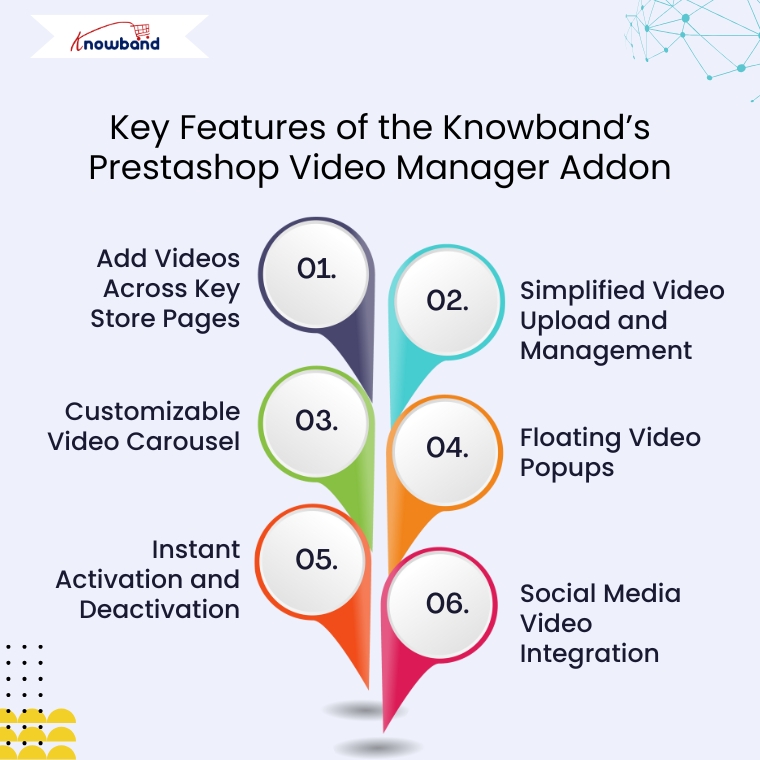
Key Features of the Knowband’s Prestashop Video Manager Addon
Add Videos Across Key Store Pages
First and foremost, VideoMate enables video placement on all crucial store pages. This includes product pages, category pages, homepages, best-seller sections, and even new arrivals. With options like the PrestaShop homepage video module and the OpenCart category video plugin, you can deliver compelling content exactly where it matters most.
Simplified Video Upload and Management
Next, the built-in video uploader for OpenCart video manager extension makes adding videos incredibly simple. Upload directly from your local system, assign content to specific pages, and edit or remove videos anytime—no coding required. This level of ease turns your store into a flexible video-powered selling machine.
Customizable Video Carousel
To further boost interactivity, the PrestaShop video carousel module and its OpenCart equivalent let you create scrollable, auto-playing video sections. Add custom headings, adjust transition timing, and control how many videos are displayed. This not only modernizes your store’s design but also improves customer engagement.
Floating Video Popups
For time-sensitive promotions or feature highlights, the floating video widget module for PrestaShop and OpenCart floating video extension provide an elegant solution. These popups can be positioned left or right, and are designed to attract attention without disrupting the browsing flow.
Instant Activation and Deactivation
For ultimate control, you can enable or disable videos directly from the admin panel. Whether you’re running seasonal campaigns, testing performance, or updating content, you have real-time flexibility without needing developer support.
Social Media Video Integration
Lastly, the PrestaShop social media video addon and OpenCart video plugin support embedded content from platforms like Instagram and Twitter. This means you can repurpose engaging short-form content—such as reels, product clips, or influencer shoutouts—right into your store. It’s a powerful way to unify your eCommerce and social marketing efforts.
Conclusion
In conclusion, integrating video into your online store is no longer just an enhancement—it’s a necessity. The VideoMate Addon equips merchants on PrestaShop, OpenCart, and WooCommerce with the trending features needed to transform static shopping experiences into engaging, video-rich journeys that build trust and boost sales.
With support for everything from product videos and video carousels to floating widgets and Instagram Reels, this addon combines ease of use with powerful functionality. Whether you’re telling your brand story, showcasing reviews, or launching new collections, VideoMate Plugin for WooCommerce helps you connect with customers in the most compelling way possible.
Explore the full potential of videos with the eCommerce Video Manager Addon because a product seen in videos is a product one step closer to being sold.
VideoMate is a comprehensive PrestaShop video addon designed to transform your online store with engaging video content. As a powerful PrestaShop product video module, VideoMate allows you to easily integrate MP4 videos into your store, creating dynamic and interactive experiences that help showcase your products, promotions, and brand story more effectively.
Furthermore, this versatile PrestaShop VideoMate Addon supports multiple widget types, including responsive video carousels, floating video players, and single video displays, giving you full control over how videos appear across your site. Whether you want to highlight your best sellers, or new products, or simply add captivating videos on the homepage or category pages, VideoMate offers flexible video mapping and display options tailored to your needs.
Additionally, with features like video library management, status toggling, and client-side validation, managing your video assets is effortless and secure. Meanwhile, the floating video module allows you to add stylish, movable video players that users can minimize or close, while the carousel module displays multiple videos with autoplay and navigation controls, ensuring a smooth and modern user experience.
Moreover, designed for seamless integration, Knowband’s PrestaShop product video addon enhances product pages with rich media content that increases user engagement and boosts conversion rates. Ultimately, whether you are looking for a PrestaShop category video module, a homepage video solution, or a full-featured video marketing module, VideoMate offers an all-in-one video widget module for PrestaShop that is responsive, customizable, and easy to manage.
[New] Latest Updates of PrestaShop Video Manager Module v1.0.4
PrestaShop VideoMate Manager v1.0.4 has been released with the following changes:
Dashboard and Reports: Now you can track impressions, plays, product clicks, and add to cart with charts, tables, date filters, and CSV export. Shoppable Video: Attach products to a video, with a product card and Add to cart on the storefront. YouTube and Vimeo: Add videos by link, with cover images fetched automatically or uploaded by you. Widget Controls: Schedule widgets, set delay or scroll triggers, target pages and devices, and choose landscape, portrait, or square video.
[New] Latest Updates of Prestashop Video Manager Module v1.0.3
This major update brings the new enhancement that now you can generate videos using AI Platforms.The Prestashop Video Manager Module now supports AI-powered video generation using Gemini and ChatGPT. Create product and promotional videos automatically with advanced AI technology.
[New] Latest Updates of Prestashop Video Manager Module v1.0.2
The new version of the PrestaShopVideomate module now includes new enhancements that give store owners greater control over video content and how customers interact with the videos.
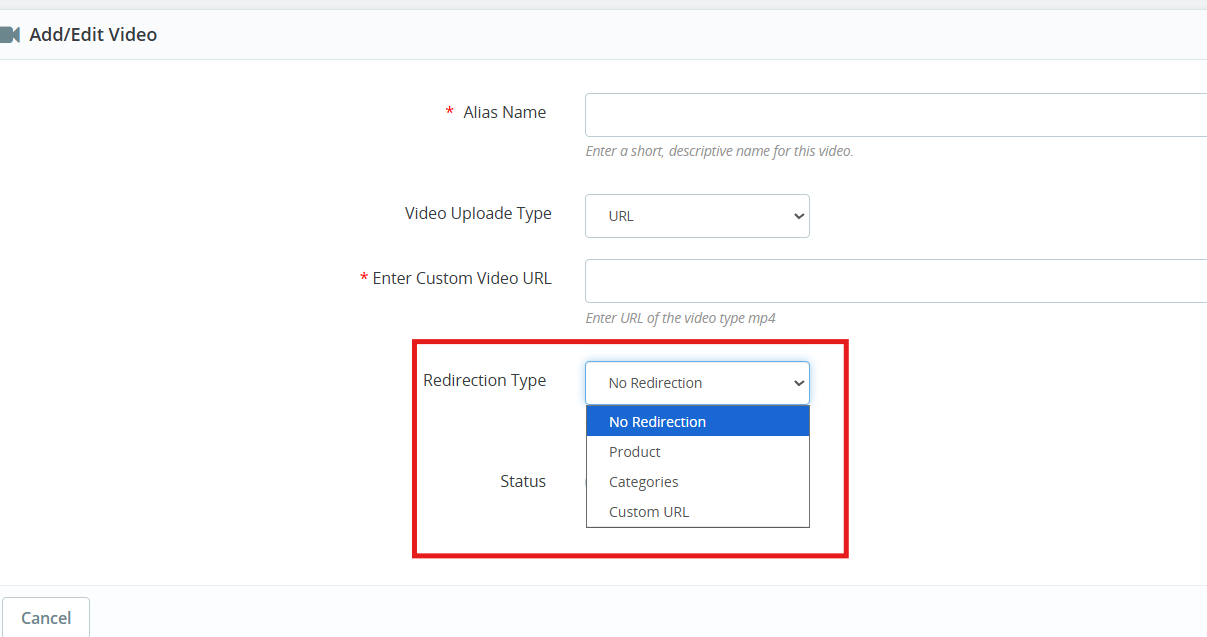
1. Video Upload Type Options
Now, store owners can choose between two methods of video type for their store:
Direct Upload: They can select and upload video files stored locally on their computer
External URL: Store owners can also add URLs to videos hosted on supported platforms using their URLs, which are publicly accessible.
These options give you flexibility in managing your video content based on your preferred hosting method.
2. Configurable Redirection Settings
The Prestashop Video Manager module introduces redirection controls that determine where customers land after clicking on a video.
You can direct them to redirection URLs of products and categories as well as any custom URL.
3. Video Integration on Product Pages
Videos now appear within the product image gallery on individual product pages. When you add a video, it displays alongside your product photos in the same viewing area.
These key features specially helps in
Demonstrate how products work in real
Keep potential buyers engaged longer on your product pages
Deliver more detailed product information without cluttering the page layout
1.0 Key Features of Prestashop VideoMate Addon
Video Library Management First and foremost, with the VideoMate PrestaShop Addon, upload MP4 videos (up to 50MB) and manage them easily using alias names, status toggle, and in-admin previews.
Video Mapping Management Additionally, this PrestaShop product video addon lets you map videos to products, categories, home pages, Best Sellers, or New Product pages with flexible widget types.
Frontend Video Display. Furthermore, use a carousel, single, or floating widget to display videos beautifully across your store. A responsive video module for PrestaShop ensures smooth playback on all devices.
Broad Widget Placement Moreover, this PrestaShop video carousel module supports placement on product pages, category pages, home pages, and special listings, maximizing visibility and customer engagement.
Custom Widget Configuration In addition, configure widget settings like autoplay, video count, position, and custom headings—making it a PrestaShop custom video display module with high flexibility.
Centralized Admin Panel Subsequently, manage all configurations from a clean admin panel with global enable/disable controls—ideal for store-wide video campaign control.
Optimized Performance & Compatibility Meanwhile, this lightweight PrestaShop MP4 video integration works seamlessly with prestashop versions 1.7 to 8. x.x.
Effective Video Marketing Strategies As a result, a true PrestaShop video marketing module, VideoMate enhances your store’s product pages with engaging video content that boosts conversions and customer trust.
Fully Responsive & Mobile-Friendly Consequently, VideoMate is a responsive video module built specifically for PrestaShop that automatically optimizes video display across all devices, delivering seamless playback on desktop, tablet, and mobile screens.
Knowband’s PrestaShop Addon to Show Product Videos Ultimately, VideoMate serves as your comprehensive video display solution for PrestaShop, offering versatile functionality as a homepage video module, category video module, or floating video module to meet all your site’s video integration needs.
2.0.0 Installation Guide for PrestaShop VideoMate Addon
Step 1: Purchase and download the Knowband’s Prestashop VideoMate Addon After your purchase is complete, you’ll receive the videomate.zip file. VideoMate is your complete PrestaShop video marketing module, designed to transform and enhance your storefront with professional video integration.
Step 2: Access Module Manager Once logged in, go to Modules > Module Manager > Upload a Module to begin the installation of your PrestaShop MP4 video integration solution.
Step 3: Upload and Install the Module Then, drag and drop the videomate.zip file or manually upload it. PrestaShop will automatically install this feature-rich video widget module for PrestaShop.
Step 4: Configure the Addon Finally, click Configure to start managing your video library, mapping videos to products, categories, or special pages like Best Seller and New Product – all with one of the best PrestaShop addons to show product videos.
3.0. Admin Panel Configuration
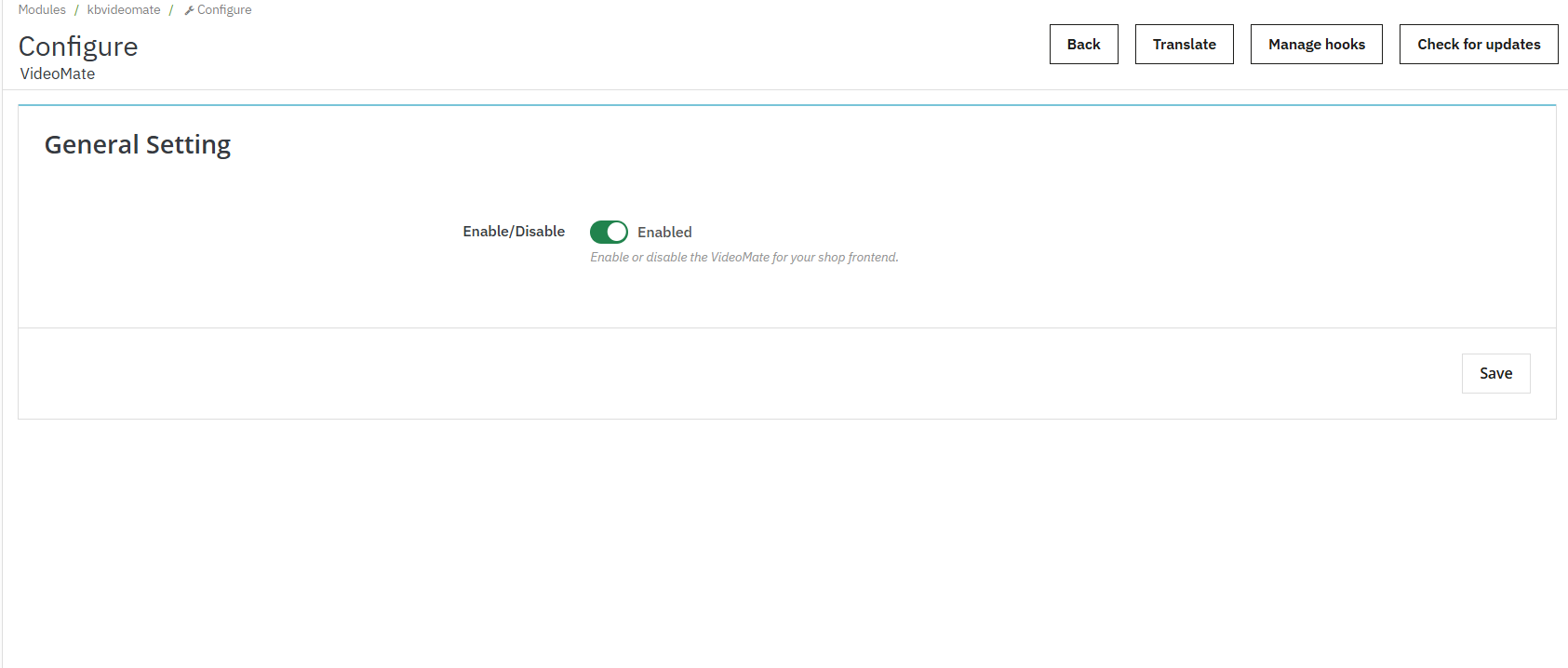
3.0.1 General Settings
Enable or disable the entire video widget functionality across your store with a single toggle. Additionally, this is useful for temporary deactivation without losing configurations.
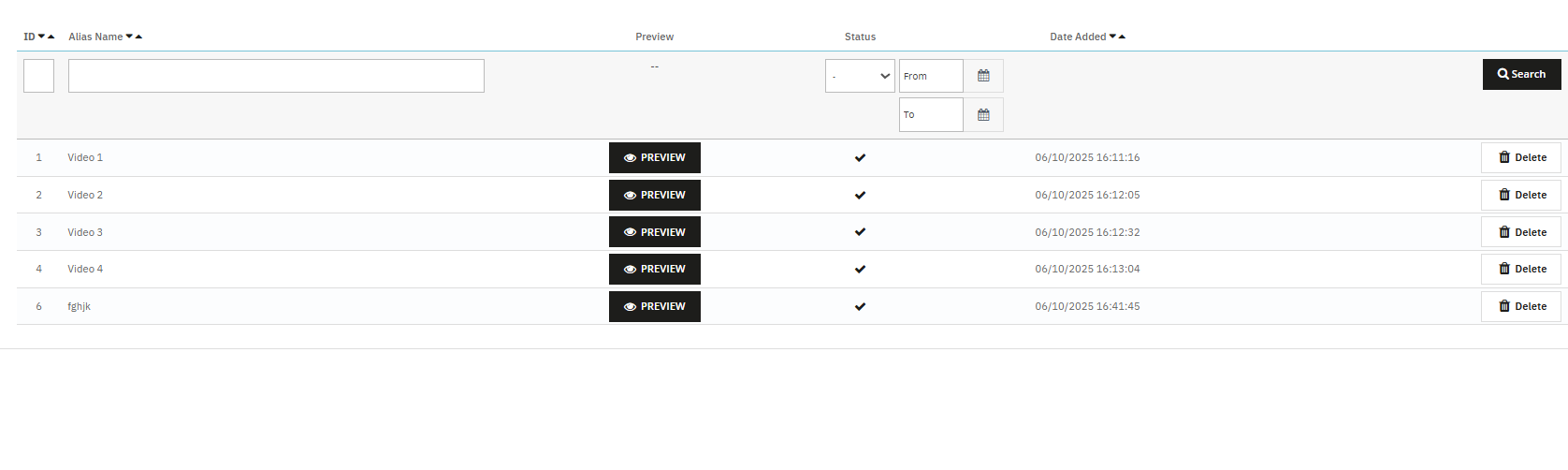
3.0.2 Video Library Management
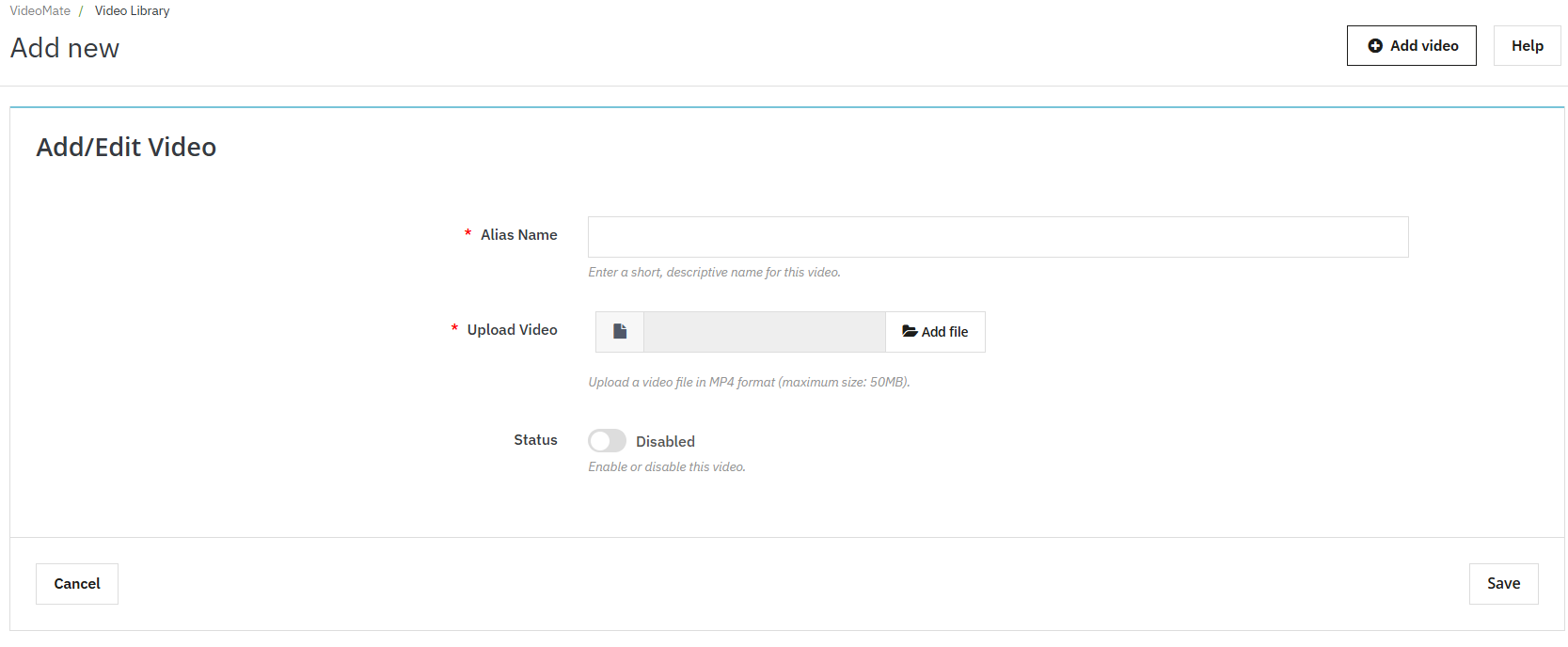
Add New Video: Click “Add New” to upload MP4 videos (up to 50MB) to the library. This feature enables PrestaShop MP4 video integration.
Alias Name: Assign a unique name to each video for easy identification and mapping.
Upload Video: The Videomate allows the store owners to browse and upload mobile-friendly video files in MP4 format.
Preview Option: Knowband’s VideoMate Prestashop Module allows store owners to preview before being mapped or published.
Redirection URL: The store owners can now link their videos to product pages, category pages and custom page URLs using the Prestashop Video Manager Module
3.0.3 AI Video Generation in Prestashop Video Manager Module
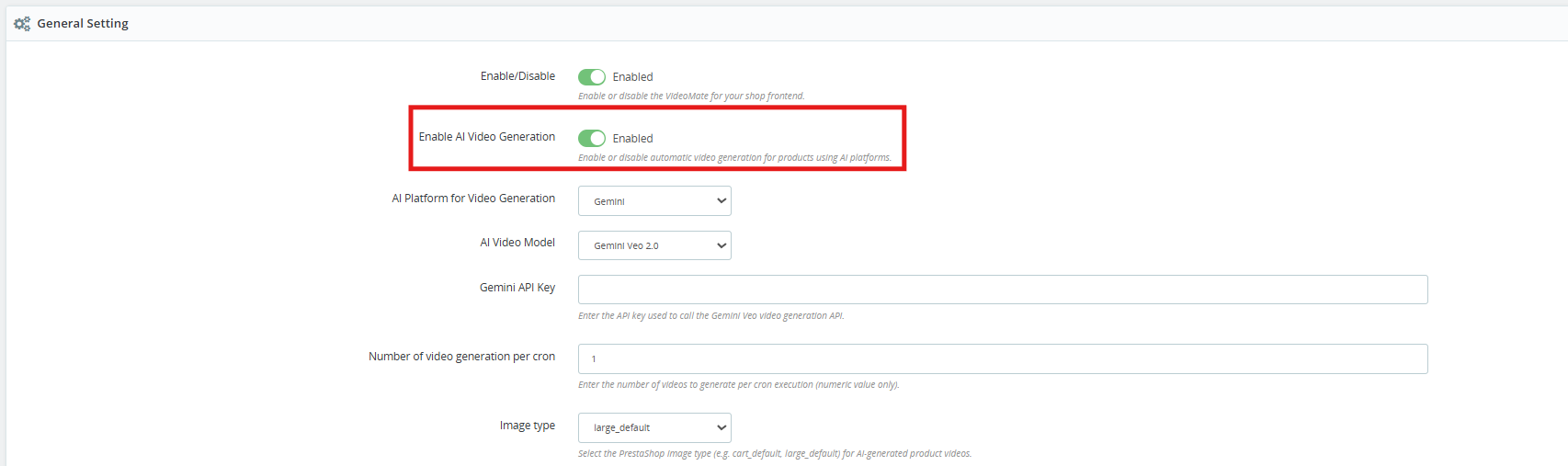
[New] Enable AI Video Generation: Enable this option to start the AI-powered video generation functionality.
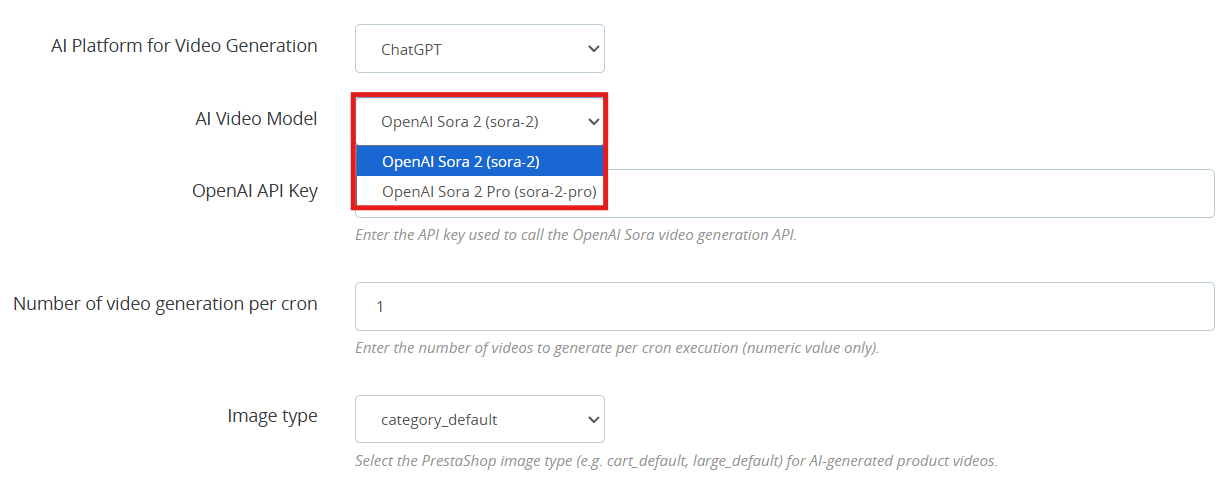
[New] AI Platform for Video Generation: Select either ChatGPT or Gemini as your generation platform. Both AI platforms work well and it really comes down to which fits your requirement and what you are willing to spend.
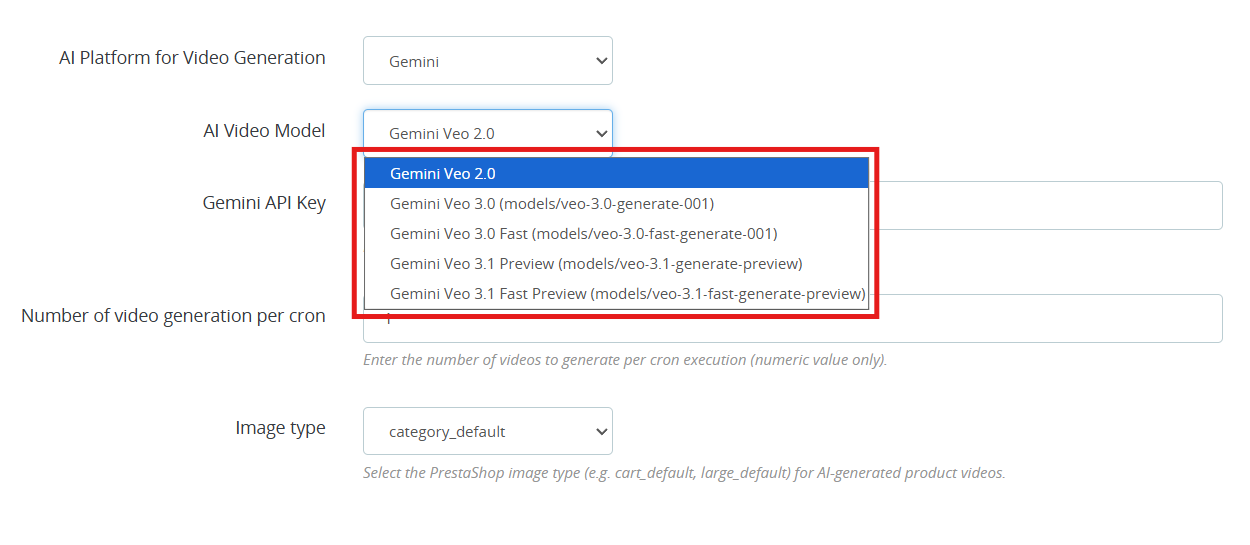
[New] AI Video Generation Models: VideoMate is one of the popular Prestashop AI Video Generation Module which is available right now. Whether you are going with the ChatGPT video generator or the Gemini video generation, you have clear options to work with.
ChatGPT Models (OpenAI)
OpenAI Sora 2: This model turns text prompts into sharp, visually strong videos. A good all-around pick for PrestaShop AI product video generation.
OpenAI Sora 2 Pro: this OpenAI ChatGPT model steps it up with finer detail, support for longer clips, and cleaner results on more complicated scenes. Worth it if your store needs polished, high-end AI-generated product videos.
Gemini Models (Google)
Gemini Veo 2.0 Output in Veo 2.0 is consistent and predictable, which makes it a natural fit for PrestaShop Gemini video generation tasks.
Gemini Veo 3.0 (models/veo-3.0-generate-001) Noticeably better motion handling and prompt accuracy over Veo 2.0. You can go here for PrestaShop marketing video generation or any product showcase.
Gemini Veo 3.0 Fast (models/veo-3.0-fast-generate-001) is designed for throughput. If you are running bulk AI video generation in PrestaShop through cron jobs, this is the one to use.
Gemini Veo 3.1 Preview (models/veo-3.1-generate-preview) handles more nuanced prompts better than previous versions.
Gemini Veo 3.1 Fast Preview (models/veo-3.1-fast-generate-preview) Same generation quality as 3.1 Preview but tuned for speed. It is practical for high-volume PrestaShop product video automation where you cannot afford long wait times.
OpenAI API Key: Paste your OpenAI key here to get PrestaShop ChatGPT video generation running. Steps are in section 3.4.
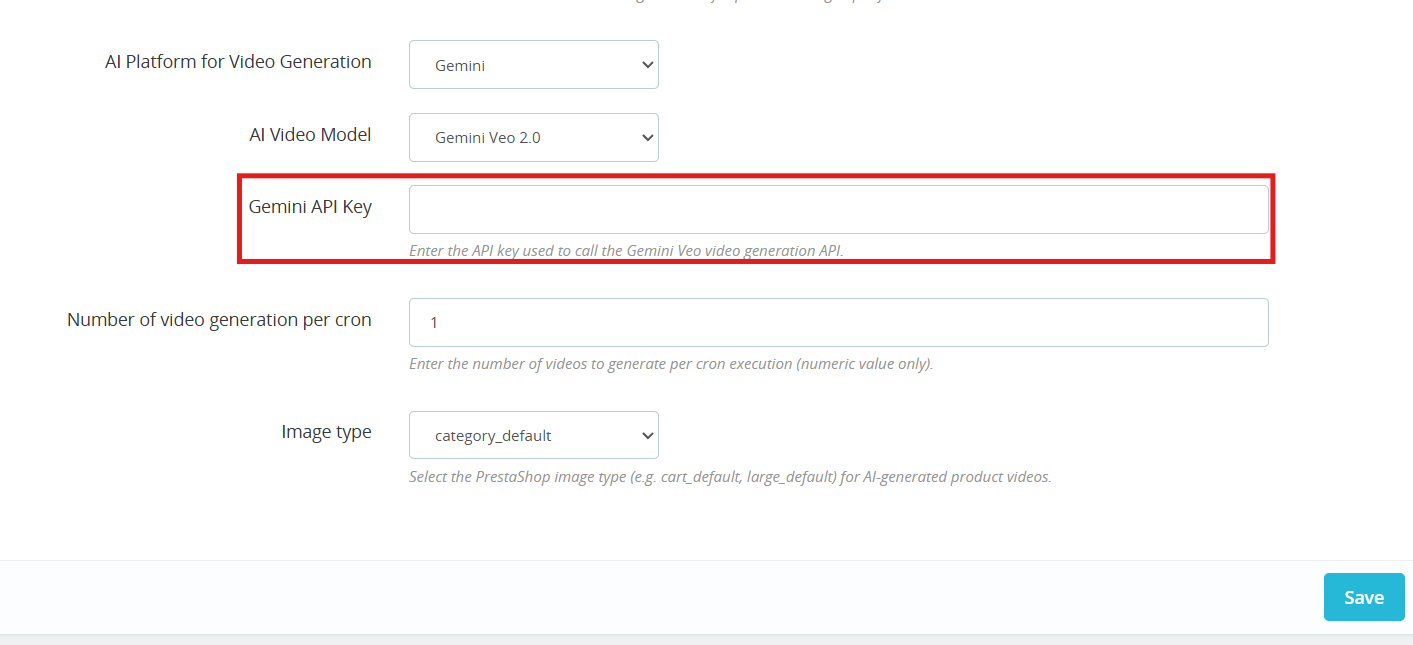
Gemini API Key Add your Gemini key to switch on PrestaShop Gemini AI video generation. Steps are in section 3.5.
Number of Videos per Cron Controls how many videos the PrestaShop AI Video Generation module queues up each time the cron runs.
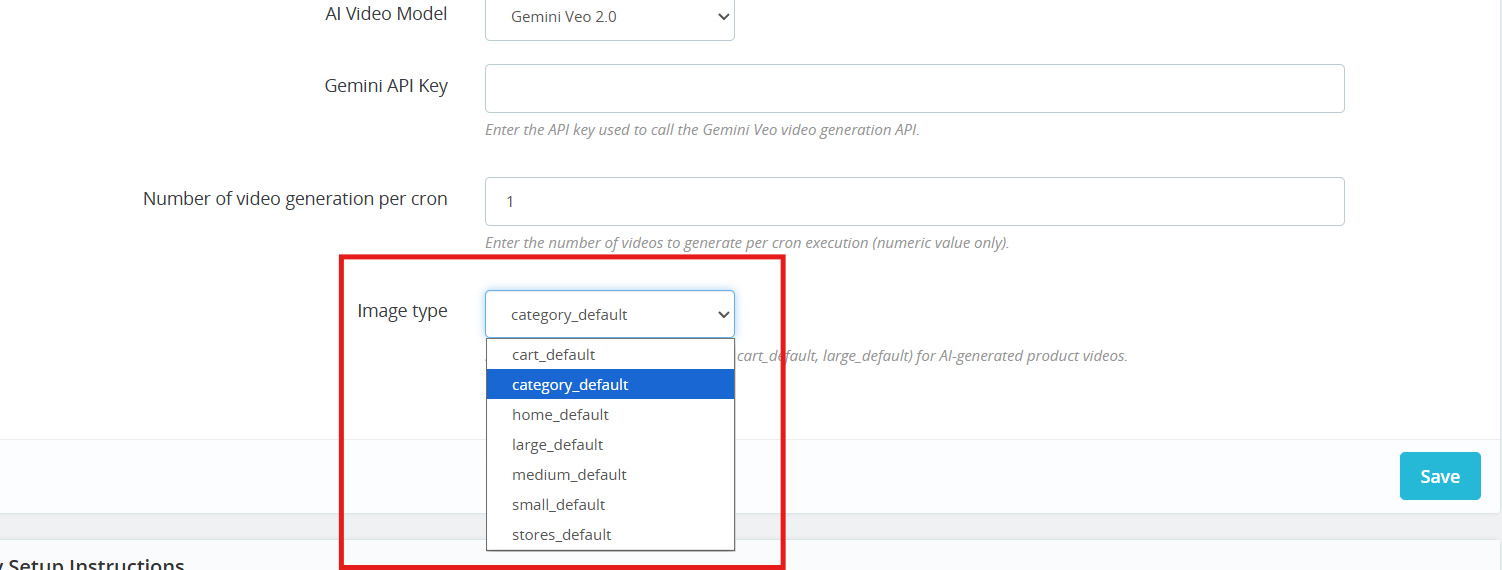
Image Type: Choose which image size gets passed to the AI during PrestaShop AI video generation: cart, large, small, medium, stores, or category.
Cron URL: Run the cron URL provided in the General Configuration section to automatically generate videos using AI.
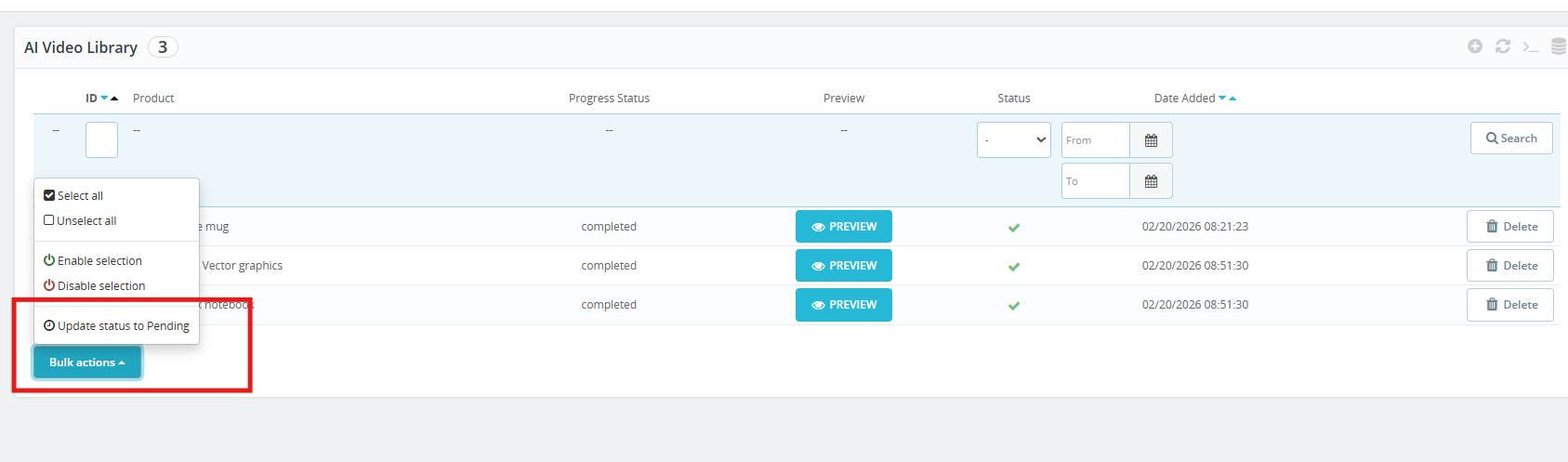
3.0.4 AI Video Library
This is where all your PrestaShop AI Video Library entries live, queued, paused, or active. Click + to set up a new one.
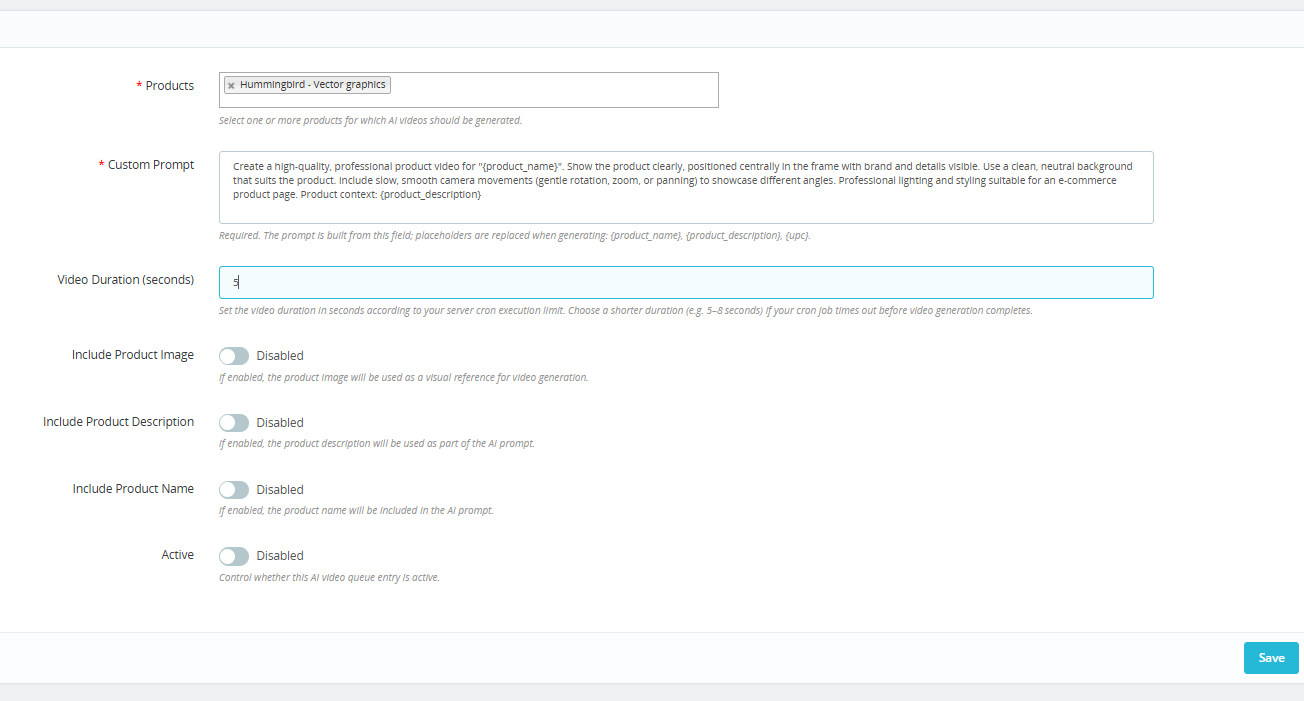
Products: Choose the products you want to cover. The PrestaShop AI Video Generation module handles the rest, generating a video for each one through ChatGPT or Gemini.
Custom Prompt: Type out what you want the AI to do. Add in {product_name}, {product_description}, or {upc} where needed. The module add these variable with live product data each time a video runs, which keeps your PrestaShop AI product video prompts scalable without extra manual work.
Video Duration (seconds) Staying in the 5 to 8 second range helps you avoid cutoffs during automated PrestaShop video generation.
Include Product Image: Allow the AI model to take your product photo as a reference so the output stays visually close to the real item. Helps the PrestaShop AI video generator stay on brand.
Include Product Description Gives the AI more to work with. More context generally means more relevant AI-generated product videos in PrestaShop.
Include Product Name Keeps the prompt tied to the right product so there is no mismatch in the final PrestaShop AI video output.
Active: You can enable or disable the AI Generation settings for the product. If this is disabled, then products will not be added to the queue for video generation.
The VideoMate PrestaShop Module exhibit the feature to place the dynamic video widgets across multiple pages.
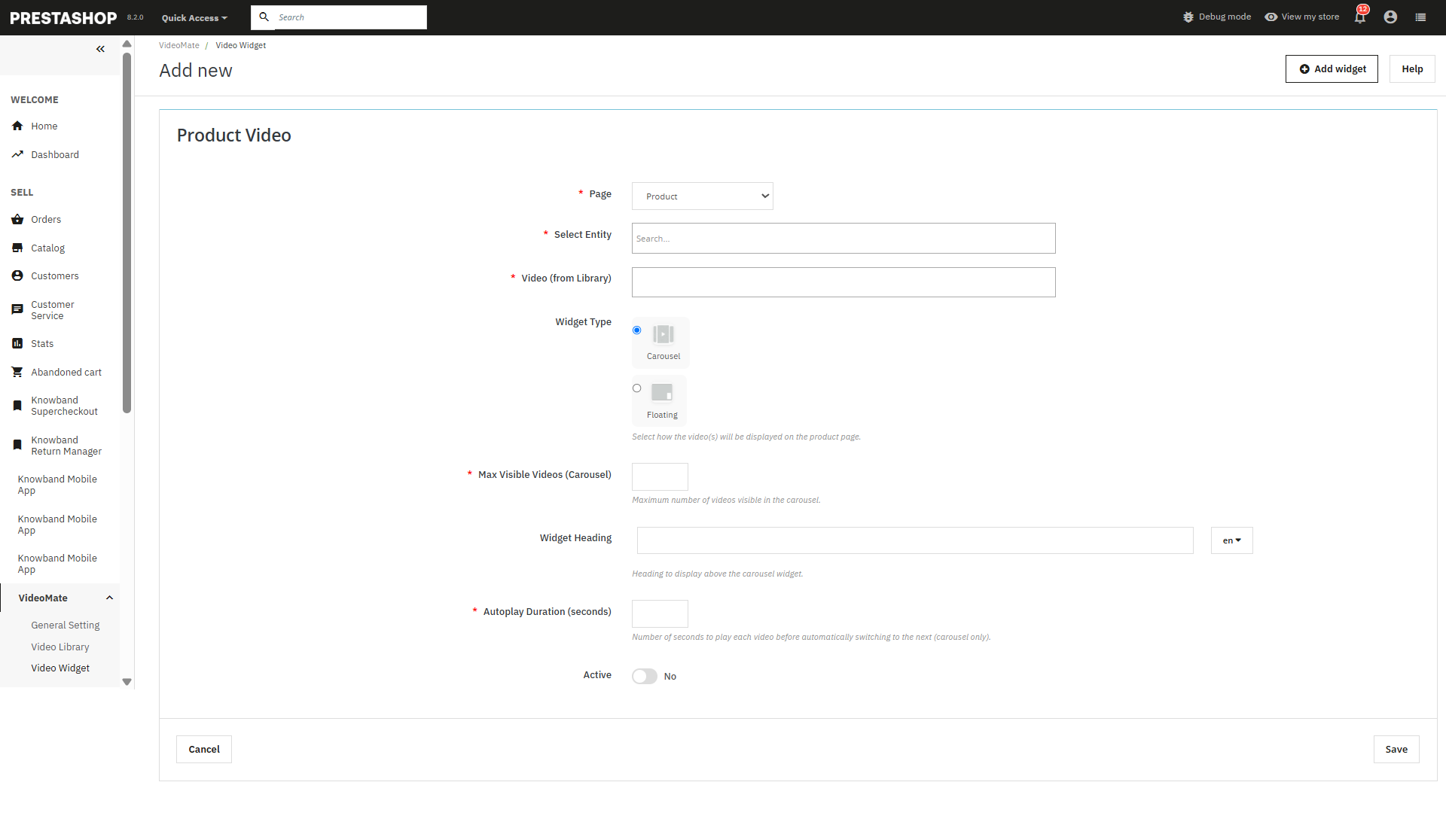
Add New Widget: Click to create a new video widget for YouTube or MP4 videos.
Page Selection: Choose where to display videos — Homepage, Product Page, Category Page, Best Seller, or New Product.
Select Entity: Dynamically assign videos to specific products or categories.
Video Selection: Select from videos already available in your media library.
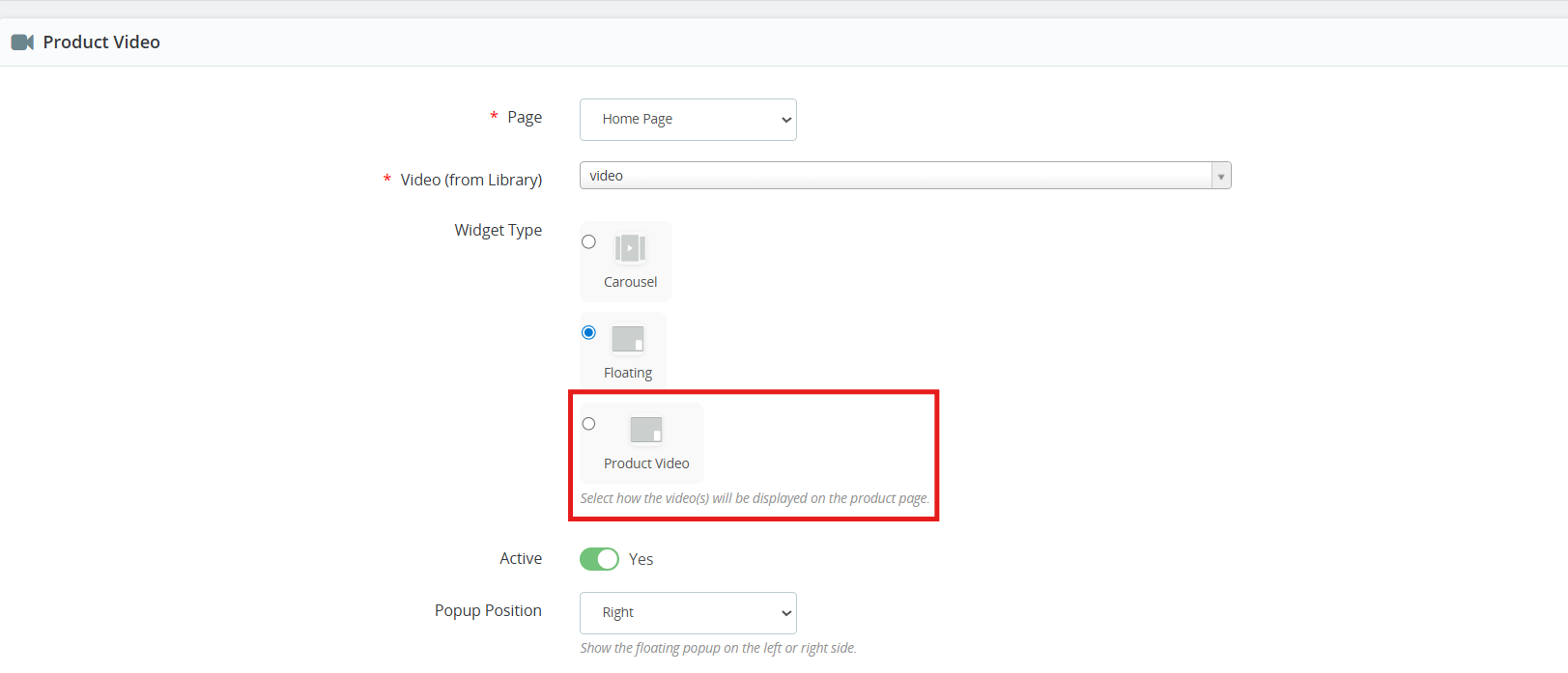
Widget Type: Select between:
Carousel – For multiple videos in a slider format.
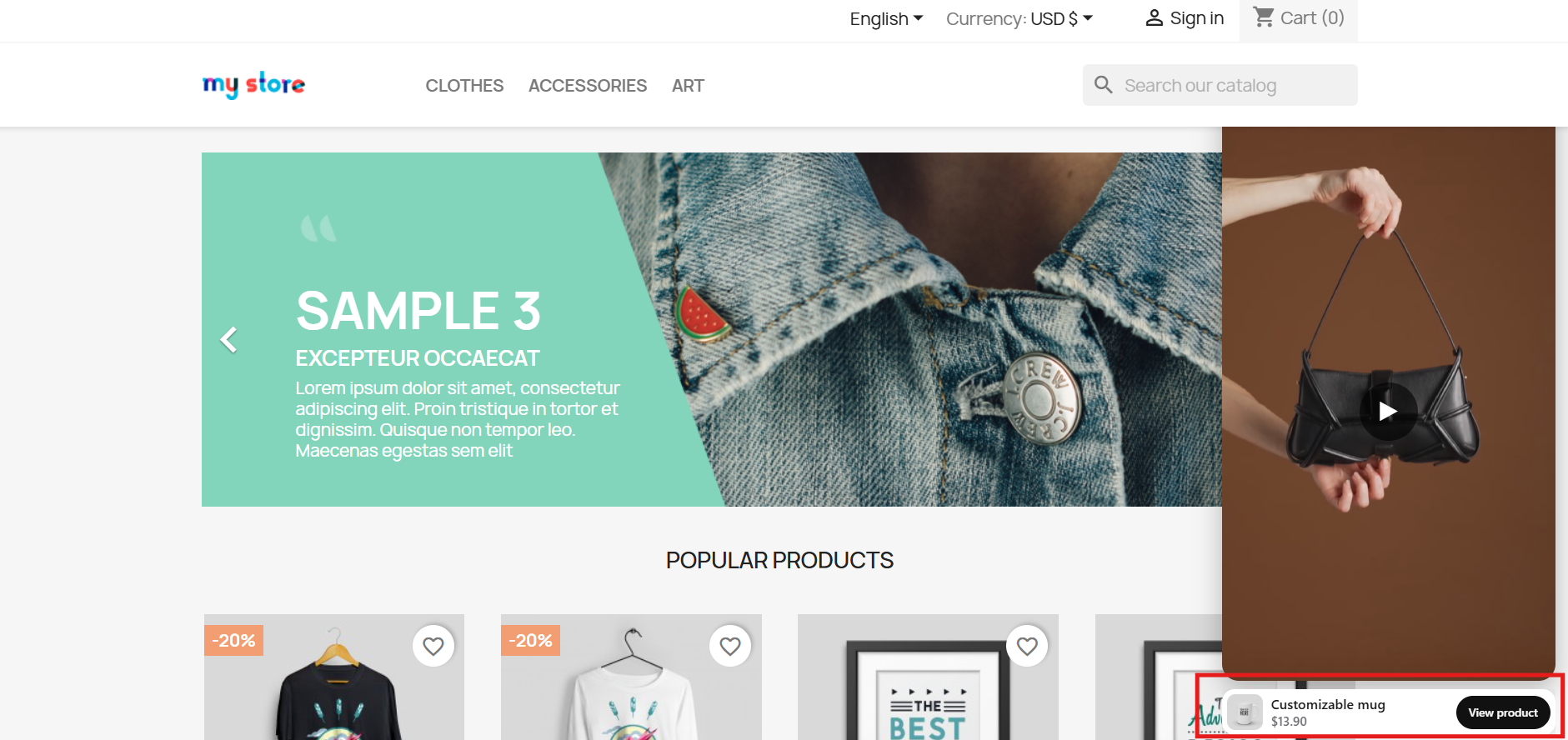
Floating – Provides a movable video player positioned at the bottom-left or bottom-right of the screen.
[New] Product Video: Store owners can now add videos to product pages using the new Product Video widget of the PrestaShop Video Manager. The added product videos will be displayed alongside product images on the product image section, allowing merchants to showcase product visuals more effectively.
Maximum Visible Videos: Prestashop video marketing module allows the store owners to define how many videos should be shown in a carousel (shows 5 in case of 5 maximum videos).
Autoplay Video: The Prestashop VideoMate Module allows the e-merchant to set the autoplay time in seconds for videos to begin automatically.
Status (Active/Inactive): This feature of the PrestaShop floating video module enables or disables the status of the widget without deleting it.
Store owners can disable the widgets added in the video Widgets.
Save: Click to save your configurations and apply the widget to your selected pages.
3.0.6 PrestaShop Video Dashboard
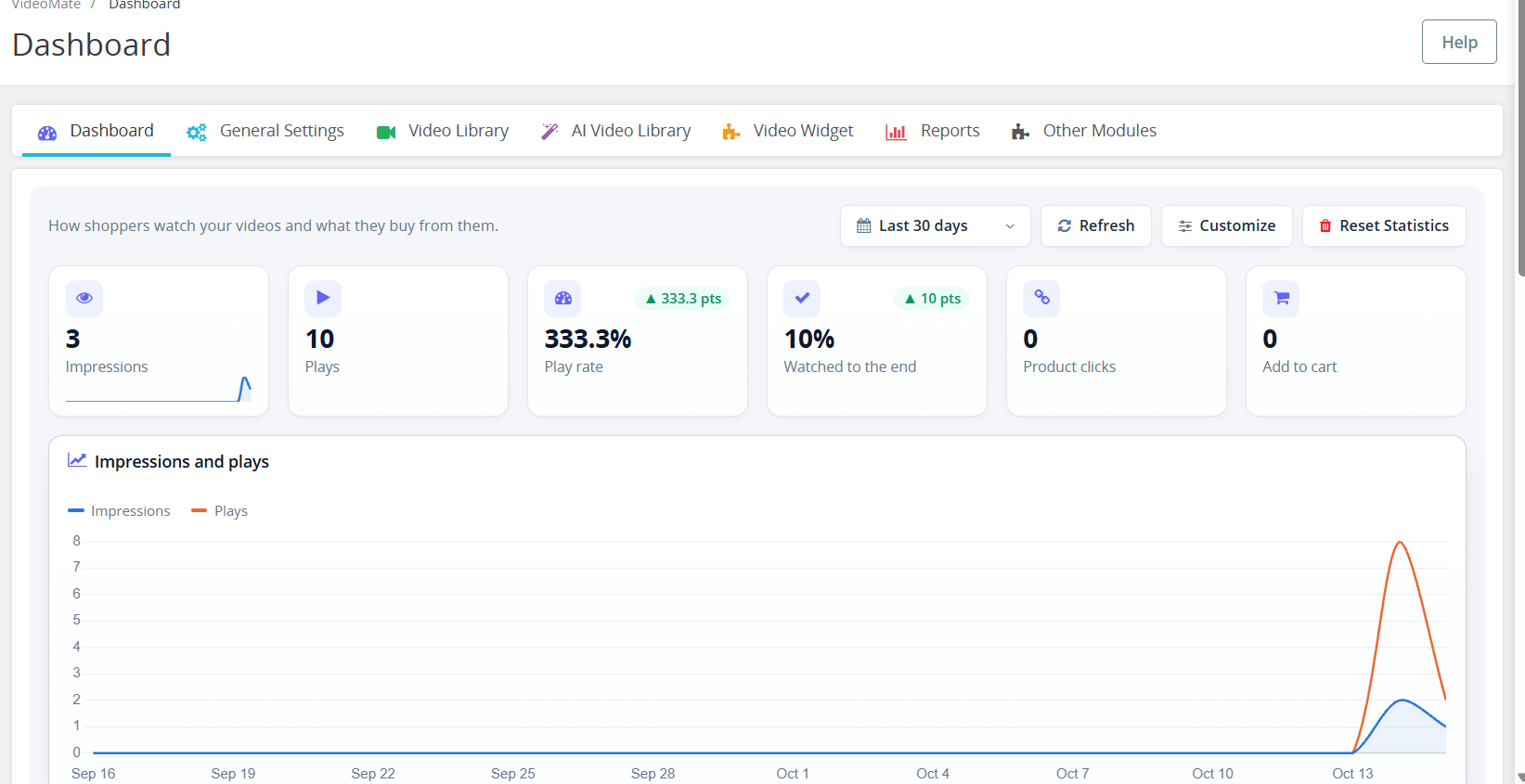
The Dashboard tab within the PrestaShop VideoMate plugin allows for tracking the way the customers watch your videos and which products they purchase through your videos. All your PrestaShop video statistics will be available to you in one place!
Period: choose the time period for all charts. Refresh: refreshes the statistics. Customize: Add, remove, and rearrange dashboard elements. Changes to the layout will be saved only to your admin profile. Clear Statistics: permanently removes the collected statistics. Cards: Impressions, Plays, Play rate, Watched to the end, Product clicks, and Add to cart.
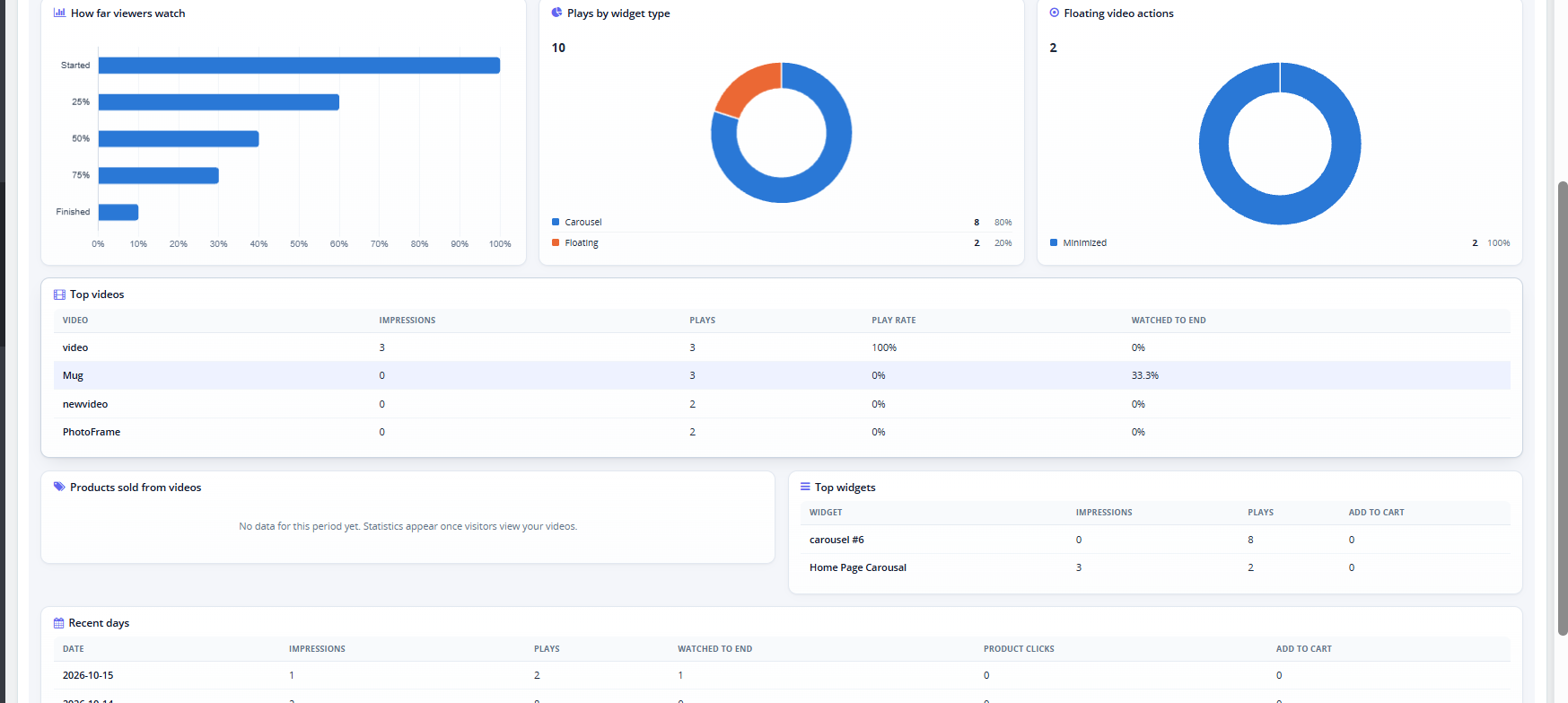
Charts: Impressions and plays over time, how far viewers watch (Started, 25%, 50%, 75%, Finished), plays by widget type, and floating video actions.
Tables: Top videos, Products sold from videos, Top widgets, and Recent days.
3.0.7 YouTube and Vimeo Videos in PrestaShop
This YouTube Vimeo PrestaShop module lets you add videos by link. In Video Library, the Video Source field now includes YouTube and Vimeo. Select one, paste the video link, and the module builds the embed automatically.
3.0.8 PrestaShop Video Cover Image (Poster)
The Poster Upload field sets the PrestaShop video cover image shown before the video plays. It accepts JPG, PNG, or WebP files up to 3 MB, at least 16×16 px. For YouTube and Vimeo videos the cover is fetched automatically, and you can upload your own to replace it.
3.0.9PrestaShop Shoppable Video
You can turn any video into a PrestaShop shoppable video by attaching products to it.
Shoppable Products: start typing a product name and select it from the list. You can attach up to 100 products to one video.
Bulk Add Products: paste product IDs or references, separated by commas or new lines, to add up to 1000 at once.
On the storefront, each attached product appears as a card with the image, name, price, and an Add to cart button. This PrestaShop video add to cart option lets customers buy without leaving the video. After a product is added, a View cart button appears. If a product has options, the card links to its product page instead.
3.1.0 PrestaShop Video Reports
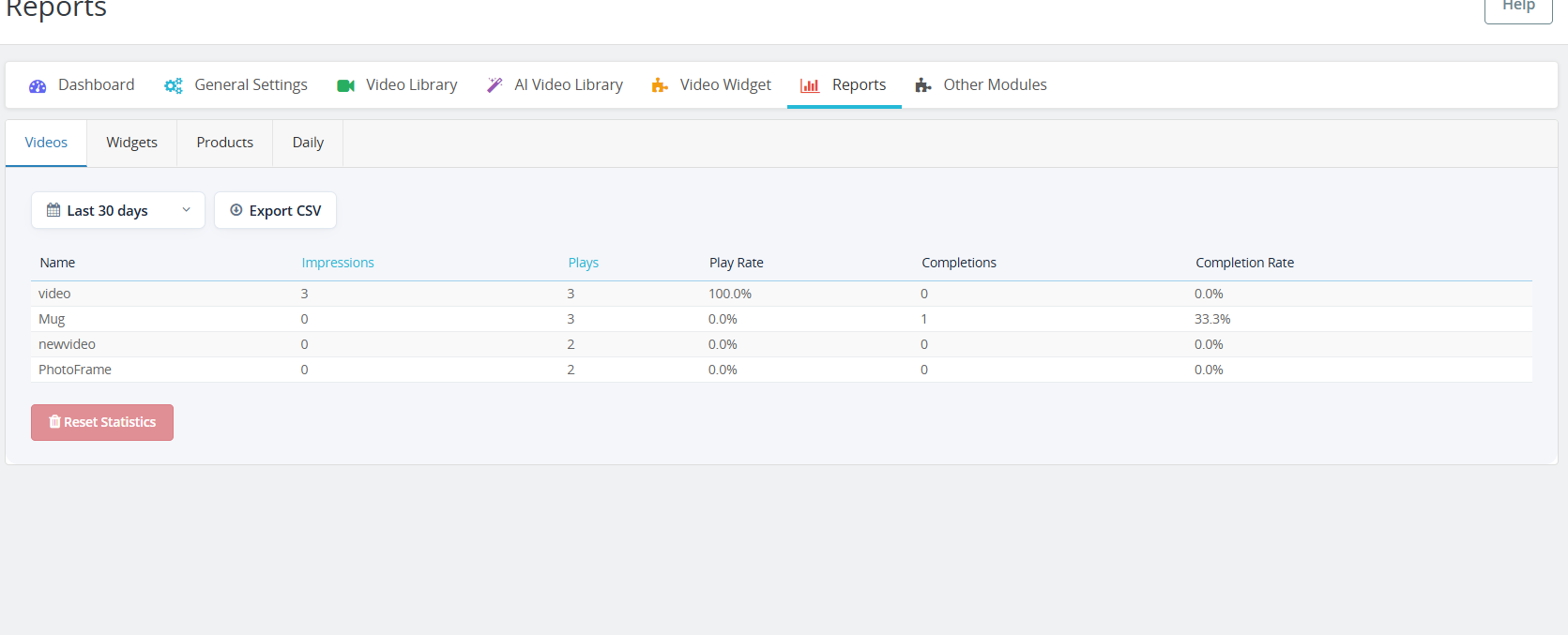
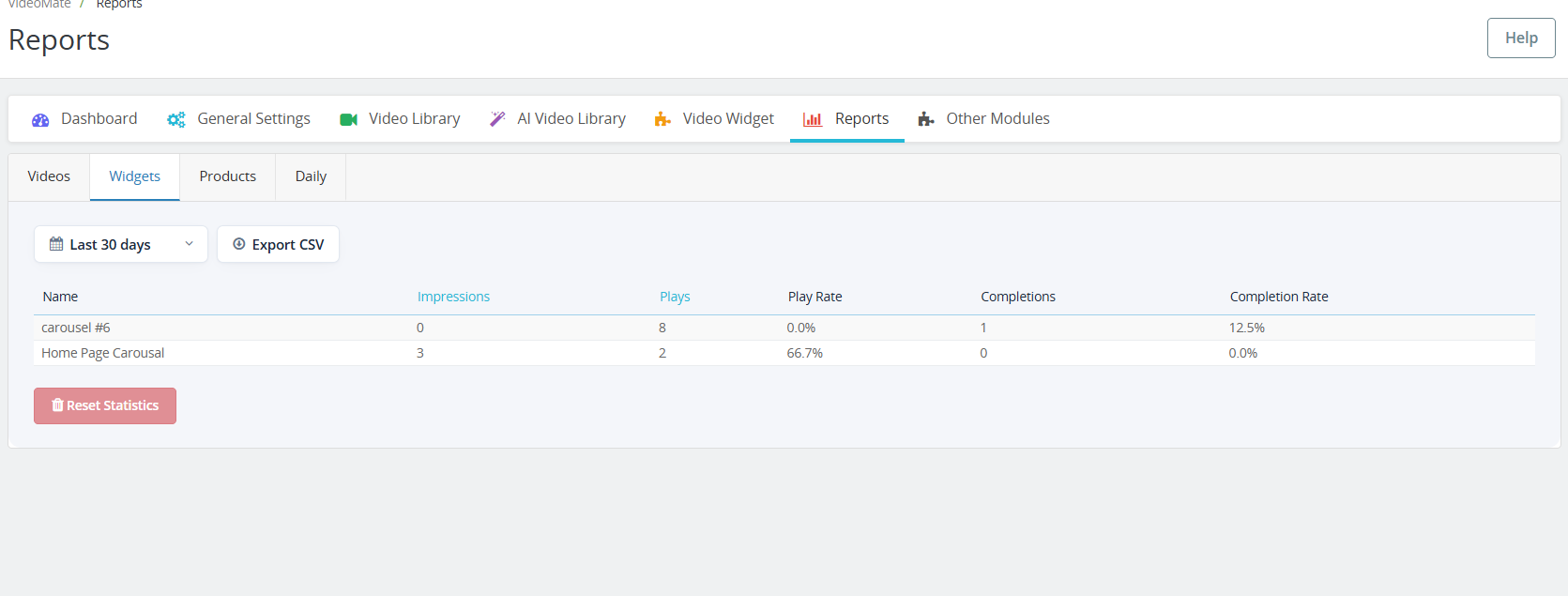
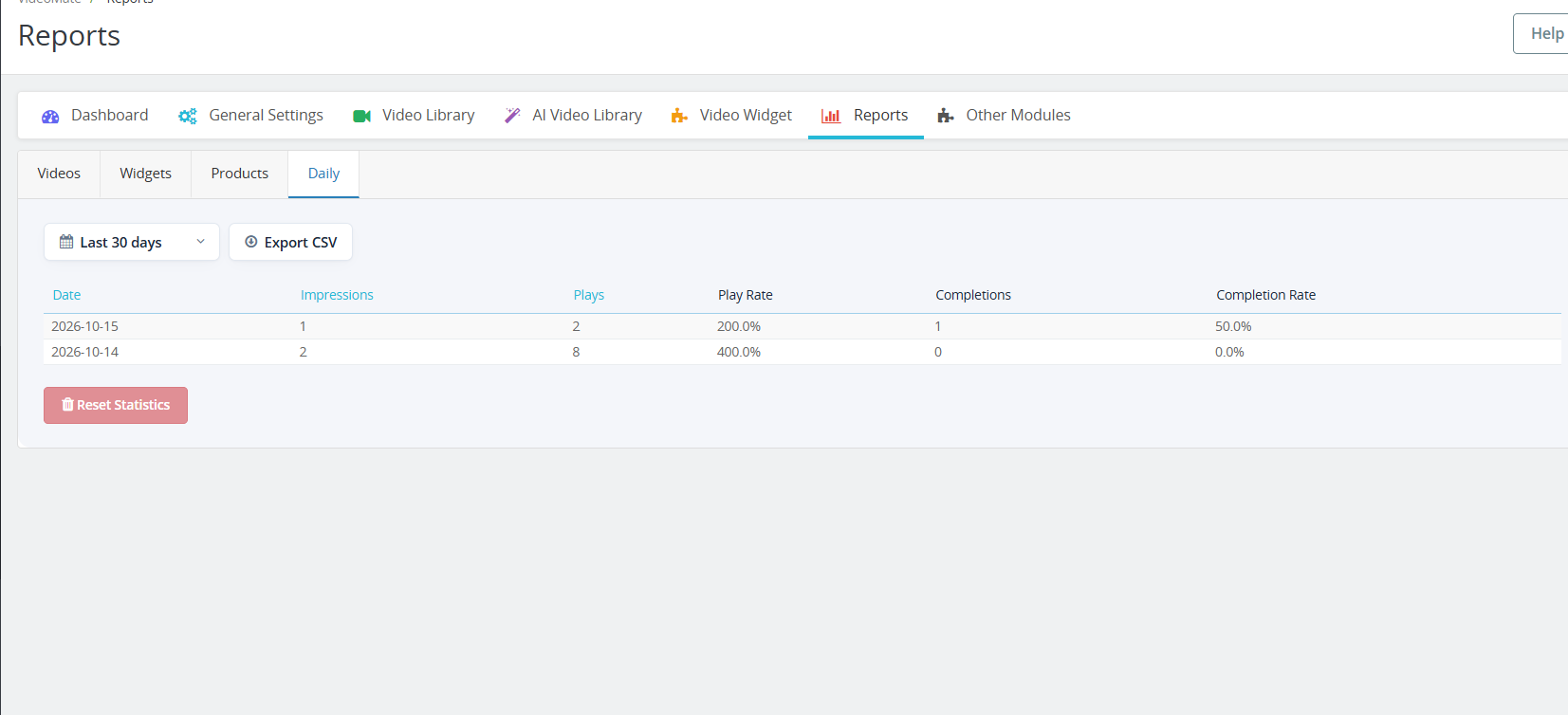
The new Reports tab has four sub-tabs: Videos, Widgets, Products, and Daily. Each one shows impressions, plays, play rate, completions, and completion rate.
Choose a period to filter the data.
Click Impressions or Plays to sort the table.
Click Export CSV to download the table. PrestaShop video reports can then be opened in Excel or Google Sheets.
Click Reset Statistics to clear the recorded data.
4.0 Benefits of PrestaShop VideoMate Module
Boosts Product Engagement
Videos provide a richer shopping experience, helping customers understand product features better and reducing purchase hesitation.
Improves Conversion Rates
Significantly, customers are more likely to convert when they see video demos or tutorials, making VideoMate a powerful PrestaShop product video module for increasing sales.
Flexible Video Placement
Add videos across product pages, category pages, homepage, Best Seller, and New Product pages – ensuring visibility where it matters most.
Multiple Display Options
Choose from the carousel, floating, or single video widgets for a dynamic and responsive presentation tailored to your design.
Supports A & YouTube Links
Furthermore, seamlessly upload MP4 videos (up to 50MB) or trending social media videos, enabling full PrestaShop video integration.
Mobile-Responsive Design
All video widgets are fully responsive, ensuring smooth performance across desktop, tablet, and mobile devices.
Tutorial: Watch the Video Guide
To help you set up and use the PrestaShop VideoMate Module, we have created a comprehensive YouTube tutorial. This step-by-step video guide walks you through the installation process, configuration options, and how to effectively add and manage video content on your store.
If you experience any difficulties during installation or when using the Prestashop VideoMate Extension, our support team is ready to assist you. Reach out to us through email at support@knowband.com or by submitting a ticket at knowband.com/helpdesk for prompt assistance with any technical issues or questions you may have.
The competitive online market has enforced eCommerce retailers to come up with various ideas in order to make the online purchase easier for online shoppers. It has become the prime duty of the merchants to retain their customers by providing them an easy shopping experience so that they do not switch to a competitive store. The customers also seek for better opportunities. If they feel like the web store is not delivering according to their expectations, they instantly look for any other store to make a purchase. This ultimately leads to a decrease in the conversion rate funnel. Therefore, trying to make the purchase easy and better for the customers is the prime aim for the web store owners today.
In this article, we discuss the 10 simple ways to make the online purchase easier for your customers.
1. Easy login
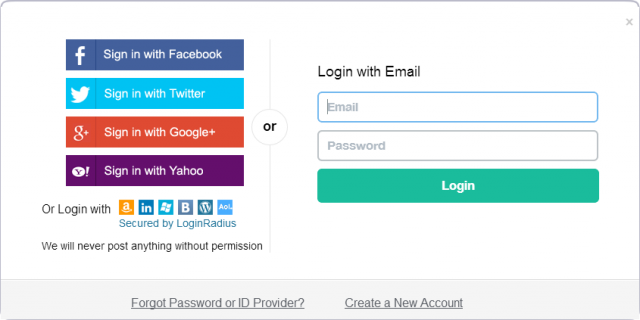
One of the major problems encountered by the customers while trying to access the web store is the lengthy sign-up process or the unavailability of the easy login options. Customers do not feel like filling up the lengthy form in order to browse the web store. Therefore, the e-retailers must come up with better alternatives so that the customers find it easy to register on your store. To make the sign-up/login process easy, you can implement the social login options on your store.
The shift in trend is already at the all-time high. With the mobile app surpassing the popularity of the desktop sites, it has become important for the web store owners to come up with a mobile app for their e-commerce store. The mobile app is one of the major demands of customers today. People like convenient browsing and a mobile app helps to do so. With just one tap, users can have access to their favorite eCommerce platforms.
3. Video marketing
Today, consumers need a clear and better insight into a product, and product images are not just enough to strengthen their buying decision. Video Marketing is the trend. Thus, you can make use of the product video marketing concept to provide better information regarding the product. It has been seen that the products which have a video description are twice as likely to make a sale as the products which don’t. Attaching a product video can help the consumers in making an easy and better purchase decision.
4. Multiple payment options
The lack of multiple payment options is another commonly found issue among the customers when it comes to purchasing a product. Most of the eCommerce stores have a fixed form of accepting the payments which turn out to be a major disappointment for the consumers, making it one of the major reasons for cart abandonment.
Any eCommerce store that offers multiple payment options has higher chances of conversions as compared to a store restricted to one or two payment modes only. If you want to make the online purchase easier for your customers, provide them the choices of making a payment through various payment modes.
5. Gifts and discounts
In order to connect better with the customers, e-commerce stores need to come up with timely offers and discounts. The customers always like to get better deals and offers with their purchase. Thus, making sure that the consumers are offered with timely freebies will attract them more towards your store and eventually turn them into loyal and potential customers. It is one of the best ways for customer retention and improving sales.
6. Free shipping
A high number of successful conversions are restricted due to the absence of free shipping on the eCommerce platforms. The majority of the customers seek for the free shipping of their products before making a purchase but with the additional shipping costs, customers become reluctant to leave your store, affecting your conversion rate heavily. This can be overcome by offering free shipping to your consumers, hence providing them a comfortable shopping experience.
7. Follow up marketing
Not every seemingly interested lead will convert into a potential customer, however, you can put your efforts and try to make them convert. Follow up the lead constantly and keep them informed about your offers. The follow-up marketing can be done by making use of Emails, mobile app notifications or web push notifications. The conversion rate is likely to go high with the correct approach to follow-up marketing.
8. Allow users to add review
According to Invesp, 90% of consumers read online reviews before making a purchase. You can imagine how much importance reviews hold for eCommerce sectors. Reviews establish trust. When consumers see that their desired product has been liked by the other customers, there are certain chances that the consumer will take no time in placing the order. So, add a review system to your product pages to avoid consumers’ confusion regarding the purchase and make their online purchase easy.
9. Make it easy to contact your customer support
Customers get frustrated if they do not get an easy option to contact you. Moreover, if you take too long to resolve their queries, you are almost going to kill their interest in your store. So make sure they do not find any difficulty in reaching out for help. Keep your contact page at the place where it is easy to navigate. In addition to this, provide various contact options to your customers for any assistance. Allow them to contact you via email, phone or an instant message and try to solve their queries as early as possible.
10. Easy return policy
The easy return policy is one of the most important aspects of making the online purchase easier for your customers. The first thing any consumer look out for while making a purchase is the return policy. In online shopping, there are high possibilities of a customer being dissatisfied with the purchase. Providing them an easy return option takes out the fear of losing money and thus encourages them to go for the purchase. So, keep your return policy simple and easy.
Conclusion
The process of making the online purchase easier for your customers lies in enhancing each and every aspect of your e-commerce store. The above-listed 10 methods would be very helpful for you, as a retailer, in providing an amazing comfort to your consumers on your store.
Holiday season is one of the most awaited time of the year, especially for the online retailers. The eCommerce websites are jam packed with the visitors and the sales are at the peak. With so many offers and discounts available, even the customers are all geared up make their holidays purchases from the web stores. The trend of giving and receiving gifts during the season is an old tradition. Thus, it becomes an important concern for the online retail stores to keep their websites ready for the unexpected traffic.
Not just this, the eCommerce stores must be ready to provide every possible assistance to the customer in order to make their purchase better and vivid. Most of the time the web stores would love to provide features that would encourage the customers to make more purchases. As the holiday season is just around the corner, it is not just the deals that should be focused, the store owners need to optimize their website for better user experience as well.
The online merchants need to make sure that they provide some common features which most of the customers search in an eCommerce store. The online stores should ensure a better clarity of the products and offers to the customers. Thus, aiding the purchase decision of the visitors.
Let us discuss some of the features that must be incorporated in the web store by the sellers in order to get better sales from the web store during the holiday season.
1. Quick check-in and browsing option
One of the most important problem that arises for the customers to avail the web store services is login. The customers may be using your web store for the first time. Thus, asking them to delve into the lengthy sign up process would repel them away from the store. Thus, the web store must provide the option of social login option, in order to help the visitors browse the web store easily. Prestashop social login addon can help include the quick login option on the Prstashop stores. There are similar module for other eCommerce platforms as well such as Magento social login extension and OpenCart social login plugin.
2. Offer better product clarity
The product description must be vivid and graphical. The customers would live t make a purchase form the web store if they get a better insight of the product from the seller. Thus, incorporating various options like product images or product videos might help the customers relate better with the product and can make purchase without any difficulty. Prestashop product video module can help you upload the videos without changing the code of the site.
3. Multi-lingual support
The idea of connecting to vast group of people must consider connecting them at lingual level. The customers may not be supportive of English, so the web stores must make sure that they are transmitting the products in multiple language which is more comfortable to the customers. It helps in growing the popularity of the web store in various regions.
4. Product availability
The web stores must be clear about the product availability to the customers. It can be done by providing information regarding different sellers and the count of the products with different sellers and their remaining count. The customers must be made aware about the availability of the products. Moreover, they should be given the feature of check the availability for a particular location. This can be done on the Prestashop store by incorporating Prestashop product availability by ZipCode module. The customer can make up their mind, in order to choose a particular product regarding this feature. It also helps in clearing the clouds of bad hosting.
5. Offers and discounts
Most people prefer to shop during holidays with the basic idea of availing more and better discount on the products. Thus, the sellers must introduce exciting offers in their web store so that customers could make more purchase using those offers. It helps in boosting the sales as a customer would prefer to make a purchase on any product after receiving a good deal.
6. Better interactive contents
The interaction with the customers must be maintained with the customers all the time. In order to do so, the web stores can provide various pop ups in the web store such as Spin and win and many other exciting pop ups, which can divert the attention of the customers back to store. In case a customer is wishing to exit the store then they can be brought back in store.
7. Shipping assistance
The customers would like to get a better shipping option in order to receive their products. Thus, the web store must be clear to the customers about their options to receive the products and the additional charges that may be added separately with the product cost in delivering the products.
Conclusion
The holiday season can bring a boom in the amount of sales made by the web stores. The secret of making it lies in better services and feature provided to the customers. Thus, the web store must always be provide with better and engaging options so that the customers could browse and make better purchase from the web store. It helps in enhancing the performance of the web store.
One of the better approach to reach out to maximum potential buyers is by making sure that the product description reaches in best possible way to the customers. There are many ways to provide a better insight of the product to the customers like Image, ads, Posts and videos. Though all the option may seem to be feasible and appropriate, but with the increase in the competition, it important to provide the customers with the look and feel of the products for better understanding. Thus, the seller needs to make sure that the products is made visible in the most suited way.
Product video are a quite helpful approach in doing so. The customer may get a better insight of the product by just giving a couple of minutes of their time. It helps them get an actual glimpse of the product before making a purchase. It is a much better approach rather than having to browse through multiple images or post just in order to make sure the product is in compatibility with what the customer wants.
Every store owner would like to get an additive description of the product on their store. Knowband offers an effortless way to upload the product images on the Prestashop store. Prestashop Product video module is one such addon that can help you upload the videos without making any code changes on the website. The seller can add a video of the product, giving a brief insight of the product. It helps the customer in every possible way to make up their mind regarding the purchase. The review videos from the YouTube, Vimeo can help customers to rely on the product authenticity.
Let us discuss some of the reasons which can ensure the seller about the efficiency of Videos in making conversions.
1. Better product clarity
The idea of making use of the product videos rather than just sticking to the images and snapshots ensure better user experience. It is the best way to showcase the product. The chances of conversion increases when the customers get a perfect view of the product. Thus, the videos are an effortless way to build the trust and aid the purchase decision of the customers.
2. Reliable
The reliability of the product video can be made by a survey result. It is a proven fact that 23% of the customers prefer making an instant purchase of the product after they have been provided with the product video. Thus, the videos are definitely a better approach which provides higher chances of conversion. Most of the time it wouldn’t take much for the seller to provide a product video in order to make a sale. Thus, video serves the seller with immediate and better results in the mean time they take down customer with ease.
3. User Engagement
Every customer needs a reason to keep browsing the website. If they can’t find the site worth-it, then, they are more likely to move on. The product video gives them an opportunity to relate to the product. For instance, consider the video showcasing a man wearing the shirt that the customer finds interesting. The customer will find it easier to make the purchase decision in this case. In the meantime, it also ensures the seller that a customer has better experience with the web store and they are more likely to give a look to other products that are provided by the store. It increases the chance of making sales on various products in the web store.
4. A better marketing tool
The videos have been proved to be a better marketing too. Product video is the winner when it comes to enhancing the popularity of the product. It is the right composition of the product description in the most feasible and creative way. Images may fall short for the customers who likes to gather more and more information about product before placing the order. A video is exactly what the new generation online shoppers desires for. It reaches out to most of the people in best of the condition and offers the complete analysis of the product.
5. Responsive
No product would be successful unless it receives a positive response form the customers. Thus, in order to get response on the product, sellers must fed the visitors with required information. The video are best suited means for doing this. They consists of equal composition of description and interaction, necessary for the seller to make it up to the customers. Most of the time, sellers might get too descriptive with the video but still it helps in one or the other way.
Over to You
One of the best way to get better conversions on a product is by using product video. The statistical report approves of it and in the meantime these reports do serve the purpose of fetching important aspects of the products. Thus, making it easier for the customer to make purchase on the product and at the same time seller can get better conversions.
For more Information About Prestashop Product Video Module visit here:-
In the Present time, customers are demanding more details and specific information about the product that they want to purchase. Showing more and more details is also used as the selling point of view. This is one of the most important factors to provide the look and feel of the product to the customers. Knowband offers Prestashop Product Video module for the Prestashop store admin that allows him/her to add the product videos on their store’s product pages. This PrestaShop extension allows the sellers to present their products confidently that make the customers sure about their products.
This PrestaShop addon will provide an interface and functionality to the Prestashop eCommerce website admin to show their product pages with high-quality product videos from YouTube, Vimeo, and Daily Motion. The Prestashop Product Video addon is basically an plugin for PrestaShop eCommerce sites. As we know that, Product details are the very crucial part of any product page on the eCommerce stores. Products details significantly affect the sales of any items on an eCommerce store. That is why we have implemented this Product Video addon for PrestaShop sites where the site admins can add product videos on their product pages. This Prestashop extension will provide an interface and functionality to the site admins to embed their product pages with high-quality product videos from YouTube, Vimeo, and Daily Motion.
Here are some basic features of the Prestashop product video module:
It is very simple to install and configure this PrestaShop addon.
The eCommerce store admin can easily enable/disable this Prestashop product video addon.
The Prestashop youtube addon offers a simple and user-friendly interface.
No coding is required for uploading product videos.
The Prestashop product video upload module offers a hassle-free implementation.
This adding video extension is highly customizable.
The Prestashop Dailymotion addon offers multiple layouts and positions for showing product videos.
The e-merchant can add custom CSS and JS codes to customize the look and feel.
The Prestashop product video upload addon allows adding multiple videos on the product page.
The e-merchant can add videos from multiple platforms like YouTube, DailyMotion, and Vimeo.
This Prestashop Vimeo addon module is multi-store compatible.
The Prestashop video upload addon is compatible with SSL enabled stores.
The eCommerce store owner can show display controls also.
The Prestashop adding video plugin allows showing related videos also.
The admin can enable/disable auto-play video option anytime.
The store admin can insert the video link for showing the product video.
This Prestashop product video addon is mobile responsive also.
Here are some of the benefits which need to be highlighted:
Easy to implement: The best part of Prestashop product video addon is that it has simple and easy-to-use admin interface.
Confidence building: Product video creates more confidence about store’s products in the buyers.
Detailed Information: Customer gets specified information about that particular product.
Product reviews videos: eCommerce store admin can also include product review videos to provide product description details.
Customer engagement: With the help of product videos store admin can enhance customer engagement on the store.
Multiple Layouts: This Prestashop Product Video addon has a variety of layouts to select for the video.
Position Selection: Admin can select the position where he/she wants to show video. The position can be product footer or in product right column.
Auto-play option: Admin can Select whether to auto-play video on page load or not.
Real life view: Customer gets a real-life view and it clear all the confusion of customer about the product.
Steps for Installation
To install this Prestashop product video addon, please follow the following steps:
Add the Prestashop adding video folder under modules folder of your system.
After adding this addon folder, system will list the addon on module page under “front office feature”category as given below:
After installation of the Prestashop youtube addon, you need to configure it for the first use on your site.
Find out the Prestashop vimeo addon in the list of modules installed on your site.
Select “Configure” option given on the right side of the extension list.
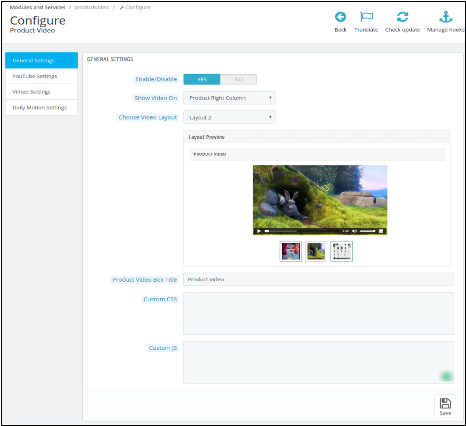
After clicking the Configure option you will see a window like the one mentioned below:
Enable/Disable: Click “Enable” to use the Prestashop Dailymotion addon on your site.
Show Video on: You can Select the position of the video.
Product Footer: Select this option if you want to show your product video in the footer of your product(s) page.
Product Right Column: Select this option if you want to show your product video in the Right Column of the product(s) page.
Choose Video Layout: Select the type of the layout or interface you want to show for your product video. Once you select any of the layout options, you will be able to see the preview of the layout.
Product Video Box Title: Give a title for your product video box.
Custom CSS and Custom JS: Modify the Look and feel of the product video on the product page by giving your custom CSS and custom JavaScript.
You can do further configurations of the three video sharing platforms that are implemented on this module.
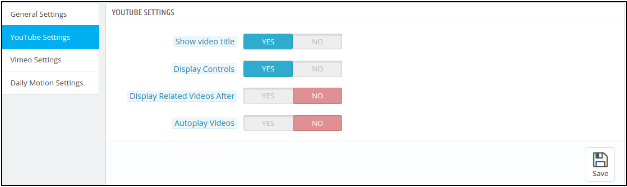
YouTube Settings:
Click on the YouTube Setting. You will be able to see a window like the image below:
Show Video Title: You can show the video title on the product page by clicking yes.
Display Controls: Choose yes, if you want to show the playback controls on the product video.
Display Related videos: Admin can control whether to show related videos on product page after one video or not.
Auto-play Videos: Select yes to auto-play the video once the product page is visited by a customer.
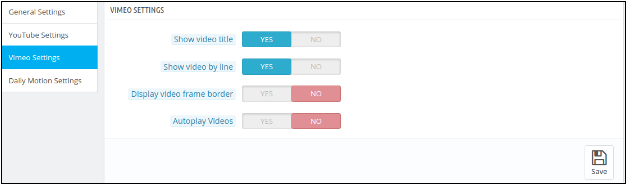
Vimeo Settings:
Click on Vimeo Setting. You will be able to see a window like the image below:
Show Video Title: You can show the video title on the product page by clicking yes.
Show Video By Line: Choose yes, if you want to show all your videos from the particular product line by line.
Display Video Frame Border: Select yes in order to show the border of the video frame.
Auto-play Videos: Select yes to auto-play the video once the product page is visited by a customer.
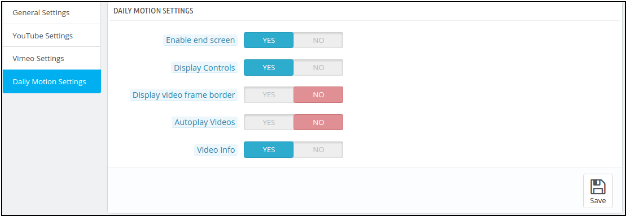
Configure Daily Motion:
Click on Daily Motion Setting. You will be able to see a window like the image below:
Enable end screen: Select yes to enable the end screen option.
Display Controls: Choose yes to show the playback controls on the video.
Display Video Frame Border: Choose yes, if you want to show the border of the video frame.
Auto-play Videos: Select yes to auto-play the video once the product page is visited by a customer.
Video Info: Choose yes to show the video information on the product video.
What will be the changes on Product Menu?
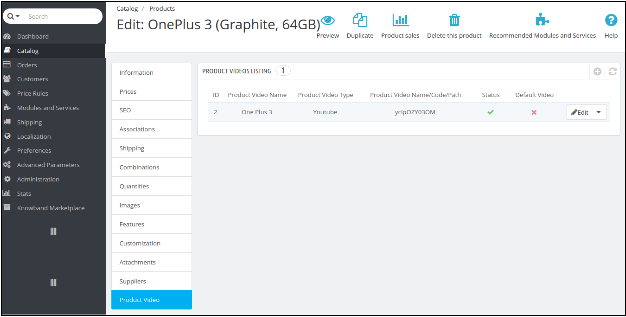
After the addon installation, a sub menu for the Product Video will be displayed in each product upload or product edit page as shown in the image below:
When the admin will go to the “catalog”, select “the products” option on Prestashop admin side and click “Edit” on any product listed there, then the system will open this window. Here the admin can:
1. Edit the already Added product Video(s).
OR
2. Add a video to a new product.
1. When Admin wants to Edit the already Added product Video(s):
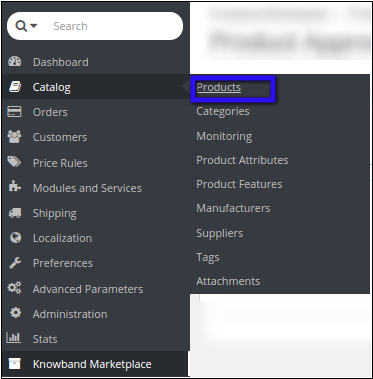
Go to the “Catalog”, then select “Products” using the PrestaShop menu tab.
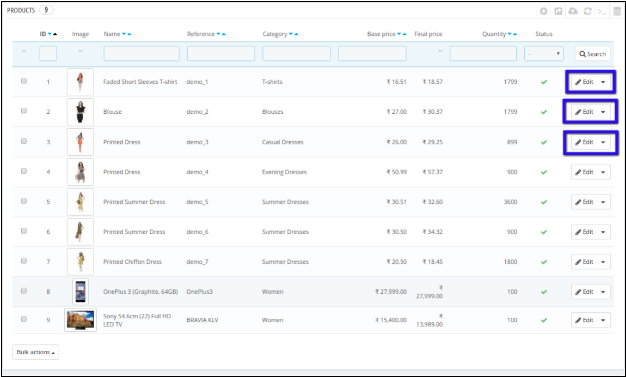
When you click the Products, a new window will open with the list of products.
Select the product in which you want to update or add a new video.
Select the Edit option and click on Product Video option given at the bottom of the menu. A list of products will appear. Here, you have to click on the “edit” option to get to the product video upload page.
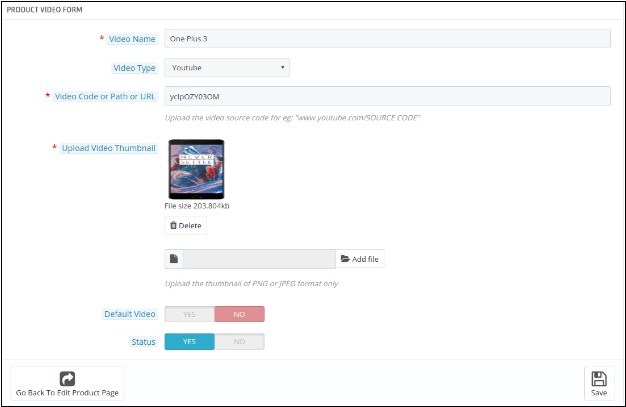
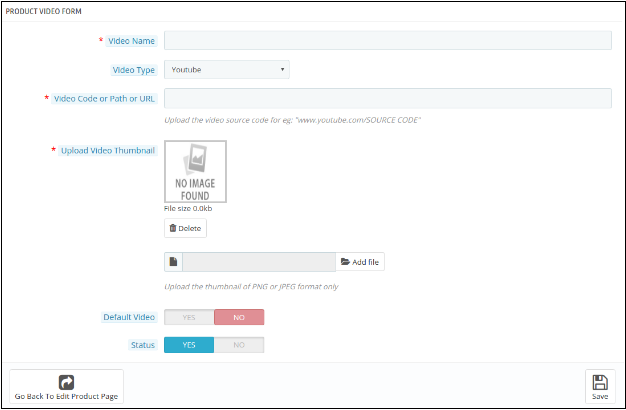
Video Name: Give a name to your product video.
Video Type: Select the type of video you want to attach. (YouTube, Vimeo, or Daily Motion)
Video Code or Path or URL: Give the URL of the video. You can give the YouTube, Vimeo, or Daily Motion link of the video.
Upload Video Thumbnail: Upload a thumbnail that will be shown on the video link on the product page.
Default: You can select the particular by default video which you want to show in case of more than one product videos.
Status: Here, you can enable or disable the video respectively.
NOTE: THIS MODULE IS ALSO COMPATIBLE WITH KNOWEBAND MARKETPLACE MODULE (v1.0.4) TO EDIT OR ADD NEW VIDEOS OF SELLER ADMIN CAN FOLLOW THE FOLLOEING STEPS.
1. Edit the already Added product Video(s).
OR
2. Add a video to a new product.
1. When Admin wants to add a new Video to a new product:
Follow all the steps as in the above section except in Step IV, you have to click on the Add new icon as given below in this screenshot below.
The similar window appears as in Step IV. Fill all the details as specified in the previous section. Refer to the screenshot below for better understanding.
Fill all the details and click Save to save your settings.
2. When Admin wants to Edit the already Added product Video(s):
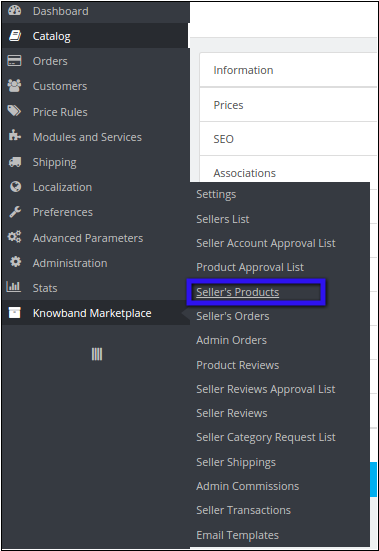
I. Navigate to Sellers products using the Knowband menu tab
II. After clicking Sellers Products, a new window appears with the list of sellers products.
III. Select the product in which you want to update or add a new video. Click on View menu on the right side of the product listing.
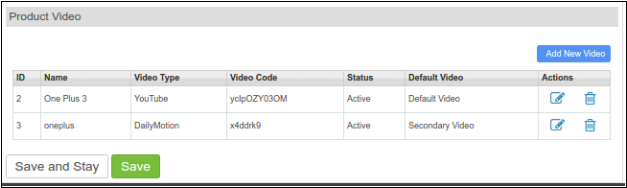
IV. A new window appears where you have to click on Product Video option given at the bottom of the menu. A list of products appears. Here you have to click on “edit” option to get to the product video upload page.
Menu Location
After installation, a menu will be displayed to the seller in the product upload or product edit page as shown in below screen:
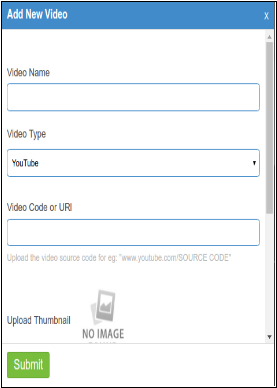
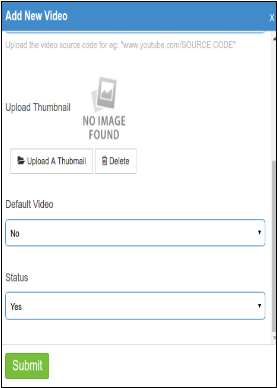
To add a new video the seller has to click on “Add New Video” option. A new Pop-up window appears as given below.
Video Name: The seller needs to give a name to the Product Video.
Video Type: Select the type of video is YouTube, Vimeo, or Daily Motion.
Video Code or URL: Give the link of the product video.
Upload Thumbnail: Upload Thumbnail image to show on the product page.
Default Video: If you are giving multiple Videos on a product, then you need to specify if your current video is to be shown as default video on the product page.
Status: Select the status as YES or NO to enable or disable the video.
Submit: Click submit to save your settings.
Front End Module
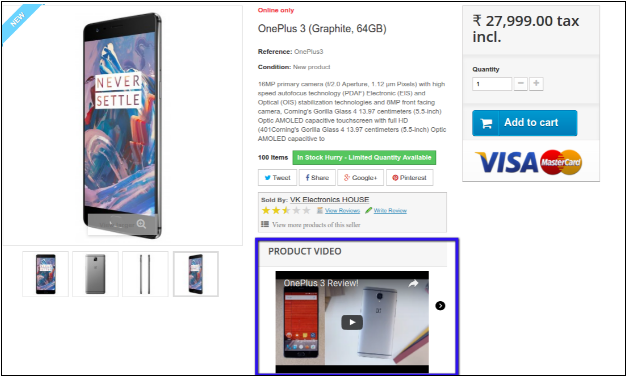
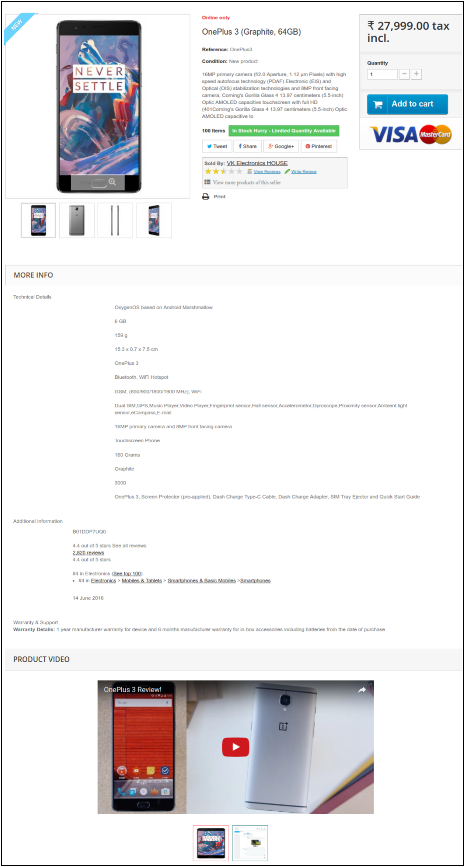
The Product video is shown to customer on a product page in two ways:
1. At the Footer, as shown in the screenshot below.
2. At the Right column of the product page as shown in the screenshot below: