From the home page of the site to the checkout page, every component of the conversion funnel contributes to the overall conversions of the eCommerce site. If each component is considered individually, probably the product page happens to be the most important one. This is where the actual sales pitch is presented to potential customers. No matter how much effort you put into the promotion of your site, it is the product page where the deal is closed.
Why is a product page important for online businesses?
The product page is where a majority of the consumers decide to make a purchase. Most eCommerce merchants focus on optimizing their checkout page. I agree, a checkout page holds more value for store owners but to bring customers to the checkout page, there needs to be a solid product page that compels a customer to go further. E-commerce giants across the world have realized the fact that it’s not just the end-product that matters. The overall experience around the product contributes to the purchase intention of the shoppers. A good product page is where the real magic of conversion happens.
If you own a Prestashop store, here are the 10 product page modules to optimize the PrestaShop store. Ready to grab a few more conversions? Read on.
1. Prestashop Product tab Addon
The real purchase process starts from the product page. Hence, you need to design it, so that, they stand out. The page layout and the way the contents are organized should be appealing. Use the Prestashop Product Tab module to add new information tabs on the product page. The admin can display product text, product images, or videos on the webpage. You can increase customer engagement with the proper use of video features. This is one way to make the most of limited space by providing as much detail as possible about the goods.
2. Prestashop Product Video Addon
One of the drawbacks of online shopping is the inability to touch, feel or hold the product to examine it properly. and the product images are not enough. To minimize the product-related concerns of customers, you can try adding videos to your product pages. Nowadays, customers prefer to watch videos for a better understanding.
Prestashop Product Video module allows you to include the videos on product pages without making any sort of code changes. You can add the product videos on the product pages from various platforms like Vimeo, YouTube, and Dailymotion. This helps customers make better decisions regarding their purchases.
3. Prestashop Product Size Chart Addon
Next in the list of Product page modules to optimize the PrestaShop store is the Size Chart. Let’s see why it is important. A majority of the e-commerce returns take place due to incorrect product size. Customers become indecisive about their purchase when they are not able to figure out the perfect size fit for them. The bottom line can be reduced by providing correct size guides.
You can boost customer confidence in placing orders online and reduce the returns just by creating a comprehensive size chart with Prestashop Product Size Chart extension. This allows your customers to get the apt size and avoid unpleasant surprises for them later. Not just the clothes or shes but products like furniture, sleeping bags, and fishing rods all require a size chart. Add this to your store to reduce product returns.
4. Prestashop Product Review Reminder and Incentives Addon
Product Reviews create a sense of trust among users. Research by Spiegel Research Center says that the purchase chances of a product with a minimum of 5 reviews 270% higher than the product with no reviews. Reviews and ratings can be best used in various marketing tactics like welcome email, abandoned cart notifications, etc.
So, why not use this idea to trigger some purchase intentions? Prestashop Product Review Reminder and Incentives Plugin can encourage existing customers to drop their feedback and review for the products to get a reward. This is one of the ways to boost the review and ratings of your product pages. You can now amp up the acquisition rate of your site.
5. Prestashop Back in Stock Addon
A sold-out item doesn’t have to mean you lose a customer. Loyal customers wait patiently for the product to get back in stock. Now compel your store visitors to return back to the store by sending them a reminder, once the product is back in stock. The Prestashop Back in Stock extension allows the customers to subscribe for a notification whenever the product of their choice is in stock. It displays a customized pop-up on the product page with an email subscription tab.
6. Prestashop Sales Count Addon
Along with interactive reviews and testimonials, the sales count of a particular product also motivates the customer to opt for that item. Word of mouth can trigger instant purchase decisions of store visitors. And when you have an online store, displaying a total number of sales is easier. Prestashop Sales Count extension displays the total count of the product purchase. These sales pitches are aimed at creating a shopping experience where the customers feel that they are opting for the right product.
7. Prestashop Price Alert Addon
Another way to bring back customers is with price alerts. Fluctuation in the product price is quite common in online stores. Customers keep looking for the price drop, especially while thinking to purchase an expensive item. Keeping a regular check can be difficult and customers can still miss out on the price drop.
The Prestashop Extension has a user interface that is both simple and feature-rich, allowing customers to quickly set up price alerts for future reference. The Prestashop Price Alert plugin allows the customers to subscribe for the notification when the price of a particular product reduces to a certain limit. This is one of the ways to motivate the return of the visitors who left because of the price hike.
8. Prestashop Automatic Related Products Addon
In the competitive scenario, motivating the customers to the product page is quite a challenging task. Hence, once the visitor browses the product, it is the responsibility of the marketers to make full use of it. Use the Prestashop Automatic Related Products module to display the related items on the web page automatically. You can boost the upsell and cross-sell with the least hassle.
Customer personalization is the new way of treating your customers that increases customer satisfaction. For instance, when a customer shops on an online cake shop, the seller requires details like delivery time, pin code, and customized message.
With Prestashop Advance Product Attribute/Field, the seller can add custom fields on the product page of the site to collect more information from the customer. The store owners can now offer a better service.
10. Prestashop Product Availability Check by Zipcode
The last module in the list of Product Page is for checking the product availability. Non-availability of products at a particular location can increase the cart abandonment rate of your site. Provide an option to your customers to check the availability of the item just by entering the zip code. Prestashop Product Availability Check by Zipcode extension is one of the ways to incorporate this functionality in the product pages of your e-commerce store.
Conclusion
If you’re getting enough website traffic, but the conversions are not satisfactory, it may be high time to take serious action for product page optimization. Add the above-mentioned product page features on your site and create a well-rounded shopping experience that the visitors can’t help rave about.
For PrestaShop Module assistance, drop an email at support@knowband.com or visit the KnowBand store and find out the solution to your eCommerce issues.
Knowband offers the Magento Walmart Integration extension to help the Magento store owners synchronize their eCommerce store with the Walmart marketplace. The Magento Walmart connector module integrates the eCommerce store with the Walmart marketplace by using the Walmart API (Walmart Consumer ID, Walmart Private Key, and Consumer Channel Type). After successful integration, the sellers can easily synchronize the products, inventory, shipping templates, product pricing to the Walmart marketplace from the back-end of the Magento Walmart Integration module.
Today, marketplaces are playing a vital role in the growth of e-commerce. Amazon, eBay, Etsy, Jet.com, Walmart, Wish, Newegg are some of the well-known platforms. In recent years several new marketplaces have entered in the completion and these marketplaces have a good potential to drive the competition. Walmart is one of the most popular marketplaces and allows people from around the globe to buy and sell from walmart.com.
1.1 Seller Benefits of Magento Walmart Integration plugin:
The Walmart Magento API integrator offers real-time synchronization between the Magento store and the Walmart marketplace.
The connection between the Walmart marketplace and Magento store can be set-up in a few simple steps with the help of Magento Walmart API integrator. The Magento store admin can list the products in bulk based on the profile.
The store admin can easily manage the inventory by making changes in the profile created in the Magento Walmart Integration module.
The merchants can easily renew or delete products from the admin interface of the Magento Walmart Integration module itself.
With the help of Magento Walmart Marketplace integration module, the store admin can even add shipping methods for the marketplace customers.
The Magento Walmart Connector makes it easier for online merchants to keep track of the product listing.
The admin can sync the orders received from the Walmart marketplace with the orders of the Magento store by executing cron in the back-end of the Magento Walmart Integration extension.
These orders can be processed from the Magento store itself. The change in the order status is synced with the marketplace at a button click in the synchronization tab of the Magento Walmart Integration extension.
The Walmart Magento integrator makes it easier for the store admin to track the errors that occurred while product listing.
2.0 Installation
Follow the following steps for installing Walmart Magento Marketplace integration extension:
1. Download the package.
2. Unzip the package in your root folder of Magento setup via FTP manager
3. In Admin Panel go to Walmart Marketplace in the main menu.
4. The Magento – Walmart Marketplace integrator is now ready for use.
This User Manual will guide the users through the Magento extension configuration and settings.
2.1 How to configure Walmart Magento Integration extension?
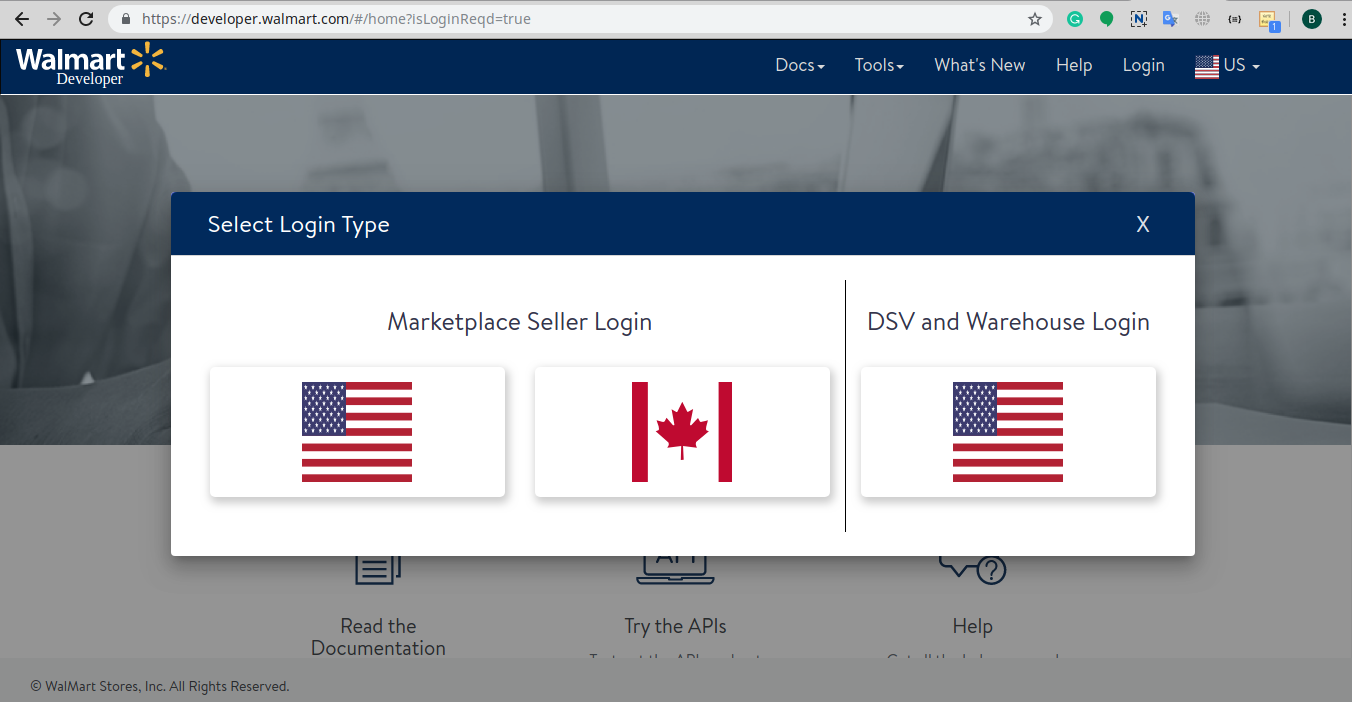
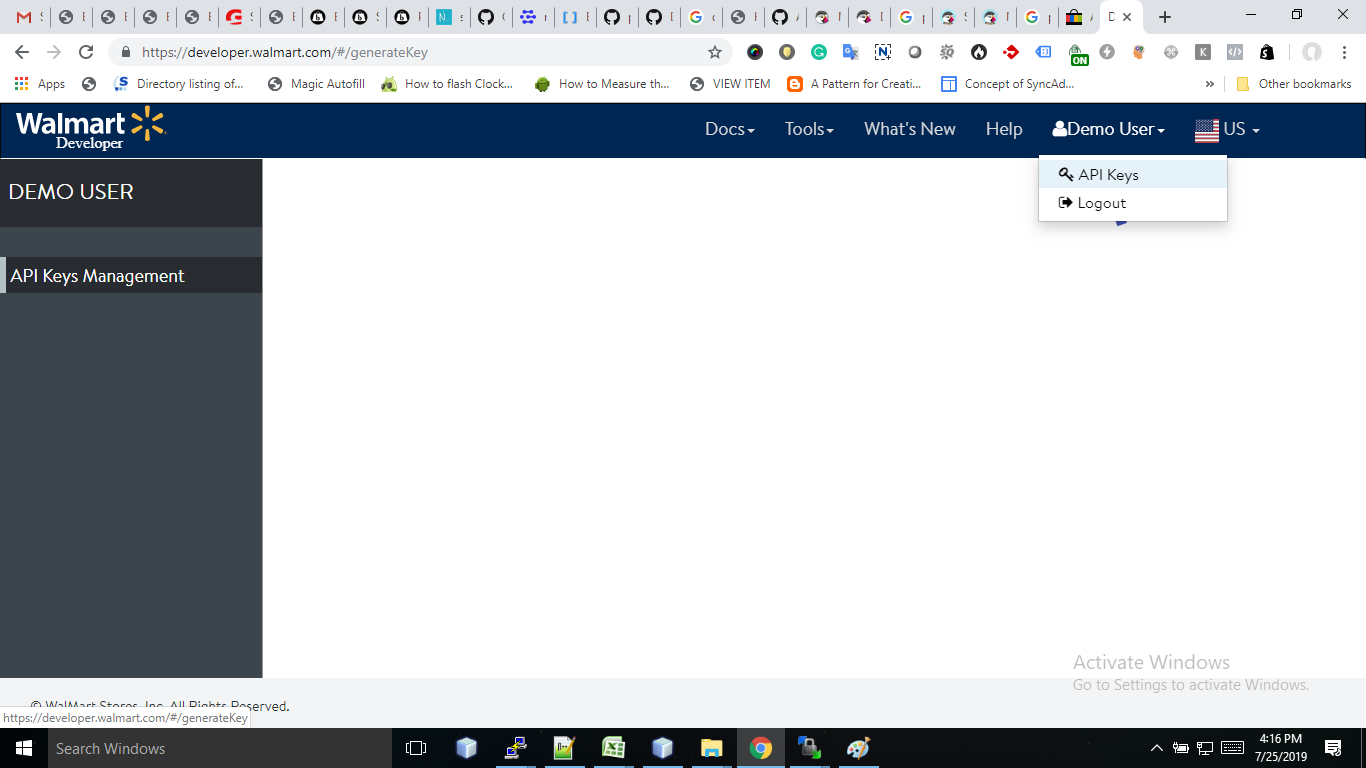
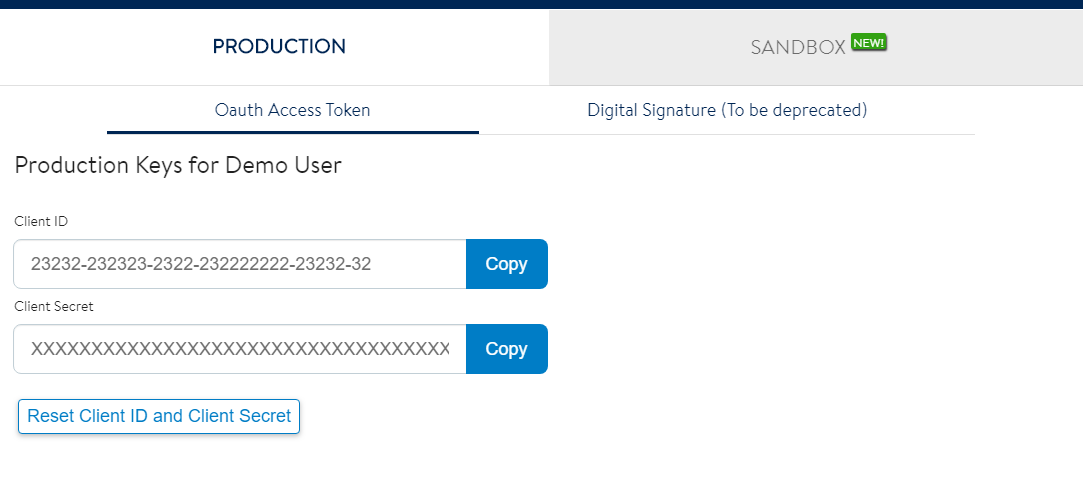
To configure the Walmart Marketplace Integrator, store admin needs to get the Client ID and Client Secret. In order to obtain Walmart Client ID, and Client Secret, follow the process given below:
5. Now you can get the New “Client ID” and “Client Secret” from here.
3.0 Admin Interface
Walmart Magento Integration plugin has a user-friendly interface. The configuration settings can be managed via the admin interface. After installation, store admin can find the “Walmart Integration module” at the top menu of the admin panel. Admin Panel Settings of Magento Walmart Integration module contains the 10 tabs for settings.
General Settings
Profiles Management
Shipping Override
Products Listing
Promotions
Manage Lag Time
Attributes Mapping
Orders Settings
Orders Listing
Feed Status
BuyBox Reports
Synchronization
Tax Code
Audit Log
3.1 General Settings
Magento Walmart API integrator allows the store admin to integrate their store in a few simple steps. General Settings tab includes the details of Walmart store API details like Consumer ID, Private Key, and Channel Type. Walmart API helps to connect the Magento store with the Walmart marketplace. The description of each input field is mentioned below:
1. Enable/Disable: Admin gets the option to Enable/Disable the integrator by toggling the button. If enabled, the Walmart Marketplace Integrator and all its settings will be working on the store.
2. Walmart Client ID: Enter the Walmart Client ID that will authenticate the connection being established between the store and Walmart Marketplace.
3. Walmart Client Secret: Enter the Walmart Client Secret in the field to complete the setup.
3.2 Profile Management
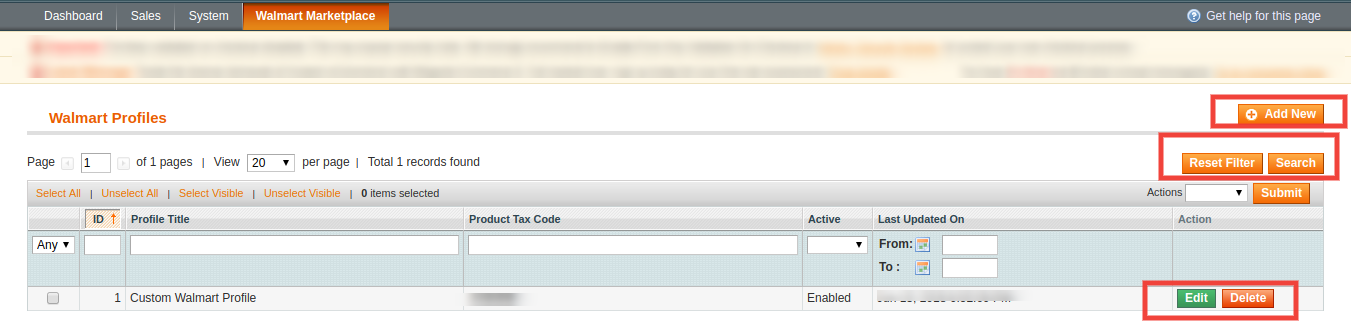
The profile Management tab provides options to list the product on the Walmart marketplace. In this section, the admin will be able to map Magento store product attributes and categories to Walmart store under the Walmart store product attributes and category. Admin can add new profiles just by clicking on the “Add New” button. The profile Management section of Walmart Magento Integration extension is consist of 2 tabs – General Settings and Profile Fields.
3.2.1 General Settings
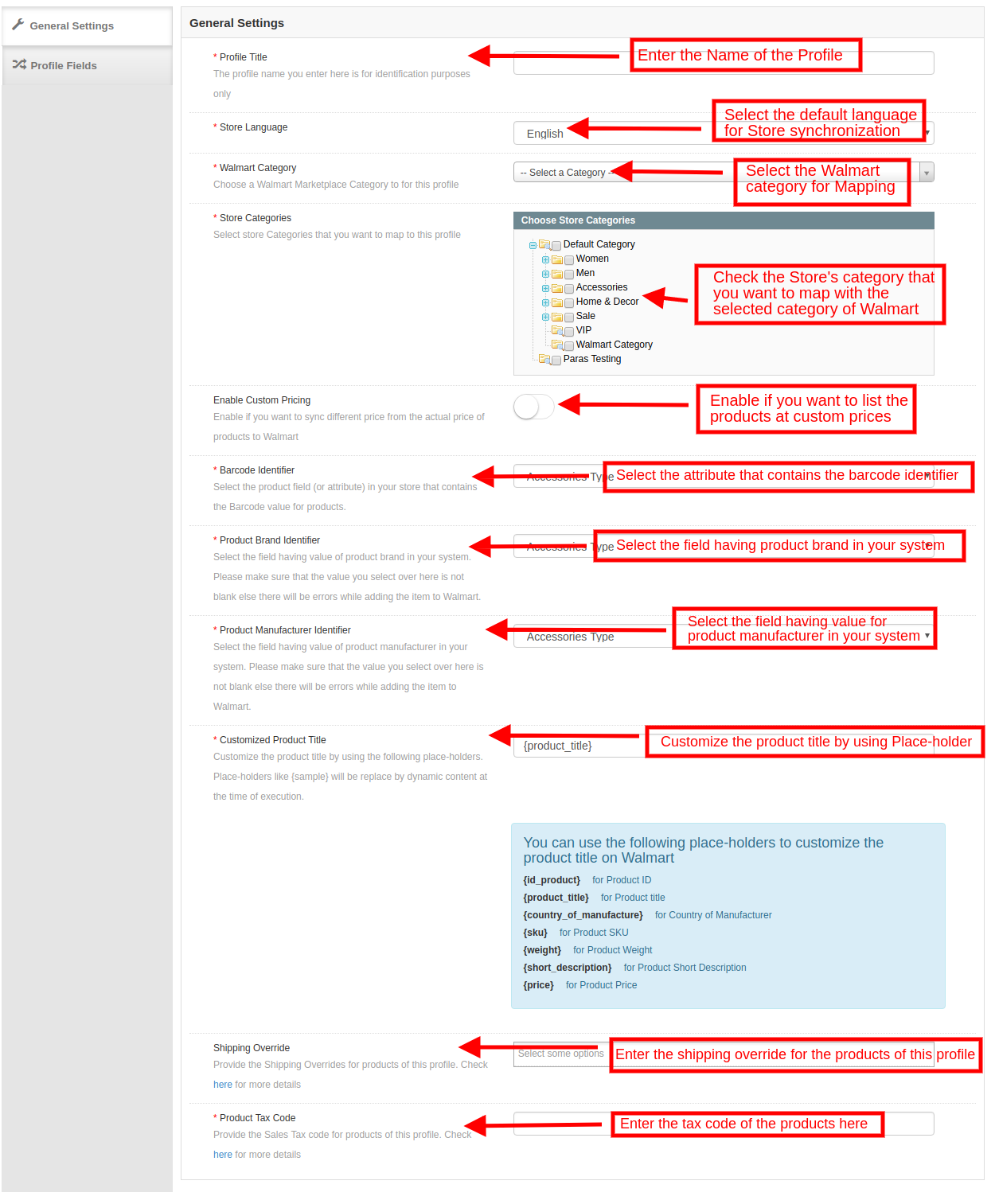
Magento Walmart Integration extension allows the store admin to select multiple store categories to sync with the one Walmart category. It is mandatory to enter all the required details as per the instructions are given in the below screenshot. After entering all the details click on the Save button at the top of the form.
Profile Title: Enter a unique name for the profile.
Store Language: Select the Language for the store from the drop-down list.
Walmart Category: Select the Walmart category where you want to map the Magento store category. Admin can select the Walmart Category from the drop-down list.
Store Categories: Select the category of the Magento store that you want to map in the category of Walmart.
Custom Pricing: Enable this button if you want to list the products at walmart.com at custom prices or at a different price from that of the eCommerce store. If enabled, the admin gets an option to change the prices as shown in the image below:
Select whether you want to increase or decrease the cost of the products.
Select whether you want to increase/decrease the price by a fixed amount or percentage amount. Enter the fixed or percentage amount by which you want to change the price of the products.
Barcode Identifier: This is the unique field of the product. Select anyone from the dropdown list, so that, the
Magento Walmart Integration extension can identify the product according to the mapped attribute. The various place-holders are listed below.
Product Brand Identifier: Select the Product brand identifier from the drop-down. Select the field having a value of product brand in your system. This is a mandatory field to list the products on Walmart. Product Manufacturer Identifier: Select the Product manufacturer identifier from the drop-down. Select the field having the value of a product manufacturer in your system. This is a mandatory field to list the products on Walmart. Customized Product Title: Product title can be customized by using the pre-defined placeholders.
{id_product} for Product ID
{product_title} for Product title
{country_of_manufacture} for Country of Manufacturer
{sku} for Product SKU
{weight} for Product Weight
{short_description} for Product Short Description
{price} for Product Price
Shipping Override: This is an optional field. Select the shipping options from the list provided. This section includes the entire shipping overrides added in the Shipping Override tab. Product Tax Code: Enter the product tax code in this section.
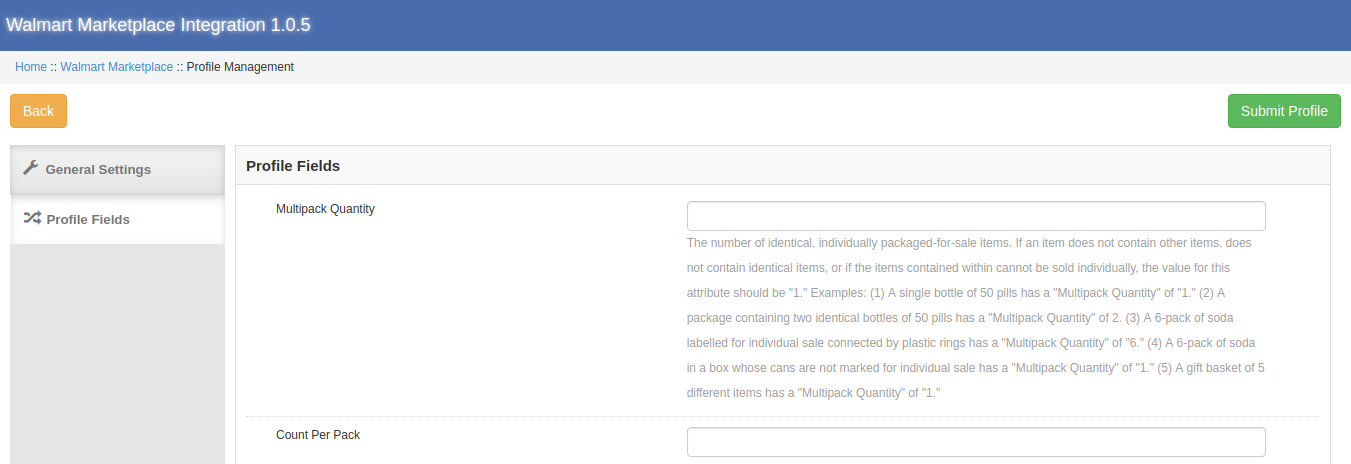
3.4.2 Profile Fields
As per the selected Walmart category, additional product information and variation products can be listed by using the Profile Fields tab of the Magento Walmart Integration plugin.
3.3 Shipping Overrides
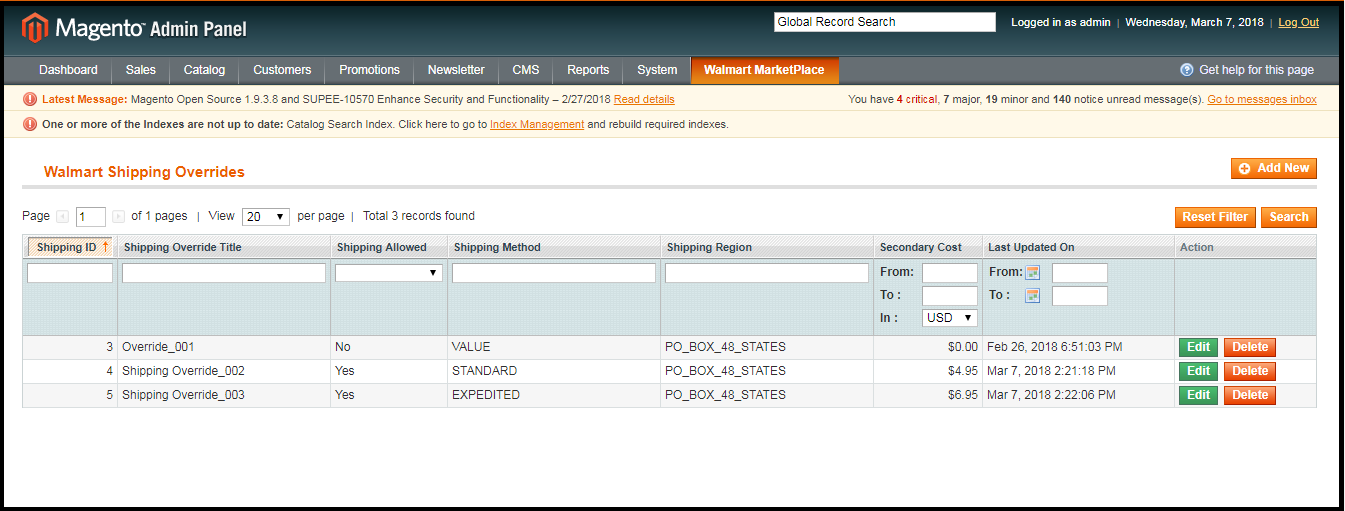
The admin can manage the shipping options for the Walmart marketplace in the Shipping Overrides tab of Magento Walmart connector extension. In this section of the Magento Walmart Integration, the admin can create Shipping overrides which contains the various shipping details as per the need of the system.
3.3.1 How to add Shipping Templates?
Follow the steps mentioned below to add Shipping Overrides:
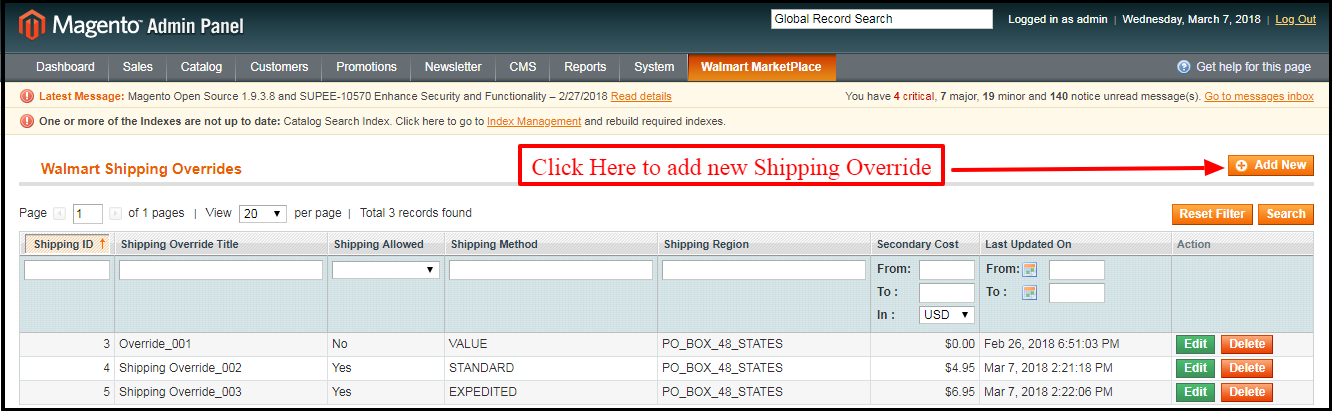
To create a new shipping override, click on ‘Add New’ as shown below:
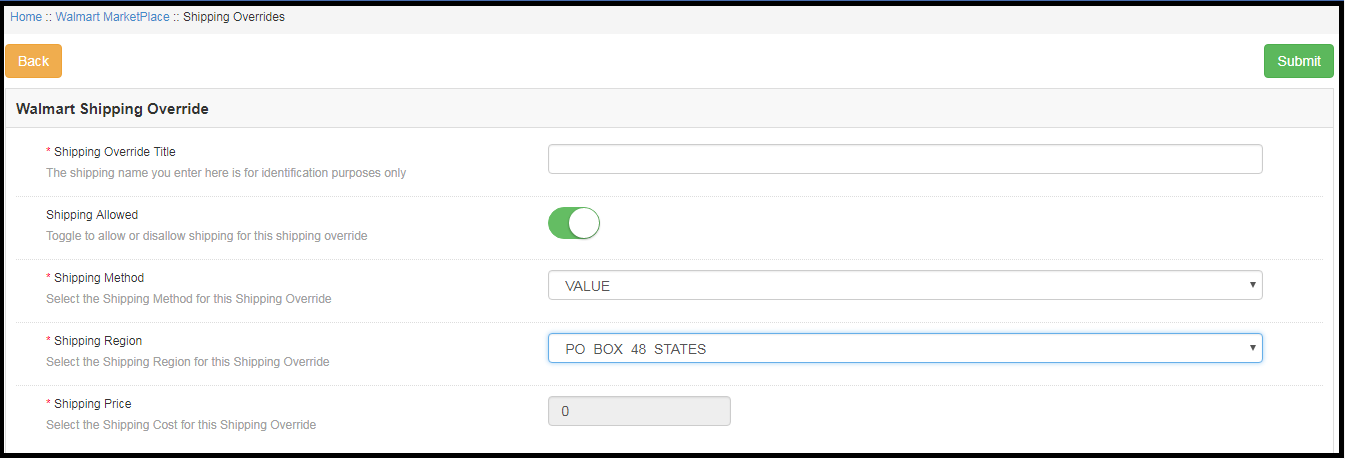
You’ll be redirected to the Shipping Override creation page. Fill up the following input fields of form –
Shipping Override Title: Enter the Shipping Override Title here. Shipping Allowed: Admin can enable or disable a shipping method by using the toggle button. Shipping Method: Walmart allows 6 types of shipping methods. Admin can easily configure the shipping methods as per the requirement from the admin panel of the Walmart Integration module. Shipping methods offered by Walmart are – VALUE, STANDARD, EXPEDITED, FREIGHT, ONE_DAY, FRIGHT_WITH_WHITE_GLOVE.
Shipping Region: Admin can select the shipping region from here.
Shipping Price: As per the selected shipping method and shipping region admin can set the shipping cost for the different shipping methods and regions.
3.3.2 How to Edit/Delete the existing Shipping Override?
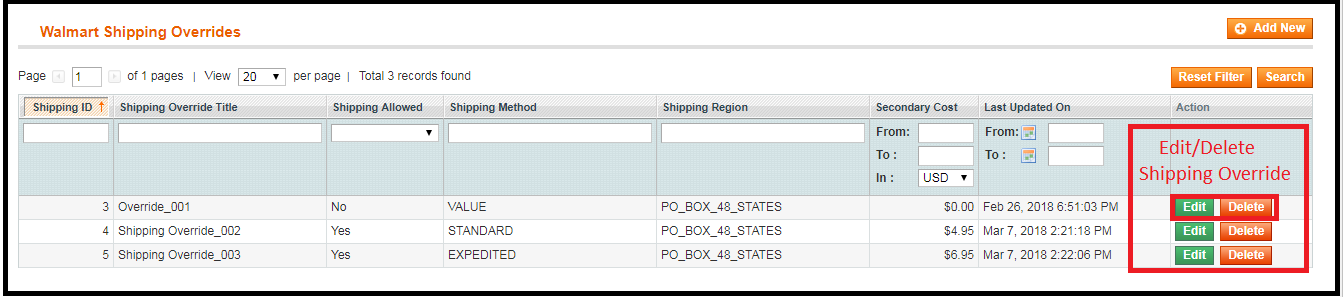
The Shipping Override (if any) will be listed in the Shipping Override tab of the Walmart Magento API integrator. Click on the “Edit or Delete” button as shown in the image to delete/modify a shipping override.
The existing Shipping Overrides can be viewed as shown in the image above. To Edit/Delete the existing entries, click on ‘Edit’ and ‘Delete’ action respectively.
3.4 Products Listing
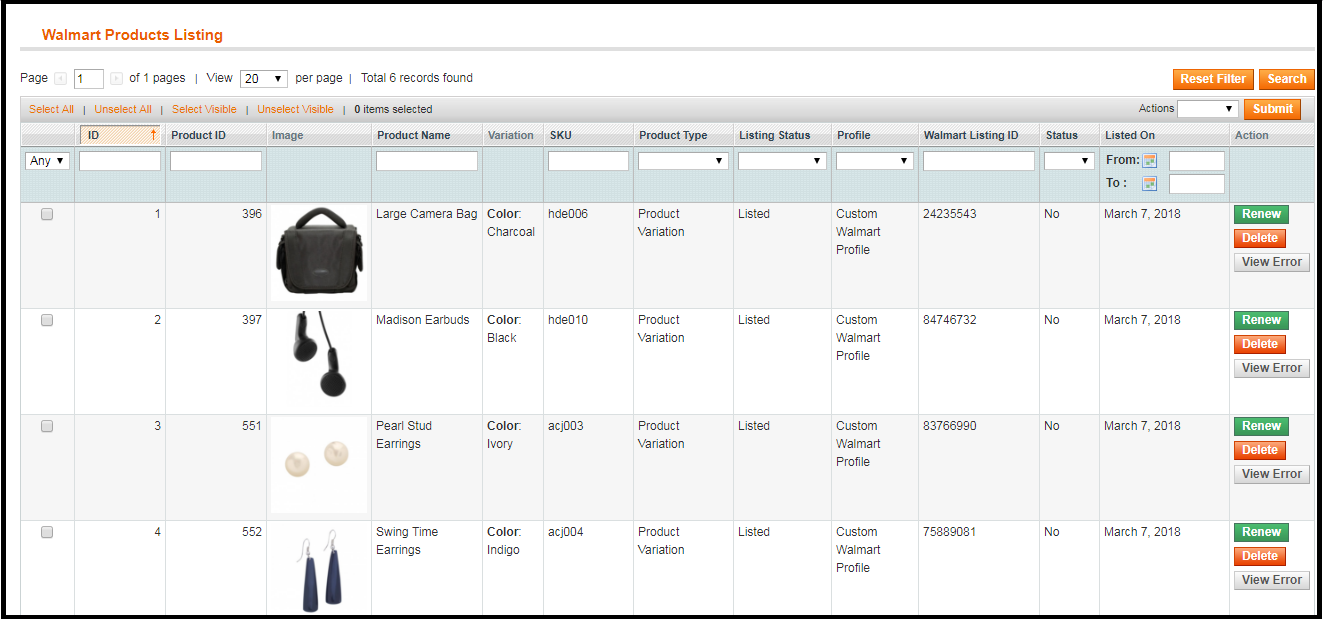
This section of the Magento Walmart Integration shows the list of all the products listed on Walmart Marketplace with their statuses. To sync the product in the Walmart Marketplace, execute the Product Cron in the Synchronization tab of the Walmart API Integration module.
3.4.1 Product Listing Renewal
This option allows admin to renew product in case listing has expired on Walmart Marketplace. To renew the product, the admin can click on the “Renew” action corresponding to each product.
After setting up a product for renewal, action “Renew” will be replaced with “Halt” action. This action is used to stop product renewal in case needed.
3.4.2 Product Listing Deletion
This option allows admin to delete product listing from Walmart Marketplace. Click on “Delete” action given corresponding to each product listing. After setting up a product for deletion, the action “Delete” will be replaced with “Relist” action.
3.4.3 View Error
The admin can view the error that occurred in listing the product. For this, click on ‘View Error’ action.
3.5 Promotions
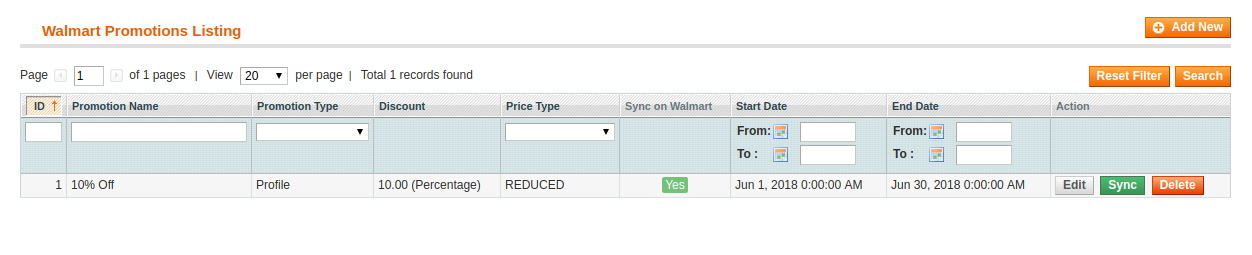
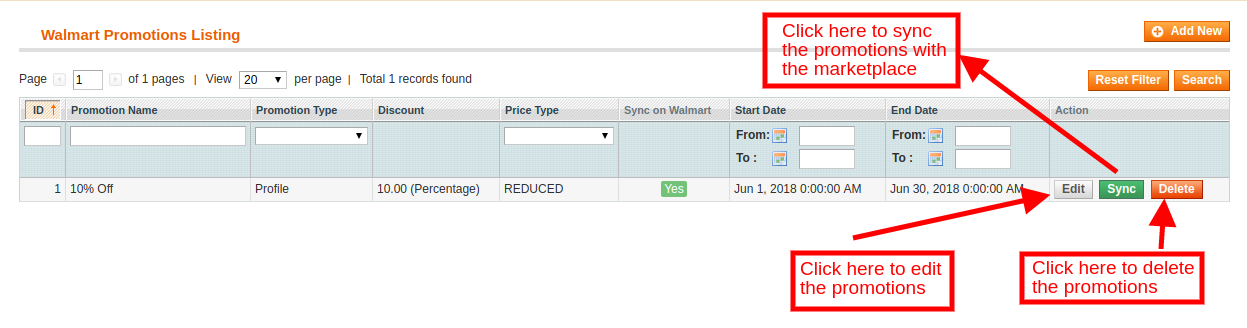
The Walmart Magento integrator allows the admin to create promotional deals and display the same at walmart.com. The created promotions will be listed in this tab as shown in the image below:
3.5.1 How to add New Promotions?
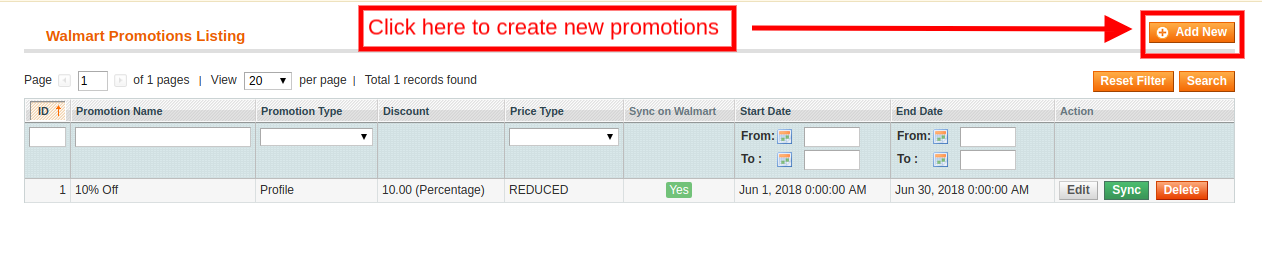
To create new promotions, click on the ‘Add New’ option at the top right corner of the Magento Walmart connector as shown in the image below:
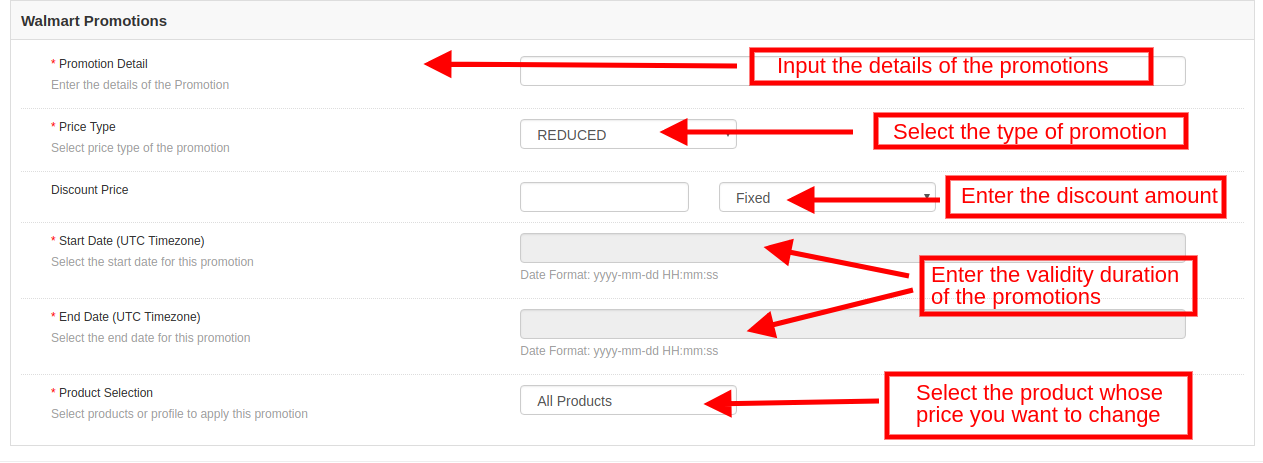
As you click on the link, you will be redirected to the promotion creation page. The various fields of the tab are discussed below:
Promotion Detail: Enter the details of the promotional that you are offering to the Walmart marketplace in this section. Price Type: Select the type of price that you are incorporating from the drop-down menu. Discount Price: Enter the amount of discount that you are offering. It may be a fixed amount or a percentage amount. Select the discount type from the drop-down menu. Start Date and End Date (UTC Timezone): Enter the duration during which promotion will be active.
Product Selection: Select the product in which you want to offer the promotion.
3.5.2 How to Edit/Delete Promotions?
The admin gets an option to edit or delete the created promotions at a button. Click the Edit or Delete button corresponding to each promotion for the same.
The admin can even sync the promotions with the marketplace by clicking the sync button as shown in the image below:
3.6 Manage Lag Time
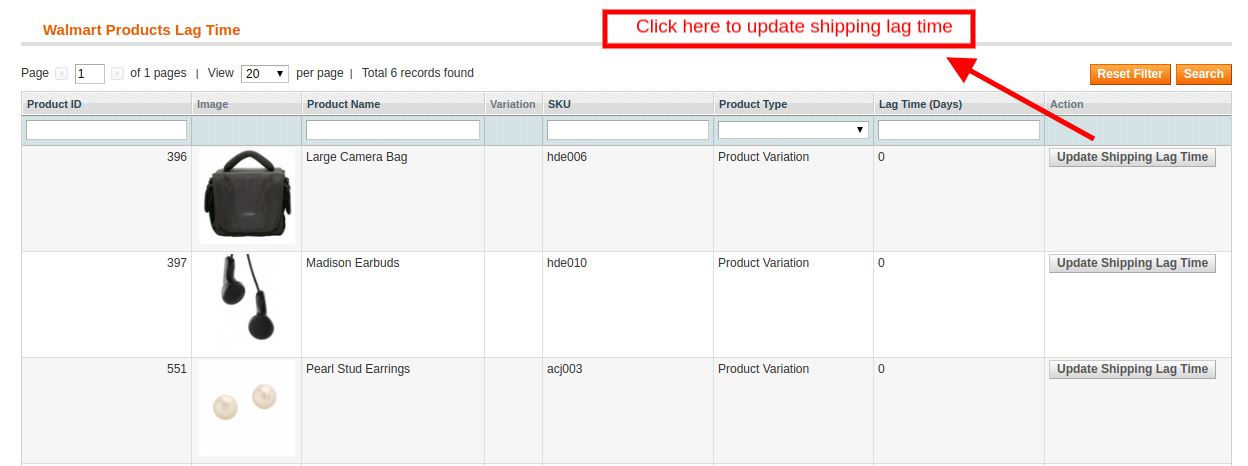
The admin can easily fix and manage the lag time of the products with ease. To fix the lag time, click on the Update Lag Time button as shown in the image below:
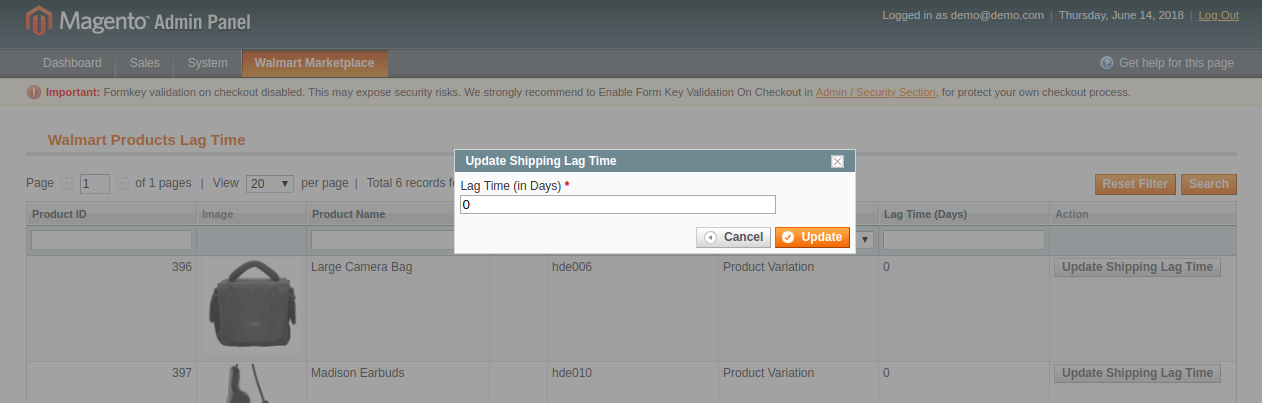
As you click on the link, a popup will appear as shown below:
Enter the lag time in days and click on the update button. This will update the shipping lag time at walmart.com.
3.7 Attribute Mapping
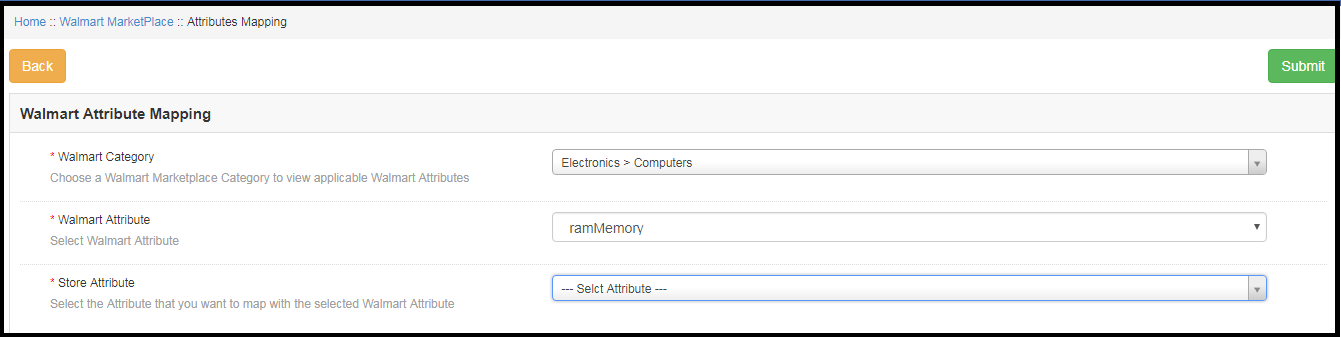
Attribute mapping tab of the Magento Walmart integration module allows admin to map the Magento store attributes with the Walmart marketplace. Mapping of the Magento store attributes with the Walmart attributes is required to make the listing process easy, so that these attributes can be mapped with the products during the profile creation. Please refer to the below screenshot-
3.7.1 How to Map Attributes
Click on the Attribute Mapping tab of the Walmart Magento Integration module, it will redirect to a new page as shown in the screenshot above. Now click on the (+) Add New button on the top of the page. It will open a new page with the option to select the Walmart category and as per the selected Walmart category Walmart attributes will appear in the drop-down list of the Walmart Attributes field. Admin can map the store attributes with the Walmart attributes by using this interface. Admin can add store attributes as per requirement from the Magento store admin panel. Please refer to the below screenshot-
3.7.2 How to Delete Mapped Attributes
To delete mapped attributes click on the Delete button given next to the mapped attributes on the Walmart Attribute Mapping tab
3.8 Order Settings
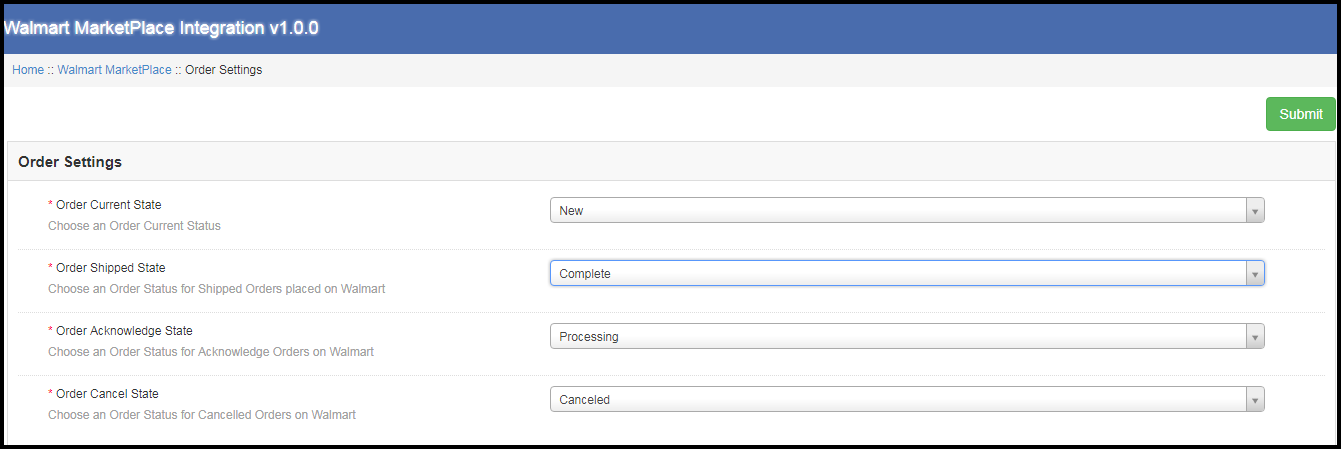
Order Settings tab of Magento Walmart integration module helps to map store order statuses with Walmart Marketplace order statuses. This will be used for capturing order details from Walmart Marketplace. For mapping the orders from the Walmart Marketplace to the Magento store, you need to execute the Order cron in the Synchronization tab. (See section 3.9.)
The various fields are discussed below: Order Current State: Choose an order default status from the drop-down. Order Shipped State: Choose an ordered state for the shipped orders placed on the Walmart marketplace. Select the order status from the drop-down list. Order Acknowledge State: After syncing the orders to the Magento store, the admin needs to acknowledge the order so that next time only a newly placed order will be downloaded to the Magento store. Order Cancel State: In case of order cancellation admin can sync the order status by using the Order Cancel state.
Note – Once the status of the order is changed in the Magento store, run the ‘Update Order Status to Walmart’ cron. This will sync all the changes to the marketplace.
3.9 Order Listing
The orders received from the Walmart store can be sync to the Walmart store under the Order Listing tab of the admin interface of the Magento Walmart API Integration. For this, the store owner needs to run the ‘Sync Order Listing from Walmart’ cron from the Synchronization tab. (See Section 3.9)
Once the cron is executed, the entire orders will be synced to the Magento store. These orders can then be processed by clicking on the ‘View’ button as shown below.
3.10. Feed Status
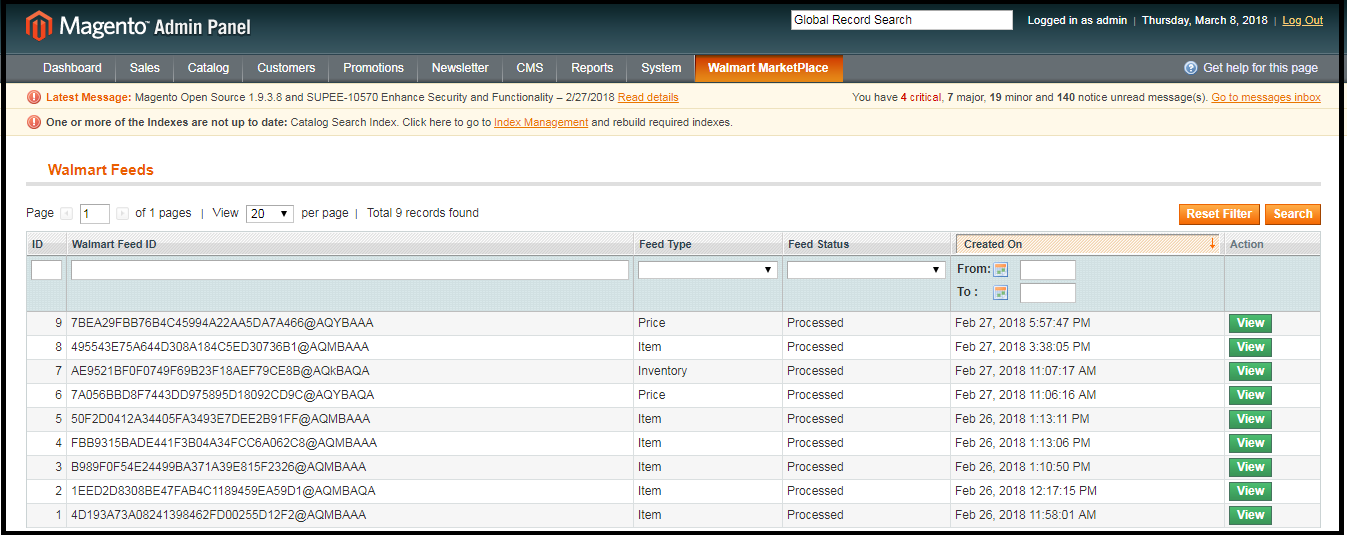
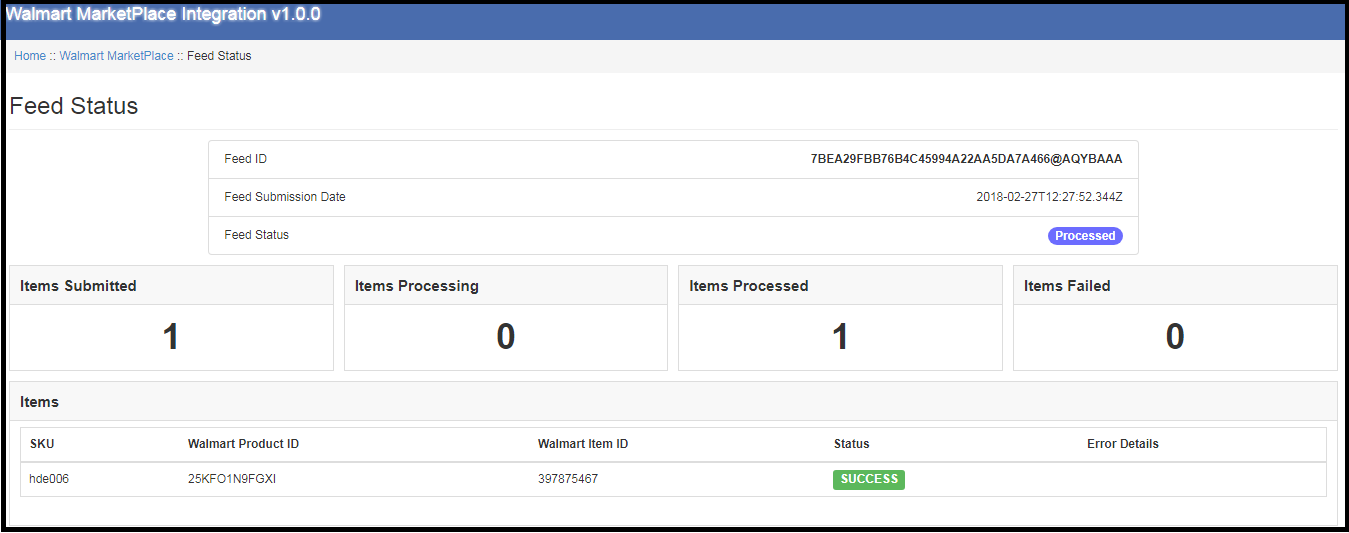
Every time a cron is executed, a Feed will be created in this tab as shown in this tab of Magento Walmart Integration. The status of the feeds can be seen by clicking on the ‘View’ button.
On clicking the View button, you’ll be redirected to the feed status detail page.
3.11. BuyBox Report
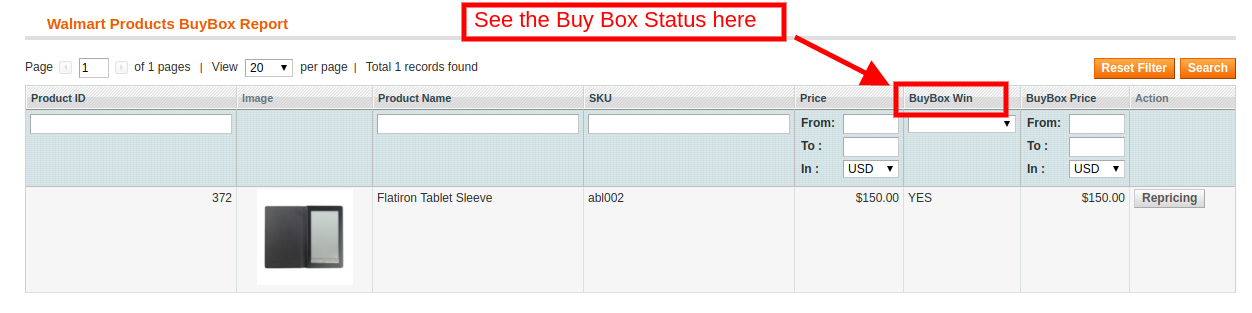
The store owners can obtain the BuyBox report by executing cron in the back-end of the Magento Walmart integrator. Refer to Section 3.12, to sync the Buy Box report from the walmart.com.
You can view the status of the Buy Box from the obtained report.
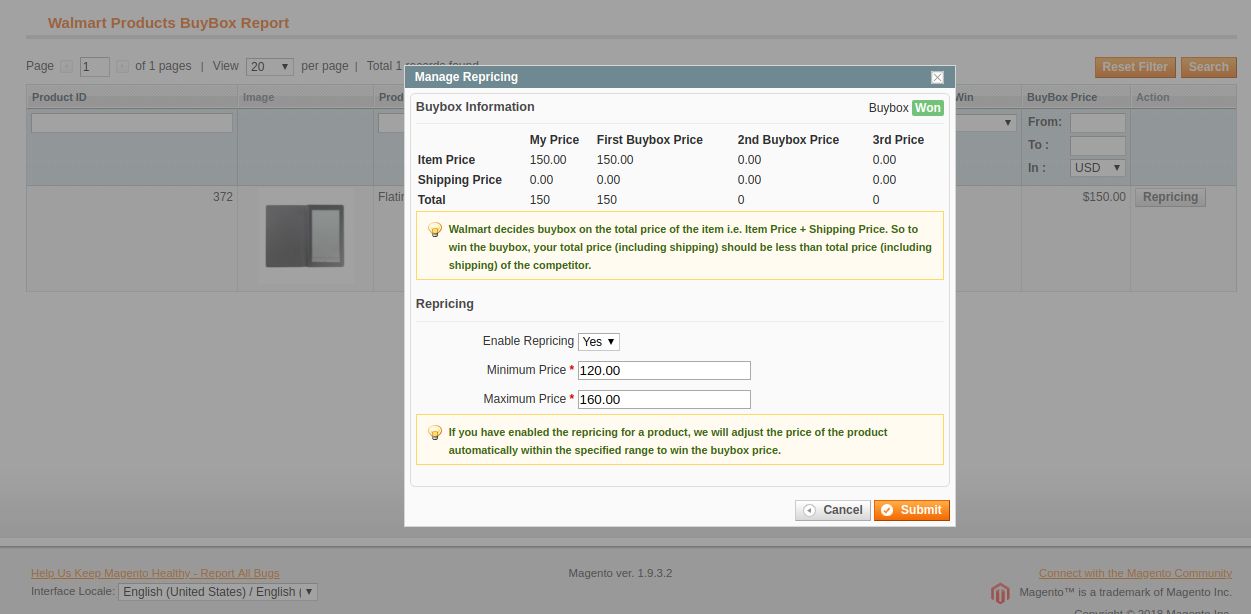
The Walmart Magento integrator even offers an option to reprise the products to the store admin to win the Buy Box.
To reprice the product, click on the ‘Repricing’ option corresponding to the respective product as shown in the image below:
As you click here, a popup will appear. Here are the fields offered in the popup. Enable Repricing: Select ‘Yes’ from the drop-down menu if you want to reprice the product. Minimum and Maximum Price: Enter the minimum and maximum price of the product in the respective sections.
Once the repricing is done, sync the same with the marketplace by executing cron in the back-end of the Magento Walmart API integrator. (See section 3.12)
3.12. Synchronization
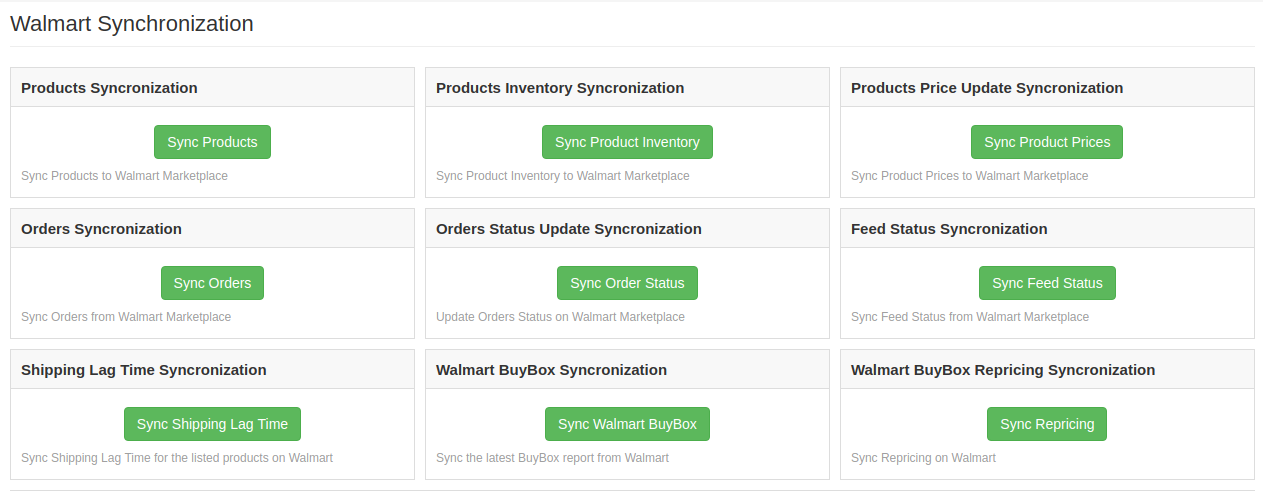
This tab synchronizes all the settings and changes done in the other tabs of the Magento Walmart Marketplace Integration Module. The synchronization between the Magento Store and Walmart Marketplace and vice-versa can be done from the ‘Synchronization‘ tab.
The various cron jobs to synchronize the settings between Magento Store and Walmart Marketplace are shown below –
3.12.1 How to sync Products from Magento store to Walmart Marketplace?
The product listed in the Products Listings tab of the Magento Walmart Marketplace Integration extension will be synced to the Walmart marketplace by clicking on ‘Sync Products’.
It would perform following actions –
The cron will list the products to the Walmart marketplace.
It will add products on the Walmart Marketplace with the mandatory product details like Description, Price, Quantity, Image, etc.
3.12.2 How to sync Inventory to Walmart Marketplace?
The product quantity can be updated on the Walmart Marketplace by executing the ‘Sync Product Inventory’ cron from the Magento Walmart Integration module.
This action will update the quantity of each product listed on Walmart Marketplace.
3.12.3 How to sync the price of the products to Walmart Marketplace?
The Sync product price cron allows the store admin to sync the updated product prices to the Walmart marketplace.
3.12.4 How to sync Order Listing from Walmart Marketplace?
The orders received from the Walmart Marketplace can be synced to the Magento store by executing ‘Sync Orders’ cron.
This cron will sync the Orders from Walmart Marketplace to Magento store.
3.12.5 How to Update Order Status in Walmart Marketplace?
The ‘Sync Order Status’ cron will update the order status as per the changes made from the Magento store on the Walmart marketplace.
3.12.6 How to Synchronize Feed Status?
To sync the Feed Status to Magento store admin need to execute the ‘Sync Feed Status’ cron.
3.12.7 How to Synchronize the Shipping Lag Time?
Click on ‘Sync Shipping Lag Time’ of the synchronization tab of Walmart Magento API integrator. This will sync the respective lag time of the products with walmart.com.
3.12.8 How to Synchronize the Buy Box status from Walmart?
The admin can sync the buy box status from Walmart with Magento Walmart connector by click on ‘Sync Walmart BuyBox’. This will update the status of the BuyBox for the respective products.
3.12.9 How to Synchronize the Buy Box status from Walmart?
The admin can reprice the products and sync the revised products at the marketplace by executing ‘Sync Repricing’ cron.
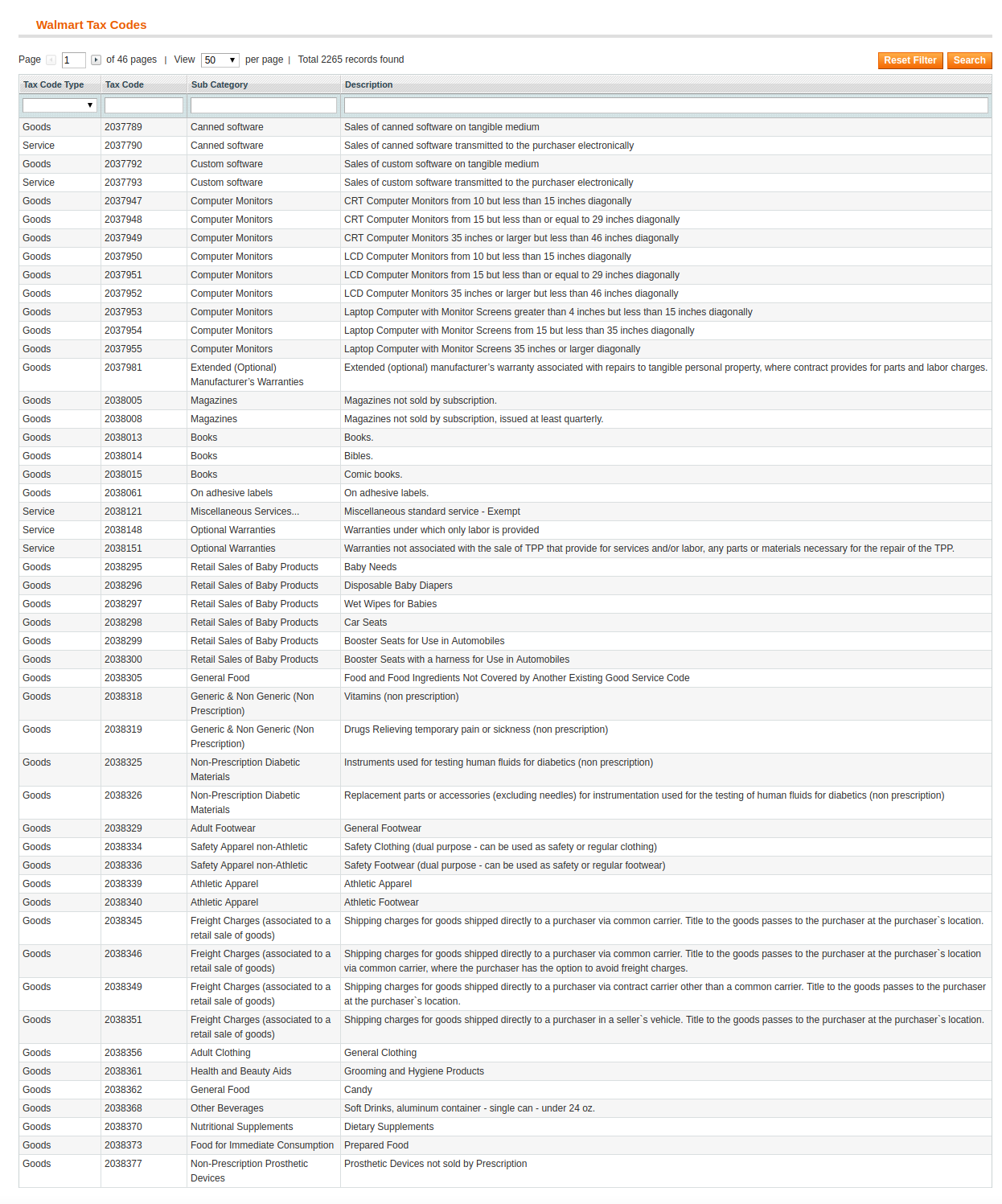
3.13 Tax Code
The Walmart Magento connector allows the admin to manage the tax code of the products in bulk. The Tax Code section of Magento Walmart’s synchronization extension enables the e-merchants the view the tax of the products in the inventory in bulk.
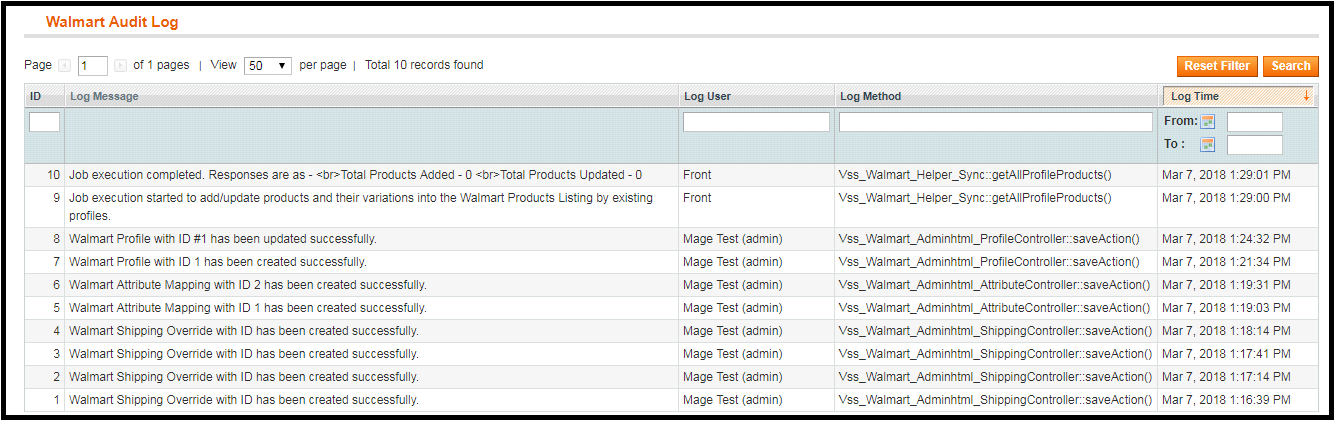
3.14 Audit Log
The admin can view all the jobs that occurred in the Audit Log tab of the Magento Walmart Integration extension. The status of the jobs can be viewed in this tab.
Watch how Magento Walmart Integrator by Knowband works
Moreover, Knowband has also come up with a new integrator exclusively for Walmart Canada. With Magento Walmart Canada Integrator, store owners can connect their Magento store with Walmart Canada.
Erweiterung OpenCart Spin and Win permettre l’administrateur du magasin OpenCart d’incorporer une fen tre contextuelle gamifi e dans le front-end du site Web. Der Modulkontext ist interaktiv, wenn OpenCart das Popup-Menü enthält, um 10% des Kunden-Messagingie-Clients zu ändern. Au lieu de cela, le Modul OpenCart Spin und Win Exit Popup de Knowband ajoute un moyen ludique de Collector l’ID de messagerie des clients. Les Kunden doivent saisir leurs Identifiants de Messagerie und Faire Tourner la roue pour gagner des cadeaux ou des r ductions. Wheelio semble tre un v ritable moyen de gagner gros et de faire une bonne affaire. OpenCart Beenden Sie das Popup-Menü, um die Anzahl der Mitarbeiter zu verbessern. Ainsi, l’approche ludique du plugin les d tails personnels du magasin visiteurs.
1.1 Avantages bietet das Modul OpenCart Spin and Win an:
Erweiterung OpenCart Spin and Win peut aider l’administrateur du magasin sammler les identifiants de messagerie des kunden ohne les ennuyer avec les fen tres contextuelles Conventionnelles.
Das Plugin OpenCart Spin and Win peut tre configuration für eine reichhaltigere Rotationsrotation l’entr e la sortie des clients ou n’importe o sur le site.
Le Modul OpenCart Spin und Win de Groupe de connaissances est facile comprendre et utiliser. Aucune Connaissance-Technik ist nicht unbedingt erforderlich, um Cette-Popup-Spiele auf der Website zu erstellen.
L’administrateur Peut Facilitation Modifier l’aspect et la convivialit de la fen tre contextuelle OpenCart spin et win.
L’OpenCart Spin and Win schlagen verschiedene Themen und Designs für Roues vor.
M me l’emplacement et la fr quence de l’affichage contextuel peuvent tre modifi s partir de l’interface d’administration du module contextuel de l’abonn OpenCart Spin and Win.
Le Plugin OpenCart Spin und Win int gre un int grateur MailChimp et Constant Contact.
Les couleurs du texte, des boutons et de l’arri re-plan peuvent tre modifi es partir du back-end du module OpenCart Spin and Win.
La fen tre contextuelle d’intention de sortie d’OpenCart peut r duire le taux de sortie du site.
Augmentant l’engagement des utilisateurs, la fen tre contextuelle de sortie d’OpenCart erhöht die Chancen auf Conversions.
L’administrateur peut d finir la dur e d’expiration des Codes de r duction. Les offres limit es dans le temps d clenchent la d cision d’achat instantan e des clients.
Installation de 2.0
Achetez l’extension OpenCart Spin und Win dans la Boutique Knowband. Vous obtiendrez les fichiers suivants: 1. Fichier compress contenant le code source du module OpenCart Spin and Win 2. Manuel de l’utilisateur du plugin OpenCart Spin and Win. Suivez les tapes ci-dessous pour installer le plugin OpenCart Spin und Win dans la boutique OpenCart: 1. D compressez le fichier compress . Vous obtiendrez les dossiers comme indiqu dans l’image ci-dessous:
2. Copiez tous les fichiers und Dossiers du fichier zip dans le r pertoire racine de la configuration d’OpenCart via le gestionnaire FTP. 3. Das Modul für die Absicht, OpenCart Spin und Win zu installieren, wird installiert und verwendet. Allez dans Admin -> Menüprinzipal -> Erweiterungen comme indiqu dans l’image ci-dessous:
4. S lectionnez Spin und Win dans la liste des modules et cliquez sur le Diter .
3.0 Administrationsschnittstelle
L’Erweiterungskontext OpenCart Exit-Intent Offre Un Option de Personnalisierung Facile l’administrateur du Magasin. Die verschiedenen Konfigurationsoptionen werden nicht kritisch und nicht detailliert beschrieben.
Parameter g n raux 3.1
Cet onglet de la fen tre contextuelle d’abonnement OpenCart Spin and Win permet l’administrateur du magasin d’apporter les Modifikationen de base dans la fen tre contextuelle de sortie.
Aktiviertes Modul: S lectionnez ‘jaOpenCart Spin and Win ist das Modul, das das Modul OpenCart Spin and Win enthält.
Rev rifier les E-Mails: Wenn die Option aktiv ist, können die Kunden einen fairen Tourer besuchen, um die Identität der Messagerie zu erkennen. Cette fonctionnalit emp che la r p tition des identifiants de messagerie.
Afficher les onglets d roulants: Si activ , l’administrateur peut afficher un onglet extrahierbar dans le front-end du site. Au cas o le visiteur du magasin ne voudrait pas faire tourner la roue, il peut cliquer sur le lien “Je ne me sens pas Chanceux”.
Les Kunden peuvent ramener la roue l’ cran en cliquant sur la Sprache der Retrait comme indiqu dans l’image ci-dessous.
Montrer feu d’artifice: Des feux d’artifice sont affichs sur la roue si les Kunden gagnent une sorte de prix apr s l’avoir fait tourner. Cette fonction peut tre affich e ici.
Intervalle d’affichage des roues: L’administrateur peut entrer l’intervalle apr s lequel la roue sera affich e dans le front-end. Par d faut, c’est 0 , ce qui signie que le client verra la fen tre contextuelle chaque visite.
D finir la dur e d’expiration du coupon: Entrez le nombre de jours apr s lequel le code de coupon expirera.
CSS personnalis : Entrez le code CSS personnalis ici pour effectuer les modifikationen personnalis es.
JS personnalis :“ Saisissez ici le code JS personnalis pour effectuer les modifikationen personnalis es.
3.2 Param tres d’affichage
L’administrateur du magasin OpenCart peut modifier le param tre d’affichage partir de cet onglet du plugin OpenCart Spin and Win.
Taille d’ cran dünner: S lectionnez la taille d’ cran minimale avec vous pour que la roue soit kompatibel. La roue de rotation fonctionne sur tout l’ cran au-dessus de celui s lectionn .
Fr quence d’affichage maximale: S lectionnez ici la fr quence d’affichage de la molette de rotation.
Cacher Apr s: Choisissez le moment o vous souhaitez masquer la fen tre contextuelle ici.
D finir le temps de korrigierung: S lectionnez si vous souhaitez afficher la roue anhänger une dur e fixe ou non. Si “ Oui ” est s lectionn , alors, l’administrateur devra fixer l’heure de d but et de fin comme indiqu ci-dessous:
O afficher: S lectionnez les pages Web du site sur lesquelles vous souhaitez afficher la fen tre contextuelle. La fen tre contextuelle d’intention de sortie OpenCart peut tre plac e l’entr e ou la sortie des visiteurs du magasin.
Wenn ,war Dffichage: , KriegChoisissez le moment o vous souhaitez afficher le spin et gagner la pop-up. Das Pop-up de r compense peut tre affich e imm diatement lorsqu’un utilisateur visite le magasin, ou apr s quelques secondes de visite oder l’heure de sortie ou lorsque vous faites d filer vers le bas un bestimmten guss.
Cas I: Si “Lorsque le% de d filement vers le bas” est s lectionn , alors l’administrateur doit entrer le pourcentage de d filement, apr s quoi il souhaite afficher la fen tre contextuelle, dans le Champion Erwähnung.
Cas II: Si Apr s le temps (secondes) est s lectionn , alors l’administrateur doit entrer le temps en secondes, apr s quoi il veut afficher la fen tre contextuelle, dans le champ Erwähnung .
Einlagerung g ographique: S lectionnez la g olocalisation o vous souhaitez afficher la molette. Si Worldwide est s lectionn , alors, il sera affich tous les endroits o le site fonctionne.
3.3 Param tres d’apparence et de convivialit
L’administrateur a la possibilit de modifier l’aspect et la convivialit du spin partir de cet onglet de la fen tre contextuelle OpenCart Exit Intent.
S lectionne un th me: La fen tre contextuelle d’abonnement OpenCart est fournie avec un bestimmte nombre de th mes d’arri re-plan parmi lesquels choisir. L’administrateur peut s lectionner le th me souhait en fonction de diverses Anlässe sagt que No l, Halloween, Thanksgiving, Black Friday, etc. Un aper u du th me s lectionn appara tra sous l ‘onglet du th me s lectionn pour voir quoi il ressemblera sur le frontend du boutique.
Konzeption de Roue: La fen tre contextuelle d’abonnement l’intention de sortie d’OpenCart schlägt m me des roues de Rotation pr con ues vor. L’administrateur peut choisir celui qui entspricht l’interface utilisateur du site.
Aper u de la roue: L’administrateur peut pr visualiser la conception de roue s lectionn e ici.
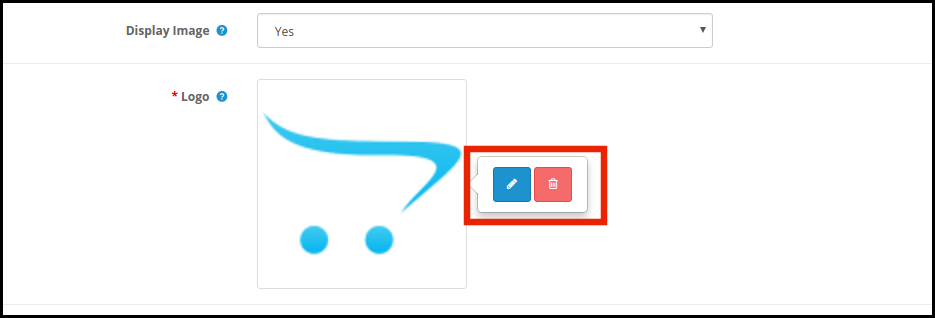
Afficher l’image: L’administrateur a la possibilit d’afficher l’image ou le logo sur la roue. Si “ Oui ” est s lectionn , l’administrateur obtient une option pour s lectionner l’image afficher comme indiqu ci-dessous:
L’administrateur peut modifier ou supprimer l’image en cliquant sur les boutons respektifs.
Couleur d’arri re-Plan de la Roue: S lectionnez ici la couleur d’arri re-plan de la roue.
Couleur de la Police du Texte: Auswahl der Polizei, die die Polizei betrifft.
Famille de polices de texte: Auswahl der Familie der Polizei, die sich um die Zukunft kümmert.
Couleur d’arri re-plan du bouton: La couleur des boutons affichs sur la roue peut tre s lectionn e partir du nuancier.
Nicht, je ne me sens pas Chanceux Couleur: Changez la couleur du lien “Nicht, je ne me sens pas Chanceux” Partir d’ici.
3.4 Parameter de texte
Tous les textes affichs sur le front-end de la roue de rotation peuvent tre modifi s partir de l’onglet Parameter des Texts des Rotationsmoduls und des Victoire d’OpenCart. L’administrateur du magasin peut modifier le texte du titre, le texte des sous-titres et les r gles.
3.5 Parameter von l’offre
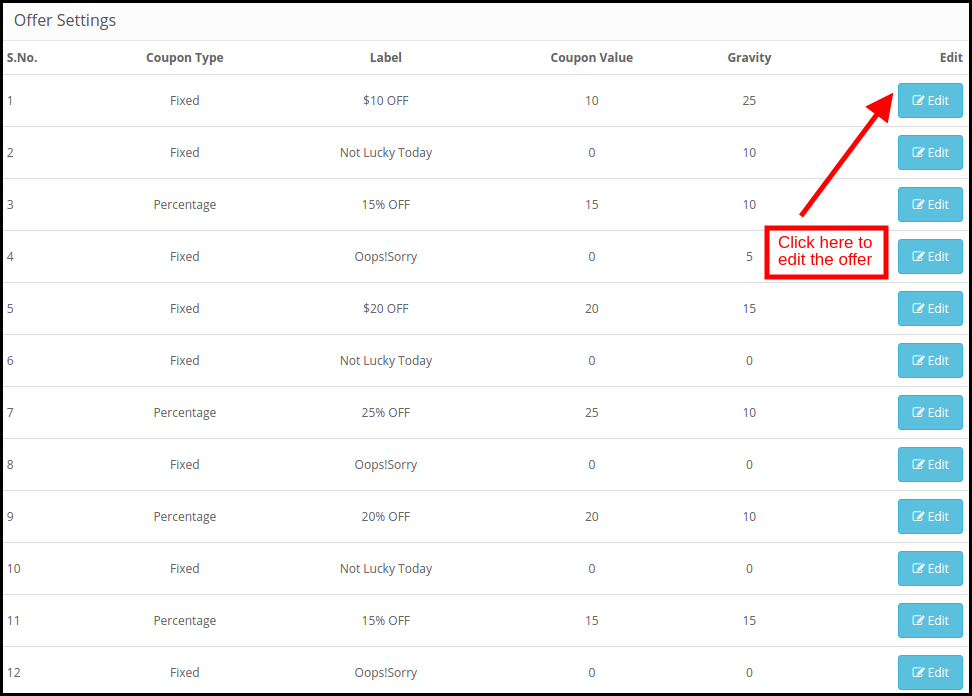
L’administrateur peut modifier les tranches de la roue partir de cet onglet du plugin OpenCart Spin and Win.
Gutscheintyp: Cela sp cifie le Typ de Coupon Angebot. L’administrateur peut offrir une remise fixe ou en pourcentage.
Tiquette: Entrez l’ tiquette qui sera affich e l’avant de la roue.
Valeur du Gutschein: Entrez la valeur du Gutscheinangebot.
La gravit : Entrez la possibilit que la tranche apparaisse lorsque la roue est Tourn e. Afin de modifier la tranche de r duction, cliquez sur le bouton Modifier comme indiqu dans l’image ci-dessus.
3.6 , KriegAbonnement Parameter
L’int grateur OpenCart mailen Sie einen int gr MailChimp et Int grateur Constant Contact. Les IDs-E-Mails werden von OpenCart Spin et l’Erweiterung doppelt doppelt synchronisiert, wobei die automatische Automatisierung mit dem Respekt des Magasin-Administrators erfolgt.
L’administrateur peut activer l’outil marketing respektif en s lectionnant Oui dans la liste d roulante. Afin de configure la connexion, entrez la cl API et le jeton secret. Auswahl der Liste der Identifikatoren der Nachrichtensynchronisationssynchronisation.
3.7 Messparameter
Cet onglet de la fen tre contextuelle d’abonnement OpenCart Spin and Win permet l’administrator du magasin d’envoyer des E-Mails Promotionnels aux Kunden.
Affichage du coupon: S lectionnez l’emplacement o vous souhaitez afficher le coupon. L’administrateur peut soit l’afficher sur la roue, soit l’envoyer per E-Mail. Cela d pend de l’option s lectionn e dans le Backend du Popup Responsive OpenCart.
Sujet du courriel: Entrez la ligne d’objet de l’e-mail Gesandter aux Kunden.
Contenu de l’e-Mail: Saisissez ici le contenu du mail.
Statistiken 3.8
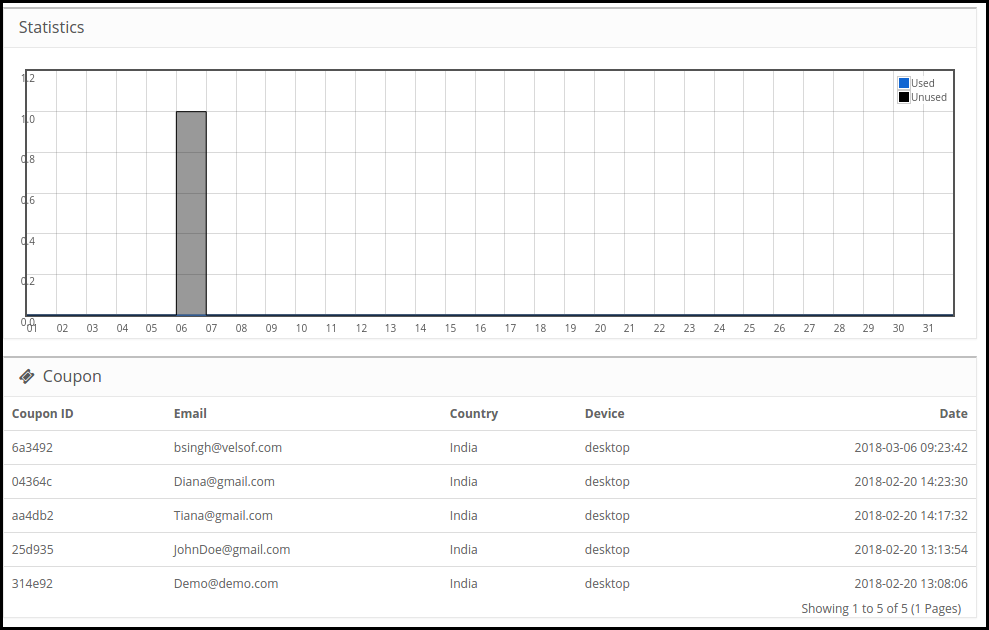
Le rapport statistique des coupons g n r s et des coupons utilis s / non utilis s peut tre Consult dans cet onglet du module contextuel d’abonnement aux e-mails d’OpenCart.
4.0 Schnittstelle utilisateur du site Web
Der Kontext der Rotation ist ein Thema, das sich auf das Front-End des Standorts bezieht, und das Bild, das sich auf das Bild bezieht.
Une fois que le client remporte un prix apr s avoir fait tourner la roue, le coupon sera g n r comme indiqu ci-dessous:
Le client peut r clamer le coupon en cliquant sur Continuer. Ce Code de r duction peut tre utilis sur la Seite de paiement pour obtenir la remise.
Avertissement: Si spin fen tre contextuelle de la roue “Spin and Win” ne s’affiche pas l’avant, veuillez vider le cache ou supprimer les cookies. Parfois, les cookies emp chent la fen tre contextuelle de s’afficher l’avant.
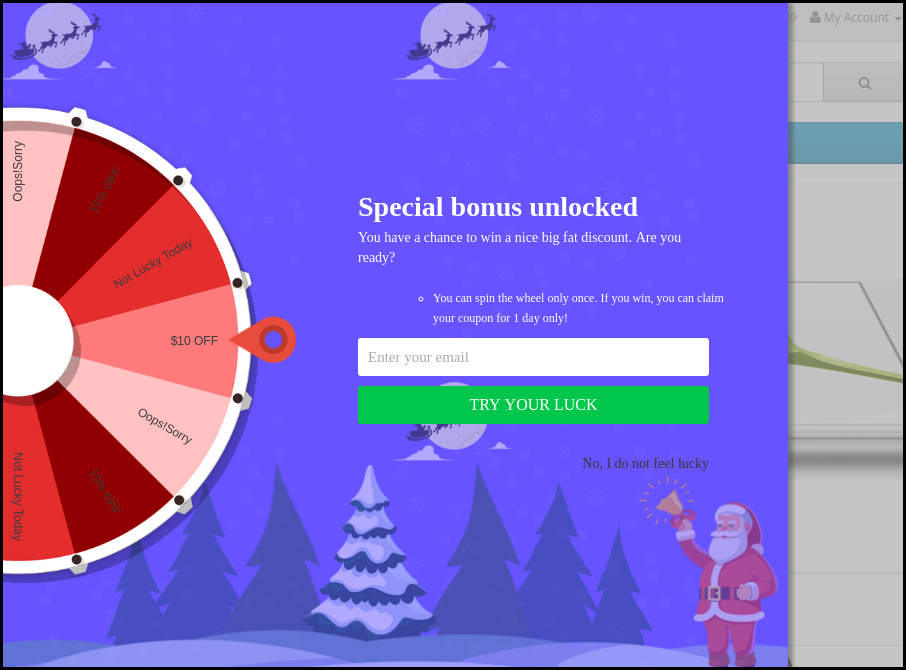
OpenCart Spin and Win extension allow the OpenCart store admin to incorporate a gamified popup in the front end of the website. The OpenCart interactive popup module is one of the ways to forget about the annoying subscription popup that offers a 10% discount in return for the email ID of the customers. Instead, the OpenCart Spin and Win Exit Popup module by Knowband adds a playful way to collect the email ID of the customers.
The customers need to enter their email IDs and spin the wheel to win gifts or discounts. Wheelio appears to be a genuine way to win big and hit a bargain. OpenCart Exit popup offers a fun approach to enhance user engagement. Thus, the gamified approach of the OpenCart Spin and Win plugin is a better way for the store admin to offer the desired discount and collect the personal detail of the store visitors.
1.1 Benefits offered by the OpenCart Spin and Win Module:
OpenCart Spin and Win extension can help the store admin collect the email IDs of the customers without annoying them with the conventional popups.
The OpenCart Spin and Win plugin can be configured to show the spin wheel at the entry, exit of the customers, or anywhere on the site.
The OpenCart Spin and Win module by Knowband is easy to understand and use. In fact, he needs no technical knowledge to include this gamified popup on your website.
The admin can easily change the look and feel of the OpenCart spin and win an exit-intent popup.
The OpenCart Spin and Win offers various elegant themes and wheel designs to choose from.
Even the location and frequency of the popup display are changeable from the admin interface of the OpenCart Spin and Win subscriber popup module.
OpenCart Spin and Win plugin have an inbuilt MailChimp and Constant Contact integrator.
The text, button, and background colors are changeable from the back-end of the OpenCart Spin and Win module.
The OpenCart exit intent popup can curb the exit rate of the site.
Increasing user engagement, the OpenCart exit popup boosts the chances of conversions.
The admin can set the expiry duration of the coupon codes. The time-bound offers trigger instant purchase decisions of the customers.
2.0 Installation
Purchase the OpenCart Spin and Win extension from the Knowband store. You’ll get the following files:
1. Zipped File containing the source code of the OpenCart Spin and Win module
2. User Manual of OpenCart Spin and Win plugin.
Follow the steps below to install the OpenCart Spin and Win plugin in the OpenCart store:
1. Unzip the zipped. You’ll get the folders as shown in the image below:
2. Copy all the files and folders of the zip file in the Root Directory of OpenCart setup via FTP manager.
3. The OpenCart Spin and Win exit intent module is now installed and is ready to use. Go to Admin -> Main Menu -> Extensions as shown in the image below:
4. Select Spin and Win from the list of the modules and click on the Edit button.
3.0 Admin Interface
OpenCart exit-intent popup extension offers an easy customization option to the store admin. The various configuration options are discussed in detail below.
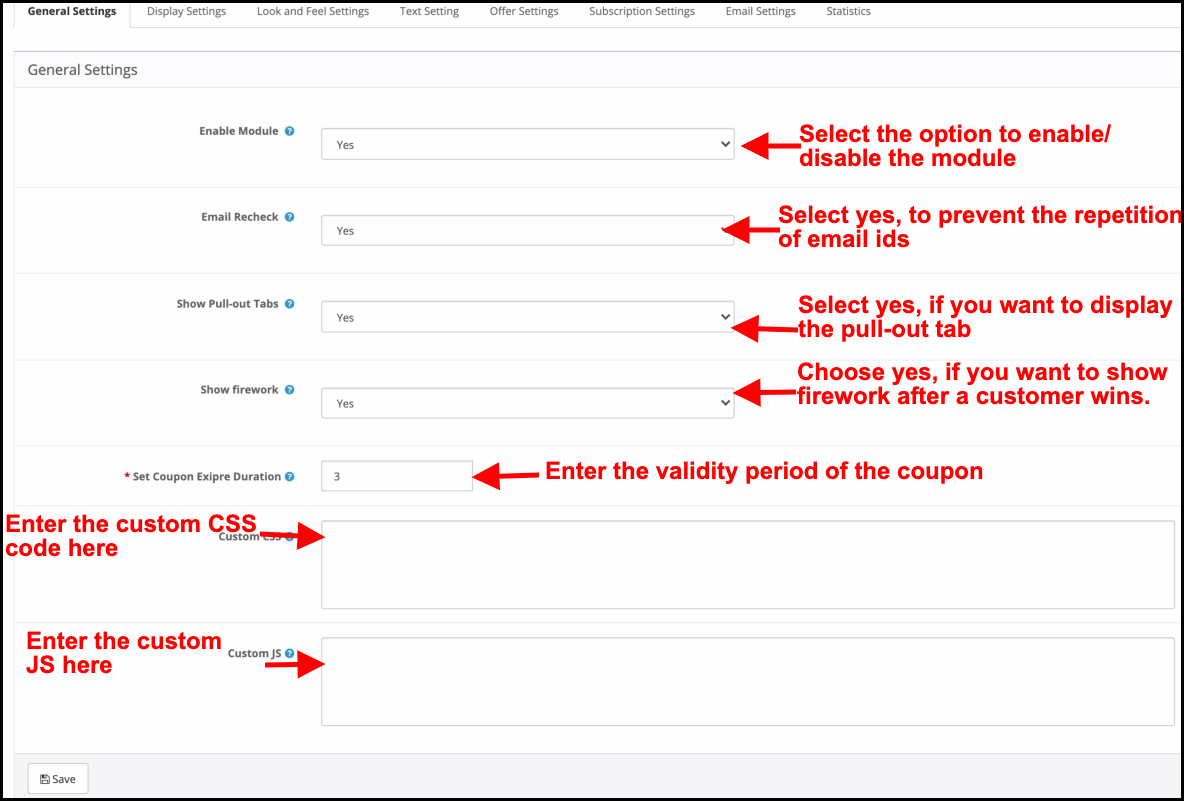
3.1 General Settings
This tab of the OpenCart Spin and Win subscription popup allows the store admin to make the basic changes in the exit popup.
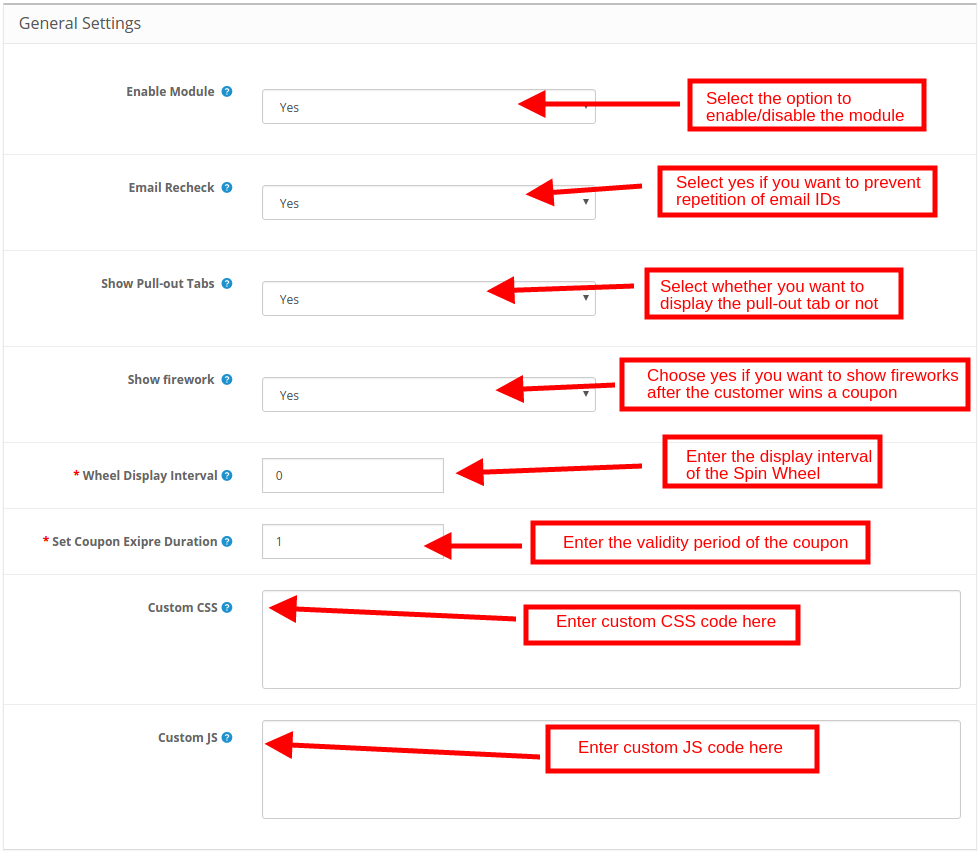
Enable Module: Select ‘Yes’ from the drop-down list to enable the OpenCart Spin and Win module.
Email Recheck: If enabled, the customers will be allowed to spin the wheel only once with a single email ID. This functionality prevents the repetition of email IDs.
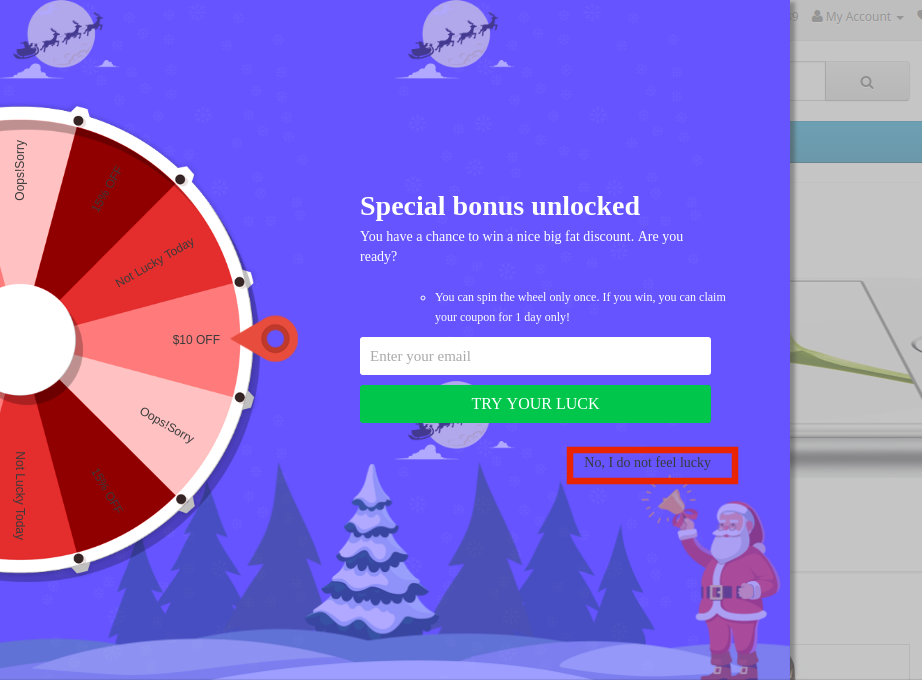
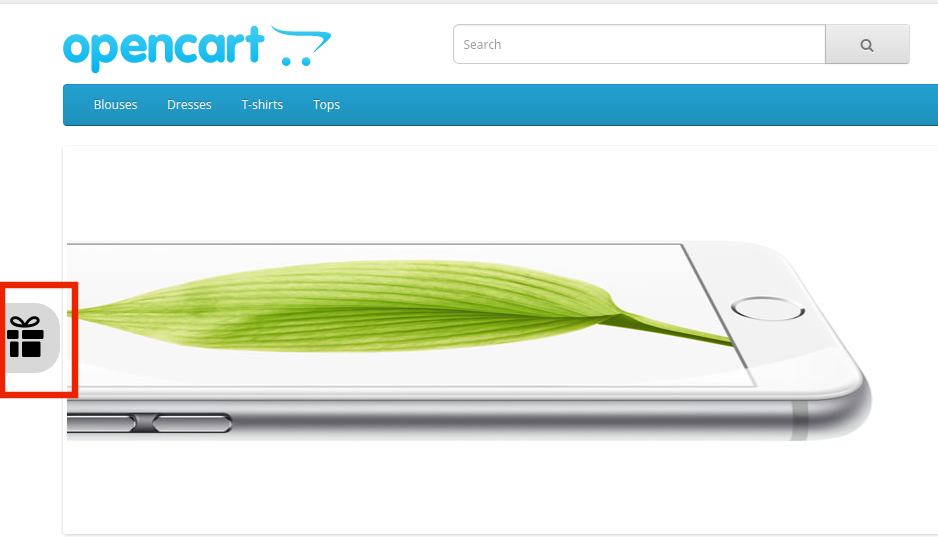
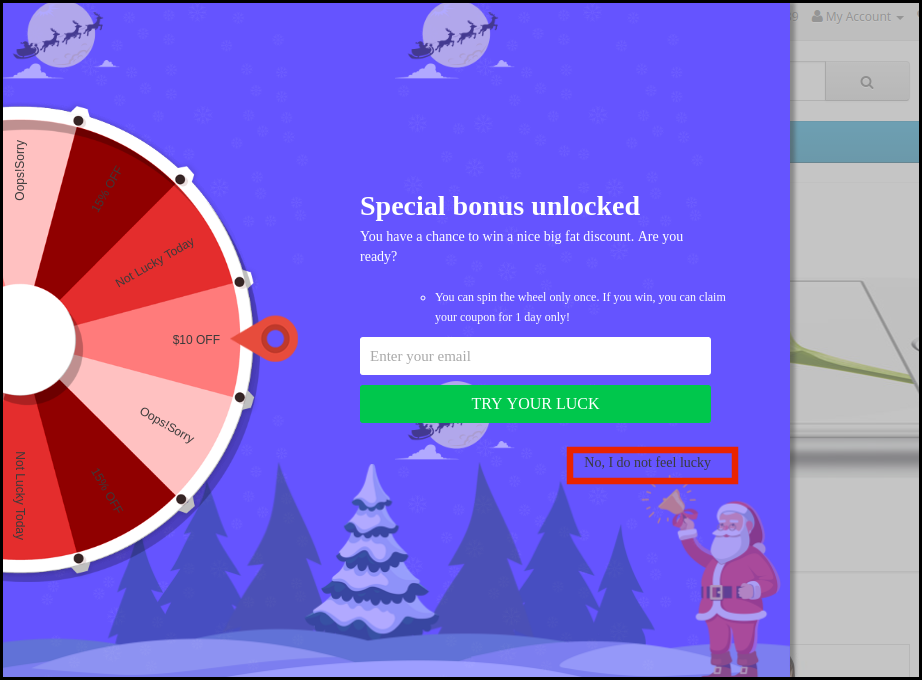
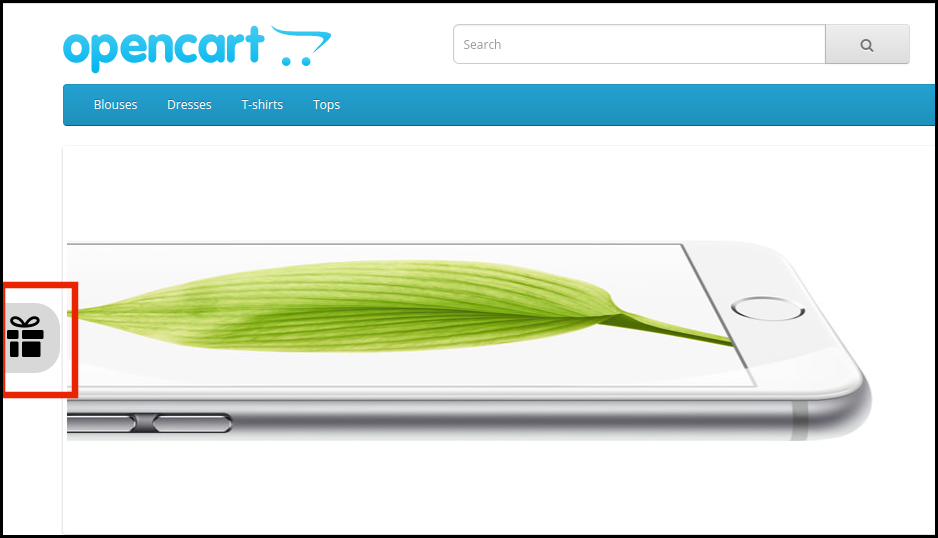
Show Pull-out Tabs: If enabled, the admin can display a pull-out tab in the front-end of the site. In case, the store visitor is not willing to spin the wheel, he can click on the ‘I do not feel lucky’ link.
The customers can bring the wheel back on the screen by clicking on the pull-out tab as shown in the image below.
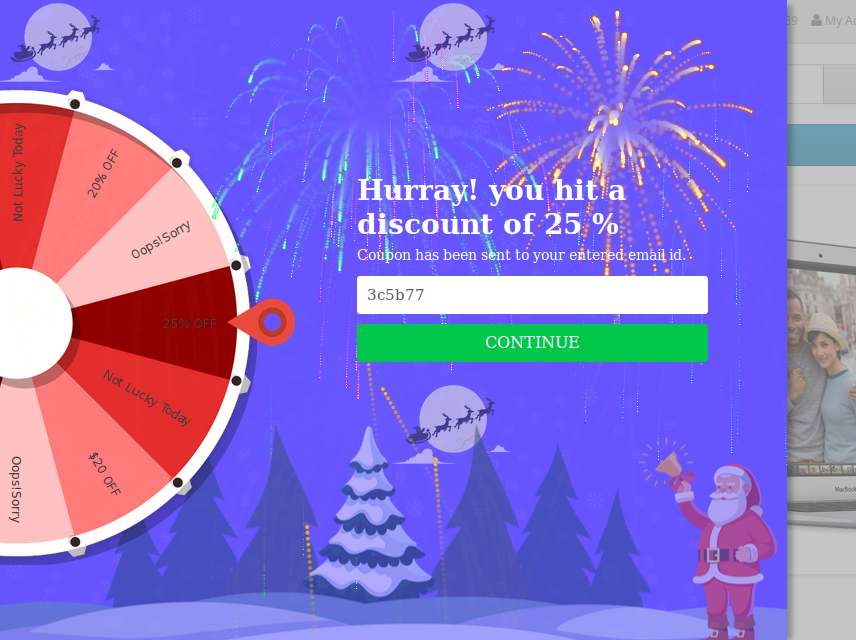
Show Firework: Fireworks display on the wheel if the customers win any sort of prize after spinning it. This feature display here.
Wheel Display Interval: The admin can enter the interval after which the wheel will display in the front-end. By default, it is ‘0’ which means the customer will see the pop-up on every visit.
Set Coupon Expiry Duration: Enter the number of days after which the coupon code will expire.
Custom CSS: Enter custom CSS code here to make the custom changes.
Custom JS: Enter custom JS code here to make the custom changes.
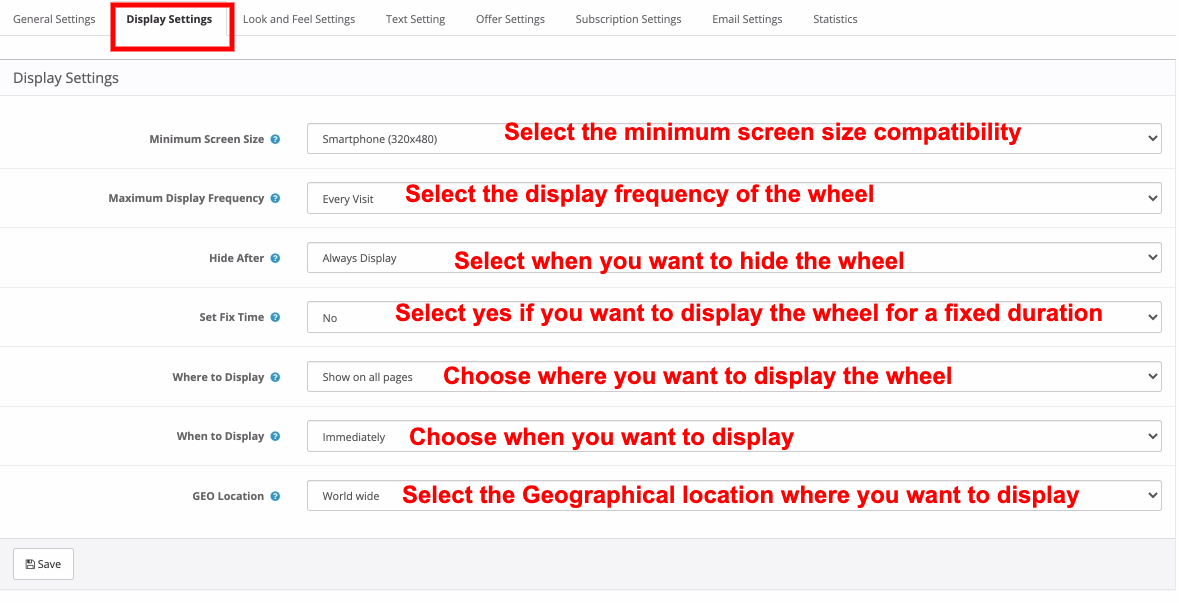
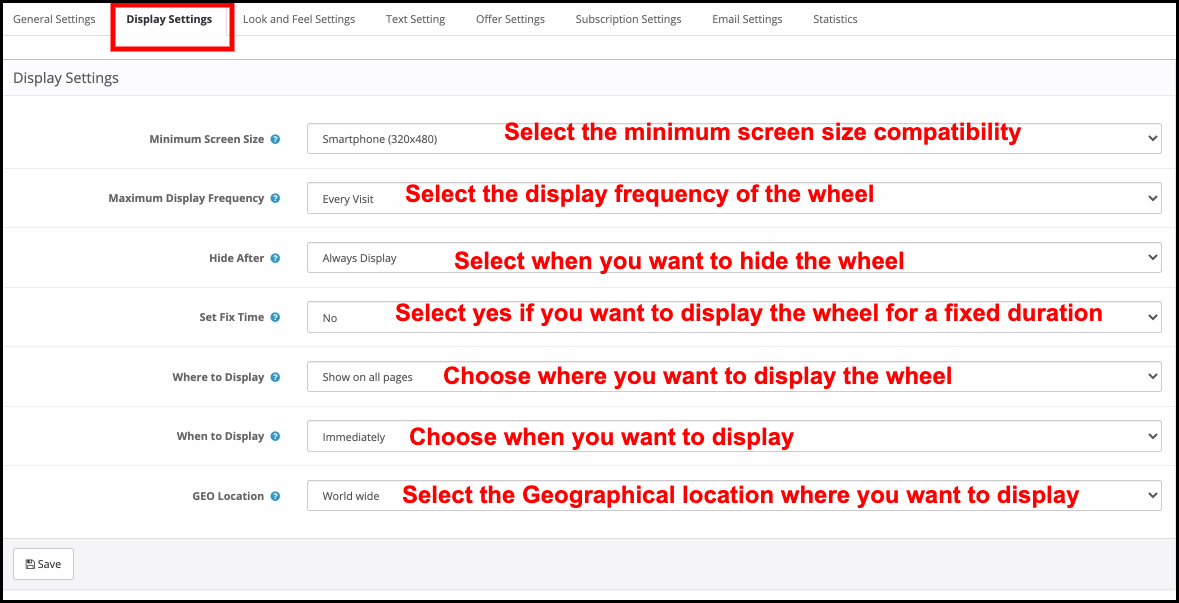
3.2 Display Settings
The OpenCart store admin can change the display setting from this tab of the OpenCart Spin and Win plugin.
Minimum Screen Size: Select the minimum screen size with you to want the wheel to be compatible. The spin wheel work on all the screens above the selected one.
Maximum Display Frequency: Select the display frequency of the spin wheel here.
Hide After: Choose when you want to hide the popup here.
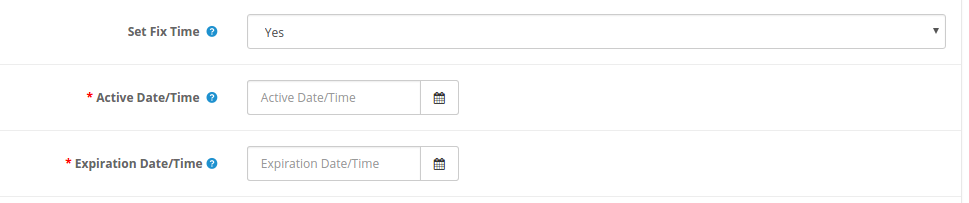
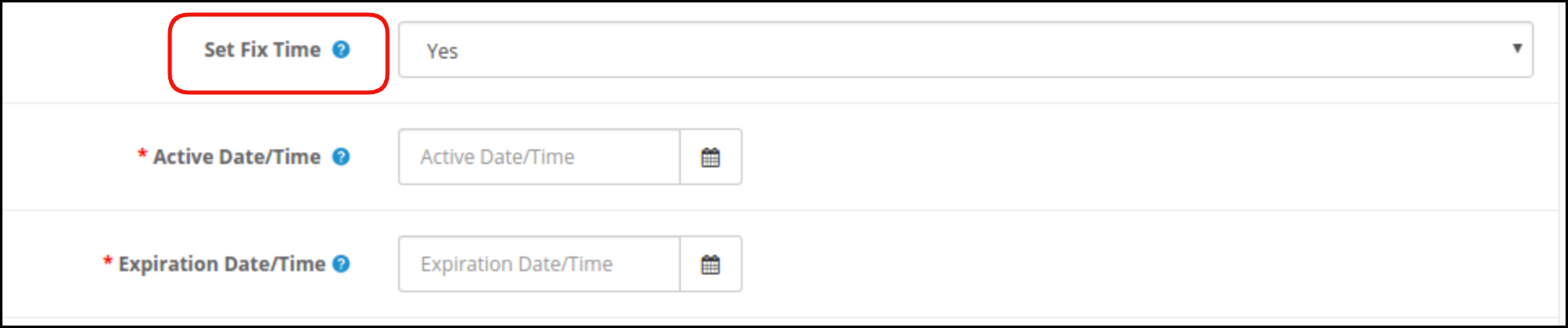
Set Fix Time: Select whether you want to display the wheel for a fixed duration or not. If he selects ‘Yes’, then, the admin will be required to fix the start and end time as shown below:
Where to Display: Select the web pages of the site where you want to display the popup. The OpenCart exit-intent popup can be placed at the entry or exit of the store visitors.
When to Display:Choose the moment when you want to display the spin and win popup. The reward popup can display immediately when a user visits the store, or after seconds of visitor’s visit or at the time of exit or when scrolling down some certain percentage.
Case I: If he selects “When Scroll Down %” then the admin needs to enter the scroll percentage, after which he wants to display the popup, in the mentioned field.
Case II: If he selects “ After a time (seconds)”, then the admin has to enter the time in seconds, after which he wants to display the popup, in the mentioned field.
Geo Location: Select the geolocation where you want to display the spin wheel. If he selects Worldwide, then, it will display at all the places where the site is operating.
3.3 Look and Feel Settings
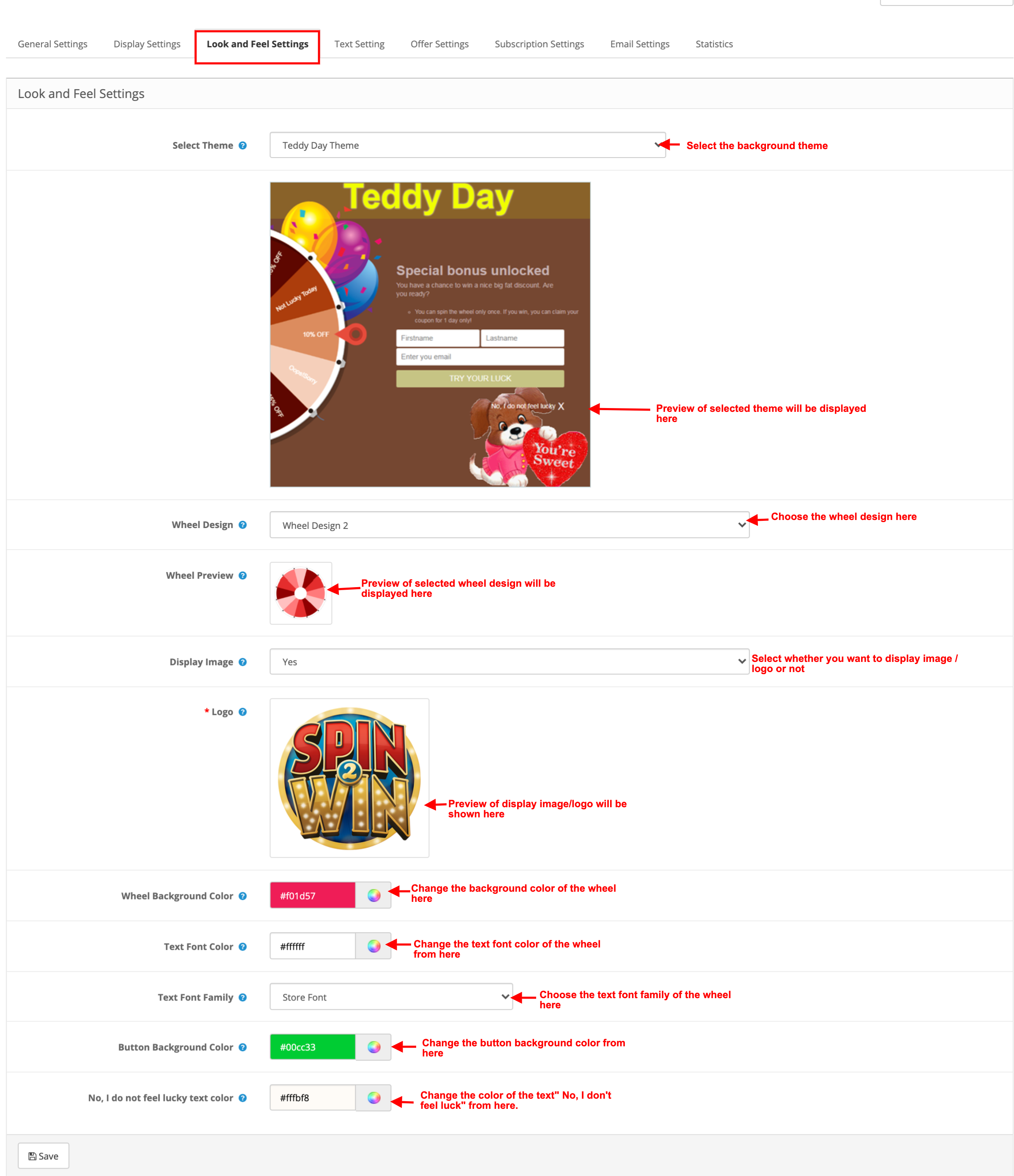
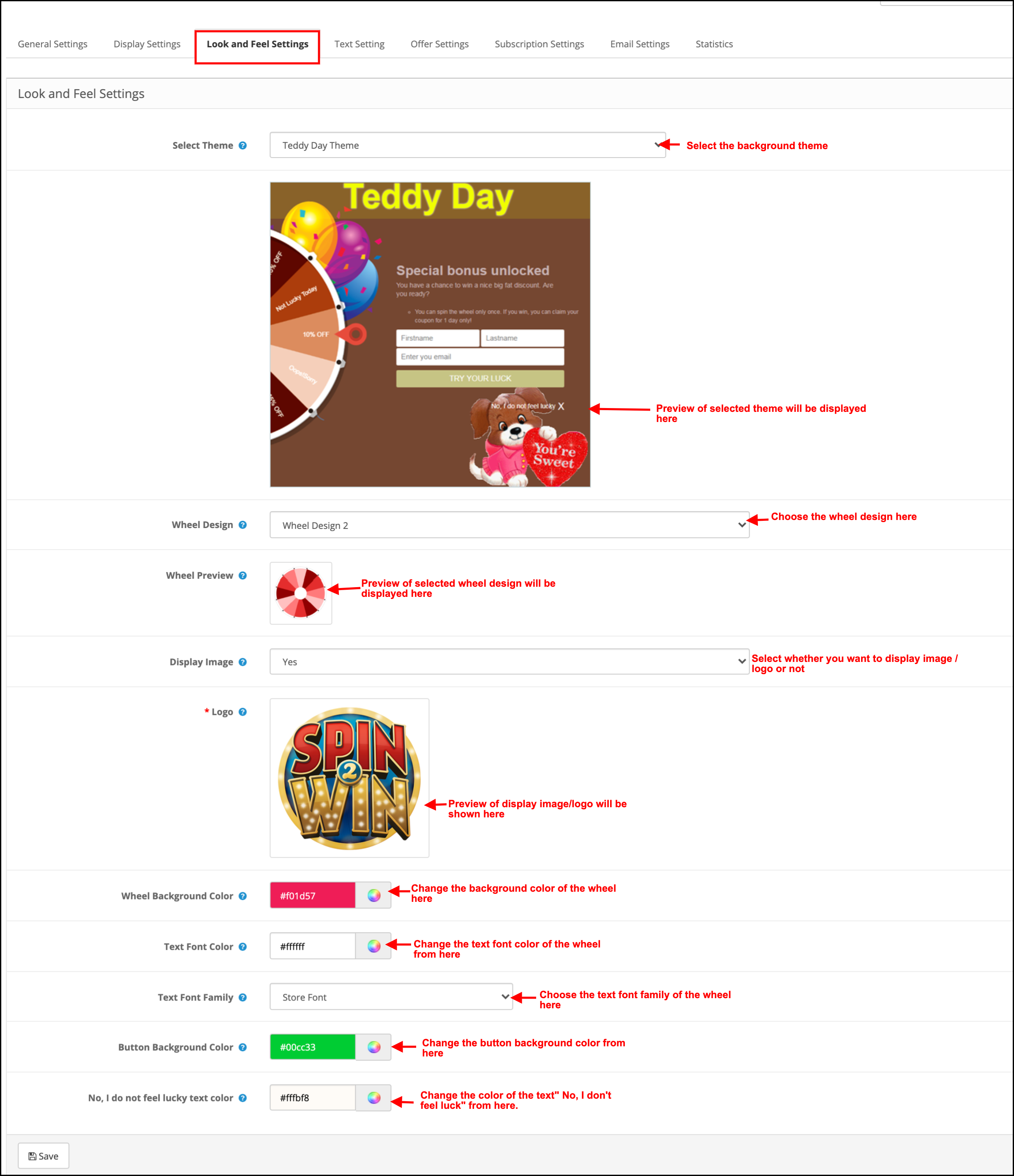
The admin gets an option to change the look and feel of the spin from this tab of the OpenCart Exit Intent popup.
Select Theme: The OpenCart subscription popup comes with several background themes to choose from. The admin can select the desired theme depending upon various occasions like Christmas, Halloween, Thanksgiving, Black Friday, etc.
Preview of the theme he selects will appear below the selected theme tab to see how it will look on the front end of the store.
Wheel Design: The OpenCart exit intent subscription popup even offers pre-designed spin wheels. The admin can choose the one that matches the UI of the site.
Wheel Preview: The admin can preview the selected wheel design here.
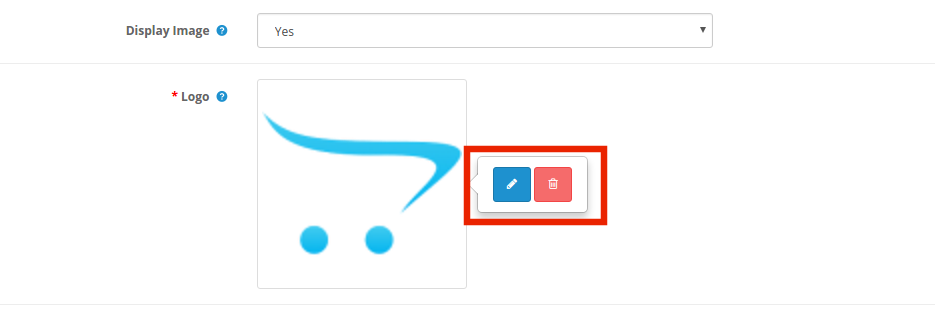
Display Image: The admin gets an option to display the image or logo on the wheel. If he selects ‘Yes’, the admin gets an option to select the image to display as shown below:
The admin can change or delete the image by clicking on the respective buttons.
Wheel Background Color: Select the background color of the wheel from here.
Text Font Color: Choose the font color of the text for displaying on the wheel.
Text Font Family: Selected the font family of text for displaying on the wheel.
Button Background Color: The color of the buttons for displaying on the wheel can be selected from the color chart.
No, I do not feel lucky Color: Change the color of the ‘No, I do not feel Lucky’ link from here.
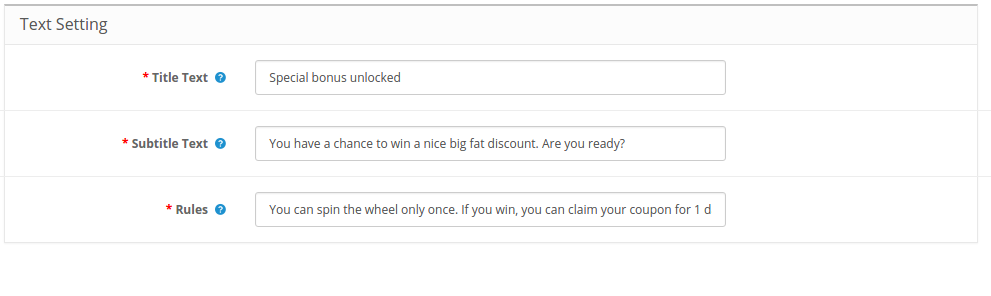
3.4 Text Settings
All the texts on the front end of the spin wheel is changeable from the Text Settings tab of the OpenCart spin and win module. The store admin can edit the Title Text, Subtitle Text, and Rules.
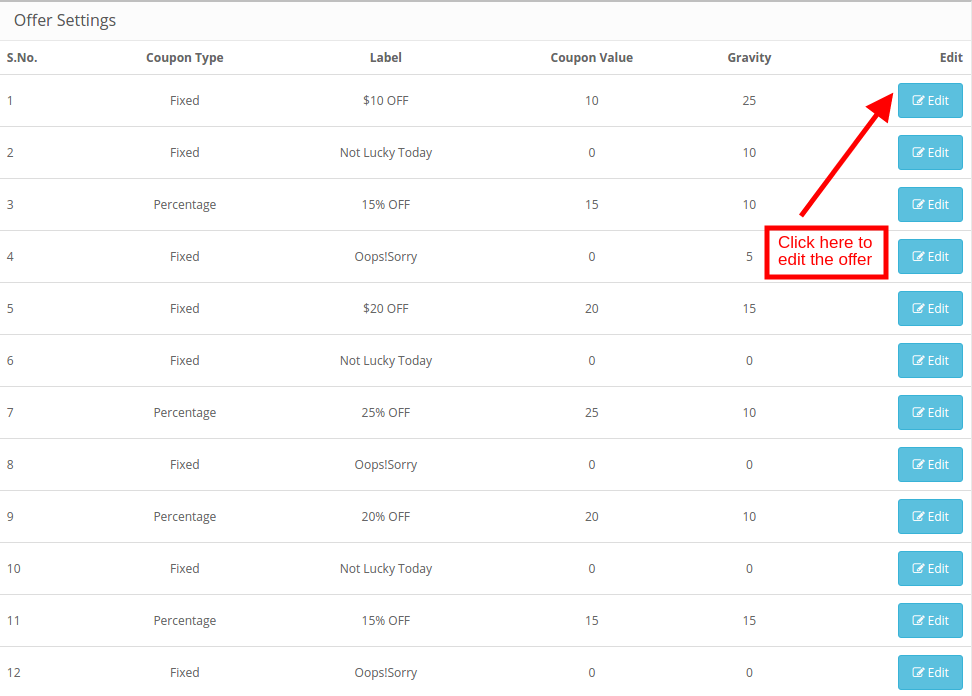
3.5 Offer Settings
The admin can edit the slices of the wheel from this tab of the OpenCart Spin and Win plugin.
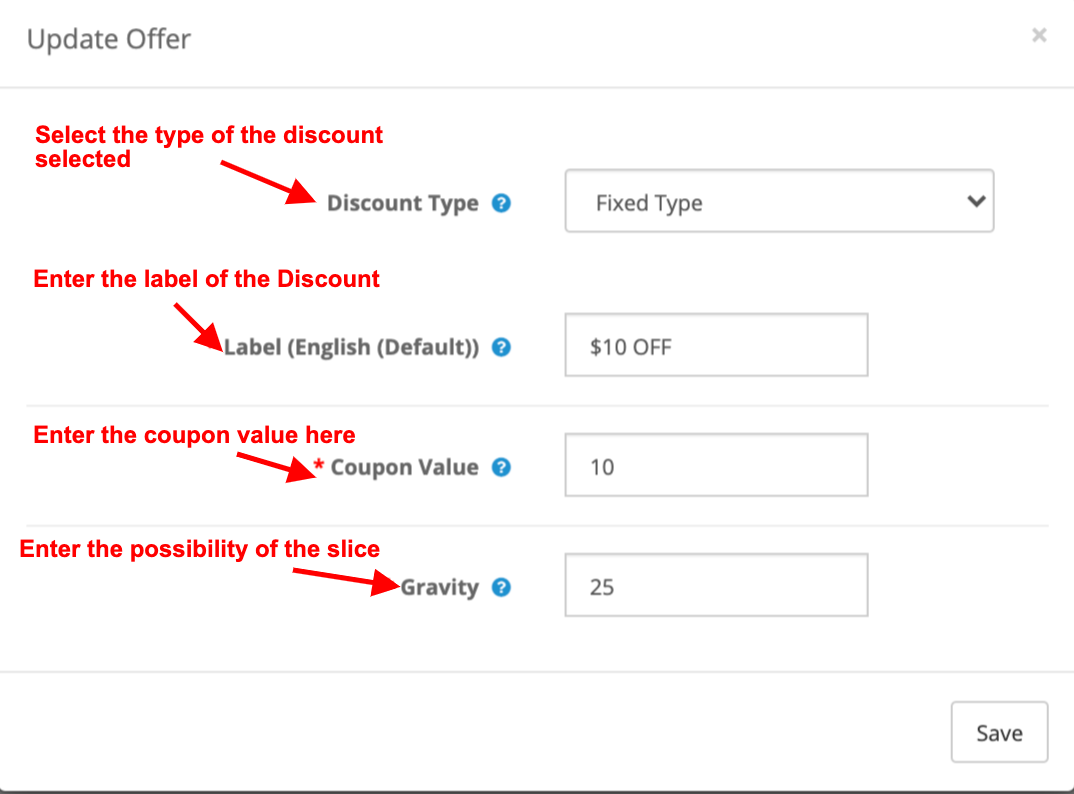
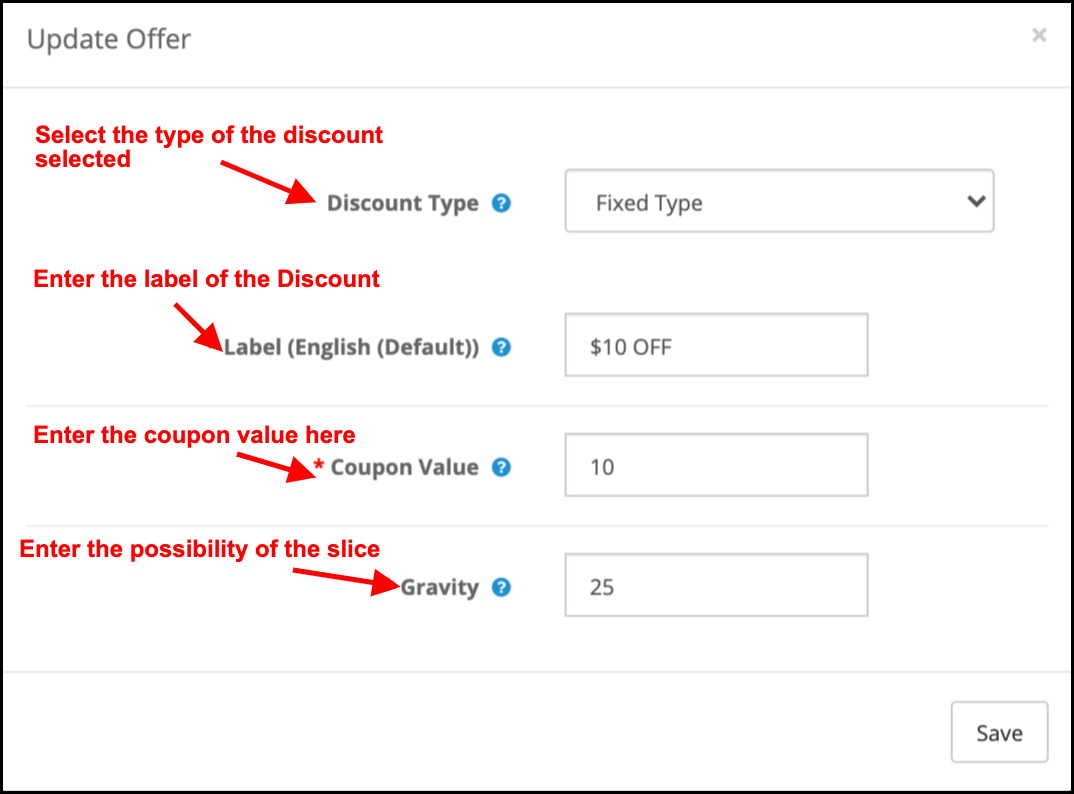
Coupon Type: This specifies the type of coupon being offered. The admin can offer a Fixed or Percentage discount.
Label: Enter the label that will display at the front end of the wheel.
Coupon Value: Enter the value of the coupon offered.
Gravity: Enter the possibility of the slice showing up when the wheel is spun.
To edit the discount slice, click on the Edit button as shown in the above image.
3.6Subscription Settings
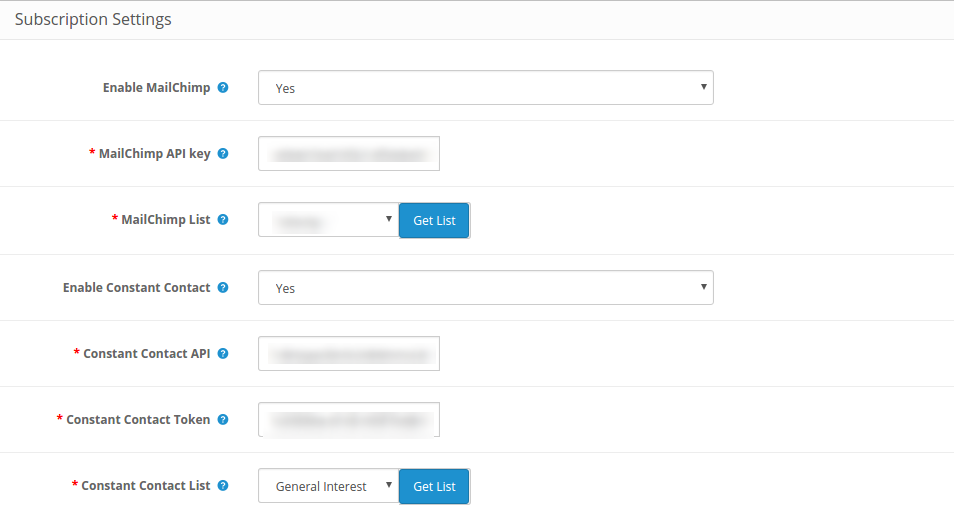
The OpenCart email integrator has an inbuilt MailChimp and Constant Contact integrator. The email IDs captured by OpenCart spin and win extension are automatically synced with the respective account of the store admin.
The admin can enable the respective marketing tool by selecting Yes from the drop-down list. To set up the connection, enter the API key and Secret Token. Select the list and the email IDs will be synced automatically.
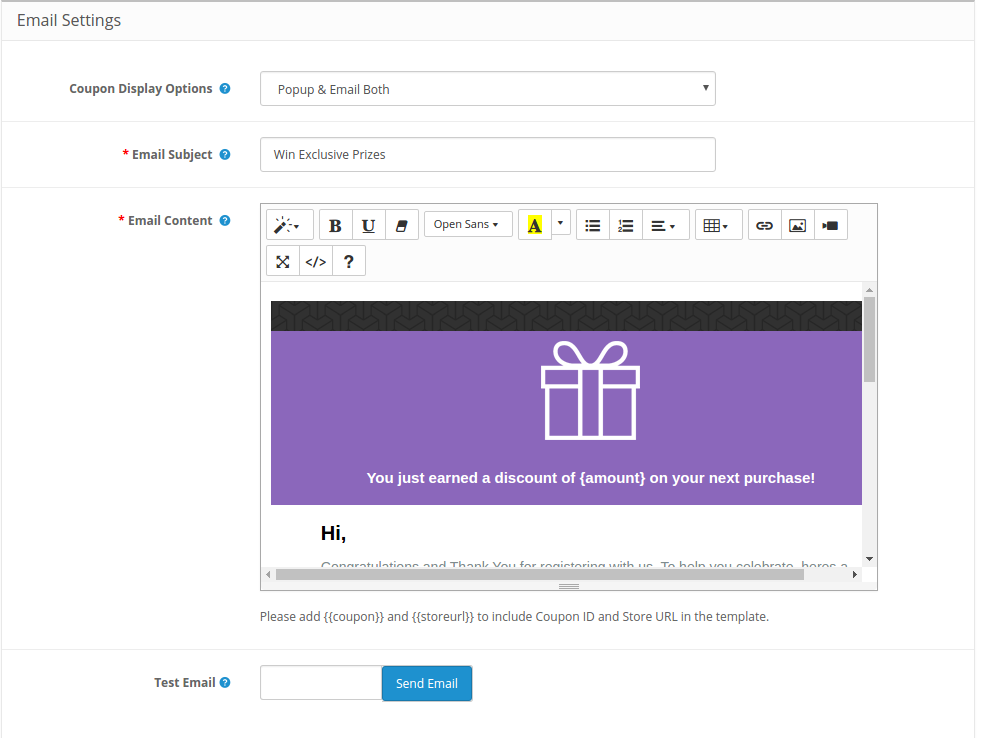
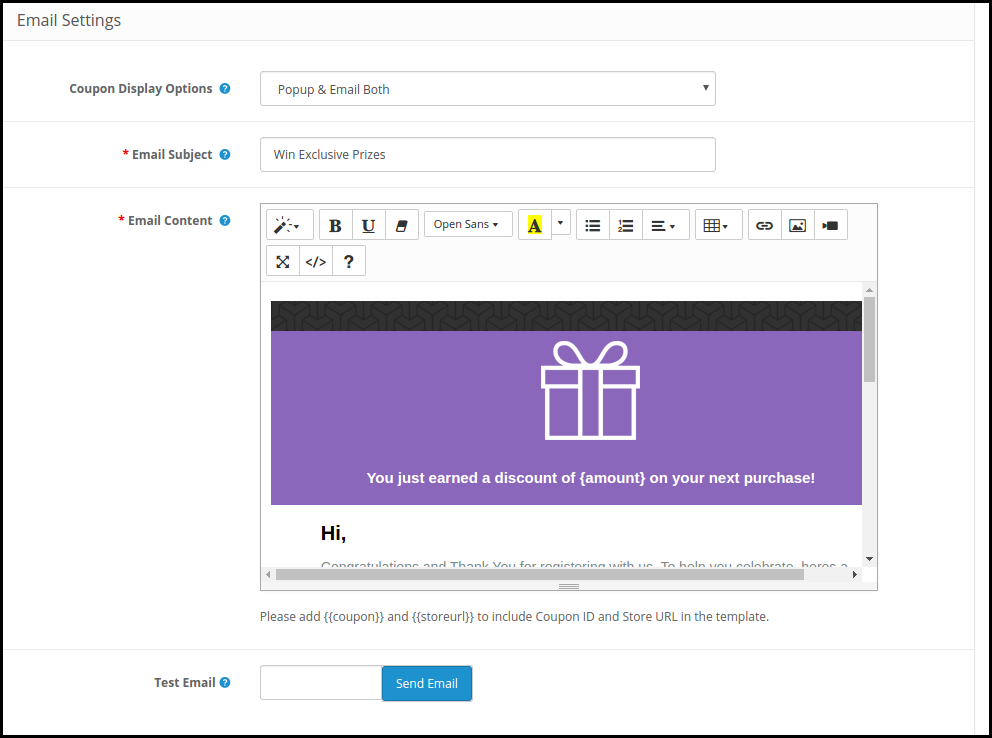
3.7 Email Settings
This tab of the OpenCart Spin and Win subscription popup allows the store admin to send promotional emails to the customers.
Coupon Display: Select where you want to display the coupon. The admin can either display it on the wheel or can send it via email. It depends on the option selected from the backend of the OpenCart responsive popup.
Email Subject: Enter the subject line of the email to be sent to the customers.
Email Content: Enter the content of the mail here.
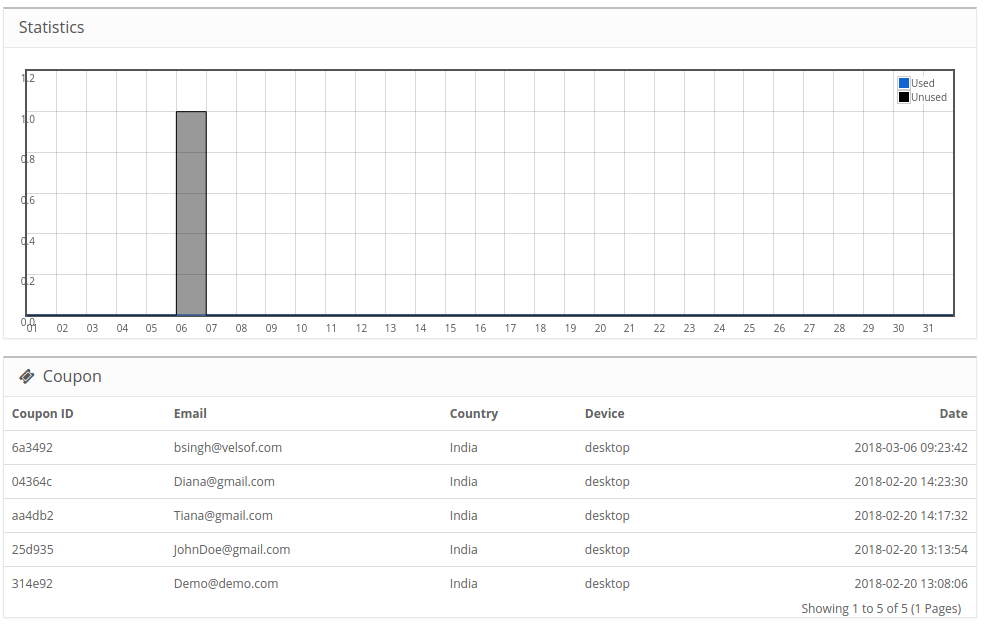
3.8 Statistics
The statistical report of the coupons generated and the coupons used/unused can be viewed in this tab of the OpenCart email subscription popup module.
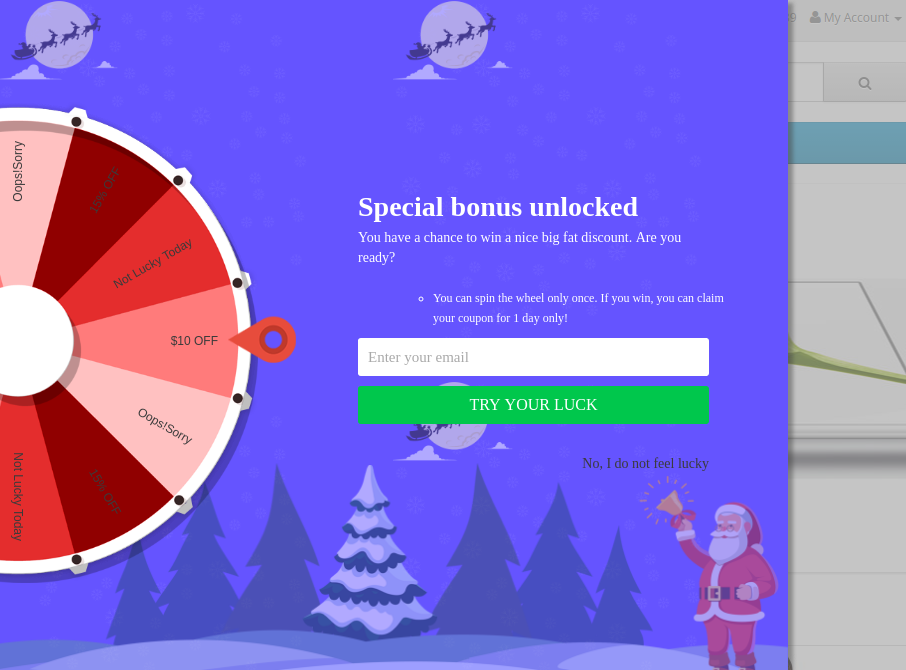
4.0 Website UI
The spin wheel popup will display in the front-end of the site as shown in the image below.
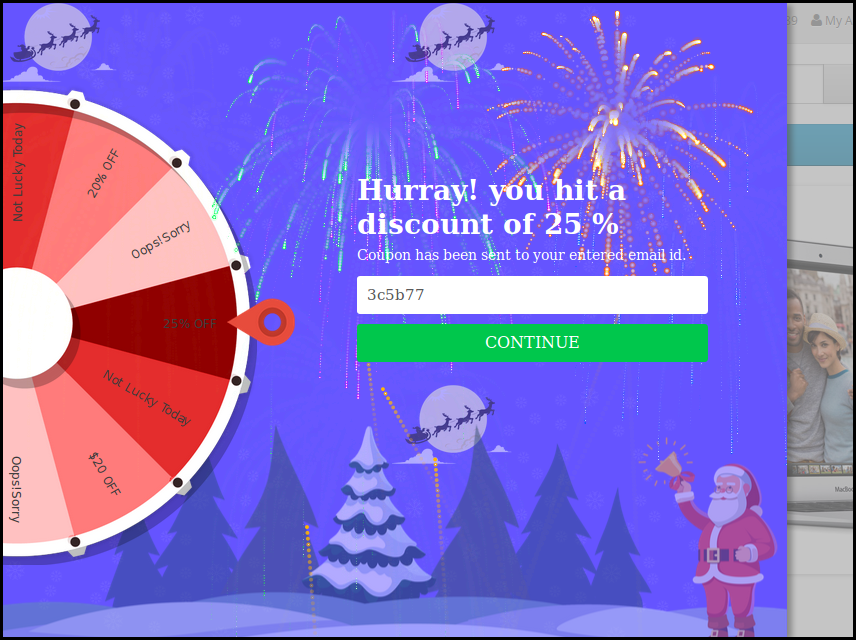
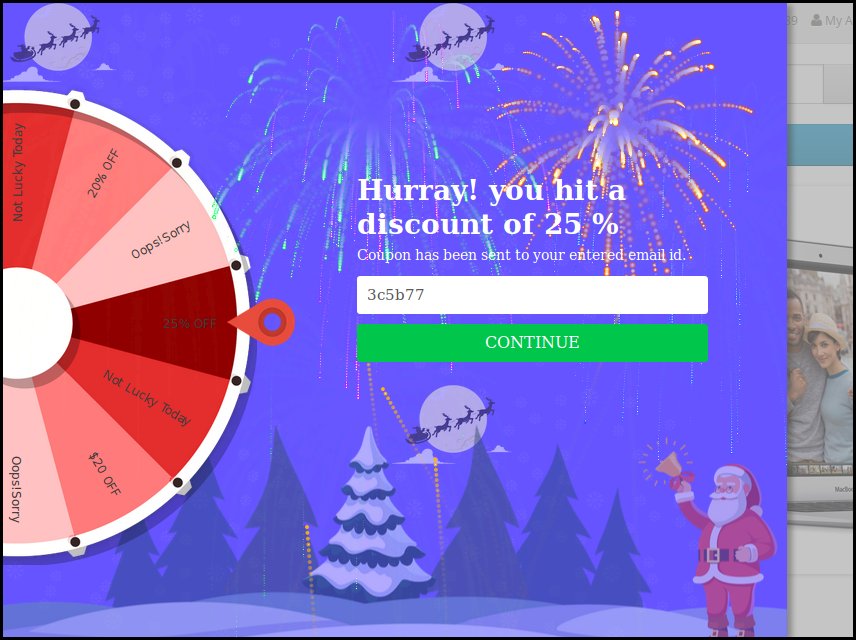
Once the customer wins a prize after spinning the wheel, the coupon will be generated as shown below:
The customer can claim the coupon by clicking on Continue.
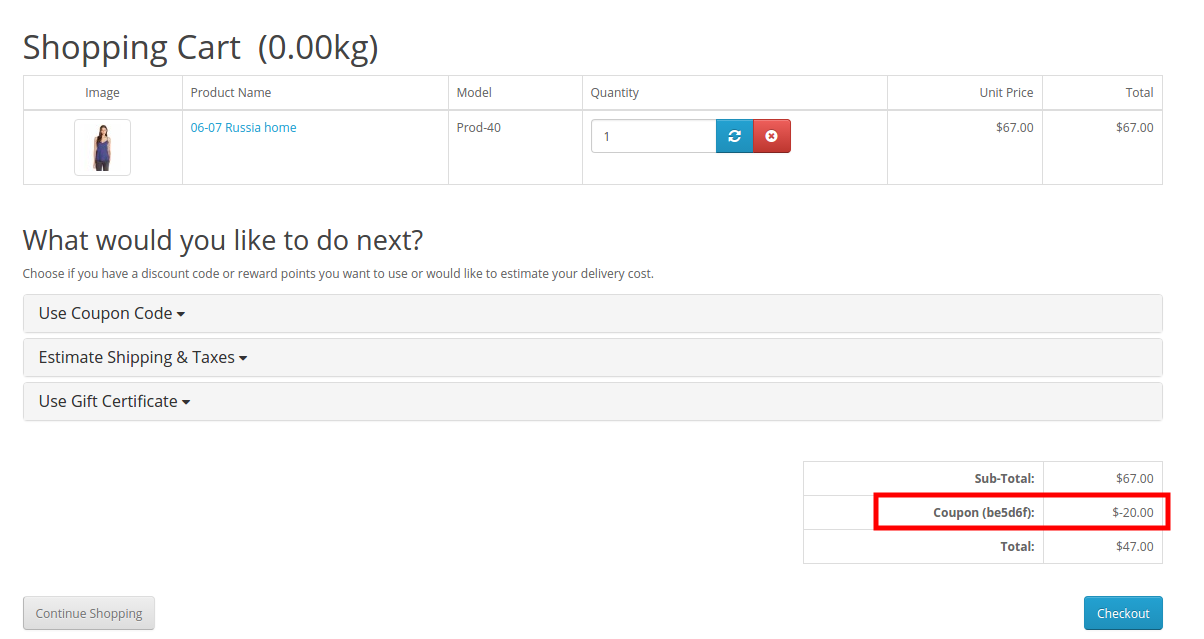
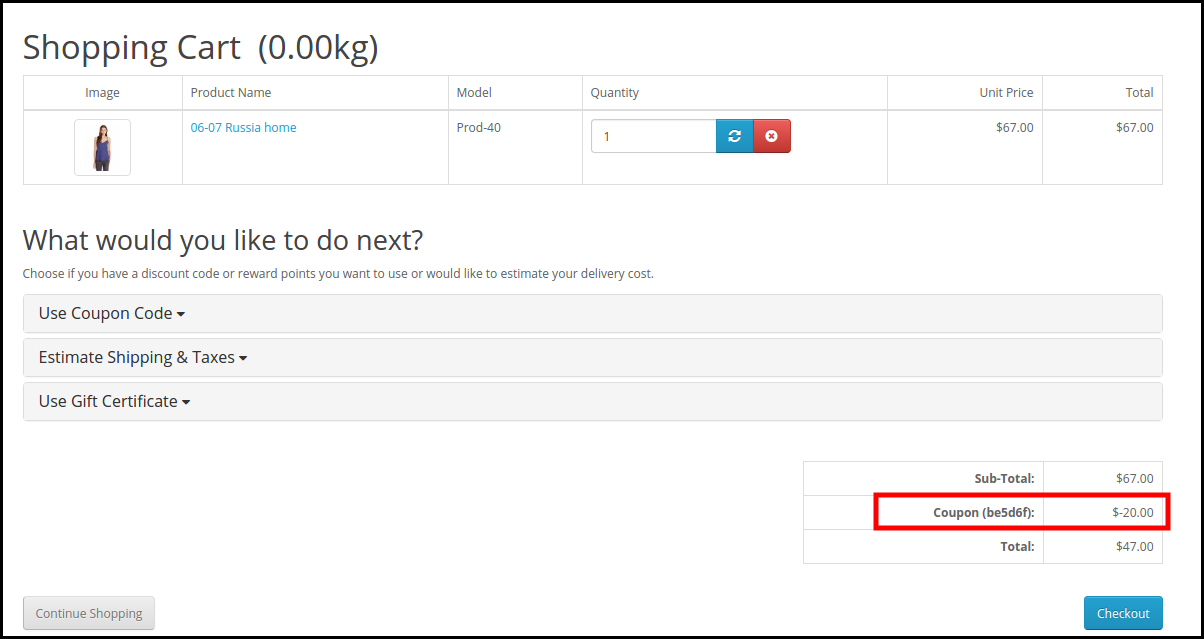
This coupon code can be used on the checkout page to get the discount won.
Disclaimer: In case the “Spin and Win” wheel popup does not display at the front, kindly clear the cache or delete the cookies. Sometimes cookies prevent the popup from displaying at the front.
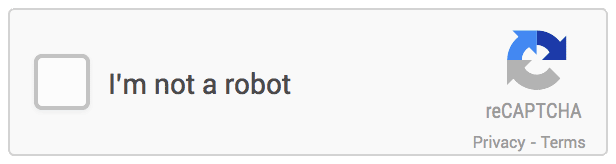
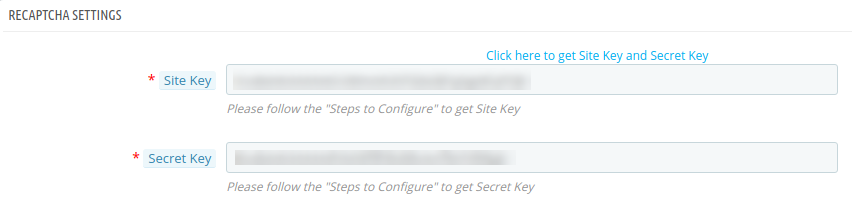
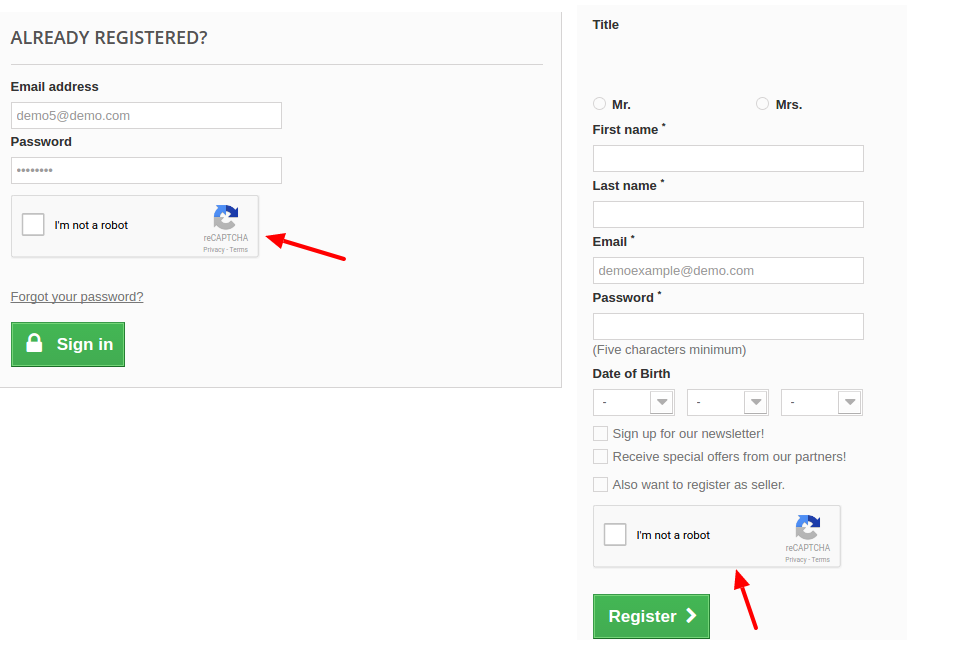
Does your website really need a captcha? In this web world where there are new visitors at a frequent rate, it is important that your website must be working with Google captcha. Captchas are important in validating human and suspicious bot activity at your store. With Knowband’s OpenCart Google reCaptcha extension, you can allow your customers to pass human verification test without entering any extra inputs on the website. Like the websites Gmail, Hotmail, Facebook, Twitter, Yahoo, and others, you also offer free registration to your customers. Therefore, it is important to secure the registration and login procedure at your store. By incorporating Opencart Google Captcha, you can make sure that certain activities are actually committed by humans not bots.
1.1 Striking Features of Opencart Google reCaptcha Module
Opencart human verification extension is easily customizable without requiring any coding skills for implementation or modifications.
Opencart Google reCaptcha module displays a security captcha to safeguard your website from spam entries or harmful bots.
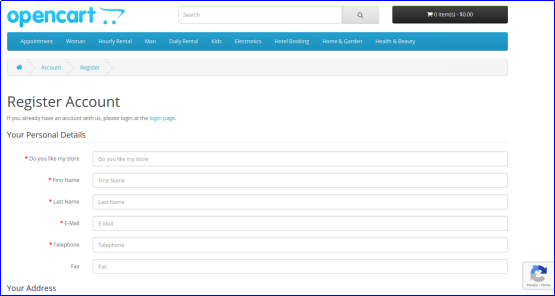
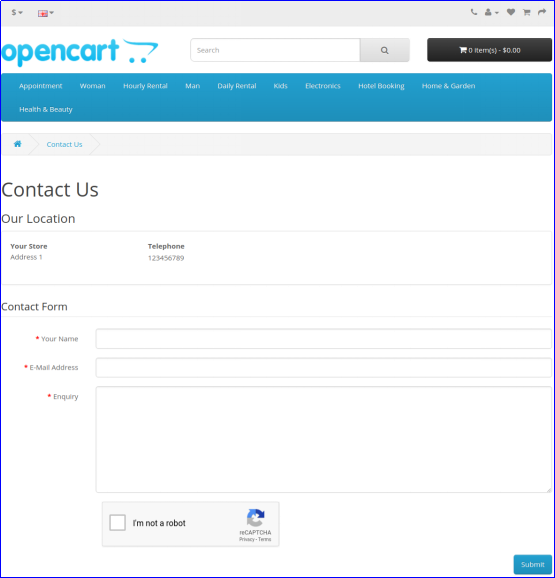
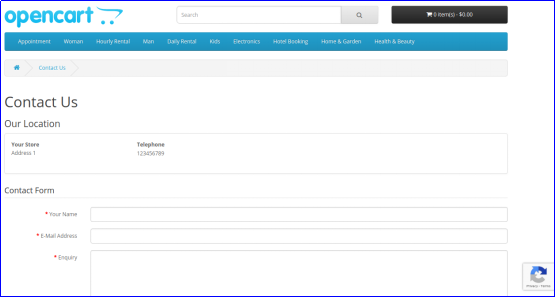
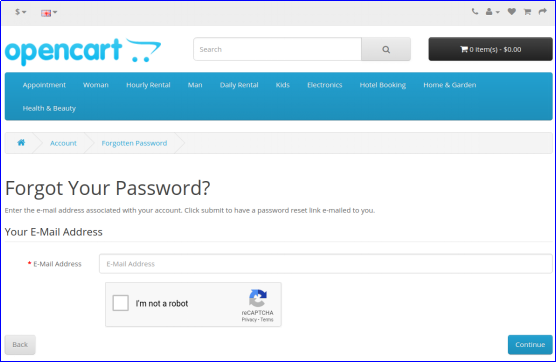
Opencart Google Captcha can be incorporated to registration page, login page, Contact page or forgot password page at your store.
You can enable or disable the complete functionality of Opencart Google reCaptcha module without any extra efforts.
OpenCart Google reCaptcha extension is compatible with both v2 and v3 reCaptcha systems.
With Opencart Google Captcha module, you can easily set the site key and the secret key for your website domain.
Opencart human verification allows you the option to select the reCaptcha type for different pages at your website.
This Opencart Google reCaptcha module is compatible with SSL enabled stores.
Opencart human verification offers multi-store and multi-lingual compatibility.
What’s new in the Recent Enhancements?
Our latest update to Knowband’s OpenCart Google reCaptcha plugin introduces the “Look and Feel Setting” tab. This enhancement allows you to customize reCaptcha with custom CSS and switch between light and dark themes, offering a personalized and visually appealing user experience.
2.0 Installation Guide of Opencart Google reCaptcha Module
Before starting the installation process, you have to buy the Opencart Google Captcha module from the Knowband store. Once purchased, you will receive the following files on your registered email.
Source code of Opencart Google Captcha in zipped file format
User Manual of Opencart Google Captcha extension
Now in order to install this Google reCaptcha on your website, follow the given steps:
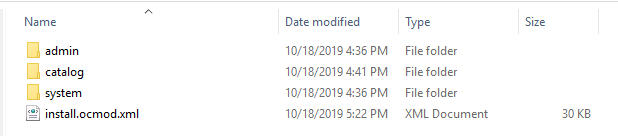
1. Unzip the zip file. You will get the folders as shown in the image below:
2. Copy all the folders of the zip file in the Root Directory of OpenCart setup via FTP manager.
Steps to install Ocmod file using Extension Installer
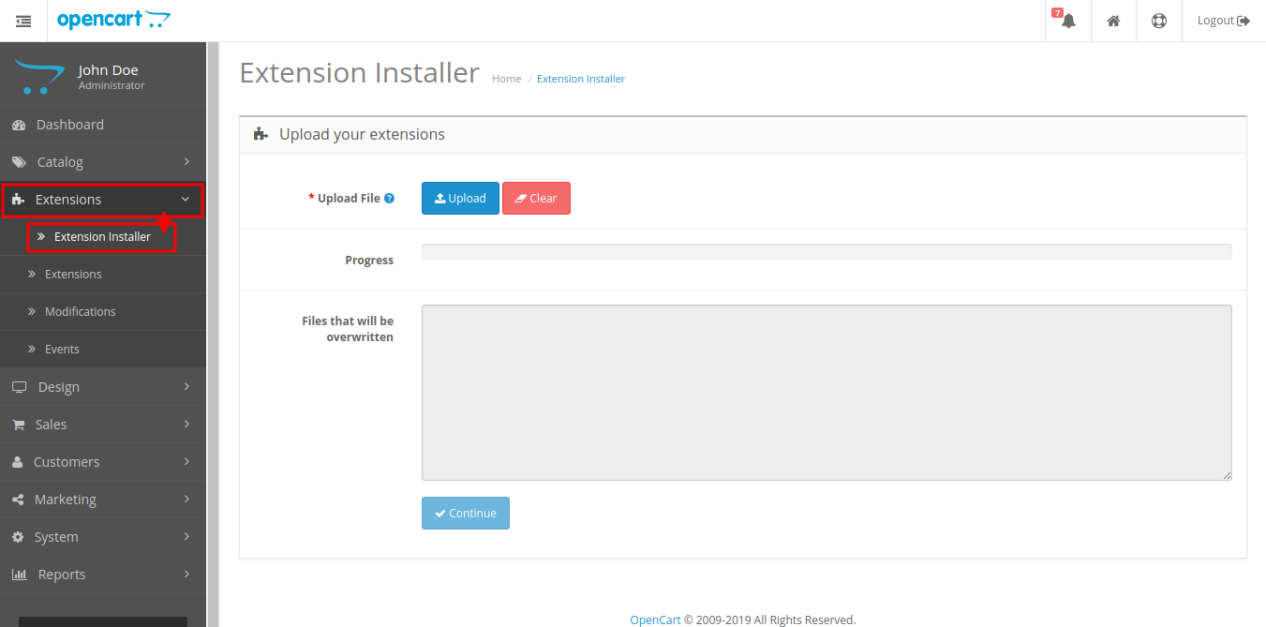
1. Open the Extension Installer window from the admin panel.
2. Click on Upload button to browse and upload the install.ocmod.xml file.
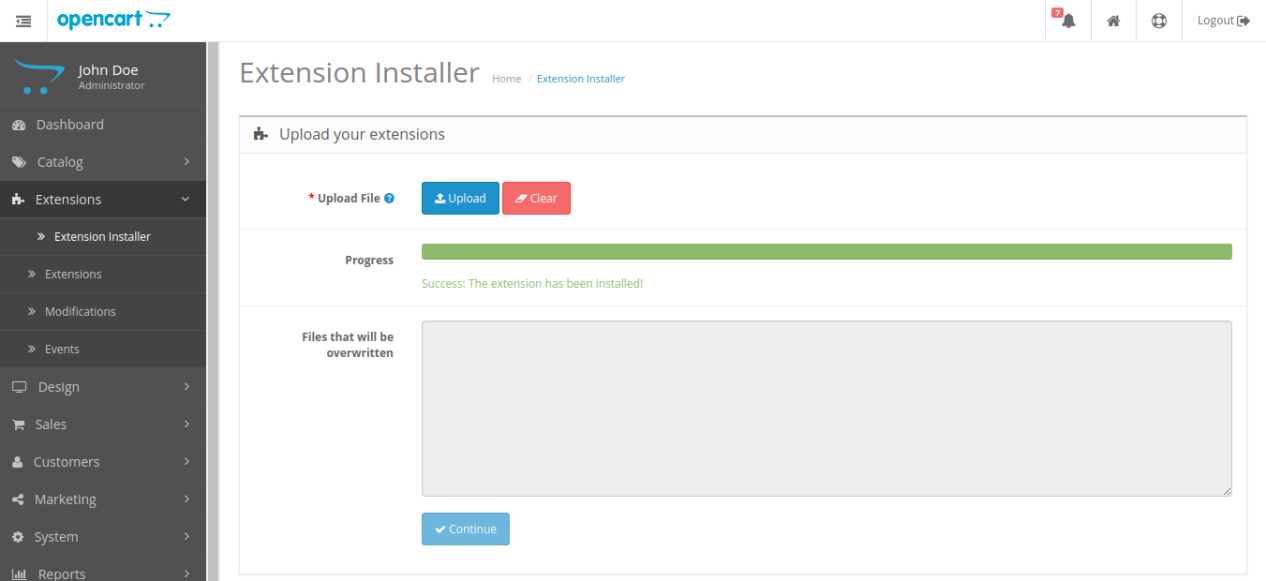
3. Once uploaded, you will see a success message on your screen as shown below.
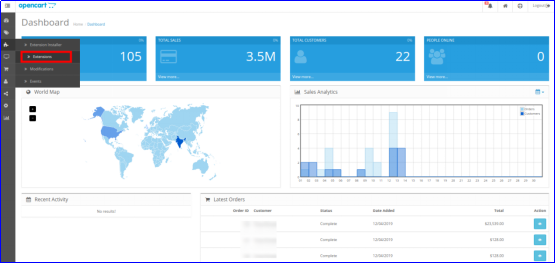
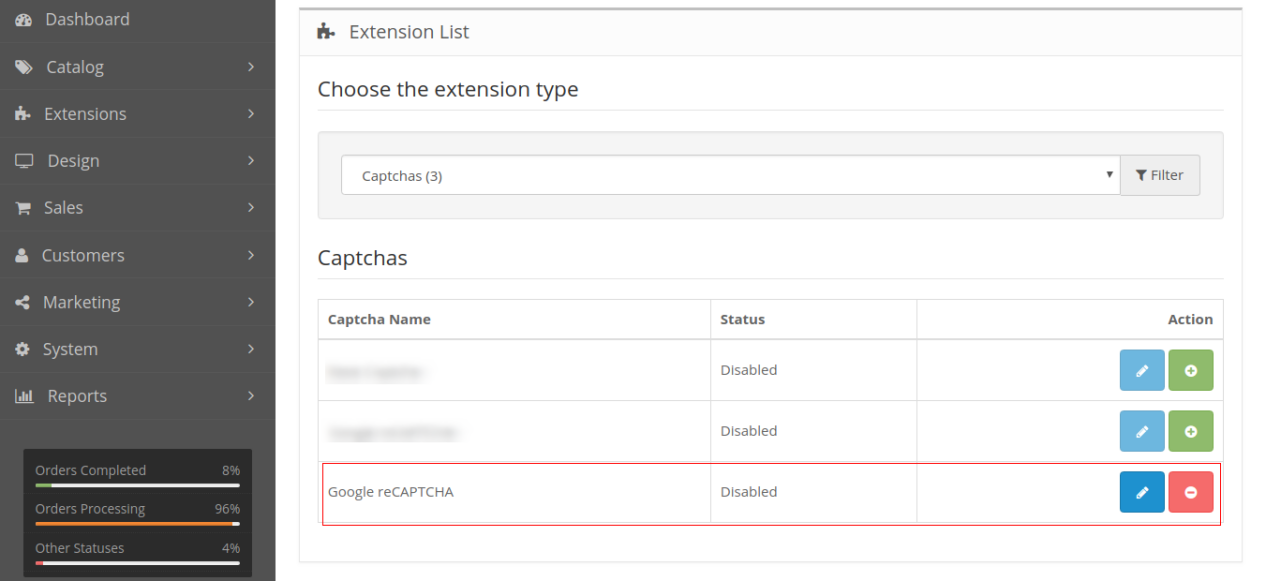
So, Opencart Google Captcha is now installed and is ready to use at your store. Go to the admin menu and click on the extensions. Then, click on Captchas and thereby click on the Edit button next to Google reCaptcha.
OpenCart Google reCaptcha Extension
Protect your OpenCart store from spam and bots with Knowband’s Google reCAPTCHA module, ensuring secure and human-only access.
3.0 Admin Interface of OpenCart Google reCaptcha Extension
After the successful installation of Opencart Google reCaptcha module for your website, you can implement version 2 and version 3 reCaptcha as per your business requirements. Navigate the settings in the given order: Admin Panel > Extensions > Captchas > Google reCaptcha.
The simple to understand admin interface of Opencart human verification extension is divided into four sections as:
General Settings
v2 reCaptcha Settings
v3 reCaptcha Settings
Look and Feel Settings
3.1 General Settings
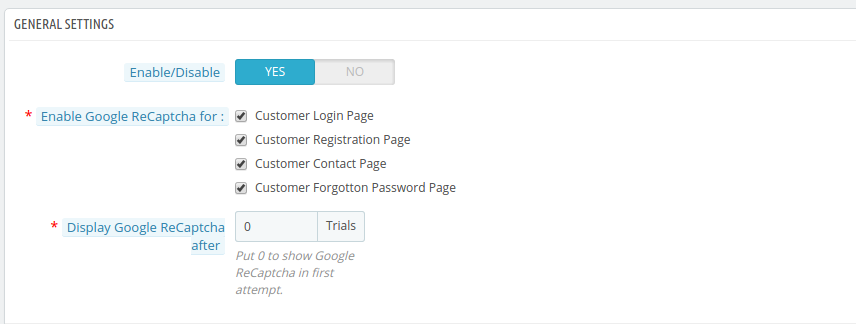
Status: This option enables or disables the complete reCaptcha system from your website.
Enable Google reCaptcha for: With this option, you can choose the pages for which you want to enable reCaptcha feature.
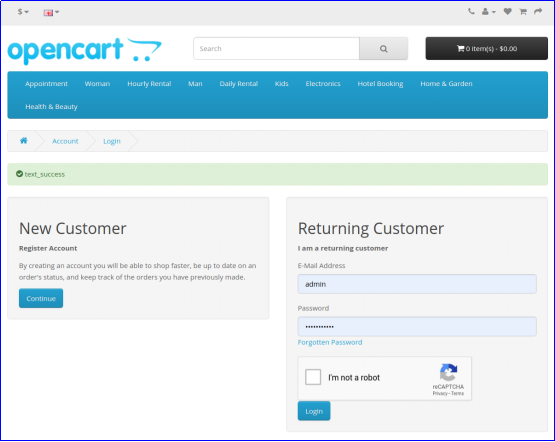
reCaptcha for Login Page: This option allows you to select the type for login page as v2 reCaptcha or v3 reCaptcha.
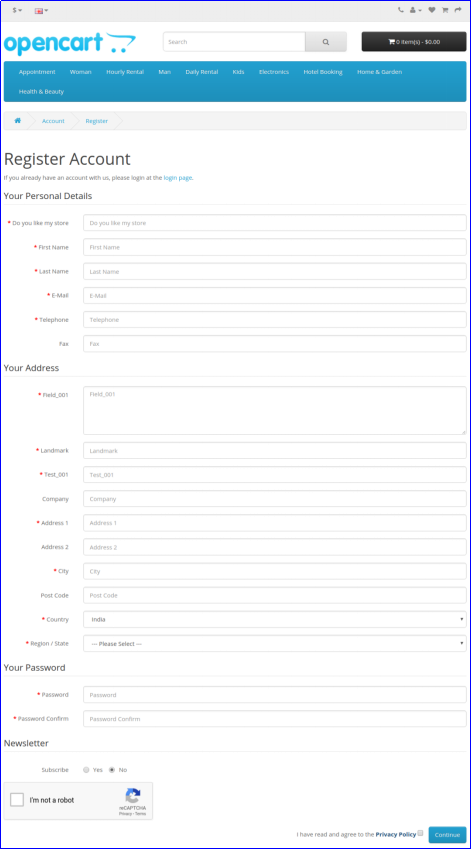
reCaptcha for Registration Page: This option allows you to select the type for registration page as v2 reCaptcha or v3 reCaptcha.
reCaptcha for Contact Page: This option allows you to select the type for contact page as v2 reCaptcha or v3 reCaptcha.
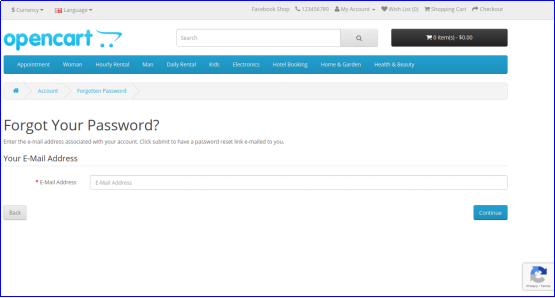
reCaptcha for Forgotten Password Page: This option allows you to select the type for forgotten password page as v2 reCaptcha or v3 reCaptcha.
3.2 v2 reCaptcha Settings
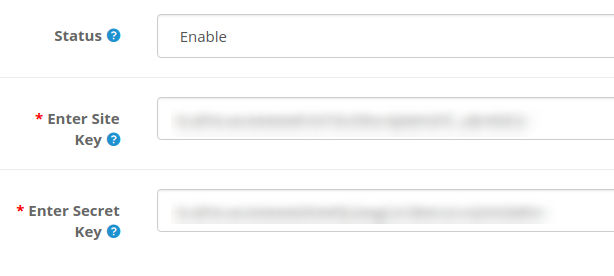
Under this section of Opencart Google Captcha module, you can set the site key and secret key for v2 reCaptcha system.
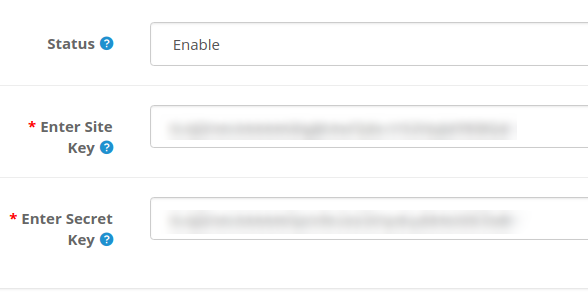
Status: You can enable or disable status of reCaptcha version 2 using this option.
Enter Site Key: This option allows you to enter the key of version 2 reCaptcha.
Enter Secret Key: With this option, you can enter the secret client ID of version 2 reCaptcha.
In order to get site site key and secret key for v2 reCaptcha, follow the steps discussed in the 3.2.1 section.
3.2.1 Steps to generate API keys for v2 reCaptcha
1. Visit https://www.google.com/recaptcha/intro/v3.html
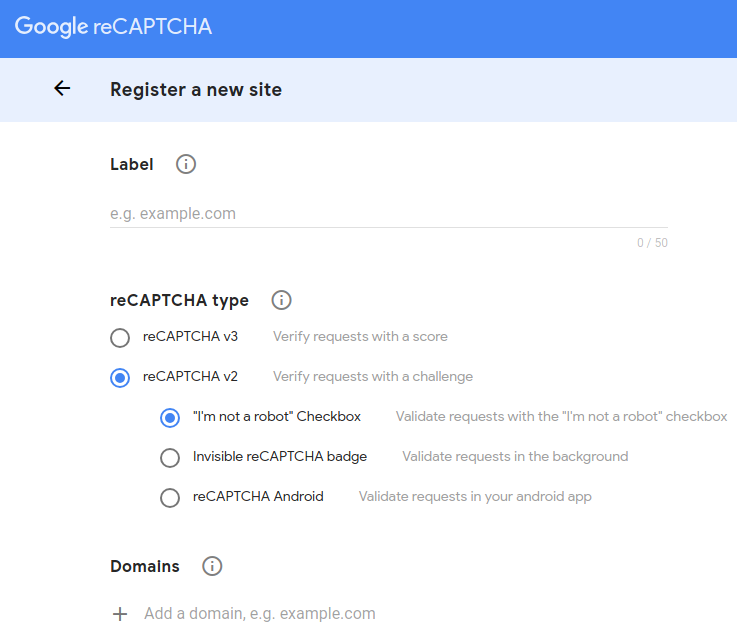
2. At the top ride side, click on “Admin Console”. Here, you can register your own website.
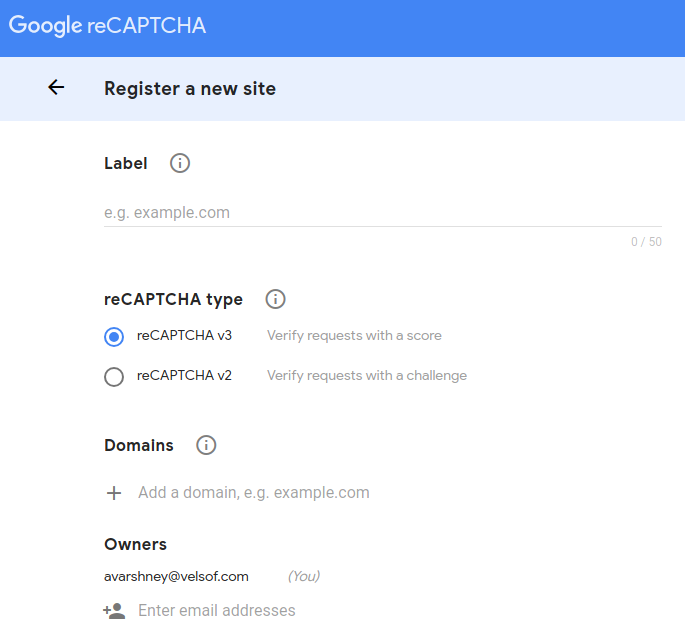
3. Set a desired label which will be used to identify your site in future.
4. Choose the reCAPTCHA type you want to add for your site. Here, you have to select reCAPTCHA v2 and then select the desired sub-type.
5. Enter a valid domain required for reCaptcha registration.
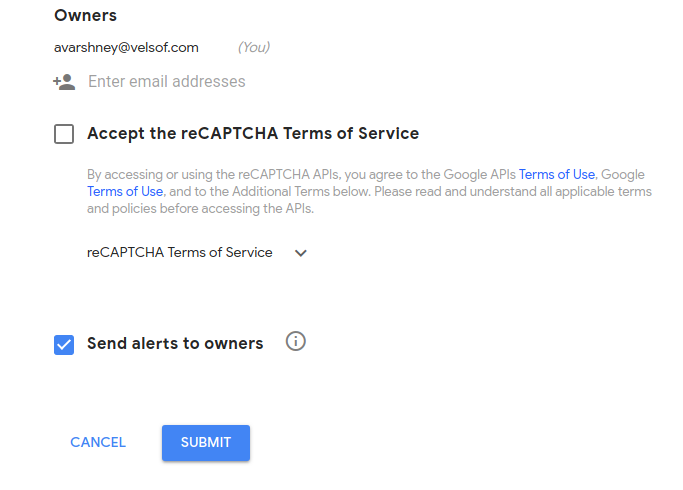
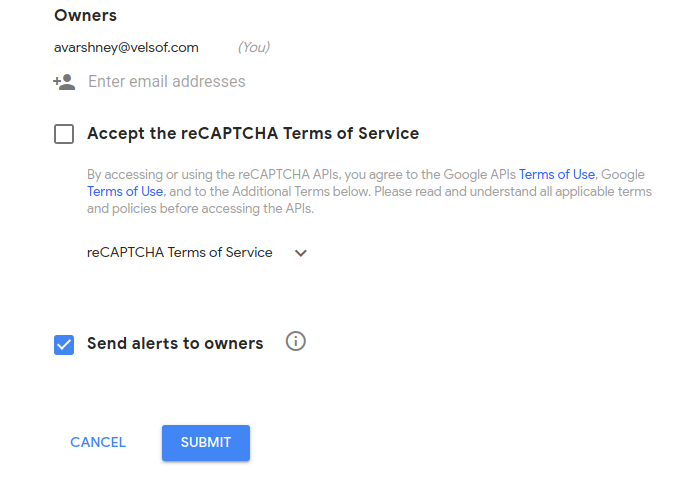
6. You can optionally add other email addresses to manage the site settings.
7. Accept the reCAPTCHA Terms and Conditions and click on “Submit” button.
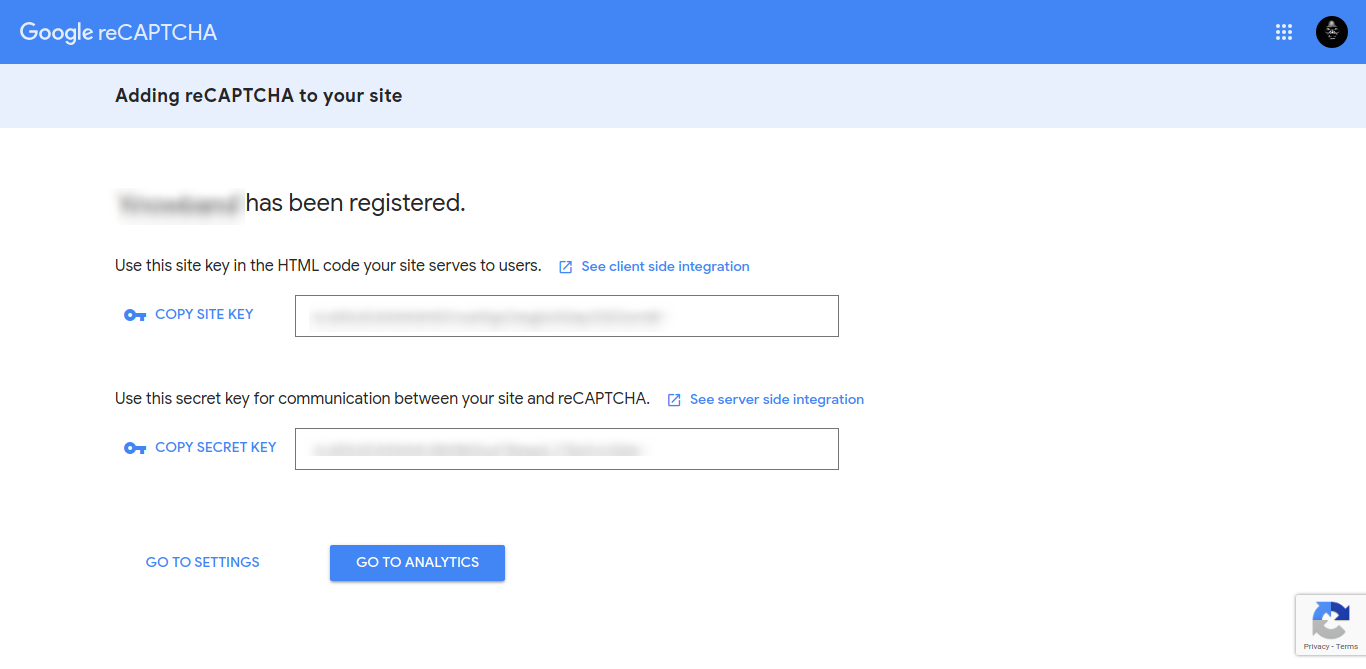
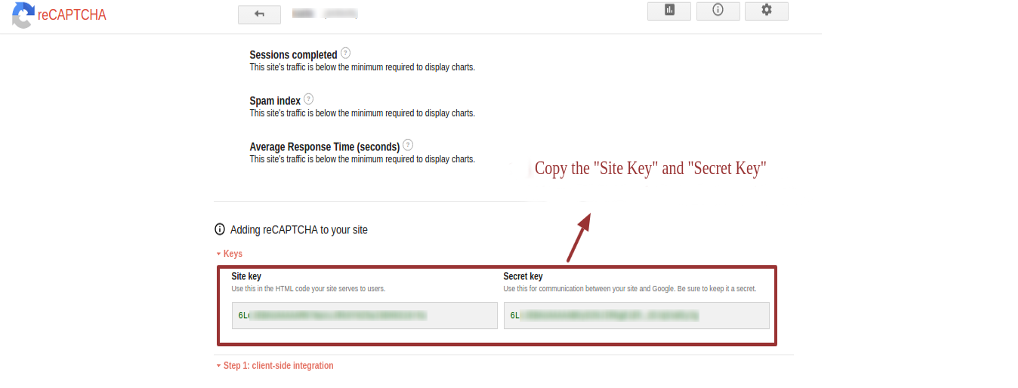
8. You will be redirected to the next page where you will find the Site Key and Secret Key. Copy both the keys to the back-office.
3.3 v3 reCaptcha Settings
Under this section of Opencart Google Captcha module, you can set the site key and secret key for v3 reCaptcha system.
Status: You can enable or disable status of reCaptcha version 3 using this option.
Enter Site Key: This option allows you to enter the key of version 3 reCaptcha.
Enter Secret Key: With this option, you can enter the secret client ID of version 3 reCaptcha.
In order to get site site key and secret key for v3 reCaptcha, follow the steps discussed in the 3.3.1 section.
Note: If you have selected the reCaptcha type as version 2, then site key and secret key for version 2 reCaptcha should be filled into fields, else it gives an error message. Similar thing applies to version 3 reCaptcha.
3.4. Look and Feel Settings:
The Look and Feel settings tab provided in Opencart Google Captcha Verification Extensions allows the store admin to add custom CSS and reCaptcha theme color, providing more control and enhanced functionality.
Theme Color: The Opencart reCaptcha module provides “Dark” and “Light” theme color options. You can modify the theme color from this option.
Custom CSS: The admin can modify the reCaptcha’s appearance by adding customized CSS in this section.
3.3.1 Steps to generate API keys for v3 reCaptcha
1. Visit https://www.google.com/recaptcha/intro/v3.html
2. At the top ride side, click on “Admin Console”. Here, you can register your own website.
3. Set a desired label which will be used to identify your site in future.
4. Choose the reCAPTCHA type you want to add to your site. Here, you have to select reCAPTCHA v3.
5. Enter a valid domain required for reCaptcha registration.
6. You can optionally add other email addresses to manage the site settings.
7. Accept the reCAPTCHA Terms and Conditions and click on “Submit” button.
8. You will be redirected to the next page where you will find the Site Key and Secret Key. Copy both the keys to the back-office.
4.0 Front Interface of Opencart Google reCaptcha Module
A) Login Page
v2 reCaptcha
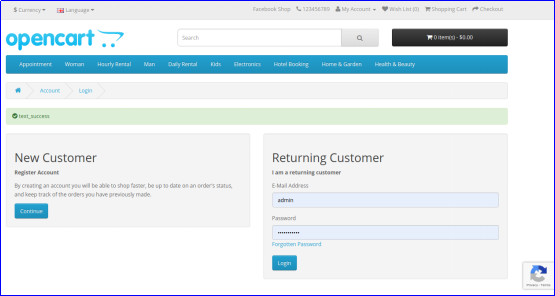
v3 reCaptcha
B) Registration Page
v2 reCaptcha
v3 reCaptcha
C) Contact Page
v2 reCaptcha
v3 reCaptcha
D) Forgot Password Page
v2 reCaptcha
v3 reCaptcha
Also, you can check our Opencart Block Bot module here:
Opencart Block Bot Module
OpenCart Block Bot by IP, Country, User Agent: Secure your OpenCart store by blocking unwanted bots based on IP, country, and user agent.
Full Tutorial of Human Verification Extension for Opencart
This OpenCart Google reCAPTCHA tutorial provides a complete step-by-step guide on installing and configuring the Google reCAPTCHA extension, adding reCAPTCHA to login, registration, forgot-password, and checkout pages (including guest, login, and registration steps), selecting between light and dark themes for a seamless user experience, protecting your store from spam, bots, and automated abuse, and enabling both reCAPTCHA v2 and v3 across multiple store pages for improved security and flexibility.
Shopify Walmart Integration app by KnowBand connects your Shopify Store with Walmart marketplace. This Shopify Walmart API Integration app creates a channel facilitating the synchronization of product inventory, product details and helps the store admin to manage the product inventory, shipping and orders from the Shopify store itself. This Walmart Shopify Integration app uses the Walmart API – Consumer ID, Private Key and Consumer channel type to integrate the Shopify store with Walmart marketplace.
1.1 Admin Features of Shopify Walmart Integration
The Shopify Walmart Marketplace integration app automates the entire marketplace and store integration.
With the help of Walmart Shopify integration, the store admin can list the products in bulk in the marketplace.
Once the products are ready for listing, the admin can even change their details from the back-end of the Shopify Walmart integrator.
The Walmart Shopify integrator makes attribute mapping easier for the e-merchants.
The admin gets an option to create the unlimited profile from the admin interface of Shopify Walmart connector.
Any changes required in the product attribute or variation can be done with the help of these profiles.
The Walmart Shopify connector allows the admin to manage the inventory at a few button clicks. The change in the pricing and other related details can be synced with the marketplace by executing cron from the back-end.
The sellers can add shipping methods as per their requirement with the help of Shopify Walmart Synchronization app.
The admin even gets an option to sync the lag time, that is the number of days between when an item is ordered and when it is shipped, of the products from the back-end of the Walmart Shopify Synchronization app.
The admin can view the buybox report and can reprice the products with great ease with the help of Shopify Walmart Integration app.
Admin even gets an option to manage the promotional price of their products from the back-end of the Shopify Walmart Integration app.
Shopify Walmart Integration app allows the sellers to provide the tax code with least hassle.
2.0 Installation of Shopify Walmart Integration
For installing Walmart Shopify Integration app, visit knowband-walmart-integration & click GET option. Allow all the required access to the app.
After that, click Install Shopify Walmart Integration App option.
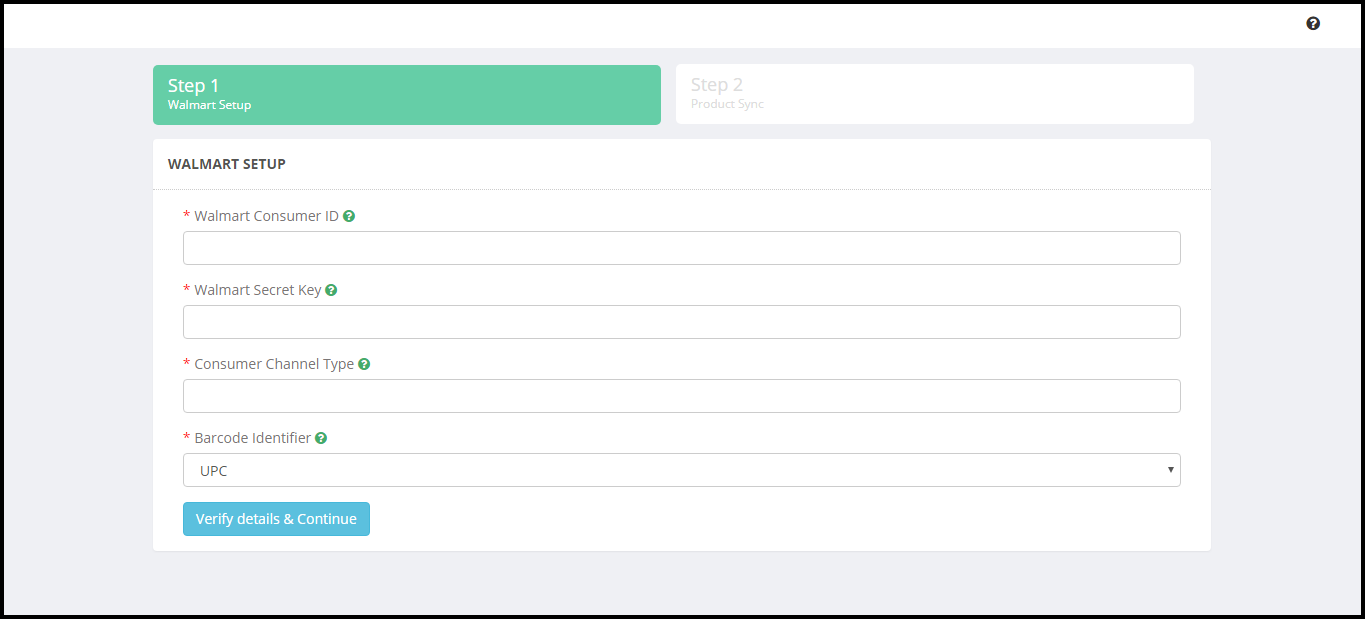
In order to synchronize the Shopify store with the Walmart marketplace store, the admin needs to configure the Walmart API details.
2.1 Steps to get Walmart API credentials-
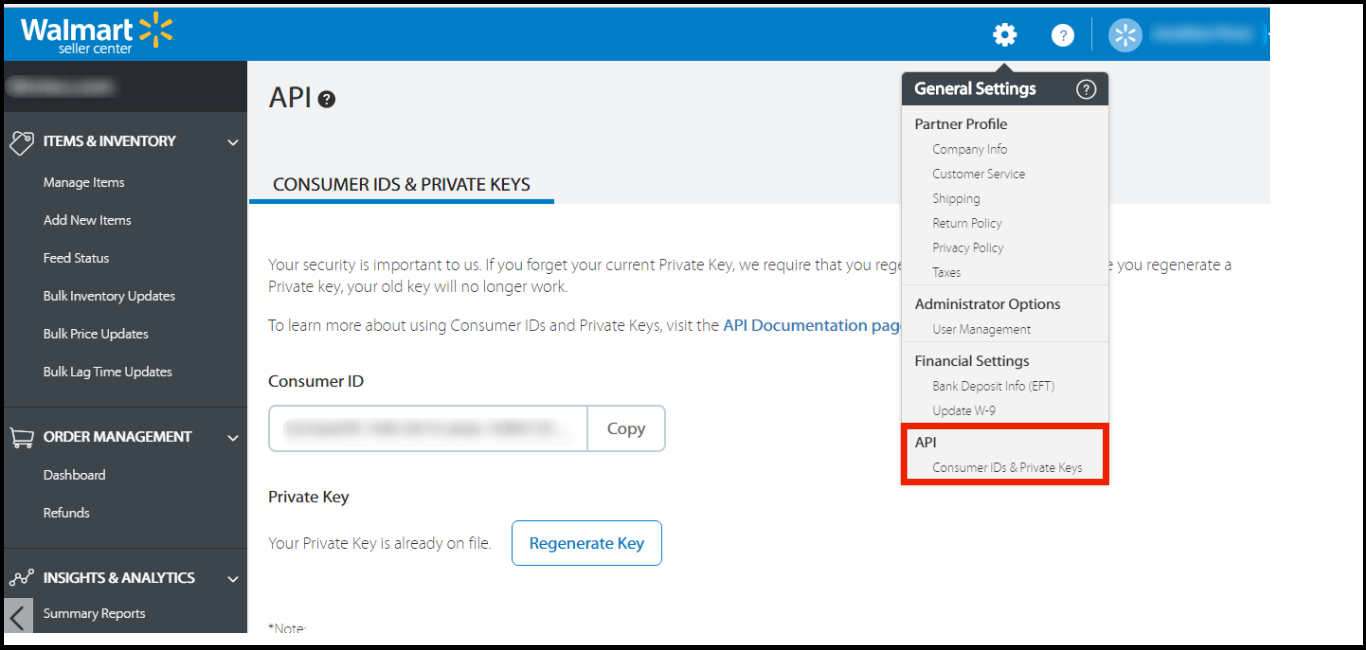
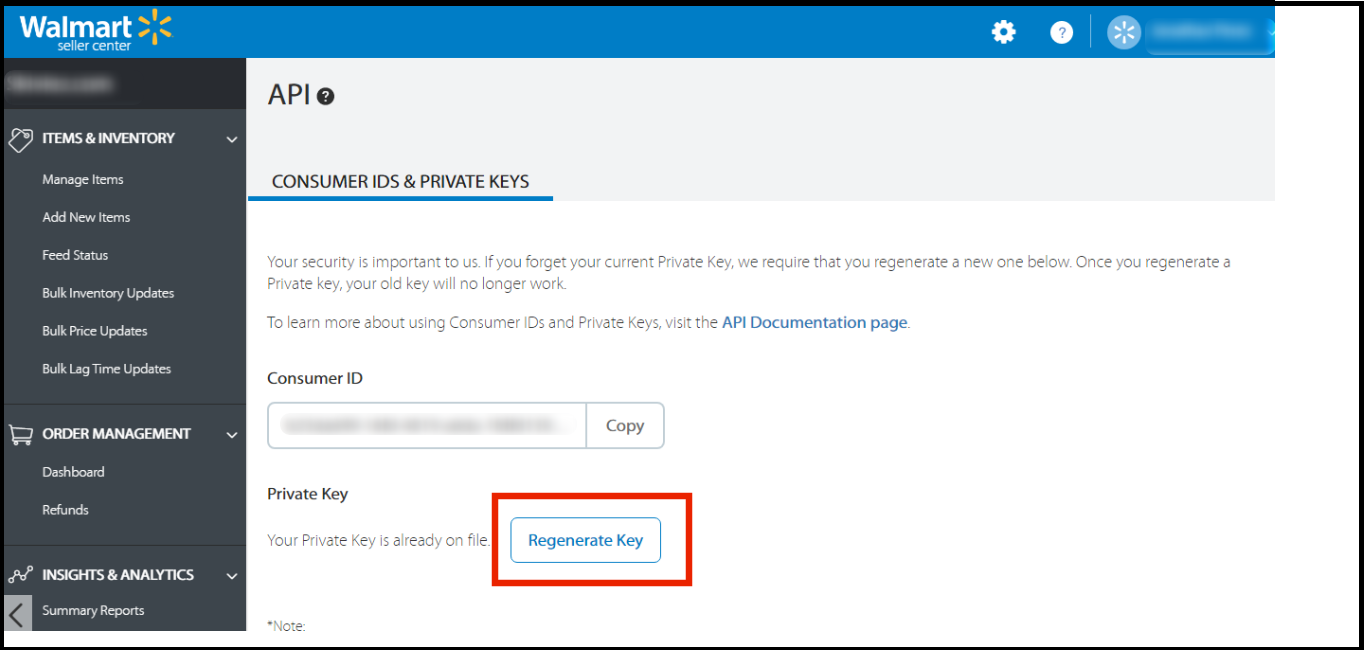
Click on the gear icon in the top-right to open the General Settings menu. Now click on the API.
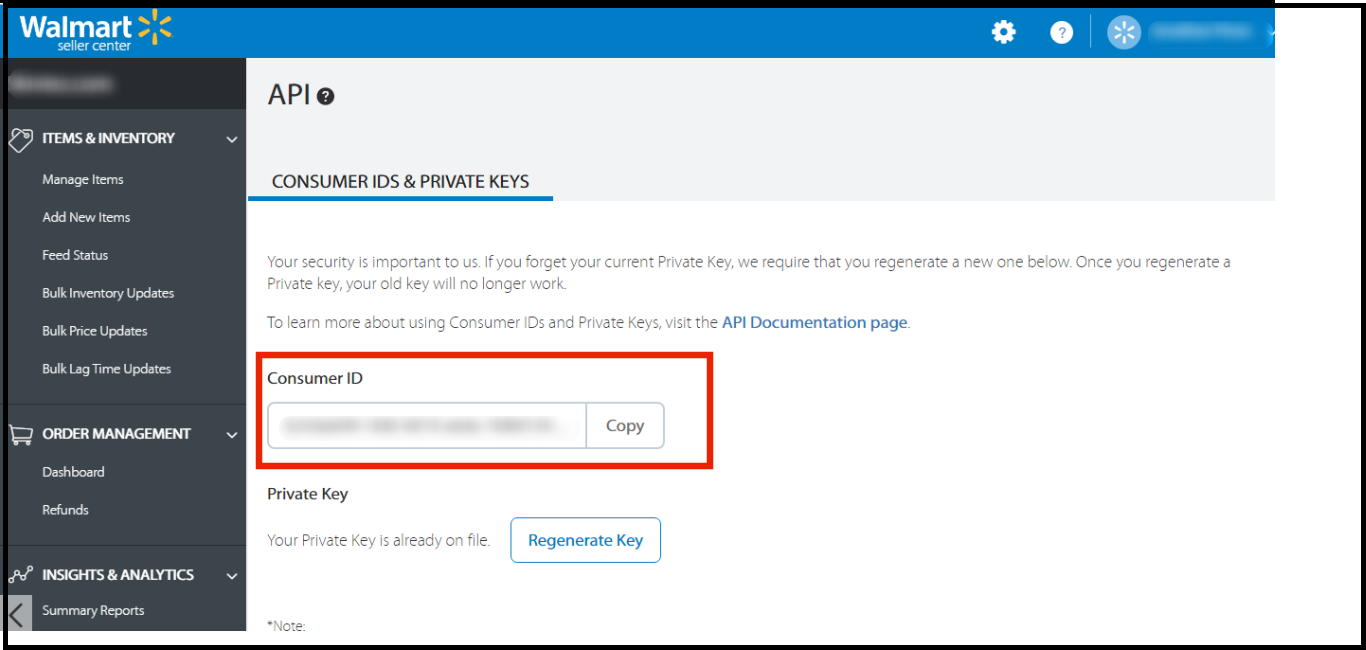
You will get the Consumer ID once this option is clicked. Copy the Customer ID.
Click on the “Regenerate Key” button to regenerate the Private Key.
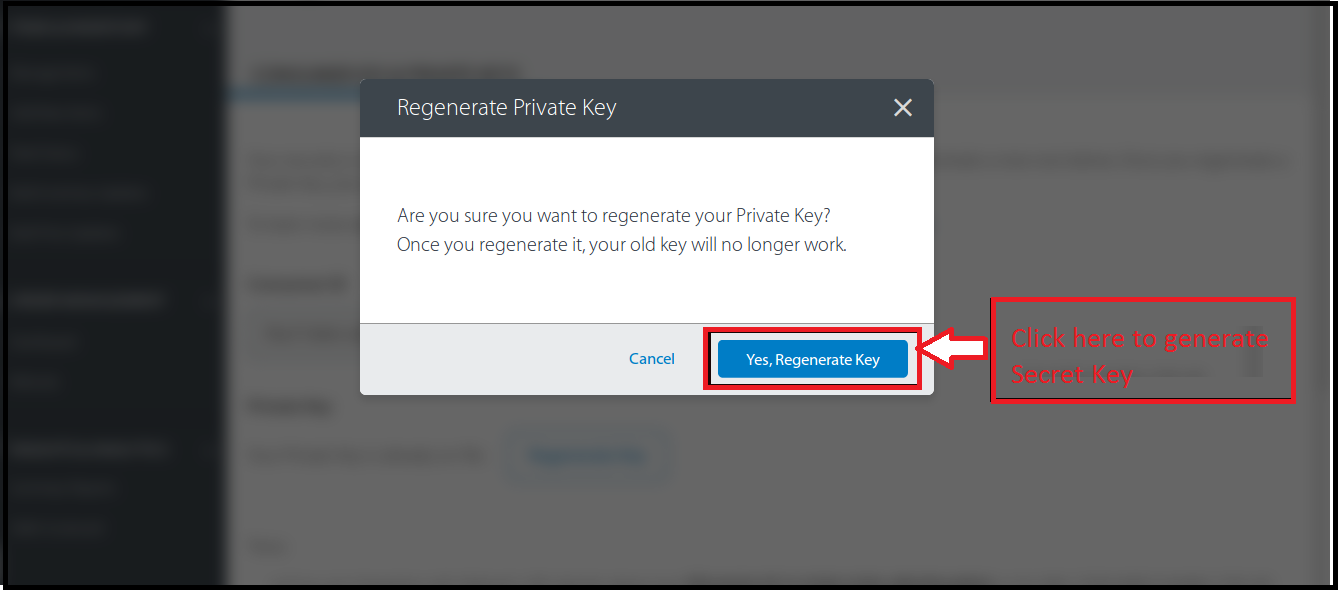
When you click on the “Regenerate Key” button, a pop-up appears.
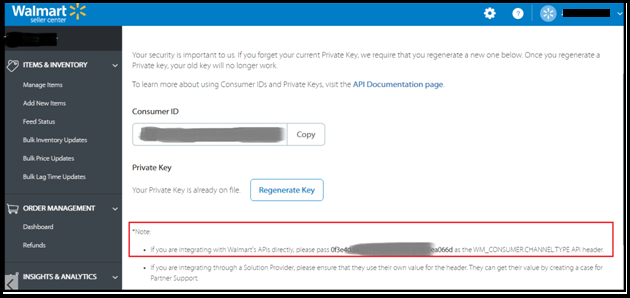
Copy the Consumer Channel Type from the API page of Walmart account. Please refer to the below screenshot:
2.2 Barcode Identifier
A barcode is a code composed of numbers, along with a specific pattern of stripes that represents a particular product. Select the Barcode identifier from the drop-down list – UPC, GTIN, ISBN, and EAN.
After entering all the details in the setup, click on the Verify details & Continue button.
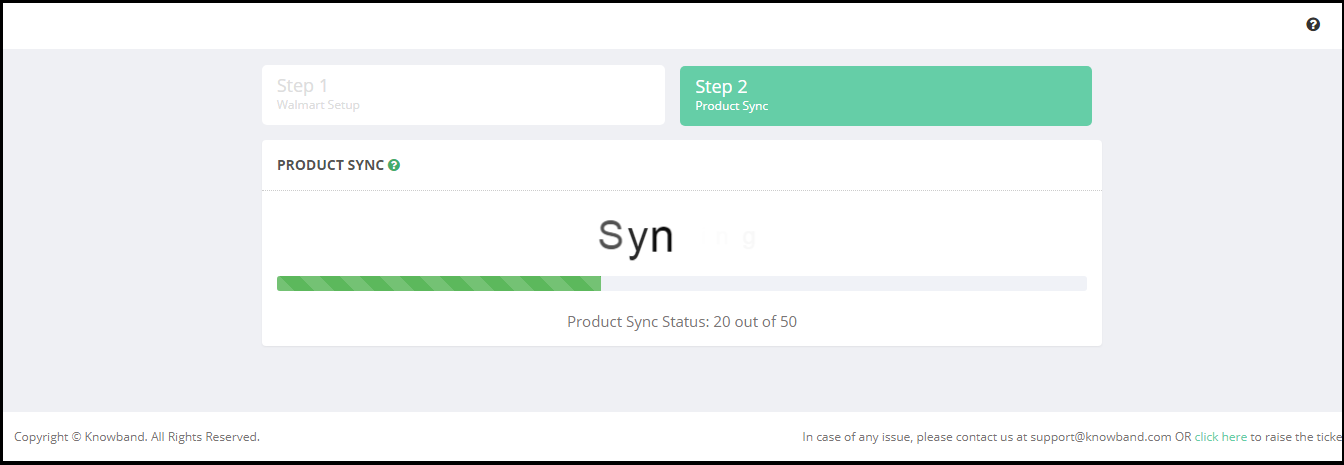
2.3 Sync Products
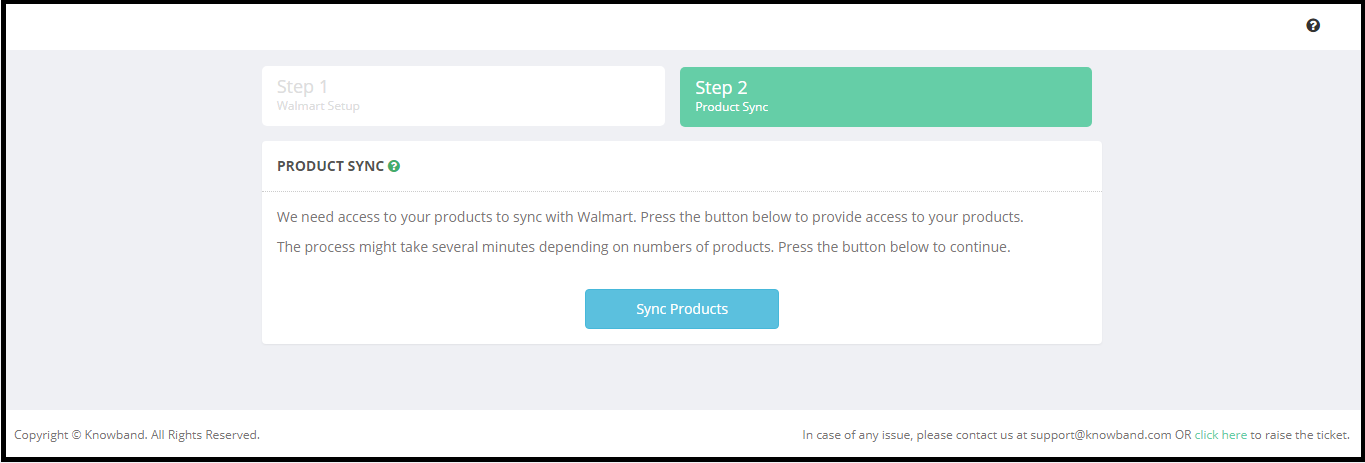
Now, your Shopify store has been integrated with the Walmart marketplace. Next step is to import the products into the Walmart Integration app. To complete the product import click on the Sync Products.
Clicking on the Sync Products will start importing the products to the Walmart integration app.
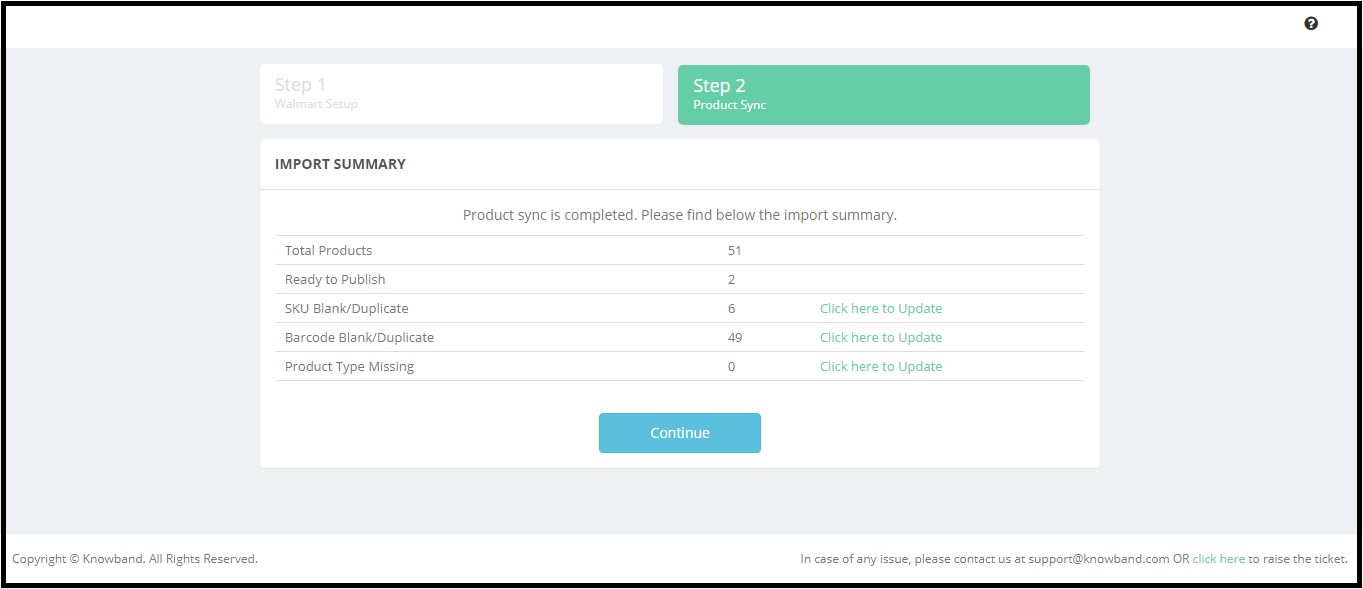
2.3.1 Import Summary-
After completing the product syncing, the import summary will be displayed.
This section of the Walmart Shopify Integration app shows the following options:
1) Total Products – Number of products imported from the Shopify store. 2) Ready to publish – Number of products which have the mandatory details to list the products on the Walmart marketplace. 3) SKU Blank/Duplicate – Number of the products which do not have the SKU or has a duplicate SKU. 4) Barcode Blank/Duplicate – Number of the products which do not have the SKU or has a duplicate SKU. 5) Product Type Missing – Shopify allows the store admin to add the Product Type for each product. This helps to upload the products in bulk.
After verifying the import summary admin need to click on the Continue button to complete the product import.
Note:
1) SKU is mandatory to upload the products to the Walmart marketplace. Products without SKU or Duplicate SKU will not be listed to the Walmart. Admin can check and update the SKU of the products by clicking the Click here to Update.
2) Barcode is mandatory to upload the products to the Walmart marketplace. Product without Barcode or Duplicate Barcode will not be listed to the Walmart. Admin can check and update the Barcode of the products by clicking the Click here to Update.
3) Click here to update will redirect the admin to the page where all the products with the missing SKU and barcode will be listed. Admin can update the SKU and Barcode of the products from here, so that these products can be listed to the Walmart.
After completing the Product Import, the admin will be redirected to the Dashboard tab of the Shopify Walmart API integration app.
3.0 Dashboard
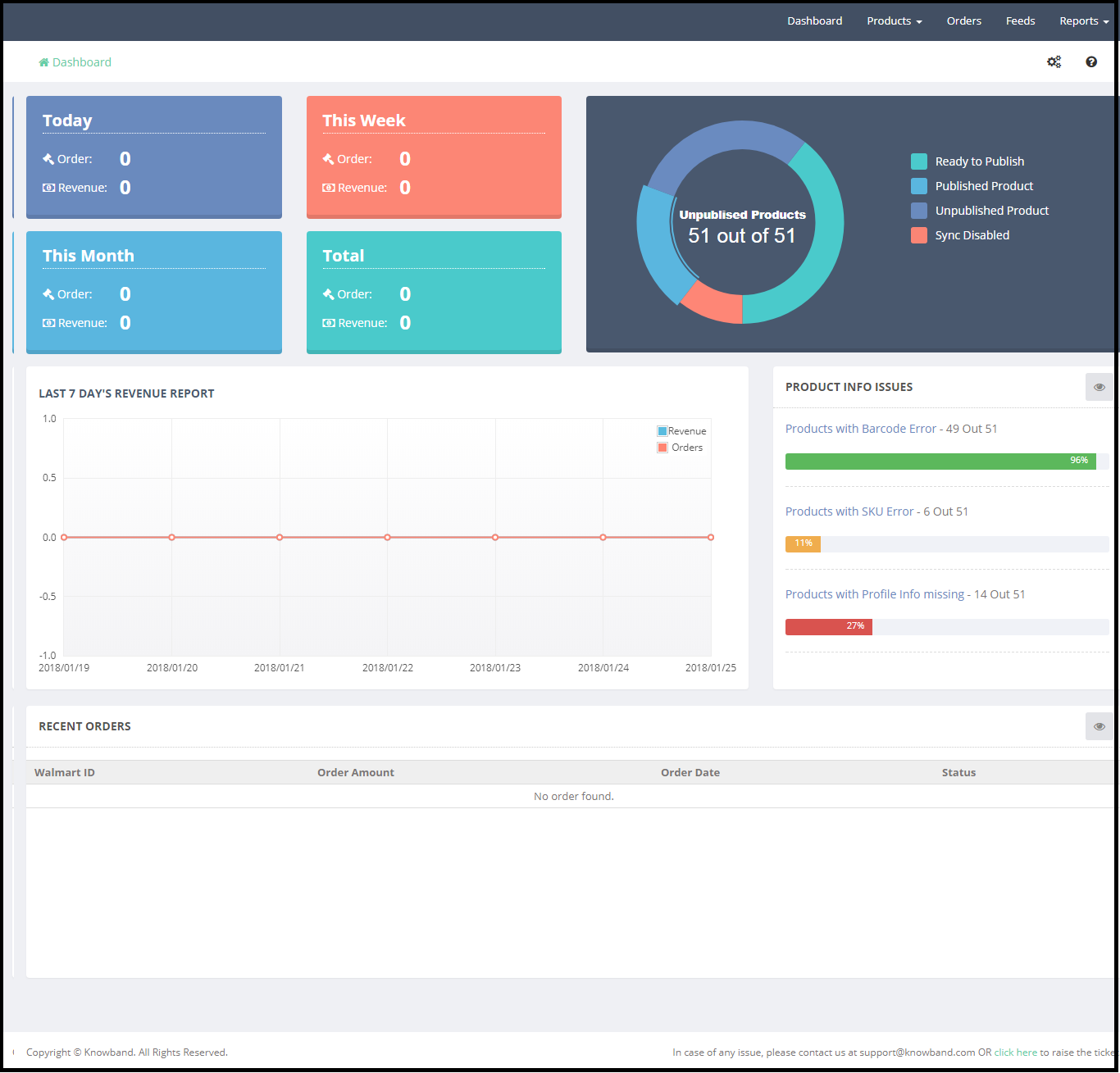
The Dashboard of the Shopify Walmart Integration app shows the status of the listed products and orders. From the Dashboard section admin can check the status of the following:
3.1 Orders
Orders section of the Walmart Shopify Integration app displays the status of the orders placed on Today, This Week, This Month and Total orders placed on Walmart.
Revenue report graph of the last 7 days.
Recent orders.
Product Status
Admin can check the status of the products like – Ready to Publish, Published Products, Published Products and Sync Disabled.
From the Dashboard section of the Walmart Shopify API integration app, the admin can also check the products with Barcode Errors, SKU Errors and Profile Info missing.
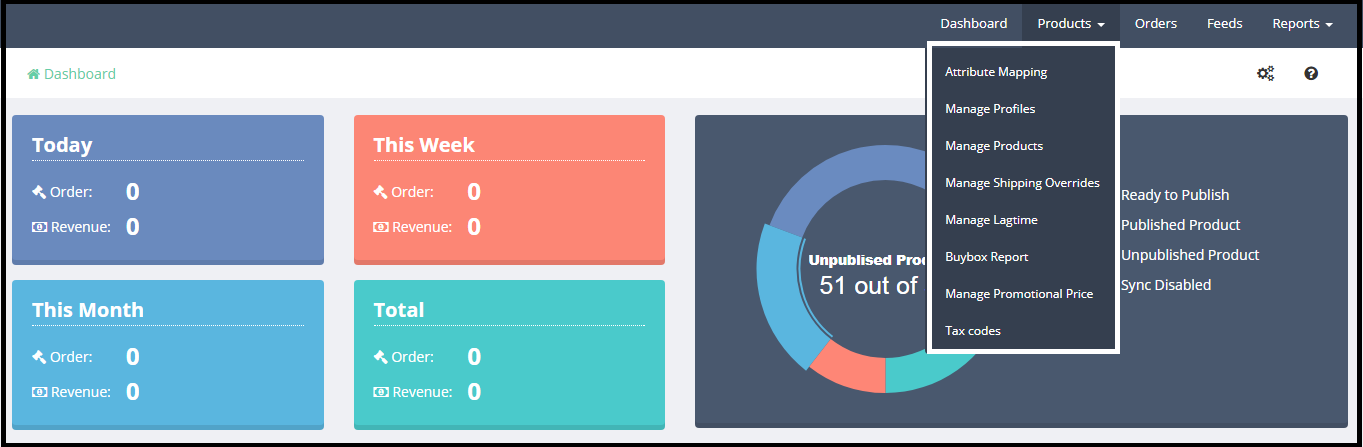
3.2 Products
Products tab allows the admin to select the products which would be listed to the Walmart marketplace. Products tab of the Shopify Walmart integration app has the following options-
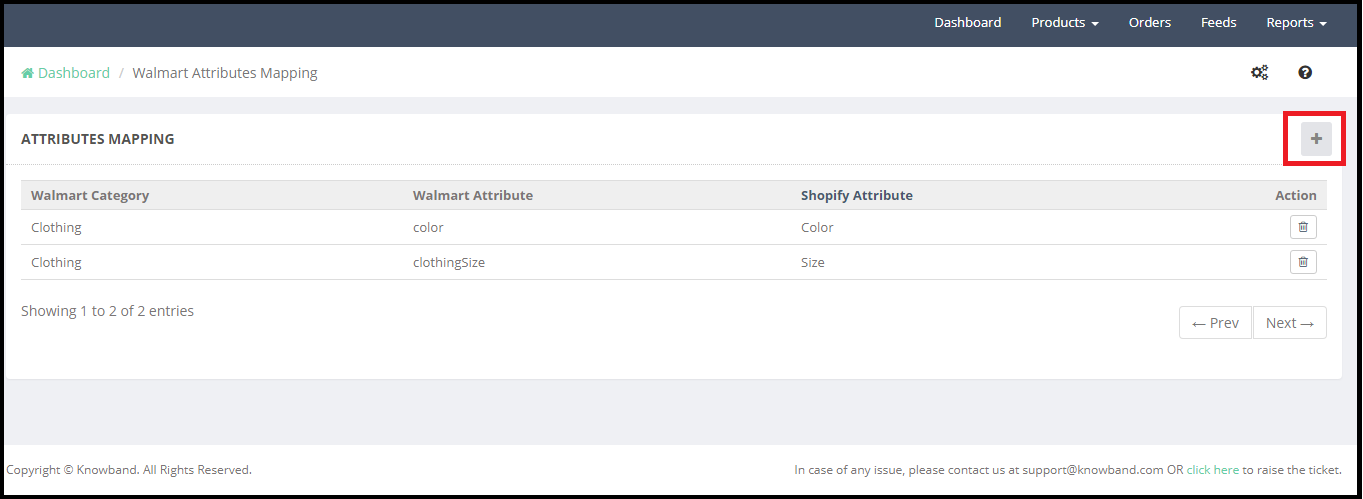
Attribute mapping tab of the Shopify Walmart Integration app helps to list the variation products. Choose Walmart category and attributes that you want to map with your product variant options. Click on the + icon to map the attributes.
How to map a new attribute?
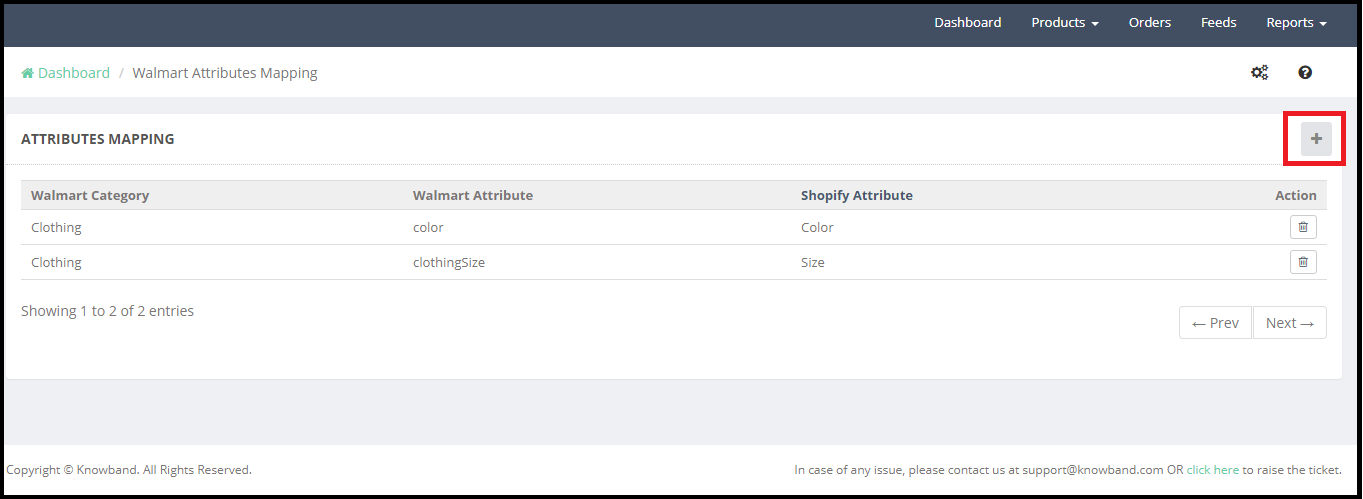
The attribute mapping can be done from this section of the Walmart Shopify integration app. The + icon will open a new window with the fields – Select Walmart Category, Select Walmart Attribute and Select Shopify Attribute.
Walmart Category –
Select the Walmart category for which you would like to map the Walmart attributes with the Shopify attribute. For example, Clothing category attributes Color and Clothing Size of the Walmart marketplace has been mapped with the Color and Size attributes of Shopify store. So the Shopify products with the Size and Color variation will be listed as the variation products on the Walmart.
Walmart Attributes –
As per the selected Walmart category, the seller can select the Walmart Attributes. For example, in the above screenshot, Walmart Clothing Category attribute Color and ClothingSize has been selected from the drop-down list.
Shopify Attributes:
Select the Shopify store attributes which you would like to map with the Walmart attributes. For example, in the above screenshot, the Shopify store attributes Color and Size has been mapped with the Color and ClothingSize attributes of the Walmart.
3.2.2. Manage Profiles
in order to upload the products on the Walmart marketplace, the admin is required to create the profile in the back-end of the Shopify Walmart Integration app. Creating Profile helps store admin to upload the products in bulk. Admin can map the products to a profile on the basis of Shopify Product Type. For example, if the admin selects the Shopify Product Type “Clothing” to map to the Clothing category of Walmart, then all the Shopify store products with the Product type “Clothing” will be mapped to the Clothing category of the Walmart.
3.2.2.1 How to add a new profile?
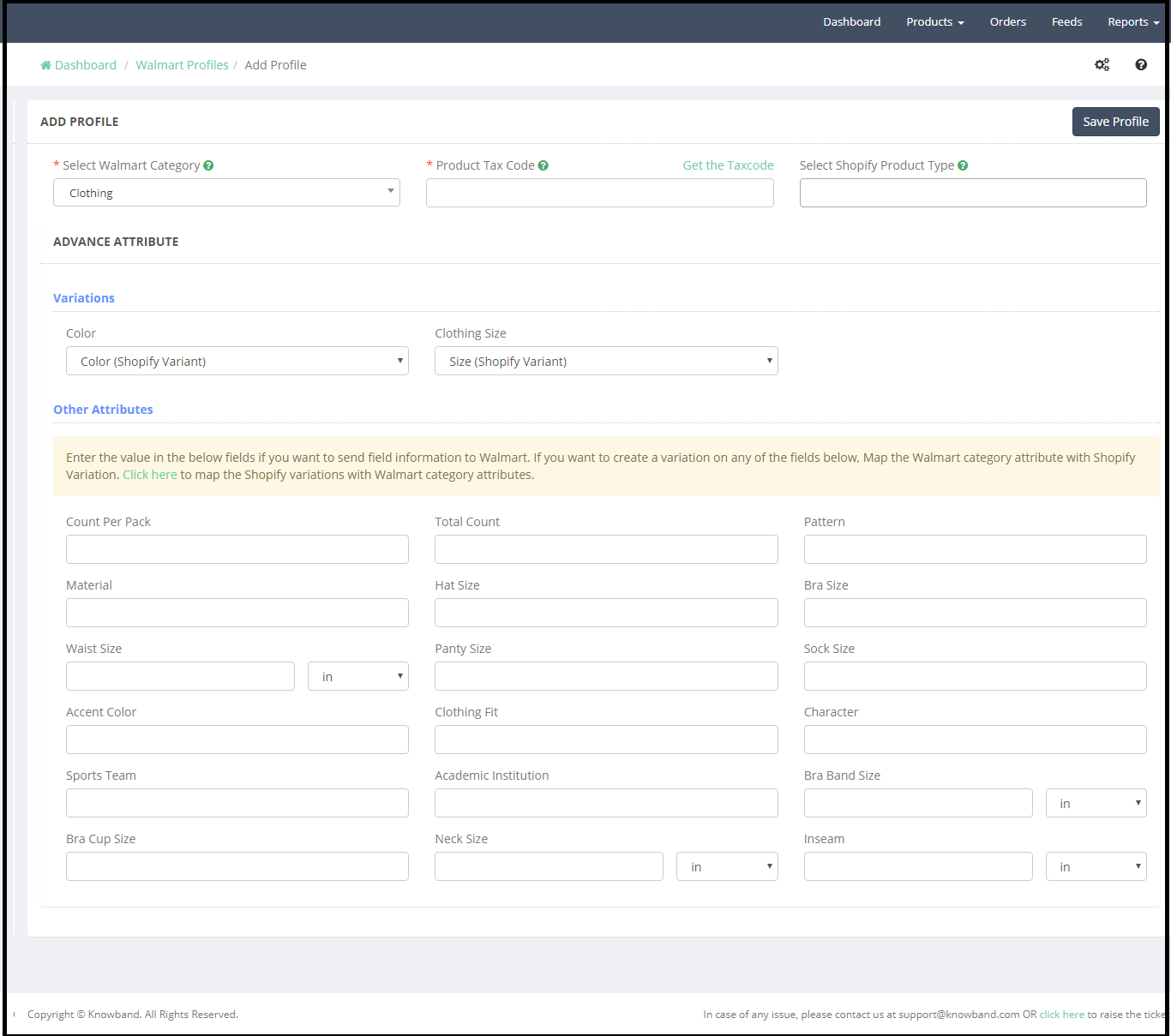
Click on the + icon to create a new profile (as highlighted in the above screenshot). It will redirect to a new page, here are the following options to complete the profile-
1) Select Walmart Category
2) Product Tax Code
3) Select Shopify Product Type
4) Advance Attributes
5) Other Attributes
Select Walmart Category –
Select the Walmart Category from the drop-down list. As per the selected Walmart category, Advance Attribute option will appear on the page. For the better exposure of the products to the audience with most relevant attributes, it is essential for the sellers to select the right category. Click here to know more about Walmart Category.
Product Tax Code:
It is mandatory for the sellers to provide the Tax code for the products at the time of product listing. The current sales tax codes spreadsheet can be found in the Seller Center. This spreadsheet contains all of the sales tax codes that you need for items. To download the spreadsheet:
1. Click on the gear icon at the top right, and under Partner Profile select Taxes.
2. Scroll down to the Download section and click on the US Tax Codes 2017 button.
Admin can also check the product tax code by clicking the Get the Tax Code.
Select Shopify Product Type – At the time of adding the products to the Shopify, the store admin can define the product type. This helps to upload the products in bulk, otherwise, the admin is required to select the products one by one. For example, admin can map all the Shirts – like the Printed shirt, formal shirt, Full length etc to the “Shirts” product type.
Variations – As per the attributes mapped with the specific Walmart category in the Attribute Mapping tab, variation option will be displayed under the Variations field. For example, we have mapped the Clothing category attributes Color and ClothingSize of the Walmart with the Shopify store attributes Color and Size, so both the attributes are listed under the Variations (refer to the above screenshot).
Other Attributes- In the other attributes section, admin can map other attributes related to the category. It is good to map all the relevant attributes related to the products.
3.2.2.2How to Edit Profile?
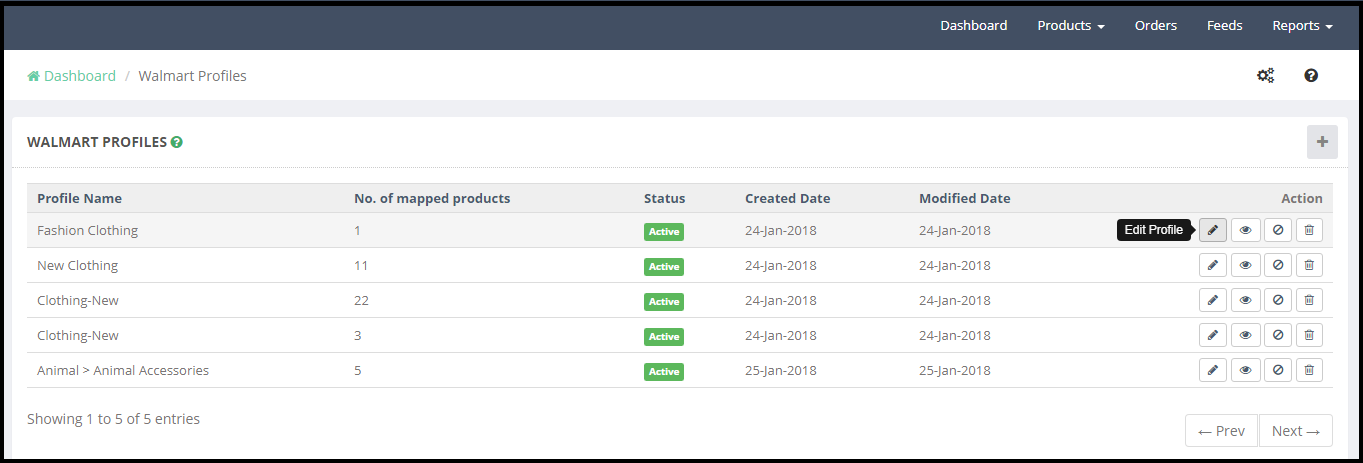
To edit a profile created in the admin interface of the Walmart Shopify Integration app, click on the Edit option next the profile (refer to the below screenshot).
The Edit profile option will redirect the admin to the Add Profile page. The admin can update the profile data as per the requirement. After making required changes click on the Save Profile button to save the changes.
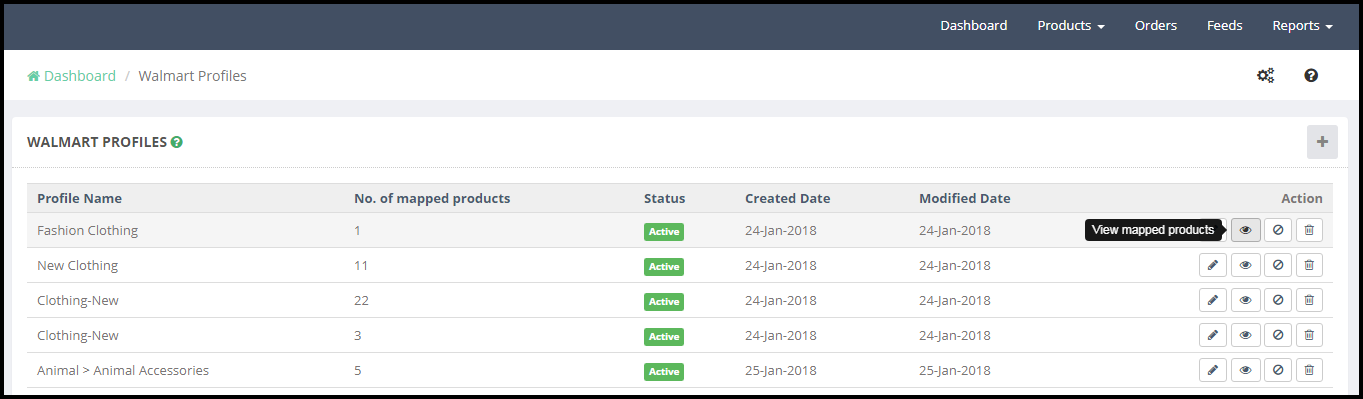
3.2.2.3How to View Mapped Products?
Admin can check the products mapped with a profile by clicking the “View Mapped Products” option (refer to the below screenshot) –
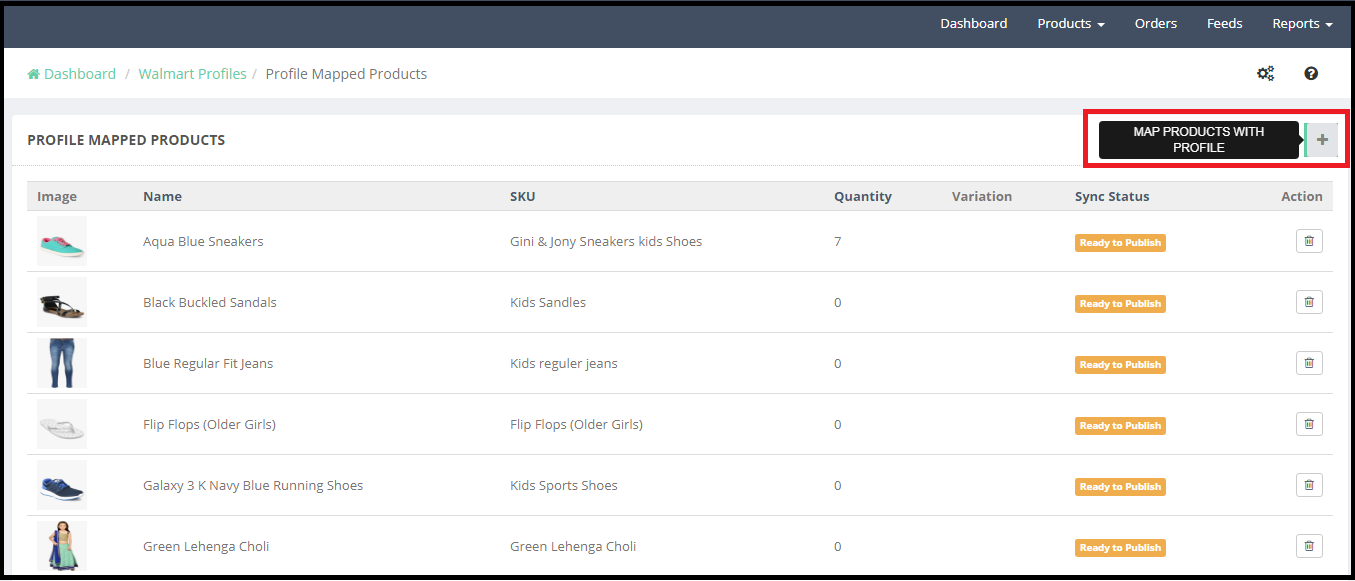
This option will redirect to the new page where all the products mapped to the particular profile will be listed. Here admin have 2 options-
1) Add products with Profile- By clicking the + icon on the top of the page, admin can select the products which he would like to map to the profile.
2) Delete Products from Profile- By clicking the Delete option given next to each product details, the admin can delete the products.
3.2.2.4 How toDisable and Delete Profile?
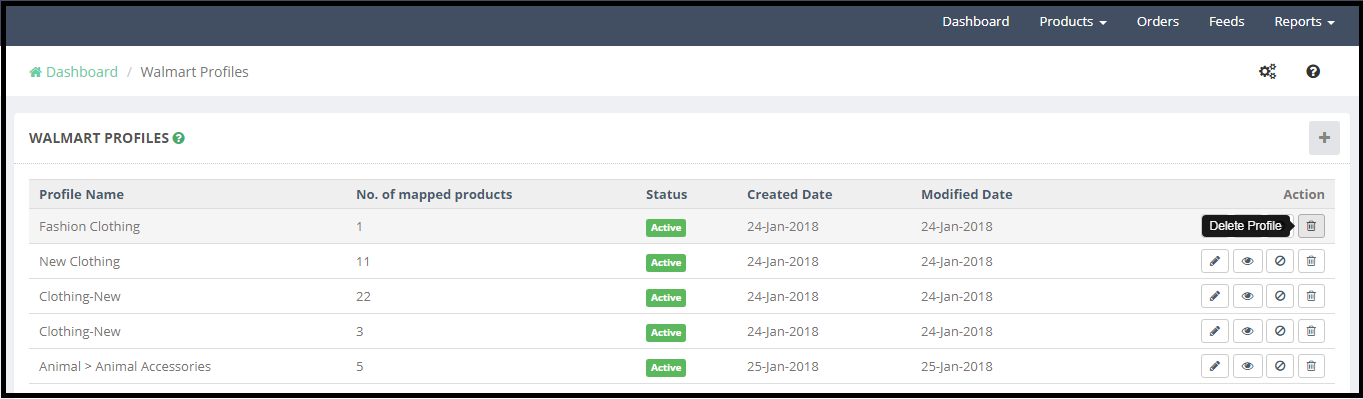
Admin can disable or delete a profile from the back-end of the Shopify Walmart Integration app. Before deleting or disabling a profile it is mandatory to remove all the mapped products from the profile.
To delete a profile click on the Delete option (refer to the below screenshot):
Remove the mapping of the products from the profile. Now click on the Delete option a confirmation pop-up will appear, click on the Confirm to delete the profile.
3.2.3. Manage Products-
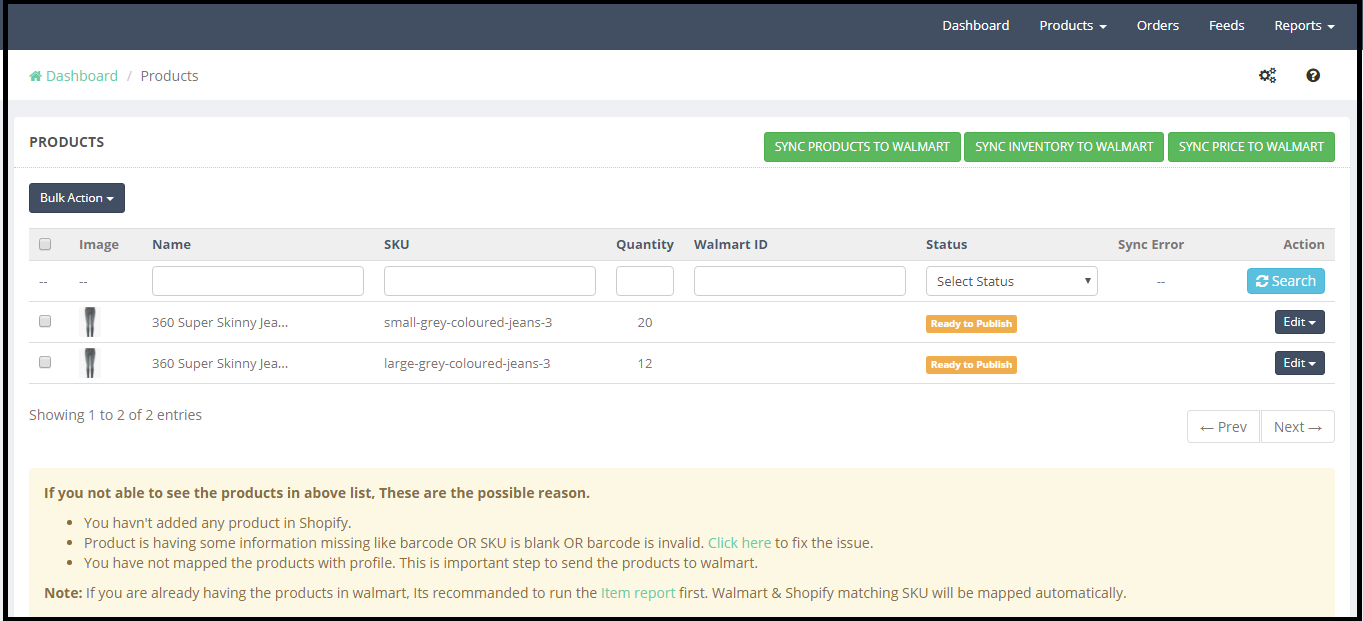
Manage Products tab of the Walmart Shopify integration app display the products which have the following details-
1)No missing SKU
2)No missing Barcode
3)Mapped to a profile
4)Inventory
Manage products tab of the Shopify Walmart API Integration app allows the store admin to sync the product to the Walmart marketplace.
Sync Products to Walmart
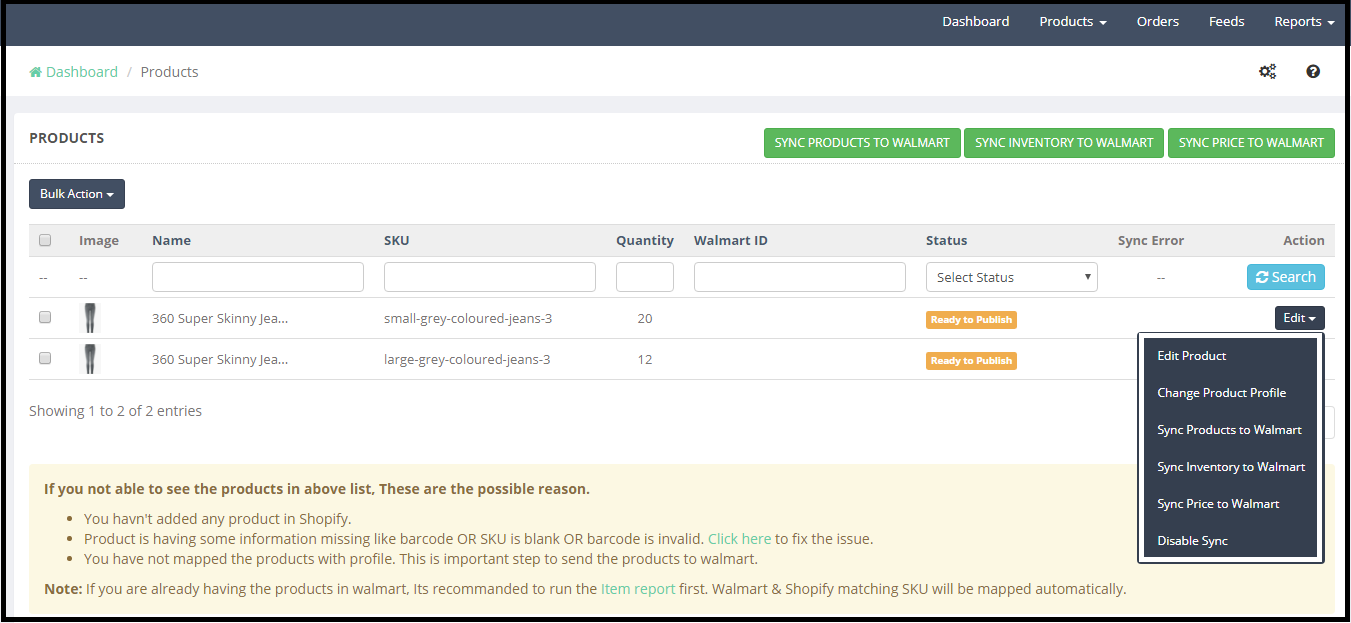
All the products synced to the Shopify Walmart integration app with all the mandatory details like SKU, Barcode and mapped with a profile will be listed to the Walmart on clicking the “Sync Products to Walmart” button.
Sync Inventory to Walmart:
To sync the inventory of the listed products, the admin needs to click on the Sync Inventory to Walmart button, so that product inventory can get updated on the Walmart.
Sync Price to Walmart:
To update the price of the Walmart store products admin need to click on the “Sync Price to Walmart”.
Edit Option:
Admin can modify the data for individual products. Edit option allows following actions:
1)Edit Product Price
2)Change Product Profile
3)Sync Products to Walmart
4)Sync Inventory to Walmart
5)Sync Price to Walmart
6)Disable Sync
Note:
a)Admin can update the profile of the individual or selected products. To complete the action admin first need to select the product(s) for which he would like to update the profile and then select the “Change Product Profile” option from the Bulk action menu.
b)Admin can select the product(s) which he would like to sync to the Walmart. To complete the action, admin first needs to select the product(s) for which he would like to sync to the Walmart and then select the “Sync Products to the Walmart” option from the Bulk action menu.
c)Admin can select the product(s) for which he would like to update the inventory on Walmart. To complete the action, admin first needs to select the product(s) for which he would like to update the inventory and then select the “Sync Inventory to the Walmart” option from the Bulk action menu.
d)Admin can select the product(s) for which he would like to update the price on Walmart. To complete the action admin first needs to select the product(s) for which he would like to update the price and then select the “Sync price to the Walmart” option from the Bulk action menu.
3.2.4. Manage Shipping Overrides:
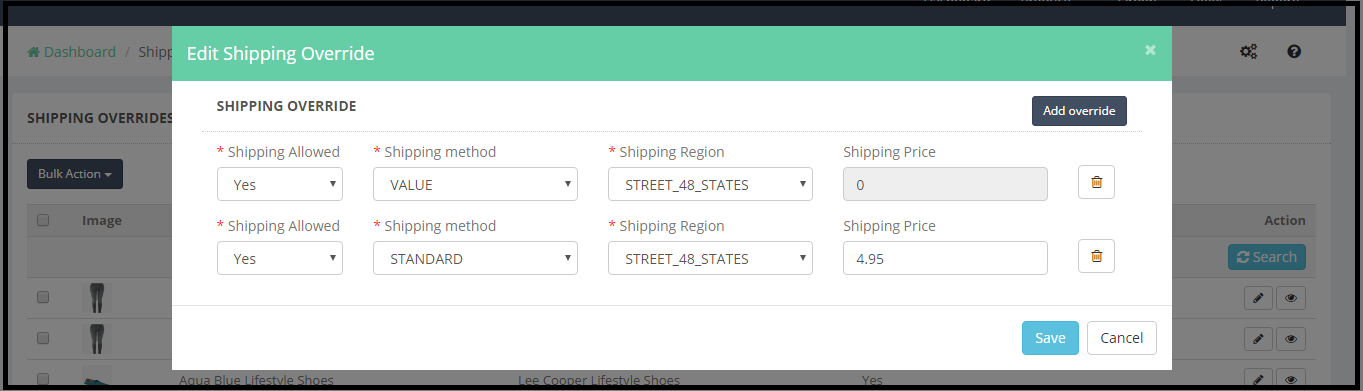
Admin can define the shipping methods for individual products from this section of the Shopify Walmart Integration app. To edit the shipping options, the admin needs to click on the Edit Shipping Overrides.
Edit Shipping Override will open a pop-up with the option to add shipping methods. To add the new shipping method for a product admin need to click on the Add Override. Please refer to the below screenshot:
Admin can update the shipping methods for the multiple products by using the Bulk Action.
3.2.5. Manage Lag Time-
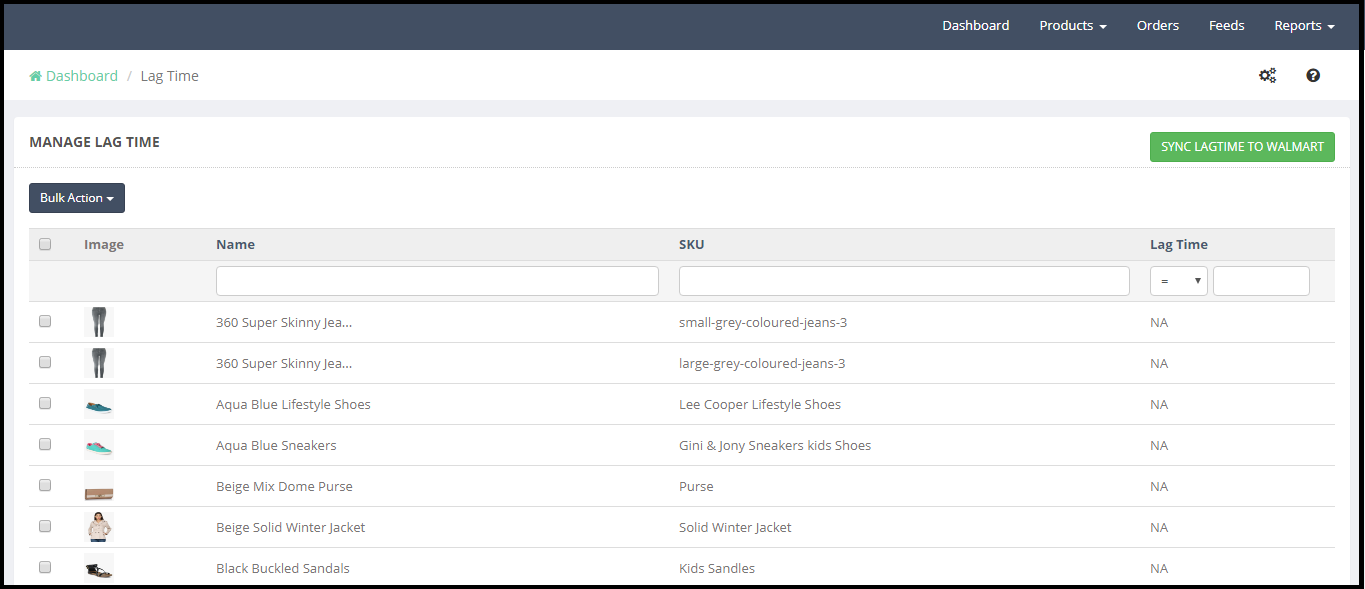
Lag Time is the number of days between when an item is ordered and when it is shipped. Lag time of 2 days or more requires approval at the item setup category level. Please refer to the Request Lag Time Exceptions article for more details on this process.
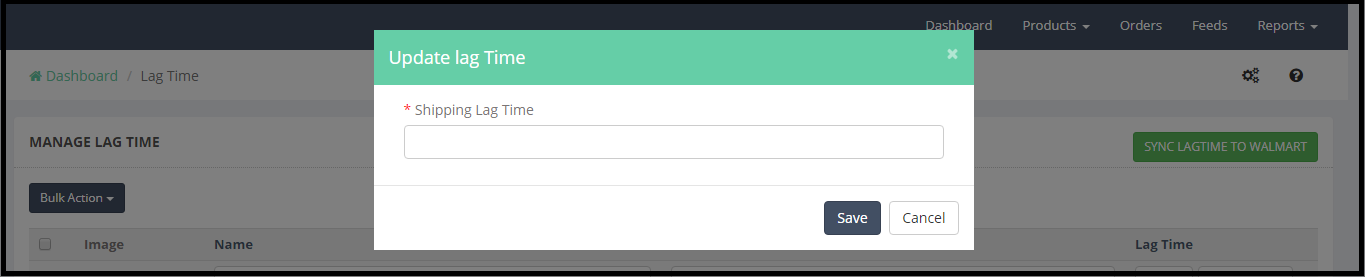
To update the Lag Time for the products admin need to select the products then click to the Bulk Action, a pop-up window with the option to define Lag Time duration (in Days) will appear. Please refer to the screenshot below:
Click on the SAVE button and the success message will appear on the top of the page.
After updating the Lag Time, click on the SYNC LAGTIME TO WALMART.
3.2.6. Buybox Report-
If an item is sold by multiple Sellers, Walmart.com presents the item listings together on a single Item Page. The page of Walmart Shopify API integration app displays competing for (pricing) listings to the customer, leaving the final choice of the Seller to the customer. One listing always wins the Buy Box. Winning the Buy Box is important because customers are usually drawn to the first option. Making sure your items remain in stock and offering competitive pricing will improve your chances of winning the Buy Box. To know more about the Buybox click here.
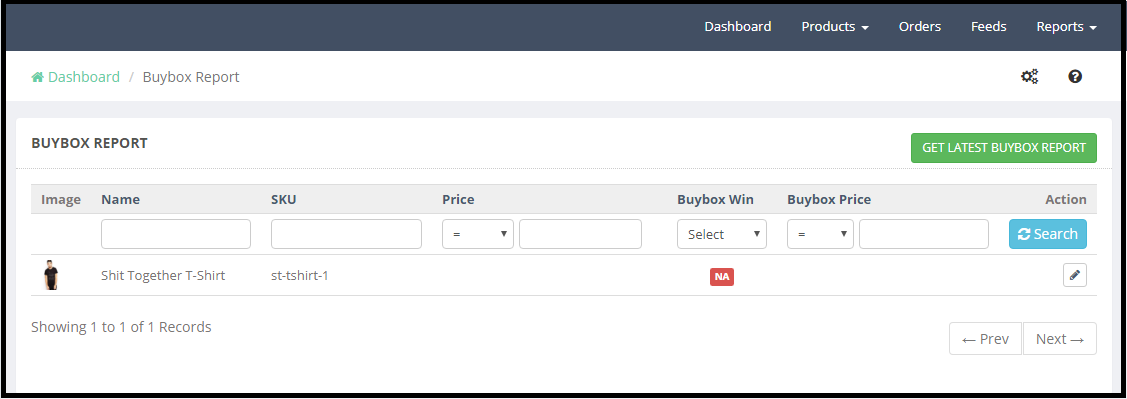
Admin can check the status of the Buybox products from this section.
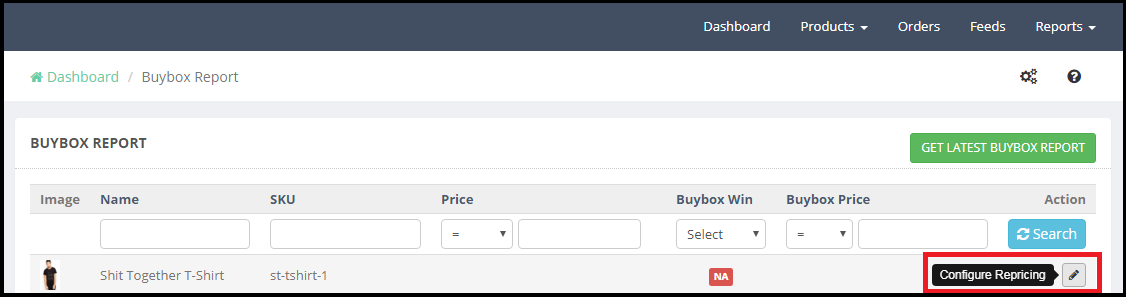
Admin can enable the Re-pricing feature for the Buybox product. To enable Re-pricing click on the Configure Repricing section of Shopify Walmart Integration, as shown in the screenshot below:
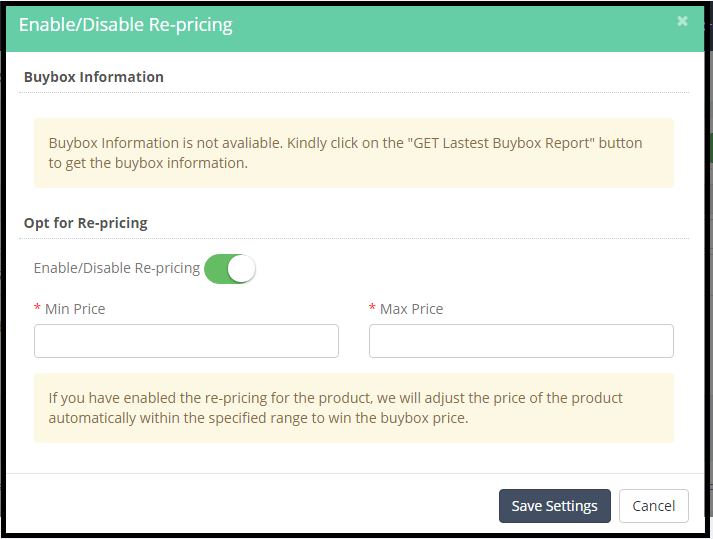
Re-pricing feature allows the admin to set a minimum and maximum price for the products and as per the Buybox price the price of the product will be auto adjusted so that the product can win the Buybox in the specified price range. Please refer to the attached screenshot below:
3.2.7. Manage Promotional Price
Sellers can set regular or promotional prices for their items. Setting the Promotional prices is an option to create unique pricing for events such as clearance sales or to call out a comparison price. The seller can add promotional prices from this tab of the Shopify Walmart Integration app.
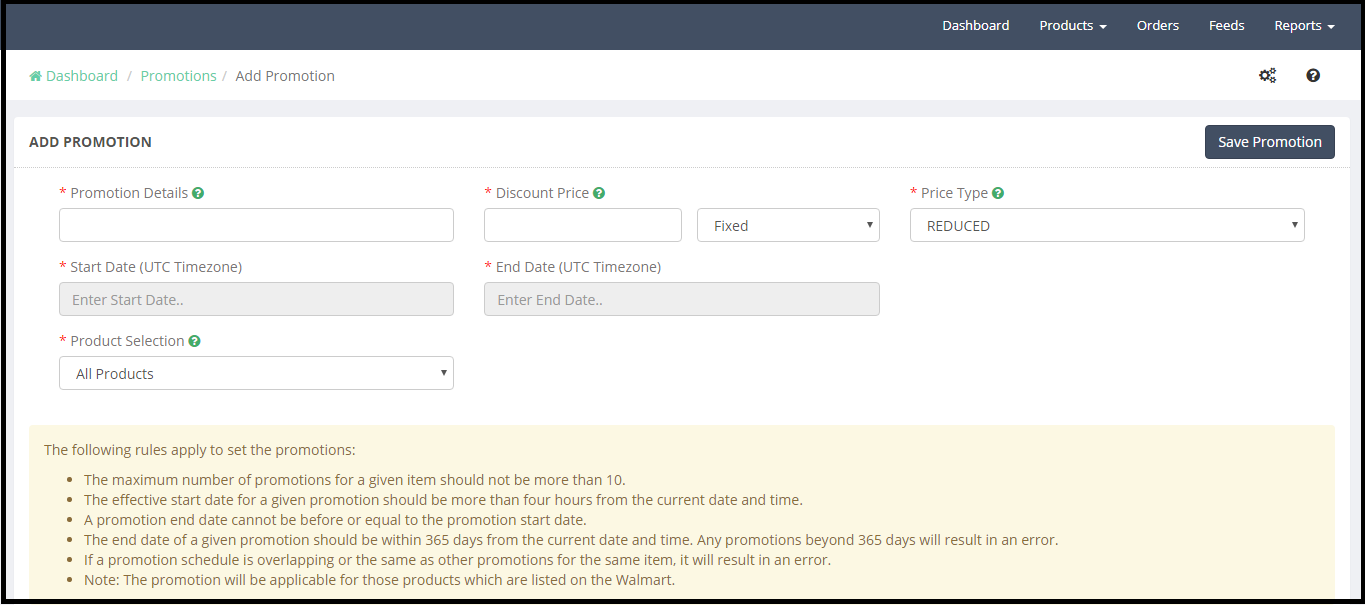
Click on the ADD NEW PROMOTION button to add a promotion. It will open a new page with the option to add promotion based on the discount or fixed value. Please refer to the below screenshot:
Here admin needs to enter following details:
1)Promotion Details
2)Discount Price
3)Fixed/Percentage
4)Price Type
5)Start Date
6)End Date
7)Product Selection
Promotion Details: Admin can define the promotion name like “Father’s Day sale” for the reference.
Discount Price: Admin can select the discount on the basis of Fixed and percentage bases. For example, if admin enters the Discount Price
10 and selects the fixed option then the product cost will be reduced by the $10. If admin selects the discount with Percentage, then the product cost will be reduced by the 10%.
Start Date: Select the Promotion Start Date. The effective start date for a given promotion should be more than four hours from the current date and time.
End Date: Select the Promotion End Date.
Product Selection: Promotional price can be applied to the selected products or all the products. As per the choice store, admin can select the products on which the special price will be applied.
3.2.8. Tax Codes
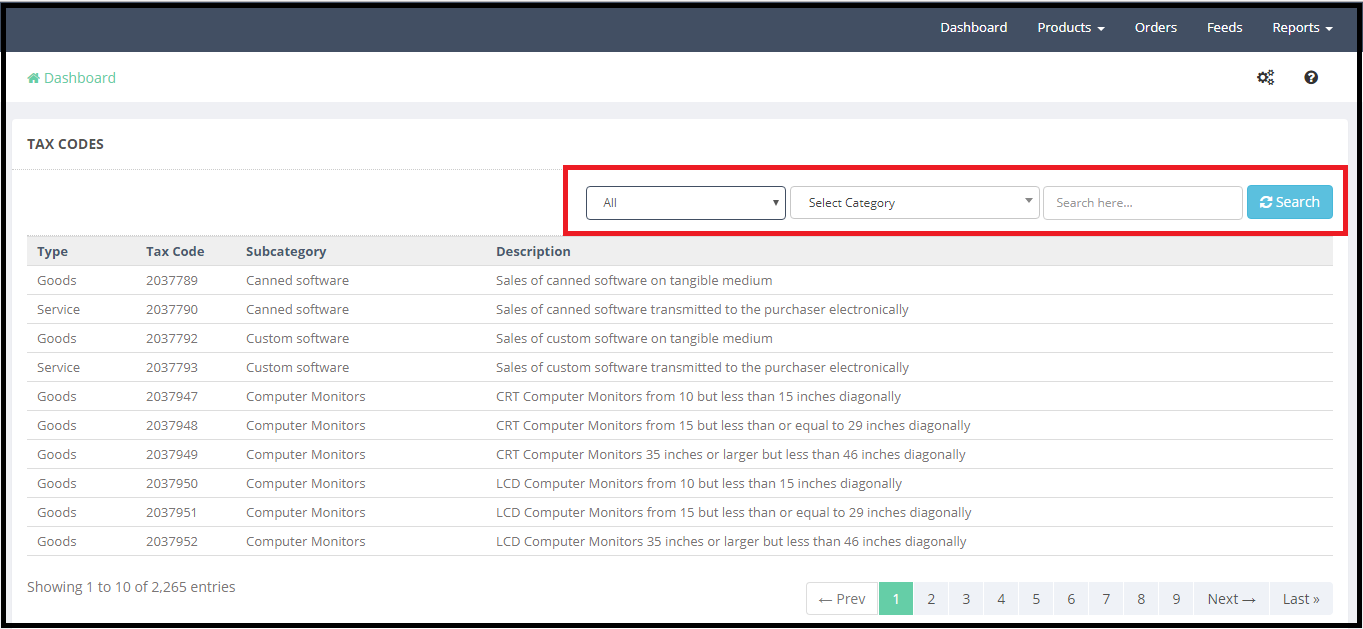
It is mandatory for the sellers to provide the Tax code for the products at the time of product listing. Admin can check the Tax codes for the products under the Tax Codes tab of Shopify Walmart Integration
3.3 Orders
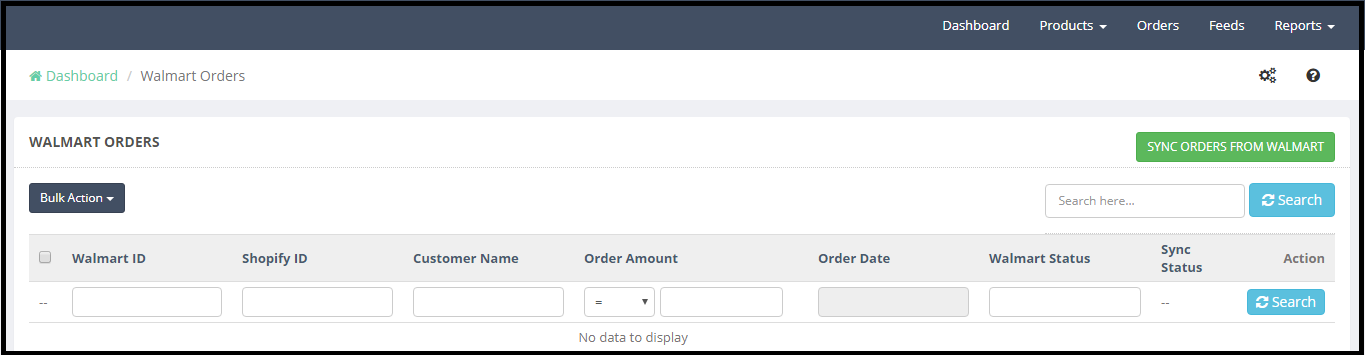
Orders tab of the Shopify Walmart Integration app shows the Walmart marketplace orders. To download the products to the Walmart Integration app admin first need to PULL ORDERS FROM WALMART. This syncing will download all the Walmart orders to the Shopify store with the help of Shopify Walmart Integration app.
Now all the Walmart orders can be processed and shipped from the Shopify store.
3.4 Feeds
The data is sent to Walmart.com in the form of feed, so we need to update the feed status. Select the feed by checking boxes and select the “Update Feed Status” in this tab of the Shopify Walmart Integration.
3.5 Reports
Admin can generate the Revenue Report from the Report section of the Shopify Walmart Integration app. Admin can check the details for the Revenue, orders and best selling SKUs.
Google reCaptcha technology has been one of the handiest means to prevent the sites from the robots and spam traffic. Instead of putting in fuzzy codes, clicking on a few images has been reinvented the method of spam detection. You should always have a Captcha type security on your store. It adds an extra layer of unbreakable protection for your website. Google has recently come up with a new update. As per the Google update,
Any calls to the v1 API will not work after March 31, 2018”. Starting in November 2017, a percentage of reCAPTCHA v1 users have been noticing information that the old API will soon be retired.
If your site still uses reCAPTCHA v1, you need to upgrade to reCAPTCHA v2 immediately. For the Prestashop eCommerce store owners, Knowband offers Prestashop Google reCaptcha addon. Prestashop Google reCaptcha module is designed to verify that the user is a human and not bot without getting them involved into the annoying codes. Prestashop Google reCaptcha extension is v2 compatible, thus, the eCommerce store owners can easily protect their site from spammers can bots.
Why should you use Prestashop Google reCaptcha module?
Before getting into the configuration part, let us first discuss why you should use this Prestashop addon.
The Google reCaptcha for Prestashop store is v2 compatible, thus, the users need not worry about the latest update of Google.
The admin can easily set the reCaptcha option on multiple web pages of the site.
The store admin can even change the look and feel of the Google reCaptcha.
The admin gets an option to enter custom CSS and JS code, in order to change the appearance of it’s UI.
The Prestashop Google reCaptcha v2 plugin is SSL compatible and easy-to-install and use.
Prestashop Google reCaptcha module allows the admin to choose the number of login trails before the reCaptcha will be displayed.
This article will guide you to integrate the very popular Prestashop Google reCaptcha on your PrestaShop store.
Adding Google reCaptcha v2 on a PrestaShop store
There are several ways to add Captcha Protection to your store. However, Google reCaptcha is one of the most user-friendly and secure captcha types that are used by the majority of websites today. Knowband’s Google reCaptcha module for Prestashop site offers an easy means to incorporate this security feature on the site. The store admin can set up the entire thing in a few simple steps without making any code changes.
The store admin is required to get Google Site Key and Secret Key for the reCaptcha setup.
How to get Google Site key and Secret key?
You can follow these steps to get the Site key and Secret key for entering in the ReCaptcha Settings tab of the module.
Step 2: Click on Sign up button on the screen that opens from the link
Step 3: On the next page you will be asked to sign in to your Google account if you are not signed in already. Enter the account credentials and login to your Gmail account.
Step 4: Next, it will open the “Register a new site” interface if you have not already registered any other site previously.
Fill up the form as specified in the image below:
Step 5: After Clicking on Register, you will be directed to a new page, where you can see your Site Key and Secret Key. Copy these keys.
Once the Site Key and Secret Key is retrieved, it is easy to add the security verification in the site.
We will use our PrestaShop Google reCaptcha module to do the integration without editing our PrestaShop codes. Messing with the core PrestaShop files could be dangerous, so we take the easy approach here.
To add Google reCaptcha protection on your PrestaShop store using the Google reCaptcha module, please follow these steps:
Step 2: After completing the purchase, visit your Knowband account and download the module’s zip file from the “My Downloads” section.
Step 3: Now, Login to your PrestaShop store as an Admin user. Using FTP or direct upload, install the module on your store.
Step 4: After successful installation, you will find the module listed in “Installed Modules ” section.
Step 5: Click on the “Configure” button at the right side of the module listing. It will open the module configuration interface.
Module configuration
The configuration of this Prestashop addon is easy. The module configuration has three tabs namely- General Settings, ReCaptcha Settings, and Look and Feel settings.
Step 6: First of all, in General, Settings, check if the Prestashop Google reCaptcha extension is enabled or disabled. If it is disabled already, toggle the button to enable it.
Step 7: Now, select the pages from the store where you want to show the Google reCaptcha. You have four major pages on your website where you should definitely use the reCaptcha.
Step 8: Now, click on the “ReCaptcha Settings” tab. Here you will need to enter the Google Site key and Secret key to save and enable the Google ReCaptcha protection on your PrestaShop store.
Step 9: Paste the copied keys in the specified fields of the ReCaptcha Settings tab in Google reCaptcha module. Save the settings and you are done.
Step 10: The Prestashop Google reCaptcha v2 comes with a number of themes. The admin can select the one that matches his site theme.
That’s it. After entering and saving the Site key and Secret key, your store is ready with the Google reCaptcha protection. Clear the cache and open the customer login page, registration page etc, you will see the Google reCaptcha standing there and protecting your store.
Over to you
So, this is how you can enable the Google reCaptcha protection on your PrestaShop store without any hassle and mess with the core files. You also can try by yourself on the free demo of the Google reCaptcha module and see how it works. Here, you can also change the look and feel of the reCaptcha block right from the backend itself. Similarly, OpenCart Google reCaptcha plugin is available for OpenCart platforms as well.
La tecnología Google reCaptcha ha sido uno de los medios más prácticos para evitar los sitios de los robots y el tráfico de spam. En lugar de poner códigos difusos, al hacer clic en algunas imágenes se reinventa el método de detección de spam. Siempre debe tener una seguridad de tipo Captcha en su tienda. Agrega una capa adicional de protección irrompible para su sitio web. Google ha presentado recientemente una nueva actualización. Según la actualización de Google,
Cualquier llamada a la API v1 no funcionará después de marzo 31, 2018". A partir de noviembre 2017, un porcentaje de los usuarios de reCAPTCHA v1 han estado notando información de que la antigua API pronto se retirará.
Si su sitio aún usa reCAPTCHA v1, necesita actualizar a reCAPTCHA v2 inmediatamente. Para los propietarios de las tiendas de comercio electrónico de Prestashop, Knowband ofrece el complemento ReCaptcha de Prestashop Google. El módulo Prestashop Google reCaptcha está diseñado para verificar que el usuario sea un ser humano y no un bot sin involucrarlos en los códigos molestos. La extensión Prestashop Google reCaptcha es compatible con v2, por lo tanto, los propietarios de las tiendas de comercio electrónico pueden proteger fácilmente su sitio de los spammers que pueden bots.
¿Por qué debería usar el módulo ReCaptcha de Prestashop Google?
Antes de entrar en la parte de configuración, primero analicemos por qué debería usar este complemento de Prestashop.
La tienda Google reCaptcha para Prestashop es compatible con v2, por lo tanto, los usuarios no necesitan preocuparse por la última actualización de Google.
El administrador puede establecer fácilmente la opción ReCaptcha en múltiples páginas web del sitio.
El administrador de la tienda puede incluso cambiar la apariencia de Google reCaptcha.
El administrador tiene la opción de ingresar código personalizado CSS y JS, para cambiar la apariencia de su IU.
El complemento PrestaShop Google reCaptcha v2 es compatible con SSL y fácil de instalar y usar.
El módulo Prestashop Google reCaptcha permite al administrador elegir la cantidad de rutas de acceso antes de que se muestre reCaptcha.
Este artículo lo guiará para integrar el popular PrestaShop Google reCaptcha en su tienda PrestaShop.
Agregar Google reCaptcha v2 en una tienda PrestaShop
Hay varias maneras de agregar Protección Captcha a su tienda. Sin embargo, Google reCaptcha es uno de los tipos de captcha más fáciles de usar y seguros que utilizan la mayoría de los sitios web en la actualidad. El módulo Google reCaptcha de Knowband para el sitio Prestashop ofrece un medio fácil para incorporar esta característica de seguridad en el sitio. El administrador de la tienda puede configurar todo en unos simples pasos sin hacer ningún cambio de código. Se requiere que el administrador de la tienda obtenga Google Site Key y Llave secreta para la configuración de ReCaptcha.
¿Cómo obtener la clave de Google Site y la clave secreta?
Puede seguir estos pasos para obtener la clave del Sitio y la clave Secreta para ingresar en la pestaña Configuración de ReCaptcha del módulo.
Paso 2: Haga clic en el botón Registrarse en la pantalla que se abre desde el enlace
Paso 3: En la siguiente página, se le pedirá que inicie sesión en su cuenta de Google si aún no ha iniciado sesión. Ingrese las credenciales de la cuenta e inicie sesión en su cuenta de Gmail.
Paso 4: A continuación, se abrirá el "Registre un nuevo sitio"interfaz si aún no ha registrado ningún otro sitio previamente. Llene el formulario como se especifica en la imagen a continuación:
Paso 5: Después de hacer clic en Registrarse, se le dirigirá a una nueva página, donde puede ver su clave de sitio y clave secreta. Copia estas llaves
Una vez
Para agregar la protección Google reCaptcha en su tienda PrestaShop usando el módulo reCaptcha de Google, siga estos pasos:
Paso 7: Ahora, seleccione las páginas de la tienda en la que desea mostrar Google reCaptcha. Tienes cuatro páginas principales en tu sitio web donde definitivamente deberías usar el reCaptcha.
Paso 8: Ahora, haz clic en "Configuración de ReCaptcha"pestaña. Aquí tendrá que ingresar el Google Clave del sitio y Llave secreta para guardar y habilitar la protección de Google ReCaptcha en su tienda PrestaShop.
Paso 9:?Paste the copied keys in the specified fields of the?Configuración de ReCaptcha?tab in Google reCaptcha module. Save the settings and you are done.
Paso 10: El Prestashop Google reCaptcha v2 viene con una serie de temas. El administrador puede seleccionar el que coincida con el tema de su sitio. Eso es. Después de ingresar y guardar la clave del Sitio y la clave Secreta, su tienda está lista con la protección Google reCaptcha. Borre la memoria caché y abra la página de inicio de sesión del cliente, la página de registro, etc. verá que Google reCaptcha se encuentra allí y protege su tienda.
A usted
Por lo tanto, así es como puede habilitar la protección Google reCaptcha en su tienda PrestaShop sin problemas y sin problemas con los archivos centrales. También puede probarlo usted mismo en la demostración gratuita del módulo Google reCaptcha y ver cómo funciona. Aquí, también puede cambiar el aspecto del bloque reCaptcha desde el mismo servidor. Similar, OpenCart Google reCaptcha plugin está disponible también para plataformas OpenCart.
La technologie Google ReCaptcha a été l’un des moyens les plus pratiques d’empêcher les sites des robots et le trafic de spam. Au lieu de mettre en place des codes flous, cliquer sur quelques images a réinventé la méthode de détection du spam. Vous devez toujours avoir une sécurité de type Captcha sur votre boutique. Il ajoute une couche supplémentaire de protection incassable pour votre site Web. Google a récemment proposé une nouvelle mise à jour. Selon la mise à jour de Google,
Tout appel à l'API v1 ne fonctionnera pas après Mars 31, 2018". À partir de novembre 2017, un pourcentage d'utilisateurs reCAPTCHA v1 a remarqué des informations indiquant que l'ancienne API serait bientôt retirée.
Si votre site utilise toujours reCAPTCHA v1, vous devez immédiatement mettre à niveau vers reCAPTCHA v2. Pour les propriétaires de magasins de commerce électronique Prestashop, Knowband propose l’addon Prestashop Google reCaptcha. Le module Prestashop Google reCaptcha est conçu pour vérifier que l'utilisateur est un être humain et non un bot sans les impliquer dans les codes ennuyeux. L'extension Prestashop Google reCaptcha est compatible avec v2. Par conséquent, les propriétaires de magasins de commerce électronique peuvent facilement protéger leur site contre les robots spammeurs.
Pourquoi devriez-vous utiliser le module Google ReCaptcha de Prestashop?
Avant d'entrer dans la partie configuration, nous allons d'abord expliquer pourquoi vous devriez utiliser cet addon Prestashop.
Le magasin Google ReCaptcha pour Prestashop est compatible avec v2. Par conséquent, les utilisateurs n'ont pas à s'inquiéter de la dernière mise à jour de Google.
L'administrateur peut facilement définir l'option reCaptcha sur plusieurs pages Web du site.
L'administrateur du magasin peut même modifier l'apparence de Google reCaptcha.
L'administrateur a la possibilité d'entrer un code CSS et JS personnalisé, afin de modifier l'apparence de son interface utilisateur.
Le plugin Prestashop Google reCaptcha v2 est compatible SSL et facile à installer et à utiliser.
Le module Prestashop Google reCaptcha permet à l'administrateur de choisir le nombre de traces de connexion avant que le reCaptcha ne soit affiché.
Cet article vous guidera pour intégrer le très populaire Google ReCaptcha de Prestashop sur votre boutique PrestaShop.
Ajout de Google ReCaptcha v2 sur un magasin PrestaShop
Il existe plusieurs manières d’ajouter Captcha Protection à votre magasin. Cependant, Google reCaptcha est l'un des types de captcha les plus conviviaux et les plus sécurisés utilisés par la majorité des sites Web aujourd'hui. Le module Google reCaptcha de Knowband pour le site Prestashop offre un moyen simple d'intégrer cette fonctionnalité de sécurité sur le site. L'administrateur du magasin peut configurer le tout en quelques étapes simples sans modifier le code. L'administrateur du magasin est nécessaire pour obtenir Clé de site Google et Clef secrète pour la configuration de reCaptcha.
Comment obtenir la clé de site Google et la clé secrète?
Vous pouvez suivre ces étapes pour obtenir la clé de site et la clé secrète pour entrer dans l'onglet Paramètres ReCaptcha du module.
Étape 2 : Cliquez sur le bouton S'inscrire sur l'écran qui s'ouvre à partir du lien
Étape 3 : Sur la page suivante, vous serez invité à vous connecter à votre compte Google si vous n'êtes pas déjà connecté. Entrez les informations d'identification du compte et connectez-vous à votre compte Gmail.
Étape 4 : Ensuite, il ouvrira le "Enregistrer un nouveau site"interface si vous n'avez pas déjà enregistré un autre site auparavant. Remplissez le formulaire comme indiqué dans l'image ci-dessous:
Étape 5 : Après avoir cliqué sur Enregistrer, vous serez redirigé vers une nouvelle page, où vous pourrez voir votre clé de site et votre clé secrète. Copiez ces clés.
Une fois que
Pour ajouter la protection Google reCaptcha sur votre boutique PrestaShop en utilisant le module Google reCaptcha, procédez comme suit:
Étape 2 : Après avoir effectué l'achat, visitez votre compte Knowband et téléchargez le fichier zip du module à partir de la section "Mes téléchargements".
Étape 3 : Connectez-vous maintenant à votre boutique PrestaShop en tant qu'utilisateur Admin. En utilisant le FTP ou le téléchargement direct, installer le module sur votre magasin.
Étape 4 : Après une installation réussie, vous trouverez le module répertorié dans la section "Modules installés".
Étape 5 : Clique sur le "Configurer" bouton situé à droite de la liste des modules. Il va ouvrir l'interface de configuration du module.
Étape 7 : Maintenant, sélectionnez les pages du magasin dans lequel vous souhaitez afficher Google ReCaptcha. Vous avez quatre pages principales sur votre site Web sur lesquelles vous devez absolument utiliser reCaptcha.
Étape 8 : Maintenant, cliquez sur le "Paramètres ReCaptcha"onglet. Ici vous devrez entrer le Google Clé du site et Clef secrète pour enregistrer et activer la protection Google ReCaptcha sur votre boutique PrestaShop.
Étape 9 :?Paste the copied keys in the specified fields of the?Paramètres ReCaptcha?tab in Google reCaptcha module. Save the settings and you are done.
Étape 10 : Le reCaptcha v2 de Prestashop Google est livré avec un certain nombre de thèmes. L'administrateur peut sélectionner celui qui correspond au thème de son site. C'est tout. Après avoir entré et enregistré la clé du site et la clé secrète, votre magasin est prêt avec la protection Google reCaptcha. Videz le cache et ouvrez la page de connexion du client, la page d'enregistrement, etc. Vous verrez le Google reCaptcha se tenir là et protéger votre magasin.
A vous de jouer
Ainsi, vous pouvez activer la protection Google reCaptcha sur votre boutique PrestaShop sans tracas et gâcher les fichiers principaux. Vous pouvez également essayer par vous-même la démo gratuite du module Google reCaptcha et voir comment cela fonctionne. Ici, vous pouvez également modifier l'apparence du bloc reCaptcha directement depuis le backend lui-même. De même, OpenCart Google reCaptcha plugin est également disponible pour les plates-formes OpenCart.
Die Google ReCaptcha-Technologie ist eines der einfachsten Mittel, um die Websites vor Robots und Spam zu schützen. Anstatt Fuzzy-Codes einzugeben, wurde durch Klicken auf einige Bilder die Methode der Spam-Erkennung neu erfunden. Sie sollten immer eine Sicherheit vom Typ Captcha in Ihrem Geschäft haben. Es fügt eine zusätzliche Schicht von unzerbrechlichem Schutz für Ihre Website hinzu. Google hat kürzlich ein neues Update veröffentlicht. Gemäß dem Google-Update
Alle Aufrufe der v1-API funktionieren nach März 31 und 2018 nicht". Seit November 2017 hat ein Prozentsatz der Benutzer von reCAPTCHA v1 festgestellt, dass die alte API bald ausgemustert wird.
Wenn Ihre Site immer noch reCAPTCHA v1 verwendet, müssen Sie sofort auf reCAPTCHA v2 aktualisieren. Für die Prestashop eCommerce-Shop-Besitzer bietet Knowband Prestashop Google ReCaptcha Addon an. Prestashop Google ReCaptcha Modul wurde entwickelt, um sicherzustellen, dass der Benutzer ein Mensch und kein Bot ist, ohne dass sie in die lästigen Codes involviert werden. Die Prestashop Google ReCaptcha-Erweiterung ist v2-kompatibel, daher können die eCommerce-Shop-Betreiber ihre Site vor Spammern schützen, die Bots schützen können.
Warum sollten Sie das Prestashop Google reCaptcha-Modul verwenden?
Bevor wir uns dem Konfigurationsteil zuwenden, wollen wir uns zuerst mit der Frage befassen, warum Sie dieses Prestashop-Addon verwenden sollten.
Der Google ReCaptcha für Prestashop Store ist v2-kompatibel. Daher müssen sich die Nutzer keine Gedanken über das neueste Google-Update machen.
Der Administrator kann die reCaptcha-Option auf mehreren Webseiten der Website einfach festlegen.
Der Store-Administrator kann sogar das Erscheinungsbild von Google reCaptcha ändern.
Der Administrator erhält eine Option zur Eingabe von benutzerdefiniertem CSS- und JS-Code, um das Erscheinungsbild seiner Benutzeroberfläche zu ändern.
Das Prestashop Google reCaptcha v2-Plugin ist SSL-kompatibel und einfach zu installieren und zu verwenden.
Mit dem Prestashop Google ReCaptcha Modul kann der Admin die Anzahl der Login Trails vor der Anzeige des reCaptcha auswählen.
Dieser Artikel wird Sie dabei unterstützen, das sehr beliebte Prestashop Google reCaptcha in Ihrem PrestaShop-Shop zu integrieren.
Google ReCaptcha v2 in einem PrestaShop Store hinzufügen
Es gibt mehrere Möglichkeiten, Captcha Protection zu Ihrem Geschäft hinzuzufügen. Google reCaptcha ist jedoch einer der benutzerfreundlichsten und sichersten Captcha-Typen, die heute auf den meisten Websites verwendet werden. Das Google reCaptcha-Modul von Google für die Prestashop-Website bietet eine einfache Möglichkeit, diese Sicherheitsfunktion auf der Website zu integrieren. Der Filialleiter kann das Ganze in wenigen einfachen Schritten einrichten, ohne Codeänderungen vornehmen zu müssen. Der Ladenadministrator muss erhalten Google Site-Schlüssel und Geheimer Schlüssel für das ReCaptcha-Setup.
Wie bekomme ich den Google Site-Schlüssel und den geheimen Schlüssel?
Sie können diese Schritte ausführen, um den Site-Schlüssel und den geheimen Schlüssel für die Eingabe auf der Registerkarte ReCaptcha-Einstellungen des Moduls abzurufen.
Schritt 2: Klicken Sie auf die Schaltfläche Anmelden auf dem Bildschirm, der über den Link geöffnet wird
Schritt 3: Auf der nächsten Seite werden Sie aufgefordert, sich in Ihrem Google-Konto anzumelden, wenn Sie noch nicht angemeldet sind. Geben Sie die Kontoanmeldeinformationen ein und melden Sie sich bei Ihrem Google Mail-Konto an.
Schritt 4: Als nächstes wird es öffnen "Registrieren Sie eine neue Site"Schnittstelle, wenn Sie zuvor noch keine andere Seite registriert haben. Füllen Sie das Formular wie in der folgenden Abbildung angegeben:
Schritt 5: Nachdem Sie auf "Registrieren" geklickt haben, werden Sie zu einer neuen Seite weitergeleitet, auf der Sie Ihren Site-Schlüssel und Ihren geheimen Schlüssel sehen können. Kopiere diese Schlüssel.
Einmal
Führen Sie die folgenden Schritte aus, um den Google reCaptcha-Schutz in Ihrem PrestaShop-Shop mit dem Google reCaptcha-Modul hinzuzufügen:
Schritt 2: Nach Abschluss des Kaufs besuchen Sie Ihr Knowband-Konto und laden Sie die Zip-Datei des Moduls aus dem Bereich "Meine Downloads" herunter.
Schritt 3: Melden Sie sich jetzt als Administrator in Ihrem PrestaShop-Shop an. Mit FTP oder direktem Upload, Installieren Sie das Modul in deinem Geschäft.
Schritt 4: Nach erfolgreicher Installation finden Sie das Modul im Abschnitt "Installierte Module" aufgelistet.
Schritt 5: Klicken Sie auf "Konfigurieren" Schaltfläche auf der rechten Seite der Modulliste. Es öffnet die Modulkonfigurationsschnittstelle.
Schritt 7: Wählen Sie nun die Seiten aus dem Geschäft aus, in dem Sie Google reCaptcha anzeigen möchten. Sie haben vier große Seiten auf Ihrer Website, auf denen Sie das reCaptcha definitiv verwenden sollten.
Schritt 8: Klicke jetzt auf "ReCaptcha Einstellungen"Tab. Hier müssen Sie das Google eingeben Standortschlüssel und Geheimer Schlüssel um den Google ReCaptcha-Schutz in Ihrem PrestaShop-Shop zu speichern und zu aktivieren.
Schritt 9:?Paste the copied keys in the specified fields of the?ReCaptcha Einstellungen?tab in Google reCaptcha module. Save the settings and you are done.
Schritt 10: Das Prestashop Google ReCaptcha v2 enthält eine Reihe von Themen. Der Administrator kann denjenigen auswählen, der seinem Websitethema entspricht. Das ist es. Nachdem Sie den Site-Schlüssel und den geheimen Schlüssel eingegeben und gespeichert haben, ist Ihr Geschäft mit dem Google reCaptcha-Schutz ausgestattet. Löschen Sie den Cache und öffnen Sie die Kundenanmeldeseite, die Registrierungsseite usw., und Sie sehen, dass Google reCaptcha dort steht und Ihr Geschäft schützt.
Über Sie
So können Sie den Schutz von Google reCaptcha in Ihrem PrestaShop-Shop aktivieren, ohne sich um die Kerndateien kümmern zu müssen. Sie können auch auf der kostenlosen Demo des Google ReCaptcha-Moduls selbst ausprobieren, wie es funktioniert. Hier können Sie auch das Aussehen und Verhalten des reCaptcha-Blocks direkt vom Backend aus ändern. Ähnlich, OpenCart Google ReCaptcha Plugin ist auch für OpenCart-Plattformen verfügbar.