OpenCart One Page Advanced Checkout

The checkout page is the most crucial part of a customer’s journey on your eCommerce store. A lengthy and complicated checkout process takes no time in turning away the focus of the customer from your store. To be very honest, customers do not like to go through a number of steps before they could make their purchase. What if all the checkout steps could be put together on a single checkout page? This is exactly what One Page Checkout does. It makes the checkout process easy for the customers and persuades them to complete their purchase, hence reducing the abandoned cart possibility. Considering the importance of a single page checkout, Knowband comes up with the OpenCart One Page Advanced Checkout extension for OpenCart store owners to make their checkout process convenient for their users.

OpenCart One Page Advanced Checkout

In the list of the OpenCart extensions, OpenCart One Page Advanced Checkout extension is considered to be the finest. OpenCart One Page Advanced Checkout adds a responsive checkout popup to your OpenCart store and makes the checkout process hassle-free for the customers. Customers can make changes to their checkout page without getting redirected to a different URL.

This checkout extension has multi-lingual support and is multi-store compatible. It is a fully mobile responsive extension, that is compatible with all OpenCart themes. Also, the OpenCart One Page Advanced Checkout module is easy to install and configure.

Features of OpenCart One Page Advanced Checkout-

Guest Checkout

OpenCart One Page Advanced Checkout extension provides a Guest checkout option that avoids the mandatory sign-up process on your store. Users can check out as a guest if they do not wish to create an account. Moreover, they are not even required to set a password. Once a customer provides his or her email address, a password is generated and automatically sent over their email.

Social login facility

OpenCart One Page Advanced Checkout extension allows customers to register on your store directly with their Facebook or Google+ account for quick and easy registration.

Multiple payment modes
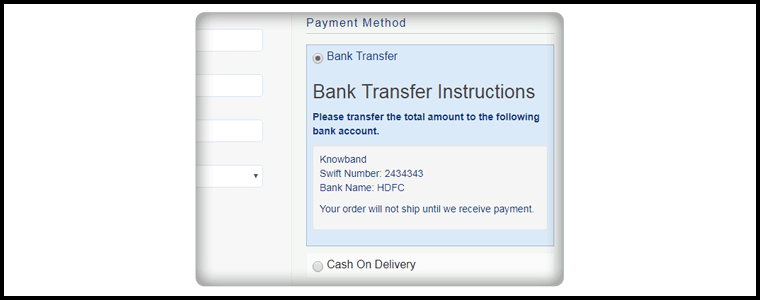
OpenCart One Page Advanced Checkout module supports multiple payment options like Debit Card, Credit Card, Sage Pay, PayPal, Mollie, etc. You can set any of the payment modes as the default payment method.

Multiple shipping services

OpenCart Advanced quick checkout extension supports various shipping services like FedEx, Smart Send, USPS, RoyalMail, Collisimo, etc. You can set any of the shipping services as the default shipping method.

Define the payment modes for the shipping services

OpenCart One Step advanced checkout extension has a Ship2Pay option, under which you can mention which payment modes do you want to provide for a particular shipping service.

Rearrange fields with Drag and Drop

Opencart simplified checkout extension offers the drag and drop functionality, through which, the admin can prioritize the checkout fields. Just pick a field, drag and drop it to the place where you want to display it.

Make a field mandatory or optional

OpenCart fast checkout extension provides you the option to make a field mandatory or optional. For example, you can keep fields like First name or Address as mandatory and Company name or postcode as optional.

Newsletter subscription and MailChimp Integrator

You can display the newsletter subscription option to the customers and ask them to subscribe to your future updates or marketing campaigns. Following this, when a user provides the email address and subscribes to your newsletters, the information is instantly transferred to your MailChimp account.

Remove unwanted cart fields

OpenCart One Page Advanced checkout contains a “Cart” tab under which you get options like Display product image, Display Product quantity, Display price, etc. You have the option to choose which cart field do you want to display and which cart field do you want to avoid on the checkout page.

Benefits of OpenCart One Page Advanced Checkout-

1. Easy and fast checkout

2. Quick user registration

3. Reduces the cart abandonment rate

4. Increases conversions

5. Enhances the user experience by simplifying the checkout process

Final Word

Let your users enjoy a seamless checkout experience. Optimize your checkout process by implementing OpenCart One Page Advanced Checkout. This OpenCart extension can make a significant impact on your conversion rate.

Prestashop Product Video- User Manual

1.0 Introduction

A product video is an explainer video that effectively demonstrates the benefits of a product. A demo video increases conversion rates by providing a creative and engaging story that demonstrates how your product functions in the real world, and what kind of impact it has. By using narrative and metaphor, a product video can create a better lasting impression in the consumer’s mind, leaving the product features to be experienced rather than explained.

People are more likely to retain information received through video because the information is presented through audio and visual channels. Therefore, if you need to express something about a product quickly and memorably, video is the best way to do it. Knowband offers Prestashop Product Video module for the Prestashop store admin that allows him/her to add the product videos on their store’s product pages. This Prestashop extension allows the sellers to present their products confidently that make the customers sure about their products.

This Prestashop Product Video addon will provide an interface and functionality to the Prestashop eCommerce website admin to show their product pages with high-quality product videos from YouTube, Vimeo, and Daily Motion.

1.1 Benefits

1.2 Features

2.0 Admin Interface

Admin will have 4 settings available which are described below.

2.0.1 General Settings

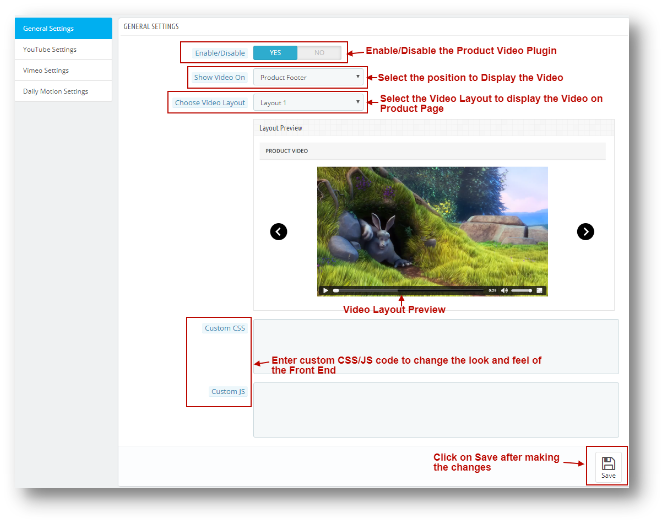
General Settings will have simple customization functionalities options like deciding the position and Layout of the Video. The page will look like as shown below:


Positions to Show Video:

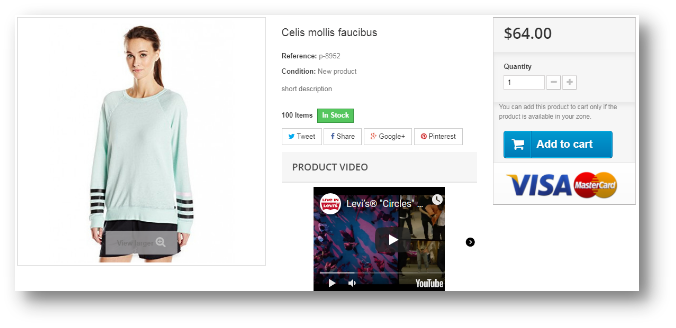
  • Product Footer (Bottom of the Page)

  • Product Right Column

Video Layouts:

  • Layout 1

  • Layout 2

2.0.2 YouTube Settings

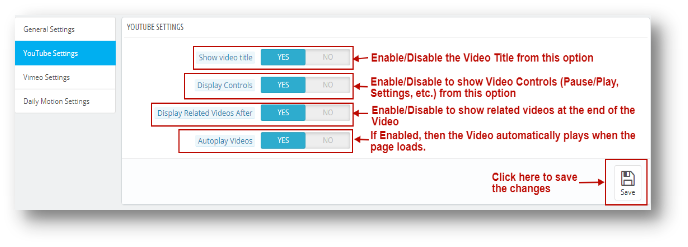
Admin can change YouTube video Settings from this Option. YouTube Settings Tab page will look like as the one below.

2.0.3 Vimeo Settings

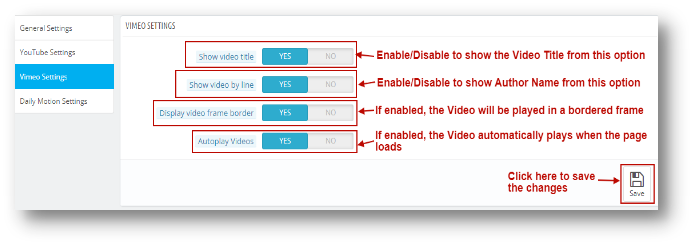
Admin can change Vimeo video Settings from this Option. Vimeo Settings Tab page will look like as the one below.

2.0.4 Daily Motion Settings

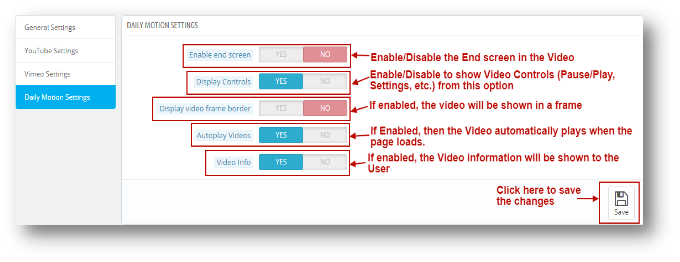
Admin can change Daily Motion video Settings from this Option. Daily Motion Settings Tab page will look like as the one below.

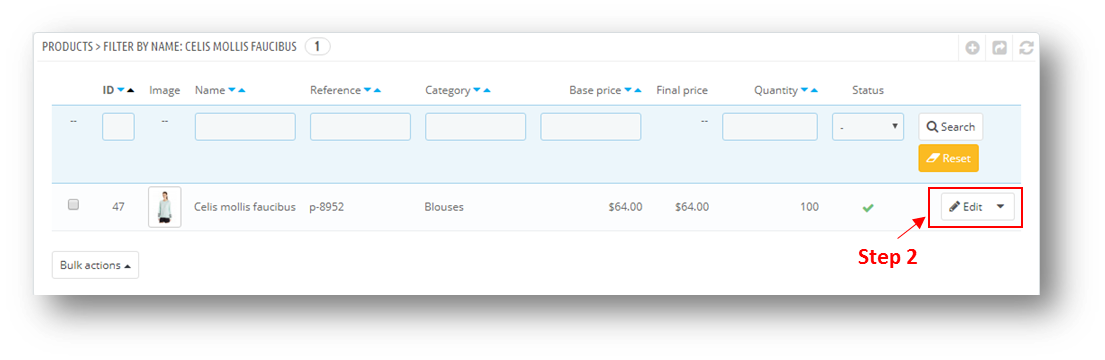
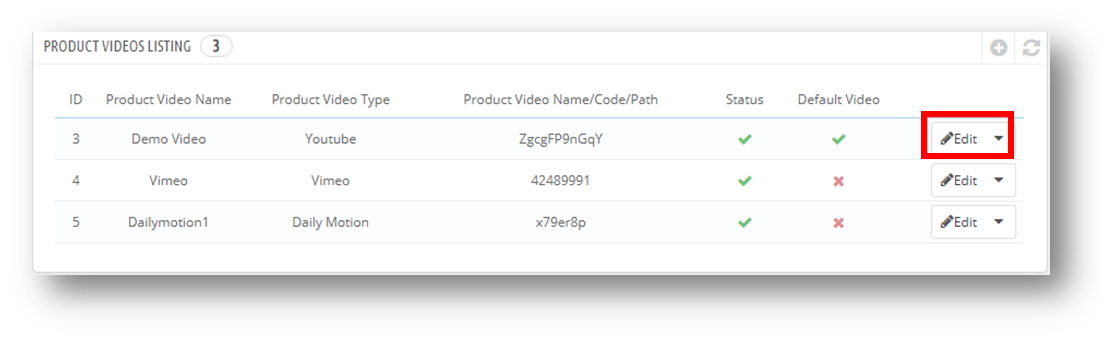
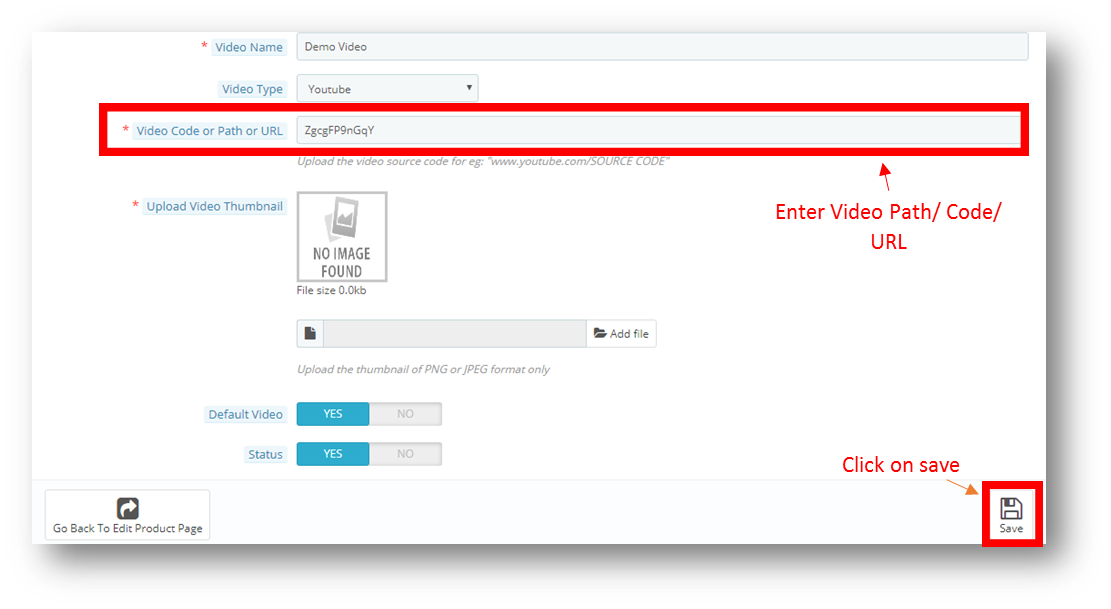
3.0 How to Add a New video to a Product?

To add a New Video to a Product, Follow these simple steps:


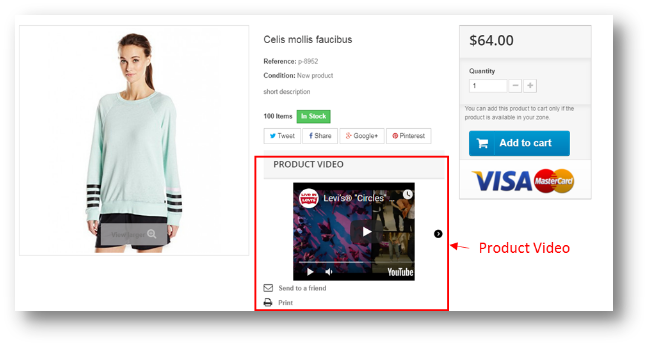
4.0 User Interface

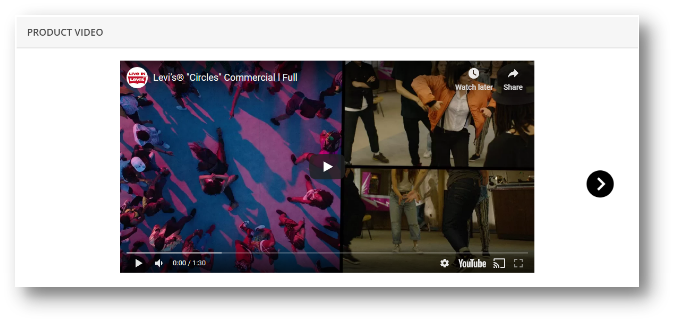
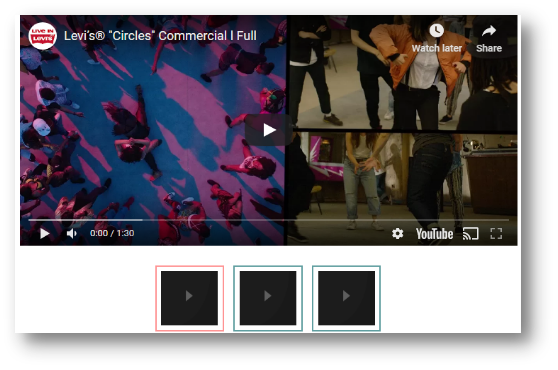
The Front end will look like as shown below to the customers.

YouTube Layout:

Vimeo Layout:

Dailymotion Layout:


.

Knowband Prestashop Addons compatible with the latest PrestaShop version 1.7.6.0

The most awaited PrestaShop version 1.7.6.0 is now released. Yes, you have heard it right. PrestaShop has now announced PrestaShop 1.7.6.0 on its official website. It took a long journey to deliver this biggest release since 1.7.1.0. After a development period of six months, PrestaShop is happy to announce its latest release. How worth is it? Well, we wish that it perfectly suits your eCommerce business needs in the long run. Moreover, we hope that you enjoy its latest updates and improvements.
What all PrestaShop features are added or improved?

This new version, PrestaShop 1.7.6.0 focuses on improving the existing features of PrestaShop and bringing them back to the merchants. During the whole improvement process, the code quality standards were maintained. Quickly, download the latest PrestaShop version 1.7.6 for your store and enjoy the latest features and benefits.

New Features

Front office

  • New template design for emails sent to customers. The design is specially optimized for mobile displays so as to improve the shopping experience and customer relationship with the merchants.
  • Improved display of price details (product price, shipping, taxes, etc.) at different levels of the purchase process to gain customer trust and boost conversions.
  • Improved profile menu with allowed access to resources (documentation, training, agencies, help center, etc).
  • An updated version of the Product Comments module featuring rich snippets.
  • The various sorts and filters on product listing pages are fully refactored. A new price slider is also added.
  • Apart from new updates, there are various improvements which include:
    • Improved Catalog mode: Choose how to showcase your websites and display/hide product prices.
    • Improved currency management subsystem. You can add custom currencies for example.
    • Improved SEO for products with combinations.

Back office

  • Simple management of transactional emails directly from a new back-office page: Email Theme.
  • Show gathered prices for a product. Eg.“Price (tax incl.)” column has been added to the product listing. It is now possible to check both taxes included and excluded prices for each product.
  • New helper cards have been integrated on important pages to improve the software onboarding: Categories, Customers, Pages, Employees.
  • Dynamic preview of search engine results is enabled for other pages: Product page, Categories, CMS.
  • New watermark module has been updated to 1.7 (available in the Module Catalog).
  • Improved translation system for modules supporting multiple languages.
  • The Design section of the back office has been reconfigured. Gives an overview of all design features (RTL, logos, favicon and theme) so you can easily manage them the way you want.
  • The back-office administration is optimized for mobile devices.

PrestaShop addons Compatible with Prestashop Version 1.7.6.0

As new versions are released, you have to update your PrestaShop website to the latest store version. The very first step is to migrate all the data to keep their shop updated and fully-functional. Once the website is migrated to the updated version, the next step is to find themes and Prestashop addons compatible with the PrestaShop latest version 1.7.6. With Knowband, you can find all the compatible modules, templates, support, training to customize your online store.

Here is a list of the PrestaShop addons that will flawlessly work with the latest PrestaShop release 1.7.6.0.

One Page Checkout: Convert the multi-page checkout design of your site into a single page checkout design with PrestaShop One Page Checkout. With multiple social login options, MailChimp Integrator, Guest Checkout, and many other rich features, PrestaShop One page Super checkout is a high ranked PrestaShop addon with 5000+ downloads and five-star ratings. Buy PrestaShop One Page Checkout from PrestaShop Addon Store and get high conversion rates for your store. PrestaShop one page checkout addon is now compatible with the latest PrestaShop version 1.7.6.0

Abandoned cart: Another five-star rated module, PrestaShop Abandoned Cart addon helps you to reduce the cart abandonment rate in your store. This Prestashop addon tracks the abandoned carts & sends a reminder to the abandoned cart users via email and pushes them to come back to the store and complete their purchase. With the help of PrestaShop Abandoned cart addon, you can improve the conversion rates by recovering the pending carts. With 1000+ downloads, you can buy this Prestashop addon from Addon Store. PrestaShop Abandoned Cart module is compatible with the latest PrestaShop version 1.7.6.0

Social Login: Add numerous social login options to your PrestaShop store using PrestaShop Social Loginizer and improve the shopping experience of your customers. This five-star rated Prestashop addon encourages your customers for quick signup.PrestaShop Social loginizer addon has over 1000 downloads, you can also buy Social Loginizer module from PrestaShop Store. PrestaShop Social loginizer addon is compatible with the latest PrestaShop version 1.7.6.0

Marketplace: Target your new audience and serve your customers with products from multiple retailers using PrestaShop Marketplace addon. Turn your store into a marketplace and provide a choice of selecting products and services to your customers. This five-star rated Prestashop module has completed 500+ downloads. Buy PrestaShop Marketplace addon for your store. PrestaShop Marketplace addon is compatible with the latest PrestaShop version 1.7.6.0

Advance Wishlist: PrestaShop Advanced Wishlist allows online shoppers to save the shortlisted product to their wishlist. The five star rated PrestaShop addon boosts the shopping experience of the shopper and so reduces the cart abandonment rate as well. This Prestashop module has reached 100+ downloads. Purchase the module from PrestaShop Addon Store. PrestaShop Advance Wishlist addon is compatible with the latest PrestaShop version 1.7.6.0

Return Manager: Manage the product return requests of your customers and allow easy return & replacement with the help of PrestaShop Return Manager. The module has already 500+ downloads. This is one of the popular five-star rated PrestaShop addons that provide a flexible RMA system for your store. Buy PrestaShop RMA from Addon Store and easily manage returns at your store. PrestaShop Return Manager addon is compatible with the latest PrestaShop version 1.7.6.0

Spin and Win: Are your visitors getting bored at your store? Add an interactive gamified interface using PrestaShop Spin and Win pop up addon and compel visitors to shop your site products. With over 100 downloads, Spin & Win is ranked among top-rated modules as it is highly used as an email subscription popup. This 3 in 1 popup shows fun-filled wheel interface asking email of the visitors in order to exchange discount coupons with them. Buy Spin and Win Email Subscription Popup from Addon Store. PrestaShop Spin and win popup addon is compatible with the latest PrestaShop version 1.7.6.0

Etsy Integrator: With PrestaShop Etsy Integration addon, add an effective interface to manage the product listing, inventory and orders for the Etsy marketplace from the PrestaShop Back Office. PrestaShop Etsy Integration has reached 100+ downloads and is ranked among the four star rated modules. Go and buy this PrestaShop addon now. PrestaShop Etsy Integration addon is compatible with the latest PrestaShop version 1.7.6.0

Mobile App Builder: Transform your eCommerce site into a fully-functional mobile app with PrestaShop Mobile App Builder (for Android and iOS). The customizable designs and layouts offered by this addon have contributed to four star rating performance on PrestaShop Addon Store. Over 100 downloads are completed, you too can get it for your store. Convert your site into a fully-featured app with Knowband Mobile App Builder. PrestaShop Mobile App Builder is compatible with the latest PrestaShop version 1.7.6.0

Some other recommended modules: Apart from the above listed, Knowband offers you some other PrestaShop modules to increase the revenues and conversion rates of your store. Go and get them from the Knowband store at the provided links:

Infinite Scroll: https://www.knowband.com/PrestaShop-infinite-scroll

Quick Login: https://www.knowband.com/PrestaShop-quick-login-popup

Store Locator: https://www.knowband.com/PrestaShop-store-locator-and-pickup

SearchAutoSuggest: https://www.knowband.com/PrestaShop-search-auto-suggest

Facebook Store: https://www.knowband.com/PrestaShop-fb-store

About Knowband

Knowband, one of the leading eCommerce development company has shown its major contribution to the design and development of PrestaShop modules. The team of highly skilled and experienced developers has covered over 50 plugins for PrestaShop. These PrestaShop modules are compatible with the latest version 1.7.6.0.

With such high rated addon projects on PrestaShop Addon Store, Knowband is ranked among Superhero developers and badged as Modules Partner Creator as well.

What does the Superhero Developer Ranking say?

To help the user in picking up the right product, PrestaShop has set up an expertise ranking system. Each developer who contributes his/her product at addon store is marked with some kind of expertise level. Knowband ranks as a Superhero among the community of developers. They respond to customer queries in less than two hours of time. Customers who seek their support have rated their service quality to 99%. How amazing is that? You too can create your own custom store with Knowband modules for PrestaShop.

Social Media Marketing for eCommerce: Strategies and Best Practices

If you run an eCommerce business, you would probably know how much importance social media holds these days for brand promotion. From boosting brand awareness to grabbing more conversions, social media has shown huge potential and played a crucial part in the eCommerce growth in recent years.

The reality is, businesses do understand its value but not everyone is able to capitalize on social media platforms. Social media is not just about random posting and advertising on Ad-hoc basis.

Some brands mark their presence on social media just because they feel it is a necessity or a trend that should be followed. Or maybe because their competitors have also set foot on some platforms.

Let me be very clear. If you are following the same approach, you are not going to get any benefit through it. Moreover, there is no point continuing with your social media pages if you do not have a plan and time to implement your social media marketing strategies.

Except that you use social media just to post random stuff about your brand or company’s inside stories, it would be better if you utilize that time at somewhere important. Do not start just for the sake of your brand presence.

In this article, I will be discussing some social media marketing strategies along with some useful social media practices to enhance your eCommerce business and take it to the next level.

Social Media Marketing Strategies

1. Set Your Goals

The primary social media marketing strategy would be deciding beforehand what you would like to achieve through social media. Whether your motive is to drive more inbound traffic to your website, increase followers count, generate leads or get sales, the plan to achieve the ultimate result should be clear from the very beginning.

Prepare a roadmap. Get a blueprint and start working accordingly. Moreover, focus only on those platforms which you feel are relevant to your business. There is no point in wasting time on Twitter if your target audience is on Facebook.

So put your time and effort on channels from where you can get desirable results. Do not focus on succeeding on every social platform.

2. Analyze Your Audience

Adding to the social media marketing strategies is analyzing your audience. Social media is spread across countries, and people of every age group spend time on social media. But is every age group relevant to your business?

As of now, Facebook has nearly 2.4 billion monthly users followed by Instagram with more than 1 billion monthly users. With such a vast user base, it becomes important to narrow down the demographics to reach the relevant target audience. If the majority of your business comes from people aged 20-35, targeting people over 50 would not make any sense.

For the informative purpose, Linkedin and Twitter can be beneficial, and if you are expecting higher engagement from the young community, there is no better option than Facebook and Instagram. It all depends on your niche and your audience base.

3. Create Quality Content

One of the common mistakes that businesses generally make is they focus only on promotion. Excessive promotion is a downside. It may take away the interest of your followers and you may lose out on potential customers.

Remember, social networks were not meant for selling but to connect with people. So, ensure you are providing quality content with a mixture of information and entertainment. Yes, promotion is necessary but do not sound like a salesman every time.

Brands who know how to keep the interest of their followers succeed in the social media platforms. Be witty, make attractive but useful posts, post videos. People react to what they like and what they find attractive which tends to bring more user engagement.

4. Have a Facebook Store and Instagram Shop

The Facebook business page consists of a “Shop Now” tab where brands can add their store products and promote them. Users can check out the products right from your brand page and are redirected to the website for buying purpose. The Facebook shop helps you drive more traffic to your website and generate more sales.

Similarly, you can consider the idea of Instagram shoppable posts that allow you to tag your products on the images, boosting product visibility. Consumers can now checkout directly from Instagram without getting redirected to the original website. But to have an Instagram Shop, you need to match the eligibility criteria defined by the Instagram community.

Facebook and Instagram Shop play crucial roles in your social media marketing strategy.

Read: The Pros and Cons of a Facebook store

Having a website on the PrestaShop or Magento platform and want to open a Facebook shop for your business, try out our PrestaShop Facebook store addon and Magento Facebook store extension.

Social Media Best Practices

1. Post at Regular Intervals

One of the basic social media best practices is to remain active. Post content at regular intervals, at least 1 piece of content daily or on alternate days.

Do not keep too much gap between your posts. It results in losing out followers and affects your brand image. When there is a long gap between posts, followers feel that you are not active and that there’s no point following you.

And it can cost you new followers too. If someone visits your brand page and finds out that you have been highly inactive, they would hardly be interested in following you.

You may or may not find it true but people stop engaging in posts when the posting frequency is too less.

 2. Use Appealing Visuals for your Posts

I would not even bother to pay a look at a post that contains untidy visuals, let alone engaging with it. But if I find a post having great visuals, I would surely stop for a moment while scrolling through my feed. This is why visuals make one of the most important social media best practices. They tend to grab user attention.

Use high-quality pictures and colours that are pleasing to the eyes. Avoid writing too much text on pictures and make sure you are using the appropriate image size. Different social media platforms have different image sizes set for proper display.

3. Use Hashtags

The game of hashtags is very interesting and popular on social media. Hashtags are generally user-generated tagging which makes it possible for users to find posts or messages regarding a specific theme, content or news. It gives you a wide organic reach and increases viewership.

Hashtags play a crucial role in social media sites like Twitter and Instagram. When people use a particular hashtag for search, all the relevant content associated with that hashtag appears in front of the user. This makes it easy for people to filter out what exactly they want to look for.

Hashtags are an ACE for user-generated content campaigns.

4. Engage with your Audience

Social media is all about interacting with each other. People don’t use social media to just read or watch. Interaction is important. Successful businesses care a lot about their audience and they like interacting with their followers.

Ask questions, organize quizzes, participate in discussions, reply to users’ queries in comments. Join people in their conversations and show them your human side instead of sending automated answers.

Try to come up live on Facebook and Instagram, look for their questions and answer them at that very moment.

5. Find the Right Time to Post

Post at the right time is crucial to get a higher reach. The right time, here, means the time when a majority of your followers are active on social media. The reach of your posts would be very less if they aren’t posted at an appropriate time.

So, what’s the ideal time to post? You can find the best time to post on different social media platforms on CoSchedule Blog. You should also use social media tools like Buffer and Hootsuite for post scheduling.

6. Boost Posts That Are Performing Well

You want more and more people to see your content, right? Social media ads would help you do so. You may argue that spending money on boosting posts would be a waste of money until you are expecting an ROI from it but sometimes, reach is more important than the results.

I am not suggesting spending huge bucks, a little amount that too on well-performing posts would do great.

Final word

Utilizing social media platforms can be a big boost for your online business. All you need to do is follow the right approach and implement the right tactics. This will help you drive more traffic and conversions and increased brand awareness.

Hope you enjoyed reading the social media marketing strategies and best practices. If you found this information useful and have any point to add, let me know in the comments below.

Also Read:

6 Must-Have Social Media Addons for your PrestaShop store

7 ways to boost up your Sales using Social Media

How to Change Fulfillment Latency & Inventory for Products on Amazon Using API?

Objective:

After reading this blog, you will be able to understand how the seller can change inventory and fulfillment latency for products on Amazon using API.

Let’s know about the Fulfillment Latency

Fulfillment latency is the number of days in which the seller needs to dispatch the order after getting the order from Amazon. It can also be defined as the maximum time available to the seller to dispatch the parcel. The fulfillment time is set by the seller corresponding to each product. Fulfillment latency is also known as handling time.

Amazon fulfillment API helps the seller to set the product’s inventory and fulfillment latency time on Amazon.

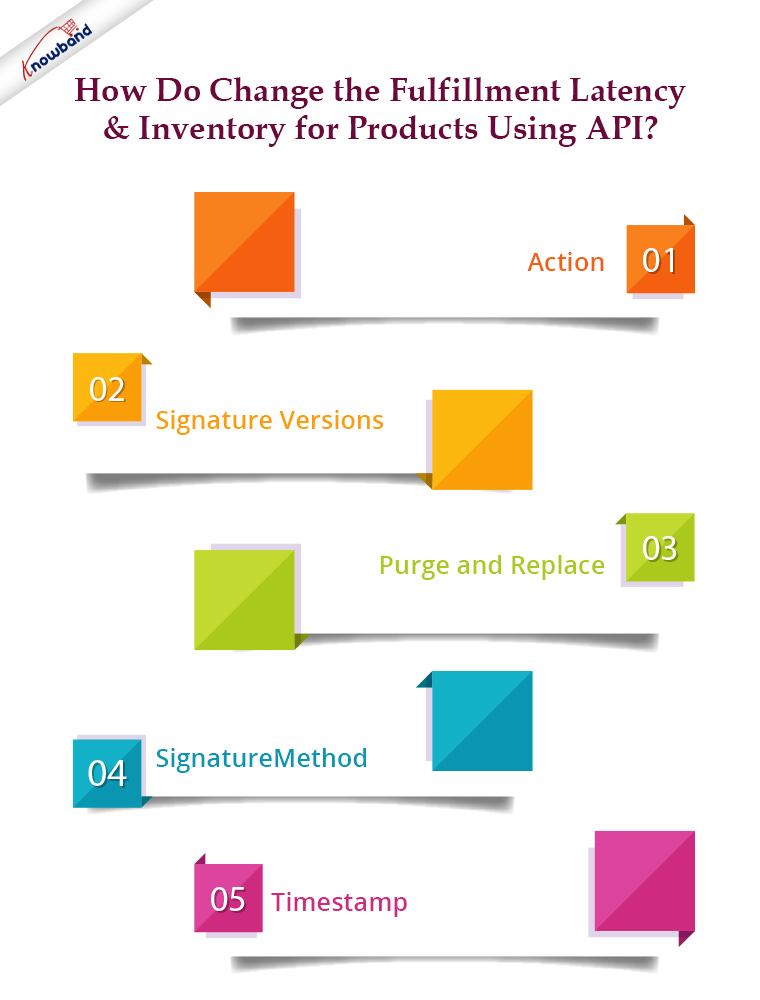
How do change the Fulfillment Latency & Inventory for products using API?

Let us know about the fields that you will need to send in the request to Amazon:

Action

This field specifies the action which needs to be performed on the request and this helps to determine what parameter should be in the request.

Signature: Whenever you send the HTTP request to Amazon, you need to add the signature with the URL. By checking the signature, Amazon can identify the merchant from whom the request has been received. We use a hash value (HmacSHA256), some data of the request, and a secret access key to create a signature.

Signature Versions

2 signature versions are supported and these versions are:

(1)Version 4:
(2)Version 2:

Both versions can be used to sign the request but we recommend you to sign your request with Signature Version 4 in this blog, signature version 2 is used.

Purge and replace

The purge and replace field replaces the existing listing of products from Amazon if its value is true. So you always need to set its value to false in the request if don’t want to remove listingsting from AmazFreeTypeType

Feed type specifies how the data should be processed. To change fulfillment latency and inventory, you need to specify the feed type “_POST_INVENTORY_AVAILABILITY_DATA_”.

Signature Method

Signature methods hash-based based protocols and you need to apply these methods to calculate signatures. E.g. HmacSHA256

Timestamp

In this field, you need to add the time at which you are making the request.

To change the fulfillment latency and inventory of the product, you need to send the following data in the request to Amazon:
$url =

https://mws.amazonservices.co.uk                               // Here you need to write the End point
/?AWSAccessKeyId=XXXXXXXXXXXXXXXXXXXX              // Here write your AWS Access Key
&Action=SubmitFeed                                        // Action should be SubmitFeed   &FeedType=_POST_INVENTORY_AVAILABILITY_DATA_  // Feed Type    
&MarketplaceIdList.Id.1= XXXXXXXXXXXXXX                 // Here write your marketplace list id
&Merchant=XXXXXXXXXXXXXX                                     // Here write your seller id or merchant id
&Signature=1234Knowband1234example1234         // Here you need to write the signature
&SignatureMethod=HmacSHA256                                  // Hash method which used to create signature
&SignatureVersion=2
&Timestamp=gmdate("Y-m-d\TH:i:s\Z",time()))
&Version=2009-01-01
&PurgeAndReplace=false                                            // Always set purgeAndReplace Value as false   
                                                                                   // else it will replace all the existing product data

You will also need to create the XML file which will contain inventory and fulfillment latency details of those SKUs for which you want to change the fulfillment latency and inventory. The sample feed is given below:

$xml_file = Full path of the XML file on the server

$xml_data is given below

<AmazonEnvelope xmlns:xsi="https://www.w3.org/2001/XMLSchema-instance" xsi:noNamespaceSchemaLocation="amzn-envelope.xsd">
<Header>
<DocumentVersion>1.01</DocumentVersion>
<MerchantIdentifier>XXXX-XXXX-XXXX</MerchantIdentifier>
</Header>
<MessageType>Inventory</MessageType>
<Message>
<MessageID>1</MessageID>
<OperationType>Update</OperationType>
<Inventory>
<SKU>p-25976-MB</SKU>
<Quantity>0</Quantity>
<FulfillmentLatency>2</FulfillmentLatency>
</Inventory>
</Message>
<Message>
<MessageID>2</MessageID>
<OperationType>Update</OperationType>
<Inventory>
<SKU>p-25976-XSB</SKU>
<Quantity>0</Quantity>
<FulfillmentLatency>2</FulfillmentLatency>
</Inventory>
</Message>
<Message>
<MessageID>3</MessageID>
<OperationType>Update</OperationType>
<Inventory>
<SKU>p-25976-X-L</SKU>
<Quantity>0</Quantity>
<FulfillmentLatency>2</FulfillmentLatency>
</Inventory>
</Message>
<Message>
<MessageID>4</MessageID>
<OperationType>Update</OperationType>
<Inventory>
<SKU>p-25976-SB</SKU>
<Quantity>0</Quantity>
<FulfillmentLatency>2</FulfillmentLatency>
</Inventory>
</Message>
<Message>
<MessageID>5</MessageID>
<OperationType>Update</OperationType>
<Inventory>
<SKU>p-25976-LB</SKU>
<Quantity>0</Quantity>
<FulfillmentLatency>2</FulfillmentLatency>
</Inventory>
</Message>
</AmazonEnvelope>

You need to send the request UXML XML data and header together in a request. The header values are used by the server for an end-to-end check on the data and for detecting unintentional modifications to the data further in the transition.

$headers = array (
          'Expect: ',
          'Accept: ',
         'Transfer-Encoding: chunked',
         'Content-Type: application/x-www-form-urlencoded; charset=utf-8',
         'Content-MD5: ' . base64_encode(md5_file($xml_file, true))        //encode the xml file
 );


$options = array(
         CURLOPT_URL                  => $url,
        CURLOPT_POST                    => 1,
                       CURLOPT_FOLLOWLOCATION => true, // follow redirects
           CURLOPT_RETURNTRANSFER => true, // return web page             
         CURLOPT_POSTFIELDS          => $xml_data,
         CURLOPT_HTTPHEADER         => $headers,
         CURLOPT_ENCODING             => "UTF-8",       // handle all encodings
           CURLOPT_AUTOREFERER        => true, // set referer on redirect
           CURLOPT_CONNECTTIMEOUT  => 120, // timeout on connect
                CURLOPT_TIMEOUT                => 120, // timeout on response
           CURLOPT_SSL_VERIFYHOST    => 2,
           CURLOPT_SSL_VERIFYPEER     => false, // disable certificate checking
           CURLOPT_FILE                   => "$fp"
           );
$ch = curl_init( $url );
@curl_setopt_array( $ch, $options );
$content = curl_exec( $ch );

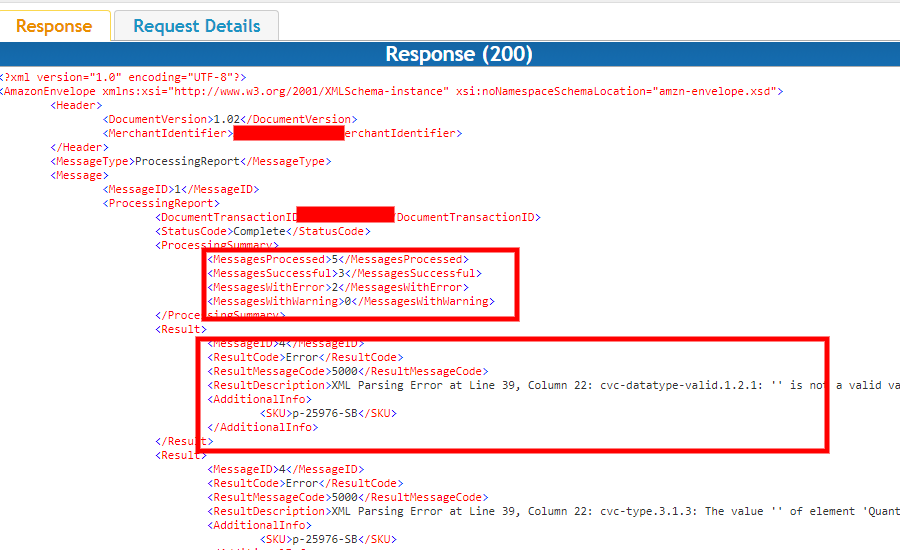
In the response, you will get the number of the SKU which are successfully processed (means fulfillment latency and inventory have been changed) and the number of SKU tis is not processed due to error, as given in the screenshot of the response feed below:


Summary

After reading this document, you (seller) can easily change the fulfillment latency and inventory of products on Amazon using Amazon MWS API.

Knowband offers eCommerce development services and can assist you in creating a brand-new eCommerce website. To provide our customers with the greatest and most efficient post-sale service, we have a dedicated support team that is constantly on hand to help them. We continue to fulfill our duties to clients that want help with urgent website issues even on the weekends.

The best Magento, Opencart, Prestashop, and Magento 2 modules are also available. One Page SuperCheckout, Multi-Vendor Marketplace, Mobile App Builder, Spin and Win Module, Abandoned Cart, and more popular modules are just a few of what Knowband has to offer. You can reach us at support@knowband.com if you have any questions.

How to delete products from the ePrice marketplace

Objective of the blog

This blog will help you out to know the way to delete products from the ePrice marketplace.

Methods to delete Products from the ePrice marketplace

There are two methods to delete products from the ePrice marketplace:

  1. Manually Deletion from seller central
  2. By uploading the Offer Feed

1.0 Manually Deletion from seller central  

1. Open eprice seller central login page (https://marketplace.eprice.it/login)

2. Fill seller’s credentials (username and password) and click on the “Log in” button.

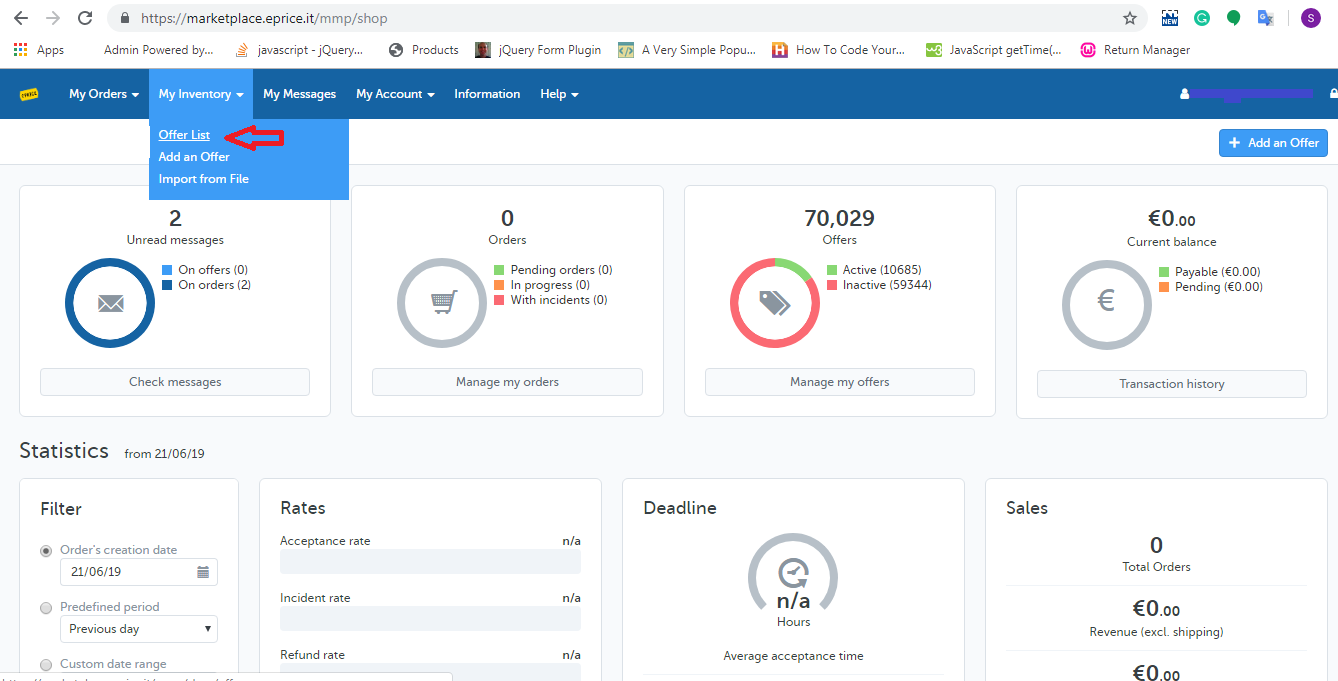
3. Choose the “Offer List” option from the “My Inventory” tab of the Home Page as shown below:

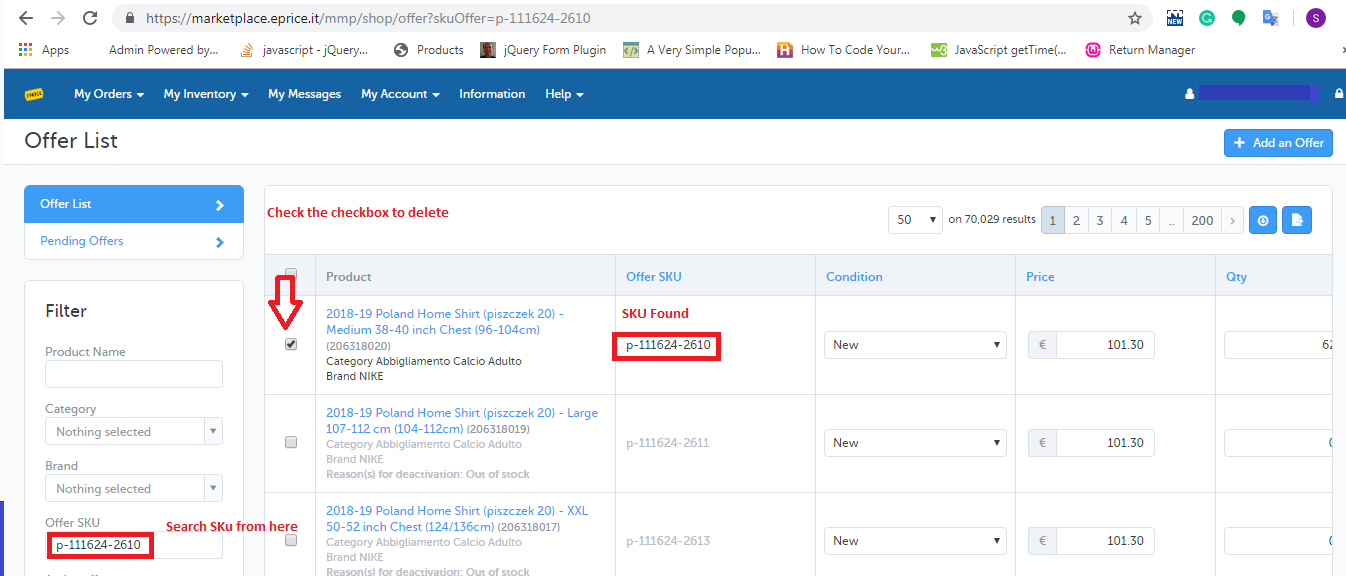
4. Search SKU from “Offer SKU” field and tick the checkbox parallel to those SKUs which you have to delete from ePrice marketplace as shown below:

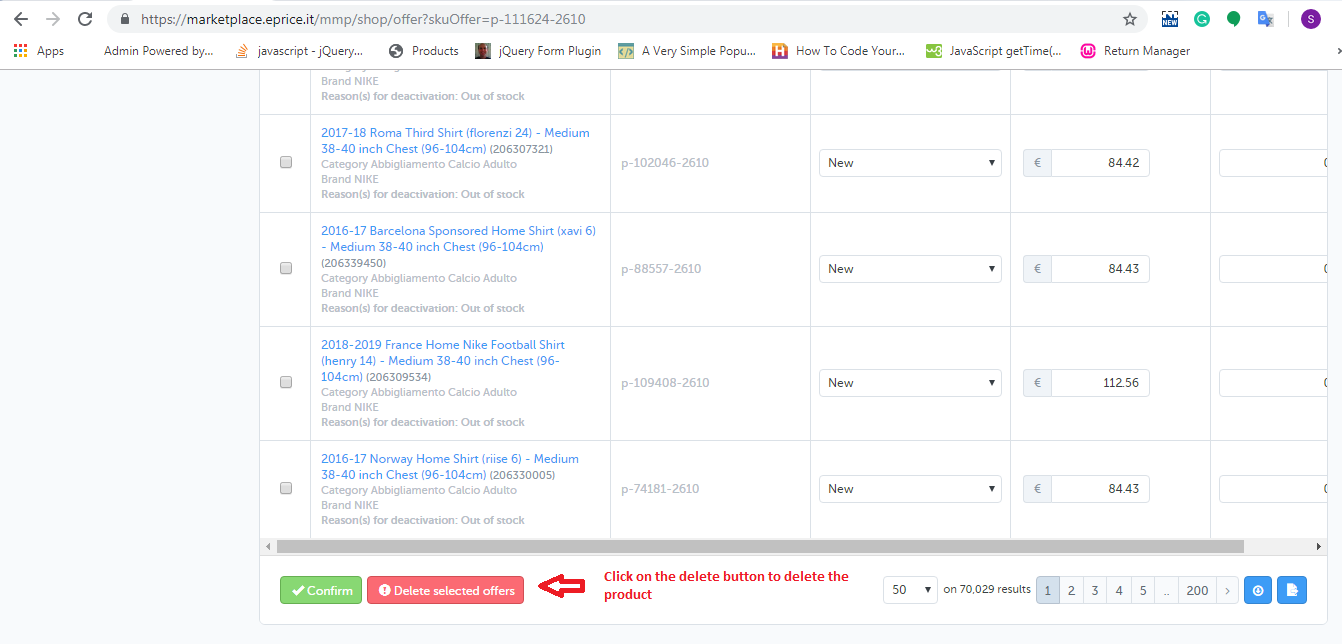
5. After selecting the products you need to click on the “Delete selected button” as shown below:

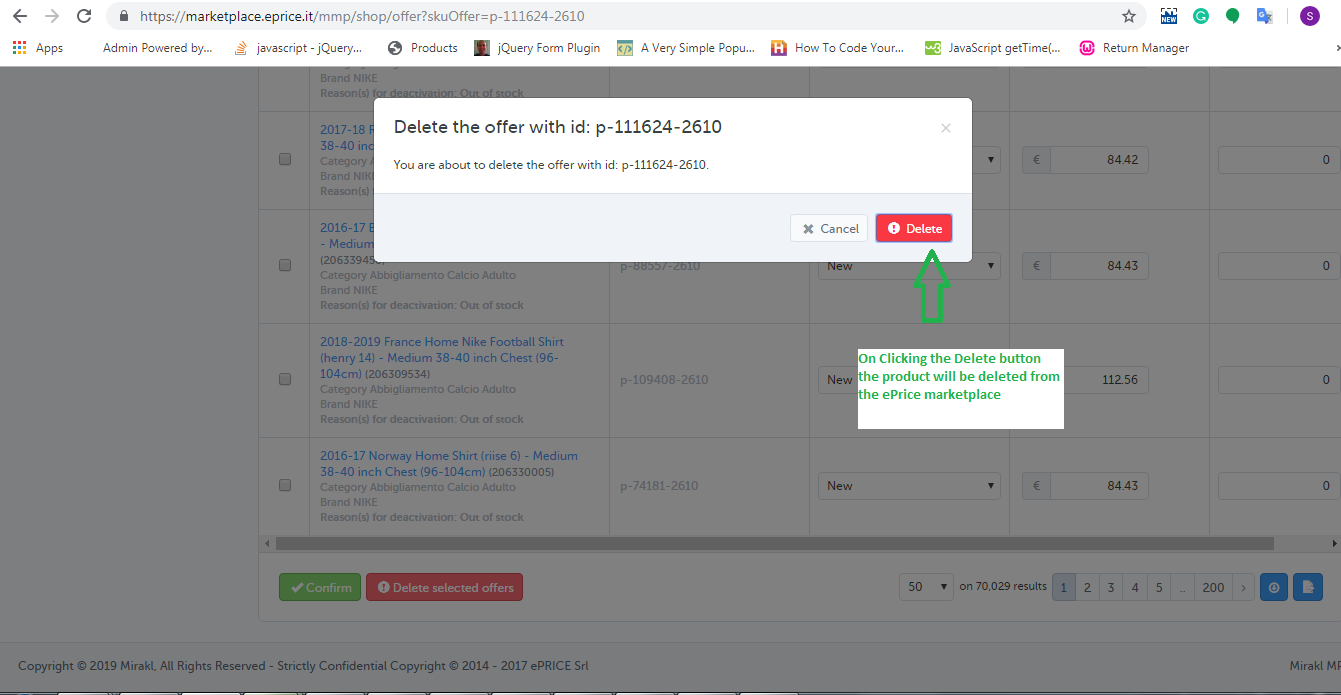
6. On clicking the “Delete Selected offers” option, you will see a popup appears on the screen in which you will find the selected SKUs and the “Delete” button to delete these products as shown below:
 

2.0 By uploading Offer Feed

By using the offer feed you can easily delete a bulk of products from the ePrice marketplace. The link to download the sample offer feed is given below:

eprice_offer_feed

In the offer feed, you have to enter the data in the two fields:

sku:  Fill SKUs which you would like to be deleted.

update-delete: Fill “DELETE” in this field.

After creating it, upload that feed on the ePrice merchant account. Follow the given steps for uploading the feed:

1. Open eprice seller central login page (https://marketplace.eprice.it/login)

2. Fill seller’s credentials (username and password) and click on the “Log in” button.

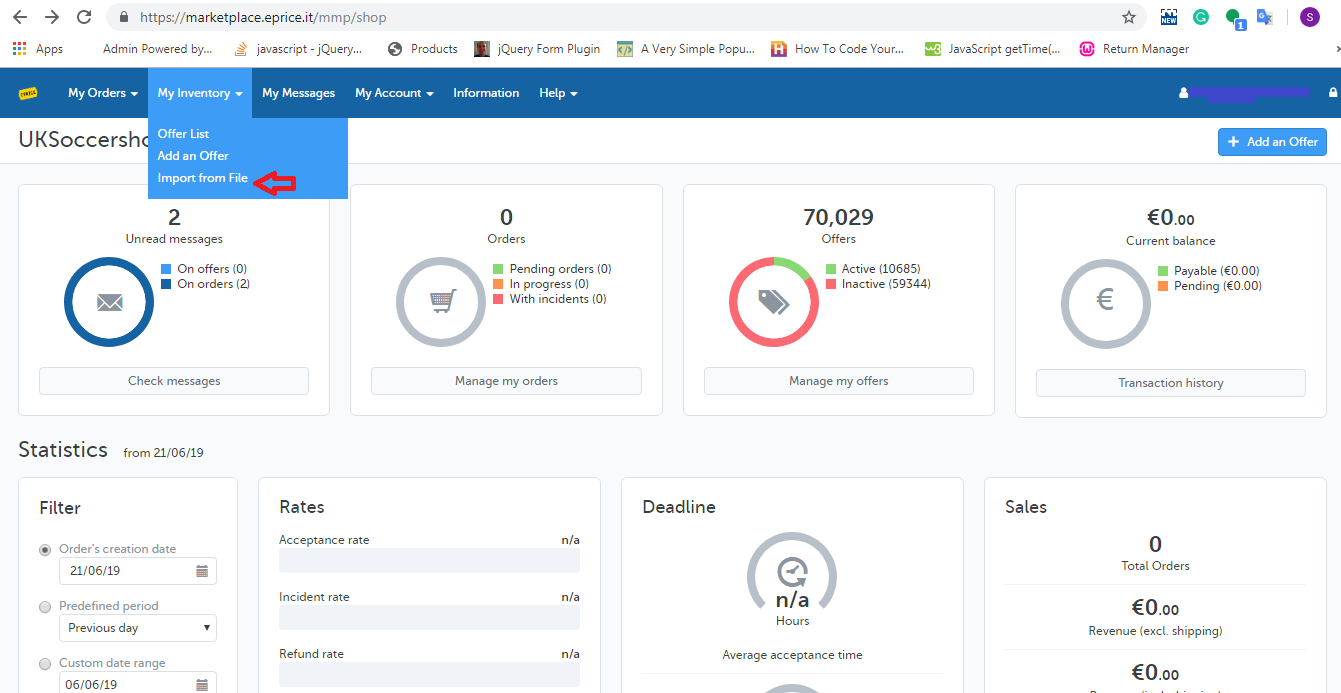
3. Open My Inventory tab and choose the “Import From File” option as shown below:

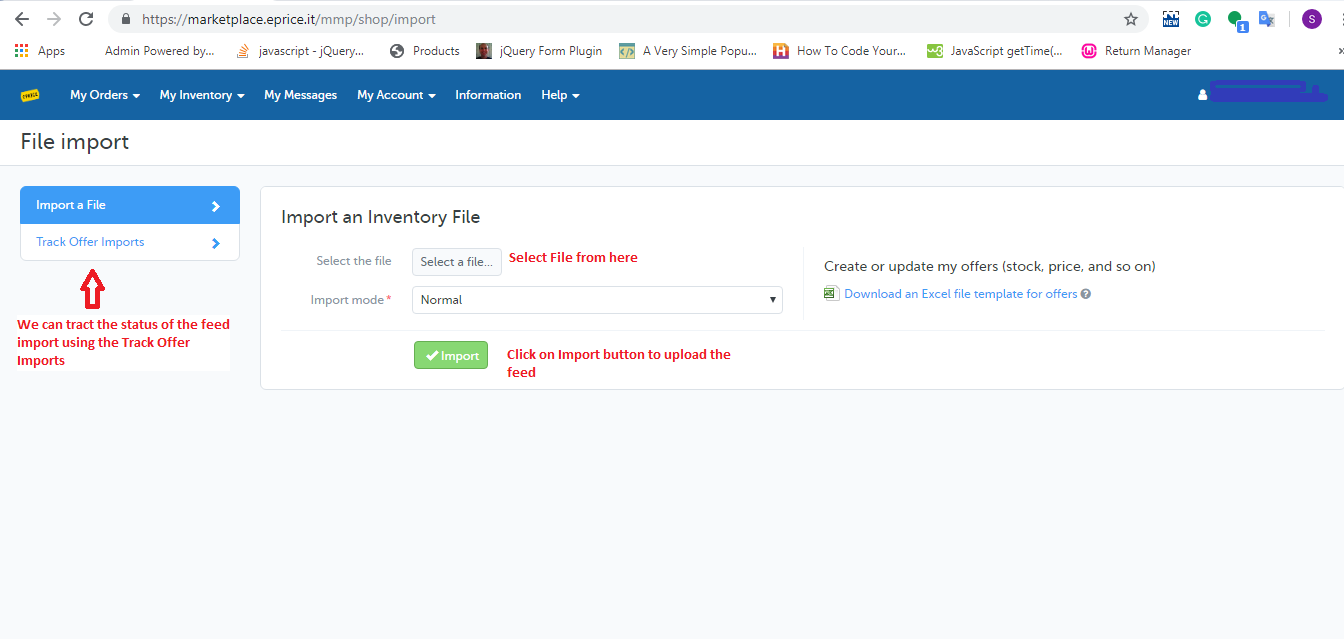
4. Upload the Offer Feed (which you have created) from the import page of eprice as shown below:

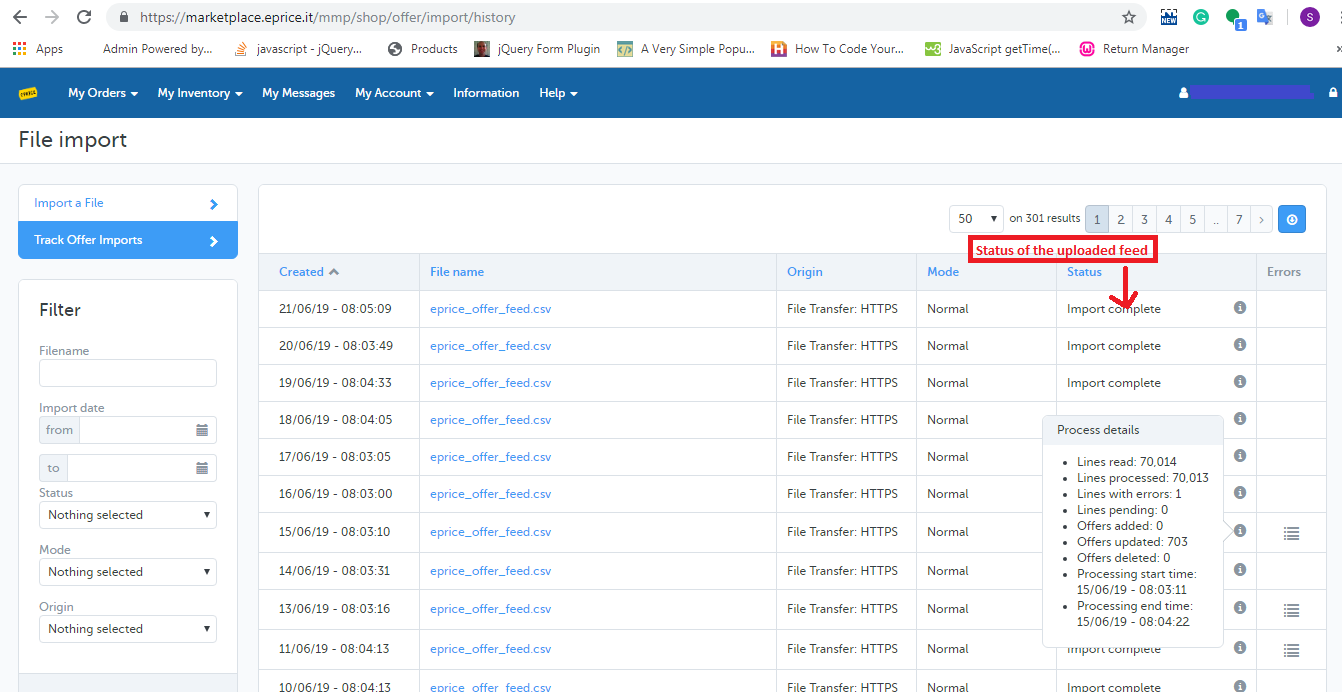
5. You can also check the status of the feed that you have uploaded by clicking “Track Offer Import”. On clicking the “Track Offer Import” option, the history page will be opened which shows a list of the uploaded feed with their processing status. You can check the same from the below image.

Handle Large Data in Select2 Dropdown

Objectives of the blog

After the reading of this blog, you will able to know how you can handle the large set of data in the Select2 dropdown menu.

Description  

For a dropdown, if use the select2 library, it works really well for the small number of data but when the data become too large then you can face the issue of slowness. For example, suppose a dropdown of 20,000 options then the select2 library can take up to some seconds to minutes to open the dropdown. For such a large dropdown menu and to avoid this slowness issue, select2 provides an alternate solution.

In the normal select2 dropdown, we use <select> element. In the <select> element, select2 library binds all options in one go and this is causing the slowness for the large data. So instead of using the <select> element, you can use the textbox dropdown and select2 library helps to bind the textbox as the dropdown menu so it will give the fill of the dropdown menu to the users. The select2 library can smartly bind user-defined 20 or 30 options at a time and remaining data will binds either on search or on the scroll.

Running code is given below.

<!DOCTYPE html>
<html>
    <head>
        <link rel="stylesheet" href="//cdnjs.cloudflare.com/ajax/libs/twitter-bootstrap/3.3.7/css/bootstrap.min.css" />
        <link rel="stylesheet" href="//cdnjs.cloudflare.com/ajax/libs/select2/3.5.4/select2.min.css" />
        <link rel="stylesheet" href="//cdnjs.cloudflare.com/ajax/libs/select2-bootstrap-css/1.4.6/select2-bootstrap.min.css" />
        <style>
            .select2-container-multi .select2-choices .select2-search-choice {padding: 5px 5px 5px 18px;}
        </style>
    </head>
    <body>
        <div class="container">
            <div class="page-header">
                <h1>Select2 Dropdown menu with pagination</h1>
                <p>To improved performance of the dropdown with large data sets (20 000 items)</p>
            </div>
            <form method="post">  
                <input id="test" style="width:100%;" placeholder="type a number, scroll for more results" name="data" />
                <input type="submit" value="Submit" name="Submit" class="btn btn-info"/>
            </form>
        </div>
        <script type="text/javascript" src='//ajax.googleapis.com/ajax/libs/jquery/3.1.0/jquery.min.js'></script>
        <script src="//cdnjs.cloudflare.com/ajax/libs/lodash.js/4.15.0/lodash.min.js"></script>
        <script src="//cdnjs.cloudflare.com/ajax/libs/select2/3.5.4/select2.min.js"></script>
        <script>
            (function () {
                // initialize select2 dropdown
                $('#test').select2({
                    data: dropdownData(),
                    placeholder: 'search',
                    multiple: true,
                    // creating query with pagination functionality.
                    query: function (data) {
                        var pageSize,
                                dataset,
                                that = this;
                        pageSize = 20; // Number of the option loads at a time
                        results = [];
                        if (data.term && data.term !== '') {
                            // HEADS UP; for the _.filter function I use underscore (actually lo-dash) here
                            results = _.filter(that.data, function (e) {
                                return e.text.toUpperCase().indexOf(data.term.toUpperCase()) >= 0;
                            });
                        } else if (data.term === '') {
                            results = that.data;
                        }
                        data.callback({
                            results: results.slice((data.page - 1) * pageSize, data.page * pageSize),
                            more: results.length >= data.page * pageSize,
                        });
                    },
                });
            })();
            // Function to fetch the demo data for the dropdown menu
            function get_random_word(str) {
                return str
                        .split('').sort(function () {
                    return 0.5 - Math.random();
                }).join('');
            }
            // For the testing purpose we are making a huge array of demo data (20 000 items)
            function dropdownData() {
                return _.map(_.range(1, 20000), function (i) {
                    return {
                        id: i,
                        text: get_random_word('The quick brown fox jumps over a lazy dog') + ' ' + i,
                    };
                });
            }
        </script>
    </body>
</html>


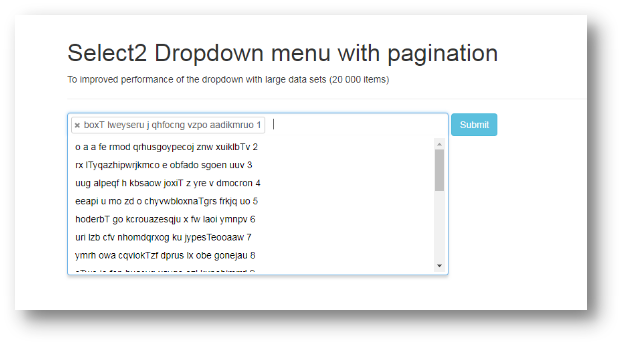
Output Screen


Summary

When user will submit this form, system will get the selected data in an array.

For any issues, please feel free to reach us at support@knowband.com. We also provide the top modules for Prestashop, Opencart, Magento and Magento 2. For more information, click here.

You can also take a look at our bestselling module One Page Supercheckout here:


How to delete products from the Newegg marketplace

Objective of the blog

This blog helps us to learn how a seller can delete its products from the Newegg marketplace.

Methods to delete Products from the Newegg marketplace

You can delete products from the Newegg marketplace by using seller account

Delete manually from seller account

1. Open the Newegg seller portal (URL- https://sellerportal.newegg.com).

2. Fill the credentials (User Name and Password) and click on the Login button.

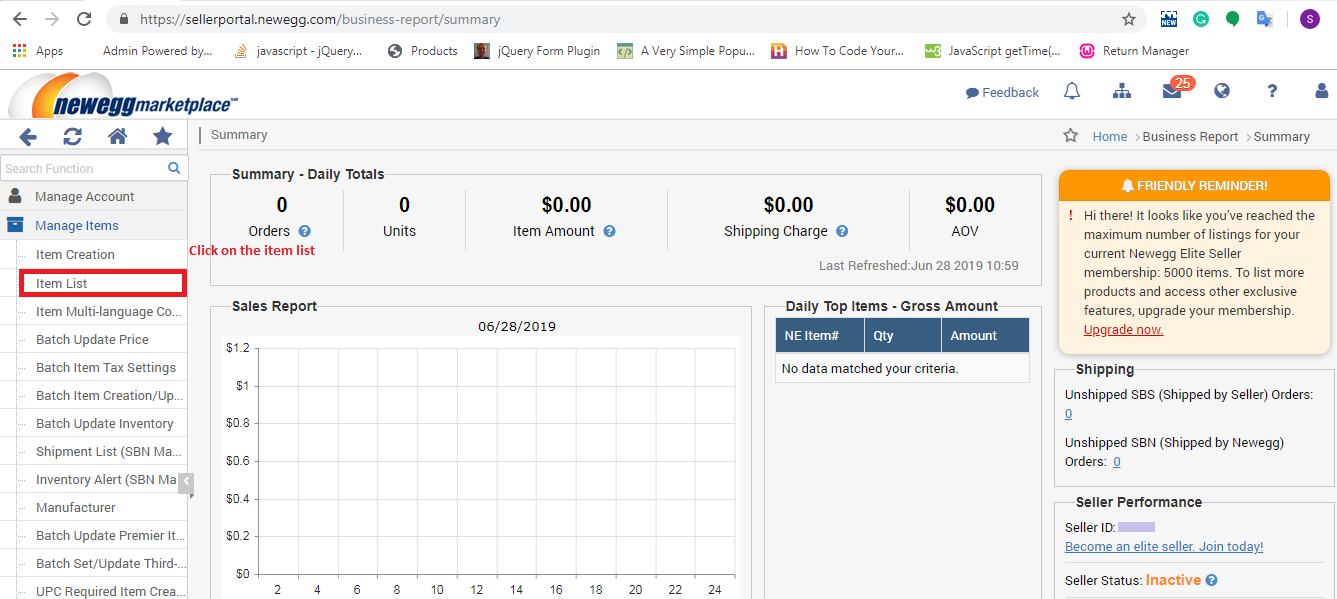
3. After logging in you have to select the “Item List” from the “Manage Items” section as shown in the image below:

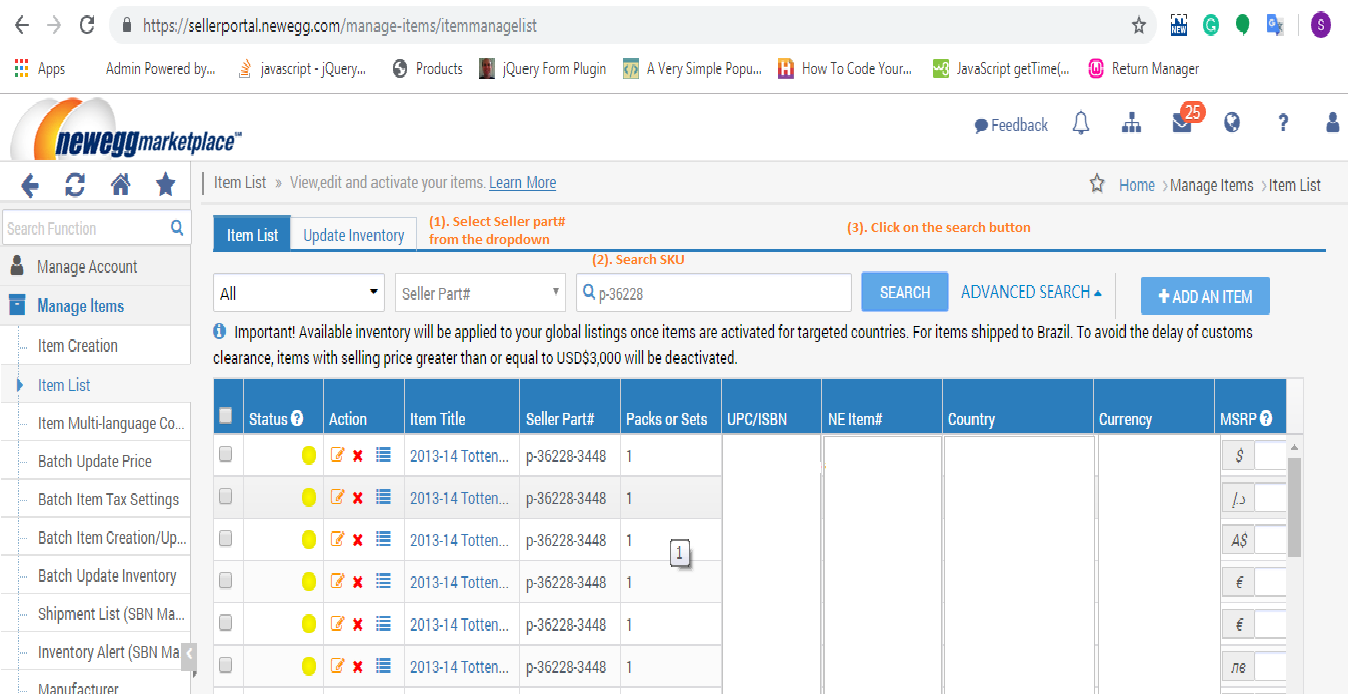
4. In the Item list page, you will need to click on the Search button after entering the SKU in the search box as shown in the image below.


5. On clicking the search button, the searched SKU list will be appeared where you need to follow the following steps to delete the products.

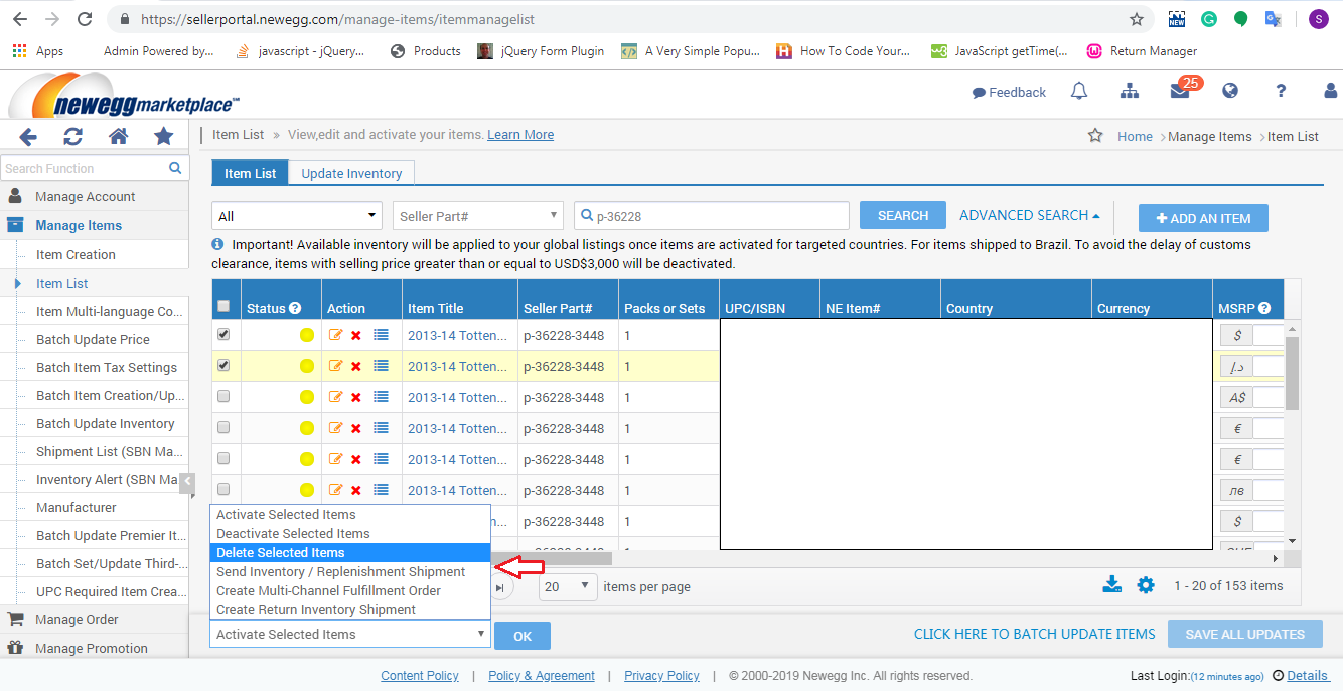
I.Check the checkbox of the products.

II.Select the “Delete Selected Item” option from the drop-down (located at the lower of the page) and click on the OK button to delete the selected product as shown in the below image:

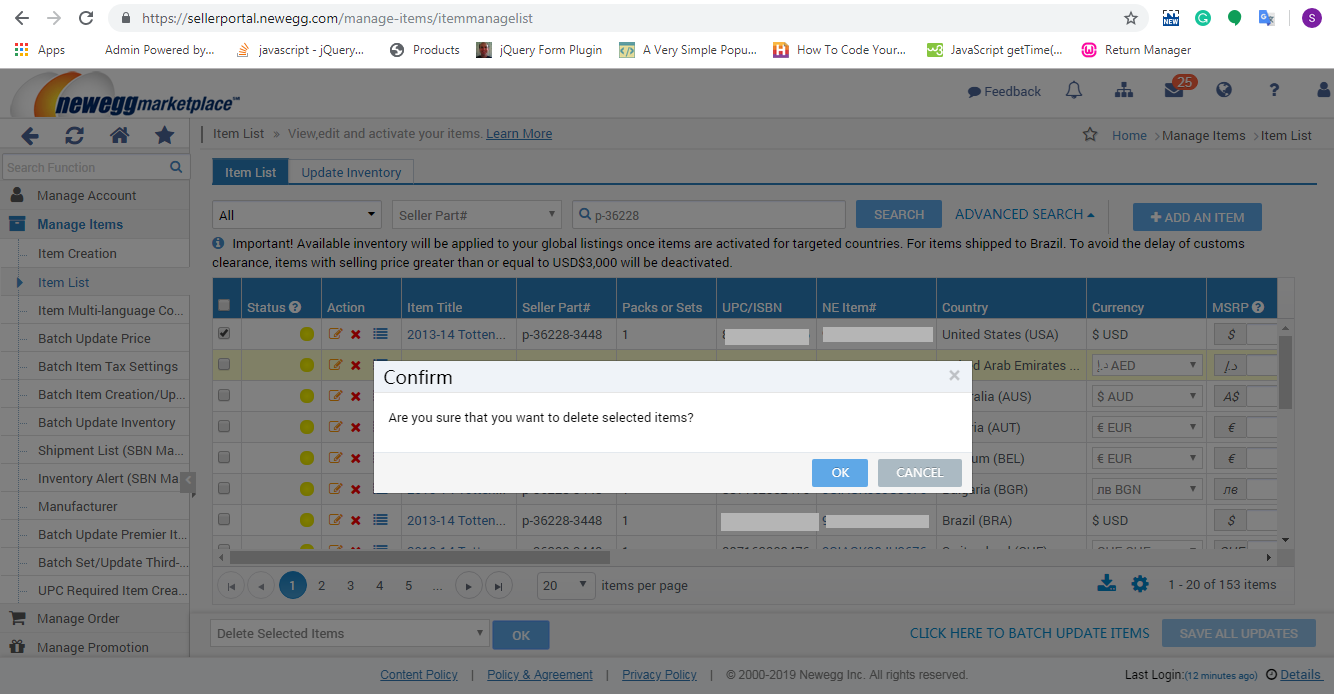
6. On clicking the OK button, a popup will be displayed on the screen for the confirmation and you will need to click on the OK button of the popup to delete the selected products as shown in the image below:


Summary

This blog helps you (seller) to delete your products from the Newegg marketplace.

OpenCart Review Incentive Extension – User Manual

1.0 Introduction

Product reviews are an important way to know the perspective of the customers who have purchased the products at your store. But sometimes, it might get difficult to compel users to leave a review for their purchase or ask new visitors to rate the product. In order to incorporate a review and rating system on the store, Knowband has offered OpenCart review incentive module which motivates buyer and customers to write a review in exchange of appealing incentives. This OpenCart review reminder and incentive module reminds the user about reviewing their purchase on the store. Using OpenCart product review reminder module, you can easily create and schedule unlimited review reminder emails for asking bulk product reviews and rating from the customers. Only approved reviews are provided with the discount incentive which increase the number of returning customers on your eCommerce store.

1.1 Striking Features of OpenCart Review Reminder and Incentive Module

Product review and rating is all about building brand reputation in eCommerce markets. With OpenCart review incentive module, you can easily control the review content visibility on your website. Moreover, you don’t require to code anything for the implementation of this review and incentive system at your store. Everything is simple and can be managed from the backend without modifying any existing code.
Before that, let us take a quick outlook of the features offered by this OpenCart review reminder module.

1. Compel your visitors and customers to write a product review in exchange of incentive by incorporating OpenCart review manager plugin at your store.

2. Enable or disable the functionality of OpenCart product review reminder module using the toggle switch provided at back-office.

3. The incentive system of this OpenCart review incentive module can be separately enabled or disabled as per business needs.

4. You can moderate product reviews before making them live on the product pages. You can either accept the product reviews or reject them.

5. OpenCart review and rating manager allows you to ask product reviews from all customers or buyers only.

6. With OpenCart customer Ratings and Reviews system, you can offer a fixed or percentage type incentive value to your customers.

7. The review incentive amount can be set from the backend of this OpenCart review and rating manager plugin.

8. OpenCart review incentive module automatically sends an approval or rejection email to the customer depending upon the moderation result.

9. You will receive an alert notification email as any user will post a review on your website.

10. OpenCart review reminder and incentive module lets you configure the reminder email sent to the customer for asking reviews and when once after they have reviewed the product.

11. OpenCart product review reminder and incentive is mobile responsive and device compatible.

12. OpenCart review manager plugin supports multi-store and multi-lingual compatibility.

13. You can view the complete report for the product reviews, offered incentives and list of reviewed products from the back-office of this OpenCart review incentive module.

14. Create unlimited Smart review reminder and send them to buyers as soon as they complete their purchase from the store.

15. OpenCart review reminder extension allow excluding products and categories for which no reviews are required.

2.0 Installation Guide of OpenCart Product Review Reminder Module

Before starting the installation process, you have to buy the OpenCart review incentive extension from the Knowband store. Once purchased, you will receive the following files on your registered email.

  • Source code of OpenCart Review Incentive module in zipped file format.
  • User Manual of OpenCart review reminder and incentive plugin.

Now in order to install this OpenCart review reminder module on your online shop, follow the given steps:

1. Unzip the zip file. You will get the folders as shown in the image below.

2. Copy all the folders of the zip file in the Root Directory of OpenCart setup via FTP manager.

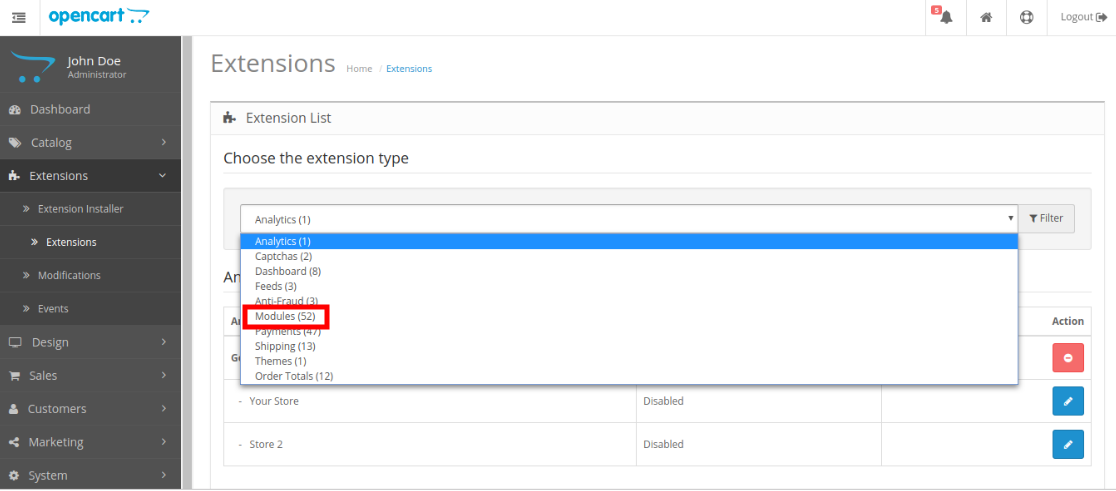
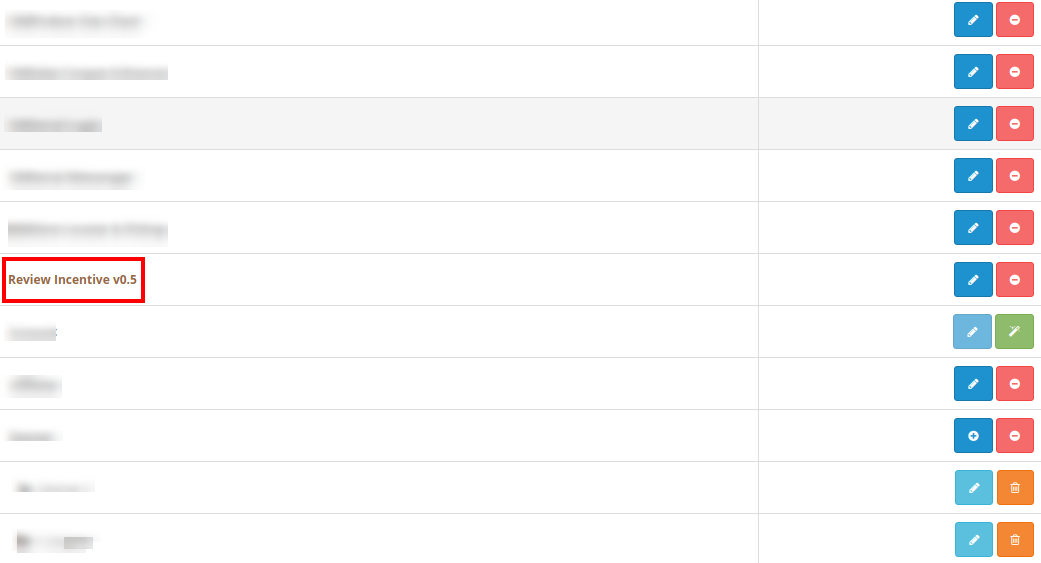
So, OpenCart review and incentive module is now successfully installed and is ready to use at your store. Go to the admin menu and click on the extensions. Choose the Extension Type as Modules. You will find a list of modules. Select the Review Incentive module.

3.0 Admin Interface of OpenCart Review Reminder and Incentive Module

Just after successful installation of OpenCart review and incentive modulee, you can create and schedule unlimited review reminder for the store customers. Navigate the settings in the given order: Admin Panel > Extensions > Modules > Review Incentive


The simple to understand admin interface of OpenCart review and rating manager plugin has been divided into two broad sections namely:

1.General Settings
2.Reminder Settings
3.Exclude Settings
4.Reviews
5.Reports

Each of these sections has been discussed in detail below.

3.1 General Settings

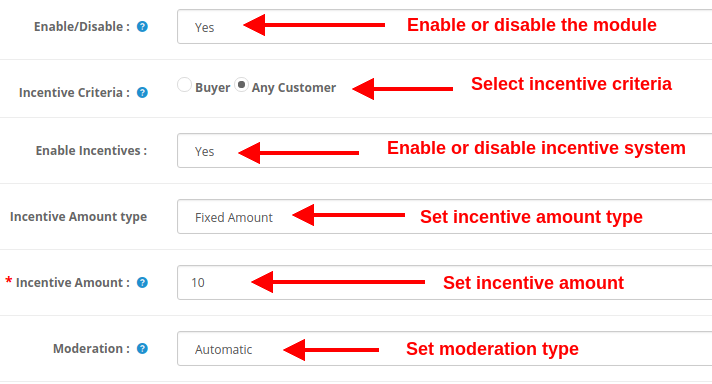
Under the general settings of OpenCart product review reminder and incentive plugin, you will get the following configuration options:

  • Enable/Disable: This option will enable or disable the complete functionality of OpenCart Review Option module.
  • Incentive Criteria: With this option, you can decide whether you want to offer incentive to all customers or buyers only.
  • Enable Incentives: The incentive system incorporated using OpenCart review incentive module can be enabled or disabled using this option.
  • Incentive Amount type: This option sets the incentive type as fixed or percentage.
  • Incentive Amount: This option will set the incentive amount or value which is offered to customer in exchange of product reviews.
  • Moderation: With the help of this option, you can evaluate the product reviews before making them live on product page. OpenCart Review Option module allows checking and modifying the review before posting it on the website.

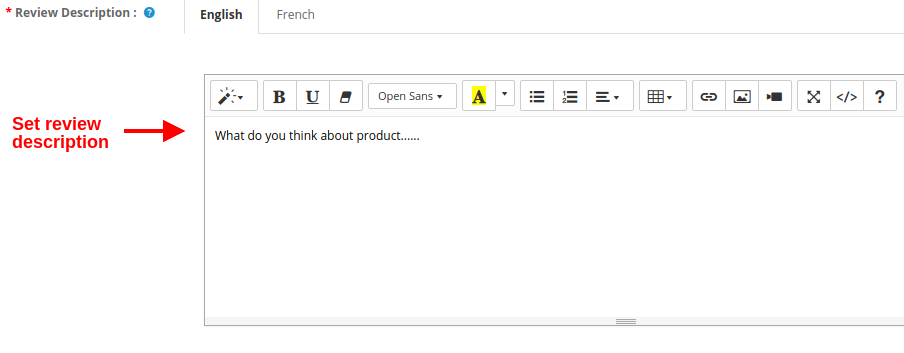
  • Review Description: This option will set the content or description which is shown in the left side of the Write Review page.

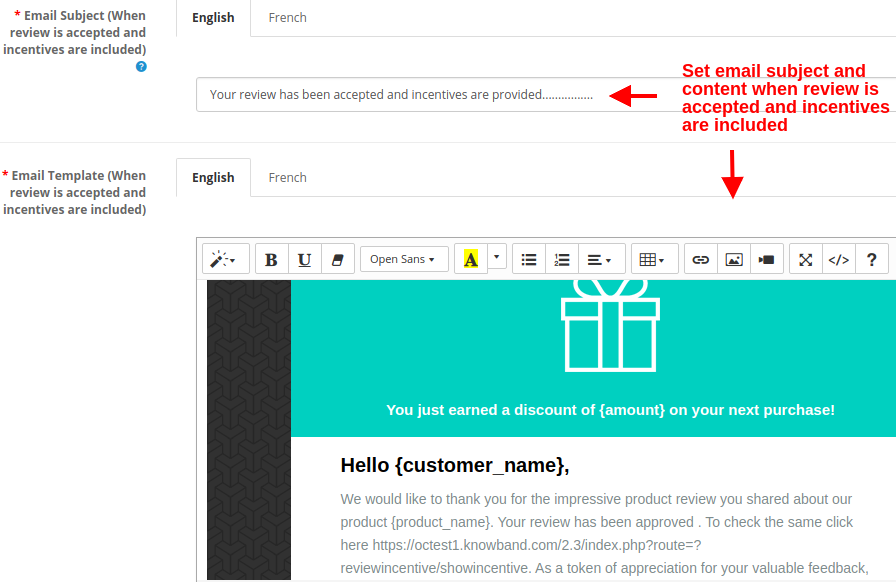
  • Email Subject (When review is accepted and incentives are included): This option will set the subject of the email sent to customers when their review is accepted and incentives are included.
  • Email Template (When review is accepted and incentives are included): This option will set the content of the email sent to customers when their review is accepted and incentives are included.

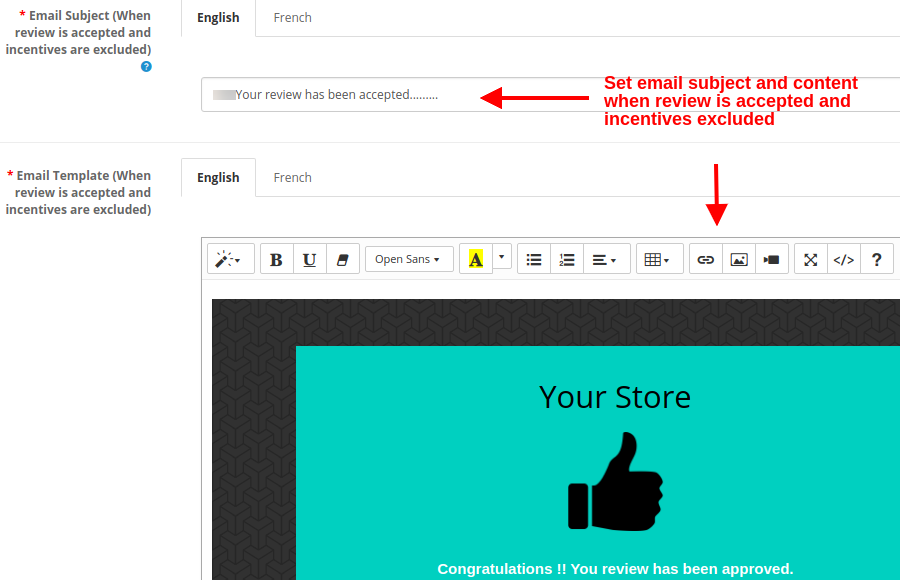
  • Email Subject (When review is accepted and incentives are excluded): This option will set the subject of the email sent to customers when their review is accepted but incentives are excluded.
  • Email Template (When review is accepted and incentives are excluded): This option will set the content of the email sent to customers when their review is accepted but incentives are excluded.

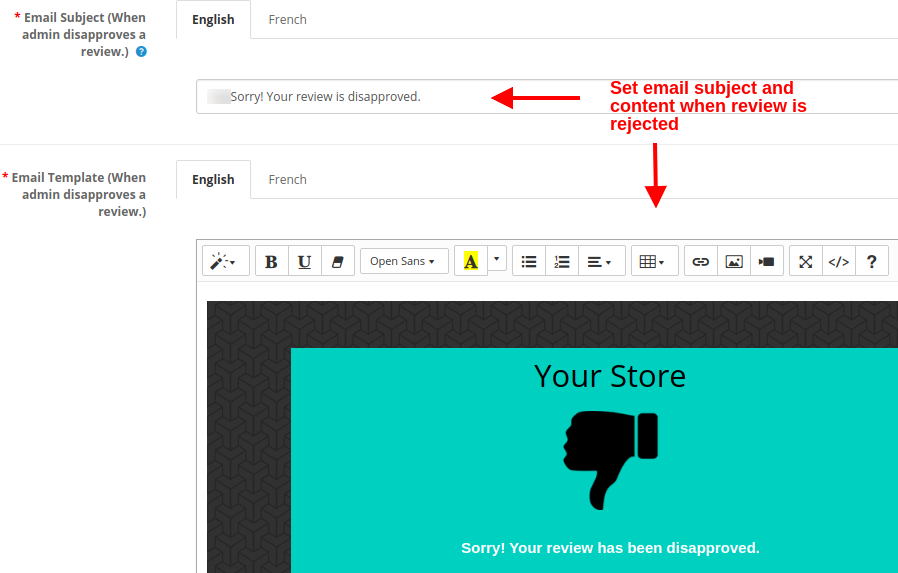
  • Email Subject (When admin disapproves a review): This option will set the subject of the email sent to customers when their review is rejected or disapproved.
  • Email Template (When admin disapproves a review): This option will set the content of the email sent to customers when their review is rejected or disapproved.

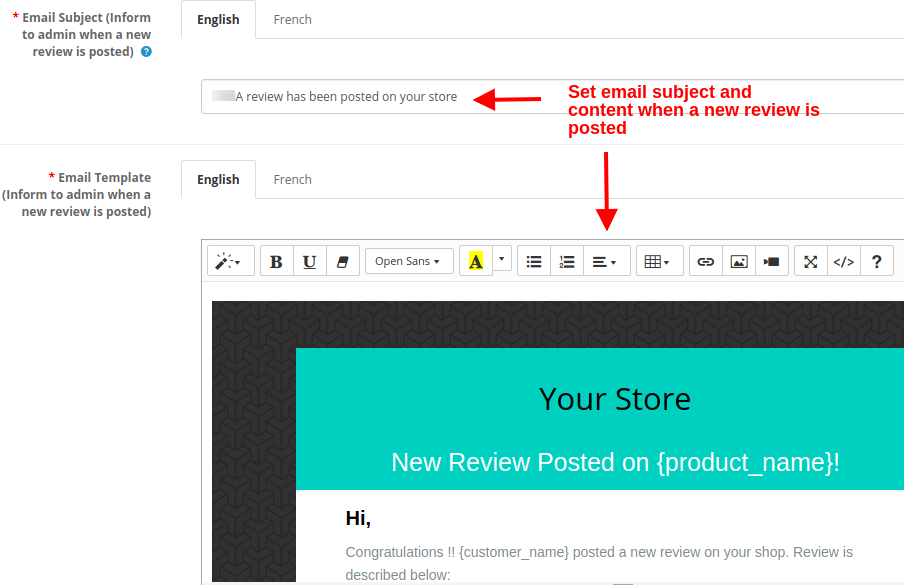
  • Email Subject (Inform to admin when a new review is posted): This option will set the subject of the email sent to store admin or owner when any new review is posted on the website.
  • Email Template (Inform to admin when a new review is posted): This option will set the content of the email sent to store admin or owner when any new review is posted on the website.

3.2 Reminder Settings

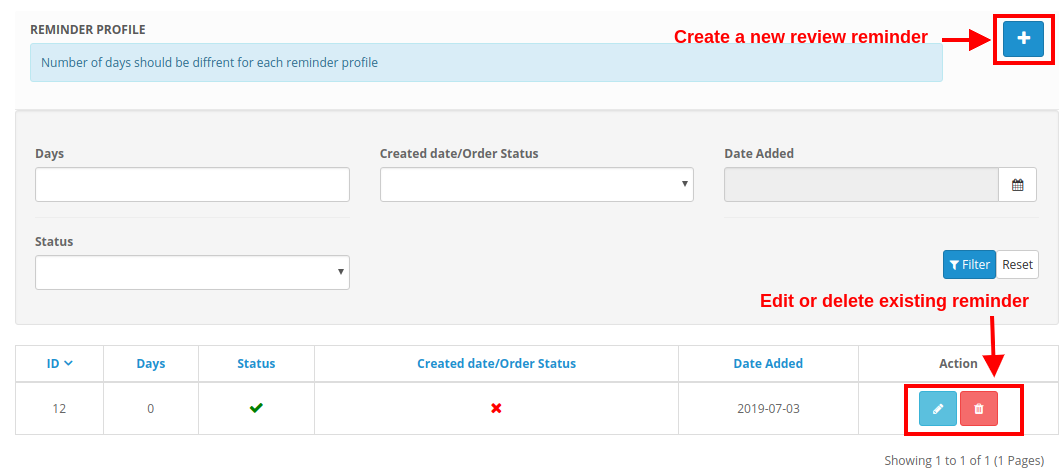
Under the reminder settings of OpenCart product review reminder module, you can create multiple review reminders for your eCommerce store with custom values. These reminders can be sent to different customers who have purchased items from the store. OpenCart review request plugin asks the buyers to review and rate their order on the store. The screenshot shown below gives a list of existing review reminders which can be modified or deleted as per store requirements. You can even create a new reminder and schedule it from this section.


3.2.1 How to create a new reminder

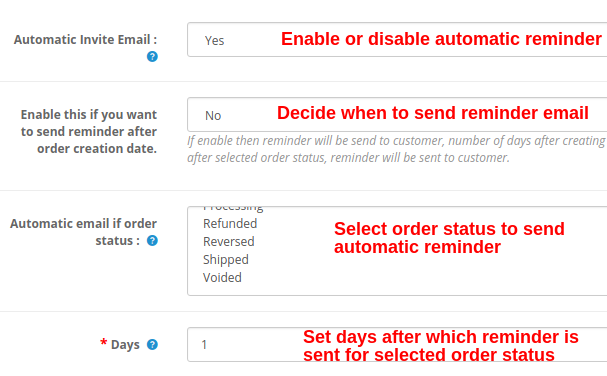
  • Automatic Invite Email: This option enables or disables the reminder or automatic email notification sent to buyers to review their purchase.
  • Enable this if you want to send reminder after order creation date: The value of this setting decides when to send the reminder email to the customer. If this is enabled, then reminder will be sent to the customer after the specified number of days (this is selected in the next field) from the date of order creation. If this is disabled, then number of days after selected order status, reminder will be sent to customer. Order status set from here will be checked.
  • Automatic email if order status: You have to set this option only if the above option is disabled. With this, you can set the order status after which the automatic email will be sent to the customer.
  • Days: This option will set the number of days after which the reminder email is sent to the customer.

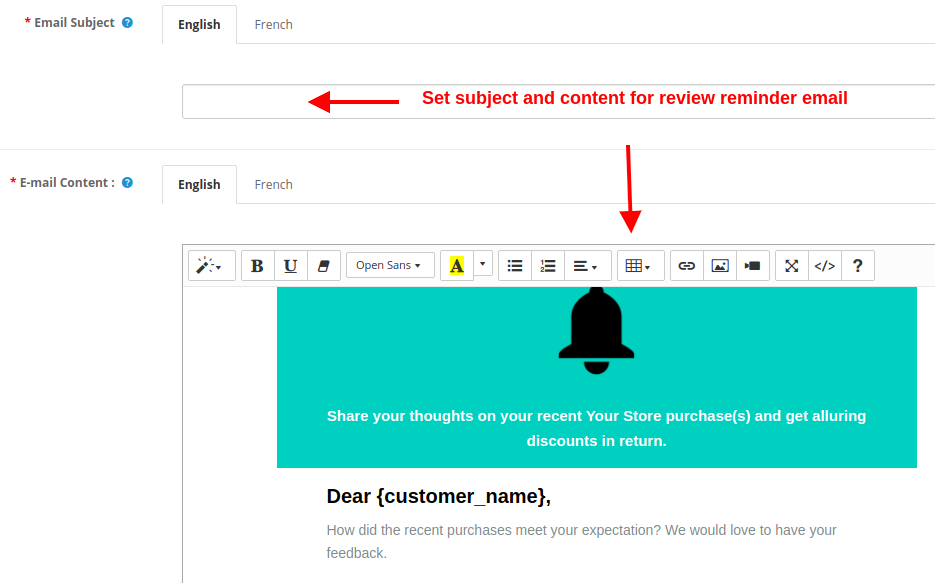
  • Email Subject: This option allows you to set a subject for the reminder email sent to the customers.
  • Email Content: This option sets the content for the reminder email which specifies the product they have purchased from the store and has to be reviewed, rated.

3.2.2 How to run cron to send automatic reminders

In order to send all the scheduled reminder emails all at once, you have to manually hit the cron command each time.
For this, you have to run the URL:

https://octest1.yourstore.com/2.3/index.php?route=reviewincentive/sendmail

3.3 Exclude Settings

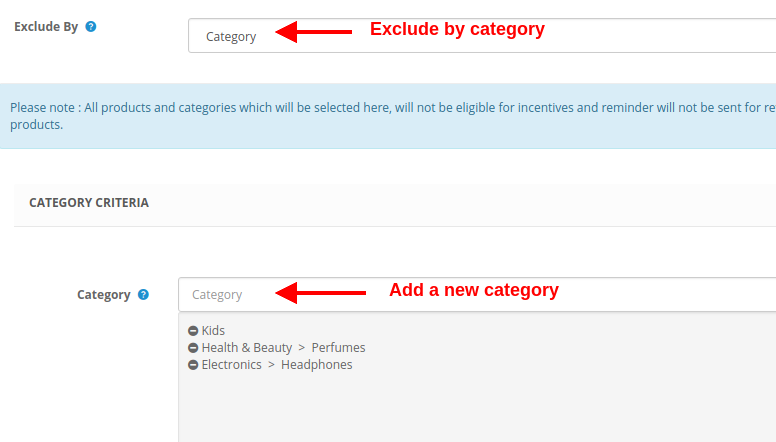
All the site products and categories for which you don’t want to get review & rating from the customer, you can exclude them from this section.

Excluding Products
Select the specific product to exclude, which can be further modified or deleted.

Excluding Categories
Select the specific category to exclude.


3.4 Reviews

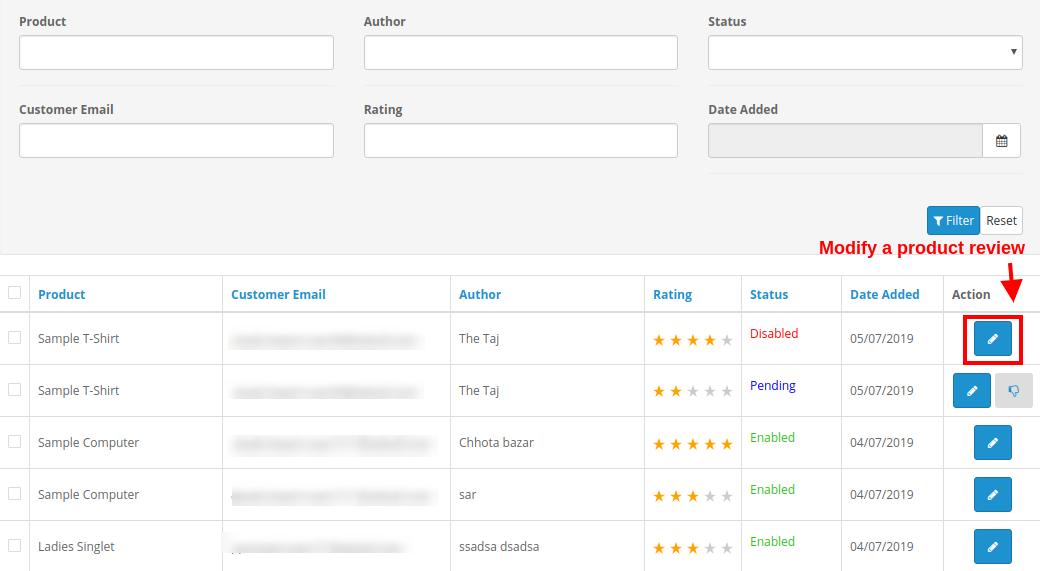
Under the Reviews tab of OpenCart review incentive module, you can check all the product reviews along with the details of associated customer. You can check filtered product reviews for a specific time interval. Each of the product review can be examined and then accepted/rejected from this section.
If the moderation for product reviews is set as automatic, all the product reviews are approved by default. Else, if moderation is set to manual, you can accept or reject the review.


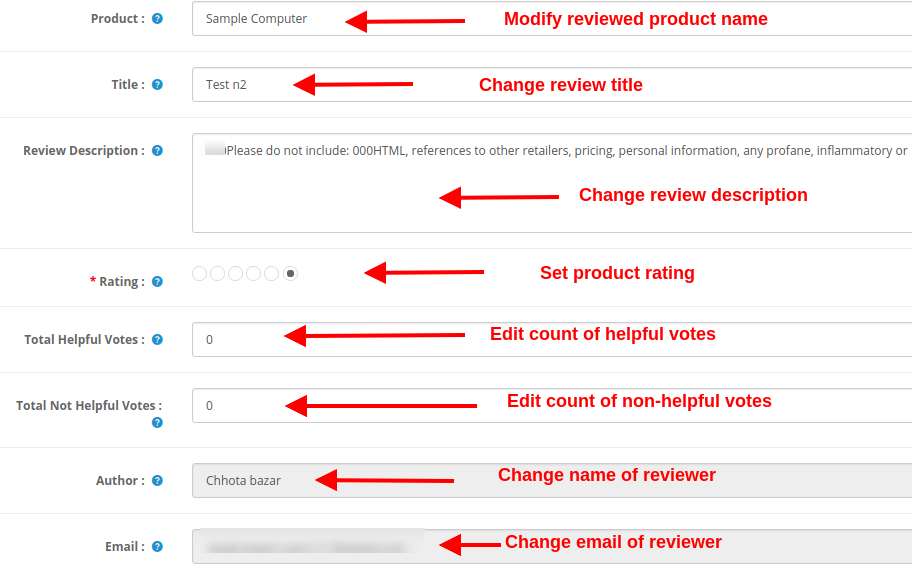
Additionally, you also get the option to modify the following details of a product review.

  • Product: This field shows the name of the reviewed product.
  • Title: This field shows the review title given by the customer/buyer.
  • Review Description: This field shows the description for the product as given by the customer.
  • Rating: This shows the product rating given by the customer on that particular product.
  • Total Helpful Votes: This is a count of readers who found that review useful or helpful.
  • Total Not Helpful Votes: This is a count of readers who don’t found that review useful or helpful.
  • Author: This field specifies the name of the product reviewer.
  • Email: This field specifies the email information of the reviewer.

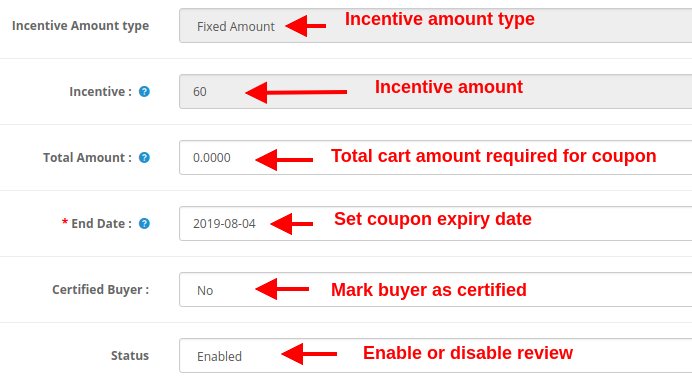
  • Incentive Amount Type: This field specifies the type of incentive amount if applicable.
  • Incentive: This field shows the inventive value or amount.
  • Total Amount: Using this option, you can set the cart amount which is required to apply the incentive code.
  • End Date: This field specifies the expiry date of the incentive coupon.
  • Certified Buyer: You can mark the customer as a certified buyer with the help of this option.
  • Status: This option simply enables or disables the particular product review on frontend.

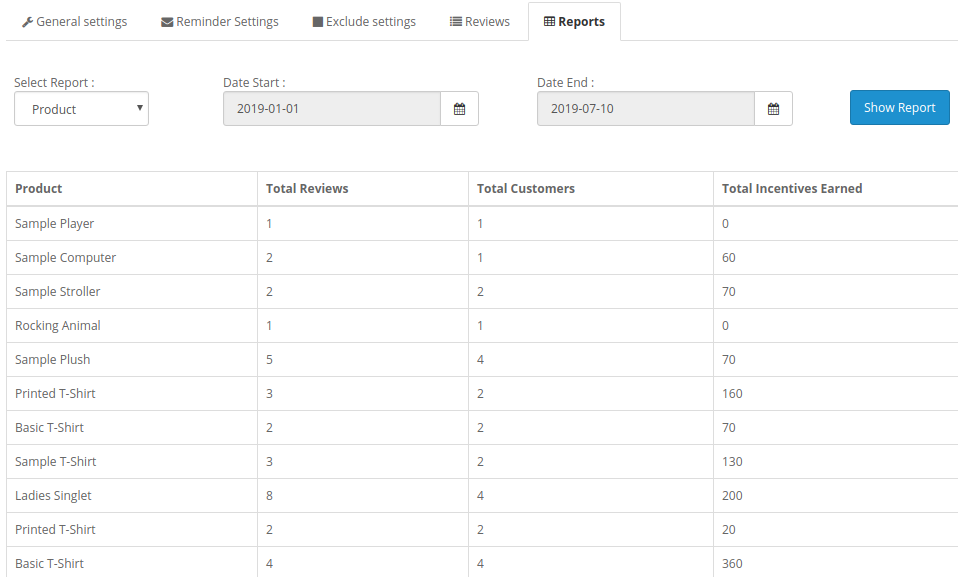
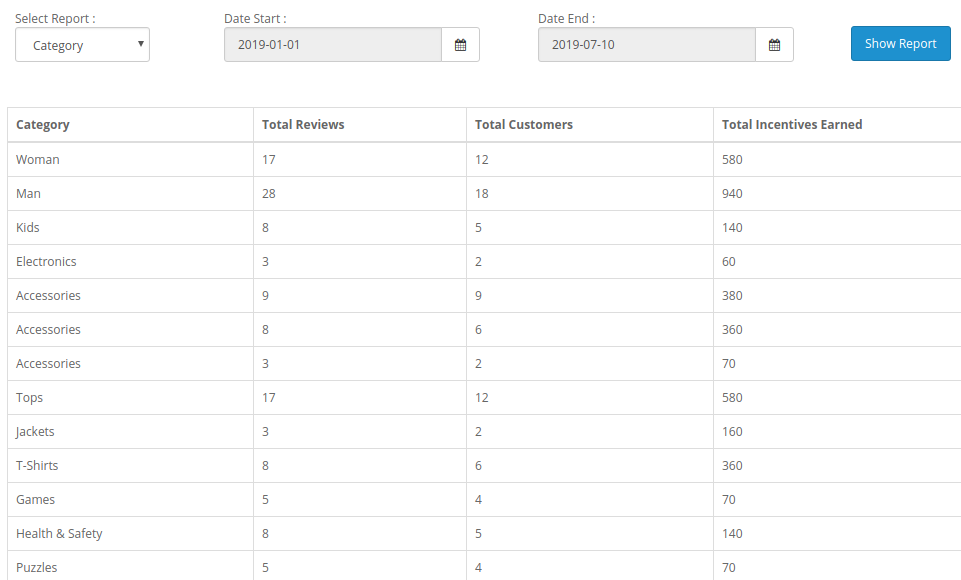
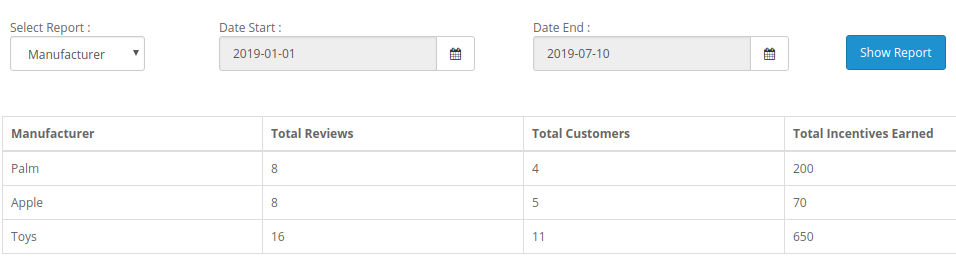
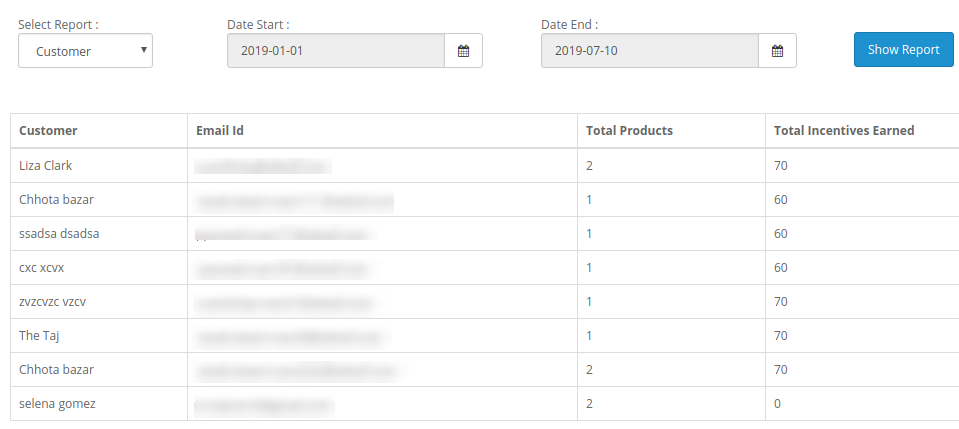
3.5 Reports

The report system of OpenCart review and incentive module offers you detailed statistics based on different criteria such as:

1. Reports based on Products

2. Reports based on Category

3. Reports based on Manufacturer

4. Reports based on Customers


These reports can be filtered for different time periods using the filter option present at the admin screen.

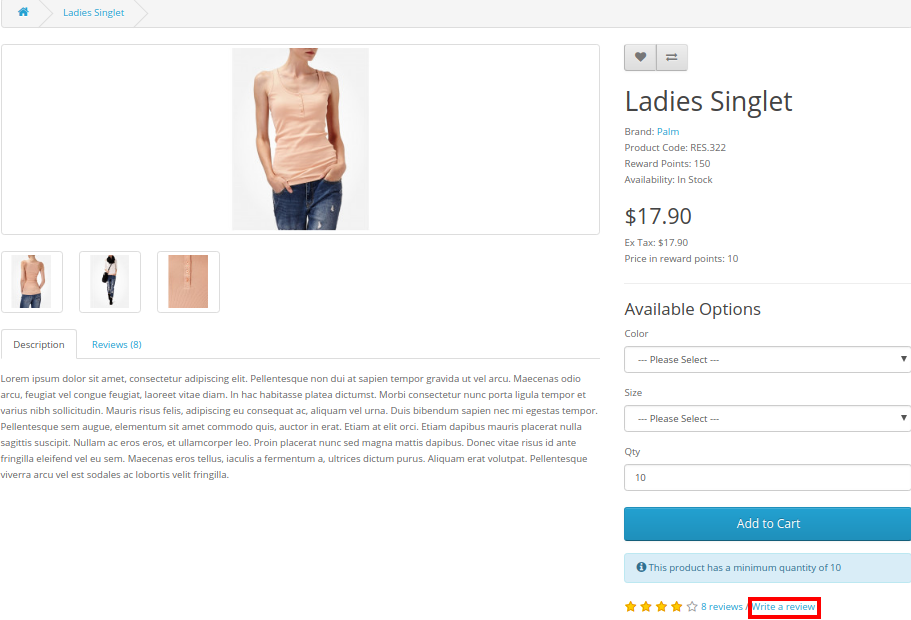
4.0 Front Interface of OpenCart Review Incentive Module

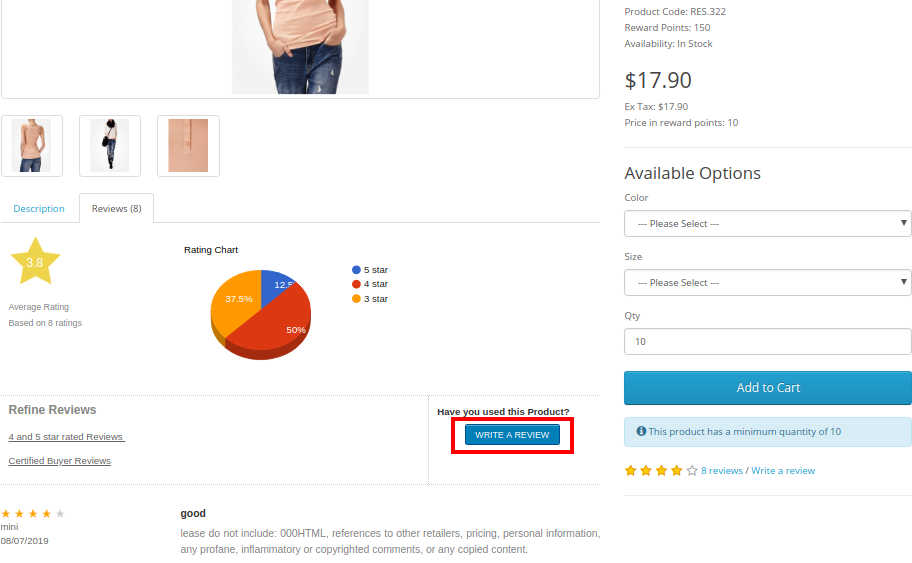
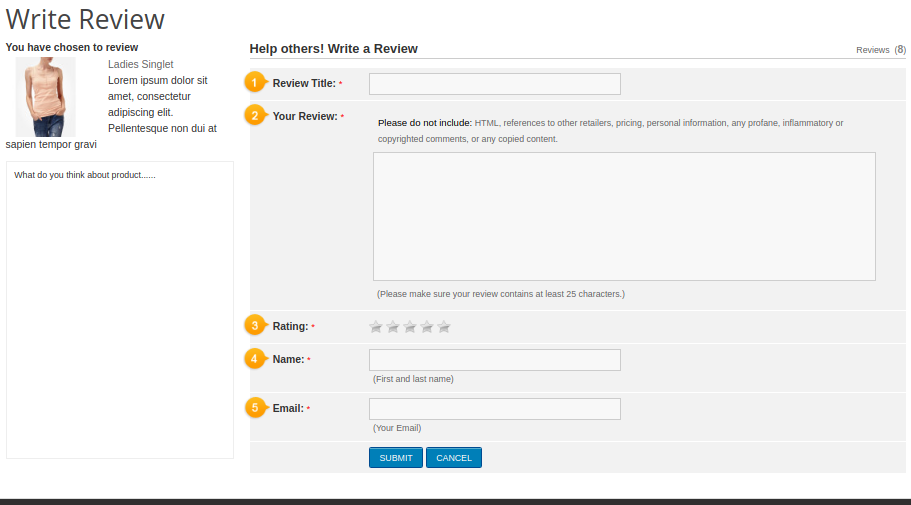
A) Link to “Write a Product Review block” on product page


B) “Write a Review” block on front-end


C) Message after submitting a product review

This way, the OpenCart Product Review Reminder and Incentive module easily implements the functionality of reminding customers to write a product review. The online users can get incentives on writing product reviews. The online merchant can offer an incentive for all the customers or only buyers as per the requirements. OpenCart Product Review Reminder and Incentive module allows offering fixed or Percentage based incentive. The OpenCart Product Reviews module provides an option to check the reviews before posting it or post it automatically.  Multiple email templates are available for sending email to the customers regarding review approval or disapproval.  OpenCart Product Review Reminder and Incentive extension also provides an option to include an incentive or exclude incentive and send mail accordingly.

The store admin can configure the OpenCart Review extension for sending review reminder to the customers after order creation date or as per the order status. The OpenCart Review extension sends automatic review reminder emails to the customers, admin can customize the mail templates as per the requirements. Opencart Review Manager module is multi-lingual compatible and offers smooth functioning. OpenCart enhance Review extension implements the review incentive functionality without implementing any code changes. OpenCart Review Option extension allows excluding any product/category if he doesn’t want to implement the functionality for this particular product. Admin can view the list of all the reviews from the admin interface of this OpenCart Auto Review Option module and approve or disapprove it. OpenCart Product review plugin is mobile responsive and offers a hassle-free implementation. Admin can view the report for checking the total reviews and incentive details from the admin interface of OpenCart star rating extension.

Knowband is one of the most reputed names in the field of plugin development. We provide best plugins for platforms like – Magento, Prestashop,  OpenCart and

Shopify.

OpenCart Product Reviews module link

OpenCart Review extension Admin Demo Link

Opencart Review Manager Front Demo Link

OpenCart Review Option module Youtube Video Link

OpenCart Auto Review Option module Marketplace Link

For more support and information, feel free to contact us via email at support@knowband.com anytime.