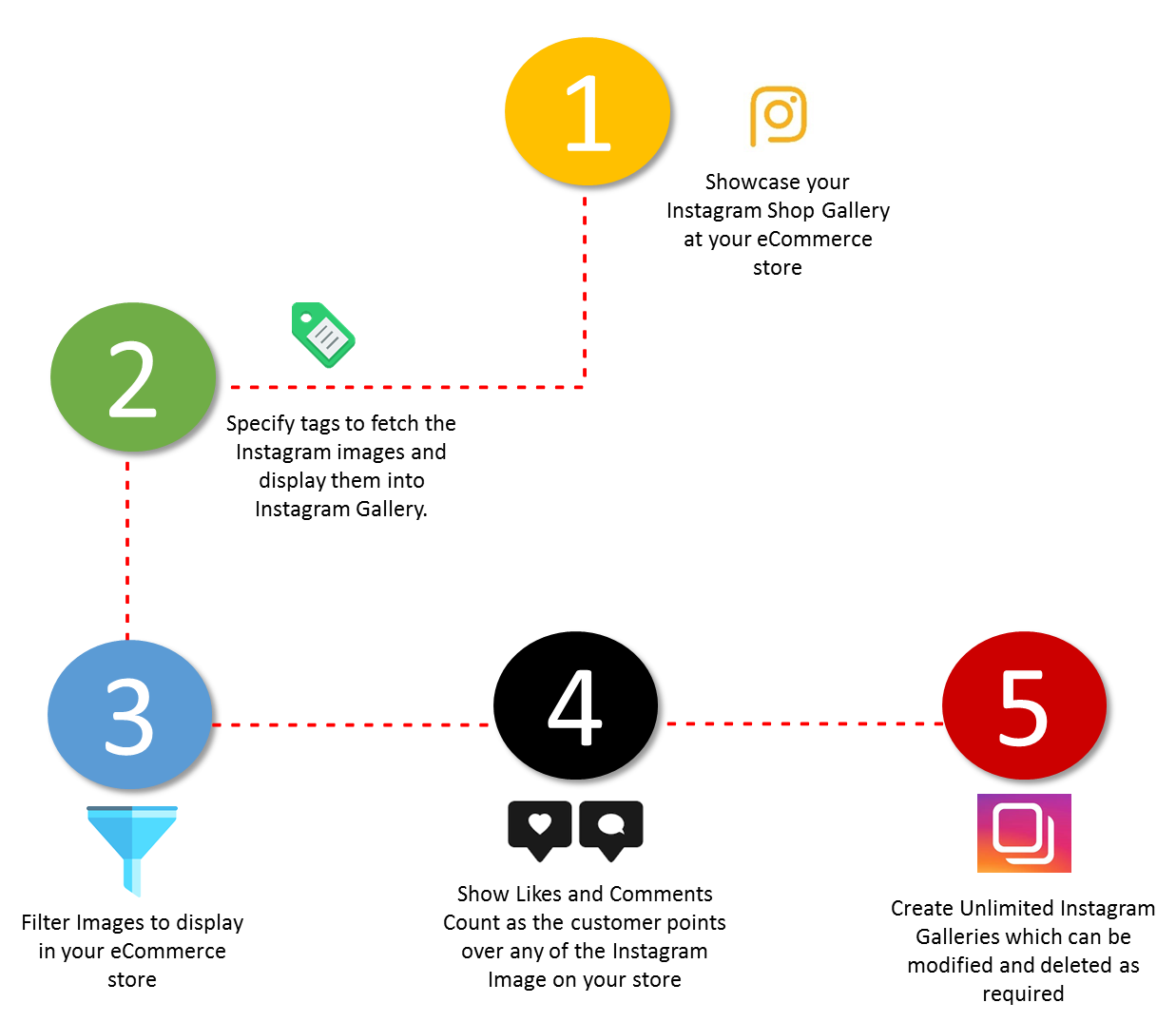
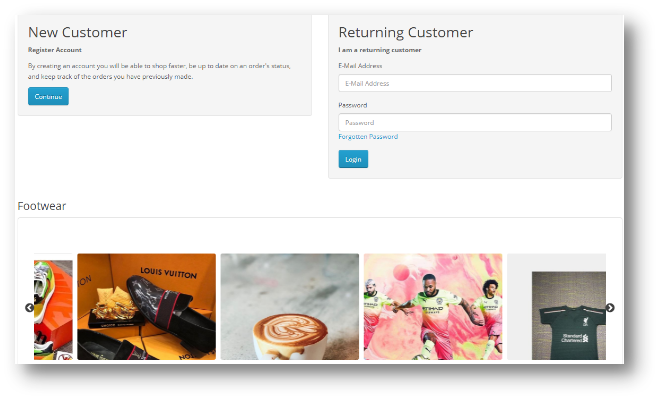
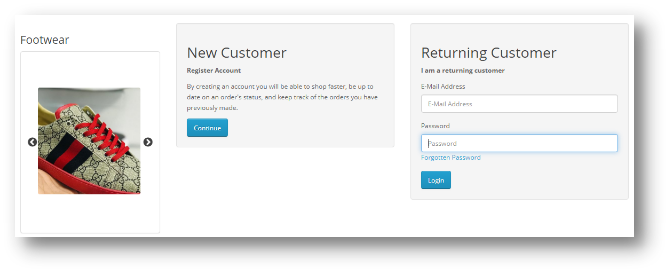
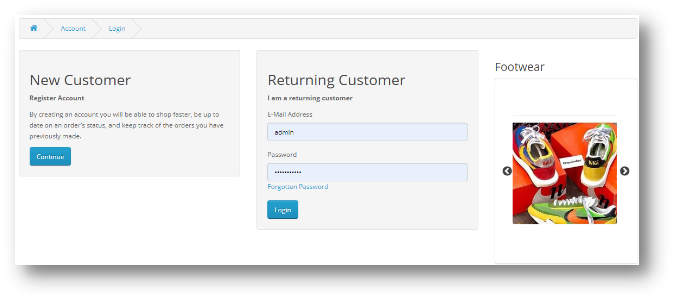
OpenCart Instagram Shop Gallery extension fetches the user-generated content as well as the content from your own Instagram business account and displays it on your e-commerce store.
What is User-generated content?
Any type of content, be it images, videos or text, that is shared by a user reflecting a brand promotion, is known as the user-generated content.
Have you ever run Instagram contests based on user-generated content? A contest where you ask your followers to use a particular hashtag and share their story or a picture highlighting your product, to win some exciting prizes.
Freelancing platform Upwork asked its followers to share their freelancing success stories using the hashtag #UpworkSuccess and provided a chance to win $1000 Visa Gift Card.
Coca Cola’s “Share a Coke” campaign was a huge hit in 2014 when the Brand asked users to share their pictures while enjoying the drink, using the hashtag “ShareaCoke”.
Considering the importance of user-generated content, KnowBand introduces the OpenCart Shop Gallery extension that helps you display the user-generated content on your eCommerce store and link your products to the content shared by the end-user. If you have launched a marketing campaign, you can share the received responses on your e-commerce store.
OpenCart Instagram Shop Gallery extension lets you add Instagram images or videos to your e-commerce store, be it through your own Instagram account or by using hashtags. You can use those images to tag similar products available on your store and display it to your store visitors. Attractive product images can help you drive more sales.
Features of OpenCart Instagram Shop Gallery extension
1. Add as many photos as you want
You can fetch numerous images from the Instagram platform. OpenCart Instagram Shop Gallery extension provides the option to fetch images from your own account(personal or business) or you can consider using hashtags. For example, if you are running a campaign for a particular hashtag, you can display the images related to that hashtag on your store.
2. Create categories for your Instagram Shop
Add a category(tag) to your Instagram shop and define the hashtags for it to put related images under that category. In simple terms, all the images under the defined hashtag will be displayed under the added tag, in your store.
3. Tag your store products on the images
You can tag your products on the content that matches your products. It helps people make a better purchase decision.
4. Choose a layout
OpenCart Instagram Shop Gallery offers two layouts to display the Instagram feed- Carousel view and Grid view. Moreover, you can choose the layout design for multiple pages like Home Page, Product Page, Category page, etc.
Apart from these features,
You can provide a name to the Instagram tab that will be displayed to your store visitors.
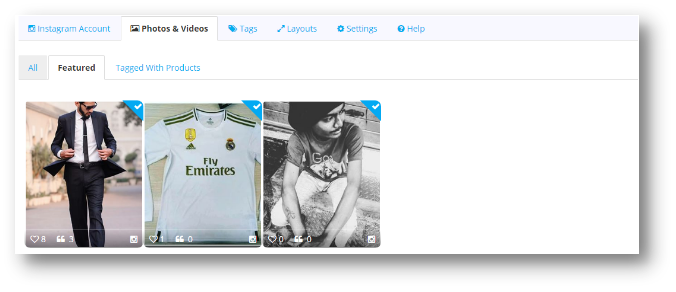
You can mark images as “Featured” and display it on your Instagram Shop Gallery.
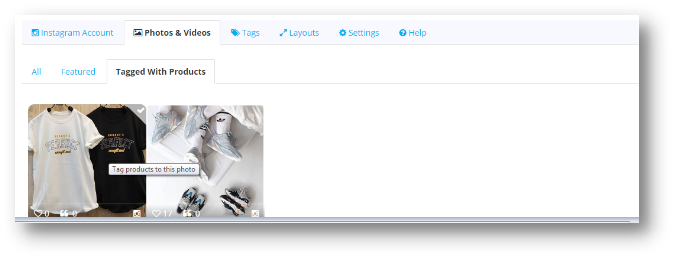
Products tagged on the images can be viewed under “Tagged with Products”.
For a particular category, you can choose the maximum number of images to be displayed under it. Choose the Layout type and also display the Follow us link.
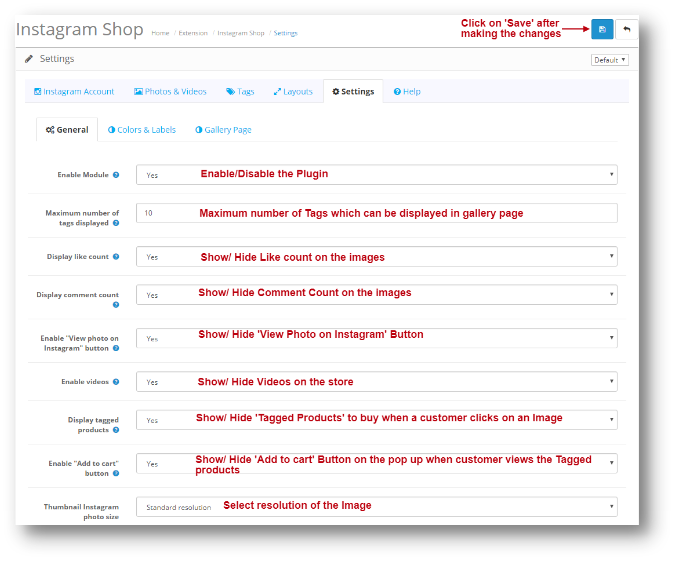
You can display the like and comment count
Customize the color of the “Follow us” button.
Customize the Instagram Gallery according to your own choice.
Final Word
Instagram user count crossed the 1 billion Mark on June 2018 and the numbers are growing significantly. It is being actively used by the people, especially the youth and most people even find it more interesting than Facebook. Do you know, more than 95 million posts are shared on Instagram daily? With such active participation of the users, showcasing the user-generated content at Instagram, on your OpenCart store can be an ideal way for your business to create brand awareness and increase sales.
Do check out the OpenCart Instagram Shop Gallery extension to know its complete features and benefits.
Improve the conversion rates of your store with the help of customer reward system. Integrate Knowband’s Prestashop Loyalty Points addon at your store that grants loyalty points to your customer upon creating a new account on the store, placing an order for a particular product or a specific product in the category and other events. The loyalty points can be converted to loyalty discount coupons by the customers during their next purchase from the store. This Prestashop Loyalty points and discount addon helps in increasing customer retention and reorders letting customers to collect more & more reward points which they can redeem during future orders. Thus Prestashop Loyalty points system implements a customizable reward and discount scheme at your store to encourage customer orders and signups.
1.1 Striking Features of Prestashop Loyalty Points Module
Prestashop Loyalty Points addon is highly customizable plugin with no core changes required. You can define as many loyalty points rule for your eCommerce store and award loyalty based discount vouchers to your customer. Lets quickly check different features offered by this Prestashop Loyalty points and discount addon.
Prestashop Loyalty points system grants loyalty points to your customers for placing an order with specific cart value, creating an account , ordering a certain product etc. The loyalty points are defined specific for different rules.
Prestashop Loyalty reward points can be offered manually or automatically to the customers based on their cart value, product selection or site activity.
Prestashop purchase points addon allows an option to set order status when the loyalty points are added to the customer account.
With Prestashop Loyalty points and discount addon, you can set the order status when the loyalty points assigned to any customer are automatically cancelled.
With this Loyalty points module, you can set the discount equivalent to a single loyalty point. This discount value can be set in any desired currency.
Prestashop Loyalty points addon gives an option to set minimum cart amount to be eligible to apply loyalty discount coupon.
The tax over Prestashop loyalty discount coupons can be enabled or disabled from the backend.
Loyalty points module for Prestashop allows you to set various progression names in multiple languages.
Prestashop Loyalty Points addon lets you create unlimited loyalty points rules based on customer’s Cart, Product or Behavior.
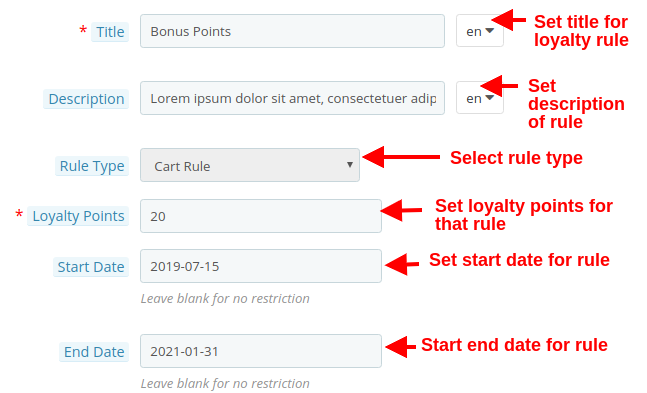
With this loyalty point module, you can set the title, description, number of loyalty points, start date, end date and validity for each rule.
You can modify, enable, disable or delete the existing rules from the back-office of Reward points module.
The status and detailed history for Prestashop loyalty discount coupons can be viewed at the backend.
With Prestashop customer loyalty system, you can easily get into the details of loyalty points earned by the customers of store.
The different email sent for points credit, points cancellation and points redemption can be modified from the back-office of this Prestashop Loyalty reward points module.
Prestashop Loyalty points system is simple to enable or disable from back-office interface.
Prestashop loyalty discount module is multi-lingual compatible.
1.2 Technology for Development
Language: PHP Frame Work: PrestaShop
2.0 Installation Guide for Prestashop Loyalty Points and Discount Addon
You can follow these simple steps for installing the Prestashop Loyalty Points addon on your eCommerce store:
1. Firstly, download the addon package from the Knowband store.
2. You will get a zipped file containing the source code and user manual. Unzip the complete package in the root directory of your Prestashop store through FTP manager (like Filezilla or WinSCP – download here: https://filezilla-project.org/). You’ll find the files and folders as shown in the image below:
3. The Prestashop Loyalty Point plugin is all set to be installed in the store. Go to the Store Admin and then to ‘Modules and Services’.
4. Click on the “Install” button just next to your module. It would show a pop-up for your confirmation. Click on “Proceed with the installation” option. This step will install the module and show notification – “Module(s) installed successfully”.
3.0 Admin Interface of PrestaShop Purchase Points Addon
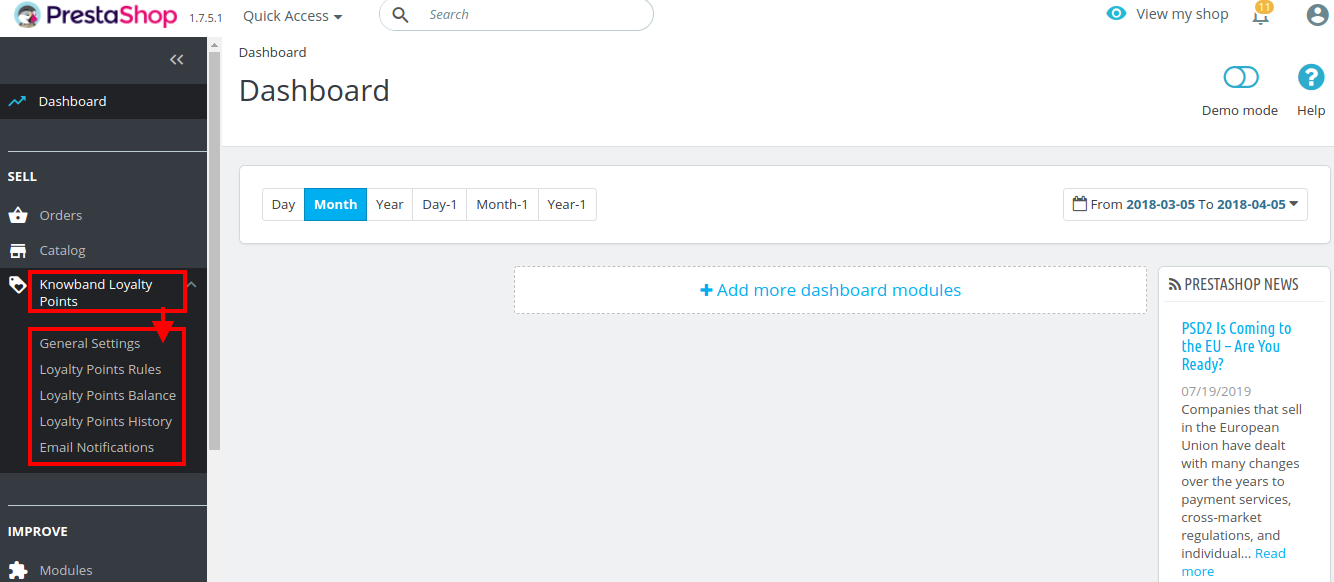
Just after successful installation of Prestashop Loyalty Points addon at your website, you can create and apply as many loyalty points rules for your store. You can grant loyalty points to your customers manually or automatically based on various criteria. In the admin panel or dashboard, click on “Knowband Loyalty Points”. It will list you various configuration tabs as shown in the given screenshot.
Here, in this interface of Prestashop Loyalty points system, you will see five sub sections under Loyalty Points module.
General Settings
Loyalty Points Rules
Loyalty Points Balance
Loyalty Points History
Email Notifications
Each section of this Prestashop Loyalty points and discount addon has been discussed below.
3.1 General Settings
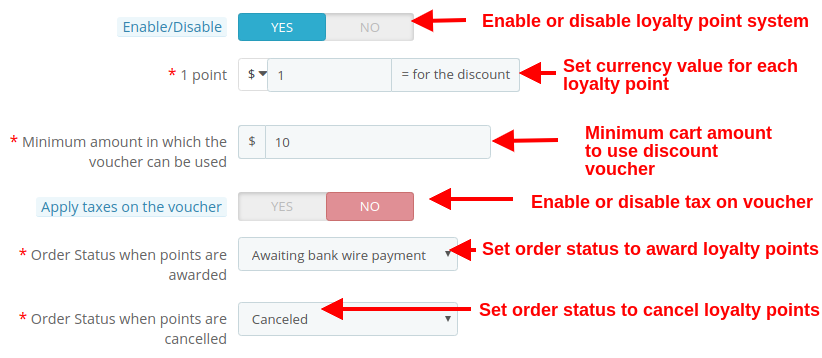
Under the general settings of Loyalty points module for Prestashop, you can perform the basic settings for the reward points system.
Enable/Disable: This option fully enables or disables the loyalty point system for the store.
1 Point: This option sets the currency value equivalent to each loyalty point. You can set this amount in any selected currency.
Minimum amount in which the voucher can be used: This option sets the minimum cart amount over which the coupon can be applied.
Apply taxes on the voucher: This option will enable or disable the taxes over the discount voucher.
Order status when points are awarded: This option sets the order status when the loyalty points are awarded.
Order status when points are cancelled: This option sets the order status when these loyalty points are cancelled.
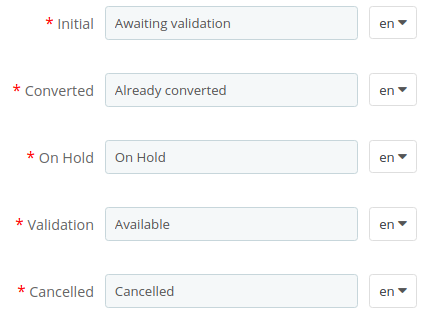
As shown in the below screenshot, you can set the names for various loyalty points progression. Theses names are applicable to complete module settings.
3.2 Loyalty Points Rule
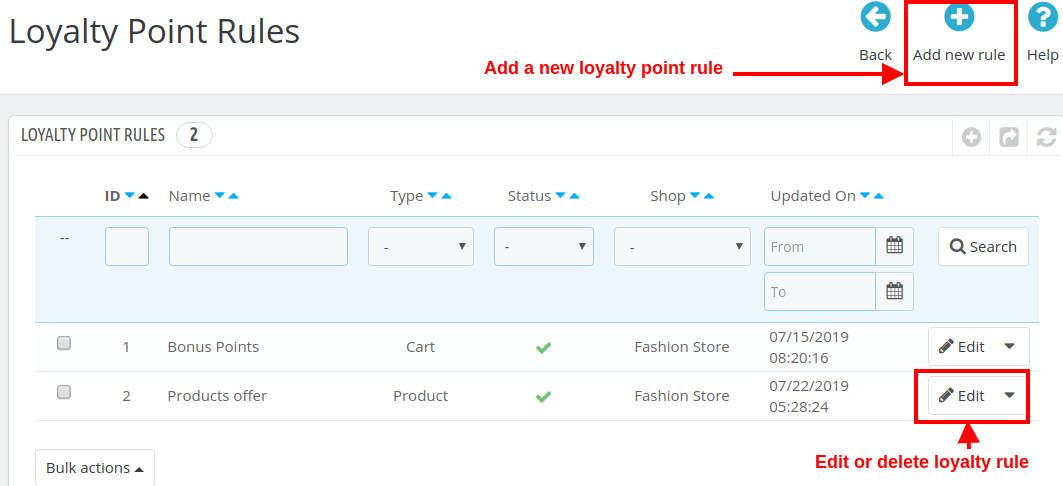
Under this section of Prestashop purchase points addon, you can create multiple loyalty points rule based on various customer activity. Each rule can be modified, enabled, disabled or deleted as per site requirements.
The above screen shows the list of existing loyalty point rules at your store. These can be modified, deleted or you can create a new rule as discussed below.
To create a new loyalty point rule for your store, click on the “Add new Rule” button at the top right screen. Initially, it will only show you the “Configuration” tab. Once you will save the Configuration options, it will show you the next two tabs: “Conditions” and “Notifications”.
Following options are listed under the “Configuration” tab of new rule.
1. Configuration
Title: This option sets the title for the loyalty point rule.
Description: This option allows you to set a small description of the rule.
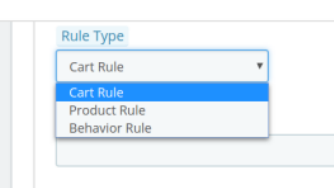
Rule Type: Using this option, you can set the rule type out of three options as Cart Rule, Product Rule, or Behavior Rule as shown below.
Loyalty Points: Using this option, you can set the number of loyalty points for this selected rule.
Start Date: This option defines the start date for the rule.
End Date: This option defines the end date for the rule.
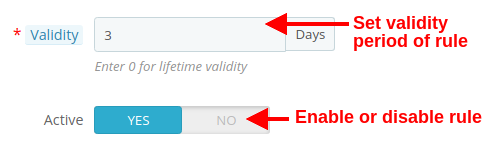
Validity: This option will set the validity period of the loyalty points (in days). If set to 0, the loyalty points has lifetime validity.
Active: Enable or disable the rule using this option.
2. Conditions
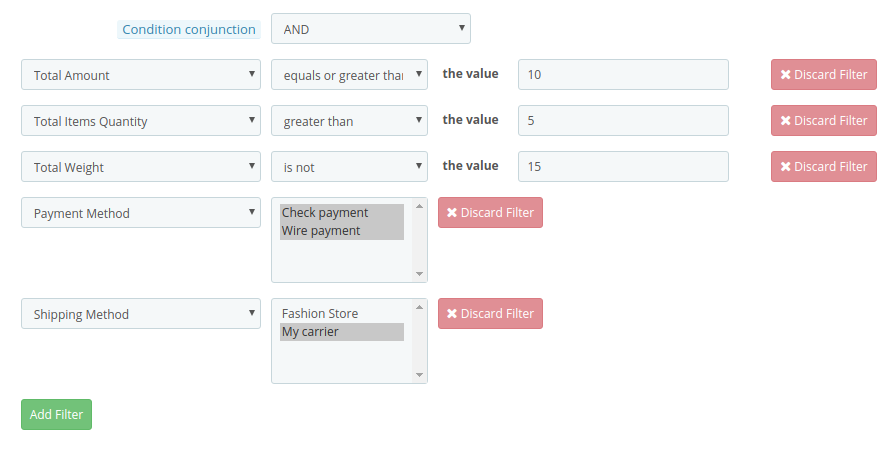
For the selected rule type, you can select the rule conditions as shown below.
Condition Conjunction: This option will select the conjunction type as “OR” or “AND”.
A) Conditions for Cart Rule
You can create any type of rule using conjunctions: “AND” & “OR”
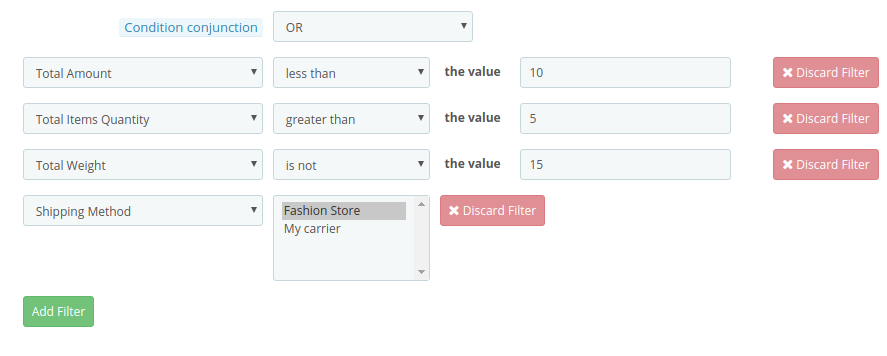
Admin can apply conditions on the basis of Total Amount, Total Items quantity, Total weight, Payment Method, Shipping Method.
Below are the examples of the rules that can be created using these conditions:
1.This rule works when (total amount >= 10) and (total items quantity > 5) and (total weight ≠ 15) and (payment method = check/wire) and (shipping method = my carrier) are all applicable to customer’s cart. To get specific points, all conditions should be TRUE. (Refer below screenshot)
2.This rule works when (total amount < 10) or (total items quantity > 5) or (total weight ≠ 15) or (shipping method = Fashion store/my carrier) is applicable to customer’s cart. To get specific points, any one condition should be TRUE. (Refer below screenshot)
Similarly, you can create other rules as well with different filters and values.
B) Conditions for Product Rule
You can create any type of rule using conjunctions: “AND” & “OR”
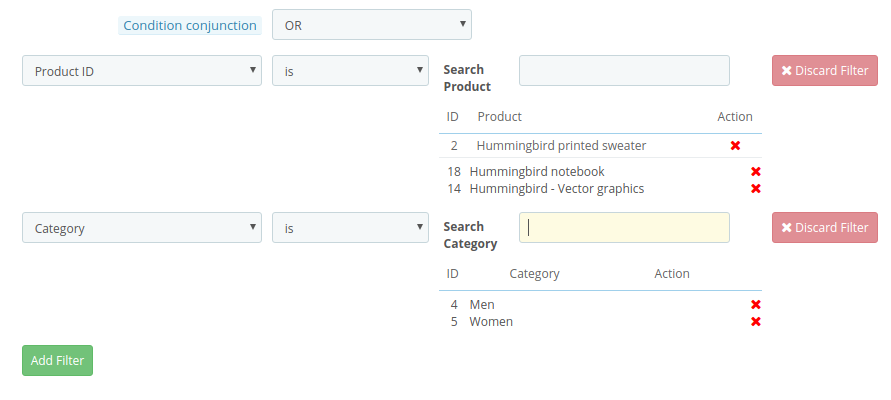
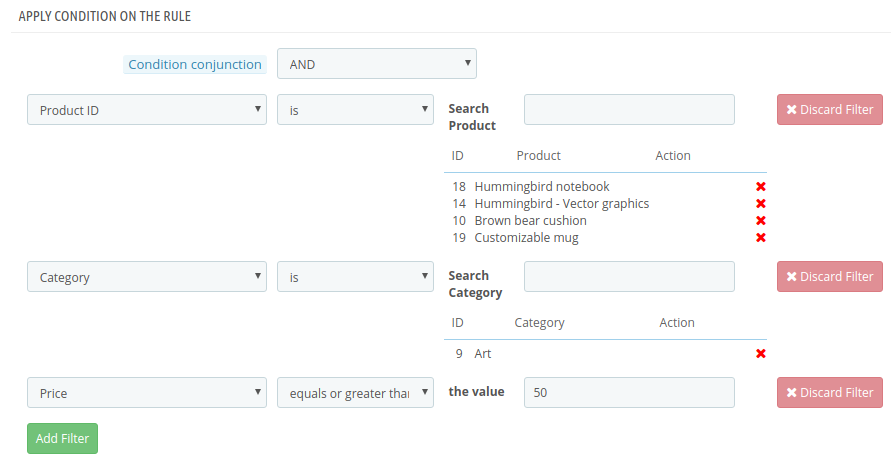
Admin can apply conditions on the basis of Product ID, Category, Price.
Below are the examples of the rules that can be created using these conditions:
1.This rule works when (product ID is 2/18/14) or (category is 4/5) is TRUE. To get specific points, any one condition should be TRUE. (Refer below screenshot)
2.This rule works when (product ID is 2/18/14) and (category is 4/5) and (price >= 50) is TRUE. To get specific points, all the conditions should be TRUE. (Refer below screenshot)
Similarly, you can create other rules as well with different filters and values.
C) Conditions for Behavior Rule
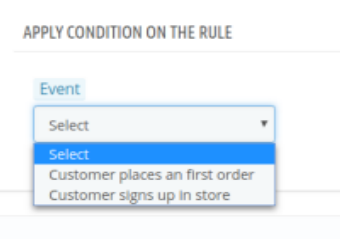
Admin can apply condition on the basis of customer’s sign up and customer’s first order.
1. First Order – The Loyalty points will be granted to the customers when they place their first order on the store.
2. Sign Up – The Loyalty points will be granted to the customers when they will create an account on the store.
3. Notifications
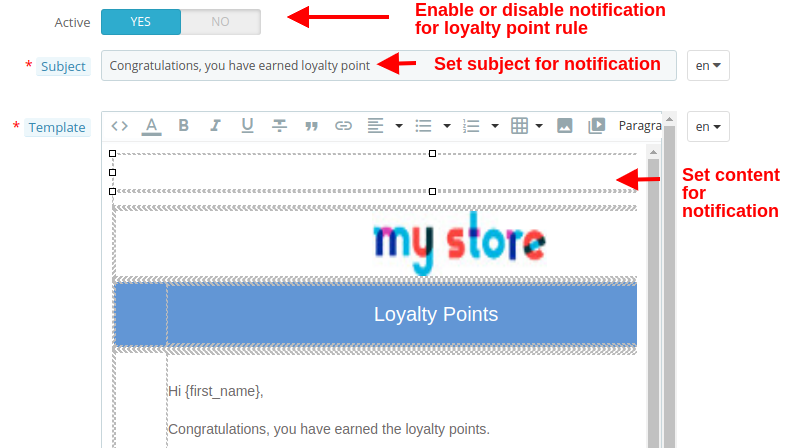
The Notification tab shows the configuration options for email sent to the customers when they earn loyalty points through the selected rule. The options include:
Active: This option enables or disables the notification for the selected loyalty point rule.
Subject: This option sets the subject for the email sent to customers upon winning loyalty points at the store.
Template: This option sets the email content or body which details about the loyalty points they have earned on the store.
3.3 Loyalty Points Balance
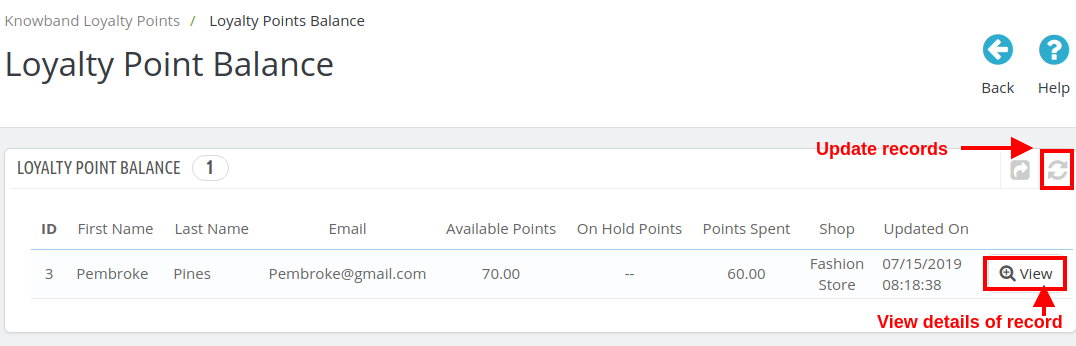
Here in this section of Prestashop Loyalty points and discount addon, you can check the status of loyalty points granted to various customers of the store. You can view the details of each of the customer who have been granted the loyalty and discount points.
You can click the “Refresh” button in order to update the loyalty points records for store customers. Click on “View” button to check the details of a particular record (all records of the same customer) like shown in the image below.
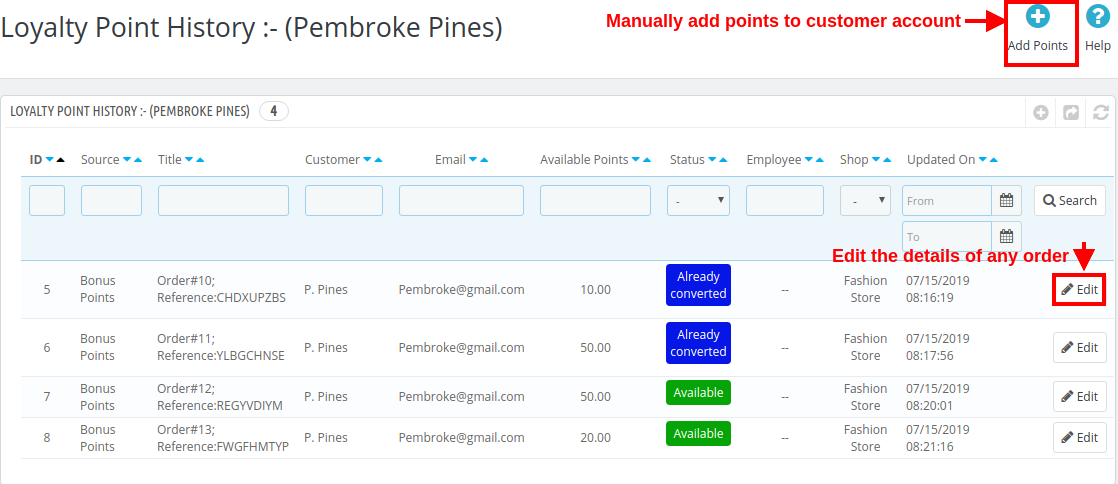
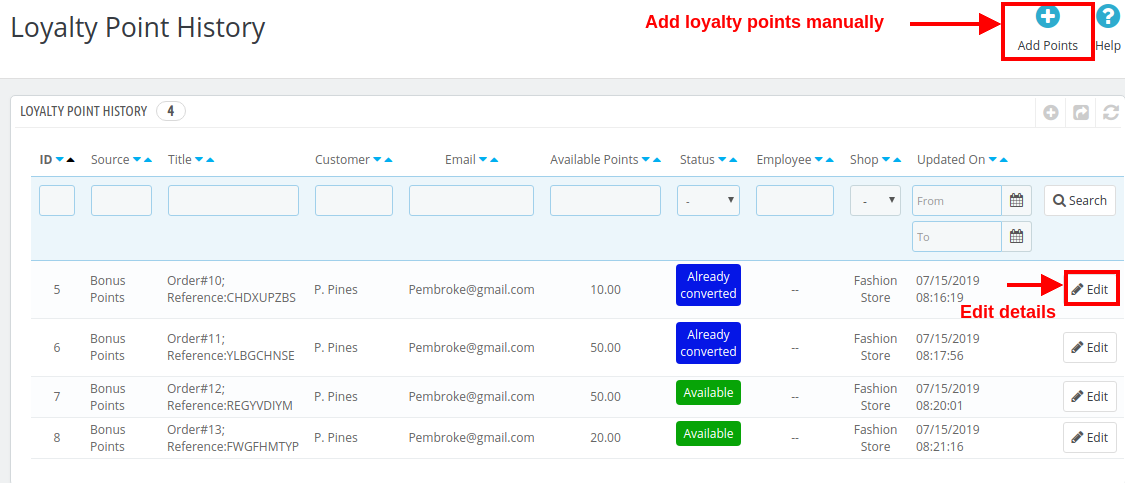
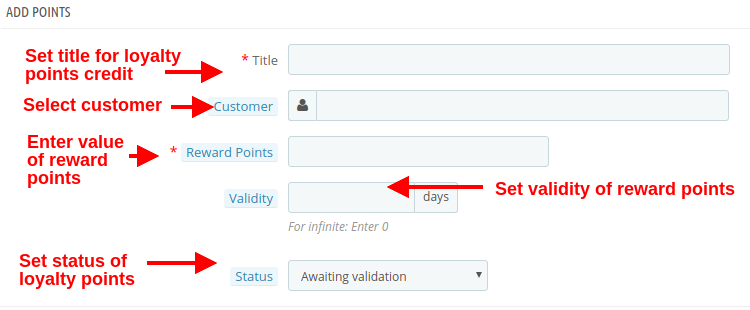
You can edit the various order records of a same customer by clicking on the “Edit” button. To assign the loyalty points manually, click on “Add Points” button as shown in the image above. When you add points manually, you will see the following configuration options.
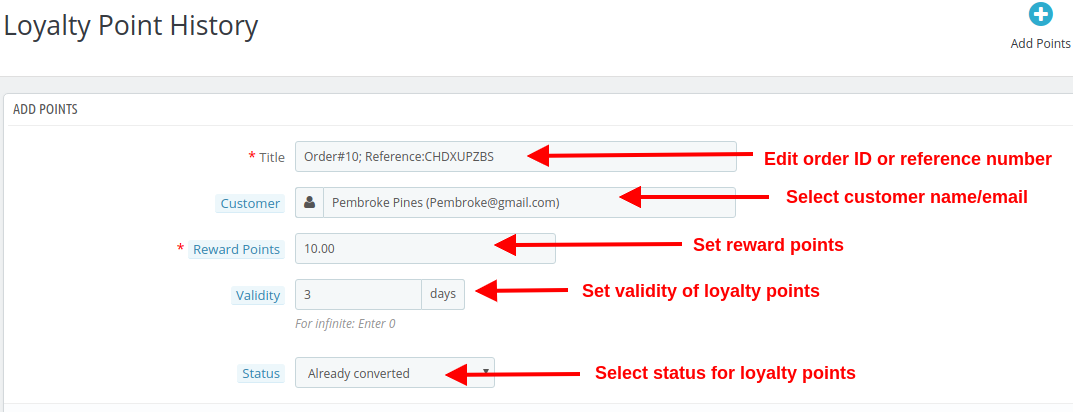
Title: The option sets the order or reference number for crediting loyalty points to the customer’s account.
Customer: With this option, select the name or email of the customer to whom you want to reward loyalty points.
Reward Points: Set the number of loyalty points you want to offer to the customer.
Validity: Set the validity of loyalty points using this option. Set this as 0 for infinite days validity.
Status: This option sets the status of the loyalty points granted to the customer.
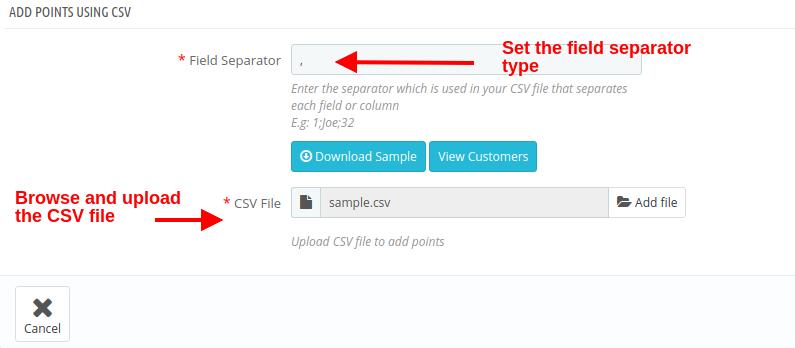
If you want to add loyalty points manually for bulk customers, you can simple upload a .csv file as shown below.
Field Separator: This field allows you to specify the type of field separator you have used in your CSV file for separating various records.
CSV File: This option allows you to browse and upload the .csv file saved at your local space.
3.4 Loyalty Points History
With Prestashop Loyalty points system, you can view the loyalty points history along with the customer details. From this panel, you can manually grant loyalty points to the customers.
By clicking on Add Points button, you will be shown the below screen. (already discussed in 3.3 section)
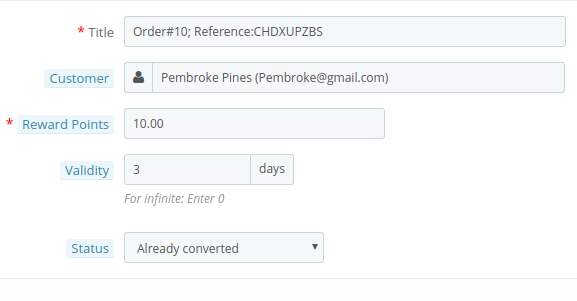
On clicking the “Edit” button corresponding to any record, you will be shown the below screen.
Title: This option will allow you to modify the reference title or order title.
Customer: This option allows you to change the customer name or email who are assigned these loyalty points.
Reward Points: This option lets you set the loyalty points.
Validity: With this option, you can change the validity period for the rewarded loyalty points.
Status: This option lets you change the status of those loyalty points. The status of these points can be checked from the customer’s “Account Dashboard”.
3.5 Email Notifications
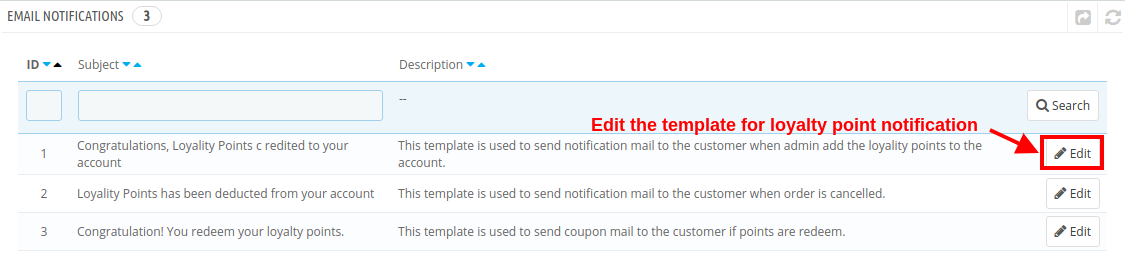
Prestashop purchase points addon gives you flexibility to modify/edit the email templates when loyalty points are credited to customer account, loyalty points are deducted and when loyalty points are redeemed into discount coupons.
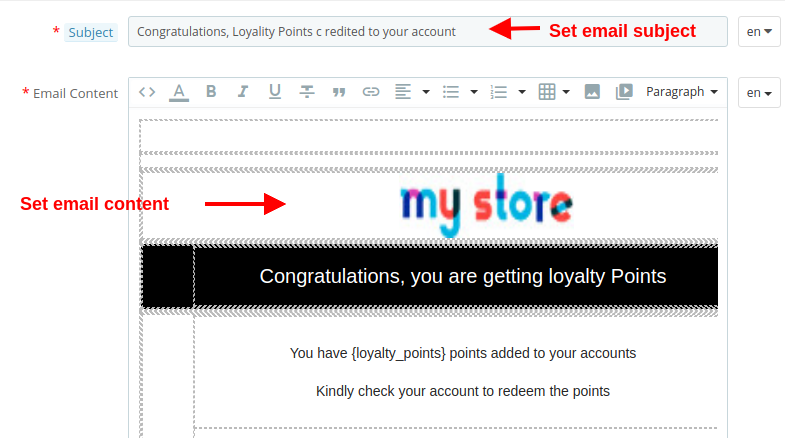
Click on the “Edit” button to configure the email template with the given options:
Subject: This option allows you to set a subject for the email sent to the customer for credited points, deducted points or redeemed points.
Email Content: This option allows you to set the content for the email sent to the customer for credited points, deducted points or redeemed points.
4.0 Front Interface of PrestaShop Loyalty Points System
As soon as the customer redeems the loyalty points, a discount voucher is generated and all Available Points are turned into Converted Points.
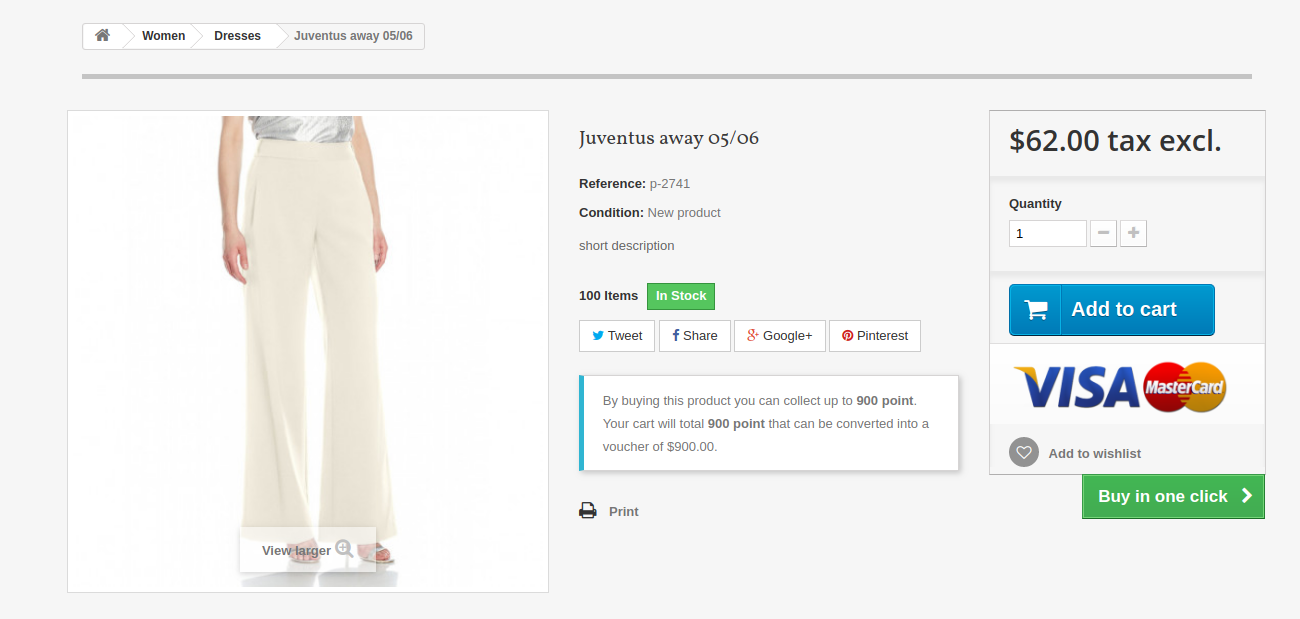
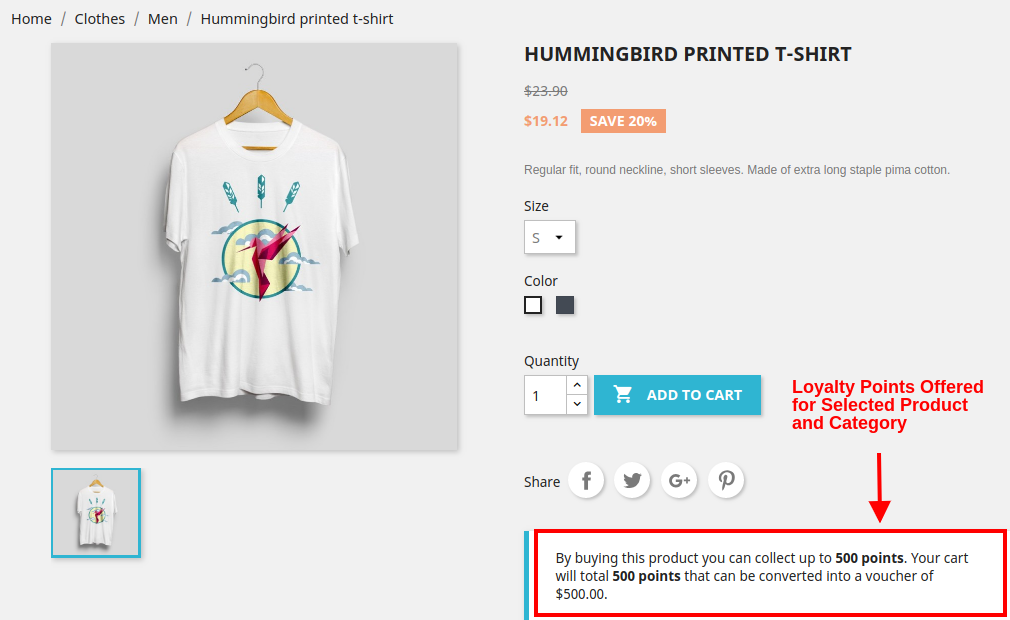
A) When Product Rule is set for specific product and categories, you will see the following screen.
1.6 Version:
1.7 Version:
B) When Behavior rule is set. Like when customer sign-ups on the store or place their first order. The below screenshot shows how the customer gets loyalty points for signing up on the store.
1.6 Version:
1.7 Version:
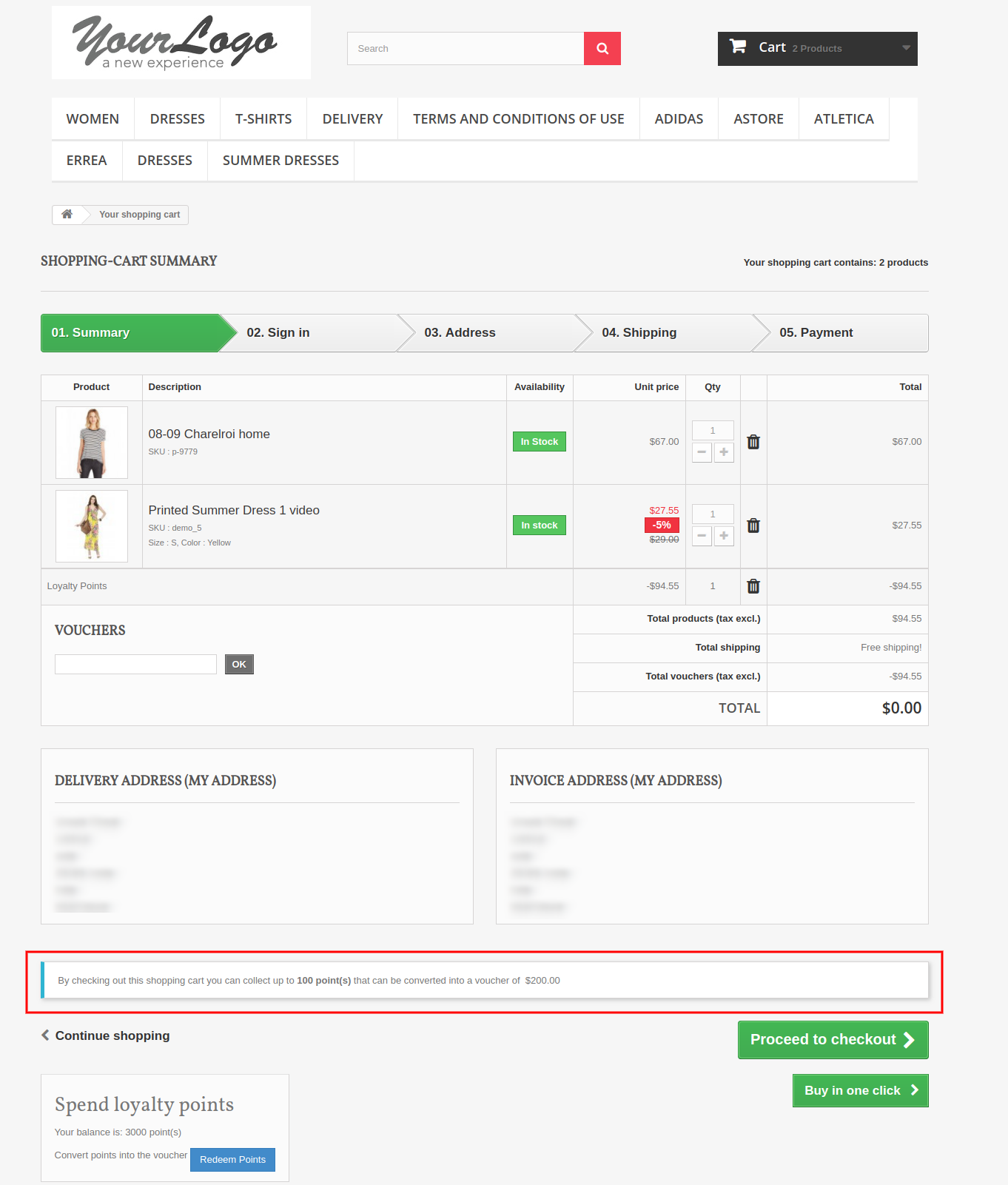
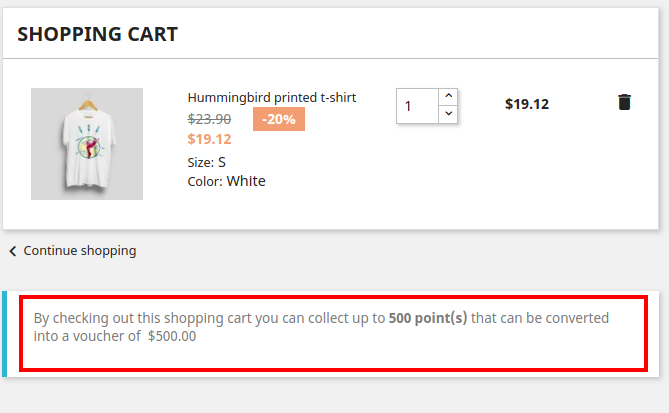
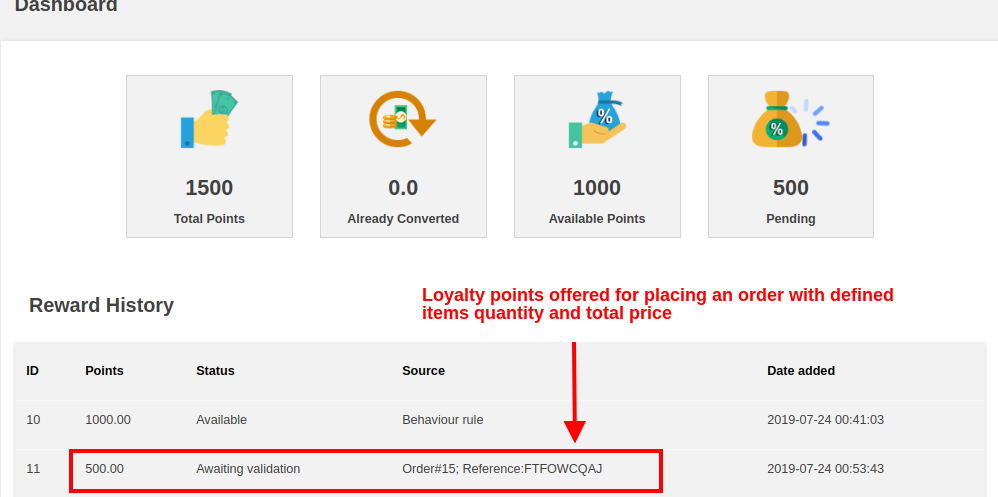
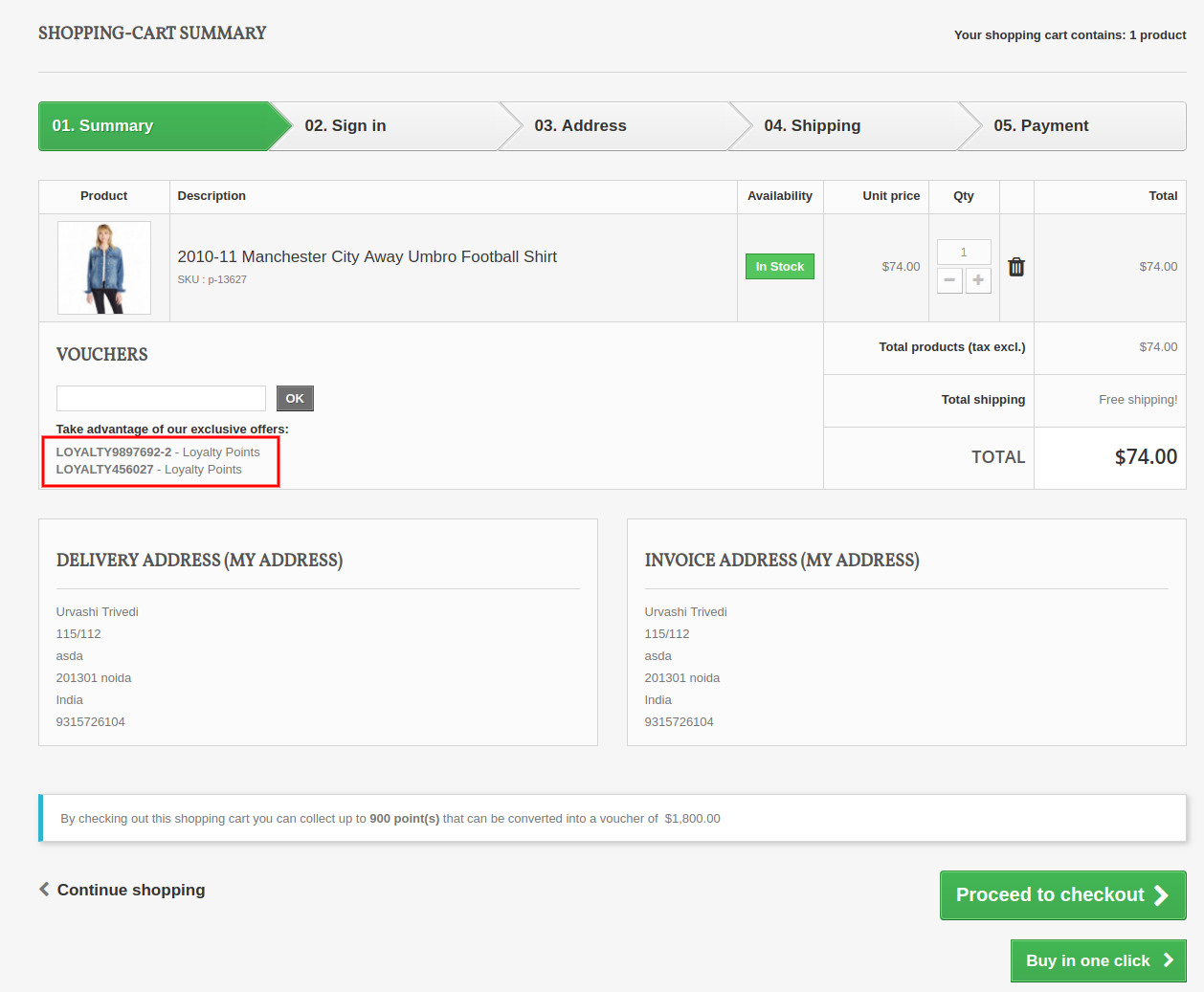
C) When customer’s cart follows some criteria based on total amount, total items quantity, total weight, payment method or shipping method. The below screenshot shows how the customer gets loyalty points for placing an order as per defined cart rule.
1.6 Version:
1.7 Version:
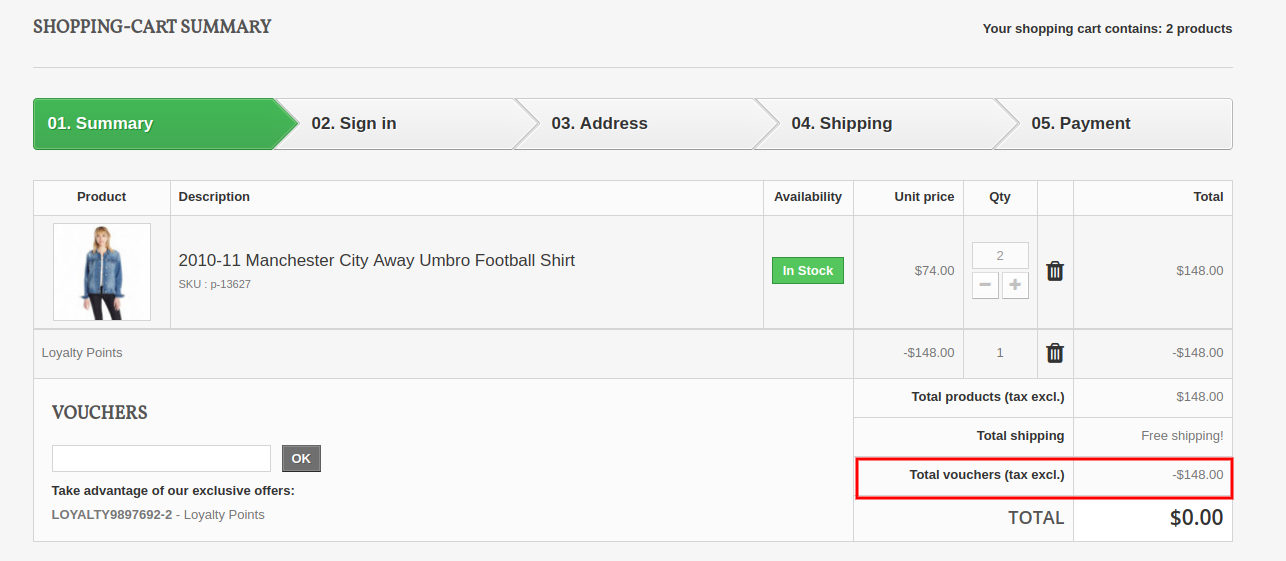
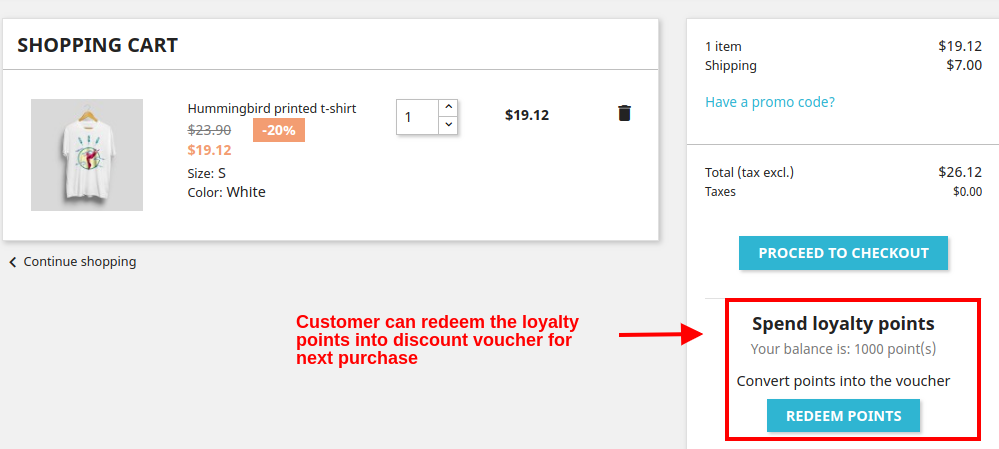
D) Customer can convert their available points into a discount amount. The loyalty points are redeemed into a discount voucher which can be applied for next purchase.
1.6 Version:
Customers can use the loyalty points and generate the vouchers.
1.7 Version:
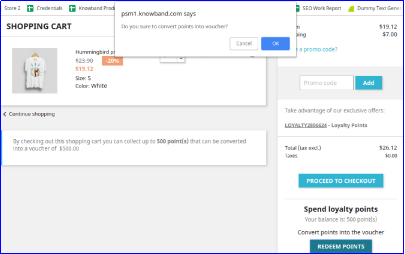
On clicking the Redeem Points button, you will see the following popup box on the screen.
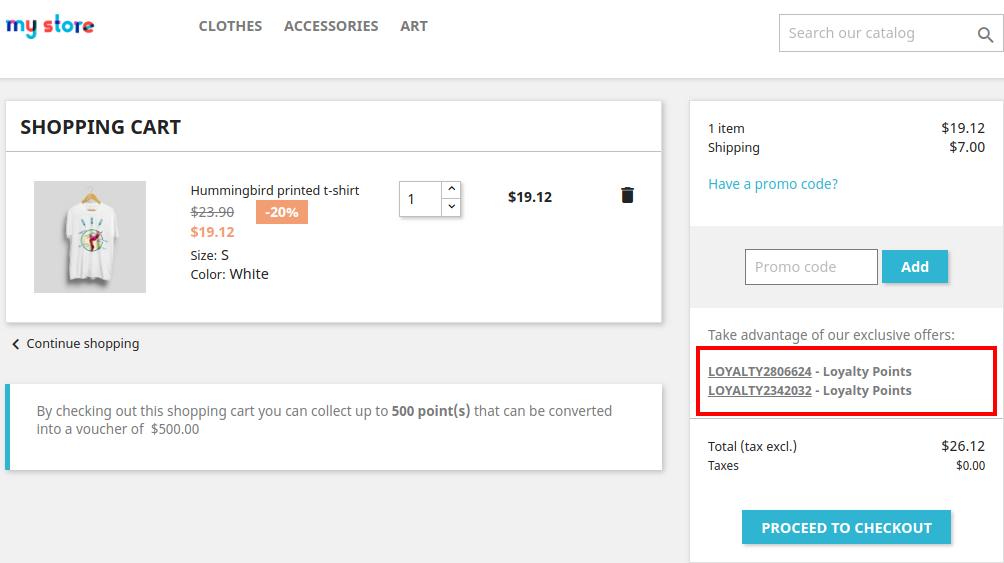
As the customer clicks on OK button their available loyalty points are converted into a discount coupon code as shown below.
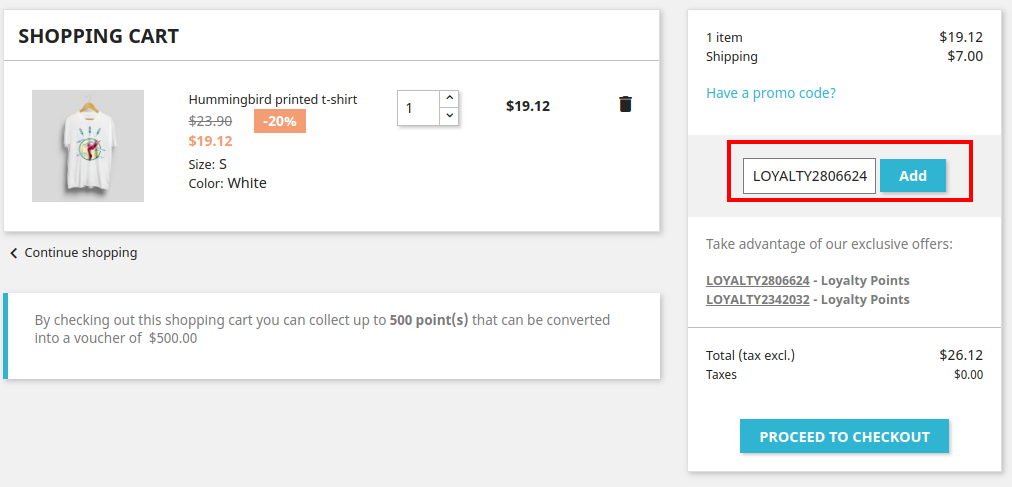
By clicking the desired discount code, it automatically gets copied into the Promo Code box as shown.
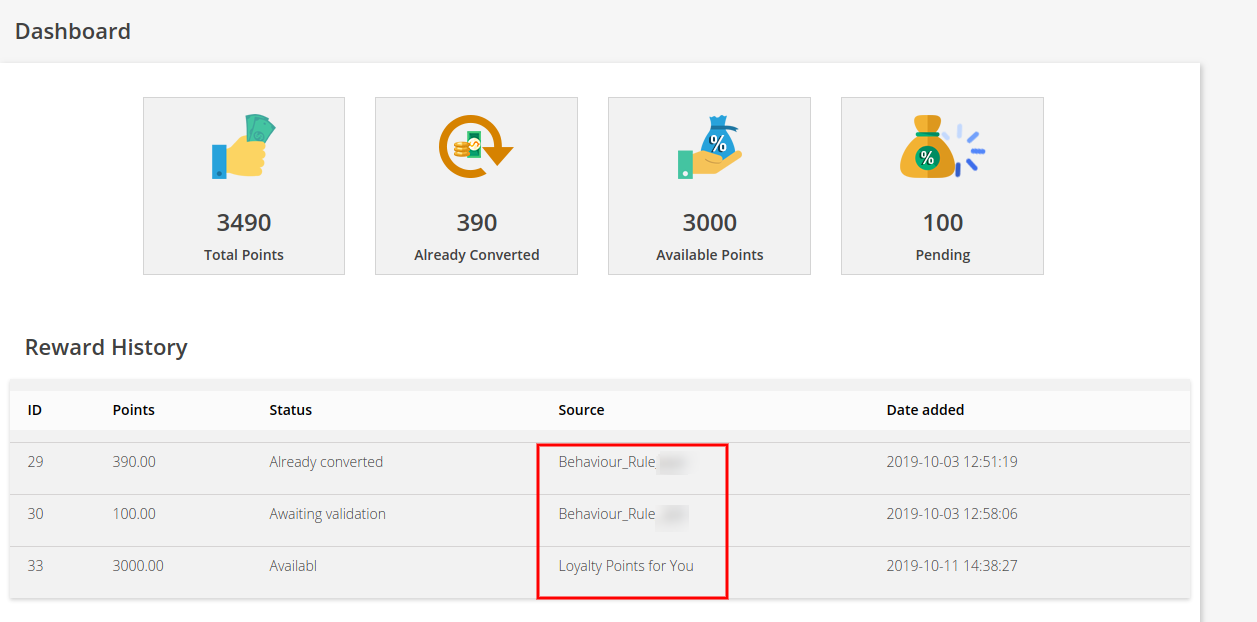
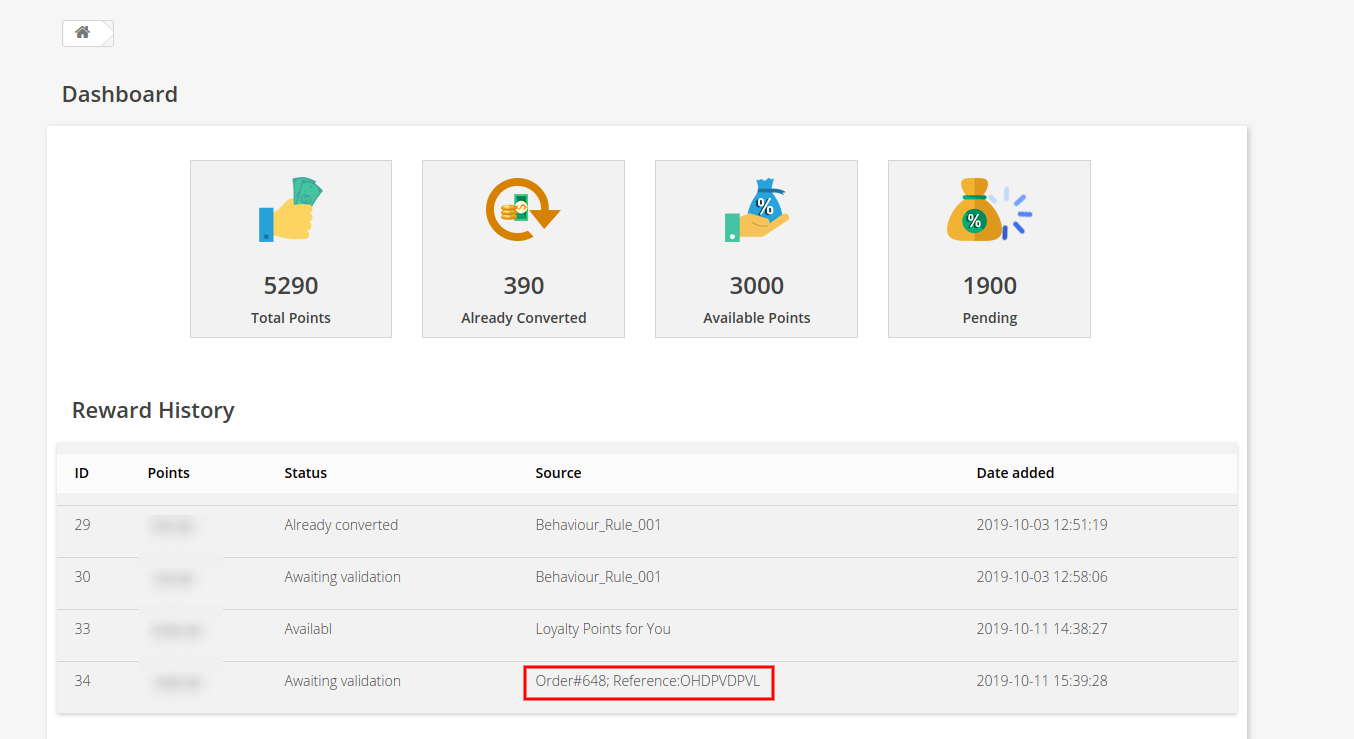
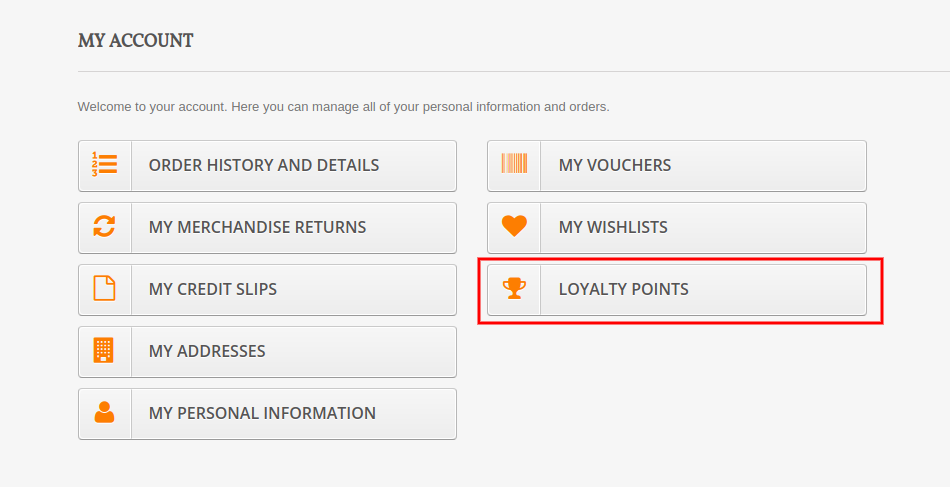
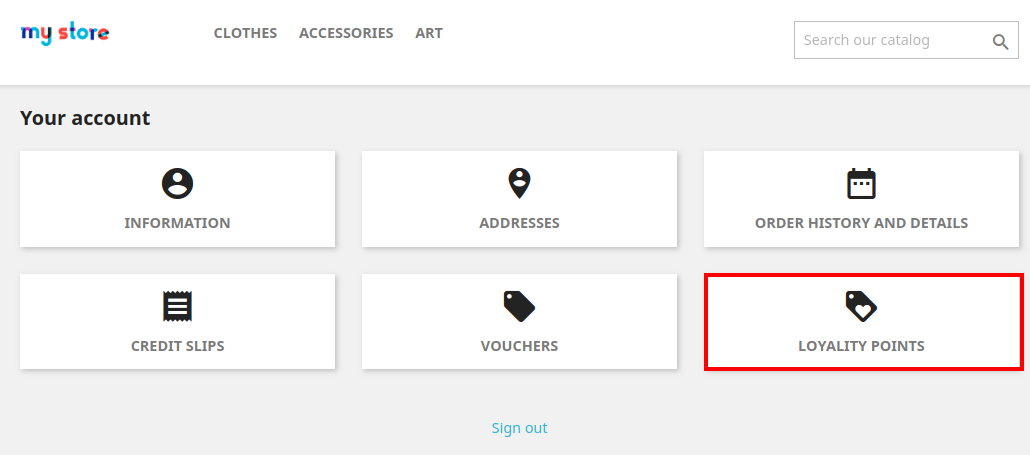
E) Customer can check the complete status of their loyalty points from their Dashboard.
1.6 Version:
1.7 Version:
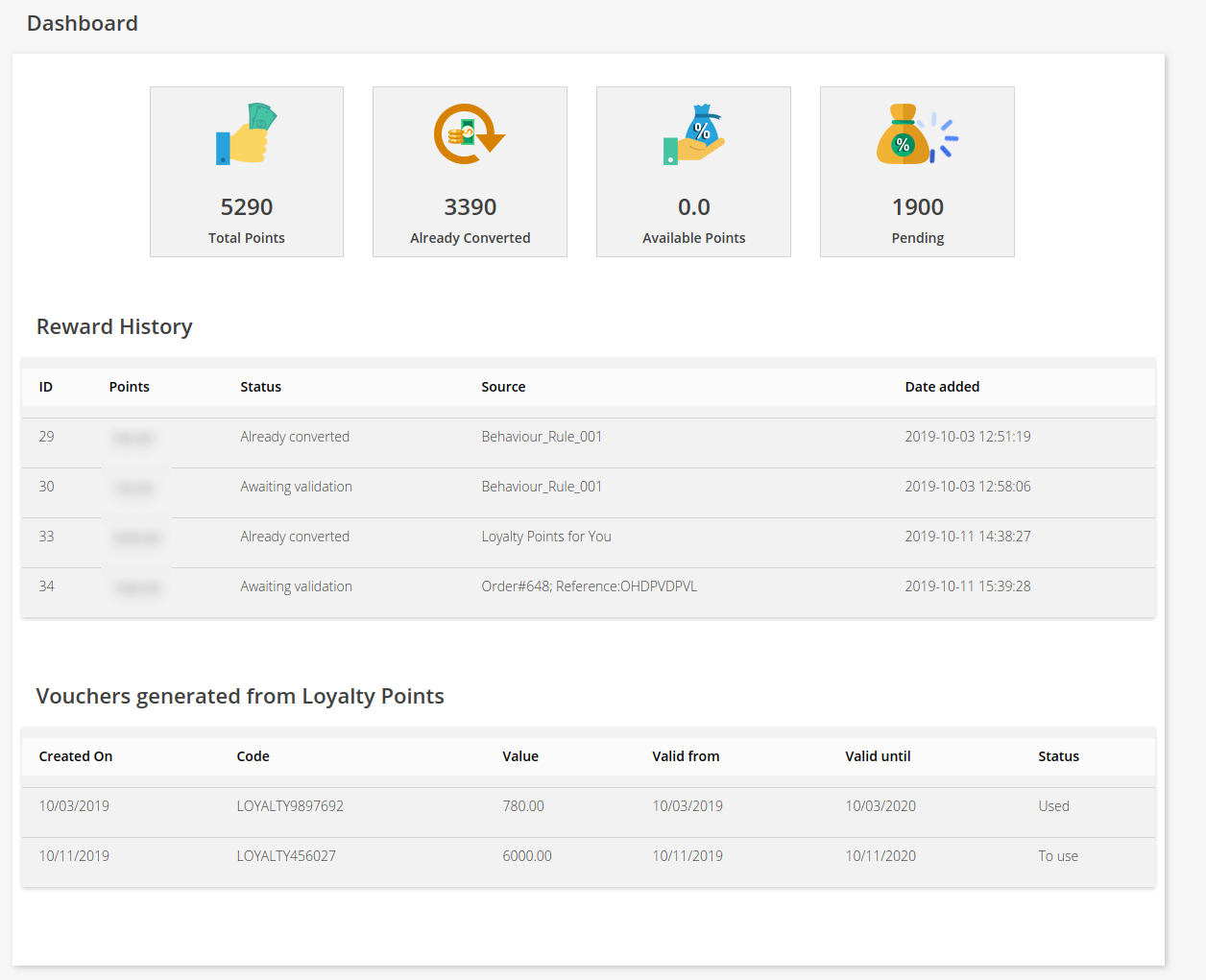
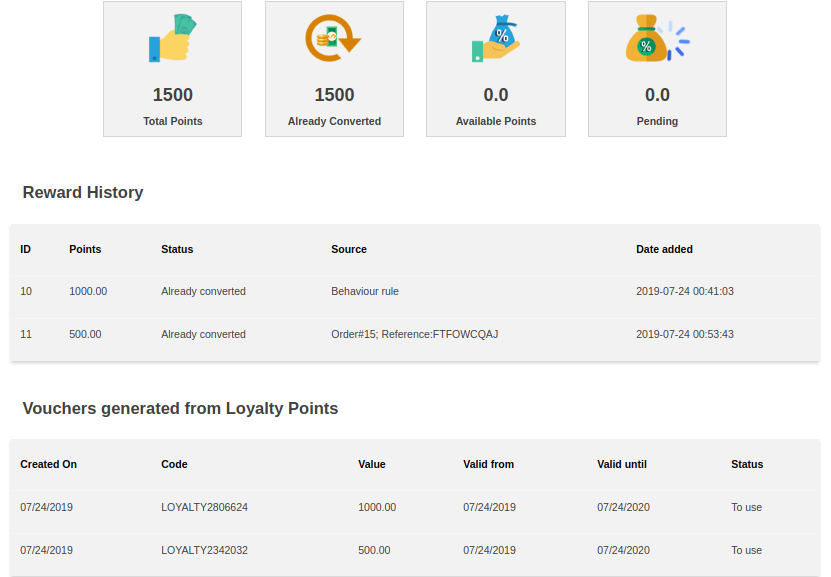
On clicking the Loyalty Points option, customer will jump to the below screen. Here they can check the complete status of their loyalty points, their reward history, discount vouchers generated from points etc.
Version 1.6:
Version 1.7:
5.0.0 Tutorial Video of Prestashop Loyalty Points Module
Checkout our complete tutorial videos, which cover all the features from Installation to the complete frontend working.
Are you looking for some effective social media addons for your Prestashop website? There are plenty of social media plugins available that will help you gain social engagement, drive quality traffic to your store and get more conversions. In this article, I have listed 6 social media addons that will be helpful for your Prestashop store. Check them out.
The module offers up to 15 social login options that include Facebook, Google, Instagram, Twitter, Linkedin, Amazon, PayPal, Live, WordPress, Dropbox, Yahoo, GitHub, Disqus, Foursquare and VKontakte. It encourages quick sign-up and reduces password fatigue.
With PrestaShop Social Loginizer, you can track the total number of registrations and total login from various social media accounts. You can customize the login options and also select the pages where you want to showcase the social login block, for example, on the Home Page, Product Page, Category Page, Checkout Page, etc.
2. PrestaShop Instagram Shop Gallery
PrestaShop Instagram Shop Gallery addon adds an attractive Instagram Gallery section on your PrestaShop website. The Instagram gallery consists of the posts that are fetched from Instagram using specific hashtags.
So, basically with this module, you can define the hashtags for which you want to fetch the related images and map your products on those images.
The module makes it very similar to Instagram Shoppable Posts and offers many customizations to adjust the look and fool of your PrestaShop Instagram Gallery.
3. PrestaShop FB Store
PrestaShop FB Store addon helps the PrestaShop store owners integrate their E-commerce store to their Facebook business page.
The module allows you to display your store products on your Facebook page, under the “Shop Now” tab. It is also known as the Facebook shop.
In this module, you can select the categories and products that you want to display on your Facebook shop. Also, you can set the limit of products that you want to feature.
You can also track the traffic coming to your website through facebook shop by providing your Google Analytics ID.
Note: To use this module, you need to have a minimum of 2K likes on your Facebook page.
4. PrestaShop Facebook Share and Win Discount
PrestaShop Facebook Share and Win Discount is an amazing tool to reward your users for promoting your products. This addon allows you to provide some discount to your users every time they share your product on their Facebook wall. This not only increases product visibility but also encourages word-of-mouth.
The module adds a Facebook “Share to get discount” button on your product pages.
PrestaShop Facebook Share and Win Discount addon also allows you to provide a flat discount value or some percentage discount to your customers. You can specify the discount value and set its validity.
5. PrestaShop Twitter Feed
PrestaShop Twitter Feed addon helps you display your twitter posts on your PrestaShop website. This addon offers tons of customizations, letting you make your twitter feed appear on the footer, left column or the right column of your website.
You can also choose where you want to display your tweets, for example, on the Home page, Login page, Product Page, Category Page, Account page.
PrestaShop Twitter feed addon provides you with the option to set your tweets limit.
You can select a Light or Dark theme for the twitter widget.
To make any further changes without touching the coding section, you can use the Custom CSS option.
6. PrestaShop Order Social Sharing
PrestaShop Order Social Sharing addon lets customers share their order details on a number of social networking platforms like Facebook, Twitter Google+ and lets you make custom changes as per your requirements.
It basically helps customers suggest or share a word about their order/product to their social friends and thus provides the latter with a direct link to check out the product.
Final Word
Having social media addons can make things interesting for your Brand as well as your store visitors.
I hope this article on “6 must-have social media addons for your Prestashop store” helped you in finding the best and suitable social media modules for your website.
If you found this information useful, do let me know by leaving a comment below or if you need any assistance in any of the modules, you can contact us at support@knowband.com
Instagram is undoubtedly one of the fastest ways to reach a huge number of specific users and have them familiarize with a brand. Opencart Instagram Shop Gallery Extension by Knowband lets your customers shop what they see in your Instagram Account. You can showcase your Opencart Shoppable Instagram Feed on to your eCommerce website. More and more businesses want to advertise on Instagram because of its incredible audience. As technology evolves toward a visual-centric approach, users wanting to obtain as much information as possible but in less time are shifting from editorial to mainly visual content. You can give your customers a visual approach for them to view the products on your eCommerce store as Opencart Shoppable Instagram Feed and buy tagged products as if they are shopping on Instagram.
2.0 Features
3.0 Installation Guide
Before starting the installation process, you have to buy the Opencart Instagram Shop Gallery Extension from the Knowband store. Once purchased, you will receive the following files on your registered email.
Source code of Opencart Instagram Shop Gallery Extension module in zipped file format.
User Manual of Opencart Instagram Shop Gallery Extension module.
Now in order to install this Opencart Instagram Shop Gallery Extension module on your online shop, follow the given steps:
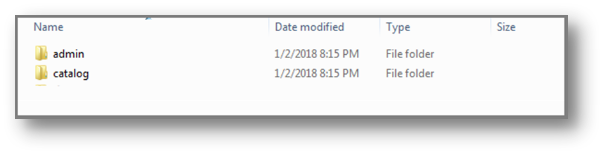
Step 1: Unzip the zip file. You will get the folders as shown in the image below
Step 2: Copy all the folders of the zip file in the Root Directory of OpenCart setup via FTP manager.
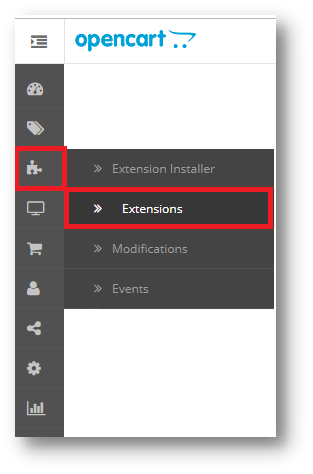
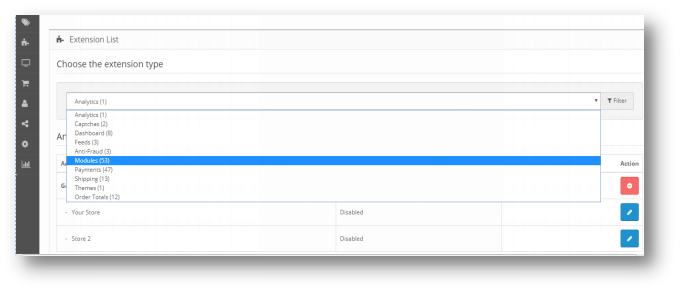
So, Opencart Instagram Shop Gallery Extension plugin is now successfully installed and is ready to use at your store. Go to the admin menu and click on the extensions. Choose the Extension Type as Modules. You will find a list of modules. Select the Opencart Instagram Shop Gallery Extension.
4.0 Admin Interface of OpenCart Instagram Shop Gallery Extension
To configure the Opencart Instagram Shop Gallery Extension, Navigate the settings in the following order: Admin Panel > Extensions > Modules > Instagram Shop
The Admin Interface of Opencart Instagram Integration Extension is divided into 6 Tabs:
Instagram Account
Photos and Videos
Tags
Layouts
Settings
Help
4.0.1 Instagram Account
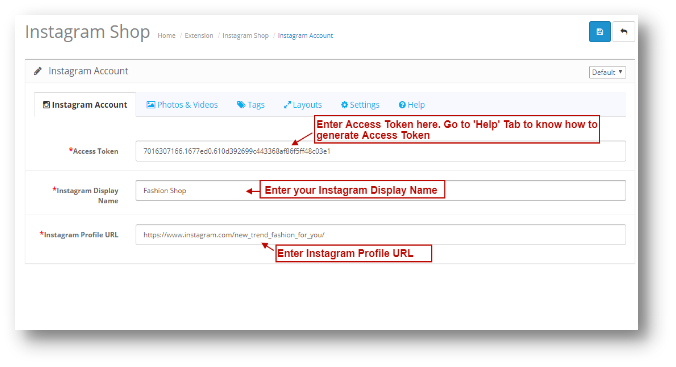
Under the Instagram Account of the Opencart Instagram Integration Extension, You will have the following configuration option:
Know how to generate Access Token: Annexure 1: How to generate Access Token?
4.0.2 Photos & Videos
Under the Photos & Videos of the Opencart Instagram Integration Extension, You will have the following configuration option:
1.All
2.Featured
3.Tagged with Products
4.0.2.1 All
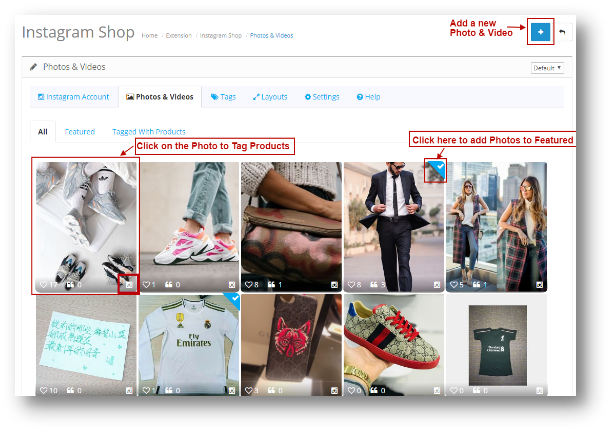
Here all the Photos added on your eCommerce store will be shown. The page will look like the following as shown below:
Instagram Icon: Click on the Icon to view the Photo on Instagram Profile.
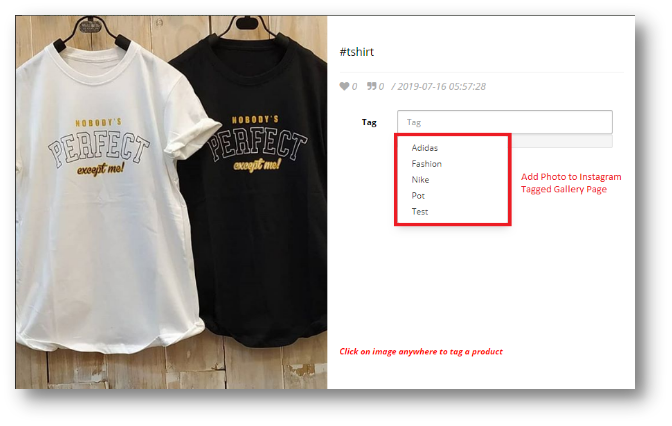
When you will click on the Photo, the following pop up will be appear to them as shown below:
You can add an Image or Video to a Tagged Gallery Page as follows:
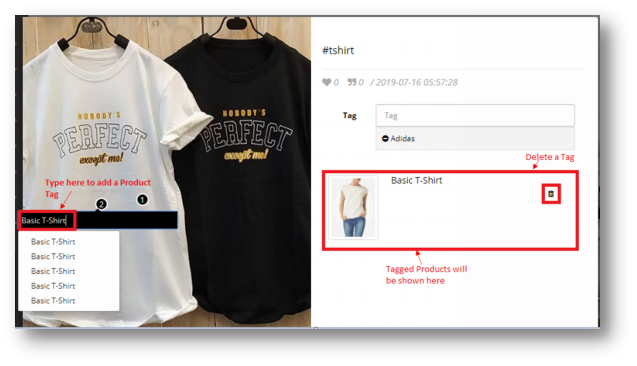
You can Tag as many Products as you want with this Photo.
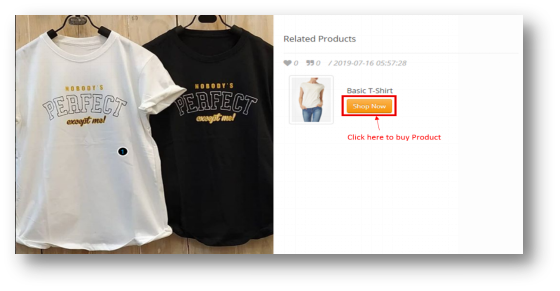
Tagged products will be shown in your eCommerce store as below:
4.0.2.2 Featured
All the Photos and videos marked as Featured in ‘All’ Tab will be shown here. The page will look like as the one shown below:
4.0.2.3 Tagged with Products
All the Photos and Videos which are tagged with products will be listed here. You can click on the image to Tag photo with products. The screen will be shown as below.
4.0.2.4 Add Photos & Videos
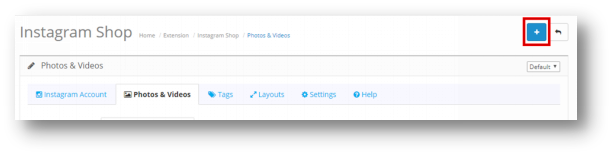
Follow these simple steps to add a Photo and Video. Click on the Add Icon which is highlighted on the screenshot below:
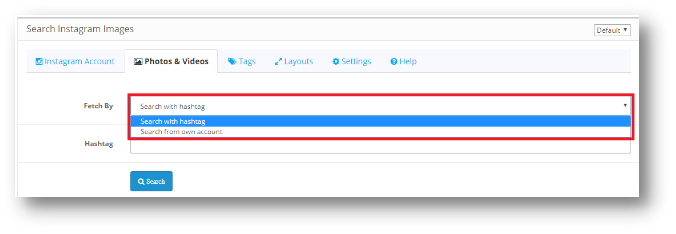
The following screen will appear:
Users will have 2 options to add a screen:
Search with Hashtag
Search from own Account
Search with Hashtag
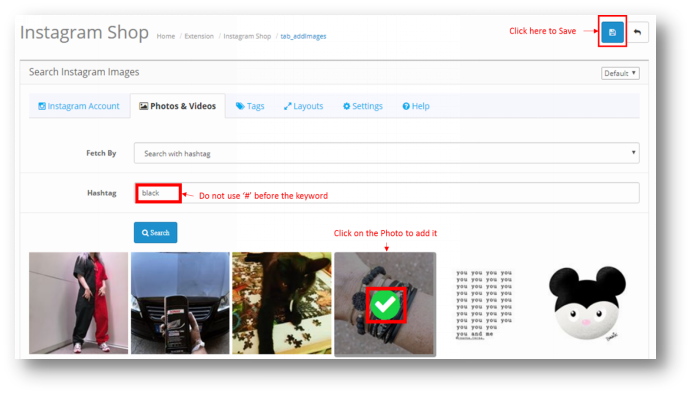
You can search a Photo using Hashtags and all the photos listed under that Hashtag will appear on the screen. You can select a Photo and click on Save and the Photo will be saved under ‘All’ Tab.
*Note – Do not use ‘#’ before the keyword to search a Photo.
You can only add a Photo using the Hashtag. To add a Video, you need to search it from your own account.
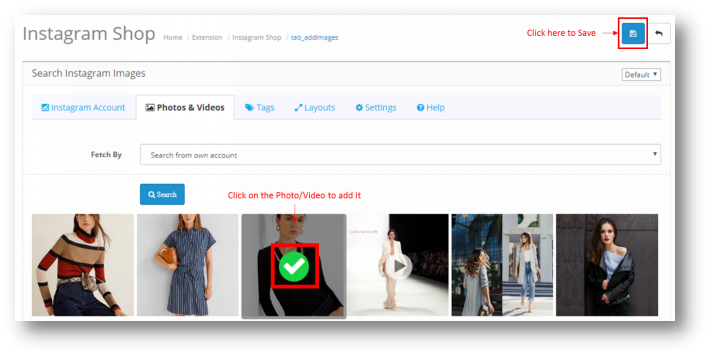
Search from own Account
When you click on Search from own account, the following page will be shown below. All the Photos and Videos uploaded on your Opencart Shoppable Instagram Feed will be shown.
Once the Photo or video is added, it will be shown on the ‘All’ Tab of the Photos & Videos setting page of Opencart Instagram Integration Extension.
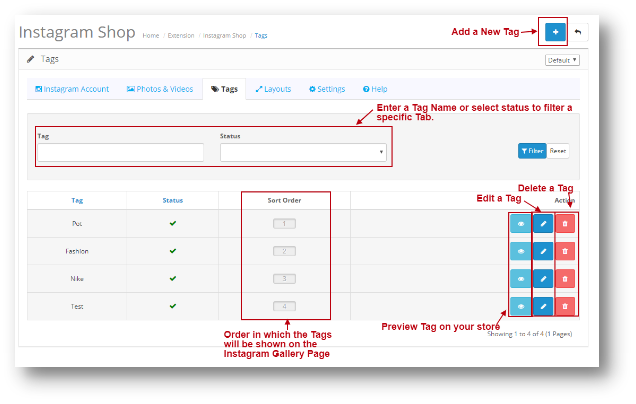
4.0.3 Tags
Using Tags, you can add a page in your store and show specific Products under that Tag. The Tag page will look like as shown below:
Preview Tag: If you click on this option then it will redirect you to the Store where you can view the Tag Page.
4.0.3.1 Add a Tag
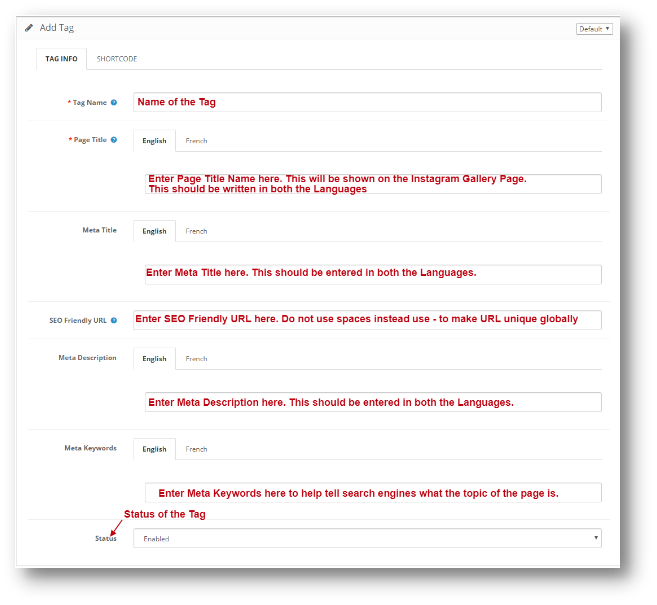
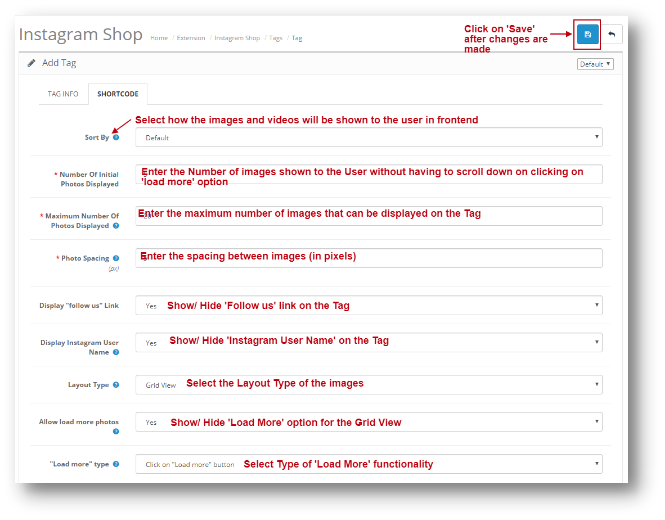
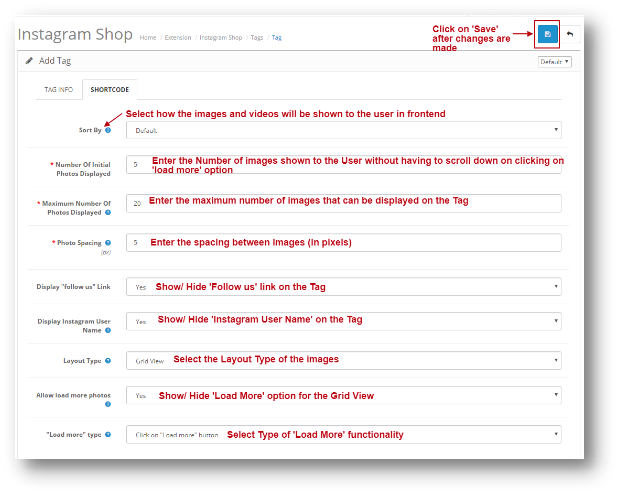
Under the Add Tag of Opencart Instagram Integration Extension, Admin will have the following configuration options:
Tag Info
Short code
After the information is saved on both the Tabs of Add Tag. You can click on Save and the Tag will be added.
Layouts:
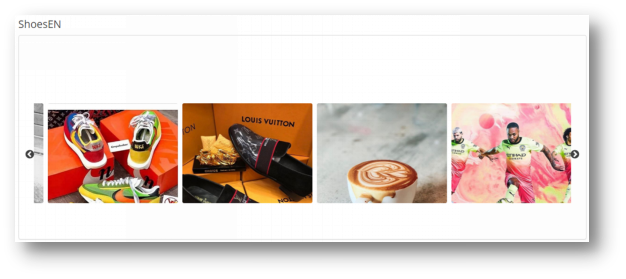
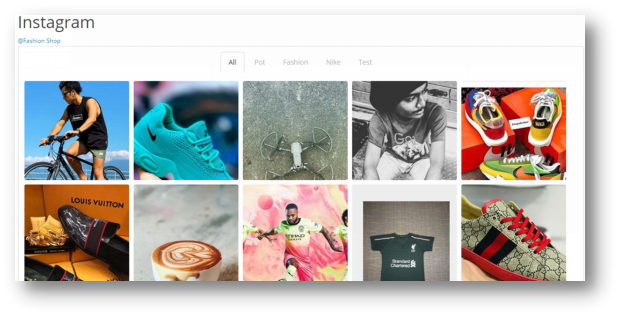
The following two types of layout options are present in Opencart Instagram Shop Gallery Extension:
Carousel Slider
Grid View
4.0.3.2 Edit a Tag
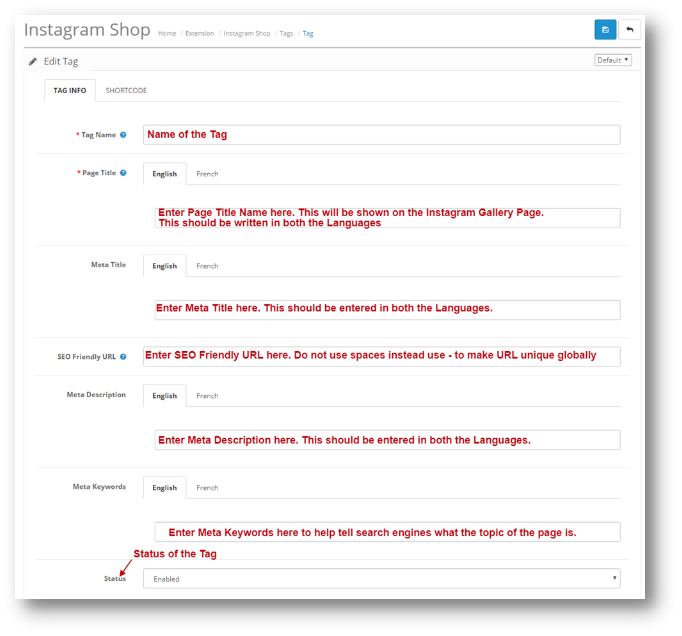
Under the Edit Tag of Opencart Instagram Integration Extension, You will have the following configuration options. It will be same as Add Tag, the only difference is that data will be pre-filled.
Tag Info
Short code
4.0.4 Layouts
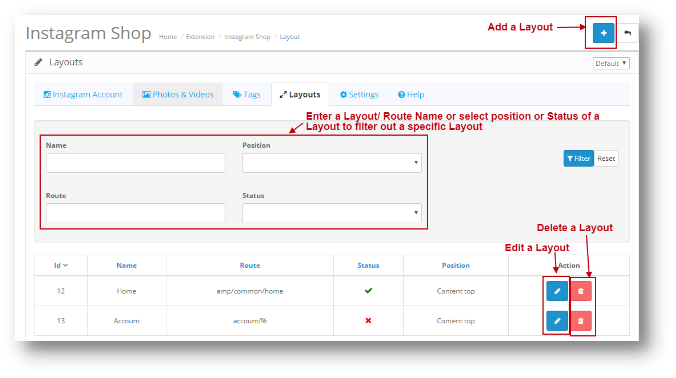
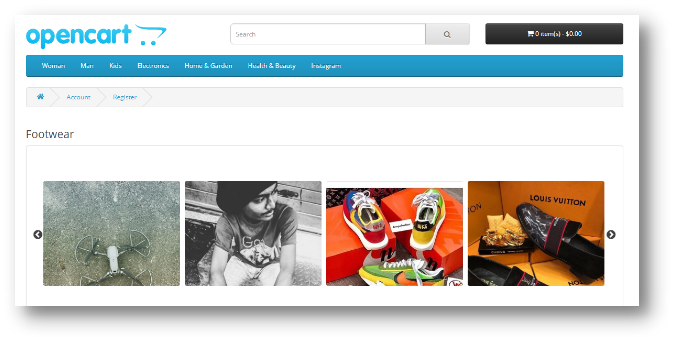
You can add your Instagram images on any page of your webstore from this option. Under the Layouts of the Opencart Instagram Integration Extension, You will have the following configuration option:
Edit Layout: Edit Layout Page will be same as Add a Layout Page. The only difference is that in edit page all the field will be pre-filled. Delete Layout: When you click on Delete Layout, the page will give a Pop up to confirm. Once you confirm it, the Layout will be deleted.
4.0.4.1 Add Layout
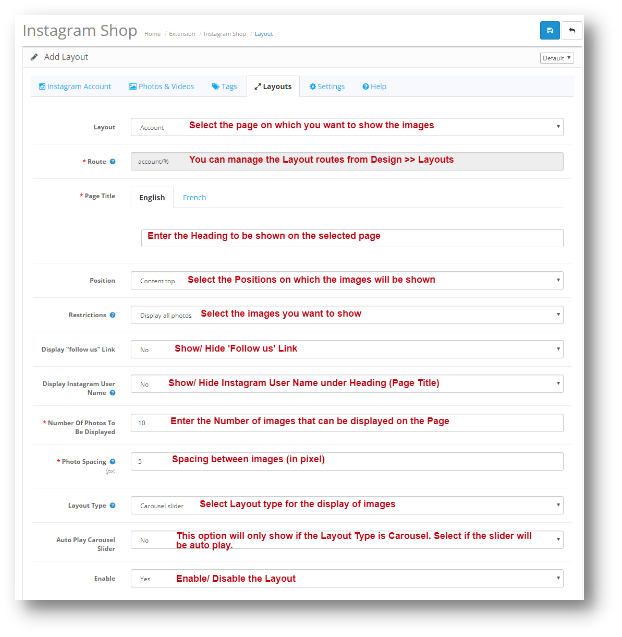
You can add images from your Instagram feed on any page of your Webstore from this option. Add Layout of Opencart Instagram Shop Gallery Extension will have the following configuration option:
Position of Layouts:
Content Top
Content Bottom
Column Left
Column Right
4.0.5 Settings
Settings page will have the following configuration options:
4.0.5.1 General
Under the General Settings of the Opencart Instagram Integration Extension, You will have the following configuration option:
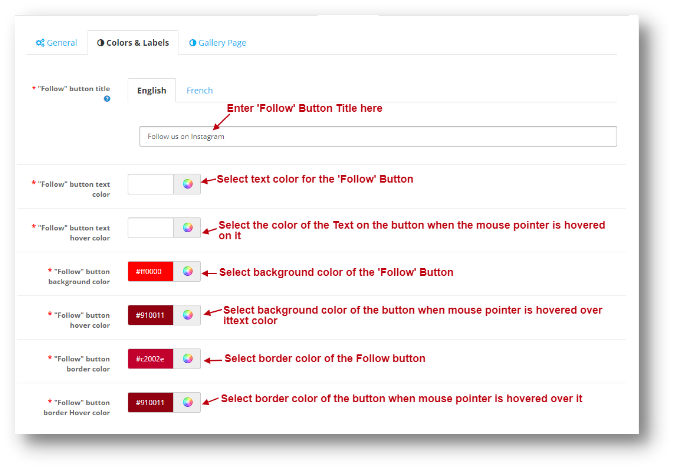
4.0.5.2 Colors and Labels
You can change the Look and feel of ‘Follow’ Button from this setting. The same is shown on the screenshot below:
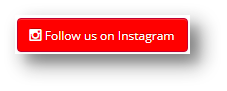
Follow button will look like as shown below:
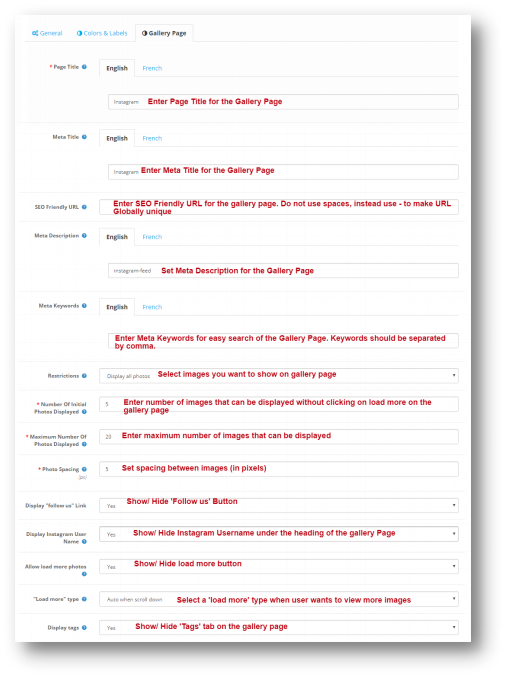
4.0.5.3 Gallery Page
You can change the main gallery page settings from this option. Under the Gallery Page Settings of the Opencart Instagram Integration Extension, You will have the following configuration option:
4.0.6 Help
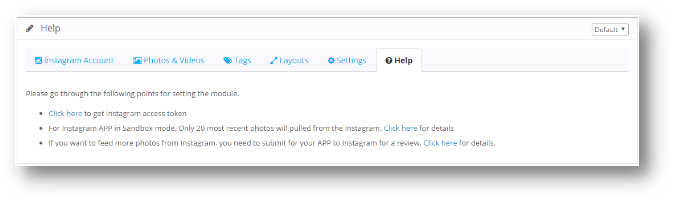
Under the Help Tab of the Opencart Instagram Integration Extension, You can see on how to get the access Token for your Instagram account. You can follow the listed steps to generate Access Token. The page will look like following:
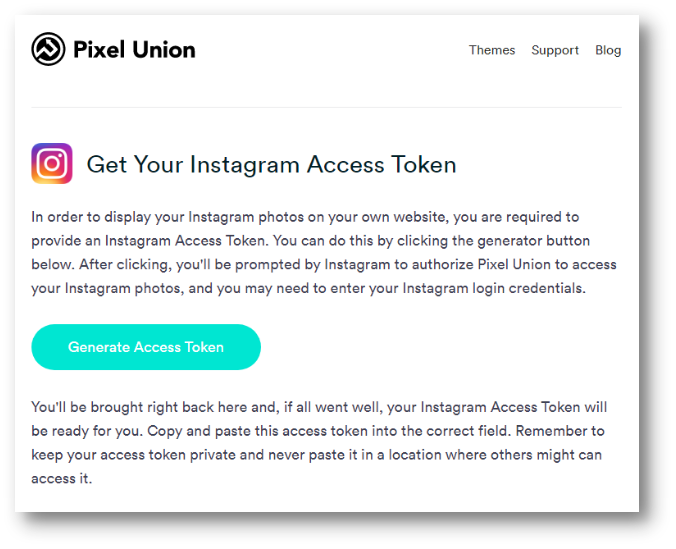
Annexure 1: How to generate Access Token?
Click here to go to Instagram Account
Step 1:
Go to https://instagram.pixelunion.net/ and click on Generate Access Token
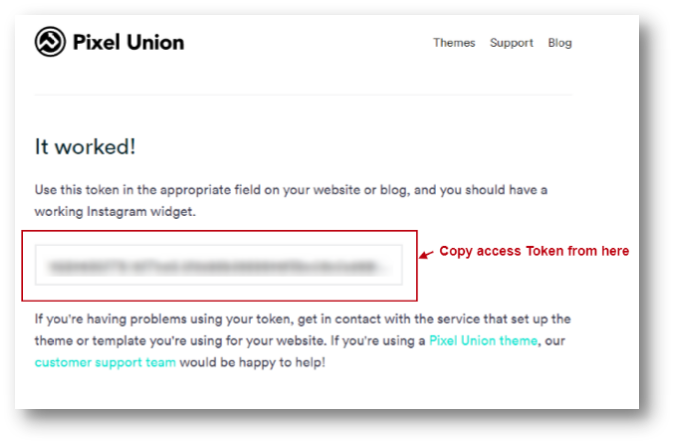
Step 2:
Copy Access Token
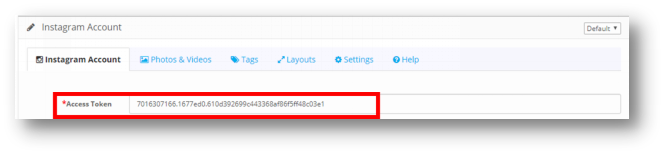
Step 3:
Paste it in the Access Token field under Instagram account settings.
Social media integration is the essential functionality for most of the eCommerce sites today. Social media platforms like Facebook and Instagram provide you the only space to grab lots of traffic as well as sales. Magento Social Wall Post Extension helps you showcase the new arrivals and limited stock products of your store among a wide range of audience. This way Social feed integration is the best means to engage your social media audience on your main website. The social feeds sent on Facebook and Instagram help to gain customer trust which certainly leads to higher conversion levels.
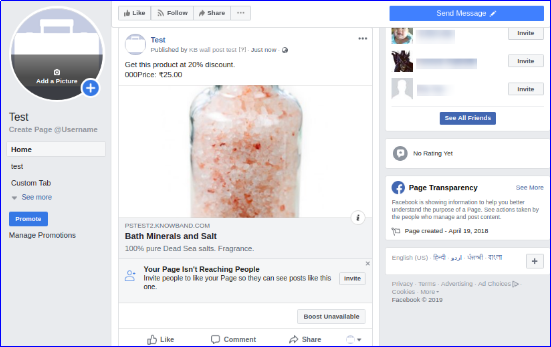
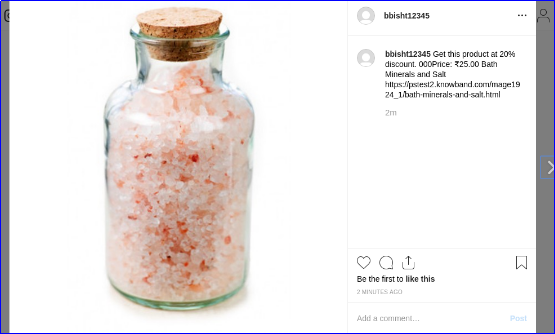
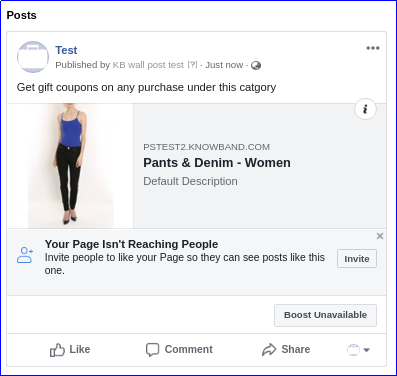
Knowband’s Magento Social Wall Post module allows you to display product related posts on your official pages at Facebook and Instagram. Moreover, Magento Social Feed extension serves as the best tool to announce promotions and discounts with limited product stocks.
1.1 Striking Features of Social Wall Post Extension for Magento
This Magento Social Wall Post module provides you various customizable features to display feeds from your website at any Facebook page or Instagram page. In order to integrate Magento Social Feed extension, you have to configure various functionality without any source code modifications. But first, lets take a quick overview into the features of Instagram Wall Post for Magento.
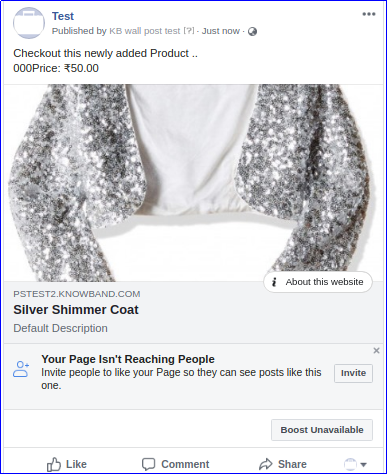
1. Magento Facebook Wall Post Extension publishes feeds on your Facebook and Instagram pages based on product, category, new arrival or limited stock product.
2. The various product feeds sent using Magento Social Wall Post module are compatible with mobile and tablet devices.
3. With Magento Instagram Post module, you can create manual or automatic posts for social media pages.
4. With the help of Social Wall Post Extension for Magento, you can share selected product and category feeds without any hassles.
5. Using Magento Social Feed extension, create as many posts with custom title, description, images, and product link. These posts or feeds can be scheduled for a particular date and time.
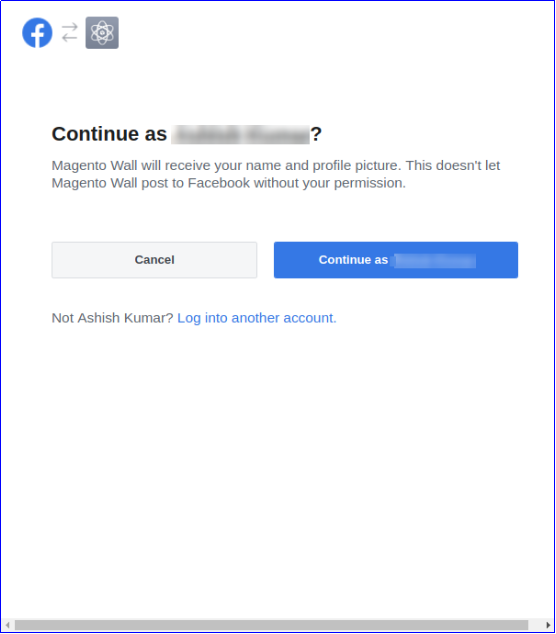
6. Magento social media integration module allows easy integration of your Facebook and Instagram account. You just have to follow the configure the configuration steps for connecting your social accounts.
7. For each product related or category related posts, Magento Social Wall Post module allows you set a custom text and social network to send any post.
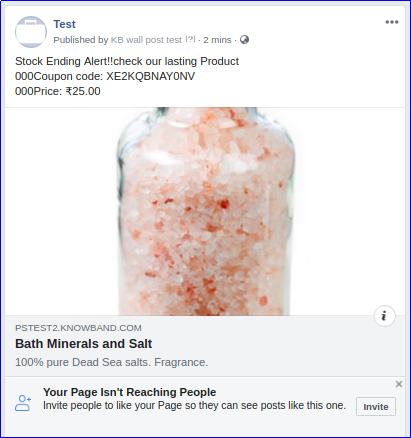
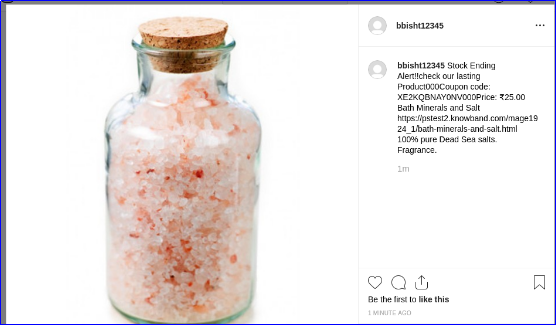
8. With Magento Social Feed extension, you can send limited stock alerts to your Facebook and Instagram wall.
9. Magento Social Wall Post module gives an option to set the product quantity below which the stock alert feed is automatically sent to Facebook and Instagram users.
10. Magento Instagram Post module provides an option to set a desired message for the stock alert wall post.
11. Magento Facebook Wall Post Extension helps you to offer discount coupon along with limited stock alerts sent to social media walls. For each discount coupon, you can set a fixed discount type, value, validity and quantity which can be modified from backend.
12. Magento Facebook Wall Post Extension executes cron jobs to publish scheduled posts, send new product posts & limited stock alerts on social wall.
13. Magento Facebook Post module allows you to set a description and image size for the product feeds shown on Facebook and Instagram page.
14. Magento Social Feed extension allows you to display product price in selected currency.
15. This Instagram Wall Post for Magento shares new products feed on social network wall along with a custom description.
16. Magento Facebook Post module is multi-store and multi-lingual compatible.
17. The functionality of Social Wall Post Extension for Magento doesn’t conflicts with other installed modules on the store.
1.2 Technology for Development
Language: PHP
Frame Work: Magento
2.0 Installation Guide of Social Wall Post Extension for Magento
1. Once after you purchase Magento Social Wall Post module from the Knowband store, you will get the following files on your registered email.
Source code file of Magento Social Wall Post extension in zipped file format.
User Manual of Magento Social Wall Post module.2. Download the files.
2. Unzip the package in the root folder of your Magento setup via FTP manager (like Filezilla or WinSCP – download here: https://filezilla-project.org/). You’ll find the files and folders as shown in the image below:
The Magento social media integration module is now installed for your store and is ready to configure without any coding hassles.
3.0 Admin Interface of Magento Facebook Wall Post Extension
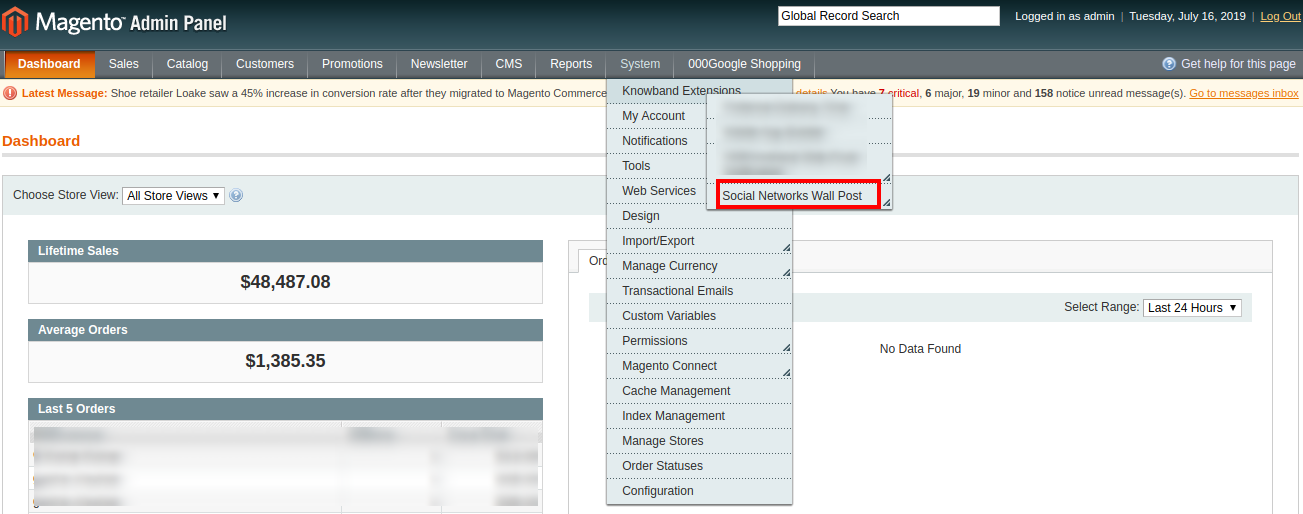
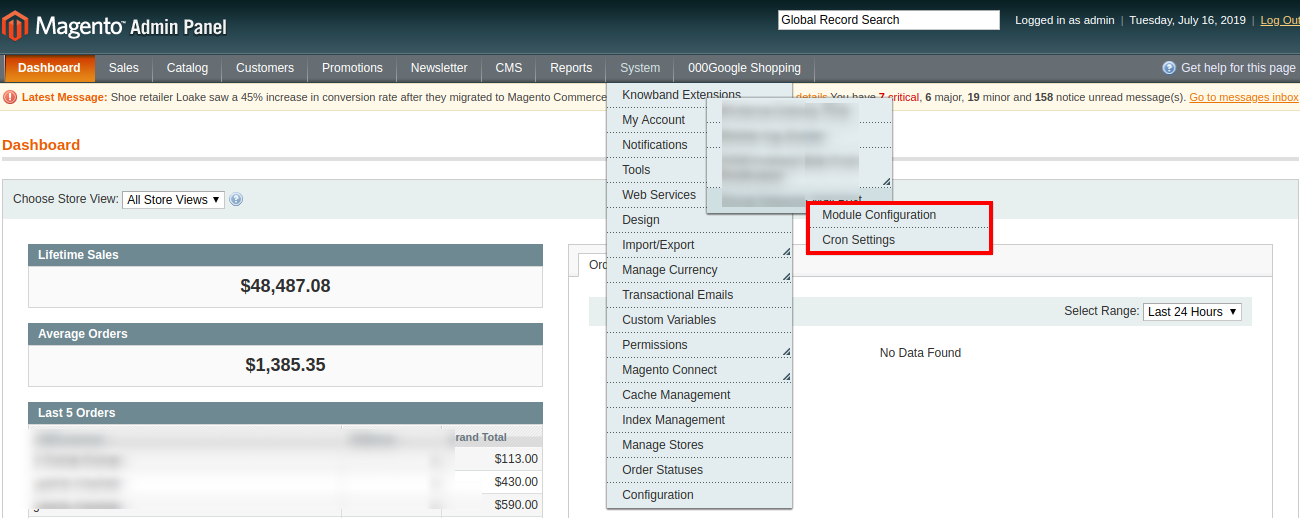
Once you have successfully installed Magento Social Wall Post module on your website, you can send or share unlimited product feeds on Facebook and Instagram. Whether there is any new product arrival or limited product stock alert, you have to configure the Magento social media integration module settings as per your business needs. Navigate to the module settings in the given order: Admin Panel >> System >> Knowband Extensions >> Social Network Wall Post
The easy to understand admin interface of Social Wall Post Extension for Magento has been divided into two broad sections as:
1.Module Configuration
2.Cron Settings
Each of these sections have been discussed in detail below.
3.1 Module Configuration
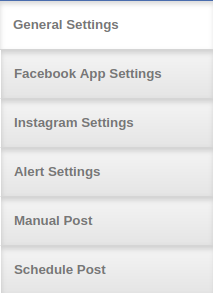
The configuration settings of this Magento Facebook Wall Post Extension is sub-divided into six sections as:
1. General Settings
2. Facebook App Settings
3. Instagram Settings
4. Alert Settings
5. Manual Post Settings
6. Schedule Post Settings
Each of these sub-section have been discussed in the next section.
3.1.1 General Settings
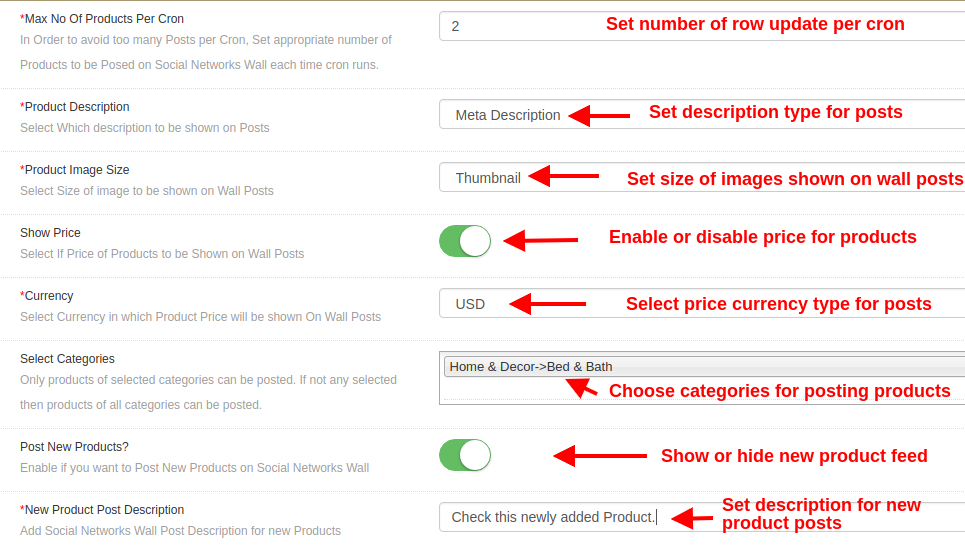
Max no of Products per Cron: This option will set the number of products which will be posted on social network wall per cron. Like, if the value is set to 2, then only two posts will be published on executing a single cron instruction.
Product Description: This option sets the product description type which is shown on the social media post. The options include Meta description, short description and long description.
Product Image Size: This option sets the image size for the products shown in feeds. This options include Thumbnail, base image, and small image.
Show Price: Enable or disable this option to show product price on wall posts.
Currency: This option allows you to select currency of product price Indian rupee or US dollar.
Select Categories: This option helps you to select the categories from which the products will be posted on social wall. If no category is selected then products from all category will be posted.
Post New Products: Enable or disable new product posts on social wall (Facebook and Instagram).
New Product Post Description: With this option, you can set a desired post description for new products.
3.1.2 Facebook App Settings
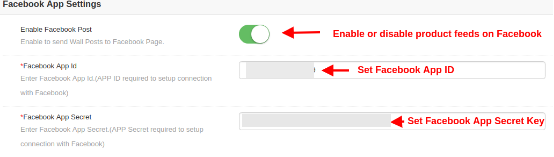
Enable Facebook Post: This option allows you to enable or disable wall posts on Facebook page.
Facebook App ID: This option will set app ID required to setup connection with Facebook.
Facebook App Secret: This option will set the Facebook App Secret key to setup connection with Facebook.
Facebook Access Token: This option sets the Facebook Access Token for setting up connection with Facebook.
Choose Page: Once the various keys are set, it will show you all the pages for which the app permission is granted.
3.1.2.1 Steps for Facebook Configuration
The steps for Facebook configuration are:
Login to your account at https://developers.facebook.com. If you dont have a account, create one.
Click on the “My Apps” dropdown menu, click on “Create App” option.
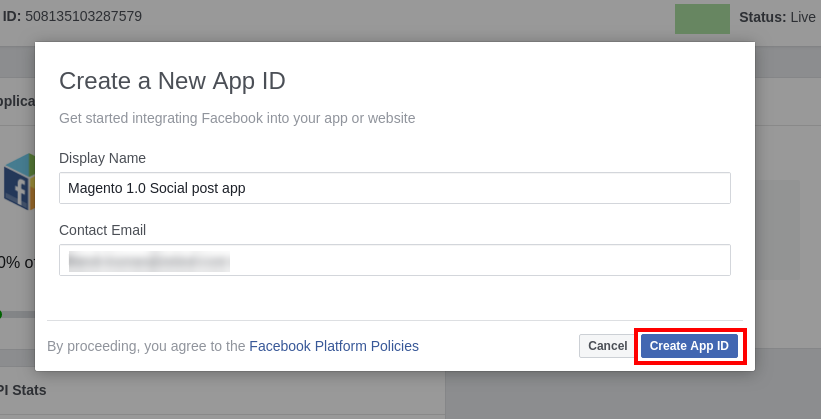
Now, set the “Display Name” for your app and then click on “Create App ID” button.
Your App is now created. It will be now listed under “My Apps” dropdown section.
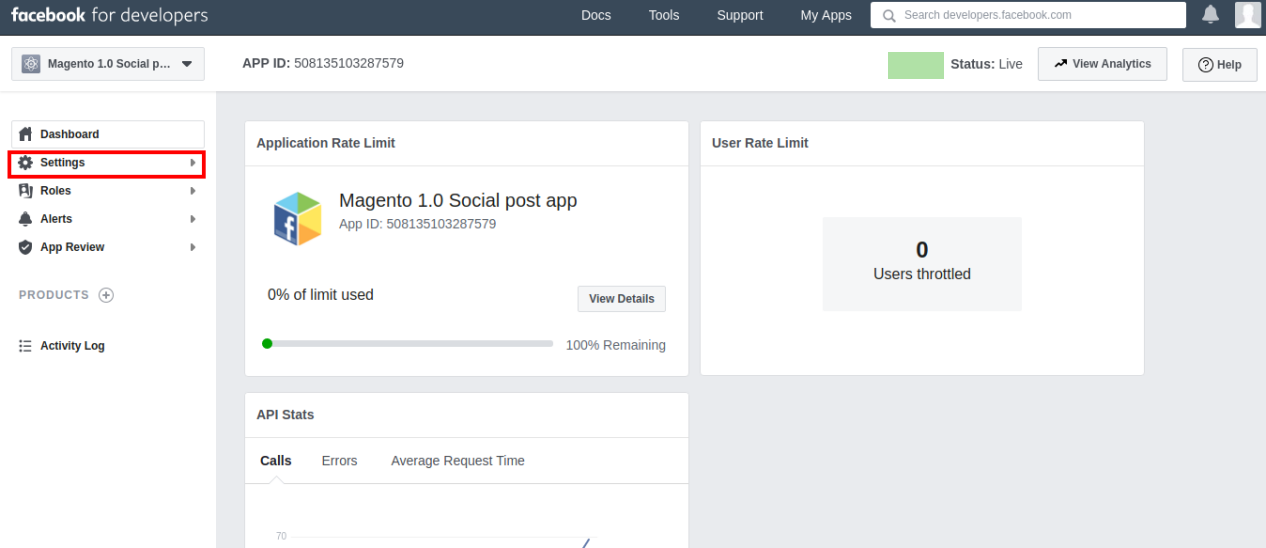
Click on the App you created. It will show you the dashboard.
Click on the Settings option.
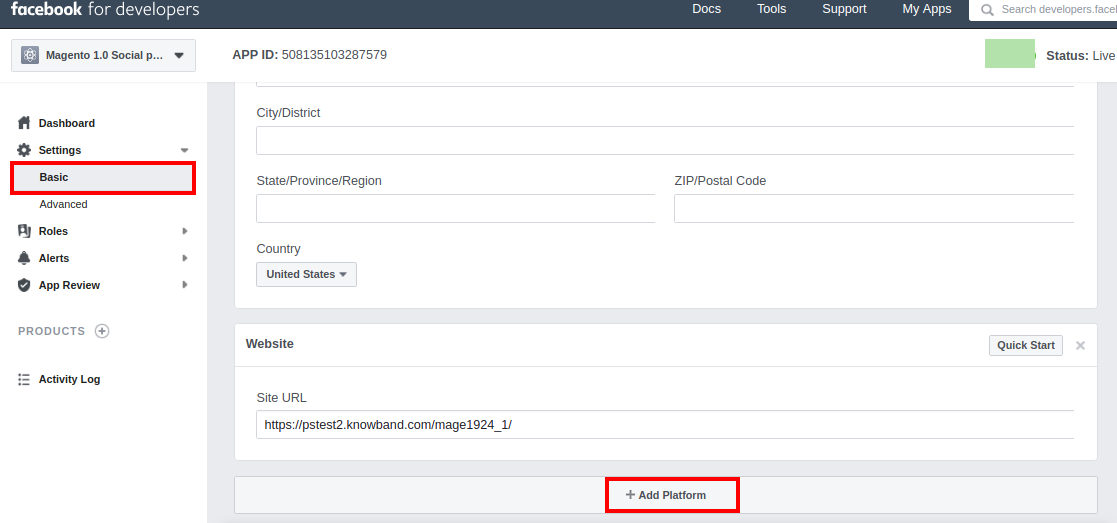
Under Basic tab, click on “Add Platform” option at bottom of the screen.
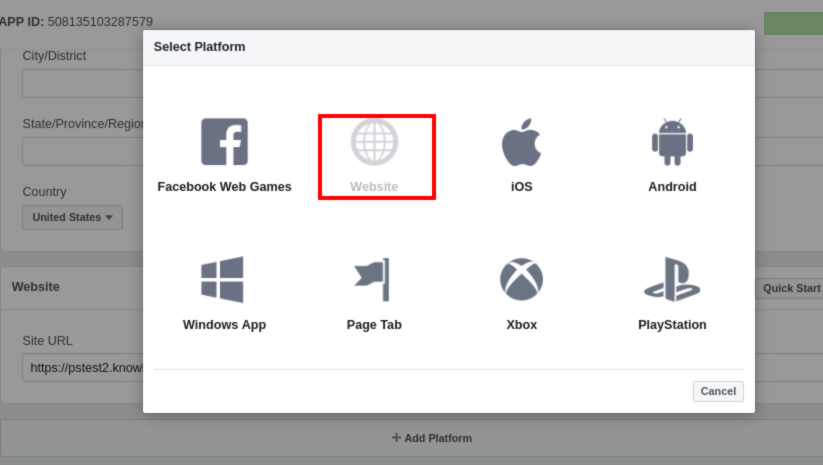
Choose Website option.
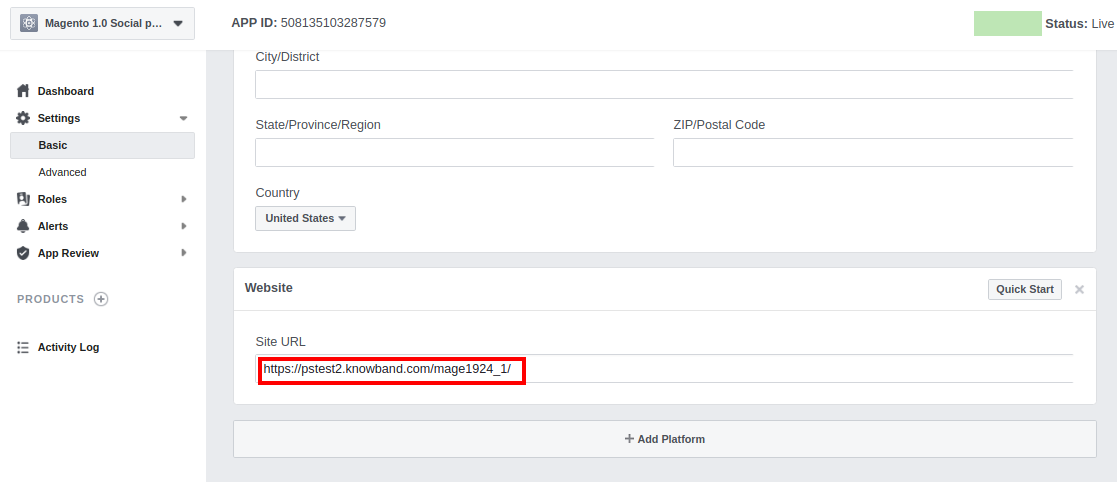
Enter the URL of your website under “Site URL” field.
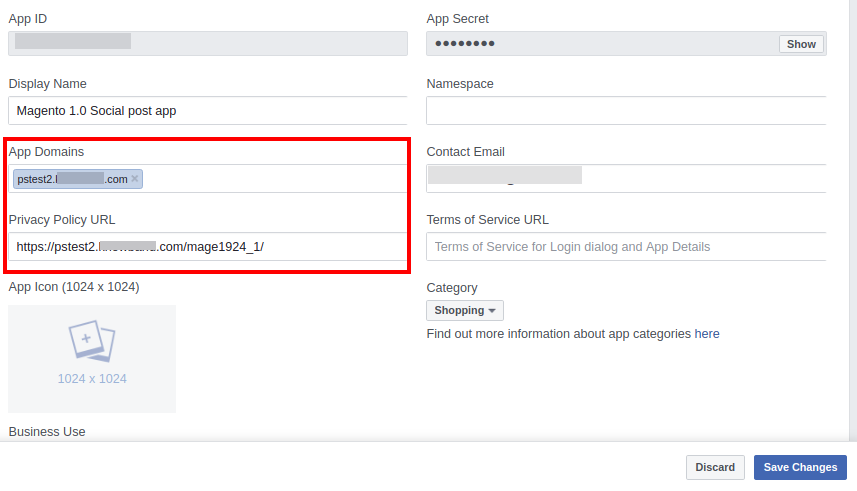
Enter the site URL into “App Domains” and site privacy policy URL into “Privacy Policy URL”.
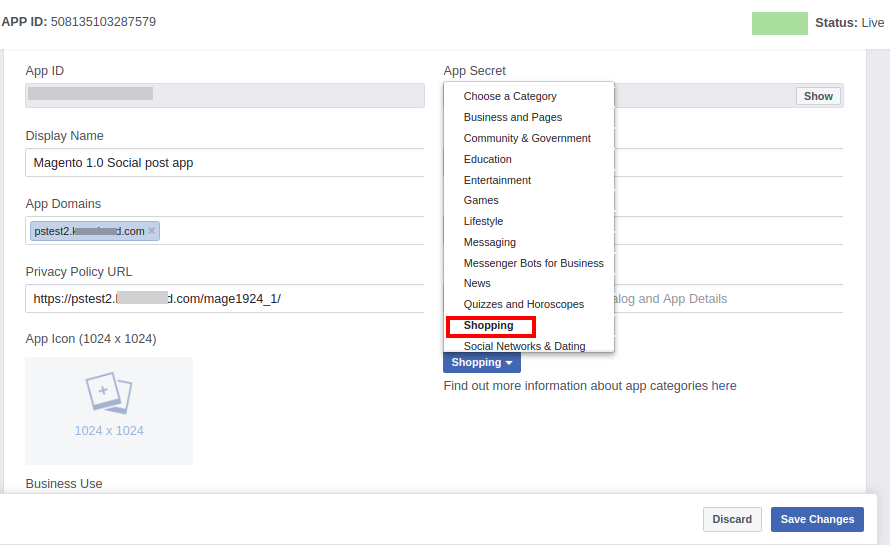
Select “Shop Category” suitable for your site. Suppose, you have selected as Shopping.
Now go to “Facebook App Settings” in your module settings.
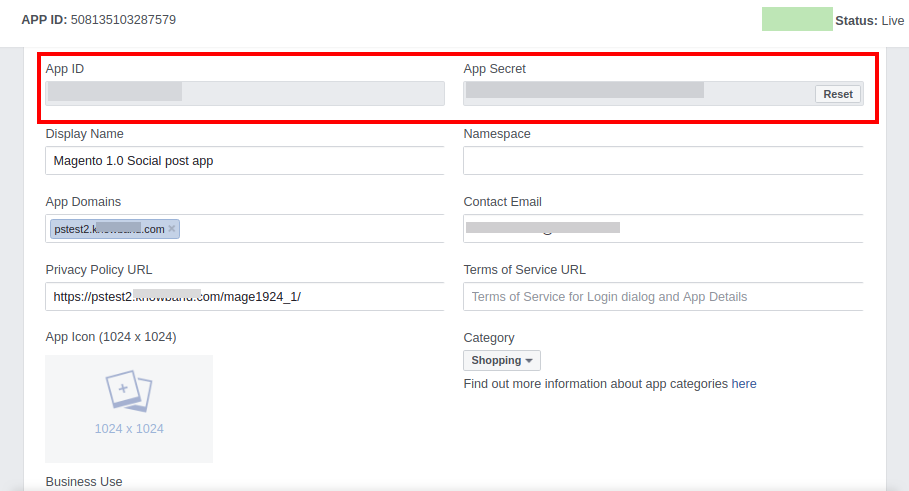
Copy the “App ID” and “App Secret” data from Facebook developer UI to your admin interface of your module as shown below:
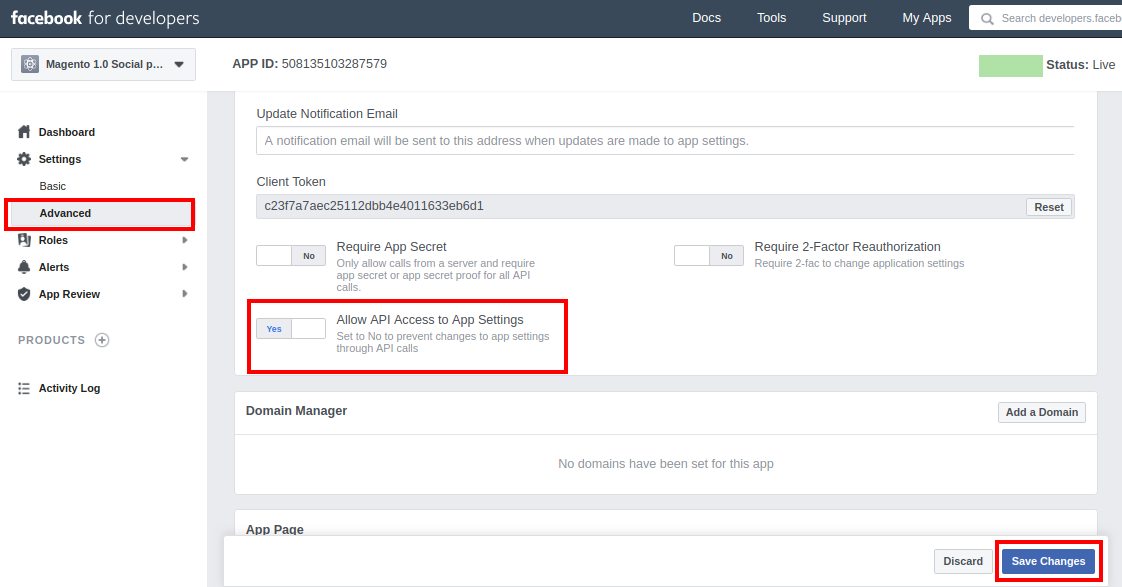
Now, enable the “Allow API Access to App Settings” option under Advanced tab. Then, click on “Save Changes” button.
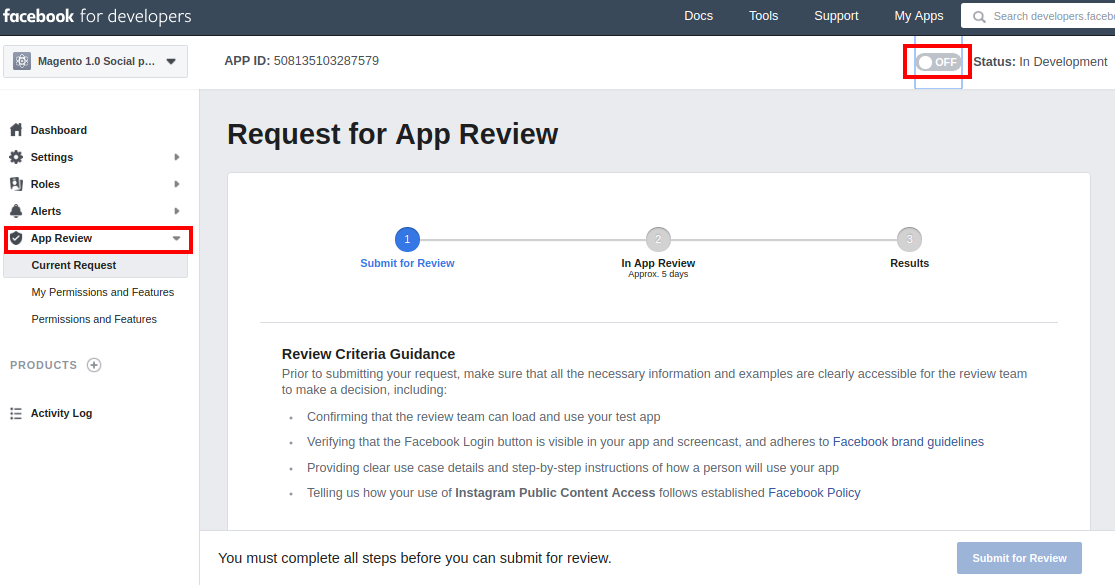
Under App Review tab, enable the toggle button shown at the top side of screen.
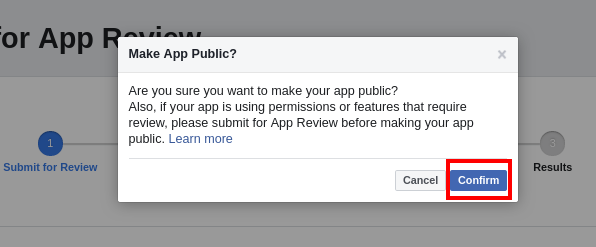
It will show the following confirmation screen. Click on “Confirm” button.
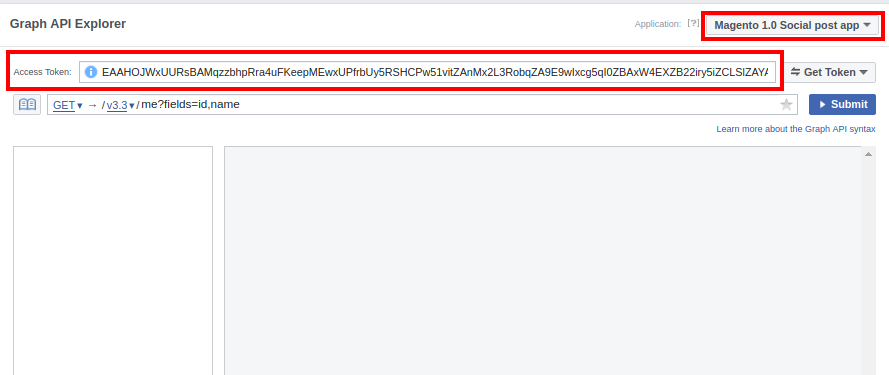
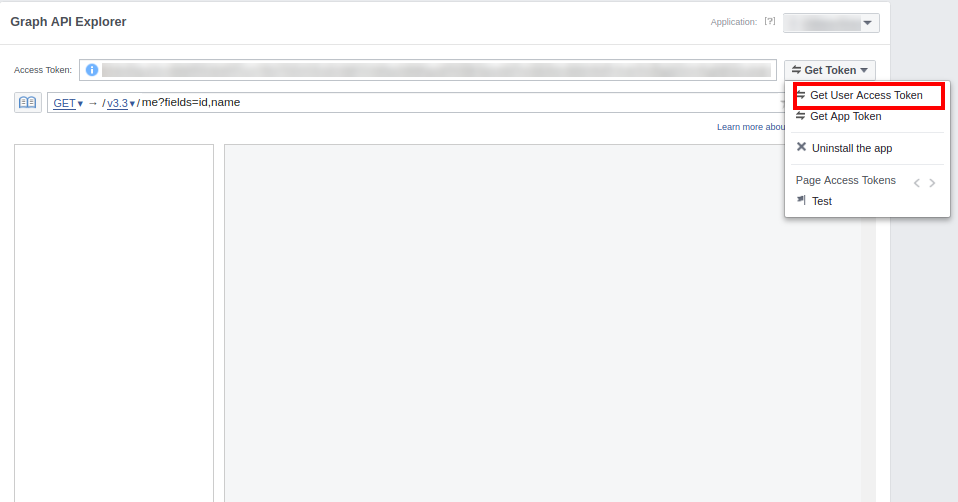
Go to Graph API Explorer at https://developers.facebook.com/tools/explorer in a new tab. Select your App and it will show you an Access Token for it.
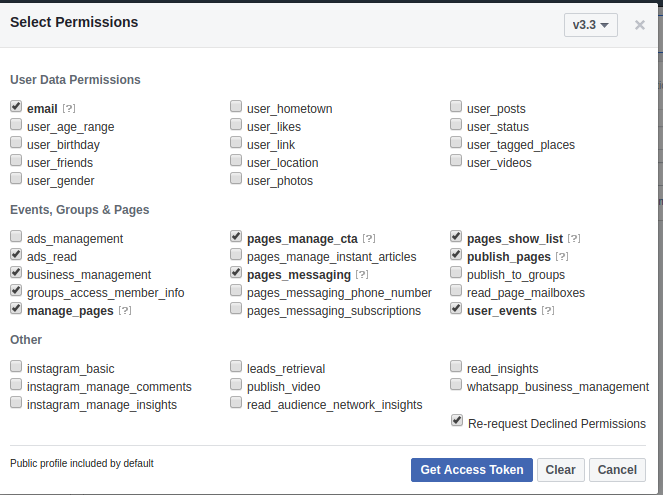
Click on “Get User Access Token” and select the permissions.
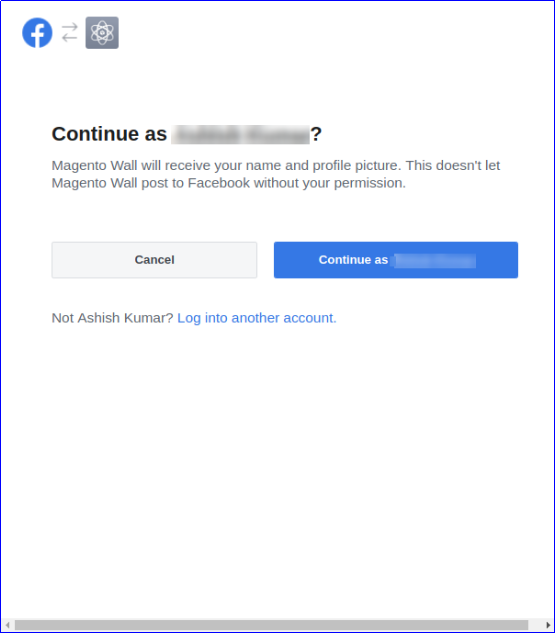
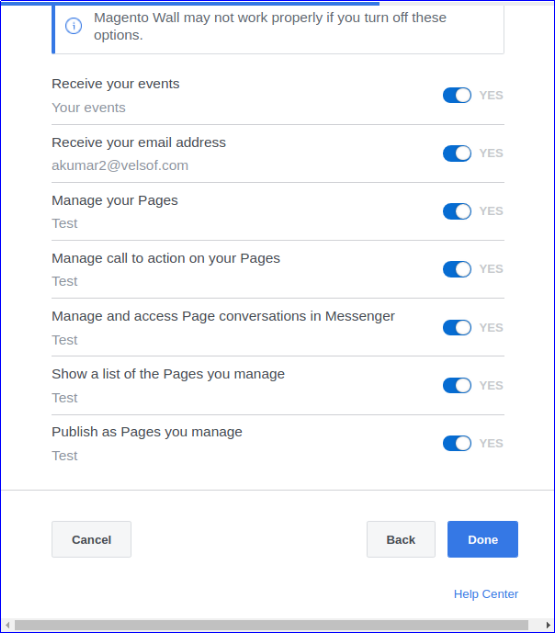
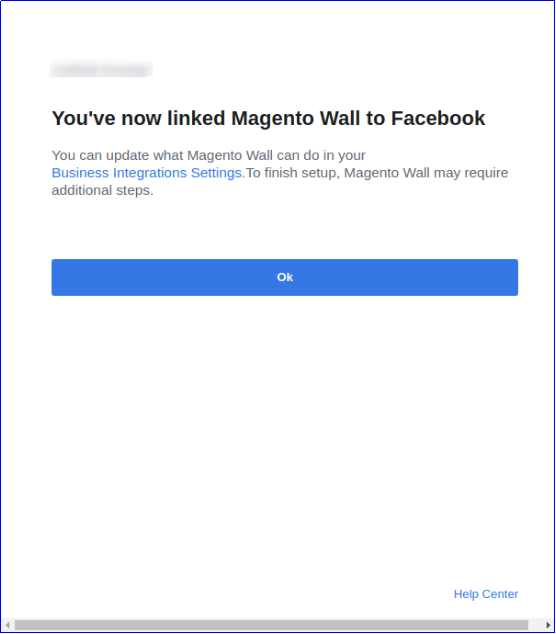
Select publish_actions, manage_pages, user_photos, pages_show_list, publish_pages and user_managed_groups options and click Get Access Token. Click “OK” when asked permission.
Click on “Get Access Token” button.
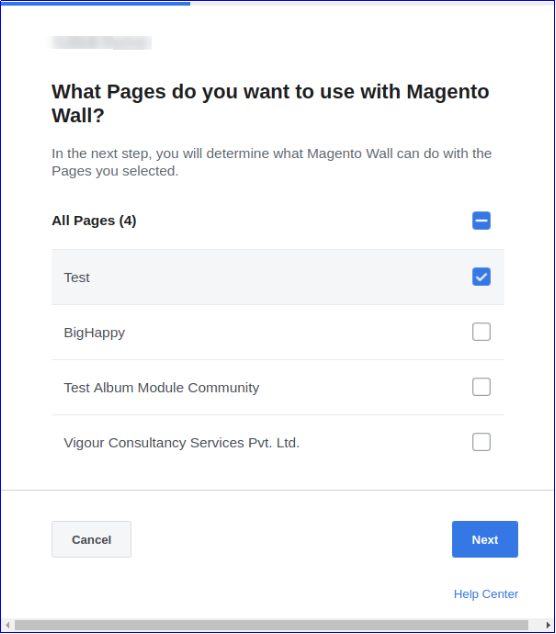
Click OK to finish.
Copy the Facebook Access Token and paste it in the Facebook App Settings of your module. The Facebook App configuration is successfully done.
Under the Facebook App Settings, there is an option to select the Facebook Pages. All the pages for which app permissions is given will be listed in its dropdown. Select any page.
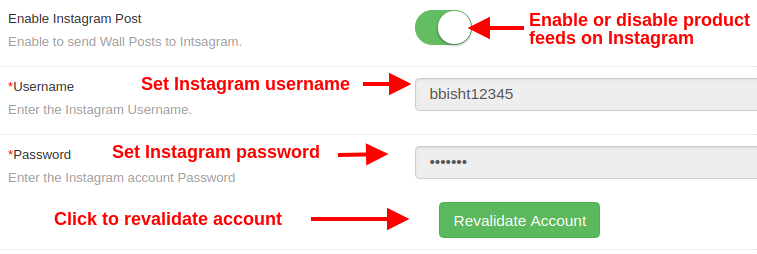
3.1.3 Instagram Settings
Enable Instagram Post: This option will enable or disable posts or feeds on Instagram wall.
Username: This option allows you to specify the Instagram username.
Password: This option allows you to enter Instagram account password.
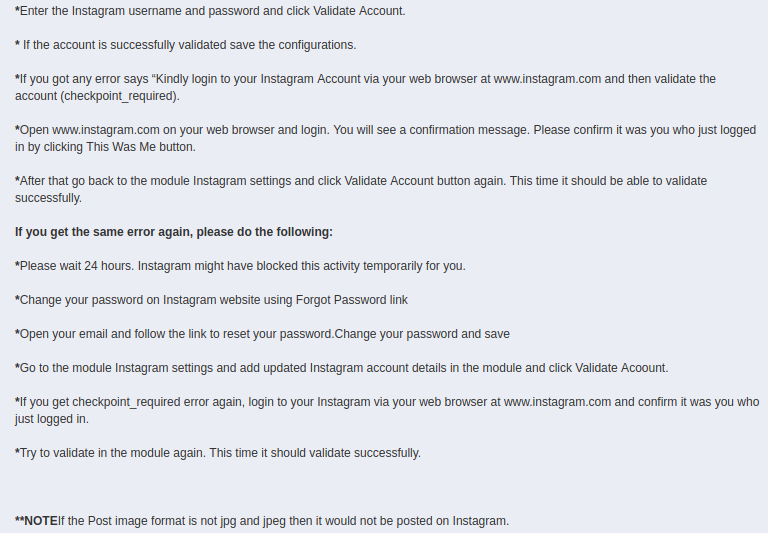
3.1.3.1 Steps for Instagram Configuration
The steps for Instagram configuration are provided inside the module settings as shown in the screenshot below.
3.1.4 Alert Settings
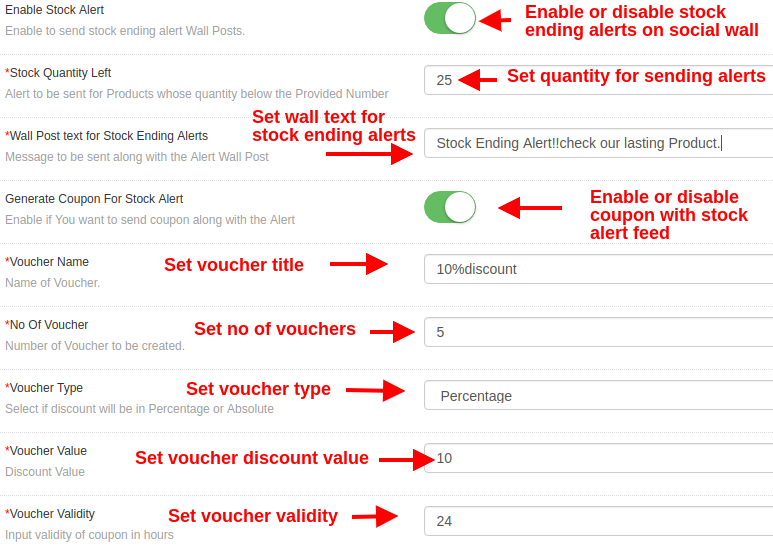
Enable Stock Alert: Enable or disable product stock alerts on connected social walls.
Stock Quantity Left: This option sets product quantity below which limited stock feeds are sent to Facebook and Instagram wall.
Wall Post Text for Stock Ending Alerts: This option allows you to set text for stock ending alert posts.
Generate Coupon for Stock Alerts: This option enables or disables discount voucher with stock alerts.
Voucher Name: With this option, you can set a name or title of the discount voucher.
No of Vouchers: This option specifies the quantity of discount vouchers available for customer use.
Voucher Type: This option specifies the type of discount voucher as fixed or percentage.
Voucher Value: This option sets the discount value offered using discount voucher.
Voucher Validity: This option sets the validity of discount voucher (in hours).
3.1.5 Manual Post Settings
You can manually post the selected products and categories of the website under this section.
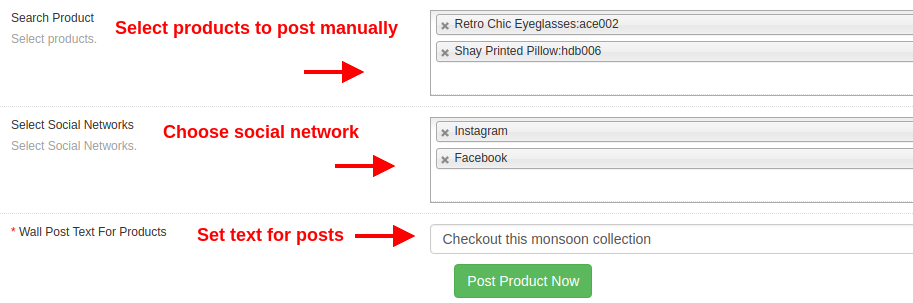
Search Product: This option allows you to select products that you want to manually post on Facebook and Instagram page.
Select Social Networks: This option lets you select the social network where you want to send the post or feed. You can select it as Facebook or Instagram.
Wall Post Text for Products: With this option, you can set the desired text for the manual posts.
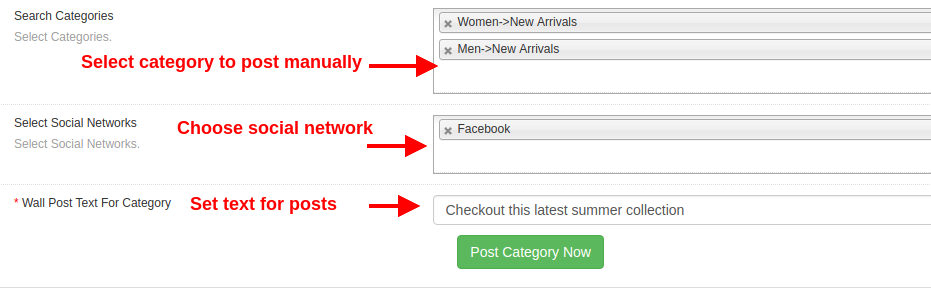
Search Categories: This option allows you to select categories that you want to manually post on Facebook page.
Select Social Networks: This option lets you select the social network where you want to send the post or feed. You can select this option as Facebook as Category posts are not supported with Instagram.
Wall Post Text for Categories: With this option, you can set the desired text for the manual posts.
3.1.6 Schedule Post Settings
Under the Schedule Post Settings of this Magento module, you can view the list of all scheduled posts. You can edit them or delete them only if they are unpublished. Once they are published or posted on connected social media pages, you cannot edit those posts. Such posts can be viewed only.
The published posts are marked as “Posted” while the unpublished posts are marked as “Pending”.
Note: A scheduled post will be marked as “Posted” only if the post is published on both the social streams, Facebook and Instagram. If any error occurs while posting the feed on Facebook or Instagram, then status will be shown as “Pending”. Even if the product is posted only on Facebook or Instagram, then also the status is shown as “Pending”.
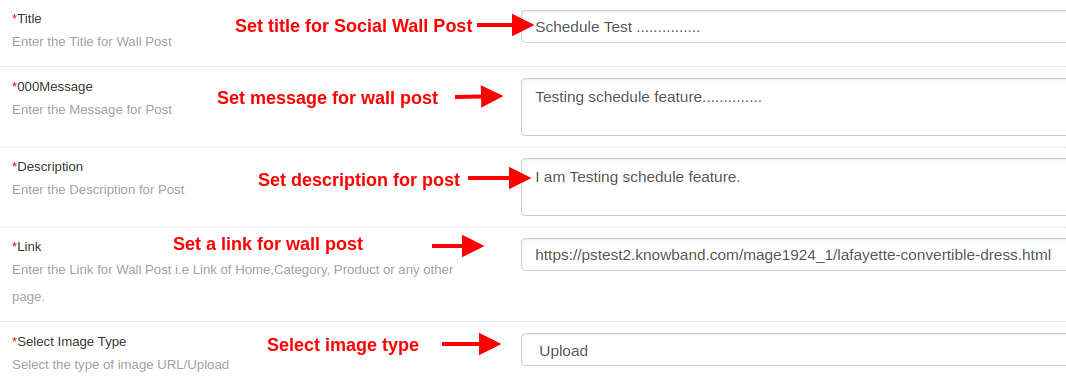
To create a new scheduled post, fill up the following configuration options:
Title: This option will set the title for the scheduled wall post.
Messages: This option sets the message for the social wall post.
Description: This option sets the description of the social wall post.
Link: With this option, you can set a link for the scheduled wall post. The link can be targeted for a selected product, category, or any other page.
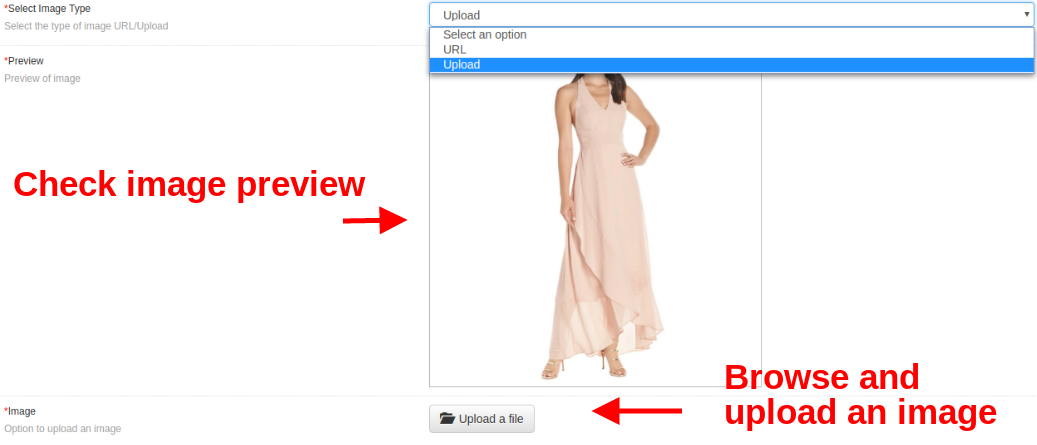
Select Image Type: You can select the image type. You can either upload an image from the local system or set the image via link.
Preview: With this option, you can preview the uploaded image or fetched image from specific URL.
Image: If the Image Type is selected as Upload, this option allows you to browse and upload a desired image.
Post Date: This option lets you specify the date and time for scheduling the specific social wall post.
3.2 Cron Settings
Under this Cron Settings tab of Magento Social Wall Post Extension, you can manually run cron commands for performing various actions such as:
Send Scheduled Post Manually: Hit this cron to send all the post which are scheduled before current time will be posted.
Sync Products Manually: Hit this cron to sync limited stock alert feeds in the table.
Send Posts Manually: Hit this cron to manually send posts for stock ending products and new products of the store.
Under this tab, you can check/view records for new product feeds and limited stock alert feeds.
Note: New Product Feeds are automatically added/updated to this table as soon as new product is added to the store from backend. While the stock alert feeds are only updated in this table once you run the cron “Sync Products Manually”.
Note: Make sure that all the product details are correctly entered while you add any new product in the catalog. If you further modify any product detail after saving the product, that product wont be counted as a new product.
4.0 Front Interface of Magento Social Wall Post module
The front UI for this module can be checked from Facebook and Instagram account which are configured with this Social Wall Post module.
The online store admin can now implement a multi-level marketing strategy for increasing website sales, conversion rate and custom domain. Knowband offers Magento 2 Affiliate and Referral Program Module which allows the online store owner to provide an option to become an affiliate customer and earn the profit. The customers can register as an affiliate and get an exciting commission on every referral. The store admin can show multiple ways to refer the website, affiliates can share the referral code, referral link or voucher. Affiliates can redeem their commission amount by generating a payout request.
The online store admin can manage the overall Affiliate and Referral Program from the Magento 2 Affiliate and Referral Extension admin interface. The e-merchant can remove the affiliate registration option anytime by disabling the “affiliate registration” option. The admin can accept or reject any referral and payout request. This way, the store owner can boost sales, conversion rate and website revenue.
1.1 Features of Magento 2 Affiliate and Referral Extension
The online store owner can allow the customers to become an affiliate and earn a commission on every referral.
The online seller can enable or disable affiliate registration anytime from the admin interface of the Magento 2 Affiliate and Referral Module.
The Magento 2 Affiliate and Referral Extension provides multiple referral methods. Affiliate can share referral links, referral code and voucher code to their acquaintances.
The Magento 2 Affiliate and Referral Program Module allows sharing referral links via multiple social media options like Facebook, Twitter and Pinterest.
Admin can offer different commission amounts on new registration and placed the order. Admin can offer a percentage-based amount on order and fixed amount on new registration.
The store owner can also enable the settings to generate a voucher automatically on new registration. The newly registered affiliate can share this coupon code for the referral.
This is up to store admin that he wants to offer a commission on new user registration or first order of the referred customer.
The Social Affiliate plugin for Magento 2 shows affiliate customers list in which admin can set the affiliate status, affiliate details and earned commission.
Admin can also generate specific vouchers for affiliate customers and also set the expiry date for the same.
In the referral list, the e-merchant can view the referred customer’s details, customers referral status and referral amount.
The store admin can view the list of all the generated vouchers. Admin can also apply new rules and conditions for those vouchers.
The affiliates can generate voucher or request payout of the earned commission.
The customers can also view the functionality on their mobile devices. The Magento 2 Affiliate and Referral Program Module is mobile responsive.
1.2 Admin Benefits of Magento 2 Affiliate and Referral Program Extension
Magento 2 Affiliate and Referral Program Extension makes it simple to implement a multi-level marketing strategy.
Magento 2 Affiliate and Referral Program Module is simple to implement and easily activated on the website.
Magento 2 Customer Referral Module allows multiple users to become an affiliate and earn money just by referring their know persons.
Magento 2 Affiliate Extension helps to increase website revenue, sales, conversion rate and custom domain.
Affiliate multi-level marketing system offers multiple referral commission to the affiliates.
An affiliate marketing program for Magento 2 provides various methods of referral.
Admin can accept or decline the payout request as per his wish.
Social Affiliate plugin for Magento 2 is multi-lingual compatible.
Admin doesn’t need to change even a single line of codes to implement the affiliate program.
2.0 Installation
After purchasing Magento 2 affiliate and referral extension, the store admin will get the following files:
shareandwin.zip which has the source code of this Magento 2 affiliate and referral program plugin.
User Manual, with all the basic details and information.
The steps to install the Magento 2 Affiliate and Referral Program Extension are mentioned below:
Buy the Magento 2 Affiliate and Referral Program module from Knowband. You can download the extension package.
The package has a zipped file that contains the user manual and the source code of the Magento 2 Affiliate and Referral Program module. Now, Unzip this package.
Create a folder {Magentoroot}/app/code/Knowband/Affiliateandreferral
Upload the extracted content in the above folder via FTP manager (like Filezilla or WinSCP – download here: https://filezilla-project.org/).
The extension is now installed and ready for use. In Admin Panel go to “Knowband Extensions >affiliate and referral”.
You can now configure and use the Knowband affiliate and referral plugin.
3.0 Admin Interface
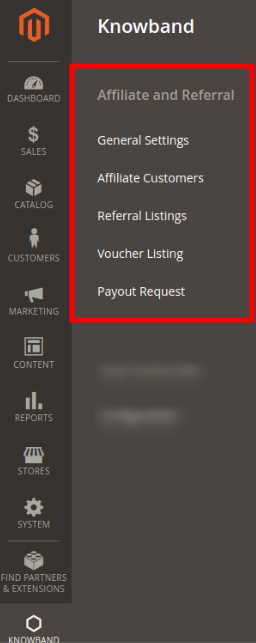
After a successful installation, you can configure this Magento affiliate and referral module. Go to Knowband>affiliate and referral, you will get some customization options as shown below:
The store owner can apply the settings as per the requirements and offer multi-level marketing on the website.
3.1 General Settings
In general settings, the online store admin can apply the configuration for showing the affiliate registration options and managing the referral system setting.
Please check the configuration options below:
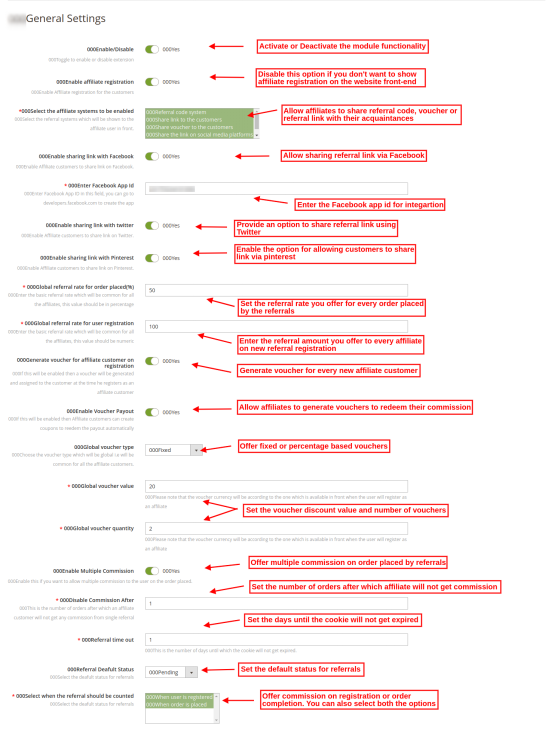
In Magento 2 affiliate and referral extension general settings, you will get these configuration options as shown in the image:
Enable/ Disable: Activate or deactivate the Magento 2 affiliate extension functionality just by a button toggle.
Enable affiliate registration: Enable to show affiliate registration on the website front-end interface. If you do not want to allow new affiliate registration then disable this option.
Select the affiliate systems to be enabled: Magento 2 affiliate and referral extension provides multiple referral options. Admin can allow affiliates to share referral code, share referral link, share voucher, share the link on a social media platform and also share the link via email.
Enable sharing the link with Facebook: Allow sharing the referral link via Facebook. Affiliates can also share the link as a Facebook private message.
*Enter Facebook App Id: Enter the Facebook app id here, to incorporate Facebook(Find out the steps to generate Facebook App id in Section 3.1.1)
Enable sharing the link with twitter: Enable the option to allow affiliates to share referral link from Twitter account.
Enable sharing the link with Pinterest: Activate this configuration option for allowing share the referral link via Pinterest.
Global referral rate for orders placed: Set the referral rate which you want to offer on referral order placement. This will be a percentage-based value.
Global referral rate for user registration: Here, you need to set the fixed amount referral rate on new registration.
Generate voucher for affiliate customers on registration: Enable the settings if you want to offer a voucher to the newly registered affiliate customer. They can share this voucher with their friends and refer to the website.
Enable Voucher Payout: Activate this option to allow affiliates to generate vouchers to redeem their commission amount.
Global voucher type: You can create common vouchers for all the affiliate customers. The Magento 2 affiliate and referral extension allow for offering fixed or percentage-based vouchers.
Global voucher value: Enter the value of the voucher. The customers can get a discount of that value when they apply this voucher.
Global voucher quantity: Enter the voucher quantity ie the number of time a voucher can be applied. In that case, 2 customers can apply this coupon code single time.
Enable Multiple Commission: As an eCommerce store admin, you can offer a commission to the affiliate on multiple orders placed by the single referred customers.
*Disable Commission After: You can also enter the number of ordered after which affiliate will not get the commission.
Referral time out: Enter the number of days until which cookies will not expire. Enter the days till which the referral code, referral link will be active.
Referral Default Status: Enter the default status for the referrals. If admin sets default status as “pending” then the initial status of the referred customer will be pending. The affiliate customer will get the referral commission when admin set the status as “accepted” the referral.
Select when the referral should be counted: You can count referral on new user registration or new order placement. You can also select both the conditions if he wishes to.
3.1.1 Facebook app ID Generation Steps
In order to generate the Facebook app ID, you need to follow these steps:
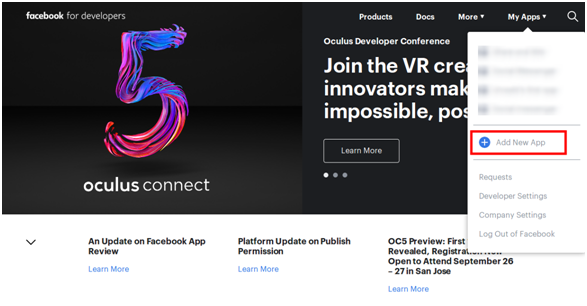
Now go to the “MY APPS” and click on ”ADD NEW APP”.
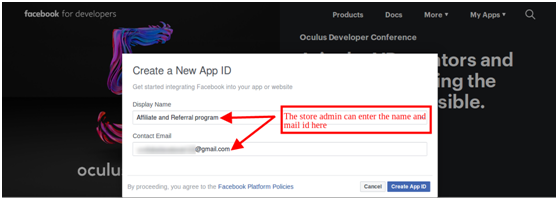
Enter the “Display Name” information and “contact email ID” details. After that, click on the “Create App ID” button.
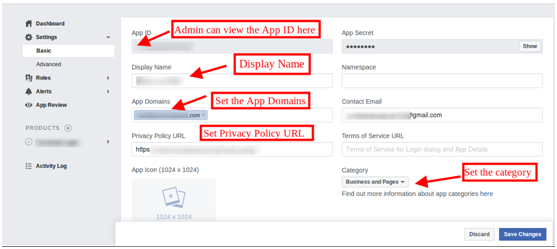
After that go to “Settings” and select the “Basic” option.
You will get the APP ID here. Insert app domains, category, privacy policy URL here.
This way, you can get the Facebook app ID.
3.2 Affiliate Customers
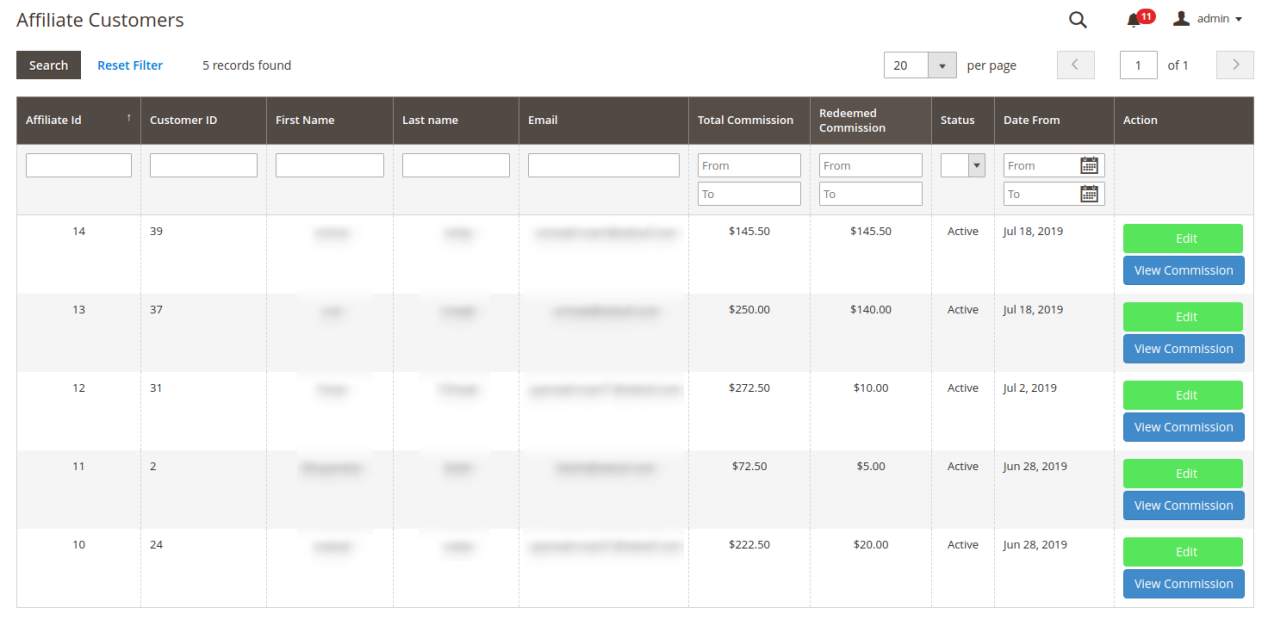
Admin can view the list of affiliate customers and manage affiliates. The recently registers affiliate will be shown on the top of the list. Admin can view the commission and edit the customer details. Affiliate customers list as shown below:
3.2.1 View Commission
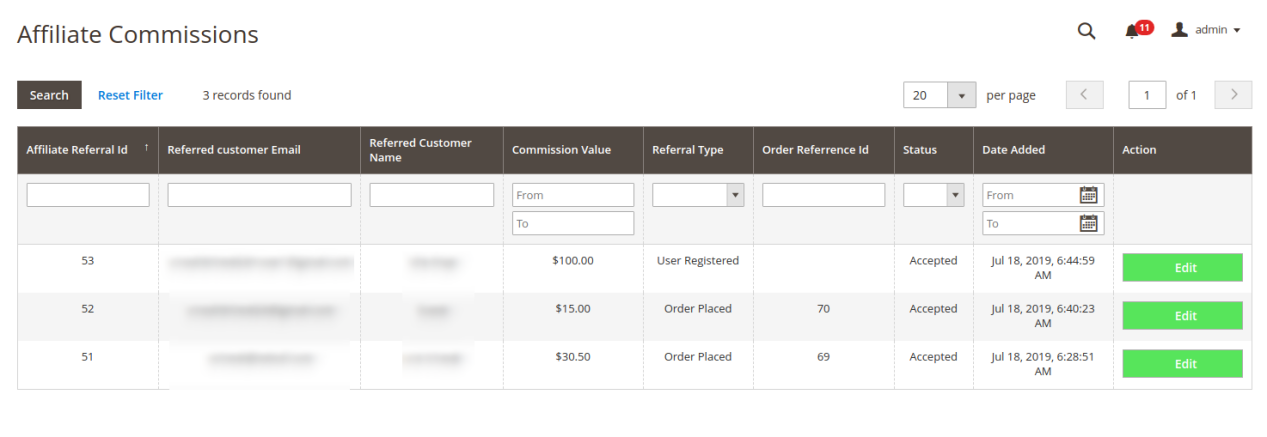
You can click on the “view commission” and check the list of commission type and value. Admin can also edit the referral status if he wishes to do the same.
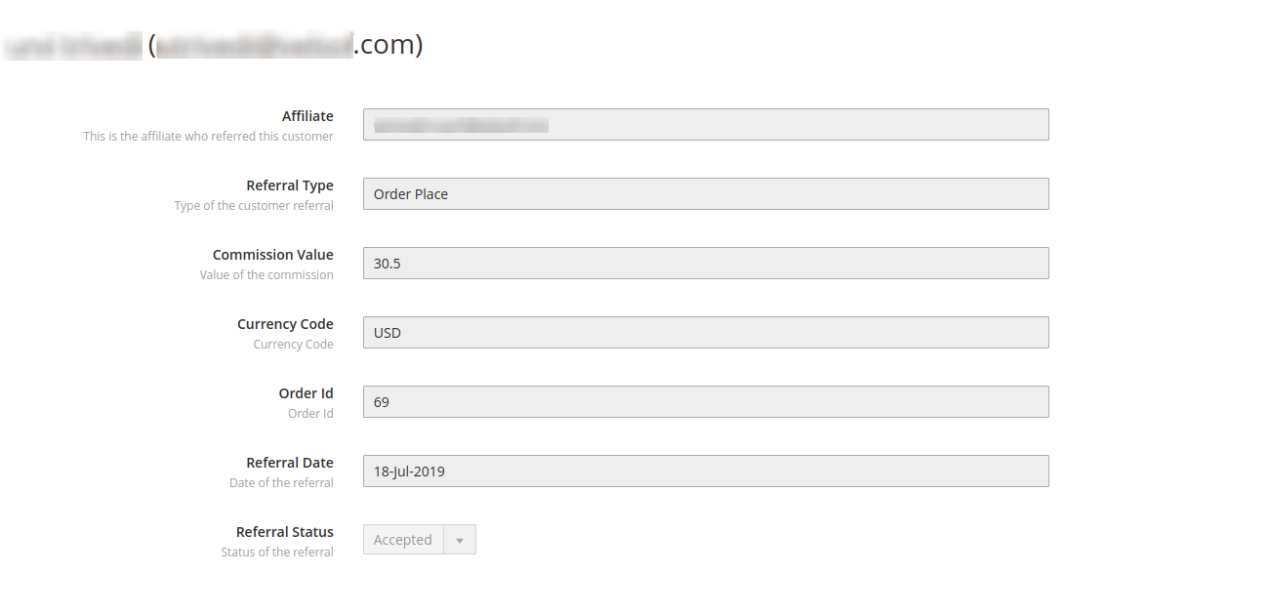
Admin can click on the “Edit” button and update the referral status if it is pending.
3.2.2 Edit Affiliate customer details
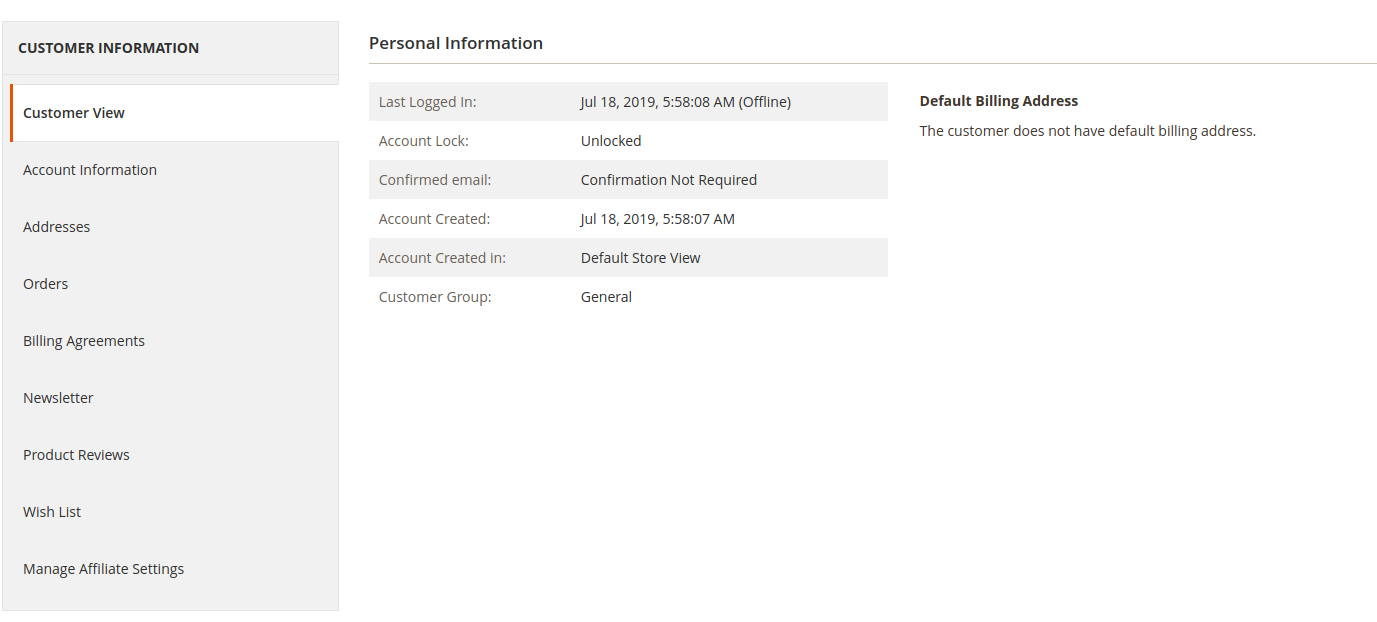
After clicking on the “Edit” button on the affiliate Customers page, this page will open:
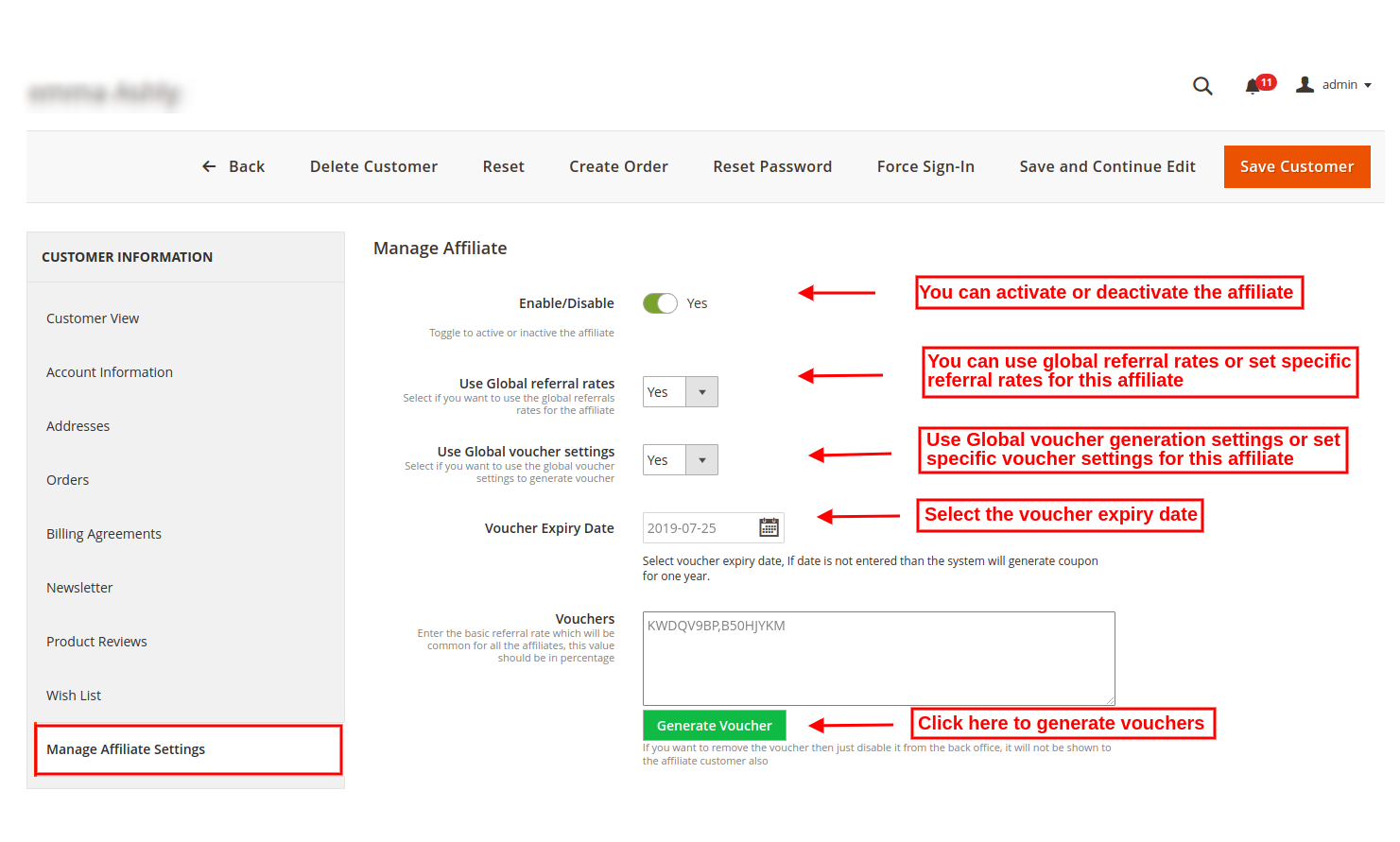
From the last option ie ”Manage Affiliate Settings”, you will get this page:
Enable/Disable: The Magento 2 customer referral module allows to enable or disable any affiliate customer anytime.
Use Global Referral Rates: You can use the global referral rate or set specific referral rate for that customer. If you want to apply specific setting then select “no”:
*Referral rate for order placed: Enter the percentage-based value for referral order completion.
*Referral rate for User registration: Set the fixed value referral rate for user registration.
Use Global voucher settings: Admin can use Global voucher settings or go for specific settings for that customer.
*Voucher Type: Set the voucher type ie fixed or percentage-based voucher.
*Voucher Value: set the value which you want to offer as a discount.
*Total voucher quantity: Set the number of vouchers ie number of times for which this voucher can be used.
Voucher Expiry Date: Admin can set the voucher expiry date. By default, the system generates a voucher with one-year validity.
Vouchers: Admin can click on generate voucher settings for generating vouchers.
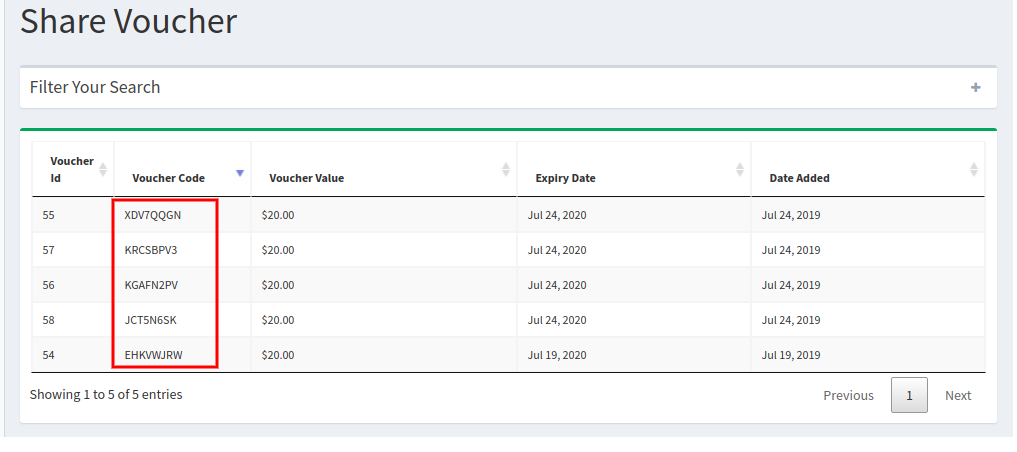
In front-end interface, there will be a list of vouchers in affiliate method section:
3.3 Referral Settings
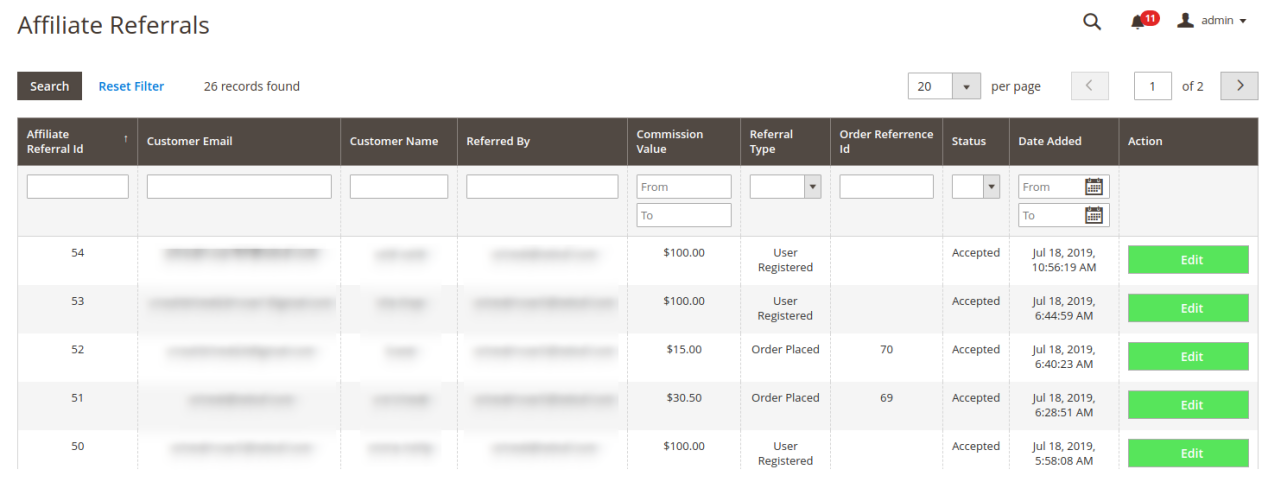
Here the store admin can view the list of referrals. The online merchant can also accept the referral. You can select the entries per page and also apply filters to check any specific affiliate referral.
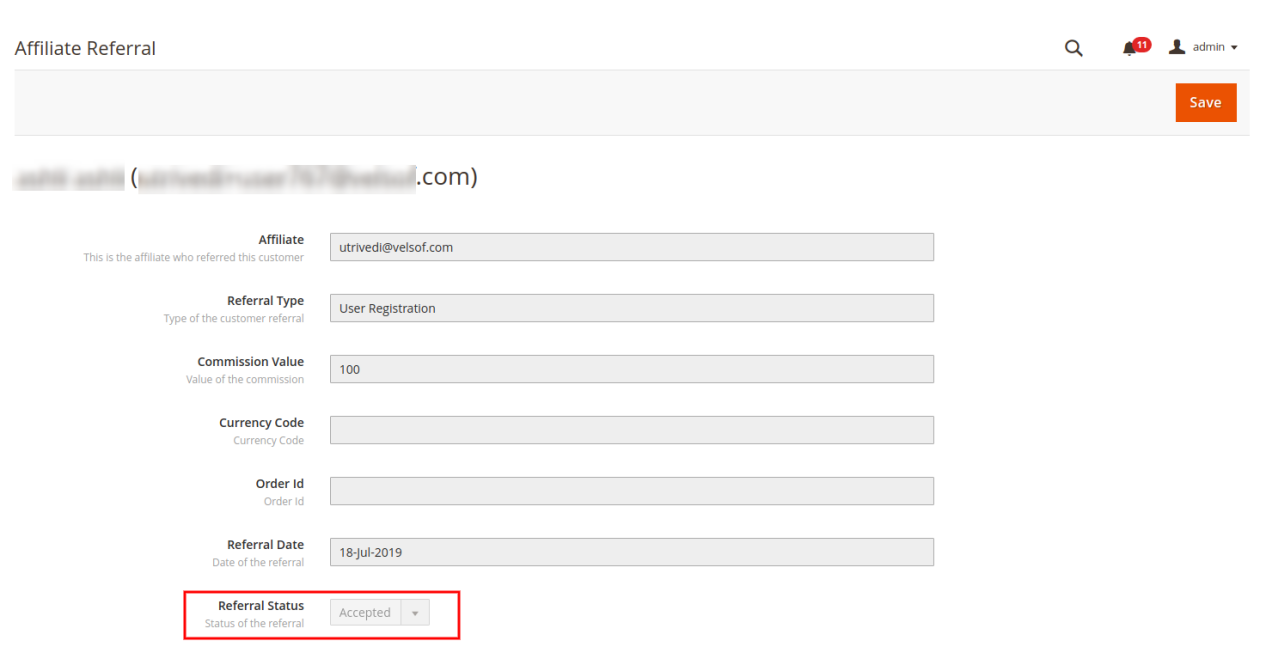
Admin can click on the edit button and change the referral status from the admin interface of this Referral and affiliate marketing module for Magento 2.
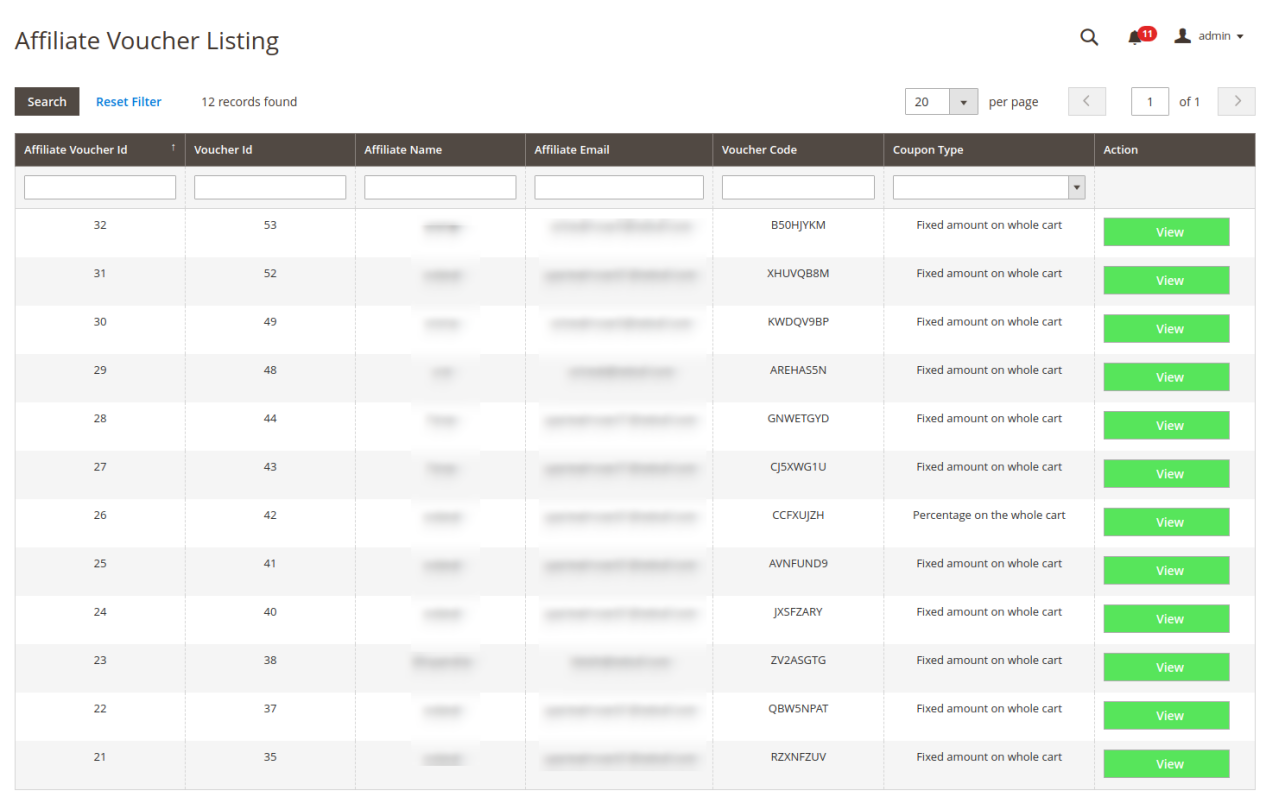
3.4 Affiliate Voucher Listing
In affiliate voucher listing page, the store owner can view the list of all the generated vouchers and also change the conditions/rules for every coupon.
After clicking “view” button, admin can change the voucher conditions and other related settings.
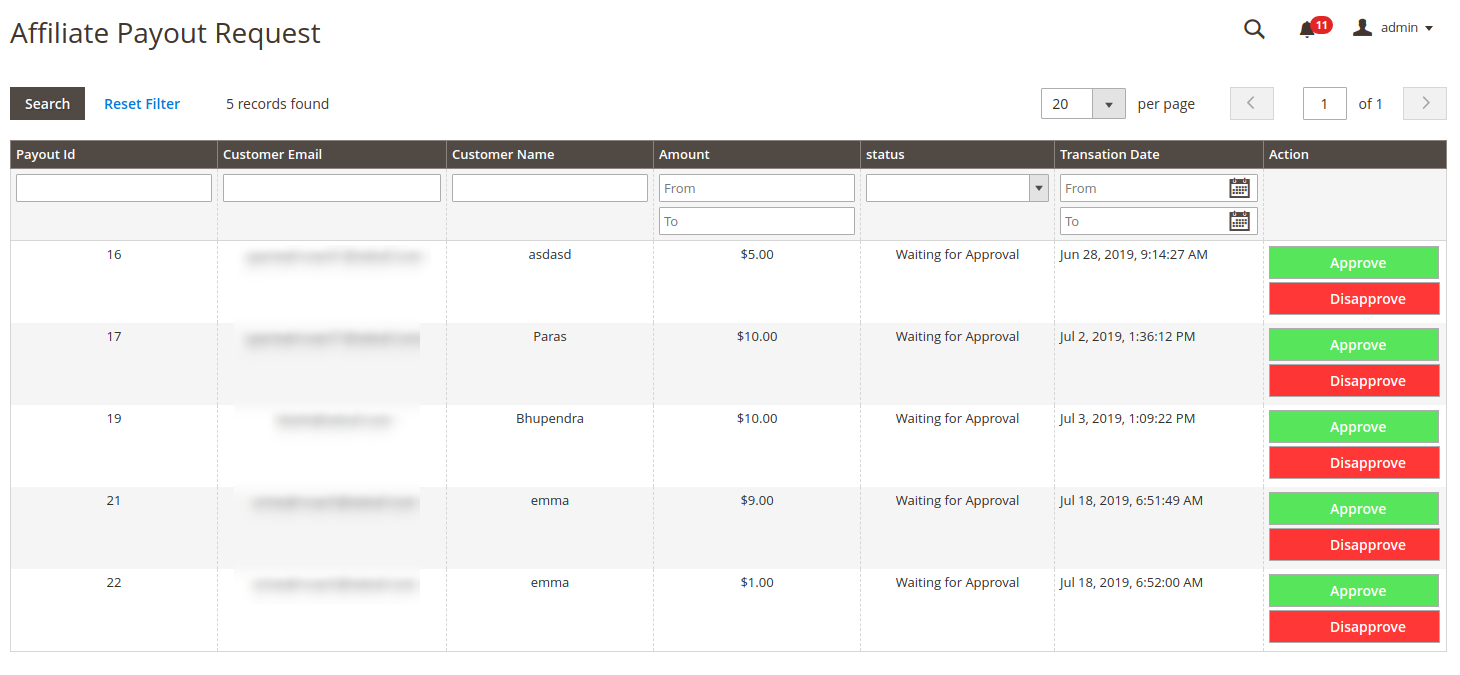
3.5 Affiliate Payout requests
As a store admin, you can view the payment requests generated by affiliates. Admin can also view the payout request status. You can approve or deny the payout request.
The payout list will look like a below-mentioned image:
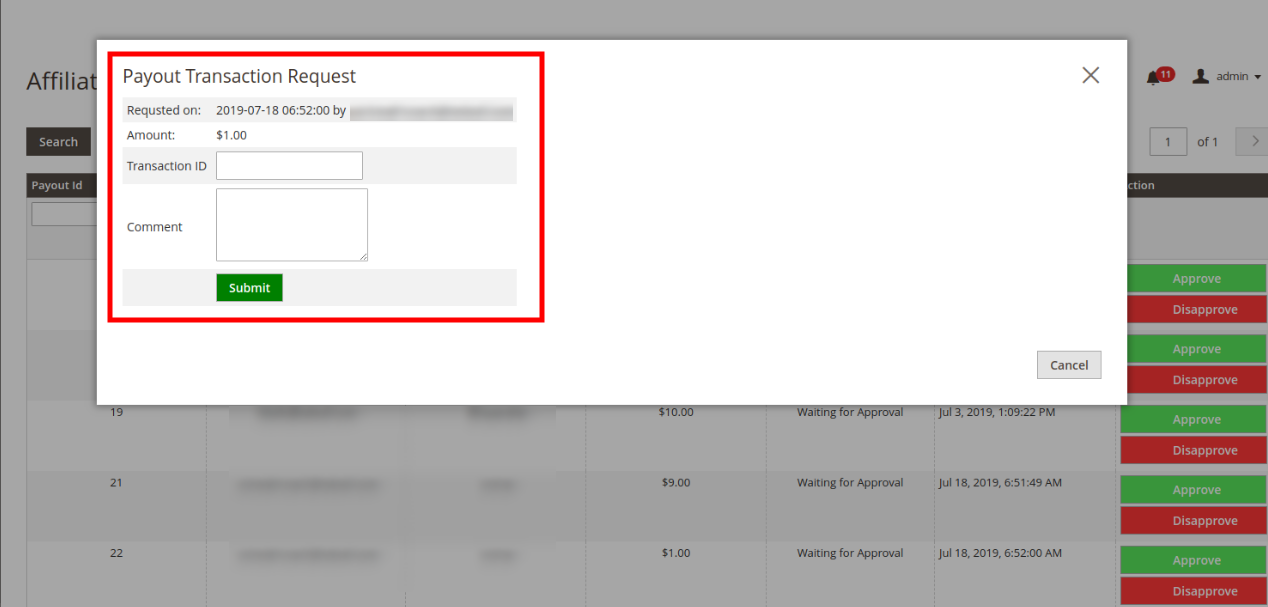
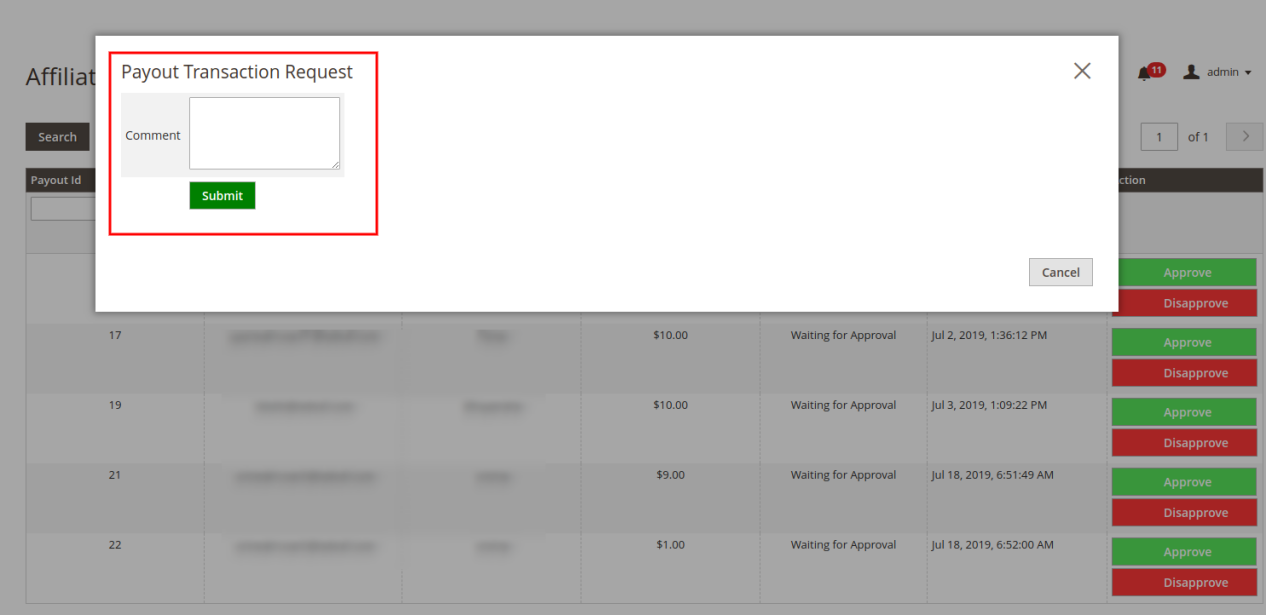
Admin can click on approve or disapprove button.
A popup will come while approving the request as shown below:
A popup will come while disapproving the request as shown below:
4.0 Front-end Interface
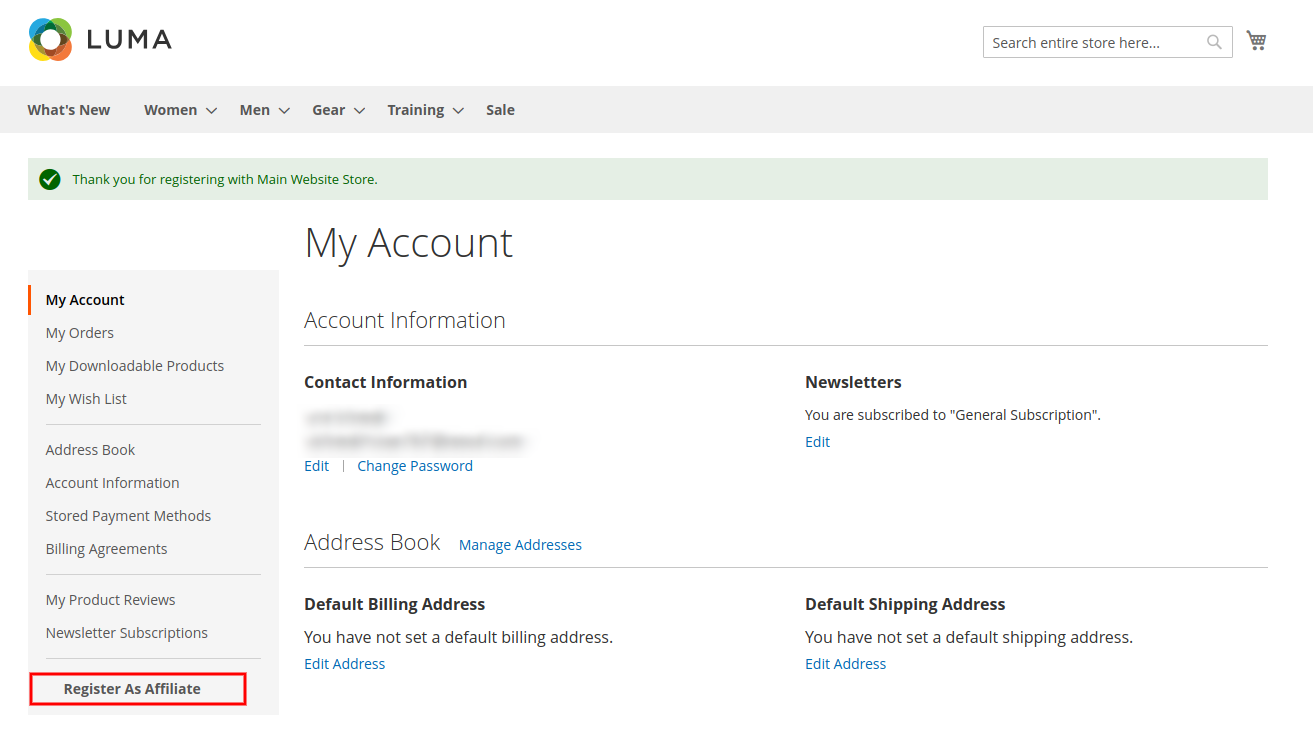
Online customers can register as an affiliate customer and earn commission on every referral:
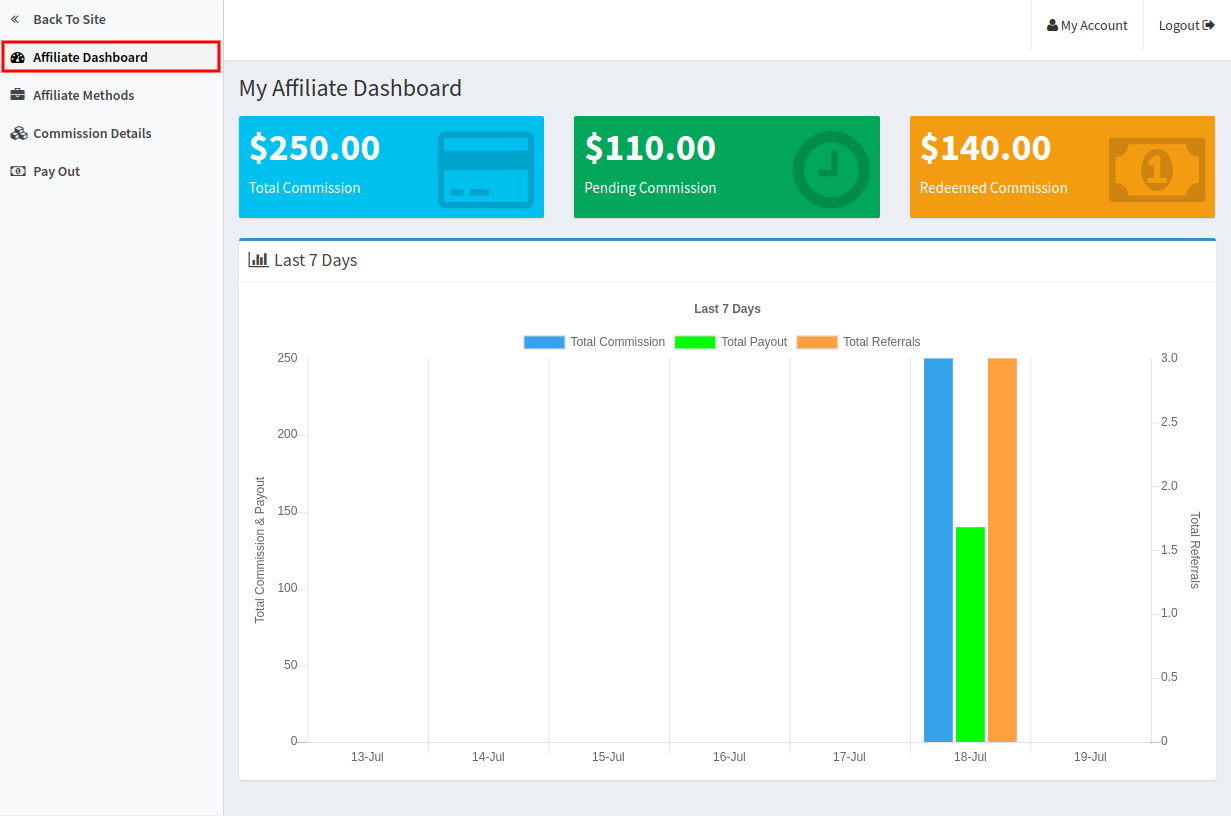
Affiliates can view an interface where they can view affiliate dashboard, available affiliate methods, commission details and payout section.
In the dashboard, affiliates can view total commission, redeemed commission and pending commission along with the graphical representation.
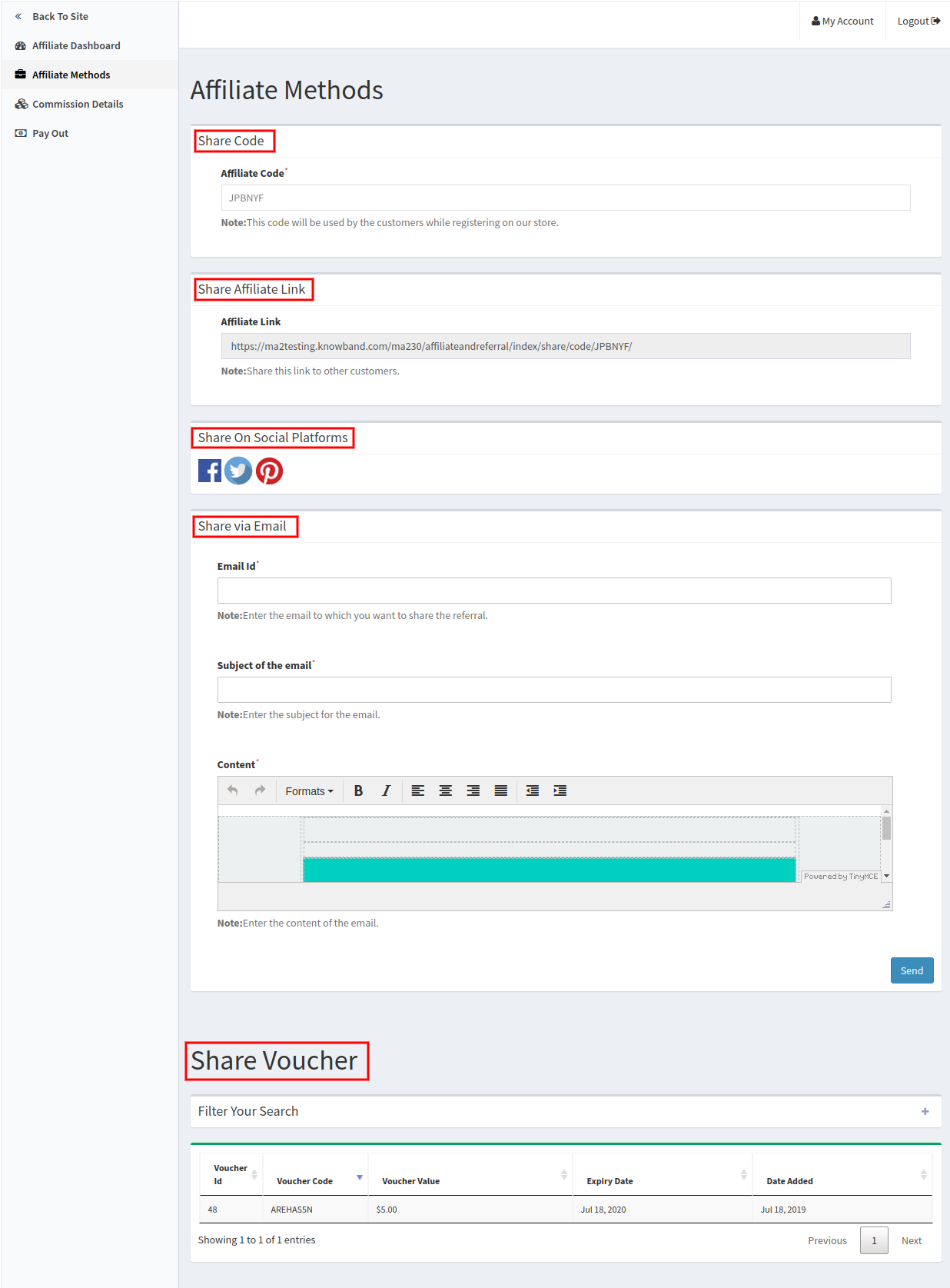
In affiliate methods, affiliate customer can check the available methods for referring to the website.
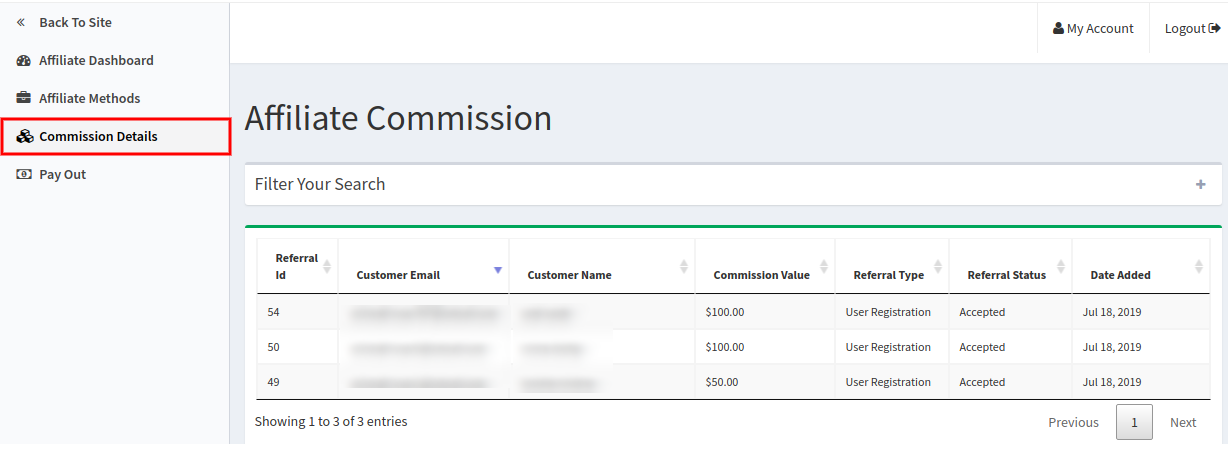
The affiliate customer can view commission details in which he can check the referral amount which he got from each referral. The affiliate customer can also view the referral status in the list.
Share Code: Admin can share the affiliate code with relatives and friends. They can enter this code while registration which is counted as a referral.
Share affiliate link: In this method, the affiliate customer can share the affiliate link. When an online user visits the store using this link and register/place order then is counted as a referral.
Share via Social Platform: Affiliate customers can also share the referral link using social media platforms like Facebook, Twitter and Pinterest.
Share via Email: Affiliates can send an email along with the affiliate link. Affiliates just need to enter the email id and subject line for sending an email.
Share voucher: Affiliates can also share the vouchers for referring the website. When any online user will apply the voucher code, this will be counted as a referral.
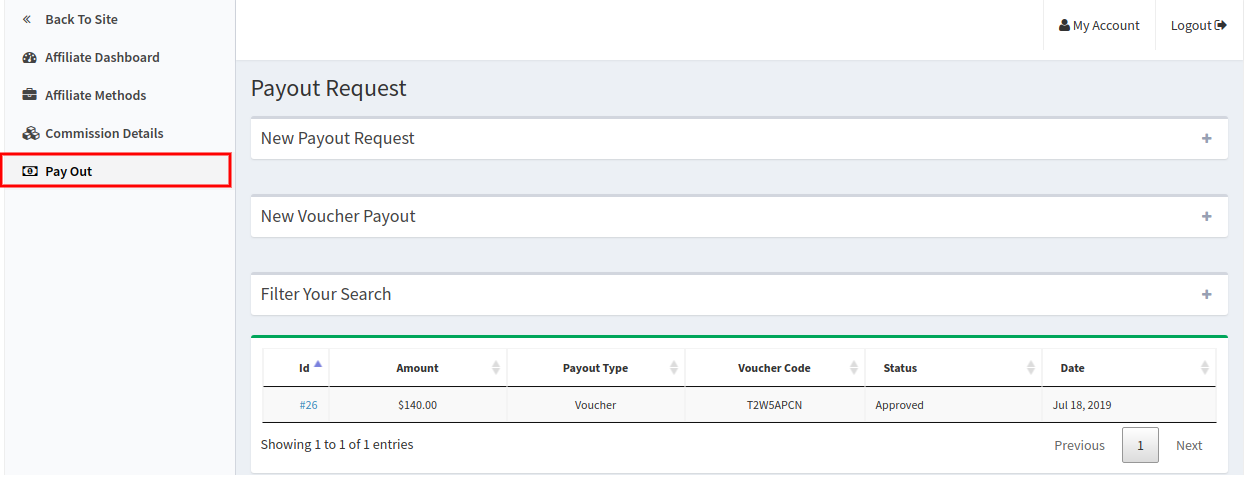
In payout Section, the affiliate customers can send a request for payment. There is no minimum amount of restriction on payouts. Affiliates can also generate voucher and shop the products from the website.
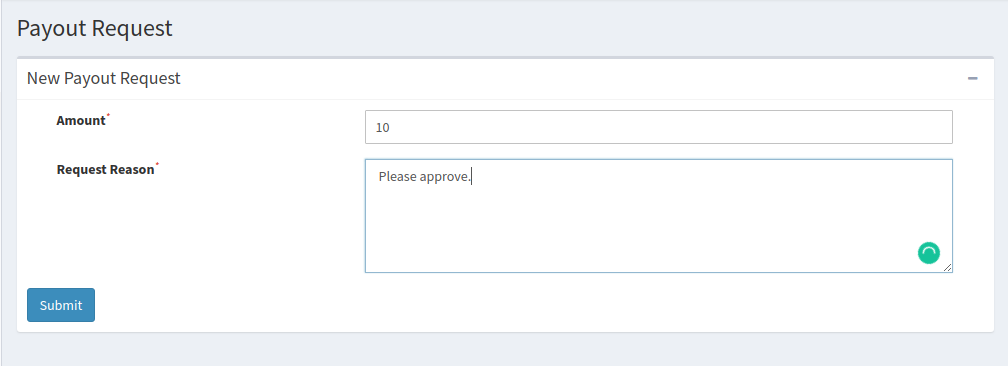
The affiliate customer can click on “+” and send payout request. After admin approval, the affiliate can get their payment.
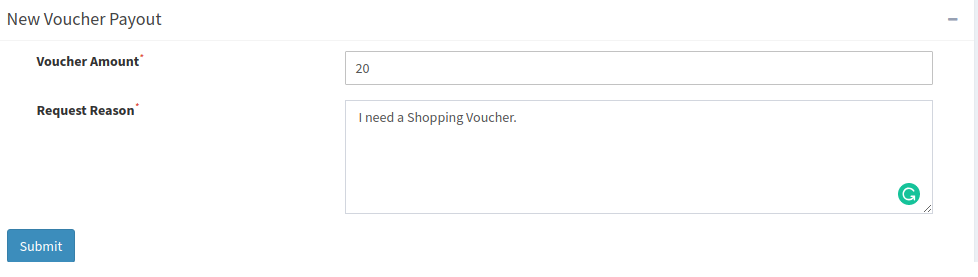
Affiliates can click on submit button and get the voucher code immediately.
This way Referral and affiliate marketing module for Magento 2 implements multi-level marketing functionality on the website. The customers can become an affiliate and earn a commission. On the other hand, the online store owner can increase website conversion rate, boost sales and improve customer domain with the help of affiliate users. The admin doesn’t need to implement any lengthy and complex process.
Steps to apply Referral code on Registration and place order:
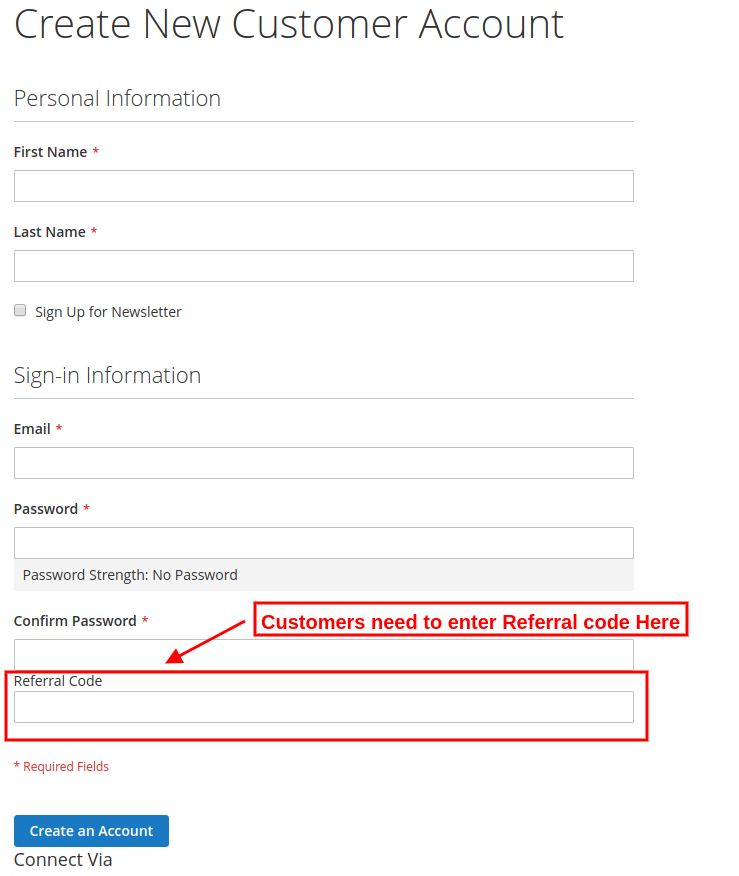
Once affiliate customer shares referral code, online users can enter this referral code at registration page as shown below:
Online users can Place an order by applying the voucher code. The affiliate customer shares voucher and gets referral amount when an online user places an order using the shared voucher code.
Online users can apply this coupon which will be considered and the affiliate customer will get a referral bonus for this.
This way, the online store merchant can use this Magento 2 affiliate extension ane increase the number of users easily by implementing an affiliate system. The online users can share the referral code from various methods and ask their friends to register and shop from the website. The Magento 2 Refer to friend plugin allows offering multiple commissions to the users. Admin can offer commissions on every new signup and order places by the referrals. The Magento 2 customer referral module is highly customizable and provides a specific list of referrals and affiliate customers. Admin can easily view and take action without any hassle. The online users can send requests for payout or generate vouchers of their earned commission. This Social affiliate plugin for Magento 2 makes the overall process very easy for the customers and users.
Whenever we think of buying handcrafted products online, the first word that comes in our mind is Etsy. Etsy Marketplace is a professional seller community that mainly focuses on handmade products or vintage items and craft-oriented products like jewelry, clothing, health and beauty and many more. It can also be considered as the C2C platform because the merchants listed on Etsy are majorly small business owners. The amazing shopping experience on Etsy makes it one of the most popular Marketplaces all over the world.
This seller’s guide is a doorway for all the aspiring sellers who are looking forward to selling on Etsy Marketplace.
Top-selling items on Etsy
Etsy is a unique e-commerce website mainly focused on handmade or vintage items and supplies, as well as unique factory-manufactured items. To sell an item on Etsy, it’s important yo keep a check on the ranking of your products too in the search results.
Before we start we should have a look at the top-selling items on Etsy Marketplace:
Jewelry.
Clothing
Craft Supplies and Tools.
Kids and Baby.
Vintage Items
Homemade or Specialized Candies.
Party decorations.
Vinyl and heat transfer supplies.
While the best sellers on Etsy Marketplace includes a wide range of categories, like jewelry, bags, clothing, home decor and furniture, toys, art, as well as craft supplies and tools.
Cost to Sell On Etsy
There are 4 various types of fees applied when you list your products for sale on Etsy Marketplace. These are as follows:
a) Listing Fee:
Listing your products online on Etsy Marketplace costs sellers an amount of 0.20 $ (excluding variations) for 4 months. For example, if you sell vintage items of which belong to 4 different categories or variations, it will cost you 0.80 dollars(4 x $0.20).
After 4 months, sellers have to renew the listings either manually or they can set an auto-renew option, and again the cost applied would be 20 cents per listing
The additional quantity is also charged by $0.20 that sells for only one transaction. It means if there are more than 1 listing in 1 order then, $0.20 will be charged on each item. For more information, you can go through the following link: Multi-Quantity Fees
b) Shipping Process Fee:
The shipping charges are set as it is used to deliver the product on a given address. Shipping charges are variable depending upon the weight of the product, location distance and shipment carrier company.
c) Transaction fee:
Under this, 2 types of fees are included. First is the shipping transaction fee and constitutes 5% of the shipping process fees.
Then the second fee comes is the transaction fee which constitutes 5% of the total value of the product. An additional 3% fee is imposed for choosing Etsy’s “Immediate Checkout”.
Apart from being reasonable, Etsy Marketplace provides you the flexibility to sell products from your online store. Thus, if you have a Magento store, you can easily sell Magento products on Etsy.
d) VAT:
Firstly we should know that there are 2 types of VAT fees: Processing fee VAT and seller services VAT.
After charging all kinds of fees, VAT is imposed if sellers use them They will only be imposed if you use fees like Etsy payment processing fee, deposit currency conversion, promoted listings, Google Shopping ads, and Targeted offers.
Now all the Manufacture related information is been given. So, let’s move further to discuss the process of selling on Etsy Marketplace:
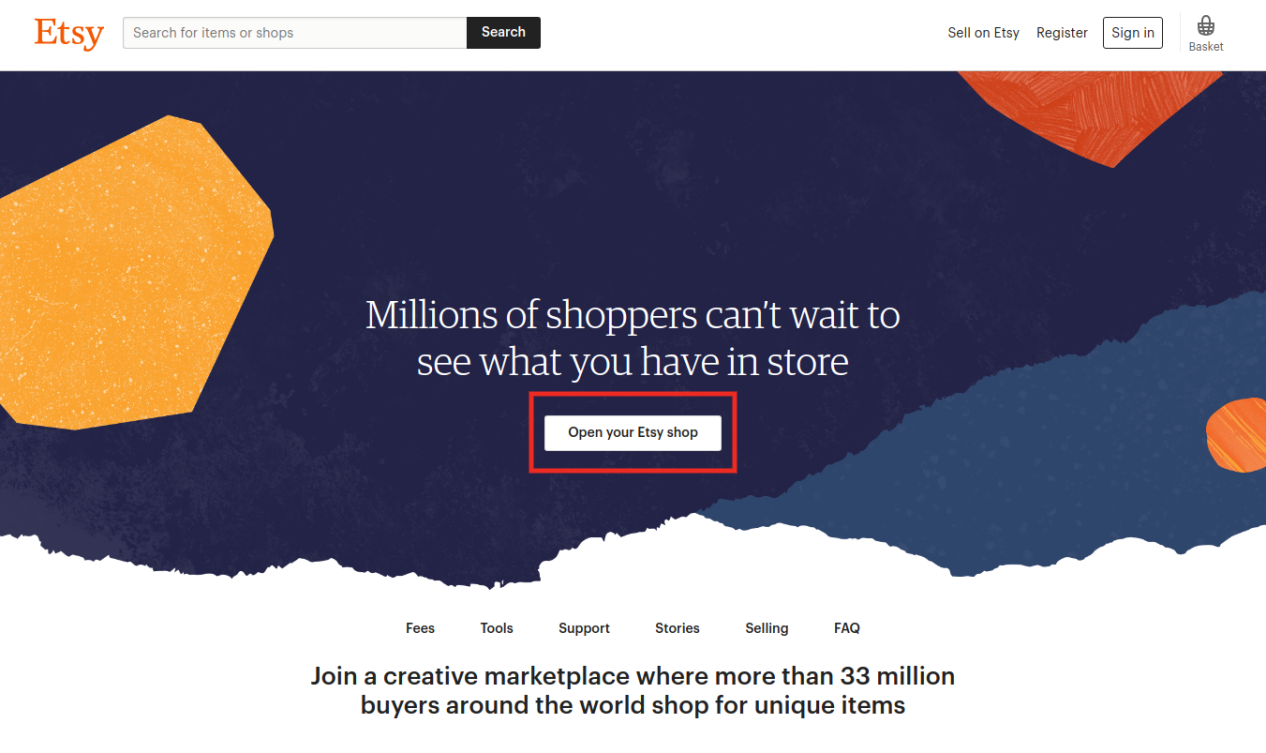
Step 1: Get Started
Firstly, create your seller account on Etsy and go through the Etsy policies and ensure whether Etsy Marketplace is ideal for your business or not.
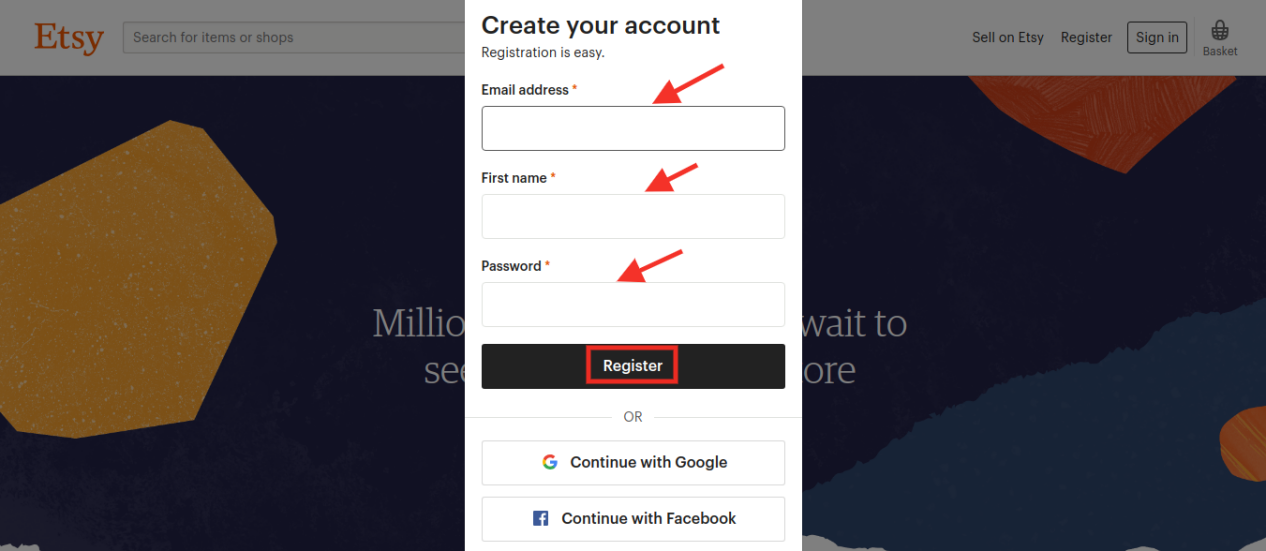
After creating your Etsy account, register your profile by entering the email address, username and password or you can directly signup through your social media account.
Step 2: After Creating Profile Create Your Own Shop
Click on the “Sell on Etsy” option, After clicking on this option, you will be redirected towards your shop page and now you have to enter some information as follows:
a) Shop Preferences
b) Name your Shop
c) Stock your shop
d) How you’ll get paid
e) Set up billing
Step 3: Section utilization of Etsy shop
This section is been included with various steps in which sellers have to upload a shop logo and cover photograph, etc. Sellers have to also update the shop’s “About” section. Leverage the facility of your shop segments to make your customers discover your shop products and go for the instant purchase.
Step 4: Branding and advertisement for the advancement of the Etsy shop
Creating an Etsy shop is not a complete process, it’s really important to make your brand shop popular on Etsy. Sellers should ascertain their shop details optimization for Etsy Search. Sellers can take a step forward and include a shop location so that your shop could be located by nearby customers. Sellers should focus on promoting their shop either through free or paid ads. They can offer great offers and discounts to their customers so that customers can go for instant purchase.
Step 5: Managing the shop by maintaining good SEO
Sellers should ensure to meet all the requirements after you cover all the above procedures for Etsy’s Dealer Insurance Approach. Sellers should be in contact with Etsy’s Survey framework and should have an idea to make their first deal.
For a good online business on Etsy, maintaining good SEO is very important which can help to increase customer engagement and optimization of the website.
Sellers should keep an eye on the following points:
The rate of customer engagement in your Etsy shop.
The reviews (either positive or negative) by your customers.
Product Listing Quality factor
Inbound links
For more information in one picture, you can have a look at the tips to rank your products up on the search results on the Etsy Marketplace.
Who pays for Shipping on Etsy buyer or seller?
Shipping charges vary from product to product. Some products are delivered without delivery charges where sellers bear the shipping cost while some products have added delivery charges and customers have to pay for it It varies from product to products. Some of the products are offered free shipping where sellers bear the cost of shipping whereas, some require buyers to pay for shipping. It depends upon the order value, shipping destination, and the shipment method chosen by the buyers.
Finally
Etsy is a global marketplace. Selling here is an opportunity for sellers who want to make money out of their talent and creativity. Etsy Marketplace is the one-stop solution for these artists and they can sell their products to earn a huge chunk of profits. They also get a chance to access a huge no. of the audience all over the world which increases your cross border sales too.
How KnowBand can help you to sell on Etsy Marketplace?
Knowband offers Etsy Integration Extension which is a smart solution for an eCommerce store owner to clear out the complexities of selling products on Walmart. It works by providing an API Integrator between an eCommerce store and the Walmart marketplace. It bridges the gap between your eCommerce store and Etsy with the help of which sellers can easily map their product listings on the Marketplace website. Once the integration is successful, the admin can update all the product listings on Walmart Marketplace from the back-end without even visiting the Marketplace site. Available for different CMS platforms like PrestaShop, Magento, Shopify, and OpenCart, sellers can easily download and install it on their website without any inconvenience.
Managing an ecommerce website isn’t easy. Competition is fierce, technology is ever-changing, and there’s no other position in the company that gets as much advice from well-meaning peer ‘experts’ (anyone who’s watched a webinar on conversion optimization) or gets as much daily scrutiny as the ecommerce manager.
Every part of the site must be consistently tested and optimized. Every word of copy must do the job it’s there to do. And something as simple as the configuration of an online sizing chart can either pull customers in or drive them away.
The ecommerce manager must balance all of it.
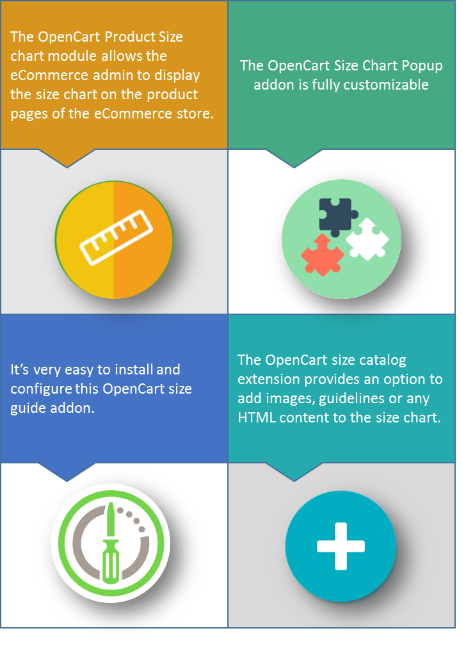
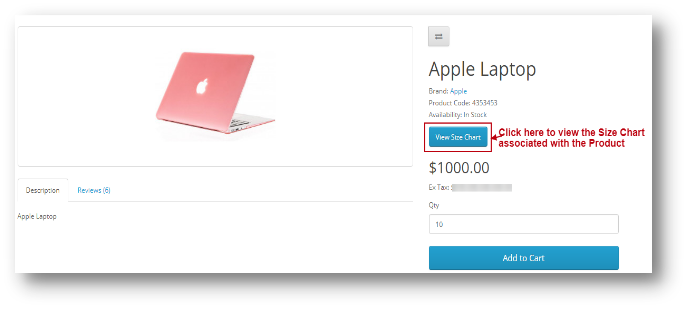
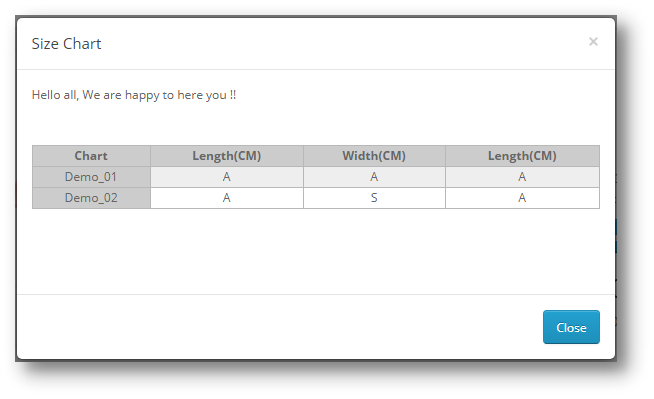
The OpenCart Product size chart Module by Knowband is a Size Chart creating module for OpenCart. Using this extension, the merchant can show the different types of size charts for each category, product, and manufacturers available on his/her store.
The eCommerce store admin can assign the chart to a particular product or products of a particular category or products of a particular manufacturer. Thus with the help of this OpenCart Product Size chart Extension, the eCommerce store owner can easily resolve the size-related issues of the store customers.
Why is the online sizing chart so important?
The majority of returns for ecommerce apparel items are due to the customer not being satisfied with the fit.
This article isn’t for online clothing store managers only, though. Many items require a fit of one type or another – sleeping bags, fishing rods, furniture… all need to fit the buyer.
We’ve already mentioned that high return rates can often be traced directly to sizing issues. Uncertainty about the fit is why many would-be online customers opt to drive to the store and try an item on before purchasing.
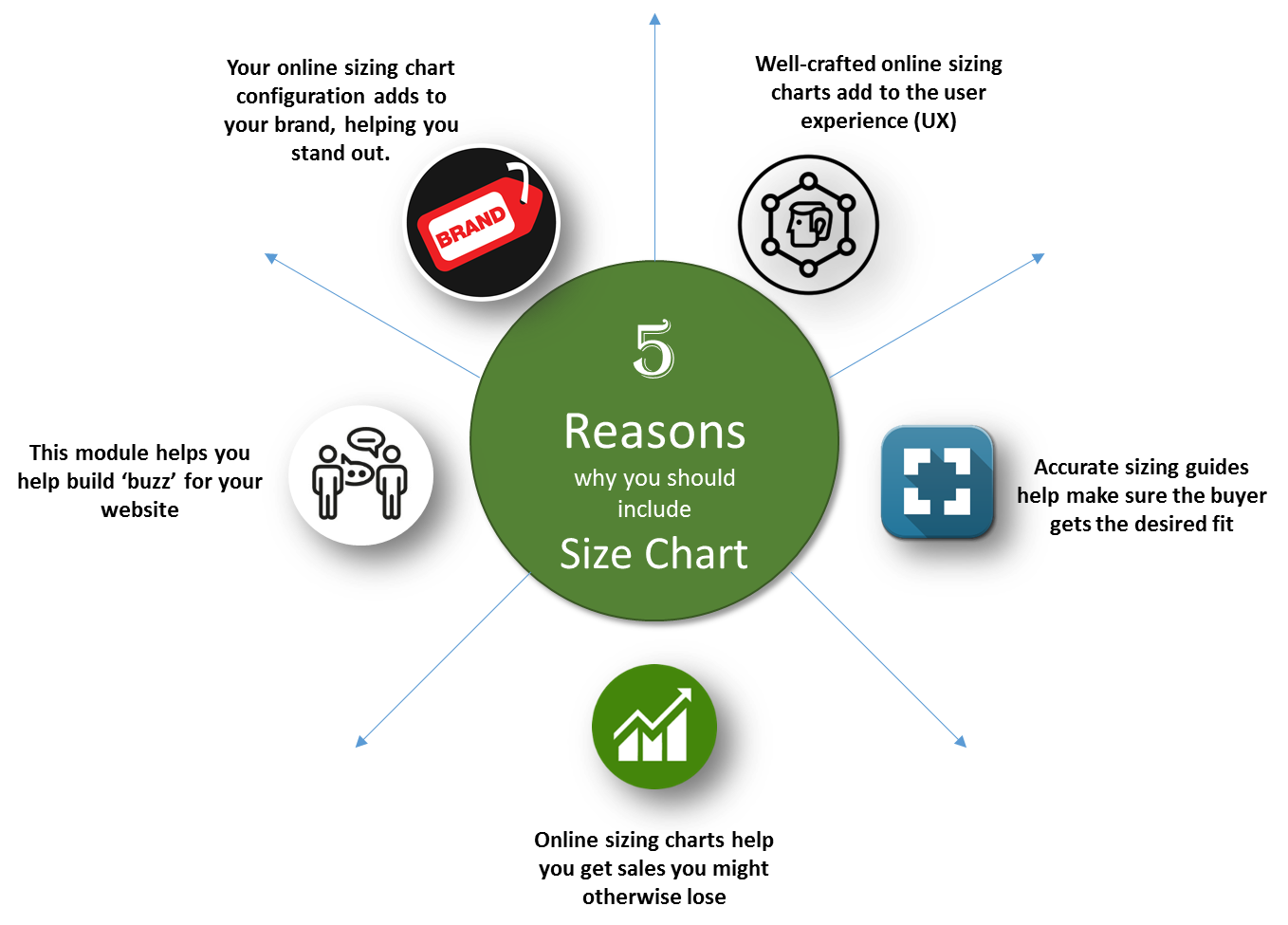
Here are our top five reasons why ecommerce managers should pay close attention to how their sizing information is presented:
1.1 Features
2.0 Installation Guide
Before starting the installation process, you have to buy the OpenCart Product size chart Extension by the Knowband store. Once purchased, you will receive the following files on your registered email.
Source code of OpenCart Product size chart Extensionmodule in zipped file format.
User Manual of OpenCart Product size chart Extensionmodule.
Now in order to install this OpenCart Product size chart Extensionmodule on your online shop, follow the given steps:
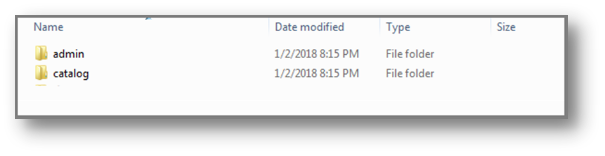
Step 1: Unzip the zip file. You will get the folders as shown in the image below:
Step 2: Copy all the folders of the zip file in the Root Directory of OpenCart setup via FTP manager.
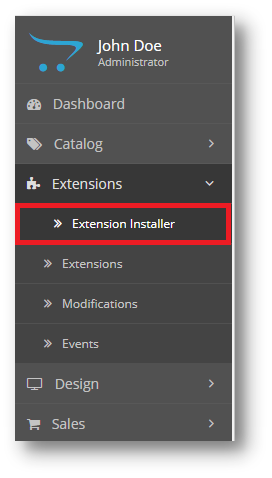
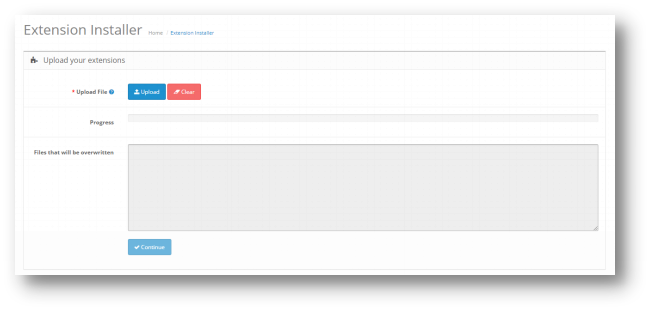
Step 3: There is a file name kbproductsizechart.ocmod.zip (for OC>=3.0) or kbproductsizechart.ocmod.xml (for OC < 3.0). You need to install this file in the following Location:
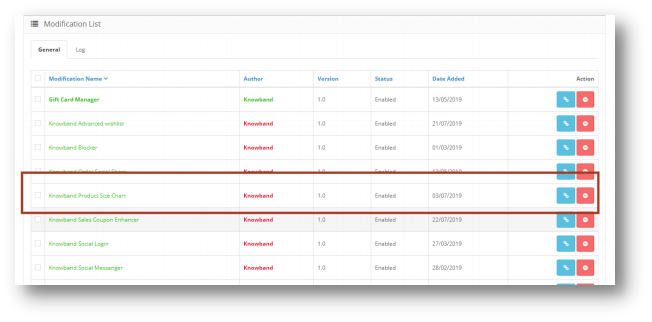
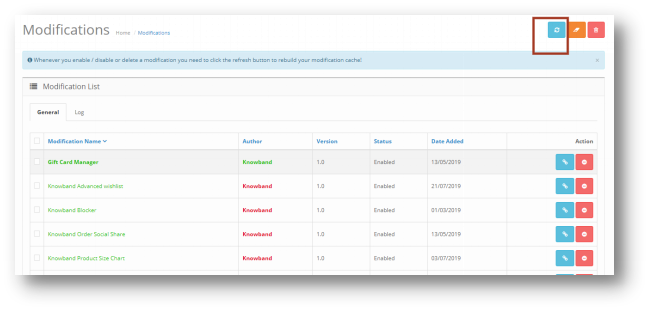
Step 4: After Installation you need to select this file and refresh Modifications:
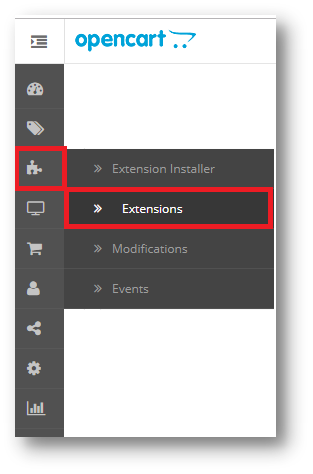
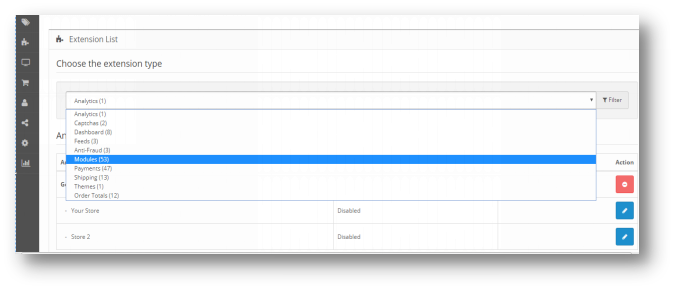
So, OpenCart Product size chart Extension plugin is now successfully installed and is ready to use at your store. Go to the admin menu and click on the extensions. Choose the Extension Type as Modules. You will find a list of modules. Select the OpenCart Product size chart Extension
3.0 Admin Interface of OpenCart Product size chart Module
To configure the Size guide module for OpenCart, Navigate the settings in the following order:
The Admin Interface of OpenCart size catalog Extensionis divided into 6 Tabs:
General Settings
Attribute Sets
Charts
Manufacturer Chart
Product Chart
Support
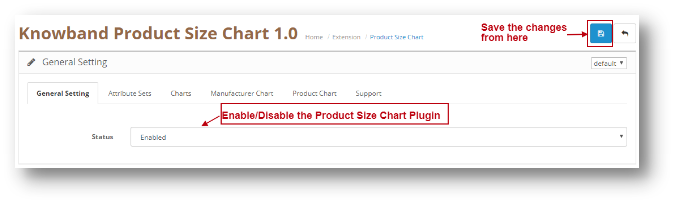
3.0.1 General Settings
This setting will have an Option to enable/disable the plugin. The page will look like as shown below:
3.0.2 Attribute Sets
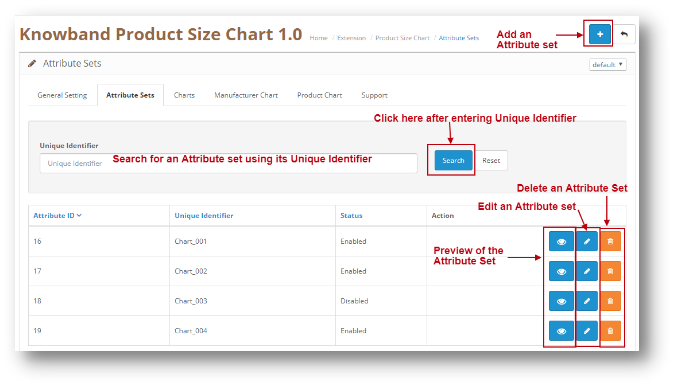
Through this setting of OpenCart Size chart table extension, you can add a New Attribute Set or make changes in the Existing Attribute Set’s Columns and Rows. The screen will look like as shown below:
Edit an Attribute set: You can Edit an existing Attribute set using the Edit option. The screens for Editing Attribute Set will be same as Adding an Attribute Set. The only difference will be that Edit will have the fields already filled.
Delete an Attribute Set: You can delete an Attribute Set by clicking on the ‘Trash’ Icon. A pop up will show up asking for the Confirmation. You can click yes and the Attribute will be deleted.
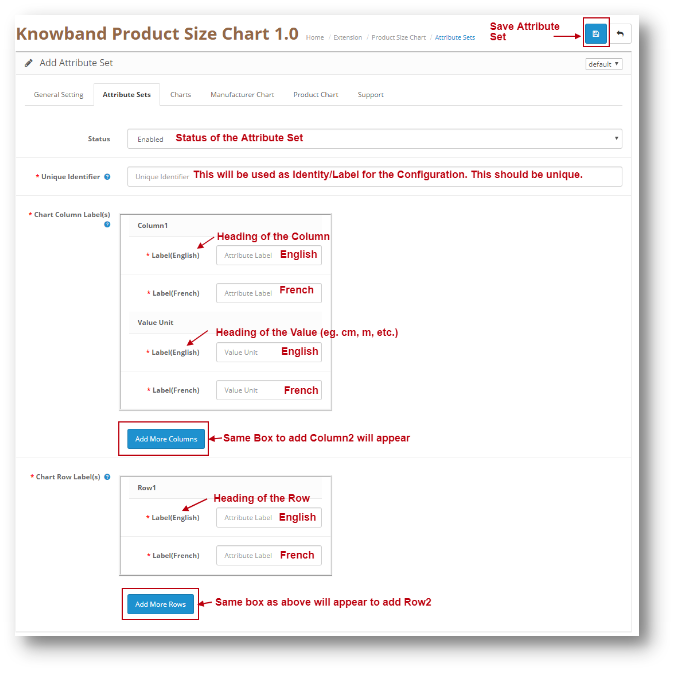
Add an Attribute Set: You can add an Attribute Set by Clicking on the option provided on the Top of the Page. The following screen will show up:
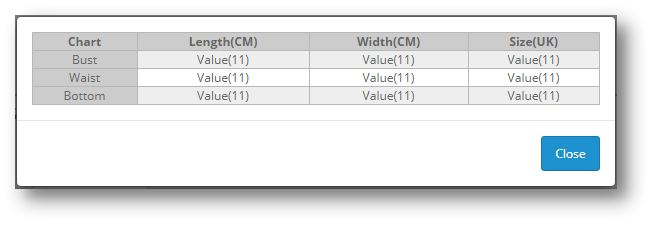
Preview of the Attribute Set: When clicking on the ‘Eye’ (Preview) Icon, the preview of the Attribute Set will be shown as a Pop Up. The Pop up will look like as shown below:
3.0.3 Charts
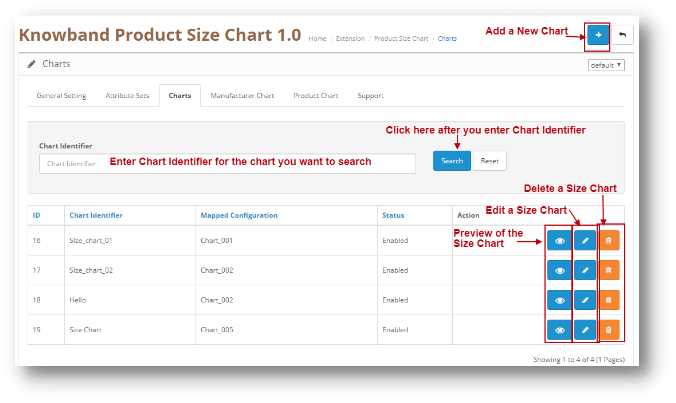
Through this setting of OpenCart Size chart table extension, you can add a New Size Chart or make changes in the Existing Size chart Columns and Rows Values. The screen will look like as shown below:
Edit a Chart: You can Edit an existing Chart using the Edit option. The screens for Editing Chart will be same as Adding a New Chart. The only difference will be that Edit will have the fields already filled.
Delete a Chart: You can delete a Chart by clicking on the ‘Trash’ Icon. A pop up will show up asking for the Confirmation. You can click yes and the Chart will be deleted.
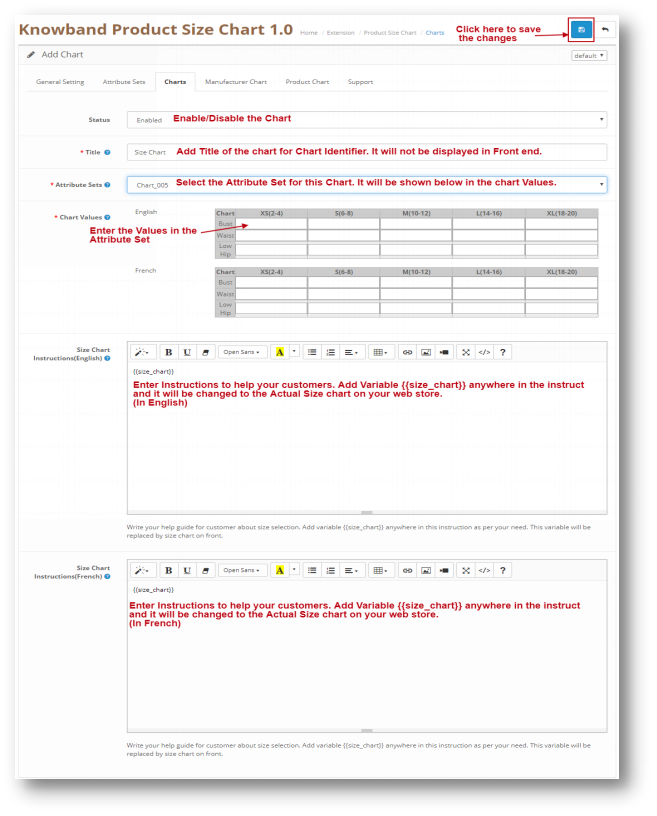
Add a Size Chart: You can add a Size Chart by Clicking on the option provided on the Top of the Page. The following screen will show up:
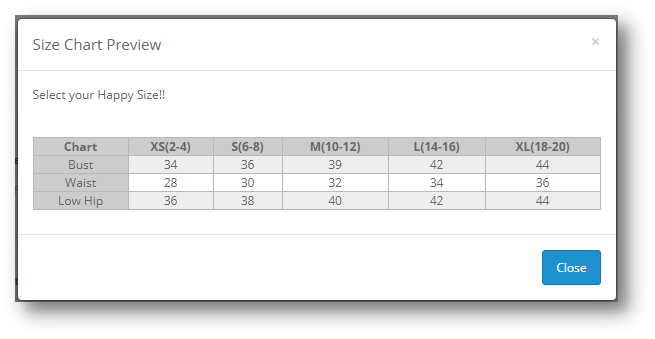
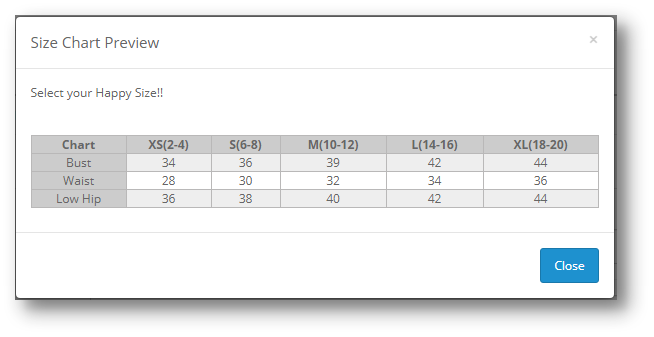
Preview of the Size Chart: When clicking on the ‘Eye’ (Preview) Icon, the preview of the Size Chart will be shown as a Pop Up. The Pop up will look like as shown below:
3.0.4 Manufacturer Chart
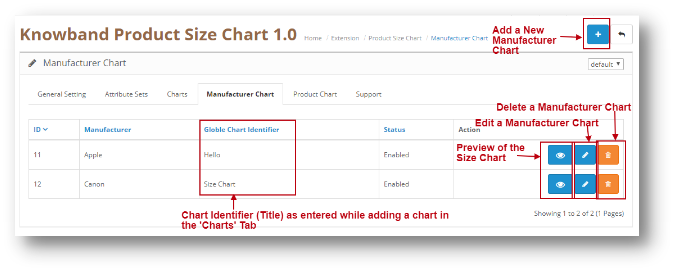
This setting of OpenCart Size chart table extension shows the charts which are mapped to different manufacturers. To add a new entry, the admin can click on the add icon appearing on the right side of the table. The Manufacturer Tab will look like as shown below:
Edit a Manufacturer Chart: You can Edit an existing ManufacturerChart using the Edit option. The screens for Editing ManufacturerChart will be same as Adding a New ManufacturerChart. The only difference will be that Edit will have the fields already filled.
Delete a Manufacturer Chart: You can delete a ManufacturerChart by clicking on the ‘Trash’ Icon. A pop up will show up asking for the Confirmation. You can click yes and the ManufacturerChart will be deleted.
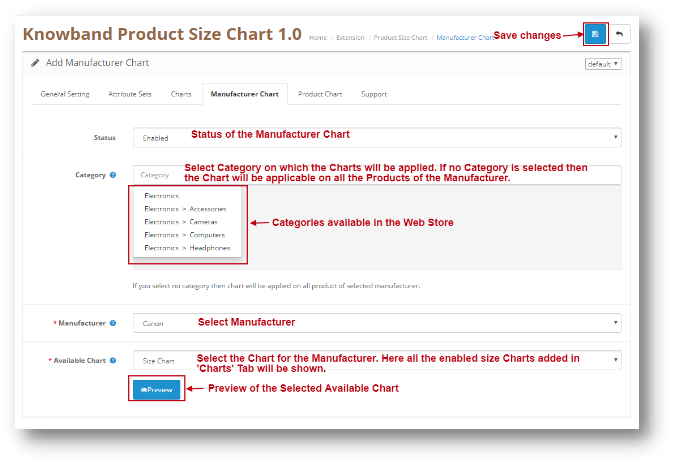
Add a Manufacturer Chart: You can add a ManufacturerChart by Clicking on the option provided on the Top of the Page. The following screen will show up:
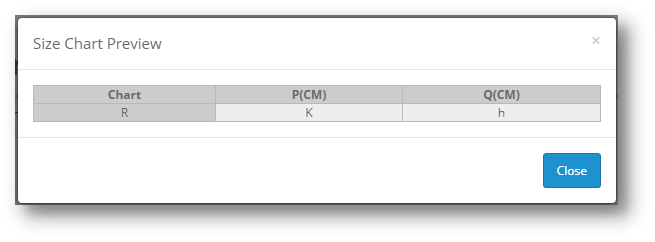
Preview of the Manufacturer Chart: When clicking on the ‘Eye’ (Preview) Icon, the preview of the Manufacturer Chart will be shown as a Pop Up. The Pop up will look like as shown below:
**Note – If a Product has a Manufacturer Chart mapped with them and the Store Admin also mapped a Product Chart with it, then the Product chart will be given highest Priority. Thus Product Chart mapped with the Product will be shown in the Web store to the User.
3.0.5 Product Chart
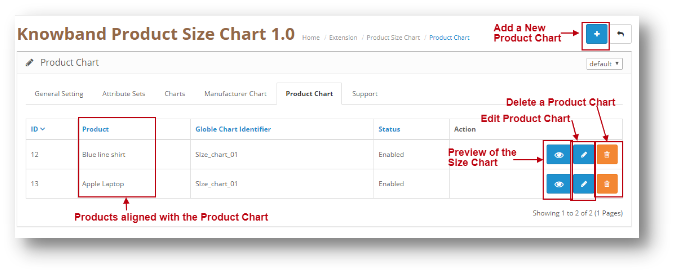
This setting of OpenCart Size chart table extension shows the charts which are mapped to different Products. To add a new entry, the admin can click on the add icon appearing on the right side of the table. The Product Chart Tab will look like as shown below:
Edit a Product Chart: You can Edit an existing ProductChart using the Edit option. The screens for Editing ProductChart will be same as Adding a New ProductChart. The only difference will be that Edit will have the fields already filled.
Delete a Product Chart: You can delete a ProductChart by clicking on the ‘Trash’ Icon. A pop up will show up asking for the Confirmation. You can click yes and the ProductChart will be deleted.
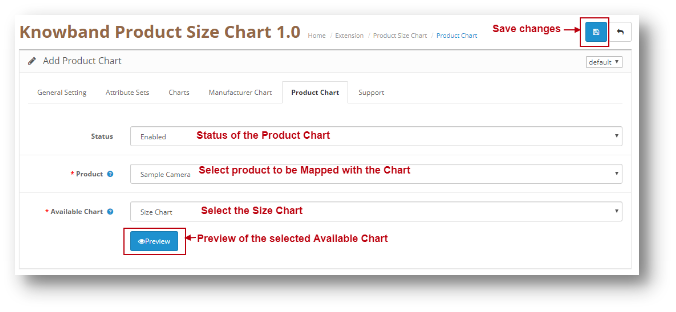
Add a Product Chart: You can add a ProductChart by Clicking on the option provided on the Top of the Page. The following screen will show up:
Preview of the Manufacturer Chart: When clicking on the ‘Eye’ (Preview) Icon, the preview of the ManufacturerChart will be shown as a Pop Up. The Pop up will look like as shown below:
**Note – If a Product has a Manufacturer Chart mapped with them and the Store Admin also mapped a Product Chart with it, then the Product chart will be given highest Priority. Thus Product Chart mapped with the Product will be shown in the Web store to the User.
The online booking system has made life much easier than before. Today, if I need to go somewhere, I can book a cab. If I need to consult a doctor, I can create an appointment in a few taps. If I am heading out of the station and need a place to stay, I can reserve a room without any hassle.
The online reservation system has added convenience to the daily lifestyle of the people. People, now, do not worry about getting a booking as they know they have the option to book a facility anytime. And it can be done within a few steps.
Witnessing various benefits of an online booking system, many online businesses have now started offering booking facilities to their customers. If you are also looking to add a reservation system to your online business, PrestaShop Booking and Rental System will help you do so.
PrestaShop Booking and Rental system allows you to create and manage multiple booking services, be it an Appointment, Car/Bike Rental or a Hotel Booking. It lets your customers book an online service anytime from anywhere.
If you own a store on the PrestaShop platform where you want to make people book a service without facing any trouble, PrestaShop Booking and Rental system is the one-stop solution.
PrestaShop Booking System
PrestaShop Booking System is basically classified into three types:
1. Appointment Bookings
2. Hotel Bookings
3. Rental Bookings
1. PrestaShop Appointment Booking system
Appointment booking tools are mostly used for a doctor visit, home checkup, and other professional services.
With the help of PrestaShop Appointment Booking system, you can
– Allow your customers to book an appointment effortlessly.
– Provide two types of appointment services: Branch visit or Home service.
– Set the number of bookings that you wish to take per slot per day.
– Set an upfront booking price.
– Specify the days and time slots for which the appointments can be generated.
– Adjust the booking price for different timings.
2. PrestaShop Hotel Booking System
Online hotel bookings take place in huge number nowadays. Customers can check multiple hotels online, check the price, room condition, hotel facilities and much more.
With the help of PrestaShop Hotel Booking system, you can
– Assign categories to your hotel rooms, for example, Deluxe, Premium, Flagship, etc.
– Specify the hotel room type, for example, Single Bedroom, Double Bedroom, etc.
While adding a room type, you can also specify the maximum children and adult allowed for that particular room.
– Specify the period within which the hotel bookings can be made.
– Display an upfront booking price.
– Adjust the booking price for different time periods.
– Set an additional price for different categories and room type.
– Specify the minimum and the maximum number of days for which a booking can be made.
– Specify the booking quantity per day for different room type and category.
– Define the hotel rating and display it on the front-end.
– Set a check-in and check-out time.
– Add hotel and room amenities like AC, WiFi, TV, Parking facility, Elevator, etc.
3. PrestaShop Rental Booking System
People usually prefer to book a car or a cycle/bike, depending on the travelling distance they want to cover. Many online businesses have been set up from where users can rent a vehicle.
The PrestaShop Rental module is further classified into
Daily Rentals
Hourly Rentals
With the help of PrestaShop Rental system, you can
– Specify the number of bookings that can be made per slot per day
– Define the days for which the rental bookings can be made.
– Specify the minimum and the maximum number of hours for which a booking can be made. (This is particularly for hourly rentals)
– Display an upfront booking price
– Specify the minimum and the maximum number of days for which a user can obtain the rental booking facility.
– Adjust the booking price for different slots.
– Add facilities that the customer would receive, for example, an AC bus or a Non-AC bus.
PrestaShop Booking System also allows you to offer a discount to your customers on a particular date or for a particular period. Apart from this, it lets you check your booking orders which can be viewed under the “Orders” tab.
Final Word
PrestaShop Booking and Rental system can facilitate online booking system of your PrestaShop website. It enhances the online booking experience of your customers and lets you manage your bookings comfortably. With PrestaShop Booking system, you can provide a 24×7 booking facility to your users.
Try out the PrestaShop Reservation and Booking system today and enjoy the ample features and benefits that it offers!
It often happens that customers get stuck on the checkout page and do not proceed further. Do you know why that happens? Once customers have decided what they want to purchase, they prefer to check out as quickly as they can, yet many e-commerce stores have put up some barriers on the checkout page that breaks the flow of a customer’s purchase.
If you are an OpenCart store owner, we have a solution for this, OpenCart One Page Checkout Pro by Knowband eliminates multiple steps of checkout and gives pleasing UX to your customers.
Update Alert(January 8, 2026): The Knowband Opencart Page Checkout Extension now supports OpenCart 4.x.x, offering a faster and smoother checkout experience for your customers
The Knowband Opencart One Page Checkout Extension now allows the stores to effortlessly integrate all major payment gateways. From PayPal, PayU, Stripe, Authorize.Net, Square, and Razorpay to Buy Now, Pay Later (BNPL) options, your customers can select the payment method that suits them best, making checkout faster and more convenient.
For more information visit: https://www.opencartmarketplaceapp.com/
OpenCart One Page Checkout Pro
OpenCart One Page Checkout Pro extension is one of the best OpenCart extensions that focus on making the customer purchase quick and easy. It is a dynamic multi-lingual extension with multi-store compatibility, compatible with all themes, and is fully mobile responsive. Opencart One Page Checkout Plugin Pro is easy to install and set up.
What’s new in OpenCart One Page checkout?
OpenCart One page checkout comes with some striking most demanded features and this is a must buy plugin if you are an OpencCart eCommerce store owner. Let’s sneak into it.
Google Auto Address Fill option
The updated version of Opencart One Page Checkout has the functionality of the address auto-fill by Google. By reducing customer’s check-out time it encourages customer conversion. Google Auto-Address Fill displays the address suggestions when a customer enters the address information. It collects the typed characters and displays related data. The Zip Code and the City Column will be extracted automatically when the proposed address is selected.
Dynamic layout with new customizer settings
No theme is similar and as a store owner, an attractive look for the website is what we desire for. You don’t need to be a coder for this. Now an OpenCartStore owner can customize the checkout page buttons by changing background and text color according to the theme. All can be accomplished from the OpenCart single page checkout Plugin without changing the base code.
Social login with Google+, Facebook, and PayPal
Let your customers sign up or sign in to your store directly with their social media accounts. OpenCart One Page Checkout offers Facebook and Google+ login for quick registration. PayPal login is one of the most demanding features for OpenCart Checkout. This updated version of the OpenCart One Page checkout plugin allows the customer to login by their PayPal account.
Add Subscribers to your Newsletter
In this One Step Checkout OpenCart Extension, a built-in MailChimp, Klaviyo, and SendinBlue integrator is included so you can save time and money. It sends customer email IDs directly to your account either when the customer comes out of the email field or when they place an order after choosing a newsletter subscription checkbox. If you log in via Google or Facebook, your email will also be sent to your email marketing tool which helps you grow your subscribers.
Key features of OpenCart One Page Checkout Pro
Guest Checkout
OpenCart One Page Checkout Pro extension provides a Guest checkout option to customers who do not want to create an account on your e-commerce store. In fact, they do not even need to set a password. A customer just needs to provide his/her email address and a password will be automatically sent over their email.
Multiple payment modes
OpenCart single page checkout extension supports multiple payment modes like Credit Card, Debit Card, PayPal, PayU, PayZippy, Boleto, etc. You can set a default payment method.
Multiple shipping services
OpenCart quick checkout extension supports all the major shipping services that include USPS, UPS, FedEx, RoyalMail, Citilink, etc. You can set a default shipping service.
Set the payment modes for a particular shipping service
OpenCart one step checkout extension comes with a Ship2Pay feature, under which you can mention which payment modes do you support for a particular shipping method.
Drag and Drop fields
OpenCart fast checkout extension provides the drag and drop functionality, with the help of which, the store admin can prioritize the checkout fields. Just pick a field and place it where you want to get it displayed.
Decide which field you want to keep mandatory and which as optional
OpenCart simplified checkout extension provides you the option to keep a field mandatory or optional. For example, on the checkout page, you can keep “First name” as mandatory and the “Last name” is optional. Try to keep only important fields as mandatory.
Multiple layouts
The design of your checkout page matters a lot for an amazing user experience. OpenCart One Page Checkout Pro offers 3 layout designs; 1-column, 2-columns, 3-columns. With this option, you can choose to display all the checkout information in a single column or segment it into two or three columns.
Customize cart fields
It is up to you to decide which cart details do you want to display on the checkout page. You can choose to show or hide the product image, product name, product description, model, quantity, product price, etc.
Benefits of OpenCart one page checkout extension
1. Fast and quick checkout:
OpenCart Single Page Checkout has the new user interface, Autofill address functionality, and social login options which allow the guest or logged in customers to make quick checkout.
2. Reduce abandoned cart:
The simple and fast checkout process encourages the customer to make the checkout process quickly without turning back. Study shows that more than 60% of abandoned carts are due to a complex or slow checkout page. One page Checkout helps in reducing abandoned cart rates.
3. Increase Sales and Conversion rate:
Our OpenCart Single Page checkout extension makes the checkout process effortless which increases the conversion rate of their eCommerce store.
4. Newsletter and Voucher Field:
One Page Checkout plugin of OpenCart by Knowband has the option to provide a newsletter subscription tab and voucher field on the checkout page. Now your customer can put the voucher code during the checkout process.
5. Complete Cart Summary
OpenCart One Step Checkout extension displays full Cart Summary, displays the product image directly, or when the customer moves the cursor over the product name. Customers can change the quantity directly on the checkout page.
6. Mobile Responsive
With more than half of the shopping done through mobile, it is extremely important to have a mobile responsive website. The OpenCart One Page Plugin is fully mobile responsive and compatible with all browsers and devices.
Final word
No matter how appealing you have made your e-commerce website, if you cannot deliver a great checkout experience to your users, you may lose out on conversions. Try out the OpenCart One Page Checkout Pro today that includes all the above-mentioned features and much more!