Sometimes, while developing an e-commerce website, you’ll need to automatically check the payment status and mark the order status as “Completed”, “Pending” or as per your requirement. A default order status is set on the basis of payment done. The Front-end users can check their order’s status in their Account History page. In this blog we will learn how to change the default order status on Woo Commerce as “Invoice to be printed” step by step.
Step 1: Create a custom plugin
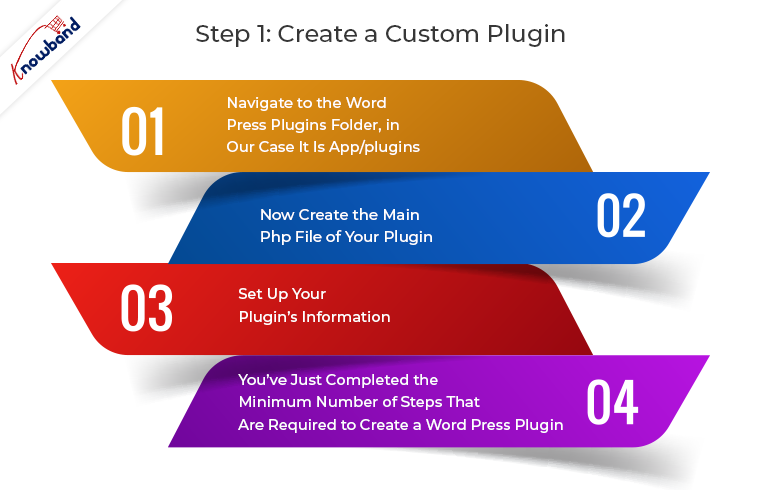
To create a custom plugin on your website follow the following steps:
1. Navigate to the Word Press plugins folder, in our case it is app/plugins. Create a folder as “customstatus”.
Important Note: Give your folder a unique name (Word press default plugins name should not conflict with your plugin name) using lowercase letters and dashes.
2. Now create the main PHP file of your plugin. To do so, create a PHP file within your plugin folder and give it the same name as the folder name. In our case, the folder name is “customstatus” so the file name will be customstatus.php.
3. Set up your plugin’s information. Just copy paste the below code in customstatus.php file.
/** * Plugin Name: My First Plugin * Plugin URI: https://www.mywebsite.com/my-first-plugin * Description: The very first plugin that I have ever created. * Version: 1.0 * Author: Your Name * Author URI: https://www.mywebsite.com */
Note: Edit the details such as Author Name, Plugin Name, Description, etc. as per your requirement.
4. That’s it! You’ve just completed the minimum number of steps that are required to create a Word Press plugin. You can now activate it from the Plugins tab in Word Press admin.
Step 2: Add Code in your custom plugin
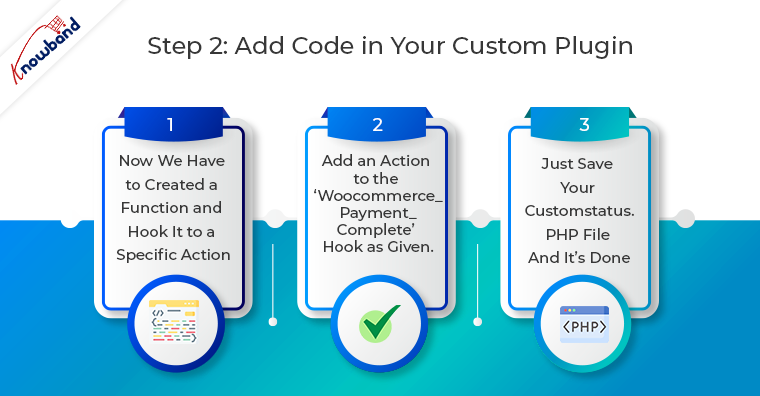
1. Now we have to create a function and hook it to a specific Action. Simply copy the below function in your customstatus.php.
2. Since we want to update the order status on complete payment, add an action to the ‘woocommerce_payment_complete’ hook as given below in the highlighted code.
//COPY THE WHOLE CODE IN customstatus.php FILE.
#<editor-fold defaultstate="collapsed" desc="Default Status as Invoice To Be Printed">
function action_woocommerce_payment_complete( $order_id ) {
      if( ! $order_id ) return;
        $order = wc_get_order( $order_id );
        $order->update_status( 'wc-print-invoice' ); //Order status will be updated to “Invoice To Be Printed”.
};

// add the action
add_action( 'woocommerce_payment_complete', 'action_woocommerce_payment_complete', 10, 3 );
#</editor-fold>
3. Just Save your customstatus.php file and it’s done. From now on, the order status will be updated to “Invoice to Be Printed” when the payment is complete.
USEFUL NOTE: If you want to update the order status when “Thank You” or “Checkout Success” page is loaded you can add the action on “woocommerce_thankyou” hook. In customstatus.php replace
add_action( ‘woocommerce_payment_complete’, ‘action_woocommerce_payment_complete’, 10, 3 ); with add_action( ‘woocommerce_thankyou’, ‘ggb_custom_change_order_status’ ,10,3);
You can reach us at support@knowband.com for any queries regarding Woocommerce. We provide customized changes on Woocommerce and also specific modules to help you sell better.
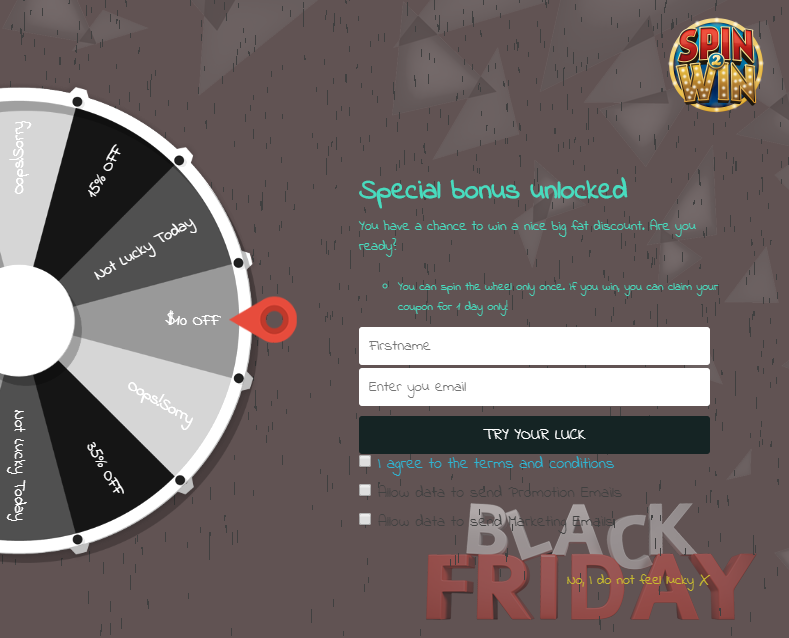
One of the most popular module for Woocomerce is Spin And Win. This module has a proven record of generating sales and boosting conversion rate. See what client’s are saying about this module:
The online store admin can now send followup emails to the customers with the help of OpenCart Followup Emails Extension offered by Knowband. This feature-rich OpenCart module allows the store merchant to create multiple rules and email templates for sending followup emails in several conditions.
Admin has an option to send followup emails to the customers after a certain time. Admin can create multiple rules and assign various templates for different events. Admin has an option to keep a followup email log. The OpenCart Follow Up Emails Extension allows offering a discount coupon code to the customers along with the followup emails. The OpenCart Follow Up Emails Module is multi-lingual compatible and offers smooth functioning.
1.1 Features of this OpenCart Followup Emails Module
With the help of OpenCart Followup Emails Extension, the store admin can send follow up emails to the customers.
Admin can also offer fixed or percentage-based discount coupons along with the followup email.
Ready-made email templates are available for follow-up which can be further customizable.
As an online store admin, you can set the number of days after which you want to send follow up emails.
Admin can review all the followup emails by enabling test mode from the admin interface of this OpenCart Follow Up Emails Extension.
The OpenCart Follow Up Emails Extension is compatible with multiple languages.
Admin can keep a follow up email log to view followup related details.
The OpenCart Followup Emails Extension allows the online store admin to select products, customers group on which he wants to apply to follow up rules.
Ready-made email templates are available for sending followup emails without any hassle.
There is no need to change even a single line of codes while using OpenCart Followup Emails Extension.
2.0 Installation Steps of OpenCart Followup Emails Module
Purchase Order Followup plugin for OpenCart from our store. You will receive these files after purchasing the OpenCart extension:
First, you will get a source code file of the OpenCart Followup Emails Module in zipped file format.
User Manual of this OpenCart Follow Up Emails Extension.
Follow below-mentioned steps to install OpenCart Followup Emails Module
1. Unzip the received zip file. You will get the folders as shown in the following image:
2. Copy all the folders of the zip file in the Root Directory of OpenCart setup via FTP manager.
So, Followup emails for order plugin is now successfully installed and ready to use at your store.
Now go to the admin menu and click on the extensions and thereby click on the configure button next to Followup Emails plugin for OpenCart.
2.0 Admin Interface
The online store admin can apply the settings for sending followup emails. OpenCart Followup Emails Extension has three customization tabs as shown below:
General Settings
Email Templates
Sent Log
3.1 General Settings
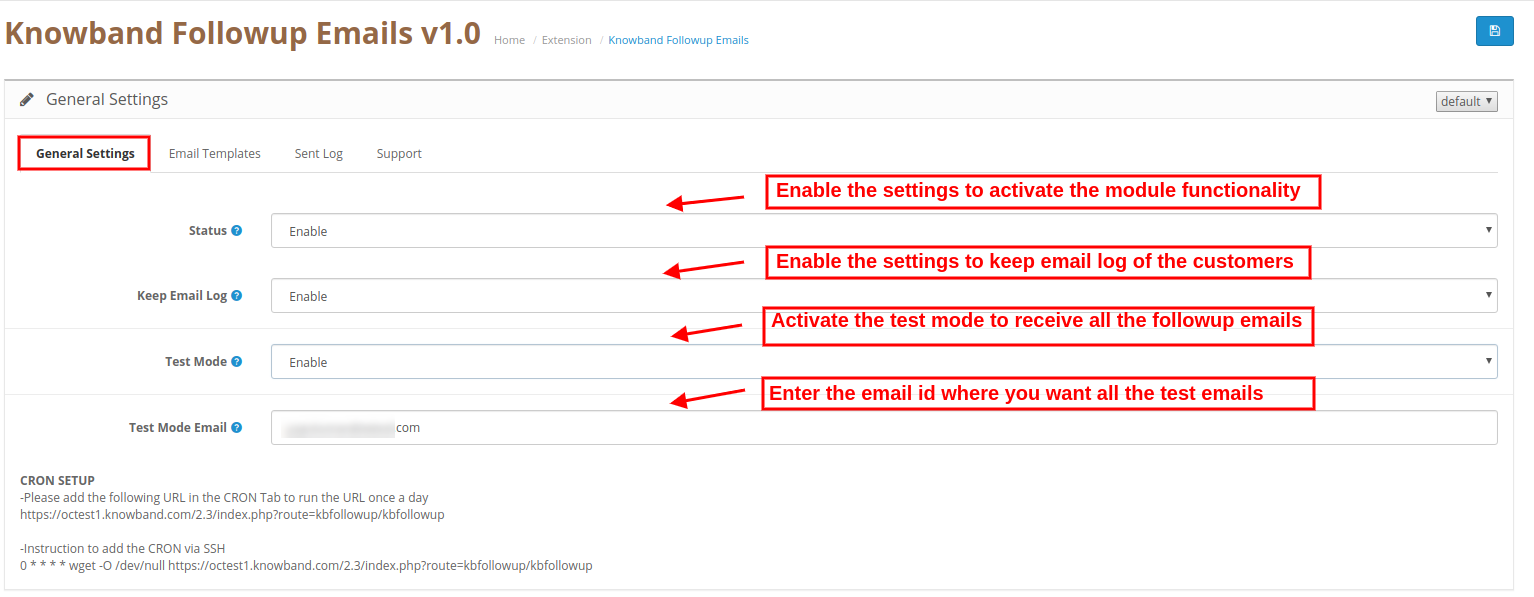
In general settings sections, the online store admin can apply these settings:
Status: Activate or deactivate the OpenCart Follow Up Emails Extension functionality.
Keep Email Log: Enable the settings for keeping a log of all the sent emails.
Test Mode: Enable test mode to receive all sent emails on the followup email
Test mode Email: Here the store admin can set the email id on which u want to receive all sent followup emails.
Note: Admin can setup CRON by following the CRON setup Instructions. In General settings there are Instruction to add the CRON via SSH.
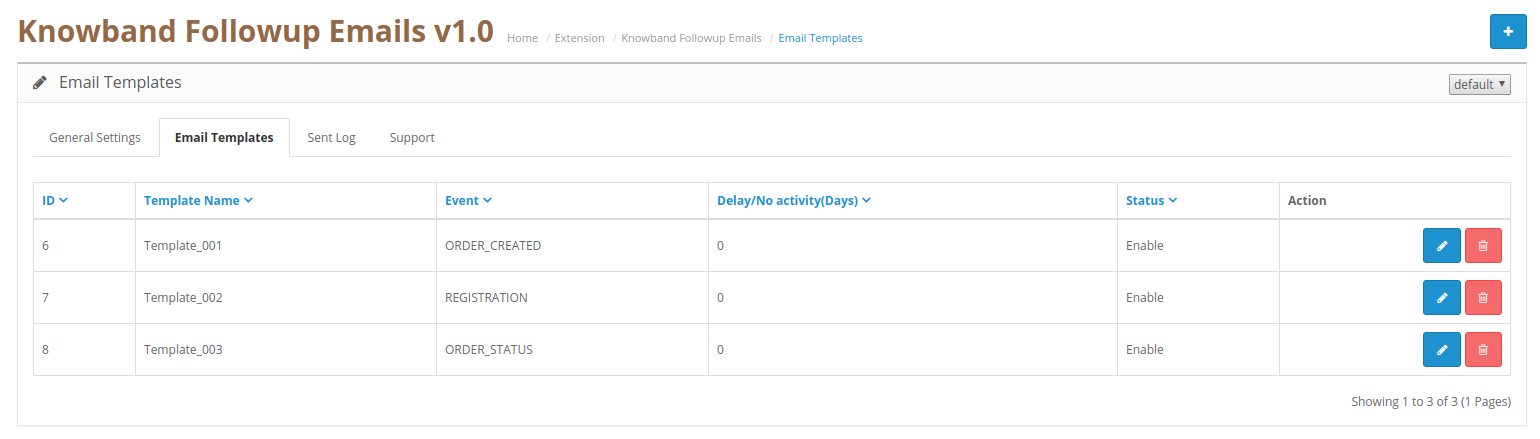
3.2 Email Templates
The OpenCart Followup Emails Extension allows the store admin to set rules and customize email templates for sending followup emails. Admin can add new email templates, modify the templates and delete the previously creates email templates.
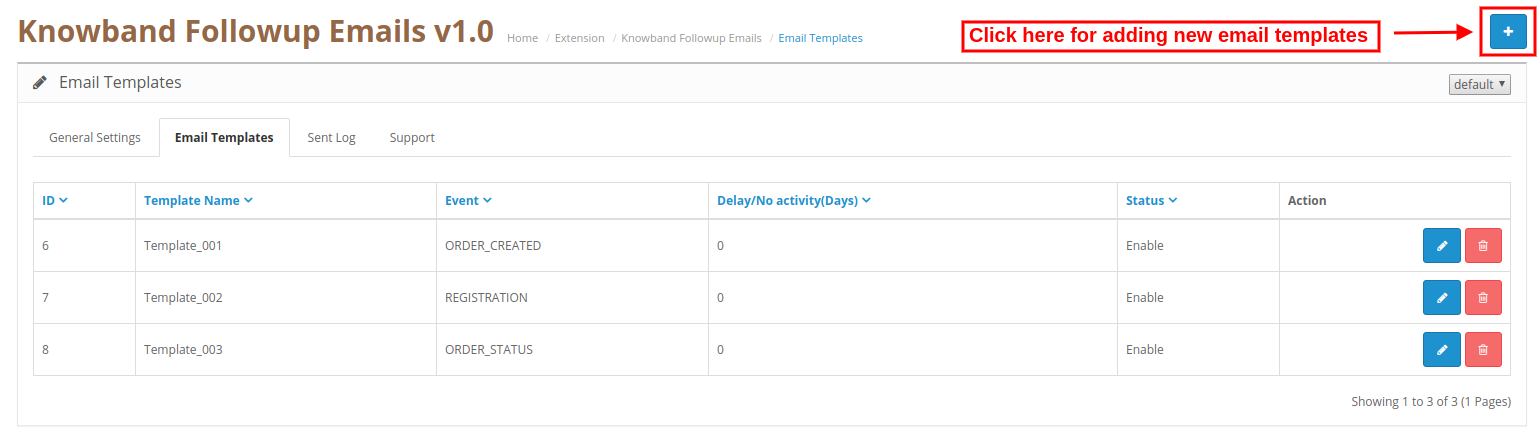
Steps to add new email template
Admin just needs to click on the “+” sign for adding a new email template.
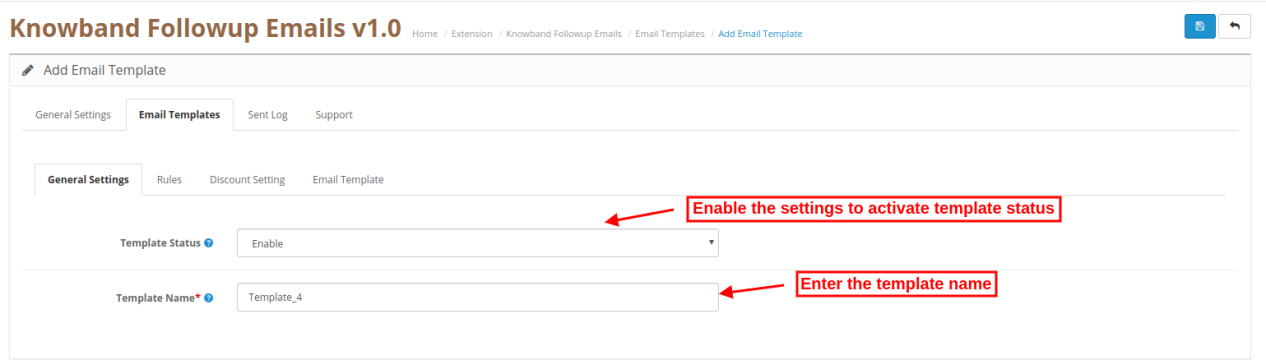
3.2.1 General Settings
Template Status: Activate or deactivate the template status.
Template Name: Set the template name from here.
3.2.2 Rules
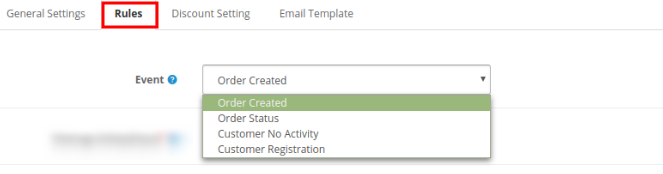
Event: The store admin can select the event type. There are four event types from which admin can select.
Order Created Order Status Customer No Activity Customer Registration
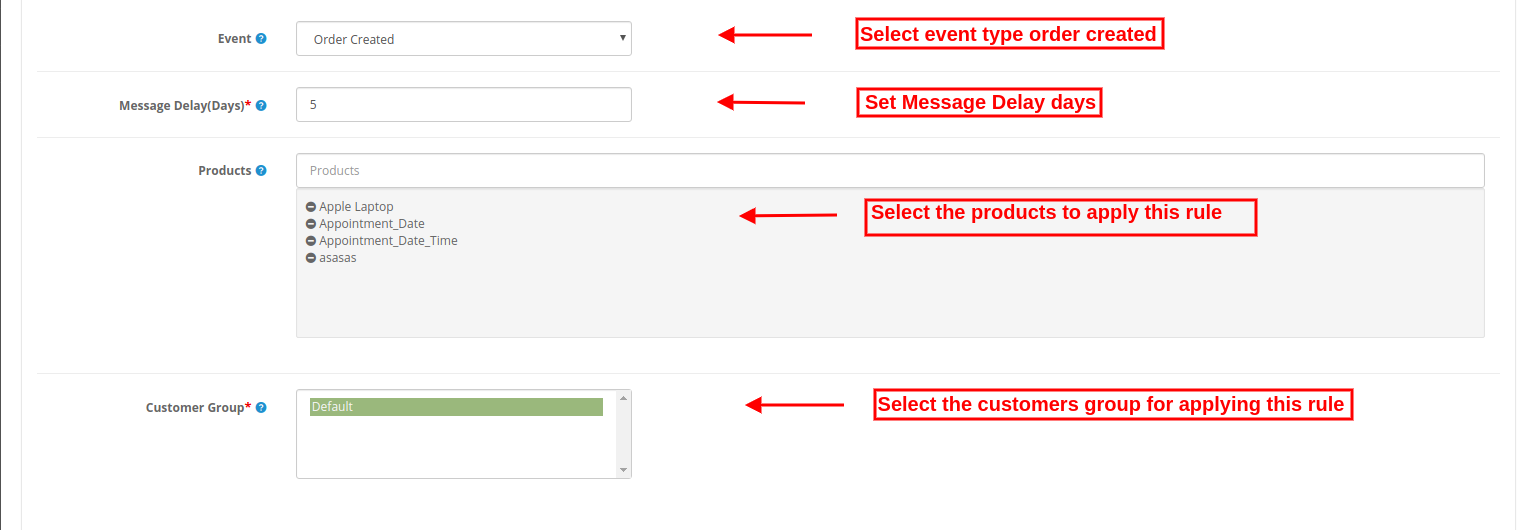
Rule 1: Order Created
Message Delay(Days): Admin can set the number of days after which he wants to send follow-up emails.
Products: Select the product names for which this rule will be applicable. This rule will apply on all the products if admin doesn’t select any product.
Customers group: Select the customer’s group on which, you want to apply this rule.
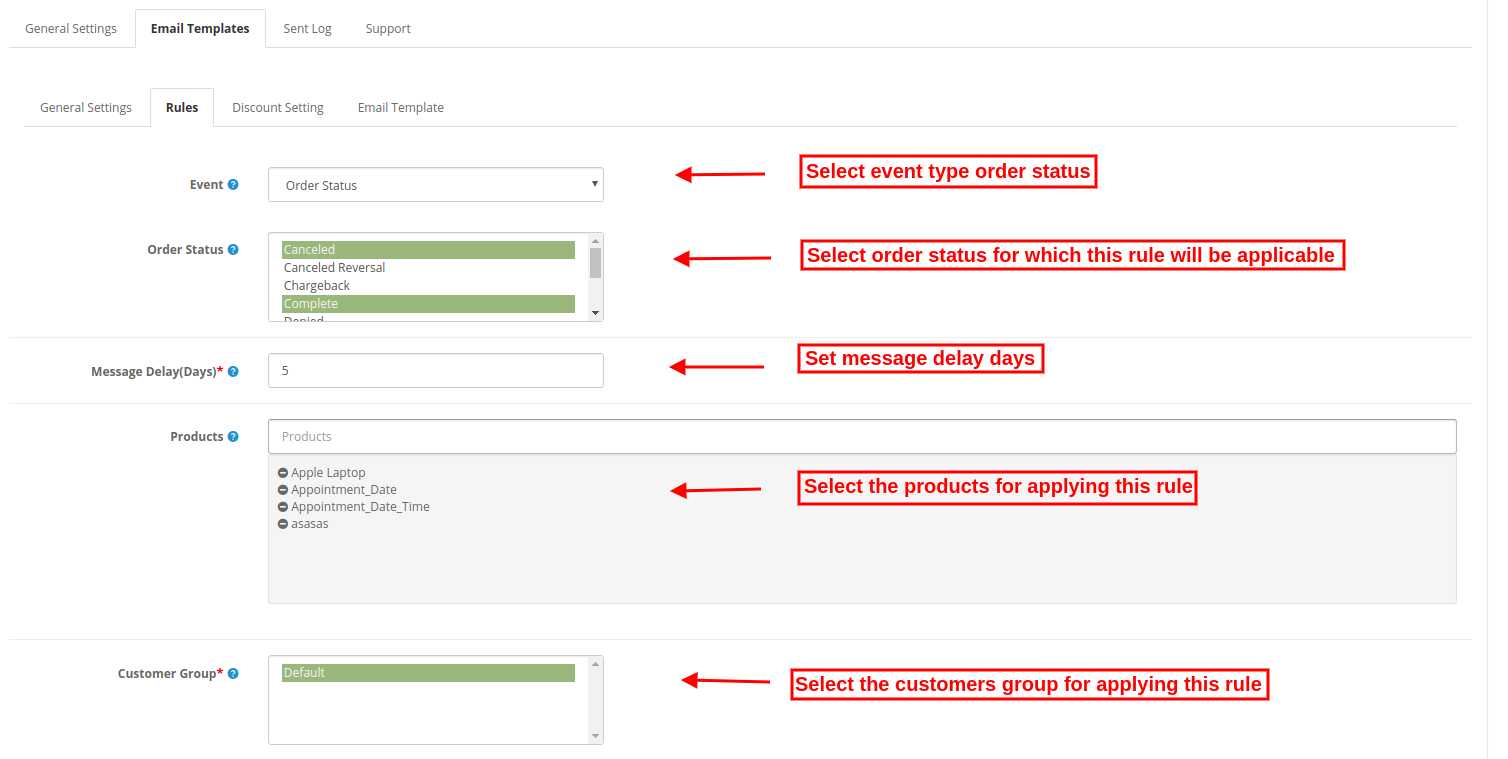
Rule 2: Order Status
Order Status: Select the order status on which you want to sent follow-up emails.
Message Delay(Days): Set the days after which you want to send follow-up emails.
Products: Select the products to which you want to apply this rule. You can leave it blank if you want to apply this rule on all the products.
Customer Group: Select the customer’s group on which you want to apply this rule.
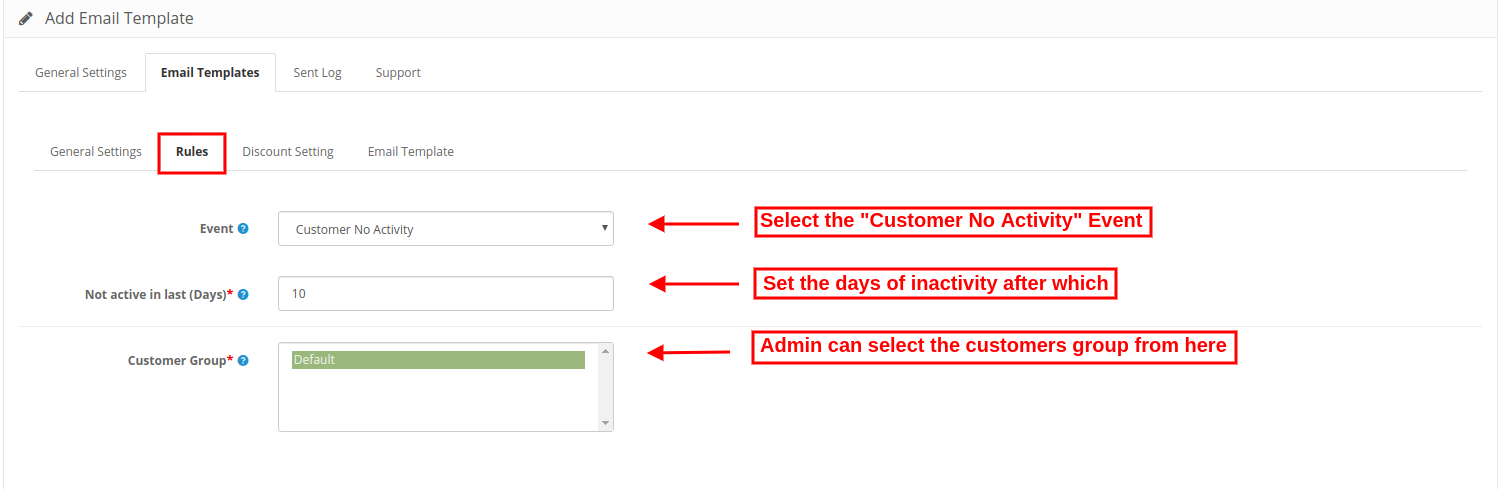
Rule 3: Customer No Activity
Not Active in last(Days): Set the days of inactivity after which you want to send reminder emails.
Customer Group: Select the customer’s group on which this rule will be applied.
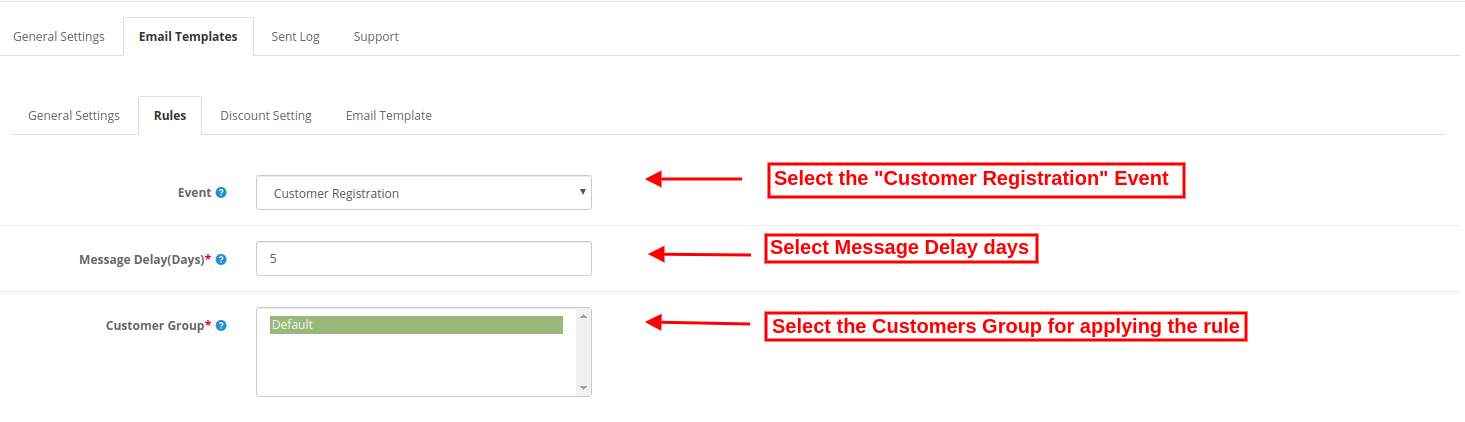
Rule 4: Customer Registration
Message Delay: The online merchant can set the number of days after which he wants to send followup emails.
Customer Group: Admin can select customers group for which this rule will be applicable.
3.2.3 Discount Settings
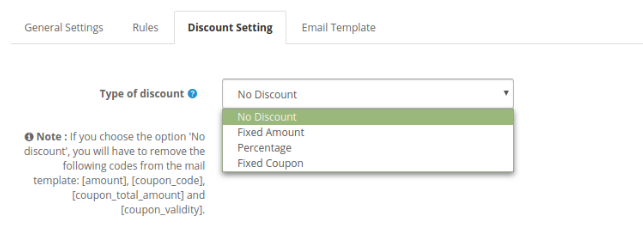
Type of discount: The store admin can select the discount type.
No Discount: If you don’t want to offer any discount, then select this discount type.
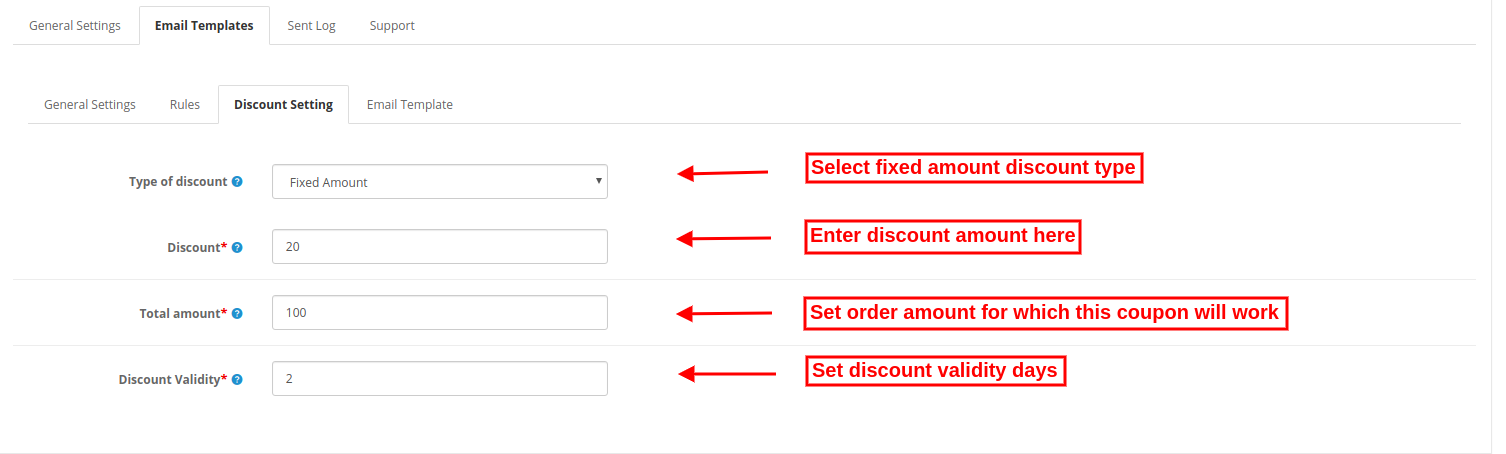
Fixed Amount: The store merchant can set the discount type as a fixed amount.
Discount: Admin can set the discount amount per order.
Total amount: Admin can set the total order amount for which coupon will be valid.
Discount Validity: Admin can set the validity days for the discount coupon.
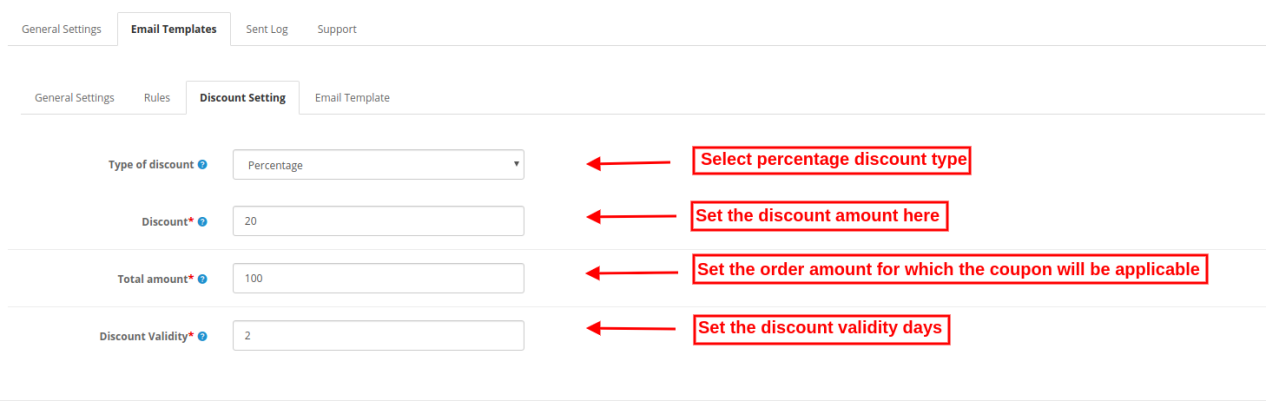
Percentage: The store merchant can set the discount type as a percentage-based amount
Discount: Admin can set the discount amount per order in percentage.
Total amount: Admin can set the total order amount for which coupon will be valid.
Discount Validity: Admin can set the validity days for the discount coupon.
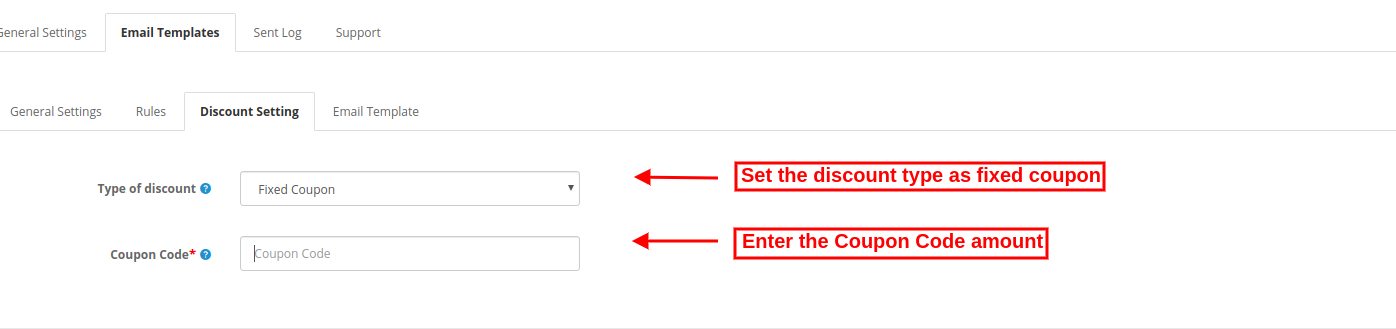
Fixed Coupon: Admin can also select the fixed coupon option for sharing coupons directly.
Coupon Code: Enter the coupon code.
3.2.4 Email Template
The Followup emails for order plugin has ready-made email templates for sending a follow-up emails.
Subject: Admin can enter the email subject line in multiple languages.
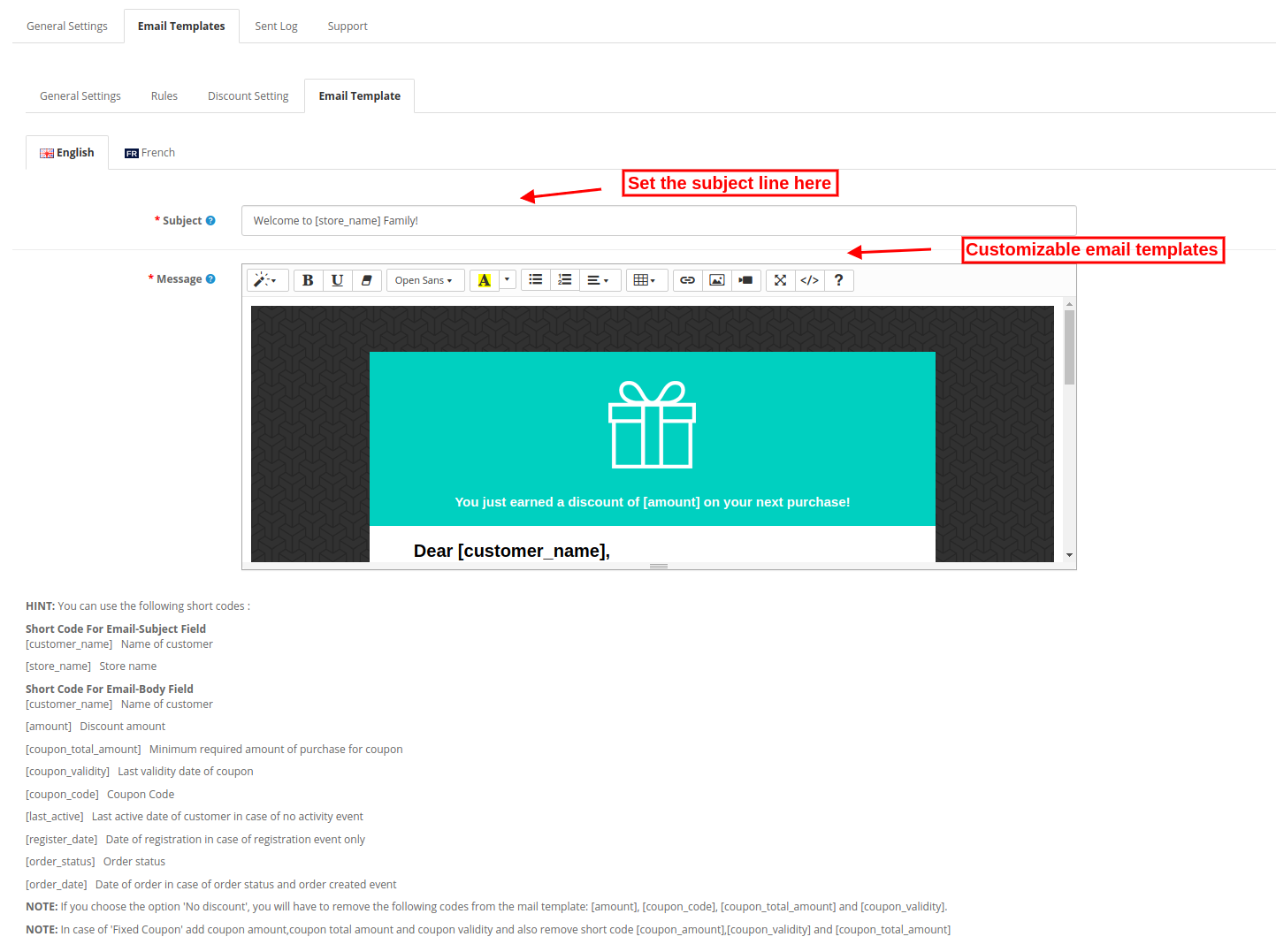
Message: Admin can customize the email template for sending follow-up email.
Note: The online users can get order details link along with the followup email for viewing their order in case of order status and order created event type.
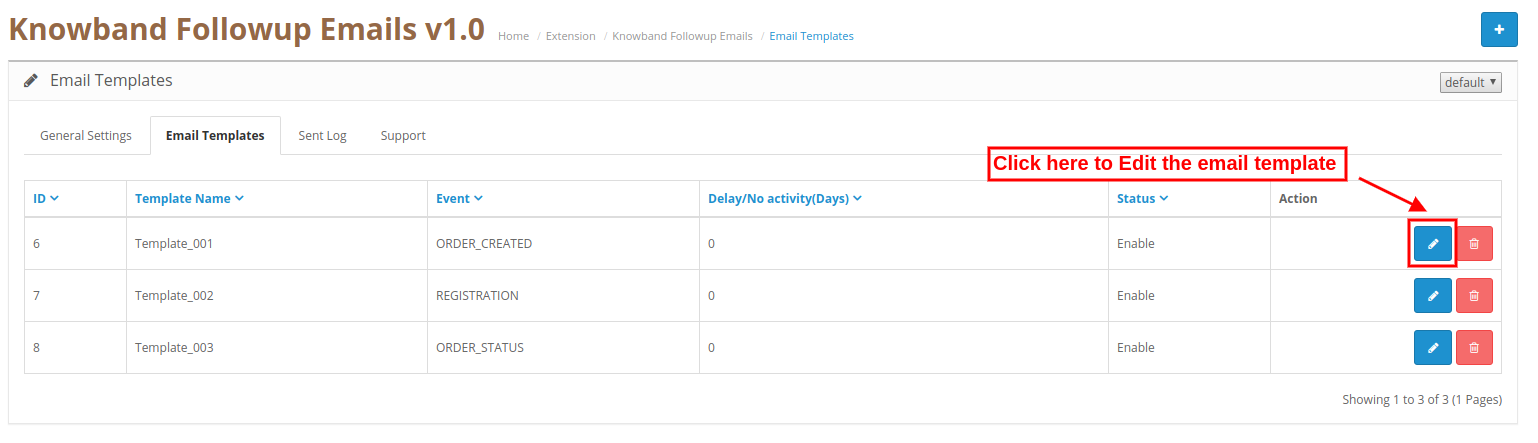
Steps to Edit Email Template
The online store admin can easily modify email templates from the admin interface.
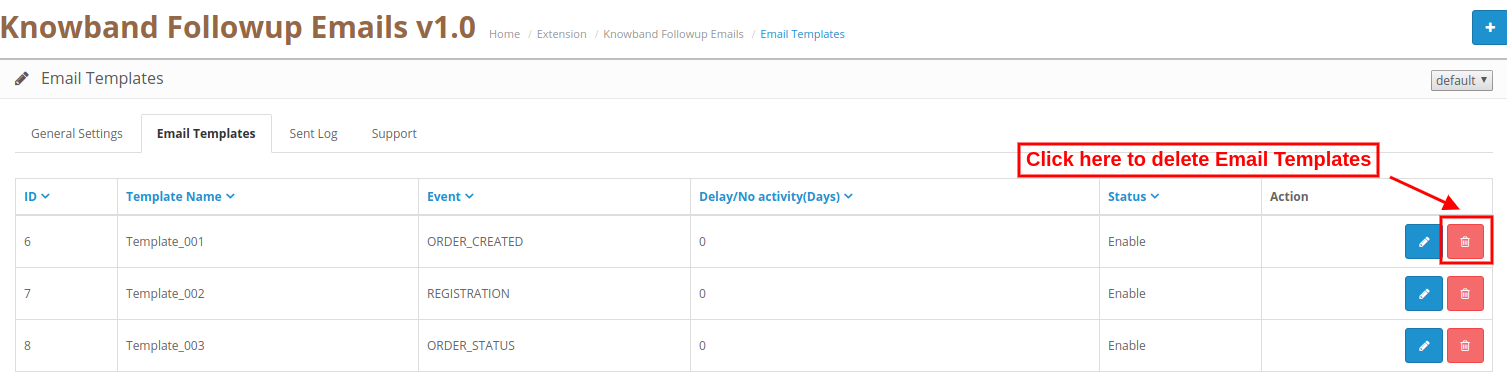
Steps to Delete any email template
The online store admin can delete any email templates from the admin interface easily.
3.3 Sent Log
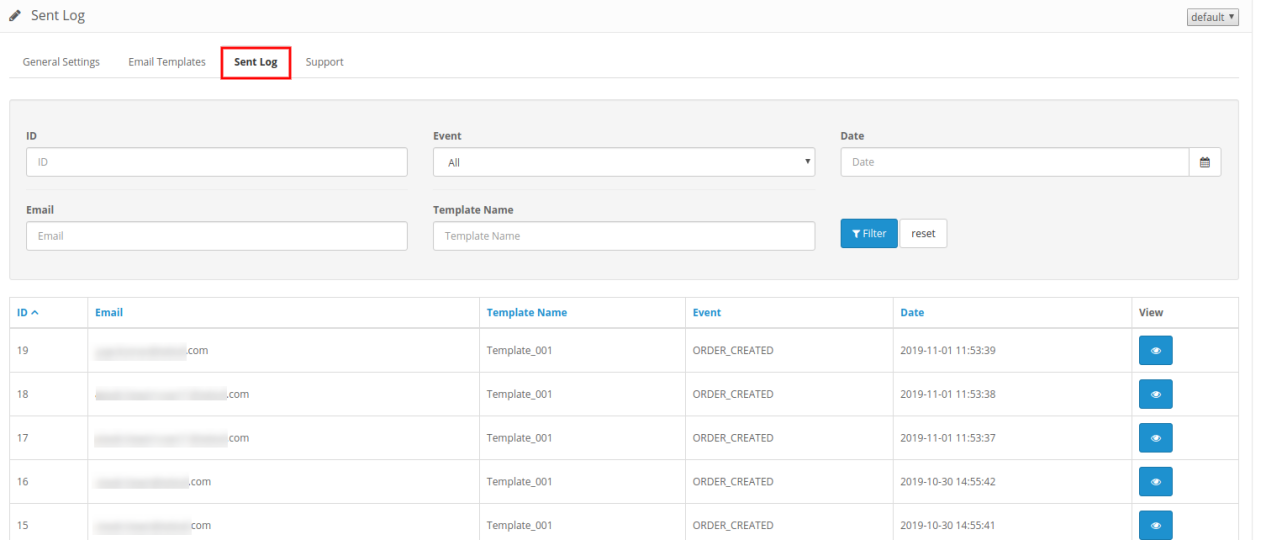
Admin can view the list of all the followup emails along with the other details like customer’s email id, template type, event and date.
Admin can also apply a filter for shortlisting the email log.
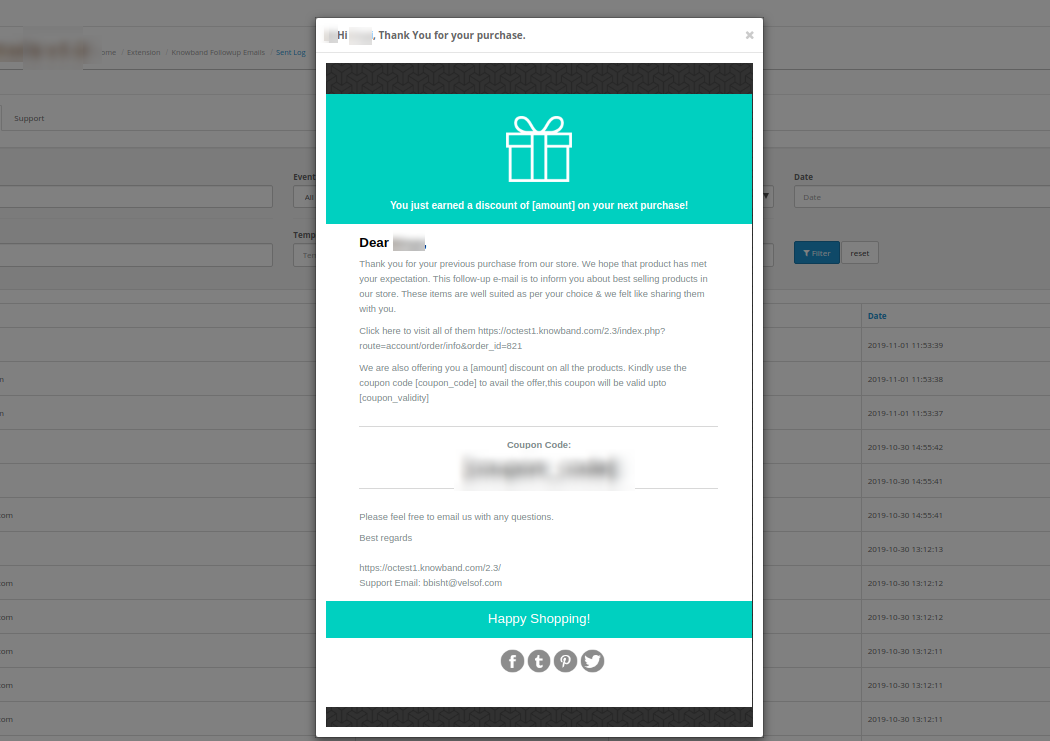
The online store admin can view the followup email structure.
4.0 Front-end Interface
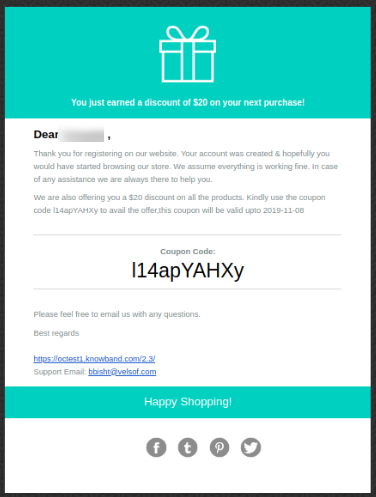
The online store admin can send followup emails to the customers in different conditions. Customers can get followup emails while order creation, different order conditions, customers no activity, new customers registration.
Web Push Notifications is a powerful and effective marketing tool adopted by online businesses to reach out to and interact with their audience, keep them updated about any important information, announcing sales and offers, and eventually driving more eCommerce conversions.
Email Marketing has lost its charm. SMS Marketing is almost dead. Push Notification has now taken over. If you use online shopping apps, you would be very well aware of how they try to interact with you through push notifications.
As per AdWeek, push notifications capture almost double “open and click-through rates” as compared to email. The trend of App Push Notifications is now being followed by Web Push Notifications.
What exactly are Web Push Notifications?
Web Push Notifications or Browser Push Notifications, also known as website push notifications, are messages or notifications that are delivered to the subscriber’s device in real-time. The notifications are sent even if the subscriber is not present at your website.
This is an entirely permission-based engagement where you initially ask your visitors whether they would like to receive notifications from your website/brand or not. Only after the visitor approves, he or she turns into your subscriber and you are ready to send them notifications and make them a part of your eCommerce journey.
How Web Push Notifications are different from App Push Notifications?
Website Push Notifications work very similar to Mobile App push notifications with an only difference that app push notifications work only for mobile devices (mobile apps) and tablets while web push notifications function on all devices including desktop.
Why Web Push Notifications are Important?
Web Push Notifications, if put in use wisely, can add immense value to your eCommerce business. In this article, we will discuss the 7 major benefits of using Web Push Notifications and understand why they are an important marketing aspect.
1. High Opt-in Rate
Unlike Pop-ups that demand users email address to send them newsletters or promotional offers, browser push notifications avoid asking for any customer-related information. All it requires is one single click to begin the process. And this is the reason why they have higher opt-in rate than emails.
In fact, the opt-out rate as well in browser push notifications is very minimal.
It also makes it easy for those visitors who hesitate to share their personal details online. This is often seen with new/first time visitors.
2. Real-time Quick Delivery
Web Push Notifications create instant communication with your subscribed audience. Any message or update gets delivered to the subscribers as soon as the information is initiated to be sent from the back-end. This gives you a high real-time reach.
So when you are planning to announce a flash sale, website push notifications can prove to be beneficial in that case.
3. Higher Engagement
Unlike Email or SMS where the URL to redirect the user to the desired location is mentioned inside the content, Web Push Notifications requires just one tap to take the user to the specified URL.
If you can entice your audience with your notification headline, you would surely receive higher engagement. Create triggering notifications that grab user attention and avoid using any click-bait headline.
4. Increase your Website traffic
One of the major benefits of Web Push Notifications is that it gives you a traffic boost. It works best if the message contains something worth the user attention. If it is tempting, you will witness a significant rise in website traffic. If you are running a limited-time sale, Browser Push Notifications can bring high real-time traffic.
5. Turn Visitors into Subscribers and Subscribers into Customers
Web Push Notifications prove to be one of the best ways to bring your subscribers into your store and encourage them to shop. It is the quickest way to grab user attention, unlike emails which sometimes can be skipped or left unopened.
It can be said that visitors who opt to receive notifications like you as a brand. They are impressed with your products or services and this is why they do not want to miss any future update from your end. These prospects will show more potential to purchase as compared to the other users.
6. Increase Conversions
You can ask users to subscribe to specific product-related notifications and notify them later if there is any update. For example, if the product that the user is looking for is out of stock or if they feel the product price is too high, you can ask them to subscribe for the alerts when the product is available again or when the price drops down, respectively.
The subscribers will be notified as soon as the changes reflect in the website regarding the product. Notification related to the fall in the product price or the product back-in-stock creates higher chances of conversion.
So basically you can retarget the users and persuade them to purchase the product which they desired earlier.
With web push notifications, you do not need a mobile app to reach out to your subscribers. Moreover, building a mobile app can cost you huge bucks so this cuts down your cost to have a mobile app and provides you with a similar way to communicate with your audience like App push notifications.
The Bottom Line
Web Browser Push Notification is undoubtedly an effective marketing communication channel and what sets this apart from other marketing methods is that it is not restricted to marketing and promotional purpose only. It can be used to deliver useful information, abandoned cart alerts, order status updates, product back-in-stock alerts, etc.
Looking for a module that provides you with all these features? Check out our Web Push Notification module, which is available for PrestaShop, Magento and Magento 2.
Not only it will provide you with certain types of browser push notifications, but you would be able to customize the notifications as per your choice.
For website push notifications to deliver fruitful results, you need to optimize them so that they are able to bring the desired results. Do not send anything that users feel likely to skip. Too many notifications can lessen the impact. It should be something valuable.
Use tempting headlines (not click-bait), be up to the point, use short texts, and be very specific about the delivery time. You would not want the notifications to deliver at an inappropriate time, right? You would be having subscribers all around the world, and sending notifications to all at a similar time would not do anything good.
Leverage the power of Web Push Notifications and boost your brand visibility in the eCommerce space. It would be even better if you personalize the content. Adding a personal touch to the message gives a special feeling to the users.
Hope you enjoyed reading the benefits of using Web Push Notifications in eCommerce.
“Magento 2 One Page Checkout, also called as Magento 2 One Step Checkout converts the lengthy checkout process of your Magento 2 website into a simple One-Page Checkout. It lets you remove the unwanted checkout fields and make your checkout page as convenient as possible for your customers.”
The checkout page is the most crucial part of the customer journey on any e-commerce website. An optimized and simplified checkout process is the mantra for successful conversions.
Earlier, e-commerce merchants used to be hell-bent on having a multi-step checkout process. But today, feeling the importance of a quick and a user-friendly checkout process, the same e-retailers are switching to the One Page Checkout process.
Having an eCommerce website on the Magento 2 platform? Consider using the Magento 2 One-Page Checkout by Knowband to reduce the checkout friction.
Features of Magento 2 One Page Checkout
1. Guest Checkout
Many users avoid signing up on e-commerce websites. Brands that have made the sign-up process mandatory during the checkout lose out on such customers which significantly bring down their conversion rate.
For such users, Magento 2 One Step Checkout offers Guest Checkout so that they could check out easily without getting themselves registered on the website.
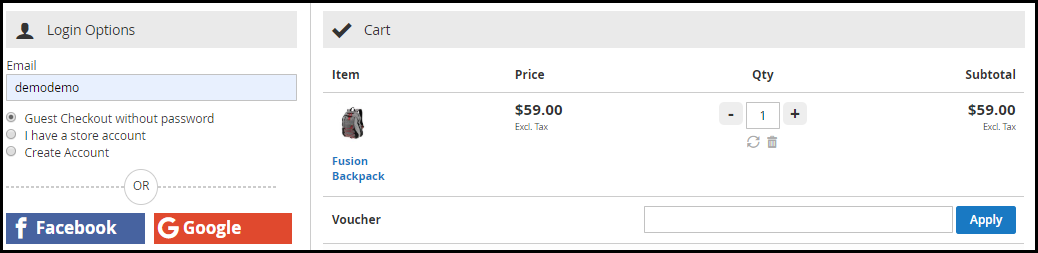
Magento 2 One Page Checkout even allows users to register as a guest without even setting up a password. A user just needs to provide his email address and the password would be sent over their inbox.
2. Social Login
While there are some people who do not want to create an account at any cost, some consider filling up the registration form a tedious task.
Magento 2 One Step Checkout provides the Social Login facility and ensures that users are able to make a quick checkout. This Magento extension offers Facebook and Google login option.
A majority of online shoppers remain logged in their Facebook and Google account. Hence, the social login option eases up the registration task and also avoids the headache of remembering passwords.
3. Prioritize Checkout Fields Using Drag and Drop Functionality
Arrange checkout fields as per your priority. Place a field wherever you want. Just pick a field and drop it to the place where you want to get it displayed. For example, you can keep the Contact number field above the Address field or vice versa.
4. Mark Mandatory Fields and Avoid Unnecessary Ones
Magento 2 One Page Checkout provides you with the option to mark checkout fields as Mandatory or Optional. If you wish to capture some important information, you can keep that field as mandatory and if you feel it can be avoided, you can keep it as optional.
You can set these fields differently for Guest and Logged in customers.
5. Choose the best layout design for your Checkout page
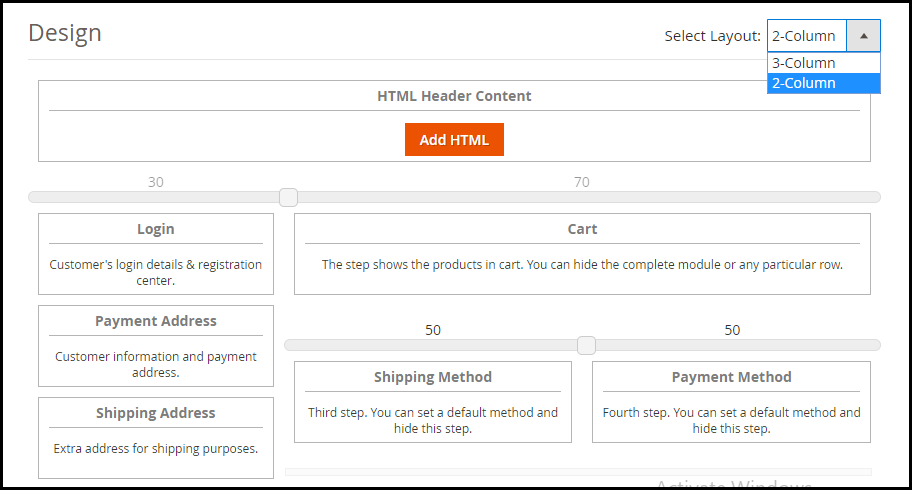
Magento 2 One Page Checkout provides 2 layout designs: 2-Column Layout and 3-Column Layout that gives you the opportunity to try and test which checkout layout is bringing more conversions compared to the other.
You can customize your layout accordingly.
6. Supports Multiple Payment Methods and Shipping Services
Magento 2 One Page Checkout supports nearly all the payment modes and shipping services so that you do not have to compromise a conversion due to the non-availability of a payment method or shipping provider.
How Magento 2 One Page Checkout benefits the Merchants?
Magento 2 One Step Checkout provides ample benefits to the eCommerce merchants. Have a look
1. Simplify the Checkout experience of customers by having a trouble-free One Page Checkout.
2. Encourage an Easy and Quick Checkout.
3. Capture more sign-ups with the Social Login facility.
5. One Page Checkout for Magento 2 increases your overall conversions and revenue.
The Bottom Line
There are good enough reasons to opt for a single page checkout that overshadow the multi-step checkout process. Having a One Page Checkout not only creates a frictionless checkout but also saves the much important time of your customers.
Do check out the Magento 2 One Page Checkout. Confused between a one page checkout and multi-page checkout?
Data is any set of characters that is translated for some purpose, like for analysis. It can be any character or value, including text and numbers, pictures, sound, or video. If data is not put into context then it does not do anything to a human being or machine.
We generally export data from the websites to save it on the computer for offline used like to maintain list data and to analysis it. Excel is the best format to Export data in a file because reading large files is much easier in Excel for the user. Also, you can use additional functions like selecting individual cells to import the data, convert dates and time automatically, filters, sorting, reading formulas and their results etc.
Integrate Your PrestaShop Store with AI Chat Support
Boost engagement and conversions with instant AI replies, multilingual support, and real-time order updates.
In this blog we will learn how to export PHP data to .xls file step by step. With the help of simple PHP script you can export data to Excel and download it in a .xls file.
STEP 1: Create an Array to store the data
I have created an array ($customers_data) to store the customers details. You can create your own array as per your requirement:
This function is used to detect double-quotes and escape any value that contains them. Without this an uneven number of quotes in a string can confuse Excel.
STEP 3: Define file name and content header for download:
$file_name variable is used to hold the name of the file and also define content header for download.
// File Name & Content Header For Download
$file_name = "customers_data.xls";
header("Content-Disposition: attachment; filename=\"$file_name\"");
header("Content-Type: application/vnd.ms-excel");
STEP 4: Define Loop through each row in $customers_data
//To define column name in first row.
$column_names = false;
// run loop through each row in $customers_data
foreach($customers_data as $row) {
if(!$column_names) {
echo implode("\t", array_keys($row)) . "\n";
$column_names = true;
}
// The array_walk() function runs each array element in a user-defined function.
array_walk($row, 'filterCustomerData');
echo implode("\t", array_values($row)) . "\n";
}
exit;
1. Define a variable $column_names which is used to print the column name in first row of excel.
2. Run a loop through each row and used array_walk() function to run each row in a user defined function.
STEP 5: Run script file in your environment:
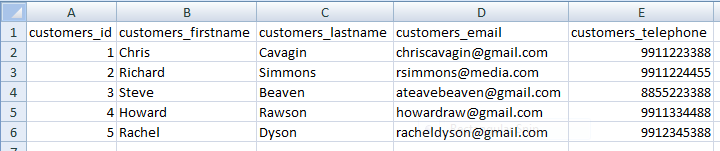
If all goes well then the filename will be named “customers_data.xls” downloaded and saved in your computer. You can open this file in Excel which look like as following:
With 13+ years of excellence in information technology, we provide web and app development technologies on various frameworks. You can also explore a wide range of Prestashop, Opencart, WooCommerce, Shopify, and Magento 2 ready-to-use eCommerce extensions.
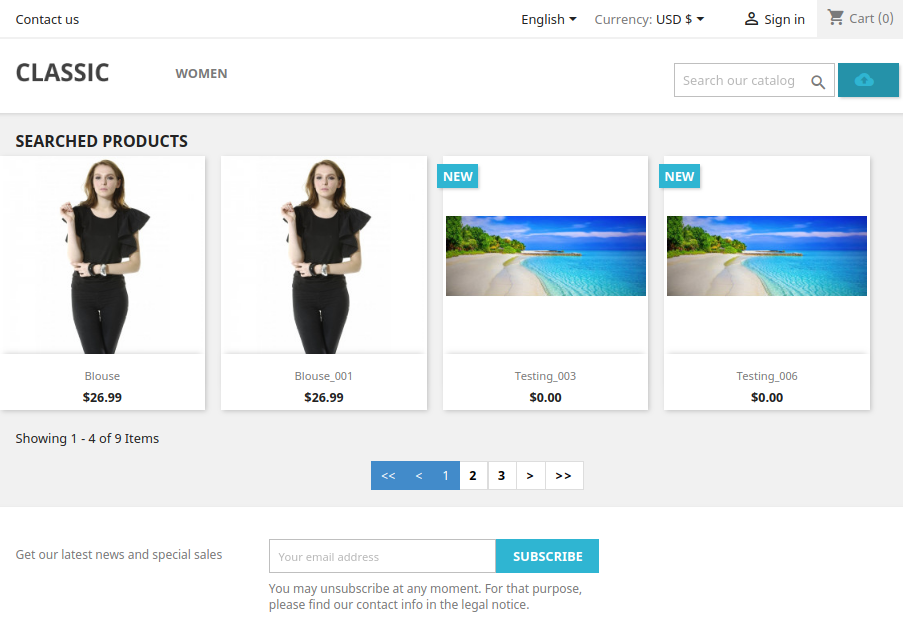
Improve the search experience of your customers on your store. Incorporate Knowband’s Prestashop Image Search Addon and help your customers to search for a product using product image. This saves the time of your customers and improves their shopping experience as well. Through machine learning, the Image Search addon recognizes the image uploaded by a customer and displays relevant results.
1.1 Striking Features of Prestashop Image Search Addon
Prestashop Image Search Addon is highly customizable plugin with no technical changes involved. You can upload or add as many images for your eCommerce store and map them corresponding to products. Lets quickly check different features offered by this Prestashop Image Recognition System.
1. Prestashop Image Search module allows your customers to search products at your store using an image.
2. You can provide “Search Products by Image” option on search bar of website.
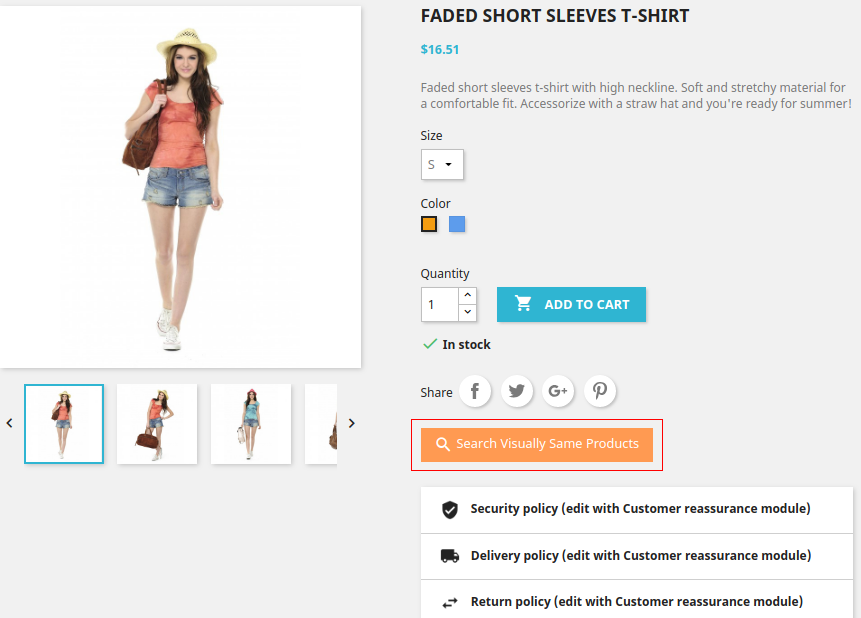
3. With Prestashop Image Search module, you can enable or disable Visual Same Search Button on the product pages.
4. You can enable or disable the automatic image sync feature to map images corresponding to products.
5. You can run the cron file to manually map the images to products. Once mapped, they will appear in image search results.
6. Prestashop Image Search Addon supports multi-lingual and multi-store compatibility.
7. You have an option to set threshold percentage ranging between 50 to 100. Based on this value, the matched search results are shown.
8. You can set the number of products which will be displayed on the search result page.
9. Prestashop Image Recognition System is simple to enable or disable from back-office interface.
10. The total details like Total Images, Total Mapped Images, Total Unmapped Images, Total Images yet to be Synced are shown at back-office of module.
1.2 Technology for Development
Language: PHP Frame Work: Prestashop
2.0 Installation Guide for Prestashop Image Search Addon
You can follow these simple steps for installing the Prestashop Image Search module on your eCommerce store:
1. Firstly, download the addon package from the Knowband store.
2. You will get a zipped file containing the source code and user manual. Unzip the complete package in the root directory of your Prestashop store through FTP manager (like Filezilla or WinSCP – download here: https://filezilla-project.org/). You’ll find the files and folders as shown in the image below:
3. The Prestashop Image Search module is all set to be installed at your store. Go to the Store Admin and then to ‘Modules and Services’.
4. Click on the “Install” button just next to your module. It would show a pop-up for your confirmation. Click on “Proceed with the installation” option. This step will install the module and show notification – “Module(s) installed successfully”.
3.0 Admin Interface of Prestashop Image Recognition System
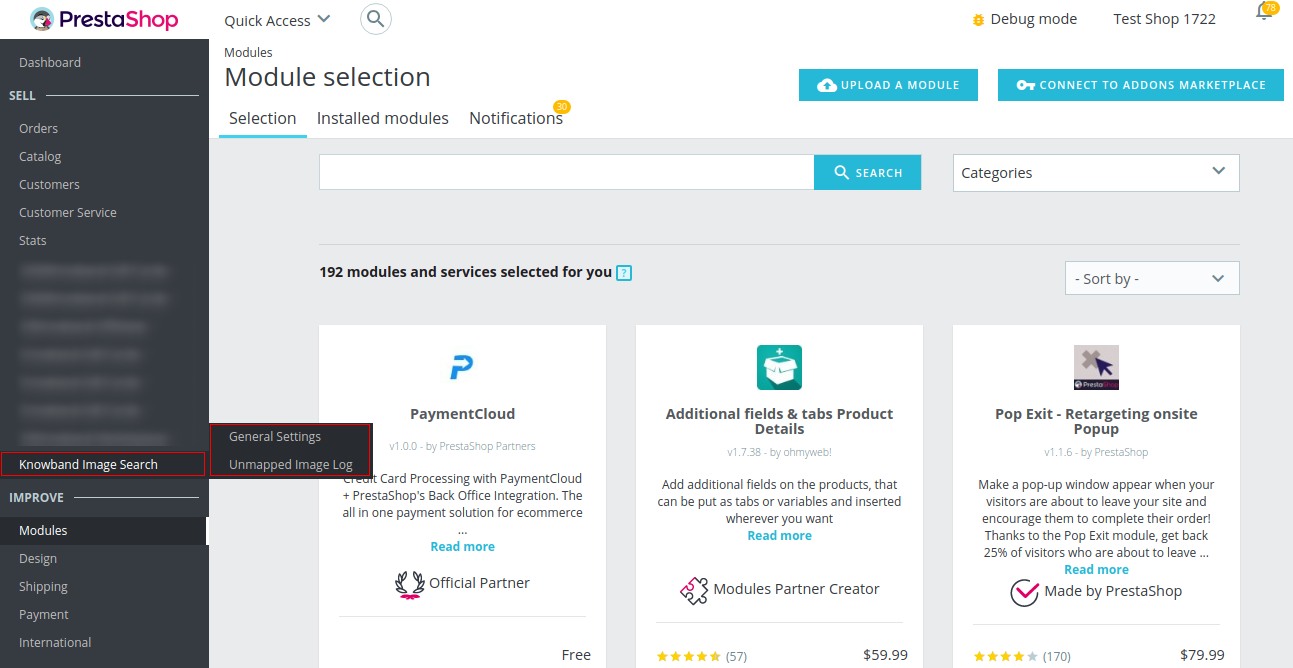
Once you have successfully installed Prestashop Image Search Addon on your store, you can configure the Image Search settings from the admin backend. The module settings are categorized under two tabs as shown below:
Here in this interface of Prestashop Image Search Addon, you will find two tabs as listed below.
1.General Settings
2.Unmapped Image Log
Each section of this Prestashop Image Search module has been discussed below.
3.1 General Settings
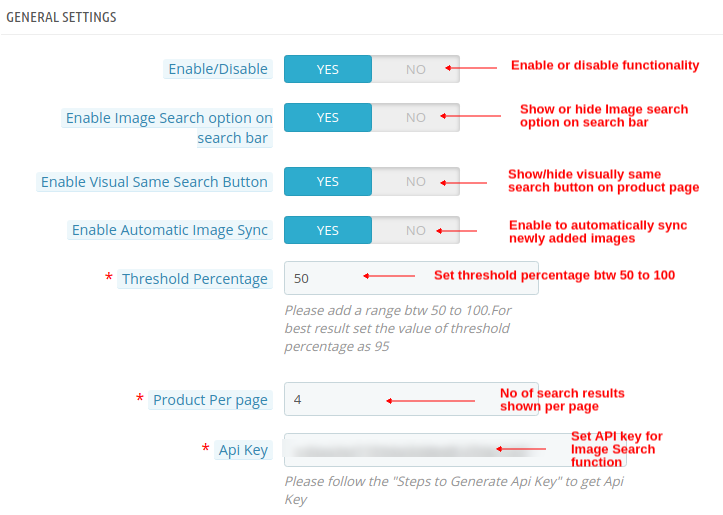
Enable/Disable: Using this option, you can enable or disable the functionality of Prestashop Image Search module for your store.
Enable Image Search Option on Search Bar: This option shows or hide the Image Search option on the Search Bar.
Enable Visual Same Search Button: This option enables or disables the “Search Visually Same Products” button on the product page.
Enable Automatic Image Sync: If this option is enabled, then it will automatically map all the newly added unmapped images. If this is disabled, you have to hit and run cron file manually in order to map the unmapped images.
Threshold Percentage: Using this option, you can set a threshold percentage match value ranging between 50 to 100. Based on this value, module shows the image search results on the frontend. For best results, set the threshold value as 95.
Product Per Page: With this option, you can set the number of products or search results which will be shown per page.
API Key: This option will set the API key for Clarifai account. The steps to generate API key are provided at the back-office.
A) Total Images: This count is incremented as you will add new images to any product. B) Total Mapped Images: This count indicates total mapped images either automatically or manually by running cron. C) Total UnMapped Images: This count indicates total unmapped images due to some error like API not found or wrong API key. D) Total Images Yet To Be Synced: The value indicates the images which were not mapped automatically or using cron file. Once you hit the cron file or enable the “Enable Automatic Image Sync” option, the count becomes zero.
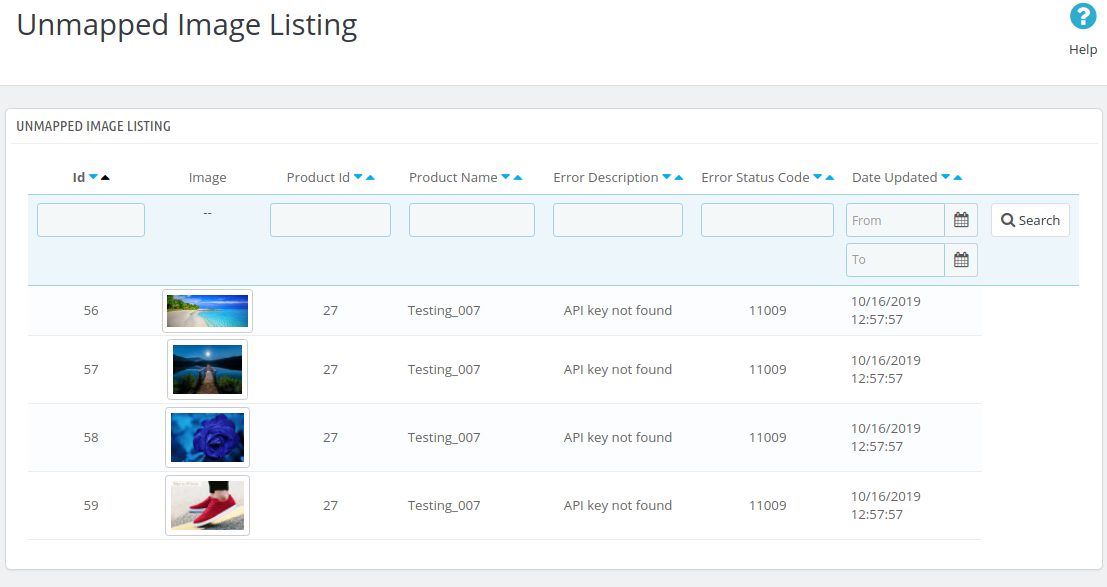
3.2 Unmapped Image Log
Under this tab of Prestashop Image Search module, you will find details of unmapped images. All the images that are unmapped because of wrong API key are listed along with details like Product ID, Product Name, Error Description, Error Status Code and Upload Date.
4.0 Front Interface of Prestashop Image Recognition System
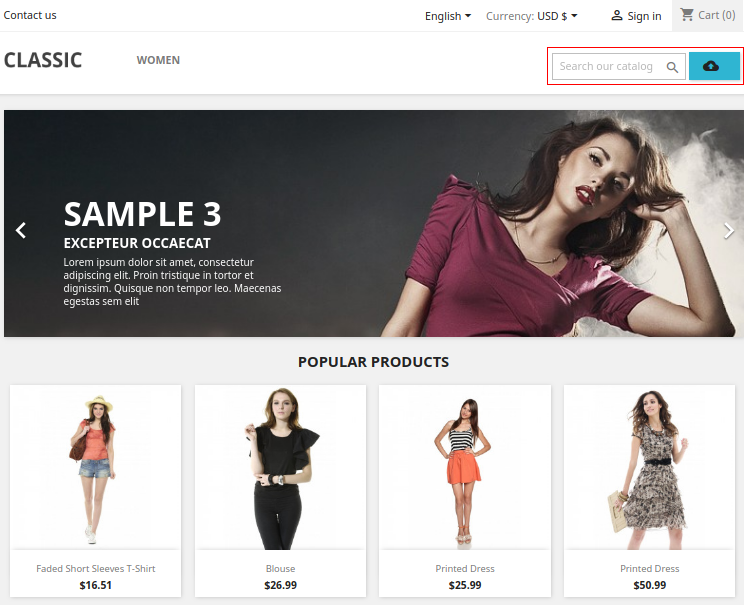
A) Image Search Option at Front
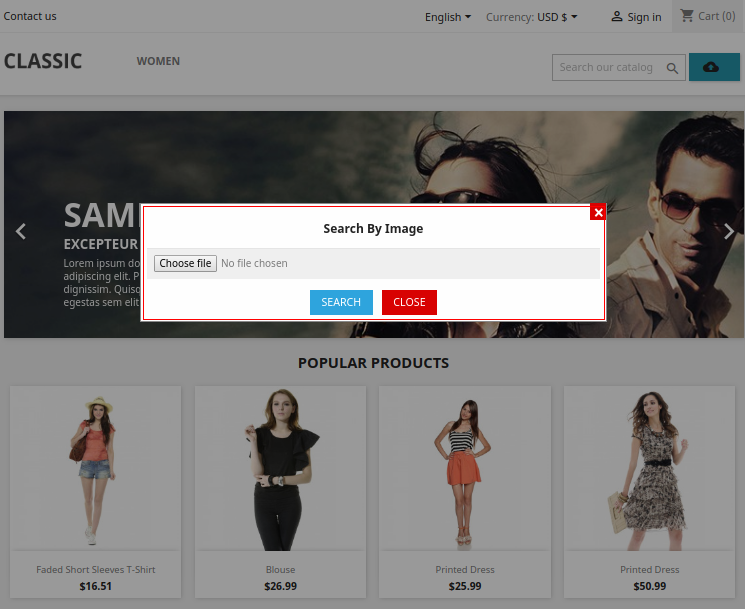
B) Choose file for “Search by Image” option
C) When relevant search results are found for the uploaded image.
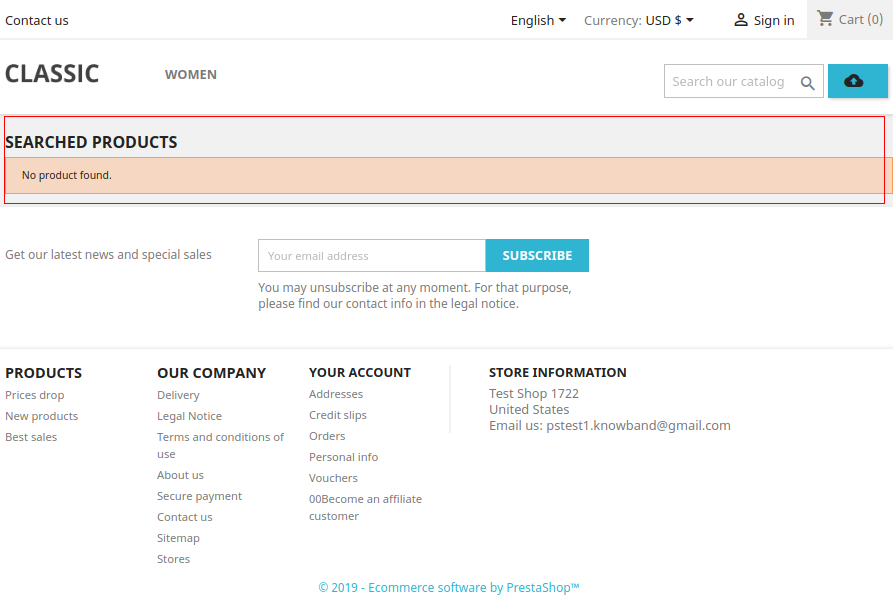
D) When no results are found for the uploaded image.
The five-day period consisting of Thanksgiving, followed by Black Friday and Cyber Monday is the busiest period for online shoppers and brings in humongous sales for the eCommerce retailers. The busy shopping hours are drawing closer and it is high time to start preparing for BFCM 2020 marketing strategies at the earliest to boost your sales.
First, let’s have a look at a few stats collected by Forbes in this holiday period in 2018.
Thanksgiving captured $4.2 billion in online sales which was nearly 19% growth as compared to its previous year.
Black Friday hit a $7.4billion revenue mark in 2019 in the U.S. which was approximately 6.2 billion in 2018.
Cyber Monday was the highest-selling day, achieving $9.4billion in online sales.
The holiday eCommerce sales recorded an advance 3.4% haul during the five-day period from Thanksgiving to Cyber Monday
That makes it a rough figure of $21 billion in total for all the three holidays combined. With these sky-touching numbers, there does not even raise a question as to why you shouldn’t shift your complete focus towards planning out for these holidays. Here are a few Thanksgiving and BFCM 2020 marketing strategies and ideas to scale-up your revenue.
1. Make the best use of the Home Page
The first in the list of BFCM marketing ideas would be to customize your homepage.
If you receive a significant amount of traffic on your website on a daily basis, it would be wise to catch the user’s attention with a theme-based homepage. Well, even if the traffic volume is low, you should be focused on designing your website’s home page for the Black Friday Cyber Monday Marketing.
For example, you can set a totally dark background on Black Friday with a “Black Friday” text to catch the holiday spirit.
Or if you have a spin and win popup, you can customize it for different occasions. A similar approach can be followed for Thanksgiving and Cyber Monday.
You can highlight the coupon code and feed it into a user’s mind as soon as they enter your store. The time-saving approach avoids the need to search for the offers section.
2. Do the makeover of your Ecommerce store
The time is now! Give your store a makeover before the eCommerce biggest holiday season sale. Planning for Black Friday, Cyber Monday and the ensuing holiday season is overwhelming to drive your business’s main sales in the fourth quarter as well as the rest of the year.
To make it look attractive and engaging, add some decorative elements to your store. Give it a festive look and get ready for the largest holiday season sales.
You can change the look and feel of the store by adding some colors to it,
Wondering how to do this? If you have your store on the PrestaShop platform then Website Decoration Effects can be added to it. To entice your customers, you can show a discount coupon strip on the website pages. It will be effective if you can put some efforts into mobile creative and user experience design.
3. Offer Buy Online In-Store Pickup (BOPIS)
You must be thinking why I am adding the BOPIS model in the top marketing strategies for Black Friday and Cyber Monday Sales. Here are some numbers from the previous year that highlights 43% growth in BOPIS service providing retailers. If you have a physical store as well as a digital platform then offering BOPIS (buy online, pickup in-store) this year will add new value to your store.
With more competition among retailers than ever, shoppers increasingly looked for full convenience and time saving and BOPIS is the one you can fire with.
Refer to this article if you want to get ready for offering BOPIS services to your customers before the freakiest five-day festive sales.
4. Utilize the Social Media platforms
User engagement on social media networks like Facebook, Instagram, and Twitter is at a peak during the holiday season. And there is a flood of posts by Brands to make their audience/followers aware of the enticing offers.
Social media marketing strategy for Thanksgiving and BCFM needs to be planned way in advance as these holidays come one after another. So you need to take quick action.
To start with the least, you can replace your existing brand profile picture and cover image with a holiday-specific image. Thereafter, you can schedule your posts for a suitable time, mostly when the reach is higher. And you can also take the help of Social media advertising to make your posts reach out to a larger number of audiences.
Most importantly, do not forget to use hashtags. Hashtags might not be effective on Facebook but can give you a huge boost on other social media channels like Instagram and Twitter.
Add some reels and allow people to explore your feeds on Instagram.
5. Shout out to your customers via Email
Adding to the list of Black Friday Cyber Monday strategies is sending an email blast to your subscribers and making them aware of your offers for Thanksgiving, Black Friday, and Cyber Monday. Or you can segment your customers and target them separately.
Though email marketing, today, is not as effective as it used to be, it is still one of the best practices to perform during the holiday season.
To make sure your emails deliver useful results, try not to follow the conventional approach.
What to do?
Come up with a catchy subject line. When the notification pops up on your user’s mobile or desktop, it should be tempting enough for them to open it and read the inside content.
Secondly, if you have a specific coupon code, highlight it in your email content. Last but not least, set your timing right. Schedule your emails for the time when your users are highly active.
6. Create Urgency by setting up a Countdown Timer
Customers generally like to compare the product’s price with your competitors’. They wait for the prices to drop, and then buy from the one offered at the lowest price.
Let customers not feel that they can claim the offer at any time during the day. Create a sense of urgency by displaying a countdown timer on your product pages so that the customers fear missing out on the sale. This provides you with an excellent opportunity to close the sale at that very moment.
You can also display a countdown timer at the homepage revealing the commencement of the holiday seasonal sale so that customers are very well informed when the sale is going to start. This should be included in your emails too.
7. Introduce Gift Cards
If you can leverage your customers to buy for themselves, it is ideal but even better if you can inspire them to buy for their friends and family as well. The only thing that online shoppers look for during busy shopping days is Gift Cards. Digital Gift Cards have eased the load of searching for a perfect gift.
Now, when people have a shortage of time to purchase gifts, they opt for the Gift Card option. This is why gift cards can be a sales booster for your online business.
Designing a theme-based gift card for Thanksgiving, Black Friday and Cyber Monday would make up an ideal way to allow your customers to purchase a gift card and keep the holiday feel. This makes it one of the effective BFCM marketing ideas.
Not having a Gift Card section but want to add it to your website? Turn to Knowband’s Gift Card Manager.
A few days prior to this 5-day holiday period, you can announce a user-generated content campaign and ask users to participate in it using specific hashtags related to your brand and obviously the coming event.
For example, for the occasion of Black Friday, you can ask users to share what they purchase along with their experience with your brand, using your brand name and the product name in the hashtag. You can announce some gift vouchers for some lucky winners.
This way, not only you will encourage people to purchase but also grow your brand awareness. This type of marketing beats even paid to advertise.
9. Launch a Referral Program
A Referral program is a great form of word-of-mouth marketing, where you reward people for recommending your Brand/product(s) to others. It is an efficient and cost-effective way to acquire new customers and boost your sales.
You can run a limited-time referral program where you reward both the referrer and the referent when the latter makes a successful registration or makes a purchase. You can shout out this news on your social media pages as well.
Make your loyal customers feel special by introducing exclusive offers for them. Or you can reward them with loyalty points and encourage them to return to your store and purchase. It enhances brand loyalty.
Loyal customers are your regular shoppers and they deserve to be treated special.
Knowband offers the Loyalty points module for PrestaShop, OpenCart, and Magento where you can reward not only the existing customers but also provide new customers with loyalty points when they register. Check out
You can adopt a few more ideas like Upselling and Cross-selling, triggering abandoned cart emails with a discount offer, etc. Preparing for the biggest online shopping week of the year can be daunting, but this holiday e-commerce season marketing guide will make it as smooth as possible. Utilize these thanksgiving and BFCM marketing ideas and strategies to the fullest. Do not leave this once in a year opportunity to skyrocket your sales.
All the best for the Holiday season!
Have something to ask? Do let me know in the comments below.
This blog will enable you to understand the way of deleting the products from the Fyndiq marketplace using seller central account.
Steps to delete Products using Seller-Central
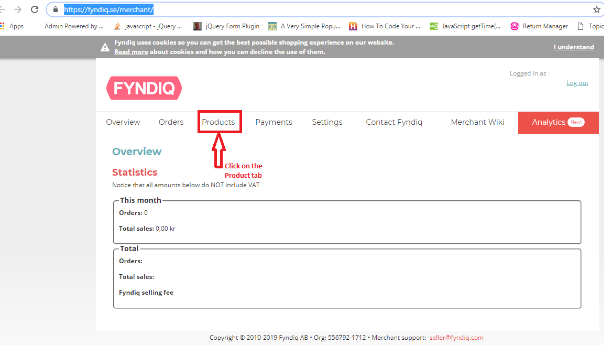
2. Click on the Products tab of the home page as shown below: 3. In the product page, you need to follow the following steps to delete the product from the Fyndiq marketplace.
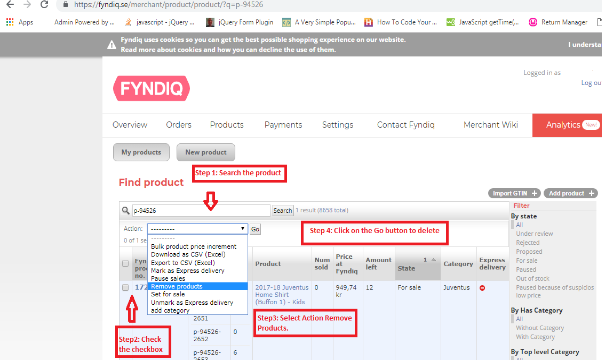
Search the product by using the product name/SKU.
Tick the checkbox of the products which you need to delete.
Select the “Remove products” option from the “Action” dropdown.
Click on the “Go” button to delete the product.
These above steps are shown in the image below:
Summary
This blog will enable you to understand the way of deleting the products from the Fyndiq marketplace using seller central.
OpenCart Shipping Timer extension by Knowband offers a configurable shipping timer which you can display on product pages at your store. This shipping timer is a countdown that compels the visitors at your store for grabbing benefits of same day shipping or one day shipping. This OpenCart Shipping module basically adds a single day or multiple day timer to your store for selected products, categories and manufactures. You can attain your customer’s attention with this shipping timer and show custom banners to them.
If the customer orders a product before the countdown time ends, their product will be delivered on the same day or one day of ordering.
1.1 Striking Features of Product Shipment Timer for OpenCart
OpenCart Shipping Timer extension comes with customizable features which can be modified as per business requirements. No coding is required and you can display a same day shipping timer or one day delivery timer at your store without any coding efforts. Let us explore them one by one.
Shows a shipping timer on every product page of your store compelling users to buy product before same day or one day delivery offer ends.
OpenCart Shipping module is easy to install and configure.
You can enable or disable OpenCart Shipping Timer extension on a single click.
OpenCart Countdown Timer offers multi-lingual and multi-lingual compatibility.
With OpenCart Shipment Timer extension, you can create a single day timer or multiple day timer for your store.
OpenCart Shipping module provides you multiple choices for selection that is categories, products and manufacturers.
You can set the starting and ending date for the shipping timer.
You can choose the days for which you want to show the countdown timer.
OpenCart Shipping Timer extension also gives you option to set the vacation dates to restrict the functionality.
In order to give an appealing look and feel, you can add desired banners along with countdown.
You can easily view and manage the total orders by customers using this OpenCart Countdown Timer.
OpenCart Shipment Timer extension is useful in increasing conversion levels as the shipping countdown compels the customer in making their decision quick.
2.0 Installation Guide of OpenCart Shipment Timer Extension
Before starting the installation process, you have to buy the OpenCart Shipping module from the Knowband store. Once purchased, you will receive the following files on your registered email.
Source code of Shipping Timer extension in zipped file format
User Manual of OpenCart Shipping Timer extension
Now in order to install this Shipping Timer on your website, follow the given steps:
1. Unzip the zip file. You will get the folders as shown in the image below
2. Copy all the folders of the zip file in the Root Directory of OpenCart setup via FTP manager.
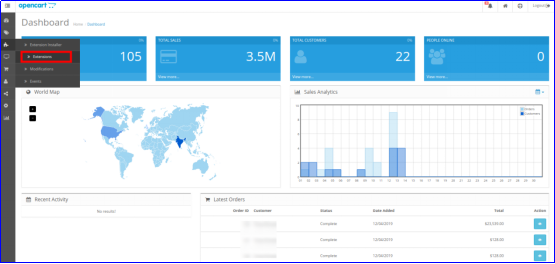
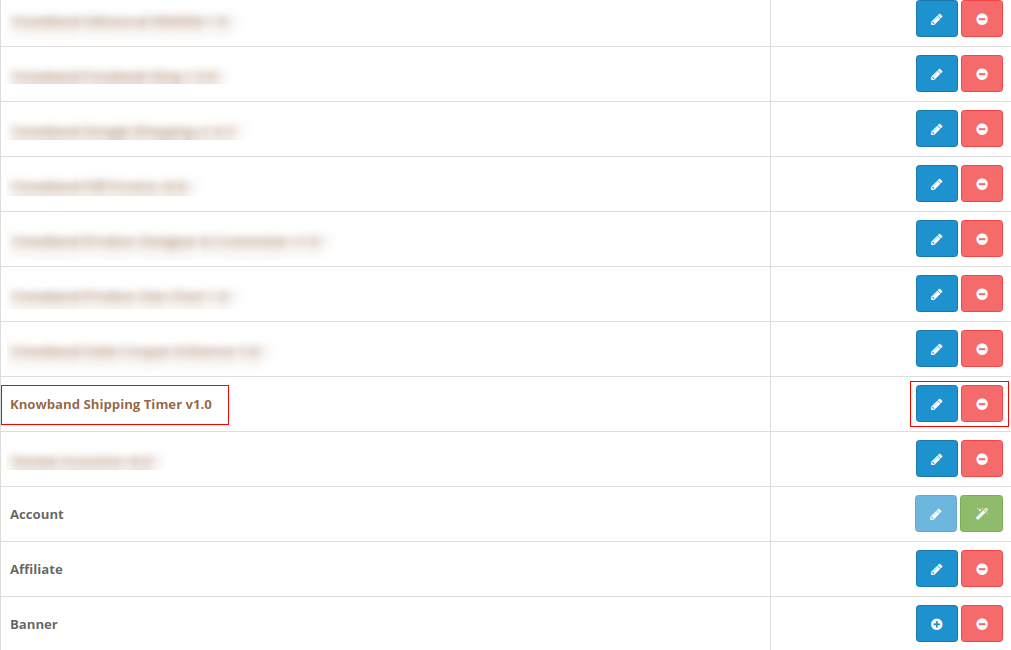
So, OpenCart Shipping Timer extension is now successfully installed and is ready to use at your store. Go to the admin menu and click on the extensions. Then, click on Modules and thereby click on configure button next to Knowband Shipping Timer.
3.0 Admin Interface of OpenCart Shipping module
Just after successful installation of Shipping module for OpenCart website, you can create and configure the countdown timers as per your business requirements. Navigate the settings in the given order: Admin Panel > Extensions > Modules > Knowband Shipping Timer.
The simple to understand admin interface of OpenCart Shipping Timer extension is divided into six broad sections as:
1. General Settings
2. Manufacturers
3. Categories
4. Products
5. Orders
6. Support
These sections are discussed in detail below. While the “General Settings” section is also divided into three sections as:
1. Enable Settings
2. Countdown Settings
3. Banner Settings
3.1 General Settings
The complete General Settings are categorized under these following three sections:
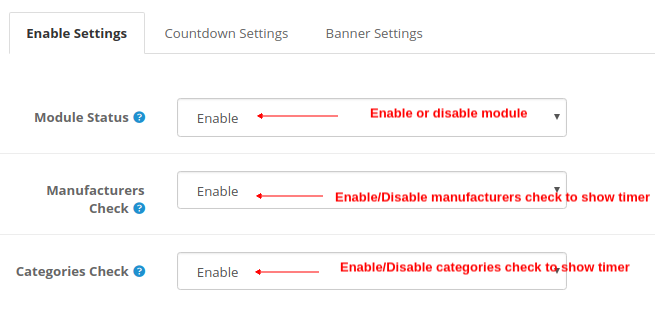
3.1.1 Enable Settings
Module Status: This setting simply enables or disables the shipping module functionality.
Manufacturers Check: By enabling this option, the timer will be shown for the selected Manufactures list. To add new manufacturer into the list, go to section 3.2.
Categories Check: By enabling this option, the timer will be shown for the selected Categories list. To add new categories into the list, go to section 3.3.
3.1.2 Countdown Settings
You can setup two kinds of countdown timer here:
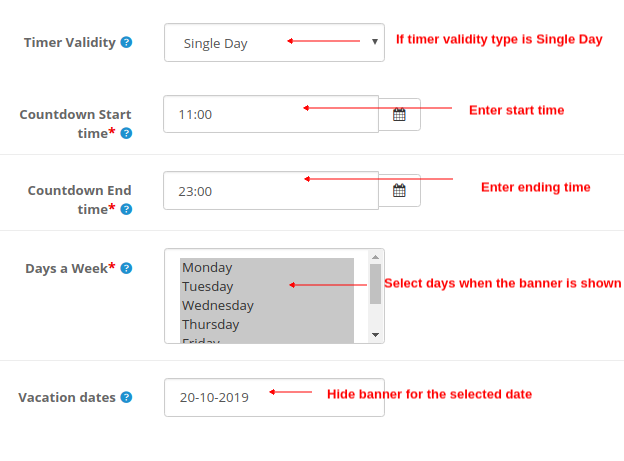
A) Single Day
Timer Validity: This option can be set to single day or multiple day. Considering that it is set to Single Day.
Countdown Start Time: This option allows you to set the start time for the countdown timer.
Countdown End Time: This option allows you to set the end time for the countdown timer.
Days a Week: With this option, you can pick up or select the days when the banner will be shown.
Vacation Dates: Using this option, you can exclude the particular date when you want to hide the banner. You can select multiple dates separated by (,)
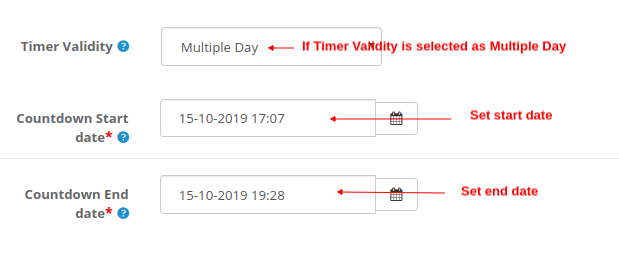
B) Multiple Day
Timer Validity: This option can be set to single day or multiple day. Considering that it is set to Multiple Day.
Countdown Start Date: This option allows you to set the start date and time for the countdown timer.
Countdown End Date: This option allows you to set the ending date and time for the countdown timer.
3.1.3 Banner Settings
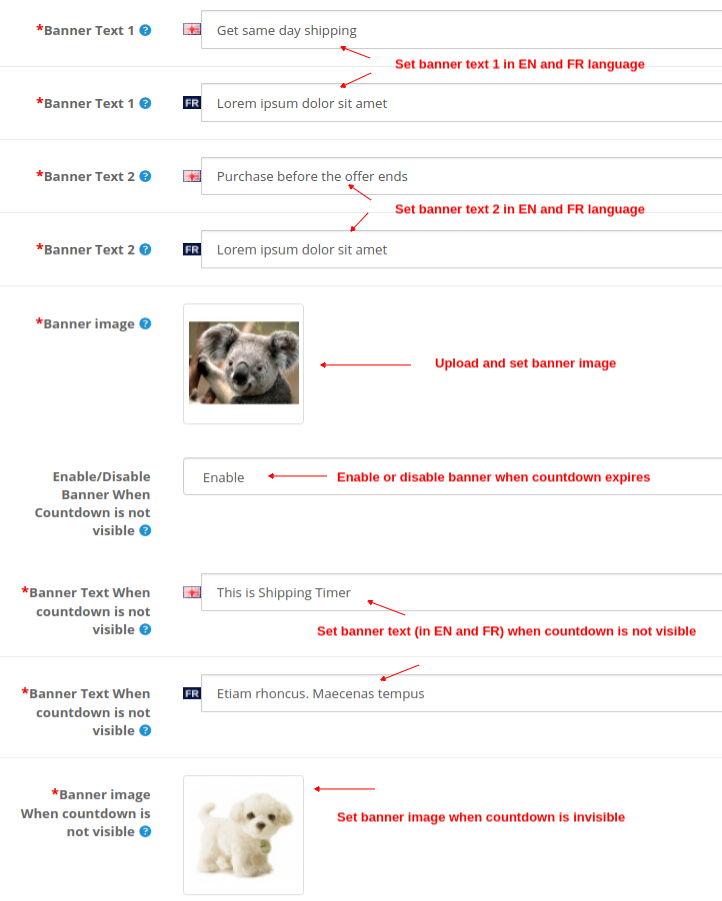
Banner Text 1: Set a desired text (in english and french) which is displayed above the timer.
Banner Text 2: Set a desired text (in english and french) which is displayed below the timer.
Banner Image: With this option, you can set the banner image you want to show along with countdown timer.
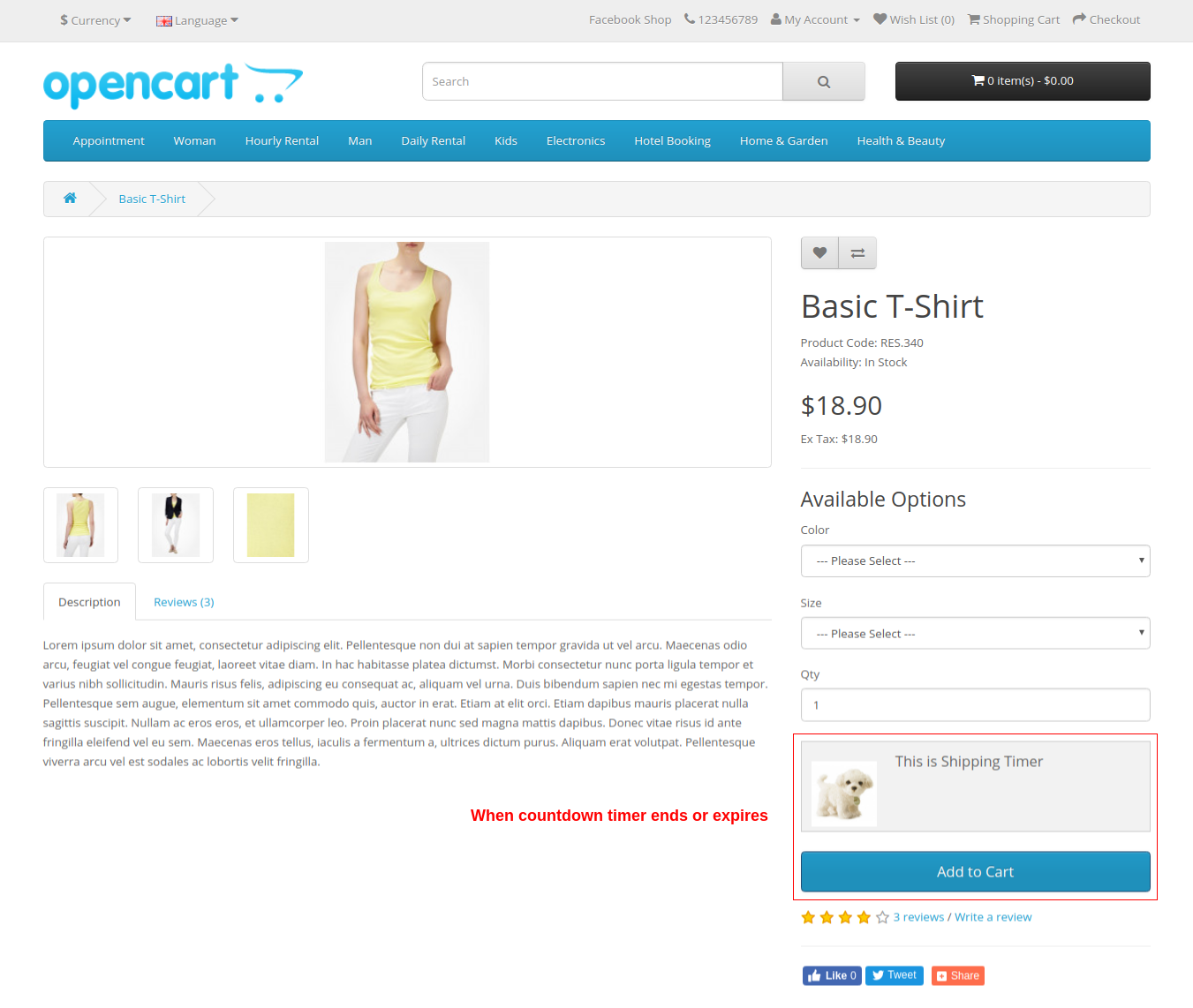
Enable/Disable Banner when countdown is not visible: You can enable or disable the banner when countdown is not visible or it expires.
Banner Text when countdown is not visible: You can set a desired banner text (in english and french) which is shown when countdown is not visible.
Banner Image when countdown is not visible: You can set a desired banner image which is shown when countdown is not visible.
3.2 Manufacturers
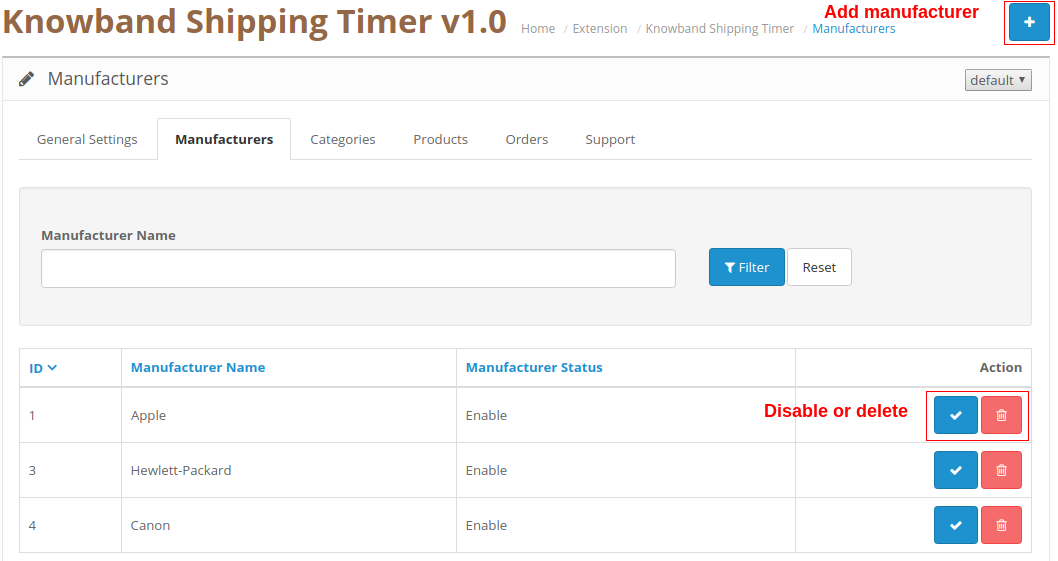
From this section of OpenCart Shipping module, you can add manufacturers by clicking on the “+” button. To disable or delete the existing manufacturer, you can click on corresponding “Disable” or “Delete” button.
The shipping timer is displayed for the products which are offered by these manufacturers.
3.3 Categories
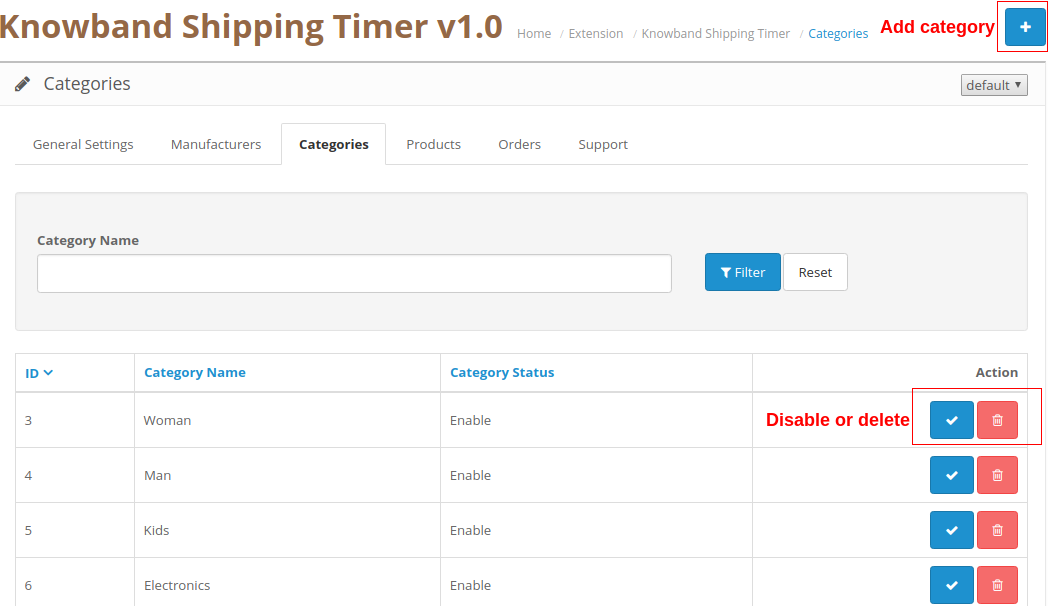
From this section of OpenCart Shipping module, you can add categories by clicking on the “+” button. To disable or delete the existing category, you can click on corresponding “Disable” or “Delete” button.
The shipping timer is displayed for the all the products belonging to these categories.
3.4 Products
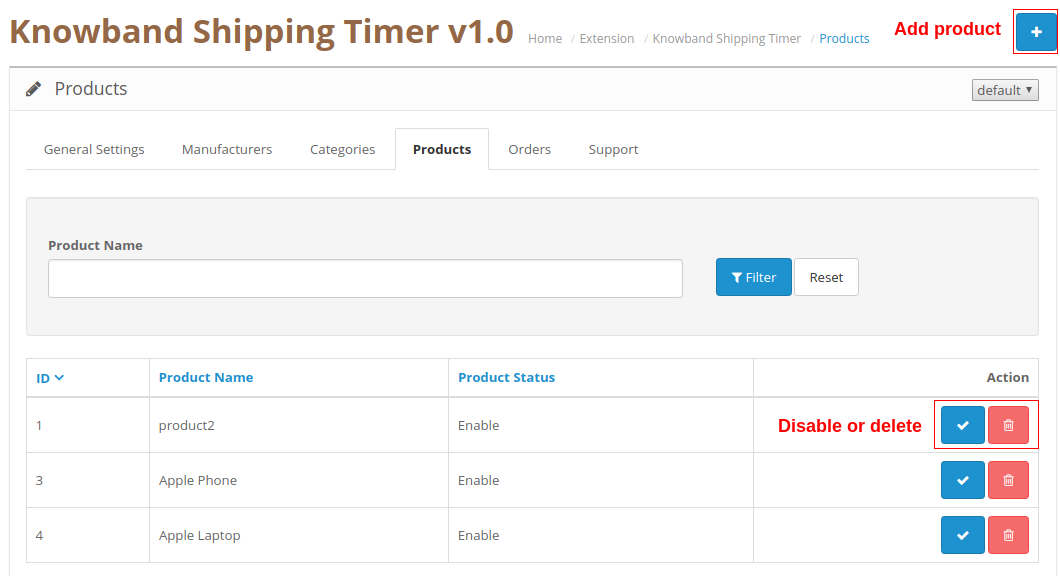
From this section of OpenCart Shipping module, you can add products by clicking on the “+” button. To disable or delete the existing product, you can click on corresponding “Disable” or “Delete” button.
The shipping timer is displayed for all these products.
3.5 Orders
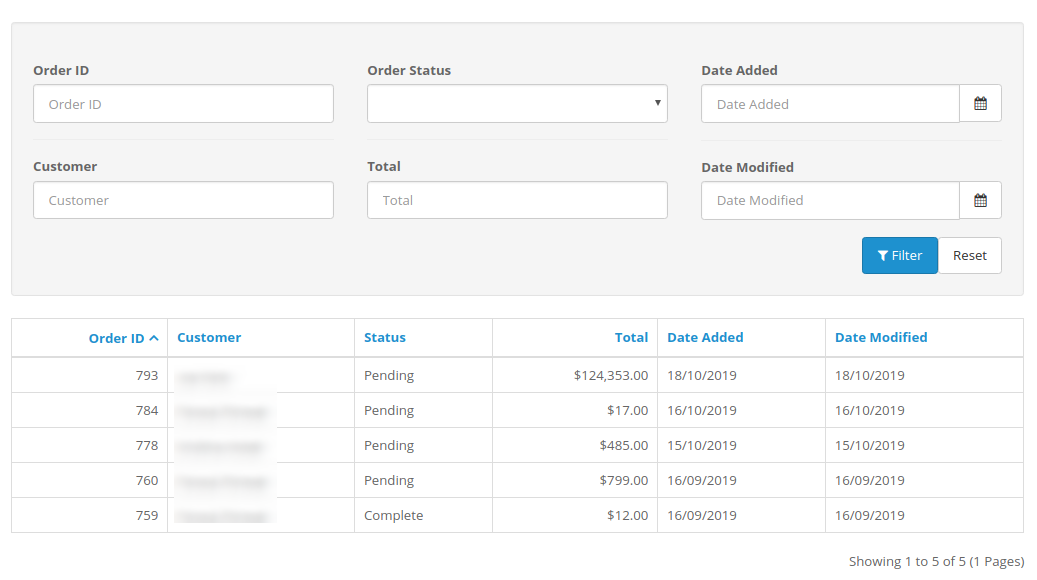
OpenCart Shipping Timer extension allows you to view and track the complete details of the orders received. The purchase orders of the products with the one-day or same day shipping features can be easily viewed in this ‘Order’ tab of the admin interface.
You can even apply various filters to fetch the entire list of the orders received along with details of any particular customer as per the need.
3.6 Support
For any issues or concerns, you can simply raise a ticket from this Support section.
4.0 Front Interface of OpenCart Shipping Timer Extension
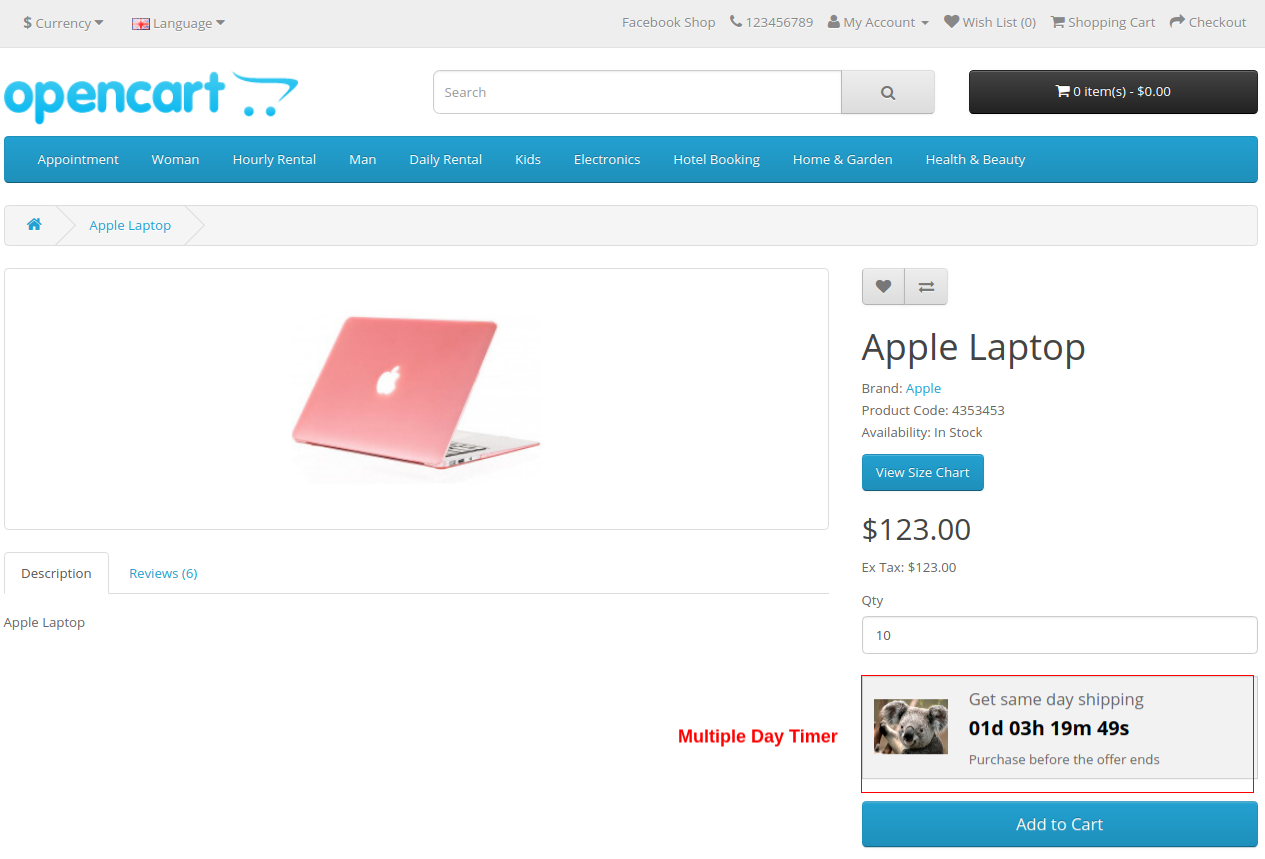
A) Multiple Days Timer
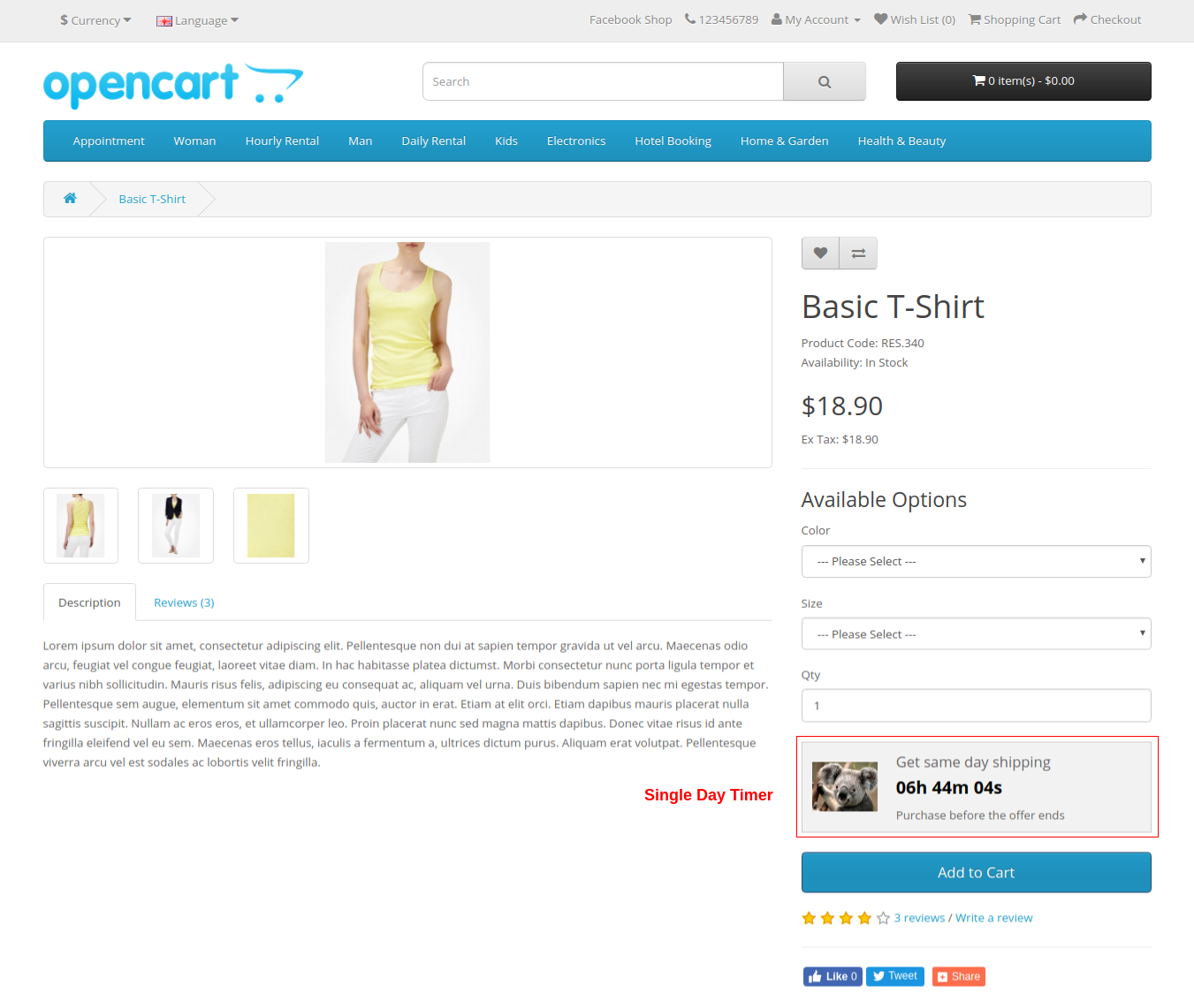
B) Single Day Timer
C) Banner and Text shown when the countdown timer is not visible
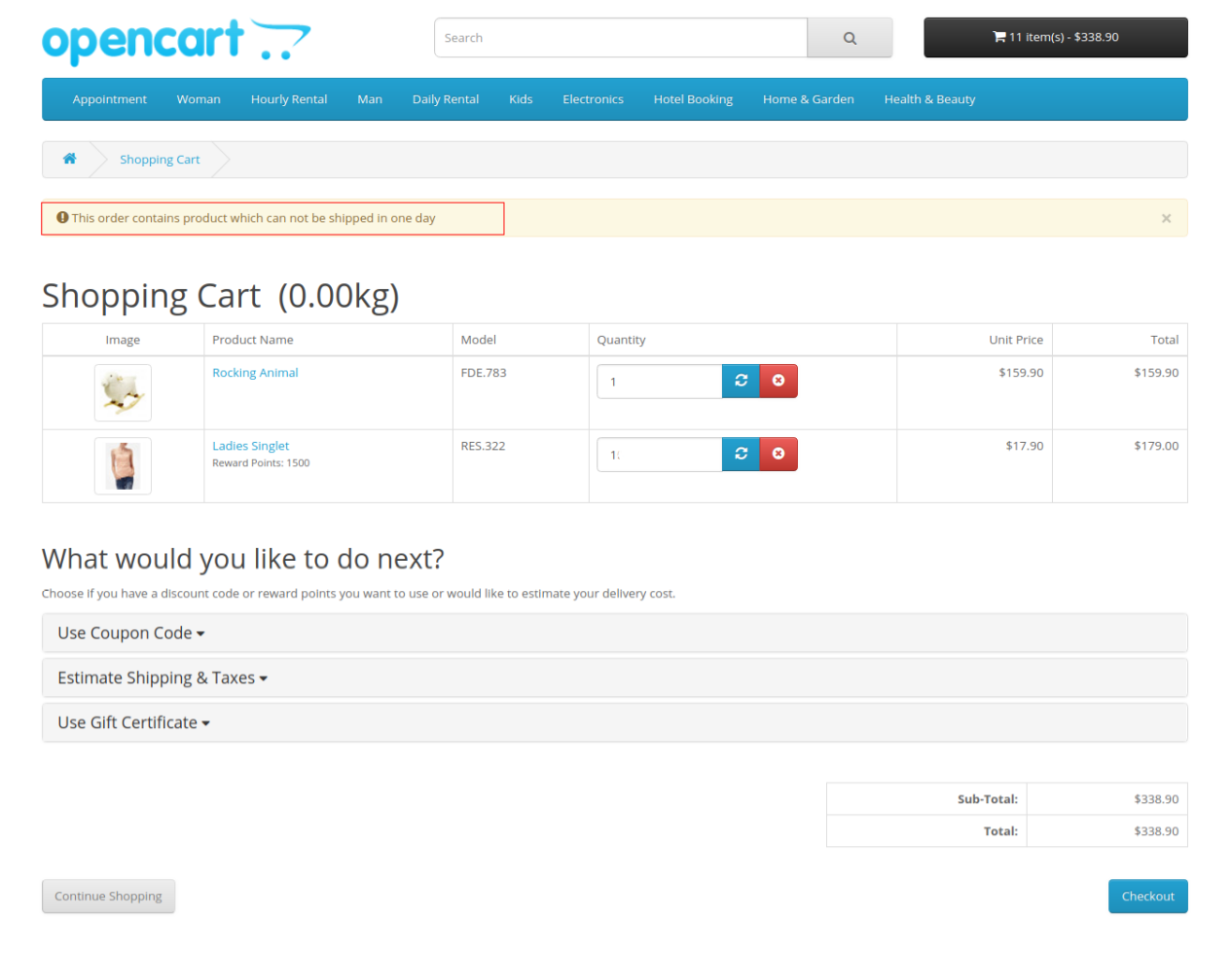
D) Text message when a product in your cart is not eligible for one day or same day delivery.
Note: If cart contains more than one product and none of them are selected by admin for one day delivery, then there is no message on cart page for the user.
Everybody loves a personal touch. This is especially true in today’s online shopping universe, which allows you to order the product of your choice from the comfort of your own sofa. Furthermore, the spectacular rise in the number of online stores has given customers a wide array of buying options. And this is where product customization comes into play. Companies that implement product customization, design, alter and market their items to the customer’s needs or desires. Opencart Product Designer/Customizer offers many benefits and generally leads to higher conversion rates.
Until a few years ago, personalized products were pretty much limited to a small circle of brands and items. It mainly comprised of gifting items, showcase products, or marketing merchandise. Figuratively speaking, you could count the amount of personalized items on the fingers of one hand. Luckily, a lot has changed. For the good. Sellers of pretty much everything, from dresses and shirts to handbags and even consumer packaged goods, are discovering the benefits and value of product customization. More and more brands are finding out that the personalization of items and services is a great way to enhance customer loyalty and engagement.
OpenCart Product Designer/Customizer is an easy way to let your customers customize any product according to their desire and place an Order with you. It gives your customer’s flexibility to get the Product they want and the way they want and hence increasing your sales. Customers can easily add rich colored texts with effects, upload their images with filters and add a QR code to make it suitable for their needs.
Why should you give Product Customization option to your customers?
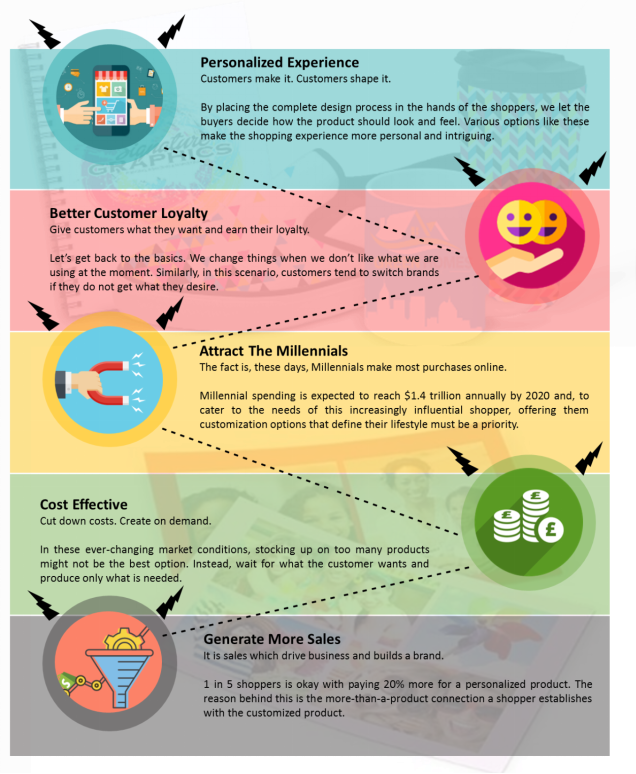
If you are wondering why Product Customization? Then here is why it would make your Web store better.
2.0 Installation Guide
Before starting the installation process, you have to buy the Opencart Product Designer/Customizer by the Knowband store. Once purchased, you will receive the following files on your registered email.
1. Source code of Opencart product customization module in zipped file format.
2. User Manual of Opencart custom product designer extension.
Now in order to install this Opencart custom product designer extension on your online shop, follow the given steps:
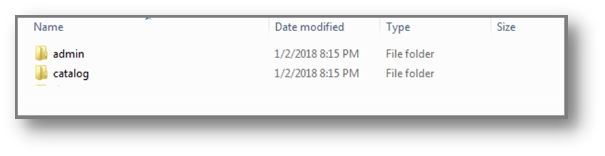
Step 1: Unzip the zip file. You will get the folders as shown in the image below
Step 2: Copy all the folders of the zip file in the Root Directory of OpenCart setup via FTP manager.
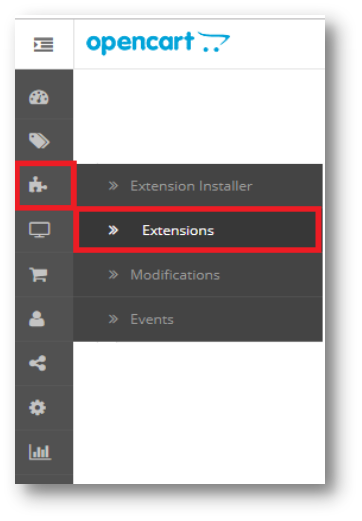
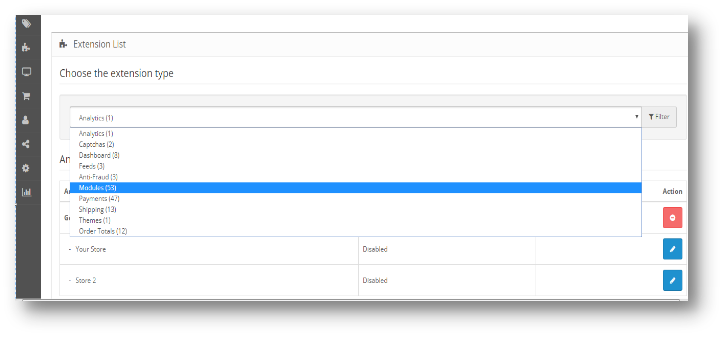
So, Opencart Custom Product Design module is now successfully installed and is ready to use at your store. Go to the admin menu and click on the extensions. Choose the Extension Type as Modules. You will find a list of modules. Select the Opencart Product Designer/Customizer.
3.0 Admin Interface of Opencart Product Designer Customizer
To configure the Product Designer/Customizer extension for OpenCart, Navigate the settings in the following order: Admin Panel > Extensions >Modules> Product Designer/Customizer
The Admin Interface of OpenCart Product Designer/Customizer extension includes following main settings:
Configure
Colors
Font
Image Group
How to Customize a Product?
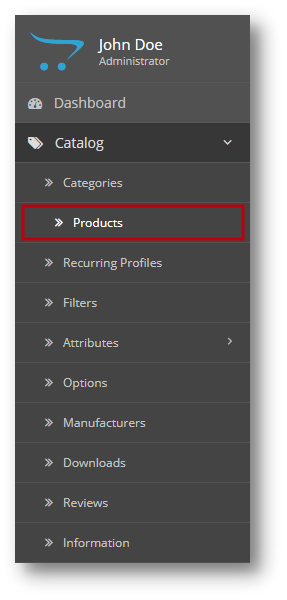
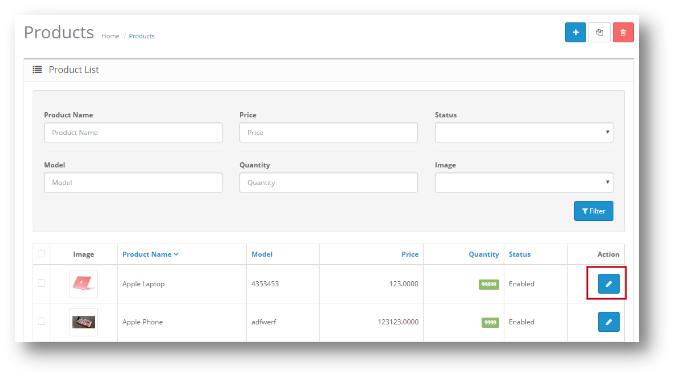
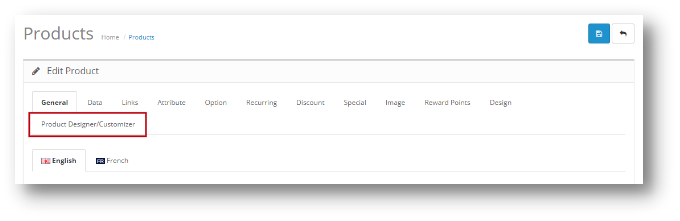
To customize a Product, Follow the following path: Catalog>> Products>> Select a Product>> Edit>> Product Designer/Customizer
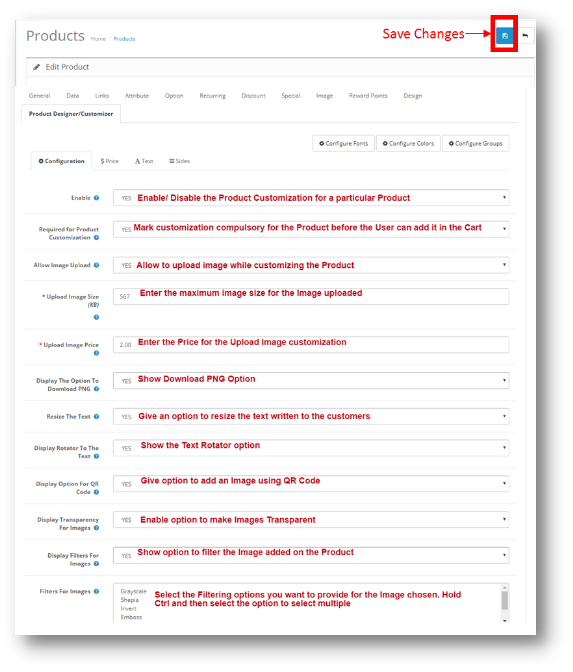
Once the User clicks on the Product Designer/Customizer, the User will have the following options in Opencart Extended Product Customization module:
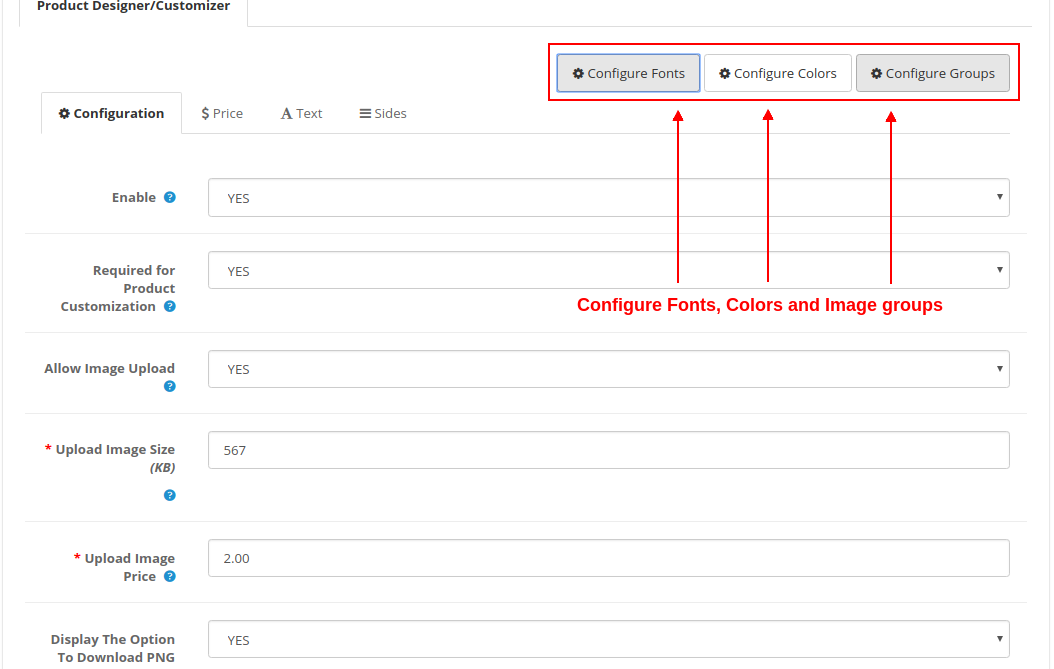
3.0.1 Configuration
Through this setting of Opencart Custom Product Design module, the User can enable/disable the whole Module and make changes in the Customization of the Product.
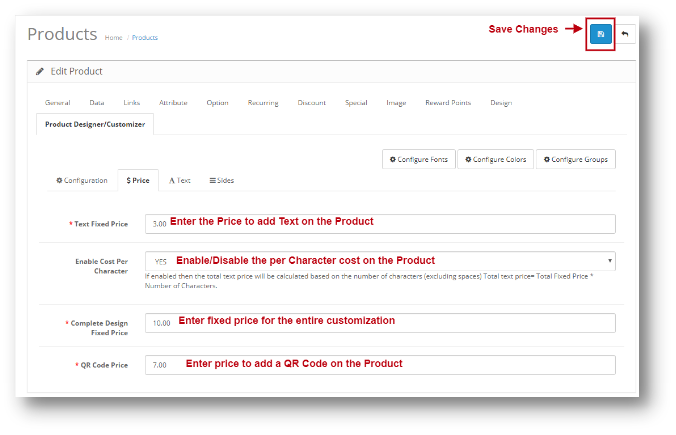
3.0.2 Price
This setting of Opencart Extended Product Customization module lets Admin decide the fixed price for each customization that has to be added in the Product. The screen for the same will look as shown below:
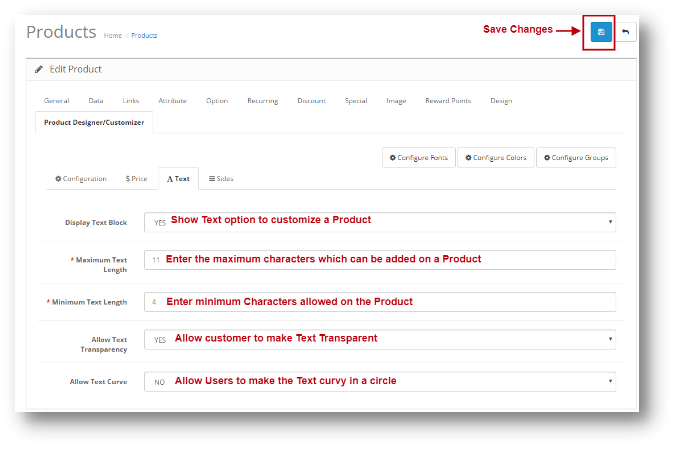
3.0.3 Text
Through this setting of Opencart Custom Product Design module, Admin can control the Text option in the Customization. The Screen for this option will look as shown below:
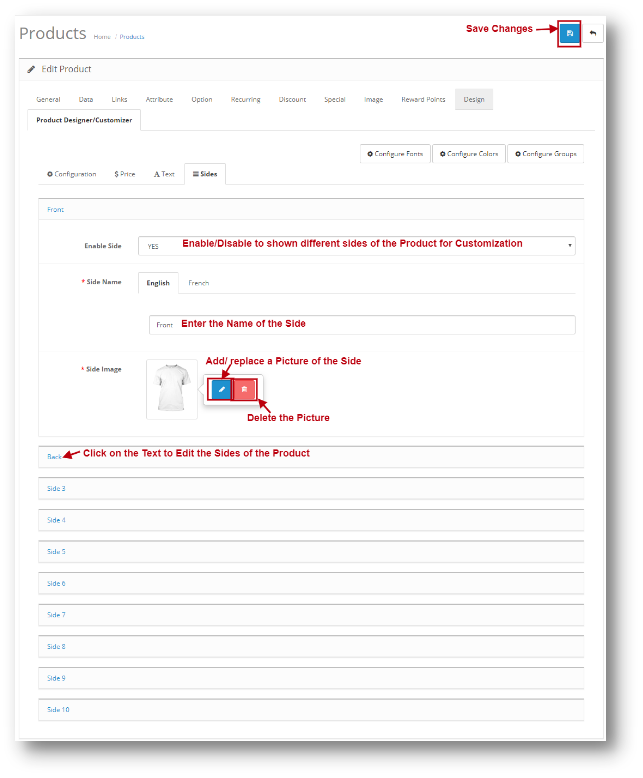
3.0.4 Sides
Sides Setting of Opencart custom product designer extension module lets Admin Add an Image of Different sides of the Product so that the User can customize the Product from any of the side they want. Admin can also name the Sides added.
The screen will look like as shown:
How to Configure Fonts, Colors, and Image Groups?
While you are changing the customization settings for a product, you will find the options to select different Fonts, Colors, Image Groups at the top right side of screen. You will find three options as:
1. Configure Fonts
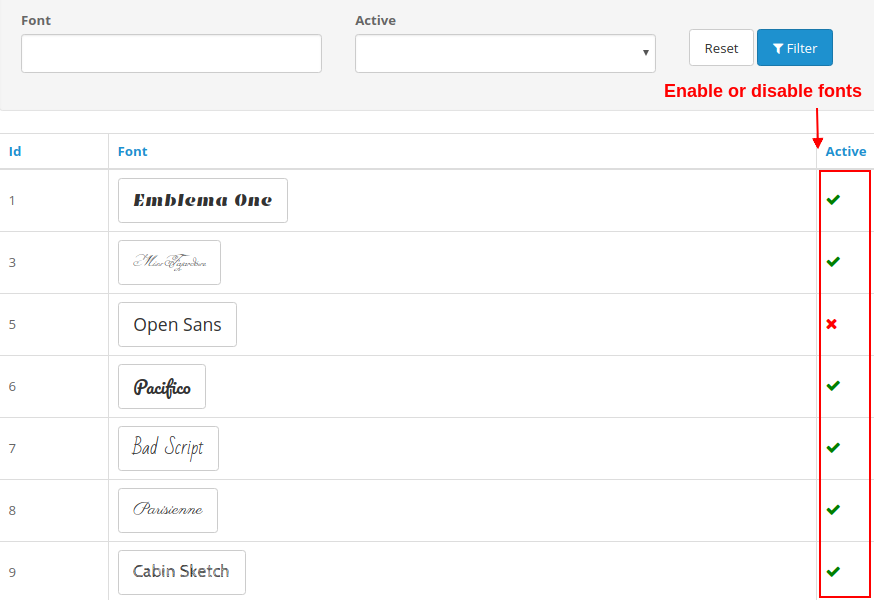
All the fonts that have been added from the module are listed here in this interface. You can directly enable or disable any font.
2. Configure Colors
All the colors that have been added using the module are listed here in this interface. You can directly enable or disable any color.
3. Configure Image Groups
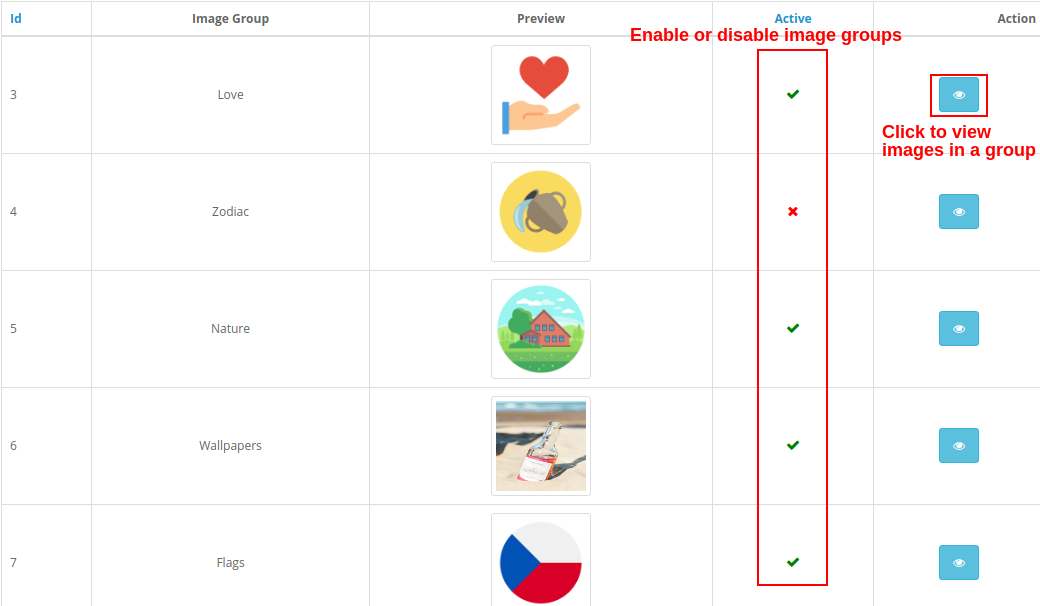
All the image groups that have been added are listed here in this interface. You can directly enable or disable any image group.
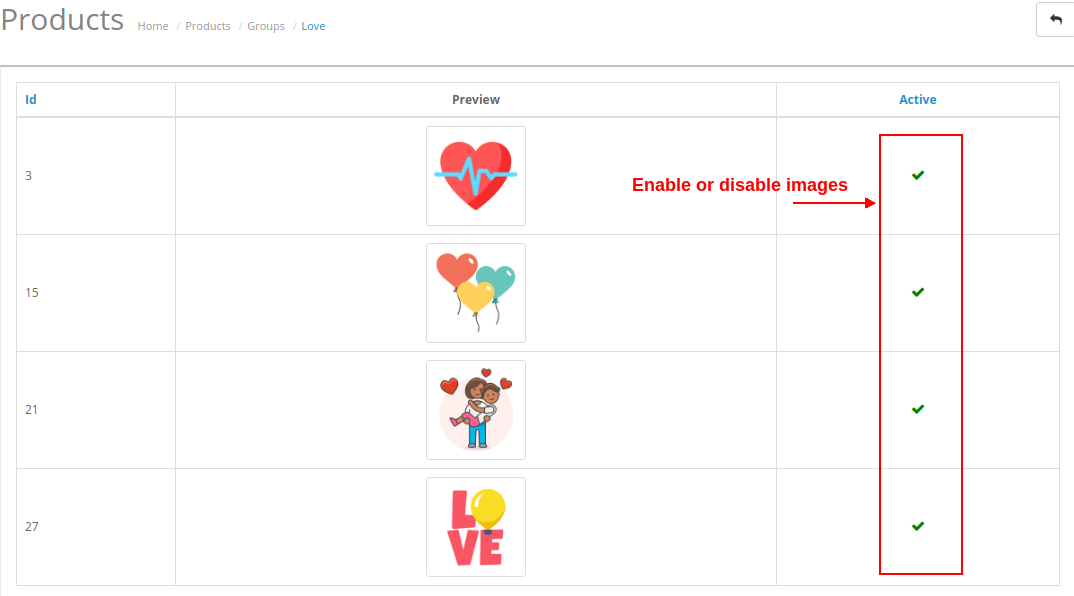
On clicking the “View Images” button, you will see the following screen.
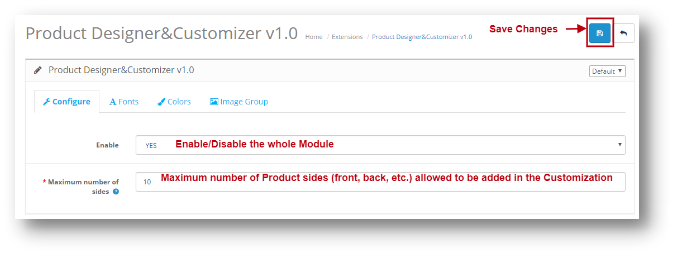
3.0.5 Configure
This option is given in the Admin Panel of the OpenCart custom product designer extension, Admin can Enable/Disable the whole module from this setting. The screen will look as shown below:
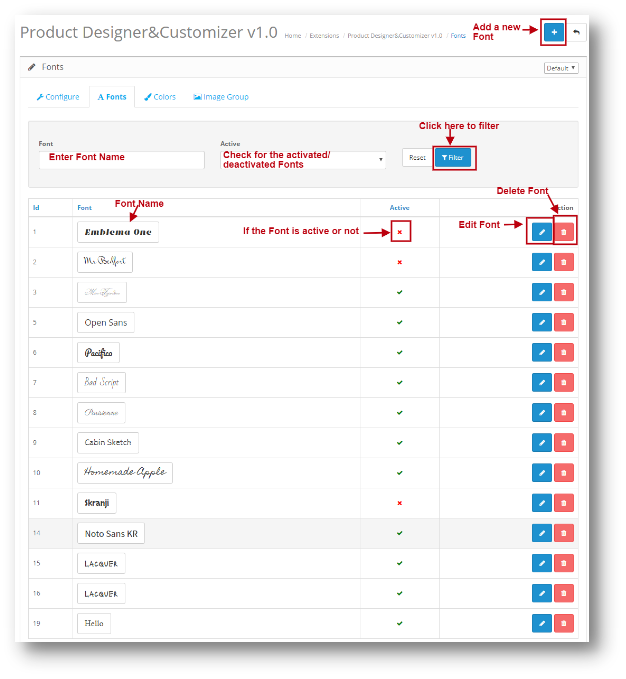
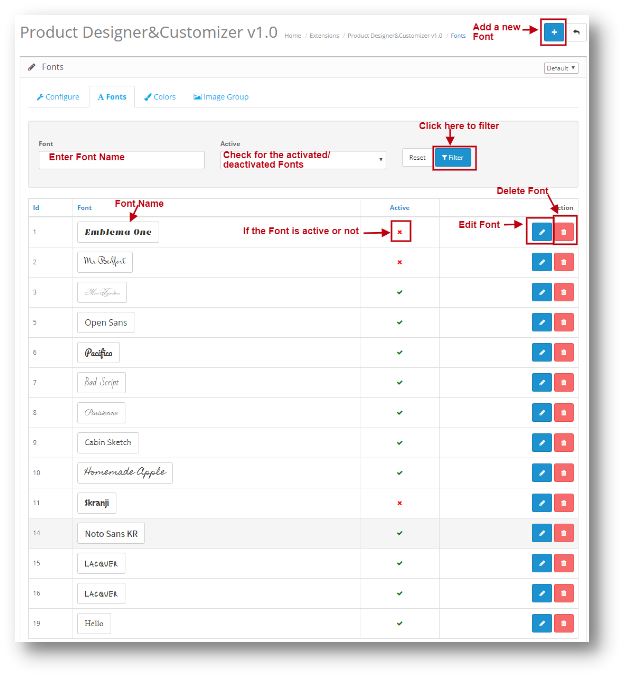
3.0.6 Fonts
Through this setting of OpenCart Extended Product Customization module, Admin can add a new font in the system and also edit the existing one. The screen will look as shown below:
Edit Font: You can Edit an existing Font set using the Edit option. The screens for Editing Font will be same as Adding an Font. The only difference will be that Edit will have the fields already filled.
Delete Font: You can delete a Font by clicking on the ‘Trash’ Icon. A pop up will show up asking for the Confirmation. You can click yes and the Font will be deleted.
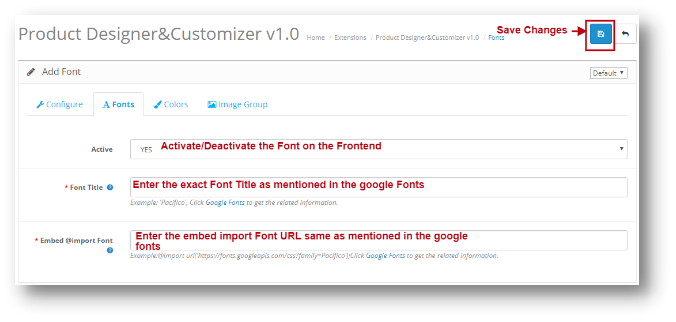
Add Font: You can add a Font in OpenCart Extended Product Customization module by clicking on the ‘+’ icon given at the top of the page. The screen will look as shown below:
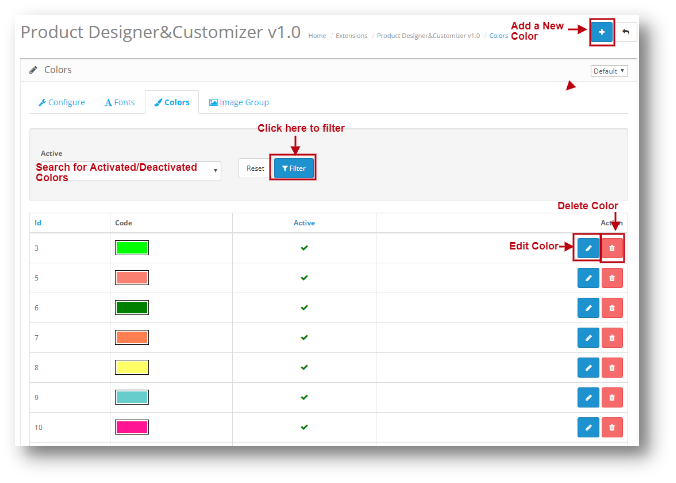
3.0.7 Colors
Through this setting of OpenCart Extended Product Customization module, Admin can add a new Color in the system and also edit the existing one. The screen will look as shown below:
Edit Color: You can Edit an existing Color set using the Edit option. The screens for Editing Color will be same as Adding a Color. The only difference will be that Edit will have the fields already filled.
Delete Color: You can delete a Color by clicking on the ‘Trash’ Icon. A pop up will show up asking for the Confirmation. You can click yes and the Font will be deleted.
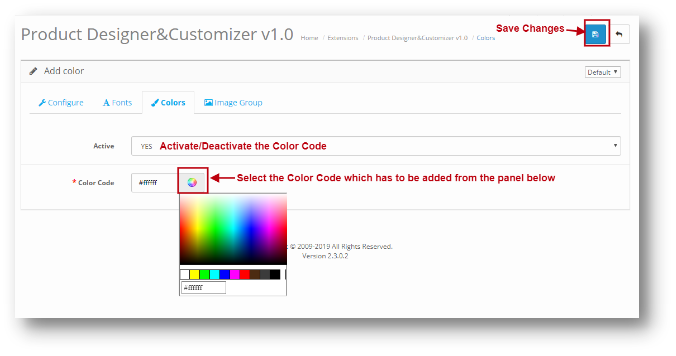
Add Color: You can add a Color in OpenCart Extended Product Customization module by clicking on the ‘+’ icon given at the top of the page. The screen will look as shown below:
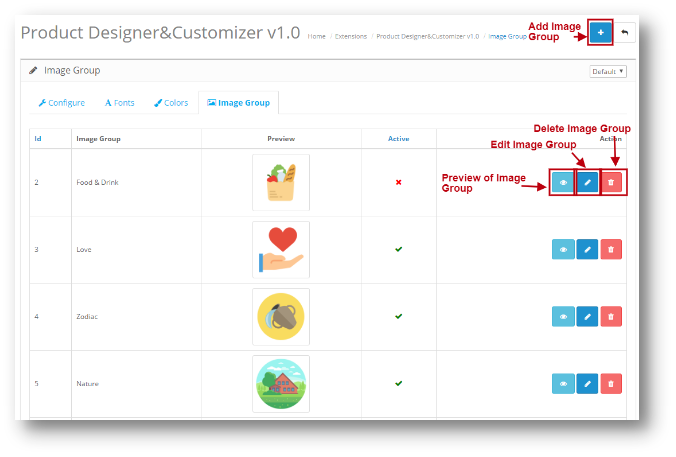
3.0.8 Image Group
Image Group settings of OpenCart Extended Product Customization module lets Admin add a Group of Images to offer their customers for Product Customization. The screen will look as shown below:
Edit Image Group: You can Edit an existing Image Group set using the Edit option. The screens for Editing Image Group will be same as Adding a Color. The only difference will be that Edit will have the fields already filled.
Delete Image Group: You can delete an Image Group by clicking on the ‘Trash’ Icon. A pop up will show up asking for the Confirmation. You can click yes and the Font will be deleted.
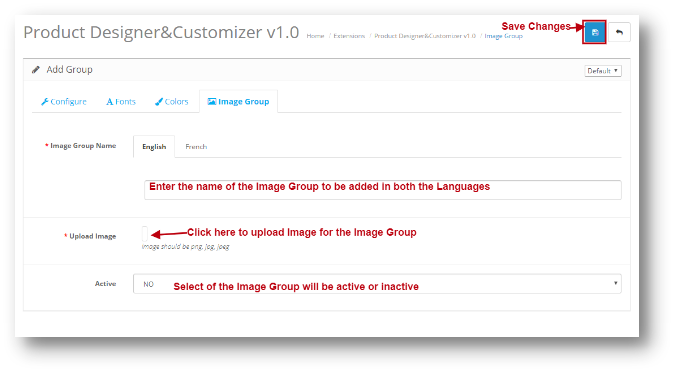
Add Image Group: You can add an Image Group in OpenCart Extended Product Customization module by clicking on the ‘+’ icon given at the top of the page. The screen will look as shown below:
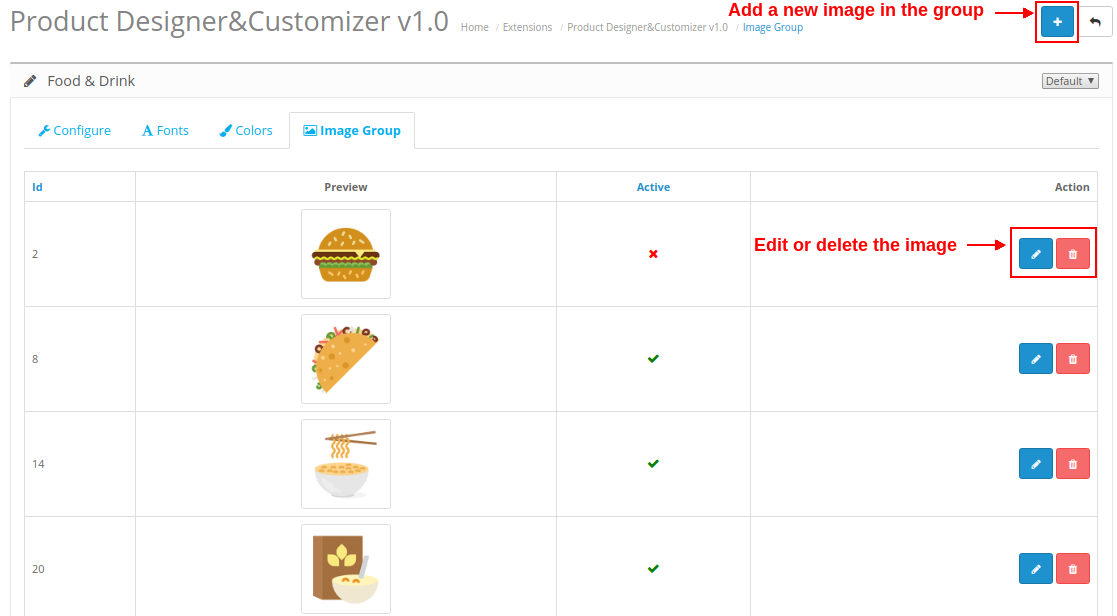
Preview of Image Group: You can view all the images within a group by clicking on the “Eye” icon corresponding to a particular group. It will show the below screen:
Here, you can add a new image into the group, edit/delete the existing image.
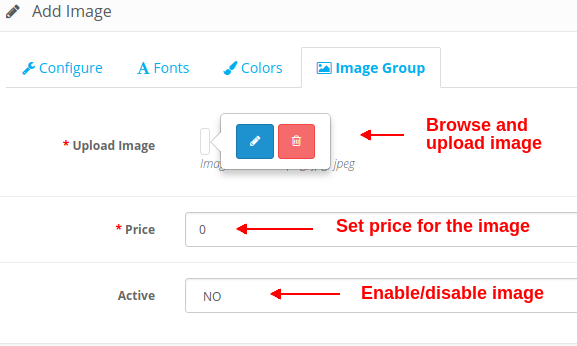
On clicking the Add button, you will see the following options as shown below:
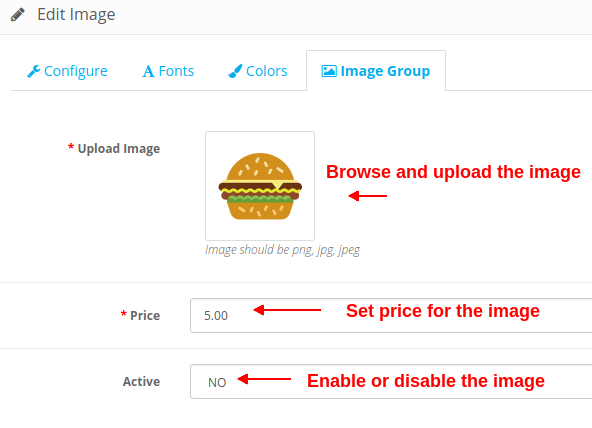
Upload Image: This option will allow you to browse a desired image from your local computer space and upload that here.
Price: This option sets the price for the selected image.
Active: This option enables or disables the image for the selected group. Set it to YES or NO.
Similarly, you can click on the Edit button corresponding to the image. The options will be same, the only difference is that the fields will be filled as shown in the image below.
Deleting an image is simple. Just click on the “Trash” icon corresponding to the image.
4.0 Front Interface of Opencart Product Designer Customizer Module
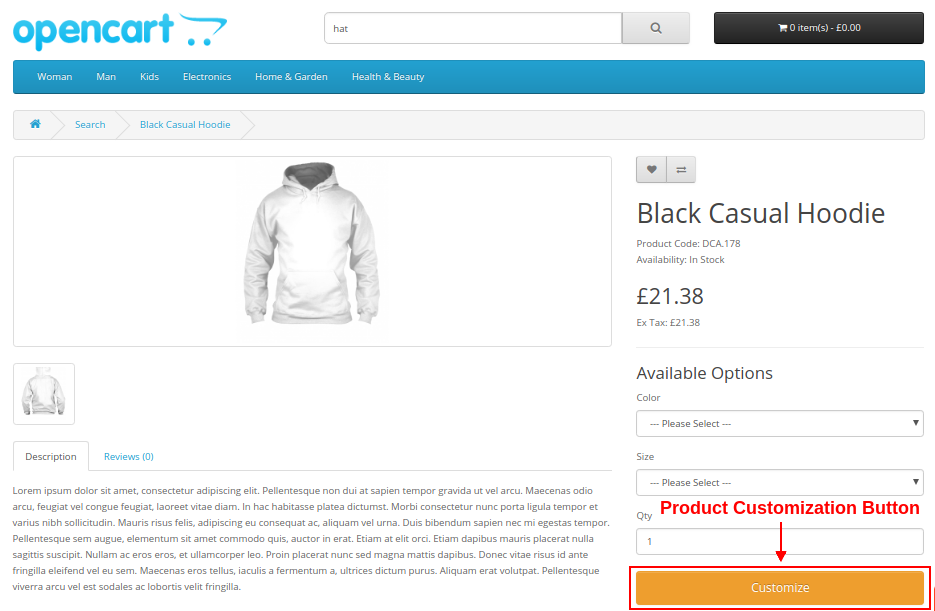
If the Opencart Product Designer/Customizer module is enabled, it will show a “Customize” button on the product page as shown below.
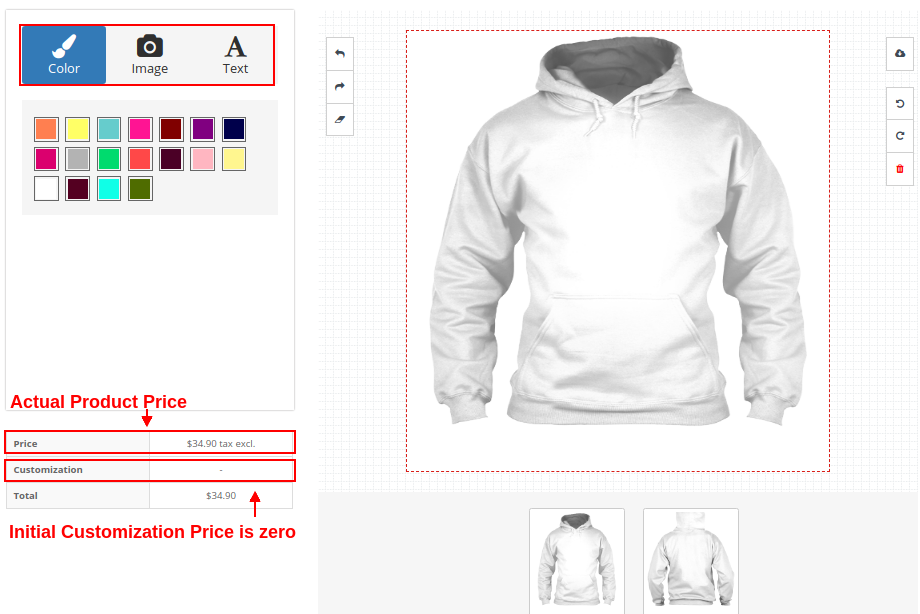
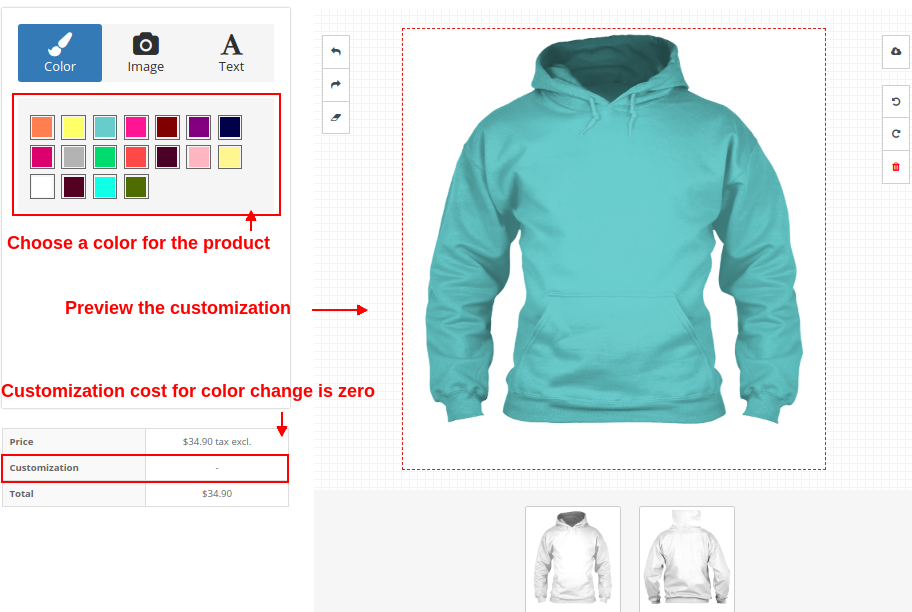
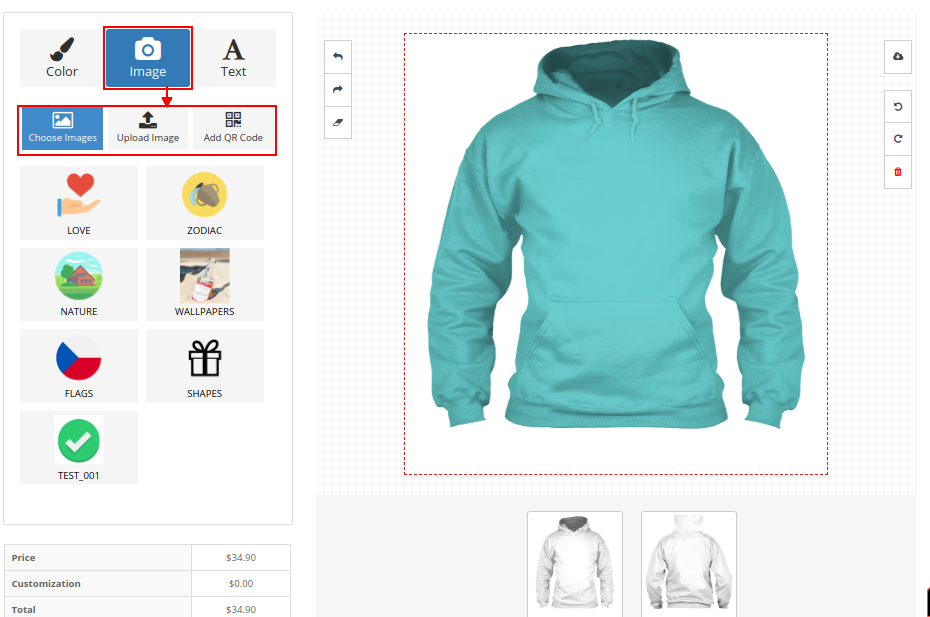
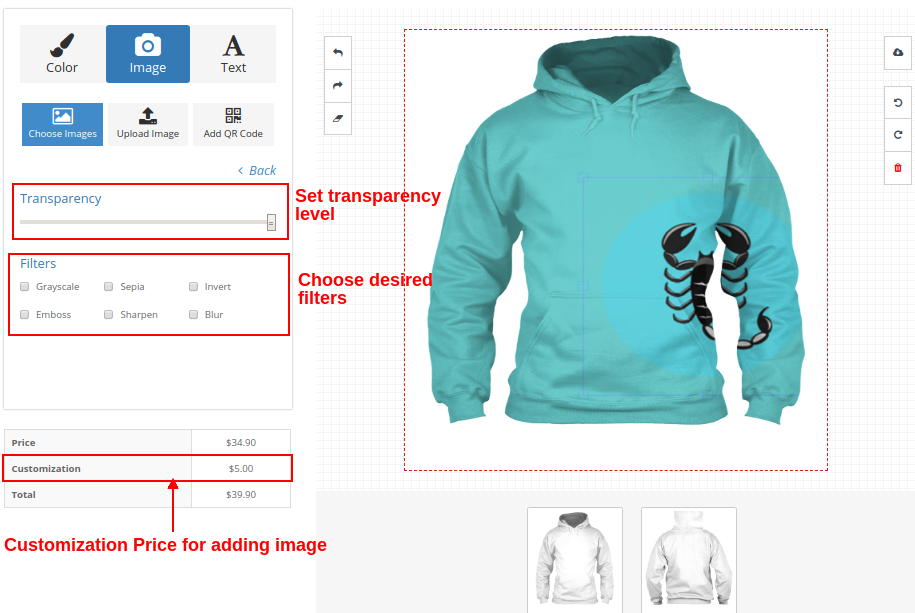
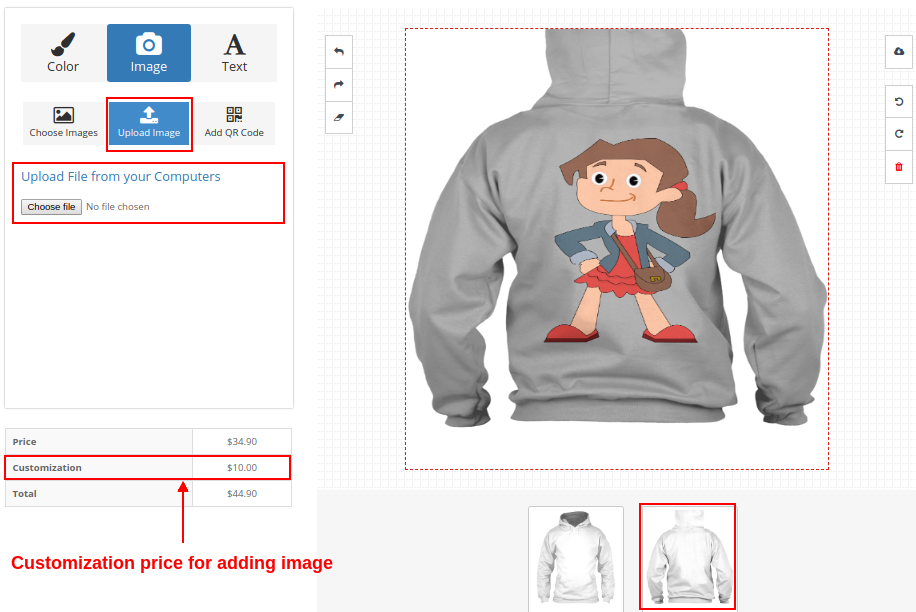
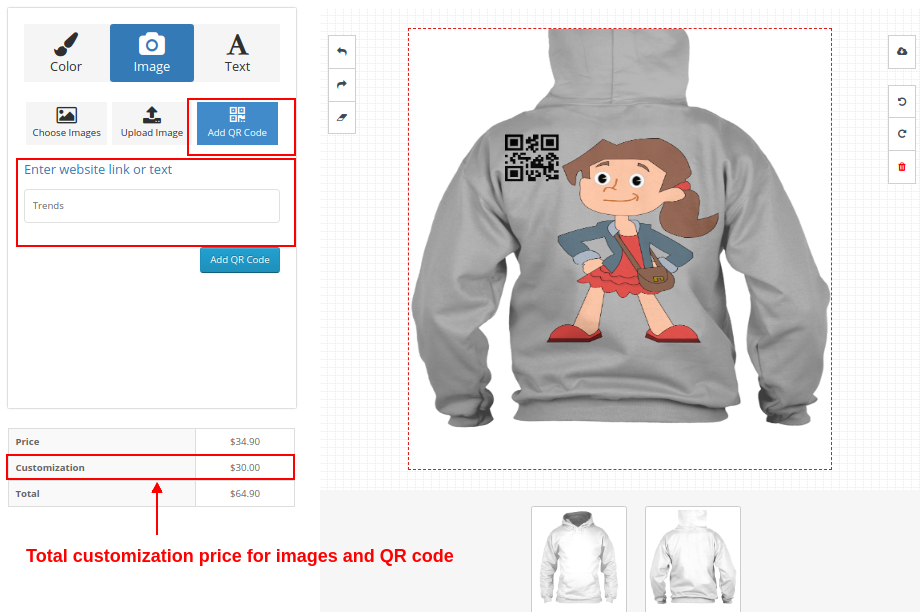
On clicking the Customize button, the customer will be shown a screen pop-up which will consists of various product design and customization settings. Customers can add any color, custom text, custom image or QR code for a product as per their shopping requirements.
Customers can perform various kinds of customizations like:
1. Color
2. Image
Customers can select an image of their choice from the provided image group options.
They can upload and print any other image of their choice from the local space.
They can even print QR code for some hidden text or website link.
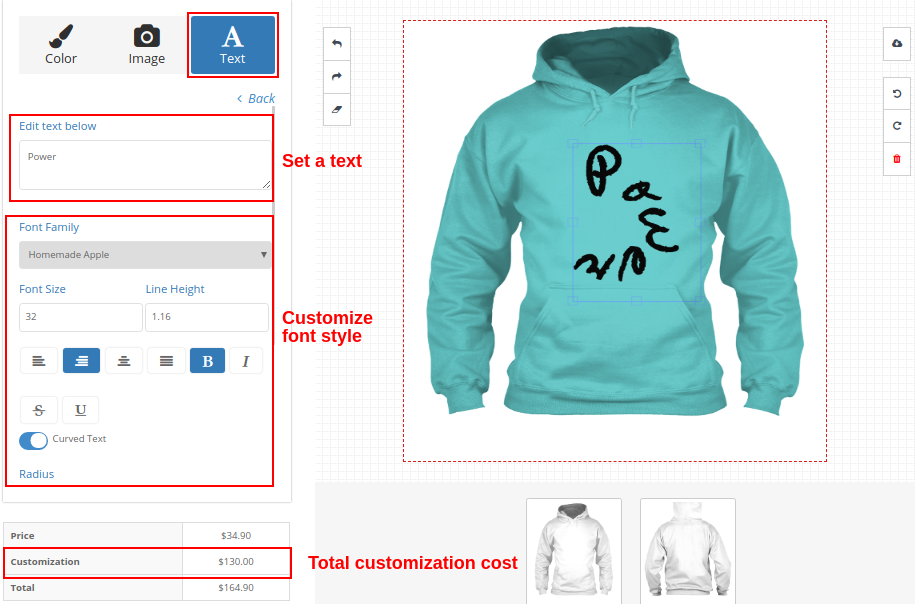
3. Text
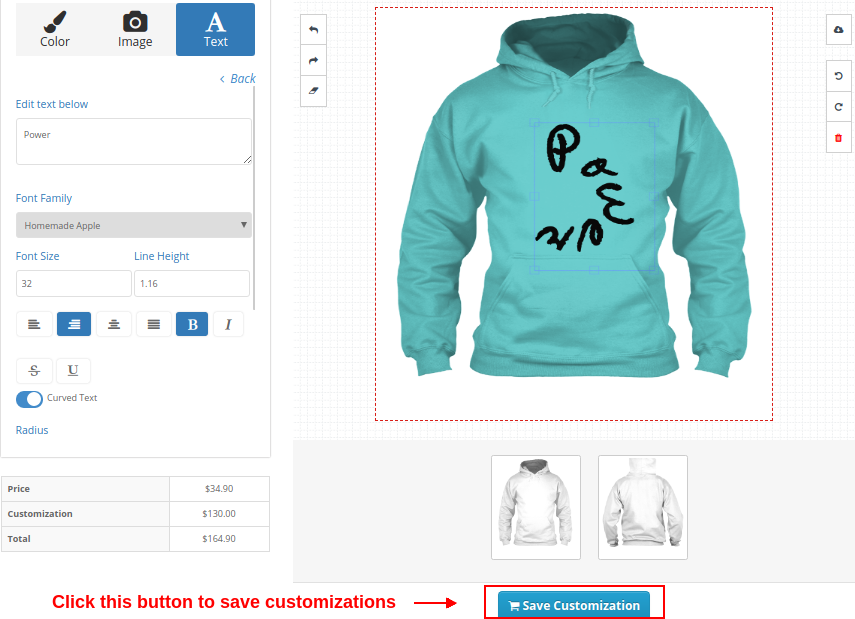
Customer can save all the customizations to their product by clicking on the Save button as shown below.
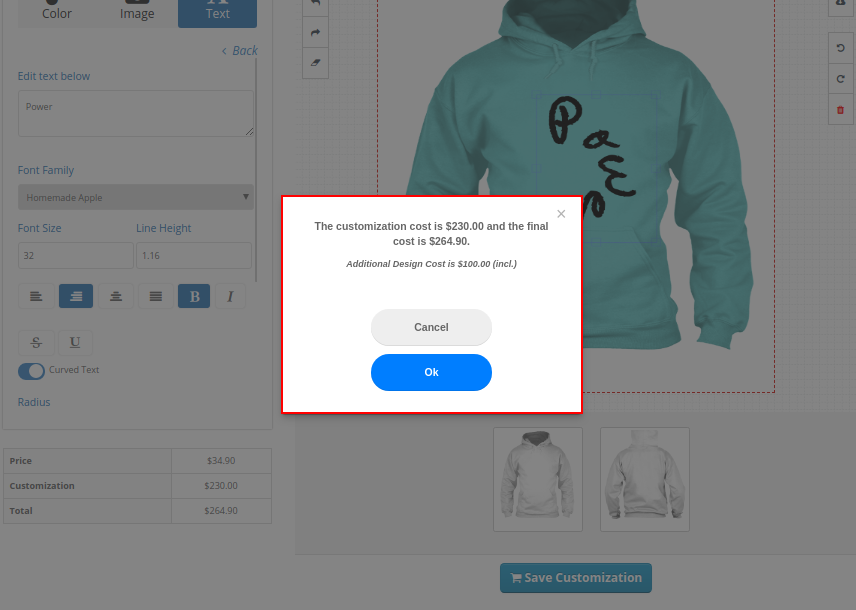
It will show the cost check box on the screen. Click OK to confirm.
Similarly, these customizations are applicable to other products of the store like mug and phone cases.
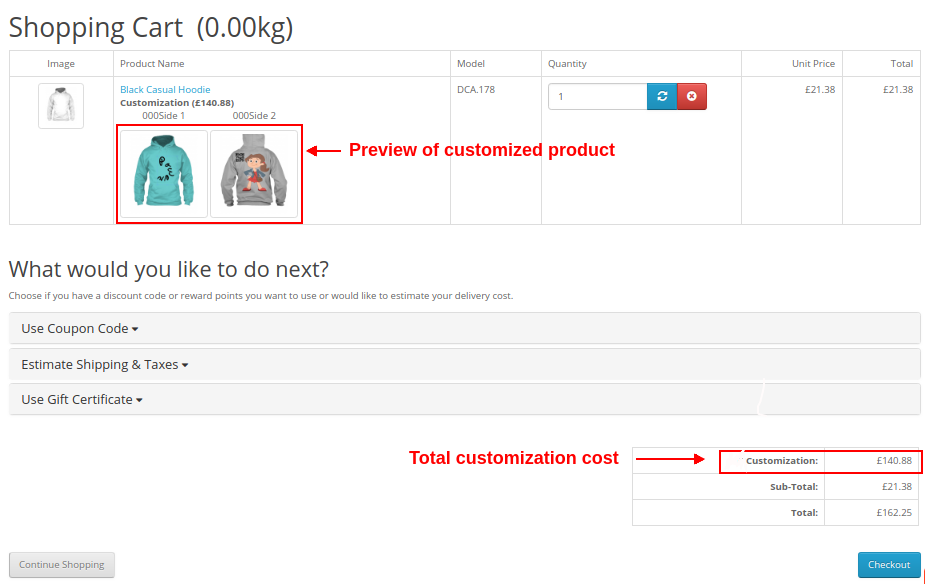
Shopping Cart Summary Page for Customized Product
The below frontend image shows how the custom product displays on the cart page with different options to the customers after clicking on “Save Customization” button.
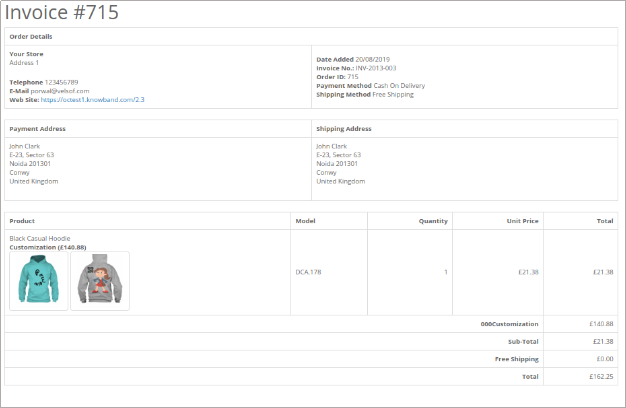
Customer can view the Invoice of this customized product as shown below.
Order View from Admin Panel
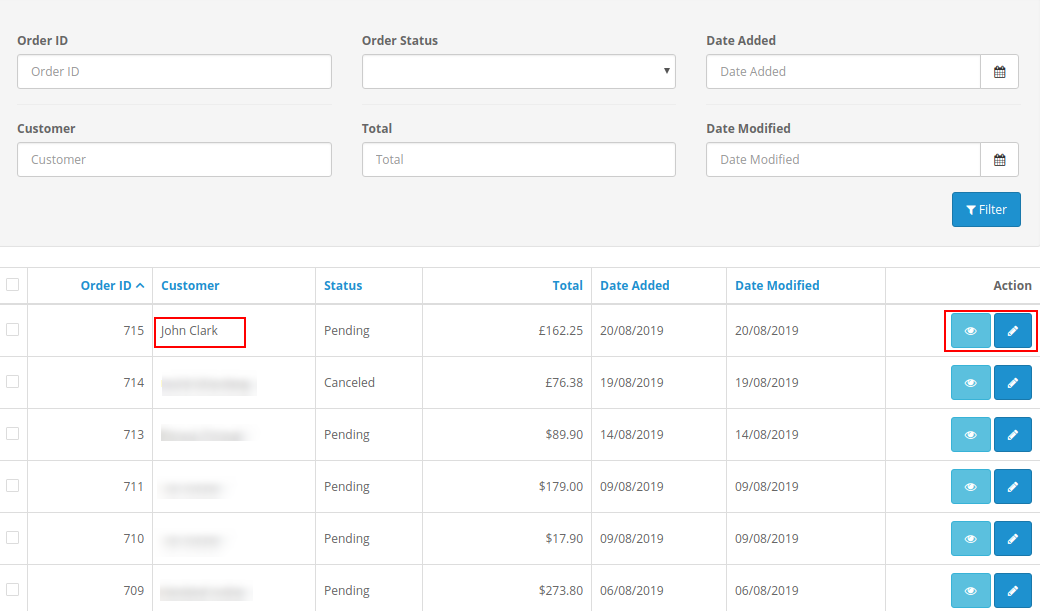
Admin can view the order invoice and all the configuration regarding the product customization from back-office. The details of an order can be viewed under the Orders section of Admin Panel.
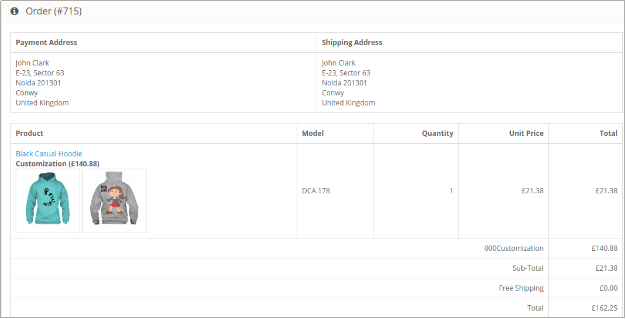
On clicking the View button corresponding to a product, admin can check the complete order details of the custom product.
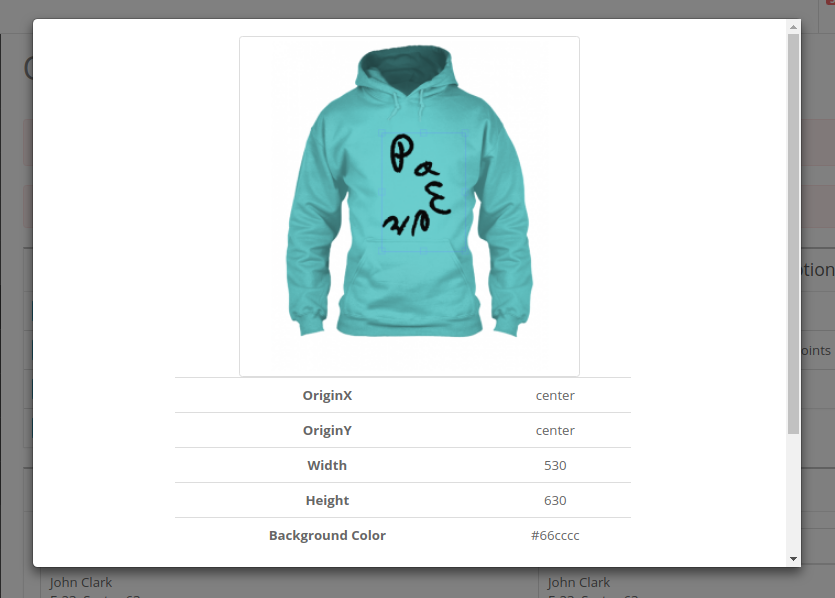
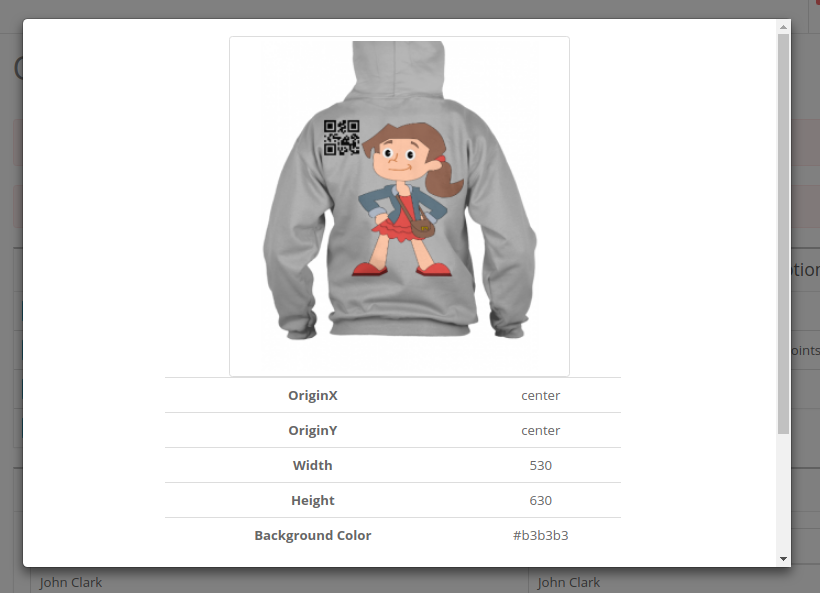
On clicking the product images, admin will see the complete details of personalized product in the form of a popup screen as shown below.