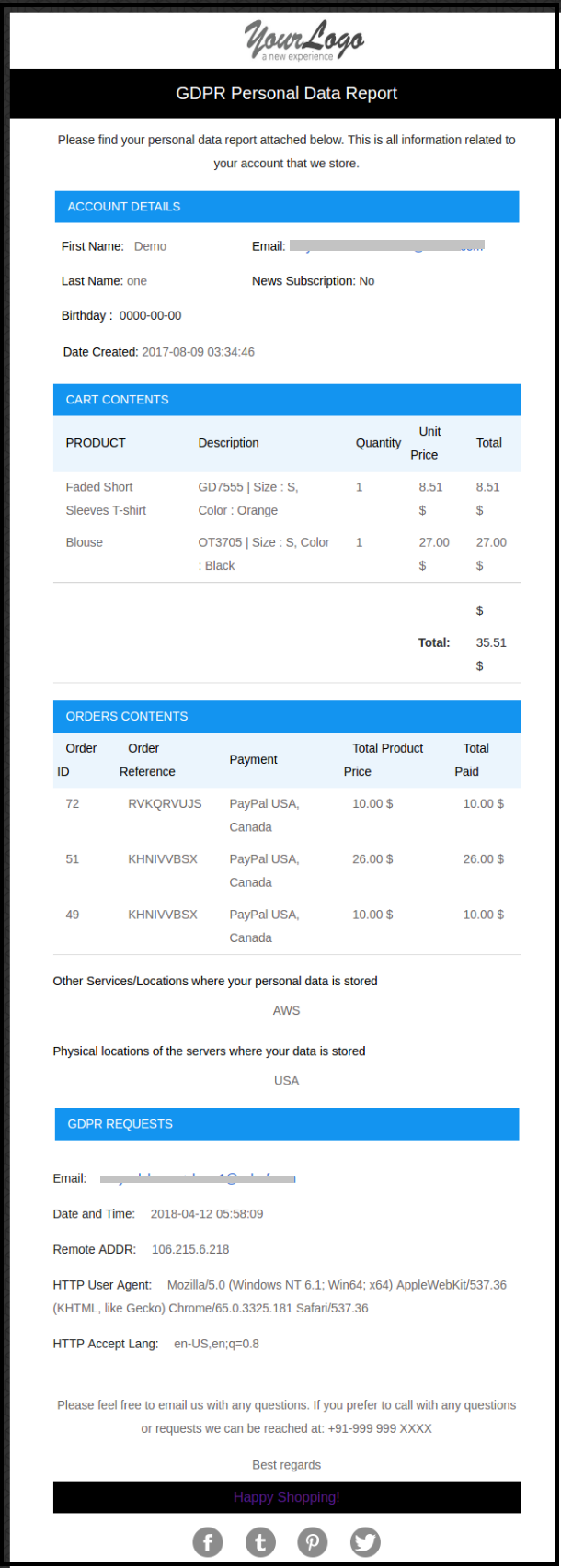
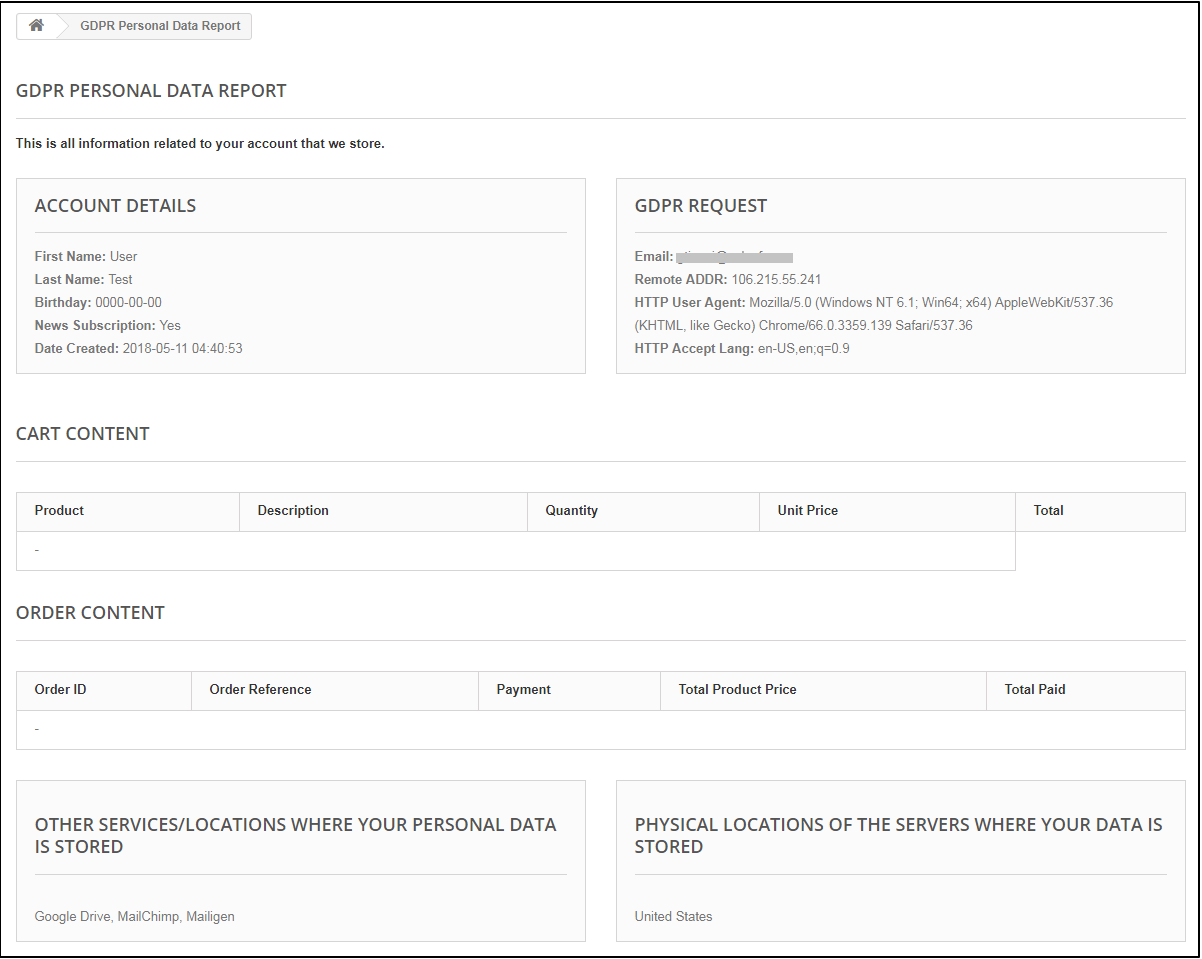
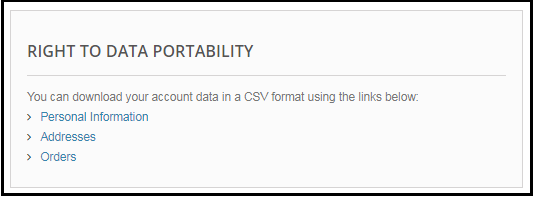
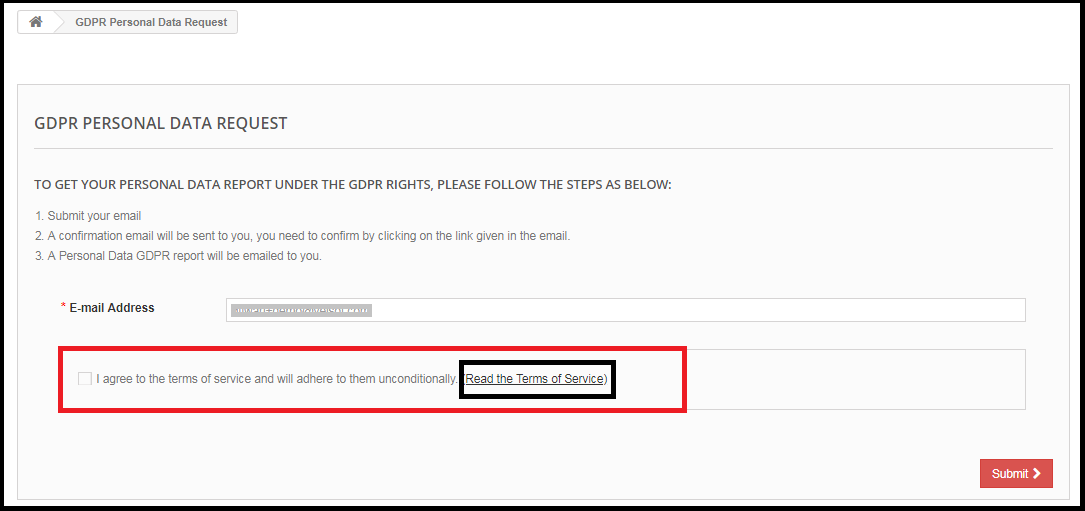
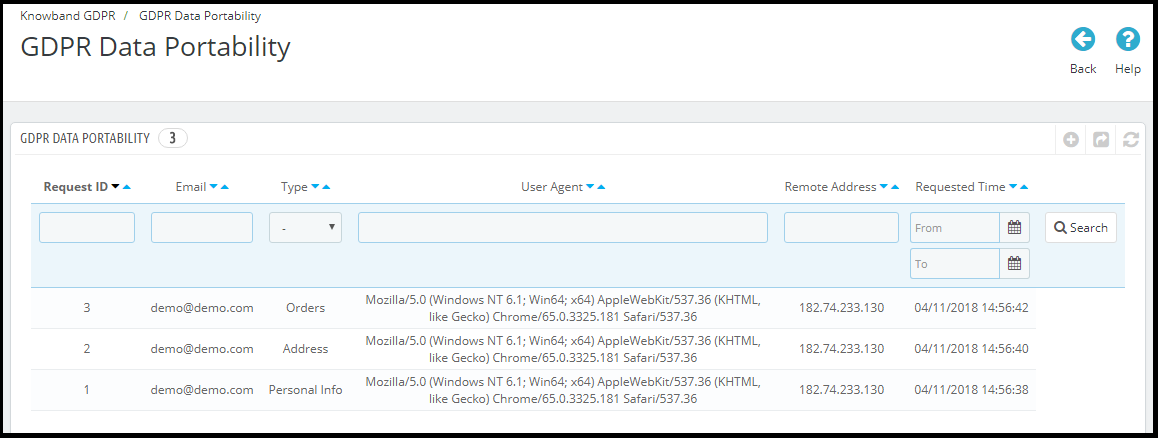
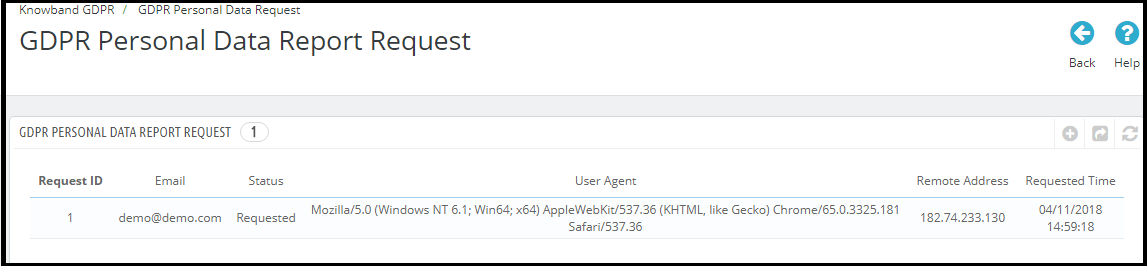
As suggested by the Prestashop team regarding the adaption of the new hooks to make the Prestashop Modules compliant with the official GDPR module, we are happy to announce the release of our first module with the hooks introduced by the Prestashop team. (Click here to know the details regarding the Prestashop hook to make a Prestashop addon compliant with the official Prestashop GDPR module).
The Spin and Win pop-up addon, that can be used as a welcome or Exit intent pop-up is now in compliance with the GDPR. The GDPR compliant version of the Spin and Win Popup module will be released on Monday, May 21st, 2018.
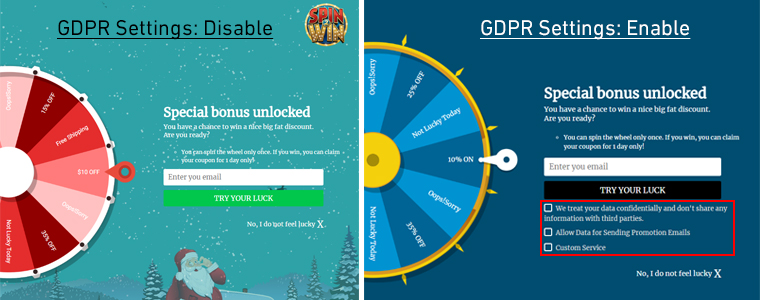
The Spin and Win Pop-up module is an interactive, gamified pop-up that allows the Prestashop store admin to display a unique wheel with the various discount options at the store front-end. Admin has so many options to customize the look and feel of the pop-up. Customers also like this welcome pop-up as by just spinning a wheel they get awesome discounts to make their purchase. In order to spin the wheel, it is required to enter the email id, as per the settings enabled by the store admin the coupon code will be displayed to the customer. Admin has the choice to send the coupon code via email. As this pop-up module captures the personal details of the visitor so we have made the required changes in the module to make it compliant with GDPR. Please refer to the attached screenshots:
Here, are the details of the Spin and Win module with the new changes.
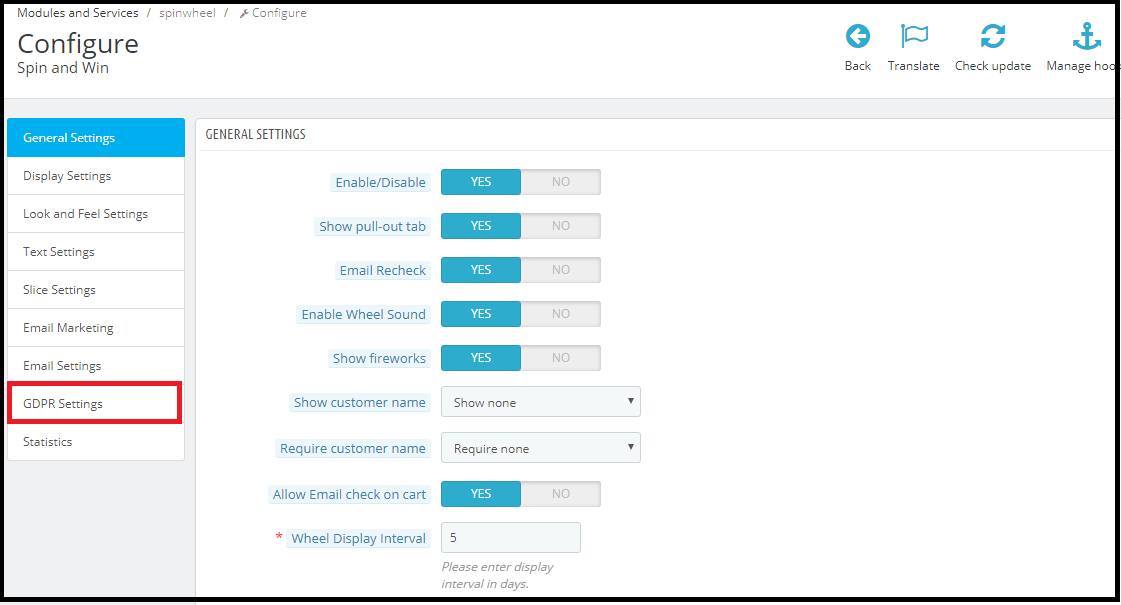
GDPR Settings Tab: In the configure section of the Prestashop Spin and Win module a new tab GDPR has been added. The EU merchants can enable the GDPR settings from this tab. Please refer to the attached screenshot in which we have highlighted the GDPR Settings tab.
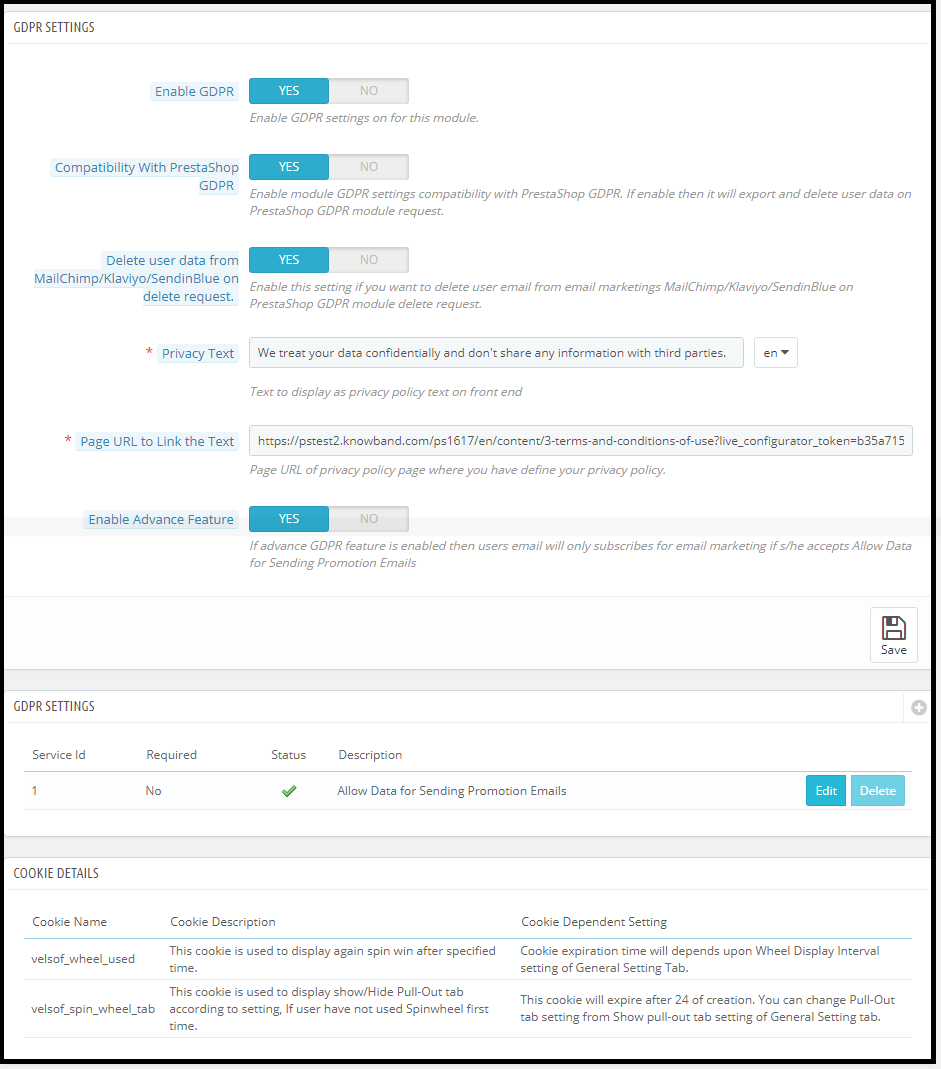
2) GDPR Settings: The GDPR settings tab has the option to enable or disable the GDPR options. There are following options in the GDPR settings tab for the merchants to make the popup module compliant with the GDPR.
a)Enable GDPR: Enable GDPR option allows the store admin to enable/disable the GDPR settings. By default, the GDPR settings will remain disabled and as per the business need, store admin needs to enable it.
b) Compatibility with Prestashop GDPR: Admin has the option to enable/disable this feature. If you are using the official GDPR module then you must need to enable this setting. The main purpose of this feature is export and deletes user data on PrestaShop GDPR module request. It is also compatible with Prestashop GDPR Module developed by Knowband. Click here to check the details.
Note: Benefits of using Prestashop GDPR Module by Knowband:
Free 3 months support
Advance features
Automated process
c) Delete user data from MailChimp/Klaviyo/SendinBlue on delete request: As the Spin and Win pop-up addon syncs the captured email ids to the MailChimp/Klaviyo/SendinBlue email service providers (third-party service providers, so if this setting is enabled and you use the services of any one of these email service provider then on the data deletion request the subscriber details will get deleted automatically.
d) Privacy Text: The module will add a checkbox to the pop-up design with the privacy text; this text will be visible to the front-end user at the time of entering email id in the email box.
e) Page URL to Link the Text: Admin can add the link to “Privacy Policy” or any other page with this message.
f) Enable Advanced Feature: This option allows the store admin to add more checkboxes to the pop-up design for marketing permission or any other permission like age verification (age should be 16+). (For Age verification module – click here).
If the Advance Feature setting is enabled then admin will be able to access the additional checkbox setting option. As per requirement, admin can add multiple checkboxes.
i) Service Settings: All the additional checkboxes which have been added by the admin will be listed under the Service Settings. Admin can add the multiple checkboxes with ease.
How to add a new checkbox:
Click on the (+) sign to add a new checkbox.
Note: By default one service will be listed on the service list and admin can update the text for the service.
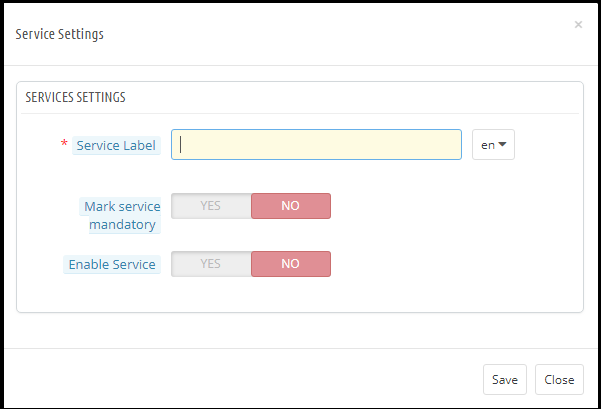
2. On clicking the + sign will open a pop-up and admin need to enter the details like – Service Label, Make service mandatory and Enable Service.
Service Label: This is a text input field. The text entered here will be visible to the front-end user.
Make Service Mandatory: This is a toggle button. If this is set to Yes, then this field will be marked as Mandatory and without confirming the checkbox visitors will not be able to get the offer.
Enable Service: Admin has the choice the Enable/Disable a service at any time.
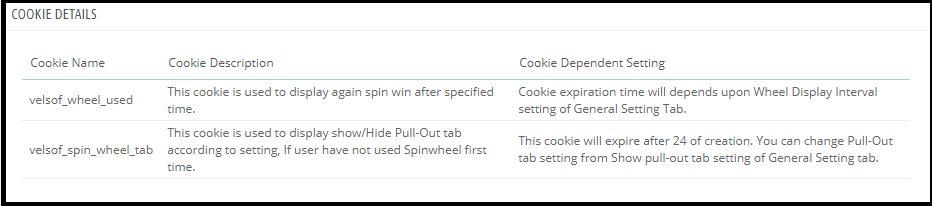
Cookie Details:
As the Spin and Win module uses the Cookies so the description and the use of these cookies have been listed in the section so that admin can put these details on the Cookie Policy or Privacy Policy page.
Record of consent:
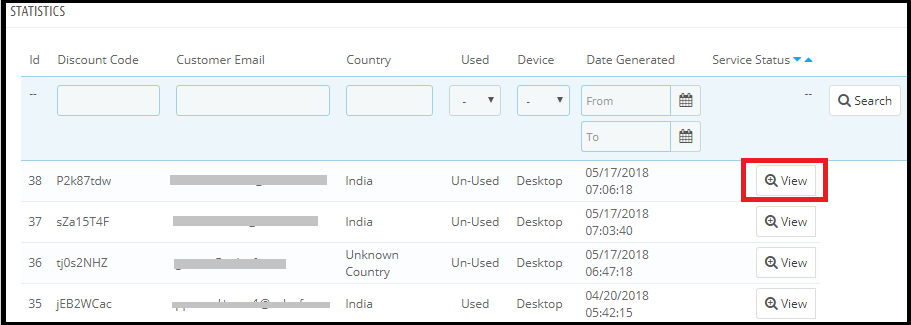
As soon as the user opt-in for the promotion and spin and the wheel to get the discount coupon code. The Spin and Win Pop-up module keep the proof of the opt-in, as it is required for the lawful processing of the captured data. As the unique coupon code is generated each time so the Statistics tab of the Spin and Win GDPR Compliant Module also record the permissions of the users. Please refer to the attached screenshot.
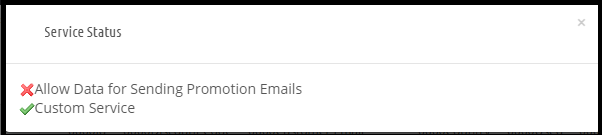
On clicking the view button admin can check the permission of the user.
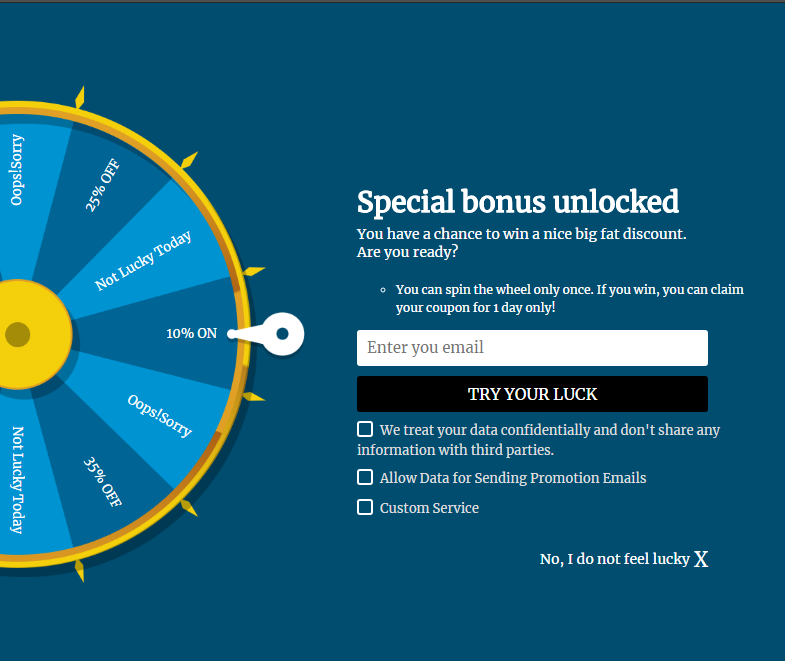
The GDPR compliant version of the Spin and Win module will be available on our store from Monday, May 21st, 2018. After enabling the GDPR Settings the Spin and Win pop-up design will look like –
Knowband has developed more than 70+ Prestashop Modules which are also available on the Addons store. Please click here to browse the Prestashop Addon store.
5 Must have Prestashop addons to improve the conversion rate.
One page checkout: One-page checkout addon reduces the additional efforts to complete the order and offers the better customer experience at the checkout page. Customers also like the one step checkout process because it offers so many options like edit/ deletes the products, update product quantity, use the coupon code, social login option (Google and Facebook) etc to the customers. Get the One Click Checkout module for your store.
Abandoned Cart Module: The abandoned cart module helps the admin to keep the track of the cart abandonment. Admin can send the reminder emails to the customers to encourage them to complete the order. Get the Prestashop Abandoned Cart Module for your store.
Return Manager Module: Customer engagement and better customer service is the key to success in eCommerce. To offer the better return management services the best solution is the Prestashop RMA extension. The Return Manager addon by Knowband allows the store admin to offer the return/refund or store credit refund options to the customers. The Return Manager addon automates the refund process and also makes it easy to handle the return requests. Get the Prestashop Return Manager Addon for your store.
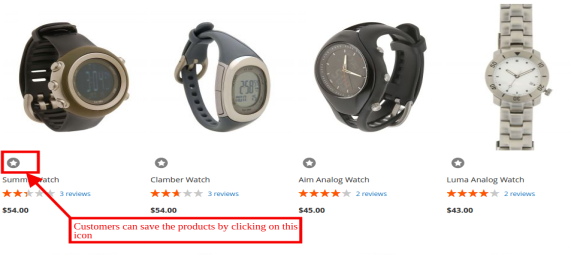
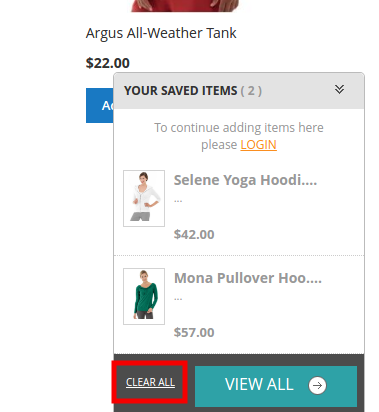
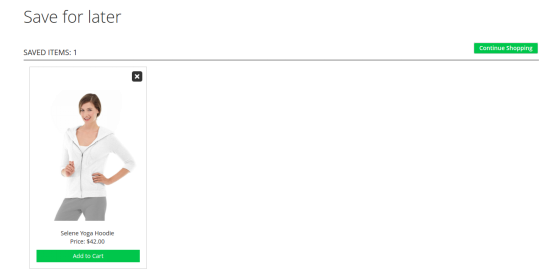
Advance Wishlist Addon: Wishlist addon allows the customers to save the products of their choice to a list so that they can complete their purchase later. The Prestashop wishlist module also helps the store admin to analyze the most popular products of the store. Get the Prestashop Advance Wishlist Module for your store.
Free Shiping Manager Addon: The Free shipping option puts a psychological effect in the customer’s mind. eCommerce store can offer the free shipping over a fixed cart value. In order to get the free shipping customer will buy more products and it will help you to increase the revenue. Get the Prestashop Free Shipping Module for your store.
A leading business software review platform has recently acknowledged that Knowband Mobile App Builder has succeeded on its goal in creating an app builder that seamlessly enriches the capability of your store. FinancesOnline distinguished our mobile app builder with the Great User Experience award for 2018, signifying that our platform is capable of enabling eCommerce businesses to easily take their web store to the next level.
Providing customers with a pleasant shopping experience is crucial for a successful eCommerce business. Apparently, FinancesOnline’s experts believe our mobile app builder was able to meet this requirement for best application development software with flying colors. According to the software experts from FinancesOnline, Knowband Mobile App Builder is “fully optimized on all mobile devices,” thus ensuring a “seamless and smooth navigation” for all customers.
Of course, the most important aspect of an extension is to ensure smooth integration with your store, and this was touched upon by FinancesOnline’s experts in their review. “Knowband Mobile App Builder helps you create mobile apps that easily integrate with your online store,” stated FinancesOnline. “It works perfectly with the leading e-commerce store builders Magento, OpenCart, and PrestaShop with Shopify adding to the list real soon.”
Convenient store login process through google or social media accounts, easy customer sharing of recent purchases on one’s social media accounts, various payment options and shipping methods, and order tracking are among the few other features their experts praised.
FinancesOnline also recognized Knowband Mobile App as a Rising Star for 2018, an award given to software solutions that have increased in popularity and are seen as a reliable tool by users. This signifies that Knowband is truly an established brand for top-quality eCommerce extensions.
Customers, while shopping at an e-commerce store, often remain confused about the size of the product he/she is willing to purchase. As they shop online, a doubt always remains in their mind that whether the product is of appropriate size or not. Every brand manufacturer creates his products according to his own measurement criteria which are either based on some general standard or just an assumption based on the age and demographics. The doubt regarding the size of the products may lead to cart abandonment. Therefore, products size issues also increase the website’s bounce rates and they play a huge role in reducing revenue for any eCommerce online store.
To get past these problems, Knowband offers Magento 2 Product Size Chart extension for store owners which provides Magento 2 store owners a facility to set the size charts on the product pages of the online store. These size charts can be created with the help of the Magento 2 size chart extension for multiple categories as well as for a specific product. The size chart will be displayed on all the product pages of the selected category. Different measurement units are also used to provide correct size measure of products in Magento 2 size guide extension. The size chart will illustrate the exact measured size in desired measurement units for customer ease. In this way, Magento 2 size catalog module provides proper product size to customers and thus increases the chances of the conversions for the store.
Magento 2 Size Chart Popup extension allows Magento 2 store owners to prepare size charts and associate them with available products on the store as per market requirement. Size charts mainly offer clear specification about the product in terms of size, area etc and help in maintaining hassle-free shopping experience for users.
1.1 Features of Magento 2 Product Size chart Extension:
Magento 2 product size chart extension allows e-commerce store owners to show size charts for various available products on their website.
Size guide addon by Magento 2 is very easy to install and configure for store owners.
E-commerce store owners need not have any technical knowledge for using Magento 2 size catalog module.
Magento 2 product size table extension allows the online store owners to preview, edit size charts and can also add images and guidelines to them if required.
Product size chart extension for Magento 2 store merchants offers the simplest way of creating size charts just by entering required values of attribute sets.
It’s very easy to enable or disable this Magento 2 product size chart extension.
The product size chart module is highly customizable.
The admin can implement the functionality without any code changes.
The Magento 2 product size chart module allows the admin to add size chart on the product pages without any complicated process.
The Magento 2 size chart pop-up extension allows the admin to create multiple size chart and showcase them for a single product or any category of products.
This Magento 2 product size chart plugin allows the e-merchant to add unlimited rows and columns on the size chart without any restrictions.
The Magento 2 size chart popup extension offers a user-friendly interface.
1.2 Admin Benefits
Magento 2 size catalog extension provides online sellers the easiest way of creating size charts for various products available on their website.
Store admin can assign size charts with single products as well as with multiple product categories.
Magento 2 Size Chart addon is fully customizable. It allows Magento 2 merchants to add images and necessary content to size charts. Rows and columns can be added easily by the seller if needed.
Magento 2 Product Size chart extension by Knowband allows store owners to preview size charts before implementation.
Size catalog module of Magento 2 marketplace offers multi-lingual support and increases the conversion rate of the website.
Magento 2 Product Size chart extension reduces website’s bounce rate which results in increased revenue of the store.
Product return requests get reduced with the use of size charts extension of Magento 2 e-commerce platform.
1.3 Customer Benefits
Magento 2 product size catalog module provides a friendly and attractive interface to users with which they can check the size of the products.
Magento 2 Product Size chart extension reduces confusion of customers regarding product size and also increases their decision making while purchasing.
It provides a better shopping experience to users.
2. Installation
After purchasing Magento 2 size catalog module extension, the store admin will get following files: 1.Sizechart.zip which contain source code of the Magento 2 Size Chart link Module extension. 2.User Manual which includes all the details and help regarding extension.
Follow the following steps to install Magento 2 Size Chart Popup extension:
The steps to install the Magento 2 product size chart plugin are mentioned below:
1. Buy the Magento 2 product size chart module from Knowband. You can download the extension package. 2. The package has a zipped file that contains the user manual and the source code of Magento 2 size chart module. Unzip the package. 3. Create a folder{Magentoroot}/app/code/Knowband/Sizechart 4. Upload the extracted content in the above folder via FTP manager (like Filezilla or WinSCP – download here: https://filezilla-project.org/). 5. Now run below commands to install the plugin:
php -f bin/magento module:enable –clear-static-content Knowband_Sizechart
php -f bin/magento setup:upgrade
php -f bin/magento setup:di:compile
php bin/magento setup:static-content:deploy 6. The extension is now installed and ready for use. In Admin Panel go to “Knowband Extensions >Size Chart”.
You can now configure and use the Knowband Magento 2 size chart for product module.
3.Extension Interfaces
There are two ways in which user will interact with Magento 2 size catalog module functionality: A.Admin Interface (Can be accessed only by Magento 2 store admin) B.Customer Interface (any customer can view and access on Product Page)
Each interface has been explained with proper detailing in following sections.
4. Admin Interface
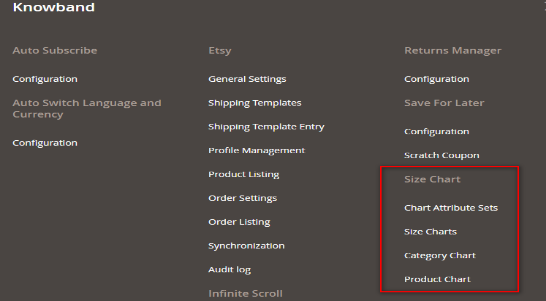
The admin interface of Magento 2 size guide extension by Knowband can be managed and accessed by Magento 2 store admin from the backend. After installing Magento 2 Product Size Chart extension, different sub-menus will appear under ‘SIZE CHART’ menu as displayed in below snapshot:
Using functionality of these four sub-menus Magento 2 store merchants can easily create and manage size charts for the products available on the store.
4.1 Chart Attribute Sets
In Chart Attribute Sets submenu of Magento 2 product size chart extension by Knowband, online sellers can prepare various attributes sets and their concerned measurements units related to product size charts. Chart attributes basically means Rows and Columns of product size chart.
4.1.1 Chart Attributes Set Listing
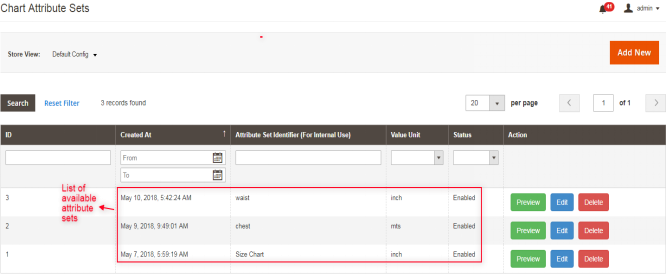
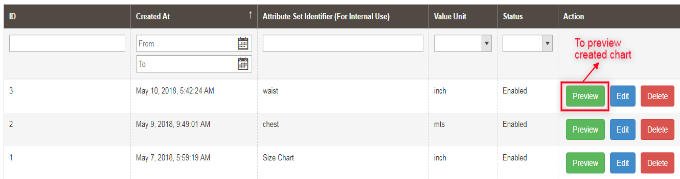
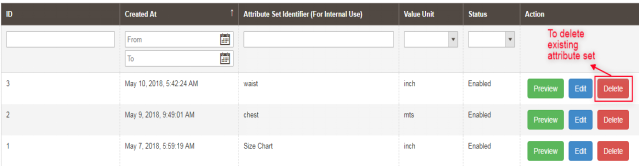
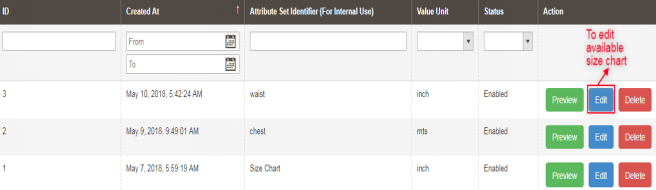
On opening the “Chart Attribute Sets” submenu of Magento 2 Size Chart Popup addon, store merchants will be automatically redirected to the page where all the attributes sets which are created earlier will be displayed. If there are no previous attribute sets present, then server will display empty list as shown in below snapshot:
List Columns:
1.ID: Denotes unique id of every attribute set.
2.Created At: Exact date and time when attribute set was created.
3.Attribute Set Identifier: This identifier column is used for identifying attribute set. It contains the label or name assigned to the corresponding attribute set.
4.Value Unit: Depicts various associated measurement units like cms, mm, mtr etc.
5.Status: Status displays current enabled/disabled situation of the corresponding attribute set.
6.Actions: There are different actions available, related to edit, delete and preview for available attribute sets.
4.1.2 How to add New Chart Attributes Set Listing?
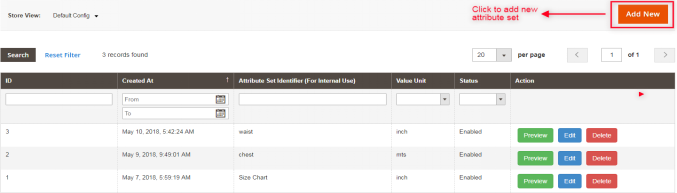
There is a ‘ADD NEW‘ button present on the top right corner of attribute set listing webpage of Magento 2 product size guide module. The store merchants can easily add new attribute sets whenever they need by clicking on the button. Further details about its functionality are described in next section.
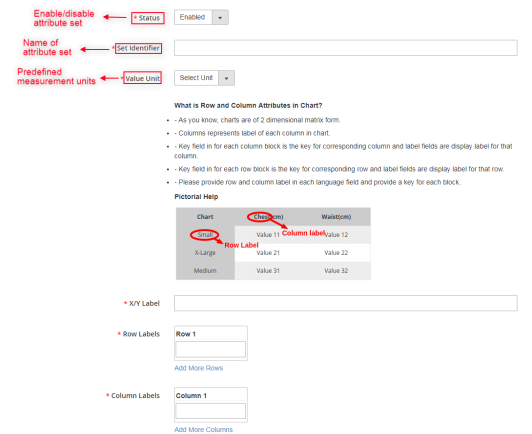
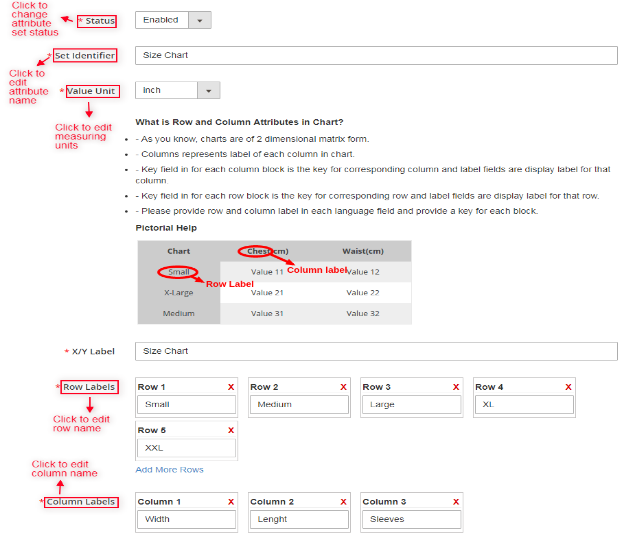
For creating new attribute set, ‘Add New’ option is used. By clicking on this, server will redirect store merchants to the attribute set configuration form as displayed in the below screen:
Fields:
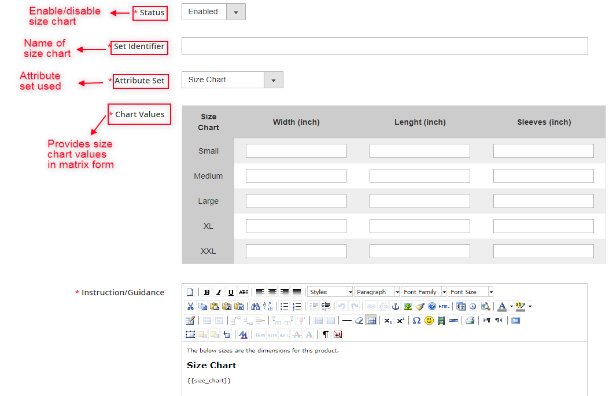
A.Status: This option includes a dropdown list of the status. It is a required field and will be set as disabled by default. Select enable in order to incorporate the functionality.
B. Set Identifier: It is also a required field used for labeling/naming attributes sets.
C. Value/Measurement Unit: This field displays drop down list containing various predefined units. If store admin wants to add more units, please contact our support.
D. Help Guide: This section provides all the help that the store admin needs for creating the attribute sets for size chart.
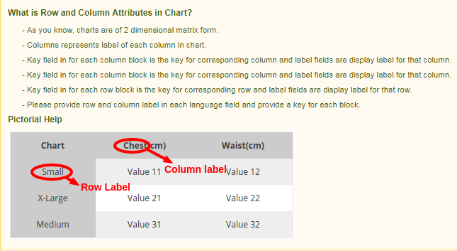
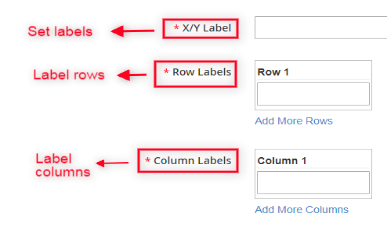
E. X/Y Label: This field allows e-commerce admin to set the labels in multiple languages. Admin can input different label/text for each size chart display. This label will be displayed for common x-y axis of the chart.
F. Row Labels: Row labels are used for labeling the rows of size chart. Enter a unique name for the rows of the chart. The store merchant can add or delete rows as per the requirement.
G. Column Labels: This label is used for labeling columns of product size chart, that is, the admin can enter the name of the columns here. Magento 2 store merchants can add or delete columns as per their choice.
4.1.3 How to Preview available attribute sets?
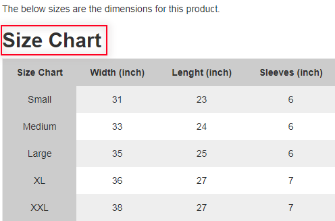
Using preview action of Magento 2 Size Chart link extension, server will display a snapshot of size chart according to current attributes set as shown below:
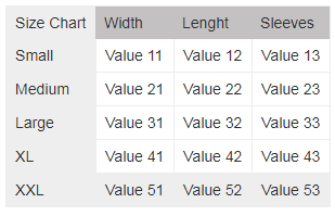
Once Magento 2 store owner clicks on the Preview button, a matrix format pop up will appear displaying created size chart:
4.1.4 How to edit available attribute set?
In Magento 2 size catalog module, edit action lets Magento 2 store admin to edit the already created attributes. The store admin is authorized to make any changes in available attribute sets.
After opening edit action, following webpage will appear having attribute set editing fields:
4.1.5 How to Delete any existing attribute set?
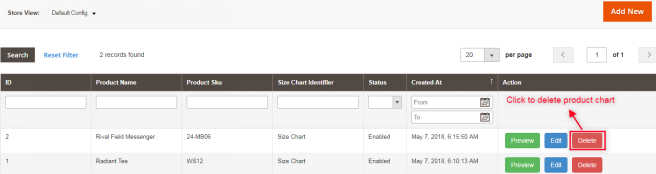
Attributes set can be deleted either from attribute set listing page or from attribute set editing page. Delete action provided by Magento 2 Size Chart Popup addon is used by store owners to permanently delete any attribute from the system.
Note: E-commerce sellers should keep it in mind that if attributes sets are deleted then size charts associated with those attributes will also be deleted. This is done to prevent any issue of data inconsistency.
4.2 Size Charts
Knowband provides Magento 2 size guide extension which offers ‘Size Charts’ submenu where store owners can easily create and customize the size charts by using any of the attributes set created in last section ‘Chart Attribute Sets’.
4.2.1 Size Charts List
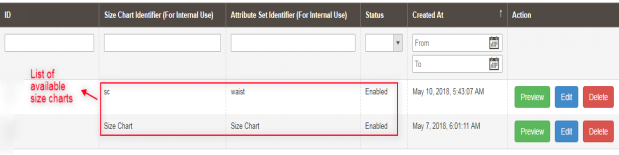
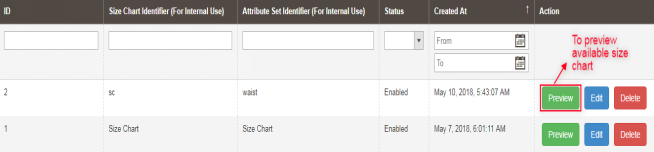
Whenever Magento 2 e-commerce merchant opens ‘SIZE CHART’ submenu, he/she will be redirected to a web page where all the size charts created earlier will be displayed as shown in below snapshot:
4.2.2 How to add new Size Chart?
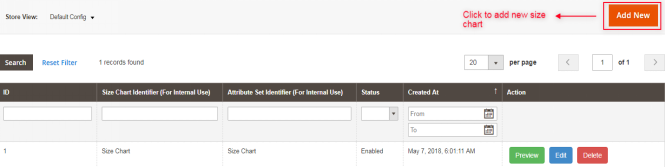
There is a ‘ADD NEW’ button on top right corner of size charts listing page of Magento 2 product size table extension. Click on this button in order to add a new chart. Adding and updating size charts have been described with proper detailing in next section.
On clicking on this link, Magento 2 online sellers will get size charts configuration form as shown in below snapshot:
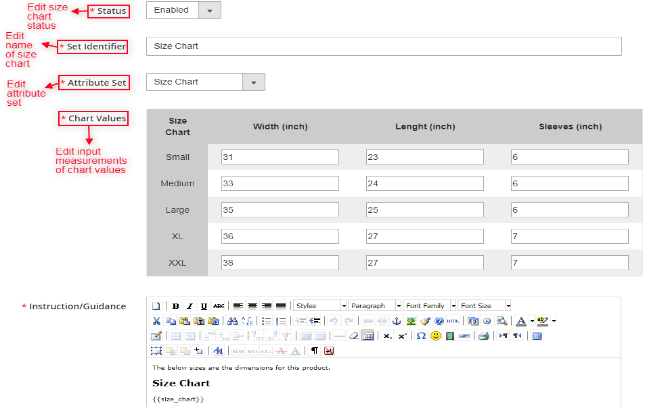
Fields:
A.Status: This field contains a dropdown list of status. It is a mandatory field and will be disabled by default.
B.Set Identifier: Identifiers are basically used for providing names/ labels to size chart.
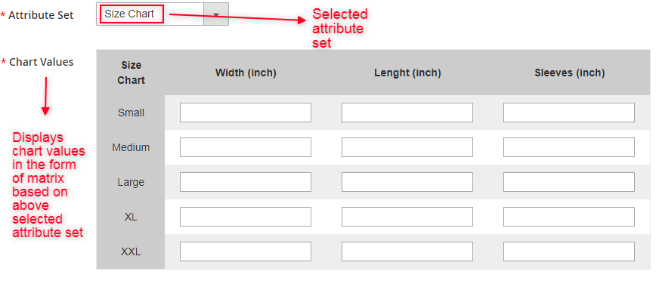
C.Attribute Set: This field is also mandatory for store owners and is used for selecting attributes set related in creating size chart. D.Chart Values: Once the attribute sets is selected in the above point, Magento 2 store admin can enter the values of the chart in this section.
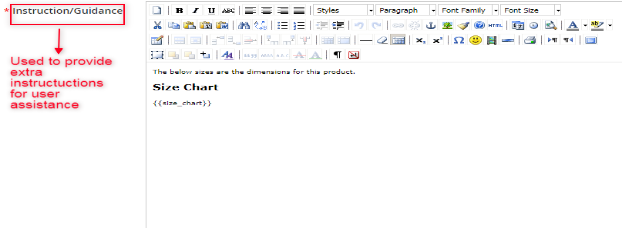
Magento 2 online sellers have to fill corresponding values of other store view. The chart with the values and specifications as entered by the admin will be displayed in the front-end. E.Instruction/Guidance: This field is a required field and size chart will be displayed under the content store admin will provide by writing into this field. Magento 2 store merchants can provide some extra guidance or instructions as pictorial help about size chart to customers. This field is specific to store view and admin need to provide proper content for each fields. Note: A variable “{{size chart}}” is written in instruction field. This variable will be replaced by with the corresponding size chart displayed on the front end. Removing this variable from instructions field will cause issues, but its position can be changed into instruction field as per the requirement.
4.2.3 How to preview available Size chart?
Using preview option available on Magento 2 Product Size chart addon, server will display a pop up window having preview of created size chart. Any size chart available in size chart list can be previewed by store admin.
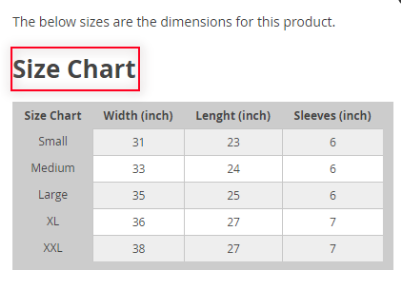
Once the store admin clicks the preview button, a matrix format pop up will appear displaying the created size chart with available rows and columns measurements as displayed in below screen:
4.2.4 How to edit existing Size chart?
Magento 2 Size Chart Popup addon also allows editing of existing size charts. Magento 2 store owners can click on the Edit action as shown in the snapshot below in order to edit already created size charts –
This edit option will redirect online sellers to an interface from where size charts can be configured accordingly. This size charts editing form is displayed in following snapshot:
4.2.5 How to Delete existing Size Chart
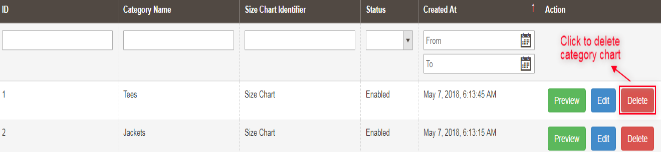
If Magento 2 store admin wants to delete any size chart created earlier, it can be done using Delete action as shown in the snapshot below:
4.3 Category Charts
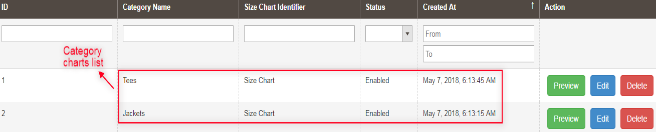
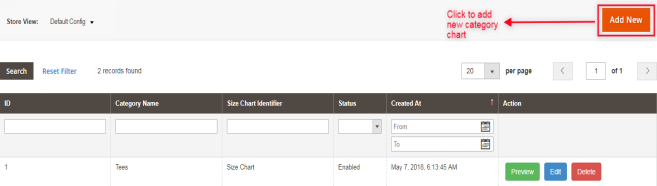
Magento 2 store owners can easily create and update mapping of product size charts with multiple categories of products available on the website using Magento 2 Product Size chart plugin by Knowband. Store admin can assign/map created size chart in the required product categories from the provided interface:
4.3.1 How to assign size charts to new product category?
Knowband provides Magento 2 size guide extension enables e-commerce merchants to map size charts with new available product category. There is an “Add New” button present on top right corner of category chart listing page. With this button, admin can assign any size chart to a new category. The various fields of this section are described below:
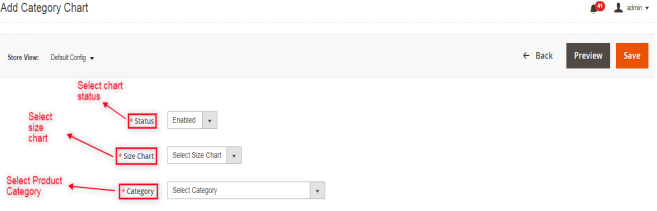
Whenever Magento 2 store owner clicks on “Add New” button, he/she will be redirected to the mapping page where any charts can be assigned to new product category or can be edited accordingly as shown in below snapshot:
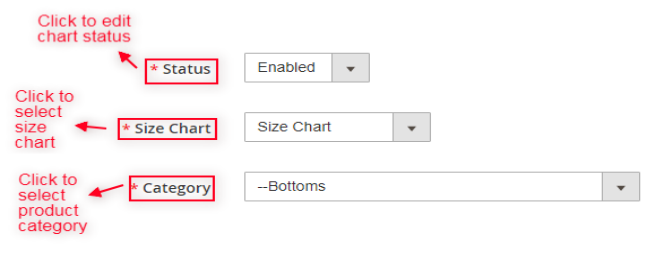
Fields:
A.Status: It contains dropdown list of available status. Select enable in order to use this feature but by default will be set as disabled.
B.Category: It is also a required field and contain list of available product categories. Initially, no category will be selected. Admin can choose the category for mapping the size chart. The size chart will be displayed on the product pages of the selected category.
C.Size Chart: This required field contains list of active size charts created by Magento 2 store owners. Select the size chart that you want to display in the products pages of the selected category.
4.3.2 How to Preview Category Chart?
By using preview action of Category charts of Magento 2 size guide extension, e-commerce sellers can check preview of the selected category chart with detailed instructions.
Whenever Magento 2 store owners uses preview action, it displays a pop up window with attached size chart of associated category as shown in below snapshot:
4.3.3 How to edit existing Category Chart?
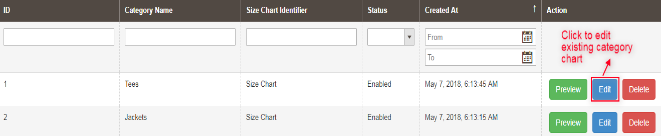
Magento 2 store owners can edit category chart mapping by clicking on the Edit button available on category chart listing web page of Magento 2 Size Chart link extension as displayed in following snapshot:
Whenever Magento 2 store merchant opens Edit Link, he/she is redirected to following category chart editing webpage. Here, status of chart, size chart, product categories are selected as shown through following snapshot:
4.3.4 How to delete Category Size Chart from listing page?
Magento 2 Size Chart Popup extension enables delete option to Magento 2 store owner in order to delete size chart from category chart listing page at any time. Chart mapping cab be deleted from both either from listing page or from edit page.
4.4 Product Charts
Magento 2 store merchants can create as well as update mapping of size charts with the corresponding products using Magento 2 size catalog addon.
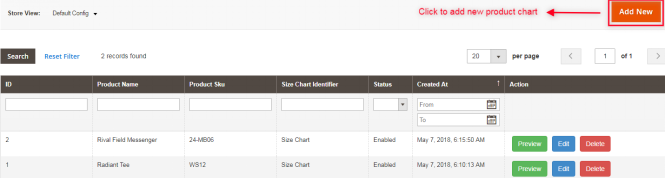
4.4.1 Product Chart List
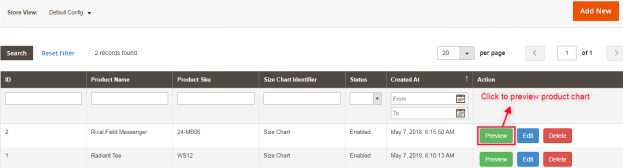
Knowband provides Product size chart extension, through which Magento 2 store admin can access “Product Chart” submenu, which redirects to a page where all the mappings of size charts are done with multiple product categories and is displayed as shown in below snapshot:
4.4.2 How to Add New Product Chart or Assign Chart to New Product?
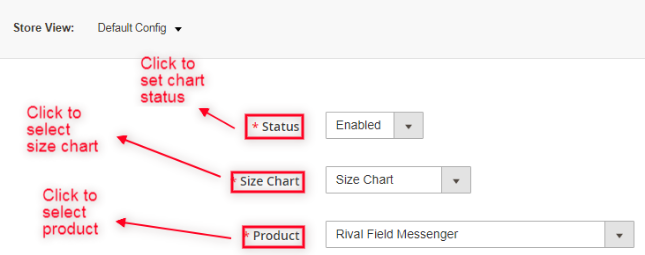
For adding new Product chart, an “Add New” button is provided on the top right corner of product listing page through which store admin can add new mapping of size chart to a product whenever desired as displayed in following snapshot:
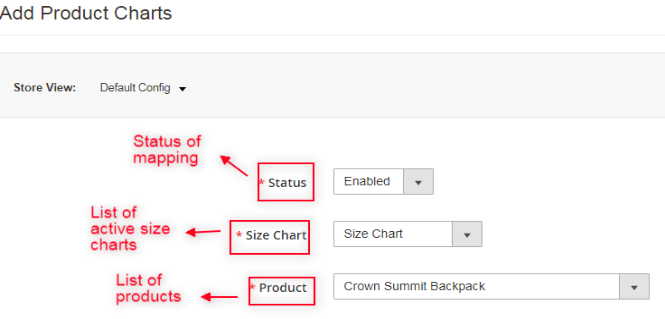
In Magento 2 size guide extension, Add New button is basically used for assigning size charts with new products as displayed in below snapshot:
Fields:
A.Status: It is a dropdown menu of status and a required field which is set as disabled by default.
B.Product: Select the product to which you want to map the size chart. Initially, no product will be selected, but admin can choose one from the menu.
C.Size Chart: It is also a drop down list of active size charts created by admin and also a required field. Select the size chart that you want to display on the product pages.
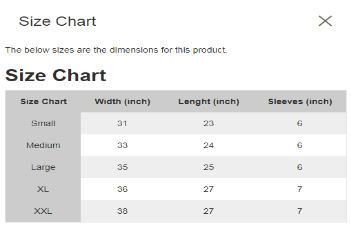
4.4.3 Preview of Existing Product Chart
Magento 2 size catalog module has preview action, server will display preview of selected product charts to Magento 2 store owners with detailed instructions.
Provided preview action will display the preview of size chart with instructions set to Magento 2 online sellers as shown in below screenshot:
4.4.4 Edit Product Size Chart
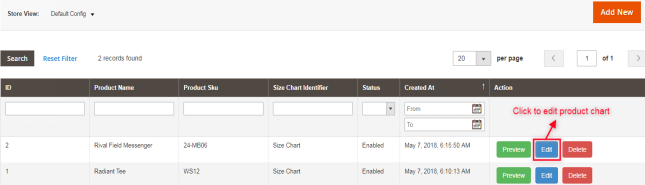
Magento 2 product size table extension provides ‘Edit link’ on product chart listing page through which Magento 2 e-commerce merchants can edit available product size charts very easily. Magento 2 store owners can use this action also for altering any existing mapping with available products.
Using Edit Product Size Chart action, store admin can check preview of the selected charts with detailed instructions as shown in below snapshot:
4.4.5 Deleting Product Size Chart
Magento 2 Size Chart link addon allows online merchants to delete any size chart mapping from product whenever required. This purpose could be fulfilled using delete option provided on the backend of website.
4.4.6 Size Chart Mapping on Product Page
Size charts can also be mapped with products on product edit page. Magento 2 store admin can also edit size charts mapping from Products section through “Size Chart” tab.
With the help of Magento 2 Size Chart Popup extension, Magento 2 online sellers can easily assign any size chart with the corresponding products. If there are no changes in the field value, no size charts will be assigned with the products. If admin don’t want to assign chart to any product he/she can leave it without changing any value in this section.
5.Customer Interface
Magento 2 customers can only access size charts through product page available on the front end of the website.
5.1 Size Chart on Product Page
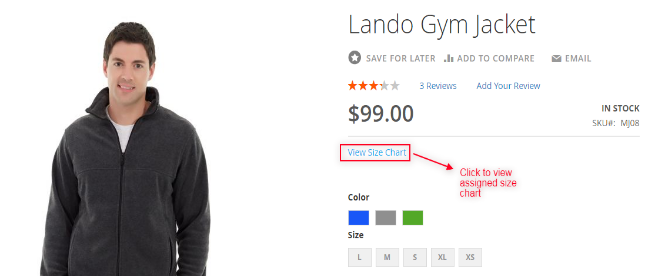
When Magento 2 store admin enables size charts with products, ‘View Size Chart’ option will be appeared just below the product details. Customer can easily access the size charts associated with different products and enhance their shopping experience.
After full configuration of Magento 2 Product Size chart extension, ‘View Size Chart’ option will appear below product name with which user can check size of product before its purchase.
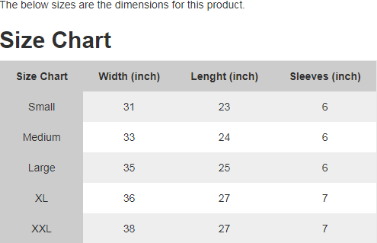
When customer opens ‘View Size Chart’ option, following window will be displayed containing size chart assigned for that product:
For more information about this Magento 2 size catalog extension:
1. Introduction to Prestashop Abandoned cart addon
Have you ever gone shopping for products online? Further, have there been times when you add the products to your cart and leave? Moreover, leave the store without buying them. Further, the process of leaving the cart without completing the purchase refers to as shopping cart abandonment. In fact, as per the report from Baymard, the average online shopping cart abandonment rate is 69.23%. Therefore, let us not talk about the Prestashop Abandoned cart (Email Follow up) Addon
Converting abandoned carts is a tough task. However, what if we can convince the owners of 20% of those abandoned carts to come back? Moreover, complete their purchases. Yes, it is difficult but possible.
Prestashop Abandoned cart addon by Knowband helps PrestaShop store owners to convert these abandoned carts. Further, into sales by regular email follow-up. Additionally, the “Abandon Cart Serial Reminders” addon sends automated emails with discount coupons. Furthermore, to the customers who abandoned their carts, thereby increasing the chances of conversion.
Prestashop Abandoned cart email follow up addon is very effective. Furthermore, when it comes to shopping cart abandonment. In fact, this Prestashop email follow up module by Knowband sends automated or manual follow up emails. Further, to the customers who abandoned their shopping carts. The Prestashop abandoned cart addon allows Prestashop store owners to create N number of Discounted and Non – Discounted Email templates. Further, they are for sending to the customers. The Admin can set the number of days after which the shopping cart is assumed abandoned. Moreover, the follow up email triggers.
Prestashop abandoned cart addon is now compliant with the GDPR. Further, the GDPR settings are available in the module. In fact, using which the Prestashop admin can comply with the rules of the GDPR. Additionally, please refer to the General Settings to know more about the GDPR.
What’s New?
Prestashop abandoned cart reminder provides the store owners to enable a reminder popup. Further, the customers will see as soon as they sign in to the store. Further, the display popup will contain the list of the abandoned cart items. Additionally, a discount coupon code so that the customers make purchases.
PrestaShop Reduce Cart Abandonment addon allows the store owner to send web browser push notifications to the visitors. In fact, even if they are not present on your website.
With the additional cron log functionality, the PrestaShop admin can check if the cron executes or not. In addition, they can also look for the abandoned cart details as well.
1.1 Prestashop Abandoned Cart Email Follow up- How it works
1. A customer visits your PrestaShop store.
2. He browses your store and adds products to his shopping cart.
3. During Checkout (sometimes before) the customer has to give the name and email address.
4. But due to some reason, they left your store without completing the purchase.
5. After some time their shopping cart, the admin assumes it to be abandoned.
6. After a defined time, you will send them the follow-up email. Further, reminding them about their left items in their shopping carts.
7. Some will visit your PrestaShop store again and convert, and some will ignore your follow up email.
8. After a few days of sending the first follow up email, you will send another email with the discount this time.
9. The customer proceeds to checkout and completes the purchase.
1.2 Key Features of Prestashop Abandoned cart addon:
The Knowband Prestashop abandoned cart reduces shopping cart abandonment.
Boost sales and conversion by convincing the owners of up to 30% of abandoned shopping carts on your PrestaShop store.
The Prestashop abandoned cart addon tracks abandoned carts of both Guest as well as Registered customers.
The Admin can send the abandoned cart to follow up emails with discount coupon codes. Further, all the changes can be done from the backend of the Prestashop email follow up addon.
Prestashop store admin can set the time after which the shopping cart abandons.
Admin can view details of the customers. For instance, their name, email id, IP Address, Time & Date from the back office.
The Prestashop abandoned cart addon by Knowband provides the test mode option for the admin to test the module. Furthermore, before making it live on the Prestashop store.
With the help of the Prestashop abandoned cart addon, the merchants can send the trigger to follow up emails. In fact, he can send them Manually or Automatically using cron.
The Prestashop email follow up module offers readymade email templates to the admin. In fact, the Prestashop store Admin can add and customize many more.
The Prestashop Abandoned cart recovery email addon facilitates the seller to view the abandoned and converted carts with ease.
Prestashop store admin can view the abandoned products in the shopping cart of the customers. Further, he can do it from the backend of the Prestashop reduce cart abandoned extension.
The Prestashop abandoned cart extension by Knowband enables the store merchant to analyze the store conversion rates. How? By analyzing the converted carts.
Prestashop Admin can analyze which products result in most shopping cart abandonment from the Prestashop email follow up addon backend.
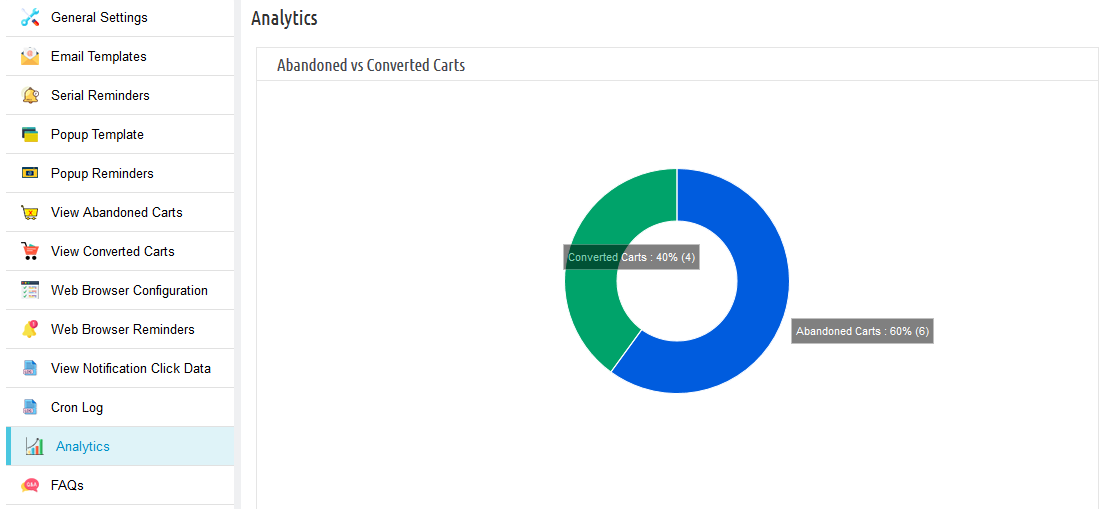
The Prestashop Abandoned cart has an interactive pie chart to compare the Abandoned and Converted carts.
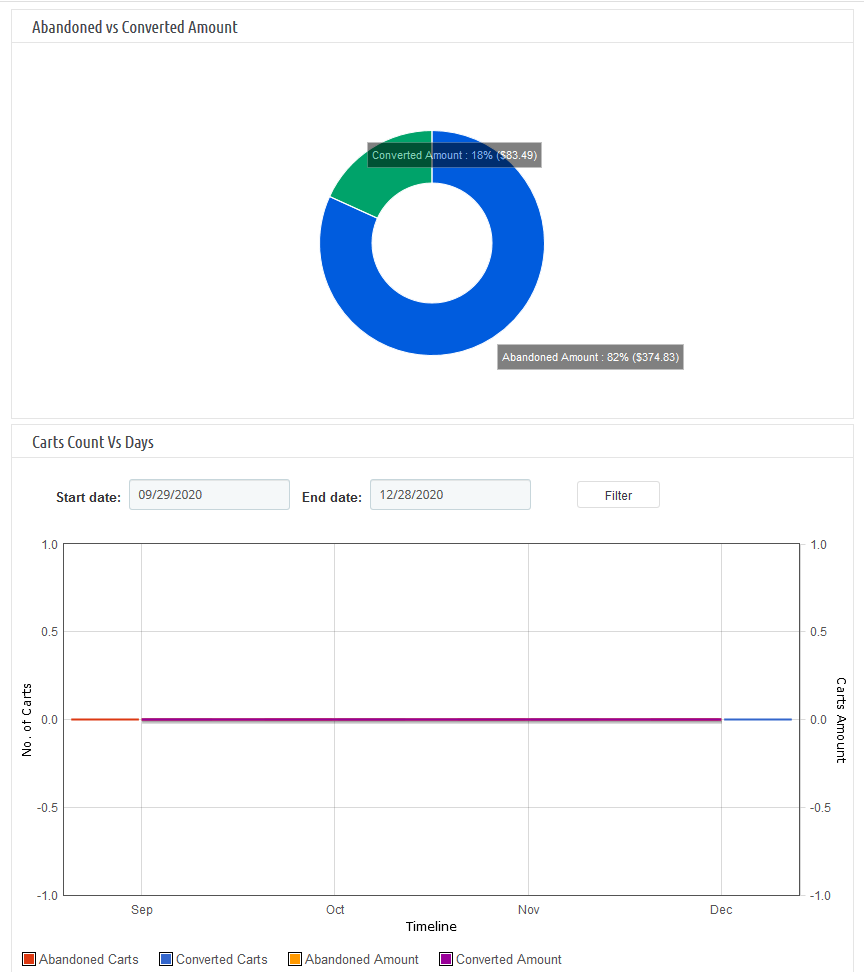
Interactive pie charts to compare the Abandoned and Converted amounts.
This Prestashop abandoned cart module by Knowband supports Multiple languages.
Prestashop email follow up addon is compatible with every theme.
The Prestashop cart abandoned addon is desktop, mobile, and desktop responsive design.
Prestashop email follow up addon is compatible with the GDPR module.
With the Prestashop abandoned cart module, the store owner can now display a popup reminder to the customers. Further, as soon as they visit the website. In fact, in this popup, the store admin can highlight the products. Furthermore, the ones that they left in the cart and can also highlight coupon codes.
The store owner can send the customers web browser notification reminders to customers to remind them about their incomplete purchase.
2. Installation Guide of Prestashop Abandoned cart addon
Extract the “abandonedcart” zip file.
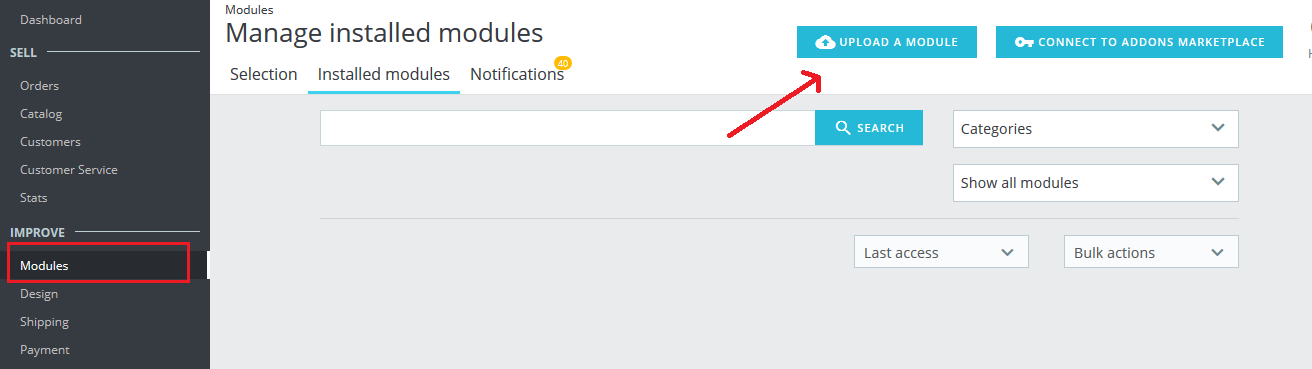
Go to the “Modules” section and click on the “Upload a Module” button. Select the “abandonedcart” file. Moreover, the Prestashop abandoned cart addon will be ready for installation in the “Modules” (Module Listing Page) in your Prestashop store admin panel as shown below.
After successful installation, the system will redirect you to the module configuration page. Moreover, when you come back to the module listing page, the “install” button will be replaced by the “Configure” button.
Suppose, you don’t see the plugin displaying on your module listing page. Further, search it by filtering the module with the following details:
Keyword: Prestashop Abandoned Cart
Author: Knowband
Category: Checkout
Filter by: Installed & Not Installed/Enabled & Disabled
3. Useful Cron Instructions
3.1 Reasons/Cases when the email is not sent to the customers
A. Email Id is not available(Guest customer)
B. If the cart does not satisfy the condition of serial reminders
If the minimum cart value is greater than the abandoned cart value. For example, the minimum cart amount is $50 and the abandoned cart amount is $45. It will not send a reminder in this case.
If the delay is set to one day, the reminders will not be sent to the customers. Further, whose carts are abandoned for less than a day.
C. The Prestashop Abandoned cart email follow-up addon will not add the abandoned carts with the cart amount 0.00.
D. If you have not set up the Cron properly or if the Cron is not working.
3.2 Types of Crons
There are two types of cron that run every hour.
1. Cron to update the Abandoned cart: This cron runs every hour.
For instance, the cron runs at 11:05, 12:05… and so on. In addition, you have set “Mark Abandoned Cart” as 1 hour. When cron runs at 11:05 it will add all the abandoned carts created between 9:05 to 10:05. For instance, you have set “Mark Abandoned Cart” as 0 hours. Further, it will add all the abandoned carts created between 10:05 to 11:05.
2. Cron to send a reminder email: This cron also runs after every hour.
For example, suppose the cron runs at 11:11, 12:11…..and so on and you have set the Reminder for 1 day. Suppose, the cron runs at 11:11. Further, the emails will be sent to all the abandoned carts between 10:11 to 11:11 of the previous day. In fact, if you have set Reminder for 2 days then the emails will be sent to all the abandoned carts. Moreover, between 10:11 to 11:11 of the day before yesterday.
3. Cron to send reminder notifications: This cron also runs after every hour.
For instance, if you have set marked abandoned cart as 1 hour. Moreover, suppose the cron runs at 3:14. Further, all the visitors who have created abandoned carts between 1:14 to 2:14 will get a reminder notification.
3.3 Procedure to configure CRON job
3.3.1 What is a cron?
A cron is a service that allows a user to automatically execute a script at a specific time.
For instance, you can set a particular PHP script to automatically executes every day at midnight.
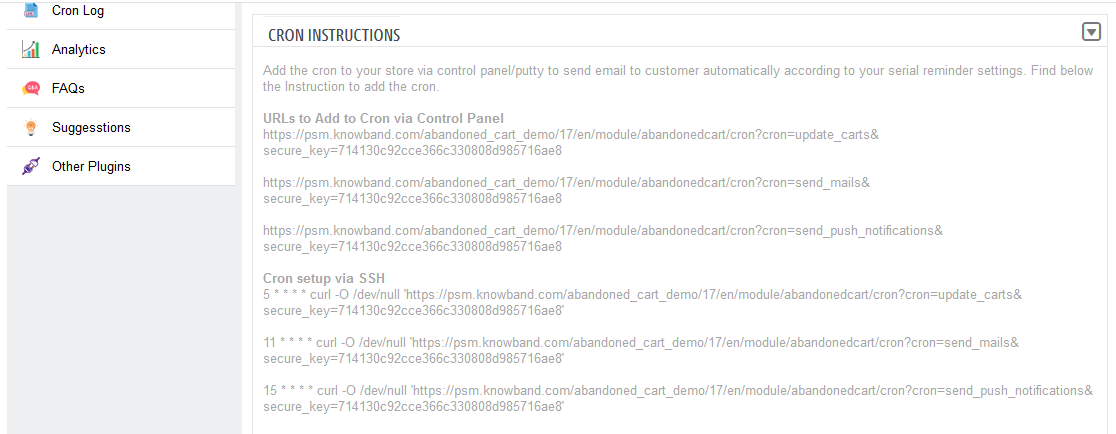
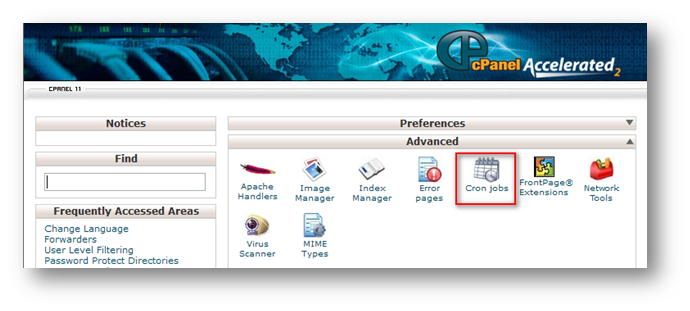
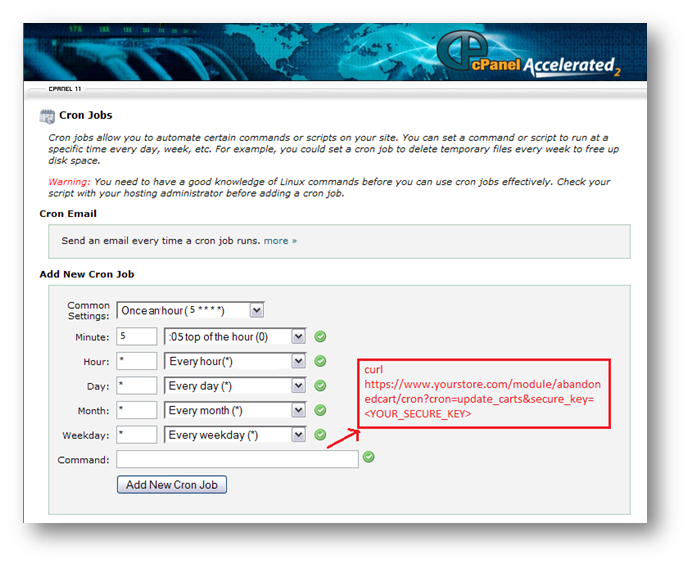
To set CRON for Abandoned Carts the following 2 URLs are supposed to add to the crontab of your server:
Note: Make sure to enter the proper command and the full path to the file.
2. By adding the CRON instructions to the crontab of your server (through Terminal/SSH)
For this method to work you are supposed to have crontab on your server. In fact, in case it is not installed then please contact the hosting provider.
– Login to the terminal (or SSH) of your server
– Run the following command: crontab -e
– It will list all the CRON jobs on the server in editing mode.
These lines will execute the desired CRON Jobs every hour.
– Save the crontab file.
4. Workflow of Prestashop Abandoned cart (Email Follow up) Addon
The Knowband Prestashop cart abandoned module configuration page will display the following tabs to configure the module as desired:
1. General Settings
2. Email Templates
3. Serial Reminders
4. Popup Templates
5. Popup Reminders
6. View Abandoned Carts
7. View Converted Carts
8. Web browser Configuration
9. Web browser reminders
10. View Notification Click Data
11. Cron Log
12. Analytics
13. FAQs
14. Suggestions
15. Other Plugins
Each interface is in form of a tab and each tab contains some specific settings that can be changed according to the need. In fact, each tab is explained below.
4.1 General Settings of Prestashop Abandoned cart addon
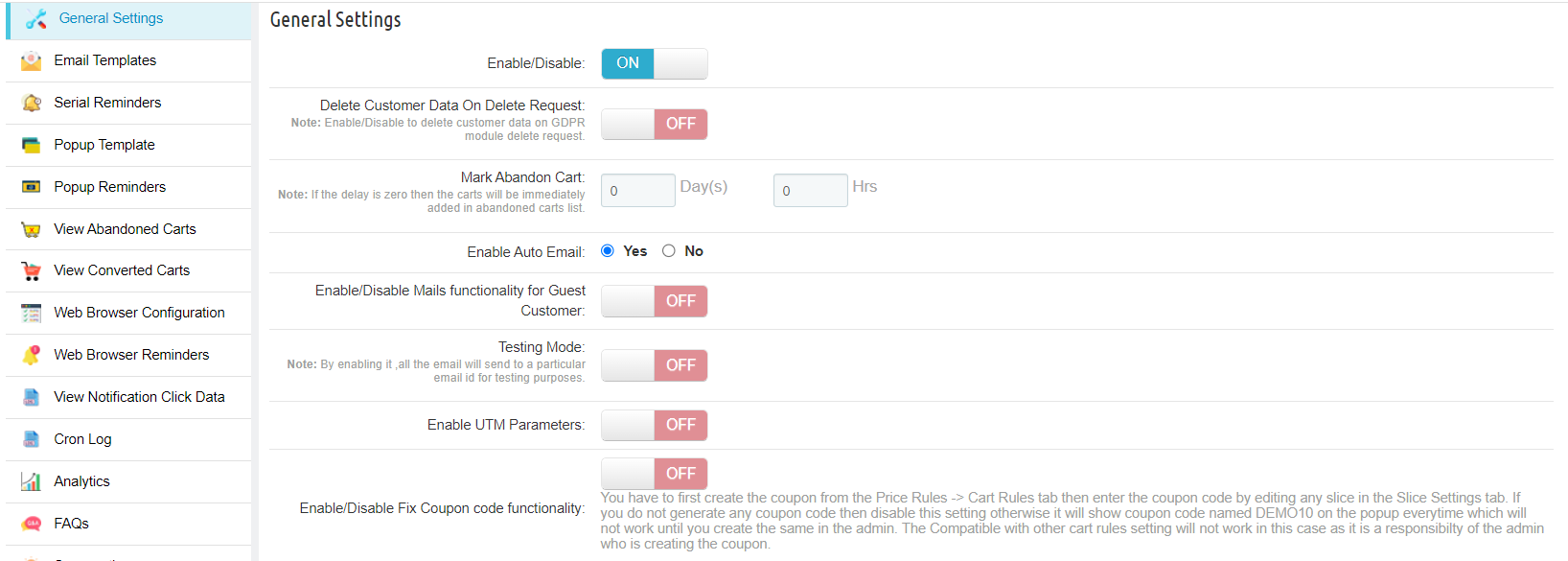
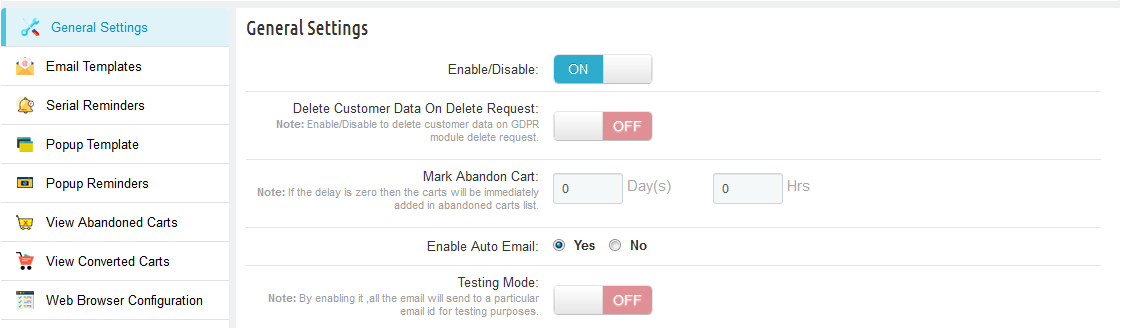
The General Settings tab of Prestashop abandoned cart module has the following options:
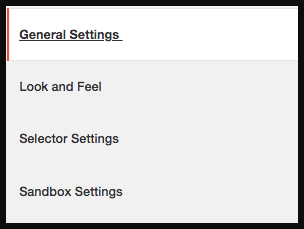
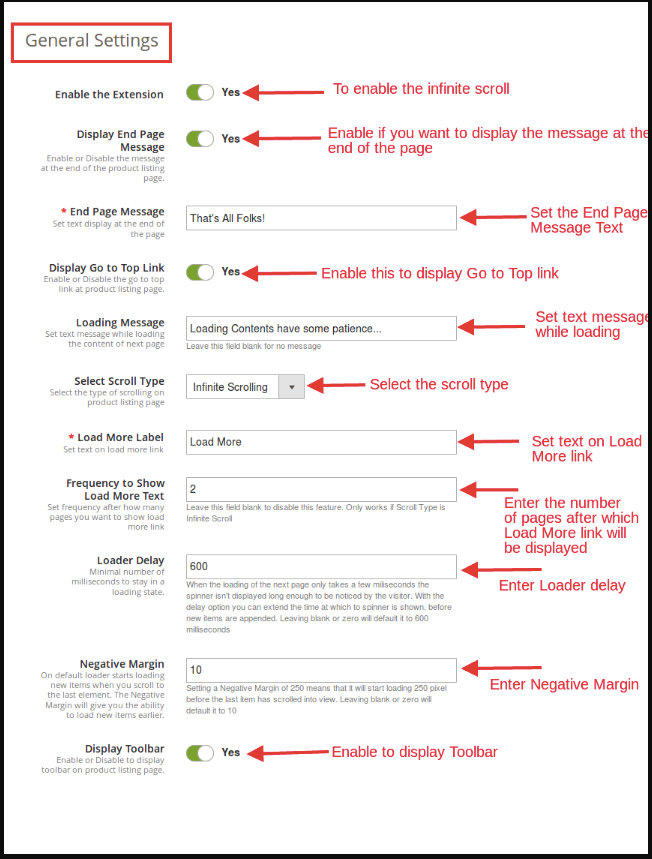
Enable/Disable: Prestashop store admin can Enable or Disable Abandoned cart module. In fact, if disabled, the cart abandonment will not be tracked and no coupon codes will be sent to the customers. Further, apart from this, the user can not see the content in other tabs.
Delete Customer Data on Delete Request: The Admin can enable the GDPR option. Furthermore, after enabling this option, the customer requests the admin to delete the data from their store. Therefore, the Module deletes the subscriber details automatically.
Note: If you are using the official GDPR module then you must need to enable this setting. Furthermore, the main purpose of this feature is to export and delete user data on PrestaShop GDPR module requests. In fact, it is also compatible with Prestashop GDPR Module developed by Knowband.
Mark Abandon Cart: The Delay time of Prestashop abandoned cart email follow up extension by Knowband is the period after which the cart considers to be abandoned. Further, the admin can mark the days after which the addon is assumed abandoned.
Enable Auto Email: This feature of Prestashop Abandoned cart recovery email addon will allow admin to schedule (Cron Setup) coupon email sending task or not.
Enable/Disable Mails functionality for Guest Customer: The functionality in question allows the administrator to share non-discount emails with guest customers when enabled.
Enable Testing Mode: Admin also has a Test mode feature to test the working of the module before making it live. Furthermore, add an email to the test mode section. In addition, mark the abandoned cart to 0 days and 0 hours to see the working of the Prestashop abandoned cart email follow up addon.
Enable UTM Parameters: Enable this by adding the UTM parameter in the module links so that customers can track the performance of the mail Google Analytics.
Enable/Disable Fix Coupon code functionality: The administrator can establish a fixed coupon code paired with a specific discount value. This ensures that each time a discount is shared via email, the system will exclusively consider the associated coupon code in the shared discount mail.
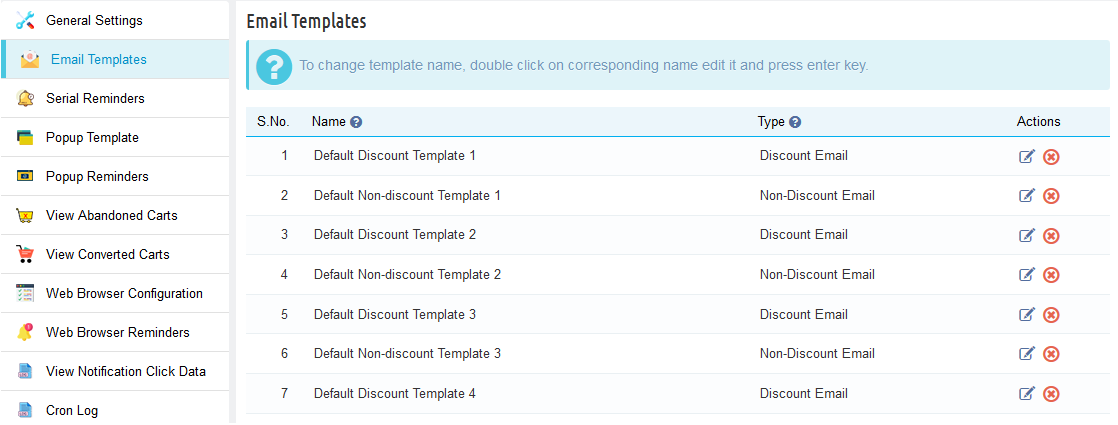
4.2 Email Templates- Readymade Email Templates
The Email Template tab of the Prestashop abandoned cart addon by Knowband has is the format of the email that will be sent to the customers. Further, this field of Prestashop reduces cart abandoned module contains some placeholders. In fact, whose values will be replaced when the email will be sent.
Prestashop abandoned cart addon offers 20 readymade email templates. Further, that can be sent to the customers. In fact, 10 with discount and 10 without discount.
Prestashop store admin can even add and customize N number of email templates. In fact, he can do it from the back-end of the Prestashop email follow up module.
4.2.1 Discount Email Template
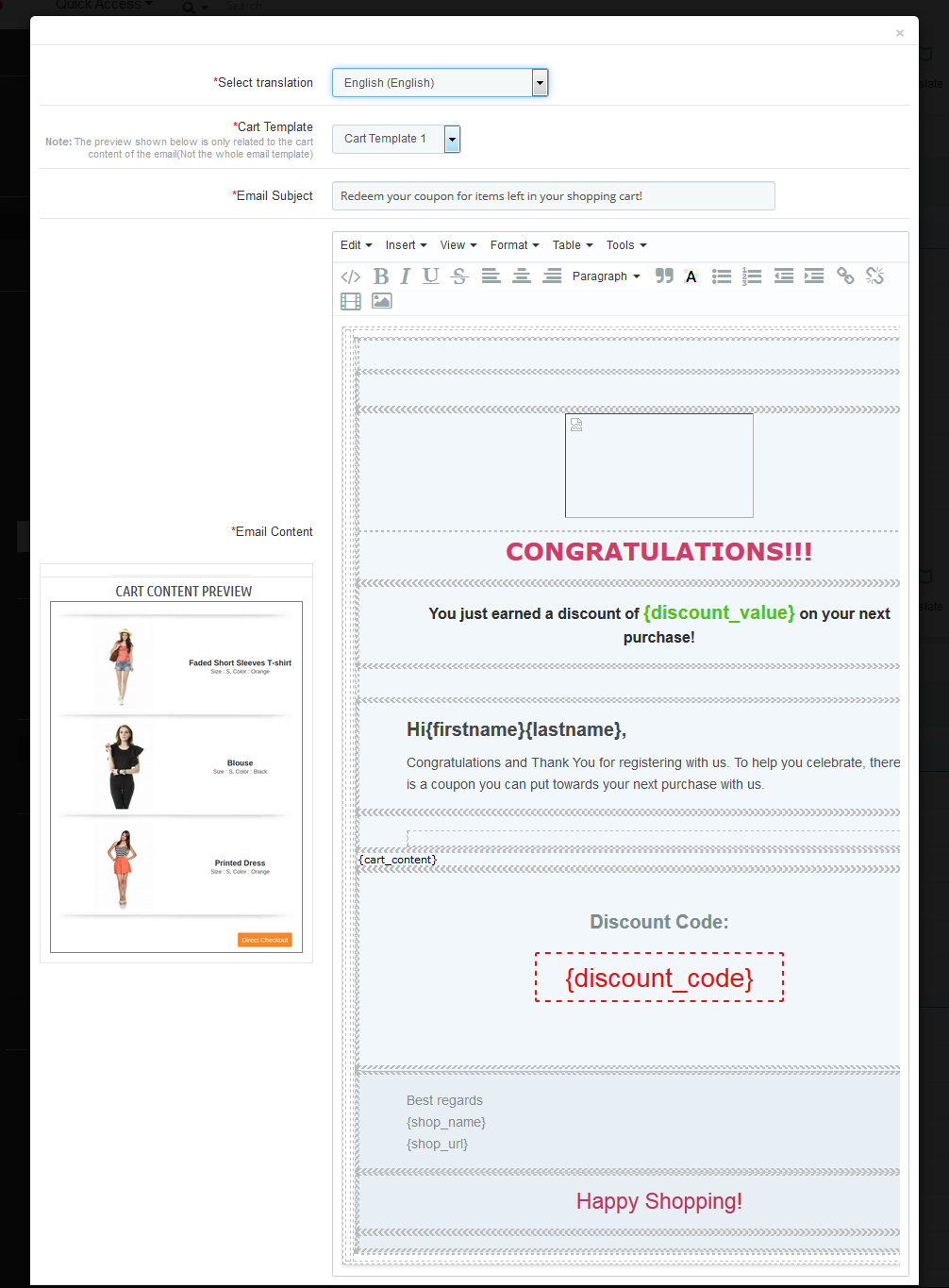
Discount Follow up Email Template will contain the information about the Abandoned products along with the coupon details like coupon discount, Coupon code, validity, etc.
On choosing the template type the form for the email template will appear, this form will have the default template content by default and the Prestashop admin can change it as desired and then click on the “Save” button to save the changes.
Prestashop Admin can also choose the type of cart template which he/she wants to use the email template. This Prestashop cart abandoned addon are 10 different cart templates which the admin can use to make the templates look good.
4.2.2 Non-discount Email template
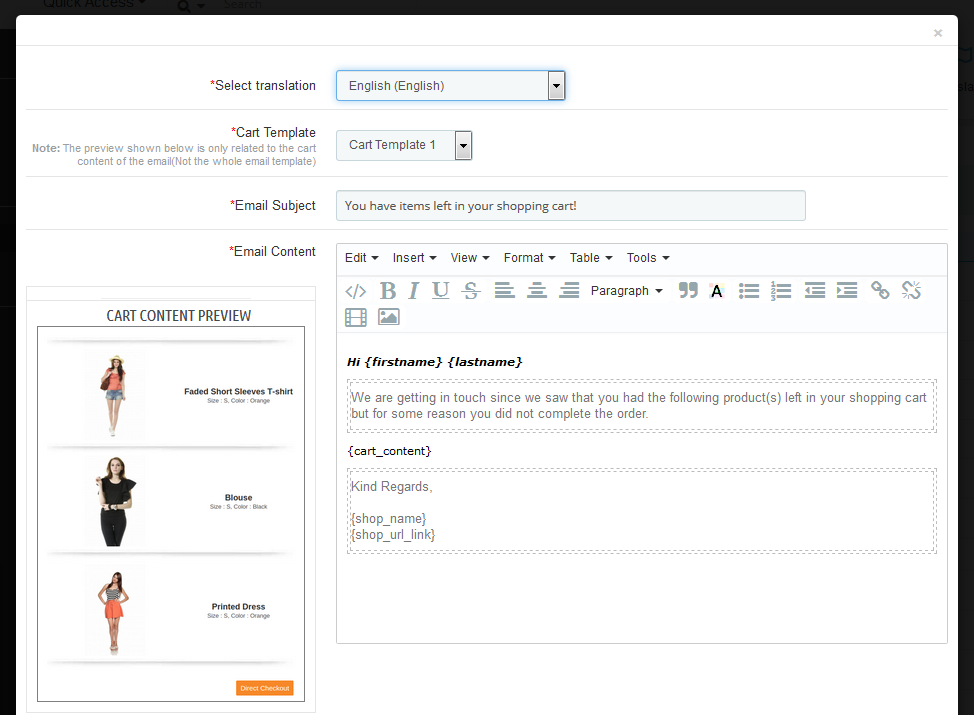
Non Discount Email Template will contain information about the Abandoned products. These emails are used as a follow up to the customers who abandon the shopping carts.
After saving the email template, it will appear at the bottom of the list of email templates, and to edit or translate the same the Prestashop admin has to click on the edit link in front of that email template.
Once the admin adds the email template, he has to translate it if there are any other languages (other than English) in the system by clicking on the edit button in front of the email template and choosing the desired translation language.
Note:
The Prestashop abandoned cart addon by Knowband provides an only English translation of the email templates, the admin has to manually translate the templates to any other language that is required.
4.3 Serial Reminders
There are two types of reminders that are addable to the Knowband Prestashop cart abandoned cart addon:
Reminder with a discount (This type of reminder contains a discount coupon with a discount type email template attached to it).
Reminder without discount (This type of reminder is just a regular follow-up to the customer about the abandoned cart. In addition, have a non-discount type email template attached to it).
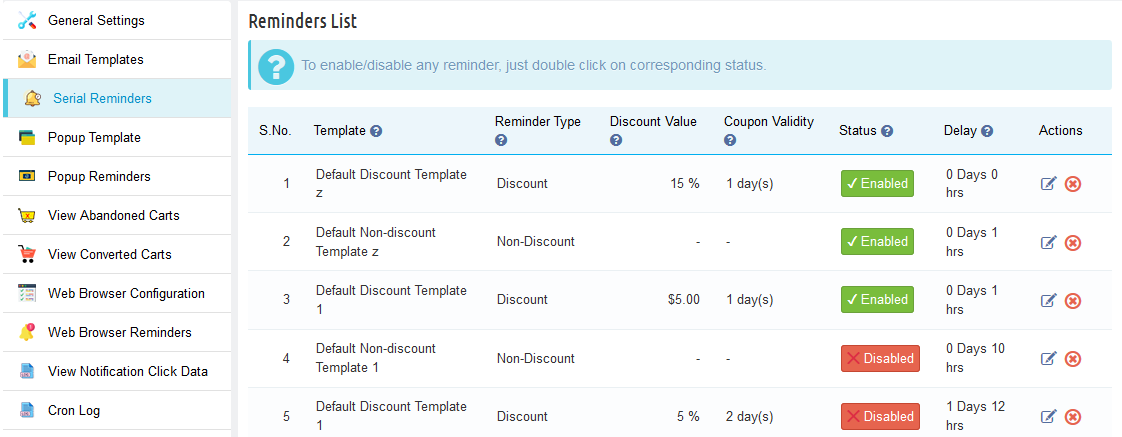
In the “Serial Reminders” tab the Prestashop admin can add various reminders (both discount and non-discount) as desired. This tab contains a list of all the serial reminders present in the system.
Prestashop store admin can edit or remove any reminder by clicking on the Edit or Remove action button in front of the reminder.
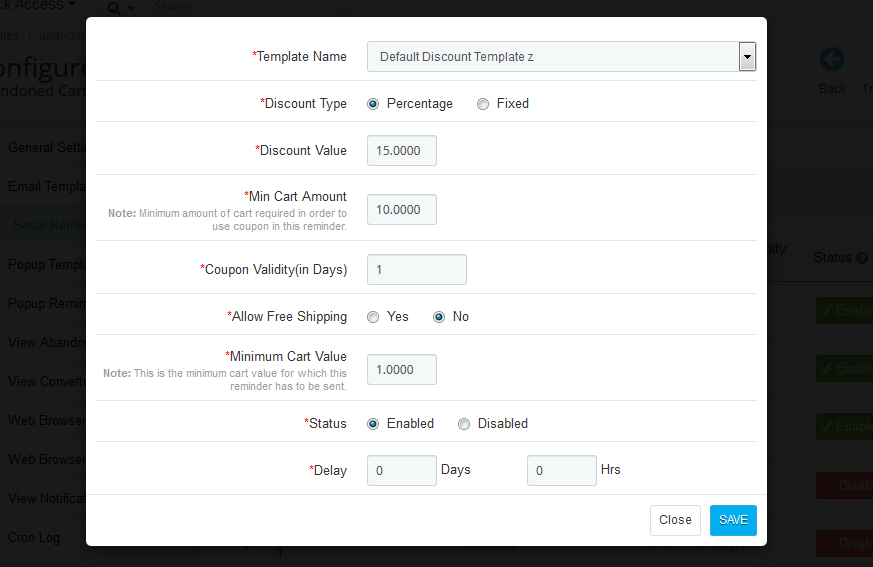
On clicking on the button, you’ll get a pop-up as shown below:
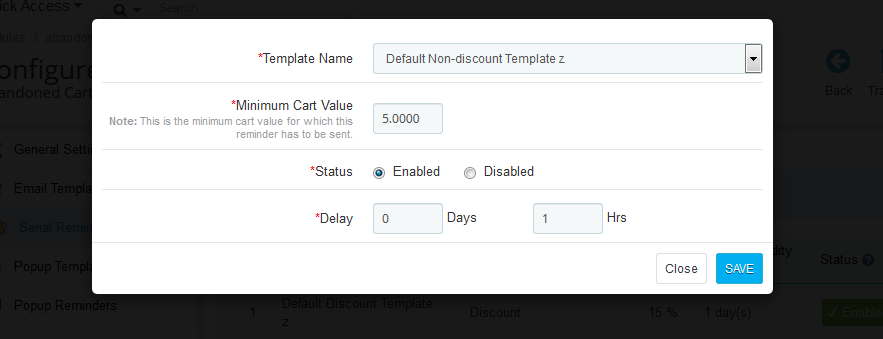
Non-Discounted Serial Reminder Template:
Template Name: The templates created in the Email Template tab of the Prestashop abandoned cart module by Knowband will list here. Select anyone from the drop-down list.
Discount Type: This field of Prestashop abandoned cart email follow up extension allows the admin to select any one option from, Percentage or Fixed type.
Discount Value: This field of Prestashop abandoned cart addon by Knowband enables the admin to enter the discount amount or percentage that you want to offer.
Min. Cart Amount: In this field of Prestashop cart abandoned addon by Knowband, the store seller will have to enter the minimum cart amount required to avail of the offer.
Coupon Validity: This field of the Prestashop abandoned cart module offers the admin to enter the number of days for which the coupons will be valid.
Allow Free Shipping: Select whether you want to allow free shipping or not.
Minimum Cart Value: This tab allows you to add a minimum cart value to use the coupon code in the reminder.
Status: Select Enabled this option of Prestashop abandoned cart addon, if you want to enable this serial reminder.
Delay: This field of Prestashop email follow up extension provides the admin to enter some details. For instance, the number of days, from the day when the customer adds the product in his/her cart, and, after which this reminder will be sent.
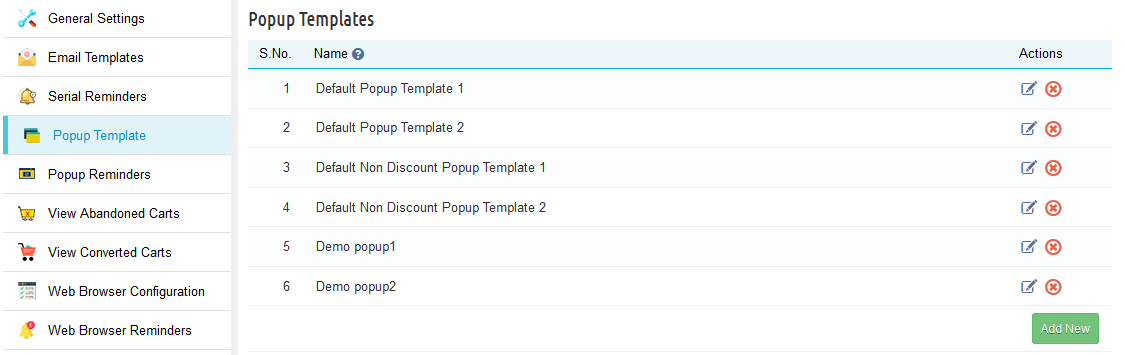
4.4 Popup Templates
The Popup Template tab of the Prestashop abandoned cart addon by Knowband has is the format of the popup reminder that will display to the customers when they are on the site.
Prestashop Abandoned cart addon allows the PrestaShop admin to create as many popup templates as they want. They get in total 4 templates, out of which 2 are default templates and the other 2 are non-discounted templates.
4.4.1 Discounted Template:
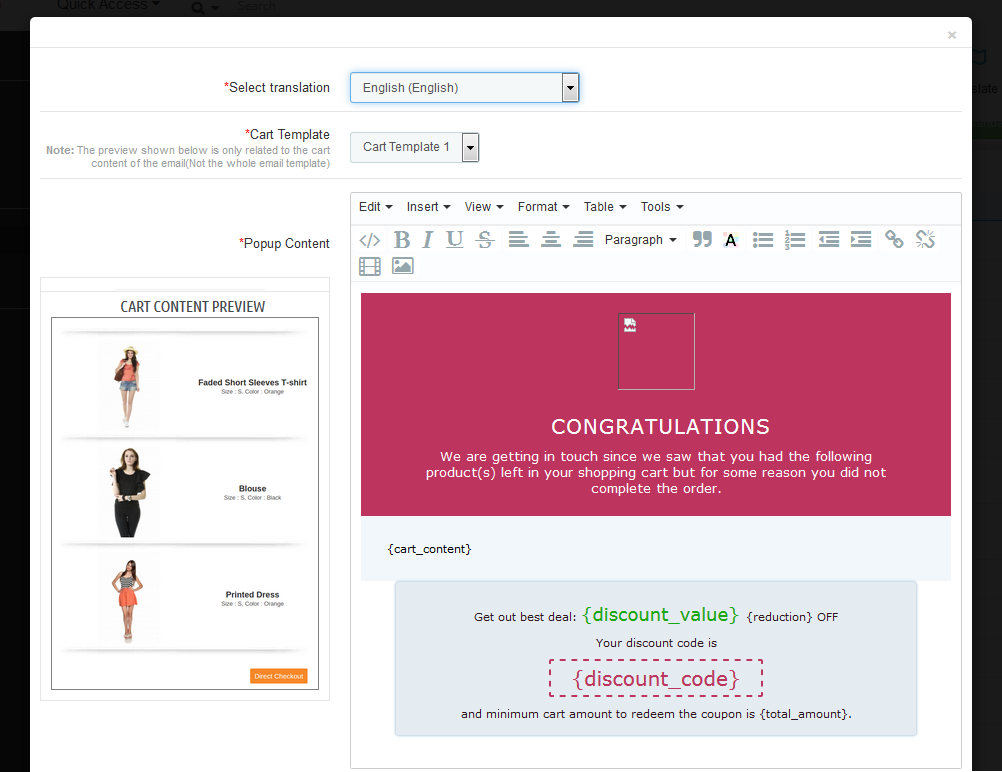
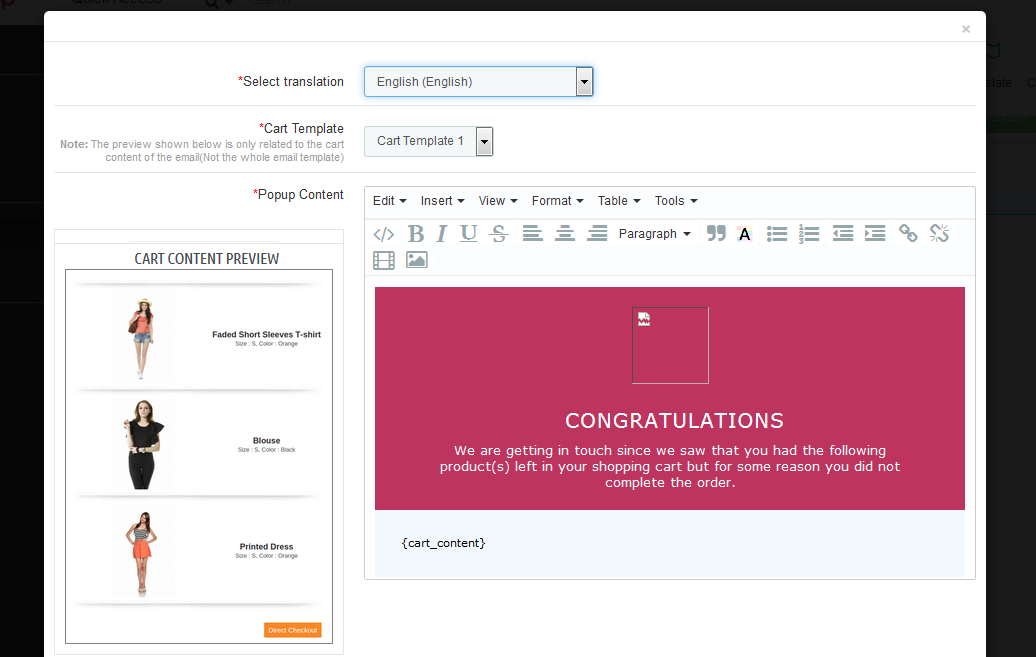
On selecting the discounted template, a template form will appear, in which the admin will have to choose a translation language and cart template which he wants to display on the store. They can also customize the content of the popup the way they like.
4.4.2 Non-Discounted Template
If the admin wants to send a non-discounted popup reminder then he can select the non-discounted template and customize it accordingly.
4.5 Popup Reminders
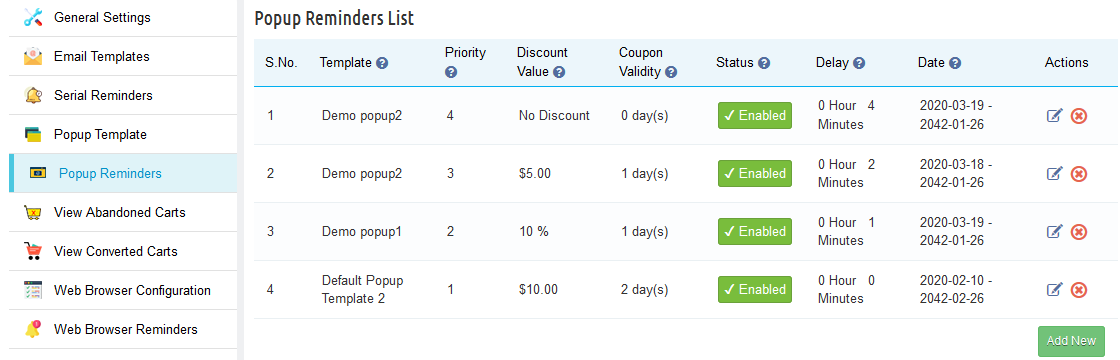
Prestashop abandoned cart reminder addon offers to track the popup reminders templates active on the store front end. Here the admin can create as many popup reminders as they want.
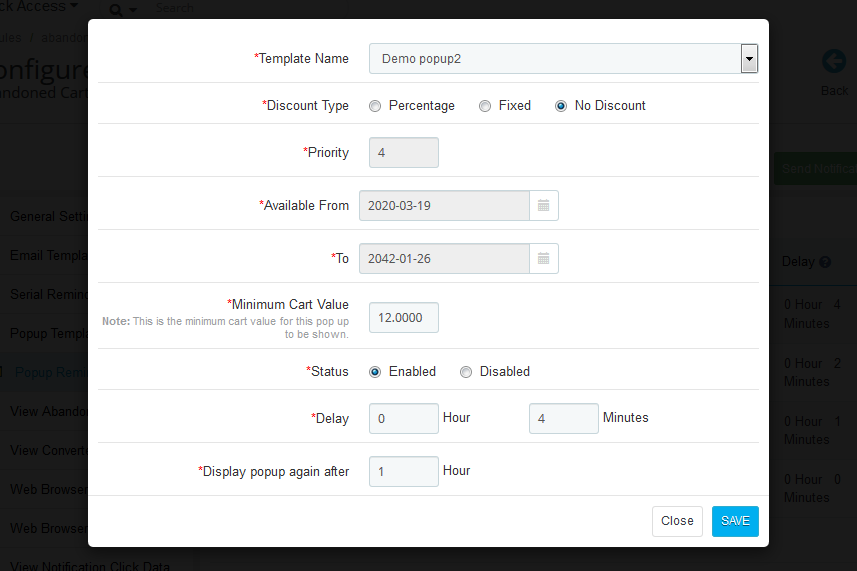
On clicking the add new button, the admin will see a popup as shown below:
To create a popup reminder, the admin has to click on add new after which he has to fill in the following criteria
Template Name: The templates created in the Popup Template tab of the Prestashop abandoned cart module will list here. Select anyone from the drop-down list.
Discount Type: This field of Prestashop Abandoned cart addon allows the admin to select any one option from, Percentage, Fixed, or no discount type.
Discount Value: This field of Prestashop abandoned cart addon by Knowband enables the admin to enter the discount amount or percentage that you want to offer.
Priority: The admin can set the priority value of the reminder as well. For example, if they set the priority as 1 then this popup reminder will display 1st to the customers.
Available from and to: In here, the PrestaShop admin has to enter the validity period of the discount.
Coupon Validity: This field of the Prestashop abandoned cart module offers the admin to enter the number of days for which the coupons will be valid.
Allow Free Shipping: The admin can customize whether you want to allow free shipping or not.
Min. Cart Amount: In this field, the store seller will have to enter the minimum cart amount required to avail of the offer.
Status: Select Enabled if you want to enable the popup reminder otherwise disable it.
Delay: This field of PrestaShop email follow up extension provides the admin to enter the number of days, from the day when the customer adds the product to his/her cart, after which the popup reminder will display to the customers when they visit the store.
Display popup again after: The admin can choose to display the popup to the same customer after a certain number of hours. Further, by filling it in this field.
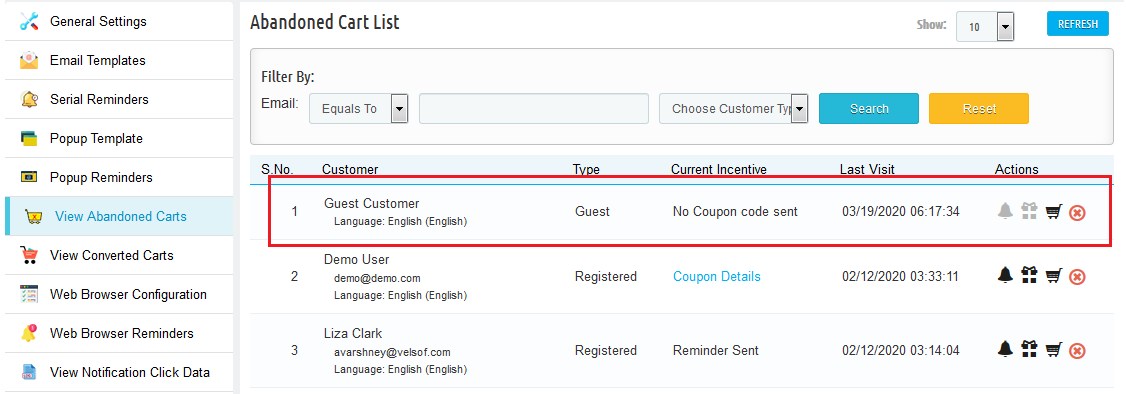
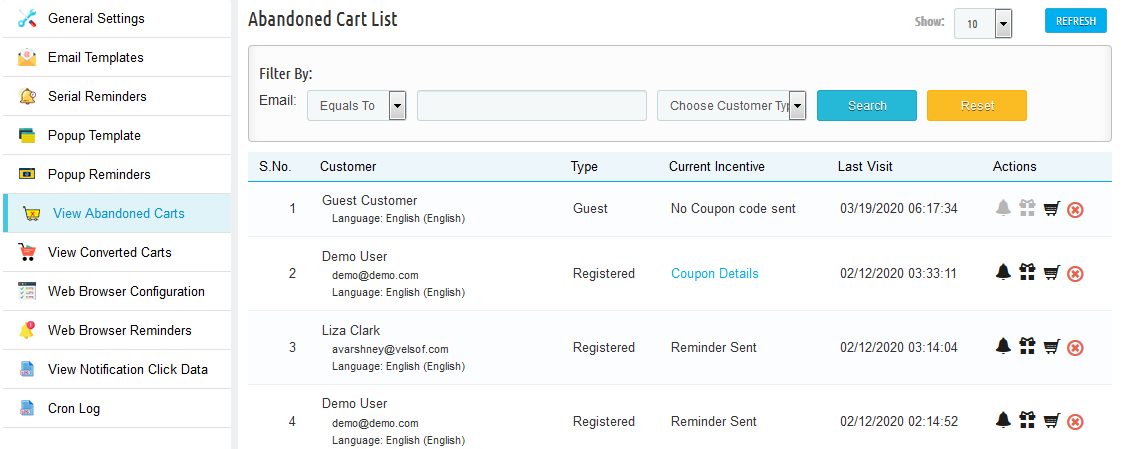
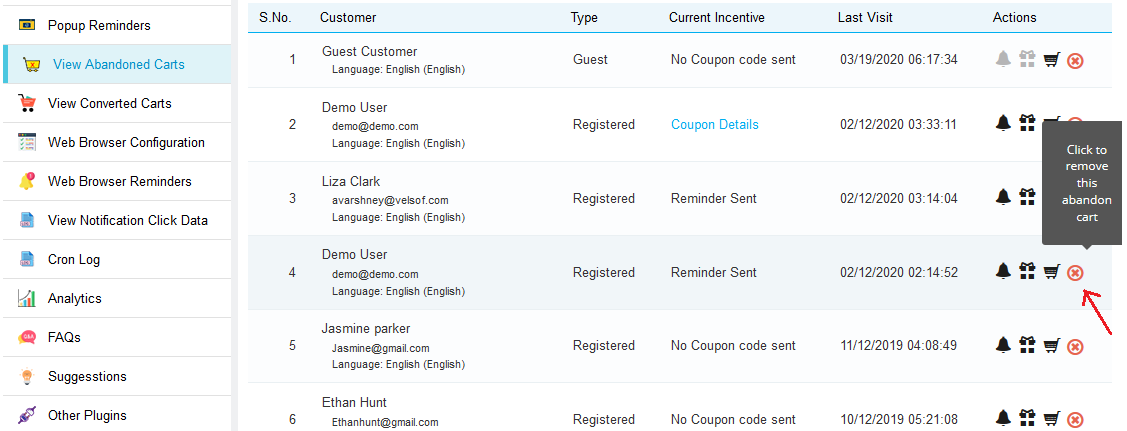
4.6 View Abandoned Carts
The abandoned cart tab contains a list of all the abandoned shopping carts in your store. Furthermore, the syncing of the list is done through Cron Instruction. Further, based on the delay time set for abandoned cart by the admin.
The list can also sync by clicking on the “Refresh” button at the top of the list.
The list contains pagination and several filters as well to sort and view the list more efficiently.
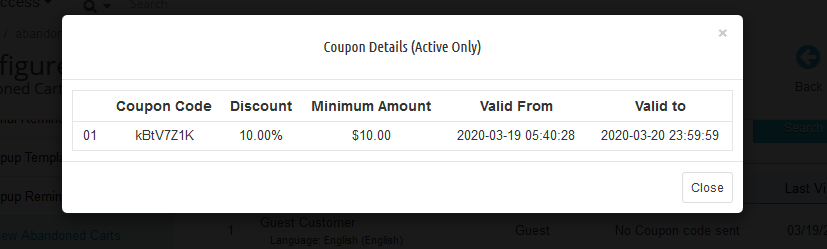
View Coupon Details
The details of the coupon sent to the customer are visible by clicking on the “Coupon Details” link in front of the abandoned cart.
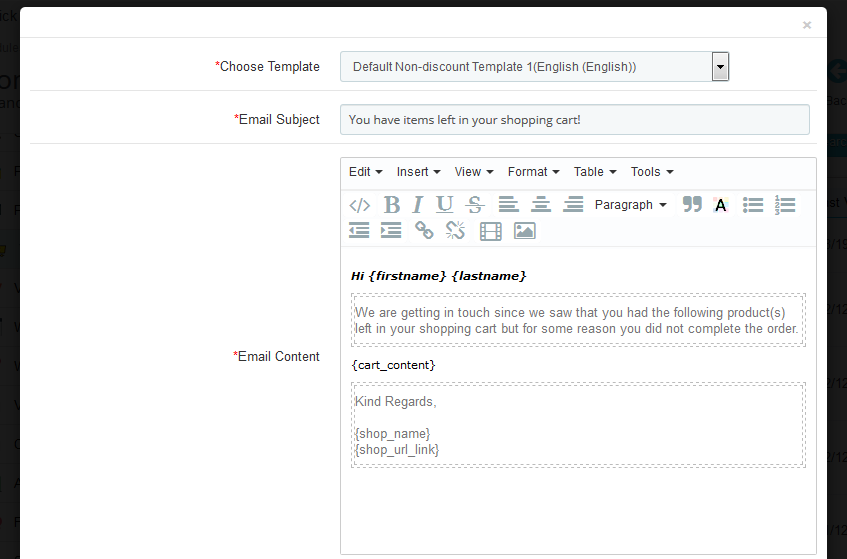
Send Follow up EMail without Coupon
Click on the bell icon of this Prestashop abandoned cart addon. Furthermore, the admin can send reminders regarding the products saved in the cart of the customers. In fact, on clicking the same a pop-up will appear having all the fields that will be sent in the follow-up email.
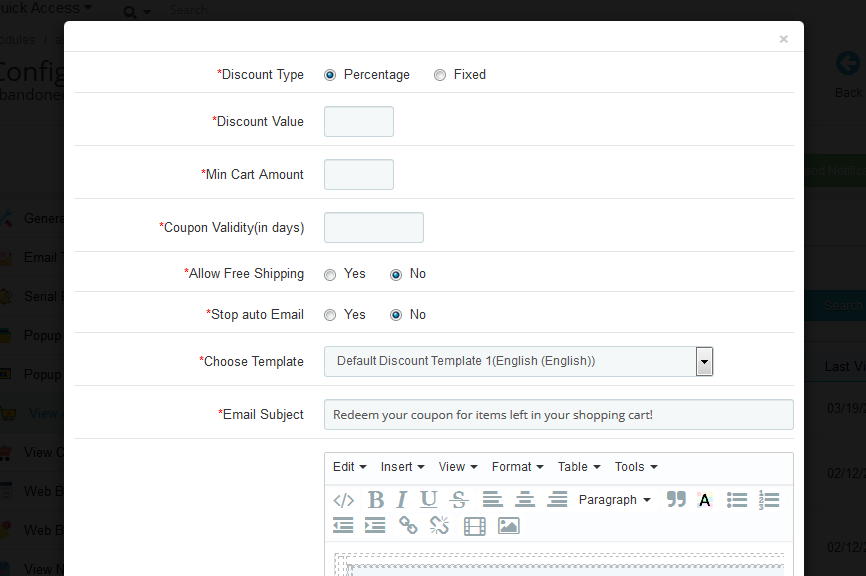
Send follow up Email with Coupon
To send the follow-up email to the customer regarding the shopping cart abandonment with a discount coupon the admin has to click on the “Gift Icon” in front of the desired abandoned cart. In fact, on clicking the same a pop-up will appear having all the fields that will be sent in the follow-up email.
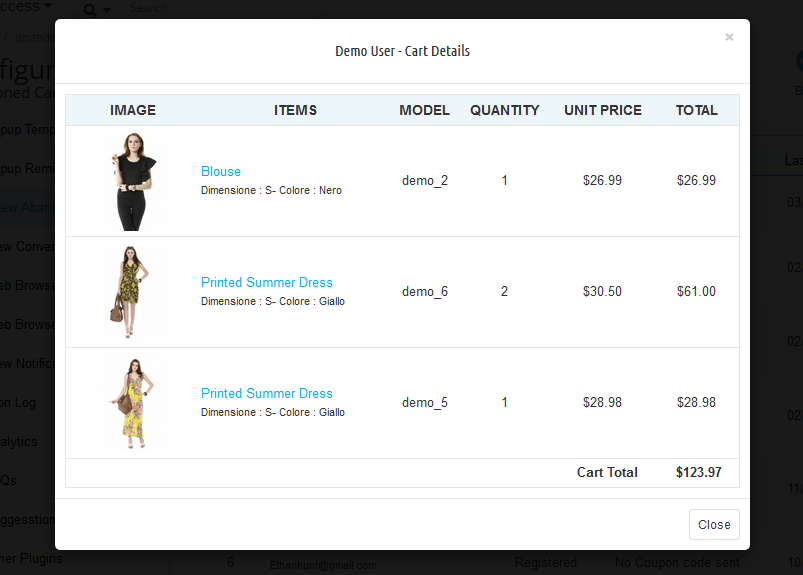
View Cart Details
To view the details about the abandoned cart the admin has to click on the “Cart Icon” in front of the desired cart. Further, a pop-up will appear having all the details of the cart.
Delete Abandoned Cart
To delete any abandoned cart, the admin has to click on the “Remove Button” in front of the desired cart. Therefore, a confirmation pop-up will appear asking for confirmation of the deletion. Further, once confirmed the abandoned cart will be gone forever.
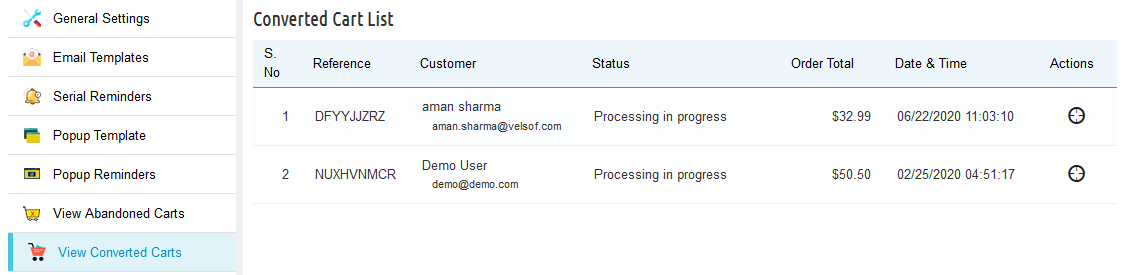
4.7 Converted Carts
The Conversion Rate tab of Prestashop abandoned cart addon by Knowband enlists all converted orders for registered customers. Further, or we can say that the abandoned carts for whom the order has been placed after the reminder mail are sent.
Note: The abandoned cart is considered as converted only if the customer places an order for that cart after a reminder mail has been sent.
4.8 Web Browser Configuration
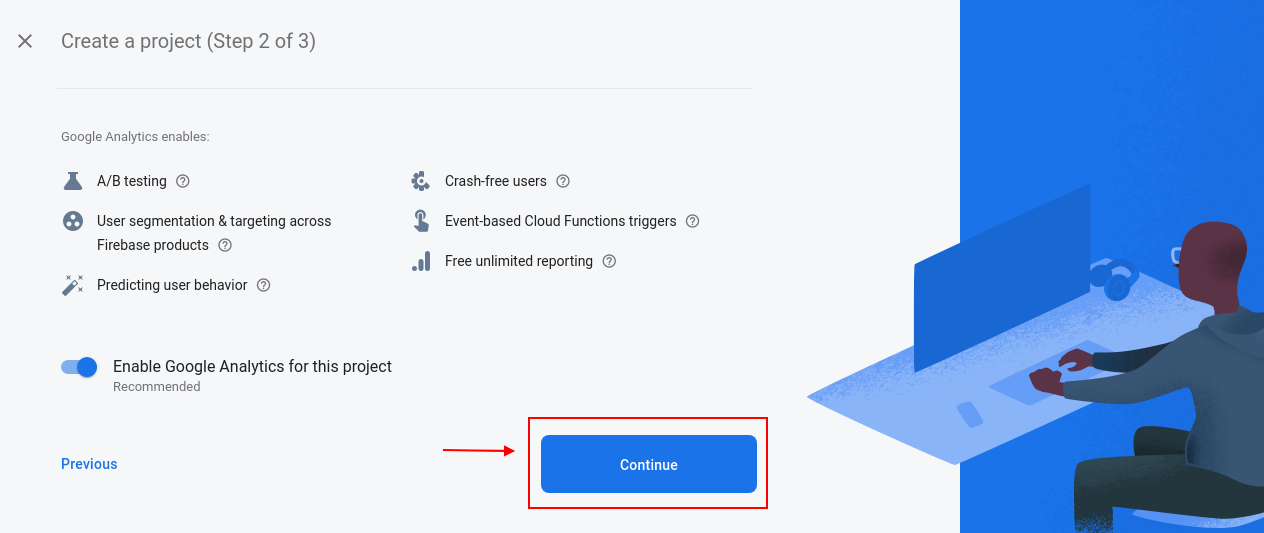
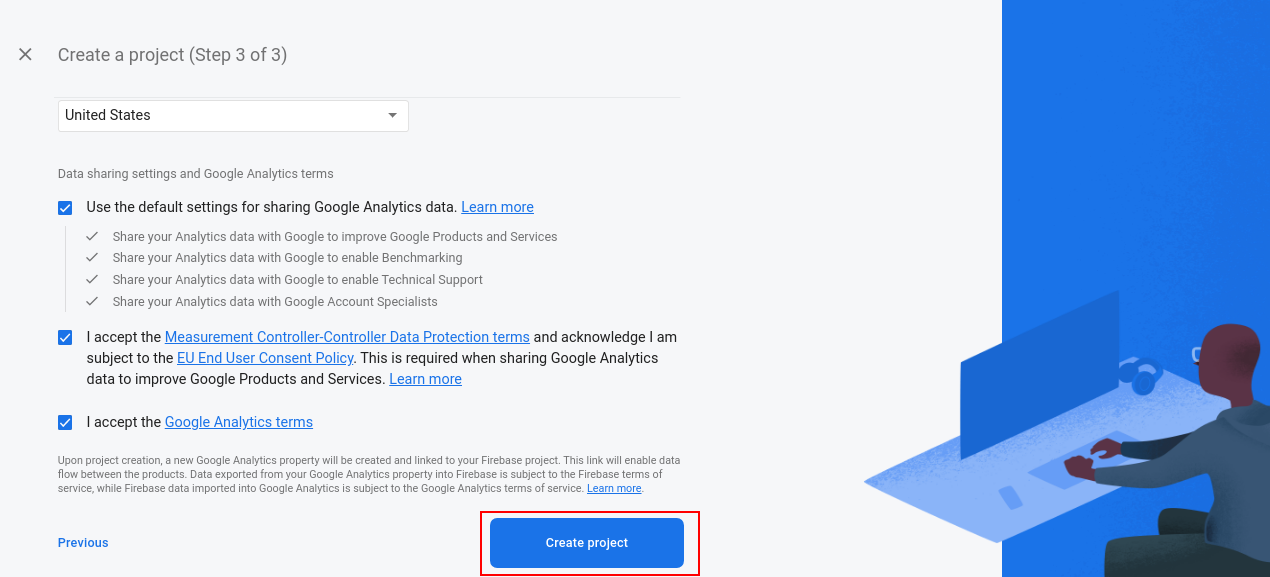
Abandoned Cart Serial Reminder module offers to configure a web browser reminder. The admin can integrate a web browser reminder by generating an API Key. To configure a firebase API following are the steps:
1. Visit the URL: https://console.firebase.google.com/u/0/?pli=1
2. Click on ‘Create a Project’
3. Enter your project name, check the terms and conditions. In addition, click on the continue button as pointed in the below screenshot.
4. Click again on the continue buttons pointed in the screenshot below.
5. Select your location. Further, hover on the? Mark to display the description and click on the continue button as pointed in the below screenshot.
6. Click on continue again
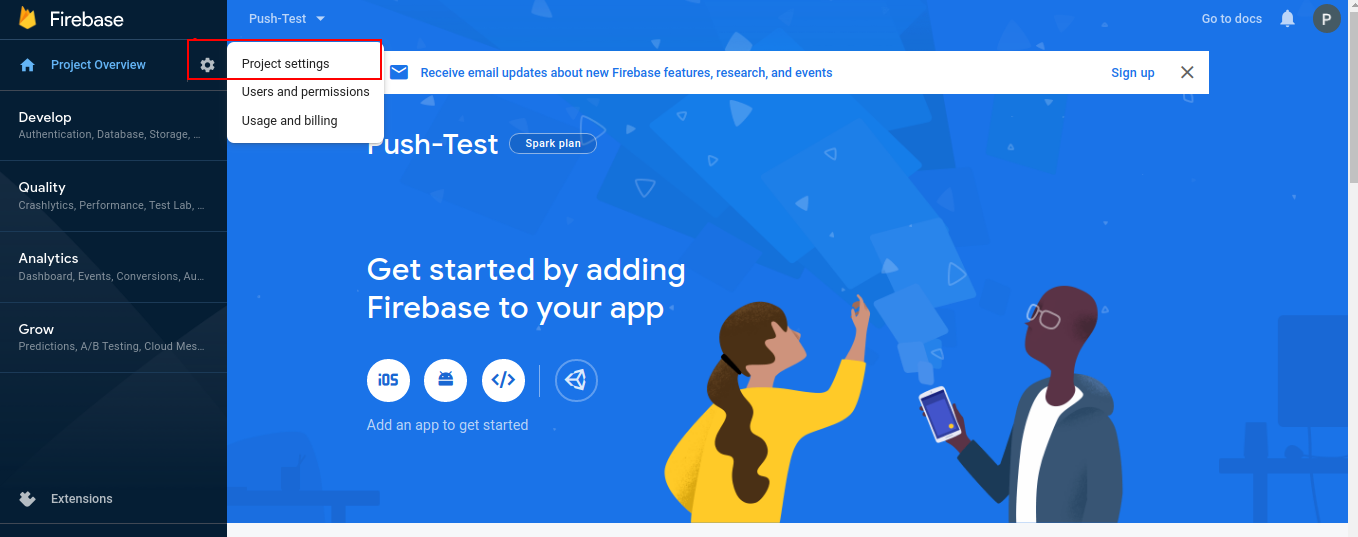
7. Click on the Project Setting button as pointed in the screenshot below.
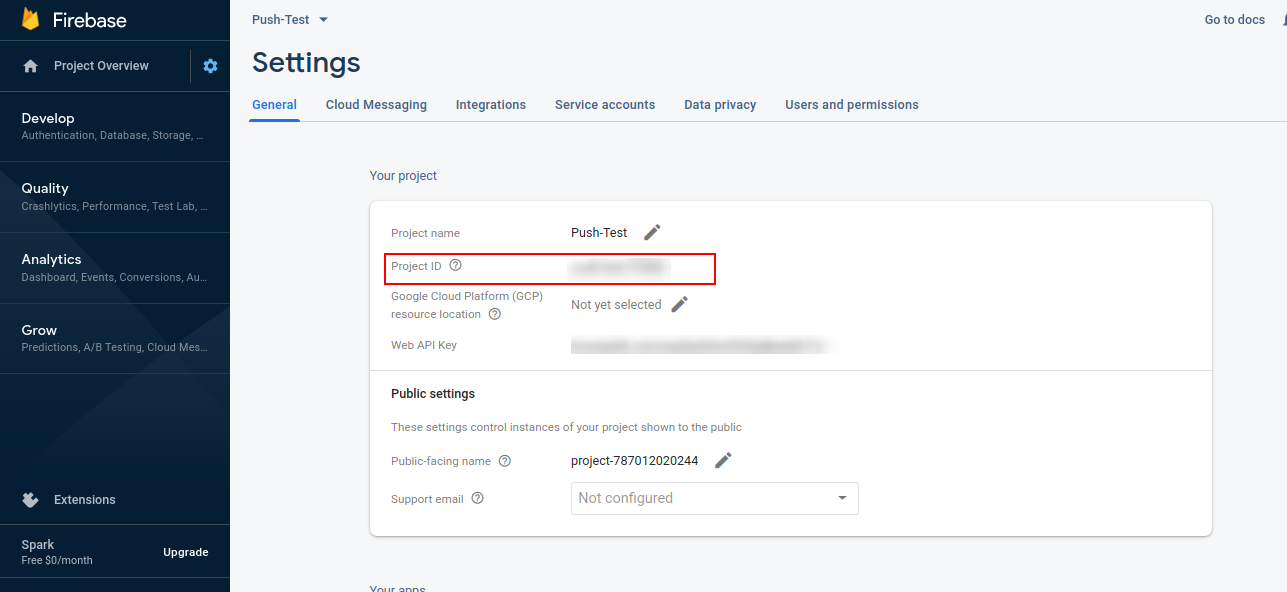
8. Copy the project ID from here and paste it into [ Web browser configuration Project ID ]
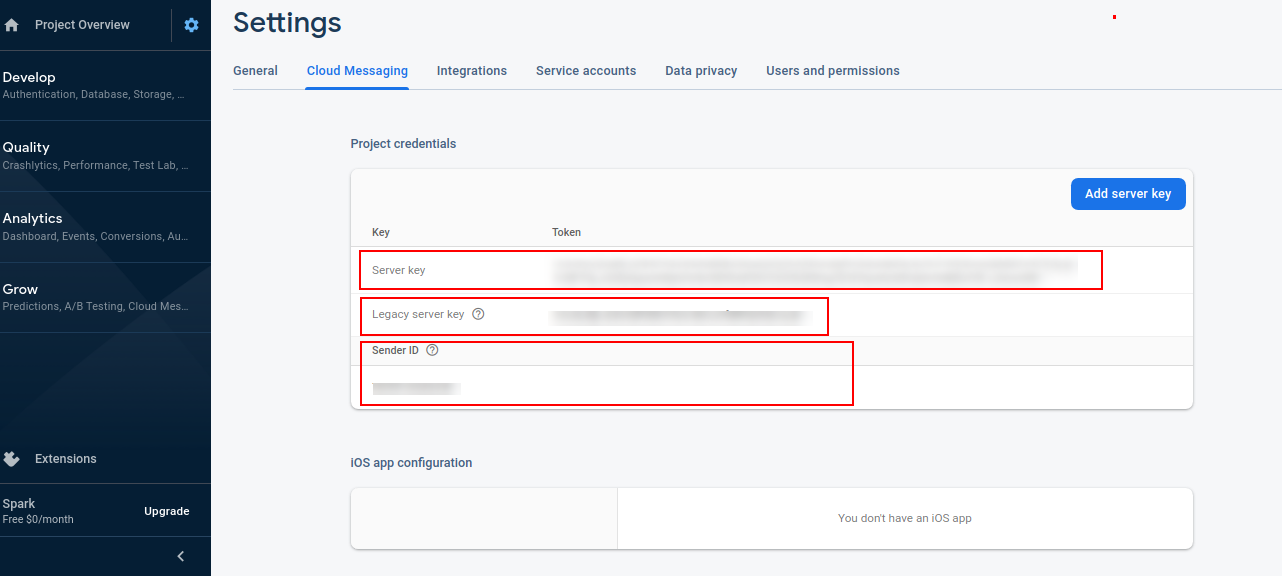
9. Copy the server key and paste it into [ web browser configuration- server key]
10. Copy the legacy server key from here and paste it into [ web browser configuration- API Key]
11. Copy the sender ID from here and paste it into [ Web browser configuration- Messaging sender ID]
4.9 Web Browser Reminders
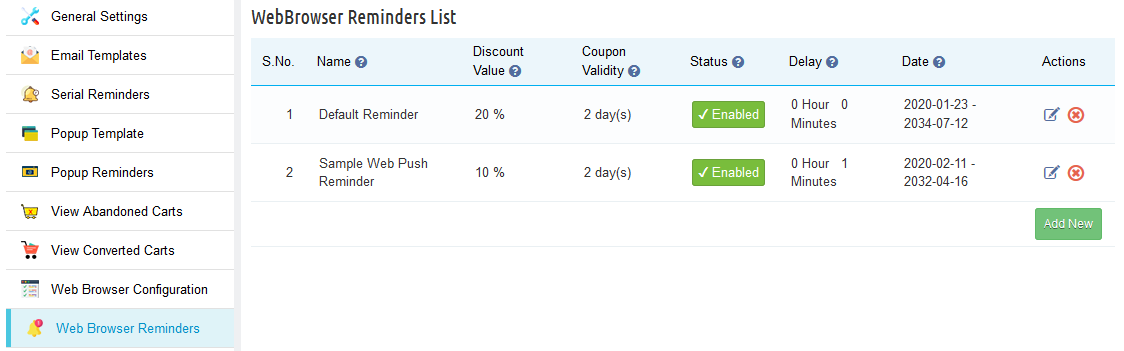
In the “Web Browser Reminders” tab the Prestashop admin can add various reminders (both discounted and non-discounted) as desired. In fact, this tab contains a list of all the web browser reminders present in the system.
Furthermore, the Prestashop store admin can edit or remove any reminder by clicking on the Edit or Remove action button in front of the reminder.
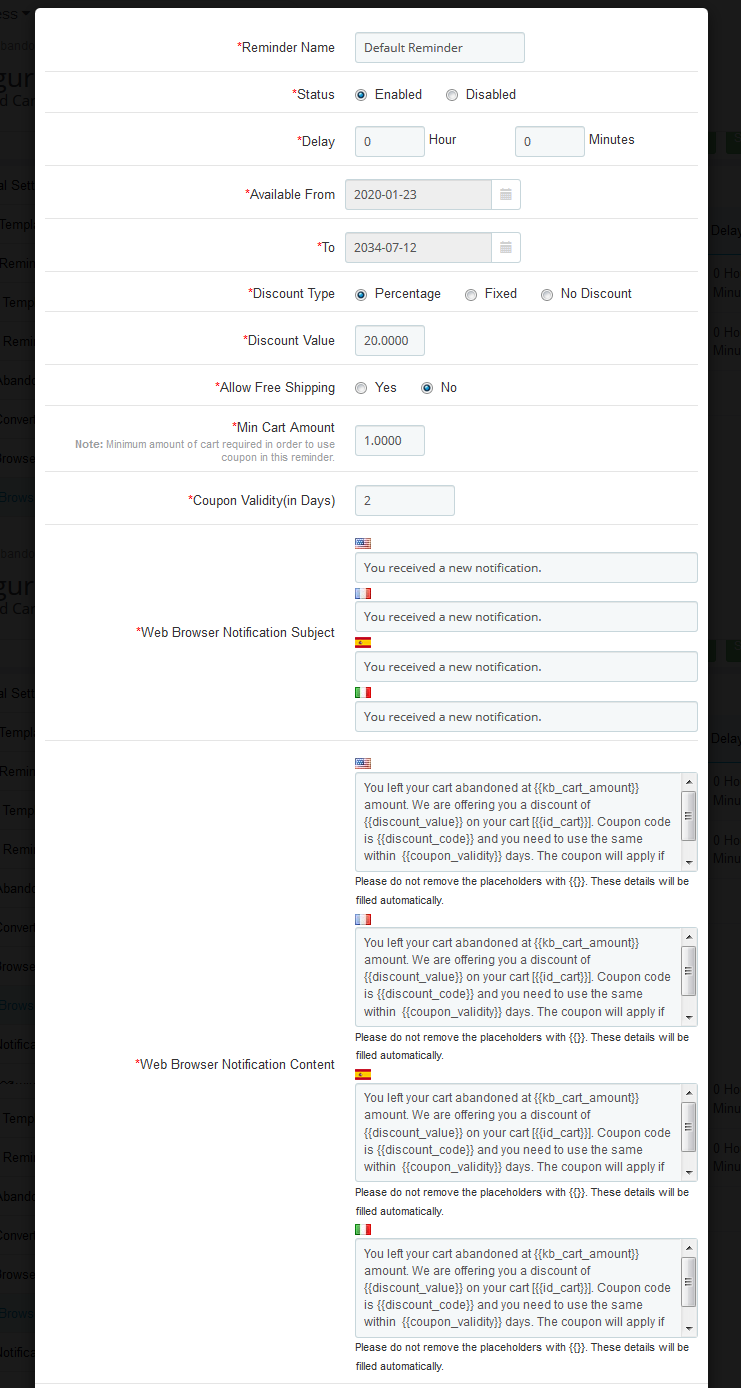
On clicking on the button, you’ll get a pop-up as shown below:
On choosing a reminder list form will appear. Further, the admin has to choose a reminder name. In fact, this form has the default notification subject and notification content. Moreover, the Prestashop admin can change it as desired. Furthermore, then click on the “Save” button to save the changes. Therefore, the Prestashop Abandoned cart addon offers multi-lingual support to the merchants. In fact, they can customize the subject and content in 3 different languages.
4.10 View Notification Click Data
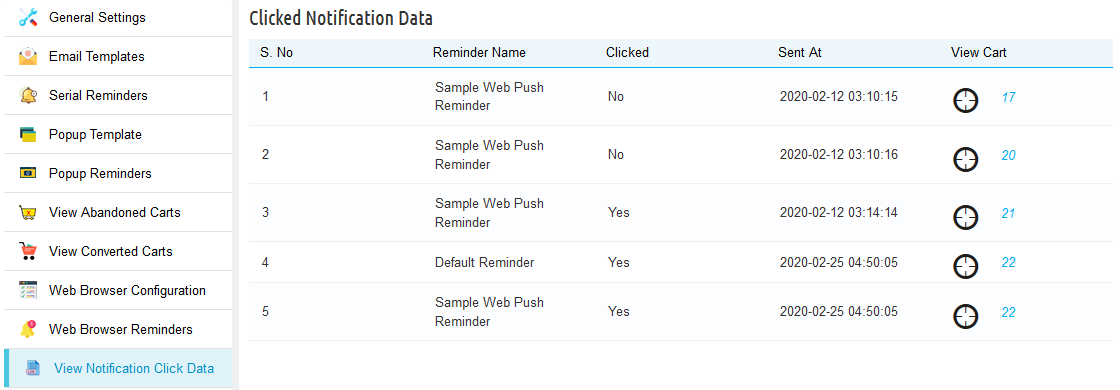
Here, the admin can view if the customers have taken any action on seeing the browser popup. Further, they can check if the customers have clicked on the reminder popup or not, and more. For instance, the time of sending the popup, and the cart summary which will include customer information, products in their cart.
4.11 Cron Log
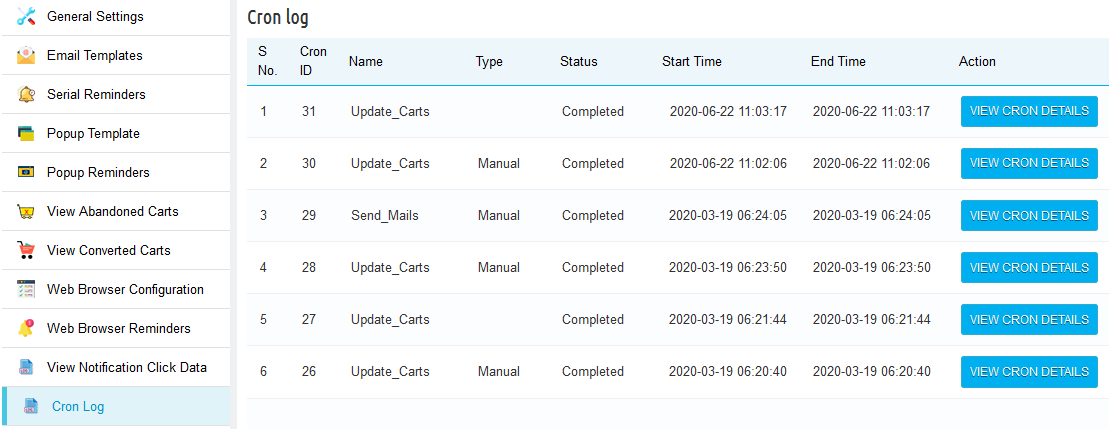
Prestashop abandoned cart reminder provides a cron log functionality to check if the cron executes successfully or not. In fact, they can also check the cart details of the customers as well.
4.12 Analytics – Shopping cart abandonment
The Analytics tab of the Prestashop email follow up module shows the overall insights of the store in a graphical interface.
4.12.1 Abandon cart vs Converted cart and Amount
This graph of Prestashop Abandoned cart recovery email addon by Knowband shows a do-nut chart which will display the information. For instance, the percentage of abandoned shopping carts on the store. Moreover, the percentage of abandoned shopping carts converted into orders.
4.12.2 Number of Carts and Cart Amount VS Time Interval
This chart of Prestashop abandoned cart addon by Knowband gives the overview of the total abandoned carts vs the carts converted. In addition, the amount abandoned vs the amount converts in the given period.
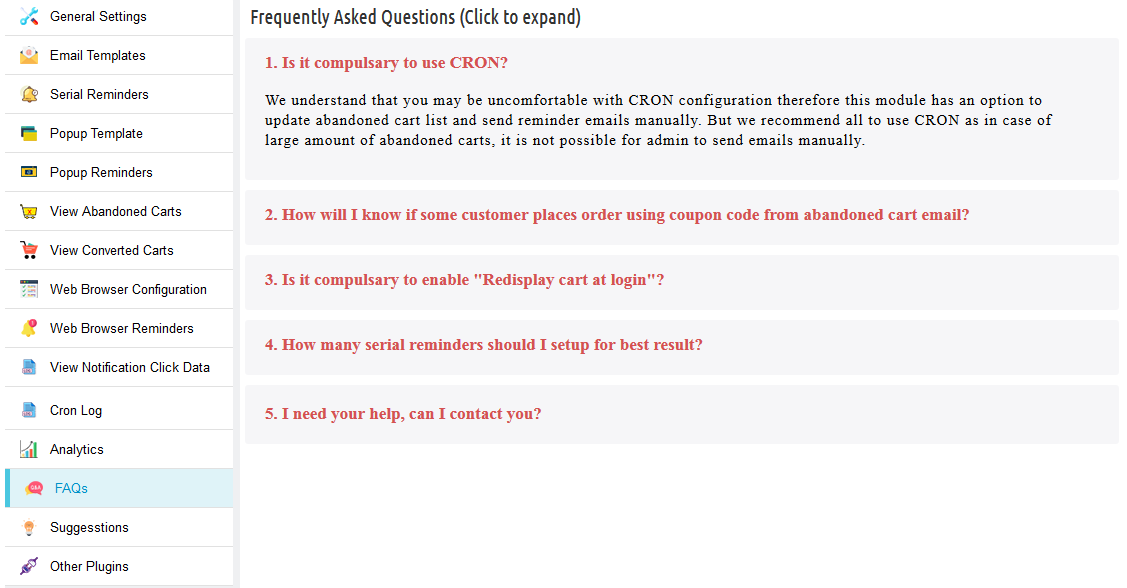
4.13 FAQs
This Prestashop abandoned cart addon by the Knowband tab contains several questions (with answers to them) that the customers ask. In fact, we recommend you go through the questions before raising any ticket for this addon.
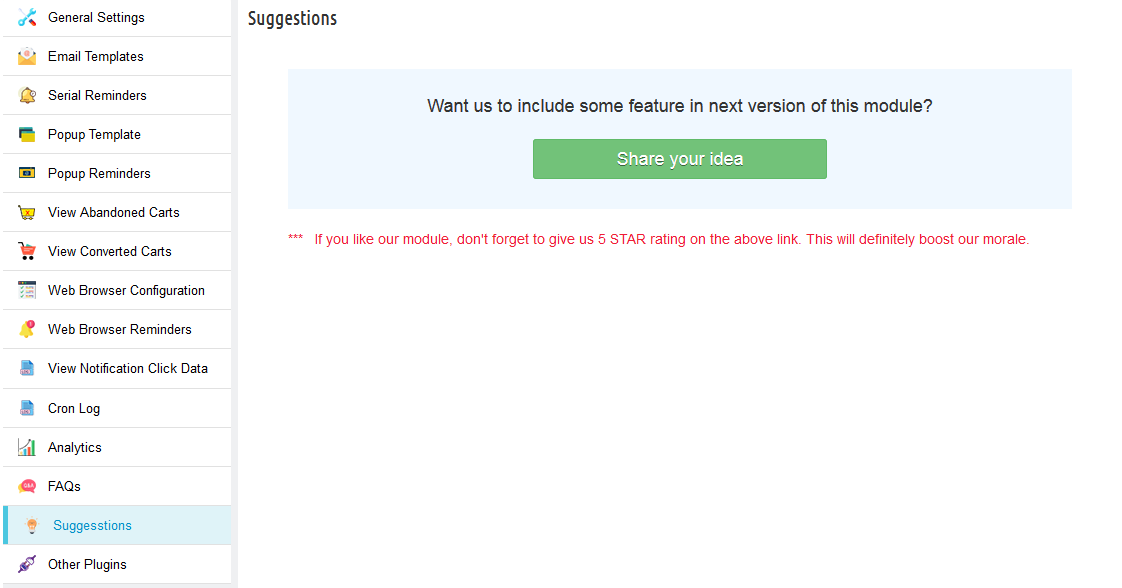
4.14 Suggestions
In case you want to give any suggestions for some new features to be included in the new version of this Knowband Prestashop cart abandoned module then you can use this tab.
4.15 Other Plugins
This Prestashop email follow up by the Knowband tab redirects to our developer page having a list of other plugins developed by us. In fact, if you like this Knowband Prestashop abandoned cart addon then you can try our other addons as well.
5. Recommendations
– If Prestashop Abandoned cart email follow-up addon is not working after installation then please check permissions on modules folder. Further, the folder should be writable. Please make the folder permission to 755.
– It is necessary to add the CRON instructions to your cron without that this Prestashop abandoned cart addon is not as useful.
– Make sure that the Cart Re-Display Setting (Preferences -> Customers -> Cart re-display at login) is ON otherwise the Prestashop email follow up addon will not work as expected.
The General Data Protection Regulation (GDPR) is a replacement for the European Union Data Protection Directive which will be enforced on May 25, 2018. The new directives have been passed, as per the new technologies and business advances; a new approach to protection of the personal data has been introduced.
GDPR provides more control to the customers to control their personal data. Customers have the right to request for the deletion of the data. It is mandatory for the store admin to honor the customer request within 30 days. The Prestashop GDPR addon – Data deletion and data anonymization allows the store admin to provide an interface to the customer so that they can request for the deletion of the data under the GDPR directives.
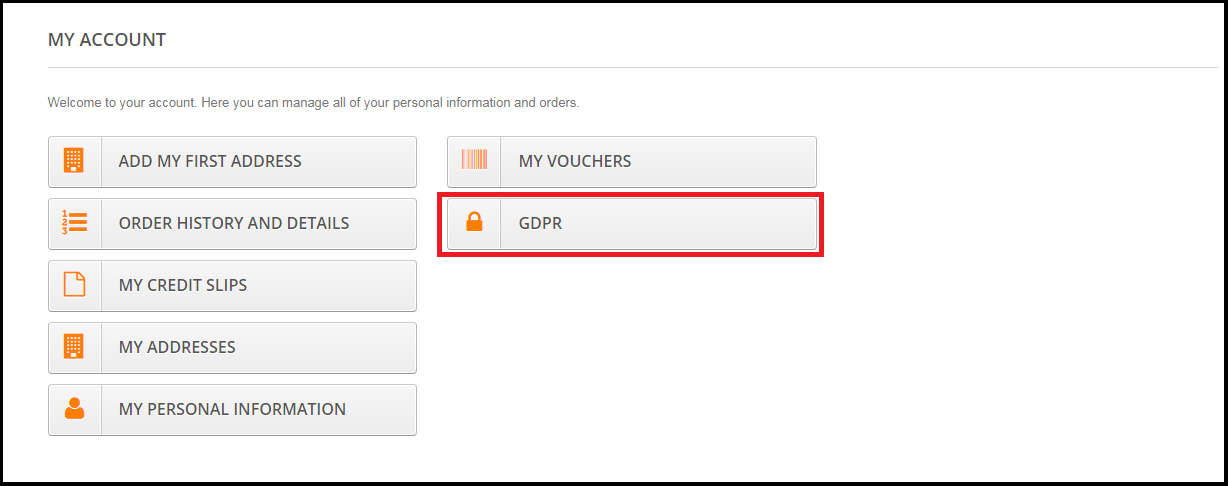
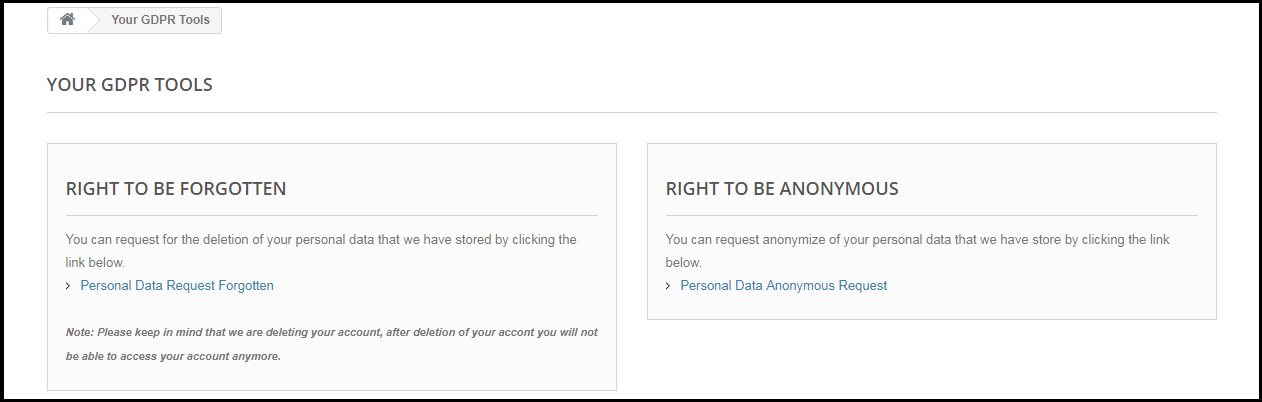
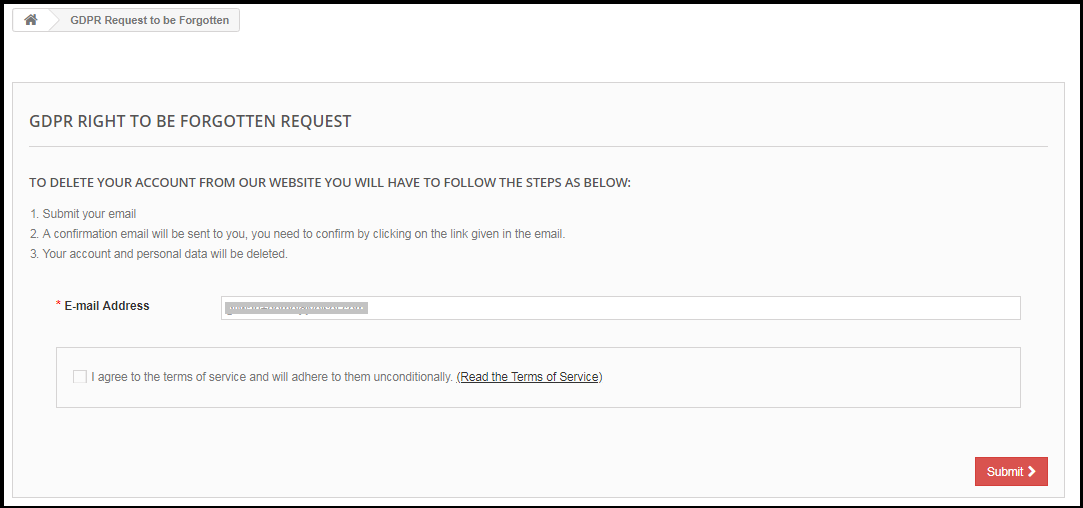
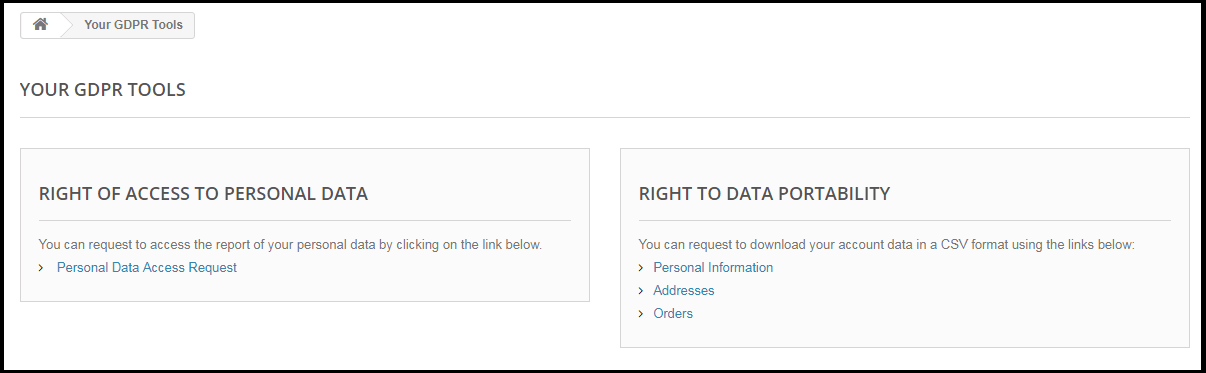
The customer-end interface of the Prestashop GDPR Module –
As per the requirement, the admin has the choice to enable/disable any of these rights.
Installation of Prestashop GDPR Module
After placing your order for the Prestashop GDPR module you can download the zip file of the module. This zip file contains:
1) GDPR.zip (source code of the module)
2) User Manual
In order to install the extension in your Prestashop store follow the below-mentioned steps:
1) Unzip the gdpr.zip file.
2) Copy the entire content, that is, the files and folders of the unzipped folder. Paste the same into the “Modules” folder of your store’s directory. Follow the below-mentioned address path – Root Directory/modules/.
3) The Prestashop GDPR plugin is all set to be installed in the store. Go to the Store Admin and then to ‘Modules and Services’.
4) Click on the “Install” button just next to your module. It would show a pop-up for your confirmation. Click on “Proceed with the installation” option. This step will install the module and show notification – “Module(s) installed successfully”.
5) Once the installation is complete, you will get the access to the admin interface of the module by clicking on the “Configure” button.
Admin Interface of Prestashop GDPR Addon
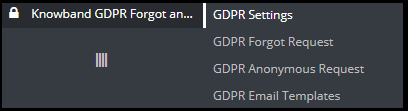
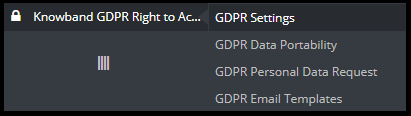
In the admin section of the Prestashop GDPR Customer rights module following options are available:
1) GDPR Settings
2) GDPR Forgot Request
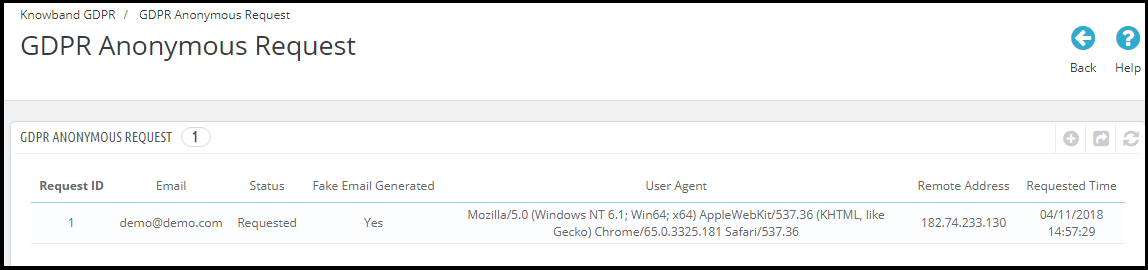
3) GDPR Anonymous Request
4) GDPR Email Templates
GDPR Settings
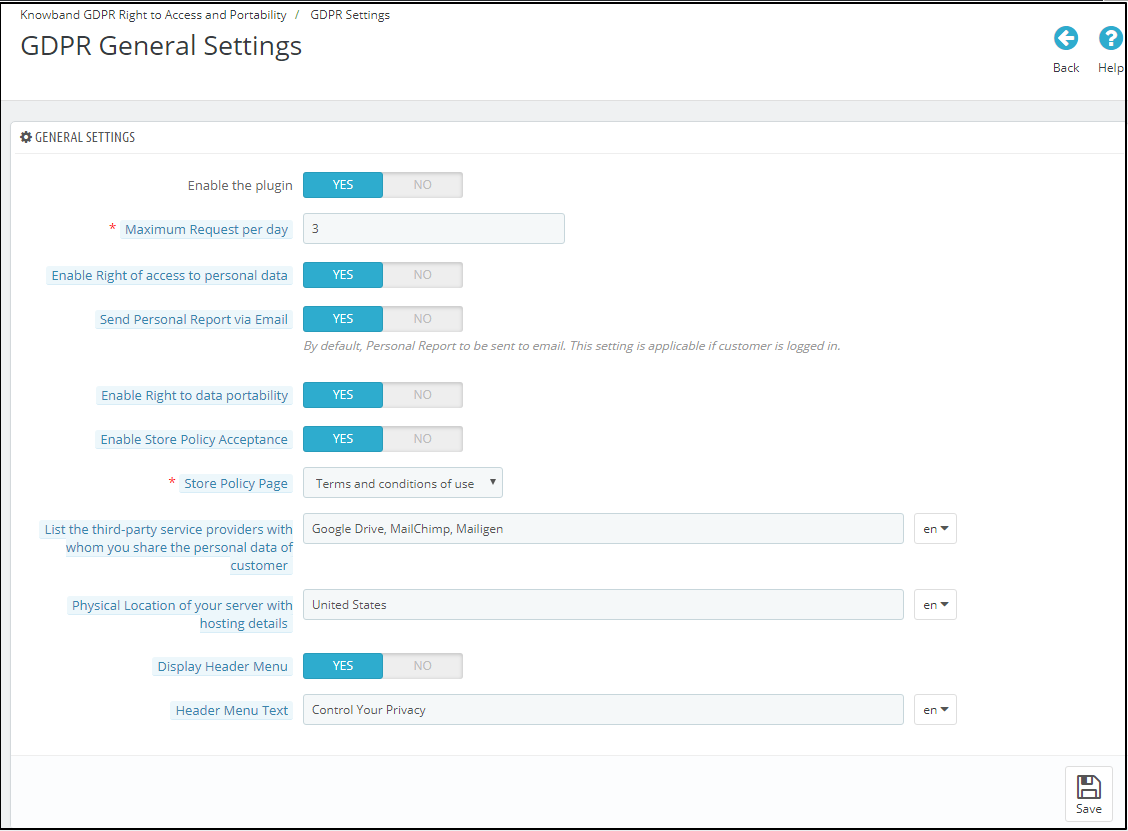
The GDPR Settings tab of the Prestashop GDPR Addon allows the store admin to enable the rights of the customer. The Settings tab of the Prestashop GDPR module has the following options:
1) Enable the Plugin:
As per the requirement, admin can Enable/Disable the data deletion and data anonymization option for the customer.
2) Maximum request per day:
The customer can request for the deletion of the data, the admin can set the limit for the requests by each user on daily basis. It will be recommended to set the maximum requests per day to a minimum number to avoid the spam requests.
3) Data anonymization request:
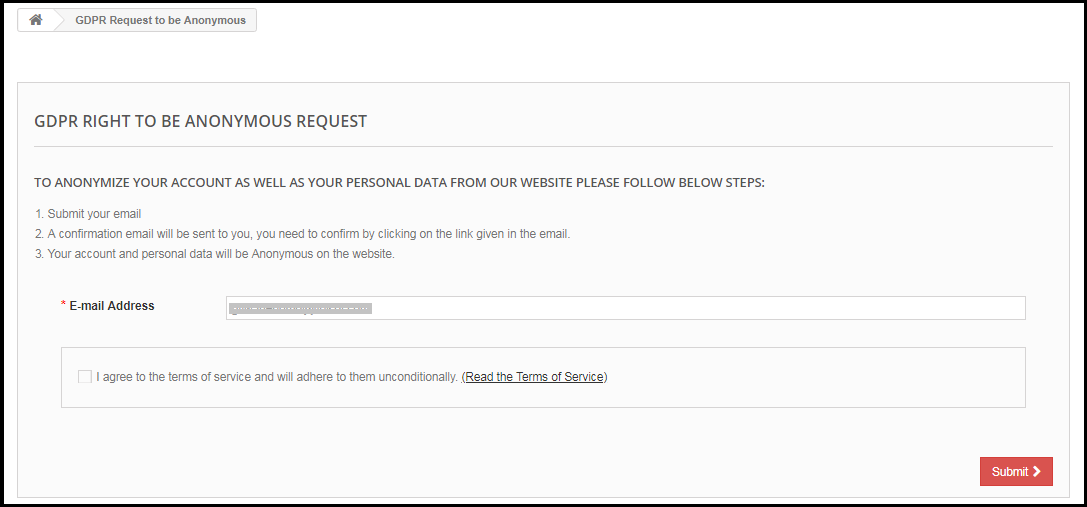
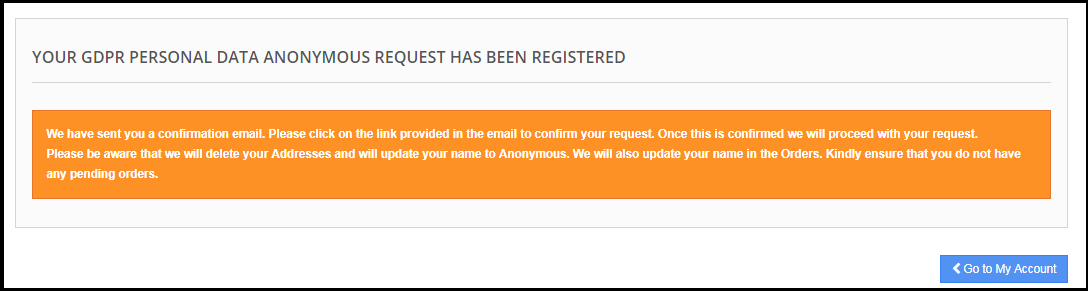
If the setting for the Right to be Anonymous is enabled from the admin panel of the Prestashop GDPR addon – data deletion and data anonymization, then the customer will be able to make a request for data anonymization. As soon as the customer will request for the data anonymization a confirmation email will be sent to the customer. As per the customer’s confirmation, customer details will be anonymized. Admin has the choice to anonymize the personal details of the customer like Name and email-id. The admin has the option to override the changes to the previous orders.
Enable the Data anonymization settings:
If the data anonymization settings are enabled from the admin interface of the Prestashop GDPR module then the customer will be able to request for the data anonymization and in this case, only customer name will be replaced by the random name.
If a customer request for the Data anonymization, then a confirmation email will be sent to the registered email address and the customer will be requested to confirm the request.
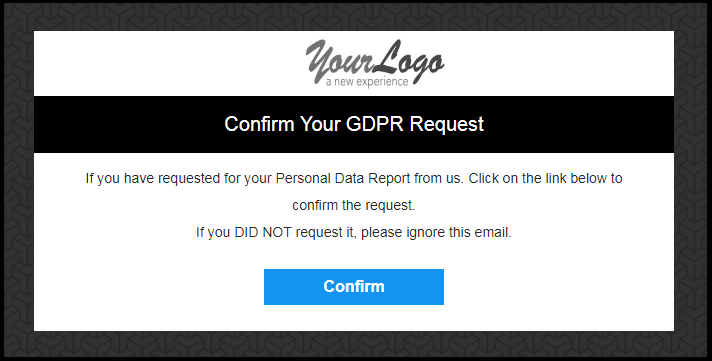
Email confirmation:
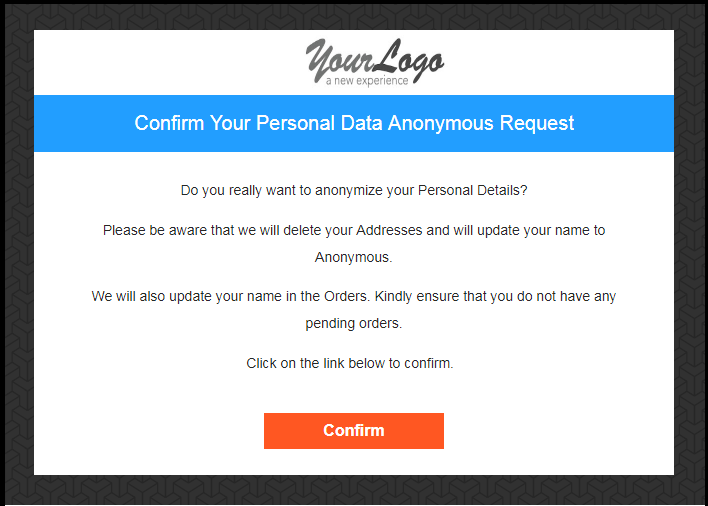
After requesting for the data anonymization customer will receive an email with a request to confirm the data anonymization request.
Note:
In case you are using the third-party services and sharing the customer data with third-party, then you need to make the required changes as per the procedure followed by the service provider. This GDPR module will anonymize the data which you have stored in your database only. The data anonymization process is just like the data deletion request.
4) Enable to update information in Order:
If a customer requests to make his/her information anonymous then admin can select the option to enable/disable the changes to the previous orders. If this setting is enabled from the admin interface of the Prestashop GDPR addon then the previous order details will be overridden.
5) Enable to generate Fake Email ID:
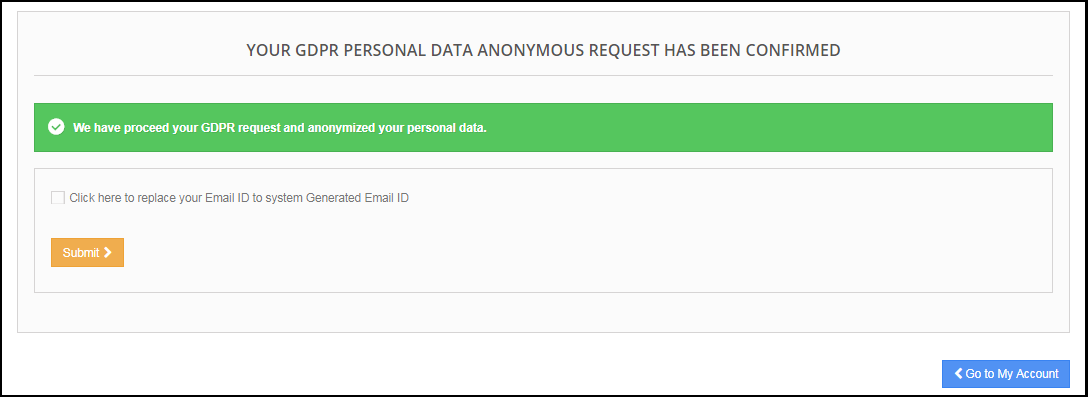
Admin has the choice to enable the settings to replace the customer’s email id by the system generated email-id. If the customer would like to anonymize his/her email id then they can submit the request for email id anonymization.
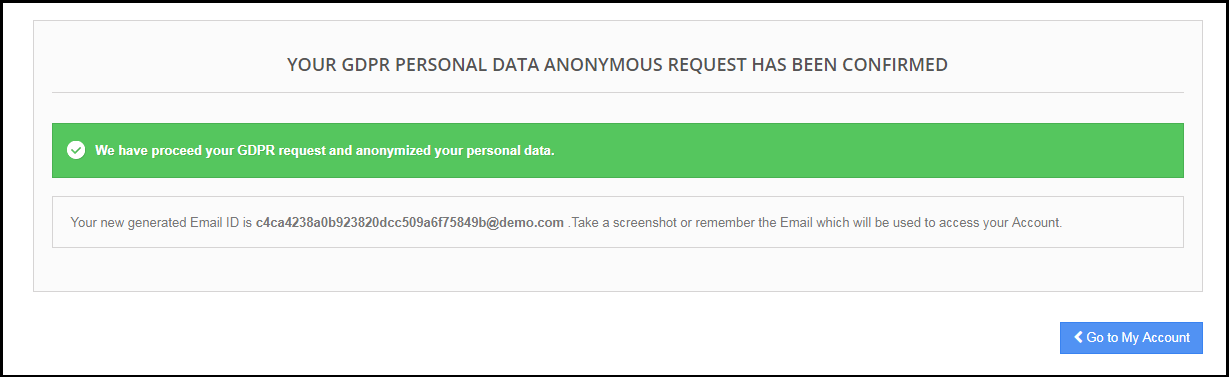
If the customer submits the request to anonymize the email id also. Then the customer email id will be replaced by a system generated an email.
The customer can save the system generated email id to access his/her account.
6) Enable right to be Forgotten:
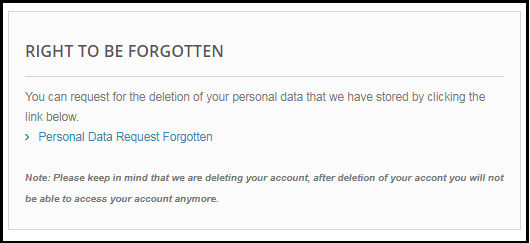
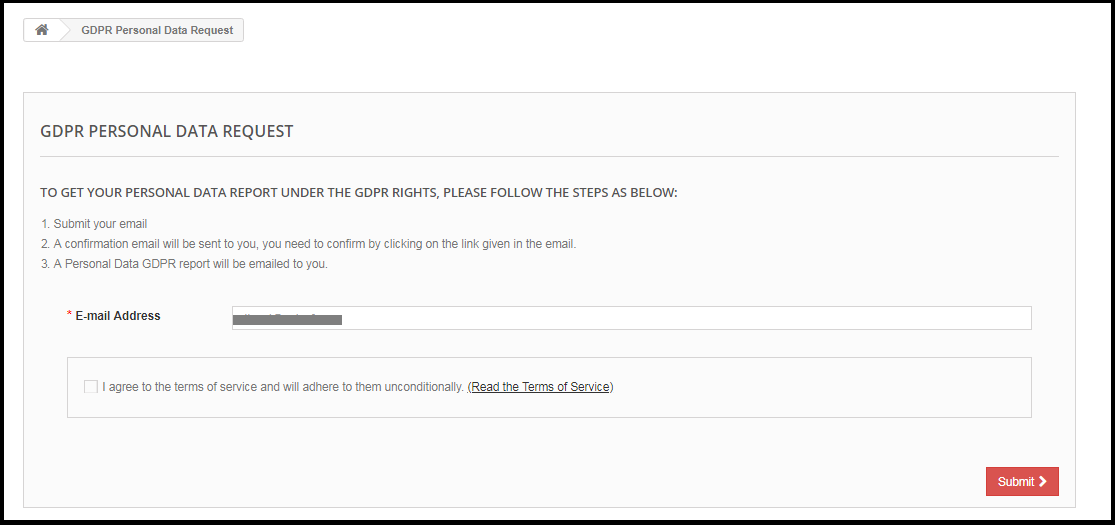
The new GDPR Directives allow the customer to erase their personal data. By using the Prestashop GDPR Addon module by Knowband, the admin can provide an interface to the customers to raise requests for the data deletion.
The data deletion report request interface for the customer will be as below:
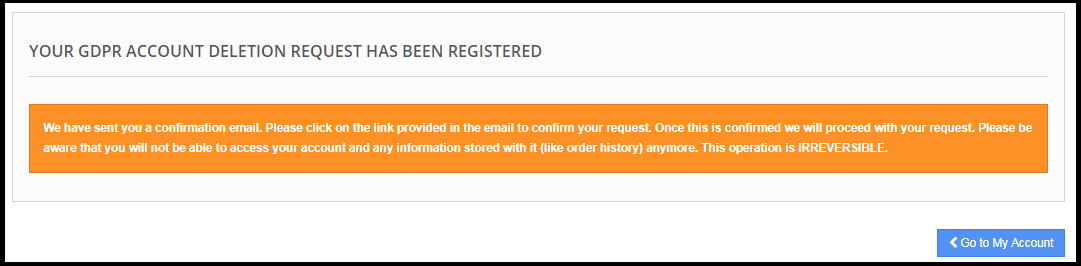
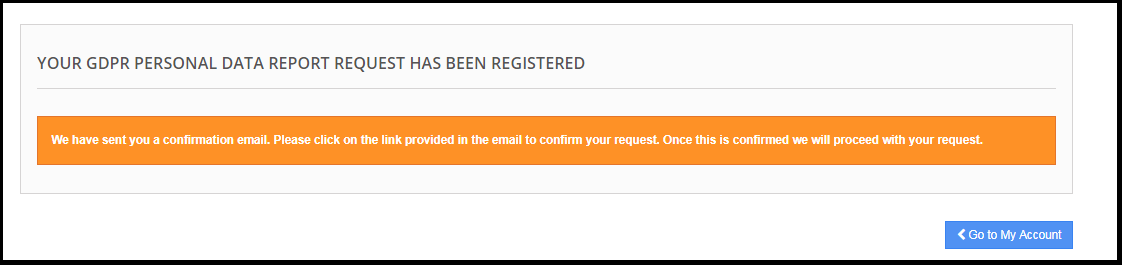
After requesting for the Account deletion the customer will be notified that an email with the confirmation request has been sent to the registered email id.
Note:
1) It is recommended to consult with your legal team before enabling this setting. After deleting the customer’s personal data it cannot be retrieved. Admin has the option to enable the delete order setting which has been explained in the next topic.
2) In case you are sharing the customer data with third-party service providers then you need to delete the customer data manually. As of now, this module does not support the feature to delete the data shared with the third-party service providers.
Example: If you are using MailChimp for sending promotional emails then you have to delete the customer details from MailChimp list manually.
9) Enable to Delete Orders:
If a customer has requested for the data deletion request under the GDPR, then the admin has the choice to delete the personal data of the customer along with the previous order details. If this setting is not enabled from the admin interface of the GDPR module then only personal data will be deleted and order information will remain as it is.
Note:
It is recommended to consult with your legal team before enabling the order deletion settings. The order details deleted from the system cannot be retrieved.
8) Enable Store Policy Acceptance:
If a customer would like to raise a request under GDPR rights then admin can add the condition to accept the Privacy Policy link before requesting for the Account Deletion or Data Anonymization. The admin interface of the Prestashop General data Protection Regulation addon allows the store admin to enable the setting so that for each request customer need to accept the terms and policy.
9) Store Policy Page:
Admin can add the URL of the page on which all the Terms and Conditions are listed. The customer can check the Terms and Conditions by clicking the link available with the message at the time of raising the request.
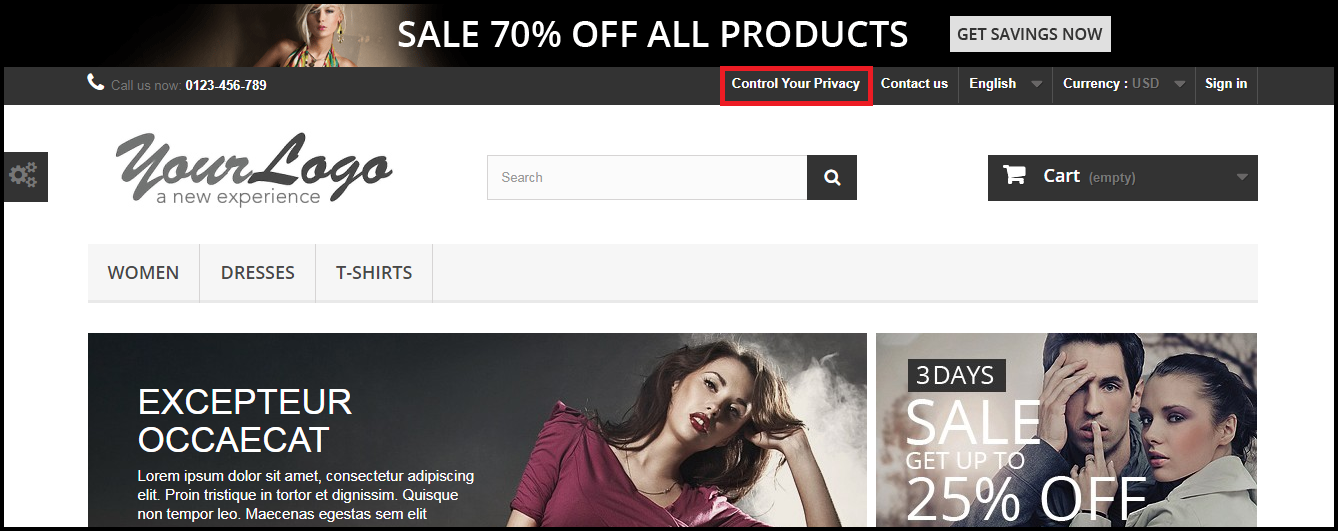
10) Display Header Menu
Display Header Menu option of the Prestashop GDPR compliance addon allows the store admin to display the GDPR option in the header section of the website. By enabling “Display Header Menu” setting of the Prestashop GDPR addon, store admin can allow the guest users to access the GDPR rights.
11) Header Menu Text
Admin can define the text for the Header Menu.
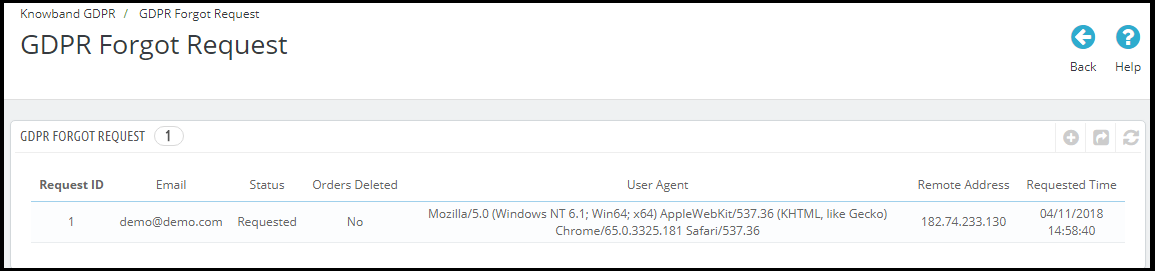
GDPR Forgot Request
The Prestashop GDPR Addon keeps the log of all the data deletion requests. This log is helpful for the admin to verify that the customer details have been deleted or not. Admin can also use this log to remove the customer data from the third-party service providers.
Note:
As soon as a customer request for the deletion of his/her details a confirmation email will be sent to the customer. As per the customer’s confirmation, the details of the customer will be deleted from the system.
The Prestashop GDPR Module allows the admin to exclude the previous orders so that only the personal details of the customer will be deleted but order details will be saved for the future reference. Please use this setting carefully because the data deleted once cannot be retrieved. It is strongly recommended to consult with your legal team to make sure how to use this setting.
The Prestashop GDPR Module only deletes the customer data from the store database. If you share the customer data with the third-party service providers (eg. MailChimp) or store it on the third-party platform (eg. Google Drive) then you need to delete the customer data from these platforms manually.
GDPR Anonymous Request
The Prestashop GDPR Addon keeps the log of the Data Anonymization requests. Admin can use this log to verify the status of the data anonymization requests.
GDPR Email Templates
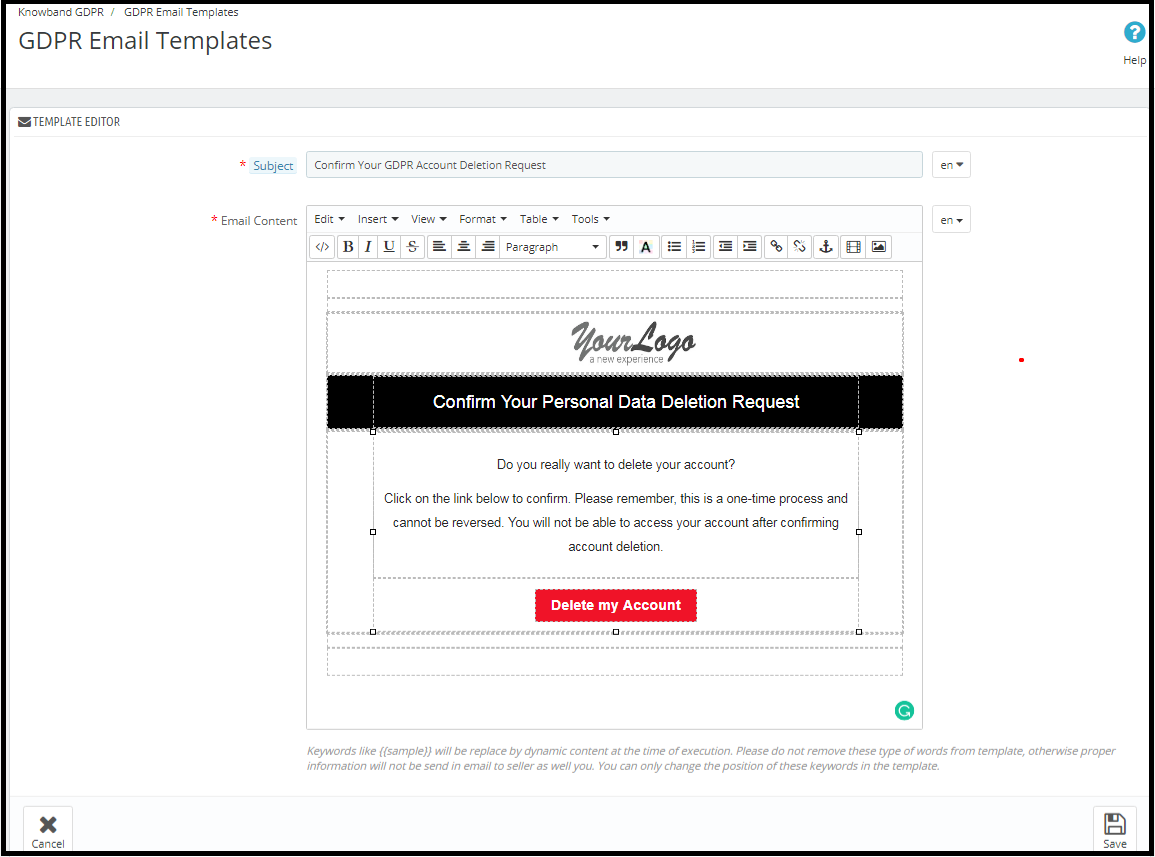
The Prestashop GDPR Addon by Knowband allows the admin to send following emails to the customer on raising a request under the GDPR.
Confirm Your GDPR Account Deletion Request
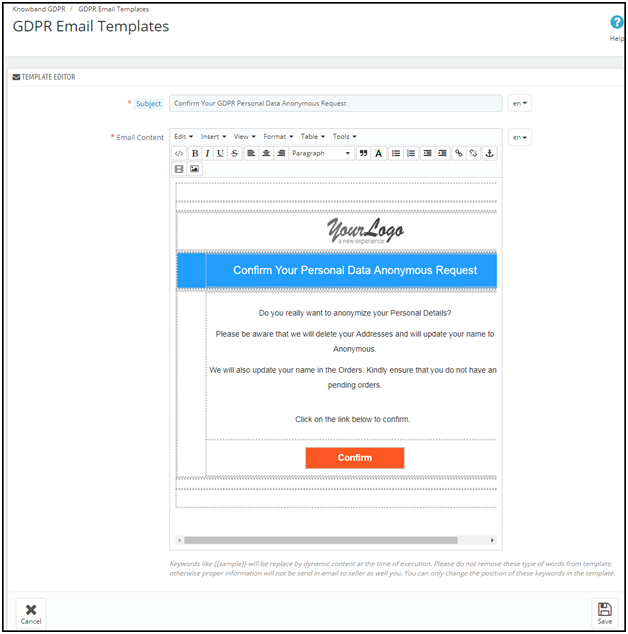
Confirm Your GDPR Personal Data Anonymous Request
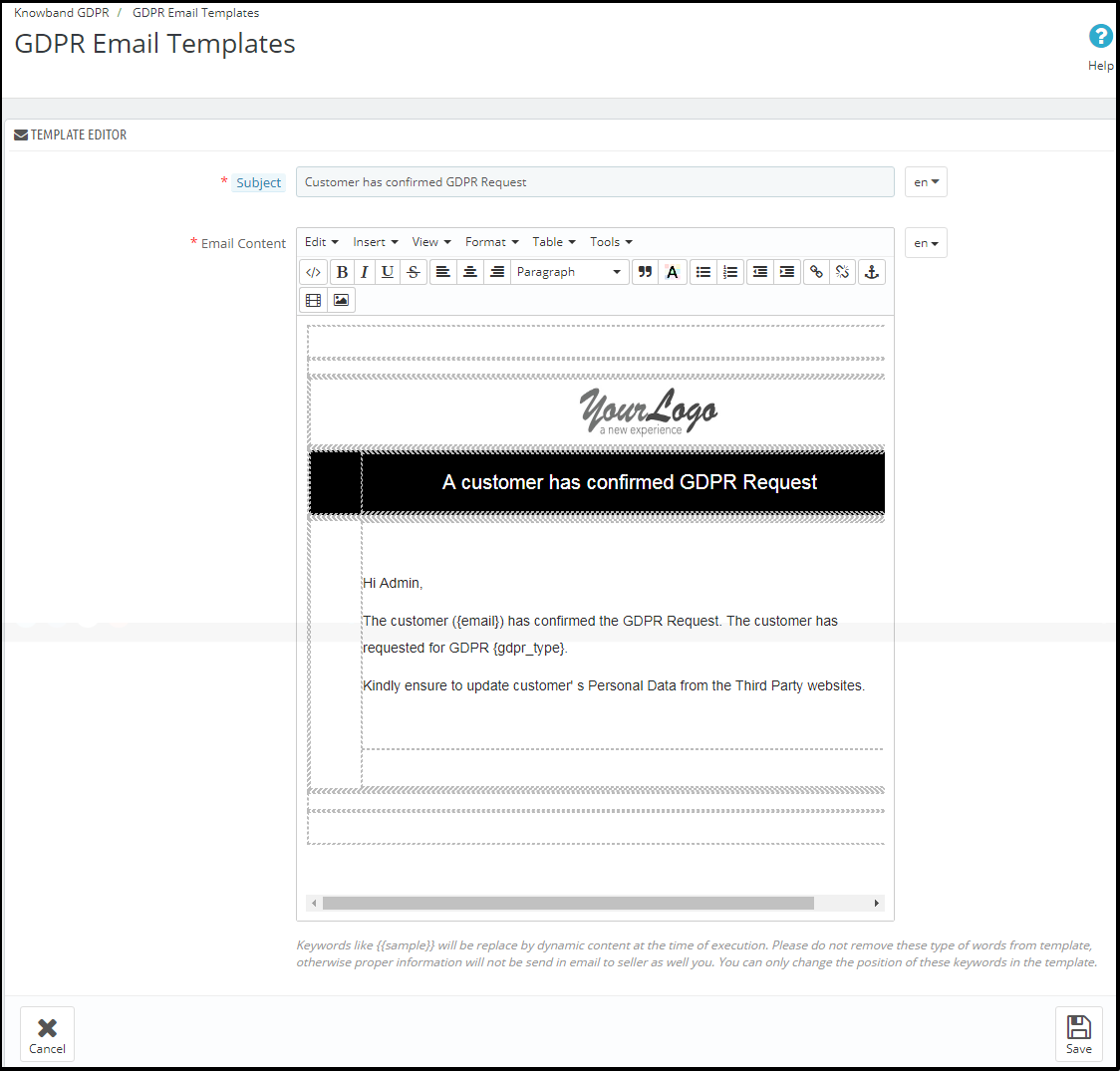
Customer has confirmed GDPR Request
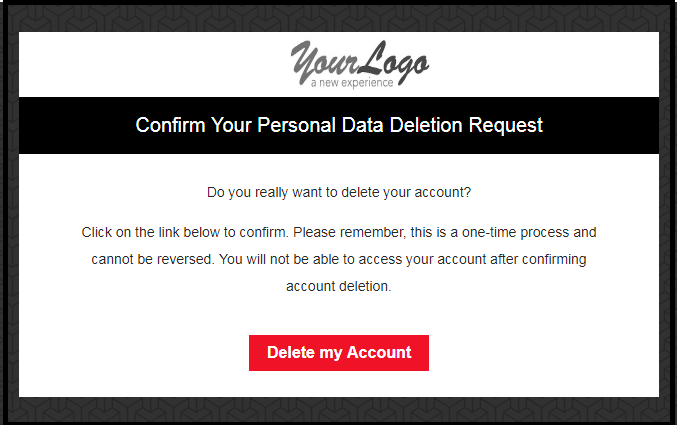
Confirm Your GDPR Account Deletion Request
Admin can update the Subject line and the email text by using the GDPR Email Template Settings.
The default format of the email template is as below:
Confirm Your GDPR Personal Data Anonymous Request
Admin can update the Subject line and the email text by using the GDPR Email Template Settings.
the default format of the email template is as below:
Customer has confirmed GDPR Request
Note: The purpose of these features is to help you to meet with the GDPR requirements. Installing this module only does not guarantee merchant sites’ compliance with the new obligations imposed by the GDPR. It is your responsibility to put in place all the necessary measures to ensure you comply.
Il regolamento generale sulla protezione dei dati (GDPR) sostituisce la direttiva sulla protezione dei dati dell'Unione europea che verrà applicata a maggio 25, 2018. Le nuove direttive sono state approvate in base alle nuove tecnologie e ai progressi delle imprese; è stato introdotto un nuovo approccio alla protezione dei dati personali. GDPR offre maggiore controllo ai clienti per il controllo dei loro dati personali. I clienti hanno il diritto di richiedere la cancellazione dei dati. È obbligatorio che l'amministratore del negozio rispetti la richiesta del cliente entro 30 giorni. L'addon GDPR di Prestashop Addon Prestashop GDPR – Diritti degli individui, questo modulo consente di gestire i diritti del cliente con facilità. Clicca qui per i dettagli. L'interfaccia customer-end del modulo GPRPR Prestashop –
Secondo il requisito, l'amministratore ha la possibilità di abilitare / disabilitare qualsiasi di questi diritti.
Installazione del modulo GPRPR Prestashop
Dopo aver effettuato l'ordine per il modulo Prestashop GDPR è possibile scaricare il file zip del modulo. Questo file zip contiene: 1) GDPR.zip (codice sorgente del modulo) 2) Manuale dell'utente Per installare l'estensione nel tuo negozio Prestashop, segui i passaggi riportati sotto: 1) Decomprimi il file gdpr.zip. 2) Copia l'intero contenuto, ovvero i file e le cartelle della cartella decompressa. Incolla lo stesso nella cartella "Modules" della directory del tuo negozio. Segui il percorso di indirizzo sotto indicato
Interfaccia di amministrazione di Addash GDPR Prestashop
Nella sezione di amministrazione del modulo diritti cliente Prestashop GDPR sono disponibili le seguenti opzioni: 1) Impostazioni GDPR 2) GDPR Richiesta dimenticata 3) GDPR Richiesta anonima 4) GDPR Modelli e-mail
Impostazioni GDPR
La scheda Impostazioni GDPR del componente aggiuntivo GDPR Prestashop consente all'amministratore del negozio di abilitare i diritti del cliente. La scheda Impostazioni del modulo GPRPR Prestashop ha le seguenti opzioni: 1) Abilita il plugin:
Come da requisiti, l'amministratore può abilitare / disabilitare l'eliminazione dei dati e l'opzione di anonimizzazione dei dati per il cliente.
2) Richiesta massima al giorno:
Il cliente può richiedere la cancellazione dei dati, l'amministratore può impostare il limite per le richieste da parte di ciascun utente su base giornaliera. Si consiglia di impostare le richieste massime giornaliere su un numero minimo per evitare le richieste di spam.
3) Richiesta di anonimizzazione dei dati:
Se l'impostazione per il diritto di essere anonimi è abilitata dal pannello di amministrazione del componente GPRPR Prestashop
Abilita le impostazioni di anonimizzazione dei dati:
Se le impostazioni di anonimizzazione dei dati sono abilitate dall'interfaccia di amministrazione del modulo GDPR Prestashop, il cliente sarà in grado di richiedere l'anonimizzazione dei dati e in questo caso, solo il nome cliente verrà sostituito dal nome casuale.
Se una richiesta del cliente per i datitrasformazione in forma anonima, quindi verrà inviata un'email di conferma all'indirizzo e-mail registrato e al cliente verrà richiesto di confermare la richiesta.
Conferma via email:
Dopo aver richiesto l'anonimizzazione dei dati, il cliente riceverà un'e-mail con una richiesta di conferma della richiesta di anonimizzazione dei dati.
Nota:
Se si utilizzano i servizi di terzi e si condividono i dati dei clienti con terze parti, è necessario apportare le modifiche richieste secondo la procedura seguita dal fornitore di servizi. Questo modulo GDPR renderà anonimi i dati memorizzati solo nel database. Il processo di anonimizzazione dei dati è simile alla richiesta di cancellazione dei dati.
4) Abilitare per aggiornare le informazioni nell'ordine:
Se un cliente richiede di rendere anonime le proprie informazioni, l'amministratore può selezionare l'opzione per abilitare / disabilitare le modifiche agli ordini precedenti. Se questa impostazione è abilitata dall'interfaccia di amministrazione del componente GPRPR Prestashop, i dettagli dell'ordine precedente verranno sovrascritti.
5) Abilita la generazione dell'ID e-mail falso:
L'amministratore ha la possibilità di abilitare le impostazioni per sostituire l'ID e-mail del cliente tramite l'id-email generato dal sistema. Se il cliente desidera rendere anonimo il proprio ID e-mail, può inviare la richiesta di anonimizzazione dell'ID e-mail.
Se il cliente inoltra la richiesta di anonimato anche l'id dell'email. Quindi l'ID e-mail del cliente verrà sostituito da un sistema che ha generato un'e-mail.
Il cliente può salvare l'ID e-mail generato dal sistema per accedere al proprio account.
6) Abilita il diritto ad essere dimenticato:
Le nuove direttive GDPR consentono al cliente di cancellare i propri dati personali. Utilizzando il modulo Addon Prestashop GDPR di Knowband, l'amministratore può fornire un'interfaccia ai clienti per sollevare richieste per la cancellazione dei dati.
L'interfaccia di richiesta del report di cancellazione dei dati per il cliente sarà la seguente:
Dopo aver richiesto l'eliminazione dell'account, al cliente verrà notificato che un'email con la richiesta di conferma è stata inviata all'ID e-mail registrato.
Nota:
1) Si consiglia di consultare il proprio team legale prima di abilitare questa impostazione. Dopo aver cancellato i dati personali del cliente, non può essere recuperato. L'amministratore ha la possibilità di abilitare l'impostazione dell'ordine di cancellazione che è stata spiegata nell'argomento successivo. 2) Nel caso in cui si condividano i dati del cliente con fornitori di servizi di terzi, è necessario eliminare manualmente i dati del cliente. A partire da ora, questo modulo non supporta la funzionalità per eliminare i dati condivisi con i fornitori di servizi di terze parti. Esempio: se si utilizza MailChimp per l'invio di e-mail promozionali, è necessario eliminare manualmente i dettagli del cliente dall'elenco MailChimp.
9) Abilita per eliminare gli ordini:
Se un cliente ha richiesto la richiesta di cancellazione dei dati in base al GDPR, l'amministratore ha la possibilità di eliminare i dati personali del cliente insieme ai precedenti dettagli dell'ordine. Se questa impostazione non è abilitata dall'interfaccia di amministrazione del modulo GDPR, solo i dati personali verranno eliminati e le informazioni sugli ordini rimarranno invariate.
Nota:
Si consiglia di consultare il proprio team legale prima di abilitare le impostazioni di cancellazione degli ordini. I dettagli dell'ordine cancellati dal sistema non possono essere recuperati.
8) Abilita accettazione criteri negozio:
Se un cliente desidera richiedere una richiesta ai sensi dei diritti GDPR, l'amministratore può aggiungere la condizione per accettare il collegamento Informativa sulla privacy prima di richiedere la cancellazione dell'account o l'anonimizzazione dei dati. L'interfaccia di amministrazione del componente aggiuntivo Prestashop di protezione dei dati generali consente all'amministratore del negozio di abilitare l'impostazione in modo che per ogni richiesta il cliente debba accettare i termini e la politica.
9) Pagina politica negozio:
L'amministratore può aggiungere l'URL della pagina in cui sono elencati tutti i Termini e condizioni. Il cliente può verificare i Termini e condizioni facendo clic sul collegamento disponibile con il messaggio al momento della richiesta.
10) Visualizza il menu di intestazione
L'opzione Display Header Menu del componente aggiuntivo Prestashop GDPR consente all'amministratore del negozio di visualizzare l'opzione GDPR nella sezione dell'intestazione del sito web. Abilitando l'opzione "Display Header Menu" del componente GPRPR Prestashop, l'amministratore del negozio può consentire agli utenti guest di accedere ai diritti GDPR.
11) Testo del menu testata
L'amministratore può definire il testo per il menu intestazione.
GDPR ha dimenticato la richiesta
L'Addon GDPR Prestashop mantiene il registro di tutte le richieste di cancellazione dei dati. Questo registro è utile per l'amministratore per verificare che i dettagli del cliente siano stati eliminati o meno. L'amministratore può anche utilizzare questo registro per rimuovere i dati dei clienti dai fornitori di servizi di terze parti.
Nota:
Non appena un cliente richiede la cancellazione dei suoi dettagli, verrà inviata un'email di conferma al cliente. Come da conferma del cliente, i dettagli del cliente verranno cancellati dal sistema. Il modulo GDPR Prestashop consente all'amministratore di escludere gli ordini precedenti in modo che vengano cancellati solo i dettagli personali del cliente, ma i dettagli dell'ordine verranno salvati per il futuro riferimento. Si prega di utilizzare questa impostazione attentamente perché i dati cancellati una volta non possono essere recuperati. Si consiglia vivamente di consultare il proprio team legale per accertarsi di come utilizzare questa impostazione. Il modulo GDPR Prestashop elimina solo i dati del cliente dal database del negozio. Se condividi i dati dei clienti con i fornitori di servizi di terze parti (ad esempio MailChimp) o li memorizzi sulla piattaforma di terze parti (ad esempio Google Drive), devi eliminare manualmente i dati dei clienti da queste piattaforme.
Richiesta anonima GDPR
L'Addon GDPR Prestashop mantiene il registro delle richieste di anonimizzazione dei dati. L'amministratore può utilizzare questo registro per verificare lo stato delle richieste di anonimato dei dati.
Modelli email GDPR
L'Addon Prestashop GDPR di Knowband consente all'amministratore di inviare le seguenti e-mail al cliente al momento di sollevare una richiesta ai sensi del GDPR.
Conferma la richiesta di cancellazione del tuo account GDPR
Conferma la tua richiesta anonima di dati personali GDPR
Il cliente ha confermato la richiesta GDPR
Conferma la richiesta di cancellazione del tuo account GDPR
L'amministratore può aggiornare la riga dell'oggetto e il testo dell'email utilizzando le impostazioni del modello di email GDPR.
Il formato predefinito del modello di email è il seguente:
Conferma la tua richiesta anonima di dati personali GDPR
L'amministratore può aggiornare la riga dell'oggetto e il testo dell'email utilizzando le impostazioni del modello di email GDPR.
il formato predefinito del modello di email è il seguente:
Il cliente ha confermato la richiesta GDPR
Nota: lo scopo di queste funzionalità è di aiutarvi a soddisfare i requisiti GDPR. L'installazione di questo modulo non garantisce la conformità dei siti commerciali ai nuovi obblighi imposti dal GDPR. È responsabilità dell'utente mettere in atto tutte le misure necessarie per garantire la conformità.
The General Data Protection Regulation (GDPR) is a replacement for the European Union Data Protection Directive which will be enforced on May 25, 2018. The new directives have been passed, as per the new technologies and business advances; a new approach to protection of the personal data has been introduced.
The Prestashop GDPR Module – Right to access and data portability helps the store admin to manage the data access and data portability requests of the customers. By using the Prestashop GDPR Module by Knowband admin can provide an interface to the customers so that they can request for their personal information and if the required customer can also download the data as a CSV file.
To enable the GDPR Rights for the customers, download the zip file of the module from the Downloads section of your Knowband account.
1) GDPR.zip (source code of the module)
2) User Manual
In order to install the extension in your Prestashop store follow the below-mentioned steps:
1) Unzip the gdpr.zip file.
2) Copy the entire content, that is, the files and folders of the unzipped folder. Paste the same into the “Modules” folder of your store’s directory. Follow the below-mentioned address path – Root Directory/modules/.
3) The Prestashop GDPR plugin is all set to be installed in the store. Go to the Store Admin and then to ‘Modules and Services’.
4) Click on the “Install” button just next to your module. It would show a pop-up for your confirmation. Click on “Proceed with the installation” option. This step will install the module and show notification – “Module(s) installed successfully”.
5) Once the installation is complete, you will get the access to the admin interface of the module by clicking on the “Configure” button.
1.2.0 Front-end interface of the Prestashop GDPR Module:
Customers will be able to access the GDPR rights by navigating to the My account section. Here, a separate tab GDPR will be visible to the customers. By using the GDPR tab customers can access their GDPR rights – Right to access and Right to data portability.
On clicking the GDPR tab the customer will be redirected to the GDPR tools page, from here customer can request for their personal data and also download their personal details like personal information, addresses and orders.
The Prestashop GDPR Module – Right of access and data portability, allows the store admin to enable the GDPR settings for the guest users so that guest users can also request for the details of their personal data. If the GDPR rights are enabled for the guest user then it will appear in the header section. Please refer to the attached screenshot.
1.3.0 Admin Interface of Prestashop GDPR Addon – Right to access and data portability:
The admin section of the Prestashop GDPR addon has the following options:
1) GDPR Settings
2) GDPR Data Portability
3) GDPR Personal Data Request
4) GDPR Email Templates
1.3.1 GDPR Settings:
The GDPR Settings tab of the Prestashop GDPR Addon – Rights to access and data portability has the following options. Please refer to the attached screenshot below:
a)Enable the Plugin:
Admin can enable the customer rights by using the Enable the plugin toggle button.
b) Maximum request per day:
Admin has the options to set the max limit for the Personal data request.
c) Enable Right of access to personal data:
The right of access to personal data allows the customers to request for the personal data. Admin has the option to display the report immediately or admin can enable the setting to send the GDPR Personal data report over email.
d) Send Personal report via email:
If this setting is enabled then the Personal data report will be sent via the email. Steps for the request for the personal data are listed below:
Step-1:
Request for the GDPR Personal Data report – Prestashop GDPR Addon
Step: 2
Confirm the GDPR Request.
Step: 3
As soon as the customer will confirm the GDPR Personal Data Request, an email with the customer details will be sent to the customer.
If the Send Personal Report via Email setting is disabled then the personal data report will be displayed immediately. Please refer to the attached screenshot.
e) Enable Right to Data Portability:
Right to data portability allows the customers to download their personal information which they have provided to the data controller.
The Prestashop GDPR addon – Right to access and data portability allows the store admin to provide an interface to the customers so that they can easily download their data like personal details, addresses and orders.
In case the customer is logged in then he/she can directly download the report. For the guest users, it is mandatory to verify the data download request only after successful verification the guest user will be able to download the data.
Personal Information Report example:
f) Enable Store Policy Acceptance:
If a customer would like to raise a request under GDPR rights then admin can add the condition to accept the Terms and Conditions before requesting for the GDPR request for the Personal Data. The admin interface of the Prestashop GDPR addon allows the store admin to enable the setting so that for each request customer need to accept the terms and policy.
g) Store Policy Page:
Admin can add the URL of the page on which all the Terms and Conditions are listed.
h) Services/ Other locations where you store customer data:
Admin can list all the third-party service providers’ details to share the details with the customer.
i) Physical locations of servers where you host your website and other data:
Admin can define the physical server location of the server where the data has been stored.
j) Display Header Menu:
If the admin would like to enable the GDPR rights for the guest users then admin can enable the Display Header Menu setting. Admin has the choice to update the text for the GDPR rights, this text will be visible in the header section of the website and customers can access their rights by using this interface.
k) Header Menu Text:
Admin can define the text for the Header Menu.
1.3.2 GDPR Data Portability
The Prestashop GDPR Module – Right to access and data portability, keeps the log of all the GDPR data portability requests processed.
1.3.3 GDPR Personal Data Report Request
The Prestashop GDPR Addon – Right to access and data portability, keeps a log of all the personal data requests processed.
1.3.4 GDPR Email Templates
The Prestashop GDPR Addon by Knowband allows the admin to send following emails to the customer on raising a request under the GDPR.
Customer has requested for GDPR
Your GDPR Personal Data Report
Confirm Your GDPR Personal Data Portability Request
Customer has confirmed GDPR Request
Note: The purpose of these features is to help you to meet the GDPR requirements. Installing this module only does not guarantee merchant sites’ compliance with the new obligations imposed by the GDPR. It is your responsibility to put in place all the necessary measures to ensure you comply.
Il regolamento generale sulla protezione dei dati (GDPR) sostituisce la direttiva sulla protezione dei dati dell'Unione europea che verrà applicata a maggio 25, 2018. Le nuove direttive sono state approvate in base alle nuove tecnologie e ai progressi delle imprese; è stato introdotto un nuovo approccio alla protezione dei dati personali. Il modulo GPRPR Prestashop Prestashop GDPR Module che aiuta l'amministratore del negozio a fornire più diritti ai clienti come indicato nelle direttive GDPR. per favore clicca qui per controllare i dettagli.
Installazione 1.1.0 del modulo GPRPR Prestashop:
Per abilitare i diritti GDPR per i clienti, scaricare il file zip del modulo dalla sezione Download del proprio account Knowband. 1) GDPR.zip (codice sorgente del modulo) 2) Manuale dell'utente Per installare l'estensione nel tuo negozio Prestashop, segui i passaggi indicati sotto: 1) Decomprimi il file gdpr.zip. 2) Copia l'intero contenuto, ovvero i file e le cartelle della cartella decompressa. Incolla lo stesso nella cartella "Modules" della directory del tuo negozio. Segui il percorso di indirizzo sotto indicato
1.2.0
I clienti saranno in grado di accedere ai diritti GDPR navigando alla sezione Il mio account. Qui, una scheda separata GDPR sarà visibile ai clienti. Utilizzando la scheda GDPR i clienti possono accedere ai loro diritti GDPR
Facendo clic sulla scheda GDPR il cliente verrà reindirizzato alla pagina degli strumenti GDPR, da qui il cliente può richiedere i propri dati personali e anche scaricare i propri dati personali come informazioni personali, indirizzi e ordini.
Il modulo GPRPR Prestashop
1.3.0Interfaccia di amministrazione di Addash GDPR Prestashop
La sezione di amministrazione del componente aggiuntivo Prestashop GDPR ha le seguenti opzioni: 1) Impostazioni GDPR 2) Portabilità dati GDPR 3) Richiesta dati personali GDPR 4) Modelli email GDPR
1.3.1Impostazioni GDPR:
La scheda Impostazioni GDPR del componente aggiuntivo Prestashop GDPR
a)?Abilita il plugin:
L'amministratore può abilitare i diritti del cliente utilizzando il pulsante di attivazione Abilita il plugin.
b)?Maximum request per day:
L'amministratore ha le opzioni per impostare il limite massimo per la richiesta di dati personali.
c)?Enable Right of access to personal data:
Il diritto di accesso ai dati personali consente ai clienti di richiedere i dati personali. L'amministratore ha la possibilità di visualizzare immediatamente il rapporto o l'amministratore può abilitare l'impostazione per inviare il rapporto dati GDPR sui dati personali via e-mail.
d)?Send Personal report via email:
Se questa impostazione è abilitata, il rapporto sui dati personali verrà inviato tramite l'e-mail. I passaggi per la richiesta dei dati personali sono elencati di seguito:
Step-1:
Richiesta del rapporto Dati personali GDPR
Passaggio: 2
Conferma la richiesta GDPR.
Passaggio: 3
Non appena il cliente confermerà la richiesta di dati personali GDPR, verrà inviata al cliente un'e-mail con i dettagli del cliente.
Se l'opzione Invia rapporto personale via e-mail è disabilitata, il rapporto dei dati personali verrà visualizzato immediatamente. Si prega di fare riferimento allo screenshot allegato.
e)?Enable Right to Data Portability:
Il diritto alla portabilità dei dati consente ai clienti di scaricare le informazioni personali che hanno fornito al titolare del trattamento. L'addon GDPR di Prestashop
Esempio di rapporto di informazioni personali:
f) Abilita accettazione politica negozio:
Se un cliente desidera richiedere una richiesta ai sensi dei diritti GDPR, l'amministratore può aggiungere la condizione per accettare i Termini e condizioni prima di richiedere la richiesta GDPR per i Dati personali. L'interfaccia di amministrazione del componente aggiuntivo Prestashop GDPR consente all'amministratore del negozio di abilitare l'impostazione in modo che per ogni richiesta il cliente debba accettare i termini e la politica.
g) Pagina politica del negozio:
L'amministratore può aggiungere l'URL della pagina in cui sono elencati tutti i Termini e condizioni.
h) Servizi / Altre posizioni in cui si memorizzano i dati dei clienti:
L'amministratore può elencare tutti i dettagli dei fornitori di servizi di terze parti per condividere i dettagli con il cliente.
i) Posizioni fisiche dei server in cui si ospita il sito Web e altri dati:
L'amministratore può definire la posizione fisica del server del server in cui sono stati memorizzati i dati.
j) Visualizza menu intestazione:
Se l'amministratore desidera abilitare i diritti GDPR per gli utenti guest, l'amministratore può abilitare l'impostazione Menu Display Header. L'amministratore ha la possibilità di aggiornare il testo per i diritti GDPR, questo testo sarà visibile nella sezione intestazione del sito Web e i clienti potranno accedere ai loro diritti utilizzando questa interfaccia.
k) Testo del menu testata:
L'amministratore può definire il testo per il menu intestazione.
1.3.2Portabilità dei dati GDPR
Il modulo GPRPR Prestashop
1.3.3Richiesta report dati personali GDPR
L'Addon GDPR Prestashop
1.3.4 GDPR Email Templates
L'Addon Prestashop GDPR di Knowband consente all'amministratore di inviare le seguenti e-mail al cliente al momento di sollevare una richiesta ai sensi del GDPR.
Il cliente ha richiesto GDPR
Il tuo rapporto sui dati personali GDPR
Conferma la tua richiesta di portabilità dei dati personali GDPR
Il cliente ha confermato la richiesta GDPR
Nota: lo scopo di queste funzionalità è di aiutarvi a soddisfare i requisiti GDPR. L'installazione di questo modulo non garantisce la conformità dei siti commerciali ai nuovi obblighi imposti dal GDPR. È responsabilità dell'utente mettere in atto tutte le misure necessarie per garantire la conformità.
Infinite scrolling loads web page content continuously as the user scrolls down the web page. Basically, infinite scrolling is the technique of web design to eliminates pagination from the website. Magento 2 Infinite Scroll Extension by Knowband does the same. It removes the pagination and page reload functionality from the website and make navigation easier for your Magento store visitors to view the next set of products without reloading the web page.
1.1 Features of Magento 2 quick scroll extension:
Magento 2 Infinite Scroll extension replaces the pagination system from the website.
Magento 2 fast scroll extension reduces the load time of the website.
Store admin can enable or disable the Magento 2 infinite scroll module in a single button click.
Magento 2 quick scroll extension offers sandbox testing option to the admin. After enabling this store admin needs to enter the specific IP address to test the module.
Infinite scroll for Magento 2 extension serves better user experience.
Magento 2 fast scroll module optimizes the navigation of the site.
The admin can specify the number of pages after which, “Load More” will be shown. Store admin can also adjust the loader speed.
Store admin can display end page message after the completion of the product listing.
Magento 2 endless scroll extension works smoothly with list views as well as the grid view.
Store admin can set the background color and text color of the end page message and go to the top link.
Magento2 infinite scroll module offers the store admin to add the selector setting.
Magento 2 infinite scroll module is mobile responsive.
2.0 Installation Steps of Infinite scroll for Magento 2 Extension:
The steps to install the Magento 2 quick scroll extension are mentioned below:
1. Buy the Infinite scroll for Magento 2 extension from Knowband. You can download the extension package.
2. The package has a zipped file that contains the user manual and the source code of Magento 2 Infinite Scroll Extension. Unzip the package.
3. Create a folder {Magento root}/app/code/Knowband/Infinitescroll
4. Upload the extracted content in the above folder via FTP manager (like Filezilla or WinSCP – download here: https://filezilla-project.org/).
5. Now run below commands to install the Magento 2 Infinite Scroll Extension:
6. The extension is now installed and ready for use. In Admin Panel go to “Knowband Extensions > Infinite Scroll”.
You can now configure and use the Magento 2 Infinite Scroll extension.
3.0 Admin Interface
Magento 2 fast scroll extension offers following interfaces to be configured:
General Settings
Look and Feel Settings
Selector Settings
Sandbox Settings
Below is the detailed description of every setting:
3.1 General Settings
From this tab, store admin can adjust the general settings of the Magento 2 infinite scroll module.
Enable the extension: This tab of Magento 2 fast scroll will enable the infinite scroll option. The admin can enable/disable this Magento extension whenever needed.
Display End Page Message: This field of Magento 2 quick scroll extension allows the admin to enable/disable the message that would be displayed at the end of the product listing page.
End Page Message: This field of Magento 2 endless scroll extension allows the admin to set the text of the end page message that would be displayed at the end of the product listing page.
Display Go To Top Link: The Magento 2 infinite scroll module allows the admin to display the “Go To Top Link” option that helps the users to jump to the top of the product listing page.
Loading Message: This section of Magento 2 fast scroll extension offers the admin to set the text while loading the content of the web page.
Select Scroll Type: The Magento 2 quick scroll extension provides the admin to select the type of scrolling on product listing page. Following options are given in scroll type:
a. Infinite Scrolling
b. Load More Link
Load More Label: When “Load More Link” option is selected, this field will be shown. This field of Magento 2 infinite scroll extension let the admin to set the text on Load More link.
Frequency to show Load More text: This field of Magento 2 fast scroll extension will work only when “Scroll Type” is “Infinite Scroll”. This field allows the admin to set the frequency of load more link to be shown in the front-end.
Loader Delay: This field of Magento 2 infinite scroll module allows the admin to set the minimal number of milliseconds to stay in a loading state.
Negative Margin: This field of Magento 2 quick scroll extension will give you the ability to load the new items earlier before you reach to last item of the page. By default, the loader starts loading new items when the user scrolls to the last element of the page. The admin can set the number of products here. For instance, if the number ‘X’ is entered here, then, the loader will start loading before there are X number of products left in the web page.
Display Toolbar: This field of Magento 2 endless scroll extension will allow the admin whether to display the Toolbar on product listing page or not.
3.2 Look and Feel Settings
From this tab, the store admin can adjust the background and text color of the message box and go to top link.
Message Box Background Color: This tab of Magento 2 endless scroll extension offers the admin to set the background color of the message box.
Border Color: The Magento 2 Infinite Scroll extension allows the admin to customize the border color of the message box as per his preferences.
Text Color: The admin can customize the text color of the message box as per his choice. He can do the same just by selecting the color from the color picker.
Go To Top Link Background Color: This field of Magento 2 fast scroll extension allows the admin to set the background color of the “Go To Top Link”. Below is the screenshot of the Go To Top Link:
Custom CSS: If the admin wants to add the custom CSS for any element of Infinite scroll for Magento 2 extension, then, he can do the same by adding CSS in this field.
Upload Loader Image: This tab of Magento 2 endless scroll extension allows the admin to upload the loader image of his choice. The admin can upload .jpg, .png and .gif format images only. Image size should not be more than 2 MB.
3.3 Selector Settings:
Content: This tab of Magento 2 Infinite Scroll extension allows the admin to set the Class name of the Content container.
Next: This tab of Magento 2 fast scroll extension offers the admin to set the Class name of Next element.
Previous: This tab of Magento 2 quick scroll extension allows the admin to set the Class name of the Previous element.
Item Grid: This field of Magento 2 endless scroll extension allows the admin to set the Class name of Grid item.
Item List: This field of Magento 2 endless scroll extension allows the admin to set the class name of the list item.
Toolbar: In this field of Magento 2 infinite scroll module, the admin will have to set the Class name of the Toolbar.
Pagination: This tab of Magento 2 quick scroll extension allows the admin to set the Class name of the pagination container.
NOTE:
1. Don’t forget to add ‘#’ before id element and ‘.’ before the class element. 2. If you are not familiar with these selector elements please do not edit them.
3.4 Sandbox Settings:
The Sandbox Settings tab of the Magento 2 infinite scroll extension offers the admin to test the extension before implementing it on the site.
Activate: Enable this field of Magento 2 fast scroll extension to test the extension.
Authorized IP Address: In this field of Magento 2 quick scroll extension, enter the IP addresses on which you want infinite scroll active. Make sure that the entered IP addresses are separated by a comma. You can add the IP by clicking on “Add my IP” option.
4.0 Store Front-end
The Magento 2 endless scroll extension will be enabled on the whole website where pagination occurs. The Infinite scroll for Magento 2 extension would appear at the front as follows:
End page message and top link:
Find more details about this Infinite scroll for Magento 2 below:
1. Introduction of Magento 2 Advance Wishlist Extension
In the eCommerce industry, most of the time online buyers visit the store just for viewing the product price, quality and comparing the products with other stores. If your store has a wishlist option, then, the store visitors can shortlist their favorite product and save them in their wishlist for future purchase. Knowband provides Magento 2 advanced wishlist extension to your Magento 2 store.
This Magento 2 save for later extension adds the Wishlist functionality to your eCommerce store. This Magento 2 Save for later module allows the shoppers to save their favorite products in the wishlist. So that, they can view or purchase it later.
Allows the Shoppers to Add products in the wishlist– This Magento 2 wishlist extension allows the customers to add the products they are interested into their Wishlist. The wishlist option improves their shopping experience. At the same time, the site owners can increase the customer retention.
Easy to manage to Save for later block– With the help of Knowband Magento 2 Save for Later extension, the customers can manage their wishlists. They can edit items, remove products or add new products in their Save for later block.
Admin can view and manage customer’s wishlist – Products saved in the Wishlists can easily be tracked by admin from the back-end of the Magento 2 wishlist extension. Apart from this, the store admin can view the most demanded or save the product from the admin dashboard.
1.1 Admin Benefit of the Knowband Magento 2 Advanced Wishlist module:
1. The Magento 2 advanced wishlist extension by Knowband allows the customers to save their favorite product to their wishlist with the intention of future purchase.
2. The admin can allow the Guest Customer save the favorite product to their Wishlist and they can also set the expiry time of the saved products.
3. This Magento 2 wishlist extension shows a ‘My Wishlist’ block. The look and feel of the wishlist block can be controlled by the store owner. They can change the block color, button color and text color etc. Save for later interface the products shortlisted by the customer.
4. This Magento 2 wishlist extension enables the admin to track the product details from the admin panel. They can also track the product which product is high on demand or which product is added in the wishlist the most.
5. The Magento 2 advanced wishlist extension by Knowband provides an option to the store admin to do the product and category analysis. That is, the admin can view the category which is browsed most and the product that is becoming popular.
6. The online merchant increases the user experience of the site.
7. The Magento 2 Save for Later extension’s back-end interface extremely easy to use.
8. This Magento 2 wishlist extension increases the conversion rate of the website.
9. The Magento 2 favorite product list extension helps the admin to reduce the abandoned cart of the website by using this Magento 2 wishlist extension.
1.2 Major key feature of Knowband Magento 2 Wishlist Extension:
1. The Magento 2 wishlist extension allows the customer can add the products to their wishlist.
2. The Customers can also create, modify and delete the products saved in the wishlists from front-end.
3. This Magento 2 Save for Later extension by Knowband shows the Save For Later block popup in front-end.
4. Knowband’s Magento wishlist extension is easy to install & manage.
5. Magento Save for Later module can be enabled/disabled from the back-end.
6. Magento favorite product list extension is compatible with all Magento 2 store themes.
7. The Magento 2 wishlist extension is fully mobile responsive.
2.0 Installation
The steps to install the Magento 2 Save for Later extension are mentioned below:
1. Buy the Magento 2 Save for Later extension from Knowband. You can download the extension package.
2. The package has a zipped file that contains the user manual and the source code of Magento 2 advanced wishlist extension. Unzip the package.
3. Create a folder{Magentoroot}/app/code/Knowband/Saveforlater
4. Upload the extracted content in the above folder via FTP manager (like Filezilla or WinSCP – download here: https://filezilla-project.org/).
6. The Magento wishlist extension is now installed and ready for use. In Admin Panel go to “Knowband Extensions > Save For Later”.
You can now configure and use the Knowband Magento 2 wishlist extension.
3.0 Admin Panel
After installing Magento 2 advanced wishlist extension in the Magento 2 store, the store owner can make the changes without any hassles. There are following sections available to admin interface: –
Let us discuss the various customization options of Magento 2 Save for Later extension.
3.1 General Settings
The General settings tab of Magento 2 wishlist module by Knowband offers the basic configuration options to the Store admin. The General settings tab is discussed below.
Enable Save For Later Settings: This field will enable the save for later option. If enabled, the Magento 2 favorite product list module will allow the customer to save the favorite product to their wishlist.
Remove Default Wishlist: Enable this field to remove the default wishlist option from the Magento 2 site. If this button is enabled, then, the Magento 2 Save for Later extension will automatically remove the default wishlist option in the front-end.
Days to Save Guest Product: After enabling this option, you can allow the Guest users to save the interesting product to their Wishlist for a certain time period. You can set the expiry days for cookies. Default cookies will be stored for 30 days.
View All Button Color: You can change the “VIEW ALL” button color in this section of Knowband Magento 2 advanced wishlist extension.
View All Button Text Color: You can change the text color of “VIEW ALL” button text color in this section of Knowband Magento 2 Save for Later extension
Add to Cart Button Color: You can change the “ADD TO CART” button color in this section of Knowband Magento 2 favorite product list extension.
Add to Cart Button Text Color: You can change the “ADD TO CART” button text color in this section of Knowband Magento 2 wishlist extension.
3.2 Category Analysis
The category analysis is done in this section of the Magento 2 Save for Later extension. The graphical report shows the complete information about the categories that are being browsed the most. The report showcases the categories whose products are being saved the most. This Magento 2 wishlist extension tab will display the category reports in the form of graphs and list.
This Category Analysis tab shows Report in tabular and chart form. Admin can set the filter to fetch report for the specific period of time or for a particular category.
Admin can fetch report based on category, From Date and To Date.
By clicking on any category admin can view the list of all saved products of the categories.
By clicking on the category name a new report Category(s) Save for Later Product(s) is shown.
3.3 Product Analysis
This tab shows Product Analysis Report in tabular and chart form. Admin can set filter to fetch report of the performance of the products for specific period of time or for a particular category.
3.4 Customer Analysis
This Magento 2 favorite product list allows the Magento store owners to fetch the entire report of their store visitors and customers. They can find the relevant report by applying filters on the top of the grid there is an export button, that will export the grid data into CSV file. You can find a particular record for Customer by using its id and search button available on the top left of the grid.
4.0 Front End Module
With Knowband’s Magento 2 Wishlist extension shows the Save for Later popup. the customers can save the products in their wishlist by hitting on the icon as shown in the image below.
1. By Clicking on Save icon customer can save the product in the wishlist. The saved products by the customer can be seen in the Save For Later popup.
2. The customer can delete a single product or all product by clicking on CLEAR ALL link.
3. The Online seller can see his products by clicking on VIEW ALL link. On clicking the link, the customer will be redirected to the page as shown below:
The customers can move the products saved in the wishlist to their shopping cart by hitting the ‘Add to Cart’ button.
4. By clicking on the cross icon customer can delete his products from the list.
For more information about the Magento 2 wishlist extension visit here: