OpenCart Gift Card Manager Extension | User Manual

1.0 Introduction

Gift Cards or eCards have been always special and appealing to everyone as they suit every customer’s needs. Be it a Birthday, Wedding Anniversary, New Year or some other special occasion finding a gift for their loved ones is a big task for online customers. Your customers are unknown about the likes and dislikes of their loved ones. Moreover, giving a cash amount seems to be unreal and emotionless. Gift Cards are one smart and convenient way to make your customers feel happy and special.

So, what’s the best way to offer personalized gift cards to your store customers? OpenCart Gift Card Manager Extension by Knowband allows admin to sell gift cards in their online shop. With OpenCart send gift card extension, they can create and sell multiple gift cards based on different occasions in their store. The store customers can buy these gift cards and gift them to their relatives or friends. Moreover, lower return rates of the gift cards are another benefit for the store admin.
Open Cart Gift Card Manager helps you provide your customers with several occasion-based gift cards. Knowband OpenCart Gift Card Manager can set up a gift card section on the OpenCart website to promote digital gifting. The store owner can create several Gift Cards with gift card managers for special occasions such as Birthdays, Weddings, Valentine’s Day, Friendship Day, Father’s Day, etc. so that consumers should pick gift cards for their loved ones as desired. The customers can select the options like printing the gift card or sending it via email.

The Digital Gift Card plugin makes gifting simpler and more enjoyable. Finalizing a gift was time-consuming earlier, but now with a gift card manager, it can happen in minutes.

Benefits of Opencart Gift Card Manager for the eCommerce store owner:

  1. Brings a new customer to your store
  2. Lower return rates and increased retention
  3. Generate revenue in advance of sales
  4. More convenient with simplified predefined email templates
  5. Fully Mobile Responsive

Benefits for Customer:

  1. The customer who finds selecting a product difficult doesn’t have to spend extra time finalizing the gift. The OpenCart Gift card extension saves extra effort and time.
  2. With the Knowband OpenCart gift card manager, they can get a gift card for every occasion.

The Knowband Gift Card manager comes with an easy admin panel and Sets the luring design and texts for Gift Card.

1.1 What’s New In this Updated Version of Gift Card Manager v1.3

The latest version of the Gift Card Manager Extension for OpenCart offers new enhanced features that will help the store admin to create the Gift Cards with ease. This new version of the OpenCart gift card plugin comes with some attractive features which increase the user experience. Let’s check out what’s new in the updated version:

  • With this OpenCart Gift card manager plugin, the eCommerce store owner can easily incorporate the gift card functionality into their online store.
  • Improved UI of the front end will enhance the customer experience. The gift card manager extension lets the admin show the Gift Card as products on the category page for both desktop and mobile.
  • OpenCart Gift card manager has the functionality of uploading personalized images from the front end to send the same in the gift card. The plugin allows the customer to create a custom gift card by uploading the desired image
  • With this new version, the functionality of uploading customizes catchy images from the backend to create gift cards. Further, this feature of the Gift card manager extension will help the store admin to create gift cards for local events. In addition, these images are usable as the background for Gift Card.
  • Opencart Gift card manager plugin has Interesting and descriptive email templates. Templates cannot only reduce the workload but make you feel less stressed. With the Open cart gift card manager installed an email notification will be sent to the recipient, sender, and customer when the gift card order comes in.
  • A Gift Card template will be sent to the customer through email if the customer has not uploaded a personalized image from the front end else personalized image will be sent through email.
  • Customers can choose the day and time for the delivery of physical gift cards as well as the virtual gift card via mail. The new version of the OpenCart Gift Card Manager allows the store admin to run the Cron manually.  
  • A button corresponding to each order for resending the Gift Card is available.
  • With this new version of the Opencart Gift Card Manager Extension, the admin can add title and description to the Gift Card template. This title and description along with the image will be visible to the customer.
  • The new version is mobile responsive.
  • Opencart Gift card manager is easy to use and install.

1.2 Distinct features of OpenCart Gift Card Manager Extension:

OpenCard Gift Card Manager Plugin comes with some striking features which give better UX and handy customizable options to the store admin.

  • Customers can purchase or send gift card vouchers from the store.
  • OpenCart Send Gift Card extension gives the flexibility to create unlimited gift cards for the store based on various occasions like Birthdays, anniversaries, New Year, Christmas, or any other special event.
  • The admin can promote the Gift Cards by showing the Gift Card in the header section, footer section, or the left side of the webpage.
  • OpenCart Gift Card system gives an option to set the Gift Card delivery gap in several days.
  • OpenCart Gift Card Manager Plugin allows online store merchants to add a unique prefix code to the gift voucher.
  • Using Gift Card extension the admin can set the appropriate order status for the Gift Card orders. The Gift Card will deliver to the specified recipient only after the order status changes to the defined status.
  • OpenCart Gift Card Extension supports multi-lingual and multi-store compatibility.
  • OpenCart gift card Manager helps store admin monitor all gift card purchases. In particular, the admin can see the order information corresponding to the orders.
  • Buyers must specify the value of the gift card, the name of the sender, the name of the recipient, and the email address of the recipient for the delivery of the gift card.
  • The OpenCart gift card templates can be mapped to any category by defining or adding relevant keywords to them.
  • The eCommerce store owner can send an email notification to customers who have opted for the “Print by Yourself” option. A separate email template is available to submit an email update. That way, an online store admin will send an email update to a gift card sender.
  • The online store merchant can show a fixed amount of gift cards for the customers. Admin can make multiple fixed amount gift cards with OpenCart gift card manager and separate them using a comma.
  • OpenCart Gift Card Manager Extension allows online merchants to fix minimum and maximum gift card value from the admin interface of the gift card manager plugin. The online users need to purchase a gift card of more than a minimum and less than the maximum value

2.0 How to Install Gift Card extension?

This module comes with an easy installation process. Before starting the installation process, you have to buy the Gift Card Module for the OpenCart store from the Knowband store. Once purchased, you will receive the following files on your registered email.

  • Source code file of OpenCart Gift Card Extension in zipped file format.
  • User Manual of OpenCart Gift Card module.

Now in order to install the OpenCart Gift Card vouchers on your website, follow the given steps:

Unzip the zip file. You will get the folders as shown in the image below

 

Copy all the folders of the zip file in the Root Directory of OpenCart setup via FTP manager.

So, the OpenCart Gift Cards manager is now successfully installed and is ready to use at your online store.

3.0 Admin Interface of OpenCart Gift Card Manager Extension

After installing OpenCart Gift Card Manager v1.3 in the OpenCart store, the store owner can make the changes without any hassles. Navigate the settings in the given order: Admin Panel > Extensions >Modules > Gift Card Manager.
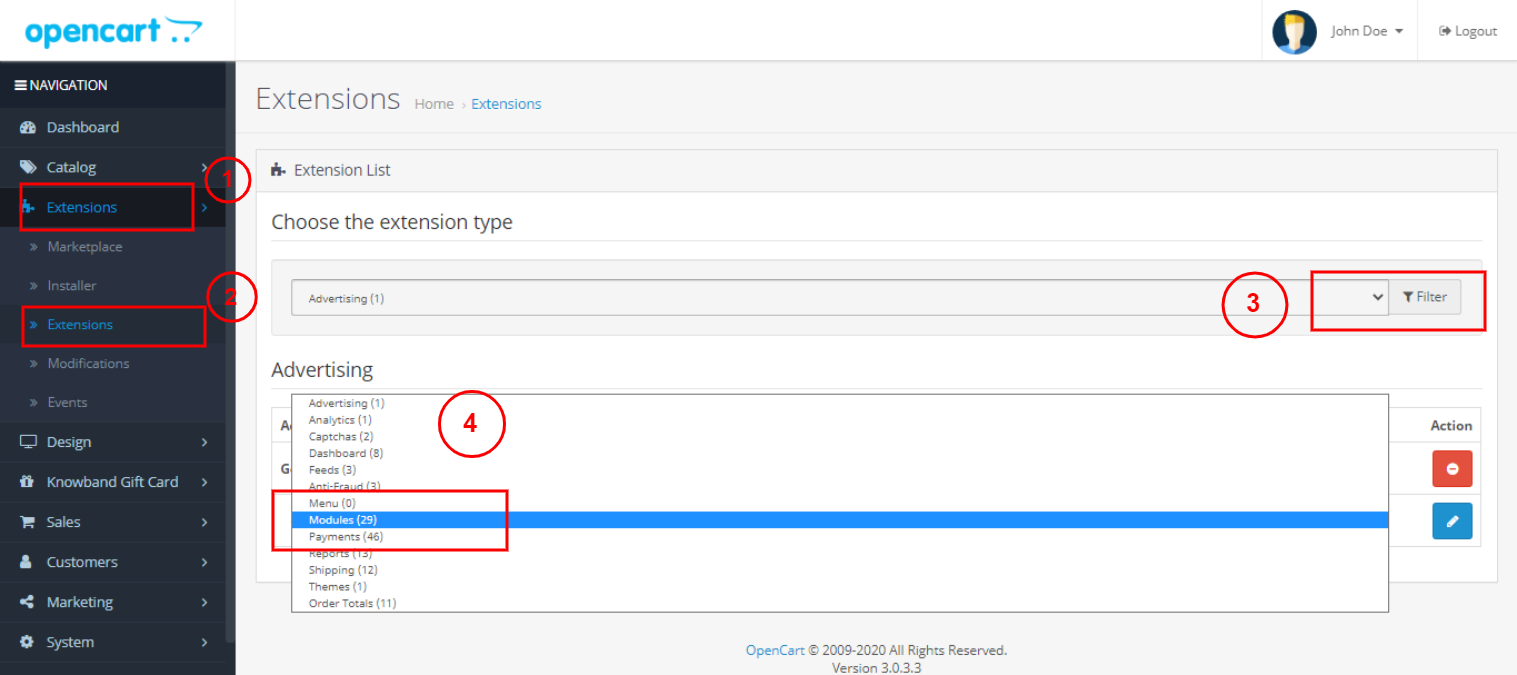
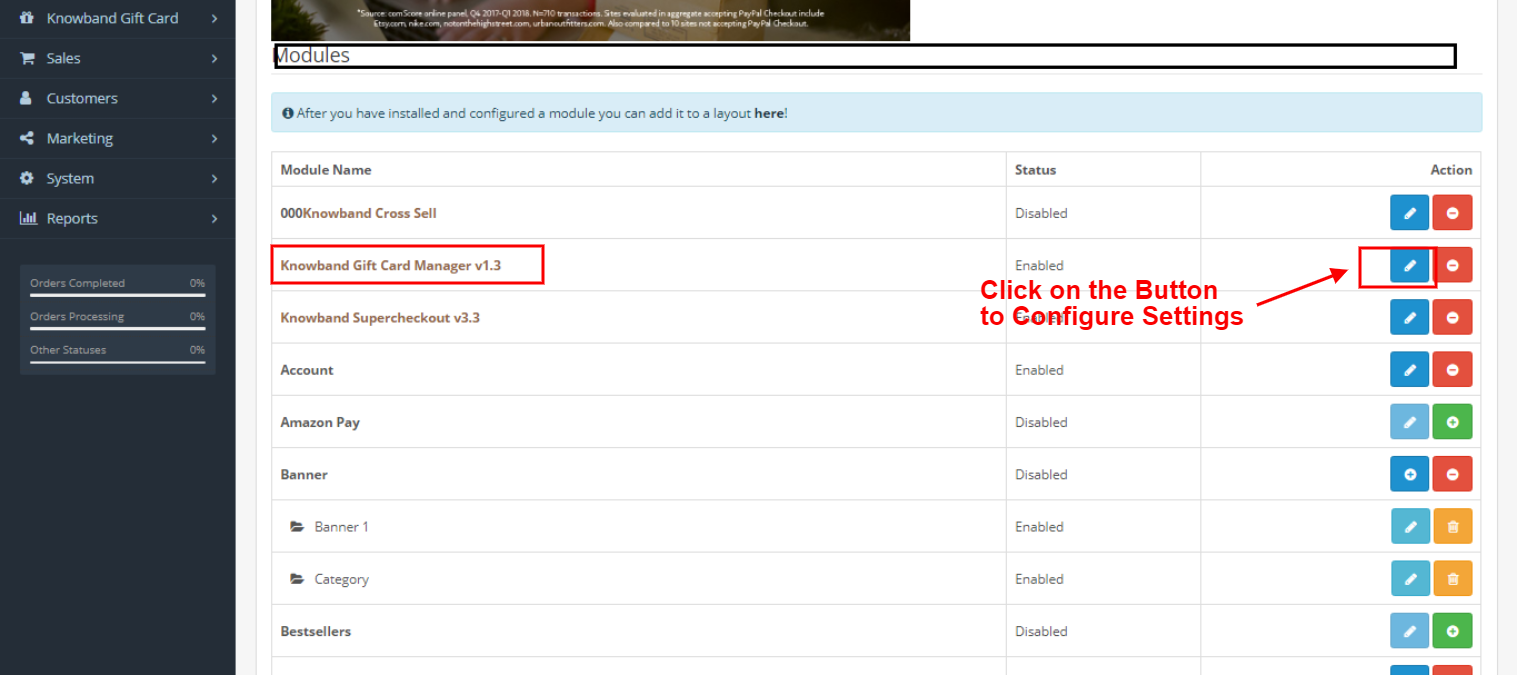
The knowband gift card manager module configuration page will display the following tabs to configure the module as desired.

  1. Module Configuration
  2. Gift Card Template
  3. The Gift Card Images
  4. Gift Card Orders

Each interface is in the form of a tab, and each tab contains some basic settings that changes as required. Each tab will be discussed below.

3.1 Module Configuration

How to configure Gift Card Manager for open Cart? OpenCart Gift Card Manager Module Configuration settings consist of the following four parts, as discussed below:

3.1.1 Configuration 
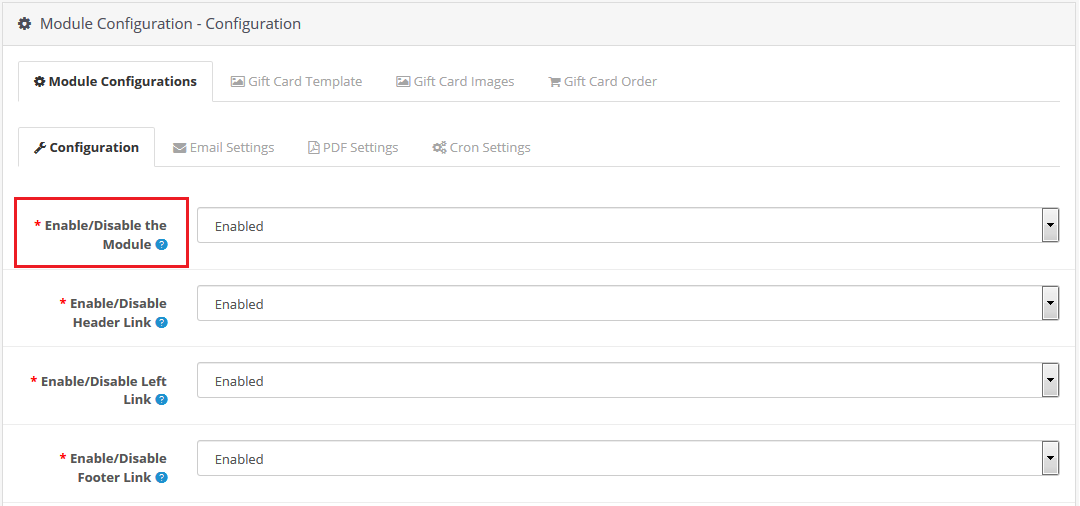
Enable/Disable Module: Enable or disable the gift card feature of your shop.

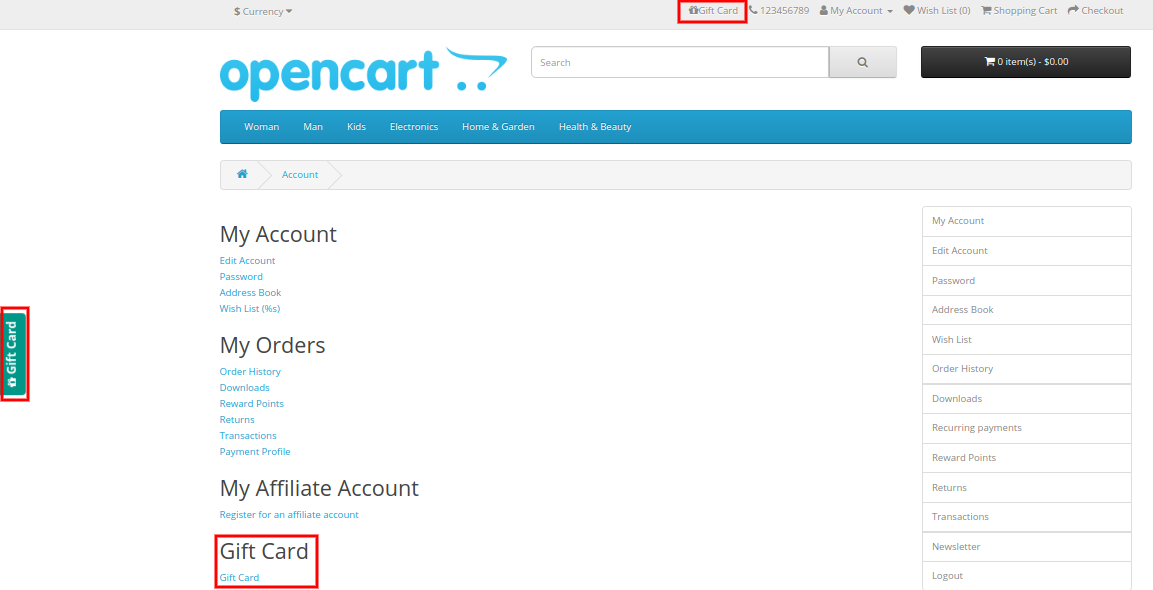
Enable/Disable Header Link: Show or hide the gift card link in the header section of the website. By showing the Gift Card link in the header, you can bring it to the attention of the store visitors.
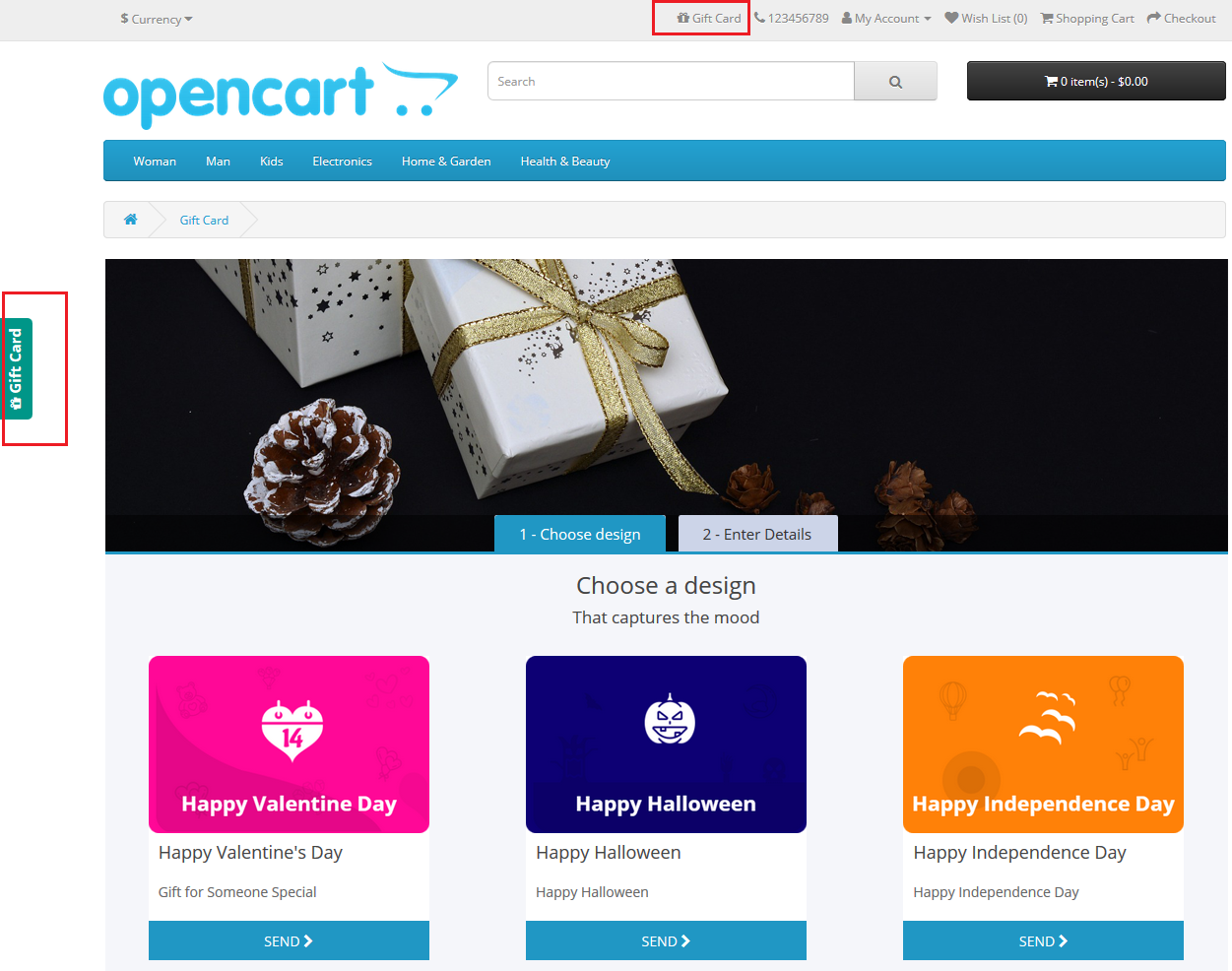
Enable/Disable Left Link: Enable or Disable gift card link in the left section of the website. A direct call to the Gift Card Action button will be shown on the storefront. It will help you encourage the selling of gift cards.

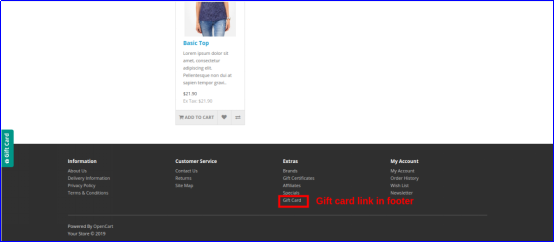
Enable/Disable Footer Link: This allows the admin to show or hide the gift card link in the footer section of the site.

Enable/Disable My Account Link: With this button, the admin can show or hide the gift card link in the My Account section of the site. This will help store owners to show the gift card options to the visitors.

Enable/Disable Personalised photo: This option allows the admin to hide or show the functionality of uploading personalized images from the front end to send the same in the gift card.

Gift Card Prefix: This option helps the admin to set the gift card voucher code prefix. The admin enters the code in a ‘Store_Name- * * *’ format. Admin can use this as a branding suffix. The store owner will advertise the store by using its business name as a prefix.

Gift Card Code Order Status: This button sets the status of the store orders when the gift card delivers to the respective customer. If the order status is set as ‘Complete’, the gift card will be sent to the customer once the purchase of the gift card has been completed on-site.

Minimum Gift Card Delivery Gap: Using this tab, the store administrator can determine the minimum duration of time on which the order comes in. Moreover, the day on which the gift card delivers. Thus, this value is only applicable to the option Send by Email.

Fixed Amount Status: The online store merchant can activate or deactivate this option if he or she wants to display a fixed amount drop-down list. The admin can allow the customers to send the gift cards of their desired amount. Store Admin can set the minimum and maximum amount for the Gift Card.

Fixed amount: The admin can add multiple values and separate the same by a comma.

Max amount: The online merchant can set the maximum amount which is acceptable for a gift card by the OpenCart gift card manager. This function will work only if fixed amount status functionality will disable.

Min Amount: The store admin can set a minimum amount for the card purchase. The customer cannot buy a gift card lesser than that amount.

3.1.2 Email Settings

With OpenCard Gift Card Manager a gift card can be sent to the recipient via email. You can customize this email template. When the gift voucher email is sent another email will be sent to receive, and the sender will receive an acknowledgment email. All the email templates are customizable.
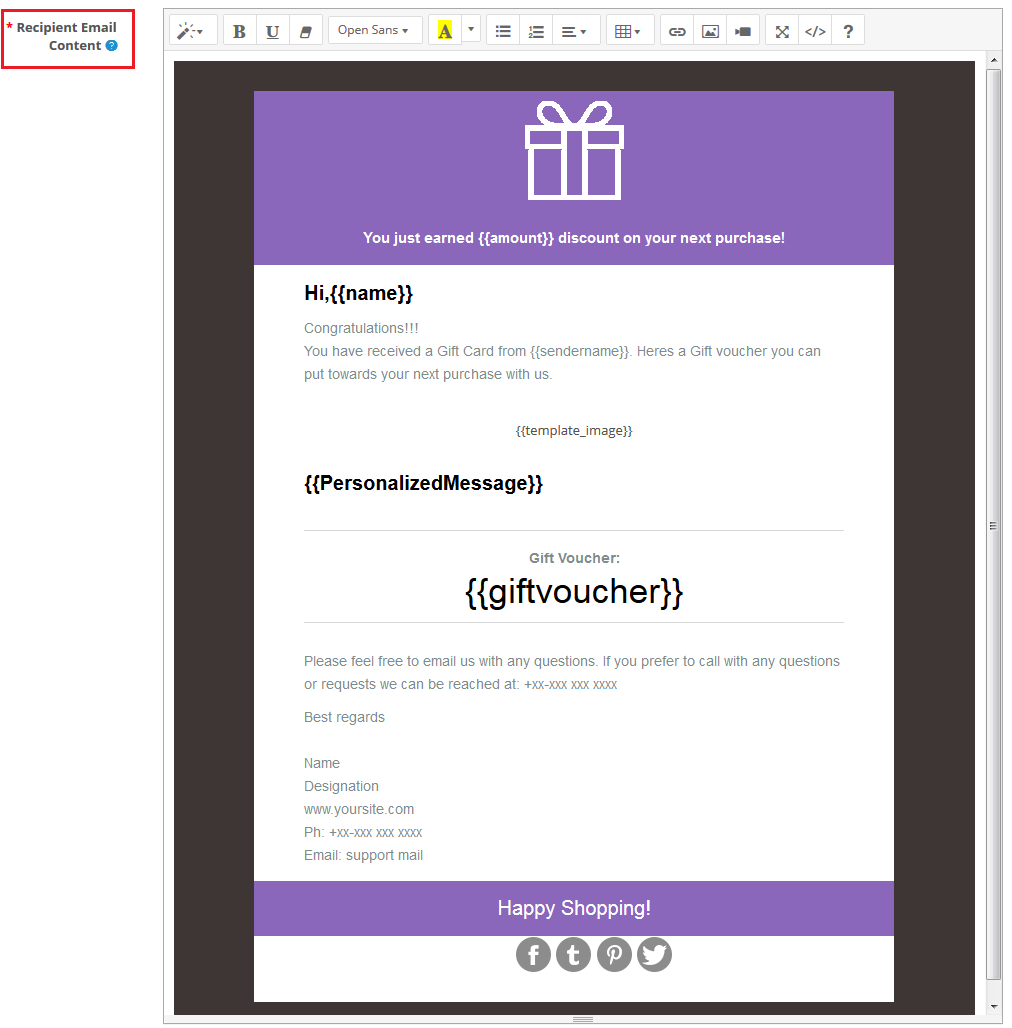
Recipient email Subject: The subject line of the gift voucher code email sent to the receiver are customizable.

Recipient Email Content: OpenCart Gift Card Manager allows eCommerce store owners to customize the contents of the gift voucher email code which will be sent to the recipient. 

Sender email Subject: An acknowledgment email is received at the end of the sender upon the successful delivery of the gift voucher code. The subject line of the sender’s acknowledgment email is changeable by the admin.

Sender email Content: The content for the sender acknowledgment email customizable by the store admin.
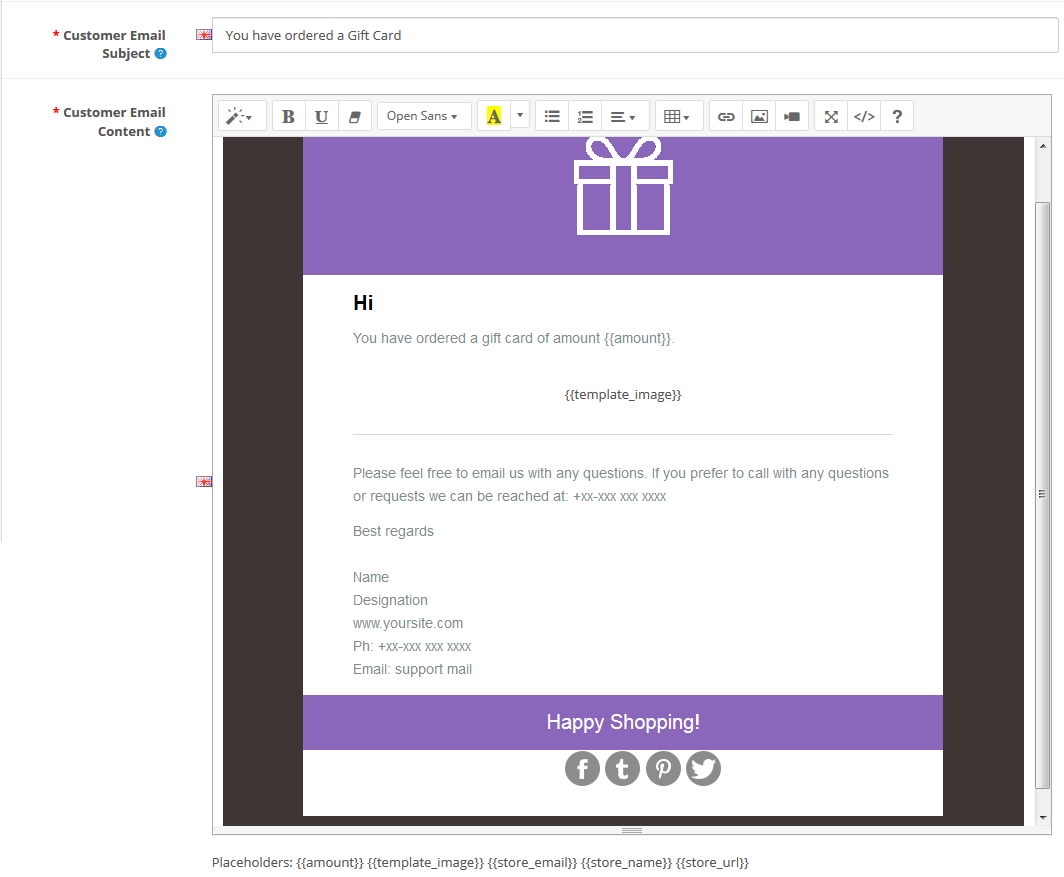
Customer email Subject: Admin can alter the subject line of the email and modify the email template.

Customer email Content: The online store administrator will send an email notification to online shoppers who have chosen the “Print by yourself” option.

3.1.3 PDF Settings

The purchaser of the gift voucher will print the OpenCart gift voucher in PDF format. The administrator will modify the contents of the PDF file. 
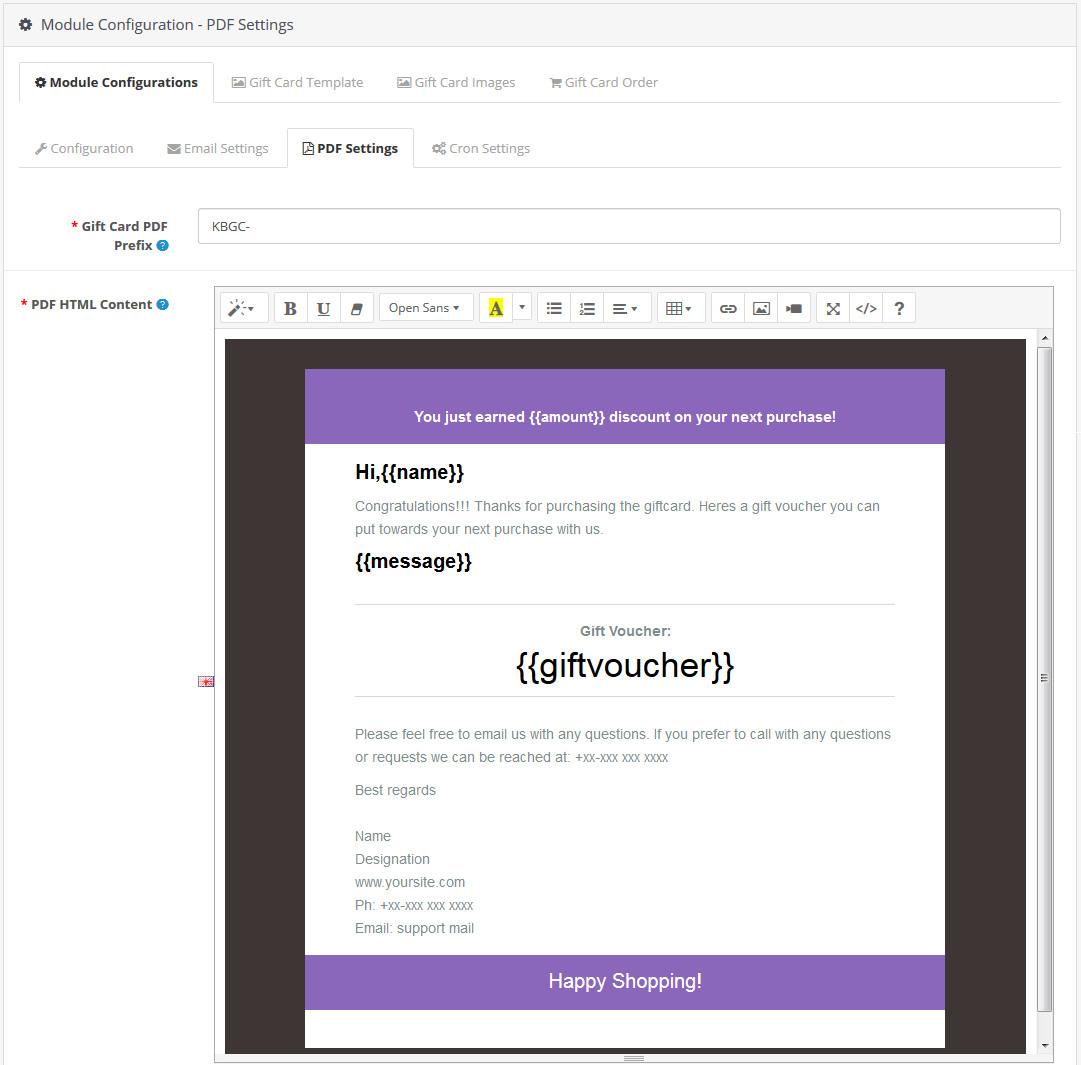
Gift Card PDF Prefix: This option allows you to set the PDF gift card prefix code attached to the document.

PDF HTML Content: You can modify or customize the contents of the PDF file as per business requirements. This template is in HTML format so you can easily add text, photos, or links to it. This PDF material can also publish in English, French, and other languages.

3.1.4 Cron Setting

The OpenCart Gift Card manager Module supports cron features. Admin can run cron manually or automatically after a specified period of time. A button is available for this functionality. 
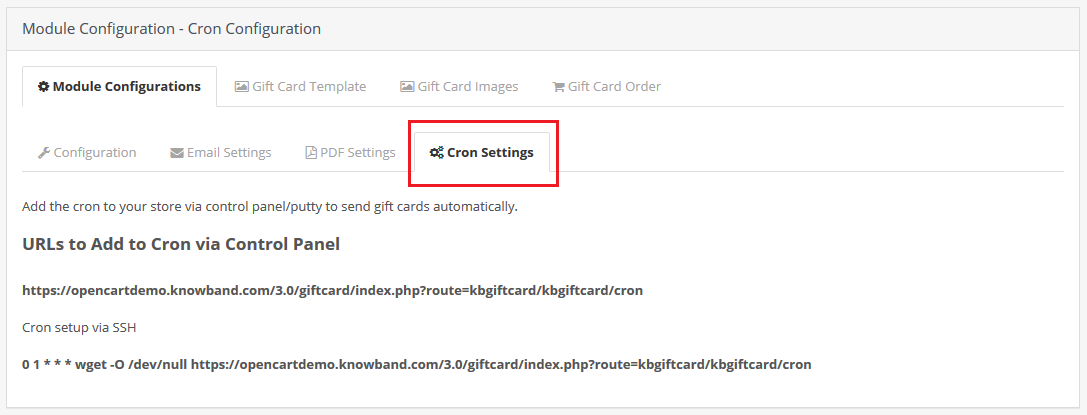
URLs to Add to Cron via Control Panel

https://octest1.knowband.com/2.3/index.php?route=kbgiftcard/kbgiftcard/cron

Cron setup via SSH

0 1 * * * wget -O /dev/null https://octest1.knowband.com/2.3/index.php?route=kbgiftcard/kbgiftcard/cron

Add the cron to your store via the Control Panel to send gift cards automatically.

3.2 The Gift Card Template

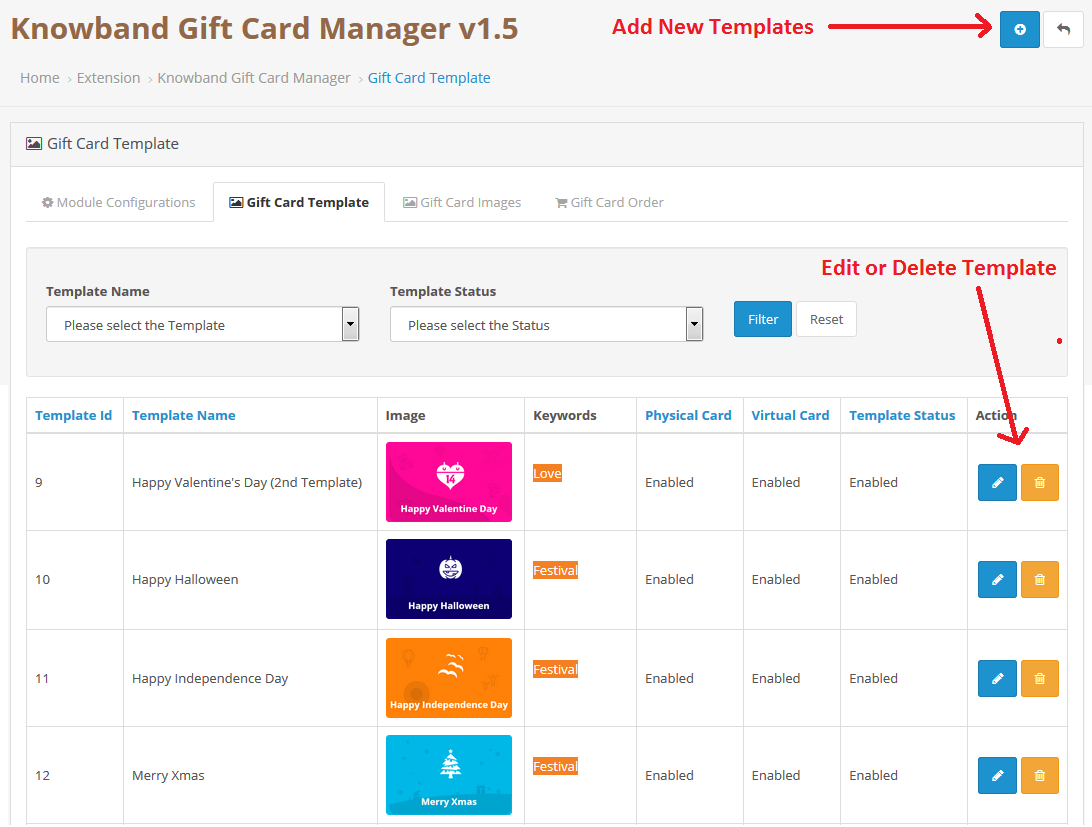
To build new gift card templates using the OpenCart gift card module, go to the Gift Card design tab of the admin panel. Click the ‘Add New Template’ button or the ‘+’ sign on the top right of the OpenCart gift card screen. You can see the following settings to create a new gift card template for your store.

Add New Templates or Edit/Delete the Templates:
Add New Gift Card Template:
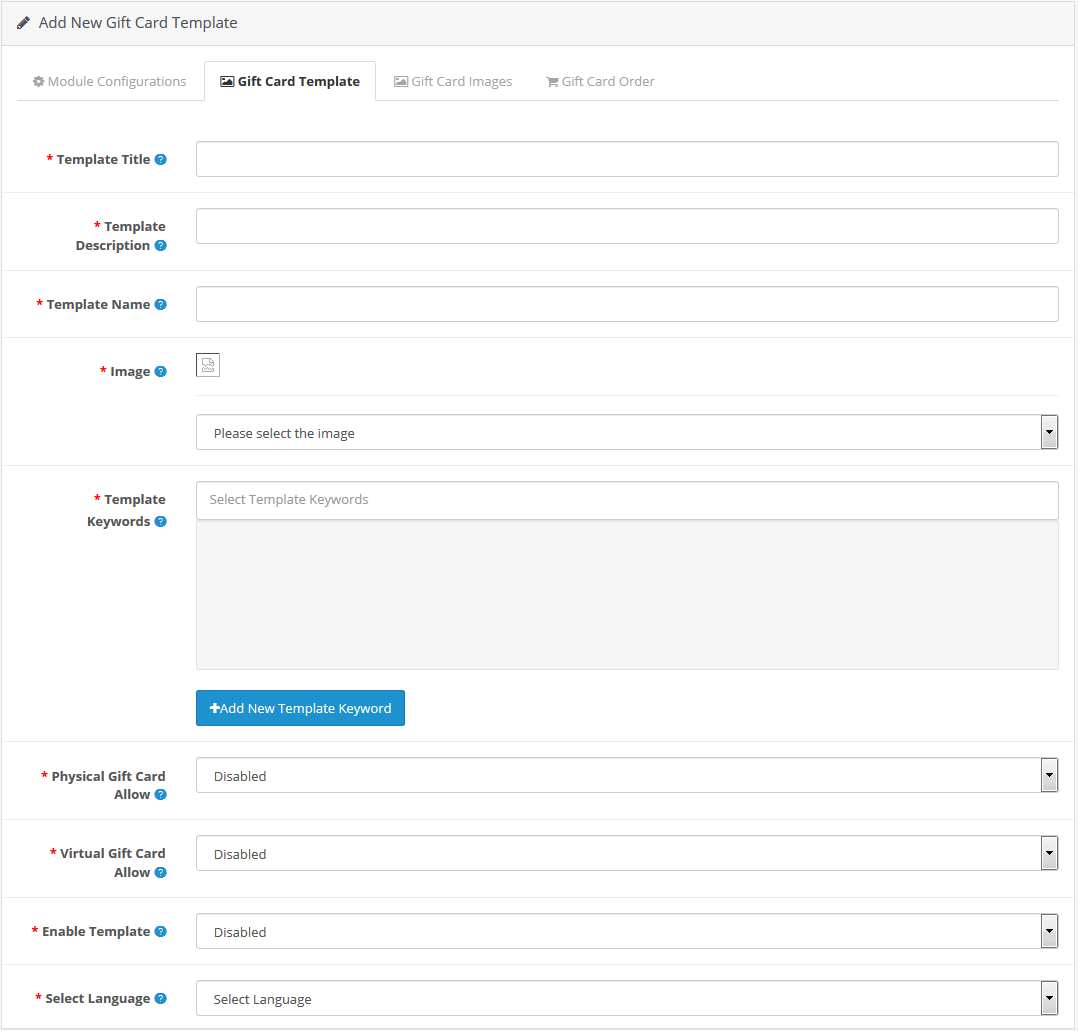
 Template Title: This is a new feature in this latest version of OpenCart Gift Card Manager which allows admin to add the template title.

Template Description: Now admin can add the description for the Gift Card which he or she wants to display on the front end.

Name of the template: This option allows the admin to set a unique name for the gift card template that defines a particular template.

Image: This option of the OpenCart Gift Card Plugin allows the admin to pick a gift card picture or model that will display at the front end of the shop. When selecting an image, only the images produced will display in the drop-down list.

Template Keywords: This choice lets you map the gift card design to a specific category. It can be achieved by choosing the appropriate tags/keywords for the gift card template. If you want to place the gift card template in a new category, you can first add the keyword and map the template to it. Just press the “Add new keyword template” button.

Physical Gift Card Allow: This option allows the OpenCart admin to activate or deactivate the physical gift card for this template.

Virtual Gift Card Allow: You can activate or disable e-cards for both the recipient and yourself. This means that when you activate the virtual card option, customers will see three options on their front page, namely “Print Yourself”, “Send by Email”, and “Physical Card”.
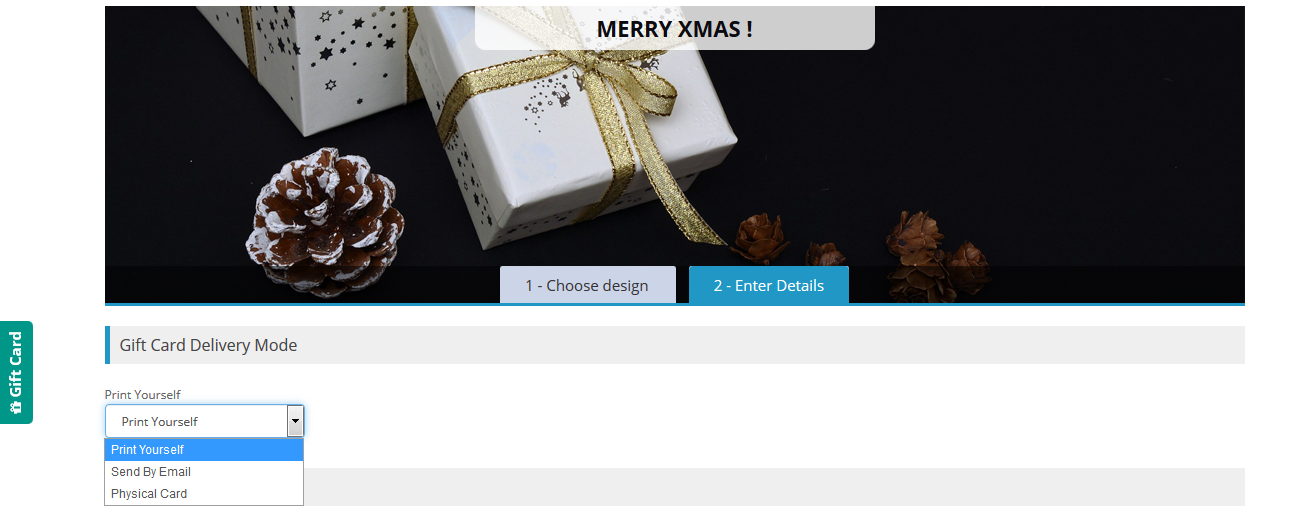
 Enable Template: This option easily activates or deactivates the template from OpenCart Store.

Select Language: The admin will pick the language of the template from the drop-down list.

3.3 The Gift Card Images

Pictures for various occasions are pre-uploaded at the back end of the OpenCart gift card manager.  The admin can select an occasion-based image when building a gift card template. In addition, the store owner needs to set the following configuration settings to attach a new gift card to the store. 
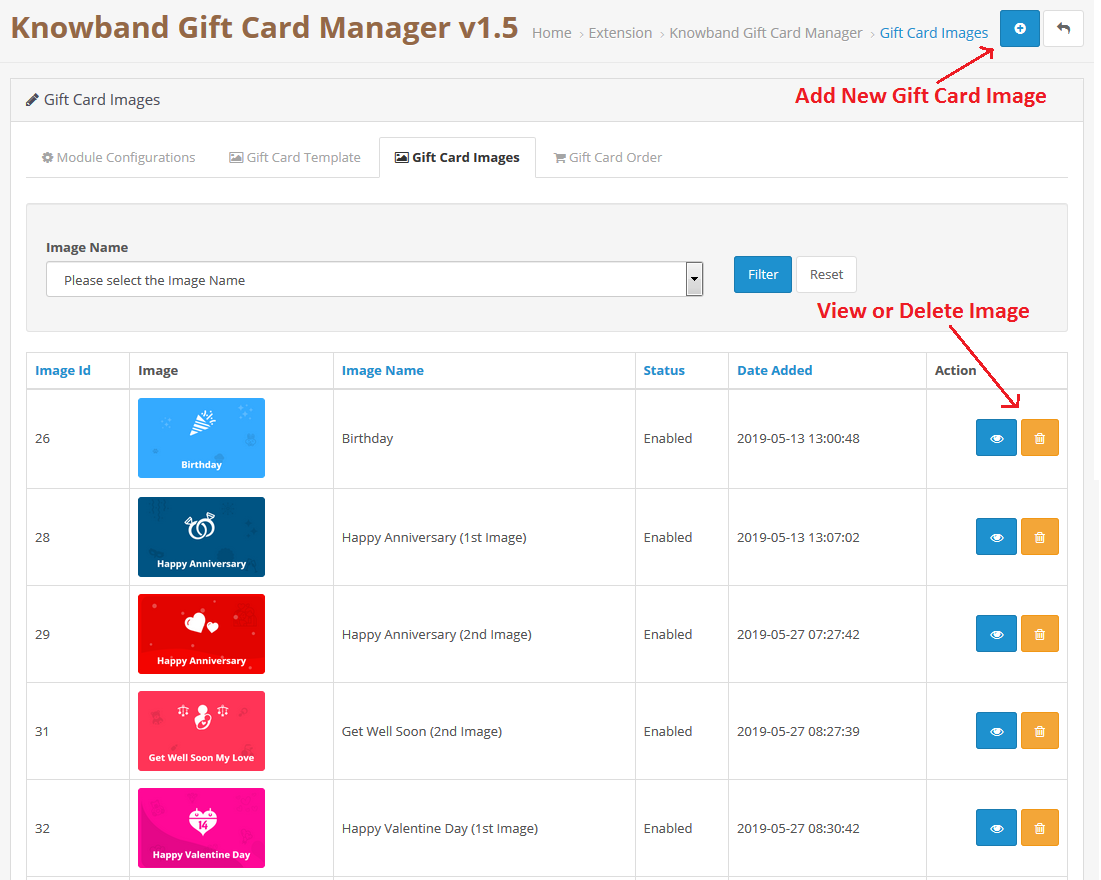
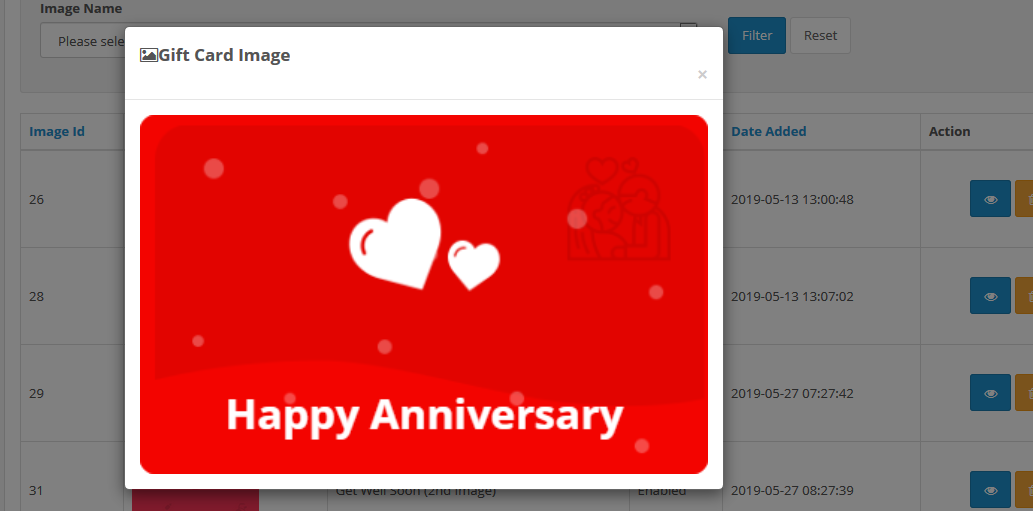
View Gift Card Image:
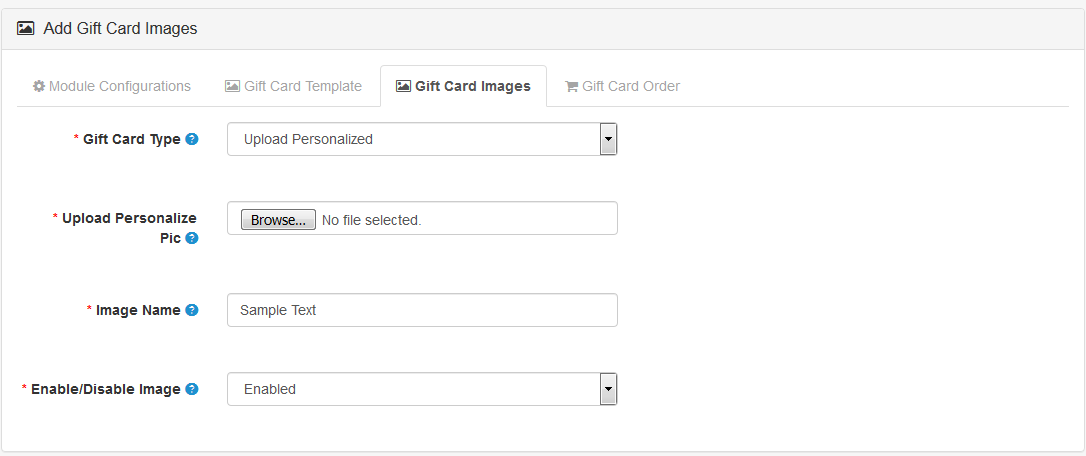
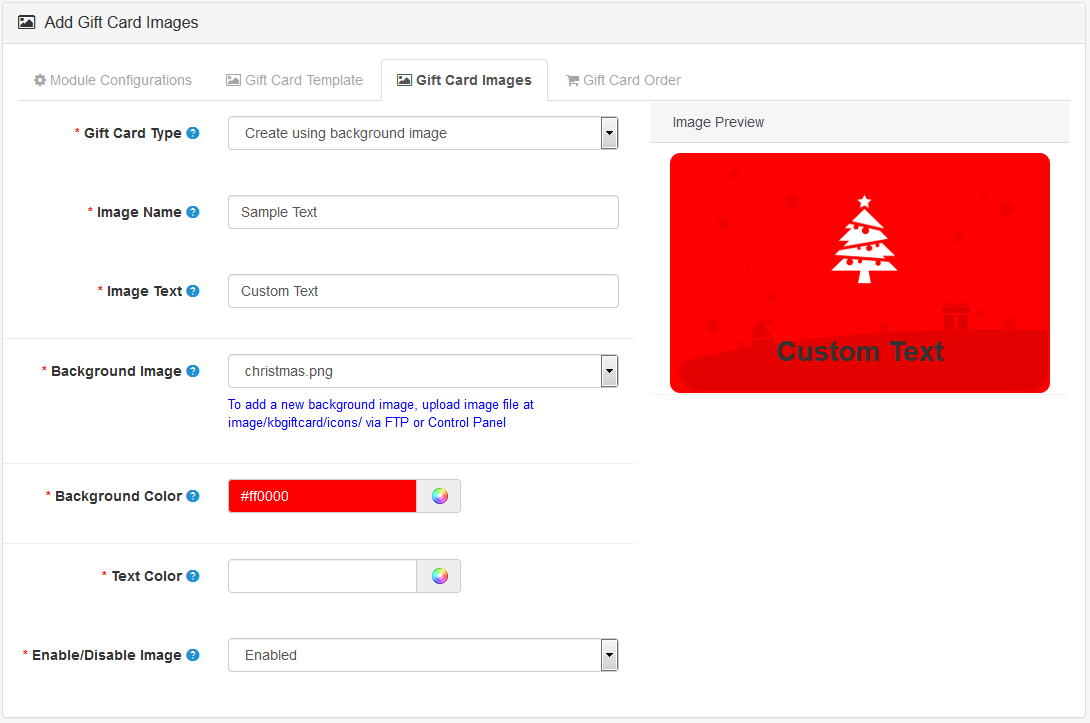
Add Gift Card Images:

Select the add product button available in the upper right corner. You will head to a new page where you can add new Gift card Images.
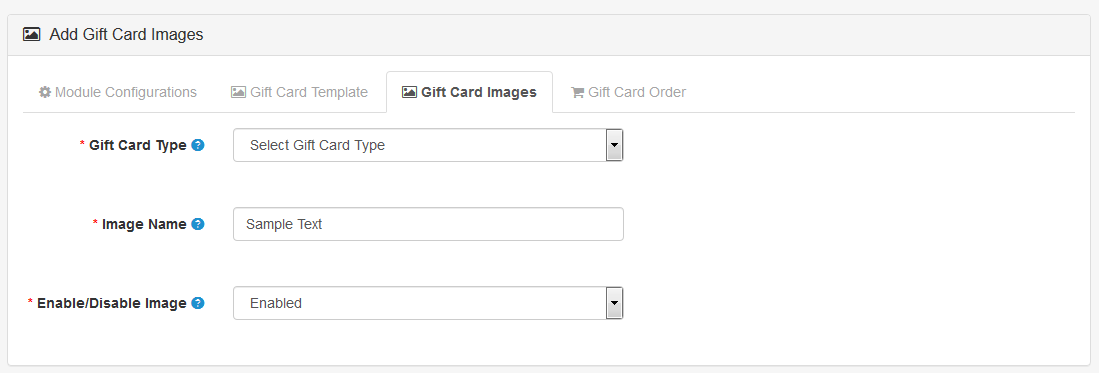
Gift Card Type: The store admin can upload a personalized gift card image to make the gift card more attractive.

Image Name: This feature is to add a name to the Image. This name is for recognition purposes of the admin and this won’t display on the front end.

Enable/Disable Image: With this button, the store owner can show or hide the particular Image from the front end.

Gift Card Image section of OpenCart Gift card Manager has two more options

  1. Upload Personalised Gift Card Image:

  1. Create Using Background Image:

Save the settings before moving to the next setting section.

3.4 The Gift Voucher Orders

For the admin interface Gift Card Order section is very important. Here admin can track the details of the orders of Gift Cards.

Under the Gift Card Order tab of the Gift Card Manager, the administrator can monitor the entire list of orders received for gift cards. It displays the e-mail address of the recipient, the date of the shipment, and the status of the gift cards.
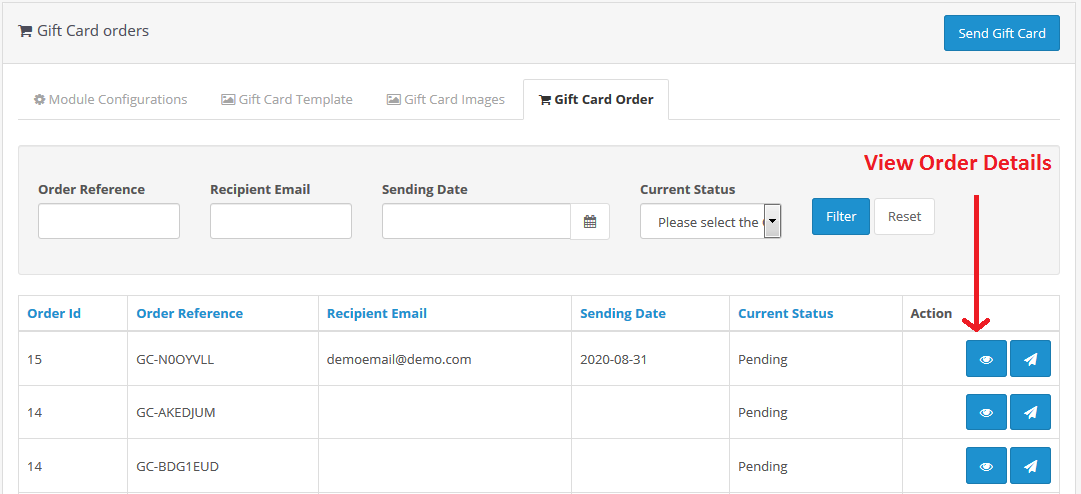
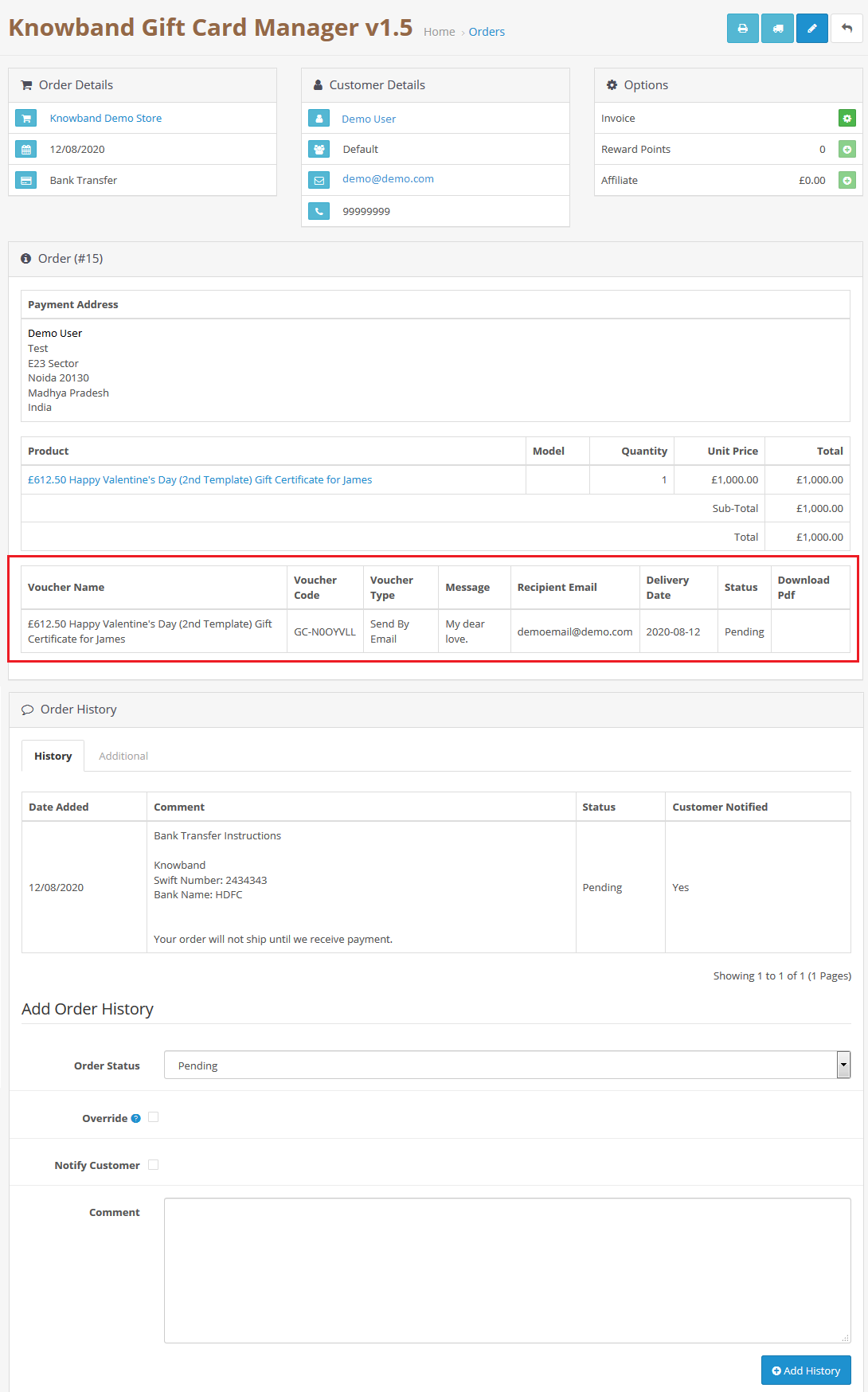
In this section, you will find all the details about the order. Go to the ‘Display’ button in the right section of the ‘Gift Card Order’ page.

View the Gift voucher Orders:
4.0 Front Interface

4.1 Different positions of gift card link

a)  The gift card link is shown at the left and header sections.

b) The gift card link is shown in the footer section.

4.2 How to Purchase a Gift card?

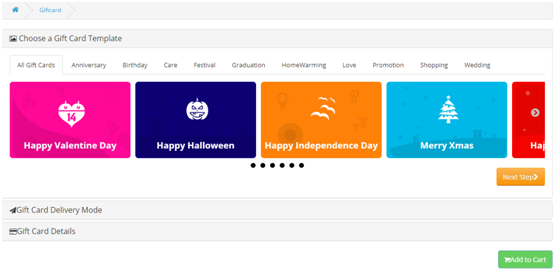
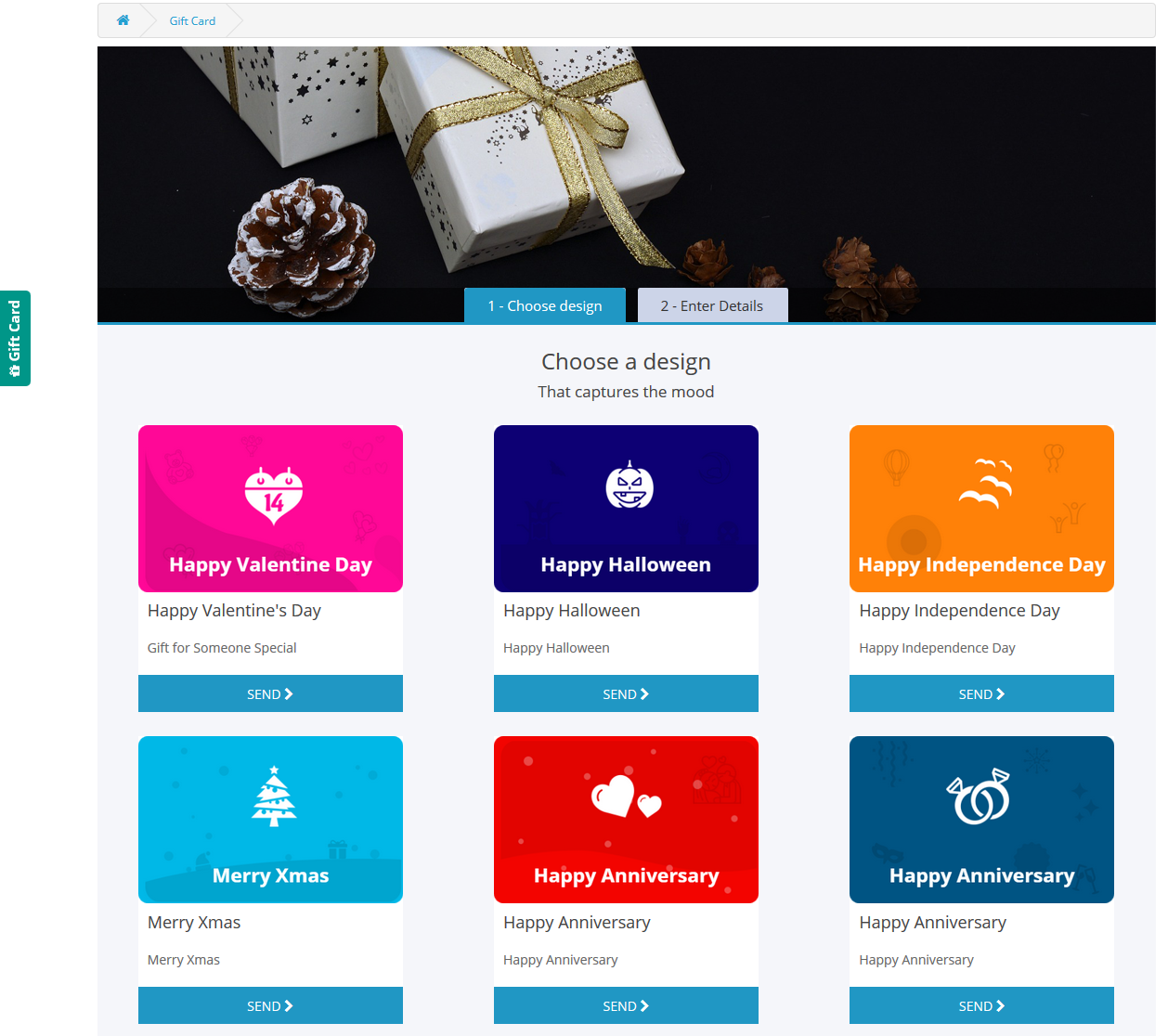
Click on the Gift Card Button from any of the above-mentioned tabs. Customer will head to Gift card Page


  1. Choose Design: Select a design for your card according to the occasion from the options available.
  2. Choose an option for the Gift Card Delivery Mode

4.2.1 Print Your self


From(Name): Enter the name of the sender

To(Name): Enter the name of the receiver

Upload Personalize Pic (Choose File): With the OpenCart Gift card manager, the Customer can choose a personalized Image that will be shown on the card.

Personalize message: A personalized message can be written by the customer.
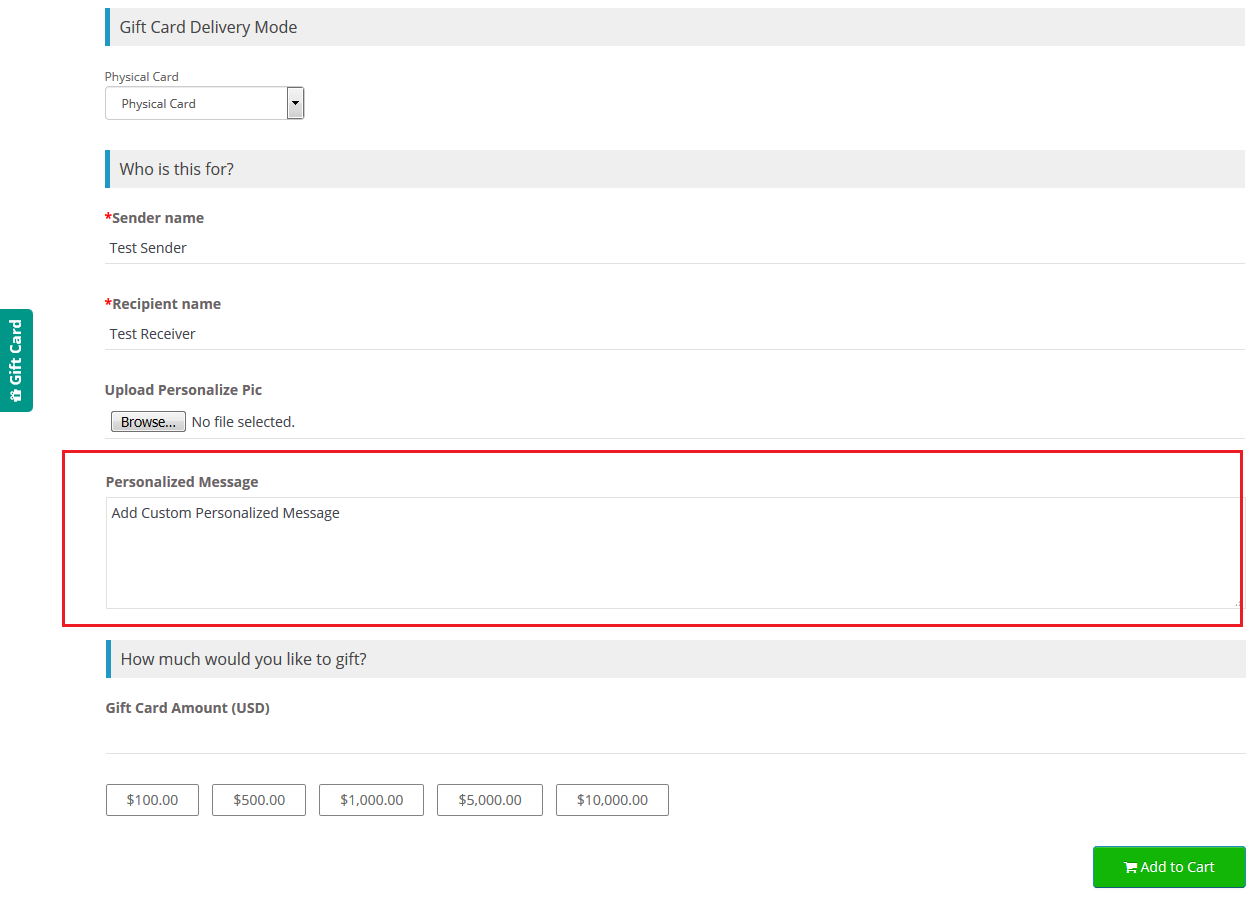
 

How much would you like to gift?

Gift Card Amount: Customer can put an amount which needs to be gifted.

4.2.2 Send By Email

Provide Gift Car Delivery Details

Email Address: Enter the email address of the receiver

Sending Date:  Add sending date of the Gift Card Notification email
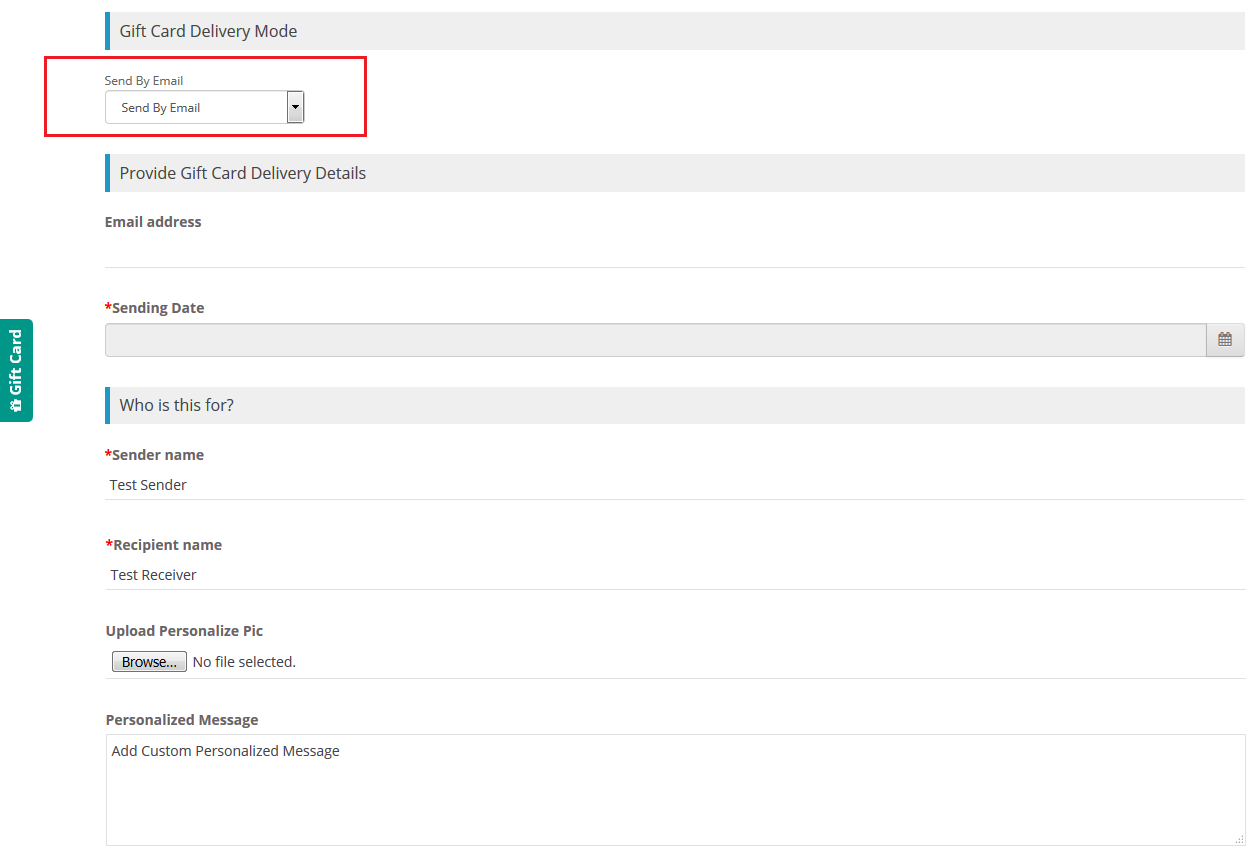
 

From(Name): Enter the name of the sender

To(Name): Enter the name of the receiver

Upload Personalize Pic (Choose File): With the OpenCart Gift card manager, the Customer can choose a personalized Image that will be shown on the card.

Personalize message: A personalized message can be written by the customer.

How much would you like to gift?

Gift Card Amount: Customer can put an amount which needs to be gifted.

Now you can add the Gift card to your Cart.

4.2.3 Physical card

From(Name): Enter the name of the sender

To(Name): Enter the name of the receiver

Upload Personalize Pic (Choose File): With the OpenCart Gift card manager, the Customer can choose a personalized Image that will be shown on the card.

Personalize message: A personalized message can be written by the customer.

How much would you like to gift?

Gift Card Amount: Customer can put an amount which needs to be gifted.

4.3 Add gift card to shopping cart
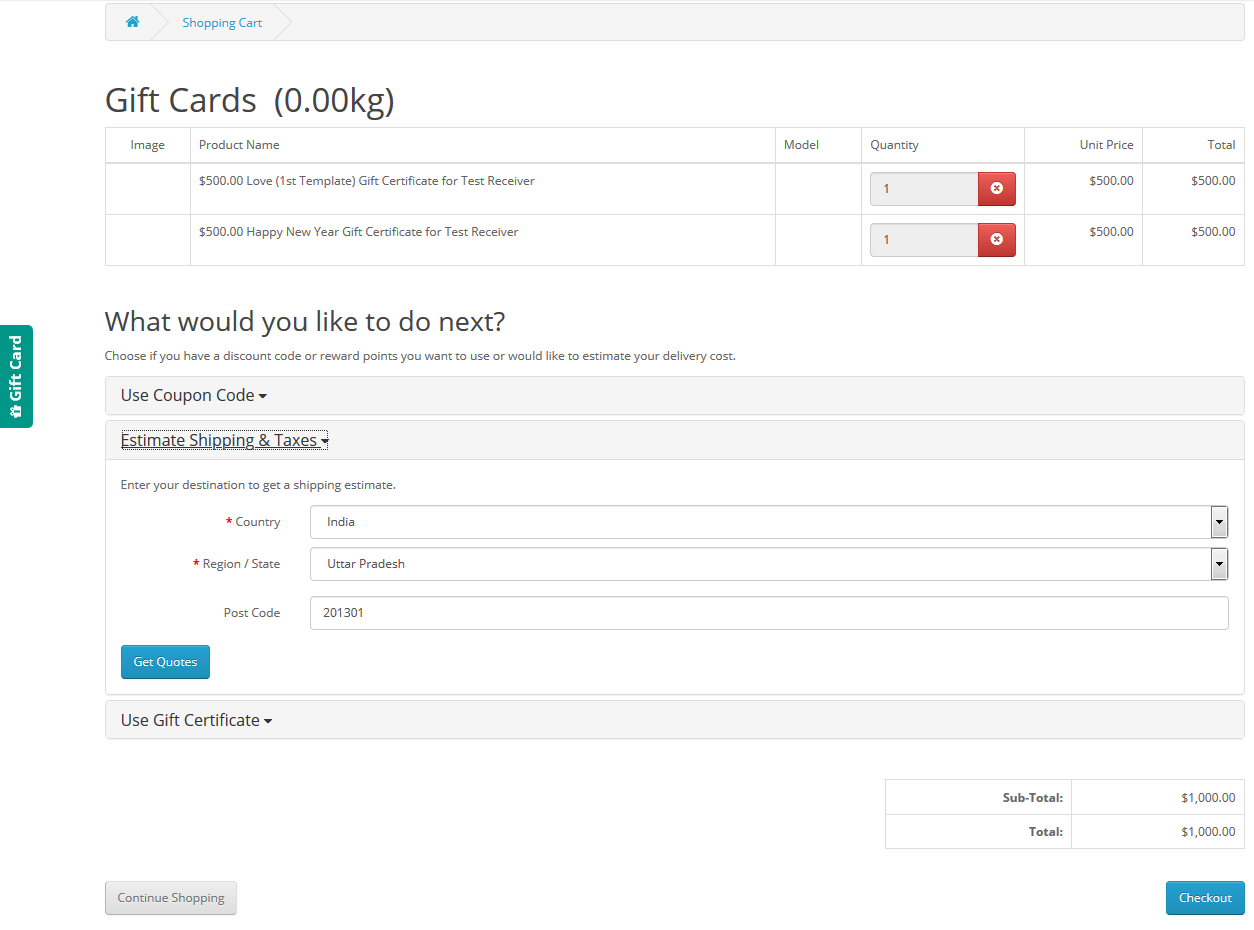
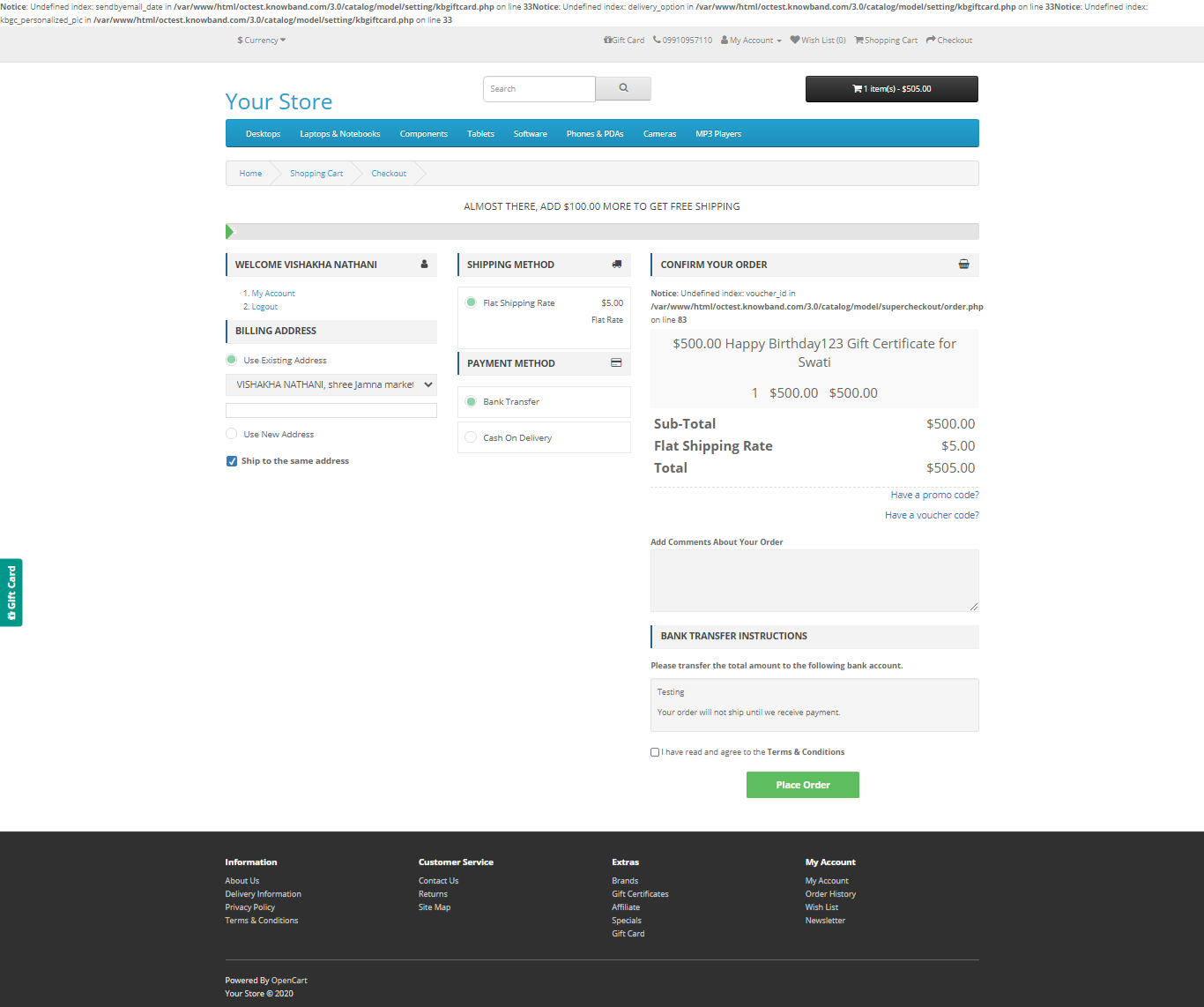
4.4 Steps before Checkout
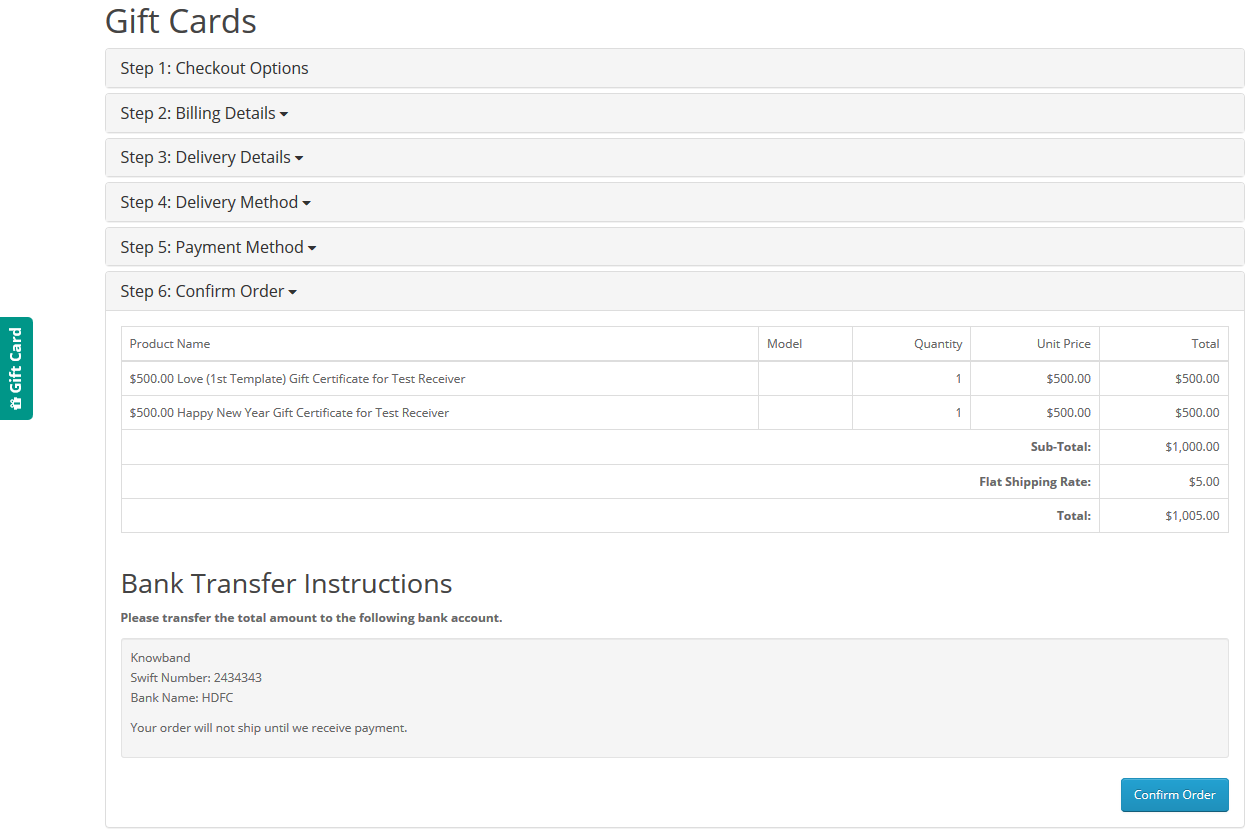
 

By clicking on the Place order button, the customer can place the order.
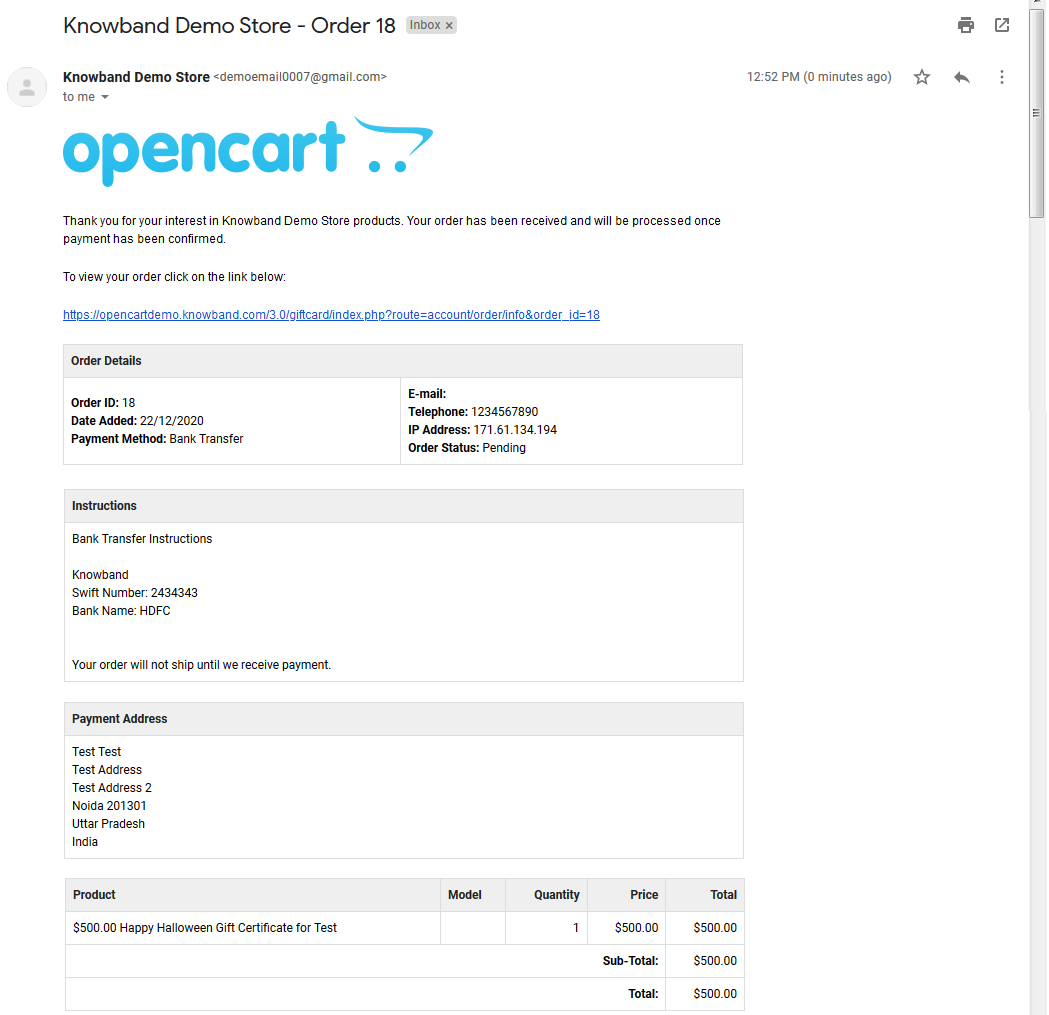
 

Customers will receive an email after the successful Order Placement.

This way the online store admin can easily allow the customers to share gift cards with their friends and family person. There are so many templates for different occasions, that online users can select the gift card and send it. The OpenCart gift card manager extension provides smooth functioning and multi-lingual compatibility. The Gift Card Module for OpenCart shows the gift card link in multiple sections for the customer’s ease. The online merchant can increase profit by offering a gift card to the customers.

Check Tutorial Guides for the OpenCart Gift Card Manager

These videos walk you through:

  • Installing the OpenCart Gift Card Manager Extension

  • Setting up basic gift card settings

  • Creating gift card products in your store

  • Managing gift card designs, amounts, and delivery options

  • Tracking gift card orders and usage

These tutorials are perfect for beginners who want a clear, step-by-step guide without any technical jargon.

For more details about this OpenCart gift card vouchers plugin, please visit here:

OpenCart gift card extension module link

OpenCart send gift card extension Admin demo link

Gift Card Module for OpenCart Youtube Video link

OpenCart gift card system Front demo link

OpenCart gift card vouchers plugin marketplace Link

Follow us on Facebook
Amazon SQS setup and MWS Subscriptions for AnyOfferChanged Notification

Objective of the blog

After reading this blog, you will be able to understand how SQS is setup and how MWS is subscribed for any notification.

Let’s Create an Amazon SQS and Enable this for MWS Subscription

The Amazon MWS Subscriptions section enables us to subscribe to receive notifications. To receive notifications, you must first create and register a Destination, such as an Amazon Simple Queue Service (Amazon SQS) queue. Then, you will need to create a Subscription for the NotificationType that you want to receive.

How the queue is created and how MWS Subscription is done for the NotificationType are described below.

Create Amazon Simple Queue Service (Amazon SQS) queue

1. Login SQS Management Console using https://console.aws.amazon.com/sqs/home?region=us-west-2# URL and credentials. Page will look like below image.
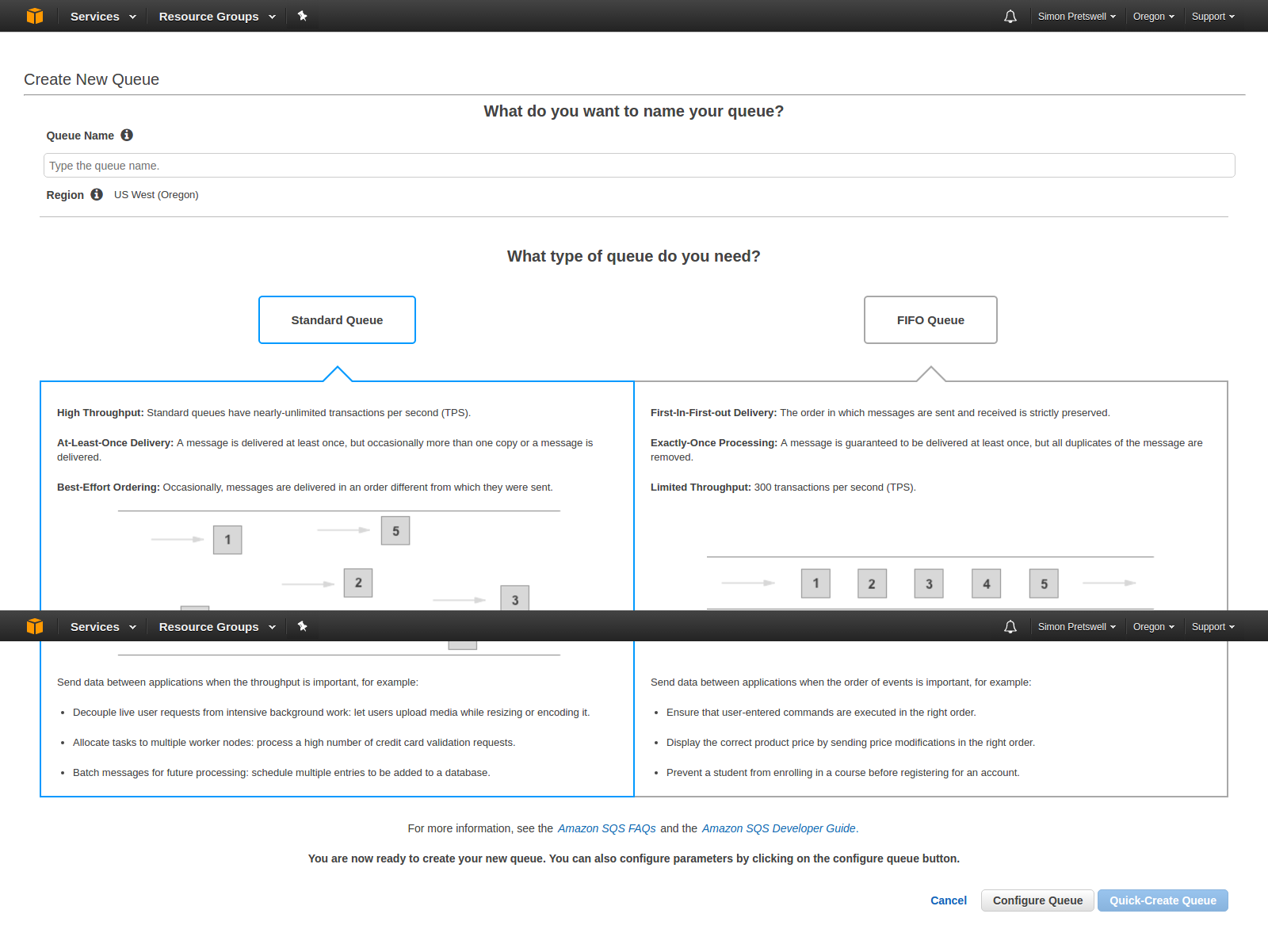
2. Click on Create New Queue button. Page to create and configure queue will be opened and this will look like below image.
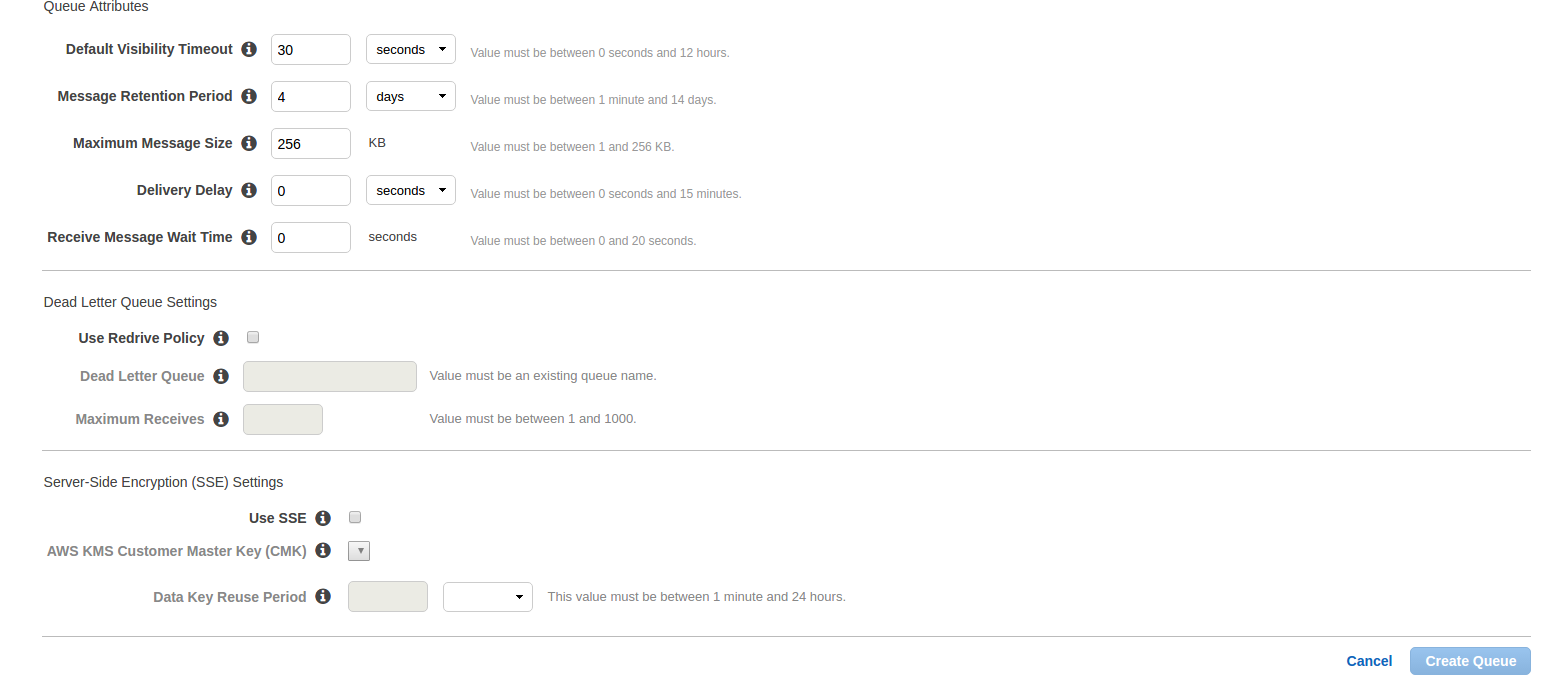
Here, enter Queue Name which you want. Select queue type. By default, Standard Queue will be selected. Now click on Configure Queue and after click on this, you will get the options to configure queue like below image.
  • Default Visibility Timeout: This is the time for which a received message from the queue will not be available to receive again.
  • Message Retention Period: This is the time for which any message will reside in the queue if that message is not forcefully deleted. After entered time, that message will be automatically deleted from the queue.

    These are two most important fields. Other fields are:

  • Maximum Message Size: Highest message size (in bytes) accepted by Amazon SQS.
  • Delivery Delay: The amount of time to delay the first delivery of all messages added to this queue.
  • Receive Message Wait Time: The highest amount of time that a long-polling receive call will wait for a message to become available before returning an empty response.

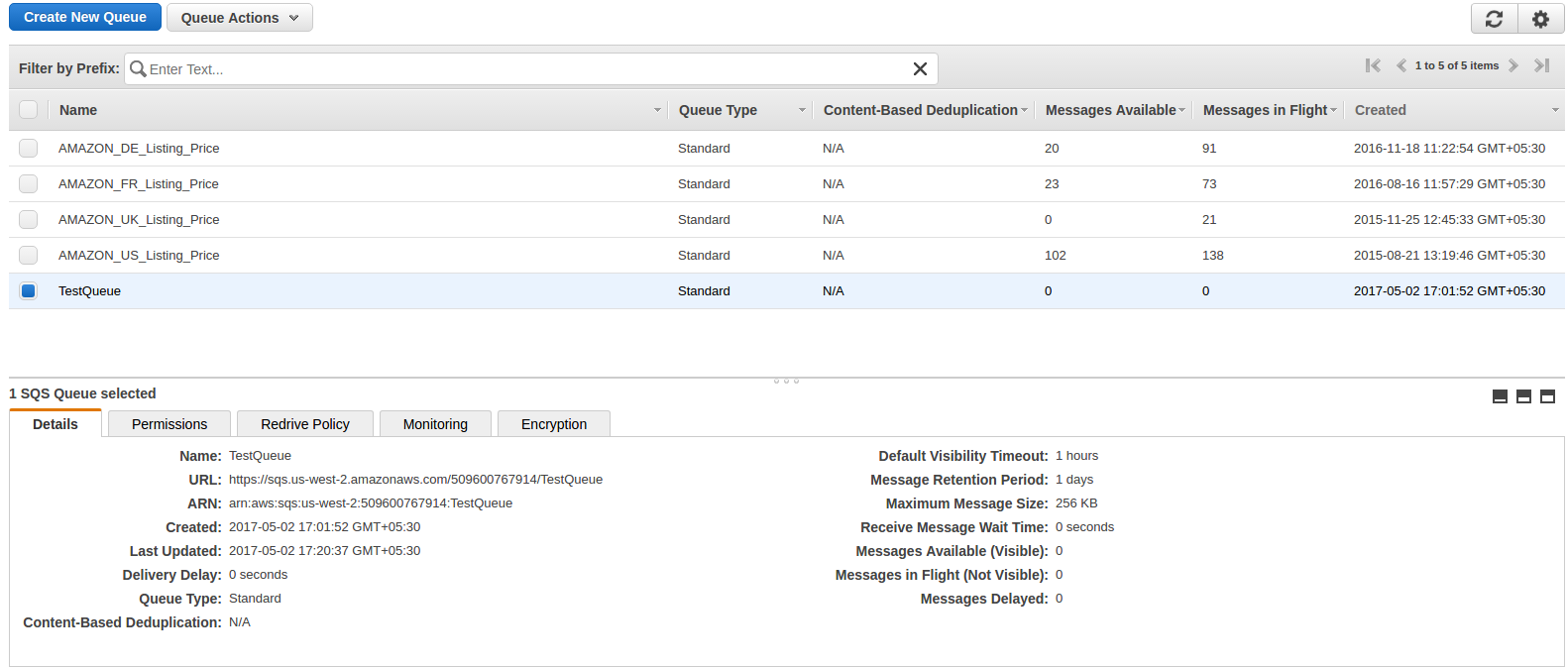
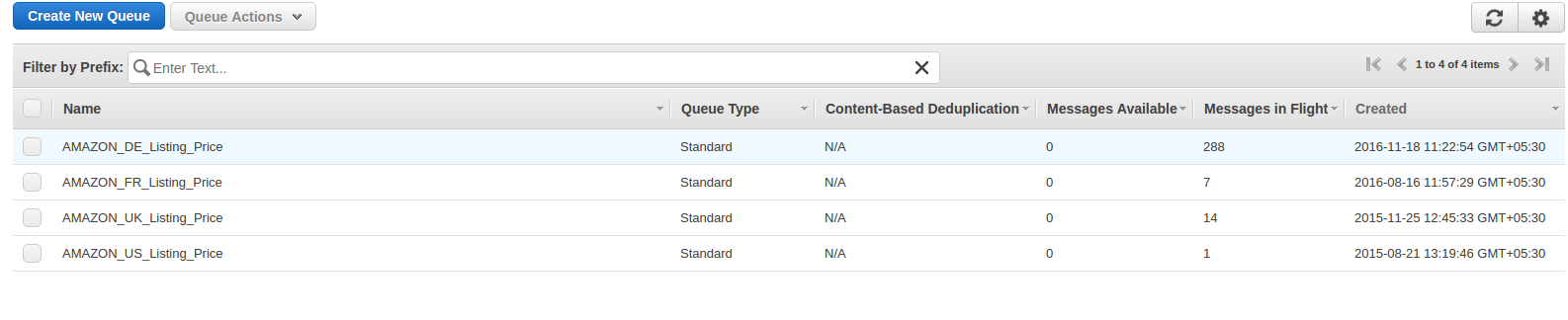
After enter detail, click on Create Queue button and you will be redirected on queue list page and your new queue will also be shown as shown in below image and basic detail of queue will also be displayed.

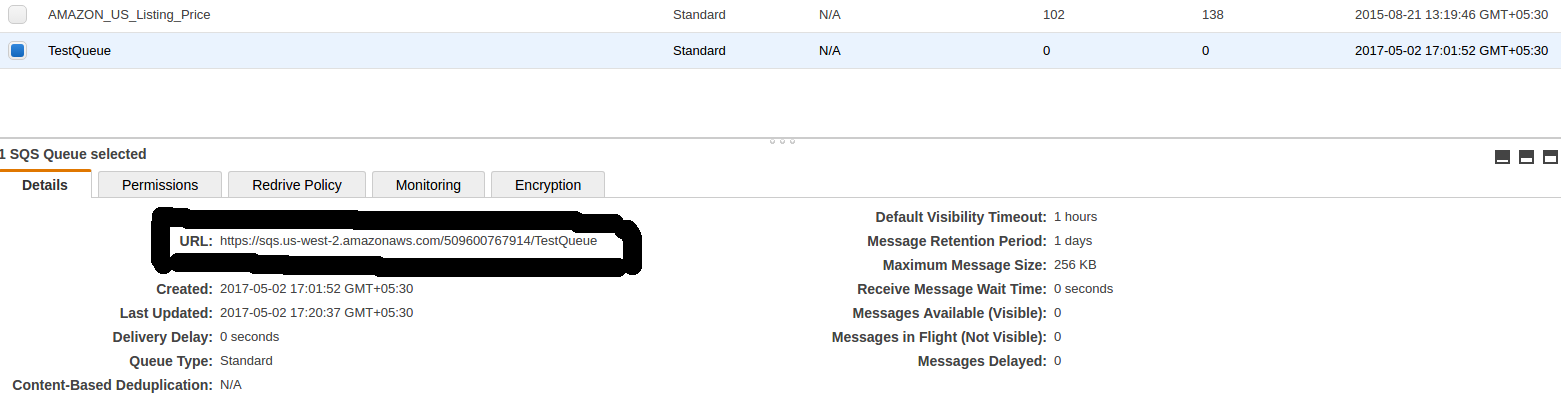
In basic detail, there is URL which is the most important attribute and this will be used to register and subscribe for notification.

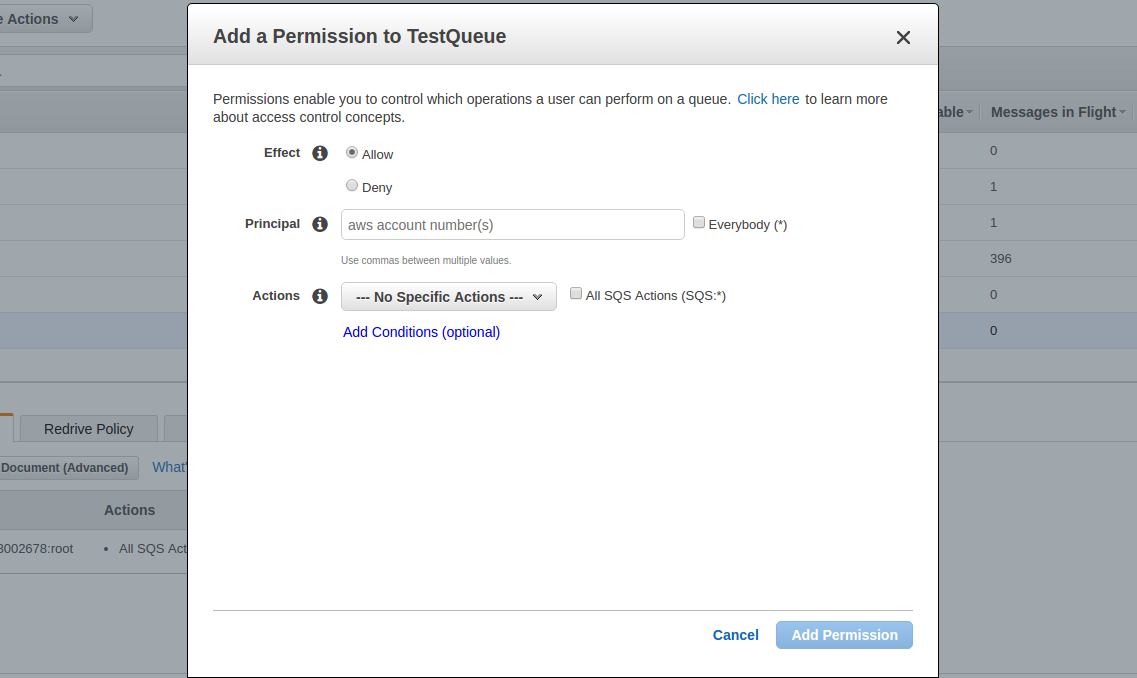
Now click on Permissions tab and click on Add a Permission button. A popup will be opened like below image. Enter your AWS account number and in action, check All SQS Actions checkbox and click on Add permissions.


You can add multiple permissions as you want.

Register a Destination (Created Queue)

Now queue has been created and you need to register this queue for notifications. For this, you need to use RegisterDestination operation on MWS. The RegisterDestination operation specifies a location where you want to receive notifications and adds it to the list of registered destinations.

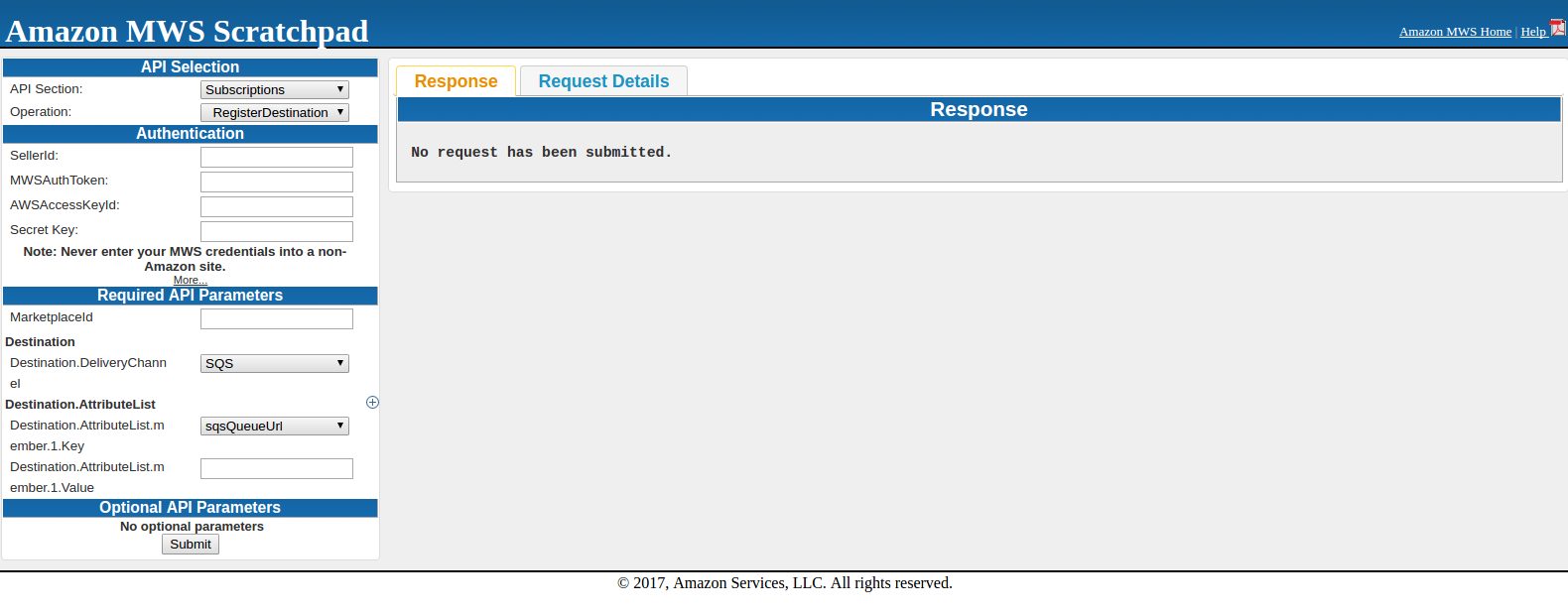
For this, open https://mws.amazonservices.co.uk/scratchpad/index.html or https://mws.amazonservices.com/scratchpad/index.html depending on the marketplace. Select subscriptions from API Section and RegisterDestination from operation as below image.


Here enter SellerId, AWSAccessKeyId, Secret Key and MarketplaceI. In Destination, SQS should be selected because you are using SQS queue as destination. Destination.AttributeList.member.1.Key should be sqsQueueUrl and in Destination.AttributeList.member.1.Value, you need to enter SQS URL which was under details in SQS Queue like below image.

When submitting the request, either you can get success response or error response. If you get below response, it means registered successfully.

<?xml version="1.0"?>
<RequestReportResponse xmlns="https://mws.amazonservices.com/doc/2009-01-01/">
    <RequestReportResult>
        <ReportRequestInfo>
            <ReportRequestId>2291326454</ReportRequestId>
            <ReportType>_GET_MERCHANT_LISTINGS_DATA_</ReportType>
            <StartDate>2009-01-21T02:10:39+00:00</StartDate>
            <EndDate>2009-02-13T02:10:39+00:00</EndDate>
            <Scheduled>false</Scheduled>
            <SubmittedDate>2009-02-20T02:10:39+00:00</SubmittedDate>
            <ReportProcessingStatus>_SUBMITTED_</ReportProcessingStatus>
        </ReportRequestInfo>
    </RequestReportResult>
    <ResponseMetadata>
        <RequestId>88faca76-b600-46d2-b53c-0c8c4533e43a</RequestId>
    </ResponseMetadata>
</RequestReportResponse>

If a request is unsuccessful, the main response element will be ErrorResponse, irrespective of the action requested and error detail will also be in response.

<ErrorResponse xmlns="https://mws.amazonservices.com/doc/2009-01-01/">
    <Error>
        <Type>Sender</Type>
        <Code>InvalidClientTokenId</Code>
        <Message> The AWS Access Key Id you provided does not exist in our records. </Message>
        <Detail>com.amazonservices.mws.model.Error$Detail@17b6643</Detail>
    </Error>
    <RequestID>b7afc6c3-6f75-4707-bcf4-0475ad23162c</RequestID>
</ErrorResponse>

After register Destination, try SendTestNotificationToDestination operation to verify that notifications are receiving or not. This operation sends a test notification to the Destination that you specify.

Subscribe for Notification

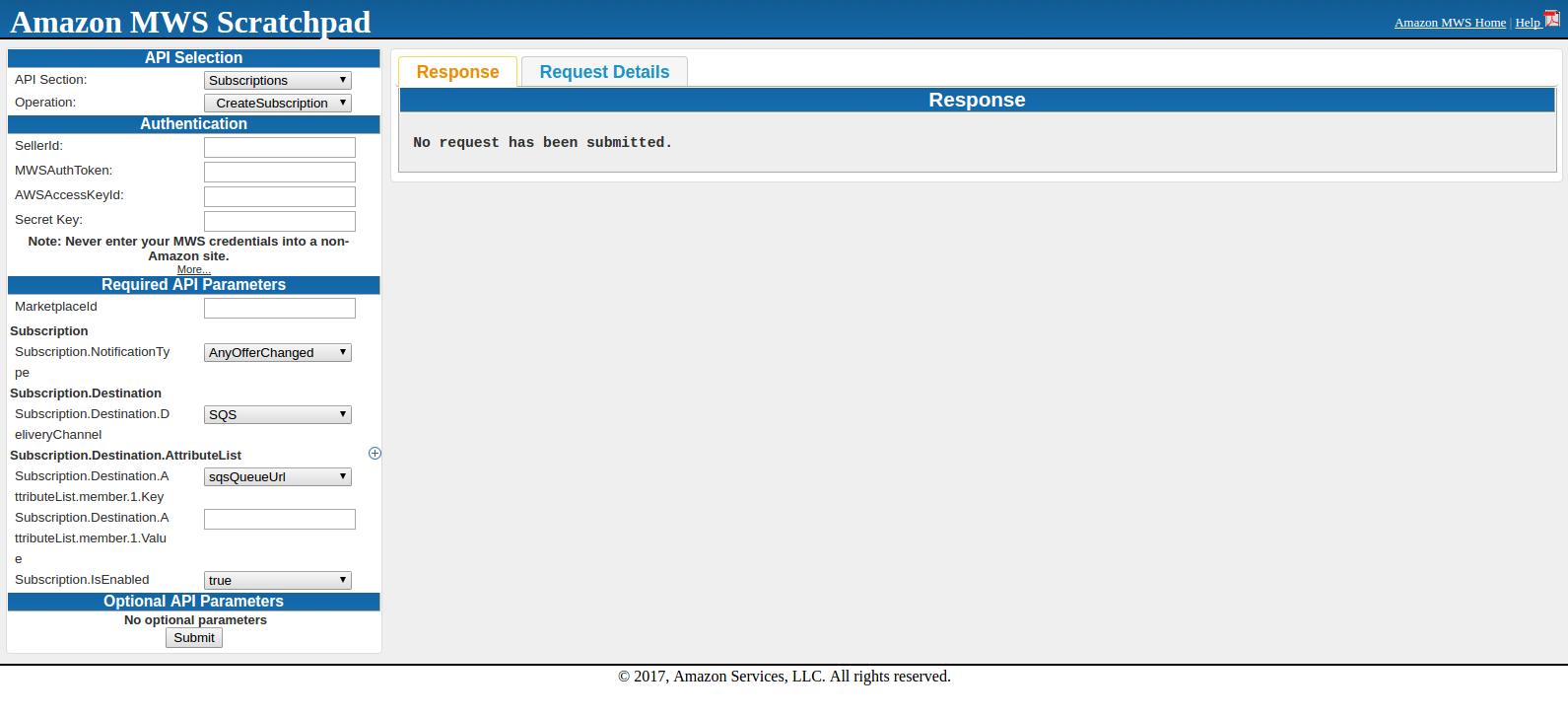
For this, you need to use CreateSubscription operation and this operation creates a new subscription for the specified notification type and destination. Select subscriptions from API Section and CreateSubscription from operation as below image.


Here enter SellerId, AWSAccessKeyId, Secret Key and MarketplaceId. Subscription.NotificationType should be AnyOfferChanged if you want to get other seller offer price. In Subscription.Destination.DeliveryChannel, SQS should be selected because SQS queue is being used as destination. Subscription.Destination.AttributeList.member.1.Key should be sqsQueueUrl and in Subscription.Destination.AttributeList.member.1.Value, you need to enter SQS URL which was under details in SQS Queue. Subscription.IsEnabled will be true.

When submitting the request, either you will get success or error in response. Once you get success in response, all is done to get notifications.

After this, you can fetch notification from SQS using CURL request.

How to use Catch_Lite?

Objective of the blog

After reading this blog, you will be able to understand how cache_lite is used to create cache for the HTML.

Let’s know about the Cache_Lite

Cache_Lite is a caching system which can be used for high traffic website. The simple logic of cache lite is to serve the HTML from cache if cache is already created for that HTML so that time to fetch/prepare from the database/code execution for creating the HTML can be saved.

Cache_Lite creates cache of HTML for a page on basis of an id when request of that page comes first time and simply serve the page first time without cache. Now, when request for the same page will come again, HTML will be simply fetched from the cache corresponding to the id and will show the page i.e. system will not create HTML again and will throw the HTML from cache.

Checking before Cache_Lite Implementation

Before implementing cache_lite, you need to check whether PEAR is installed or not. For this, create a file in the root and save the below lines of code in that file and run the same on browser.

<?php
require_once 'Cache/Lite.php';
var_dump(class_exists('Cache_Lite', false));
?>

If you get boolean true in response, the PEAR is already installed and have Cache_Lite package. But if you get boolean false or any other error in the response, you further need to check whether PEAR is not installed or PEAR does not have Cache_lite package. For this create a file in the root and save the below lines of code in that file and run the same on browser.

<?php
require_once 'System.php';
var_dump(class_exists('System', false));
?>

If you get boolean true in response, the PEAR is installed but PEAR does not have Cache_Lite package. In this case, please refer https://pear.php.net/package/Cache_Lite. If you still get boolean false or any other error, either PEAR is not installed or include_path is not set. In this case, please refer https://pear.php.net.

Cache_Lite Implementation

If PEAR is installed and have Cache_Lite package, you can start implementing the Cache_Lite. The process to create cache lite is as below:

  1. Firstly, include Cache_Lite package. For this require Cache/Lite.php file.
  2. Create an id which should be unique for that HTML so that it can be identified in the cache folder at the time of fetch from cache. Encrypt this id using md5.
  3. Define the directory where you want to save cache and refresh time after which you want to refresh the cache. If you want to refresh cache once in a day then set 86400. Now when a page is opened first time, cache will be created and that page will be served by cache for next 24 hour (this 24 hour will be calculated after creating cache). Now cache will be refreshed only when page will be loaded again after 24 hour.
  4. After that, create an object of cache_lite and check whether cache is created for id or not. If cache is created, uncompress the cache data and load the data on browser. And if cache is not created, get data from output buffer, compressed this data and save in cache.

For more understanding, please look the code snippet written below:
define('CACHE_LITE_STATUS', 'ON'); //Set other than ON if you don't want to serve HTML from cache
define('CACHE_LITE_REFRESH_TIME', '43200'); //This is cache lifetime after which you want to refresh cache.
if (CACHE_LITE_STATUS == 'ON') {
    require_once('Cache/Lite.php');
    $id = 'testid';//This is the unique id using which cache will be created.
    $id = md5($id);
    $options = array(
        'cacheDir' =>  "testDir/",//testDir is the directory where cache will be saved. Cache will be created with the same name as id so director name should be with a trailing slash at the end
        'lifeTime' => CACHE_LITE_REFRESH_TIME
    );
    $Cache_Lite = new Cache_Lite($options);
    if ($data = $Cache_Lite->get($id)) {
        echo gzuncompress($data); //To uncompress a compressed string. This is to uncompress the data fetched from cache
    }else{
        ob_start(); //Turn on output buffering
        $data = ob_get_contents(); // This will return the contents of the output buffer
        $data = gzcompress($data, 9); //To compress output buffer data
        $Cache_Lite->save($data); //To save the compressed data in the cache
        ob_end_flush(); //Flush the output buffer and turn off output buffering
    }
}

Summary

After reading this document you can try the same code on your system to serve the HTML using Cache_Lite. Please let us know for further improvement.

How to get MWS credentials from Amazon Seller central

Objective of the blog

After reading this blog, you will be able to get the MWS credentials so that you can build applications using MWS.

Let’s know how get MWS credentials

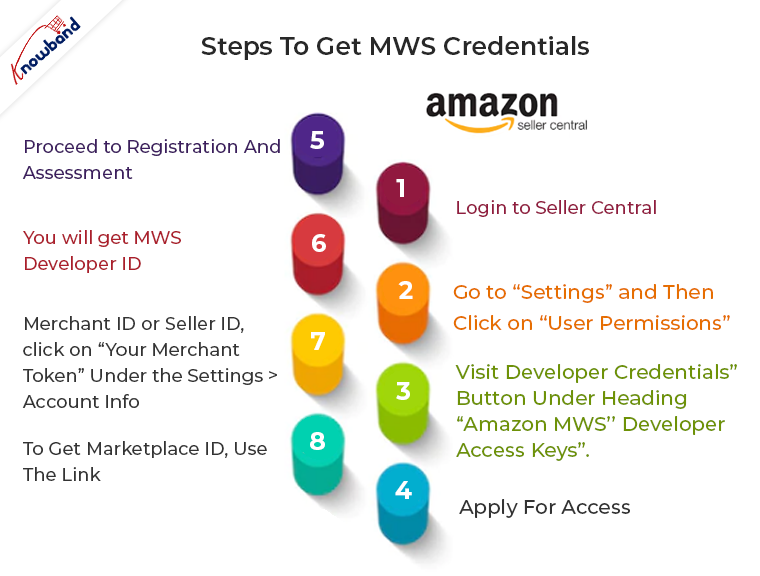
Below are the steps to get MWS credentials.

1. Firstly login to seller central using the credentials.

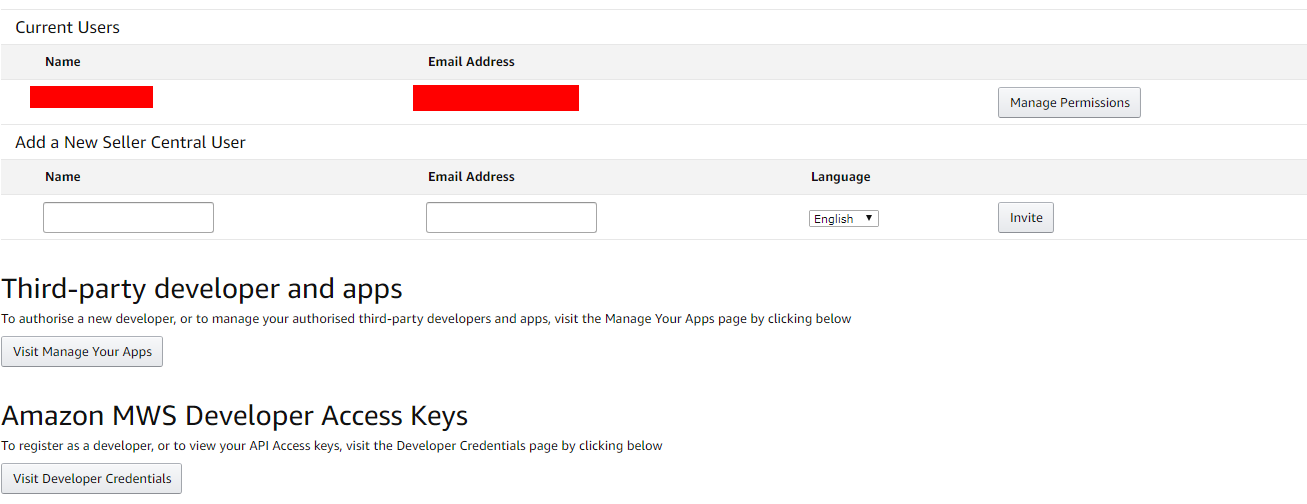
2. After this, go to “Settings” (at the top right corner) and then click on “User Permissions”. A page will be open which will look like below image.
3. Now click on “Visit Developer Credentials” button under heading “Amazon MWS Developer Access Keys”.
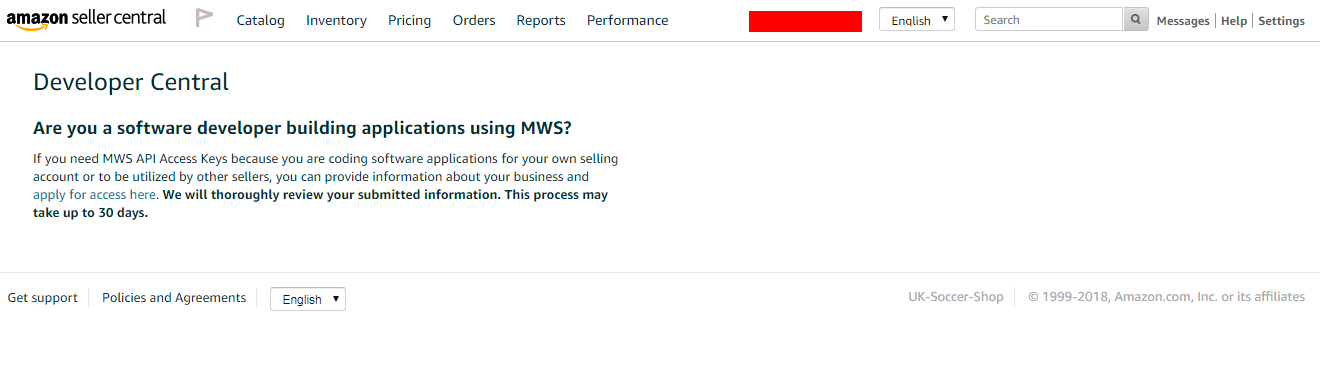
4. You will get the page as shown in below image if till now you are not registered as developer. In this case, click on “apply for access here”.

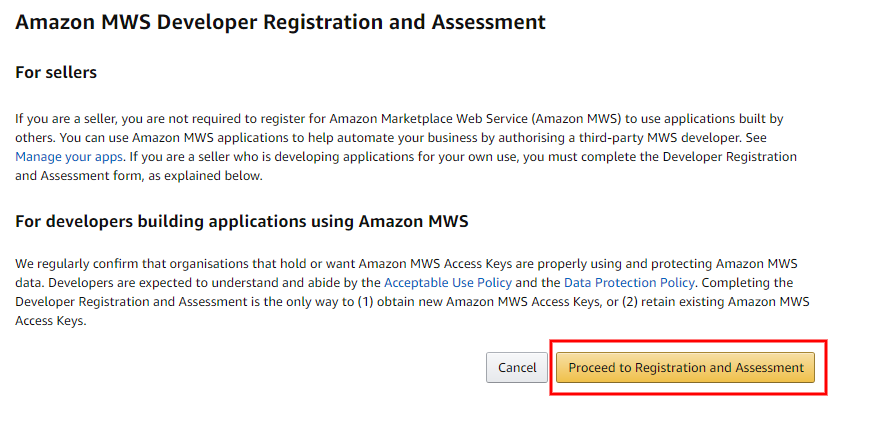
5. You will be redirected on a page which will look like below image. Here click on “Proceed to Registration and Assessment” and follow further steps.

6.If you are already registered as develop, in this case you will get page which will look like below image when you will follow the Step 3.

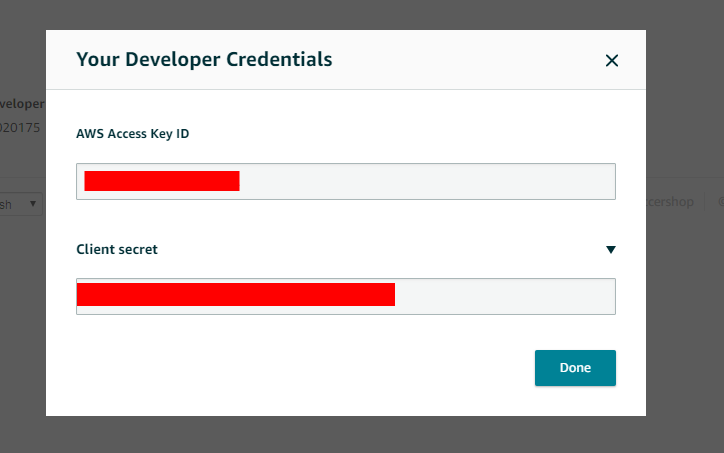
7.Here, you will get MWS developer id. For Access key id and Client secret, you need to click on “View” button and on click of this, a popup will be opened which will look like below image from where you will get both credentials.

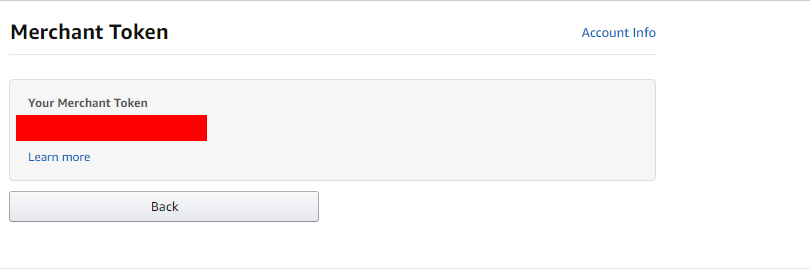
8.To get Merchant ID or Seller ID, click on “Your Merchant token” under the Settings > Account Info. You will be redirected to the page which will look like below image. This Merchant token is the Merchant id (Seller id).

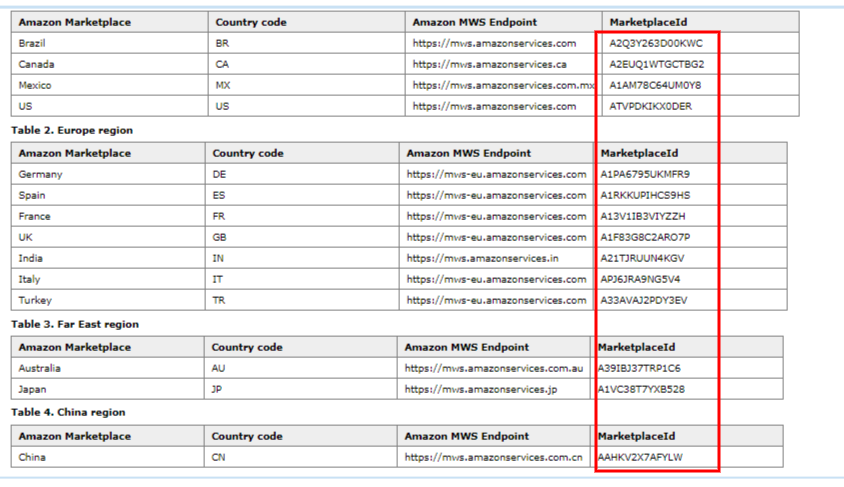
9.To get Marketplace ID, use the link -https://docs.developer.amazonservices.com/en_ES/dev_guide/DG_Endpoints.html

Summary

After reading this document, you are able to get MWS credential from seller central.

If you face any issues, please feel free to get in touch with us at support@knowband.com. Knowband also provides marketplace integration for the major CMS platforms like Prestashop, Opencart, Magento, Magento 2.

Know more here.


OpenCart Store Locator Extension User Manual

1. Introduction

OpenCart Store Locator and Pickup extension by Knowband allows the store admin to show physical stores locations on the website front-end using Google map. With the OpenCart in-store pickup module, the store visitors can find the closest store that has the products of their choice. The admin can display a store locator on the website with some additional details like distance, contact number, name, and timing. They can check the nearest store and select the one from where they want to pick up the product.

This OpenCart store locator and pickup plugin offer a user-friendly interface and the admin can easily configure it without any help. The admin can select multiple stores that are to be shown in the store locator. The OpenCart store locator and pickup plugin allow the admin to set the minimum and the maximum number of days within which the product pickup will be initiated. The customers can easily check the nearest store and view the details also. They can pick up the product if they wish to. Thus they can get the product with greater and minimal time.

1.1 Striking Features of Store Locator Extension for OpenCart:

The OpenCart Store Locator Extension provides you with multiple features which are fully customizable and easy to configure from the back-end interface without requiring any coding knowledge. The various striking features of the OpenCart Store Locator Extension have been listed below:

  • The store owner can activate the store locator and pickup functionality just by a button toggle.
  • The e-merchant can set an image as a Google map marker and the zoom level of the map.
  • The OpenCart plugin allows the store admin to show contact numbers also.
  • The Customer can search the store by providing the distance in km or miles.
  • Customers can also search the store by entering their locations.
  • The store admin can add multiple stores and show them on the Google map. The admin can also select the default store.
  • OpenCart in-store pickup plugin allows the e-merchant to set the maximum pickup days.
  • The Opencart store locator and pickup module allow the store admin to show the store locator in the header menu.
  • The online store owner can set the date and time format.
  • The e-merchant can enable the settings to display the pick-up time slot.
  • The admin can set the minimum hours for which the customer has to wait for the pickup of the ordered product.
  • Store admin can enable e-mail notification settings. Enabling this setting will automatically send an e-mail to the store owner about the received order.
  • The OpenCart store locator and pickup module have a ready-made email template for sending an email notification to the pick-up stores about the order.
  • The OpenCart Google Maps Store Locator plugin allows the admin to upload store details in bulk using a CSV file. Store admin can also download a sample CSV file.
  • The store admin can also set store working days and hours at the time of listing.
  • The OpenCart store locator and pickup module are Multi-lingual compatible.
  • It is very easy to install, configure and activate this OpenCart store locator and pickup plugin.
  • The product will be delivered to the selected store. The customer can pick up the product from the store.
  • The address of delivery will be the selected store’s address.

1.2 Technology for Development

Language: PHP
Framework: OpenCart (2.0.x. to 3.0.x)

2.0 Installation Guide

To install this OpenCart Store Locator Module, please follow the following steps:

Purchase the OpenCart Store Locator Extension from the Knowband store. You’ll get the following files:

  • Zipped File containing the source code of the OpenCart Store Locator module.
  • User Manual of OpenCart Store Locator plugin.

Follow the steps below to install the OpenCart Store Locator Extension in the OpenCart store:

1. Unzip the zipped. You’ll get the folders as shown in the image below:

2. Upload all the files and folders of the zip file in the Root Directory of OpenCart setup via FTP manager.

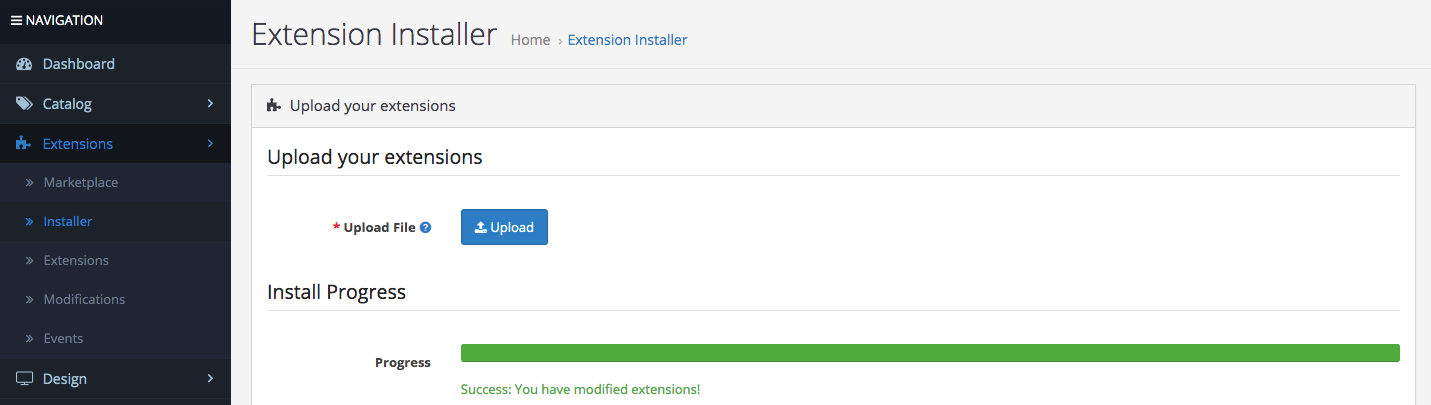
3. Install the OCMOD file from the Opencart Admin Side.


4. Refresh the OCMOD cache from the Extensions -> Modification.
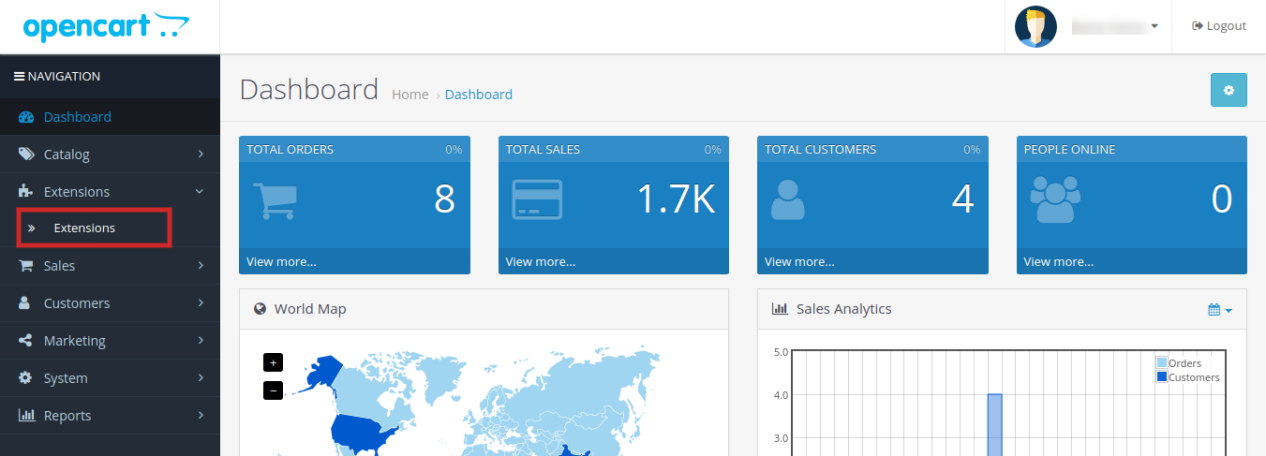
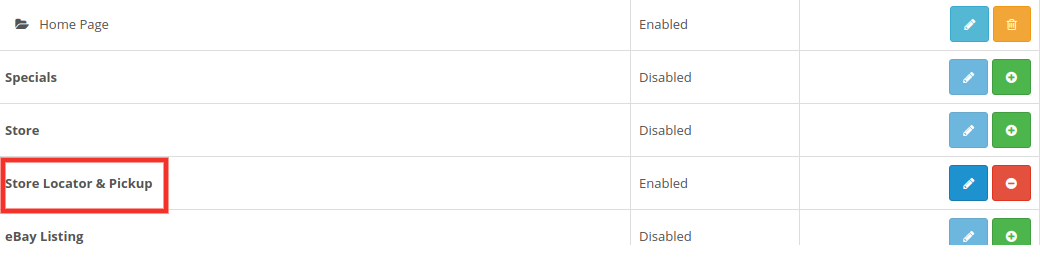
5. Login via FTP OR Control panel & make the folder i.e. image/kbstore_locator writable. Once done, Go to Extensions ->Extensions ->Modules & Install the module.

6. The OpenCart Store Locator module is now installed and is ready to use as shown in the image below:

3.0 Admin Interface of OpenCart Store Locator Extension

OpenCart Store Locator extension offers an easy customization option to the store admin. The various configuration options are discussed in detail below:

3.1 General Settings:

This General Settings page offer various configuration options as shown below:

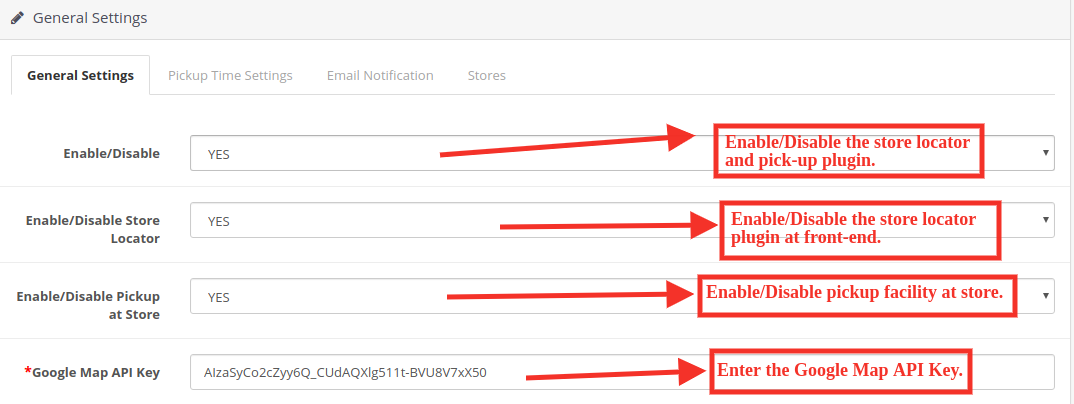
  • Enable/Disable: The eCommerce store admin can activate or deactivate the store locator and pick-up plugin anytime just by toggling this button.
  • Enable/Disable Store Locator: The OpenCart Store Locator extension allows the admin to enable or disable the store locator in the front-end. By default, it will be enabled.
  • Enable/Disable the Pickup at Store: The admin can activate the pickup from the store just by toggling this button.
  • Google Map API Key: Enter the Google map API key in this section. A link is provided for generating an API key.

3.1.1 How to generate the Google Map API Key? General Settings:

The eCommerce store admin can generate the Google API key by following these steps:

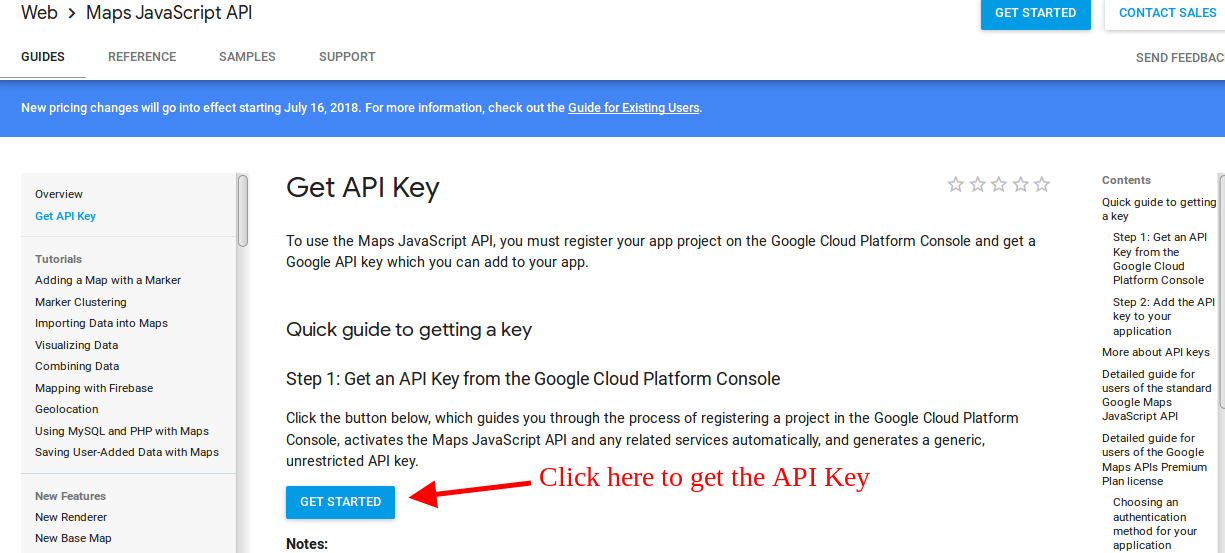
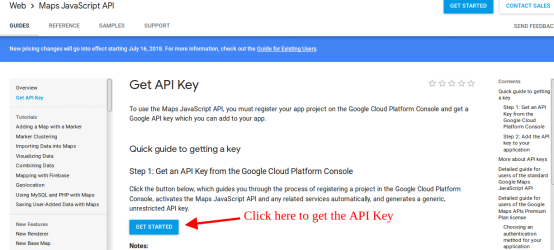
  • Click on the “Get Started” button: The admin can click on this button to get the Google map API key.

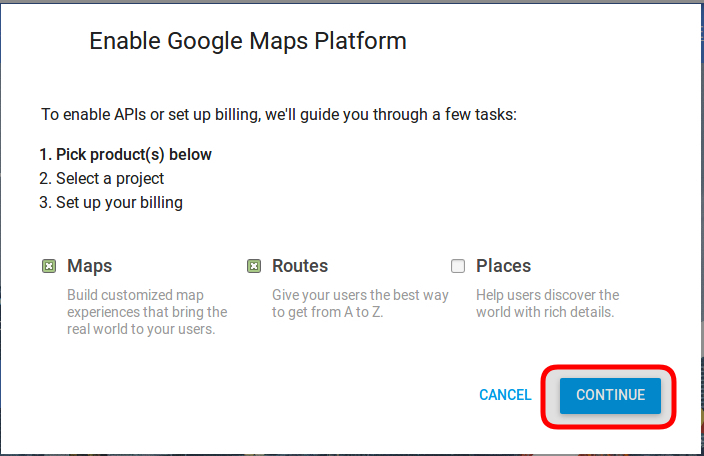
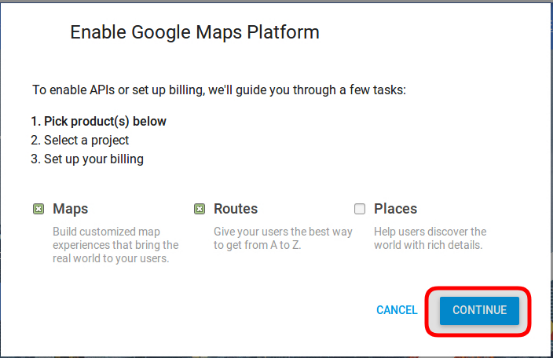
  • Pickup the products: When the admin will click the “Get Started” button this pop-up will be displayed.

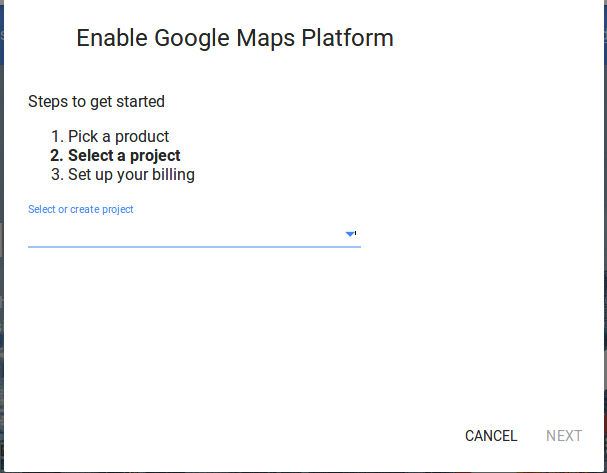
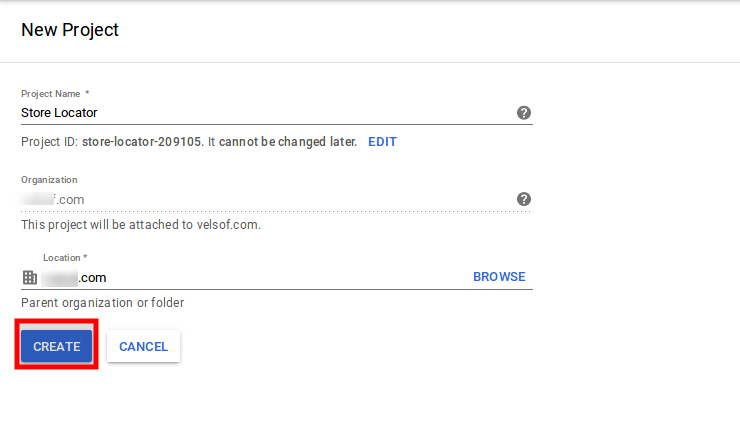
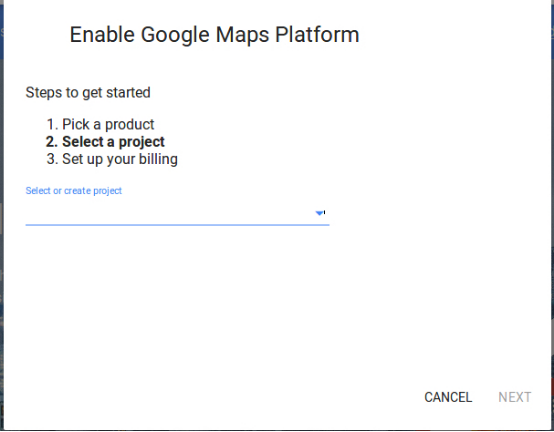
  • Project selection: The eCommerce store admin can select or create a project.

1. Select a project:

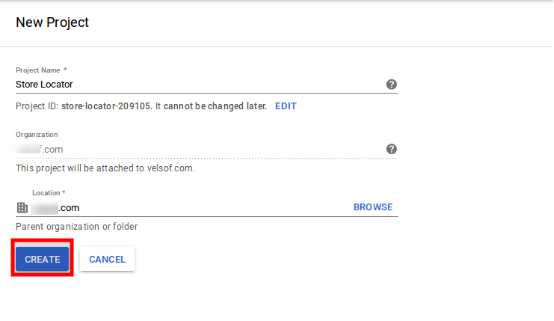
2. Create a new project:

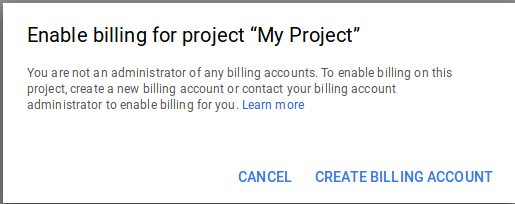
Setup the billing: The eCommerce store admin can now set up the billing.

After billing the store admin can get their Google map API key.

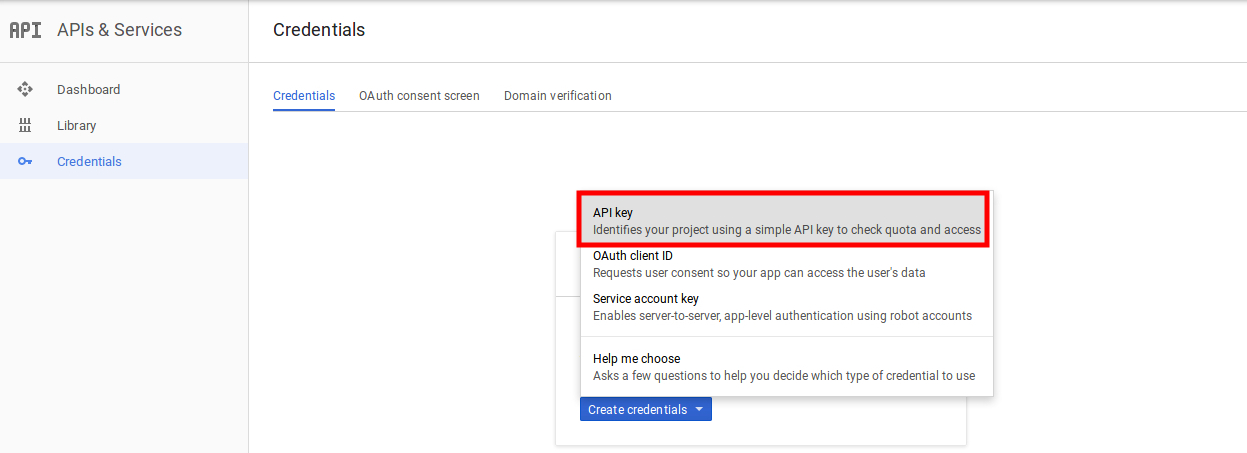
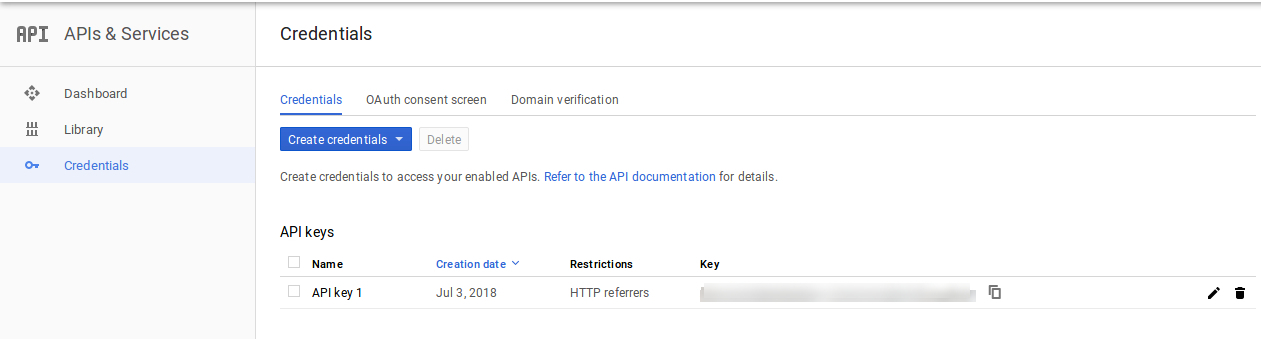
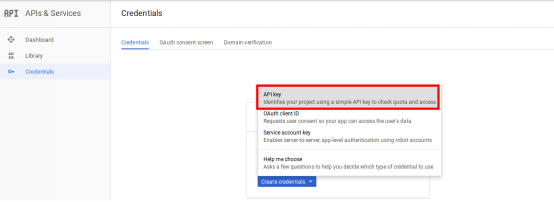
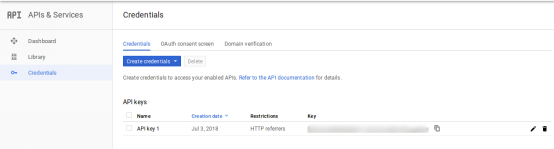
On the Credentials page, get an API key, store admin can select the API key option:

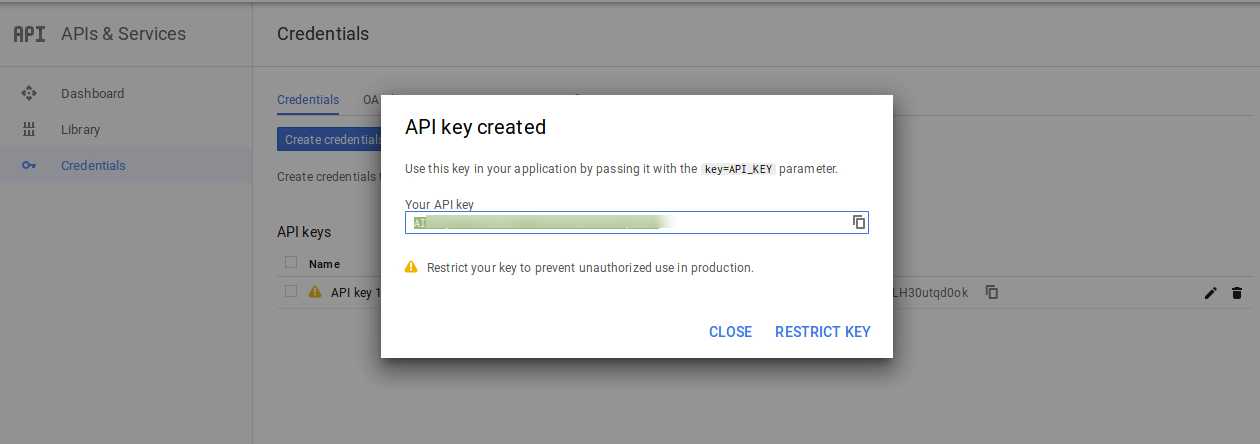
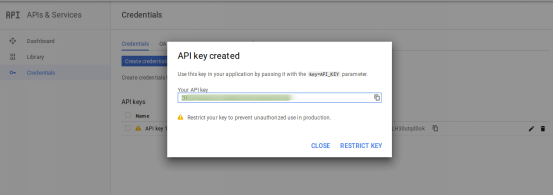
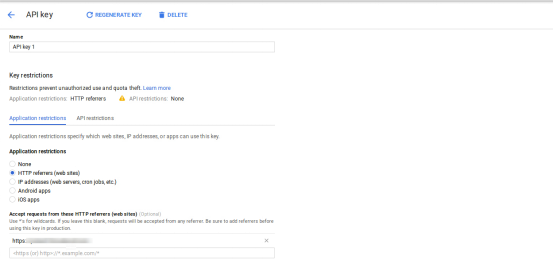
The admin can select the restrict key option from the dialog box to set a browser restriction on the API key.

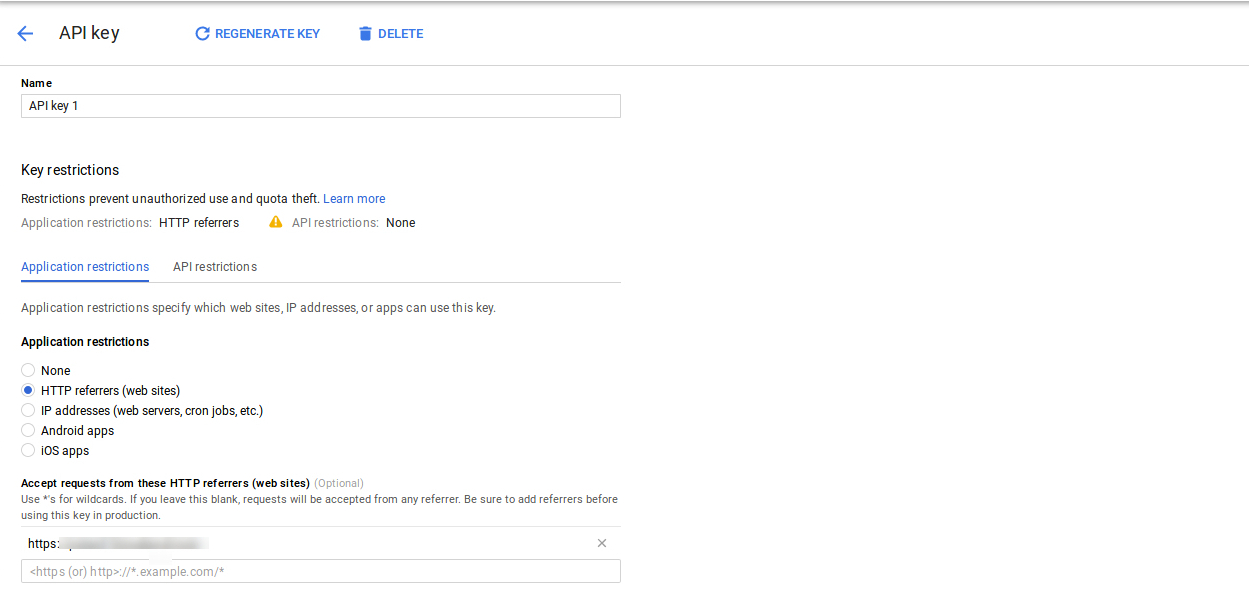
In the Key restriction section, the store admin can select HTTP referrers (web sites), then follow the on-screen instructions to set referrers.

This way the admin can set the Google map API key.

Enable Libraries:

To use Google map API, You need to enable the following libraries in the Google Developer Project.

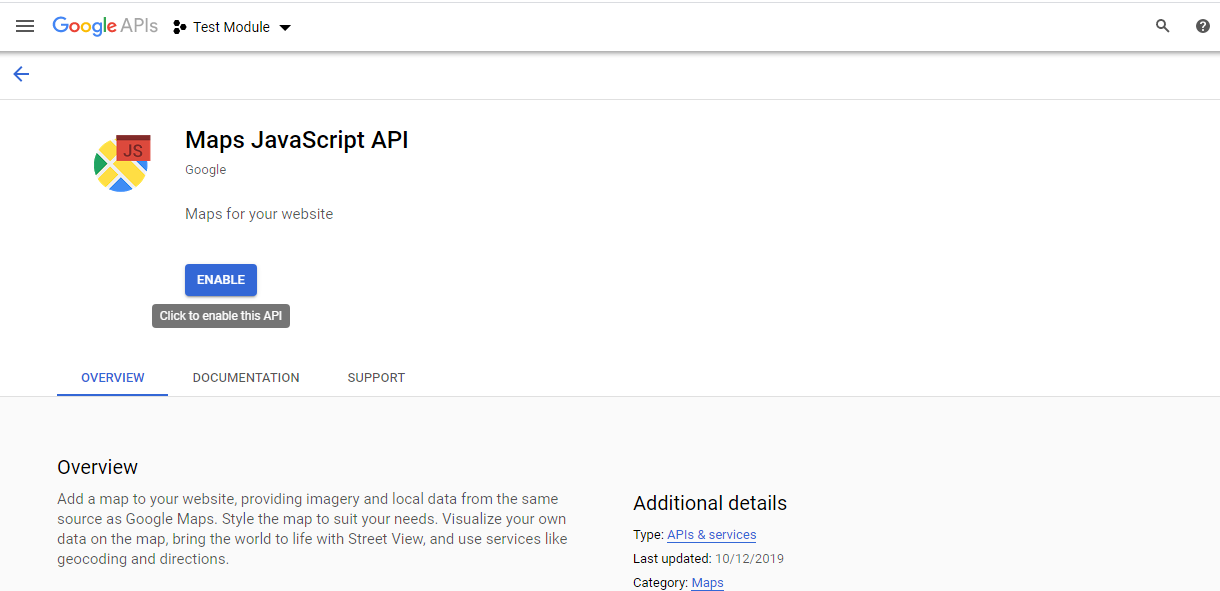
1. Maps Javascript API
2. Place API
3. Geolocation API

Steps to enable the libraries:
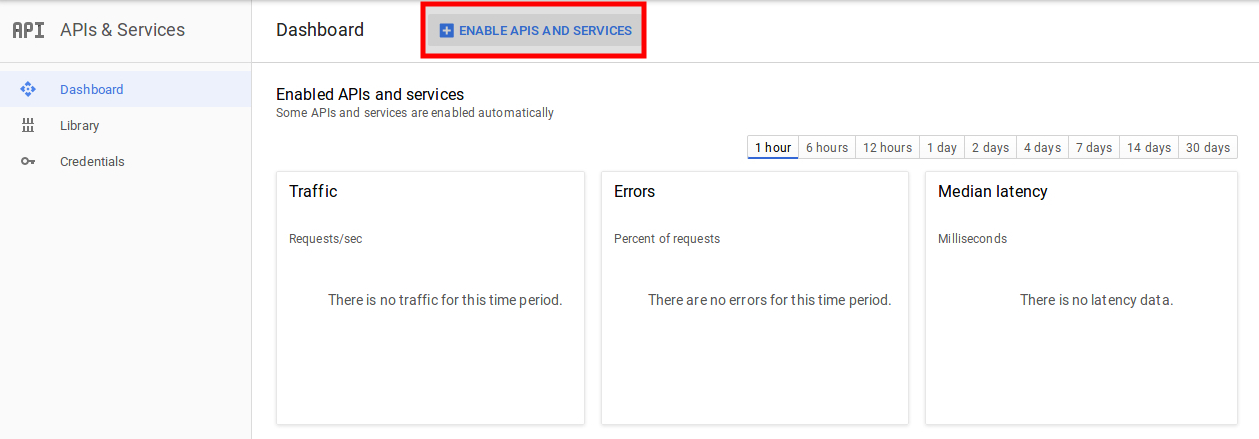
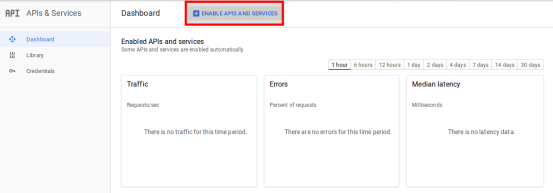
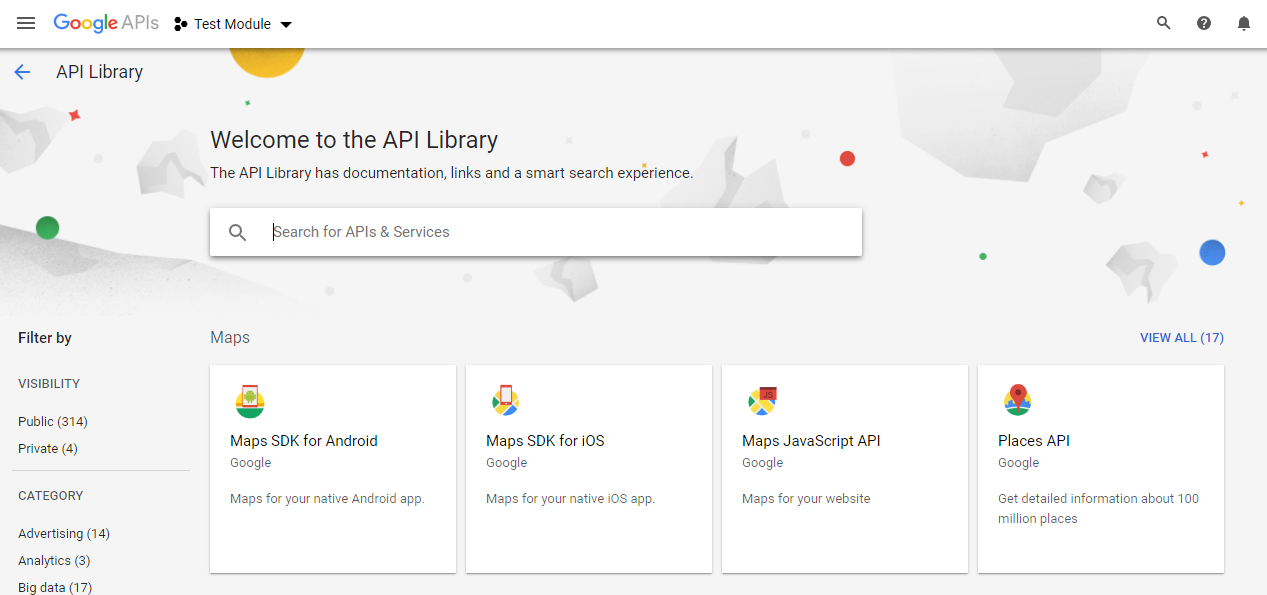
1. Click on the “Enable API & Services” button as shown in the image below:

2. After clicking on the “Enable API & Services” the following screen will appear:

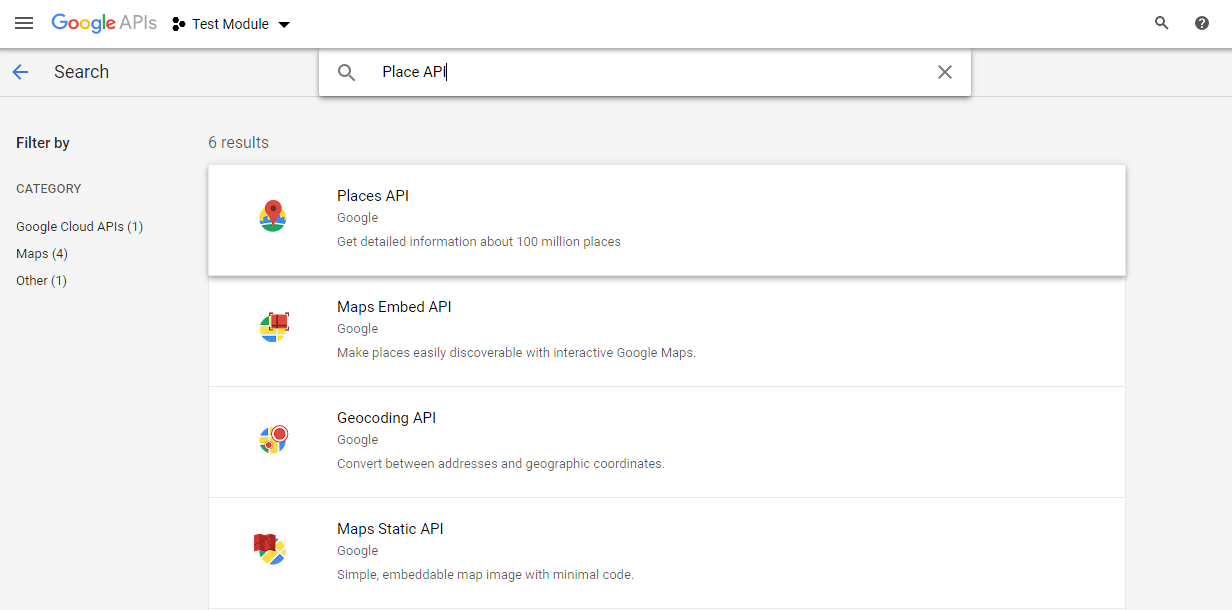
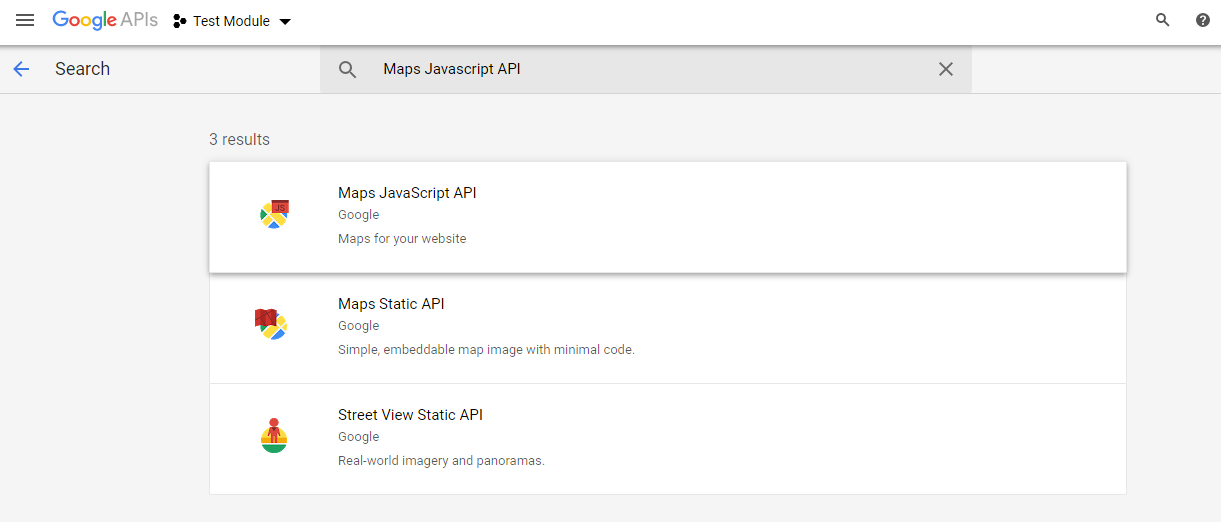
3. Search “Maps Javascript API” & Click on the “Maps Javascript API” from the suggested list.

4. Click on the “Enable” button as shown in the below image:

5. Repeat the same process to enable the Places API & Geo Location API.

Continued General Settings…

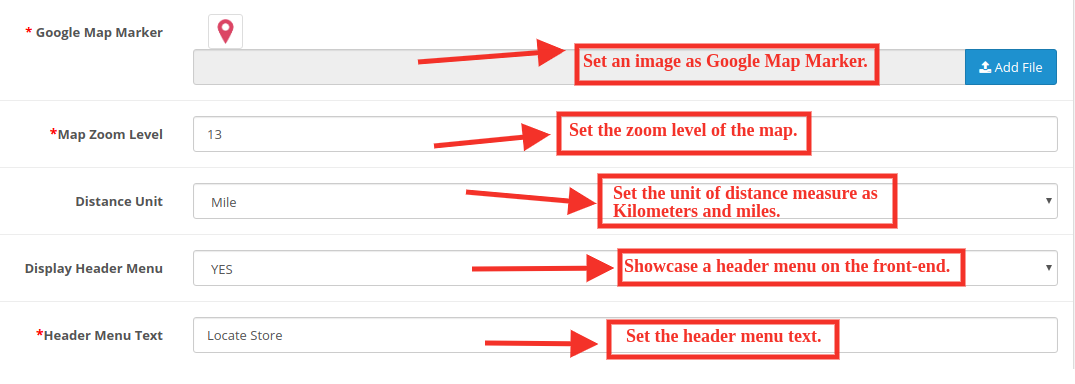
  • Google Map Marker: The OpenCart Google Map Store Locator plugin allows the admin to set an image as a Google map marker.
  • Map Zoom Level: The eCommerce store admin can set the zoom level of the map.
  • Distance Unit: The OpenCart Google Maps Store Locator plugin allows the admin to set the unit of distance measure as kilometers and miles.
  • Display header menu: The store admin can display the store locator in the header menu of the site.
  • Header Menu Text: The store admin can set the header menu text.

3.2 Pickup Time Settings

The various fields of this interface are discussed below:

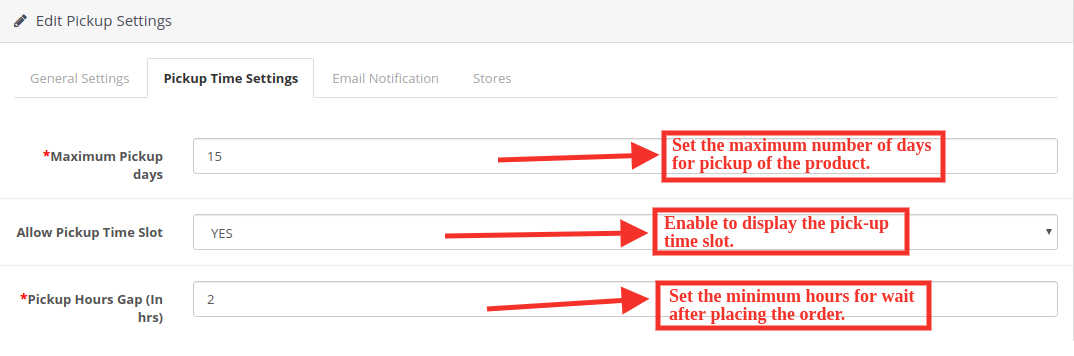
  • Maximum pickup days: In this option, the admin can set the Maximum days within which customer has to pick up their package from the store.
  • Allow Pickup Time Slot: Enable to display the pick-up time slot.
  • Pickup Hours Gap: The admin can set the minimum hours for wait after placing the order. This time will be the last time for which the customers need to wait after placing their order. After the provided time they can pick up their package.

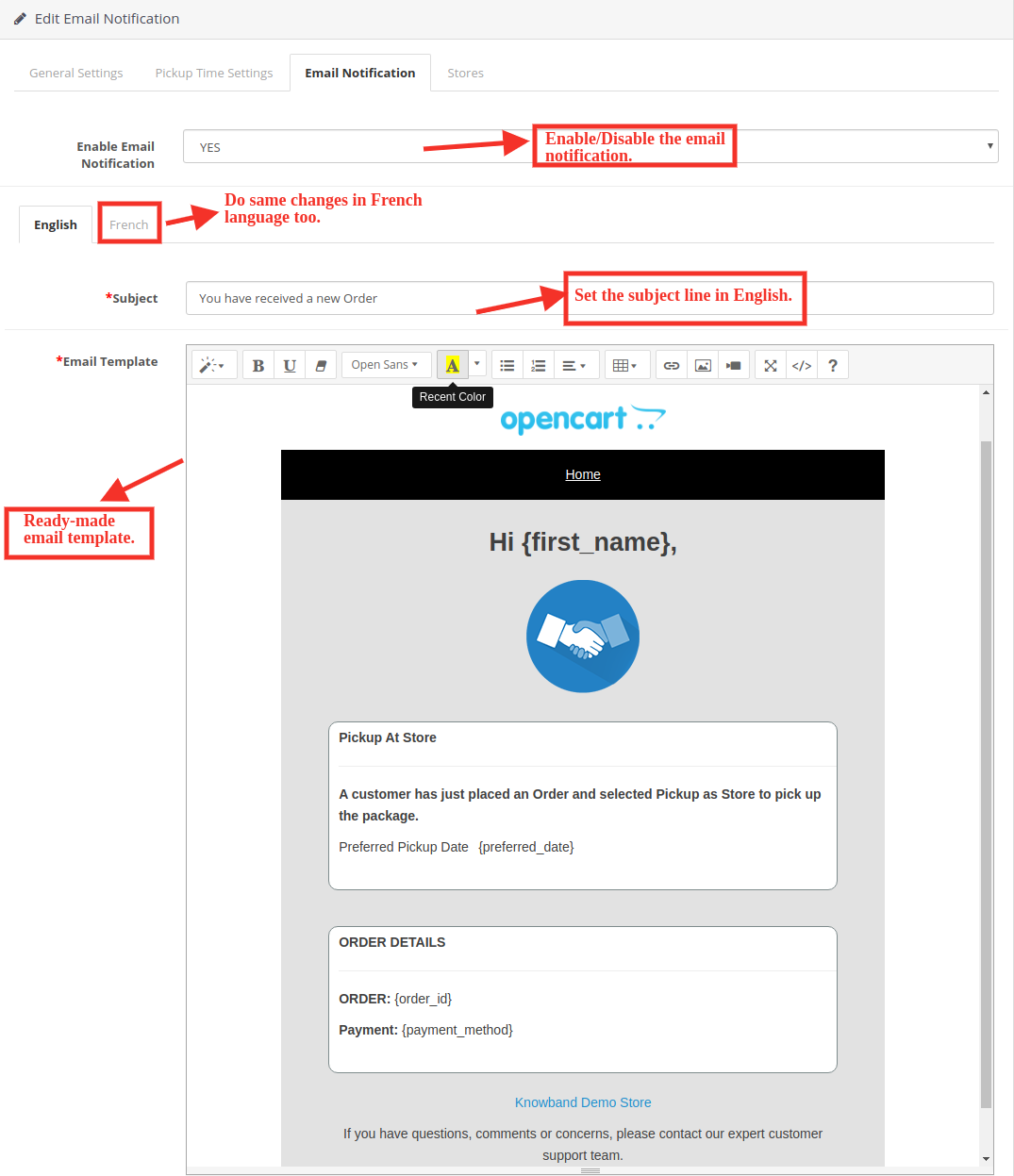
3.3 Email Notification Settings:

The store admin can send an email to notify the pickup store of the orders. Ready to send email templates to make this easy for the store admin to inform the pickup stores about the order.

  • Enable Email Notification: The eCommerce store admin can enable this option for sending e-mail notifications to notify the pick-up store about the order. The admin can set the subject line both in English and French language. Customizable email templates are available for sending the email to the stores. The ready-made email template automates the process.
  • Subject: The store admin can set the subject line of the email.
  • Email template: The store admin can also modify the email template if required.

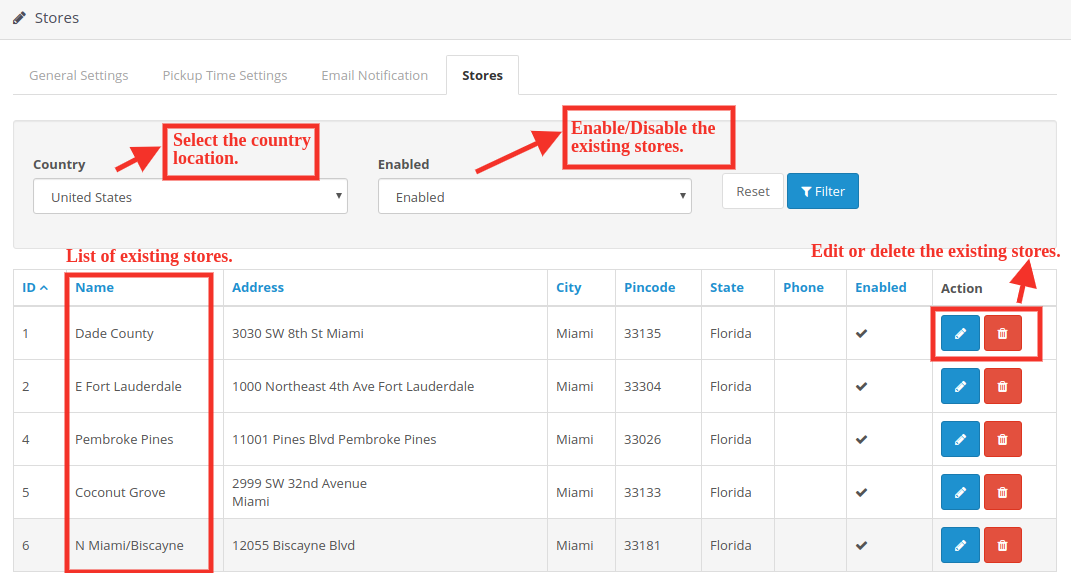
3.4 Store Settings

Under this tab, you will see the list of stores added by the admin. You can enable or disable existing stores.

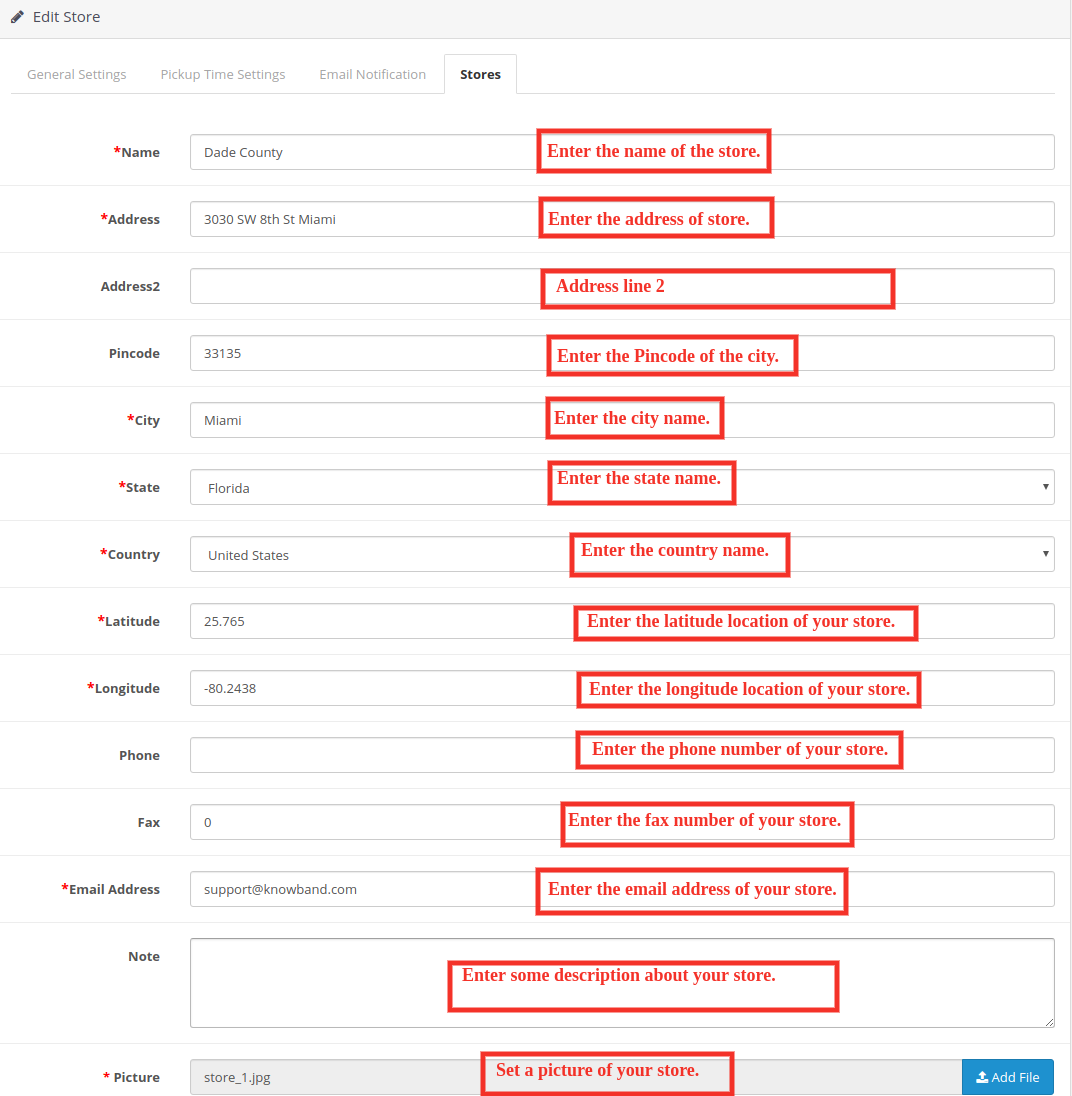
The store admin can easily add a store from the admin panel. After clicking on the “add” button, a screen will be shown like below:

  • The store admin can easily add store name, full address of the store, and contact details also. The OpenCart pick-up module allows the admin to set the picture, status, and timing also.
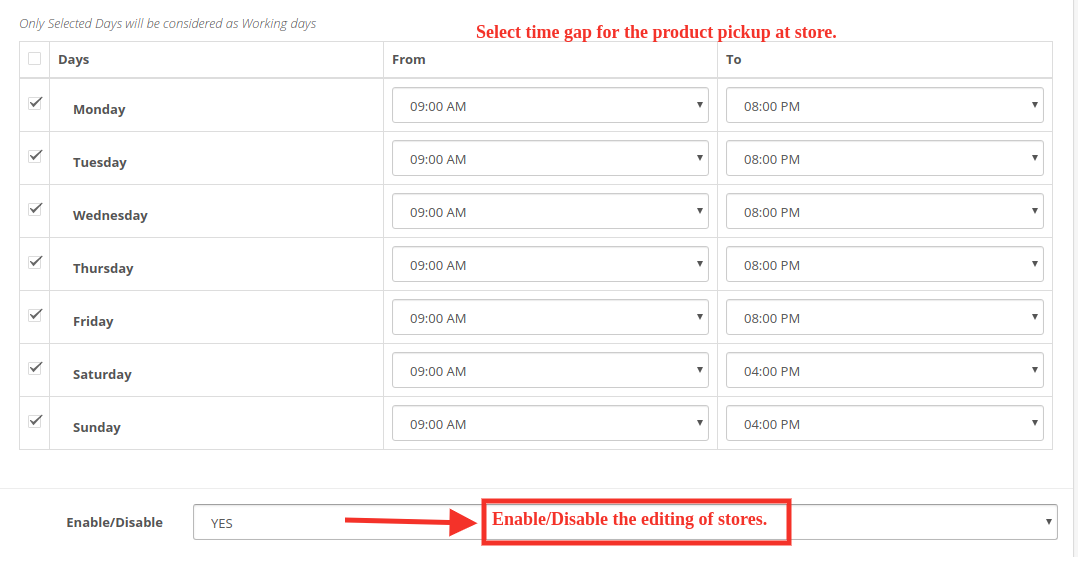
  • The admin can easily insert the working days and hours of the store.

3.4.1 Import Store’s Contact:

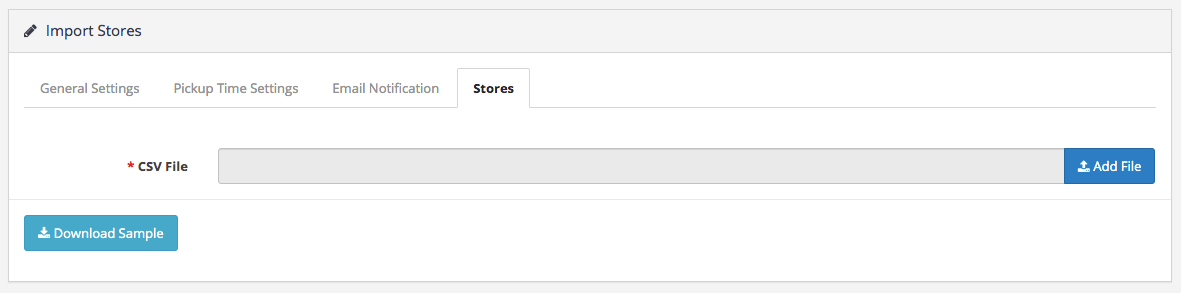
By clicking on the “Import” button the store admin can upload store details in bulk. The store owner can download the sample file and insert all the details in this file. The admin can upload this file to import the store details.

4.0 Front End of the website:

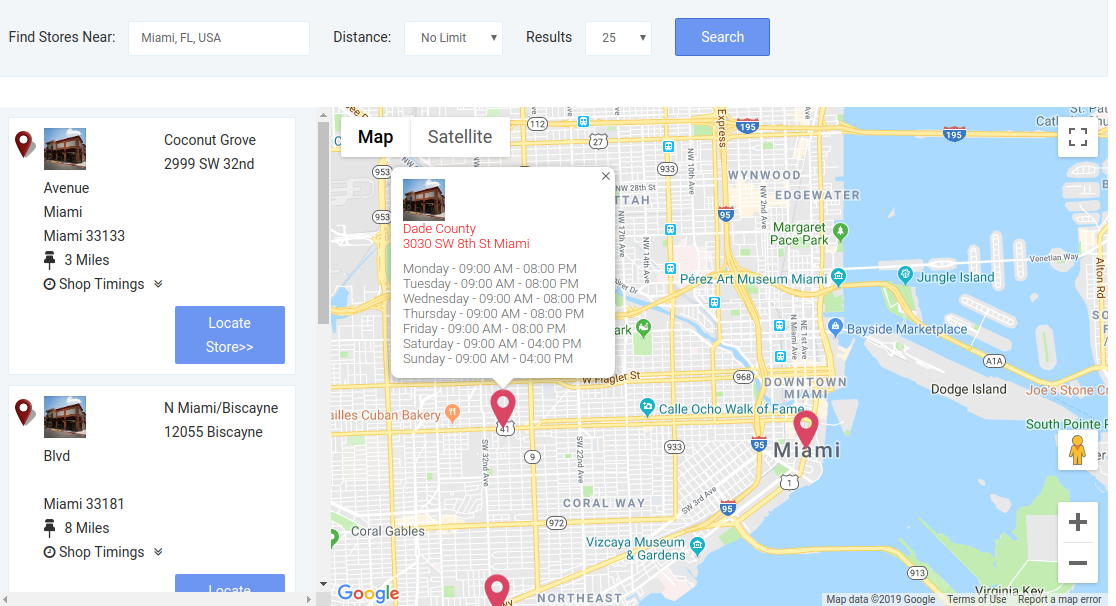
The customers can easily view the nearest store and pick up the product. They can view the contact details, name, distance, and timings also. The customers can get the product faster and without paying the shipping charges

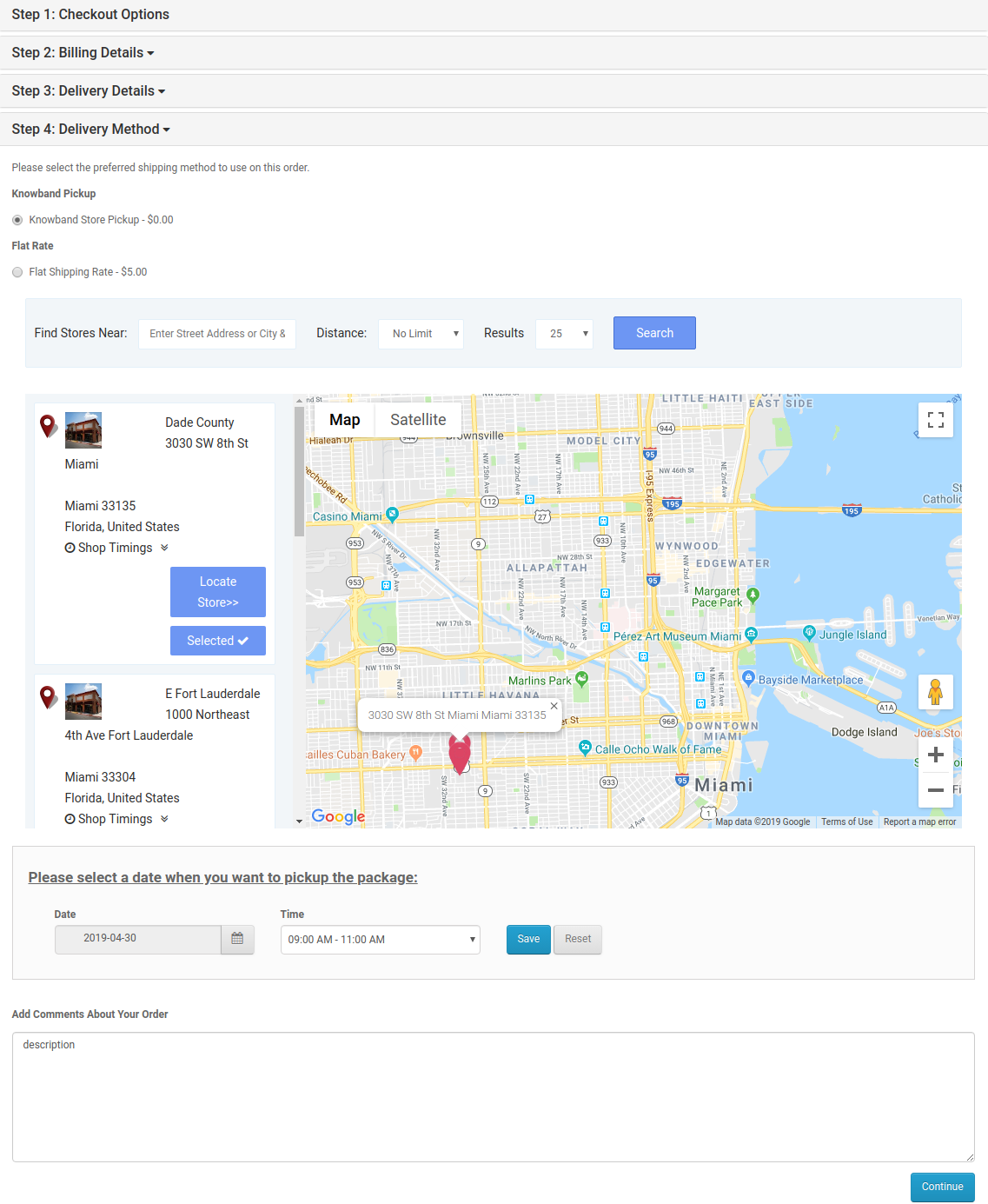
1. They can select the Pickup option:

After clicking the Pickup at store option the customers can view the store locator.

The customers can place their pickup orders easily. The customers can select the date and time to pick up the ordered product.

2. See the timings of the store for product pickup.

2. Order History of customers.

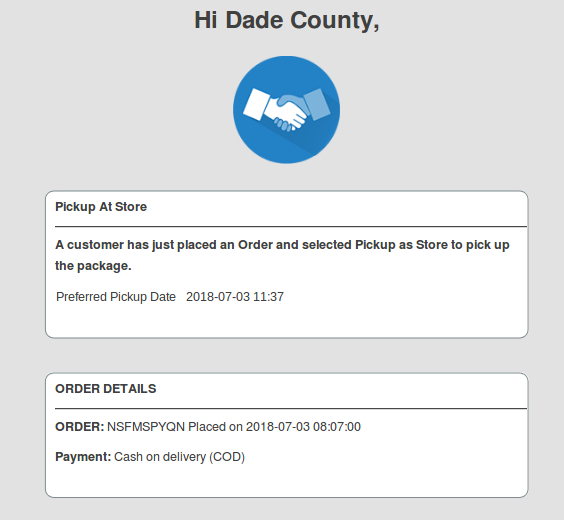
3. An email would be sent to the store owner stating the details of online purchase, date, and timings of the product pickup at the store by the customer.

This way, the online store admin can show multiple physical stores on the website using Google Maps. The Opencart Google Maps Store Locator extension makes the overall process very simple for the store admin. The Opencart store locator module is highly customizable and allows sharing maximum store details with the customers. Opencart Google Maps Store Locator extension also provides an option to set the pickup time, date, and delay from the admin interface. The online merchant can also send an email to the physical store end for notifying them about the in-store pickup order. Online users can easily pick up the ordered product from the selected stores.

Online users can easily place in-store pickup-based orders and grab the benefits of online deals and store discounts. Apart from that, they can place in-store pickup-based orders by which they can save delivery charges also. The Opencart store locator extension is highly effective and makes the overall process much easier.

Knowband is one of the most reputed names in the field of plugin development. We provide the best plugins for platforms like – Magento, Prestashop, OpenCart, and   Shopify.

Knowband Opencart store locator extension Module Link

The Knowband’s OpenCart store pick up extension Admin Demo link

Knowband Opencart Google Maps Store Locator plugin Front Demo link.

Opencart Store Locator Extension Youtube Video Link

Opencart store locator module marketplace link

For more support and information, feel free to contact us via email at support@knowband.com anytime.

How easy is it to build native Magento 2 Mobile Apps? Complete Tutorial

Migrated your eCommerce store to the updated version Magento 2.0? Well, let’s build a pair of native Mobile Apps for the same.

Having a Magento 2 Mobile App for your eCommerce website is much more than just a sales & marketing tool as it enhances your revenue & loyalty in just minimal efforts. But, building a native Magento 2 Mobile App is a lot tougher than it seems as you have to indulge in all sorts of coding languages & expensive tools/software. This article actually covers two basic questions regarding your Magento 2 Mobile APP:

Ques 1: Why you should start selling on App along with Magento 2 website?
Ques 2: How can you get a powerhouse app for your Magento store?

Well, stick to the end of this article & hopefully you will get all your answers.

Magento 2 Mobile Apps: An Introduction

The Magento eCommerce platform has almost all varieties of multi-sized businesses from small-scale industries to start ups. And that too seems to be growing since the Magento has launched its updated version with issues fixed & updated features. Since this is a new platform & the majority of store owners are still deciding to move to the mobile platform, you can take a lead by transforming your website into native Magento 2 Android & iOS app.

As far as profits are concerned, having a Magento 2 Native App will definitely lure heavy mobile user base to your store which will ultimately boost user engagement & sales. Offering your users an amazing shopping app is also the reason behind more sales & revenue. So, getting a featured Magento 2 Mobile App is the next big thing you could do for your store after migration.

Magento 2 Mobile Apps: Development (3-steps Only)

We have made Magento 2 Mobile Apps development process as simple as it could for you. All you need to do is to follow these 3 simple steps:

Step 1: Purchase Magento 2 Mobile App Builder module & install the same on your store.
Step 2: Share your app specifications/requirements with our pre-requisites form.
Step 3: Get developed APK/IPA files & publish on respective App Stores.

If you face any issue, we will assist you in publishing your app.

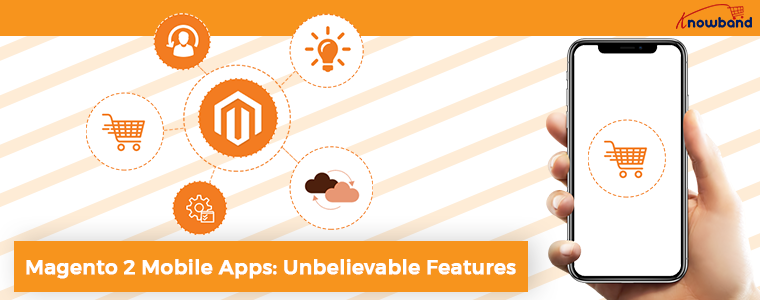
Magento 2 Mobile Apps: Unbelievable Features

Your Magento 2 Mobile Apps would have numerous features & functionalities that definitely be a game-changer for your business. Let’s take a look at the major ones of them:

1. User-friendly Interface: The Magento 2 Mobile Apps come up with simple yet friendly interface which makes mobile app shopping fun for the users. Various intuitive font options are also there in the app.

2. Customizable Home Screen: The way you offer your app look & feel decides the no. of purchases you are gonna get. The Magento 2 Mobile App Creator offers a fully flexible home screen with all sorts of customization. The store merchant gets various attributes to craft the home screen:

  1. Top Categories
  2. Multiple Banners (Square, Grid, Sliding)
  3. Multiple Products (Square, Grid, Sliding)
  4. Countdown Timer Banner
  5. Recently Viewed Products

All these designing elements are fully configurable & their positioning can be changed with just drag & drop feature.

3. Tab Bar Icon: Magento 2 mobile app comes with tab bar icon functionality which allows users to quickly switch among one section to another section of the app. Tab bar icon functionality makes the experience of app users smoother & simpler.

4. Web-admin Panel Access: The Magento 2 Mobile App Maker offers complete module backend access to the store merchants & let them design & manage the app on their own.

5. Live Synchronization: The Magento 2 Mobile Apps are in 100% synced with your website & which reverts all sorts of website updates on Mobile App. Your Mobile App inventory automatically gets updated as of website.

6. Tablet & Mobile Support: The Magento 2 Mobile App Creator offers tablet & mobile supported apps for your website which runs flawlessly on user’s devices. Whether it’s an iPhone, iPad, Android phone or tablet.

7. Multi-lingual & RTL Support: The Magento 2 Mobile App Maker offers both multi-lingual & RTL writing support on Android & iOS apps. You can offer your app to users living in any corner of the world.

8. One-tap Login: The Mobile Apps with Magento 2 Mobile App Creator offers Google/Facebook/OTP/Fingerprint login options for the shoppers.

9. 24*7 Chat Support: Your Magento 2 Mobile Apps come up with 24*7 Zopim & WhatsApp chat support which makes it easier for the app user to contact directly with the store admin.

10. Easy Payments: The Magento 2 Mobile App Creator supports all sorts of website payment options on the mobile app. You can even add various other native payment methods over a small fee.

11. All Shipping Methods Support: Your Magento 2 Mobile App supports all sorts of website shipping methods & eases the trade for you.

12. All Product Type Support: The Magento 2 Mobile App Creator supports all sorts of products on Mobile App like the single, bundled, configurable, grouped, downloadable, etc.

13. Layered Navigation: The Magento 2 Mobile App has multiple filtering & sorting options which makes the product search more seamless.

14. Voice Search (Android Only): The Magento 2 Mobile App Maker offers advanced voice search in Android App to make the search process easier.

15. Coupons & Vouchers Support: The Magento 2 Mobile App Maker supports all sorts of coupons & vouchers in Mobile App. Your app users can also use active website coupons/vouchers.

16. Simplified Checkout Screen: Easier the checkout process, more are the chances of successful purchases. The Magento 2 Mobile App Builder offers a single-screen checkout approach in Android & iOS apps.

17. Real-time Order Tracking: Curb out your app user’s insecurities with real-time order tracking functionality in Magento 2 Android & iOS apps.

18. Push Notifications: The Magento 2 Mobile App has a handy push notification tool which allows you to send unlimited push notifications regarding daily deals & highlights. Both automated & manual notifications are offered with Magento 2 Mobile App Creator.

19. Wishlist: Sometimes the users will not purchase the products for some reason like unavailability of size, color, product, etc. But, Mobile app for Magento 2 comes with inbuilt wishlist functionality which allows users to save their desired products on it for future purchases.

Conclusion

There might be a variety of Magento 2 Mobile App solutions as of now but, not all of them have such easy process & sale-pushing features. KnowBand has designed this module completely admin-friendly & provided almost every access into your hands. The features are more than enough to make your eCommerce store selling hassle-free on Mobile App.

The merchants who haven’t upgraded their store to Magento 2 & still using the old version can also take their store to the mobile platform with Magento Mobile App Builder. Go & build one for your store today.

Read other such informative articles on:

Mobile Apps Vs Websites: Which are better?

Why you should invest in Mobile Apps?

Mobile Apps can boost your eCommerce sales! Know how?

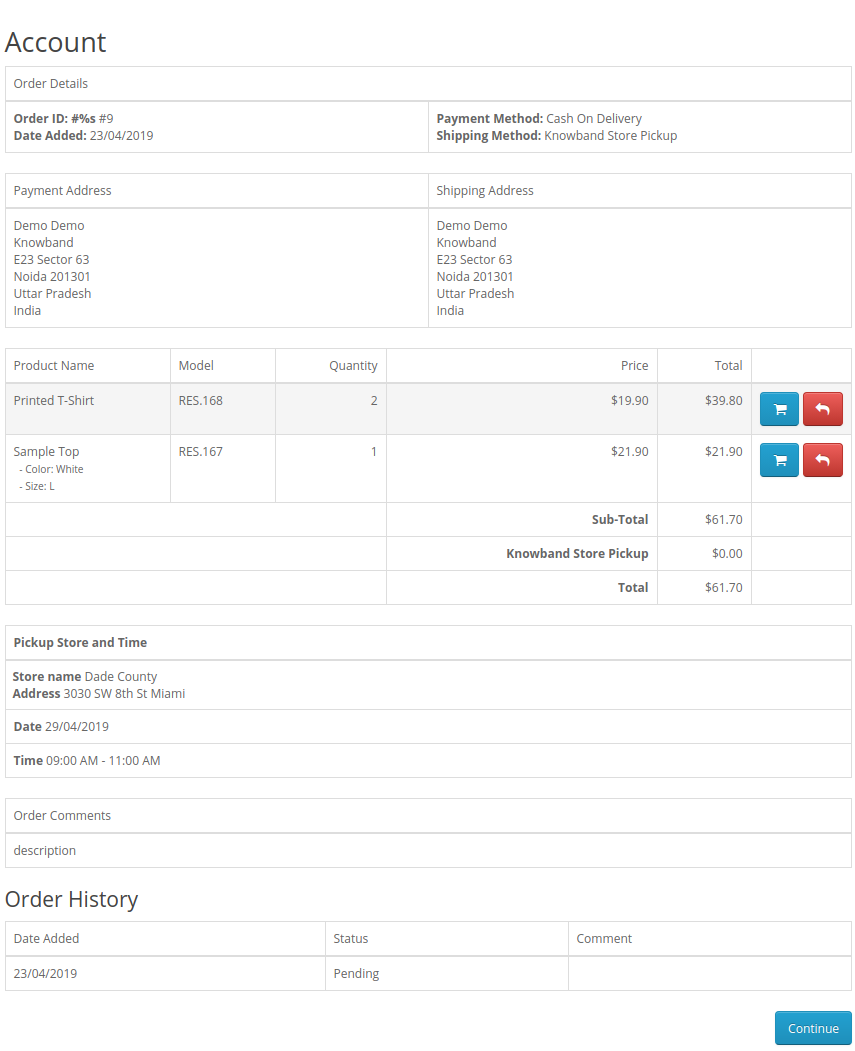
How to Send Copy of Order Confirmation Mail to Store Owner (Admin) in Opencart ?

In Opencart there is functionality to automate sending order email to admin which we send to the customer after placing an order.

For Opencart 2.2

Follow the following steps to automate sending order emails to the admin:

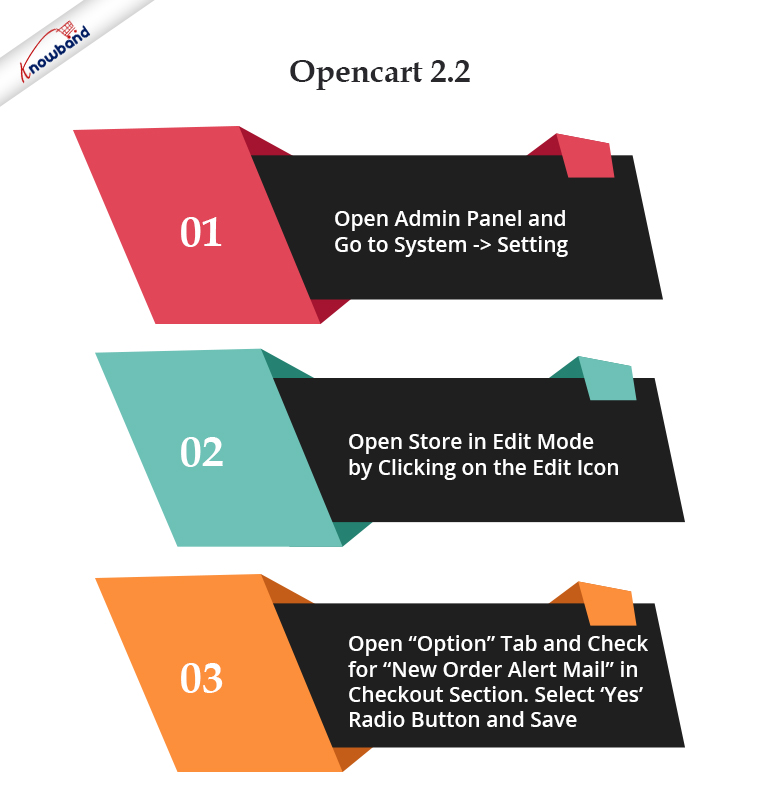
  • Open the admin panel and go to System -> Setting. On this page, you will see a store listing.
  • Open a store in edit mode by clicking on the edit icon.
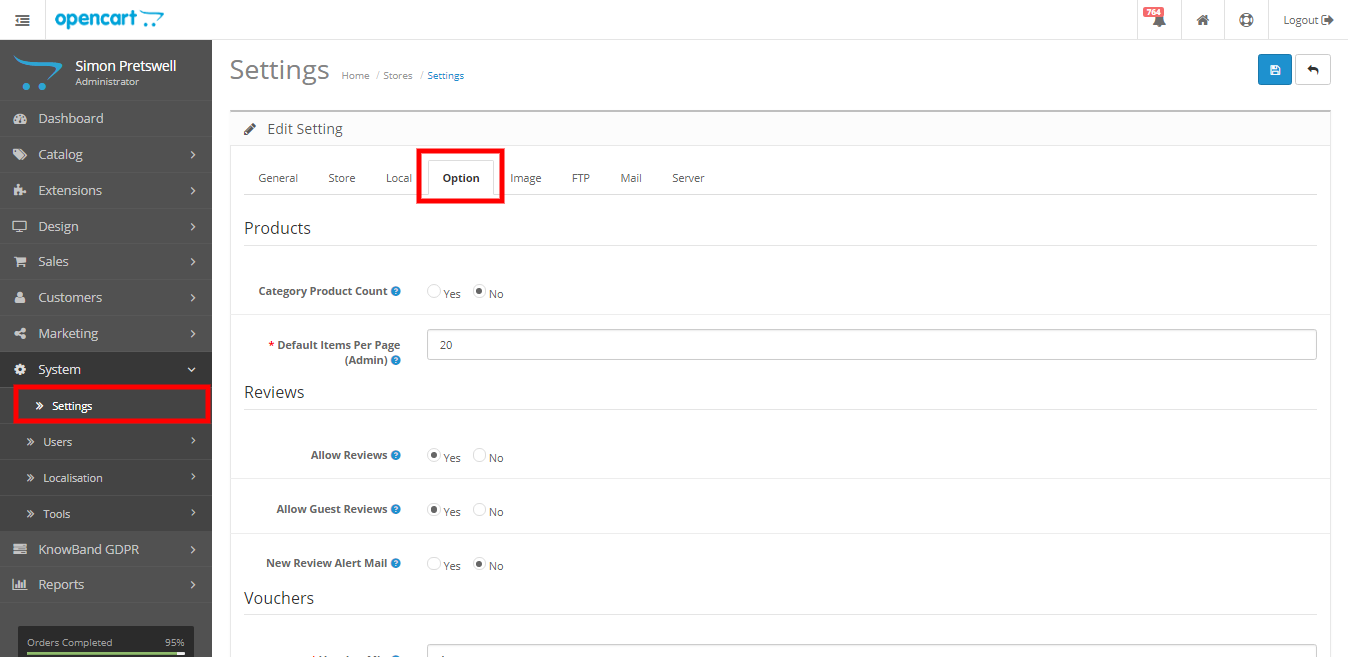
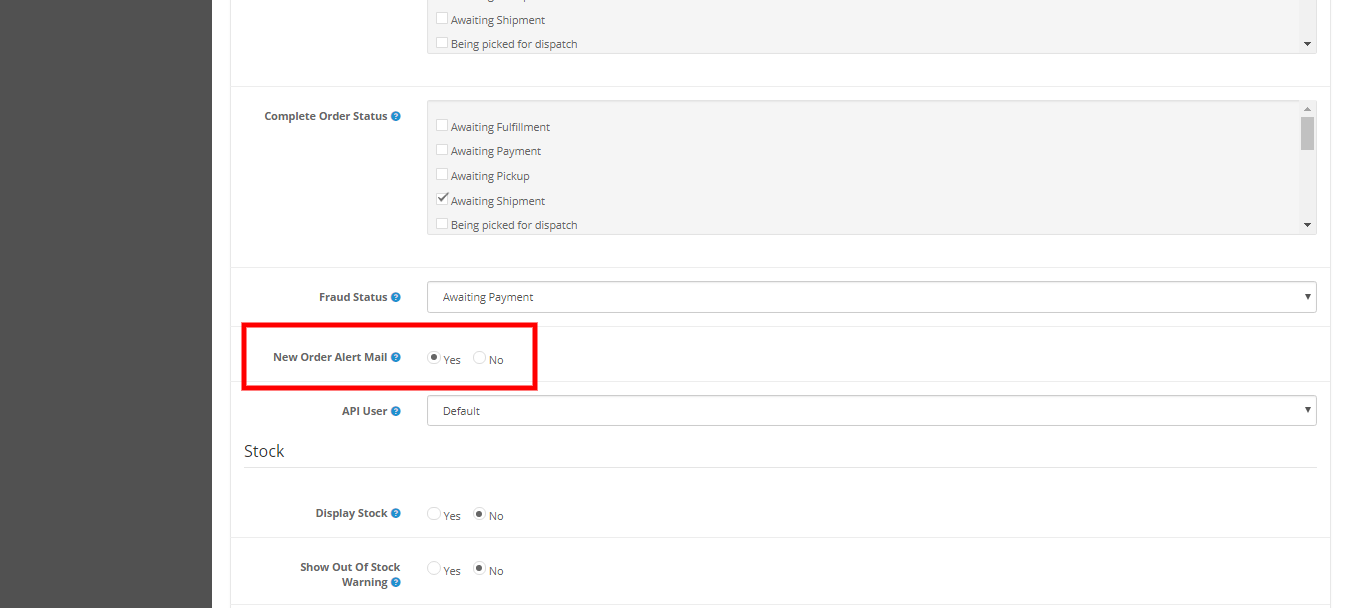
  • Open the “Option” tab and check for “New Order Alert Mail” in the checkout section. Select the ‘Yes’ radio button and save.

Refer below screenshots

Note: Function add order history() in catalog/model/checkout/order.php file is used to send mail to mail to admin in. If you want to make any changes to the email then can make this function.

Search for ‘if ($this->config->get(‘config_order_mail’)) {‘ to find code to send mail to admin.

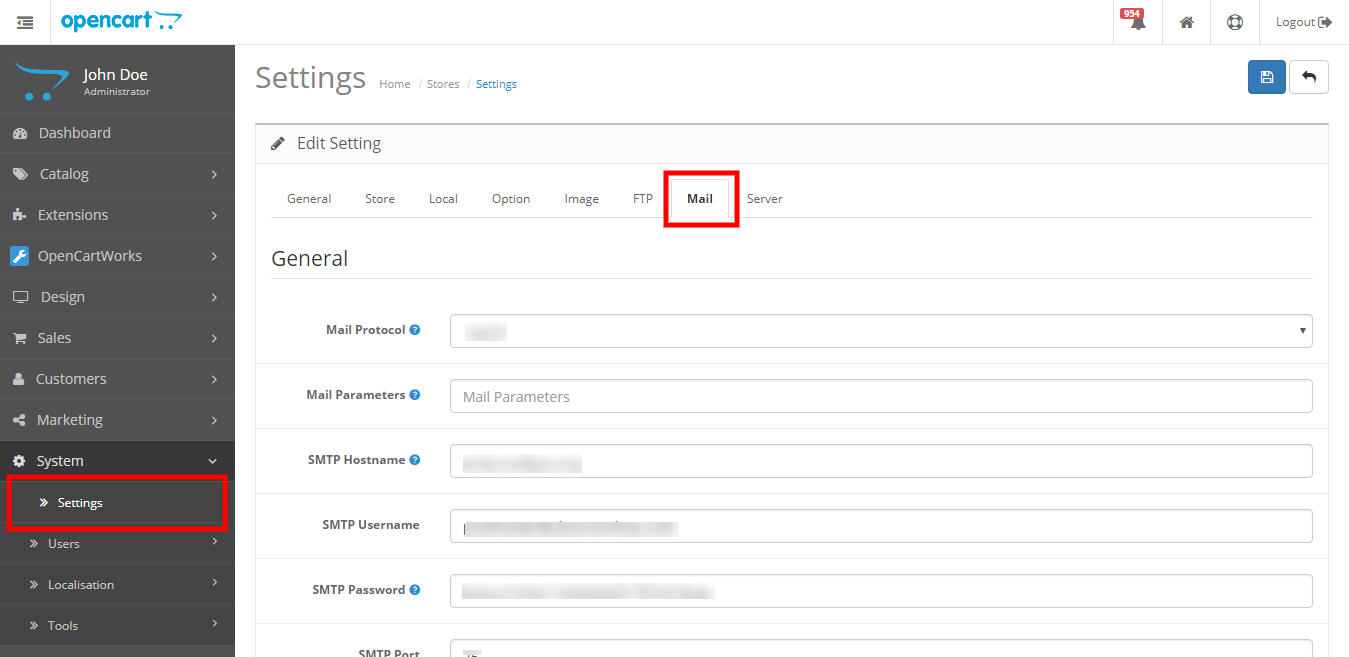
For Opencart 2.3

Follow the following steps to automate sending order emails to the admin:

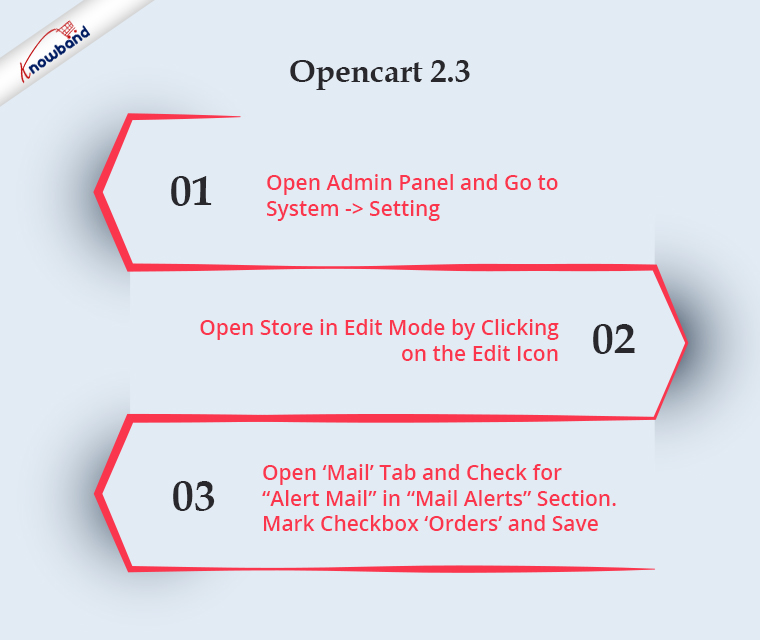
  • Open the admin panel and go to System -> Setting. On this page, you will see a store listing.
  • Open a store in edit mode by clicking on the edit icon.
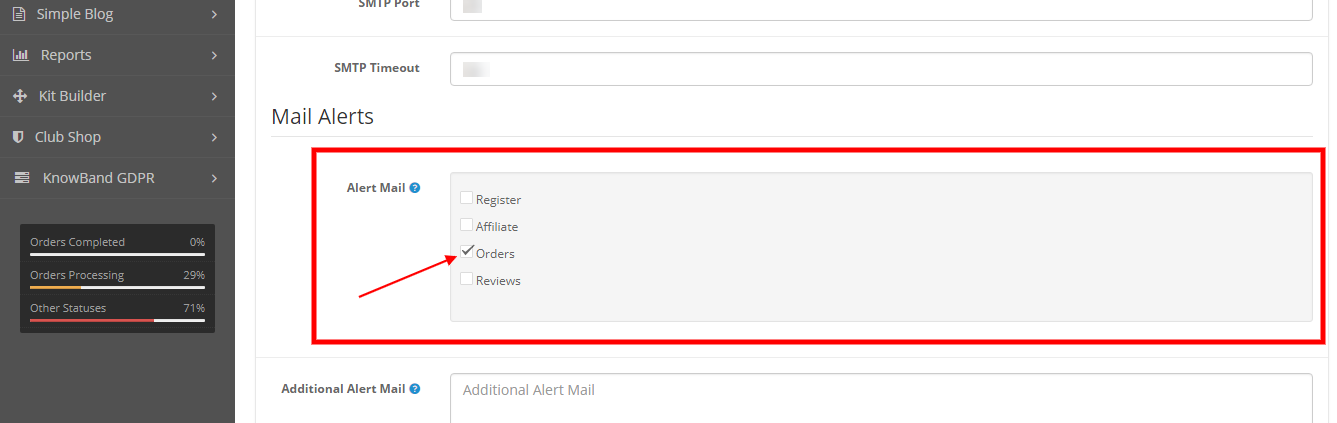
  • Open the ‘mail’ tab and check for “Alert Mail” in the “Mail Alerts” section. Mark checkbox ‘orders’ and save.

Refer below screenshots

Note: Function addOrderHistory() in catalog/model/checkout/order.php file is used to send mail to mail to admin in. If you want to make any changes to the email then can make this function.

Search for ‘if (in_array(‘order’, (array)$this->config->get(‘config_mail_alert’))) {‘ to find code to send mail to admin.

In the End:

In order to enhance the functionality of your OpenCart store, Knowband offers a large selection of both free and paid OpenCart extensions. With a large variety of features available in these modules, the store admin can easily launch, develop, and grow their business. To know further about OpenCart Modules’ functionality and features, feel free to reach us at support@Knowband.com.

Prestashop Booking and Rental System Addon – User Manual

1.0 Introduction

Buying and renting services has now become a common scenario of online markets. People commonly prefer rental products and therefore shop owners have found their way in the rental business. So, which module to try for offering 24*7 booking and rental services to your customers. Prestashop Booking and Rental System addon by Knowband helps e-merchants in adding a wonder functionality to their online shop which is referred to as booking system. Yes, Prestashop Booking System is one great module to create a dynamic booking system for your online shop giving an option to set your pricing, maintain a calendar, appointment orders very effectively from the back-office. Using eCommerce booking system, online users can easily make time-date based bookings and appointments for various products.

Prestashop Reservation And Booking Module help you to add rental products and services to your Prestashop site. Prestashop Booking Calendar addon integrates flexible booking options and a user-friendly interface to the site. Customers can check real-time availability and relatively opt for rental or booking services from the online shop. So if you are planning to offer a rental, appointment or bookable services, this is the right one for you.

1.1 Striking Features of Prestashop Booking and Rental System Addon

To provide rental services that fit your customers need, Prestashop Reservation system module has offered multiple configuration settings so that you can effectively make your online business booking ready for the customers. The simple to use backend of Prestashop Booking Calendar addon is extremely easy to use without any technical operations or coding hassles.

The various key features provided by Prestashop Rental Booking System has been listed below.

1. Prestashop Booking and Rental System addon help store owners to convert their store into an online reservation and booking store that provides many kinds of rental, appointments and room booking services to the online users.

2. Creating and listing an appointment, daily rental product, booking room, hourly rental services is a time-saving approach with the help of Prestashop Booking Calendar addon.

3. Prestashop Booking System gives an intuitive interface to add the details for bookable product/services or appointment.

4. Admin can add suitable date ranges and time slots on the product page of booking product or appointments when their business services are available to the online users.

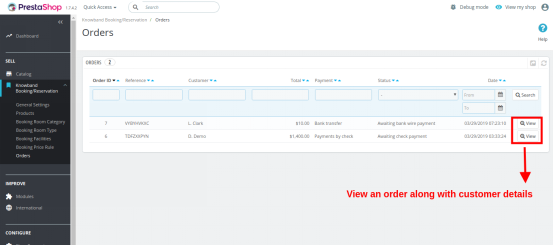
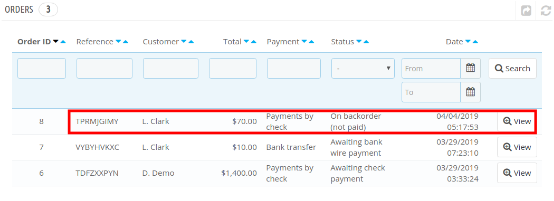
5. The total bookable orders with their status and associated customer details can be viewed from the back-office of this Prestashop Event Booking addon.

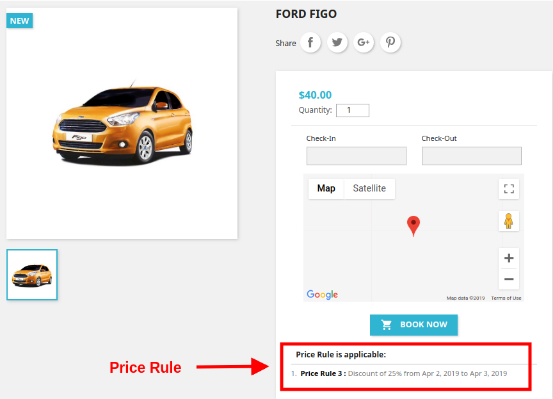
6. Prestashop admin can provide exciting deals and discount to their customers by flashing special price rules on the product pages. This will engage and add more traffic to the site which will impact the sales system as well.

7. Prestashop Booking Calendar addon builds a rental service schedule or appointment based on the features selected by the customers.

8. Admin can show the location with every bookable product/service using the Google Place Integration feature of Prestashop Reservation system module.

9. Prestashop Service Booking module offers flexibility to add, edit and delete unlimited bookable products to their eCommerce shop.

10. Prestashop Booking and Rental System addon allow you to add two kinds of bookable services for the users which include branch and home service.

11. Prestashop Booking System flawlessly supports multi-lingual and multi-store compatibility.

12. With Prestashop Reservation And Booking Module, admin can set the initial price for the rental services or appointments at their store.

13. They can disable booking and appointments for selective days or timing using this Prestashop Booking and Rental System addon.

14. The Prestashop admin can show multiple dates and time slots available for each bookable product or service.

15. Prestashop Booking Calendar addon provides an option to show custom rental service charges corresponding to the date-time slot selected by the customer.

16. Prestashop Event Booking addon allows admin to specify the different type, category and offered facilities with the rental room or hotel services.

1.2 Technology for Development

Language: PHP
Frame Work: Prestashop

2.0 Installation Guide for Prestashop Booking Calendar Addon

The store admin can follow these simple steps for installing the Prestashop Booking and Rental System addon on their eCommerce store:

1. First of all download the addon package from the Knowband store.

2. You will get a zipped file containing the source code and user manual. Unzip the complete package in the root directory of your Prestashop store through FTP manager (like Filezilla or WinSCP – download here: https://filezilla-project.org/). You’ll find the files and folders as shown in the image below:

The Prestashop Booking System is now installed and ready for use. Now the admin can configure the various configuration settings in accordance with their Prestashop site.

3.0 Admin Interface of Prestashop Rental Booking System

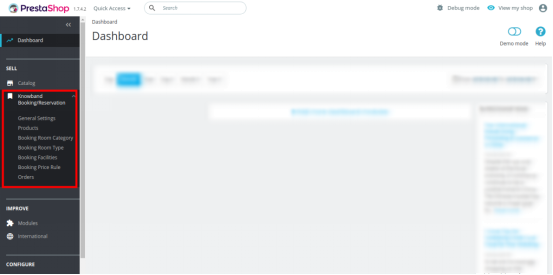
Just after successful installation of Prestashop Booking and Rental System addon at your website, you can configure the booking service setting as per your needs. In the admin panel or dashboard, you will find the Knowband Booking/Reservation module along with its sub-sections listed below.

This Knowband Booking/Reservation System comprises of seven sections which have been discussed further.

1.General Settings
2.Products
3.Booking Room Category
4.Booking Room Type
5.Booking Facilities
6.Booking Price Rules
7.Orders

Each Tab of the Prestashop Booking System has been discussed below:

3.1 General Settings

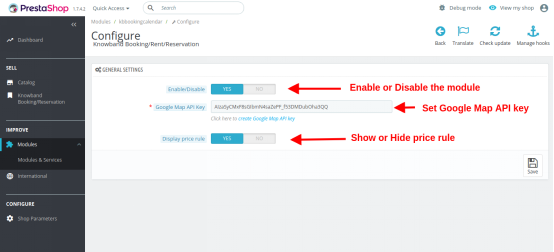
The General Settings of Prestashop Rental Booking System includes the basic configuration settings as:

1.Enable/Disable: This option enables or disables the complete functionality of the Prestashop Booking and Rental System at your store.

2.Google Map API Key: This option helps you to set the Google Map API Key. Once this unique API key is set from the backend, you can mark and display the location corresponding to every bookable product or service.

3.Display Price Rule: This option lets you show or hide the custom price rules over the product page of bookable product and rental service. To create a new price rule for different bookable products or edit the existing price rule, jump to the “Booking Price Rule” section of the dashboard.

3.1.1 How to generate the Google Map API key

The eCommerce store admin can generate the Google API key by following these steps:

  • Click on the “Get Started” button: The admin can click on this button to get Google map API key.

  • Pickup the products: When the admin will click the “Get Started” button this pop-up will be displayed.

  • Project selection: The eCommerce store admin can select or create a project.

1. Select a project:

2. Create a new project:

  • Setup the billing: The eCommerce store admin can now set up the billing.

  • After billing the store admin can get their Google map API key.
    On the Credentials page, get an API key:

  • The store admin can select the API key option:

  • The admin can select the restrict key option from the dialog box to set a browser restriction on the API key.

  • In the Key restriction section, the store admin can select HTTP referrers (web sites), then follow the on-screen instructions to set referrers.

  • This way the admin can set the Google map API key.

3.2 Products

Here, you can view the complete list of daily/hourly rental products, appointments and hotel booking services added at your eCommerce store. To edit the existing details for any type of booking product/service, click on the edit option corresponding to a product listing. If you want to delete a particular listing, click on Delete option shown in the drop-down option corresponding to the product. If you don’t want to delete, simply enable or disable the product manually.

To add a new rental product or booking room service or appointments at your store, click on the Add new Booking Product option at the top right corner of the admin panel of this Prestashop Booking and Rental System addon.

1. Click on the “+” button at the top right side of the admin interface.
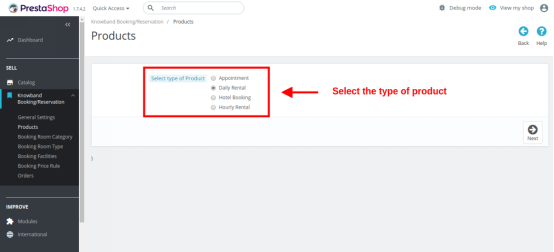
2. Now select the type of product you want to add to your site. The four offered options include:

  • Appointment
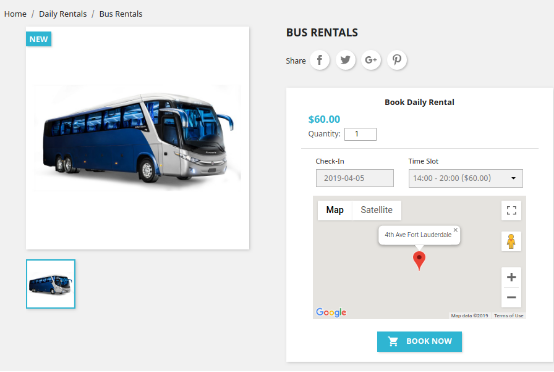
  • Daily Rental
  • Hotel Booking
  • Hourly Rental

3.2.1 Add an Appointment Type Product

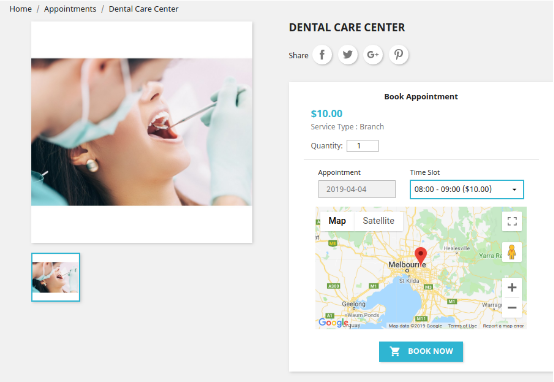
The Appointment type product contains the following information. In Appointment type of product, admin can show date/time slots. Admin has to set the appointment price on per day basis.

3.2.1.1 General Information

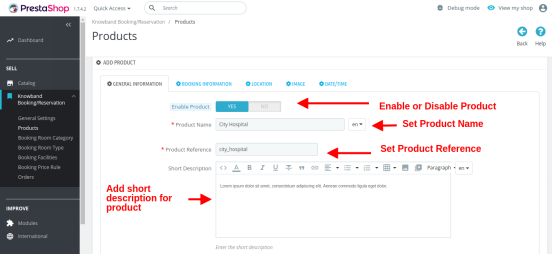
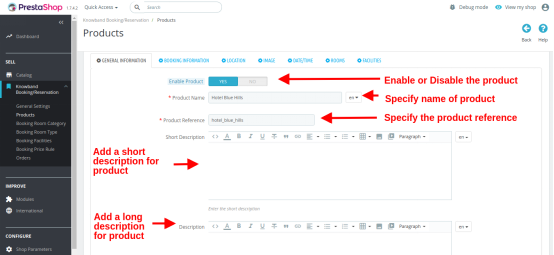
  • Enable or Disable Product: This option helps to enable or disable the current product.
  • Product Name: You can set the desired name for the product which is a mandatory field.
  • Product Reference: Set a unique reference code for the product which is a mandatory field.
  • Short Description: You can add a short one-line description for your product which displays under the product name.
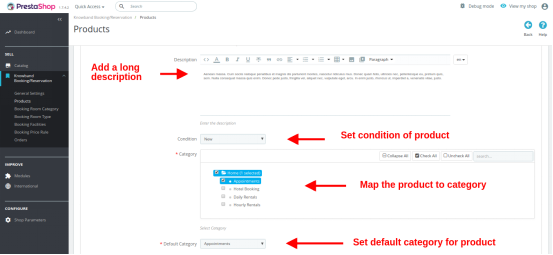
  • Description: Give detailed information about the product in this field box.

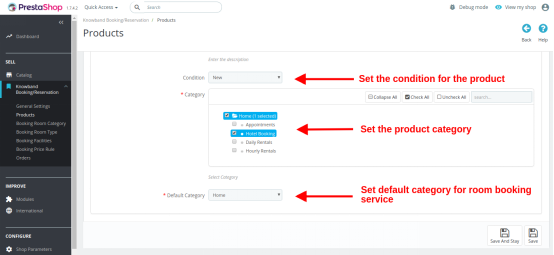
  • Condition: Set the condition of the product stating whether it is new, refurbished or used.
  • Category: Select a particular category where you want to add and show this appointment service.
  • Default Category: You can choose a default category for the product using this field.
3.2.1.2 Booking Information

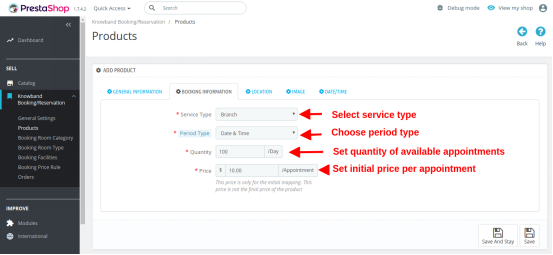
  • Service Type: This option lets you select the service type as a branch or home service.
  • Period Type: This option sets the period or schedule type that you want to display on the product page for the users. If the date is selected, then date schedules will be shown only. If the date/time option is selected then both date and time slots are shown to the customers.
  • Quantity: You can set the available quantity of bookable product or service for a day.
  • Price: You can set an initial price of the product per appointment that is shown to the user before they have done any service customization. After they have selected their product preferences, mainly date, and time schedules, the initial price is changed to the final custom price that they have to actually pay for getting service benefits.
3.2.1.3 Location

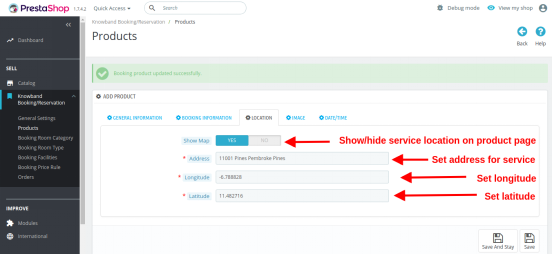
  • Show Map: You can turn Google Map ON or OFF visible at the frontend over the product page.
  • Address: This field specifies the exact location or address of that particular bookable product.
  • Longitude: This field sets the longitude coordinate of the specific location.
  • Latitude: This field sets the latitude coordinate of the specific location.
3.2.1.4 Image

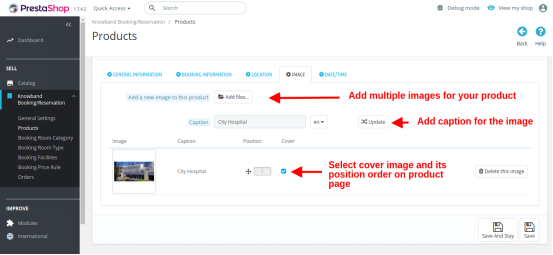
  • Add new image to this product: You can add multiple images to describe your product. You can set the display order of these images. Also, you can set any of these images as a cover image for the rental service or booking service.
  • Caption: You can give a desired caption for the product images.
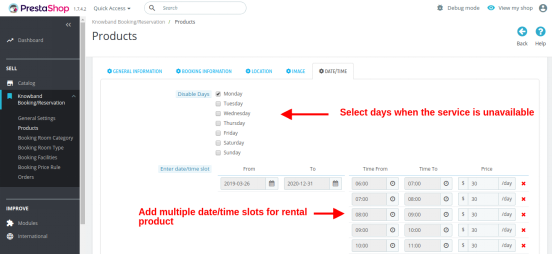
3.2.1.5 Date/Time

  • Disable Days: You can select all the days when the services are unavailable by the respective businesses.
  • Enter Date/Time Slot: You can create and display multiple dates and time slots on the product page. If the period type is selected as Date, then only date schedules will be shown at the backend. If the date/time is selected as period type, then you can add multiple time slots corresponding to every date range. This way you can map multiple time slots to a single date slot.
  • Final Price: You have to specify the final price corresponding to each date/time schedule added for the appointment. This final price is calculated during checkout based on customization done by the customer.
    Finally, save your created product.

3.2.2 Add a Daily Rental Product

The complete configuration settings for a rental product are the same as appointment type product.
Admin can show date/time slots for a daily rental product and can also fix a price corresponding to that schedule on per day basis.
The only difference occurs in the following listed settings:

  • Price: The initial price for the rental product is on a daily basis. Remember this is not the final price of the rental product.
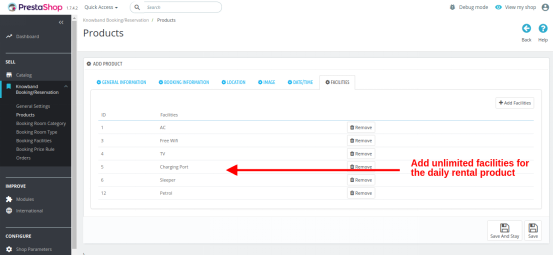
  • Facilities: This option allows you to add multiple facilities that you are offering with the daily rental product. These rent type facilities have to be first created from the “Booking Facilities” section of the admin panel. Once created, you can map them here for the particular daily rental service.

3.2.3 Add a Hotel Booking Service

The Hotel Booking service or Room Booking service contains the following information. In this room booking service, the customer has to select the check-in and check-out dates so that the room availability can be checked.

3.2.3.1 General Information

  • Enable or Disable Product: This option helps to enable or disable the Hotel room booking service.
  • Product Name: You can set the desired name for the booking service which is a mandatory field.
  • Product Reference: Set a unique reference code for the booking service which is a mandatory field.
  • Short Description: You can add a short one-line description for your room booking service which displays under the product name.
  • Description: Give detailed information about the hotel service in this field box.

  • Condition: Set the condition of service stating whether it is new, refurbished or used.
  • Category: Select a particular category where you want to add and show this booking service.
  • Default Category: You can choose a default category for the booking service using this field.
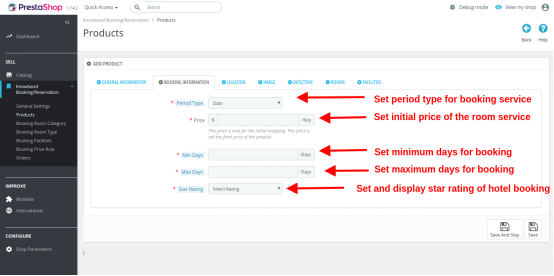
3.2.3.2 Booking Information

  • Period Type: This option sets the period type as Date allowing you to add multiple date slots for your hotel service.
  • Price: You can set an initial price of the booking service on a daily basis that is shown to the user before they have done any service customization. After they have selected their product preferences, mainly date slot, this initial price is added with the final custom price that they have to actually pay for getting service benefits.
  • Min days: Set the minimum days for hotel booking service.
  • Max Days: Set the maximum days for hotel booking service.
  • Star Rating: Select and display the star rating of hotel room service.
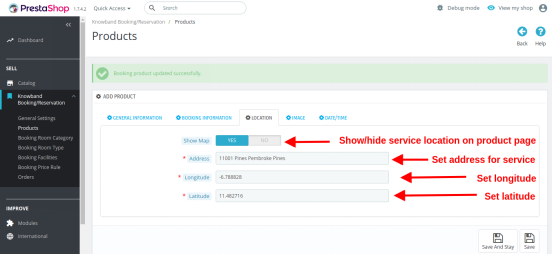
3.2.3.3 Location

  • Show Map: You can turn Google Map ON or OFF visible at the frontend over the product page.
  • Address: This field specifies the exact location or address of that particular Hotel service.
  • Longitude: This field sets the longitude coordinate of the specific location.
  • Latitude: This field sets the latitude coordinate of the specific location.
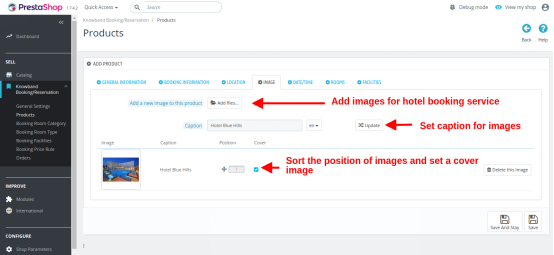
3.2.3.4 Image

  • Add a new image to this product: You can add multiple images to describe your Hotel booking service. You can set the display order of these images. Also, you can set any of these images as a cover image for the room booking service.
    Caption: You can give a desired caption for the product images.
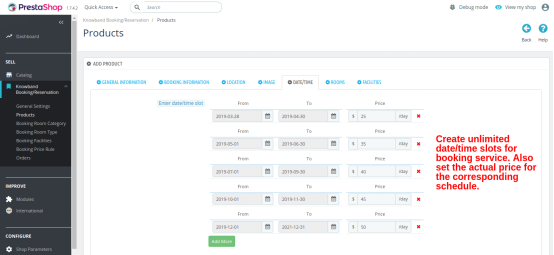
3.2.3.5 Date/Time

  • Enter Date/Time Slot: You can create and display multiple date schedules on the product page when your hotel services are available for the users. If there will be any conflict between the date/time range, the first occurrence will be applied.
  • Final Price: You have to specify the final price corresponding to each date slot schedule. This price is on a nightly basis. This final price is calculated during checkout based on the check-in and check-out time selected by the customer.
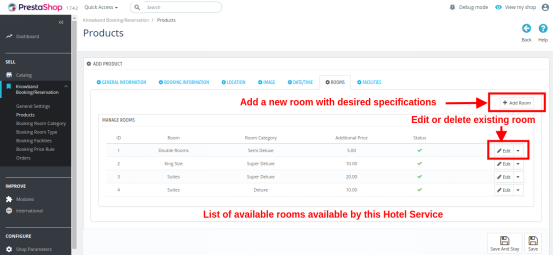
3.2.3.6 Rooms

This interface will list you all the existing rooms within the particular hotel booking service. You can edit the details/specifications for any available room or you can delete them if required.
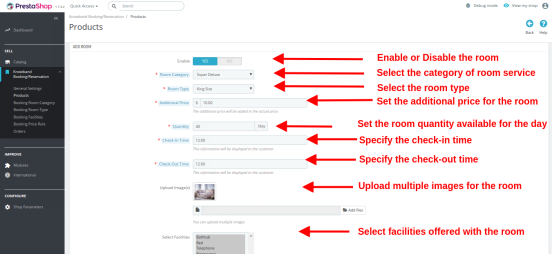
You can create a new room under this hotel service with different room type, category, and offered facilities. For this, you have to simply click on the Add Room option present at the top right corner of the interface.

  • Enable: Enable or disable the room service.
  • Room Category: Select a particular category for room service. For this, you have to first create various categories from the “Booking Room Category” section of the admin interface. Then you have to map this room under the desired room category.
  • Room Type: Select a particular type for the room service. For this, you have to first create various room types from the “Booking Room Type” section of the admin interface. Then you have to map this room under the desired room type.
  • Additional Price: Set the additional price which is added to the initial price.
  • Quantity: Set the available quantity of rooms per day.
  • Check-in Time: Specify the check-in time for this room.
  • Check-out Time: Specify the check-out time for this room.
  • Upload Images: You can add multiple images describing the hotel room.
  • Select Facilities: Select multiple facilities that are offered with the room service. These facilities have to be first created from the “Booking Facilities” section of the admin interface. Then, you can easily map various facilities for this selected room.
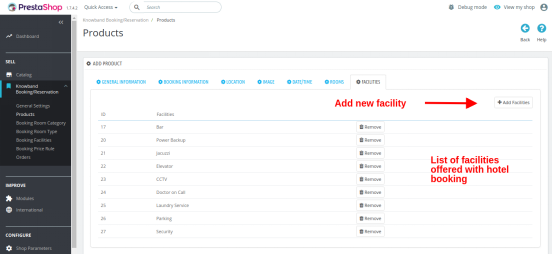
3.2.3.7 Facilities

Under this section, you can map all the facilities that are being provided for the particular hotel service. These hotel facilities are also created from the “Booking Facilities” section of the admin interface.
Finally, save your created hotel/room service.

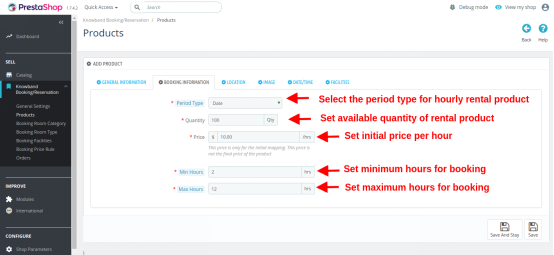
3.2.4 Add an Hourly Rental Product

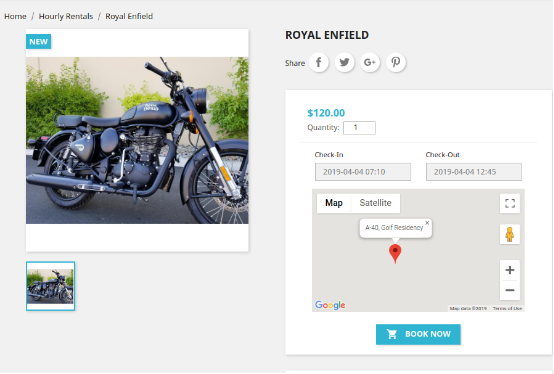
The complete configuration settings for an hourly rental product are same as of daily rental type product. The customer has to pick a check-in and check-out date-time which specifies the duration for which they want the product.
The only difference occurs in the following listed settings:

  • Period Type: This option sets the period type as Date Type for the hourly rental product.
  • Quantity: You can specify the total quantity of that hourly rental product.
  • Price: This option sets the price of the product on per hour basis.
  • Min Hours: Set minimum hours for booking.
  • Max Hours: Set maximum hours for booking.

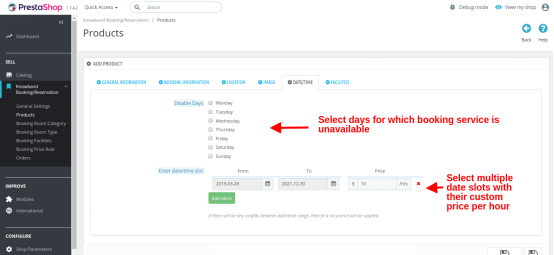
  • Disable days: Check the days on which the hourly rental product is unavailable for customer use.
  • Enter Date/Time slot: Create multiple date slots along with their final custom price on per hour basis.
  • Facilities: This option allows you to add multiple facilities that you are offering with the hourly rental product. These rent type facilities have to be first created from the “Booking Facilities” section of the admin panel. Once created, you can map them here for the particular hourly rental service.

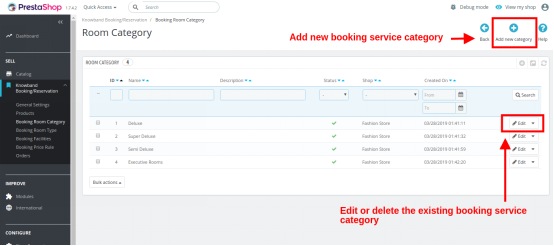
3.3 Booking Room Category

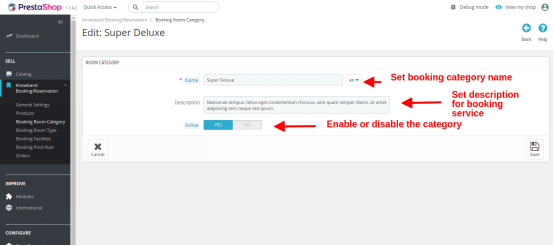
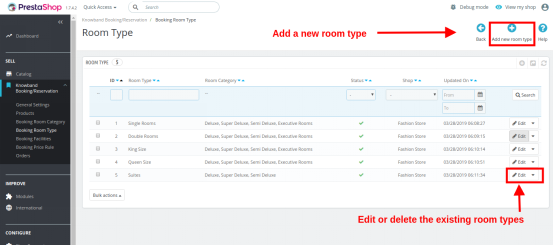
You can view and manage the list of booking room category through this interface. You can even edit or delete an existing category. For adding a new booking room category, click on the “+” button at the top right place of the admin panel.

Fill the following details while creating a new booking room category:

  • Name: Set name of booking room category.
  • Description: Set a short description for the booking room category.
  • Active: Enable or disable the room category.

3.4 Booking Room Type

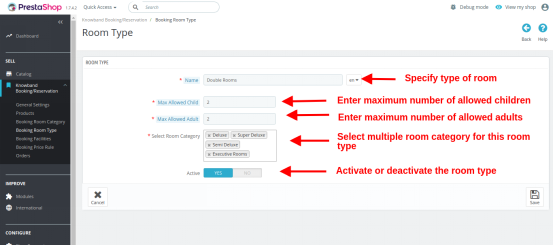
You can view and manage the list of booking room type through this interface. You can even edit or delete an existing room type. For adding a new booking room type, click on the “+” button at the top right place of the admin panel.

  • Name: Enter the name of room type.
  • Maximum Allowed Child: Set the maximum limit of allowed children.
  • Maximum Allowed Adults: Set the maximum limit of allowed adults.
  • Select Room Category: Select multiple room categories for this room type.
  • Active: Enable or disable the booking room type.

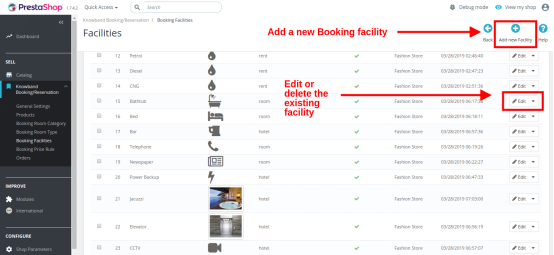
3.5 Booking Facilities

There are three kinds of booking facilities that can be created using this Prestashop Booking and Rental System addon.

1. Room: These facilities are mapped for particular room service.
2. Rent: These facilities are mapped for daily rental and hourly rental services.
3. Hotel: These facilities are mapped for a particular hotel booking service.

You can configure or delete the existing booking facilities from this interface. To add a new facility, click on the “+” button at the top right corner of the admin panel.

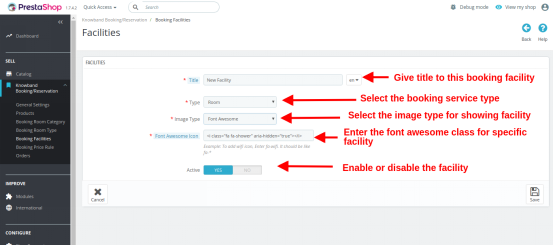
  • Title: Set a catchy title for the booking service.
  • Type: Set the booking service type for the offered facility. The three types include Room, Rent and Hotel.
  • Image Type: Specify the image type you want to use for depicting the booking facility. The two image type include Upload Image and Font Awesome.
  • Font Awesome Icon Class/Upload Image: If you have selected “Upload Image” type, then you have to browse a desired image from the local system. Else if you have selected the “Font Awesome Icon” type, then insert the font awesome class for that particular icon. For example, to depict the “Charging Port” facility, the font awesome class is “fa-plug”.
  • Activate: Enable or disable the booking facility.

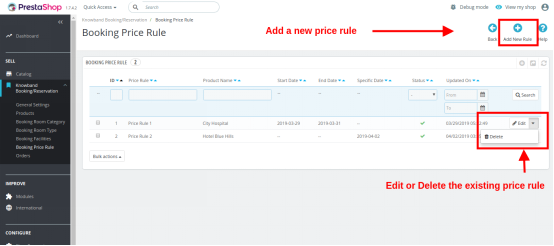
3.6 Booking Price Rules

Price rules are basically created for specific products. This is a kind of offer or discount deal that you can use to entice the online users for grabbing that particular rental or booking service from the store.
The various price rules can be viewed and managed from a single interface under the Booking Price Rule Section. You can edit or delete the existing price rule. Additionally, you can create a new price rule for another bookable product on the store. To add a new booking price rule, click on the “+” button at the top right corner of the interface.

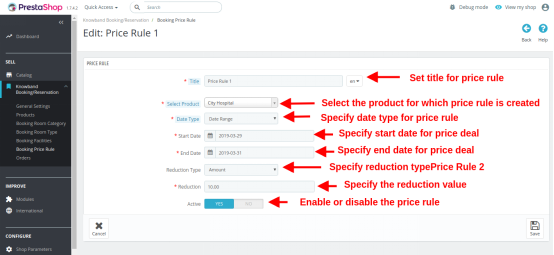
Specify the following field information while creating a new price rule.

  • Title: Set a desired catchy name for the price rule.
  • Select Product: Select the product over which you want to apply this booking price rule.
  • Date Type: Specify the date type from two options: Date Range and Specific Date.
    Start Date, End Date / Fix date: Enter the start date and end date if you have selected Date Range as Date Type. If you have selected the Specific Date option as Date Type then enter the fixed date to display the price rule.
  • Reduction Type: Set the reduction type as amount or percentage.
  • Reduction Value: If you have selected Amount as Reduction type then set the discount value you are offering to your customers. If you have chosen the Percentage type option, then set the discount percentage for the booking service.
  • Active: Enable or Disable the price rule.

3.7 Orders

Here, the admin can view the complete list of orders placed by the customers whether it is an appointment, room booking service, daily rental product or hourly rental product. The date and time of order, customer detail, payment type, payment value and order status is also visible in this backend report of Prestashop Booking and Rental System.

4.0 Front Interface of Prestashop Reservation And Booking Module

A) Appointment Type Product

B) Hotel Booking Type Service

Available Rooms in Super Deluxe Category

Available Rooms in Semi Deluxe Category

Available Rooms in Executive Rooms Category

Here you can see that there are no rooms in this category. This information is given to the frontend user in the form of an error message.

Available Rooms in Deluxe Category

Now as the customer will select the desired room from the list of available rooms, then they will be shown a new popup as given below.

This popup gives complete details about the room selected by the customer in accordance with their needs. Now as they click on the “Book Now” button the room booking service gets added to the cart which is shown below.

If the user wishes to check the booked room details again, they can simply click on the “Product Customization” link shown over the cart page.
This appears like the image below:

Order Confirmation Message on the frontend

Admin can also check the order details from the admin. The backend interface showing list of store orders looks like:

C) Daily Rental Type Product

D) Hourly Rental Product

E) Price Rule for Selective Products


For additional guidance, please refer to the tutorial video available below, which provides a step-by-step walkthrough of this module.


4 Ultimate Tips To Increase Sales On eBay

The marketplace is the professional seller community that provides sellers a platform for selling their products and earn a huge chunk of profits. eBay is one of the best and most popular Marketplaces all over the world. Selling on eBay will definitely help sellers to earn a huge chunk of profits. Sellers can avail access to millions of customers worldwide which will rapidly boost up sales and revenues.

With over 182 million active users, eBay is a continuously growing marketplace that has provided a lot of sellers a platform with an infinite conversion rate. Selling on eBay marketplace is a dream for many sellers and luckily if you got this chance then here are the 4 ultimate tips which would help you to increase your sales on eBay:

1) Make friendly communication with your customers:

This point may sound murky but trust me this is the most useful way to all your leads. In today’s world, you have to play smartly and try to provide an enhanced shopping experience to your beloved customers to be remembered for the long term and repeated sales. Instead of running towards materialistic things, sellers should keep a check on the quality of the product as it is directly related to the feedback of consumers.

eBay has an outcome with a user-friendly interface for marketplace sellers which lures them to sell more and to add more product listings to it. It’s very important to understand the market base and go for the right decision which will suit best for your niche.

For example, if you deal in eyewear and the summer season is around the corner then my dear friend, you should add some cool sunglasses to your listings and earn a huge chunk of profits and a huge customer base too.

2) Use relevant tools for increment in the sale:

Sellers should be efficiently involved in multichannel selling as it is a big boon nowadays. For the past 10-20 years, multichannel selling is one of the most popular ways of marketing in all forms of selling and will be even in the future too.

All sales channels are efficiently interlinked with each other to achieve every possible facet and convert them into fruitful leads.

So interlinking and back-linking your website on different selling platforms and website blogs would be beneficial to you in terms of sales and revenues.

Although the process sounds a bit tricky due to the presence of certain tools but believes me, these tools help you to easily manage the products, inventory and their prices too.

So, here are some tools discussed which helps in increasing sales on eBay:

i) When you manage your eBay orders Directly:

Managing orders directly could be a hectic task on eBay. However, the journey from selling on the store to selling on eBay has taken a few steps ahead. Here are some Product Lister services which will certainly help you list your products in bulk in just a single click.

ii) When you manage your orders from an online store:

eBay Marketplace supports all the tools used for conversion rate optimization driven by the concept of multi-channel selling. If you own an eCommerce store on an open-source platform like Magento, PrestaShop, etc., or on SaaS-based platforms like Shopify, etc., then you can use various eBay Integration Apps which come with the following features:

  1. Product Listing
  2. Seamless Store Integration
  3. Profile-based upload
  4. Order Management
  5. Payment and Shipping Regulation
  6. Inventory Update
  7. Seller’s Dashboard
  8. View error
  9. User-friendly interface

This is the sure-shot method to achieve Conversion Rate Optimisation!

3) Product Detail Optimisation:

Just imagine your product is shown interest by your customers but you failed to describe your product efficiently. How will a customer feel? Frustrated, right? Why is this so? This is because the way you described your product was not appropriate for a customer to understand and this will result in loss of sales.

Once your product detail is been optimized, it’s also important to rank your product listings in the search results. If your products are not visible on the top of search results, then there is no benefit from product detail optimization.

Below are some of the points to be kept in mind as they will directly help sellers to rank their products on top of the search results.

a) Keywords and Titles should be a priority!

Being able to identify and use the correct keywords is the most important task to perform. The product keyword should be user-friendly so put yourself in customer’s shoes and try to think like them and search any product using the keywords that come to your mind first.
Titles should be nice and user-friendly and it is important to use the relevant keywords. A title will help to attract the huge amount of traffic to your eBay listings.
Although eBay has set its own algorithm this strategy is totally inevitable and could really work to rank your product listings.

b) Include multiple and high-quality images:

eBay’s search engine analyses product images by analyzing the number of photos and the product information conveyed by them. So if you want to rank your product on top of the list, it is important to use high-quality photos with detailed information about the product.

Avoid using overly bright colors and click a picture in light background with high resolution to get a clear image of the product. Always try to click multiple photos of the product from different angles as it helps the customers to know more about the product. The image should be uncluttered and should not be overlayed with other text or line art.

c) List your product in relevant category:

Selecting a relevant category is incredibly important as this directly influences the search results and helps the buyer to find your products. Opting a wrong category will definitely limit you from being found by customers. So list your products accordingly in the category and your listings should comply with eBay algorithms.

4) Popularity and efficiency in Market to build customer’s trust:

In the current scenario where the customer is the thrown owner and we work only in the direction of achieving better consumer experience, it’s the responsibility of sellers to include them in your selling process and involves them actively.

You can make the visitors and customers a part of your process by the following simple practices:

  • Reviews: Sometimes there are customers who are not sure about the quality of the product at the time of purchase. To overcome this, it’s very important for you to grab feedback from your customers on your products in order to ensure that the products are working well and what is needed for the betterment.
  • e-mail advertisement: email marketing is one of the best ways to promote your business nowadays. With the help of email, you can initiate different e-mail campaigns to let your customers know about your upcoming products.
  • Social Media Marketing: Social Media Marketing is the primary key to marketing key these days. Consumers today are at-least present on one social media profile these days, so you can make the leads out of it by promoting your brand on the same. You can make your brand profile and follow random customers. This will not only help you to promote your brand, but it will also help you to direct your followers on eBay which can give you good leads in return.

Conclusion:

The above compilation of 4 ultimate tips would definitely help you to optimize, enhance and emerge out as a leading seller on eBay Marketplace. Just follow these simple guidelines like product description, shipping process, customer reviews and many more. So try to accommodate all these strategies and keep yourself updated about the latest trends and techniques and excel like never before!

You can now list the products and the descriptions at a few button clicks with the help of eBay Integrators by Knowband. Knowband provides Integrators for the various CMS platforms like PrestaShop eBay Integration Addon, Magento eBay Integrator, as well as OpenCart eBay Integration plugin.

Find out more related articles here:

  1. How to Launch a Marketplace like Etsy and Ebay?
  2. How to Rank Higher and Get Your Listings Seen in eBay Search?
  3. How to create an eBay Sandbox Account?
  4. How to Create eBay Application to Get Required API Keys and User Token?
  5. What are sandbox sites in eBay Marketplace?
  6. How to revise and relist in eBay Marketplace?
  7. How to list a product in eBay Marketplace?

How to Delete Products from the Catch Marketplace?

Objective of the blog

After reading this blog, you will be able to understand how a seller can delete products from the catch marketplace.

Methods to delete Products from the catch marketplace

You can delete products from the catch marketplace by two methods:

  1. By deleting manually from merchant account
  2. By Using Offer Feed

1.0 Delete manually from merchant account

  • Login to the Catch merchant account (URL: https://marketplace.catch.com.au/login).
  • After logged in, you will be redirected to the home page where you need to select the offer list from the “My Inventory” tab as shown in the image given below:

  • In the offer list page you need to search the SKU by using “Offer SKU” field and check the checkboxes corresponding to those SKU which you want to delete as shown in the image below.

  • At the bottom of the page, you will find a button to delete the product as shown in the image below.

  • On clicking that button, a popup will be appeared on the screen which will show the list of SKUs that you have selected to delete and the button to delete those products. This is shown in the image below:

2.0 Using Offer Feed

You can delete the products in bulk from the Catch marketplace using offer feed. You can download the sample offer feed from the link given below:

Click Here to download offer feed

In this feed, you need to fill the data in the following fields:

  1. SKUs:  Enter the SKU which you want to delete
  2. update-delete:  Enter  “DELETE” in this column.
  3. club-catch-eligible: Enter FALSE
  4. tax-au: 0

After creating the feed, you need to upload the feed on the catch merchant account. The steps are given below:

  • Login to the Catch merchant account (URL: https://marketplace.catch.com.au/login).
  • After logged in, you will be redirected to the home page in which you need to select the “Import From File” option from the “My Inventory” tab.
  • On the Import file page you need to upload the feed as shown in the image:

  • You can track the status of the uploaded feed using Track Offer Import Option as shown in the image given above. On clicking on the Track Offer Import option, a new page will be opened where you can check the status of the uploaded feed. If the feed is imported successfully then you can also check the processing status of the feed as shown in the image below:

Summary

After reading this document you (seller) can easily delete your products from the Catch marketplace.