After the reading of this blog, you will be able to know how data can be copy to clipboard with help of java script.
Benefit of copy to clipboard functionality
In the current web world, it’s all about the user experienced from your site. During our work on any site we copy content from one place and paste at another place. It will be really helpful to the user if a site give a functionality of click to copy. It saves the time and effort of the user to select and copy the content.
Implementation of copy to clipboard functionality
Let’s see how we can add this functionality:
Step 1:
Create a HTML with a paragraph having some content and button to click. You can use any relevant element instead of paragraph for example textbox, textarea, hidden fields etc.
<body>
    <p id="txt_knoband">KnowBand boasts of the best in the industry plugins for eCommerce systems and has years of experience working with eCommerce websites.</p>
    <button onclick="onClickCopy()">Copy Text</button>
</body>
Step 2:
You will need to create a function onClickCopy() which will copy the data of the paragraph. Function will simply run “document.execCommand(“copy”)” to copy the data to the clipboard.
function copyOnClick() {
    var tempInput = document.createElement("input");
    tempInput.value = document.getElementById("txt_knoband").innerHTML;
    document.body.appendChild(tempInput);
    tempInput.select();
    document.execCommand("copy");
    document.body.removeChild(tempInput);
    alert("value copied");
}
In the last line of the script, we have simply added an alert action to inform the user that the data has been copied.
So finally when you click on the button “Copy Text”, data will be copied to the clipboard and you can simply paste by using CRTL + V.
Objective: To learn about how to create and read the cookie using JavaScript.
Cookie is small piece of data which is saved on user device by website. It is helpful in storing any data to identify the user or to track the user. When user again visits the website, stored data can be read easily.
Step 1: To set the cookie on user device
By the function createCookie(), you can easily create the cookie by passing the name, value (data which you want to store) and expiry date.
function createCookie(name, value, days) {
if (days) {
var date = new Date();
date.setTime(date.getTime() + (days * 24 * 60 * 60 * 1000));
var expires = ';expires=' + date.toGMTString();
} else {
var expires = '';
}
//setting cookie
document.cookie = name + '=' + value + expires + '; path=/';
}
Step2: To read the cookie
You can easily read the cookie using the below function by providing cookie name.
function readCookie(name) {
var nameEQ = name + '=';
//reading the cookie
var ca = document.cookie.split(';');
//processing to get the content
for (var i = 0; i < ca.length; i++) {
var c = ca[i];
while (c.charAt(0) == ' ') {
c = c.substring(1, c.length);
}
if (c.indexOf(nameEQ) == 0) {
//returning actual content
return c.substring(nameEQ.length, c.length);
}
}
return null;
}
Example: Example to store the user name in the cookie.
if (cookies == 'yes') {
jQuery('document').ready(function () {
//reding cookie
var cook = readCookie('YourWebsite');
if (cook != 'true') {
//calling to create the cookie if not found
createCookie('YourWebsite', 'user_name=akash', 30);
}
});
}
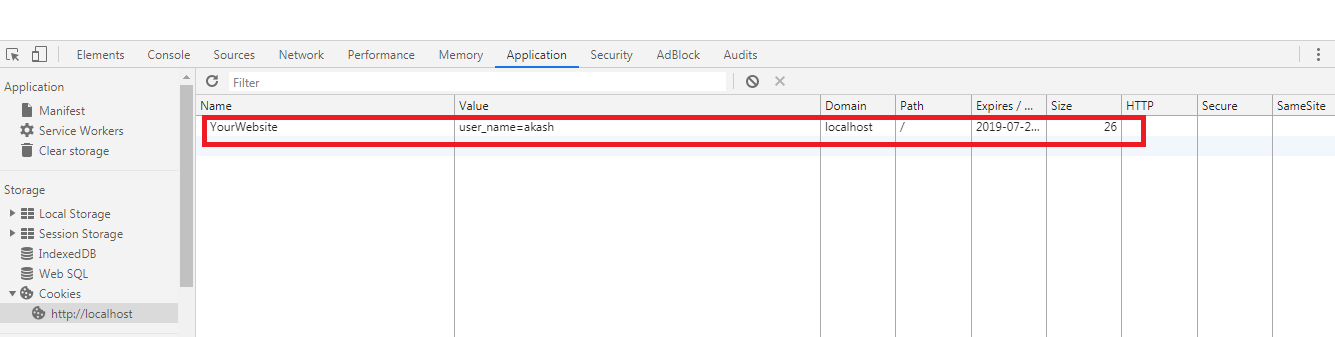
You can see the stored cookie in the console of the browser:
Dependency: You will need to include the jquery min js file to run the example. For this, you can use below line of code.
Objective: To learn how we can use same name of the class in PHP using namespace.
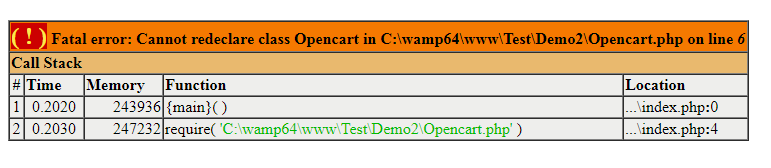
Generally we cannot use two or more class with the same name. It will give an error: “Cannot redeclare class” as shown below-
To handle this, we can use the namespace as shown in the example given below:
1. Defining the namespace Demo1 with Student class in the Demo1/Student.php
<?php
namespace Demo1;
class Student {
//All code will be here for this class
var $a = 10;
}
?>
2. Defining the namespace Demo2 with Student class (class with same name) in the Demo2/Student.php
<?php
namespace Demo2;
class Student {
//All code will be here for this class
var $a = 20;
}
?>
3. Now in the sample file index.php, we are able to use the both class without any error:
<?php
// including both of Student classes
require "Demo1/Student.php";
require "Demo2/Student.php";

//making an instance of Demo1\Student()
$ Student1 = new Demo1\Student();
//using the first class functionality
echo $Student1->a.'<br>';

//making another instance of Demo2\Student()
$Student2 = new Demo2\Student();
//using the second class functionality
echo $Student2->a;
Output Screen:
10 20
Both classes will have different functionality and we will be able to use both classes in a single file easily.
Note: We can make the code more easy by using the PHP use() function:
use Demo1\Student as Student1;
$Student1= new Student1();
echo $Student1->a.'<br>';

use Demo2\Student as Student2;
$Student2 = new Student2();
echo $Student2->a;
The success of an eCommerce store majorly depends on the kind of experience that it provides to its users. User experience is of vital importance for customer acquisition as well as customer retention. With fierce competition among brands in the e-commerce market, the one which provides a simplified shopping experience to its users wins the race.
Why is UX so important?
Consumers do not easily forget a brand that offers a great user experience. UX is important for your online business to provide comfort to your visitors and make them loyal to your brand. It is the user experience that will keep your customers stick to your store in the long run.
Now, the important part, how to simplify the online shopping experience for customers? Think from a customer’s point of view. Treat yourself as your own store visitor, browse your website and ask yourself whether you are finding a comfortable experience or not.
There are always areas for improvement. In this article, I will provide you with 7 useful tips to simplify the online shopping experience and enhance the customer experience. Check them out.
1. Design your Home Page well
Your home page is the interaction point for your visitors. It decides whether the user is going to spend some time on your store or take an early exit. No matter how amazing your offerings are, if the home page of your eCommerce store doesn’t please the visitors, you are going to see a significant increase in the bounce rate and eventually lose out on potential customers.
Do not miss out on the prospects. Make your home page attractive, something that keeps the excitement in the visitor to browse your store. Give it a good design. Make your first impression count.
2. Provide easy Search Functionality
Enable easy search functionality for your customers to search for their desired product effortlessly. Well, even before this, place your search bar in the right places and make it easy to spot.
Your site search functionality should understand your users’ queries and provide relevant results. An effective site search should be responsive enough to display appropriate results on abbreviations, misspellings, related product searches, etc.
Try out Knowband’s Search Auto-suggest addon for Prestashop that allows you to customize your search bar as per your choice and helps you enhance your site search functionality.
3. Simplify your checkout process
Do not make your users wait for too long to place the order. The longer it takes for them to check out, the higher the chances of cart abandonment.
Make sure your checkout page offers easy login facility like Social login, a Guest checkout for those who do not want to get themselves registered on your e-commerce store, an easy option to update the product quantity without going back to the product page, multiple payment options, etc.
Try out our One Page Checkout for PrestaShop, OpenCart, Magento and Magento 2.
A majority of online shoppers prefer to shop from their mobile devices. Not everyone carries a laptop with him/her every time and not everyone is available at the desktop, but almost everyone owns a mobile phone today. This is why a mobile-optimized e-commerce site is a must for e-retailers in order to gain more mobile traffic and improve the online shopping experience of their mobile users.
5. Have a mobile app
Today, almost every business has their mobile app. Having a mobile app makes the shopping journey of consumers more convenient. In addition to this, the benefit of having a mobile app is that consumers are generally logged in into the app even when they are inactive. It avoids the re-login headache, and on top of that, offers faster loading and quick entry into the store. A mobile app is a necessity today for consumers as well as for merchants to simplify the customer experience.
6. Encourage reviews and ratings
Reviews heavily influence a customer’s decision to purchase a product. When shoppers search for a particular item, they look for its reviews to ensure its quality, to know whether it’s worth spending money or not.
Similarly, ratings define product quality. A well-rated product automatically builds up the trust in the user about that product and encourages them to make a purchase. This enhances user experience and reduces product return.
7. Enhance customer support
Consumers are filled with queries. It can be about some offerings, product availability, product return, etc. Anyone would love getting their queries resolved as soon as possible. Online shoppers are no different. Providing customers with an easy way to reach out to your support team makes them feel more relaxed and satisfied. Allow customers to contact you by dropping an instant message, email or a phone number.
Conclusion
Online businesses have realized the importance of providing a simplified shopping experience to users. If you want to grow as an eCommerce brand, focus on your customers’ needs and try to fulfil them. Take care of your customers and you will need not worry about your conversions much.
If you find the above-mentioned tips on “How to simplify the shopping experience of your customers?” helpful, do leave a comment below.
Every 1 out of 10 online users compel to abandon their cart just because of the long and complicated checkout. Further, you can optimize your site checkout to an interesting one by incorporating OpenCart One Page Advanced Checkout Extension from Knowband. In fact, the OpenCart responsive checkout popup module turns up the entire checkout process to a single ajax based popup. Furthermore, which triggers over the screen as the customer opts to purchase a product from the store. Thus, this One Page Checkout for OpenCart reduces cart abandonment by offering the entire purchase process on a single popup, without loading the next page.
1.1 Features of One Page Checkout for OpenCart
Incorporating One Page Checkout for the OpenCart store is no big deal as it offers simple customization without involving any technical skills or existing code modifications. So, quickly allow your customers to purchase the product through a single popup, giving them faster checkout. Moreover, a less interruption experience. Thus, below listed are the striking highlights of this OpenCart One Page Checkout extension.
1. OpenCart One Page Checkout module displays the total checkout fields in the form of a responsive ajax based checkout popup on the frontend. Further, of the website without redirecting to another URL.
2. This One Page Checkout for OpenCart provides a seamless way to boost the newsletter subscriptions for the online business.
3. The responsive checkout popup incorporated using the OpenCart simplified checkout module can be easily enabled or disabled using the toggle button given at the backend.
4. The guest registration feature of the OpenCart responsive checkout popup automatically registers the customer with the site. In addition, send them the login password on their email.
5. You have the flexibility to enable or disable the guest checkout functionality of the OpenCart One Page Checkout module.
6. Using this OpenCart Single Page checkout extension, you can add CSS code to the advanced checkout page.
7. OpenCart Single Page checkout module offers a testing mode feature that lets you test the advanced checkout page functionality on a specific IP.
8. With OpenCart simplified checkout module, give customers the benefit of social login options. For instance, Google and Facebook over the checkout page.
9. OpenCart fast checkout extension allows you to show/hide payment and shipping address fields differently for logged-in and guest customers of the store.
10. The custom address field marks are needful or optional with the help of this OpenCart One Page Supercheckout module.
11. Using One Page Checkout for the OpenCart site, you can provide multiple shipping and payment methods to the customers which are configurable from the backend.
12. OpenCart responsive checkout popup module eases you in setting a desired logo image and title for each of the payment and shipping methods displayed on the supercheckout page.
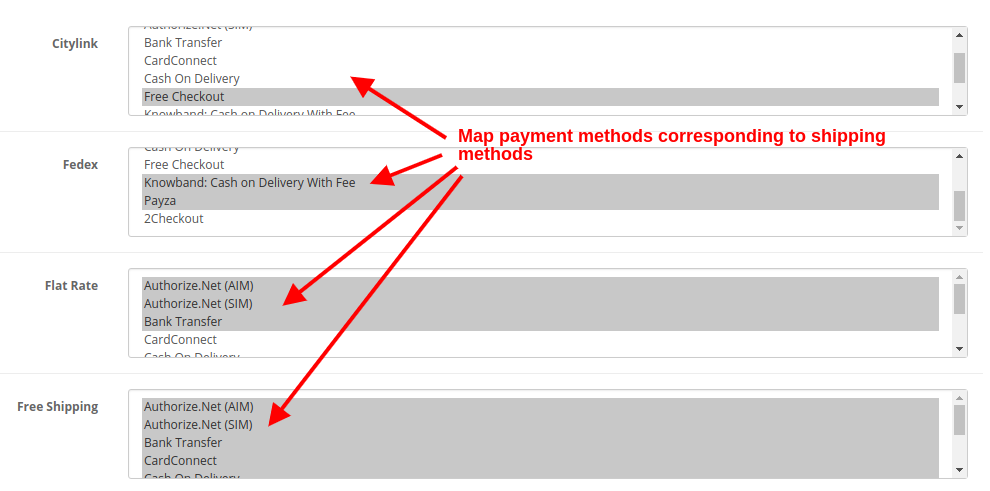
13. The ship2pay feature of OpenCart quick checkout extension automatically selects the payment method corresponding to each shipping method selected by the customer.
14. OpenCart responsive checkout popup extension offers a configurable cart whose fields can be fixed as per business needs.
15. OpenCart One Page Checkout module is multi-store and multi-lingual compatible.
16. OpenCart quick checkout extension offers a mobile responsive layout to the customers.
17. The MailChimp Integrator feature of OpenCart Single Page checkout automatically syncs the customer data with the connected MailChimp account of the seller.
1.2 Front Interface of OpenCart Responsive Checkout Popup Module
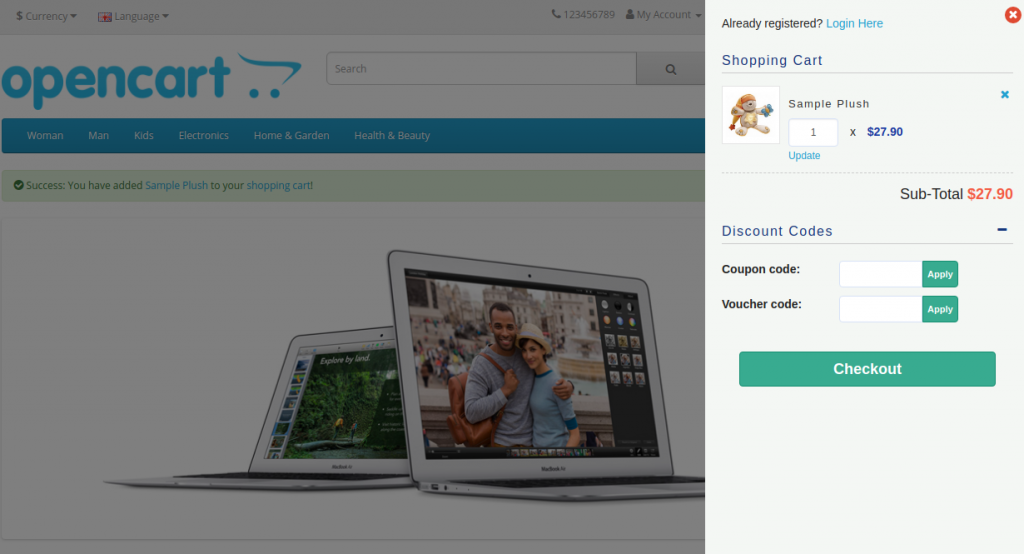
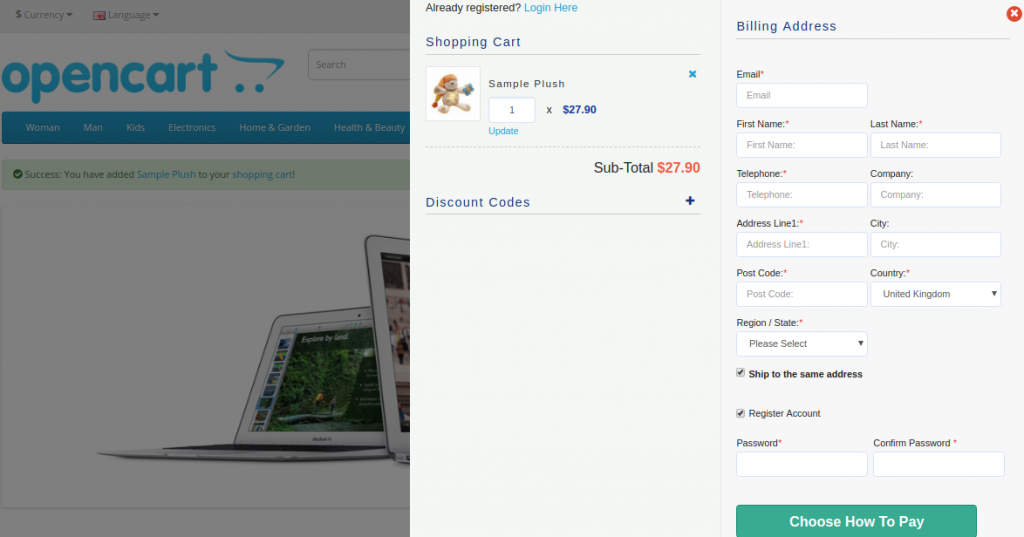
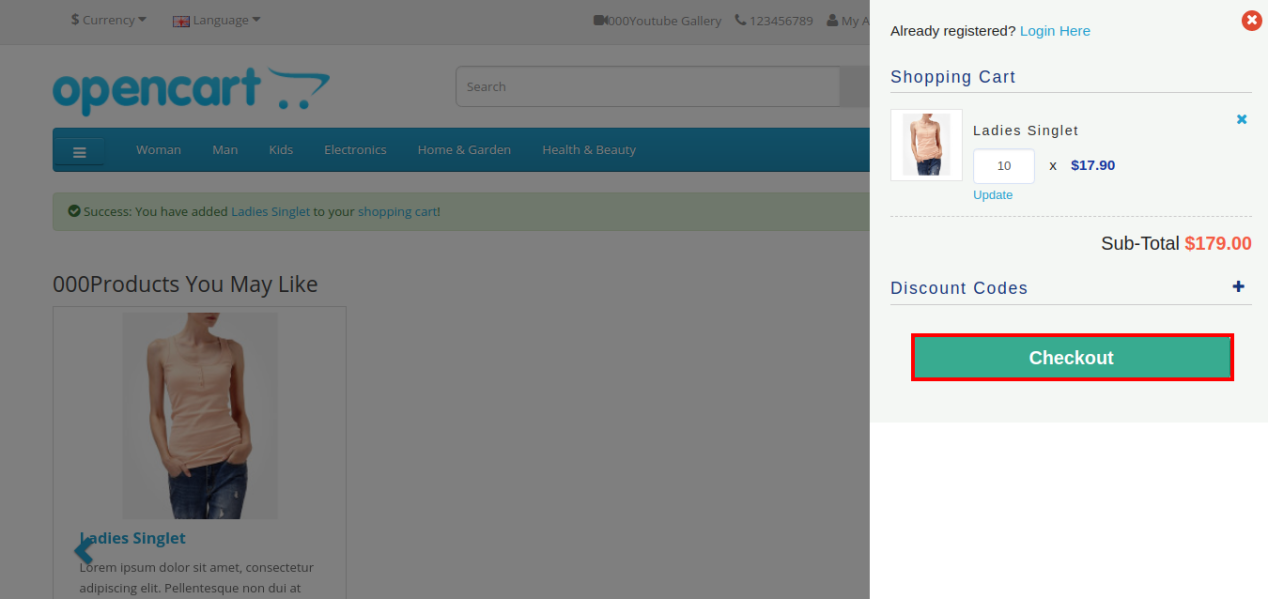
When the user clicks on the “Add to Cart” button corresponding to a product, they will see the following responsive checkout slider on their screen.
Cart Summary Section of OpenCart One Page Advanced Checkout
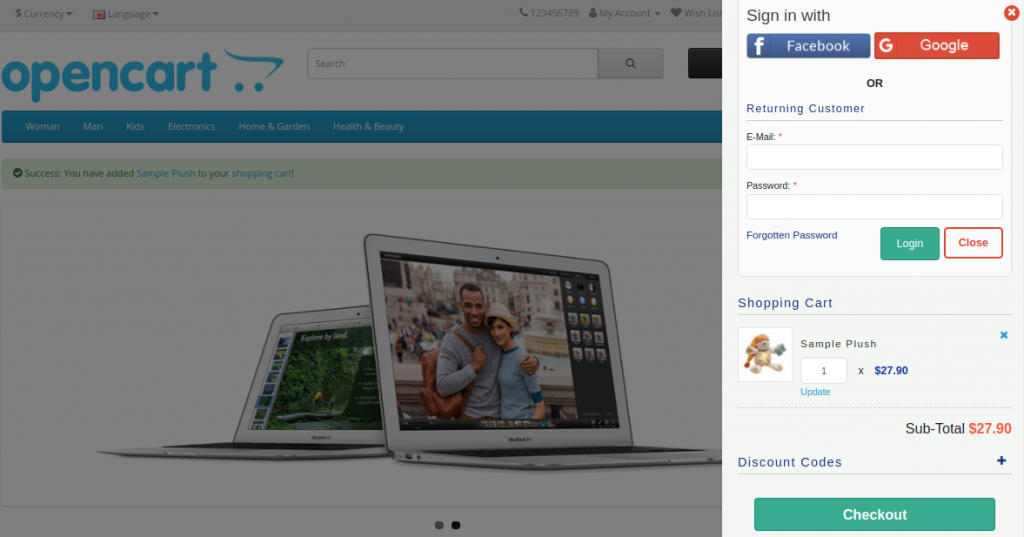
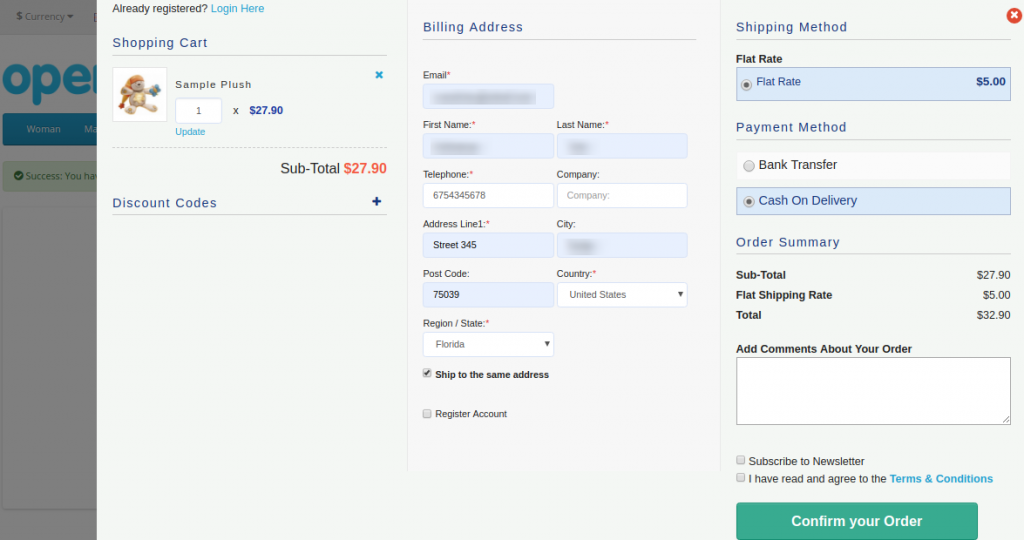
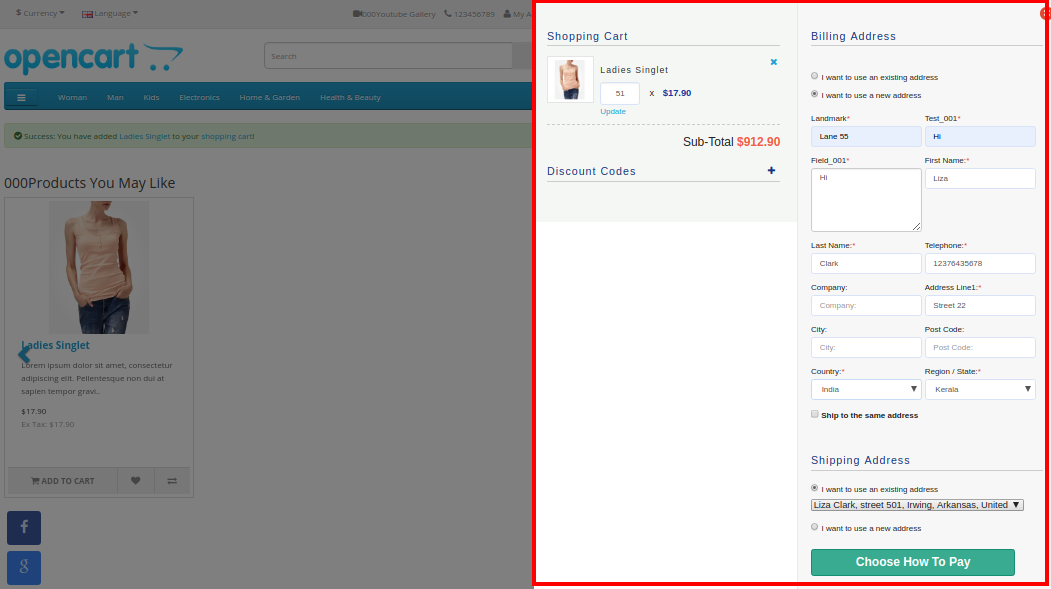
Further, as they click on the “Checkout” button, they can view and complete the complete advanced checkout form in a single go as shown in the images below:
Account Login Section
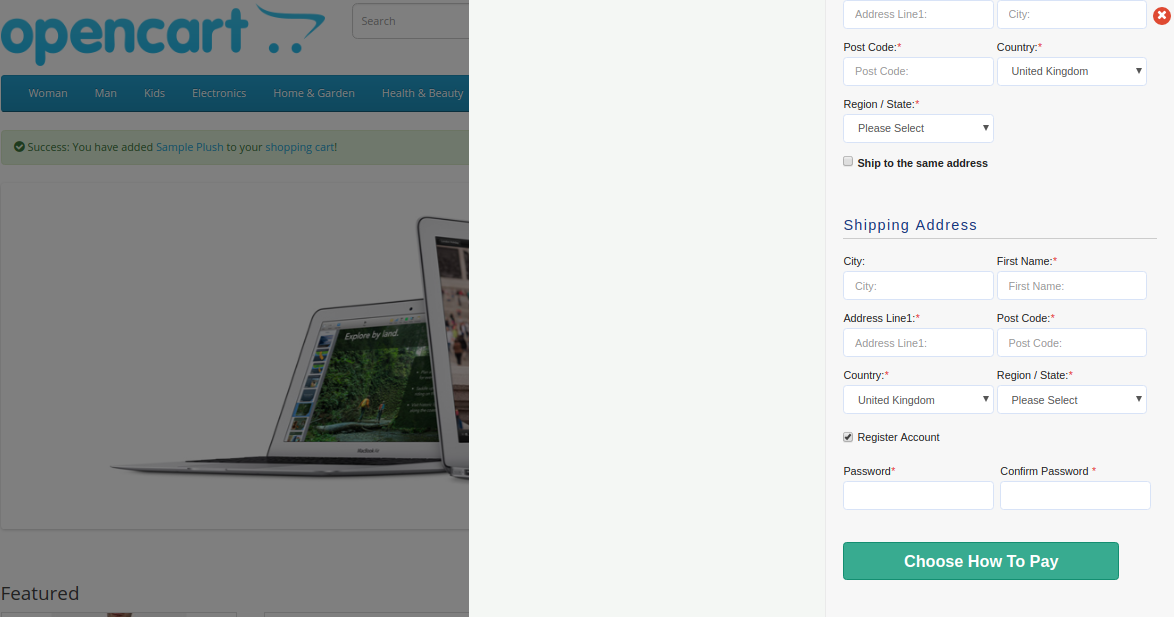
If the customer unchecks the “Ship to same address” checkbox, then they will see the shipping address section as shown below:
Shipping and Payment Method Section
2.0 Installation Guide of OpenCart One Page Advanced Checkout Extension
Before starting the installation process, you have to buy the OpenCart One Page Checkout module from the Knowband store. Further, once purchased, you will receive the following files in your registered email.
Source code of OpenCart One Page Advanced Checkout Extension in zipped file format.
User Manual of OpenCart One Page Checkout extension.
Now, to install this OpenCart Advanced Checkout on your online shop, follow the given steps:
1. Unzip the zip file. You will get the folders as shown in the image below
2. Copy all the folders of the zip file in the Root Directory of OpenCart setup via FTP manager.
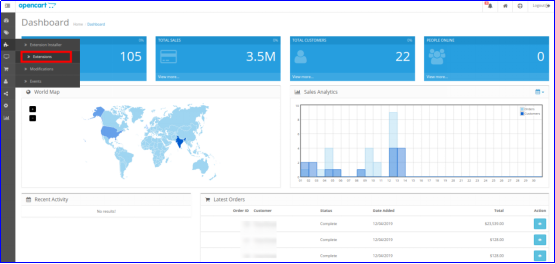
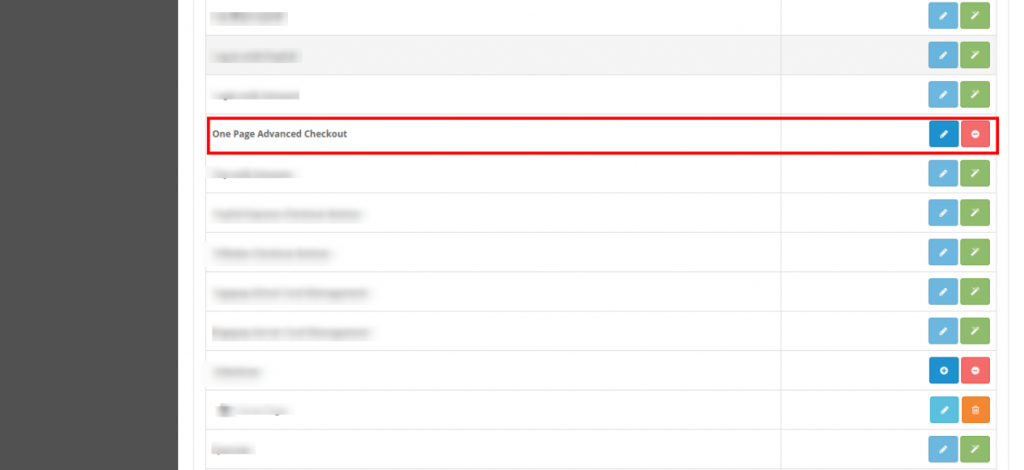
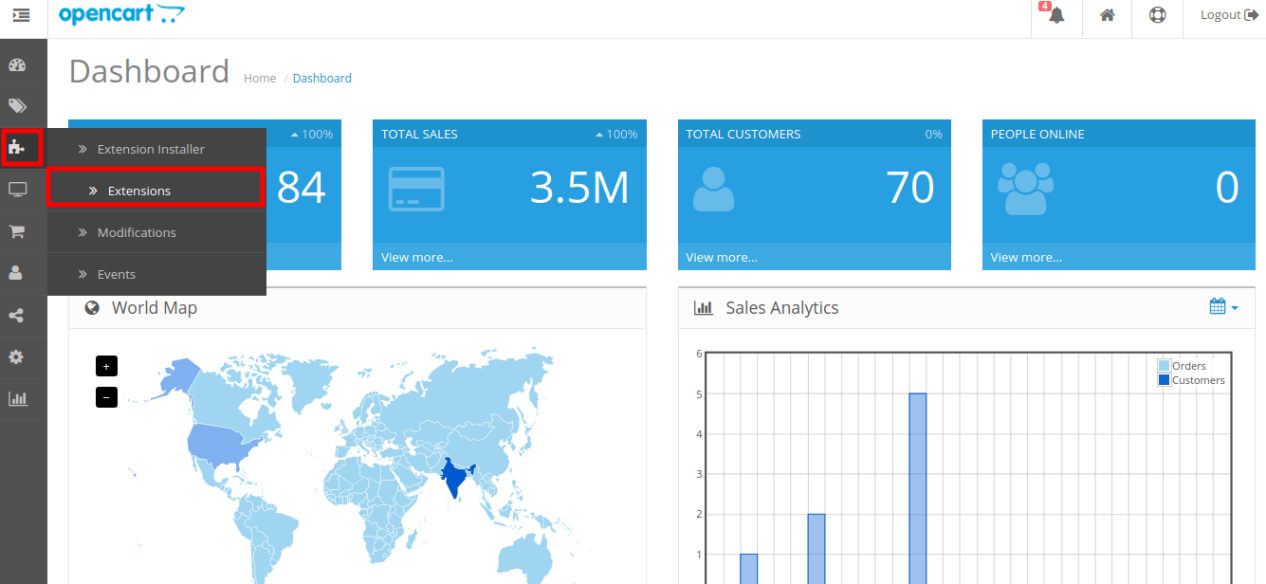
So, OpenCart One Page Advanced Checkout is now successfully installed. In addition, is ready to use at your store. Further, go to the admin menu. Moreover, click on the extensions and thereby click on configure button next to One Page Advanced Checkout.
3.0 Admin Interface of OpenCart Responsive Checkout Popup
Just after successful installation of One Page Checkout for OpenCart the website, you can configure the checkout form fields as per your requirements. Furthermore, you have to navigate the settings in the given order: Admin Panel > Extensions > Modules > One Page Advanced Checkout
The simple to understand admin interface of OpenCart fast checkout extension is divided into nine sections namely:
General Settings
Login Settings
Payment Address
Shipping Address
Shipping Method
Ship2Pay
Payment Method
Cart
Newsletter
3.1 General Settings
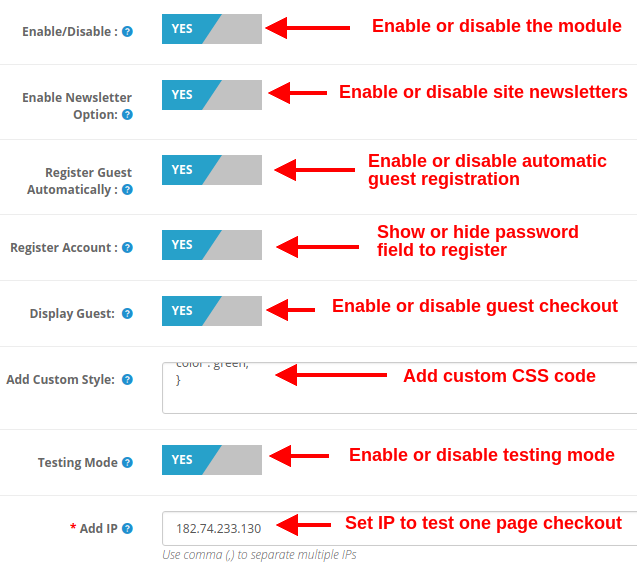
Enable/Disable: This option lets you enable or disable the complete functionality of One Page Checkout for Opencart the website. If disabled, the standard Opencart checkout is shown to the customers.
Enable Newsletter Option: Using this option, you can show or hide the newsletter subscription box for your site. If the customer checks the newsletter option, they will subscribe to site updates(newsletter).
Register Guest Automatically: You can enable automatic registration for your guest customers (users who perform guest checkout). This option will automatically send a password to the customer for further use of the account.
Register Account: By enabling this option, you can give password fields on single page checkout where the user can enter their password to register.
Display Guest: This option will show or hide the guest option in the login section of checkout. Using this option, users can perform guest checkout for their items.
Add Custom Style: This option allows you to include additional custom style (CSS code), displayed on the front of their website.
Testing Mode: You can enable this option to test the one page checkout module functionality before making it live for the customers.
Add IP: This option allows you to enter the specific IP address where you want to test the advanced supercheckout features.
3.2 Login Settings
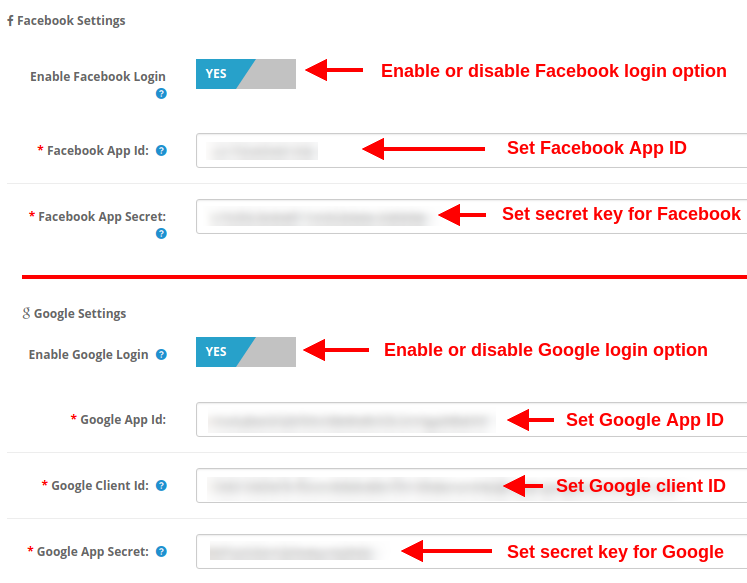
Enable Facebook Login: This option will enable or disable the Facebook login option displayed on the front of one page checkout form.
Facebook App ID: This option allows you to set the Facebook App ID required to connect with your Facebook account.
Facebook App Secret: This option will set the Facebook App Secret Key.
Note: You can get the Facebook app ID and secret key from https://developers.facebook.com/ which has been discussed in section 3.2.1
Enable Google Login: This option will enable or disable the Google login option displayed on the front of one page checkout form.
Google App ID: This option allows you to set the Google App ID required to connect with your Google account.
Google Client ID: This option allows you to set the Google client ID.
At last, Google App Secret: This option will set the Google App Secret Key.
Note: You can get the Google app ID, client ID, and secret key from https://code.google.com/apis/console which has been discussed in section 3.2.2
3.2.1 How to setup Facebook Login
Facebook App can be created by below-mentioned steps:-
1: Go to the given URL: https://developers.facebook.com/apps/
2: Click on the “Add a New App” button.
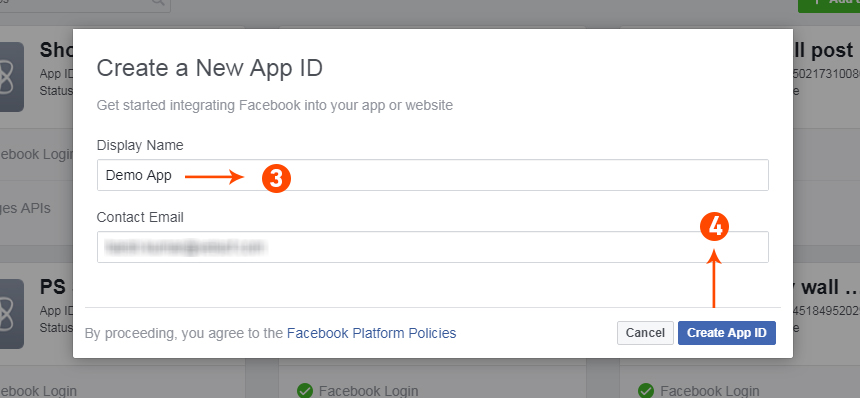
3&4: Enter your App name and email id, then click on the “Create App ID” button.
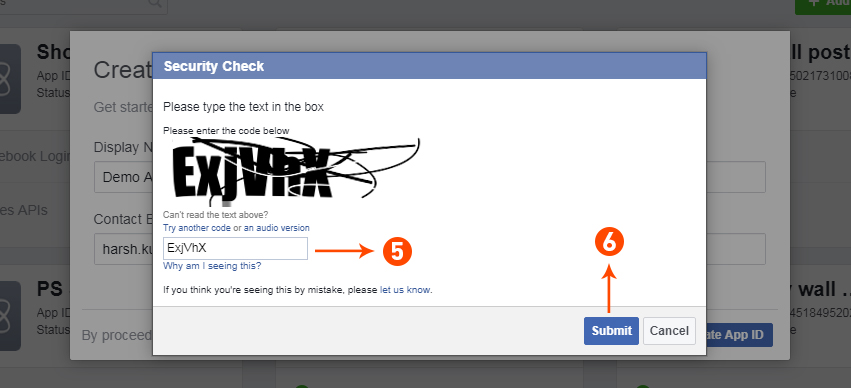
5&6: After clicking on Create App ID you will have to go through a security check as shown:
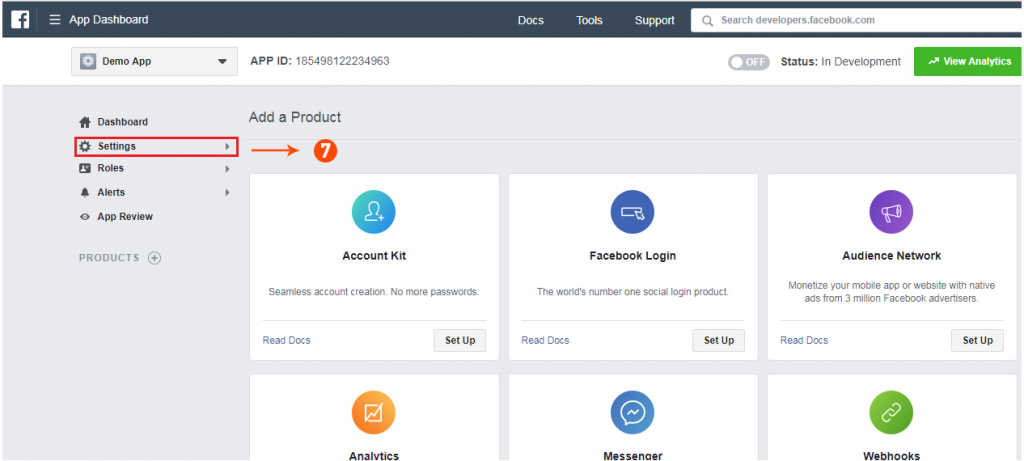
7: Click on the “Setting” tab.
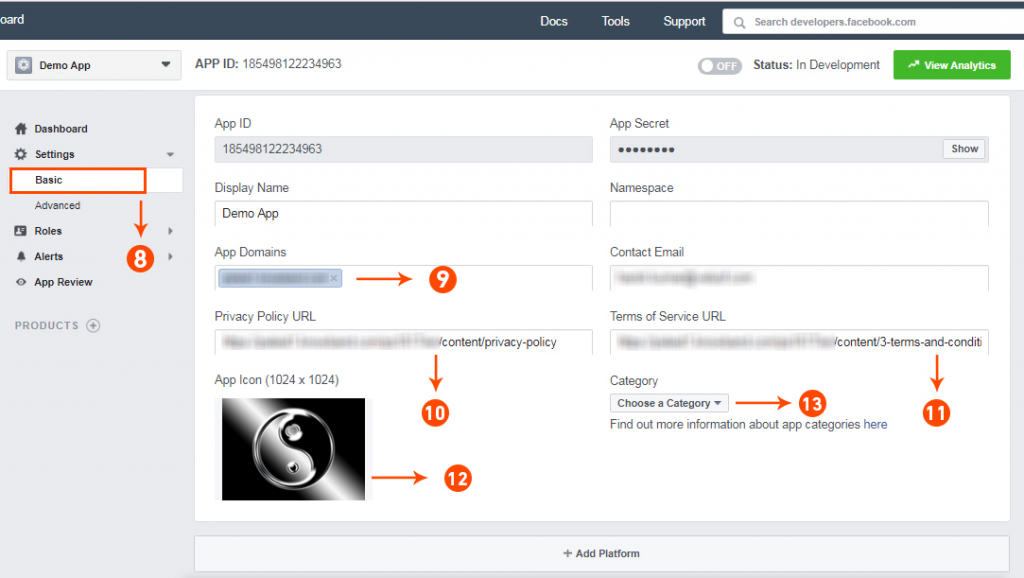
8-13: Two options will be available in the dropdown, Basic and Advanced, click on “Basic”. And then enter your “App Domain”, “Contact Email”, ”Privacy URL”, ”Terms and Conditions URL”, ”Add Logo”, ”Select Category” and click on the “Save Changes” button.
App Domains:
yourdomain.com is correct
yourdomain.com/store is incorrect
www.domain.com is incorrect
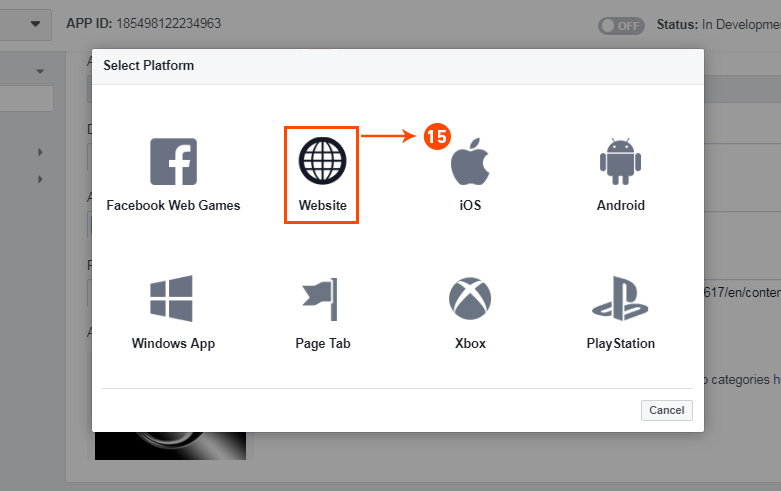
14: Now click on “+Add Platform”.
15: And select Website as Platform
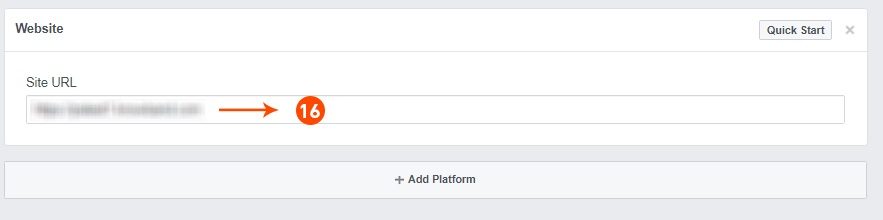
16: Now Enter your site URL.
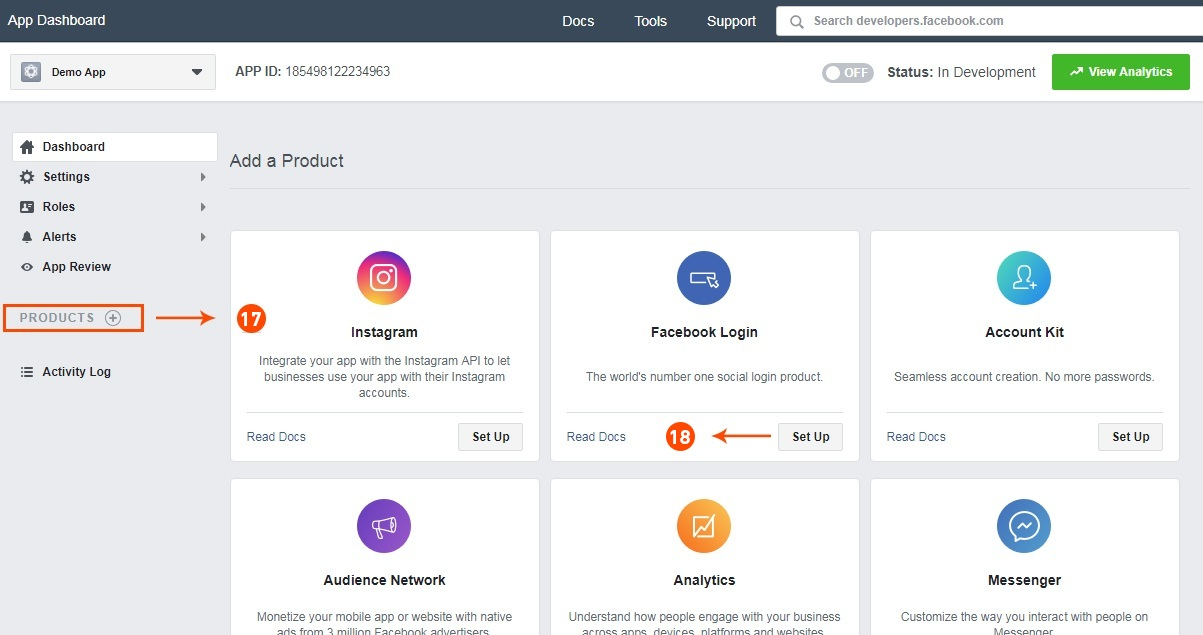
17&18: Click on “Products+” and select Facebook login.
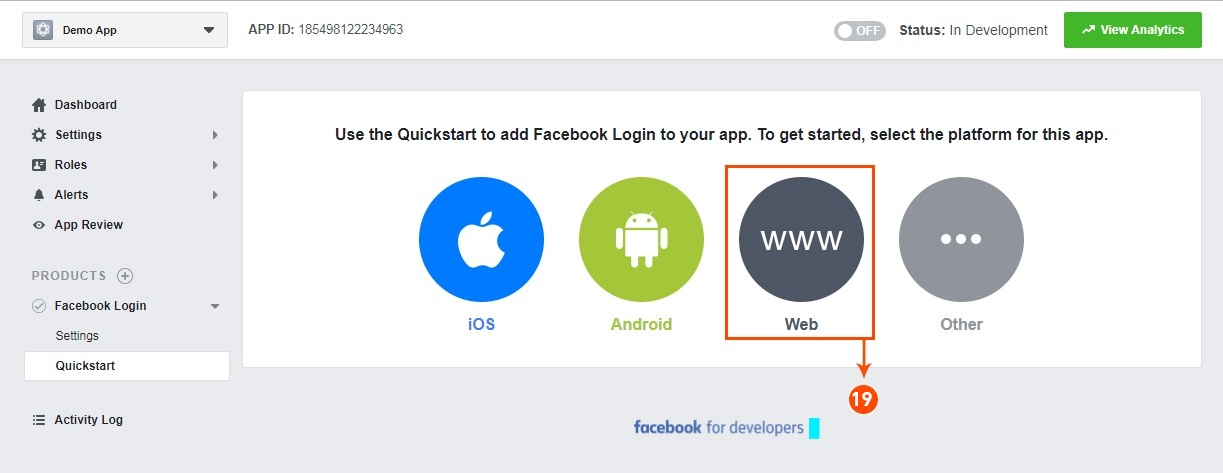
19: Select web as the platform for the app.
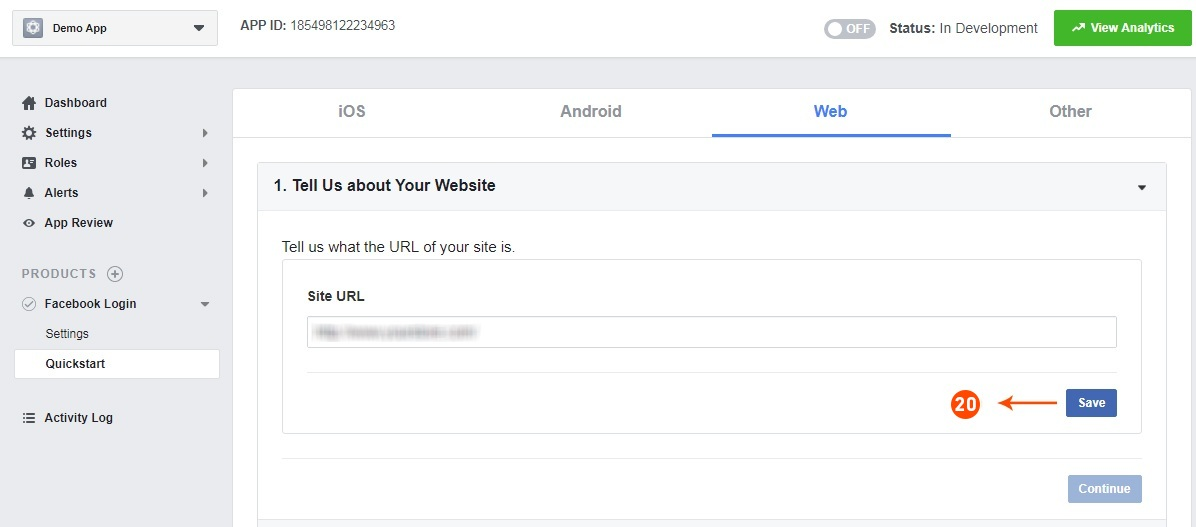
20: Now click on save.
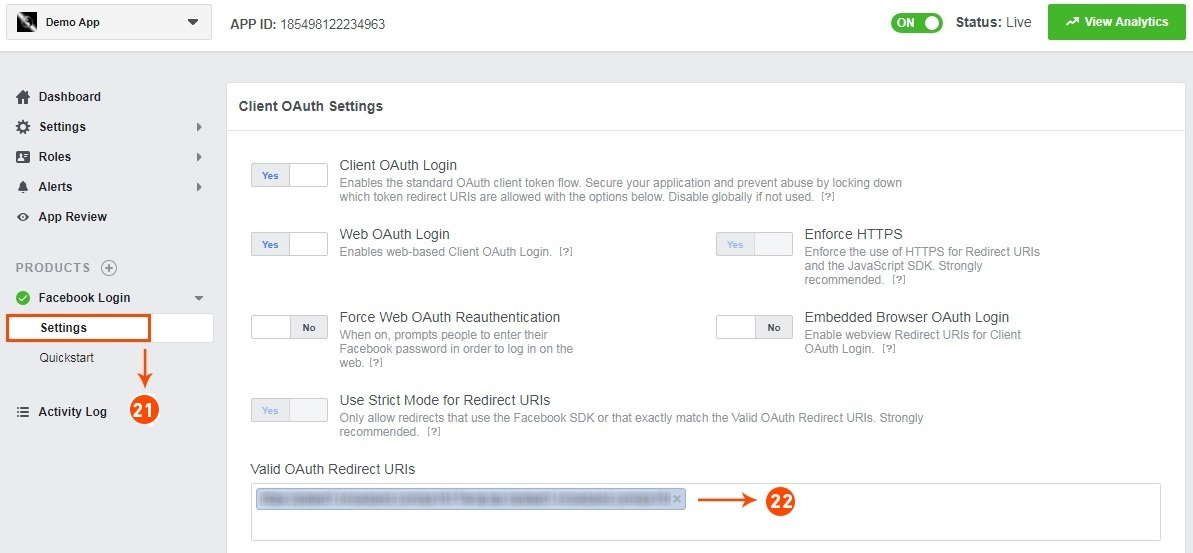
21&22: Click on Settings and add a Valid OAuth Redirect URIs.
Valid OAuth Redirect URIs:
https://your_store_url/index.php?route=kbstepcheckout/kbstepcheckout&fblogin=1
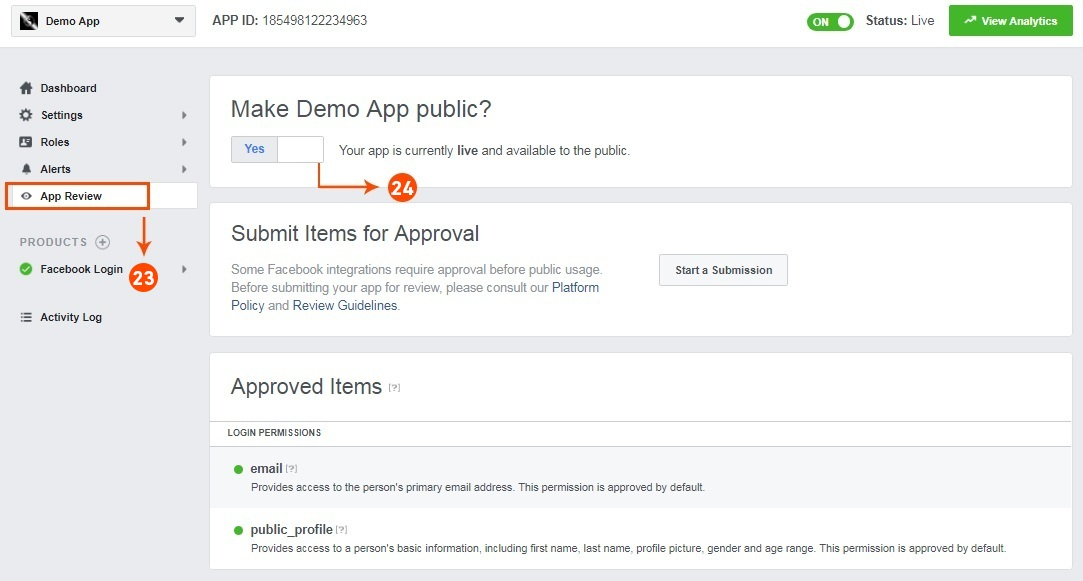
23&24: Click on “App review”. And mark “Make ‘your app name’ Public” to Yes.
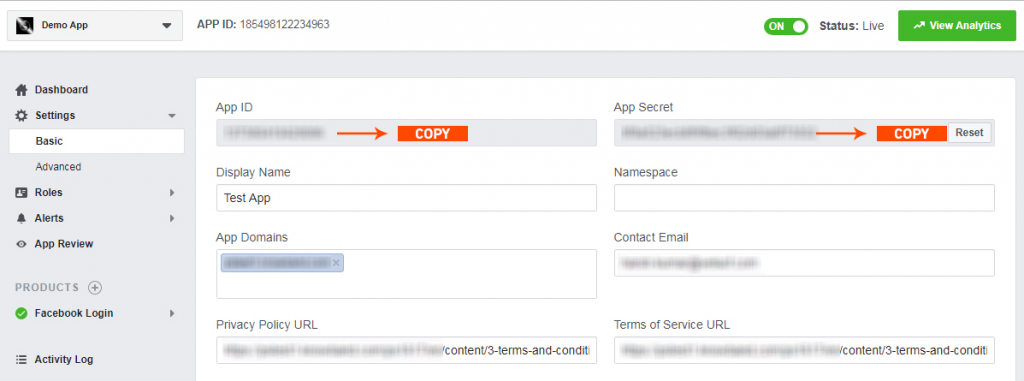
Final Step: Copy the App ID and App Secret and paste it into the fields provided in the module.
3.2.2 How to setup Google Login
Follow the below steps to get the client id and client secret.
1. Go to the link “ https://console.developers.google.com/project ”.
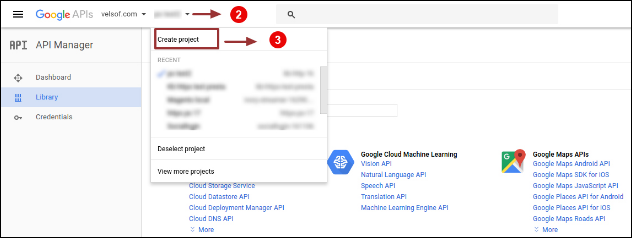
2. Click on the drop-down option highlighted in button “ 2 ” and then click on “Create a project”.
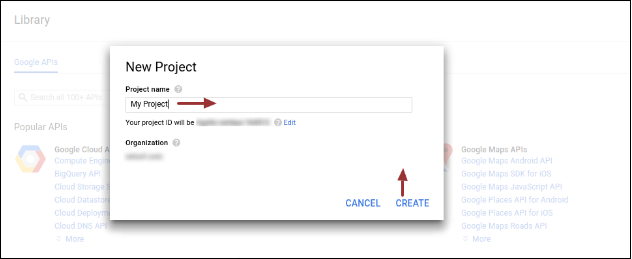
3. Enter your desired Project Name and click on “Create”.
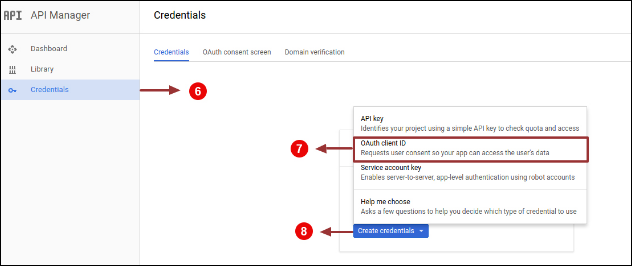
4. Go to API Manager, click on Create Credentials and select the OAuth client ID option.
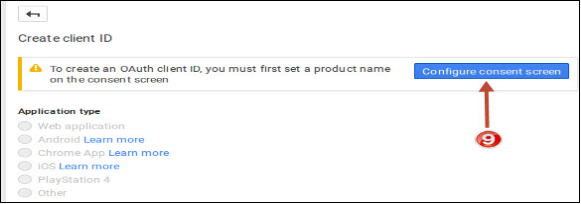
5. Click on the “Configure consent screen” button.
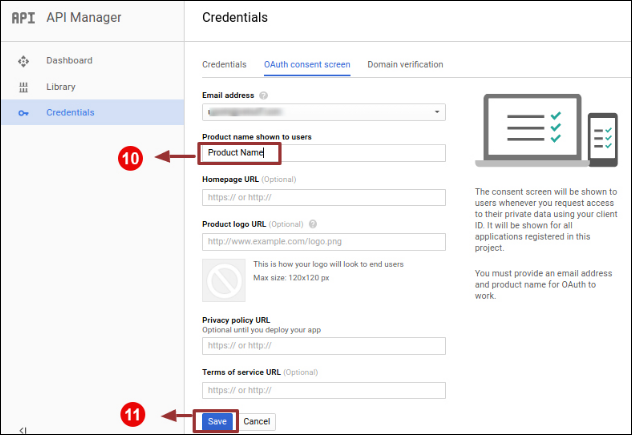
6. Enter “Email Id”, “Product Name” and then click on the “Save” button.
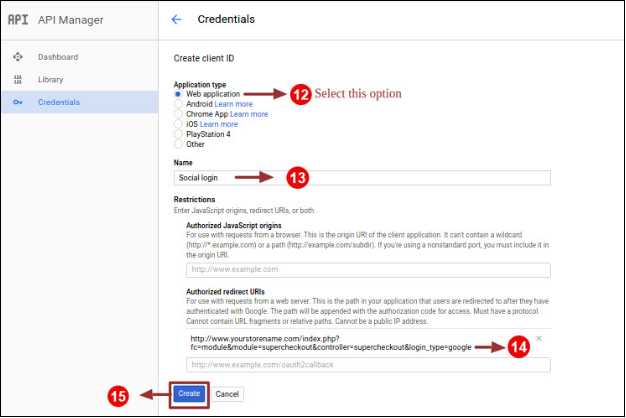
7. Select “Web application”, Enter “Name “, “Authorized Redirected URIs“ as mentioned below and click on the “Create” Button,
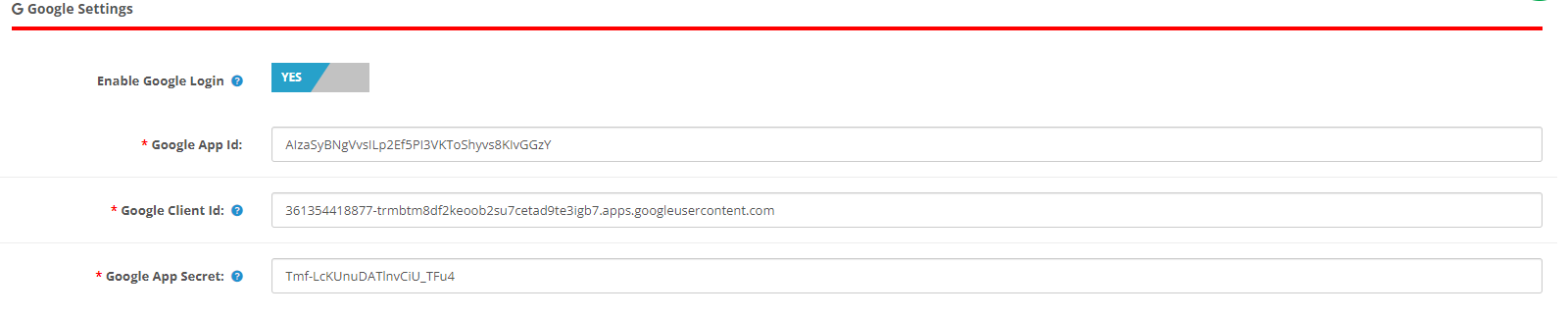
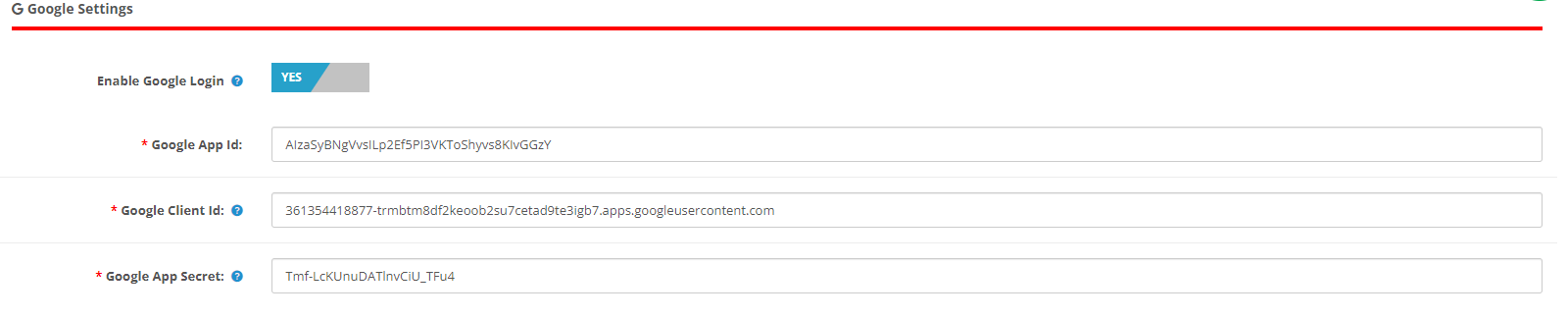
9. Paste Client ID and Client Secret in the Text Field shown below in the Prestashop one-page checkout module’s admin panel.
How to Generate the Google API key:
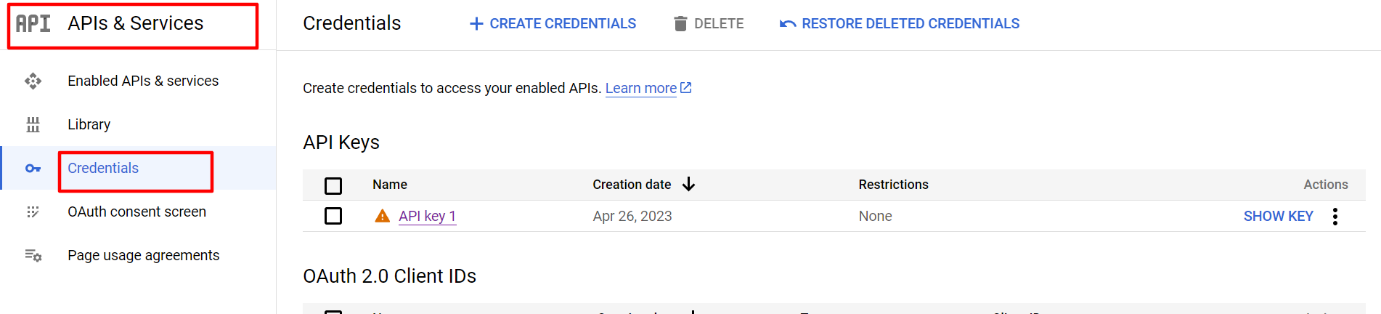
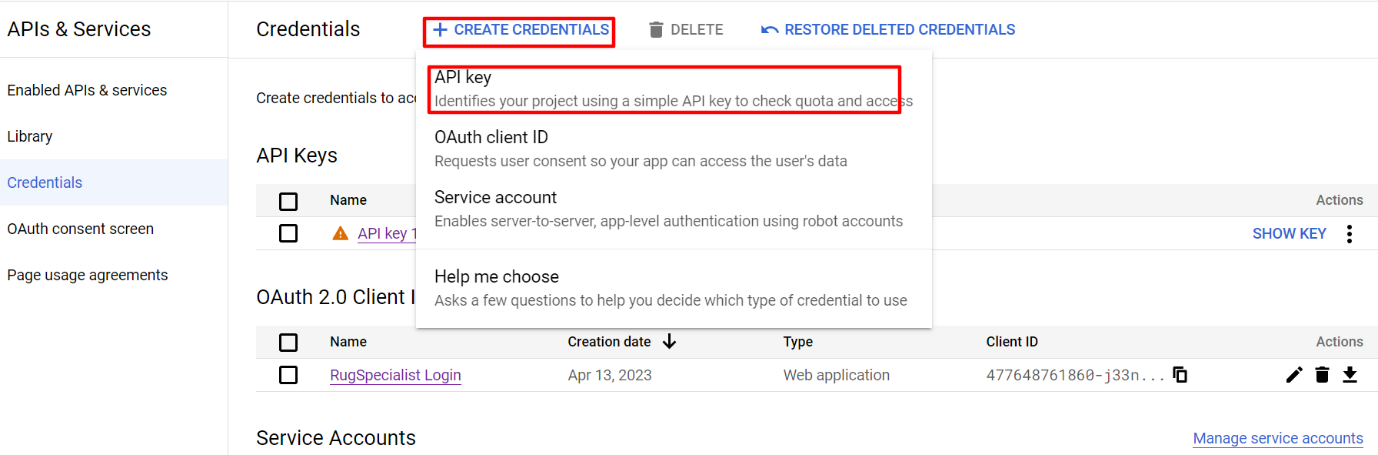
1) Go to API Manager, click on the left menu, click on API & Services, and then click on Credentials.
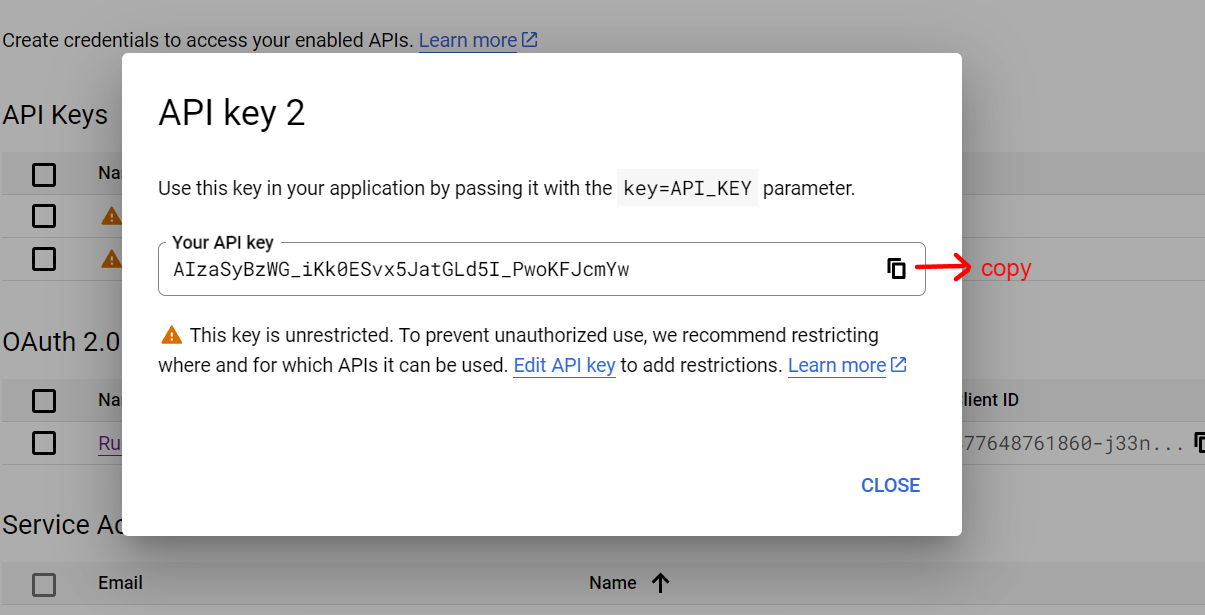
2) Click on Create Credentials & then select the API key.
3)Copy the API key and enter the same into the Google App Id field of the admin end module’s login page
3.3 Payment Address
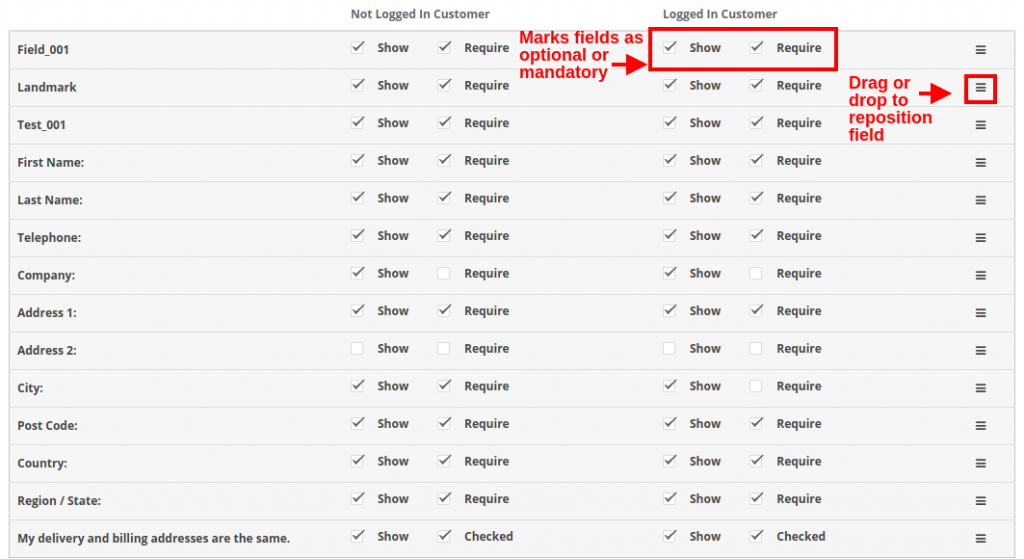
OpenCart One Page Checkout allows you to show or hide any field for payment address. The fields can be separately enabled or disabled for logged-in and logged-out customers. You can mark any field as required, differently for logged-in and logged-out customers of the store. Additionally, you can reorder the address fields using a simple drag and drop action.
3.4 Shipping Address
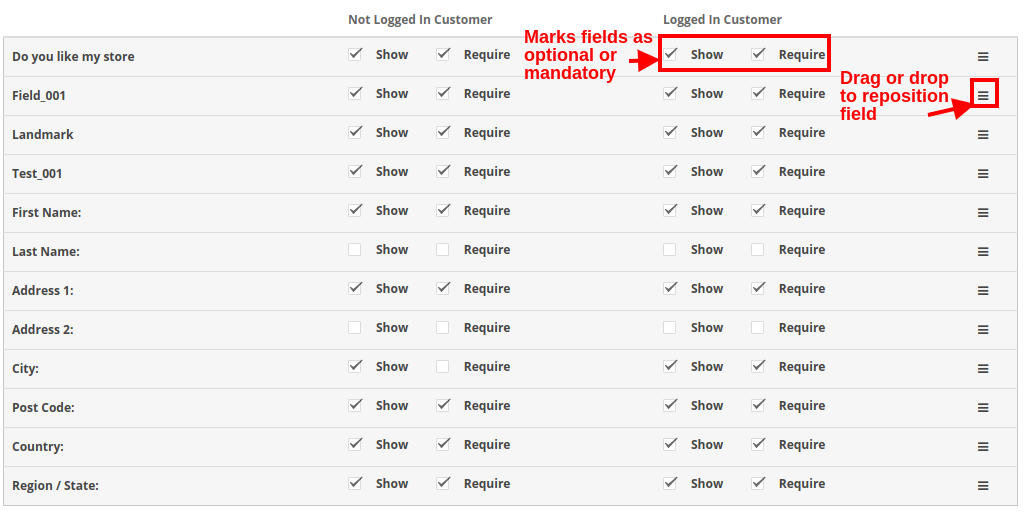
OpenCart responsive checkout popup module allows you to show or hide any field for the shipping address. The fields can be separately enabled or disabled for logged-in and logged-out customers. Using OpenCart One Page Advanced Checkout, you can mark any field as required, differently for logged-in and logged-out customers of the store. Additionally, you can reorder the address fields using a simple drag and drop action.
Note: To include and show more custom fields in the Payment Address, Shipping Address, cart section, or account section of the checkout, you can refer to section 3.10
3.5 Shipping Method
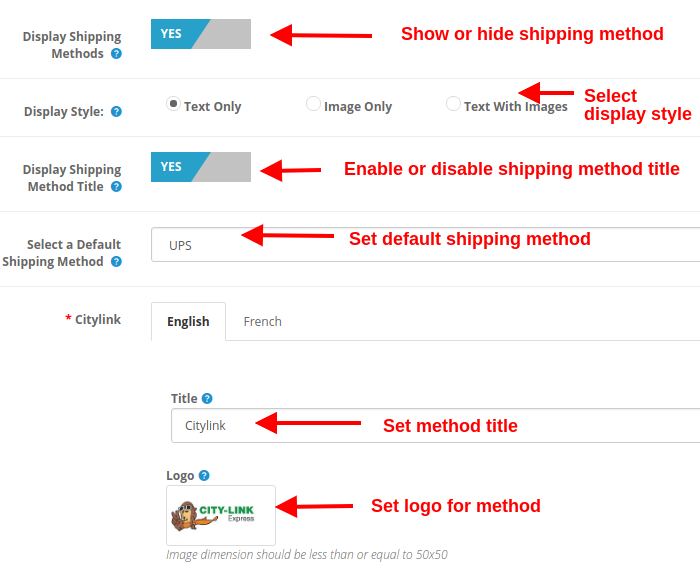
Display Shipping Methods: This option will show/hide the complete list of shipping methods provided on the advanced checkout page.
Display Style: With this option, you can select the display style for the shipping methods. It can be only logo image, only text, or both.
Display Shipping Method Title: This option will enable or disable the title for the particular shipping method.
Select Default Shipping Method: With this option, you can select any shipping method as the default method.
Title: This option sets the desired title for the shipping method.
Logo: This option sets the logo image for the shipping method.
Likewise, you can modify the title and logo image for all the shipping methods using this OpenCart One Page Advanced Checkout module.
3.6 Ship2Pay
3.7 Payment Method
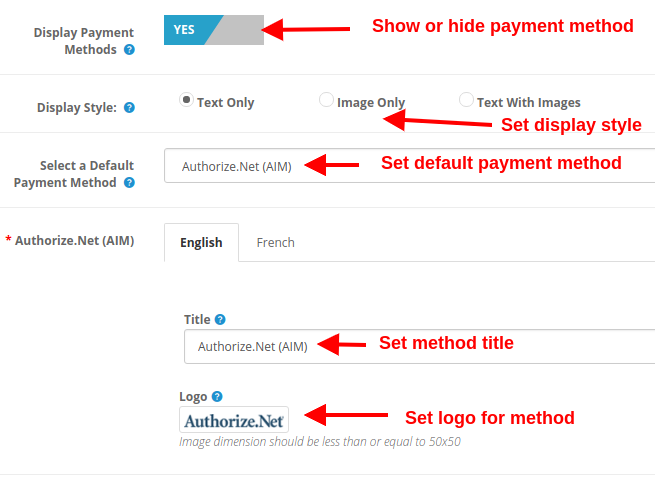
Display Payment Methods: This option will show/hide the complete list of payment methods provided on the advanced checkout page.
Display Style: With this option, you can select the display style for the payment methods. It can be only logo image, only text, or both.
Select Default Payment Method: With this option, you can select any payment method as the default method.
Title: This option sets the desired title for the payment method.
Logo: This option sets the logo image for the payment method.
Likewise, you can modify the title and logo image for all the payment methods with the help of one page supercheckout.
3.8 Cart
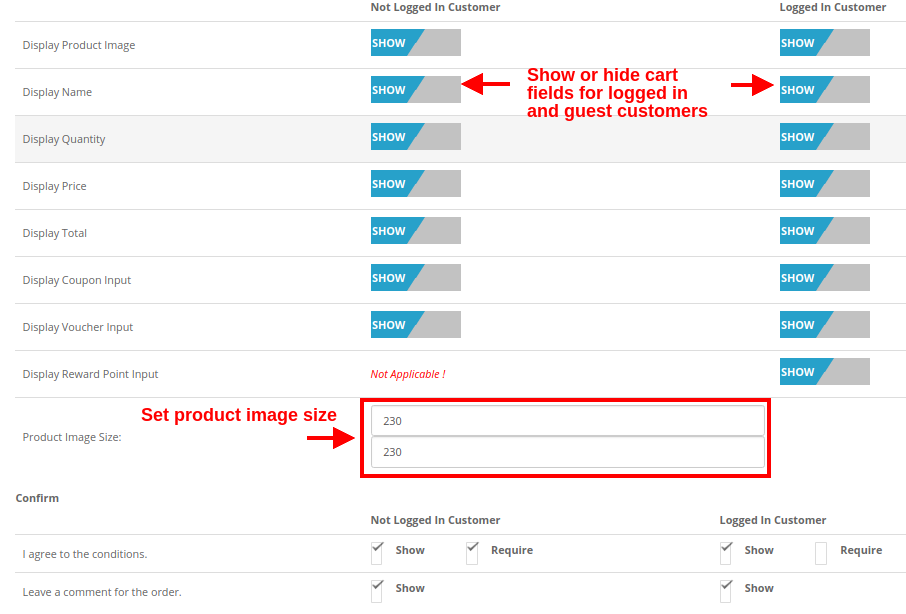
Under this section of OpenCart One Page Supercheckout, you can customize the cart and display it the way you want at your store. The image size of cart items can be easily modified by setting the image height and width.
Product Image Size: This option allows you to set the image size for the products shown in the cart section of the one page checkout.
Moreover, you can show or hide the various cart fields to log in and log out customers of the store. Fields like “Agree to the Conditions”. Moreover, order comments marked as optional or optional as per your site requirements.
3.9 Newsletter
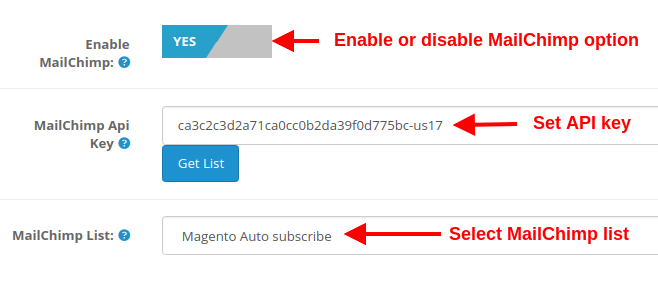
Enable MailChimp: This option of Opencart one page supercheckout, allows you to enable or disable the MailChimp Integration functionality for your store.
MailChimp API Key: With this option, you can set the MailChimp API key which will connect your site to the MailChimp account of the seller.
MailChimp List: Using this option, you can fetch and select the particular list connected to the MailChimp account.
3.9.1 How to configure MailChimp
Login to your Mail Chimp account.
Click on the right corner tab > Choose Profile > Extras > API Keys.
Here Admin Can Create an API key by clicking on the “Create a Key” button.
Copy the API key.
Admin can also make a Different list for Each Social login customer by clicking on “List” in the Top Menu Bar.
Now Paste the API Key in the Provided Mail chimp API Key section and click on the “Get List” Button.
Select the list from the Dropdown menu.
3.10 How to add edit or delete custom fields to the Supercheckout page
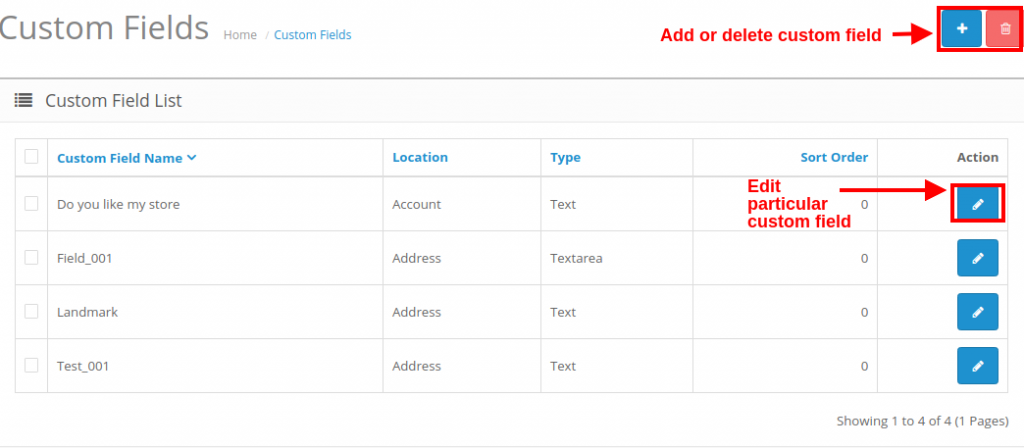
In order to add custom fields to any section of One Page Checkout, you can go to the “Custom Fields” option under the “Customers” tab at the left side section of the admin interface.
Objective: To learn how we can use any instance of class without including the class file.
Generally, If we want to use the instance of any class then first we need to include the class file by any of the 4 functions:
include
include_once
require
require_once
Like below,
// included all the classes
require "classes/Testing1.php";
require "classes/Testing2.php";

//now using the functionality of class
$testing1 = new Testing1;
echo $testing1->a;

$testing2 = new Testing2;
echo $testing2->a;
But if there are many classes which we want to use then we will have to include all files to be able to make the instance of the class. Suppose if there are hundreds of classes then we will have to include all and it will take lot of time and space. To overcome with this, we can use below code:
function auto_loader($class) {
$file = "classes/{$class}.php";    //path of all the classes
//this will check if file exist
if (is_file($file)) {
//finally if file exist then it will include the file
include $file;
}
}
// To register auto_loader() to call this function sequentially when a new class is declared
spl_autoload_register("auto_loader");

//now using the functionality of class
$testing1 = new Testing1;
echo $testing1->a;

$testing2 = new Testing2;
echo $testing2->a;
Using the above code, the required class will be included automatically while using the class. It will not include other classes which are not required.
File Structure:
Did you know 81% of the marketers and 84% of the publishers leverage the power of affiliate marketing? (Source: Web Market Support) Also, according to Business Insider, 15% of the total digital media advertising revenue is attributed to Affiliate Marketing. Consumers trust referrals from people they know 92% of the time. Consumers who have been suggested by a friend are four times more likely to make a purchase.
People have a 37 percent greater retention rate when they are suggested by other customers. Leads from referrals convert at a 30% higher rate than leads from any other source. 65% of new business is generated through referrals. B2B enterprises that receive referrals have a 70% greater conversion rate.
Talking about the referral programs, a report by Nielsen says that 92% of the consumers trust referrals from people they know and 77% of the consumers are likely to buy a new product if they hear about it from their friends or families.
What is Affiliate Marketing?
When an online retailer pays some commission to its affiliate for promoting their products/brand and bringing traffic or sales through their affiliate link, the marketing is said to be affiliate marketing.
Affiliate programs have proved to be very effective for marketers as well as retailers. It helps e-retailers in customer acquisition and boosting sales. This can do wonders if marketed properly during the holiday season.
How do Affiliate Programs work?
Affiliates promote the link of your store products on their website, blog, or YouTube channel, etc. When the visitors/followers of the affiliate use that link to make a purchase on your store, you pay a small commission of the product amount to the affiliate for generating sales for you.
Why you should use Affiliate Marketing for your online business?
The affiliate and referral programs benefit your business in multiple ways. If you consider this during holiday season sales, there are chances that you end up getting huge conversions and a lot of new leads.
Boost sales
The main motive of any online business is to drive sales and to keep the sales graph always high. Affiliate Marketing ensures increased sales by driving more potential customers towards your website.
Enhance product visibility
Make your products reach a wider audience with Affiliate Marketing. If your affiliate gets a handsome amount of traffic on his website, the visibility of your product enhances. When more and more new visitors use the affiliate link to get some discount on your products, you capture more sales.
Increase Brand Awareness
Affiliates highlight your brand in front of a new audience. This creates brand awareness and brings more traffic to your store.
What is Referral Marketing?
Referral marketing or Referral Programs are considered amongst the most successful marketing tools. With this type of marketing, you encourage people to refer your products or services to their friends, family, associates, etc. in exchange for some rewards. Rewards can be gift vouchers, discounts on products or cash. It is also known as word-of-mouth marketing. You can promote your brand with discount vouchers during holiday season.
How do Referral Programs work?
In this type of marketing program, a visitor or customer shares your products to their people and when the people referred by the customers make a purchase from your store, you provide them some kind of referral reward. A customer can choose to share the product link or voucher code.
Why you should use Referral Marketing for your online business for Holiday Season Sale?
People trust referrals
When a customer recommends a product to his/her friends, a sense of trust develops among the referred persons. It creates more chances for sales than conventional advertising.
Improves customer acquisition and customer retention
The referred persons already get a positive response about your brand/products when they are being recommended by someone. This makes them loyal to your brand, increasing customer retention. When new visitors come to your store through referrals, you improve customer acquisition.
Increases user engagement
Referral Marketing can bring you high user engagement on your website. When your product gets circulated among people through referrals, the visits to your online shop increase significantly. You get more engagement, which could lead to increased sales.
Is there any difference between Affiliate and Referral Marketing?
There’s not much difference. For an e-retailer, both Affiliate Marketing and Referral Marketing are a way to promote their brand and get sales by offering some incentives to the affiliates, it is just the process that varies. The key difference between both is that Affiliate Marketing requires third-party websites to promote your business on their channel whereas Referral Marketing focuses on providing rewards to your existing customers for referring your products to others.
Both Affiliate and Referral Programs are effective at inflating sales and growing brand awareness. You can try out the Affiliate and Referral program module by Knowband if you run a store on Prestashop or Magento platform. This module incorporates the Affiliate and Referral program on your store and helps you manage both programs quite comfortably.
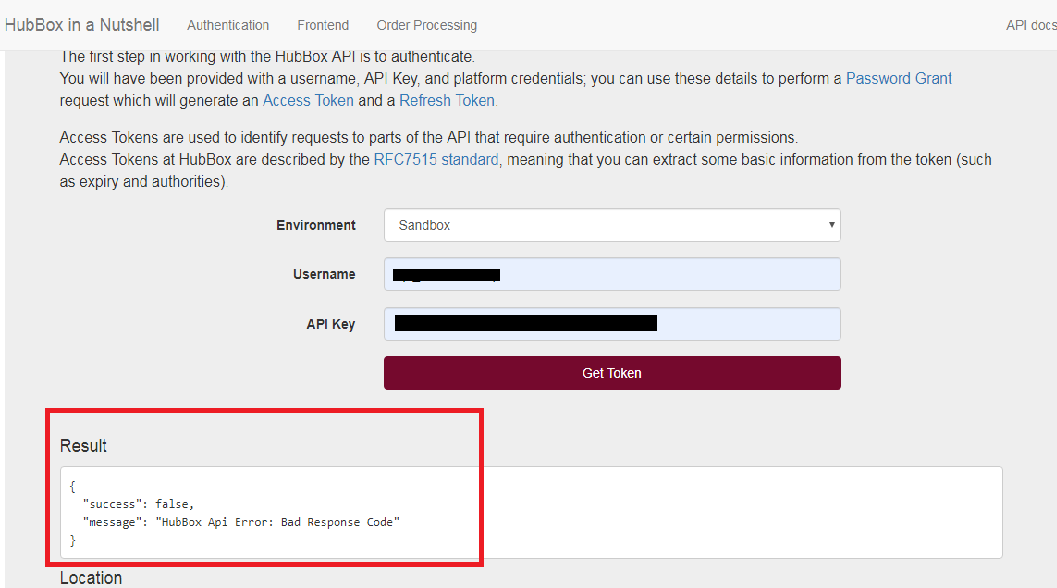
Problem Statement: Error coming in the response of Authentication API of HubBox ie. “HubBox Api Error: Bad Response Code”
Solution: If you are facing issue as shown below while you are checking Authentication API, it may be because of Authentication API is verifying SSL certificate for connection.
For this, you can turn off the SSL verification in the CURL request by adding below lines.
If this was the issue, you will need to add these lines in all APIs of HubBox Create Parcel, Cancel Parcel, Add Tracking and Collectpoint APIs as described below.
Create Parcel API: Make the change in the curl request of Create Parcel API in the function sendOrder() at HubBox/PHP/HubBox/Parcel.php as shown below:
Cancel Parcel API: Make the change in the curl request of Cancel Parcel API in the function cancelOrder() at HubBox/PHP/HubBox/Parcel.php as shown below:
Add Tracking API: Make the change in the curl request of Add Tracking API in the function addTracking() at HubBox/PHP/HubBox/Parcel.php as shown below:
Collectpoint API: Make the change in the curl request of Collectpoint API in the function getCollectPoint() at HubBox/PHP/HubBox/CollectPoints.php as shown below:
Problem Statement: Wrong product data coming in the response of Create Parcel API of HubBox Sandbox account.
Solution: If you are facing this issue in HubBox sandbox account as shown below, you can ignore this on the sandbox account as It will work fine in the Production account of HubBox.
Sent product data in the request of Create Parcel API:
Most of the users believe that online payment methods are unsafe while shopping from an eCommerce store. As this involves sharing the details of payment cards, the majority of users find risk in transacting their product orders.
Knowband offers OpenCart Cash on Delivery with Fees extension which helps site admin to add a COD payment method at the checkout page for guests and registered users. Using this COD with Fee facility, the shopper has to pay an extra charge as a delivery service for that product. They have to pay the order cost when the product is delivered in hands by the merchants or sellers. This COD additional amount is decided by the site owner from the backend of this Opencart extension.
1.1 Striking Features of OpenCart Cash on Delivery with Fees Extension
OpenCart Cash on Delivery plugin offers many customizable features that can be set as per business requirements. No coding or technicalities are involved in the implementation and creating ‘N’ number of COD profiles from the backend interface. Let us explore the striking features of this COD module one by one.
OpenCart Cash on Delivery with Fees extension charges an extra amount from the customer as delivery fees for the product.
Cash on delivery fees extension for OpenCart integrates a pay on delivery option for your site products.
Customers can pay the product cost along with COD charges when they get the product delivered in their hands.
The site merchants can create an unlimited number of COD rules or profiles which can be modified and deleted as per requirements from the backend of this OpenCart cash on delivery facility module.
With OpenCart Cash on Delivery with the surcharge module, you can set the name of the payment profile.
The OpenCart COD option incorporated using this cash on delivery fees extension can be quickly enabled or disabled from the backend.
With OpenCart Cash on Delivery with the surcharge module, admin can specify different terms and conditions for every COD rule or condition.
Admin can enable or disable any of the COD profiles from the backend of this Cash on Delivery With Fee extension.
Admin can set the type and value for the COD fee charged from the customer using OpenCart CoD with the Fees module.
For percentage type COD charge, admin can set a base amount (with or without shipping ) on which the delivery charge is calculated.
With OpenCart cash on delivery with extra charges extension, admin can set a percentage amount which is calculated over the base amount.
With OpenCart Cash on Delivery with the surcharge module, the admin can specify the minimum and maximum order value upon which the COD will be calculated and charged from the customer.
With the help of OpenCart cash on delivery with extra charges extension, admin can enable COD with fee options for selected shipping or carrier methods.
This OpenCart COD with fee extension allows admin to select the location or country where they want to offer this cash on delivery with extra fee facility on product orders.
This COD with fee payment option integrated using OpenCart Cash on the Delivery plugin is shown to selected customer groups including guest users and customers.
With OpenCart CoD with the Fees module, an eCommerce site admin can choose a priority order or value for each of the COD profiles. The highest priority COD rule will be executed on the frontend.
Using OpenCart cash on delivery facility module, admin can also set initial order status for every COD profile.
OpenCart Cash on the Delivery plugin is multi-lingual compatible.
OpenCart cash on delivery with extra charges extension is multi-store compatible.
OpenCart Cash on Delivery with surcharge option is the browser and mobile-friendly.
2.0 Installation Guide of OpenCart Cash on Delivery with Surcharge Module
Purchase OpenCart Cash on Delivery with Fees extension from Knowband. You will receive these files after purchasing the OpenCart Module:
Source code of OpenCart CoD with Fees module in zipped file format.
User Manual of OpenCart CoD with Fees module.
Follow below-mentioned steps to install OpenCart Cash on Delivery with Fees extension on your online shop:
1. Unzip the received zip file. You will get the folders.
2. Copy all the folders of the zip file in the Root Directory of OpenCart setup via FTP manager.
There will be a file named kbcodfee.ocmod.xml (In case of Openvar v3.0.x file name would be kbcodfee.ocmod.zip). Upload the same file from the page “Admin -> Extension -> Extension Installer -> upload”.
So, OpenCart CoD with Fees module is now successfully installed and ready to use at your store.
3.0 Admin Settings
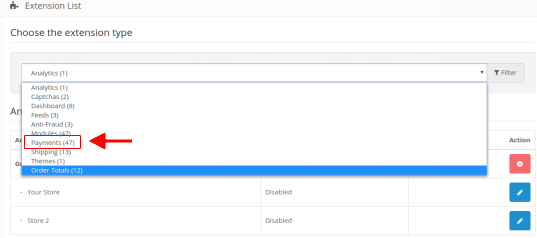
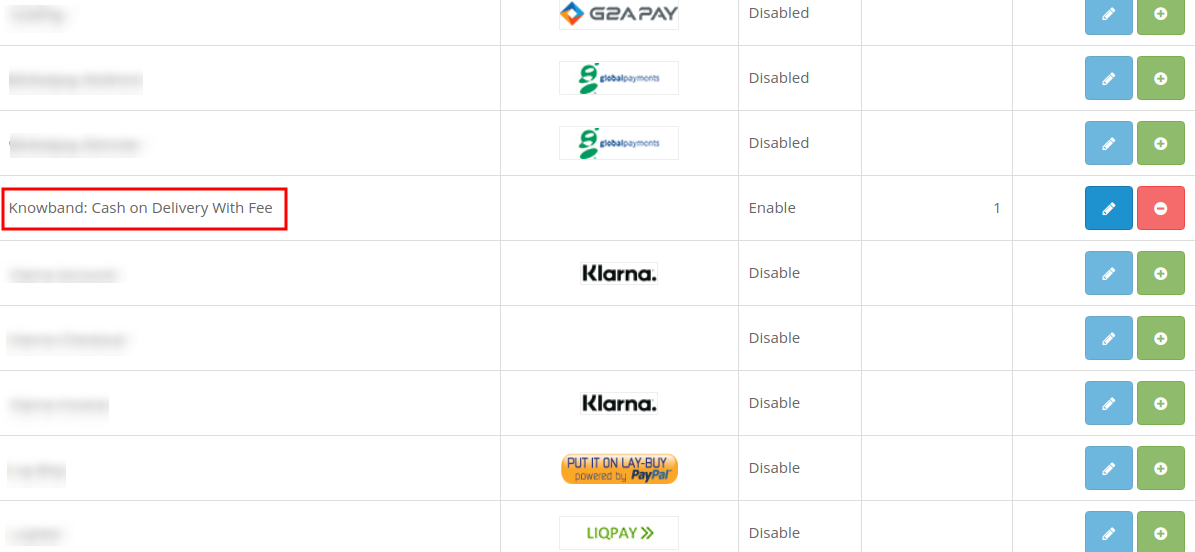
Just after the successful installation of OpenCart Cash on Delivery with Fees, you can create and configure the COD profiles as per your requirements. Navigate the settings in the given order: Admin Panel > Extensions > Payments > Knowband Cash on Delivery with Fee.
The simple to understand admin interface of OpenCart Cash on Delivery with Fees extension has been divided into two broad sections namely:
1. General Settings
2.Payment Profiles
Each of these sections have been discussed in detail below.
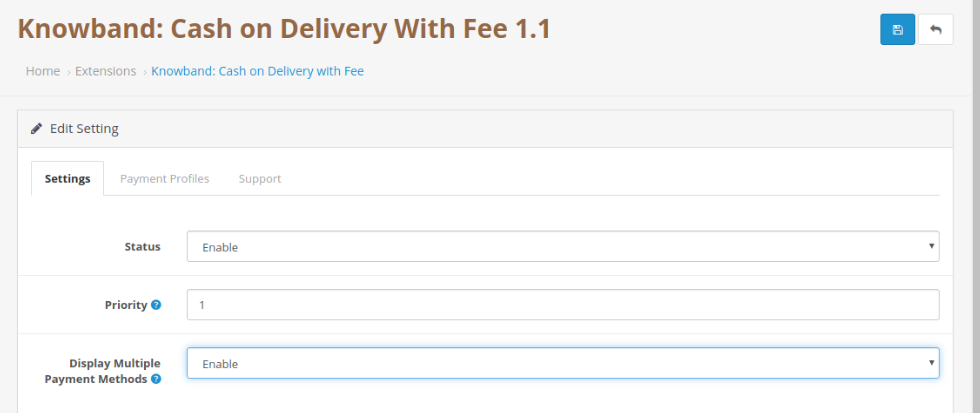
3.1 General Settings
The general settings of OpenCart cash on delivery facility module have been listed one by one.
Status: This option enables or disables the complete functionality of OpenCart Cash on Delivery plugin on the store.
Priority: This option allows you to set the priority of this module among other payment modules on the store.
3.2 Payment Profiles
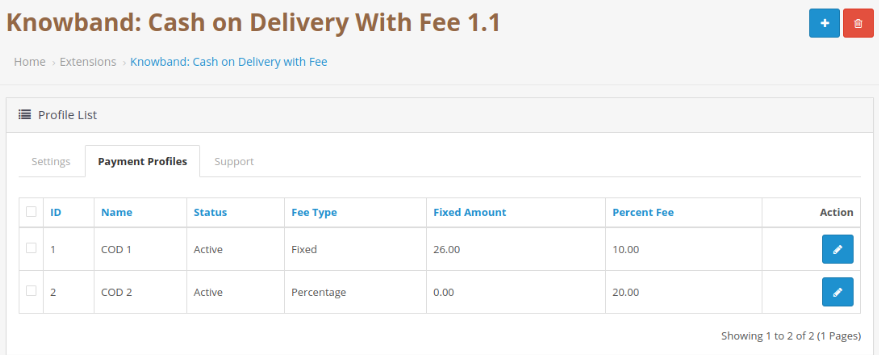
Using OpenCart Cash on Delivery with Fees, admin can create as many payment profiles for their website. The below image shows the list of existing COD profiles which can be modified by clicking the ”Edit” button corresponding to the listing.
To add a new payment profile, click on the “+” button at the top right corner of admin panel. You will see the following fields as listed:
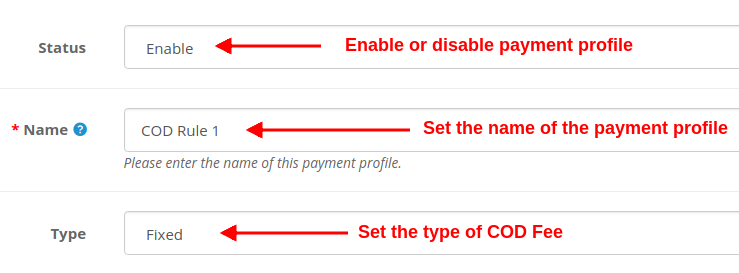
Status: Using this option, you can enable or disable the selected payment profile.
Name: This option will set the name for the payment profile.
Type: This option sets the type of COD fee charged from the customers. It can be fixed or percentage.
If the “Type” field is selected as Fixed, then the following field is shown.
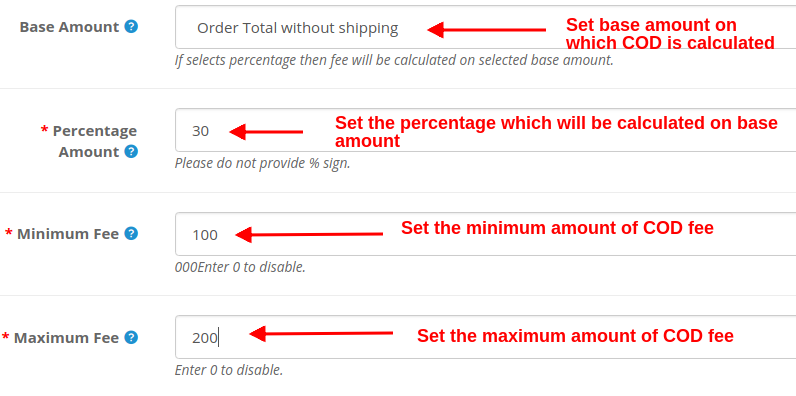
Fixed Amount: This option sets the fixed COD fee amount which is charged from the customer upon product delivery. If the “Type” field is selected as a Percentage, then the following fields are shown.
Base Amount: Select the base amount type on which the COD charge will be calculated. The two options are: Order Total and Order Total Without Shipping.
Percentage Amount: This option sets the percentage amount which is calculated over the base amount.
Minimum Fee: This option will set the minimum amount of COD fee which will be charged from the customer. Set this value 0 to disable.
Maximum Fee: This option will set the maximum amount of COD fee which will be charged from the customer. Set this value 0 to disable.
Apart from these settings offered by OpenCart Cash on Delivery with Fees, some more common settings are offered for setting up a payment profile. Check below.
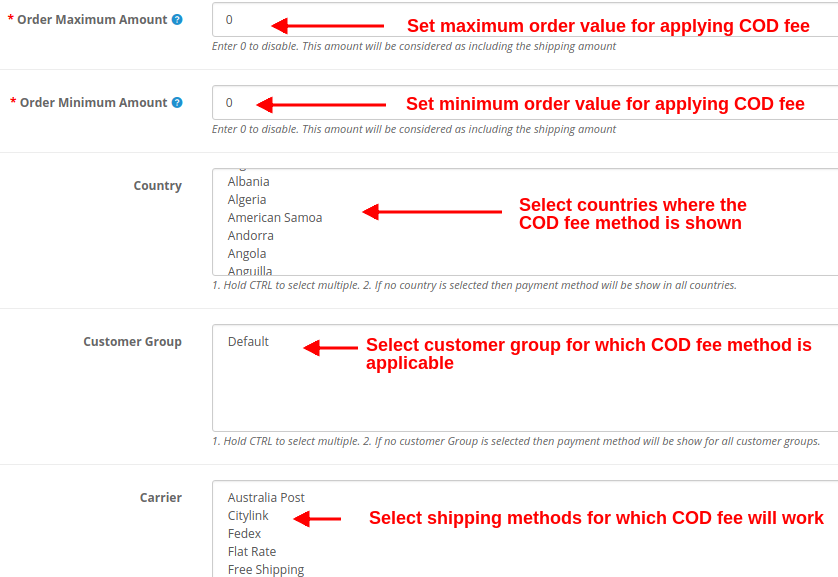
Order Maximum Amount: This option sets the maximum product order amount which is required to apply COD with fee facility. A customer cannot apply COD with fee facility on an order value above this Order Maximum Amount.
Note: Enter 0 to disable. This amount will be considered as including the shipping amount.
Order Minimum Amount: This option sets the minimum product order amount which is required to apply COD with fee facility. A customer cannot apply COD with fee facility on an order value below this Order Minimum Amount.
Note: Enter 0 to disable. This amount will be considered as including the shipping amount.
Country: Using this option, admin can show and provide the COD with fee facility in selected regions or country.
Note: Hold the CTRL button to select multiple countries. If no country is selected then COD with Fee payment method will be shown in all countries.
Customer Group: This option allows admin to select the customer groups where the Cash on Delivery with Fee mode is applicable. Guest and Registered users can avail of the benefits of COD with Fee facility.
Note: Hold the CTRL button to select multiple customer groups. If no customer Group is selected then COD with fee method will be shown to all customer groups.
Carrier: You can select the carrier or shipping methods for which the COD with Fee module will be shown.
Note: Hold the CTRL button to select multiple carriers. If no carrier is selected then the payment method will be shown for all carriers.
Initial Order Status: This option sets the initial order status for the selected COD rule.
Priority: This option sets the priority of the COD rule or profile.
Note: The highest priority rule is displayed on the front of the customers.
At last, click on the “Save” button at the top right corner of the admin interface in order to save the configured settings.
4.0 Front Interface
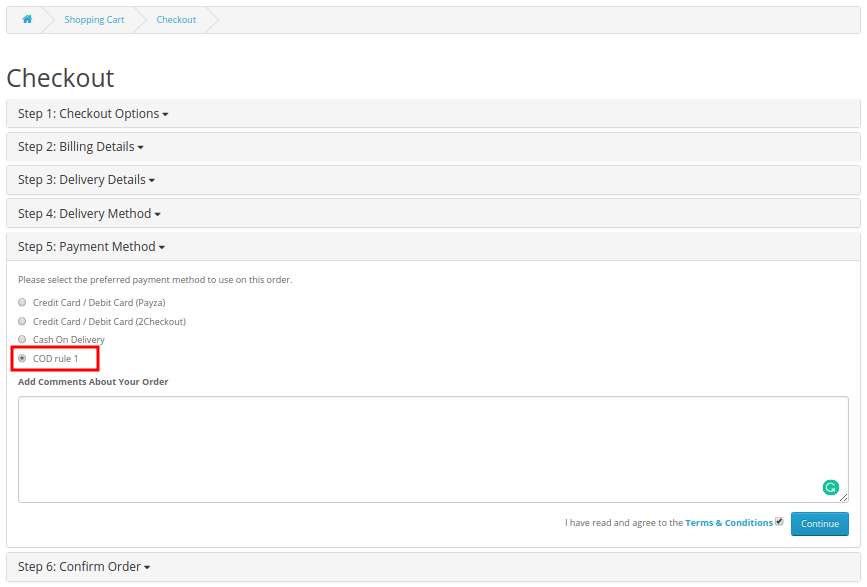
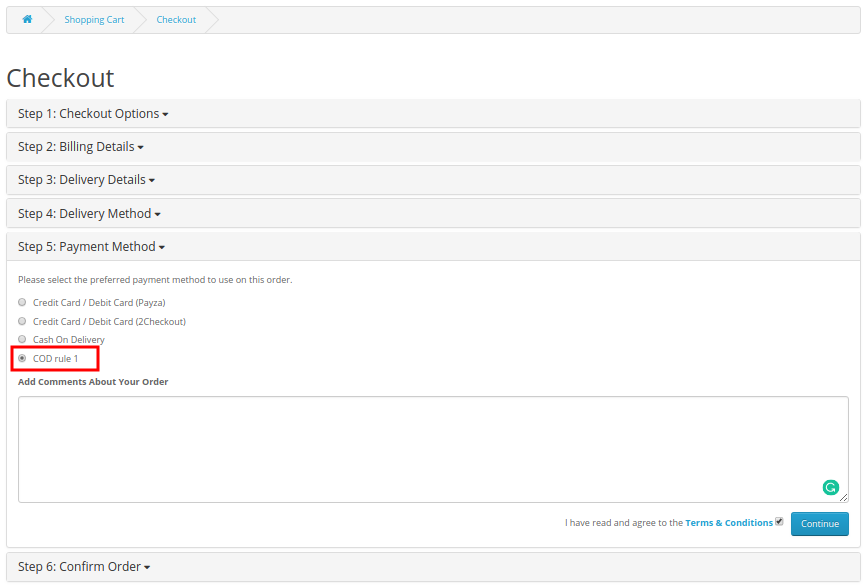
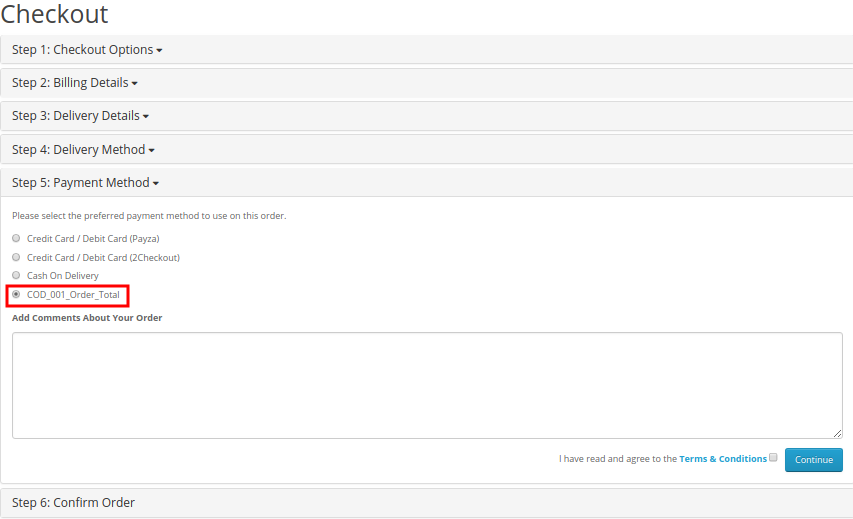
How can registered customers or guest users avail this facility? To use COD with additional charge facility on product orders, shoppers have to perform simple checkout for the product. They have to add the product to their cart and select the desired shipping method. Depending upon the type of shipping method selected by the user, OpenCart Cash on Delivery with Fees shows the payment methods as shown in the image below:
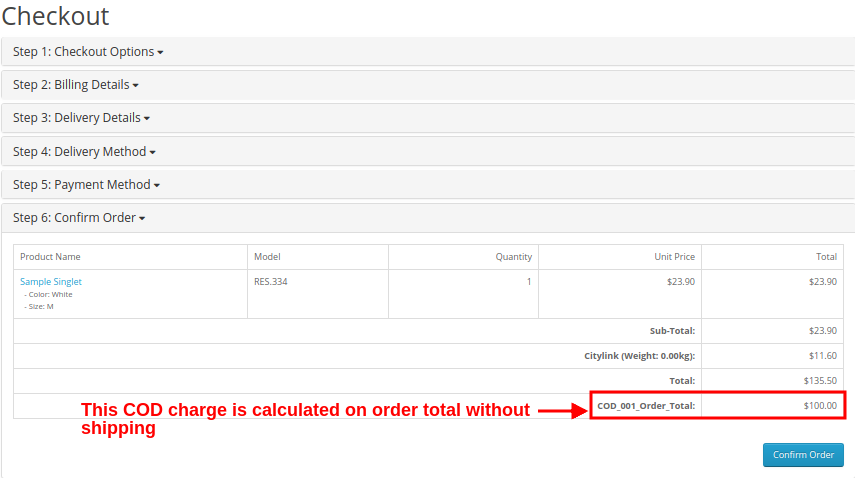
Now, as the customer will select the COD with fee option, they will be shown the total order cost along with the surcharge as shown in the image below:
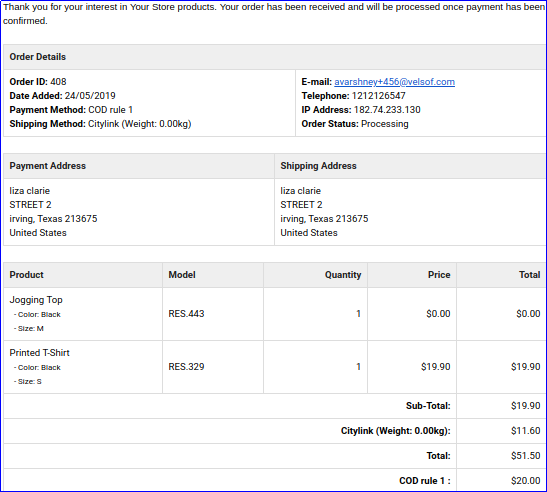
Now, as the customer will confirm their “COD with fee” order, then they will get a confirmation email detailing the order price details including the COD additional charge.
A) Fixed Type COD Price Rule
B) Percentage Type COD Price Rule
This way, the online merchant can offer a facility to pay at delivery time. Customers can easily pay the cash to the delivery person at the time of delivery. Most of the time customers do not trust the online store, especially while placing the first order. This way, the e-merchant can open doors for the first time buyers and those customers who don’t like paying the order amount online. OpenCart Cash on Delivery with Fees extension is highly customizable and offers the complete setup for offering cash on delivery option. The online merchant can create multiple payment profiles from the admin interface of this OpenCart Cash on Delivery plugin and set a fixed/percentage-based fee. The OpenCart Cash on Delivery with surcharge module is highly customizable and allows the store admin to select the countries, customer groups and carrier options for applying cash on delivery fees. The cash on delivery module with extra fee is mobile responsive, multi-lingual compatible, and SSL compatible also.
Check out our Tutorial Guides for the OpenCart Cash on Delivery with Fee Extension by KnowBand
These tutorials walk you through:
Installing the OpenCart Cash on Delivery with Fee Extension
Configuring COD fees for different payment options
Setting up minimum and maximum order amounts for COD
Managing fee rules based on customer groups or locations
Testing the checkout process with COD fees applied
These step-by-step guides are ideal for store owners who want an easy-to-follow, beginner-friendly approach to adding and managing COD fees without any technical hassle.
For more details about this OpenCart CoD with Fees module, visit here: