Magento 2 Web Push Notification Extension – User Manual

1.0 Introduction

For online store owners, it is important to attract new visitor’s attention to their website and also engaging those who already visited it. One great tactic that look promising is web push notifications. Being a store owner, if you have not implemented push notifications for your website, then you are missing some great business opportunities. In order to integrate web push notifications for your site, Knowband offers Magento 2 Web Push Notification Module that will allow admin to send real-time push notifications to their existing and new customers. Web Push Notification module gives you constant power to engage your audience via different kind of push alerts like back in stock alert, price alert, order status alert, abandoned cart alert, etc.

Magento 2 Push Notification for web browsers like Chrome and Firefox displays welcome popup on the user’s device asking for their consent to send alerts on various events. Push notifications are delivered instantly to the users which build up their constant engagement on the store. Magento 2 Browser Notification extension allows admin to send personalized push messages. With this extension, the admin can create and send personalized product recommendations to their customers based on their individual browsing and purchase history. Push notifications are highly responsive over mobile and tablet devices so you can achieve easy interaction with your customers. Web push notifications implemented using Magento 2 Browser Notification extension helps you in delivering various alert messages in real time which has a higher response rate compared to an email which subsequently leads to higher marketing ROI.

1.1 Striking Features of Magento 2 Cart Reminder Push Notification Module

No hassles and coding efforts are involved in the integration of web push notifications to the website. Before that, quickly take an insight into the highlights offered by this Magento 2 Web Push Notifications extension.

1. Magento 2 Web Push Notification Module offers a direct, real-time marketing technique for sending tailored push notifications to dormant users like breaking news updates, notifying customers when items are back in stock or drop price alerts. No matter whether are accessing the site or not, the subscribers will receive timely alerts triggered by the admin.

2. Magento 2 Order Status Update Push Notification triggers a welcome notification popup on the site frontend as the user visits the site. This is a permission popup asking the user to allow or deny automatic updates.

3. Magento 2 Browser Notification extension sends automated notifications for different events like when a user places an order, order status is changed, product price is updated, product stock is updated, or the cart is abandoned.

4. The template and message can be personalized for price alert notifications, stock alert push notifications, abandoned cart alerts or other kinds of custom notifications with the help of this Magento 2 Website Push Notification extension.

5. The notification title, action buttons, popup image shown over the welcome notification popup can be configured from the back-office of this Magento 2 Cart Reminder Push Notification Module.

6. With Magento 2 Browser Notification extension, admin can test web push notifications right after sending them by registering with the send test feature. Push notifications can be tested immediately or at some scheduled time.

7. To integrate push notification service to the website, the admin needs to configure firebase settings from the backend of Magento 2 Web Push Notification Module.

8. Magento 2 Browser Notification extension offers five default push notification templates which can be customized or deleted from back-office. Admin can create multiple custom notification template if they require for their business for announcing offers and new arrivals.

9. Web push notifications are perfectly compatible with browsers like Google Chrome, Firefox, and other browsers as well.

10. Magento 2 Cart Reminder Push Notification Module allows admin to create any type of push notifications with a custom message, title, URL and images. The link can be added to the complete notification popup or to the popup button specifically.

11. Admin can view the list of notification subscribers and product subscribers from the backend of Magento 2 Web Push Notifications extension.

12. Magento 2 Web Push Notification Module allows admin to send the notifications immediately or on a particular time. This functionality can be handled using the cron job. Admin can run the cron job in order to send all scheduled notifications instantly.

13. Magento 2 Web Push Notifications extension lets admin test the promotional alerts before sending it to the actual subscriber base.

14. Web Push Notification For Magento 2 offers a responsive UI for desktop and mobile devices.

15. Magento 2 Order Status Update Push Notification plugin works on multiple store views.

16. Magento 2 Browser Notification extension provides a simple backend interface which can be effortlessly configured by the store admin.

2.0 Installation Guide of Magento 2 Browser Notification Extension

1. Once after purchasing Magento 2 Web Push Notification Module from the Knowband store, you will get the following files on your registered email:

  • Source code file of Magento 2 Web Push Notification Module in zipped file format.
  • User Manual of Magento 2 Website Push Notification Extension.

2. Unzip the extension package.

3. Create a folder{Magentoroot}/app/code/Knowband/Webpushnotification

4. Upload the extracted content in the above folder via FTP manager (like Filezilla or WinSCP – download here: https://filezilla-project.org/).

5. Add the following dependencies in the Magento root composer.json file:
“mobiledetect/mobiledetectlib”: “^2.8”,
“geoip2/geoip2”: “^2.9.0”
And below command to install the above dependencies:
composer update

6. Now run below commands to install the plugin:
php -f bin/magento module:enable –clear-static-content Knowband_Webpushnotification
php -f bin/magento setup:upgrade
php -f bin/magento setup:di:compile
php bin/magento setup:static-content:deploy

The Magento 2 Web Push Notifications extension is now installed and ready to use.

3.0 Admin Interface of Magento 2 Web Push Notifications Extension

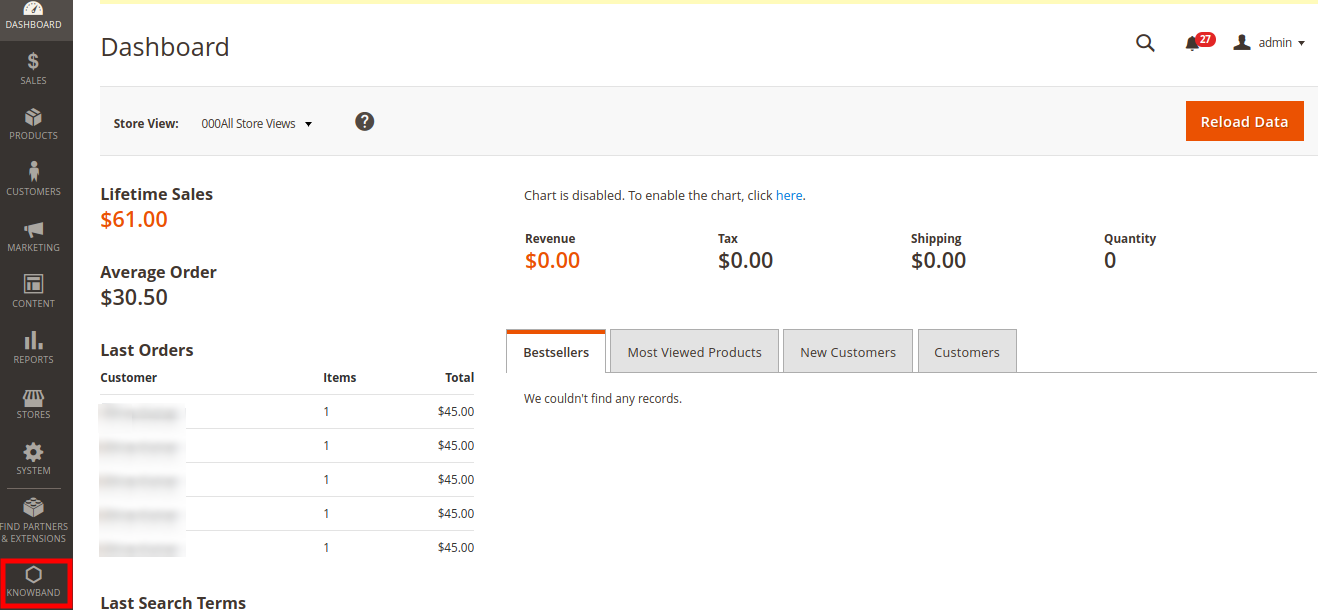
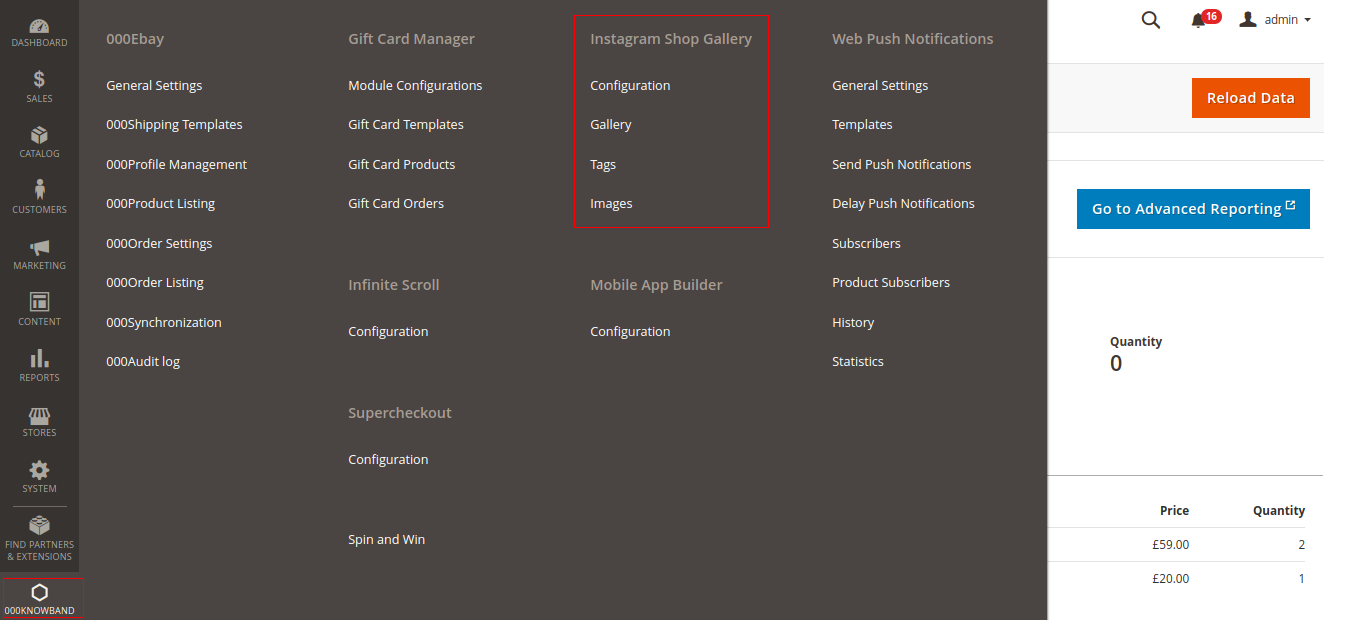
Just after successful installation of Magento 2 Web Push Notification extension on your website, you can create and activate web push notifications for your store in accordance with business requirements. Navigate the settings in the given order: Admin Panel > Knowband > Web Push Notifications

The simple to understand admin interface of Magento 2 Browser Notification extension is divided into eight main sections namely:

1.General Settings
2.Templates
3. Send Push Notifications
4.Delay Push Notifications
5.Subscribers
6.Product Subscribers
7.History
8.Statistics

Each of these sections has been discussed in detail below.

3.1 General Settings

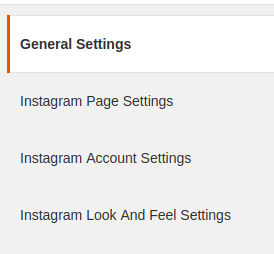
The general settings of Magento 2 Web Push Notification extension is further sub-divided into four sections namely:

1.Configurations
2.Firebase Settings
3.Product Sign Up Box Settings
4.Welcome Notifications Settings

3.1.1 Configurations

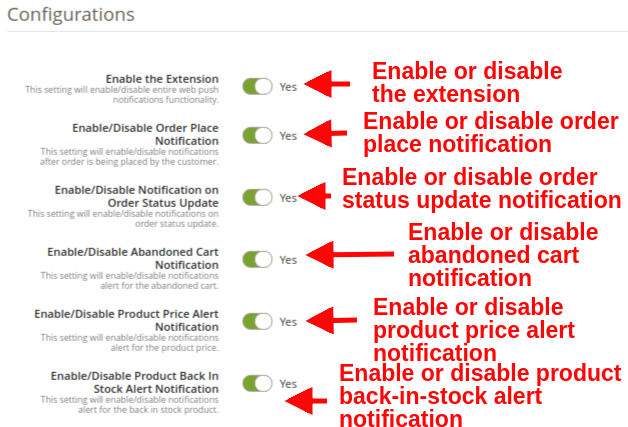
  • Enable the Extension: This option enables or disables the whole functionality of Magento 2 Web Push Notification Module with the help of toggle button. On enabling this, customer will see a push notification request popup box on their screen.
  • Enable/Disable Order Place Notification: This setting enables or disables the notifications after the customer places an order. Admin can send order status notification to the customer after enabling this option.
Magento 2 Web Push Notification Module

  • Enable/Disable Notification on Order Status Update: This setting will enable or disable the notifications on order status update.
  • Enable/Disable Abandoned Cart Notification: This setting will enable or disable the notifications when the customer abandons their cart. This notification only triggers if the customer has abandoned the cart.
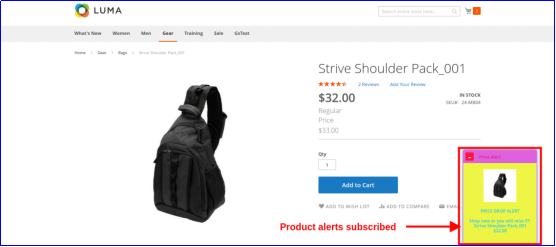
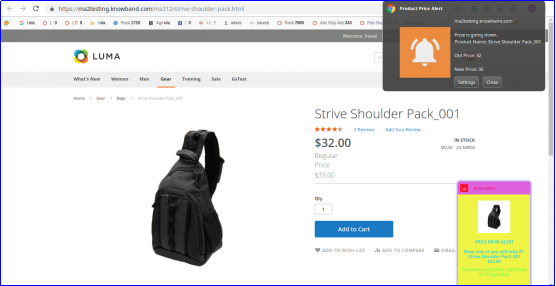
  • Enable/Disable Product Price Alert Notification: This setting will enable or disable the notification alert for the product price. As there is a drop in product price, product subscribers will receive a notification alert.
    Note: These settings are only applicable when the users subscribe for the product notification.
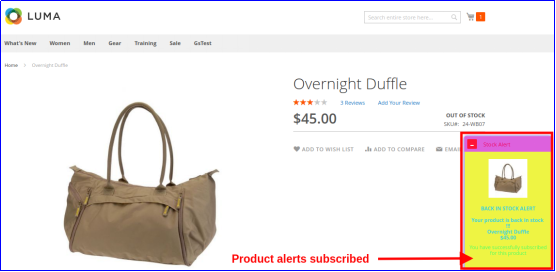
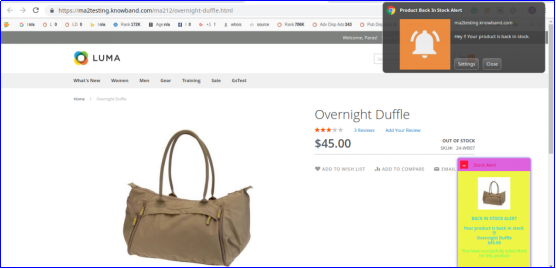
  • Enable/Disable Product Back In Stock Alert Notification: This setting will enable or disable the notification alert for the product stock. When the out-stock product comes back in stock, product subscribers will be notified.
    Note: These settings are only applicable when the user subscribes for the product notification.

3.1.2 Firebase Settings

Firebase works in the backend as a service responsible to push mobile and desktop notifications to users while they are accessing a particular website. These settings are usually set one time during initial module setup.
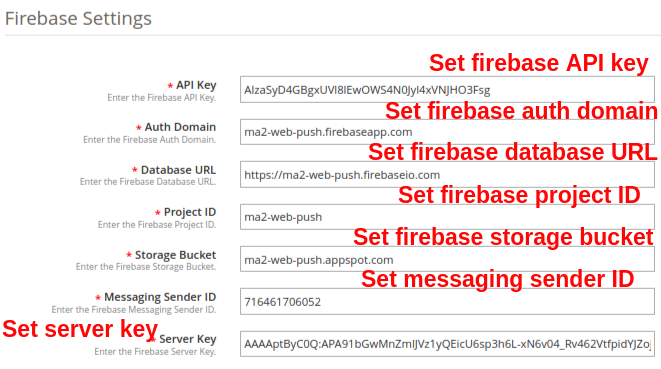
  • API Key: This option allows you to specify the Firebase API key.
  • Auth Domain: This option allows you to set Firebase auth domain value.
  • Database URL: Using this option you can set the Firebase database URL.
  • Project ID: This option lets you set the Firebase project ID.
  • Storage Bucket: With this option you can specify Firebase storage bucket.
  • Messaging Sender ID: This option sets the Firebase messaging sender ID.
  • Server Key: This option will set the Firebase server key.

3.1.3 Product Sign Up Box Settings

In this tab of the Magento 2 Cart Reminder Push Notification Module, the admin can edit the sign-up box settings for the product. Customers who will subscribe to the product will receive its price and stock related alerts. Under this tab, you will get the following options:
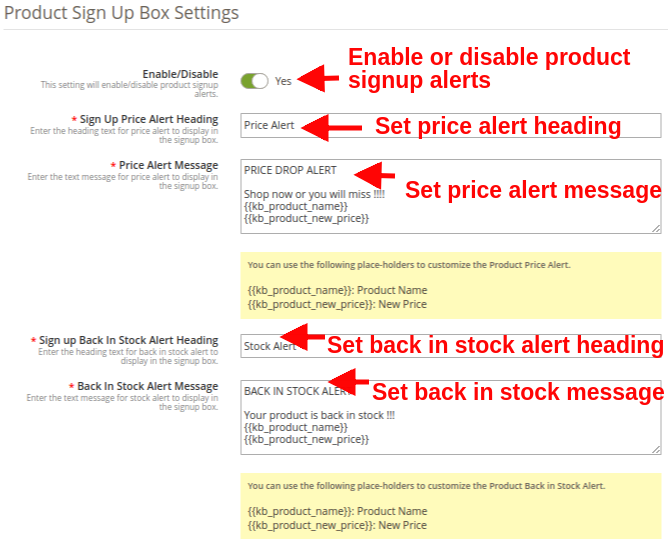
  • Enable/Disable: This option enables or disables the product signup alerts. If enabled, module will show the Subscription box in the front-end of the store where the customer can subscribe for product price alert or back in stock product alert.
  • Sign Up Price Alert Heading: This field allows you to set a heading for the price alert notification box.
  • Price Alert Message: You can set a desired push notification message flashed on Price alert subscription box.
  • Sign Up Back In Stock Alert Heading: This field allows you to set a custom heading for the back-in-stock notification box.
  • Back In Stock Alert Message: You can set a desired push notification message flashed on Back-in-stock alert box.
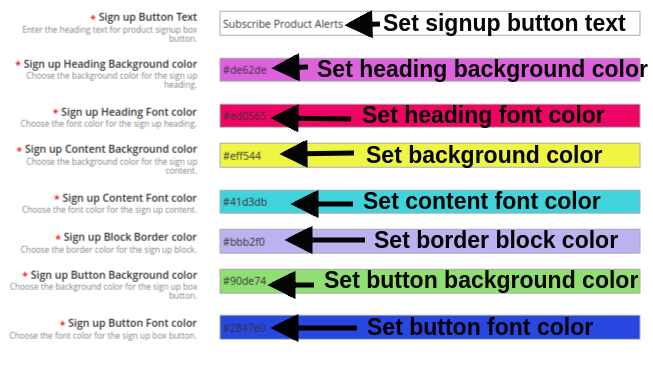
  • Sign Up Button text: You can modify the text shown on the product subscription or signup popup.
  • Sign up Heading Background color: You can change the background color for the sign up box heading.
  • Sign up Heading Font color: This option allows you to change the subscription box heading font color as per requirement using color picker tool.
  • Sign up Content Background color: You can change the Subscription box background color using this option.
  • Sign up Content Font color: The admin can change the font color of subscription box text with this option.
  • Sign up Block Border color: This field of Web Push Notification module allows you to set the border color for the signup notification box.
  • Sign up Button Background color: This option lets you set the background color for the product subscription button shown in sign-up box.
  • Sign up Button Font color: This option lets you set the font color for the product subscription button text.

3.1.4 Welcome Notification Settings

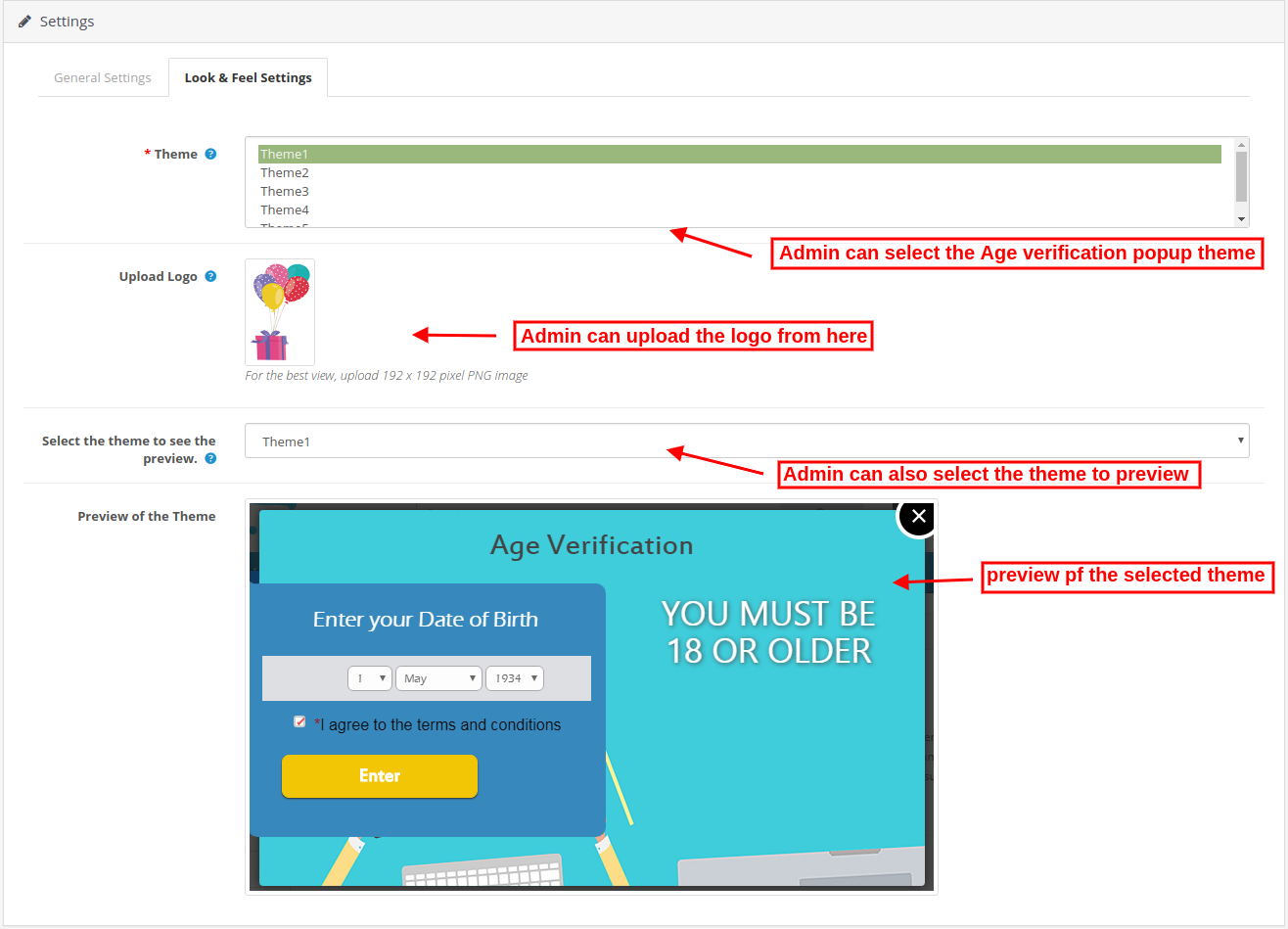
Under this section of Magento 2 Web Push Notification module, the admin can customize the look and feel of the Welcome notification box. This Welcome Notification box will be shown in the front-end of the store when the customer enters the store. The users can click on approve button for getting the site notifications or can cancel the option. This section contains the following options:
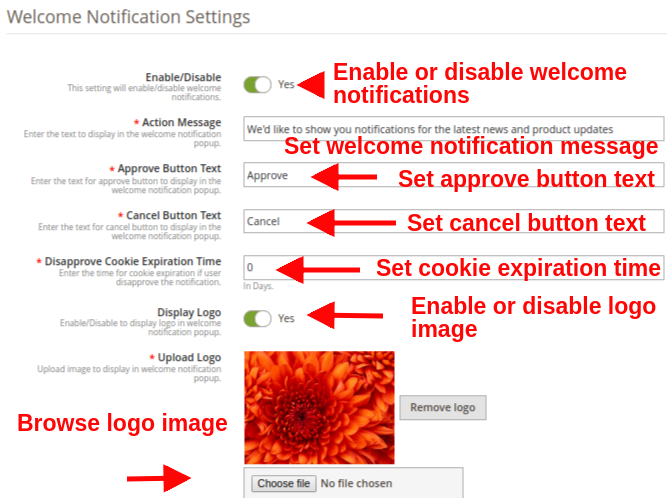
  • Enable/Disable: Admin can enable/disable this Permission Box on the frontend. If enabled, the permission box will be shown in the front-end of the store.
  • Action Message: This option sets the display text for the welcome notification popup.
  • Approve Button Text: You can enter the display text for the Approve button shown over welcome notification popup box.
  • Cancel Button Text: You can enter the display text for the Cancel button shown over welcome notification popup box.
  • Disapprove Cookie Expiration Time: This option sets the time for cookie expiration if user disapprove the notification. Like if this value is set to 2, and the user clicks on Cancel/Disapprove button then the welcome notification permission box will be shown to that user after two days.
  • Display Logo: This option allows you show/hide the display logo for the welcome notification popup.
  • Upload Logo: Using this option, you can browse and upload a desired logo image for the welcome notification popup.
    Note: Web push notification module allows the admin to run cron to send the push notification immediately or after a fixed time.

3.2 Templates

Web Push Notification For Magento 2 offers five default ready-made templates which are fully-customizable and gives flexibility to create new templates as per business needs. Under this section, you can customize or add a new Web Push notification template. The five default notification templates offered include:
1. Order Place Notification Alert
2. Product Back In Stock Alert
3. Product Price Alert
4. Abandoned Cart Alert
5. Order Status Update Alert
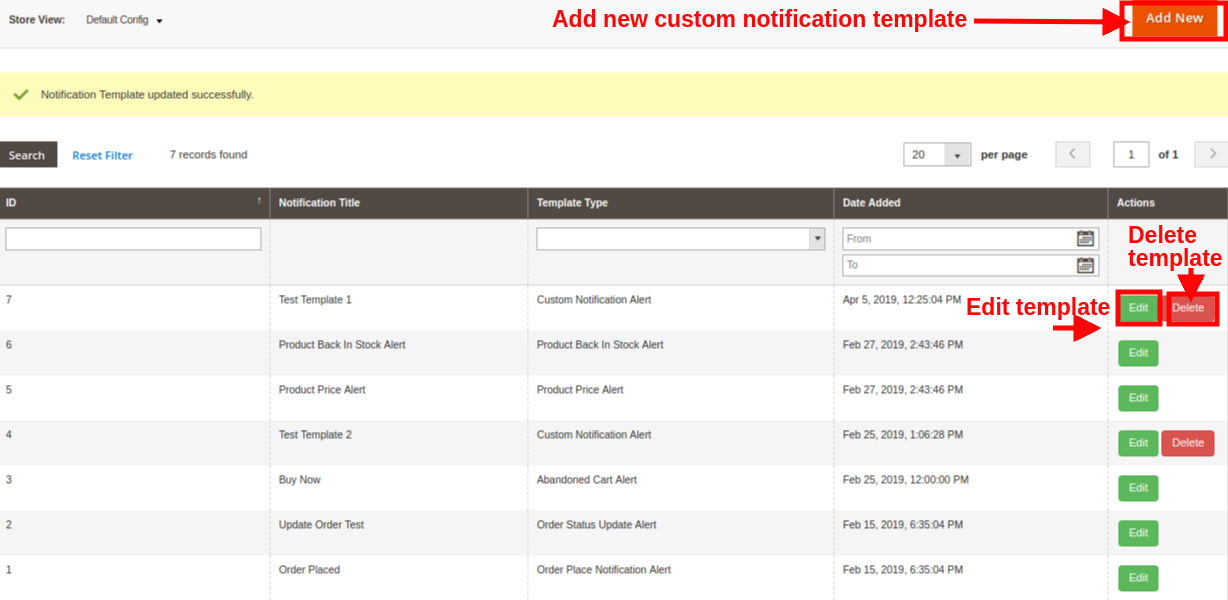

Note: The default notification templates can be modified but cant be deleted by the admin. While the new created templates can be modified or deleted from this section.

3.2.1 How to add Custom Notification Template?

An option to add templates of Push Notification for web browsers is provided at the back-office. Simply click on “Add New” button for creating a custom notification template. Fill the following fields in order to create a new notification template for the store.
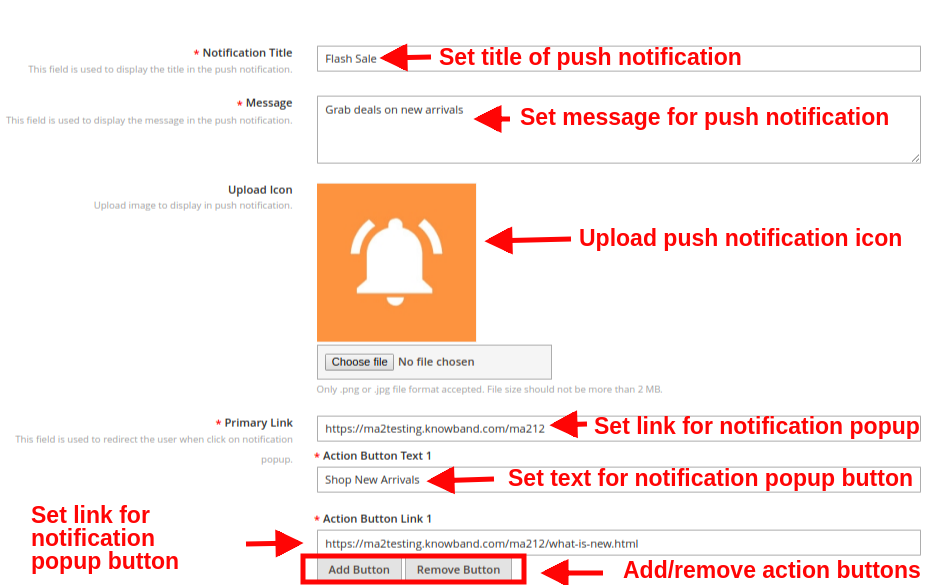
  • Notification Title: With this option, admin can set a title for web push notification.
  • Message: Using this option, you can set a custom message for the web push notification.
  • Upload Icon: This field allows you to choose a desired icon for the custom push notification.
  • Primary Link: With this option, you can set a primary link for the push notification. When the user clicks on the notification popup, they are redirected to this specific link.
  • Action Button: You can add as multiple action buttons to display on the push notification popup box. These buttons can be set with different text and action button link.
  • After the successful entry of details, the new custom template would be added in the “Push Notification Template” table.
    Note: The Admin can add the N no of Custom template for a various promotional offer like Flash Sale, Buy 2 Get 1, Happy hours and more.
    The other default notification template include:
  • Product Back In Stock Alert: When the admin changes the status of the Product quantity to in-stock from the back-end of the module, back in stock push alerts are sent to the customer.
  • Product Price Alert: When the admin changes the product price and they offer a discount price then the price alert push notification is sent to the customer.
  • Abandoned Cart Alert: This Magento 2 Browser Push Notification module sends an abandoned cart notification to the customer when they leave their cart.
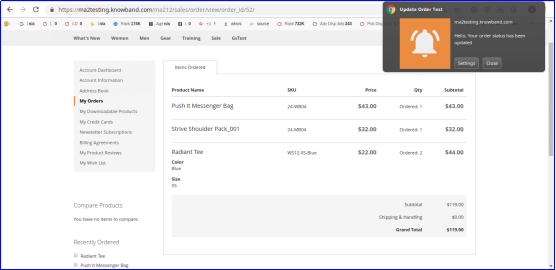
  • Order Status Update Alert: When the admin changes the status of the order, this order status push notification is sent to the customer.
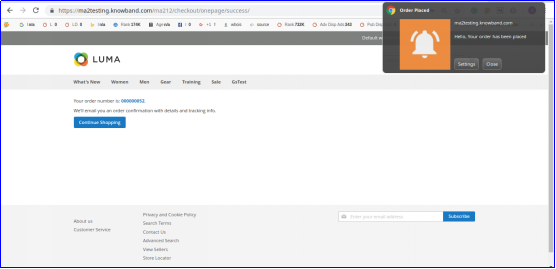
  • Order Place Notification Alert: As the customer will place an order, this alert is automatically sent to them.

3.3 Send Push Notifications

Magento 2 Cart Reminder Push Notification Module allows admin to send push notifications manually. For this, you have they have to select the template and send time for the push notification. Once the notification is set, you can test it in two ways:

1.Admin can register as admin and then test the push notification. This notification alert is only send to the registered admin not the subscribers.
2.If the admin finds no issue in the push notification, they can send push notification directly to all the subscribers.
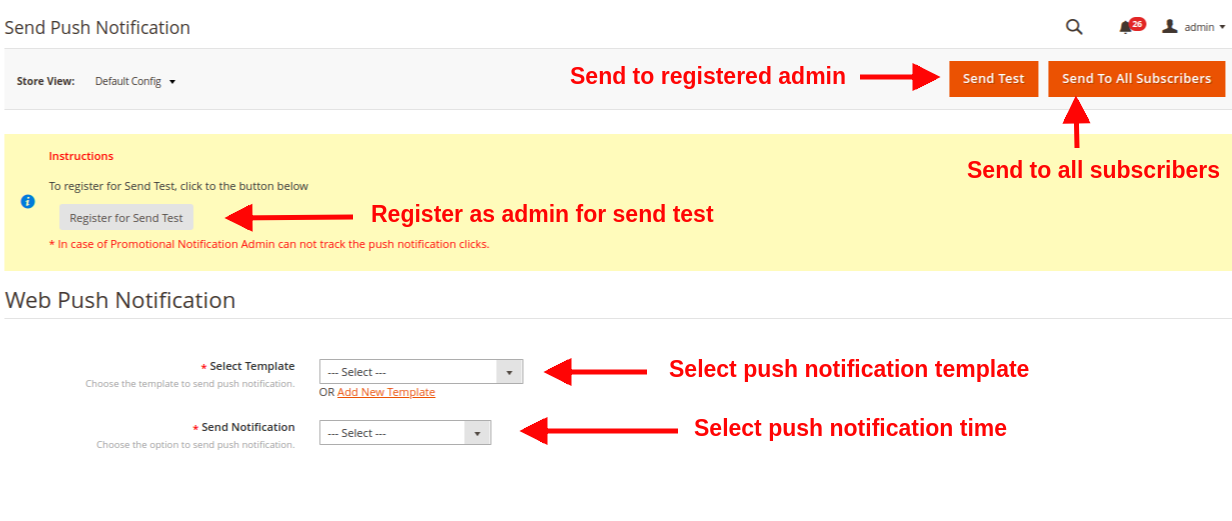
  • Select Template: This option allows admin to choose the template for notification from the existing ones.
  • Send Notification: Admin can send the notification immediately or on a scheduled time.

When the admin sends push notification at a particular time, then the cron has to run manually. Here are the cron instructions:

1. Delay Push Notification CRON
https://www.example.com/ma212/kbwebpush/index/delayPushCron/?SID=dgaqkeauhluhn4cmtaug3gahl2
2. Abandoned Cart Notification CRON
https://www.example.com/ma212/kbwebpush/index/abandonedCartCron/?SID=dgaqkeauhluhn4cmtaug3gahl2

3.4 Delay Push Notifications

Web Push Notification for Magento 2 allows the admin to schedule the notification for a particular time. All the scheduled notification will be displayed in the Push Delay Notification tab along with their status.

 

3.5 Subscribers

Under this section of Magento 2 Web Push Notifications extension, admin can view the total list of subscribers who have allowed the push notifications. Records of users who deny the push notification are not shown in this panel.

The admin can keep a track on the subscribers along with their details like browser name, browser version, platform, device type, country, subscription time and user type.

3.6 Product Subscribers

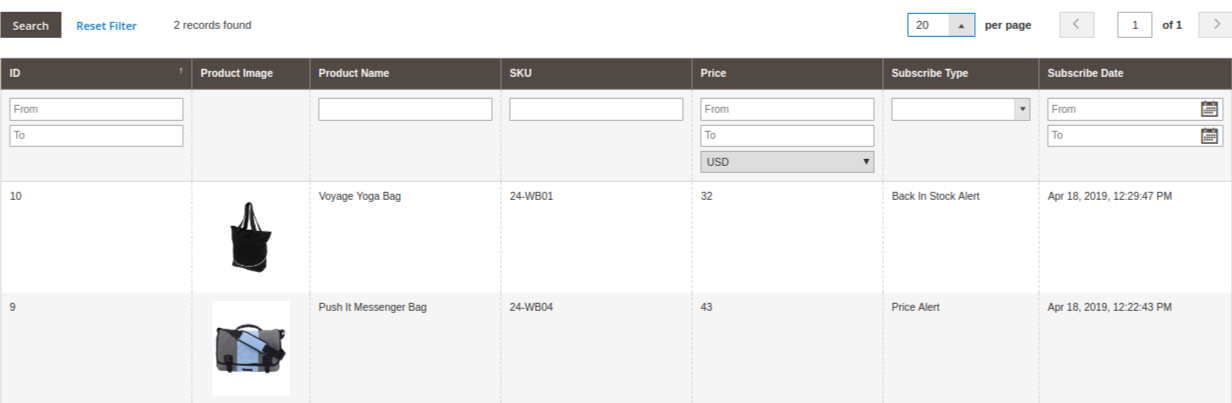
Web Push Notification For Magento 2 also gives a detailed view to the product subscribers along with their subscription type detail. Admin can see which product is subscribed along with its name, product image, product SKU, Price, Subscription type and subscription date.
 

3.7 History

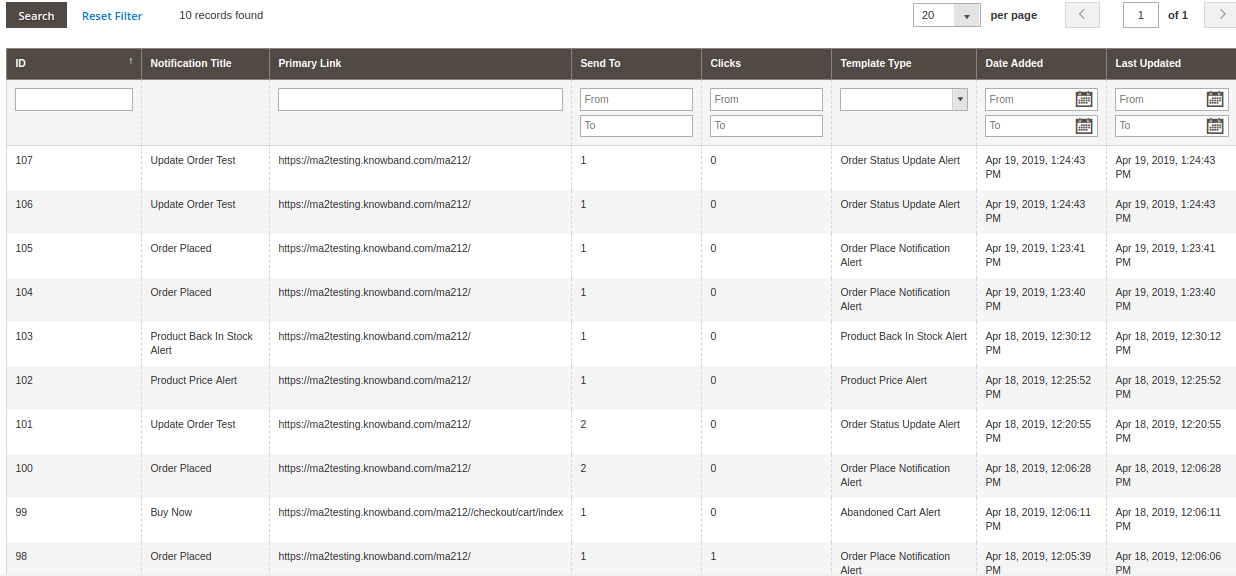
Magento 2 Web Push Notification Module allows the store admin to view the overall history of web push notifications generated for different events like order place, order status update, price alert, abandoned cart and others. Admin can filter the results based on push notification type or date created. From this section, they can even view the total customers who received a particular push notification.
3.8 Statistics

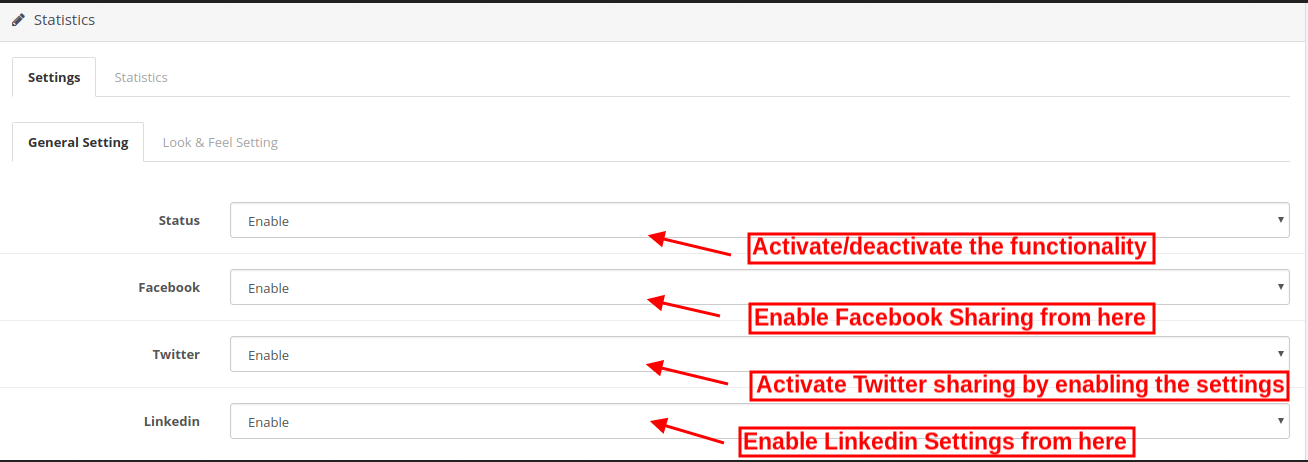
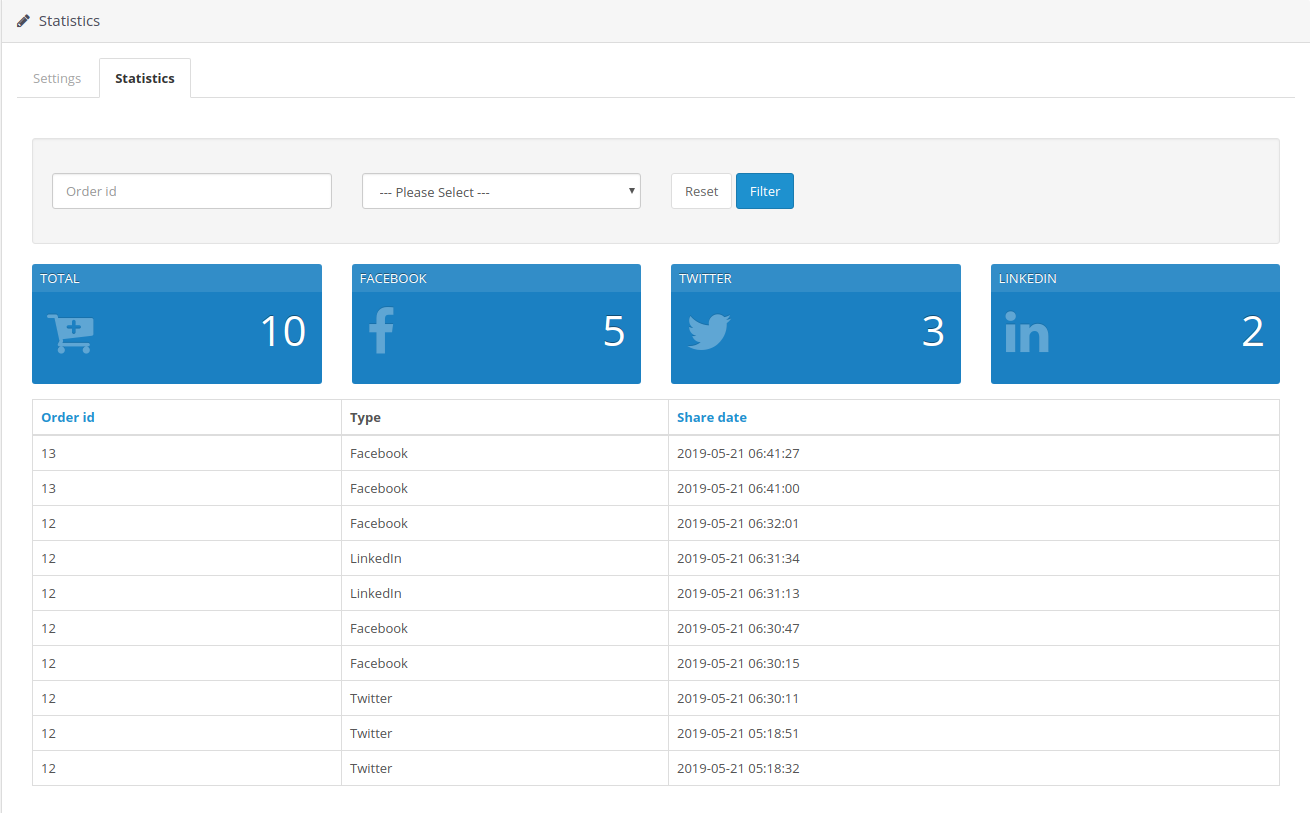
Magento 2 Website Push Notification extension provides a simple interface to understand the subscription analytics. Admin can easily view the number of desktop subscribers and mobile subscribers. Additionally, you can view particular subscribers coming through Chrome and Firefox browsers.

Note:

  • Total Subscribers are the users who have approved the push notifications for their system or device. This includes both desktop and mobile subscribers.
  • Total Campaigns are the total push notifications sent for different events.
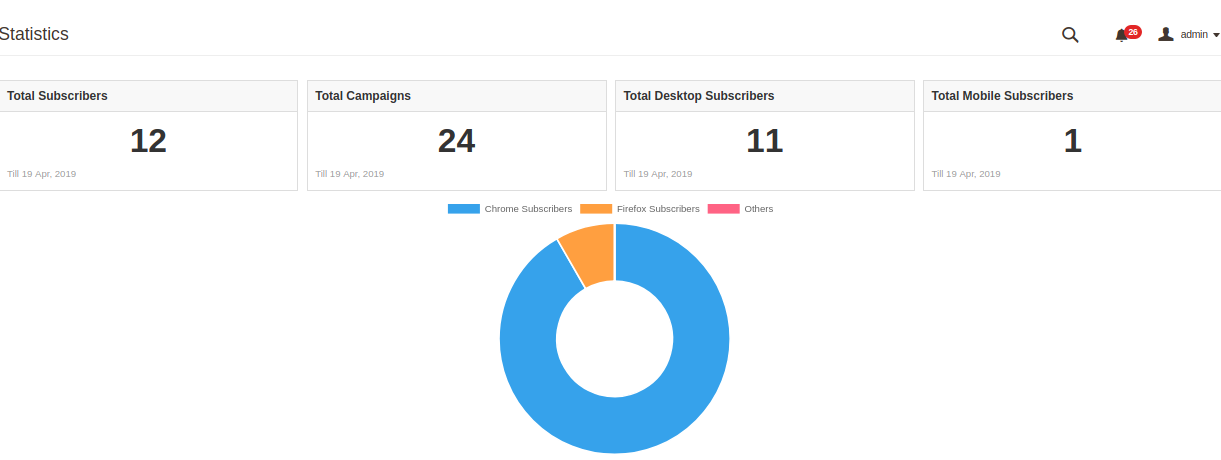
Report analysis can also be done using graphical statistics as shown in the below image with the help of filter option.
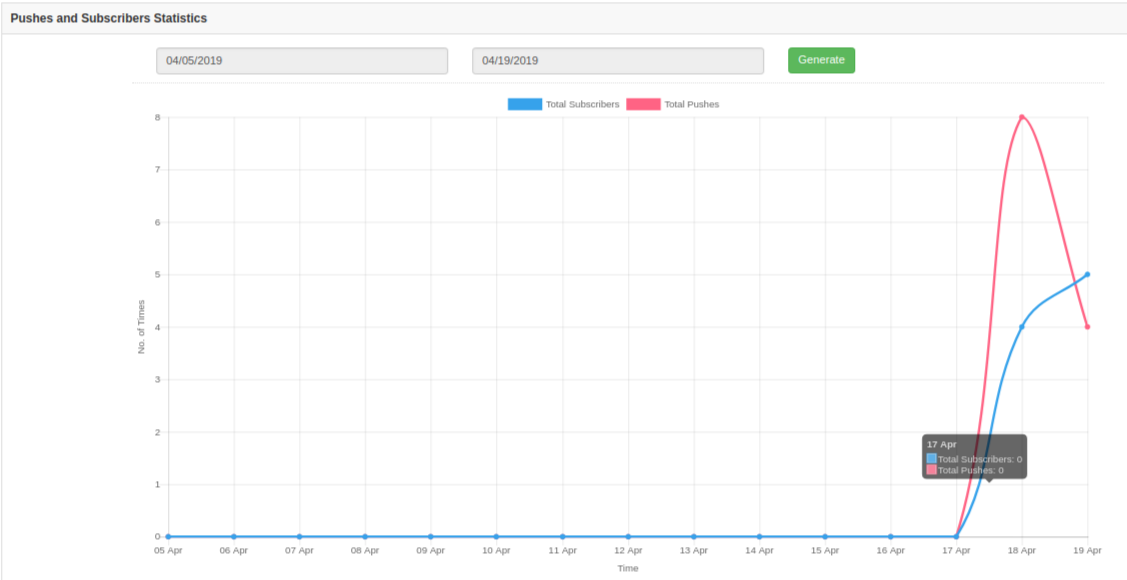
These graphical stats provide information about the total number of subscribers and the total number of push notifications sent to those subscribers.

4.0 Front Interface of Magento 2 Browser Notification extension

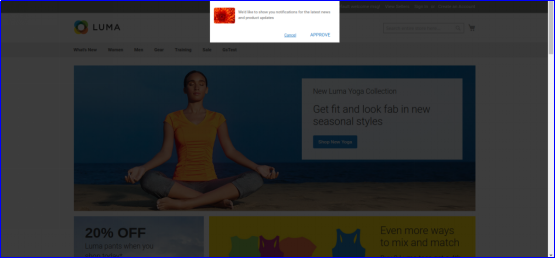
A)Welcome Notification Box
This welcome notification box contain buttons to approve or disapprove the alert subscriptions. As the user visits the site, this subscription popup is shown on their front, which they have to either approve or deny. If they “Deny” they will not get any site or product related notifications. If they “Approve”, they will receive sale alerts, offers information and product related updates like back in stock, price drops and abandoned cart.

B)Order Place Notification Alert

C)Order Status Update Alert
D)Product Price Alert
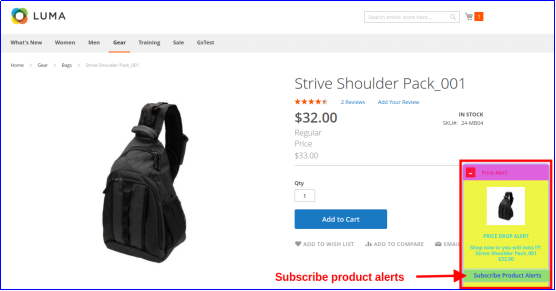

E)Product Back In Stock Alert
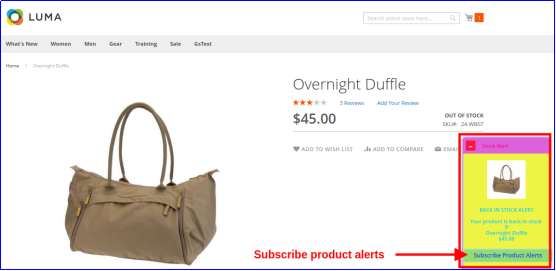

F)Abandoned Cart Notification Alert
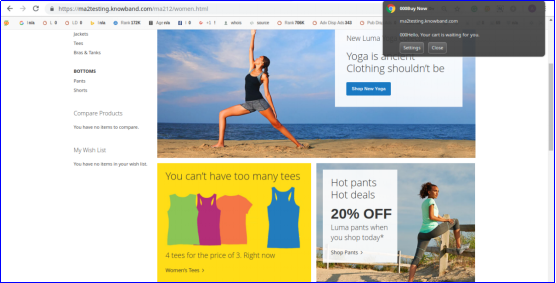
Magento 2 Store Locator and Pickup Extension – User Manual

1.0 Introduction

Eliminate unnecessary shipping costs and let customers buy the products conveniently and independently from physical stores using Magento 2 store locator and pickup extension. This module adds an unlimited number of pickup locations for the online business which is shown to the customers based on their country or postal codes. Pickup services added using Magento 2 store pickup module are helpful for the customers as they benefit in saving their shipping time and money. Choosing this shipping option during checkout helps customers in finding the nearest location, where they can pick up the order easily.

Magento 2 in-store pickup extension offers a seamless offline experience to the customers that ultimately reflects the sales process of your business. Magento 2 Google Maps Store Locator plugin uplifts the traffic volumes at your physical stores and improves the shopping experience of customers with DIY order pick up functionality. With Magento 2 Store locator module, you can show store locations in a nice and neat user interface which effectively aids customers in checking store availability and interacting with those physically before purchasing any product.

1.1 Striking Features of Google Maps Store Locator Plugin for Magento 2

To enable the self-service deliveries of products at different physical outlets of your eCommerce brand, quickly take an insight into the functionality of Magento 2 in-store pickup extension.

1. Magento 2 store locator and pickup extension integrate a fast and optimized in-store pickup functionality at your eCommerce store catering to various products need through offline stores. During checkout, customers can search the nearest available store for order pickup.

2. Magento 2 store pickup module allows admin to create and customize an unlimited number of pickup stores for their business.

3. Magento 2 Google Maps Store Locator plugin adds up a new shipping method on the site checkout easing customers in opting for the convenient find and pickup service.

4. With Magento 2 in-store pickup extension, admin can effortlessly configure the existing physical stores from the back-office without using any coding skills.

5. Magento 2 store locator and pickup extension require the integration of Google Map API Key for displaying the available stores for different country users.

6. Admin can add offline shop details like store name, address, zip code, country, latitude, longitude and shop image from the backend of Magento 2 Store locator module.

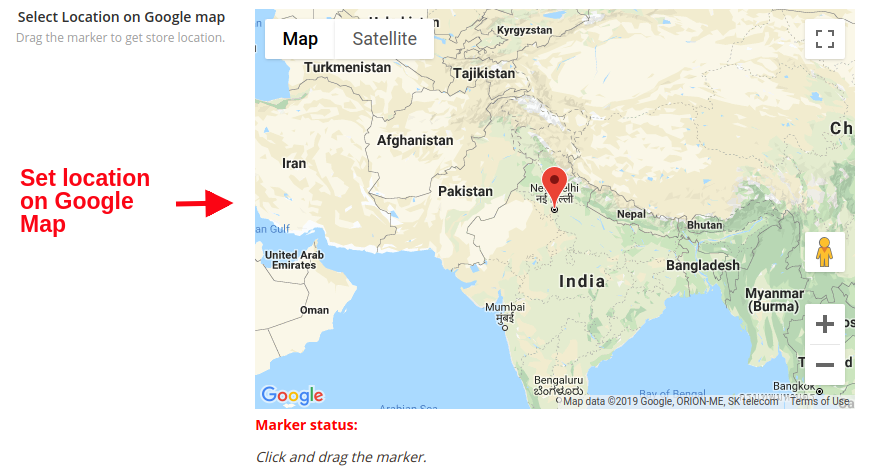
7. Magento 2 store pick up plugin allows you to show store location on the Google Map marked with a pin icon. To locate the physical store, the admin has to move the pointer over the map using a zooming function.

8. If required, admin can show the offline shop contact details including website, contact number, fax and business email.

9. Magento 2 Google Maps Store Locator plugin suggests the most relevant and nearby store suggestions to the customer based on their provided address.

10. Magento 2 store locator and pickup extension give two methods to add new stores for the brand. One is to add stores manually or adding bulk stores in a single go by uploading a .xlsx file from the back-office.

11. The whole functionality of store locator and pickup can be enabled or disabled from the backend.

12. Each of the physical stores can be enabled or disabled separately using this Magento 2 in-store pickup extension.

13. You can set an image for the Google Map pointer using this Magento 2 store pickup module.

14. Magento 2 Store locator module allows you to set a default zoom level for the Google Map integrated on the store locator page on the frontend.

15. With Magento 2 store locator and pickup module, the store owner can display physical distances of the store from the customer’s location in miles or in kilometers.

16. The store locator and pickup section can be shown on the homepage and in the site footer also.

17. Admin gets an option to set a custom URL for the store locator page using this Magento 2 pick-up module.

18. To make it look appealing, admin can set a landing page image for the store locator page with Magento 2 in-store pickup extension.

19. Admin can give store pickup options for selected countries only.

20. Magento 2 Google Maps Store Locator plugin allows admin to set the handling fee type and pickup amount.

21. Magento 2 store locator and pickup extension support multi-lingual and multi-store compatibility.

2.0 Installation Guide of Magento 2 store locator and pickup extension

1. Once after purchasing Magento 2 Store locator module from the Knowband store, you will get the following files on your registered email:

  • Source code file of Magento 2 store locator and pickup extension in zipped file format.
  • User Manual of Magento 2 store locator and pickup extension

2. Unzip the extension package.

3. Create a folder{Magentoroot}/app/code/Knowband/Storelocator

4. Upload the extracted content in the above folder via FTP manager (like Filezilla or WinSCP – download here: https://filezilla-project.org/).

5. Now run below commands to install the plugin:

php -f bin/magento module:enable –clear-static-content Knowband_Storelocator
php -f bin/magento setup:upgrade
php -f bin/magento setup:di:compile
php bin/magento setup:static-content:deploy

The Magento 2 Store Locator extension is now installed and ready to use.

3.0 Admin Interface of Magento 2 In-Store Pickup Extension

Just after the successful installation of Magento 2 store locator and pickup extension on your website, you can add and configure physical stores in accordance with business requirements. Navigate the settings in the given order: Admin Panel > Knowband > Store Locator and Pickup

The simple to understand admin interface of Magento 2 Store Locator module is divided into two broad sections namely:

1.General Settings
2.Manage Stores

Each of these sections has been discussed in detail below.

3.1 General Settings

The general settings of Magento 2 store locator and pickup extension offers you the following basic configurations:

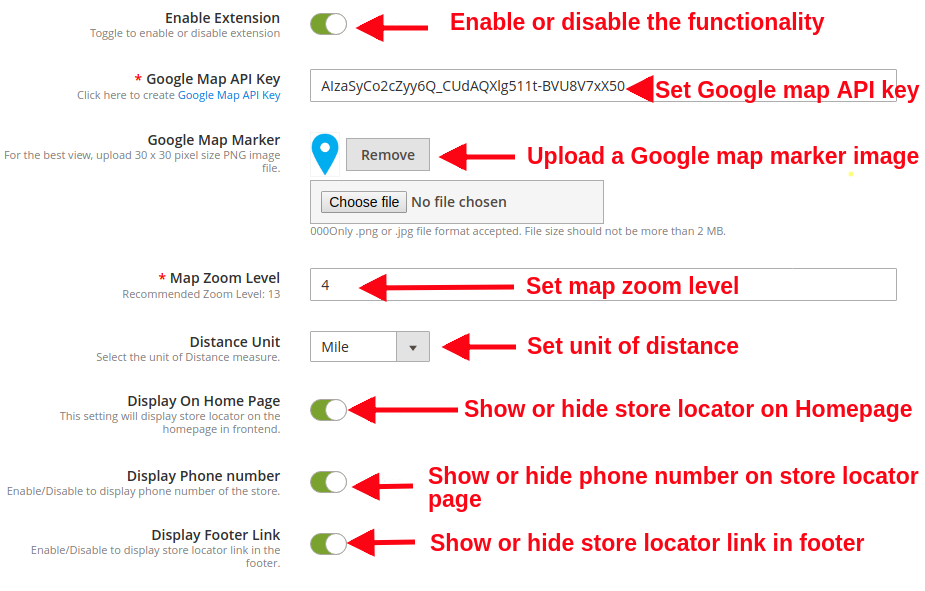
  • Enable/Disable: The store admin can enable or disable the functionality of Magento 2 Google Maps Store Locator plugin just by toggling this button.
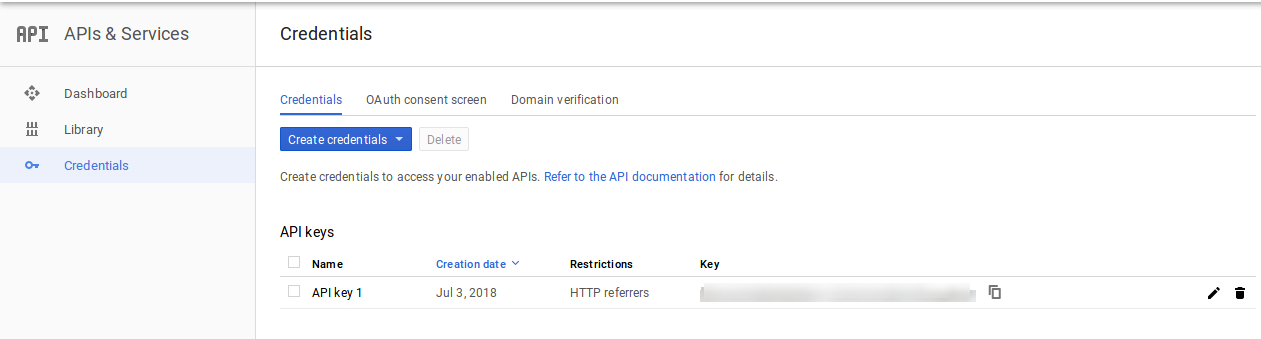
  • Google Map API Key: Set the Google map API key in this field. The process to generate an API key has been discussed in section 3.1.1.
  • Google Map Marker: Admin can choose the desired image as Google Map marker.
  • Map Zoom Level: Admin can set the default zoom level for the location map.
  • Distance Unit: Admin can set the unit of distance in kilometers or miles. This distance depicts the reach to offline store from the customer’s exact location.
  • Display on Homepage: Admin can decide whether they want to show or hide the store locator option on the Homepage.
  • Display Phone Number: Enable or disable this option to show or hide the contact details for the store.
  • Display Footer Link: Enabling or disabling this option will show or hide the store locator link in the footer section.

  • Footer Link Text: This option sets the text for the store locator link shown in footer section of the website.
  • Store Locator Page URL Key: This option sets a custom page URL for the store locator page.

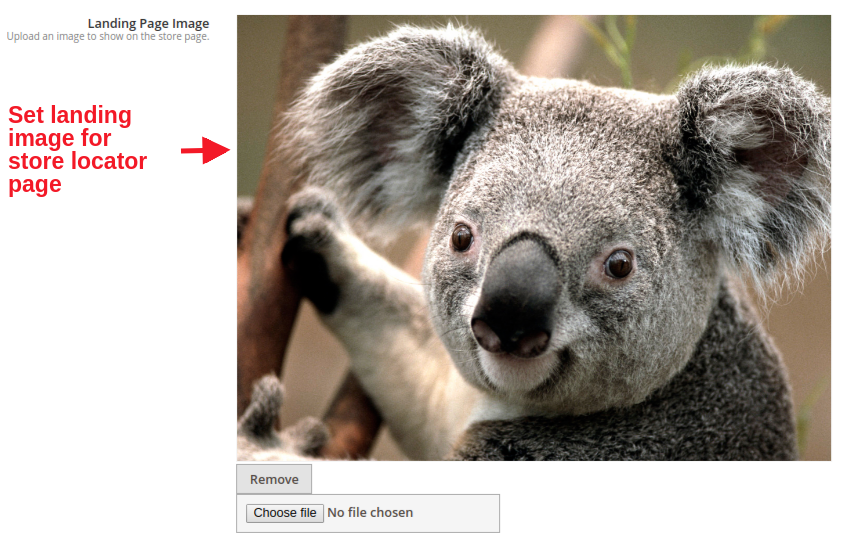
  • Landing Page Image: This option set the landing page image for the store locator page. Simply browse and choose any file of your choice.

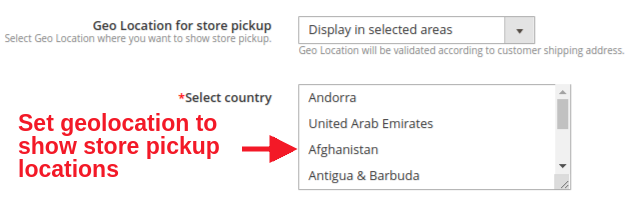
  • Geo Location for Store Pickup: Admin can set the option whether they want to display store locator functionality in selected areas or worldwide.
  • Select Country: This option allows you to set multiple countries where the store pickup options will be provided to the customers.

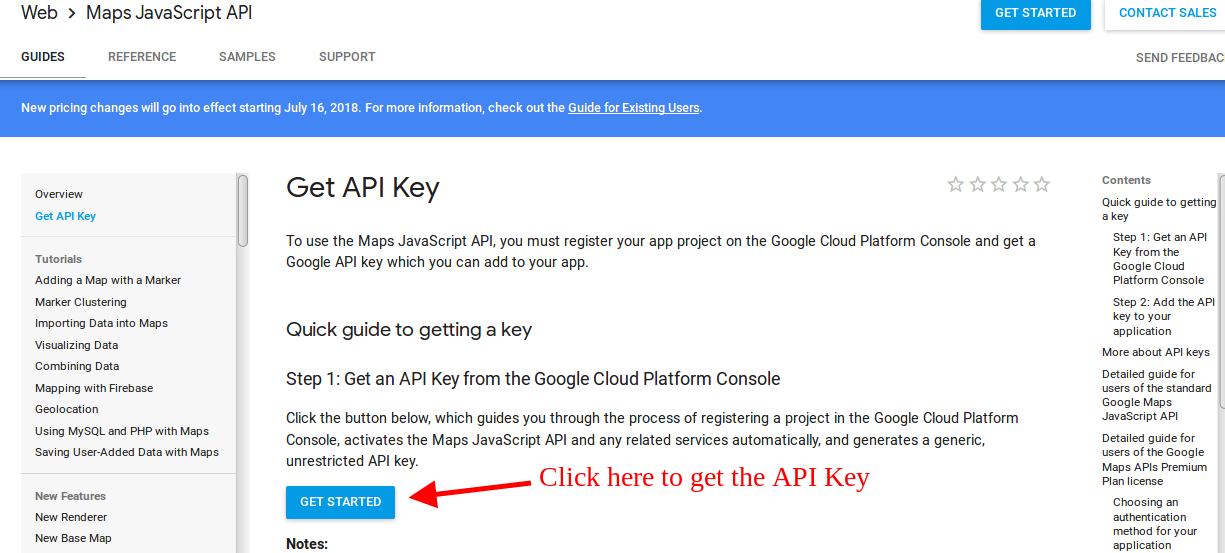
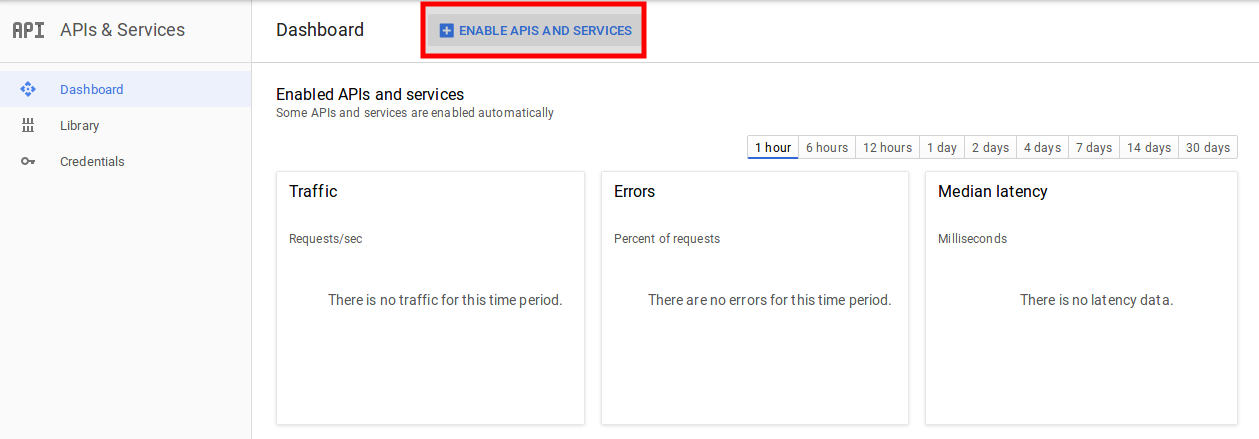
3.1.1 How to generate the Google Map API key

The eCommerce store admin can generate the Google API key by following these steps:

  • Click on the “Get Started” button: The admin can click on this button to get the Google map API key.

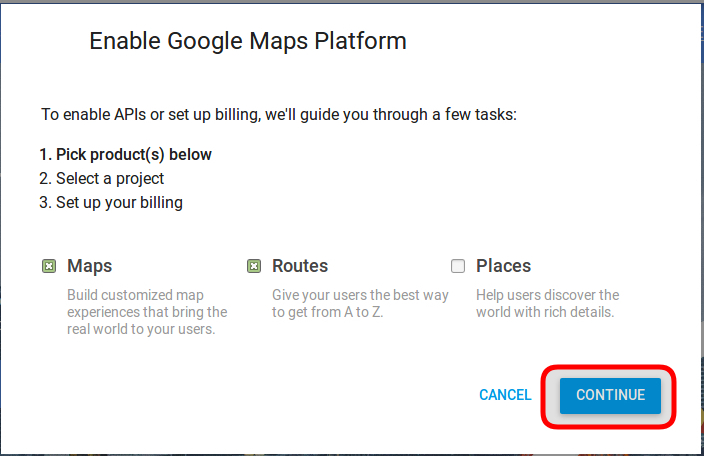
Pickup the products: When the admin will click the “Get Started” button this pop-up will be displayed.


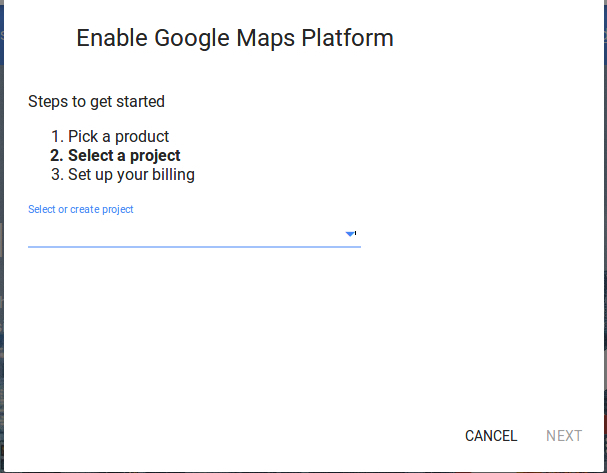
Project selection: The eCommerce store admin can select or create a project.

1. Select a project:

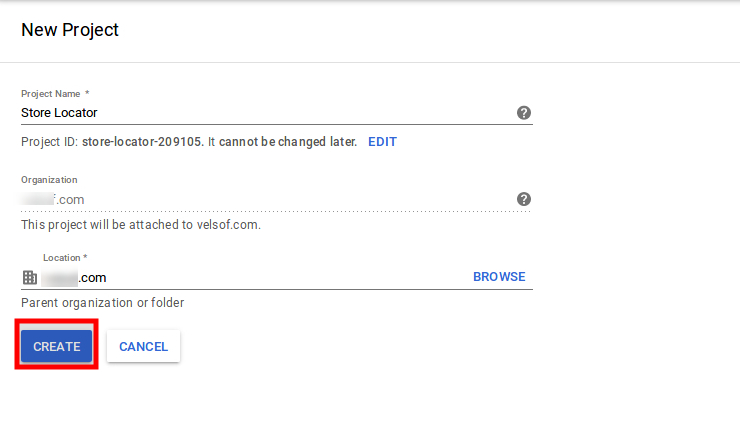
2. Create a new project:


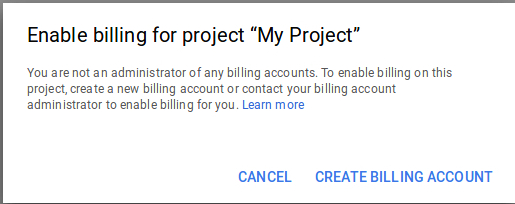
Setup the billing: The eCommerce store admin can now set up the billing.


After billing the store admin can get their Google map API key.
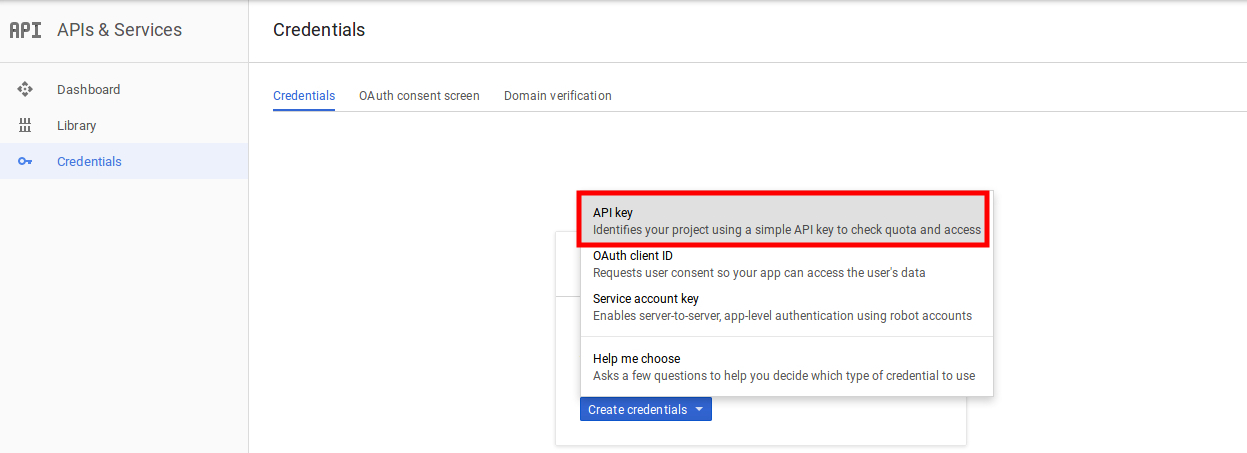
On the Credentials page, get an API key:


The store admin can select the API key option:


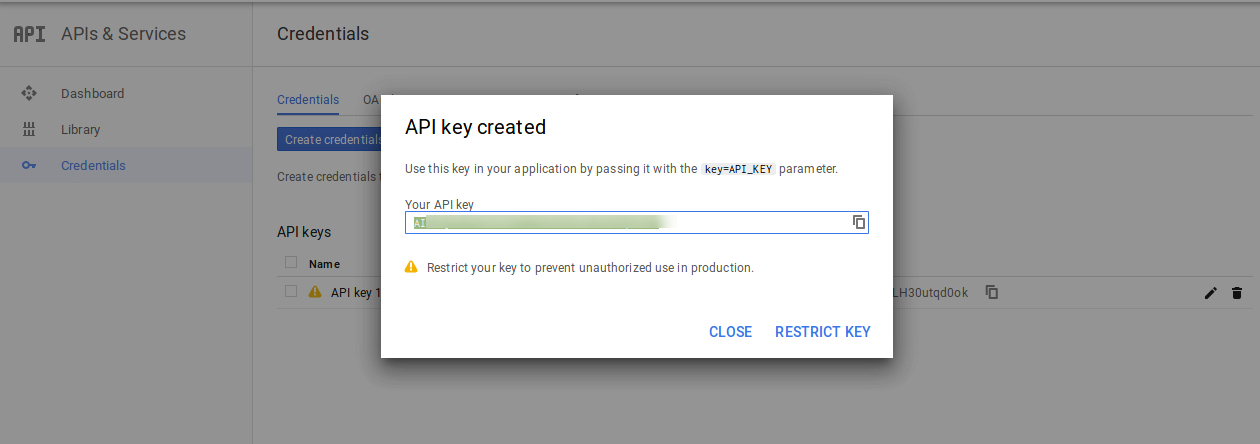
The admin can select the restrict key option from the dialog box to set a browser restriction on the API key.

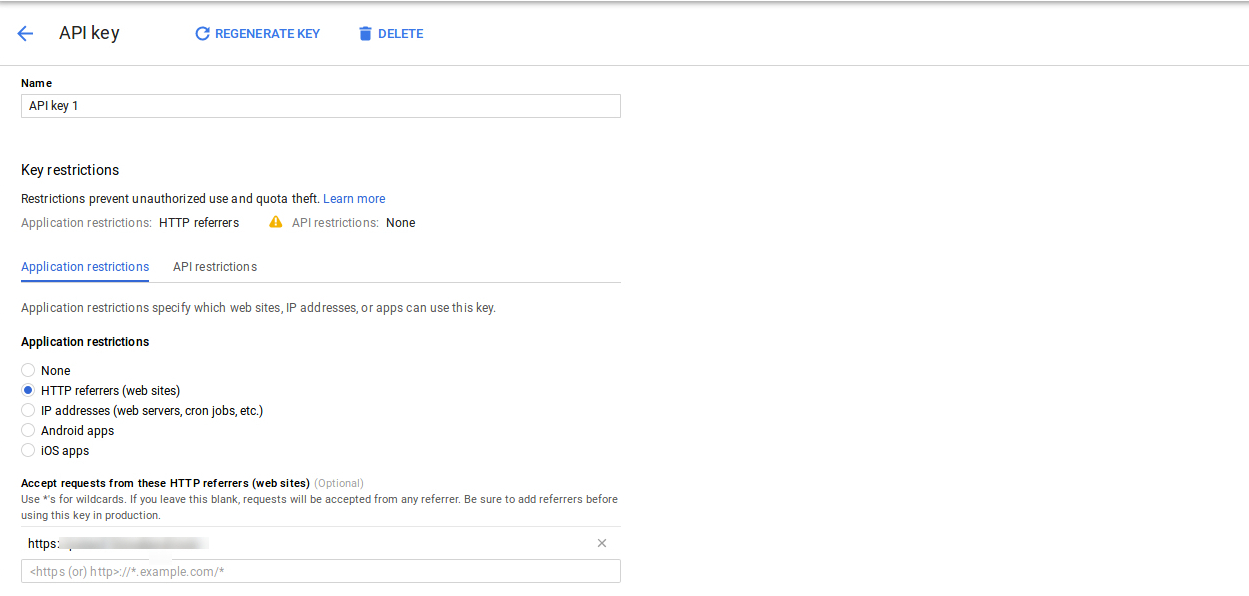
In the Key restriction section, the store admin can select HTTP referrers (web sites), then follow the on-screen instructions to set referrers.


This way the admin can set the Google map API key.

3.2 Manage Stores

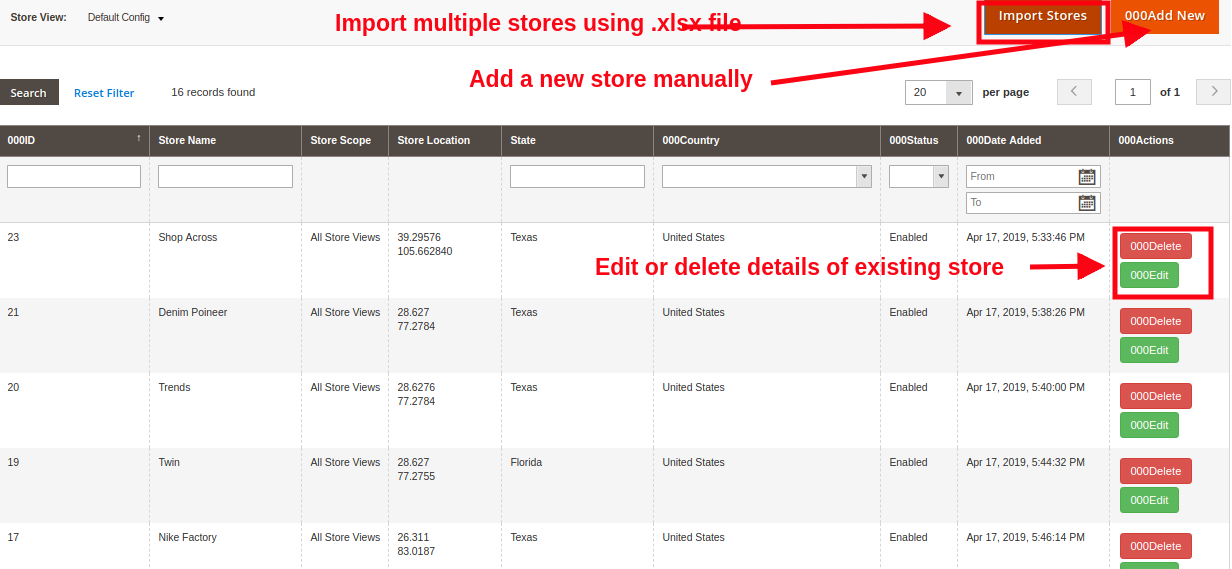
The owner of eCommerce stores can add new physical stores for their brand under this admin section. They can configure the details of the existing stores or can delete them directly from this place. This way, the Prestashop Store locator addon allows the admin to add, delete and edit the store related details.

Also, this admin interface gives you a complete view of the list of existing offline stores.

The store admin can easily add a store from the admin panel. After clicking on the “add new store” button, a screen will be shown like below:

New physical stores can be added in two ways:
1. Adding stores manually
2. Importing stores using .xlsx file

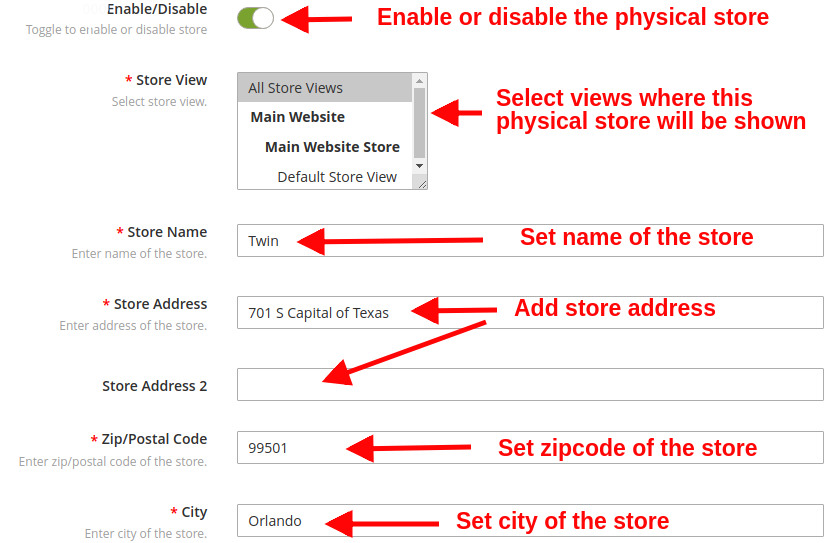
1) Adding Stores Manually

  • Enable/disable: This option shows or hides the particular physical store.
  • Store View: This option lets you select all store views for which this physical store is visible.
  • Store Name: You can set the name of your store using this option.
  • Store Address: You can set the address of the store.
  • Zip/Postal Code: This option lets you set the zip or postal code for the store.
  • City: This option lets you set the city of the store.

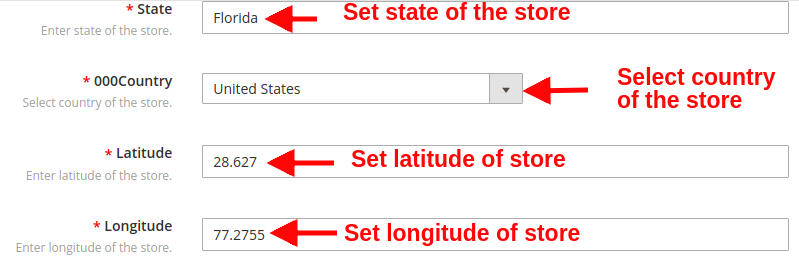
  • State: This option will set the state of the store.
  • Country: This option sets the country of the store.
  • Latitude: This option sets the latitude value of the store.
  • Longitude: This option sets the longitude value of the store.

  • Google Map Location: This option allows you to point the address of the store on Google Map using locator icon.

  • Website: This option sets the link to the official website of the store.
  • Contact Number: This option sets the contact number of the store.
  • Fax: You can set the fax detail of the physical store.
  • Email: This option allows you to set the contact email address of the store.
  • Store Image: Using this option, you can upload a desired image for the store.

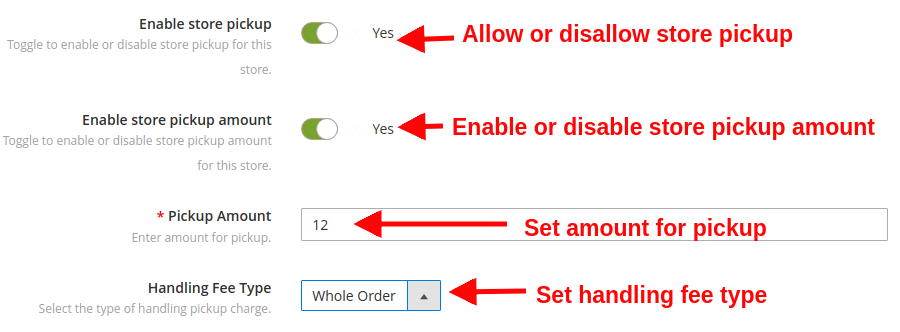
  • Enable Store Pickup: This option will enable or disable the store pickup functionality. This can be used when the product stock runs out.
  • Enable Store Pickup Amount: This option lets you enable or disable the store pickup amount if applicable as per the business needs.
  • Pickup Amount: This option lets you set the pickup amount for the order by the customer.
  • Handling Fee Type: With this option, you can select the type of handling pickup charge. Three options are offered under this category: per product, per quantity and whole order.

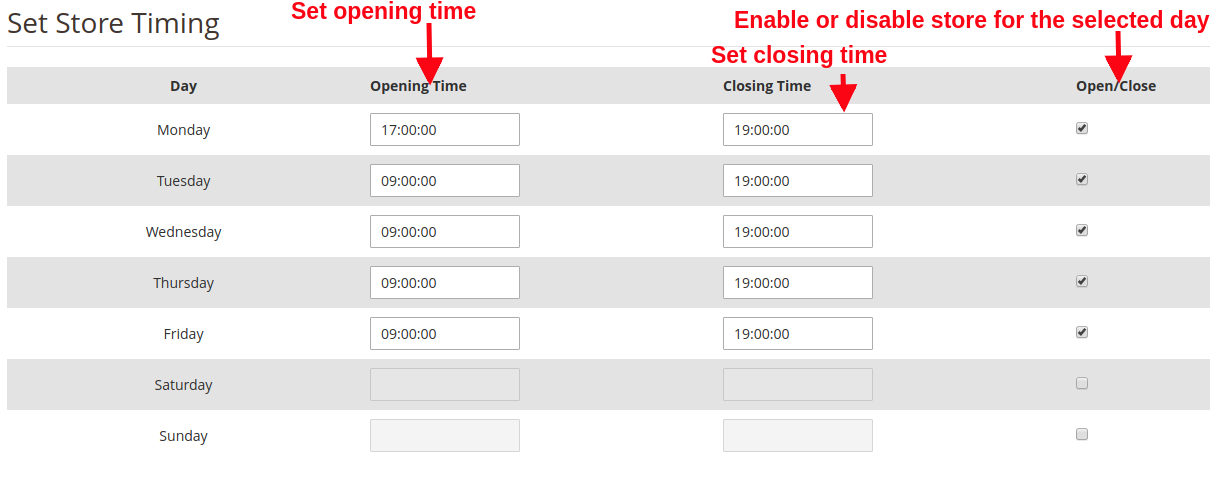
  • Store Timing: With this option, you can select the opening and closing time for the store on all days within a week. To keep the store pickup off for a particular day, you can simply un-tick the Open/Close check box.

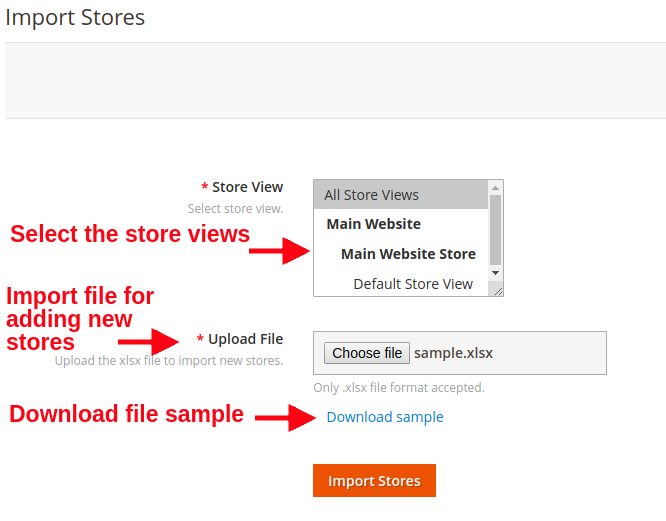
2) Importing Stores Using .xlsx File

  • Store Views: Select the store views where the imported stores will be visible.
  • Upload File: Using this option, you can upload the .xlsx file in order to import new physical stores.
  • Download File Sample: Download a sample file to check the way of listing store information in a .xlsx file format.

4.0 Front Interface of Magento 2 Google Maps Store Locator plugin

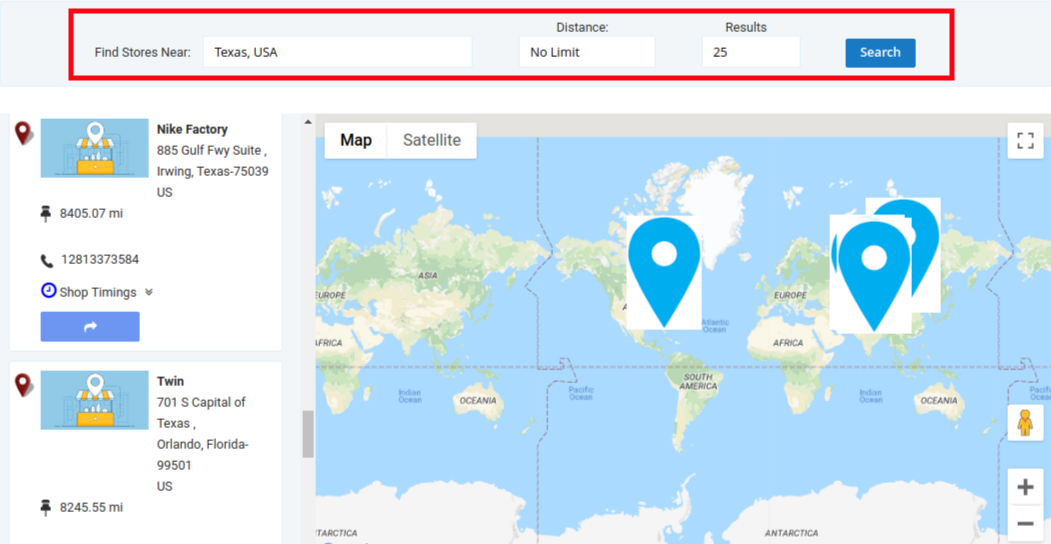
A) In the front, the customers can find the nearby stores directly from the Homepage.

They can locate the nearest store by entering a landmark address that is conveniently reachable from their actual location. For the provided address/city/state, a list of store recommendations is shown to the customer. Customers can view the details for any of these physical shops and can pick up their products.

Moreover, they can check the contact details, name, distance and opening timings for the shop. Hence, this way the customers get their product faster, conveniently and without paying extra shipping charges.

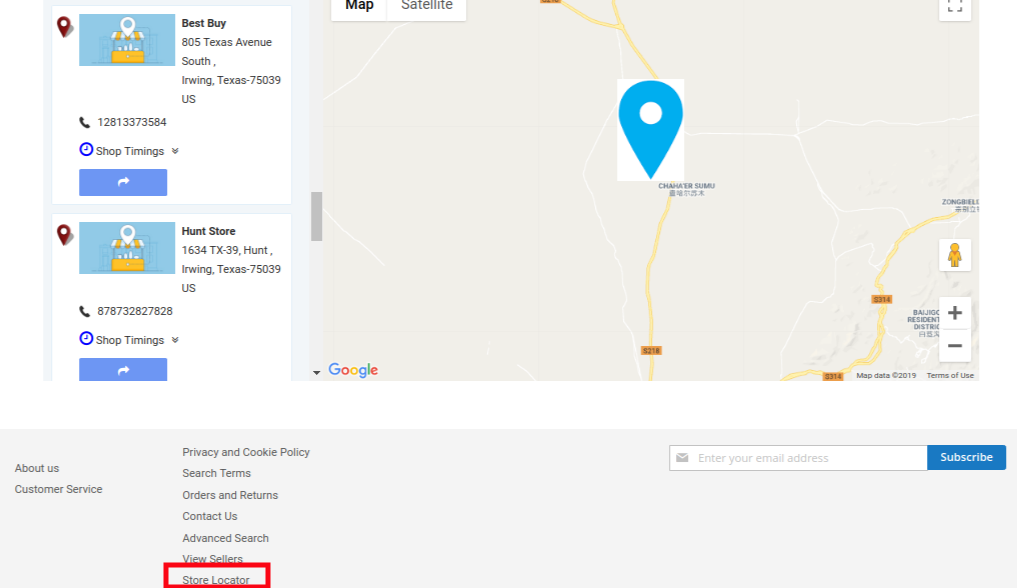
B) Store Location link in the footer section

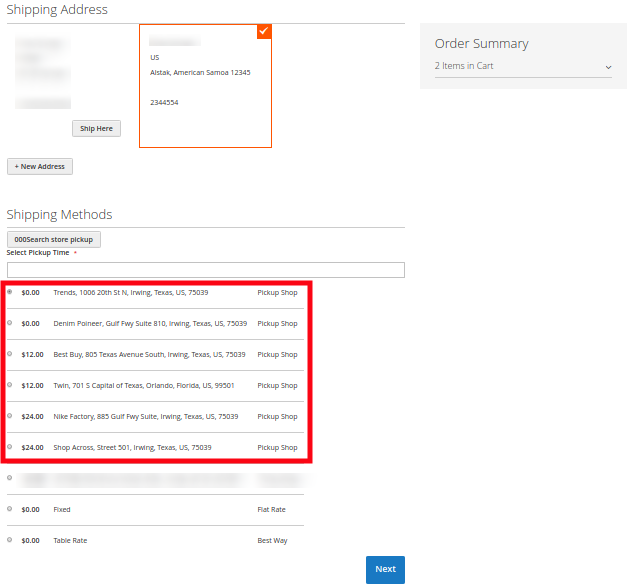
C) Store Location options on the Checkout page
Here, the customer can select the pickup option for their product. Note that other shipping methods are also available here.


The customers can view the store on the front-end like this:

The customers can place their pickup orders easily by selecting the date and time as desired.

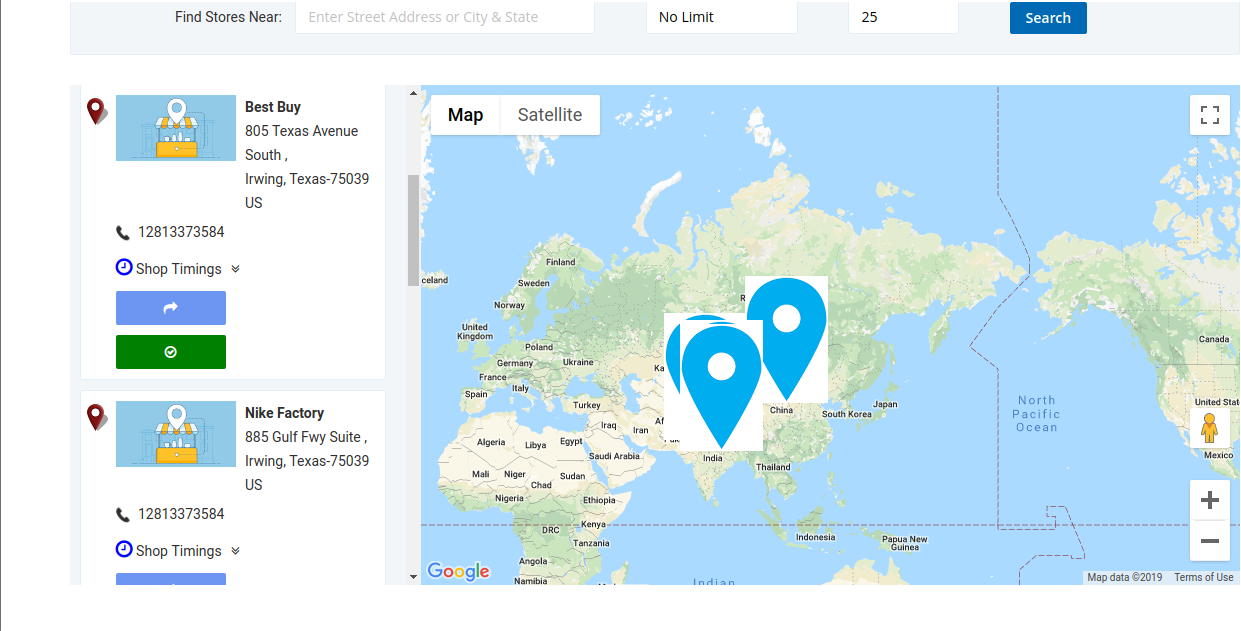
Note that the option of “Search Store Pickup” is also provided. Customers can click this option when they want to see the complete details for the listed stores. On clicking the button, a popup will be shown in the image below.

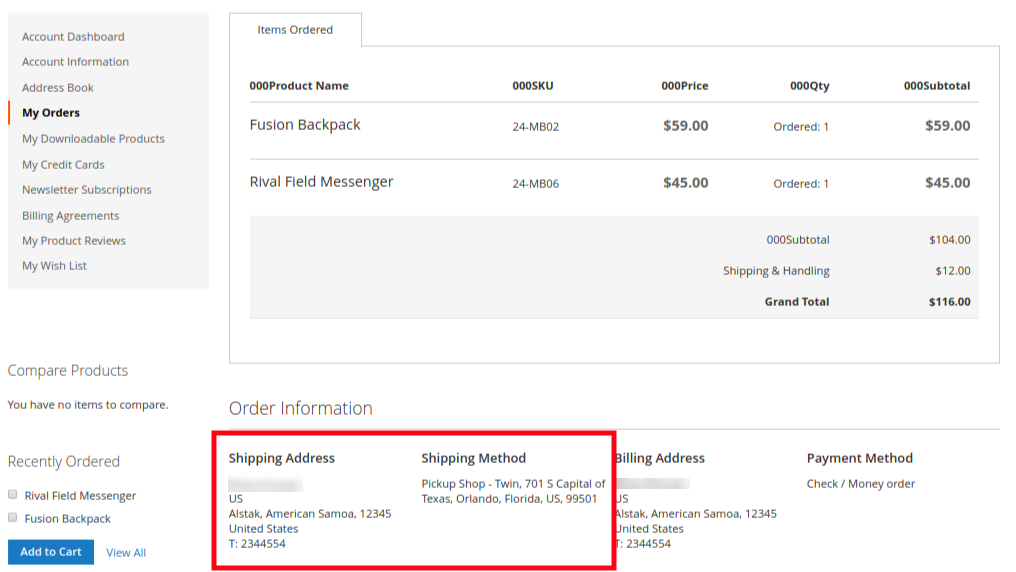
D) Pickup details after successful order completion


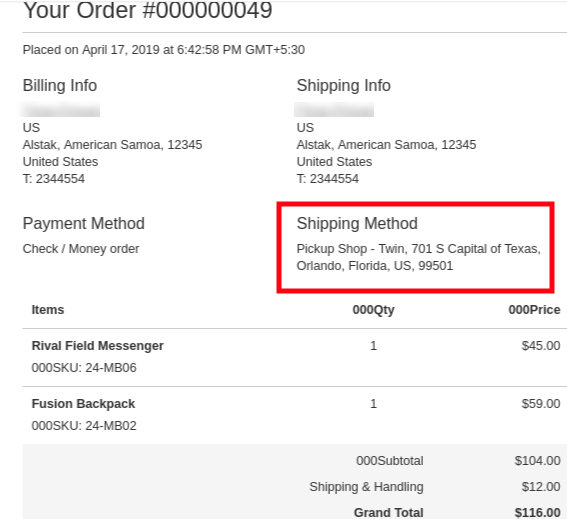
E) After placing an order, customer will receive an email confirming the order pickup details.


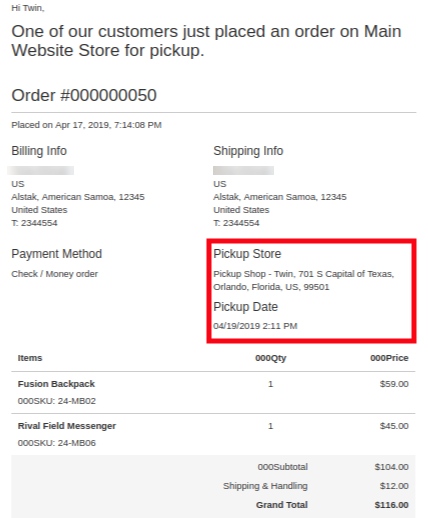
F) The owner of the physical shop also receives an email confirming the pickup order placed by the customer.

This way, the online store merchant can show multiple physical stores on the website using Google Maps and allow the online users to pick up the order from the store itself. The Magento 2 store locator and pickup module is highly customizable and allows showing multiple stores without any restriction. The e-merchant can show a store pickup option on the checkout page. The online users can select the nearest store and pick up their orders as per their preferences. They don’t need to pay delivery charges for the ordered product. The Magento 2 Store locator extension offers easy store management, admin can show store name, address, working days, contact information and store image easily for a better understanding of the customers. By offering the store locators and pickup facilities, admin can get more orders.

For more details about this Magento 2 store locator and pickup extension, please visit:

Magento 2 store locator and pickup module link

Magento 2 store locator and pickup module Admin Demo

Magento 2 Store locator module Front-end Demo

12 Ways to Reduce Shopping Cart Abandonment

“This write-up talks about Cart Abandonment and covers sub-topics such as cart abandonment reasons, cart abandonment stats, and it also provides you with cart abandonment solutions that will help you reduce shopping cart abandonment on your website.”

Abandoned Carts are a headache for website owners. It is painful to see shoppers adding items into the cart, but then deciding to give up the purchase on the checkout page. Though it is not in our hands to control abandoned carts, however, there are certain ways to reduce shopping cart abandonment.

What is Cart Abandonment?

When a user adds an item to his/her shopping cart but leaves in between without completing the purchase, it is known as Shopping Cart Abandonment.

Cart Abandonment Reasons

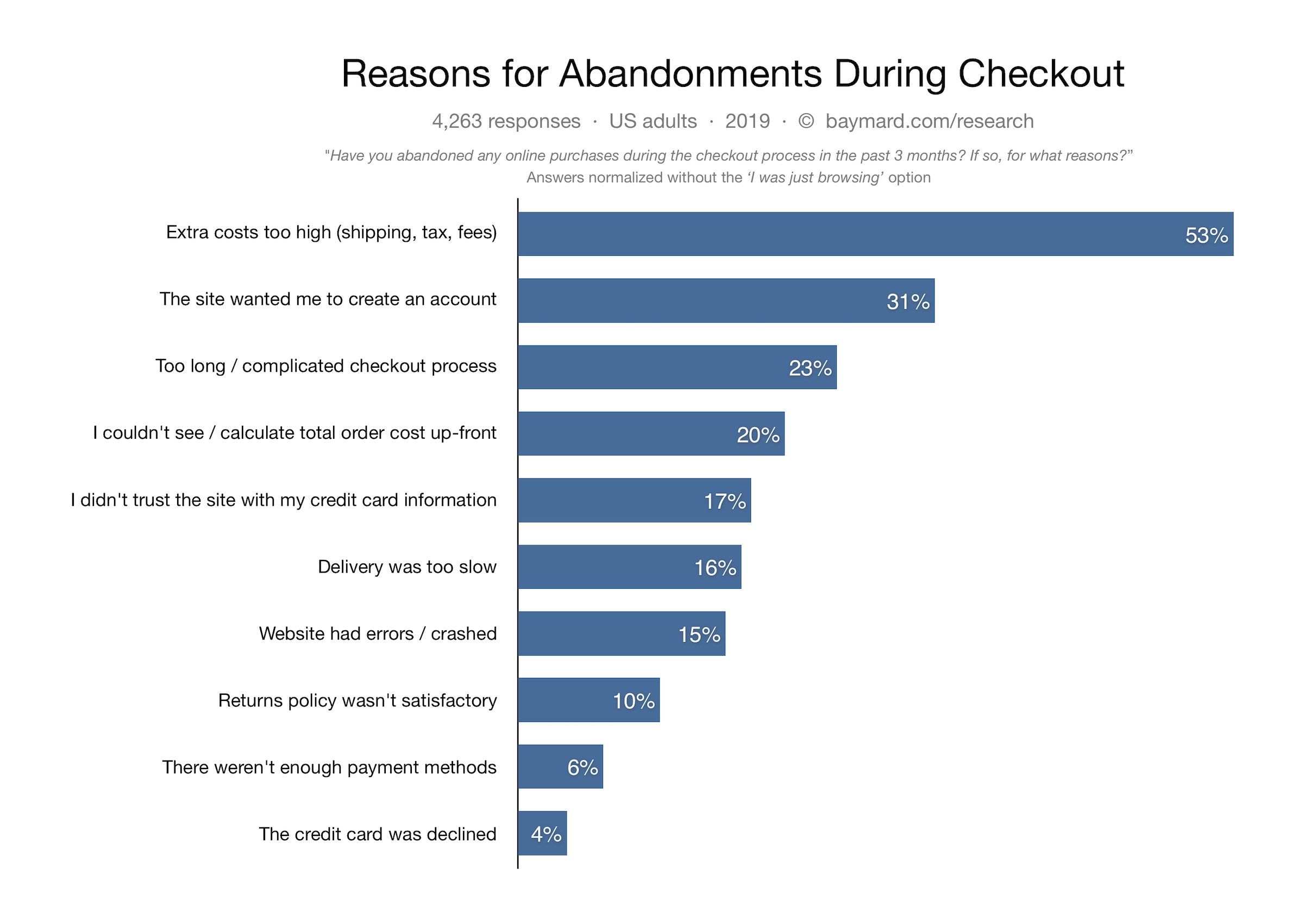
Below are some of the primary reasons for cart abandonment as per Baymard Institute.

High Shipping Cost

Mandatory Sign-up

Lengthy and Complicated Checkout

Internal Website errors

Security Issues

Late Delivery

Unsatisfactory Return Policy

Not enough payment options

Image Source: Baymard Institute

Cart Abandonment Statistics

Baymard Institute collected the cart abandonment stats of various eCommerce websites and found the average cart abandonment rate to be nearly 70%, i.e. every 7 out of 10 shoppers abandon their cart for some reason.

Statista also confirms the same. And as per the stats shared by Barilliance, abandoned carts are majorly seen in mobile devices.

How to Reduce Shopping Cart Abandonment?

How irking it would be to see hundreds or thousands of visitors on the checkout page but leaving without buying anything. Being a website owner, it feels bad to lose out on those prospects.

But hey! It happens with every online business and like everyone, you should also look for some ways to minimize abandoned carts. After knowing the reasons behind shopping cart abandonment, let’s check out how you can reduce the cart abandonment rate on your eCommerce website.

1. Provide a Clear Vision of the Overall  Cost

People usually do not expect the cart value to exceed very higher on the payment page. But sometimes, the additional charges like shipping cost, delivery charges, tax charges, hidden costs and surcharges create a huge difference between the product value and the cart value. Make sure to avoid this.

Be transparent about the overall costs. Display it upfront at the time of purchase. By doing so, at least you do not surprise your customers later and are giving them a clear idea of the total price beforehand.

Or you can simply offer free shipping. This is one of the best ways to reduce shopping cart abandonment. To adjust the shipping cost, you can slightly increase the product price.

Related: Free Shipping Strategies: Why to Offer? How to Offer? When to Offer?

2. Build Trust through Security Badges

Another solution for reducing cart abandonment is displaying security badges.

Online shoppers are highly concerned about sharing their card details. With online frauds rising rapidly in the Internet world, it is not easy for consumers to put their trust into an online business, especially if it is the one with whom they are interacting for the first time.

Consumers have a fear of losing their hard-earned money. Hence, it is important to make customers feel secure about their payment-related stuff.

What is the solution?

Add security logos to your checkout page. Something like Norton Secured, McAffe secure can boost the confidence inside customers and reduce the cart abandonment possibility. Besides, consider making your website SSL certified if it isn’t. By adding an SSL certificate to your domain, your site looks authoritative.

3. Take help of Exit Pop-ups

Exit pop-ups are probably one of the best ways to recover abandoned carts. What’s exciting about them is that they provide you with an opportunity to convert a visitor into customer right when they are about to leave your website.
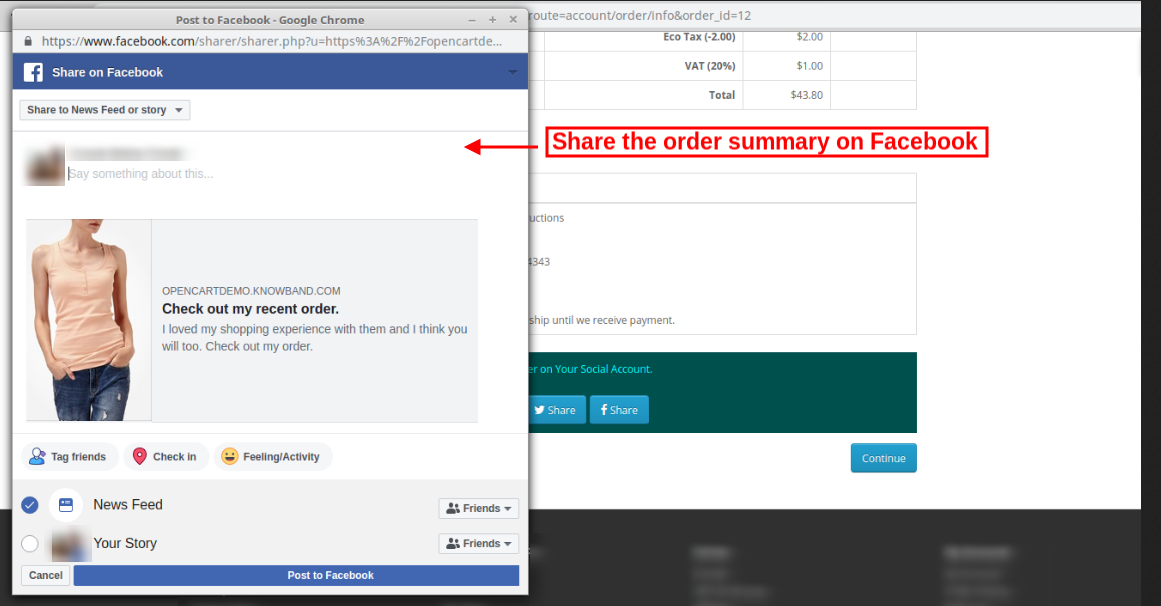
Through exit popups, you can draw visitors’ attention towards your offerings at the very last moment and encourage them to use it on their purchase. The appearance of an exit popup when the user is trying to exit, leaving the cart abandoned, can bring a significant change in your cart abandonment rate.
This last-minute try can boost your conversions if your offers are convincing. Want to implement the exit popup functionality on your website? Try out the Exit Intent Popup by Knowband which is available for various eCommerce platforms-

PrestaShop Exit Popup

OpenCart Exit Popup

Magento Exit Popup

Magento 2 Exit Popup

4. Add Guest Checkout and Social Login

Forcing customers to create an account at the checkout page is one of the major reasons for cart abandonment. I seriously do not understand the point of adding this hurdle in between a successful checkout.

I do understand that you want to acquire the customer data but asking for it by breaking the checkout flow is not the ideal way.

So what should you do?

Offer a Guest Checkout as well as Social login. By having these two options on your checkout page, not only you will reduce the cart abandonment rate but also enhance the user experience.

Let users check out as a guest if they are not comfortable signing up. Social login, on the other hand, encourages quick signup.

Related: 10 Benefits of Social Login in eCommerce

5. Simple and User-Friendly Checkout

A lengthy and complicated checkout is one of the primary reasons for shopping cart abandonment. When a shopper is on the checkout page, he wants to check out as quickly as possible. The longer you make your customers wait, higher will be the chances of cart abandonment.

Keep the checkout form short, simple and clean. Avoid filling it with unnecessary elements. Ask for the necessary information only. To make the checkout experience of your visitors smoother, you can go for a One Page Checkout. A one page checkout places all the checkout fields on a single page and lets customers checkout comfortably. Try out Knowband’s One Page Checkout-

PrestaShop One Page Checkout

OpenCart One Page Checkout

Magento One Page Checkout

Magento 2 One Page Checkout

Related: One Page Checkout vs Multi-Page Checkout

6. Display Checkout Progress

It can be frustrating for consumers to be at the checkout page but with no endpoint in sight. They keep filling the information and keep moving to the next pages only to find out that it is a very long and time-consuming process. This eventually leads to customers abandoning their cart.

Use a progress bar to indicate where the visitor is present. A progress bar displays the overall steps a customer needs to go through to complete their checkout and fills as soon as they move further.

It’s better to tell your customers beforehand what all will be required to enter before they could take an exit.

7. Provide Easy Navigation

Make it easy for the visitors to navigate around your website. Do not clutter it with clunky designs. The smoother the journey of your visitors, lesser will be the abandoned carts.

It is still seen in many eCommerce websites that when a user clicks on the back button after filling out a particular page, the entire information is removed and customers are asked to fill their details again. This is annoying for the users.

Make sure that the buck button is fully functional and does not erase the already entered information.

8. Chase Abandoned Carts

Shoppers abandoned their cart? No issues. Go after them. You might not be able to convert all but at least a few of them will surely convert. And if the cart abandonment rate drops by even a small percentage, it can add a significant amount to your revenue.
Knowband’s Abandoned Cart Module

Check out the Abandoned Cart module by Knowband. This lets you track your abandoned cart users and helps you recover lost sales. Through this module, you can specify a duration after which the cart is automatically assumed as abandoned, and then you can remind those users through follow-up emails. You can add a coupon code inside your emails and there are a lot more functionalities in this module. Check out

PrestaShop Abandoned Cart

OpenCart Abandoned Cart

Magento Abandoned Cart

Magento 2 Abandoned Cart

9. Increase Payment Options

You just cannot disappoint your customers with the lack of payment options on the checkout page. And it will be heartbreaking to see a customer abandoning the cart because of the unavailability of the desired payment option or not having enough payment options.

People have switched to digital wallets, also called as e-wallets. Thus, having only limited payment options like Credit Card and Debit Card would not be enough. The more options you provide to your customers, the more comfortable they would be while making the payment.

10. Make your Website Mobile-Friendly

M-commerce has already surpassed eCommerce. A majority of people are now using their mobile devices to shop online. This makes it necessary to have a mobile-friendly version of your website. If your website looks appealing on the desktop, make sure it looks the same and is responsive on handheld devices as well. Failing to do so can result in a higher bounce rate and higher cart abandonment rate. Optimize your website.

11. Improve the loading speed of your Web Pages

If your web pages, specifically the checkout pages, are taking a lot of time to load, it isn’t a great sign for conversions, it could severely affect your sales. The slow loading in a website frustrates the customers and he/she ultimately ends up in leaving the cart abandoned.

So, optimize your checkout page and improve its quality and speed. For faster loading of web pages on mobile devices, you could take the help of Google Accelerated Mobile Pages or simply AMP. Knowband provides AMP module for PrestaShop and OpenCart.

PrestaShop AMP addon

OpenCart AMP extension

Related: Benefits of Google AMP for eCommerce

12. Have a clear Return Policy

Many a time, shoppers abandon their cart because they are not satisfied with the business’ return policy. There is a desire to purchase but due to an unsatisfactory return policy, shoppers decide not to go for the purchase.

Have a good and clear return policy. Provide them sufficient days to return the product if it has got some defects. Users will be more confident while making a purchase.

Related: 6 Pieces of Advice for an Effective eCommerce Return Policy

Final Word

That’s it. The above-mentioned tips will surely help you reduce cart abandonment rate on your website. Over time, you may find some new tactics as well.

If you want to add something that you feel is missing from this article, do drop a comment below. For any kind of assistance in the modules, contact us at support@knowband.com

What’s your take on reducing cart abandonment?

Prestashop Product Designer/Customizer Addon – User Manual

1.0 Introduction

Being a store owner you have always thought of multiplying your store conversions but not about the shopping experience of your customers. A happy and satisfied customer is the one who returns back to the store in search of some more items. So if you want returning customers on your store, make the customer experience lasts forever by integrating Prestashop Product Designer/Customizer addon at your eCommerce store.

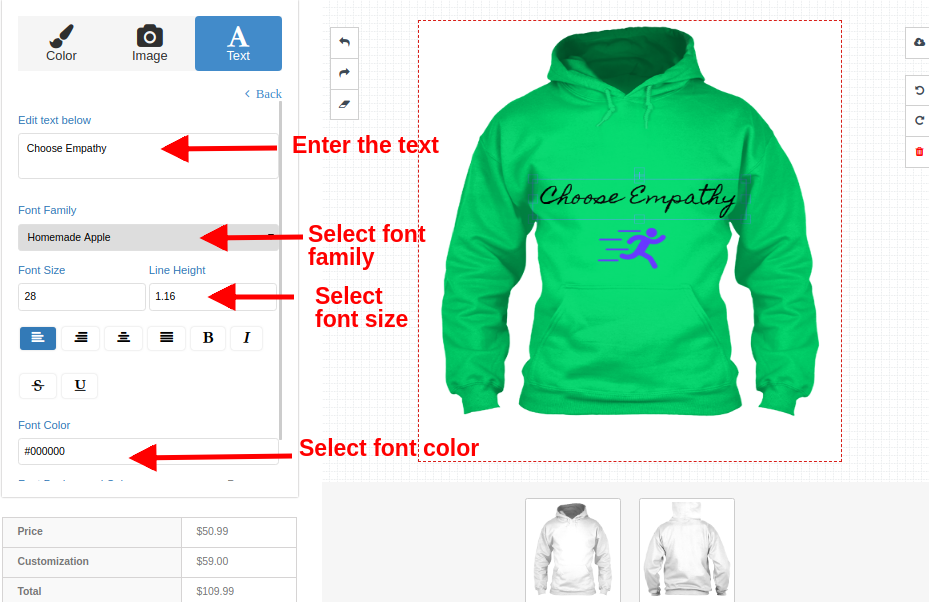
With the help of Prestashop Custom Product Design module, store merchants can offer intuitive and creative online product customization options to their customers so that they can turn the basic version of the product into a modern, elegant and unique design. Prestashop product customization addon allows admin to show the product customization panel page as the user clicks over the Customize button on the product page. Customers can easily add rich colored texts with effects, upload their images with filters, add a QR code to make it suitable for their needs.

1.1 Striking Features of Prestashop Product Customization Addon

No coding technicalities are required to configure or modify the settings of the Prestashop Custom Product Design module. Everything comes easy with this module. Lets quickly check different features offered by this Prestashop addon.

  • Prestashop Product Designer/Customizer addon helps to offer a wide range of customizable products at your online shop.
    Using Prestashop custom product designer addon, customers can easily buy and take the benefits of the extended online products which can be personalized as per their needs.
  • Online Product Designer adds a designer view for products so that the potential buyers get an opportunity to customize the product in real time. Product configurator module lets Prestashop admin add a different set of customization options for each different product on the shop.
  • With the integration of Prestashop product designer module, customers can access the product customization panel with any product they wish to purchase like T-shirts, mug, rings or any other kind of product that can be personalized as per their needs.
  • Prestashop product customization addon shows a Customize button for every customizable product on the store. Admin can enable customization options for desired products only.
  • The complete functionality of Prestashop Product Designer/Customizer addon can be enabled or disabled. When this module is disabled, the standard product customization options are shown on the product page.
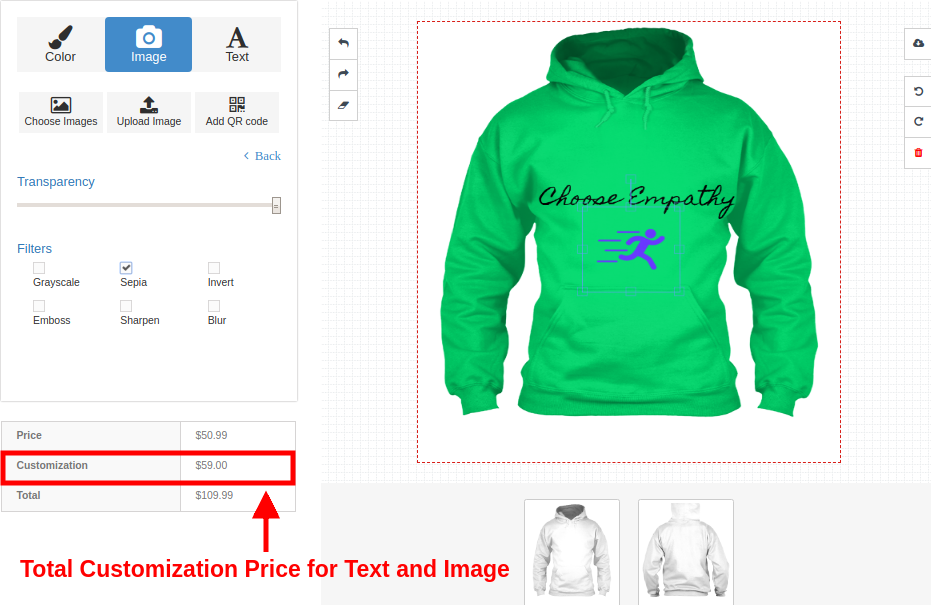
  • Advanced product customizer module shows the real-time customization price calculation on the product page.
  • With Prestashop custom product designer addon, admin can set the product design sides which are available to the user.
  • Product configurator module allows admin to enable or disable PDF file download options for the customers on the frontend.
  • Prestashop Extended Product Customization module gives an option to add pre-defined images for a product. The pre-defined images are usually defined into groups. Customers can upload and set any picture of their own.
  • Customer can flexibly use desired fonts, colors, and filters for the product using this Prestashop product designer module.
  • This Advanced product customizer module lets admin define prices for different customization options.
  • Prestashop product customization module also gives an option to personalize the product using QR code for which admin can define a separate price.
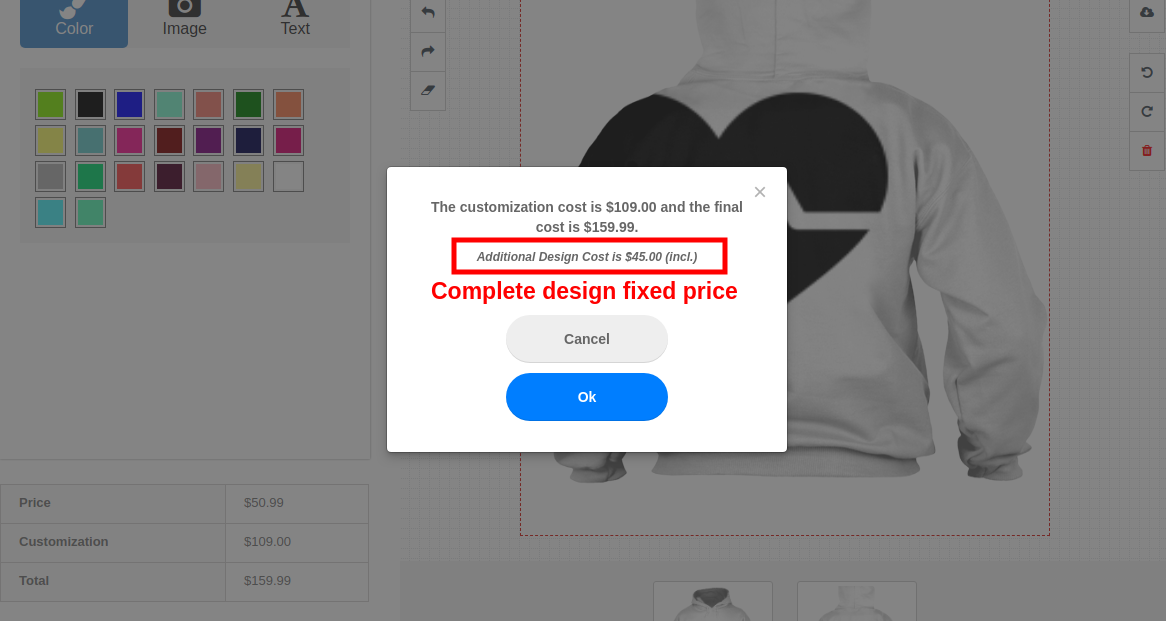
  • Prestashop custom product designer addon automatically adds a Complete Design Fixed Price to the final customized price for a product.
  • Prestashop Product Designer/Customizer addon supports multi-store and multi-lingual compatibility.
  • Prestashop custom product designer addon is mobile responsive and compatible with various Prestashop themes.

1.2 Technology for Development

  • Language: PHP
  • Frame Work: Prestashop

2.0 Installation Guide for Advanced Product Customizer module

The store admin can follow these simple steps for installing the Prestashop product customization addon on their eCommerce store:

1. Firstly, download the addon package from the Knowband store.
2. You will get a zipped file containing the source code and user manual. Unzip the complete package in the root directory of your Prestashop store through FTP manager (like Filezilla or WinSCP – download here: https://filezilla-project.org/). You’ll find the files and folders as shown in the image below:

The Prestashop custom product designer addon is now installed and ready for use. Now the admin can configure the various configuration settings in accordance with their Prestashop site.

3.0 Admin Interface of Prestashop Advanced Product Customizer module

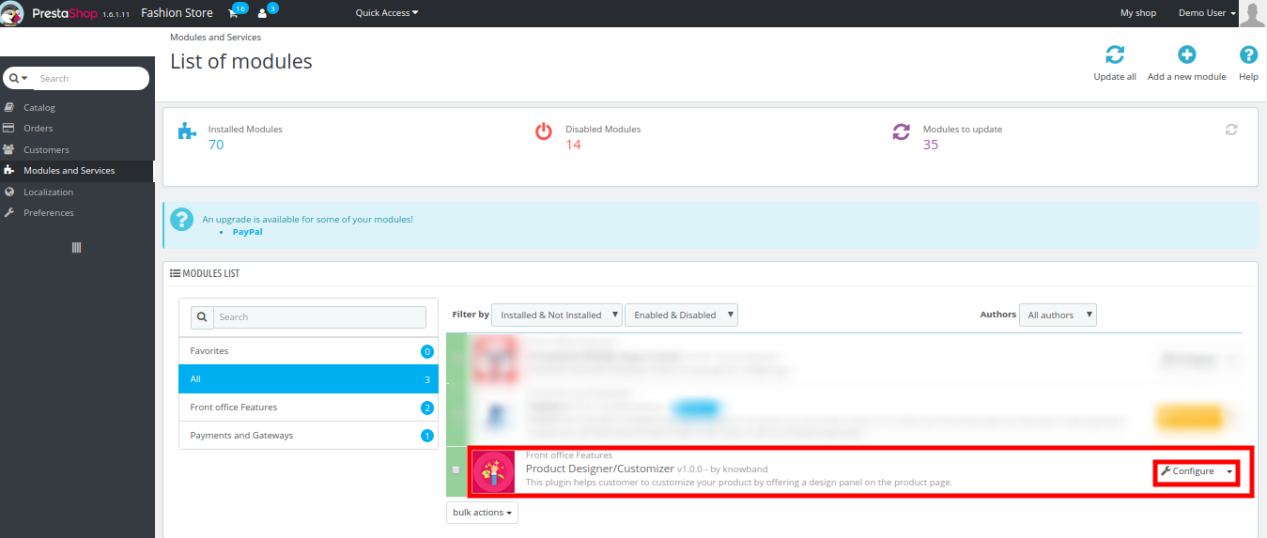
Just after successful installation of Prestashop Product Designer/Customizer addon at your website, you can configure product customization panel settings as per your needs. In the admin panel or dashboard, Click on “Modules and Services” and then on “Configure” button provided next to Knowband Product Designer/Customizer.

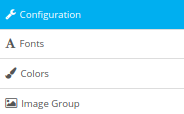
Here, in the next interface, you will find the complete settings of Product Designer/Customizer module along with its sub-sections as listed below.

This Knowband Product Customization module consists of four sub-sections which have been discussed further.
1.Configuration
2.Fonts
3.Colors
4.Image Group

Each Tab of the Prestashop Extended Product Customization module has been discussed below:

3.1 Configuration

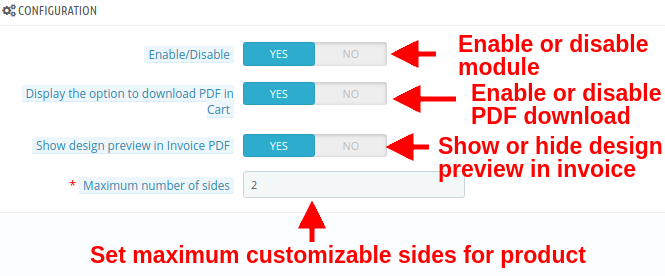
Under the configuration settings of Prestashop product customization addon, you can perform the basic settings for customization panel shown on the frontend to the customers.

  • Enable/Disable: With this option, you can completely enable or disable the functionality of Prestashop Extended Product Customization module for customers.
  • Display the option to download PDF in cart: You can enable or disable this option to download the design image in PDF on Admin Order Page.
  • Show design preview in invoice PDF: Enable or disable this option to display or hide the design preview in invoice PDF.
  • Maximum number of slides: Using this option, you can set maximum number of product sides that are allowed customization from frontend.

3.2 Fonts

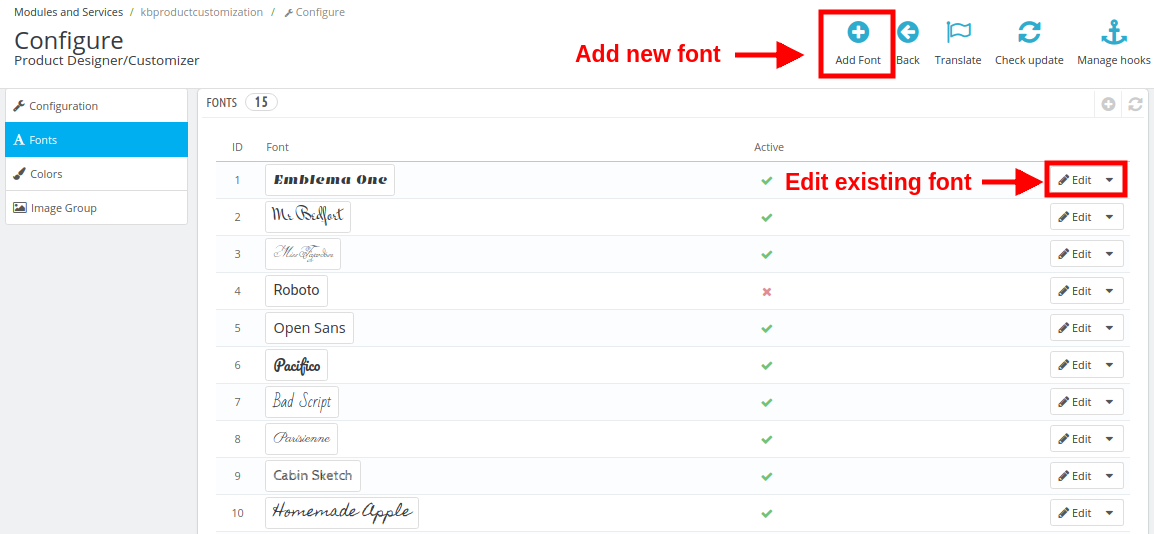
Under this section of Prestashop product designer module, store owner gets the option to add several fonts that the customer can choose to print a styled text on the product.

The first interface shown below shows you a list of existing fonts that are available on frontend. A new font can be added or the existing font can be modified or deleted.

Here you can perform the other two actions as:

1. Adding a new font

To add a new font style, perform the following steps:
Click on the Fonts tab and then on the “+” (Add Font) button at the backend panel. You will be shown the below interface.

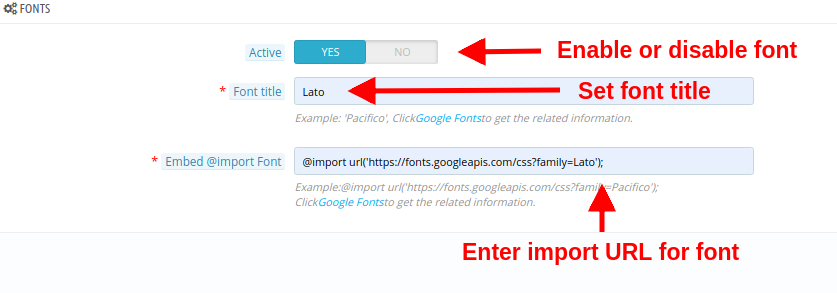
  • Active: This option will enable or disable the font.
  • Font Title: Using this option, you can set the font title same as mentioned in Google Font.
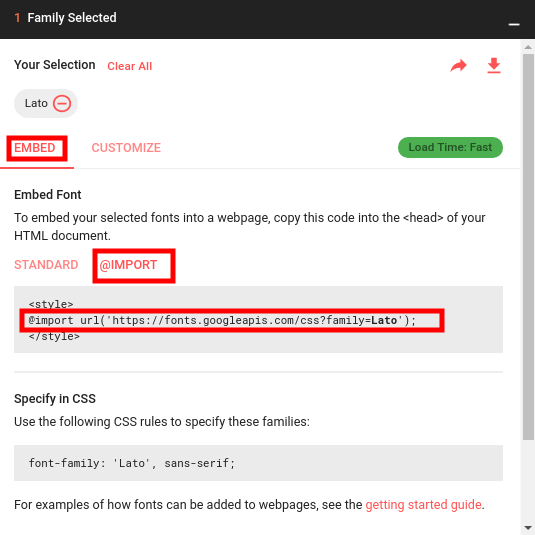
  • Embed @import Font: In order to use the Google Font, you have to embed the import Font class. For this, you have to:
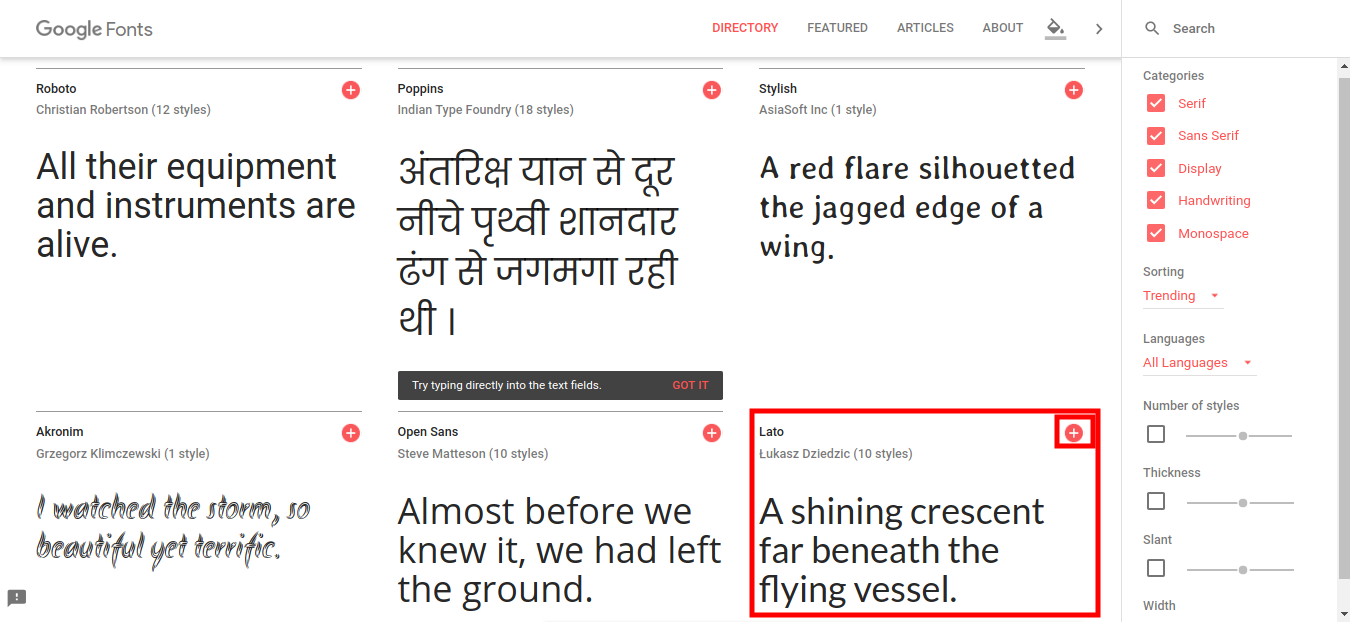
  • Click on “Google Fonts” link provided just below the option. The below screen will be shown to you.
  • Choose any desired font and click on the Add “+” button for that font style.

  • Upon adding a font, you will be shown a popup which will list you the font family you have selected. Click on Embed tab and then on @Import button.
  • Copy the @import URL for that font and paste it to the Embed @import Font field.

2. Edit an existing font

If you want to edit the existing font, simply click on Edit button given next to the font style. You will see the following options:

  • Active: Enable or disable the font style.
  • Font Style: Edit the font title using this option.
  • Embed @Import Font: Modify the import URL for that particular font.

3.3 Colors

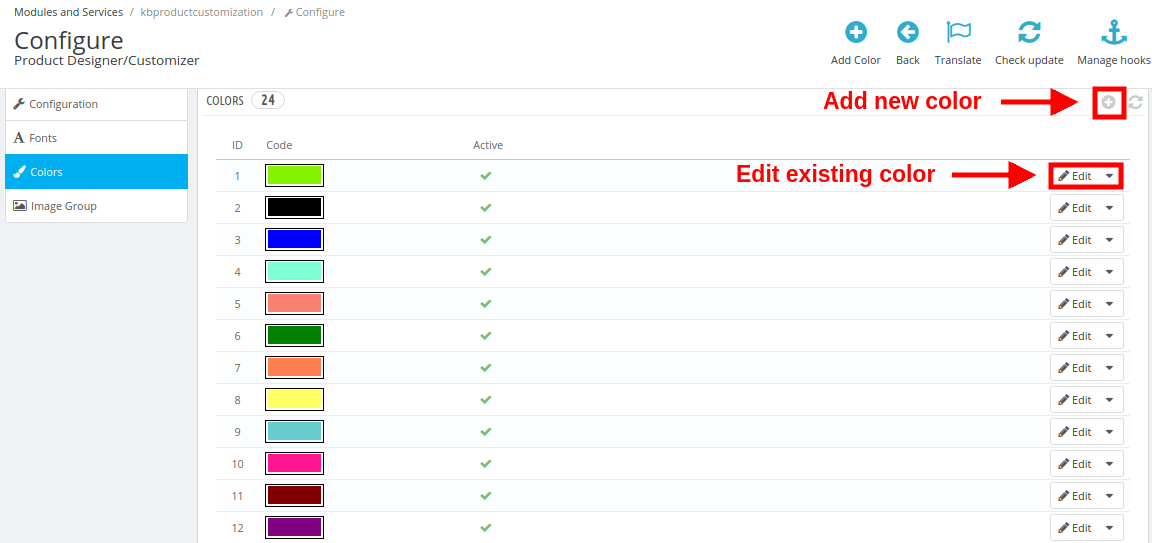
Under this section of Product configurator module, you can define your own color palette and allow your customers to pick any color for the selected product.

The following interface shows you a list of existing colors which can be edited or you can add a new color if required.

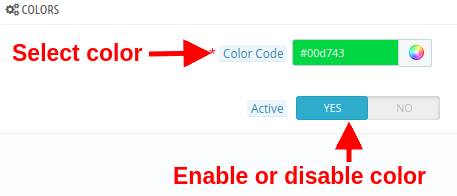
1. Adding a new color

  • Color Code: With this option, pick a desired color to be shown on product customization page.
  • Active: Enable or disable the color.

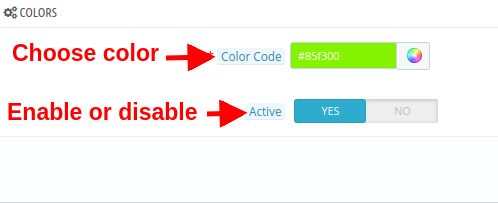
2. Edit an existing color

  • Color Code: With this option, pick a desired color to be shown on product customization page.
  • Active: Enable or disable the existing color.

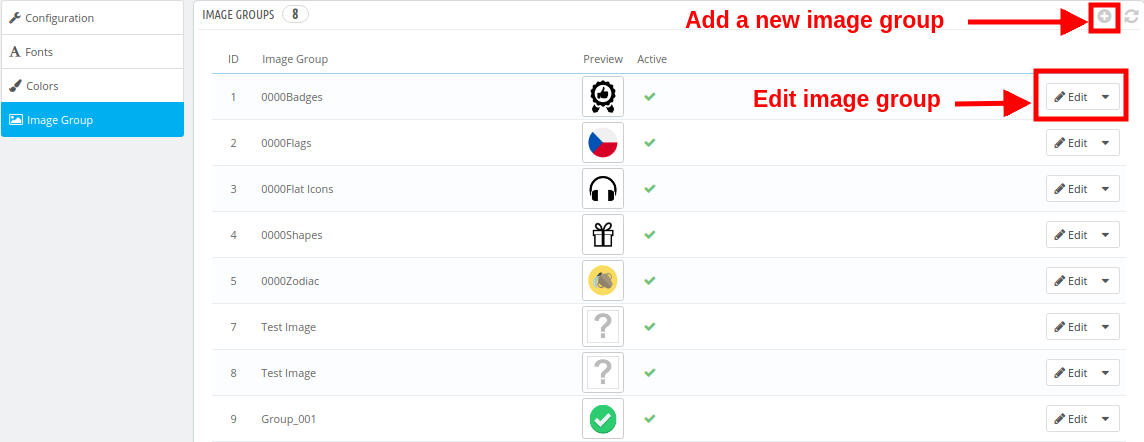
3.4 Image Groups

For a selected product, the customer can select any default images provided by the store owner or they can upload a new custom image for the product customization.
The default images have been categorized as image groups. These existing image groups can be edited or you can even add a new image group.

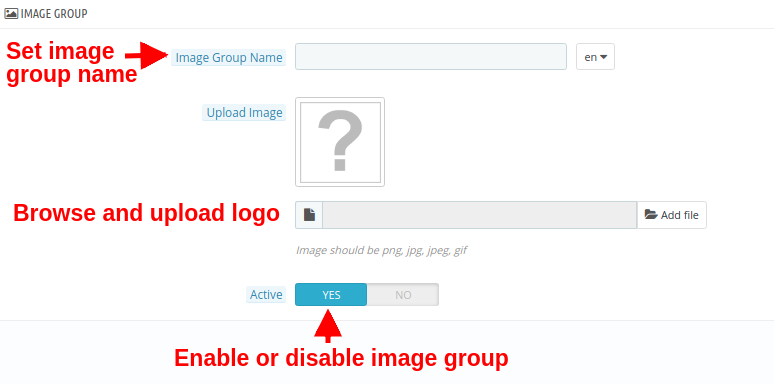
1. Adding a new image group

  • Image Group Name: You can set a desired name for the image group.
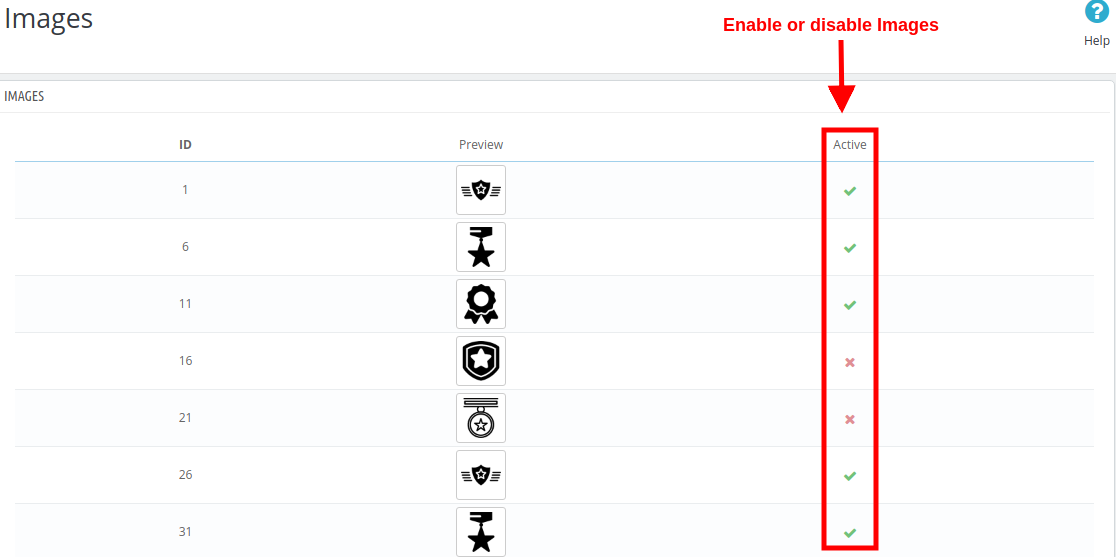
  • Upload Image: You can upload and set a image group logo image.
  • Active: This option will enable or disable the image group.

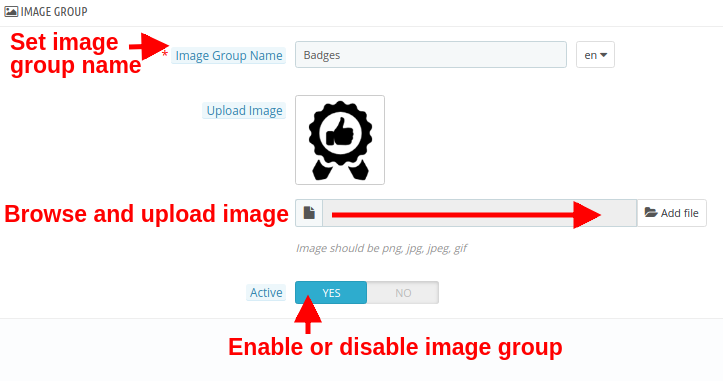
2. Edit an existing image group

  • Image Group Name: You can set a desired name for the image group.
  • Upload Image: You can upload and set a image group logo image.
  • Active: This option will enable or disable the image group.

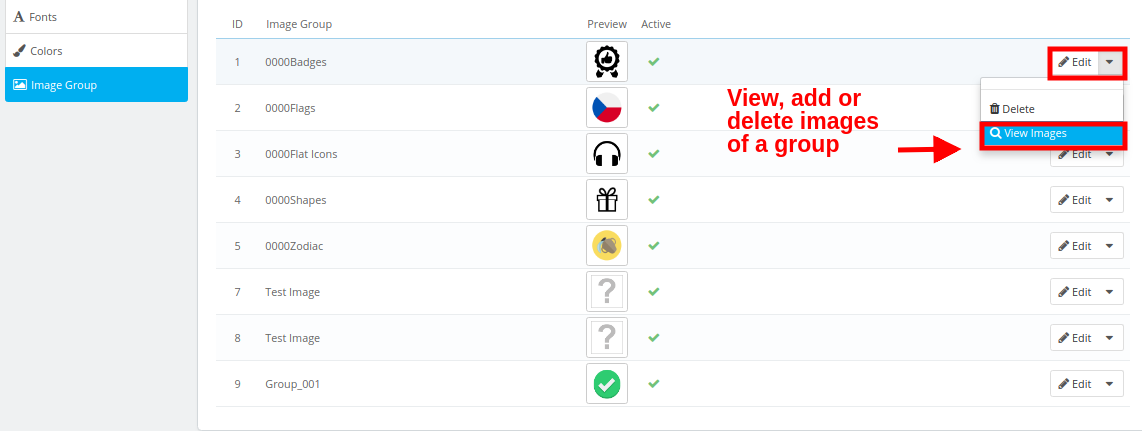
To view, add or delete the images inside any image group, click on the “View Images” option corresponding to the image group.

You will be shown the following interface.

Here, you can add a new image, delete or change the existing images within a group.

4.0 Customization Settings for Site Products

The configuration settings for fonts, colors, image groups discussed in section 3.2, 3.3. And 3.4 are applicable for all the site products. These settings can be referred to as Global settings. Other than this, the settings can be also be done on a product level. These settings are particular to the product which the admin has configured from the back-office. Below discussed are the product customization settings for individual products. The site admin can apply these settings differently for any product on the store. To configure the product customization settings for individual products, follow the listed steps:

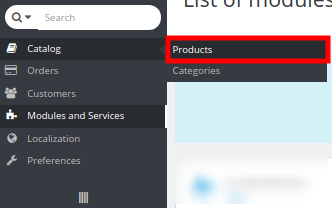
1.In the admin panel, go to “Catalog” option in the left Menu Bar of the interface.

2.Click on “Products” option under “Catalog”.

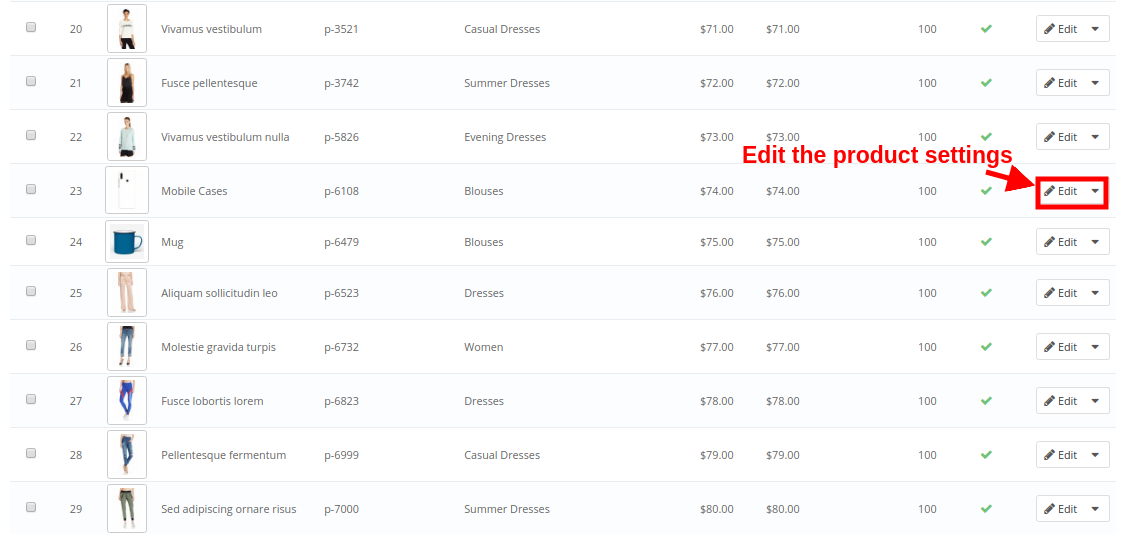
You will see a list of store products along with an option to edit or configure the product. The screen for store products has been shown below:

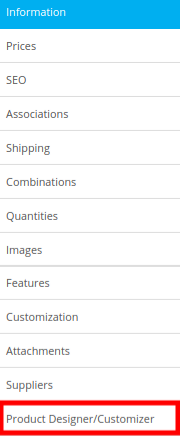
Upon clicking the “Edit” button for a product, you can will find the following configuration settings. Choose the Product Designer/Customizer tab.

Now, the complete product designer/customizer settings are divided into four groups namely:

  • Configuration
  • Prices
  • Text
  • Sides

4.1 Configuration

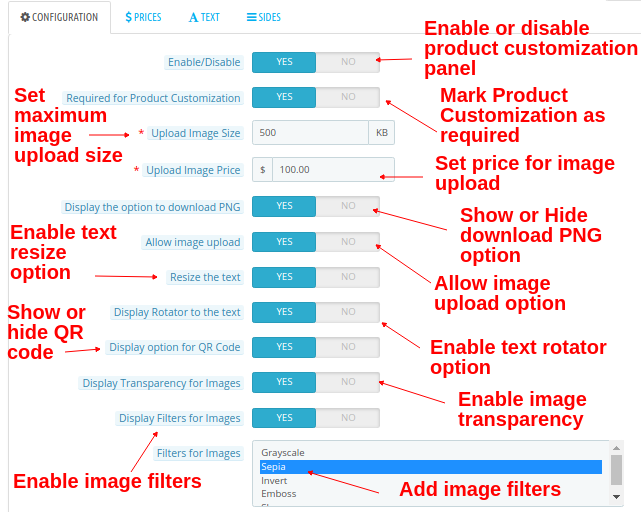
  • Enable/Disable: This option will enable or disable the product customization panel on product page at frontend.
  • Required for Product Customization: Enable this option if you want to mandate product customization for customers.
  • Upload Image Size: This option will set maximum size for image upload.
  • Upload Image Price: This option will set the price for uploading an image.
  • Display the option to download PNG: Enable or disable the option to download PNG image.
  • Allow image upload: Enable or disable image upload option on product customizer page.
  • Resize the text: Enable this option to allow text resize.
  • Display Rotator to the text: Enable this option to allow text rotation.
  • Display option for QR Code: Enable or disable his option to add QR code on product.
  • Display Transparency for Images: Enable this option to display transparency option for images.
  • Display Filters for Images: With this option, you can enable or disable image filters.
  • Filters for Images: Select multiple filters that you want to show at frontend on product customization page.

4.2 Prices

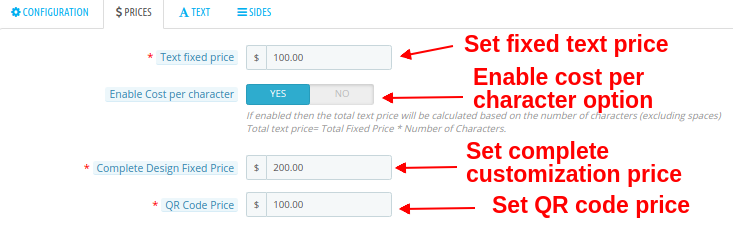
  • Text fixed price: This option allows you to set a fixed price for the text.
  • Enable Cost per character: You can enable this option if you want to charge cost per character.
  • Complete Design Fixed Price: This option allows you to set a fixed price for the complete design. This price is added to the total customization cost.
  • QR Code Price: You can set a price for QR code using this option.

4.3 Text

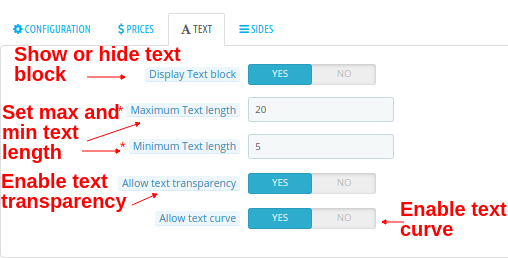
  • Display Text block: You can show or hide the text block option on product customization page.
  • Maximum Text length: Using this option, you can set a maximum length for the text.
  • Minimum Text length: Using this option, you can set a minimum length for the text.
  • Allow text transparency: You can enable or disable this option for text transparency.
  • Allow text curve: You can enable or disable this option for text curve.

4.4 Sides

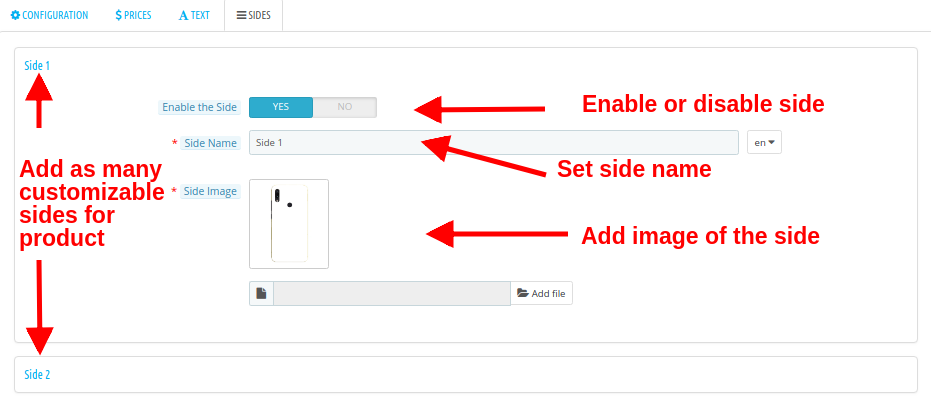
  • Enable the Side: With this option, you can enable or disable the side.
  • Side Name: This option lets you set the name for the side.
  • Side Image: This option allows you to upload an image showing the product side.
    These settings are for one side of a product. You can do the same settings for other sides of a product also.
    Note: Here, You can only configure the settings of the number of sides as mentioned in the “configuration settings” of product customizer module. For example, if you have set the “maximum no of sides” count as 2, then you can only configure the settings for side 1 and side 2.
How to Configure Fonts, Colors, and Image Groups?

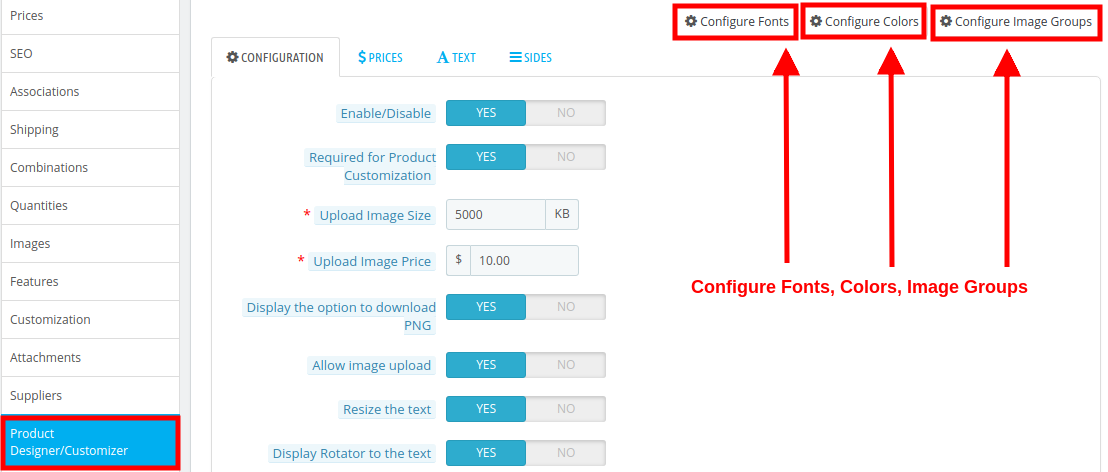
While you are changing the customization settings for a product, you will find the options to select different Fonts, Colors, Image Groups at the top right side of screen. You will find three options as:

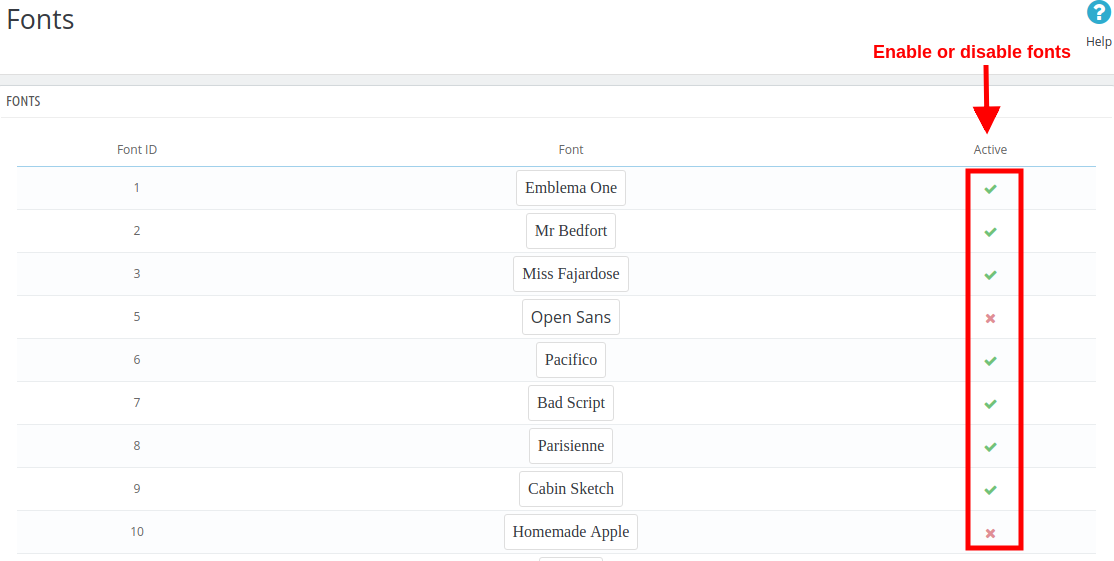
1. Configure Fonts
All the fonts that have been added in the section 3.2 are listed here in this interface. You can directly enable or disable any font.

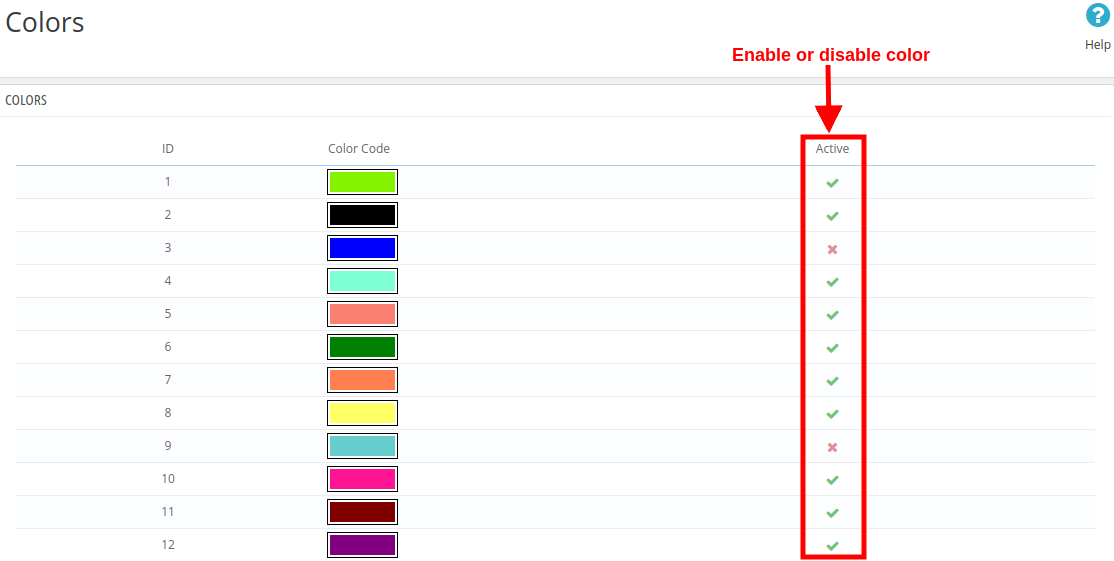
2. Configure Colors
All the colors that have been added in the section 3.3 are listed here in this interface. You can directly enable or disable any color.

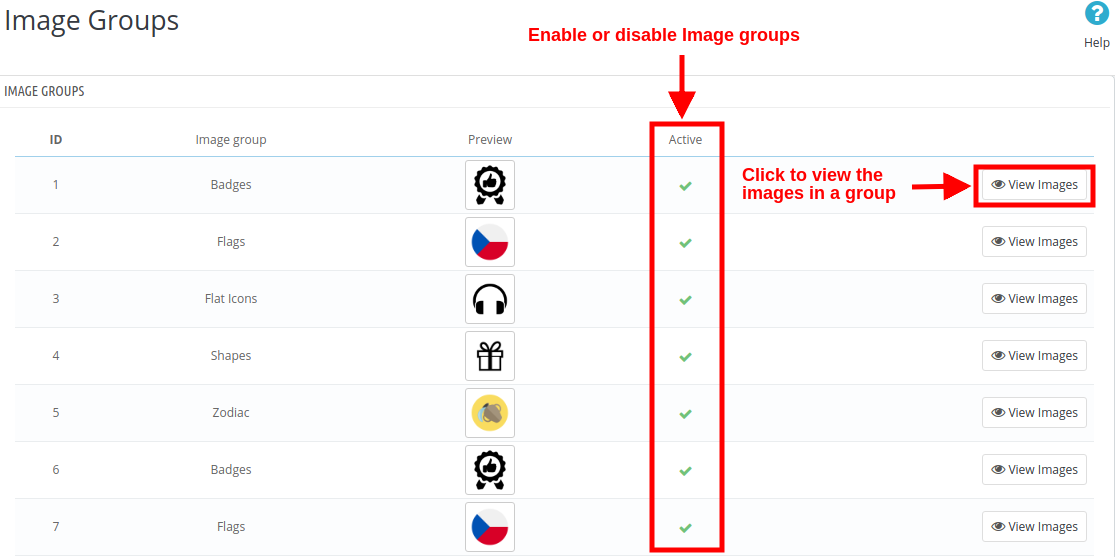
3. Configure Image Groups


All the image groups that have been added in the section 3.4 are listed here in this interface. You can directly enable or disable any image group.

On clicking the “View Images” button, you will see the following screen.

5.0 Front Interface of Prestashop Custom Product Design Module

Once the Online Product Designer has been installed and configured for the store, the Product Designer/Customizer settings tab is shown in the general settings of the store products. If you want to enable or disable the product customization page for a product, you can simply configure the product settings under the “Products catalog” at back-office.

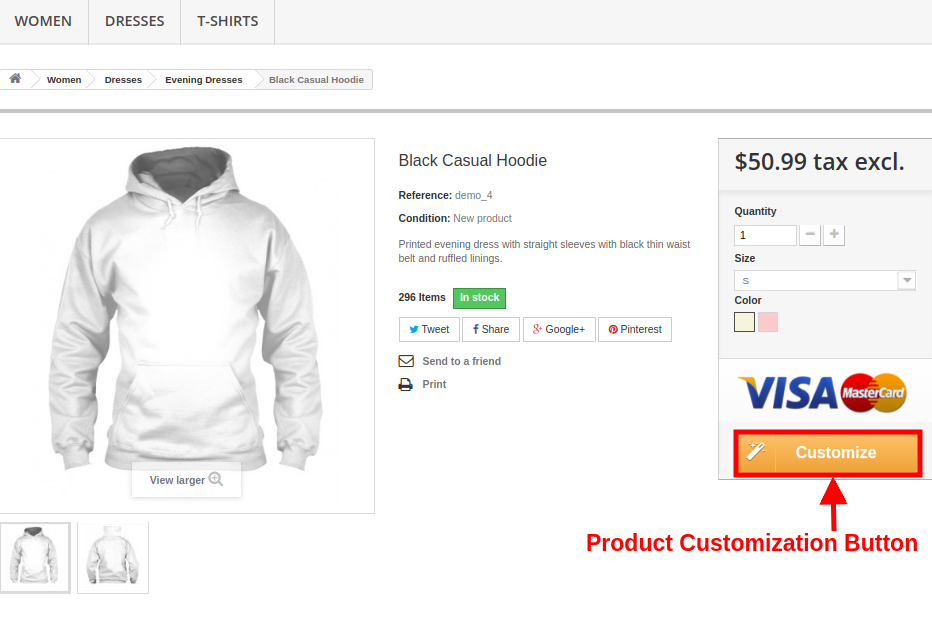
When the Product Designer/Customizer module is enabled for a product, it will show a “Customize” button on its product page as shown below:

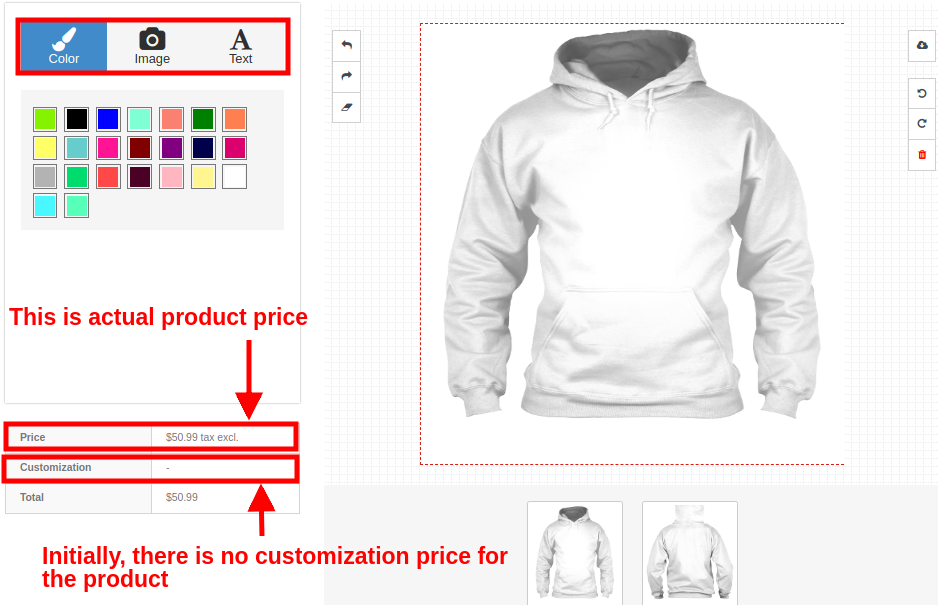
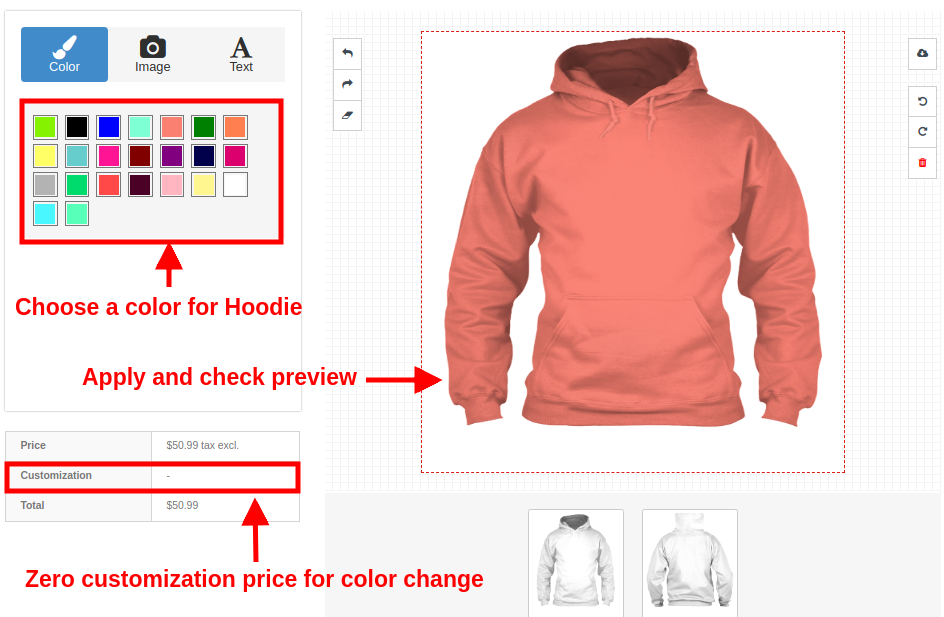
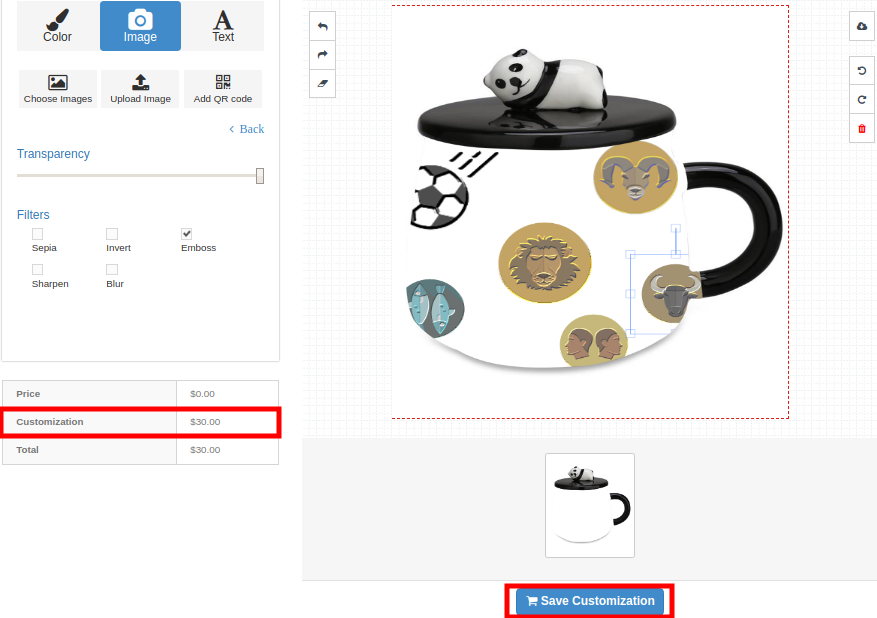
On clicking the Customize button, the customer will be shown a screen pop-up which will consists of various product design and customization settings. Customers can add any color, custom text, custom image or QR code for a product as per their shopping needs.

Your customers can perform any type of customization like:

1.Color

2.Image
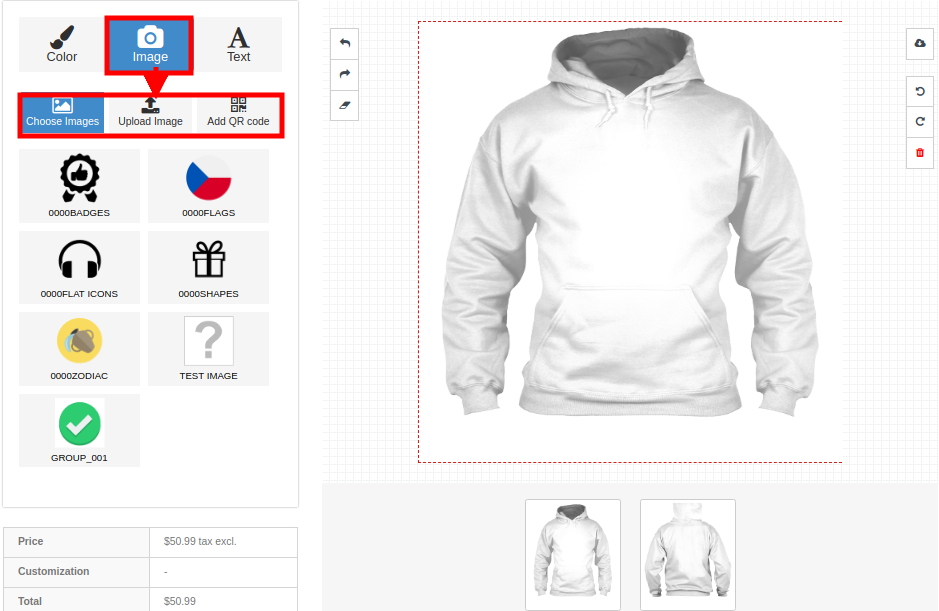
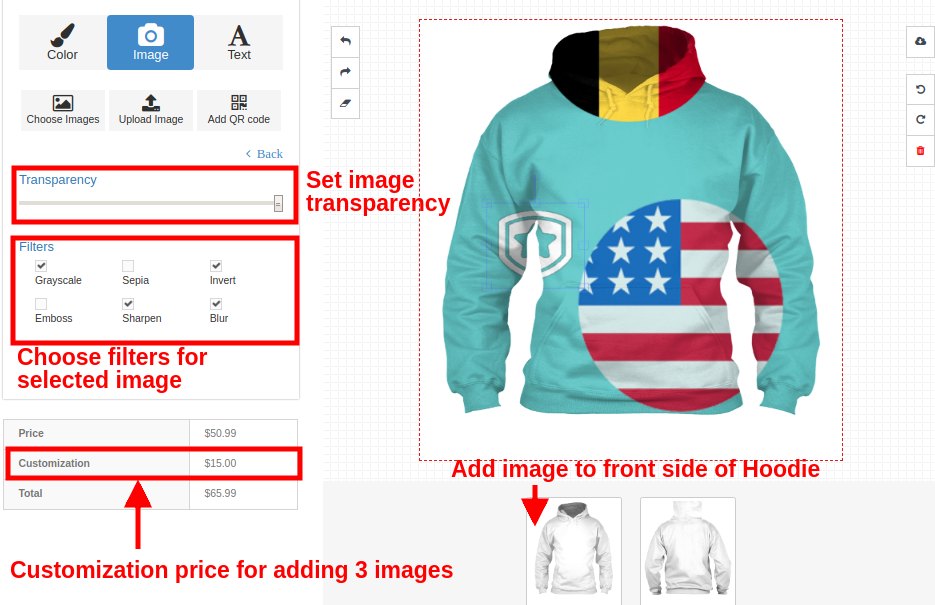
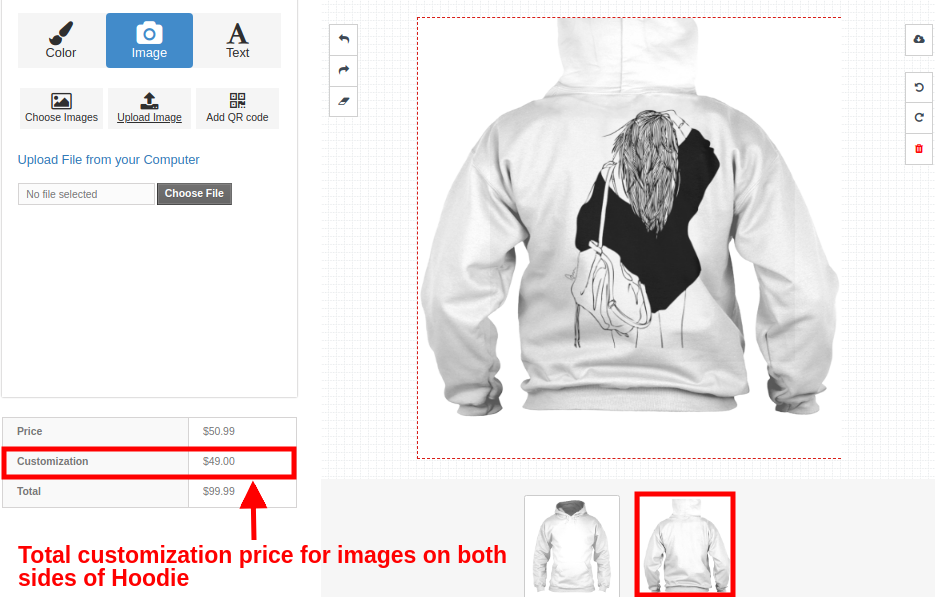
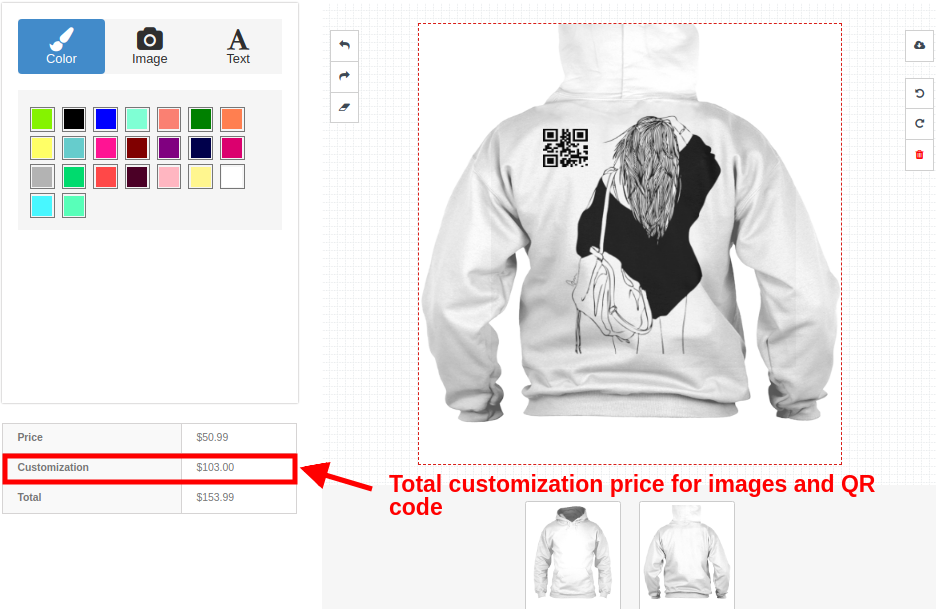
Customers can add an image to the product. They can choose any default image from image group or they can upload their own image or they can add a QR code to the product.

2a. Choose an image

2b. Upload image

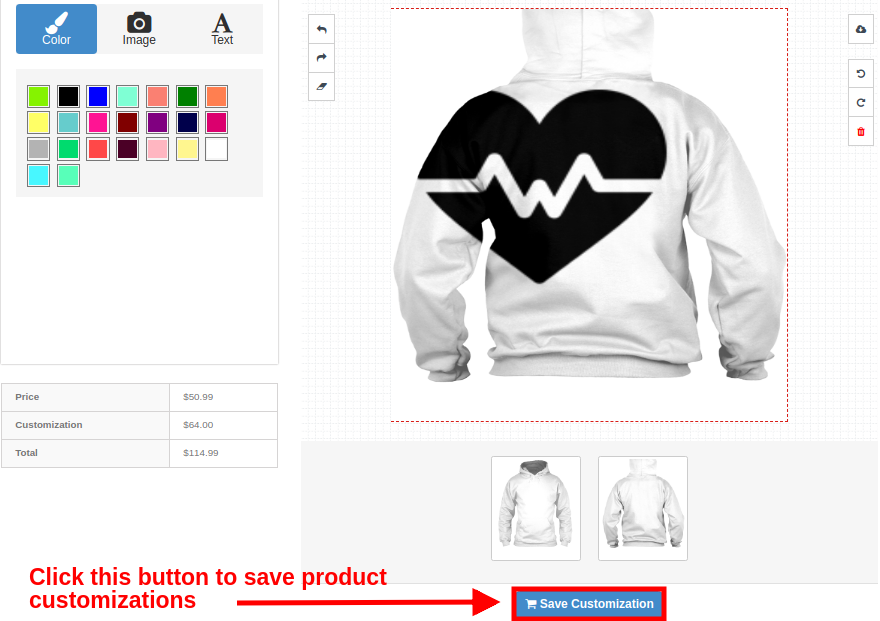
Let’s suppose that the customer is adding the uploaded image on the back side of Hoodie.

2c. Add QR code

3.Text

Saving Product Customization

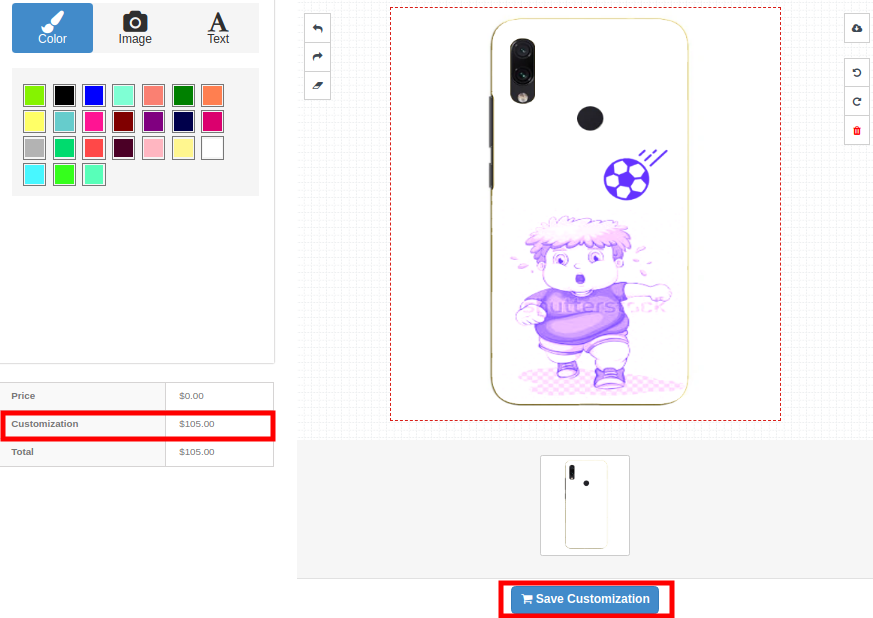
Similarly, the customer can apply customizations to other products of the store like mug and phone cases.

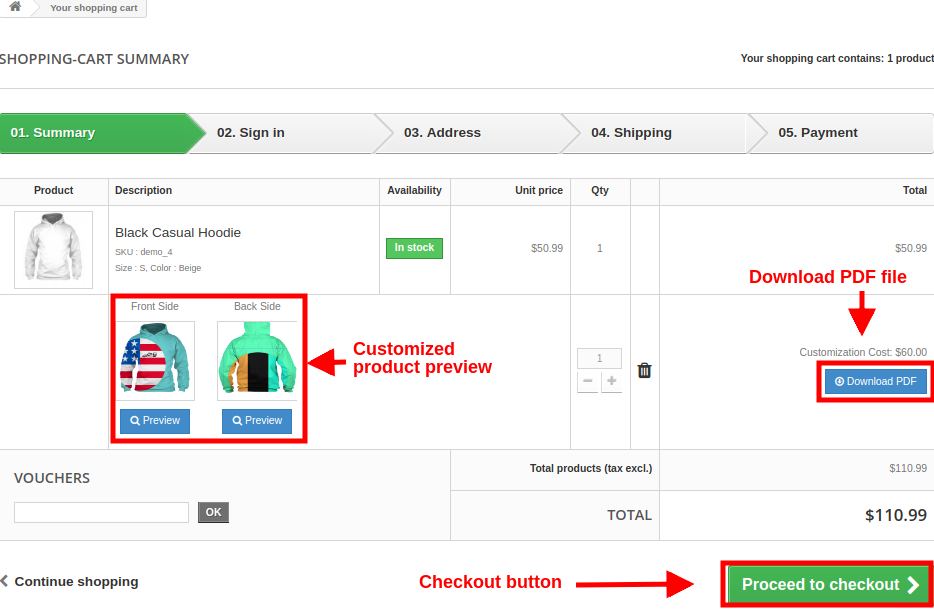
Shopping Cart Summary Page for Customized Product
The below frontend image shows how the custom product displays on the cart page with different options to the customers after clicking on “Save Customization” button.


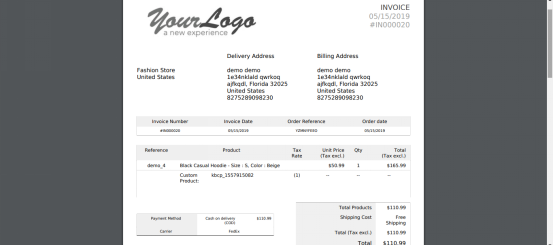
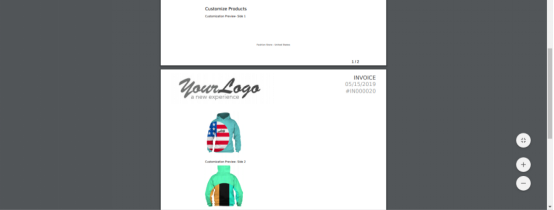
Customer can view the Invoice of this customized product as shown below.


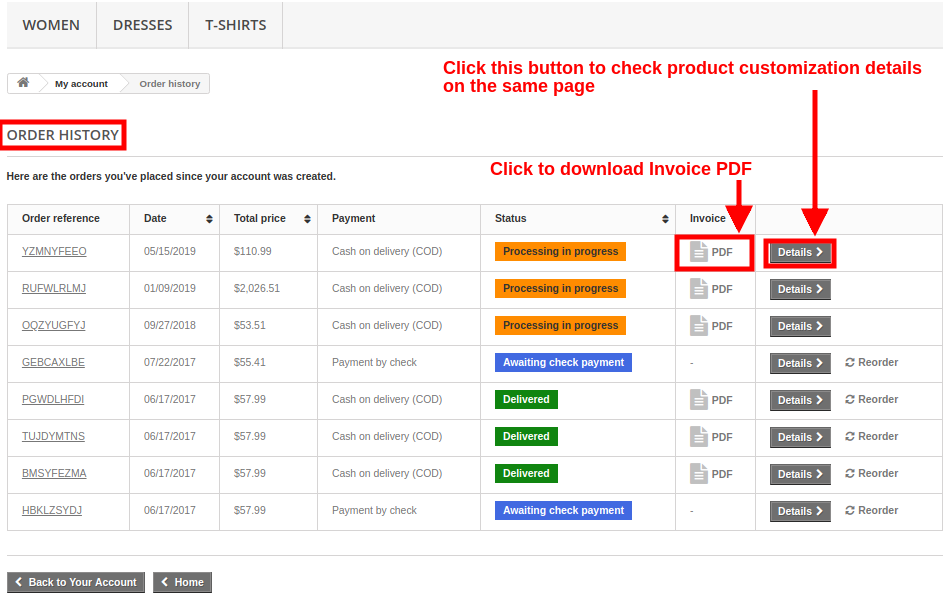
Order History Page with Invoice


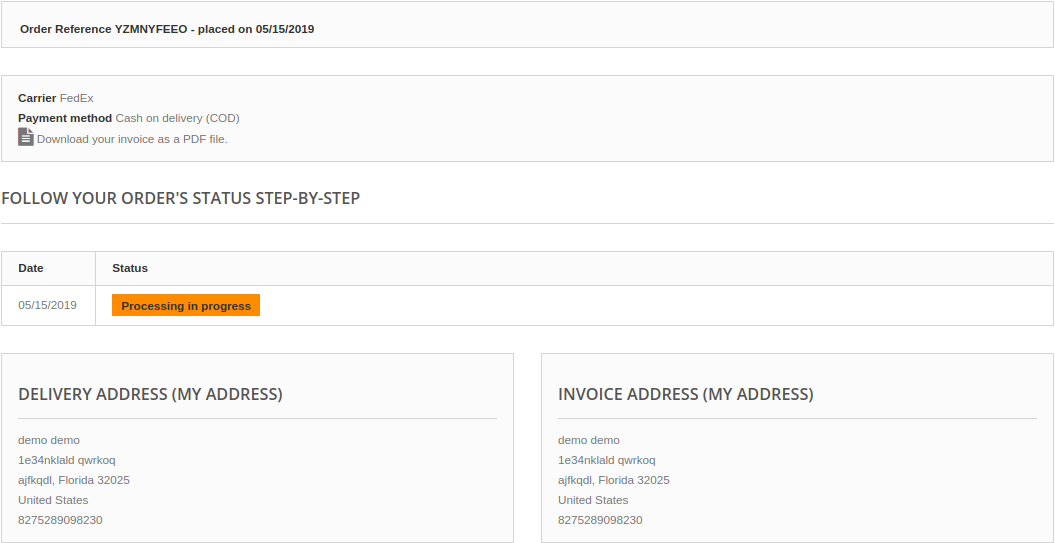
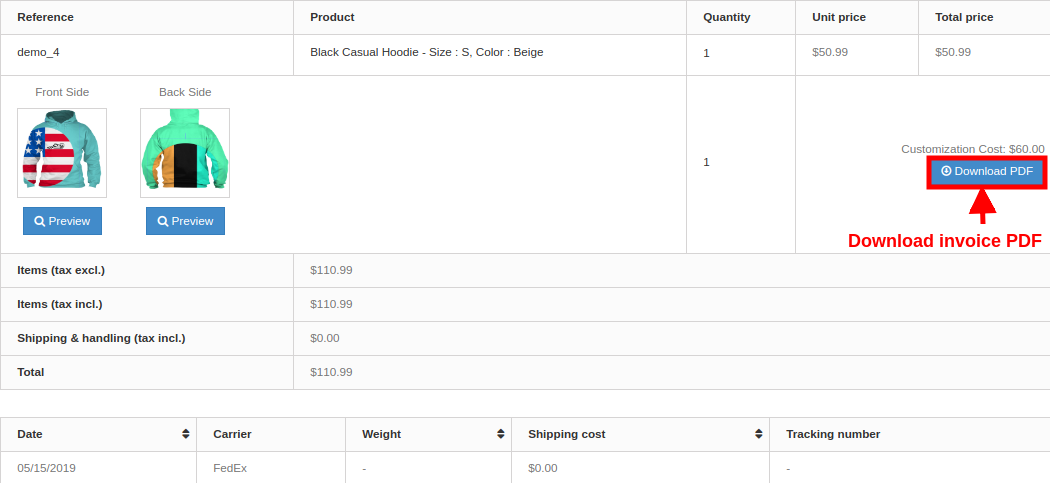
On clicking the Details button, customer will see the following screen:

Order View from Admin Panel
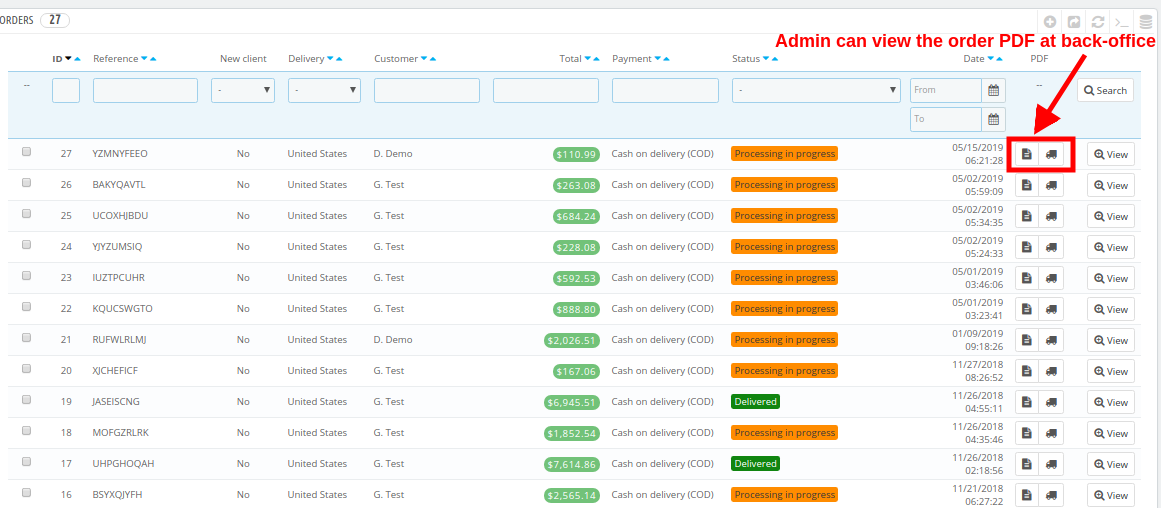
Admin can view the order invoice and all the configuration regarding the product customization from back-office. The details of an order can be viewed under the Orders section of Admin Panel.

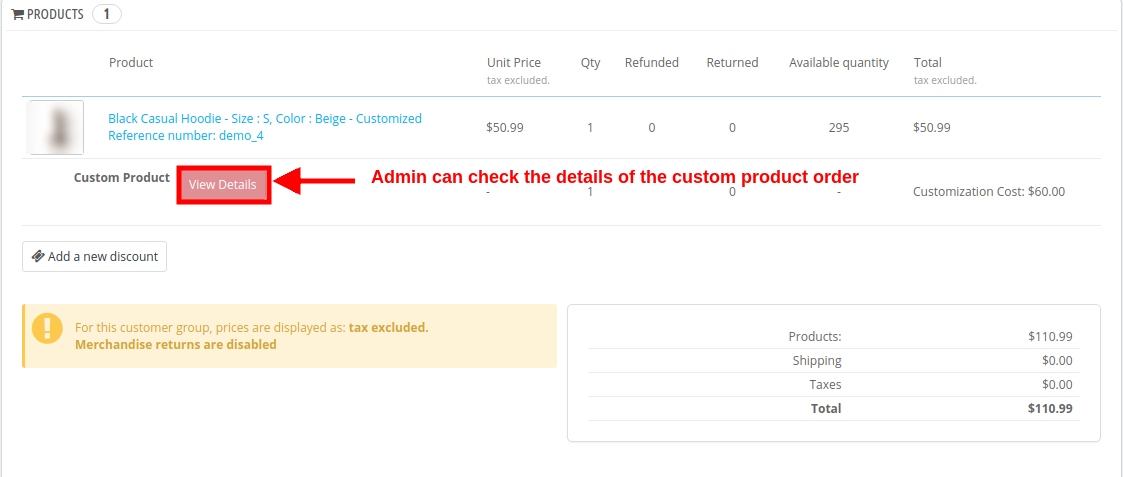
On clicking the View button corresponding to a product, admin can check the complete order details of the custom product.

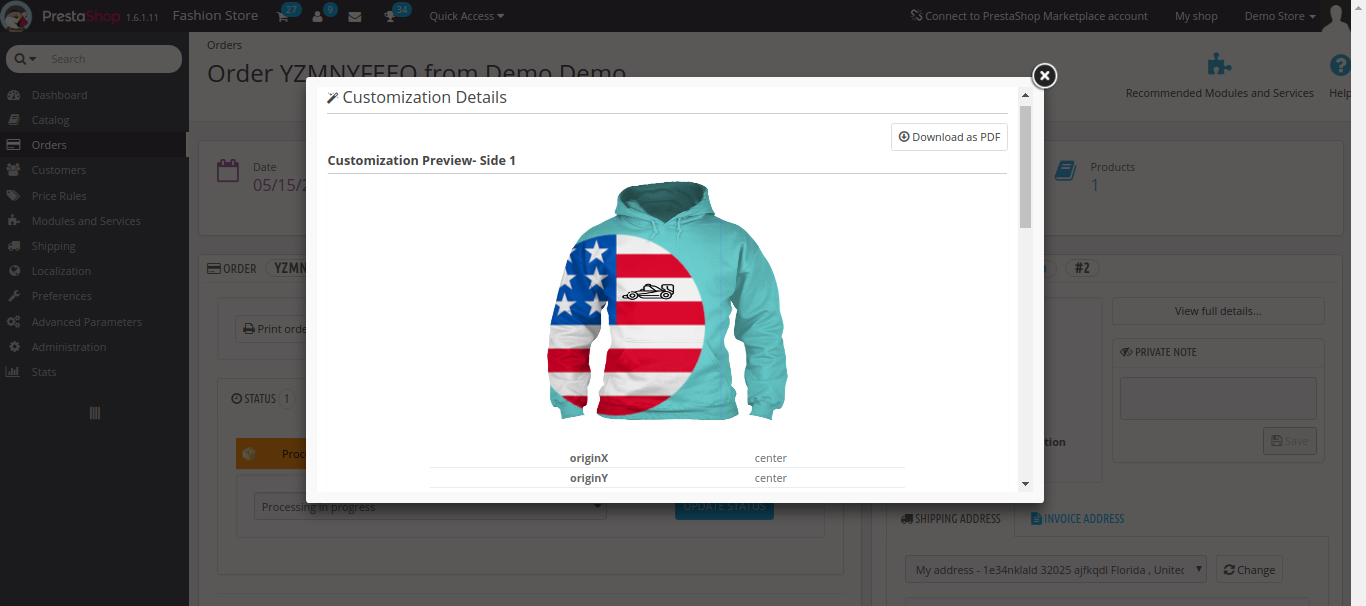
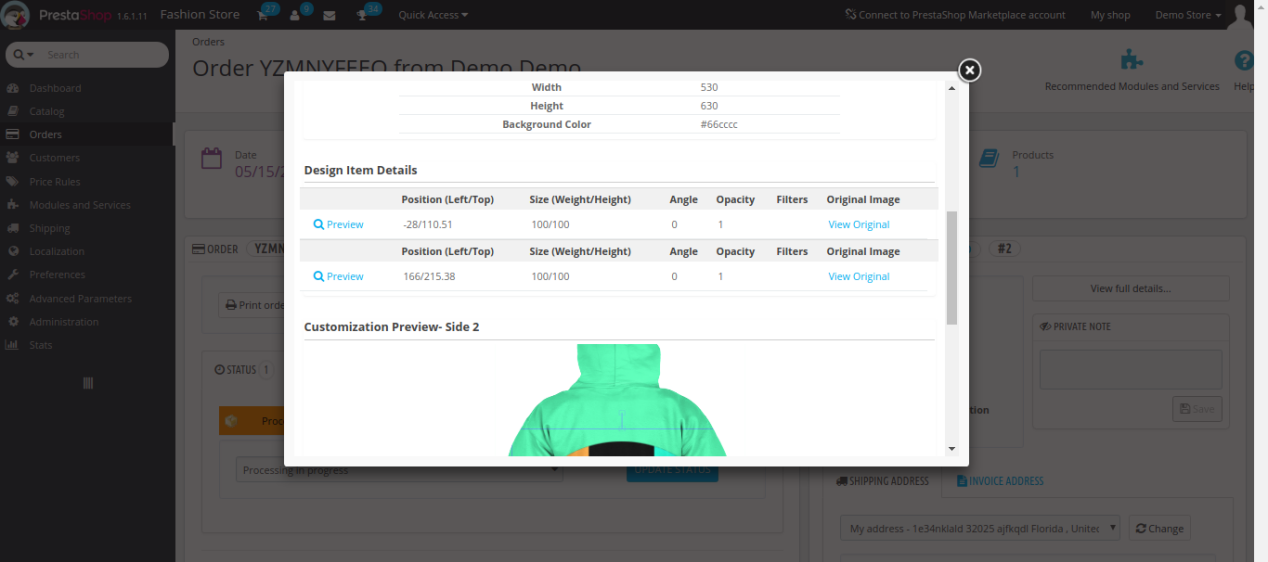
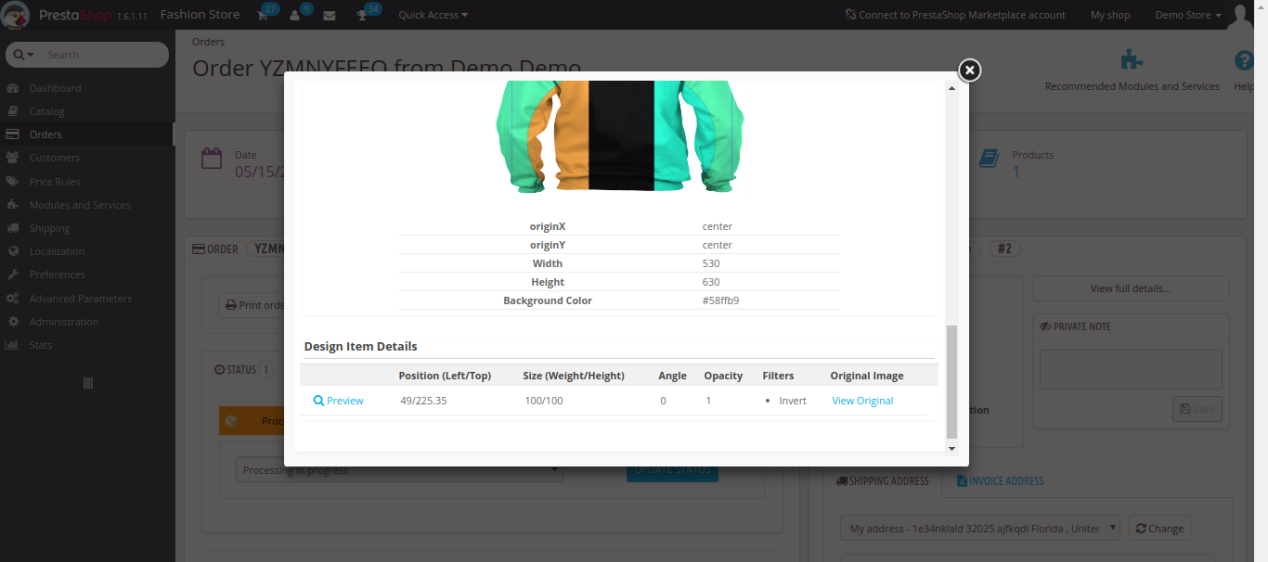
On clicking the View Details button, admin will see the complete details of personalized product in the form of a popup screen as shown below.

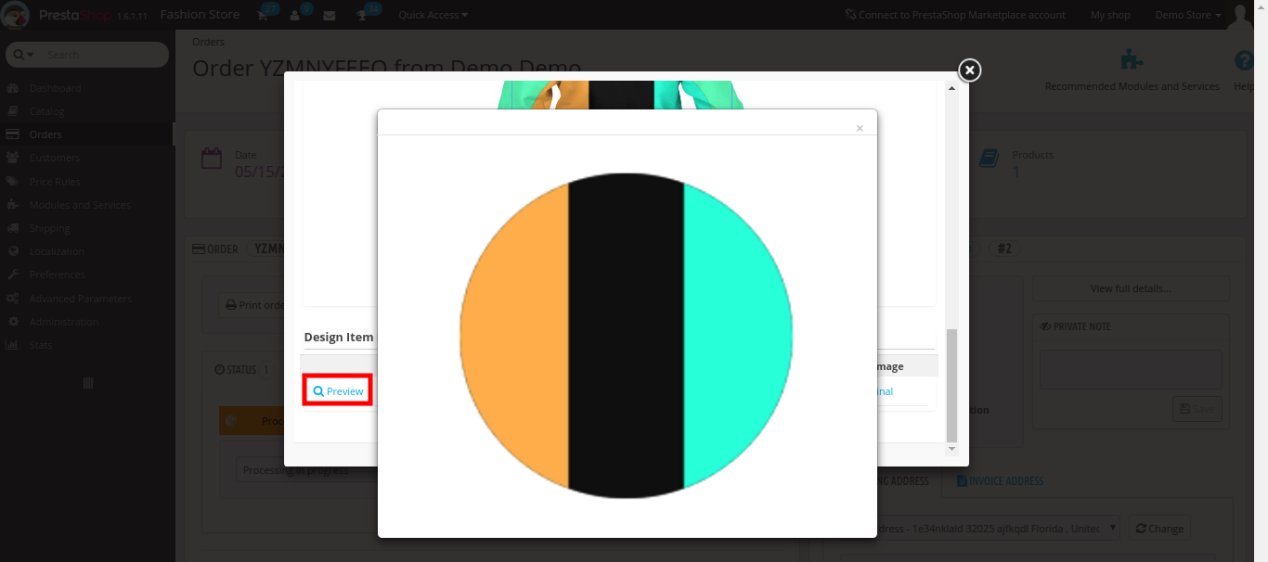
Admin can click the “Preview” option to see the custom image added to the product which looks like below.

Tutorial: Watch the Video Guide

To help you set up and use the PrestaShop Product Designer/Customizer Module, we have prepared a detailed YouTube tutorial video. This video walks you through the installation, configuration, and usage of the module step by step.

Watch the tutorial here:

For additional assistance, customisations, or queries, contact our support team at:
support@knowband.com

Magento 2 Review Reminder and Incentives Extension – User Manual

1.0 Introduction

In this growing eCommerce scenario, there are several strategies to improve the business connect with the customers. One such strategy is review booster and incentive system which helps in creating a better product image while gaining customer loyalty by offering enticing incentives. Product reviews create a first and long-lasting impression while the customer is about to purchase from an online shop. Before finalizing their purchase from the store, they believe in what buyers of the same product have experienced on the store.

Knowband’s Magento 2 Review Reminder and Incentives extension is one eCommerce business module which encourages customers to leave business reviews regarding their purchase. Magento 2 Review Booster module facilitates a way to collect product reviews from all kind of users and incentivize in exchange for the product reviews. Moreover, the Review Booster and Incentives extension for Magento 2 helps store owners to send personalized follow-up reminder emails to set up communication with your buyers and ask for reviews.

1.1 Striking Features of Magento 2 Review Reminder and Incentives plugin

The Magento 2 Review Reminder and Incentives Extension offers you multiple customizable features which are easy to implement for your eCommerce website. Admin can implement and configure any feature for their store without using any coding knowledge. Let us quickly take an overview of striking features by Magento 2 product reviewing and incentives module.

1. The Magento 2 Review Reminder and Incentives extension provides a means to collect product reviews from visitors and buyers who purchased an order from the store.

2. With Magento 2 review booster extension, admin can create and keep a track on reminder triggers as well as the incentives offered. The admin can schedule the follow-up reminders and fix the incentive criteria from the back-end.

3. Magento 2 Review Reminder and Incentives plugin lets you evaluate product reviews before making them live on the product pages under the review section. If you select automatic then reviews will be automatically approved and get live on the website and if you select manual then admin has to approve or disapprove it.

4. Magento 2 product reviewing and incentives module allows site admin to offer incentives and reminders to selected group i.e customer or buyer or both.

5. WIth Magento 2 Product Review Reminder module, store admin can even set the title and template for review reminder email sent to the customer or admin. The email also states whether the review includes an incentive or without incentive.

6. Magento 2 Review Reminder and Incentives block can be shown on the complete site or for different pages like Homepage, Product page, Category page, etc.

7. This Review Booster and Incentives extension for Magento 2 provides SSL compatibility and device responsive UI.

8. Magento 2 review booster extension supports and works flawlessly with multiple languages.

9. With Review Reminder and Incentives extension for Magento 2, admin can change the color of background color, border color and font color of review button.

10. The Magento 2 Review Reminder and Incentives extension provides an option to exclude products and categories from the review booster system.

11. Magento 2 review booster extension gives a detailed view to check the products that have been reviewed and the customers who have reviewed those products from the backend.

2.0 Installation Guide of Review Reminder and Incentives extension for Magento 2

1. Once after purchasing Magento 2 Review Reminder and Incentives extension from the Knowband store, you will get the following files on your registered email:

  • Source code file of Magento 2 Review Booster module in zipped file format
  • User Manual of Magento 2 Review Booster module

2. Unzip the extension package.

3. Create a folder{Magentoroot}/app/code/Knowband/Reviewbooster.

4. Upload the extracted content in the above folder via FTP manager (like Filezilla or WinSCP – download here: https://filezilla-project.org/).

5. Now run below commands to install the plugin:

php -f bin/magento module:enable –clear-static-content Knowband_Reviewbooster
php -f bin/magento setup:upgrade
php -f bin/magento setup:di:compile
php bin/magento setup:static-content:deploy

The Magento 2 Review Booster and Incentives module is now installed and ready to use.

3.0 Admin Interface of Magento 2 Review Reminder and Incentives Extension

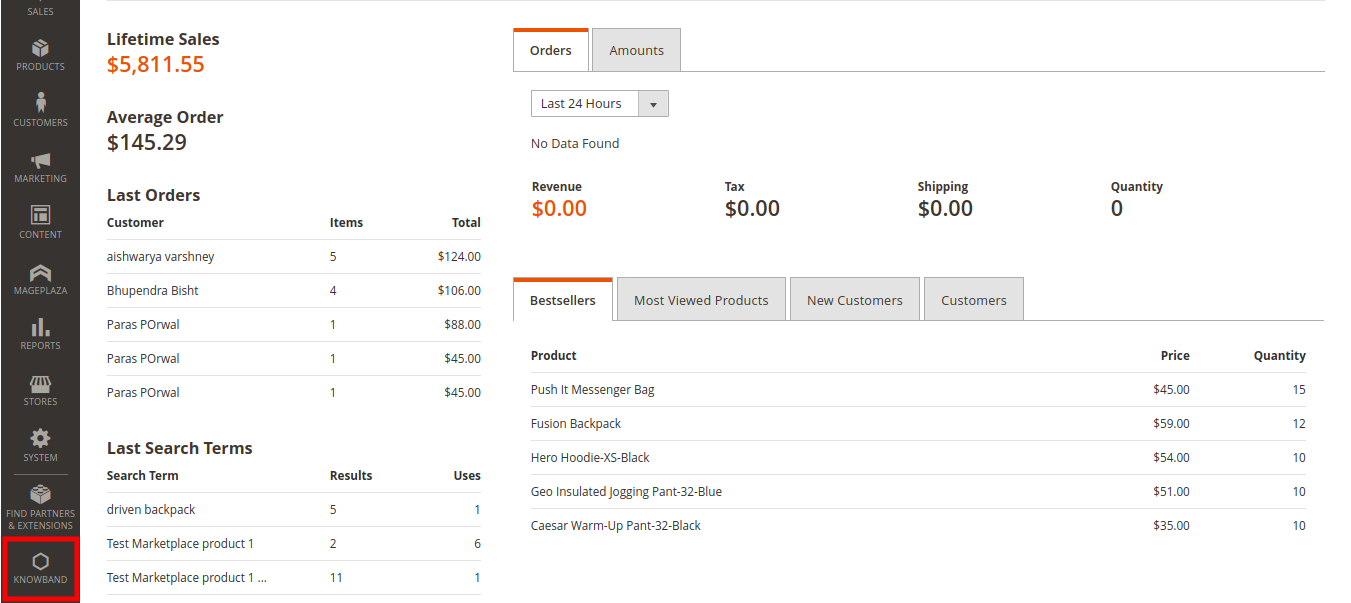
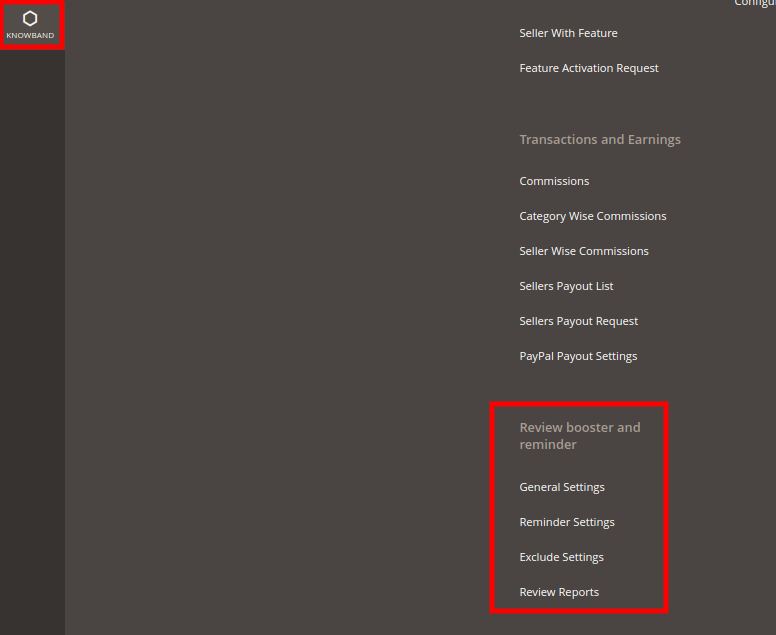
Just after successful installation of Magento 2 Review Booster and Incentives module on your website, you can collect and display as many reviews on your store as per business requirements. In order to configure this Magento 2 Review Booster module, navigate the settings in the given order: Admin Panel > Knowband > Review Booster and Reminder

The simple to understand admin interface of Magento 2 Review Reminder and Incentives plugin contains the following four sections namely:

1.General Settings
2.Reminder Settings
3.Exclude Settings
4.Review Reports

Each of these sections has been discussed in detail below.

3.1 General Settings

The general settings of Magento 2 Review Booster module are further divided into two sections as:
1.General Settings
2.Review Booster Settings

3.1.1 General Settings

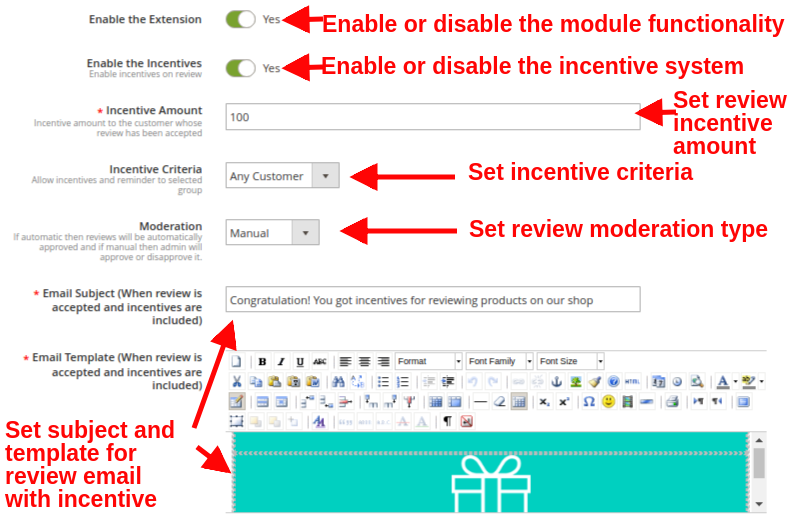
The general settings of this Review Booster and Incentives extension for Magento 2 contains the following basic configuration settings:

  • Enable the Extension: This option enables or disables the review booster and reminder functionality at your commerce store.
  • Enable the Incentives: With this option, you can allow or disallow incentives on customer reviews.
  • Incentive Amount: This sets the incentive amount you want to offer to your customers for writing a review. This amount is only provided to the customers whose review is accepted by the admin.
  • Incentive Criteria: With this option, you can provide incentives and reminder to selected groups which includes buyer or any customer. When selected as “Buyer”, shoppers will see the review block on the selected pages. While if this option is set to “Any Customer”, then any user can review the product from the product page itself, while it will not show on other pages.
  • Moderation: This will select the moderation type for product reviews. If automatic is set then the reviews given by customers will be automatically approved without manual changes. If this option is set as manual, admin has to approve or disapprove the product review.
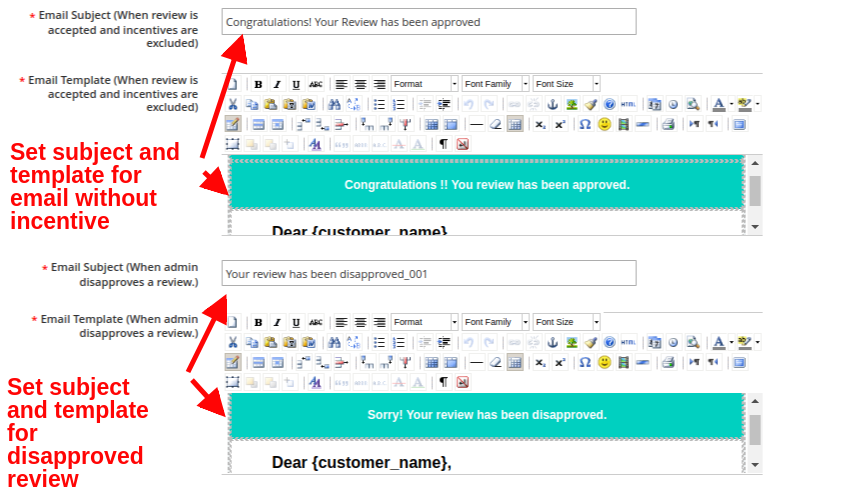
  • Email Subject (When review is accepted and incentives are included): This option sets the subject line for the email sent to customer whose review is approved and provided incentive.
  • Email Template (When review is accepted and incentives are included): This option sets the template content for the email sent to customer whose review is approved and provided incentive.

  • Email Subject (When review is accepted and incentives are excluded): This option sets the subject line for the email sent to customer whose review is approved without including any incentive.
  • Email Template (When review is accepted and incentives are excluded): This option sets the template content for the email sent to customer whose review is approved without including any incentive.
  • Email Subject (When admin disapproves a review): This option sets the subject line for the email sent to customer when their review is disapproved.
  • Email Template (When admin disapproves a review): This option sets the template content for the email sent to customer when their review is disapproved.

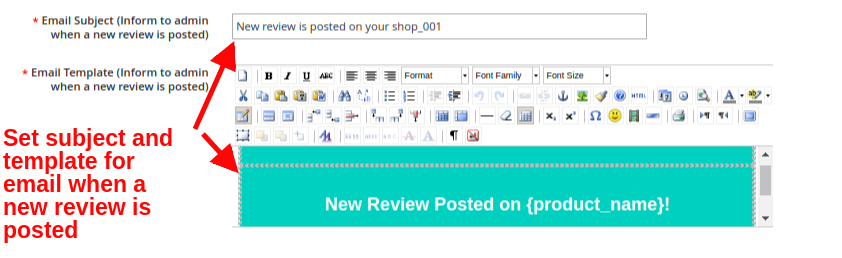
  • Email Subject (Inform to admin when a new review is posted): This option sets the subject for the email sent to the admin informing them about the posted review.
  • Email Template (Inform to admin when a new review is posted): This option sets the template for the email sent to the admin informing them about the posted review.

3.1.2 Review Booster Settings

The review booster settings of Magento 2 Review Reminder and Incentives plugin have been discussed below.

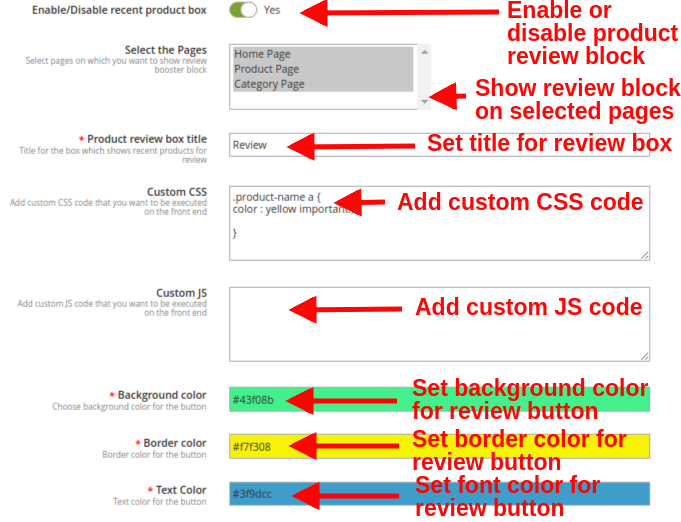
  • Enable/Disable recent product box: This option will enable or disable the recent purchase review block visible to the customers who purchased an order on the store. If this is disabled, the standard review block is still visible on all product pages to every visitor.
  • Select the Pages: This option allows you to select all the pages where you want to show review booster block to the buyers.

Note: Review booster block is visible to buyers on all site pages allowed by admin, while a user/visitor can only see and provide reviews from the product page.

  • Product review box title: This option sets a custom title for the product review block for recent product purchases.
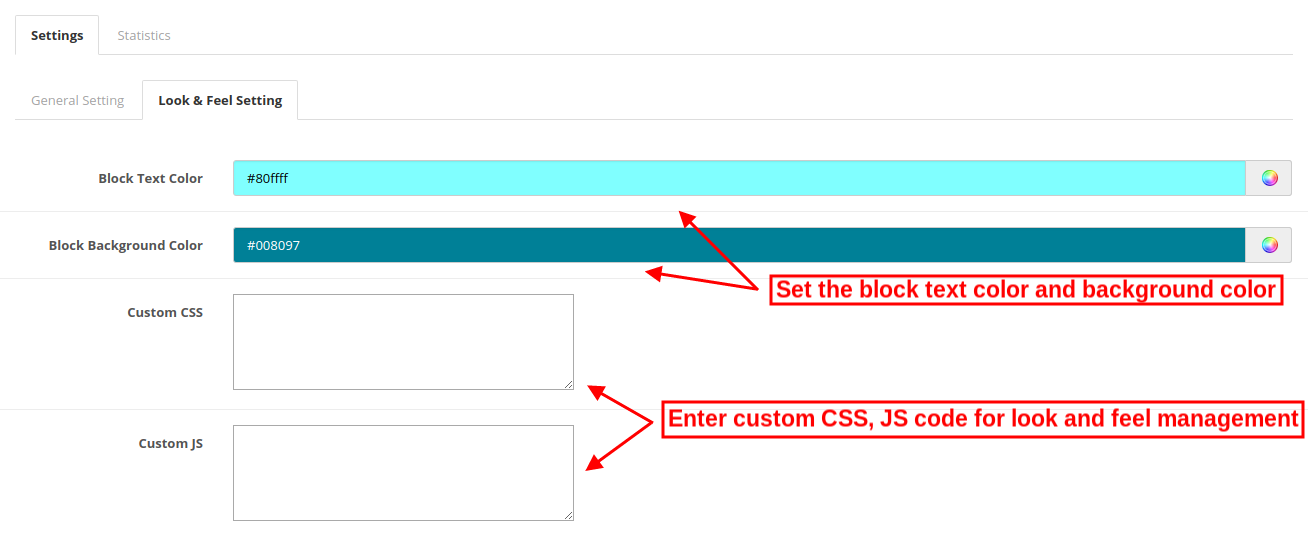
  • Custom CSS: With this option, you can add CSS code that you want to execute on the frontend.
  • Custom JS: With this option, you can add JS code that you want to execute on the frontend.
  • Background color: This option sets the background color for the review button.
  • Border color: This option set the border color for the review button.
  • Text Color: This option sets the font color for the text shown on the review button.

3.2 Reminder Settings

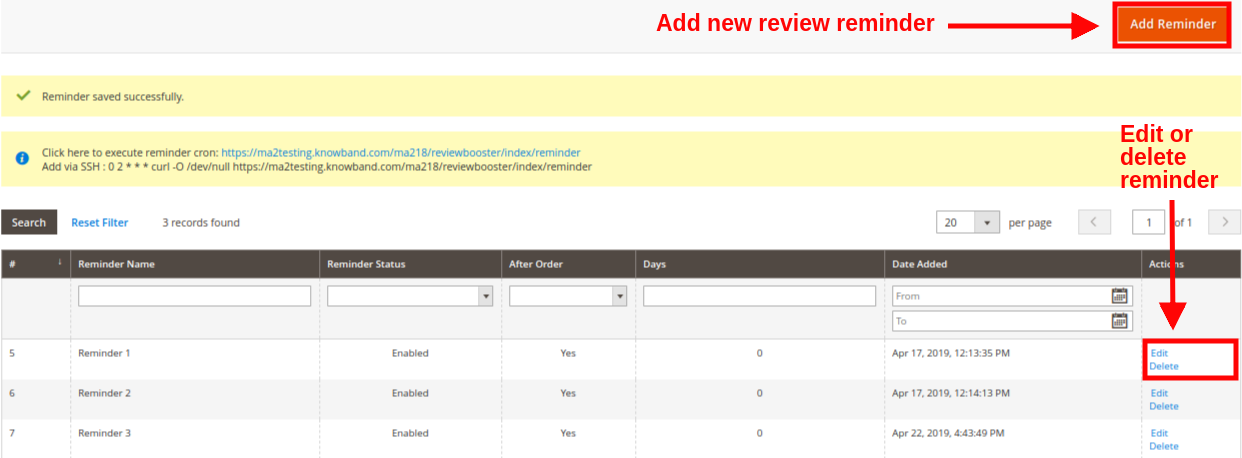
The reminder settings of this Magento 2 Review Booster and Incentives module gives a detailed view to the list of existing follow-up reminders at the backend.


You can see the email reminder along with their sent status and delivery date. Each of these review reminder can be edited or deleted by clicking on the “Edit/Delete” button corresponding to the reminder listing.

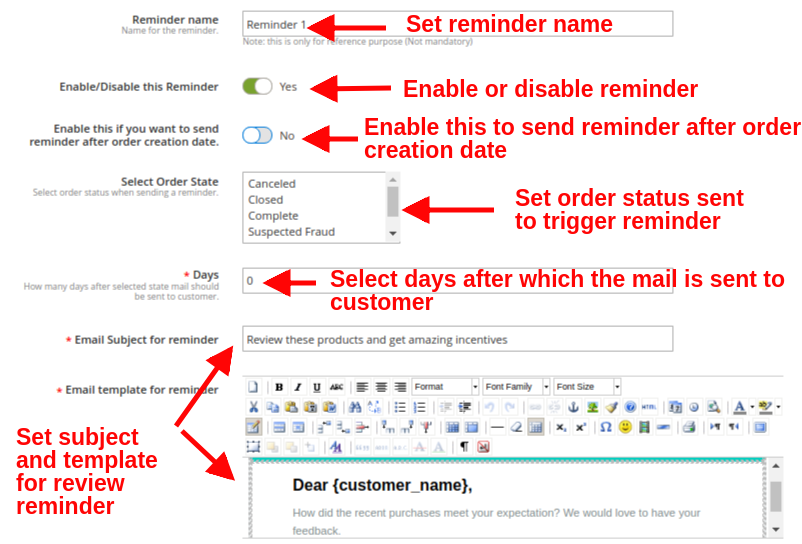
To add a new email follow-up reminder, click on “Add Reminder” button at the top right place of Reminder Settings section. You will see the following configuration options:

  • Reminder name: This option sets the name for the review reminder.
  • Enable/Disable this Reminder: Enable or disable the review reminder email using this option.
  • Enable this if you want to send reminder after order creation date: By enabling this option, the review reminder or follow-up email will be sent after order creation date. If this option is enabled, the next option “Select Order State” will get automatically disabled.
  • Select Order State: Select the order state when you want to send a reminder to the customer. As the order reaches to that state, the reminder is automatically triggered.
  • Days: This option specifies the number of days after which the selected state mail should be sent to the customer.
  • Email Subject for reminder: This option helps you to set the subject for the review reminder email.
  • Email template for reminder: This option helps you to set the template for the review reminder email

To send scheduled reminders to customers, cron job has to be executed manually by executing the following instructions:

Click here to execute reminder
cron: {Your store base URL}/reviewbooster/index/reminder
Add via SSH : 0 2 * * * curl -O /dev/null {Your store base URL}/reviewbooster/index/reminder

3.3 Exclude Products and Categories

With this Magento 2 Review Booster module, you have the flexibility to disable review booster and reminder block for selected products and categories. From this section of this Magento 2 module, you can mark desired products and categories where you want to hide/disable this Review Booster block for the users.

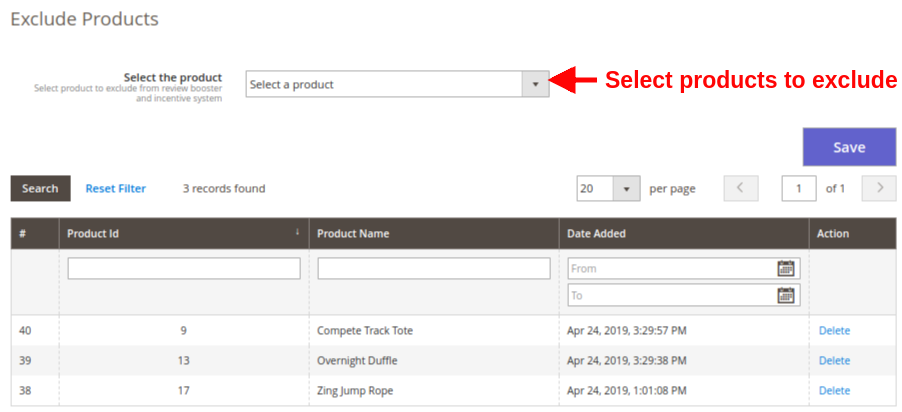
  • Select the Product: Select the products you want to exclude from review booster and incentive system. You can also view the list of excluded products where this review block is hidden.

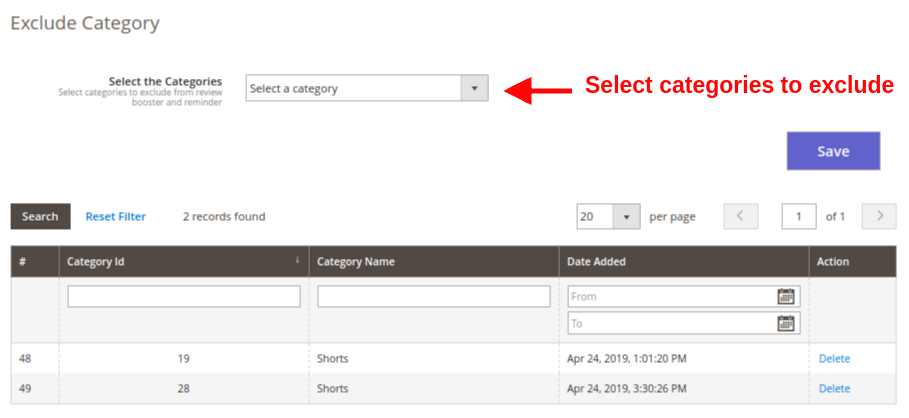
  • Select the Category: Select the categories you want to exclude from review booster and incentive system. You can also view the list of excluded categories where this review block is hidden.

After making the changes, click on “Save” button to execute the settings.

3.4 Review Report

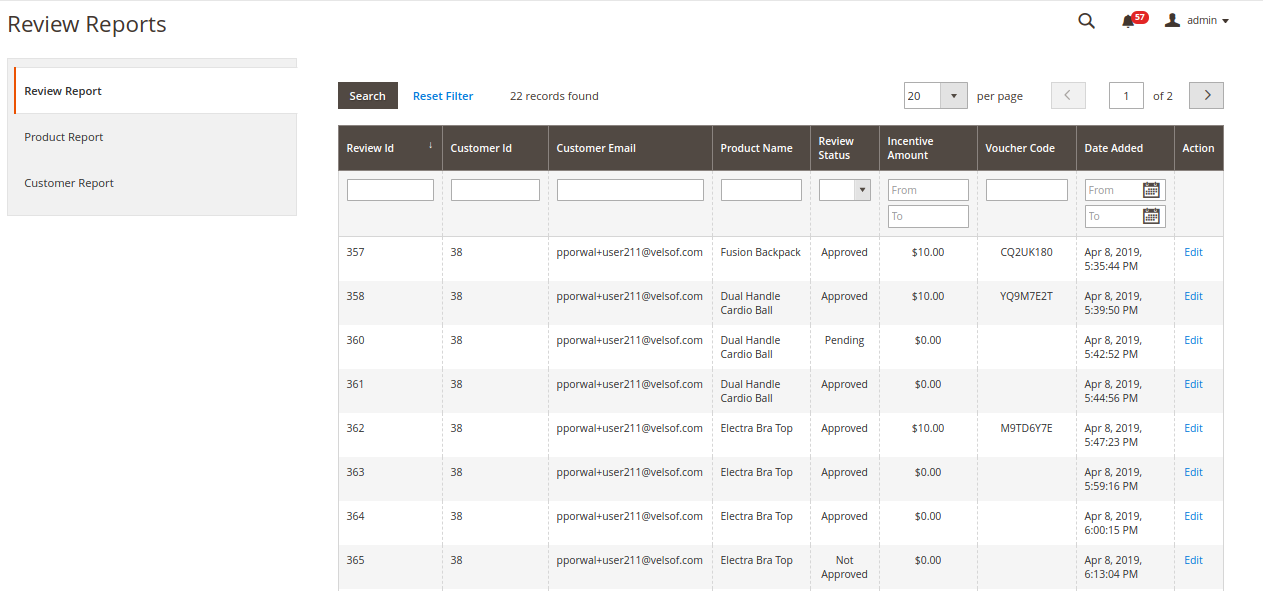
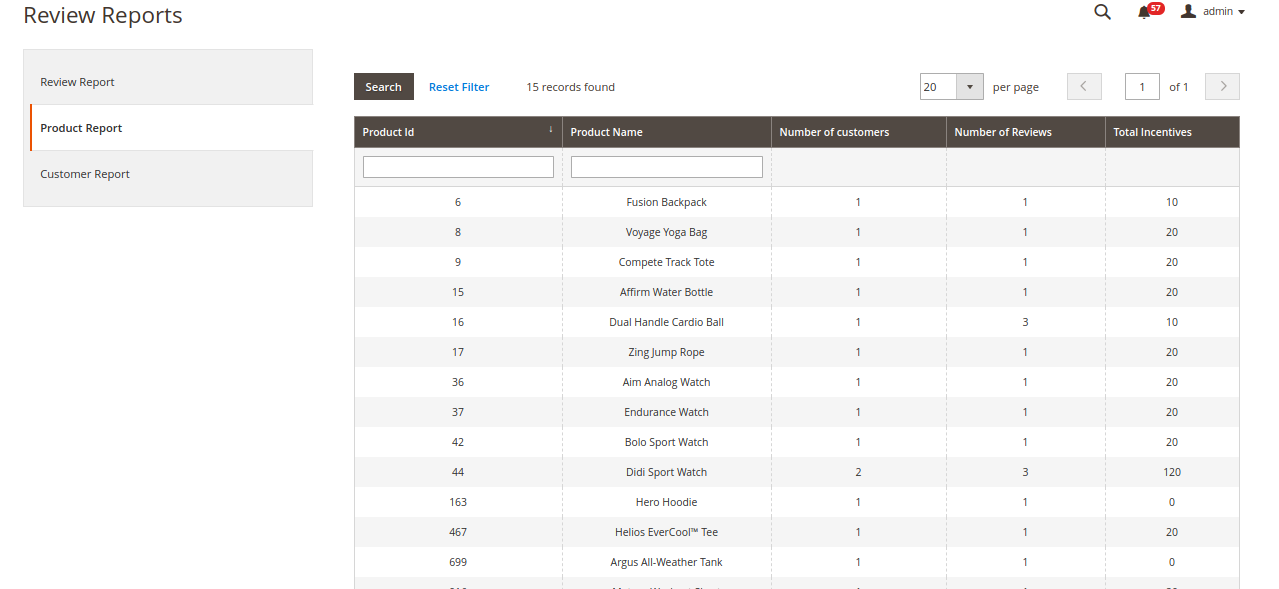
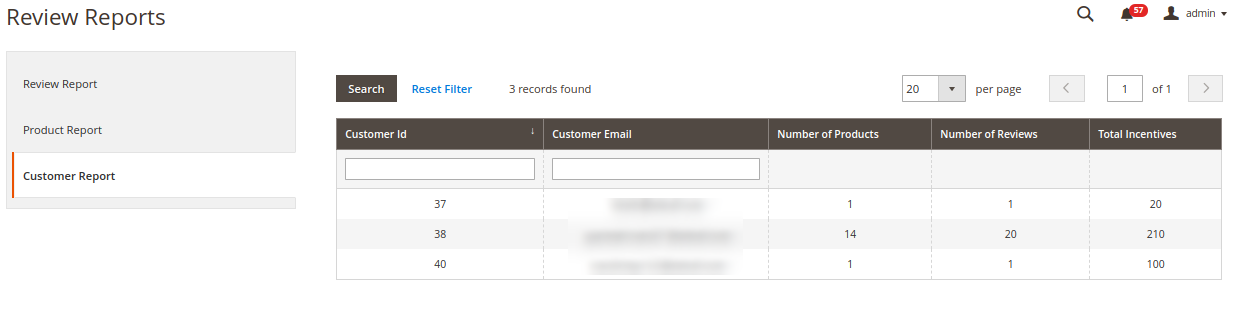
Under the Review Report section of Magento 2 Review Reminder and Incentives plugin, you can view the complete site statistics regarding the customer reviews, reminders sent and incentives earned by the customer.
The complete report system is divided into three subsections namely:

3.4.1 Review Report

3.4.2 Product Report

3.4.3 Customer Report

4.0 Front Interface of Magento 2 Review Reminder and Incentives Extension

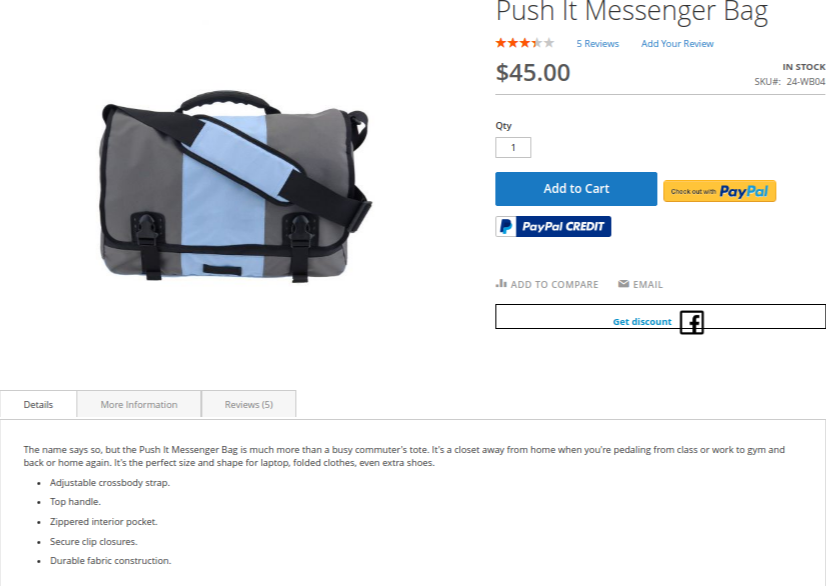
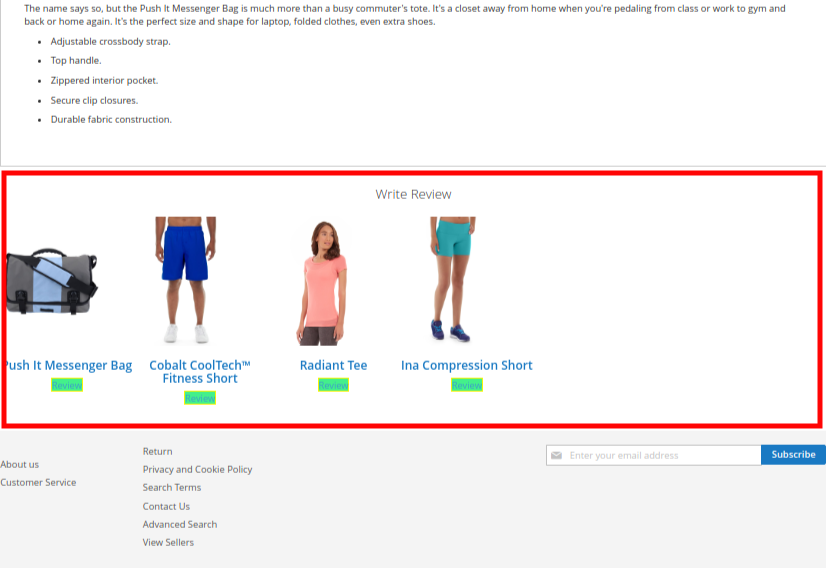
1. Product Review Block on Product Page
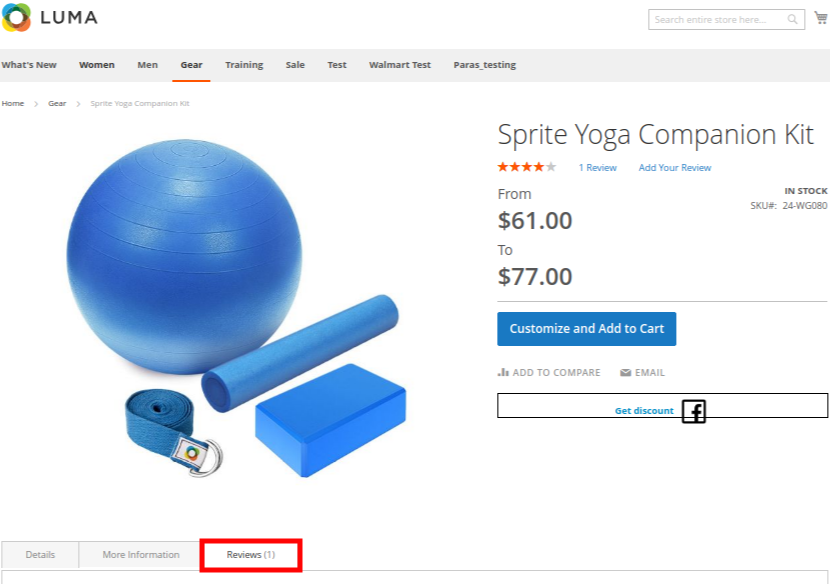
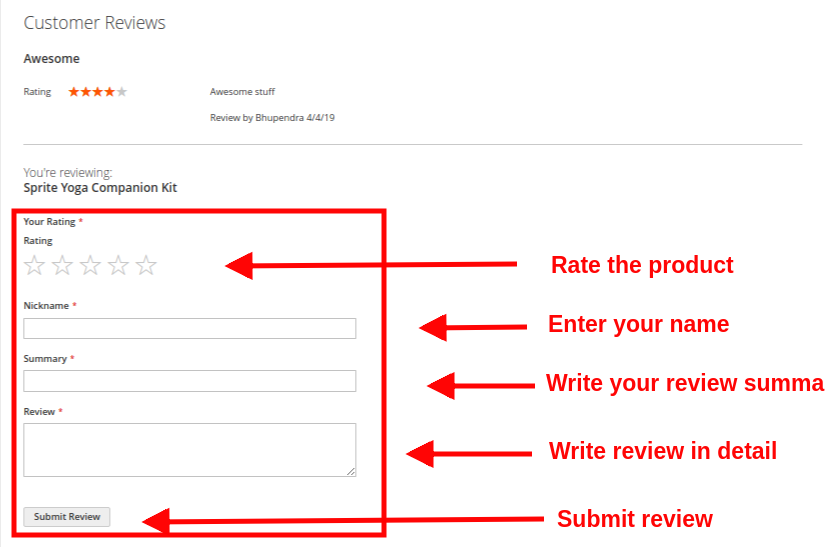
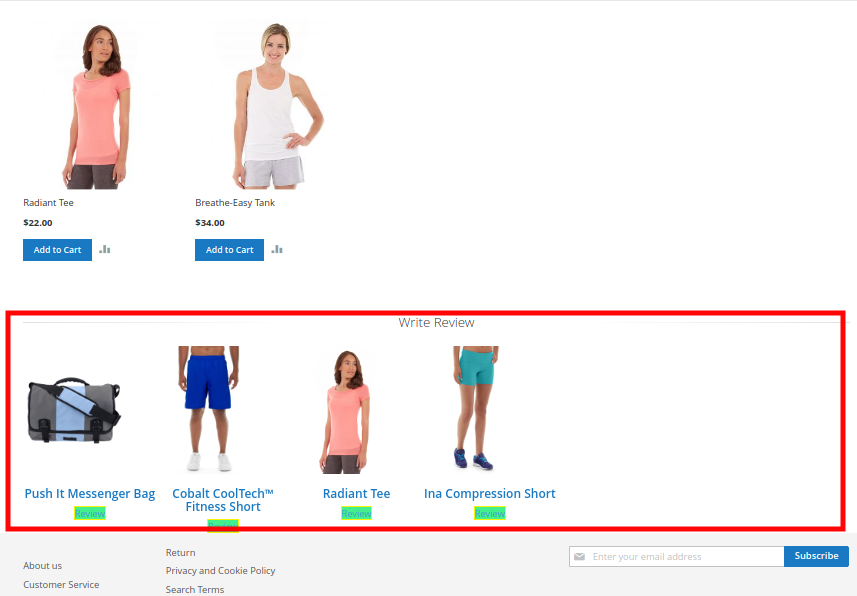
A) Review Write Block shown on product page to all Non-Buyers or Visitors of website.


B) Review Write Block shown on product page to Buyers of the website for their purchased products. The block shows all the purchased products of a customer on which the customer has not reviewed yet.


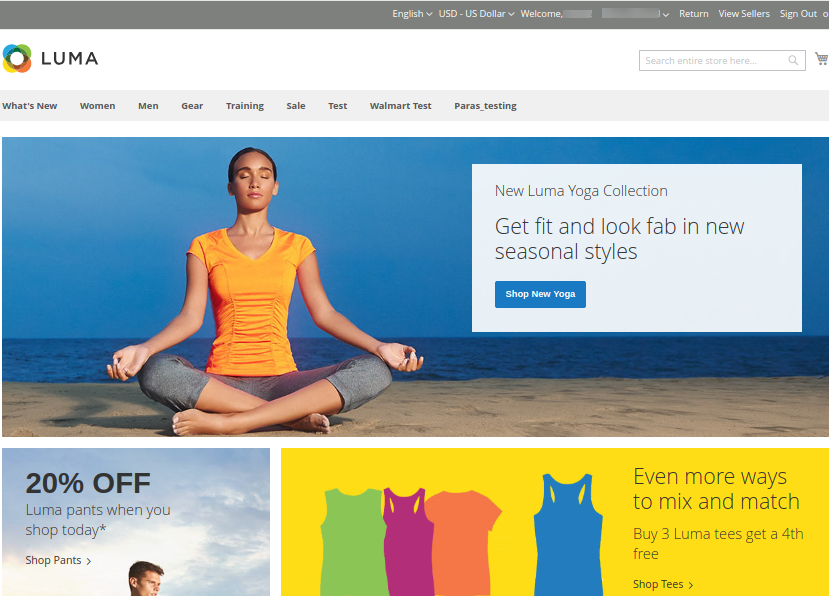
2. Product Review Block on Homepage
This Review Write Block is shown on Homepage to Buyers of the website for their purchased products.


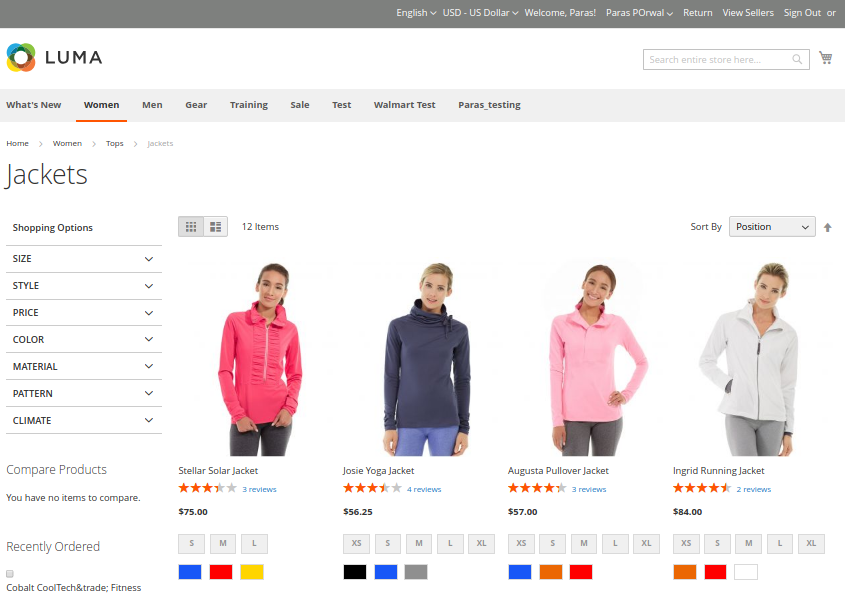
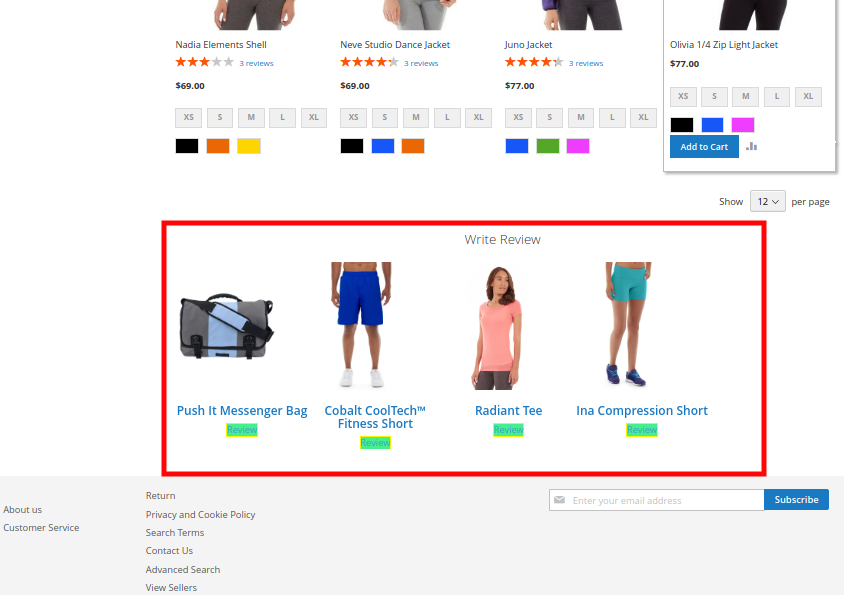
3. Product Review Block on Category Page
This Review Write Block is shown on Category Page to Buyers of the website for their purchased products.

OpenCart Product Availability Check by Zipcode Extension – User Manual

1.0 Introduction

Is there a way to reduce cart abandonment and improve user experience on the website? Knowband’s OpenCart Product Availability Check by Zipcode Extension allows the customer to check product availability on their specific location via zip code search. Customers who are there to shop at your online store generally don’t have any idea about product availability in their region. Consequently, they go through a bad shopping experience at the time of checkout process when they get to know that the product is unavailable on their location. This way they are compelled to drop their cart contributing abandonment rates.
OpenCart Product Postal Code Validator Module incorporates a simple Product zipcode validator on the product page so that the customers can find whether the product can be shipped to their location or not. Moreover, if the product delivery is available on their postal code, OpenCart Product Availability module will show the delivery days and date in advance to the user. This overall functionality improves both the user experience and interface of the online shop.

1.1 Striking Features of Availability check by zipcode module for OpenCart

OpenCart Product Availability Check by Zipcode module offers different customizable features which can be set as per business requirements. No coding is required and the store owner can display product availability check by zipcode result on the frontend over the product pages. Let us quickly take a tour of its features.

1.OpenCart Product Availability Check by Zipcode Extension helps to control cart abandonment rates just by allowing customers to enter their zip code and checking the product availability at their location.

2. This OpenCart extension displays a Product zipcode validator block on the product page letting customer check product availability without going to the checkout page.

3. With OpenCart Product Postal Code Validator extension, admin can add unlimited global zones and multiple zip codes inside those zones.

4.OpenCart product zipcode validator gives an effortless way to add and map as many zip codes in various zones by directly uploading CSV file for bulk number of zip codes.

5.OpenCart Product Availability module lets admin map bulk number of products in different global zones or they can upload CSV file directly for bulk upload.

6. With OpenCart product zipcode validator, admin can exclude all those products for which the product shipping or delivery is unavailable. Customers can directly perform checkout for such products.

7.OpenCart zipcode validator module displays the advanced delivery days and date on frontend only when the product delivery is available for the specific zip code.

8.OpenCart product zipcode validator enables and shows the Add to Cart button on frontend only in case if the product delivery is applicable on that specific zip code.

9. Store admin can enable the zipcode validator module for specific products only using this OpenCart extension. For other products, the standard checkout is shown on the frontend.

10.OpenCart zipcode extension can be quickly enabled or disabled from the back-office.

11.No technicalities are involved in the install and configuration of OpenCart Availability check by zip code module.

12. The existing global zones, zip codes, product zone mappings can be enabled, disabled or deleted as per requirements.

13.OpenCart Product Postal Code Validator extension allows admin to edit and modify Product-Zone Mapping from the back-office.

14.OpenCart Product Availability Check by Zipcode Extension provides compatibility with multiple stores.

What’s New in the Recent Enhancement:

The latest update to Knowband’s Opencart Product Availability Check by Zipcode module introduces a new feature that allows store admins to enable or disable the zipcode verification pop-up on the front-end. This flexible option enhances user experience by offering seamless control over the visibility of the zipcode verification process.

2.0 Installation Guide of OpenCart Product Postal Code Validator Extension

Before starting the installation process, you have to buy the OpenCart Product Availability Check by Zipcode module from the Knowband store. Once purchased, you will receive the following files on your registered email.

  • The source code of OpenCart Product Availability Check by Zipcode module in zipped file format.
  • User Manual of OpenCart Product Availability Check by Zipcode extension.

Now in order to install this OpenCart zipcode validator for your online store, follow the given steps:

1. Unzip the zip file. You will get the folders as shown in the image below

2. Copy all the folders of the zip file in the Root Directory of OpenCart setup via FTP manager.

So, the OpenCart Product Availability module is now successfully installed and is ready to use at your store.

OpenCart Product Availability Check by Zipcode Extension

Check products are available in your area by entering your zip code with the OpenCart Product Availability Check by Zipcode module from Knowband.

SHOP NOW

3.0 Admin Interface of OpenCart Product Availability Check by Zipcode module

Just after the successful installation of the product availability check module for your OpenCart website, you can create as many product zipcode mappings and configure them as per your business requirements. Navigate the settings in the given order: Admin Panel > Extensions > Modules > Product Availability Check By Zipcode.

The simple to understand admin interface of OpenCart Product Postal Code Validator extension is divided into three broad sections namely:

1.Module Configuration Settings
2.Global Zones
3.Product Zone Mapping

Each of these sections has been discussed in detail below.

3.1 Module Configuration Settings

Under the Module Configuration Settings of OpenCart Product Postal Code Validator module, you will find the basic settings of global zones and product zone mapping which looks as shown below:

  • Enable/Disable module: This option will enable or disable the complete functionality of OpenCart product zipcode validator.
  • Display Delivery Date: You can show or hide the delivery days and delivery date under the product availability check result in advance. The delivery estimation is only applicable when the product is available on that particular postal code.
  • Display Zipcode Popup: The Opencart admin can enable/disable the zipcode pop-up on the storefront with this option.
  • Check Cart: If this option is enabled, then Add to Cart button is shown only when the product is available on that specific postal code. If the product is unavailable on this location, the Add to cart button will not be shown to the user.
  • Module Only For Mapped Product: You can enable or disable the module for mapped products. If this module is enabled for the mapped products, then the customer can perform checkout for all other products as well.
  • Disabled Products: Using this option of Product zip code validator module, you can restrict the product availability check for specific products of their store.
  • Custom CSS: In the following text field, the store admins can add custom CSS to modify the look and feel at their convenience.
  • Custom JS: We have provided this particular text filed  for allowing the admin to add custom JS.

3.2 Global Zones

Under this section of OpenCart Product Availability Check by Zipcode module, admin can create multiple global zones for their store. Under those global zones, they can add and map as many zip codes or postal codes where they will deliver their product or services. The interface looks like:

You can create as many global zones for your store by clicking on the “+” button. Moreover, you also have the flexibility to edit or delete the existing zones using the Edit or Delete button respectively. To check all the zip codes mapped in a zone, click on the View button.
Additionally, you can check the total number of zip codes that have been mapped in a particular zone.

Each of these actions has been discussed in detail below:

3.2.1 Add a New Zone

The above image shows the interface to add/create a new zone for your store. This is the manual way to add a global zone, where you have to manually list all the zip codes, and mark enable/disable status corresponding to those zones. To add a new global zone, fill the following fields:

  • Availability: This option will enable or disable the complete zone. All the zip codes mapped in this zone will be all enabled or disabled.
  • Zone Name: This option will help you to set a name for the zone.
  • Zip-Code: Using this option, you can map as may zip codes in this zone. For adding multiple pin codes, separate them using a comma ‘,’ like 802001,802002,702003,802004
  • Delivery Value: This option will set the delivery days for all the zip codes under this zone.

3.2.2 Edit the Zone Name

If you want to change the name of the global zone, set using this option:

  • Zone Name: This option lets you specify the desired zone name.

3.2.3 View the Global Zone

A list of existing zones is displayed on this interface. You can view, or delete the existing zipcodes under a zone. Also, you can directly add new zip codes from this section of the admin interface. Each of these options has been discussed in the next sections.

3.2.3.1 Add New Zip Code

There are two ways to add new zip codes:

1. Manual Filling
When you choose to manually add the zip codes in a particular zone, you have to set the following fields:

  • Upload CSV File: Enable or disable the upload CSV file option as per your business requirements. If disabled, you will be shown the below interface.
  • Availability: With this option, you can set the availability status of the product for the configured Zip-Code.
  • Zip-Code: This option will allow you to add multiple zip codes using a comma. Eg. 402001,402002,202003,402004
  • Delivery Value: Set a positive integer value as the delivery days for the configured zip codes.

2. Bulk Upload(using CSV file)
This option is useful when you have a large number of zip-codes to add for product delivery at your store. You have to configure the following options:

  • Upload CSV File: To use bulk zip code upload option, enable this option. This option allows you to upload CSV file for adding a large number of zip-codes for your store.
  • Choose CSV File: With this option, you can select and upload the CSV file from the local computer.
  • Download Sample Document: This option is provided as the CSV file reference. You can download a sample file from here and see the format to list the zip code details.

3.2.3.2 Edit Existing Zipcode

To edit a particular zip code, you have to set the following fields:

  • Availability: With this option, you can set the availability status of the product for the configured Zip-Code.
  • Delivery Value: Set a positive integer value as the delivery days for the configured zip codes.

3.3 Product Zone Mapping

Under this tab of OpenCart Product Availability module, you can add or create as many product zone mapping for your store. You can map the products to all specific zones where you want to allow delivery of those products.

Here you can add new product zone mappings for your store. Also, the ‘Edit’ and ‘Delete’ button allows you to edit and delete the existing product zone mappings. Each of these actions has been discussed in detail, below.

3.3.1 Add New Product Zone Mapping

There are two ways to add new product zone mappings:

1. Manual Filling

When you choose to manually add the product zone mappings, you have to set the following fields:

  • Upload CSV File: Enable or disable the upload CSV file option as per your business requirements. When you are manually adding the product mappings, set this option as disabled.
  • Select Products: This option allows you to select all the products which you want to map in a specific zone.
  • Select Zones: This option allows you to set the zone for which you are mapping the products.

2. Bulk Upload(using CSV file)

  • Upload CSV File: Enable or disable the upload CSV file option as per your business requirements. When you are manually adding the product mappings, set this option as disabled.
  • Choose CSV file: Browse and select the CSV file to add a large number of product zone mappings in bulk.
  • Download Sample Document: This option is provided as the CSV file reference. You can download a sample file from here and see the format to list the product zone mapping details.
  • Get the Zone Id: By clicking this link, you will see the list of zones with their name and ID.
  • Download CSV file for product Id: By clicking this link, you can download the CSV file to get the product ID.

3.3.2 View Existing Product Zone Mapping

The above-provided interface shows you the complete list of product zone mappings. You can delete any product mapping for the selected zone and you can even add a new product mapping in this zone by clicking the ‘+’ button at the top right corner of the screen. As you will click the Add Product Mapping button, you will see the below interface:

Select Products: Using this option, select the products that you want to map in this zone.
Note: Remember to click on the “Save” button shown at the top right corner of the admin panel to save the configured settings.

3.4.0 ZipCode Request:

In case the customer will check the product availability by Zipcode and the product is not deliverable to that particular area, the zipcodes along with product name, request count (will depend on how many customers has checked the product for that particular location), and first & last request time will be automatically listed here.

4.0 Front Interface of OpenCart Product Availability Check by Zipcode Extension

After you have successfully configured the settings of OpenCart Product Postal Code Validator Module and have mapped the products to global zones, you will see a product availability check block on the product pages of the site. For products, the Product zipcode validator is enabled, you will find this availability check block on the frontend.

  • The customers have to simply enter their zip code or postal code where they want the product to deliver. This ensures whether the product shipping is available on their specific location or not.

  • If the product is available on their provided zipcode, it will show a success message along with the delivery days and date information.

  • In case the product is unavailable on their zip code, they will see a message like “Product is Unavailable” as shown in the image below.

Important: The “Add to Cart” button on product pages will be only shown in two cases:

  1. Product Delivery is available for the entered zip code.
  2. The product has been restricted from the OpenCart product zipcode validator

Also, you can check our OpenCart Preferred delivery date and time extension which provides a facility for preferred delivery to online buyers.

OpenCart Preferred Delivery Date and Time Extension

Allow customers to choose their preferred delivery time slots easily with the OpenCart Preferred Delivery Time Slot module by Knowband.

SHOP NOW

5.0 Tutorial of OpenCart Product Zip Code Availability

To help you easily understand the installation, configuration, and working of the OpenCart Product Availability by Zip Code Extension, Knowband provides a detailed step-by-step tutorial along with a video guide.

Watch the Tutorial Video

We recommend watching the complete tutorial video to quickly learn how the module works on both the admin panel and frontend. The video demonstrates module installation, configuration of zip codes and zones, product mapping, and live product availability checks on the storefront.

Watch this complete tutorial video on our YouTube channel to get a clear and visual walkthrough of all features and settings.

6.0 Recommendations

Recommended OpenCart Modules

To enhance your OpenCart store and streamline content creation and management, we recommend the following Knowband modules:

1. VideoMate – Video Manager Extension Opencart

VideoMate is a powerful OpenCart module designed to integrate video content seamlessly into your store. It allows you to:

  • Add tutorial, Instagram reels, youtube shorts or demo videos to product pages, home page & category pages.
  • Engage customers with step-by-step video instructions.
  • Increase conversion rates by providing clear, visual product guidance.
  • This extension is perfect for merchants who want to create rich, interactive shopping experiences directly on their product pages.

2. AI Content Generator & Translator for OpenCart

AI Content Generator is an OpenCart module that helps store owners automatically generate product descriptions, blog posts, and other website content. Key features include:

  • AI-generated, SEO-friendly product descriptions & meta details.
  • Automatic content updates for large product catalogues.
  • Customizable tone and style for marketing or instructional content.

This module is ideal for saving time, maintaining content consistency, and improving your store’s search engine visibility.

7.0 Knowband Support

Knowband is committed to providing reliable and timely support to ensure smooth module usage and performance.

If you face any issues during installation, configuration, or usage of Knowband’s OpenCart Product Availability by Zip Code Extension, or if you have custom requirements, feel free to contact our support team. Our experts are always ready to assist you.

Email: support@knowband.com

Magento 2 Instagram Shop Gallery Extension – User Manual

1.0 Introduction

Embed Instagram image galleries anywhere on your eCommerce store and showcase a list of mapped site products with those images using Knowband’s Magento 2 Instagram Shop Gallery Extension. This is one best way to increase conversion rates directly by integrating Instagram tagged images. Instagram Shop module adds a well-known interface for the visitors which compels them to buy the related products immediately.

1.1 Striking Features of Magento 2 Instagram Shop Gallery Extension

The Magento 2 Instagram Shop Gallery Extension offers you multiple customizable features which are easy to implement for your eCommerce website. Admin can implement and configure any feature for their store without using any coding knowledge. Let us quickly take an overview of striking features by this Magento 2 Instagram product tag feed module.

1. Magento 2 Instagram Shop Gallery Extension helps e-merchants to embed Instagram gallery to their website front.

2. Magento 2 Instagram Shop Extension fetches and displays Instagram photos based on the tags specified by the admin at the backend.

3. Magento 2 Instagram Integration Extension lets admin integrate Instagram Shop gallery page to the website showing all the fetched Instagram images under different Instagram galleries.

4. Admin can enable or disable the complete working of Magento 2 Shoppable Instagram Module for their store.

5. With Magento 2 Instagram Shop Gallery Extension, admin can show the likes and comments for the fetched Instagram image.

6. The main Instagram page can be enabled or disabled from the backend of this Magento 2 extension.

7. Using Magento 2 Instagram Shop Gallery Extension, Admin can show or hide the Instagram Page link in the top menu navigation bar of the website.

8. Insta Shoppable Gallery Module for Magento 2 allows admin to set the title for the Instagram Shop Gallery Page.

9. Using Magento 2 Shoppable Instagram Module, admin can show the images of the selected type on the main Instagram page. They can show all the photos, approved ones, having related images or having both approved and related images.

10. Magento 2 Instagram Shop Extension allows admin to set a limit on the maximum number of images that can be shown on this Instagram Shop page.

11. Admin can set a URL page key for this Instagram Shop page.

12. Magento 2 Instagram product tag feed module gives the flexibility to create as many Instagram gallery for the website which can be edited or deleted as per needs. They can be separately enabled or disabled if required.

13. Magento 2 Instagram Shop Extension allows admin to select the store view in which they want to include this gallery.

14. With Magento 2 Instagram Shop Gallery Extension, the store merchant can set the gallery title, image limit and image visibility for the particular gallery.

15. Admin gets an option to show or hide the selected image gallery on the main Instagram Shop page.

16. Using Magento 2 Instagram product tag feed module, admin can set the gallery visibility on different pages of the website at different positions.

17. The eCommerce store admin can add as many images for a particular gallery which can be edited or deleted anytime.

18. Admin has to specify Instagram Hashtag in order to fetch a new image. They can select any of the images out from the fetched images whose preview is available on the same interface.

19. Admin can use the toggle button to enable or disable a particular image.

20. Insta Shoppable Gallery Module for Magento 2 also allows admin to set a sort order for the images in a category.

21. Magento 2 Shoppable Instagram Module gives an option to map desired products for the Instagram image.

2.0 Installation Guide of Magento 2 Shoppable Instagram Module

1. Once after purchasing Magento 2 Instagram Shop Gallery Extension from the Knowband store, you will get the following files on your registered email:

  • Source code file of Magento 2 Instagram Shop Extension in zipped file format.
  • User Manual of Instagram Shop Gallery Extension

2. Unzip the extension package.

3. Create folder{Magentoroot}/app/code/Knowband/Instagramshopgallery

4. Upload the extracted content in the above folder via FTP manager (like Filezilla or WinSCP – download here: https://filezilla-project.org/).

5. Now run below commands to install the plugin:

php -f bin/magento module:enable –clear-static-content Knowband_Instagramshopgallery
php -f bin/magento setup:upgrade
php -f bin/magento setup:di:compile
php bin/magento setup:static-content:deploy

The Magento 2 Instagram Shop Gallery Extension is now installed and ready to use.

3.0 Admin Interface of Insta Shoppable Gallery Module for Magento 2

Just after successful installation of Magento 2 Shoppable Instagram Module on your website, you can display as many Instagram feeds on different pages of your store as per business requirements. In order to configure this Magento 2 Instagram module, navigate the settings in the given order: Admin Panel > Knowband > Instagram Shop Gallery

The simple to understand admin interface of Magento 2 Instagram product tag feed plugin has been divided into two broad sections:

1. Configuration

2. Gallery

3. Tags

4. Images

Each of these sections of Magento 2 Instagram Shop Gallery Extension has been discussed in detail below.

3.1 Configuration Settings

The configuration settings of Magento 2 Instagram Shop Extension is further divided into two sections as:

1. General Settings

2. Instagram Page Settings

3. Instagram Account Settings

4. Instagram Look and Feel Settings

Each of these settings has been discussed in the next section.

3.1.1 General Settings

Under the general settings of Instagram Shop Gallery for Magento 2, you have the following configuration options:

  • Enable: On toggling this button, you can enable or disable the complete functionality of this Magento 2 Shoppable Instagram Module for your store.
  • Show Likes/Comments: Enable or disable this option to show likes and comments on the Instagram feed. If enabled, the likes and comments for the particular post will be shown on the frontend to the customers.
  • Enable View on the Instagram button: With the help of this option, you can enable or disable the “View on Instagram” button on the Instagram image popup.
  • Enable Videos: This option allows you to enable or disable Instagram videos on the frontend.
  • Display Tagged Products: With this option, you can show/hide the tagged products alongside Instagram photo.
  • Display Shop Now Button: By enabling this option, you can display the Shop Now button with every Instagram photo.
  • Instagram Thumbnail Photo Size: Using this option, you can set the size or resolution for Instagram photos.

3.1.2 Instagram Page Settings

Under this section of Magento 2 Instagram Integration Extension, you can make various settings for the Instagram Page.

  • Enable: This option allows you to enable or disable the complete Instagram feed page whose link is shown on the menu bar of the website.
  • Top Navigation: You can show or hide the Instagram page link in the top navigation menu of the website. If enabled, the Insta shoppable gallery link is shown at the menu navigation bar.
  • Page Title: This option lets you set a custom title for the Instagram Shop Gallery Page.
  • Image Visibility: This option decides which category of images will be shown on the Instagram page. You can set any image type out of these four options:
    a. Show all photos
    b. Only approved
    c. Have related product
    d. Approved and related product
    Note: The total images can be managed from the “Gallery Settings” discussed in the next section 3.2
  • Image Limit: This option will set the maximum number of images to be shown on this Instagram Gallery page.
  • Page Url Key: Using this option, you can set a desired URL key for the Instagram Shop Gallery Page.

  • Meta Title: This option allows you to set your own meta title for Instagram shop page.
  • Meta Description: This option allows you to set the desired meta description for Instagram shop page.
  • Meta Keywords: This option allows you to set your meta keywords for Instagram shop page.
  • Show Follow Us Link: Using this option, you can show/hide a Follow Us link on the image popup.

3.1.3 Instagram Account Settings

  • Enable Search from Account: This option will enable or disable the Instagram image search using the account.
  • Access Token: Set the generated access token using this option.
  • Instagram Display Name: With this option, you can set the display name for the Instagram page.
  • Instagram Profile URL: With this option, you can set the desired Instagram profile URL.

3.1.4 Instagram Look and Feel Settings

  • Set “Follow” button title: This option helps you to set the title for the Follow button.
  • Set “Follow” button text color: This option sets the font color for the Follow button.
  • Set “Follow” button background color: This option sets the background color for the Follow button.
  • Set “Follow” button border color: This option sets the border color for the Follow button.
  • Set “Follow” button text hover color: This option sets the text hover color for the Follow button.
  • Set “Follow” button hover color: This option sets the hover color for the Follow button.
  • Set “Follow” button hover border color: Using this option, you can set the hover border color of Follow button.

3.2 Gallery Settings

The Instagram images that will be fetched and shown on the website can be configured under this section of back-office. You can create multiple Instagram Shop galleries for your website and can even edit the settings of the existing gallery. You can show as many images in each of the Instagram gallery using relevant hashtags and show related products for those images.
The below interface shows a list of existing Instagram Gallery which can be edited or deleted. You can edit the existing images or you can add new images to the Instagram gallery.

From this interface, you can perform the following sequence of actions:

3.2.1 Add a New Gallery

To add a new gallery, click on “Add New” button at the top right corner of the screen.

  • Enable/Disable: Toggle this button to enable or disable the Instagram gallery.
  • Store View: With this option, select the store views where you want to include this gallery.
  • Gallery Title: This option allows you to set a title for the gallery.
  • Image Visibility: With this option, the images of the selected type will be shown on the frontend.
  • Image Limit: Using this option, set the maximum number of images for this gallery.

  • Display Follow Us button: This option allows you to show Follow Us button for the selected gallery.
  • Include in Main Page: You can enable this toggle field if you want this gallery to be added on the Instagram main page at the front.
  • Layout Type: With this option, you can set the gallery layout type as a carousel or grid view type.
  • Auto Play: Enable this option if you want auto play for the carousel.
  • Page Visibility: With this option, you can set visibility of Instagram gallery on various pages. Simply Click on Add button to display this gallery on different pages.

3.2.2 Edit the Existing Gallery Settings

You can easily edit the existing settings of the gallery by clicking on the “Edit” button corresponding to the gallery you want to configure.

  • Enable/Disable: Toggle this button to enable or disable the Instagram gallery.
  • Store View: With this option, select the store views where you want to include this gallery.
  • Gallery Title: This option allows you to set a title for the gallery.
  • Image Visibility: With this option, the images of the selected type will be shown on the frontend.
  • Image Limit: Using this option, set the maximum number of images for this gallery.
  • Include in Main Page: You can enable this toggle field if you want this gallery to be added on the Instagram main page at the front.
  • Page Visibility: With this option, you can set visibility of Instagram gallery on various pages. Simply Click on Add button to display this gallery on different pages.

3.2.3 Add and Edit Images

Now once you have created a gallery, you can add multiple images to it by clicking on the “Images” button corresponding to the gallery.

The above screen shows you a list of existing Instagram gallery. You can add new images, modify or delete the existing images.
Note: Deleting an image is easy, you just have to click the “Delete” button corresponding to the image.

3.2.3.1 Add New Image

In order to fetch and add images to a particular Instagram gallery, there are three ways you can prefer. 

  1. Enter the relevant tag of your choice and search those tagged photos from the whole of Instagram. Select “Instagram” and click on “Fetch” button.
  2. The other option is that you can select “Saved Photos” option. This will fetch all the images that have been already added to any Instagram Gallery.
  3. The option “From Account” fetches images and videos from a particular Instagram profile or account which you have set from backend.
3.2.3.2 Edit an existing image

  • Image: This option lets you check the preview for the fetched Instagram image.
  • Approve: With this option, you can approve or disapprove the image.
  • Map Gallery: This option allows you to select the gallery in which you want to show that particular image.
  • Add Tags: Using this option, you can select the tag or category under which the image will be shown.
  • Sort Order: This option lets you set the sort order of image.
  • Related Products: This option allows you to select the related products that you want to show for that image. For this, you have to click on “Click on the image to tag related products” text shown in green color. This will allow you to pin unlimited site products to that image.

3.2.4 Delete the Existing Gallery

Deleting a gallery is simple, you just have to click the “Delete” button corresponding to the desired Instagram gallery.

3.3 Tags Settings

From this interface, you can perform 3 actions as:

  1. Add a new tag

  • Enable/Disable: This option allows you to enable or disable the selected tag.
  • Store View: Using this option, select the store view in which you want to include the tag.
  • Page Title: This option allows you to set the title for the tag page.
  • Meta Title: This option allows you to set the meta title for the tag page.
  • Meta Description: This option allows you to set the meta description for the tag page.
  • Page URL Key: This option sets a unique page URL.
  • Meta Keywords: With this option, you can set the meta keywords for the tag page.
  • Max Number of Photos Displayed: This option sets the maximum photo limit for a particular tag.
  • Display Follow Us Link: This option allows you to show/hide Follow Us link on tag page.
  • Load More Type: Using this option, select the Load More type as:
    • Click on Load More button
    • Auto (when scroll down)
  • Load More Button Text Color: This option lets you set the text color for the Load More button.
  • Load More Button Background Color:  This option lets you set the background color for the Load More button.

2. Edit existing tag

You will see the same configuration options when you edit the existing tag.

3. Delete existing tag

You can simply click on the Delete button corresponding to a particular tag.

3.4 Images Settings

From this interface, you can easily manage the total images fetched and added for various Instagram Gallery. You can add a new image, edit the existing one or delete them.

4.0 Front Interface of Insta Shoppable Gallery Module for Magento 2

A) Instagram Shop Page

Customers will see this Instagram Gallery option on the top menu bar.

Upon clicking the tab, they will be redirected to the Instagram Shop Page with URL key as “https://ma2testing.knowband.com/ma215/instagramgallery/”. This URL can be defined as per your own site needs. The Instagram Shop Gallery looks like in the image below:

B) Likes and Comments for Instagram Image


C) Show Instagram Gallery on Homepage


D) Show Instagram Gallery on Product Pages


E) Show Instagram Gallery on Category Pages

On clicking any of the images, customers will see the following image popup.

OpenCart Age Verification Extension- User Manual

1.0 Introduction

There are so many sites in which the store admin offers products, services, and content related to adults. For these sites, the admin needs to validate customers age and restrict the immature audience. In order to protect underage visitors and keep the products, content, and services only for the adults, OpenCart Age Verification extension is the best extension for your eCommerce store.

Knowband offers OpenCart Age Verification popup which allows the store admin to show age verification popup on the website front-end interface to allow only the visitors above a certain age and restrict the immature visitors to access the website. The store admin can set the eye-catchy themes on the age verification popup with the Age Verify OpenCart module.

By using this Age Verification OpenCart extension, the store admin can add a filter on the basis of customers age. Admin doesn’t need to change even a single line of code in the core files of the website for showing the OpenCart Age Verification popup.

1.1 Basic Features of this OpenCart Age Verification extension

  1. By using OpenCart Age Verification module, the online store admin can validate the age of store visitors to ensure that the services and products are delivering to the right group of people.
  2. OpenCart 18+ Verification plugin shows a drop-down list for selecting the date of birth.
  3. Admin can show a small note to the customers for validating their date of birth from the back office of OpenCart Verification popup.
  4. The store admin can set the logo for showing on the Popup 18+ OpenCart.
  5. Admin can enter the URL for redirecting the customers when the user closes the OpenCart Age Verification popup.
  6. Age Verify OpenCart module provides an option to enter terms and conditions for age validation.
  7. The online users can also view the age verification terms and conditions from the admin interface.
  8. Age Verification OpenCart extension is multi-lingual compatible.
  9. The store admin can set the title and description of the OpenCart Age Verification popup.
  10. Admin can also set the geo location where he wants to show the age verification popup from the admin panel Age Verify OpenCart module.

2.0 Installation of OpenCart Age Verification extension

First of all, buy the Age Verification OpenCart extension from the website(Knowband.com).

After purchasing the module, you will receive these files on your registered email.

  • Source code file of OpenCart Age Verification module in zipped file format.
  • User Manual of this module.

For installing this OpenCart 18+ Verification plugin, you have to follow the below mentioned steps:

1. Unzip the received zip file. You will get the folders as shown in the following image:

2. Copy all the folders of the zip file in the Root Directory of OpenCart setup via the FTP manager.

So, OpenCart Verification popup is now successfully installed and ready to use at your store.

Now go to the admin menu and click on the extensions and thereby click on the configure button next to Popup 18+ OpenCart.

3.0 User Manual of OpenCart Age Verification extension

The User Manual will guide the store admin to apply the back-end settings of this OpenCart Age Verification extension. The admin can manage the look and feel and maintain the general settings after reading this user manual.

4.0 Admin Interface of OpenCart Age Verification extension

There are “General Settings tab” and “Look and Feel Settings tab”. The store admin can apply the settings and showcase the OpenCart Age Verification popup on the website front-end interface.

4.1 General Setting Tab

In the general Setting tab of Age Verify OpenCart module, the store admin can apply the age verification settings. Here, the store owner can set the OpenCart Age Verification popup related settings.

1. Enable the Age Verify OpenCart module: Select Enable or Disable option in order to activate or deactivate the settings. The Age Verification OpenCart extension can be activated or deactivated easily without any complications.

2. Display the DOB Field: Enable the option to show the Date of birth field on the website front-end interface. The OpenCart Age Verification module allows showing age verification popup even without the DOB field.

3. Pop-up Title: Set the title of the OpenCart Age Verification popup. Admin can set the title in multiple languages like English and French. The OpenCart 18+ Verification plugin is multi-lingual compatible.

4. Popup Description: Here, the store owner can set the OpenCart Verification popup in multiple languages.

5. Form Title: Admin can fix the form title here. This text will be shown on the top of the date of the birth popup.

6. Redirect URL: Admin can enter the URL where he/she wants from the back office of Popup 18+ OpenCart to redirect the customers when the user closes the age verification popup.

7. Allowed Age: Admin can set the minimum age to access the website. This way, the admin can restrict the user below this age group with OpenCart Age Verification extension.

8. Popup Display Interval: Admin can set the displayed interval of the OpenCart Age Verification popup to be shown to the same person from the admin interface of Age Verify OpenCart module.

9. Enter the terms and conditions: The store admin can enter the terms and conditions from the admin interface of Age Verification OpenCart extension. The customer can view the terms and conditions by clicking on it.

10. GEO Location: Admin can also select the geolocation for showing the age verification popup via Age Verification OpenCart extension.


11. World Wide: Admin can show the OpenCart Age Verification popup for all the customers in every location.

12. Display on Selected Areas Only: You can also select the countries in which you want to show the OpenCart Age Verification popup.


13. Do Not Display on Selected Areas: Admin can also select the countries in which he doesn’t want to show the OpenCart Age Verification popup.

4.2 Look and Feel Setting Tab of OpenCart Age Verification extension

In this tab, the online merchant can apply the settings to manage the look and feel of the OpenCart Age Verification extension.

 These are the customization options for OpenCart 18+ Verification plugin:  

1. Theme: The store admin can select the theme from the available list. There are five themes available for OpenCart Age Verification popup.

2. Upload Logo: The store admin can upload a logo from the admin interface of OpenCart 18+ Verification plugin.

3. Select the theme to See the preview: The store admin can also preview the selected theme from the admin interface of Age Verify OpenCart module.

4. Preview of the theme: The online store merchant can view the theme from the admin interface of Age Verification OpenCart extension.

5.0 Front-end Interface of OpenCart Age Verification extension

After applying all the settings from the admin interface of this OpenCart Age Verification module, the online store admin can show the age verification popup on the website front-end.

The online users are restricted to enter their date of birth for age verification by OpenCart 18+ Verification plugin. The age verification popup looks like the below-mentioned image:


The customers can view the terms and conditions for OpenCart Age Verification popup by clicking on the terms and conditions link. Customers can select the date of birth by selecting from the drop-down list.

If the customers close the popup, they will redirect to the URL specified by the store admin in Popup 18+ OpenCart back-end.

This way the customers can access the website after sharing the date of birth details.

Admin can also disable the date of the birth field from the OpenCart Age Verification extension admin interface.

This way, by using Age Verify OpenCart module, the online store merchant can validate the user’s age and allow access to the eligible website visitors. The Age Verification OpenCart extension makes the implementation much easier for the store admin. The admin doesn’t need any technical help for showing OpenCart Age Verification popup on the website.

Here is the Product Video:

Click Here for the Admin Demo.

Click Here for the Front End Demo.

For more information in detail, you can contact us via email at support@knowband.com.

Amazing Features of KnowBand’s PrestaShop Mobile App Builder

Want to create apps for your PrestaShop website? We got a complete no-code App Builder for you!

There were times when PrestaShop Mobile Apps were only for big brands or flourished ones. E-commerce newbies & startups used to rely on their website only. But, time has changed now. Every PrestaShop website owner is looking forward to own mobile apps irrespective of their size. The Mobile Apps are playing a vital role in strengthening the brand & building a loyal customer base with minimal efforts. Every store owner is looking to grab this opportunity & grow their business on another level.

KnowBand, in this concern, has brought an automated solution with PrestaShop Mobile App Builder. It is a readymade framework designed to build native Android & iOS apps for your PrestaShop website without coding. The PrestaShop Mobile Apps are connected with your website in real-time. Moreover, the module provides complete backend panel control into your hands & thus you can manage the app functionalities with ease. Now let’s take a glance at some of the outstanding & sale-boosting features of PrestaShop Mobile App Builder:

1. Easy Installation:

Our PrestaShop Mobile App Builder is very easy to install & configure. All you need to do is to upload the zip file on your website & configure the backend panel from there.

2. Completely Native Mobile Apps

The performance of your PrestaShop Mobile App among worldwide mobile shoppers matters a lot as it would be a deciding factor for them to purchase or not. We all want shopping apps to be smooth & fast. The PrestaShop Mobile App Builder offers 100% native Android & iOS app which ensures hassle-free performance on all sorts of user’s devices.

Furthermore, the apps are built with the most advanced mobile app development technology Flutter, which ensures advanced compatibility and smooth user experience for the customers.

3. Customizable Home Screen Layout

The PrestaShop Mobile App Maker offers a dynamic home screen whose layout can be customized & configured from backend. The store admin can create & save multiple themes & festive based layouts in the backend. The positioning of various elements can be altered with just drag & drop feature.

4. Alluring Color & Font Options

Match your app colors & font styles with the website from backend panel of PrestaShop Mobile App Maker. Our Module allows you to choose theme color, background color, button color & button text color for your app.

5. Compatible with All Handheld Devices

Our PrestaShop Mobile App Creator provides error-prone & fully tested apps which run perfectly on all sorts of Android & iOS smartphone as well as tablets.

6. 100% Website & App Synchronization

Your PrestaShop Mobile Apps will be fully connected with your website & thus any change you make on the store will be reflected on the Mobile App in real-time.

7. Multi-lingual & RTL Support

The Mobile App Builder offers both multi-lingual & RTL writing support in the Android & iOS apps. The e-merchants can easily enhance the scope of their business worldwide.

8. Instant Login Options

The PrestaShop Mobile App Creator offers easy & quick options for user sign-in & registration. The mobile shoppers can login using Google, Facebook, Phone Number & Fingerprint verification. Moreover, the iOS App users can log in using Face ID which makes the login process hassle-free and simpler than ever.

9. Simplified Checkout

Few relevant details on a single screen of PrestaShop Mobile App Maker make the order submission easier for the users.

10. Shipping Methods Support

The PrestaShop Mobile App Supports all sorts of website shipping methods. This makes the trade between seller & buyer completely effortless.

11. All Product Type Support

The mobile apps for PrestaShop eCommerce website support all types of products on the Mobile Apps like single, bundled, grouped, configurable & virtual (downloadable) products.

12. Unlimited Push Notifications

Sending push notifications to your app users about deals/offers/discounts would definitely grab their immediate attention & close more sales for your store. The PrestaShop Mobile App Maker offers the option to send push notifications on the apps from module backend. The store admin can send following sorts of notifications on the Apps:

Automated Order Creation Notification
Automated Order Status Update Notification
Automated Abandoned Cart Notification
Custom personalized Notification

Moreover, the users can check all the previous notifications in the newly added notification tab in the app. This will make sure your customers are up-to-date concerning all the offers and informational notifications.

13. 24*7 Chat Options

Keep your users close to you with the WhatsApp chat option in your PrestaShop Mobile Apps. The users can directly contact you regarding any query/concern & get assistance 24*7.

14. Mobile Coupons & Vouchers Support

The PrestaShop Mobile App Maker offers support to all sorts of website coupons & vouchers on mobile apps as well. The amazing deals & discounted price would definitely keep the app users engaged & even compel them to re-visit app for more purchases.

15. Website Payment Experience on Mobile App

Offer the website payment experience on your PrestaShop Mobile App as well. The PrestaShop Mobile App Maker supports all sorts of website payment options on the mobile app.

16. New Payment Method Integration

The PrestaShop eCommerce Mobile App Creator comes with the flexibility to add new payment methods in the apps. All sorts of native payments can be integrated over a fair amount of fee.

17. Real-time Order Tracking

The Mobile Apps with PrestaShop Mobile App Creator offers effective real-time order tracking options. The updated status of previous order delivery gets updated in real time.

18. White Label Apps

The PrestaShop Mobile App Builder for Android & iOS allows the store owners to display the website logo on the header of the apps. This will make your app branded & popularize the same among worldwide mobile shoppers.

19. Social Sharing

The products from the app can be shared on multiple social networks by the users. It will grow the social reach of your store & lure potential leads.

20. Gamified E-Mail Subscription Pop-Up

Offer a gamified e-mail subscription pop-up on the mobile apps with an interactive spin-wheel interface. You need to install KnowBand’s PrestaShop Spin & Win module on your website.

21. Layered Navigation

The PrestaShop eCommerce Mobile App Maker makes the product search easier with multiple filters & sort options. The users wouldn’t face any issue while searching the right product.

22. Login-Sign up Pop-up:

The mobile apps encourage the customer to complete the login process in the app. The users can login via the login/sign-up pop-up available on the home screen of the app.
Furthermore, this not only ensure easy login process for the customers but also helps the E-merchants to get the customers’ emails for marketing purposes.

👉Explore the Module with Our Video Guide