Walmart being a vast marketplace has emerged as one of the largest online shopping destinations all over the world. With over 344 million visits of customers, selling your products on Walmart can directly lead you to higher sales. Although Walmart began accepting third-party eCommerce sellers back in 2016, still it’s a dream for many sellers to list their products on Walmart. So, if you are unaware of the procedure of selling products on Walmart, this guide will make you walk through each step starting from application till launch.
Getting a shelf to showcase your products at Walmart is a huge opportunity for your business. Just behind Amazon, Walmart has established itself as the second largest online retail destination in the U.S.A.
So, now let’s start exploring each step one by one on how to sell your products on this renowned marketplace. The steps are listed below:
Step 1: Apply online to be a Walmart seller!
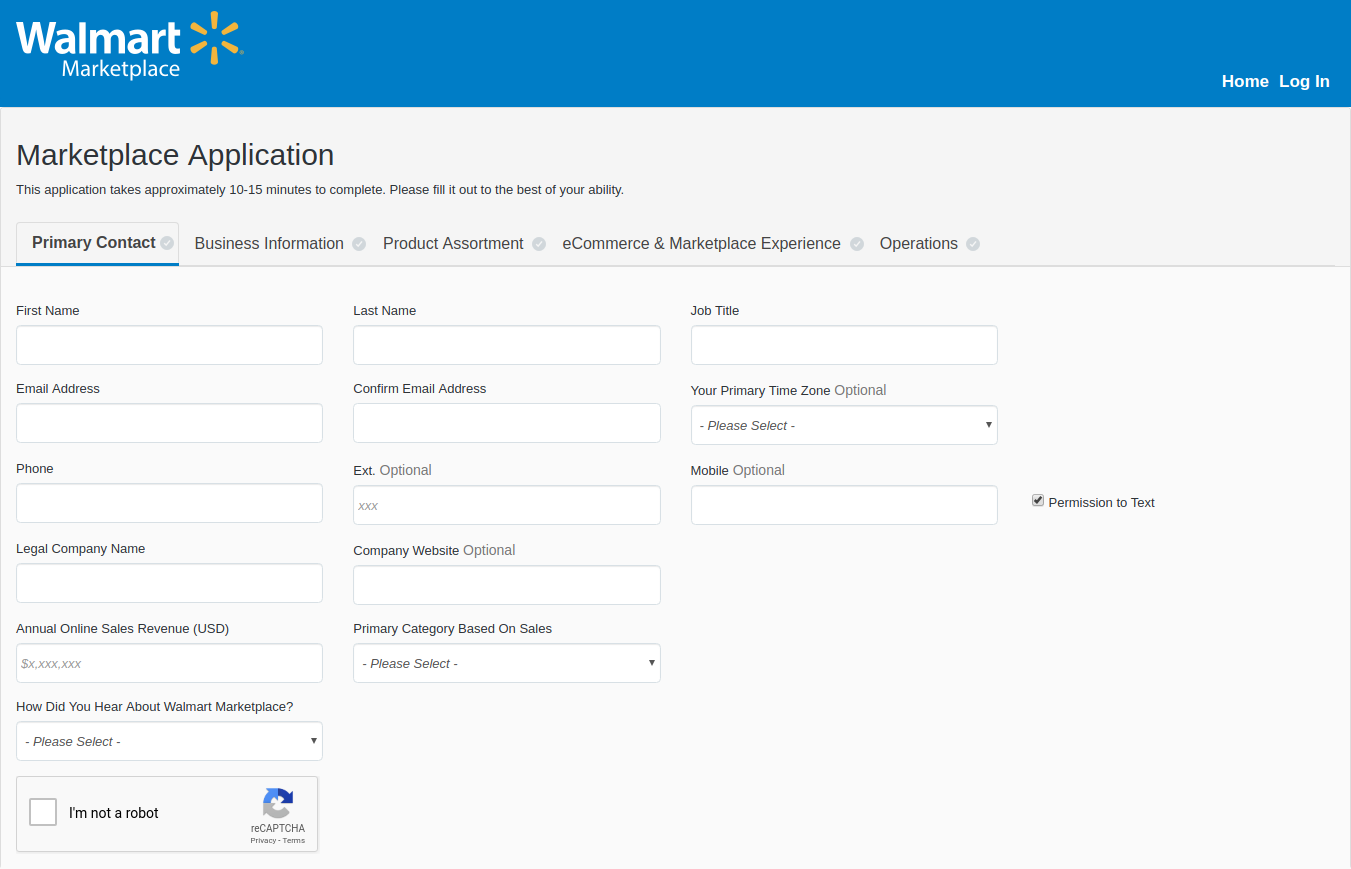
To become a Walmart seller, visit marketplace.walmart.com and click on the “Apply Now” button and fill all the required fields in the form. This process will take approximately 10 minutes to be complete if all the information is available with you.
Once you have shared the required information, click on the “Save” button, if you want to complete the process after some time or click on the “Apply Now” button to continue. Be sure to recheck all the given information thoroughly before moving further.
Sellers should prepare themselves to wait for 2-3 weeks for their response. You will receive an email invite to set up a Walmart seller account.
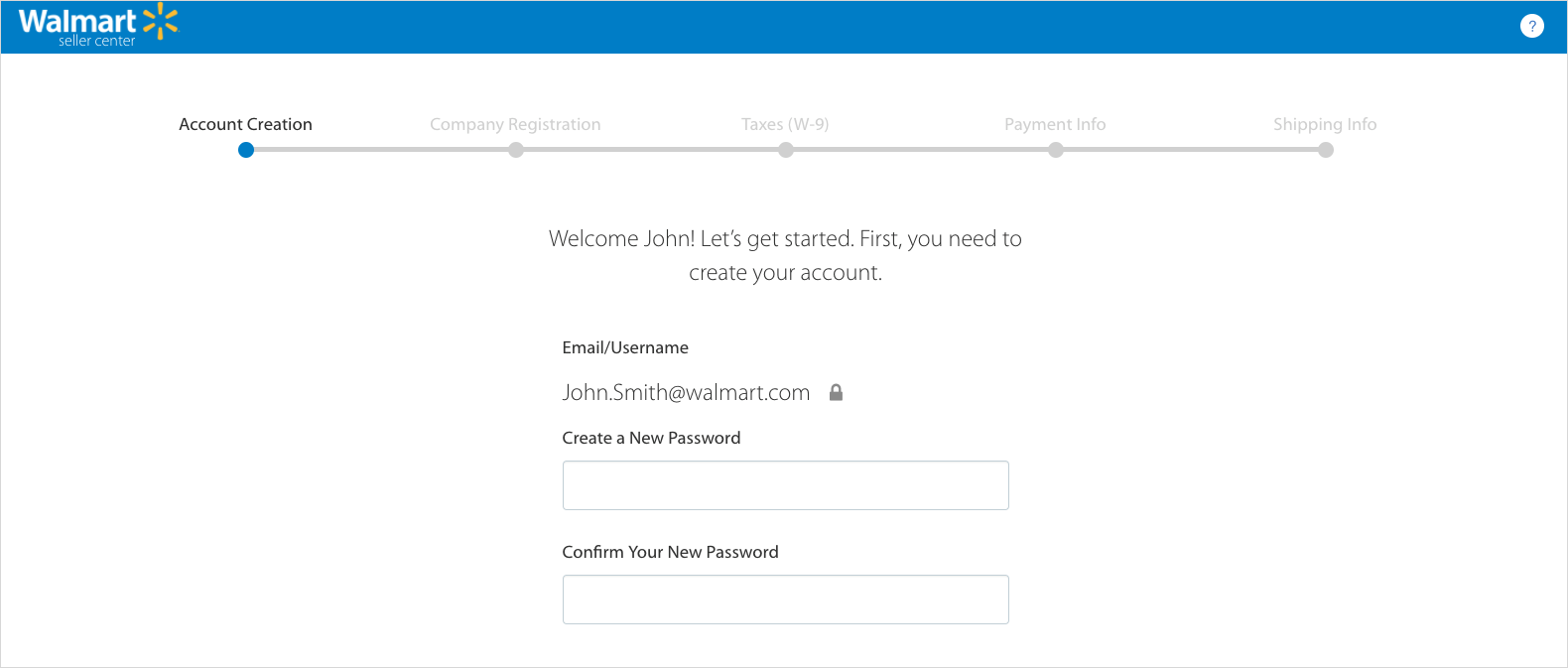
Step 2: Complete the Registration process!
Once you have received the invite mail and created your account, upload all your relevant certificates including your bank account information to meet the minimum requirements to be a vendor. Sellers have to provide information related to taxes, payment, shipping, etc. You can also be asked to share some more information about your company and products. This is done with the motive to increase the trust level of your business brand name. Once you are done with the process, you are finally ready to list your products on Walmart.
Step 3: Complete your Partner Profile:
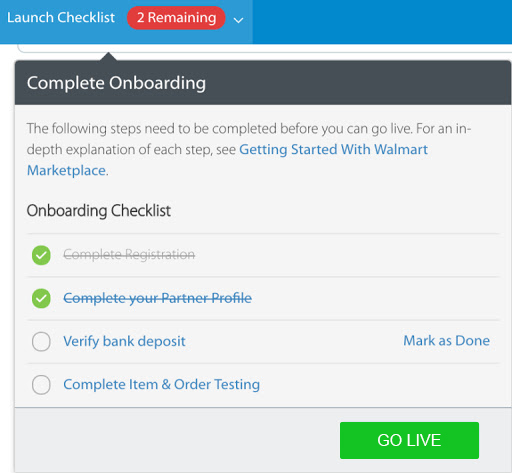
After creating your profile, sellers have to access the seller account. Sellers will get a “Launch Checklist” option which basically contains the requirements needed to launch an account. Partner Profile is a public page through which the customers are able to know more about the seller i.e.
Company Info
Customer Service
Shipping
Returns
Privacy Policy
Tax Info
After you complete your partner profile, the success bar will reach 100% and the account would be ready for launch.
Step 4: Verify the Bank Deposit:
Before moving further, verify your bank deposit by logging in to your bank account that you used in the registration process and check the transaction which states a deposit of 0.01$ from the “Walmart Marketplace Penny Test”. Click on “Mark as Done” in your checklist table for deposit confirmation.
The bank deposit nearly takes 2-3 business days to appear in the account. However, if you still can’t see the deposit, check your account details and enter them correctly.
Step 5: List and preview your items on the Walmart marketplace!
Sellers can create a CSV file upload by using an Excel or Google Sheet spreadsheet, following Walmart’s file upload guidelines. This mainly helps sellers to upload a small collection of products to the Walmart Marketplace. But, if sellers have to upload large collections, the other 2 methods would be a better choice.
2. API Connection:
If you know how to manage an API connection, You can connect Walmart’s marketplace to your eCommerce platform or inventory database for free via Walmart API. This method requires some technical knowledge but is the best way for uploading products on Walmart Marketplace.
3. Integration Partner:
If you are already a store owner on an eCommerce platform like PrestaShop, Magento, OpenCart and Shopify, and others, an integration partner can link your products in your existing catalog directly to Walmart. It is one of the easiest ways to list or can say import your products to the Walmart marketplace. However, this integration could be costly for you. The integration cost starts around $30/month and reaches up to $500/month depending upon your product and sales volume.
After listing all your products, click on the “Preview Item” button for any of your products you listed. This step will show you how exactly your product will look to customers on the front-end of the Walmart Marketplace. If you are not satisfied with the look, you can modify it accordingly and resubmit it.
Step 6: Test your product feed and order management functions:
Walmart even provides you the facility to set up and test your order management connection and other features. You are just required to send your products to feed for testing either in bulk or under any specific products and categorization.
Once you have sent the products for testing, a seller needs to keep an eye on all order processing, shipping, exchanges, returns, and customer services. You need to keep track of the order status as well.
Step 7: Launch your request and start selling:
After testing all the management functions check off from the seller setup list. Click Yes on the confirmation pop-up and you are ready to launch. The Walmart team will review all your account setup, products, and settings and will finally make them live.
Congratulations! You are now an official Walmart Marketplace Seller.
In order to be an established marketplace seller, it’s important that your Walmart Marketplace orders should fall into your normal workflow and for that, you have to always keep a check on these points mentioned below:
Product description should be relevant, clean and error free.
Ensure that all orders are updated and retrieved accordingly.
How to work with Walmart?
As the buyer places the order on Walmart.com, it pays sellers after the goods are shipped. Walmart does not provide an in-house order shipping program, so sellers have to handle the shipping process for the products. Unfortunately, sellers might face loss due to less efficiency and scalability. However, there are many shipping companies that can save your profits. Sellers can work with them in their initial phase of business without killing their profit margins.
Cost to Sell on Walmart:
Although selling on Walmart Marketplace could make you earn a huge chunk of profits but Walmart also takes advantage of the same. Walmart charges sellers a referral fee ranging from 6% to 20% of the product’s selling price, depending on the category. Walmart charges a very less referral fee as compared to Amazon. So, being a seller on Walmart can make you a billionaire one day.
Conclusion:
The Walmart marketplace is a huge and fast-growing marketplace every day by day. There are numerous third-party sellers who want to register themselves as Walmart marketplace sellers. With the growing competition, becoming a third party seller on Walmart is definitely not a cakewalk. The seller’s market does not entertain the sellers who are not meeting up the parameters set by them. So, keep a check on the requirements and there’s a quite good chance that Walmart will accept you as a marketplace seller. Hopefully, you will witness the increased number of orders and sales for your business.
With the help of Walmart Integrator by Knowband, you can now sell and manage the inventories at the Walmart Marketplace from the backend of your store. Walmart integrator is available for various CMS platforms like Prestashop, Magento, OpenCart, and Shopify.
Find out more articles on Walmart marketplace seller:
Walmart is one online platform that is giving quite a tough competition for the eCommerce giant Amazon. With its recent acquisition of Flipkart in India and Jet.com earlier in 2016, the company has made it very clear that nothing is stopping them. The eCommerce marketplace is not just shopping for a bigger with the biggies of the industry, but it has also opened up doors for the small vendors to dive into the tech-savvy market.
Walmart is the second-largest online shopping destination (after Amazon) in the US. With 495.76 billion U.S. Dollars global net sales, it has marked its presence all over the world and is continuing to gain more success in the future.
Moreover, the eCommerce site has marked its presence in over 27 countries worldwide. Thus, it is indeed a great platform for the e-sellers to reach out to yet another chunk of ready buyers. However, with great opportunity comes great responsibility. The consumer-centric market sought nothing, but the best. Thus, the jam-packed platforms require the sellers to stay at their toes when it comes to catering to the customers with efficiency.
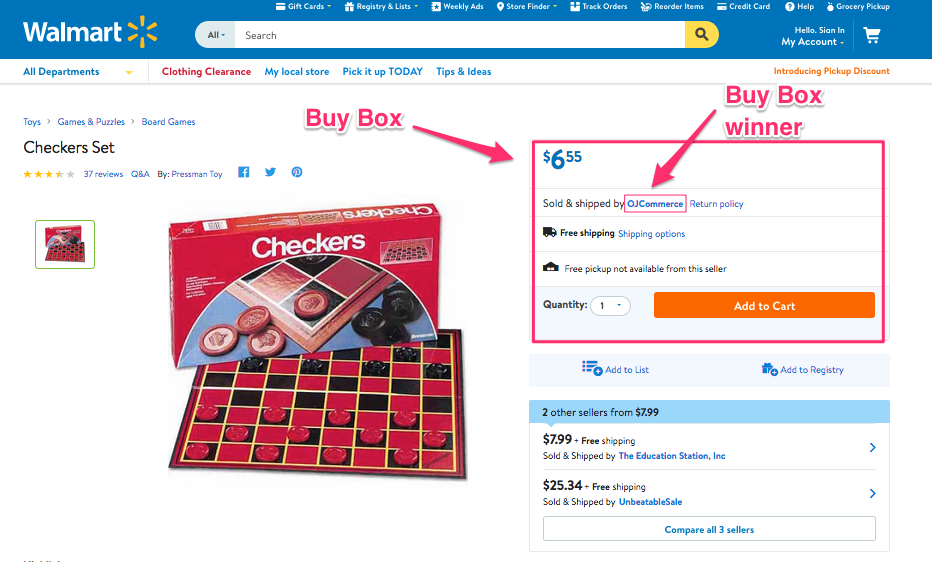
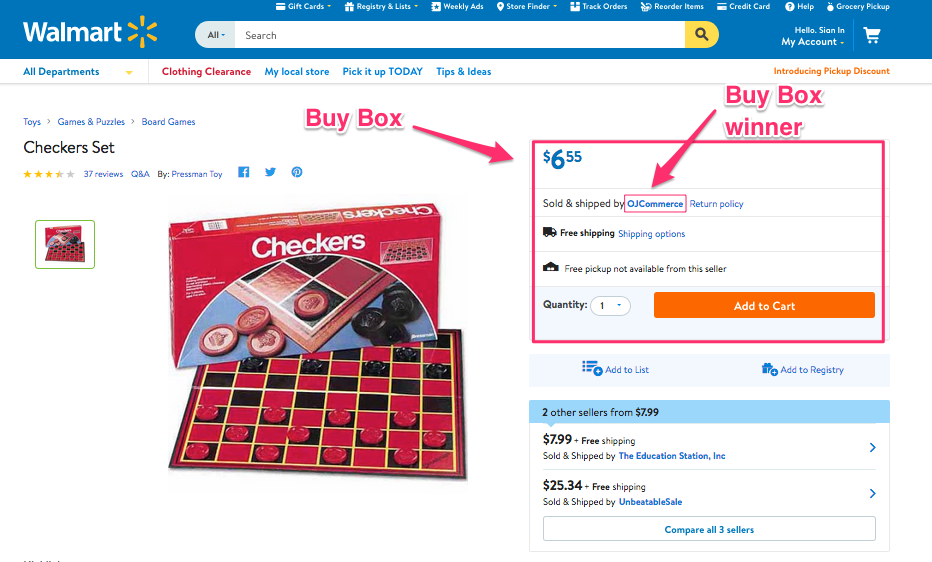
If more than one seller is selling the same product, then, walmart.com displays them on a single page. This page displays the products and their pricing to the customer. Out of these products, one item wins the Buy Box. The customers are drawn to the very first option that they see. As per reports, approximately 85-90 percent of sales are acquired by the seller who wins the Walmart buy box. Hence, winning the buy box is essential for the vendors.
How to win the BuyBox on Walmart?
Product Listing at the lowest price
An online marketplace is a place where multiple vendors are offering the same item at different prices. At this point, the seller that offers the products at the best or the lowest price wins the BuyBox. Content Analytics offers you an automated notification whenever you lose the buy box. Additionally, for the CMS-based eCommerce sites, there are plugins available that help you import the BuyBox report in your store. Thus, you can track the pricing report of the other vendors and reprice the product accordingly. Extensions like Prestashop Walmart integrator, Magento 2, Magento Walmart Integration extension, OpenCart Walmart Integrator Extension, and Shopify Walmart Integrator Extension offers the same functionality for the respective platforms.
In case you manage your Walmart shop without any extension, you can make use of the Walmart Repricer. This tool checks out the lowest price of products on the Walmart store. Not just this, it even changes the price of the product accordingly. On the other hand, if the competitors’ price is higher than that of yours, you can lower the prices, but keep it less than theirs.
Keep the products in-stock
Walmart.com’s buy box algorithm structured to check the inventory of the item competing to win the BuyBox as well. After the pricing is checked, it will see if the products are in-stock or not. If it doesn’t, then, the seller will lose, even if it is being offered at the lowest price. Try to keep the products in stock that are in the wishlist or popular between customers as its unavailability could make you lose potential customers. Ranking of products is also necessary as they should be visible in the search results of customers resulting in good sales and profits.
Offer Cheap Shipping Option
Winning the BuyBox is dependent on the order cost of the order. Thus, the shipping charges can be one of the deciding factors. Thus, it is recommended to use free ‘Value Shipping’. On Walmart, if the total cart value is more than $50. Offer free delivery to the customers along with lower prices.
How can the Knowband’s Walmart Integration extension help you win the BuyBox?
Knowband offers Walmart marketplace integrators for various CMS platforms such as Prestashop, Magento 2, Magento, OpenCart, and Shopify. This is how the plugins can help the e-sellers to win the BuyBox:
You can import the BuyBox report of the Walmart marketplace by executing cron in the back-end of the Walmart integrator.
You can track the price of your competitor and reprice your product accordingly.
The change in the price is synced with the marketplace with the help of the cron job offered by Knowband’s Walmart integrator.
Knowband, one of the leading names in the field of eCommerce solution provider, offers the best solution to go for multi-channel selling to the Magento 2-based e-merchants. If you are planning to sell your products on the popular Walmart marketplace, then, Knowband’s Magento 2 Walmart Integrator is the smartest solution for the same. Walmart Magento 2 API integrator connects the two sites and allows automatic inventory, shipment and sales management.
1.1 Admin Features of Magento 2 Walmart Integration Module by Knowband:
Magento 2 Walmart Integrator is easy to understand and use.
Walmart Magento 2 integrator offers real-time synchronization and makes inventory and order management a cinch for the store admin.
Magento 2 Walmart integration module allows the admin to list the products in bulk at the marketplace.
The bulk upload can be done by creating profiles in the back-end of the Magento 2 Walmart integrator.
Via the profiles created in the Walmart Magento 2 integrator, the admin can update the products details and manage the inventory. The cron jobs allows the admin to remove or relist the already listed products.
The admin can add Number of shipping option or map shipment carrier for the store with that of the marketplace from the back-end of the Magento 2 Walmart API integrator. The sellers can even fix and update the shipping lag time with the help of Walmart Magento 2 synhronization addon.
Walmart Magento 2 API Integration plugin offers cron jobs with the help of which allows the admin to sync the orders with the Magento 2 store and process them from a single interface.
Magento 2 Walmart connector even updates the order status the help of cron options.
Walmart Magento 2 connector even offers an easy interface to manage the feed status.
The admin can offer promotional deals to the marketplace customers with the help of Walmart Magento 2 API integrator.
The automated approach of the Magento 2 Walmart Integrator allows the e-merchants to upload the tax code in one go.
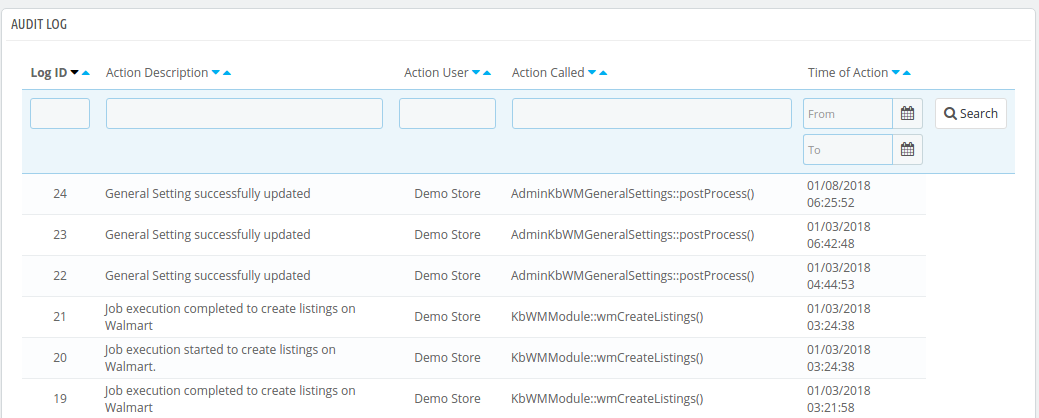
The audit log of Magento 2 Walmart integrator allows the admin to track the status of the various jobs running the back-end.
The sellers can reprice their products and win the buy box. Magento 2 Walmart integrator offers buy box report to the store admin.
The admin interface of the Walmart Magento 2 integrator offers complete sales report.
The admin can easily track the errors occurred while product listing and rectify the same from the admin interface of Magento 2 Walmart Integration extension.
2.0 Installation
Follow the following steps in order to install Magento 2 Walmart Integrator at your store:
Download the Magento 2 Walmart Integrator from Knowband store.
You’ll receive a zipped file containing the user manual as well as the source code of Walmart Magento 2 Integration Plugin. Unzip the package.
Create a folder {Magento root}/app/code/Knowband/Walmart
Upload the extracted content in the above folder via FTP manager (like Filezilla or WinSCP – download here: https://filezilla-project.org/).
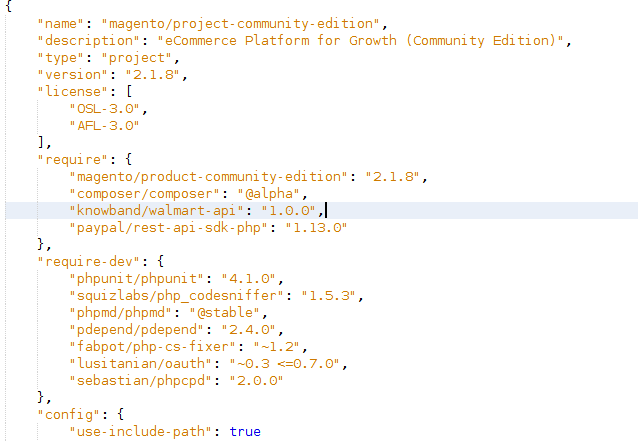
Add the “knowband/walmart-api”: “1.0.0” in the root composer file.
6. In Admin Panel go to the main menu -> Knowband -> Walmart Integrator.
7. The Magento 2 Walmart integration extension is now ready for use.
This User Manual will guide the users through the Magento 2 Walmart Integrator configuration and settings.
2.1 How to configure Walmart Magento Integration extension?
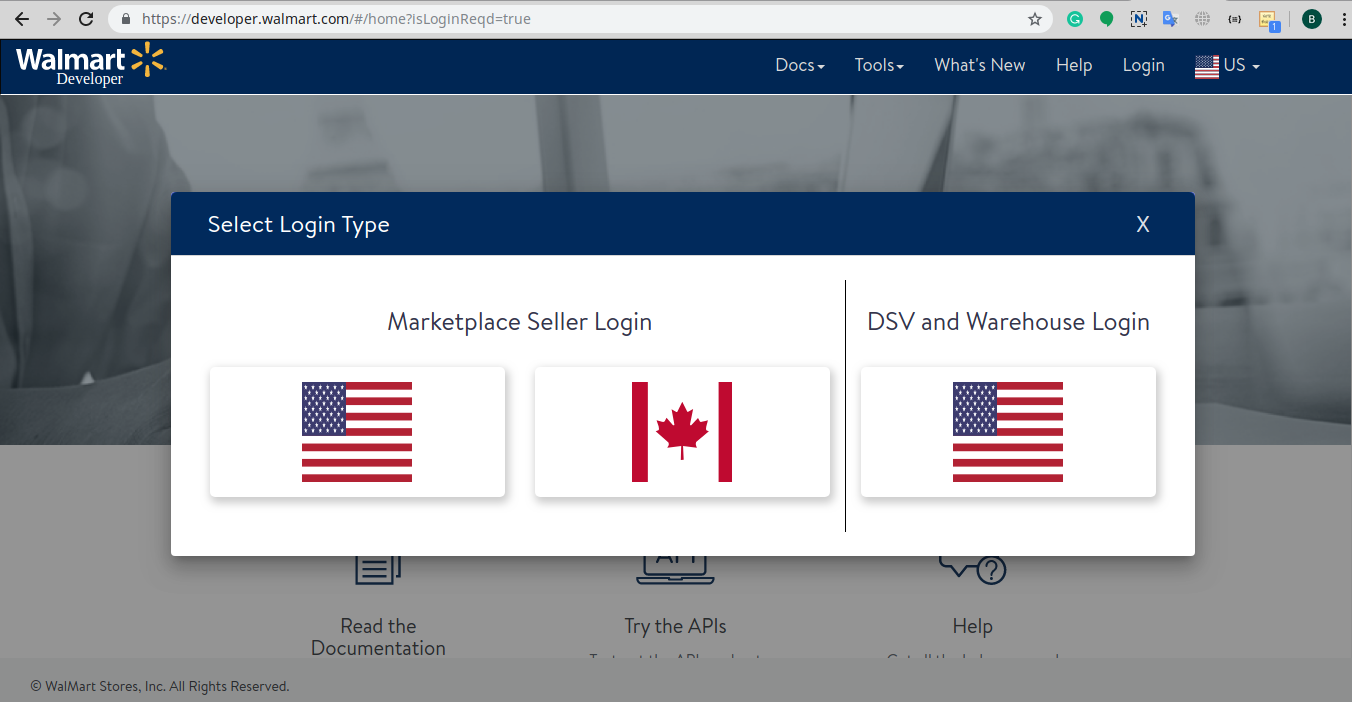
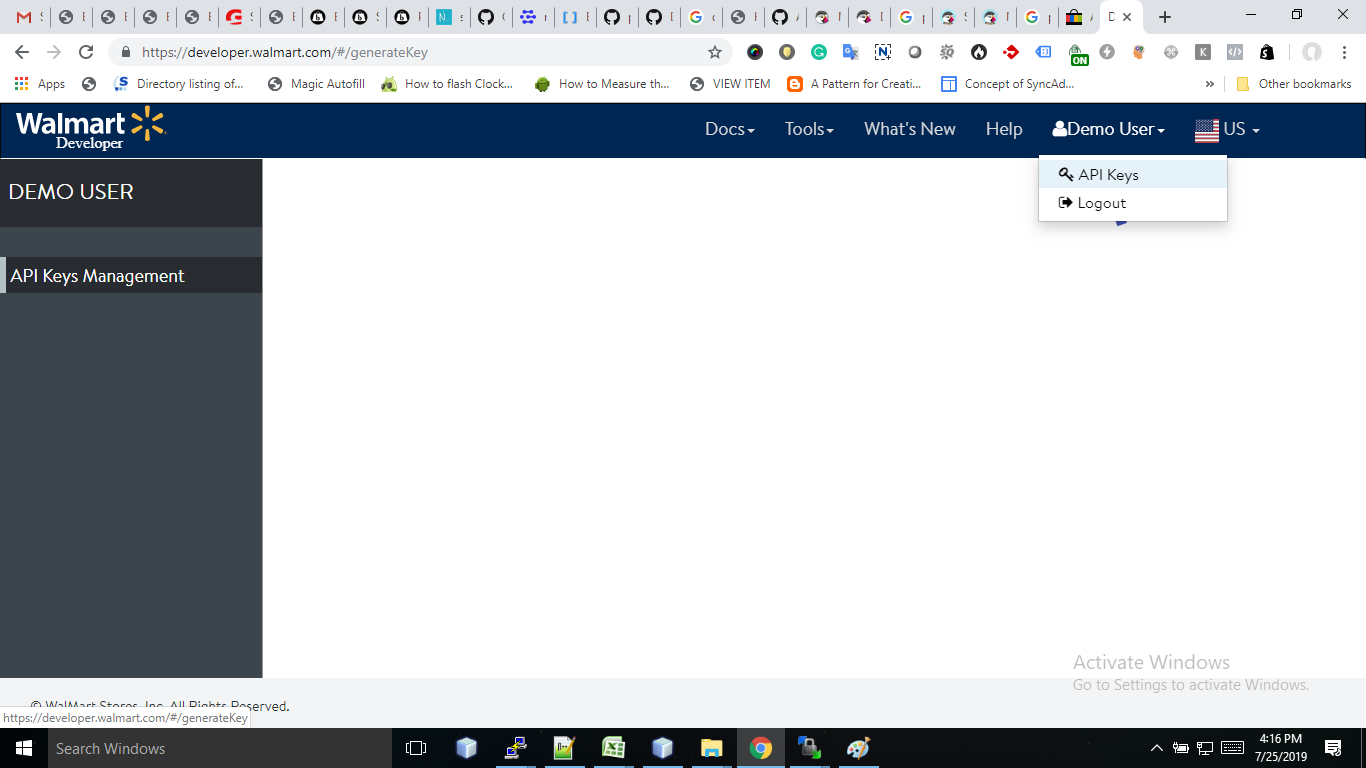
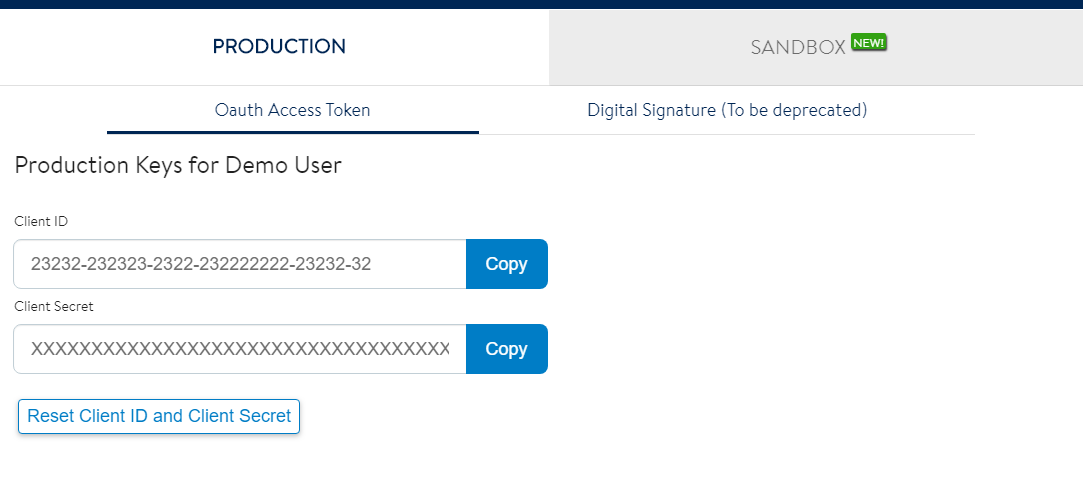
To configure the Walmart Marketplace Integrator, store admin needs to get the Client ID and Client Secret. In order to obtain Walmart Client ID, and Client Secret, follow the process given below:
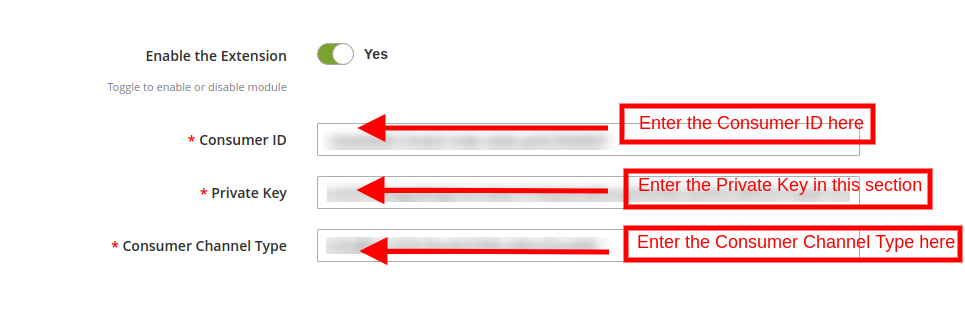
The connection between the store and the marketplace can be setup from the General Settings Tab of Walmart Magento 2 integration plugin. The various input fields are mentioned below:
1. Enable the Extension
Enable this button in order to establish the connection between the marketplace and the Magento 2 site.
2. Consumer ID
Enter the Walmart Consumer ID obtained from the seller’s account in this section. This will authenticate the connection being established between the Magento store and Walmart Marketplace.
3. Private Key
Copy the Private Key from your Walmart seller’s account and paste it in this section. It is mandatory for authenticating the integration between the Magento store and Walmart Marketplace.
4. Consumer Channel Type
Enter the Consumer Channel Type in the field to complete the setup.
Click on the ‘Save Settings’ to complete the setup.
3.2 Profile Management
The Magento 2 Walmart Integration extension offers profile-based listing option that enables bulk inventory upload. The Profile Management tab of Walmart Magento 2 integrator offers a user-friendly interface to manage the profiles with ease.
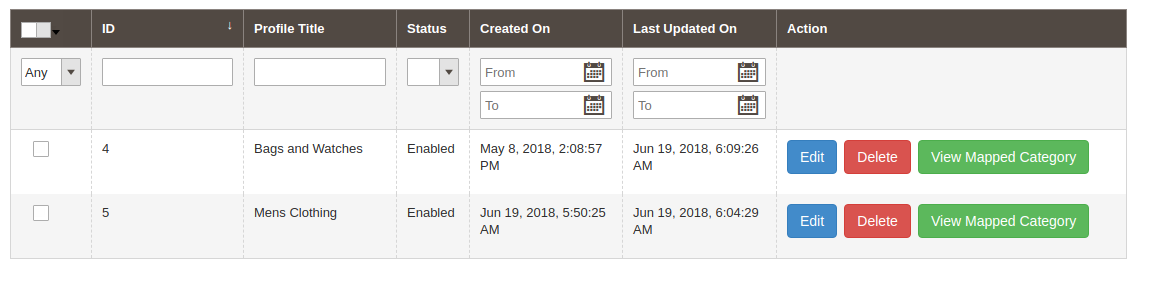
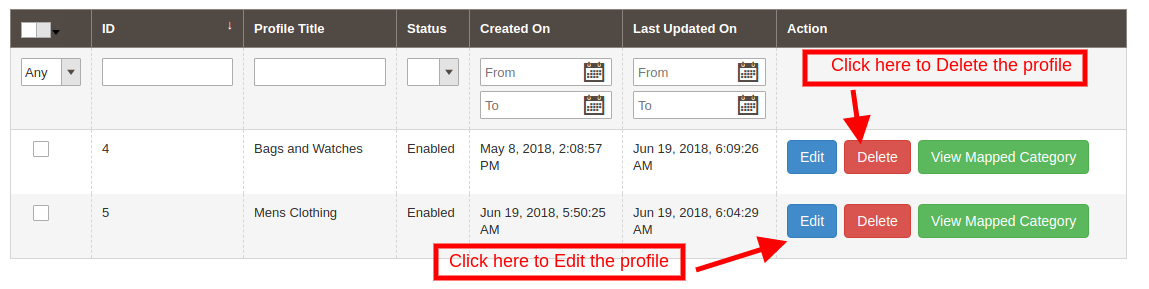
The store admin can view the profiles that are created as shown in the image below:
3.2.1 How to create new profiles?
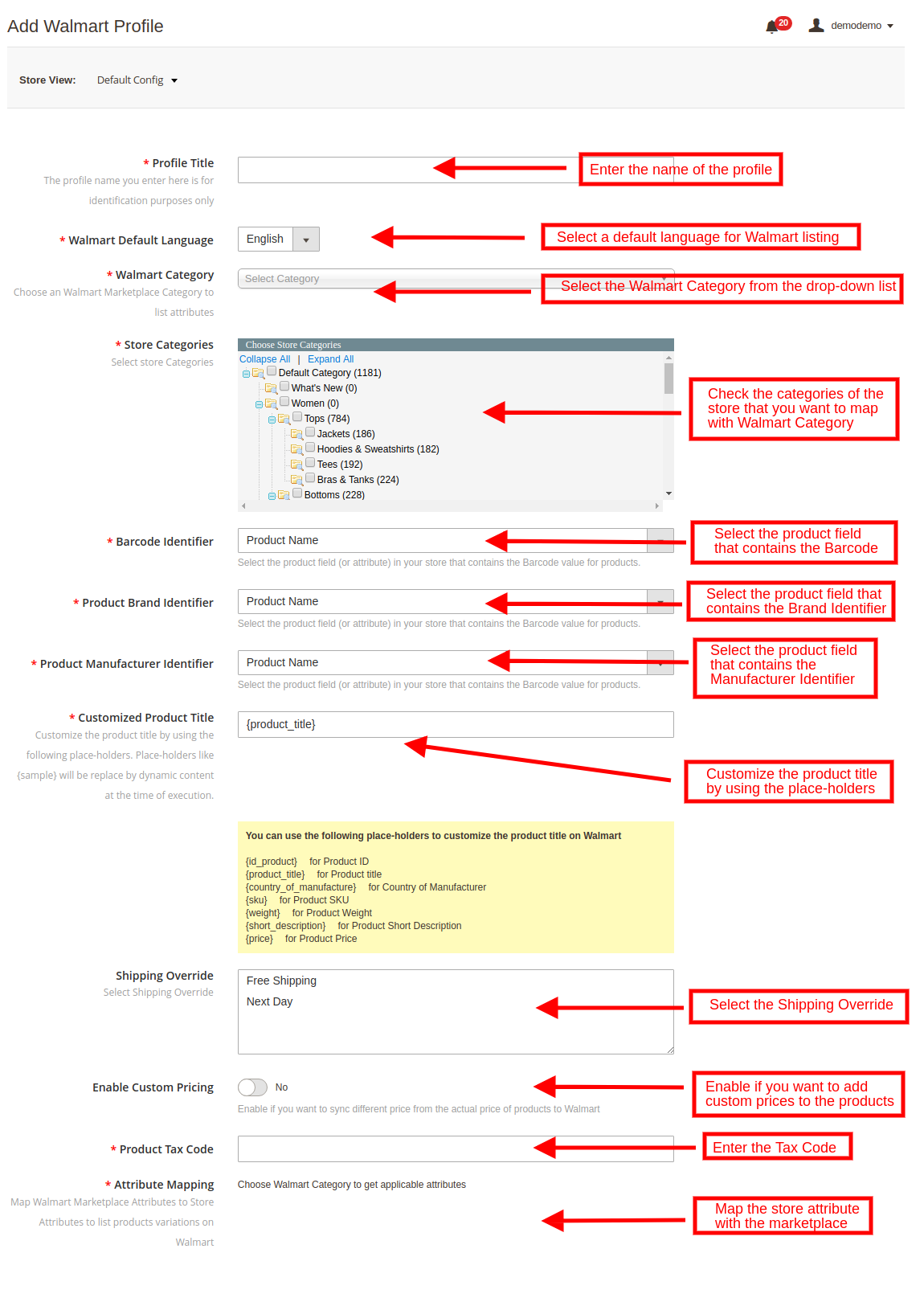
In order to create new profile, click on the ‘Add New’ button at the top right section of Magento 2 Walmart Integrator. This will redirect you to the profile creation tab as shown in the image below:
Profile Title: Input a unique name for the profile.
Walmart Default Language: The Magento 2 Walmart synchronization extension offers multi-lingual compatibility. Select the default language for your Walmart shop from the drop-down menu.
Walmart Category: Select the Walmart category from the drop-down list with which you want to map the Magento 2 store category.
Store Categories: Check the categories of the store that you want to map in the category of Walmart.
Barcode Identifier: Select the product field from the drop-down menu that has Barcode identifier.
Product Brand Identifier: Select the product field from the product field that has brand identifier from the drop-down.
Product Manufacture Identifier: Select the product field from the list that has product manufacturer identifier.
Customized Product Title: Product title can be customized by using the pre-defined place holders.
{id_product} for Product ID
{product_title} for Product title
{country_of_manufacture} for Country of Manufacturer
{sku} for Product SKU
{weight} for Product Weight
{short_description} for Product Short Description
{price} for Product Price
Shipping Override: Sync the shipping overrides created in the Shipping Overrides tab of the Walmart Magento 2 connector by executing cron (See Section 3.). Enter the shipping overrides in this section that you want to enable with that particular profile.
Custom Pricing: Magento 2 Walmart connector allows the store admin to list the products at custom prices. Enable this button for the changing the price of the product at the marketplace without changing it’s base cost from the eCommerce store.
If enabled, the admin will be able to increase or decrease the cost of the products by a fixed or percentage amount.
Select whether you want to increase or decrease the cost of the products from the drop-down list.
Select whether you want to increase/decrease the price by a Fixed amount or Percentage amount.
Enter the amount by which you want to change the price of the products.
Product Tax Code: Enter the product tax code in this section.
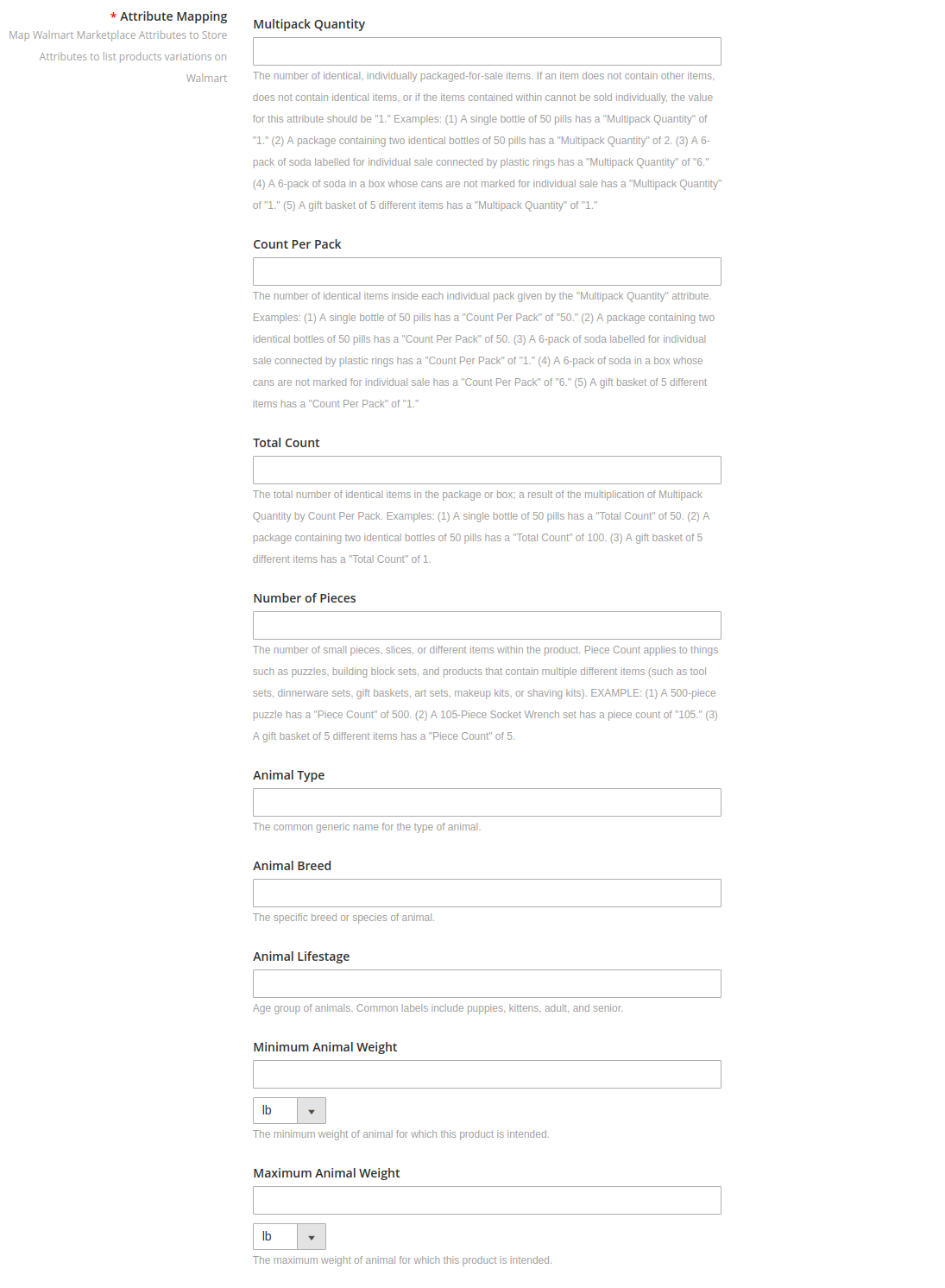
Attribute Mapping: Map Walmart Marketplace Attributes to Store Attributes to list products variations on Walmart. The attribute section include the attributes of the selected category as shown in the image below. Map the ones that you feel is mandatory.
3.2.1How to Edit/delete the Profiles?
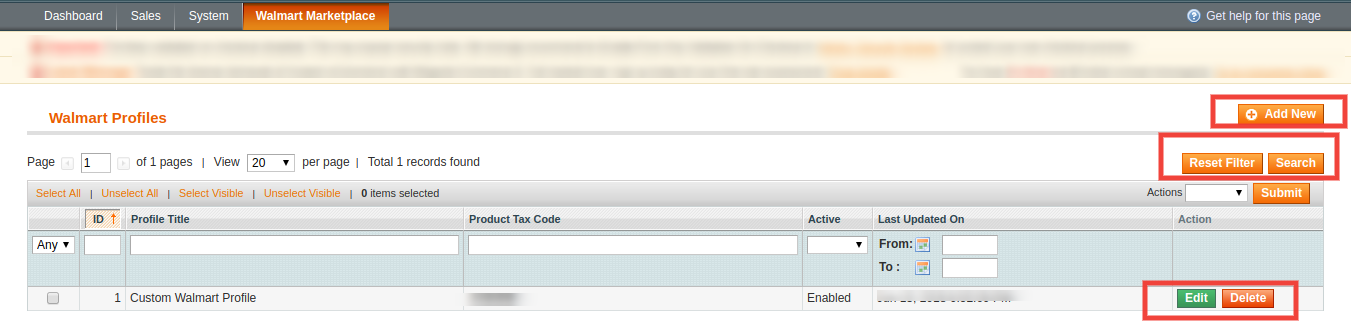
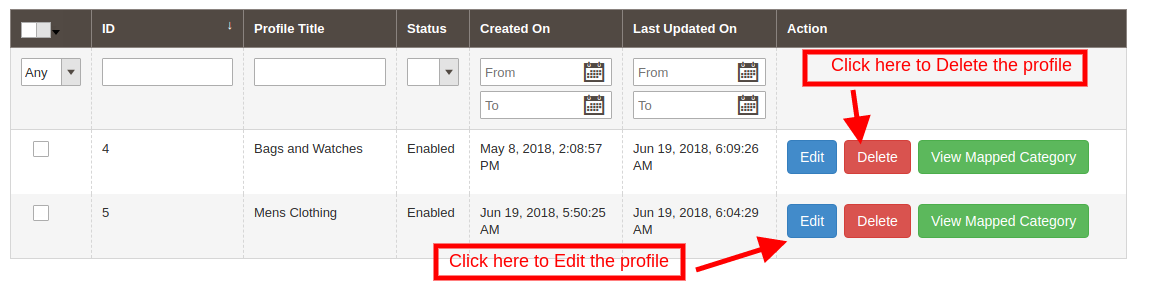
The list of the created profiles will listed in the Profile Management tab of Walmart Magento2 integrator. The admin can edit the profiles by clicking on the ‘Edit’ button corresponding to each profile.
In order to delete the profile, click on the ‘Delete’ button corresponding to each profile.
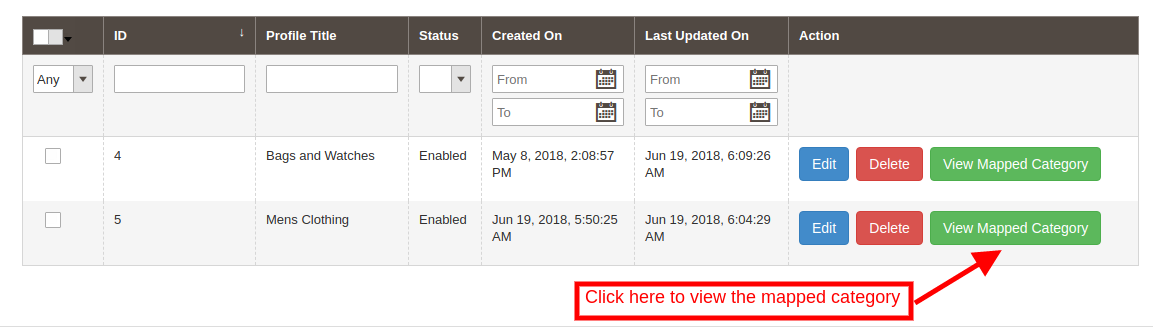
3.2.2How to View the Mapped Category of the profiles?
In case you want to view the mapped category, click on the ‘View Mapped Category’ link corresponding to each profile as shown in the image below:
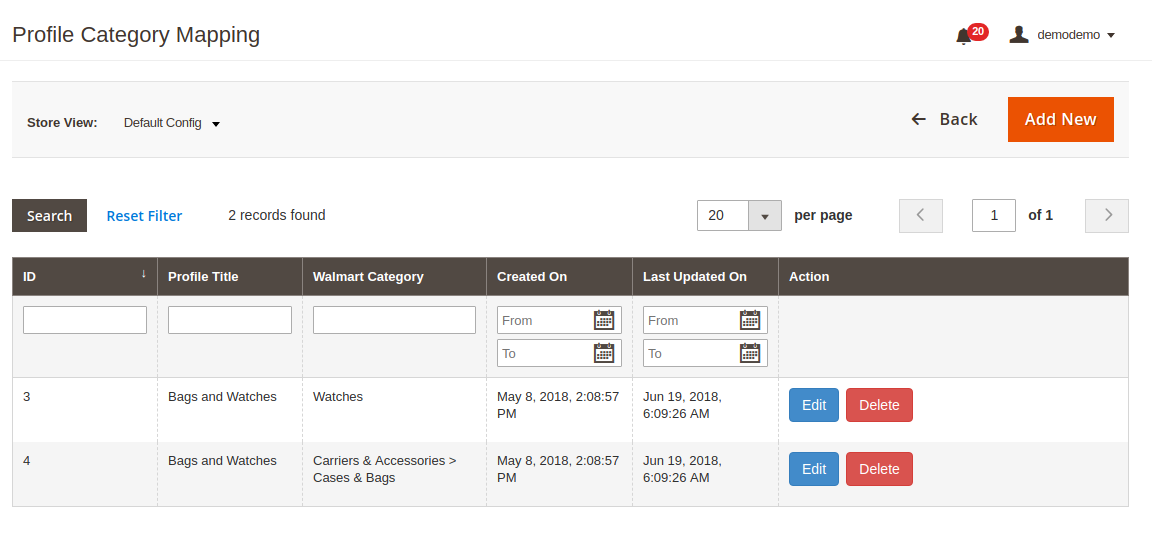
This will redirect you to the interface of the Walmart Magento 2 integration module where you can view the entire list of mapped category.
The admin even gets an option to edit or delete the mapping by clicking on the Edit and Delete button respectively as shown in the image below:
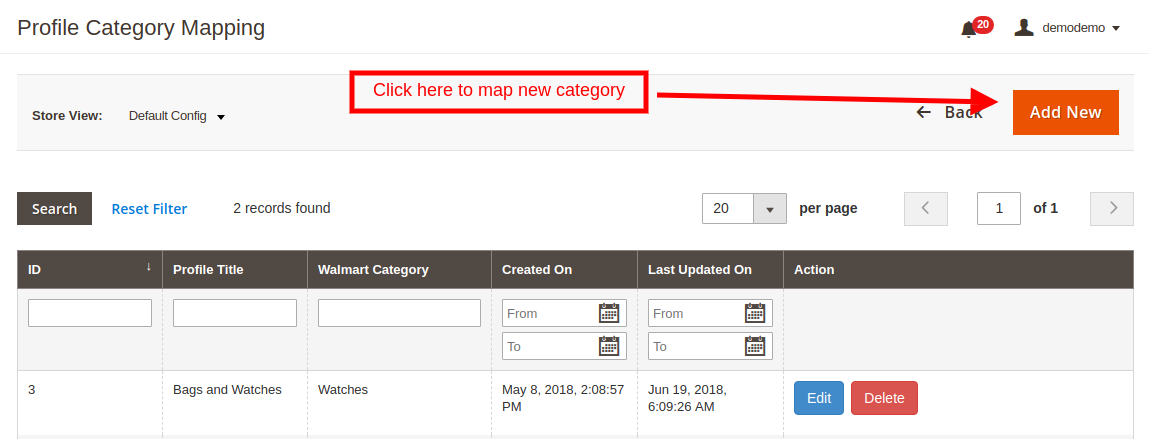
3.2.2.1How to Map New Category in the profile?
Additionally, the store admin even gets an option to map new categories. In order to map new category, click on Add New button at the top right section of Walmart Magento 2 Integrator.
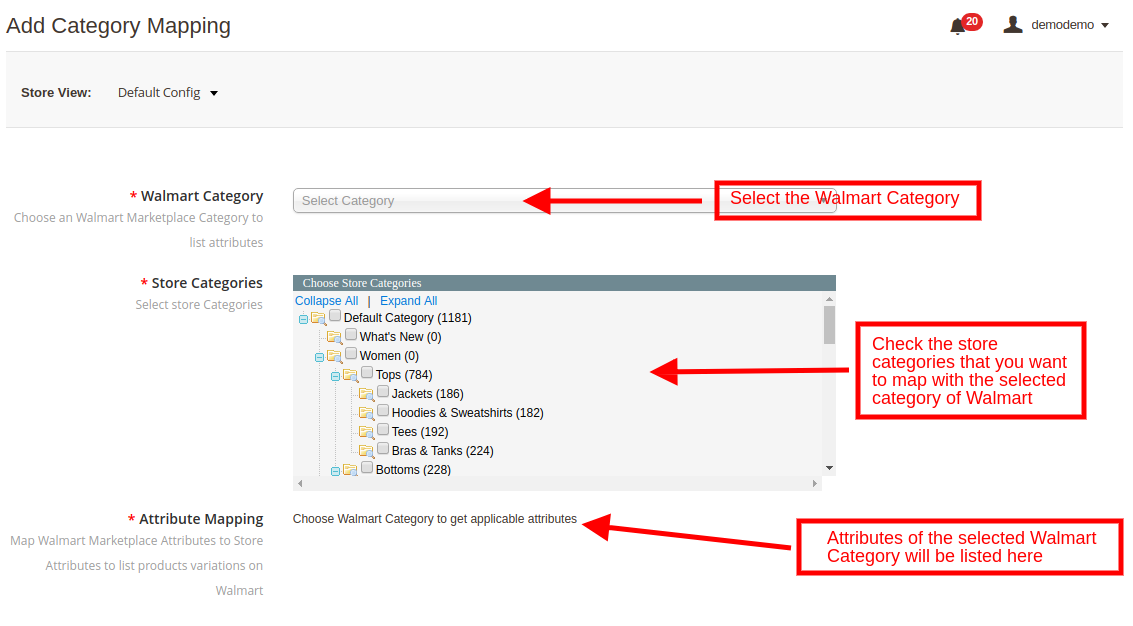
This will redirect you the category mapping page. The various fields of this mentioned below:
Walmart Category: Select the Walmart Category that you want to map with the store’s category from the drop-down menu.
Store Categories: Check the categories that you want to map with the selected category of Walmart.
Attribute Mapping: The attributes of the selected Walmart category will be listed in this section. You can map the attributes as per your business requirement.
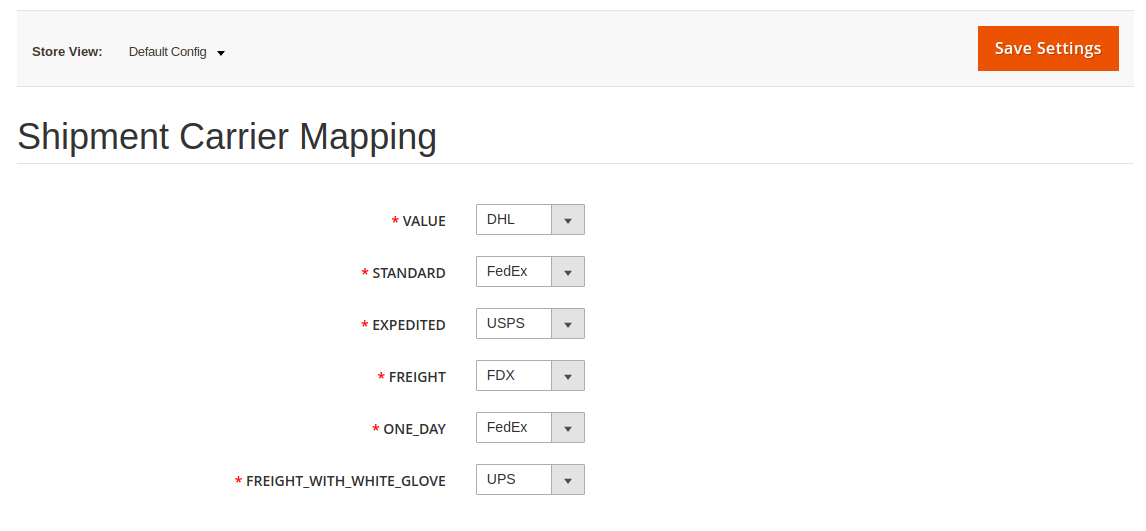
3.3 Shipment Carrier Mapping
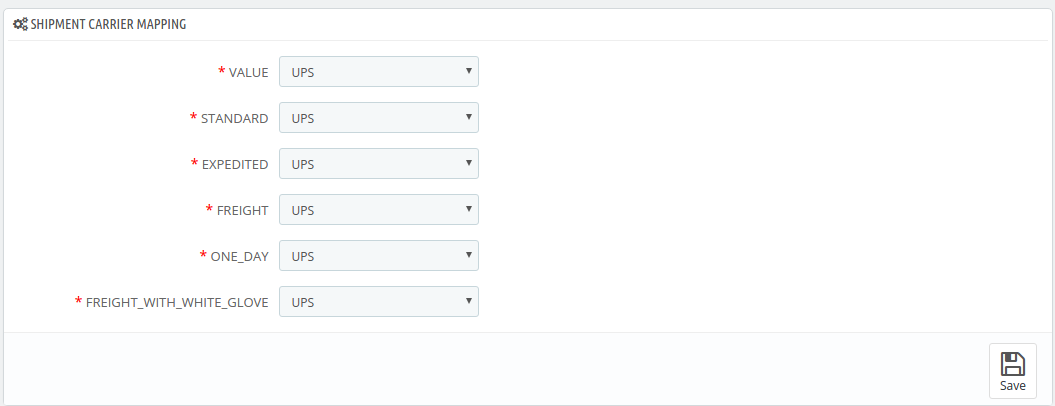
The admin can map the shipment carrier of the store with that of the marketplace with the help of Magento 2 Walmart integration module. This can be done just by selecting the options from the drop-down list.
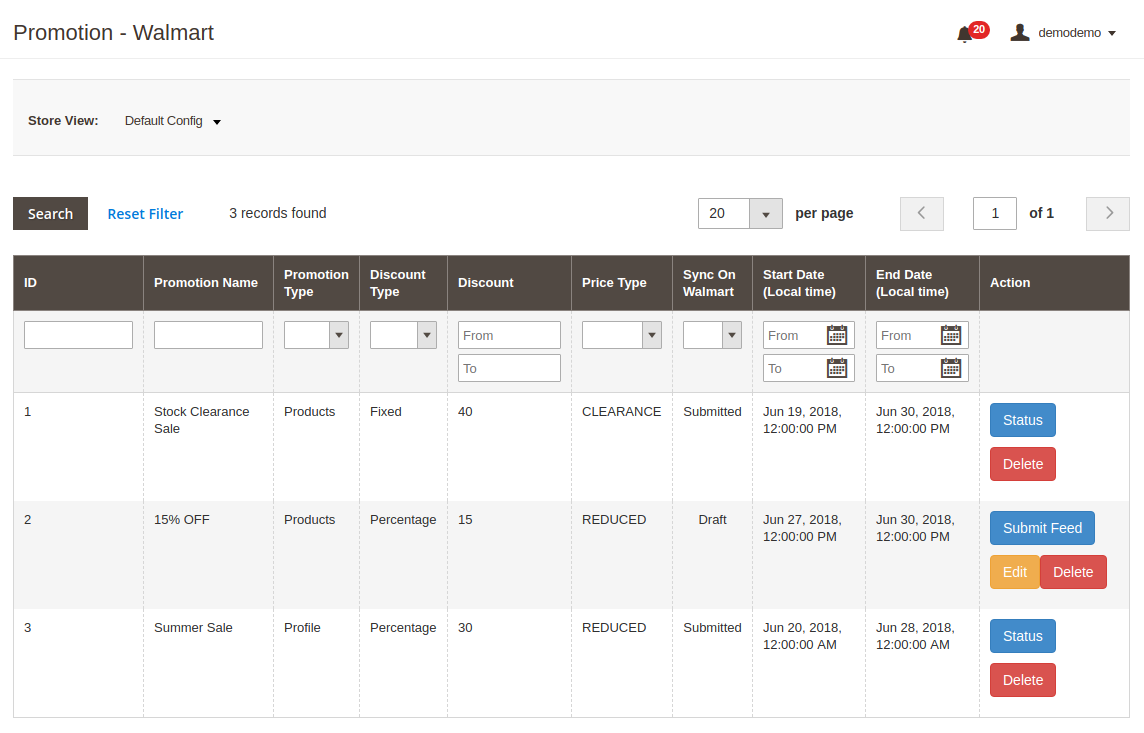
3.4Promotion
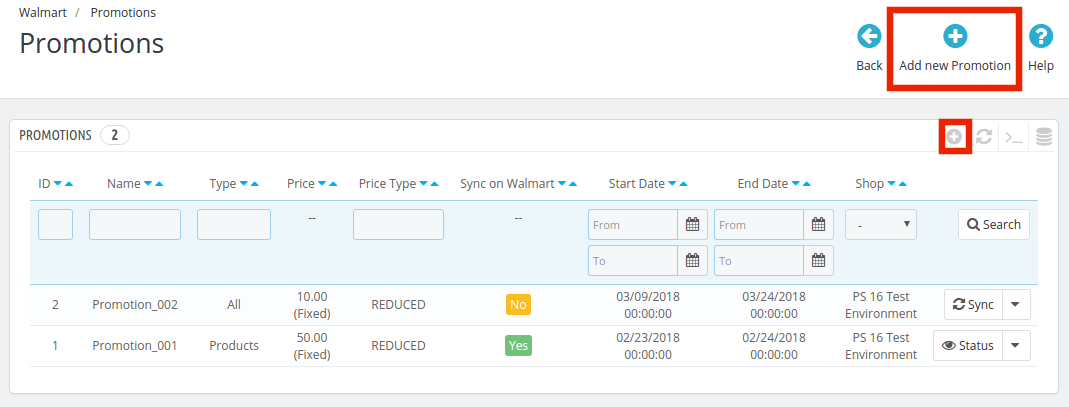
Magento 2 Walmart Integration plugin allows the admin to create promotions for the marketplace customer. The store owner can fix the rule and enable/disable the same from the back-end of the Walmart Magento 2 integration plugin.
3.4.1 How to create newPromotions for Walmart?
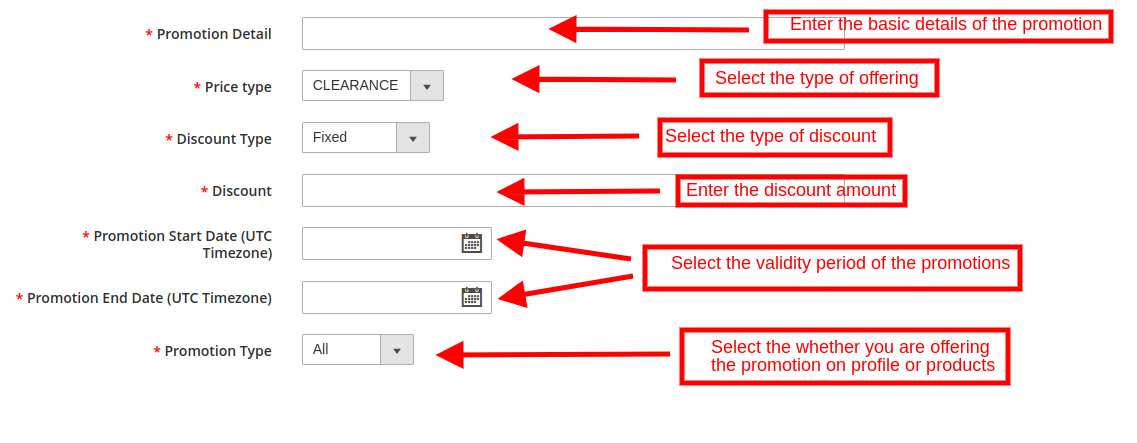
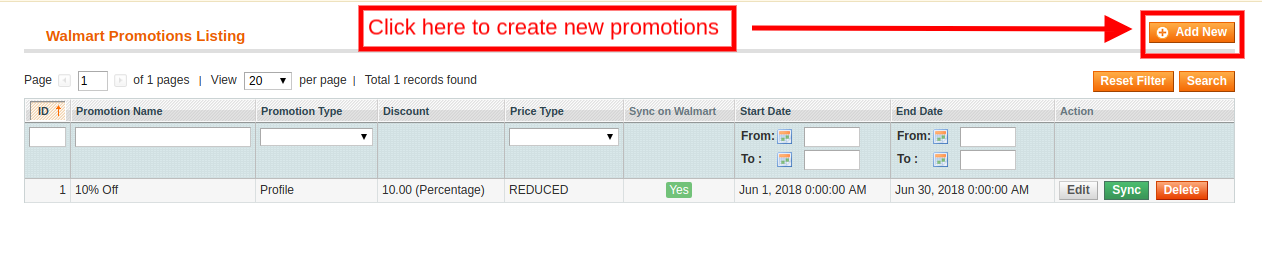
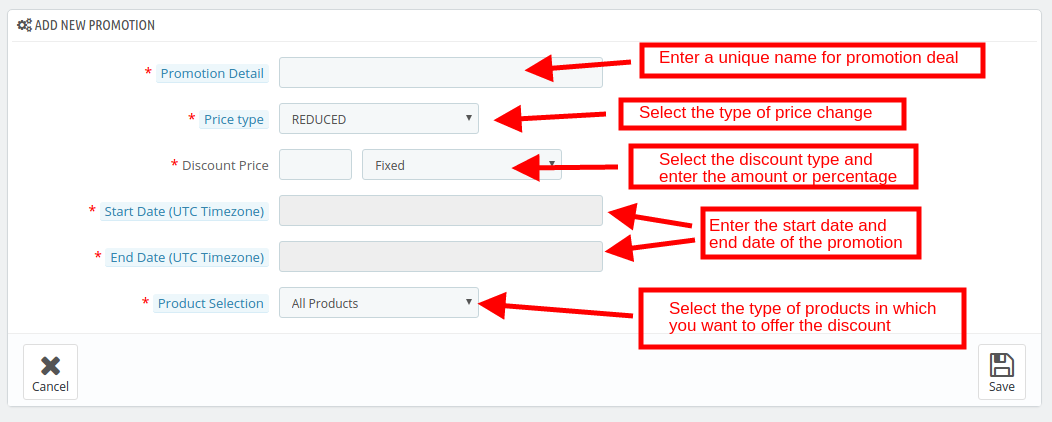
You can create new promotions by clicking on the Add New link at the top right section of the Magento 2 Walmart integrator. This will redirect your to the promotion creation page. The various fields of the tab are discussed below:
Promotions Details: Provide a details of the promotion. This will be displayed as the name of the deal.
Price Type: Select the type of the promotion that you are offering. It may be a clearance sale or price reduction offer.
Discount Type: Select the type of discount that you are offering. It can be a Fixed or Percentage discount.
Discount: Enter the discount amount in this field.
Promotion Start and End Date: Select the start and the end date for the validity of promotion.
Promotion Type: Select the type of promotion that you are offering. You may offer it to all the products, based on profile and products
3.4.1 How to edit/delete Promotions for Walmart?
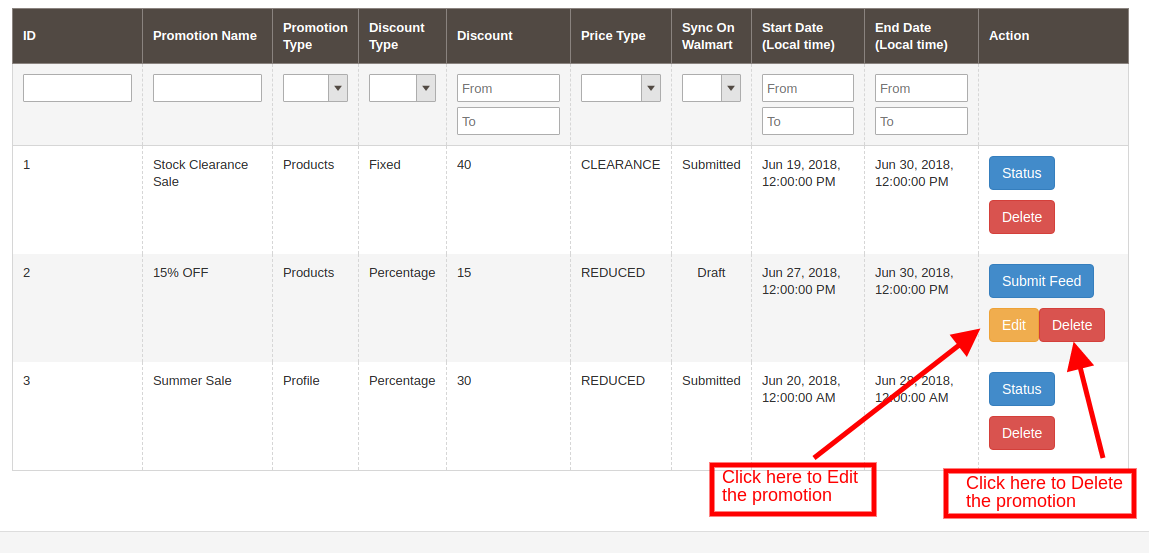
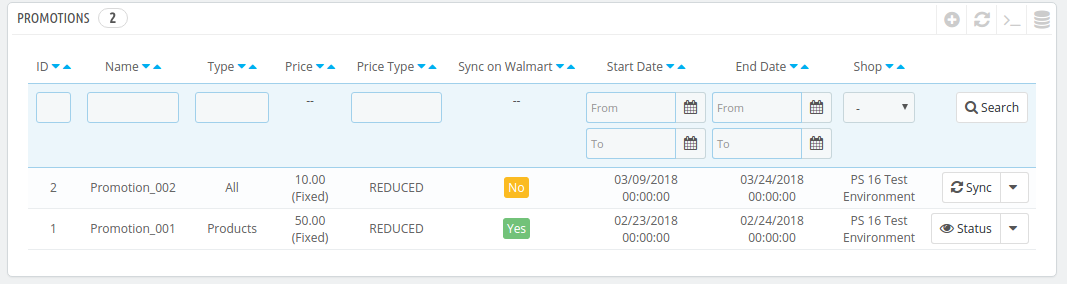
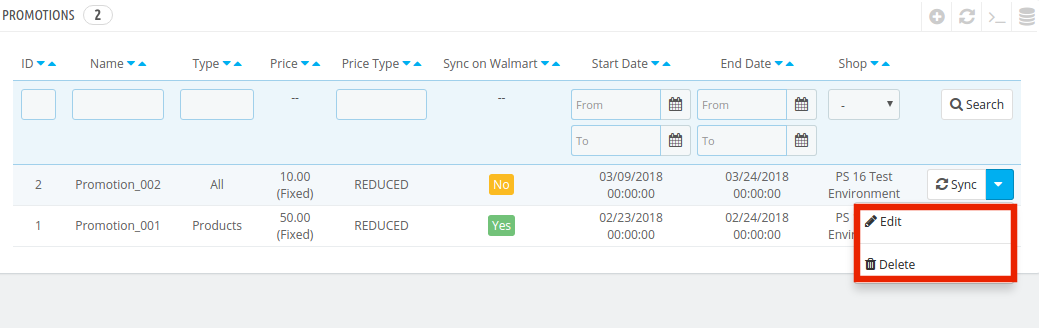
The promotions created by the admin is listed in the Promotions tab of Walmart Magento 2 integrator. The admin can edit or delete the same by clicking on Edit or Delete button respectively as shown below:
3.5 Shipping Override
The admin gets an option to create N number of shipping overrides in this tab of Walmart Magento 2 synchronization plugin.
3.5.1 How to add Shipping Templates?
Follow the steps mentioned below to add Shipping Overrides:
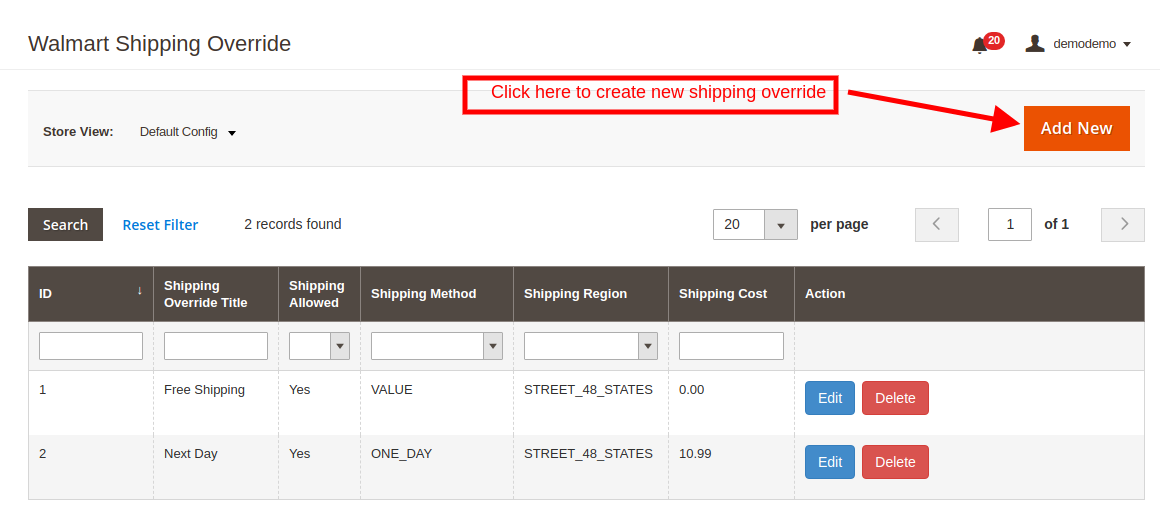
To create new shipping override, click on ‘Add New’ at the top right section of Magento 2 Walmart synchronization extension.
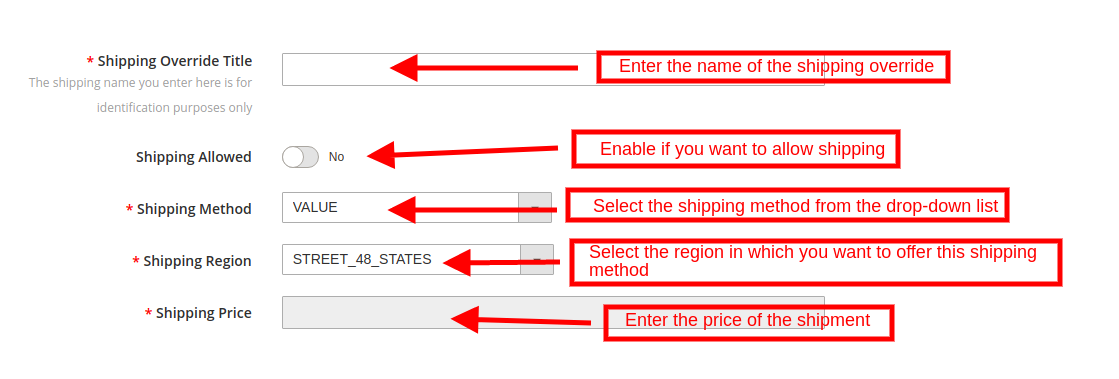
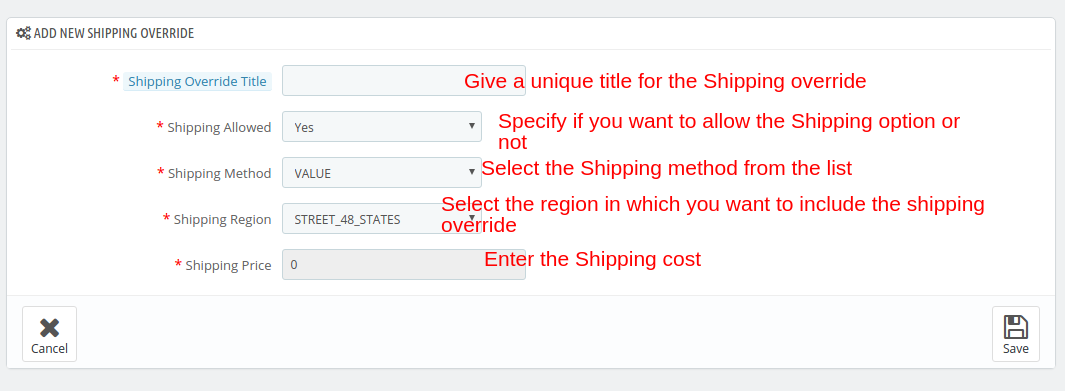
The various field of this tab are discussed below
Shipping Override Title: Enter a unique name for the Shipping Override Title in this section.
Shipping Allowed: Enable the button if you want to allow shipping.
Shipping Method: Walmart allows 6 types of shipping methods. Admin can easily configure the shipping methods as per the requirement from the admin panel of the Walmart Integration module. Shipping methods offered by Walmart are – VALUE, STANDARD, EXPEDITED, FREIGHT, ONE_DAY, FRIGHT_WITH_WHITE_GLOVE. Kindly refer to the below article for the details:
Shipping Region: Admin can select the region in which he wants to enable the respective shipping override.
Shipping Price: As per the selected shipping method and shipping region admin can set the shipping cost for the different shipping methods and regions.
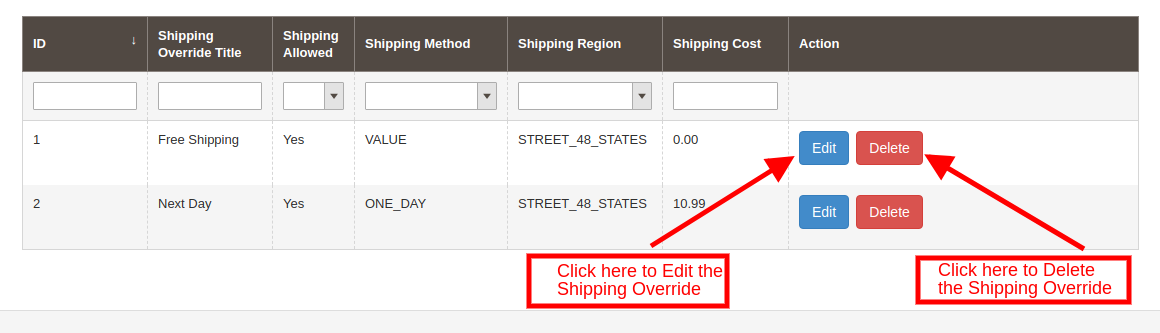
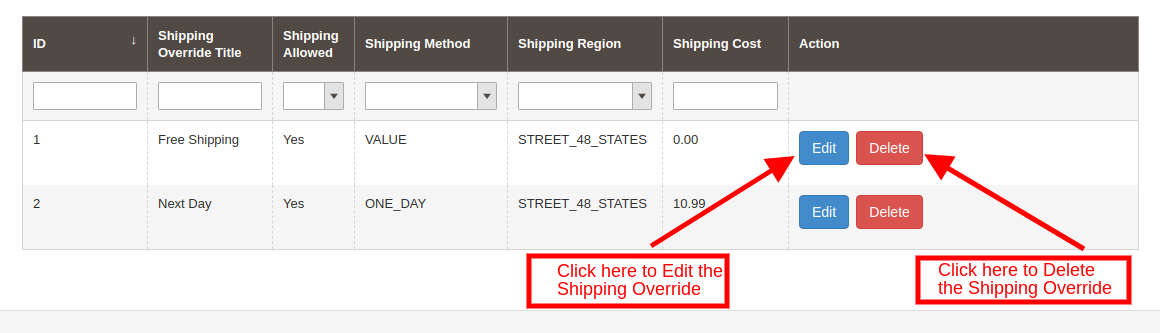
3.5.2 How to Edit/Delete the existing Shipping Override?
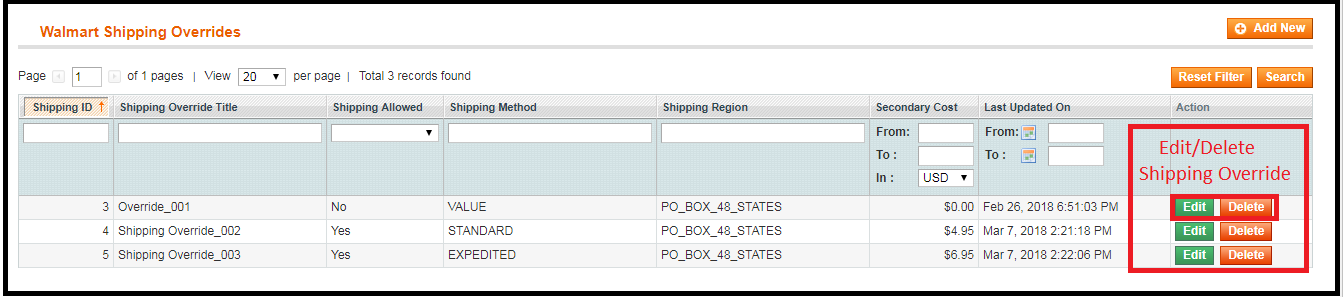
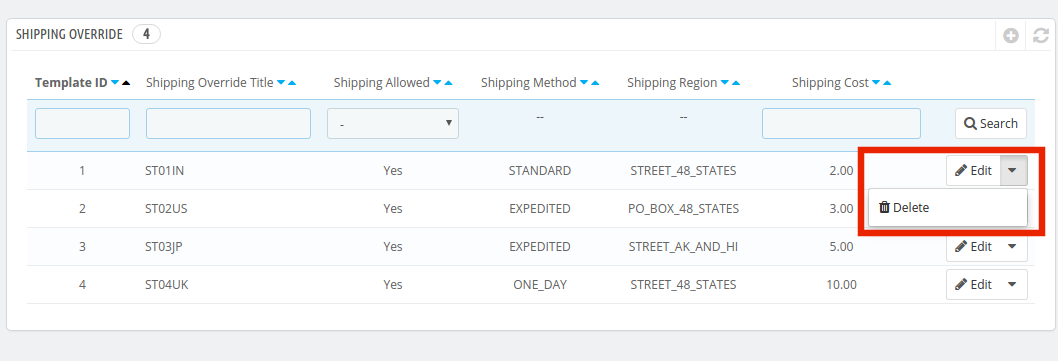
Click on the “Edit or Delete” button corresponding to each Shipping Method in order to edit or delete the same.
3.6 Products Listing
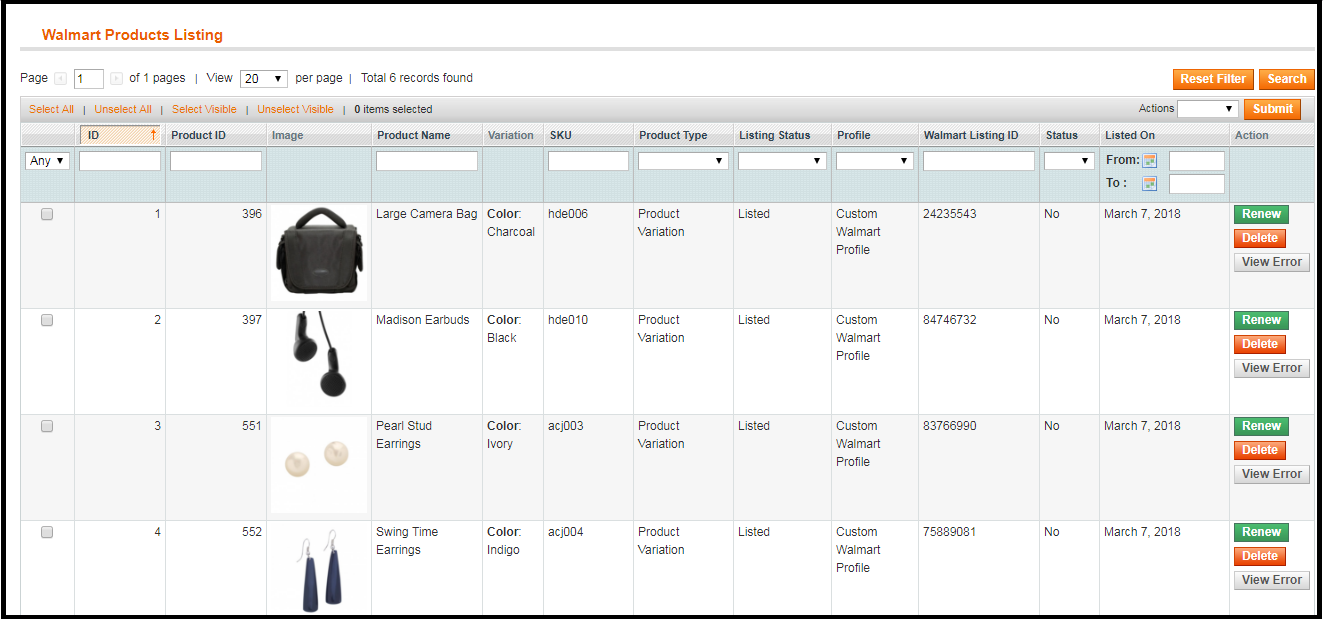
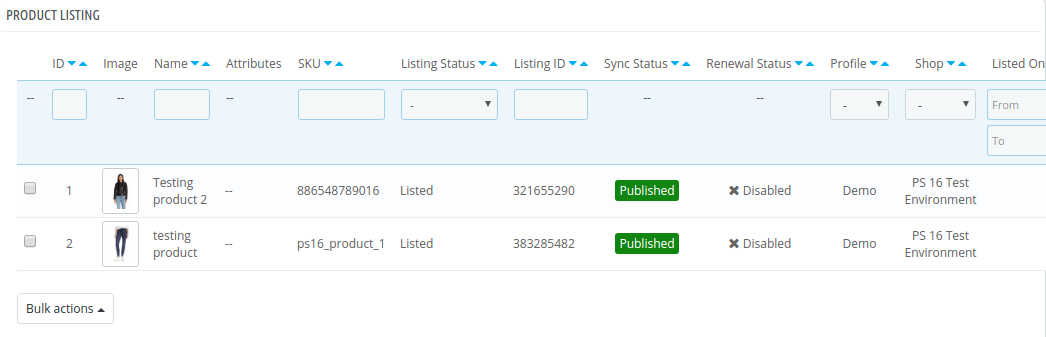
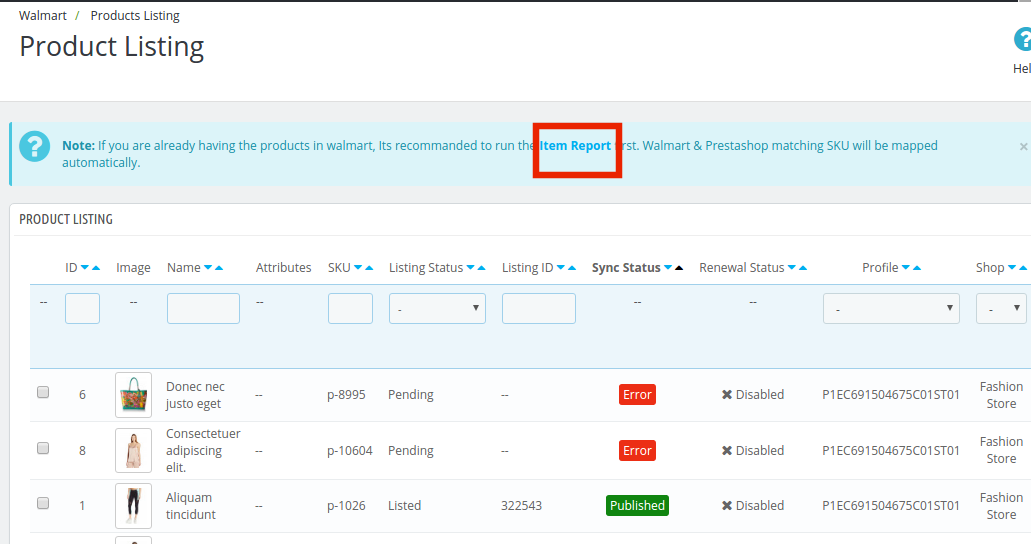
The Product Listing tab of Magento 2 Walmart integration module shows the list of all the products listed on Walmart Marketplace along with their statuses. In order to sync the product in the Walmart Marketplace, execute the Product Cron in the Synchronization tab. (See Section 3.15)
The admin can even renew or remove the products from this tab of Walmart Magento 2 integration plugin without visiting walmart.com.
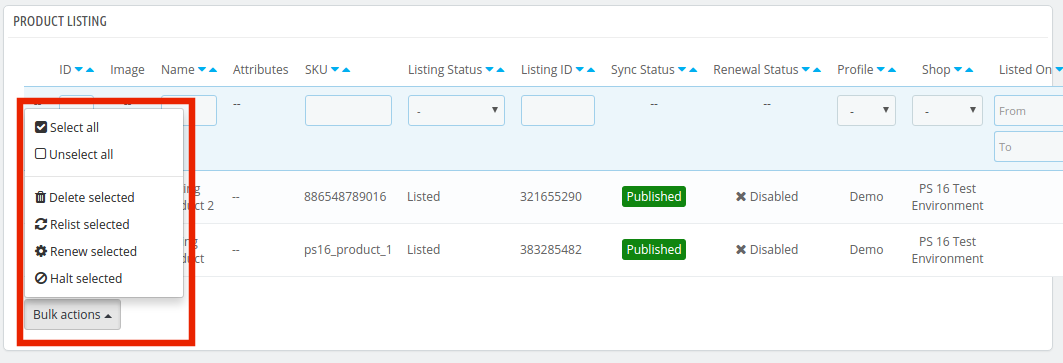
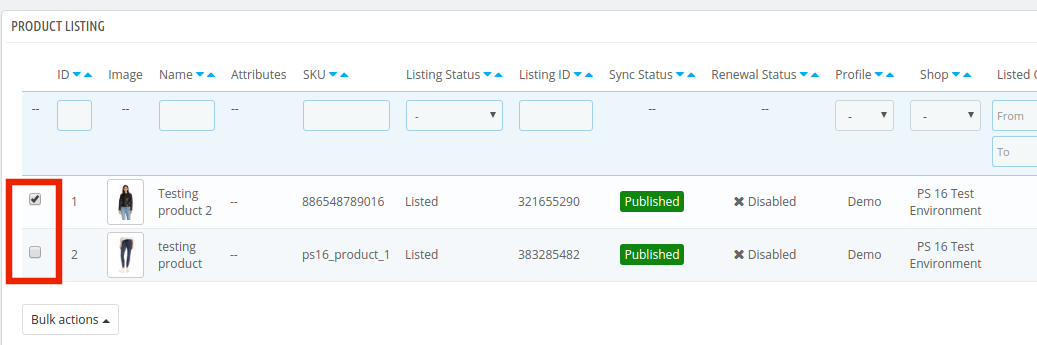
3.6.1 Product Renewal
The admin can renew the expired product on Walmart Marketplace by clicking on the “Renew” action corresponding to each product.
After setting up a product for renewal, action “Renew” will be replaced with “Halt” action. This action is used to stop product renewal in case needed.
3.6.2 Product Listing Deletion
This option allows admin to delete product listing from Walmart Marketplace. Click on “Delete” action given corresponding to each product listing. After setting up a product for deletion, action “Delete” will be replaced with “Relist” action.
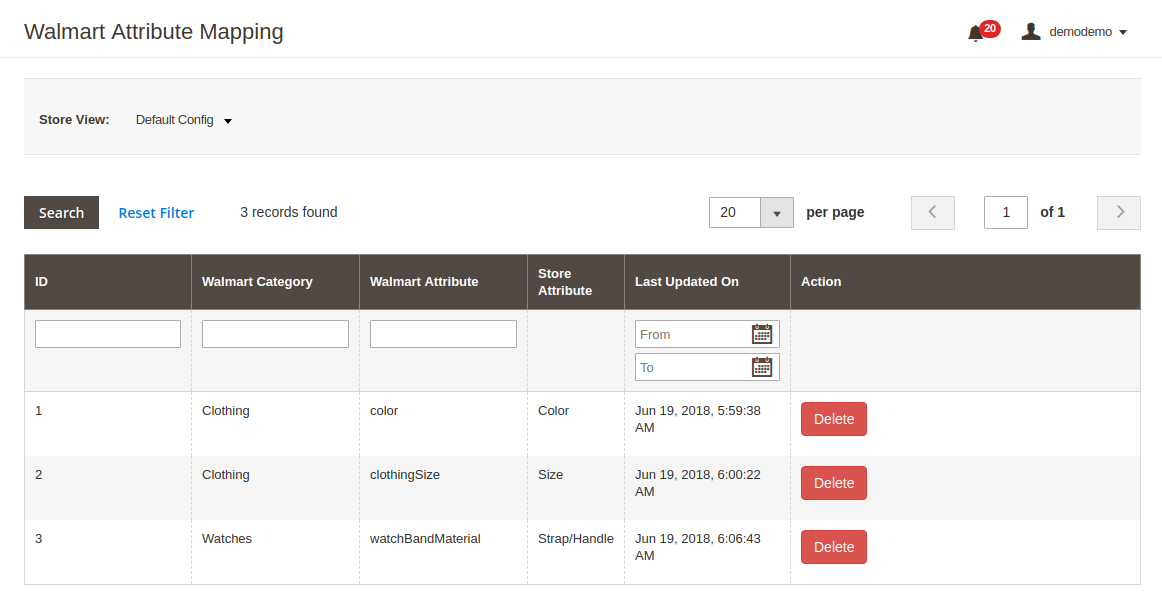
3.7 Attribute Mapping
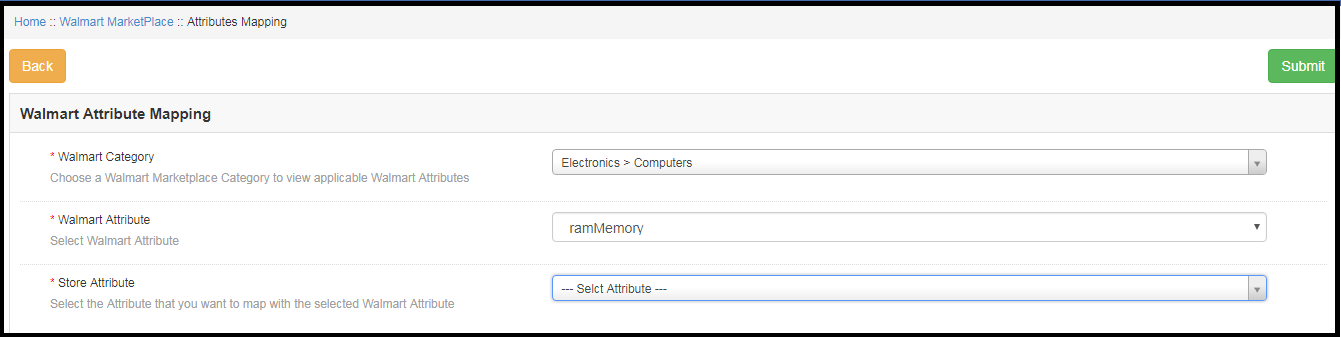
The Attribute mapping tab of Magento 2 Walmart connector allows the admin to map the attribute of their Magento store attributes with the Walmart marketplace.
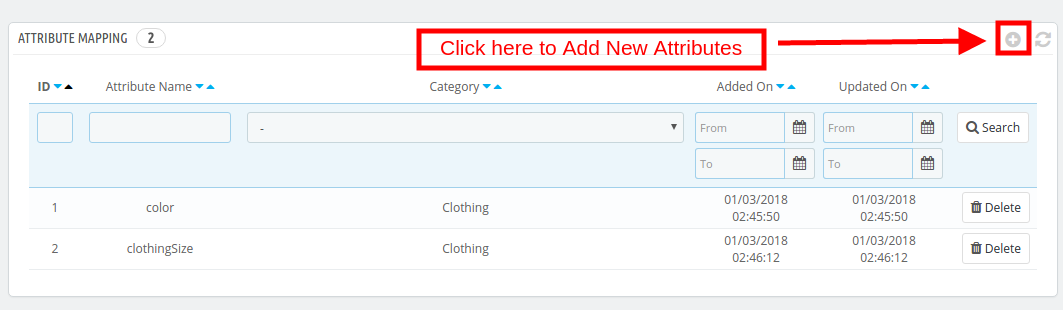
The mapped attributes are listed in this tab as shown in the image below:
3.7.1 How to Map New Attributes?
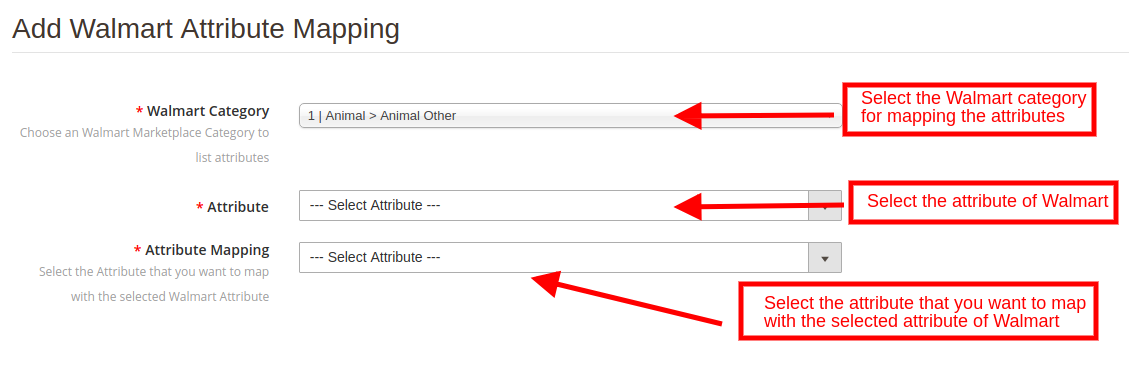
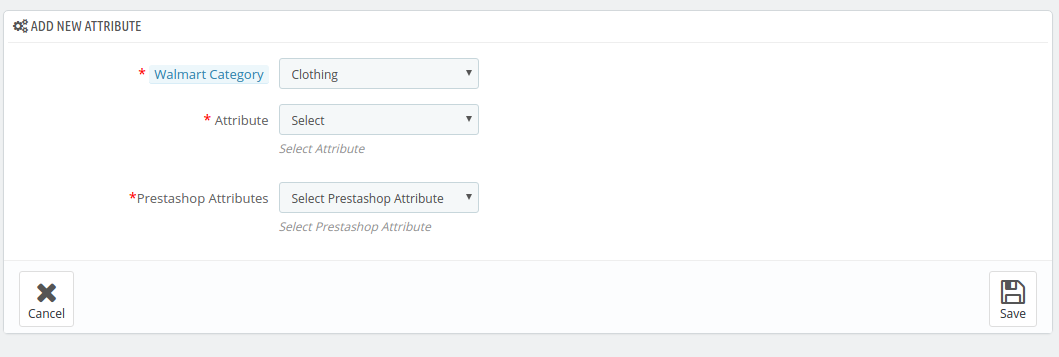
In order to map new attributes, click on the Add New button on the top of the page. This will open up attribute mapping tab. The various fields of this tab are discussed below:
Walmart Category: Select a category of Walmart. The attribute mapping will be done for the selected category.
Attribute: Select the attribute of the Walmart that you want to map with the marketplace.
Attribute Mapping: This drop-down list includes the attributes of Magento 2 store. Select the one that you want to map with the selected attribute of the Walmart.
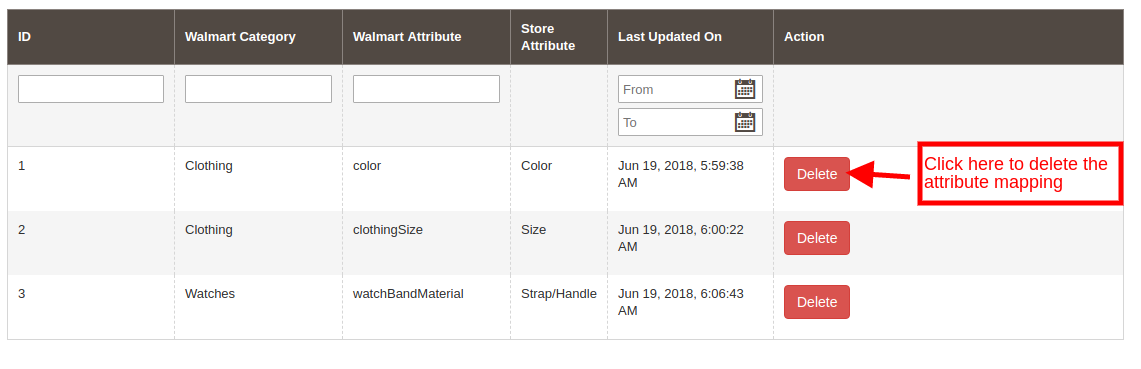
3.7.2 How to Delete Mapped Attributes
In order to delete the mapped attributes, click on the Delete button next to the mapped attributes on the Walmart Attribute Mapping tab.
3.8 Order Settings
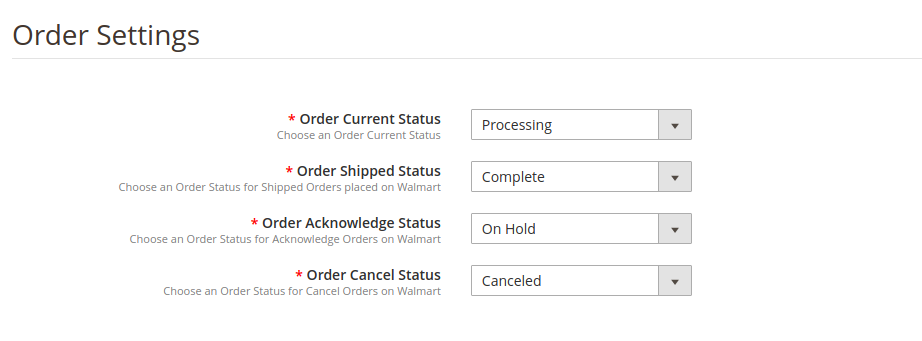
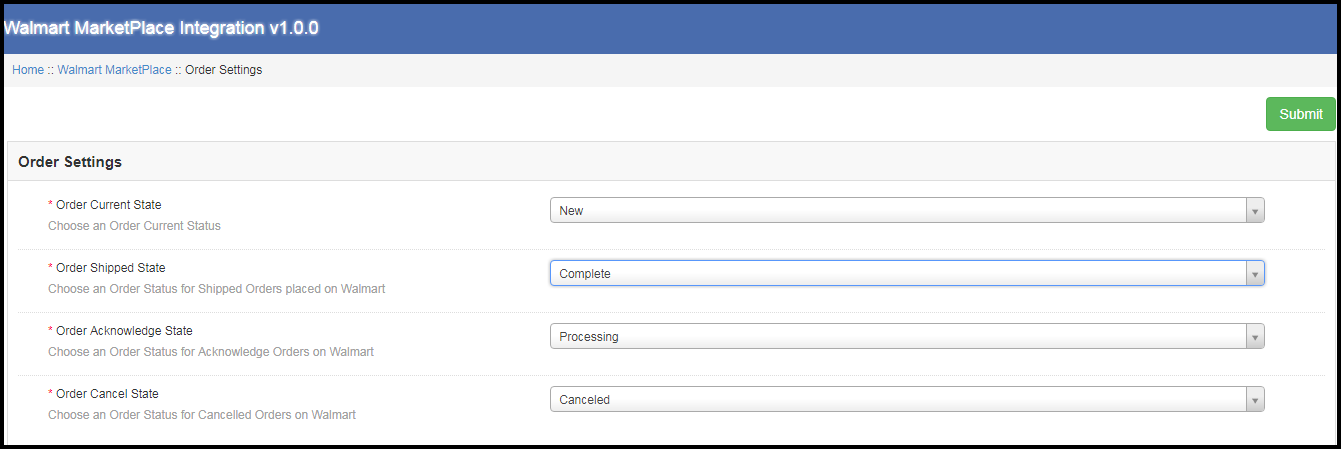
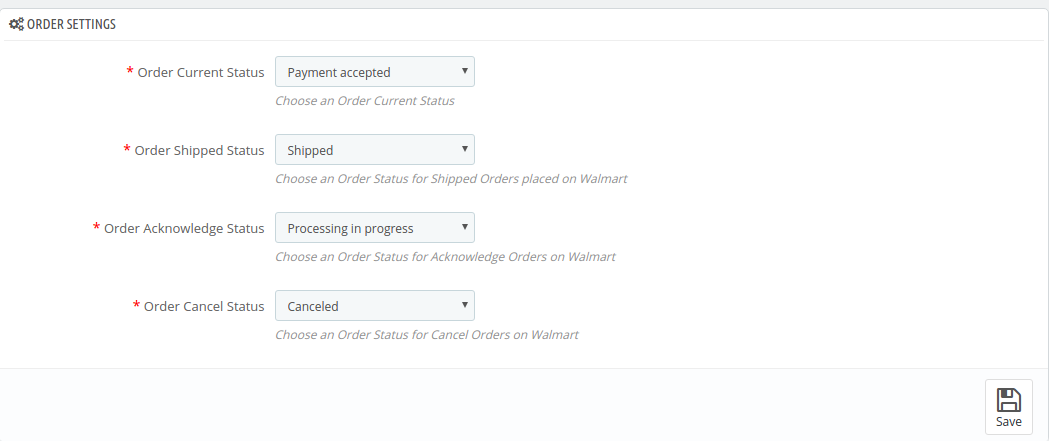
Order Settings tab of Magento 2 Walmart integration plugin helps the admin fix the order statuses and sync the same with Walmart Marketplace. This is done by capturing orders details from Walmart Marketplace. For mapping the orders from the Walmart Marketplace to the Magento store, you need to execute the Order cron in the Synchronization tab. (See section 3.15.)
The various fields are discussed below:
Order Current State: Choose a default status of the order from the drop-down.
Order Shipped State: Select an order state for the orders that are shipped. Select the order status from the drop-down list.
Order Acknowledge State: Select the order status once the order is acknowledged by the admin of the Magento store.
Order Cancel State: In case of order cancellation admin can sync the order status by using the Order Cancel state.
Note – Once the status of the order is changed in the Magento store, run the ‘Update Order Status to Walmart’ cron. This will sync all the changes to the marketplace.
3.9 Order Listing
The orders received from the Walmart store can be sync with Magento 2 store by executing cron in the back-end of the Magento 2 Walmart integration extension. The received orders can be viewed in the Order Listing tab of the admin interface of Walmart Magento 2 integration extension. For this, the store owner needs to run the ‘Sync Order Listing from Walmart’ cron from the Synchronization tab. (See Section 3.15)
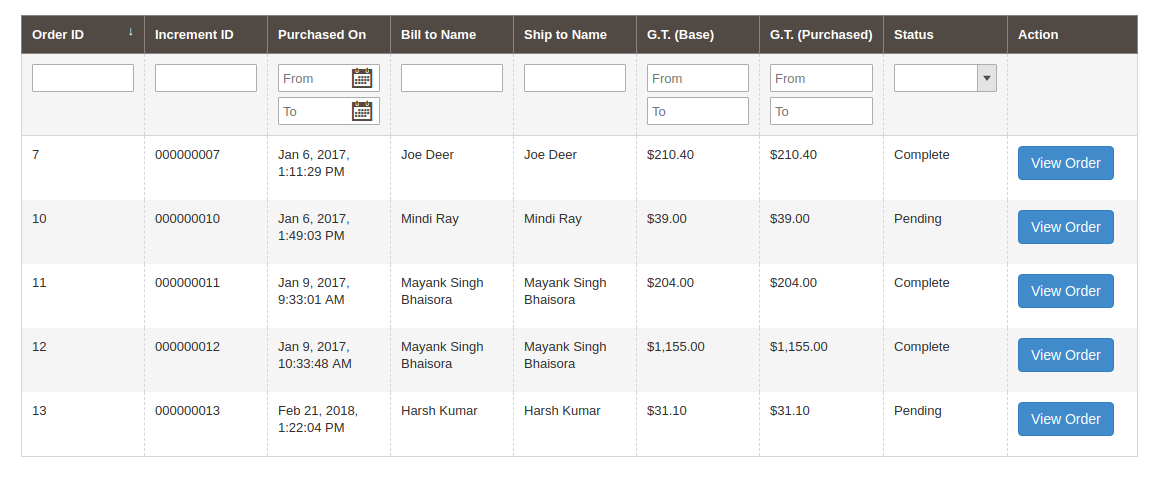
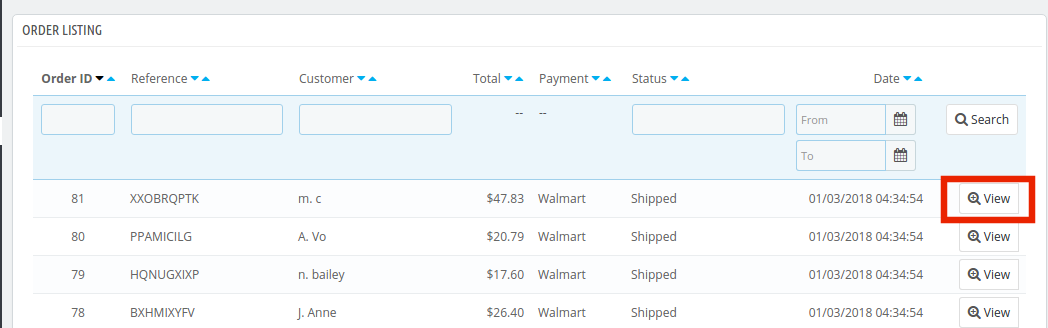
Once the cron is executed, the entire orders will be synced to the Magento store. These orders can then be processed by clicking on the ‘View Order’ button as shown below:
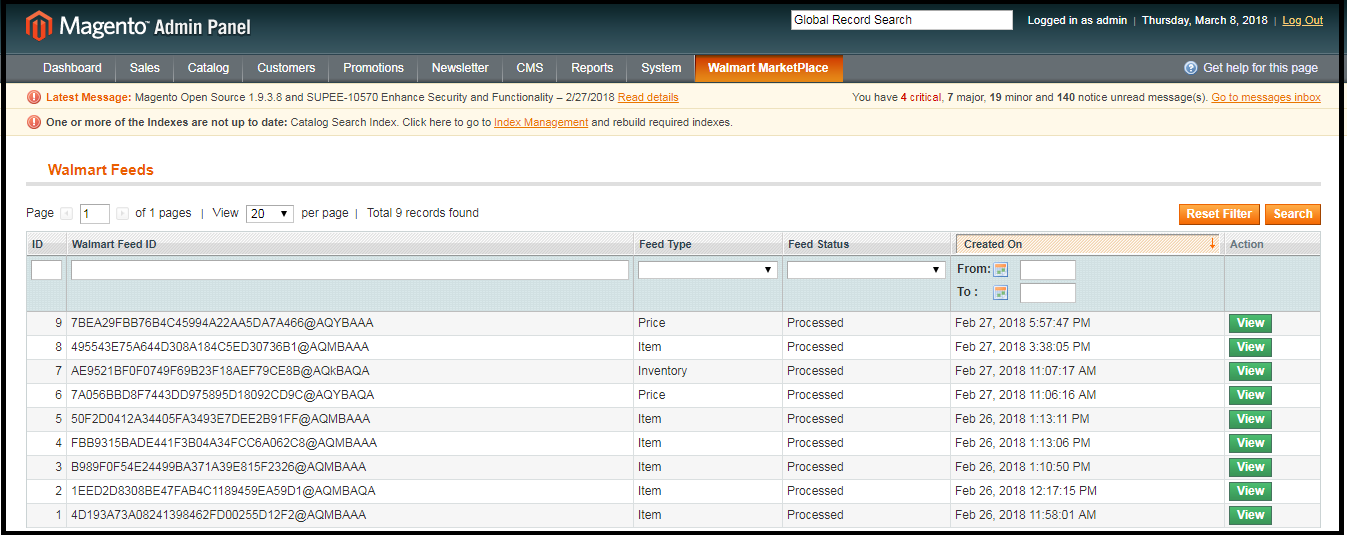
3.10. Feed Status
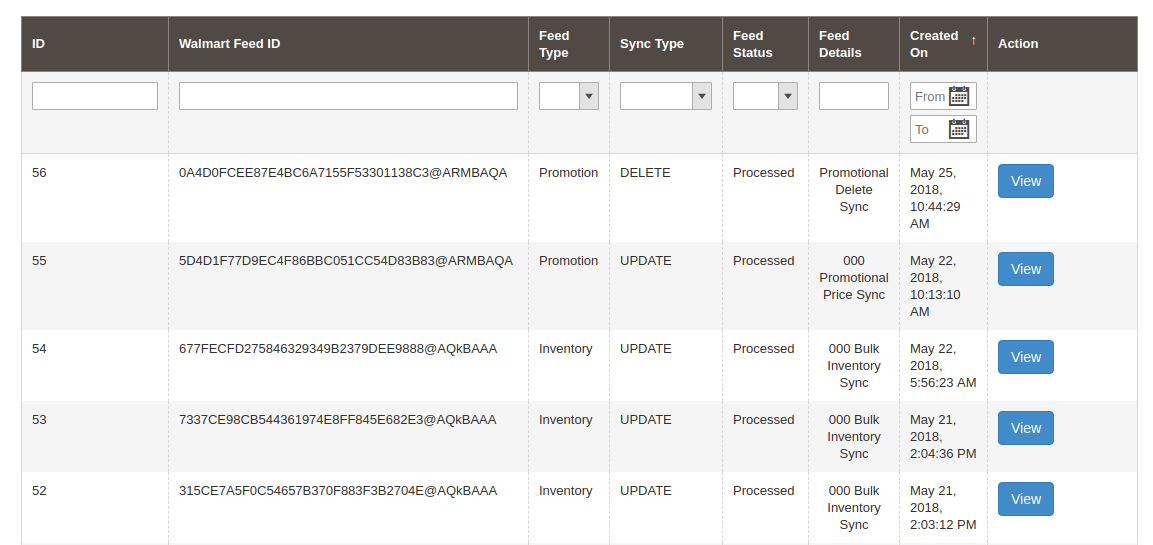
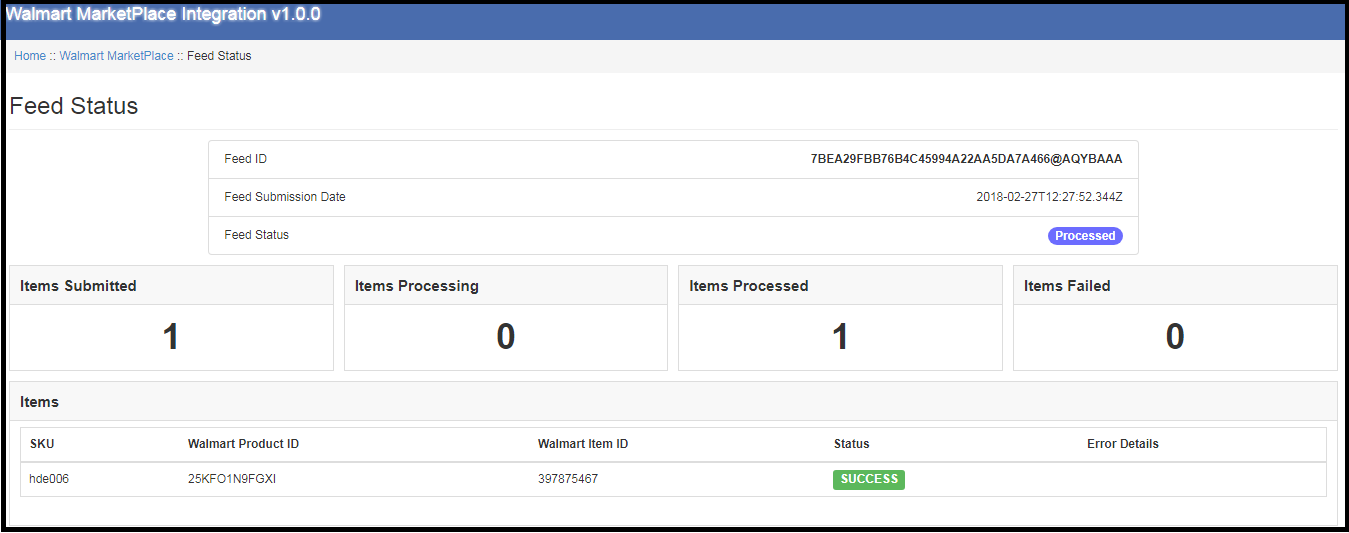
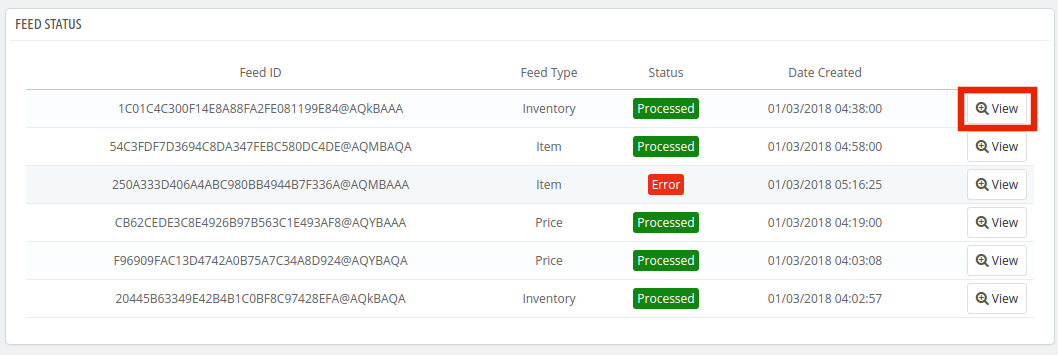
For every cron is executed in the back-end of the Magento 2 Walmart integration module, a Feed will be created in this tab. You can view the status of the feeds by clicking on the ‘View’ button as shown in the image below:
3.11. BuyBox Report
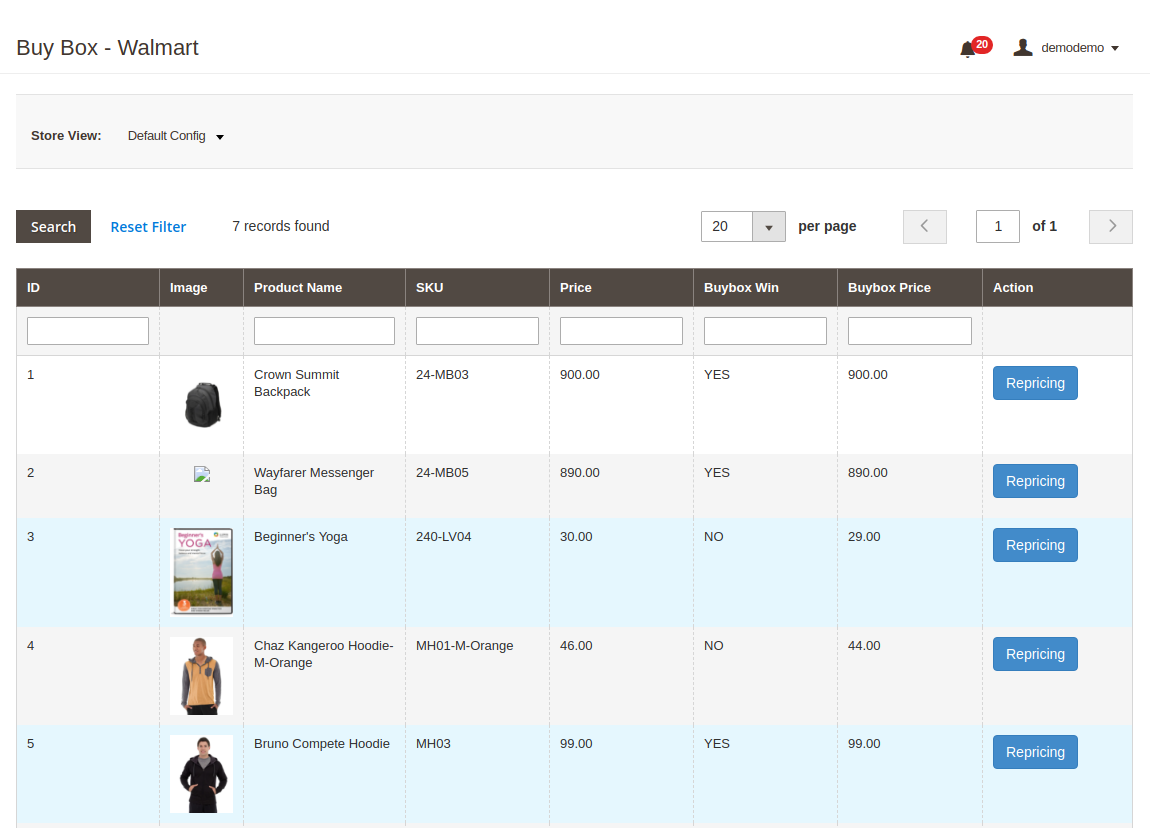
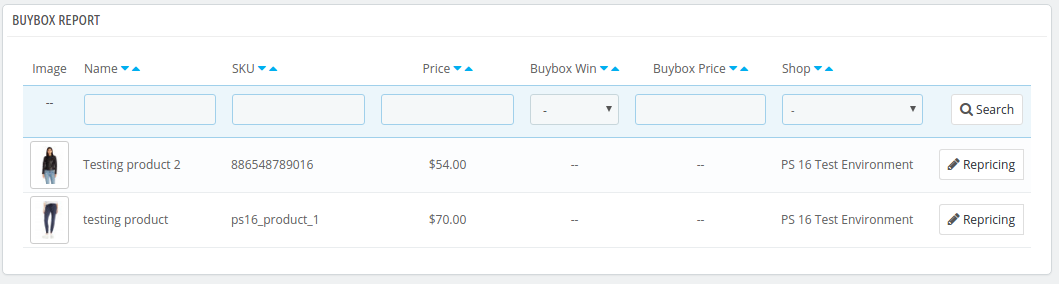
This tab of the Walmart Magento 2 Integration includes the BuyBox report of Walmart. The store owners can get the BuyBox report by executing cron in the admin interface of Walmart Magento integrator. See Section 3.15, in order to sync the Buy Box report from the walmart.com.
The Walmart Magento 2 integrator even allows the e-merchants to reprice the products in order to win the Buy Box.
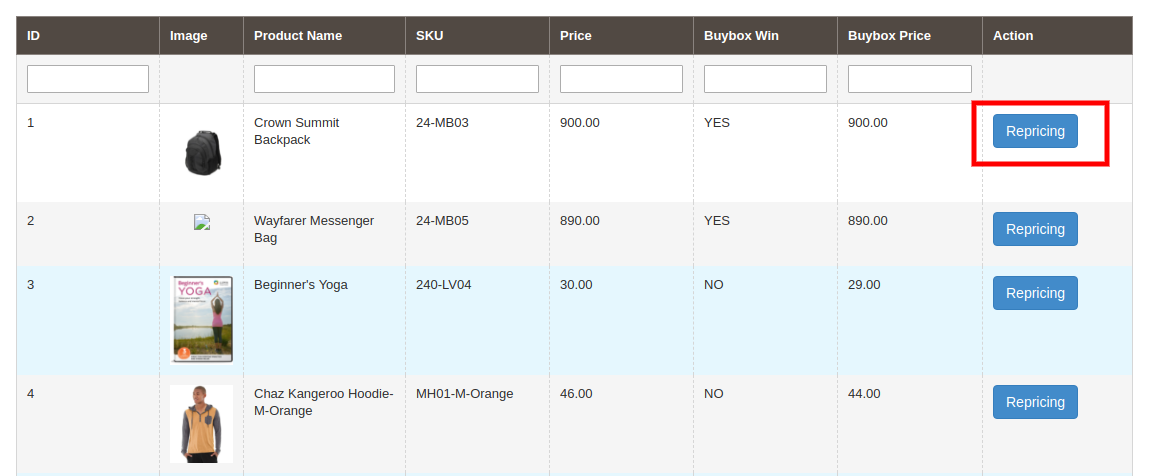
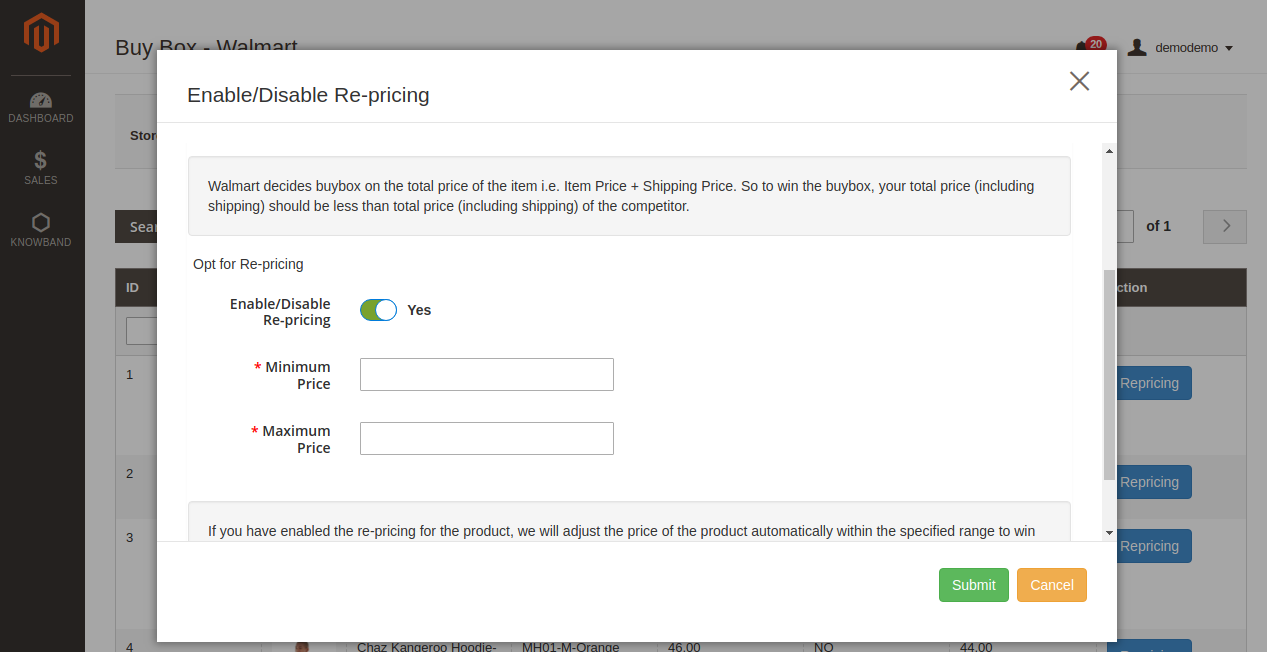
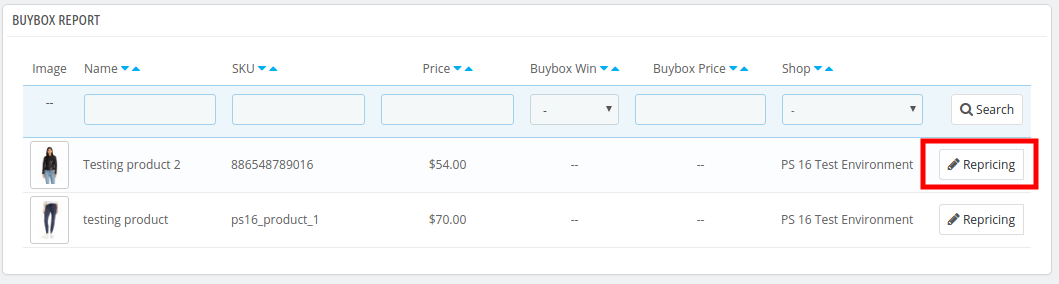
To reprice the product, click on ‘Repricing’ option corresponding to the respective product as shown in the image below:
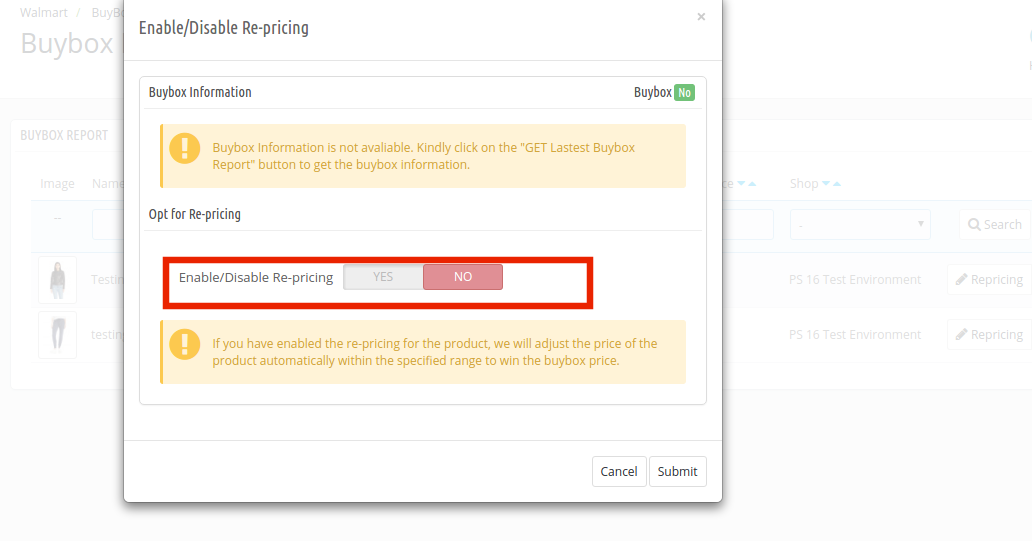
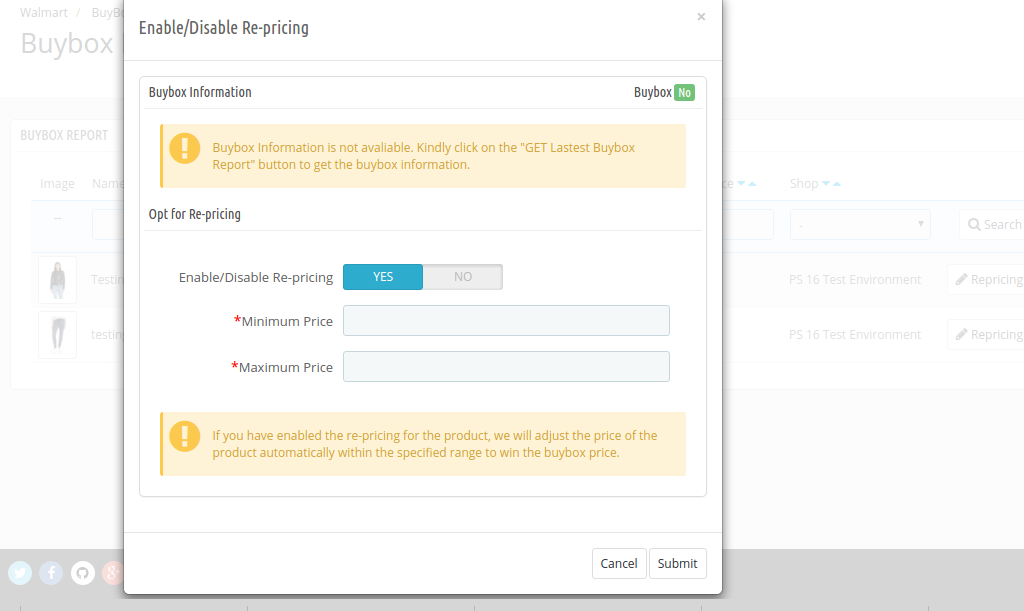
As you click here, a popup will appear. Here are the fields offered in the popup.
Enable Repricing: Select ‘Yes’ from the drop-down menu if you want to reprice the product.
Minimum and Maximum Price: Enter the minimum and maximum price of the product in the respective sections.
Once the repricing is done, sync the same with the marketplace by executing cron in the back-end of the Magento 2 Walmart Integrator. (See section 3.15)
3.12 Manage Lag Time
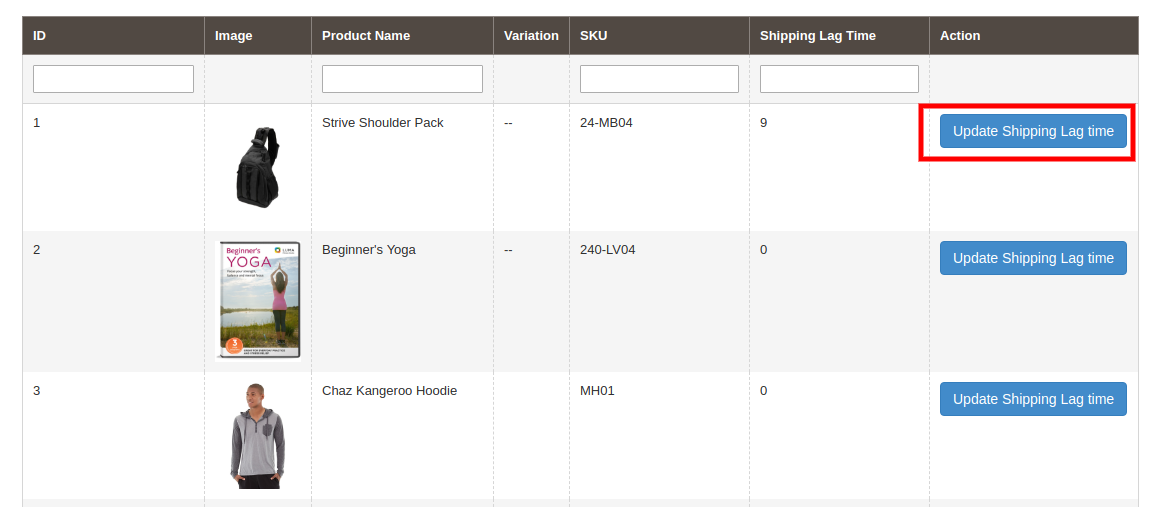
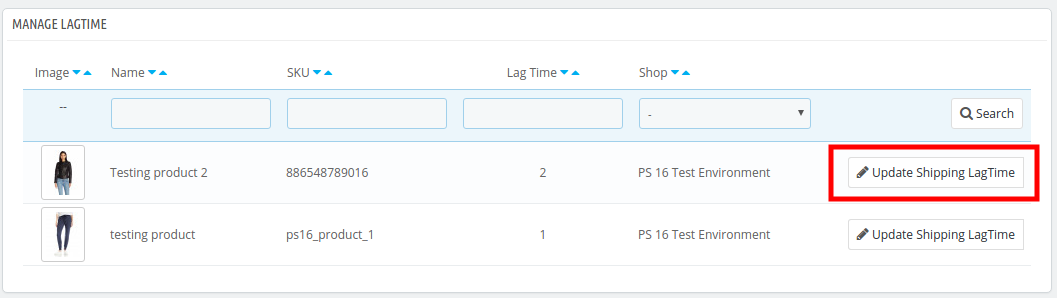
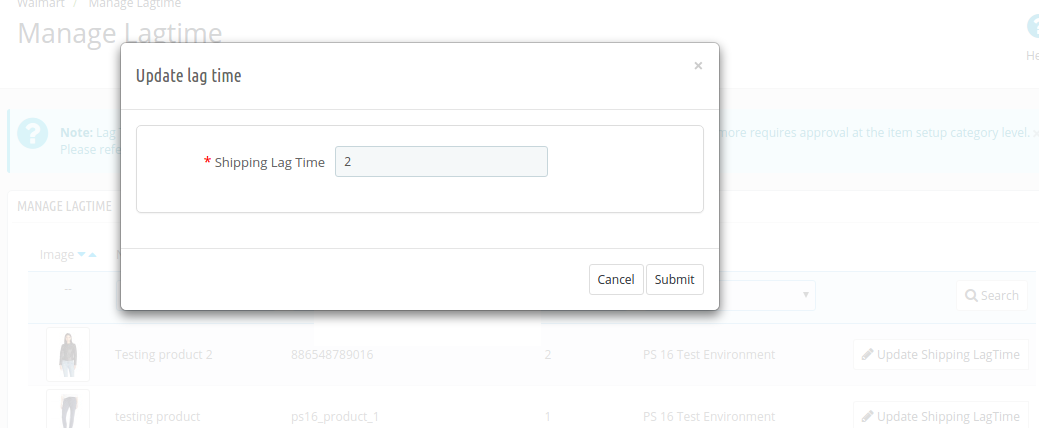
Lag time refers to the time between the order placement and order shipment. The admin can update the lag time of the products and sync it with the marketplace with the help of the cron offered by Walmart Magento 2 API integration. In order to fix the lag time, click on the Update Shipping Lag Time button as shown in the image below:
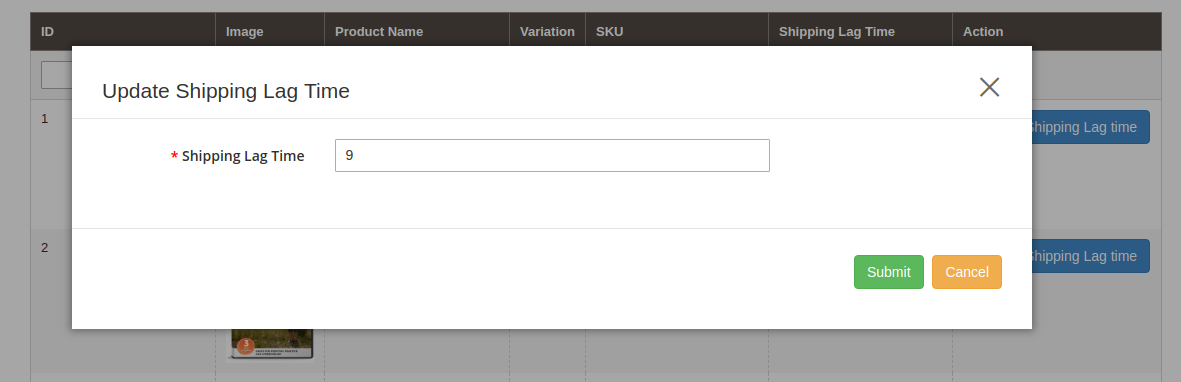
As you click on the link, a popup will appear as shown below:
Enter the lag time in days and click on the Update button. This will update the shipping lag time at walmart.com.
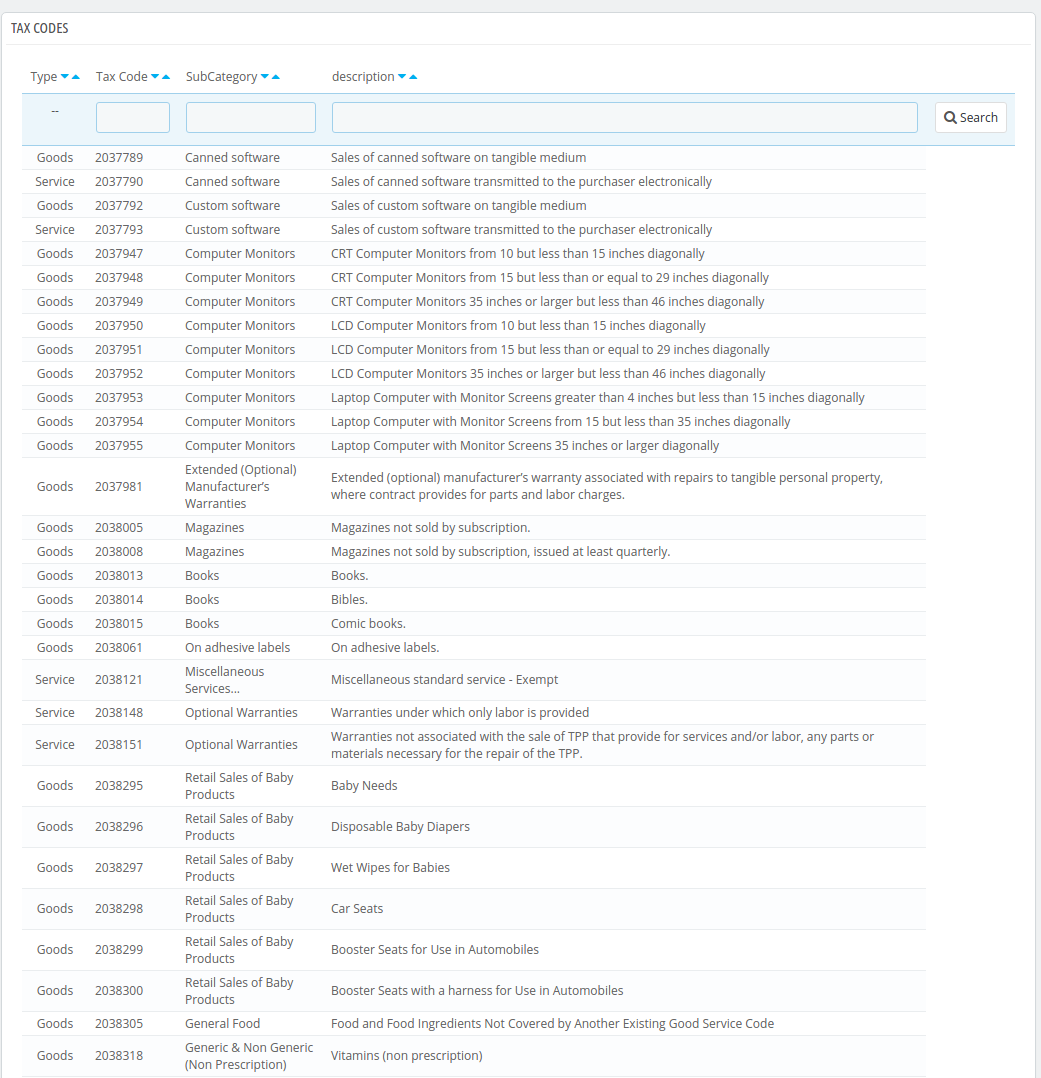
3.13 Tax Code
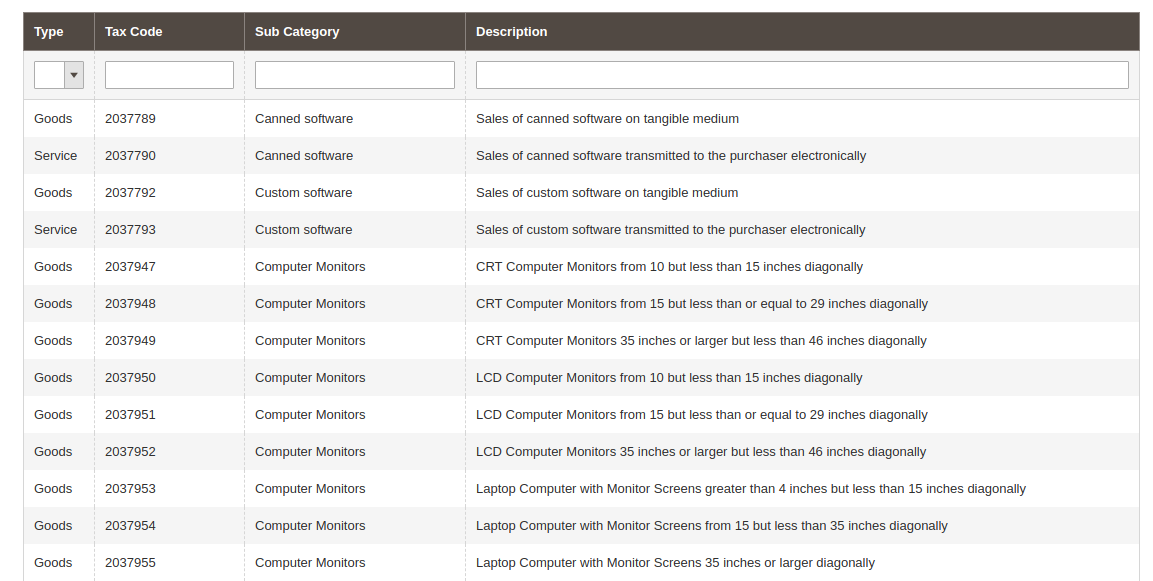
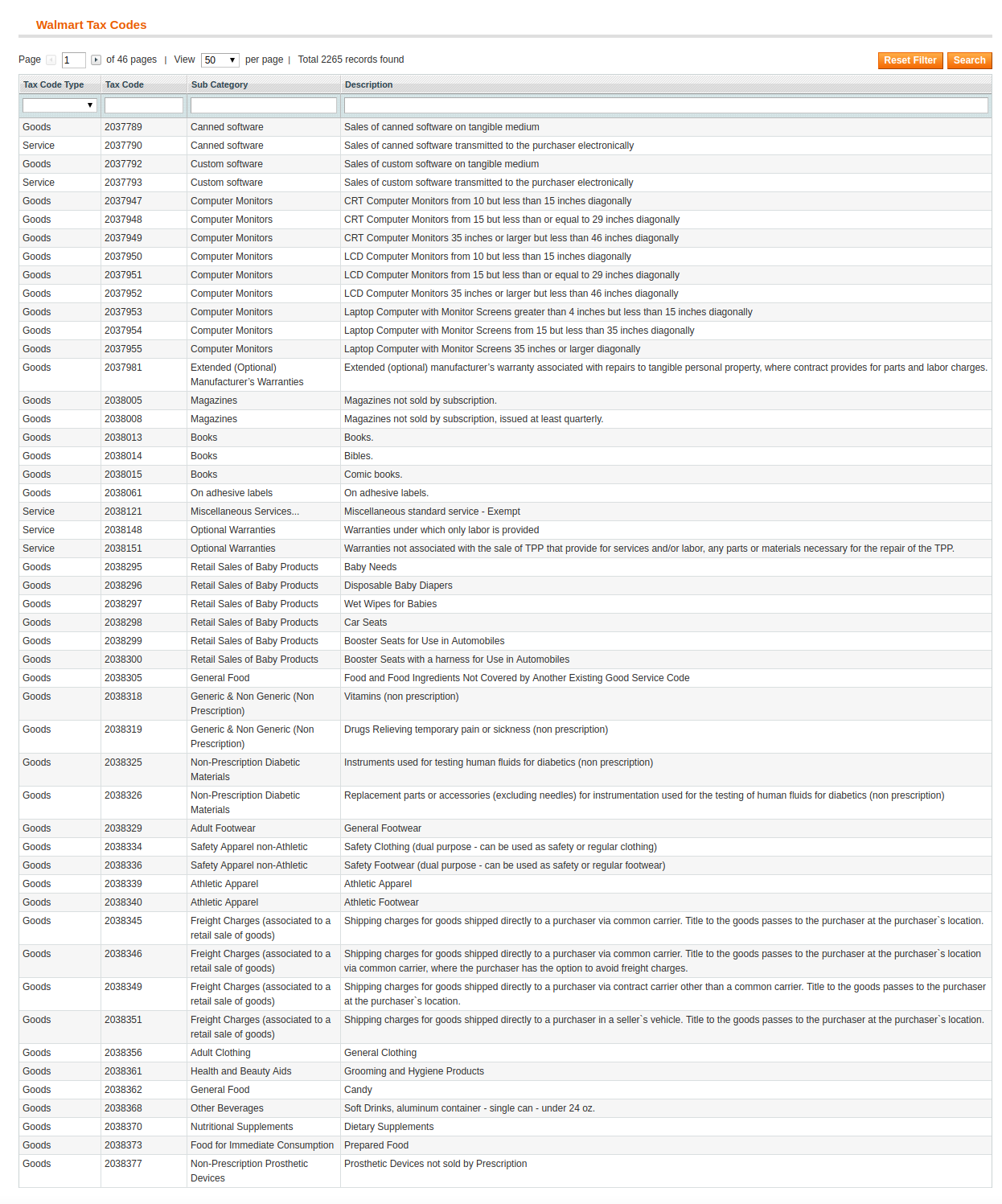
This tab of Magento 2 Walmart API integrator lists out the tax code of all the products listed at the marketplace.
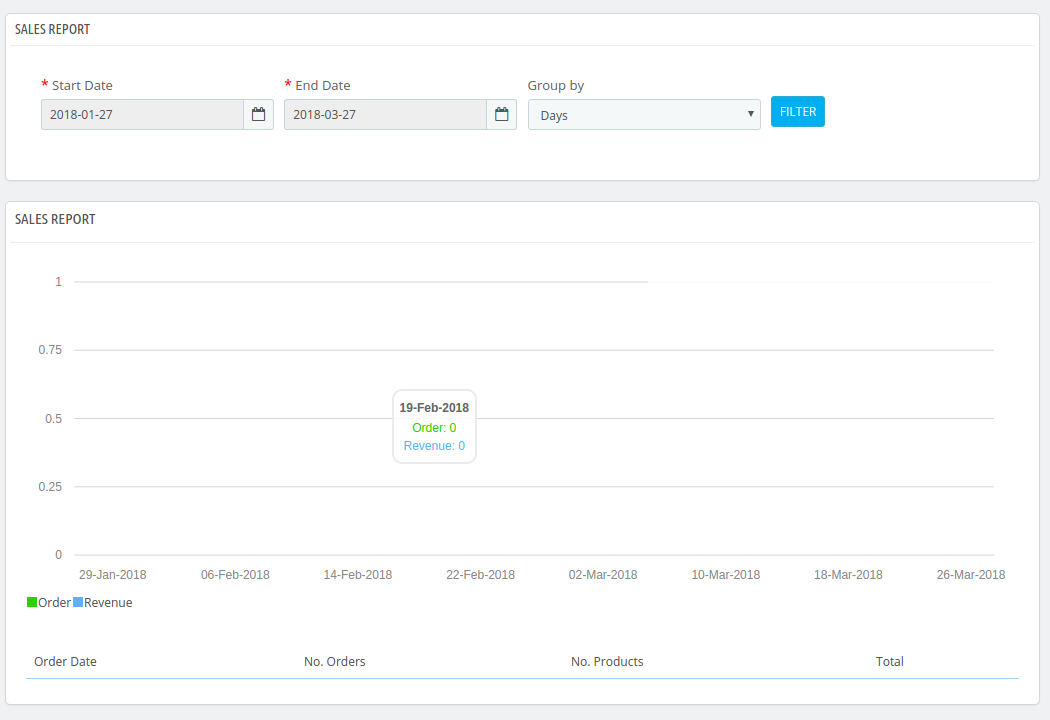
3.14. Sales Report
This section of Walmart Magento 2 API integrator offers the complete sales report of the Walmart shop in both graphical and tabular form as shown in the image below:
3.15. Synchronization
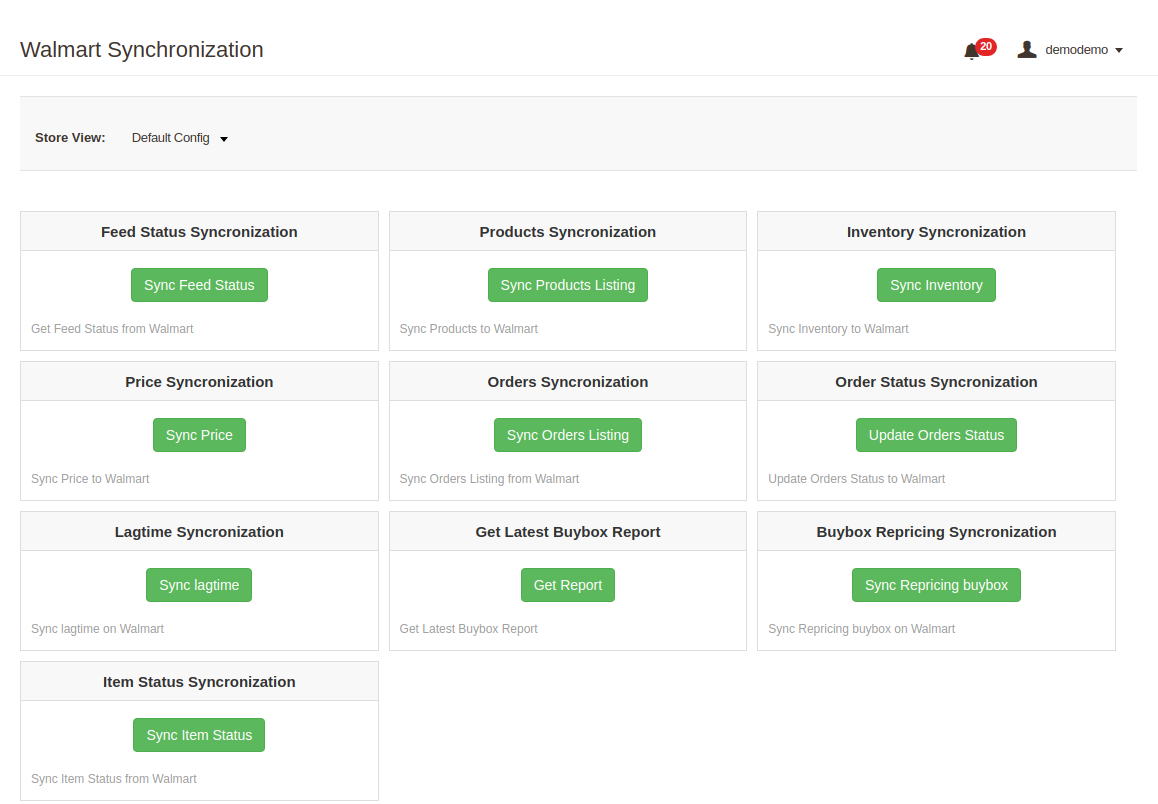
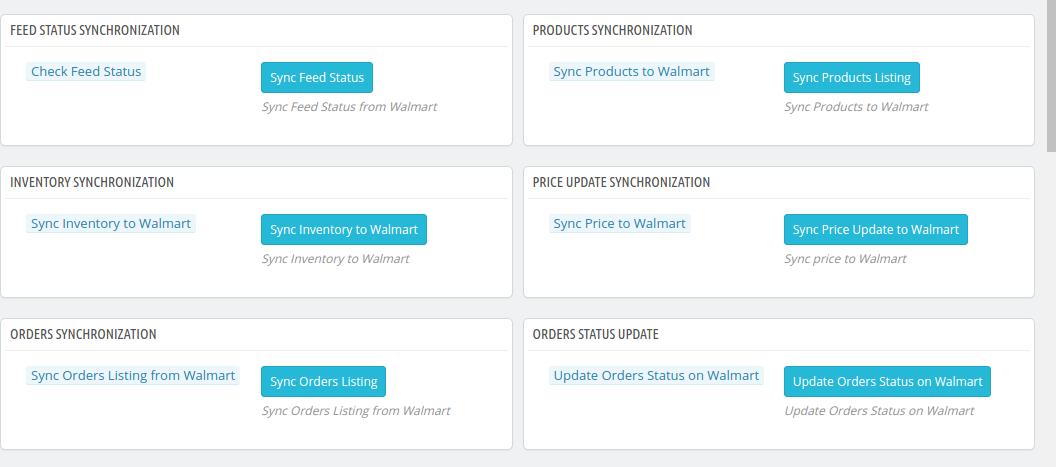
This tab synchronizes all the settings and changes done in the other tabs of the Module. The synchronization between the Magento 2 Store and Walmart Marketplace and vice-versa can be done from the ‘Synchronization‘tab.
The various cron jobs to synchronize the settings between Magento Store and Walmart Marketplace are shown below:
3.15.1 How to sync Feed Status from Walmart Marketplace to Magento store?
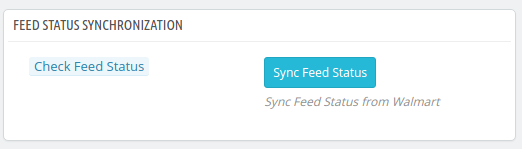
The status of the feeds can be synced with the Magento 2 store by clicking on the ‘Sync Feed Status’ in this tab of Magento 2 Walmart Integration Extension.
It would perform following actions –
Every time a cron is executed, a feed is created. This cron updates the feeds.
3.15.2 How to list the Products at Walmart Marketplace?
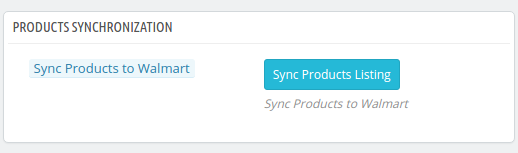
The product listed in the Products Listings tab will be synced with Walmart by clicking on ‘Sync Products Listing’ cron options offered by Magento 2 Walmart Integrator.
It would perform following actions –
The cron will list the products to the Walmart marketplace.
It will add products on the Walmart Marketplace with the mandatory product details like Description, Price, Quantity, Image etc.
3.15.3 How to sync Inventory to Walmart Marketplace?
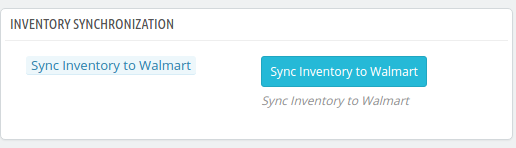
The inventory or product quantity can be updated at walmart.com by executing the ‘Sync Inventory’ cron.
It would perform following actions –
This action will update the quantity of each product listed on Walmart Marketplace.
The change in the product quantity at the Magento 2 store is synced with the marketplace by executing this cron.
3.15.4 How to sync price of the products with Walmart Marketplace?
The Sync product price cron allows the store admin to sync the updated product prices to the Walmart marketplace.
It would perform following actions –
The cron job changes the price of the products at the marketplace.
The change in the price at the eCommerce site is reflected at the marketplace with the help of this cron.
3.15.5 How to sync Walmart Orderswith Magento 2 store?
This cron will sync the Orders from Walmart Marketplace to Magento store.
3.15.6 How to Update Order Status atwalmart.com?
The ‘Sync Order Status’ cron will update the order status as per the changes made from the Magento store on Walmart marketplace.
3.15.7 How to Synchronize the Shipping Lag Time?
Click on ‘Sync Shipping Lag Time’ of the synchronization tab of Magento 2 Walmart Integrator. This will sync the respective lag time of the products with walmart.com.
3.15.8 How to Synchronize the Buy Box status from Walmart?
The admin can sync the buy box status from Walmart by clicking on ‘Sync Walmart BuyBox’. This will update the status of the BuyBox for the respective products.
3.15.9 How to Synchronize the change in price of the Buy Box items on Walmart?
The admin can reprice the products and sync the revised products at the marketplace by executing Sync Repricingcron in this tab of Magento 2 Walmart Integrator.
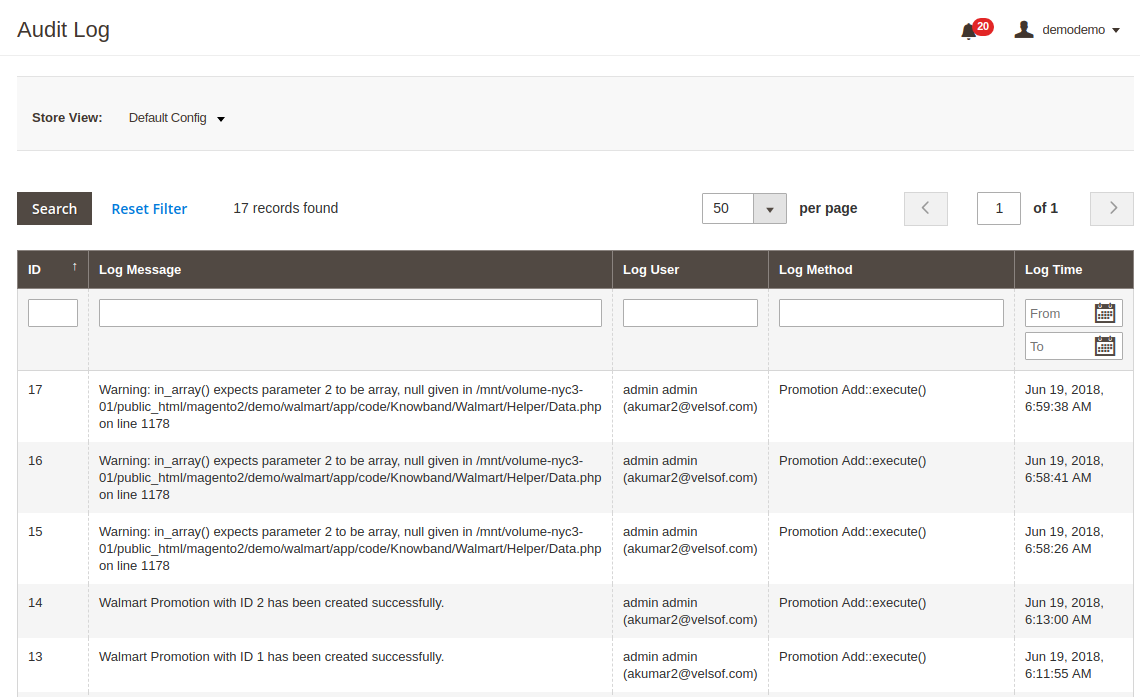
3.16 Audit Log
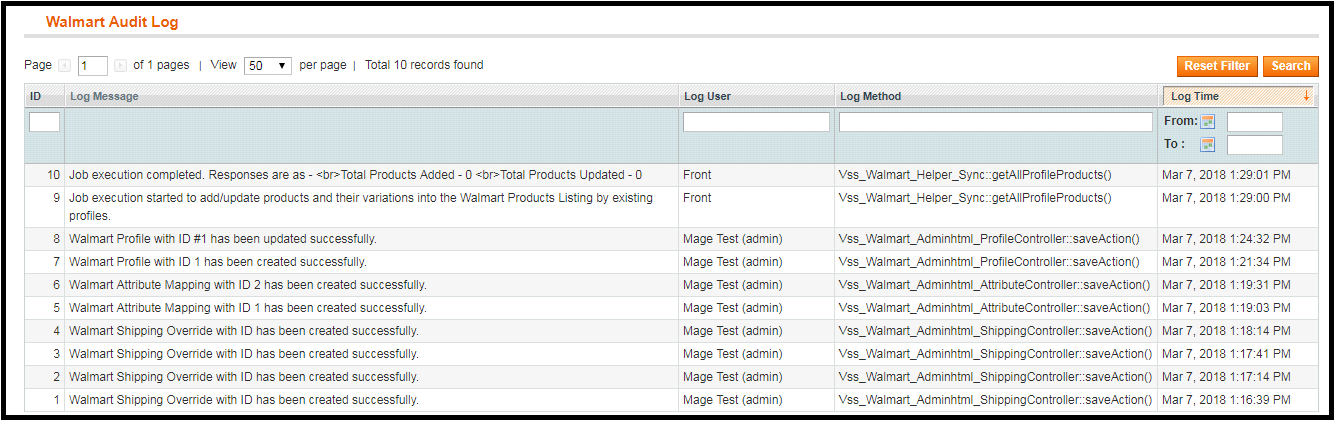
The admin can view all the jobs occurred in the Audit Log tab of Magento 2 Walmart Integrator. The status of the jobs can be viewed in this tab.
Knowband offers the Magento Walmart Integration extension to help the Magento store owners synchronize their eCommerce store with the Walmart marketplace. The Magento Walmart connector module integrates the eCommerce store with the Walmart marketplace by using the Walmart API (Walmart Consumer ID, Walmart Private Key, and Consumer Channel Type). After successful integration, the sellers can easily synchronize the products, inventory, shipping templates, product pricing to the Walmart marketplace from the back-end of the Magento Walmart Integration module.
Today, marketplaces are playing a vital role in the growth of e-commerce. Amazon, eBay, Etsy, Jet.com, Walmart, Wish, Newegg are some of the well-known platforms. In recent years several new marketplaces have entered in the completion and these marketplaces have a good potential to drive the competition. Walmart is one of the most popular marketplaces and allows people from around the globe to buy and sell from walmart.com.
1.1 Seller Benefits of Magento Walmart Integration plugin:
The Walmart Magento API integrator offers real-time synchronization between the Magento store and the Walmart marketplace.
The connection between the Walmart marketplace and Magento store can be set-up in a few simple steps with the help of Magento Walmart API integrator. The Magento store admin can list the products in bulk based on the profile.
The store admin can easily manage the inventory by making changes in the profile created in the Magento Walmart Integration module.
The merchants can easily renew or delete products from the admin interface of the Magento Walmart Integration module itself.
With the help of Magento Walmart Marketplace integration module, the store admin can even add shipping methods for the marketplace customers.
The Magento Walmart Connector makes it easier for online merchants to keep track of the product listing.
The admin can sync the orders received from the Walmart marketplace with the orders of the Magento store by executing cron in the back-end of the Magento Walmart Integration extension.
These orders can be processed from the Magento store itself. The change in the order status is synced with the marketplace at a button click in the synchronization tab of the Magento Walmart Integration extension.
The Walmart Magento integrator makes it easier for the store admin to track the errors that occurred while product listing.
2.0 Installation
Follow the following steps for installing Walmart Magento Marketplace integration extension:
1. Download the package.
2. Unzip the package in your root folder of Magento setup via FTP manager
3. In Admin Panel go to Walmart Marketplace in the main menu.
4. The Magento – Walmart Marketplace integrator is now ready for use.
This User Manual will guide the users through the Magento extension configuration and settings.
2.1 How to configure Walmart Magento Integration extension?
To configure the Walmart Marketplace Integrator, store admin needs to get the Client ID and Client Secret. In order to obtain Walmart Client ID, and Client Secret, follow the process given below:
5. Now you can get the New “Client ID” and “Client Secret” from here.
3.0 Admin Interface
Walmart Magento Integration plugin has a user-friendly interface. The configuration settings can be managed via the admin interface. After installation, store admin can find the “Walmart Integration module” at the top menu of the admin panel. Admin Panel Settings of Magento Walmart Integration module contains the 10 tabs for settings.
General Settings
Profiles Management
Shipping Override
Products Listing
Promotions
Manage Lag Time
Attributes Mapping
Orders Settings
Orders Listing
Feed Status
BuyBox Reports
Synchronization
Tax Code
Audit Log
3.1 General Settings
Magento Walmart API integrator allows the store admin to integrate their store in a few simple steps. General Settings tab includes the details of Walmart store API details like Consumer ID, Private Key, and Channel Type. Walmart API helps to connect the Magento store with the Walmart marketplace. The description of each input field is mentioned below:
1. Enable/Disable: Admin gets the option to Enable/Disable the integrator by toggling the button. If enabled, the Walmart Marketplace Integrator and all its settings will be working on the store.
2. Walmart Client ID: Enter the Walmart Client ID that will authenticate the connection being established between the store and Walmart Marketplace.
3. Walmart Client Secret: Enter the Walmart Client Secret in the field to complete the setup.
3.2 Profile Management
The profile Management tab provides options to list the product on the Walmart marketplace. In this section, the admin will be able to map Magento store product attributes and categories to Walmart store under the Walmart store product attributes and category. Admin can add new profiles just by clicking on the “Add New” button. The profile Management section of Walmart Magento Integration extension is consist of 2 tabs – General Settings and Profile Fields.
3.2.1 General Settings
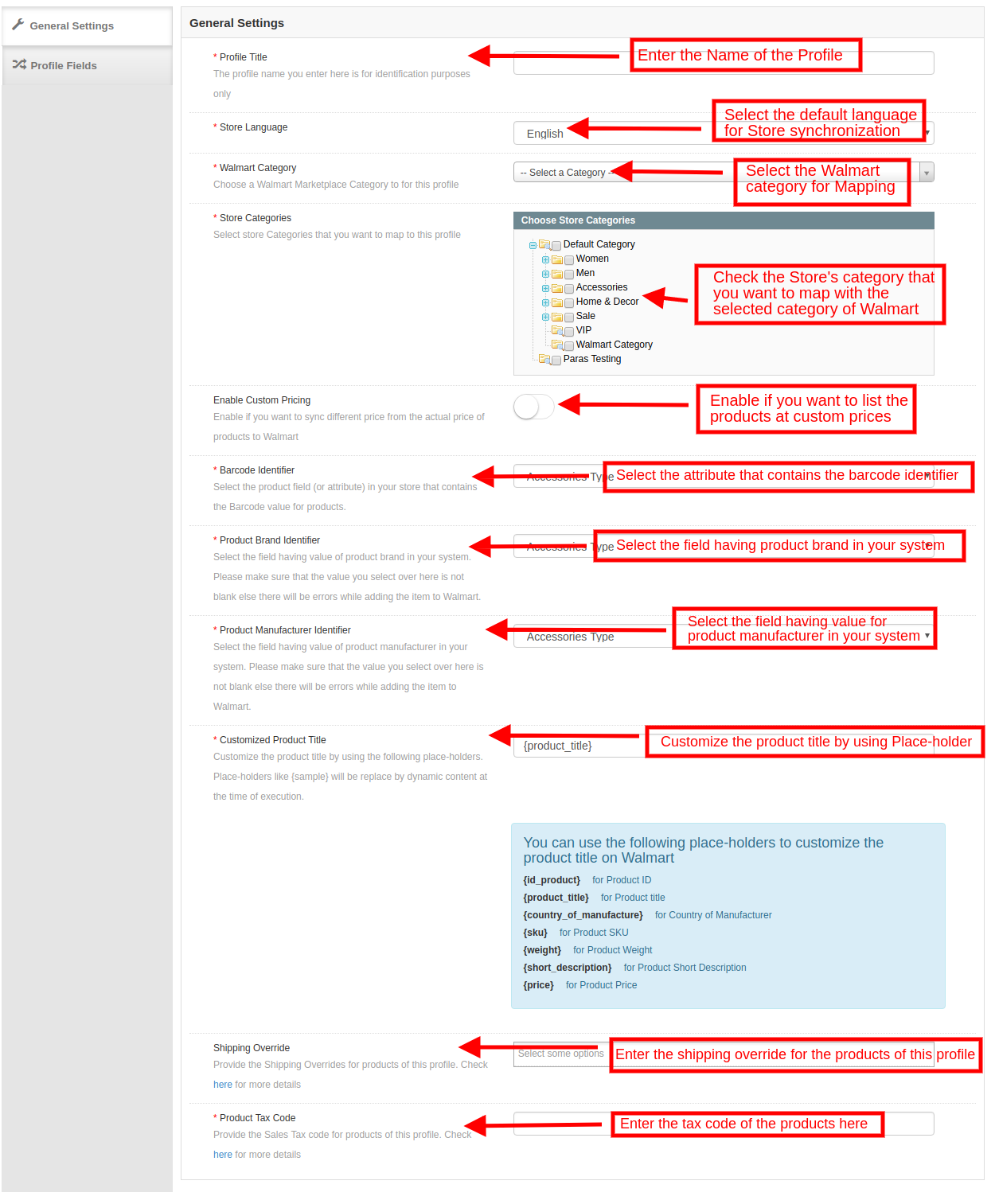
Magento Walmart Integration extension allows the store admin to select multiple store categories to sync with the one Walmart category. It is mandatory to enter all the required details as per the instructions are given in the below screenshot. After entering all the details click on the Save button at the top of the form.
Profile Title: Enter a unique name for the profile.
Store Language: Select the Language for the store from the drop-down list.
Walmart Category: Select the Walmart category where you want to map the Magento store category. Admin can select the Walmart Category from the drop-down list.
Store Categories: Select the category of the Magento store that you want to map in the category of Walmart.
Custom Pricing: Enable this button if you want to list the products at walmart.com at custom prices or at a different price from that of the eCommerce store. If enabled, the admin gets an option to change the prices as shown in the image below:
Select whether you want to increase or decrease the cost of the products.
Select whether you want to increase/decrease the price by a fixed amount or percentage amount. Enter the fixed or percentage amount by which you want to change the price of the products.
Barcode Identifier: This is the unique field of the product. Select anyone from the dropdown list, so that, the
Magento Walmart Integration extension can identify the product according to the mapped attribute. The various place-holders are listed below.
Product Brand Identifier: Select the Product brand identifier from the drop-down. Select the field having a value of product brand in your system. This is a mandatory field to list the products on Walmart. Product Manufacturer Identifier: Select the Product manufacturer identifier from the drop-down. Select the field having the value of a product manufacturer in your system. This is a mandatory field to list the products on Walmart. Customized Product Title: Product title can be customized by using the pre-defined placeholders.
{id_product} for Product ID
{product_title} for Product title
{country_of_manufacture} for Country of Manufacturer
{sku} for Product SKU
{weight} for Product Weight
{short_description} for Product Short Description
{price} for Product Price
Shipping Override: This is an optional field. Select the shipping options from the list provided. This section includes the entire shipping overrides added in the Shipping Override tab. Product Tax Code: Enter the product tax code in this section.
3.4.2 Profile Fields
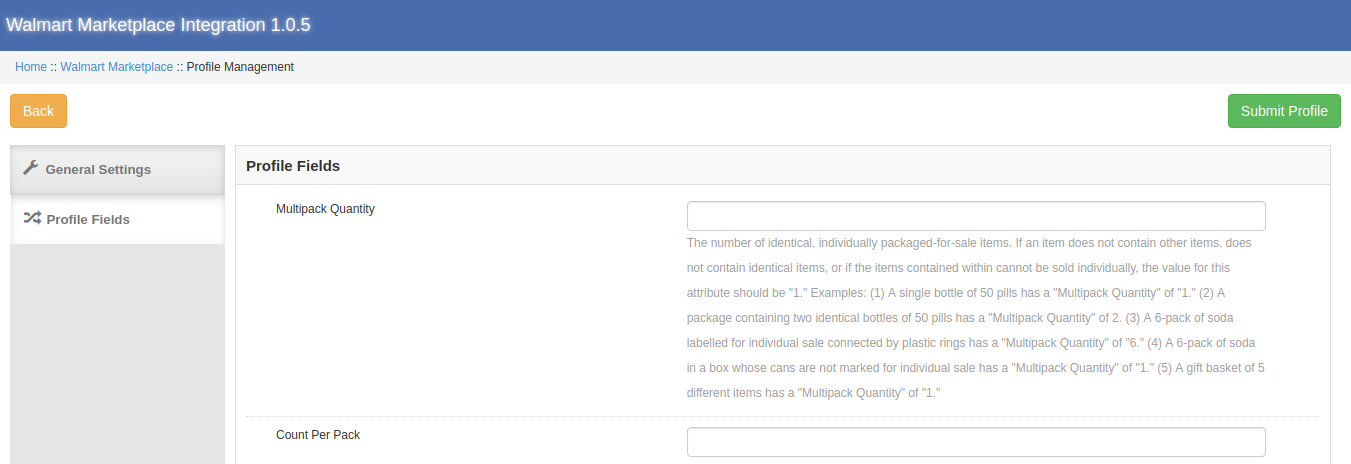
As per the selected Walmart category, additional product information and variation products can be listed by using the Profile Fields tab of the Magento Walmart Integration plugin.
3.3 Shipping Overrides
The admin can manage the shipping options for the Walmart marketplace in the Shipping Overrides tab of Magento Walmart connector extension. In this section of the Magento Walmart Integration, the admin can create Shipping overrides which contains the various shipping details as per the need of the system.
3.3.1 How to add Shipping Templates?
Follow the steps mentioned below to add Shipping Overrides:
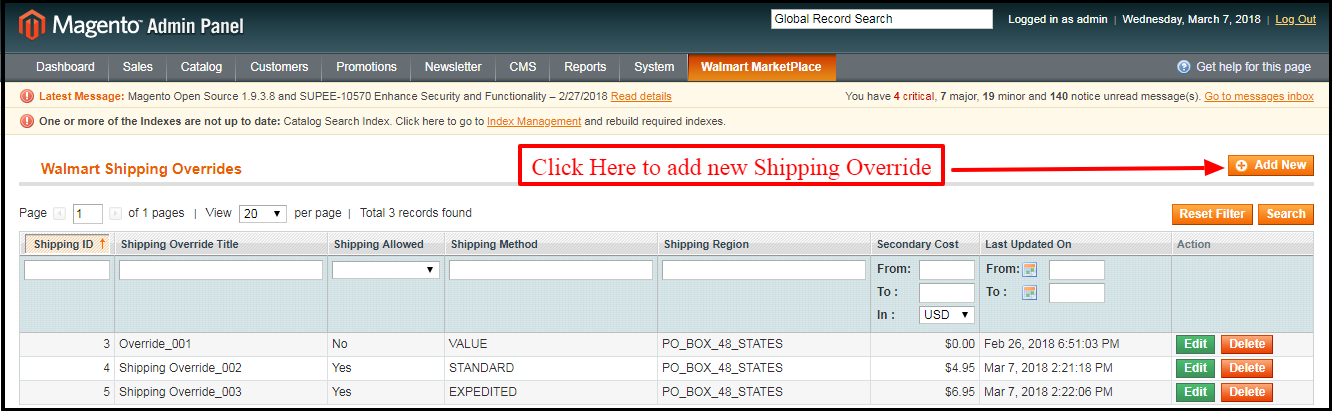
To create a new shipping override, click on ‘Add New’ as shown below:
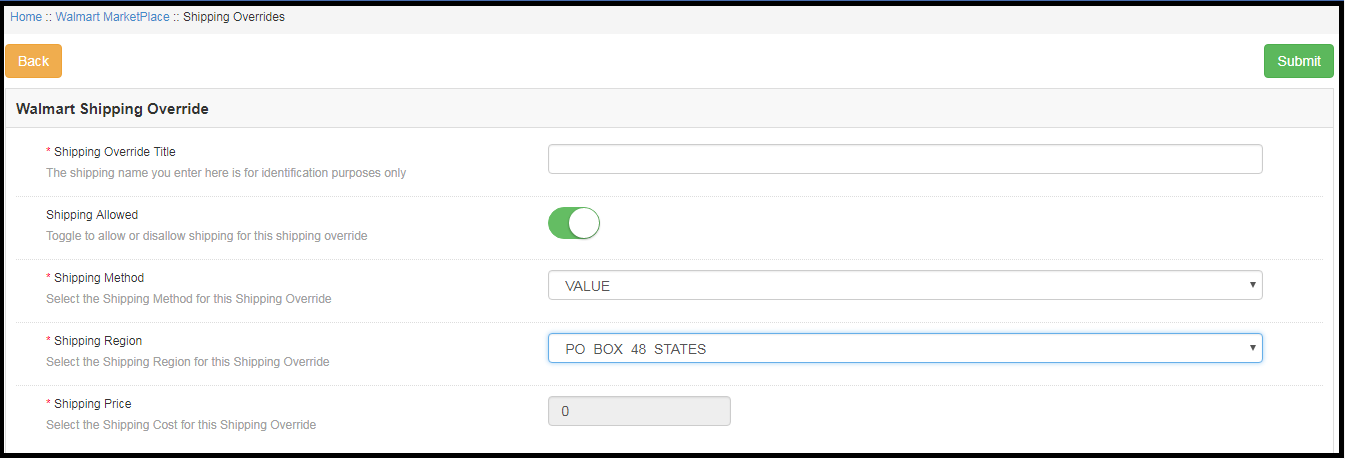
You’ll be redirected to the Shipping Override creation page. Fill up the following input fields of form –
Shipping Override Title: Enter the Shipping Override Title here. Shipping Allowed: Admin can enable or disable a shipping method by using the toggle button. Shipping Method: Walmart allows 6 types of shipping methods. Admin can easily configure the shipping methods as per the requirement from the admin panel of the Walmart Integration module. Shipping methods offered by Walmart are – VALUE, STANDARD, EXPEDITED, FREIGHT, ONE_DAY, FRIGHT_WITH_WHITE_GLOVE.
Shipping Region: Admin can select the shipping region from here.
Shipping Price: As per the selected shipping method and shipping region admin can set the shipping cost for the different shipping methods and regions.
3.3.2 How to Edit/Delete the existing Shipping Override?
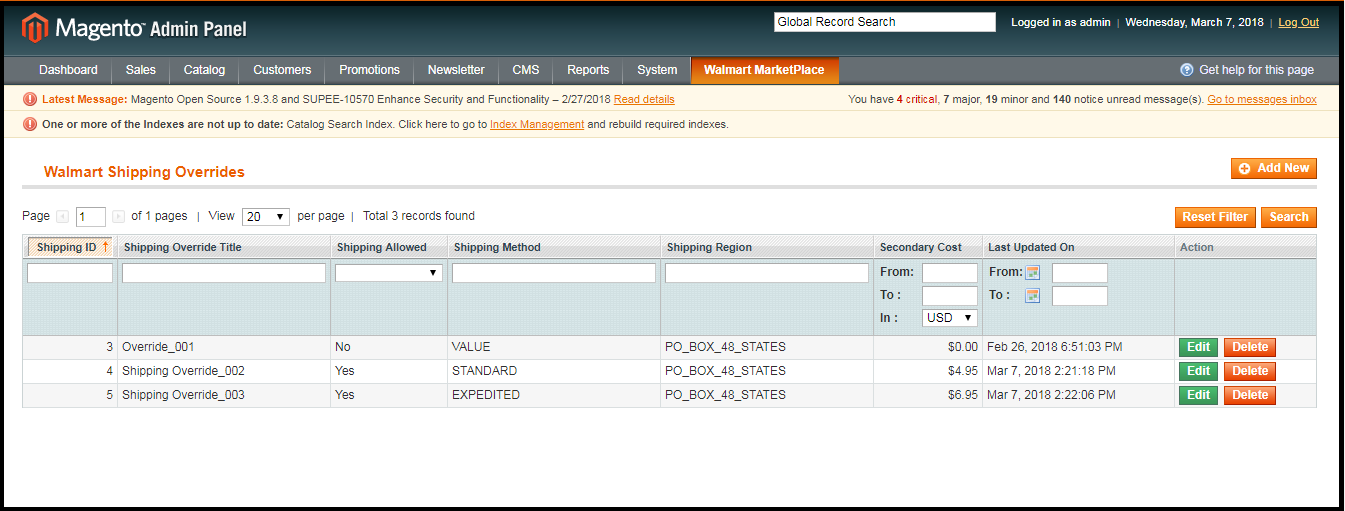
The Shipping Override (if any) will be listed in the Shipping Override tab of the Walmart Magento API integrator. Click on the “Edit or Delete” button as shown in the image to delete/modify a shipping override.
The existing Shipping Overrides can be viewed as shown in the image above. To Edit/Delete the existing entries, click on ‘Edit’ and ‘Delete’ action respectively.
3.4 Products Listing
This section of the Magento Walmart Integration shows the list of all the products listed on Walmart Marketplace with their statuses. To sync the product in the Walmart Marketplace, execute the Product Cron in the Synchronization tab of the Walmart API Integration module.
3.4.1 Product Listing Renewal
This option allows admin to renew product in case listing has expired on Walmart Marketplace. To renew the product, the admin can click on the “Renew” action corresponding to each product.
After setting up a product for renewal, action “Renew” will be replaced with “Halt” action. This action is used to stop product renewal in case needed.
3.4.2 Product Listing Deletion
This option allows admin to delete product listing from Walmart Marketplace. Click on “Delete” action given corresponding to each product listing. After setting up a product for deletion, the action “Delete” will be replaced with “Relist” action.
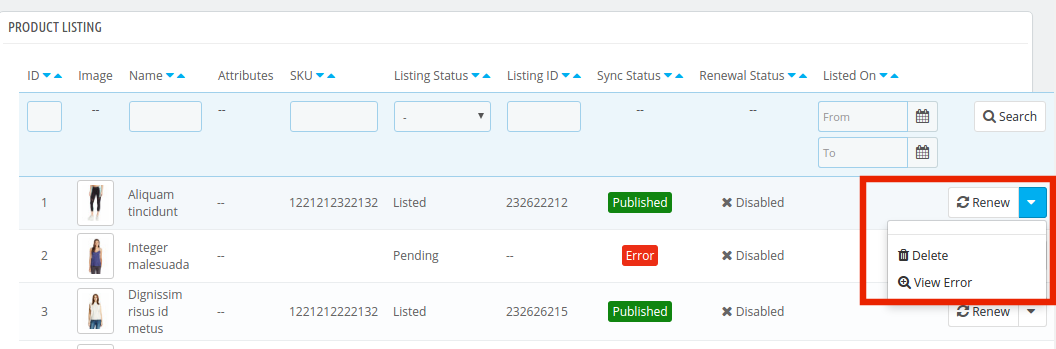
3.4.3 View Error
The admin can view the error that occurred in listing the product. For this, click on ‘View Error’ action.
3.5 Promotions
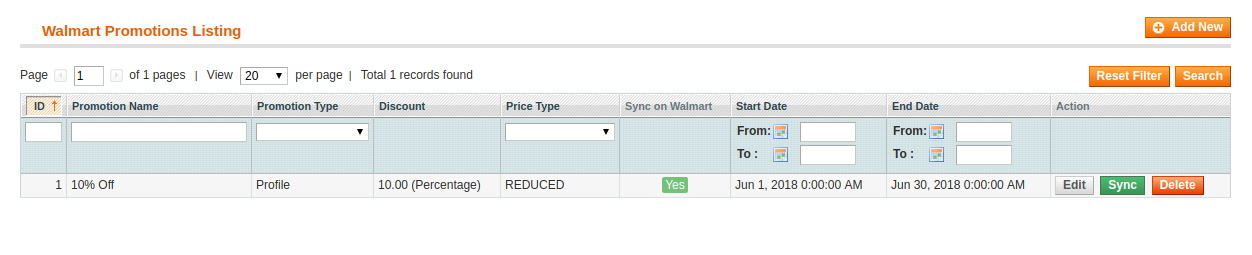
The Walmart Magento integrator allows the admin to create promotional deals and display the same at walmart.com. The created promotions will be listed in this tab as shown in the image below:
3.5.1 How to add New Promotions?
To create new promotions, click on the ‘Add New’ option at the top right corner of the Magento Walmart connector as shown in the image below:
As you click on the link, you will be redirected to the promotion creation page. The various fields of the tab are discussed below:
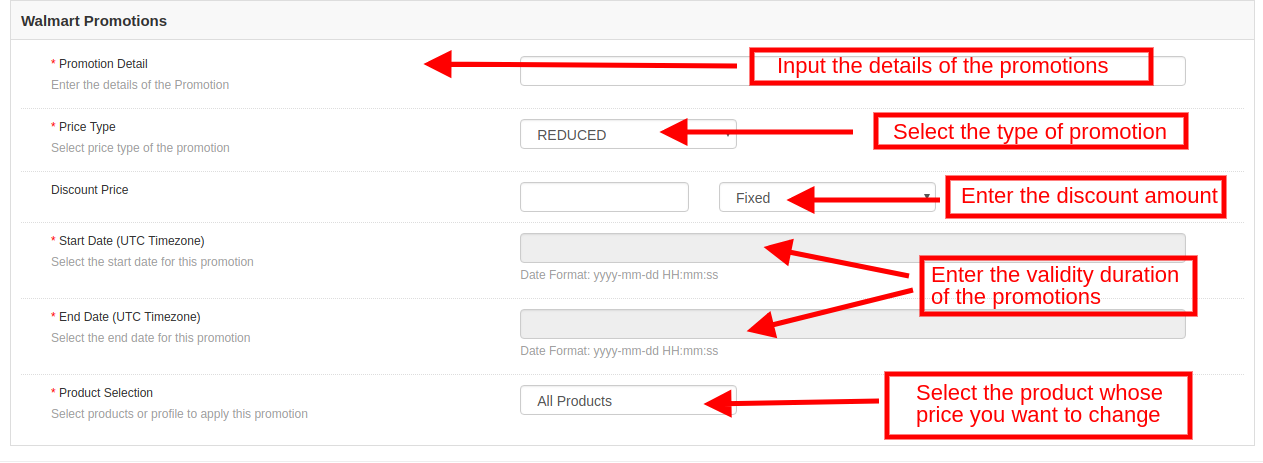
Promotion Detail: Enter the details of the promotional that you are offering to the Walmart marketplace in this section. Price Type: Select the type of price that you are incorporating from the drop-down menu. Discount Price: Enter the amount of discount that you are offering. It may be a fixed amount or a percentage amount. Select the discount type from the drop-down menu. Start Date and End Date (UTC Timezone): Enter the duration during which promotion will be active.
Product Selection: Select the product in which you want to offer the promotion.
3.5.2 How to Edit/Delete Promotions?
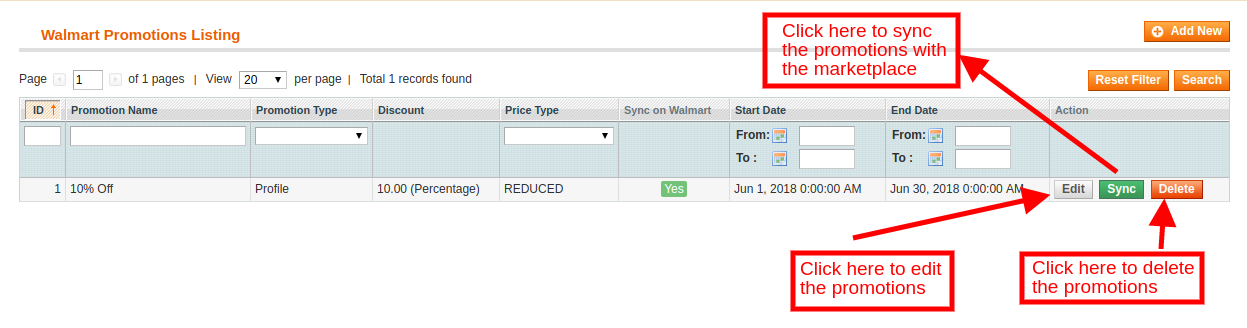
The admin gets an option to edit or delete the created promotions at a button. Click the Edit or Delete button corresponding to each promotion for the same.
The admin can even sync the promotions with the marketplace by clicking the sync button as shown in the image below:
3.6 Manage Lag Time
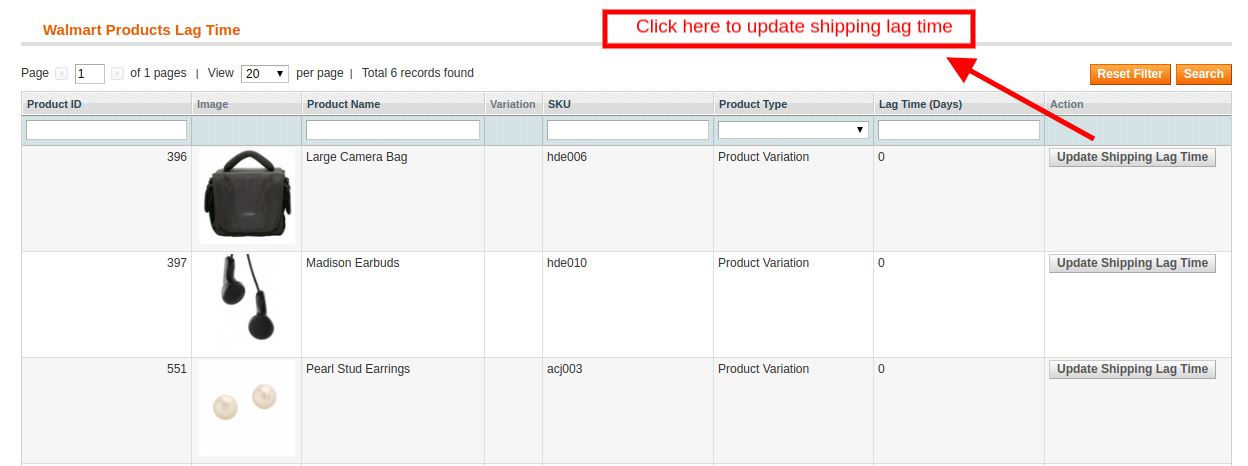
The admin can easily fix and manage the lag time of the products with ease. To fix the lag time, click on the Update Lag Time button as shown in the image below:
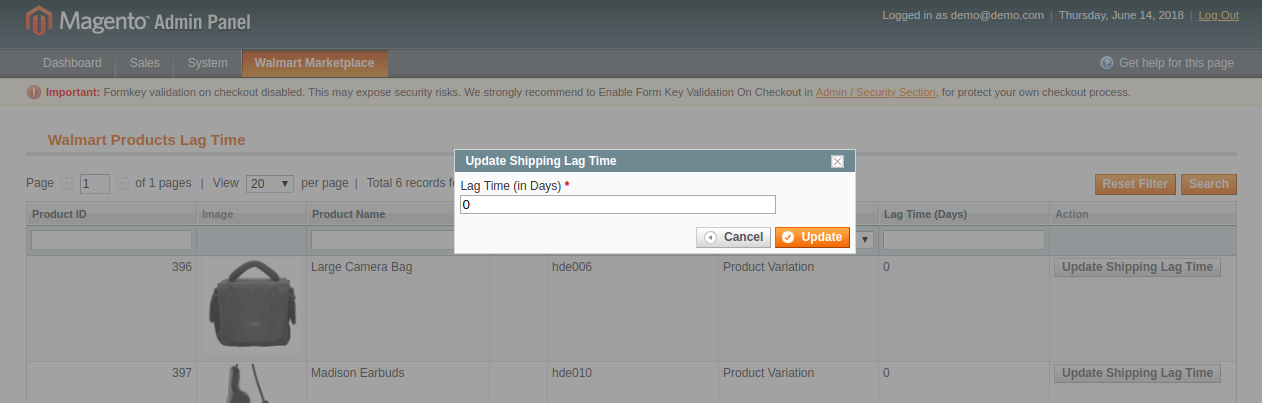
As you click on the link, a popup will appear as shown below:
Enter the lag time in days and click on the update button. This will update the shipping lag time at walmart.com.
3.7 Attribute Mapping
Attribute mapping tab of the Magento Walmart integration module allows admin to map the Magento store attributes with the Walmart marketplace. Mapping of the Magento store attributes with the Walmart attributes is required to make the listing process easy, so that these attributes can be mapped with the products during the profile creation. Please refer to the below screenshot-
3.7.1 How to Map Attributes
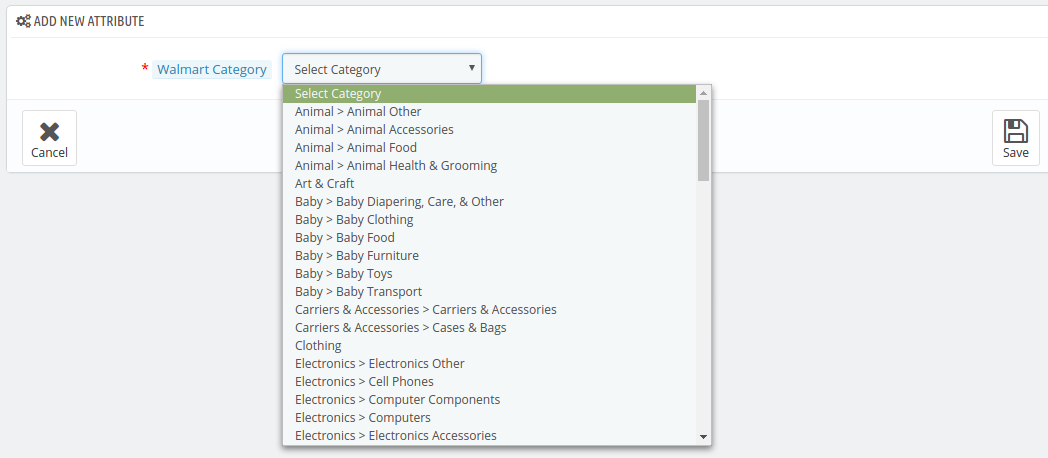
Click on the Attribute Mapping tab of the Walmart Magento Integration module, it will redirect to a new page as shown in the screenshot above. Now click on the (+) Add New button on the top of the page. It will open a new page with the option to select the Walmart category and as per the selected Walmart category Walmart attributes will appear in the drop-down list of the Walmart Attributes field. Admin can map the store attributes with the Walmart attributes by using this interface. Admin can add store attributes as per requirement from the Magento store admin panel. Please refer to the below screenshot-
3.7.2 How to Delete Mapped Attributes
To delete mapped attributes click on the Delete button given next to the mapped attributes on the Walmart Attribute Mapping tab
3.8 Order Settings
Order Settings tab of Magento Walmart integration module helps to map store order statuses with Walmart Marketplace order statuses. This will be used for capturing order details from Walmart Marketplace. For mapping the orders from the Walmart Marketplace to the Magento store, you need to execute the Order cron in the Synchronization tab. (See section 3.9.)
The various fields are discussed below: Order Current State: Choose an order default status from the drop-down. Order Shipped State: Choose an ordered state for the shipped orders placed on the Walmart marketplace. Select the order status from the drop-down list. Order Acknowledge State: After syncing the orders to the Magento store, the admin needs to acknowledge the order so that next time only a newly placed order will be downloaded to the Magento store. Order Cancel State: In case of order cancellation admin can sync the order status by using the Order Cancel state.
Note – Once the status of the order is changed in the Magento store, run the ‘Update Order Status to Walmart’ cron. This will sync all the changes to the marketplace.
3.9 Order Listing
The orders received from the Walmart store can be sync to the Walmart store under the Order Listing tab of the admin interface of the Magento Walmart API Integration. For this, the store owner needs to run the ‘Sync Order Listing from Walmart’ cron from the Synchronization tab. (See Section 3.9)
Once the cron is executed, the entire orders will be synced to the Magento store. These orders can then be processed by clicking on the ‘View’ button as shown below.
3.10. Feed Status
Every time a cron is executed, a Feed will be created in this tab as shown in this tab of Magento Walmart Integration. The status of the feeds can be seen by clicking on the ‘View’ button.
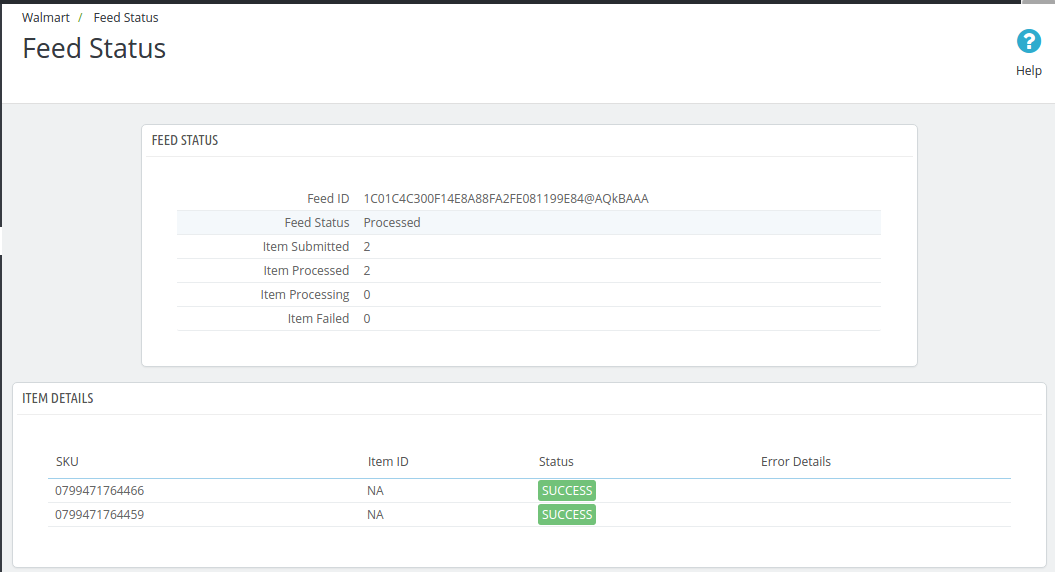
On clicking the View button, you’ll be redirected to the feed status detail page.
3.11. BuyBox Report
The store owners can obtain the BuyBox report by executing cron in the back-end of the Magento Walmart integrator. Refer to Section 3.12, to sync the Buy Box report from the walmart.com.
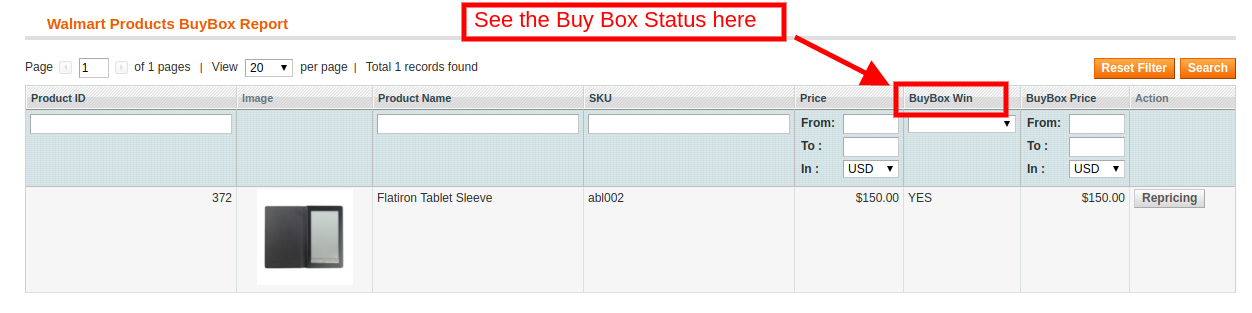
You can view the status of the Buy Box from the obtained report.
The Walmart Magento integrator even offers an option to reprise the products to the store admin to win the Buy Box.
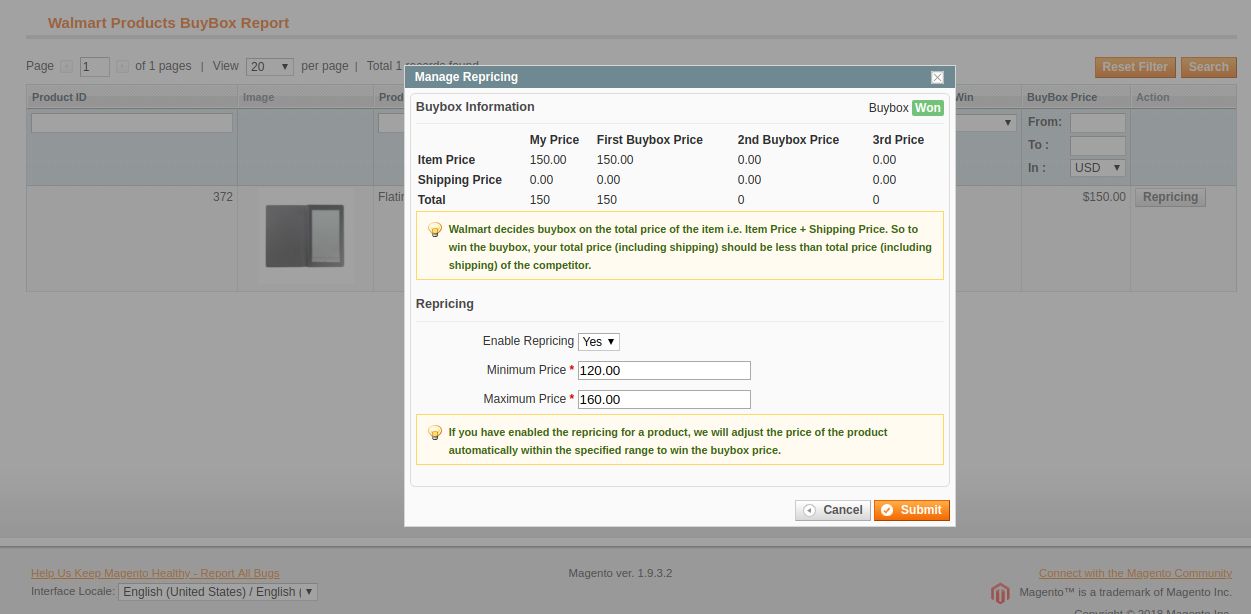
To reprice the product, click on the ‘Repricing’ option corresponding to the respective product as shown in the image below:
As you click here, a popup will appear. Here are the fields offered in the popup. Enable Repricing: Select ‘Yes’ from the drop-down menu if you want to reprice the product. Minimum and Maximum Price: Enter the minimum and maximum price of the product in the respective sections.
Once the repricing is done, sync the same with the marketplace by executing cron in the back-end of the Magento Walmart API integrator. (See section 3.12)
3.12. Synchronization
This tab synchronizes all the settings and changes done in the other tabs of the Magento Walmart Marketplace Integration Module. The synchronization between the Magento Store and Walmart Marketplace and vice-versa can be done from the ‘Synchronization‘ tab.
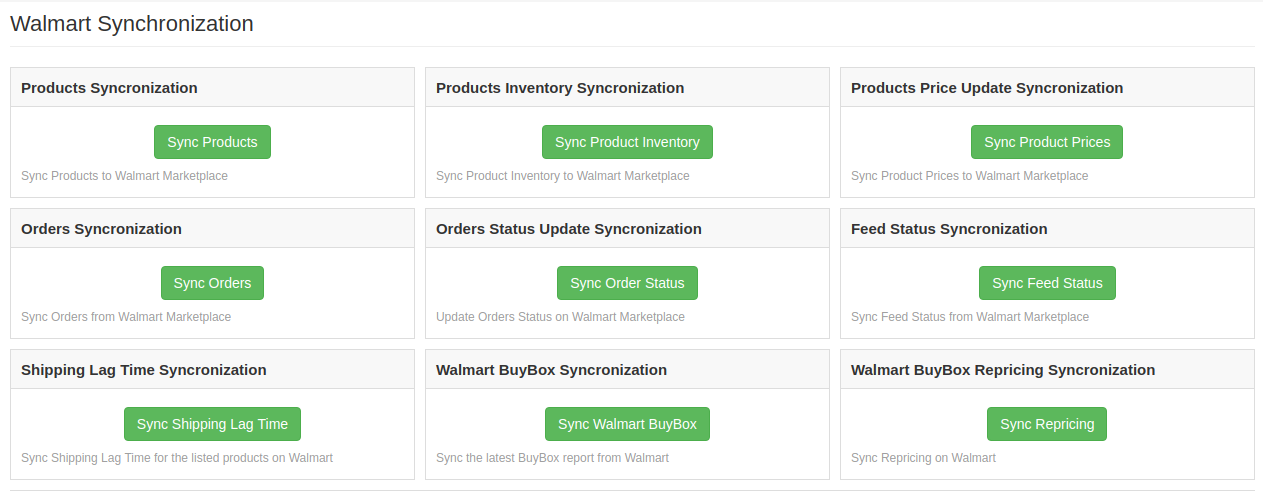
The various cron jobs to synchronize the settings between Magento Store and Walmart Marketplace are shown below –
3.12.1 How to sync Products from Magento store to Walmart Marketplace?
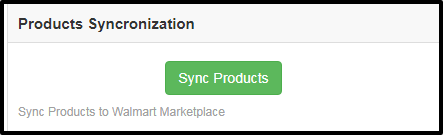
The product listed in the Products Listings tab of the Magento Walmart Marketplace Integration extension will be synced to the Walmart marketplace by clicking on ‘Sync Products’.
It would perform following actions –
The cron will list the products to the Walmart marketplace.
It will add products on the Walmart Marketplace with the mandatory product details like Description, Price, Quantity, Image, etc.
3.12.2 How to sync Inventory to Walmart Marketplace?
The product quantity can be updated on the Walmart Marketplace by executing the ‘Sync Product Inventory’ cron from the Magento Walmart Integration module.
This action will update the quantity of each product listed on Walmart Marketplace.
3.12.3 How to sync the price of the products to Walmart Marketplace?
The Sync product price cron allows the store admin to sync the updated product prices to the Walmart marketplace.
3.12.4 How to sync Order Listing from Walmart Marketplace?
The orders received from the Walmart Marketplace can be synced to the Magento store by executing ‘Sync Orders’ cron.
This cron will sync the Orders from Walmart Marketplace to Magento store.
3.12.5 How to Update Order Status in Walmart Marketplace?
The ‘Sync Order Status’ cron will update the order status as per the changes made from the Magento store on the Walmart marketplace.
3.12.6 How to Synchronize Feed Status?
To sync the Feed Status to Magento store admin need to execute the ‘Sync Feed Status’ cron.
3.12.7 How to Synchronize the Shipping Lag Time?
Click on ‘Sync Shipping Lag Time’ of the synchronization tab of Walmart Magento API integrator. This will sync the respective lag time of the products with walmart.com.
3.12.8 How to Synchronize the Buy Box status from Walmart?
The admin can sync the buy box status from Walmart with Magento Walmart connector by click on ‘Sync Walmart BuyBox’. This will update the status of the BuyBox for the respective products.
3.12.9 How to Synchronize the Buy Box status from Walmart?
The admin can reprice the products and sync the revised products at the marketplace by executing ‘Sync Repricing’ cron.
3.13 Tax Code
The Walmart Magento connector allows the admin to manage the tax code of the products in bulk. The Tax Code section of Magento Walmart’s synchronization extension enables the e-merchants the view the tax of the products in the inventory in bulk.
3.14 Audit Log
The admin can view all the jobs that occurred in the Audit Log tab of the Magento Walmart Integration extension. The status of the jobs can be viewed in this tab.
Watch how Magento Walmart Integrator by Knowband works
Moreover, Knowband has also come up with a new integrator exclusively for Walmart Canada. With Magento Walmart Canada Integrator, store owners can connect their Magento store with Walmart Canada.
Today, marketplaces are playing an important role in the growth of e-commerce. Amazon, eBay are some of the well-known platforms, but in recent years several new marketplaces have entered the completion and these marketplaces have a good potential to drive the competition. Walmart is one of the most popular marketplaces and allows people from around the globe to buy and sell from walmart.com.
To start selling on Walmart.com, sellers need to register at Walmart. Please click on the link below to know more about the registration process.
After purchasing the module, you will get the following files as listed below:
1. zip (contains source code of the module)
2. User Manual
Follow the following steps to install the extension:
Unzip the zip file. It would contain files and folders as shown below –
2. Copy all the files and folders of the unzipped folder into your Root Directory of the website.
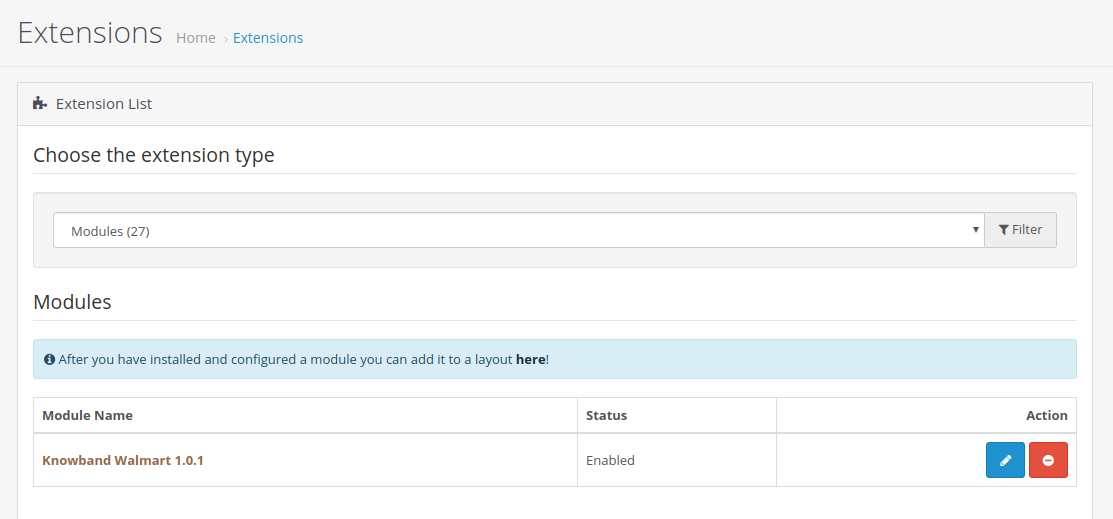
3. Now module is ready to be installed in your store and you can find that in Admin -> Modules. It would be shown as below –
3.0 System Setup
Before proceeding ahead, it is important to understand the flow of actions to complete the setup. Store admin needs to take care of some specific instructions to complete the module setup.
Seller account setup: This section will help you to set up the shop on the Walmart marketplace and in the next steps you will learn about the Walmart API key. Walmart Consumer ID, Private Key, and Consumer Channel Type are required to integrate the OpenCart and Walmart marketplace. Please refer to the below screenshot:
Admin Interface: This section will help you to understand the complete working of the OpenCart to Walmart Integration module.
3.1 How to configure Walmart Opencart Integration extension?
To configure the Walmart Marketplace Integrator, store admin needs to get the Client ID and Client Secret. In order to obtain Walmart Client ID, and Client Secret, follow the process given below:
5. Now you can get the New “Client ID” and “Client Secret” from here.
4.0 Admin Interface
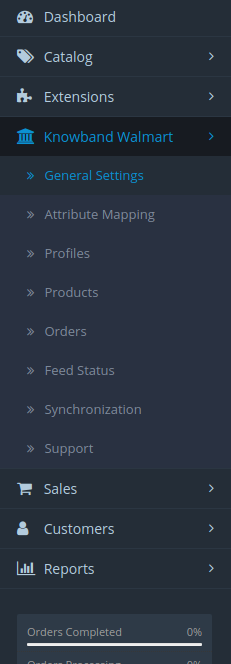
OpenCart Walmart Integration plugin has a user-friendly interface. The configuration settings can be managed via the admin interface. After installation, store admin can find the “Walmart Integration module” in the Extension List under the “Extensions” tab.
The Walmart integration extension will be displayed as shown below:
On clicking the Edit button next to the Walmart Integration module, it will redirect the admin to the admin interface. Here admin can see all the options to configure the OpenCart to Walmart Integration extension:
Walmart API Integration module offers the following options –
General Settings
Attribute Mapping
Profiles
Products
Orders
Feed Status
Synchronization
Support
Each tab is explained below.
4.1 General Settings
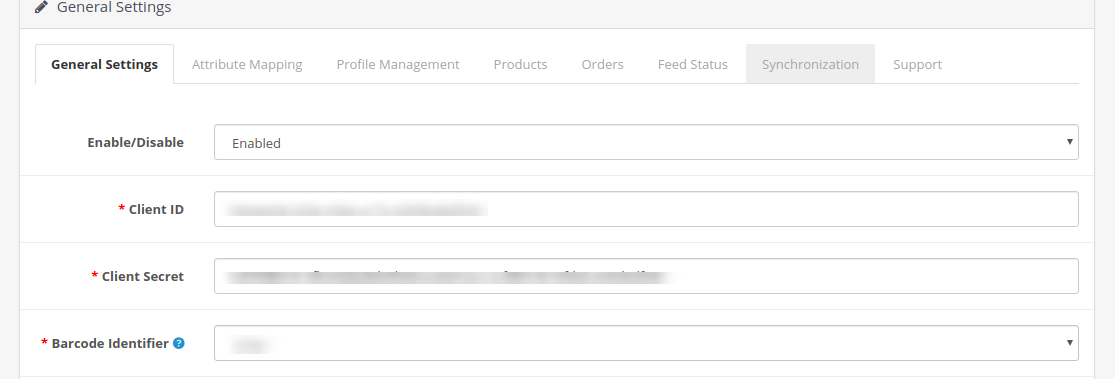
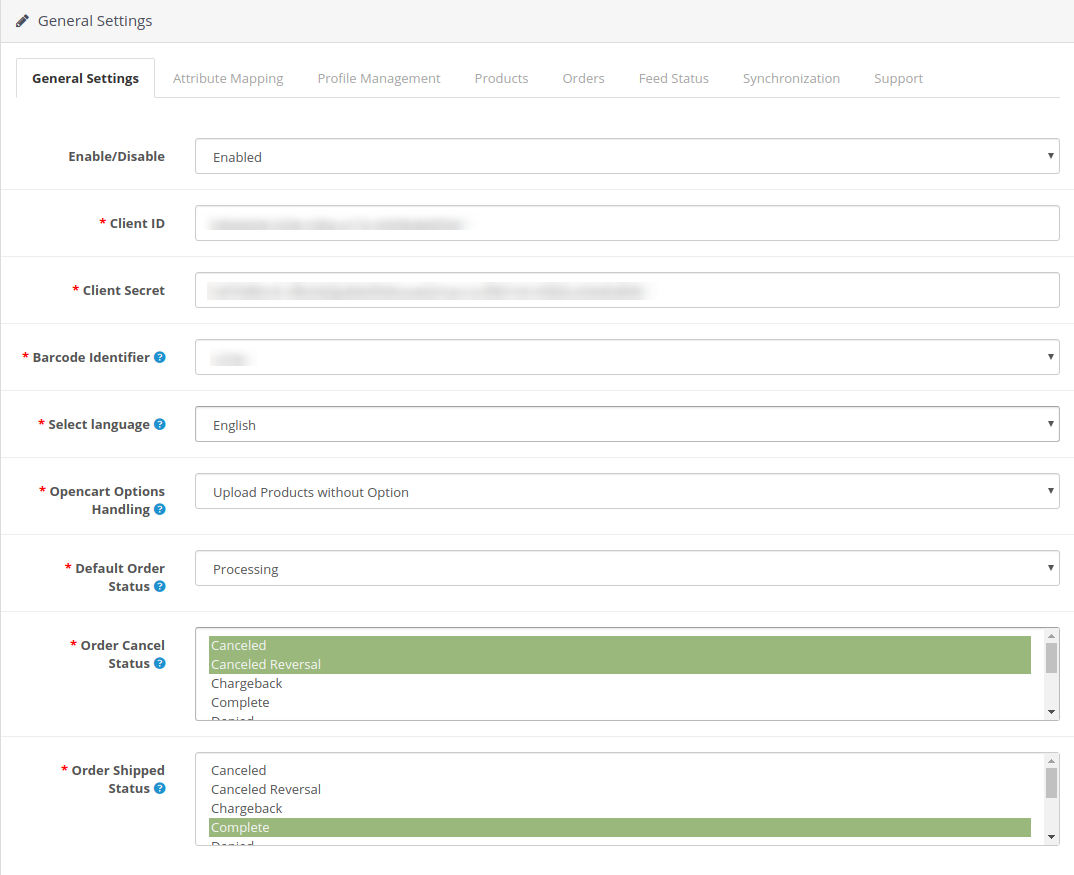
You can find the screenshot of “General Settings” page below –
General Settings tab is there for capturing details of Walmart API’s like Consumer Id, Private Key, and Consumer Channel Type, etc. This helps the admin to connect the OpenCart store with the Walmart marketplace. Please find the description of each input field below –
1. Enable/Disable
Admin can Enable/Disable the OpenCart Walmart integration module by using this option. If enabled, then only this module and all its settings will be working otherwise there will be no impact of this module on the store.
2. Client ID:
Enter Client Id in this field; it will authenticate the connection between the OpenCart store and Walmart Marketplace.
3. Client Secret:
Admin needs to enter Client Secret in this field.
3.Consumer Channel Type:
Enter the Consumer channel type API header in this field. This value can be copied from the Walmart API page.
4. Barcode Identifier:
Select the preferred Barcode Identifier from the drop-down list. The Walmart API Integration supports the UPC, GTIN, ISBN, and EAN.
5. Select Language:
Select the default language for the store.
6. Opencart Options Handling:
Enter Opencart Options Handling procedure.
7. Default Order Status:
Select the Default Order Status.
8. Order Cancel Status:
Select the Order Cancel Status option.
9. Order Shipped Status:
Select the Order Shipped Status.
After providing these details, click on the “Save” button. The Walmart API integration module verifies the API details and if the details are correct it will show the success message.
Now your OpenCart store has been connected with the Walmart marketplace.
4.2 Attribute Mapping
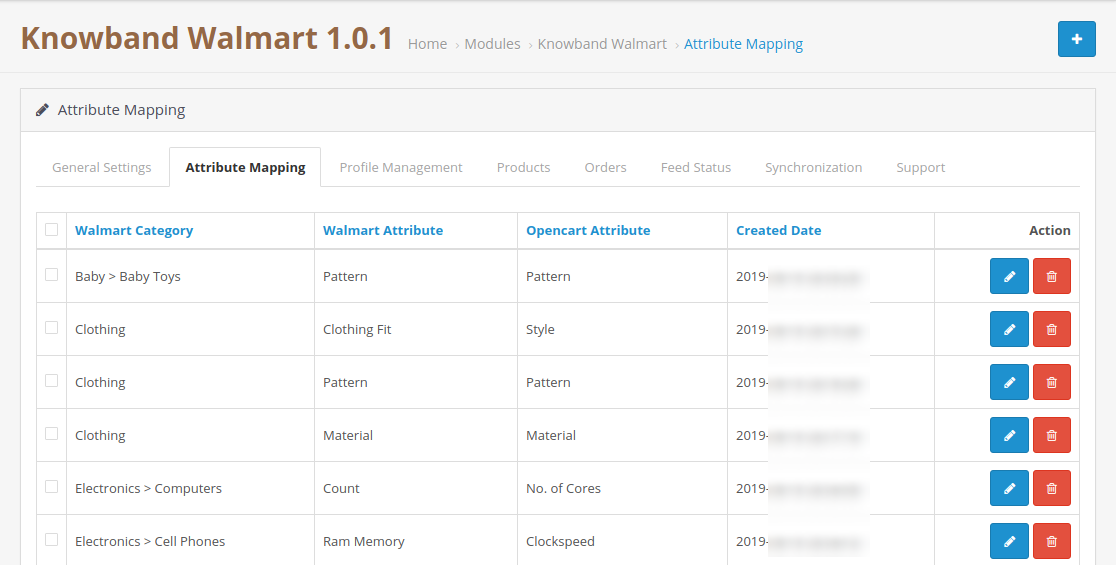
The attribute mapping tab of the OpenCart Walmart integration module allows admin to map the OpenCart store product attributes with the Walmart marketplace. Mapping of the OpenCart store attributes with the Walmart attributes so that these attributes can be mapped to the products during the profile creation. Please refer to the below screenshot-
4.2.1 How to Map Attributes
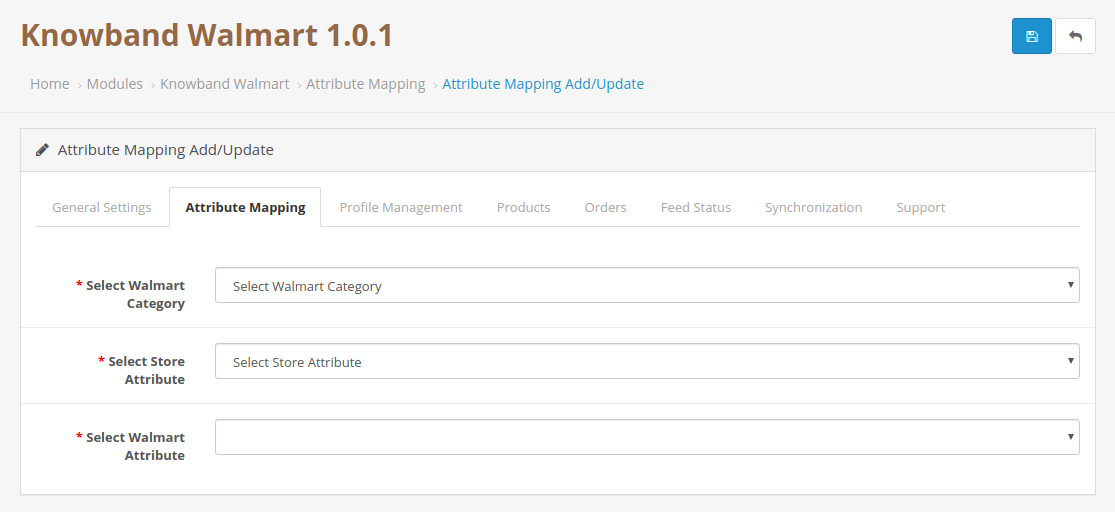
Click on the Attribute Mapping tab of the Walmart OpenCart Integration method, it will redirect to a new page as shown above in the screenshot. Now click on the (+) sign on the top of the page. It will open a new page with the option to select the Walmart category and as per the selected Walmart category Walmart attributes will appear in the drop-down list of the Walmart Attributes field. Admin can map the store attributes with the Walmart attributes by using this interface. Admin can add store attributes as per requirement from the OpenCart store admin panel. Please refer to the below screenshot-
4.3 Profile Management
The profile Management tab provides options to list the product on the Walmart marketplace. In this section, the admin will be able to map OpenCart store product attributes and categories to Walmart store under the Walmart store product attributes and category. OpenCart Walmart integration extension allows the store admin to select multiple store categories to sync with the one Walmart category. It is mandatory to enter all the required details as per the instructions are given in the below screenshot. After entering all the details click on the Save button at the top of the form.
After creating a profile admin need to run the Product Sync by visiting the Synchronization >> Product Synchronization tab of the OpenCart Walmart Integration extension.
4.3.1 How to add New Profiles?
Following are the steps to add new profiles-
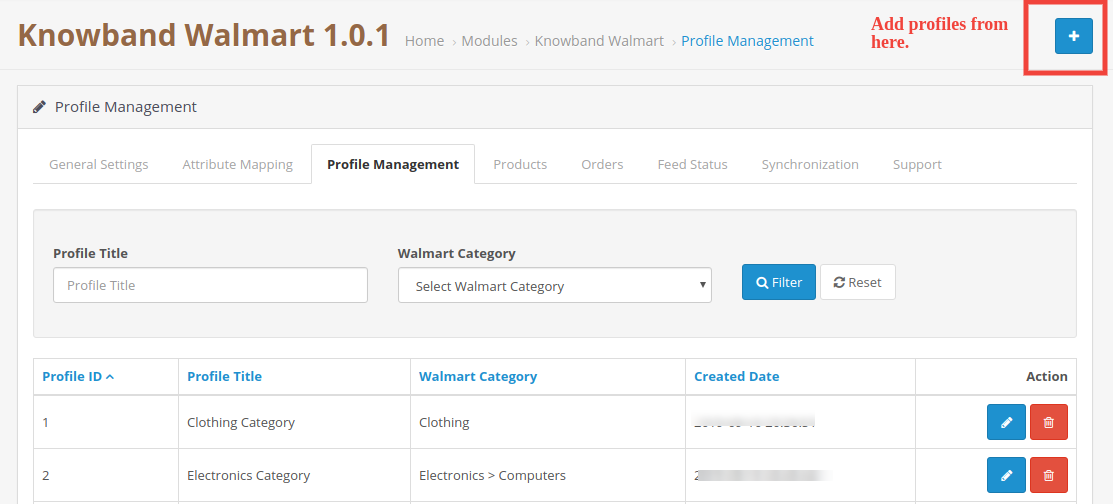
Go to the Walmart API Integration extension -> Profile Management (Menu Option)
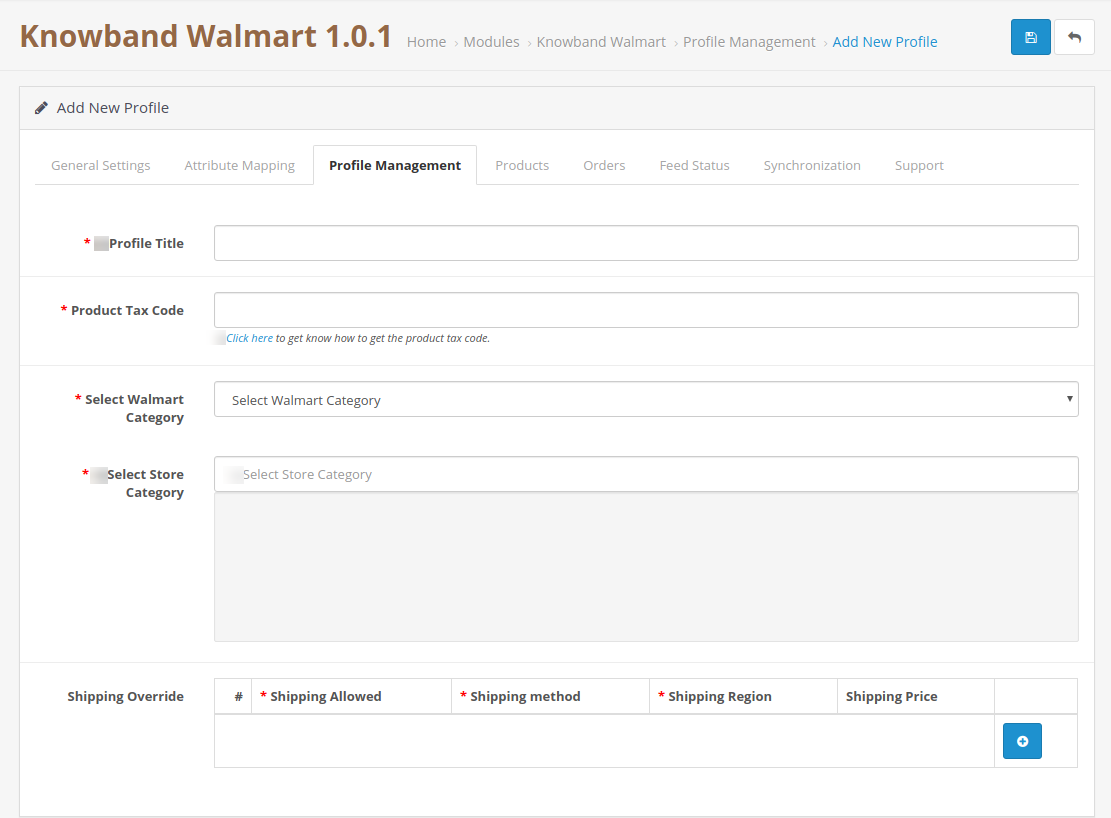
It would redirect admin to a page where already added profiles will be listed (If any). Click on the “+” (plus icon as shown in the screenshot below) and it would redirect admin to a new page where a form with some input fields will be shown.
Fill up the following input fields –
Profile Title: Enter the Profile Title as per your choice.
Product Tax Code: Enter the Tax code for the product. Tax code spreadsheet can be downloaded from the Walmart seller account, under Partner Profile select Taxes, Scroll down to the Download section and click on the US Tax Codes 2017 button.
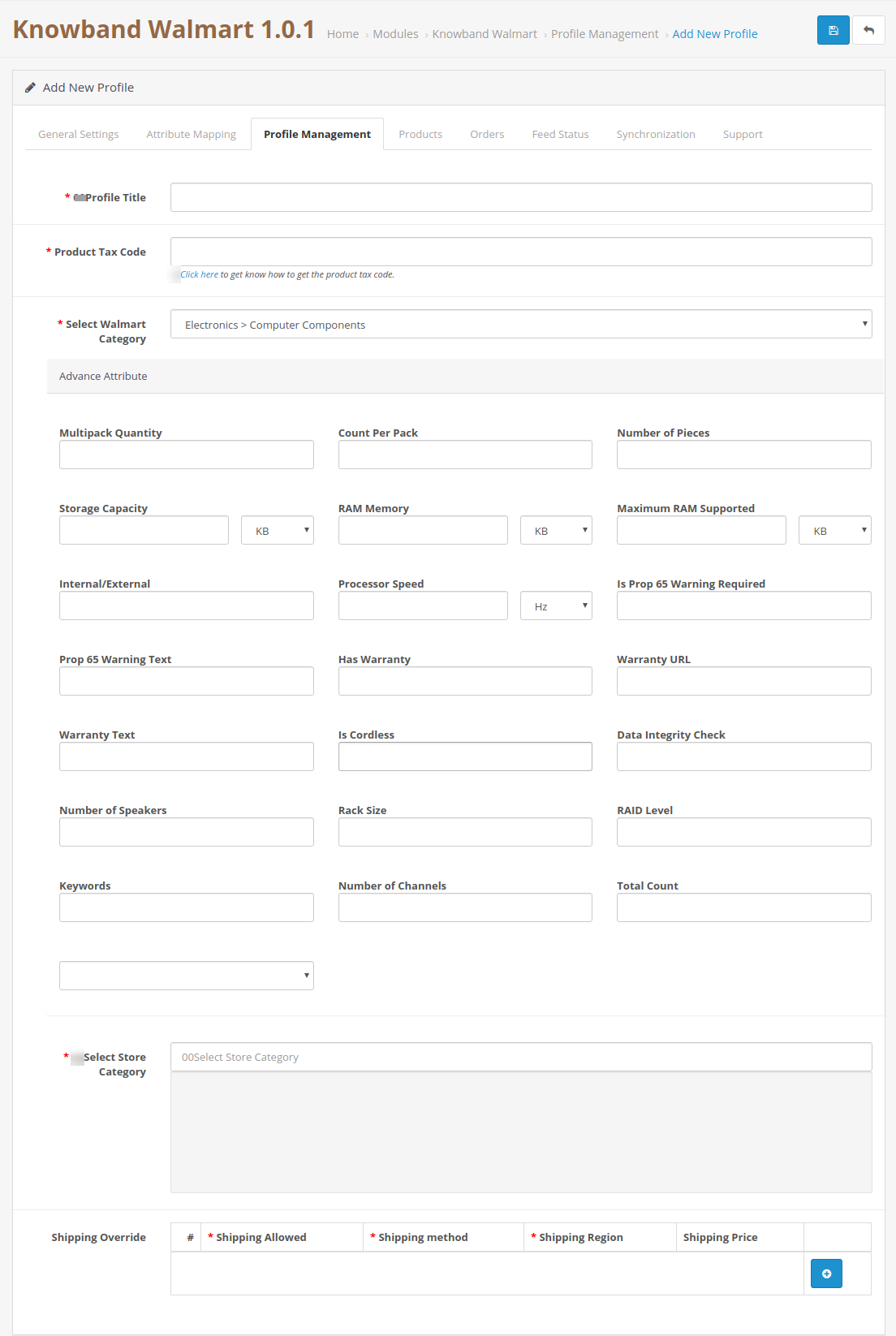
Select Walmart Category: Select the correct Walmart Category for the products from the drop-down list. On selecting the Walmart category the Advance attribute options for the products will appear on the page. Please refer to the below screenshot. For example, we have selected the Walmart category as Baby > Baby clothing –
6. Select Store Category: Select the store category of the product.
2. Shipping Override: Admin can select the preferred shipping method from here; admin can add multiple shipping methods by using the Shipping Override option.
Admin can select the shipping method and the Shipping region to define the shipping methods for the Walmart store. As per choice admin can add multiple shipping options for the shipping.
4.3.2 How to Edit/Delete Profile?
Admin can easily update the profile entries; OpenCart Walmart Integration module allows admin to sync the changes to the Walmart marketplace in simple steps. Following are the steps to edit/delete profile from the system –
Go to the Walmart Integration Module -> Profile Management (Menu Option)
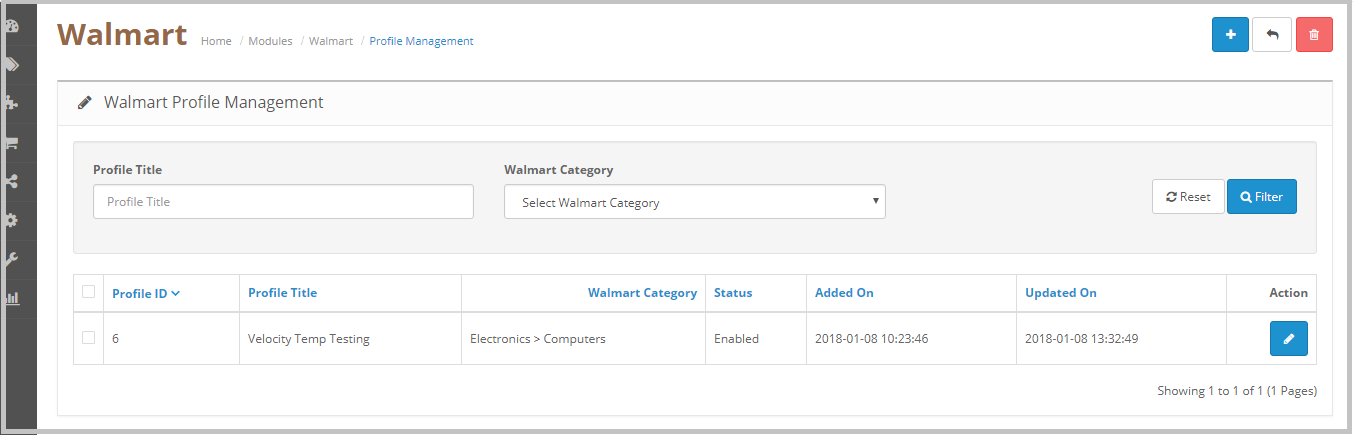
It would redirect admin to a page where already added profiles will be listed (If any, shown in the screenshot below).
Click on the “Edit” button given just next to the Profile detail.
If admin clicks on the “Edit” option, then, it would redirect the admin to a new page where a form with some already filled input fields will be shown. Admin can simply update values and save the details by clicking on the “Save” button.
To “Delete” a profile admin needs to select the “Profile” (select the profile by clicking the checkbox) and click on the Delete button available at the top of the page.
4.4 Products
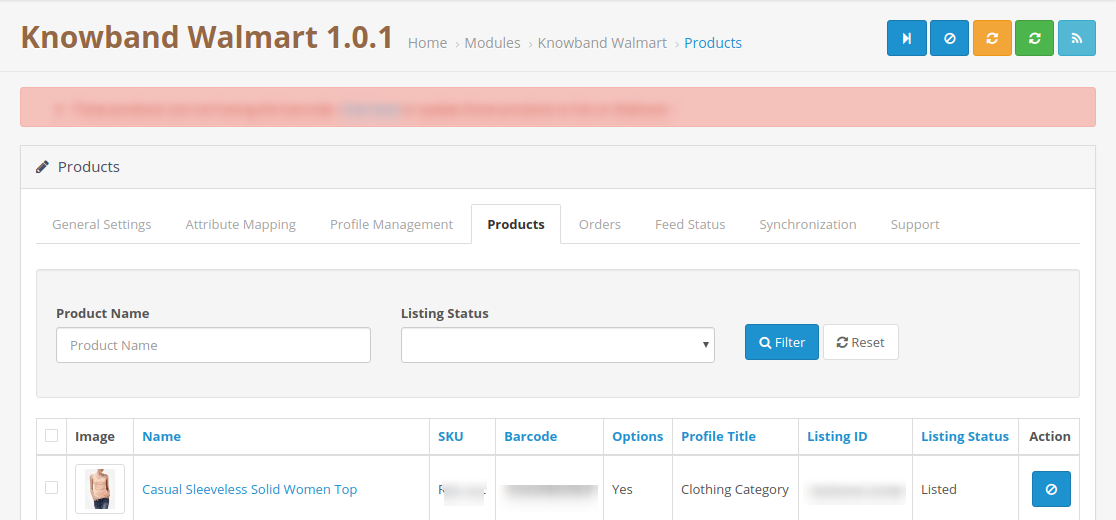
After creating a Profile admin need to run the sync operation (Synchronization >> Product Synchronization) to list the products selected under the newly created profile on the Walmart marketplace. As soon as the synchronization process will get completed it will display the “Success” message on the top of the page. Admin can check the status of listed products under the Product Listing tab of the Walmart OpenCart integration module. This tab shows the status of all the listed products and in case of any issue with the listing then admin can check the reason for listing error. Please refer to the below screenshot-
As shown in the above screenshot Product listing page shows the following fields:
Image
SKU
Barcode
Options
Profile Title
Listing ID
Listing Status
Action
Admin can use the Name and Listing Status filters to check the listing status. Listing status filter shows the option to check the status of the products with Listed, Pending, Deleted, Inactive, Expired and Error.
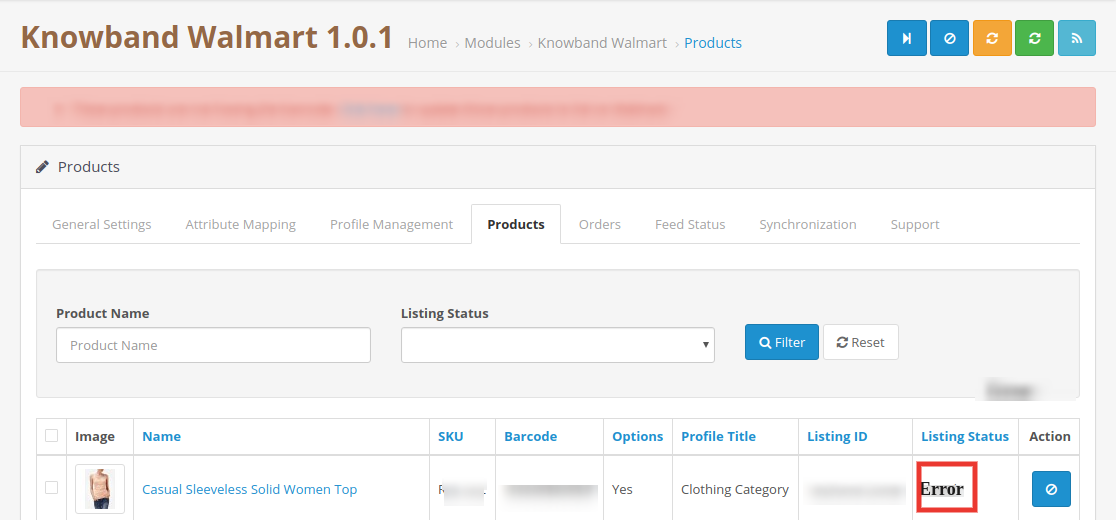
4.4.1 How to check the listing error
In case of any missing information or wrong details of the product, the Walmart OpenCart integration module also displays the error message for the listing process. At the product listing page under the Listing Status admin can find the products with the Error status. To know the reason for the error admin needs to click on the second button given under the action field. It will open a popup with the details of the error. Please refer to the below screenshot:
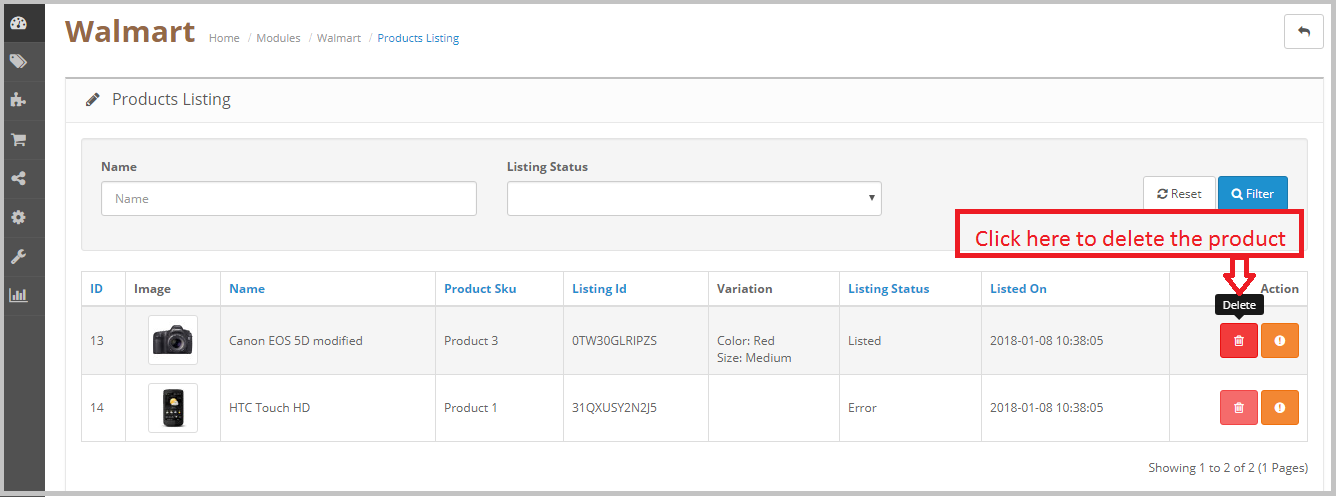
4.4.2 How to delete the product from Walmart
To delete a product from Walmart click on the Delete button next to the product under the Action field and then sync the products to the Walmart, this operation will retire the product from
Walmart without removing the product from the OpenCart store. Please refer to the below screenshot-
4.5 Order Listing
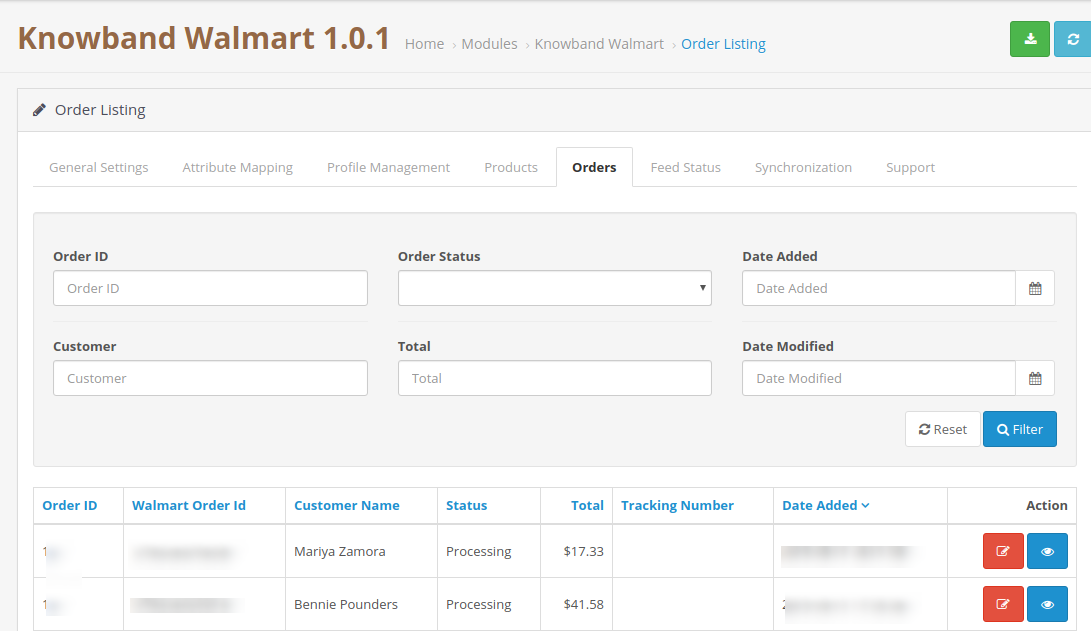
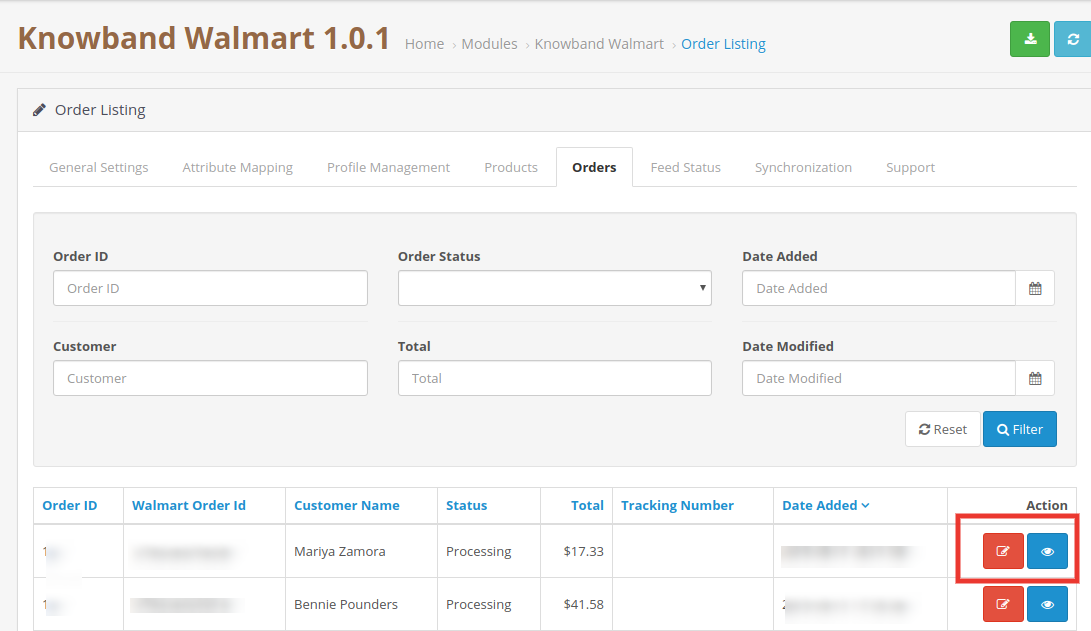
The order listing tab of the Walmart OpenCart connector module helps the store admin to synchronize the Walmart store orders to the OpenCart Store. To sync the orders to the OpenCart store admin need to run the Synchronization >> Order Download, after that, all the orders will be downloaded to the OpenCart store and admin can check the order details under the Order Listing tab. Please refer to the below screenshot-
Admin needs to run the Synchronization >> Acknowledgeorder cron to notify Walmart that the orders have been downloaded to the OpenCart store. After running this cron next time only the newly placed orders will be downloaded. Admin can also set up the cron job to automate the process.
4.5.1 Update Shipping information for the orders
Admin can update the shipping information like shipping carrier, tracking id and the date of shipping for the Walmart orders and the order details can also be checked by using the “Edit” button under the Action field. Please refer to the below screenshot-
Update Tracking:
After downloading the orders from the Walmart store to the OpenCart store, store admin can update the shipping information for the Walmart orders and sync it to Walmart. To complete the synchronization admin need to run the Synchronization >> Update Shipment cron. This will update the order status of the Walmart store.
Edit:
Admin can update the status of the Walmart store order from the OpenCart store by clicking the Edit option.
4.6 Feed Status
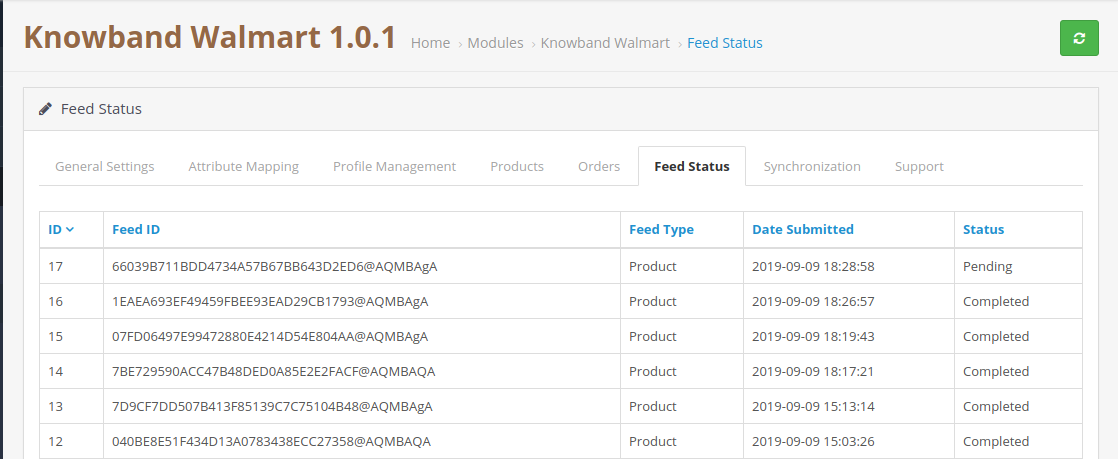
The status will be updated by the cron jobs if it is set. Otherwise, the user will have to click on the “Feed status” button on the synchronization page.
4.7 Synchronization
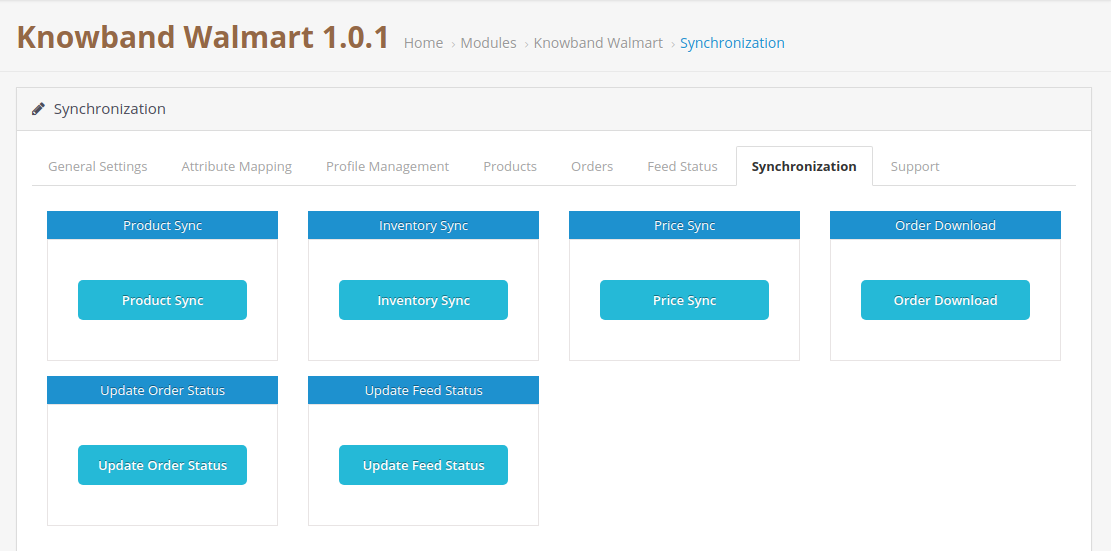
The Synchronization tab of the Walmart OpenCart Integration module synchronizes all the settings and changes done in the different tabs of the OpenCart Walmart Marketplace Integration Module. The synchronization between the OpenCart Store and Walmart Marketplace and vice-versa can be done from the ‘Synchronize‘ tab.
Product Sync:
After creating a new profile OpenCart store admin need to run the Product Sync. This operation lists all the products under the newly created profile on the Walmart marketplace. Admin can check the status of listed products under the “Product Listing Tab”.
Product Sync would perform following actions –
Update the products list in the Walmart marketplace.
It will add products to the Walmart Marketplace with the respective product details (e.g. Price, Quantity, Image, etc.).
It will update the expired products on Walmart Marketplace for the items in which ‘Renewal’ is enabled.
It will remove the products from Walmart Marketplace which are marked deleted on Store.
Inventory Sync:
The quantity of the products can be updated on the Walmart Marketplace by clicking the ‘Inventory Sync’. It updates the quantity status of each product listed on Walmart Marketplace.
Price Sync:
The price of the products can be synced to the marketplace by clicking the ‘Price Sync’.
This synchronization will update the price of the products on Walmart Marketplace.
It will update the changes in the price of the products.
Order Download:
Order download Synchronization will download all the orders from the Walmart marketplace to the OpenCart store.
Update Order Status:
After downloading the orders to the OpenCart store, the store admin needs to click on the Update order status button, so that the orders will be updated on the OpenCart store. Admin can also set up the cron job to automate the process.
Update Feed Status:
Update Feed Status will update the feed status of Walmart and will also update the product add/update/delete status on OpenCart.
4.8 Support
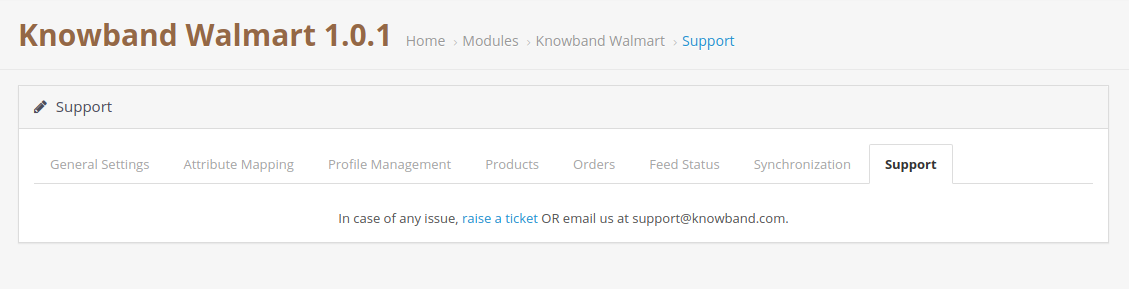
In case of any issue, raise a ticket OR email us at support@knowband.com.
Prestashop Walmart Integrator by Knowband gives you a handy mechanism to list the product on Walmart and manage the order in a few simple steps directly from the Prestashop store.
Walmart is one of the largest retail companies and has made a prominent presence in the eCommerce industry over the years. The marketplace is famous for Electronic goods and even deals with other products including home and furniture, home improvement, clothing, footwear, jewelry, toys, health and beauty, grocery, etc. The Prestashop store owners can now sync their store and sell the products on Walmart.com.
Walmart Prestashop Integration module by Knowband allows the store owners to integrate the store with Walmart.com. The Prestashop Walmart API Integrator automates the entire process of store synchronization, product and inventory management as well as order processing.
1.1 Features offered by Prestashop Walmart Integrator are listed below:
The Prestashop Walmart Integration Module connects the Prestashop store with Walmart.com in a few button clicks.
Real-time product listing from the back-end of the Prestashop Walmart integration plugin makes it easier for the sellers to display their products to the customers of the marketplace.
The easy inventory management and product synchronization of the Prestashop Walmart Integration extension allows the vendors to manage the products with minimal hassle.
The profile-based listing of the Prestashop Walmart Integration Module allows the admin to upload the products in bulk. The admin can update the prices and inventory by executing the cron from the admin interface of the Prestashop Walmart integrator.
The admin can even change the price of the product on the marketplace without changing their cost at their site.
Prestashop Walmart Integration addon offers easy order management that makes it easier for the store admin to keep a track of the orders received from the marketplace and manage the same from a single interface.
With easy shipping and product management from the back-end of the Prestashop Walmart Marketplace integration plugin, the store owners can effortlessly boost the overall revenue of their company.
The Prestashop Walmart API integration addon allows the admin to manage the shipping carrier and shipping methods with ease.
The admin gets an option to get the buy box report just by executing cron in the back-end of the Prestashop Walmart integration addon.
Based on the performance of the products, the admin can reprice the products and sync the same with the marketplace at a button click with the help of Walmart Prestashop integration addon.
Walmart Prestashop connector makes it easier for the admin to provide the tax code of Walmart Categories.
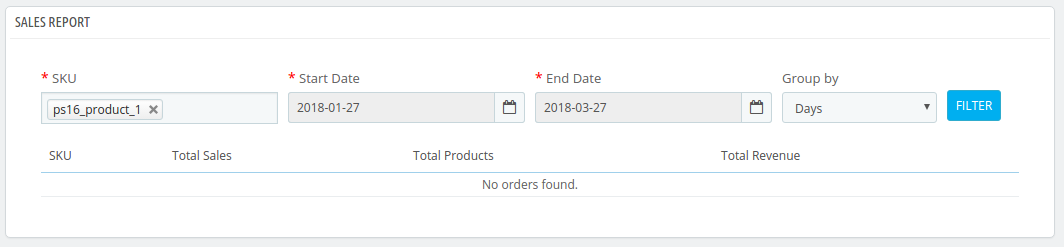
Admin can view the overall sales report along with the sales report of individual products from the admin interface of the Prestashop Walmart integrator.
The sellers can easily manage the lag time of the products from the back-end of the Walmart Prestashop connector.
1.2 Merchant Benefits of the Prestashop Walmart integration addon:
Walmart Prestashop Integration plugin automates the entire process of store integration.
With the help of Walmart Prestashop API integrator, the store admin can list the products and the corresponding details in the marketplace and manage the inventory without any manual synchronization.
Not just the inventory, even the orders received can be synced in the store by executing cron in the back-end of the Walmart integration module.
The orders can, then, be processed from the store and the status of the orders can be updated to Walmart.com at a button click.
The store admin can map the category of their store with that of the category of the marketplace with the help of the Prestashop Walmart integration extension.
Even the attributes of the products can be mapped with the attribute of the marketplace with the help of this Prestashop Walmart Marketplace Integration extension.
The Walmart Prestashop integration module is easy is to understand and use.
The Walmart Prestashop integration extension comes with free support of 3 months.
Along with version compatibility, the Prestashop Walmart Integration plugin doesn’t conflict with other modules of the store.
1.3 Project Objectives
Listed below are the project objectives of Walmart Prestashop Connector:
The installation process of the Prestashop Walmart integrator.
The process of seller account set-up in Walmart.com
Profile creation and synchronization in the marketplace.
Product listing and status update of the products on Walmart.
Order synchronization from Walmart and status updates.
2.0 Installation
Once the Prestashop Walmart Integration module is purchased from the store, you will get the zipped file (containing the source code of the Prestashop Walmart marketplace integration addon) along with the user manual. Please follow the below steps to install it:
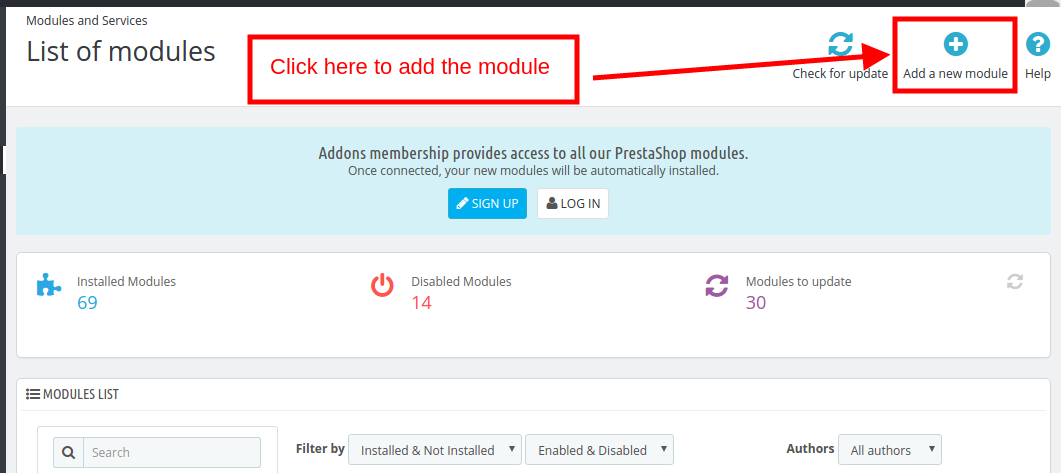
Step 1: Go to Module listing page and “Add New Module” button.
Step 2: Upload the downloaded zipped file.
Step 3: Once this is done, the Prestashop Walmart Marketplace Integration extension will be listed on the module listing page as shown in below screen:
Step 4: Click on the install button. The module will be installed in your Prestashop store.
Note: Please set the read/to write permission on the module folder before installing the module into the system.
3.0 How to configure Walmart Magento Integrator Extension?
To configure the Walmart Marketplace Integrator, store admin needs to get the Client ID and Client Secret. In order to obtain Walmart Client ID, and Client Secret, follow the process given below:
5. Now you can get the New “Client ID” and “Client Secret” from here.
4.0 Admin Interface
Once the seller account setup is complete, the merchant can configure his shop on Walmart.com
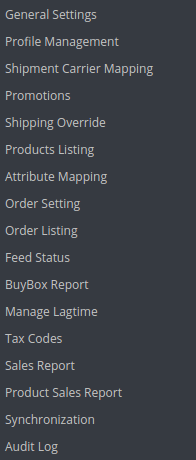
The Prestashop Walmart Marketplace Integration extension offers 17 configuration tabs in the main menu of the admin interface. These options include the following:
General Settings
Profile Management
Shopping Carrier Mapping
Promotions
Shipping Override
Product Listing
Attribute Mapping
Order Setting
Order Listing
Feed Status
BuyBox Report
Manage Lagtime
Tax Report
Sales Report
Product Sales Report
Synchronization
Audit Log
Each option is discussed in detail below.
4.1. General Setting
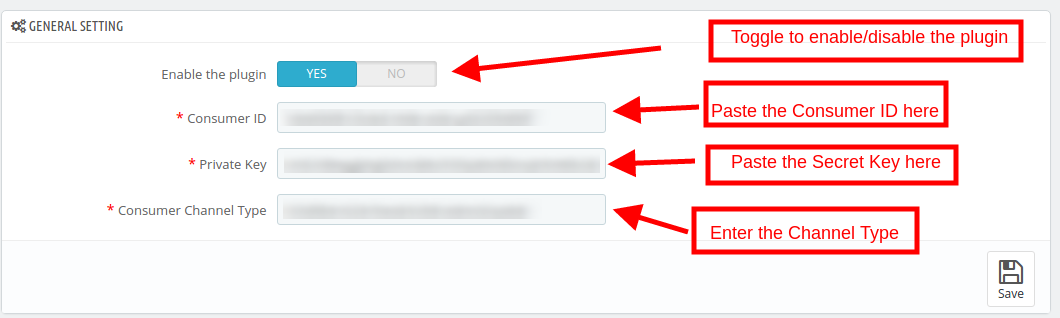
To authenticate the Prestashop to Walmart integration, the Prestashop store admin needs to fill-up the following field:
1. Enabled the Plugin
Toggle the button to enable/disable the Prestashop Walmart Marketplace Integration addon from the store.
2. Consumer ID
Enter the Walmart Consumer ID that was copied while setting up the connection.
3. Private Key
Enter Walmart API Secret Key here that was copied from the seller’s account. It is mandatory for authenticating the integration between the store and Walmart Marketplace.
4. Consumer Channel Type
The value for the Channel Type header is used to send information to the API.
4.2. Profile Management
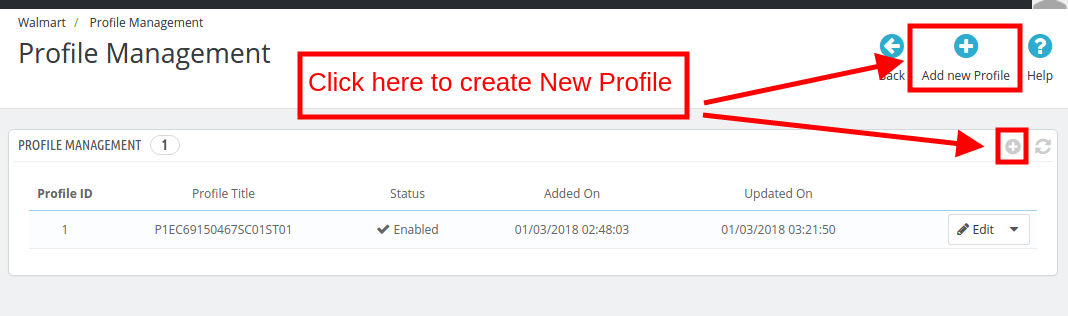
The Prestashop store admin can create, edit or delete N number of profiles from the back-end.
4.2.1 How to Create a New Profile?
Click on the ‘Add New Profile’ or ‘+’ sign to create a new profile.
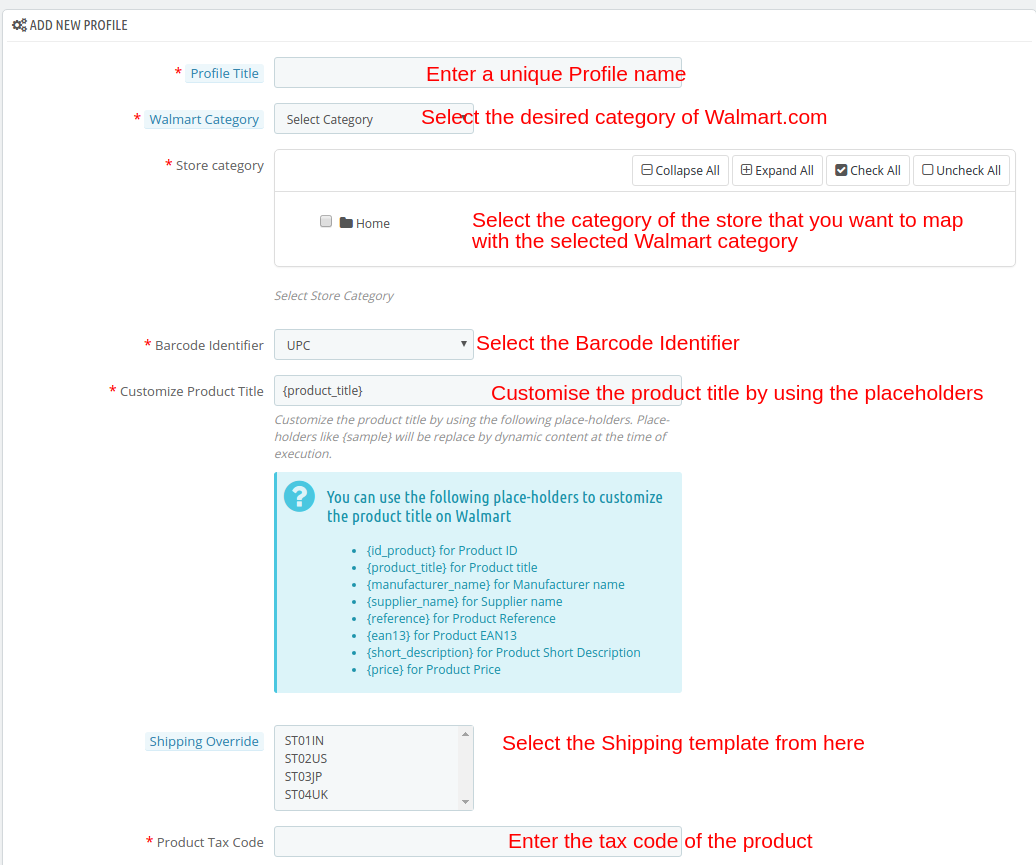
Once the button is clicked, the admin will be redirected to the profile creation page. Here are the fields that you need to fill.
Profile Title: Enter a unique name for the profile.
Walmart Category: Select the category of the Walmart where you want to map the category of the store.
Store Category: Expand the category and select the category of the Prestashop that you want to map in the category of Walmart.com.
Barcode Identifier: This is the unique field of the product. Select anyone from the dropdown list, so that, the Prestashop extension can identify the product according to the mapped attribute. The various options to choose from include: UPC, EAN13.
The various place-holders are listed below.
{id_product} for Product ID
{product_title} for Product title
{manufacturer_name} for Manufacturer name
{supplier_name} for Supplier name
{reference} for Product Reference
{ean13} for Product EAN13
{short_description} for Product Short Description
{price} for Product Price
Enable Custom Pricing: Enable this option to change the price of the product without changing the price of the product on the Prestashop site.
The admin can enter the custom price change in this section.
Select whether you want to change the price by a fixed amount or a percentage amount.
Select whether you want to increase or decrease the price of the products by that particular value.
For instance, the admin chooses ‘Fixed’ and ‘Increase’ and enters the custom price of $5, then, the price of all the products of that particular profile will increase by $5.
Shipping Override: This is an optional field. Select the shipping options from the list provided. This section includes all the shipping templates added in the Shipping Override tab.
Product Tax Code: Enter the product tax code in this section.
Also, the store admin can add relevant attributes of the products.
4.2.2 How to Edit the Existing Profiles?
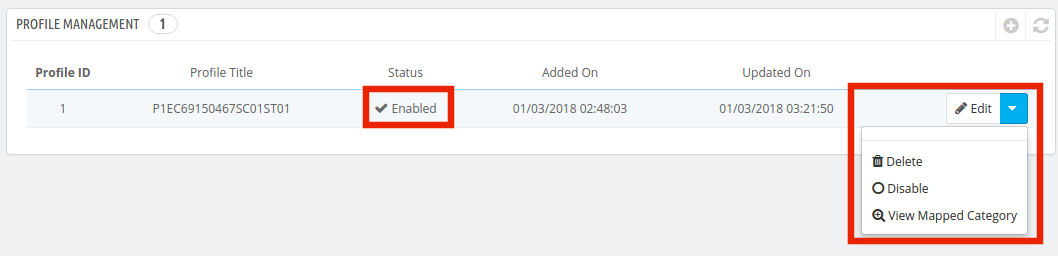
You can find the list of the created profile in the Profile Management tab of the admin interface.
To edit the profile, click on the ‘Edit’ button corresponding to the profile.
The Prestashop store admin can enable/disable by changing the status as shown in the image below.
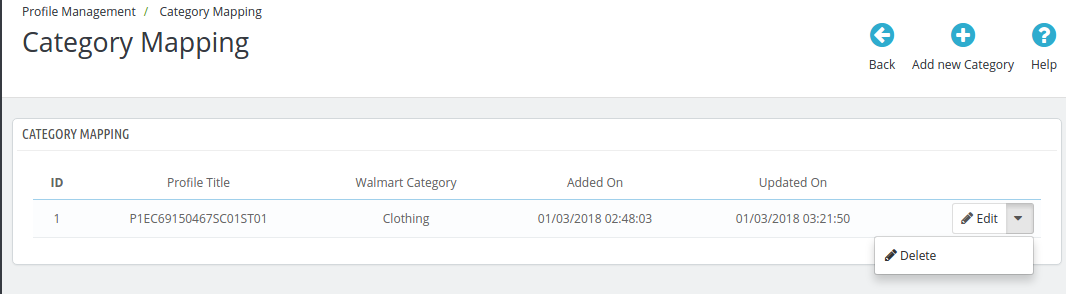
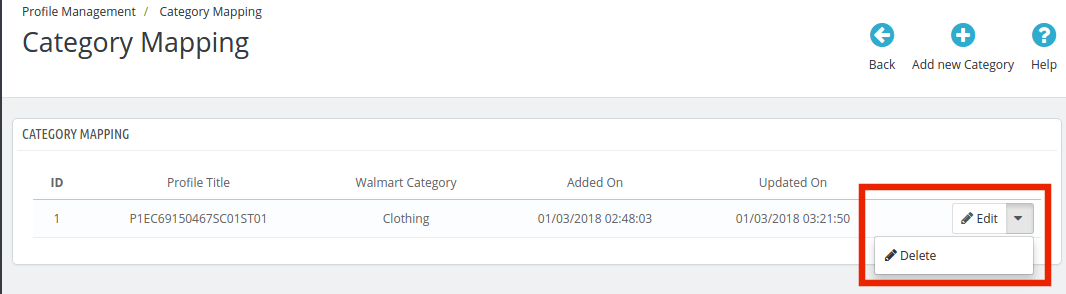
The category mapped can even be viewed by clicking the ‘View Mapped Category’ button shown in the above image.
The mapped categories will be shown as the image below:
The store admin can even add new categories for mapping.
4.2.3 How to Add New Category?
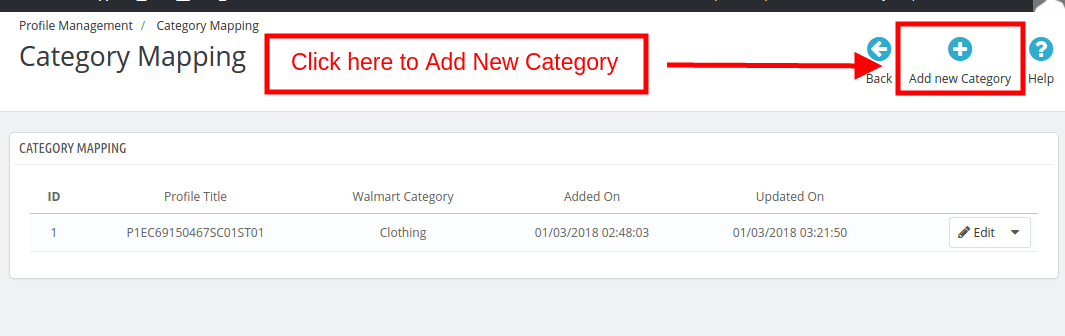
To add a new category click on the ‘Add New Category’ on the top right side of the admin interface.
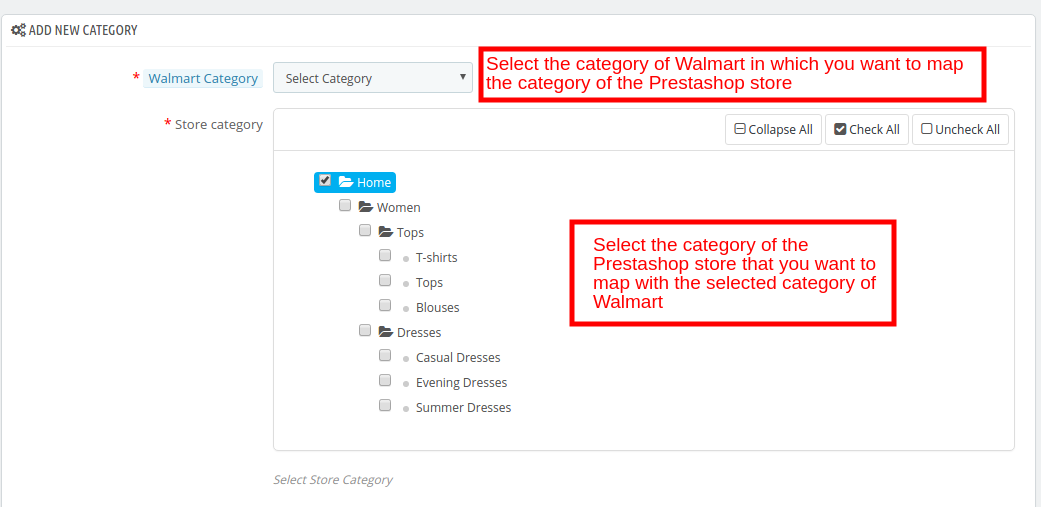
You’ll be redirected to the category creation page as shown below.
Walmart Category: Select the category of Walmart in which you want to map the category of the Prestashop store.
Store Category: Select the category of the Prestashop store that you want to map with the selected category of Walmart.
4.2.4 How to Edit/Delete the Categories?
There is an Edit and Delete button corresponding to every category as shown below. Click on the respective buttons to Edit and Delete the categories.
4.3. Shipment Carrier Mapping
The Prestashop Walmart Integration addon allows the admin to map the shipping carrier with ease.
Just the options from the drop-down menu for the various shipment carrier methods.
4.4. Promotions
The admin gets an option to add promotional deals for the marketplace customers with the help of the Prestashop Walmart Integration addon.
4.4.1 How to add Promotions on the Walmart marketplace?
To add promotional deals, click on the ‘+’ sign or ‘Add New Promotion’ on the top right side of the Walmart Prestashop Integration module.
You’ll be redirected to the promotion creation page. Fill in the required details that are discussed below:
Promotion Detail: Enter the detail of the promotion in this section. Price Type: Select the price change type. It can be Reduced or Clearance. Discount Price: Select the discount type, Fixed or Percentage. Enter the fixed amount or the percentage amount. Start Date: Enter the start date of the deal. End Date: Enter the date when the deal will end. Product Selection: Select the product group in which you want to offer the discount. It has 3 options:
All Products: This will apply for the promotion of all the products listed in the marketplace.
Products of Selected Profile: This will apply the deal on all the products of the selected profile. Once this option is selected, all the profiles will be listed in the Select Profile section.
Selected Products: This will allow the admin to offer discounts on the selected products. The products can be selected in the Select Product section.
4.4.1 How to Sync and Edit/Delete the Promotions?
The promotion deals will be listed in this tab of the Prestashop Walmart API integration extension as shown in the image below:
The promotions can be synced with the Walmart marketplace by hitting on the ‘Sync’ button corresponding to each promotion rules.
To edit or delete the promotion rules, click on the ‘Edit’ or ‘Delete’ button corresponding to each rule as shown below:
4.5 Shipping Override
The Prestashop Walmart Integration extension allows the store admin to add shipping methods for the Walmart consumers.
4.5.1 How to Create New Shipping Override?
The various information fields in this tab of the Prestashop Walmart Integration extension are listed below:
Shipping Override Title: Enter a unique title for the Shipping override.
Shipping Allowed: The dropdown menu includes the option of Yes and No. Select Yes, if you want to allow this shipping override.
Shipping Method: Select the shipping method that you want to include in this Shipping override.
Shipping Region: Select the region in which you want to incorporate the shipping override.
Shipping Price: Enter the shipping cost here.
Note: All the Shipping Override options created here will be listed in the Profile Management section.
4.5.2 How to Edit/Delete Shipping Override?
All the Shipping Override options can be viewed in this tab of the Prestashop Walmart Marketplace Integration plugin. To edit or delete the shipping override option, click on the Edit or Delete button corresponding to each option as shown in the image below.
4.6. Product Listing
The listed products can be viewed from the back-end of the Prestashop Walmart integration module as shown in the image below. The Prestashop Walmart Integration addon allows the admin to renew, delete or remove the product from the marketplace. These actions can be performed for individual products as well as in bulk.
This section shows the list of all the products listed on Walmart Marketplace with their statuses.
To list the products on Walmart, run the Sync Inventory to Walmart cron. The products will get listed on the Walmart marketplace. (See Section 4.16)
Once the inventory is synced, the corresponding product details will be synchronized accordingly. To sync the price of the products, run the ‘Sync Price of the Product’ cron in the Synchronization tab.
Here are some of the options offered in this section:
Product Listing Renewal
The Prestashop store admin can renew the product, in case the listing has expired from the Walmart Marketplace or the product is updated, by clicking on the “Renew” action corresponding to each product.
After the renewal of the products, action “Renew” will be changed to “Halt” action. This action is used to stop product renewal in case needed.
Product Listing Deletion
The store admin can disable the product from the marketplace by clicking on the “Delete” button corresponding to each product listing. To revert the action, click on the “Relist” button. The delete action will then be replaced with Relist action. Execute the Sync Products on Walmart cron to remove the products or mark them as inactive in the product listing page.
View Error
The admin can view the error occurred in listing the product by click on ‘View Error’ action.
Bulk Update of Products
The Walmart Prestashop integration addon allows the admin to update the products in bulk. The bulk action offers the following options:
Delete Selected
RelistSelected
RenewSelected
HaltSelected
Select the products in which you want to perform any of the above-mentioned action as shown in the image below:
Once the products are selected, click on the action that you want to perform. The same action will be performed on all the selected products.
Mapping of Existing Products on Walmart
If you already have the products in Walmart, execute the Item Report cron first. Once this cron is executed, Walmart & Prestashop matching SKU will be mapped automatically. They can match the SKU, create the Listing ID and change the status as ‘Published’.
4.7. Attribute Mapping
The Prestashop Walmart Integration extension offers easy means to map the attribute of the Prestashop store with the Walmart marketplace. The store admin can map the attribute of Walmart.com with the attribute of the Prestashop eCommerce store in this tab.
4.7.1. How to create New Attribute Mapping?
To create new attributes, click on the ‘+’ sign on the top right side of the admin interface. You’ll be redirected to the Attribute creation page. Follow the steps below for the Attribute mapping.
Select the Walmart Category in which you want to map the attribute as shown in the image below:
Attribute: Select the attribute of Walmart in which you want to map the attribute of the Prestashop.
Prestashop Attribute: Select the attribute of the Prestashop store that you want to map with the attribute of the marketplace.
4.8. Order Setting
The store admin can set the status of orders placed on Walmart that are mapped in the Prestashop store from the Order Setting tab of the Prestashop Walmart Integration plugin. This section consists of four different order statuses. They are:
Order Current Status, Order Shipped Status, Order Acknowledgment Status, and Order Cancel Status.
Once the status of the order is changed in the Prestashop store, run the ‘Update Order Status to Walmart’ cron. This will sync all the changes to the marketplace. (See Section 4.16)
4.9. Order Listing
The orders received from the Walmart.com is listed in the admin interface of the Prestashop Walmart API Integration. For this, the store owner needs to run the ‘Sync Order Listing from Walmart’ cron. (See Section 4.16)
Once the cron is executed, the entire orders will be synced in the Prestashop store. These orders can then be processed by clicking on the ‘View’ button as shown below.
4.10. Feed Status
Every time a cron is executed, a Feed will be created in this tab as shown here. The status of the feeds can be seen by clicking on the ‘View’ button.
On clicking the button, you’ll be redirected to the feed status detail page.
4.11. BuyBox Report
In case more than one seller is selling the same product, walmart.com displays them on a single page. This page displays the products and their pricing to the customer. Out of these products, one item wins the Buy Box. The customers are drawn to the very first option that they see. Hence, winning the buy box is essential for the vendors.
The sellers can see the products listed on the Buy Box with their status in the ‘Buy Box’ tab of the Prestashop Walmart Integration extension. To sync the latest buy box report, execute a cron job in the Synchronization tab of the Walmart Prestashop API integration addon. (See Section 4.16)
Also, Prestashop Walmart Integrator offers an easy means to reprice the products to win the buy box. The sellers can reduce the cost to boost their product visibility.
To reprice the products, click on the ‘Repricing’ option corresponding to each product.
Once you click here, you’ll get a popup. Toggle the Enable/Disable Re-pricing option for the same.
Once you enable this functionality, you’ll be asked to enter the Minimum and Maximum Price.
Enter the minimum and maximum price and click on the ‘Submit’ button. Sync the reprice with the marketplace by executing cron in the Synchronization tab of the Prestashop Walmart API integration addon. (See Section 4.16)
4.12. Lag Time
Lag Time refers to the minimum number of days when the shipment of the order is initiated. The lag time is the interval between the day when the order is placed and when it is shipped.
To update the shipping lag time, the admin is required to click on the ‘Update Lag Time’ button as shown below.
On clicking, a popup will appear as shown below:
Enter the lag time for each product. Once this is done, the admin can sync the lag time in bulk by executing cron in the synchronization tab of the Prestashop Walmart connector.
Refer to Section 4.15 for the cron job details.
4.13. Tax Code
Walmart makes it mandatory for the sellers to provide the Tax Code for the products at the time of product listing. The store admin can check tax codes in this tab of the Prestashop Walmart marketplace integration module.
4.14. Sales Report
The seller gets a complete report of the marketplace sales from the Sales Report tab of the Walmart Prestashop connector. The sales report will appear in both graphical and tabular format.
Apply filter by selecting the Start and End date. The seller can even group the report by days, months and years.
4.15. Product Sales Report
The seller can even view the sales report of a particular product in the Product Sales Report tab of Walmart Prestashop Integrator.
Enter the SKU, Start Date, End Date and apply the filter to view the sales report of that particular product.
4.16. Synchronization
This tab of the Prestashop Walmart Integration module synchronizes all the settings and changes done in the other tabs of the Prestashop Walmart Marketplace Integration Module. The synchronization between Prestashop Store and Walmart Marketplace and vice-versa can be done from the ‘Synchronize‘ tab.
The various cron jobs to synchronize the settings between Store and Walmart Marketplace are shown below –
4.16.1 How to sync the status of the Feed?
Every time a cron is executed, a feed is created in the Feed Management tab. The initial status of the feed is submitted. To change the status of submitted or processing feed, click on Sync Feed Status.
It would perform following actions –
A feed will be created every time a cron is executed in the admin interface.
This particular cron updates the status of the Feeds.
4.16.2 How to sync Products to Walmart Marketplace?
The product listed in the Prestashop Walmart Marketplace Integration addon will be synced to Walmart.com by clicking on ‘Sync Products to Walmart’.
It would perform following actions –
The cron will update the products list in the Walmart marketplace.
It will add products on the Walmart Marketplace with the respective product details (e.g. Price, Quantity, Image, etc.).
It will update the products on the Walmart marketplace which are already listed.
It will update the expired products on Walmart Marketplace for the items in which ‘Renewal’ is enabled.
It will remove the products from Walmart Marketplace which are marked deleted on Store.
4.16.3 How to sync Inventory to Walmart Marketplace?
The quantity of the products can be updated on the Walmart Marketplace by executing the ‘Sync Inventory to Walmart’ cron from the Prestashop Walmart Integration module.
It would perform following actions –
It updates the quantity status of each product listed on Walmart Marketplace.
4.16.4 How to sync the price of the products to Walmart Marketplace?
The price of the products can be synced to the marketplace by executing ‘Sync Price to Walmart’ cron
It would perform following actions –
The cron execution will display the updated price of the products on Walmart Marketplace.
It will update the changes in the price of the products.
4.16.5 How to sync Order Listing from Walmart Marketplace?
The orders received from the Walmart Marketplace can be synced in the store by executing ‘Sync Order Listing from Walmart’ cron.
It would perform following actions –
The cron will sync the Orders and Transaction details from Walmart Marketplace.
It creates Orders into the Store as per the order received from Walmart Marketplace.
4.16.6 How to sync Lag time with the marketplace?
The lag time of the products fixed in the Lag time tab of the Prestashop Walmart Integration addon can be synced with the marketplace by executing ‘Sync Lag time on Walmart’ cron.
It would perform following actions –
The cron will sync the lagtime with the marketplace.
Any change in the lag time can be updated just by executing cron.
4.16.7 How to sync Repricing Buy Box on the marketplace?
The admin can sync the Buy Box repricing by executing ‘Sync Repricing Buy Box on Walmart’.
It would perform following actions –
The cron will sync the change in the price of the Buy Box products.
4.16.8 How to get the latest Buy Box report from the marketplace?
The sellers can get the latest buy box report from the marketplace by executing the ‘Sync Latest Buy Box Report’ cron.
It would perform following actions –
The cron syncs the latest buy box report from the marketplace to the Prestashop Walmart API integrator.
Note:
On successful completion of synchronization, a message will be display – “Success”. Otherwise “Failed” will be displayed.
4.15. Audit Log
The admin can view all the jobs running occurred in the Audit Log tab of the Prestashop Walmart Integration extension. The status of the jobs can be viewed in this tab.
You can get Prestashop Walmart Integration at budget-friendly prices from the Knowband store.
Walmart is one of the largest retail corporations. Numbers don’t lie and the statistical figures with this marketplace definitely offer a positive vibe to the e-vendors. The online retailer has delved into almost all the segments under the sun. Being one of the biggest and the highest grossing-retailer, the platform provides an opportunity to even the small vendors and sellers to expand their business reach.
Walmart has 11,000+ stores worldwide. So, if you are looking to expand your business internationally, then, this is one-stop-destination for you. In the year 2017, the company’s global net sales amassed approximately $ 481.32 billion. While for the fiscal year 2018, the revenue has shot up to $500.3 billion.
These figures are expected to get even bigger in the coming years. Hence, integrating the eCommerce stores with Walmart.com is a must for the online vendors. Are you looking to integrate your online store with the marketplace? Are you intimated by the technicalities involved in the same? You need not worry anymore. Walmart integration extension can help the eCommerce owners integrate their web store with Walmart.com.
Although, Walmart Marketplace offers an easy opportunity for the e-sellers to expand their business reach, getting a shelf on Walmart is not an easy goal to achieve. While there are many advantages of becoming a seller on Walmart, it comes with some drawbacks as well. The tough competition might take a toll on your nerve in the quest of standing out. Boosting your presence on the popular marketplace is the most difficult task to be achieved So, the question arises, how to stay ahead of the competition at Walmart marketplace?
How can the Third-party Sellers Optimise their Presence at Walmart.com?
No one is aware of Walmart’s search algorithm, but still, there are some points a seller could consider to optimize their presence on the same. Here are some of the ways by which you can optimize your presence at the jam-packed marketplace. Read on to know more.
An image is a worth a thousand word
Since the entire process of buying online does not provide any look and feel of the product to the customer, it makes sense to work on the visual graphics. The whole purpose of standing out is to motivate the customers to choose your product over the competitors’. This is when visual merchandising comes into play. Product images are crucial as buyers can see the product and can satisfy themselves. Sellers can provide multiple images with different angles of the product as it creates Customer’s trust and they can go for instant purchase.
Organize your products to maximize their visibility. Make it easy for your customers to access them. The white backgrounds of the Walmart marketplace provide a very neat and professional interface for the sellers to optimize the display.
Walmart Marketplace integrator provides high-resolution images and a 3-dimensional view of the products.
Detailed Description
The best way to stand apart from the crowd when it comes to shopping online is to provide the customers with the right information. One of the ways to achieve it through detailed product descriptions. Detailed description lets customers know about the product in detail so that they can clear their doubts or queries regarding the same. This helps in increasing the trust of consumers resulting in good leads.
The customers tend to search for the product name. Hence, it is advisable for the sellers to curate the product title smartly. Walmart marketplace allows you to use up to 200 characters in a product title, so, make the most of it. The key attributes of the title include Brand, Item Name, Style, Colour, Material, and others.
The product specification is a must. Include every information that the customers are looking for.
Include the keywords, long-tail keywords and search queries in the product page. This will make it easier for the products to rank higher in Google’s SERP.
Focus on building customer relationship
This is something that the e-merchant needs to learn from the brick-and-mortar store. Engage your customers and adds value by developing an emotional connection. Just like any other company or brand, the customer relationship is the key aspect to ensure customer loyalty. Whether they’re one-time shoppers or longtime buyers, maintaining relationships with clients can help you survive in the competitive scenario. Providing customers with a seamless online transaction is the key. Offer transparent return/refund policies. Solve their issues and the problems effectively. Take their feedback and working on negative reviews can make them feel valued.
Perfect categorization
Create a good buying experience for your customers. Product categorization can help them find the desired product. Keep similar products on the same listing, so that, the buyers can view all the possible products without navigating much. This eases out the buying process and leads to a higher conversion rate. Walmart Marketplace integrator provides over 24 different categories. Place your products in the right category to describe the product attributes. Try to avoid selecting the ‘Other category’. The more attributes you supply, the higher your product will be ranked on a product search page.
This sounds a tricky affair since the categories of the online store and the marketplace might differ. However, manual integration is not that tricky. Additionally, for the CMS-based eCommerce site like Prestashop, Magento, OpenCart and others, there are plugins available that can just automate the entire process. The category mapping is done just by clicking a few buttons from the back-end of the extension which makes it easier to list the products in the relevant category.
Experiment with the inventory
Do not stick to the conventional means of selling. Keep experimenting with the product mix that you are offering in the Walmart marketplace. The key to success in a crowded marketplace like Walmart is high volume and low prices. Attractively packaged low-cost items can help you grab the attention of the target audience. Keep introducing new items every now and then. Track the customer behavior to see how quickly they sell. Manage the stack of the old ones efficiently. Walmart Seller Center offers easy tracking options. Try and find out the pain area of the customers. The occasion based inventory can help you provide the apt solution that they are looking for.
With the change in demand for customers on a regular basis, it’s very difficult to invest in inventories at a high scale. Instead, sellers can switch to the dropshipping business in which sellers own a virtual inventory without investing even a single penny.
BuyBox
Walmart provided an option of Buy Box where the sellers can easily compete for their product price with another seller. The products competing with one another should be listed in the same category. The product that wins the Buy Box will be listed at the top of the searched item list. This boosts the visibility of the products and ultimately increases the chances of conversion.
With Walmart Integration Extensions, winning the BuyBox is now a cake-walk for the eCommerce store owners. The plugin offers a complete BuyBox report to the sellers which enable easy tracking and is available for CMS platforms like PrestaShop, Magento, Magento 2, OpenCart and Shopify. They can compare the prices and reprice the product from the admin interface itself.
Seller’s scoreboard
The Seller Scorecard in the Walmart Seller Center tracks the account performance of a particular vendor. This score is based on the fulfillment method and the capabilities of the vendors. Maintain your scoreboard and adjust the services you offer as per the score.
Walmart Advertisements
Walmart marketplace even offers a medium to the third party sellers to sell their products on Walmart without even listing them. The brand owners have an option to work directly with Walmart for advertising. The Walmart marketplace is another means to enhance the visibility of the product. The Sponsored Products section is featured on the left-hand side of the search results pages. Whenever the user enters a keyword in the search bar, ads triggered by those same keywords become eligible to appear in the designated “Sponsored products” section. Clicking on these ads will redirect the store visitors away from Walmart.com to a third party site.
Final words
Even if you leave aside the eCommerce giants like Amazon, eBay and others, marketplaces like Walmart and Jet.com offer many attributes that make it a must for the e-merchants. All you need to do is to check out the customer behavior and curate the merchandising in order to find a competitive advantage. In order to stay abreast to the developments and pitfalls, you need to keep a check on the Walmart Seller Center.
The work of marketplace integration has become effortless, now that Knowband is offering the various intuitive marketplace integrators like eBay integrator, Etsy integrator, and others along with the Walmart integrator. Find a suitable solution for your eCommerce business and make full use of the global reach of any of these popular online marketplaces.
Walmart ist eines der größten Einzelhandelsunternehmen. Zahlen lügen nicht und die statistischen Zahlen mit diesem Marktplatz bieten definitiv eine positive Stimmung für die E-Vendoren. Der Online-Händler hat sich in fast alle Segmente unter der Sonne eingearbeitet. Als einer der größten und erfolgreichsten Einzelhändler bietet die Plattform auch kleinen Anbietern und Verkäufern die Möglichkeit, ihre Geschäftsreichweite zu erweitern.
Diese Zahlen werden in den kommenden Jahren voraussichtlich noch größer werden. Daher ist die Integration der E-Commerce-Shops mit Walmart.com ein Muss für die Online-Anbieter. Möchten Sie Ihren Online-Shop in den Marktplatz integrieren? Sind Sie durch die technischen Details angedeutet? Du brauchst dich nicht mehr zu sorgen. Walmart Integration Extension kann die eCommerce-Besitzer helfen, ihren Web-Shop mit Walmart.com zu integrieren.
Obwohl der Marktplatz den E-Sellern eine einfache Möglichkeit bietet, ihre Geschäftsreichweite zu erweitern, hat sie auch einige Nachteile. Der harte Wettbewerb kann Ihre Nerven in Anspruch nehmen, um aufzufallen. Erhöhen Sie Ihre Präsenz auf dem beliebten
Wie können die Third-Party-Verkäufer ihre Präsenz auf walmart.com optimieren?
Hier sind einige der Möglichkeiten, wie Sie Ihre Präsenz auf dem überfüllten Marktplatz optimieren können. Lesen Sie weiter, um mehr zu erfahren.
Ein Bild sagt mehr als tausend Worte
Da der gesamte Prozess des Online-Kaufs dem Kunden kein Look and Feel des Produkts bietet, ist es sinnvoll, an den visuellen Grafiken zu arbeiten. Der ganze Zweck des Herausragens besteht darin, die Kunden zu motivieren, Ihr Produkt gegenüber dem Wettbewerb zu wählen. Dann kommt Visual Merchandising ins Spiel.
Organisieren Sie Ihre Produkte, um ihre Sichtbarkeit zu maximieren. Erleichtern Sie Ihren Kunden den Zugriff darauf. Die weißen Hintergründe von Walmart Marktplatz bieten eine sehr saubere und professionelle Schnittstelle für die Verkäufer, um das Display zu optimieren.
Walmart Marketplace Integrator bietet hochauflösende Bilder und die 3-dimensionale Ansicht der Produkte.
Detaillierte Beschreibung
Der beste Weg, sich von der Masse abzuheben, wenn es um Online-Shopping geht, ist, den Kunden die richtigen Informationen zur Verfügung zu stellen. Eine Möglichkeit, dies durch detaillierte Produktbeschreibungen zu erreichen.
Die Kunden suchen nach dem Produktnamen. Daher ist es ratsam, dass die Verkäufer den Produkttitel intelligent kuratieren. Der Walmart-Marktplatz ermöglicht es Ihnen, bis zu 200-Zeichen in einem Produkttitel zu verwenden, um das Beste daraus zu machen. Die Schlüsselattribute des Titels sind Marke, Artikelname, Stil, Farbe, Material und andere.
Die Produktspezifikation ist ein Muss. Fügen Sie alle Informationen hinzu, nach denen die Kunden suchen.
Fügen Sie die Keywords, Long-Tail-Keywords und Suchanfragen auf der Produktseite hinzu. Dies wird es den Produkten erleichtern, einen höheren Rang in Google SERP einzunehmen.
Konzentrieren Sie sich auf den Aufbau von Kundenbeziehungen
Das braucht der E-Merchant lerne aus dem Ladengeschäft. Engagieren Sie Ihre Kunden und steigern Sie den Wert, indem Sie eine emotionale Verbindung aufbauen. Wie bei jedem anderen Unternehmen oder jeder Marke ist die Kundenbeziehung der Schlüsselaspekt für die Kundenbindung. Unabhängig davon, ob es sich um einmalige Einkäufer oder Langzeitkäufer handelt, die Pflege von Kundenbeziehungen kann Ihnen dabei helfen, im Wettbewerb zu überleben. Den Kunden eine nahtlose Online-Transaktion zu bieten, ist der Schlüssel. Bieten Sie transparente Rückgabe- / Rückerstattungsrichtlinien an. Lösen Sie ihre Probleme und die Probleme effektiv. Nehmen Sie ihr Feedback und arbeiten an den negativen Bewertungen können sie sich geschätzt fühlen.
Perfekte Kategorisierung
Schaffen Sie eine gute Kauferfahrung für Ihre Kunden. Produktkategorisierung kann ihnen helfen, das gewünschte Produkt zu finden. Halten Sie die ähnlichen Produkte auf der gleichen Liste, so dass die Käufer alle möglichen Produkte anzeigen können, ohne viel zu navigieren. Dies erleichtert den Kaufprozess und führt zu einer höheren Conversion-Rate. Walmart Marketplace Integrator bietet über 24 verschiedene Kategorien. Platzieren Sie Ihre Produkte in der richtigen Kategorie, um die Produktattribute zu beschreiben. Vermeiden Sie die Auswahl der Kategorie "Andere". Je mehr Attribute Sie bereitstellen, desto höher wird Ihr Produkt auf einer Produktsuchseite eingestuft.
Dies ist eine knifflige Angelegenheit, da sich die Kategorien des Online-Shops und des Marktplatzes unterscheiden können. Die manuelle Integration ist jedoch nicht so schwierig. Für die CMS-basierte E-Commerce-Seite wie Prestashop, Magento, OpenCart und andere gibt es außerdem Plugins, die den gesamten Prozess automatisieren. Die Kategoriezuordnung erfolgt durch einfaches Klicken auf einige Schaltflächen aus dem Backend der Erweiterung, wodurch das Auflisten der Produkte in der entsprechenden Kategorie erleichtert wird.
Experimentiere mit dem Inventar
Halten Sie sich nicht an die herkömmlichen Verkaufsmethoden. Experimentieren Sie mit dem Produktmix, den Sie auf dem Walmart-Marktplatz anbieten. Der Schlüssel zum Erfolg in einem überfüllten Markt wie Walmart ist hohes Volumen und niedrige Preise. Attraktiv verpackte Low-Cost-Artikel können Ihnen helfen, die Aufmerksamkeit der Zielgruppe zu gewinnen. Führen Sie ab und zu neue Artikel ein. Verfolgen Sie das Kundenverhalten, um zu sehen, wie schnell sie verkaufen. Verwalten Sie den Stapel der alten effizient. Versuchen Sie, den Schmerzbereich der Kunden herauszufinden. Das anlassbasierte Inventar kann Ihnen dabei helfen, die passende Lösung bereitzustellen, nach der Sie suchen.
BuyBox
Walmart bot eine Option von Buy Box an, wo die Verkäufer leicht mit einem anderen Verkäufer um ihren Produktpreis konkurrieren können. Die miteinander konkurrierenden Produkte sollten in derselben Kategorie aufgeführt sein. Das Produkt, das die Kaufbox gewinnt, wird oben in der Liste der gesuchten Artikel aufgeführt. Dies erhöht die Sichtbarkeit der Produkte und erhöht letztendlich die Chancen der Konvertierung. Mit Prestashop Walmart Integration AddonDas Gewinnen der BuyBox ist jetzt ein Kuchenspaziergang für die Prestashop-basierten E-Commerce-Ladenbesitzer. Das Plugin bietet den Verkäufern einen vollständigen BuyBox-Bericht, der ein einfaches Tracking ermöglicht. Sie können die Preise vergleichen und das Produkt über das Admin-Interface selbst neu bewerten. Ähnlich, Magento Walmart Integrator und Magento 2 Walmart-Anschluss kann für die jeweiligen Plattformen die gleiche Funktion erfüllen.
Anzeiger des Verkäufers
Die Seller Scorecard im Walmart Seller Center verfolgt die Kontoleistung eines bestimmten Anbieters. Diese Bewertung basiert auf der Erfüllungsmethode und den Fähigkeiten der Anbieter. Pflegen Sie Ihre Anzeigetafel und passen Sie die von Ihnen angebotenen Dienste entsprechend der Punktzahl an.
Walmart Anzeigen
Der Walmart-Marktplatz bietet den Drittverkäufern sogar ein Medium, um ihre Produkte auf Walmart zu verkaufen, ohne sie sogar aufzulisten. Die Markeninhaber haben die Möglichkeit, direkt mit Walmart für Werbung zu arbeiten. Der Walmart-Marktplatz ist ein weiteres Mittel, um die Sichtbarkeit des Produkts zu verbessern. Der Bereich Gesponserte Produkte befindet sich auf der linken Seite der Suchergebnisseiten. Immer wenn der Nutzer ein Keyword in die Suchleiste eingibt, können Anzeigen, die von diesen Keywords ausgelöst werden, im Bereich "Gesponserte Produkte" erscheinen. Wenn Sie auf diese Anzeigen klicken, werden die Shop-Besucher von Walmart.com auf eine Website von Drittanbietern weitergeleitet.
Schlussworte
Selbst wenn Sie die eCommerce-Giganten wie Amazon, eBay und andere beiseite lassen, Märkte wie Walmart und Jet.com bietet viele Attribute Das macht es zu einem Muss für die E-Händler. Alles, was Sie tun müssen, ist, das Kundenverhalten zu überprüfen und das Merchandising zu kuratieren, um den Wettbewerbsvorteil zu finden.
Die Arbeit der Marktintegration ist müheloser geworden, jetzt, da Knowband die verschiedenen intuitiven anbietet Marktplatz-Integratoren mögen eBay-Integrator, Etsy Integrator und andere zusammen mit dem Walmart Integrator. Finden Sie die passende Lösung für Ihr E-Commerce-Geschäft und nutzen Sie die globale Reichweite eines dieser beliebten Online-Marktplätze.
Walmart è una delle più grandi società di vendita al dettaglio. I numeri non mentono e le cifre statistiche con questo mercato offrono sicuramente una vibrazione positiva agli e-vendor. Il rivenditore online ha esplorato quasi tutti i segmenti sotto il sole. Essendo uno dei maggiori e più alti rivenditori al dettaglio, la piattaforma offre l'opportunità anche ai piccoli venditori e venditori di espandere la propria attività.
Walmart ha negozi 11,000 + in tutto il mondo. Quindi, se stai cercando di espandere la tua attività a livello internazionale, allora questa è una destinazione unica per te. le vendite nette globali dell'azienda ammontavano a circa $ 481.32 miliardi. Mentre per l'anno fiscale 2018, le entrate sono aumentate fino a $ 500.3 miliardi.
Si prevede che queste cifre diventeranno ancora più grandi nei prossimi anni. Quindi, l'integrazione degli store eCommerce con Walmart.com è un must per i venditori online. Stai cercando di integrare il tuo negozio online con il mercato? Sei intimato dagli aspetti tecnici coinvolti nella stessa? Non devi più preoccuparti. L'estensione di integrazione di Walmart può aiutare i proprietari di e-commerce a integrare il loro negozio web con Walmart.com.
Anche se il mercato offre una facile opportunità per gli e-sellers di espandere la propria attività, presenta anche alcuni inconvenienti. La dura competizione potrebbe richiedere un tributo al tuo coraggio nella ricerca di distinguerti. Potenzia la tua presenza sul popolare
In che modo i venditori di terze parti possono ottimizzare la loro presenza su walmart.com?
Ecco alcuni dei modi in cui puoi ottimizzare la tua presenza sul mercato pieno di jam. Continua a leggere per saperne di più.
Un'immagine vale più di mille parole
Poiché l'intero processo di acquisto online non fornisce alcun aspetto e aspetto del prodotto al cliente, ha senso lavorare sulla grafica visiva. Lo scopo principale di distinguersi è motivare i clienti a scegliere il prodotto rispetto ai concorrenti. È qui che entra in gioco il merchandising visivo.
Organizza i tuoi prodotti per massimizzare la loro visibilità. Rendi più facile l'accesso ai tuoi clienti. Gli sfondi bianchi del mercato Walmart offrono un'interfaccia molto accurata e professionale per i venditori per ottimizzare il display.
L'integratore di mercato Walmart fornisce immagini ad alta risoluzione e la vista dimensionale 3 dei prodotti.
Descrizione dettagliata
Il modo migliore per distinguersi dalla massa quando si tratta di fare shopping online è fornire ai clienti le giuste informazioni. Uno dei modi per raggiungerlo attraverso descrizioni dettagliate dei prodotti.
I clienti tendono a cercare il nome del prodotto. Quindi, è consigliabile che i venditori curino il titolo del prodotto in modo intelligente. Il marketplace di Walmart ti consente di utilizzare fino a 200 caratteri nel titolo di un prodotto, quindi, sfruttalo al meglio. Gli attributi chiave del titolo includono Brand, Nome oggetto, Stile, Colore, Materiale e altri.
Le specifiche del prodotto sono obbligatorie. Includi tutte le informazioni che i clienti stanno cercando.
Includere le parole chiave, le parole chiave long-tail e le query di ricerca nella pagina del prodotto. Ciò renderà più facile per i prodotti posizionarsi più in alto nella SERP di Google.
Concentrarsi sulla costruzione di relazioni con i clienti
Questo è qualcosa che l'e-merchant ha bisogno imparare dal negozio di mattoni e malta. Coinvolgi i tuoi clienti e aggiunge valore sviluppando una connessione emotiva. Proprio come qualsiasi altra azienda o marchio, la relazione con il cliente è l'aspetto chiave per garantire la fedeltà dei clienti. Sia che si tratti di acquirenti occasionali o di acquirenti di lunga data, il mantenimento delle relazioni con i clienti può aiutarti a sopravvivere nello scenario competitivo. Fornire ai clienti una transazione online senza soluzione di continuità è la chiave. Offrire politiche trasparenti di restituzione / rimborso. Risolvi efficacemente i loro problemi e i problemi. Prendi il loro feedback e lavorando sulle recensioni negative puoi farli sentire apprezzati.
Categorizzazione perfetta
Crea una buona esperienza di acquisto per i tuoi clienti. La categorizzazione dei prodotti può aiutarli a trovare il prodotto desiderato. Mantieni i prodotti simili nello stesso elenco, in modo che gli acquirenti possano visualizzare tutti i possibili prodotti senza navigare molto. Questo facilita il processo di acquisto e porta a un più alto tasso di conversione. L'integratore di Walmart Marketplace offre diverse categorie 24. Inserisci i tuoi prodotti nella categoria giusta per descrivere gli attributi del prodotto. Cerca di evitare di selezionare "Altre categorie". Più attributi fornisci, più alto sarà il tuo prodotto verrà classificato in una pagina di ricerca di un prodotto.
Questo può sembrare un problema complicato poiché le categorie del negozio online e del marketplace potrebbero essere diverse. Tuttavia, l'integrazione manuale non è così complicata. Inoltre, per il sito di eCommerce basato su CMS come Prestashop, Magento, OpenCart e altri, sono disponibili plugin in grado di automatizzare l'intero processo. La mappatura delle categorie viene eseguita semplicemente facendo clic su alcuni pulsanti del back-end dell'estensione che rende più semplice elencare i prodotti nella categoria pertinente.
Sperimenta con l'inventario
Non attenersi ai metodi convenzionali di vendita. Continua a sperimentare con il mix di prodotti che offri sul mercato Walmart. La chiave del successo in un mercato affollato come Walmart è l'alto volume e i prezzi bassi. Gli articoli a basso costo e confezionati in modo attraente possono aiutarti a catturare l'attenzione del pubblico di destinazione. Continua a introdurre nuovi oggetti ogni tanto. Tieni traccia del comportamento del cliente per vedere quanto velocemente vendono. Gestisci la pila di quelli vecchi in modo efficiente. Prova e scopri l'area del dolore dei clienti. L'inventario basato sull'occasione può aiutarti a fornire la soluzione appropriata che stanno cercando.
BuyBox
Walmart ha fornito un'opzione di Buy Box in cui i venditori possono facilmente competere per il prezzo del loro prodotto con un altro venditore. I prodotti in competizione tra loro dovrebbero essere elencati nella stessa categoria. Il prodotto che vince la casella di acquisto verrà elencato nella parte superiore dell'elenco di elementi ricercati. Ciò aumenta la visibilità dei prodotti e in definitiva aumenta le possibilità di conversione. Con Addon di Prestashop Walmart Integration, vincere l'BuyBox è ora una passeggiata per i proprietari dei negozi eCommerce basati su Prestashop. Il plug-in offre un rapporto BuyBox completo ai venditori che consente un facile monitoraggio. Possono confrontare i prezzi e riprendere il prodotto dall'interfaccia di amministrazione stessa. Simile, Integratore Magento Walmart e Connettore Magento 2 Walmart può servire la stessa funzione per le rispettive piattaforme.
Quadro di valutazione del venditore
La Scorecard del venditore nel Walmart Seller Center tiene traccia delle prestazioni dell'account di un determinato fornitore. Questo punteggio si basa sul metodo di adempimento e sulle capacità dei venditori. Mantieni il tuo tabellone e regola i servizi che offri secondo il punteggio.
Pubblicità Walmart
Il mercato Walmart offre persino un mezzo ai venditori di terze parti per vendere i loro prodotti su Walmart senza nemmeno elencarli. I proprietari del marchio hanno la possibilità di lavorare direttamente con Walmart per la pubblicità. Il mercato Walmart è un altro mezzo per migliorare la visibilità del prodotto. La sezione Prodotti sponsorizzati è presente sul lato sinistro delle pagine dei risultati di ricerca. Ogni volta che l'utente inserisce una parola chiave nella barra di ricerca, gli annunci attivati da quelle stesse parole chiave diventano idonei a comparire nella sezione "Prodotti sponsorizzati" designata. Cliccando su questi annunci reindirizzerà i visitatori del negozio da Walmart.com a un sito di terze parti.
Parole finali
Anche se lasci da parte i giganti dell'e-commerce come Amazon, eBay e altri, mercati come Walmart e Jet.com offre molti attributi questo lo rende un must per gli e-merchant. Tutto quello che devi fare è controllare il comportamento del cliente e curare il merchandising per trovare il vantaggio competitivo.
Il lavoro di integrazione del marketplace è diventato senza sforzo, ora che Knowband offre i vari intuitivi integratori di mercato piace integratore di eBay, Integratore Etsy e altri insieme al Integratore Walmart. Trova la soluzione adatta al tuo business eCommerce e sfrutta appieno la portata globale di uno di questi popolari mercati online.
Walmart jest jedną z największych korporacji detalicznych. Liczby nie kłamią, a dane statystyczne z tego rynku zdecydowanie oferują pozytywny klimat dla e-sprzedawców. Internetowy detalista zagłębił się w prawie wszystkie segmenty pod słońcem. Będąc jednym z największych i najwyższych punktów sprzedaży detalicznej, platforma umożliwia nawet małym sprzedawcom i sprzedawcom zwiększenie zasięgu działalności.
Walmart ma sklepy 11,000 + na całym świecie. Tak więc, jeśli chcesz rozszerzyć swoją działalność na arenie międzynarodowej, to jest to miejsce dla Ciebie. globalna sprzedaż netto firmy wyniosła około X XUM miliarda USD. O ile w roku obrotowym 2018 dochody wzrosły do 500.3 miliarda.
Oczekuje się, że liczby te będą jeszcze większe w nadchodzących latach. Dlatego integracja sklepów eCommerce z Walmart.com jest koniecznością dla sprzedawców internetowych. Czy chcesz zintegrować swój sklep internetowy z rynkiem? Czy dowiadujesz się o technicznych aspektach związanych z tym samym? Już nie musisz się martwić. Rozszerzenie integracji Walmart może pomóc właścicielom e-commerce zintegrować swój sklep internetowy z Walmart.com.
Mimo że rynek oferuje e-sprzedawcom możliwość łatwego rozszerzenia zasięgu działalności, ma również pewne wady. Trudna konkurencja może wyleczyć nerwy w dążeniu do wyróżnienia się. Zwiększenie swojej obecności na popularnym
W jaki sposób sprzedawcy zewnętrzni mogą zoptymalizować swoją obecność na walmart.com?
Oto kilka sposobów, dzięki którym możesz zoptymalizować swoją obecność na zatłoczonym rynku. Czytaj dalej, aby dowiedzieć się więcej.
Obraz jest wart tysiąca słów
Ponieważ cały proces zakupu online nie zapewnia klientowi wyglądu i stylu produktu, ma sens praca nad grafiką wizualną. Celem wyróżnienia się jest zmotywowanie klientów do wyboru produktu względem konkurencji ". Właśnie wtedy pojawia się visual merchandising.
Uporządkuj swoje produkty, aby zmaksymalizować ich widoczność. Ułatw klientom dostęp do nich. Białe tło z rynku Walmart stanowią bardzo zgrabny i profesjonalny interfejs dla sprzedawców, aby zoptymalizować wyświetlacz.
Integrator rynku Walmart zapewnia obrazy o wysokiej rozdzielczości i wymiar 3 produktów.
Szczegółowy Opis
Najlepszym sposobem wyróżnienia się z tłumu, jeśli chodzi o zakupy online, jest dostarczenie klientom właściwych informacji. Jednym ze sposobów osiągnięcia tego poprzez szczegółowe opisy produktów.
Klienci mają tendencję do szukania nazwy produktu. W związku z tym wskazane jest, aby sprzedawcy sprzedawali tytuły produktu elegancko. Rynek Walmart pozwala na użycie maksymalnie 200 znaków w tytule produktu, więc wykorzystaj go w pełni. Kluczowymi atrybutami tytułu są: marka, nazwa przedmiotu, styl, kolor, materiał i inne.
Specyfikacja produktu jest koniecznością. Uwzględnij wszystkie informacje, których szukają klienci.
Uwzględnij słowa kluczowe, długie słowa kluczowe i wyszukiwane hasła na stronie produktu. Ułatwi to wyższą pozycję produktów w SERP Google.
Skup się na budowaniu relacji z klientami
Jest to coś, czego potrzebuje e-kupiec uczyć się od sklepu stacjonarnego. Zaangażuj swoich klientów i zwiększ wartość poprzez rozwój emocjonalnego związku. Podobnie jak każda inna firma lub marka, relacja z klientem jest kluczowym aspektem zapewniającym lojalność klientów. Niezależnie od tego, czy są jednorazowymi kupującymi, czy długoletnimi kupującymi, utrzymywanie relacji z klientami może pomóc Ci przetrwać w konkurencyjnym scenariuszu. Zapewnienie klientom płynnej transakcji online jest kluczowe. Oferuj przejrzyste zasady zwrotu / zwrotu pieniędzy. Rozwiązuj skutecznie swoje problemy i problemy. Skorzystaj z ich opinii, a praca nad negatywnymi opiniami może sprawić, że poczują się docenieni.
Idealna kategoryzacja
Stwórz dobre wrażenia zakupowe dla swoich klientów. Kategoryzacja produktów może pomóc im w znalezieniu pożądanego produktu. Zachowaj podobne produkty na tym samym wykazie, aby kupujący mogli wyświetlać wszystkie możliwe produkty bez konieczności dużo nawigacji. To ułatwia proces zakupu i prowadzi do wyższego współczynnika konwersji. Integrator Walmart Marketplace zapewnia ponad 24 różne kategorie. Umieść produkty w odpowiedniej kategorii, aby opisać atrybuty produktu. Staraj się unikać wybierania "innej kategorii". Im więcej atrybutów podasz, tym wyższy będzie ranking produktu na stronie wyszukiwania produktu.
Jest to trudna sprawa, ponieważ kategorie sklepu internetowego i rynku mogą się różnić. Jednak ręczna integracja nie jest tak trudna. Ponadto w przypadku witryny e-commerce opartej na CMS, takiej jak Prestashop, Magento, OpenCart i inne, dostępne są wtyczki, które mogą zautomatyzować cały proces. Mapowanie kategorii odbywa się po kliknięciu kilku przycisków na zapleczu rozszerzenia, co ułatwia wylistowanie produktów w odpowiedniej kategorii.
Eksperymentuj z ekwipunkiem
Nie trzymaj się konwencjonalnych sposobów sprzedaży. Eksperymentuj z asortymentem, który oferujesz na rynku Walmart. Kluczem do sukcesu na zatłoczonym rynku, takim jak Walmart, są duże ilości i niskie ceny. Atrakcyjnie zapakowane tanie przedmioty mogą pomóc Ci przyciągnąć uwagę docelowych odbiorców. Od czasu do czasu wprowadzaj nowe produkty. Śledź zachowania klientów, aby zobaczyć, jak szybko sprzedają. Zarządzaj starymi stosami. Spróbuj i sprawdź obszar bólów klientów. Inwentaryzacja oparta na okazjach może pomóc w znalezieniu odpowiedniego rozwiązania, którego szukają.
BuyBox
Walmart dostarczył opcję Buy Box, w której sprzedający mogą z łatwością konkurować o cenę swojego produktu z innym sprzedawcą. Produkty konkurujące ze sobą powinny być wymienione w tej samej kategorii. Produkt, który wygra Kupno, pojawi się na górze listy szukanych przedmiotów. To zwiększa widoczność produktów i ostatecznie zwiększa szanse na konwersję. Z Prestashop Dodatek do integracji Walmart, wygrywając BuyBox jest teraz tort-spacer dla właścicieli sklepów eCommerce opartych na Prestashop. Wtyczka oferuje pełny raport BuyBox dla sprzedawców, który umożliwia łatwe śledzenie. Mogą porównać ceny i zmienić produkt z poziomu interfejsu administratora. Podobny, Integrator Magento Walmart i Magento 2 Złącze Walmart może pełnić tę samą funkcję dla poszczególnych platform.
Tablica wyników sprzedawcy
Karta Wyników Sprzedawcy w Centrum Sprzedawcy Walmart śledzi wydajność konta danego dostawcy. Ten wynik jest oparty na metodzie spełnienia i możliwościach dostawców. Utrzymuj swoją tablicę wyników i dostosuj oferowane usługi zgodnie z wynikiem.
Reklamy Walmart
Rynek Walmart oferuje nawet pośrednikom trzecim możliwość sprzedaży swoich produktów na Walmart bez nawet ich wymieniania. Właściciele marek mają możliwość bezpośredniej współpracy z Walmart w zakresie reklamy. Rynek Walmart to kolejny sposób na zwiększenie widoczności produktu. Sekcja Produkty sponsorowane znajduje się po lewej stronie stron wyników wyszukiwania. Za każdym razem, gdy użytkownik wprowadza słowo kluczowe w pasku wyszukiwania, reklamy generowane przez te same słowa kluczowe stają się dostępne w sekcji "Produkty sponsorowane". Kliknięcie tych reklam spowoduje przekierowanie użytkowników sklepu z witryny Walmart.com na witrynę innej firmy.
Ostatnie słowa
Nawet jeśli pomijasz gigantów handlu elektronicznego, takich jak Amazon, eBay i inne, rynki takie jak Walmart i Jet.com oferuje wiele atrybutów które są niezbędne dla e-kupców. Wszystko, co musisz zrobić, to sprawdzić zachowanie klienta i skoordynować merchandising w celu znalezienia przewagi konkurencyjnej.
Prace związane z integracją z rynkiem stały się łatwe, ponieważ Knowband oferuje różne intuicyjne rozwiązania integratorzy rynku lubić Integrator eBay, Integrator Etsy i inni wraz z Integrator Walmart. Znajdź odpowiednie rozwiązanie dla swojego biznesu eCommerce i w pełni wykorzystaj globalny zasięg któregokolwiek z popularnych rynków internetowych.