5 Quickfire Prestashop Addons that can Boost your Conversions

E-commerce merchants crave for conversions, but conversions do not happen automatically. It requires your time, efforts and a well-structured strategy. If you are a Prestashop store owner and looking for some helpful addons to boost your conversions, you can try out the Prestashop addons that are listed below.

1. Spin and win popup module
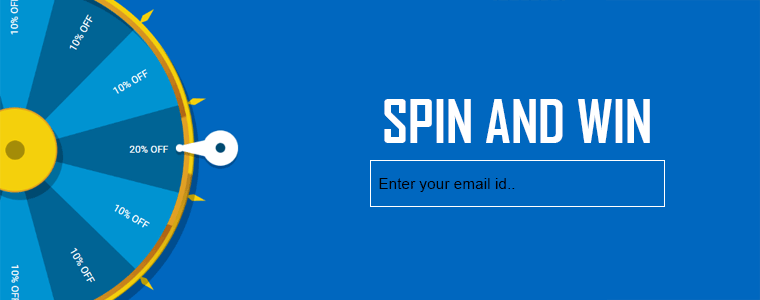
The traditional approach of asking for visitor’s email addresses by offering them some deals and discounts doesn’t work any longer. This is why e-retailers come up with new ideas every now and then to increase customer engagement. And why shouldn’t they? Customer engagement is an important factor to drive more conversions.

Spin and Win popup is the recent approach followed by merchants to engage customers. The motive behind this is to provide a gamifying experience to users, make them earn some discount by spinning the wheel and capture their email addresses when they claim the deal. Prestashop Spin and Win pop-up addon is a 3-in-1 popup (Entry, Exit, and Email subscription popup) that focuses on engaging your users in a fun activity. When visitors enter your store, they are asked to spin the wheel to win some amazing discounts on your store. Curious to win discounts, users spin the wheel and provide their email addresses to claim the offer. This way, you get their email addresses which can prove to be very useful for your email marketing campaigns. You can display the spin and win popup even at the time when a visitor is attempting to take an exit from your store.

2. FB wall post

The introduction of Social media has made marketing much easier than before. E-retailers are utilizing the advantages of major social media platforms to boost up their business, where Facebook is on the top list.

Prestashop FB Wall Post addon is one such way for you to increase your e-commerce conversions. The FB wall post module helps in generating automatic wall posts as well as manual wall posts based upon the seller’s convenience. One of the very advantages of this module is that it enables the merchant to make the customers aware of the new products arrival. Moreover, you can select the category and the brands that you wish to display on the wall post.

3. Social loginizer
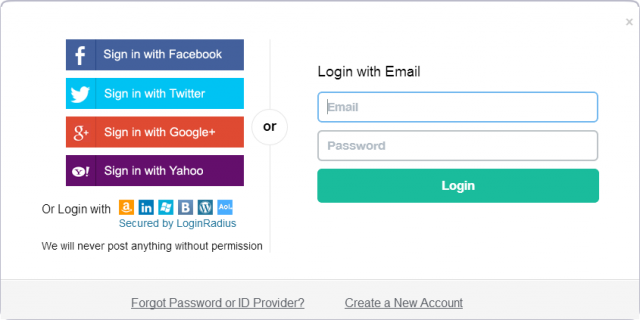
Imagine how frustrating it would be for a user if they have to go through a lengthy registration process every time they visit a new eCommerce website. The registration process is the door to enter the store. Would you like to make your users wait or get them inside as quickly as possible? The latter would arguably the most obvious answer. This is what the social login option does. It allows users to sign in directly with their social accounts such as through Facebook, Google, Twitter, etc.

Prestashop Social loginizer addon offers 15 log in options to visitors The Social login saves the time in filling up the lengthy registration forms. Social loginizer allows the store merchants to place the easy social login facility on various pages such as Home Page, Category Page, Product Page, Checkout page, etc. The availability of social login makes you gather your user’s data easily and you can get more insights into your customers like their age, location, gender, etc. This helps in target marketing. Social loginizer can be very effective in increasing your eCommerce conversions.

One page checkout
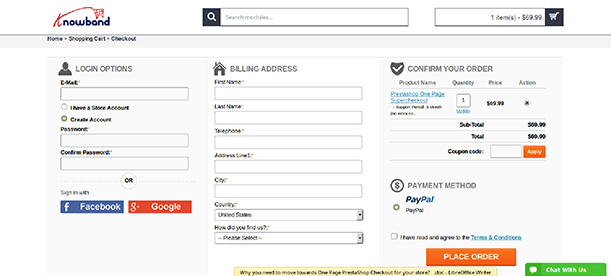
 

The checkout page of your eCommerce store decides whether the visitor would convert into a customer or not. It either leads to increased conversions or increased abandoned cart. A complicated checkout process is one of the major reasons for customer dissatisfaction that leads to cart abandonment. Customers find it tiring to provide their details on a number of pages. As a result, they just hit the exit button and leave your store. In order to overcome this problem, e-retailers are following the one-page checkout process that puts up all the checkout related fields on a single page.

Prestashop one page super checkout focuses on providing a better checkout experience to your customers. It offers a social login option (Facebook login, Google login and PayPal login) to your users along with a guest checkout option. As a store merchant, you can offer multiple shipping and payment methods to reduce the possibilities of cart abandonment. Apart from that, you can choose multiple layout designs of your checkout page

5. FB store

The growing popularity of Facebook has led brands to promote their products on the largest social media platform today. With over 2.38 billion active monthly users, it has become a major platform for online businesses to market their products and earn more revenue. If you haven’t marked your brand’s presence on Facebook, you are seriously missing out on a great opportunity to gain more conversions.

Many brands have opened their Facebook stores to drive more sales. If you haven’t opened a facebook shop yet, open it today. It is a must if you are thinking to take your business to a large scale.

Prestashop FB Store module is a good approach to gain higher traffic and increase user engagement on your prestashop store. It helps you integrate your Facebook page to your Prestashop store and provides you various options to customize your Facebook shop. It increases your product visibility and makes you reach out your products in front of a wide facebook audience.

Conclusion

Expecting your conversion funnel to go up rapidly would be unwise. It takes the right tactics and the right approach to get more conversions. Take your time, brainstorm new ideas and come up with some amazing ways to improve your conversion rate. Above all, keep the user experience the topmost priority.

If you found these 5 Prestashop addons helpful to boost your conversions, do let us know by leaving a comment below.

You Might Also Like:

Leverage the Power of Facebook to Improve your Sales

The task of keeping up with the marker and making sure that the customer is informed about the product description is quite a tough. With so many distraction, attracting the attention of the searches on the internet is difficult. Different strategies and ideas need to be executed in order to make customer aware about the products. In order to spread awareness about the products, web stores have come up with different ideas like providing offers and discounts. These ideas are good, but not enough. Therefore a better approach must be followed.

Social media sites like Facebook has made it easier for the site owners to inform the customers about their products, categories and brand through wall post and advertisements. Knowband offers Prestashop Facebook wall post module which enables the Prestashop eCommerce sellers to post the detailed information about their products on Facebook. It has given new heights to promotion of the products on social platforms.

Therefore, if you are a Prestashop site owner and want to get a better customers response on your products than this plugin might help you. It will help you spread your product information and will improve the conversions.

Discussed below are some way by which this module can help you.

Product Visibility

As the total numbers of users on Facebook is on the rise. Thus, it ensures that the product is reached to a larger number of people. Moreover, Facebook post also allows the new visitors to check in to your store after having a look at the products. It improves the product visibility to a greater extend and helps in making higher sales. In other words, web store owner gets the opportunity to improve the conversions through these wall posts.

Web Traffic

The FB wall posts allows the customers to check on the products through the wall posts itself or if they are interested in browsing through more product, they can check on the web store directly from the FB wall post. Most of the products available and offers can be availed through the wall posts too. The visitors can be redirected to the web store by some simple clicks. Eventually increasing the web traffic to your website.

Better approach

A survey reveals that, “Most of the online shoppers tends to visit the website when they find any enticing FB post”. Thus, promoting information about the product through Facebook wall post serve as an easy approach in engaging the customers towards the web store. Customers can avail services from social media site and would not have to search the web store for products. The customers can relate this approach much better and easily.

More conversions

The total numbers of visitors, who will check the web store products and offers through wall post may increase if you are able to promote your Facebook page appropriately. Therefore, it improves the chance of conversions of the web store. At one hand, it is an easy ways to lure customers by showing them different offers on their favorite platform while on the other hand it is more easier for the sellers to understand and use. Thus, they prefer to make purchase or explore more through the web store. It improves the rate of conversions drastically.

Enhanced UX


It offers the customer with smooth and pleasant way of shopping while staying on the same platform. Meanwhile, the customer gets updated about the recent product information, low stock alert or any discount run by the store. The user experience proves to be an important factor, as the customer takes it into consideration before making the next purchase.

Conclusion

If we take a look at the current scenario, we can easily realize that the popularity of the social media platform is at it’s peak. The social media platforms like Facebook has around 2 billion users. This makes it as the best suited place for the eCommerce store owners to target their customers. Thus, using methods like providing product arrivals or any running offers on your brand through a FB post would eventually result in popularity of the products. The multiple features provided by Prestashop FB wall post module are a key advantage in increasing the product visibility and engaging new customers that results in conversions and making high revenues. It also helps in building audience for your eCommerce through social media.

For more Information About Prestashop FB Wall Post Module visit here:-

Module Link: https://www.knowband.com/fb-wall-post

User Manual Link: https://www.knowband.com/blog/user-manual/prestashop-fb-wall-post-module/

You Might Also Like:
Prestashop FB Wall Post Module – User Manual

1.0 Introduction

PrestaShop Fb Wall Post User Manual provides an easy to use and configure feature to the Prestashop store owners to automatically post your products, categories and brands on your official Facebook page. The innovative and easy to understand and configure module helps in boosting the customer engagement on the social media platform in just a few button click.

1.1. Project Objectives

The module can be used by the store owner to achieve following things:

  1. It allows the admin to post product, category and brand automatically on your Facebook store.
  2. The Module even allows the admin to post the new products on the Facebook page of the store
  3. The admin can hide or display the price of the product.
  4. You can even get the Low Stock post with the help of this module.
  5. The admin can even post the discount coupons.

2.0 Installation

Follow the following steps to install the extension:

  1. Unzip the Facebookwallpost.zip file. It would contain files and folders.
  2. Copy all the files and folders of unzipped folder into your store “modules” directory on the path – Root Directory/modules/.
  3. The module is now ready to be installed in your store. You can find it in Store Admin -> Modules and Services.
  4. Click on “Install” button to install the module. It would show a pop-up for your confirmation. Click on “Proceed with the installation” option. This step will install the module and show notification – “Module(s) installed successfully”.

3.0 System Setup

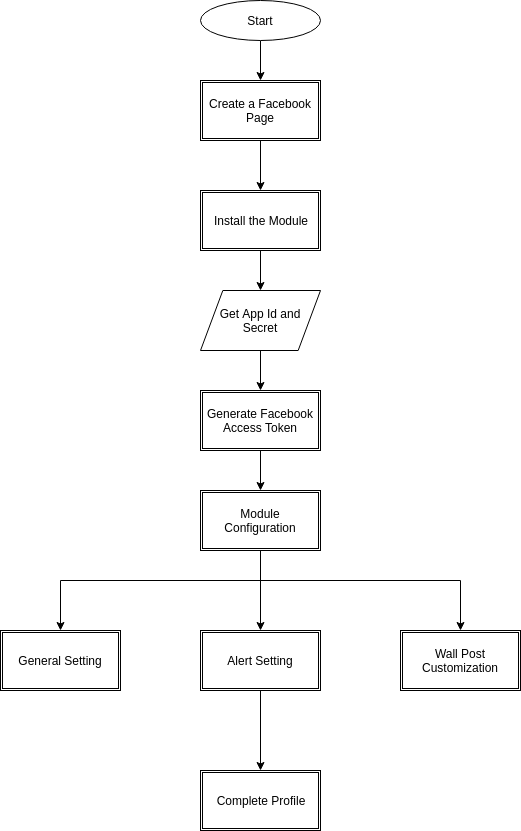
Before proceeding ahead, it is important to know that what is the correct flow of actions to setup this system as there are several things which are dependent on other things and if we do not take care of them then it would become difficult to process smoothly or may be error prone.

4.0 Admin Interface

The admin interface of the module is completely configurable. Click on the ‘Configure’ next to the module in the admin panel.

4.1 How To Start configuration process?

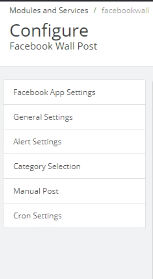
After clicking the “Configure” button, the admin will be redirected to the Configuration page of the module. It offers the below-listed configuration options:

  • Facebook App Setting
  • General Setting
  • Alert Setting
  • Category Setting
  • Manual Post
  • Cron Setting

Let us discuss each options one-by-one.

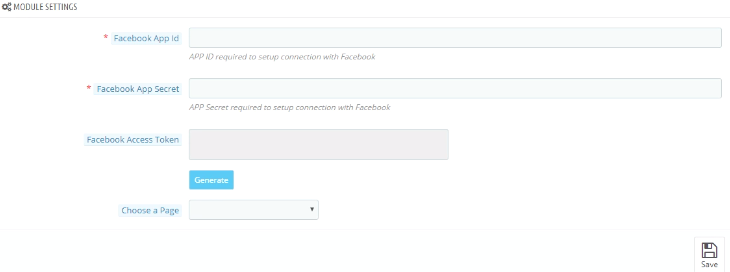
Facebook App Setting:- The Facebook App Setting includes the process to the sync the Facebook profile of the store owner. Follow the below-mentioned steps:-

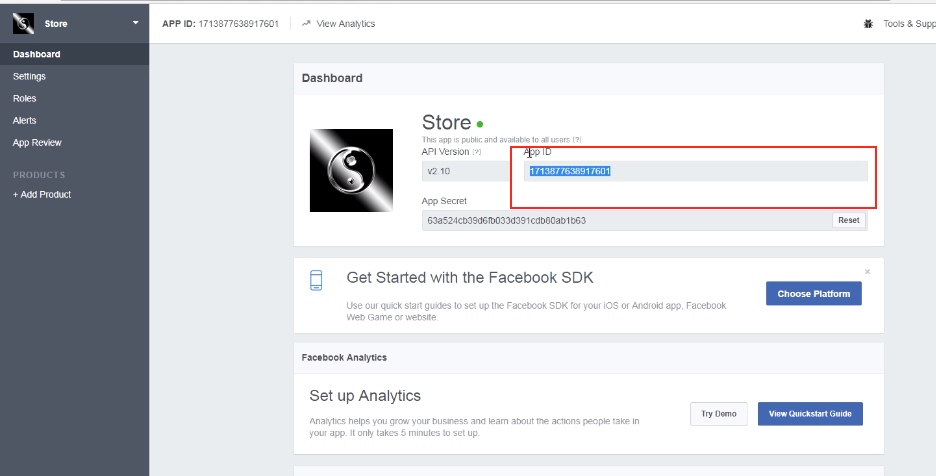
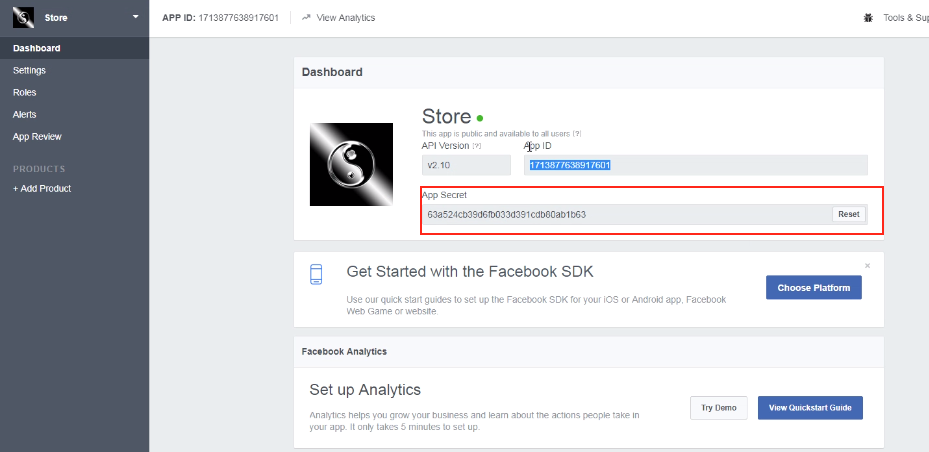
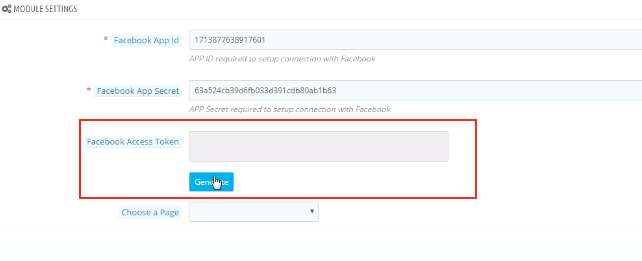
Facebook App Id:- This field is for Facebook App Id created for this module. Enter the Facebook App Id in the first column. In order to find the App id, go to the dashboard of your Facebook App. Copy the app id from the column shown in the image below and paste it in the setup page of the module.

Facebook App Secret:- This field is for Facebook App Secret created for this module. Copy the App Secret from the next column as shown in the image below.

‘Save’ the changes made in the configuration setting.

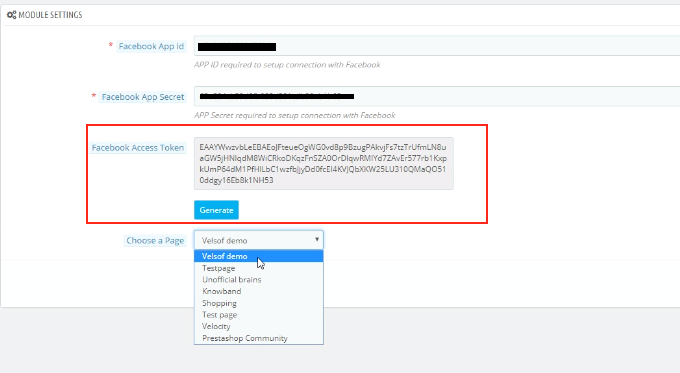
Facebook Access Token: The next thing you need to do is generate the ‘Facebook Access Token’. Once the changes are saved, click on the ‘Generate’ button. This button will be disabled by default. It will be enabled only when the App Id and App Secret is entered and the changes have been saved.

As you click on the button, you will get a pop-up for Facebook Login. Log in your Facebook store and the access token will be generated.

The module is now synced with your Facebook store and is ready for use.

‘Choose the Page’ from the options given in the dropdown list and save the changes. The posts will be displayed on the page selected by you.

4.2 General Settings

The module is now successfully synced with the Facebook Page of the admin.

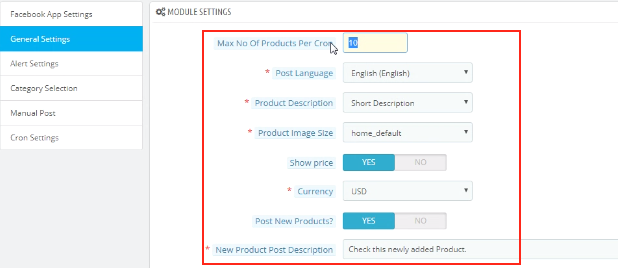
The General Setting allows to make the necessary changes in the look and feel of the FB Wall Post module. Here are some of the options offered.

  1. You can change the ‘Maximum number of Products Per Cron’.
  2. You can select the ‘Post Language’.
  3. The admin can set the ‘Product Description’.
  4. Select the ‘Product Image Size’ from the options offered in the dropdown list.
  5. The ‘Show Price’ option enables you to either display or hide the price of the products.
  6. The admin can select the desired ‘Currency’ from the option available.
  7. ‘Post New Products?’ option asks you if you want to Post New products on the Facebook Wall or not.
  8. In case you are posting the new product, then, you can even set the description for the same in the ‘New Product Post Description’.

Click on the ‘Save’ button in order to save the changes made by you.

4.3 Alert Setting

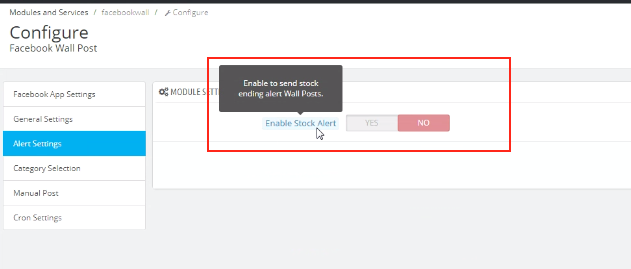
Here, you can enable/disable the option to send Stock Ending Alert Wall Posts.

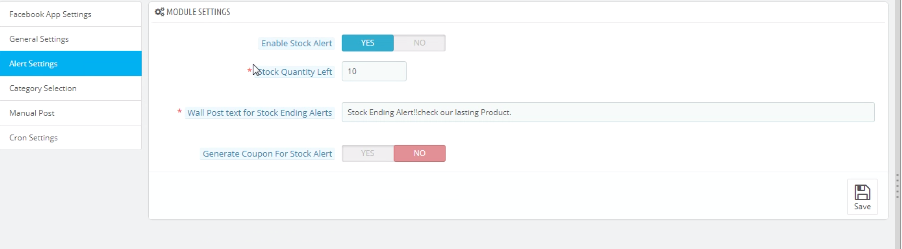
In case, you enable this option, then, you’ll be asked a series of question which includes the following.

  1. Stock Quantity Left: You can enter the quantity of the stock below which the alert will be send on the wall post.
  2. Wall Post Text for Stock Ending Alert: You can enter the text that you want to be displayed when the inventory falls below a certain limit.
  3. Generate Coupon For Stock Alert: You can enable it if you want to send coupon along with the Alert. In case you enable the coupon code option, the module provides an option to customize the vouchers as well.

  1. Voucher Name: The name of the voucher can be entered in the first column. You can even choose from the different language options available and select the one as per your requirement.
  2. No. Of Vouchers: Allow you to select the number of vouchers you want to send.
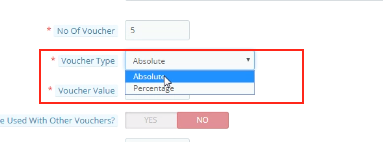
  3. Voucher Type: You can select the type of voucher you want to send. It can ‘Absolute’ or ‘Percentage’.

  1. Can be used with Other Vouchers: You can enable this option if the voucher can be send with other vouchers as well.
  2. Voucher Validity: Set the duration for which the voucher is valid is here.

4.4 Category Selection

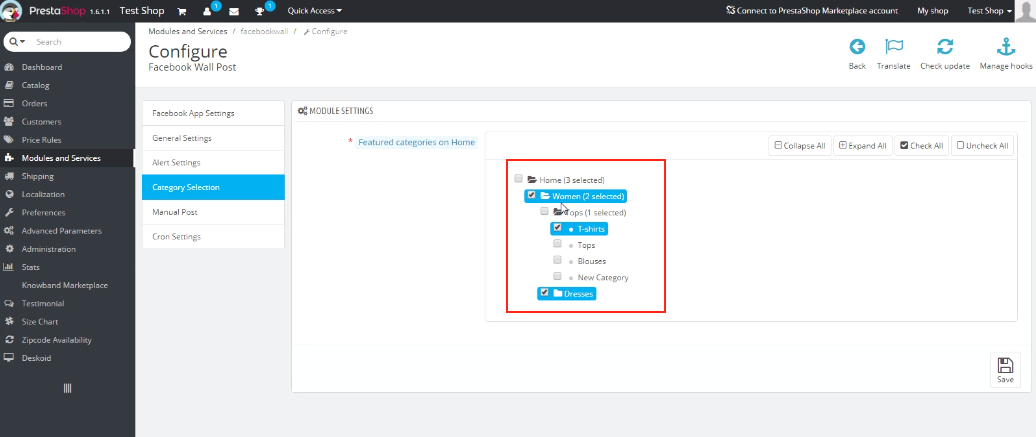
You can select the categories you want to display on the Facebook wall post here. Check the options that you want to display. Only those products whose default category is selected in this section will be posted on the Facebook Wall.

4.5 Manual Post

This option allows you to customize the wall post manually.

  1. Search Product: It will show the dropdown of various product options. You can select the one as per your wish.
  2. Wall Post Text For Products: Set the text that you want to display on the wall post. Click on ‘Post Product Now’ button and the products will be posted.

  1. Search Category: It will show the dropdown of various category options. You can select the one as per your wish.
  2. Wall Post Text For Categories: Set the text that you want to display on the wall post. Click on ‘Post Category Now’ button and the products will be posted.

  1. Search Brand: It will show the dropdown of various brands options. You can select the one as per your wish.
  2. Wall Post Text For Brands: Set the text that you want to display on the wall post. Click on ‘Post Brand Now’ button and the products will be posted.

4.6 Cron Selection

Add the cron configuration to your store in order to sync the products and send Facebook wall posts to your customers automatically according to your setting.

  • ‘Sync Product Manually’ will allow you to sync the products. The products will then get listed below. The admin can even delete the listed products from the table by clicking on the ‘Delete’ icon.

  • On clicking the ‘Send Post Manually’, the products will get posted on the Facebook Wall of the admin.

5.0 Facebook Tab UI

Once you have already configured Prestashop Facebook Wall Post module and synced with the Facebook profile, the changes will be shown in the front end.

5.1 Home Page

Home page will have the UI similar to mentioned below.

5.2. Selected Page

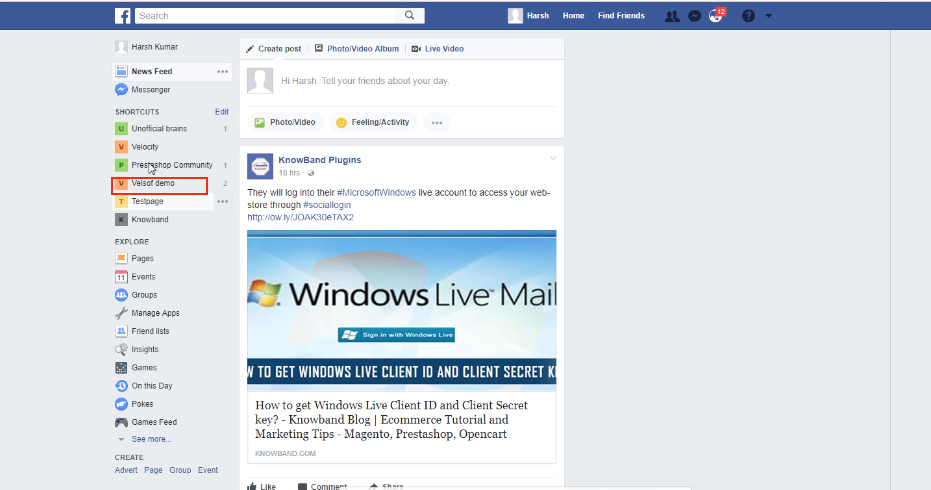
Go to the page which you selected earlier in the admin interface. The products posted will be shown on the wall post of the page.

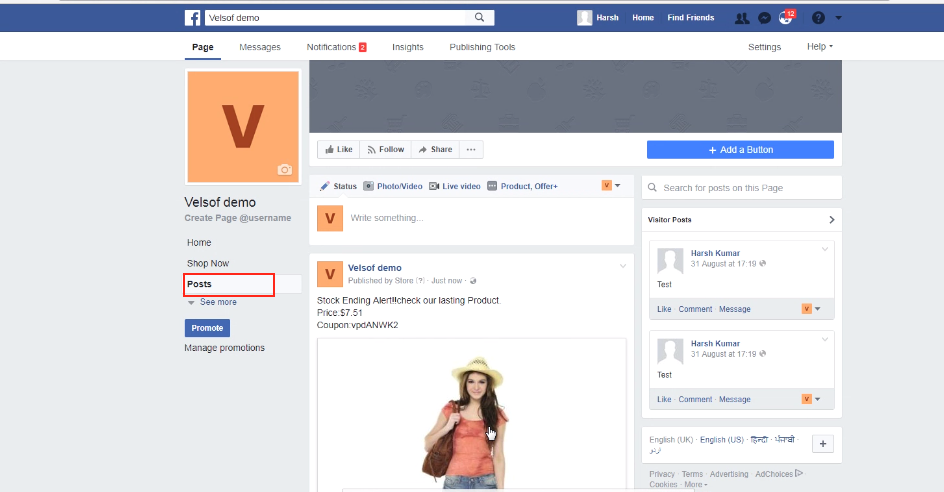
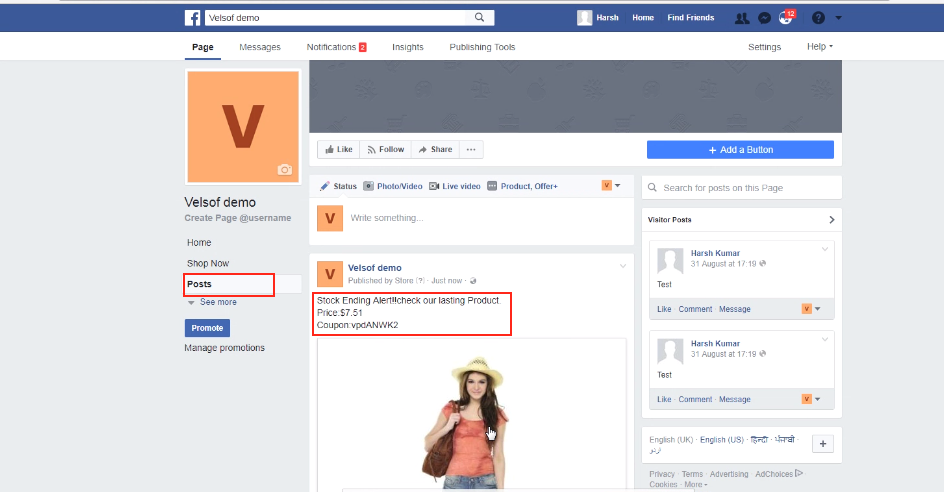
  • As you can see in the image below, the Stock ending alter has been posted on the wall along with the Product Price and the Coupon Code.

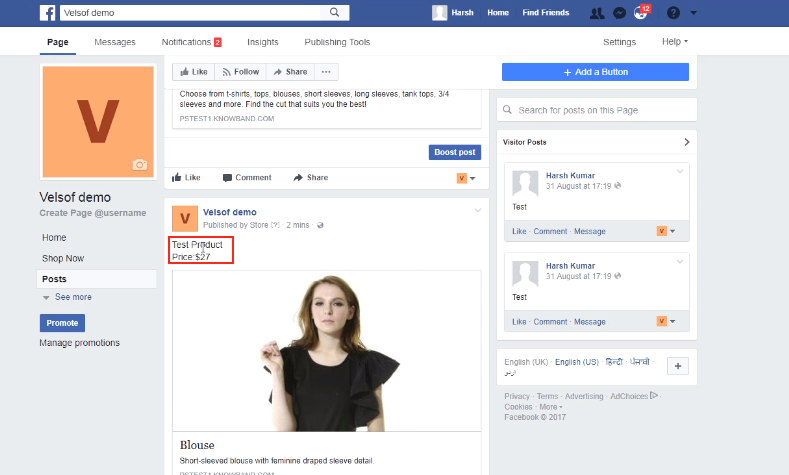
  • The Product along with the price can be seen on the wall of the Facebook.

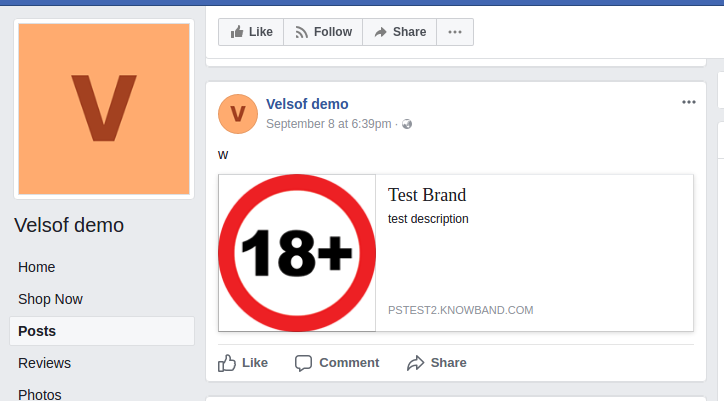
  • This is how the brand posted on the wall will look like.

  • The category to be displayed on the Facebook will be seen like this in the front end.


You Might Also Like: