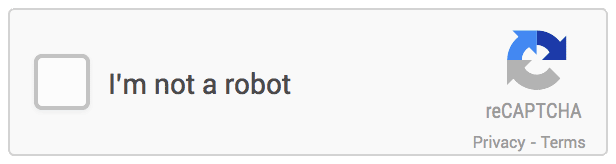
La tecnologia di Google reCaptcha è stata uno dei mezzi più maneggevoli per impedire i siti dai robot e dal traffico di spam. Invece di inserire codici sfocati, facendo clic su alcune immagini è stato reinventato il metodo di rilevamento dello spam. Dovresti sempre avere una protezione di tipo Captcha nel tuo negozio. Aggiunge un ulteriore livello di protezione indistruttibile per il tuo sito web. Google ha recentemente messo a punto un nuovo aggiornamento. Come per l'aggiornamento di Google,
Qualsiasi chiamata all'API v1 non funzionerà dopo marzo 31, 2018"A partire da novembre 2017, una percentuale di utenti di reCAPTCHA v1 ha notato che la vecchia API sarà presto ritirata.
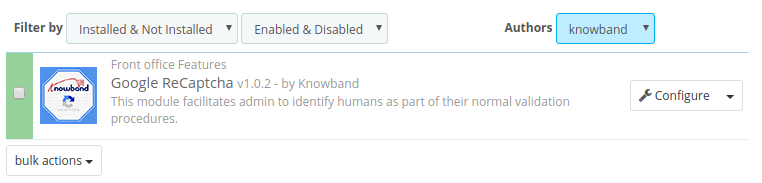
Se il tuo sito utilizza ancora reCAPTCHA v1, devi eseguire immediatamente l'upgrade a reCAPTCHA v2. Per i proprietari dei negozi eCommerce di Prestashop, Knowband offre l'addon Google ReCaptcha di Prestashop. Il modulo Google reCaptcha di Prestashop è progettato per verificare che l'utente sia umano e non bot senza coinvolgerlo nei fastidiosi codici. L'estensione Google reCaptcha di Prestashop è compatibile con v2, quindi i proprietari dei negozi eCommerce possono facilmente proteggere il loro sito dagli spammer.
Perché dovresti utilizzare il modulo Google ReCaptcha di Prestashop?
Prima di entrare nella parte di configurazione, esaminiamo prima il motivo per cui dovresti usare questo add-on di Prestashop.
Google reCaptcha per lo store Prestashop è compatibile con v2, quindi gli utenti non devono preoccuparsi dell'ultimo aggiornamento di Google.
L'amministratore può facilmente impostare l'opzione reCaptcha su più pagine web del sito.
L'amministratore del negozio può persino modificare l'aspetto grafico di Google reCaptcha.
L'amministratore ha un'opzione per inserire codice CSS e JS personalizzato, al fine di modificare l'aspetto della sua interfaccia utente.
Il plugin Google reCaptcha v2 di Prestashop è compatibile con SSL e facile da installare e utilizzare.
Il modulo Google reCaptcha di Prestashop consente all'amministratore di scegliere il numero di percorsi di accesso prima che venga visualizzato il reCaptcha.
Questo articolo ti guiderà per integrare il molto popolare Google ReCaptcha di Prestashop sul tuo negozio PrestaShop.
Aggiunta di Google reCaptcha v2 su un negozio PrestaShop
Esistono diversi modi per aggiungere Captcha Protection al tuo negozio. Tuttavia, Google reCaptcha è uno dei tipi di captcha più facili da usare e sicuri utilizzati dalla maggior parte dei siti Web oggi. Il modulo Google reCaptcha di Knowband per il sito Prestashop offre un modo semplice per incorporare questa funzione di sicurezza sul sito. L'amministratore del negozio può impostare l'intera cosa in pochi semplici passaggi senza apportare modifiche al codice. L'amministratore del negozio è tenuto a ottenere Google Site Key e Chiave segreta per la configurazione di reCaptcha.
Come ottenere la chiave del sito Google e la chiave segreta?
È possibile seguire questi passaggi per ottenere la chiave del sito e la chiave segreta per l'accesso nella scheda Impostazioni di ReCaptcha del modulo.
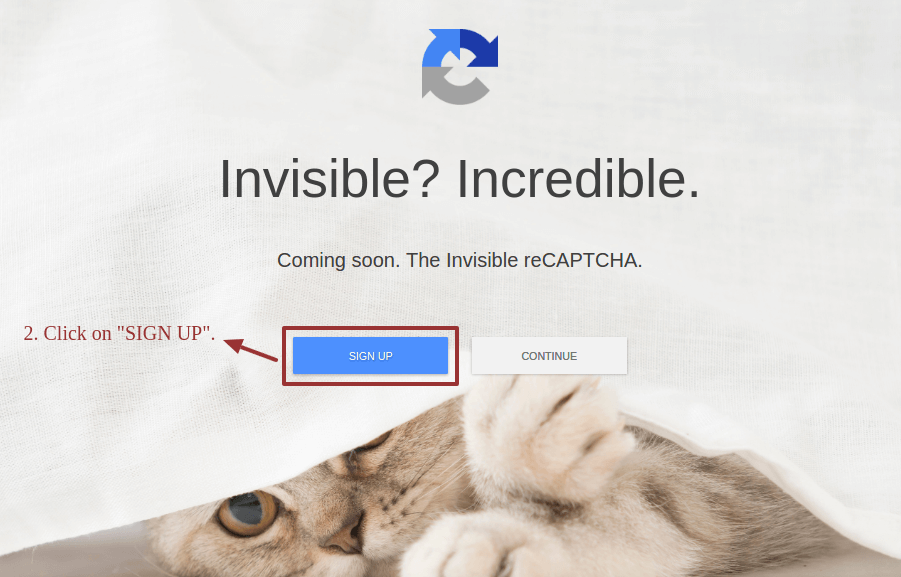
2: Clicca sul pulsante Iscriviti sullo schermo che si apre dal link
3: Nella pagina successiva ti verrà chiesto di accedere al tuo account Google se non hai già effettuato l'accesso. Inserisci le credenziali dell'account e accedi al tuo account Gmail.
4: Successivamente, si aprirà il "Registra un nuovo sito"Interfaccia se non hai già registrato nessun altro sito in precedenza. Compila il modulo come specificato nell'immagine qui sotto:
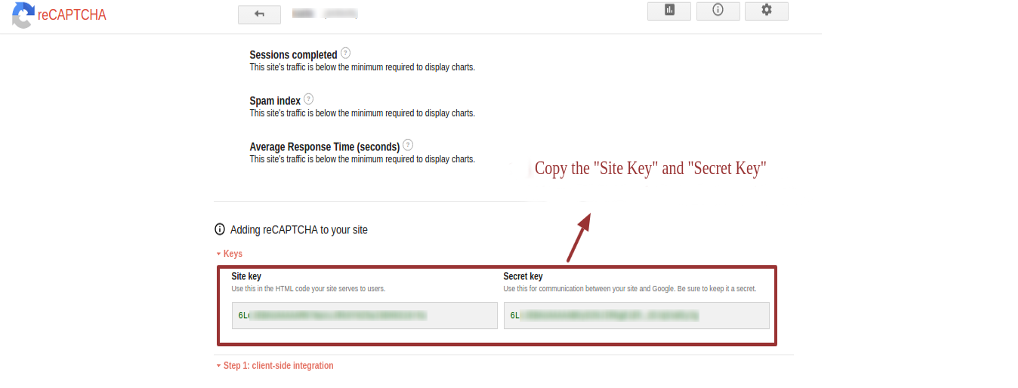
5: Dopo aver fatto clic su Registra, verrai indirizzato a una nuova pagina, in cui potrai visualizzare la chiave del sito e la chiave segreta. Copia queste chiavi.
Una volta
Per aggiungere la protezione di reCaptcha di Google sul tuo negozio PrestaShop utilizzando il modulo Google reCaptcha, procedi nel seguente modo:
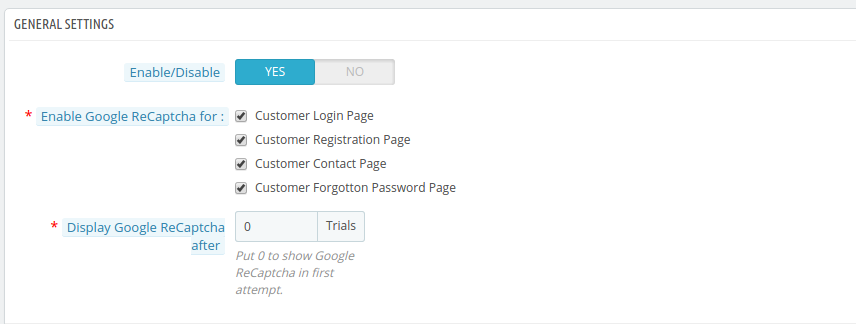
7: Ora seleziona le pagine dal negozio in cui desideri mostrare Google reCaptcha. Hai quattro pagine principali sul tuo sito web in cui devi assolutamente usare il reCaptcha.
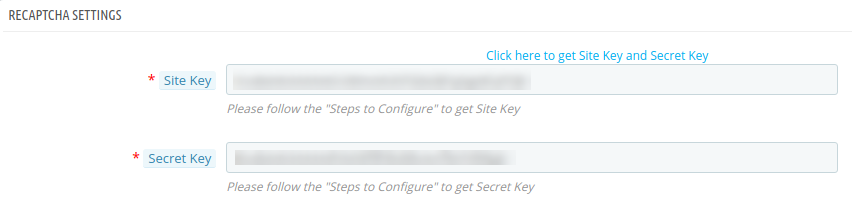
8: Ora, fai clic su "Impostazioni di ReCaptcha"scheda. Qui dovrai inserire Google Chiave del sito e Chiave segreta per salvare e abilitare la protezione di Google ReCaptcha sul tuo negozio PrestaShop.
9:?Paste the copied keys in the specified fields of the?Impostazioni di ReCaptcha?tab in Google reCaptcha module. Save the settings and you are done.
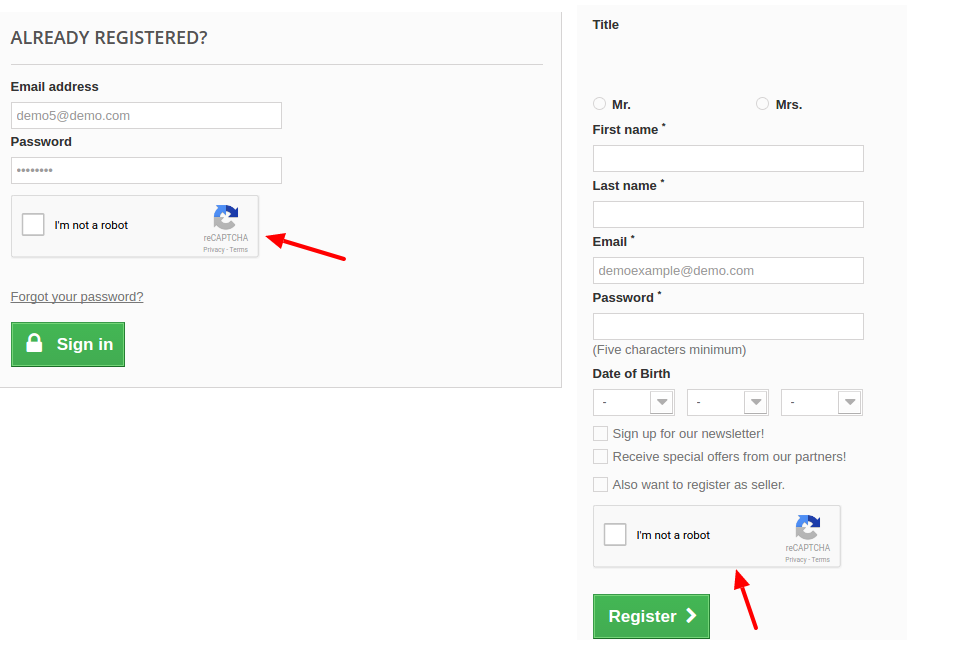
10: Il Google ReCaptcha v2 di Prestashop viene fornito con una serie di temi. L'amministratore può selezionare quello che corrisponde al tema del suo sito. Questo è tutto. Dopo aver inserito e salvato la chiave del sito e la chiave segreta, il tuo negozio è pronto con la protezione di reCaptcha di Google. Svuota la cache e apri la pagina di accesso del cliente, la pagina di registrazione, ecc. Vedrai il reCaptcha di Google che sta lì in piedi e protegge il tuo negozio.
Nel corso di
Ecco come abilitare la protezione di reCaptcha di Google sul tuo negozio PrestaShop senza problemi e problemi con i file principali. Puoi anche provare da solo sulla demo gratuita del modulo Google reCaptcha e vedere come funziona. Qui, puoi anche cambiare l'aspetto del blocco reCaptcha direttamente dal backend stesso. Allo stesso modo, Plug-in Google reCaptcha di OpenCart è disponibile anche per le piattaforme OpenCart.
Technologia Google reCaptcha jest jednym z najskuteczniejszych sposobów zapobiegania stronom z robotów i ruchu spamowego. Zamiast umieszczać niewyraźne kody, kliknięcie kilku obrazów zostało odkryte na nowo metodą wykrywania spamu. Zawsze powinieneś mieć zabezpieczenia typu Captcha w swoim sklepie. Dodaje dodatkową warstwę niezniszczalnej ochrony dla Twojej witryny. Firma Google niedawno wymyśliła nową aktualizację. Zgodnie z aktualizacją Google,
Wszelkie połączenia z interfejsem API v1 nie będą działać po marcowym 31, 2018Zaczynając w listopadzie 2017, odsetek użytkowników reCAPTCHA v1 zauważył, że stare API zostanie wkrótce wycofane.
Jeśli twoja strona nadal używa reCAPTCHA v1, musisz natychmiast uaktualnić do reCAPTCHA v2. Dla właścicieli sklepów e-commerce Prestashop, Knowband oferuje Prestashop Google reCaptcha addon. Prestashop Moduł Google reCaptcha został zaprojektowany, aby sprawdzić, czy użytkownik jest człowiekiem, a nie bota, nie angażując go w irytujące kody. Prestashop Rozszerzenie Google reCaptcha jest kompatybilne z v2, więc właściciele sklepów eCommerce mogą z łatwością chronić swoją stronę przed spamerami.
Dlaczego warto korzystać z modułu Google PreCashcha Prestashop?
Zanim przejdziemy do części konfiguracyjnej, najpierw porozmawiajmy o tym, dlaczego powinieneś używać tego dodatku Prestashop.
Sklep Google reCaptcha for Prestashop jest kompatybilny z v2, więc użytkownicy nie muszą się martwić o najnowszą aktualizację Google.
Administrator może łatwo ustawić opcję reCaptcha na wielu stronach internetowych witryny.
Administrator sklepu może nawet zmienić wygląd i sposób działania Google reCaptcha.
Administrator ma możliwość wprowadzenia niestandardowego kodu CSS i JS, aby zmienić wygląd interfejsu użytkownika.
Wtyczka Prestashop Google reCaptcha v2 jest zgodna z SSL i łatwa w instalacji i użyciu.
Prestashop Moduł Google reCaptcha pozwala administratorowi wybrać liczbę ścieżek logowania przed wyświetleniem reCaptcha.
Ten artykuł poprowadzi Cię do zintegrowania bardzo popularnego reCaptcha Google Prestashop w swoim sklepie PrestaShop.
Dodanie Google reCaptcha v2 do sklepu PrestaShop
Istnieje kilka sposobów na dodanie Ochrony Captcha do swojego sklepu. Jednak Google reCaptcha jest jednym z najbardziej przyjaznych dla użytkownika i bezpiecznych typów captcha, z których korzysta obecnie większość witryn internetowych. Moduł Google reCaptcha firmy Knowband dla witryny Prestashop oferuje prosty sposób na włączenie tej funkcji bezpieczeństwa w witrynie. Administrator sklepu może skonfigurować całe zadanie w kilku prostych krokach, nie wprowadzając żadnych zmian w kodzie. Wymagany jest administrator sklepu Klucz strony Google i Tajny klucz do konfiguracji reCaptcha.
Jak zdobyć klucz witryny Google i tajny klucz?
Możesz wykonać następujące kroki, aby uzyskać klucz witryny i tajny klucz do wprowadzania karty Ustawienia reCaptcha modułu.
Krok 2: Kliknij przycisk Zarejestruj się na ekranie, który otwiera się z linku
Krok 3: Na następnej stronie zostaniesz poproszony o zalogowanie się na swoje konto Google, jeśli nie jesteś jeszcze zalogowany. Wprowadź dane logowania do konta i zaloguj się na swoje konto Gmail.
Krok 4: Następnie otworzy "Zarejestruj nową witrynę"jeśli jeszcze nie zarejestrowałeś wcześniej żadnej innej strony, wypełnij formularz w sposób podany na poniższym obrazku:
Krok 5: Po kliknięciu przycisku Zarejestruj nastąpi przekierowanie na nową stronę, na której można zobaczyć klucz witryny i tajny klucz. Skopiuj te klucze.
Pewnego razu
Aby dodać ochronę Google reCaptcha w swoim sklepie PrestaShop za pomocą modułu Google reCaptcha, wykonaj następujące czynności:
Krok 2: Po sfinalizowaniu zakupu odwiedź konto Knowband i pobierz plik ZIP modułu z sekcji "Moje pliki do pobrania".
Krok 3: Teraz zaloguj się do swojego sklepu PrestaShop jako administrator. Korzystanie z FTP lub bezpośrednie przesyłanie, zainstaluj moduł w twoim sklepie.
Krok 4: Po udanej instalacji znajdziesz moduł wymieniony w sekcji "Zainstalowane moduły".
Krok 5: Kliknij na "Konfiguruj" po prawej stronie listy modułów. Otworzy interfejs konfiguracji modułu.
Krok 7: Teraz wybierz strony ze sklepu, w którym chcesz wyświetlić Google reCaptcha. Masz cztery główne strony na swojej stronie, gdzie zdecydowanie powinieneś używać reCaptcha.
Krok 8: Teraz kliknij na "Ustawienia ReCaptcha"W tym miejscu musisz wpisać Google Kluczem Strona i Sekretny klucz aby zapisać i włączyć ochronę Google ReCaptcha w swoim sklepie PrestaShop.
Krok 9:?Paste the copied keys in the specified fields of the?Ustawienia ReCaptcha?tab in Google reCaptcha module. Save the settings and you are done.
Krok 10: Prestashop Google reCaptcha v2 zawiera wiele motywów. Administrator może wybrać ten, który pasuje do jego motywu witryny. to jest to! Po wprowadzeniu i zapisaniu klucza witryny i tajnego klucza Twój sklep jest gotowy z ochroną Google reCaptcha. Wyczyść pamięć podręczną i otwórz stronę logowania do klienta, stronę rejestracji itp., Zobaczysz stojącą tam Google reCaptcha i ochronisz swój sklep.
Przez ciebie
Tak więc możesz włączyć ochronę Google reCaptcha w swoim sklepie PrestaShop bez żadnych kłopotów i problemów z plikami podstawowymi. Możesz także samemu wypróbować na darmowej wersji demonstracyjnej modułu Google reCaptcha i zobaczyć, jak to działa. Tutaj możesz również zmienić wygląd bloku reCaptcha bezpośrednio z samego backendu. Podobnie, Wtyczka OpenCart Google reCaptcha jest również dostępny dla platform OpenCart.
A tecnologia reCaptcha do Google tem sido um dos meios mais úteis para impedir que os sites dos robôs e do tráfego de spam. Em vez de inserir códigos difusos, clicar em algumas imagens foi reinventado o método de detecção de spam. Você deve sempre ter um tipo de segurança Captcha em sua loja. Ele adiciona uma camada extra de proteção inquebrável ao seu site. O Google criou recentemente uma nova atualização. Conforme a atualização do Google,
Todas as chamadas para a API v1 não funcionarão depois de março 31, 2018". A partir de novembro, 2017, uma porcentagem de usuários do reCAPTCHA v1 observou informações de que a API antiga será desativada em breve.
Se o seu site ainda usa o reCAPTCHA v1, você precisa fazer upgrade para o reCAPTCHA v2 imediatamente. Para os proprietários de lojas de comércio eletrônico do Prestashop, a Knowband oferece o add-on de reCaptcha do Prestashop Google. Prestashop Google reCaptcha módulo é projetado para verificar se o usuário é um humano e não bot sem envolvê-los nos códigos irritantes. Prestashop Google reCaptcha extensão é v2 compatível, assim, os donos de lojas de comércio eletrônico podem facilmente proteger seu site de spammers podem bots.
Por que você deve usar o módulo Prestashop Google reCaptcha?
Antes de entrar na parte de configuração, vamos primeiro discutir por que você deve usar este addon Prestashop.
A loja reCaptcha do Google para Prestashop é compatível com v2, portanto, os usuários não precisam se preocupar com a última atualização do Google.
O administrador pode facilmente definir a opção reCaptcha em várias páginas da web do site.
O administrador da loja pode até mudar a aparência do Google reCaptcha.
O administrador recebe uma opção para inserir códigos CSS e JS personalizados, a fim de alterar a aparência da interface do usuário.
O plug-in do Prestashop Google reCaptcha v2 é compatível com SSL e é fácil de instalar e usar.
Prestashop O módulo reCaptcha do Google permite que o administrador escolha o número de trilhas de login antes que o reCaptcha seja exibido.
Este artigo irá guiá-lo para integrar o muito popular Prestashop Google reCaptcha na sua loja PrestaShop.
Adicionando o Google reCaptcha v2 em uma loja PrestaShop
Existem várias maneiras de adicionar o Captcha Protection à sua loja. No entanto, o Google reCaptcha é um dos tipos de captcha mais seguros e fáceis de usar que são usados pela maioria dos sites atualmente. O módulo reCaptcha do Google da Knowband para o site Prestashop oferece um meio fácil de incorporar esse recurso de segurança no site. O administrador da loja pode configurar tudo em poucas etapas simples, sem fazer alterações no código. O administrador da loja é necessário para obter Google Site Key de Chave Secreta para a configuração do reCaptcha.
Como obter a chave do Google Site e a chave secreta?
Você pode seguir estas etapas para obter a chave do site e a chave secreta para entrar na guia Configurações do ReCaptcha do módulo.
– Clique no botão Inscrever-se na tela que se abre a partir do link
– Na próxima página, você será solicitado a fazer login na sua Conta do Google, caso ainda não esteja conectado. Digite as credenciais da conta e faça o login na sua conta do Gmail.
– Em seguida, ele irá abrir o "Registre um novo site"interface se você ainda não registrou nenhum outro site. Preencha o formulário conforme especificado na imagem abaixo:
– Depois de clicar em Registrar, você será direcionado para uma nova página, onde poderá ver sua chave do site e sua chave secreta. Copie essas chaves.
Uma vez
Para adicionar a proteção do Google reCaptcha à sua loja PrestaShop usando o módulo reCaptcha do Google, siga estas etapas:
– Agora, selecione as páginas da loja em que você deseja exibir o reCaptcha do Google. Você tem quatro páginas principais em seu site onde você definitivamente deveria usar o reCaptcha.
– Agora, clique no botão "Configurações do ReCaptcha"guia. Aqui você precisará inserir o Google Chave do site de Chave secreta para salvar e ativar a proteção do Google ReCaptcha na sua loja PrestaShop.
– ?Paste the copied keys in the specified fields of the?Configurações do ReCaptcha?tab in Google reCaptcha module. Save the settings and you are done.
– O Prestashop Google reCaptcha v2 vem com vários temas. O administrador pode selecionar o que corresponde ao tema do site. É isso aí. Depois de inserir e salvar a chave do site e a chave secreta, sua loja estará pronta com a proteção do Google reCaptcha. Limpe o cache e abra a página de login do cliente, a página de registro, etc, você verá o Google reCaptcha parado lá e protegendo sua loja.
Para você
Assim, é assim que você pode ativar a proteção do Google reCaptcha na sua loja PrestaShop sem qualquer problema e bagunça os arquivos principais. Você também pode experimentar por si mesmo a demonstração gratuita do módulo reCaptcha do Google e ver como ele funciona. Aqui, você também pode alterar a aparência do bloco reCaptcha diretamente do próprio backend. Similarmente, OpenCart Google reCaptcha plugin está disponível para plataformas OpenCart também.
Knowband Magento 2 Spin and Win Extension is an alluring time-triggered gamified interface. The Magento 2 gamified popup offers an intuitive and fun-filled interface to your store visitors. The gamified approach motivates them to provide their email ids without annoying them with the conventional subscription popups.
Magento 2 Spin and Win extension by Knowband not just boosts the shopping experience of the customers, it even has a direct impact on the sale volume of the site. Magento 2 Spin and Win plugin offer coupons and discounts in a different, but better way. Magento 2 Spin and Win subscription pop-up incorporate a Wheelio or roulette wheel in the front-end of the site. The store visitors are required to enter their email IDs in order to spin the wheel. The wheel rotates with the admin defined labels on them and the customers get coupons associated with the coupon code.
In the updated version, there are some advanced features in Magento 2 Spin and Win module. The online merchant can now show a progress meter on the spin and win popup. In the slice settings option, the online merchant can now select the number of slices that he wants to show on the wheel. Apart from this, the online merchant can new schedule the themes for any specific time duration. This way, the online merchant can schedule themes for a special occasion like Christmas, New Year, Halloween in advance. Store owners can now easily export the customer list as a CSV file.
1.1 Features offered by Magento2 Spin and Win plugin:
The Knowband’s Magento 2 Spin and Win module can be used at the three places, that is, at the entry or exit of the customers or when they scroll down.
The Magento2 Spin and Win extension even allow the store admin to set the type of store visitors who can view the spin wheel interface.
Magento 2 Spin and Win subscription pop-up offer email recheck option. The admin can avoid redundancy of the email IDs by enabling this feature.
Magento 2 Exit intent pop-up comes with a number of pre-designed themes and wheel designs. The store admin can choose the one in accordance with their site theme and occasion like Christmas, Easter, Thanksgiving, Black Friday etc.
The spin wheel of Magento 2 Spin and Win plugin can even be customized at a few button clicks. Thus, it can be easily made to blend with the theme of the website.
The custom CSS option in the admin interface of Magento 2 Spin and Win extension allows the merchants to change the look and feel of the wheel design accordingly.
The feature-rich Magento 2 Spin and Win module reduce the manual effort of the store admin. The Magento 2 email integrator syncs the captured details with the MailChimp, Klaviyo and Constant Contact account of the store admin.
The Magento 2 interactive popup extension comes with a number of email templates. This makes it even easier for the store admin to send promotional triggers to the customers.
The admin gets full access to manage the discounts being offered. The admin can customize the slices of the spin wheel from the back-end of the Magento2 Spin and Win extension.
Even the possibility of a slice appearing once the wheel is rotated can be fixed from the admin interface of Magento 2 Spin and Win plugin.
The online merchant can select the number of slices that he wants to show on the wheel. Admin can also configure the slices accordingly.
In the updated version of the Magento 2 spin and win module, the online merchant can also show a progress Meter on the spin and win popup.
In the updated version, there is a theme scheduling option for the admin. The online merchant can easily set up the themes and duration for which he wants to show the particular theme.
2.0 Installation
Buy the Magento 2 Spin and Win module from KnowBand.
The package has a zipped file that contains the user manual and the source code of Mobile App Builder Extension. Unzip the package.
Create a folder{Magentoroot}/app/code/Knowband/Spinandwin
Upload the extracted content in the above folder via FTP manager (like Filezilla or WinSCP – download here: https://filezilla-project.org/).
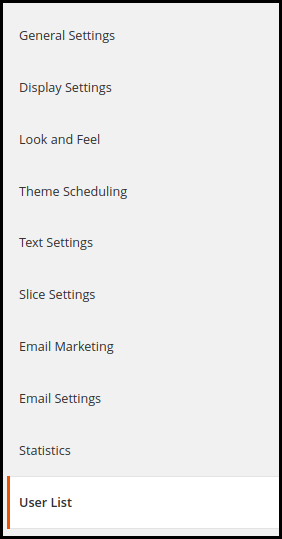
The web admin interface of Magento 2 responsive pop-up offers easy customization option to the store admin. The spin wheel can be configured and managed in a few simple steps. Magento 2 Spin and Win Module have 8 setting tabs. They are mentioned below:
General Settings
Display Settings
Look and Feel Settings
Theme Scheduling
Text Settings
Slice Settings
Email Marketing
Email Setting
Statistics
User List
Let us discuss the various customization options that are discussed in detail.
3.1 General Settings
The General settings of the Magento 2 Spin and Win module allow the store admin to make the basic configuration settings. The various fields in this tab are discussed below.
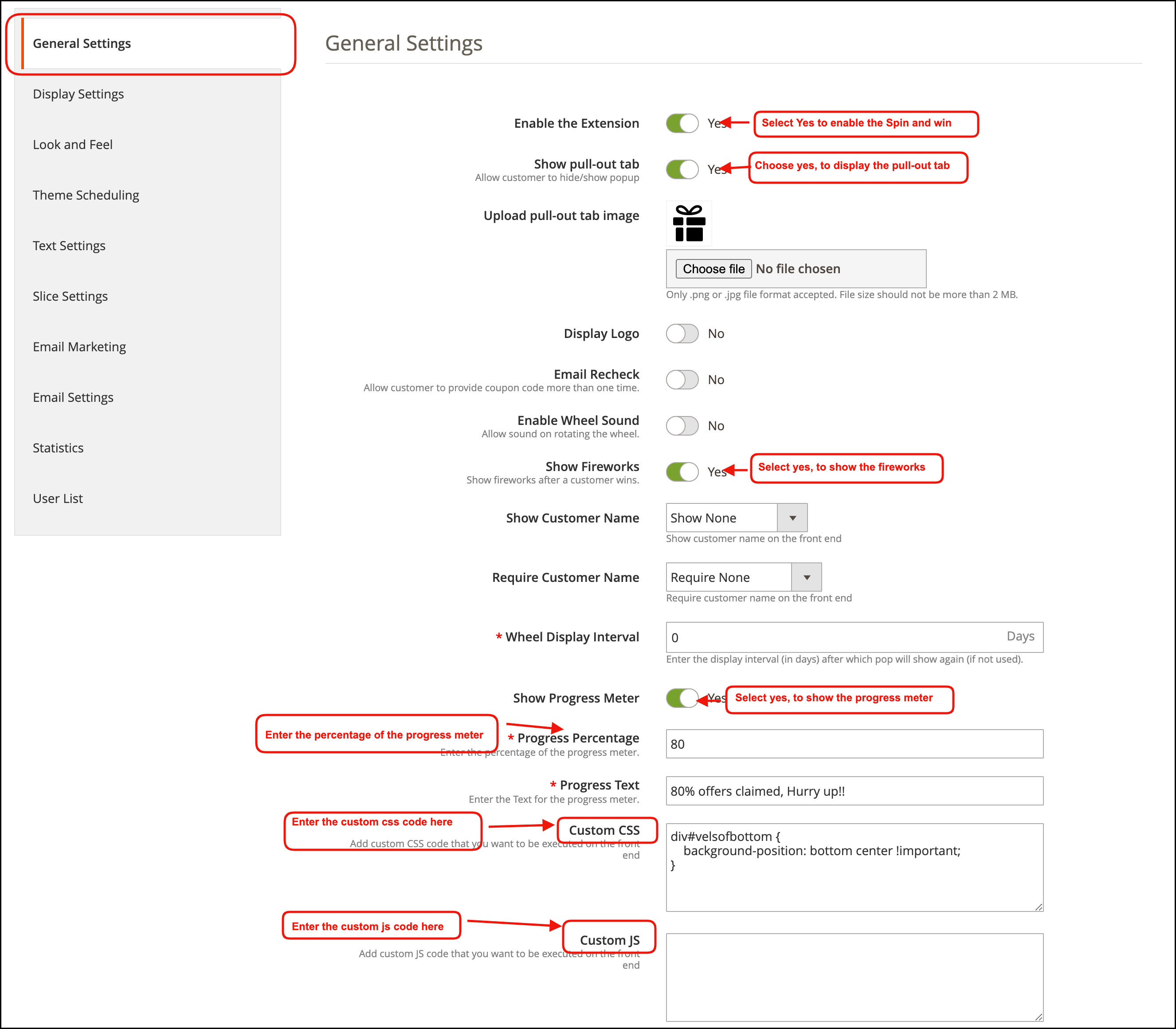
1. Enable the extension
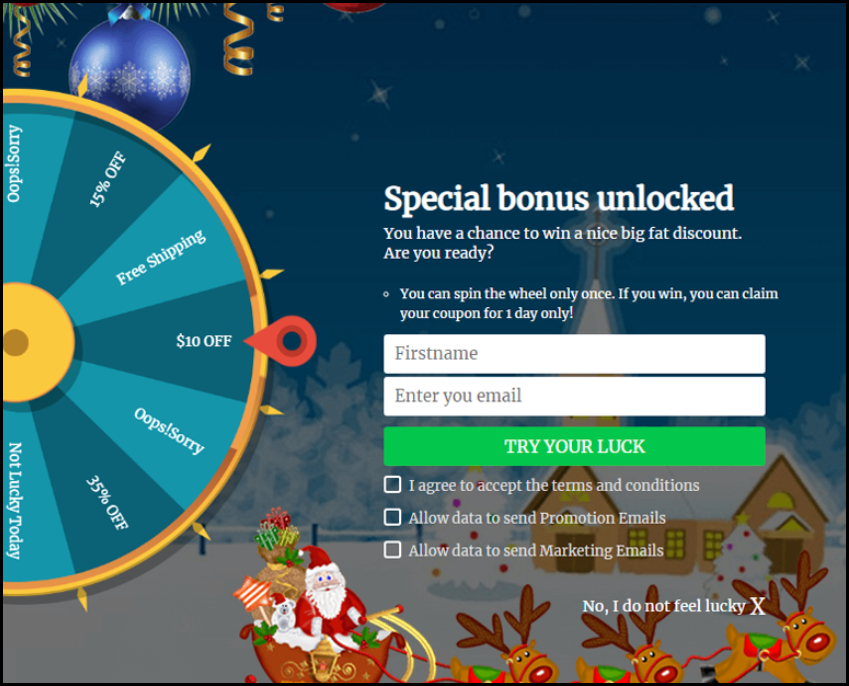
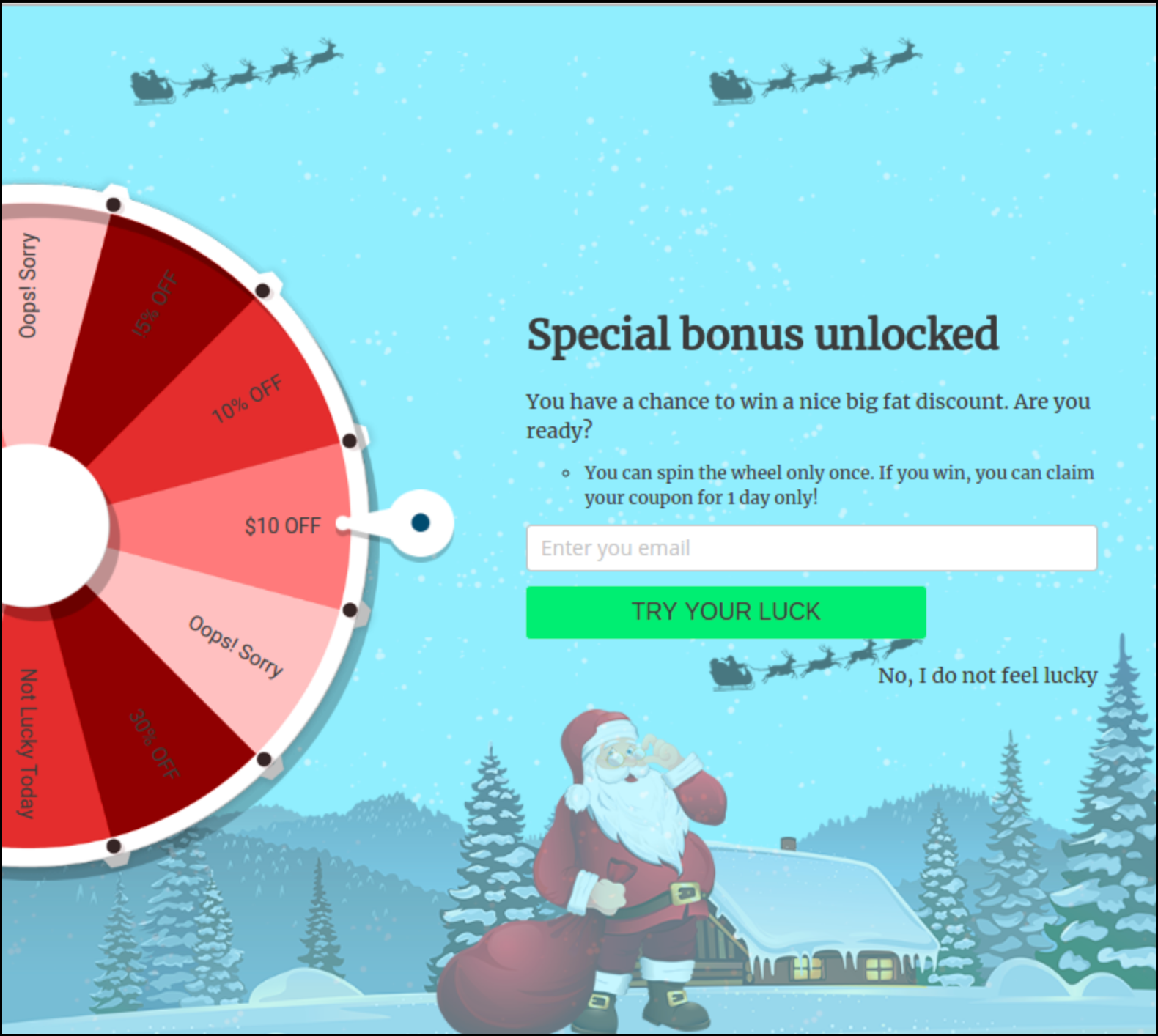
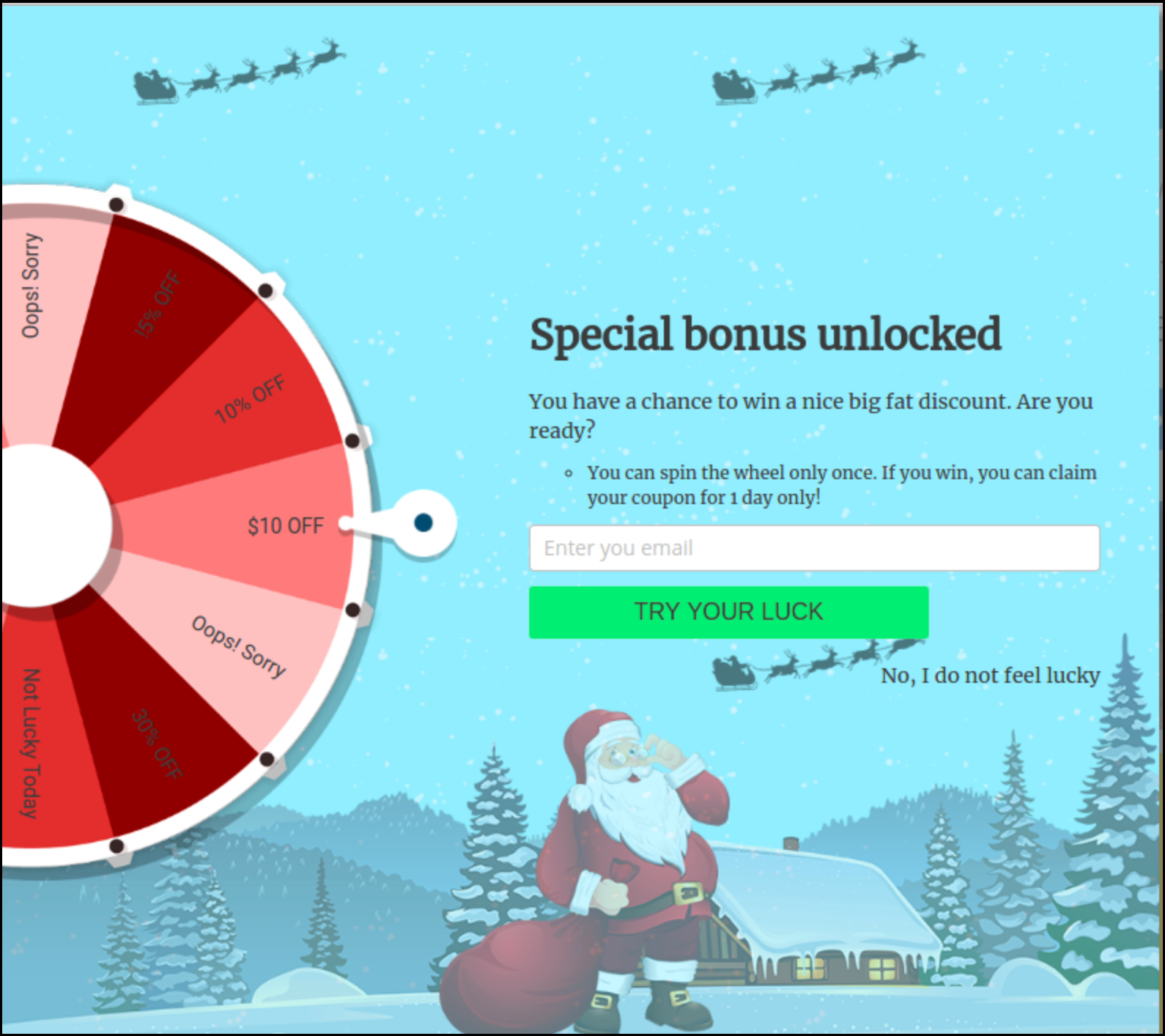
Enable this feature in order to show the wheel in the front-end of the site. If enabled, the spin wheel will be displayed on the website as shown in the image below:
2. Show Pull-out tab
The site visitors can remove the spin wheel from the screen of the website by clicking on the ‘No I do not feel lucky’ button. In order to bring the wheel back to the site, the customers get an option of the pull-out button. This button will be displayed only if this feature is enabled from the back-end of Magento 2 entry/exit popup module. Once this link is clicked, the wheel will display and the pull-out tab can be seen as shown below:
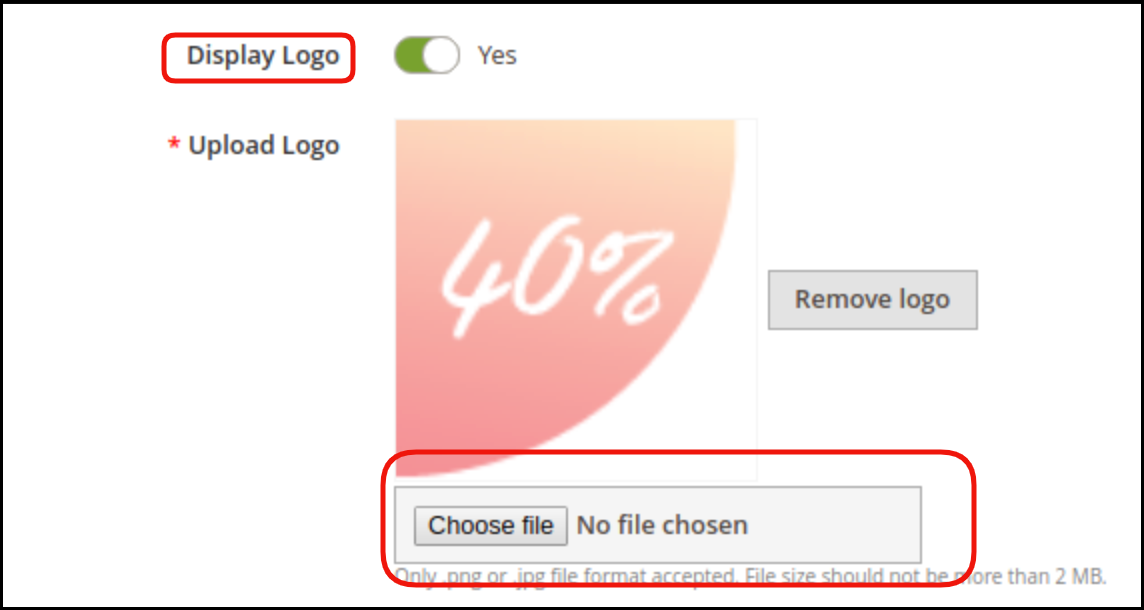
3. Display Logo
Admin can set the logo if he wants to show it on the spin and win popup.
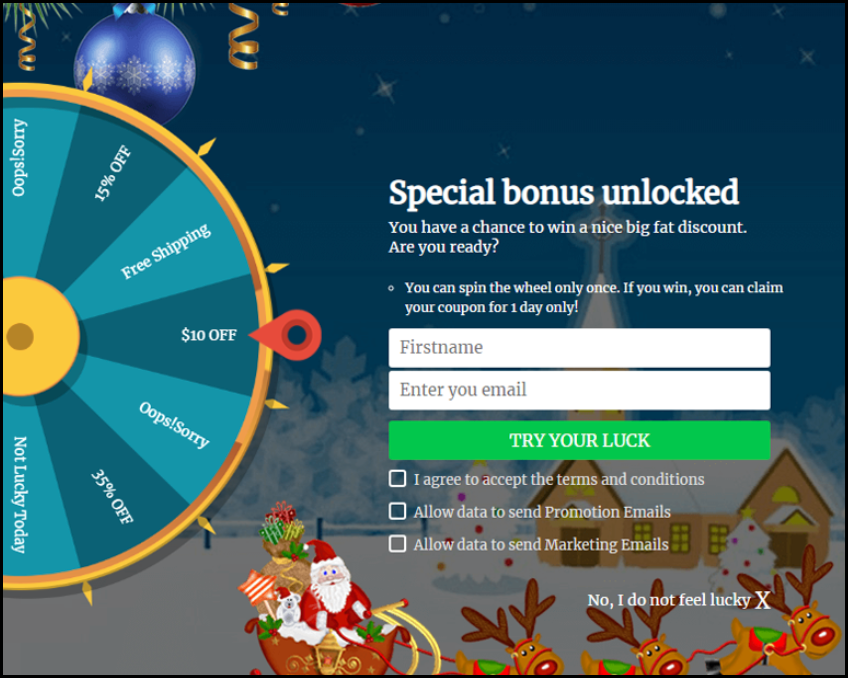
After successful settings, this will be reflected in the website’s front-end interface as shown below:
4. Email Recheck
The store admin can check the duplicity of email IDs entered in the Magento 2 subscription pop-up by enabling this option. If enabled, the customers will not be allowed to rotate the wheel with the same email ID. This makes sure that one email id can avail the offer only once. Thus, Magento 2 email subscription popup makes it easier for the store admin to increase their subscriber base.
5. Enable Wheel Sound
Enable this option if you want a wheel sound on the website front-end.
6. Show Fireworks
You can enable this option for showing fireworks to the users on winning a discount.
7. Show Customer name
Admin can show customers first name, last name, full name on the spin wheel if he wishes to do so. Admin can select none option if he doesn’t want to show the customer’s name.
8. Require Customer name
Admin can show a field in which customers need to enter their name along with the email details.
9. Wheel Display Interval
Fix the number of days after which you want the pop-up to appear on the website. By default, it is set to 0 which means the wheel will be displayed all the time.
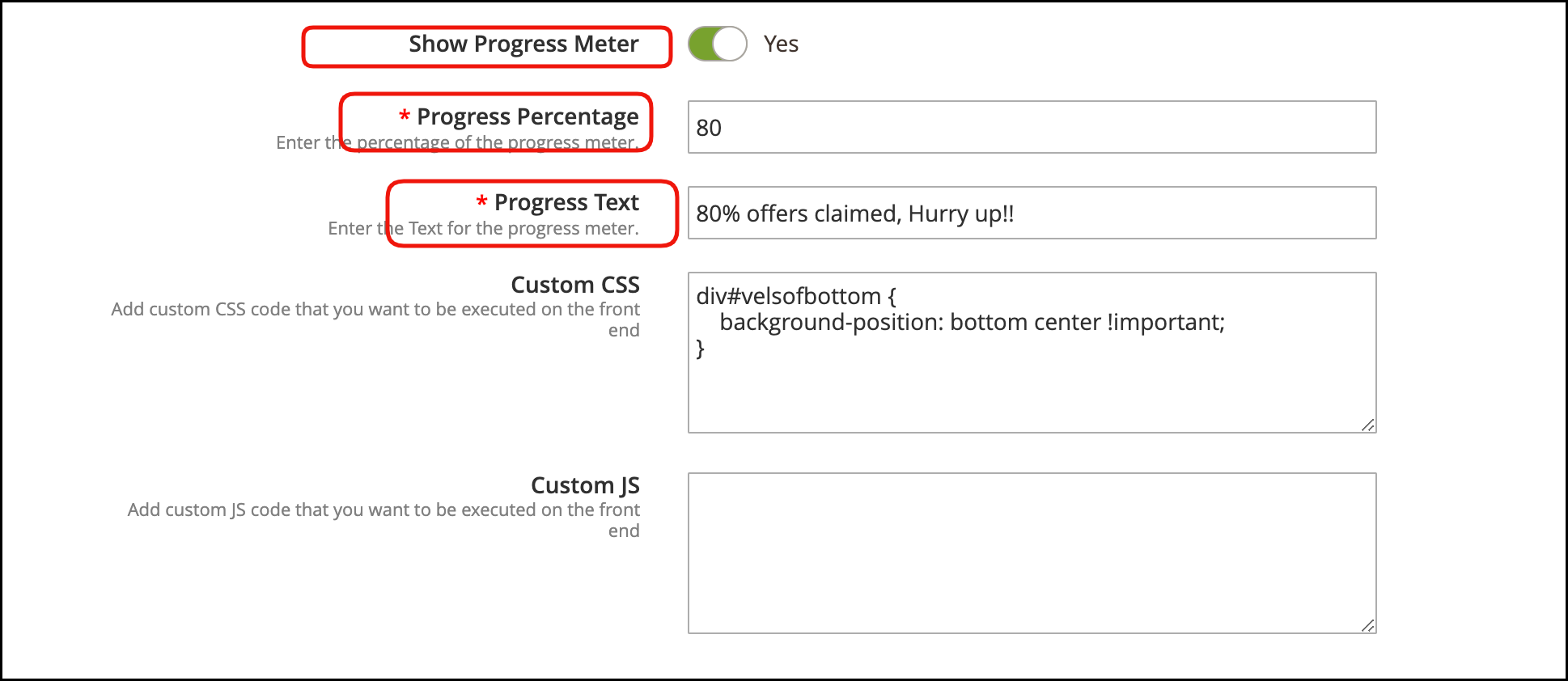
10. Show Progress meter
Admin can also show a progress meter on the spin and win popup. for this, the admin needs to enable the option and set progress percentage along with the progress text.
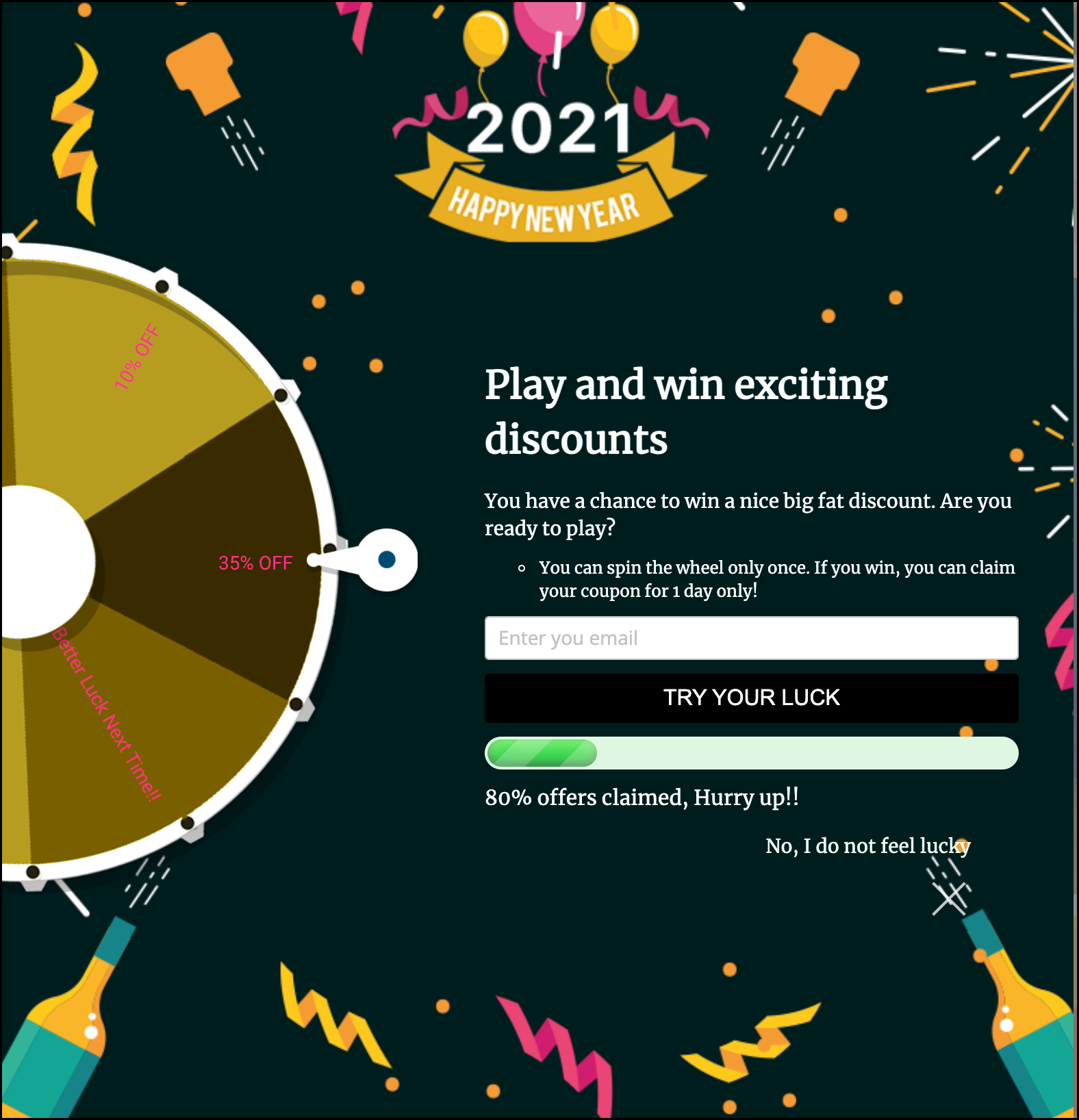
On the spin and win popup, this will look like that:
11.Custom CSS
The admin gets to make changes in the appearance by entering the custom CSS code in this section of the Magento 2 extension.
12.Custom JS
The admin can enter custom JavaScript in this section.
3.2 Display Setting
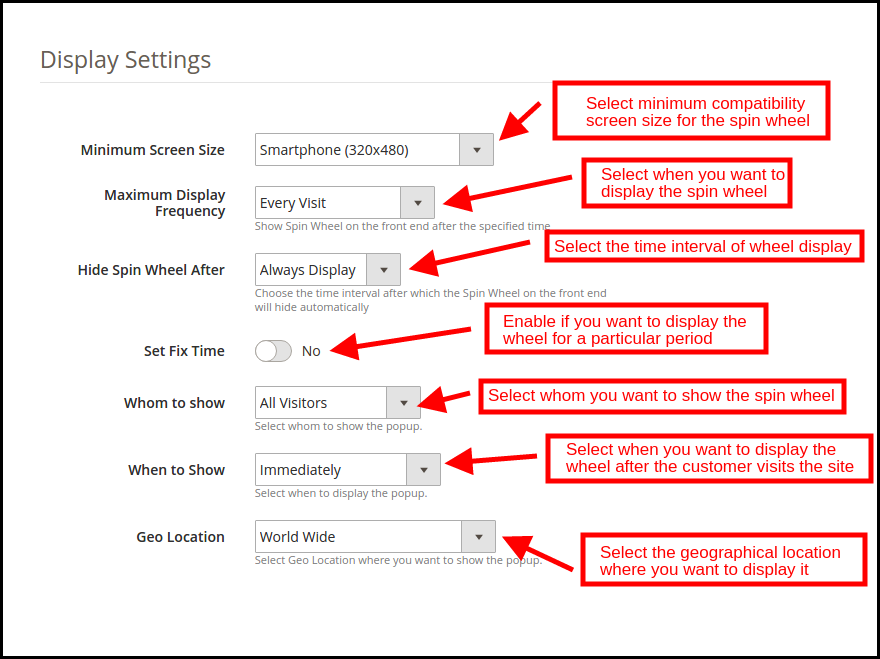
This tab of Magento2 Spin and Win subscription popup allows the admin to manage the appearance of wheelio as per the requirement.
The various customization options are discussed in details below:
1. Minimum Screen Size
Select the minimum standard size of the screen with which the wheel displayed in the front-end will be compatible. The wheel will work seamlessly on all the screen size larger than the selected one.
2. Maximum Display Frequency
Select the frequency of wheel display from the drop-down list.
3. Hide Spin Wheel After
Select when you want to hide the wheel from the drop-down list.
4. Set Time Interval
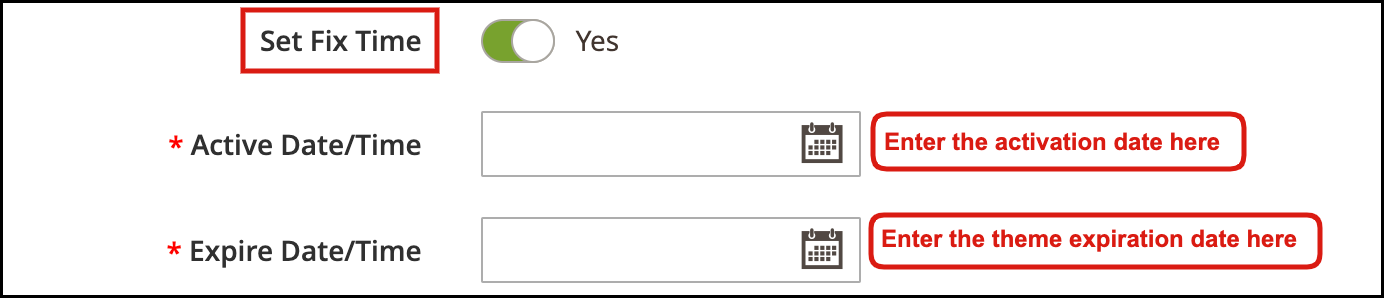
Enable this function if you want to display the spin wheel for a particular time period. Once enabled, the admin will be required to select the start and end time as shown in the image below:
Enter the date in the prescribed format, that is, mm/dd/yy as well as the time in both the sections. The wheel will be displayed only in between the selected duration set.
5. Whom to Show
Choose the visitor type to whom you want to show the spin wheel. You can either select all the visitors, or the new visitors or returning visitors to your site.
6. When to Show
Choose the time which you think is feasible for displaying the wheel by selecting one option from the drop-down list.
7. GEO Location
Select the GEO location where you want to display the Magento 2 interactive subscriber pop-up. Selecting the default option of worldwide will display the Magento 2 Spin and Win Exit Intent extension at every place where the website is being viewed.
3.3 Look and Feel Settings
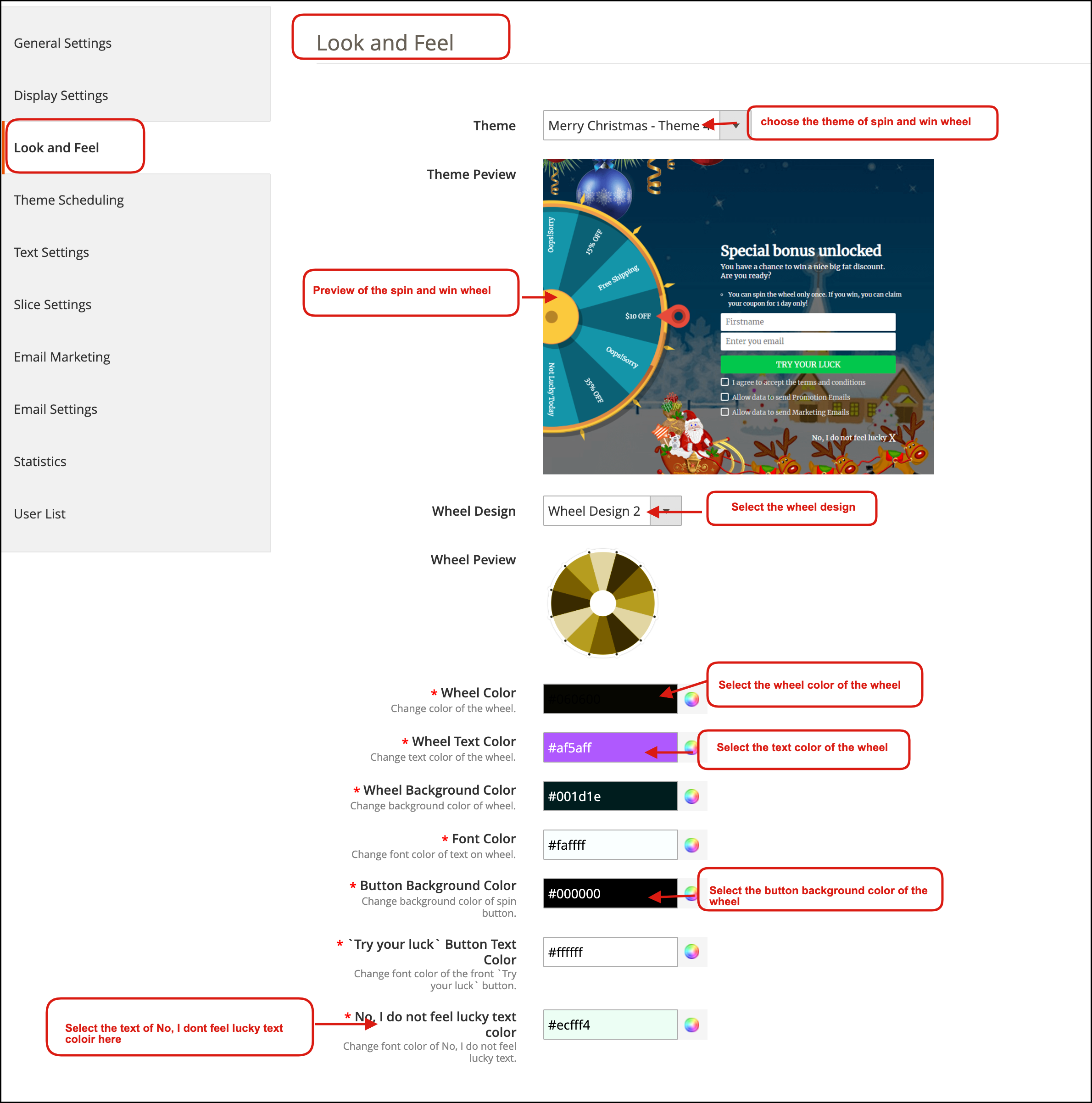
The Magento 2 store admin can change the look and feel or appearance of the spin wheel subscription popup from this tab of Magento 2 spin and win module.
Here are some of the ways in which you can change the look and feel of the Magento 2 spin and win an extension.
1. Theme
The Magento2 spin and win module offer default front-end themes for the store owner to choose from. The admin can select the desired one from the drop-down list. This spin and win module now offer some great and elegant looking site themes for Christmas, Easter, Thanksgiving etc.
2. Theme Preview
Admin can preview the theme from here.
3. Wheel Design
Along with the front-end themes, the Magento2 spin and win plugin offer wheel designs as well. The e-merchants can choose the desired one from the drop-down menu in this section.
4. Wheel Preview
The selected wheel design can be previewed here.
5. Wheel Color
Set the wheel color from here.
6. Wheel Text Color
Select the text color of the wheel.
7. Wheel Background Color
The background color of the wheel can be changed by selected the desired shade from the color chart.
8. Font Color
The color of the texts written on the wheel can be changed from here.
9. Button Background Color
The background color of the buttons on the spin wheel can be changed from here.
10. ‘Try Your Luck’ button text color
Select the button text color for ‘Try Your Luck’ text.
11. ‘No, I do not Feel Lucky’ text color
Change the font color of the button by selecting the shade from here.
3.4 Theme Scheduling
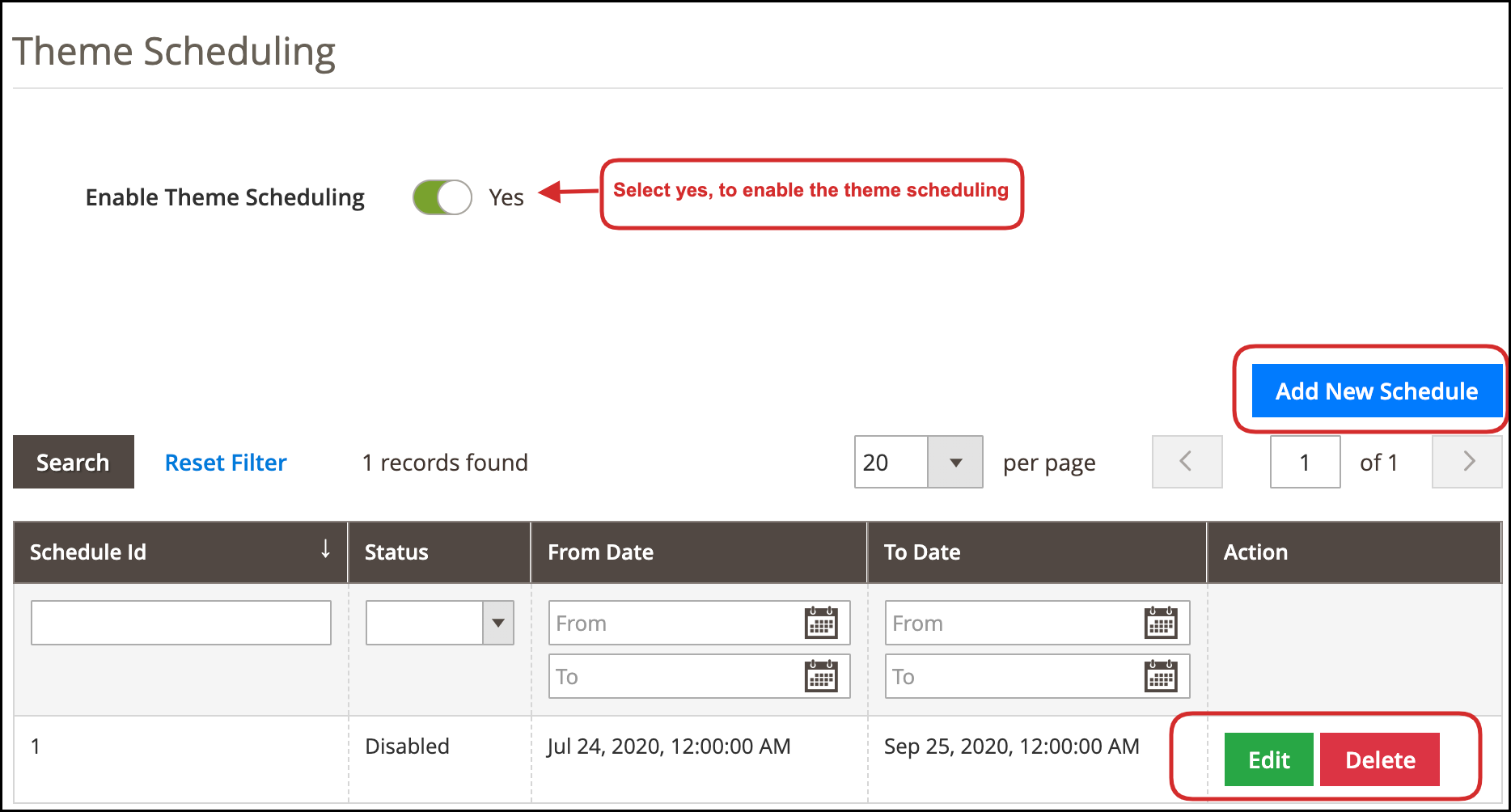
The online store merchant can schedule theme as per the requirements. In the theme scheduling section, there are various customization options as shown below:
Admin can activate or deactivate theme scheduling functionality.
3.4.1 Steps to Add new Schedule
For adding new scheduler, the admin needs to click on Add new Schedule button as shown below:
After clicking on this button, the admin will get several customization options as shown below:
Schedule Status: Admin can enable status from the admin interface of Magento 2 spin and win module.
From date: Enter the date and time from which you want to schedule the theme.
To Date: Enter the date and time till that you want to show this theme.
Theme: Select the theme from the available drop-down. Theme preview option is also available for viewing the theme type.
Wheel Design: Select the wheel design from the available options of Drop-down.
Wheel Color: Select the wheel color from the available color picker tool.
Wheel Text color and Background Color: Select the preferred color from these available color options.
Font Color: Select the font color from the color picker tool.
‘Try Your Luck’ Button text color: Enter the text color for ‘Try Your Luck’ button
No, I do not feel lucky text Color: Set the color for “No, I do not feel lucky” text.
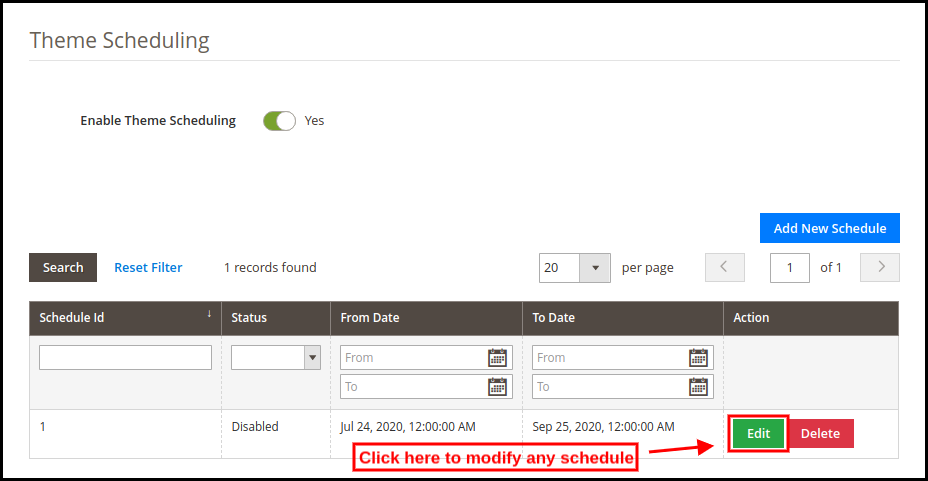
3.4.2 Steps to Update Schedule
Admin just needs to click on the “Edit ” button for editing and schedule from the admin interface as shown below:
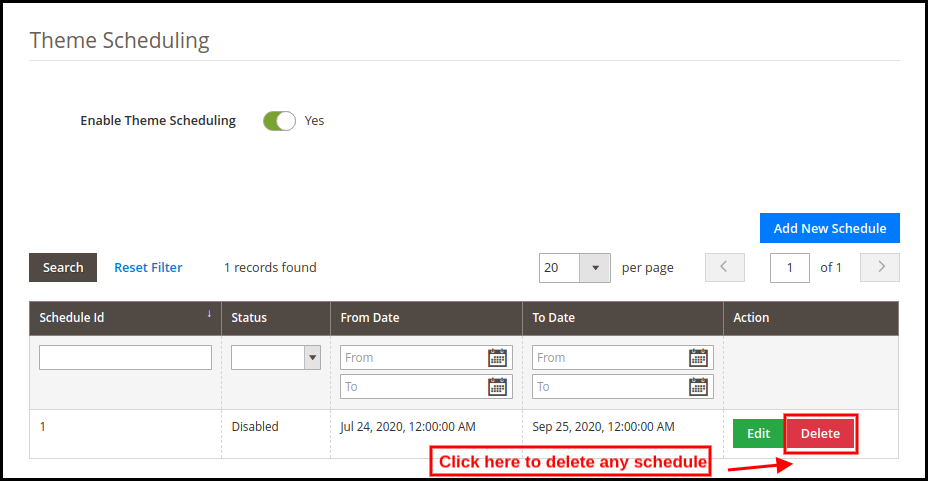
3.4.3 Steps to Delete Schedule
Admin just needs to click on the “delete” button for removing any schedule from the list as shown below:
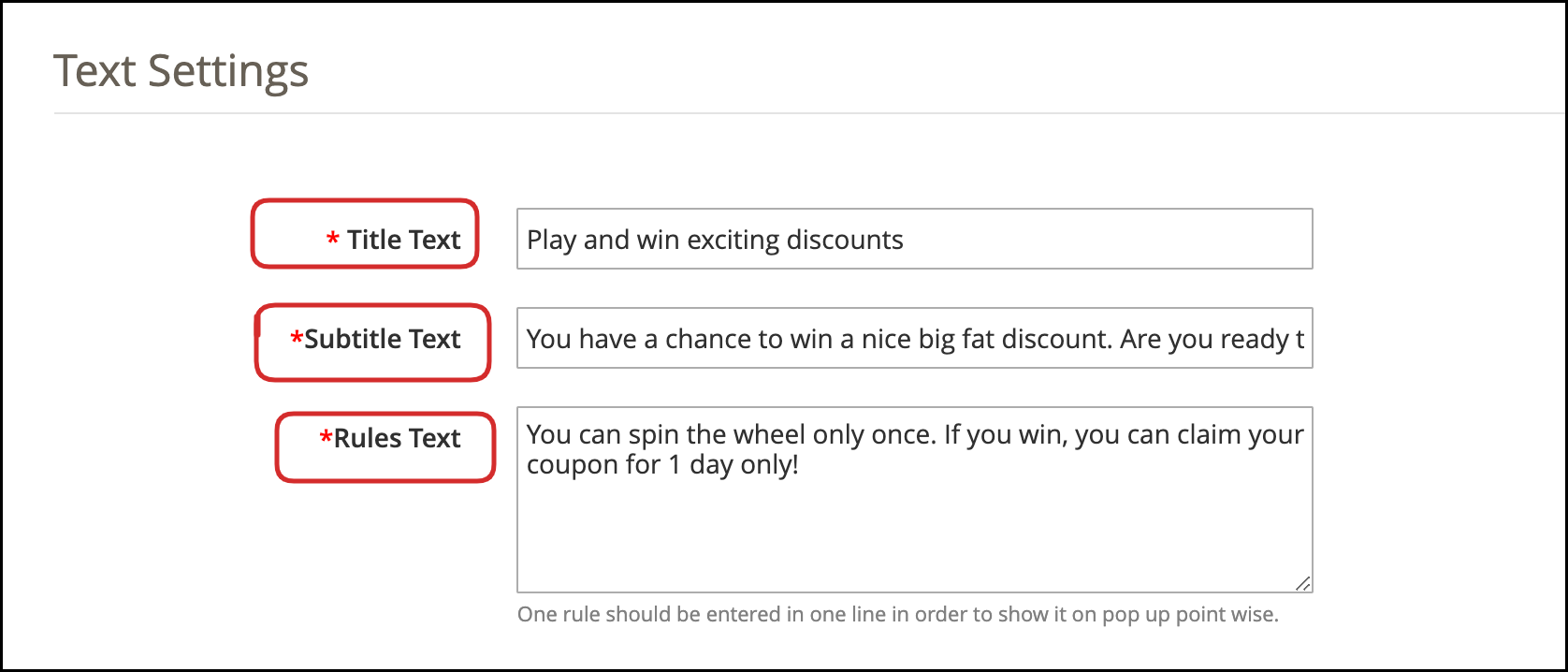
3.5 Text Setting
The text displayed on the wheel background can be changed and saved from this tab of Magento 2 spin and win pop-up module.
The changes made here will be reflected in the front-end as shown below:
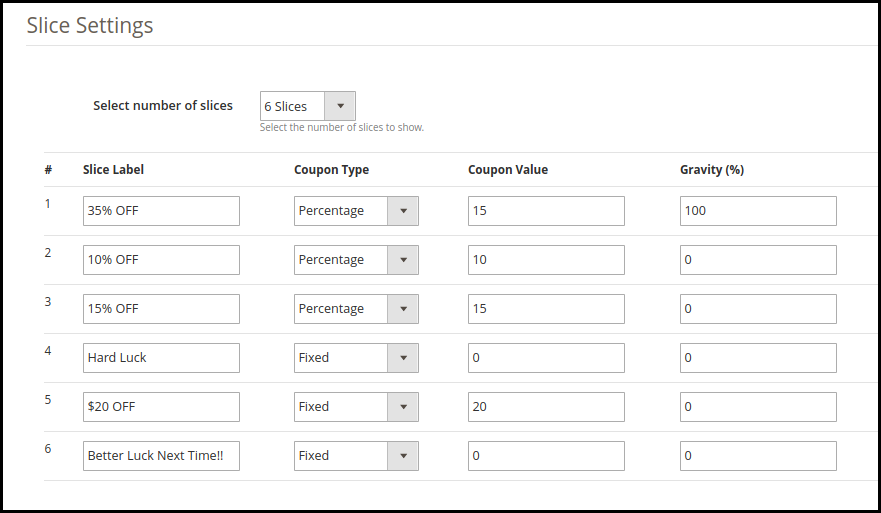
3.6 Slice Settings
The slices of the wheel are where the offers are displayed. The admin can customize all the 12 slices of the wheel.
Select Number of Slices: Admin can select the number of slices that he wants in the wheel. There is an option to choose 6, 8 or 12 slices as per the requirements.
The slice setting tab of Magento 2 spin and win module consists of 4 sections.
Slice Label: Enter the unique name of the slice that will be displayed on the website.
Coupon Type: Select the type of offer you are giving. You can either select a fixed discount or percentage discount type.
Coupon Value: Enter the value of the coupon being offered here.
Gravity: This section specifies the possibility of a particular slice being selected after the spin. Enter the desired value in the Gravity column accordingly. This value cannot be greater than 100 or less than 1. Moreover, the sum of the value of all the 12 slices should not exceed 100.
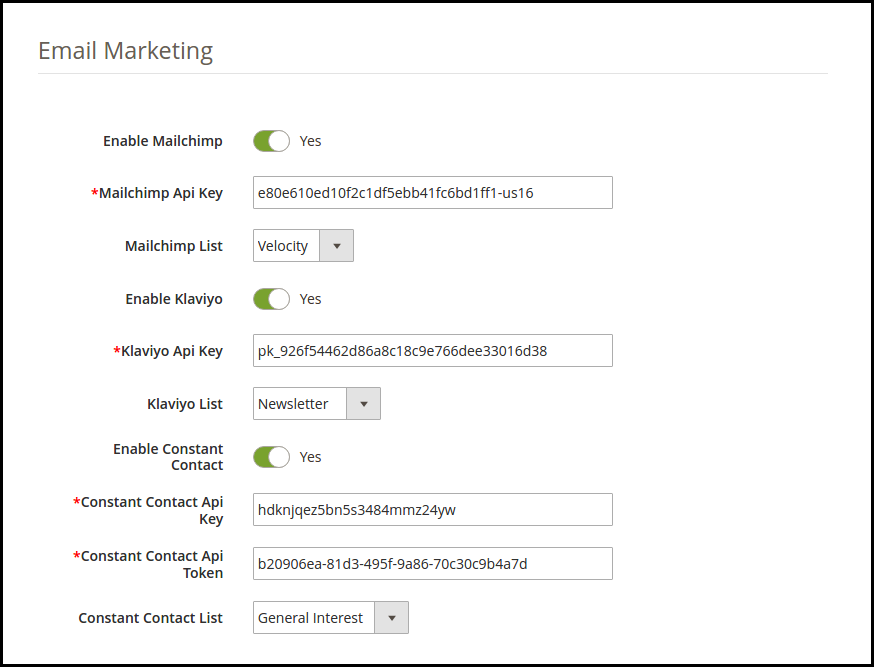
3.7 Email Marketing
The Magento2 email integration extension has an inbuilt email integrator. The email ids of the store visitors captured by the plugin are automatically added to the MailChimp, Constant Contact and Klaviyo accounts of the store owner.
Enable the respective integrator, enter the API Key of your account and select the list of the email ids. The Magento 2 MailChimp Integrator, Magento 2 Klaviyo Integrator and Magento 2 Constant Contact Integrator will sync the email details of the customers in the respective account of the store admin.
3.8 Email Settings
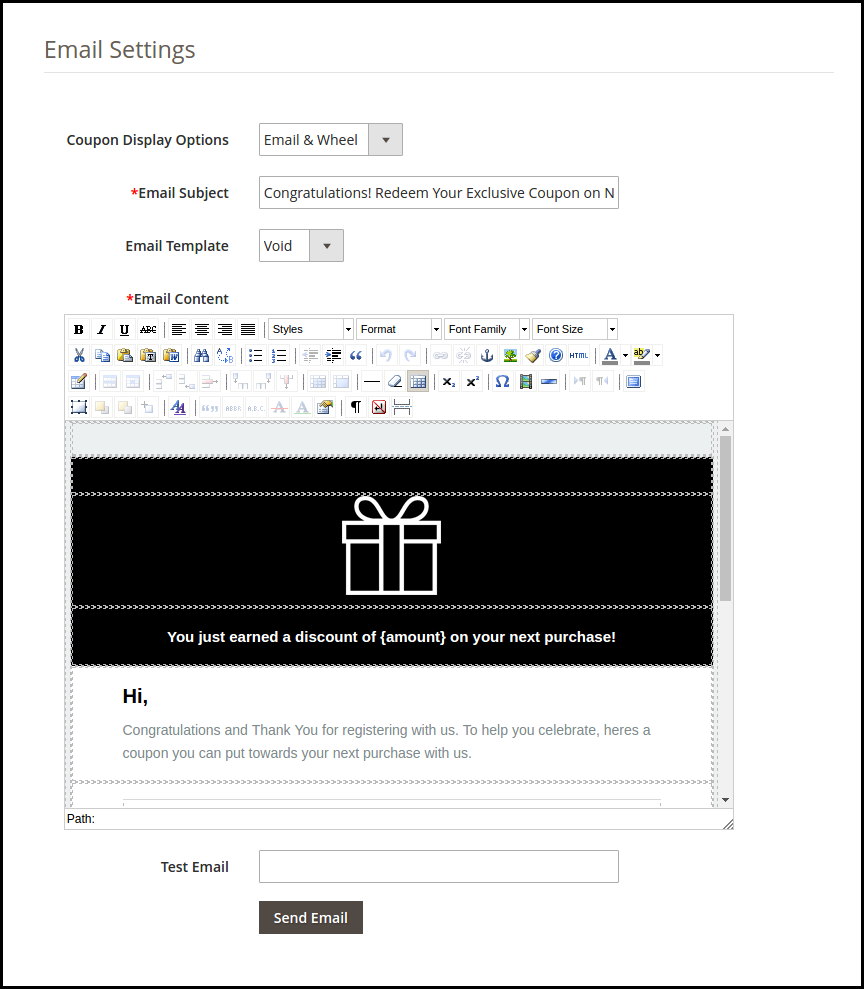
This tab of the Magento 2 Spin and Win extension allows the admin to display the coupons in three ways. The coupon can either be displayed only on the wheel or can be sent to the customer’s email or can be shown in the email as well as the wheel. The admin can select an option from the drop-down list of Coupon Display Options.
Magento 2 Spin and Win plugin offer a number of default Email Templates. The admin can select the desired theme and can also customize the email content.
3.9 Statistics
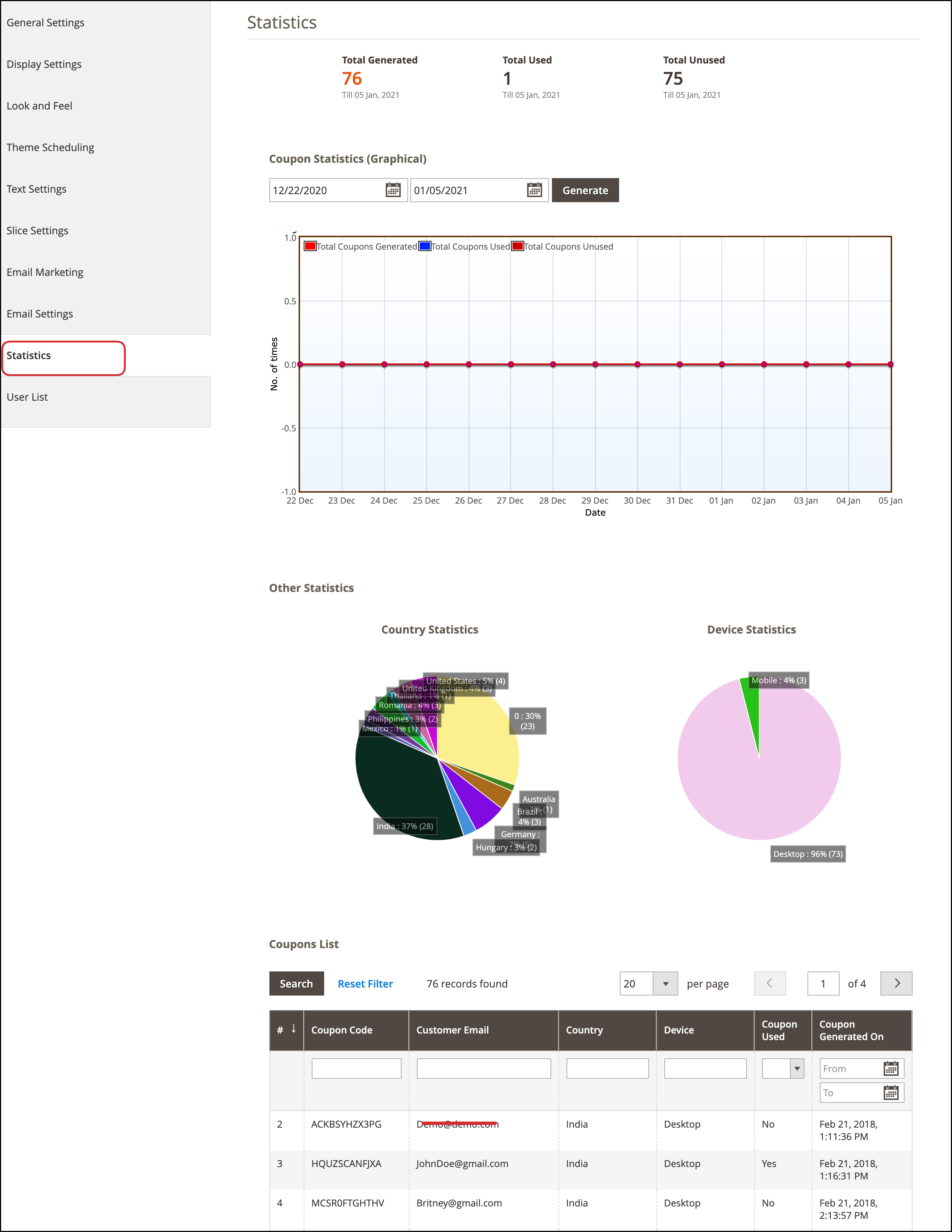
The Magento 2 Spin and Win module offer the statistical report of the number of coupons that are generated along with the number of coupons that were used and the ones that were left unused. The store admin can view the country-wise stats, Devices, and coupon code generated and coupon status from the statistics report.
The same report is generated in tabular as well as in the graphical format. The report can be filtered by selecting the dates.
3.10 User List
The online store merchant can view the list of the customers who participated in the spin and win the game. Admin can also export the details. The customer list can be exported as a CSV file.
4.0 Store Front-end
Once the Magento 2 Spin and Win extension is enabled and all the configuration options are fixed, the responsive pop-up will be displayed in the front end of the Magento 2 eCommerce store.
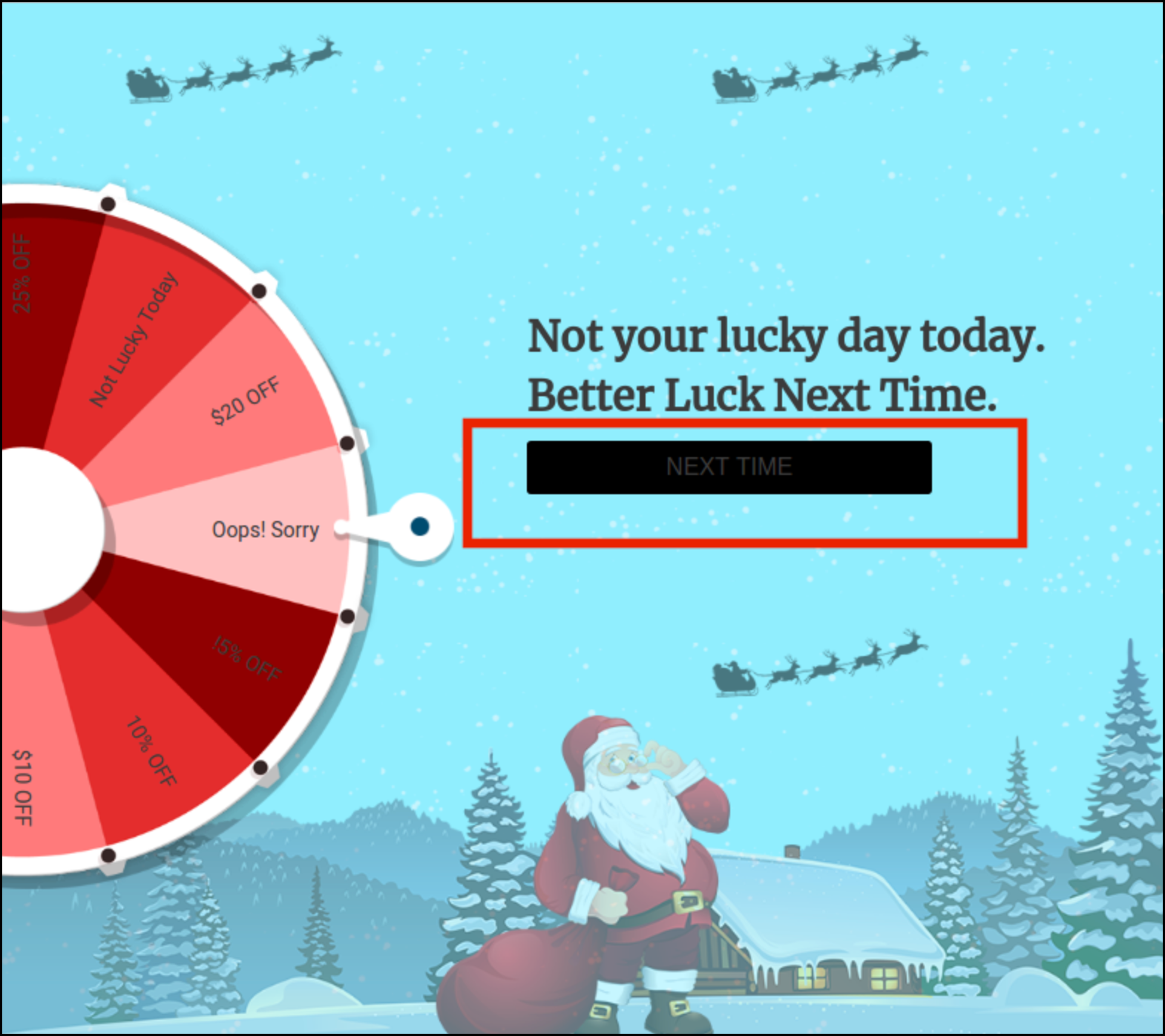
The store visitors can spin the wheel by entering their email ids. In case, the customer wins nothing, the ‘Next time’ button will be flashed as shown below:
Once the customer wins a discount, the coupon will be generated. This coupon can be used to get the offered discount on the checkout page.
Disclaimer: In case the “Spin and Win” wheel popup does not display at the front, kindly clear the cache or delete the cookies. Sometimes cookies prevent the popup from displaying at front.
Prestashop Additional Order Forms/Field Manager by Knowband enables the Prestashop store admin to add extra custom fields to order or the checkout page of the website. The store admin can add unlimited fields on the checkout page. This way the Prestashop Additional order custom field manager addon allows the merchants to take as much information of the customers as they want to.
The Prestashop Custom Order Field Manager supports Text, Select, Radio, Checkbox, Text Area and File Date fields. Prestashop Additional Order Forms/Field Manager is an easy way for the merchants to get all the required data about the customer just when they are about to checkout from the website.
Here are some of the benefits offered by the Prestashop custom field on the checkout page of the Prestashop module:
The Prestashop admin can add an unlimited number of custom fields on the checkout page.
With the help of the Prestashop Additional Order Forms Manager by Knowband allows the customer to make the custom modifications without making any code changes.
The Prestashop Additional Order Field Manager allows the Prestashop admin to create different field types on the order page.
The admin can add an unlimited number of options for radio buttons, checkboxes and select lists at a few button clicks.
Prestashop Extra Field on the checkout addon offers easy customization options and allows the admin to optimize the customer experience.
Customer Benefits
The admin can gather extra information about the customers which can help them serve the customers better with this Prestashop addon.
The customers can offer additional information to the store admin with the help of the Prestashop Additional Order Field Manager module.
1.1. Project Objectives
Prestashop extra field on checkout page module allows the Prestashop store owner to include the additional fields on the checkout page. The project objectives are:
To create new custom fields on the checkout page of the website and to edit the existing ones.
To create the sections on the checkout page.
The way to include the validation in the various fields.
2.0 Installation
In order to install the Prestashop extra fields on checkout page addon follow the below mentioned steps.
Purchase the Prestashop Additional Order Forms/Field Manager addon from the Knowbbelow-mentionedll be provided with the following files:
Zipped file
User Manual
Unzip the zipped file. It would contain a number of files and folders.
Copy all the files and folders from the unzipped folder and paste them into your store “Modules” directory on the path – Root Directory/modules/.
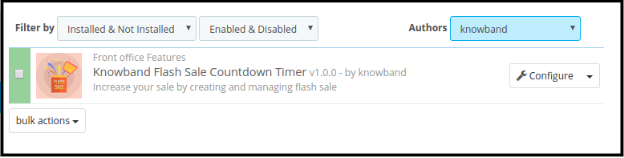
Now, The Prestashop Additional Order Information addon is ready to be installed on your store and you can find that in Store Admin -> Modules and Services. It would be shown as below:
In case, you are not able to find this custom field addon in the admin modules list, please try searching module with following details –
Keyword – Additional Order Forms/Fields Manager Author – Knowband Category – Front office Filter By – Installed & Not Installed/Enabled & Disabled
Click on “Install” button to install the module. It would, then, ask for your confirmation. Click on “Proceed with the installation” option.
This step will install the Prestashop Additional Order Field Manager module and show notification – “Module(s) installed successfully”.
3.0 Admin Interface
The Prestashop additional order custom field manager module is easy to understand and use. The various configuration settings offered in the admin interface are discussed below.
3.1 How can the module be configured?
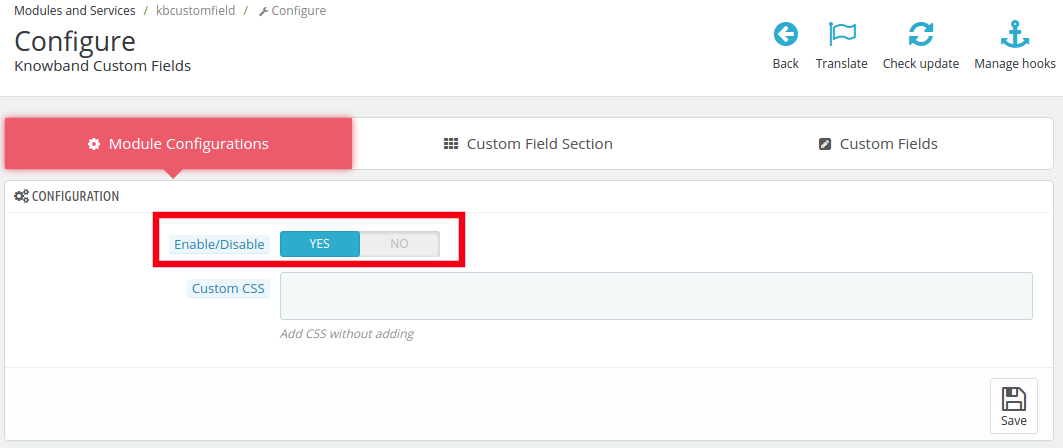
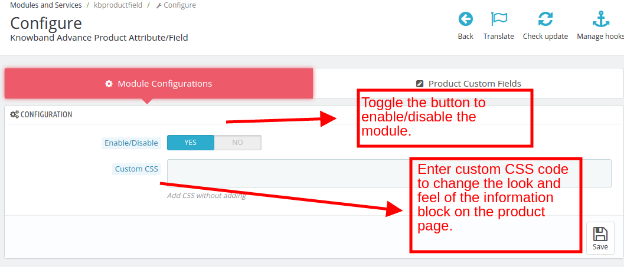
The Prestashop store admin can enable/disable the Prestashop Additional Order Forms/Field Manager extension after installation. This can be done from the Module Configuration Tab.
Enable/Disable: Toggle the button as shown in the image for enabling/disabling the Prestashop addon.
Custom CSS: The admin can customize the look and feel of the same by entering custom CSS code here.
3.2 Order field section
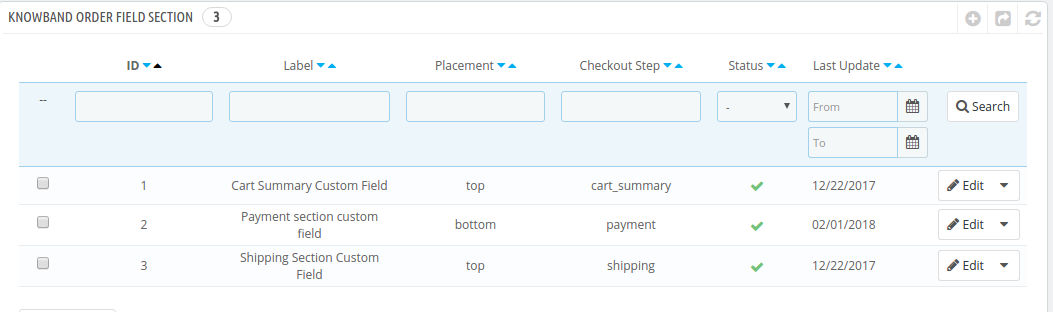
The store admin can create ‘N’ number of order field sections in the order page of the Prestashop custom order field manager. The additional information fields can then be placed in the desired sections in the checkout page.
The created custom fields can be viewed in this tab of the Prestashop additional information field addon as shown in the image below:
3.2.1 How to create the Order field section?
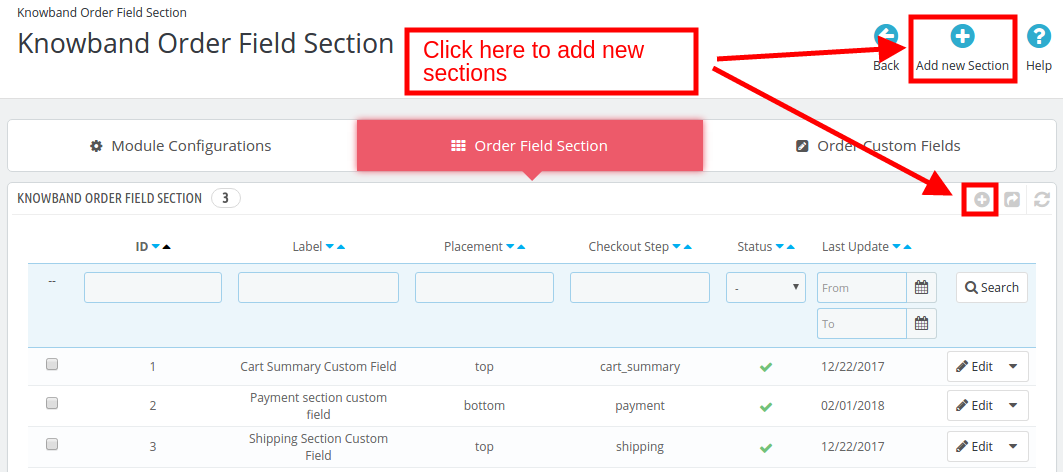
In order to create a new order field section, go to the Order Field Section tab of Prestashop Additional Order Field Manager. Click on the ‘Add New Section’ as shown below:
You will be redirected to the section creation page.
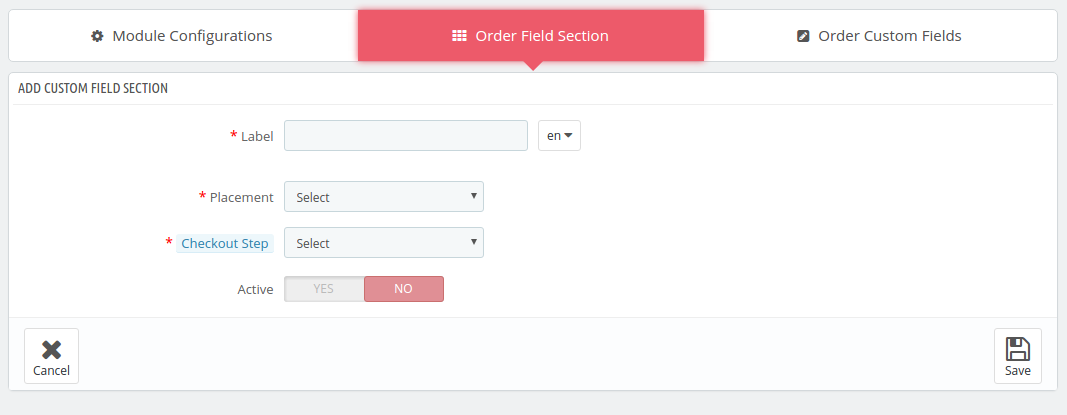
The Prestashop store admin is required to fill the information and in order to create the field section.
Label: Enter the name of the section. The label can be entered in multiple languages. Select the language from the drop-down list.
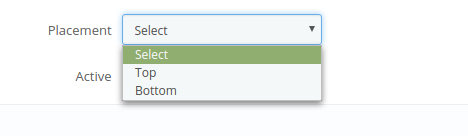
Placement: Select the position where you want to place that particular order field section.
Checkout Step: Select the checkout step you want to place the field section from the drop-down list.
Active: The created section can be activated/deactivated by just toggling the buttons.
3.2.2 How to Edit/Delete the Order field section?
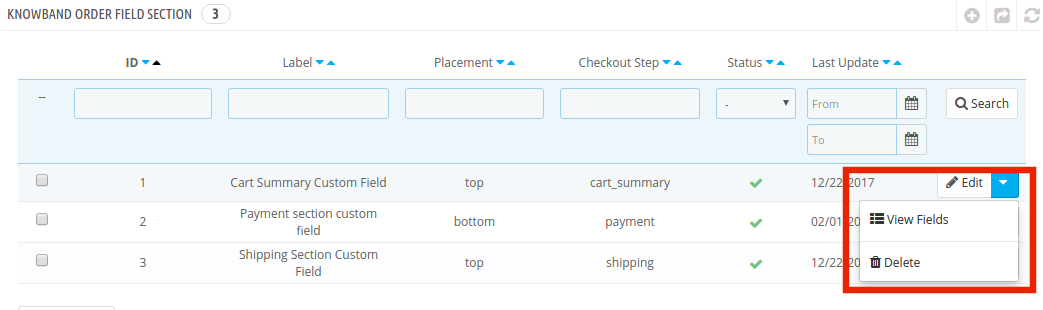
The admin can Edit/Delete the field sections by clicking on Edit or Delete button as shown below.
This section will be displayed on the front end of the website.
The View Fields link will show you the fields that have already been created in this section. The position of these fields can be changed by dragging or dropping.
3.3 How to create the Order Custom field?
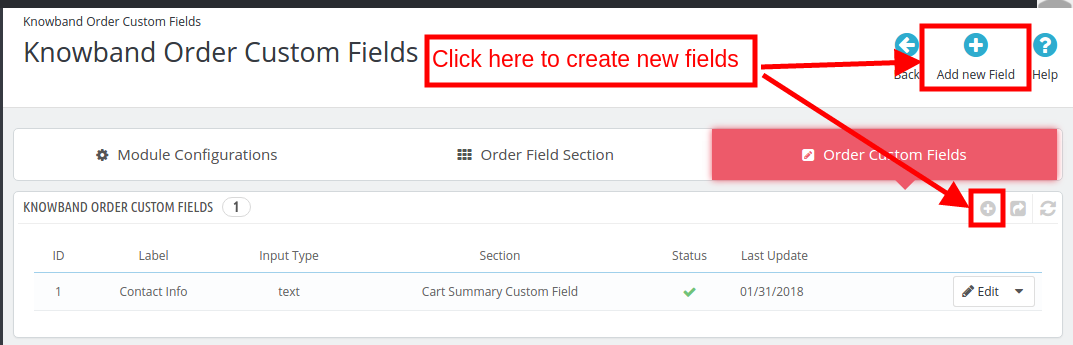
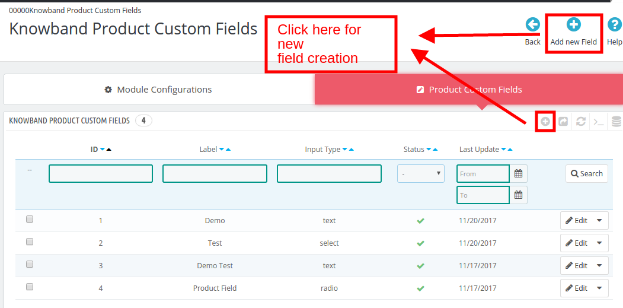
In order to create the order custom fields, go to Order Custom Field tab. Click on ‘Add New Field Button’ or the ‘+’ sign on the right side of the admin panel as shown in the image below.
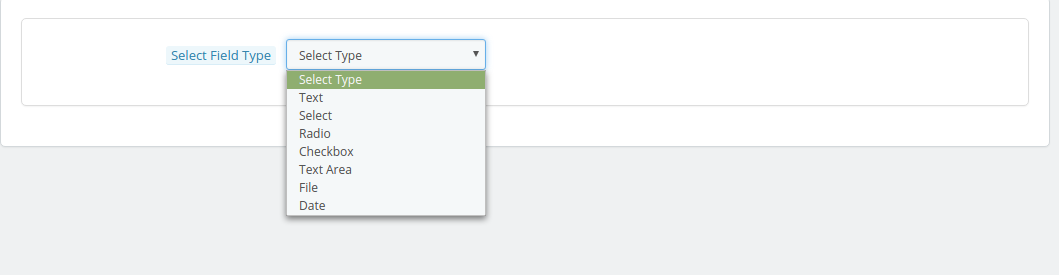
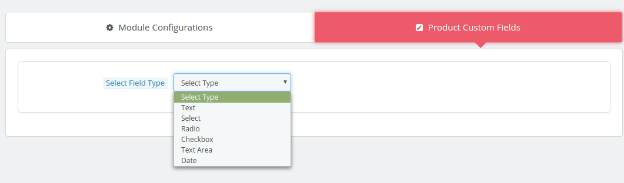
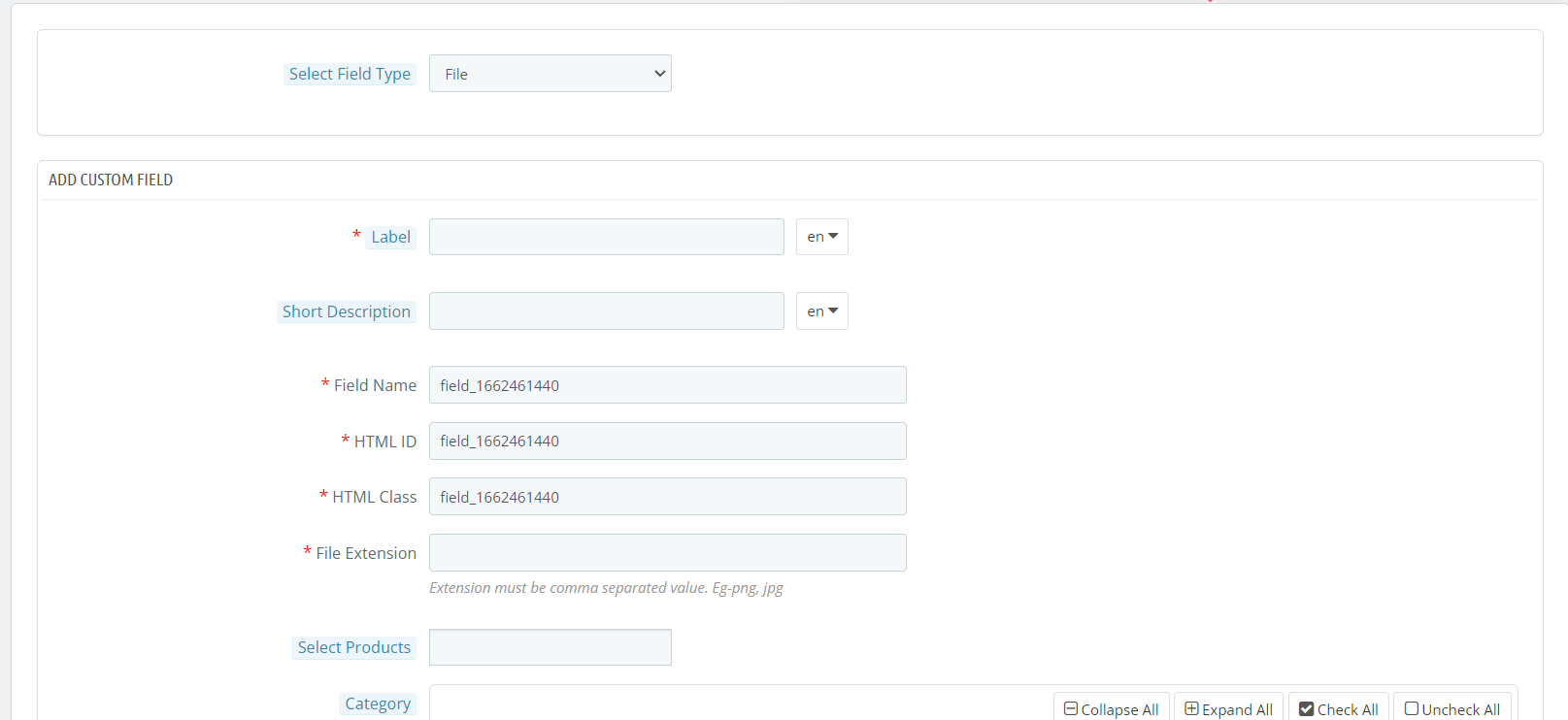
This will redirect the Prestashop admin to the field creation page. Select the Type of the Field from the dropdown list.
The various options offered in this section of the Prestashop Additional Order Forms Manager are mentioned below.
Text
Select
Radio
Checkbox
Text Area
File Date
The different field types require different information. Let us discuss them one by one.
3.3.1 Text Field
The text field enables the user to input text information in the textbox.
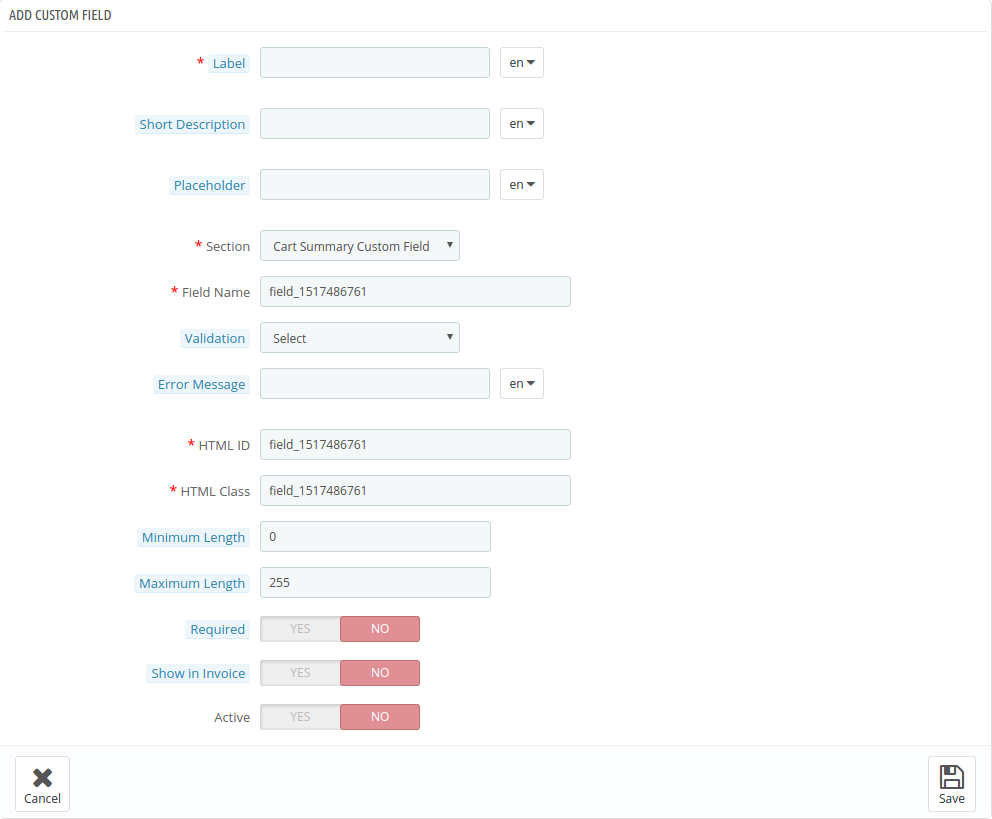
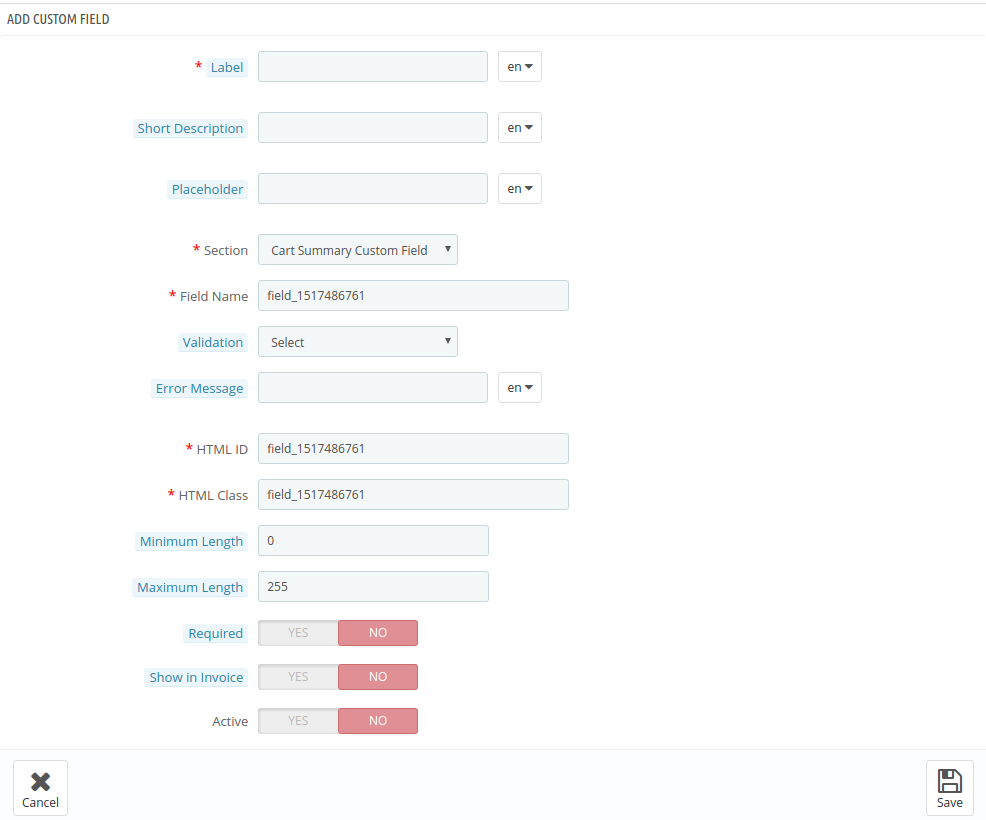
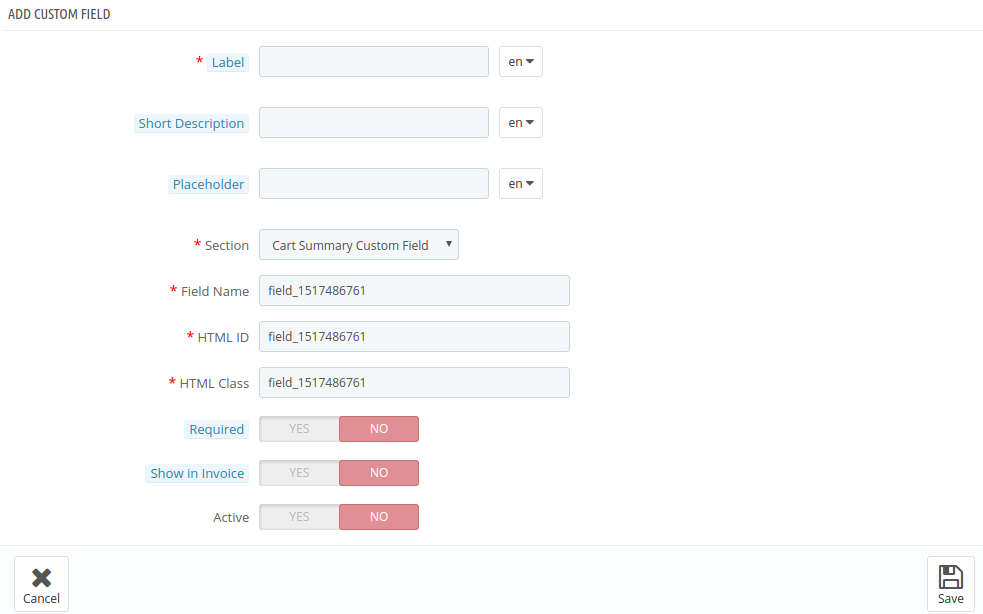
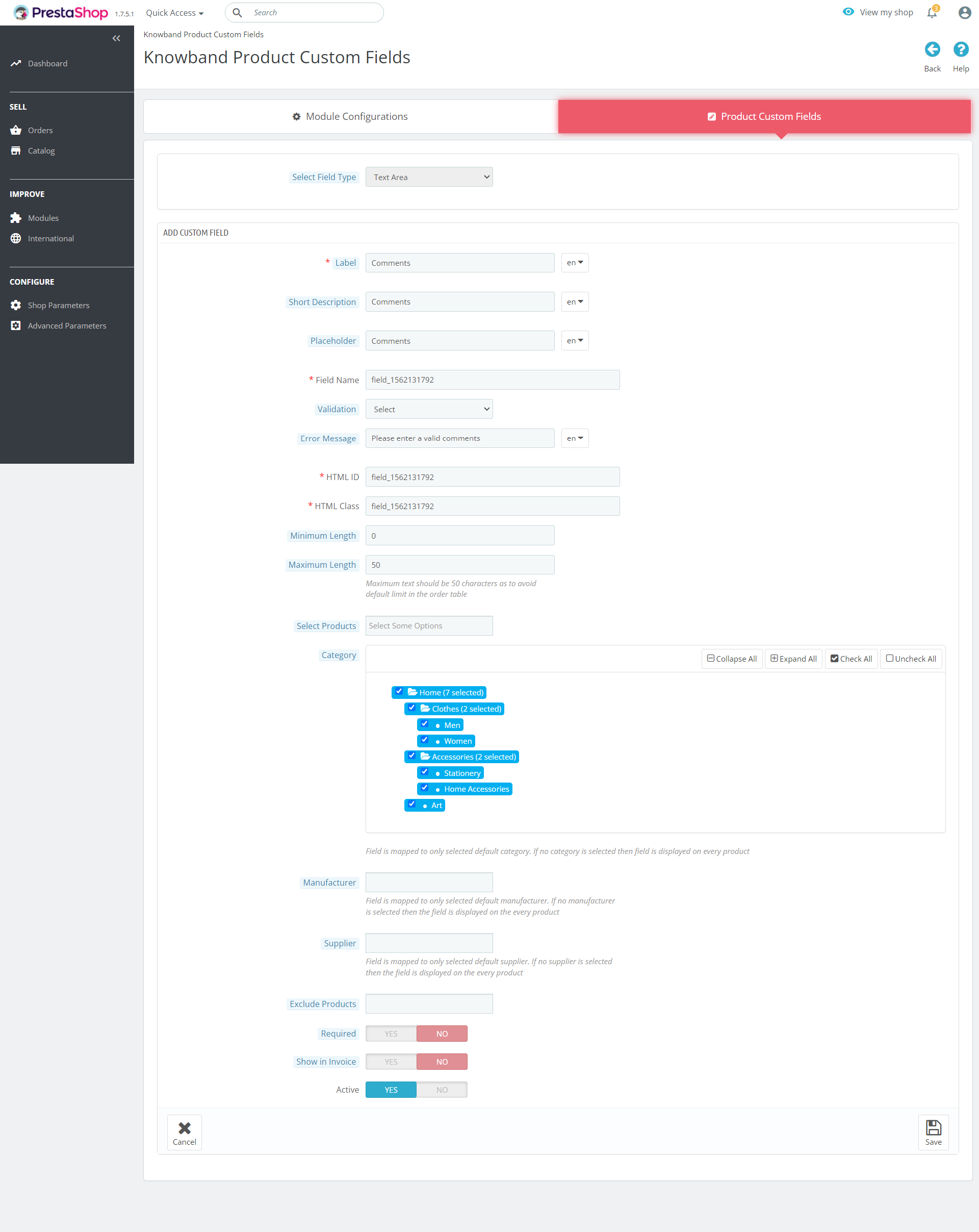
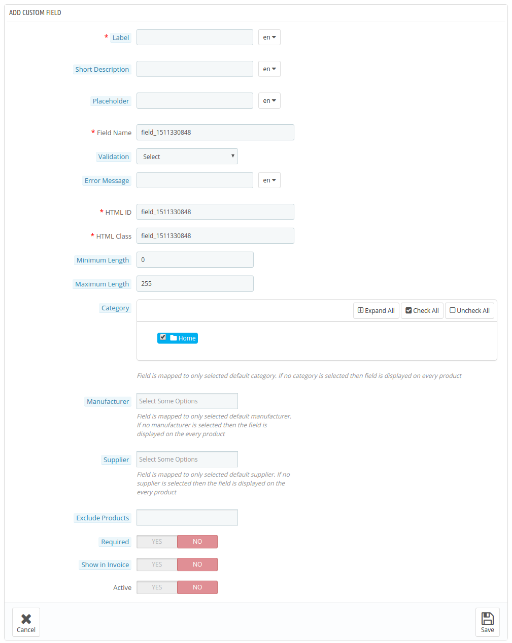
The admin is asked to fill up the form as shown in the image below.
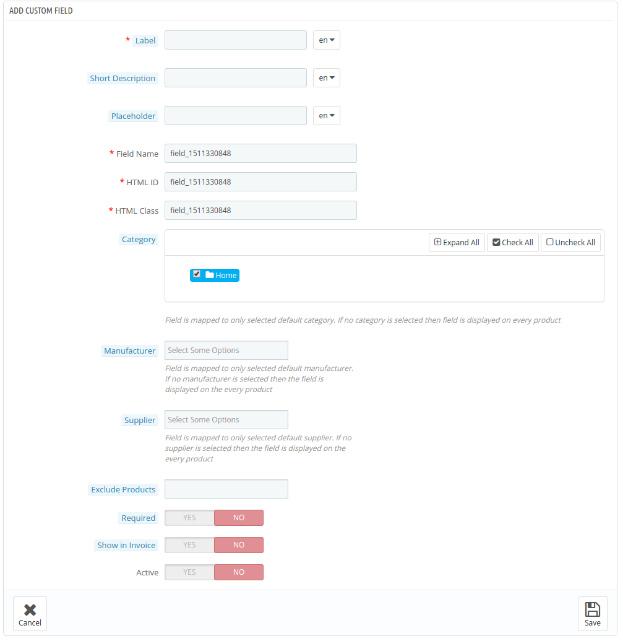
Label: It specifies the name of the field that will be displayed on the front-end of the website.
Short Description: Enter the short description to specify exactly what the customers are supposed to mention in that field.
Placeholder: This attribute specifies a short hint that describes the expected value of a text area. All these inputs can be entered in multiple languages.
Section: Section allows you to select the block where you want to place that particular field.
Field Name, HTML ID, HTML Class: This section will provide a unique identity to the fields. It will be same for all the three sections.
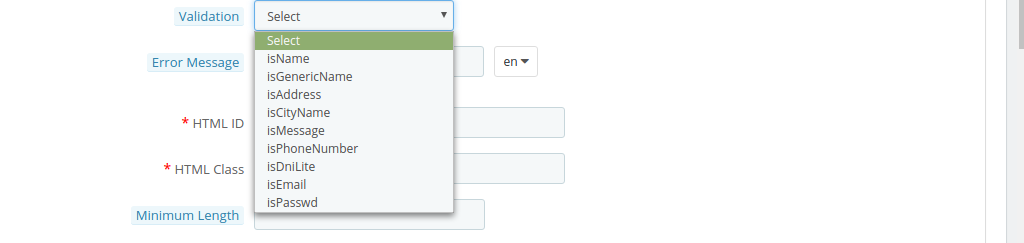
Validation: Select the validation type for the various fields. The various validation options offered are mentioned below:
isName
isGenericName
isAddress
isCityName
isMessage
isPhoneNumber
isDniLite
isEmail
isPassword
Error Message: In case the validation rules are not followed while entering the information, an error message will be displayed. The error message can be customized as well from this section. This can be done in multiple languages.
Maximum and Minimum Length: The word limit for the fields can be fixed by entering the maximum and minimum length. By default, the text box will be able to take unlimited characters and words.
Required Field Validator: This enables to make it a mandatory field. In case the visitors leave it empty, the Prestashop Additional Order Field Manager extension will show an error message.
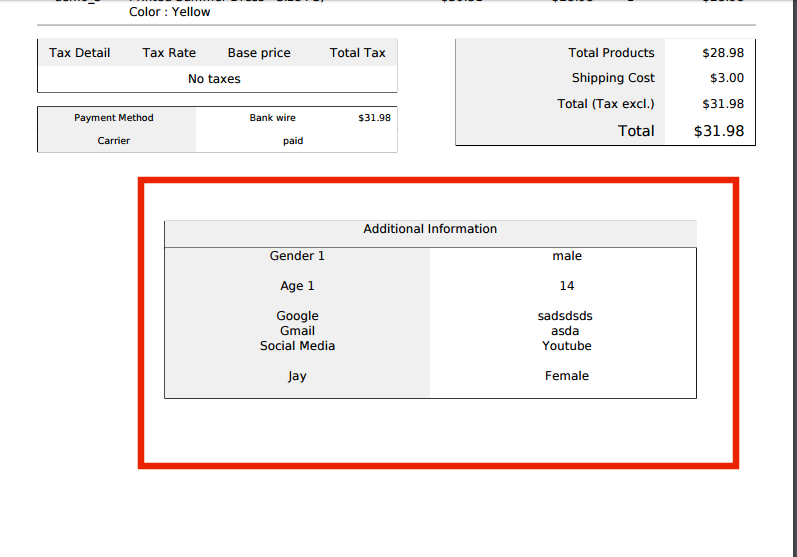
Show in Invoice: The information entered by the customers will be shown on the invoice if this field is enabled using custom field addon.
Active: Toggle to activate the field.
Note: The Label Name, Short Description, Section selection, Field Name, HTML ID, HTML Class remains the same in every field type.
3.3.2 Select Field
This field allows the customers to choose an option from the multiple choices available. For instance, the ‘Gender’ field offers the option of ‘Male’ and ‘Female’.
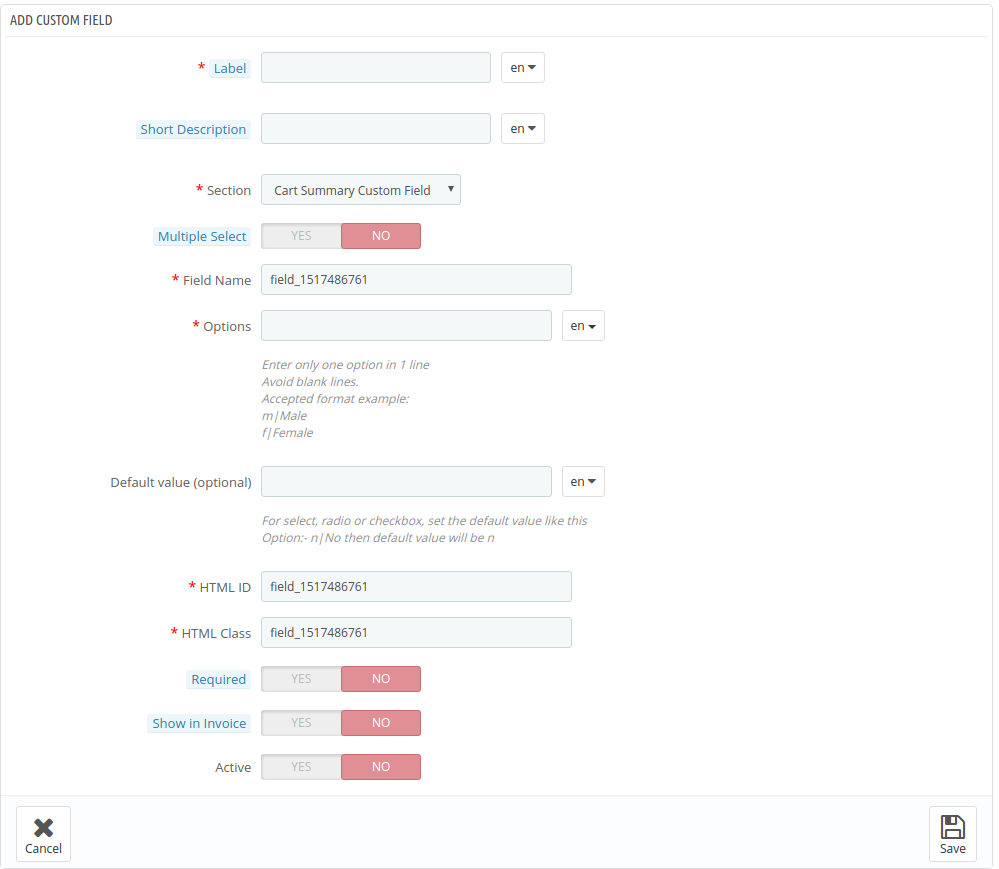
Multiple Select: If enabled, the visitors can select more than one choices.
Options: The varied options in the select field is entered here.
Default Value: This is an optional field. The store admin can set the default value for the Radio, Select or Checkbox options.
3.3.3 Radio Field
The Select field allows the customers to even choose more than one option, but the radio buttons allow the visitors to choose only one option at a time in the Prestashop Additional Order Information addon.
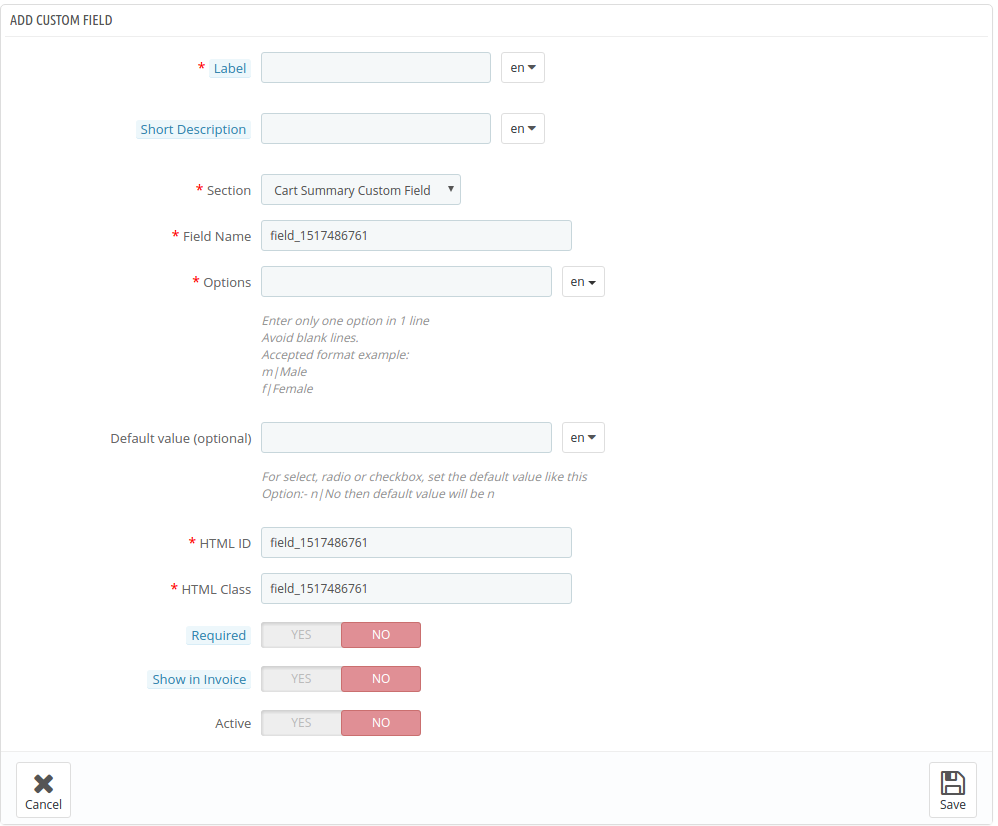
The information to be filled in this field is same as the ‘Select’ field only the ‘Multiple Select’ option is missing here.
3.3.4 Check Box Field
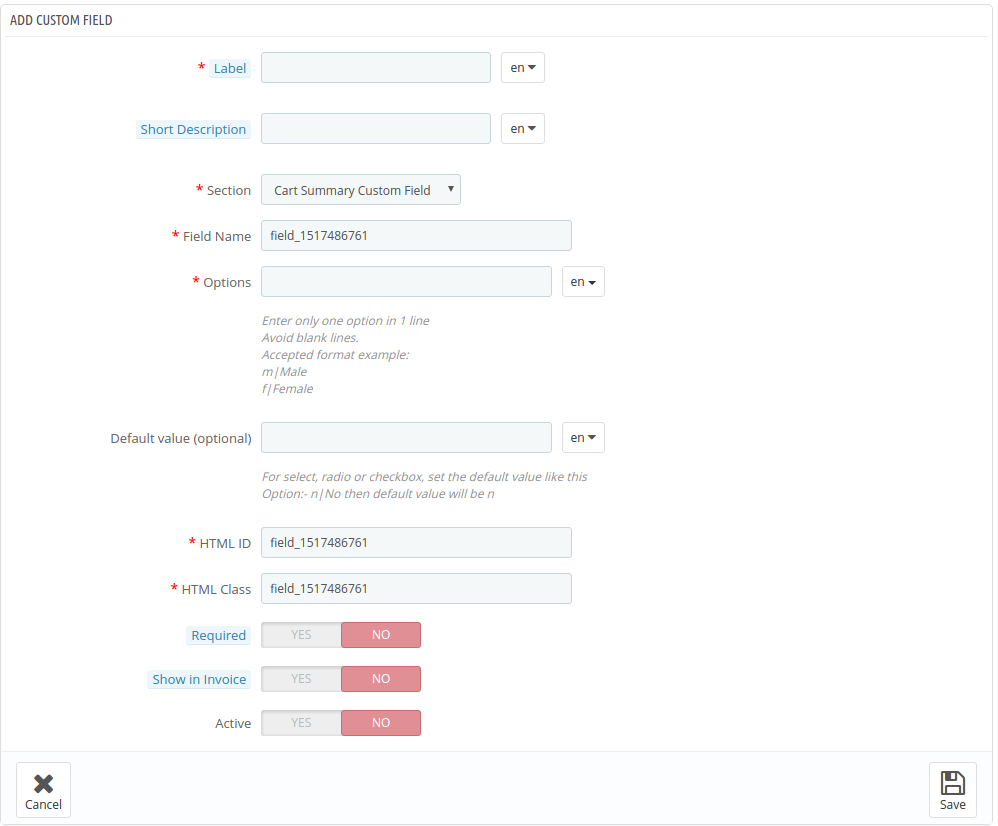
The checkboxes are same as the radio buttons and select field. The only difference is that the customers are required to check the options in order to select them.
3.3.5 Text Area Field
Text field offers a single line to enter the information. On the other hand, the Text Area Field offers multiple lines for entering the information. This can be used to input the address and other such information.
Even in this, the maximum and minimum length of the characters can be fixed by the store admin in the back-end.
3.3.6 Date
This field allows the customers to enter the date in the format set in the back-end of the admin panel. In case of the wrong format or if any other information is entered, an error message will be displayed on the front end.
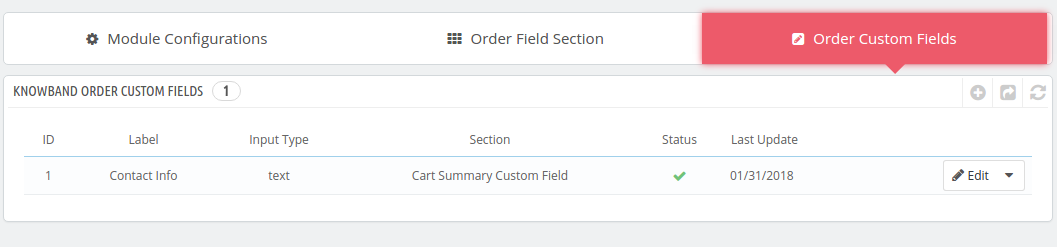
The entire custom fields created by the store admin will be shown in the admin panel.
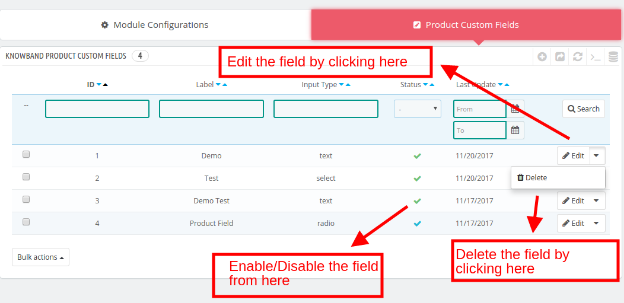
3.3.7 How to Edit/Delete the existing Order Custom field?
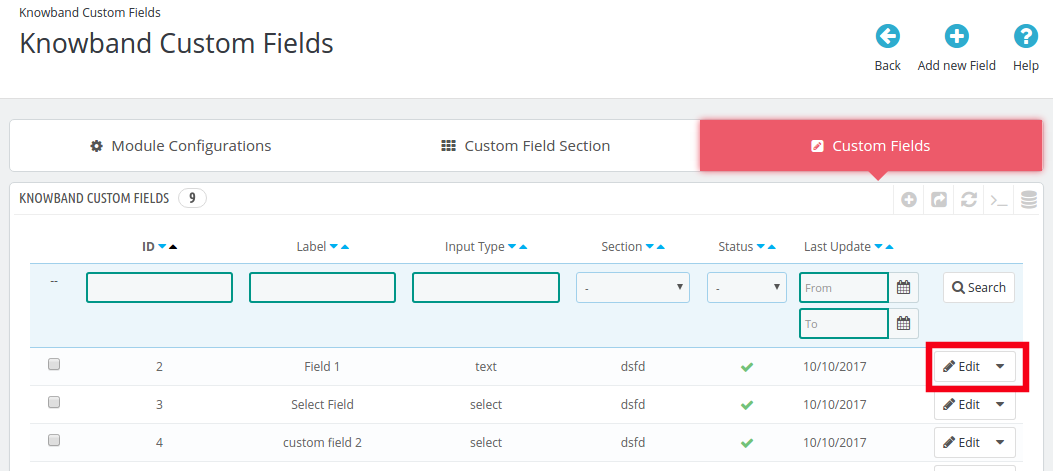
The custom fields that have been already created can be edited if required by clicking on the Edit buttons.
Similarly, in order to delete the fields, click on the Delete button as shown below:
3.5 Show in Invoice
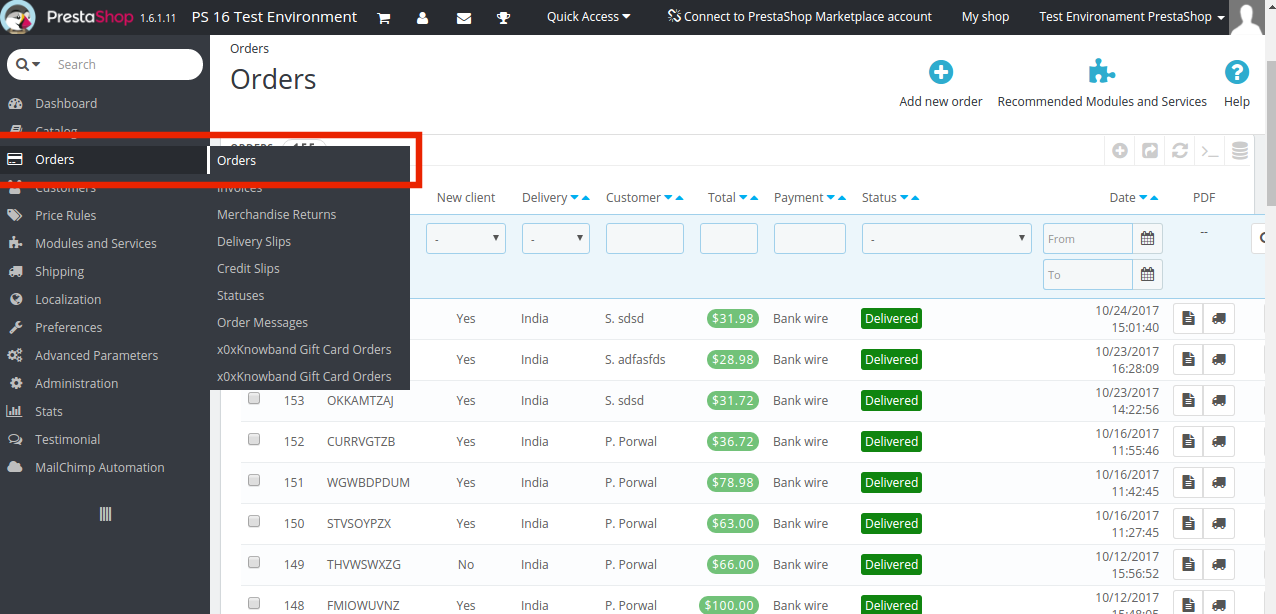
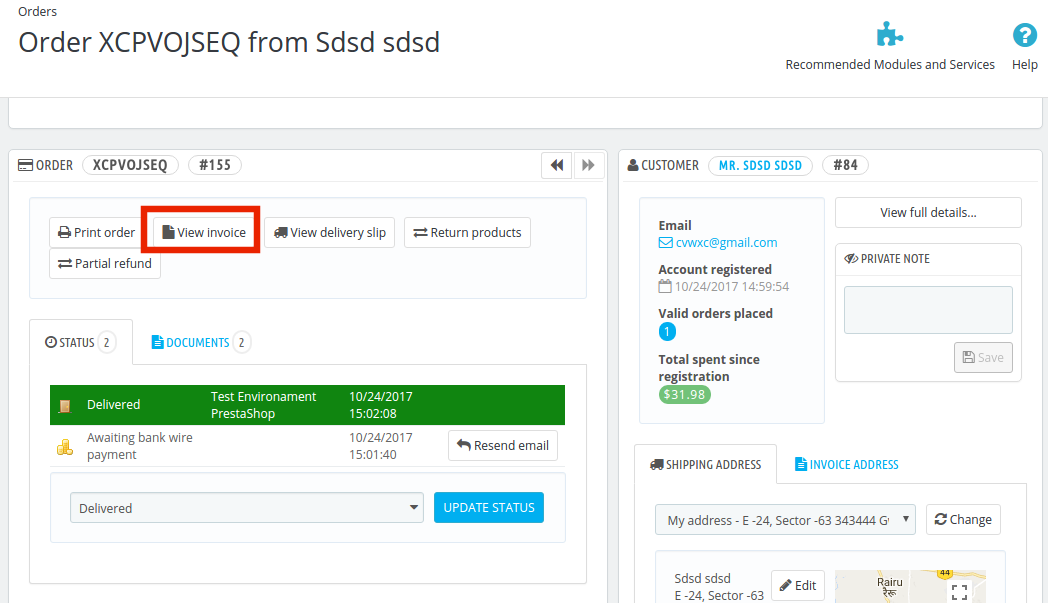
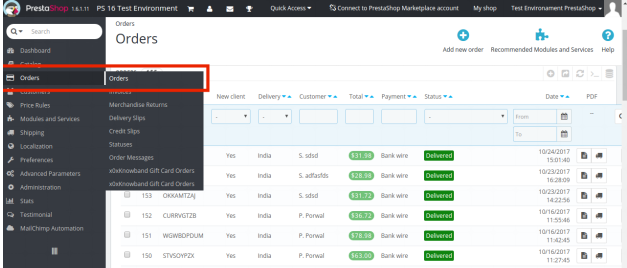
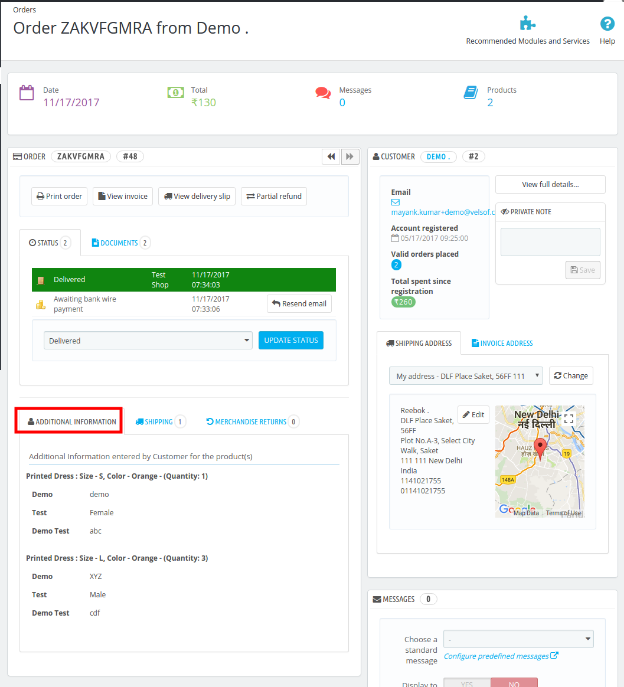
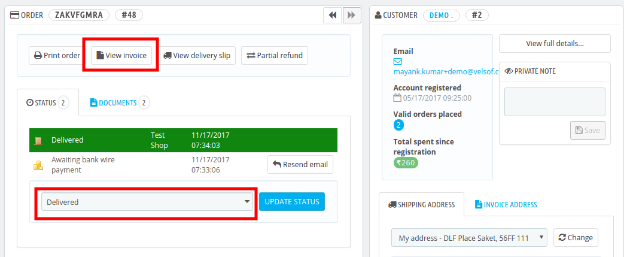
The additional fields in the Prestashop custom field addon can be viewed in the order invoice copy as well if this functionality is enabled in the respective fields. For this, go to the Order tab of the main menu of the Prestashop admin interface.
Go to any one of the order and click on View Invoice.
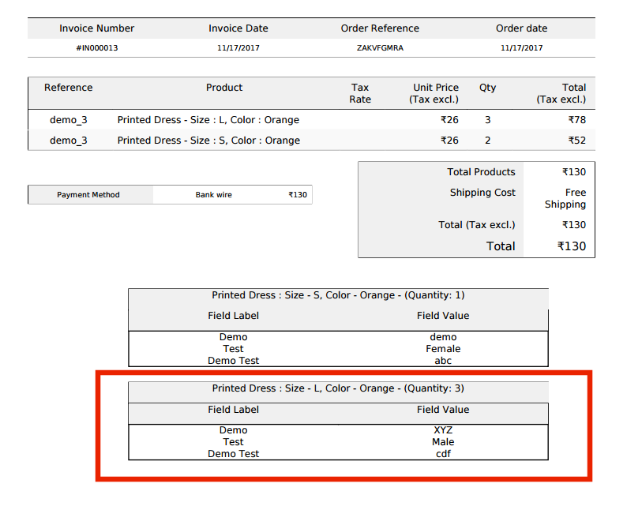
The personal information of the customer can be viewed in the invoice as shown in the image below.
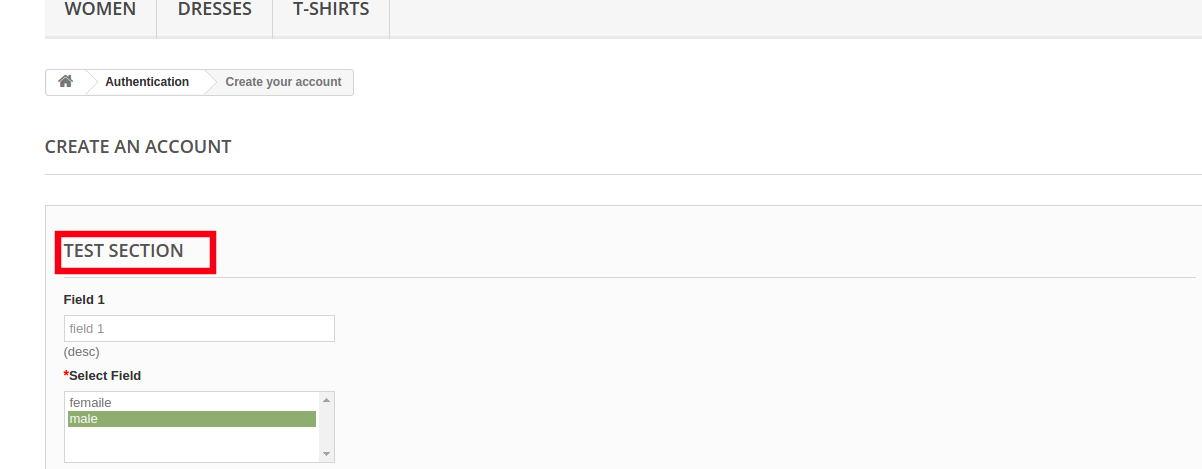
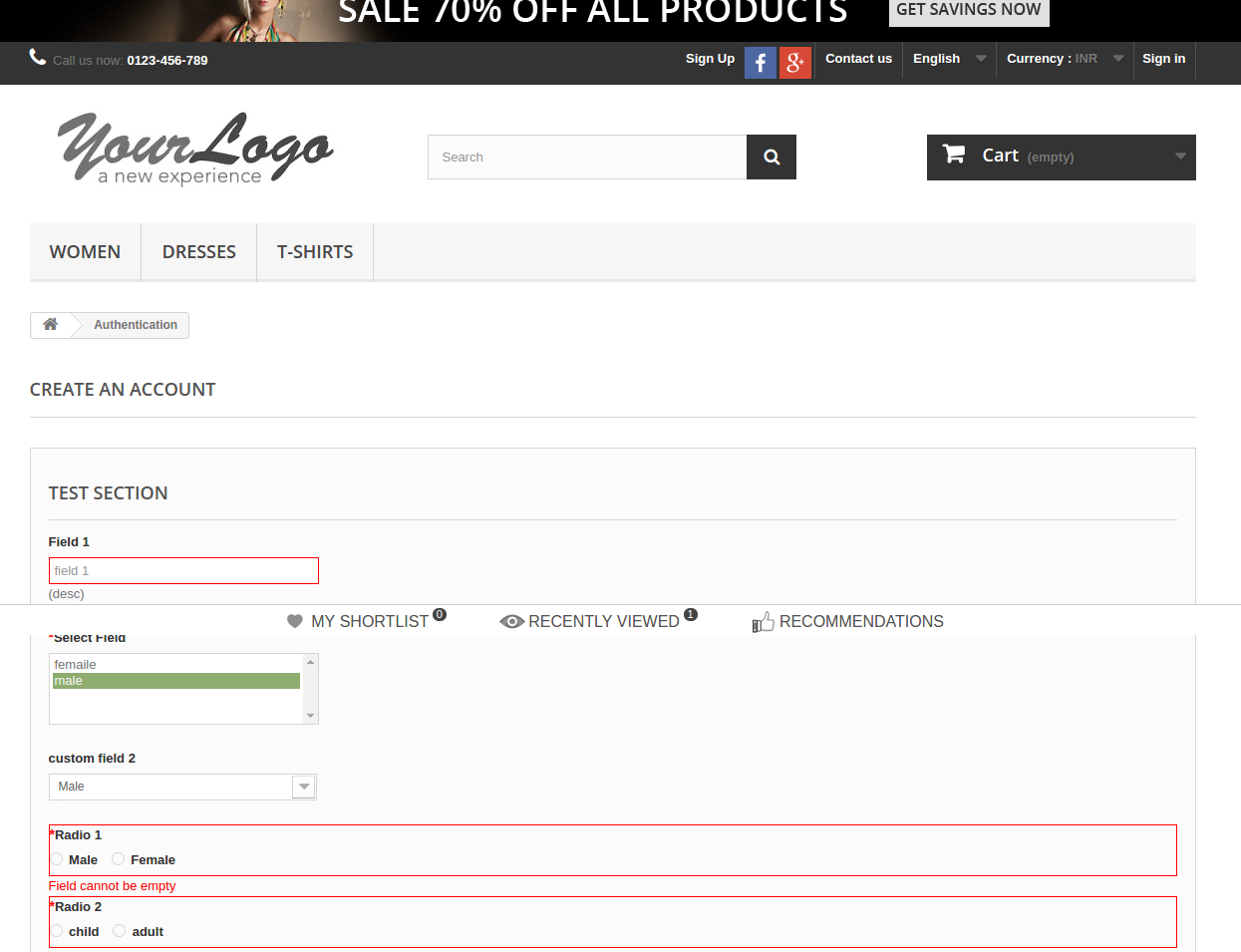
4.0 Website Registration Form UI
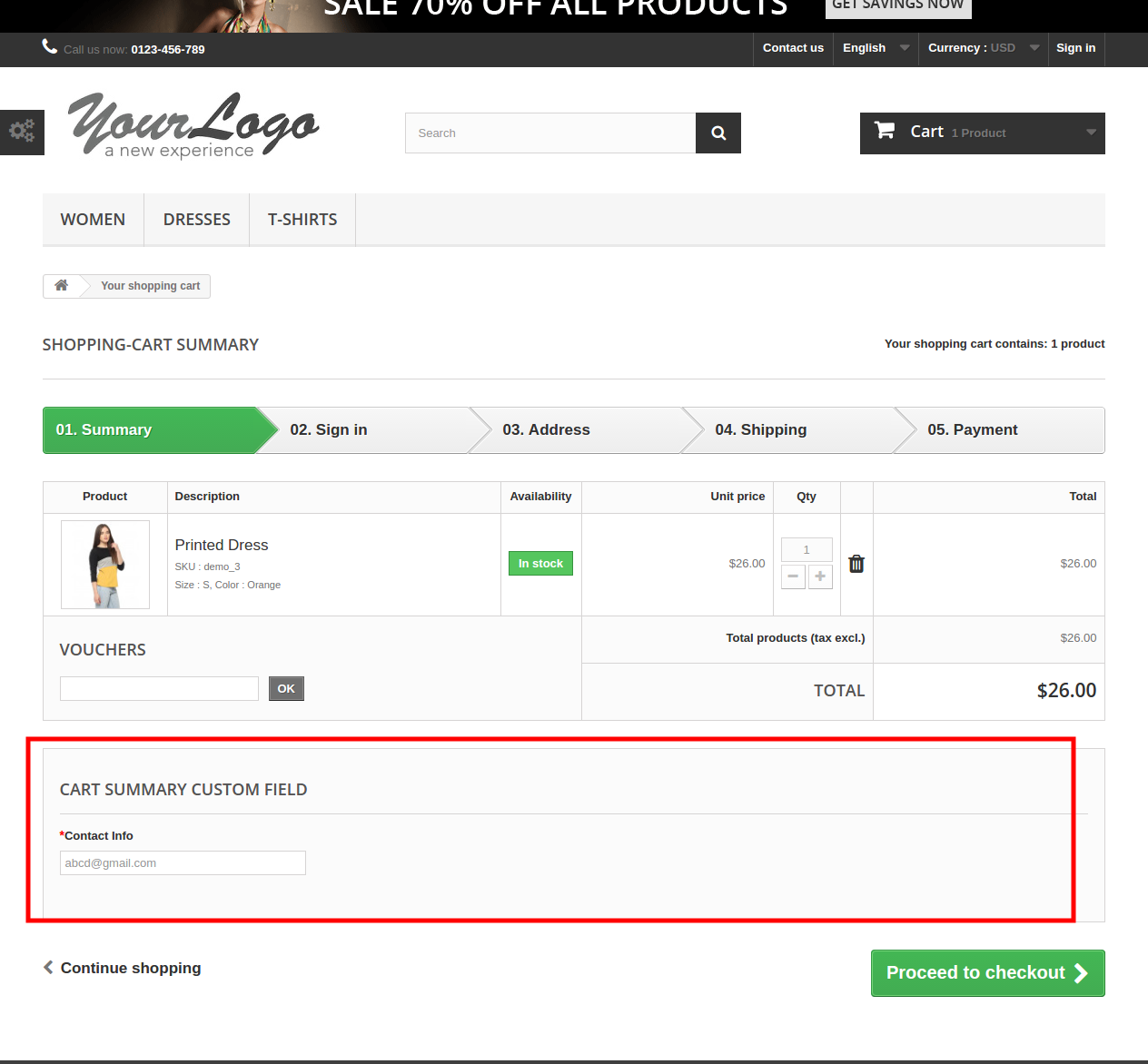
Once the various custom fields and the custom field section have been created, the registration form will be available for the store visitors. The form will be shown in the image below:
Not just a little, there is much more to know from your store customers. Try to know what your customers think while they complete their product purchase from your store. Use Prestashop custom field addon and learn from this knowledge to improve the user shopping experience by adding extra fields during the checkout process. The fields added using this addon are easily customizable from the admin panel. So don’t feel hassles, and hike up your business revenues smartly with this feature-rich Prestashop module. Buy this module now!
We have finally ushered in the Mobile era of the year 2019. With a lot of emphasizing on eCommerce mobile apps and ways to stay mobile, the eCommerce industry has entered an era that works towards improving their businesses by remodeling the user experience. While everything has gone online from buying foods, groceries, fashion apparels, and even housing, you should be focused on providing all this with a seamless experience on smaller screens like smartphones, tablets, iPhone or iPad. Like every year even this year, it’ll be the survival of the fittest in the eCommerce businesses.
With the increase in the popularity of mobile phones and hand-held devices, the prominence of m-commerce has increased as well. E-commerce app is a preferred option for online shoppers. In the past 6 months, 79% of smartphone users have made a purchase using their mobile devices. Moreover, with the saturation of the eCommerce industry, the importance of a mobile app cannot be ignored. The convenience-craving consumers have made it inevitable for the marketers to believe that eCommerce mobile apps are not just a fad.
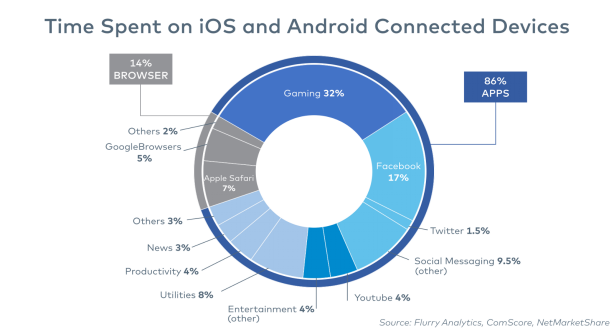
Having just an online website in today’s time is not enough. Having an eCommerce mobile app for your business is mandatory. If you take a look at this study, you’ll find that 86% of the time users spend is on mobile apps whereas; only 14% is devoted to browsing the websites on their mobile phones. Don’t you now think that you should invest in mobile apps? Despite the popularity of mobile phones, the discussion of mobile apps versus mobile sites is still on. The graph below shows some statistics that can make adds to the reason why you should have an eCommerce mobile app.
Image source: Pakman.com
There are numerous reasons which eCommerce make apps better than websites and we’ll focus on them in this blog. eCommerce mobile app maker allows you to stay updated without delving into the complexity of the app development. Read on to find out the reasons why you should be thinking of having a mobile app.
1. Mobile apps are speedy
At the end of the day, what would you prefer – users coming, finding their product, check out, and happy feedback or waiting till the website loads for minutes and takes forever to load the product pages?
The choice is certainly clear because as an e-merchant you don’t want to make your business suffer. If you take a closer look, you’ll find that mobile applications are 1.5 times faster than the websites which for sure makes the mobile apps better than the websites. For example,
Mobile app: The user clicks on the app from the many available, uses the filters or the search bar to type what they’re looking for and finally landing on the product page. In addition, they can save the details directly on their phones.
Mobile website: Clicks on the browser icon, types the website name, waits for it to load, searches the products, waits for it to load and show up the products on the screen and so on.
Which one would you prefer? Adopt the one that comes across as accessible to you and your users.
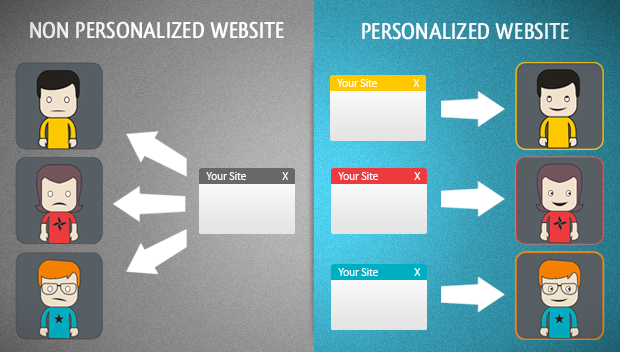
2. Enhanced Personalization
Isn’t it a good feeling when you get personalized messages? Personalization is all about getting tailor-made push notifications and messages from the online stores.
When a user downloads your eCommerce mobile app on their phone, log in and access the products & services, it gets easier for you to send personalized Push Notifications to them. That’s not it! You will also be able to give discounts on products, categories based on their browsing behavior. As a part of the Conversion Rate Optimization techniques, your customers will feel delighted to receive the same and your conversion rate will surely go up.
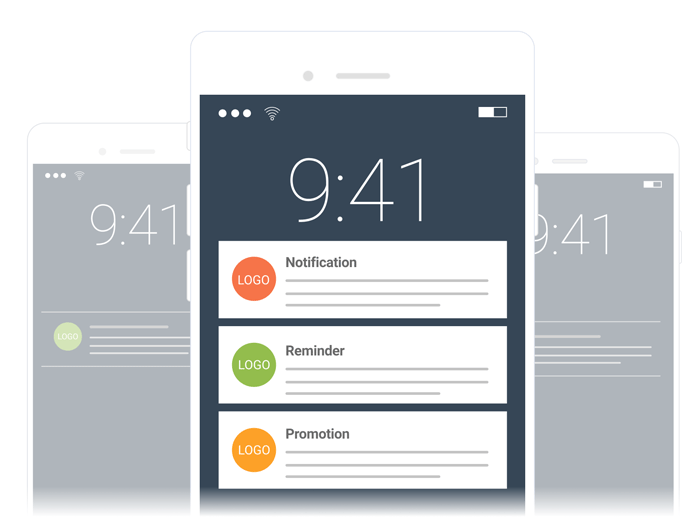
3. Hassle-free Push Notifications
Just when we’re talking about reaching out to the customers, eCommerce mobile app has another benefit over mobile websites and that is of sending Push Notifications. The in-app marketing feature that allows the admin to stay in touch with the prospective customers 24/7 adds to the reason for choosing mobile apps over mobile sites. When your customers are logged in to your eCommerce mobile app, push notifications are the easy and effective way to increase your conversion rate. However, some websites have started to work on sending these notifications through web browsers as well, but all browsers don’t have this support.
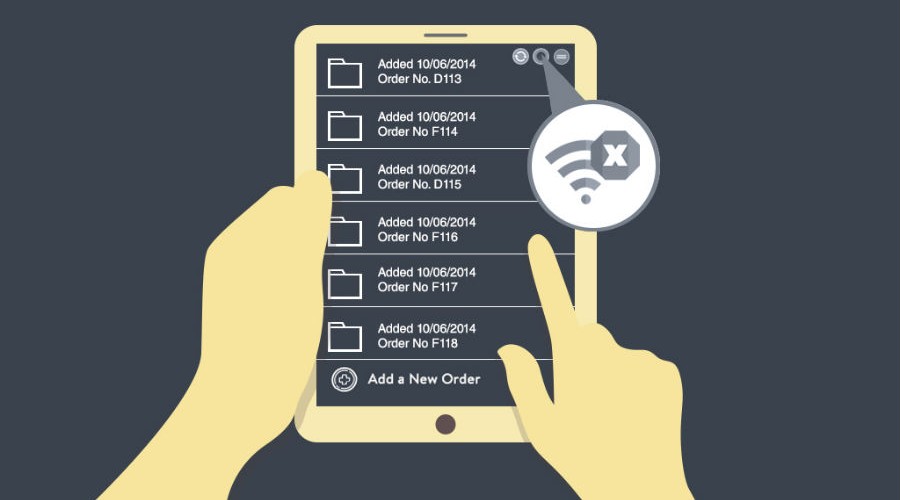
4. Offline Access
One of the most fundamental differences between mobile apps and mobile website is that the former provides offline access to the users whereas; the latter does not.
When it comes to eCommerce mobile apps, they too definitely need internet access for a lot of work, but there are some application that even work in offline mode. On the other hand, a strong internet connection is mandatory for every mobile website. You cannot even depend on weak connections because they’ll take time to load and the user might just get irritated and call it to quit.
For example, some banking apps, news, retail chains and more have the facility to browse through even without an internet connection.
5. Making use of the device features
These days every smartphone comes with a set of features inbuilt into the device. For example, high-resolution camera, accelerometer and more. Another advantage that eCommerce mobile app has on the website is that you can code your app into utilizing the respective features. For example, the camera can scan the OR codes, Barcodes, PDFs and more whereas; the NFC features lets you make payments safely and more. With the new age fingerprint sensors, the devices and the user experience has become safe. Samsung Pay is one of the best examples here.
6. App store presence
One of the many reasons e-merchants are going from websites to apps is sole because they want to have their business presence in the app store. Whether it is Android apps or iOS apps, ranking there is what adds in better chances of being noticed by users while looking for something. Mobile websites do not show up in the app store and hence, they optimize their site to an app with the help of mobile app creator. Having an app gives your business an access to the millions of users who search and browse through iTunes and Google Play, giving them extended brand awareness and opportunities for downloads that can come from users outside their typical sphere of influence.
7. Enhanced SEO possibility for your website
Taking a look at the advantages that you get having a mobile app, the last one on the list would be better SEO possibilities. When Google will take into account the content, it will consider both in-app contents as well as the website content. Hence, with some alterations on both the types, you gain better chances of being in the good books of the search engines.
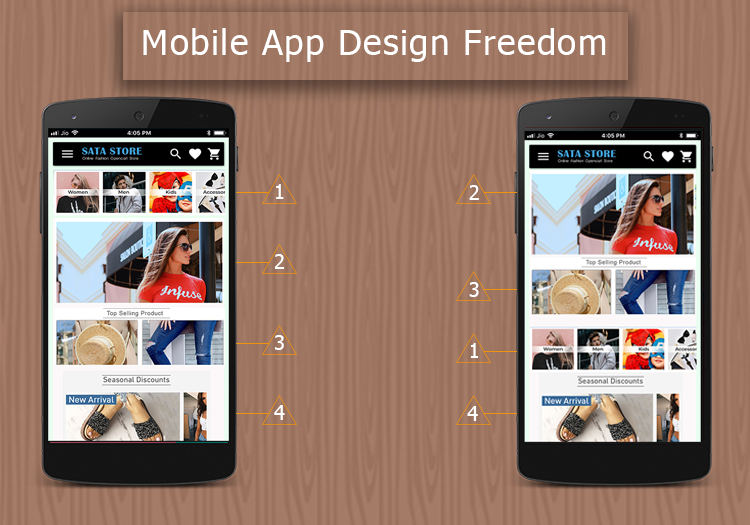
8. Designing Freedom
Mobile Apps have always been a more interactive and engaging platform for online shoppers than mobile websites. Mobile websites need to somewhere rely on the browsers even for the basic features. But, eCommerce mobile apps are completely free of such restrictions.
Moreover, mobile apps come with configurable designs and functionalities. So, you get full control over how your app will look and work on the user’s devices. The custom home screen of the apps can be crafted with various sliders, banners, categories, products etc. The rich color choices offered in the mobile app make them appealing for the users. There are various such automated modules available for PrestaShop, OpenCart, Magento, Magento 2, WooCommerce and Shopify which provides every design-related control into your hands.
9. Brand Presence
Your eCommerce mobile app has a larger reach and visibility scope than the websites. Voicing out your brand on the mobile apps would definitely strengthen your brand position in the market.
The best way is to showcase your own logo on the header of the eCommerce mobile app. It will enhance the branding strategies of your store along with the products.
10. Reduced Cost
This might be in your mind that is it worth to put your money in the mobile apps? But, trust me, spending a few bucks on the mobile app development would result in almost double conversions on your store.
Moreover, you need to go for the option of eCommerce mobile app development without any code. These are pocket-friendly ways and save you from all the involved technicalities and codings. All the necessary changes can be easily done from the admin panel.
Conclusion
There you have it. These ten reasons or advantages of investing in a mobile app this year should be your next step towards success. Invest in a eCommerce mobile apps because every business needs it for better results.
Some other articles related to eCommerce Mobile Apps:
Opencart eBay Marketplace Integrator by Knowband is one of the fastest means to connect your OpenCart store with eBay. The OpenCart plugin makes it easier for the store admin to connect their store with the marketplace. At the same time, the Opencart eBay Marketplace Integrator automates the entire process of product listing, inventory, and order management.
eBay is one of the most popular online marketplaces. Operating in over 30 countries worldwide, the marketplace has secured a significant place in online trading. ebay.com has gained the reputation of an online space where buyers and sellers come together and trade almost anything. The OpenCart store owners can streamline their selling and find a larger audience base in the popular marketplace.
OpenCart eBay Marketplace Integration Module by Knowband allows the OpenCart store admin to list their products on the eBay marketplace and manage their inventory and orders with a few button clicks. The Opencart eBay Marketplace Integrator makes it easier for the store admin to connect their store with the marketplace. At the same time, the OpenCart eBay API integrator automates the entire process of product listing, inventory, and order management.
1.1 Benefits offered by the Opencart eBay Marketplace Integrator:
The OpenCart eBay Integrator allows the store admin to skip the steps involved in lengthy store integration. The store admin can connect the store in a few simple steps.
The admin can create as many profiles as they wish from the back-end of the Opencart eBay Marketplace Integrator.
The profile-based product listing of the Opencart eBay Marketplace Integrator allows the store admin to skip manual listing.
The inventory can be easily managed with the help of these profiles created in the OpenCart eBay API Integration.
The eBay Connector makes it easier for the store admin to map the product attribute and categories with that attribute and categories of eBay.
The Opencart eBay Marketplace Integrator allows the merchants to add, remove, revise or relist the products on the marketplace.
Along with easy inventory management, the OpenCart eBay Connector offers easy order management as well. The admin can sync the orders received from ebay.com with their OpenCart store and process them from there. Thus, the merchants need not visit the marketplace.
The Opencart eBay Marketplace Integrator offers two-way synchronization that can be done by executing cron in the back-end.
The merchants can check the error that occurred while product listing from the back-end of the Opencart eBay Marketplace Integrator.
Discover the Latest Enhancements!
[New]Inventory Comparison
The Inventory Comparison feature ensures your OpenCart store and eBay stock stay consistent. Furthermore, it fetches the latest inventory from eBay, compares it with your store quantities, and marks any differences as Yes or No, helping to prevent overselling, stockouts, and manual errors while keeping your inventory accurate.
[New]Rate Limit Monitoring
The extension now includes a built-in feature to monitor eBay API usage and limits. Moreover, it tracks how frequently each API is called, displays the total allowed requests, and shows how many calls are still available.
Profile-Level Product Synchronisation:
Knowband’s Opencart eBay marketplace connector addon now includes profile-level product synchronization. This feature enables merchants to efficiently manage and synchronize their product listings by organizing them into profiles. Each profile can be customized with specific synchronization settings, streamlining inventory management and maintaining consistency across platforms.
Product Listings with Custom Titles and Descriptions:
The enhanced eBay Opencart connector addon allows merchants to create product listings with custom titles and descriptions on eBay. Merchants can now tailor these elements to better align with eBay’s search criteria and buyer preferences. This customization improves visibility, attracts more potential buyers, and ultimately increases sales.
eBay Business Policy Import:
The latest update to Knowband’s Opencart eBay marketplace connector includes the ability to import eBay business policies. This feature simplifies the process of bringing eBay’s business policies into Opencart, ensuring alignment in shipping, return, and payment policies. It enhances compliance, reduces manual errors, and saves time for merchants managing multiple platforms.
OpenCart eBay Marketplace Integration Module
Effortlessly sync your OpenCart store with eBay for seamless product listing and order management with Knowband’s OpenCart eBay Integration module.
To start selling on eBay Marketplace you need to have a seller account on eBay. In this section, we are listing all the steps to create a seller account on eBay. Please find them below –
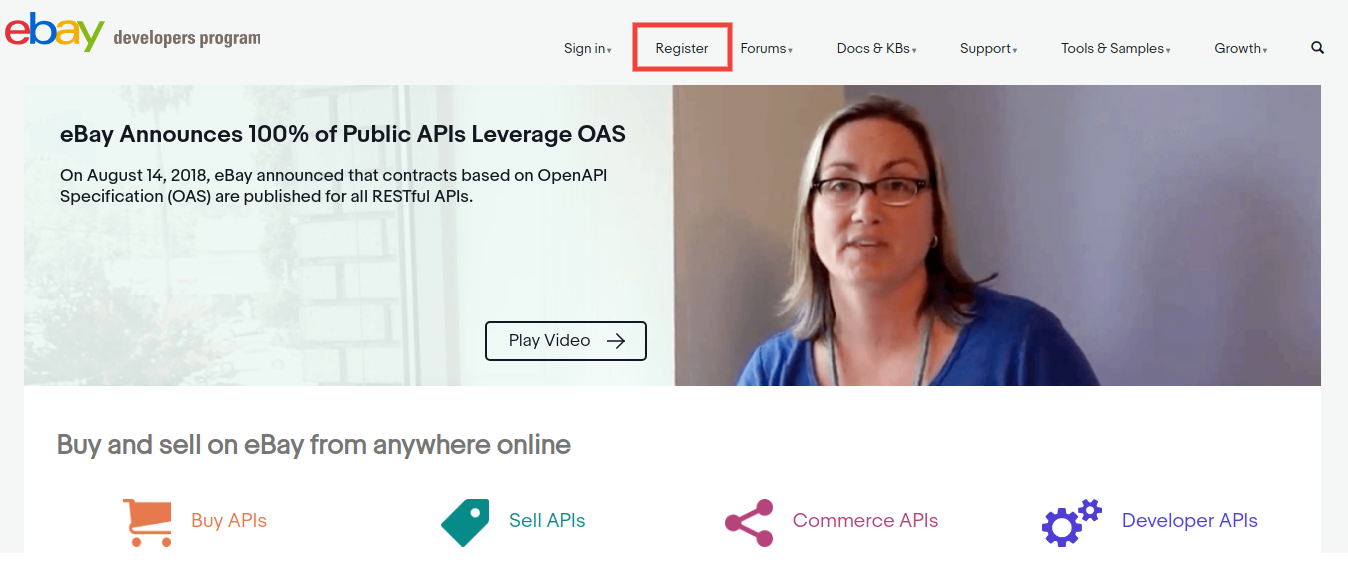
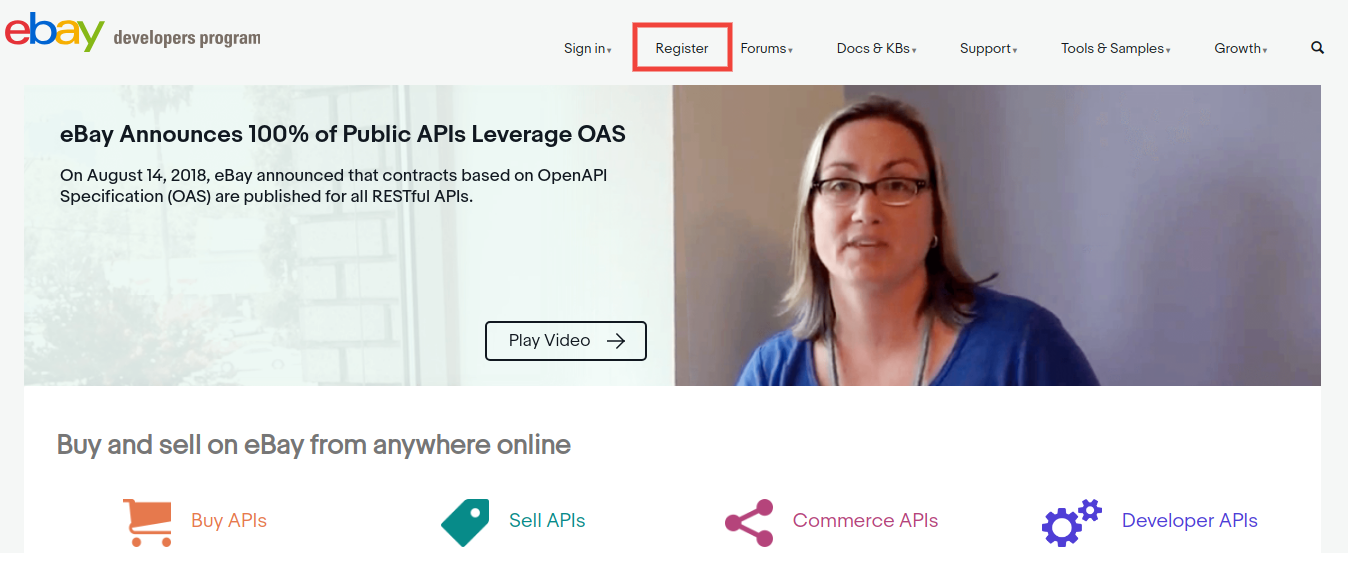
2. Click on the “Register” button for registration.
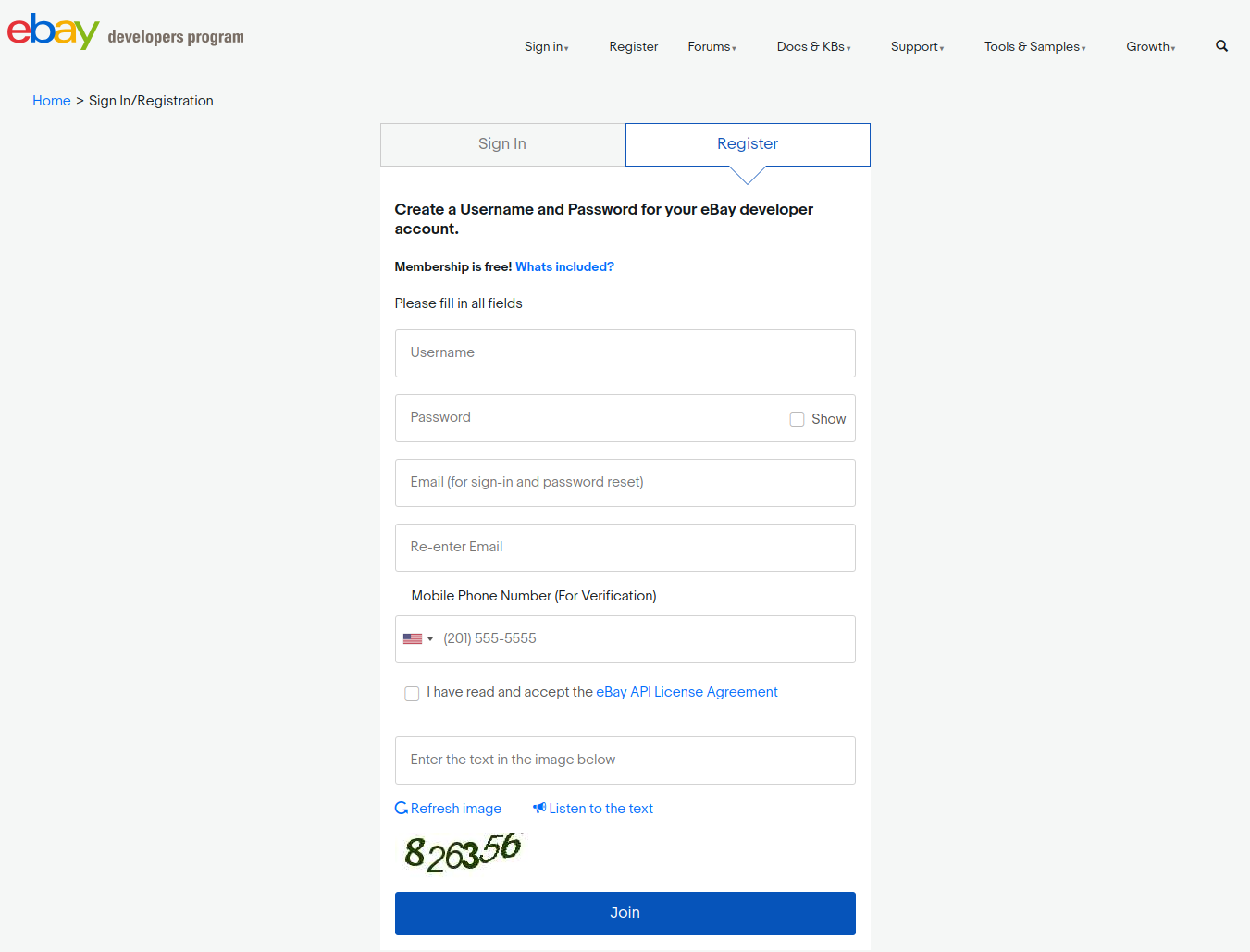
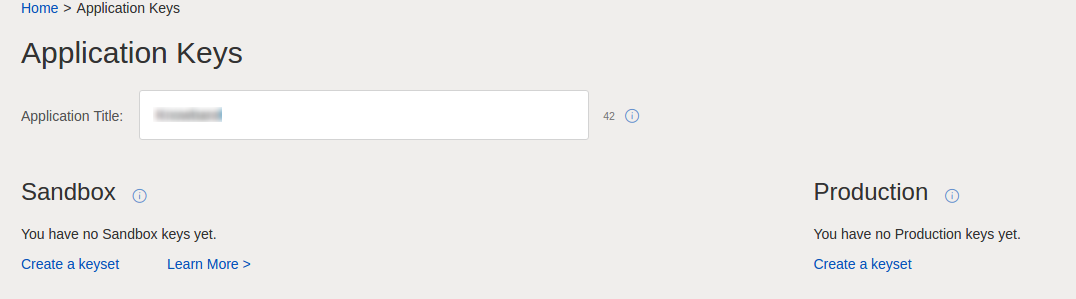
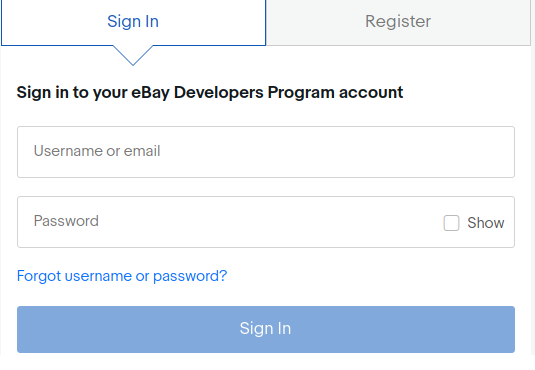
3. After filling-in valid data click on join and you will be redirected to the application creation page.
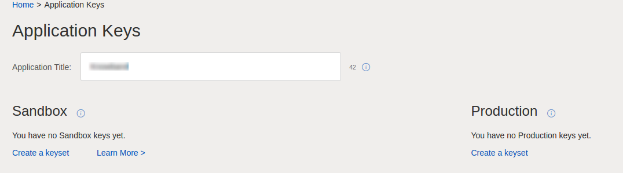
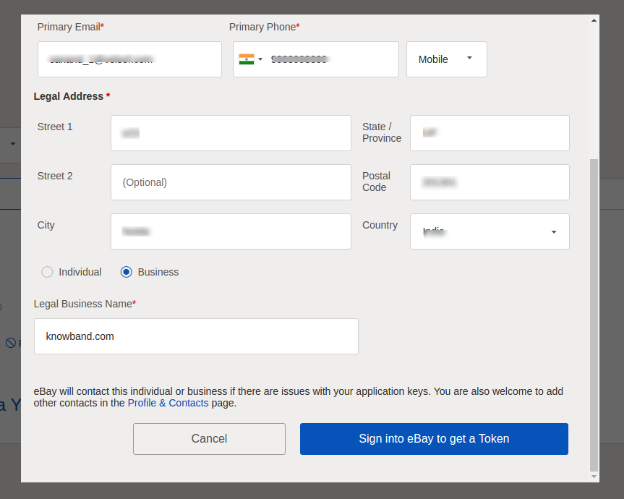
4. Enter the application name and click on ‘Create a keyset’ under the Production section, a new form will be opened.
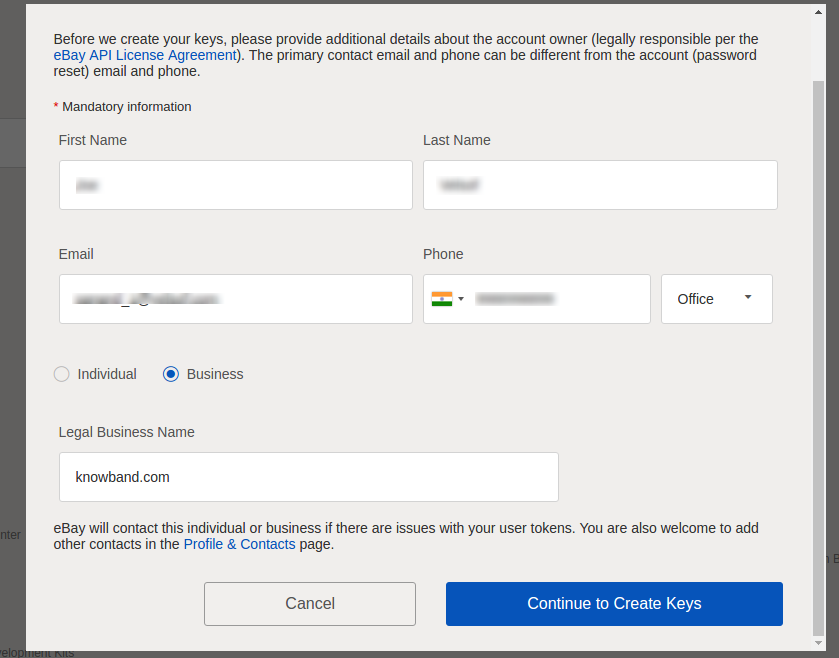
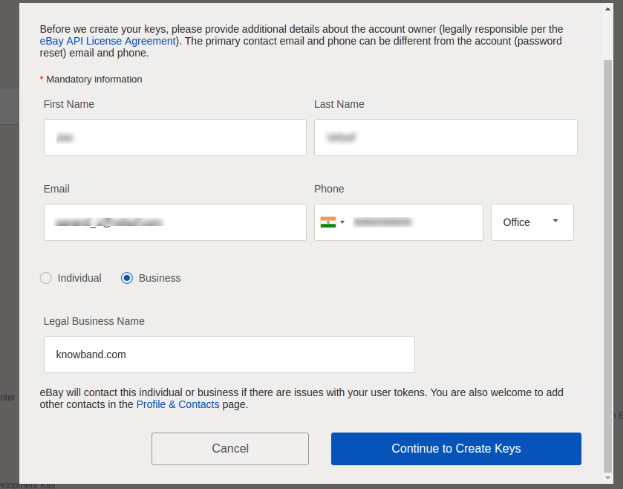
5. Enter the details and click on Continue to create Keys.
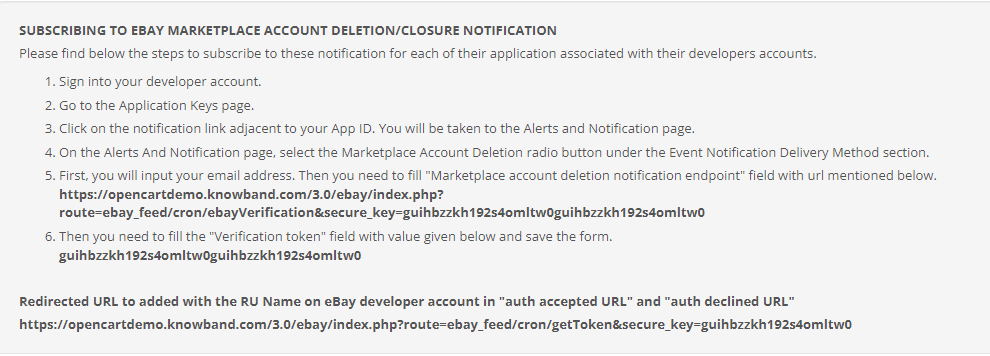
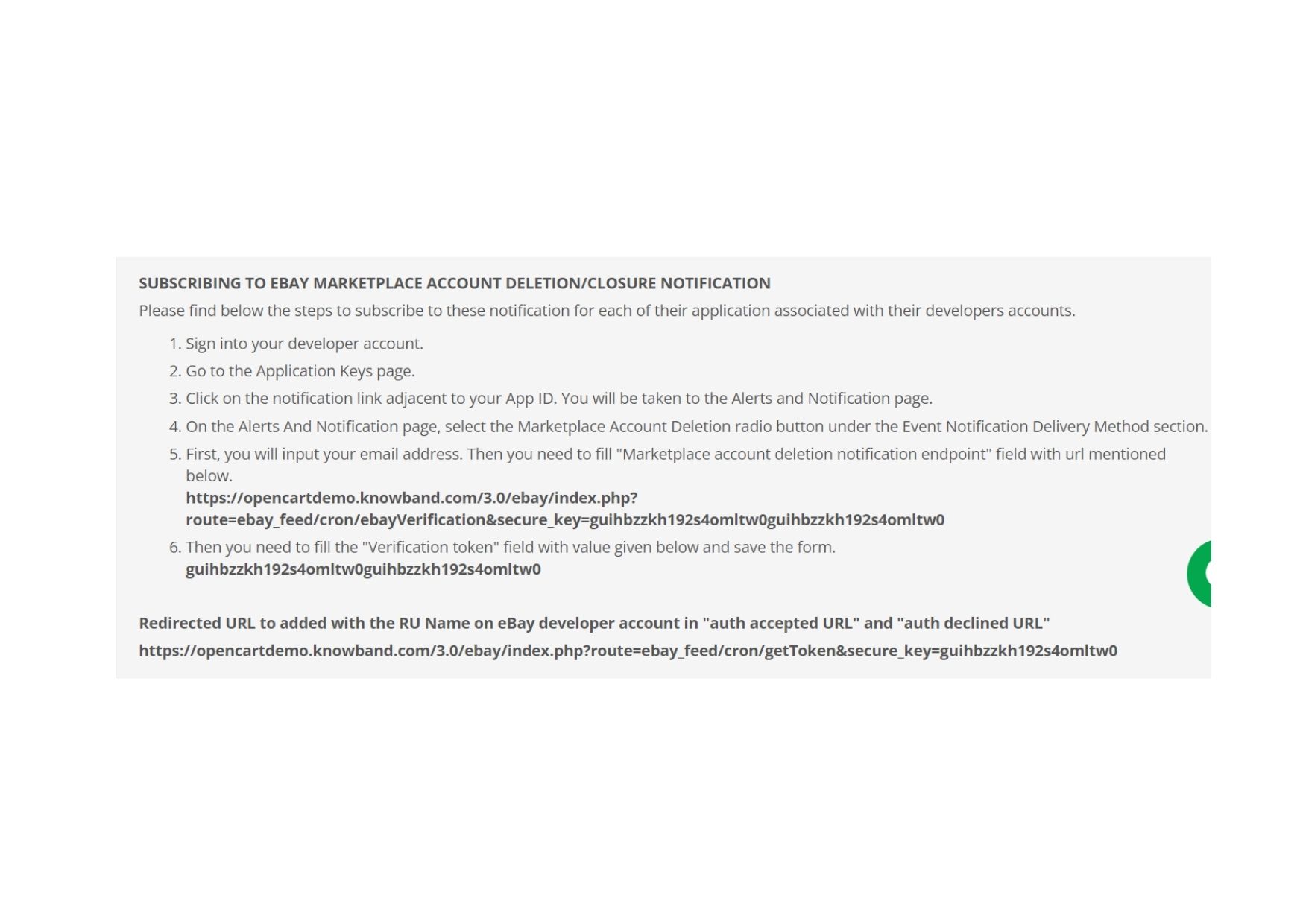
6. The application keys will be disabled until subscribed to eBay Marketplace Account Deletion/Closure Notifications.
7. To comply witheBay Marketplace Account Deletion/Closure Notifications follow steps mentioned in general setting steps of OpenCart eBay Marketplace Integrator module.
After you have successfully subscribed to eBay marketplace account deletion/closure notifications, you will be able to access API Keys from the developer’s account.
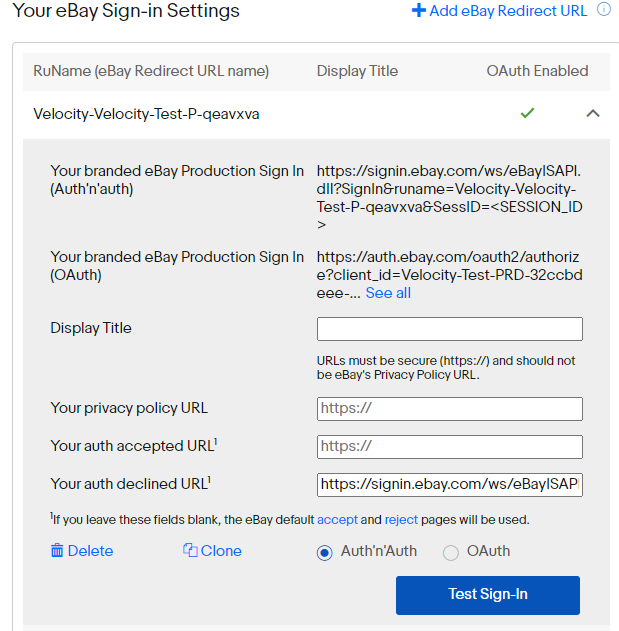
8. RU Name:
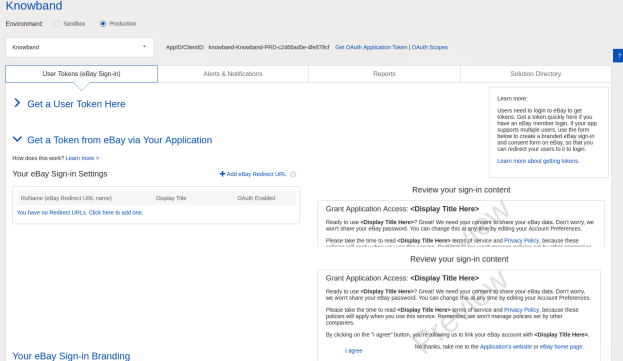
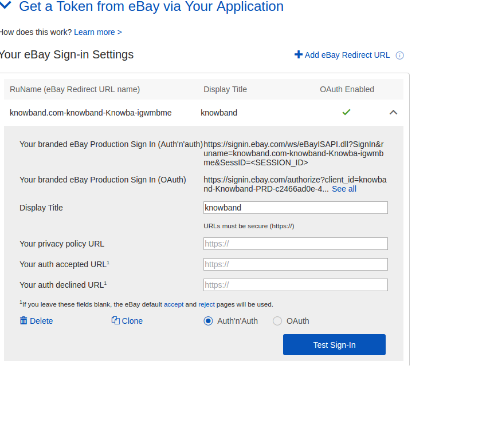
If your RU Name is not created click on “+Add eBay Redirect URL”.
Kindly copy the redirected URL from the module general setting and place it in the accept/decline field wall line.
Place
Click Save.
3.0 Admin Interface
The admin panel of the OpenCart eBay Integration plugin offers 5 configuration options. They are discussed in detail below:
3.1 General Settings
Once you have created a seller’s account, you need to synchronize the store with the marketplace. To validate the synchronization go to General Settings of the admin interface of the OpenCart eBay Integrator Module.
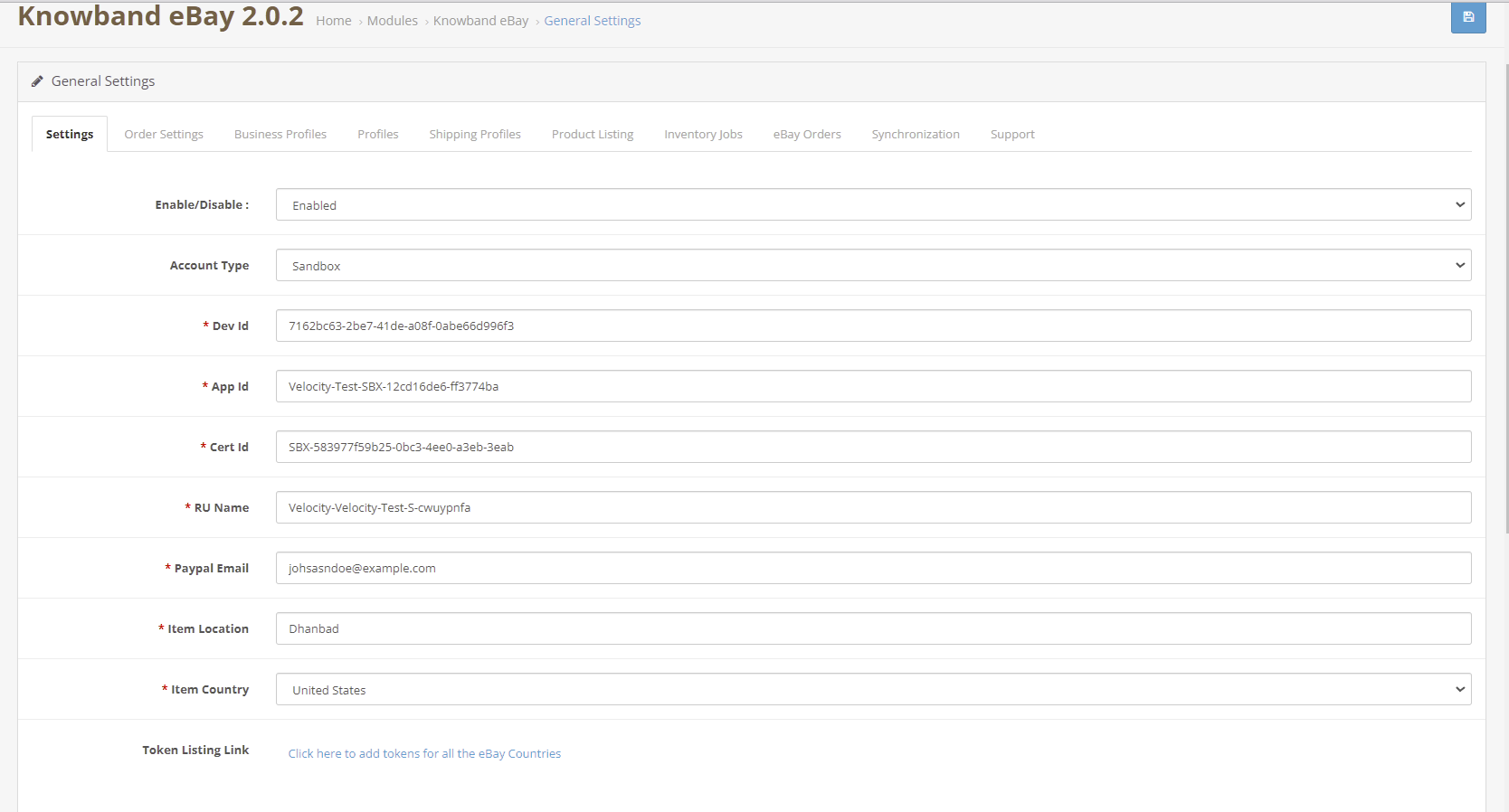
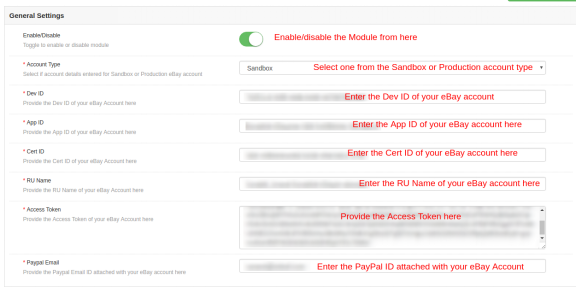
Fill out the form shown in the General settings section. Each field for the configuration panel of the OpenCart eBay Connector Plugin is explained below:-
1. Enable/Disable
The drop-down menu consists of Enable or Disable option. Select the options to enable/disable the eBay OpenCart API integrator.
2. Account Type
The admin can either choose the Sandbox account for testing purposes or the Live eBay account for the final store integration.
3. Dev Id
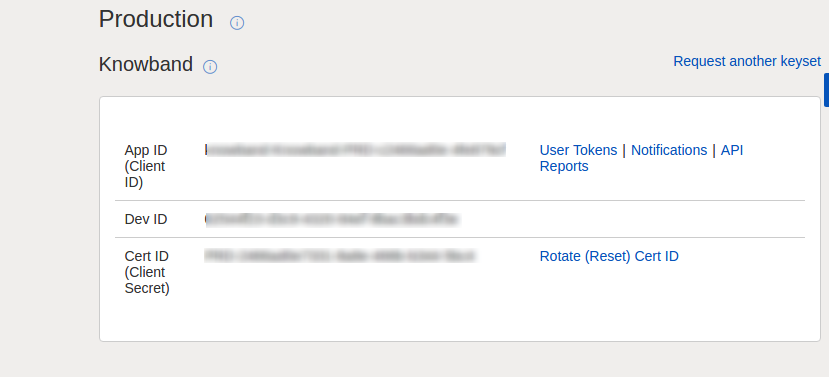
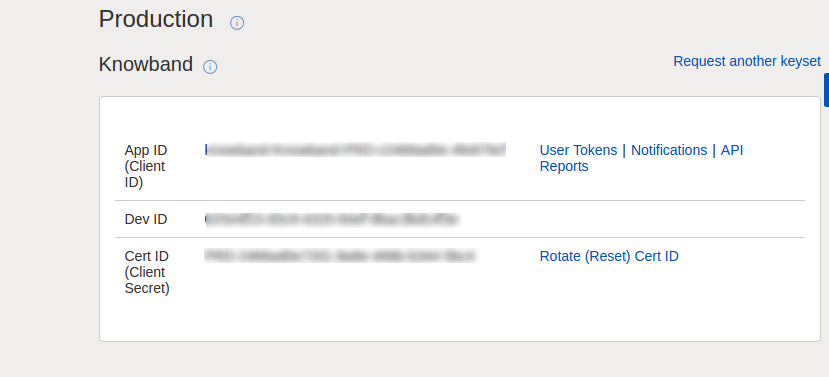
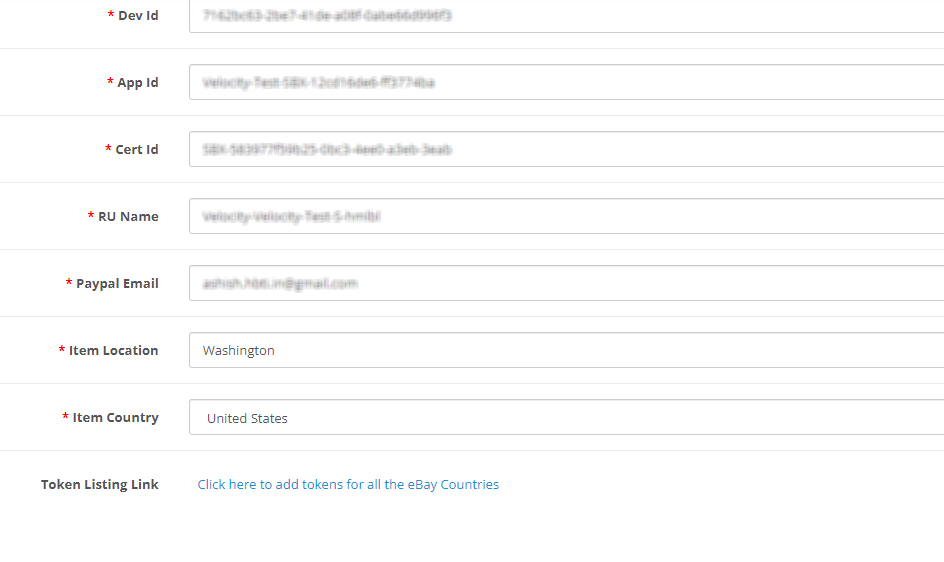
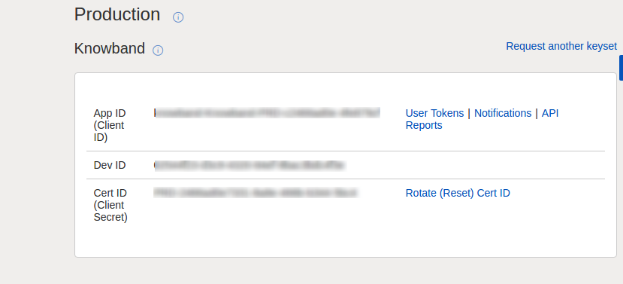
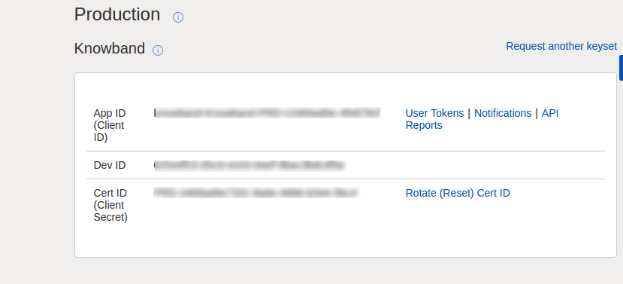
Enter the Dev ID of your eBay account here. To find your Dev ID, sign in to the eBay developer account. In the application key section, you’ll find App ID, Dev ID, and Cert ID as shown in the image below.
4. App Id
Copy the App ID from your eBay account as shown above and copy it in this field.
5. Cert Id
Enter the Cert Id of the eBay account in this section. You can find the Cert Id as shown in the above image.
6. RU Name
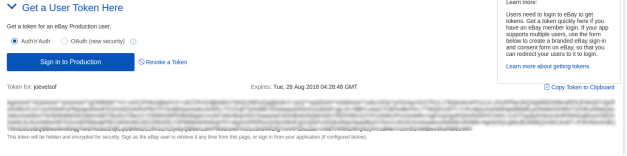
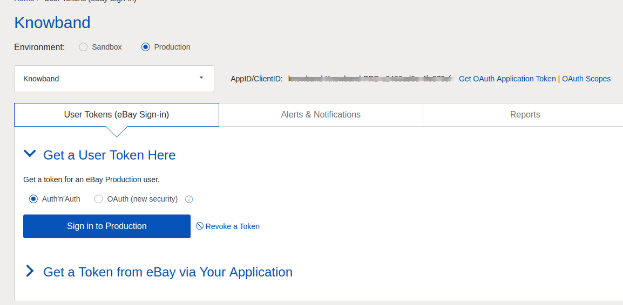
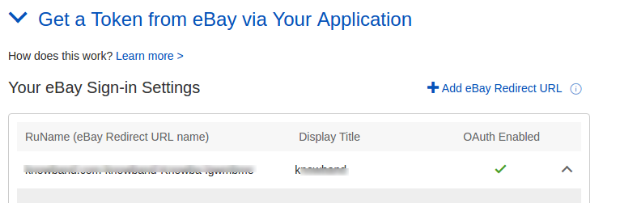
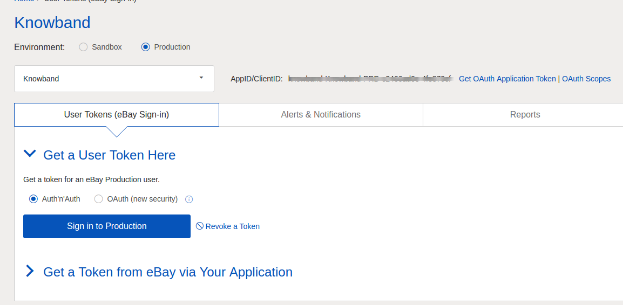
Enter the RU Name of the eBay account. To obtain your RU name, go to the ‘Get a Token from eBay via Your Application’ tab after adding a redirect URL.
7. Token
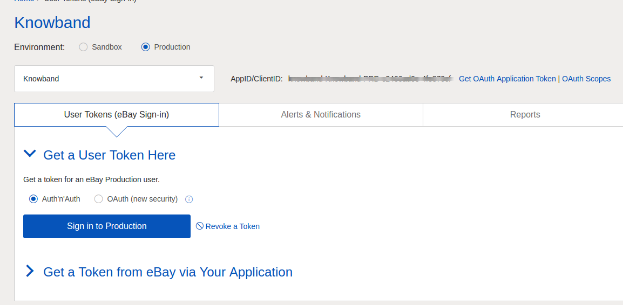
Click on the Token Listing Link from the general settings of the module.
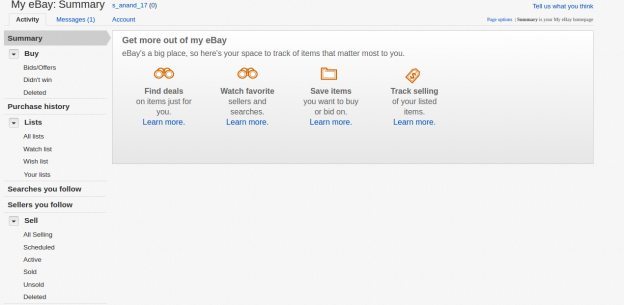
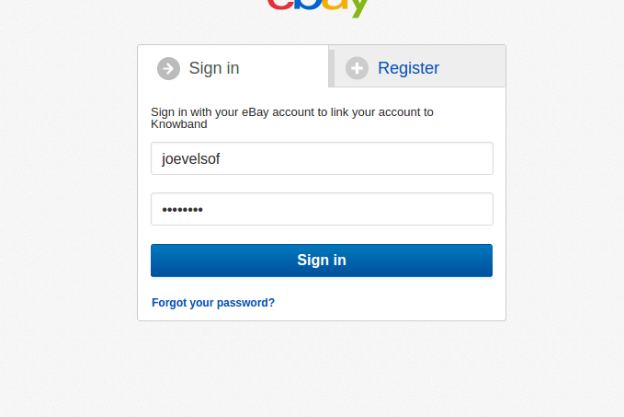
2. Login with your eBay seller’s account.
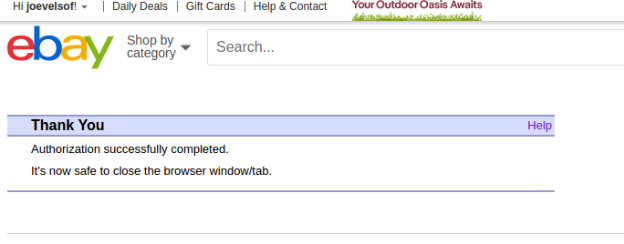
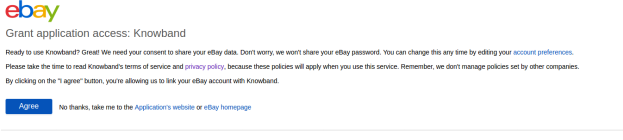
3. A message will be received of success or failure.
4. Follow the instructions given in the window.
5. Once Token is connected, you can enable/disable countries.
8. Paypal Email
Enter a valid PayPal ID connected to your eBay account. Follow the steps mentioned below:
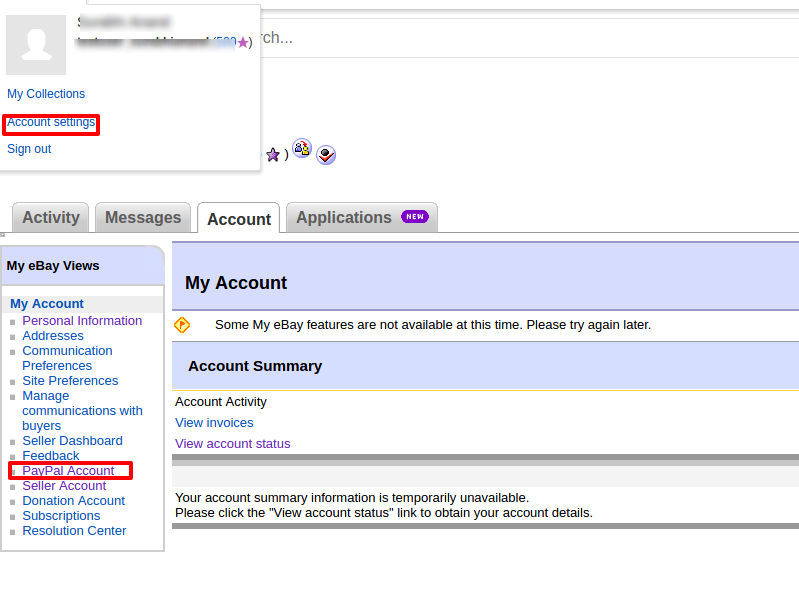
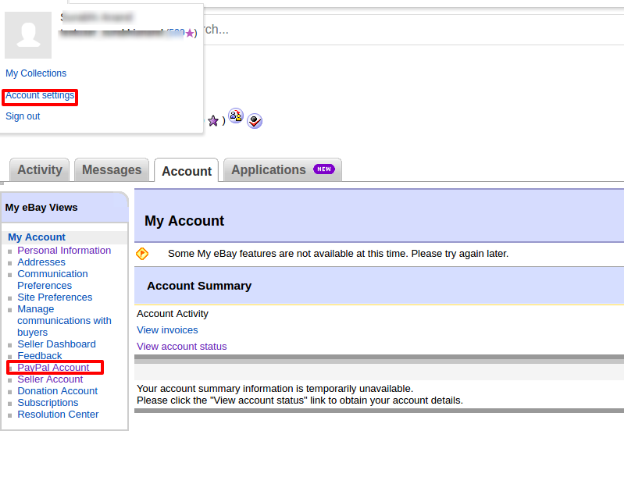
Log in to your eBay seller account.
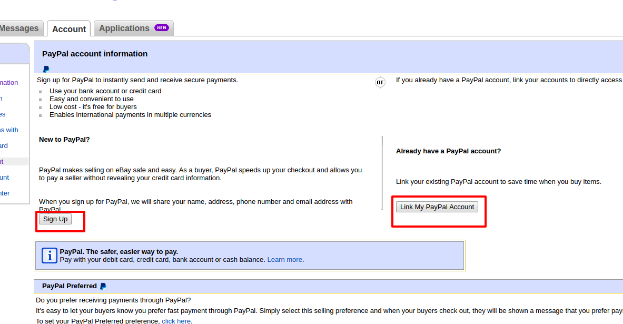
Click on account settings from the top-left dropdown and click on Paypal account.
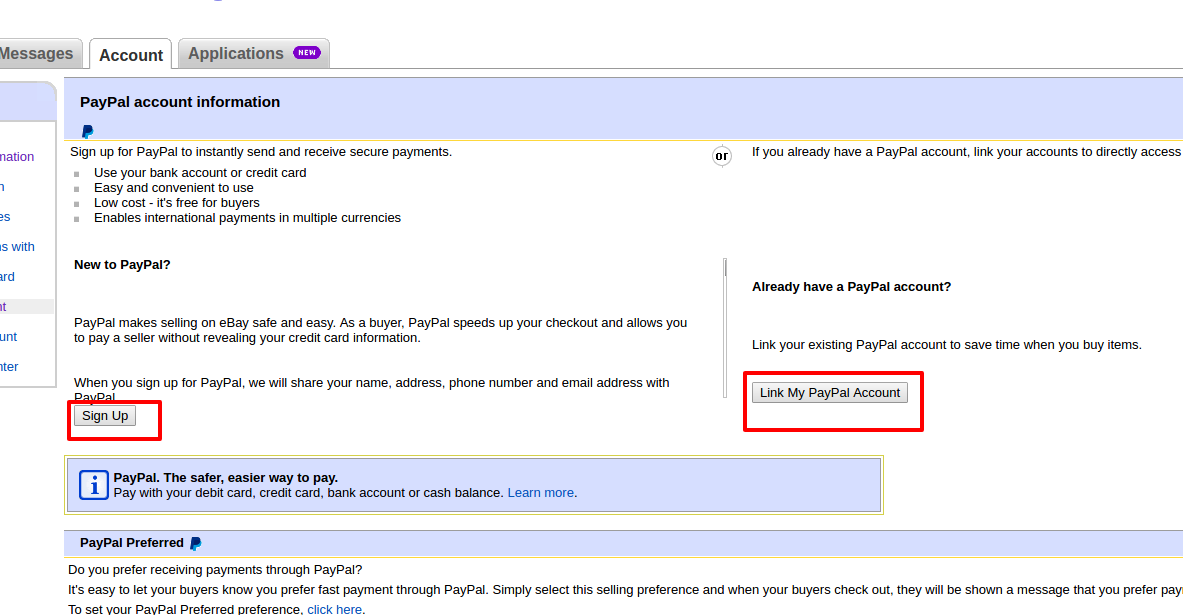
3. Now Sign up or link your already created PayPal account with the eBay seller account.
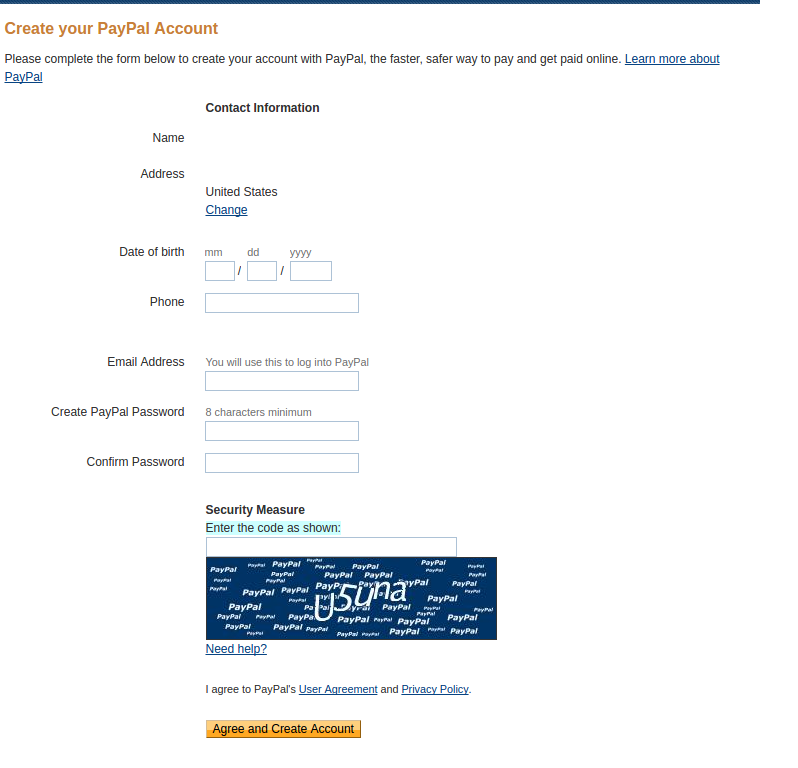
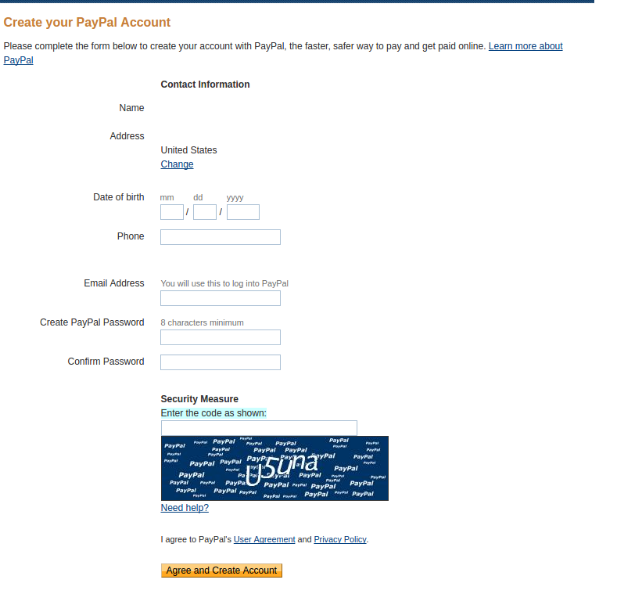
4. On clicking Sign Up, you will be redirected to the PayPal account creation page. Just create a profile by filling in the details and linking it to your seller’s account.
9. Item Country: Choose the product country from the list of country choices available.
10. Item Location: Enter the location (within that country) of the product while creating the admin profile in the admin panel.
3.2 Order Settings
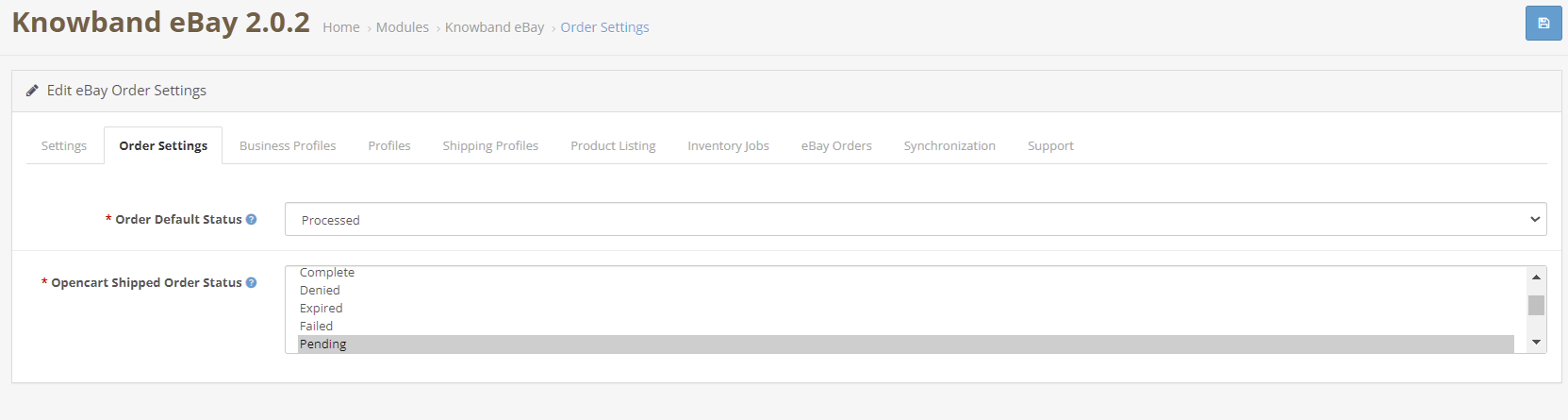
The OpenCart eBay Integrator allows the store admin to process the order to form the OpenCart admin panel. The admin can select the default order status from this tab. Further, sync with the marketplace by executing cron in the Synchronization tab.
Order Default Status: Default status is the first status of the order when it is placed in the store. Select the default status of the orders that will be displayed in the marketplace.
OpenCart Shipped Order Status: Shipped status means that ordered items have been shipped. Select the status for shipped orders.
3.3 Profiles
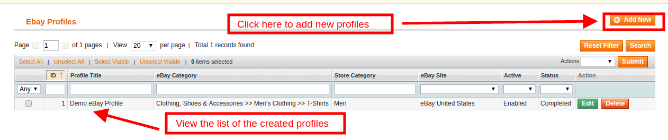
The OpenCart eBay Marketplace connector extension offers an option of a profile-based product listing to the store admin. The merchants can create profiles and manage them from the back-end of the OpenCart eBay Integration Addon.
3.3.1 How to Create a New Profile?
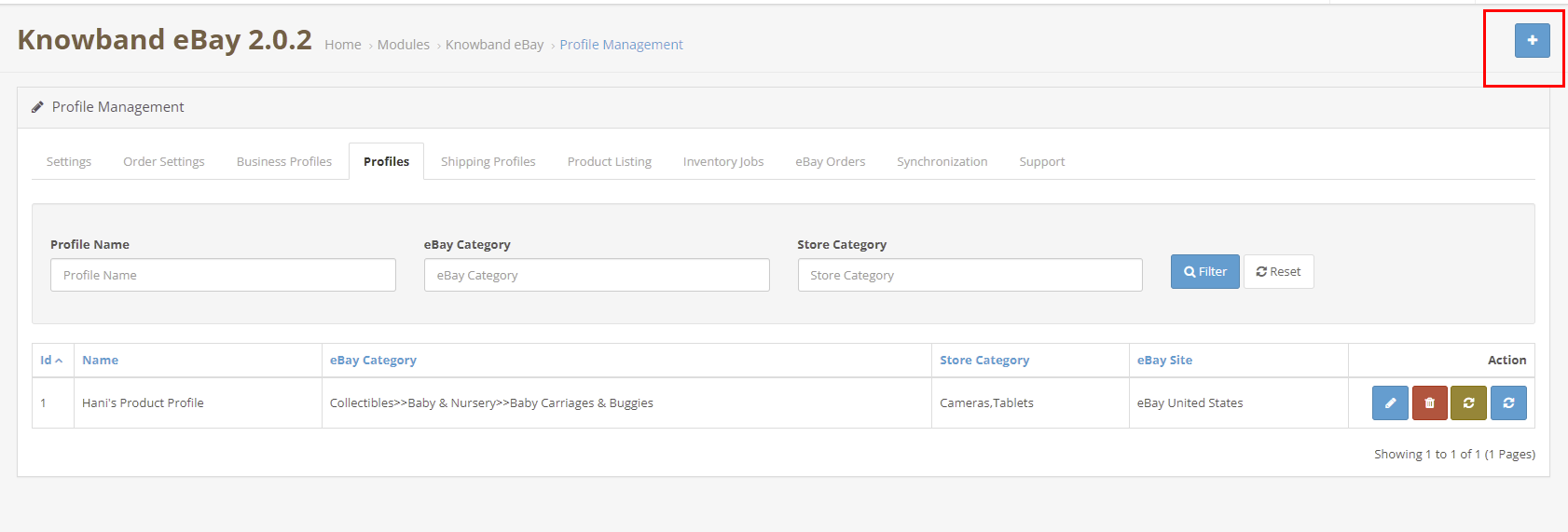
To create a new profile, click on the ‘+’ sign in the top right section.
The profile management tab of the OpenCart eBay connector plugin is further categorized into two tabs:
General
Specifics
3.3.1.1 General
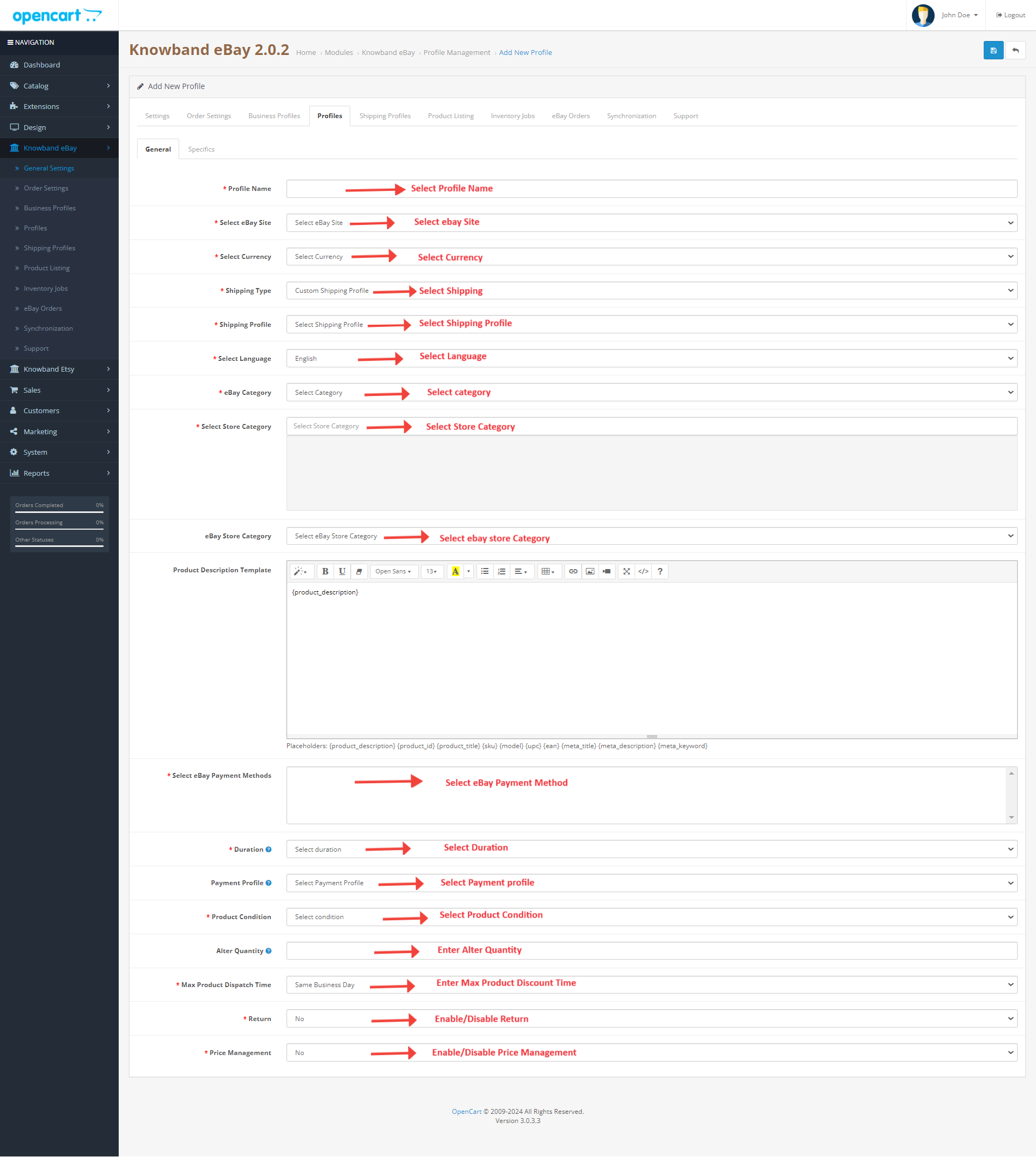
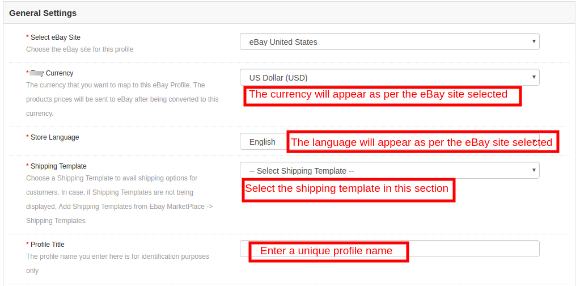
Profile Name: Enter a unique name for the profile here.
Select eBay Site: The eBay OpenCart API integrator allows the store admin to integrate their site with multiple eBay sites operating worldwide. Further, select the site from the drop-down menu.
Select Currency: Select the Currency type.
Shipping Profile: Select a Shipping Profile.
Select Language: Select the language.
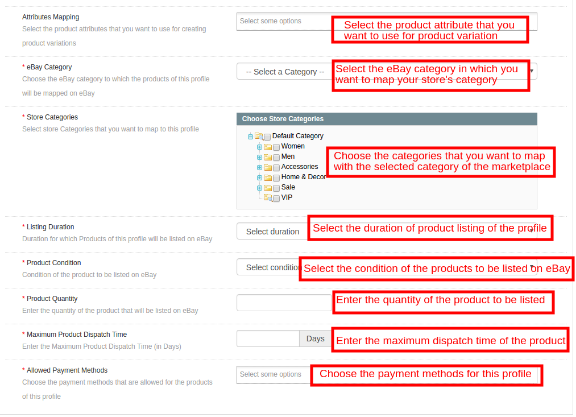
eBay Category: The admin can easily map the eBay categories with OpenCart categories. Select the eBay category from the drop-down menu in which you want to map the categories of the OpenCart store.
Select Store Category: Check the categories that you want to map in the respective category of eBay. The store admin can map multiple categories of the store with a single category of eBay.
Select eBay Payment Methods: Check the payment methods that you want to map on eBay.
Duration: Select the duration for which the products of the profile are to be listed in the eBay marketplace from the drop-down menu.
Product Condition: Select the condition of your product to be listed.
Alter Quantity: The quantity is the minimum quantity that will be sent to eBay for listing. That is if “20” is the quantity set as “Product Quantity” in the profile and the quantity of any particular product is greater than “20” (Opencart product quantity ) let’s assume “30”, then, “20” will be sent as the product quantity to eBay for that product and if the product quantity is less than “20” let’s assume “7”, then, “7” will be sent as the product quantity to eBay.
Maximum Product Dispatch Time: Enter the maximum expected product dispatch time.
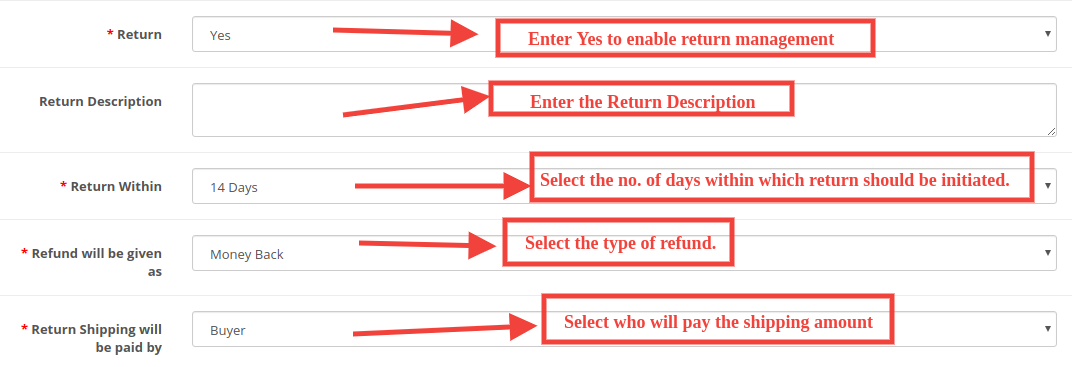
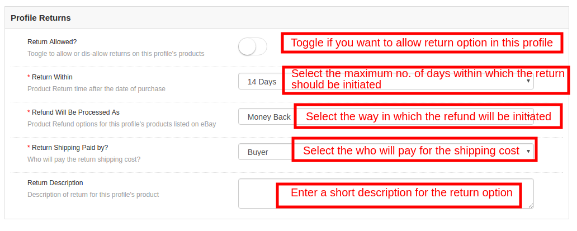
Return: Select whether you want to offer the return option for the listed products. If the admin selects Yes, then, the customers would be allowed to return the products.
Return Description: Enter the suitable return description.
Return Within: Select the no. of days within which return should be initiated.
Refund will be given as: The drop-down list shows several options in which the refund can be initiated. Select the one that suits your requirements.
Refund Shipping will be paid by Select who will pay for the shipping amount of the returned products.
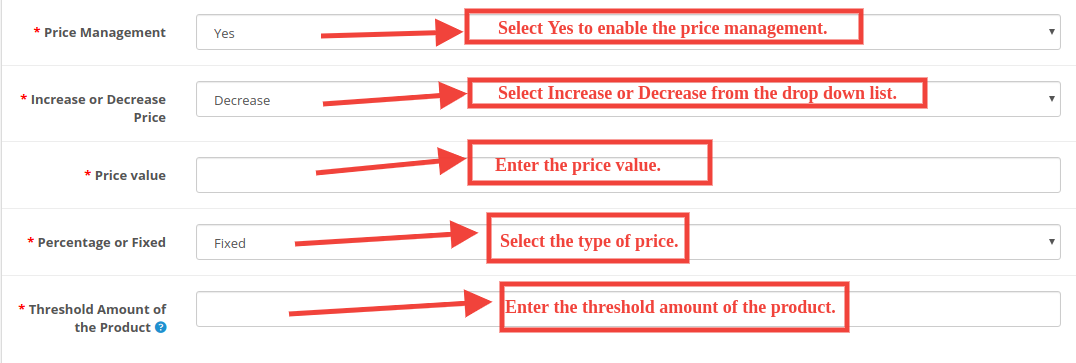
Price Management: Enable/Disable price management. If the admin selects Yes, then, the sellers would be allowed to manage the product price.
Increase or Decrease Price: Select an Increase or Decrease from the drop-down list.
Price value: Enter the price value.
Percentage or Fixed: Select the type of price.
Threshold Amount of the Product: Enter the threshold amount of the product.
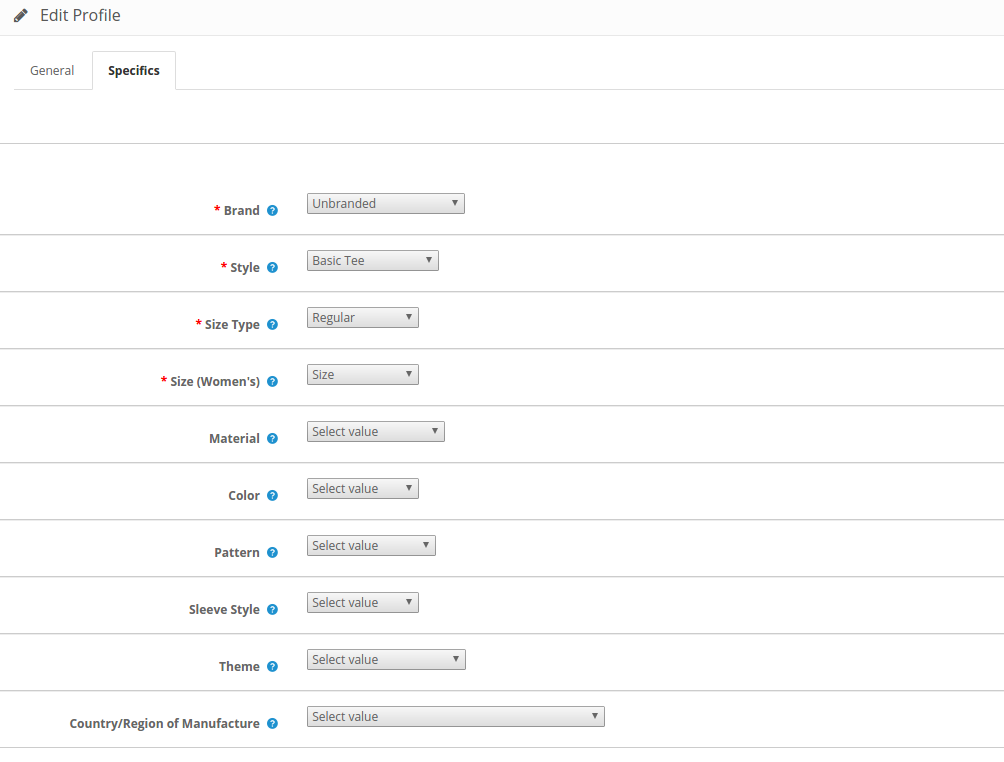
3.3.1.2 Specifics
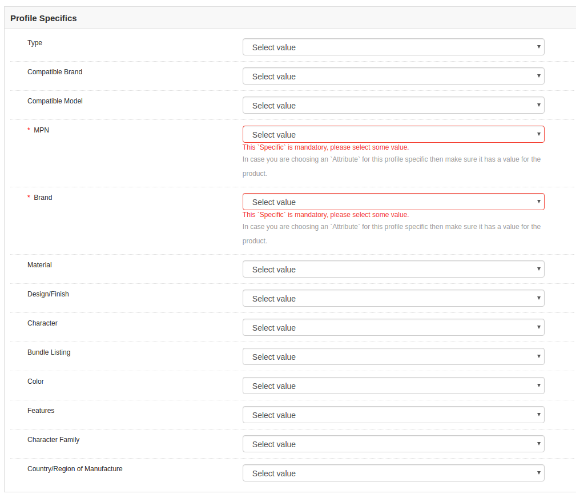
The specifics in this section appear as per the eBay category selected in the General tab. The field marked with * is mandatory.
3.3.2 How to Edit the existing Profile?
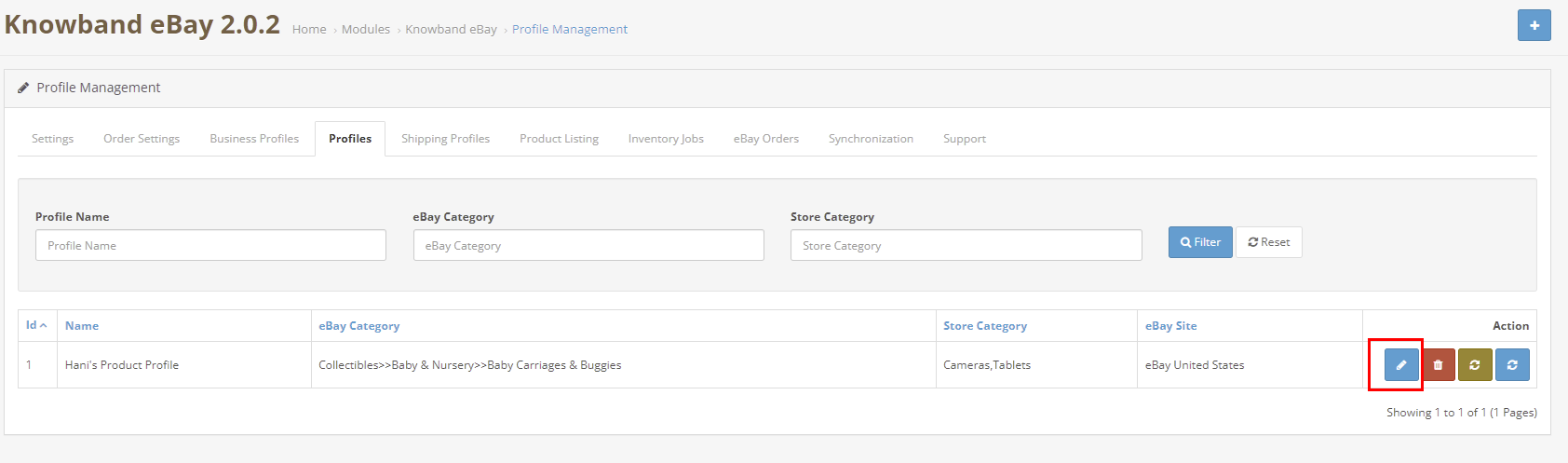
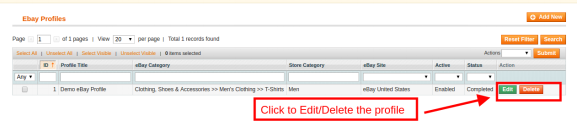
The store admin gets an option to edit the existing profile as per the requirement from the back-end of the OpenCart eBay Integrator extension. Click on the Edit button corresponding to the profile to make the changes as shown in the image below.
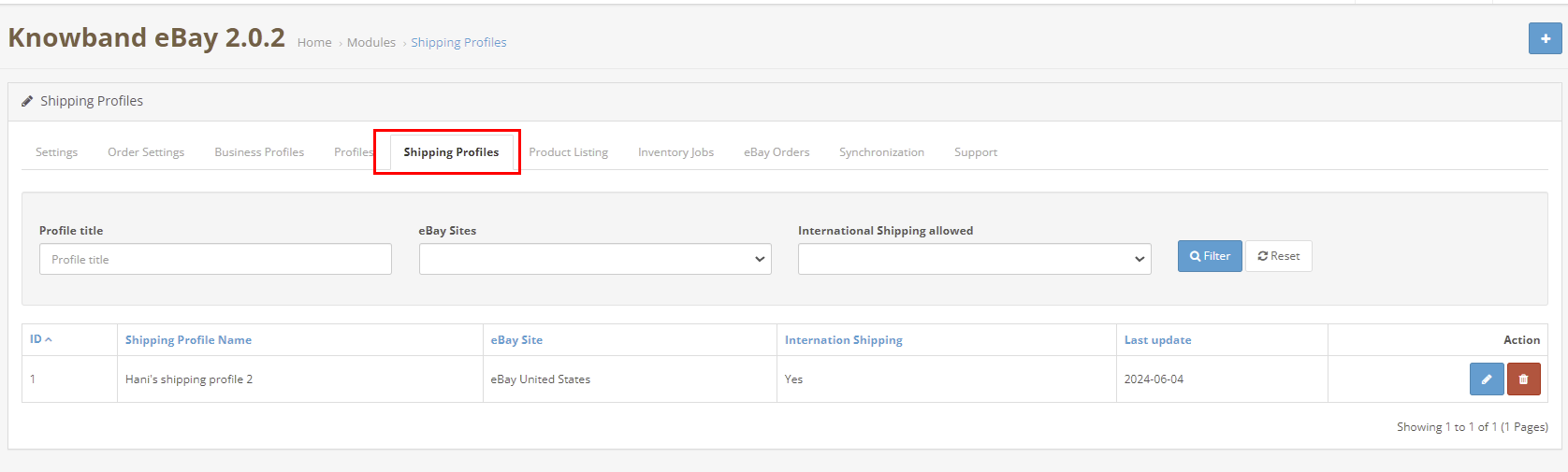
3.4 Shipping Profiles
This tab showcases the list of all the shipping profiles of the eBay Marketplace.
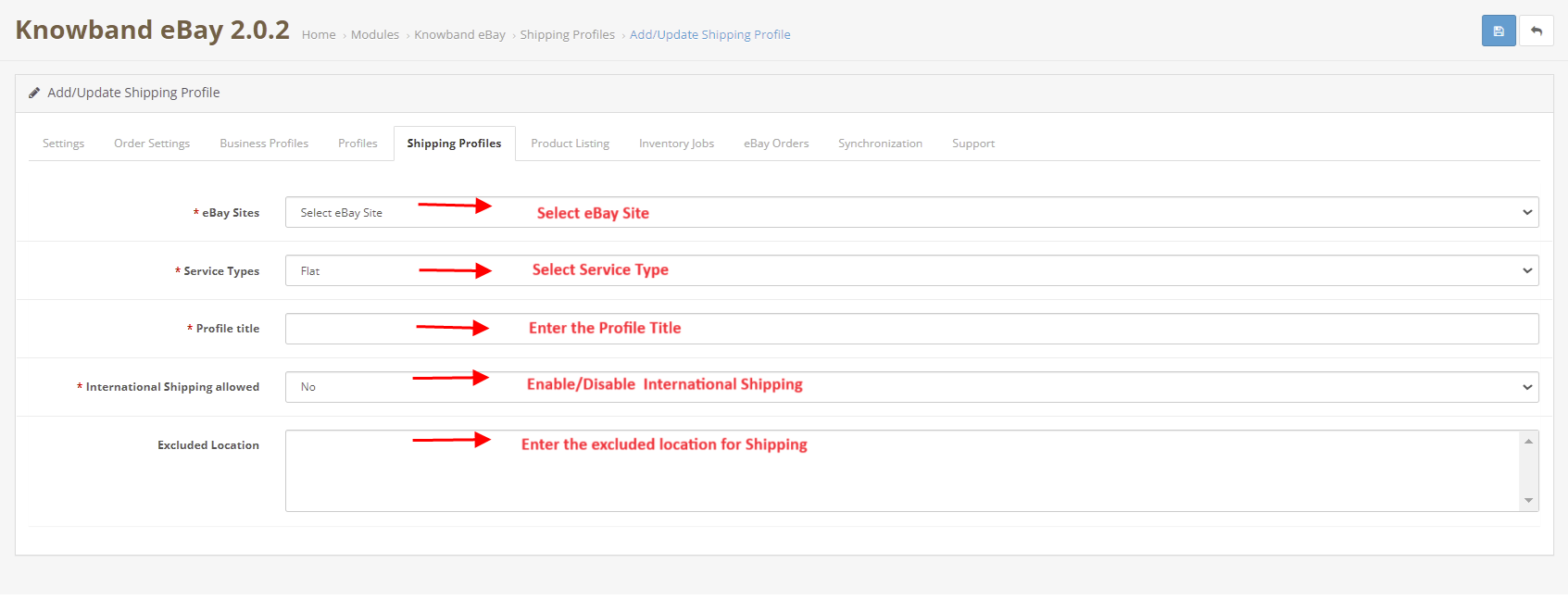
You can add multiple shipping profiles while you can also edit the existing shipping profiles too.
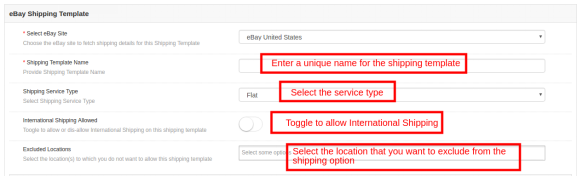
eBay Sites: Select the eBay site. Service Types: Select the service type. Profile Title: Enter the profile title. International Shipping allowed: Enable/Disable the international shipping. Excluded Location: Enter the excluded locations for shipping.
3.5 Product Listing
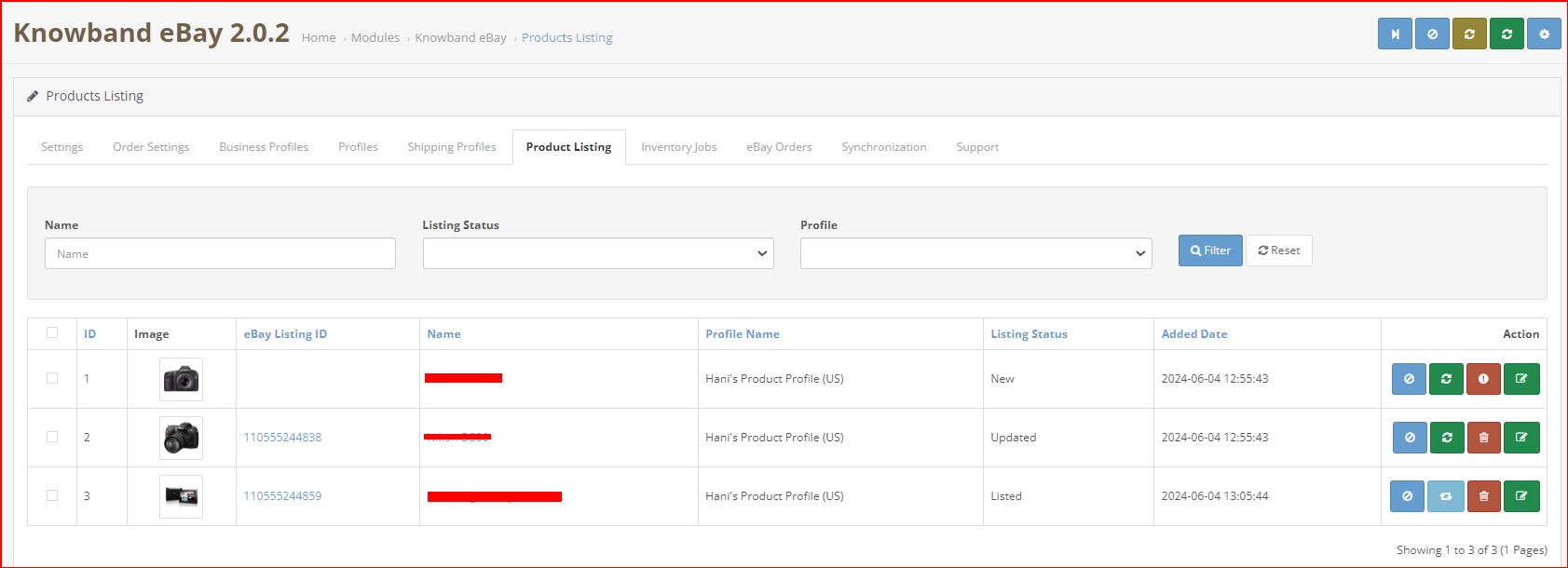
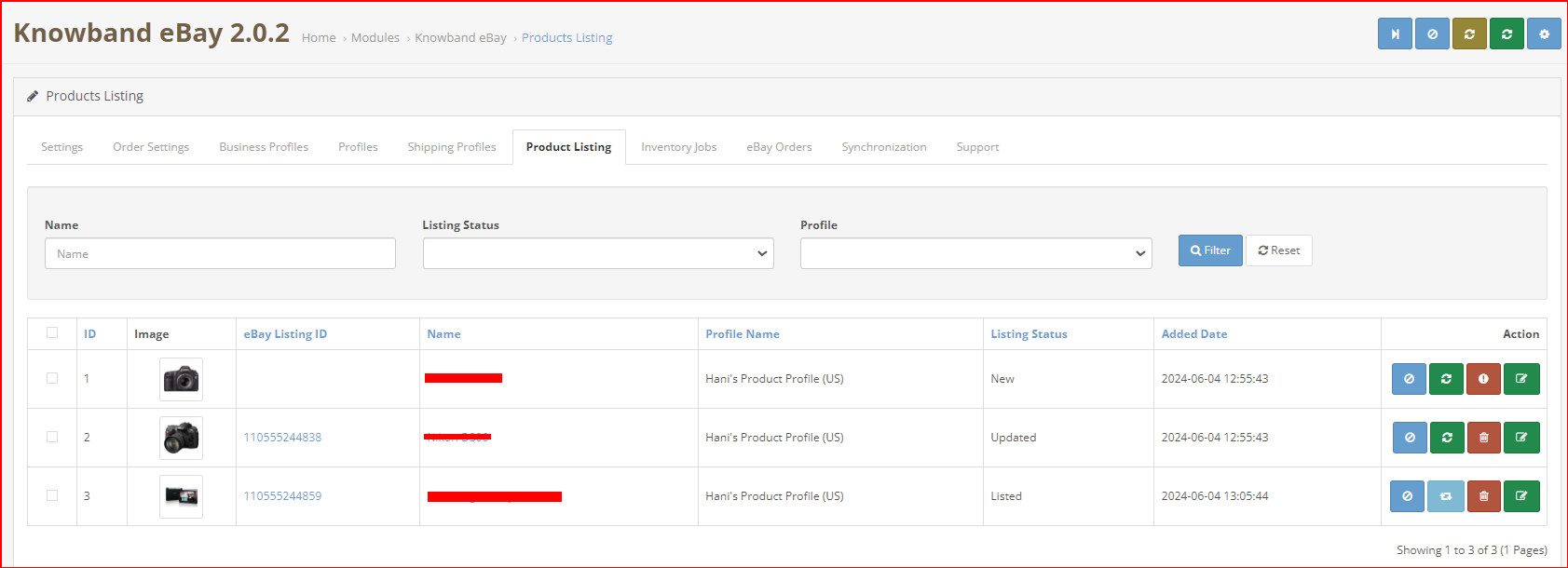
The OpenCart eBay Marketplace integrator makes it easier for the OpenCart store admin to view the product listing report. The products listed in the marketplace can be viewed from the back-end of the OpenCart eBay Integration plugin. The admin can remove the products by clicking on the ‘Delete’ button as shown in the image below.
There are the following options available corresponding to each product listing:
Disable the Product
This tab enables the admin to disable the product from the backend of the module. After disabling the product, it will not be shown on the front-end of the Marketplace. It can be only visible after enabling the product from the backend.
Product Listing Relisting
This option offered by eBay Prestashop integrator allows the admin to relist products in case the listing is expired on eBay Marketplace. To relist the product, the admin has to click on the “Relist” action given in bulk actions.
Product Listing Revision
If any update is done in product details then by default it will be marked as updated and if cron is set for this action then it will be sent for revision. If the admin manually wants to send products for revision then he can mark the product and click on “revise” from bulk actions.
Individual Product Synchronization
This feature enables the admin to sync the products one by one (Along with the bulk sync option at the top right corner). By this, the admin can filter out the products that need not be shown on the front end of the eBay Marketplace.
Delete the product
This feature enables the admin to delete the product. Admin can simply click on the Delete button and the product will be deleted from the front-end of the website.
Adding products from the product listings tab
If you want to add a product to the product listing tab, the admin has to create a profile of the product in the Profile section of the module. (read section 3.3.1) There you will get a step-by-step procedure of creating a profile and adding the product in the products listing tab.
Different statues in the filter of the product listing
Here are some different statuses in the filter of the product listing.
New: After applying this filter, the admin can view the new products listed on the Marketplace.
Listed: After applying this filter, the admin can view the listed products listed on the Marketplace.
Disabled: After applying this filter, the admin can view the list of disabled products.
Updated: After applying this filter, the admin can view the updated products listed on the Marketplace.
Ended: After applying this filter, the admin can view the list of ended products.
Relisting: After applying this filter, the admin can view the relist products listed on the Marketplace.
Listing a Product with Custom Product Details: The Opencart eBay marketplace connector provides custom product details features that enable listing the Opencart store’s products with a different name and different product description on the eBay marketplace.
Use Product Details: The store admin can enable/disable this feature from this button.
Custom Product Title: Enter the customized product title you want to synchronize on the eBay marketplace.
Custom Product Description: In this section, you can add the different product descriptions that you want to synchronize on the eBay marketplace for the mentioned product listing.
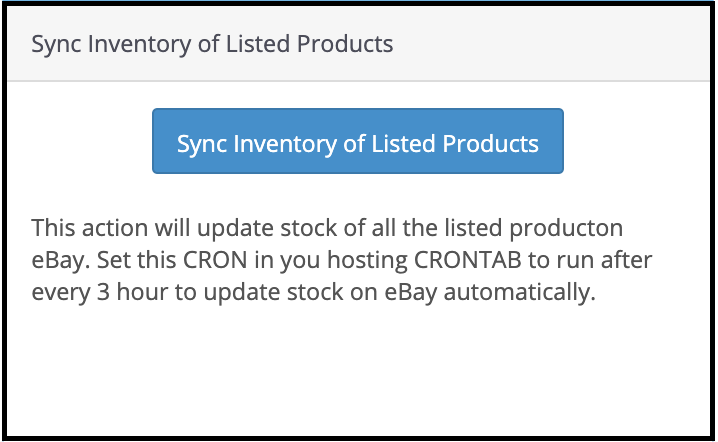
3.6 Inventory Cron:
This feature allows the store admin to sync the inventory of all the listed products from the OpenCart store to eBay.
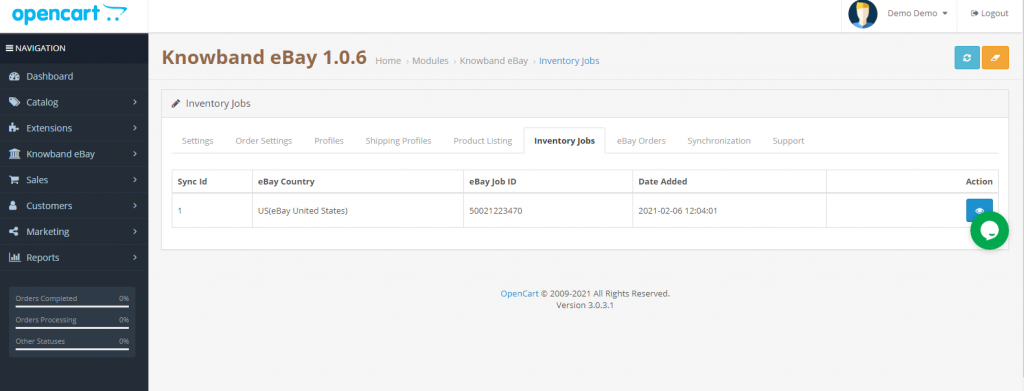
3.7 Inventory Jobs
This section has a button “Sync Inventory of Listed Product” on the top right side to sync the inventory of all the listed barcodes to eBay.
It also shows the list of Job IDs corresponding to the country with the date of the last inventory sync of all listed products.
On the click of view button, it will open the log of inventory sync for that Job Id where we can see the variants for inventory have been updated with eBay status.
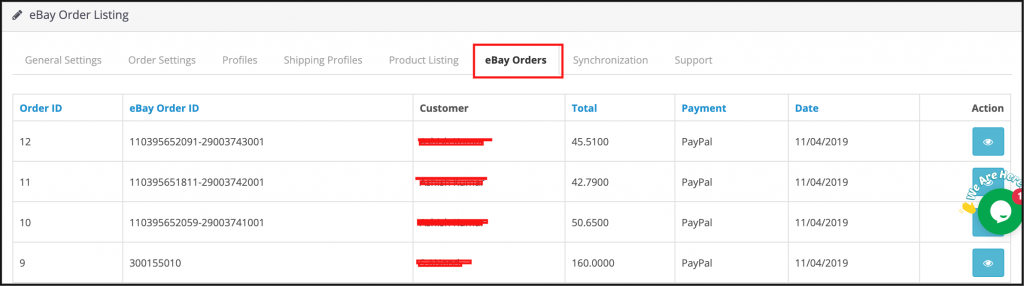
3.8 eBay Orders
The orders received from the marketplace sync with the OpenCart store by executing cron in the Synchronization tab of the OpenCart eBay Marketplace connector module admin panel.
The orders will be listed in this tab as shown in the image below:
3.9 Synchronization
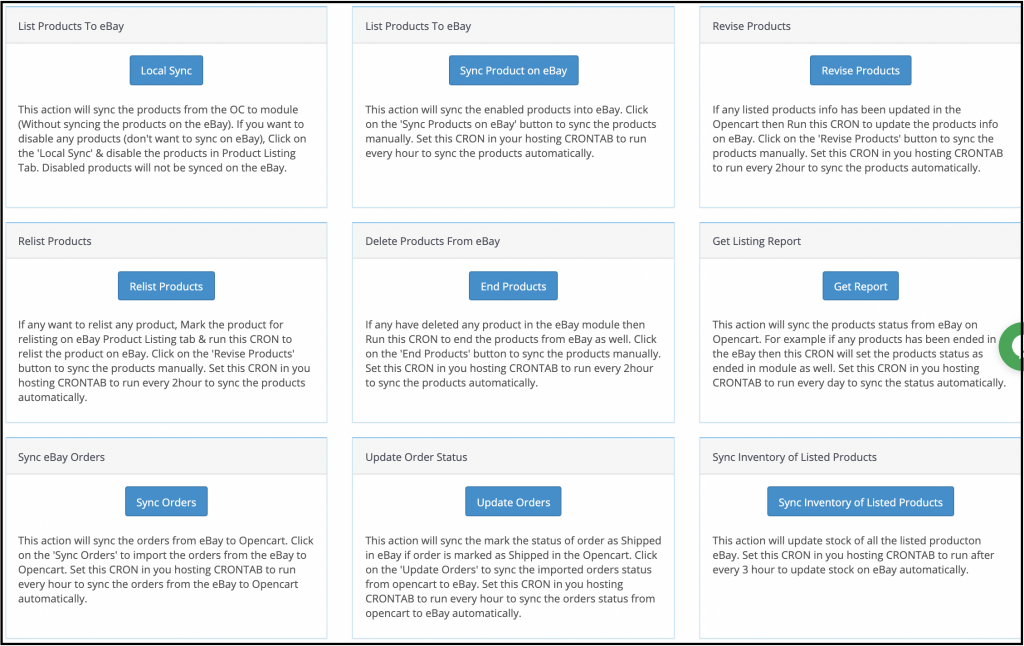
The eBay OpenCart Connector extension allows two-way integration to the OpenCart store owners. The merchants can list the products and the related details in the marketplace with the help of this OpenCart eBay API Integration. At the same time, the orders sync back from the eBay marketplace to the OpenCart store.
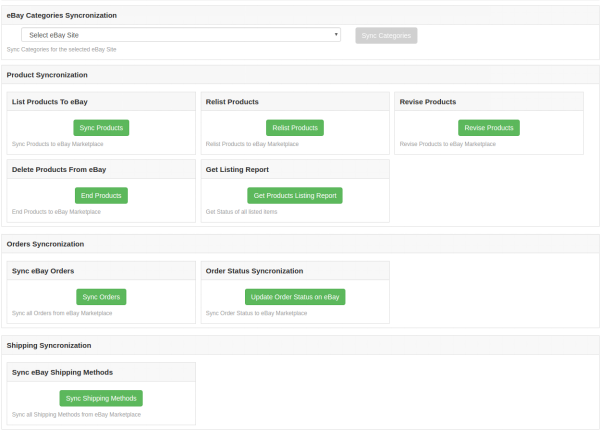
OpenCart eBay Connector Module offers three synchronization options offered including Category, Product, and Order synchronization.
3.9.1 How to sync the Products from the store to Opencart eBay Knowband Module?
Add the shipping template and profile in this module. Now, click on the “Local Sync” button to sync products from the Opencart store to this module.
3.9.2 How to sync the Products with the eBay Marketplace?
Following are the steps to synchronize the profiles with eBay Marketplace –
Go to the Synchronization tab.
Select the profile whose products you want to list. Sync the profile with eBay.
Click on the “Sync Product on eBay” button as shown below.
It would perform the following actions –
Add the products in the marketplace with the respective product details.
It will list products to eBay from your OpenCart store.
3.9.3 How to Relist the Products in the eBay Marketplace?
Click on the “Relist Products” button as shown below.
The cron job will relist the products that have expired from the marketplace.
3.9.4 How to Revise the product on the eBay Marketplace?
Click on the ‘Revise Products’ as shown below to revise the products on the marketplace. Any change in the product details, image, pricing, etc sync by executing this cron.
3.9.5 How to Remove a product on the eBay Marketplace?
Click on the ‘End Product’ as shown below to delete the products from the marketplace. The admin needs to click on the ‘Delete’ button in the products listing tab before executing this cron.
3.9.6 How to Import the listing report from the eBay Marketplace?
It fetches the product listing from the marketplace by executing the ‘Get Products Listing Report’ cron and updating the eBay status of the product on this module same as on the eBay marketplace.
3.9.7 How to sync Orders from the eBay Marketplace?
Click on the “Sync Orders” button to sync the orders received from the marketplace in the OpenCart store as shown below.
It would perform the following actions –
The plugin will sync all the Orders and related details from eBay Marketplace to the OpenCart store.
It creates the orders in the OpenCart store according to the details of the order received from the Marketplace. The admin can then process orders from a single interface, that is, from the back-end of the Opencart eBay Marketplace Integrator.
3.9.8 How to sync Order Status to the eBay Marketplace?
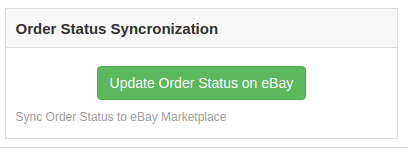
To sync the Click on the “Update Order Status on eBay” button as shown below.
It would perform the following actions –
The cron checks if there is any status update recorded by the OpenCart module for any order.
These updates are then synchronized with the eBay marketplace.
It updates the Status of Orders as per the configuration settings modification in the “Order Settings” tab of the admin interface of the Opencart eBay Marketplace Integrator.
3.9.9 How to sync inventory to eBay Marketplace for all Products?
Click on “Sync Inventory of Listed Products” and it will update the inventory of all the listed products on the eBay marketplace.
3.10 How to Synchronize a Particular Profile on the eBay Marketplace?
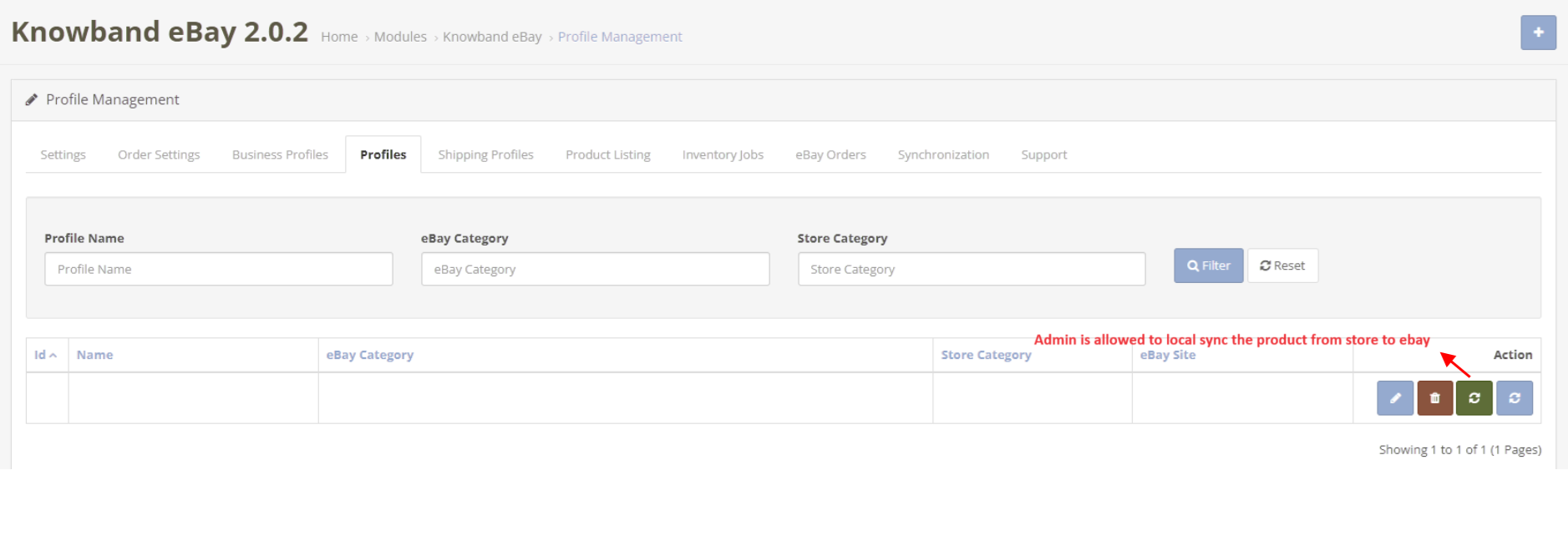
All the crons available in the “Synchronization” tab of the Opencart eBay Connector plugin support all categories in bulk. However, if you wish to list or update a specific profile only, you can manage this task from the “Profile Management” tab.
In this section, we provide the “Local Sync,” “Sync Products,” and “Sync Product Status” crons to offer the Opencart admin flexibility in managing category-level synchronization between Opencart and eBay.
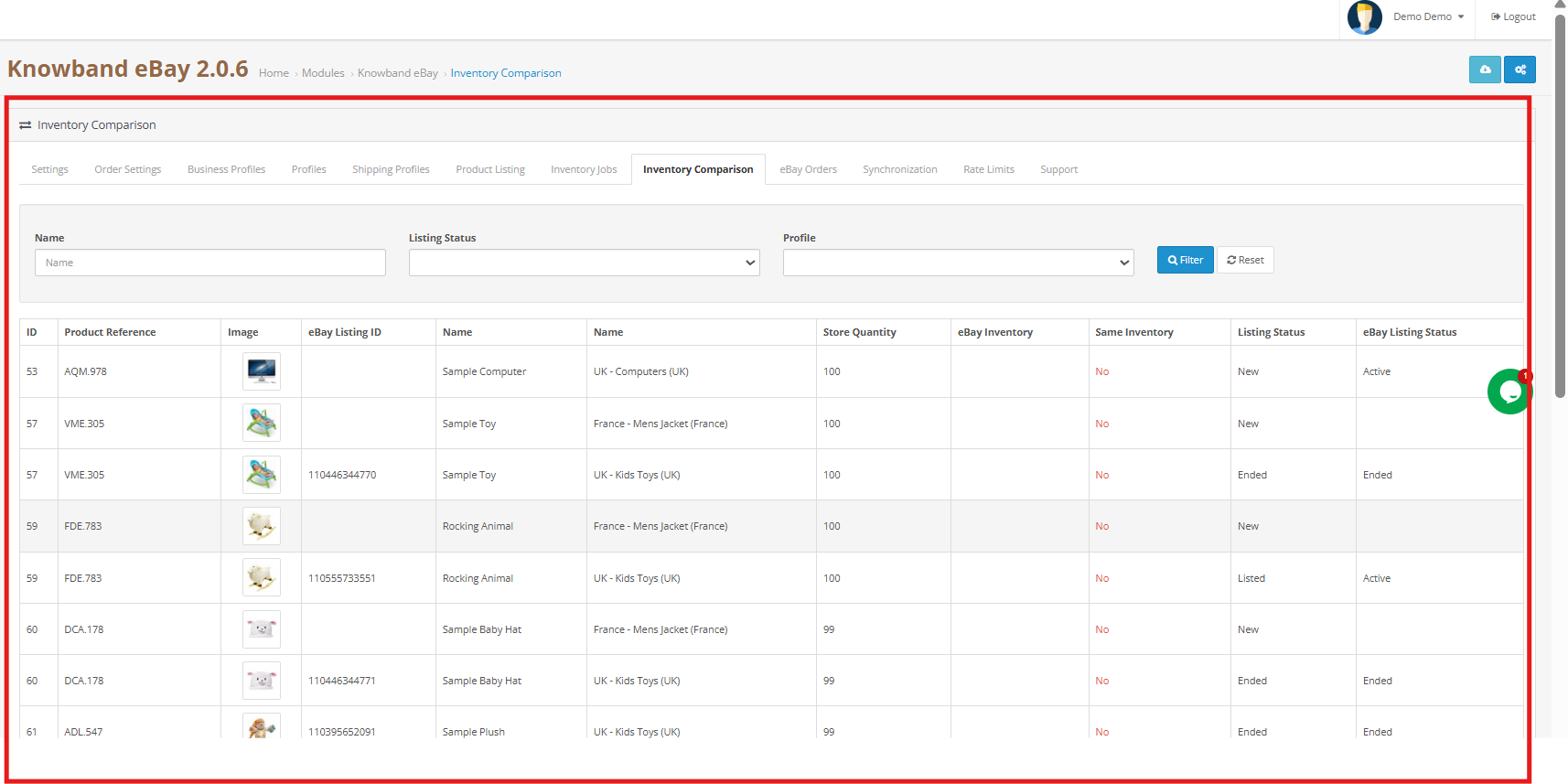
4.0 [New Enhancements] Inventory Comparison with eBay
The Inventory comparison tabs allows the Opencart store owners review and compare product stock available or quantity in their OpenCart store with the stock listed on eBay. This makes it easy to spot quantity differences and keep product availability consistent across both platforms.
By regularly checking this section, sellers can reduce the risk of overselling, avoid out-of-stock situations, and maintain smooth inventory management without manual checks.
The comparison process runs through two cron jobs that work together to collect and verify inventory data.
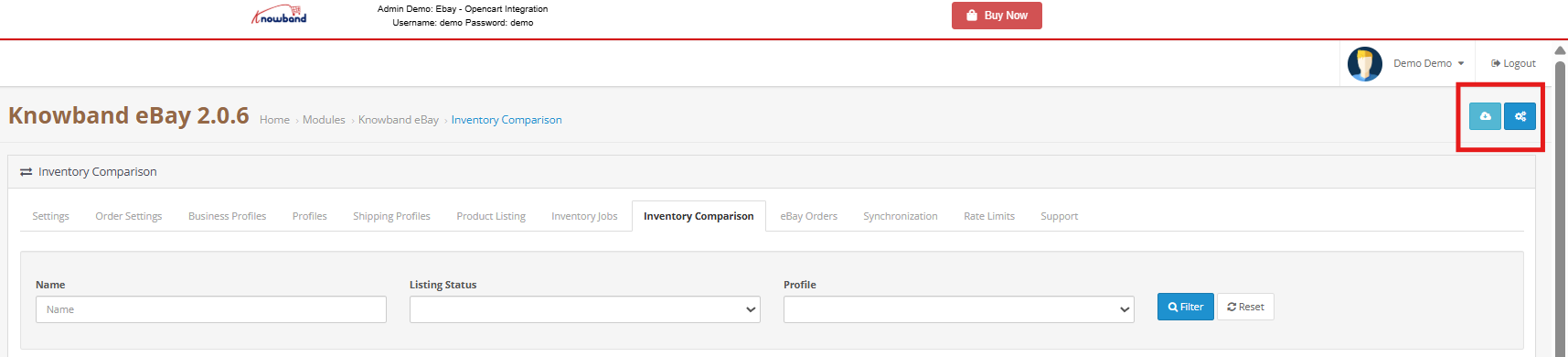
4.0.1 Fetch eBay Stock Data through Submit a Request to fetch eBay Inventory Cron
This scheduled cron fetches the latest product quantity details directly from your connected eBay account. When the cron runs, the fetched stock values are stored and displayed in the Inventory comparison section for reference.
Running this task ensures that the system always has updated eBay stock information ready for comparison.
4.0.2 Verify Inventory Data Using Process Last Inventory Request Cron
After the eBay inventory is fetched, this cron job compares the retrieved eBay quantities with the current inventory on your opencart. Furthermore, based on the comparison, this feature flags Yes or No depending on whether the stock values match or differ.
The results are clearly shown in the Inventory Comparison tab, helping store owners take quick action when needed.
4.1 API Usage & Rate Limit Monitoring
The Opencart eBay Marketplace Extension provides an API usage monitoring feature that helps track all eBay API interactions. Furthermore, it shows how many times each API has been called, along with the total limit and remaining available calls.
When an API request reaches or goes beyond the permitted limit, this feature automatically shows in the tab. This helps prevent interruptions and ensures the smooth operation of all syncing processes.
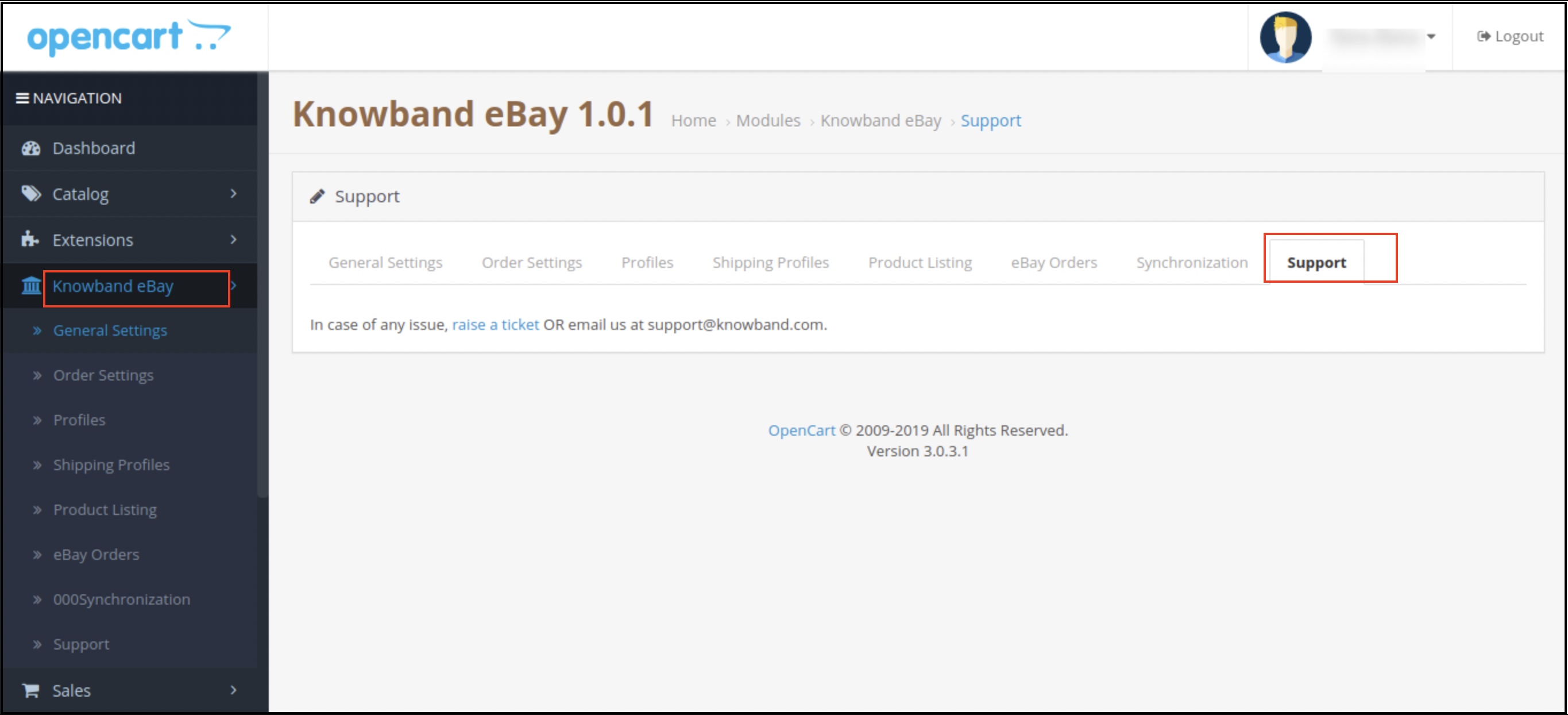
5.0 Support
This tab is for admin support. In case of any query, the admin can raise a ticket or mail it to the email ID given in the support tab.
You can try this Opencart eBay Marketplace Integrator for your OpenCart store at budget-friendly prices.
Full Tutorial of eBay Marketplace Integration Extension for OpenCart
This OpenCart eBay Marketplace Integration tutorial provides a complete step-by-step guide on installing and configuring the eBay integration module, connecting your OpenCart store with your eBay seller account, synchronizing products, categories, prices, and inventory in real time, managing orders seamlessly from the OpenCart admin panel, enabling automated product listing with advanced template controls, mapping store attributes with eBay specifications for accurate listings, and handling live/ended listings directly from your store.
Watch the tutorial here
Contact us at support@knowband.com for any query or custom change request as per your business requirement.
Magento eBay connector offers the quickest means to the Magento store owners to integrate their store with the very popular eBay marketplace. The eBay integration allows the merchants to manage the inventory and orders from a single interface.
Headquartered in San Jose, California, eBay is a multinational eCommerce corporation that popular as an online auction and shopping site. It facilitates consumer-to-consumer and business-to-consumer sales and offers an easy and customizable interface for the sellers across the globe to list and sell their products effortlessly. eBay operates in over 30 nations. The product listing of eBay combines 800+ million product listings that are not just unique but are even coupled with great deals.
Magento eBay Marketplace Integration module by KnowBand offers a smart solution to the e-merchants to integrate their store with the eBay Marketplace. The store admin can list products to the marketplace and sync the orders from the marketplace to their Magento store.
1.1 Merchant benefits of Magento eBay Integrator by Knowband
The Magento eCommerce sites can easily expand their reach by integrating their store with the popular marketplace with the help of this Magento eBay integrator.
The Magento eBay API integrator allows the store admin to sell their products to a larger audience base.
The eBay Magento connector allows the sellers to sync their site with any of the eBay sites.
The eBay Magento connector module offers multi-currency and multi-lingual support that helps you offer the services according to the target customer.
The eBay Magento integration plugin is easy-to-understand and the admin can start selling in the marketplace in a few simple steps.
The user-friendly interface of the Magento eBay integration extension makes it easier for the store admin to manage their merchandise from a single platform.
The merchants can add/remove the product, manage the details and inventory from the admin panel of the Magento eBay integration plugin.
The admin can manage the shipping methods for the eBay store from the admin panel of the Magento eBay Marketplace connector extension.
Profile-based product listing of the Magento eBay API integration module makes it easier for the merchants to list the products in bulk.
Even the order processing becomes easier with the robust eBay Magento API integrator.
The seller can check the reason for error product rejection and rectify accordingly from the back-end of the Magento eBay integrator.
The Magento eBay API integration plugin comes with free support for 3 months.
The eBay Magento connector extension is easy-to-use and can be configured with the least effort.
2.0 Installation of Magento eBay Integrator
Follow the following steps for installing eBay Magento Marketplace integration extension:
1. Download the Magento eBay integration extension package.
2. Unzip the package in your root folder of Magento setup via FTP manager (like Filezilla or WinSCP – download here: https://filezilla-project.org/).
3. In the admin panel, go to eBay Marketplace in the main menu.
4. The Magento eBay Marketplace Integration module is now ready for use.
This User Manual will guide the users through the Magento eBay integration extension configuration and settings.
To start selling on eBay Marketplace you need to have a seller account on eBay. In this section, we are listing all the steps to create a seller account on eBay. Please find them below –
3. After filling valid data click on join and you will be redirected to the application creation page.
4. Enter the application name and click on ‘Create a keyset’ under the Production section, a new form will be opened.
5. Enter the details and click on Continue to create Keys.
6. Application keys will be shown.
7. To create user token, click on User Tokens link in the above image.
8. Click on ‘Sign in to Production’ to get a token.
9. Fill the details and click on “Sign in to eBay to get a Token’”.
10. Sign into already created eBay Seller account or register as shown below:
1. On clicking register and filling details you will be redirected to your Seller eBay account.
2.2 To Get a token from eBay via your application
1. To create user token, click on User Tokens link in the below image.
Steps to reach this screen:-
A. Login into your developer’s eBay account.
B. On a successful login, you will see the below-added screen.
2. Click on “Get a Token from eBay Via Your Application.”
Steps to reach this screen:-
A. Click on “User Tokens” from the above screen.
3. Click on add eBay redirect URL and fill the form and save.
4. On clicking I agree from the right side form, you will be redirected to the authentication page.
3.0 Admin Interface of Magento eBay Integrator
Admin panel of the Magento eBay API Integration extension offers 8 configuration options.
1. General Settings
2. Profile Management
3. Order Listing
4. Order Settings
5. Product Listing
6. Shipping Template
7. Synchronization
8. Audit Log
3.1 General Settings
Once you have created a seller’s account, you need to fill-up the form to validate the synchronization of the store with the marketplace. Navigate to Admin Interface>eBay Marketplace>General Settings.
Fill the form shown in the General settings section. Each field for the configuration panel of Magento eBay Integration plugin is explained below:-
1. Enable/Disable
Enable/disable the Magento eBay API integrator by toggling this button.
2. Account Type
The admin can either choose the Sandbox account or the Production eBay account. The sandbox account is for testing purposes. While the Production account is for the final store integration.
3. Dev Id
Enter the Dev ID of your eBay account in this section. To find your Dev ID, sign in the eBay developer account. In the application key section, you’ll find App ID, Dev ID, and Cert ID as shown in the image below.
4. App Id
Copy the App ID from your eBay account and copy the same in this field.
5. Cert Id
Enter the Cert Id of eBay account in this section. You can find the Cert Id as shown in the above image.
6. RU Name
Enter the RU Name of the eBay account. To obtain your RU name, go to the ‘Get a Token from eBay via Your Application’ tab after adding a redirect URL.
7. Access Token
Copy the Auth Token of eBay account and paste in this section. To get the access token, you need to click on Sign in to Production as shown in the below image.
Sign in to the account from the form below:-
Click on I agree and get access tokens.
8. Paypal Email
Enter a valid PayPal ID connected to your eBay account. Follow the steps mentioned below:
1. Log in to your eBay seller account.
2. Click on account settings from top left dropdown an click on Paypal account.
3. Now Sign up or link your already created PayPal account with the eBay seller account.
4. On clicking Sign Up, you will be redirected to the PayPal account creation page. Just create a profile by filling the details and link it to your seller’s account.
3.2 Profiles Management
The Magento eBay Marketplace Integrator plugin offers an option of the profile-based product listing. The profiles created in the admin interface of the Magento to eBay integration plugin can be viewed in this tab. The admin can create a new profile and edit or delete the already created profiles.
3.2.1 How to Add New Profiles?
Follow the steps, to create new profiles, Go to the Admin Panel>eBay Marketplace>Profile Management.
Click on the ‘Add New’ button as shown below:
The profile creation tab of the Magento eBay Integration plugin is categorized into three tabs. They are:
General Setting
Profile Return
Profile Specifics
3.2.1.1 General Settings
Once the eBay site is selected, the store admin is required to enter the following information.
eBay Currency: The currency will be automatically selected as per the eBay site selected by the admin. The store admin can even change the currency if required.
Store Language: The store admin needs to select the language as per the selected eBay site.
Shipping Template: The shipping options created in the Shipping Template Tab will be listed here (See Section 1.2.7). Select the shipping option that you want to display to the marketplace customer.
Attribute Mapping: Select the attributes based on which you want to create product variations.
eBay Category: Select the eBay category from the dropdown menu in which you want to map the categories of the store.
Store Categories: Check the categories that you want to map in the selected category of eBay. The Magento eBay integrator allows the admin to map multiple categories of the Magento store with a single category of eBay. To list multiple eBay categories, you are supposed to create multiple profiles.
Listing Duration: Select the duration for which the products of the profile is to be listed in the marketplace.
Product Condition: The default conditions are listed in the drop-down menu. Select the condition of your product.
Product Quantity: Enter the quantity of the product here.
Maximum Product Dispatch Time: Enter the maximum expected product dispatch time.
Allowed Payment Methods: Select the payment methods that you want to allow for this particular profile.
3.2.1.2 Profile Returns
The store admin can manage the return requests of the marketplace from the back-end of the eBay Magento API integrator. Here are some of the customization options offered in this tab.
Return Allowed: Enable the button if you want to allow return option in this profile.
Return Within: Enter the maximum number of days within which the return request should be initiated.
Refund will be Processed As Select how the refund will be offered to the customer.
Return Shipping Paid by?: Select who will pay for the shipping cost of the returned product.
Return Description: Enter a short description for the return option here.
2.3.2.1.3 Profile Specifics
Profile specifics will appear as per the category of the eBay selected in the General Setting tab of the Profile Management. This tab includes fields like Type, Brand, Model, Color, Features, and others. Fill up the fields as per the category selected and the product mapping will be done accordingly. The specifics marked by * are mandatory. Other specifics can be left blank.
3.2.2 How to Edit/Delete the existing Profile?
Templates will be listed (If any) in the Profile Management tab of the Magento eBay integration extension. Click on the ‘Edit or Delete’ button to edit/delete the profile as shown in the image:
The Profiles can be enabled/disabled by selecting the option in the ‘Active’ tab.
3.3 Orders Listing
The orders received from the marketplace will be synced to the Magento store once the cron is executed in the Synchronization tab. (See Section 1.2.7)
The orders listed as shown in the image below. To view the details and process the same click on the ‘View’ button corresponding to each order.
The store admin can now see the following details of each order.
It offers basic information like order date, status, billing and shipping address, payment information, gift options, item ordered, comments history.
The default order view page is shown below:
1. Invoice: The Magento merchants can generate the invoice of the order. Once the invoice is created, the processing of the order will be initiated.
2. Credit Memos: Change the status of the credit here.
3. Shipments: The admin can update the shipment details in this section.
3.4 Orders Settings
The Magento eBay connector offers two-way integration. The admin can mark which status will be displayed when an order is synced.
It includes three options:
Order Default State: Select the default status of the orders that will be displayed in the marketplace.
Order Paid State: Select the status of the paid orders.
Order Shipped State: Select the status for shipped orders.
Note –
The default status is the first status of the order when it is placed on the store.
Paid status means that payment for the order has been made and accepted.
Shipped status means that ordered items have been shipped.
To update the change in the order status by executing cron in the Synchronization tab of the Magento eBay Marketplace integration plugin. (See Section 1.2.7)
3.5 Product Listing
The store admin can view all the products listed in the marketplace from the Product Listing tab of the Magento eBay Integration extension.
Here are some of the listing options offered in this tab of the Magento eBay Integration plugin.
Revise
The store admin can click on the ‘Revise’ button to update any change in the product detail. Whether you make a change in the product description, pricing or quantity of the products, all the changes will be updated in the marketplace by this button.
Delete
This option allows the admin to delete the product from eBay Marketplace. Click on “Delete” action corresponding to each product listing if you want to remove it from the eBay.com.
Relist
The ‘Relist’ option allows the admin to relist the products that have expired or have been removed from the marketplace.
The admin is supposed to run the respective cron after clicking on these action buttons to sync the changes with the marketplace.
View Error
The admin can view the error that occurred in listing the product. For this, click on ‘View Error’ action.
Adding products from the product listings tab
If you want to add a product in the product listing tab, the admin has to create a profile of the product in the Profile section of the module. (read section 3.2.1) There you will get a step by step procedure of creating a profile and adding the product in the products listing tab.
Different statues in the filter of the product listing
Here are some different statues in the filter of the product listing.
New: After applying this filter, admin can view the new products listed on the Marketplace.
Listed: After applying this filter, admin can view the listed products listed on the Marketplace.
Updated: After applying this filter, admin can view the updated products listed on the Marketplace.
Deleted: After applying this filter, the admin can view the list of disabled products.
Relist: After applying this filter, admin can view the relist products listed on the Marketplace.
3.6 Shipping Templates
The Magento store admin gets to create N number of shipping template from the back-end of Magento eBay Integration extension.
3.6.1 How to create New Shipping Templates?
To create new shipping templates, click on the ‘Add New’ button.
You’ll be redirected to the shipping template creation page.
Select eBay Site: First, select the eBay site for which you are creating the shipping template.
Shipping Template Name: Enter a name for the shipping template.
Shipping Service Type: Select the shipping service type.
International Shipping Allowed: Switch on the button if you want to allow international shipping.
Excluded Location: Select the locations (if any) that you want to exclude from this shipping method.
Fill the below-mentioned fields for domestic shipping:
Domestic Shipping Service: Select the domestic shipping service from here.
Free Shipping Allowed: Select ‘Yes’ if you want to allow free shipping services.
Shipping Priority: Set the priority for the shipping methods. The options will be displayed in the front-end as per the priority set.
Shipping Cost: Enter the Shipping Cost to be charged.
Additional Cost: Specify the additional cost to be charged.
3.6.2 How to Edit/Delete Shipping Templates?
The admin can edit/delete the shipping template by entering the Edit or Delete button as highlighted in the image below:
3.7 Synchronization
The Magento to eBay integration allows easy synchronization between both the stores. All the synchronization jobs can be performed from this tab.
The synchronization tab of the Magento eBay Integration module offers three synchronization options. That is Product, Order and Shipping synchronization.
3.7.1 How to sync the products on eBay Marketplace?
Click on the “Sync Product” button as shown below.
It will add products in the marketplace with the respective product details.
3.7.2 How to Relist the product on the eBay Marketplace?
Click on the “Relist Products” button as shown below.
This will relist the expired products in the marketplace. It will update the listing of the products whose relisting was initiated in the Product Listing tab.
3.7.3 How to Revise the product on the eBay Marketplace?
Click on the ‘Revise Product’ as shown below to revise the products on the marketplace. Any change in the product details, image, pricing, etc can be synced by executing this cron offered by Magento eBay Integrator.
3.7.4 How to Remove a product on the eBay Marketplace?
Click on the ‘End Product’ as shown below to remove products from the marketplace. The admin has to click on the ‘Delete’ button in the products listing tab before executing this cron eBay Magento Integrator.
3.7.5 How to Import the listing report from the eBay Marketplace?
By executing ‘Get Products Listing Report’, the admin can import the report of the product listing from the marketplace. The eBay status column will be filled when this action is executed Magento eBay Integrator.
3.7.6 How to sync Orders from the eBay Marketplace?
Click on the “Sync Orders” button as shown below.
It would perform the following actions:
It will sync the Orders and related details from eBay Marketplace to the Magento store.
It creates the orders in the Magento store as per the details of the order received from the Marketplace.
3.7.7 How to sync Order Status to the eBay Marketplace?
Click on the “Update Order Status on eBay” button as shown below.
It would perform the following actions
The cron checks if there is any status update recorded by the Magento eBay integrator for any order.
The updates are then synchronized accordingly.
It updates the Status of Orders as per the configuration settings modification in the “Order Settings” tab of the admin interface of the Magento eBay Integration module.
3.7.8 How to sync Shipping Methods to eBay Marketplace?
Click on the “Sync Shipping Methods” button shown below. It will sync all the shipping methods created in the Magento eBay Marketplace integration plugin to the eBay marketplace. This is a one time process.
3.8 Audit Log
This tab offers an overview of all the tasks being performed in the back-end of the Magento eBay Integrator extension.
Prestashop is one of the most widely used eCommerce platforms. With a comprehensive product featuring, a bundle of themes and the wide range of extensions, this is one of the platforms that can take online businesses to the next level.
Prestashop flash sale module by Knowband allows the e-merchants to create a fully customized flash sale for their online business. The Prestashop module makes the creation of time-bound promotion a matter of moments. The store admins can now put forward alluring offers along with a countdown reminder on their websites. Creating an impression of urgency, the flash sale plugin can motivate impulse buying and boost the chances of conversion of the eCommerce site.
The Prestashop addon triggers the customers to take advantage of the offer and place the order before it’s too late. The flash sale module offers easy configuration and customization options and helps you ensure customer retention.
Benefits offered by Prestashop flash sale module:
The Prestashop flash sale addon by Knowband is easy to understand and use.
With easy customization options, the boost sale module offers the store admin to manage the offers of the site without any hassle.
The countdown with a special offer by Knowband allows the admin to select the product/category for displaying the sale.
The e-merchants can even exclude a particular product for the same.
The flash sale countdown addon allows the e-marketers to set the conditions for the discounts being offered.
The Prestashop boost sale extension allows the admin to set the countdown timer for the offer.
The multi-lingual support, enables the store owners to take their business on the global platform.
The discount coupons with the time limit intrigue the customers to place their order instantly. Thus, boosting the conversion rate of the store.
1.1 Project Objectives
The objectives being covered in the plugin are:
To configure the module.
Choose the location for flash sale display on the website.
To set the conditions for the flash sale.
To set the rules for the countdown timer.
To set the restrictions for the offers.
2.0 Installation
Order the Prestashop flash sale addon by Knowband from our store, you will get the following files as listed below:
1. Zipped file with the source code of the module
2. User Manual
Follow the below-mentioned steps to install the addon:
Unzip the zipped file. It would contain files and folders as shown below –
Copy all the files and folders of the unzipped folder into your store “Modules” directory on the path – Root Directory/modules/.
Now module is ready to be installed in your store and you can find that in Store Admin -> Modules and Services.
In case, you are not able to find the module in the admin modules list, please try searching the module with the following details –
Keyword – Flash Sale Countdown Timer Category – Front office Filter By – Installed & Not Installed / Enabled & Disabled
Click on the “Install” button to install the Prestashop Flash Sale Countdown Timer module. It would show a pop-up for your confirmation. Click on the “Proceed with the installation” option. This step will install the module and show notification – “Module(s) installed successfully”.
3.0 Admin Interface
The Prestashop flash sale module makes it easier for the e-merchants to manage the flash sale of the store. The user-friendly boost sale addon is easy to use and configure. With the basic configuration options offered by countdown with a special offer module, the admin interface allows you to customize the deal as well as the look and feel of the countdown timer.
3.1 How to configure the module?
The no-code interface allows the e-merchants to configure it just by toggling a few buttons. Here are some of the configuration options offered.
Enable/disable: The flash sale countdown module can be enabled/disabled from the store just by toggling the button.
Choice of Sort: The admin can create N number of sales. These flash sales can be sorted as per the admin’s wish. The sorting options available are ‘Expiring First’ and ‘New Sale Created’.
Include Tax: You can include/exclude the tax from the discount amount by toggling the button.
Display flash sale on the Homepage, Home Tab Content, Cart page: The flash sale plugin by Knowband offers you to display the flash sale on the homepage as well as the cart page. It can be even displayed on home tab content. Just enable the respective button to enable the functionality.
Custom CSS: The admin can change the look and feel of the Prestashop flash sale countdown timer plugin by entering the custom CSS code.
3.2 How to Create Flash Sales?
3.2.1 Create New Flash Sales
In order to add new flash sales, click on the ‘Add Flash Sale’ on the top right position of the admin interface
The admin can add the rules and conditions for the sale. The boost sale module by Knowband even allows the admin to set the required restriction on the various flash sale running on the site.
In order to create the new sale offer enter the information as mentioned below:
Label: This Prestashop plugin allows you to enter the label name that will be flashed along with the sale in the front-end. The name can be entered in multiple languages.
Start Date and End Date: The admin can specify the validity period of the sale.
Flash Sale Banner: This Prestashop plugin allows the admin to select the banner image to be displayed in the front-end.
Display on Left, Right Column and Product Page: You can either display the flash sale on the left or the right column. It can be even displayed on the product page just by enabling the respective button.
Countdown Timer: The admin can choose the look and feel of the countdown timer from the options available in the admin panel.
Select Position to Display the Flash Sale on Product Page: Select the position on the product page where you want to showcase the sale block.
Active: The Flash sale countdown plugin offers you to enable/disable the sale by switching the button.
Search By: The admin can search the category or product in which he wants to enable the sale.
3.2.2 Add Restrictions to the Flash Sales
The Prestashop flash sale with countdown module even allows the store admin to add restrictions on the sale base on the customer group, country and currency.
By default, the sale will be applicable to all the countries, customers and currencies. The admin can, however, select the one that he wants to exclude from the offer.
3.2.2.1 Edit/Delete the Flash Sales
You can edit or delete the existing flash sales just at a button click as shown in the image below.
4.0 Website UI
The flash sale countdown plugin will be displayed at the front-end as configured from the back-end.
4.1 Home Page
The home page will be displayed as shown in the image below:
4.2 Cart Page
The flash sale module by Knowband on the cart page will be displayed as shown in the image below:
Watch how this module works:
Find more details about this Prestashop flash sale module below:
Prestashop Advance Product Attribute/Field Addon by Knowband is an effortless way to include additional information fields in the product page of the website. The store owner can now gather the required information for the product from the prospective customers with the help of this Prestashop Additional Product Field module. The Prestashop Advance Product Attribute module allows the e-merchants to add supplementary information field in the product pages of the website. This attribute of the Prestashop Advance Product Attribute/Field addon can be included in a particular product page or all the product pages of the website. In addition, the admin gets an option to choose the categories in which he wants to include the fields.
The Prestashop Advance Product Attribute module enables the e-merchants to add N number of different field type. The best thing is that all this can be done in a few simple steps. Even the required field validation in this Prestashop Advance Product Field module can be included in the fields at a button click. The created fields can be edited, deleted as required from the back end of the Prestashop Product Attribute/Field module.
1.1 Project Objectives
Here are some of the objectives of the Prestashop Product Page Field addon that can be achieved with the .
1. The Prestashop Additional field module on product page create new custom fields or attributes in the product page of the eCommerce website.
2. Edit/delete the exiting field from the admin interface of the Prestashop Additional Product Field module.
3. To include the attribute is a single product page.
4. The Prestashop Advance Product Attribute/Field module shows the additional information in the invoice.
2.0 Installation
In order to install the Prestashop module follow the below-mentioned steps:
1. Purchase the Prestashop Advance Product Attribute module from the store. You’ll be provided with the following files:
a) Zipped file including the source code of the Prestashop module
b) User Manual
2. Unzip the zipped file. It would contain a number of files and folders as shown below –
3. Copy all the files and folders from the unzipped folder and paste them into your store “Modules” directory on the path – Root Directory/modules/.
4. The Prestashop Advance Product Field module can be installed in the store and you can find that in Store Admin -> Modules and Services.
Searching the Prestashop module with following details –
Keyword – Advance Product Attribute Category – Front Office Filter By – Installed & Not Installed / Enabled & Disabled
5. Click on “Install” button to install the Prestashop module by Knowband. It would, then, ask for your conformation. Click on Proceed with the installation option.
6. This step will install the Prestashop Product Attribute/Field module and show notification – “Module(s) installed successfully”.
7. Once the installation is complete, the Prestashop Product Page Field addon can be configured as shown below:
3.0 Admin Interface
This Prestashop Additional field module on product page is easy-to-understand and use. All the customization and changes on the product pages can be done without any code changes. The Prestashop plugin by Knowband allows you to enter additional information fields in the product page of the website from the back-end of the admin interface.
The admin panel includes Prestashop Additional Product Field module configuration as well as product custom field creation tabs.
Follow the below-mentioned steps in order to configure the Prestashop Advance Product Attribute/Field plugin.
3.1 How to configure the Prestashop module ?
The admin can enable or disable the Prestashop Advance Product Attribute module as required. The “Module Configuration” tab offers easy configuration and optimization.
Toggle the button shown below to enable or disable the Prestashop Advance Product Field module.
The admin can customize the appearance of the Prestashop Product Attribute/Field module by entering the Custom CSS code.
3.2 How to create the custom product attribute or field?
The admin can add a number of custom information fields in the product page of the website with this Prestashop Product Page Field addon. In order to create new fields, go to the “Product Custom Field” Tab and click on the “Add New Field” or “+” sign in the top right side as shown below.
Once this is done, the admin will be redirected to field creation page. The Prestashop Additional field module on product page allows you to create various type of the field. The various type of fields are provided in the dropdown list. The admin can select any one as desired.
The various options offered in this section of the Prestashop Additional Product Field module is mentioned below.
Text
Select
Radio
Checkbox
Text Area
Date
File
Let us discuss the various field type one by one.
3.2.1 Text Field
With the text fields in the Prestashop Advance Product Attribute/Field module, the customers can enter their information in a textbox. This field is in general used for Name, Last Name, Address and other such information.
For the field creation, the admin is asked to fill up the form as shown in the image below.
Label: Label specifies the name of the field that will be displayed on the front-end of the website.
Short Description: The short description in the Prestashop Advance Product Attribute module includes the specification of exactly what the field is intended for.
Placeholder: The admin can enter the Placeholder in this section of the Prestashop Advance Product Field module. All these inputs can be entered in multiple languages.
Field Name, HTML ID, HTML Class: This section of the Prestashop Product Attribute/Field addon will provide a unique identity to the fields. It will be same for all the three sections.
Error Message: The error message is shown if the customer enters a wrong information. This message can be entered in this section of the Prestashop Product Page Field addon as per the requirement. This can be done is multiple languages.
Maximum and Minimum Length: The word limit for the fields of the Prestashop Additional field module on product page can be fixed by entering the maximum and minimum length in the sections below. In case, no value is entered, then, the text box will be able to intake as many characters and words.
Select products: The additional attribute can be included in the specific products by entering the respective product’s names.
Category: The additional attribute can be included in the desired default category of the products. The admin can check or uncheck all the categories in one go for the same in this Prestashop Additional Product Field module.
You can even select a particular category in this Prestashop Advance Product Attribute/Field addon by expanding the category as shown above. The categories to be selected can then checked accordingly.
Manufacturer and Supplier Name: The attribute or custom fields can be added for a particular manufacturer and supplier. The admin can select the same from the drop-down list in this section of the Prestashop Advance Product Attribute addon. The fields are mapped for the selected default manufacturer and default supplier of the product. In case no option is selected, then, the fields will be displayed on every product.
Exclude Product: The attribute can be excluded from a particular product if required. The admin can enter the name of the product in this section of the Prestashop Advance Product Field addon and the additional field will not be mapped in that particular product page.
Required Field Validator: This field of the Prestashop Product Attribute/Field module can be enabled in the mandatory fields. In case the visitors leaves it empty, the Prestashop module by Knowband will throw an exception.
Show in Invoice: The information entered by the customers will be shown on the invoice if this field is enabled.
Active Button: Enable/disable the field by toggling this button of the Prestashop Product Page Field addon.
Note:- The Label, Short Description, Placeholder, Field Name, Error Message, HTML ID, Class, Category, Manufacturer, Supplier, Required Field Validator, Exclude Product and Show in Invoice sections will remain the same for all the field types.
3.2.2 Select Field
This field of the Prestashop Additional field module on product page allows the customers to select the option from the multiple choices available. This field of the Prestashop addon by Knowband is usually used for Gender field with the option of “Male” and “Female”.
Multiple Select: The store visitors can be offered an option to select more than one choices by enabling this button of the Prestashop Additional Product Field module. In case the button is disabled, they will be able to select only one option at a time.
Options: The varied options can be entered here in this field of Prestashop Advance Product Attribute/Field module. The multi-lingual support allows you to enter the choices in multiple languages.
Default Value: This is an optional field of the Prestashop Advance Product Attribute module. The store admin can set the default value for the Radio, Select or Checkbox options.
3.2.3 Radio Field
The Select field of the Prestashop Advance Product Field addon allows the customers to even choose more than one option. However, the radio buttons will only allow the visitors to choose one option at a time.
The radio button type field creation is same as that of the “Select” field. Only the “Multiple Select” option is missing here.
3.2.4 Check Box Field
The check boxes is very similar as the radio buttons and select field of the Prestashop Product Attribute/Field module. The only difference is that the customers can select the desired options by checking the boxes.
3.2.5 Text Area Field
The text area and text field are very similar to each other. While the latter offers just a single line in order to enter their information, the former provides multiple line. The maximum and minimum length of the characters can be entered by the store admin from the back end of the Prestashop Product Page Field addon.
3.2.6 Date
This field of the Prestashop Additional field module on product page allows the customers to enter the date. In case the date is entered in the wrong format, an error message will be flashed on the front end.
3.2.7 File
This field of the Prestashop Additional field module on the product page allows the customers to upload the file. In case the file extension is not the same as specified by the admin then, an error message will be flashed on the front end.
3.3 How to Edit or Delete the Custom Product Attribute or Field?
The list of the custom product fields created can be viewed in the admin panel of the Prestashop Additional Product Field module. The admin can edit, delete, enable/disable the field at a single button clicks from here.
3.3.1 Show in Invoice Option
The fields of the Prestashop Advance Product Attribute/Field addon in which this option is enabled can be viewed in the order invoice copy. In order to check the same, go to the “Order” tab of the main menu of the admin interface.
Select any one of the order profile. It includes a section of “Additional Information“. The custom attributes can be viewed here as shown below.
In case, the product status is Delivered, then, the same information will be shown in the invoice as well. Click on View Invoice.
The additional attributes can seen in the PDF of the invoice as well.
3.3.2 How to Add the Attribute in a single Product Page?
The custom fields can even be added in a particular product page instead of adding them on every product page with the help of this Prestashop Advance Product Attribute module. In order to do so, go to the Catalog -> Product option of the main menu.
Select any one of the product in which you want to add the custom field and click on “Edit“.
The product profile include the option of Advance Product Attribute/Field as shown below.
The attribute can be added by clicking on “Add Field“
The fields of the Prestashop Advance Product Field addon can then be created with the same process.
4.0 Product Page UI
Once the various custom fields is created with the help of this Prestashop Product Attribute/Field module, the attributes will be shown on the product pages of the website. The additional field will be shown as image below:
Your customers play the best critics for your store products. They are key people that help you in taking your eCommerce store to next level. They criticise your product so that you can make it better for them. So, focus on grabbing more information from the user side about your store products. You can simply buy this module from the addon store