How to save data to Firebase in Swift Language (iOS)?

Objectives of the blog
After reading this blog we will be able to install the Firebase SDK in your project and write code to save data to Firebase database along with the creation of the Firebase project.

Benefits of Using Firebase Database
It doesn’t matter whether you are working on a small project or your eyes are on a big one you must need a database to store all your information. If you are working on a small project then you can use this Firebase database. Here are the list of benefits using Firebase database:

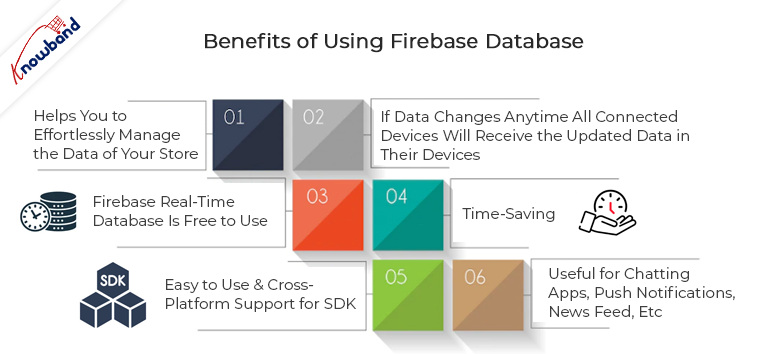
1. Helps you to effortlessly manage the data of your store.
2. If data changes anytime all connected devices will receive the updated data in their devices.
3. Firebase real-time database is free to use.
4. Time-Saving.
5. Easy to use & Cross-platform support for SDK.
6. Useful for chatting apps, push notifications, news feed, etc.

Pre-requisites

We need to write swift code to save the data to Firebase. For this, first we will have to create the Firebase project. Follow the steps given below to create the Firebase project –

1.Go to https://console.firebase.google.com

2.Click on “Add Project” button
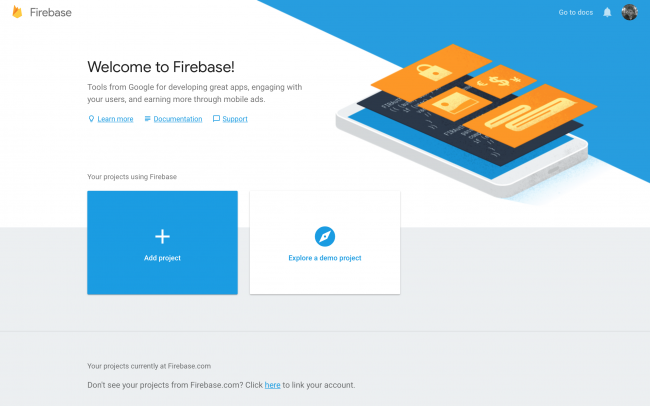
 

3. Then create iOS app and download GoogleService-Info.plist file

4. Then move the plist file inside the project

5. After than in Xcode, open AppDelegate.swift and add this code before the return statement within application(_:didFinishLaunchingWithOptions:)

FirebaseApp.configure()

6.Then click on “Database” option from the left menu.
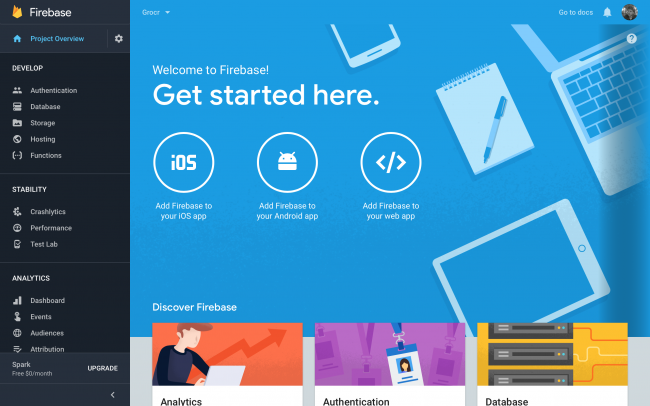
 

7. Select “Realtime Database”, there you will find the database URL, which you can use in the code in order to fetch the data from the database. Generally you will not need this URL as we are using GoogleServices-Info.plist file and the database url is already available in that file, we only need to initialize the Firebase.

8. Firebase setup is completed

Now you will have to download Firebase SDK in the swift. For this you will have to install the following pods.

1. pod ‘Firebase/Core‘
2. pod ‘Firebase/Database‘

Let suppose currently we have no data in the Firebase database and we want to save the following data in the given format in the database  –

// The root of the tree
{
  "movies": [
    "movie1": {
      "name": "Avengers",
      "addedByUser": "John"
    },
 
    "movie2": {
      "name": "Star Wars",
      "addedByUser": "Jane"
    },
  ]
}

After successfully installing the pods on the project, we are ready to implement the coding part.


Code Implementation

Before creating the references, you will have to understand that what is a Firebase reference.

A Firebase reference points to a location in Firebase where data is stored. Even if you create multiple references, they all share the same connection.

First we will have to create reference of the FIRDatabaseReference.

Reference that will hold root node (grocery-items) can be made by using the following code –

let ref = Database.database().reference(withPath: "movies")

or you can also use the following way –

let rootRef = Database.database().reference()
let ref = rootRef.child("movies")

Then we will have to create reference to the child items which are milk and pizza so that we can add the data inside those nodes.

let movieRefAvengers = ref.child("movie1")
let movieRefStarWars = ref.child("movie2")

We know that we need to save the dictionary inside these keys. For that, we will create two dictionaries one for milk and another for pizza.

let dictMovieRefAvengers: [String: String] = ["name": "Avengers", "addedByUser": "John"]
let dictMovieRefStarWars: [String: String] = ["name": "Star Wars", "addedByUser": "Jane"]

After that we can add the dictMovieRefAvengers and dictMovieRefStarWars into the movieRefAvengers and movieRefStarWars and these will get added as a child of those references.
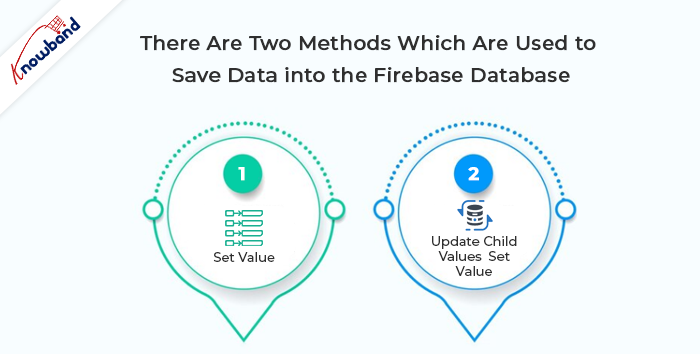
There are two methods which are used to save data into the Firebase database which are setValue and updateChildValues. If you want to know when your data has been committed, you can add a completion block. Both setValue and updateChildValues take an optional completion block that is called when the write has been committed to the database. This listener can be useful for keeping track of which data has been saved and which data is still being synchronized.


// Saving the values in movie1 node
movieRefAvengers.setValue(dictMovieRefAvengers) {
  (error:Error?, ref:DatabaseReference) in
  if let error = error {
    print("Data could not be saved: \(error).")
  } else {
    print("Data saved successfully!")
  }
}
 
// Saving the values in pizza node
movieRefStarWars.setValue(dictMovieRefStarWars) {
  (error:Error?, ref:DatabaseReference) in
  if let error = error {
    print("Data could not be saved: \(error).")
  } else {
    print("Data saved successfully!")
  }
}


After running the code shown above, you will get the same structure in the Firebase database which is already shown.

Summary

After following the above procedure, you will be able to save the data to the Firebase database in swift.

If you face any issues, please feel free to reach us at support@knowband.com. Knowband also provides PWA and Flutter Apps for Prestashop, Opencart, Magento 2 and Woocommerce. Know more:

 

Also Read This Articles:

How to Copy cart into another cart in order to change the id_cart?

Objectives of the blog

After reading this blog we will be able to copy the cart into another cart in order to change the Cart Id.

Requirement

We need to modify the below file to fix the same. We will be making changes in the Core file for the same.

Root dir\classes\PaymentModule.php

Procedure

We need to modify the validate order function in the PaymentModule class file. As this function is called only once while completing the order. So we have added the code in the same to avoid multiple cart creation.


if (self::DEBUG_MODE) {
PrestaShopLogger::addLog('PaymentModule::validateOrder - Function called', 1, null, 'Cart', (int)$id_cart, true);
}
if (!isset($this->context)) {
$this->context = Context::getContext();
}
$this->context->cart = new Cart((int)$id_cart);


Below code needs to be added in the validate order function after above lines.

// changes started
// To save the secure key of current cart id and reassign the same to new cart
$old_cart_secure_key = $this->context->cart->secure_key;
// To save the customer id of current cart id and reassign the same to new cart
$old_cart_customer_id = (int)$this->context->cart->id_customer;
// To unmap the customer from old cart
$this->context->cart->id_customer = 0;
// To update the cart
$this->context->cart->save();
// To fetch the current cart products
$cart_products = $this->context->cart->getProducts();
// Creating new cart object
$this->context->cart = new Cart();
$this->context->cart->id_lang = $this->context->language->id;
$this->context->cart->id_currency = $this->context->currency->id;
// to add new cart
$this->context->cart->add();
// to update the new cart
foreach ($cart_products as $product) {
$this->context->cart->updateQty((int) $product['quantity'], (int) $product['id_product'], (int) $product['id_product_attribute']);
}
if ($this->context->cookie->id_guest) {
$guest = new Guest($this->context->cookie->id_guest);
$this->context->cart->mobile_theme = $guest->mobile_theme;
}
// to map the new cart with the customer
$this->context->cart->id_customer = $old_cart_customer_id;
// to save the new cart
$this->context->cart->save();
if ($this->context->cart->id) {
$this->context->cookie->id_cart = (int) $this->context->cart->id;
$this->context->cookie->write();
}
// to update the $id_cart with that of new cart
$id_cart = (int) $this->context->cart->id;
$this->context->cart->secure_key = $old_cart_secure_key;
// changes over


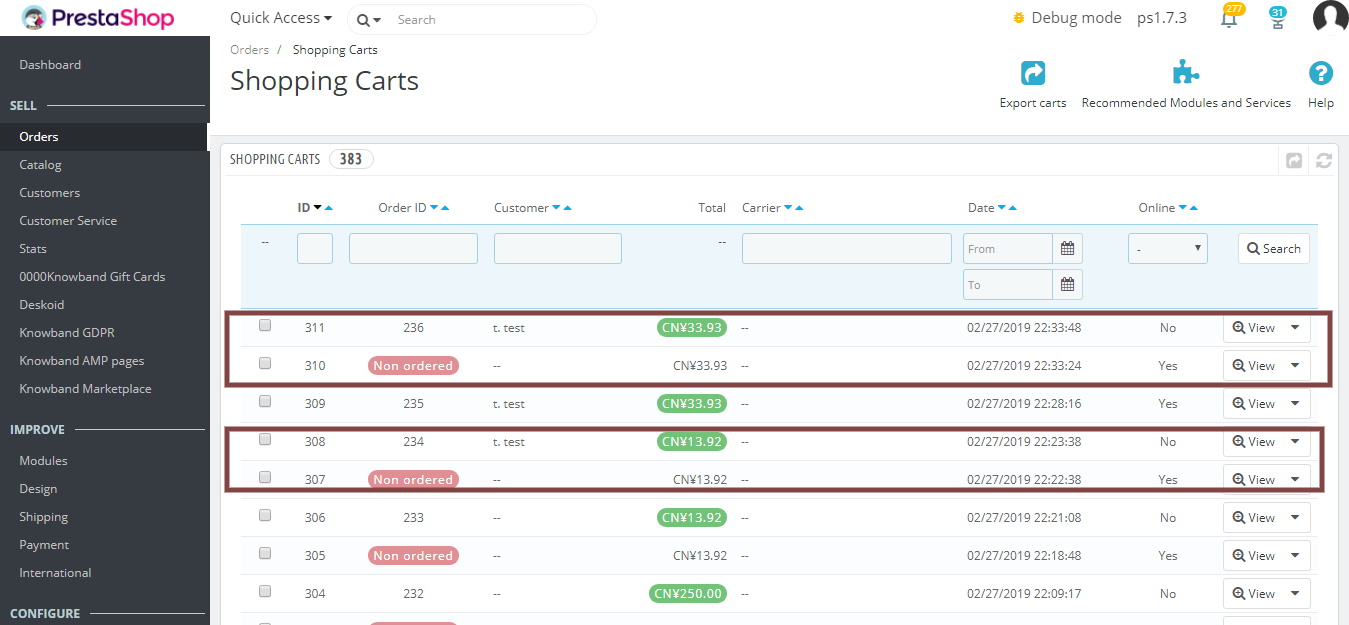
After following the above procedure, the shopping cart list will look like this i.e having a duplicate cart with the same details as of the cart with which the order is placed.

Summary

After following the above procedure, You will be able to copy the cart into another cart in order to change the id_cart.

How to create breadcrumb in OpenCart?

Objectives of the blog

Breadcrumbs typically appear horizontally across the top of a web page, often below title bars or headers allows users to keep track of their locations within pages.

After reading this blog we will be able to add custom breadcrumb in Opencart page.

Problem Statement

Many of the paid custom theme does not provide breadcrumbs in their theme. But it’s not that hard for a user to add a breadcrumb in OpenCart pages.

Refer below screenshot for the same:

Solution:

You just need to add block of  code in your custom view template file of page in which you want to add breadcrumb. Block of code is as follow –


<div class="page-top">
<div class="container">
<ol class="breadcrumb">
<?php foreach ($breadcrumbs as $breadcrumb) { ?>
<li><a href="<?php echo $breadcrumb['href']; ?>"><?php if($breadcrumb['text'] != '<i class="fa fa-home"></i>') { echo $breadcrumb['text']; } else { if($theme_options->get( 'home_text', $config->get( 'config_language_id' ) ) != '') { echo $theme_options->get( 'home_text', $config->get( 'config_language_id' ) ); } else { echo 'Home'; } } ?></a></li>
<?php } ?>
</ol>
</div><!-- End .container -->
</div>


You can add the above code  after <?php echo $column_left; ?> declaration.

This custom breadcrumb can be added on product pages, account pages, category pages and others.

$breadcrumb variable called in above tpl is already defined in all the pages controller in opencart. It is defined in below format in controller file of page –

$data['breadcrumbs'] = array();

$data['breadcrumbs'][] = array(
'text' => $this->language->get('text_home'),
'href' => $this->url->link('common/home')
);
$data['breadcrumbs'][] = array(
'text' => $category_info['name'],
'href' => $this->url->link('product/category', 'path=' . $path)
);


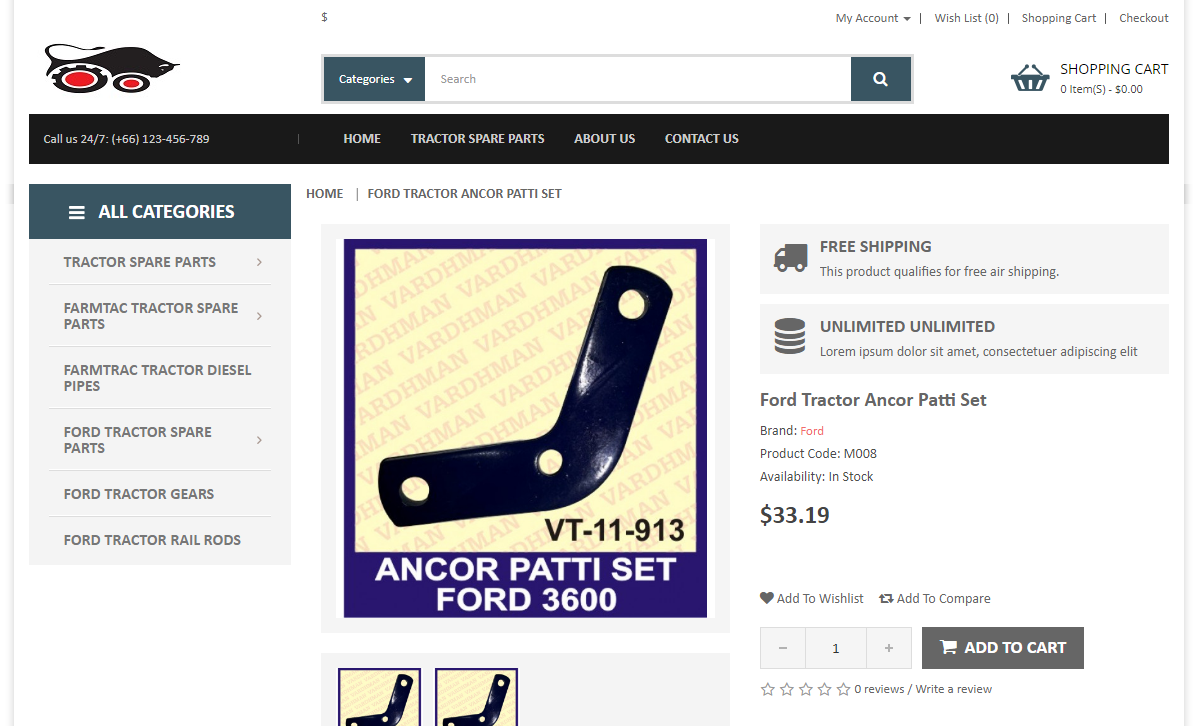
Once, you added the code in tpl file you can check your breadcrumb on your page. Please check our custom breadcrumb  (HOME | FORD TRACTOR ANCHOR PATTI SET) on product page below –


Summary

After reading the above solution, you will be able to add your own custom breadcrumb in the OpenCart pages.

9 tips to help you sell more on Walmart Marketplace

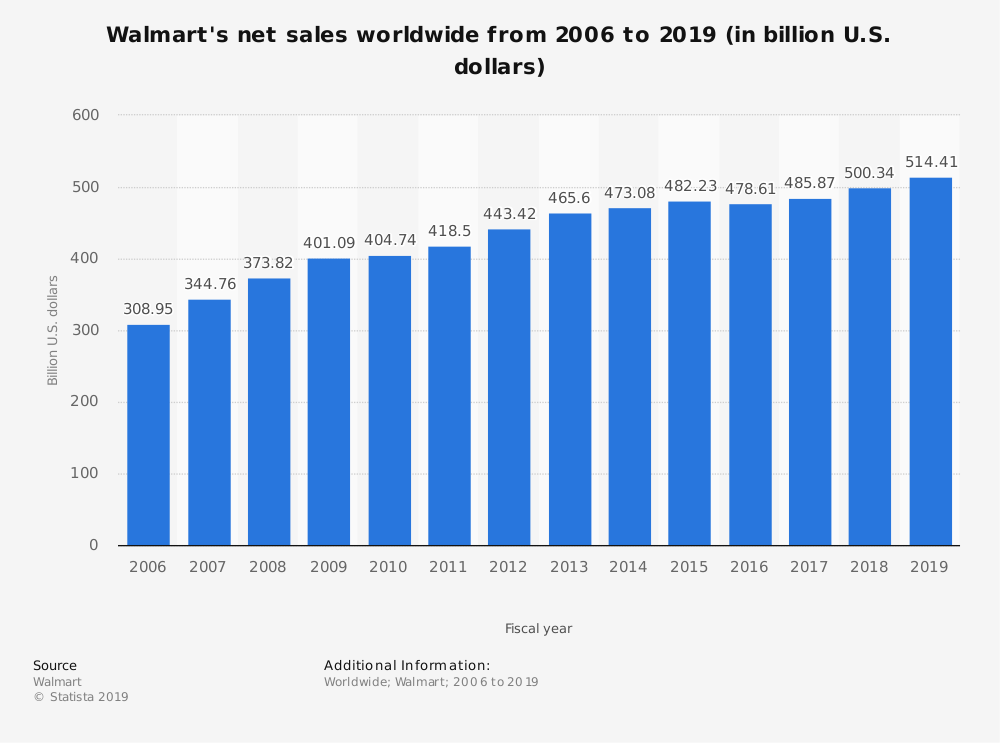
One of the most popular Marketplaces in the world i.e Walmart Marketplace has gained sustainability in its eCommerce business all over the world. Walmart Marketplace provides a platform for many third-party sellers to sell their products and earn a huge chunk of profits. Many third-party sellers have already leveraged the benefits of Marketplace by expanding their reach to millions of customers worldwide. However, this led to an increase in the number of third-party sellers and competition continues to heat up. So, it’s high time for sellers to come up with some new strategies to acquire an extra edge over others.

Source: Statista

So, here are some tips which can help you make more sale and help you earn good profits:

1. Create your own Brand:

Getting a shelf on Walmart Marketplace is not an easy goal to achieve. To become a third party seller on Walmart Marketplace, vendors have to go through the strict policies laid by Walmart for third-party sellers. Walmart Marketplace mainly entertains brand owners rather than re-sellers. This means if you are a brand owner, then there are high chances of your acceptance as a third party seller on Walmart Marketplace.

2. Performance Record:

It’s very important to maintain a good record as a seller before applying to Walmart. Walmart considers those eSellers first who manifest a good track record on other Marketplaces. They verify your review and ratings on your current sales channels. In fact, Walmart itself keeps a seller’s scorecard to rate sellers on Marketplace. So, do keep an eye on your performance and try to improvise it on regular basis.

3. Build a brand image:

Once you are approved as a seller, It’s necessary to maintain a good image in front of Walmart Marketplace. Streamline your operations to avoid out of stock or any other issues related to inventory. These issues downgrade your performance in front of Walmart which could lead to many serious consequences. However, keeping a check manually on these issues is a hassle. Sellers need a trustworthy integration software that provides you seamless integration of your website with Walmart Marketplace. This integration will make your job easier by maintaining your inventories from the back-end itself. It will also help the seller to optimize their presence on Walmart Marketplace.

4. Detailed and Accurate product Description:

Although every customer knows what they are buying but Walmart needs sellers to write product descriptions more accurate and in detail when compared to other Marketplaces. The data provided by sellers should be accurate and should not divert customers from the features of the product. This will compel customers to go for instant purchase and in return, you will get loyal and satisfied customers for your eCommerce business.

Avoid using irrelevant data and keywords as it will frustrate customers resulting in loss of sales. Make sure the information provided by you should be to the point and up to date. Product description should not long so keep a check on the standardized length of the same.

5. Relevant product categories:

Imagine that customers are unable to find your products and finally settling with the same product sold by your competitor. To ensure the higher sales of your items, make sure that the items listed by you are placed in the right product category with relevant attributes. Choosing the correct product category on a digital shelf directly influences the visibility of your product in between customers and help you gain good profits. Make sure that the ranking of your products on Walmart is high so that they are visible on the top of search results.

6. SKU Caps by Walmart:

Walmart’s SKU (Stock Keeping Unit) for product listing is been set to a favorable limit for third-party sellers. Once you start selling your products on Walmart Marketplace, you will be able to increase the SKU caps according to your sales performance and customer reviews on them. As soon as your sale increases, Walmart will provide you the opportunity to increase your SKU’s and more products from your eCommerce website. So, make sure to list your best selling items and gradually work on building a good reputation as a seller on Walmart Marketplace.

7. List down the products at the lowest price:

Today, consumers can easily access the Internet which let the continuous increase in the number of customers and eCommerce stores, multiple vendors are offering the same quality products at different prices on the same Marketplace. The seller that offers the products at the best or the lowest price attracts customers and compels them to go for instant purchase. Walmart Marketplace mainly focuses to provide the lowest price to its customers and also provides instant visibility to sellers which can help them to win BuyBox too. So, if you want to be a successful seller on the Walmart platform, the low pricing of products should be a priority.

8. Don’t Forget to Apply for Promotions:

Walmart always features promotions that provide “everyday low prices” guarantee. Sellers can take advantage of applying for these promotions and enhance their visibility in front of customers. Walmart takes time to consider your request so keep yourself motivated and wait for their response. The lower the price, the better your chances of having your promotion accepted. So, try to provide the lowest yet best price of your product.

9. Importance of Marketing:

As an eCommerce seller, It’s important to promote your products on the Walmart Marketplace. You can try various marketing strategies like social media strategy, Facebook’s advertising program and many more. These strategies are a great way to popularise your products in between the audience and can turn them into potential customers. You can also try email and content marketing to increase your product’s visibility too. Sellers can personalize their brand by these marketing strategies which can help you sell more on Walmart’s Marketplace.

Over To You:

Getting a shelf on Walmart Marketplace is not a cake walk. Although Walmart invites third-party sellers to its marketplace, there are many vendors who are still dreaming to be one of the sellers on Walmart. However, if your application is accepted you should take advantage of this opportunity. It’s a platform with millions of loyal customers. Building your eCommerce business reputation and presence on such a renowned Marketplace will definitely help you increase your audience base which can turn into loyal customers in the future. So, What are you waiting for, If you haven’t applied to sell on Walmart till now, you should do it as soon as possible.

Sell your products on Walmart Marketplace without any inconvenience. Now, you can easily list your products by integrating with the Walmart marketplace in just a few simple steps. KnowBand offers Walmart integrators to help retailers sell their goods on Walmart Marketplace in a hassle free way. Sellers can easily download and install it on their website without knowing any technical knowledge. Knowband provides integrators for all the major CMS platforms like Prestashop Walmart Integration Addon, Magento Walmart Integrator, Walmart Magento 2 connector, as well as OpenCart Walmart Integration plugin.

Find out some more related articles here:
  1. 5 eCommerce tips and tricks to ensure fast growth
  2. Keys to successfully buy online and pick up in-store
  3. 6 Summer Holiday eCommerce shipping mistakes to avoid
  4. 8 tips to drive more customers on a Marketplace

How to open “Terms & Conditions” link in a new tab on checkout page (OpenCart)?

Objectives of the blog

After reading this blog we will be able to add the html attribute in “Terms and Condition” link to open it in new tab.

Current Scenario

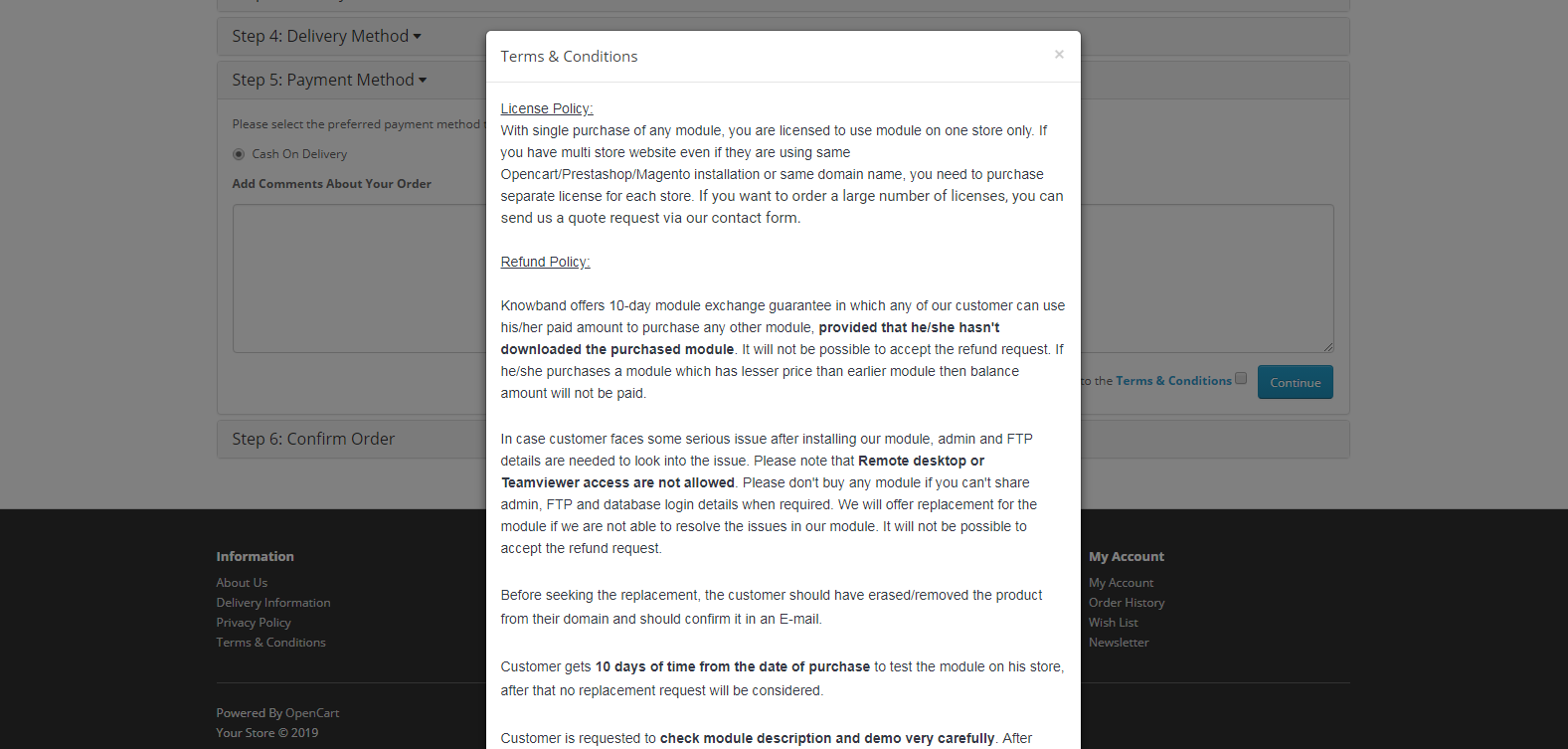
Presently, The “Terms & Conditions” link shows entire page in a popup window on checkout page of Opencart. But for “Terms & Conditions” having custom texts and html we want to open the same link in new tab as the content of page may not look appropriate in pop-up.

Refer below screenshot for the same-


Procedure:

STEP 1:-

Terms and Conditions link displayed on default checkout page resides in catalog/view/theme/default/template/checkout/payment_method.tpl, Block of code used for link is as below :


<div class="pull-right"><?php echo $text_agree; ?>


$text_agree is the variable that prints the link on page and this variable is set at location catalog/controller/checkout/payment_method.php

Variable definition looks as below :-

$data['text_agree'] = sprintf($this->language->get('text_agree'), $this->url->link('information/information/agree', 'information_id=' . $this->config->get('config_checkout_id'), true), $information_info['title'], $information_info['title']);


You need to replace this definition with new one –

$data['text_agree'] = sprintf($this->language->get('text_agree'), $this->url->link('information/information', 'information_id=5' , true), $information_info['title'], $information_info['title']);


we have replaced the href :-

https://your_store_url/index.php?route=information/information/agree&information_id=5


that does not contain header, footer and other content with

https://your_store_url.com/index.php?route=information/information&information_id=5


which contains header, footer and other content in the page.

STEP 2 :-

Lastly, you have to edit the definition of link in catalog/language/en-gb/checkout/checkout.php

In above file location there would be a definition as below : –


$_['text_agree'] = 'I have read and agree to the <a href="%s" class="agree"><b>%s</b></a>';


We have to add a attribute  target=”_blank” and remove  class=”agree” in above anchor tag to open the link in new tab. The new definition of text_agree key would be as follow:-

$_['text_agree'] = 'I have read and agree to the <a href="%s" target="_blank"><b>%s</b></a>';


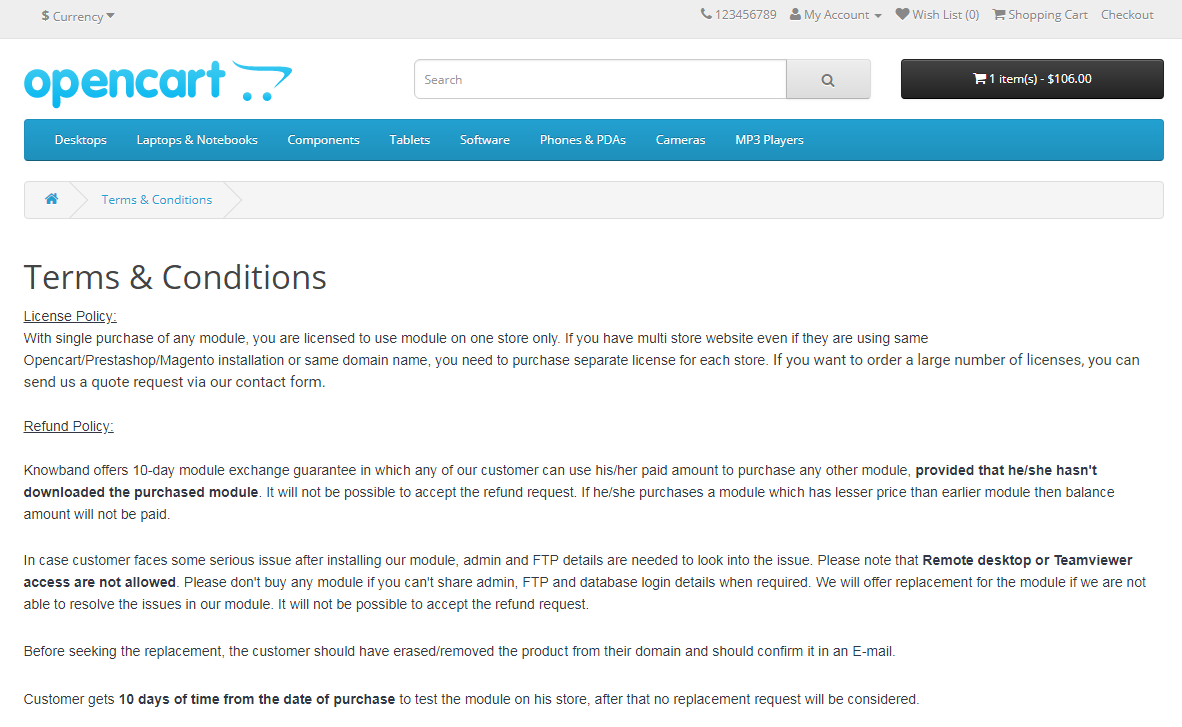
After saving the above changes, we will be able to open the “Terms & Conditions” link in a new tab on checkout page.

Please refer to the screenshot below :-


Summary:

After following above changes, we will be able to open the “Terms & Conditions” link in a new tab on checkout page.

NOTE: This demonstration is for default template but this will work same for other templates having similar code.

Show all products when search is blank (Opencart 2.3.x)

Objectives of the blog

After reading this blog you will be able to display all products when the search is blank.

Problem Statement

Currently in Opencart, when user search for any string using search functionality, then no products are returned if no search product found in database. We want to make it return all the products when search is empty.

Code Implementation

To achieve this, we will have to make some changes in the model function which we are using to fetch products from database on the basis of entered search keyword.

Here we are making changes in getProducts()  function of model catalog/model/catalog/product.php as we are using this function to display results on the basis of search keyword.

Note: you can make same changes in the model function which you are using to fetch products.

Here is the code which we have added in the model:

/*Checked if the result empty (affected rows 0) of query which is running to fetch data on the basis of search keyword.
* If yes then added new query to fetch new added products and executed same.  
* By doing this we will display our new products on the search page instead of showing blank page.
*/
if($query->num_rows == 0){
   $sql = "SELECT DISTINCT p.product_id  
           FROM " . DB_PREFIX . "product p  
           LEFT JOIN " . DB_PREFIX . "product_description pd ON (p.product_id = pd.product_id)  
           LEFT JOIN " . DB_PREFIX . "product_to_store p2s ON (p.product_id = p2s.product_id)  
           WHERE p.status = '1' AND p.date_available <= NOW() AND p2s.store_id = '" . (int)$this->config->get('config_store_id') . "'  
           GROUP BY p.product_id ORDER BY p.product_id DESC LIMIT 20";
   $query = $this->db->query($sql);
}

Add this code just after executing main query or just after line ($query = $this->db->query($sql)).

In this code first we have checked the number of affected row by the main query (used to fetch data on the basis of search keyword). If the affected row is 0 ($query->num_rows == 0) then added our query to fetch new added products.

By doing this we will display our new products on the search page instead of showing blank page.

Note: here we have written query to fetch new added products from the database if search is empty. You can also add query to fetch special or best seller products according to your requirement.

Summary

After making the following changes in the model file, new added products will be shown when the search is empty.

Get latest products without special prices (Opencart 2.3)

Objectives of the blog

After reading this blog you will be able to fetch products from Opencart database on the basis of parameter which is passed from URL.

Requirement

We have to display latest products on the basis of passed parameter in the URL. Using this parameter we have to decide that whether we have to display special products or not.

Code Implementation

To implement this we need to make change in our controller and model. In controller we added condition to pass parameter and in model we will make changes in the query according to the passed parameter.

To handle condition we are using show_special parameter in the code.

Below is the code which we have to add in controller (catalog/controller/extension/module/latest.php):


/*Checking for show_special key in get parameter
* This key ($show_special) will be used to conditionally fetch data from the database.
* i.e. if $show_special = 1 then display products which special
*         $show_special = 0 then display products which are not having special
*      else
*         display all products irrespective of special
*/
if (isset($this->request->get['show_special'])) {  
     //passing the value in variable if set in URL
     $show_special = $this->request->get['show_special'];
} else {
    //Otherwise empty string will be passed
    $show_special = '';
}
               
//Creating a variable to be passed into model
$filter_data = array(
'start' => ($page - 1) * $limit,
'limit' => $limit,
     'show_special' => $show_special
);
               
//Calling model function to fetch data from database according to the data passed in the filter_data array.
$results = $this->model_catalog_product->getProductLatest($filter_data);


In this code first we have checked that if ‘show_special’ parameter is set in the URL or not. If yes then set value of parameter in a variable $show_special and if no then set variable as blank.

Then we have created an array ($default_data) with the values on behalf of which we have to fetch products from database.

Then we have called model function getProductLatest() to fetch latest products according to the variable passed ($filter_data) in the function.

Here is the function which we have to add in model (catalog/model/catalog/product):


public function getProductLatest($data = array()) {
   //Setting $join and $condition parameters to fetch data of special products
   if($data['show_special'] == '1'){
        $join = "LEFT JOIN " . DB_PREFIX . "product_special ps  ON (ps.product_id = p.product_id) ";
        $condition = "AND ps.customer_group_id = '" . (int)$this->config->get('config_customer_group_id') . "'  
                             AND ((ps.date_start = '0000-00-00' OR ps.date_start < NOW()) AND (ps.date_end = '0000-00-00' OR ps.date_end > NOW() OR ps.date_end = '0001-01-01')) ";
   }
   //Setting $join and $condition parameters to fetch data of products which are not specil
   elseif($data['show_special'] == '0'){  
       $join = "LEFT JOIN " . DB_PREFIX . "product_special ps  ON (ps.product_id = p.product_id) ";
       $condition = "AND ps.product_id IS NULL";
   }else{
   //Setting $join and $condition parameters to fetch data of all products irrespective of special
       $join= '';
       $condition = '';
   }
           
   //Query to fetch data of products from database. Added $join and $condition parameter in the query to fetch data accordingly
   $sql = "SELECT DISTINCT p.product_id  
           FROM " . DB_PREFIX . "product p  
           LEFT JOIN " . DB_PREFIX . "product_description pd ON (p.product_id = pd.product_id)  
           LEFT JOIN " . DB_PREFIX . "product_to_store p2s ON (p.product_id = p2s.product_id)  
           $join
           WHERE p.status = '1' AND p.date_available <= NOW() AND p2s.store_id = '" . (int)$this->config->get('config_store_id') . "'  
           $condition
           GROUP BY p.product_id ORDER BY p.product_id DESC";
           
   //Setting limit in query if passed LIMIT from controller.
   if (isset($data['start']) || isset($data['limit'])) {
          if ($data['start'] < 0) {
                $data['start'] = 0;
          }
 
          if ($data['limit'] < 1) {
                $data['limit'] = 20;
          }
 
          $sql .= " LIMIT " . (int)$data['start'] . "," . (int)$data['limit'];
   }
 
   $product_data = array();
   //Execute query
   $query = $this->db->query($sql);
           
   //Loop to set fetched data in the variable to pass in controller.
   foreach ($query->rows as $result) {
        $product_data[$result['product_id']] = $this->getProduct($result['product_id']);
   }
   //Return products data to controller.
   return $product_data;
}


In model we have set variables $join and $condition on the basis of following three conditions:

  1. If show_special is 1: In this case we have displayed only products those are special. As in opencart the data of special products is stored in oc_product_special table so we have added join of oc_product table with the oc_product_secial table to fetch data of special products only.
  2. If show_special is 0: In this case we have displayed products which are not set as special. So to find products which are not special we have to fetch products which are in special table but on in oc_product_special table. For this we have added LEFT join of oc_product table with oc_product_secial table and added condition “ps.product_id IS NULL”.
  3. If show_special is other than 0 and 1: In this case we have to fetch all products whether they are special or not. So for this we have directly fetched data from oc_product table.

After adding all three possible condition we have written query and executed it. Then we have set all fetched data in $product_data array and return the same to controller.

Note: here to fetch latest products we have just used ‘Order by product_id DESC’ in query. If you want to fetch data of products which were added in last few days then you can add one more condition in the WHERE clause i.e. date_added > ‘any date’.

Summary

After following the above procedure, you will be able to fetch latest special products on the basis of passed parameter for special products in the URL.

How to calculate Free Shipping based on final Total Price in Prestashop ?

After reading this blog we will be able to calculate Free Shipping based on the final Total Price of the Cart.

Problem Statement

Presently, when we add products into the cart and move to the checkout section to avail of discount and shipping then we see that the discount applies after shipping.
Let’s say,

  • Cart total amount is $100 which avail Free Shipping and some discount of 5% is also added
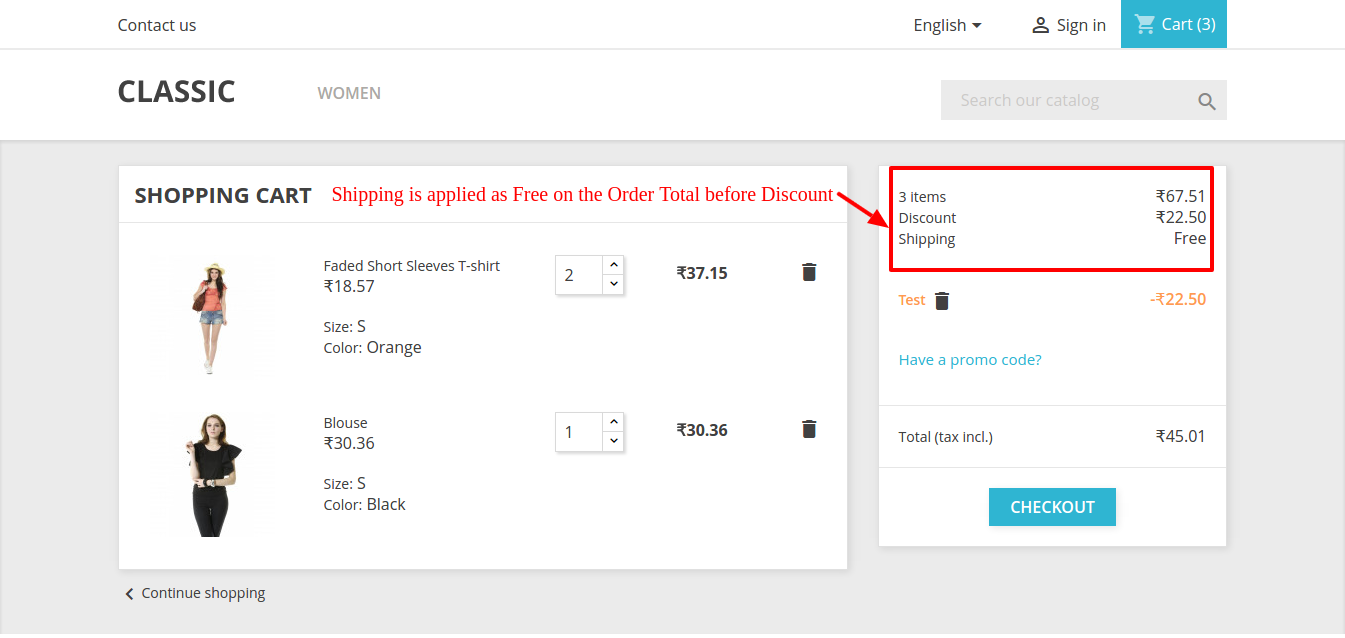
  • Then after the discount Total Amount of the cart is set to below $100 but still, Free Shipping applies which should not happen. Free Shipping must apply to the Final Total amount of the cart after the discount.
  • This is the default process of Prestashop. Refer to the screenshot below where shipping must be Free if Order Total is > 50 but it has applied Free Shipping while Order Total is < 50 after discount –

Recommended Read: Free Shipping Strategies: Why to Offer? How to Offer? When to Offer?

Why the current issue is there?

The current issue is there because the shipping amount is being calculated on the Order Total amount which is set into the Cart before applying the discount. You can check the lines of code below where Order Total without discount amount is being used to calculate shipping –

$shipping_cost += $carrier->getDeliveryPriceByPrice($the_total_price, $id_zone, (int)$this->id_currency);

Requirement

We need to modify the below-mentioned file to fix the same. We will be overriding the corresponding lines of the class file to avoid any changes in Core files.

Below is the list of class files which will be overridden-

1. Root dir\classes\Cart.PHP

Procedure to Solve the issue-

Follow the below-mentioned steps –

1. Rewrite function getPackageShippingCost

2. After the line given below –

// Order total in default currency without fees $order_total = $this->getOrderTotal(true, Cart::BOTH_WITHOUT_SHIPPING, $product_list);

3. Add the following statement –

$listeDiscounts = $this-&gt;getCartRules();
$total_discounts = 0;
if (is_array($listeDiscounts)) {
if (isset($listeDiscounts[0]['value_real']))
$total_discounts = $listeDiscounts[0]['value_real'];
}
$price_to_apply_shipment = floatval($order_total) - floatval($total_discounts);

<strong>Recommended Read: </strong><a href="https://www.knowband.com/blog/opencart-blog/best-free-shipping-manager-extension-opencart-store/">Best Free Shipping Manager Extension for OpenCart Store</a>

4. Replace the lines mentioned below –

Replace this line

$check_delivery_price_by_price = Carrier::checkDeliveryPriceByPrice($row['id_carrier'], $total_order, (int)$id_zone, (int)$this->id_currency);

With

$check_delivery_price_by_price = Carrier::checkDeliveryPriceByPrice($row['id_carrier'], $price_to_apply_shipment, (int)$id_zone, (int)$this->id_currency);

————AND—————–

Replace this line

$shipping_cost += $carrier->getDeliveryPriceByPrice($the_total_price, $id_zone, (int)$this->id_currency);

With

$shipping_cost += $carrier->getDeliveryPriceByPrice($price_to_apply_shipment, $id_zone, (int)$this->id_currency);

5. Clear the cache and run.

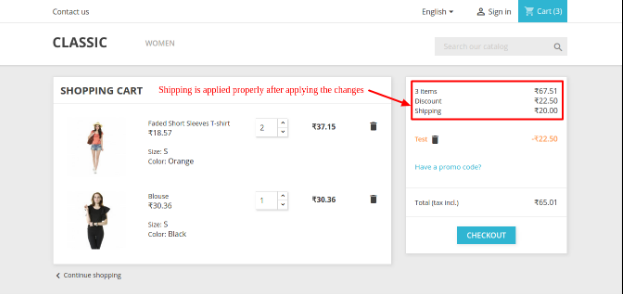
Refer to the screenshot below after applying changes to the code –

After following the above procedure, you will be able to calculate Shipping on the Final Total amount of the Cart.

Conclusion

When it comes to online buying, the whole pricing structure plays a crucial role for the customers. One of the factors that might make or break your conversions is the availability of free shipping. One method for determining the shipping options and costs on an eCommerce website is the Free shipping Manager Addon by Knowband. One of the most important requirements for increasing average sales is providing openness in the transaction.

The shops that used this free shipping module boosted site traffic, revenue, and conversion rates. With the help of this free shipping plugin, store administrators can define the guidelines and conditions for shipping costs. Even better, this feature can be added or removed from the website by the store administrator.

The threshold over which free shipping is offered can be set by online retailers. As a result, it even encourages customers to make larger purchases in order to qualify for free shipping. To know further about the functionality of the Free Shipping Module, feel free to contact us at support@knowband.com

How to generate Prestashop Invoice by Customer name?

Objective of the blog

After reading this blog we will be able to generate the invoice PDF by customer name.

Problem Statement

Currently,  the invoice is generated using the date on which invoice is first created.  So, we can replace the date to the customer’s name before generating the invoice.

Requirement

We need to modify the below files to fix the same. We will be overriding the corresponding function and definition of class file to avoid any changes in Core files.
Below are the list of class files which will be overrided-

root/classes/pdf/HTMLTemplateInvoice.php

Procedure to Solve the issue-

1. Create file HTMLTemplateInvoice.php file on path override\classes\pdf and put below code in it. This will save generate the filename of the invoice.

<?php
/**
* @override HTMLTemplateInvoice.php
*/

class HTMLTemplateInvoice extends HTMLTemplateInvoiceCore
{
/**
* Returns the template filename
*
* @return string filename
*/
public function getFilename()
{
$id_lang = Context::getContext()->language->id;
$id_shop = (int)$this->order->id_shop;
$format = '%1$s%2$06d';

if (Configuration::get('PS_INVOICE_USE_YEAR')) {
$format = Configuration::get('PS_INVOICE_YEAR_POS') ? '%1$s%3$s-%2$06d' : '%1$s%2$06d-%3$s';
}

/* changes started
* to add the customer name
*/
$customer = new Customer((int)$this->order->id_customer);
return sprintf(
$format,
Configuration::get('PS_INVOICE_PREFIX', $id_lang, null, $id_shop),
$this->order_invoice->number,
date('Y', strtotime($this->order_invoice->date_add))
).’_’.$customer->firstname.'_'.$customer->lastname.'.pdf';

/* changes end*/
}
}


2. After creating the php file in the override folder. Clear the cache from the Back-office-> Advance Parameter -> Performance.

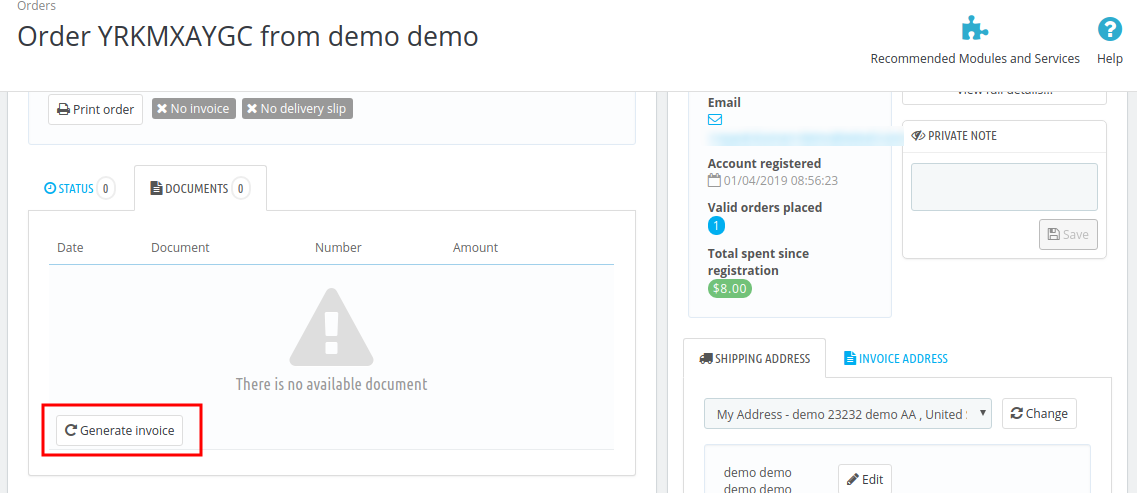
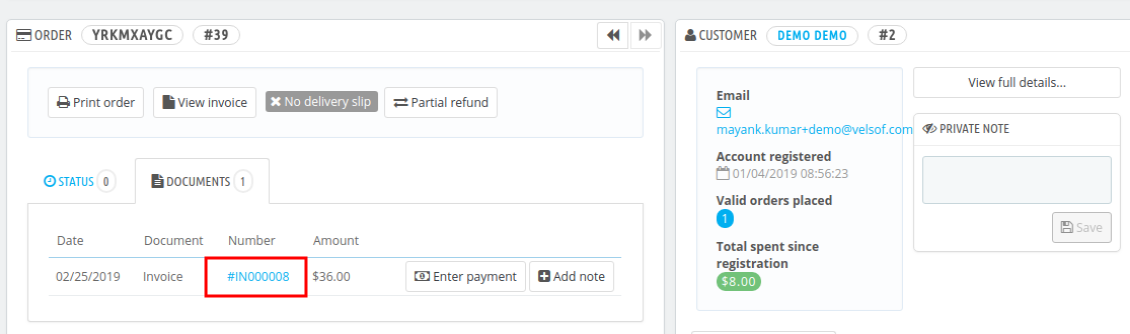
3. Now, generate the invoice by navigating to the Back-office-> Orders.

Refer below screenshots


Click here to download the complete project.

Summary

After following the above procedure, you will be able to modify the invoice name.

How to Get PayPal Client ID and Secret Key?

In order to integrate Express Checkout with the REST API, a PayPal client ID that authenticates a merchant’s account with PayPal is necessary. A client ID can only be created by the account holder.

Ask the merchant to share their client ID with you if you’re a developer integrating Express Checkout on the client’s behalf. If the merchant hasn’t already done so, they must create a client ID.

Steps to find the PayPal ID and PayPal Client Secret Key:

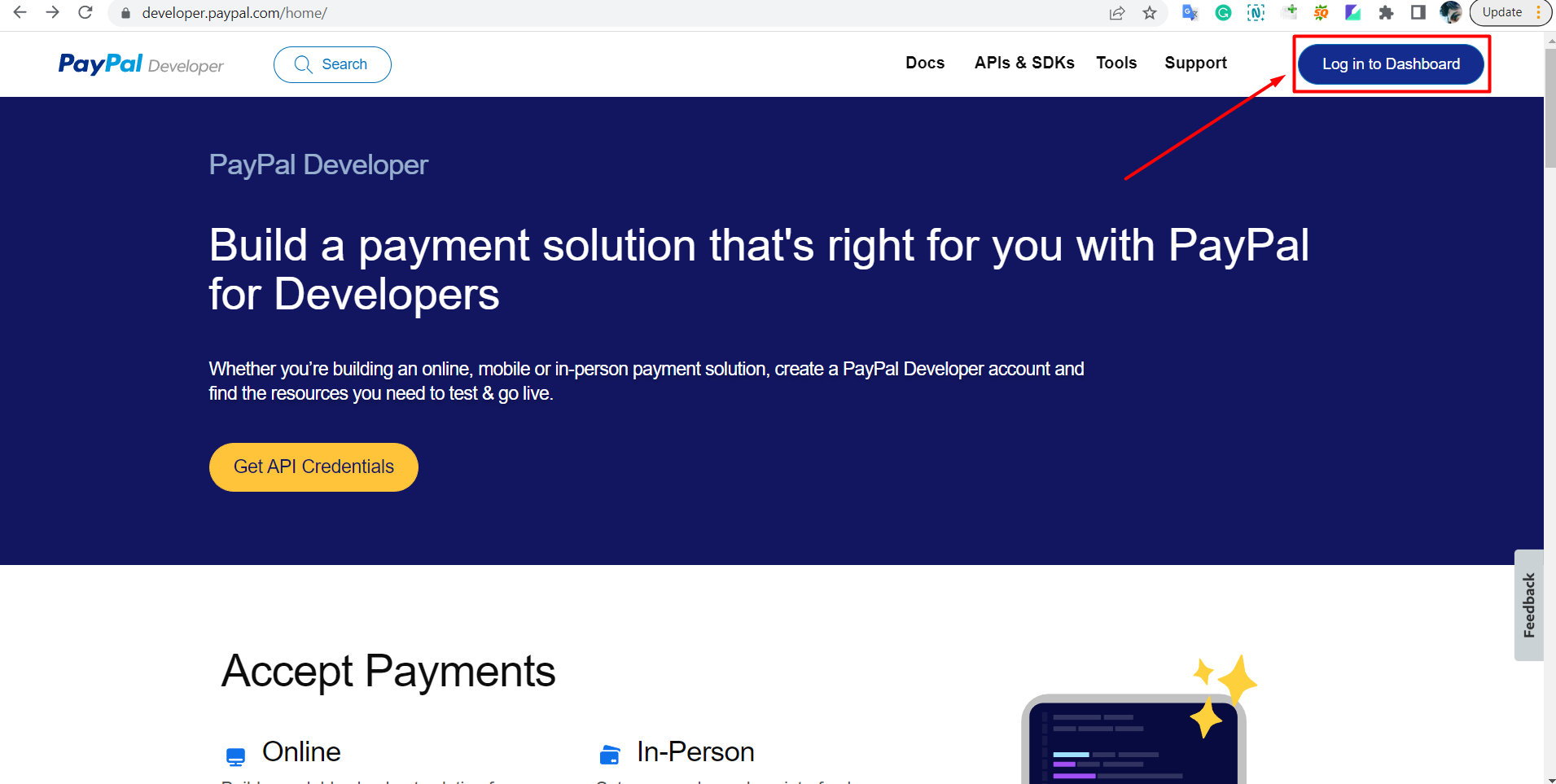
1. Go to PayPal Developers Website home page.

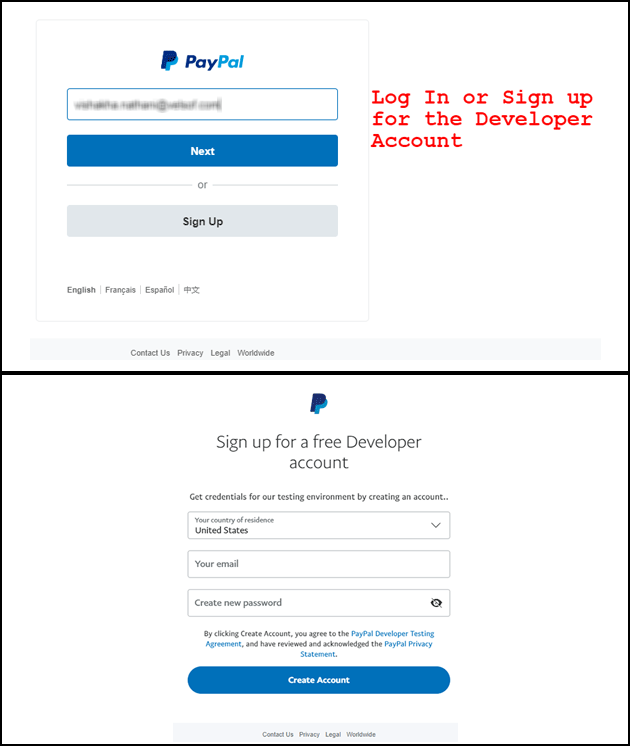
2. Then Login to the dashboard.

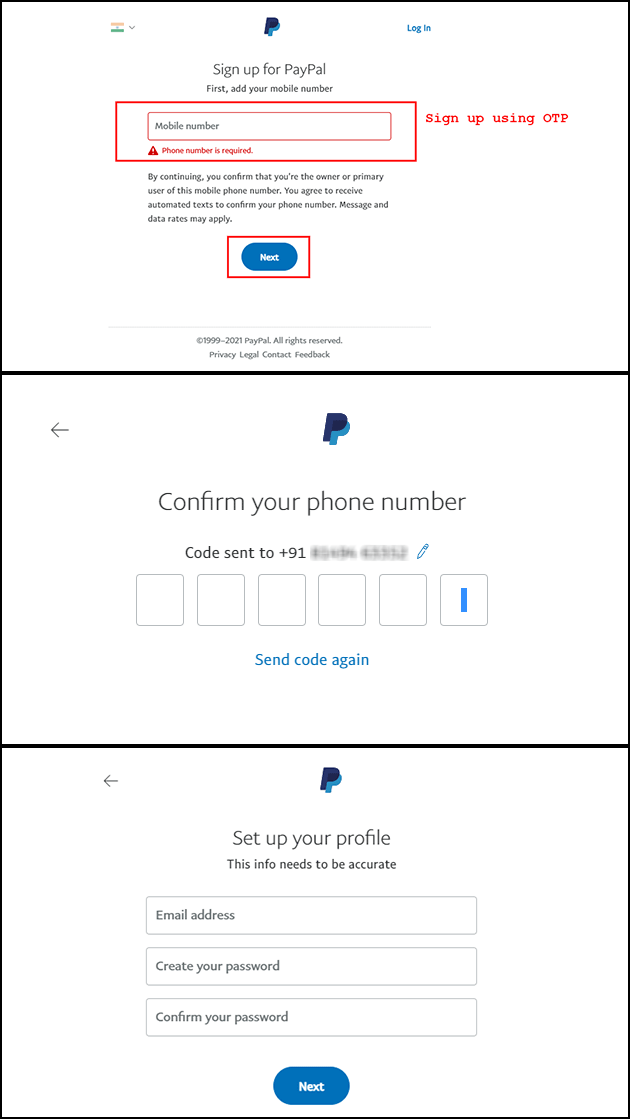
You can log in with your mobile number using OTP and set up your profile by adding basic details.

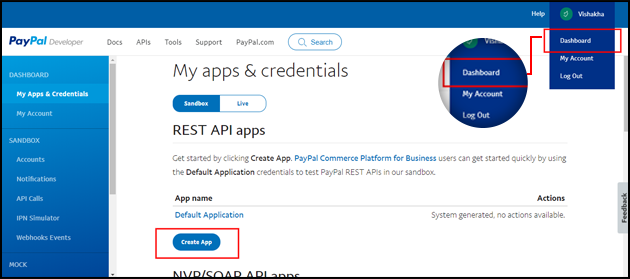
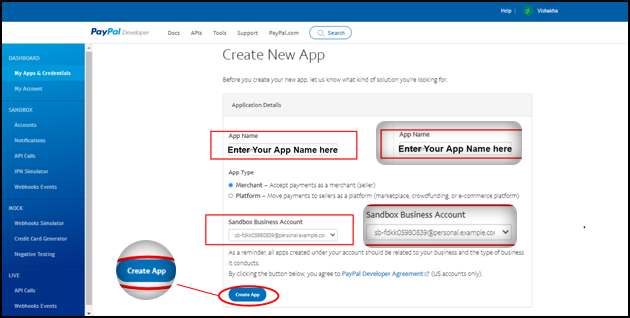
3. Go to “[Your Name]“, then go to “Dashboard” in the top right corner. You will get an option to “Create App“. Create your new app.

4. Fill in the details for the new app and create a new app. A new screen will open.


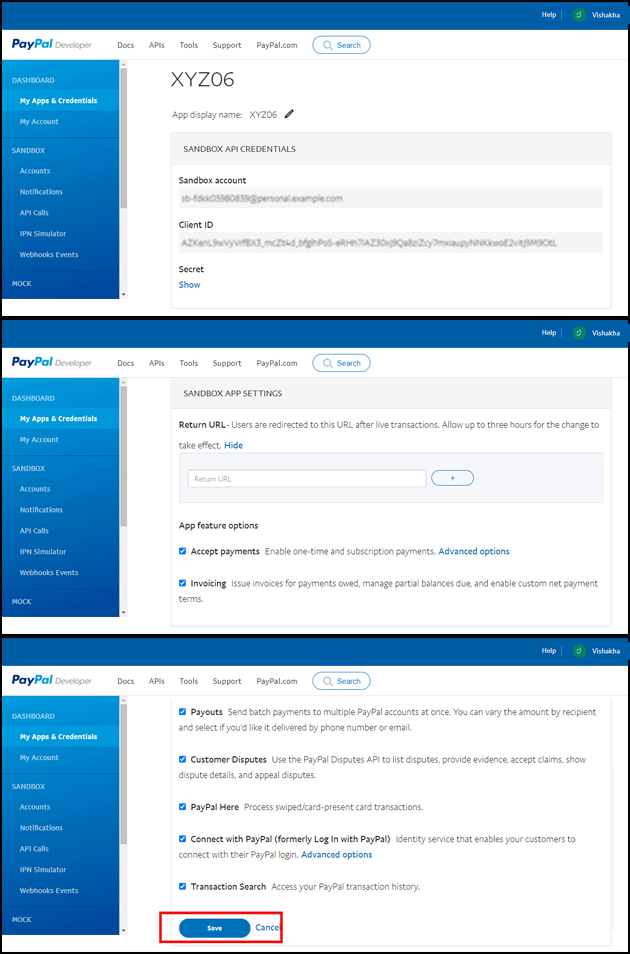
5. On the next page, you will be able to see your PayPal Client ID and PayPal Client secret.

Note: You will find Sandbox App settings and credentials on the same page.


6. You have the PayPal Client ID and secret.

You need a developer, personal, or business account to access the Developer Dashboard, get credentials, and create sandbox accounts. Different levels of access to PayPal functionality are available with each account. On the My Account page in the Developer Dashboard, you can upgrade your account if you need access to a feature you don’t currently have.

Capabilities Developer Account Personal Account Business Account
Access sandbox x x x
Send and receive money x x
Go live x

You can use the Paypal Client ID with our One Page supercheckout Prestashop module and integrate the Paypal payment gateway and transform the standard checkout into an optimized, seamless, and feature-rich One page express checkout.

Prestashop One Page Supercheckout Addon

The Prestashop One Page Supercheckout addon by Knowband makes checkout faster and easier by putting everything on one page, helping to reduce cart abandonment.

SHOP NOW

Apart from it, along with Prestashop we offer One Page checkout modules for Opencart and Magento 2 eCommerce platforms. The One Page SuperCheckout Addon has over 15,000 downloads on the official addon store and is one of the top-selling extensions. On top of that, the module supports all the popular payment gateways and shipping methods, opening the door for endless customizations for eCommerce store admin. 

Having queries about PayPal payment gateway integration, get in touch with our support team at our email address support@knowband.com. 

You can also check out our top selling Module – Mobile App for PrestaShop