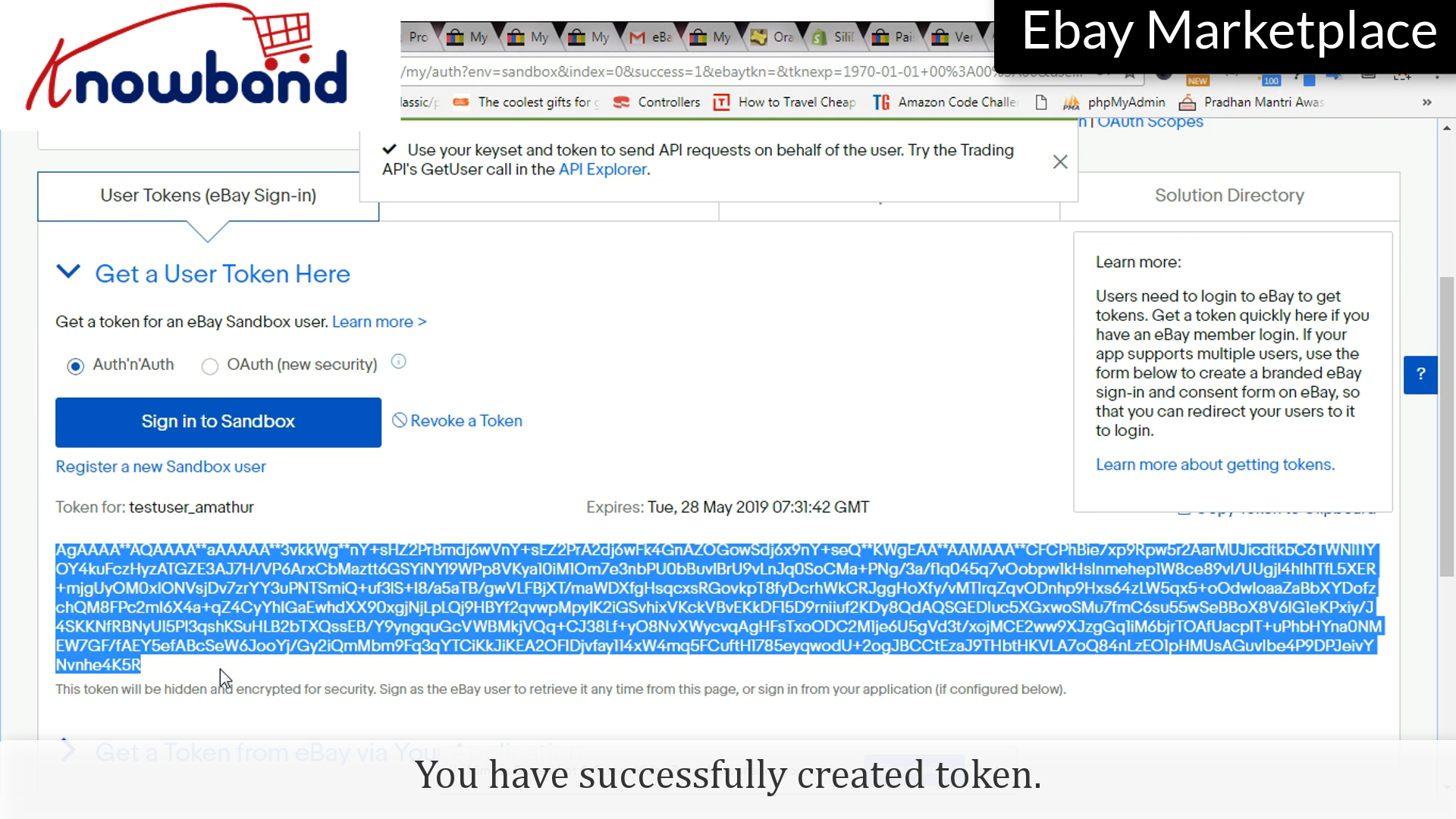
There are various APIs which requires Access Token, it is created by eBay itself to have your store uniquely connected to that particular API. Creating the Access Token is like a cake walk and here’s how you do it:
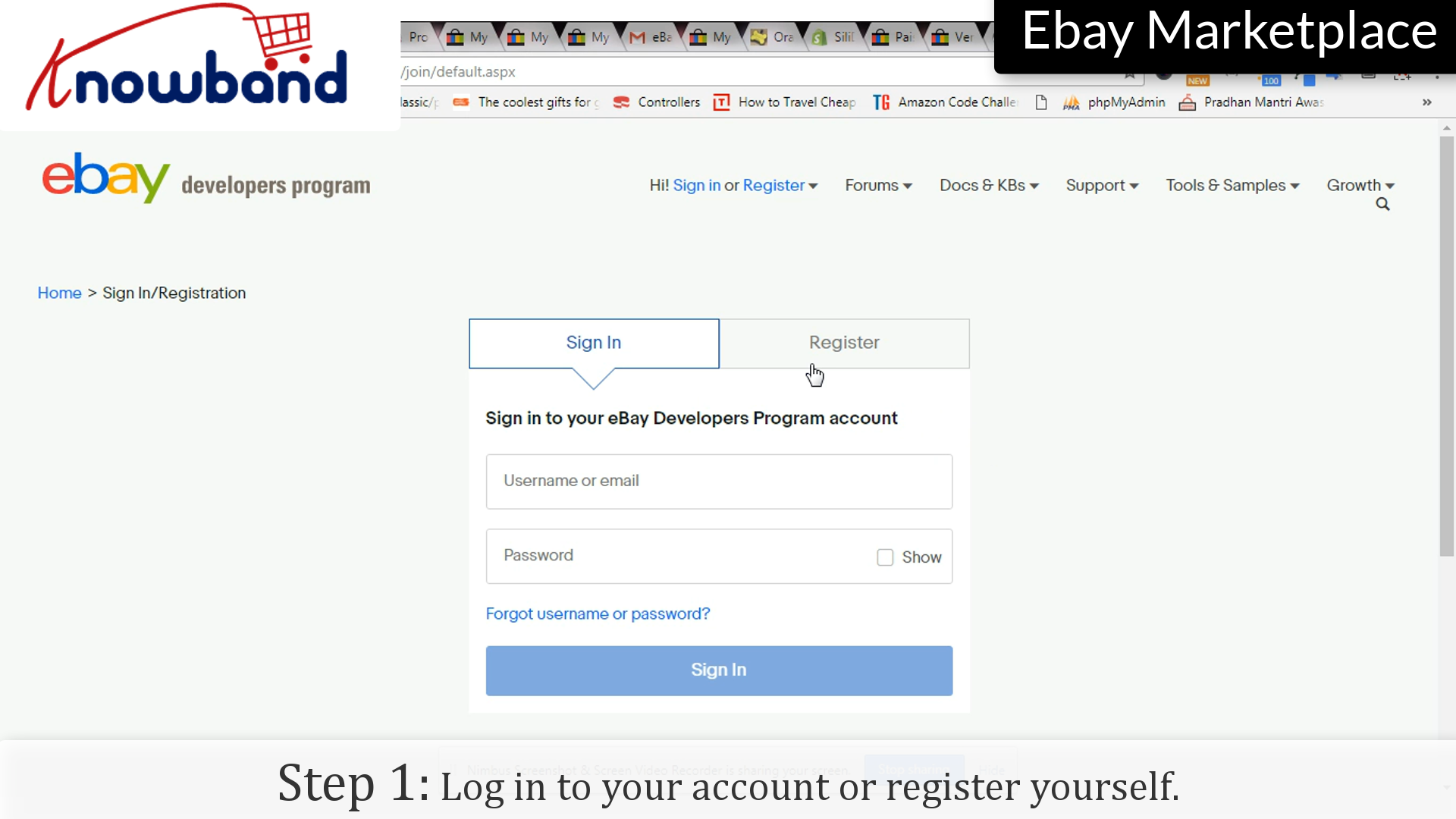
Step 1: Log in to your account or Register yourself
Login to your eBay account by clicking the “Sign in” option or you can register yourself if you are using it for the first time.
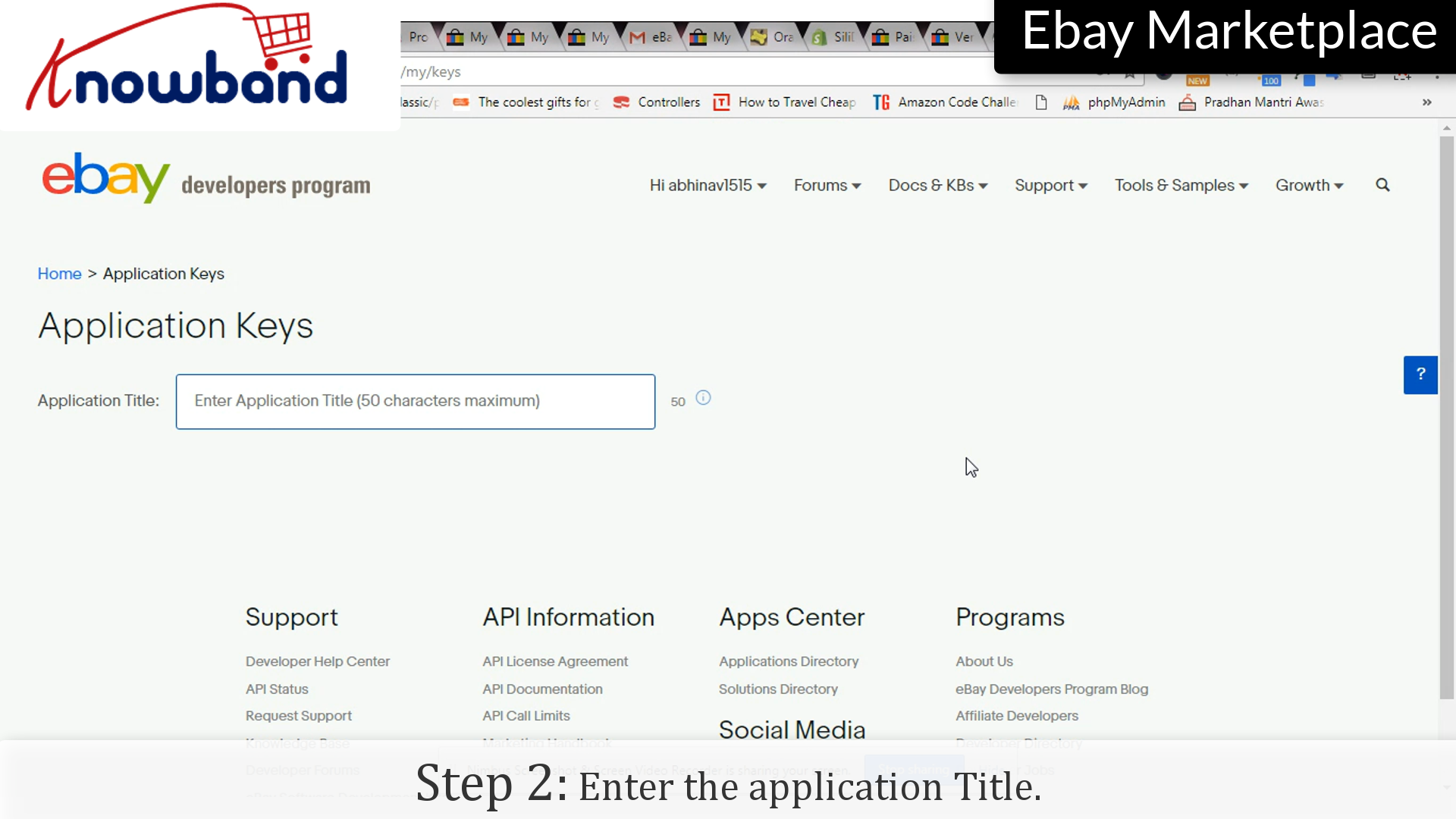
Step 2: Application Title
Enter the application name for which you are creating the token.
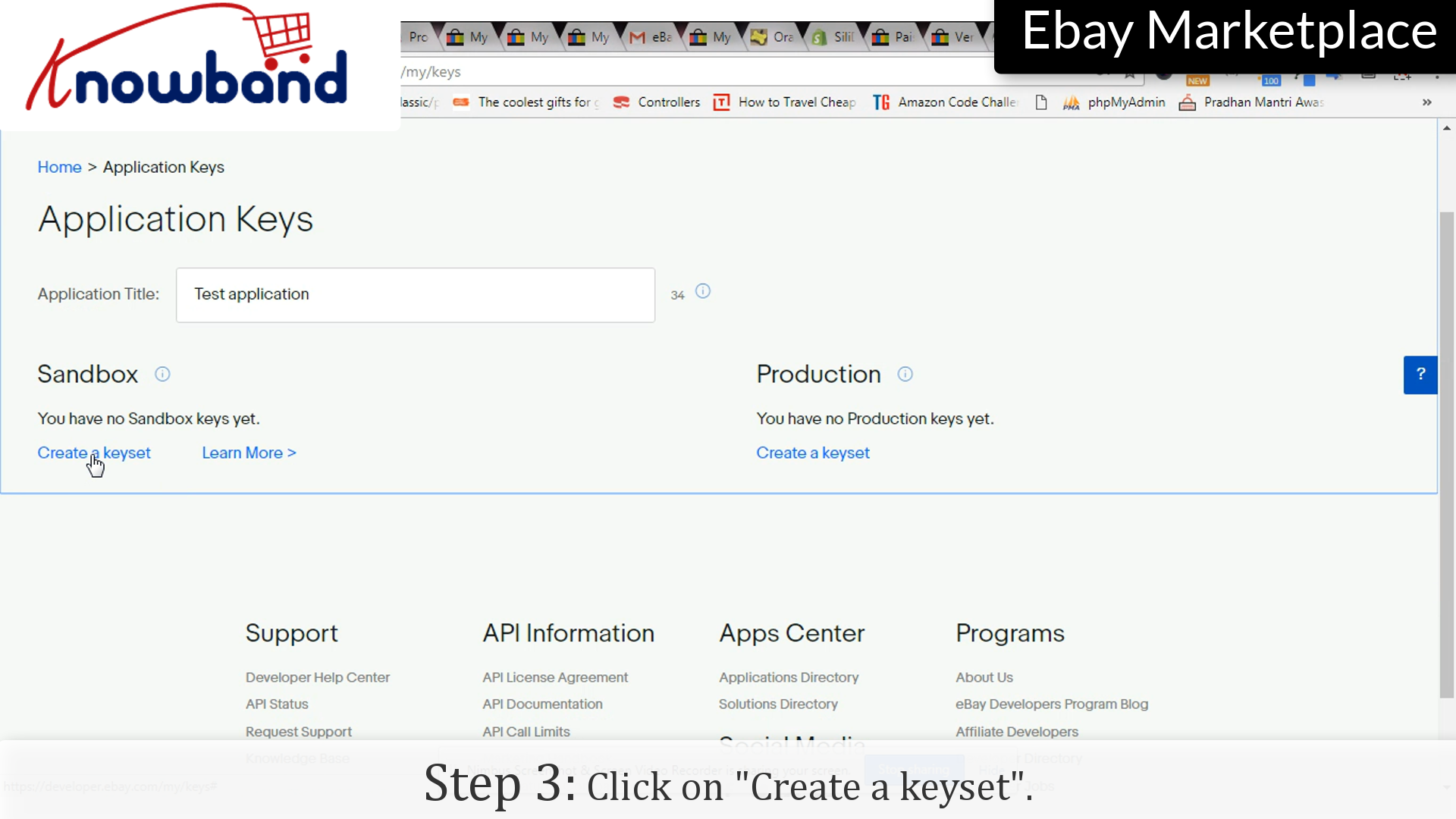
Step 3: Keyset
Click on “Create a keyset”, which will create a set of keys which you can use in any application.
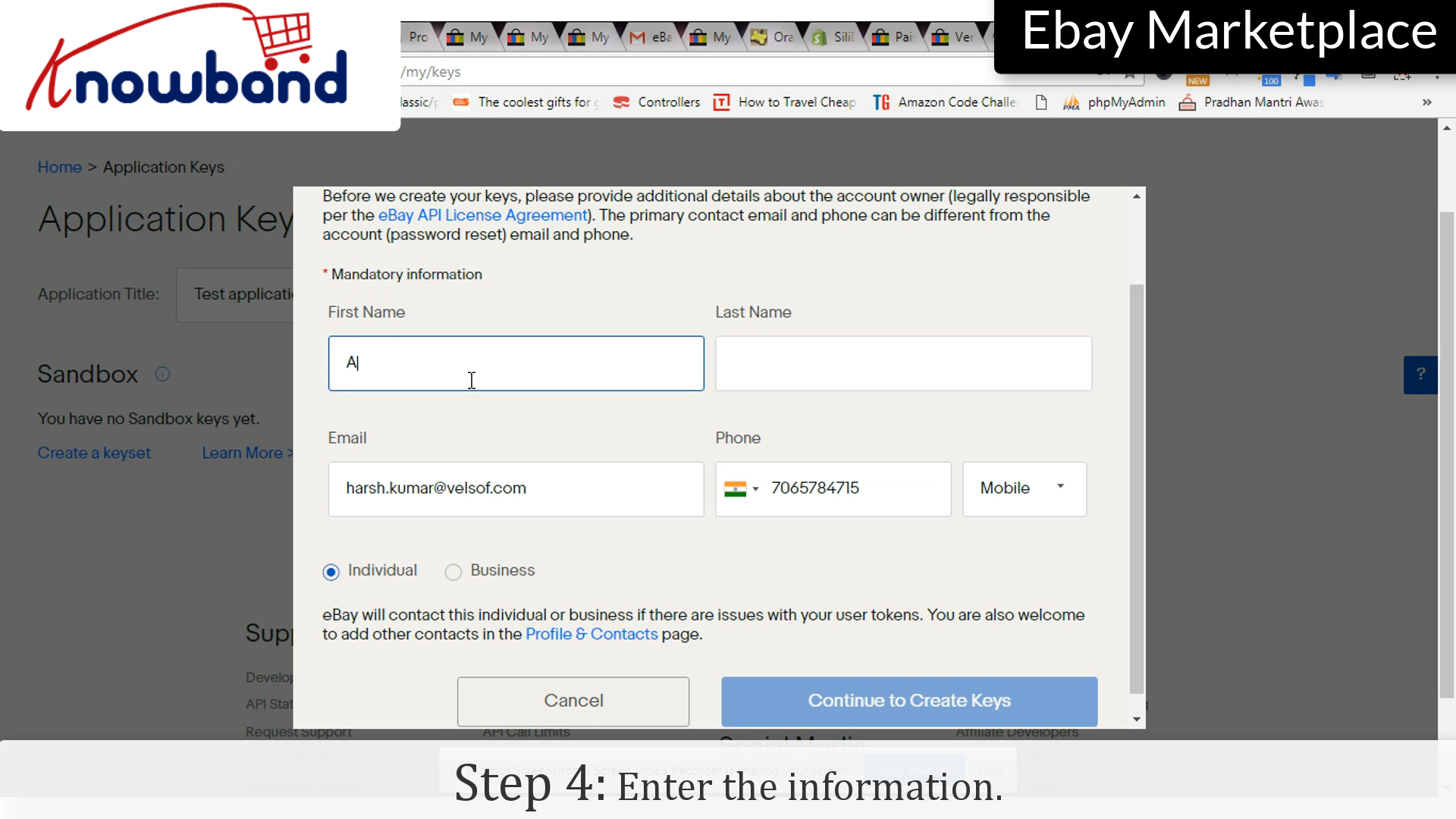
Step 4: Info
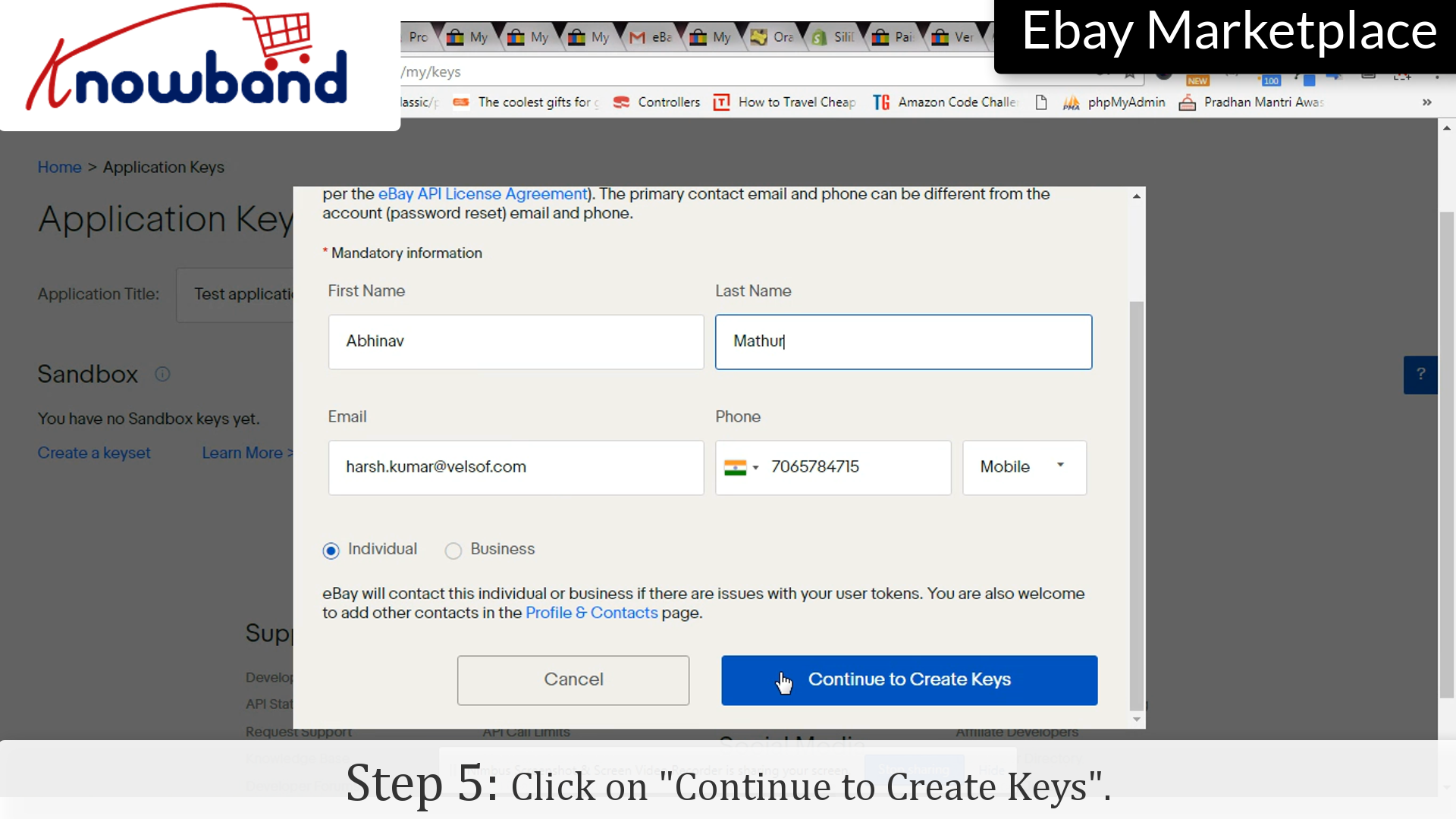
Enter the information such as, First Name, Last Name, E-mail ID etc.
Step 5: Continue
Click on “Continue to Keysets” to move to further steps.
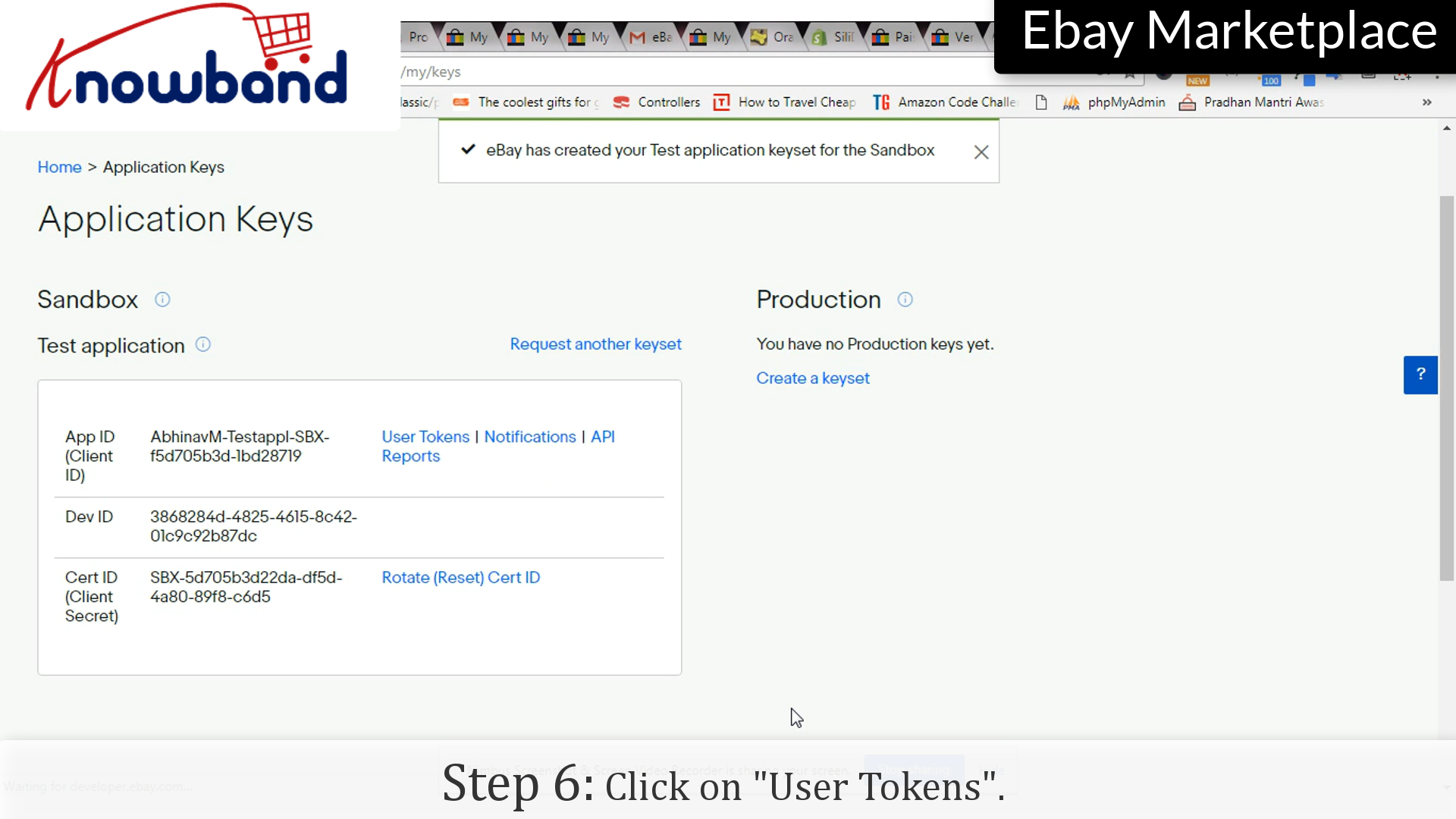
Step 6: Keys
There are set of keys generated, App ID, Dev ID and Cert ID. Click on “User Tokens” option.
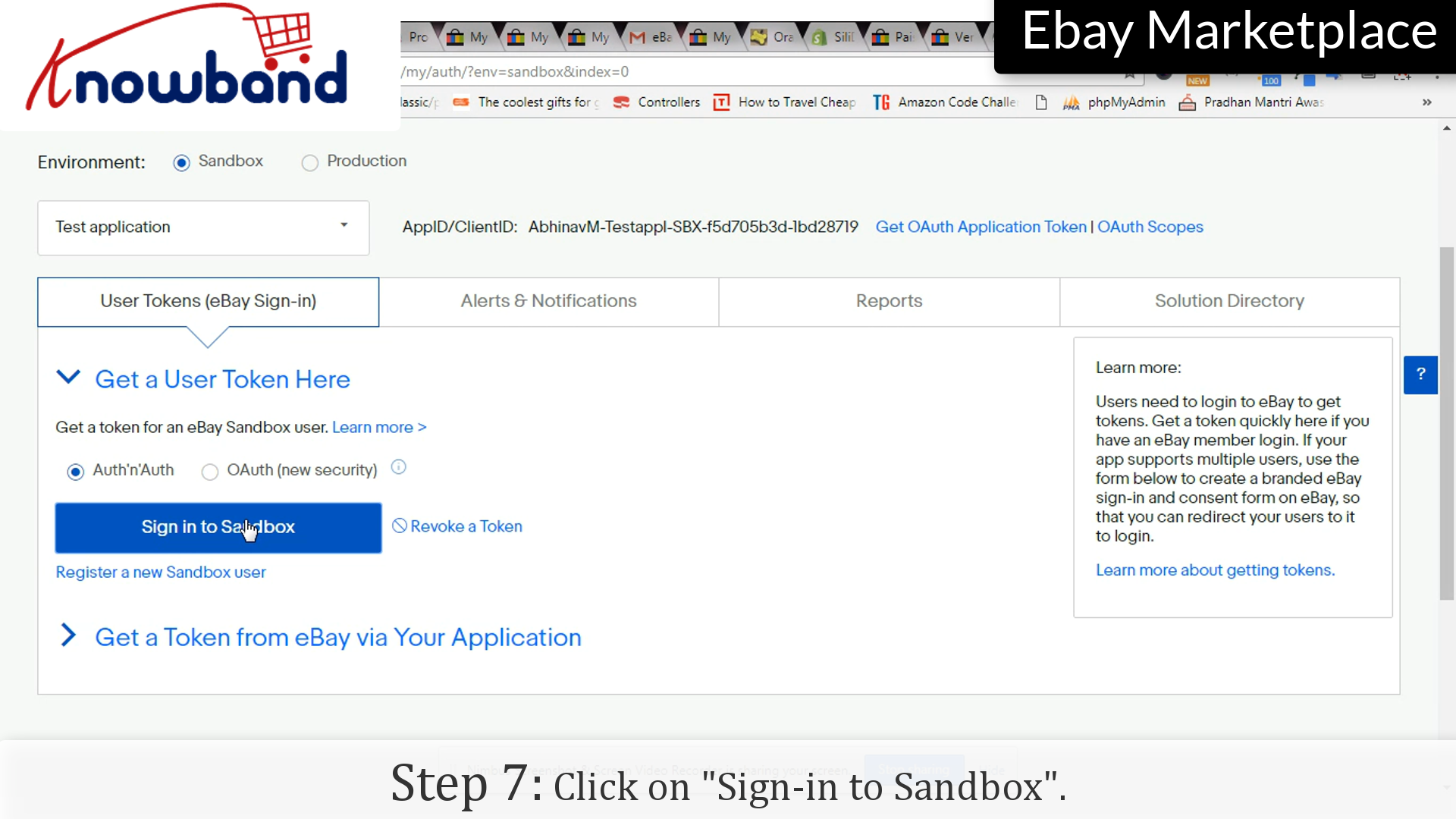
Step 7: Sign-in to Sandbox
Click on “Sign-in to Sandbox” option.
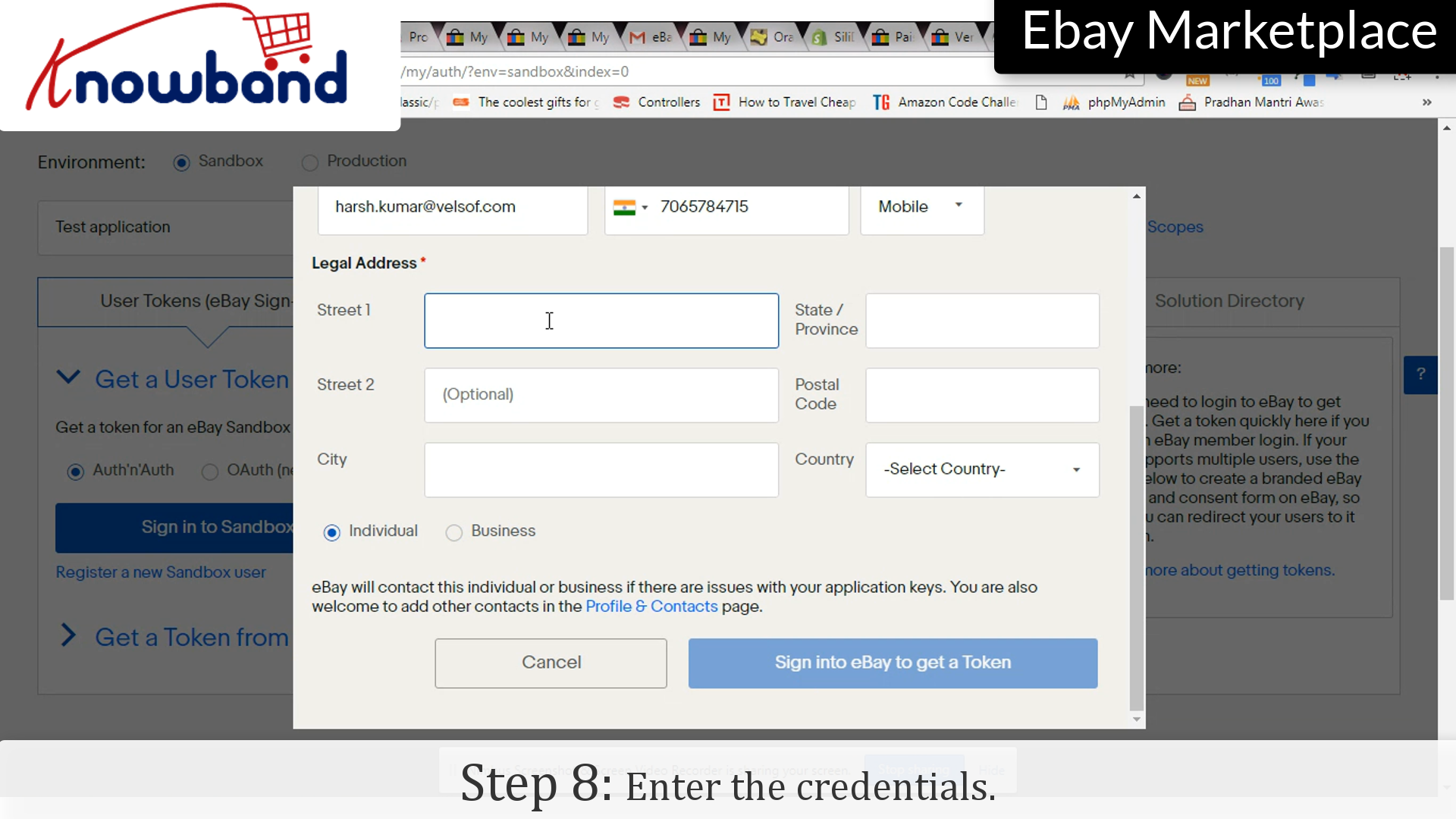
Step 8: Credentials
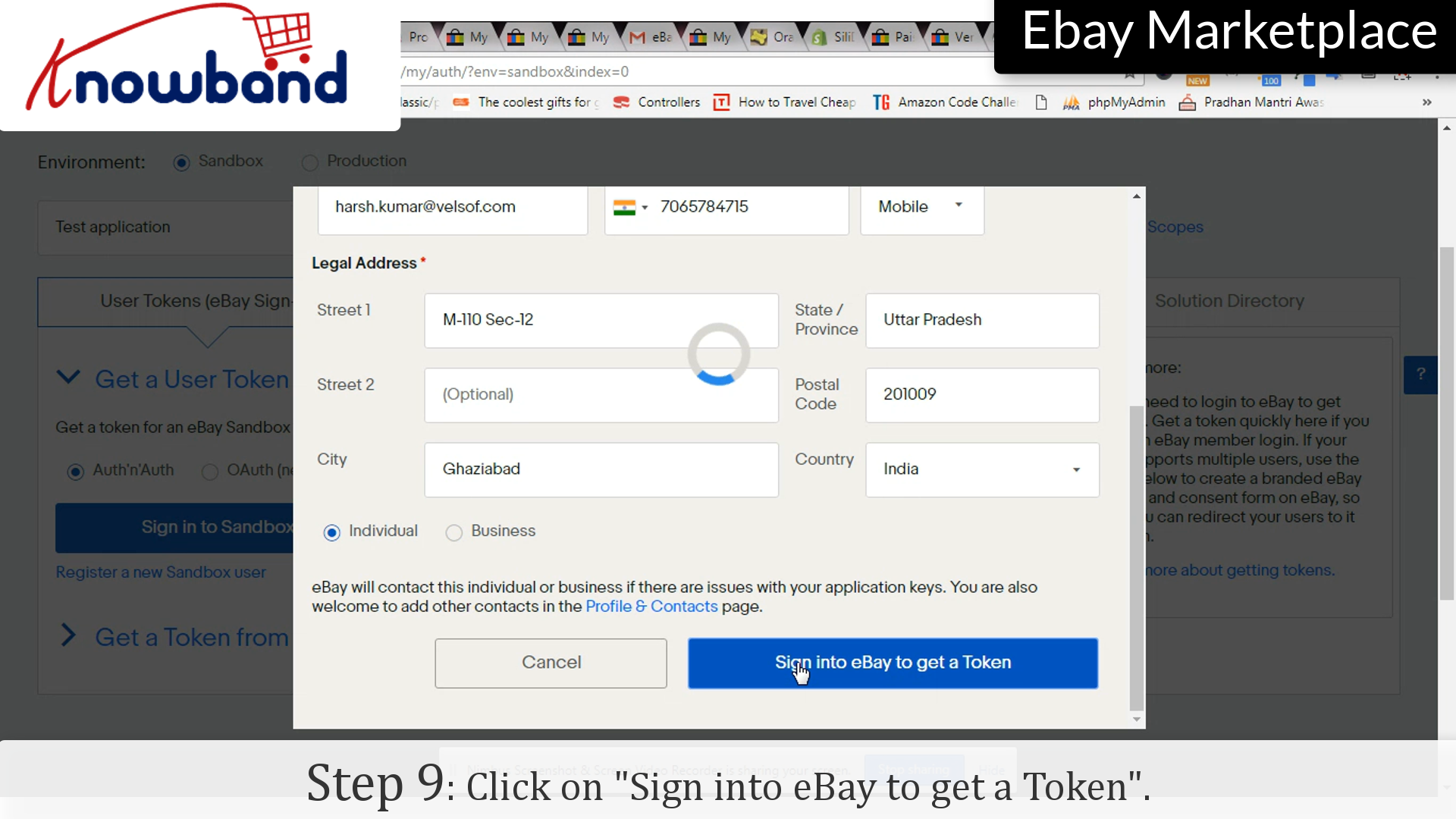
Enter the credentials. eBay will contact the person whose information has been entered in case there will be any issue with the Application Keys.
Step 9: Sign in to get token
Click on “Sign-in to get Token” button to save the credentials and move to next step.
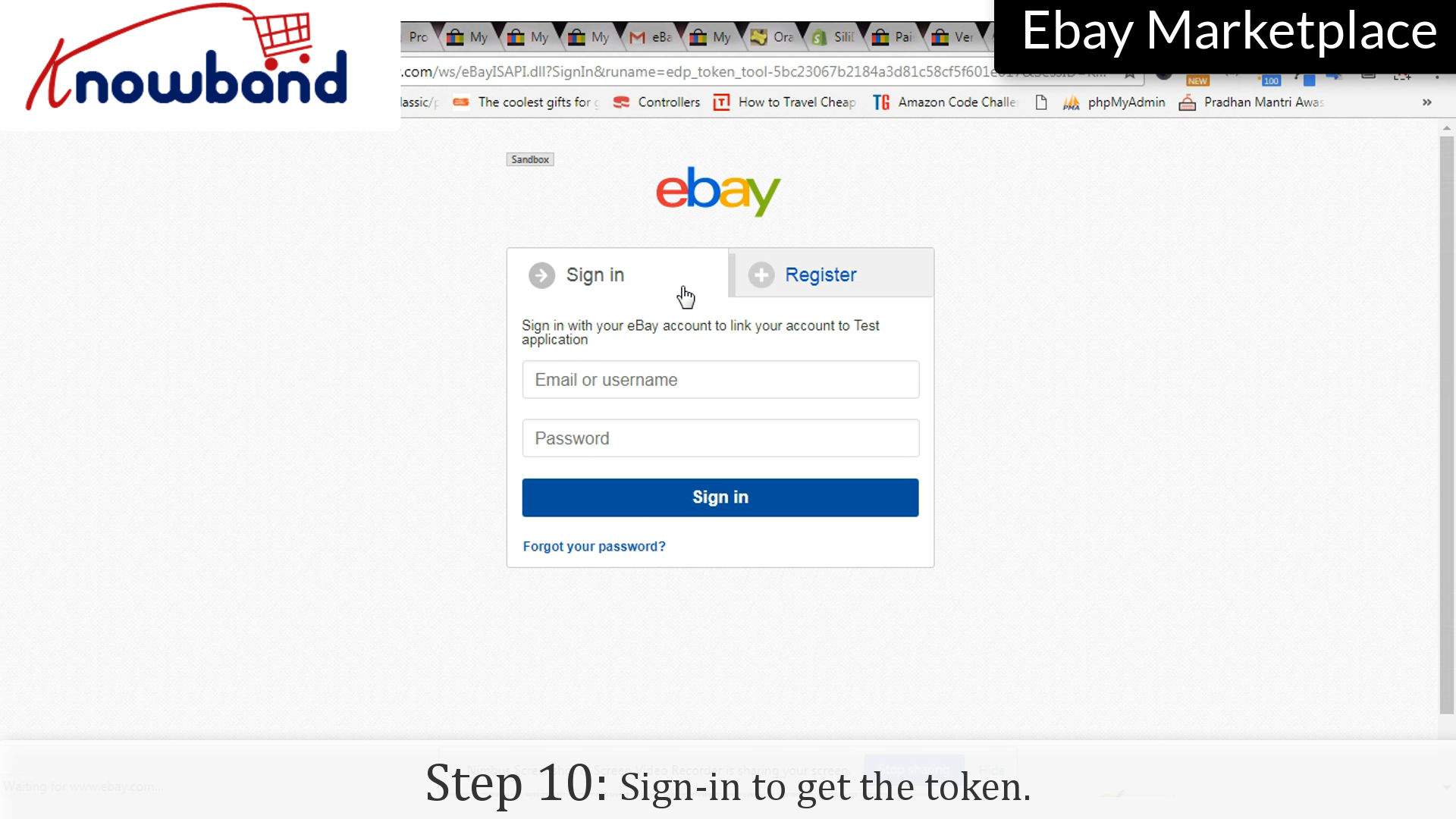
Step 10:Sign-in
Enter your login credentials again.
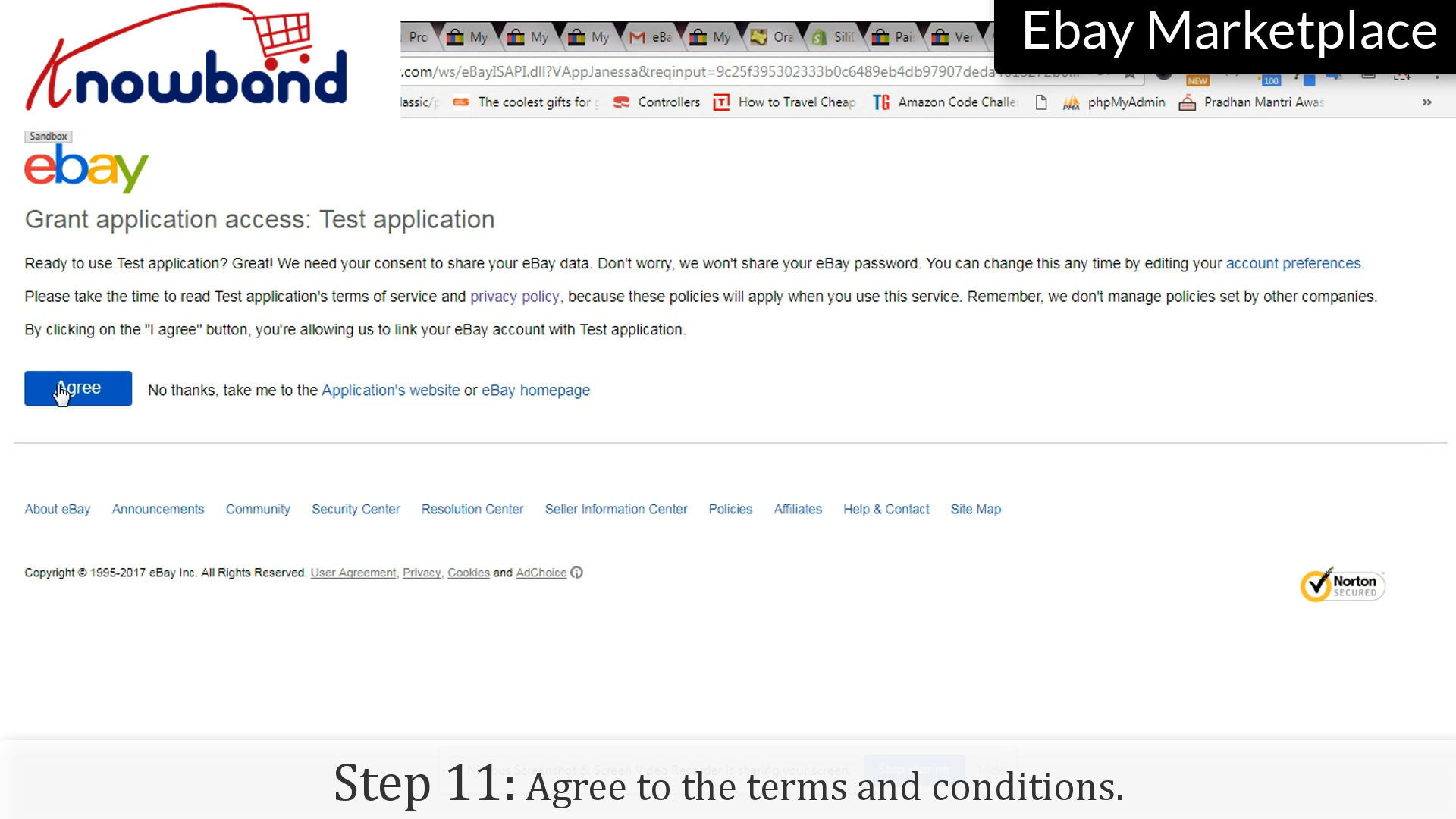
Step 11:Terms and conditions
Read the terms and conditions, and click on “Agree” button to save the settings.
Are you facing the hurdles when it comes to managing the multi-store from the single admin interface? Prestashop offers the easiest way to handle multiple stores from the single admin interface. Here’s how you can do it:
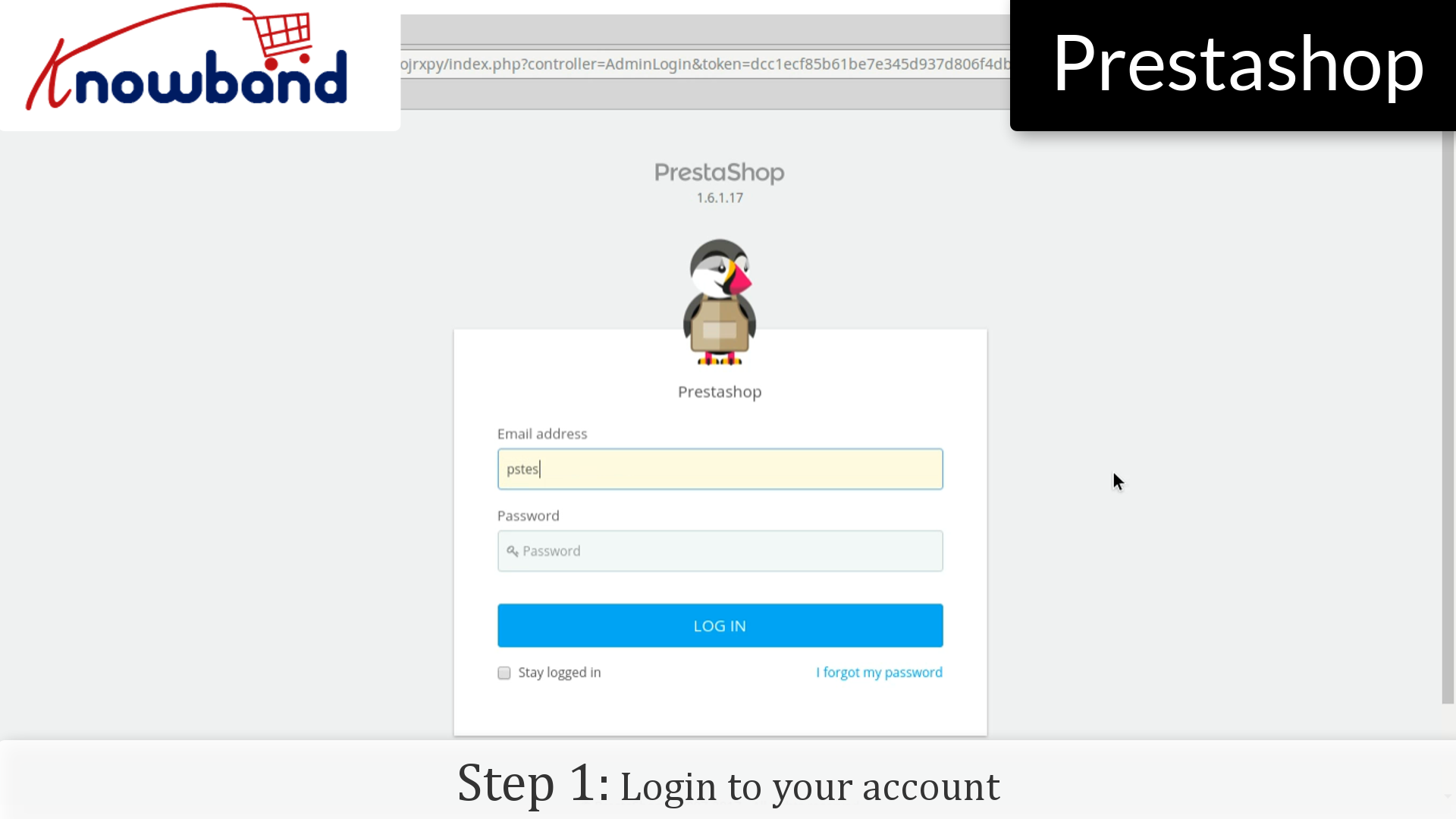
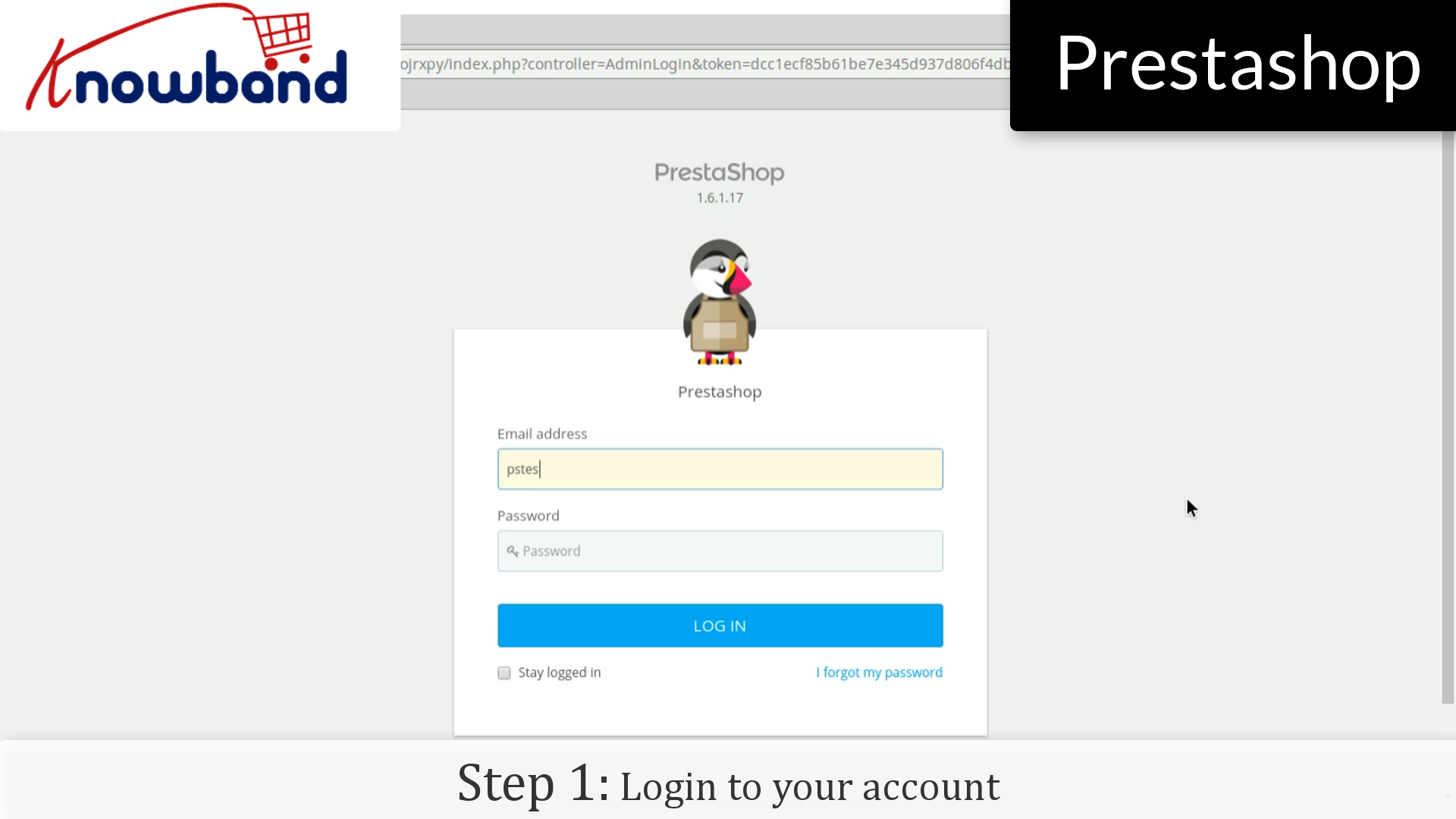
Step 1: Login to your admin panel.
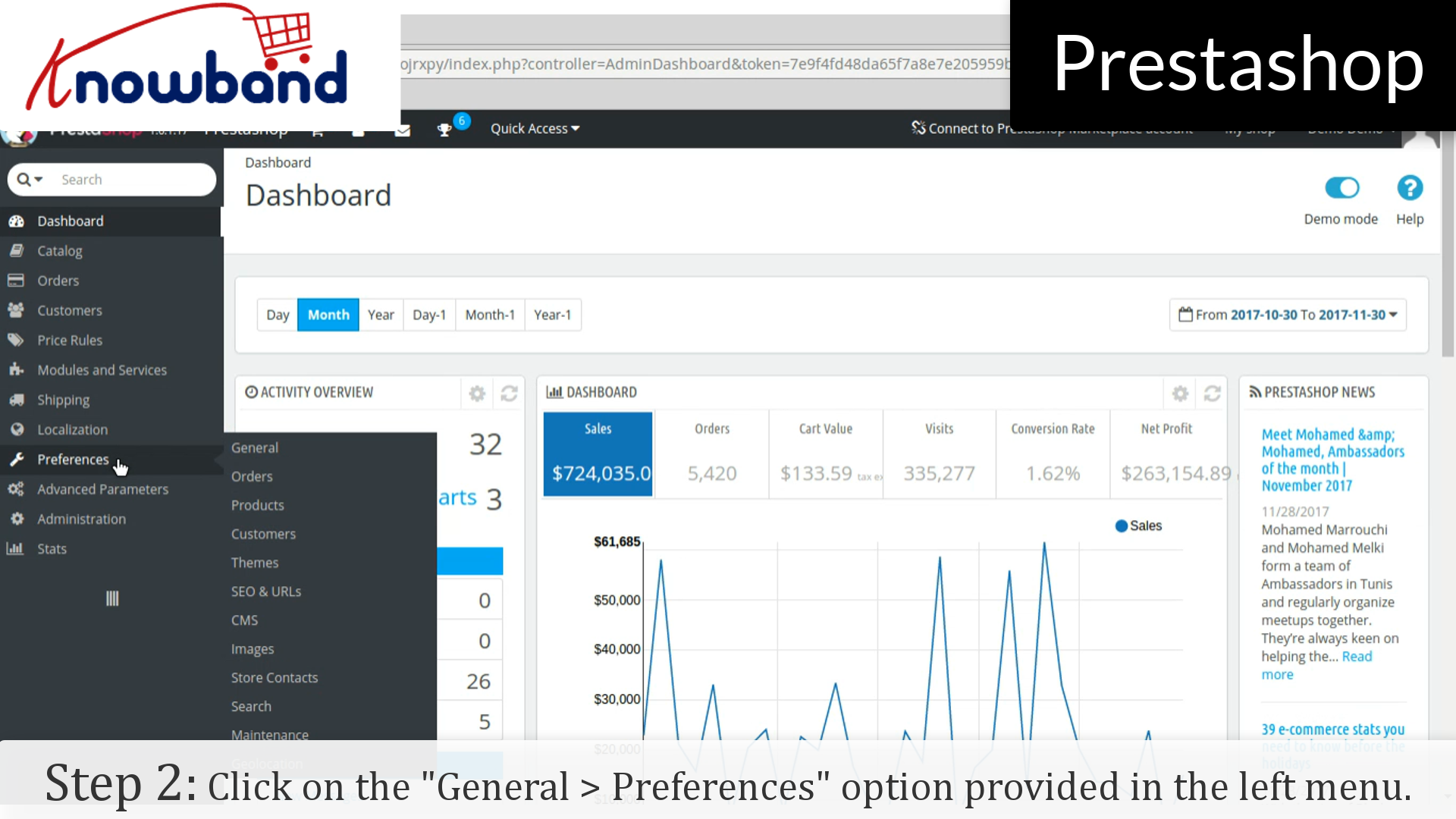
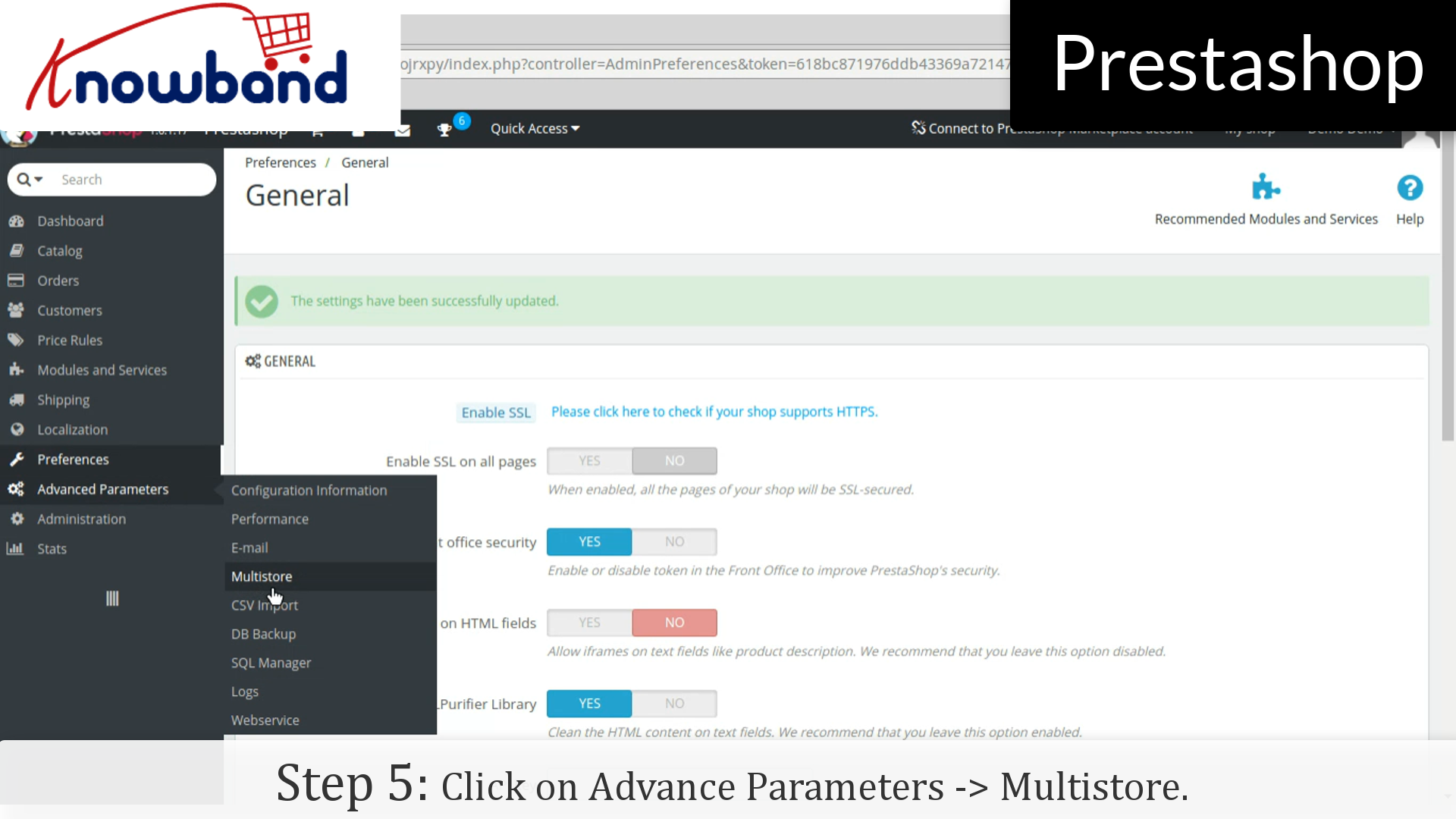
Step 2: After you have successfully logged in, click on the Preferences->General option provided in the left menu.
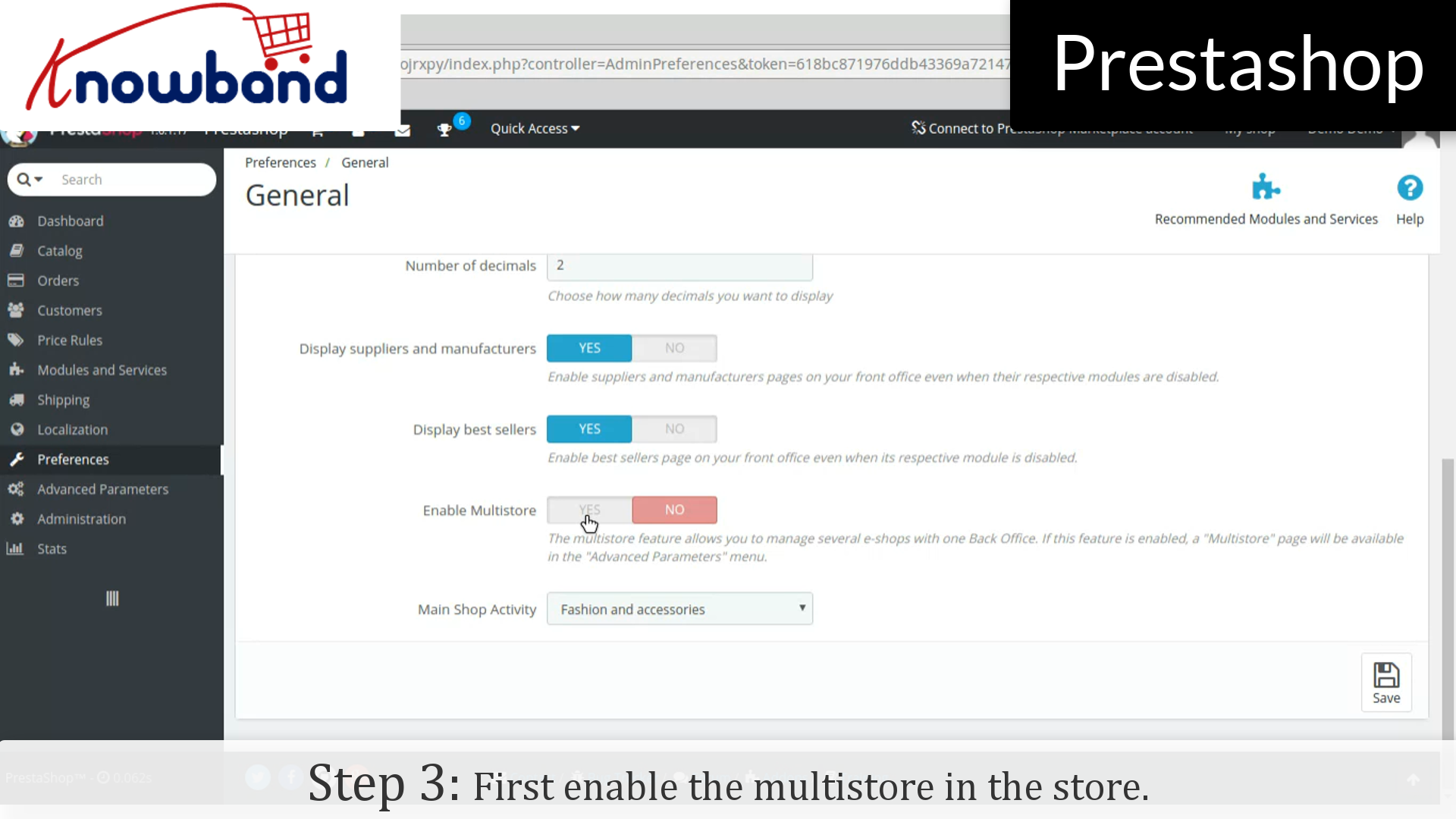
Step 3: Now, enable the Multistore in the store.
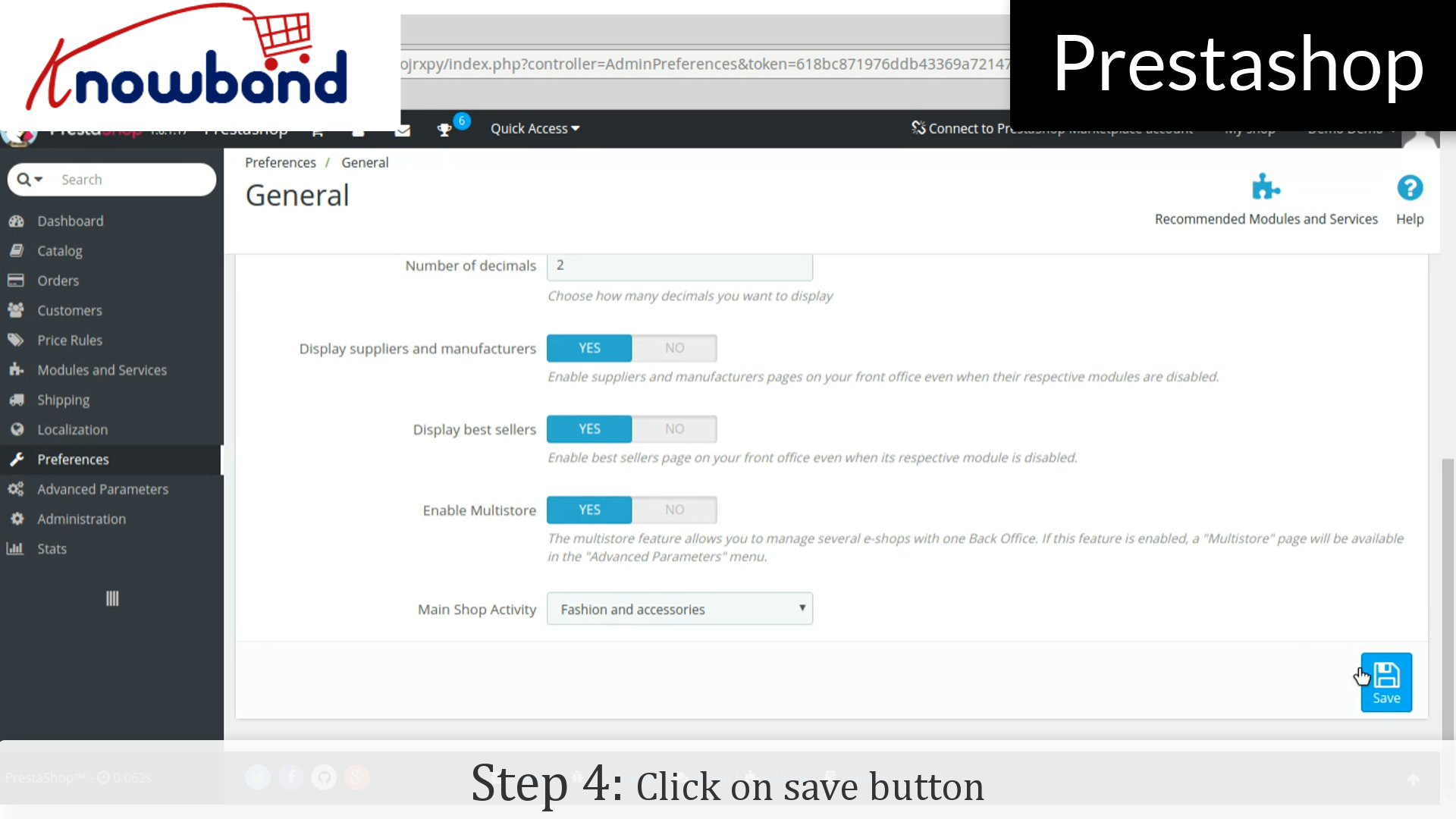
Step 4: Then, click on the save button.
Step 5: After that, click on Advance Parameters->Multistore option provided in the left menu and add multistore.
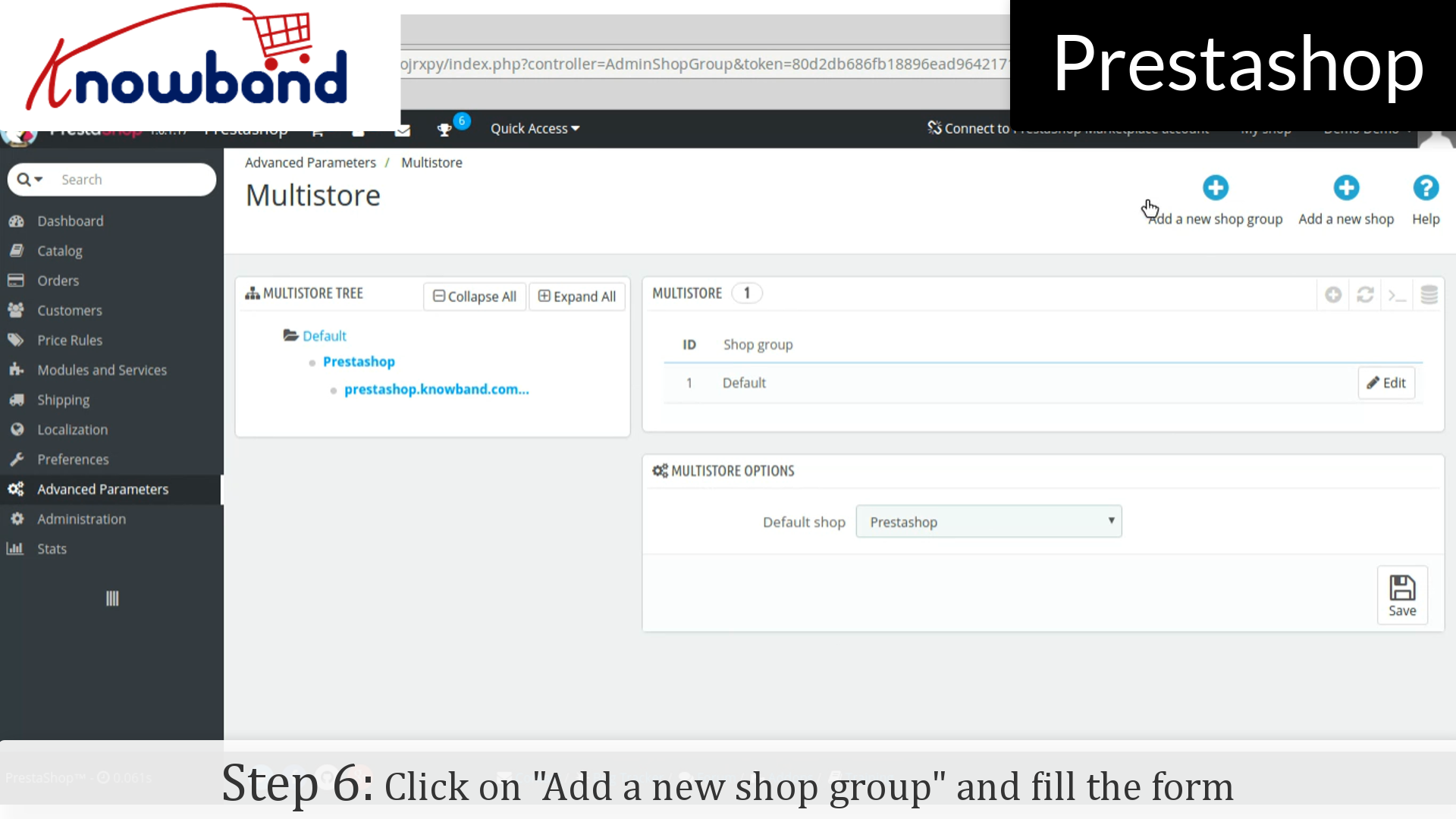
Step 6: Click on “Add a new shop group” button in the top right corner on the dashboard. Fill the form and save the form to create new shop group.
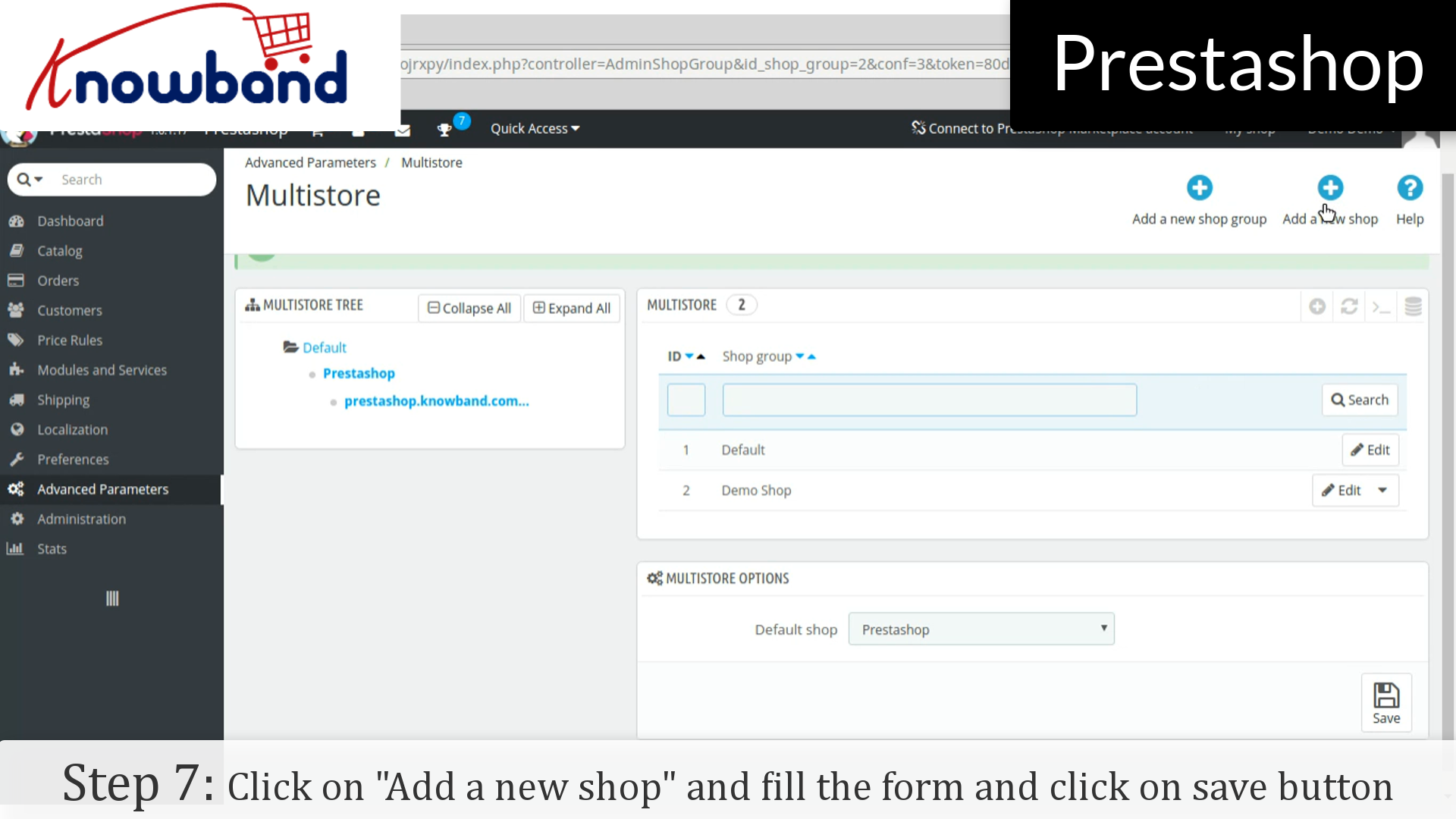
Step 7: After that, click on “Add a new shop” button next to the “Add a new shop group”. Fill the form and click on save button.
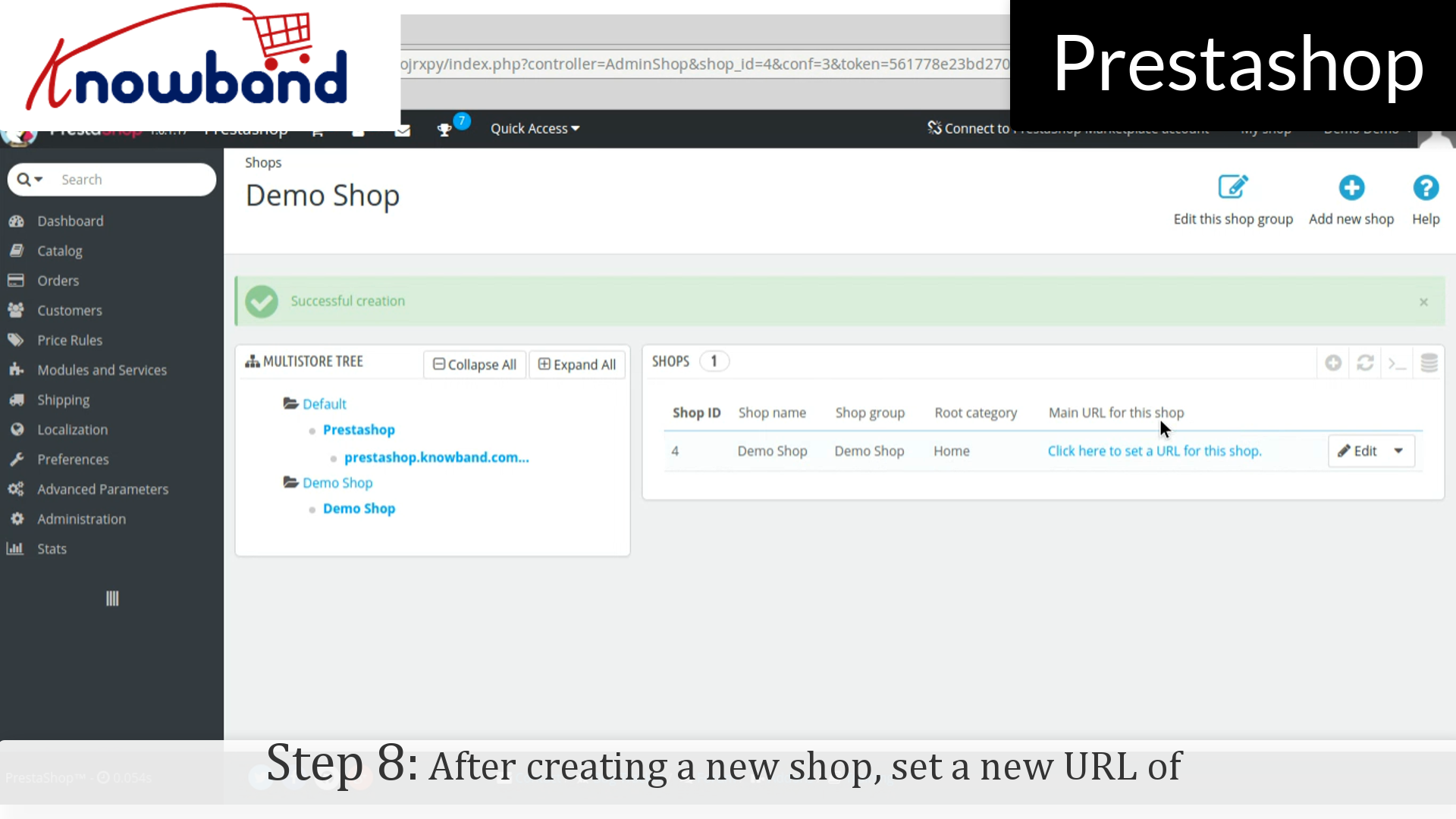
Step 8: After creating a new shop, set a new URL of the shop by clicking on “Click here to set a new URL for this shop”. A new form is open in which enter the desired url.
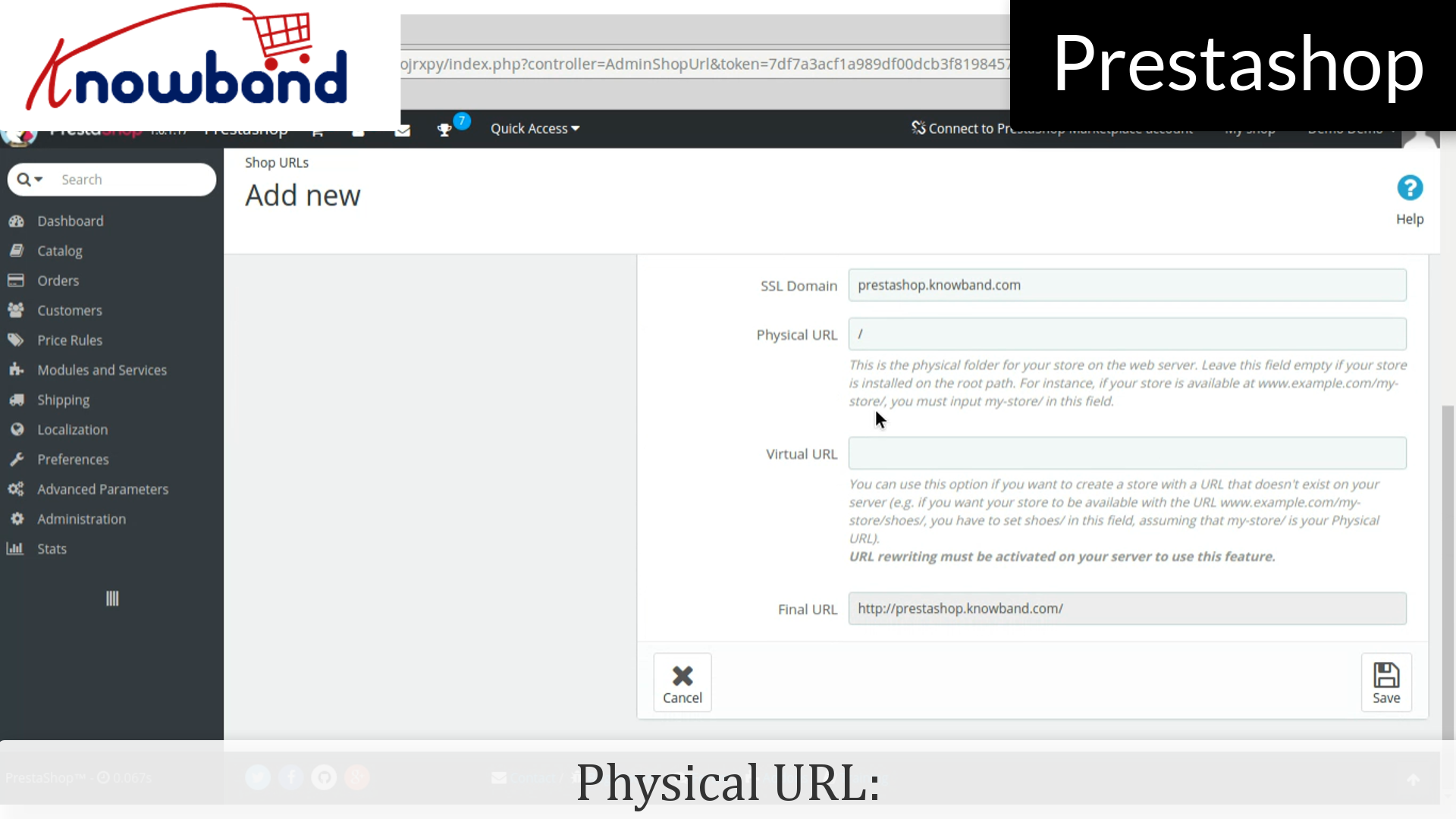
Physical URI: You must set the physical path to your actual installation on your server. If the shop is at the root of the domain or subdomain, leave this field empty. Example: / or /kids/.
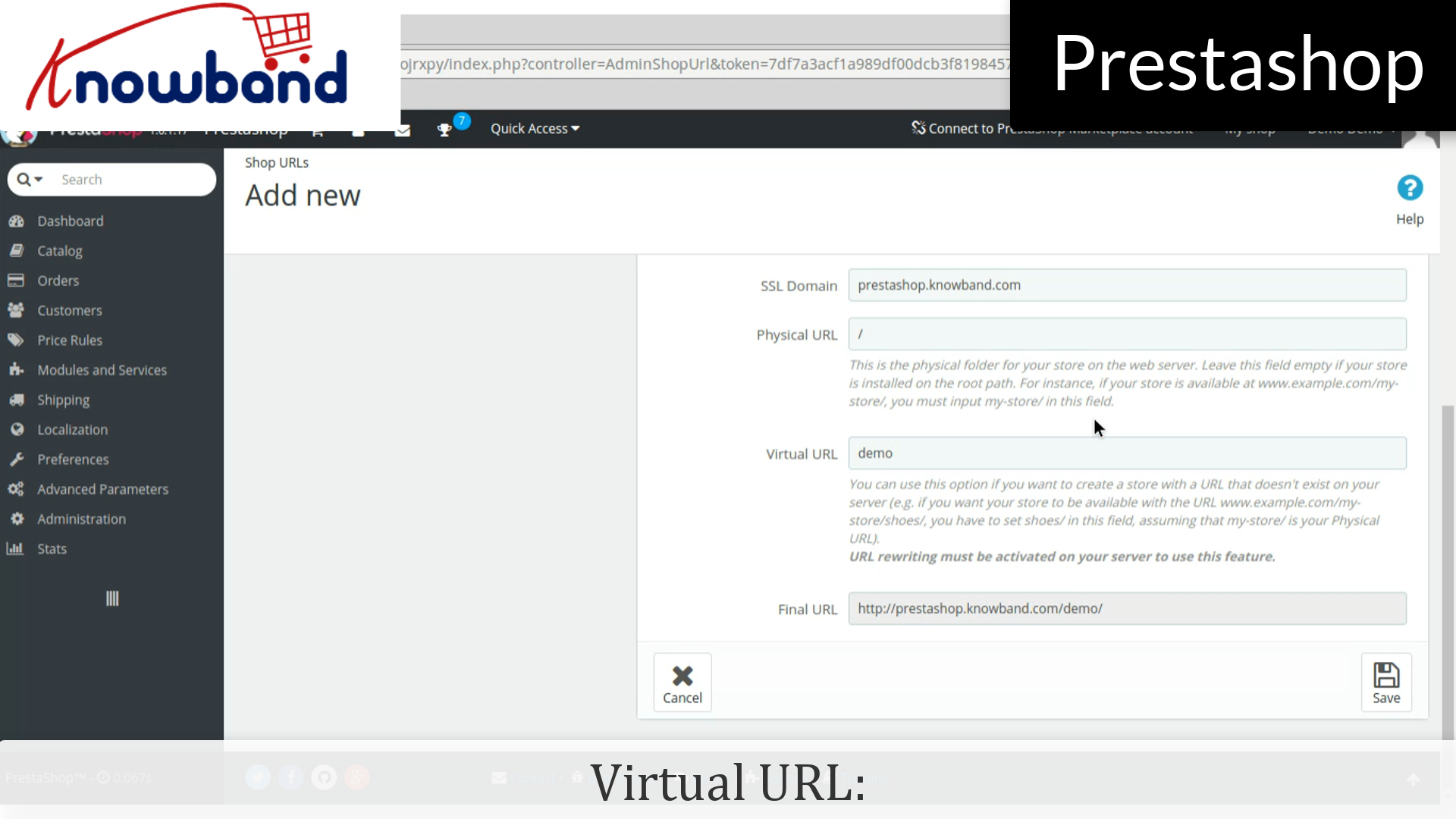
Virtual URI: URL rewriting must be enabled in PrestaShop (meaning Friendly URLs, Preferences->SEO & URLs). Example: /shoes/. Note that this only works for subfolder shops, not subdomain shops.
If 404 error is occured then, enable mod_rewrite.
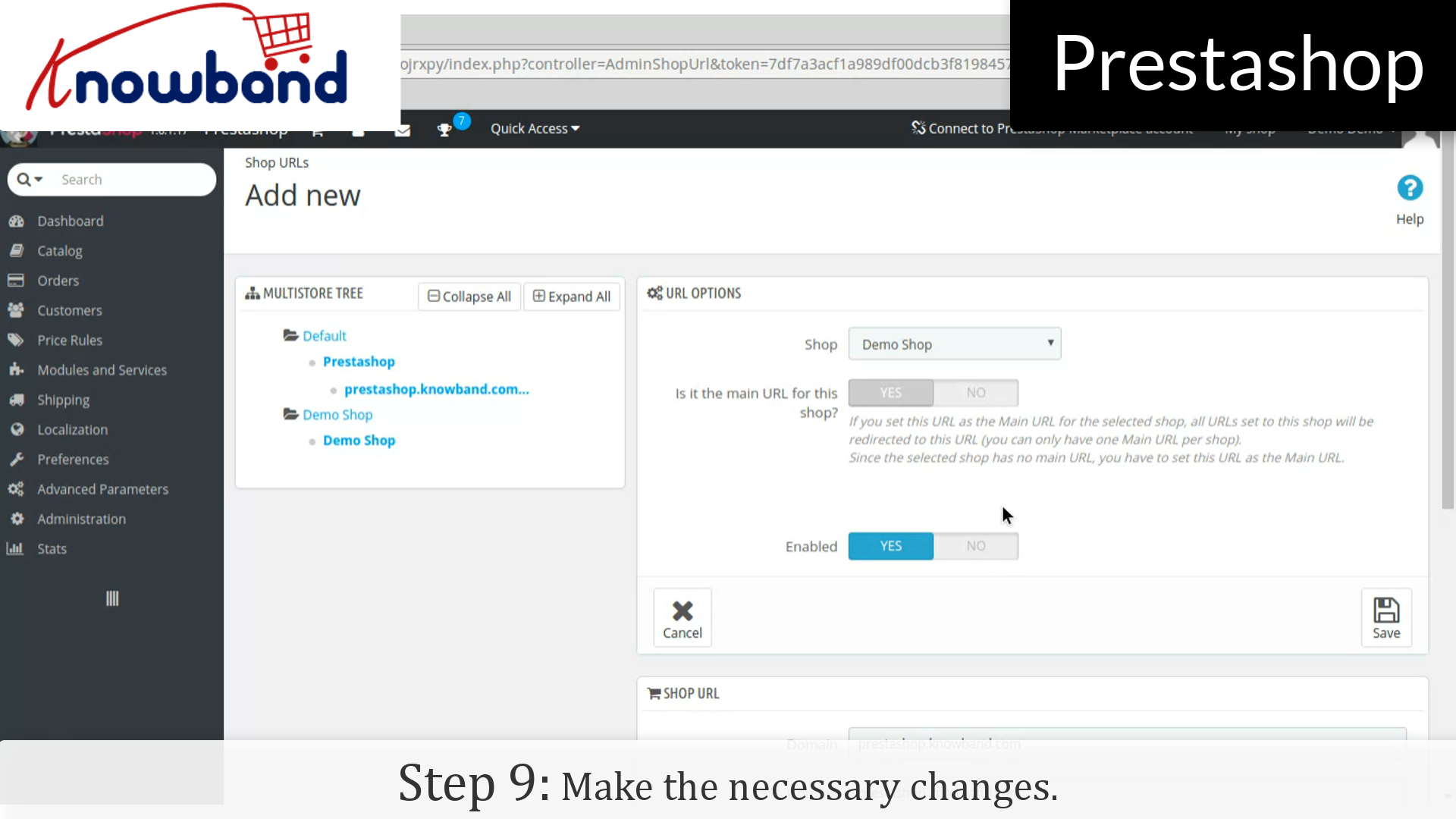
Step 9: Make the necessary changes.
That’s it, now you can manage the multiple store just following the above mentioned steps.
Shipping methods is one of the most important factor for the customers when it comes to online shopping. Adding shipping profile in Prestashop store is the easy and simple process. Here’s how you can do it in just a few simple steps:
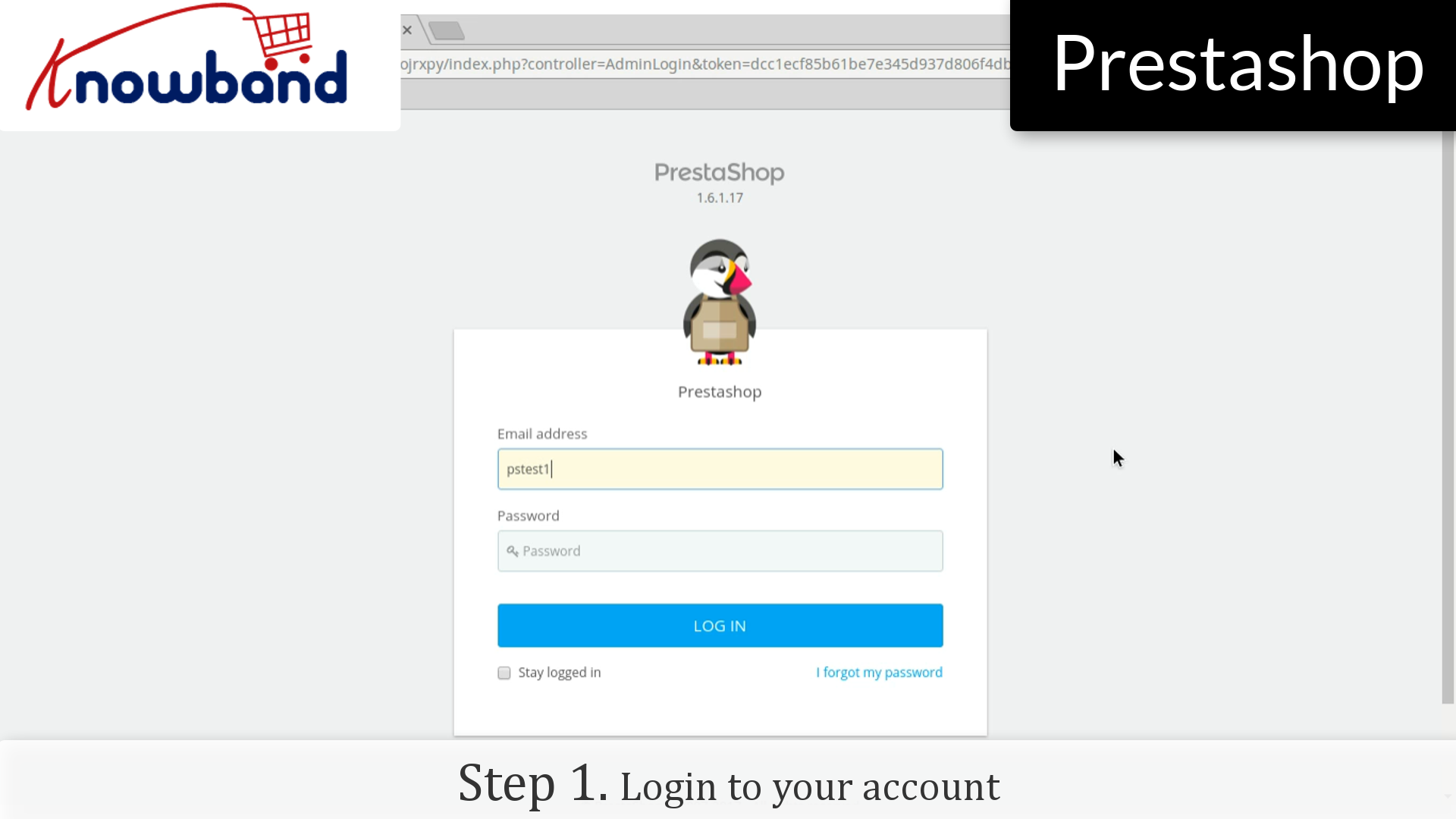
Step 1: Login to your admin panel.
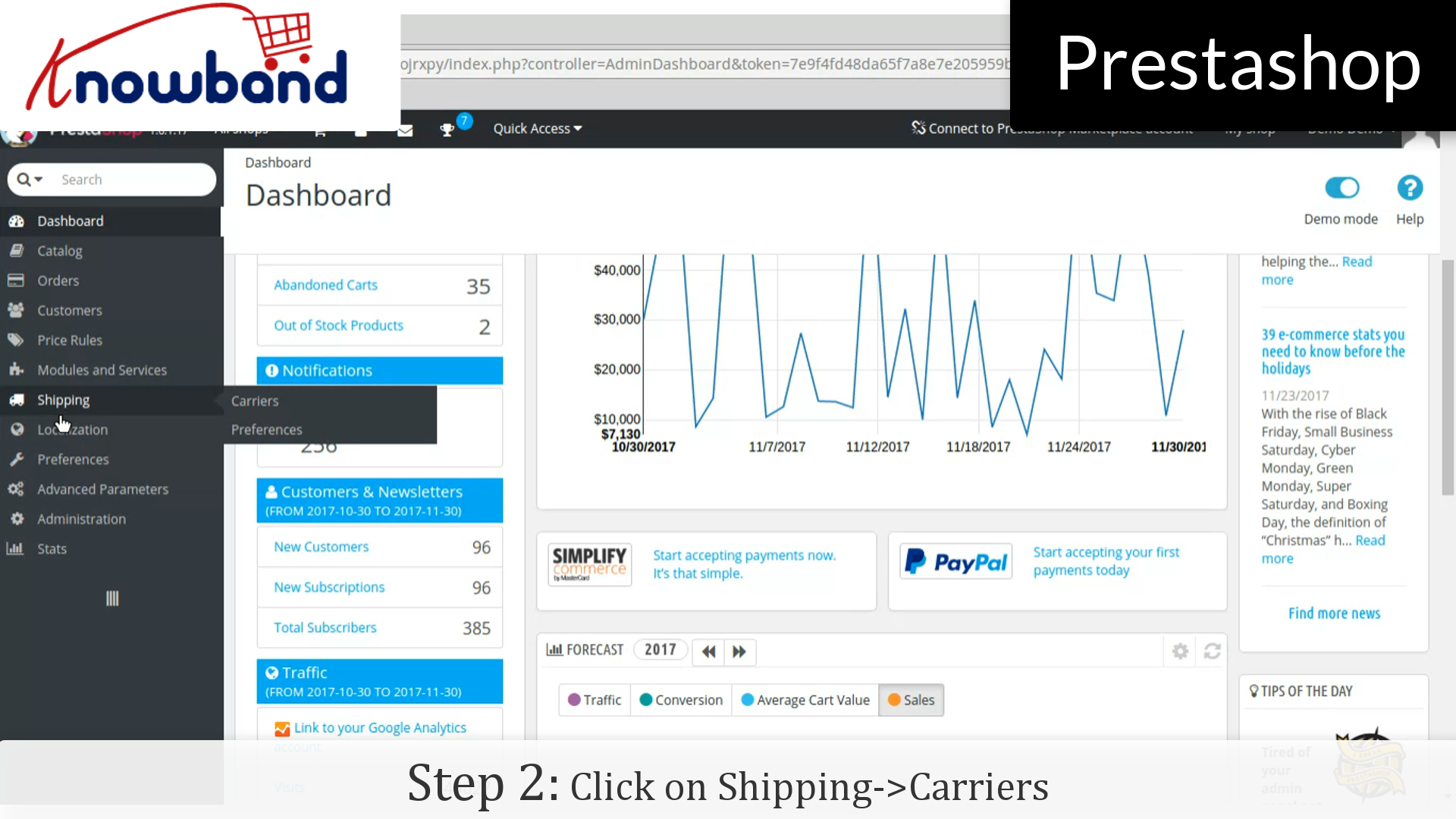
Step 2: After you have successfully logged in, click on the “Shipping->Carriers” option provided in the left menu.
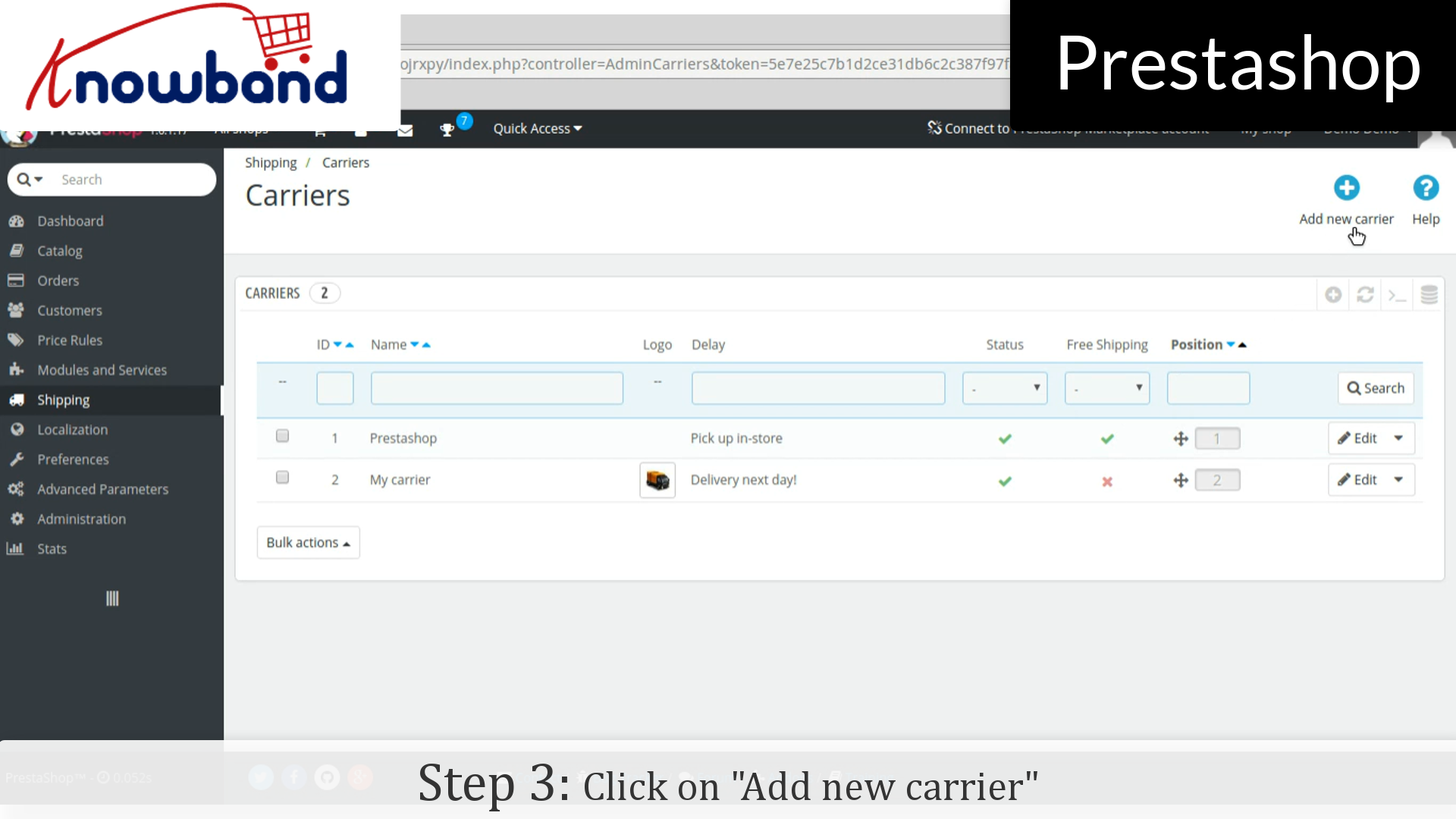
Step 3: After that, click on the “Add new carrier” button in the top right corner of the dashboard.
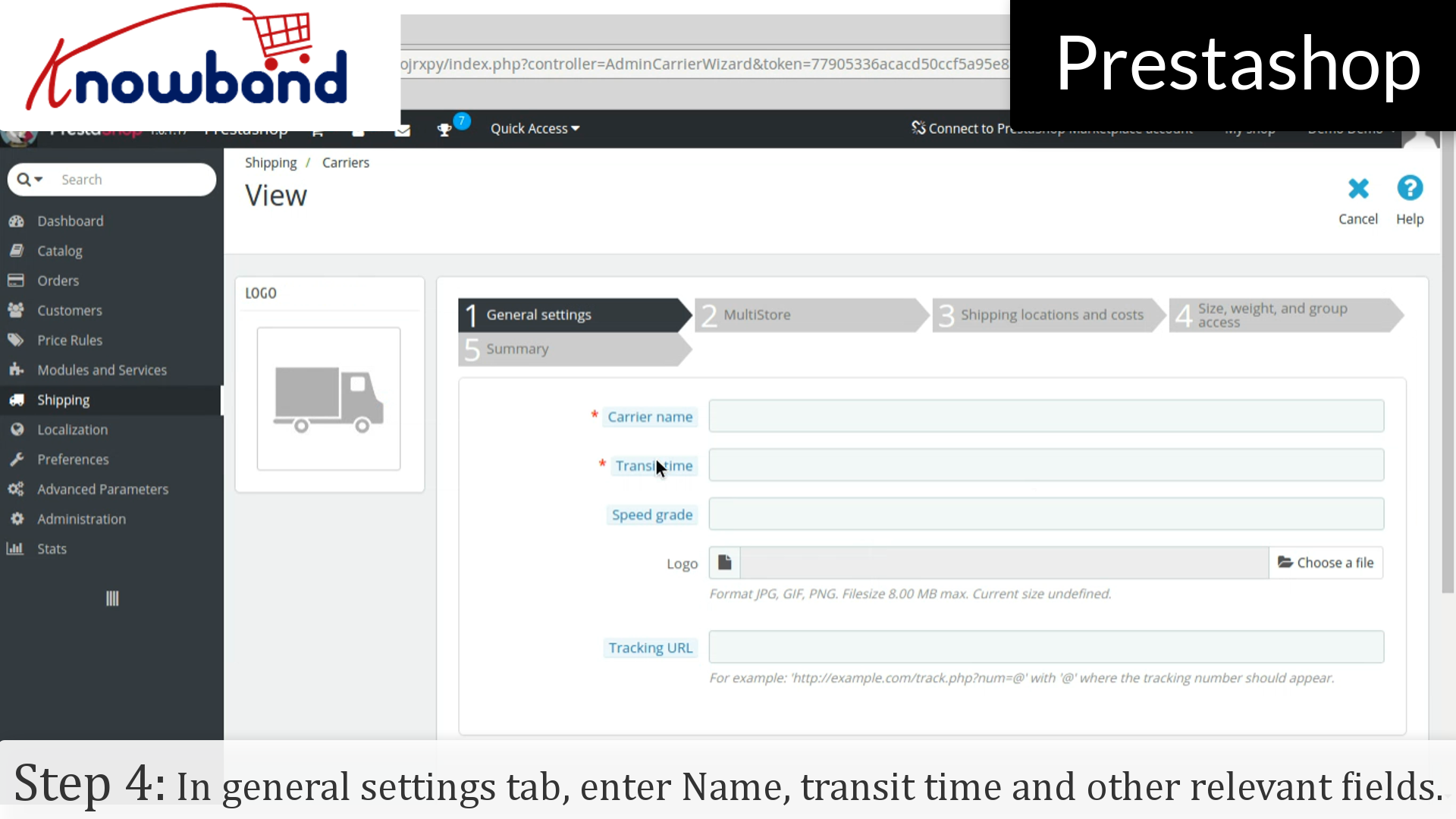
Step 4: In “General Settings” tab, fill out all the required details like Name, Transit time and other relevant fields. Click on the next button.
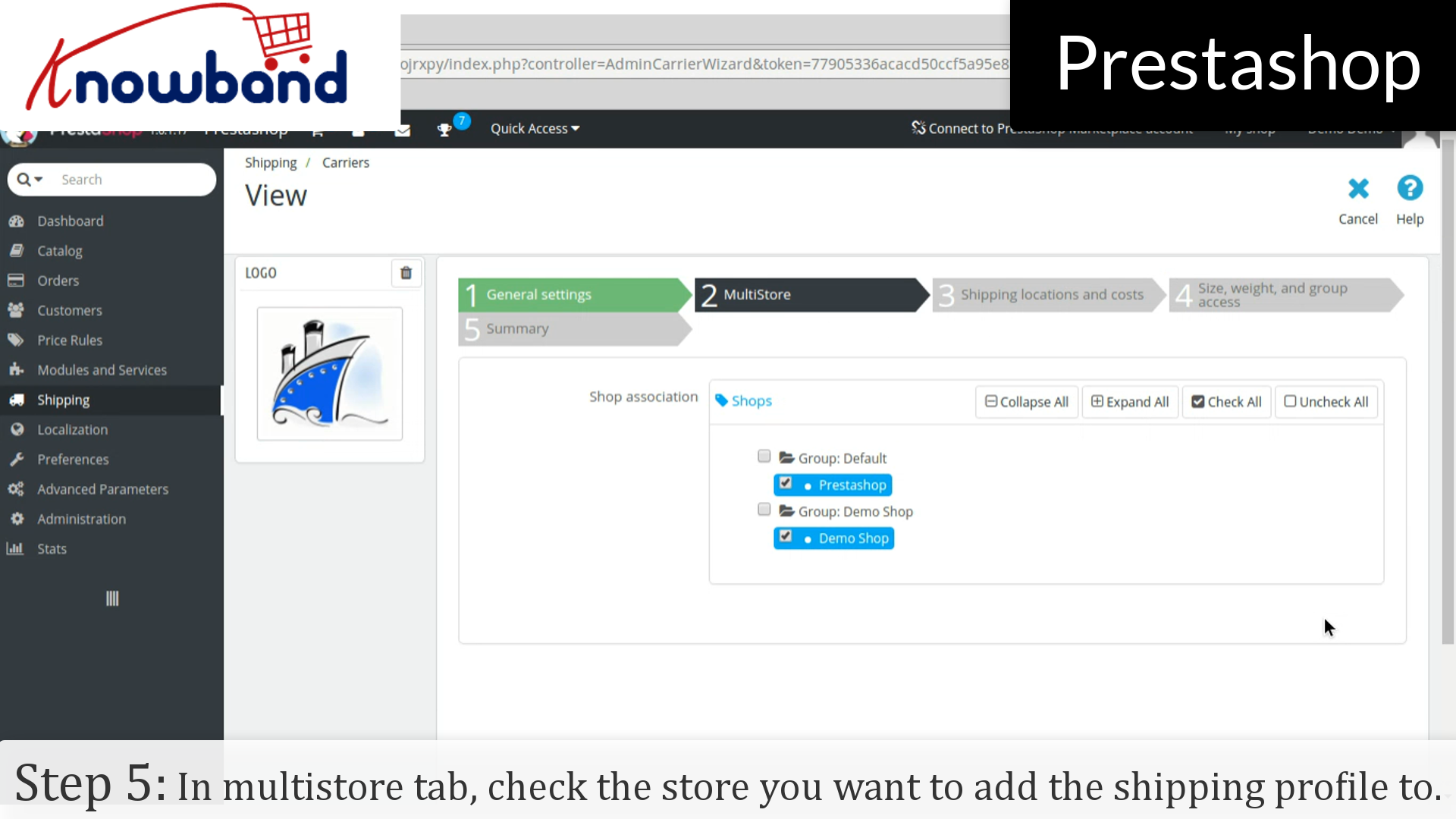
Step 5: In “Multistore” tab, check the store in which you want to add the shipping profile and click on the next button.
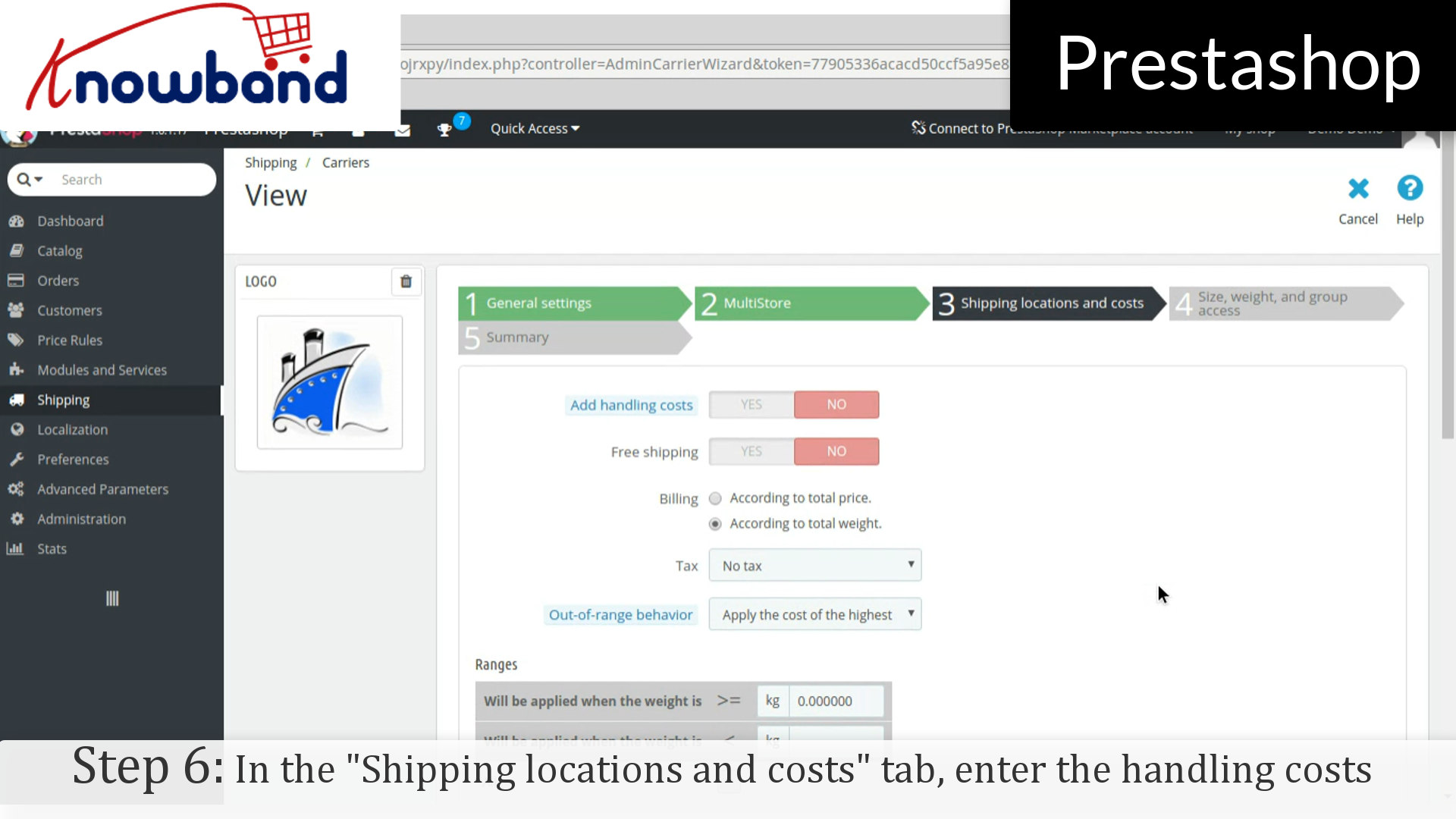
Step 6: In the “Shipping locations and costs” tab, enter the handling costs and other required details and click on the next button.
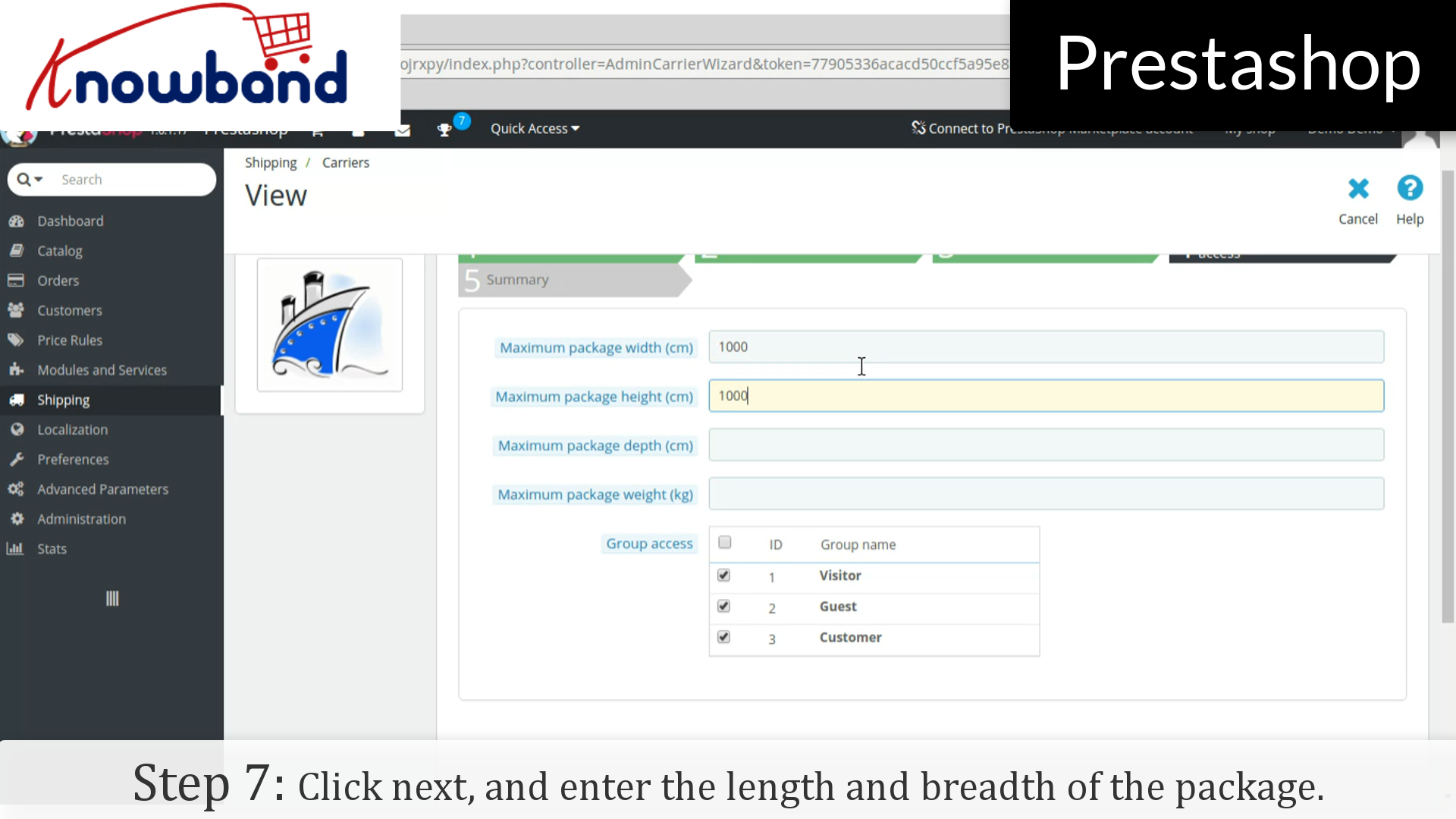
Step 7: In the next tab, enter the length and breadth of the package and click on the next button.
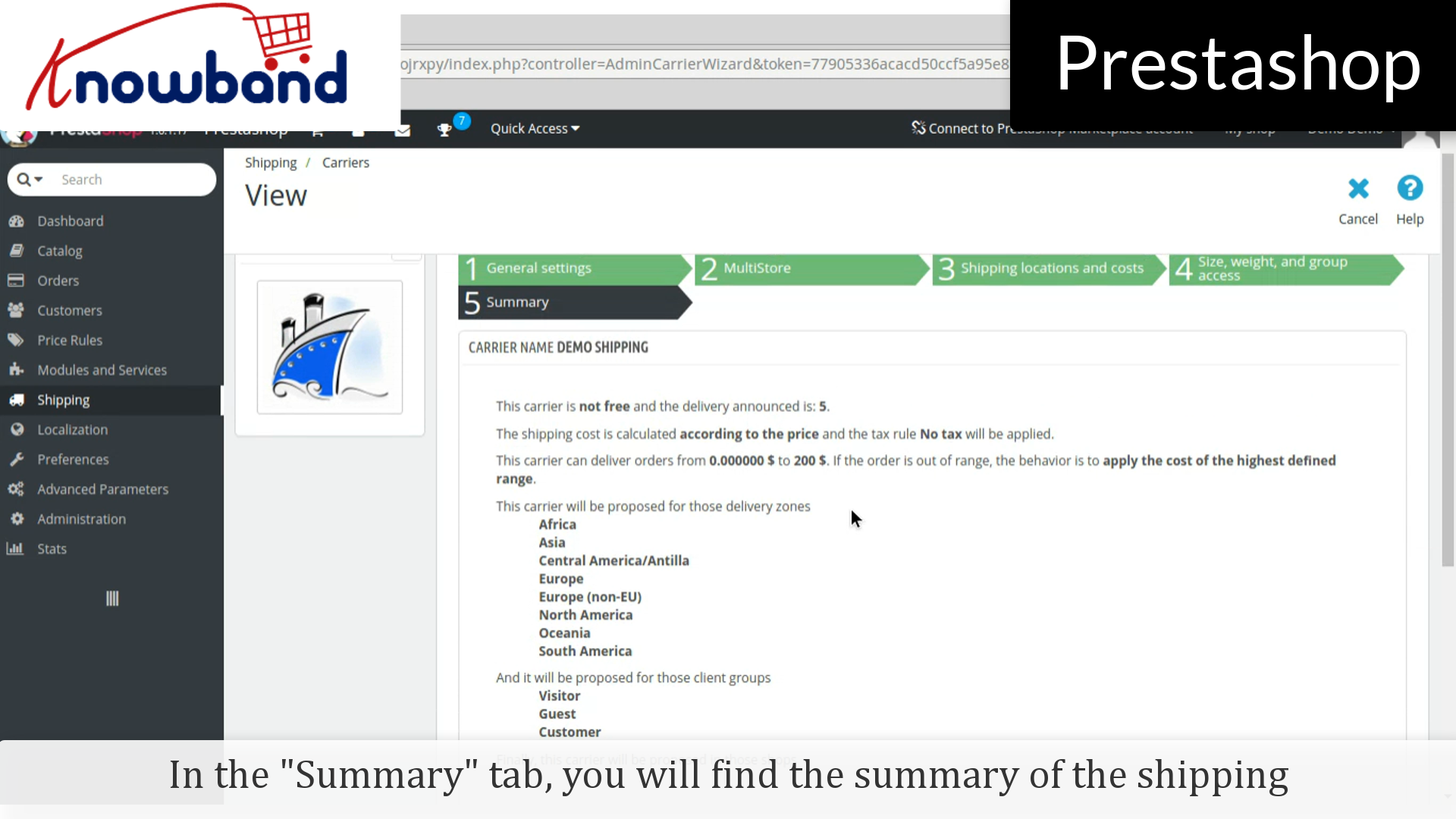
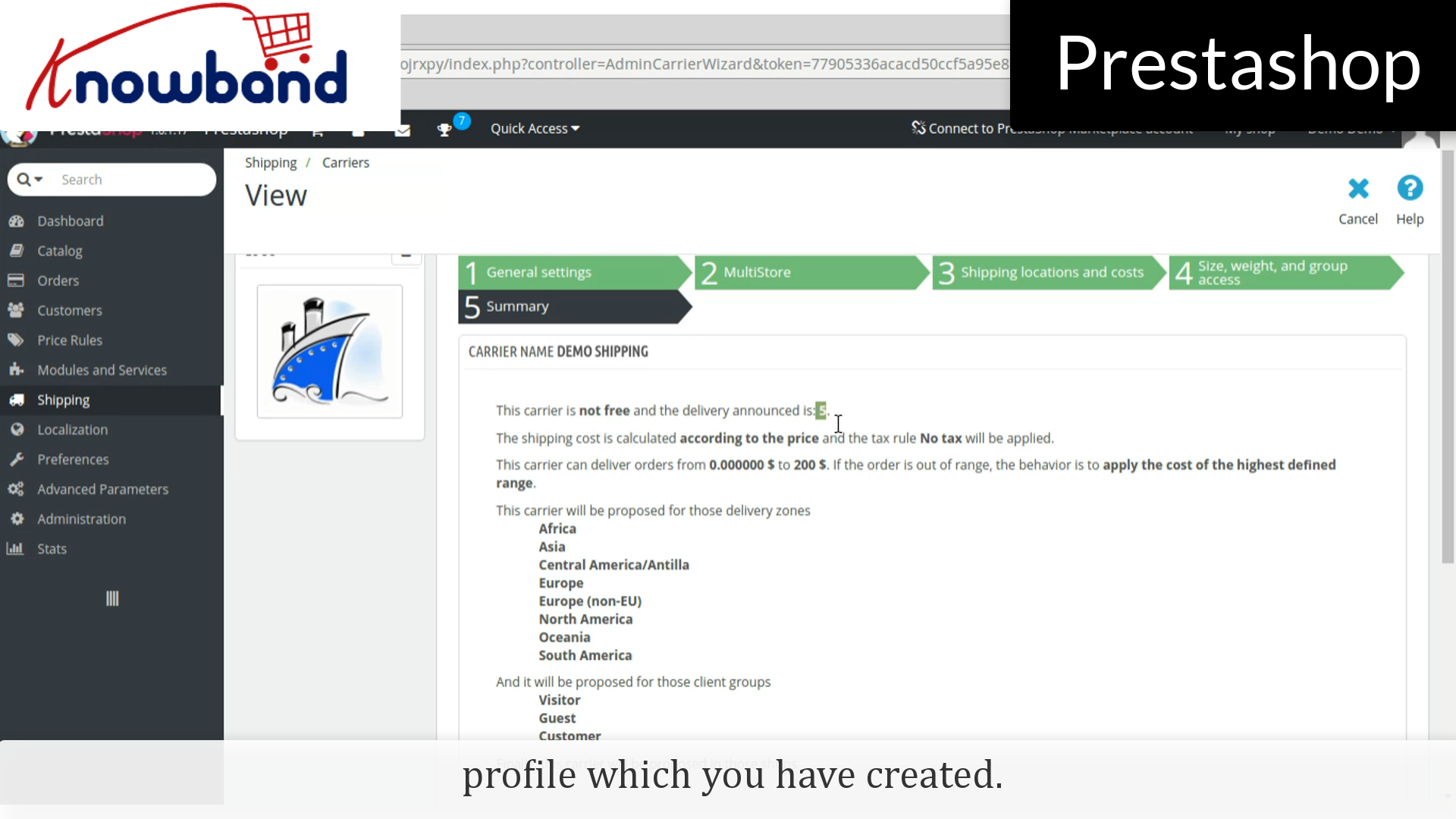
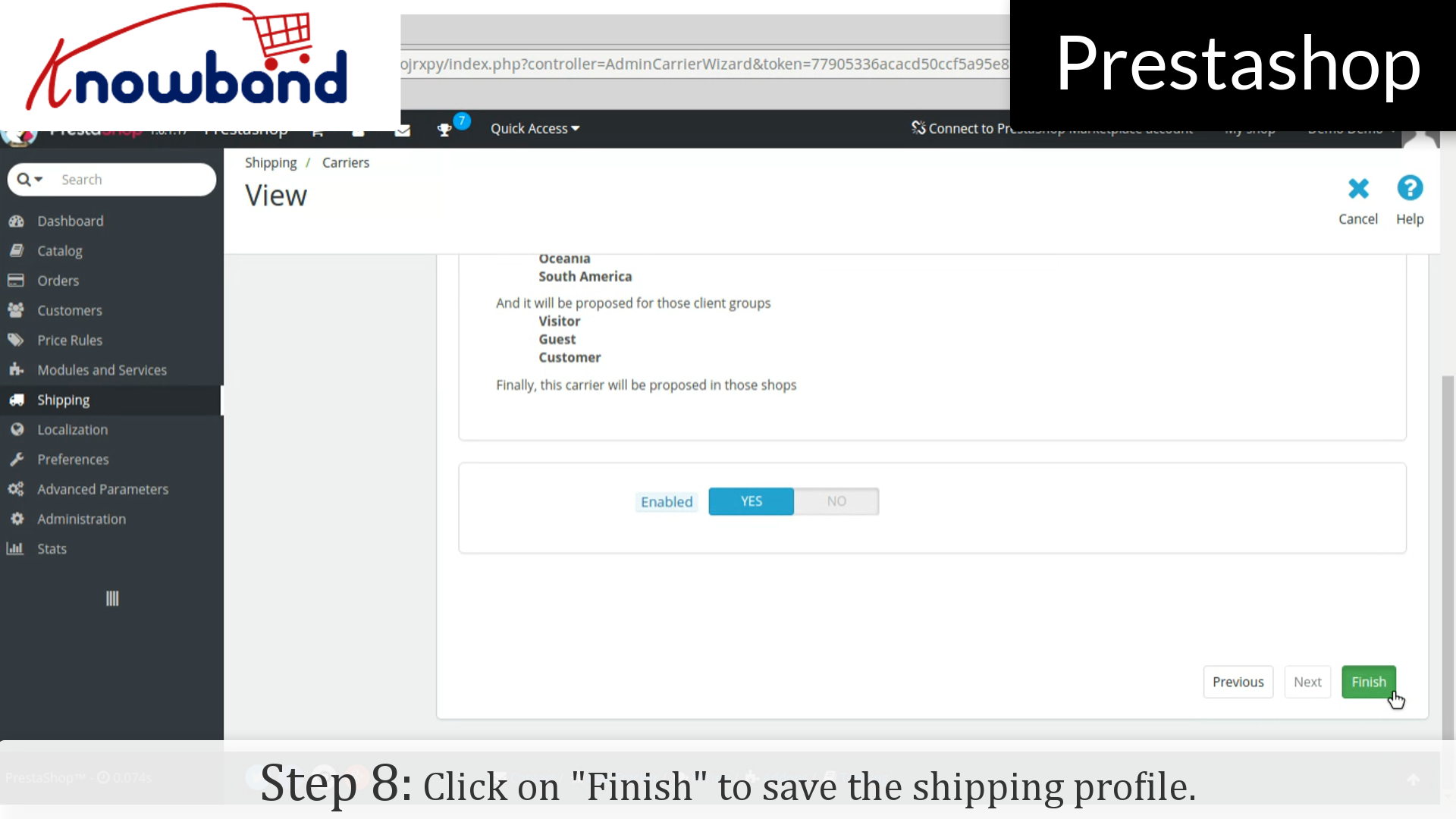
In the summary tab, you will find the summary of the shipping profile which you have created.
Step 8: Hence, click on the Finish button in the bottom right corner to save the shipping profile.
That’s it, the shipping profile has been created.
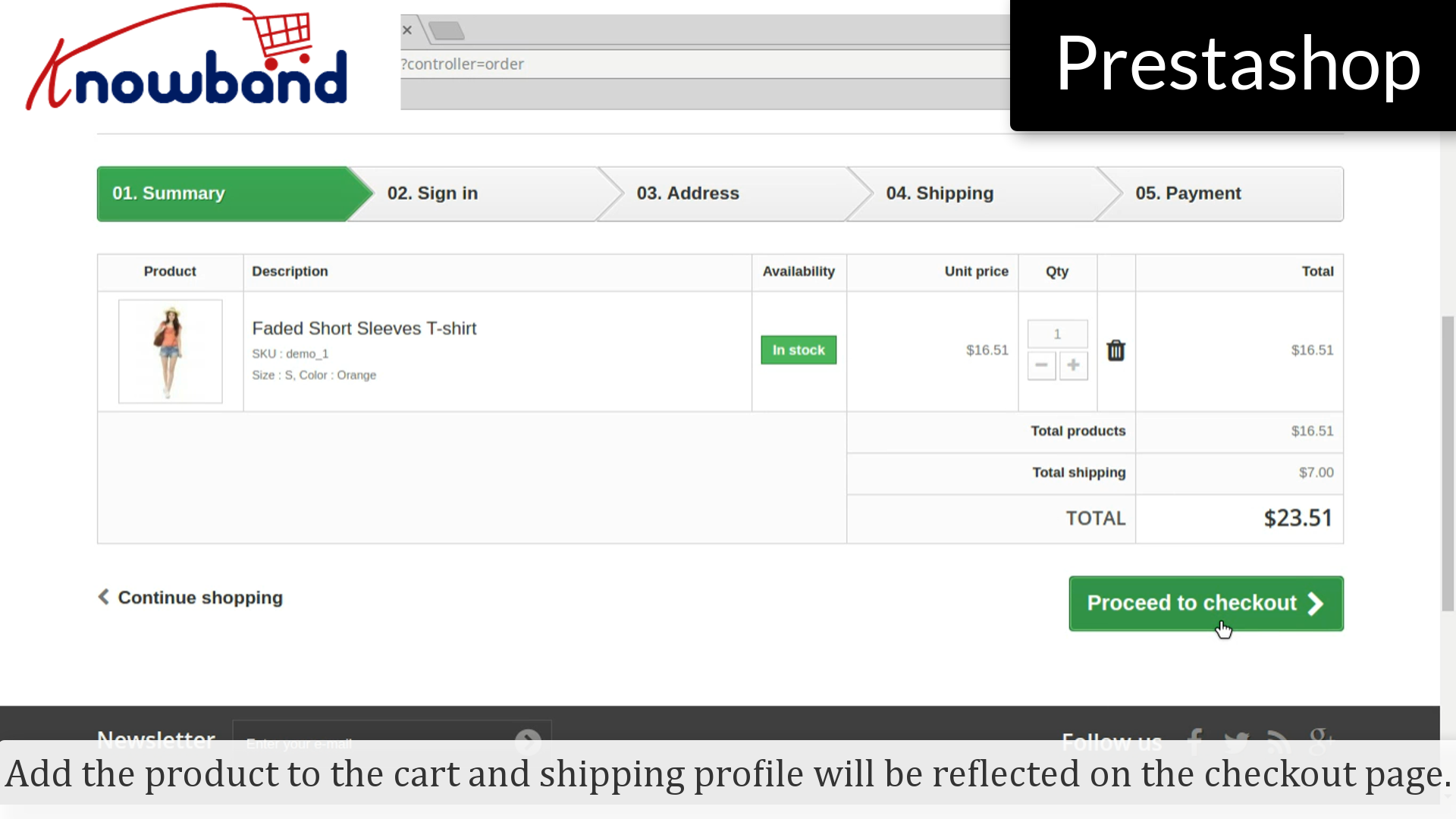
Add the product to the cart and shipping profile will be reflected on the checkout page.
It’s been an inevitable task for the store owners to add categories on their store for the new launching/existing products. Here’s how you do it in just a few simple steps:
Step 1: Login to your admin panel.
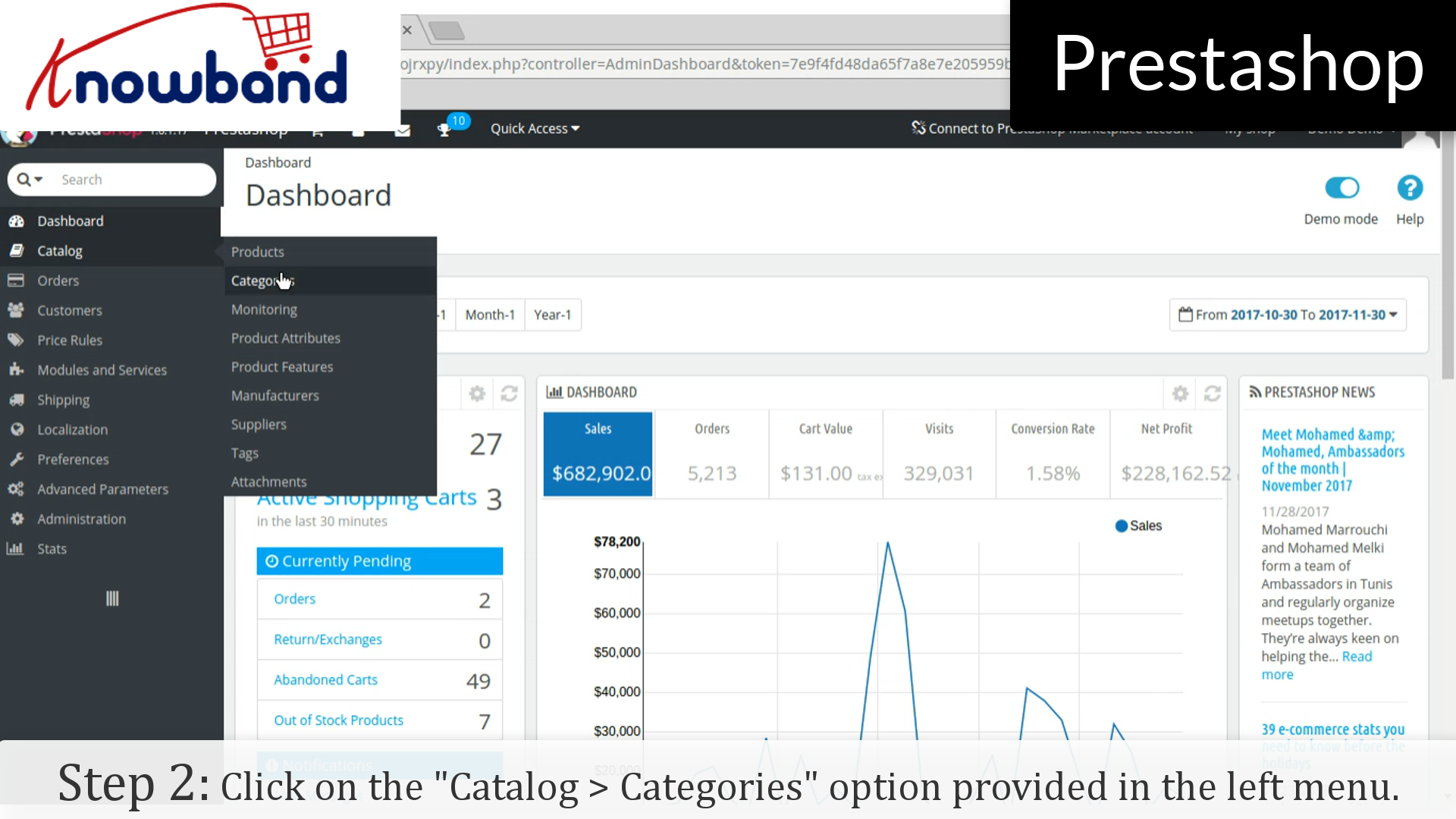
Step 2: After you have successfully logged in, click on the “Catalog > Categories” option provided in the left menu.
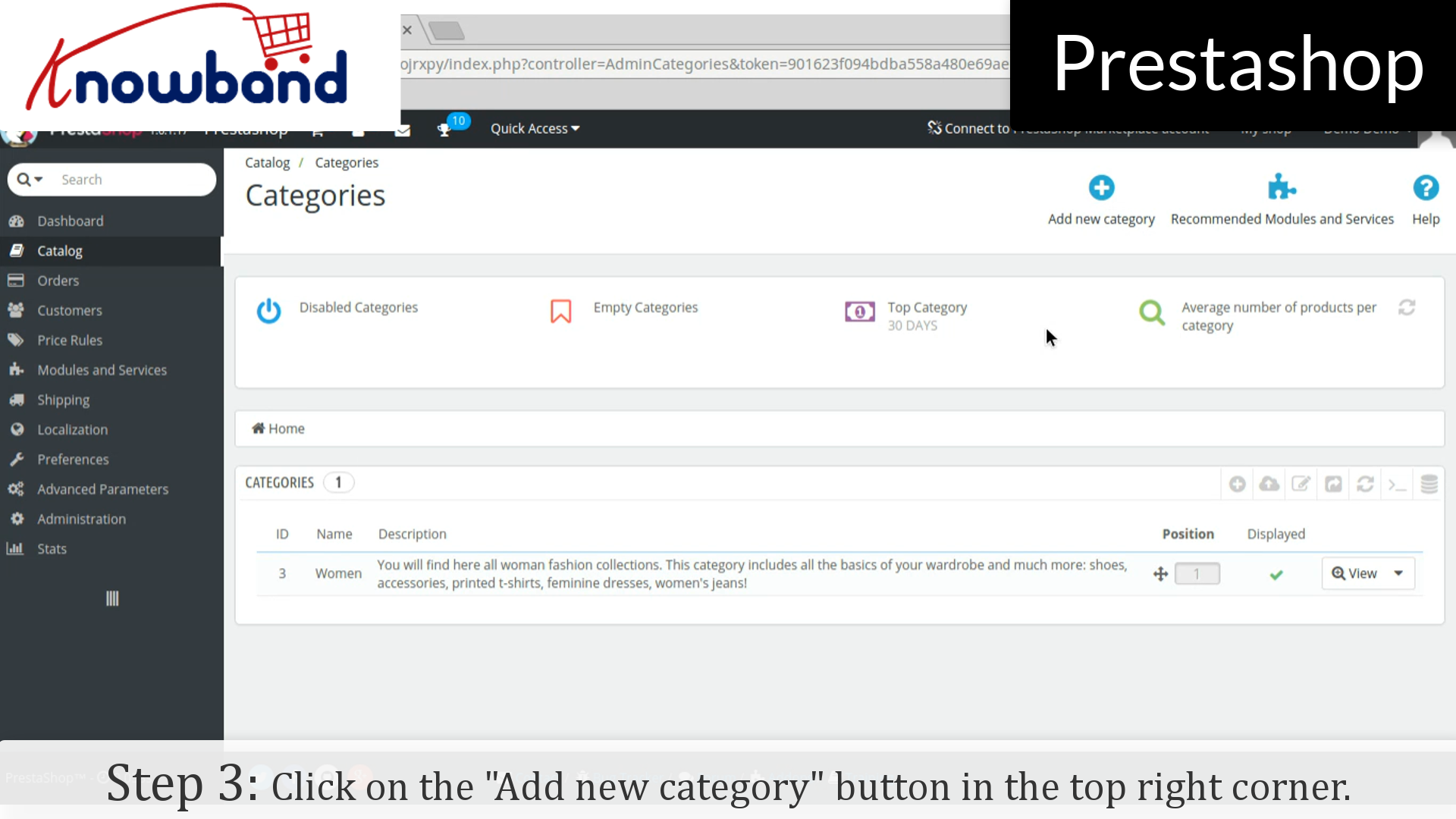
Step 3: After that, click on the “Add new category” button in the top right corner of the dashboard.
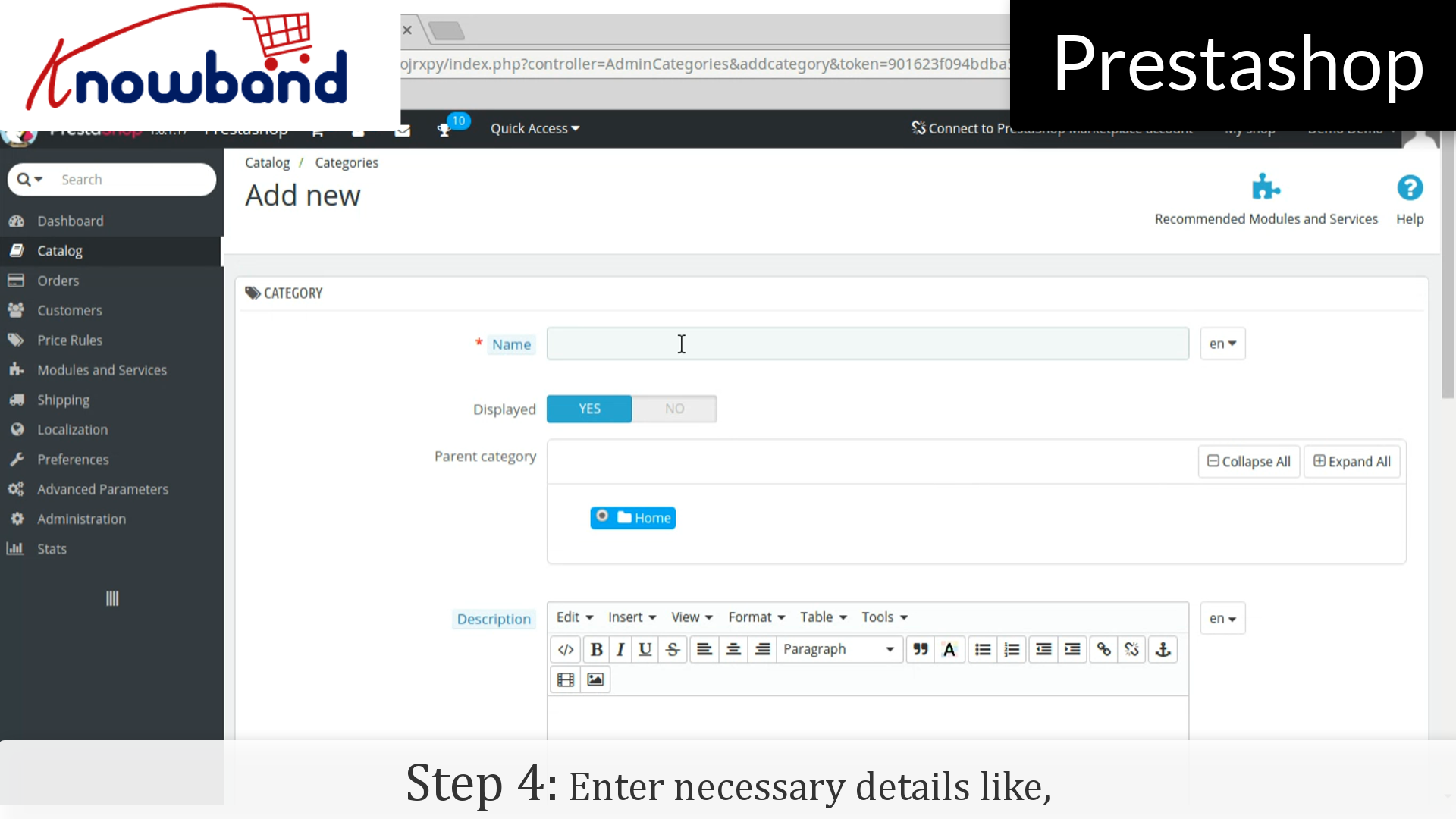
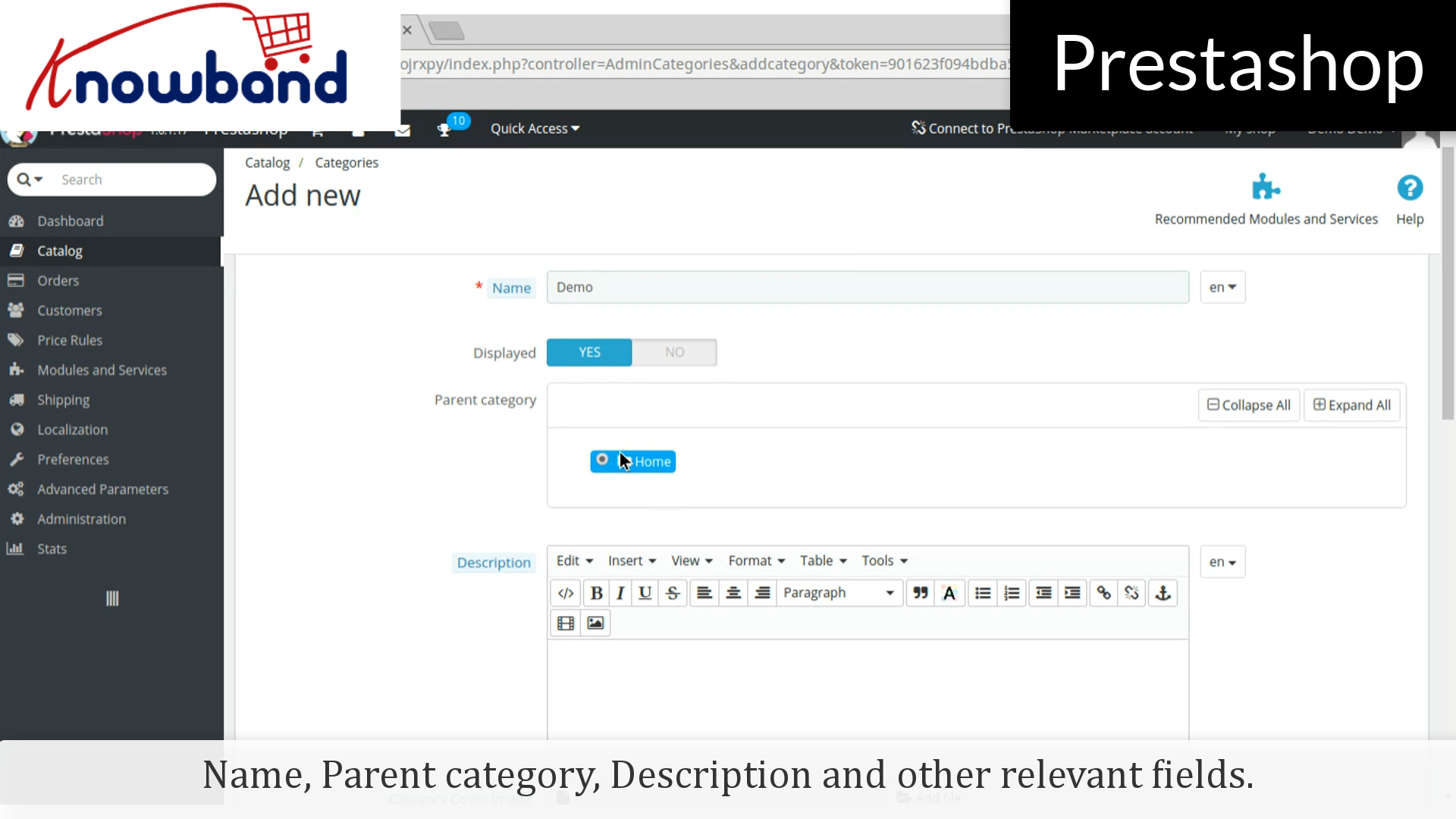
Step 4: Then, enter the required details like, Name, Parent category, Description and other relevant fields.
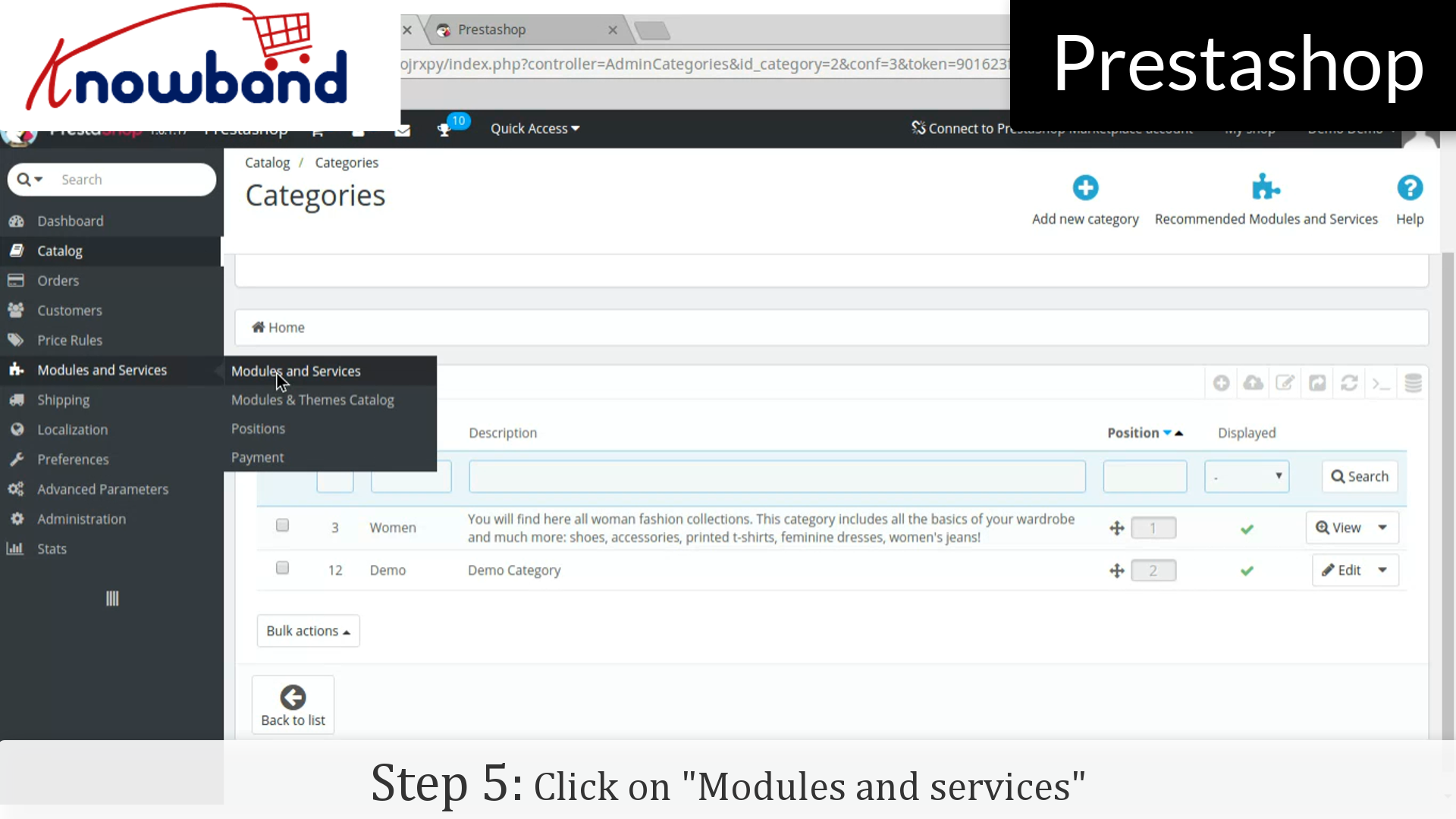
Step 5: Click on “Modules and services” on the left side menu.
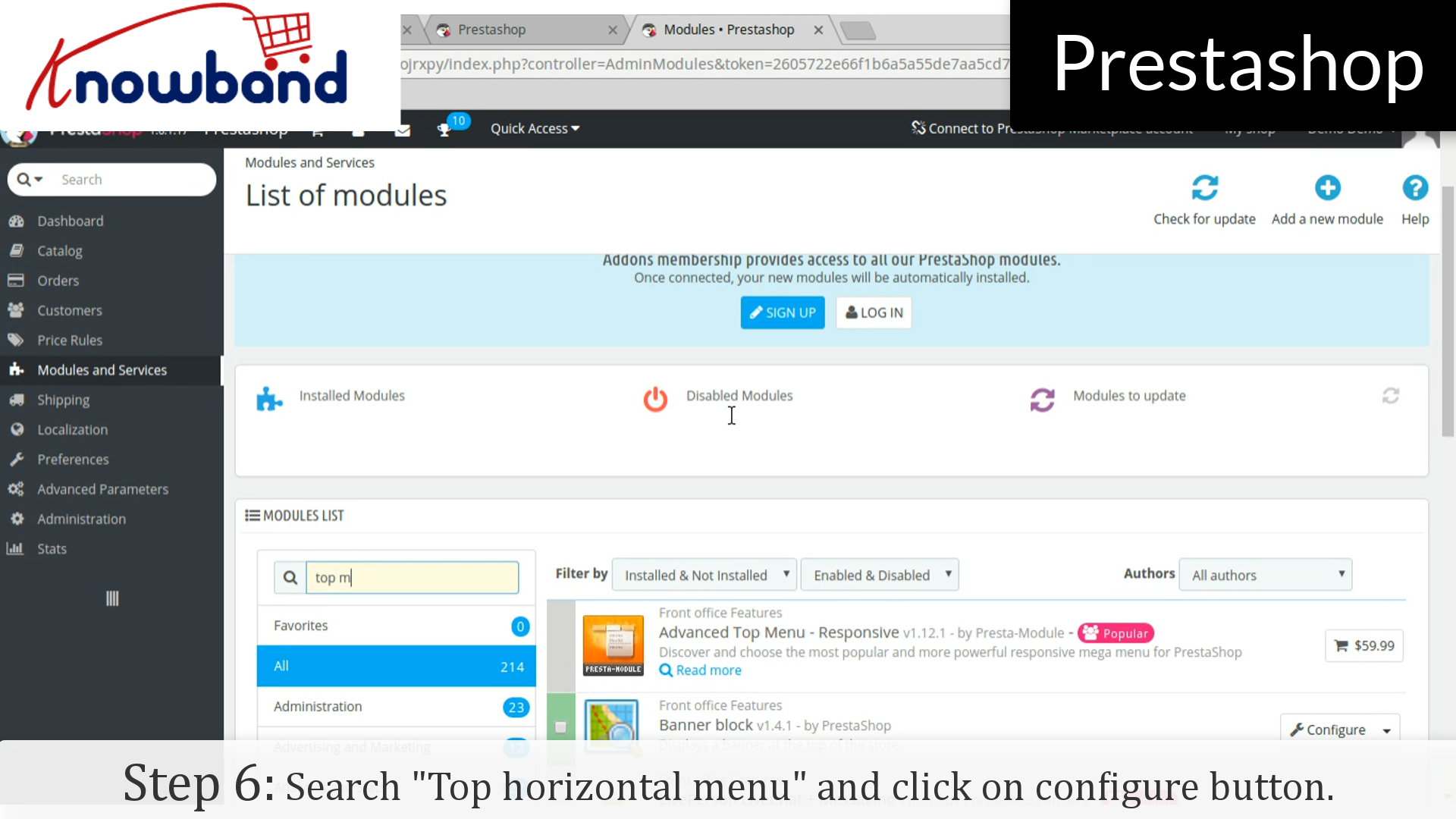
Step 6: In the module list, search “Top horizontal menu” and click on the configure button.
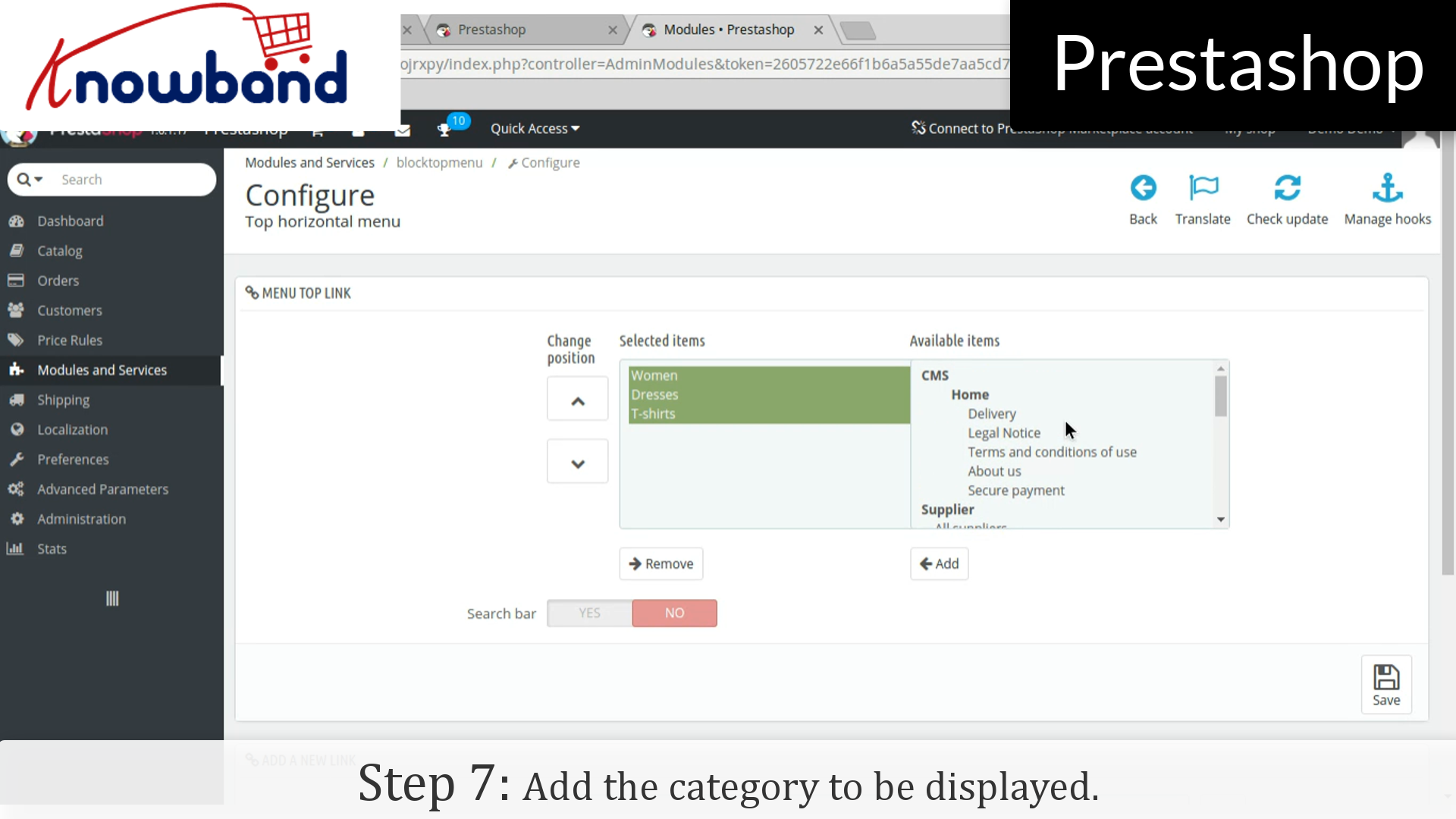
Step 7: After that, add the category to be displayed.
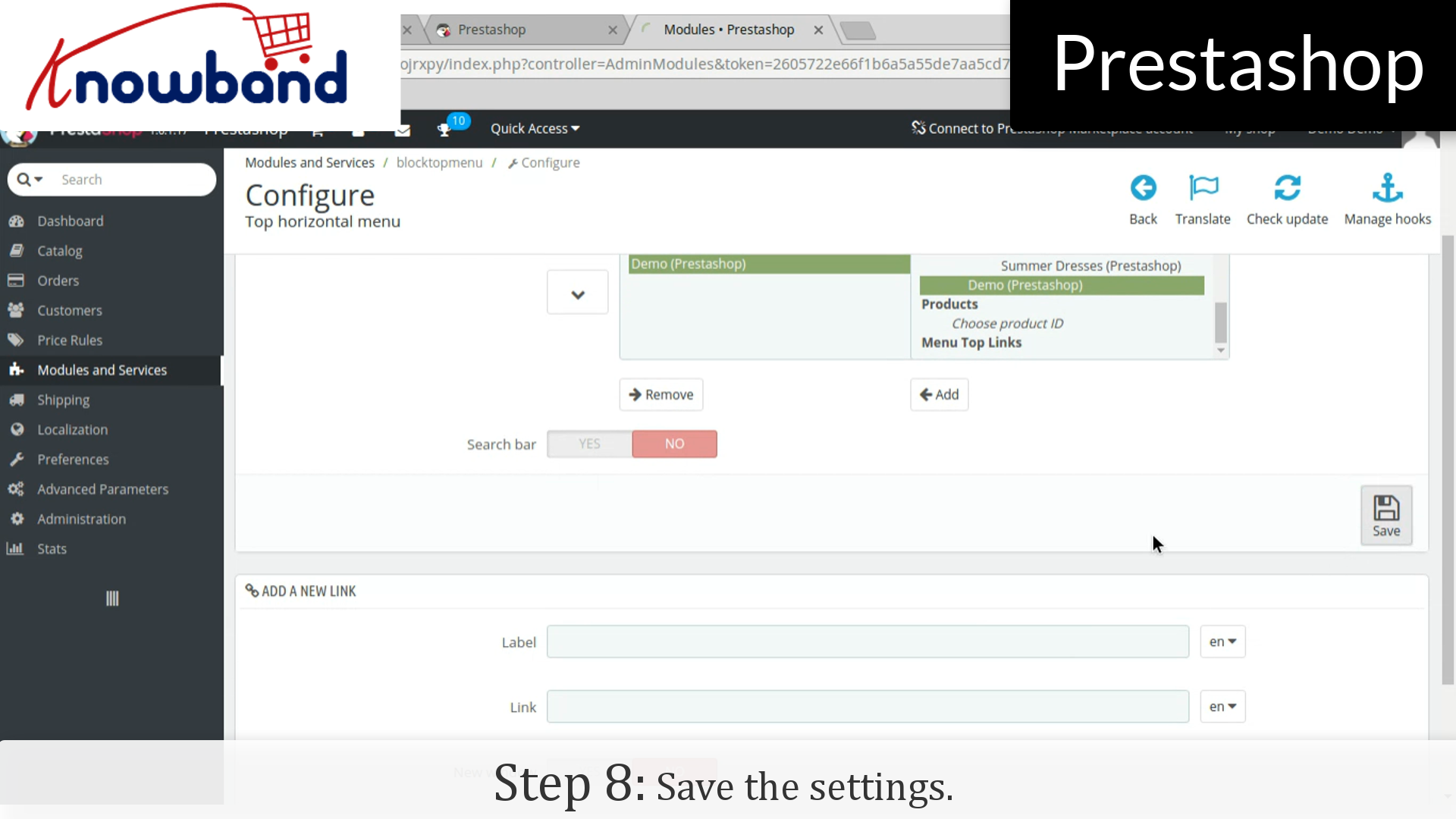
Step 8: Hence, click on the save button in the right corner on the dashboard and save the settings.
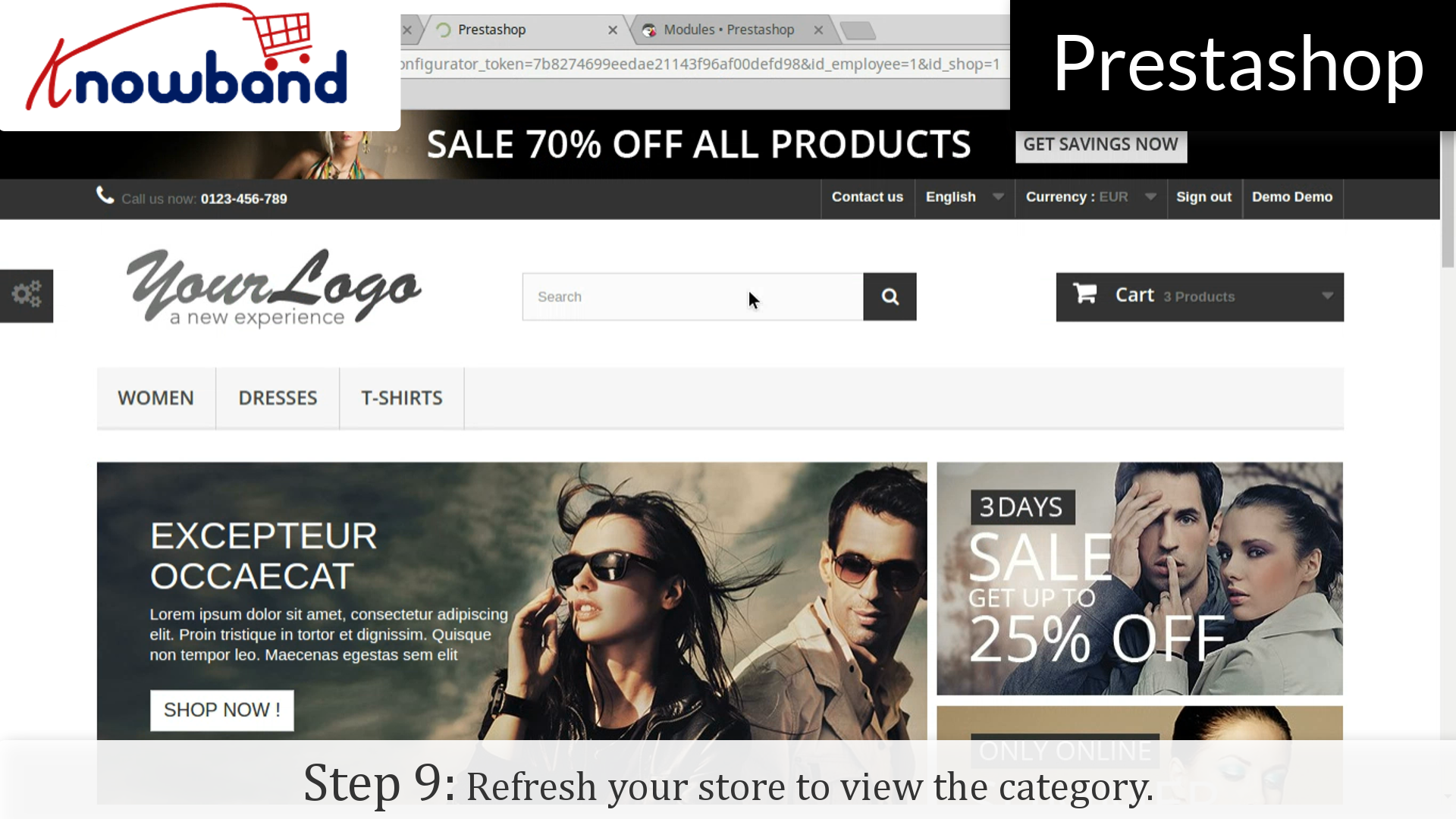
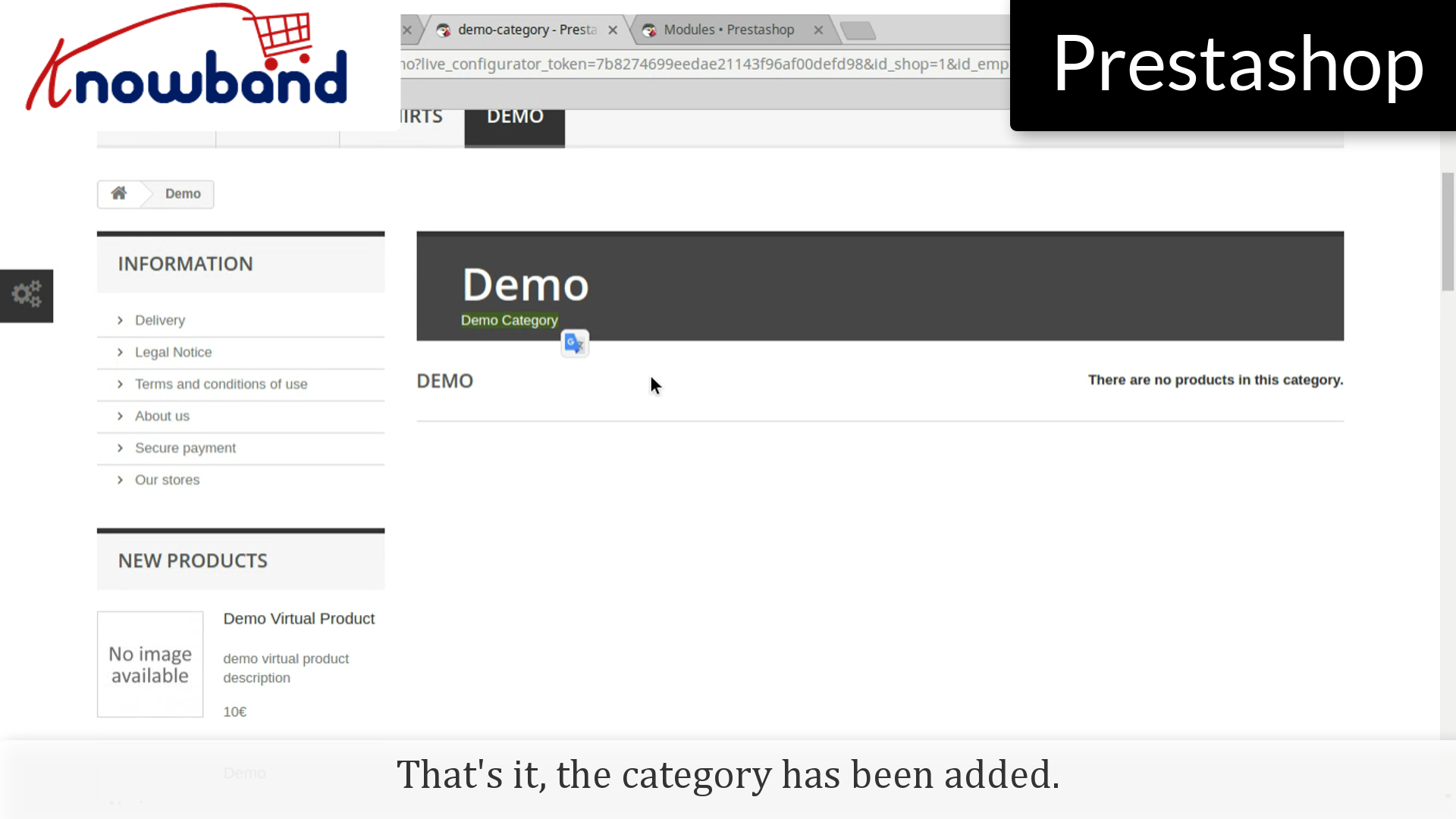
Step 9: Refresh your store to view the category which you have added.
That’s it, the category has been added. However, you will see that the products are not showing in the category.
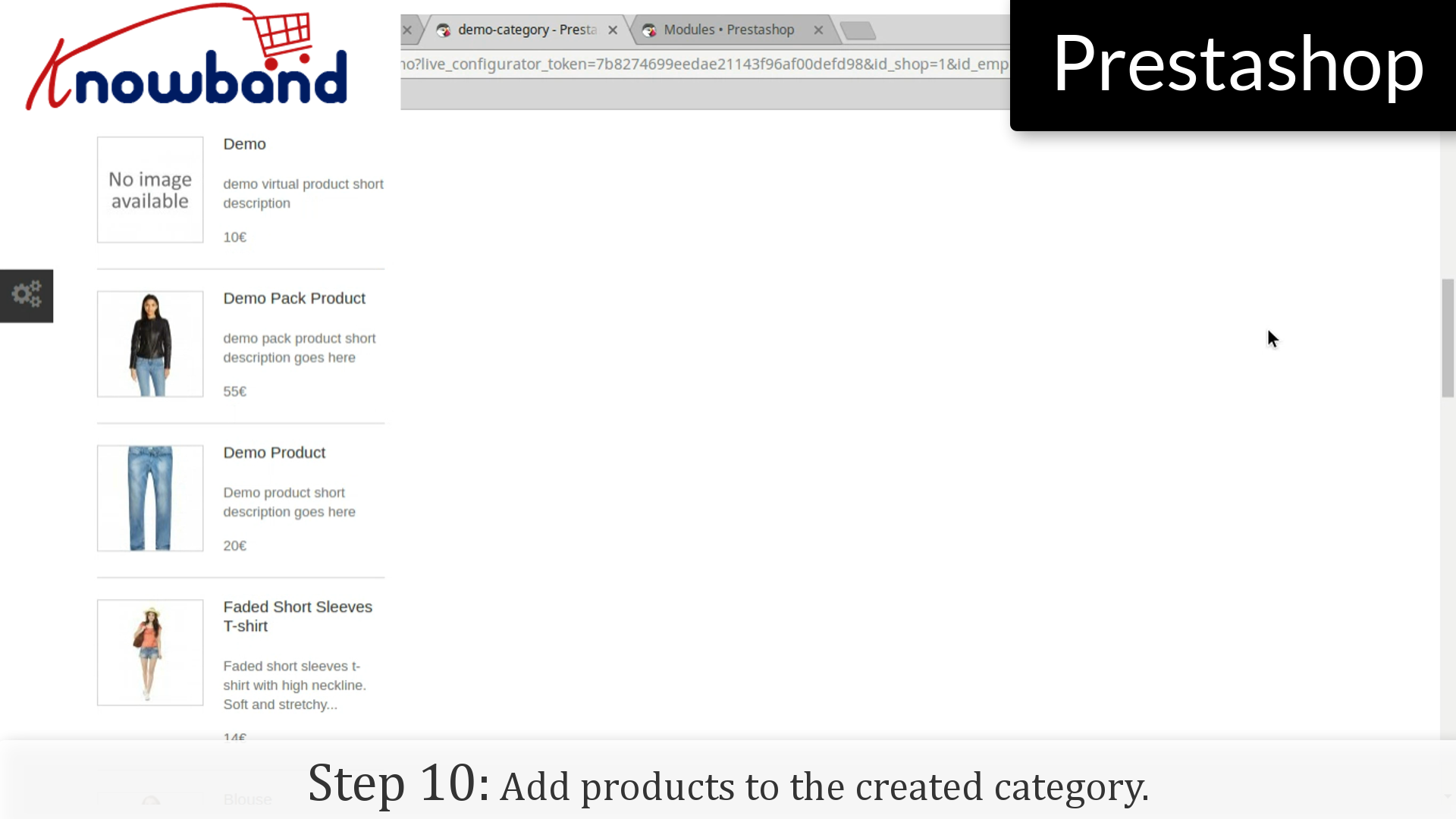
Step10: Add products to the created category.
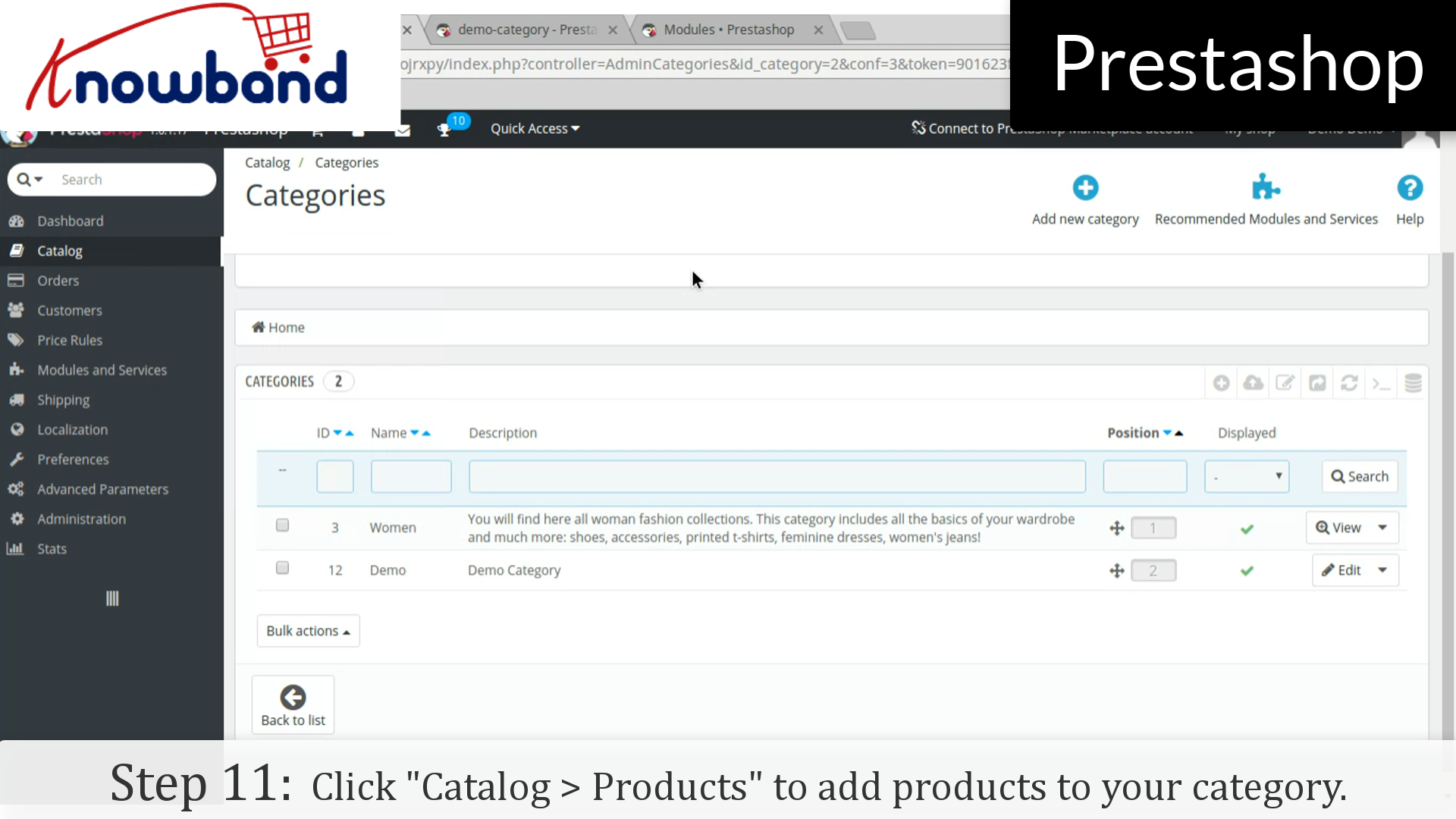
Step 11: Go to the dashboard in admin panel and click on “Catalog > Products” to add products to your category.
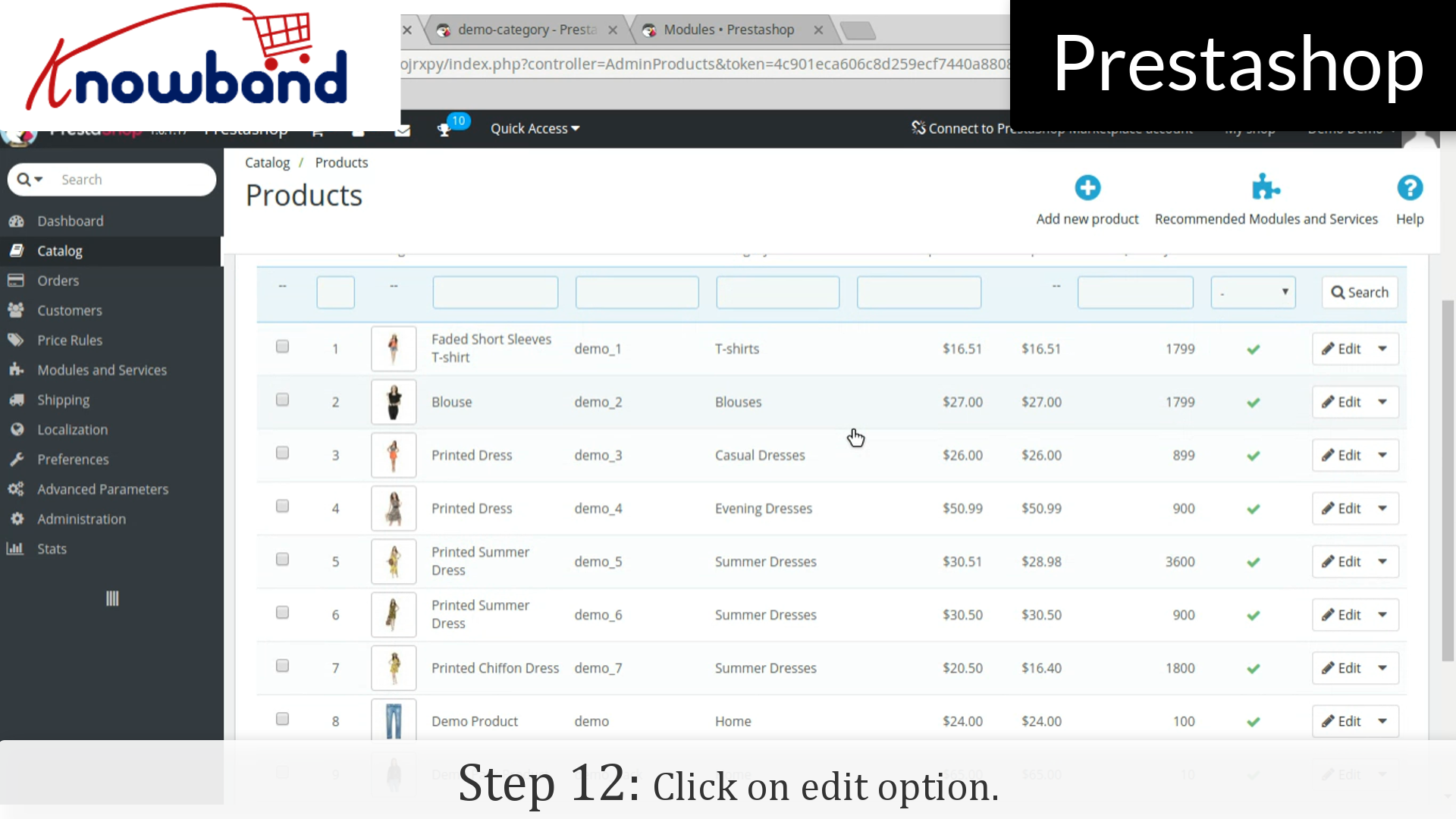
Step 12: Click on “Edit” option of the products which you want to add in the category.
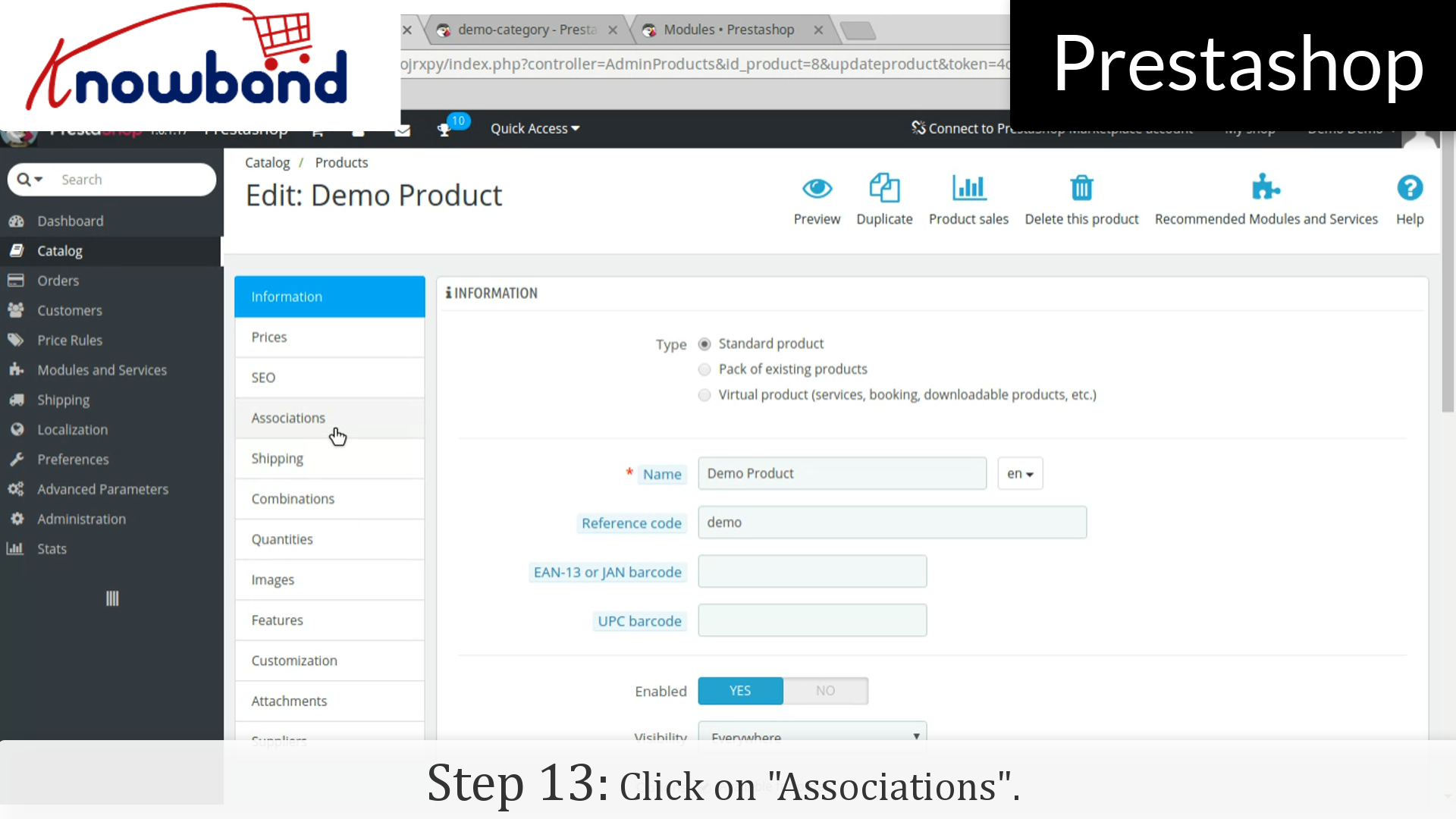
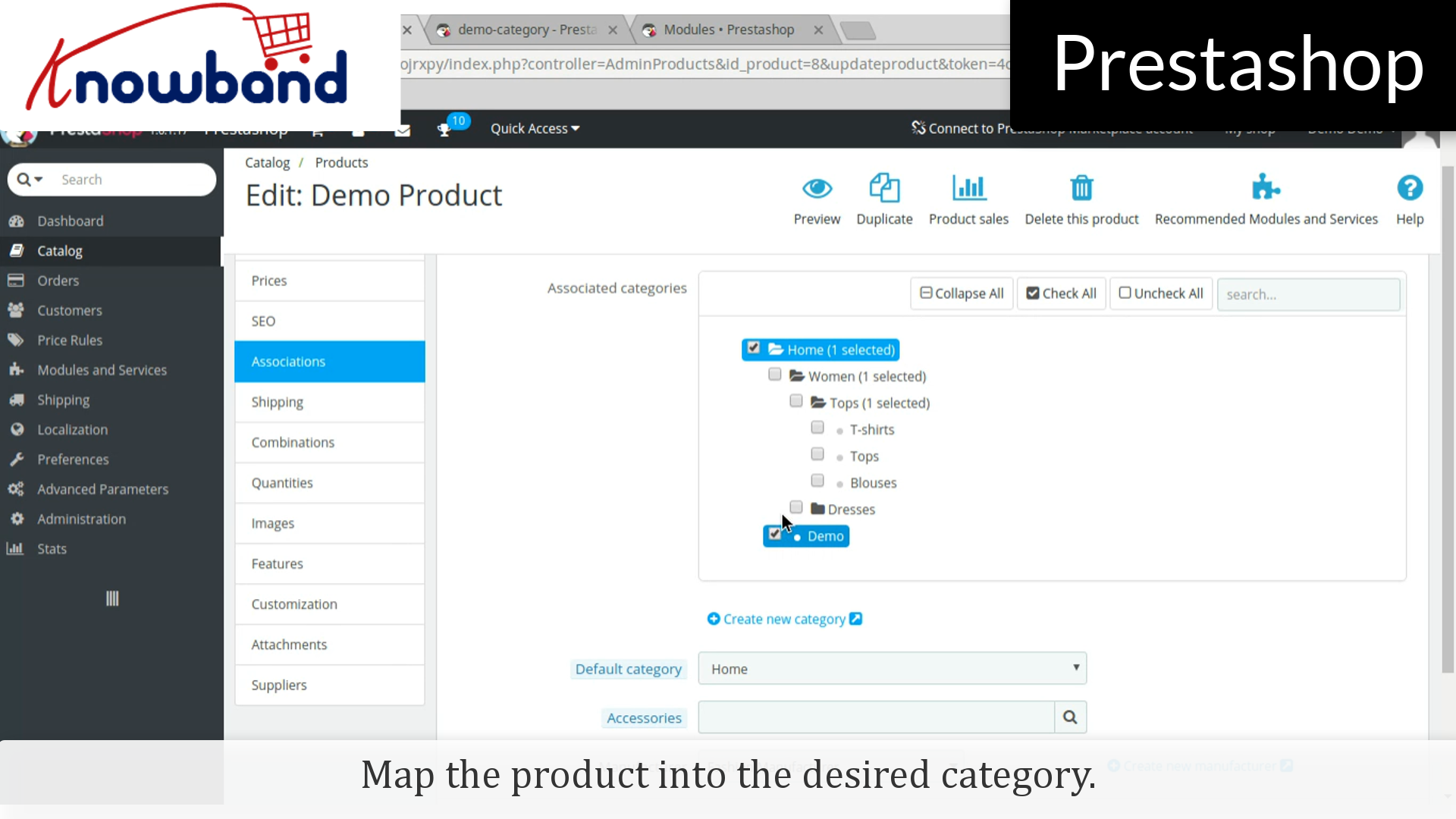
Step 13: Click on “Associations” in the product details and map the product into the desired category.
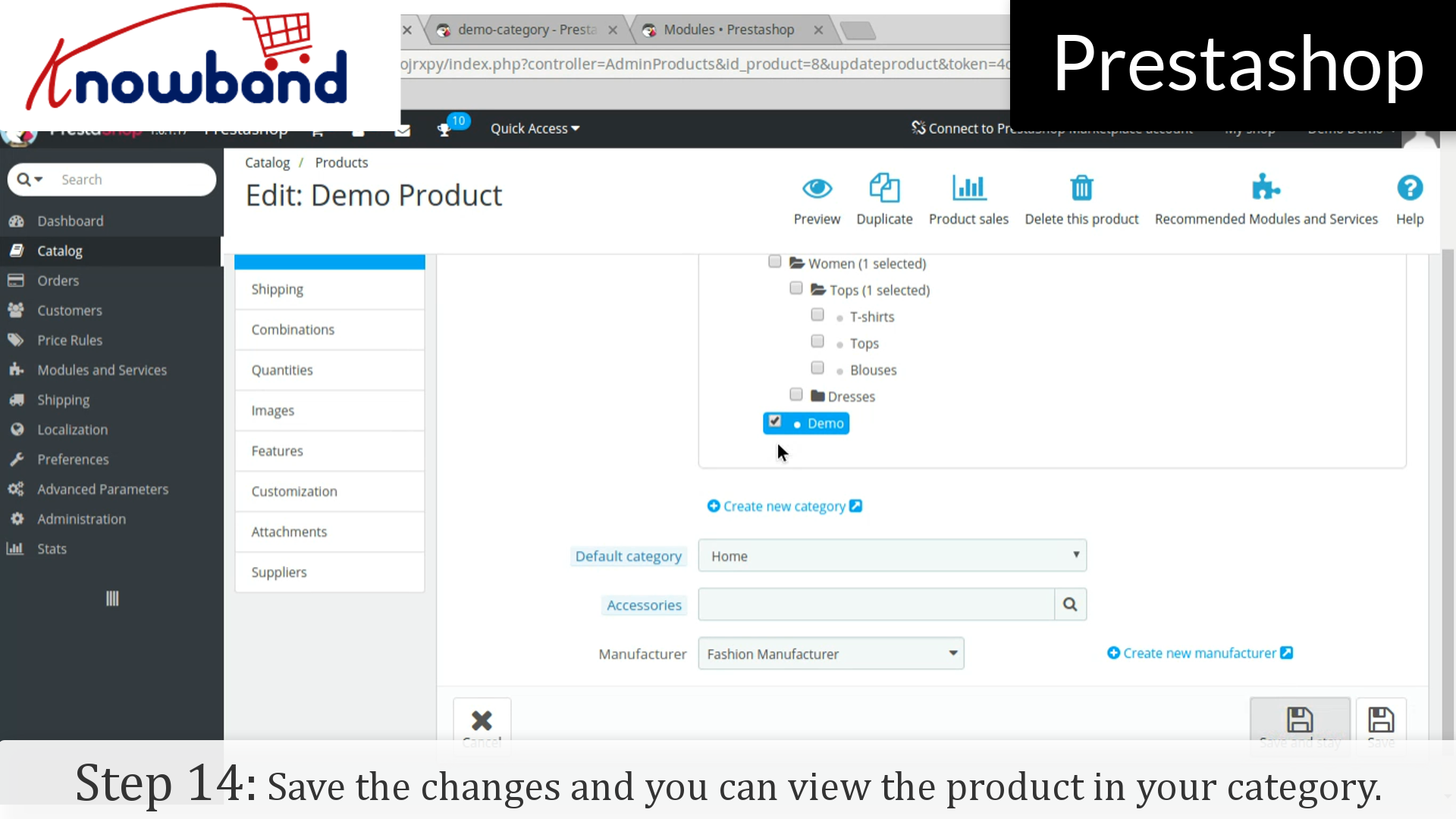
Step 14: Click on the save button to save the changes and you can view the product in your category.
The online sales account for 8-10% of the total consumer spending. This figure is expected to shoot up to a massive amount of $6.7 trillion by 2020. The incredible statistics show the potential the virtual shops have in the future. Despite the growing awareness and the technological advancement of the consumers, the market share for the eCommerce companies is currently low. This is because, there are a lot of aspects in which the physical still has a upper hand.
In addition, over the past few years the eCommerce stores has given fresh competition to brick and mortar stores. Yet there are a lot of things that the online store can learn from physical shops. Listed below are some of the things that eCommerce can learn from brick and mortal. Scan on to know.
Focus on visual merchandising
Every purchase intention starts with window shopping. The products kept at the window might motivate the visitors to go inside and explore the store. The same goes true for the online shopping stores as well. A well-designed layout and front-end might attract the customers. Even if the store is digital, a neat and uncluttered interface can influence the customers to further browse the site.
Here are some of the takeaways from the brick and mortar store in this regards.
The visual appeal is the first thing that grabs the attention of the visitors. So, the product images with high resolution is a must. The graphical triggers should be able to grab the attention of the visitors.
The product description should be informative enough to fill-in for the sales person.
The seasonal influence is one of the ways to standout in the crowd. The layout of the website should be in accordance to the occasion.
The call-to-actions and other such buttons should be clearly visible and should motivate the customer purchase in.
Instant presence is a must
It is not just the visual branding that’s important. One of the trend that has seen a change in recent past is the customer buying behavior. While earlier the shoppers would rely on the word-of-mouth, the customers these days tend to make their purchases then and there. This has compelled the physical stores to open up their outlets at every nook-and-corner. This implies to the online shopping sites as well. As per a report, 54% of the American shopper would use their mobile devices to make their purchases. The eCommerce store owners need to bring their sites in the pockets of the customers. A mobile responsive website may be handy, but a mobile store can help you tap a larger audience. The mobile app builder for Android and iOS is one of the ways to convert your store into a mobile app. Offers your services to the customers whenever they require. Moreover, the location-based services is another factor that the online companies need to learn from the physical stores. Even the location-based mobile searches are on the rise. The content of your mobile app should be optimized in order to provide the answers to the questions being asked by the customers. The search volume of the queries such as ‘Where can I find…’ are high. So, optimize your site and application accordingly.
Personalize the shopping experience
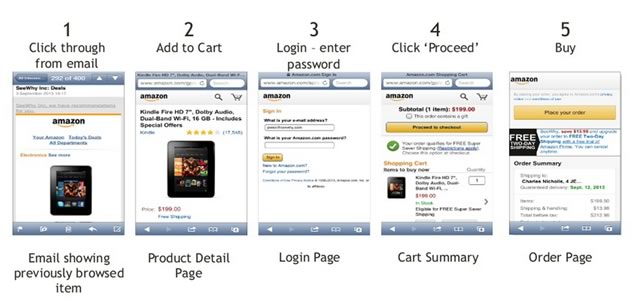
The eCommerce giants such as Amazon has reaped result by including this aspect. Personalize the shopping experience of the customers and help them relate to the services offered by you. This is what the sales pitch at any shop is all about. In fact, 85% of the consumers think that personalization play a vital role in their purchase decision. Use the personal information of the customers to enhance their shopping experience. The online shoppers get distracted soon and never actually completes the transaction. Use their transaction history to send them personalize pitches. For instance, messages like ‘Get 10% off on this product in your cart’ can trigger the purchase intention of the buyers.
Let them bargain
Hitting the bargain is the most intriguing factor for the shoppers while shopping offline. It won’t be wrong to state that the a discount coupon of 10-20% is usually taken for granted and may even be ignored. However, if the same discount will be well-appreciated if the customers get a feel of striking a deal. Offer the giveaways in an innovative way. The interactive pop-ups like spin and win or scratch coupons can help you tap this psychology of the shoppers.
Recreate the in-store feel
The biggest drawback of the online stores is that they lack the touch and feel of the products. While earlier bridging this gap was slightly difficult, with the technological advancements, this can now be done. LensCart is one of the best examples for the same. The option to try the glasses without actually trying them has provided them the competitive edge. Other than the product images, the product videos can provide a better clarity to the customers. Quick product delivery is another important aspect that eCommerce companies need to learn from brick and mortar stores. Providing options like one-day delivery and quick shipping options can enhance the user experience.
Guide the customers to the checkout page
Who would like to stand in long queues? The organized sections and multiple counters at the physical stores are aimed at driving the customers to the conversion funnel. The same funnel is to be followed by online shops as well. Make sure that your category pages are uncluttered and well-organized. Easy navigation coupled with filters should allow the customers to find their product easily. Instead of making the customers to fumble upon the lengthy sign-up process, improve the registrations with social media sign-up. The path from the product page to the payment gateway should be simple as well. One page checkout is the best way to motivate the customers to complete the transaction.
Wrap up
From personalized marketing to discount sale, traditional retailers have many options to spur their business growth. Even the e-retailers have a lot of tactics at their disposal to reduce abandoned cart and boost the conversions. Just a bit of learning from the conventional business models coupled with the advanced technology can help you take your eCommerce business to new heights.
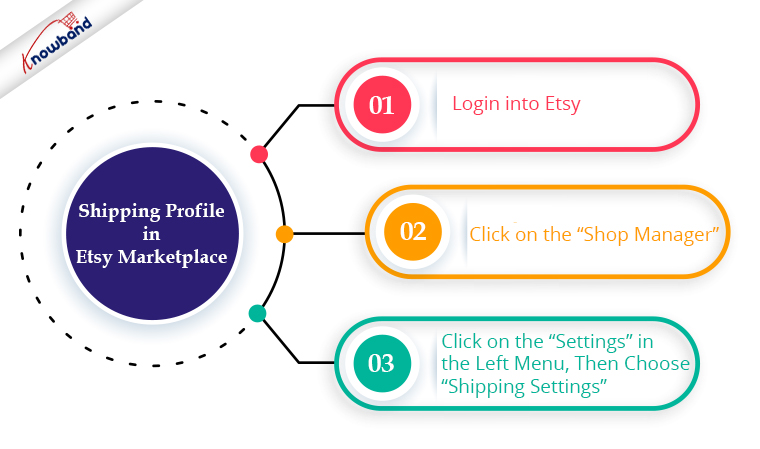
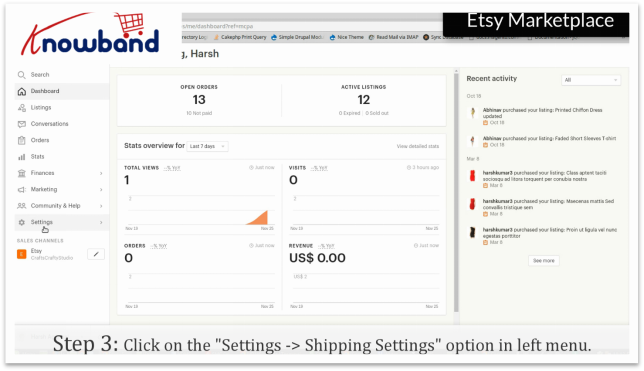
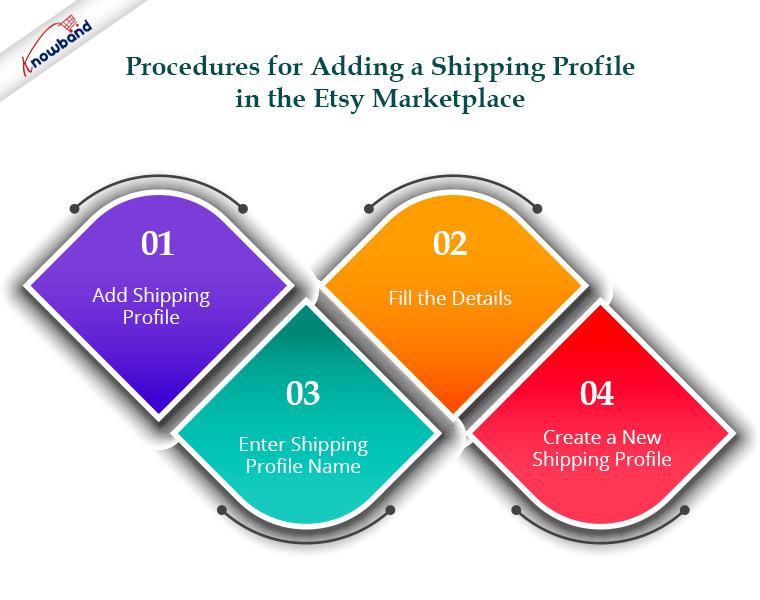
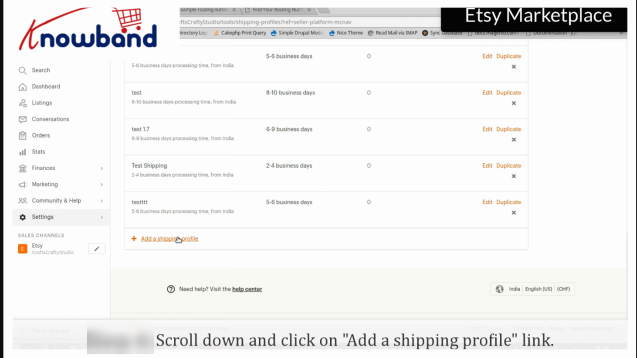
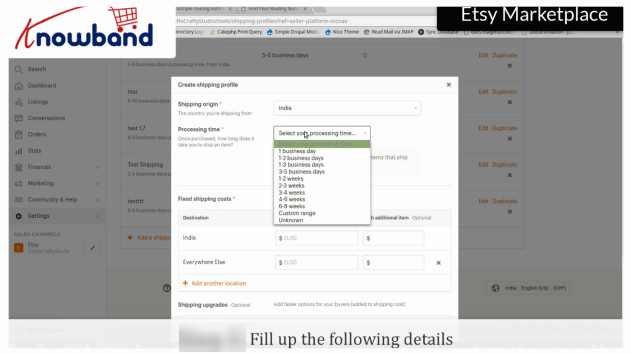
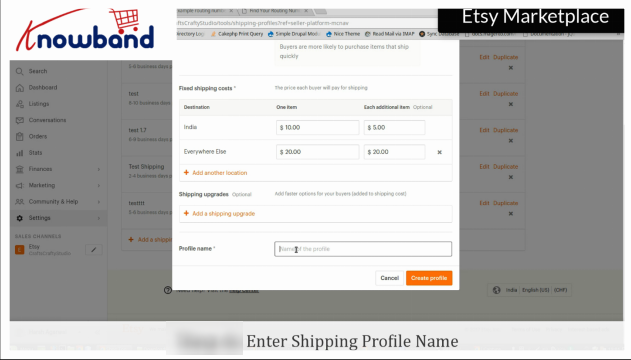
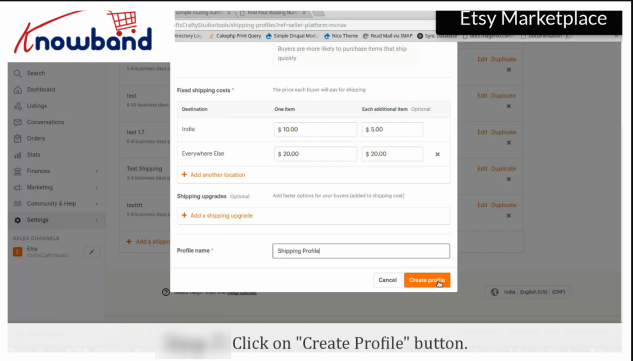
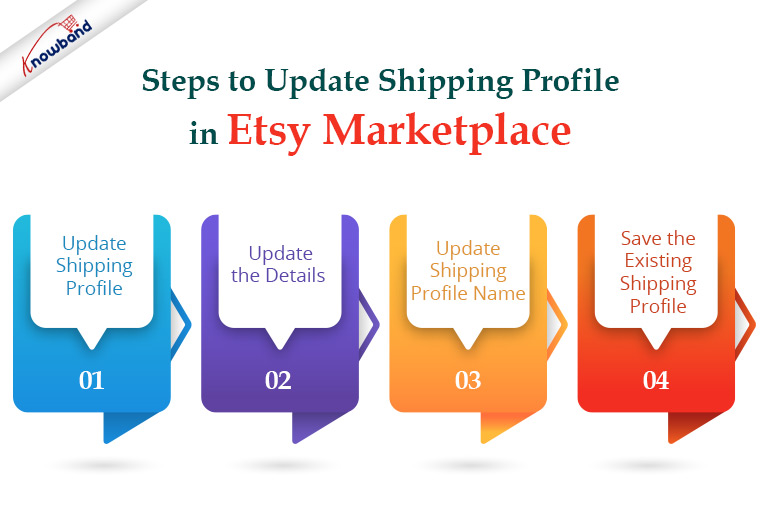
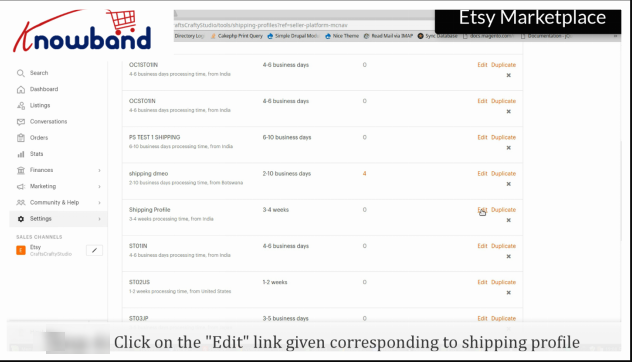
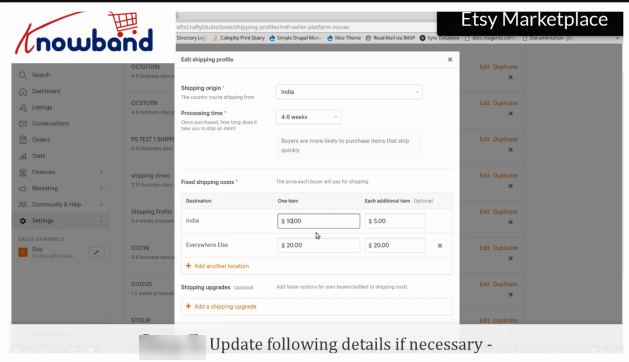
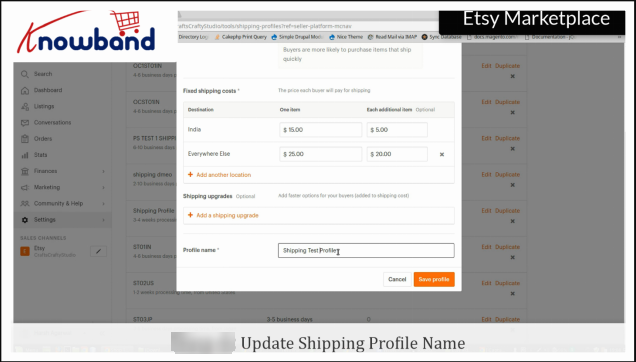
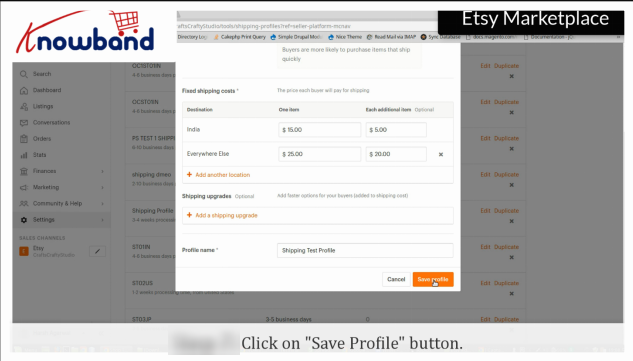
The shipping method varies from time to time, let it be cost or time duration, which is why Etsy Marketplace provides you with an option to add a new shipping profile or update the existing one free of cost. This will help your customers to have their products shipped with the most desirable and convenient method.
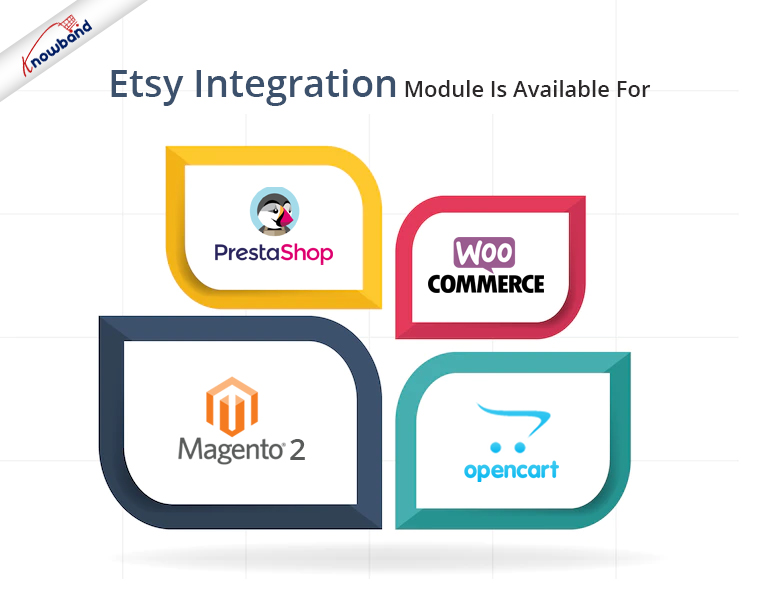
Are you looking to integrate your store with the Etsy marketplace? Knowband offers Etsy Marketplace Integrators for various CMS platforms like Prestashop, OpenCart, Magento 2 and WooCommerce. This helps in showcasing your products among the larger audiences and enhances brand awareness as well.
From the backend, the admin can establish shipping profiles, which can then be mapped to the various profiles generated under the Profiles Management. All of the cron settings can be automated using the synchronisation tab’s cron settings. Therefore, an online owner may quickly sync product status, order status, language sync, order status update, etc. utilising the Synchronization tab.
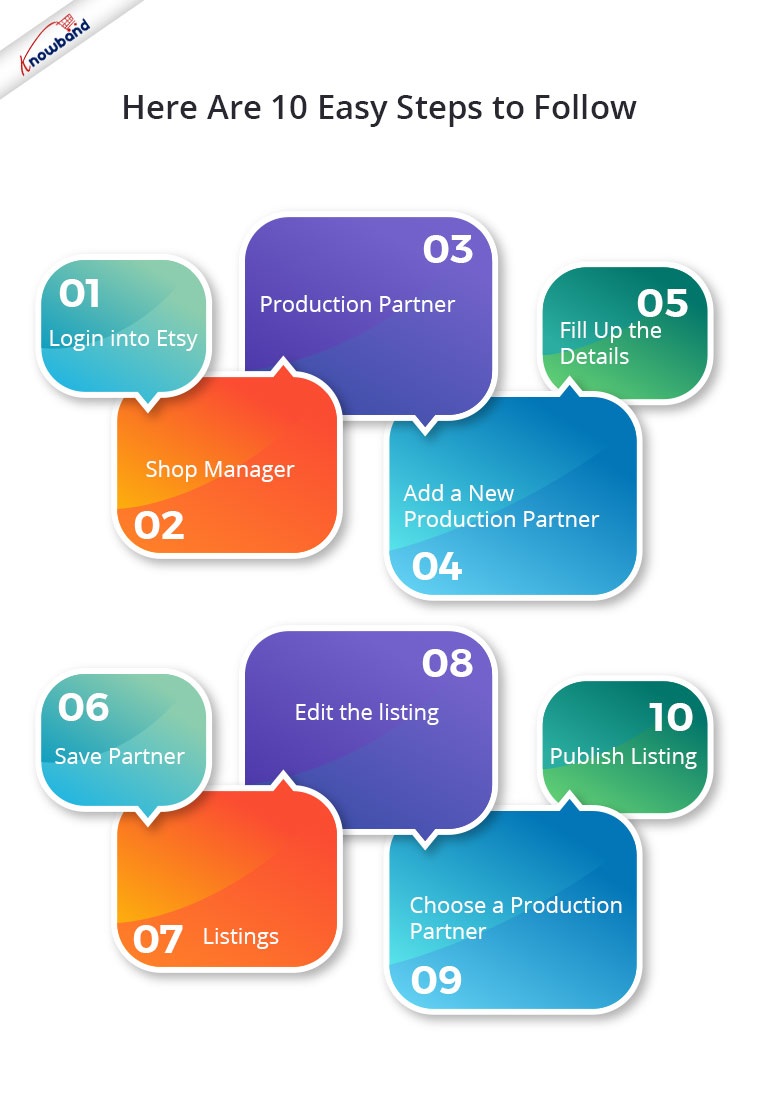
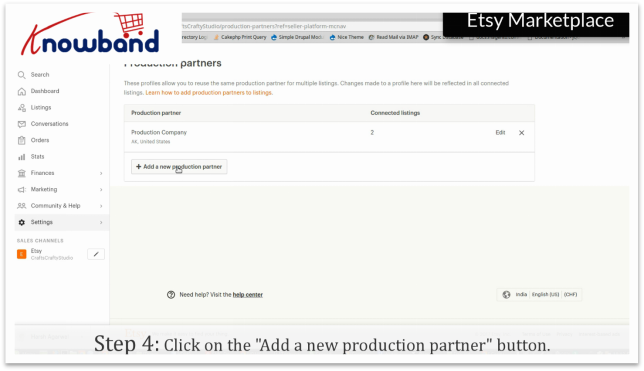
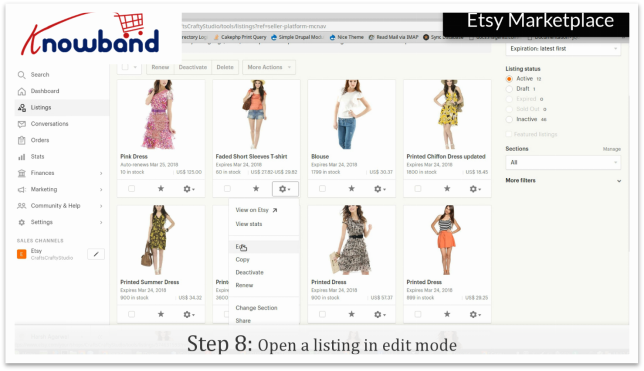
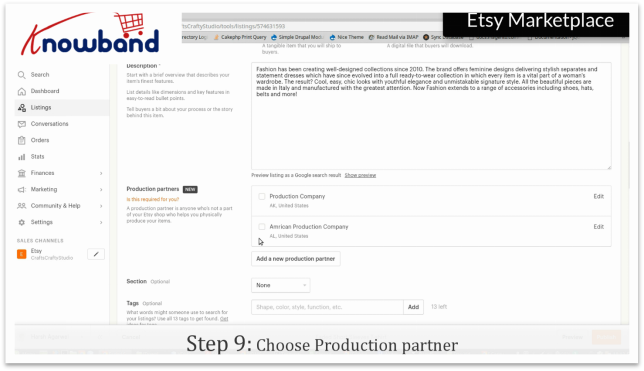
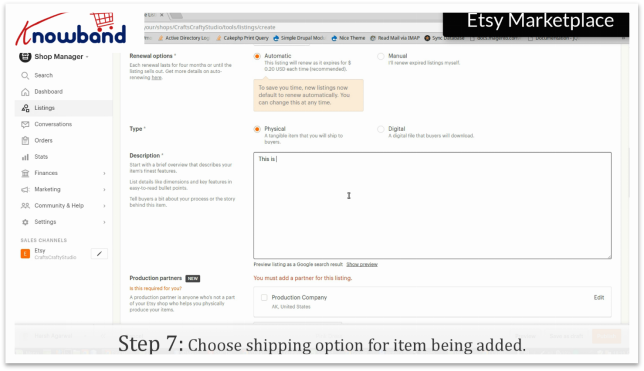
A production partner or manufacturer is someone who will assist you in producing items to be sold at the Etsy Marketplace. To maintain transparency, Etsy Marketplace has its handmade policy and the seller needs to follow those policies if he wants to sell the goods along with a production partner. Are you willing to show the same listing to multiple production partners? Etsy provides a very easy and convenient way to connect these both which eases your work.
Click on the “Add a new production partner” option provided.
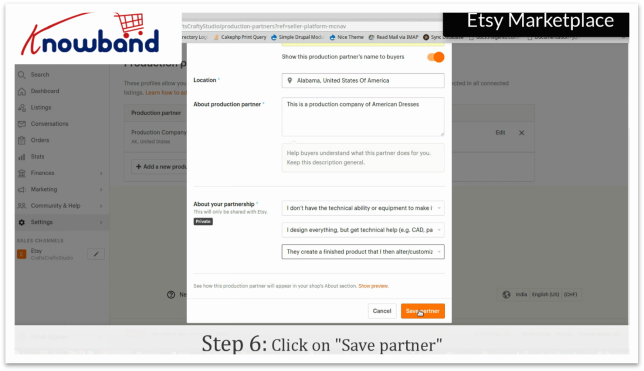
Step 5:Fill up the details
Fill up the details in the “Add a new production partner” pop-up open such as production partner, location, about production partner, about your partnership and other relevant options.
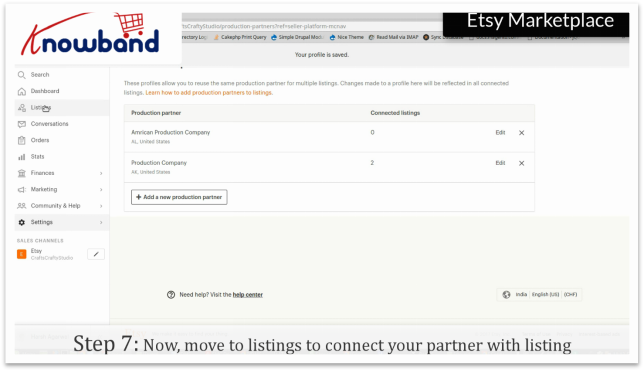
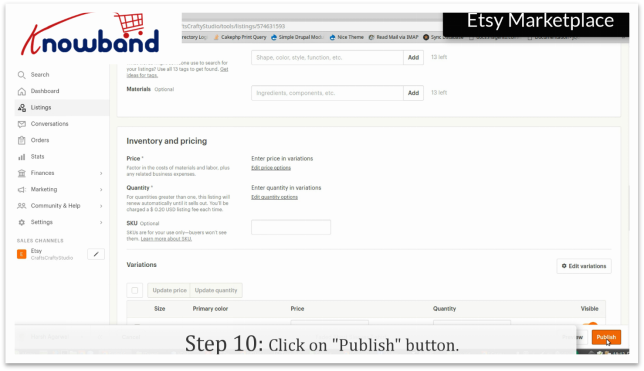
Click on the “Publish” option to save the changes you have just made.
In the End:
Are you looking to integrate your store with the Etsy marketplace? Knowband’s Etsy Marketplace Integration offers an easy interface to integrate your store into Etsy.
Etsy integrators are available for Prestashop, Magento 2 and OpenCart-based stores. Etsy offers APIs so that sellers may display their goods, easily keep track of inventory, and handle orders. Knowband provides the Etsy Integration module using these APIs, saving the online store owner from having to list each of their products on the Etsy Marketplace and PrestaShop separately.
Simply adding their products to the online store will automatically list them on the Etsy store. For any queries, please contact us at support@knowband.com.
Watch how to add Production Partner and connect with listing in Etsy Marketplace
Etsy is a professional online marketplace specifically engaged in online trading of vintage and handcrafted products. The site also regulates the buying and selling of art products such as jewelry-making tools, wire, and beads.
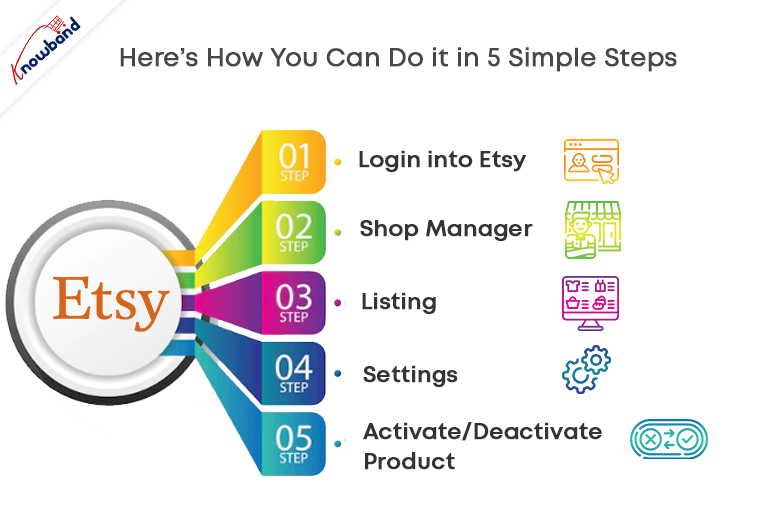
Etsy provides a very easy and quick way to add products in your shop. Adding products in your shop is a cakewalk, through which you can showcase your products to your customers. This article will walk you through the process of adding a product or activating/deactivating the product listing in your Etsy shop.
A) STEPS TO ADD A PRODUCT ON ETSY MARKETPLACE:
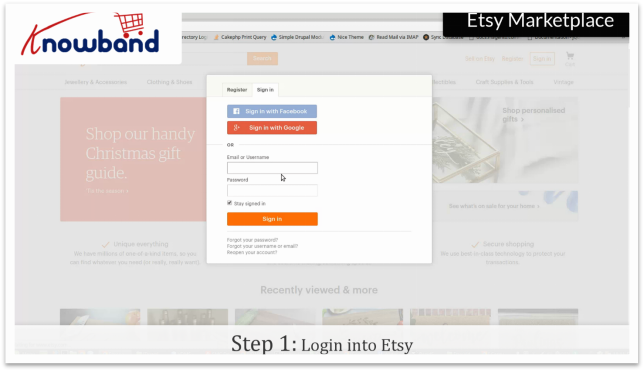
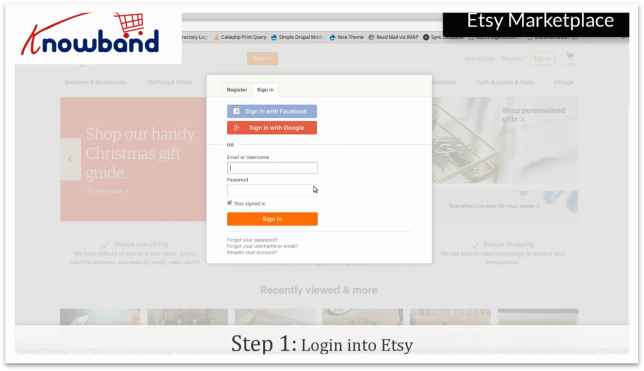
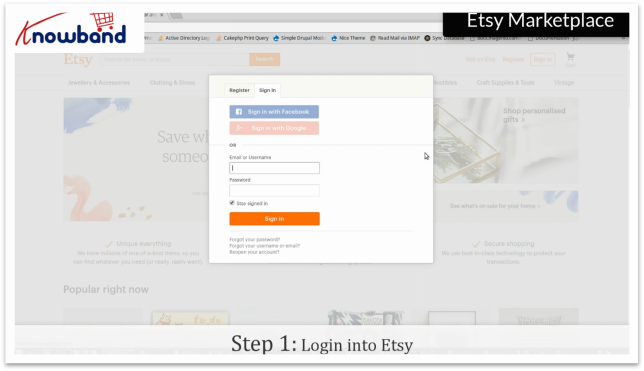
Step 1: Login into Etsy
Got to https://www.etsy.com/. Login to your Etsy account by clicking the “Sign in” option provided in the top right corner.
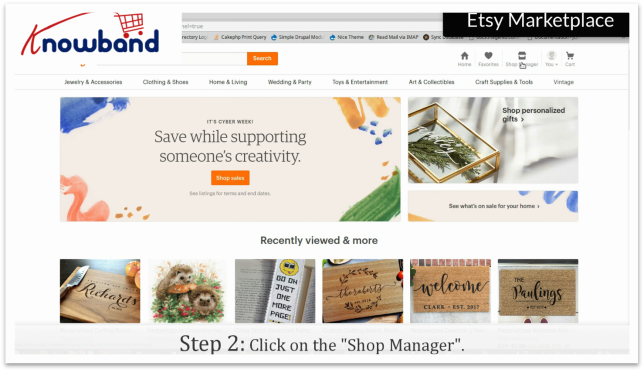
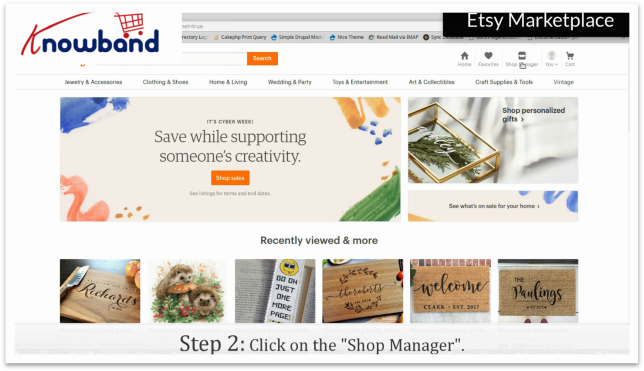
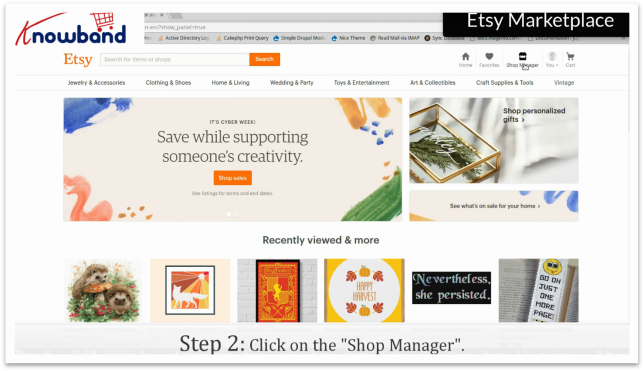
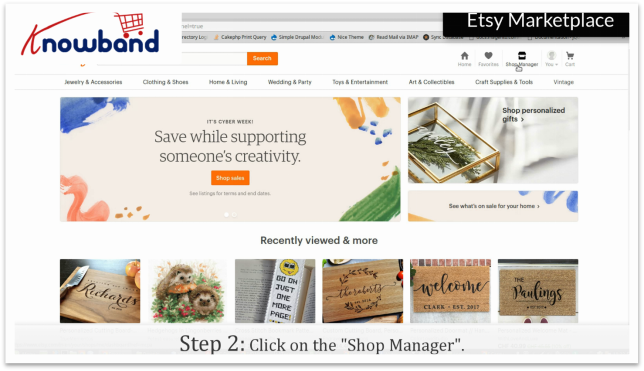
Step 2: Shop Manager
After you have successfully logged in, click on the “Shop Manager” in the top right corner.
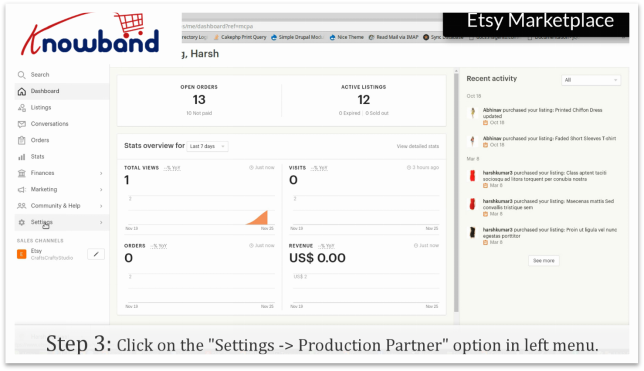
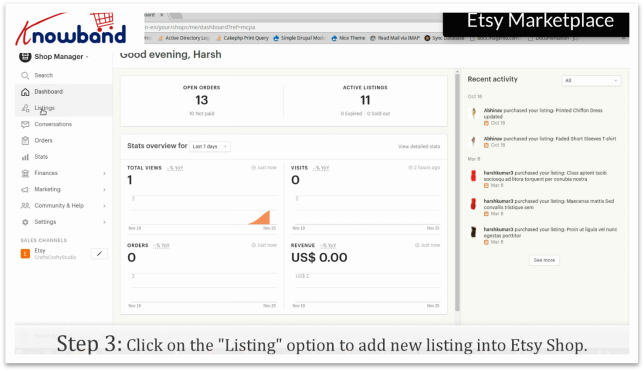
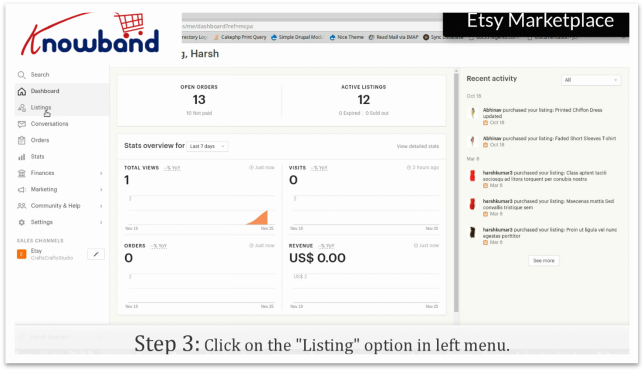
Step 3: Listing
In the “Shop Manager”, you will find an option “Listings” on the left menu. The option displays all the products you have added to your marketplace.
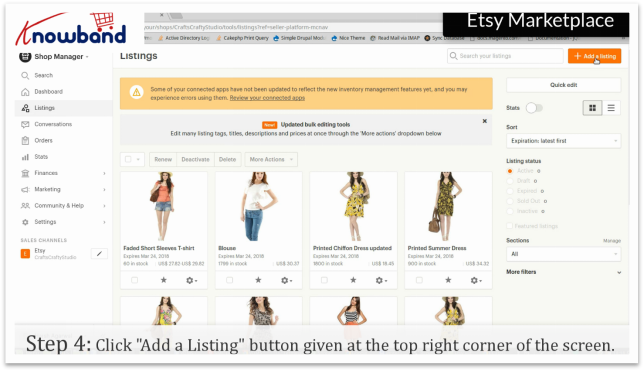
Step 4: Add a listing
Click on the “Add a listing” button in the top right corner, the option lets you add the product’s photo and other details of the product.
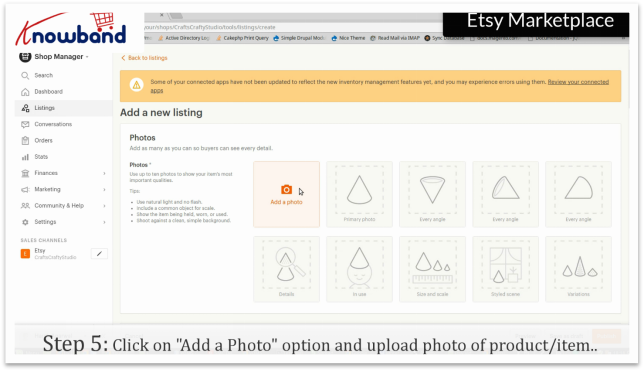
Step 5: Adding Photo
Click on the “Add Photo” option and upload a photo of the product/item. After this, you will be able to see the image of your products listed by you.
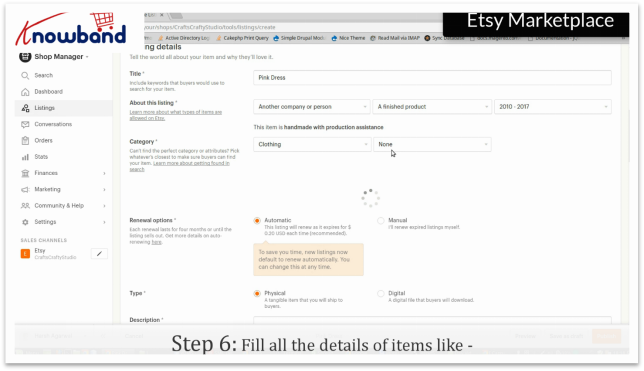
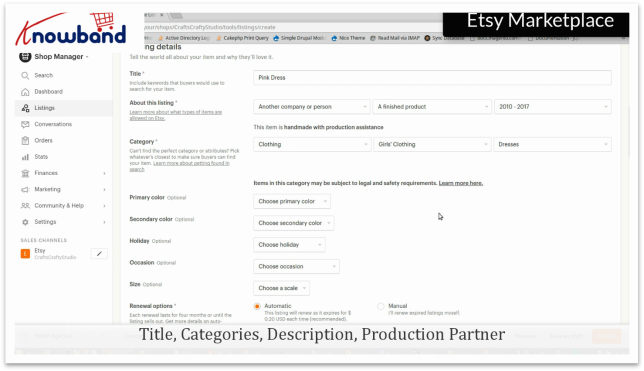
Step 6: Add details
Fill all the details of the product/item like title, categories, description, production partner, a primary and secondary color, size, price & quantity of the product and other relevant details. The description of the product should be accurate and meaningful so that customers can understand the product in detail and can go for instant purchases without any inconvenience.
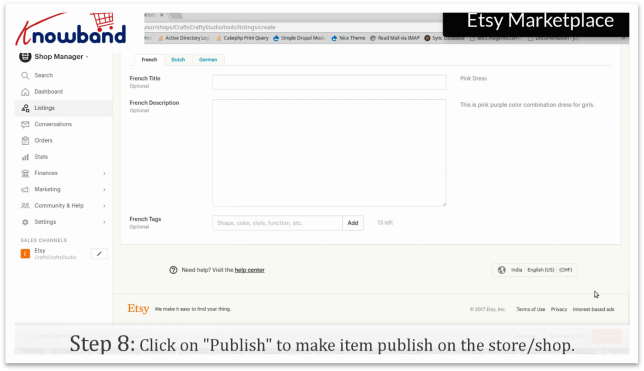
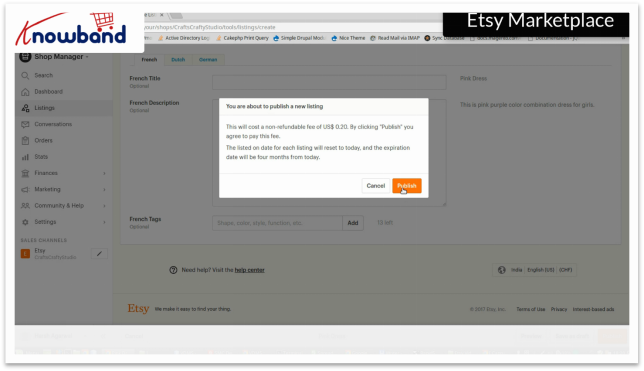
Click on the “Publish” button to make items publish in your store. Now your products are visible on the front end of Etsy Marketplace.
Once the above steps are completed, the item will be public on your store.
Video for adding a product on Etsy
B) STEPS TO ACTIVATE/DEACTIVATE THE PRODUCT LISTING ON ETSY MARKETPLACE:
Etsy also offers sellers access to renew/hide and activate/deactivate items from the Etsy Marketplace. There are times when you add product to your store and you can’t have enough supply to deliver. That is when, Etsy lets you deactivate your listings for items you can’t provide to your customers and then reactivate them later.
After logging in to Etsy. Complete the first 3 steps listed above. After that you can follow the steps as follows:
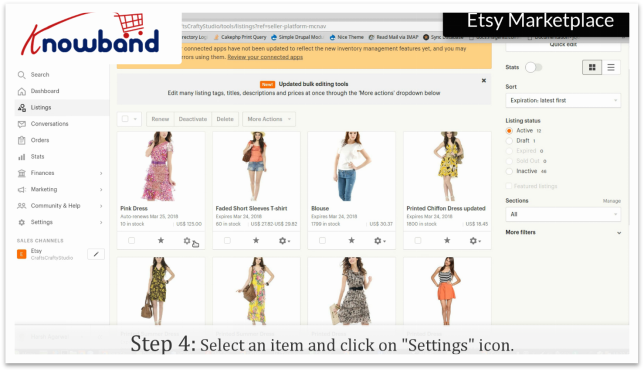
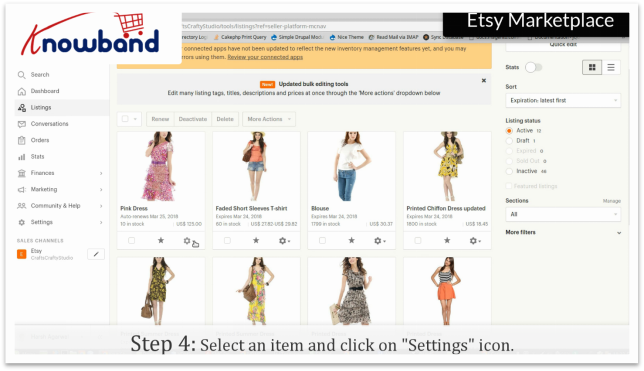
Step 4: Settings
In the listing tab, there is a “Settings” option, which will give you options to manage the product.
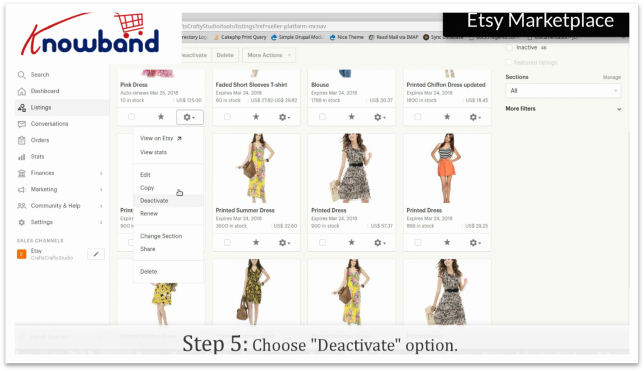
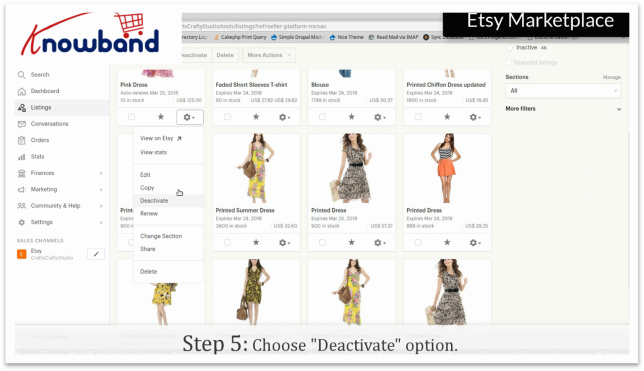
Step 5: Activate/Deactivate Product
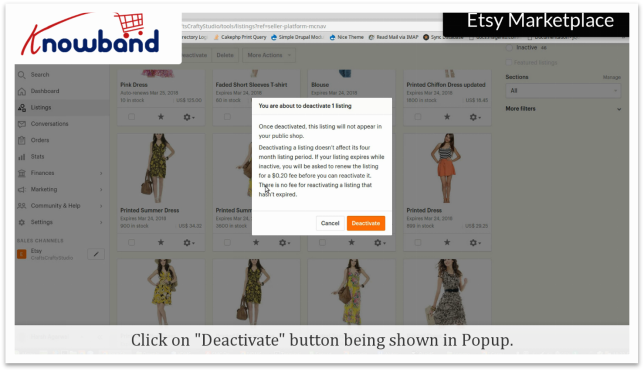
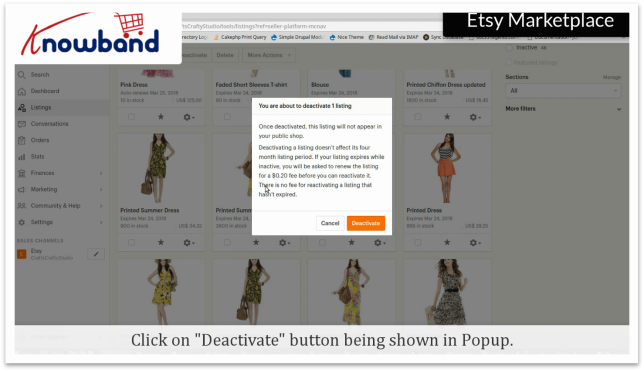
Click on the “Activate/Deactivate”. The store will ask for confirmation, on confirming the same, the store will activate/deactivate the product. Once deactivated, the listing will not appear in your public shop.
For reactivating the items, the seller needs to check the whether the listed item is expired or not. For expired items, the seller needs to pay 0.20 USD to renew the item. For inactive items who haven’t expired, reactivating is free of cost.
Video for activating/deactivating product listing on Etsy Marketplace:
Over to you:
Selling on Marketplace like Etsy could be the best decision as it provides huge audience access all over the world. This could let sellers earn a huge chunk of profits. Now the decision of selling on a Marketplace is totally up to you! The Etsy marketplace is doing everything to be the best in the industry and certainly, a good opportunity for you get on the bandwagon. Are you looking to integrate your store with the Etsy marketplace? Knowband’s offers Etsy Marketplace Integration for various CMS platforms like PrestaShop, Magento, Shopify, and OpenCart. It offers an easy interface to integrate your store into an Etsy marketplace.
Etsy offers sellers the access to renew/hide and activate/deactivate items from the Etsy Marketplace.There are times when you add product to your store and you can’t have enough supply to deliver. That is when, Etsy lets you deactivate your listings for items you can’t provide to your customers and then reactivate them later.
Login to your Etsy account by clicking the “Sign in” option provided in the top right corner.
Step 2: Shop Manager
After you have successfully logged in, click on the “Shop Manager” in the top right corner.
Step 3: Listing
In the “Shop Manager”, you will find an option “Listings” in the left menu. The option displays all the products you have added in your marketplace.
Step 4: Settings
In the listing, there is a “Settings” option, which will give you options to manage the product.
Step 5:Activate/Deactivate Product
Click on the “Activate/Deactivate”. The store will ask for confirmation, on confirming the same, the store will activate/deactivate the product. Once deactivated, the listing will not appear in your public shop.
For reactivating the items, seller needs to check the whether the listed item is expired or not.For expired items,seller needs to pay 0.20 USD to renew the item.For inactive items who has n’t expired, reactivating is free of cost.
Watch how to Activate/Deactivate listing at Etsy Marketplace?
Nowadays, every eCommerce store owners are busy with the other work and they don’t have time to sync the email manually. Every store owner is going for automation to remove manual labor and errors. If you are a Prestashop store owner, then this Prestashop MailChimp automation integrator addon will definitely work for you. Prestashop MailChimp Automation Module provided by Knowband synchronizes your customer’s email IDs, orders and cart information along with the product with MailChimp store. The automated approach of the Prestashop MailChimp cart integrator extension reduces efforts and the time consumed in data synchronization. With easy integration and usage, the merchant can create effective email campaigns. By setting up the cron job, the store owners can synchronize the required data with the MailChimp account in a few simple steps.
This Prestashop mailchimp product integrator extension by Knowband will not help the eCommerce store merchant to reduce the time and efforts but will also help the admin to track the ROI of marketing activities which is a great plus point.
1.1 Project Objectives
The e-merchants can achieve following objectives with the intuitive and feature-rich module.
1. The Prestashop MailChimp integration module offers easy eCommerce store and MailChimp synchronization.
2. The Prestashop addon even allows the store owners to create MailChimp stores from the back-end of the admin panel. The products, customer’s personal information, their cart and order history can be synced with each store. Thus, the email marketing campaign can be segmented and targeted accordingly. Not just this, the admin can even create MailChimp lists as per the requirement.
3. The admin can remind the customer about the abandoned cart or suggest products based on their previous purchases easily.
4. The addon even allows the admin to keep a check on the synchronization jobs. Any error occurred in the process is notified and can be rectified accordingly.
1.2 Benefit of the Merchant
1- This Prestashop cart integrator addon allows the store admin to integrate the Prestashop store with the MailChimp account.
2- This store admin can enable/disable the addon as per need.
3- The Prestashop and MailChimp integrator gives the option to the store admin to set the cookie expiry date.
4- The Prestashop mailchimp integrator addon allows the merchant to add the new mailchimp store according to his/her desires and they can also edit the exiting store settings.
5- The Prestashop mailchimp automation addon allows the merchant to add the cron to your store via control panel/putty to sync MailChimp store data automatically.
6- The admin can easily synchronize the data by clicking on the button sync store. This Prestashop addon gives the 4 options to the admin i.e. they can synchronize the product, customer, cart or order synchronization a job will be created in the admin interface.
7- This Prestashop addon gives the option to the merchant send email to the customer when the synchronization is completed.
8- If they want, they can delete the mailchimp store anytime.
9- The Prestashop mailchimp automation addon allows the admin to abort the jobs and delete the already created jobs.
10- This Prestashop mailchimp product integrator have a functionality to sync the mailchimp list automatically and they notify the consumer about the cancellation success.
11- This Prestashop extension saves a lot of time to the Prestashop store owner.
12- This Prestashop mailChimp cart integrator helps admin to increase the conversion of the website.
13- This Prestashop mailchimp integrator addon reduces the cart abandon rate of the website.
2.0 Installation
The PrestaShop module can be purchased from the Knowband store. After completing the transaction, you will get the following files as listed below:
1. mailchimpautomation.zip (contains source code of the module)
2. User Manual
Follow the below-mentioned steps in order to install the addon on your store:
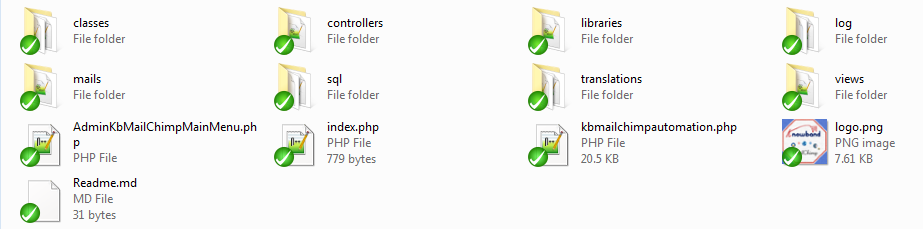
1. Unzip the folder. It contains the files and folders as shown below –
2. Copy all the files and folders contained in the mailchimpautomation.zip folder into your store “Modules” directory. Follow the path – Root Directory/modules/.
3. This Prestashop mailchimp automation addon is now ready to be installed.You can find it in Store Admin -> Modules and Services. It would shown as below –
In case, you are not able to find it in the admin modules list, you may search for it with the Keyword Knowband MailChimp Automation.
4. Click on “Install” button. It would show a pop-up for your confirmation. Click on “Proceed with the installation” option. This step will install the module and show notification – “Module(s) installed successfully”.
3.0 Admin Interface
This Prestashop mailchimp product integrator extension is easy to understand and it’s user is required to have almost no technical knowledge. It’s admin interface offers three customization options. They are mentioned below:
General Setting
MailChimp Store
Jobs
Audit Log
Let is discuss them in details.
3.1 General Setting
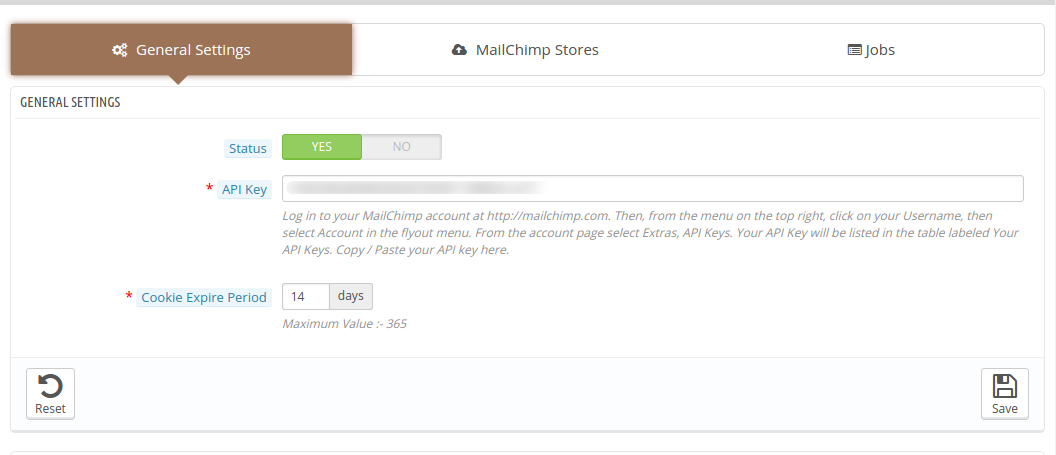
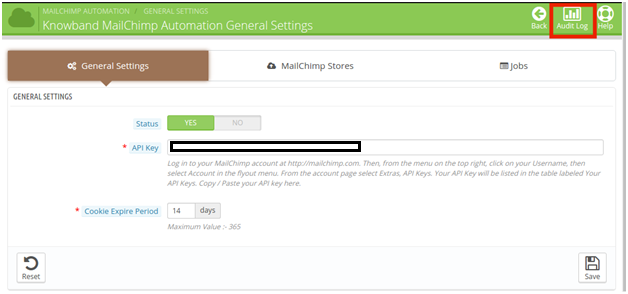
The ‘General Setting’ tab of the Prestashop mailchimp automation module offers the basic configuration options. Here’s how the module can be enabled and configured.
3.1.1 Module Status
The button can be toggled to enable or disable the addon from the Prestashop store.
3.2.2 API Key
Once the Prestashop mailchimp product integrator extension is enabled, the admin is required to enter the API key of his MailChimp account in order to sync it with your web store. Follow the below-mentioned steps for the API key:
Step 1: Log in to your MailChimp account at https://mailchimp.com.
Step 2: Click on your Username from the menu on the top right corner.
Step 3: Select the Account in the flyout menu.
Step 4: From the account page select Extras and then API Keys.
Step 5:Your API Key will be listed in the table labeled Your API Keys. Copy from there and paste in the web interface.
Once this is done, the MailChimp account is synchronized.
3.3.3 Cookies Expire Period
The cookies are required to track the email campaigns that are delivered to the customers. The expiry time specifies the number of days after which these cookies will expire.
3.2 MailChimp Stores
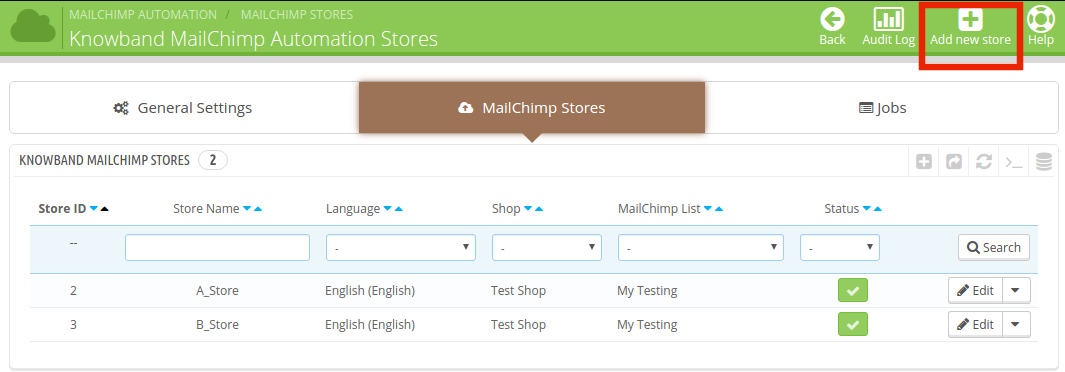
In order to create the stores, you need to go to the ‘MailChimp Store’ tab. For new store creation, click on the ‘Add New Store’ button at the top on the right hand side.
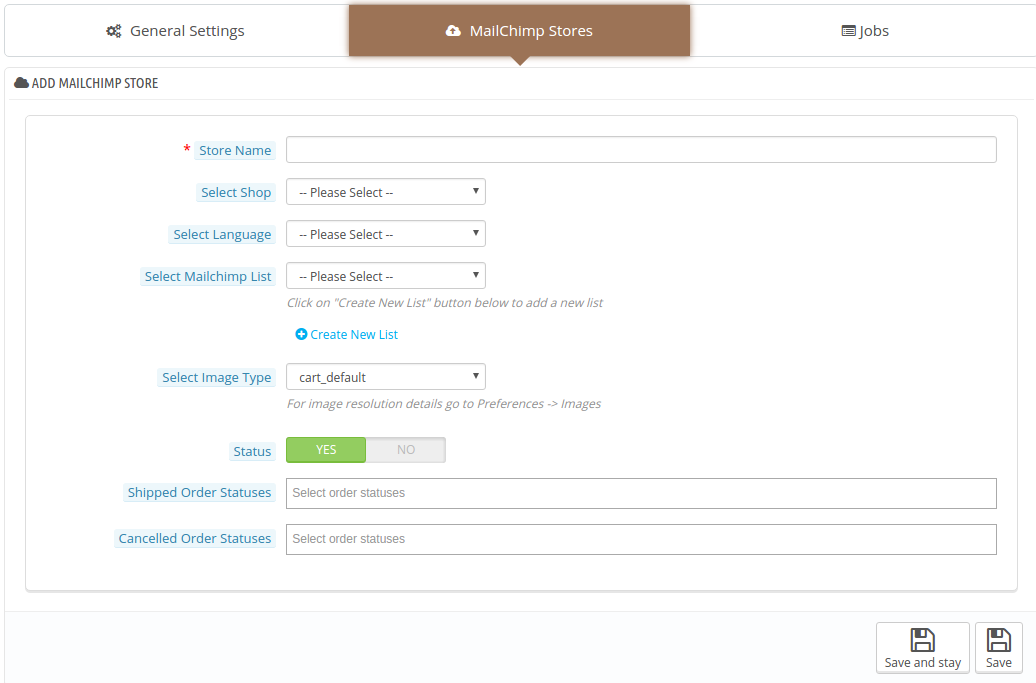
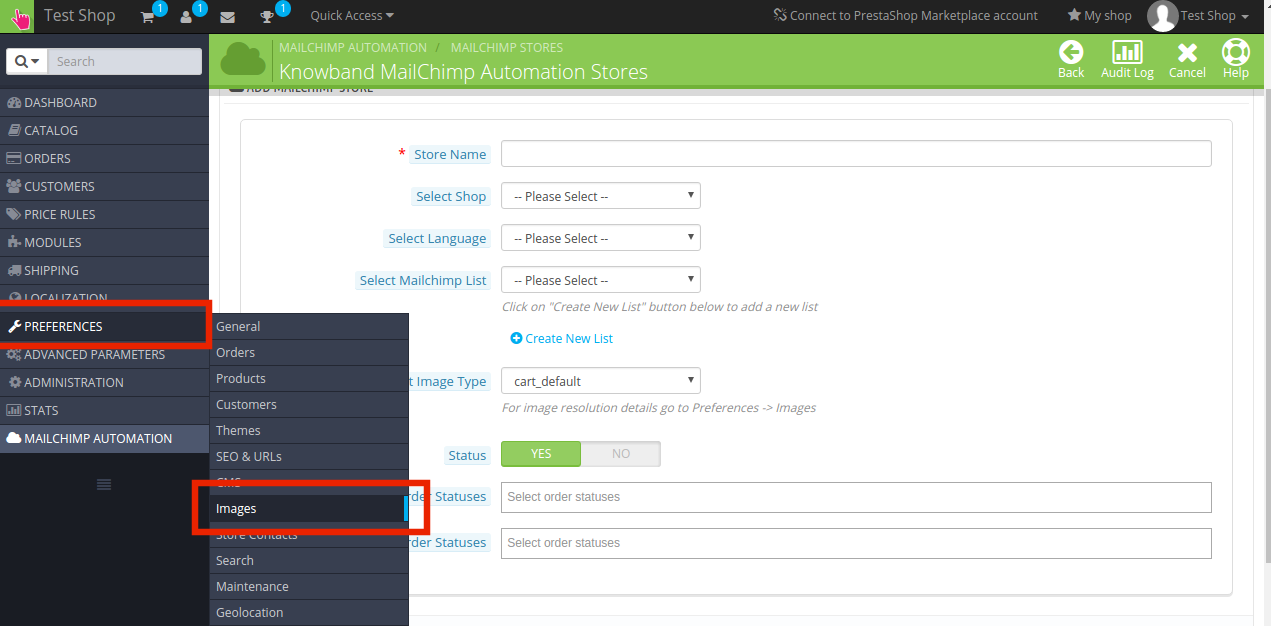
This will redirect to the store creation page. The admin is required to enter the necessary information. The information fields are mentioned below.
The various fields are discussed in details below.
Store Name: It specifies the name of the MailChimp store. The admin can enter any name as per his/her requirement.
Select Shop: The admin can select the Prestashop store that he wants to integrate with the MailChimp. The various options are provided in the dropdown list.
Select Language: The Prestashop store merchant can select any language for the functioning. The Prestashop mailchimp automation extension supports multiple languages.
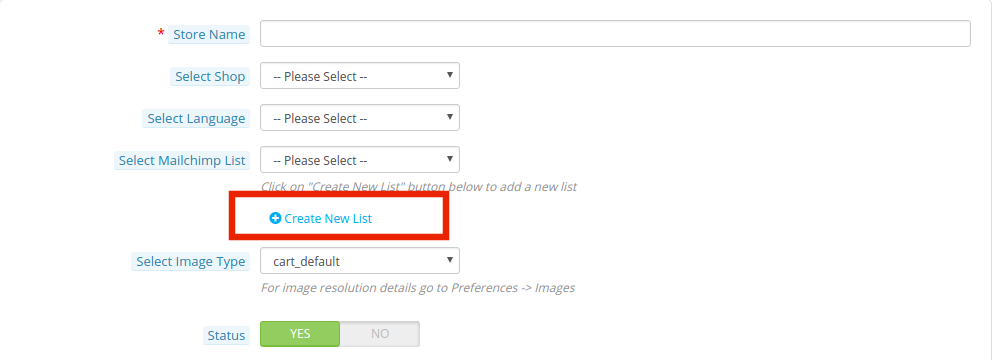
Select MailChimp List: The admin can select the MailChimp list in which he wants to synchronize the data of the Prestashop store. Any list can be selected from the already created ones.
Not just this, even the option for creation for new list is provides in the interface.
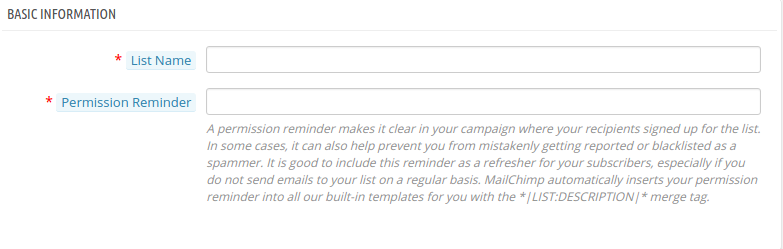
The information required for the MailChimp list creation is divided into 3 segments.
1. Basic Information
The store admin is required to enter the ‘Name of the List’ as well as the ‘Permission Reminder‘. The permission reminder is a little blurb in your email specifying how you got the email details of the recipient. This helps to prevent the mails from getting reported or blacklisted as a spammer.
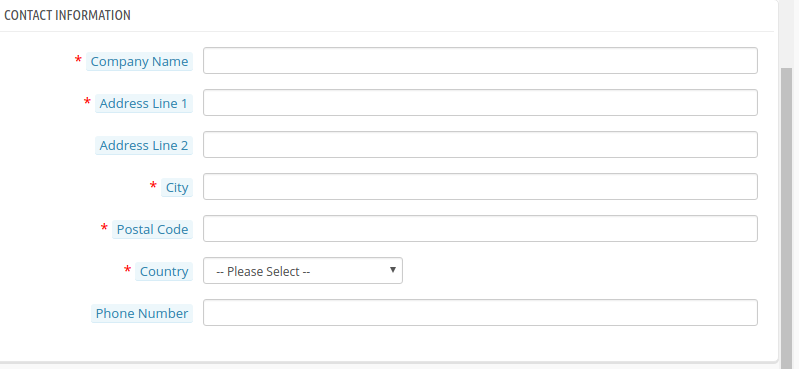
2. Contact Information
It includes the contact details of the company including it’s name, address and contact details of the company.
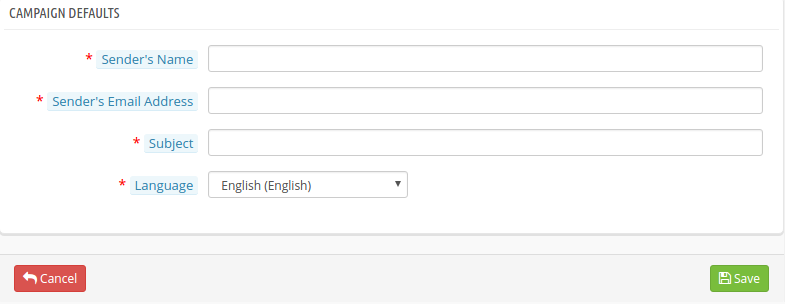
3. Campaign Defaults
This includes the default settings of the campaigns. The admin need to enter the Name and Email Id of the Sender that is being used as an default option for the email campaigns. The Subject line includes the subject that will be send with the emails. The admin can choose from the multiple language options offered.
Select image Type: The image resolution details in the Preference -> Images tab of the main menus.
The admin can select the image types from the already created options.
Status: In case, the admin doesn’t want to sync the data with the MailChimp account, then, he can disable the functionality by switching off the button.
Shipped Order Statuses: This can be used to send the Shipped Order notifications to the customers via MailChimp.
Canceled Order Status: In case, the customer cancels any others, the notification can be send through email.
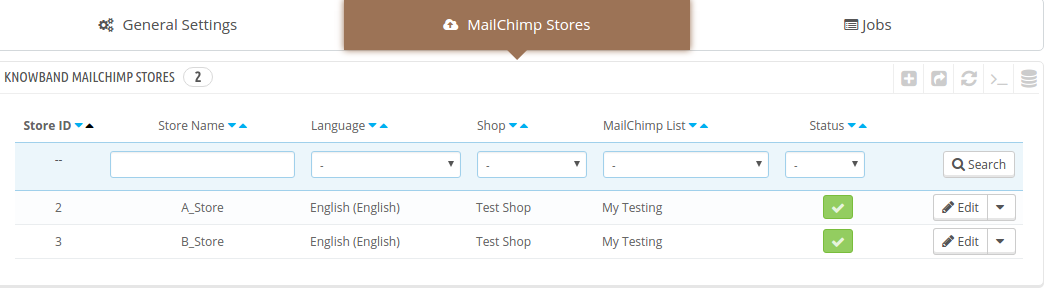
The list of the stores created can be viewed in the admin interface.
Any changes required in the stores can be done at the click of a button.
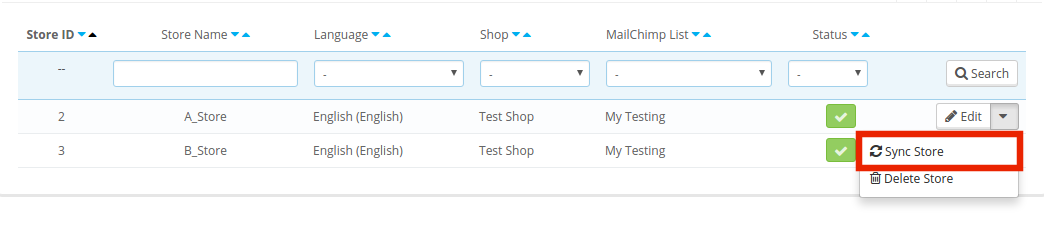
Once the MailChimp store is created, the data can be synchronized by clicking on the ‘Sync Store’.
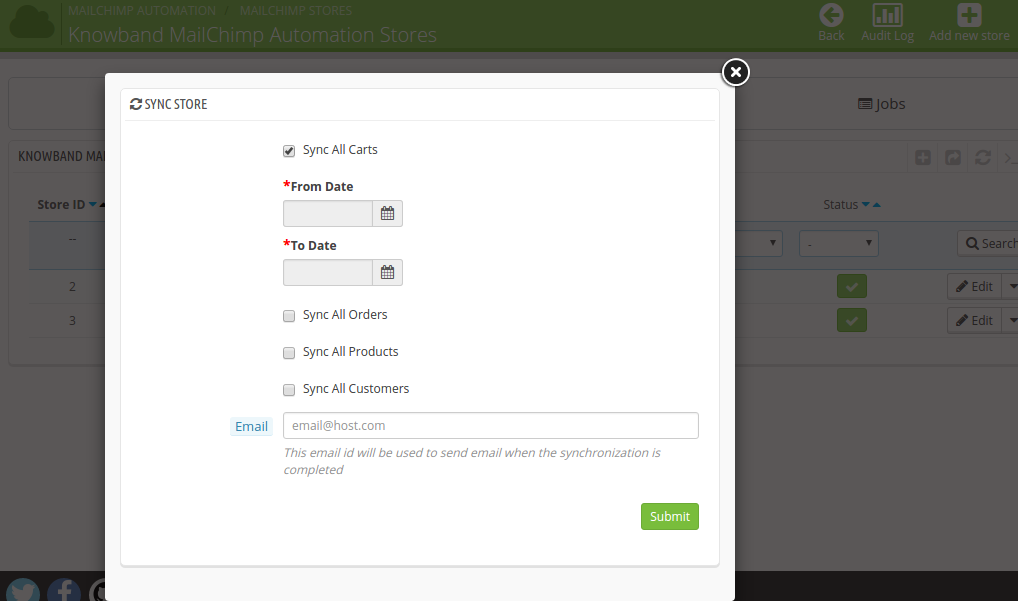
The Prestashop MailChimp cart integrator addon offers 4 synchronization options namely Sync All Carts, Orders, Products and Customers.
The online shoppers can check on the data that he wants to sync with the account. Once it is checked, the module will ask to enter the time period. The entire data within that duration will be synced with the MailChimp store.
The same procedure is followed for all the four data to be integrated.
Next, the admin is required to enter the Email ID with which the emails will be send.
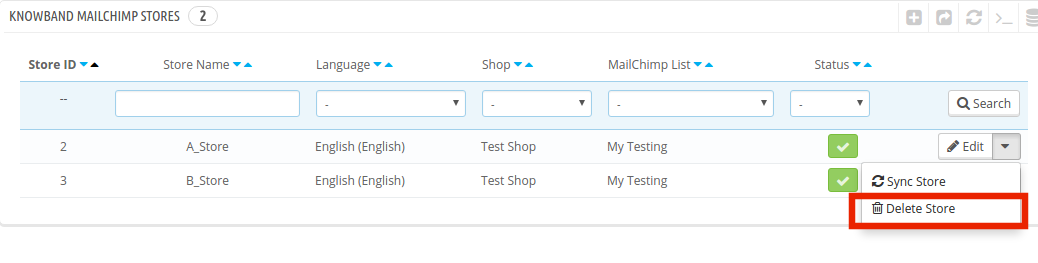
The admin can even remove any of the store from the list just by clicking on the ‘Delete’ button.
3.3 How are the Jobs handled?
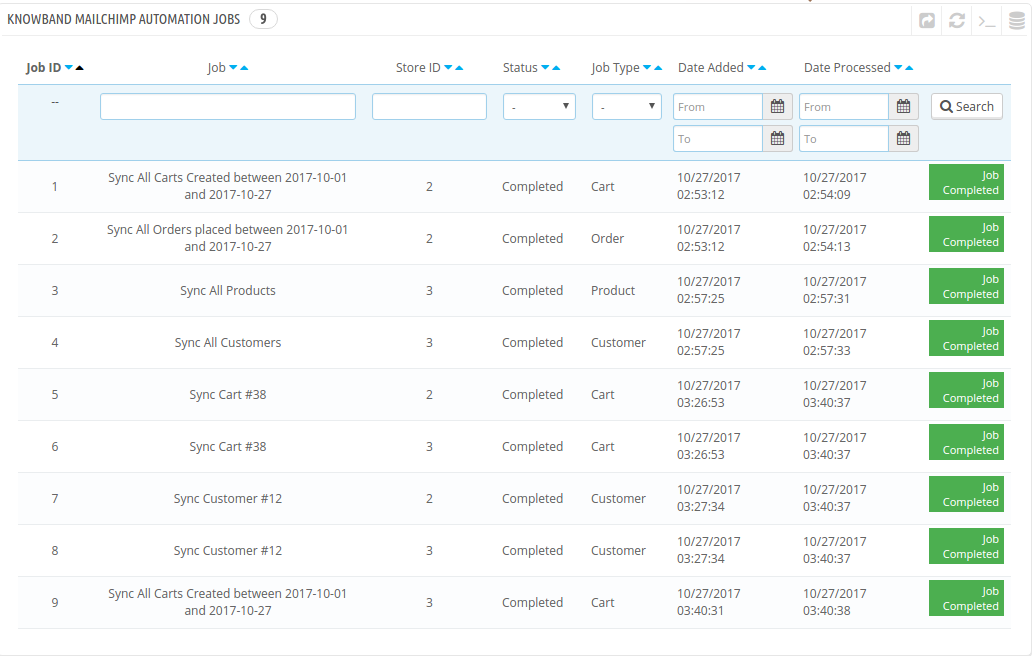
For every data type synchronized, the module will create a job. The status of the job can be viewed in the ‘Jobs’ tab as shown in the image below.
The incomplete jobs can be aborted in the course of time.
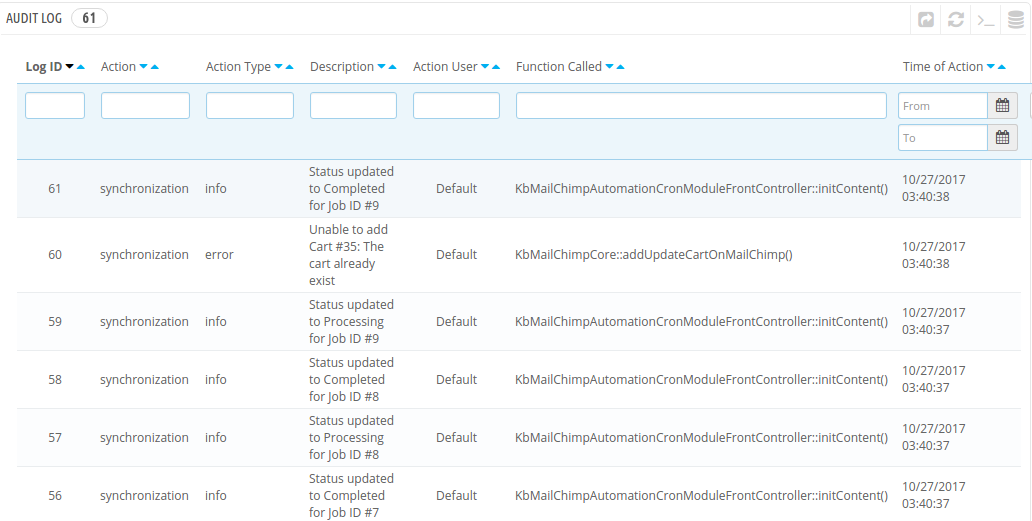
3.4 Audit Log
The entire synchronization process can be viewed in the ‘Audit Log’ option.
The audit log tab includes the status information of the entire synchronization processes. Any error occurred during this is reported in the ‘Description’ section. The same can be rectified as per the suggestion made.
You can try Prestashop MailChimp Automation addon for on your Prestashop website. KnowBand’s Prestashop MailChimp integrator extension helps you increase customer engagement to your store & reduce the cart abandon rate of the website.