Magento Instagram Shop Gallery Extension – User Manual

1.0 Introduction

Create a beautiful Instagram Gallery for your eCommerce store with Knowband’s Magento Instagram Shop Gallery Extension and boost the visitor engagement with your store. This Magento Instagram Shop Extension is an effective method to market your store products and thereby improving your site sales. With the highest user engagement, Instagram is been popularly used for branding business products and services. Likewise, you can also give the Instagram look and feel to your website to appeal the new and returning visitors at your online shop. This Instagram module for Magento builds your Instagram business profile and improves the user experience at your store.

1.1 Striking Features of Magento Instagram Shop Gallery Extension

This Instagram Shop Gallery Extension from Knowband is feature-rich extension offering you customizable features that can be configured without any technical knowledge. Let us quickly check the complete features of this Magento Instagram product tag feed module.
1. Magento Instagram Shop Gallery Extension incorporates an Instagram Shop Gallery at your eCommerce store.
2. With Magento Instagram Shop Extension, you can specify the particular tags to fetch the Instagram images and display them sorted into Instagram Gallery.
3. With Magento Instagram Integration Extension, you can filter fetched images by total images, approved images or images with shop products. The filtered results are shown on the website front.
4. The complete Instagram Image Gallery can be enabled or disabled from the back-office.
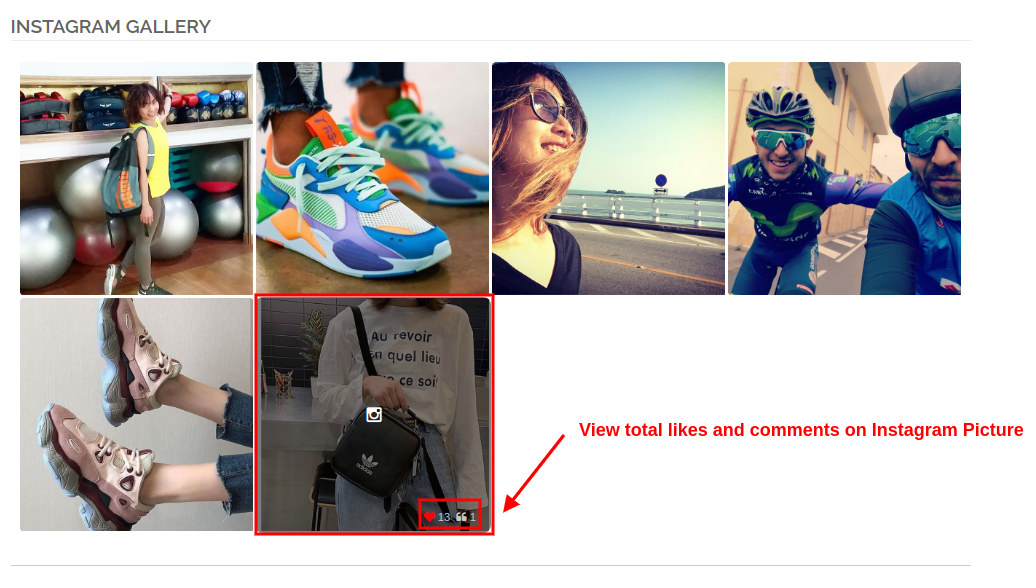
5. With Magento Instagram Shop Gallery Extension, you can show the likes and comments as the customer points over any of the Instagram Image
6. You can show or hide the main Instagram Gallery page from the backend of this Magento Instagram extension.
7. You can show or hide the Instagram Shop Gallery link in the footer section of the eCommerce website.
8. Instagram Gallery extension for Magento gives an option to set the title for Instagram Shop Gallery Page.
9. With Magento Instagram Module, you can show selected images on the main Instagram page which can be total photos, approved ones, having related images or having both approved and related images.
10. With Magento Instagram Shop Extension, you have the option to limit the number of images that can be shown on the Instagram Shop page.
11. You can even set a desired URL page key for this main Instagram Shop page.
12. You can create unlimited Instagram galleries with Magento Instagram product tag feed module which can be modified and deleted as required.
13. With Magento Instagram Shop Gallery Extension, you can set title, image limit and image visibility for the particular Instagram gallery.
14. You have the option to show or hide the selected image gallery on the main Instagram Shop page.
15. Magento Instagram product tag feed module allows you to set Instagram gallery visibility at different locations of different site pages.
16. You can add ‘N’ images to an Instagram gallery which can be edited or deleted anytime from the back-office of this Magento Instagram Integration Extension.
17. With Magento Instagram Shop Extension, you can set a sort order for the images in a Instagram Gallery.
18. Magento Instagram module allows you map and pin any site products with the Instagram image.

1.2 Technology for Development

Language: PHP
Frame Work: Magento

2.0 Installation Guide for Magento Instagram Shop Gallery

1. Once after purchasing Magento Instagram Shop Gallery Extension from the Knowband store, you will get the following files on your registered email.

  • Source code file of Magento Instagram Shop Extension in zipped file format.
  • User Manual of Instagram Shop Gallery Extension.
    Download the files.

2. Unzip the package in the root folder of your Magento setup via FTP manager (like Filezilla or WinSCP – download here: https://filezilla-project.org/). You’ll find the files and folders as shown in the image below:
The Magento Instagram Shop Gallery Extension is now installed for your store and is ready to configure without any coding hassles.

3.0 Admin Interface of Magento Instagram Shop Gallery Extension

Once you have successfully installed Magento Instagram Gallery Module on your website, you can display unlimited Instagram image posts at different pages of your store as required. Further, to configure this Magento Instagram module, navigate the module settings in the given order: Admin Panel > System> Knowband Extensions > Instagram Gallery
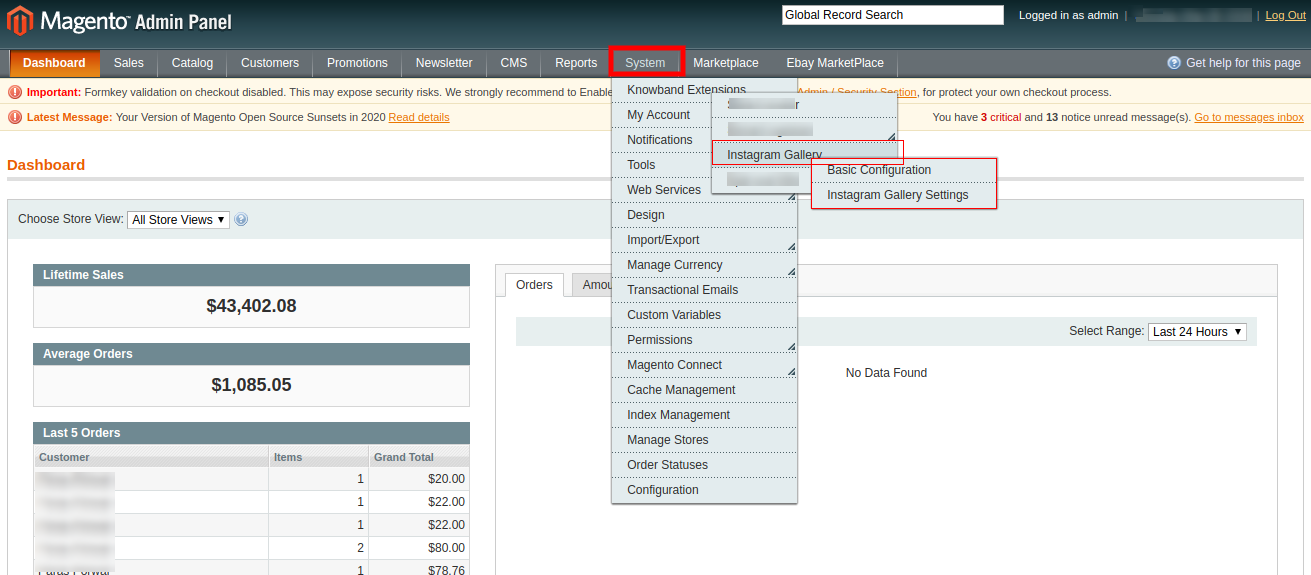
Magento Instagram Shop Gallery Extension

The easy to understand admin interface of Magento Instagram product tag feed plugin has been divided into two broad sections as:
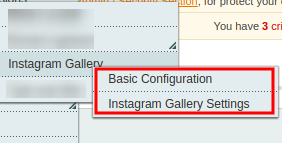
1.Basic Configuration
2.Instagram Gallery Settings
Each of these sections has been discussed in detail below.

3.1 Basic Configuration Settings

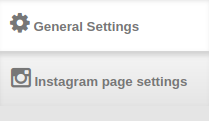
The configuration settings of this Magento Instagram Shop Extension is sub-divided into two sections as:
1.General Settings
2.Instagram Page Settings

Each of this sub-section has been discussed in the next section 3.1.1 and 3.1.2

3.1.1 General Settings

In the general settings of the Instagram Shop Gallery for Magento, you will get the following configuration options as given below:
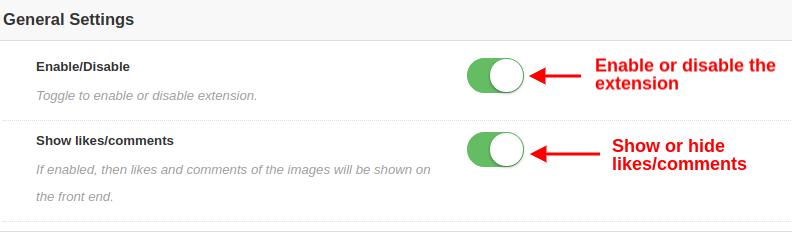
  • Enable/Disable: With this button, you can easily enable or disable the whole functionality of Magento Instagram Integration Module for your eCommerce store.
  • Show Likes/Comments: Using this option, you can enable or disable the likes and comments for any Instagram feed. If enabled, the likes and comments for the particular post will be visible on the frontend to the customers.

3.1.2 Instagram Page Settings

Under this section of Magento Instagram Integration Extension, you can configure the settings of main Instagram Page which will display all the fetched Instagram images at your store.
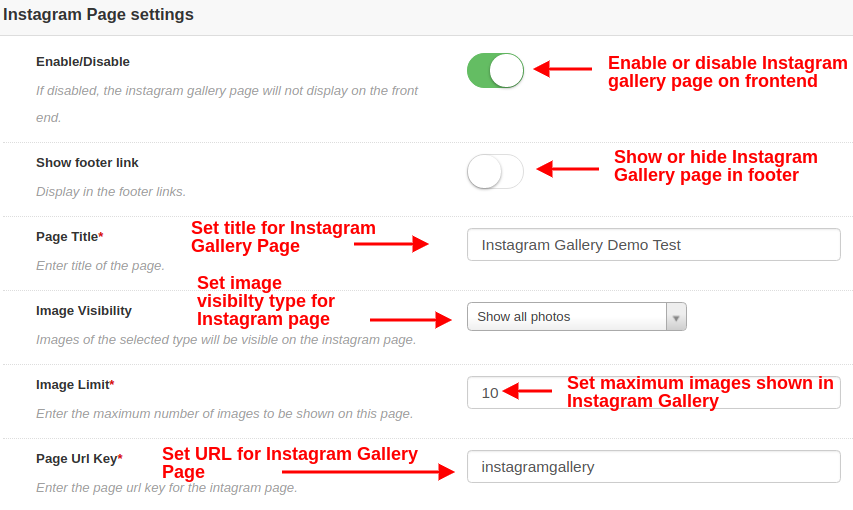
  • Enable/Disable: This option will enable or disable the main Instagram Gallery Page shown at the frontend of the website.
  • Show Footer Link: With this option, you can show or hide the Instagram page link in the footer section of website. If enabled, the Instagram gallery link is shown in the footer section of website.
  • Page Title: This option will allow you to set a desired title for the Instagram Shop Gallery Page.
  • Image Visibility: This option decides which category of images will be shown on the main Instagram page. You can set any image type out of these four options:
    a. Show all photos
    b. Only approved
    c. Have related product
    d. Approved and related product

Note: The total images can be managed from the “Gallery Settings” discussed in next section 3.2

  • Image Limit: With this option, you can set the maximum number of images which will be shown on the Instagram Gallery page.
  • Page Url Key: Using this option, you can set a custom URL key for the Instagram Shop Gallery Page.

3.2 Gallery Settings

The total Instagram images which are displayed at the front of the website can be configured and managed from this section of Magento Instagram Module. You can fetch as many images using different tags and create different Instagram Galleries. You also have the option to edit the settings of the Instagram gallery. You can manage the related products which will be shown with each of the Instagram Images.

The below interface gives you a list of existing Instagram Gallery which can be edited or deleted. You can edit the existing images or you can add new images to the Instagram gallery.
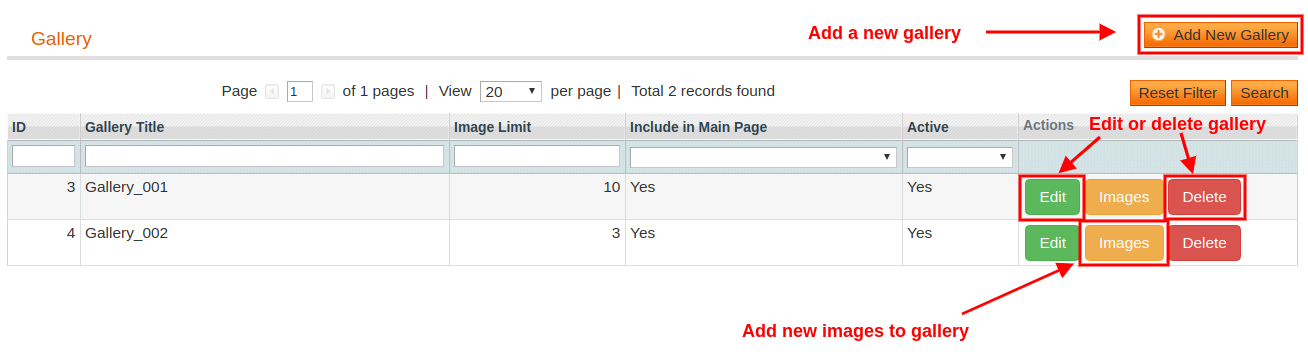
From this interface, you can perform the following set of actions:

3.2.1 Add a New Gallery

To add a new gallery, click on “Add New” button at the top right corner of the screen.

  • Enable/Disable: This option will enable or disable the selected Instagram gallery.
  • Gallery Title: With this option, you can set the desired title for the gallery.
  • Image Visibility: With this option, the images of the selected type will be shown on the frontend of the website.
  • Image Limit: Using this option, you can set a maximum number of image limit which will be shown in the gallery.
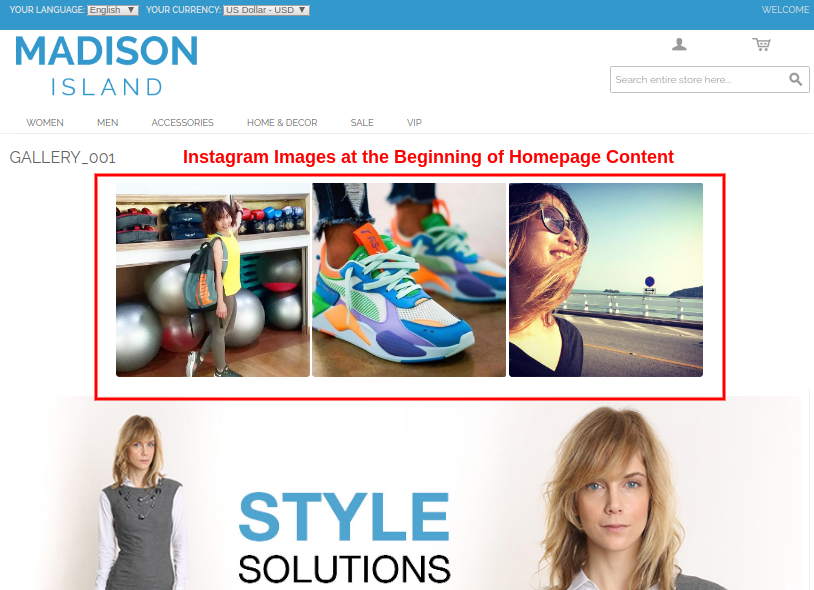
  • Include in Main Page: You can enable this toggle field if you want this gallery to be shown at the main Instagram page on the front.
  • Page Visibility: This option helps you can set visibility of Instagram gallery on various pages at different locations. Simply Click on Add button to display this gallery on different pages.

3.2.2 Edit the Existing Gallery Settings

Now if you want to edit the existing settings of the gallery, click the “Edit” button corresponding to the gallery you want to configure.

  • Enable/Disable: You can toggle this button to enable or disable the Instagram gallery.
  • Gallery Title: This option allows you to set a custom title for the Instagram gallery.
  • Image Visibility: With this option, you can select the visibility type for the images shown on the frontend.
  • Image Limit: Using this option, you can set the maximum number limit of images for this gallery.
  • Include in Main Page: By enabling this toggle field, you can add this gallery on the main Instagram page at front.
  • Page Visibility: With this option, you can set visibility of Instagram gallery on various pages and on different locations. Simply Click on Add button to display this gallery on different pages.

3.2.3 Add and Edit Images

You can add as many Instagram images to a gallery by clicking on the “Images” button corresponding to the gallery.

The above screen shows you a list of existing Instagram gallery images. You can add new images, modify or delete the existing images.
Note: Deleting an image is easy, you just have to click the “Delete” button corresponding to the image.

3.2.3.1 Add New Image

To add a new image to the Instagram Gallery, click on “Add New Image” button at the top right side of admin panel and fill the following fields:
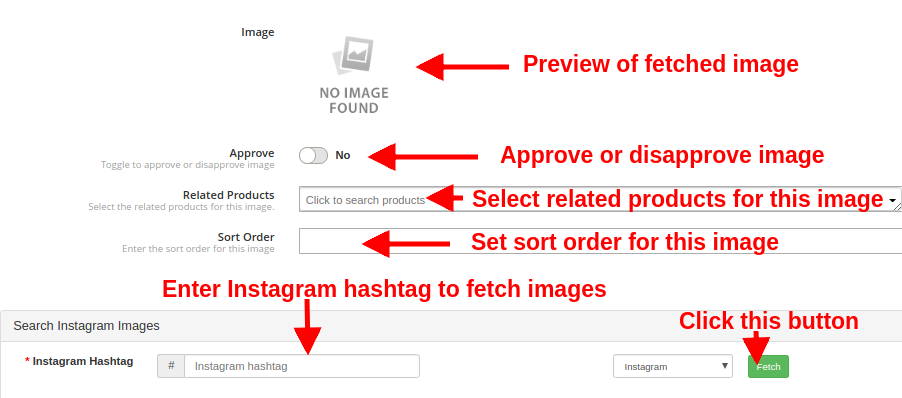
  • Image: This option will allow you to check the preview of the fetched Instagram image.
  • Approve: With this option, you can approve or disapprove the selected Instagram image.
  • Related Products: With this option. You can select the related site products that you want to pin with that Instagram image.
  • Sort Order: This option lets you set the sort order of image on the Instagram gallery page.
  • Instagram Hashtag: Enter the Instagram hashtag to find or fetch the relevant images and then click on “Fetch” button.
3.2.3.2 Edit an existing image
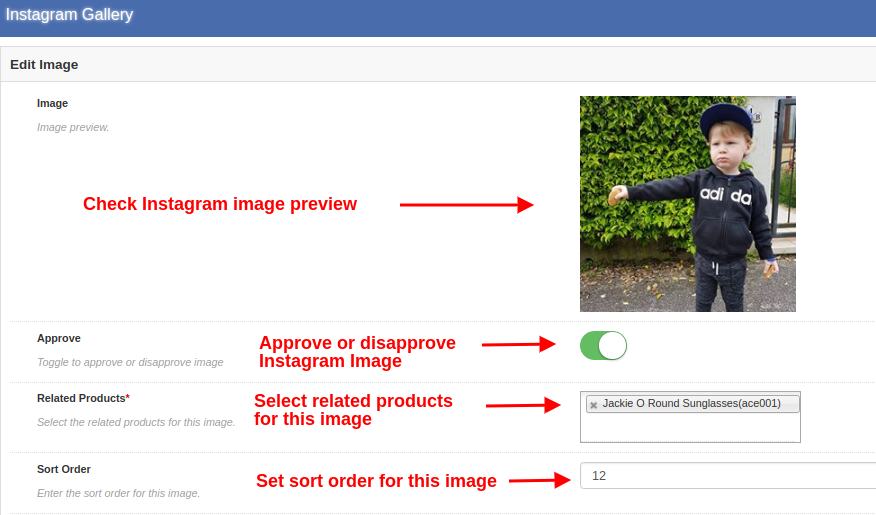
  • Image: This option lets you check the preview for the fetched Instagram image.Approve: With this option, you can approve or disapprove the image.
    Related Products: This option allows you to select the related products that you want to show for that image.
    Sort Order: This option lets you set the sort order of image.

3.2.4 Delete the Existing Gallery

Deleting a gallery is simple, you just have to click the “Delete” button corresponding to the desired Instagram gallery as shown in the image below:

4.0 Front Interface of Instagram Gallery Module for Magento

A) Instagram Shop Page

Customers will see this Instagram Gallery option in the footer section of the website.

Upon clicking the tab, they will be redirected to the Instagram Shop Page with URL key as:
“https://yourstore.com/mage1934/index.php/instagramgallery/”
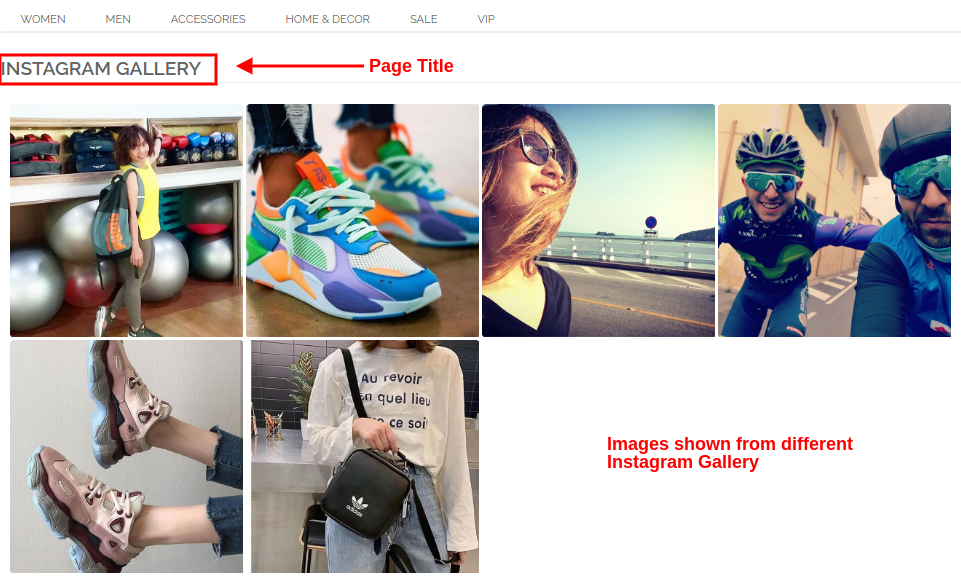
This URL can be defined as per your own site needs. The Instagram Shop Gallery looks like in the image below:
B) Likes and Comments for Instagram Image
C) Show Instagram Gallery on Homepage
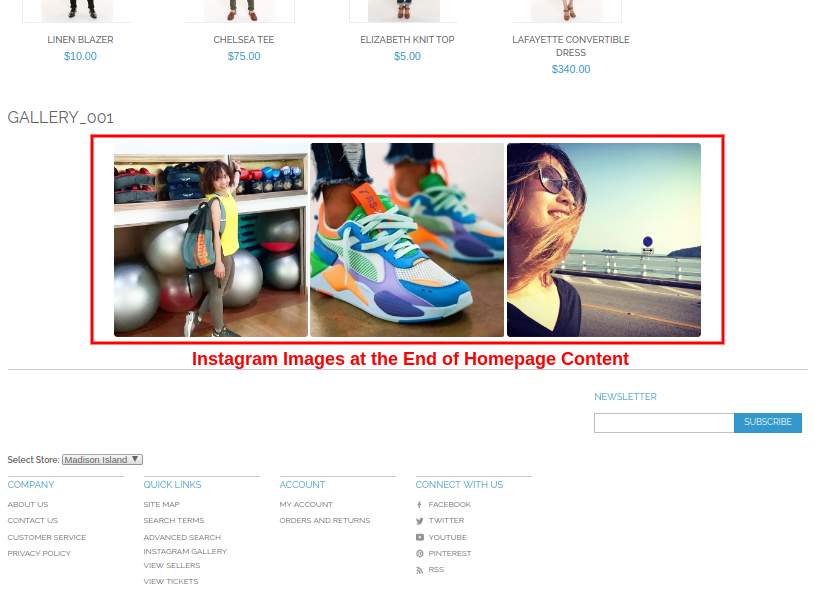
D) Show Instagram Gallery on Product Pages
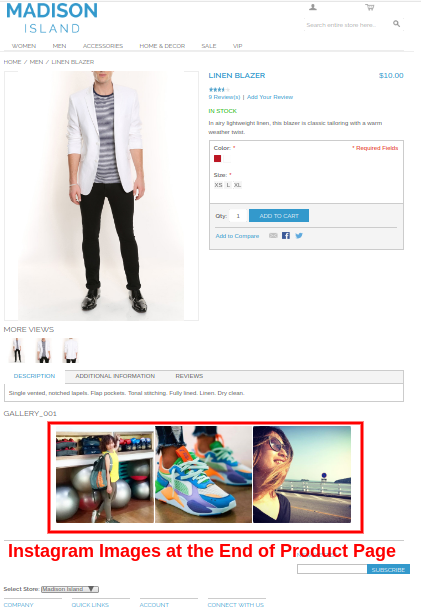
E) Show Instagram Gallery on Category Pages
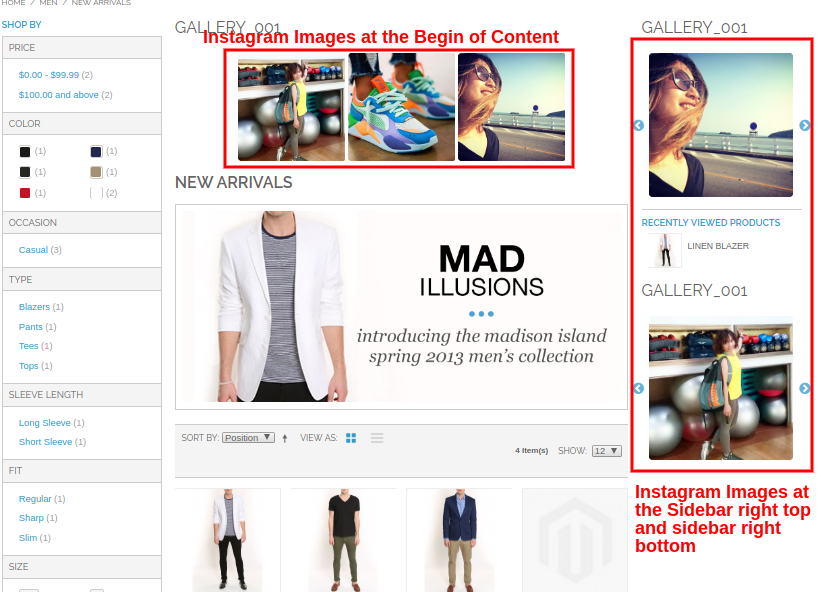
On clicking any of the images, customers will see the following image popup.
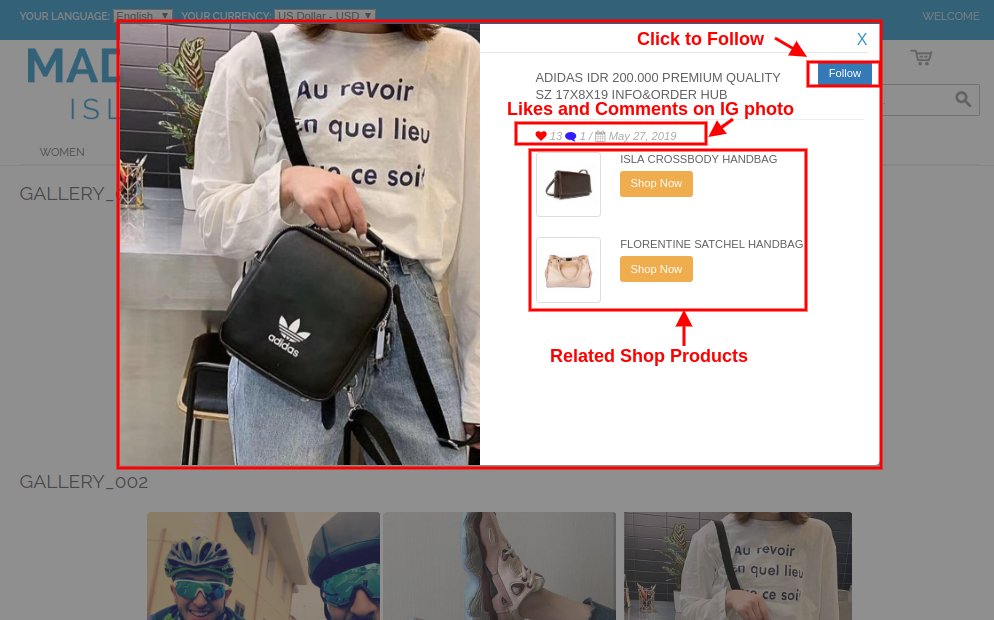
This way, the online store admin can show Instagram images on website pages without any hassle. The eCommerce store merchant can attract online users by showing eye-catchy Instagram photos. The online merchant can easily implement Magento Instagram Shop Extension and showcase Instagram images on website. The Shop on your Instagram gallery module shows a specific Instagram gallery page on the website. The online users can click on footer link and visit the Instagram gallery page. This way, the online merchant can reduce bounce rate easily. The Magento Instagram product tag feed module is highly customizable and allows the online users to view related products on clicking any specific page. The online merchant can add and showcase unlimited Instagram images.

The eCommerce store admin can show Instagram image on different website pages at desired position. The Magento Instagram Shop Gallery Extension is mobile responsive and offers smooth functioning. The online users can click on any Instagram image and view likes, comments and posting date details easily. The online merchant can also promote products by mapping the products as related products. This way admin can also increase website sales easily using this Magento Instagram module.

Knowband is one of the most reputed names in the field of plugin development. We provide best plugins for platforms like – Magento, Prestashop,  OpenCart and

Shopify.

Magento Instagram Shop Gallery Module Link

Magento Shoppable Instagram Module Admin Demo Link

Magento Instagram module Front Demo Link

Insta Shoppable Gallery Module for Magento Video Tutorial

Magento Instagram Integration Extension Marketplace Link

For more support and information, feel free to contact us via email at support@knowband.com anytime.
Spring Global (Spring Omni) Error: Shipment is not being Registered

Problem Statement:

Shipment is not being registered on the sent timestamp and also no error is reporting in the response.

Solution:

We have raised a ticket for the same and they replied that this issue was occurred because recipient’s email parameter was not sent in the Shipment API https://api.myparcel.com/shipments

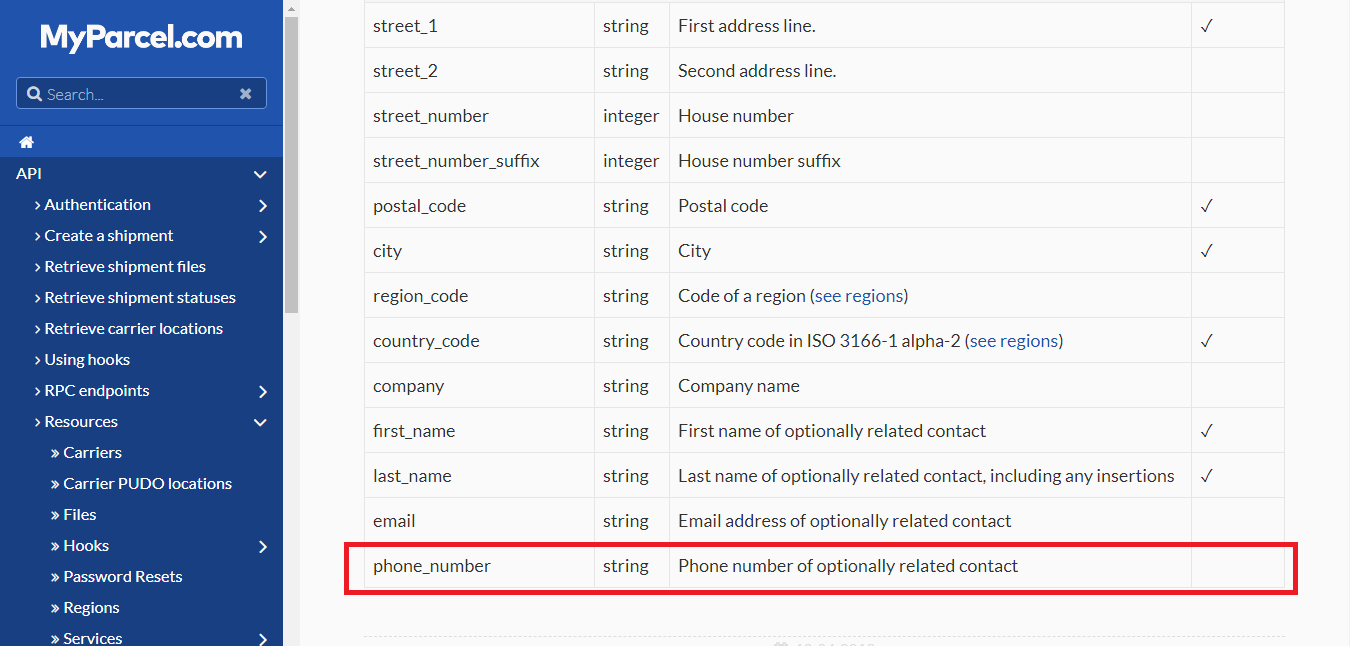
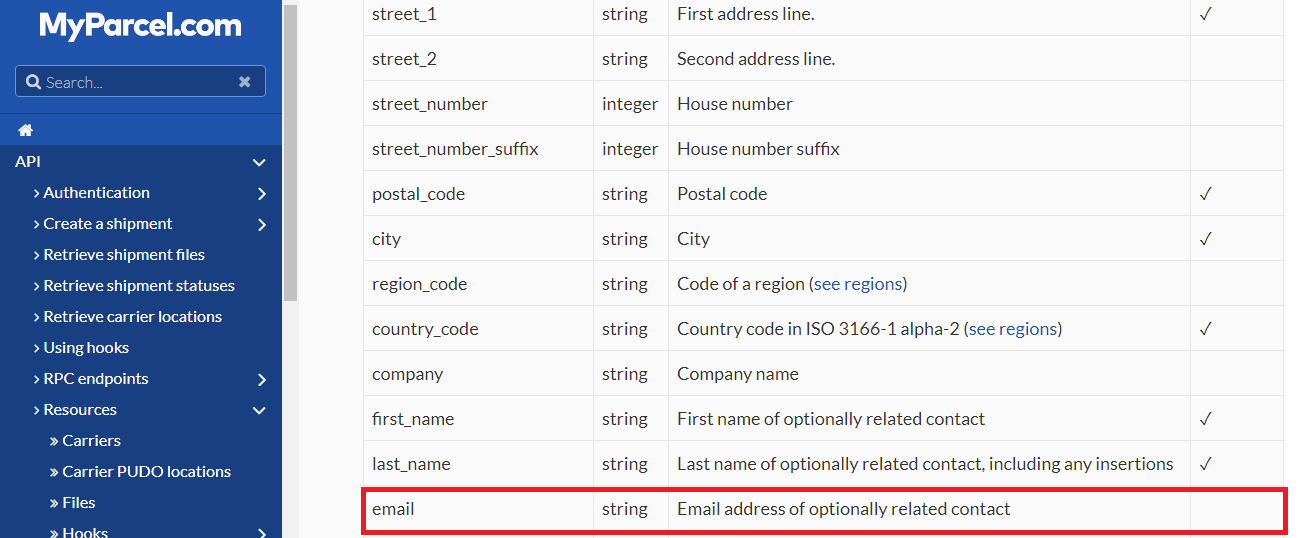
According to the Spring Omni documentation, this email is optional parameter:


So, we raised a ticket again on Spring Omni regarding this and they replied: The shipment is failing to be created due to recipient email address not being populated. Although, the schema shows this as optional but Spring require the email address so the carriers can send notifications to the recipient (if they offer that service…)

So recipient email is required parameter in Spring Omni and need to be sent in shipment API.

For more Related Blogs, Please visit here:

Spring Global (Spring Omni) Error: The property phone_number is required

Spring Omni Manifest

Spring Global (Spring Omni): Billing Concept

Spring Global (Spring Omni) Error: Resource Not Found

Spring Global (Spring Omni) Error: Getting Blank Response While Fetching Label


Spring Global (Spring Omni) Error: The property phone_number is required

Error in the response:

The property phone_number is required while registering the shipment.

Solution:

This error is occurring when recipient’s phone_number parameter is not sent in the Shipment API https://api.myparcel.com/shipments

According to the Spring Omni documentation, phone_number is an optional parameter:

We raised ticket on Spring Omni and they replied: The shipment is failing to be created due to recipient phone number not being populated. Although, the schema shows this as optional but Spring require the phone number so the carriers can send notifications to the recipient (if they offer that service…)
So phone_number is a required parameter and need to be sent in shipment API.

For more Related Blogs, Please visit here:

Spring Global (Spring Omni) Error: Shipment is not being Registered

Spring Omni Manifest

Spring Global (Spring Omni): Billing Concept

Spring Global (Spring Omni) Error: Resource Not Found

Spring Global (Spring Omni) Error: Getting Blank Response While Fetching Label

Spring Omni Manifest

How to get the manifest report of the Spring Omni shipments?

SOLUTION: We raised a query to spring Omni, if they have any API to generate the manifest of the shipments created on a particular day.

They replied:

“We don’t currently provide a manifest“. So we tried to generate manifest on our end and confirmed with pick up boy of Spring Omni if they need manifest report to collect the parcels? They replied that there is no need to generate a manifest report of the shipments as they simply charge for only the number of labels (parcels) handover to them.

For more Related Blogs, Please visit here:

Spring Global (Spring Omni) Error: The property phone_number is required

Spring Global (Spring Omni) Error: Shipment is not being Registered

Spring Global (Spring Omni): Billing Concept

Spring Global (Spring Omni) Error: Resource Not Found

Spring Global (Spring Omni) Error: Getting Blank Response While Fetching Label

Spring Global (Spring Omni): Billing Concept

We want to know that Spring Global charges us on the shipments which we have created and registered OR parcels which we will hand over to them for delivery.

We raised a ticket on Spring Global:

Which shipments (parcels) will they charge us? Will it be on the shipments which we have created and registered OR parcels which we will hand over to them.

Suppose we have created and registered 10 shipments but handover only 8 parcels to them to deliver (As we do not want 2 shipments to be delivered). So now for this particular case, will they charge us for 10 shipments or 8?

They replied:

“Spring will only bill labels which have been scanned. So in your example you would only be billed for 8 labels“.

As we can see that we will only be charged for the parcels that we handover to them for delivery irrespective to the number of shipments we have created on their end.

Please visit here for related information:

Spring Global (Spring Omni) Error: The property phone_number is required

Spring Omni Manifest

Spring Global (Spring Omni) Error: Shipment is not being Registered

Spring Global (Spring Omni) Error: Resource Not Found

Spring Global (Spring Omni) Error: Getting Blank Response While Fetching Label

Spring Global (Spring Omni) Error: Resource Not Found

While creating a shipment using Spring Omni, you might get an error in response such as mentioned below:

[status] => 404
[code] => 10002
[title] => Resource Not Found
[detail] => One or more of the regions resource could not be found.

We got this error while sending the following request to create the shipment:

'{
  "data": {
    "type": "shipments",
    "attributes": {
      "recipient_address": {
        "street_1": "4363 N 55TH ST",
        "street_2": "Marylebone",
        "street_number": 221,
        "postal_code": "53216-1201",
        "city": "MILWAUKEE",
        "region_code": "WI",
        "country_code": "US",
        "first_name": "Sherlock",
        "last_name": "Holmes",
        "company": "Attn",
        "email": "Aparajita.singh@abc.com",
        "phone_number": "1234567890"
      },
      "return_address": {
        "street_1": "Baker Street",
        "street_2": "Marylebone",
        "street_number": 221,
        "street_number_suffix": "B",
        "postal_code": "NW1 6XE",
        "city": "London",
        "region_code": "ENG",
        "country_code": "GB",
        "first_name": "Sherlock",
        "last_name": "Holmes",
        "company": "Holmes Investigations",
        "email": "Aparajita.singh@abc.com",
        "phone_number": ""
      },
      "sender_address": {
        "street_1": "Baker Street",
        "street_2": "Marylebone",
        "street_number": 221,
        "street_number_suffix": "B",
        "postal_code": "NW1 6XE",
        "city": "London",
        "region_code": "ENG",
        "country_code": "GB",
        "first_name": "Sherlock",
        "last_name": "Holmes",
        "company": "Holmes Investigations",
        "email": "Aparajita.singh@abc.com",
        "phone_number": ""
      },
      "description": "Order #8008135",
      "physical_properties": {
        "height": 150,
        "width": 300,
        "length": 500,
        "volume": 22.5,
        "weight": 100
      },
      "items": [
        {
          "sku": "123456789",
          "description": "OnePlus X",
          "item_value": {
            "amount": 995,
            "currency": "EUR"
          },
          "quantity": 2,
          "hs_code": "8517.12.00",
          "origin_country_code": "GB",
          "item_weight": 135
        }
      ],
      "customs": {
        "content_type": "merchandise",
        "invoice_number": "9000",
        "non_delivery": "return",
        "incoterm": "DAP",
        "license_number": "218532158",
        "certificate_number": "12122121"
      },
      "register_at": 0
    },
    "relationships": {
      "shop": {
        "data": {
          "type": "shops",
          "id": "1a9414f0-24ef-4008-b6ad-9a75e27a879e"
        }
      },
      "service": {
        "data": {
          "type": "services",
          "id": "05aeb5e9-90be-4ec7-94c9-1a0949262577"
        }
      }
    }
  }
}'

When we asked Spring Global for the reason of this error, they replied that the problem here is “The region which is not recognized as they do not have regions for the USA set up yet”. Simply omitting the region should fix this problem.

The below JSON should work:

'{
  "data": {
    "type": "shipments",
    "attributes": {
      "recipient_address": {
        "street_1": "4363 N 55TH ST",
        "street_2": "Marylebone",
        "street_number": 221,
        "postal_code": "53216-1201",
        "city": "MILWAUKEE",
        "country_code": "US",
        "first_name": "Sherlock",
        "last_name": "Holmes",
        "company": "Attn",
        "email": "Aparajita.singh@abc.com",
        "phone_number": "1234567890"
      },
      "return_address": {
        "street_1": "Baker Street",
        "street_2": "Marylebone",
        "street_number": 221,
        "street_number_suffix": "B",
        "postal_code": "NW1 6XE",
        "city": "London",
        "region_code": "ENG",
        "country_code": "GB",
        "first_name": "Sherlock",
        "last_name": "Holmes",
        "company": "Holmes Investigations",
        "email": "Aparajita.singh@abc.com",
        "phone_number": ""
      },
      "sender_address": {
        "street_1": "Baker Street",
        "street_2": "Marylebone",
        "street_number": 221,
        "street_number_suffix": "B",
        "postal_code": "NW1 6XE",
        "city": "London",
        "region_code": "ENG",
        "country_code": "GB",
        "first_name": "Sherlock",
        "last_name": "Holmes",
        "company": "Holmes Investigations",
        "email": "Aparajita.singh@abc.com",
        "phone_number": ""
      },
      "description": "Order #8008135",
      "physical_properties": {
        "height": 150,
        "width": 300,
        "length": 500,
        "volume": 22.5,
        "weight": 100
      },
      "items": [
        {
          "sku": "123456789",
          "description": "OnePlus X",
          "item_value": {
            "amount": 995,
            "currency": "EUR"
          },
          "quantity": 2,
          "hs_code": "8517.12.00",
          "origin_country_code": "GB",
          "item_weight": 135
        }
      ],
      "customs": {
        "content_type": "merchandise",
        "invoice_number": "9000",
        "non_delivery": "return",
        "incoterm": "DAP",
        "license_number": "218532158",
        "certificate_number": "12122121"
      },
      "register_at": 0
    },
    "relationships": {
      "shop": {
        "data": {
          "type": "shops",
          "id": "1a9414f0-24ef-4008-b6ad-9a75e27a879e"
        }
      },
      "service": {
        "data": {
          "type": "services",
          "id": "05aeb5e9-90be-4ec7-94c9-1a0949262577"
        }
      }
    }
  }
}'

Please visit here for related information:

Spring Global (Spring Omni) Error: The property phone_number is required

Spring Omni Manifest

Spring Global (Spring Omni) Error: Shipment is not being Registered

Spring Global (Spring Omni): Billing Concept

Spring Global (Spring Omni) Error: Getting Blank Response While Fetching Label

Spring Global (Spring Omni) Error: Getting Blank Response While Fetching Label

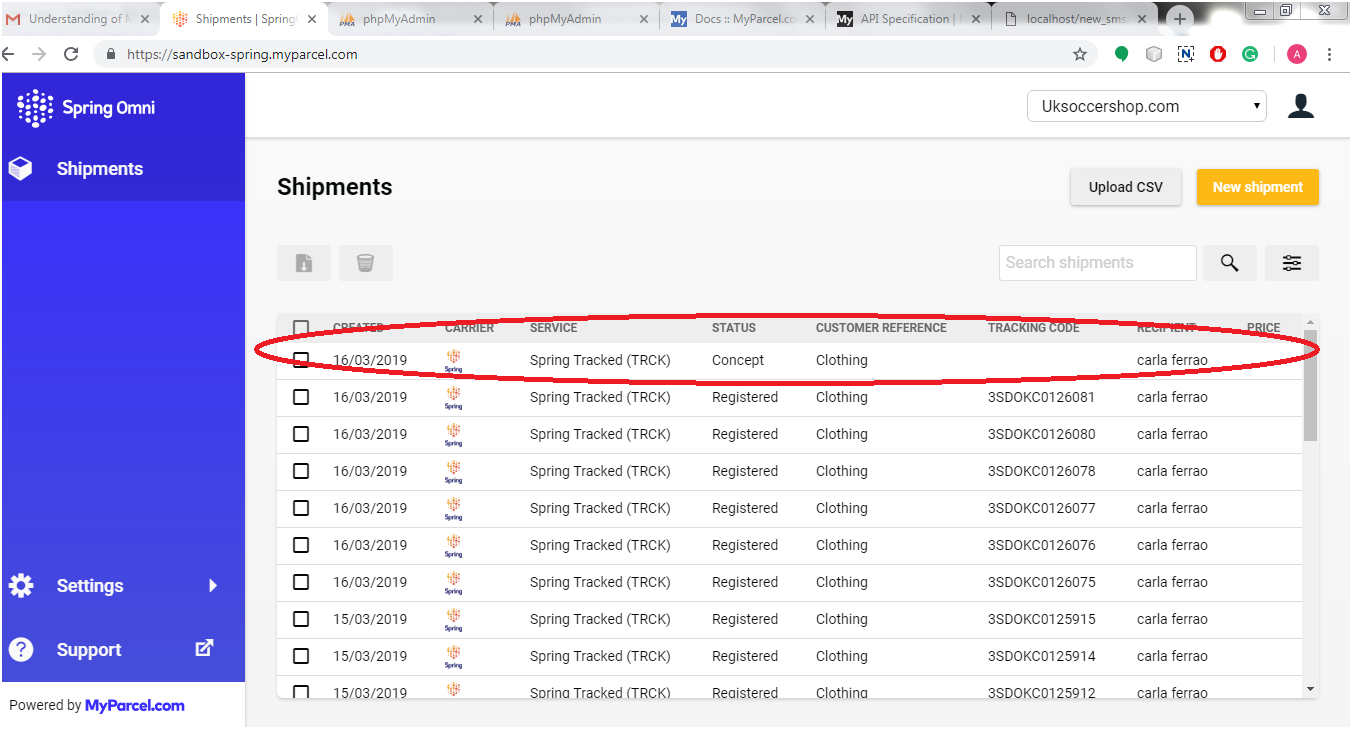
We were facing an issue while we tried to create a shipment (Using /shipments API) and after that we were fetching the label (Using /shipments/{shipment_id}/files API). The issue was that we got blank response. When we checked Shipments on the back office, it looked like below screenshot:

When we clicked on the shipment (with status = “concept”), we got a message as “The shipment was created, but has not been registered with the carrier (yet).”

When we understood the concept of this new shipment creation process in Spring Omni, we come to know that in Spring Global, We need to register a shipment instead of only creating the shipment before fetching the label corresponding to the shipment. There are two possible scenarios for registering a shipment:

  1. Create the shipment and register as well at the same time
  2. Create the shipment but register it at a given specific time i.e. in future

1. To register a shipment instantly

While sending the create shipment request, we need to send the “register_at” parameter value as 0 or past time (UNIX timestamp) in the request data. Kindly refer the below code for the same:

{
  "data": {
    "type": "shipments",
    "attributes": {
      "recipient_address": {
        "street_1": "Baker Street",
        "street_2": "Marylebone",
        "street_number": 221,
        "street_number_suffix": "B",
        "postal_code": "NW1 6XE",
        "city": "London",
        "region_code": "ENG",
        "country_code": "GB",
        "first_name": "Sherlock",
        "last_name": "Holmes",
        "company": "Holmes Investigations",
        "email": "s.holmes@holmesinvestigations.com",
        "phone_number": "+31 234 567 890"
      },
      "return_address": {
        "street_1": "Baker Street",
        "street_2": "Marylebone",
        "street_number": 221,
        "street_number_suffix": "B",
        "postal_code": "NW1 6XE",
        "city": "London",
        "region_code": "ENG",
        "country_code": "GB",
        "first_name": "Sherlock",
        "last_name": "Holmes",
        "company": "Holmes Investigations",
        "email": "s.holmes@holmesinvestigations.com",
        "phone_number": "+31 234 567 890"
      },
      "sender_address": {
        "street_1": "Baker Street",
        "street_2": "Marylebone",
        "street_number": 221,
        "street_number_suffix": "B",
        "postal_code": "NW1 6XE",
        "city": "London",
        "region_code": "ENG",
        "country_code": "GB",
        "first_name": "Sherlock",
        "last_name": "Holmes",
        "company": "Holmes Investigations",
        "email": "s.holmes@holmesinvestigations.com",
        "phone_number": "+31 234 567 890"
      },
      "pickup_location": {
        "code": "205604",
        "address": {
          "street_1": "Baker Street",
          "street_2": "Marylebone",
          "street_number": 221,
          "street_number_suffix": "B",
          "postal_code": "NW1 6XE",
          "city": "London",
          "region_code": "ENG",
          "country_code": "GB",
          "first_name": "Sherlock",
          "last_name": "Holmes",
          "company": "Holmes Investigations",
          "email": "s.holmes@holmesinvestigations.com",
          "phone_number": "+31 234 567 890"
        }
      },
      "description": "Order #8008135",
      "physical_properties": {
        "height": 150,
        "width": 300,
        "length": 500,
        "volume": 22.5,
        "weight": 5000
      },
      "items": [
        {
          "sku": "123456789",
          "description": "OnePlus X",
          "item_value": {
            "amount": 995,
            "currency": "EUR"
          },
          "quantity": 2,
          "hs_code": "8517.12.00",
          "origin_country_code": "GB",
          "item_weight": 135
        }
      ],
      "customs": {
        "content_type": "merchandise",
        "invoice_number": "9000",
        "non_delivery": "return",
        "incoterm": "DAP",
        "license_number": "218532158",
        "certificate_number": "12122121"
      },
      "register_at": 0
    },
    "relationships": {
      "service_options": {
        "data": [
          {
            "type": "service-options",
            "id": "4c675b1a-516c-4410-abff-d237fd45bcd0"
          }
        ]
      },
      "shop": {
        "data": {
          "type": "shops",
          "id": "35eddf50-1d84-47a3-8479-6bfda729cd99"
        }
      },
      "service": {
        "data": {
          "type": "services",
          "id": "175a235f-aff5-4e44-87b5-3657b75c1deb"
        }
      },
      "contract": {
        "data": {
          "type": "contracts",
          "id": "2cb32706-5762-4b96-9212-327e6afaeeff"
        }
      }
    }
  }
}

If we send the register_at value as current timestamp then we might get some delay in registering the shipment, So Spring Global has suggested us to send the register_at value as 0 so that the time will be considered in past and the shipment will be registered as soon as possible. Since the shipment will be registered now, we won’t be able to delete/edit the same.

2. Register a shipment in future time

If we want to edit/delete the shipment after creating the one, then we just need to register the shipment in future or at a given specific time. To register a shipment in future time, let’s say after 5 hours of shipment creation, simply pass the “register_at” value as future timestamp of five hours on basis of current time. Now we will be able to edit/delete the shipment till 5 hours but won’t be able to fetch the label and commercial invoice. At the given timestamp, the shipment will be registered automatically and we will be able to fetch the label and commercial invoice after the given time.
So these are the two ways to register the shipment. We can use both on basis of our requirement.

Please visit here for related information:

Spring Global (Spring Omni) Error: The property phone_number is required

Spring Omni Manifest

Spring Global (Spring Omni) Error: Shipment is not being Registered

Spring Global (Spring Omni): Billing Concept

Spring Global (Spring Omni) Error: Resource Not Found

DHL Issue: The destination location is invalid. Please check the data

The logistics sector’s global leader is DHL. Specializing in transportation, courier services, and international shipping.

While booking shipment on DHL using API (In our case, the delivery country was “Ireland”), we got an error in response to the capability request. The error was “The destination location is invalid. Please check the data“.

Solution:  

For this issue, we raised a ticket on DHL, and in response, they replied as below:

When requesting capabilities, it is important to provide complete and quality address data. It is necessary to determine accurate routing information and capabilities for the origin and destination. The following might be the reason for the error:

  1. It might be possible that there are more than one city with the same name in different suburbs. So to get a successful response, we need to add suburbs in destination address specially, for deliver country “Ireland”.
  2. For the destination countries, which do not have any zip codes, city name must be spelled accurately. For example, there is no city called NORTH ROAD in IE, the actual city is called M50 NORTH ROAD.

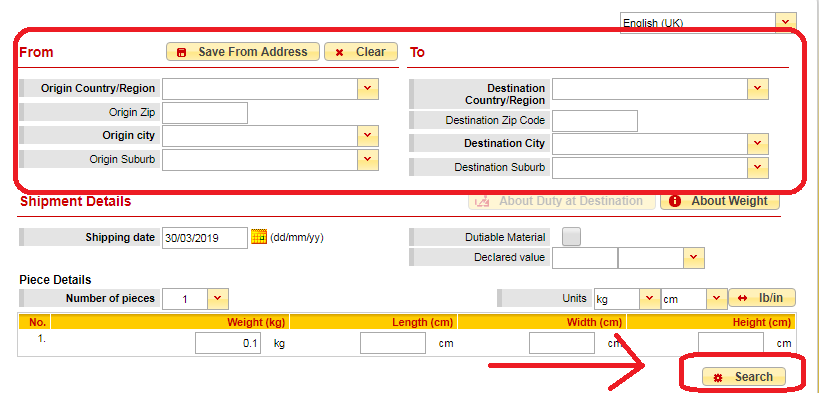
From this response, we were not clear about the validation of address means how do we know that the address is correct or not or the city name is correct or not. For example, if we are sending the city name as “Co. Dublin” in the create shipment request, we get an error of Invalid Location. So we have raised a ticket again to know how we can validate address and in response, DHL suggested a tool named DHL Capability Tool (https://dct.dhl.com/). Just enter the sender and destination address in the form and click on search button as shown in the screen shot below:

This tool will give the result if the address is valid or not. So if you are getting any error regarding location, you can validate address using this capability tool.

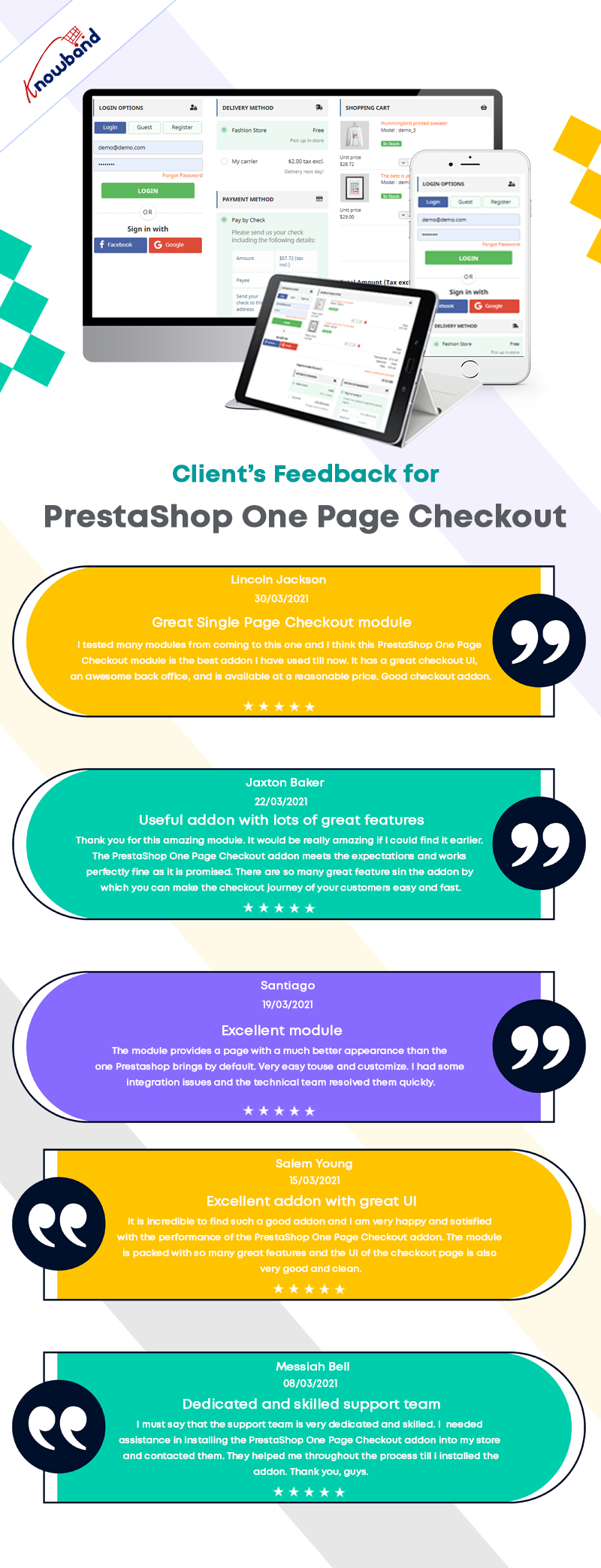
Knowband is proving One Page Checkout modules for eCommerce stores that are compatible with DHL. This is available for all major CMS platforms like Prestashop, Opencart, Magento, and Magento 2.

One Page checkout is a must-have for an eCommerce store as it helps in greater conversion rate, reduced abandoned cart rate, and ease of checkout for the user. Find what customers are saying about this module below:


Please take a look here for more info:

OpenCart Countdown Sales Timer Extension – User Manual

1.0 Introduction

Putting a countdown timer bar at the top of the website is the best way to remind your shoppers that they have a limited amount of time to grab the product deals at the lowest rates. A sense of urgency is created using sales countdown timer which triggers their instant purchase decision. OpenCart Countdown Sales Timer extension compels shoppers to make an immediate decision by showing limited stocks and half prices. Showing sale price and free shipping on selective products are an effective tactic to provoke bulk sales on the eCommerce store. Knowband’s Sales Countdown Timer Bar for OpenCart allows admin to add a custom timer bar to their online shop promoting special events, promotions and new product launches.

Countdown timer campaigns module offers a real-time countdown timer creating awareness among customers regarding limited edition products, new arrivals, free shipping products and many more. This results in increasing conversion rates which ultimately helps e-merchants to run more effective sale campaigns/promotions. With OpenCart sale countdown module, admin can create multiple countdown timers for the homepage, product pages and category pages within the website scheduled at different dates and times.

1.1 Striking Features of Countdown Timer extension for OpenCart

OpenCart sale countdown module offers many customizable features which can be set as per business requirements. No coding is required and the store owner can set a sales timer bar for their store in seconds. Let us explore them one by one.

1. OpenCart sale countdown module displays a countdown timer bar for the entire website or selective pages to create a special feel and urgency among the visitors.

2. Using Sales Countdown Timer Bar for OpenCart, admin can show the desired text message beside a countdown timer running.

3. With the countdown timer campaigns module, Admin can easily fix the start and end time for multiple countdown timers.

4. Admin can create multiple Sales Countdown Timer Bar for OpenCart site based on different occasions and events.

5. OpenCart Countdown Sales Timer extension allows admin to choose appealing color coding for the sales countdown bar on the website.

6. The Sales Countdown Timer Bar for OpenCart can be shown at the top or bottom of the store.

7. An option to change the font style of text shown on countdown timer bar is also provided by this OpenCart Countdown Timer module.

8. To avoid confusions in different timers, admin can set a unique name corresponding to each of the sales countdown timer bars.

9. With OpenCart sale countdown module, admin can assign a unique priority or sort order for each of the set timers for the shop.

10. The button text and button link is shown over the countdown timer bar can be changed using this OpenCart extension.

11. An option to add custom CSS code is also offered by this OpenCart Countdown Sales Timer module.

12. Countdown timer campaigns module provides flexibility to display the countdown timers in selected locations or countries.

13. The OpenCart Countdown Timer module gives an option to set time after which the countdown sales timer is shown at the front.

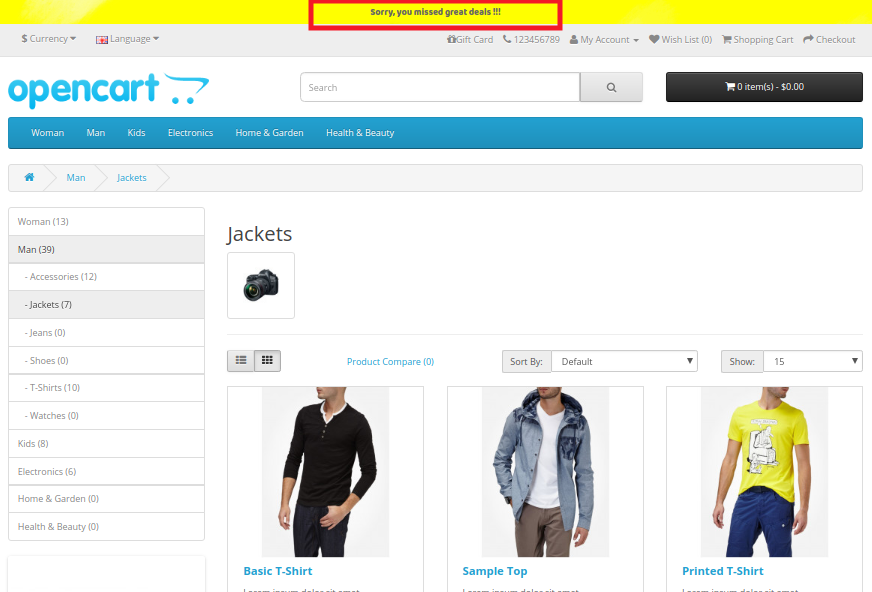
14. OpenCart admin can show a text message after the sale timer ends or expires. If no expiry message is shown then the timer will automatically end and disappear without giving any message to the visitors.

15. OpenCart sale countdown module works flawlessly in multiple languages and with multiple stores.

16. OpenCart Countdown Timer is completely mobile responsive.

17. OpenCart Countdown Sales Timer extension can be enabled or disabled on a single button click from the backend. Moreover, each of the timers can be separately enabled or disabled as per requirements.

2.0 Installation Guide of OpenCart Countdown Sales Timer extension

Before starting the installation process, you have to buy the OpenCart sale countdown module from the Knowband store. Once purchased, you will receive the following files on your registered email.

  • The source code of OpenCart Countdown Sales Timer extension in zipped file format.
  • User Manual of OpenCart Countdown Sales Timer extension

Now in order to install this OpenCart Countdown Timer Bar on your online shop, follow the given steps:

1. Unzip the zip file. You will get the folders as shown in the image below:

2. Copy all the folders of the zip file in the Root Directory of OpenCart setup via FTP manager.

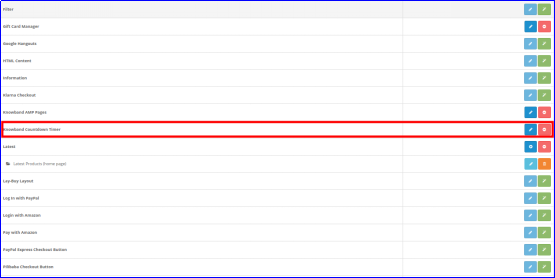
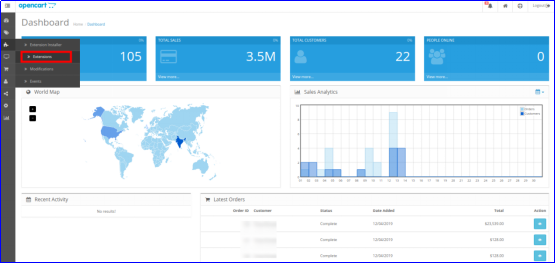
So, OpenCart Countdown Sales Timer is now successfully installed and is ready to use at your store. Go to the admin menu and click on the extensions and thereby click on configure button next to Knowband Countdown Timer.

3.0 Admin Interface of OpenCart Countdown Sales Timer Extension

Just after successful installation of Sales Countdown Timer Bar for OpenCart website, you can create and configure the countdown sales timers as per your requirements. Navigate the settings in the given order: Admin Panel > Extensions > Modules > Knowband Countdown Timer

The simple to understand admin interface of OpenCart Countdown Timer Module is divided into two broad sections namely:

1. General Settings
2. Timers

Each of these sections have been discussed in detail below. Further, the “Timer” section is sub-divided into:

1. General Settings
2. Display Settings
3. Look and Feel Settings

3.1 General Settings

The general settings of the Countdown Timer extension for OpenCart have been listed one by one.

  • Status: Enable or disable the complete functionality of countdown timer campaigns module on the store.
  • Fonts: Select the desired font style for the text information shown on the sales countdown timer bar.

3.2 Timers

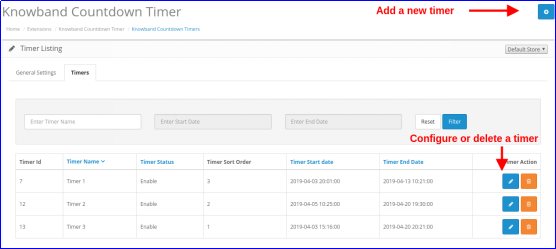
OpenCart sale countdown module provides a detailed view of the existing countdown timers. An option to edit or delete the existing timers is provided corresponding to each of the timers. Admin can easily make changes to the existing sale timers. To add a new countdown timer to the store, click on the “+” button shown at the top right corner of the admin interface. As you click on the “Add” button, you will see the following settings for the countdown timer.

3.2.1 General Settings

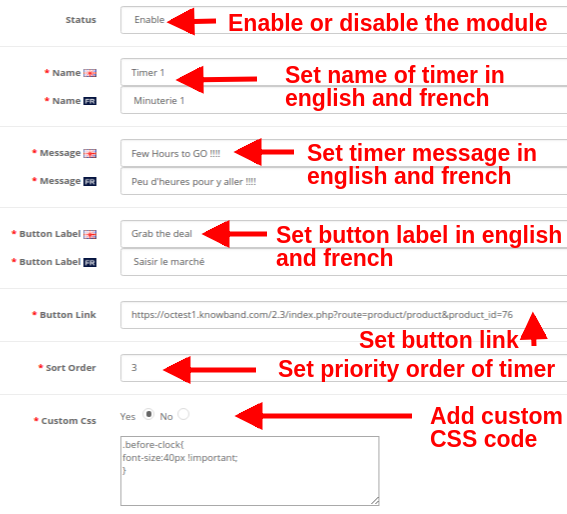
Initially, the above fields are set to their default values.

  • Status: This option enables or disables the countdown timer.
  • Name: This option allows you set a name for the sales timer so that you are not confused while configuring the settings for multiple timers on the store. The name can be specified in English, French and other languages.
  • Message: This option sets a message or text information shown on the countdown sales timer bar. This text describes the deal or discount offer which is active on the store.
  • Button Label: To redirect the visitor on the deal or offer page, a button is provided on the timer bar. This option allows you to set the desired label for this timer button.
  • Button Link: This option lets you set the URL for the timer bar button. When the user clicks the button, they are redirected to this specific link.
  • Sort Order: This option allows you to set the sort order or priority value for each of the timers created for the OpenCart store. Remember, this priority value should be unique.
  • Custom CSS: This option includes custom CSS to improve frontend functionality of the website.

3.2.2 Display Settings

The display settings of this OpenCart Countdown Sales Timer extension control where and how the Countdown Timer block will be displayed to the visitors. The various configuration options under this section include:

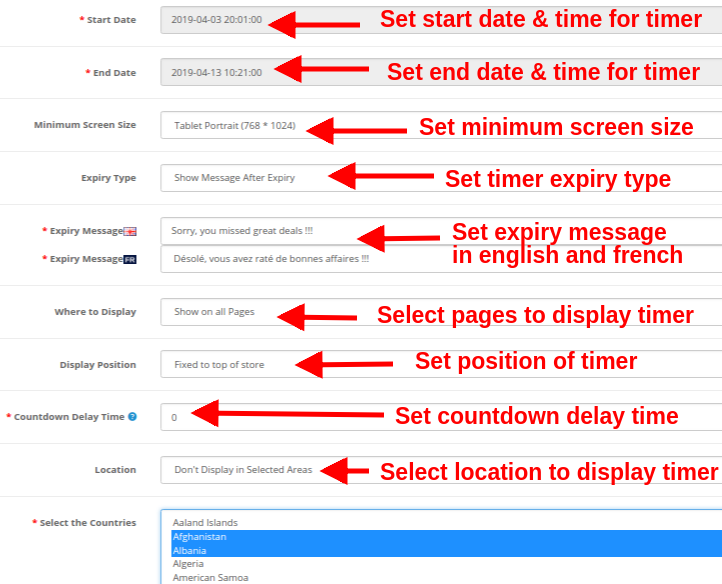
  • Start Date: This is a mandatory field that sets the start date and time for the countdown timer.
  • End Date: This is a mandatory field that sets the end date and time for the countdown timer.
  • Minimum Screen Size: This option sets the minimum screen size(display configuration) where this countdown timer block can be seen through different devices.
  • Expiry Type: This option allows you to set the countdown timer expiration type. You can either set it to “Auto” or you can “show a custom message after timer expiry”.
  • Where to Display: This option allows you to choose the site pages where you want to display the countdown timer block on the website. You can show on your complete site or only selected pages of your site.
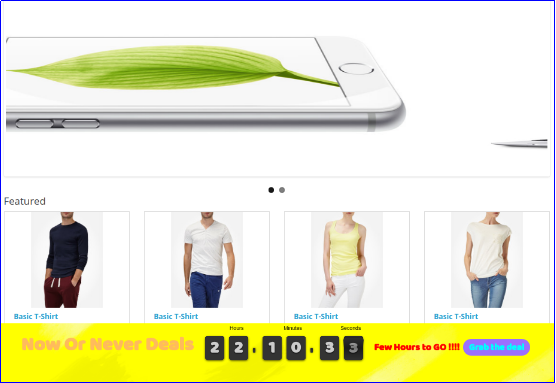
  • Display Position: You can fix the display position for the countdown timer block over the website. The three display options include:

1. Top of the store

2. Fixed to top of window

3. Bottom of the store

  • Countdown Delay Time: You can specify the delay time (in seconds)after which the timer block is displayed on the frontend. Set 0 if you want to display it immediately to the visitors.
  • Location: You can set a location where you want to show the sales countdown timer. You can set the location as global or to selected areas only.

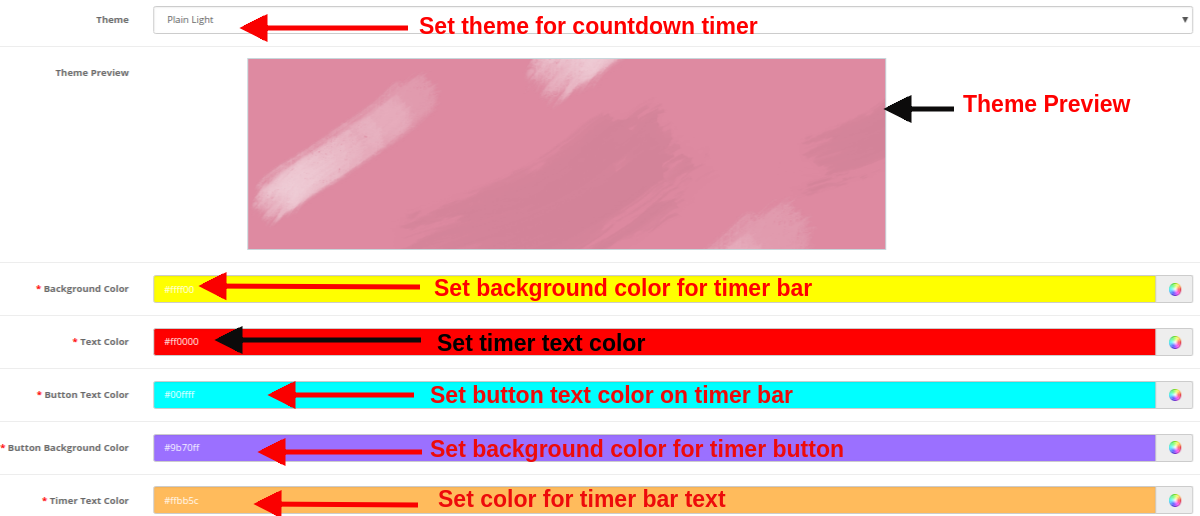
3.2.3 Look and Feel Settings

The look and feel settings of OpenCart Countdown Timer module control the frontend appearance of the countdown timer block. The various configuration options offered are:

  • Theme: This option allows you to set a theme for the sales countdown timer block.
  • Theme Preview: Using this option, you can preview the selected theme before applying the final changes to the website.
  • Background Color: Using this option admin can set the background color for the sales countdown timer block.
  • Text Color: The font color of the text shown on countdown timer block can be set using this option.
  • Button Text Color: Admin can change the text color on the timer button.
  • Button Background Color: Admin can set a desired background color for the timer button.
  • Timer Text Color: Select text color for the timer text shown in sales countdown block.

After this, click on the “Save” button shown at the top right corner of admin panel to save the module settings.

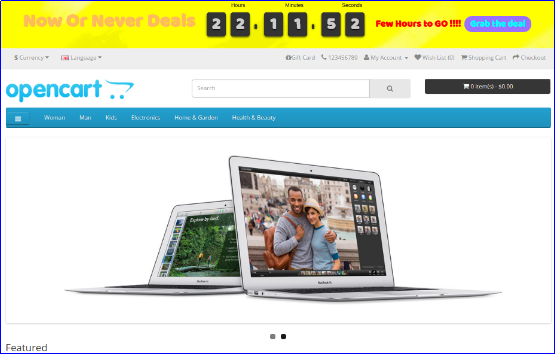
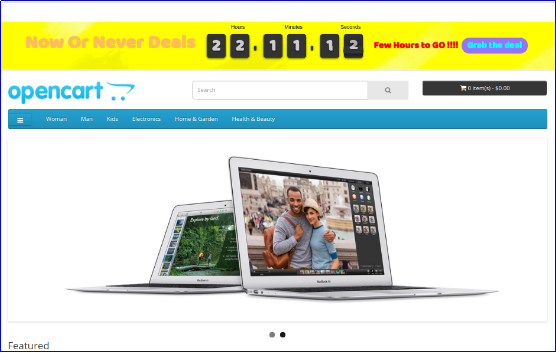
4.0 Front Interface of Countdown Timer Campaigns Module

After you have successfully configured the settings of OpenCart sale countdown module, you can see Sales Countdown Timer Bar for your OpenCart store in accordance with the selected priority values and time schedule.

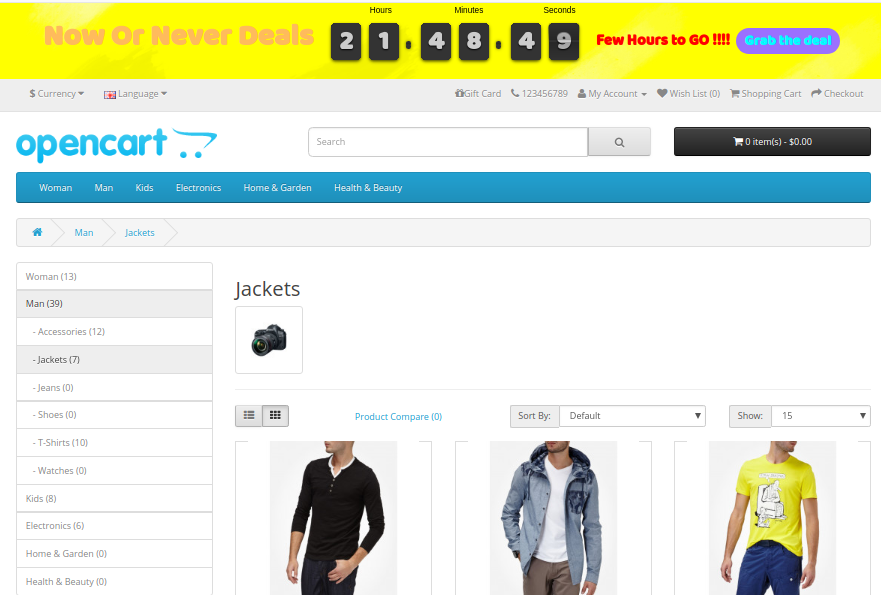
A) Sales Countdown Timer on Category Page


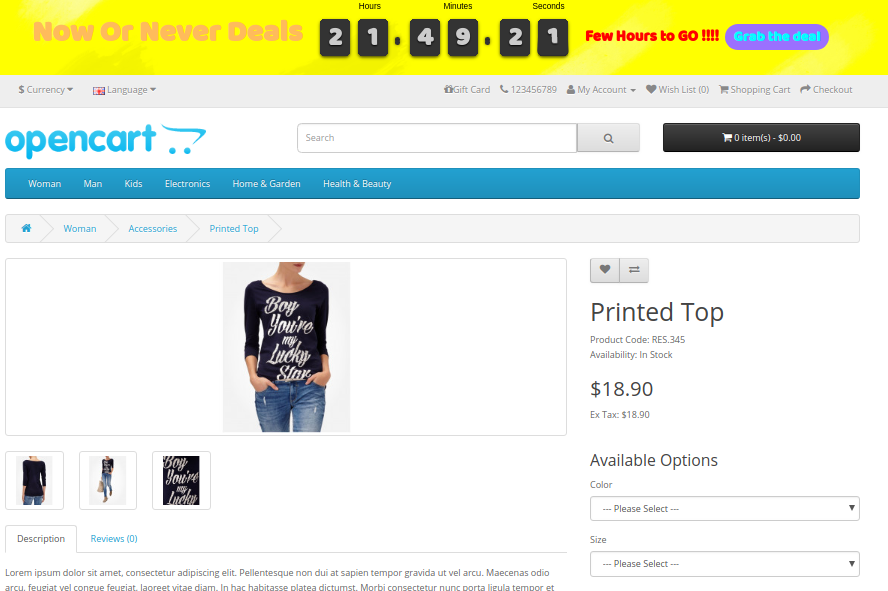
B) Sales Countdown Timer on Product Page


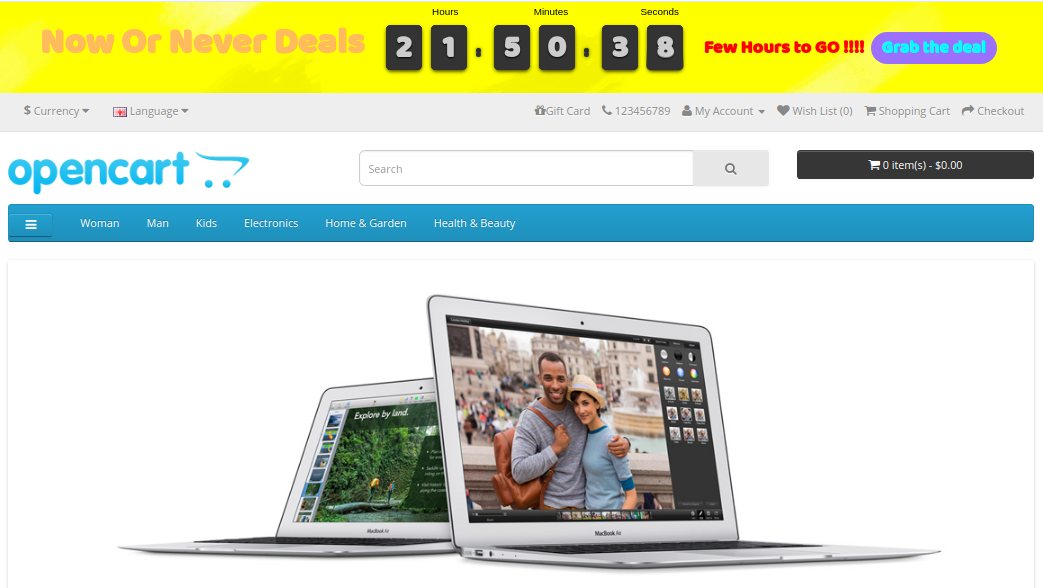
C) Sales Countdown Timer on Home Page

D) Expiration Message after the Sale Ends