Prestashop Web Push Notification Addon- User Manual

1.0 Introduction of Knowband Prestashop Web Push Notification Addon:

Web Push notification is a service that allows the eCommerce store owner to send automated push notifications on the browser to all users who have allowed web push notification. Prestashop Browser push notification addon allows the admin to display unlimited push notifications on the user’s browser even when they aren’t browsing your website.
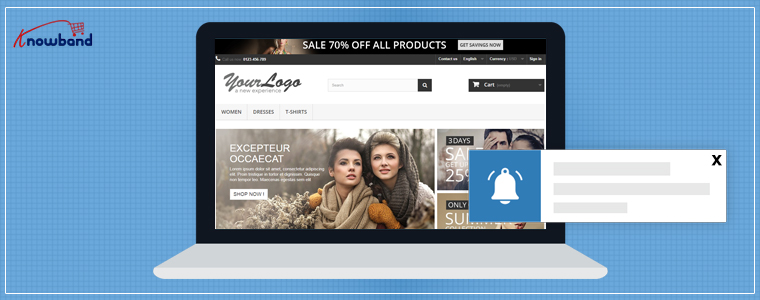
Prestashop Web Push Notification module

Knowband offers Prestashop Web Push Notification addon which sends automated push notifications like Welcome Notifications, Order Status Update Notifications, Price Alert and Back in stock alert notifications, etc. It increases the chances of conversion of the lost sales by sending automated abandoned cart notifications. Prestashop web browser push notification module helps the admin to get the customer’s attention back to their store. One of the best things about browser push notification is that the store admin re-engages with their visitors without knowing their email or any other contact details.

Important: Web Push Notifications are compatible with Chrome and Mozilla browser only.

What’s new in the updated version:

In the new version of this Prestashop web push notification module, the online store merchant can configure Firebase API by following the steps provided in the admin interface of this PrestaShop module. In order to show push notifications on the browser, the online store admin needs to set API key, Project id, message sender id and server key from the module back-end interface.

1.2 Features of the Prestashop Web Push Notification Addon:

1. Prestashop web push notification extension by Knowband adds push notification functionality in your Prestashop store with the help of which the admin can show browser notification to the users.

2. This user-friendly Prestashop Web Push Notification addon allows the admin enable/disable the order status update notification option.

3. The Admin can customize the confirmation block notification button from the back-end of the Prestashop Push Notification for web browsers module.

4. Prestashop Cart Reminder Push Notification module pushes the web notification to the customer from time to time when they abandon the cart.

5. The admin can send the price alert notification to the online shoppers when the price of the subscribed product is low.

6. Knowband’s Prestashop Browser Notification addon offers the store merchant to enable the product back in stock notification functionality. It pushes a browser notification on the customer’s browser once the product is back-in-stock.

7. The Prestashop store owner can customize the look and feel of the notification block from the back-end of the Prestashop Push Notification for web browsers addon.

8. Knowland’s Prestashop web push notification module allows the store owner can change the look and feel of the Subscription box as per the website theme.

9. Prestashop Website Push Notification module offers an option for the seller to customize the confirmation pop up from the back-end.

10. The admin can change the logo of the confirmation notification box.

11. Prestashop Web Push Notification module is easy to use and handle.

12. The Knowband Prestashop Browser Notification module offers multilingual support.

13. Prestashop Push Notification for web browsers Addon is compatible with all browsers.

14. Prestashop Web Push Notification Addon is multi-store compatible.

15. The online merchant can setup web browser configuration and configure firebase API by following the provided steps along with the screenshots. The online merchant can setup API key, Project id, message sender id and server key for showing web browser notifications to the online users.

Technology for Development

Language: PHP

FrameWork: PrestaShop

2.0 Steps for Installation of Prestashop Web Push Notification Addon:

1. The folder structure of the Prestashop Browser Push Notification module.

2. Copy the whole folder named as product update into your modules folder of the root directory of your PrestaShop store through FTP.

3. You will be able to find the product web push notification plug-in ready to be installed in the Modules in your PrestaShop store as shown below.

4. Click on the Install link to install the plugin.

4. Another way is, you can zip the whole folder and then click on “Add New Module” link displaying on the top right corner of Prestashop module listing page.

5. After installing the Prestashop Push Notification for Web Browsers module, “Configure” link will be displayed instead of “Install” link as shown in below screen:
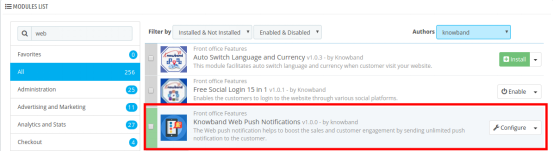

Now, your Prestashop Web Push Notification Addon is ready to use and click on “Configure” link to configure this Prestashop module by Knowband.

3.0 Admin Interface

After installing Prestashop Web Push Notification module into the store, the Prestashop addon will provide the following interfaces:

1.General Settings
2.Templates
3.Push Notification
4.Delay Push Notification
5.Subscriber
6.Product Subscriber
7.History
8.Statistics

Each interface of this Prestashop browser push notification module is explained below.

3.1 General Settings

General Settings tab of this Prestashop Web Push update notification addon has following options:

3.1.1 Configuration Settings

On clicking on configure link corresponding to Prestashop Website Push Notification addon, the system will open Configuration tabs of this Prestashop plugin as shown in the screen below:
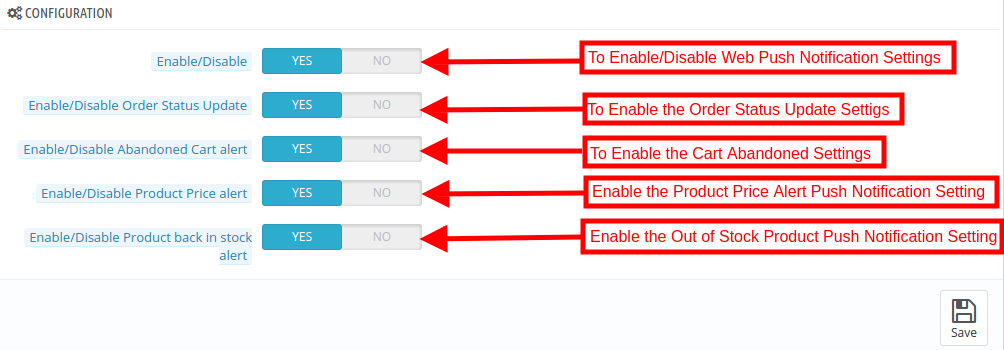
  • Enable/Disable: Initially, this field of Prestashop browser push module by Knowband will be disabled. The admin can enable/disable the plugin by toggling the button.

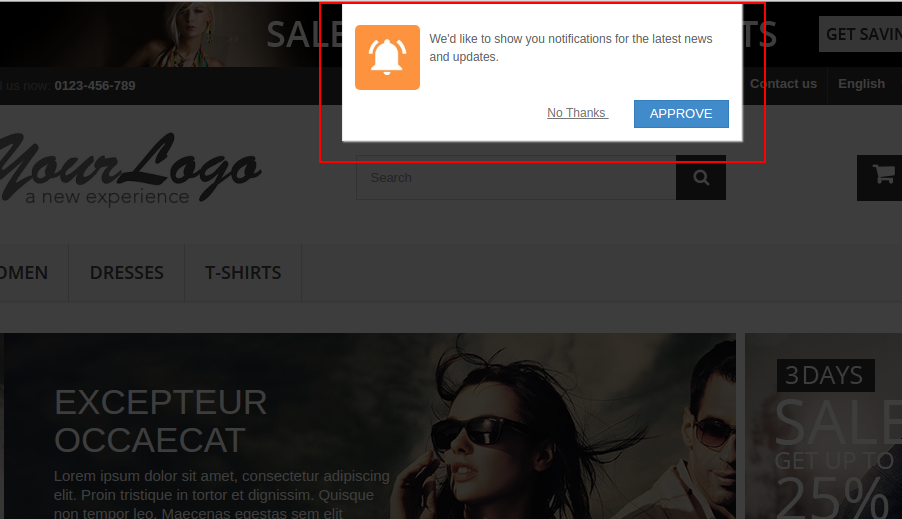
After enabling the settings the module, a confirmation box will be displayed in the in the front-end of the store. The store visitors or customers can click on ‘Approve’ to enable the push notifications.
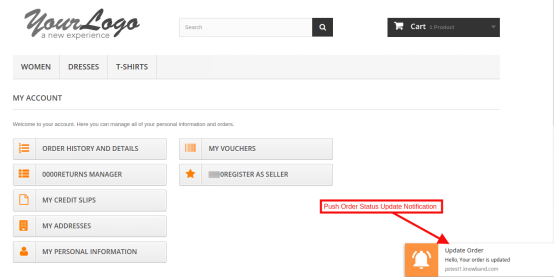
  • Enable/Disable the Order Status Update: In this section of Prestashop Push Notification for web browsers addon, the admin can enable the settings to send web notification for the order status. After enabling this setting, the admin can send order status notification the customer.

The push notification for order status will be displayed as shown in the image below:
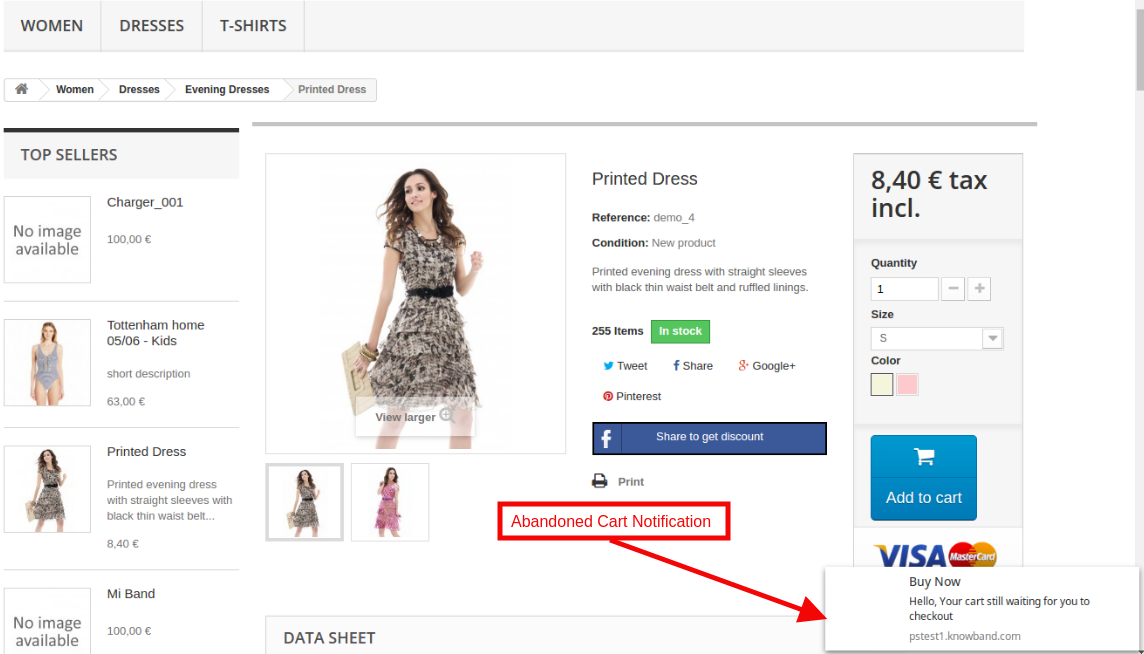
  • Enable/Disable the Abandoned Cart Alert: Using this option of the Prestashop Web Push Notification addon, the admin can enable the settings to send web notification for the abandoned carts of the customers.

These settings work only when the customers abandon their cart for some reasons. Then this module sends the web push notification to the customer saying “Your cart is waiting”.
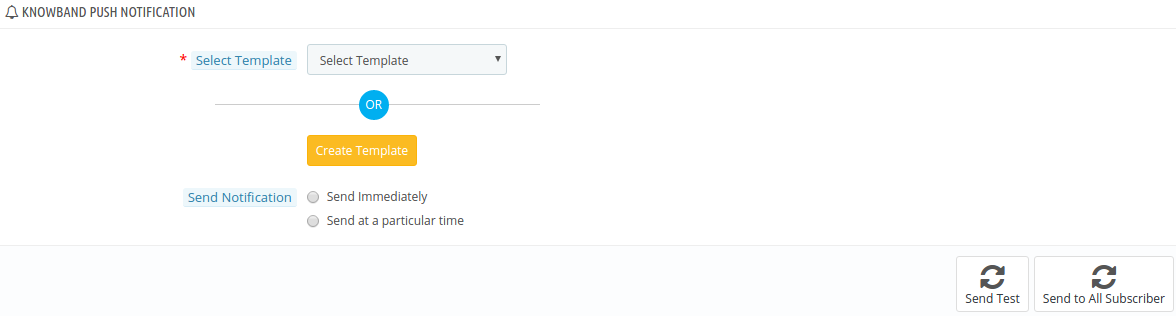
Note: Web push notification module allows the admin to run cron to send the push notification immediately or after a fixed time.
  • Enable/Disable the Product Price Alert Settings: Using this option of the Prestashop Browser Notification addon, the admin can enable the settings to send web notification for the customer when the product price is down.
  • At the front-end, this Price alert notification box will appear like below screenshot:
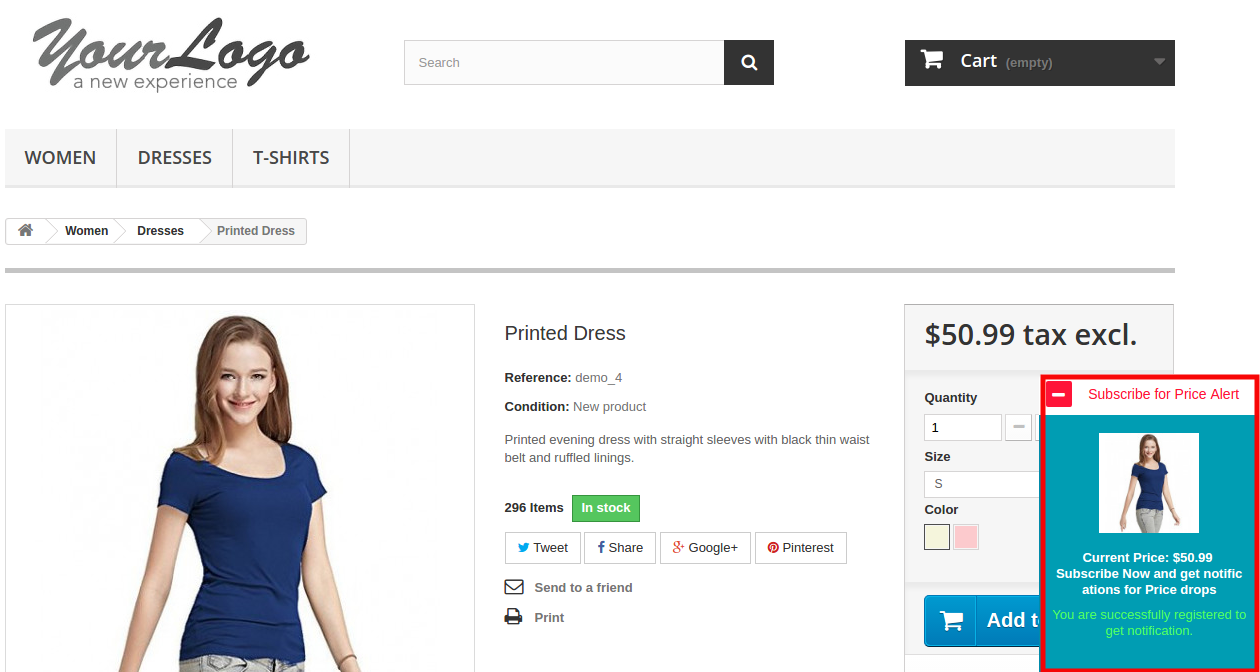
Note: These settings are only applicable when the users subscribe for the Price Alert.

  • Enable/Disable the Product Back In Stock Alert Settings: Initially, this setting is enabled, this Prestashop Push Notification for web browsers Addon allows the admin to send product alert notification to the customer when the product is back in stock.
  • At the front-end this Back In Stock notification box will appear like below screenshot:
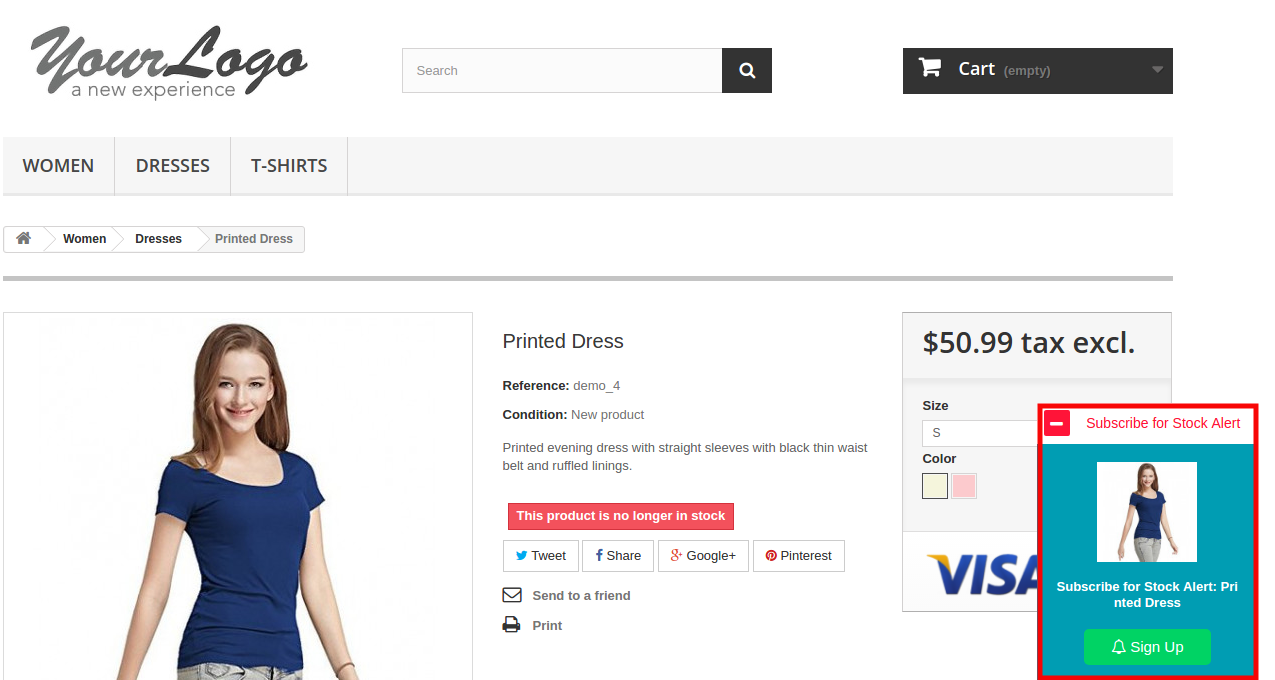
Note: These settings are only applicable when the user subscribes for the notification.

3.1.2 Product Sign Up Box

In this tab of the Prestashop Web Push Notification addon by Knowband, the admin can edit the Sign-Up Box settings of this Prestashop module in various languages. This tab will have the following options:
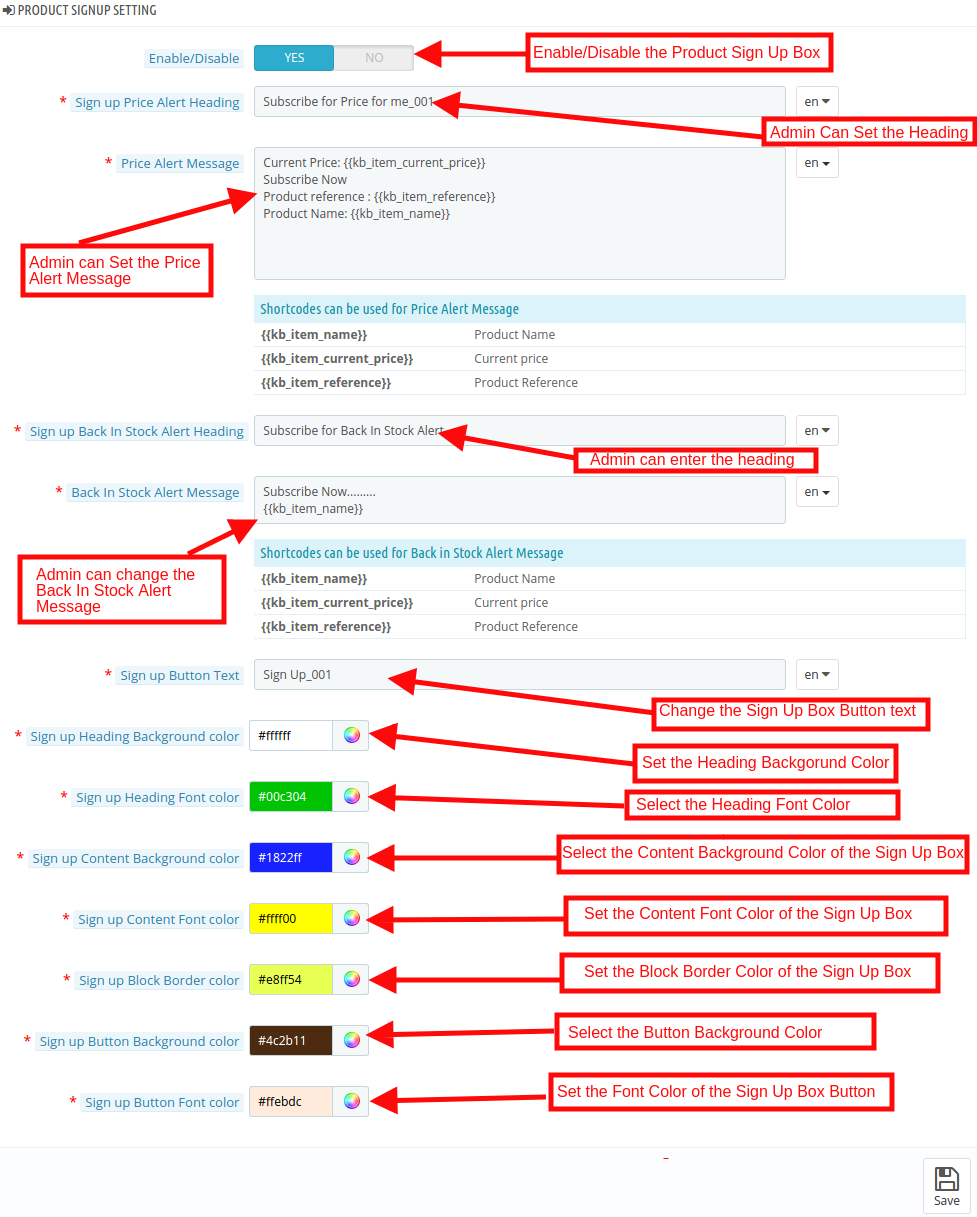
  • Enable/Disable Product Subscription Box Settings: In this tab, the admin can enable the product subscription box option. If enabled, the Prestashop Browser Push Notification module will show the Subscription box in the Front-end of the store where the customer can subscribe for the price alert or back in stock product.
  • Sign Up Price Alert Heading: Initially, this field of Prestashop Web Push Notification module allows the admin to change the heading price alert notification as per the requirement.
  • Price Alert Message: In this section of Prestashop Browser Push Notification module, the store admin can change the message flashed in the Price alert subscription box.
  • Sign Up Back In Stock Heading: This option of the Prestashop back in stock web push alert module allows the admin to edit the heading of the back-in-stock notification.
  • Back In Stock Message: In this Prestashop Push Notification for web browsers Addon tab, the Online retailer can change the message of the back in stock subscription box.
  • Sign Up Box text: The Prestahsop store admin can change the look and feel of the subscription box by picking the color from the color picker. The changes made in the back-end will be reflected in the front end.
  • Sign Up Box Heading Background Color: The Store merchant can change the background color of the heading of the signup box in this.
  • Sign Up Heading Font Color: This option of the Prestashop Website Push Notification module allows the admin to set the Heading font color as per requirement and will be reflected the front end of the site.
  • Sign Up Box Content Background Color: The Prestashop Merchant can change the Subscription box Content color in this section of Knowband Web Push Notification For Prestashop.
  • Sign Up Box Content Font Color: The admin can change the font color from this section.
  • Sign Up Box Content Border Color: This field of Prestashop Web Push Notification addon allows the admin to set the border color.
  • Sign Up Box Content Background Color: This option of the Prestashop back in stock web push alert module allows the admin to set the background color of the sign-up box.
  • Sign Up Box Button Font Color: Using this option of the Prestashop Browser Push Notification module, the admin can set the font color of the text displayed in the buttons.

3.1.3 Welcome Push Notification Setting

In this Prestashop Web Push Notification, the store admin can customize the look and feel of the Welcome notification box. This Welcome Notification box will be shown in the Front-end of the store when the customer enters the store. Users have an option to subscribe to the notifications or cancel the option. This tab will have the following options:
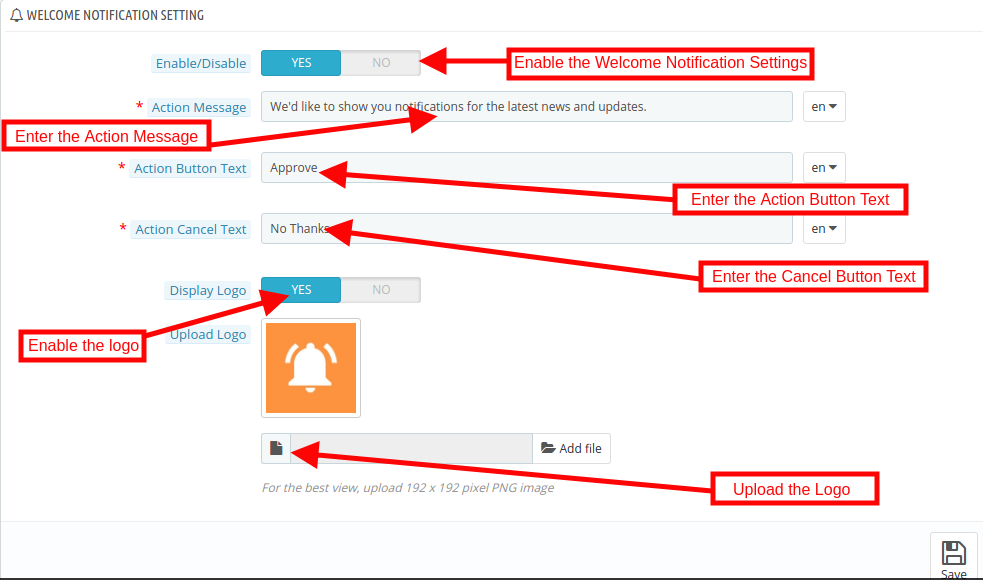
  • Enable/Disable: Admin will have the option to Enable/Disable the Permission Box. If enabled, the permission box in the front-end of the store.
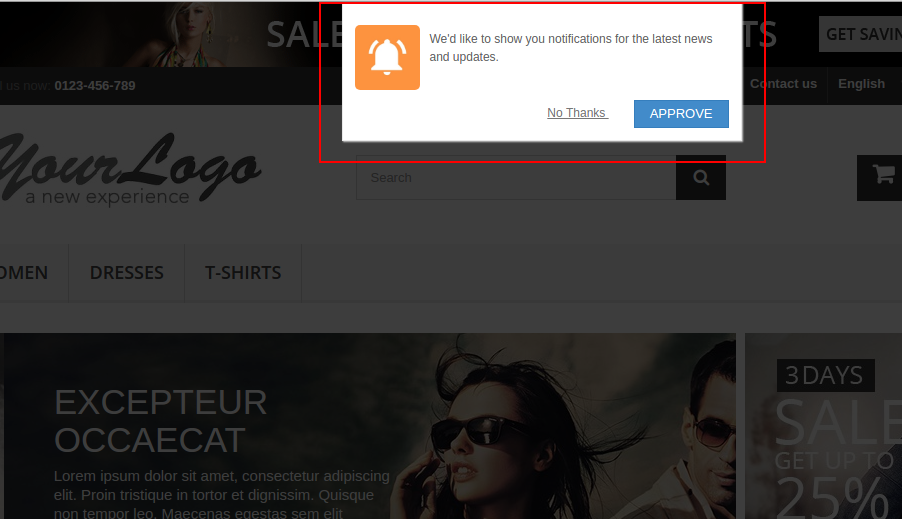
  • Action Message: The Admin can change the action message that will be reflected the front end of the site.
  • Action Button Message: In this Prestashop Website Push Notification Addon, the store admin can change the message of the Permission box action button message.
  • Action Cancel Text: In this tab, the store admin can set the Cancel button text.
  • Display Logo: The store admin can enable/disable the option to display the logo.
  • Upload Logo: The online retailers can upload their own business in this section.

3.1.4 Web Browser Configuration

In the updated version, the online merchant got an option to configure Firebase API and setup these details for showing web browser notifications to the online users:
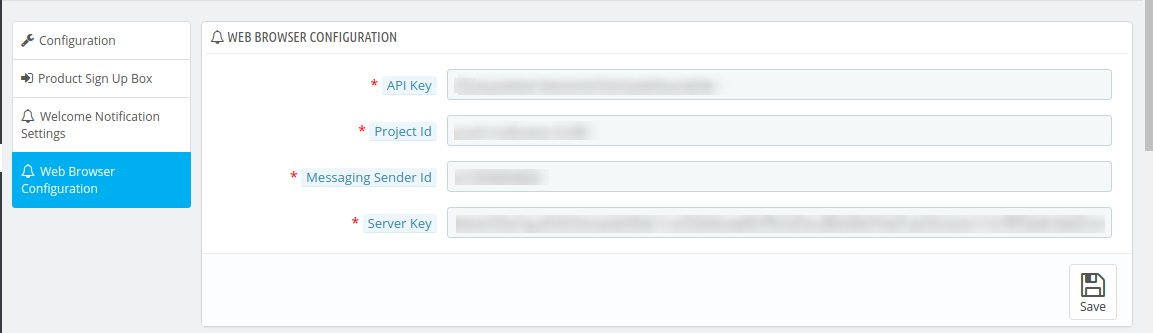
  • API Key: Enter the API key here.
  • Project ID: Enter Project Id here.
  • Messaging Sender ID: Here, enter messaging sender ID.
  • Server Key: Enter the server key here.

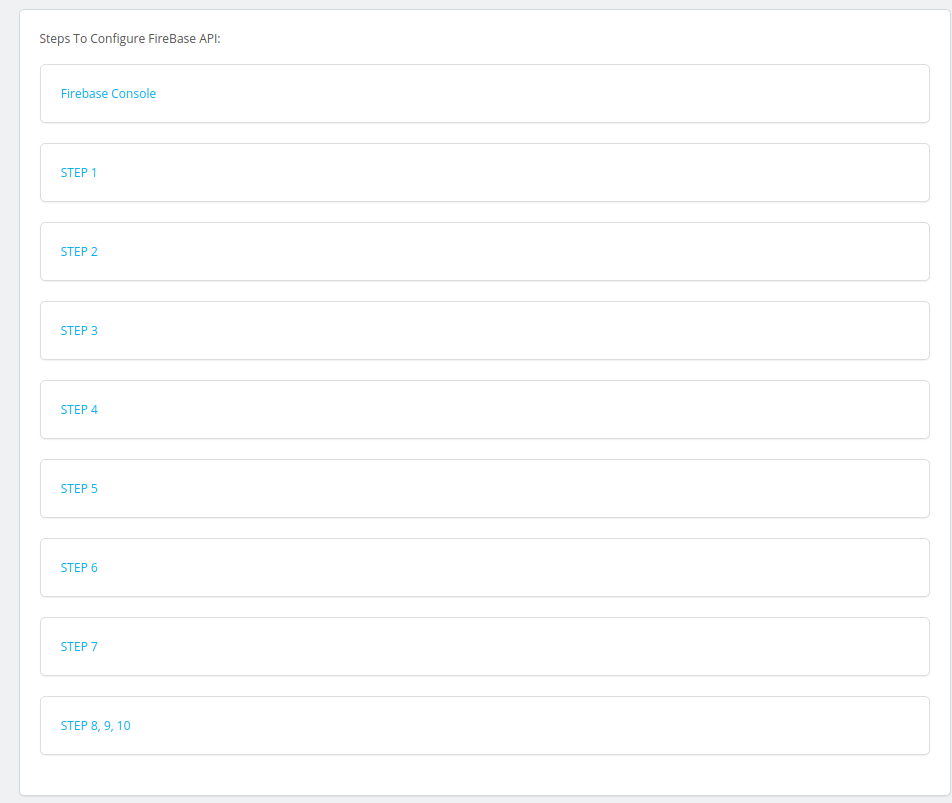
The online merchant can view the configuration steps along with the screenshots.
3.2 Templates

Here store owner can customize or add the Web Push notification template in this section of the Prestashop Website Push Notification addon according to the requirements.
Web push notification allows the store admin to customize the template for the following option:

1. Custom Notification Alert
2. Product Back In Stock Alert
3. Product Price Alert
4. Abandoned Cart Alert
5. Order Status Update Alert

3.2.1 How to add Custom Notification Template?

The Prestashop Web Push Notification addon by Knowband allows the store admin to add the new Custom Notification template. Following are the steps to add a Custom Notification template –

1. Go to “Web Push Template”.

2. Click on “Add New Push Template” tab. A pop-up will display to add a new push template.
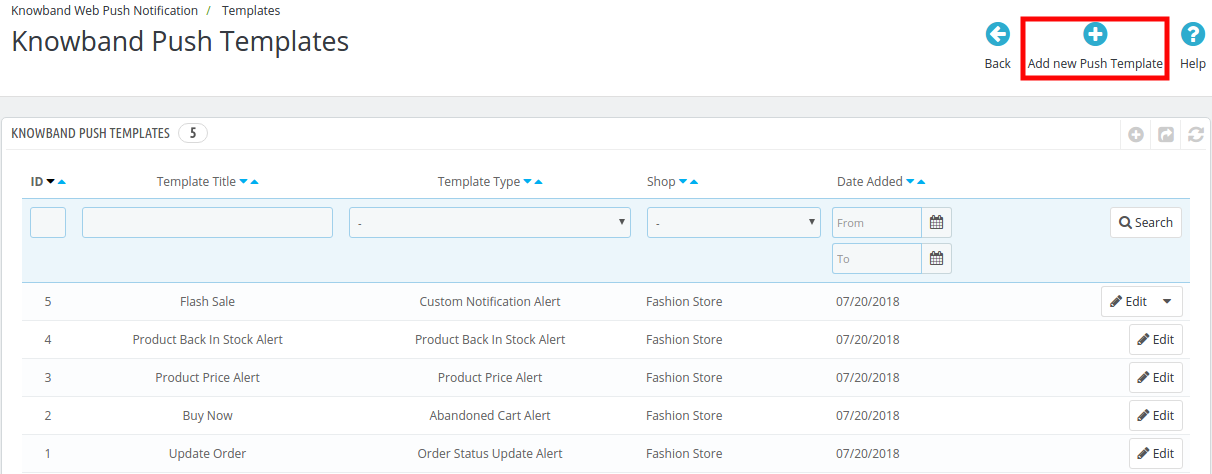
3. Fill all the mandatory fields and click on the “Save” button.

The various mandatory fields are discussed below. Please find the attached screen-shot:
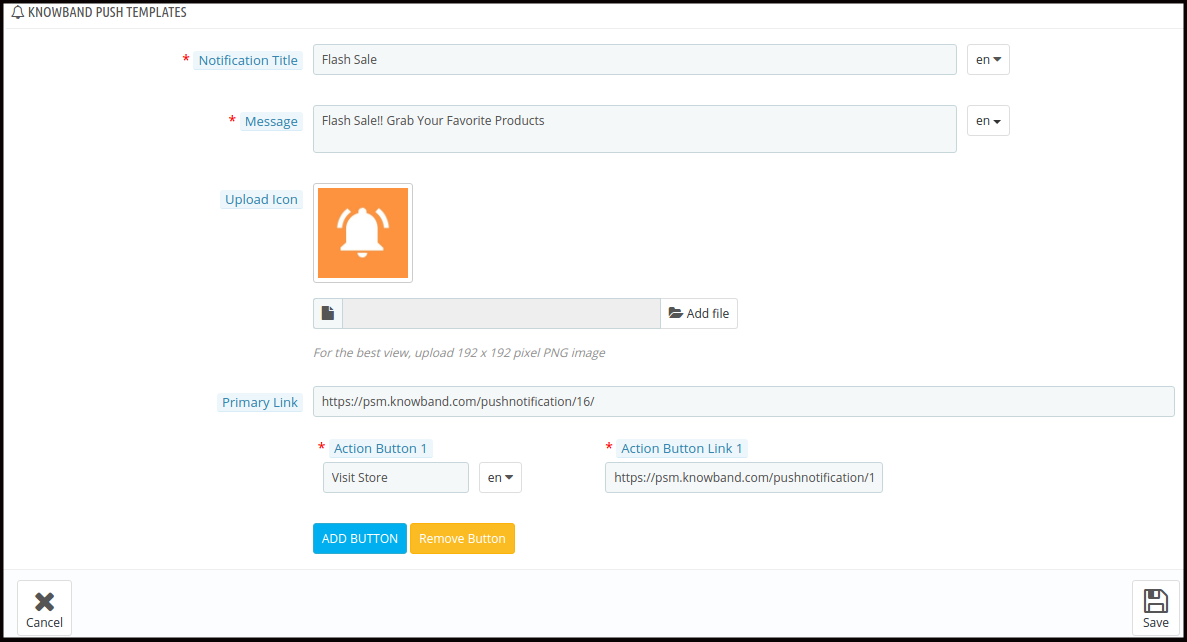
  • Notification Title: Here the admin can set the Notification title.
  • Message: Using this option of the Prestashop web push notification module, the eCommerce store admin can set the message that will be displayed along with the notification.
  • Upload Icon: In this field, the store admin can upload the icon for the notification.
  • Primary Link: The Store admin can add the link of any specific page where they want to redirect the user.
  • Action Button: In this tab, the online merchant can add the two buttons that will be displayed along with the push notification. These action buttons can be used for various promotions.

4. After the successful enter the details, the new custom template would be added in the “Web Push Template” table.

Note: The Admin can add the N no of Custom template for various promotional offers like Flash Sale, Buy 2 Get 1, Happy hours and more.

The other notification options are discussed below:

  • Product Back In Stock Alert: In this tab, the store admin can customize the settings of the back in stock notification like Your product is out of stock. Please find the attached screen-shot:
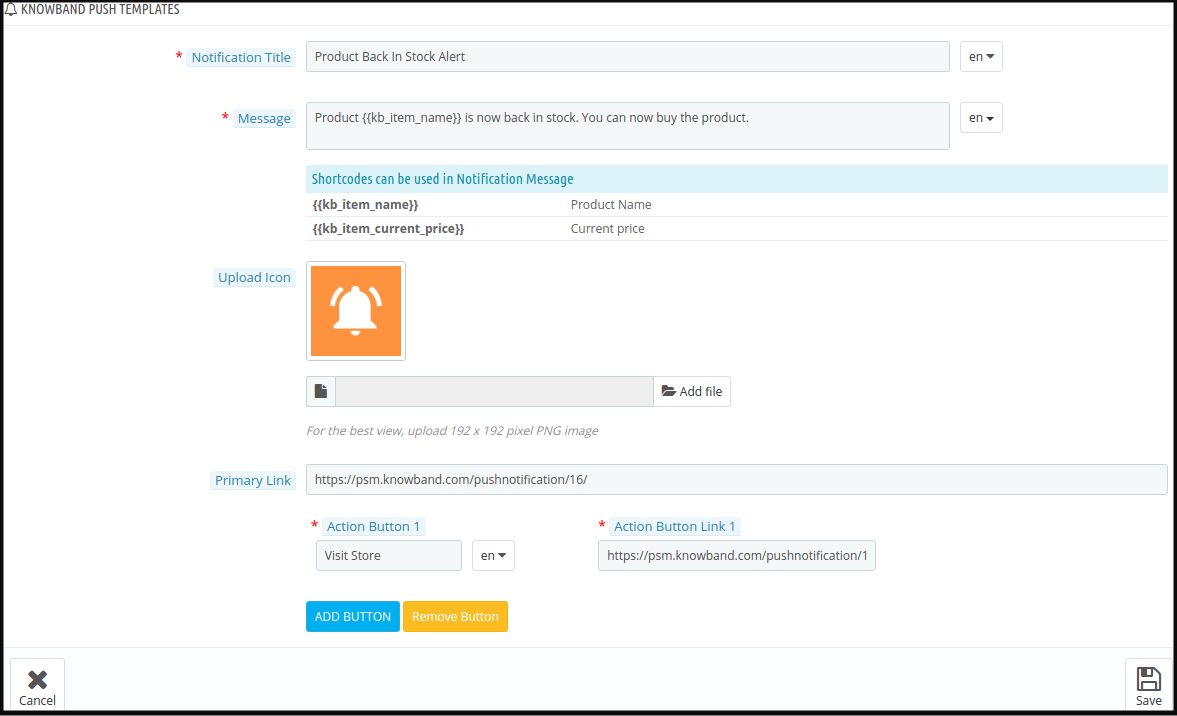
When the store admin changes the status of the Product quantity from the back-end of the Prestashop Web Push Notification module the Product quantity Push Notification send to the customer.

  • Product Price Alert: In this tab, the store admin can customize the settings of the product price alert notification. Please find the attached screen-shot:
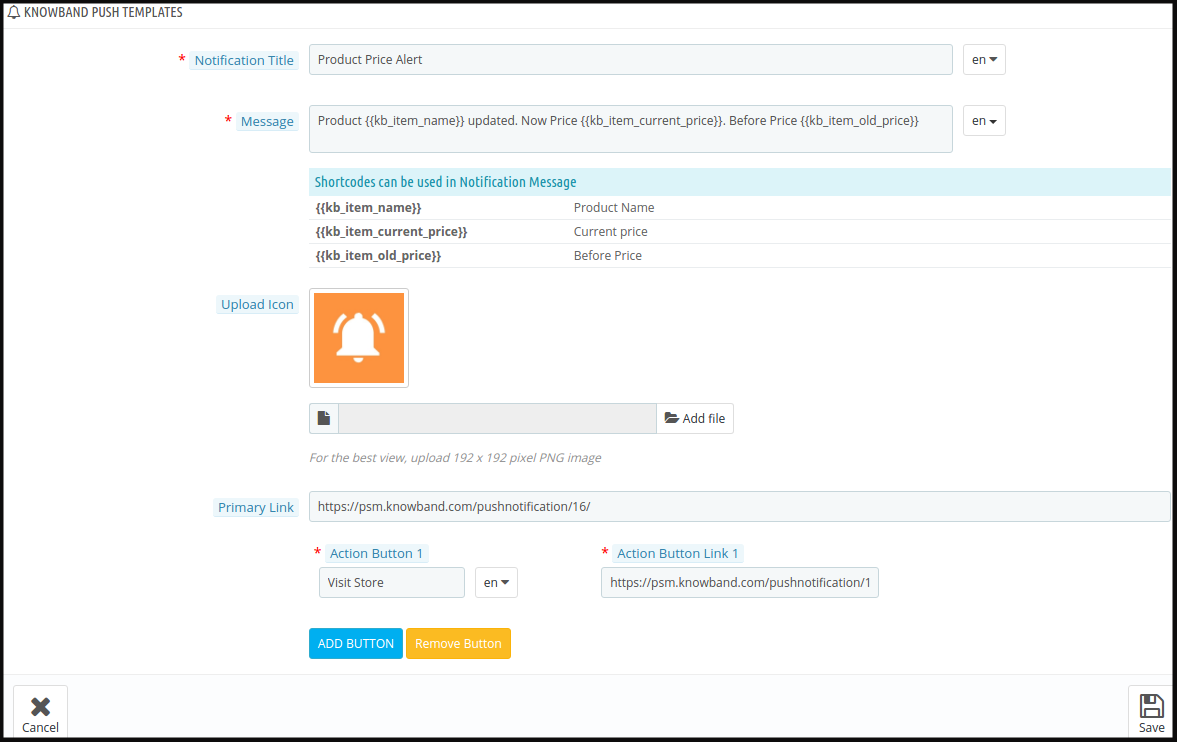
When the store admin changes the product price/run the special deal from the back-end of the module the Push Notification send to the customer.

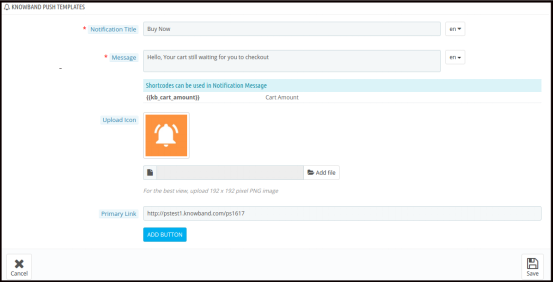
  • Abandoned Cart Alert Template: This Prestashop Browser Push Notification module offers an option for the admin to customize the abandoned cart template form the back-end.

Here the store admin can customize the Abandoned Cart template.
  • Order Status Update Alert: This Prestashop Web Push Notification module offers an option for the admin to customize the Order status template.

Here the store admin can customize the Order status template.
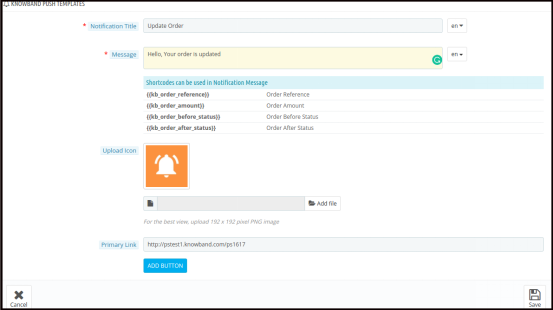
When the store admin changes the status of the order from the back-end of the Prestashop Web Push Notification module the Order Status Push Notification send to the customer.

3.3 Push Notification

Prestashop Web Push Notification module allows the admin to set up the cron to send a push notification. The Admin has the option to send push notification manually or by the setting of the cron.

3.3.1 How to send Push Notification Manually?

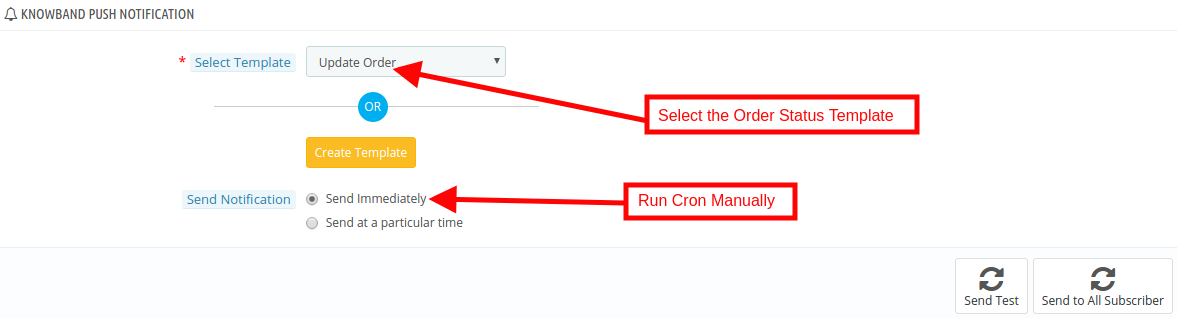
In order to send the Push notification manually for Update Order, Buy Now, Product Price Alert, Product back in stock and Custom Notification. The store admin needs to select the template type from the drop-down list.

For example: If the store admin wants to Push the “Order Status Notification” manually, then he has to select the “Update Order” option from the drop-down list and click on the Send to All Subscriber option.
3.3.2 How to Schedule the Notification?

There are the steps for scheduling the Notification:

1. Go the Push Notification template.

2. Select the template which you want to schedule for future notification.

3.Set the time when the admin wants to send the notification.
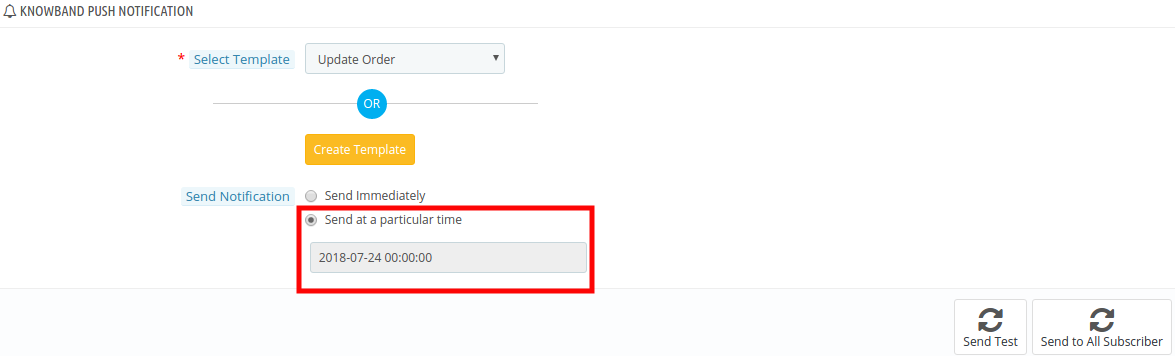
4. Delay notification set.

CRON Configuration:

In order to send the Push Notification automatically, the Prestashop store admin can set up the cron job. There is two option available in the admin panel of the module.

1.  The Admin can run the cron manually.

2. Cron Setup via Control Panel: In order to automate the setup the admin can configure this setting.

Please find the instructions to setup crons below –

URLs to Add to Cron via Control Panel

1. Push Delay Notification –

https://psm.knowband.com/pushnotification/16/en/module/kbpushnotification/cron?action=syncdelaypush&secure_key=833529a5a031ca74519cb78116dbd145

1. Push Abandoned Cart Notification –

https://psm.knowband.com/pushnotification/16/en/module/kbpushnotification/cron?action=syncabandonedcart&secure_key=48b7fd9add0e1bd32807a51fb2ba6cd0

Cron setup via SSH

Push Delay Notification – 40 * * * * curl -O /dev/null

‘https://psm.knowband.com/pushnotification/16/en/module/kbpushnotification/cron?action=syncdelaypush&secure_key=833529a5a031ca74519cb78116dbd145’

Push Abandoned Cart Notification – 10 * * * * curl -O /dev/null

‘https://psm.knowband.com/pushnotification/16/en/module/kbpushnotification/cron?action=syncabandonedcart&secure_key=48b7fd9add0e1bd32807a51fb2ba6cd0’

3.4 Push Delay Notification

Web Push Notification For Prestashop allows the Prestashop store admin to schedule the notification for a particular time. All the scheduled notification will be displayed in the Push Delay Notification tab along with their status.

3.5 Push Subscriber

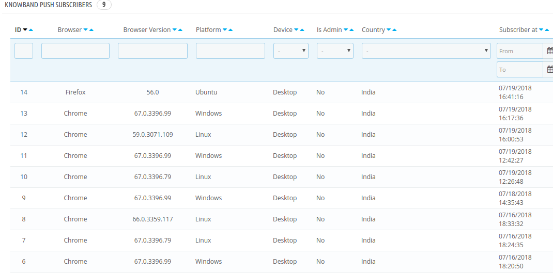
Prestashop web push notification plugin allows the admin to view the list of the subscribe browser.
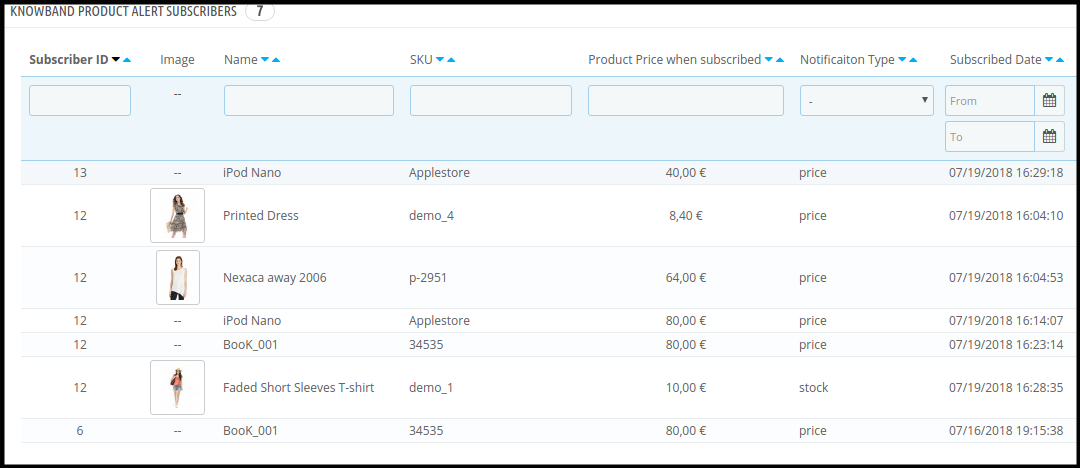
3.6 Product Alert Subscriber

This Prestashop Push Notification for web browsers addon allows the online retailer to view the list of subscribed product. They can also view the product notification type like price alert or back in stock.
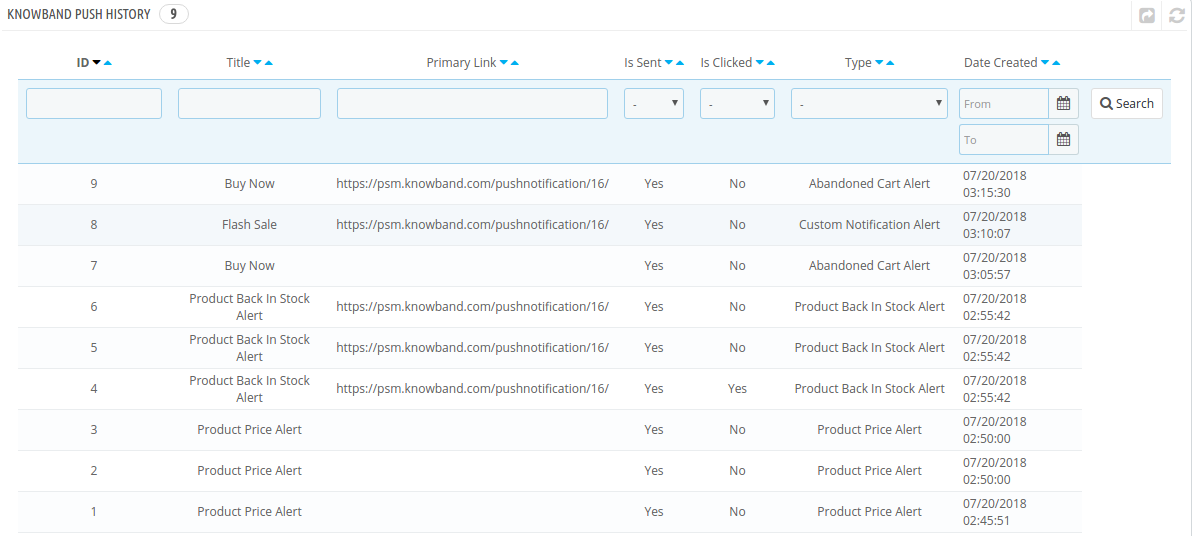
3.7 Push History

In this Prestashop web push notification module, the store admin can view the overall history of the web push notification. Apart from this, the admin can filter the history and view the notifications pushed for options like abandoned cart, price alert, back in stock and more.
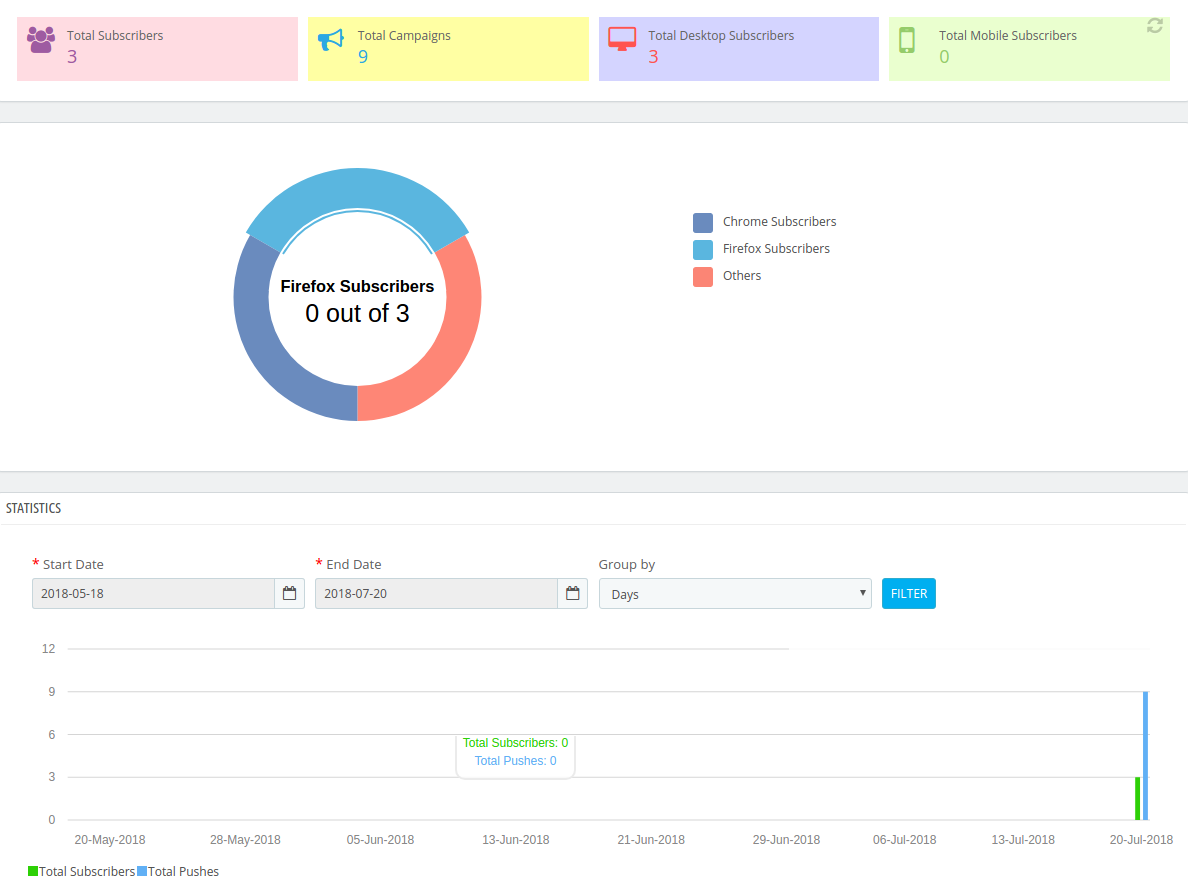
3.8 Web Push Statistics

The complete analysis of the subscribed customers can be done with the help of report offered in this tab of the Prestashop web push notification module.
4.0 Front End Module of the Prestashop Web Push Notification module:

After enabling the Prestashop Website Notification module by Knowband the front-end user will see a confirmation block at the home page. The block of the Prestashop Browser Push Notification addon contains two buttons as to Approve or Cancel the notification. If the user Click the approve button they will be subscribed to the respective website.

The Confirmation block of Prestashop reminder email module would appear as follows:

Abandoned Cart Web Push Notification:

Oder Status Update Web Push Notification:

What to do if your app was declined on Google Play Store?

If your app lately suffered Google’s lash and got rejected on Play Store, it’s actually not a big problem and can be resolved easily. It happens quite often now-a-days that app declined by Google. The reason behind app rejection might either be that they do not meet the publishing guidelines or they have performance issues. Google has made its approval process for app more strict to offer bug-free apps for the users. Removing such apps from the play store which could damage our smartphones or steal any important data, has somehow benefited us all.

To understand how to resolve this issue, first, let us discuss why it happens in the first place. There are plenty of app rejection reasons which one should keep in their mind before getting them published on Play Store. The apps being declined after so much hard work might be scary for you, but it can be fixed. The discussion below would the do’s and do not’s in case your app declined on Google’s Play store.

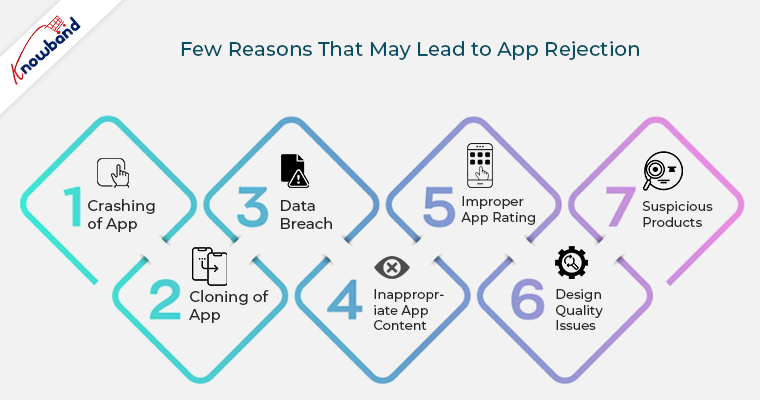
Here are the few reasons that may lead to app rejection and the ways to deal with them:

1. Crashing of App

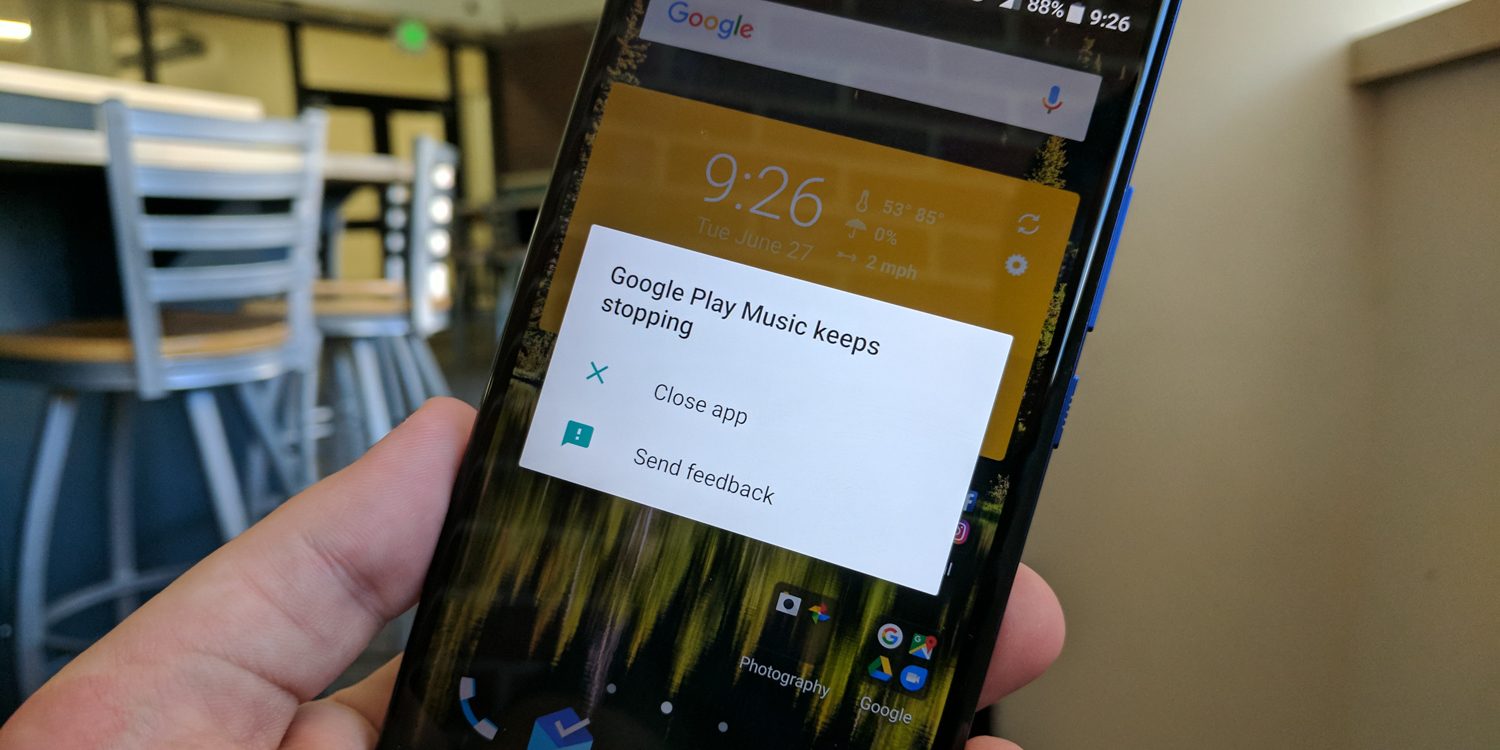
Whenever the users download an app after going through tedious searches on Play Store, they want them to work flawlessly. An app that crashes every now-and-then, might frustrate the users. Google doesn’t allow such apps in its store and thus it becomes one of the basic reasons for the app decline.

How to deal with it?

Try to test your app until you are fully satisfied with its functionality. Make sure that the app is tested as per the guidelines shared by the Play store. Get your app properly functional before publishing it to a website. If your app is already rejected, curb out its technical errors and republish it.

2. Cloning of App

Google follows very strict guidelines against copyright issues. You should be very careful before infringing on them. Your app should not be a cheap imitated version of any popular application. Concept, design or code, your app should be original. Often it happens that we somehow use a trademarked title for our app, knowingly, or by mistake, but this is restricted by Google.

How to deal with it?

If your app gets rejected due to copyright/trademark issue, just review your app title, its description, images and remove all the copyrighted names from them. If you have taken any permission from the owner regarding the same, it will be allowed by Google, prior to proper proof submission.

3. Data Breach

If you don’t want this to happen with you, keep your app enriched with the privacy policies. If your app has already been declined for the same reason, take important measures to remove data breach from it and republish it on the Google Play Store with a new account. (Refer to section 1.2 for the creation of new Google Play account)


How to deal with it?

If you don’t want this to happen with you, keep your app enriched with the privacy policies. If your app has already been declined for the same reason, take important measures to remove data breach from it and republish it on the Google Play Store with a new account. (Refer to section 1.2 for the creation of new Google Play account)

4. Inappropriate App Content

App content should not have any instance of graphic violence, racist comments or sexual content. If there is any kind of mature content available in the description, you should clearly mention at the time of app rating. If you try to hide the fact or consider it less important, you will ultimately find your app in Google’s bin.

How to deal with it?

If your app gets rejected because of inappropriate content, accept the rejection carefully and seriously. Don’t try to repeat it again with other apps linked with your account. Repeated violation of this guideline could get your entire account permanently terminated from Google’s Play Store. For the app which has been already rejected, publish it with a new account and be careful about spamming this time. Keep the address of this account different from the previous one and don’t link both of them in anyway. (Refer to section 1.2 for the creation of new Google Play account)

5. Improper App Rating

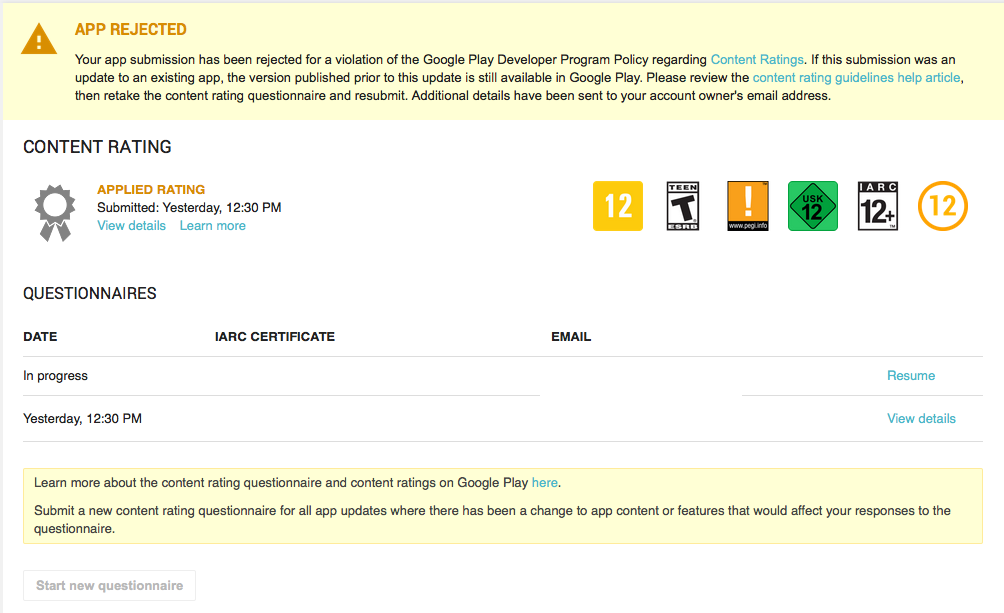
Google’s Play Store gives app content rating feature to provide info about what age group is suitable for that app. For this, there is a questionnaire that needs to be filled. On the basis which your app will be rated. You should provide all the correct info about your app and make sure it has been rated correctly for the right audience. Often people try to mislead the moderator with wrong details and ultimately their app gets underrated.

How to deal with it?

Google provides an easy solution for it, by giving you second chance to fill up the questionnaire. You should take this opportunity seriously and provide all the correct information about your app this time and get your app rated correctly on Google’s Play Store. However, if you keep on repeating this mistake, instead of being unrated, your app will be permanently rejected from the store.

6. Design Quality Issues

If your app follows proper design guidelines, you need not worry about the app rejection. Google’s design guidelines describe all the basic principles required for building your app’s UI. Keep your app’s color, fonts and graphics as per the rules and it will be easily published on the Play store or else it will be rejected.

How to deal with it?

If your app gets rejected because of design issues, I would recommend you to invest some money and get your app re-designed as per the shared guidelines. It is the best possible solution available in this scenario.

7. Suspicious Products

If an app tries to pose any type of risk on user’s security, it will be at once rejected by Google. Any type of malware, Trojan horse or other viruses and bugs if found either in-app or linked with app description, Google will catch it.


How to deal with it?

Make sure that every links and ad network used in your app are clean and does not contain any malware issues. If these ads or links are pointing to something suspicious or dangerous content, it violates Google’s guidelines. If your app already got rejected, try to remove all the malware and add a privacy policy with it if any private information is being asked by the user. Publish an app after this with a new account. (Refer to section 1.2 for the creation of new Google Play account)

1.2 How to create a new account on the Google Play Store?

You can easily set up a Google account from your Android device or laptop. Following are the few tips regarding developer account registration:
  1. Create a separate Google Account through your device.
  2. Make sure this Google account is not personal, keep this account organizational.
  3. Review all the developer and seller countries where you can target your audience before going for account creation.

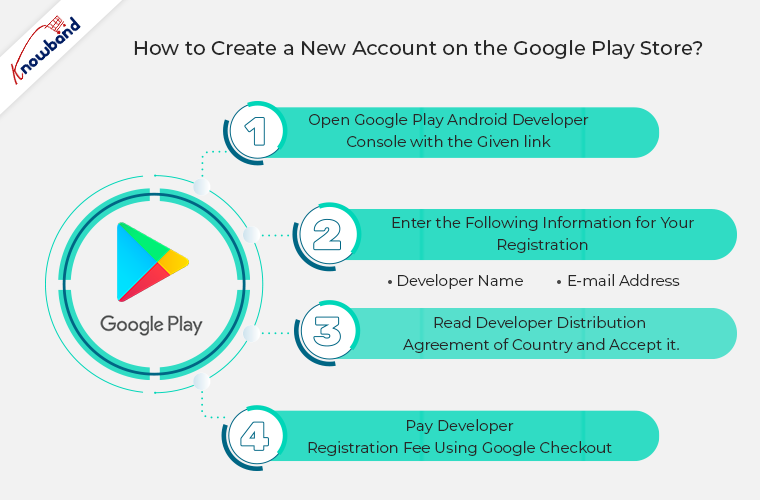
Following are the four simple steps for publishing a new account on the Google Play store:

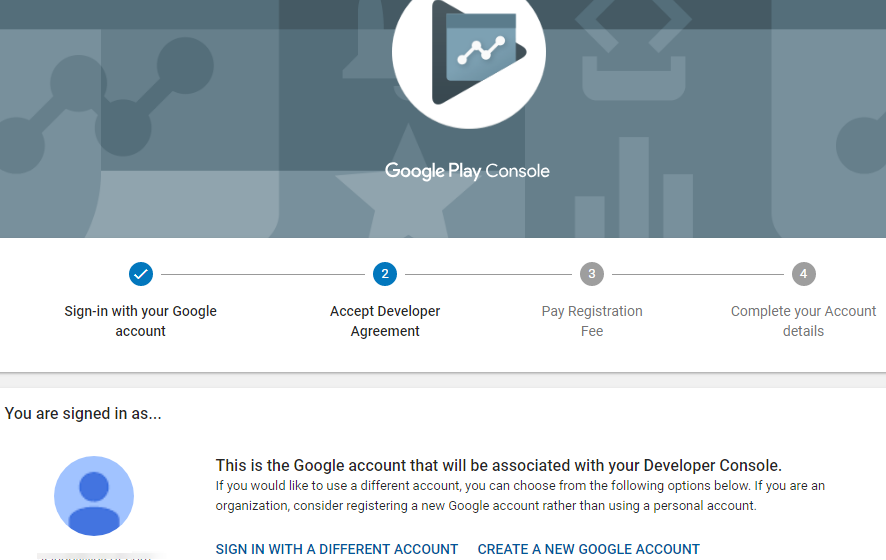
Step 1: Open Google Play Android Developer Console with the following link:

https://play.google.com/apps/publish


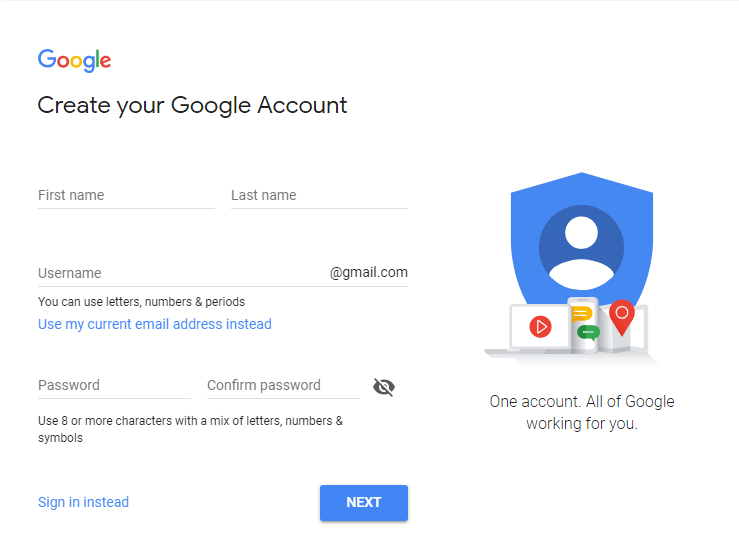
Either log in to an existing Google Account or register a new one through the sign-up option.

Step 2: Enter the following information for your registration –

  • Developer name
  • E-mail address

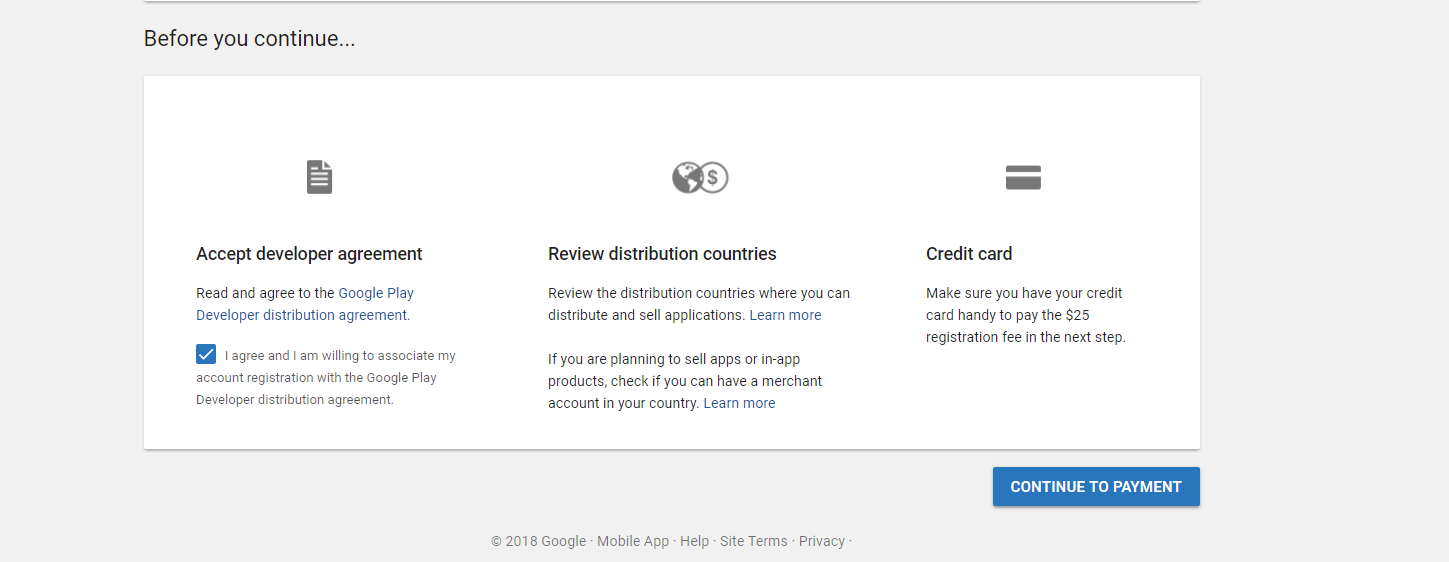
Step 3: Read Developer Distribution Agreement of country and accept it. You should keep in mind that apps which are published on Google Play Store must comply with the Developer Policies.

Step 4: Now, in the final step pay developer registration fee using Google Checkout. If you haven’t Google Checkout account just create one with the available option.

Conclusion:
There are various other reasons for app rejections, but the above-discussed one is most basic and often ignored by the developers. Google uses both manual and automated app review system, so, keeping a track of the developer guidelines could save you from the trouble. To make app publishing easier and convenient for you, build it with robust an eCommerce app builder that provides feature loaded fully functional app.

Knowband is providing one such module that can help you create a feature-rich App. We also help you in making the app live on the Google Play Store and Apple App Store.

Our No Code Mobile App solution is available for Prestashop, Opencart, Magento 2 and WooCommerce. Know more:
 

Also Read:

How To Get Refund For Your Apple App Store Purchase?

There are times when you accidentally buy something from Apple App store and later feel bad about it. There may be multiple reasons behind these faulty purchases. Sometimes the app stops working after they are purchased or it may even fail to fulfill your requirements. In either case, getting the money refunded is a major challenge in front of you.

Refund Methods at the Apple App Store:

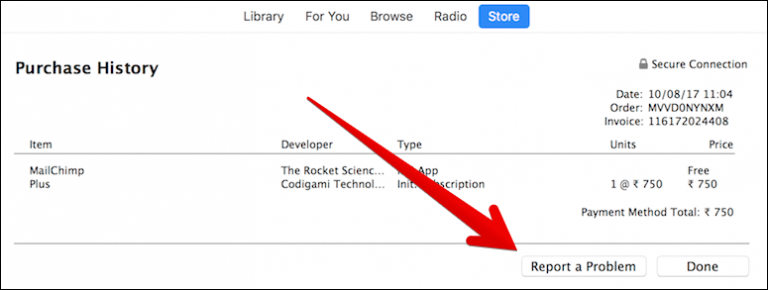
Accidentally purchasing an unwanted app from the Apple App Store doesn’t have to be a costly mistake. Apple provides clear methods to request a refund directly through your iPhone, iPad, web browser, or iTunes. Whether it’s reporting a faulty app or an unmet need, you can initiate a refund request by navigating to your purchase history and selecting “Report a Problem.”
Furthermore, Apple evaluates these submissions within a 90-day window, ensuring that legitimate claims are addressed promptly. This process is streamlined to assist customers in rectifying accidental purchases effectively, demonstrating Apple’s commitment to customer satisfaction.

Now, let’s delve into the specific steps to request a refund…

Apple offers refunds for the products, Apple App Store doesn’t offer any free service or movie trial, but in case you revert your purchase, then, they will surely help you out. A valid reason for refund request could get your money back without any hassle. If you constantly make refund requests, you won’t see any progress. Just one legitimate request is enough for that.

Apple store reviews your claim for refund before its approval or rejection. They allow refund for any purchases made within a time duration of 90 days. If you make a genuine request soon after the purchase, it will be accepted easily. Now, the question arises what are the ways to ask for the refund amount from Apple App Store in different situations? Here’s an answer for the same:

1. How to get refund from Apple App Store using your iPhone or iPad?

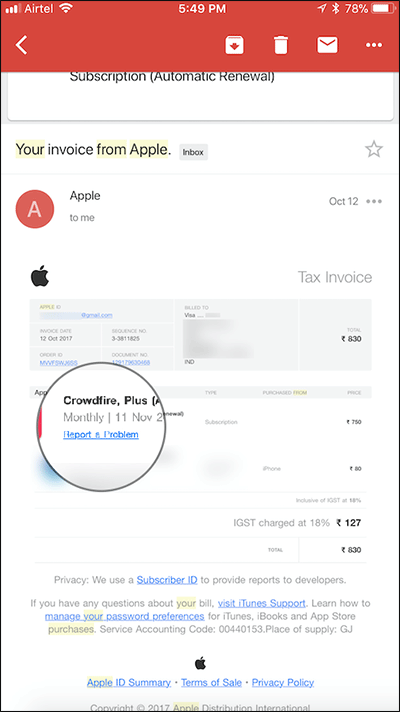
With your iPhones or iPad, you conveniently make the refund request through e-mail receipt of faulty purchase. In case, the Apple store hasn’t provided any direct links to report your issue, so, with mail receipt, you can report your problem to Apple Store. Following are the steps to submit your report:

Step 1: Open email app on your device, and search for purchase receipt in your mail inbox. If you remember the date, the search might become easier for you, if not just search for the mail till you find it.

Step 2: Once you have found the mail open it on the app and tap on Report a Problem option.

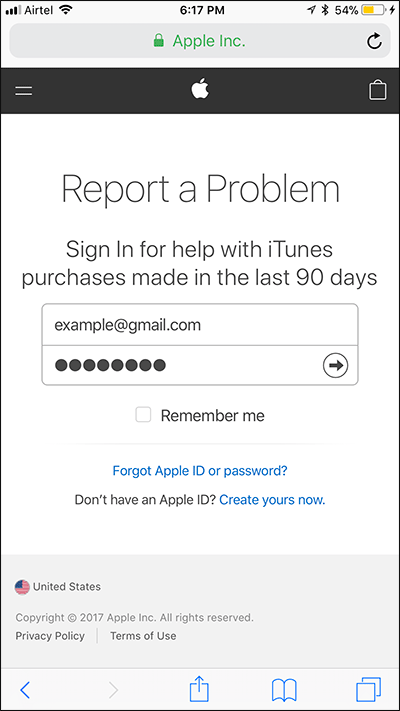
Step 3: As you tap, a new tab will open, log in with your Apple account.

Step 4: If you are being asked for any kind of verification, enter the code, else go to the next step.

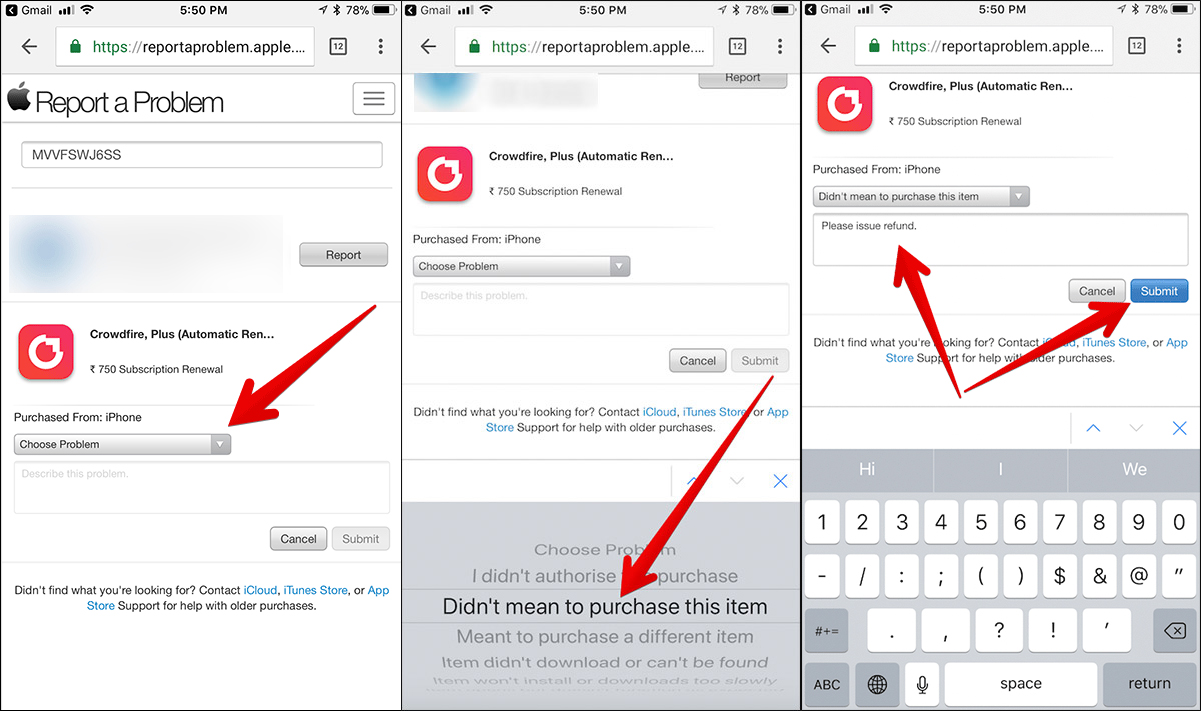
Step 5: There comes a drop-down menu with various options. Choose the problem you want to report and tap the Submit button. Enter all the details regarding your issue.

Your report is submitted. Apple team will revert back with info about whether your claim is approved or not after a few days.

2. How to get a refund from Apple App Store using a web browser?

If you somehow don’t have an access to your system or smartphone which was used for the purchase, you can still claim for the refund request. For this purpose, you just need a web browser with a stable internet connection irrespective of the device.

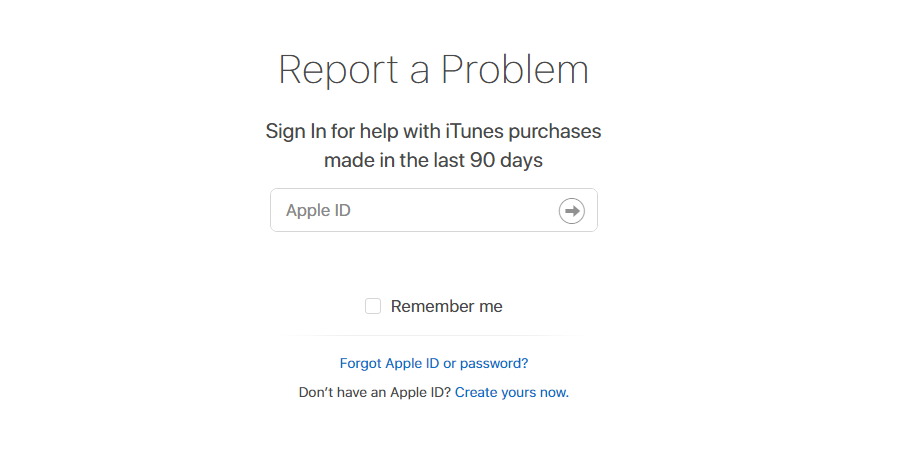
Step 1: Open the web browser and go to Apple’s report page with following address: reportaproblem.apple.com and access with your Apple ID.

Step 2: Choose the faulty product you purchased and want a refund for, and tap on Report a Problem.

Step 3: Once you have found that product, select report a problem and submit your reason with all relevant information.

You will be informed by Apple after few days of claim reporting about your refund status.

3. How to get a refund from Apple App Store using iTunes on Mac or Windows?

With the help of iTunes, you can also get a refund for the accidental purchase. This method is slightly different from the previous ones, yet it can get your money back.

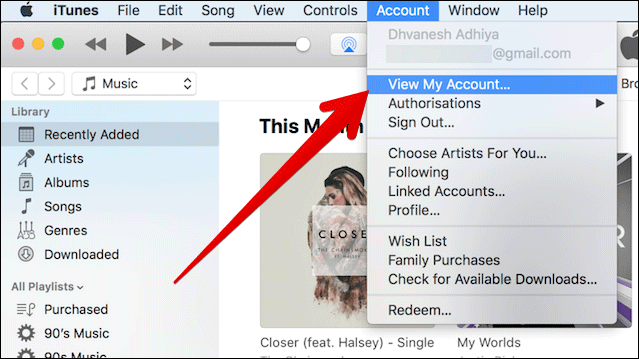
 Step 1: Open iTunes on the Mac or Windows, whatever suits you. Select the App Store available at the top of the window.

Step 2: Click on Account option located on the right side. Enter your Apple account credentials, if asked.

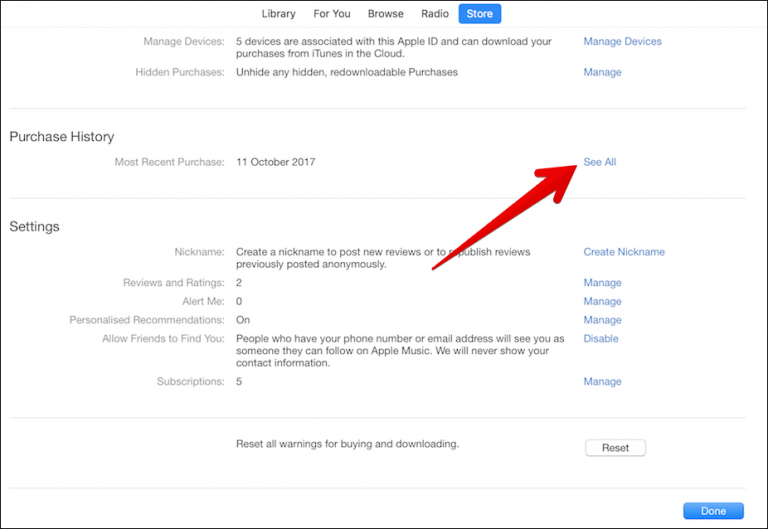
Step 3: Go to Purchase History, and open See All.

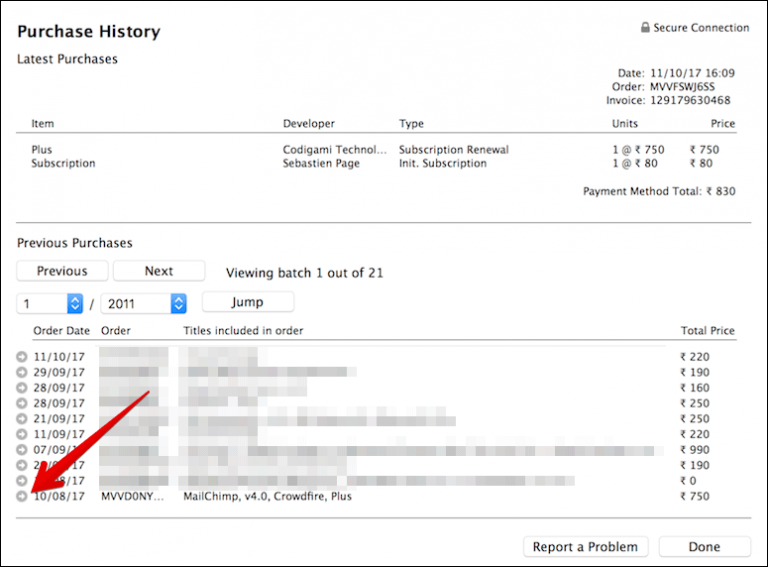
Step 4: There comes a list of apps, search the one you purchased. If you have any difficulty in finding an application, try changing date range on the left-hand side.

Step 5: Click on Report a Problem displaying below app.

Step 6: After that, you have chosen the problem from the menu. Enter all its details and submit.

Once Apple Team reviews your request, they will respond to you about your refund request status.

Final Words

With all these methods, one thing is clear that it’s not that typical to get refunds from Apple App Store. If your refund request is legitimate, it will be processed within one week. In some cases, this time gap could even get bigger. Also, if needed Apple team may also contact you regarding your claim. So, keep your reasons valid and leave the rest to the Apple Team, they will take care of it.

Knowband Mobile App Builder

Get the mobile app created for your store in a few hours with the Knowband Mobile App Builder Module.

SHOP NOW

Apart from that, with 13+ years of app development services at Knowband we provide the no-code mobile app builder for Prestashop, Opencart, WooCommerce Mobile App, and Magento 2 eCommerce platforms. Along with these, we offer custom web and app development services of several advanced technologies and frameworks. Feel free to get in touch with our technical support department at our official email address support@knowband.com.

Also watch our latest videos for your e-commerce business:

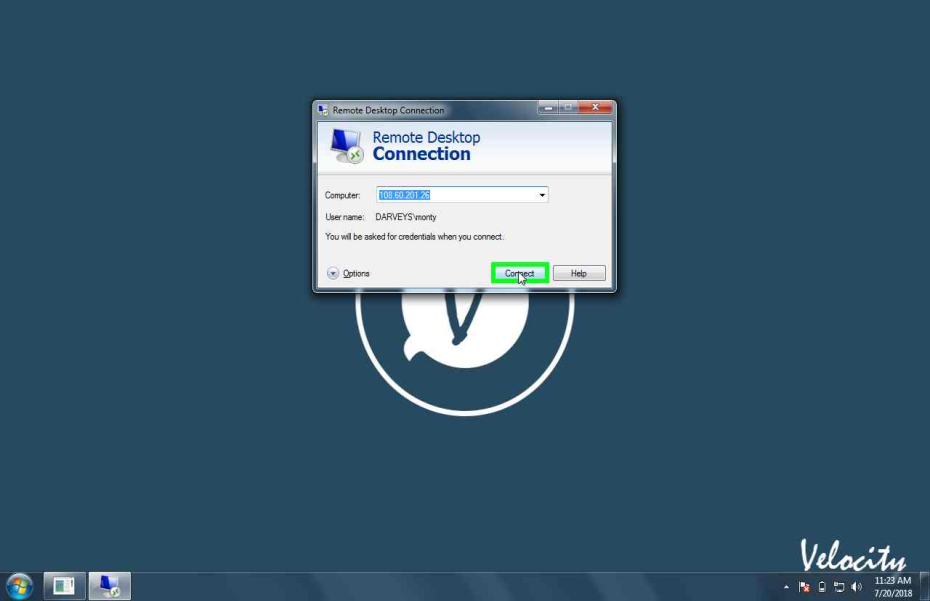
How to take RDP of the server from Windows machine?

Check the steps to take RDP of the server from windows machine using MSTSC to remote on to a Computer from WINDOWS.

ALLOW THE REMOTE

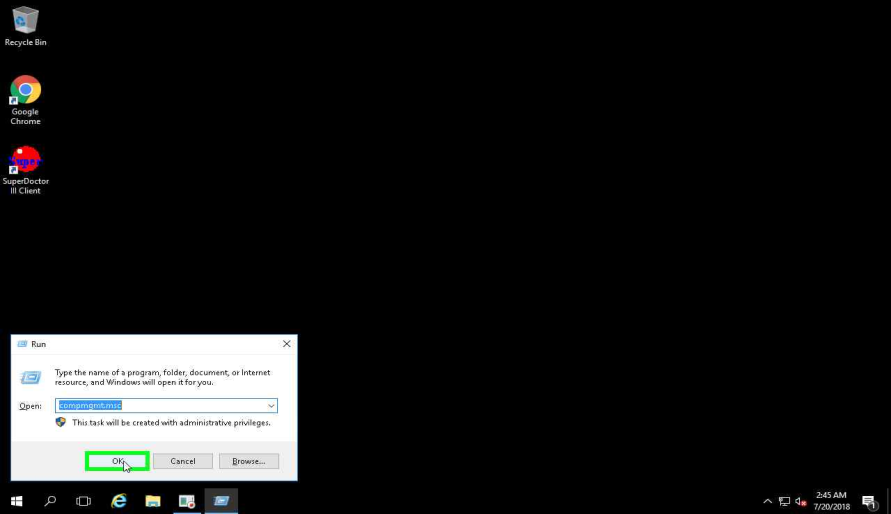
STEP 1: Open up your run command. (Quickest way to do is to do ‘Windows Key’ + r)
Type in compmgmt.msc

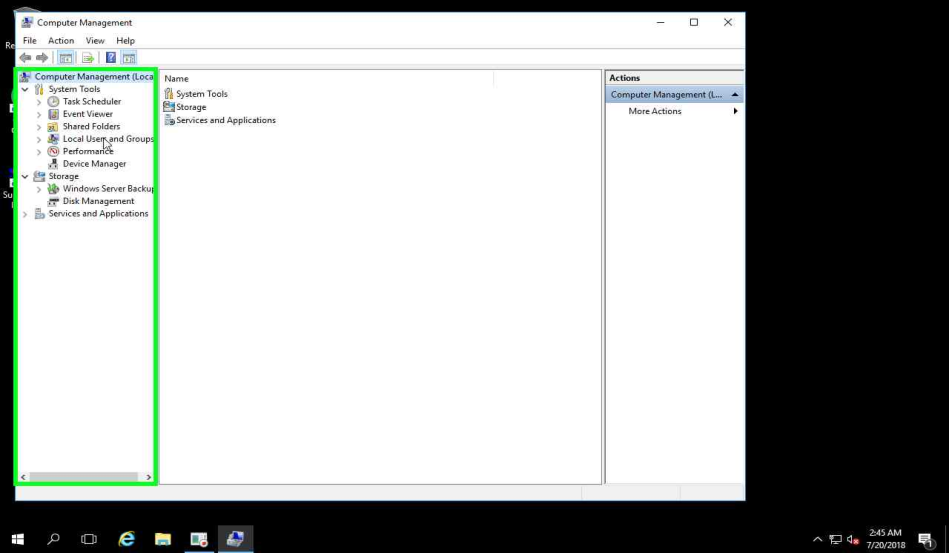
STEP 2: Select Users and Groups

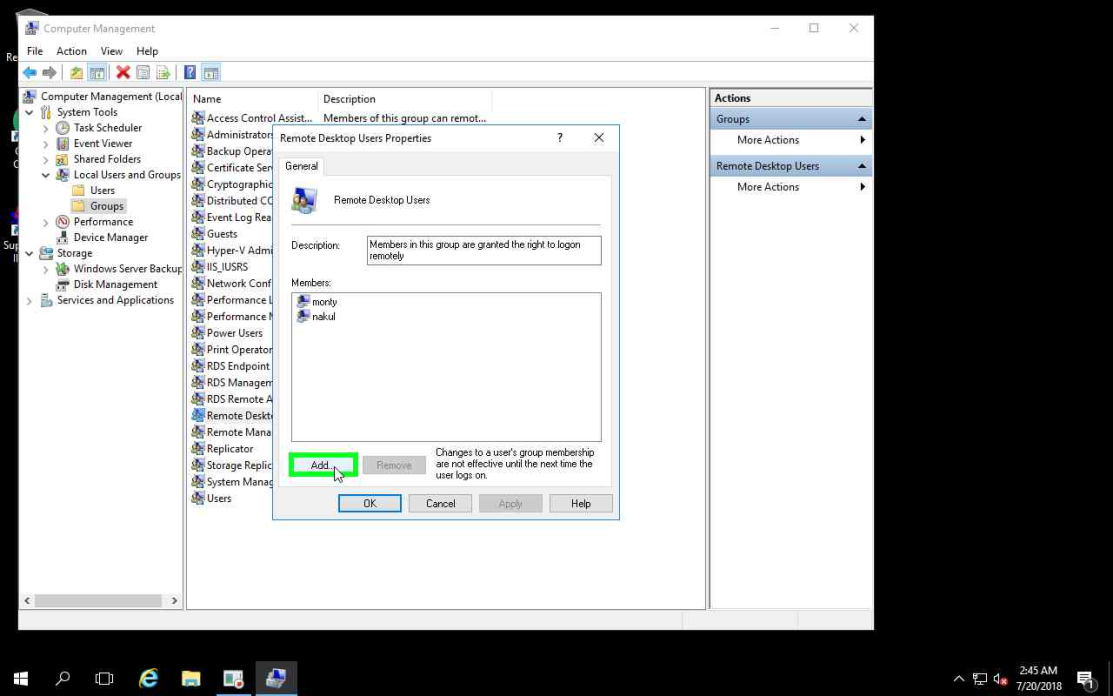
STEP 3: Select “Groups”.

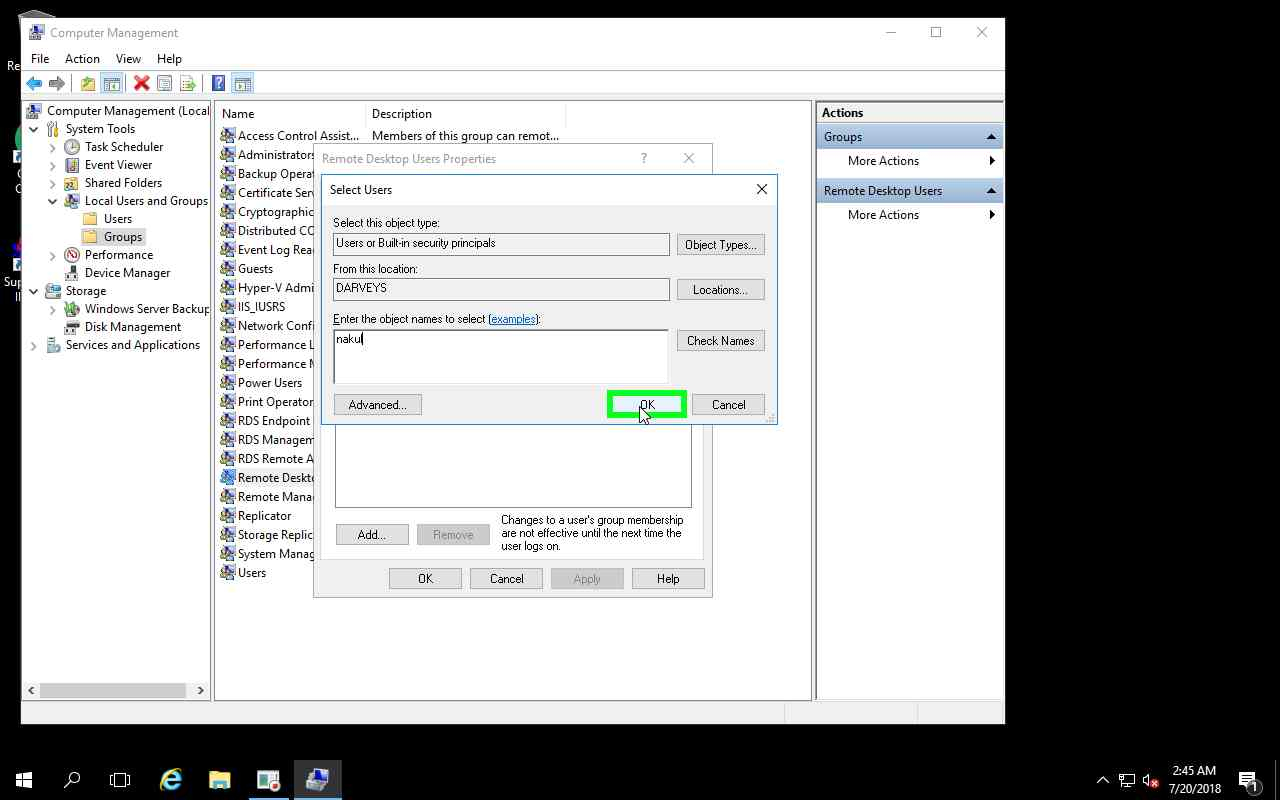
STEP 4: Select “Remote Desktop Users”.

STEP 5: Add Users which you want to add for remote.

HOW TO TAKE REMOTE

STEP 6 :
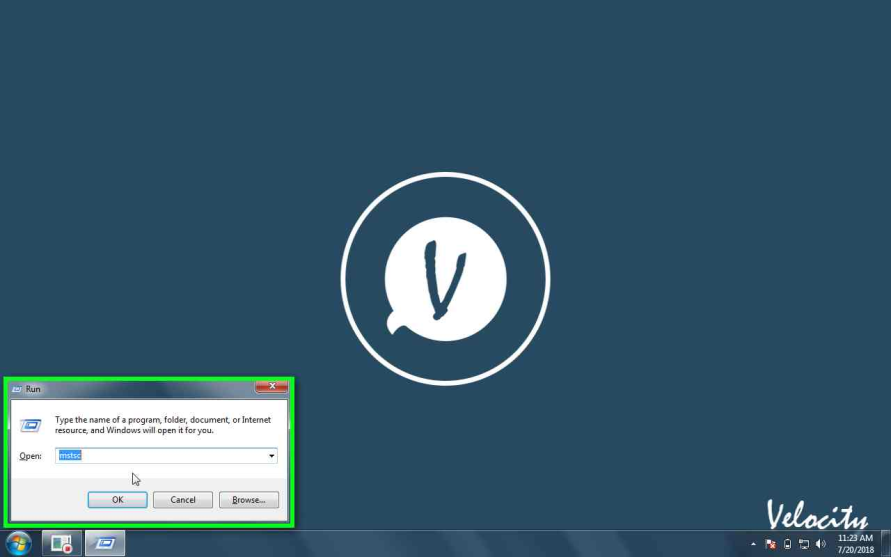
Open up your run command. (Quickest way to do is to do ‘Windows Key’ + r)
Type in mstsc

STEP 7:
Enter the “IP address” or the “name of the machine”.
For eg:- \\ 108.60.201.26

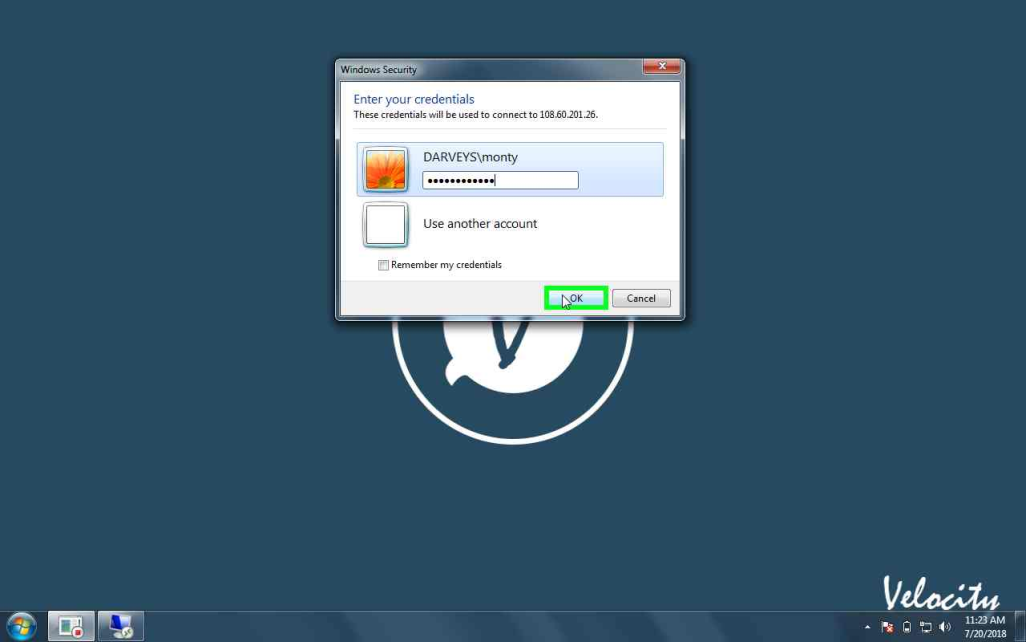
STEP 8: Enter Username and Password and then click on “OK”.

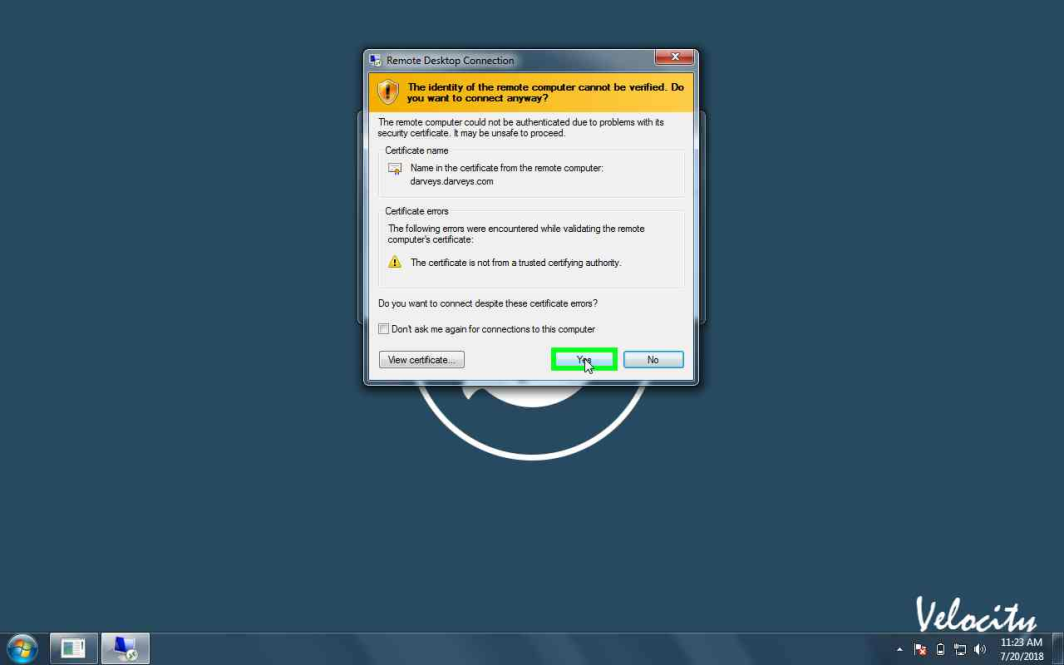
STEP 9: Click “Yes” to connect Remote server.

STEP 10: Now it is connected to the remote connection.

How to take RDP of the server from MAC machine?

Follow these steps to take RDP of the server from MAC machine.

ALLOW THE REMOTE CONNECTION

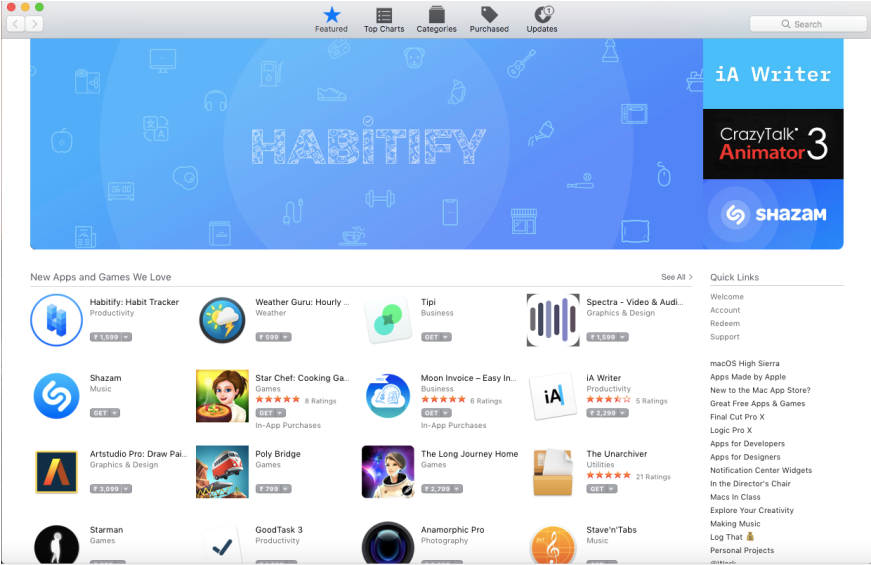
STEP 1: Click on DOCK and select APP Store.

STEP 2: Type “Microsoft Remote Desktop” in search box.

STEP 3: After Searching, need to install the software “Microsoft Remote Desktop”.

HOW TO TAKE REMOTE?

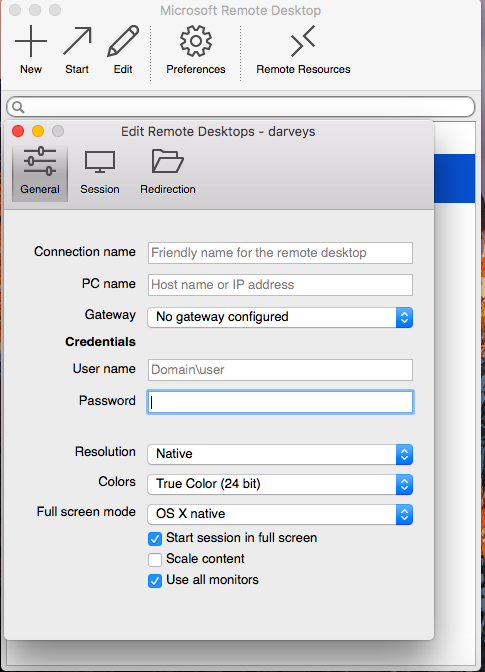
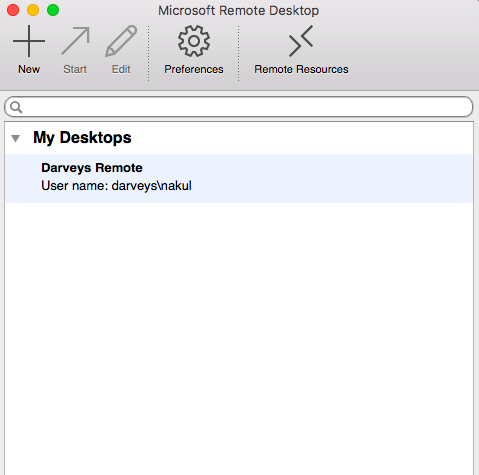
STEP 4: Open and Click on “NEW+” and fill the connection details and close the window.

STEP 5: Select the created connection “Darveys Remote”.

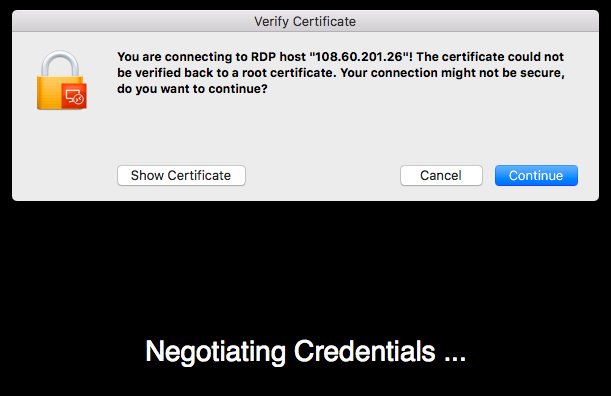
STEP 6:  Remote connection is connecting to RDP.

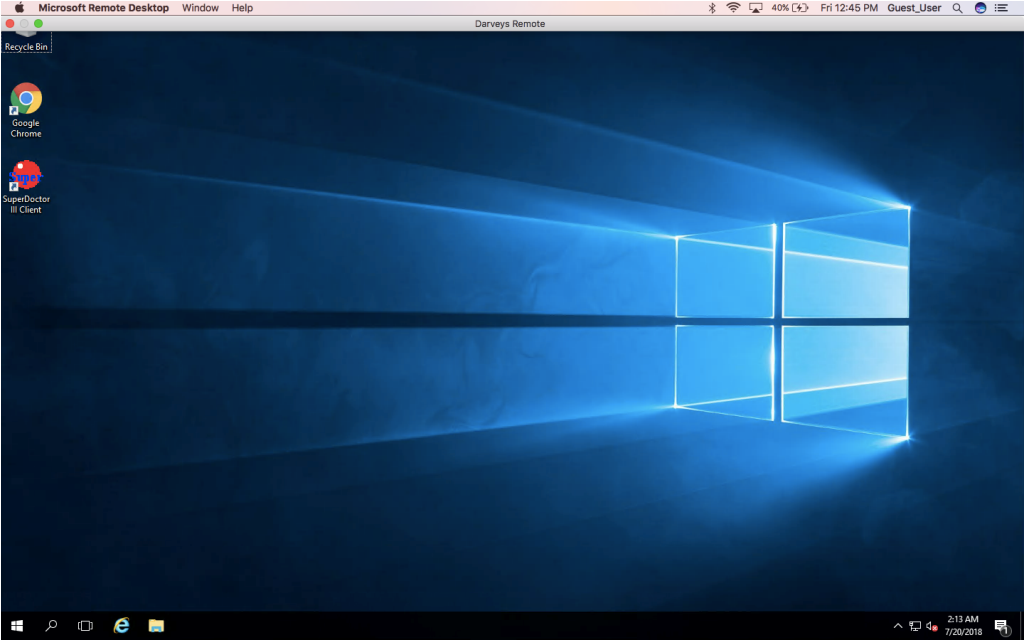
STEP 7: Remote Connection is connected.

5 Prestashop Modules to Accelerate the Conversion Rate of your Prestashop Store

Are you pissed of with the low conversion rate of the website? Every eCommerce store owners aims at increasing their conversion rate. Their main motive should be boost the user experience at each step in the conversion funnel, so that, the store visitors are constantly motivated to place their order. Optimizing the product page, landing pages of the website is a must when it comes to customer retention. Additionally, the e-merchants should stay in touch with other technological advancement, market trends in order to amp-up the user engagement.

If you own a Prestashop-based eCommerce site and are struggling with the problem of low conversion, then, this write-up may help you out. There are lots of addon available for Prestashop which can make your website interactive and can help you to increase the conversion rate. Here I am sharing a few Prestashop addons which might enhance the shopping experience of the customers and boost the conversion rate of your store.

How to convert your site visitors into buyers?

If your customers are leaving the store after adding the products to the cart because of some reasons, then, you need to deal with the cart abandonment. In order to bring back the customer to your store, Knowband offers Prestashop abandoned cart extension.

Prestashop Abandoned cart addon provides an easy-to-understand interface to the store admin in order to track abandoned carts on their site. The plugin lists out the cart details of the store visitors who have left products in their cart. With the automated approach of the Prestashop abandoned cart extension, the admin can send serial reminders to those customers with discounts and other offers. The constant reminder might compel them to return back to the store and place the order. The readymade email templates makes it easier for the e-marketers to send follow up emails. The Prestashop Abandoned cart recovery addon module also tracks customers language and send personalized follow-up emails with their full name in their own language.

How to engage the site visitors?

There are times when the customer land on your website, but leave the site without buying anything. Dealing with the bounce and exit rate of the site is another issue that might take a toll on your store’s conversion. This can be handled by boosting the user engagement and giving them compelling reasons to stay. To increase the interaction between the customer and you store you may try Prestashop exit popups addon.

Prestashop exit intent popup extension displays an interactive subscription popup every time the customer intends to exit the site. This is done by tracking the mouse movement of the visitor. The conventional exit popup enables the admin to offer discounts to the store visitor just when they intend to exit. Thus, the visitors might reconsider their exit. Additionally, the shoppers are required enter their email IDs in order to claim the discounts. This increases the email base of the site. The Prestashop exit intent email subscription extension offers MailChimp Integration as well that makes email marketing effortless. The store admin can design the exit popup to match the website’s theme by adding custom background image and custom CSS and JS codes.

How to suggest more related products to the customer?

Upselling and cross selling is another easy way to motivate the customers to buy more. Suggest similar and related products to the customers at the product page itself. For this Knowband offers Prestashop Automatic Related Products Addon.

Prestashop Automatic Related Product Module helps the store owner to set related products which will help the store owner to increase the average cart value of an individual purchase on your store.

How to intimate your customer about the update?

At times the customer is ready to purchase the product, but the product is either out of stock or the rate is too high for the customer. This may lose you some easy conversions. How will your customer will able to get the update that the product is restocked and available with discount on it? Knowband’s Prestashop Product update notification addon is the solution.

The customers can subscribe for an email notification regarding a particular product’s inventory or price change. This Prestashop Product update notification extension then lists out the subscription and enable the store admin to send the mails to the subscribed customer when there wish list in restocked. The Prestashop module automatically sends an email to the subscribed customers when the product is back-in-stock or its price is changed.

How to redirect your customer to your website?

Some times, the customers likes a product, but it is not in stock. You may update the inventory later, but how will your customer will be able to know about the update?

Prestashop Back in Stock Notification addon sends a reminder email to the subscribed customer. As soon as the product is restocked, this addon sends the mail and the customer once again land up to your website. With the help of this Prestashop back in stock notification plugin, the customers can subscribe to back-in-stock email alert on out-of-stock products. When the product is available the module automatically sends the mail to the customer.

Above mentioned Prestashop addon will not only help in increasing the conversion rate, but also makes the website look and feel attractive as well as user friendly. So, optimize your website with these quickfire addon and boost the site’s conversion.

Google to appeal against $5 billion fine by EU in Android antitrust case

Tech giant Google has confirmed that they will appeal against European Commission $5B fine over Android Antitrust Abuse asserting that Android operating system has created more choice for everyone, not less. India-born CEO of Google, Sundar Pichai defended Android, the popular OS by saying that rapid innovation, wide choice, and falling prices are classic hallmarks of robust competition and Android has enabled all of them.

Read more at:

EU fined Google with $5B over Android Antitrust Abuse Case

EU fined Google with $5B over Android Antitrust Abuse Case

On Wednesday, July 18th 2018, the European Union Commission imposed a fine of $5 billion on Google over antitrust of Android’s dominance in smartphone market. It’s being said that Google has pushed the users to its search engine with the motive of enfeebling its competitor search providers and app developers. Even last year, Google was slapped by EU regulators for market abuse and now it has happened again and this time it’s the tight one.

What is Google’s Android Abuse?

The EU commissioner for the competition Margrethe Vestage said,” Google has controlled Android to dominate its search engine and weaken its rivals from having the chance to innovate and compete as per the merits.” She added that Google offers services which we all like, but they can’t misuse their powers and favor their services over the competitors.

Basic reason behind EC imposing fine of Google are the agreements of Google with the Android smartphone developer organizations. European Commission has alleged Google of having their control over Android and forcing manufactures to install Google Search application and Chrome browsers in all Android devices for a Play store license. Although Android is an Open Source mobile software, which is available for free, yet they prevented manufacturers from pre-installing its apps if the Android version wasn’t pre-approved by the company which violates the competition rules.

In the Smartphone market, Android has 80% shares among mobile operating systems and Google’s search share in the EU market is over 90% in most countries. The EC also stated that Google’s investment in Android is because of the reason that it’s users’ shifted from the desktop to mobile devices. So, they planned it all along to dominate Android for the sake of boosting their search engine’s popularity.

What does Google has to say?

Google has denied all these allegations and said that they would appeal the commission’s decision of anti-competitive behavior. Google spokesman Al Verney said, “Android has always provided more choice for everyone, not less“. Google CEO Sundar Pichai argued that Android has expanded the choice for the users. The Android has enabled many app developers, including European ones, to make a living through the platform.

Final Words

Android antitrust abuse is about restricting competition from other search services to gain huge market share on Android. The EC has given Google, a duration of 90 days to end all the ongoing illegal practices. If this is not done, they will face more penalty payments of up to 5% of the daily worldwide business of Google’s parent company Alphabet. EU’s fine of $5 B on Google is more about preventing them from rolling its services to Android, than forcing the company to change Android significantly.

Article Source:

https://www.cnbc.com/2018/07/10/eu-hits-alphabet-google-with-android-antitrust-fine.html

La UE multó a Google con $ 5B sobre el caso de abuso antimonopolio de Android

El miércoles, 18th 2018 de julio, la Comisión de la Unión Europea impuso una multa de $ 5 mil millones en Google por antimonopolio del dominio de Android en el mercado de teléfonos inteligentes. Se dice que Google ha llevado a los usuarios a su motor de búsqueda con el objetivo de debilitar a sus proveedores de búsqueda y desarrolladores de aplicaciones. Incluso el año pasado, Google fue abofeteado por los reguladores de la UE por el abuso del mercado y ahora ha sucedido de nuevo y esta vez es el apretado.

¿Cuál es el abuso de Android de Google?

La comisionada de la UE para la competencia, Margrethe Vestage, dijo: "Google ha controlado Android para dominar su motor de búsqueda y debilitar a sus rivales de tener la oportunidad de innovar y competir según los méritos". Agregó que Google ofrece servicios que a todos nos gustan, pero que no pueden hacer un mal uso de sus poderes y favorecer sus servicios sobre los competidores. La razón fundamental detrás de la imposición de multas de CE a Google son los acuerdos de Google con las organizaciones de desarrolladores de teléfonos inteligentes de Android. La Comisión Europea ha alegado que Google tiene su control sobre Android y obliga a los fabricantes a instalar la aplicación Google Search y los navegadores Chrome en todos los dispositivos Android para obtener una licencia de Play Store. Aunque Android es un software móvil de Código Abierto, que está disponible de forma gratuita, impidió a los fabricantes preinstalar sus aplicaciones si la empresa no aprobaba previamente la versión de Android que viola las normas de la competencia. En el mercado de teléfonos inteligentes, Android tiene porcentajes de 80% entre los sistemas operativos móviles y el porcentaje de búsqueda de Google en el mercado de la UE supera el 90% en la mayoría de los países. La CE también afirmó que la inversión de Google en Android se debe a la razón por la cual los usuarios pasaron del escritorio a los dispositivos móviles. Por lo tanto, planearon todo para dominar a Android por el bien de aumentar la popularidad de su motor de búsqueda.

¿Qué dice Google?

Google ha negado todas estas acusaciones y dijo que apelarían la decisión de la comisión de comportamiento anticompetitivo. El portavoz de Google, Al Verney, dijo:Android siempre ha proporcionado más opciones para todos, no menosEl CEO de Google, Sundar Pichai, argumentó que Android ha ampliado la elección para los usuarios. El Android ha permitido a muchos desarrolladores de aplicaciones, incluidas las europeas, ganarse la vida a través de la plataforma.

Palabras finales

El abuso antimonopolio de Android se trata de restringir la competencia de otros servicios de búsqueda para obtener una gran cuota de mercado en Android. La CE le ha dado a Google una duración de 90 días para poner fin a todas las prácticas ilegales en curso. Si no se hace esto, enfrentarán más multas por hasta el 5% del negocio diario mundial de la empresa matriz de Google, Alphabet. La multa de la UE

https://www.cnbc.com/2018/07/10/eu-hits-alphabet-google-with-android-antitrust-fine.html

L'UE impose une amende à Google avec $ 5B sur Android Antitrust Abuse Case

Mercredi, juillet 18th 2018, la Commission de l'Union européenne a infligé une amende de 5 milliards de dollars à Google sur l'antitrust de la domination d'Android dans le marché des smartphones. On dit que Google a poussé les utilisateurs vers son moteur de recherche dans le but d'affaiblir ses fournisseurs de recherche concurrents et ses développeurs d'applications. Même l'année dernière, Google a été giflé par les régulateurs de l'UE pour abus de marché et maintenant cela s'est encore produit et cette fois, c'est serré.

Quel est l'abus Android de Google?

Le commissaire européen à la concurrence Margrethe Vestage a déclaré: "Google a contrôlé Android pour dominer son moteur de recherche et affaiblir ses rivaux d'avoir la chance d'innover et de rivaliser selon les mérites." Elle a ajouté que Google offre des services que nous aimons tous, mais ils ne peuvent pas abuser de leurs pouvoirs et favoriser leurs services sur les concurrents. Raison fondamentale derrière EC imposer amende de Google sont les accords de Google avec les organisations de développeurs de smartphones Android. La Commission européenne a allégué que Google avait son contrôle sur Android et forçait les fabricants à installer l'application de recherche Google et les navigateurs Chrome dans tous les appareils Android pour une licence Play Store. Bien qu'Android soit un logiciel mobile Open Source, disponible gratuitement, il empêche les fabricants de pré-installer ses applications si la version Android n'a pas été pré-approuvée par l'entreprise, ce qui enfreint les règles de la concurrence. Sur le marché des smartphones, Android a 80% des parts parmi les systèmes d'exploitation mobiles et la part de recherche de Google sur le marché de l'UE est supérieure à 90% dans la plupart des pays. La CE a également déclaré que l'investissement de Google dans Android était dû à la migration des utilisateurs du bureau vers les appareils mobiles. Donc, ils ont tout prévu pour dominer Android pour stimuler la popularité de leur moteur de recherche.

Qu'est-ce que Google a à dire?

Google a nié toutes ces allégations et a déclaré qu'ils feraient appel de la décision de la commission d'un comportement anticoncurrentiel. Le porte-parole de Google, Al Verney, a déclaré: "Android a toujours fourni plus de choix pour tout le monde, pas moinsLe PDG de Google, Sundar Pichai, a expliqué qu'Android a élargi le choix pour les utilisateurs, ce qui a permis à de nombreux développeurs d'applications, y compris européens, de gagner leur vie grâce à la plate-forme.

Mot de la fin

L'abus d'antitrust Android consiste à restreindre la concurrence des autres services de recherche pour gagner une énorme part de marché sur Android. La CE a donné Google, une durée de 90 jours pour mettre fin à toutes les pratiques illégales en cours. Si ce n'est pas fait, ils seront confrontés à plus de pénalités jusqu'à 5% des affaires mondiales quotidiennes de la société mère de Google, Alphabet. L'amende de l'UE

https://www.cnbc.com/2018/07/10/eu-hits-alphabet-google-with-android-antitrust-fine.html