Um Ihr Geschäft auf globaler Ebene zu verbessern und Kunden eine benutzerfreundliche Schnittstelle zu bieten, bietet Knowband OpenCart-Modul für automatische Sprach- und Währungsumschaltung. Wann immer ein Benutzer den Laden besucht, konvertiert der Sprach- und Währungsumrechner von OpenCart automatisch den Inhalt Ihres OpenCart-Shops in eine für den Benutzer gewohnte Sprache und Währung. Durch die Bereitstellung von Informationen in der bevorzugten Sprache der Benutzer wird die Kundenbindungsrate erhöht, was schließlich die Absprungrate verringert. Die Sprache des OpenCart-Umschalters konvertiert die Sprache Ihres Geschäfts basierend auf der Geolocation des Kunden. Die Sprache und Währung von OpenCart zum automatischen Wechseln ruft die IP-Adresse zum Konvertieren der Sprache ab. Mit OpenCart Sprache und Währungsumrechner muss der Kunde die Sprache nicht manuell ändern.
1.1 Vorteile von OpenCart Langugae und Währungsumschalter
Die verschiedenen Vorteile, die das Openband-Plug-in für OpenCart von Knowband bietet, werden nachfolgend erläutert:
Der Geschäftsadministrator kann die Standardsprache für die Standorte festlegen, deren Sprachmodule fehlen.
Die Sprache und Währung von OpenCart für die automatische Umschaltung konvertiert die Sprache und den Standort automatisch nach Standort.
Der Sprach- und Währungsumschalter von OpenCart fördert den Verkauf Ihres Shops.
OpenCart Auto-Switch-Sprache bietet Kompatibilität mit mehreren Filialen.
Die Sprache und Währung von OpenCart für die automatische Umschaltung bieten mehrsprachige Unterstützung.
Die automatische Spracheänderung von OpenCart bietet SSL-Kompatibilität.
Die automatische Änderung von Sprache und Währung durch OpenCart bietet ein benutzerfreundliches Erlebnis.
OpenCart Die automatische Änderung von Sprache und Währung bietet Kompatibilität mit allen OpenCart-Designs.
Der Sprach- und Währungsumschalter von OpenCart ermöglicht eine mühelose Installation und Konfiguration.
Der automatische und automatische Währungsumschalter von OpenCart verfolgt die IP-Adresse des Kunden und konvertiert die Inhaltsangaben entsprechend.
2.0 Installation des OpenCart-Autoschalters und des Währungsumrechners
Kaufen Sie die Sprache und Währung des OpenCart Auto-Schalters im Knowband-Store. Sie erhalten folgende Dateien:
Gepackte Datei mit dem Quellcode des OpenCart Auto-Sprach- und Währungsmoduls.
Benutzerhandbuch des OpenCart Sprach- und Währungsumschalters
Um den automatischen Sprach- und Währungsumrechner von OpenCart zu installieren, gehen Sie folgendermaßen vor:
Entpacken Sie die ZIP-Datei. Sie erhalten die Ordner wie in der Abbildung unten gezeigt
Kopieren
OpenCart
3.0 Admin Panel
Das Plug-in zum automatischen und automatischen Wechseln von Sprachen in OpenCart bietet folgende Registerkarten: Alle Registerkarten werden im Folgenden ausführlich beschrieben.
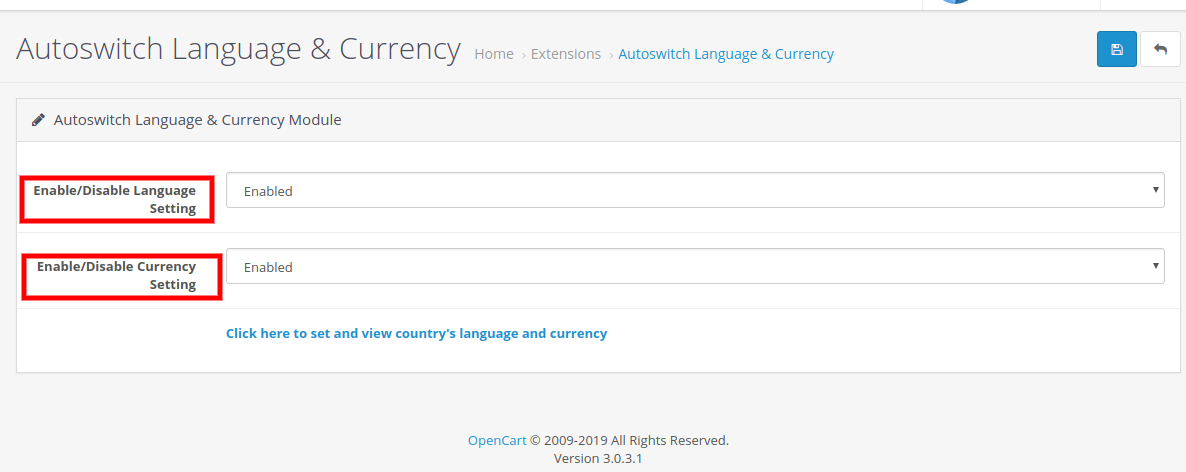
3.1 Spracheinstellung aktivieren oder deaktivieren
Der Administrator kann die Spracheinstellungen im Admin-Bedienfeld von OpenCart Automatic aktivieren und deaktivieren. Gehen Sie folgendermaßen vor, um das Sprachen-Plugin zu aktivieren:
Wählen Sie die Option Sprache aktivieren.
Klicken Sie auf die Schaltfläche "Speichern".
Auto Language Converter funktioniert nur, wenn diese Funktion aktiviert ist. So deaktivieren Sie das Plugin für die automatische Sprache:
Wählen Sie die Option Sprache deaktivieren.
Klicken Sie auf die Schaltfläche "Speichern".
3.2 Einstellung der Währung aktivieren oder deaktivieren
Der Geschäftsinhaber kann die Währungseinstellung im Backend von OpenCart Auto aktivieren und deaktivieren, um die Sprache und das Währungs-Plugin zu ändern. Gehen Sie folgendermaßen vor, um die Währungseinstellung zu aktivieren:
Wählen Sie die Option Sprache aktivieren.
Klicken Sie auf die Schaltfläche "Speichern".
Der automatische Währungsumrechner funktioniert nur, wenn diese Funktion aktiviert ist. So deaktivieren Sie das automatische Währungs-Plugin:
Wählen Sie die Option Währung deaktivieren.
Klicken Sie auf die Schaltfläche "Speichern".
3.3 Standardeinstellung für Sprache und Währung
Um die Sprache und Währung des Standardlandes festzulegen, muss der Verkäufer auf "Klicken Sie hier, um die Sprache und Währung des Landes einzustellen und anzuzeigen" klicken. Eine Liste der Länder mit ihrer Standardsprache und Währung wird vor Ihnen angezeigt.
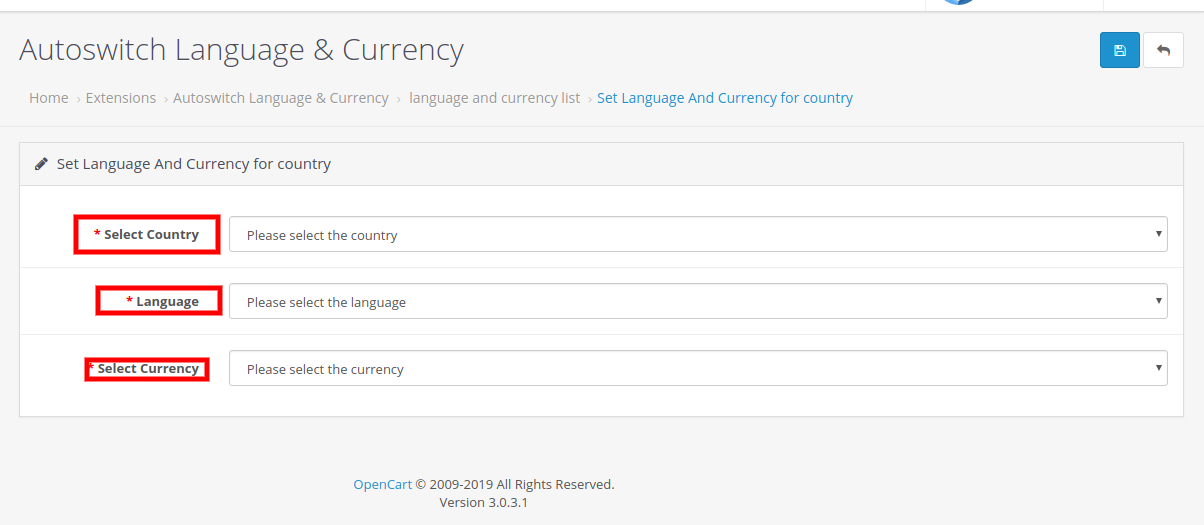
3.3.1 So fügen Sie eine neue Sprache und Währung in den Sprach- und Währungsumrechner von OpenCart ein
Klicken Sie auf das Symbol "+". Eine neue Seite wird vor Ihnen angezeigt.
Wählen Sie das Land aus der Liste aus.
Wählen Sie die Sprache aus, die Sie dem jeweiligen Land zuordnen möchten.
Wählen Sie die Währung aus, die Sie zuweisen möchten.
Klicken Sie auf die Schaltfläche "Speichern".
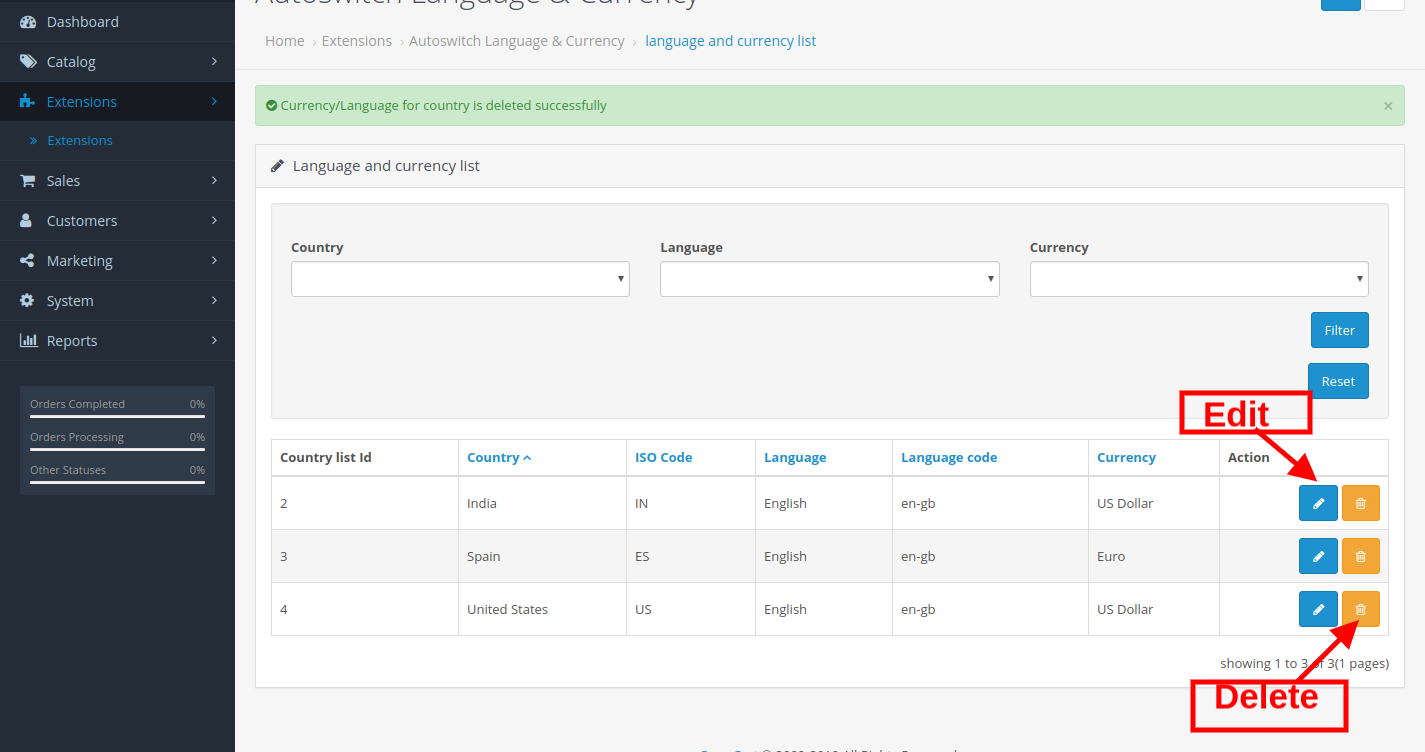
3.3.2 So bearbeiten oder löschen Sie eine neue Sprache und Währung
Klicken Sie auf das "Bearbeiten" -Symbol neben dem aufgelisteten Land, dessen Währung und Sprache Sie ändern möchten.
Nachdem Sie die erforderlichen Änderungen im Feld Sprache und Währung vorgenommen haben.
Klicken Sie auf die Schaltfläche "Speichern". Alle Änderungen werden gespeichert.
Klicken Sie auf das "Bearbeiten" -Symbol neben dem aufgelisteten Land, dessen Währung und Sprache Sie ändern möchten.
Nachdem Sie die erforderlichen Änderungen im Feld Sprache und Währung vorgenommen haben. Klicken Sie auf die Schaltfläche "Speichern". Alle Änderungen werden gespeichert.
Um ein Land aus dieser Liste zu löschen, klicken Sie auf das Symbol "Löschen" auf der rechten Seite des Landes. Das entsprechende Land wird aus dieser Liste gelöscht.
4.0-Frontplatte
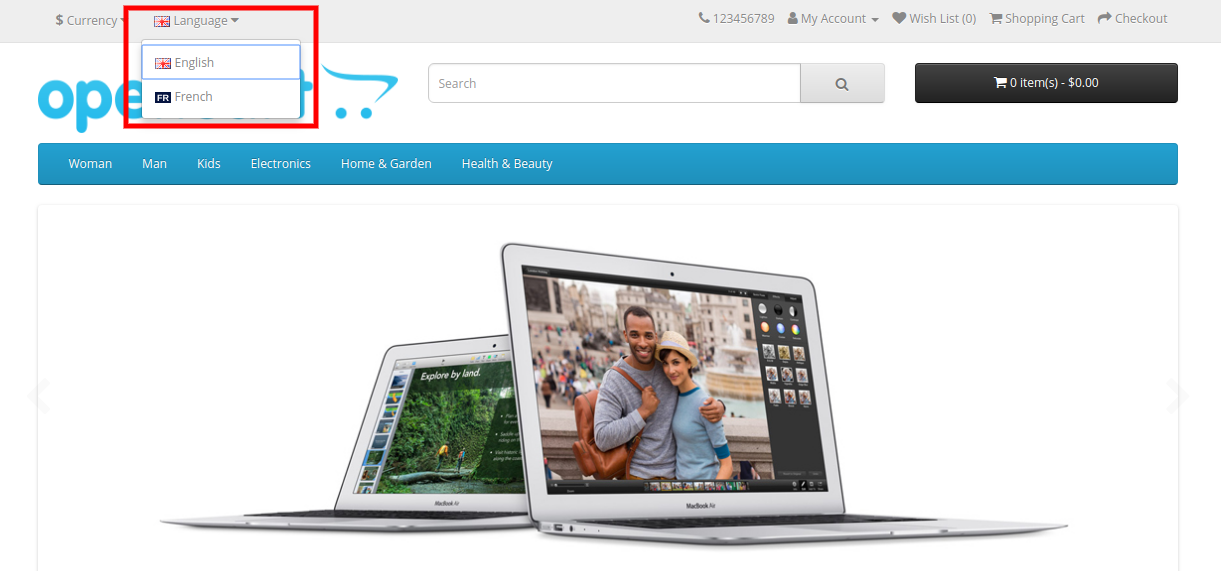
Sobald der Benutzer das Geschäft eröffnet, wird die Sprache und Währung des Geschäfts automatisch auf die Sprache und Währung des Benutzers umgestellt. Wenn ein Benutzer die Sprache des Geschäfts ändern möchte, führen Sie die folgenden Schritte aus:
Klicken Sie oben im Geschäft auf die Registerkarte "Sprache".
Wählen Sie die Sprache aus, in der Sie den Inhalt wechseln möchten.
Benutzer können die Währung des Geschäfts in den folgenden Schritten leicht wechseln:
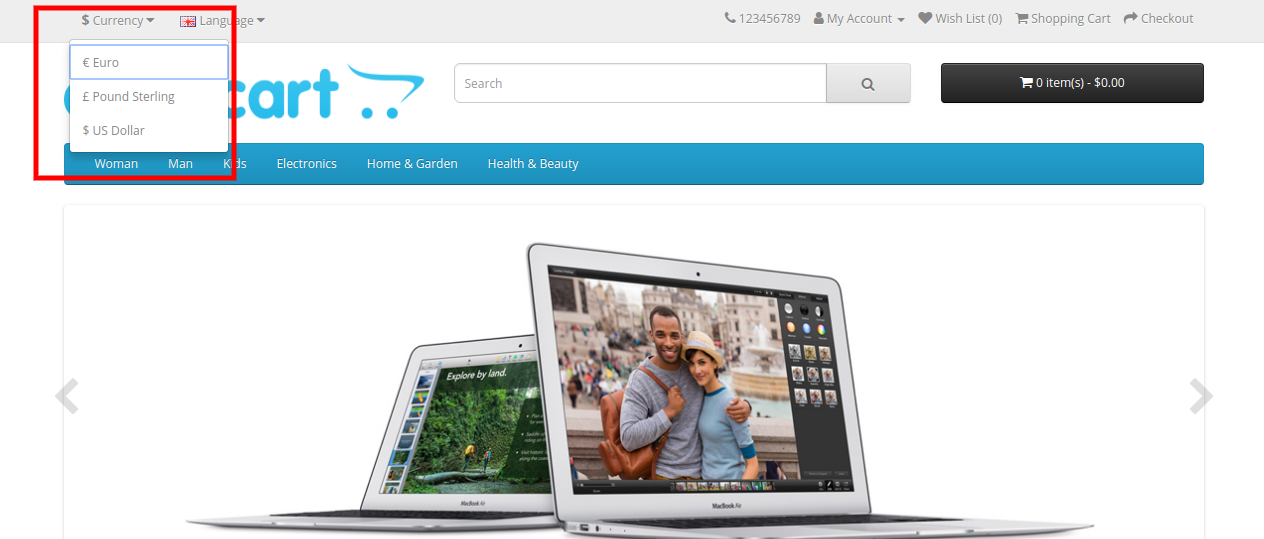
Klicken Sie oben im Geschäft auf die Registerkarte Währung.
Wählen Sie die Währung aus, in der Sie den Kauf tätigen möchten.
Sehen Sie sich die Sprache und das Währungsmodul von OpenCart an:
Weitere Informationen finden Sie unter den folgenden Links:
Per migliorare la tua attività a livello globale e fornire un'interfaccia user friendly ai clienti, Knowband offre Lingua di cambio automatico e modulo valuta OpenCart. Ogni volta che un utente visiterà il negozio, il convertitore automatico di lingua OpenCart e il convertitore di valuta convertiranno automaticamente il contenuto del tuo negozio OpenCart in lingua e valuta familiare. Fornire informazioni nella lingua preferita degli utenti aumenterà il tasso di fidelizzazione dei clienti che alla fine diminuirà la frequenza di rimbalzo. Il linguaggio di commutazione automatica OpenCart convertirà la lingua del tuo negozio in base alla geolocalizzazione del cliente. La lingua e la valuta del cambio automatico OpenCart prelevano l'indirizzo IP per convertire la lingua. Con il convertitore di lingua e convertitore di valuta OpenCart, i clienti non devono cambiare manualmente la lingua.
1.1 Vantaggi offerti da OpenCart Langugae e autoswitcher di valute
I vari vantaggi offerti dal linguaggio OpenCart di Knowband e dal plugin per il cambio di valuta sono discussi di seguito:
L'amministratore del negozio può impostare la lingua predefinita per quelle località di cui mancano i moduli di lingua.
La lingua e la valuta del cambio automatico OpenCart converte automaticamente la lingua e la posizione in base alla posizione.
La lingua e il cambio valuta OpenCart aumentano la vendita del tuo negozio.
Il linguaggio di commutazione automatica OpenCart offre compatibilità multi store.
La lingua e la valuta del cambio automatico OpenCart offrono supporto multi-voce.
OpenCart Auto change language offre la compatibilità SSL.
OpenCart Auto cambia lingua e valuta offre un'esperienza user friendly.
OpenCart Auto cambia lingua e valuta offre la compatibilità con tutto il tema OpenCart.
Il cambio lingua e valuta OpenCart offre un'installazione e una configurazione semplici.
Lo switch automatico di lingua e valuta OpenCart tiene traccia dell'indirizzo IP del cliente e converte i dettagli del contenuto di conseguenza.
2.0 Installazione del convertitore di linguaggio e convertitore di valuta per autoswitch OpenCart
Acquista la lingua e la valuta del cambio automatico OpenCart dal negozio Knowband. Riceverai i seguenti file:
File zippato contenente il codice sorgente di OpenCart Auto cambia lingua e modulo valuta.
Manuale utente di lingua OpenCart e cambio valuta
Per installare il convertitore automatico di valuta e lingua OpenCart, attenersi alla seguente procedura:
Decomprimere il file zip. Otterrai le cartelle come mostrato nell'immagine qui sotto
copia
OpenCart
Pannello di amministrazione 3.0
Il plug-in dello switch automatico di lingua e valuta OpenCart offre la seguente scheda: Tutte le schede sono descritte di seguito in dettaglio.
3.1 Abilita o disabilita l'impostazione della lingua
L'amministratore può abilitare e disabilitare l'impostazione della lingua dal pannello di amministrazione del convertitore automatico di valuta e lingua OpenCart. Di seguito sono riportati i passaggi per abilitare il plug-in della lingua:
Seleziona l'opzione Abilita lingua.
Clicca sul pulsante Salva.
Auto Language Converter funzionerà solo se questa funzione è abilitata. Per disabilitare il plug-in della lingua automatica:
Seleziona l'opzione Disabilita lingua.
Clicca sul pulsante Salva.
3.2 Abilita o disabilita l'impostazione della valuta
Il proprietario del negozio può attivare e disattivare l'impostazione Valuta dal backend di OpenCart Auto cambia lingua e plugin di valuta. Di seguito sono riportati i passaggi per abilitare l'impostazione della valuta:
Scegli l'opzione Abilita lingua.
Clicca sul pulsante Salva.
Auto Currency Converter funziona solo se questa funzione è abilitata. Per disabilitare il plug-in automatico di valuta:
Seleziona l'opzione Disattiva valuta.
Clicca sul pulsante Salva.
3.3 Impostazione della lingua e della valuta predefinite
Per impostare la lingua e la valuta del Paese predefinito, il venditore deve fare clic su "Fai clic qui per impostare e visualizzare la lingua e la valuta del Paese". L'elenco dei paesi con la lingua e la valuta predefinite verrà visualizzato prima di te.
3.3.1 Come aggiungere una nuova lingua e valuta nel convertitore automatico di lingua e convertitore di valuta di OpenCart
Clicca sull'icona "+". Una nuova pagina apparirà di fronte a te.
Seleziona il paese dall'elenco.
Seleziona la lingua che desideri assegnare al rispettivo paese.
Seleziona la valuta che vuoi assegnare.
Clicca sul pulsante Salva.
3.3.2 Come modificare o eliminare una nuova lingua e valuta
Fai clic sull'icona "modifica" lungo il paese in cui desideri modificare la valuta e la lingua.
Dopo aver apportato le modifiche richieste nel campo lingua e valuta.
Fare clic sul pulsante Salva e tutte le modifiche verranno salvate.
Fai clic sull'icona "modifica" lungo il paese in cui desideri modificare la valuta e la lingua.
Dopo aver apportato le modifiche richieste nel campo lingua e valuta. Fare clic sul pulsante Salva e tutte le modifiche verranno salvate.
Per eliminare qualsiasi paese da tale elenco, fare clic sull'icona di eliminazione sul lato destro del paese e il rispettivo paese verrà rimosso da tale elenco.
Pannello frontale 4.0
Non appena l'utente aprirà il negozio, la lingua e la valuta del negozio passeranno automaticamente alla lingua e alla valuta familiare dell'utente. Se un utente desidera cambiare la lingua del negozio, si prega di seguire i seguenti passi:
Fare clic sulla scheda della lingua nella parte superiore del negozio.
Seleziona la lingua in cui desideri cambiare il contenuto.
Gli utenti possono facilmente cambiare la valuta del negozio nei seguenti passaggi:
Fare clic sulla scheda Valuta nella parte superiore del negozio.
Seleziona la valuta in cui desideri effettuare l'acquisto.
Guarda come OpenCart cambia automaticamente lingua e valuta Il modulo funziona:
Per ulteriori informazioni, fare riferimento ai seguenti link:
W celu rozszerzenia działalności na poziomie globalnym i zapewnienia przyjaznego interfejsu dla klientów, Knowband oferuje Moduł automatycznego przełączania języka i waluty OpenCart. Za każdym razem, gdy użytkownik odwiedzi sklep, język autoswitcha i konwerter walut OpenCart automatycznie przekonwertują zawartość twojego sklepu OpenCart na język i walutę znaną użytkownikowi. Podanie informacji w preferowanym języku użytkowników zwiększy wskaźnik zatrzymania klienta, co ostatecznie zmniejszy współczynnik odrzuceń. Język automatycznego przełączania OpenCart konwertuje język Twojego sklepu na podstawie geolokalizacji klienta. Język i waluta automatycznego przełączania OpenCart pobiera adres IP w celu konwersji języka. Z językiem i przelicznikiem walut OpenCart klient nie musi ręcznie zmieniać języka.
Korzyści 1.1 oferowane przez OpenCart Langugae i autoswitcher walutowy
Różne korzyści oferowane przez wtyczkę do języków i walut Knowband's OpenCart omówiono poniżej:
Administrator sklepu może ustawić domyślny język dla tych lokalizacji, których modułów językowych brakuje.
Język i waluta automatycznego przełączania OpenCart automatycznie konwertuje język i lokalizację na podstawie lokalizacji.
Przełącznik językowy i walutowy OpenCart zwiększa sprzedaż Twojego sklepu.
Język automatycznego przełączania OpenCart zapewnia kompatybilność z wieloma sklepami.
Język i waluta automatycznego przełączania OpenCart zapewniają obsługę wielu języków.
Język OpenCart Auto change oferuje kompatybilność z SSL.
Zmiana języka i waluty OpenCart Auto oferuje przyjazne dla użytkownika doświadczenie.
Zmiana języka i waluty OpenCart Auto zapewnia zgodność ze wszystkimi motywami OpenCart.
Przełącznik języka i waluty OpenCart oferuje łatwą instalację i konfigurację.
Język autoswitcher i waluta OpenCart śledzi adres IP klienta i odpowiednio konwertuje szczegóły treści.
2.0 Instalacja języka autoswitcha i przelicznika walut OpenCart
Kup język i walutę przełącznika OpenCart Auto w sklepie Knowband. Otrzymasz następujące pliki:
Spakowany plik zawierający kod źródłowy modułu języka i waluty OpenCart Auto change.
Instrukcja obsługi przełącznika języka i waluty OpenCart
Aby zainstalować automatyczny konwerter języków i walut OpenCart, wykonaj następujące czynności:
Rozpakuj plik zip. Otrzymasz foldery, jak pokazano na obrazku poniżej
Kopiuj
OpenCart
Panel administracyjny 3.0
Wtyczka autoswitcher języka i waluty OpenCart oferuje następującą kartę: Wszystkie karty są szczegółowo omówione poniżej.
3.1 Włącz lub wyłącz ustawienie języka
Administrator może włączać i wyłączać ustawienia języka z panelu administracyjnego konwertera języka i waluty OpenCart Automatic. Poniżej przedstawiono kroki umożliwiające włączenie wtyczki języka:
Wybierz opcję Włącz język.
Kliknij przycisk Zapisz.
Automatyczny konwerter językowy działa tylko wtedy, gdy ta funkcja jest włączona. Aby wyłączyć wtyczkę automatycznego języka:
Wybierz opcję Wyłącz język.
Kliknij przycisk Zapisz.
3.2 Włącz lub wyłącz ustawienie waluty
Właściciel sklepu może aktywować i dezaktywować ustawienie waluty z zaplecza wtyczki zmiany języka i waluty OpenCart Auto. Poniżej przedstawiono kroki umożliwiające ustawienie waluty:
Wybierz opcję Włącz język.
Kliknij przycisk Zapisz.
Automatyczny konwerter walut działa tylko wtedy, gdy ta funkcja jest włączona. Aby wyłączyć automatyczną wtyczkę waluty:
Wybierz opcję Wyłącz walutę.
Kliknij przycisk Zapisz.
3.3 Domyślne ustawienie języka i waluty
Aby ustawić domyślny język i walutę kraju, sprzedawca musi kliknąć „Kliknij tutaj, aby ustawić i wyświetlić język i walutę kraju”. Lista krajów z domyślnym językiem i walutą pojawi się przed Tobą.
3.3.1 Jak dodać nowy język i walutę w języku autoswitcha i przeliczniku walut OpenCart
Kliknij ikonę „+”. Nowa strona pojawi się przed Tobą.
Wybierz kraj z listy.
Wybierz język, który chcesz przypisać do danego kraju.
Wybierz walutę, którą chcesz przypisać.
Kliknij przycisk Zapisz.
3.3.2 Jak edytować lub usunąć nowy język i walutę
Kliknij ikonę „edytuj” w wybranym kraju, którego walutę i język chcesz zmienić.
Po dokonaniu wymaganych zmian w polu języka i waluty.
Kliknij przycisk Zapisz, a wszystkie zmiany zostaną zapisane.
Kliknij ikonę „edytuj” w wybranym kraju, którego walutę i język chcesz zmienić.
Po dokonaniu wymaganych zmian w polu języka i waluty. Kliknij przycisk Zapisz, a wszystkie zmiany zostaną zapisane.
Aby usunąć dowolny kraj z tej listy, kliknij ikonę usuwania po prawej stronie kraju, a odpowiedni kraj zniknie z tej listy.
Panel przedni 4.0
Jak tylko użytkownik otworzy sklep, język i waluta sklepu automatycznie przełączy się na znajomy język i walutę. Jeśli użytkownik chce zmienić język sklepu, wykonaj następujące czynności:
Kliknij kartę języka u góry sklepu.
Wybierz język, w którym chcesz zmienić zawartość.
Użytkownicy mogą łatwo zmienić walutę sklepu w następujących krokach:
Kliknij kartę Waluta u góry sklepu.
Wybierz walutę, w której chcesz dokonać zakupu.
Zobacz, jak działa język i waluta automatycznego przełączania OpenCart:
Więcej informacji można znaleźć w następujących linkach:
OpenCart Facebook Share and Win Discount Extension by KnowBand allows the store admin to display the product sharing button on the product pages of the website. It is a modern way of promoting products through social media without any advanced investments. It is the most fruitful way in order to attract more customers towards your product and eCommerce store too.
The OpenCart extension offers an easy and hassle-free product promotion and for the store admin. Admin has a nice opportunity to encourage their online customers to promote the products by offering them some amazing discounts and offers. The coupon code generated after product promotion could be accessed by admin to check whether the coupon is been applied by the customer or not.
1.1 Striking Features of Facebook Share and Win Discount Extension for OpenCart
The OpenCart Facebook Share and Win Discount Extension provides you multiple features which are fully customizable and easy to configure from the back-end interface without requiring any coding knowledge. The various striking features of the OpenCart Facebook Share and Win Discount Extension have been listed below:
The OpenCart Product share and win module allows admin to show product sharing option on the website pages.
The online users can click on the product sharing button so as to share the particular product on Facebook wall.
Store admin can offer fixed or percentage-based discount coupon to the customers for sharing the product on Facebook with the help of OpenCart Share and Win Extension.
The OpenCart Share and Win plugin offer admin to set the discount validity from the admin interface and get the discount extension.
Admin can enter the custom CSS and JS codes for the advance look and feel management via OpenCart product sharing plugin.
Admin has the authority to check the information about product sharing and discount coupon generation.
The OpenCart Facebook Share and Win Discount Module allows admin to set the Facebook app ID for incorporating Facebook.
Admin can easily install, configure and activate the OpenCart product sharing extension.
1.2 Technology for Development
Language: PHP
Frame Work: OpenCart
2.0 Installation Guide
To install this Opencart share and win Module, please follow the following steps:
Purchase the OpenCart share and win an Extension from the Knowband store. You’ll get the following files:
Zipped File containing the source code of the OpenCart share and win Extension.
User Manual of OpenCart share and win plugin.
Follow the steps below in order to install the OpenCart share and win Extension in OpenCart store:
1.Unzip the zipped. You’ll get the folders as shown in the image below:
2.Copy all the files and folders of the zip file in the Root Directory of OpenCart setup via FTP manager.
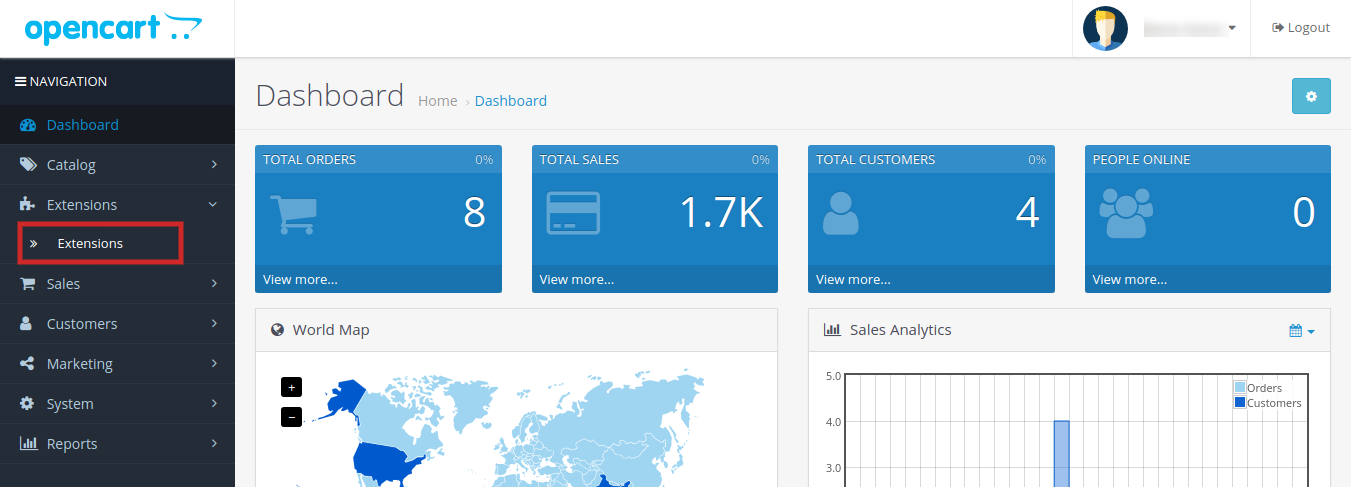
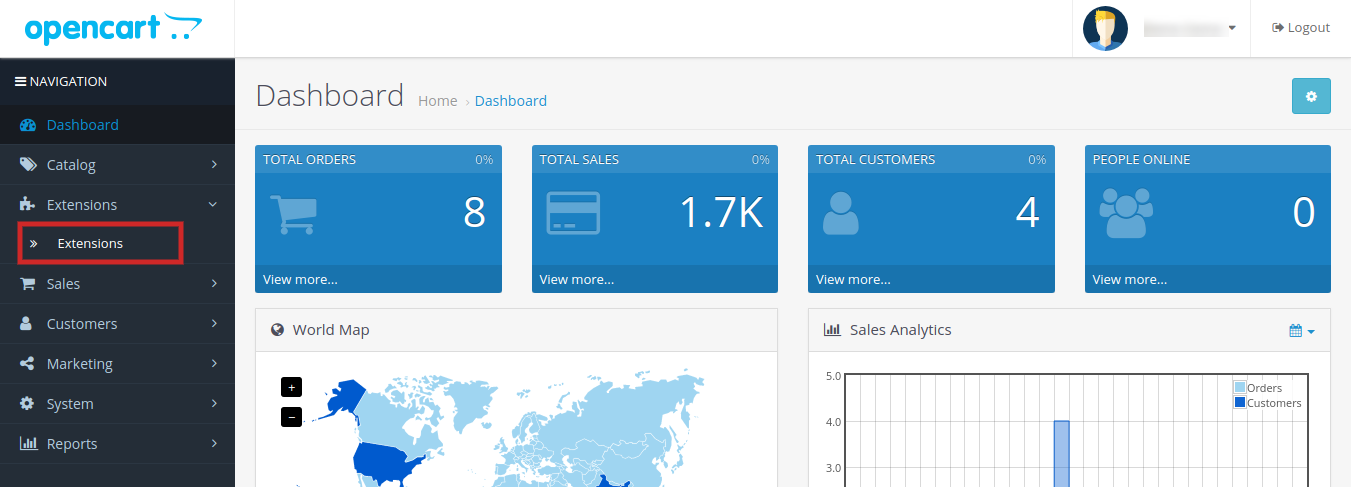
3.The OpenCart share on Facebook wall plugin is now installed and is ready to use. Go to Admin -> Main Menu -> Extensions as shown in the image below:
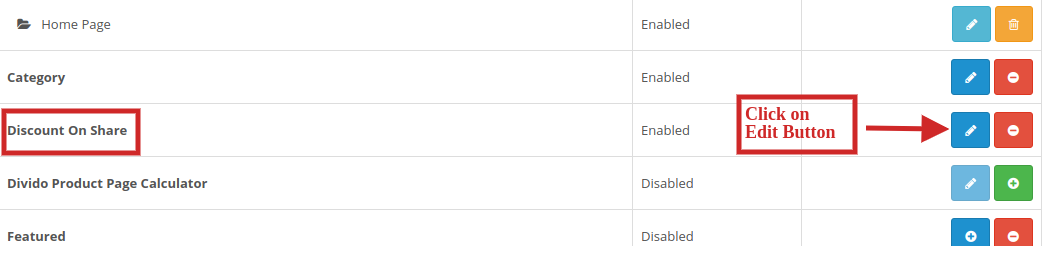
4.Select Share and Win from the list of the modules and click on the Edit button as shown in the image below:
3.0 Admin Interface of OpenCart Share and Win Discount Extension
OpenCart Facebook Share and Win Discount module offers easy customization option to the store admin. The various configuration options are discussed in detail below:
3.1 Settings
Following are the settings listed under this tab:
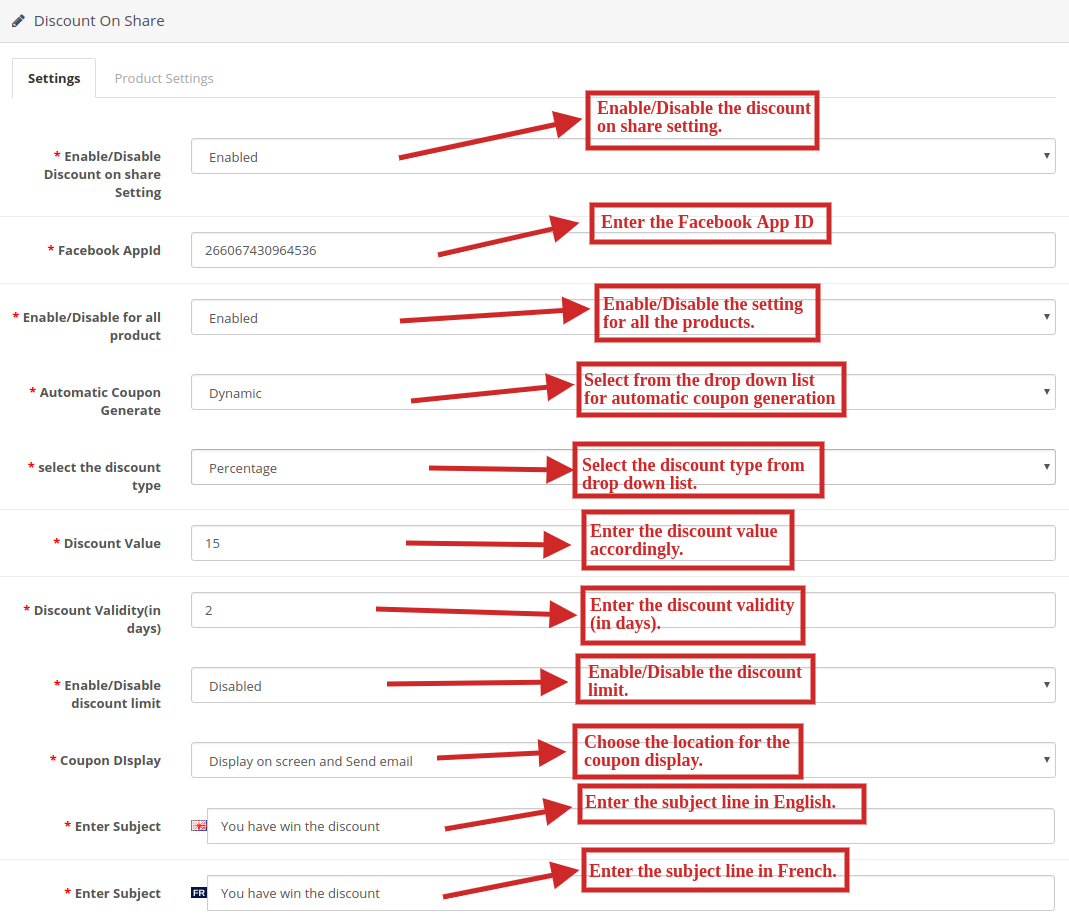
Enable/Disable Discount on share Setting: Select ‘Enable’ from the drop-down list in order to enable the OpenCart Facebook Share and Win Discount module.
Facebook App Id: Enter the Facebook app ID in order to incorporate Facebook profile to the eCommerce website. For generating Facebook APP Id please visit section 3.1.1.
Enable/Disable for all product: Select ‘Enable’ from the drop-down list in order to enable the share and wining for all the products in product listings.
Automatic Coupon Generate: Select either ‘fixed’ or ‘dynamic’ for the automatic generation of coupons from the drop down list.
Select the discount type: Select either ‘fixed’ or ‘percentage’ based discount type from the drop down list.
Discount Value: Enter the discount value you wish to give to your customers.
Discount Validity(in days): Enter the discount validity(in days) accordingly.
Enable/Disable discount limit: Select ‘Enable’ or ‘Disable’ from the drop down list to enable or disable the discount limit.
Coupon Display: Select an option from the Drop down menu for coupon display location. You can either display it on screen, send on email or both.
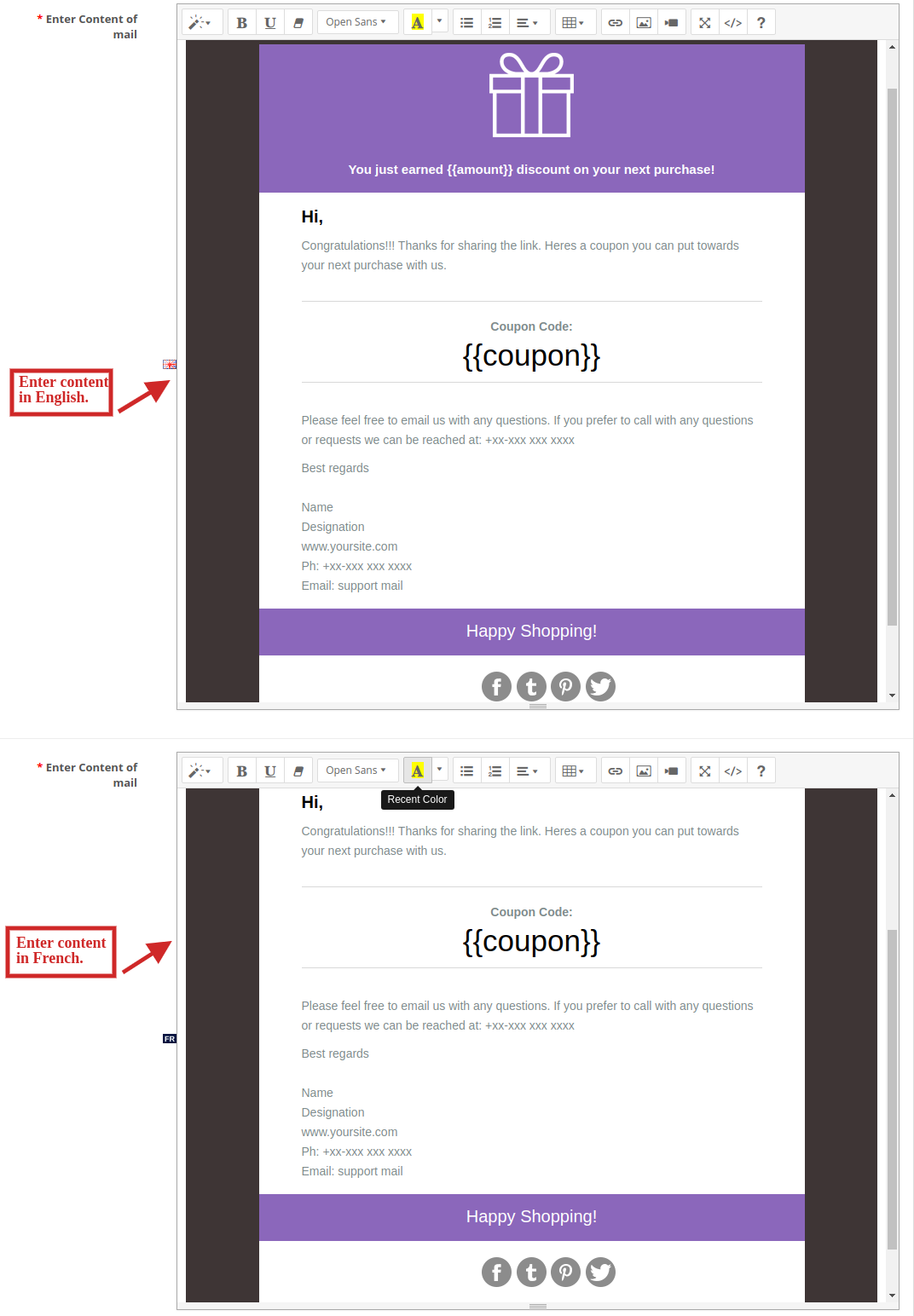
10.Enter Subject: Enter the subject line to be sent to the customers in English and French language.
11. Enter Content of mail: Enter the content of mail to be sent to the customers in English and French language.
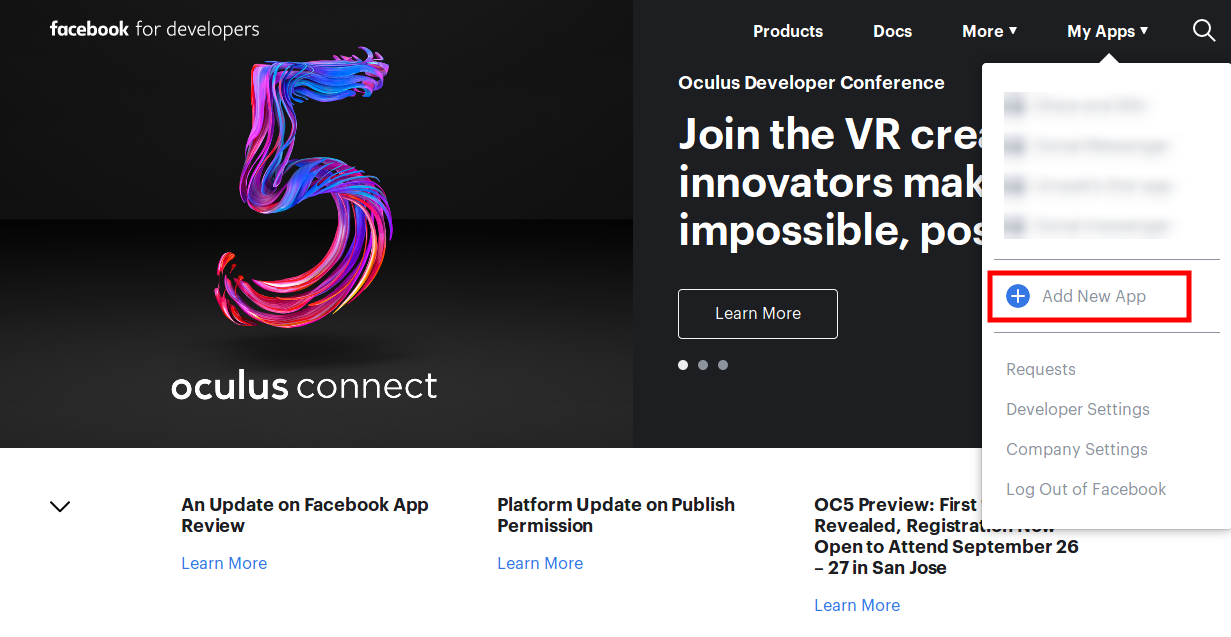
Now go to the “MY APPS” and click on ”ADD NEW APP” option.
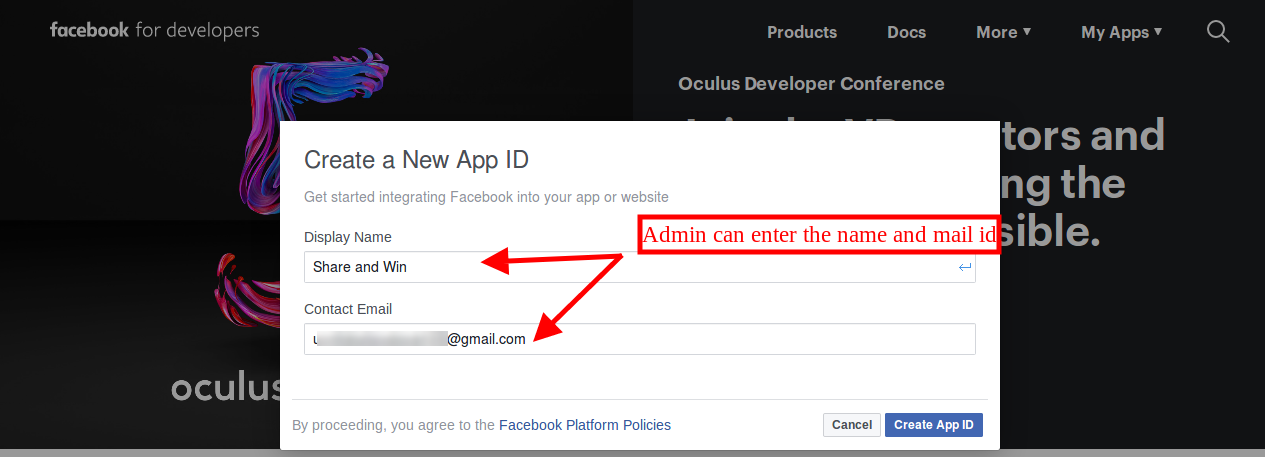
Here, enter “Display Name” and “contact email ID”. After that, click on the “Create App ID” button.
Now, go to the “Settings” and select “Basic” option. Here, you can view the APP ID as shown below. Enter app domains, category, Privacy policy URL here.
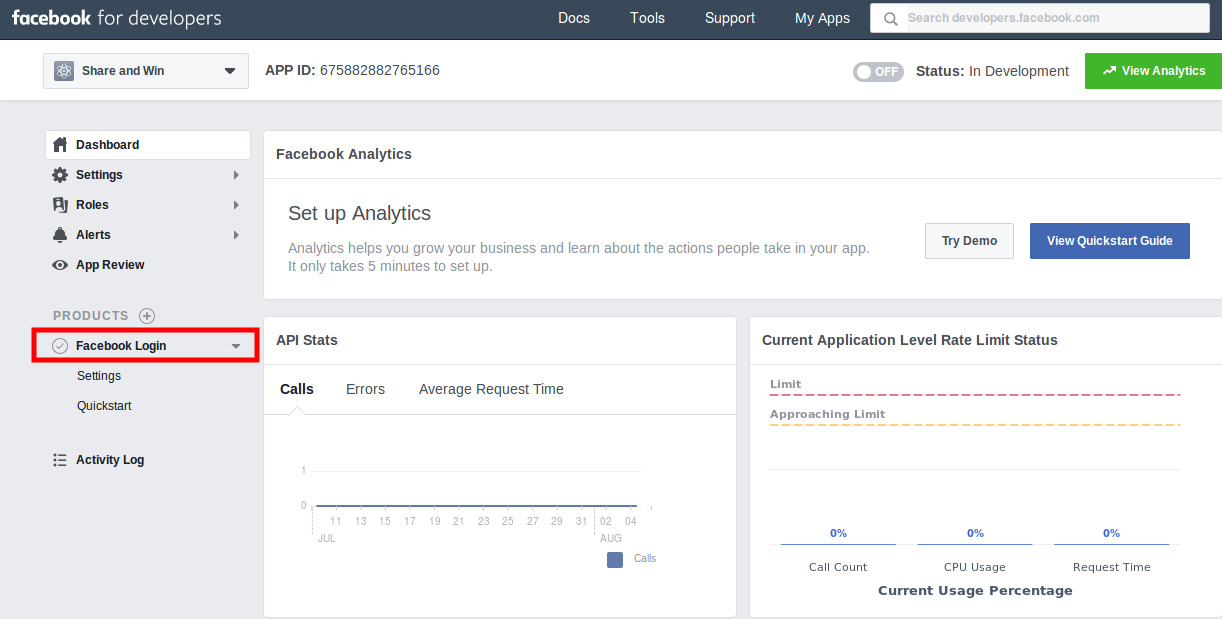
After that click on “Products” option and click on Facebook login “set Up” option. After clicking this “set up” you will view setup as shown below:
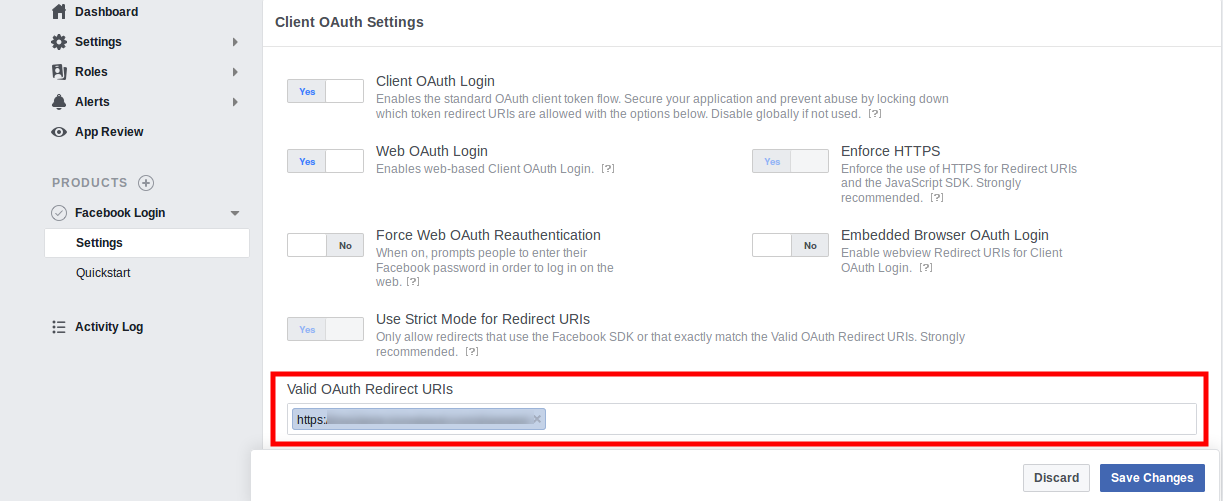
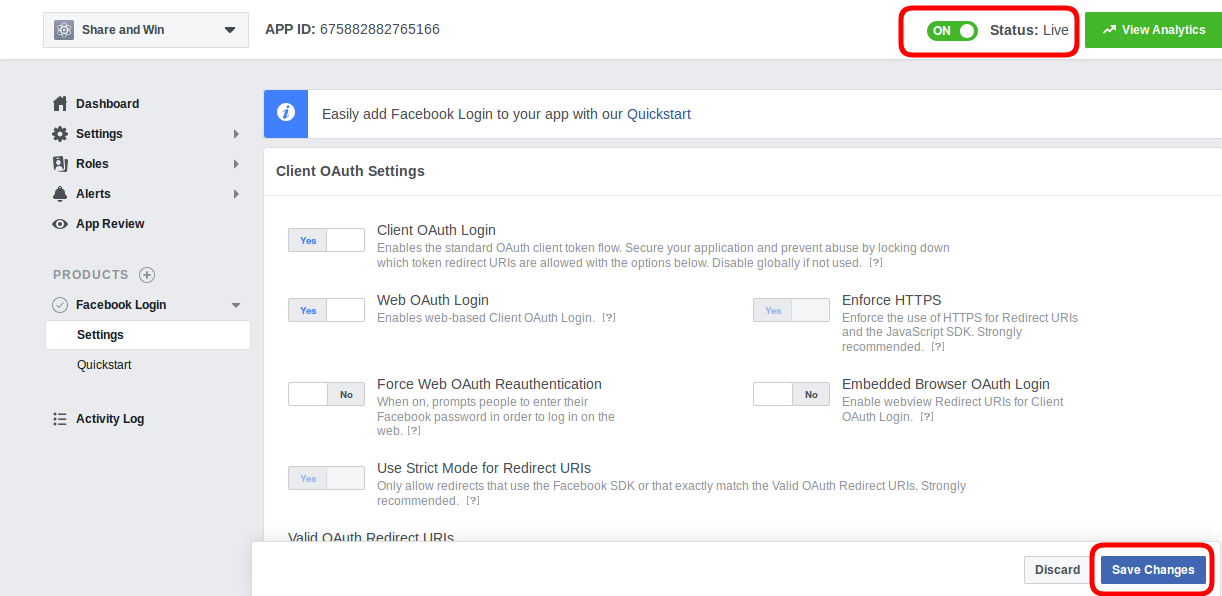
After that go to settings section and enter Valid oAuth Redirect URL’s and enable the status.
After saving all changes you can implement this Facebook app id.
3.2 Product Settings
Facebook share option extension OpenCart allows the store admin to set discount on products separately.
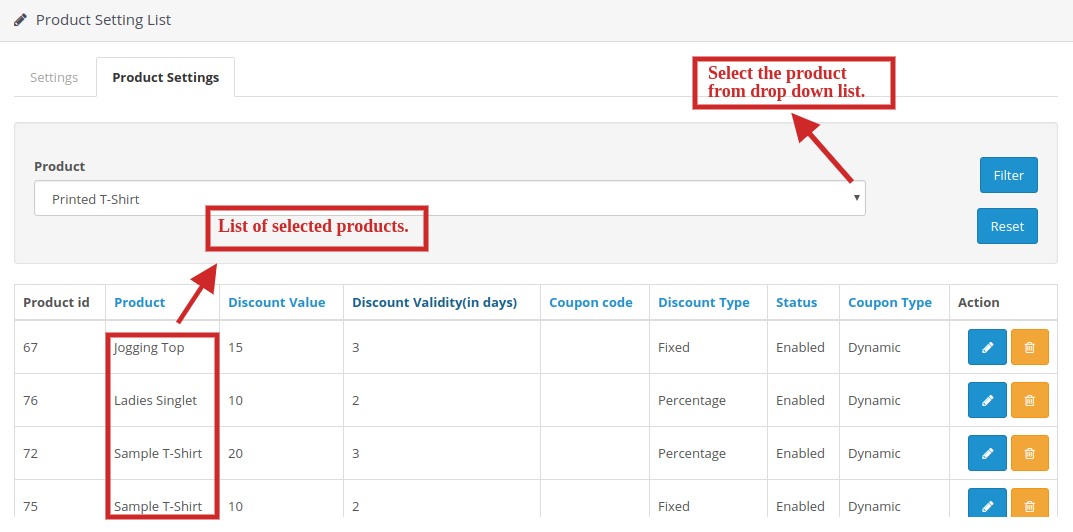
The seller can choose the products from the drop-down list accordingly on which discount has to be given.
Sellers can also set the discount value, discount validity(in days), discount type and the coupon type too.
Sellers can also enable or disable the discount offer on the selected products too.
The selected products for discount offer could be seen in the table containing all the details.
3.3 Edit Product Settings Tab
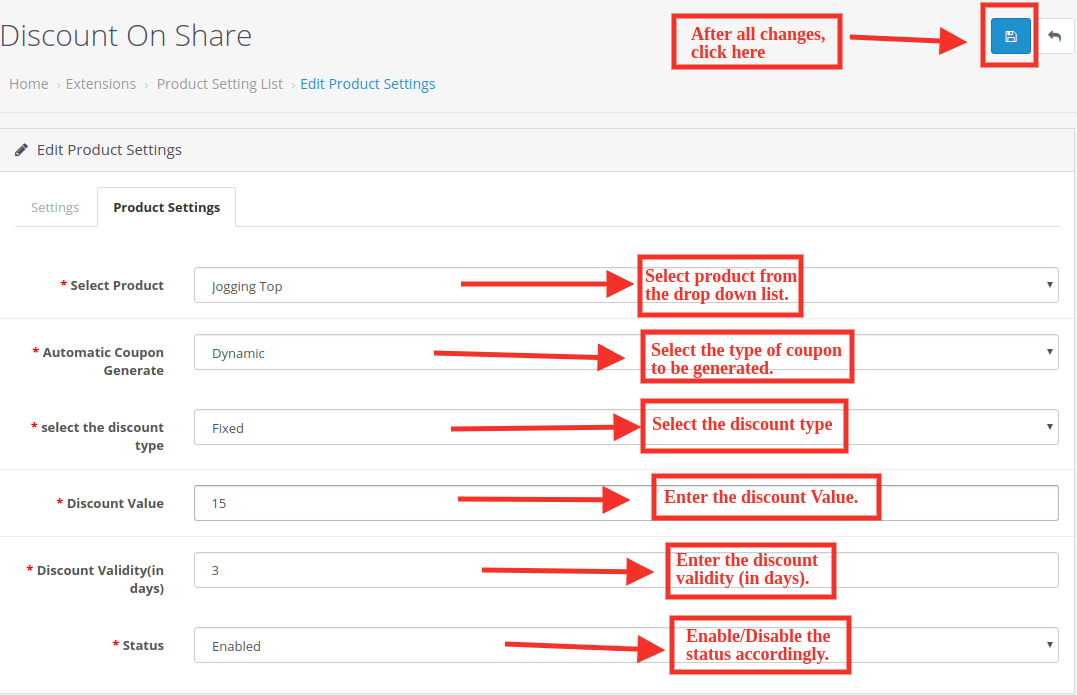
After clicking on the Edit button, you will be directed to “Edit Product Settings”. Here you can edit the product settings of the products you have already listed.
Following are the settings under this tab:
Select Product: Select the product from the drop down list.
Automatic Coupon Generate: Select the type of coupon to be generated.
Select the discount type: Select the discount type you want to provide to your customers.
Discount Value: Enter the discount value.
Discount Validity(in days): Enter the number of days you want to keep your discount valid.
Status: Enable/Disable the status accordingly.
4.0 Front End of the OpenCart Infinite Scroll Module
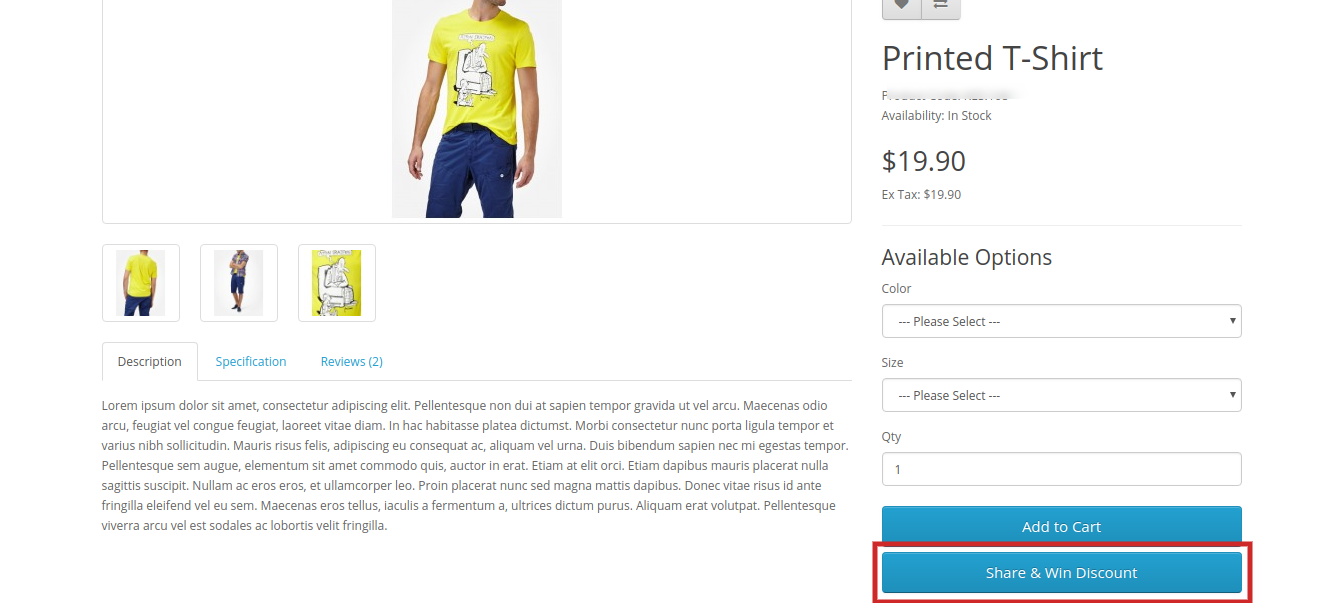
When this OpenCart Facebook Share and Win Discount Module is enabled from the back-end then a button will start appearing in the front-end of the shop on every product page. On which a text ‘Share & Win discount‘ will be written and on clicking on this button the customer can share the product and if he/she shares the product, then a discount code will be shown to that customer which will be applied to that customer only.
Share and Win Discount Tab on the product page:
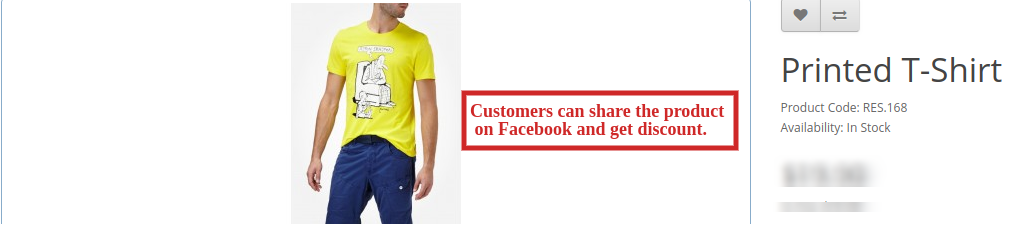
2. Share the product on Facebook and get a discount:
This way the online store merchant can use OpenCart Facebook Share and Win Discount Extension for increasing product popularity and conversion rate also. The eCommerce store merchant can set the Facebook app id for integrating it with the store. Online customers can share the products on their Facebook wall in order to get a discount coupon. The OpenCart Product share and win module is multi-lingual compatible and offers smooth functioning. The Share and get the discount extension for OpenCart is mobile compatible. The store admin can also send an email along with the coupon code. OpenCart Facebook Share and Win Discount Extension makes product promotions easy and hassle-free for the store admin.
Knowband is one of the most reputed names in the field of plugin development. We provide best plugins for platforms like – Magento,Prestashop, OpenCart and Shopify.
OpenCart Infinite scroll extension provides seamless navigation over multiple pages and a hassle-free shopping experience to online users. It slows down pagination as it is one of the biggest obstacles in working on any website. OpenCart infinite scroll enables websites to remove this hurdle by providing single-click access with the least inconvenience to the users.
Generally, customers have to browse multiple pages in search of the desired product on the website. However, this could lead to loss of time and even interest of customers too. OpenCart infinite scroll extension is the modern advancement to slow down pagination and provides seamless navigation of all the products on a single page. With the help of the dropdown scrolling module, customers can load the products of the next page on the current one just by scrolling down the page.
OpenCart Infinite scroll extension enables automatic loading of pages without even scrolling down the page. It also helps to easily navigate through the product catalog. As all the products are available on a single page, customers need not to move from one page to another for the product.
1.1 Striking Features of Infinite Scroll Extension for OpenCart
The OpenCart Infinite Scroll Extension provides you multiple features that are fully customizable and easy to configure from the backend interface without requiring any coding knowledge. The various striking features of the OpenCart Infinite Scroll Extension have been listed below:
The OpenCart fast scroll module enables automatic page loads and search results without scrolling down the page.
With the help of the OpenCart quick scroll module, customers can navigate to the next page of product listing without reloading the next page.
The OpenCart infinite scrolling plugin offers compatibility with SEO friendly URLs.
The OpenCart dropdown scrolling module gives a ‘Load More’ feature to pause infinite scroll after a definite interval of pages.
This page interval for load more feature can be set from the backend of the Infinite Scroll module.
Store admin can test the working of the Opencart infinite scroll module by enabling the sandbox setting and enter the specific IP address.
The admin interface of the OpenCart plugin is extremely easy to use and requires no use of coding knowledge to implement.
This OpenCart Infinite Scroll module offers a ‘Go to Top’ link feature to reach that start point of any product listing page.
OpenCart list view module provides SSL compatibility.
This OpenCart Infinite Scroll displays a loader while loading the next page products on the same page. This loader can be configured and disabled if required from the back-end interface.
Store admin can change the background and text color of the end page message and go to the top link.
The OpenCart Infinite Scroll Module allows the admin to show a custom message to the customers after all the product listings have been loaded on the front.
Admin can choose to display the product listings in grid or list view format via OpenCart quick Scroll module.
This Infinite Scroll extension for OpenCart gives an option to include CSS and JS code from the back-office. Using the custom CSS and JS store admin can change the look and feel of the Opencart infinite scroll module.
The OpenCart infinite scroll module offers compatibility with all the OpenCart themes, so the admin can configure the look and feel of the infinite scroll as per their site theme.
The OpenCart fast scroll module offers multi-store compatibility.
The Opencart infinite scroll module offers the store admin to set the selector settings of the module like selector pagination, selector container, etc.
The functionality of the OpenCart quick scroll module doesn’t conflict with any other installed modules of the store.
The Opencart infinite scroll module is mobile responsive.
1.2 Technology for Development
Language: PHP
Framework: OpenCart
2.0 Installation Guide
To install this OpenCart Infinite scroll Module, please follow the following steps:
Purchase the OpenCart Infinite scroll Extension from the Knowband store. You’ll get following files:
Zipped File containing the source code of the OpenCart Infinite Scroll module.
User Manual of OpenCart Infinite Scroll plugin.
Follow the steps below in order to install the OpenCart Infinite Scroll Extension in OpenCart store:
1.Unzip the zipped. You’ll get the folders as shown in the image below:
2.Copy all the files and folders of the zip file in the Root Directory of OpenCart setup via FTP manager.
3.The OpenCart Infinite Scroll module is now installed and is ready to use. Go to Admin -> Main Menu -> Extensions as shown in the image below:
4.Select Infinite Scroll from the list of the modules and click on the Edit button as shown in the image below:
3.0 Admin Interface of OpenCart Infinite Scroll Extension
OpenCart Infinite Scroll extension offers easy customization option to the store admin. The various configuration options are discussed in detail below:
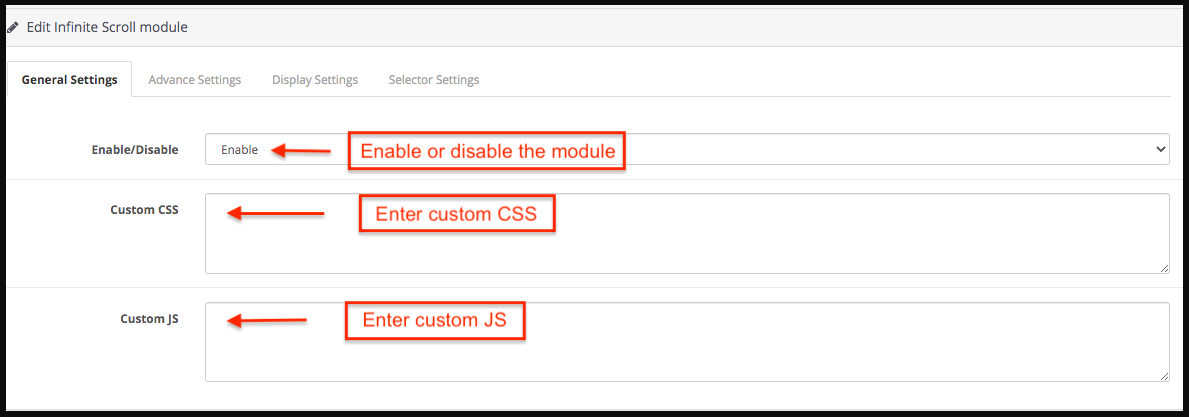
3.1 General Settings
Under this tab the store admin can find the basic settings of the module and configure the module.
Enable/Disable: Enable or disable the Opencart infinite scroll module in a single button click.
Custom JS: Enter custom JS accordingly.
Custom CSS: Store admin can enter custom CSS to change the look and feel of the Opencart infinite scroll module.
3.2 Advance Settings
From this tab the store admin can set the advance settings of the Opencart infinite scroll module.
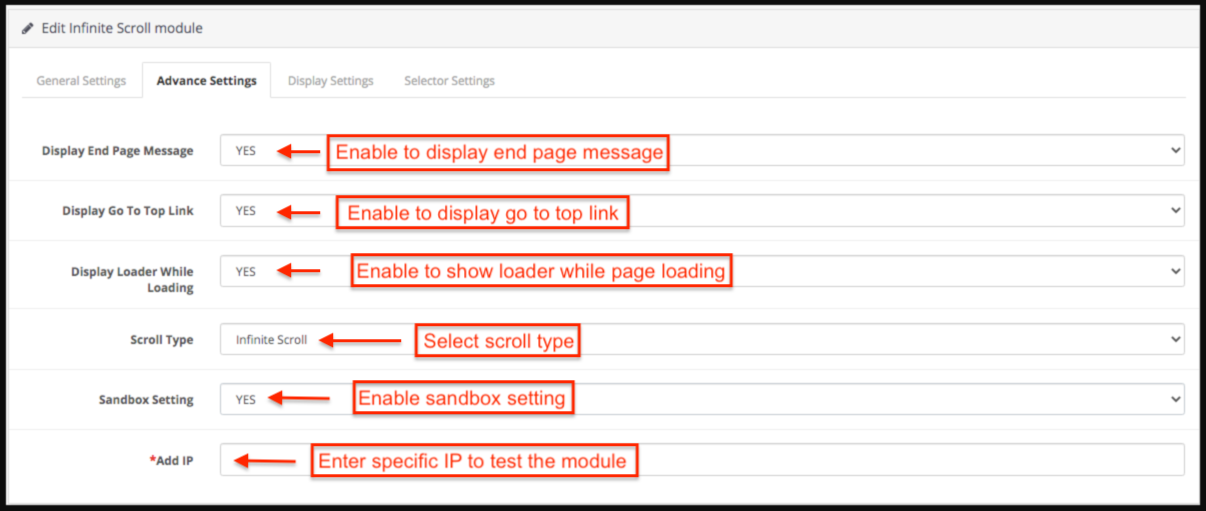
Display End Page Message: Select Yes to display the end page message. If the store admin enables this then an end page message appears at the ending of the products.
Display Go To Top Link: Select Yes to display Go to Top link. If store admin enables this then a go-to top link appears when the customer scrolls the page.
Display Loader While Loading: Select Yes to display loader while loading.
Scroll Type: Select infinite scroll from the drop-down list to select scroll type.
Show load more link after pages: If store admin selects the scroll type as load more products link then store admin has to enter the number of pages after which load more link appears.
Sandbox Setting: Select Yes or No from the drop-down list for the Sandbox setting.
Add IP: Store admin can add the specific IP address to test the working of the Opencart infinite scroll module.
3.3 Display Settings
Following are the settings listed under this tab:
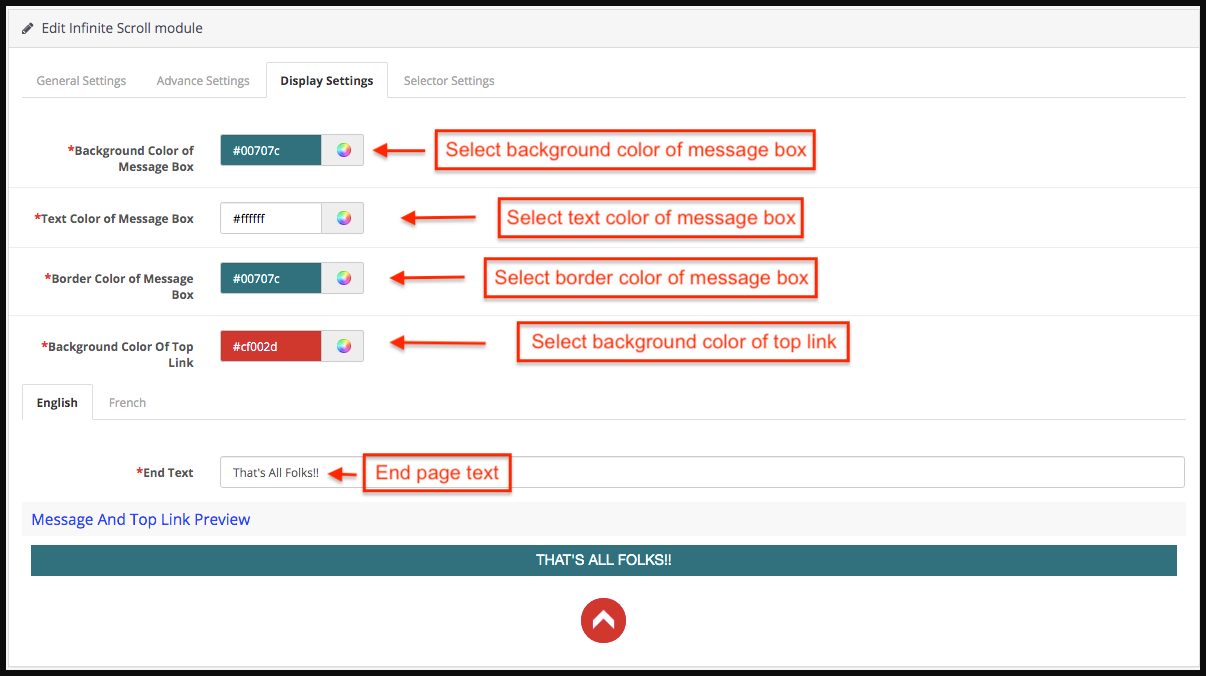
Background Color of Message Box: Select the background color of the message box.
Text Color of Message Box: Select the Text-color of the message box.
Border Color of Message Box: Select the border color of the message box.
Background Color Of Top Link: Select the background color of top link.
End Text: Enter the end text in either English or French language.
Message and Top link preview: Store admin can the seethe preview of the end page message and go to the top link.
3.4 Selector Settings:
From this tab the store admin can set the selector details of the Opencart infinite scroll module. Please do not edit these settings if you are not fully sure about it as modification in these settings may lead to improper working of the module.
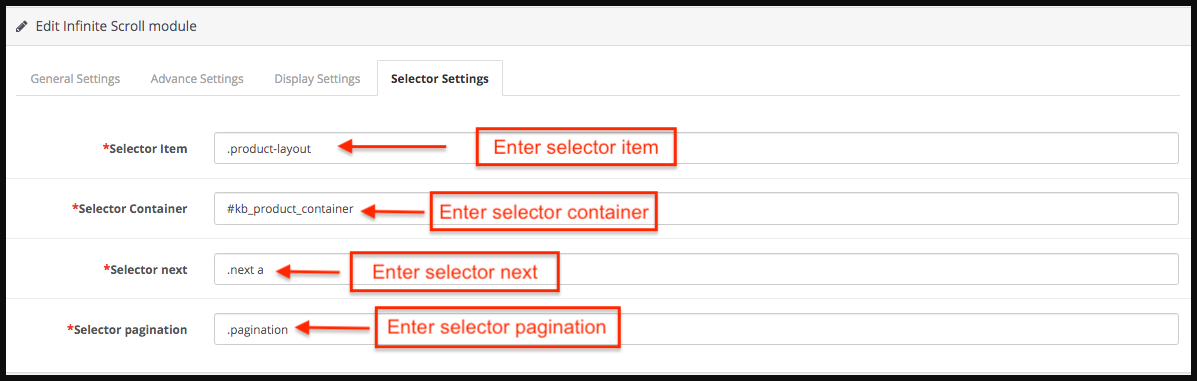
Selector Item: Enter the selector item.
Selector Container: Enter the selector container.
Selector next: Enter the selector next.
Selector pagination: Enter the selector pagination.
4.0 Front End of the OpenCart Infinite Scroll Module
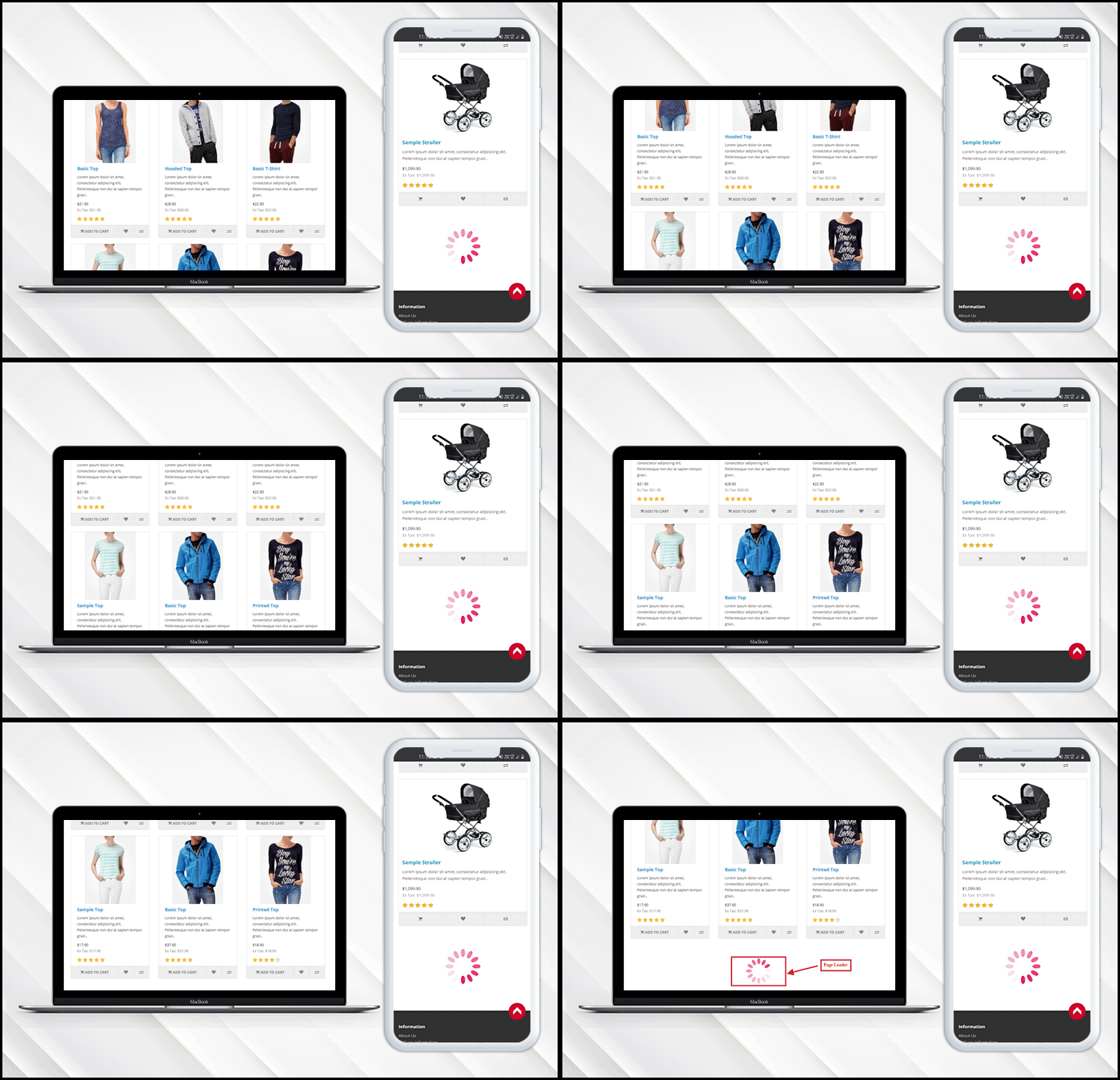
When the OpenCart list view module by Knowband is enabled from the admin panel then on every product listing page pagination of the products would not appear. The customer will be able to view all the products just by scrolling down on the page and if the display go to top link is enabled then the link will appear on the bottom right of the page to scroll the customer back to the top of the page. When all the pages are loaded a message appears in the bottom which states that all the pages are loaded now.
To help you set up and use the Knowband OpenCart Infinite Scroll extension, we have created a comprehensive YouTube tutorial. This step-by-step video guide walks you through the installation process, configuration options, and how to enable automatic product loading on your store for a smooth, seamless shopping experience.
Social media platforms are emerging as a new stage for eCommerce and retail companies to market their brands.
Just think about the last time you visited an eCommerce website to buy something, went to the check-out page, stepped back, and left the cart abandoned.
However, we can say either you were in no mood to purchase the product or you stepped back because of expensive shipping charges or got baffled with the super tricky checkout process.
According to Statista, 69.23% is the average cart abandonment rate for online shopping which clearly shows the slipping off of potential leads you have been continuously hustling down the line. However, there could be many reasons for the incomplete conversion of your potential leads.
How social media can help you out?
Social Media is a great tool and the most popular way of promoting your business or brand in between audiences. Today, every individual is present on at least one social media platform. In fact, 86% of the people follow the social media handles of the brands they want to get associated with. Still, these brands are unable to generate great revenues by leveraging the benefits of social media. So, how social media could help you out in achieving your sales targets?
Today’s generation is dependent on technology for the latest updates and offers and also wants great support in favor. This makes social media play a crucial role in promoting these brands either small or large, in fact, social media also serves in promoting well-established industries too.
Well, let’s take a ride through some of the ways in which social media can help you to boost up your sale are as follows:
1. The Hashtag Game:
It’s the best way to stand out from the competition and appear on the top of the list in any hashtag look searched out by your potential customers on social media platforms. Many organisations are working on the same strategy by keeping the hashtag game consistent. If you are planning to launch a new product or coming up with some new scheme, there is no need to hesitate in adding multiple hashtags as it will provide you transparency from other brands.
Make sure to use the closest and related hashtags that represent your business’s core interest as clear as possible. Confusing customers by using irrelevant hashtags could also lead you to the pitfall of your business sales. Utilise the hashtags wherever needed and stick to one medium only.
2. Disseminate deals via Social Media:
Social media works great in broadcasting the latest deals you have come up with. Offering an extraordinary price on your products but just for a limited time. This will attract customers to your website and compel them to go for instant purchase. Reveal the deal to generate some amazing leads on your online eCommerce store but be sure not to reveal the exact time frame of the same.
This strategy will assure you that customers will regularly check their feeds for some latest deals and offers and also could visit your social profile to know some more glimmer deal. Since many customers will visit to your online store so be prepared for heavy traffic on your website.
3. Offer discounts and coupons:
Coupons can help you sell more products as individuals always try to look up for the best deal and discounts on the products. Offering a coupon could attract customers towards your product and will help you convert your traffic into potential leads. You can facilitate your customers by providing them coupon code that is only accessible to the individuals who have liked your page on social media platforms like Facebook or followed you on Instagram or twitter etc.
The above methods are truly functional and will surely attract huge amount of audience through social sites to your brand store. This will lead to an increment in a number of supporters and followers.
4. Provide free shipping:
Free shipping is a blessing for every individual out there. If we believe Statista, 73 percent of respondents stated that free delivery greatly impacts their decision to purchase an item online. Shipping charges are the top reason behind cart abandonment as customers don’t want to pay delivery charges. So try to provide free shipping to your social media followers and grab the maximum leads. Make sure to provide the free shipping on any festival occasions as it is the season of maximum sale and this can help you in generating huge revenues and profits through social media platforms.
5. Exercise Giveaway contests!
This is the most attractive way of luring your customers towards your website as it could efficiently return you a good amount of revenues. Perform a giveaway contest on your social media page that requires individuals to sign up on your brand store. This exciting way would definitely increase the possibility to produce new leads. These contests provide good offers and discounts which incorporate a motivating force in customers to go for instant purchase and take your business to a new horizon!
The individual should be able to choose in between three distinct modes of a similar subject and enter to win the prize. This strategy is not only to generate leads or serve as an acknowledgment of the brand, but it also enables to expand the social stage online. Make sure that each individual who enters the advancement must like the Facebook page to look at the endowments.
6. Post Multiple pictures:
Whenever you post a picture on social media platforms like Facebook or Instagram, it’s obvious to get a reaction. You can urge your followers to like share and comment on your daily posts and feed. Facebook simply actualised another calculation that will re-post a connection each time somebody remarks on it. It’s important to remain consistent towards social media posting. Posting a picture implies more presentation and information about the product. Getting a huge number of “likes” prompts more individuals towards your post, so make sure to post multiple pictures of your products with each advancement you post.
7. Increase your exposure on Social Media Platforms:
It’s important for a seller to mark their presence on a social platform. They should ask their customers to follow and share their social media profile. It’s a meaningful way of connecting to online networking accounts, which can result in a higher conversion of leads. This is the most incredible method to get the word out.
You should also generate your email signature on your blog entries, press releases or pamphlets. It eventually acquires followers which helps you to find out more business deals and resulting in a huge chunk of profits.
Over to You:
The above mentioned points are some of the effective ways in embracing the standards of your brand store online. However, it would also help you in grabbing some good leads on your plate. So, start working from the day itself by luring your customers with various discounts and offers through your social media handle. Regardless of whether you owe a local store or an eCommerce store, creating your profile on social media platforms is very important. It encourages your brand among huge number of audience to generate good sales and revenues.
How KnowBand can help you?
KnowBand is a technical solution provider specifically for eCommerce platforms. The extensions provided by us are loaded with multiple features which helps in the full fledged development of your eCommerce store. KnowBand offers multi vendor Marketplace Extensions which enables you to convert your eCommerce website into a Marketplace like eBay, Etsy, Walmart, Amazon etc. It is available for different CMS platforms like PrestaShop, Magento, Magento2, OpenCart
Key features of Multi vendor Marketplace are following:
Manage sellers
Approval configuration
Manage the commission from the sellers
Customised e-mail templates for notification
Product management
Compatible with Mobile App of the same Multi-Vendor Marketplace.
After reading this blog we will be able to understand the process to fetch data from Firebase. This process includes installation of Firebase SDK and implementation of code to fetch data from Firebase.
Pre-requisites
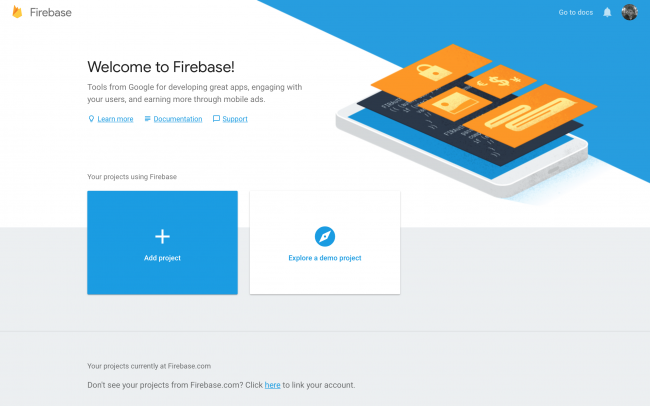
We need to write swift code to fetch the data from Firebase. For this first we will have to create the Firebase project. Follow the steps given below to create the Firebase project –
2. Then you will have to create Firebase project by clicking on “Add Project” button
3. You need GoogleService-Info.plist file for iOS SDK as this file contains the details of the Firebase project which are used by Firebase SDK
4. Then add the plist file in the project
5. Add the following code before the return statement within application(_:didFinishLaunchingWithOptions:) in AppDelegate.swift file
FirebaseApp.configure()
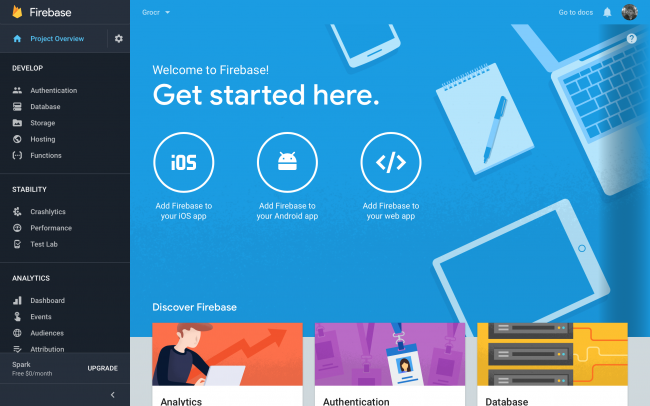
6. Then go to “Database” option from the left menu.
7. Select “Realtime Database” and that is the database for the Firebase project. All the data that is stored in or fetched from is from this location.
8. Firebase setup is completed
Now you will have to download Firebase SDK in the swift. For this you will have to install the following pods.
pod ‘Firebase/Core’
pod ‘Firebase/Database’
Let suppose you have the following data in the given structure in the Firebase database –
// The root of the tree
{
  // grocery-items
  "grocery-items": {

    // grocery-items/milk
    "milk": {

      // grocery-items/milk/name
      "name": "Milk",

      // grocery-items/milk/addedByUser
      "addedByUser": "David"
    },

    "pizza": {
      "name": "Pizza",
      "addedByUser": "Alice"
    },
  }
}
After successful installation of the pods, we can move on to the coding part.
Code Implementation
All the data points/nodes are used to access data from Firebase database. We create references to the nodes and then fetch data from that node.
In other words a Firebase reference points to a location in Firebase where data is stored.
First we will have to create reference to the root node of the database structure –
let ref = Database.database().reference(withPath: "grocery-items")
or the following way can be used –
let rootRef = Database.database().reference()
let ref = rootRef.child("grocery-items")
Reference to the child node which is “milk” can be created using the following code –
let milkRef = ref.child("milk")
Asynchronous listener can be attached to a reference in order to retrieve data from Firebase using observe(_:with:) method.
The following code will fetch the data and keep listening to the data changes on the database. As soon as any change is made in the database, the new snapshot of the node/reference is fetched and we get the updated data as soon as any change is made in the database.
ref.observe(.value, with: { snapshot in
  // This is the snapshot of the data at the moment in the Firebase database
  // To get value from the snapshot, we user snapshot.value
  print(snapshot.value as Any)
})
Then the snapshot values can be parsed and used in the app.
One big advantage of using observe method over observeSingleEvent method is that you don’t have to call the function again and again as the updated data is fetched from the database as soon as any value is changed in the database.
Summary
Now you should be able to fetch the data from the Firebase database in swift using Firebase SDK.
Please feel free to get in touch with us at support@knowband.com for any issues.
We also provide No Code Mobile App solutions for Prestashop, Opencart, Magento 2 and Woocommerce. Know more here:
With the evolution of modern technologies, eCommerce industry has taken a boon and continuously growing towards success. The endless advantages provided by online trading make it popular among sellers and buyers both. Being a seller, it’s important to understand the increasing demand for handheld technologies and should come up with the latest strategies to serve their customers with an amazing shopping experience. Sellers need to think of selling either by Dropshipping or via an eCommerce Marketplace.
If you have any kind of connection with the retail sector or online businesses then you must be familiar with the terms eCommerce Marketplace and Dropshipping. Many of you might have seen the industry publications, social media ads talking about the benefits of selling on Marketplace or benefits of dropshipping. But how will someone know the exact meaning and difference between these two buzzwords? Well, this article will let you know the answer to the question mentioned above.
Dropshipping:
The practice of Dropshipping is a kind of an eCommerce model which helps an eCommerce store owner to sell products without owning or managing any inventory that means sellers don’t need to invest in acquiring inventory, warehouse or in shipping methods. Dropship model is super beneficial for the startups where they can not invest a huge amount in the initial phase of their business. It let many small business owners earn a good amount of profit in fewer investment.
It is a hassle-free process providing a bundle of advantages due to which it gained popularity in the eCommerce community. Dropshipping lets you free from managing warehouses and inventories. This allows eCommerce store owners to offer a large number of Stock Keeping Units and can even give a try to new vendors for more variety of products. Meanwhile, the retailer can also experiment with new product categories according to the latest trend going in the market. This option is less risky and difficult than a traditional wholesale store.
However, this smart technique needs an eCommerce store owner to remain aware and be smart as it has to be executed with proper technology and diligence. However, the reckless behaviour of retailers can cost them high as they can lose control on the processes like shipping process, data of inventory, product information, etc. This could lead them to severe losses, otherwise dropshipping could be a boon for online businesses.
eCommerce Marketplace:
Selling on an eCommerce Marketplace is always in trend as it helps sellers to gain a huge number of profits. Some of the renowned Marketplaces like Amazon, Etsy, eBay, Walmart, Google Shopping, Newegg etc. provides a recognisable, value traffic platform to many retailers where they can set up their brand shop and sell between millions of customers. Retailers can leverage the well-structured facilities of Marketplace without investing a single penny on the same.
The idea of selling on a Marketplace could be a great deal of profit. Marketplaces like Amazon, Etsy,eBay, Walmart, Google Shopping etc. are doing wonders in terms of business growth. The access to a huge number of audience let sellers earn a huge chunk of profits. Marketplace also helped sellers to provide brand exposure and recognition which makes them trustworthy brand between customers and they can buy products without any inconvenience.
However, there are many marketplaces that deliver goods on the behalf of retailers that means, whenever a buyer buys a product, the store admin and vendors get notified automatically. After this, the Marketplace shipping agent will collect the product directly from the vendor if the retailer has no stock and delivers it to the buyer. This clearly shows that even Marketplace works on the process of dropship when needed.
Dropship Program:
Setting up a Marketplace is definitely not a cup of tea for every retailer. Many retailers who want to increase their trading power online, they go for some dropship programs to expand their product inventories and offerings to generate more sales and revenues.
An excellent example of a dropship program is launched by Crate and Barrel. Their dropship program is all about to market and sells products from different vendors that lie in their product verticals. This strategy helped them to sell a wider range of items with unlimited shelf space.
Over To You
At this point, we have a full-fledged idea about the difference between dropshipping and an eCommerce Marketplace. So, which one is better? Well, there is no single answer as it totally depends on the type of business you wish to pursue from an eCommerce standpoint.
There are many brands which are aiming to access huge no. of audience via a single platform with minimum barriers involved. In this case, they should look forward to shaking hands with some renowned Marketplaces like Etsy, eBay, Amazon, Walmart etc. On the other hand, there are many small business owners who can not afford to invest a huge amount of money on inventory. It’s a good choice for startups to go for dropship model as they can skip the risk of loss in inventory at the initial stage of their business.
There is no full-fledged solution when it comes anything related to online business. So, it’s up to you to choose the best model for your business type as it totally depends on what kind of goods you sell. It’s important to choose wisely as it will help sellers in the overall growth of their business. Regardless of whether you choose the dropship model or an eCommerce Marketplace, it’s important to increase the relevant sales and traffic on your website. So, what are you waiting for, start focusing on your online eCommerce business as soon as possible?
Gaining huge profits was not that easy before. Integrate your eCommerce store with the Marketplaces like Etsy, eBay, Walmart and others in just a few simple steps. KnowBand offers Marketplace Integrators for various CMS platforms like PrestaShop, OpenCart, Magento and Shopify which allows you to present your products among larger audience and encourage the brand awareness as well.
Magneto 2 Multi vendor Marketplace allows the admin to uplift the revenue by selling the goods of third-party vendors at the same platforms. Etsy, eBay, etc, are among the best eCommerce stores, successful in keeping their customers engaged by providing services and products of different sellers at the same platform. Nowadays getting customers’ attention and keeping them busy in your store is not an easy task.
Knowband has come with Magento 2 Multi seller Marketplace module to help the admin to build their Marketplace. With the help of Magento 2, multi-vendor Marketplace extension store admins can build a Marketplace like Walmart, Etsy, and eBay and allow multiple vendors to easily register and list their products on the site. Store admin just needs to install the Magento 2 Marketplace plugin and manage everything from the backend of the store.
1.1 Admin Benefits of Magento 2 Marketplace Extension
The various admin benefits offered by Knowband’s Magento 2 Multi vendor marketplace plugin are below:
The store admin can simply upgrade their eCommerce store into a fully-featured Marketplace with the help of the Magento 2 Multi seller Marketplace module.
All types of products including Simple, configurable, and bundled are supported by Magento 2 Marketplace Module.
With the help of the Magneto 2 Multi vendor Marketplace, the store admin can set the global commission as well as a category-based commission to be charged to the sellers. Admin can add category-wise commission as well.
Seller’s profile and products at the Marketplace can be easily viewed by the store admin from the admin panel of Magento 2 Marketplace Extension.
The store admin has the access to approve or disapprove the seller account request. Moreover, do the same for the product listings.
Categories for keeping the products are assigned to the admin from the Magento 2 Multi-vendor Marketplace Module. Sellers can add their products only to the assigned categories.
The store admin has the chance to enable/disable the seller reviews and seller products reviews from the backend of the Magento 2 Multi vendor Marketplace Extension.
Magento 2 Marketplace Module offers the admin access to track the sales report and overall transaction of the site.
Default email templates for notifying the sellers are offered to the store admin by the Magento 2 Multi seller Marketplace module.
1.2 Seller Benefits offered by Magneto 2 Multi vendor Marketplace
The third-party vendors can easily register as a seller at the site just by filling a form.
Multiple sellers can register themselves at the Marketplace by filling few details in the form.
Once the admin approves their account, the sellers can easily list their products at the Marketplace from the seller dashboard.
Sellers can add their banners, shop logo, and metadata from their seller dashboard.
Sellers can effortlessly monitor the overall transaction and sales report from the seller dashboard.
New category requests can be forwarded by the sellers to the admin. In fact, the admin can approve or disapprove the category request from the back-end of the Magento 2 Multi vendor Marketplace module.
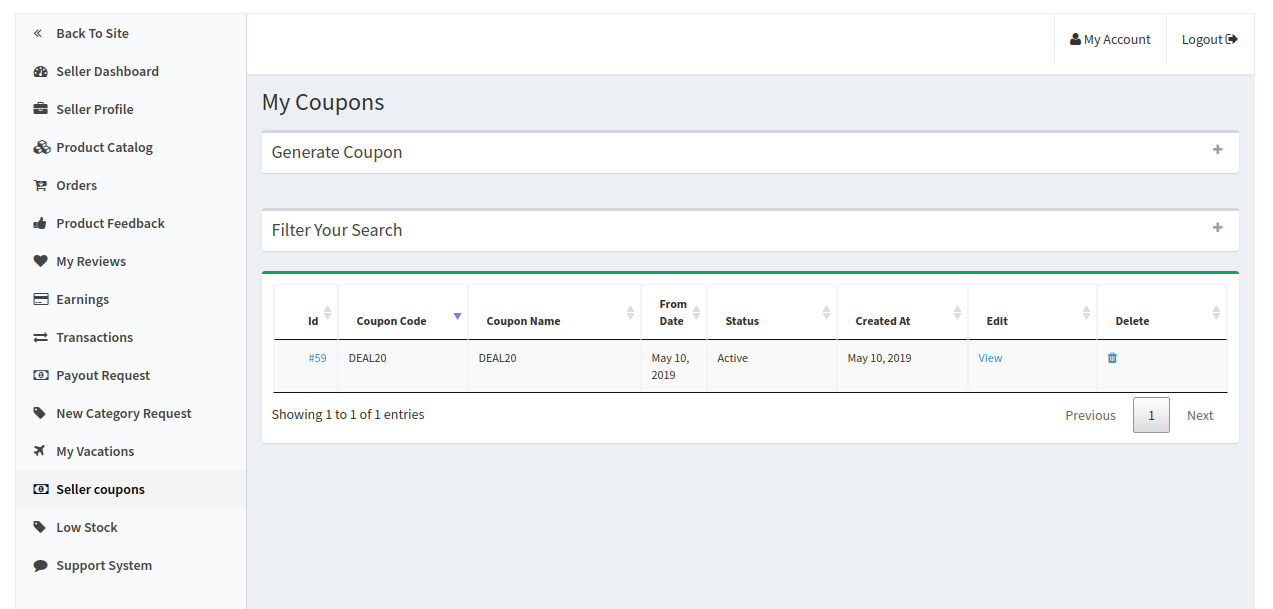
Sellers can add coupons for their store to give a discount to their customers and attract them with different offers.
1.3 Customer Benefits of Magento 2 Marketplace Extension
The customer is given a wider range of options to choose products from.
Seller’s profile can be easily viewed by the visitors on the product page.
Customers can send their valuable feedbacks for products as well as the seller.
Customers has also an option to register themselves as a seller on Magento2 Marketplace.
2.0 Installation
Buy the Magento 2 Multi vendor Marketplace extension from the KnowBand store. You’ll get the following files:
Zipped File containing the source code of the module
User Manual
Follow the steps mentioned below in order to install the Magento 2 Multi seller Marketplace extension in your store:
Unzip the zipped file. Create a folder (Magento root)/app/code/Knowband/Marketplace
Upload the extracted content in the above folder via FTP manager (like Filezilla or WinSCP – download here: https://filezilla-project.org/).
Run below commands via SSH on root Magento directory:
a) composer require phpoffice/phpexcel:1.8.1
b) composer require paypal/rest-api-sdk-php: 1.13.0
Now run the below commands to install the plugin: php -f bin/magento module:enable –clear-static-content Knowband_Marketplace
Then, php bin/magento setup:upgrade php bin/magento setup:di:compile php bin/magento setup:static-content:deploy
In Admin Panel go to the main menu -> Knowband -> Marketplace.
The Magento 2 Marketplace extension is now ready for use.
This User Manual will guide the users through the Magento 2 Multi seller Marketplace module configuration and settings.
3.0 Admin Panel
The Magento 2 Marketplace plugin offers multiple options for configuration and management of the online marketplace.
All the tabs are below in detail.
3.1 General Settings
General settings of Magento 2 Multi seller Marketplace is divided into two main types:
the General Settings and Low Stock Configuration
3.1.1 General Settings
The various fields of this General setting of the Magneto 2 Multi vendor Marketplace plugin are below:
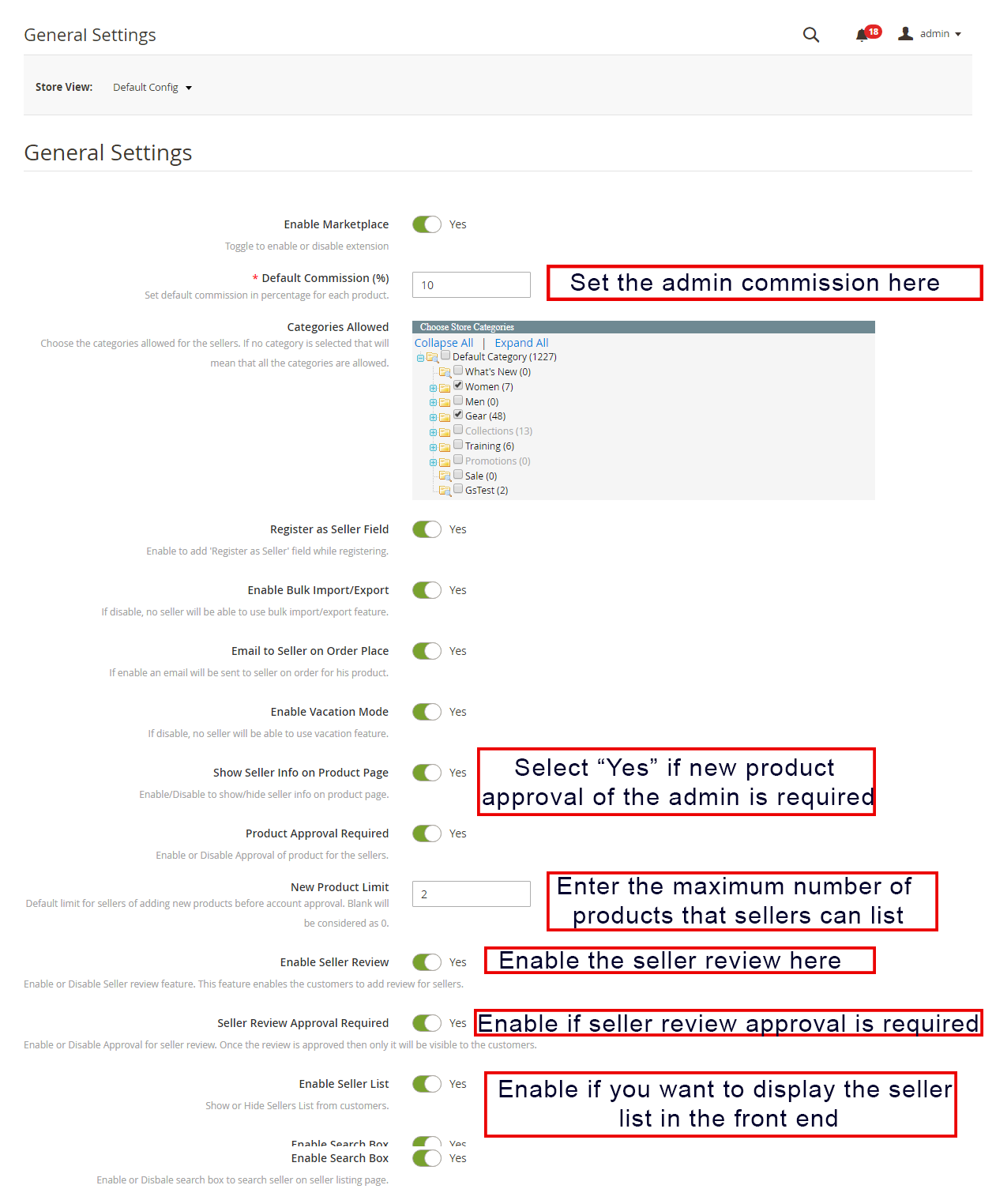
Enable Marketplace: Toggle this button to Enable/ Disable the Magento 2 Multi seller Marketplace module.
Default Commission: Admin can enter the commission to be charged to the sellers here. The percentage amount set by the admin applies to all the Marketplace sellers by default.
Categories Allowable: Admin can select the categories he wants to assign the sellers. If he selects no category here, the seller can keep the products in all the categories.
Register as Seller Field: If the admin enables then the seller can register their store at the Marketplace.
Show different registration page for Seller: If the admin enables then sellers can register themselves using a separate registration form in the front end of Magento2 Marketplace.
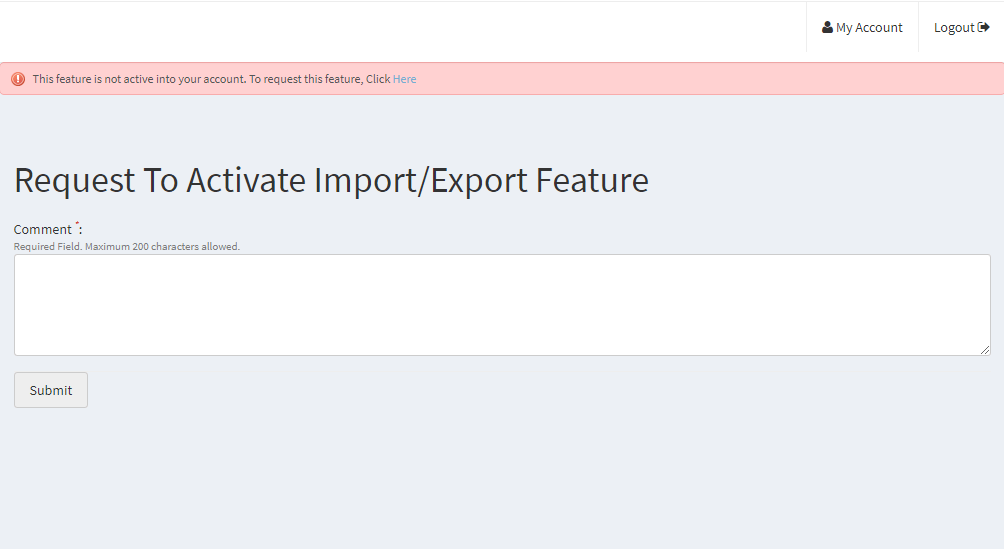
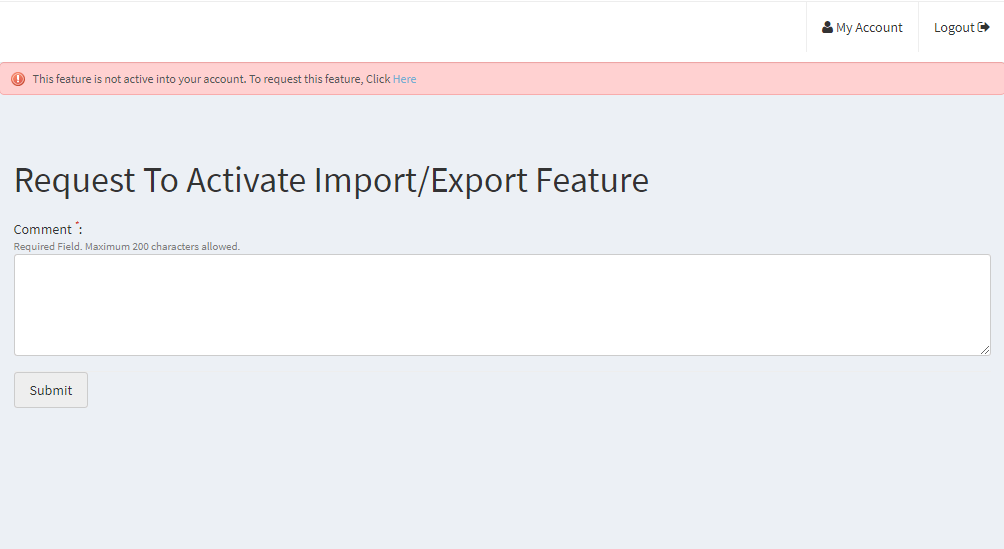
Enable Bulk Import/Export: Admin can allow the sellers to upload the products in bulk with a toggle of this button.
Email to seller on order place: If the admin enables this button, the seller will be notified about the orders via email.
Enable Vacation Mode: When the admin enables, this feature allows the 3.7 Sellers Reviews
All the seller reviews along with their allowable status will list in this section. Sellers to send the vacation request to the admin.
Show Seller information on Product Page: Customers can view the seller information on the product page if the admin enables this button.
Product Approval Required: If he selects ‘Yes’, then, admin approval will be required to list the product at the site.
New Product Limit: Enter the product limit here that you want the sellers to list at the Marketplace. If the field is left blank, no product will list.
Enable Seller Review: Select he selects ‘Yes’, the customers will be able to send their feedback for the sellers here.
Seller Review Approval: If the admin enables this feature, then, the review sent by the customers will be forwarded to the admin for approval. Only after the approval of the store admin, the review will be visible to the customers.
Enable Seller List: Enable this button to display the list of the sellers in the front-end of the site
Activate search box: Enable this feature to allow the customers to search sellers on the seller listing page.
Enable Seller Coupon: If the admin enables this feature, then the sellers can add coupons for their stores.
Enable Seller Customer Support: Enable this feature to allow the sellers to view and solve the queries of their customers.
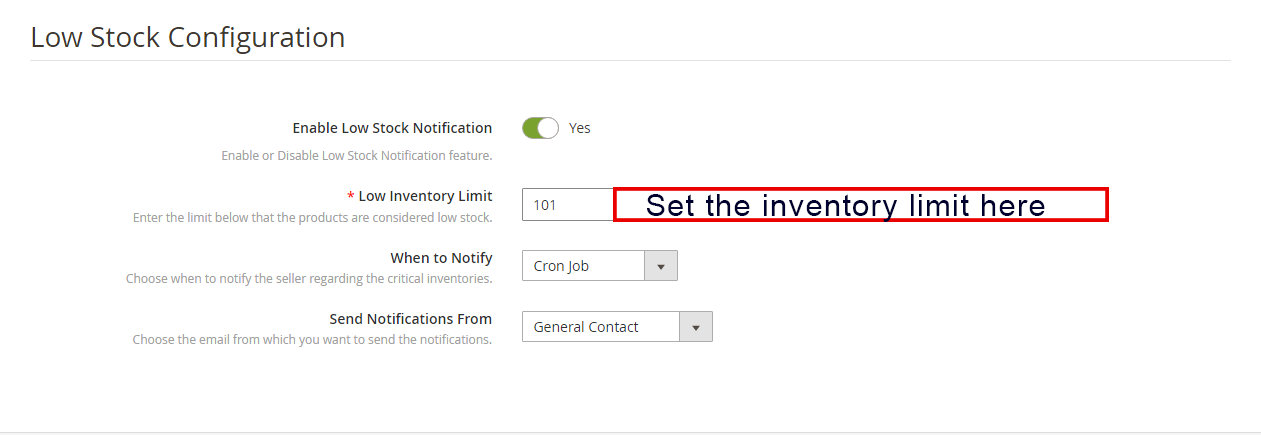
3.1.2 Low Stock Configuration
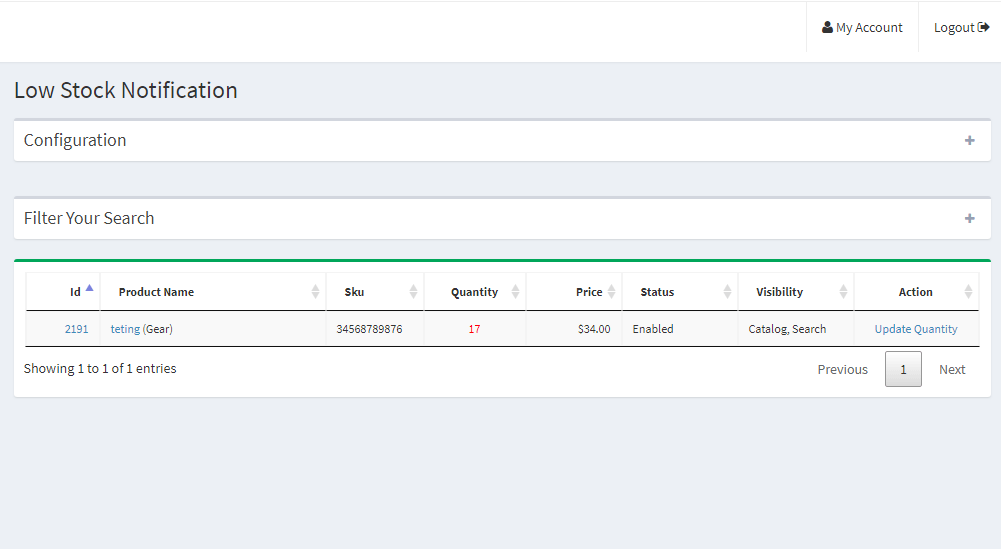
Enable Low Stock Notification: If he selects ‘Yes’ then, the sellers will be notified about the low stock via email.
Low Inventory Limit: This is a mandatory field where the admin is needed to add the limit below which the products are considered low stock.
When to Notify: Admin has the choice to select the condition when he wants to send the mail to sellers.
Send Notifications from: Select the emails which you want to send as notifications.
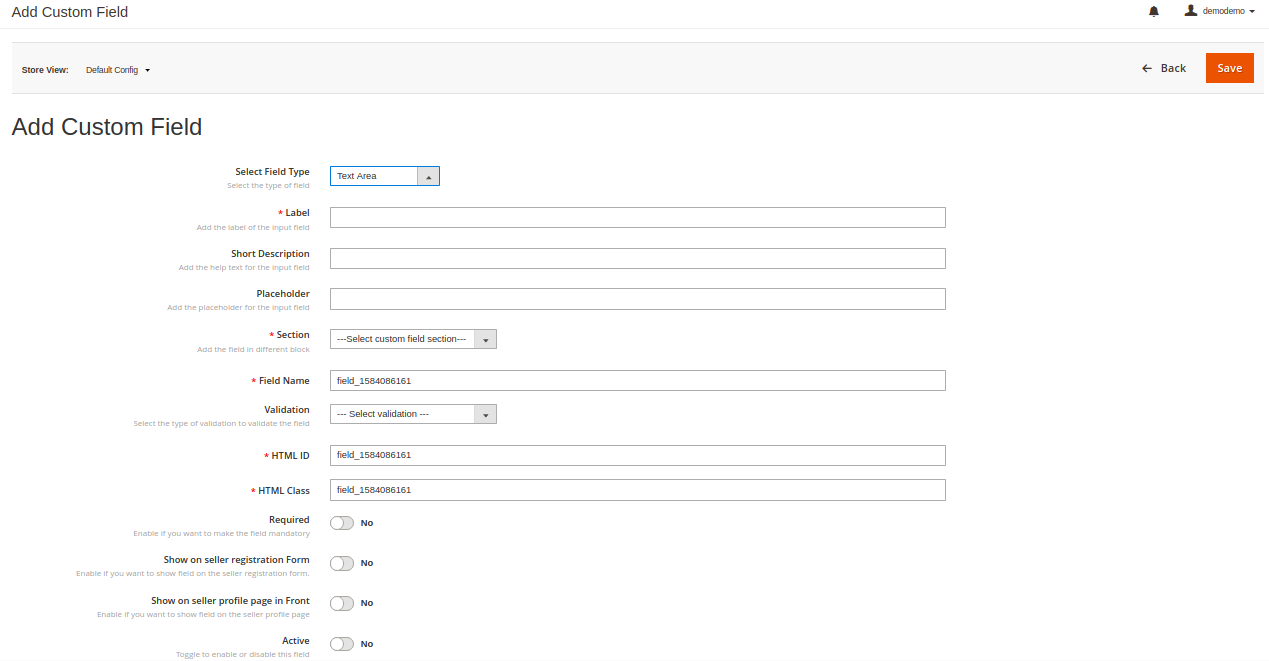
3.2 Custom Fields:
The admin can add different custom fields for the seller’s profile. Admin can align these custom fields under a different section of the seller’s profile. Admin has a variety of choices to select custom fields like text, radio, check-box, etc. And admin can make these custom fields required also.
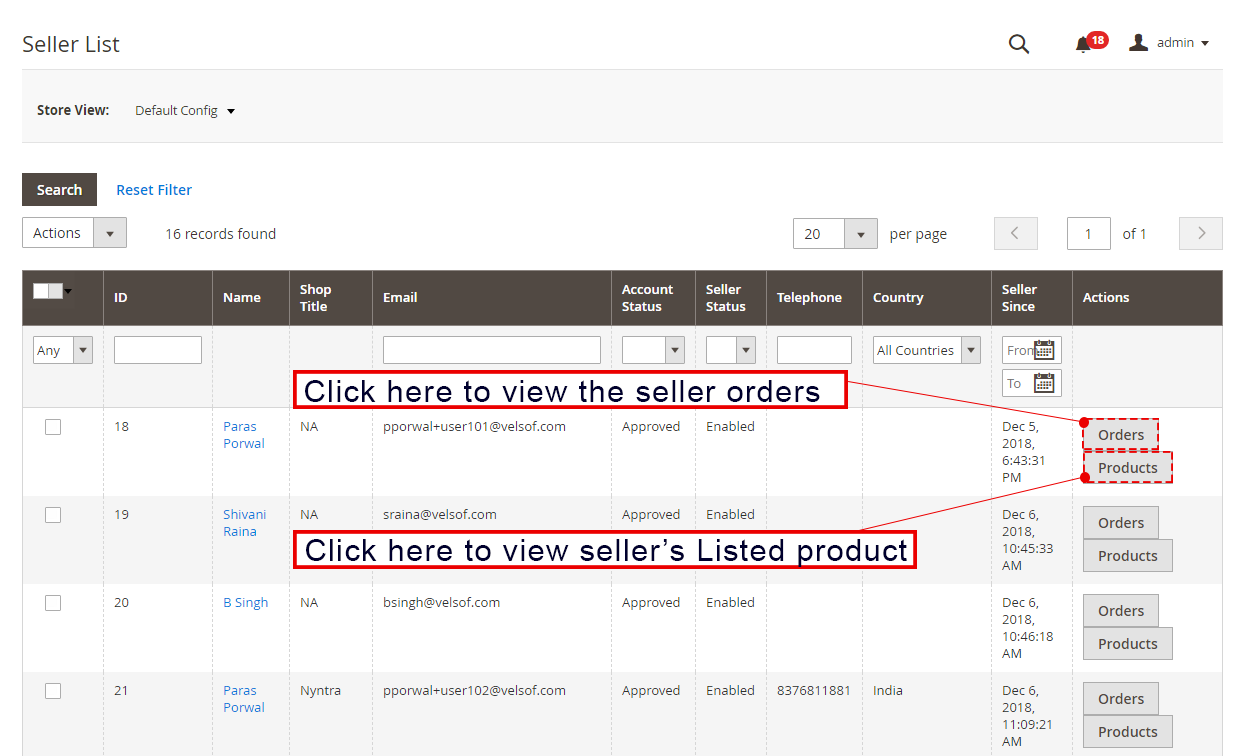
3.3 Seller List
The admin can monitor the list of the sellers selling their goods at the Marketplace from the backend of the Magento 2 Multi seller Marketplace extension. Admin can view the list of orders and the seller’s products with a click on the right side of each seller.
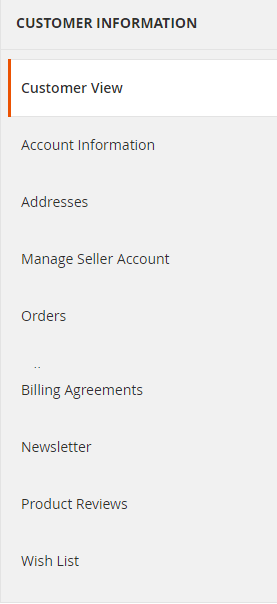
3.3.1 How to Edit Seller’s Account
The admin even gets an option to edit the profile of the sellers. Click on the name of the seller and a new page will open in front of you. Admin can here view and edit seller account details, orders, product reviews, Customer view, etc.
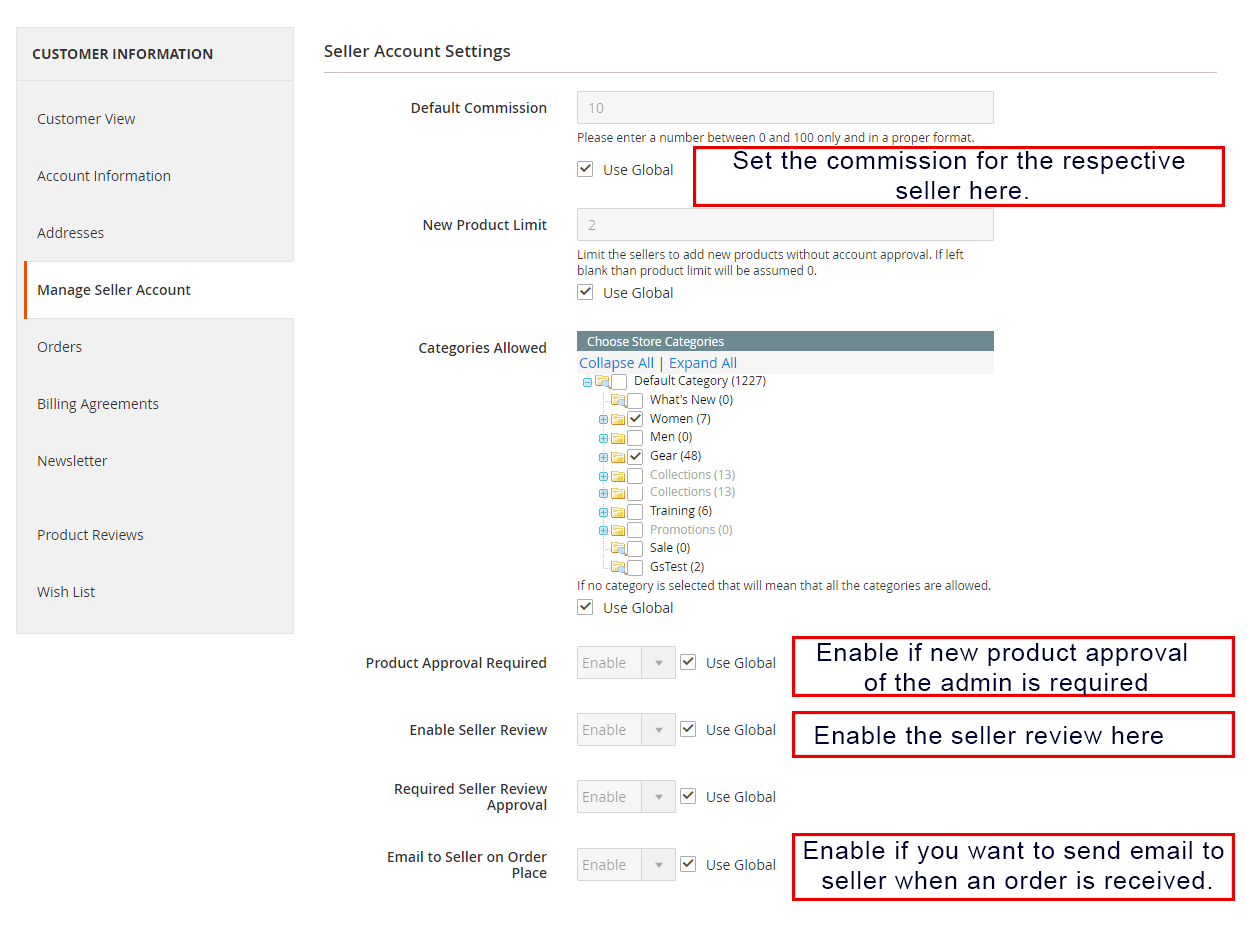
3.3.2 Seller Account Settings
The following tabs are available in the Seller Account Settings:
Default Commission: Admin has the choice to set a different commission amount of the seller in comparison with the global commission.
New Product Limit: The product limit set in the General setting tab is changeable for a particular seller. Admin can set the new product limit for a particular seller here.
Categories Allowable: Categories other than the global categories can be assigned to a particular seller here.
Product Approval Required: Product approval settings are changeable in this tab.
Enable Seller Review: Admin can change the settings for seller review here.
Required seller Review Approval: The admin can change the seller review approval settings for a particular seller in this field.
Email to seller on Order Place: If the admin wants to notify a particular seller or not on orders placed then the admin can enable or disable the settings here.
3.4 Seller Account Approval Request
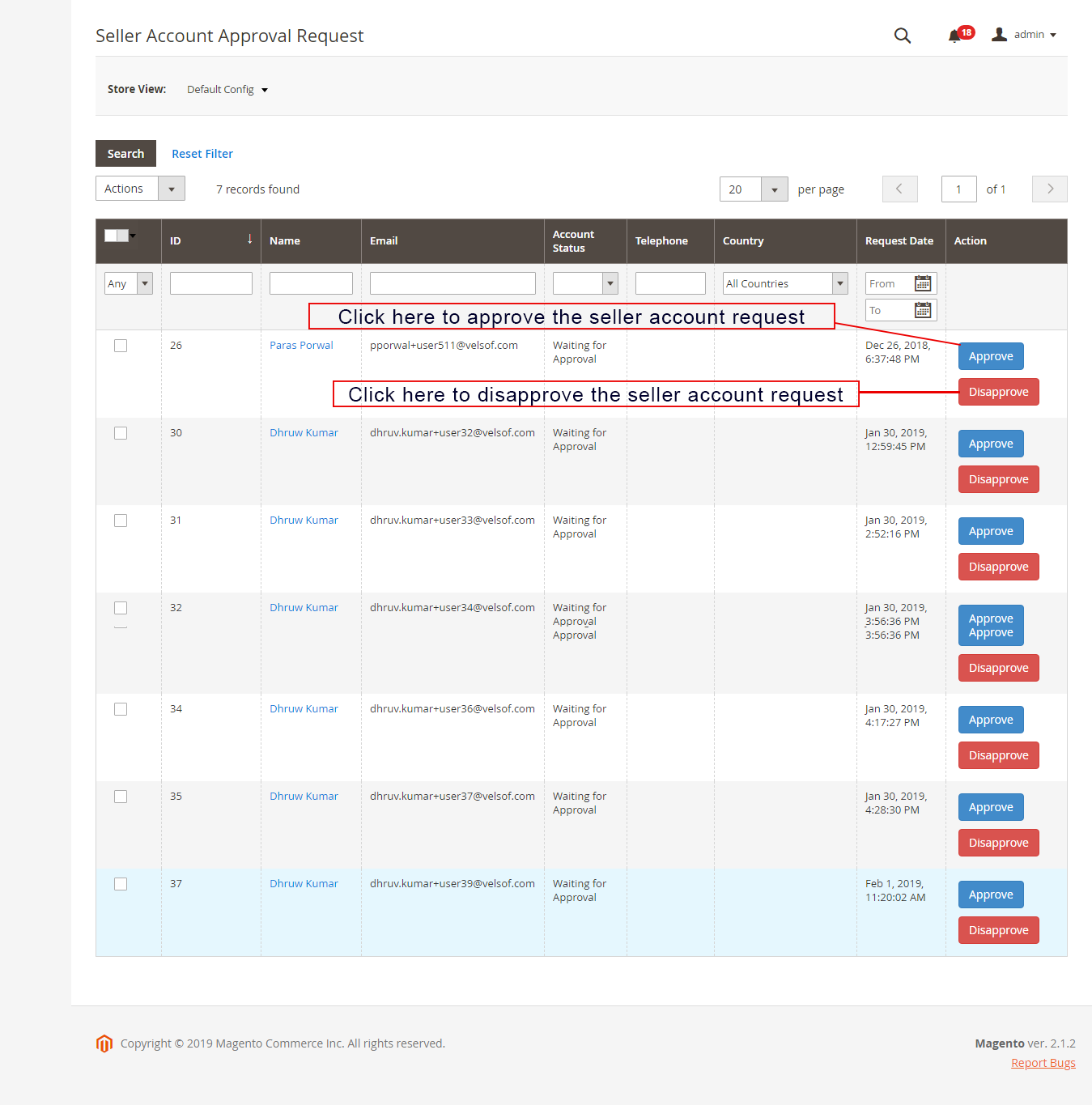
The third-party vendors can fill up the form in order to register their seller account at the site. The seller list along with their account status can be viewed by the admin in this tab of the Magento 2 Multi vendor Marketplace extension.
3.4.1 How to Approve and Disapprove the Seller’s Account
The admin can approve the seller’s account at a button click from the back-end of the Magento 2 Marketplace module.
Just click on the approve or disapprove button corresponding to each seller account as shown below:
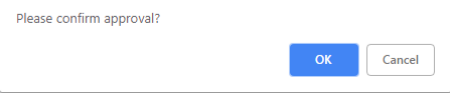
If the admin clicks on the Approve button, a pop-up will display asking for permission to approve or disapprove the seller account.
Once the admin approves the seller’s profile, the seller will list it in the ‘Seller List’ tab of the Magento 2 Multi vendor Marketplace module. If the admin clicks on the Disapprove button, a pop-up box asking for the reason for the disapproval will appear.
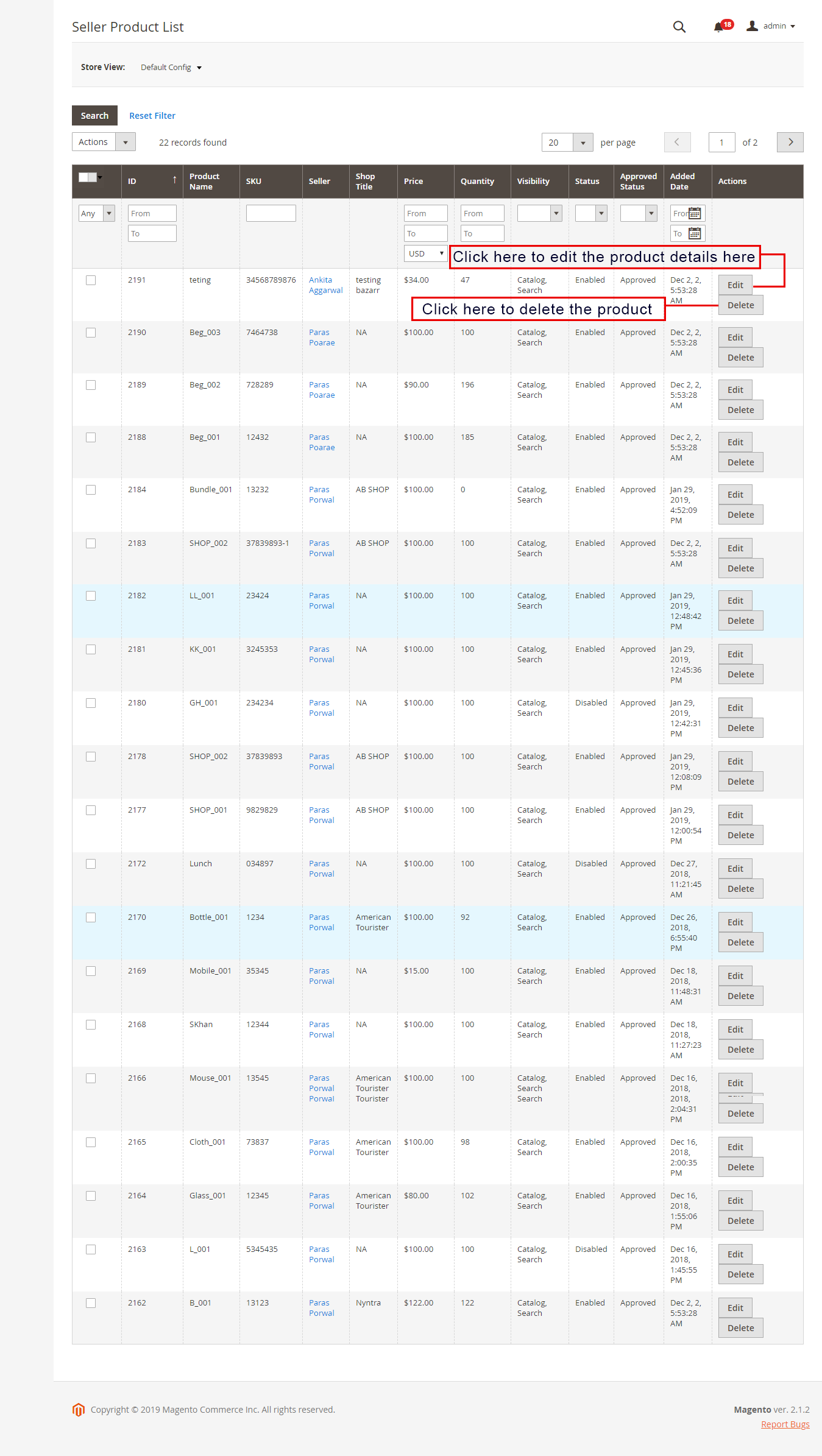
3.5 Sellers Product List
The admin approves the products from the back-end of the Magento 2 Multi vendor Marketplace extension will list in the Sellers Products tab.
3.5.1 How to edit and remove the details of the products
The store owner can edit or delete the product details of the products list by the sellers if required. Click on the ‘Edit’ or ‘Delete’ button respectively.
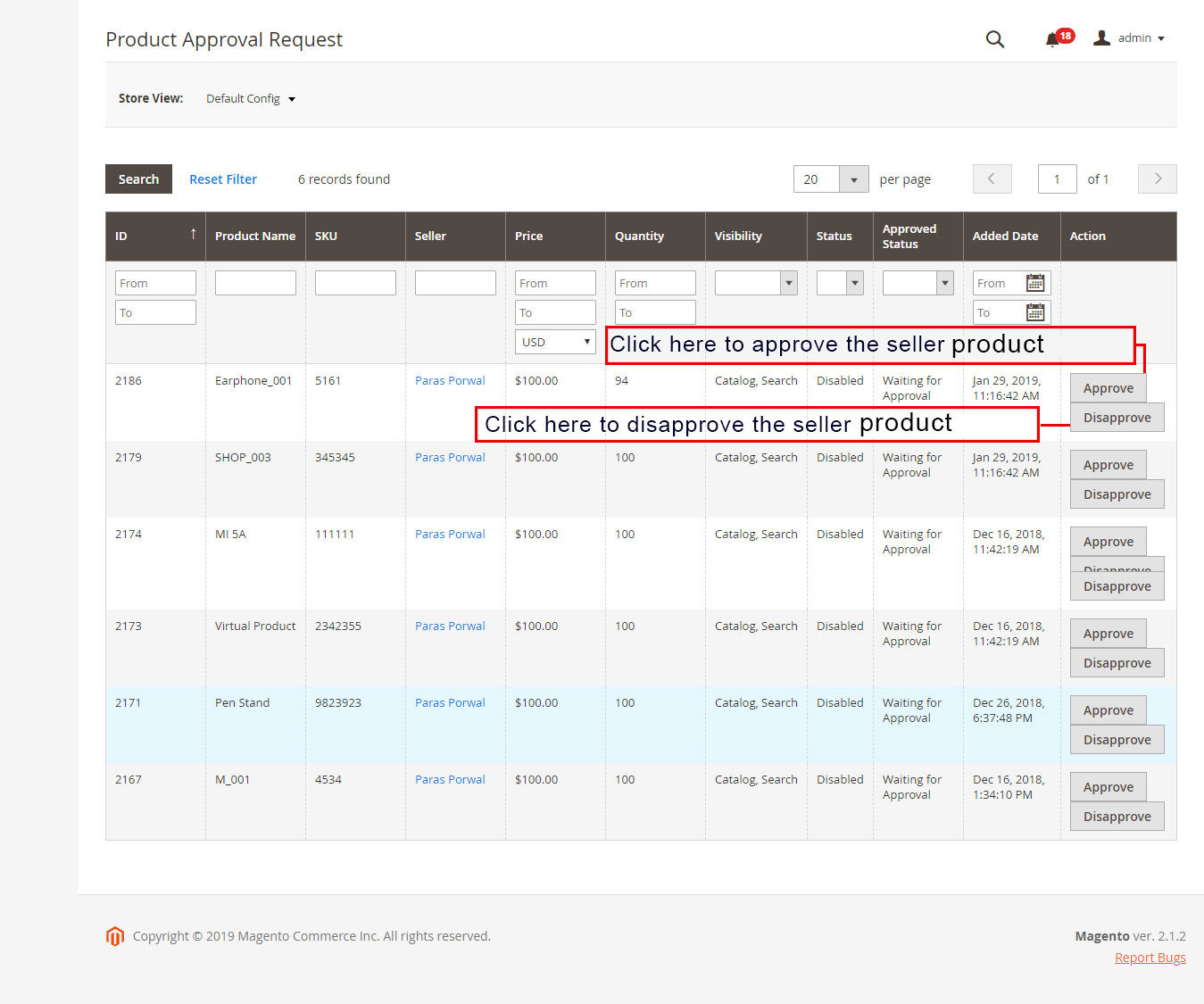
3.6 Product Approval List
The third-party sellers can list their products from the seller dashboard of their profile. The products added from the dashboard list in this tab of the Magento 2 Marketplace module for approval. Admin approval is required only if the admin enables this feature. The store admin can approve or disapprove the product at a button click.
Only the products that the admin approves get listed in the Product Approval List tab of the Magento 2 Marketplace module as shown in the figure:
If the admin clicks on the Approve button a pop-up will display with the message “Do you want to approve product?”. Click ‘Ok’ if you want to go ahead with the action.
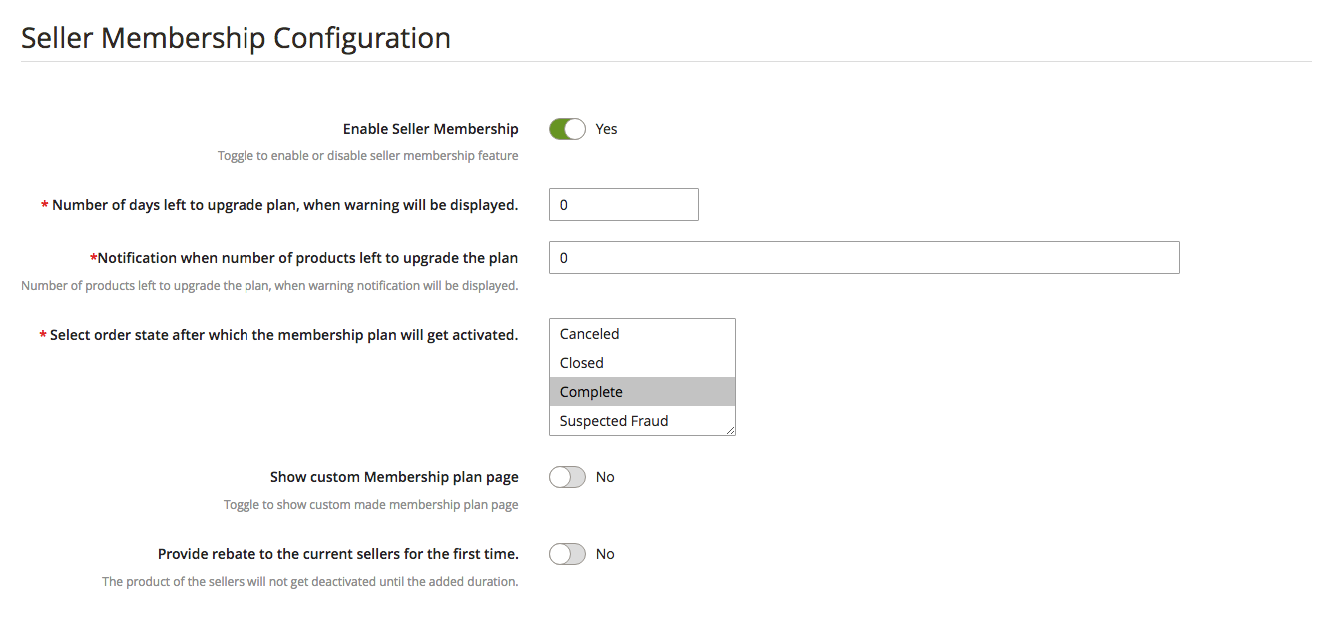
3.7 Seller Membership Configuration
This page contains all the basic settings which the Store admin needs to control the membership plans.
Enable Seller Membership: Toggle this button to enable the membership plan functionality.
The number of days left to upgrade plan when warning message will display: Enter the number of days after which a warning message will display to the sellers to upgrade plan.
Notification when the number of products left to upgrade the plan: Enter the number of products left after which a warning notification will display to the sellers to upgrade the plan.
Select order state after which the membership plan will activate: Admin can select the order state on which membership plan orders will activate.
Show custom Memerbship plan page: Using this tab admin can enable a custom membership plan page for the sellers.
Add URL for the custom page for membership plan: Enter the link of the custom membership plan page using this tab.
Provide rebate to the current sellers for the first time: If the store admin enables this button then the seller’s products remain active until this period.
Rebate Duration: Enter the Rebate duration using this button.
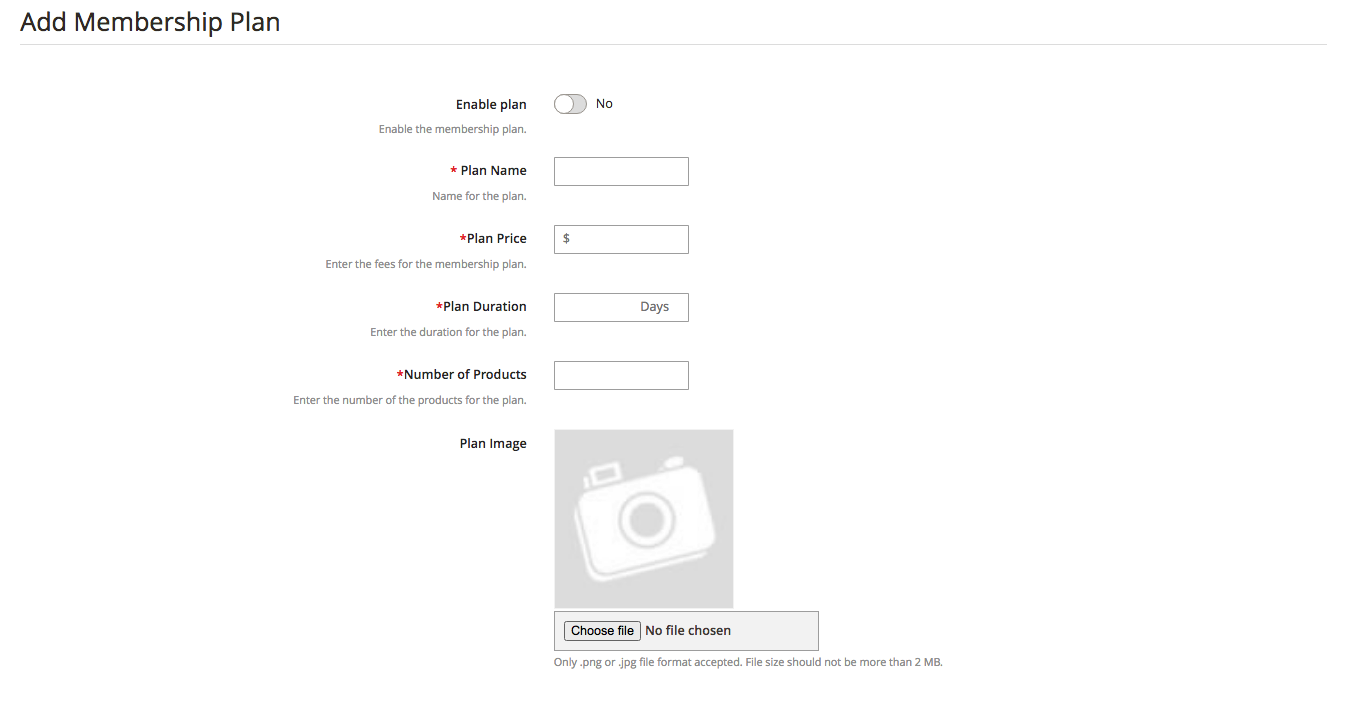
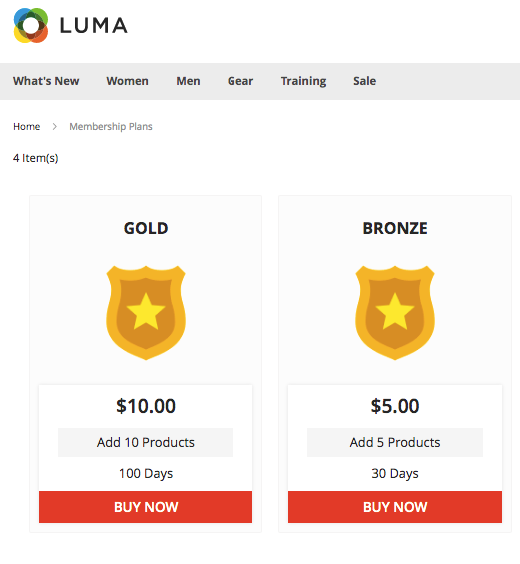
3.8 Membership Plan
Store admin can add new membership plans, edit and disable them from this page.
Enable Plan: Toggle this button to enable the membership plan.
Plan Name: Enter the membership plan name using this button.
The Plan Price: Enter the membership plan price.
Plan Duration: Enter the duration of the plan until it remains active.
Number of Products: Enter the number of products that a seller can upload to the membership plan.
Plan Image: Upload the image of the membership plan.
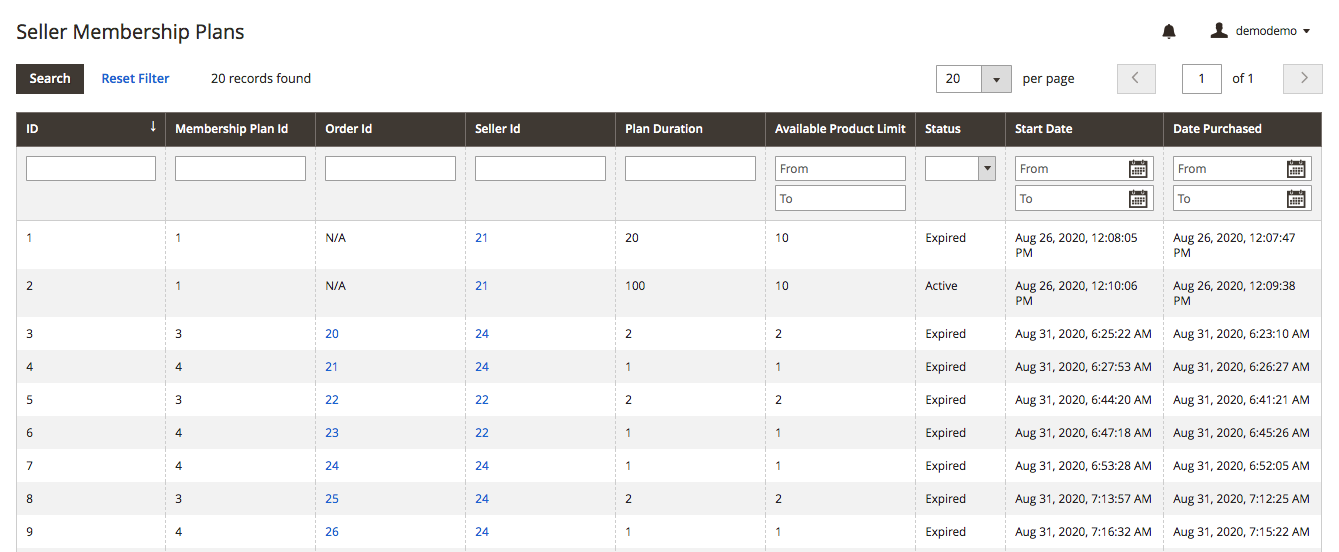
3.9 Seller Membership Plans
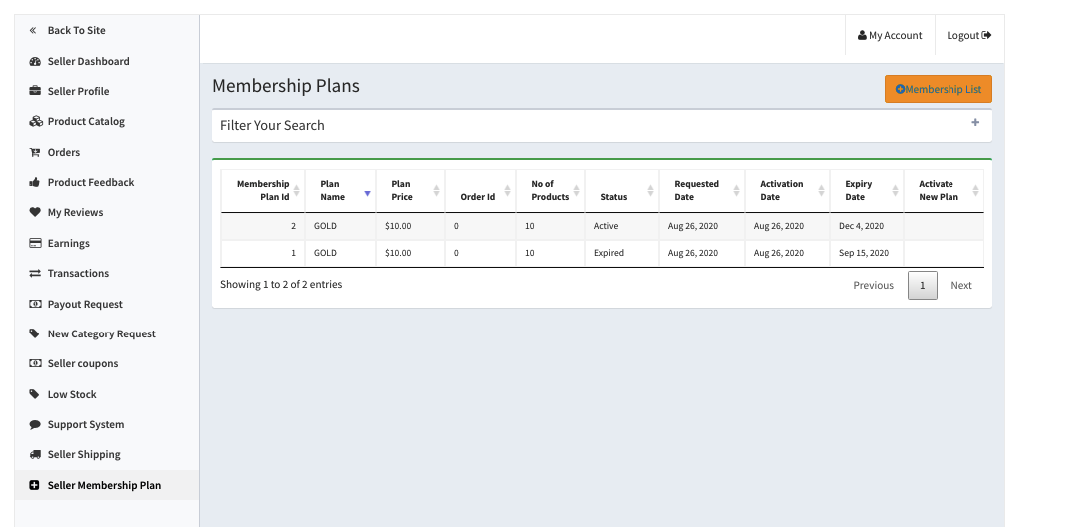
From the seller membership plan page, the store admin can view the assigned membership plans for the sellers. Store admin can view membership plan Id, order Id, seller Id, Plan duration, status, etc.
3.10 Seller Membership Reminder
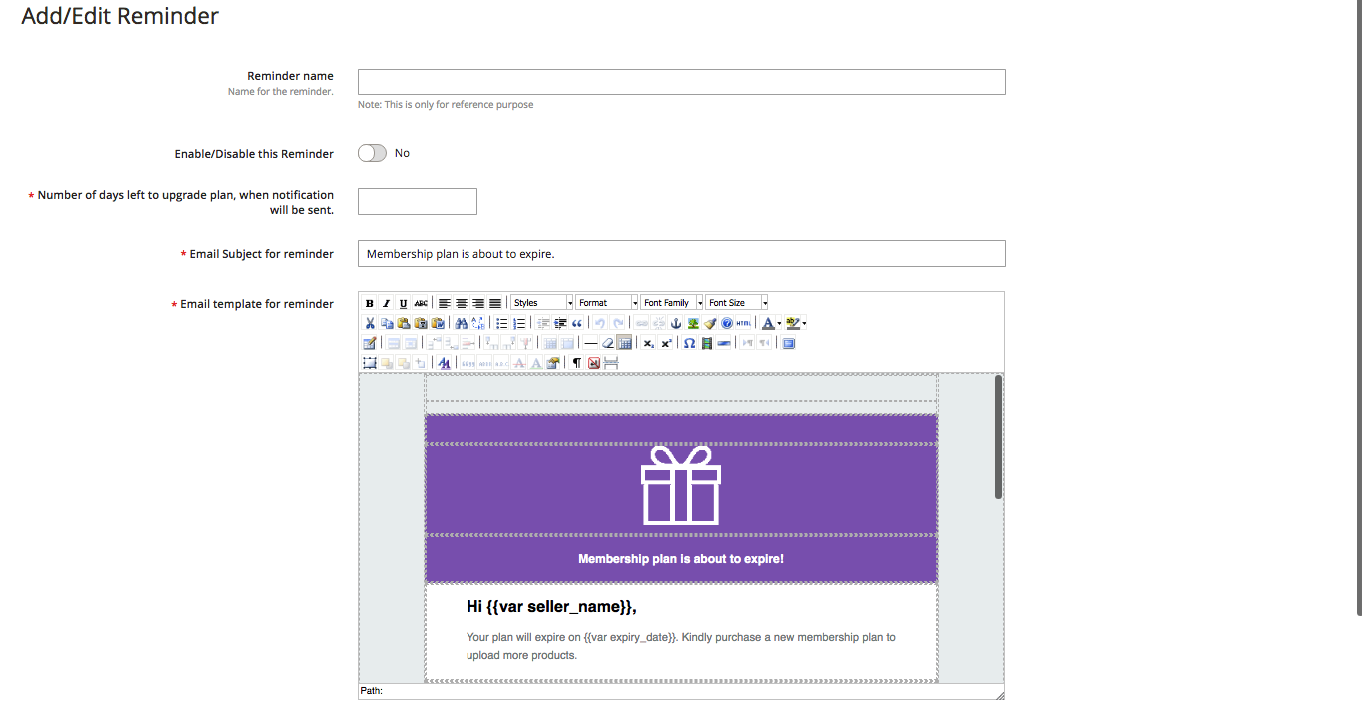
Store admin can send reminder messages to the sellers whose membership plan is about to expire.
Reminder Name: Enter the name of the reminder from this tab.
Enable/Disable this reminder: Toggle this button to enable or disable the reminder.
The number of days left to upgrade plan, when notification will be sent: Enter the number of days after which warning reminder will be sent to the sellers.
Email subject of reminder: Enter the email subject of the reminder from this button.
Email template for a reminder: Customize the email template of the reminder message from this tab.
3.11 Assign Membership Plan
Store admin can assign a membership plan to the sellers by just selecting the plan and sellers.
3.12 Product Reviews
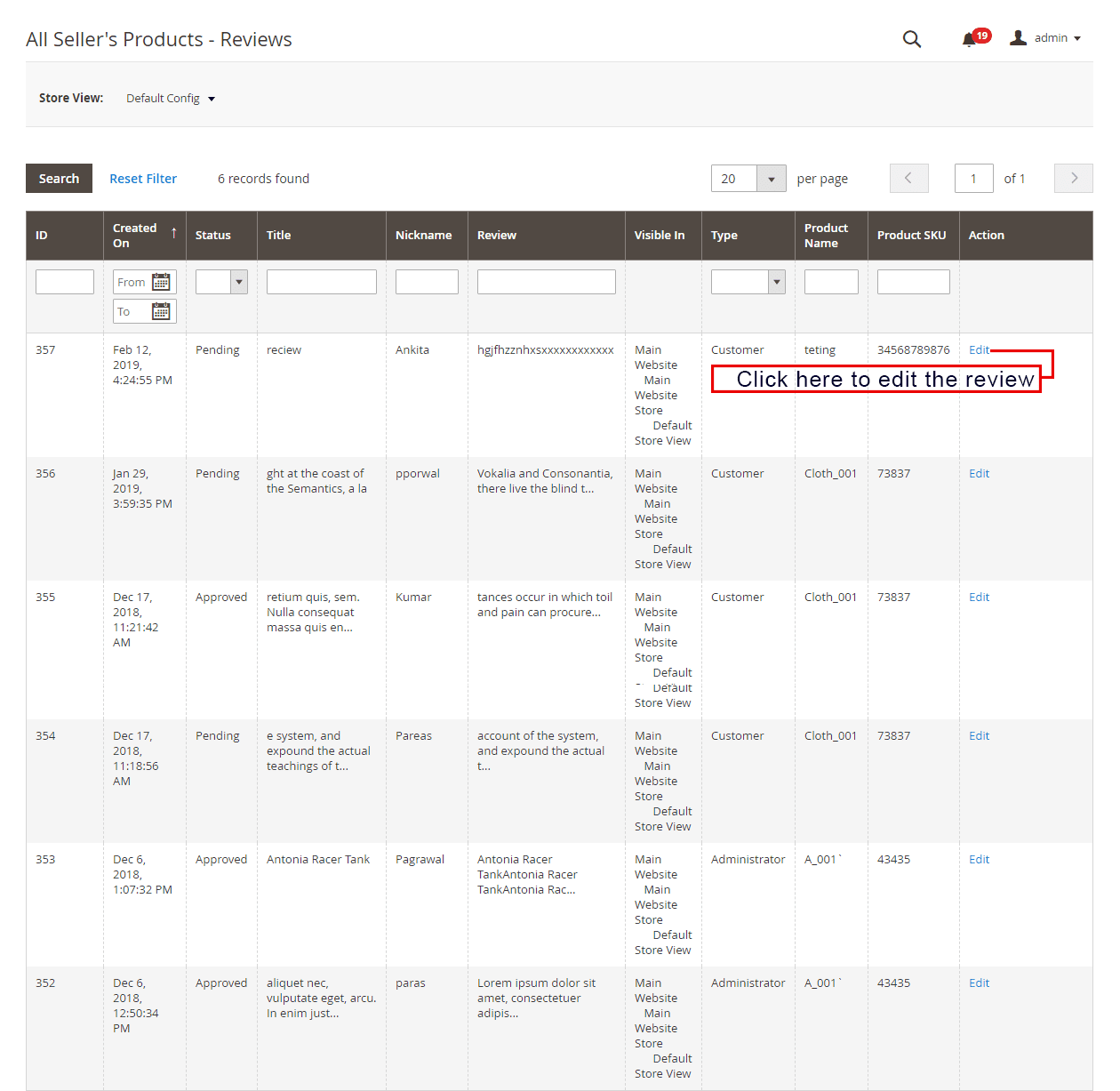
The customers can give ratings and write reviews for the products if this feature that the admin enables from the back-end of the Magento 2 Marketplace plugin. If the admin enables this, the customers can leave their reviews by clicking on ‘Write a Review’.
The reviews written in the front-end will list in the back-end of the Magento 2 Multi vendor Marketplace plugin as shown in the image below:
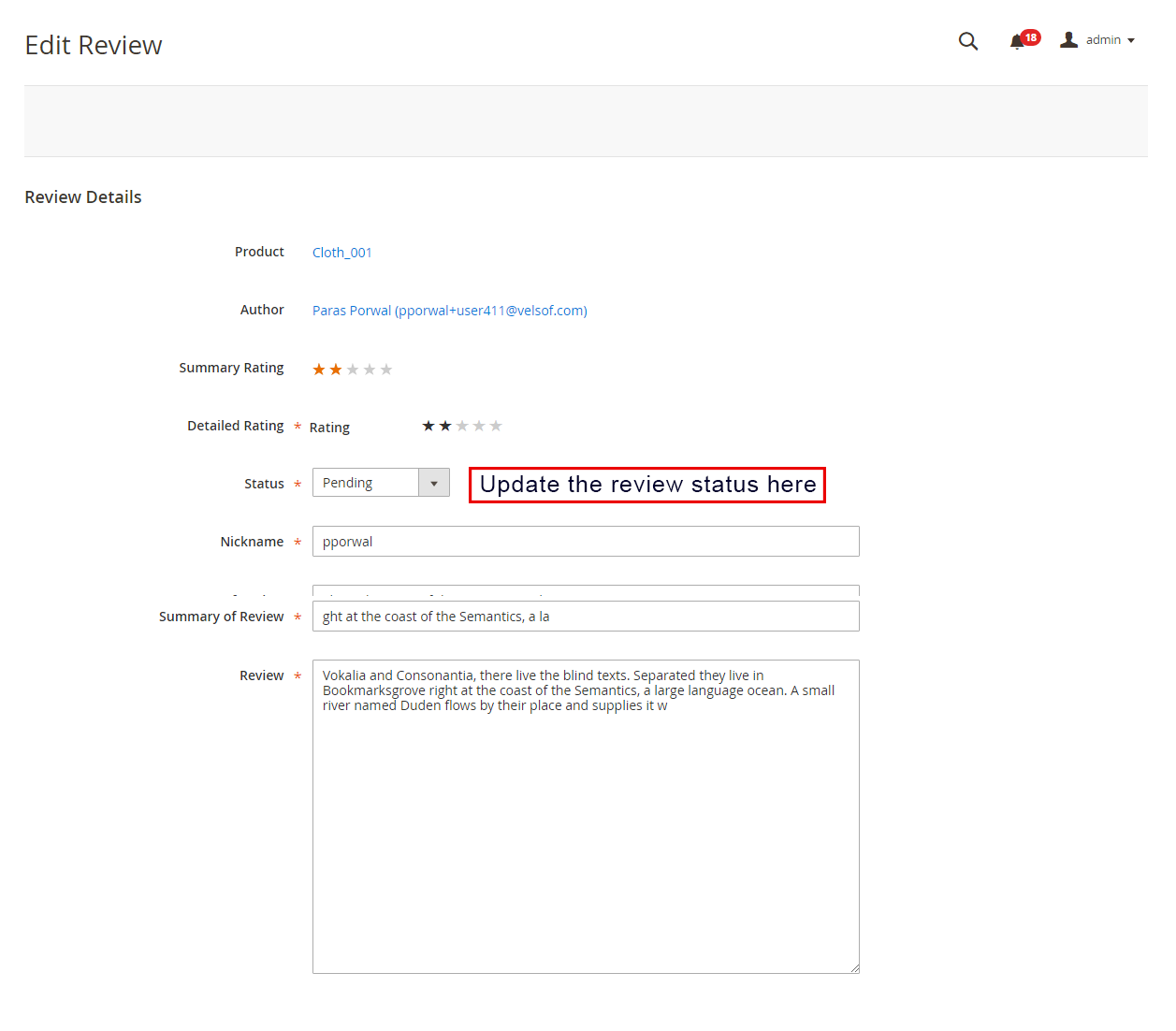
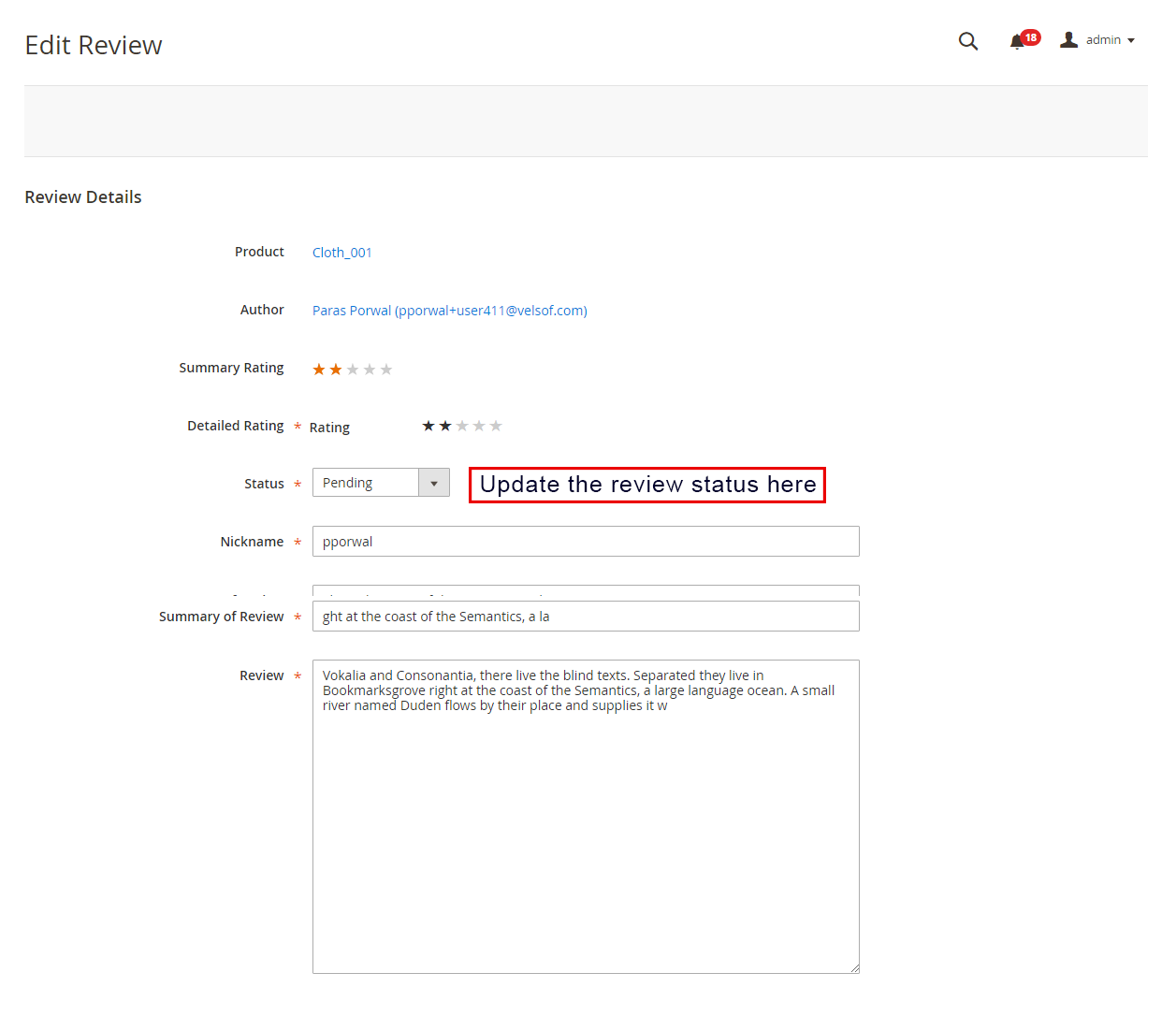
Admin can click on the ‘Edit’ button to edit or approve the product reviews. This will redirect you to the review edition page of the Magento 2 Multi vendor Marketplace module.
The various fields of this interface are below:
Product: The name of the product for which the review is posted will be shown here.
Author: The name of the customer sending the review will be shown here. The admin can change the name if required.
Summary Rating: This section will by default show the rating given by the customer.
Detailed Rating: The admin can even change the rating in this field.
Status: Admin has the access to update the status of the Review here.
Summary of Review: In this field, a summary of the review will be available.
Review: The review entered by the customer will be shown here. The store owner can edit the review if required.
To get the changes reflected, the admin needs to click on the “Save Review” button at the top right side of the page.
3.13 Sellers Reviews
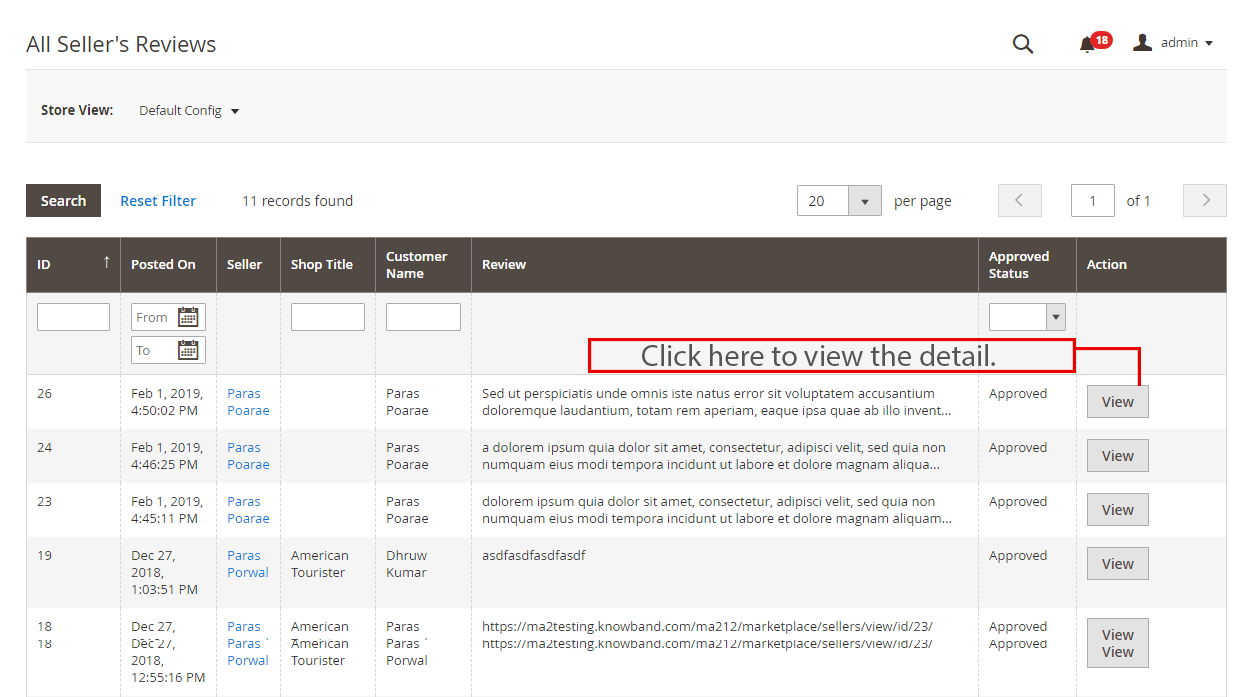
All the seller reviews along with their allowable status will list in this section.
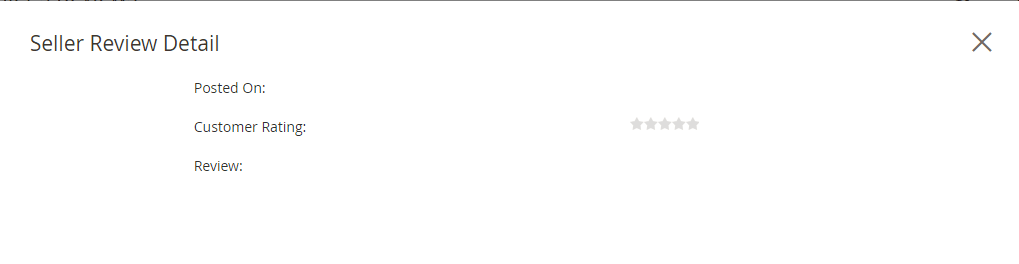
The admin can view the detailed information by clicking on the “View” button on the right side of each review. Once the view button is clicked, a pop up will appear in front of you.
3.14 Sellers Review Approval List
The customers can even give reviews to the sellers if the admin enables this feature from the back-end of the Magento 2 Multi seller Marketplace module. In order to leave the review, the customers can click on the ‘Write Review’ link on the product page of the website. Refer to the image below:
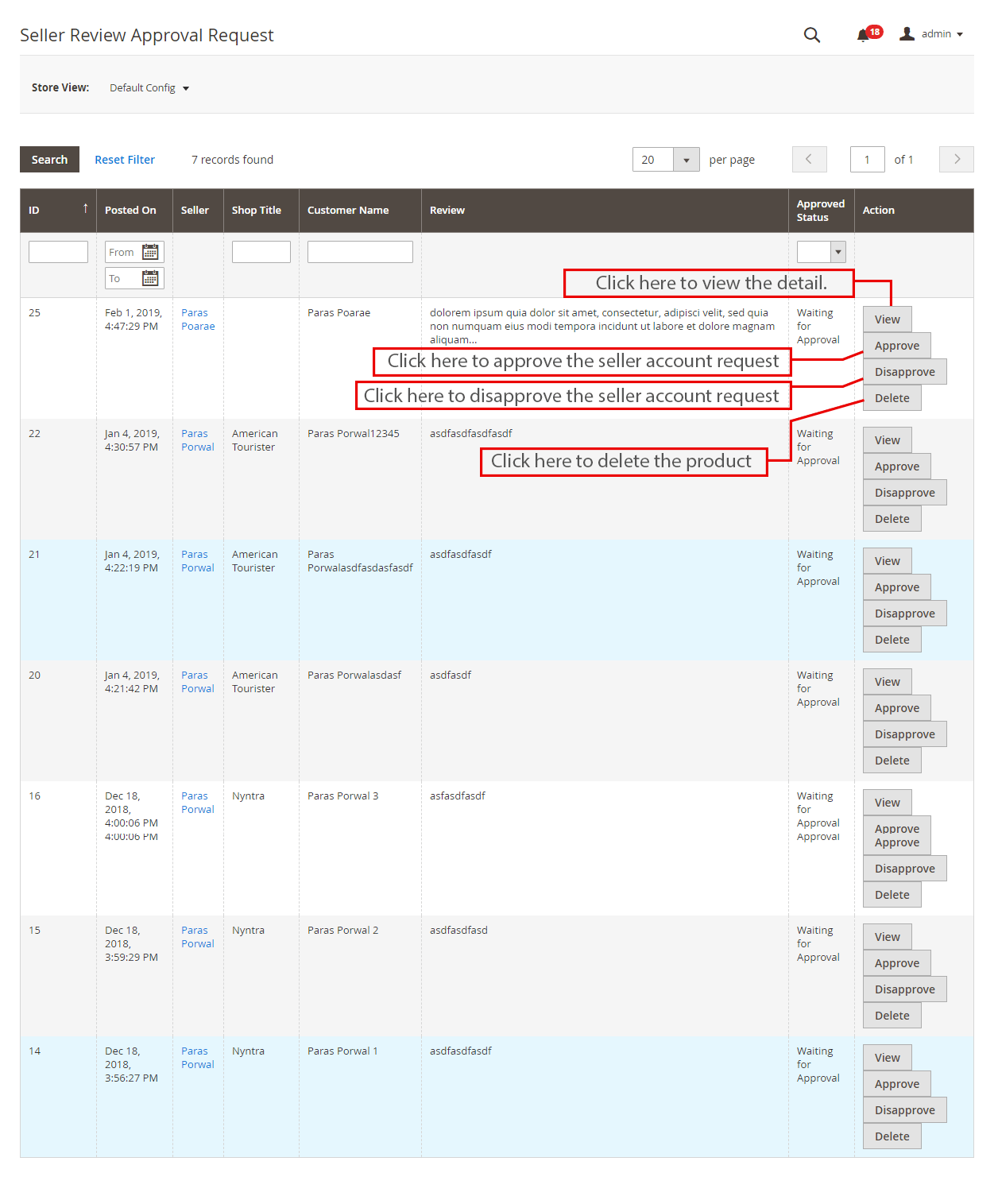
This will redirect them to an interface where they give ratings and reviews to the sellers. The seller’s reviews entered here will list in the Sellers Reviews Approval Request tab of the Magento 2 Multi seller Marketplace Module.
The admin can view, Approve, Disapprove and Delete the reviews by clicking on the “View”,” Approve”, “Disapprove” and “Delete” buttons respectively for respective functions.
3.15 Category Request List
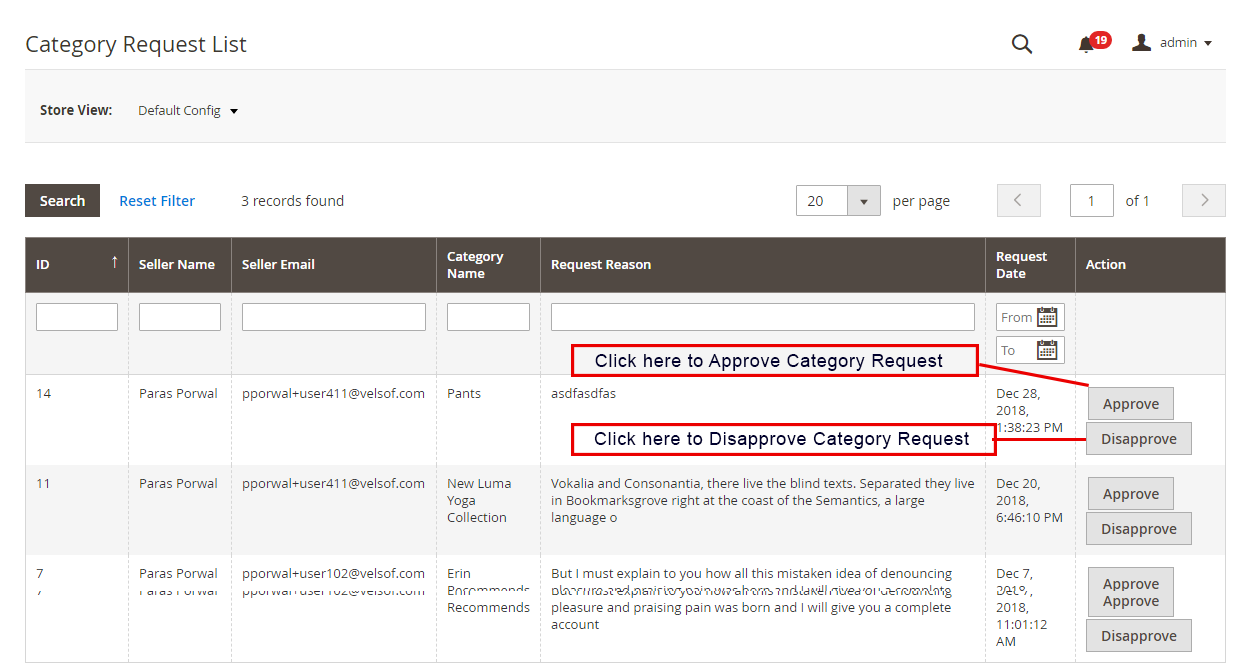
The admin assigns the category to the third-party seller for listing the products. The sellers can even request the admin to add a new category from their Dashboard. The category requests sent by the sellers will list in the Seller Category Request List tab of the Magento 2 Marketplace extension as shown in the image below:
Only after the admin approves the new category request, only then the seller will be allowable to list their product in the assigned category. Admin can approve or disapprove the new category request by clicking on the “Approve” or “Disapprove” button respectively.
3.16 Sellers Vacation Request
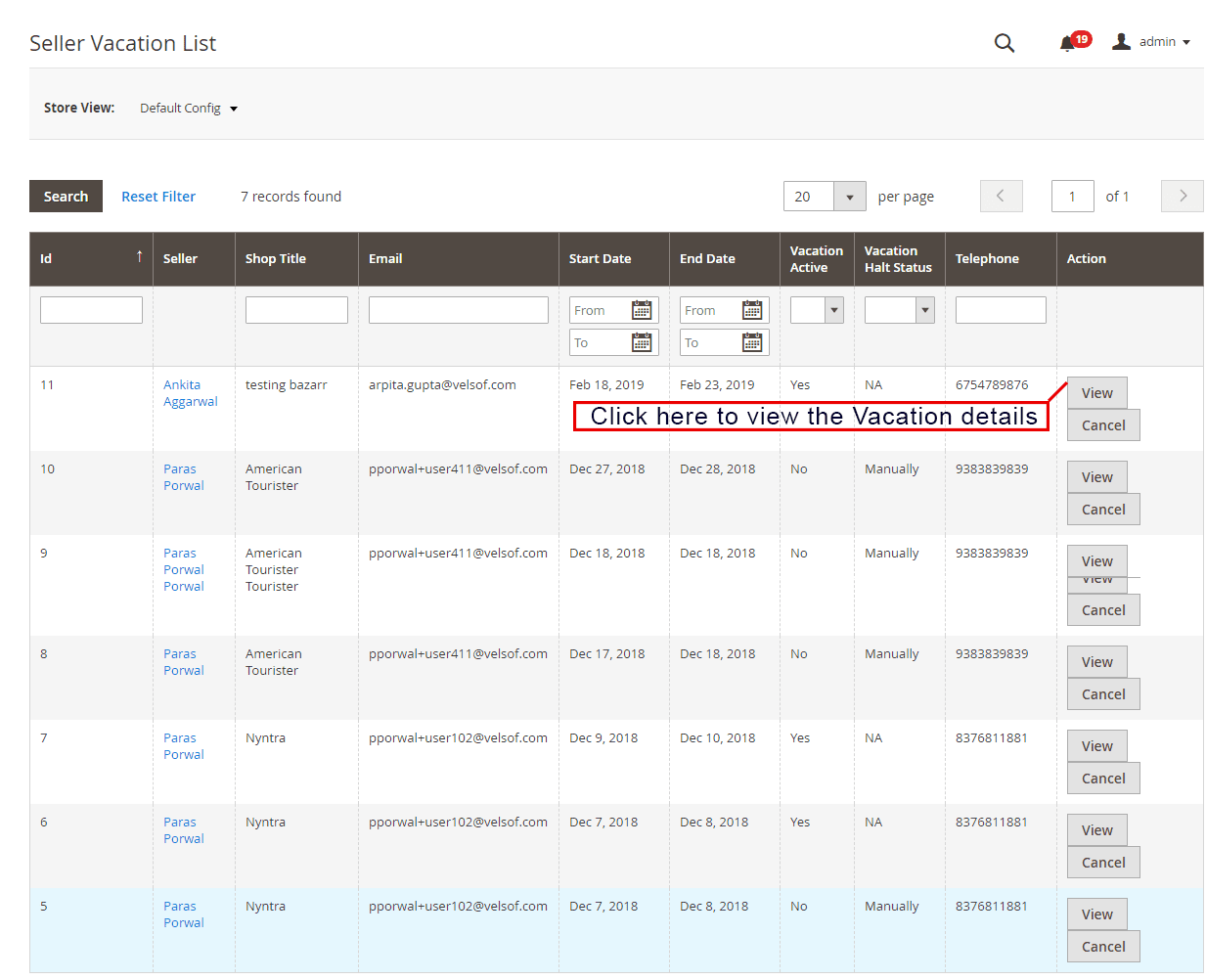
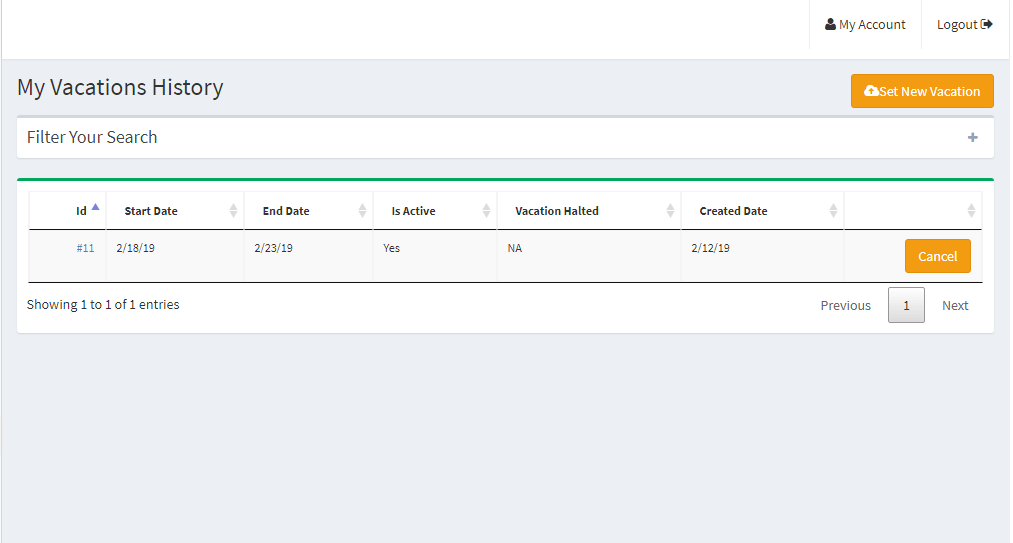
The Magento 2 Marketplace extension comes with a feature that allows the sellers to go on vacation. If he enables this feature from the Settings Tab of Magento 2 Multi vendor Marketplace module, only then the sellers can request for the same. Admin can view the list of sellers on vacation from this tab
3.17 Best Selling Products
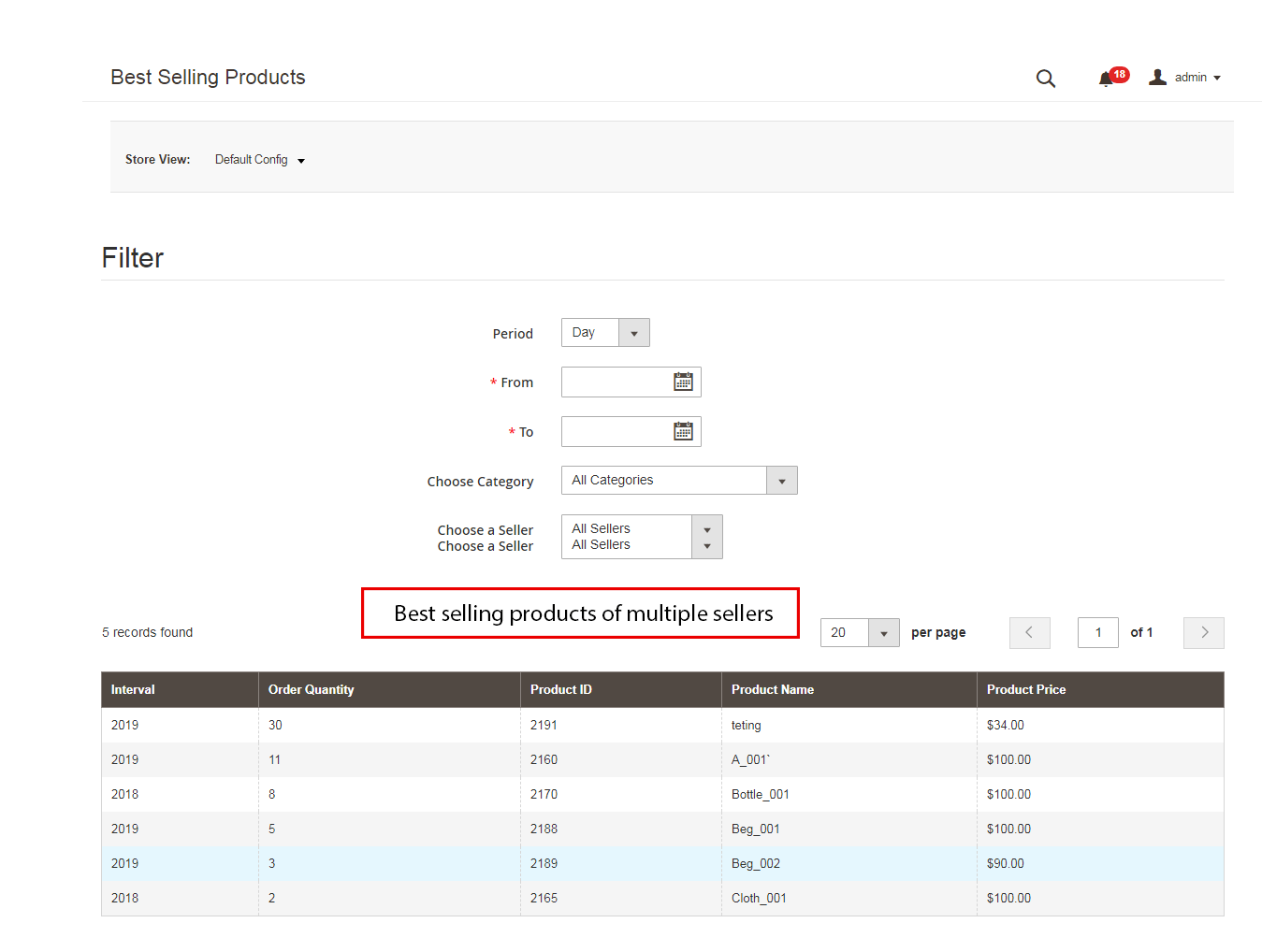
The admin can view the list of best-selling products of a particular seller. The list of best-selling products can be filtered on the basis of the time period, category, and seller.
3.18 Email Templates
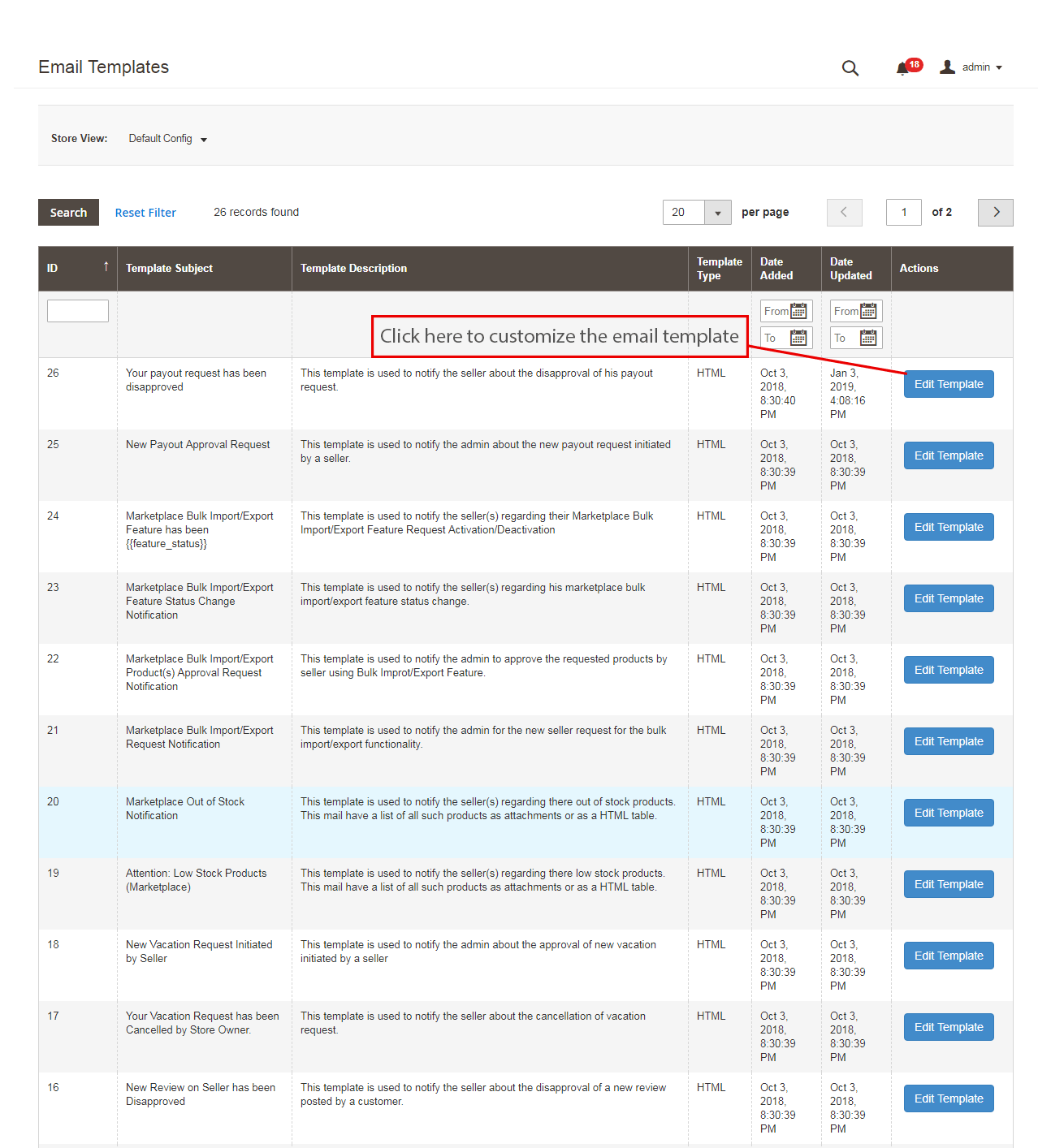
The Magento 2 Multi seller marketplace plugin offers various pre-designed email templates for various scenarios. The store admin can even customize the email templates as required by clicking on the “Edit Template” button.
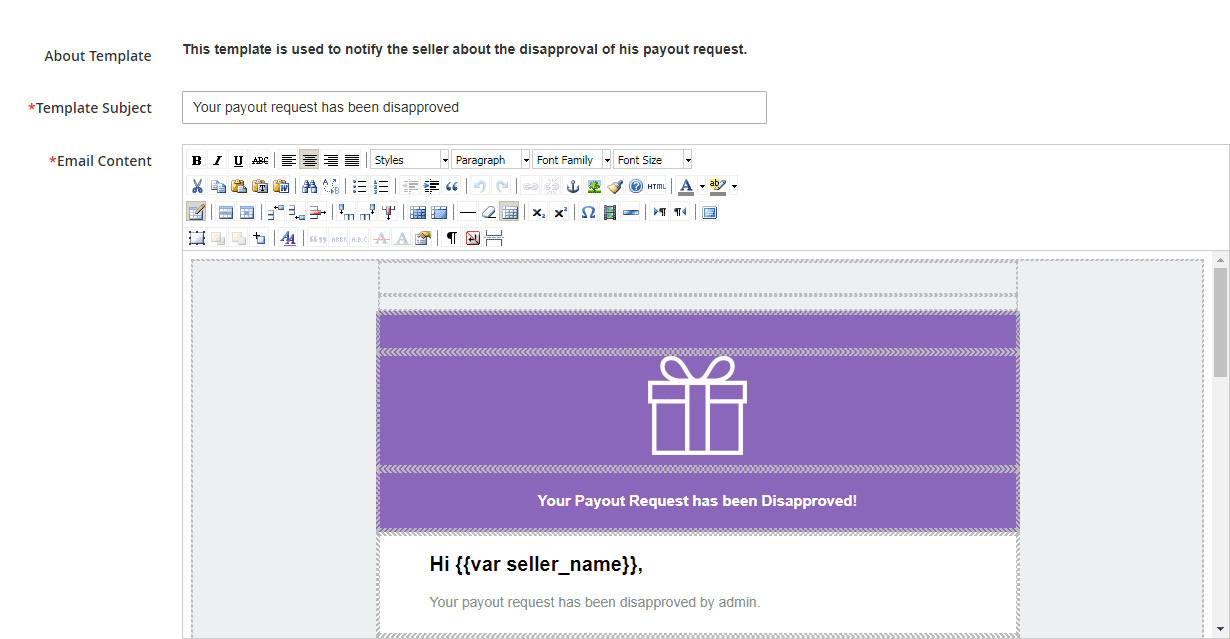
On clicking the “Edit Template” button, the admin can modify the subject and the content of the email at his convenience.
3.19 Cron Instructions
The admin can run the Cron jobs to sync the changes from the backend of the Magento 2 Multi seller Marketplace module with the frontend of the store. Further, he can run Cron jobs from the backend are below:
Vacation Cron: Vacation Cron job runs to disable the seller’s products from the front end of the store when the sellers go on vacation.
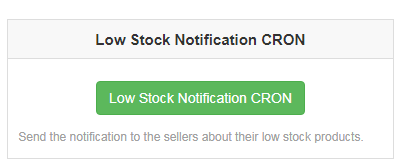
Low stock Notification Cron: Cron jobs run to alert the seller about the low stock products.
3.20 Seller with Import and Export feature
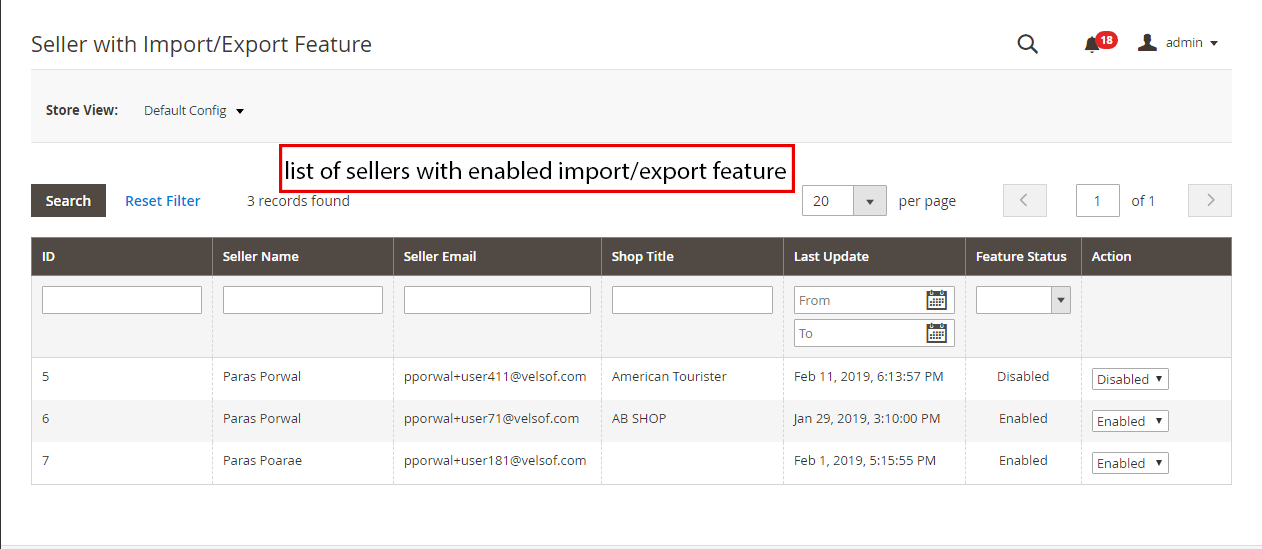
A list of sellers that can upload products in bulk from the seller dashboard can be viewed by the admin from this section. Admin can disable the feature by clicking on the “Disable” button on the right side of the seller.
3.21 Admin Shipping
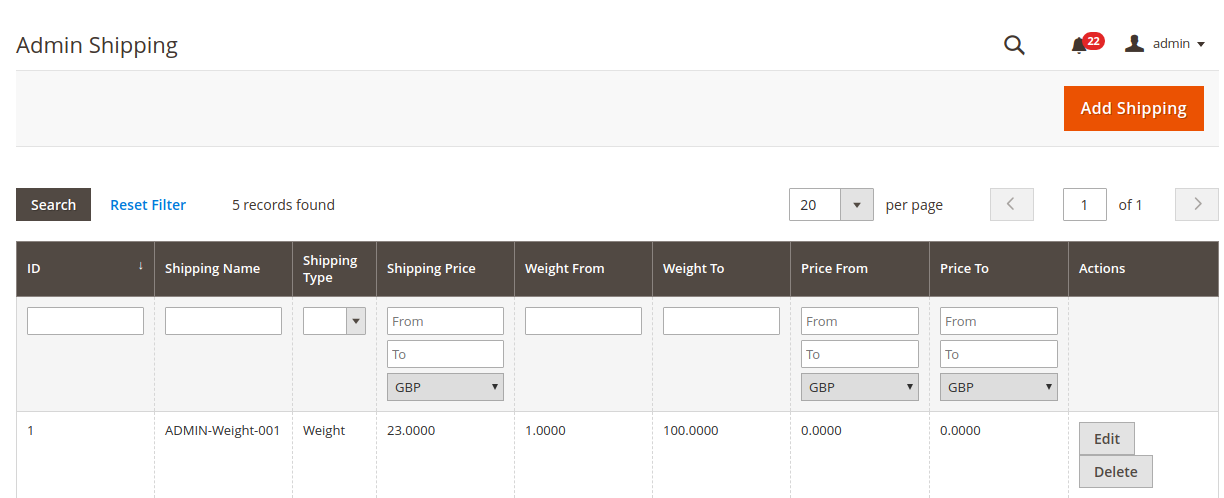
With the help of this feature, the admin can add their shipping prices based on the weight and price range of the products. This feature will allow them to fix a shipping price for a particular weight range or price range. Admins can use this feature while adding a new shipping method.
3.22 Transaction and Earnings
3.22.1 Commission
The store admin even gets an option to monitor the total transaction, seller earnings, and admin earnings. The name of the seller, along with its Email-id is also there.
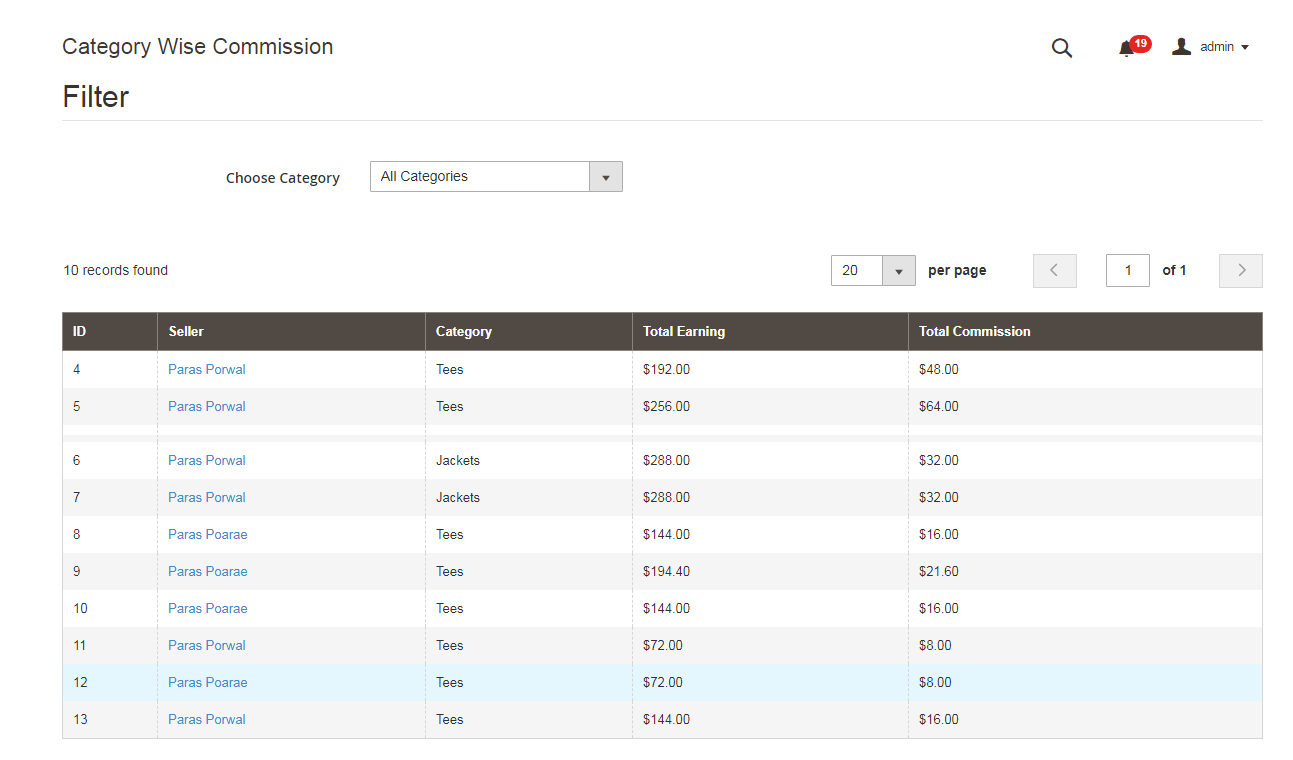
3.22.2 Category Wise Commission
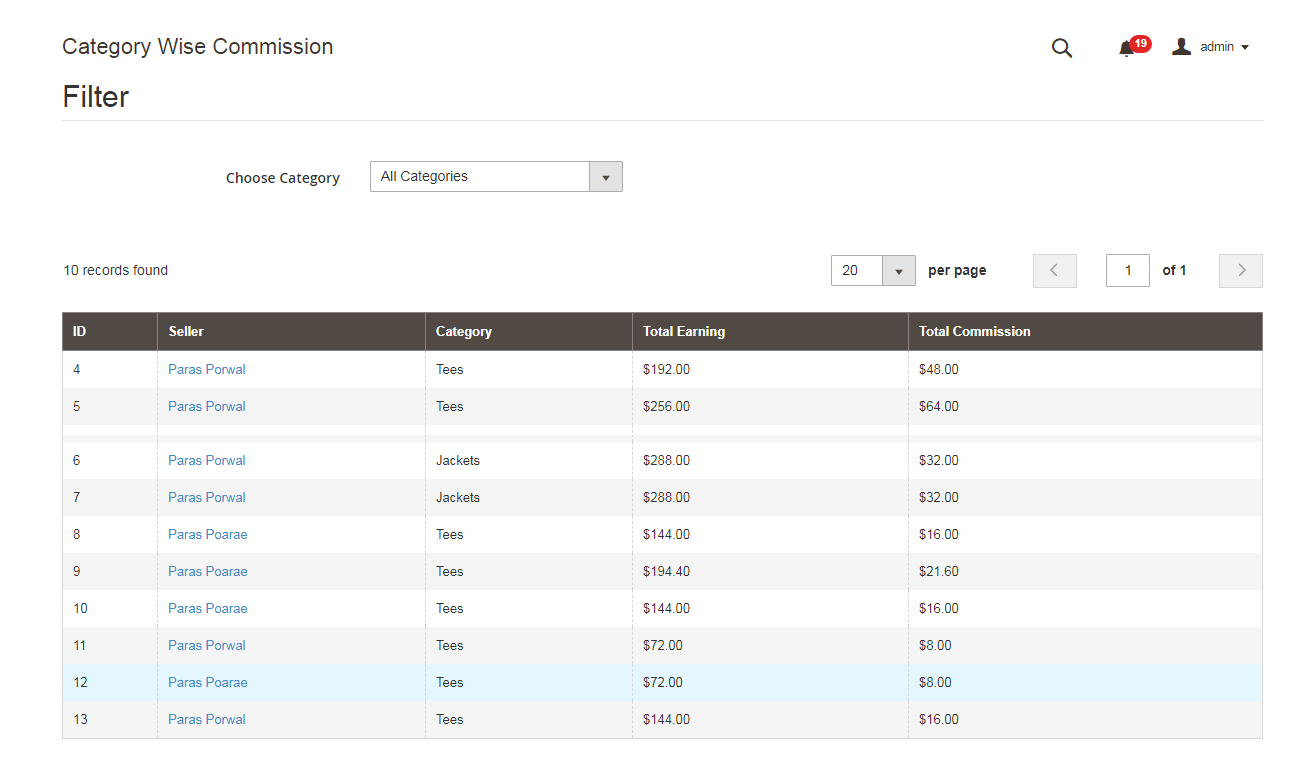
With Magento 2 Marketplace module, the store admin gets access to filter the commission category-wise. Admin can easily view the total earning, total commission for a particular category in Category Wise Commission.
3.22.3 Seller Wise Commission
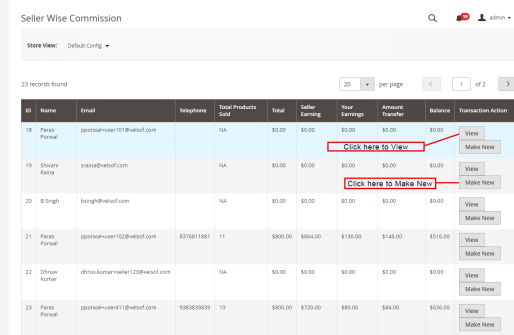
The admin can view the list of total products sold, total earning, seller earning and admin earnings from the backend of the Magento 2 Marketplace plugin. To view the detailed transaction action, the admin needs to click on the “View” button.
Moreover, Magento 2 Multi seller Marketplace extension allows the admin to add a new transaction detail from the admin panel of the store. As soon as the admin will click on the “Make New” button a pop-up will appear in front of him. Admin needs to fill in all the details in the popup and click on the submit button to submit the new transaction entry.
3.22.4 Seller Payout
The sellers can view the payout requests that the admin approves from the Sellers Payout section.
3.22.5 Seller Payout Request
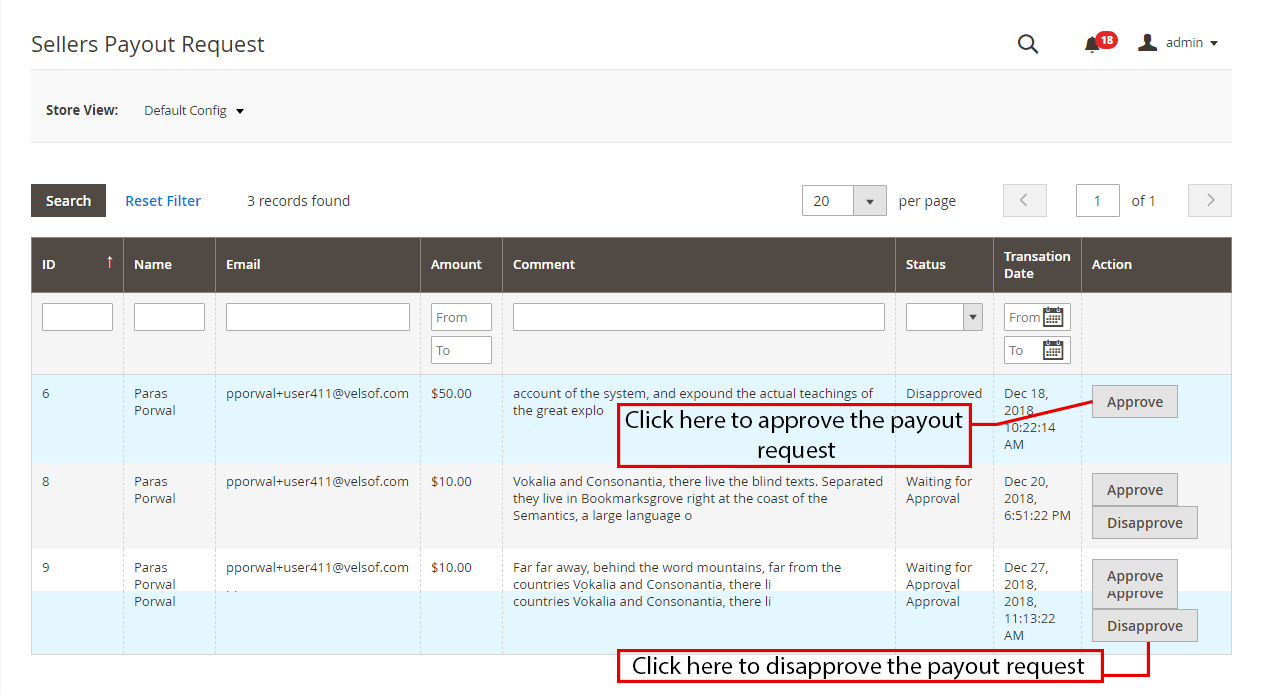
Payout Request sent by the sellers can be viewed by the admin from the backend of the Sellers Payout Request. Admin can approve/ disapprove the payout request with a few clicks. Once the admin clicks on the “Approve” button a pop window as shown in the figure will appear.
When the admin will click on the “Disapprove” button, a dialogue box with a comment field will appear. Once the admin clicks the submit button after filling the comment fields, the request will not approve.
3.22.6 PayPal Payout Request
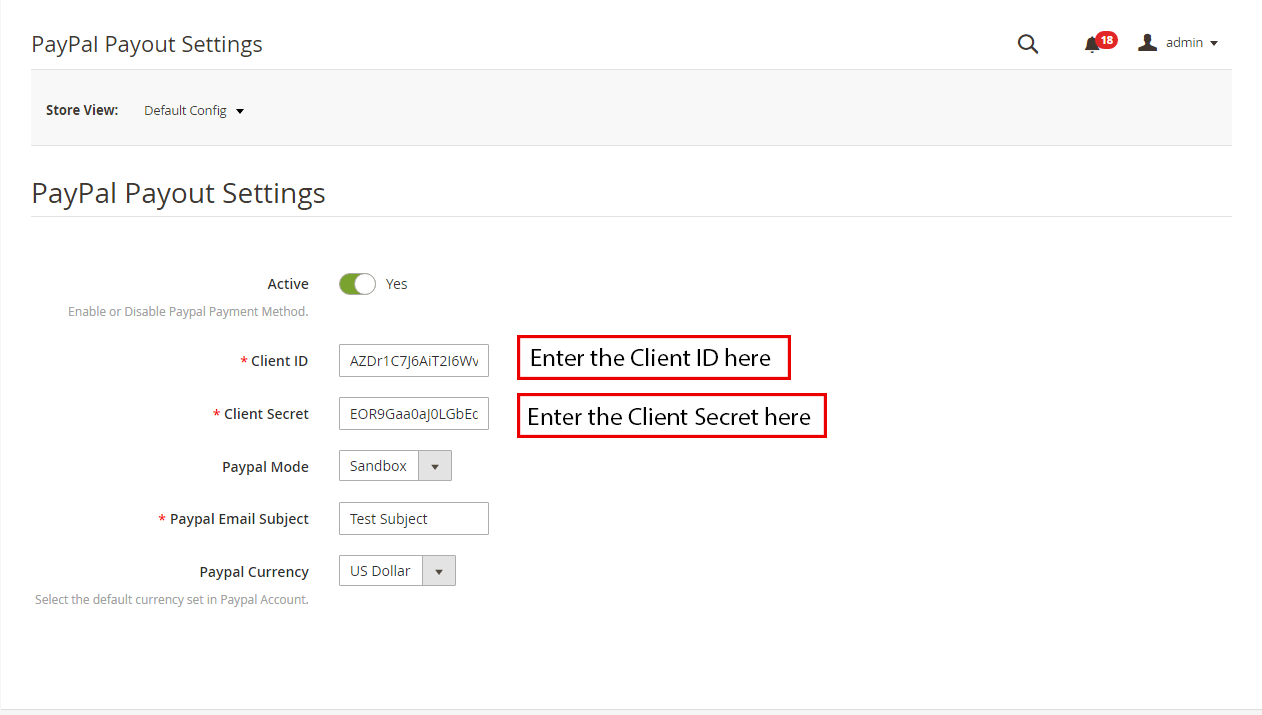
Magento 2 Multi seller plugin offers admin the access to set the PayPal Payout Settings from the backend of the store. Admin needs to fill the Client ID, Client Secret key, Paypal Mode, Paypal Email Subject, and Paypal Currency in the backend of the store.
4.0 Front-end UI
Once the Magento 2 Marketplace extension is successfully installed at the Magento 2 store, the third-party sellers can register by filling a simple form from the front end of the store. For easy management of the shop, the seller gets access to their dashboard.
4.1 Seller Registration
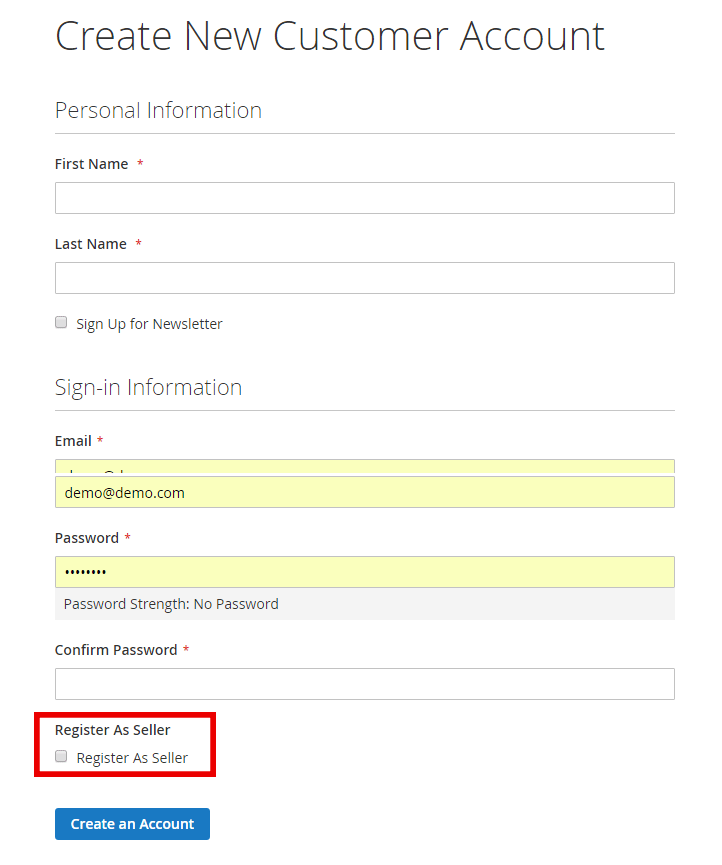
Sellers can register their accounts by filling out the registration form from the front end of the store. The registration form format is the same for both the sellers and customers. To register as Sellers, the seller needs to select an additional checkbox in the form.
4.2 Seller Dashboard
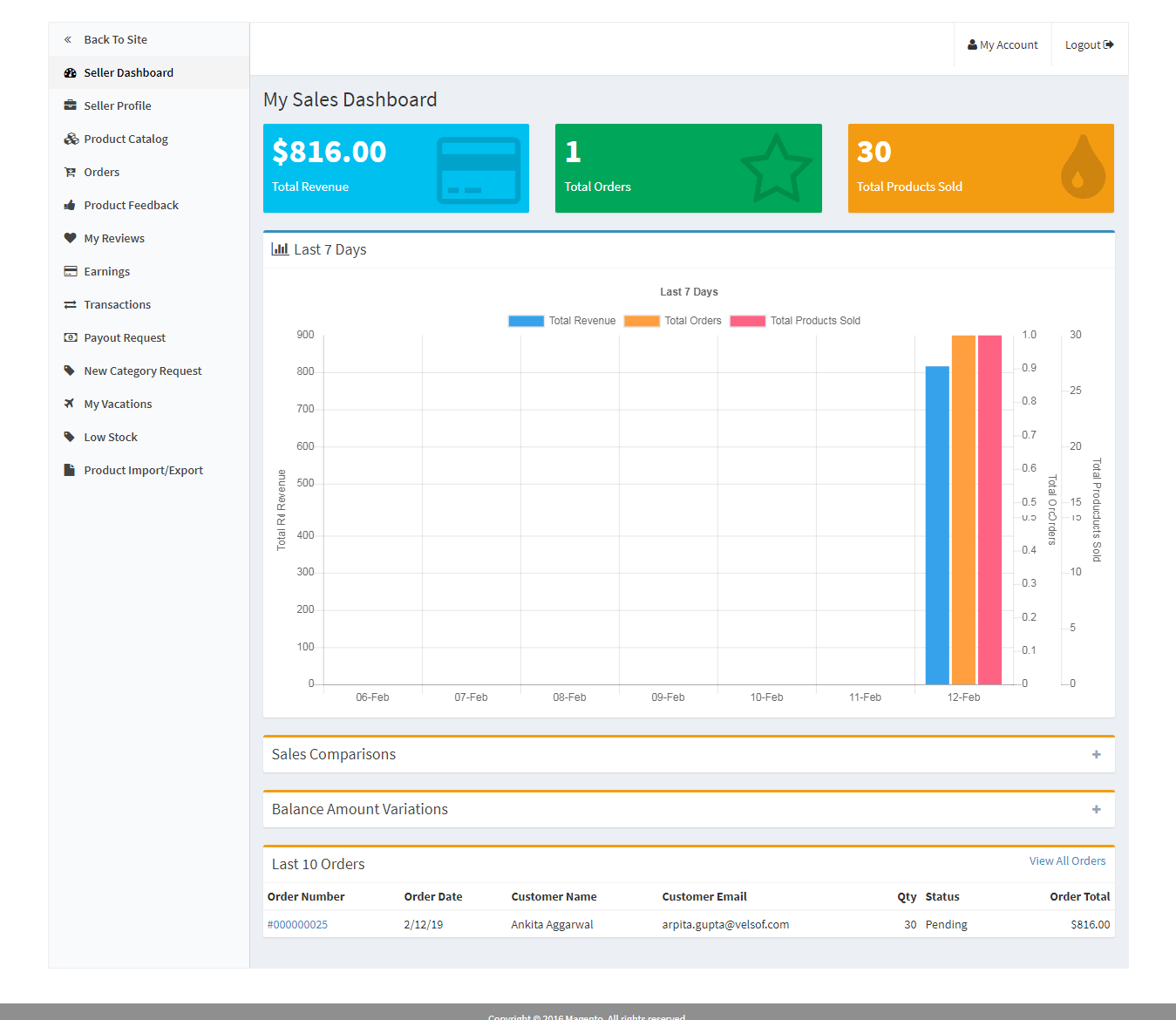
Once the account registration procedure is completed from the back-end of the Magento 2 Marketplace plugin, the seller will get access to the Dashboard. Sellers can view the entire sales report, product list, and order details from the seller dashboard. New Category requests, Payout requests, and vacation requests can be sent by the sellers from the dashboard.
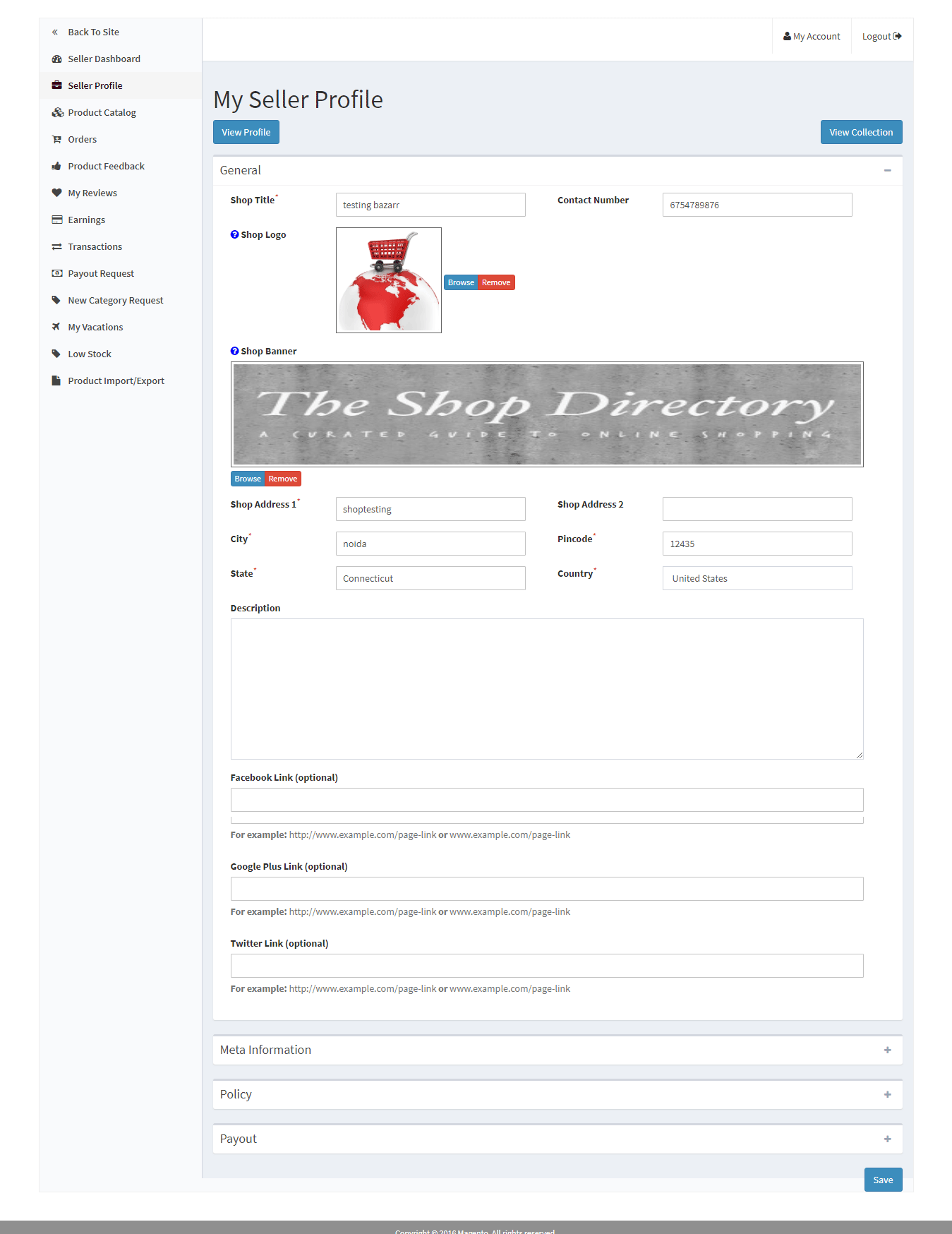
4.2.1 Seller’s Profile
The sellers can edit their profile and personalize their shop from this Seller profile tab of the dashboard. Sellers can add and edit Shop Title, Address, and Social account links in this tab.
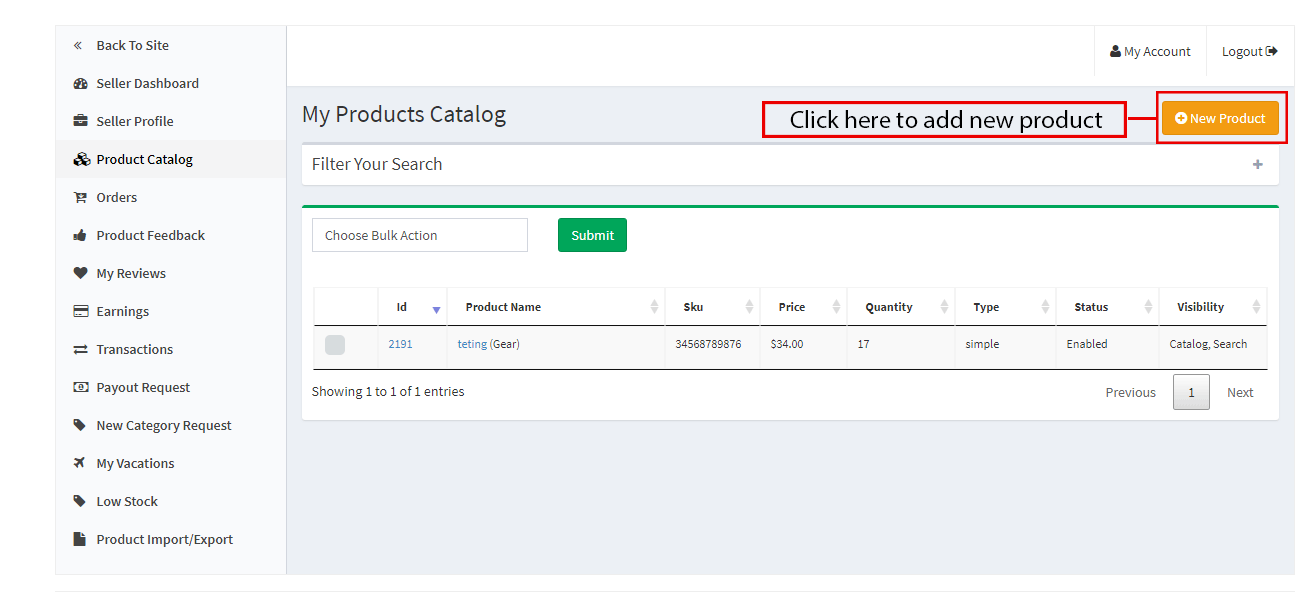
4.2.2 Product Catalog
The sellers can follow the path mentioned below in order to add a new product. As soon as the seller will click on the Product Catalog, the following page will display. The seller can view the list of products listed at the Marketplace from the Product Catalog.3.15.6 PayPal Payout Request.
In order to add a new product to the list, click on the “New Product” button
Go to My Account -> Dashboard -> Products Catalog.
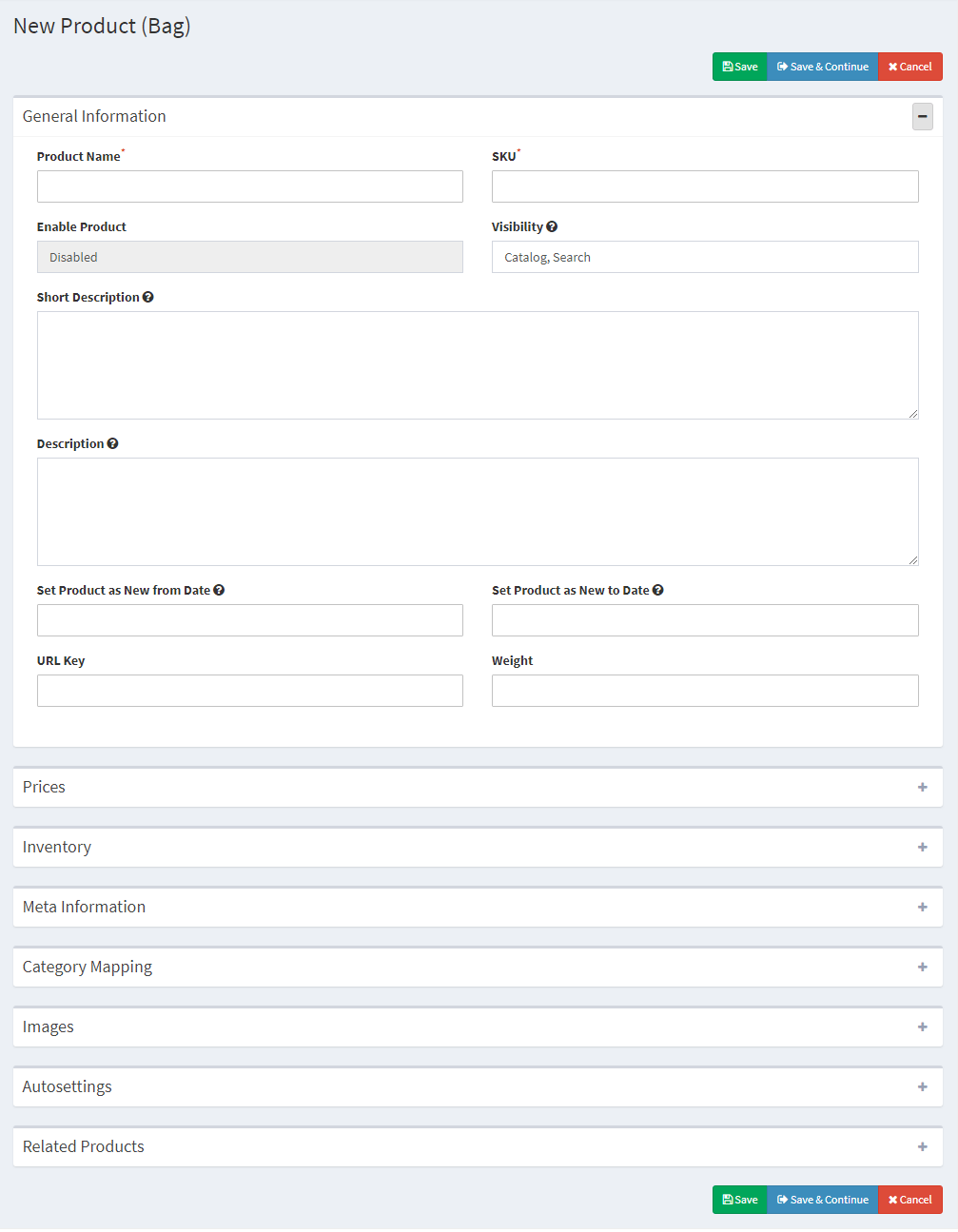
4.2.2.1 How to add a new product
Products already listed by the sellers get listed in the Seller dashboard tab. Once the admin clicks on the “New Product” button, a popup menu with attribute fields and product type field display.
Select the attribute fields and product type field and click on the “Continue” button.
This will redirect you to the ‘New Product’ page. Fill up the mandatory field details in order to add the product.
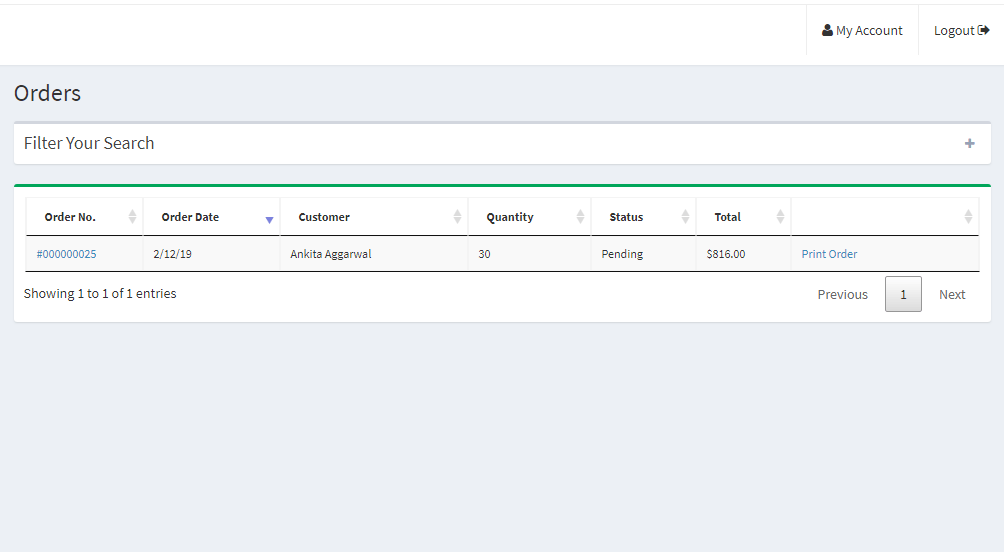
4.2.3 Orders
The list of orders and their related details can be viewed by the seller on this tab of the Seller Dashboard.
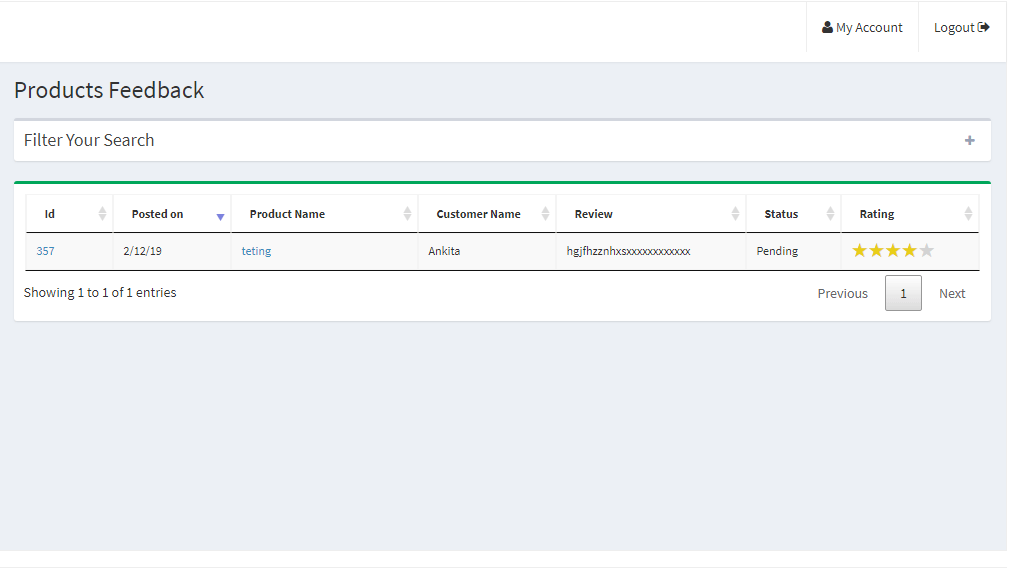
4.2.4 Product Feedback
The sellers can view the Review received on the products in the Product Review Tab of their Dashboard. All the reviews received will list as shown in the image below:
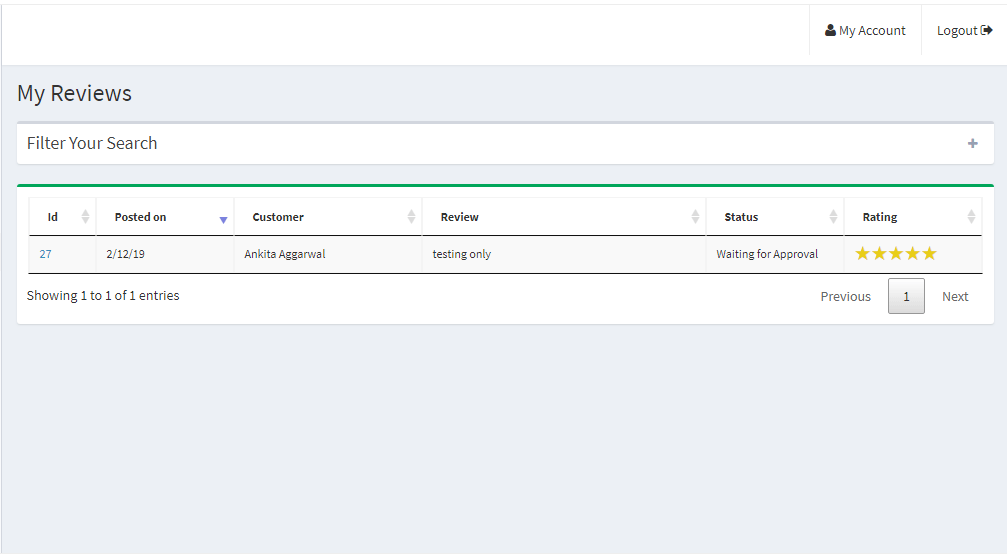
4.2.5 My Reviews
My Reviews tab in the seller’s dashboard lists out the seller reviews received on their profile.
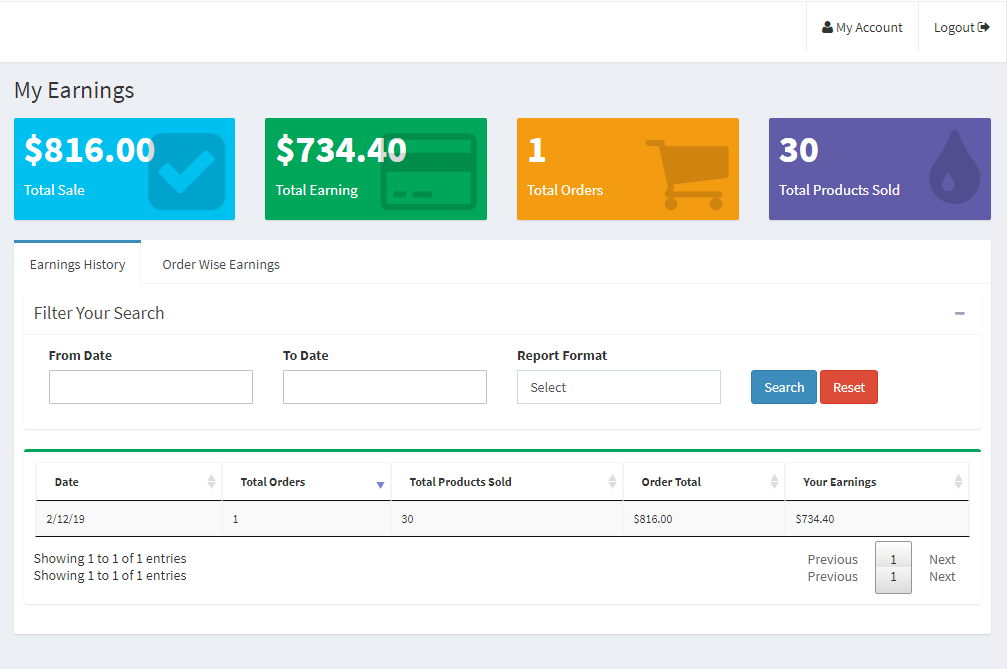
4.2.6 Earnings
Sellers can view the total sale, total earning, total order, and total product sold in this tab. The vendors can even apply a filter to the earning results as per their requirements. The total earning history will display as shown below:
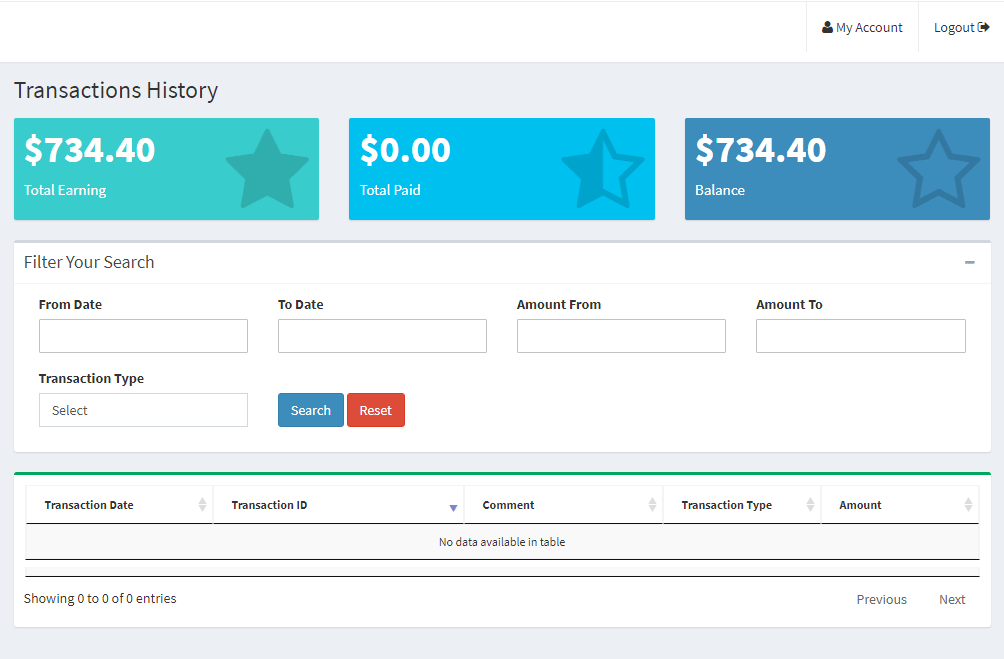
4.2.7 Transaction History
The seller can view their entire transaction history in the transaction tab.
4.2.8 Payout Request
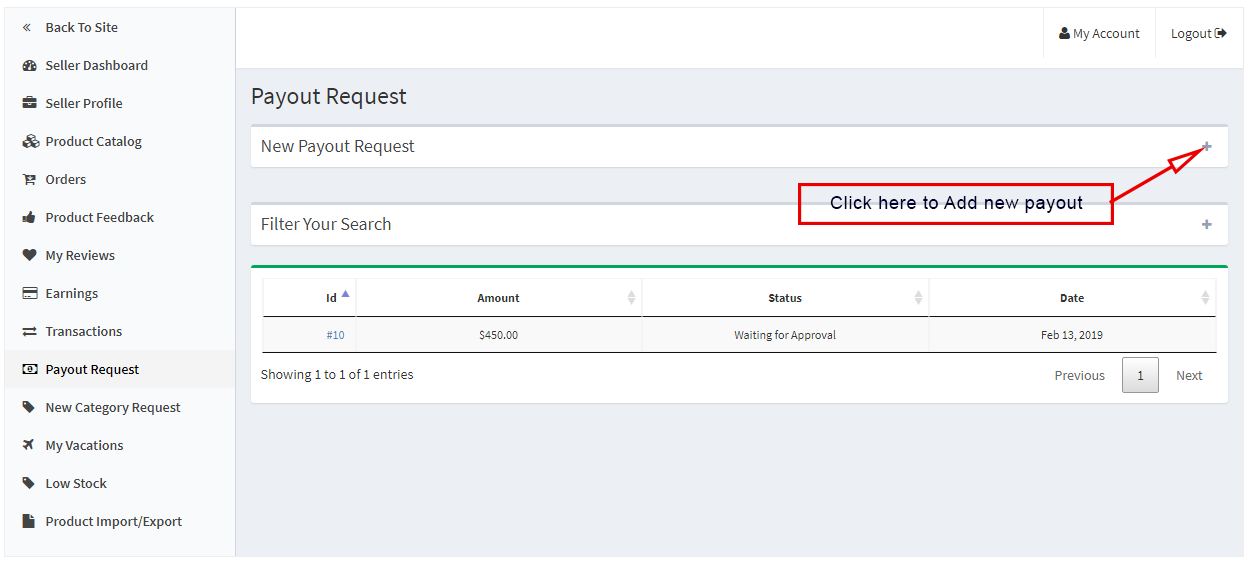
Sellers can view the list of payout requests sent to the admin from the Payout Request tab. Payout Request status can be also be monitored by the seller they can even send category requests to the store admin. Moreover, sellers can generate a new payout request by following the steps:
Go to the Dashboard -> Payout Request
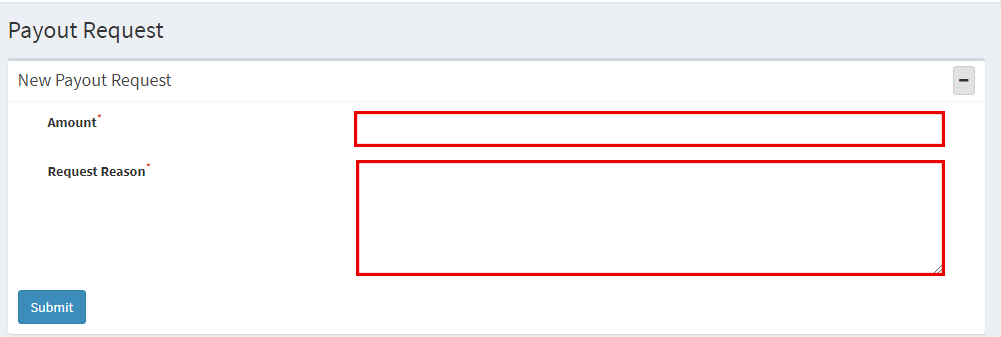
Click on the “+” icon on the right side of the New Payout Request. Once the “+” is clicked, a new dropdown will appear.
Amount: Enter the amount value here.
Request Reason: Enter the reason for Payout Reason in this field.
Click the “Submit” button at the button of the page to submit the payout entry.
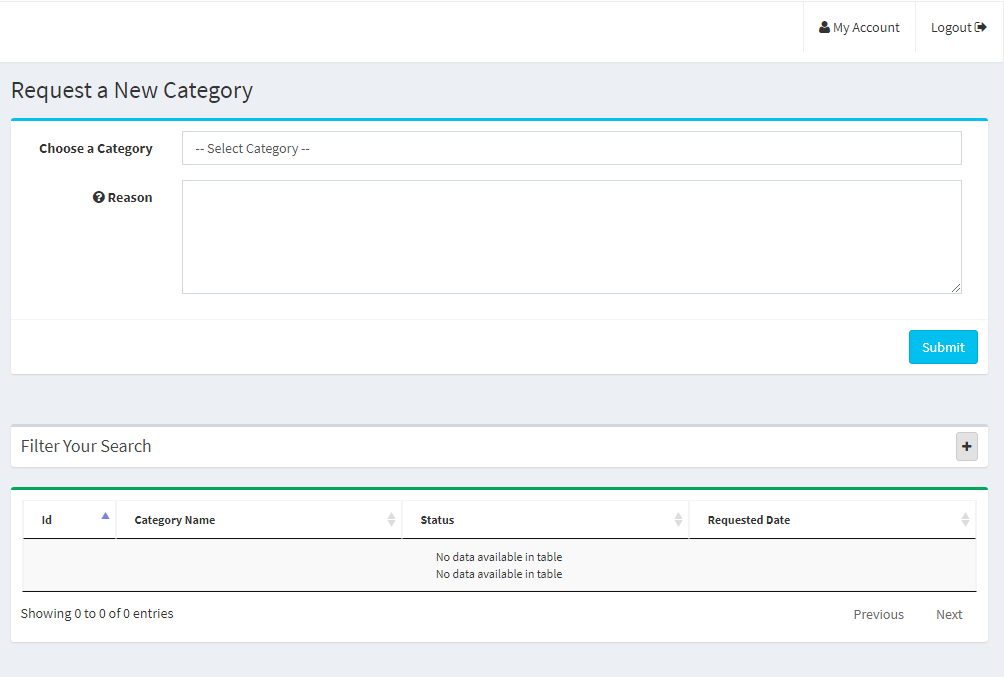
4.2.9 New Category Request
Sellers can view the categories assigned by the admin to them. Additionally, a seller can send a new category request to the store admin by following these simple steps.
In order to send a category request, go to the Dashboard -> New Category Request, a page will open in front of him.
Choose a Category: Select a category you want to request.
Reason: Give an appropriate reason for requesting that category.
4.2.10 My Vacations
My Vacation tab displays the list of vacation requests already submitted by the sellers to the admin.
4.2.10.1 How to set a new Vacation entry
Once the seller is on the My Vacation section, click on the “Set New Vacation” button, a popup window will open in front of them with the following fields:
Start date: Enter the start date of the vacation here.
End Date: Enter the last date of vacation here.
Your comment on the vacation: Enter details related to the vacation here.
Click on the “Create” button here and the request will be sent to the admin for approval then.
4.2.11 Seller Coupons
Using this feature sellers can generate coupons for their customers. Sellers can use different variations for creating their coupons like users per coupon, coupon type, etc.
4.2.12 Low Stock
The low stock tab displays the list of products that are low in stock. The seller can set the Low stock Configuration setting from this section. Click on the “+” sign on the right side of the configuration and fill the following field there.
Low Inventory limit: Enter the threshold limit below which you want to get notified.
Receive Low Stock Notification: Enable/ disable the Low stock Notification from this field.
4.2.13 Product Import and Export
In order to upload the products in bulk, sellers need to generate a sent product import/ export request to the admin. Enter the comment in the box, and submit the request to the admin. Once the admin approves the request, only then the seller can upload the products in bulk.
4.2.14 Support System
This feature allows the sellers to view the queries of their customers in the form of tickets. When the seller clicks on the Ticket ID they are able to see the full detail about the query and even reply and change the status of the query.
4.2.15 Seller Shipping
By using this feature sellers can add their shipping prices based on the weight and price range of the products. This will allow them to fix a shipping price for a particular weight range or price range. They can use this feature while adding a new shipping method.
4.2.16 Seller Membership Plan
Sellers can check their membership plan history by applying filters. Under the filters, sellers have to fill in the plan name and the order ID of the membership plan for checking the history of the membership plans.
To add a new membership plan sellers have to click on the “Membership List” button.
For further information, refer to the following links:
El Mercado de múltiples proveedores permite que el administrador aumente los ingresos mediante la venta de productos de proveedores externos en las mismas plataformas. Etsy, eBay, etc., se encuentran entre las mejores tiendas de comercio electrónico, logran mantener a sus clientes atendidos al proporcionar servicios y productos de diferentes vendedores en la misma plataforma. Hoy en día, obtener la atención de los clientes y mantenerlos ocupados en su tienda no es una tarea fácil. Knowband ha venido con Magento 2 Multi seller Marketplace módulo para ayudar al administrador a construir su propio mercado. Con la ayuda de Magento 2, los proveedores de la tienda de extensión del Mercado de múltiples proveedores pueden crear un Mercado como Walmart, Etsy y eBay, y permite que múltiples proveedores se registren y enumeren sus productos en el sitio. El administrador de la tienda solo necesita instalar el complemento Magento 2 Marketplace y administrar todo desde el backend de la tienda.
Beneficios de 1.1 Admin de Magento 2 Marketplace Extension
A continuación se analizan los diversos beneficios de administración que ofrece el complemento Magento 2 Marketplace Market de Knowband:
El administrador de la tienda puede simplemente actualizar su tienda de comercio electrónico en un mercado con todas las funciones con la ayuda del módulo de mercado de múltiples vendedores de Magento 2.
Magento 2 Marketplace Module es compatible con todo tipo de productos, incluidos los sencillos, configurables y agrupados.
Con la ayuda de Magento 2 Marketplace Plugin, el administrador de la tienda puede configurar la comisión global así como también las categorías
El administrador de la tienda puede ver fácilmente el perfil del vendedor y los productos enumerados en el Mercado desde el panel de administración de Magento 2 Marketplace Extension.
El administrador de la tienda tiene acceso para aprobar o rechazar la solicitud de cuenta del vendedor y los productos enumerados por ellos.
Las categorías para conservar los productos se asignan al administrador del Módulo de mercado de proveedores múltiples de Magento 2. Los vendedores pueden agregar sus productos solo en las categorías asignadas.
El administrador de la tienda tiene la oportunidad de habilitar / deshabilitar las revisiones del vendedor y las revisiones de productos del vendedor desde el backend de Magento 2 Multi vendor Marketplace Extension.
Magento 2 Marketplace Module ofrece al administrador el acceso para rastrear el informe de ventas y la transacción general del sitio.
Las plantillas de correo electrónico predeterminadas para notificar a los vendedores se ofrecen al administrador de la tienda mediante el módulo Magento 2 Multi seller Marketplace.
Beneficios del vendedor 1.2 ofrecidos por Magento 2 Marketplace Extension
Los proveedores externos pueden registrarse fácilmente como vendedores en el sitio simplemente llenando un formulario.
Múltiples vendedores pueden registrarse en el Mercado llenando algunos detalles en el formulario.
Una vez que el administrador aprueba su cuenta, los vendedores pueden enumerar fácilmente sus productos en el Mercado desde el panel del vendedor.
Los vendedores pueden agregar sus banners, logotipo de la tienda y metadatos desde su panel de vendedores.
Los vendedores pueden monitorear fácilmente la transacción general y el informe de ventas desde el panel del vendedor.
Los vendedores pueden reenviar una nueva solicitud de categoría al administrador. La solicitud de categoría puede ser aprobada / rechazada por el administrador de la tienda desde el back-end del módulo Magento 2 Multi Marketplace Marketplace.
Beneficios para el cliente de Magento 2 Marketplace Extension
El cliente tiene una gama más amplia de opciones para elegir productos.
Los visitantes pueden ver fácilmente el perfil de los vendedores en la página del producto.
Los clientes pueden enviar sus valiosos comentarios sobre los productos, así como el vendedor.
Beneficios para el cliente de 1.3 de Magento 2 Marketplace Extension
El cliente tiene una gama más amplia de opciones para elegir productos.
Los visitantes pueden ver fácilmente el perfil de los vendedores en la página del producto.
Los clientes pueden enviar sus valiosos comentarios sobre los productos, así como el vendedor.
Instalación 2.0
Compre la extensión Magento 2 Multi Marketplace en la tienda KnowBand. Obtendrás los siguientes archivos:
Archivo comprimido que contiene el código fuente del módulo.
Manual de usuario
Siga los pasos que se mencionan a continuación para instalar la extensión Magento 2 Multi seller Marketplace en su tienda:
Descomprima el archivo comprimido. Crear una carpeta (raíz de Magento) / app / code / Knowband / Marketplace
Cargue el contenido extraído en la carpeta anterior a través del administrador de FTP (como Filezilla o WinSCP
Agregue la siguiente biblioteca en el compositor raíz de Magento: "phpoffice / phpexcel": "1.8.1", "paypal / rest-api-sdk-php": "1.13.0"
Después de agregar estas bibliotecas, ejecute el siguiente comando para instalar estas bibliotecas: actualización del editor
Ahora ejecute los siguientes comandos para instalar el complemento: php -f bin / magento module: habilita –clear-static-content Knowband_Marketplace php bin / magento setup: actualizar Configuración de php bin / magento: di: compile Configuración de php bin / magento: static-content: deploy
En el Panel de administración, vaya al menú principal -> Knowband -> Marketplace.
La extensión Magento 2 Marketplace ya está lista para su uso.
Este manual del usuario guiará a los usuarios a través de la configuración y configuración del módulo Magento 2 Multi seller Markeplace.
Panel de administración de 3.0
El complemento Magento 2 Marketplace ofrece múltiples opciones para la configuración y administración del mercado en línea. Todas las pestañas se discuten a continuación en detalle.
Configuración general de 3.1
La configuración general de Magento 2 Multi seller Marketplace se divide en dos tipos principales: Configuración general y Configuración de stock bajo
Configuración general de 3.1.1
Los diversos campos de esta configuración general del complemento Magento 2 Marketplace del mercado se explican a continuación:
Habilitar Marketplace: Alterne este botón para activar / desactivar el módulo Magento 2 Multi seller Marketplace.
Comisión por defecto: El administrador puede ingresar la comisión que se cargará a los vendedores aquí. El porcentaje establecido por el administrador se aplicará a todos los vendedores de Marketplace de forma predeterminada.
Categorías Permitidas: El administrador puede seleccionar las categorías que desea asignar a los vendedores. Si no se selecciona ninguna categoría aquí, el vendedor puede mantener los productos en todas las categorías.
Registrarse como vendedor de campo: Si está habilitado, el vendedor puede registrar su tienda en el Mercado.
Habilitar la importación / exportación a granel: El administrador puede permitir que los vendedores carguen los productos de forma masiva con la alternancia de este botón.
Correo electrónico al vendedor en el lugar de la orden: Si este botón está habilitado, el vendedor recibirá una notificación sobre los pedidos por correo electrónico.
Habilitar el modo de vacaciones: Cuando está habilitada, esta función permite a los vendedores de 3.7. Todas las revisiones del vendedor junto con su estado aprobado se enumerarán en esta sección. Los vendedores enviarán la solicitud de vacaciones al administrador.
Mostrar información del vendedor en la página del producto: Los clientes pueden ver la información del vendedor en la página del producto, si este botón está habilitado.
Aprobación del producto requerido: Si se selecciona 'Sí', se requerirá la aprobación del administrador para listar el producto en el sitio.
Límite de producto nuevo: Ingrese el límite del producto aquí que desea que los vendedores enlisten en el Mercado. Si el campo se deja en blanco, no se listará ningún producto.
Habilitar la revisión del vendedor: Seleccione "Sí", los clientes podrán enviar sus comentarios a los vendedores aquí.
Aprobación de la revisión del vendedor: Si esta función está habilitada, la revisión enviada por los clientes se enviará al administrador para su aprobación. Solo después de la aprobación del administrador de la tienda, la revisión será visible para los clientes.
Habilitar lista de vendedores: Habilite este botón para mostrar la lista de los vendedores en la parte delantera del sitio
Habilitar cuadro de búsqueda: Habilite esta función para permitir a los clientes buscar vendedores en la página de listado de vendedores.
3.1.2 Low Stock Configuration
Habilitar notificación de stock bajo: Si se selecciona 'Sí', a los vendedores se les notificará acerca del bajo stock por correo electrónico.
Límite de inventario bajo: Este es un campo obligatorio donde se necesita el administrador para agregar el límite por debajo del cual los productos se consideran de bajo stock.
Cuándo notificar: El administrador tiene la opción de seleccionar la condición cuando desea enviar el correo a los vendedores.
Enviar notificaciones desde: Seleccione los correos electrónicos que desea enviar como notificaciones.
Lista de vendedores de 3.2
El administrador puede supervisar la lista de los vendedores que venden sus productos en el Mercado desde el backend de la extensión del Mercado Magento 2 Multi vendedor. El administrador puede ver la lista de pedidos y los productos del vendedor con un clic en el lado derecho de cada vendedor.
3.2.1 Cómo editar la cuenta del vendedor
El administrador incluso tiene una opción para editar el perfil de los vendedores. Haga clic en el nombre del vendedor y se abrirá una nueva página delante de usted. Aquí, el administrador puede ver y editar los detalles de la cuenta del vendedor, pedidos, revisiones de productos, vista del cliente, etc.
Configuración de cuenta de vendedor 3.2.2
Las siguientes pestañas están disponibles en la Configuración de la cuenta del vendedor:
Comisión por defecto: El administrador tiene la opción de establecer un monto de comisión diferente para el vendedor en comparación con la comisión global.
Límite de producto nuevo: El límite de producto establecido en la pestaña Configuración general se puede cambiar para un vendedor en particular. El administrador puede establecer el nuevo límite de producto para un vendedor en particular aquí.
Categorías Permitidas: Aquí se pueden asignar categorías distintas de las categorías globales a un vendedor en particular.
Aprobación del producto requerido: La configuración de aprobación del producto se puede cambiar en esta pestaña.
Habilitar la revisión del vendedor: El administrador puede cambiar la configuración para la revisión del vendedor aquí.
Aprobación de revisión del vendedor requerido: El administrador puede cambiar la configuración de aprobación de revisión de vendedor para un vendedor en particular en este campo.
Correo electrónico al vendedor en el lugar del pedido: Si el administrador desea notificar a un vendedor en particular o no en el pedido realizado, las configuraciones se pueden habilitar o deshabilitar aquí.
Solicitud de aprobación de cuenta de vendedor 3.3
Los proveedores externos pueden completar el formulario para registrar su cuenta de vendedor en el sitio. El administrador puede ver la lista de vendedores junto con el estado de su cuenta en esta pestaña de la extensión Magento 2 Multiproveer Marketplace.
3.3.1 Cómo aprobar y desaprobar la cuenta del vendedor
El administrador puede aprobar la cuenta del vendedor con un clic del botón desde el back-end del módulo Magento 2 Marketplace. Simplemente haga clic en el botón de aprobación o rechazo correspondiente a cada cuenta de vendedor como se muestra a continuación:
Si el administrador hace clic en el botón Aprobar, aparecerá una ventana emergente solicitando permiso para aprobar o rechazar la cuenta del vendedor.
Una vezVendedor‘?tab?of?Magento?2?Multi?vendor?Marketplace?module.If?the?admin?clicks?on?the?Disapprove?button,?a?pop?up?box?asking?for?the?reason?of?the?disapproval?will?appear.
Lista de productos de vendedores 3.4
Los productos aprobados por el administrador desde el back-end de la extensión Magento 2 Multi Marketplace Marketplace se enumerarán en la pestaña Productos del vendedor.
3.4.1 Cómo editar y eliminar los detalles de los productos.
El propietario de la tienda puede editar o eliminar los detalles del producto de los productos enumerados por los vendedores, si es necesario. Haga clic en el botón 'Editar' o 'Eliminar' respectivamente.
Lista de aprobación del producto 3.5
Los vendedores de terceros pueden listar sus productos desde el panel de control de vendedores de su perfil. Los productos agregados desde el panel de control se enumeran en esta pestaña del módulo Magento 2 Marketplace para su aprobación. La aprobación del administrador solo es necesaria si esta función está habilitada. El administrador de la tienda puede aprobar o rechazar el producto con un clic del botón. Solo los productos aprobados por los vendedores se enumeran en la pestaña Lista de aprobación de productos del módulo Magento 2 Marketplace, como se muestra en la figura:
Si el administrador hace clic en el botón Aprobar, aparecerá una ventana emergente con el mensaje "¿Desea aprobar el producto?" . Haga clic en 'Aceptar' si desea continuar con la acción.
Opiniones de productos 3.6
Los clientes pueden dar calificaciones y escribir revisiones para los productos si esta función está habilitada desde el back-end del complemento Magento 2 Marketplace. Si está habilitado, los clientes pueden dejar sus comentarios haciendo clic en "Escribir un comentario". Las revisiones escritas en el front-end se enumerarán en el back-end del complemento Magento 2 Marketplace Marketplace como se muestra en la siguiente imagen:
El administrador puede hacer clic en el 'Editar' Botón para editar o aprobar las revisiones del producto. Esto lo redirigirá a la página de edición de revisión del módulo Magento 2 Multiproveor Marketplace. Los diversos campos de esta interfaz se discuten a continuación:
Producto: El nombre del producto para el que se publica la revisión se mostrará aquí.
Autor: El nombre del cliente que envía la revisión se mostrará aquí. El administrador puede cambiar el nombre si es necesario.
Calificación de resumen: Esta sección mostrará por defecto la calificación dada por el cliente.
Calificación detallada: El administrador puede incluso cambiar la calificación en este campo.
Estado: El administrador tiene el acceso para actualizar el estado de Revisión aquí.
Resumen de la revisión: En este campo estará disponible un resumen de revisión.
revisión: La revisión introducida por el cliente se mostrará aquí. El propietario de la tienda puede editar la revisión si es necesario.
Para que se reflejen los cambios, el administrador debe hacer clic en "Guardar revisión" botón en la parte superior derecha de la página.
Opiniones de vendedores de 3.7
Todas las revisiones del vendedor junto con su estado aprobado se enumerarán en esta sección.
El administrador puede ver la información detallada haciendo clic en "Ver" botón en el lado derecho de cada revisión. Una vez que se haga clic en el botón de vista, aparecerá una ventana emergente delante de usted.
Lista de aprobación de revisión de vendedores 3.8
Los clientes pueden incluso dar reseñas a los vendedores si esta función está habilitada desde el back-end del módulo Magento 2 Multi seller Marketplace. Para salir de la revisión, los clientes pueden hacer clic en el 'Escribir un comentario' Enlace en la página del producto del sitio web. Refiérase a la imagen de abajo:
Esto los redireccionará a una interfaz en la que otorgarán calificación y revisión a los vendedores. Las revisiones del vendedor ingresadas aquí se enumerarán en la pestaña Solicitud de aprobación de los vendedores del Magento 2. El administrador puede ver, aprobar, desaprobar y eliminar las revisiones haciendo clic en los botones "Ver", "Aprobar", "Desaprobar" y "Eliminar" respectivamente para las funciones respectivas.
Lista de solicitud de categoría 3.9
El administrador asigna la categoría al vendedor de terceros para enumerar los productos. Los vendedores pueden incluso solicitar al administrador que agregue una nueva categoría desde su Tablero. Las solicitudes de categoría enviadas por los vendedores se enumerarán en la pestaña Lista de solicitudes de categoría de vendedor de la extensión Magento 2 Marketplace, como se muestra en la siguiente imagen:
Solo después de que el administrador haya aprobado la nueva solicitud de categoría, solo entonces se le permitirá al vendedor listar su producto en la categoría asignada. El administrador puede aprobar o rechazar la nueva solicitud de categoría haciendo clic en el botón "Aprobar" o "Desaprobar" respectivamente.
Solicitud de vacaciones de vendedores 3.10
La extensión Magento 2 Marketplace viene con una función que permite a los vendedores salir de vacaciones. Si esta función está habilitada por el administrador de la tienda desde la pestaña Configuración del módulo Magento 2 Multi Marketplace de Marketplace, solo entonces los vendedores pueden solicitar la misma. El administrador puede ver la lista de vendedores en vacaciones desde esta pestaña
Productos más vendidos de 3.11
El administrador puede ver la lista de los productos más vendidos de un vendedor particular. La lista de productos más vendidos se puede filtrar según el período de tiempo, la categoría y el vendedor.
Plantillas de correo electrónico de 3.12
El complemento del mercado de vendedores múltiples de Magento 2 ofrece varias plantillas de correo electrónico prediseñadas para los distintos escenarios. El administrador de la tienda puede incluso personalizar las plantillas de correo electrónico según sea necesario haciendo clic en el botón "Editar plantilla".
Al hacer clic en el "Editar plantilla" botón, el administrador puede modificar el asunto y el contenido del correo electrónico según su conveniencia.
Instrucciones de 3.13 Cron
Los trabajos de Cron se pueden ejecutar para sincronizar los cambios desde el backend del módulo Magento 2 Marketplace de Marketplace con el frontend de la tienda.
Cron de vacaciones: El trabajo de Vacation Cron se ejecuta para deshabilitar los productos del vendedor desde la parte delantera de la tienda cuando los vendedores se van de vacaciones.
Bajo stock de notificación Cron: Cron jobs se ejecuta para alertar al vendedor sobre los productos de bajo stock.
Vendedor de 3.14 con función de importación y exportación
El administrador de esta sección puede ver la lista de vendedores que pueden cargar productos de forma masiva desde el panel del vendedor. El administrador puede deshabilitar la función haciendo clic en "Inhabilitar" Botón en el lado derecho del vendedor.
Transacciones y ganancias 3.15
Comisión 3.15.1
El administrador de la tienda incluso tiene la opción de controlar el total de transacciones, las ganancias del vendedor y las ganancias de la administración. El nombre del vendedor, junto con su ID de correo electrónico también está allí.
3.15.2 Category Wise Commission
Con el módulo Magento 2 Marketplace, el administrador de la tienda obtiene el acceso para filtrar la categoría de comisiones. El administrador puede ver fácilmente el total
Comisión sabia del vendedor de 3.15.3
El administrador puede ver la lista del total de productos vendidos, ingresos totales, ingresos del vendedor y ganancias de administración desde el backend del complemento Magento 2 Marketplace. Para ver la acción detallada de la transacción, el administrador debe hacer clic en el "Ver" botón.
Además, la extensión Magento 2 Multi seller Marketplace permite al administrador agregar un nuevo detalle de transacción desde el panel de administración de la tienda. Tan pronto como el administrador haga clic en el "Hacer nuevo" Un botón emergente aparecerá delante de él. El administrador debe completar todos los detalles en la ventana emergente y hacer clic en el botón enviar para enviar la nueva entrada de transacción.
Pago de vendedor 3.15.4
La solicitud de pago aprobada de los vendedores se puede ver en la sección Pagos de los vendedores.
Solicitud de pago del vendedor 3.15.5
La solicitud de pago enviada por los vendedores puede ser vista por el administrador desde el backend de la Solicitud de pago del vendedor. El administrador puede aprobar / rechazar la solicitud de pago con unos pocos clics. Una vez que el administrador haga clic en el botón "Aprobar", aparecerá una ventana emergente como se muestra en la figura.
Cuando el administrador haga clic en el botón "Desaprobar", aparecerá un cuadro de diálogo con el campo de comentarios. Una vez que el administrador haga clic en el botón de enviar después de completar los campos de comentarios, la solicitud se rechazará.
Solicitud de pago de 3.15.6 PayPal
El complemento Magento 2 Multi seller ofrece al administrador el acceso para establecer la configuración de pago de PayPal desde el backend de la tienda. El administrador debe completar la identificación del cliente, la clave secreta del cliente, el modo Paypal, el asunto del correo electrónico de Paypal y la moneda de Paypal en el backend de la tienda.
Interfaz de usuario de 4.0
Una vez que la extensión Magento 2 Marketplace se instale correctamente en la tienda Magento 2, los vendedores de terceros pueden registrarse llenando un formulario simple desde el extremo frontal de la tienda. Para facilitar la gestión de la tienda, el vendedor obtiene acceso a su panel de control.
Registro de vendedor 4.1
Los vendedores pueden registrar su cuenta rellenando el formulario de registro desde la parte delantera de la tienda. El formato del formulario de registro es el mismo tanto para los vendedores como para los clientes. Para registrarse como vendedores, el vendedor debe seleccionar una casilla de verificación adicional en el formulario.
Tablero del vendedor de 4.2
Una vez que el proceso de registro de la cuenta se complete desde el back-end del complemento Magento 2 Marketplace, el vendedor tendrá acceso al Tablero. Los vendedores pueden ver el informe de ventas completo, la lista de productos y los detalles del pedido desde el panel del vendedor. Los vendedores pueden enviar una solicitud de categoría nueva, solicitud de pago y solicitud de vacaciones desde el panel.
Perfil del vendedor de 4.2.1
Los vendedores pueden editar su perfil y personalizar su tienda desde esta pestaña de perfil de vendedor del panel. Los vendedores pueden agregar y editar los enlaces de títulos de la tienda, direcciones y cuentas sociales en esta pestaña.
Catálogo de productos 4.2.2
Los vendedores pueden seguir la ruta mencionada a continuación para agregar un nuevo producto. Tan pronto como el vendedor haga clic en el Catálogo de productos, se mostrará la página siguiente. El vendedor puede ver la lista de productos enumerados en el Mercado desde el Catálogo de productos.3.15.6 Solicitud de pago de PayPal.
Para agregar un nuevo producto a la lista, haga clic en el botón "Nuevo producto"
Vaya a Mi cuenta -> Panel de control -> Catálogo de productos.
4.2.2.1 Cómo agregar un nuevo producto
Los productos que ya figuran en la lista de vendedores se enumeran en la pestaña Panel de control del vendedor. Una vez que el administrador haga clic en el botón "Nuevo producto", se mostrará el menú emergente con campos de atributo y tipo de producto. Seleccione los campos de atributo y el campo de tipo de producto y haga clic en "Continuar" botón. Esto te redirigirá a la página 'Nuevo producto'. Rellene los detalles del campo obligatorio para agregar el producto.
Órdenes 4.2.3
El vendedor puede ver la lista de pedidos y sus detalles relacionados en esta pestaña del Panel del vendedor.
Comentarios sobre el producto 4.2.4
Los vendedores pueden ver la Revisión recibida sobre los productos en la pestaña Revisión del producto de su Tablero. Todas las revisiones recibidas se enumerarán como se muestra en la imagen a continuación:
4.2.5 Mis Comentarios
La pestaña Mis comentarios en el panel del vendedor enumera las opiniones de los vendedores recibidas en su perfil.
Ganancias de 4.2.6
Los vendedores pueden ver la venta total, la ganancia total, el pedido total y el producto total vendido en esta pestaña. Los proveedores pueden incluso aplicar un filtro a los resultados de ganancias según su requerimiento. El historial de ganancias totales se mostrará como se muestra a continuación:
Historial de transacciones 4.2.7
El vendedor puede ver todo su historial de transacciones en la pestaña de transacciones.
Solicitud de pago de 4.2.8
Los vendedores pueden ver la lista de solicitud de pago enviada al administrador desde la pestaña Solicitud de pago. El estado de la solicitud de pago también puede ser supervisado por el vendedor, incluso puede enviar una solicitud de categoría al administrador de la tienda. Además, los vendedores pueden generar una nueva solicitud de pago siguiendo los pasos:
Vaya a la Cuadro de mandos -> Solicitud de pago
Clickea en el "+" icono en el lado derecho de Nueva solicitud de pago. Una vez que se haga clic en "+", aparecerá un nuevo menú desplegable.
Cantidad: Introduzca el valor de la cantidad aquí.
Motivo de solicitud: Ingrese el motivo del motivo de pago en este campo.
Haga clic en el "Enviar" Botón en el botón de la página para enviar la entrada de pago.
Solicitud de nueva categoría 4.2.9
Los vendedores pueden ver las categorías asignadas por el administrador a ellos. Además, el vendedor puede enviar una nueva solicitud de categoría al administrador de la tienda siguiendo estos sencillos pasos. Para enviar una solicitud de categoría, vaya a la Cuadro de mandos -> Nueva solicitud de categoría, se abrirá una página delante de él.
Elige una categoría: Seleccione la categoría que desea solicitar.
Razón: Dar una razón apropiada para solicitar esa categoría.
4.2.10 Mis Vacaciones
La pestaña Mis vacaciones muestra la lista de solicitudes de vacaciones ya enviadas por los vendedores al administrador.
4.2.10.1 Cómo configurar una nueva entrada de vacaciones
Una vez que el vendedor esté en la sección Mis vacaciones, haga clic en el botón "Establecer nuevas vacaciones", se abrirá una ventana emergente frente a ellos con los siguientes campos:
Fecha de inicio: Introduzca la fecha de inicio de las vacaciones aquí.
Fecha de finalización: Introduzca la última fecha de vacaciones aquí.
Tu comentario a las vacaciones: Introduzca un detalle relacionado con las vacaciones aquí.
Clickea en el "Crear" Haga clic aquí y la solicitud se enviará al administrador para su aprobación.
4.2.11 Low Stock
La pestaña de stock bajo muestra la lista de productos que están en stock. El vendedor puede establecer la configuración de stock baja de esta sección. Haga clic en el "+" Firme en el lado derecho de la configuración y complete el siguiente campo allí.
Límite bajo de inventario: Introduzca el límite de umbral por debajo del cual desea recibir una notificación.
Recibir baja notificación de stock: Habilitar / deshabilitar la notificación de stock bajo desde este campo.
Importación y exportación de productos 4.2.12
Para cargar los productos de forma masiva, los vendedores deben generar una solicitud de importación / exportación de producto enviada al administrador. Ingrese el comentario en el cuadro y envíe la solicitud al administrador. Una vez que la solicitud es aprobada por el administrador, solo entonces el vendedor puede cargar los productos a granel.
Para más información, consulte los siguientes enlaces: