Magento Walmart Canada Integrator-Manuel de l'utilisateur

1.0 Présentation

Knowband de Magento, offert par Knowband, est une interface permettant de synchroniser le marché Walmart avec le magasin Magento. En utilisant la clé API Walmart (ID consommateur Walmart, clé privée Walmart et type de canal consommateur), l’administrateur de la boutique e-commerce peut connecter le marché Walmart à la boutique Magento. Avec l’aide du module d’intégration de Magento Walmart Canada, l’administrateur du magasin peut télécharger les produits. Stocks, commandes et méthode d'expédition depuis le backend du magasin. Walmart est l’une des plus grandes entreprises générant des bénéfices et a connu une croissance remarquable ces dernières années. Avec l'aide de Magento Walmart Canada Integration Extension, le commerçant en ligne peut facilement répertorier les produits sur le marché et synchroniser les commandes du marché Walmart en exécutant des tâches Cron à partir du panneau d'administration. La vente de produits sur le marché Walmart augmentera la popularité des produits du vendeur à grande échelle.

Fonctions 1.1 de l’intégrateur d’API Magento de Walmart Canada.

L'administrateur de la boutique électronique peut facilement installer Walmart Canada Magento Integrator. La connaissance technique de l'administrateur n'est pas nécessaire pour configurer le connecteur Walmart Canada Magento car aucune modification du code source n'est requise de la part de l'administrateur. Les différentes fonctionnalités offertes par l’intégrateur d’API Magento Walmart Canada sont les suivantes:

  1. Walmart Canada Integrator offre une synchronisation en temps réel. Aucune synchronisation manuelle n'est requise par l'administrateur pour synchroniser les détails du marché avec la boutique de commerce électronique et inversement.
  2. Même un propriétaire de magasin non technique peut configurer la connexion entre Walmart Marketplace et le magasin Magento. La connexion peut être établie en quelques clics.
  3. N nombre de profils peuvent être créés dans l’arrière-plan de l’intégrateur d’API Magento de Walmart Canada.
  4. La liste basée sur le profil aide à télécharger des produits en vrac.
  5. Magento Walmart Canada Integrator permet à l’administrateur de mapper les catégories et les attributs de la boutique de commerce électronique avec le marché Walmart.
  6. L'administrateur du magasin peut modifier les inventaires en modifiant le profil à partir du backend du module d'intégration de Magento Walmart Canada.
  7. Les produits répertoriés sur le marché peuvent être contrôlés à partir du backend de Magento Walmart Canada Integration Extension.
  8. Les produits peuvent être renouvelés et supprimés par l'administrateur selon son choix dans le panneau d'administration de Walmart Canada Magento Integrator.
  9. Avec l’aide du connecteur Magento de Walmart Canada, le marchand en ligne peut même ajouter des méthodes d’expédition sur le marché.
  10. API Integrator de Magento Walmart Canada offre à l’administrateur la chance de gagner le BuyBox. Le commerçant en ligne peut modifier les prix des produits pour remporter le BuyBox.
  11. Les commandes reçues sur le marché Walmart sont répertoriées dans le backend de l’intégrateur d’API de Magento Canada. Le statut de la commande peut être mis à jour par l'administrateur peut être synchronisé sur la place de marché en exécutant le travail Cron.
  12. Le marchand en ligne peut surveiller l’erreur survenue lors de l’énumération du produit à partir du backend de Magento Walm du marché avec la boutique de commerce électronique et vice-versa.
  13. Les vendeurs peuvent facilement gérer le temps de latence du backend de l’extension d’intégration de Magento Walmart Canada.

Installation de 2.0

Suivez les étapes suivantes pour installer Magento Walmart Canada Integrator:

  • Téléchargez le package du connecteur Magento de Walmart Canada dans la boutique Knowband.
  • Décompressez le package dans le dossier racine de la configuration de Magento via le panneau FTP.
  • Dans le panneau d'administration, accédez au marché Walmart CA.
  • Le module d'intégration de Magento Walmart Canada est maintenant prêt à être utilisé.

2.1 Comment connecter le marché Walmart au magasin Magento à l'aide de l'extension d'intégration Magento Walmart Canada

Pour configurer l'intégrateur Walmart Canada Magento, l'administrateur du magasin a besoin de la clé de l'API Walmart. Pour obtenir l'ID consommateur Walmart, la clé privée Walmart et le type de canal consommateur, l'administrateur doit suivre les étapes suivantes:

Activation de l'API du connecteur Magento du 2.2 Walmart Canada

L'administrateur du magasin peut obtenir l'ID consommateur Walmart, la clé privée Walmart, le type de canal client et d'autres informations connexes en procédant comme suit:

  1. Connectez-vous à votre compte vendeur Walmart.
  2. Cliquez sur l'icône du paramètre, puis sur l'option API au bas de la liste déroulante.
  3. Cliquez sur l'ID consommateur et copiez l'ID pour une utilisation ultérieure.
  4. Cliquez sur la clé de régénération pour générer la clé secrète. Une fenêtre apparaîtra devant vous.
  5. Cliquez sur "Oui, régénérer la clé" dans la fenêtre contextuelle.
  6. Copiez l'ID du consommateur, la clé privée Walmart, le type de canal du consommateur et collez-les dans les options respectives de l'onglet Paramètres généraux de l'intégrateur d'API Magento Walmart Canada.

Interface d'administration 3.0 de
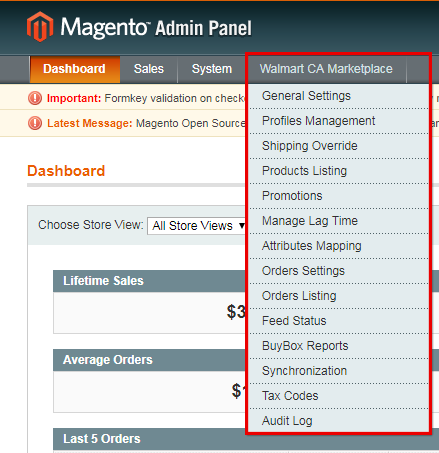
Panneau d'administration

Magento Walmart Canada Integrator offre une interface conviviale. Après l'installation, Magento CA Marketplace sera visible en haut du panneau d'administration. Magento Walmart Canada Integrator propose des onglets 14 dans le panneau d’administration à des fins de paramétrage.

  • Paramètres généraux
  • Gestion de profils
  • Cartographie des transporteurs
  • Promotions
  • Remplacement d'expédition
  • Liste de produits
  • Mappage d'attributs
  • Réglage de la commande
  • Liste de commande
  • Statut du flux
  • Rapport BuyBox
  • Gérer le temps de latence
  • Rapport d'impôt
  • Rapport des ventes
  • Rapport de vente de produit
  • Synchronisation
  • Journal d'audit

Paramètres généraux 3.1
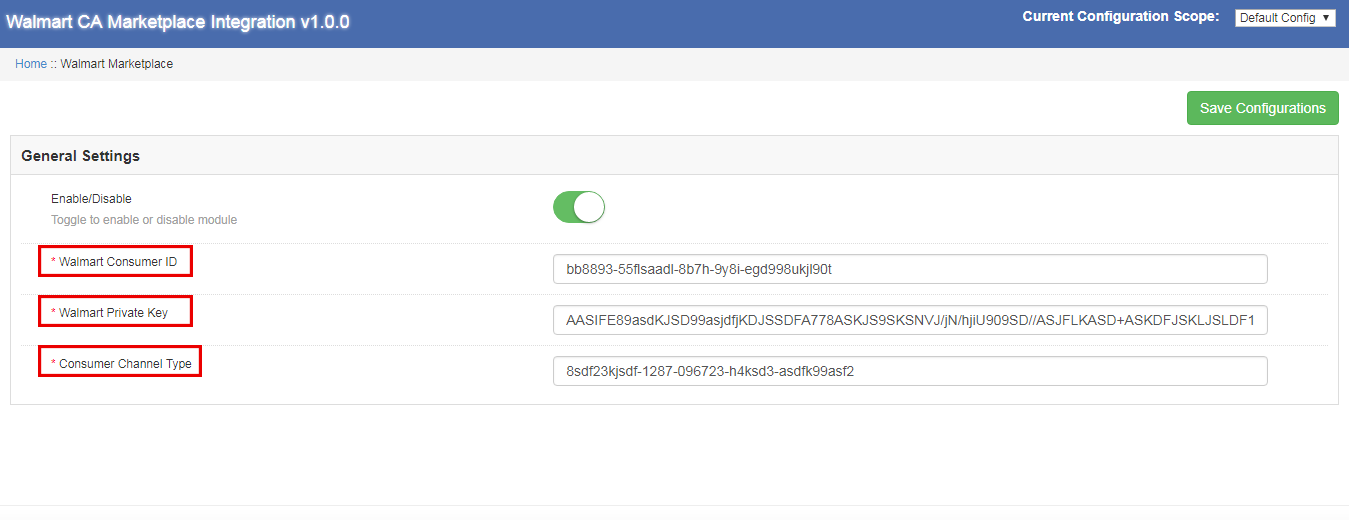
Afin de connecter le magasin de commerce électronique au marché Walmart, l’administrateur doit renseigner tous les champs obligatoires de l’onglet Paramètres généraux de Magento Walmart Canada Integrator. Les champs de saisie sont décrits ci-dessous:

1.Enable / Disable
Le marchand en ligne peut activer / désactiver l'intégrateur d'API Walmart Canada Magento en un seul clic.
ID consommateur 2.Walmart
Collez ici l'identifiant du consommateur copié lors de la connexion au compte vendeur Walmart.
Clé privée 3.Walmart
Entrez la clé privée obtenue lors de la connexion au compte vendeur Walmart.
Type de canal 4.Consumer
Entrez le canal grand public pour authentifier l’intégration entre le magasin Magento et le marché Walmart. Clique sur le "Enregistrer la configuration" bouton en haut à droite pour terminer le processus de connexion.

Remplacement de livraison par 3.2

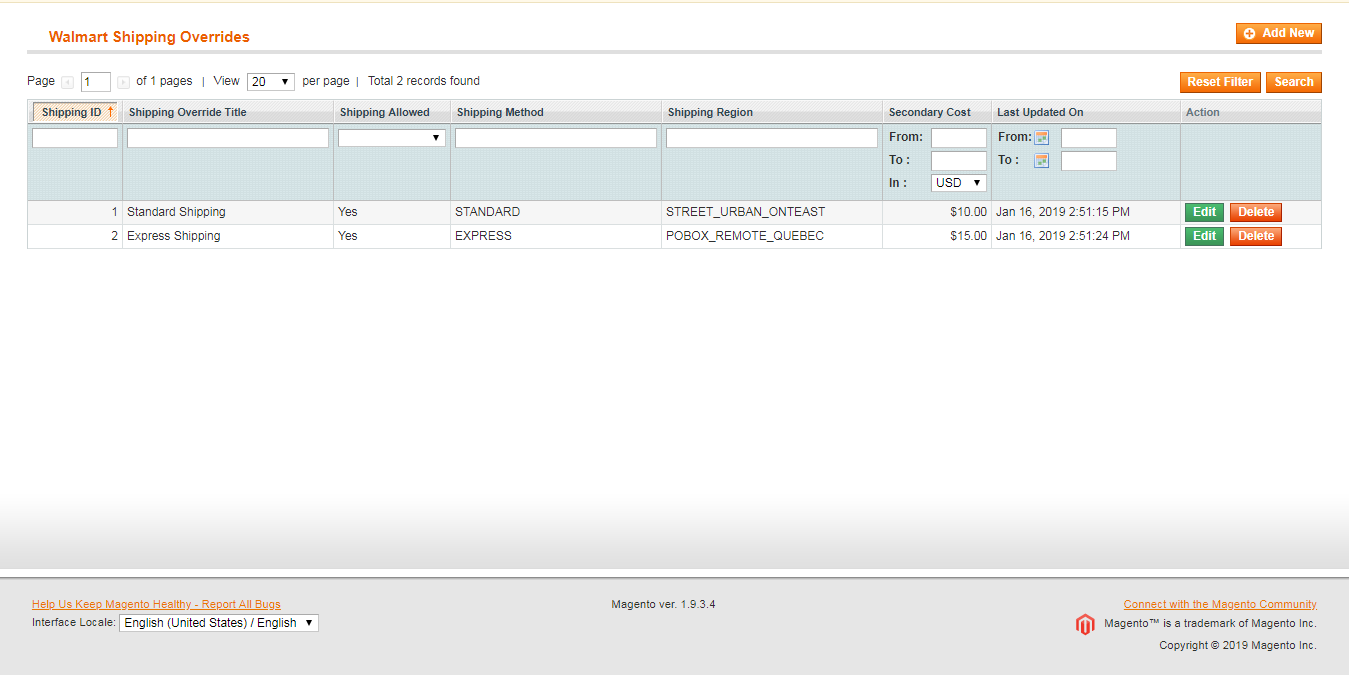
L’intégrateur d’API Magento de Walmart Canada offre aux administrateurs la possibilité de gérer les options d’expédition sur le marché Walmart à partir du backend du magasin. Dans la section, l’administrateur peut créer, éditer et supprimer le remplacement d’expédition selon son choix.
3.2.1 Comment ajouter un modèle d’expédition

Clique sur le "Ajouter nouveau" bouton en haut à droite de la section Remplacement d’expédition. Une nouvelle page apparaîtra devant vous. Remplissez tous les champs obligatoires pour créer le modèle d'expédition:
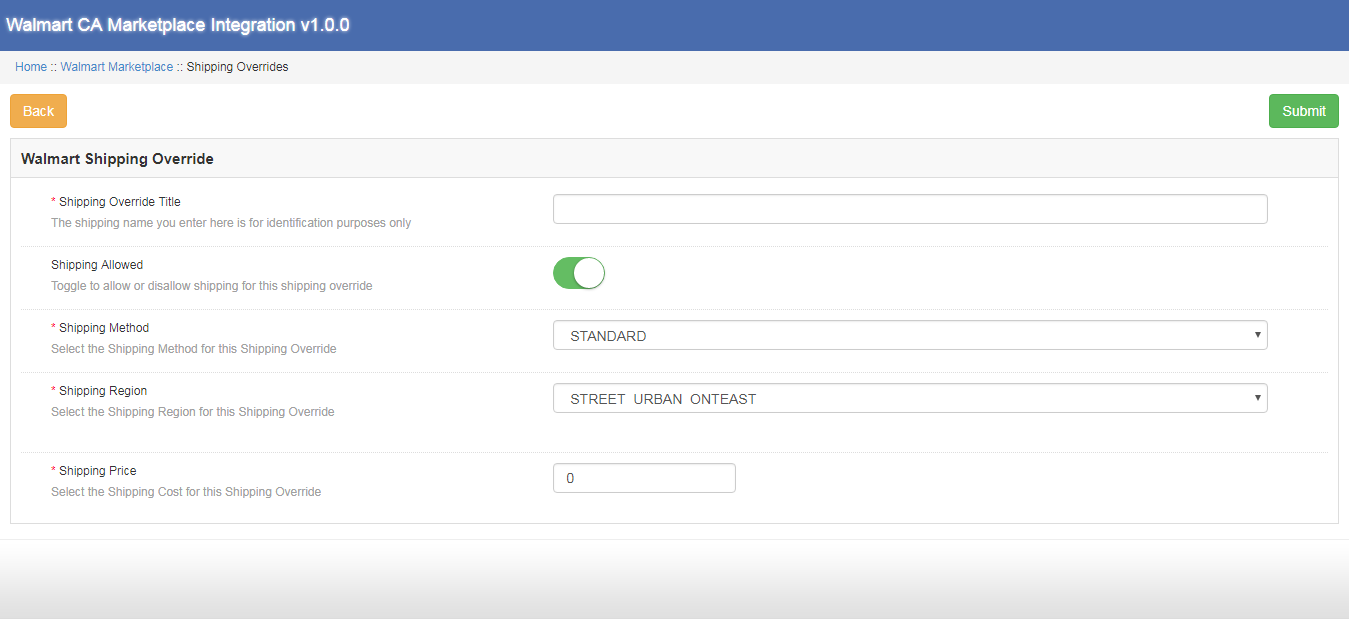
Titre de contournement d'expédition: Entrez le titre de remplacement d'expédition dans ce champ.
Expédition autorisée: L'administrateur peut activer / désactiver une méthode d'expédition en un clic.
Méthode d'expédition: Selon les besoins, l’administrateur peut facilement configurer les méthodes d’expédition à partir du backend de l’intégrateur d’API Magento de Walmart Canada. Les méthodes d’expédition offertes par l’intégrateur de Walmart Canada sont STANDARD et EXPRESS. Pour plus d'informations à ce sujet, veuillez consulter les liens suivants:
https://marketplace.walmart.com/knowledgebase/articles/Article/Shipping-Standards-For-Marketplace-Sellers

Région d'expédition: Le commerçant en ligne peut sélectionner la région d'expédition parmi les choix disponibles.
Prix ​​de l'expédition: Avec l’intégrateur d’API Magento de Walmart Canada, le commerçant en ligne peut définir le prix d’expédition pour différentes régions et méthodes d’expédition.

3.2.2 Comment modifier et supprimer le remplacement de livraison existant

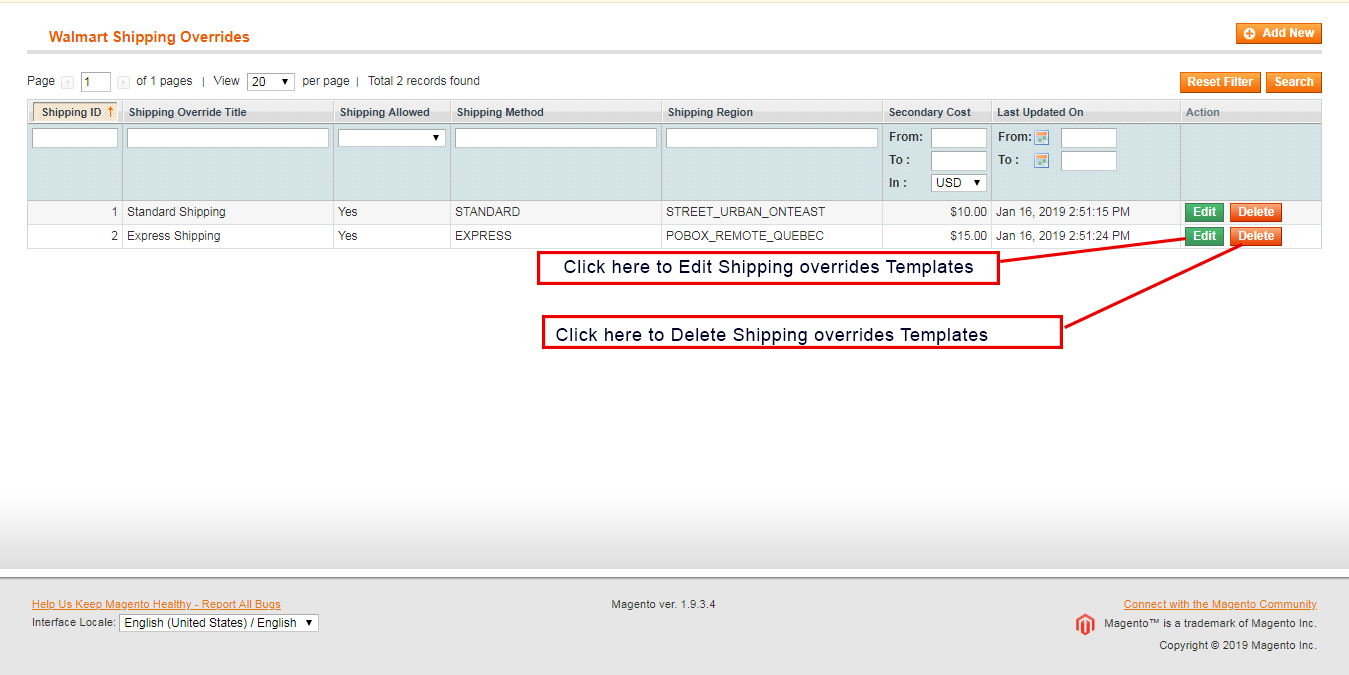
Les dérogations d'expédition seront répertoriées dans la section Remplacement des expéditions de l'intégrateur API de Walmart Canada Magento. Cliquez sur les boutons supprimer / modifier situés à droite des entrées existantes pour supprimer et modifier respectivement.
Mappage d'attributs 3.3

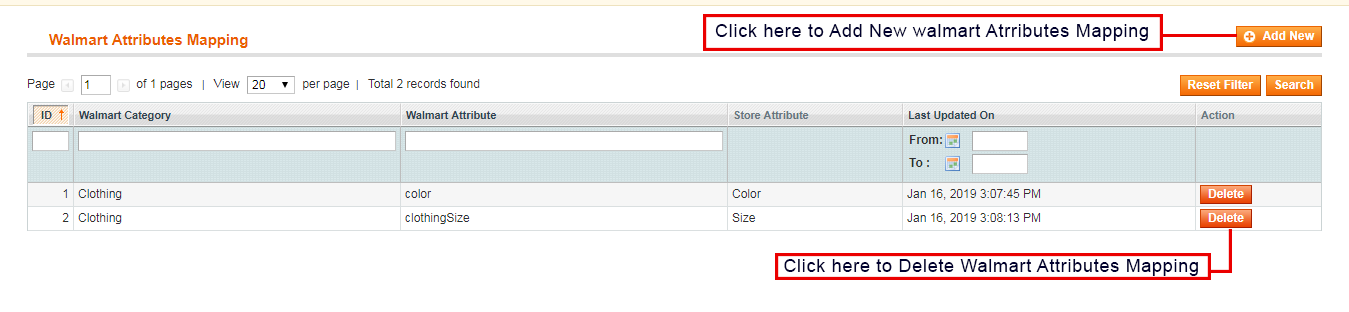
Le mappage d'attributs implique le mappage des attributs du magasin de commerce électronique avec les attributs du marché. Le mappage d'attributs aide à la synchronisation des produits du magasin avec le marché. La cartographie d'attributs de Walmart Canada Integrator aide à répertorier les produits sans effort.
3.3.1 Comment mapper les attributs

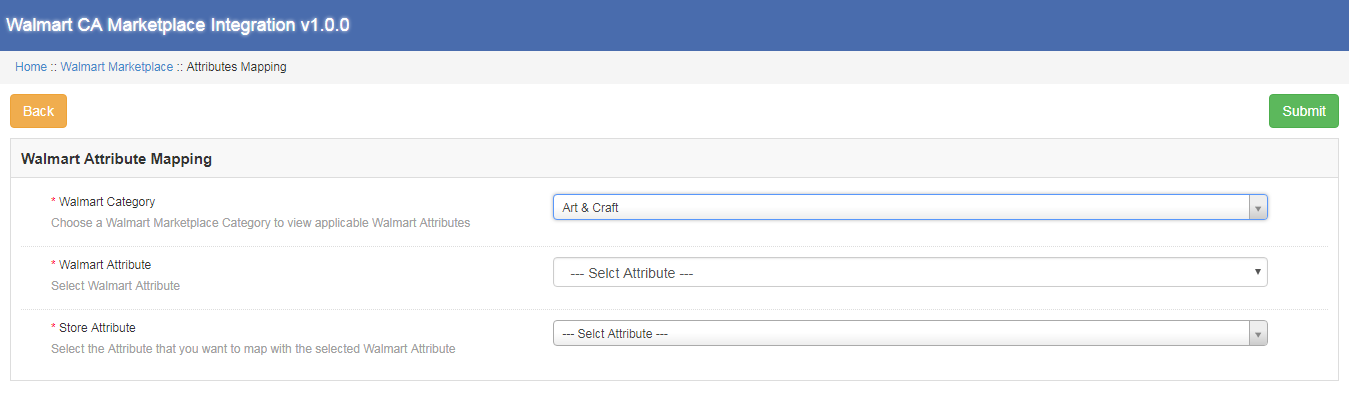
L'administrateur de la boutique a le droit d'ajouter et de supprimer des attributs du backend de l'intégrateur d'API Magento Walmart Canada. Clique sur le "Ajouter nouveau" Cliquez sur le bouton en haut à droite de la section et remplissez tous les champs obligatoires pour mapper avec succès les attributs de la boutique de commerce électronique avec la place de marché.
3.3.2 Comment supprimer les attributs mappés

Avec Walmart Canada Magento Connector, l’administrateur du magasin peut supprimer l’attribut mappé en quelques clics. L'administrateur du magasin peut supprimer l'attribut mappé en cliquant sur le bouton "Supprimer" situé à droite de l'attribut mappé existant.

Gestion de profil 3.4

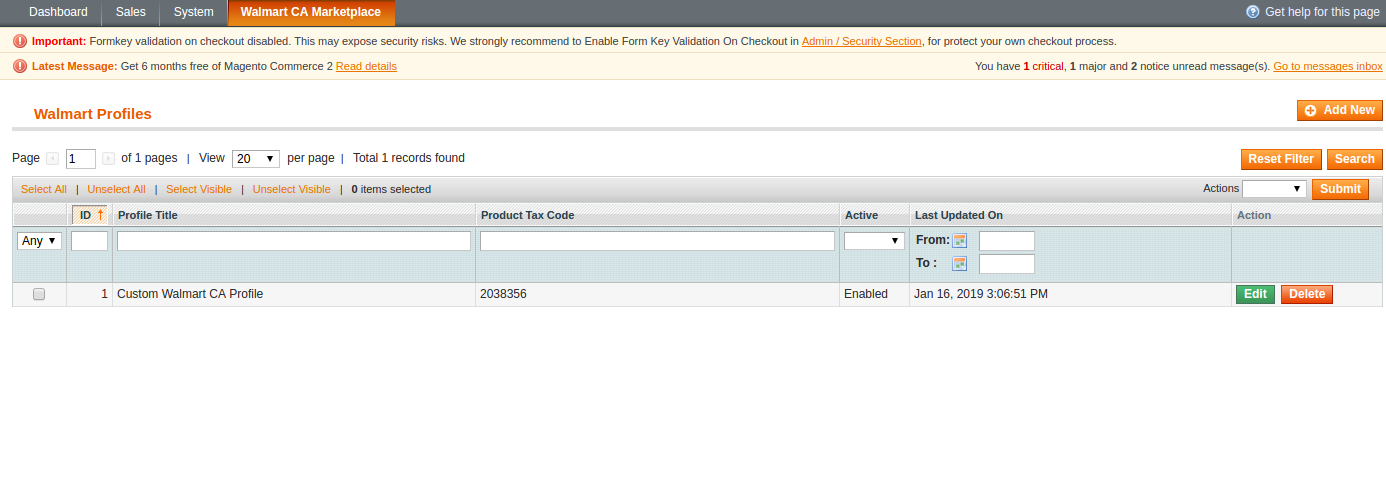
Des profils illimités peuvent être créés, modifiés et supprimés par l’administrateur à partir de la section des profils Walmart de l’intégrateur Walmart Canada Magento. La liste basée sur le profil aide à télécharger en masse les produits. La section de gestion de profil comprend deux onglets: Paramètres généraux et Champs de profil.
Paramètres généraux 3.4.1

Avec Magento Walmart Canada Integration Extension, l’administrateur de la boutique peut mapper plusieurs catégories de la boutique de commerce électronique avec les catégories de Magento Walmart. L'administrateur du magasin doit renseigner tous les détails obligatoires dans le formulaire pour que le formulaire soit correctement envoyé. Après avoir renseigné tous les détails, l’administrateur du magasin doit cliquer sur le bouton "Soumettre un profil" en haut à droite de la section des paramètres généraux.

Titre du profil: Entrez un nom approprié pour le profil.
Langue du magasin: L'administrateur du magasin doit sélectionner la langue disponible dans la liste déroulante.
Catégorie Walmart: L'administrateur du magasin doit sélectionner le type de catégorie qu'il souhaite mapper avec la catégorie du magasin.
Catégories de magasins: Avec le module d’intégration de Magento Walmart Canada, l’administrateur du magasin peut sélectionner plusieurs catégories pour le mappage avec la catégorie du Walmart.
Prix ​​personnalisé: La fonctionnalité de tarification personnalisée de Magento Walmart Canada Integrator permet à l’administrateur d’augmenter ou de diminuer le prix du produit chez Walmart avec un montant fixe ou un pourcentage. Le montant du prix que l'administrateur souhaite ajouter ou diminuer est également défini par l'administrateur.
Identificateur de code à barres: Avec l’intégrateur d’API Magento de Walmart Canada, l’administrateur du magasin peut sélectionner le champ de produit unique pour le produit. L'identifiant du code à barres aidera à identifier le produit.
Identificateur de marque du produit: Dans cet onglet, l’administrateur doit sélectionner le champ ayant la valeur de marque du produit dans votre système.
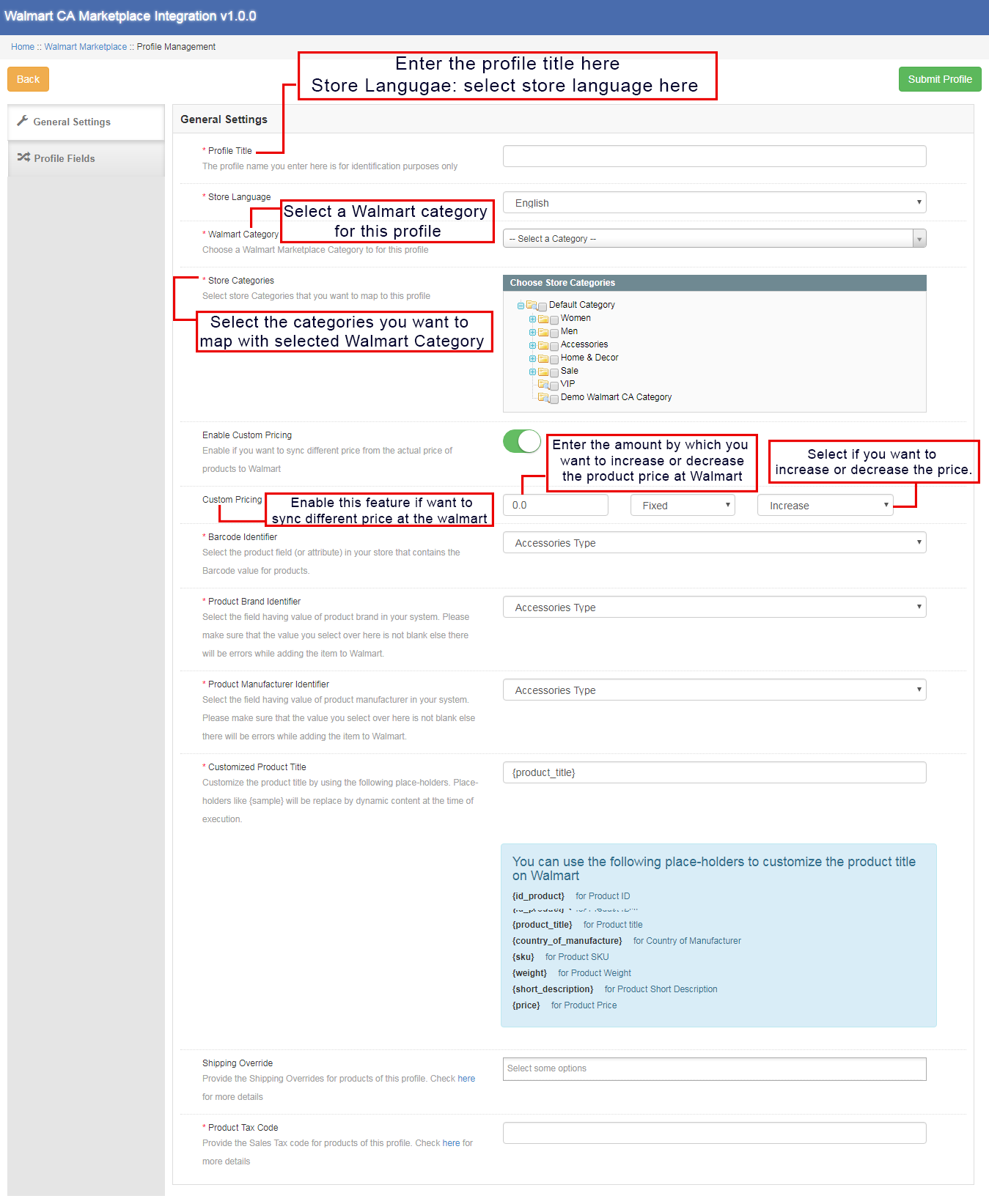
Identifiant du fabricant du produit: Avec Magento Walmart Canada Integration Extension, l’administrateur peut sélectionner le champ dont la valeur est identique à celle du fabricant du produit sur votre système.
Titre de produit personnalisé: L'administrateur du magasin a l'accès pour personnaliser le titre du produit à partir de la liste des espaces réservés disponibles. L'espace réservé sélectionné sera remplacé par la valeur dynamique au moment de l'exécution. Les différents espaces réservés disponibles sont:
{id_product} pour ID de produit
{product_title}pour le titre du produit
{Pays de fabrication} pour le pays du fabricant
{sku} pour le produit
{poids} pour le poids du produit
{brève description}pour Description courte du produit
{prix} pour le prix du produit
Remplacement d'expédition: Ce champ aide l’administrateur à sélectionner les remplacements d’expédition pour les produits dans la liste des options disponibles.
Code de taxe sur le produit: Avec le champ Code de taxe sur le produit, l’administrateur peut fournir le code de taxe sur les ventes des produits du profil actuel.

Champs de profil 3.4.2

Sur la base de la catégorie Walmart sélectionnée, l’administrateur peut fournir les informations supplémentaires et les valeurs des produits lors de la soumission du profil depuis le backend de Walmart Canada Magento Integrator. L'administrateur doit cliquer sur le bouton "Soumettre le profil" pour enregistrer toutes les informations sur le produit.

Liste des produits 3.5

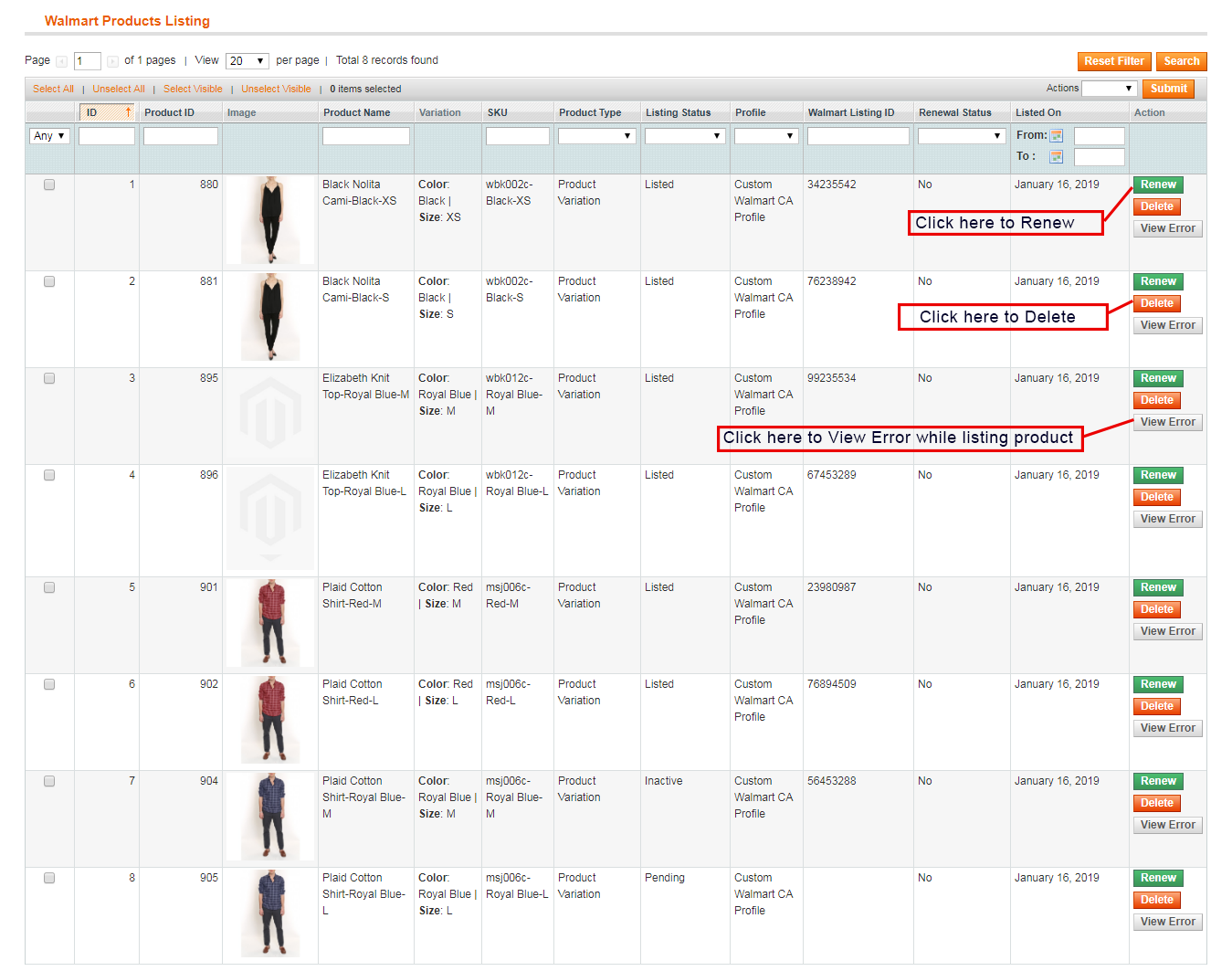
Dans l’onglet Liste des produits Walmart, l’administrateur peut afficher les produits répertoriés sur le marché Walmart. De plus, le connecteur Magento de Walmart Canada permet à l’administrateur de visualiser le statut de chaque produit. Pour synchroniser les produits sur le backend du magasin, l’administrateur doit exécuter le travail Cron.
3.5.1 Renouveler un produit

Si la liste des produits est périmée, l’administrateur du magasin peut renouveler le produit sur le marché Walmart en cliquant sur le bouton "Renouveler" bouton à côté du produit. Dès que le produit sera renouvelé, le bouton sera remplacé par un bouton "Arrêt" .

3.5.2 Relist ou Supprimer un produit

Si l’administrateur souhaite supprimer le produit répertorié sur le marché Walmart, l’administrateur du magasin doit simplement cliquer sur le bouton "Effacer" bouton à côté du produit. À ce stade, le bouton Supprimer sera remplacé par le bouton "Relist" bouton. L’administrateur peut remettre en vente le produit sur le marché Walmart en cliquant sur le bouton "Relist" bouton situé à l’arrière de l’intégrateur Walmart Canada Magento.

Erreur d'affichage 3.5.3

Avec l’intégrateur d’API Magento Walmart Canada, l’administrateur du magasin peut voir l’erreur survenue lors de l’énumération du produit. L’administrateur du magasin doit cliquer sur le "Erreur de vue" bouton pour afficher l'erreur.

Promotions 3.6

Diverses offres et offres promotionnelles peuvent être exécutées sur le marché Walmart à partir du backend de l’intégrateur API de Magento Walmart Canada. Avec l’aide de Walmart Canada Integrator, l’administrateur du magasin peut exécuter des offres de dégagement et des offres à prix réduit sur le marché Walmart.
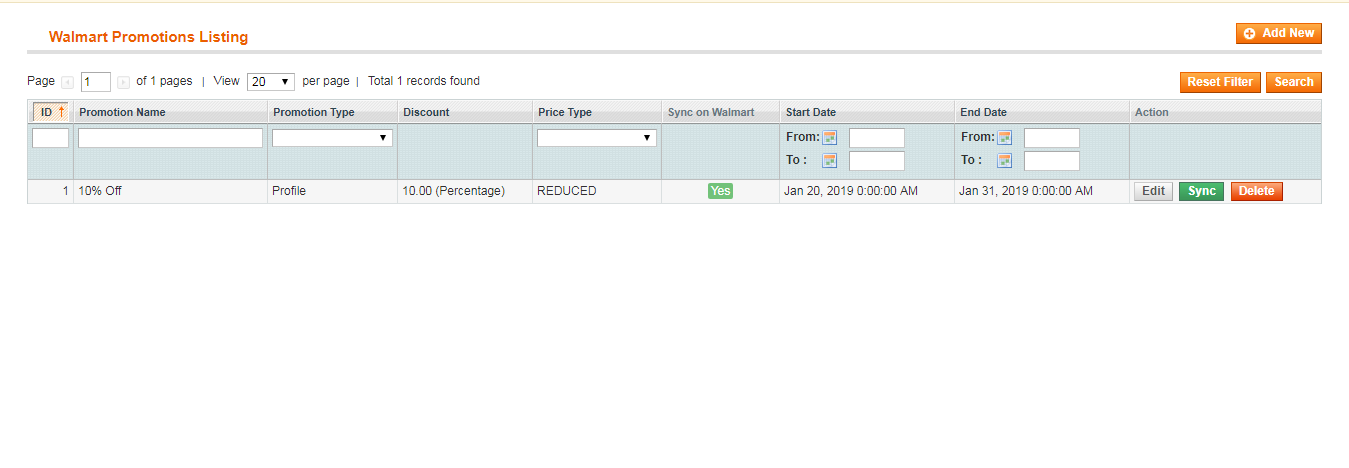
3.6.1 Comment créer une nouvelle promotion

Le propriétaire du magasin de commerce électronique doit cliquer sur le bouton "Ajouter nouveau" bouton situé à droite de la section Liste des promotions Walmart. Lorsque l'administrateur clique sur le bouton, une nouvelle page s'ouvrira devant eux. Remplissez tous les champs obligatoires de la page affichée.

Détail de la promotion: Ici, entrez les détails de la promotion.
Type de prix: L'administrateur du magasin peut sélectionner le type de promotion ici. L’administrateur peut exécuter une promotion et une promotion réduite au Walmart.
Prix ​​discount: Ici, l'administrateur est censé saisir le montant de la réduction sur les offres.
Date de début et date de fin (fuseau horaire UTC): Entrez ici la durée pendant laquelle la promotion sera exécutée sur le marché Walmart.
Selection de produit: L'administrateur peut sélectionner les produits ou les profils sur lesquels il souhaite offrir la promotion.
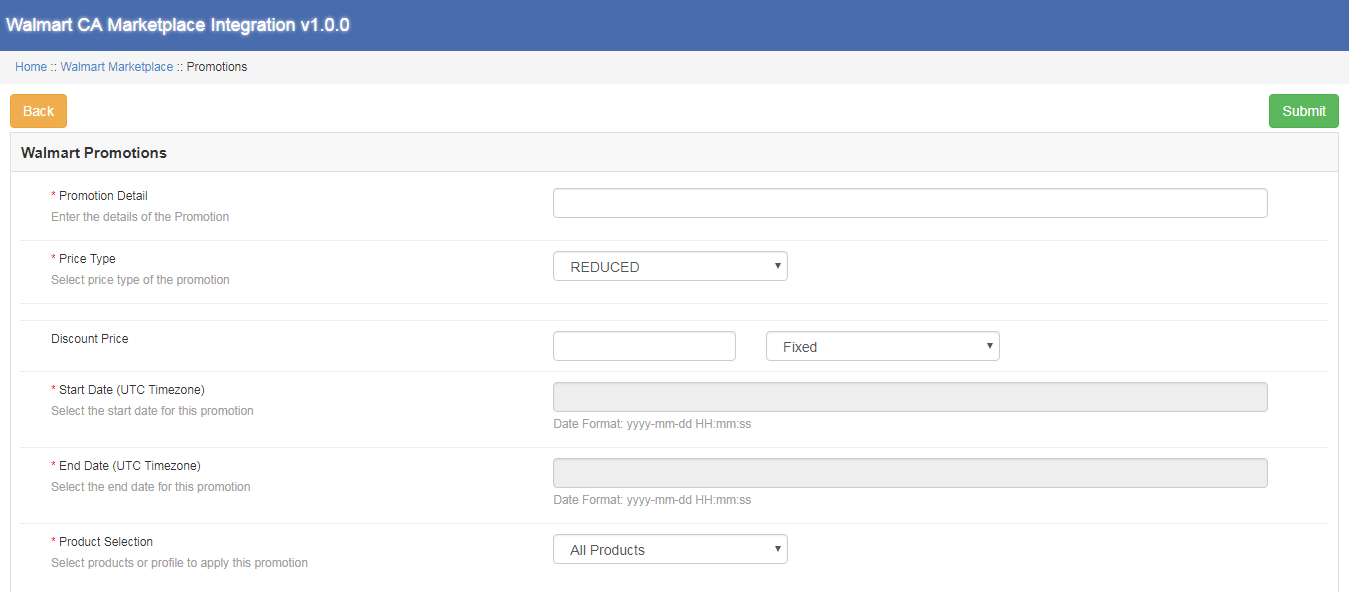
3.6.2 Comment modifier ou supprimer une promotion

L'administrateur du magasin peut modifier et supprimer toute promotion existante du backend. Clique le "Modifier" et "Effacer" bouton pour exécuter la fonction respective."Sync" Le bouton situé à côté de la promotion est utilisé pour synchroniser la promotion sur le marché.
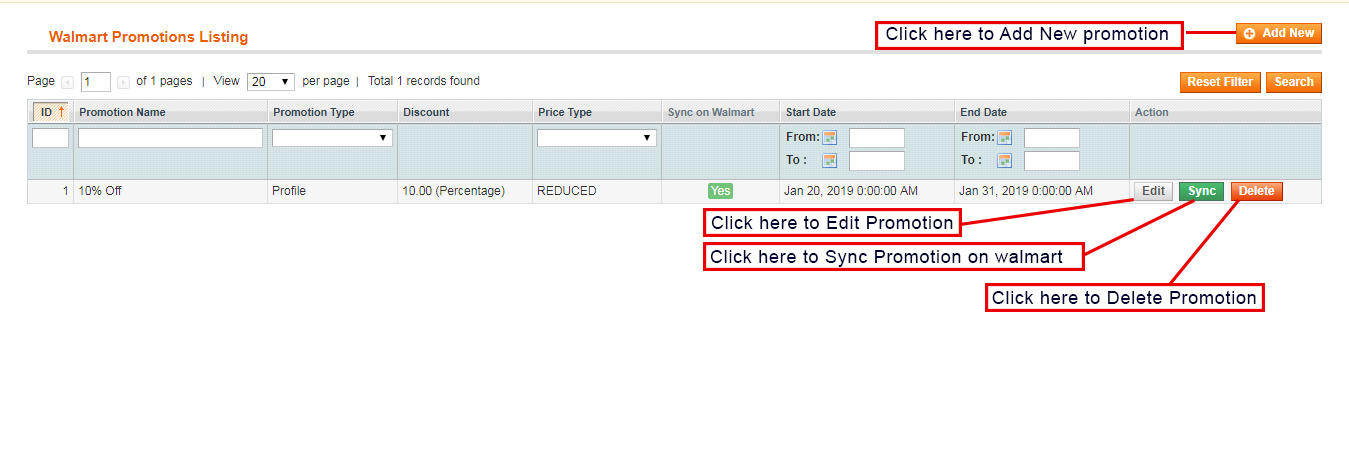
3.7 Gérer le temps de latence

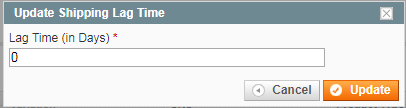
L'administrateur du magasin peut mettre à jour le temps de latence à partir du backend de l'intégrateur d'API Magento Walmart Canada. Le temps de latence est utilisé pour éviter tout délai d'expédition. Clique sur le "Mise à jour du délai d'expédition "?button to update the Lag Time.
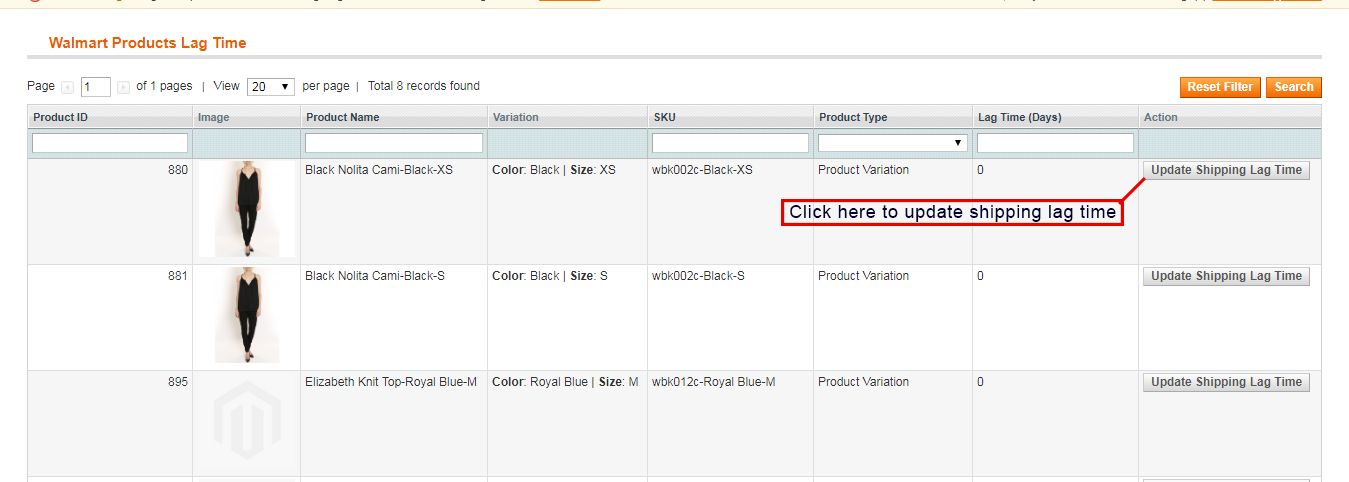
Une nouvelle boîte de dialogue apparaîtra devant vous. Entrez le temps de latence en jours et cliquez sur le bouton "Mettre à jour". Cela mettra à jour le délai de livraison au Walmart Marketplace.
Paramètres de commande 3.8

Dans Magento Walmart Canada API Integrator, un onglet de définition de commande peut être utilisé pour mapper le statut de la commande au magasin avec le marché Walmart. Les tâches Cron peuvent être utilisées pour synchroniser le statut de la commande sur le marché Walmart.
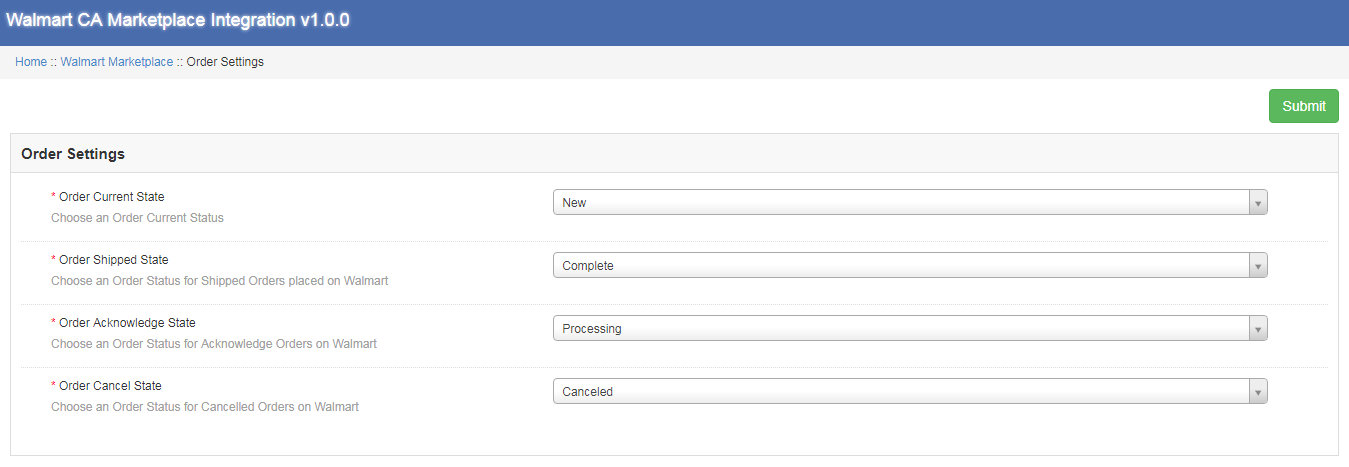
Les différents champs disponibles dans les paramètres de commande sont les suivants:

État actuel de la commande: L'administrateur peut choisir le statut actuel de la commande ici.
Commande expédiée Etat: L'administrateur peut choisir le statut de la commande pour les commandes expédiées passées chez Walmart.
Ordre de reconnaissance de l'état: Ce champ permet à l’administrateur de sélectionner l’état de la commande pour l’acquittement des commandes au magasin Walmart.
Commande Annuler Etat: Sélectionnez l'état de la commande pour une commande annulée dans le magasin Walmart.

Liste des commandes 3.9

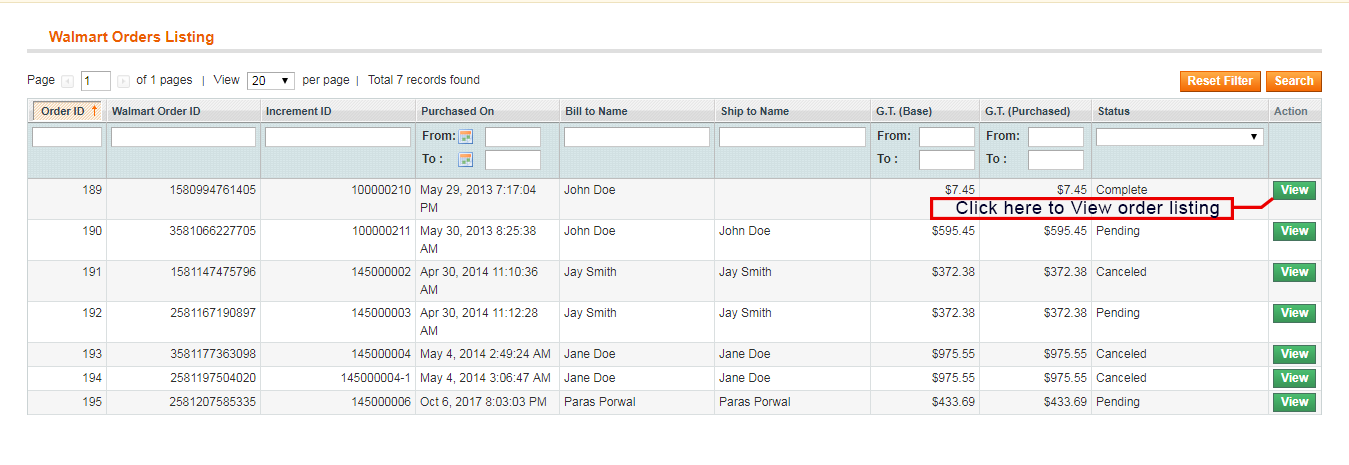
La commande reçue au Walmart est listée au backend du connecteur Magento de Walmart Canada.Admin doit exécuter le "Ordre de synchronisation" onglet pour synchroniser les commandes de Walmart. Pour traiter la commande, cliquez sur le bouton "Vue" bouton à côté de la commande reçue.
État du flux 3.10

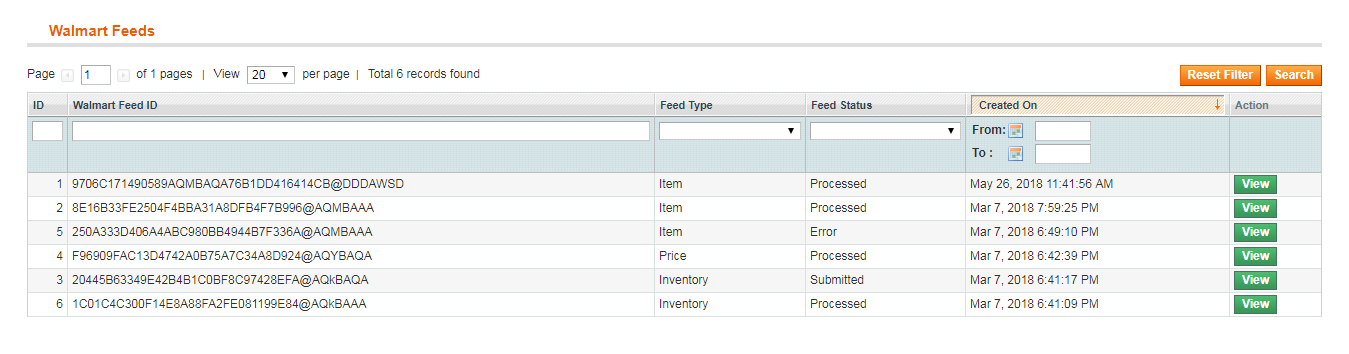
Plusieurs tâches Cron peuvent être exécutées à partir du panneau d'administration de Walmart Canada Integrator. Chaque fois qu'un Cron est exécuté, un flux est créé dans la section Flux de Walmart. Le détail complet du flux peut être visualisé en cliquant sur le bouton "Vue" bouton à côté du flux respectif.
Rapports 3.11 BuyBox

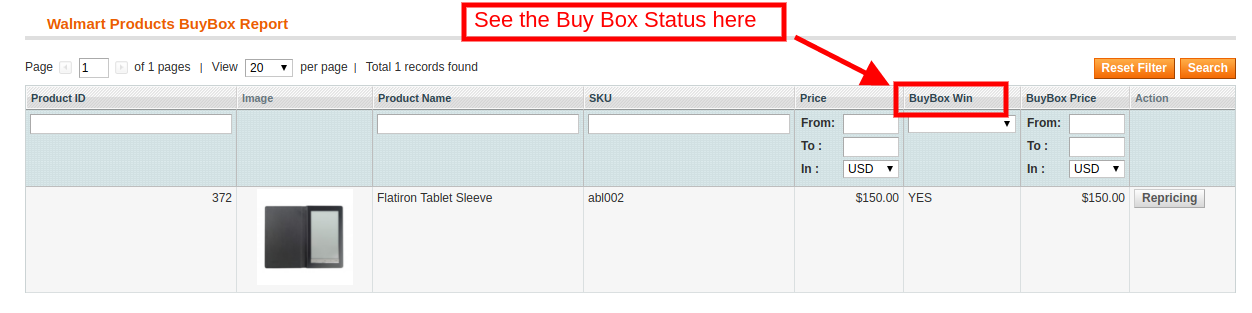
Plusieurs tâches Cron peuvent être exécutées à partir du panneau d’administration de la "Sync Walmart BuyBox" bouton, le travail cron sera exécuté pour extraire le rapport BuyBox du marché Walmart. Il est possible que plusieurs concurrents vendent le même produit à un prix différent. Le rapport BuyBox obtenu aidera l’administrateur à comparer le prix d’un produit au prix des produits concurrents.
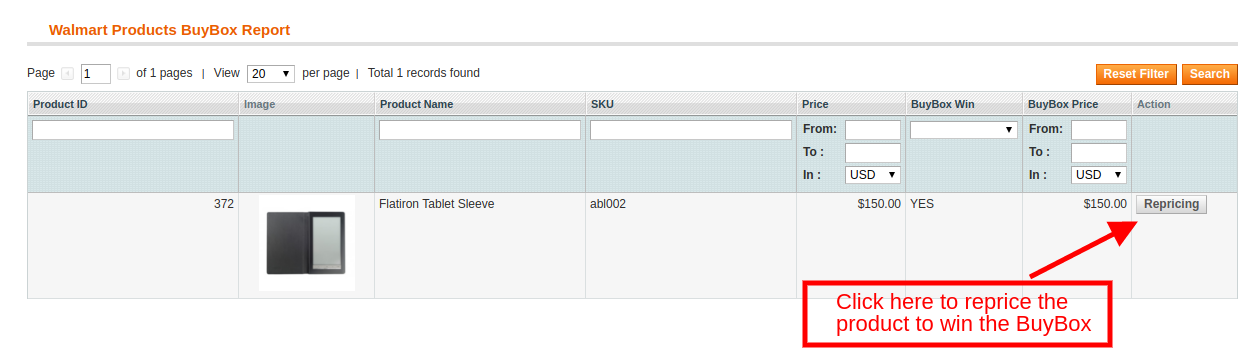
Avec plusieurs tâches cron peuvent être exécutées à partir du panneau d’administration de, l’administrateur peut redéfinir la valeur du produit pour gagner la BuyBox. Le prix mis à jour peut être synchronisé sur le Walmart en cliquant sur le bouton "Repricing Sync" dans la section de synchronisation Walmart de Walmart Canada Magento Connector.
Synchronisation 3.12

La section Synchronisation de Walmart joue un rôle important dans l’établissement de la connexion entre le marché Walmart et le magasin. Plusieurs tâches cron peuvent être exécutées pour synchroniser tous les paramètres et les modifications du magasin Walmart avec le magasin de commerce électronique.
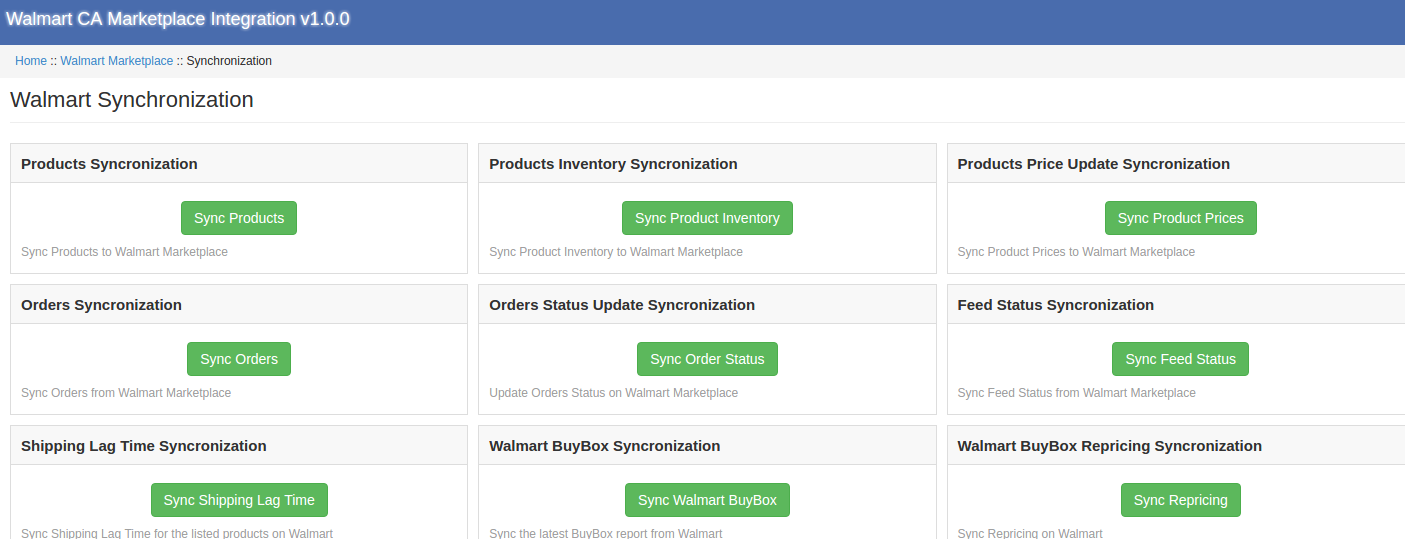

Les différentes tâches Cron exécutées pour synchroniser les paramètres et les modifications sont les suivantes:

Produits de synchronisation: Ce bouton aide l’administrateur à synchroniser tous les produits répertoriés dans le backend de l’intégrateur d’API Magento de Walmart Canada à synchroniser sur le marché Walmart. Le travail cron ajoutera des produits avec leurs détails de produit obligatoires sur le marché Walmart.
Synchroniser l'inventaire des produits: Le travail périodique suivant est exécuté pour synchroniser la quantité de produit sur le marché Walmart.
Prix ​​du produit de synchronisation: Le bouton suivant synchronisera le prix du produit mis à jour chez Walmart.

Ordres de synchronisation: La tâche cron suivante sera utilisée pour synchroniser les commandes du marché Walmart avec le magasin de commerce électronique.
Statut de la commande de synchronisation: Le statut de commande mis à jour peut être synchronisé sur le marché Walmart en exécutant le statut de commande de synchronisation à partir du backend de Magento Walmart Canada Integration Extension.
État du flux de synchronisation: L’état du flux peut être synchronisé sur le magasin Magento en exécutant le travail cron suivant.
Synchroniser le délai d'expédition: Le temps de latence en jours d'expédition des commandes peut être synchronisé sur le marché Walmart en exécutant les tâches Cron.
Synchronisez Walmart BuyBox: Le rapport BuyBox peut être téléchargeable à partir du magasin Walmart en exécutant le travail Cron suivant. Le rapport BuyBox aidera l’administrateur à comparer le prix des différents concurrents.
Repricing sync: La valeur révisée des produits pour gagner la BuyBox peut être synchronisée sur le marché Walmart en exécutant le travail Cron suivant.

Code de taxe 3.13

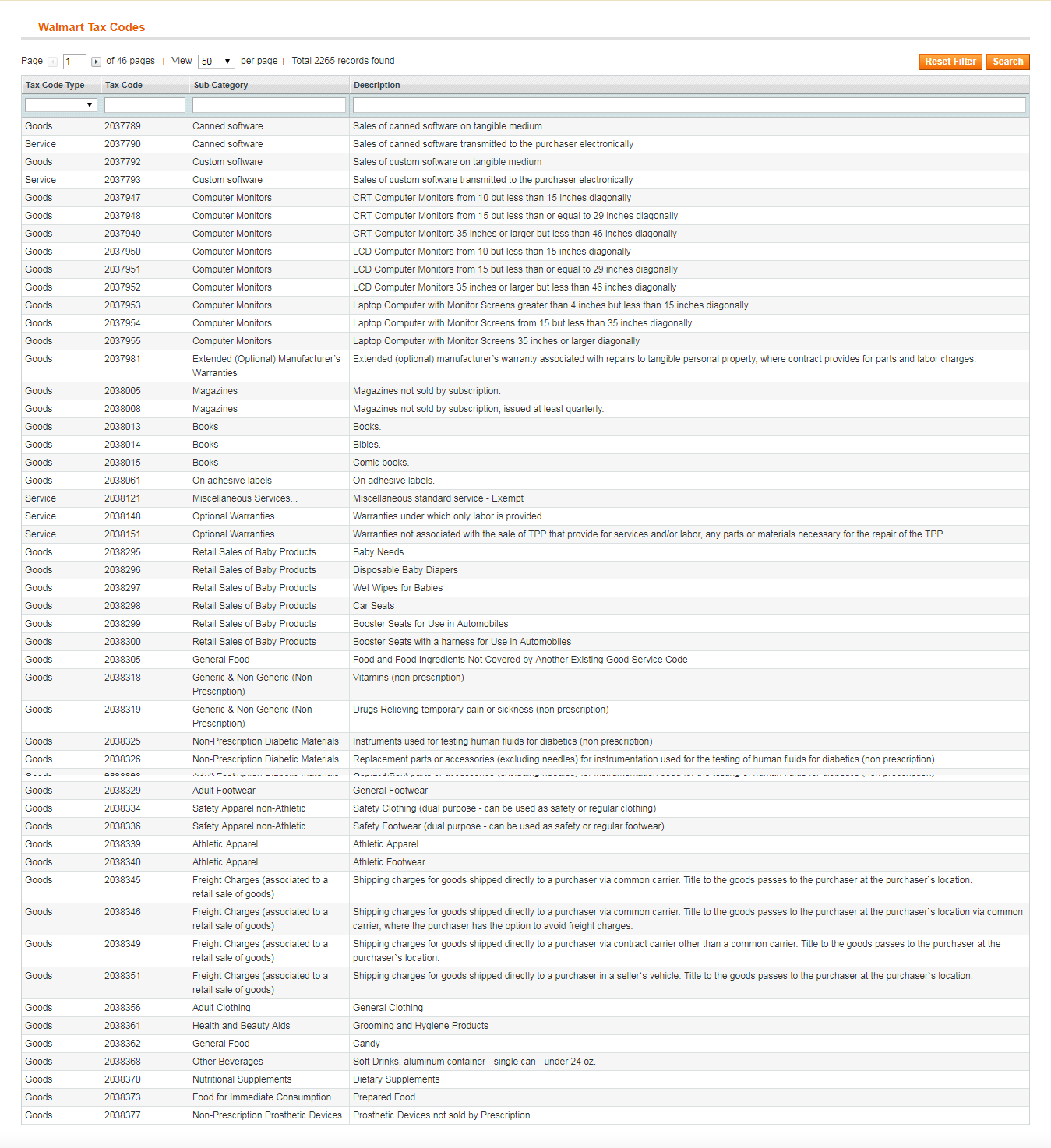
La section Code de taxe de Walmart Canada Magento Integrator permet à l’administrateur de visualiser le code de taxe des produits en vrac. Le commerçant en ligne peut facilement visualiser le code de taxe des inventaires.
Journal d'audit 3.14

La section Code de taxe de Walmart Canada Magento Integrator permet à l’administrateur de visualiser le code de taxe des produits en vrac. Le commerçant en ligne peut facilement visualiser le code de taxe des inventaires. Tous les travaux Cron exécutés peuvent être visualisés à partir de la section Journal d’audit de l’extension d’intégration de Magento Walmart Canada. L’administrateur peut facilement visualiser l’état de chaque tâche Cron à partir de la section Journal d’audit Walmart.
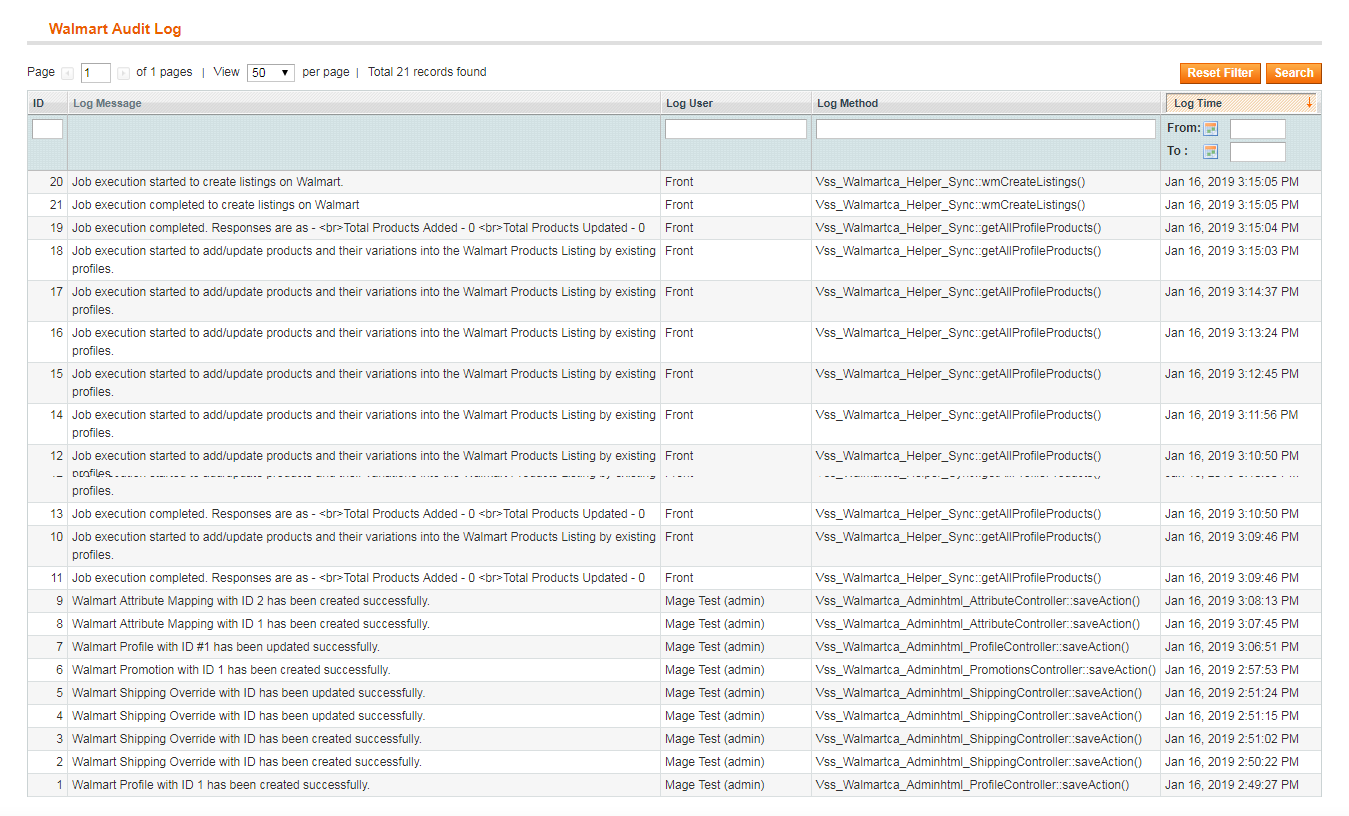
Pour plus d'informations, reportez-vous aux liens suivants:

?Magento Walmart Canada Integration

Démo de l'administrateur de l'intégrateur d'API Magento de Walmart Canada


Magento Walmart Canada Integrator-Benutzerhandbuch

1.0 Einführung

Magento Walmart Canada Integrator von Knowband ist eine Schnittstelle zum Synchronisieren des Walmart Marketplace mit dem Magento Store. Durch Verwendung des Walmart-API-Schlüssels (Walmart-Consumer-ID, Walmart-Privater Schlüssel und Consumer-Channel-Typ) kann der eCommerce-Store-Administrator den Walmart Marketplace mit dem Magento-Store verbinden. Mit Hilfe des Magento Walmart Canada Integration Module kann der Geschäftsadministrator die Produkte hochladen. Vorräte, Bestellungen und Versandart aus dem Backend des Shops. Walmart ist eines der größten Unternehmen, das Gewinne erwirtschaftet und in wenigen Jahren ein bemerkenswertes Wachstum erzielt hat. Mit Hilfe von Magento Walmart Canada Integration Extension kann der Online-Händler die Produkte auf dem Marketplace leicht auflisten und die Bestellungen vom Walmart Marketplace aus synchronisieren, indem Cron-Jobs über das Administrationsfenster ausgeführt werden. Der Verkauf von Produkten auf dem Walmart Marketplace wird die Beliebtheit der Verkäuferprodukte im großen Stil steigern.

1.1-Funktionen von Walmart Canada Magento API Integrator.

Der Walmart Canada Magento Integrator kann mühelos vom eCommerce-Store-Administrator installiert werden. Für die Konfiguration des Walmart Canada Magento Connector ist keine Kenntnis des Administrators erforderlich, da vom Administrator keine Änderungen am Quellcode erforderlich sind. Die verschiedenen Funktionen des Magento Walmart Canada API Integrators sind:

  1. Walmart Canada Integrator bietet eine Echtzeitsynchronisierung. Der Administrator benötigt keine manuelle Synchronisierung, um die Details aus dem Marketplace mit dem eCommerce-Store und umgekehrt zu synchronisieren.
  2. Selbst ein nicht technischer Händler kann die Verbindung zwischen Walmart Marketplace und Magento Store herstellen. Die Verbindung kann mit wenigen Klicks hergestellt werden.
  3. Im Backend des Walmart Canada Magento API-Integrators können zahlreiche Profile erstellt werden.
  4. Profilbasierte Auflistung hilft beim Massenprodukt-Upload.
  5. Mit Magento Walmart Canada Integrator kann der Administrator die Kategorien und Attribute des E-Commerce-Stores mit dem Walmart Marketplace abbilden.
  6. Der Geschäftsadministrator kann Änderungen an den Beständen vornehmen, indem er das Profil aus dem Backend des Magento Walmart Canada Integration Module bearbeitet.
  7. Auf dem Marketplace gelistete Produkte können vom Backend von Magento Walmart Canada Integration Extension aus überwacht werden.
  8. Produkte können vom Administrator nach Belieben im Verwaltungsbereich von Walmart Canada Magento Integrator erneuert und gelöscht werden.
  9. Mit Hilfe des Walmart Canada Magento Connector kann der Online-Händler sogar Versandmethoden auf dem Marketplace hinzufügen.
  10. Magento Walmart Canada API Integrator bietet Administratoren die Chance, die BuyBox zu gewinnen. Der Online-Händler kann die Produkte erneut bewerten, um die BuyBox zu gewinnen.
  11. Bestellungen, die auf dem Walmart Marketplace eingehen, werden im Backend von Magento Walmart Canada API Integrator aufgelistet. Der Bestellstatus kann vom Administrator durch Ausführen des Cron-Jobs auf dem Marketplace synchronisiert werden.
  12. Der Online-Händler kann den Fehler überwachen, der bei der Auflistung des Produkts aus dem Backend des Magento Walmfrom auf dem Marketplace mit E-Commerce-Shop aufgetreten ist, und umgekehrt.
  13. Die Verkäufer können die Verzögerungszeit vom Backend von Magento Walmart Canada Integration Extension aus problemlos verwalten.

2.0 Installation

Führen Sie die folgenden Schritte aus, um den Magento Walmart Canada Integrator zu installieren:

  • Laden Sie das Walmart Canada Magento Connector-Paket vom Knowband-Store herunter.
  • Entpacken Sie das Paket im Stammverzeichnis des Magento-Setups über das FTP-Bedienfeld.
  • Wechseln Sie im Admin-Panel zum Walmart CA Marketplace.
  • Das Magento Walmart Canada Integrationsmodul ist jetzt einsatzbereit.

2.1 Verbindung des Walmart Marketplace mit dem Magento-Store mithilfe der Magento Walmart Canada Integration Extension

Um den Walmart Canada Magento Integrator zu konfigurieren, benötigt Store-Administrator den Walmart-API-Schlüssel. Um die Walmart-Consumer-ID, den privaten Schlüssel und den Consumer-Channel-Typ von Walmart zu erhalten, muss der Administrator die folgenden Schritte ausführen:

Aktivierung der Magento Connector API von 2.2 Walmart Canada

Der Geschäftsadministrator kann die Walmart-Consumer-ID, den privaten Walmart-Schlüssel, den Consumer-Channel-Typ und andere verwandte Details abrufen, indem Sie die folgenden Schritte ausführen:

  1. Melden Sie sich bei Ihrem Walmart Seller Account an.
  2. Klicken Sie auf das Einstellungssymbol und dann auf die API-Option unten in der Dropdown-Liste.
  3. Klicken Sie auf die Consumer-ID und kopieren Sie die ID zur späteren Verwendung.
  4. Klicken Sie auf den Wiederherstellungsschlüssel, um den geheimen Schlüssel zu generieren. Ein Popup erscheint vor Ihnen.
  5. Klicken Sie im Popup auf "Yes, Regenerate Key".
  6. Kopieren Sie die Consumer-ID, den privaten Walmart-Schlüssel und den Consumer-Channel-Typ, und fügen Sie sie in die entsprechenden Optionen auf der Registerkarte "Allgemein" des Magento Walmart Canada API Integrator ein.

3.0 Admin Interface von

Magento Walmart Canada Integrator bietet eine benutzerfreundliche Oberfläche. Nach der Installation wird der Magento CA Marketplace oben im Administrationsbereich angezeigt. Magento Walmart Canada Integrator bietet 14-Registerkarten im Administrationsbereich zum Festlegen von Einstellungen an.

  • Allgemeine Einstellungen
  • Profilverwaltung
  • Versand Carrier Mapping
  • Promotions
  • Versand überschreiben
  • Produktliste
  • Attributzuordnung
  • Bestelleinstellung
  • Bestellliste
  • Feedstatus
  • BuyBox Bericht
  • Lag-Zeit verwalten
  • Steuerbericht
  • Verkaufsbericht
  • Produktverkaufsbericht
  • Synchronisation
  • Audit-Log

3.1 Allgemeine Einstellungen

Um den E-Commerce-Shop mit dem Walmart Marketplace zu verbinden, muss der Administrator alle Pflichtfelder auf der Registerkarte "Allgemein" des Magento Walmart Canada Integrator ausfüllen. Die Eingabefelder werden nachfolgend beschrieben:

1.Aktivieren / Deaktivieren
Der Online-Händler kann den Walmart Canada Magento API-Integrator mit einem einzigen Klick aktivieren / deaktivieren.
2.Walmart-Consumer-ID
Fügen Sie hier die Kunden-ID ein, die während der Anmeldung im Walmart Seller Account kopiert wurde.
3.Walmart Privater Schlüssel
Geben Sie den privaten Schlüssel ein, den Sie beim Anmelden im Walmart Seller Account erhalten haben.
4.Consumer-Kanaltyp
Geben Sie den Consumer-Channel ein, um die Integration zwischen dem Magento-Store und dem Walmart Marketplace zu authentifizieren. Klicke auf das "Konfiguration speichern" Klicken Sie oben rechts auf die Schaltfläche, um den Verbindungsvorgang abzuschließen.

3.2 Versandüberschreibung

Der Magento API-Integrator von Walmart Canada bietet Administratoren die Möglichkeit, die Versandoptionen auf dem Walmart Marketplace vom Backend des Geschäfts aus zu verwalten. In diesem Bereich kann der Administrator die Versandüberschreibung nach seiner Wahl erstellen, bearbeiten und löschen.

3.2.1 So fügen Sie eine Versandvorlage hinzu

Klicken Sie auf "Neue hinzufügen" Schaltfläche oben rechts im Bereich Versandüberschreibung. Eine neue Seite wird vor Ihnen angezeigt. Füllen Sie alle Pflichtfelder aus, um eine Versandvorlage zu erstellen:

Versand überschreiben Titel: Geben Sie den Versandüberschreibungs-Titel in dieses Feld ein.
Versand erlaubt: Der Administrator kann eine Versandmethode mit einem Klick aktivieren und deaktivieren.
Verschiffen-Methode: Je nach Anforderung kann der Administrator die Versandmethoden vom Backend des Walmart Canada Magento API-Integrators aus einfach konfigurieren. Die vom Walmart Canada Integrator angebotenen Versandmethoden sind STANDARD und EXPRESS. Weitere Informationen hierzu finden Sie unter den folgenden Links:
https://marketplace.walmart.com/knowledgebase/articles/Article/Shipping-Standards-For-Marketplace-Sellers

Versandregion: Der Online-Händler kann die Versandregion aus den verfügbaren Optionen auswählen.
Versandkosten: Mit dem Magento API-Integrator von Walmart Canada kann der Online-Händler den Versandpreis für verschiedene Versandregionen und -methoden festlegen.

3.2.2 So bearbeiten und löschen Sie die vorhandene Versandüberschreibung

Versandüberschreibungen werden im Bereich Versandüberschreibung des Walmart Canada Magento API-Integrators aufgeführt. Klicken Sie auf die Schaltflächen zum Löschen / Bearbeiten auf der rechten Seite der vorhandenen Einträge, um sie zu löschen bzw. zu bearbeiten.

3.3-Attributzuordnung

Bei der Attributzuordnung werden die Attribute des eCommerce-Speichers den Attributen des Marketplace zugeordnet. Attributzuordnung hilft beim Synchronisieren der Produkte aus dem Geschäft mit dem Marketplace. Die Attributzuordnung des Walmart Canada Integrator hilft dabei, die Produkte mühelos aufzulisten.

3.3.1 Zuordnen der Attribute

Der Store-Administrator hat das Recht, Attribute aus dem Backend von Magento Walmart Canada API Integrator hinzuzufügen und zu löschen. Klicke auf das "Neue hinzufügen" Klicken Sie oben rechts im Abschnitt auf die Schaltfläche und füllen Sie alle Pflichtfelder aus, um die Attribute des E-Commerce-Stores erfolgreich dem Marketplace zuzuordnen.

3.3.2 Löschen der zugeordneten Attribute

Mit dem Walmart Canada Magento Connector kann der Geschäftsadministrator das zugeordnete Attribut mit wenigen Klicks löschen. Der Geschäftsadministrator kann das zugeordnete Attribut löschen, indem Sie auf die Schaltfläche "Löschen" rechts neben dem vorhandenen zugeordneten Attribut klicken.

3.4-Profilverwaltung

Unbegrenzte Profile können vom Administrator im Walmart-Profilbereich des Walmart Canada Magento Integrator erstellt, bearbeitet und gelöscht werden. Die profilbasierte Auflistung hilft beim Bulk-Upload der Produkte. Der Profilverwaltungsabschnitt besteht aus zwei Registerkarten: Allgemeine Einstellungen und Profilfelder.

3.4.1 Allgemeine Einstellungen

Mit der Magento Walmart Canada Integration Extension kann der Geschäftsadministrator mehrere Kategorien des E-Commerce-Stores mit den Kategorien von Magento Walmart zuordnen. Der Geschäftsadministrator muss alle obligatorischen Details im Formular ausfüllen, um das Formular erfolgreich zu senden. Nachdem Sie alle Angaben gemacht haben, muss der Ladenadministrator auf die Schaltfläche klicken "Profil senden" oben rechts im Abschnitt "Allgemeine Einstellungen".

Profiltitel: Geben Sie einen relevanten Namen für das Profil ein.
Shop-Sprache: Der Ladenadministrator muss die Sprache auswählen, die in der Dropdown-Liste verfügbar ist.
Walmart Kategorie: Der Geschäftsadministrator muss den Kategorietyp auswählen, den er mit der Geschäftskategorie zuordnen möchte.
Shopkategorien: Mit dem Magento Walmart Canada Integration Module kann der Geschäftsadministrator mehrere Kategorien für die Zuordnung mit der Kategorie des Walmart auswählen.
Benutzerdefinierte Preise: Mit der benutzerdefinierten Preisfunktion des Magento Walmart Canada Integrator kann der Administrator den Produktpreis im Walmart um einen festen Betrag oder Prozentsatz erhöhen oder senken. Die Höhe des Preises, den der Administrator hinzufügen oder verringern möchte, wird ebenfalls vom Administrator festgelegt.
Barcode-Identifikator: Mit dem Magento API-Integrator von Walmart Canada kann der Geschäftsadministrator das eindeutige Produktfeld für das Produkt auswählen. Die Barcode-Kennung hilft bei der Identifizierung des Produkts.
Produktmarken-ID: Auf dieser Registerkarte muss der Administrator das Feld mit dem Wert der Produktmarke in Ihrem System auswählen.

Produkt-Hersteller-ID: Mit der Magento Walmart Canada Integration Extension kann der Administrator das Feld auswählen, dessen Wert dem Produkthersteller in Ihrem System entspricht.
Kundenspezifischer Produkttitel: Der Ladenadministrator kann den Produkttitel aus der Liste der verfügbaren Platzhalter anpassen. Der ausgewählte Platzhalter wird zum Zeitpunkt der Ausführung durch den dynamischen Wert ersetzt. Die verschiedenen verfügbaren Platzhalter sind:
{id_product} für Produkt-ID
{Produktname}für den Produkttitel
{Herstellungsland} für das Land des Herstellers
{sku} für Produkt-SKU
{Gewicht} für Produktgewicht
{kurze Beschreibung}für Produktkurzbeschreibung
{Preis} zum Produktpreis
Versandüberschreibung: Dieses Feld hilft dem Administrator, die Versandüberschreibungen für Produkte aus der Liste der verfügbaren Optionen auszuwählen.
Produktsteuerkodex: Mit dem Feld Produktsteuerkennzeichen kann der Administrator das Umsatzsteuerkennzeichen für die Produkte des aktuellen Profils angeben.

3.4.2-Profilfelder

Auf der Grundlage der ausgewählten Walmart-Kategorie kann der Administrator die zusätzlichen Informationen und Werte der Produkte angeben, während er das Profil aus dem Backend von Walmart Canada Magento Integrator übermittelt. Der Administrator muss auf die Schaltfläche "Profil senden" klicken, um alle Produktinformationen zu speichern.

3.5-Produktauflistung

Auf der Registerkarte Walmart Products-Liste kann der Administrator die aufgelisteten Produkte auf dem Walmart Marketplace anzeigen. Darüber hinaus ermöglicht der Walmart Canada Magento Connector dem Administrator, den Status jedes Produkts anzuzeigen. Um die Produkte im Backend des Geschäfts zu synchronisieren, muss der Administrator den Cron-Job ausführen.

3.5.1 Erneuern Sie ein Produkt

Falls der Produkteintrag abgelaufen ist, kann der Geschäftsadministrator das Produkt auf dem Walmart Marketplace erneuern, indem Sie auf klicken "Erneuern" Taste neben dem Produkt. Sobald das Produkt erneuert wird, wird der Button durch ein ersetzt "Halt" klicken.

3.5.2 Produkt erneut veröffentlichen oder löschen

Wenn der Administrator das auf dem Walmart Marketplace aufgelistete Produkt löschen möchte, muss der Ladenadministrator nur auf klicken "Löschen" Taste neben dem Produkt. Zu diesem Zeitpunkt wird die Schaltfläche Löschen durch die ersetzt "Relist" Taste. Der Administrator kann das Produkt auf dem Walmart Marketplace wieder aufrufen, indem Sie auf klicken "Relist" Schaltfläche am Backend des Walmart Canada Magento Integrator.

3.5.3-Fehler anzeigen

Mit Magento Walmart Canada API Integrator kann der Geschäftsadministrator den Fehler anzeigen, der beim Auflisten des Produkts aufgetreten ist. Der Ladenadministrator muss auf die Schaltfläche klicken "Fehler anzeigen" Schaltfläche, um den Fehler anzuzeigen.

3.6-Aktionen

Auf dem Walmart Marketplace können verschiedene Sonderangebote und Angebote vom Backend von Magento Walmart Canada API Integrator aus ausgeführt werden. Mit Hilfe von Walmart Canada Integrator kann der Ladenadministrator auf dem Walmart Marketplace Räumungen und reduzierte Preisangebote durchführen.

3.6.1 So erstellen Sie eine neue Werbeaktion

Der E-Commerce-Shop-Besitzer muss auf die Schaltfläche klicken "Neue hinzufügen" Schaltfläche auf der rechten Seite des Walmart-Angebotsbereichs. Wenn der Administrator auf die Schaltfläche klickt, wird eine neue Seite davor geöffnet. Füllen Sie alle Pflichtfelder auf der angezeigten Seite aus.

Promotion-Detail: Geben Sie hier die Aktionsdetails ein.
Preistyp: Der Shop-Administrator kann hier die Promotion-Art auswählen. Der Administrator kann beim Walmart eine Freigabe und eine reduzierte Beförderung durchführen.
Reduzierter Preis: Hier soll der Administrator den Rabattbetrag für die Angebote eingeben.
Start- und Enddatum (UTC-Zeitzone): Geben Sie hier die Zeitdauer ein, während der die Promotion auf dem Walmart Marketplace läuft.
Produktauswahl: Der Administrator kann die Produkte oder Profile auswählen, für die er die Werbeaktion anbieten möchte.

3.6.2 So bearbeiten oder löschen Sie eine Aktion

Der Shopadministrator kann alle vorhandenen Aktionen aus dem Backend bearbeiten und löschen. Drücke den "Bearbeiten" und "Löschen" Taste, um die jeweilige Funktion auszuführen."Sync" Die Schaltfläche neben der Aktion wird verwendet, um die Aktion auf dem Marktplatz zu synchronisieren.

3.7 Lagertarif verwalten

Der Shopadministrator kann die Verzögerungszeit vom Backend des Magento Walmart Canada API Integrator aus aktualisieren. Die Verzögerungszeit wird verwendet, um Versandverzögerungen zu vermeiden. Klicke auf das "Versandverzögerungszeit aktualisieren "?button to update the Lag Time.

Ein neuer Popup-Dialog erscheint vor Ihnen. Geben Sie die Verzögerungszeit in Tagen ein und klicken Sie auf die Schaltfläche "Aktualisieren". Dadurch wird die Versandverzögerungszeit auf dem Walmart Marketplace aktualisiert.

3.8 Bestelleinstellungen

In Magento Walmart Canada API Integrator kann über die Registerkarte Auftragseinstellung der Bestellstatus im Geschäft mit dem Walmart Marketplace zugeordnet werden. Cron-Jobs können verwendet werden, um den Bestellstatus auf dem Walmart Marketplace zu synchronisieren.

Die verschiedenen Felder in den Auftragseinstellungen sind:

Aktuellen Status bestellen: Der Administrator kann hier den aktuellen Status auswählen.
Bestellstatus: Der Administrator kann den Bestellstatus für die bei Walmart aufgegebenen versendeten Bestellungen auswählen.
Auftragsbestätigungsstatus: In diesem Feld kann der Administrator den Bestellstatus für die Bestätigungsaufträge im Walmart Store auswählen.
Status des Bestellungsabbruchs: Wählen Sie den Bestellstatus für die stornierte Bestellung im Walmart Store.

3.9-Bestellliste

Die beim Walmart erhaltene Bestellung wird im Backend des Walmart Canada Magento Connector aufgelistet. Admin muss den "Sync-Reihenfolge" Registerkarte, um die Bestellungen von Walmart zu synchronisieren. Um die Bestellung zu bearbeiten, klicken Sie auf "Aussicht" Schaltfläche neben der erhaltenen Bestellung.

3.10-Feedstatus

Mehrere Cron-Jobs können über das Admin-Panel des Walmart Canada Integrator ausgeführt werden. Bei jeder Ausführung eines Cron wird im Walmart-Feeds-Bereich ein Feed erstellt. Die vollständigen Details des Feeds können durch Klicken auf angezeigt werden "Aussicht" neben dem jeweiligen Feed.

3.11 BuyBox-Berichte

Mehrere Cron-Jobs können über das Admin-Panel von ausgeführt werden. Durch Klicken auf "Walmart BuyBox synchronisieren" wird der cron-Job ausgeführt, um den BuyBox-Bericht vom Walmart Marketplace abzurufen. Es ist möglich, dass mehrere Wettbewerber dasselbe Produkt zu unterschiedlichen Preisen verkaufen. Der erhaltene BuyBox-Bericht hilft dem Administrator, den Preis eines Produkts mit dem Produktpreis der Mitbewerber zu vergleichen.

Mit Multiple Cron Jobs können über das Admin-Panel von ausgeführt werden. Der Admin kann den Produktwert erneut anpassen, um die BuyBox zu gewinnen. Der aktualisierte Preis kann im Walmart durch Klicken auf das Symbol synchronisiert werden "Synchronisierung" in der Walmart-Synchronisationssektion von Walmart Canada Magento Connector.

3.12-Synchronisation

Der Walmart-Synchronisierungsabschnitt spielt eine wichtige Rolle beim Herstellen der Verbindung zwischen dem Walmart Marketplace und dem Geschäft. Es können mehrere Cron-Jobs ausgeführt werden, um alle Einstellungen und Änderungen aus dem Walmart-Store mit dem E-Commerce-Store zu synchronisieren.


Die verschiedenen Cron-Jobs werden ausgeführt, um die Einstellungen und Änderungen zu synchronisieren.

Synchronisierungsprodukte: Diese Schaltfläche hilft dem Administrator, alle im Backend des Walmart Canada Magento API-Integrators aufgeführten Produkte zu synchronisieren, um sie auf dem Walmart Marketplace zu synchronisieren. Der Cron-Job fügt Produkte mit den obligatorischen Produktdetails auf dem Walmart Marketplace hinzu.

Produktbestand synchronisieren: Der folgende Cron-Job wird ausgeführt, um die Menge des Produkts auf dem Walmart Marketplace zu synchronisieren.

Sync-Produktpreis: Die folgende Schaltfläche synchronisiert den aktualisierten Produktpreis im Walmart.

Synchronisierungsaufträge: Der folgende Cron-Job wird verwendet, um Bestellungen vom Walmart Marketplace mit dem E-Commerce-Store zu synchronisieren.

Sync-Auftragsstatus: Der aktualisierte Bestellstatus kann auf dem Walmart Marketplace synchronisiert werden, indem der Sync-Bestellstatus im Backend von Magento Walmart Canada Integration Extension ausgeführt wird.

Feed-Status synchronisieren: Der Feed-Status kann im Magento-Store durch Ausführen des folgenden Cron-Jobs synchronisiert werden.

Synchronsverzögerungszeit: Verzögerungen in Tagen bei Versandaufträgen können auf dem Walmart Marketplace durch Ausführen der Cron-Jobs synchronisiert werden.

Walmart BuyBox synchronisieren: Der BuyBox-Bericht kann aus dem Walmart Store heruntergeladen werden, indem der folgende Cron-Job ausgeführt wird. Der BuyBox-Bericht hilft dem Administrator, den Produktpreis verschiedener Konkurrenten zu vergleichen.

Sync-Repricing: Der aufgerufene Wert der Produkte, um die BuyBox zu gewinnen, kann auf dem Walmart Marketplace durch Ausführen des folgenden Cron-Jobs synchronisiert werden.


3.13 Steuercode

Der Steuerkennzeichenabschnitt von Walmart Canada Magento Integrator ermöglicht es dem Administrator, das Steuerkennzeichen der Produkte als Bulk einzusehen. Der Online-Händler kann das Steuerkennzeichen der Bestände leicht einsehen.

3.14-Überwachungsprotokoll

Der Steuerkennzeichenabschnitt von Walmart Canada Magento Integrator ermöglicht es dem Administrator, das Steuerkennzeichen der Produkte als Bulk einzusehen. Der Online-Händler kann das Steuerkennzeichen der Bestände leicht einsehen. Alle ausgeführten Cron-Jobs können im Audit-Protokollbereich der Magento Walmart Canada Integration Extension angezeigt werden. Der Administrator kann den Status jedes Cron-Jobs einfach über den Abschnitt Walmart Audit-Protokoll anzeigen.

Weitere Informationen finden Sie unter den folgenden Links:

?Magento Walmart Canada Integration

Admin-Demo für Walmart Canada Magento API Integrator


Magento Walmart Canada Integrator-Manuale dell'utente

1.0 Introduzione

Magento Walmart Canada Integrator offerto da Knowband è un'interfaccia per sincronizzare il Marketplace di Walmart con lo store Magento. Utilizzando l'API Walmart Key (Walmart Consumer ID, Walmart Private Key e Consumer Channel Type) l'amministratore del negozio eCommerce può collegare il Marketplace di Walmart con lo store Magento. Con l'aiuto di Magento Walmart Canada Integration Module, l'amministratore del negozio può caricare i prodotti. Inventari, ordini e metodi di spedizione dal backend del negozio. Walmart è una delle maggiori società di generazione di profitti e ha mostrato una crescita notevole in pochi anni. Con l'aiuto di Magento Walmart Canada Integration Extension, il commerciante online può facilmente elencare i prodotti sul Marketplace e sincronizzare gli ordini dal Marketplace di Walmart eseguendo lavori Cron dal pannello di amministrazione. La vendita di prodotti nel Walmart Marketplace aumenterà la popolarità dei prodotti del venditore su larga scala.

Caratteristiche 1.1 di Integratore API Magento di Walmart Canada.

Walmart Canada Magento Integrator può essere facilmente installato dall'amministratore del negozio eCommerce. La conoscenza tecnica dell'amministratore non è necessaria per configurare il connettore Magento di Walmart Canada in quanto non è richiesta alcuna modifica del codice sorgente da parte dell'amministratore. Le varie funzionalità offerte dall'API di Magento Walmart Canada sono:

  1. Walmart Canada Integrator offre una sincronizzazione in tempo reale. Nessuna sincronizzazione manuale è richiesta dall'amministratore per sincronizzare i dettagli dal Marketplace con il negozio eCommerce e viceversa.
  2. Anche un proprietario di un negozio non tecnico può impostare la connessione tra Walmart Marketplace e Magento. La connessione può essere stabilita in pochi clic.
  3. È possibile creare un numero N di profili nel back-end dell'integratore API di Magento di Walmart Canada.
  4. La lista basata sul profilo aiuta a caricare il prodotto in blocco.
  5. Magento Walmart Canada Integrator consente all'amministratore di mappare le categorie e gli attributi del negozio eCommerce con il Marketplace di Walmart.
  6. L'amministratore del negozio può apportare modifiche agli inventari modificando il profilo dal backend del modulo di integrazione di Magento Walmart Canada.
  7. Il prodotto elencato nel Marketplace può essere monitorato dal backend di Magento Walmart Canada Integration Extension.
  8. I prodotti possono essere rinnovati e cancellati dall'amministratore come da sua scelta dal pannello di amministrazione di Walmart Canada Magento Integrator.
  9. Con l'aiuto di Magento Connector di Walmart Canada, il commerciante online può persino aggiungere metodi di spedizione nel Marketplace.
  10. L'Integratore API di Magento Walmart Canada offre agli amministratori la possibilità di vincere il BuyBox. Il commerciante online può riprogrammare i prodotti per vincere il BuyBox.
  11. Gli ordini ricevuti nel Walmart Marketplace vengono elencati nel backend di Magento Walmart Canada API Integrator. Lo stato dell'ordine può essere aggiornato dall'amministratore può sincronizzato sul Marketplace eseguendo il processo Cron.
  12. Il commerciante online può monitorare l'errore verificatosi durante l'inserimento del prodotto dal back-end di Magento Walm dal Marketplace con il negozio eCommerce e viceversa.
  13. I venditori possono facilmente gestire il ritardo dal backend di Magento Walmart Canada Integration Extension.

Installazione 2.0

Segui i seguenti passi per installare Magento Walmart Canada Integrator:

  • Scarica il pacchetto Walmart Canada Magento Connector dal negozio Knowband.
  • Decomprimere il pacchetto nella cartella principale della configurazione di Magento tramite il pannello FTP.
  • Nel pannello di amministrazione, vai al Marketplace di Walmart CA.
  • Il modulo di integrazione Magento Walmart Canada è ora pronto per l'uso.

2.1 Come connettere il Marketplace di Walmart con lo store Magento usando l'estensione di integrazione di Magento Walmart Canada

Per configurare l'integratore Magento di Walmart Canada, l'amministratore del negozio necessita della chiave API Walmart. Per ottenere l'ID consumer Walmart, la chiave privata Walmart e il tipo di canale consumer, l'amministratore deve seguire i seguenti passaggi:

Attivazione API 2.2 Walmart Canada Magento Connector

L'amministratore del negozio può ottenere Walmart Consumer ID, Walmart Private Key, Consumer Channel Type e altri dettagli correlati seguendo questi passaggi:

  1. Accedi al tuo account venditore Walmart.
  2. Fare clic sull'icona di impostazione e quindi fare clic sull'opzione API nella parte inferiore del menu a discesa.
  3. Fare clic sull'ID consumatore e copiare l'ID per uso futuro.
  4. Fare clic sulla chiave Rigenera per generare la chiave segreta. Un popup apparirà di fronte a te.
  5. Fare clic su "Sì, Rigenera chiave" sul popup.
  6. Copia Consumer ID, Walmart Private Key, Consumer Channel Type e incollali nelle rispettive opzioni nella scheda General setting dell'Integratore di API di Magento Walmart Canada.

3.0 Admin Interface di

Magento Walmart Canada Integrator offre un'interfaccia user-friendly. Dopo l'installazione, il Marketplace Magento CA sarà visibile nella parte superiore del pannello di amministrazione. Magento Walmart Canada Integrator offre schede 14 nel pannello di amministrazione per l'impostazione.

  • Impostazioni generali
  • Gestione dei profili
  • Mappatura degli spedizionieri
  • promozioni
  • Ignora spedizione
  • Elenco dei prodotti
  • Mappatura degli attributi
  • Impostazione dell'ordine
  • Elenco degli ordini
  • Feed Status
  • Rapporto BuyBox
  • Gestisci tempo di ritardo
  • Rapporto fiscale
  • Rapporto delle vendite
  • Rapporto sulle vendite del prodotto
  • Sincronizzazione
  • Registro di audizione

3.1 Impostazioni generali

Per connettere lo store di e-commerce con il Marketplace di Walmart, l'amministratore deve compilare tutti i campi obbligatori nella scheda delle impostazioni generali di Magento Walmart Canada Integrator. I campi di input sono descritti di seguito:

1.Enable / Disattiva
Il commerciante online può abilitare / disabilitare l'integratore di API Magento di Walmart Canada con un solo clic.
ID consumatore 2.Walmart
Incolla qui l'ID consumatore copiato durante l'accesso nell'account venditore Walmart.
3.Walmart Private Key
Immettere la chiave privata ottenuta durante il login nell'account venditore Walmart.
4.Consumer Channel Type
Inserisci il canale del consumatore per autenticare l'integrazione tra lo store Magento e il Marketplace di Walmart. Clicca sul "Salva configurazione" pulsante in alto a destra per completare la procedura di connessione.

3.2 Spedizione prioritaria

L'integratore API di Magento di Walmart Canada offre l'accesso per gestire le opzioni di spedizione sul Marketplace di Walmart dal back-end del negozio. Nella sezione, l'amministratore può creare, modificare ed eliminare l'override di spedizione secondo la sua scelta.

3.2.1 Come aggiungere un modello di spedizione

Clicca sul "Aggiungere nuova" pulsante in alto a destra nella sezione Ignora spedizione. Una nuova pagina apparirà di fronte a te. Compila tutti i campi obbligatori per creare il modello di spedizione:

Titolo di sostituzione della spedizione: Inserisci il titolo di sostituzione della spedizione in questo campo.
Spedizione consentita: L'amministratore può abilitare / disabilitare un metodo di spedizione con un clic di un pulsante.
Metodo di spedizione: Come da requisiti, l'amministratore può facilmente configurare i metodi di spedizione dal backend dell'integratore di API Magento di Walmart Canada. I metodi di spedizione offerti da Walmart Canada Integrator sono STANDARD ed EXPRESS. Per ulteriori informazioni su questo, si prega di fare riferimento ai seguenti link:
https://marketplace.walmart.com/knowledgebase/articles/Article/Shipping-Standards-For-Marketplace-Sellers

Regione di spedizione: Il commerciante online può selezionare la regione di spedizione tra le opzioni disponibili.
Prezzo di spedizione: Con l'integratore API di Magento di Walmart Canada, il commerciante online può impostare il prezzo di spedizione per varie regioni e metodi di spedizione.

3.2.2 Come modificare ed eliminare l'override di spedizione esistente

Gli override di spedizione verranno elencati nella sezione Override spedizione dell'Integratore API di Magento di Walmart Canada. Fare clic sui pulsanti Elimina / Modifica sul lato destro delle voci esistenti per eliminarli e modificarli rispettivamente.

3.3 Attribute Mapping

Mappatura degli attributi implica la mappatura degli attributi del negozio eCommerce con gli attributi del Marketplace. La mappatura degli attributi aiuta a sincronizzare i prodotti dallo store con il Marketplace. La mappatura degli attributi di Walmart Canada Integrator aiuta ad elencare i prodotti in modo semplice.

3.3.1 Come mappare gli attributi

L'amministratore del negozio ha l'accesso per aggiungere ed eliminare gli attributi dal back-end di Magento Walmart Canada API Integrator. Clicca sul "Aggiungere nuova" pulsante in alto a destra della sezione e riempire tutti i campi obbligatori per mappare correttamente gli attributi del negozio eCommerce con il Marketplace.

3.3.2 Come eliminare gli attributi mappati

Con il Magento Connector di Walmart Canada, l'amministratore del negozio può eliminare l'attributo mappato con pochi clic. L'amministratore del negozio può eliminare l'attributo mappato facendo clic sul pulsante "Elimina" sul lato destro dell'attributo mappato esistente.

Gestione dei profili 3.4

I profili illimitati possono essere creati, modificati e cancellati dall'amministratore dalla sezione del profilo Walmart dell'Integratore Magento di Walmart Canada. La lista basata sul profilo aiuta a caricare in massa i prodotti. La sezione di gestione dei profili è composta da due schede: Impostazioni generali e Campi profilo.

3.4.1 Impostazioni generali

Con l'estensione di integrazione di Magento Walmart Canada l'amministratore del negozio può mappare più categorie del negozio eCommerce con le categorie di Magento Walmart. L'amministratore del negozio deve compilare tutti i dettagli obbligatori nel modulo per inviare correttamente il modulo. Dopo aver riempito tutti i dettagli, l'amministratore del negozio deve fare clic sul "Invia profilo" nella parte in alto a destra della sezione Impostazioni generali.

Titolo del profilo: Inserisci un nome pertinente per il profilo.
Lingua del negozio: L'amministratore del negozio deve selezionare la lingua disponibile nel menu a discesa.
Walmart Categoria: L'amministratore del negozio deve selezionare il tipo di categoria che desidera mappare con la categoria del negozio.
Categorie di negozi: Con il modulo di integrazione di Magento Walmart Canada, l'amministratore del negozio può selezionare più categorie per il mapping con la categoria del Walmart.
Prezzi personalizzati: La funzionalità di determinazione dei prezzi personalizzata di Magento Walmart Canada Integrator consente all'amministratore di aumentare o diminuire il prezzo del prodotto presso il Walmart con un importo fisso o una percentuale. La quantità di prezzo che l'amministratore vuole aggiungere o diminuire è anche impostata dall'amministratore.
Identificatore del codice a barre: Con l'integratore API di Magento di Walmart Canada, l'amministratore del negozio può selezionare il campo prodotto univoco per il prodotto. L'identificatore del codice a barre aiuterà a identificare il prodotto.
Identificatore del marchio del prodotto: In questa scheda l'amministratore deve selezionare il campo con il valore della marca del prodotto nel proprio sistema.

Identificatore del produttore del prodotto: Con l'estensione di integrazione Magento Walmart Canada, l'amministratore può selezionare il campo con valore uguale al produttore del prodotto nel sistema.
Titolo prodotto personalizzato: L'amministratore del negozio ha l'accesso per personalizzare il titolo del prodotto dall'elenco dei segnaposto disponibili. Il segnaposto selezionato verrà sostituito dal valore dinamico al momento dell'esecuzione. I vari segnaposti disponibili sono:
{} Id_product per ID prodotto
{} PRODUCT_TITLEper il titolo del prodotto
{Paese di Produzione} per Paese produttore
{} SKU per SKU prodotto
{peso} per peso del prodotto
{breve descrizione}per la descrizione abbreviata del prodotto
{prezzo} per il prezzo del prodotto
Ignora spedizione: Questo campo aiuta l'amministratore a selezionare le sostituzioni di spedizione per i prodotti dall'elenco di opzioni disponibili.
Codice fiscale prodotto: Con il campo Codice IVA prodotto, l'amministratore può fornire il codice IVA per i prodotti del profilo corrente.

Campi del profilo 3.4.2

Sulla base della categoria Walmart selezionata, l'amministratore può fornire le informazioni e i valori aggiuntivi dei prodotti durante l'invio del profilo dal backend di Walmart Canada Magento Integrator. L'amministratore deve fare clic sul pulsante "Invia profilo" per salvare tutte le informazioni sul prodotto.

Elenco prodotti 3.5

Nella scheda di elenco Prodotti Walmart, l'amministratore può visualizzare i prodotti elencati sul Marketplace di Walmart. Inoltre, il connettore Magento di Walmart Canada consente all'amministratore di visualizzare lo stato di ciascun prodotto. Per sincronizzare i prodotti sul back-end del negozio, l'amministratore deve eseguire il processo Cron.

3.5.1 Rinnova un prodotto

Nel caso in cui l'elenco dei prodotti sia scaduto, l'amministratore del negozio può rinnovare il prodotto sul Marketplace Walmart facendo clic su "Rinnovare" pulsante accanto al prodotto. Non appena il prodotto viene rinnovato, il pulsante verrà sostituito da a "Halt" pulsante.

3.5.2 Rimanda o cancella un prodotto

Se l'amministratore desidera eliminare il prodotto elencato nel Marketplace di Walmart, l'amministratore del negozio deve solo fare clic sul pulsante "Elimina" pulsante accanto al prodotto. A questo punto, il pulsante Elimina verrà sostituito dal "Rimetti in vendita" pulsante. L'amministratore può riavviare il prodotto sul Marketplace di Walmart facendo clic su "Rimetti in vendita" pulsante sul backend dell'Integratore Magento di Walmart Canada.

3.5.3 Visualizza errore

Con l'API API Integrator di Magento Walmart, l'amministratore del negozio può visualizzare l'errore verificatosi durante l'inserimento del prodotto. L'amministratore del negozio deve fare clic sul "Visualizza errore" pulsante per visualizzare l'errore.

Promozioni 3.6

Varie offerte e offerte promozionali possono essere eseguite sul Marketplace di Walmart dal backend di Magento Walmart Canada API Integrator. Con l'aiuto di Walmart Canada Integrator, l'amministratore del negozio può eseguire liquidazioni e offerte a prezzo ridotto sul Marketplace di Walmart.

3.6.1 Come creare una nuova promozione

Il proprietario del negozio eCommerce deve fare clic su "Aggiungere nuova" pulsante sul lato destro della sezione di elenco Promozioni di Walmart. Mentre l'amministratore fa clic sul pulsante, una nuova pagina si aprirà di fronte a loro. Compila tutti i campi obbligatori nella pagina visualizzata.

Dettaglio promozione: Qui inserisci i dettagli della promozione.
Tipo di prezzo: L'amministratore del negozio può selezionare qui il tipo di promozione. L'amministratore può eseguire una liquidazione e una promozione ridotta al Walmart.
Prezzo scontato: Qui admin dovrebbe inserire l'importo dello sconto sulle offerte.
Data di inizio e data di fine (fuso orario UTC): Qui inserisci la durata in cui la promozione verrà eseguita sul Marketplace di Walmart.
Selezione del prodotto: L'amministratore può selezionare i prodotti o i profili su cui desidera offrire la promozione.

3.6.2 Come modificare o eliminare una promozione

L'amministratore del negozio può modificare ed eliminare qualsiasi promozione esistente dal back-end. Clicca il "Modificare" e "Elimina" pulsante per eseguire la rispettiva funzione."Sync" il pulsante accanto alla promozione viene utilizzato per sincronizzare la promozione sul Marketplace.

3.7 Gestisci tempo di ritardo

L'amministratore del negozio può aggiornare il tempo di ritardo dal back-end dell'Integratore di API di Magento Walmart Canada. Il tempo di ritardo viene utilizzato per evitare qualsiasi ritardo di spedizione. Clicca sul "Aggiorna tempo di ritardo di spedizione "?button to update the Lag Time.

Una nuova finestra di pop-up apparirà di fronte a te. Immettere il tempo di ritardo in giorni e fare clic sul pulsante "Aggiorna". Questo aggiornerà il tempo di ritardo di spedizione nel Marketplace di Walmart.

Impostazioni ordine 3.8

Nell'integratore API di Magento Walmart Canada, è possibile utilizzare la scheda di impostazione degli ordini per mappare lo stato dell'ordine presso il negozio con Walmart Marketplace. I lavori Cron possono essere utilizzati per sincronizzare lo stato dell'ordine sul Marketplace di Walmart.

I vari campi disponibili nelle Impostazioni ordine sono:

Stato attuale ordine: L'amministratore può scegliere l'ordine dello stato attuale qui.
Stato di spedizione dell'ordine: L'amministratore può scegliere lo stato dell'ordine per gli ordini spediti effettuati a Walmart.
Stato di riconoscimento dell'ordine: Questo campo consente all'amministratore di selezionare lo stato dell'ordine per gli ordini di conferma presso il negozio Walmart.
Ordine Annulla stato: Seleziona lo stato dell'ordine per l'ordine annullato presso il negozio Walmart.

Elenco degli ordini 3.9

L'ordine ricevuto al Walmart viene elencato nel backend del connettore Magento di Walmart Canada. Admin deve essere eseguito "Ordine di sincronizzazione" scheda per sincronizzare gli ordini da Walmart. Per elaborare l'ordine, fare clic su "Vista" pulsante accanto all'ordine ricevuto.

Stato alimentazione 3.10

È possibile eseguire più processi Cron dal pannello di amministrazione di Walmart Canada Integrator. Ogni volta che viene eseguito un Cron, viene creato un feed nella sezione Feed di Walmart. Il dettaglio completo del feed può essere visualizzato facendo clic su "Vista" pulsante accanto al feed corrispondente.

Rapporti BuyBox 3.11

È possibile eseguire più processi Cron dal pannello di amministrazione di. Facendo clic su "Sync Walmart BuyBox" pulsante, cron job verrà eseguito per recuperare il report BuyBox dal Marketplace di Walmart. Potrebbe essere possibile che più concorrenti venderanno lo stesso prodotto a diversi prezzi. Il rapporto BuyBox ottenuto aiuterà l'amministratore a confrontare il prezzo di un prodotto con il prezzo del prodotto della concorrenza.

Con Multiple Cron Jobs può essere eseguito dal pannello di amministrazione di, admin può riprogrammare il valore del prodotto per vincere il BuyBox. Il prezzo aggiornato può essere sincronizzato al Walmart facendo clic sul pulsante "Sync Repricing" nella sezione di sincronizzazione di Walmart di Walmart Canada Magento Connector.

Sincronizzazione 3.12

La sezione di sincronizzazione di Walmart svolge un ruolo importante nello stabilire la connessione tra il Marketplace di Walmart e il negozio. È possibile eseguire più lavori cron per sincronizzare tutte le impostazioni e le modifiche dal negozio Walmart con il negozio eCommerce.


I vari processi Cron vengono eseguiti per sincronizzare le impostazioni e le modifiche sono come sotto:

Prodotti di sincronizzazione: Questo pulsante consente all'amministratore di sincronizzare tutti i prodotti elencati nel back-end dell'integratore di API Magento di Walmart Canada per la sincronizzazione sul Marketplace di Walmart. Il cron job aggiungerà i prodotti con i loro dettagli obbligatori sul Walmart Marketplace.

Sync Inventario del prodotto: Il seguente cron job viene eseguito per sincronizzare la quantità del prodotto sul Marketplace di Walmart.

Sincronizza prezzo del prodotto: Il seguente pulsante sincronizzerà il prezzo del prodotto aggiornato su Walmart.

Sincronizzare gli ordini: Il seguente cron job verrà utilizzato per sincronizzare gli ordini da Walmart Marketplace con il negozio eCommerce.

Sincronizza lo stato dell'ordine: Lo stato dell'ordine aggiornato può essere sincronizzato sul Marketplace di Walmart eseguendo lo stato degli ordini di sincronizzazione dal backend di Magento Walmart Canada Integration Extension.

Stato del feed di sincronizzazione: Lo stato del feed può essere sincronizzato nello store Magento eseguendo il seguente cron job.

Tempo di ritardo della spedizione sincronizzata: Il tempo di ritardo in giorni sugli ordini di spedizione può essere sincronizzato sul Marketplace di Walmart eseguendo i lavori Cron.

Sync Walmart BuyBox: Il rapporto BuyBox può essere scaricato dal negozio Walmart eseguendo il seguente processo Cron. Il rapporto BuyBox aiuterà l'amministratore a confrontare il prezzo del prodotto di vari concorrenti.

Replica di sincronizzazione: Il valore dei prodotti per vincere il BuyBox può essere sincronizzato sul Marketplace di Walmart eseguendo il seguente processo Cron.


Codice fiscale 3.13

La sezione codice fiscale di Walmart Canada Magento Integrator consente all'amministratore di visualizzare il codice fiscale dei prodotti in blocco. Il commerciante online può facilmente visualizzare il codice fiscale degli inventari.

Registro di controllo 3.14

La sezione codice fiscale di Walmart Canada Magento Integrator consente all'amministratore di visualizzare il codice fiscale dei prodotti in blocco. Il commerciante online può facilmente visualizzare il codice fiscale degli inventari. Tutti i lavori Cron eseguiti possono essere visualizzati dalla sezione Registro di controllo dell'Integration Extension di Magento Walmart Canada. L'amministratore può facilmente visualizzare lo stato di ogni lavoro Cron dalla sezione Registro Walmart Audit.

Per ulteriori informazioni, fare riferimento ai seguenti link:

?Magento Walmart Canada Integration

Demo di amministrazione dell'integratore API di Magento di Walmart Canada


Magento Walmart Canada Integrator-User Manual

1.0 Wprowadzenie

Magento Walmart Canada Integrator oferowany przez Knowband to interfejs do synchronizacji Walmart Marketplace ze sklepem Magento. Używając Walmart API Key (Walmart Consumer ID, Walmart Private Key i Consumer Channel Type) administrator sklepu eCommerce może połączyć Walmart Marketplace ze sklepem Magento. Z pomocą modułu integracji Magento Walmart Canada administrator sklepu może przesyłać produkty. Zapasy, zamówienia i sposób wysyłki z zaplecza sklepu. Walmart jest jedną z największych firm generujących zyski i od kilku lat wykazuje znaczny wzrost. Z pomocą rozszerzenia integracji Magento Walmart Canada, sprzedawca online może łatwo wyświetlić listę produktów w Marketplace i zsynchronizować zamówienia z Walmart Marketplace, uruchamiając zadania Cron z panelu administracyjnego. Sprzedaż produktów w Walmart Marketplace zwiększy popularność produktów sprzedających na dużą skalę.

Funkcje 1.1 Walmart Canada Magento API Integrator.

Walmart Canada Magento Integrator można bez problemu zainstalować w sklepie eCommerce admin. Techniczna wiedza administratora nie jest wymagana do skonfigurowania Walmart Canada Magento Connector, ponieważ nie wymaga modyfikacji kodu źródłowego od administratora. Różne funkcje oferowane przez Integrator Magento Walmart Canada API to:

  1. Walmart Canada Integrator oferuje synchronizację w czasie rzeczywistym. Administrator nie potrzebuje ręcznej synchronizacji, aby zsynchronizować dane z Marketplace ze sklepem eCommerce i odwrotnie.
  2. Nawet nie-techniczny właściciel sklepu może ustanowić połączenie między Walmart Marketplace a sklepem Magento. Połączenie można nawiązać w ciągu kilku kliknięć.
  3. N liczba profili może być utworzona w zapleczu integratora Walmart Canada Magento API.
  4. Lista oparta na profilu pomaga w przesyłaniu produktów zbiorczych.
  5. Magento Walmart Canada Integrator umożliwia administratorowi mapowanie kategorii i atrybutów sklepu e-commerce w Walmart Marketplace.
  6. Administrator sklepu może dokonać zmian w ekwipunku, edytując profil z zaplecza modułu integracji Magento Walmart Canada.
  7. Produkt wymieniony na Marketplace może być monitorowany z zaplecza Magento Walmart Canada Integration Extension.
  8. Produkty mogą być odnawiane i usuwane przez administratora zgodnie z jego wyborem z panelu administracyjnego Walmart Canada Magento Integrator.
  9. Z pomocą Walmart Canada Magento Connector sprzedawca online może nawet dodać metody wysyłki do Marketplace.
  10. Magento Walmart Kanada Integrator API oferuje administratorowi szansę na wygranie BuyBox. Sprzedawca online może zmienić ceny produktów, aby wygrać BuyBox.
  11. Zamówienia otrzymane w Walmart Marketplace zostaną wymienione w backend Magento Walmart Canada API Integrator. Status zamówienia może być aktualizowany przez administratora, który można zsynchronizować w Marketplace, uruchamiając zadanie Cron.
  12. Sprzedawca online może monitorować wystąpienie błędu podczas wystawiania produktu z zaplecza Magento Walmfrom z Marketplace ze sklepem eCommerce i odwrotnie.
  13. Sprzedawcy mogą łatwo zarządzać czasem opóźnienia z zaplecza rozszerzenia Magento Walmart Canada Integration.

Instalacja 2.0

Wykonaj następujące kroki, aby zainstalować Magento Walmart Canada Integrator:

  • Pobierz pakiet Walmart Canada Magento Connector ze sklepu Knowband.
  • Rozpakuj pakiet w folderze głównym instalacji Magento przez panel FTP.
  • W panelu administracyjnym przejdź do Walmart CA Marketplace.
  • Moduł integracji Magento Walmart Canada jest teraz gotowy do użycia.

2.1 Jak połączyć Walmart Marketplace ze sklepem Magento za pomocą rozszerzenia integracji Magento Walmart Canada

Aby skonfigurować Walmart Canada Magento Integrator, administrator sklepu potrzebuje klucza API Walmart. Aby uzyskać identyfikator klienta Walmart, prywatny klucz Walmart i typ kanału klienta, administrator musi wykonać następujące czynności:

Aktywacja interfejsu API 2.2 Walmart Canada Magento

Administrator sklepu może uzyskać identyfikator klienta Walmart, klucz prywatny Walmart, typ kanału klienta i inne powiązane informacje, wykonując następujące czynności:

  1. Zaloguj się do swojego konta sprzedawcy Walmart.
  2. Kliknij ikonę ustawienia, a następnie kliknij opcję API na dole listy rozwijanej.
  3. Kliknij identyfikator klienta i skopiuj identyfikator do wykorzystania w przyszłości.
  4. Kliknij przycisk Regeneruj, aby wygenerować Tajny klucz. Pojawi się wyskakujące okienko.
  5. Kliknij „Yes, Regenerate Key” na Popup.
  6. Skopiuj identyfikator klienta, klucz prywatny Walmart, kanał klienta Wpisz i wklej je w odpowiednich opcjach na karcie ustawień ogólnych w Integrator Magento Walmart Canada API.

Interfejs administratora 3.0

Magento Walmart Canada Integrator oferuje przyjazny dla użytkownika interfejs. Po instalacji Magento CA Marketplace będzie widoczny w górnej części panelu administracyjnego. Magento Walmart Canada Integrator oferuje karty 14 w panelu administracyjnym do ustawiania celu.

  • Ustawienia ogólne
  • Zarządzanie profilem
  • Mapowanie przewoźnika wysyłki
  • Gorące
  • Omijanie wysyłki
  • Lista produktów
  • Atrybut Mapowanie
  • Ustawienie zamówienia
  • Lista zamówień
  • Status kanału
  • Raport BuyBox
  • Zarządzaj czasem opóźnienia
  • Raport podatkowy
  • Raport sprzedaży
  • Raport sprzedaży produktu
  • Synchronizacja
  • Dziennik kontroli

Ustawienia ogólne 3.1

Aby połączyć sklep e-commerce z Walmart Marketplace, administrator musi wypełnić wszystkie obowiązkowe pola w zakładce ustawień ogólnych w Magento Walmart Canada Integrator. Pola wejściowe są opisane poniżej:

1.Enable / Disable
Sprzedawca online może włączyć / wyłączyć integrator API Walmart Canada Magento jednym kliknięciem.
Identyfikator klienta 2.Walmart
Wklej tutaj identyfikator konsumenta skopiowany podczas logowania do konta sprzedawcy Walmart.
Klucz prywatny 3.Walmart
Wpisz klucz prywatny uzyskany podczas logowania do konta sprzedawcy Walmart.
Typ kanału 4.Consumer
Wejdź do kanału konsumenckiego, aby uwierzytelnić integrację między sklepem Magento a Walmart Marketplace. Kliknij na „Zapisz konfigurację” przycisk w prawym górnym rogu, aby zakończyć proces połączenia.

Przesunięcie wysyłki 3.2

Integrator API Walmart Canada Magento oferuje administratorowi możliwość zarządzania opcjami wysyłki w Walmart Marketplace z zaplecza sklepu. W sekcji admin może tworzyć, edytować i usuwać nadpisanie wysyłki zgodnie z jego wyborem.

3.2.1 Jak dodać szablon wysyłki

Kliknij na "Dodaj nowe" przycisk w prawym górnym rogu sekcji Przesunięcie przesyłki. Nowa strona pojawi się przed Tobą. Wypełnij wszystkie obowiązkowe pola, aby utworzyć szablon wysyłki:

Tytuł zastąpienia wysyłki: W tym polu wprowadź tytuł zastępowania przesyłki.
Wysyłka dozwolona: Administrator może włączyć / wyłączyć metodę wysyłki za pomocą kliknięcia przycisku.
Sposób wysyłki: Zgodnie z wymaganiami, administrator może łatwo skonfigurować metody wysyłki z zaplecza integratora Walmart Canada Magento API. Metody wysyłki oferowane przez Walmart Canada Integrator to STANDARD i EXPRESS. Więcej informacji na ten temat można znaleźć w następujących linkach:
https://marketplace.walmart.com/knowledgebase/articles/Article/Shipping-Standards-For-Marketplace-Sellers

Wysyłka Region: Sprzedawca online może wybrać region wysyłki z dostępnych opcji.
Cena przesyłki: Z integratorem Walmart Canada Magento API sprzedawca online może ustawić cenę wysyłki dla różnych regionów wysyłki i metod.

3.2.2 Jak edytować i usuwać istniejące zastąpienie wysyłki

Zastąpienia wysyłkowe zostaną wymienione w sekcji Zastąpienie wysyłki w integratorze API Walmart Canada Magento. Kliknij przyciski usuwania / edycji po prawej stronie istniejących wpisów, aby usunąć i edytować odpowiednio.

Mapowanie atrybutów 3.3

Mapowanie atrybutów obejmuje mapowanie atrybutów sklepu e-commerce z atrybutami Marketplace. Mapowanie atrybutów pomaga w synchronizacji produktów ze sklepu z Marketplace. Mapowanie atrybutów Walmart Canada Integrator pomaga w sporządzeniu listy produktów w łatwy sposób.

3.3.1 Jak zmapować atrybuty

Administrator sklepu ma dostęp do dodawania i usuwania atrybutów z zaplecza Magento Walmart Canada API Integrator. Kliknij na "Dodaj nowe" przycisk w prawym górnym rogu sekcji i wypełnij wszystkie obowiązkowe pola, aby pomyślnie zmapować atrybuty sklepu e-commerce z Marketplace.

3.3.2 Jak usunąć zamapowane atrybuty

Dzięki Walmart Canada Magento Connector administrator sklepu może usunąć zamapowany atrybut za pomocą kilku kliknięć. Administrator sklepu może usunąć zamapowany atrybut, klikając przycisk „Usuń” po prawej stronie istniejącego zamapowanego atrybutu.

Zarządzanie profilem 3.4

Nieograniczone profile mogą być tworzone, edytowane i usuwane przez administratora z sekcji profilu Walmart w Walmart Canada Magento Integrator. Lista oparta na profilu pomaga w zbiorczym przesyłaniu produktów. Sekcja zarządzania profilami składa się z dwóch kart: Ustawienia ogólne i Pola profilu.

Ustawienia ogólne 3.4.1

Z rozszerzeniem Magento Walmart Canada Integration administrator sklepu może mapować wiele kategorii sklepu eCommerce z kategoriami Magento Walmart. Administrator sklepu musi wypełnić wszystkie obowiązkowe dane w formularzu, aby pomyślnie przesłać formularz. Po wypełnieniu wszystkich danych administrator sklepu musi kliknąć „Prześlij profil” w prawym górnym rogu sekcji ustawień ogólnych.

Tytuł profilu: Wprowadź odpowiednią nazwę profilu.
Store Language: Administrator sklepu musi wybrać język dostępny w menu rozwijanym.
Walmart Kategoria: Administrator sklepu musi wybrać typ kategorii, którą chce zmapować w kategorii sklepu.
Kategorie sklepu: Z modułem integracji Magento Walmart Canada administrator sklepu może wybrać wiele kategorii do mapowania z kategorią Walmart.
Ceny niestandardowe: Własna funkcja cenowa Magento Walmart Canada Integrator umożliwia administratorowi zwiększenie lub zmniejszenie ceny produktu w Walmart o stałą kwotę lub kwotę procentową. Kwota, którą administrator chce dodać lub zmniejszyć, jest również ustalana przez administratora.
Identyfikator kodu kreskowego: Z integratorem Walmart Canada Magento API administrator sklepu może wybrać unikalne pole produktu dla produktu. Identyfikator kodu kreskowego pomoże zidentyfikować produkt.
Identyfikator marki produktu: Na tej karcie administrator musi wybrać pole zawierające wartość marki produktu w systemie.

Identyfikator producenta produktu: Za pomocą rozszerzenia integracji Magento Walmart Canada administrator może wybrać pole o wartości równej producentowi produktu w systemie.
Dostosowany tytuł produktu: Administrator sklepu ma dostęp do dostosowywania tytułu produktu z listy dostępnych miejsc. Wybrany symbol zastępczy zostanie zastąpiony wartością dynamiczną w momencie wykonania. Dostępne są różne symbole zastępcze:
{id_product} dla ID produktu
{product_title}dla tytułu produktu
{Kraj produkcji} dla kraju producenta
{sku} dla SKU produktu
{waga} dla wagi produktu
{krótki opis}dla krótkiego opisu produktu
{Cena £} dla ceny produktu
Przesłanie wysyłki: To pole pomaga administratorowi wybrać zastąpienie wysyłki dla produktów z listy dostępnych opcji.
Kod podatku od towarów: W polu Kod podatku od produktu administrator może podać kod podatku od sprzedaży dla produktów z bieżącego profilu.

Pola profilu 3.4.2

Na podstawie wybranej kategorii Walmart, administrator może dostarczyć dodatkowe informacje i wartości produktów podczas przesyłania profilu z zaplecza Walmart Canada Magento Integrator. Administrator musi kliknąć przycisk „Prześlij profil”, aby zapisać wszystkie informacje o produkcie.

Lista produktów 3.5

W zakładce Walmart Products administrator może przeglądać wymienione produkty w Walmart Marketplace. Ponadto Walmart Canada Magento Connector pozwala administratorowi przeglądać status każdego produktu. Aby zsynchronizować produkty w zapleczu sklepu, administrator musi uruchomić zadanie Cron.

3.5.1 Odnów produkt

W przypadku wygaśnięcia listy produktów administrator sklepu może odnowić produkt na Walmart Marketplace, klikając "Odnowić" przycisk obok produktu. Jak tylko produkt zostanie odnowiony, przycisk zostanie zastąpiony przez "Postój" przycisk.

3.5.2 Ponownie lub usuń produkt

Jeśli administrator chce usunąć produkt wymieniony na Walmart Marketplace, administrator sklepu musi tylko kliknąć "Kasować" przycisk obok produktu. W tym momencie przycisk Usuń zostanie zastąpiony przez przycisk „Ponownie” przycisk. Administrator może ponownie wystawić produkt na Walmart Marketplace, klikając „Ponownie” przycisk na zapleczu Walmart Canada Magento Integrator.

Błąd widoku 3.5.3

Z Magento Walmart Canada API Integrator administrator sklepu może zobaczyć błąd, który wystąpił podczas wystawiania produktu. Administrator sklepu musi kliknąć „Wyświetl błąd” przycisk, aby wyświetlić błąd.

Promocje 3.6

Różne oferty promocyjne i oferty mogą być prowadzone w Walmart Marketplace z zaplecza Magento Walmart Canada API Integrator. Z pomocą Walmart Canada Integrator administrator sklepu może przeprowadzać transakcje odprawy i obniżonej ceny w Walmart Marketplace.

3.6.1 Jak stworzyć nową promocję

Właściciel sklepu e-commerce musi kliknąć "Dodaj nowe" przycisk po prawej stronie sekcji Aukcje promocyjne Walmart. Gdy administrator kliknie przycisk, otworzy się przed nimi nowa strona. Wypełnij wszystkie obowiązkowe pola na wyświetlonej stronie.

Szczegóły promocji: Tutaj wprowadź szczegóły promocji.
Rodzaj ceny: Administrator sklepu może tutaj wybrać typ promocji. Administrator może przeprowadzić odprawę i zmniejszyć promocję w Walmart.
Promocyjna cena: Tutaj administrator ma wprowadzić kwotę rabatu na oferty.
Data rozpoczęcia i data zakończenia (strefa czasowa UTC): Wpisz czas trwania promocji w Walmart Marketplace.
Wybór produktu: Administrator może wybrać produkty lub profile, na których chce zaoferować promocję.

3.6.2 Jak edytować lub usunąć promocję

Administrator sklepu może edytować i usuwać wszelkie istniejące promocje z zaplecza. Kliknij "Edytować" i "Kasować" przycisk, aby wykonać odpowiednią funkcję.„Synchronizacja” przycisk obok promocji służy do synchronizacji promocji na Rynku.

3.7 Zarządzaj czasem opóźnienia

Administrator sklepu może zaktualizować czas opóźnienia z zaplecza Magento Walmart Canada API Integrator. Czas opóźnienia jest używany w celu uniknięcia opóźnienia wysyłki. Kliknij na "Zaktualizuj czas opóźnienia wysyłki ”?button to update the Lag Time.

Pojawi się nowe okno dialogowe. Wprowadź czas opóźnienia w dniach i kliknij przycisk „Aktualizuj”. Spowoduje to aktualizację czasu opóźnienia wysyłki w Walmart Marketplace.

Ustawienia zamówień 3.8

W Magento Walmart Canada API Integrator, karta ustawień zamówienia może być używana do mapowania statusu zamówienia w sklepie z Walmart Marketplace. Zadania Cron mogą być używane do synchronizowania statusu zamówienia w Walmart Marketplace.

Różne pola dostępne w Ustawieniach zamówienia to:

Zamów aktualny stan: Administrator może wybrać zamówienie Aktualny status tutaj.
Zamów wysłane państwo: Administrator może wybrać status zamówienia wysłanych Zamówień złożonych w Walmart.
Zamów stan potwierdzenia: To pole pozwala administratorowi wybrać stan zamówienia dla Potwierdzeń zamówień w sklepie Walmart.
Zamów Anuluj Stan: Wybierz stan zamówienia dla anulowanego zamówienia w sklepie Walmart.

3.9 Lista zamówień

Zamówienie otrzymane w Walmart jest wymienione na zapleczu Walmart Canada Magento Connector.Admin musi uruchomić „Synchronizuj zamówienie” karta, aby zsynchronizować zamówienia z Walmart. Aby przetworzyć zamówienie, kliknij "Widok" przycisk obok otrzymanego zamówienia.

Status kanału 3.10

Wiele zadań Cron można uruchomić z panelu administracyjnego Walmart Canada Integrator. Za każdym razem, gdy uruchamiany jest Cron, w sekcji Walmart Feeds tworzony jest kanał. Pełne dane kanału można wyświetlić, klikając przycisk "Widok" przycisk obok odpowiedniego kanału.

Raporty 3.11 BuyBox

Wiele zadań Cron można uruchomić z panelu administracyjnego Klikając „Sync Walmart BuyBox” przycisk, zadanie cron zostanie uruchomione, aby pobrać raport BuyBox z Walmart Marketplace. Możliwe, że wielu konkurentów będzie sprzedawać ten sam produkt po innej cenie. Uzyskany raport BuyBox pomoże administratorowi porównać cenę produktu z ceną produktu konkurencji.

Z wieloma zadaniami Cron można uruchomić z panelu administracyjnego, admin może zmienić cenę produktu, aby wygrać BuyBox. Zaktualizowaną cenę można zsynchronizować w Walmart, klikając „Synchronizacja powtarzania” w sekcji synchronizacji Walmart w Walmart Canada Magento Connector.

Synchronizacja 3.12

Sekcja synchronizacji Walmart odgrywa ważną rolę w ustanawianiu połączenia między Walmart Marketplace a sklepem. Można uruchomić wiele zadań cron, aby zsynchronizować wszystkie ustawienia i zmiany ze sklepu Walmart ze sklepem eCommerce.


Różne zadania Cron uruchamiane w celu synchronizacji ustawień i zmian są następujące:

Synchronizuj produkty: Ten przycisk pomaga administratorowi zsynchronizować cały produkt wymieniony na zapleczu integratora API Walmart Canada Magento, aby zsynchronizować się z Walmart Marketplace. Praca cron doda produkty z obowiązkowymi informacjami o produkcie w Walmart Marketplace.

Synchronizuj magazyn produktów: Następujące zadanie cron jest uruchamiane, aby zsynchronizować ilość produktu w Walmart Marketplace.

Synchronizuj cenę produktu: Następujący przycisk zsynchronizuje zaktualizowaną cenę produktu w Walmart.

Synchronizuj zamówienia: Następujące zadanie cron zostanie wykorzystane do synchronizacji zamówień z Walmart Marketplace ze sklepem eCommerce.

Status zamówienia synchronizacji: Zaktualizowany status zamówienia można zsynchronizować w Walmart Marketplace, uruchamiając Status zamówienia synchronizacji z zaplecza rozszerzenia integracji Magento Walmart Canada.

Status kanału synchronizacji: Status kanału można zsynchronizować w sklepie Magento, uruchamiając następujące zadanie cron.

Synchronizuj czas opóźnienia wysyłki: Czas opóźnienia w dniach w przypadku zamówień wysyłkowych można synchronizować w Walmart Marketplace, uruchamiając zadania Cron.

Sync Walmart BuyBox: Raport BuyBox można pobrać ze sklepu Walmart, uruchamiając następującą pracę Cron. Raport BuyBox pomoże administratorowi porównać ceny różnych konkurentów.

Synchronizacja powtarzania: Zmieniona wartość produktów do wygrania BuyBox można zsynchronizować w Walmart Marketplace, uruchamiając następującą pracę Cron.


3.13 Tax Code

Część kodu podatkowego Walmart Canada Magento Integrator umożliwia administratorowi przeglądanie kodu podatkowego produktów luzem. Sprzedawca online może łatwo wyświetlić kod podatkowy zapasów.

Dziennik audytu 3.14

Część kodu podatkowego Walmart Canada Magento Integrator umożliwia administratorowi przeglądanie kodu podatkowego produktów luzem. Sprzedawca online może łatwo wyświetlić kod podatkowy zapasów. Wszystkie wykonane zadania Cron można wyświetlić w sekcji Dziennik audytu rozszerzenia Integracja Magento Walmart Canada. Administrator może łatwo wyświetlać status każdego zadania Cron z sekcji Dziennik dziennika Walmart.

Więcej informacji można znaleźć w następujących linkach:

?Magento Walmart Canada Integration

Integrator API Walmart Canada Magento Admin Demo


Magento Walmart Canada Integrator – Manual do Usuário

1.0 Introdução

O Magento Walmart Canada Integrator oferecido pela Knowband é uma interface para sincronizar o Walmart Marketplace com a loja Magento. Ao usar a Chave da Walmart API (ID do Consumidor do Walmart, Chave Privada do Walmart e Tipo de Canal do Consumidor), o administrador da loja de comércio eletrônico pode conectar o Walmart Marketplace com a loja Magento. Com a ajuda do Magento Walmart Canada Integration Module, o administrador da loja pode carregar os produtos. Inventários, pedidos e método de envio do back-end da loja. O Walmart é uma das maiores empresas geradoras de lucro e tem mostrado um crescimento notável em poucos anos. Com a ajuda do Magento Walmart Canada Integration Extension, o comerciante on-line pode listar facilmente os produtos no Marketplace e sincronizar os pedidos do Walmart Marketplace executando os trabalhos Cron no painel de administração. A venda de produtos no Walmart Marketplace aumentará a popularidade dos produtos vendidos em larga escala.

1.1 Recursos do Walmart Canada Magento API Integrator.

O Walmart Canada Magento Integrator pode ser facilmente instalado pela loja de comércio eletrônico admin. O conhecimento técnico do admin não é necessário para configurar o Walmart Canada Magento Connector, já que nenhuma modificação no código fonte é necessária no final do admin. Os vários recursos oferecidos pelo Magento Walmart Canada API Integrator são:

  1. O Walmart Canada Integrator oferece uma sincronização em tempo real. Nenhuma sincronização manual é exigida pelo administrador para sincronizar os detalhes do Marketplace com a loja de comércio eletrônico e vice-versa.
  2. Até mesmo um proprietário de loja não técnico pode configurar a conexão entre o Walmart Marketplace e a loja Magento. Conexão pode ser estabelecida dentro de poucos cliques.
  3. N número de perfis podem ser criados no backend do integrador de API do Walmart Canada Magento.
  4. A listagem baseada em perfil ajuda no upload de produtos em massa.
  5. O Magento Walmart Canada Integrator permite ao administrador mapear as categorias e atributos da loja de comércio eletrônico com o Walmart Marketplace.
  6. O administrador da loja pode fazer alterações nos inventários, editando o perfil a partir do backend do Módulo de Integração Magento Walmart Canada.
  7. Os produtos listados no Marketplace podem ser monitorados a partir do backend do Magento Walmart Canada Integration Extension.
  8. Os produtos podem ser renovados e excluídos pelo administrador, conforme sua escolha, no painel de administração do Walmart Canada Magento Integrator.
  9. Com a ajuda do Walmart Canada Magento Connector, o comerciante on-line pode até adicionar métodos de envio no Marketplace.
  10. O Magento Walmart Canada API Integrator oferece ao admin a chance de ganhar o BuyBox. O comerciante on-line pode repreciar os produtos para ganhar o BuyBox.
  11. Os pedidos recebidos no Walmart Marketplace são listados no backend do Magento Walmart Canada API Integrator. O status do pedido pode ser atualizado pelo administrador, sincronizado no Marketplace, executando o trabalho Cron.
  12. O comerciante on-line pode monitorar o erro ocorrido ao listar o produto do backend do Magento Walm do Marketplace com a loja de comércio eletrônico e vice-versa.
  13. Os vendedores podem gerenciar facilmente o tempo de atraso do backend do Magento Walmart Canada Integration Extension.

Instalação 2.0

Siga os seguintes passos para instalar o Magento Walmart Canada Integrator:

  • Faça o download do pacote Walmart Canada Magento Connector da loja Knowband.
  • Descompacte o pacote na pasta raiz da instalação do Magento via painel FTP.
  • No painel de administração, acesse o Walmart CA Marketplace.
  • O Módulo de Integração Magento Walmart Canada está pronto para uso.

2.1 Como conectar o Walmart Marketplace com a loja Magento usando o Magento Walmart Canada Integration Extension

Para configurar o Walmart Canada Magento Integrator, o administrador da loja precisa da chave da API do Walmart. Para obter o ID do Consumidor do Walmart, a Chave Privada do Walmart e o Tipo de Canal do Consumidor, o administrador precisa seguir as seguintes etapas:

Ativação da API 2.2 Walmart Canada Magento Connector API

O administrador da loja pode obter o ID do Consumidor do Walmart, a Chave Privada do Walmart, o Tipo de Canal do Consumidor e outros detalhes relacionados seguindo estas etapas:

  1. Faça login na sua conta de vendedor do Walmart.
  2. Clique no ícone de configuração e, em seguida, clique na opção API na parte inferior do menu suspenso.
  3. Clique no ID do consumidor e copie o ID para uso futuro.
  4. Clique na Chave de Regeneração para gerar a Chave Secreta. Um pop-up aparecerá na sua frente.
  5. Clique no botão "Yes, Regenerate Key" no Popup.
  6. Copie o ID do Consumidor, Chave Privada do Walmart, Tipo de Canal do Consumidor e cole-os nas respectivas opções na guia Configuração Geral do Magento Walmart Canada API Integrator.
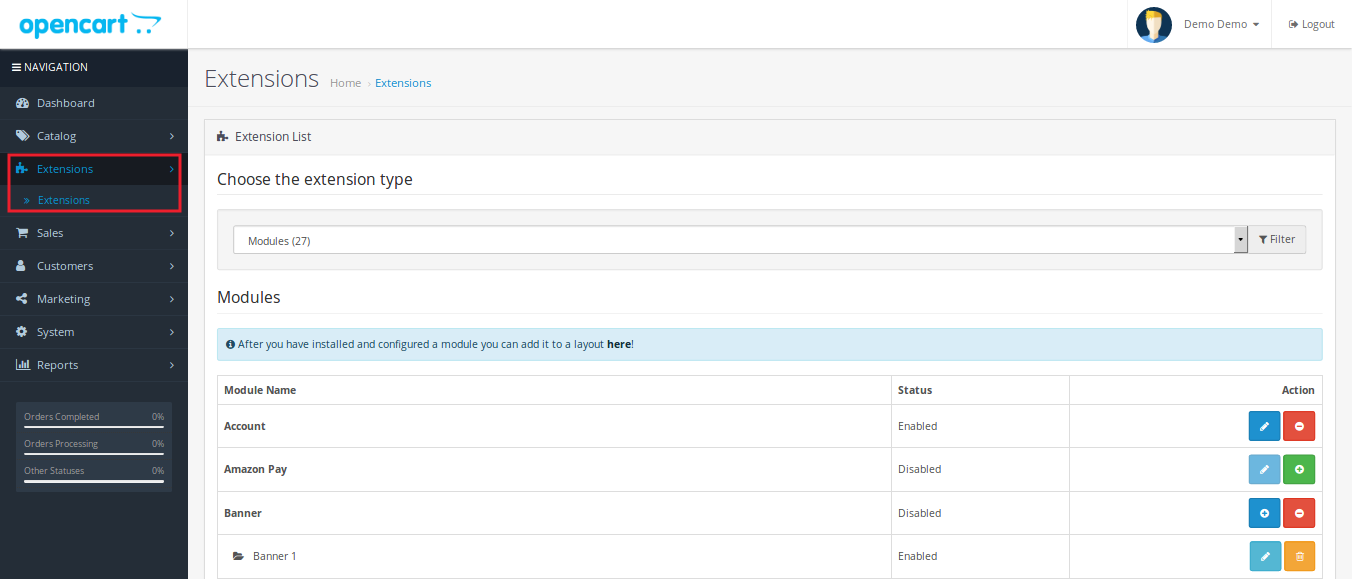
3.0 Admin Interface of

O Magento Walmart Canada Integrator oferece uma interface amigável. Após a instalação, o Magento CA Marketplace ficará visível na parte superior do painel de administração. O Magento Walmart Canada Integrator oferece guias 14 no painel de administração para fins de configuração.
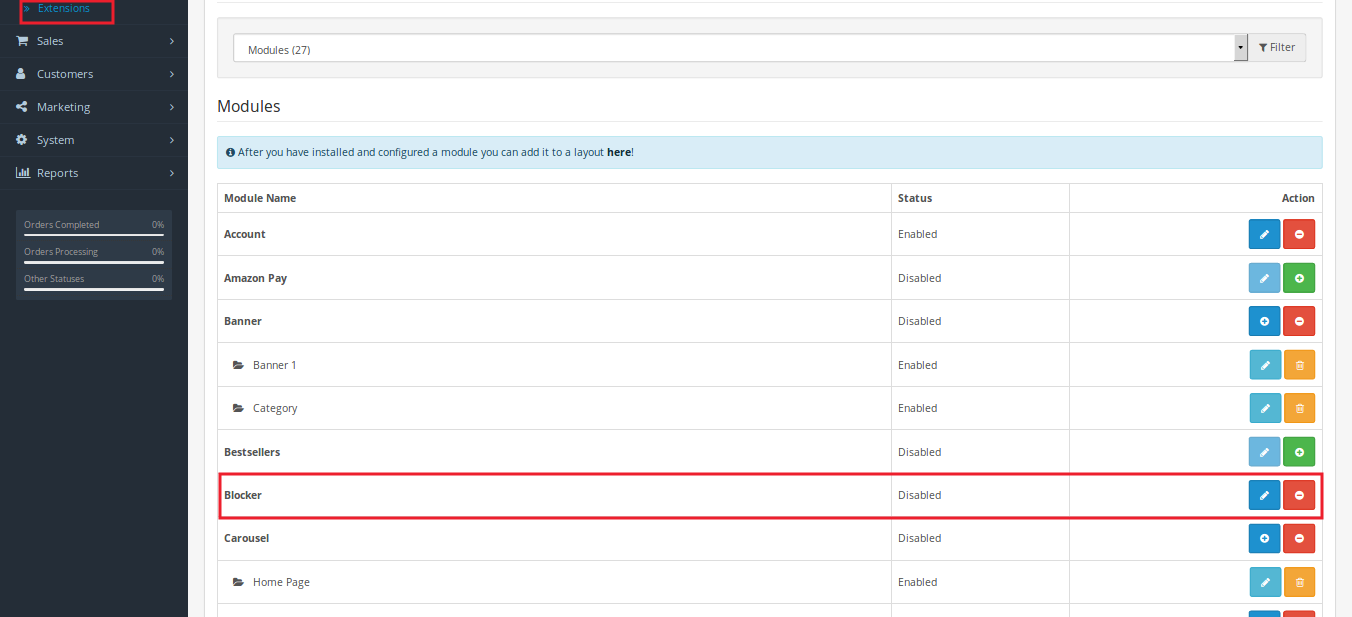
  • Configurações gerais
  • Gerenciamento de perfil
  • Mapeamento de Transportadoras
  • Promoções
  • Substituição de Remessa
  • Listagem de produtos
  • Mapeamento de Atributos
  • Configuração de pedidos
  • Listagem de pedidos
  • Status do feed
  • Relatório BuyBox
  • Gerenciar tempo de atraso
  • Relatório Fiscal
  • Relatório de vendas
  • Relatório de vendas de produtos
  • Sincronização
  • Registro de Auditoria

Configurações gerais do 3.1

Para conectar a loja de comércio eletrônico com o Walmart Marketplace, o administrador precisa preencher todos os campos obrigatórios na guia de configuração geral do Magento Walmart Canada Integrator. Os campos de entrada são descritos abaixo:

1.Ativar / Desativar
O comerciante on-line pode ativar / desativar o integrador da Walmart Canada Magento API com um único clique.
ID do consumidor 2.Walmart
Cole aqui o Id do Consumidor copiado durante o login na Conta do Vendedor do Walmart.
Chave Privada 3.Walmart
Digite a chave privada obtida durante o login na conta do vendedor do Walmart.
4.Tipo de canal de consumidor
Digite o canal do consumidor para autenticar a integração entre a loja Magento e o Walmart Marketplace. Clique no "Salvar configuração" botão no canto superior direito para completar o processo de conexão.

Substituição de remessa 3.2

O integrador de API Magento do Walmart Canadá oferece ao administrador o acesso para gerenciar as opções de remessa no Walmart Marketplace a partir do back-end da loja. Na seção, admin pode criar, editar e excluir a substituição de envio conforme sua escolha.

3.2.1 Como adicionar um modelo de envio

Clique no "Adicionar novo" botão no canto superior direito da seção Sobreposição de envio. Uma nova página aparecerá na sua frente. Preencha todos os campos obrigatórios para criar o modelo de envio:

Título de Substituição de Remessa: Digite o título de substituição de envio neste campo.
Envio permitido: Admin pode ativar / desativar um método de envio com o clique de um botão.
Método do transporte: De acordo com o requisito, o administrador pode configurar facilmente os métodos de envio do back-end do integrador de API Magmart do Walmart Canada. Os métodos de envio oferecidos pelo Walmart Canada Integrator são STANDARD e EXPRESS. Para mais informações, por favor consulte os seguintes links:
https://marketplace.walmart.com/knowledgebase/articles/Article/Shipping-Standards-For-Marketplace-Sellers

Região de envio: O comerciante on-line pode selecionar a região de envio a partir das opções disponíveis.
Preço de envio: Com o Walmart Canada Magento API integrador, o comerciante on-line pode definir o preço de envio para várias regiões e métodos de envio.
3.2.2 Como editar e excluir a substituição de remessa existente

As substituições de remessa serão listadas na seção Substituição de Remessa do integrador da API do Walmart Canada Magento. Clique nos botões de exclusão / edição no lado direito das entradas existentes para excluir e editar, respectivamente.

Mapeamento de Atributos 3.3

O Mapeamento de Atributos envolve o mapeamento dos atributos da loja de comércio eletrônico com os atributos do Marketplace. O mapeamento de atributos ajuda na sincronização dos produtos da loja com o Marketplace. O Mapeamento de Atributos do Walmart Canada Integrator ajuda a listar os produtos de maneira fácil.
3.3.1 Como mapear os atributos

O administrador da loja tem acesso para adicionar e excluir atributos do backend do Magento Walmart Canada API Integrator. Clique no "Adicionar novo" botão no canto superior direito da seção e preencha todos os campos obrigatórios para mapear com sucesso os atributos da loja de comércio eletrônico com o Marketplace.

3.3.2 Como excluir os atributos mapeados

Com o Walmart Canada Magento Connector, o administrador da loja pode excluir o atributo mapeado com poucos cliques. O administrador da loja pode excluir o atributo mapeado clicando no botão "Excluir" no lado direito do atributo mapeado existente.

Gerenciamento de perfil 3.4

Perfis ilimitados podem ser criados, editados e excluídos pelo administrador da seção de perfil Walmart do Walmart Canada Magento Integrator. A listagem baseada em perfil ajuda no upload em massa dos produtos. A seção de gerenciamento de perfil consiste em duas guias: Configurações gerais e Campos de perfil.

Configurações gerais do 3.4.1

Com o Magento Walmart Canada Integration Extension, o administrador da loja pode mapear várias categorias da loja de comércio eletrônico com as categorias do Magento Walmart. O administrador da loja precisa preencher todos os detalhes obrigatórios no formulário para enviar o formulário com sucesso. Após preencher todos os detalhes, o administrador da loja precisa clicar no "Enviar perfil" no lado superior direito da seção Configuração geral.

Titulo de perfil: Digite um nome relevante para o perfil.
Idioma da loja: O administrador da loja precisa selecionar o idioma disponível na lista suspensa.
Categoria Walmart: O administrador da loja precisa selecionar o tipo de categoria que deseja mapear com a categoria da loja.
Categorias da loja: Com o módulo de integração Magento Walmart Canada, o administrador da loja pode selecionar várias categorias para mapeamento com a categoria do Walmart.
Preço personalizado: O recurso de preço personalizado do Magento Walmart Canada Integrator permite que o administrador aumente ou diminua o preço do produto no Walmart com um valor fixo ou percentual. A quantidade de preço que o administrador deseja adicionar ou diminuir também é definida pelo administrador.
Identificador de código de barras: Com o integrador de API do Walmart Canada Magento, o administrador da loja pode selecionar o campo de produto exclusivo para o produto. O identificador de código de barras ajudará a identificar o produto.
Identificador da marca do produto: Nesta guia, o administrador precisa selecionar o campo com o valor da marca do produto em seu sistema.

Identificador do fabricante do produto: Com o Magento Walmart Canada Integration Extension, o administrador pode selecionar o campo com valor igual ao fabricante do produto em seu sistema.
Título do produto personalizado: O administrador da loja tem acesso para personalizar o título do produto na lista de espaços disponíveis. O espaço reservado selecionado será substituído pelo valor dinâmico no momento da execução. Os vários espaços reservados disponíveis são:
{id_product} para ID do produto
{product_title}para o título do produto
{País de fabricação} para o país do fabricante
{sku} para o produto SKU
{peso} para peso do produto
{Pequena descrição}para descrição resumida do produto
{preço} para preço do produto
Substituição de envio: Este campo ajuda o administrador a selecionar as substituições de envio para produtos na lista de opções disponíveis.
Código Fiscal do Produto: Com o campo Código do Imposto do Produto, o administrador pode fornecer o código de imposto sobre vendas para os produtos do perfil atual.

Campos do perfil 3.4.2

Com base na categoria selecionada do Walmart, o administrador pode fornecer as informações e valores adicionais dos produtos ao enviar o perfil do back-end do Walmart Canada Magento Integrator. O administrador precisa clicar no botão "Enviar perfil" para salvar todas as informações do produto.

Listagem de produtos 3.5

Na guia de listagem Produtos do Walmart, o administrador pode visualizar os produtos listados no Walmart Marketplace. Além disso, o Walmart Canada Magento Connector permite que o administrador visualize o status de cada produto. Para sincronizar os produtos no back-end da loja, o administrador precisa executar o trabalho Cron.

3.5.1 Renovar um produto

Caso a listagem de produtos seja expirada, o administrador da loja pode renovar o produto no Walmart Marketplace clicando no botão "Renovar" botão ao lado do produto. Assim que o produto for renovado, o botão será substituído por um "Halt" botão.

3.5.2 Relist ou Excluir um produto

Se o administrador quiser excluir o produto listado no Walmart Marketplace, o administrador da loja precisará clicar no "Excluir" botão ao lado do produto. Neste momento, o botão Excluir será substituído pelo "Relist" botão. O administrador pode relacionar o produto novamente no Walmart Marketplace clicando no "Relist" botão no backend do Walmart Canada Magento Integrator.

Erro de visualização 3.5.3

Com o Magento Walmart Canada API Integrator, o administrador da loja pode ver o erro ocorrido durante a listagem do produto. O administrador da loja precisa clicar no "Visualizar erro" botão para visualizar o erro.

Promoções 3.6

Várias ofertas promocionais e ofertas podem ser executadas no Walmart Marketplace a partir do backend do Magento Walmart Canada API Integrator. Com a ajuda do Walmart Canada Integrator, o administrador da loja pode executar desembaraço e reduzir os preços no Walmart Marketplace.

3.6.1 Como criar uma nova promoção

O proprietário da loja de e-commerce precisa clicar no "Adicionar novo" botão no lado direito da seção Lista de Promoções do Walmart. Quando o administrador clica no botão, uma nova página será aberta na frente deles. Preencha todos os campos obrigatórios na página exibida.

Detalhe da Promoção: Aqui, insira os detalhes da promoção.
Tipo de preço: O administrador da loja pode selecionar o tipo de promoção aqui. Admin pode executar uma autorização e promoção reduzida no Walmart.
Preço com desconto: Aqui, o administrador deve inserir o valor do desconto nas transações.
Data de início e data de término (fuso horário UTC): Aqui, insira o tempo de duração durante o qual a promoção será executada no Walmart Marketplace.
Seleção de produtos: O administrador pode selecionar os produtos ou perfis nos quais ele deseja oferecer a promoção.

3.6.2 Como editar ou excluir uma promoção

O administrador da loja pode editar e excluir qualquer promoção existente do back-end. Clique no "Editar" e "Excluir" para executar a respectiva função."Sincronizar" O botão ao lado da promoção é usado para sincronizar a promoção no Marketplace.

3.7 Gerenciar tempo de atraso

O administrador da loja pode atualizar o tempo de atraso do backend do Magento Walmart Canada API Integrator. O tempo de atraso é usado para evitar qualquer atraso no envio. Clique no "Atualizar tempo de atraso de envio "?button to update the Lag Time.

Uma nova caixa de diálogo pop-up aparecerá na sua frente. Digite o tempo de atraso em dias e clique no botão "Atualizar". Isso atualizará o tempo de atraso de envio no Walmart Marketplace.

Configurações de pedido 3.8

No Magento Walmart Canada API Integrator, a guia de configuração de pedidos pode ser usada para mapear o status do pedido na loja com o Walmart Marketplace. Os trabalhos Cron podem ser usados ​​para sincronizar o status do pedido no Walmart Marketplace.

Os vários campos disponíveis nas configurações do pedido são:

Estado atual da ordem: O administrador pode escolher o status atual do pedido aqui.
Estado expedido da ordem: O administrador pode escolher o status do pedido para os pedidos enviados no Walmart.
Estado de Confirmação da Encomenda: Esse campo permite que o administrador selecione o estado do pedido para os pedidos de confirmação na loja Walmart.
Estado do Cancelamento da Encomenda: Selecione o estado do pedido para pedido cancelado na loja Walmart.

Listagem de pedidos 3.9

A ordem recebida no Walmart é listada no back-end do Walmart Canada Magento Connector.Admin precisa executar o "Ordem de sincronização" guia para sincronizar os pedidos do Walmart. Para processar o pedido, clique no "Visão" botão ao lado do pedido recebido.

Status do feed 3.10

Vários trabalhos Cron podem ser executados no painel de administração do Walmart Canada Integrator. Toda vez que um Cron é executado, um feed é criado na seção Feeds do Walmart. Detalhes completos do feed podem ser visualizados clicando no "Visão" botão ao lado do respectivo feed.

3.11 BuyBox Reports

Vários trabalhos Cron podem ser executados a partir do painel de administração do Ao clicar no "Sincronizar o Walmart BuyBox" botão, cron job será executado para buscar o relatório BuyBox do Walmart Marketplace. Pode ser possível que vários concorrentes vendam o mesmo produto a um valor de preço diferente. O relatório BuyBox obtido ajudará o administrador a comparar o preço de um produto com o preço do produto da concorrência.

Com vários trabalhos Cron pode ser executado a partir do painel de administração do, admin pode repreciar o valor do produto para ganhar o BuyBox. O preço atualizado pode ser sincronizado no Walmart clicando no botão "Repricing de sincronização" na seção de sincronização do Walmart do Walmart Canada Magento Connector.

Sincronização 3.12

A seção de Sincronização do Walmart desempenha um papel importante no estabelecimento da conexão entre o Walmart Marketplace e a loja. Vários cron jobs podem ser executados para sincronizar todas as configurações e alterações da loja Walmart com a loja de comércio eletrônico.


Os vários trabalhos Cron executados para sincronizar as configurações e mudanças são como abaixo:

Produtos de Sincronização: Este botão ajuda o administrador a sincronizar todos os produtos listados no back-end do integrador de API do Walmart Canada Magento para sincronizar no Walmart Marketplace. O cron job adicionará produtos com seus detalhes de produto obrigatórios no Walmart Marketplace.

Sincronizar o Inventário do Produto: O cron job a seguir é executado para sincronizar a quantidade do produto no Walmart Marketplace.

Preço do produto de sincronização: O botão a seguir sincronizará o preço atualizado do produto no Walmart.

Ordens de Sincronização: O cron job a seguir será usado para sincronizar pedidos do Walmart Marketplace com a loja de comércio eletrônico.

Status do pedido de sincronização: O status atualizado do pedido pode ser sincronizado no Walmart Marketplace, executando o Status do pedido de sincronização no backend do Magento Walmart Canada Integration Extension.

Status do feed de sincronização: O status do feed pode ser sincronizado no armazenamento Magento executando o cron job a seguir.

Sincronização de tempo de entrega: O tempo de atraso em dias nos pedidos de remessa pode ser sincronizado no Walmart Marketplace executando os Jobs Cron.

Sincronizar o Walmart BuyBox: Relatório BuyBox pode ser baixado da loja Walmart executando o seguinte trabalho Cron. O relatório da BuyBox ajudará o administrador a comparar o preço do produto de vários concorrentes.

Repricing de Sincronização: O valor dos produtos reaproveitado para ganhar a BuyBox pode ser sincronizado no Walmart Marketplace executando o seguinte trabalho Cron.


Código Fiscal 3.13

Seção de código fiscal do Walmart Canadá O Magento Integrator permite que o administrador visualize o código de imposto dos produtos em massa. O comerciante on-line pode visualizar facilmente o código fiscal dos estoques.

Log de auditoria 3.14

Seção de código fiscal do Walmart Canadá O Magento Integrator permite que o administrador visualize o código de imposto dos produtos em massa. O comerciante on-line pode visualizar facilmente o código fiscal dos estoques. Todos os trabalhos Cron executados podem ser visualizados na seção Log de Auditoria da Extensão de Integração do Magento Walmart Canada. O administrador pode visualizar facilmente o status de cada trabalho Cron na seção Log de auditoria do Walmart.

Para mais informações, consulte os seguintes links:

?Magento Walmart Canada Integration

Walmart Canadá Magento API integrator Admin Demo


6 Summer Holiday eCommerce shipping mistakes to avoid

Customers expect fast delivery. Being an online seller, providing customers with their products is no more than a mission. And when the product is to be delivered under the scorching sun, the mission becomes more complex and hard to achieve. The Holiday sales season is the main culprit to increasing complexities in “Mission Delivery”.

However, the holiday season comes up with huge opportunities for making good sales and revenues. It also ensures immediate sales and profits. It also comes with an opportunity to make sales in the future too. For many eCommerce businesses, the question that comes in their mind is “should we offer free shipping?” and if yes then “how should we offer free shipping?” and many more.

Being a seller, it’s very important to come up with some diligent strategies to take advantage of these holidays in a fruitful way.

Many times, retailers are able to do more than one annual sale in a few months only. As it is a good opportunity to increase their sales and revenues, this could also bring the opportunity for shipment errors.

Since, every aspect should be up to the mark, shipping failure could scuttle all your opportunities and will result in loss of sales. The shipping glitch would not only make retailer pay extra shipping charges but also create frustrated customers, killing the chances of repeat sales too.

Although it is difficult to fulfil all the shipment related problems we can at least learn from our missteps and avoid them in the future. Here are 5 shipping mistakes to avoid this summer are as follows:

1. Not communicating with shipping carriers:

Almost every summer holiday sale has a deadline. Online customers expect their product to arrive by this deadline unless you set a proper set of guidelines. Each carrier service has its deadline for summer holiday sales. So, before the summer holiday approaches, it’s better to be in touch with them to know their delivery schedules.

Generally, orders are needed to be placed 10 days before from the day the customer wants the delivery. However, the date will differ a little depending upon the location of the warehouse and order destination too. So, it’s important to talk with your carrier service to confirm the delivery on that particular eve otherwise, you can lose the order and perhaps lose customer’s trust too.

2. Not maintaining enough resources:

Imagine you have 20 employees who can pick, pack, label and pile 200 orders in a day. That means if you accept 400 orders a day, then it would be difficult for you to fulfil the shipment process on time. Hence, you will be unable to handle the placed orders resulting in loss of sales and revenues.

To avoid this situation, you should think wisely and play smartly. Whenever the sale is high especially in holidays, you can hire temporary workers or call them in shifts. This will help you to maintain all the placed orders easily.

3. Insufficient packaging material:

Now you have enough human resource and plenty of inventory to work with. But as soon as you started to pack the products, one of your workers says – We are out of Bubble wraps.

If you are supposed to ship 1000 orders per day, then you must be equipped with 1000 cartons along with bubble wraps, tapes and other packing materials. Running out of packaging material would slow down the shipping process resulting in delayed delivery.

4. Forget to validate delivery address:

Once the order is packed and out for delivery, the delivery agent is unable to find the address and returns back with the product. It often happens that due to an incorrect address, the orders are unable to be delivered.

Jonathan Poston, director of technical SEO for The Tombras Group once said – “An incorrect zip code can not only throw off shipping but can land a package into an almost infinite state of limbo”. A wrong address can lead to big problems. So, always validate the shipping address before placing the order to avoid shipment related problems in the future.

5. Fallacious shipping estimates:

Bad shipping can lead to the biggest consequences for your eCommerce business. Shipping is a very double edged game. If you make a lower estimate and provide one day delivery, then you have to pay the difference while if your shipping rate is too high, then the customer will automatically leave the cart abandoned.

According to Statista, 73 percent of respondents stated that free delivery greatly impacts their decision to purchase an item online. Shipping charges are the top reason behind cart abandonment as customers don’t want to pay delivery charges. So, you should be accurate with your shipping estimates to grab maximum leads.

6. Spoiling the surprises on Holiday sales:

It’s better to deliver the products in a plain box rather than delivering in branded logo box and that too with the invoice attached on it. So you can avoid making this mistake so that the giver get some time to hide his surprise from the would be a receiver.

Over to You:

After viewing all the above mistakes created by retailers in the shipping process, it’s important to learn from our missteps and try to avoid them in future for better generation of sales and profits. Regardless of whatever method or carrier you are using for delivery, it’s important to choose the right carrier for shipping process. Also it’s very important to keep a check on the quality of your products as many times sellers deliver bad quality products which is results harms your Marketplace reputation. So, work hard, play smart!.

Selling was never that convenient before! KnowBand offers Marketplace Integrators which enables sellers to integrate their eCommerce store with renowned Marketplaces like Etsy, eBay, Walmart, Google Shopping and Newegg. They are available for various CMS platforms like Magento, PrestaShop, Shopify, Magento 2 and OpenCart.

Features of Marketplace Integrators are as follows:

  1. Effortless product listing process with the bulk uploading feature.
  2. Mapping of the store attribute and category with the respective marketplace attributes and category.
  3. Effective management of the product inventory.
  4. Effective management of the marketplace orders.

Find out some more related articles:

  1. 7 ways to boost up your sales using Social Media
  2. How to improve sale for your eCommerce store in 2019?
  3. The Future of eCommerce – Innovation to success
  4. Why you should sell on an eCommerce Marketplace?

How to sell on Walmart Canada?

It is undeniable that the huge involvement of modern technology in today’s generation has dramatically changed the lives of individuals and businesses throughout the world. As a result, the trend of online shopping became popular in every corner of the globe. Everyone likes to surf on the digital waves for online shopping today. Being a seller, you should understand the increasing demand for online shopping leading you in a billionaire soon. And when we talk about selling products online, Marketplace is the first name that comes in our mind. Marketplaces like Walmart, Etsy, eBay, Walmart Canada are in many trends right now.

Selling on Marketplace will help you to provide recognition globally followed by a huge chunk of profits. If we talk about global Marketplaces, Walmart is the first name that comes in our mind. With 344 million visits of customers, it is considered as one of the renowned Marketplaces worldwide. Walmart Canada is the Canadian division of Walmart and now provides sellers a lucrative opportunity to sell their products on Walmart Canada too.

So, before jumping to the procedure of becoming a seller, let us know about Walmart Canada in detail:

Walmart Canada is the Canadian division of one of the biggest and popular online Marketplaces globally – Walmart. Headquartered in Mississauga, Ontario, it was founded on March 17, 1994, as a discount store with the purchase of the Woolco Canada chain from the F. W. Woolworth Company. It came up under the flagship of Canada’s online store i.e Walmart.ca. With a chain of 410 stores, Walmart doubled its revenue by this online store and now planning to increase its product quantity in Canada.

What products can be sold on Walmart Canada?

Retailers who deal in the following range of products can become a third party seller on Walmart Canada:

  • Electronic Appliances
  • Outdoor Living
  • Sports & Accessories
  • Furniture and lifestyle products
  • Clothing and Accessories
  • Footwear
  • Jewelry & Watches
  • Movies, Music, & Books
  • Gifts & Holidays
  • Automotive, and many more.

How to sell on Walmart Canada?

  • Apply online for Registration:

To sell on Walmart Canada, firstly you have to register yourself on Walmart Canada Seller center. For that, you have to send an email on mkplslcomm@walmart.com with all your documents attached and wait for their reply. After that, Walmart Canada will verify all your documents and luckily if your request is accepted, you can proceed further.

After receiving an invite mail and account creation, upload all your relevant certificates including your bank account information to meet the minimum requirements to be a vendor. You can also be asked to share some more information about your company and products. This is done with the motive to increase the trust level of your business brand name.

  • Product listing:

Now, the main step is uploading your products on the website of Walmart Canada Marketplace. Walmart let the sellers to manually list the products in their Walmart’s product catalog. It also lets you upload the products in bulk via bulk upload or product feed option.

Listing of products manually could be a breathtaking process as it’s very difficult to upload every product one by one and is a time taking the process too. Instead of uploading products manually, you can use an integrator which directly maps your products listed on your eCommerce website to the Walmart Canada Marketplace. Walmart Integrator by Knowband helps you to integrate your eCommerce website with Walmart Canada Marketplace.

  • Order Management:

Walmart Canada even provides you the facility to set up and test your order management connection and other features. You are just required to send your products feed for testing either in bulk or under any specific products and categorization.

Launch your request and start selling:

After verifying all the functions listed on the seller’s dashboard, just click “Yes” on the confirmation page and you are ready to launch. Meanwhile, the Walmart team will review your account, products, and settings and will finally make them live.

Congratulations! You are now a Walmart Canada seller! Just log in on the Walmart Canada seller page and you are ready to generate fruitful leads in the future.

Benefits of selling on Walmart Canada Marketplace:

  1. Walmart Canada has established itself as one of the best and trustworthy global Marketplaces in Canada.
  2. Selling on Walmart Canada Marketplace owns a huge customer base which is a huge opportunity for sellers to earn huge chunks of profits.
  3. Walmart Canada Marketplace also provides brand recognition which helps in building trust between users and convert them into potential customers.
  4. The dedicated Walmart Canada support team is always there to help customers with any kind of query or hassle while shopping online.
  5. Global Marketplaces like Walmart Canada helps sellers to expand their reach globally. This leads to increasing cross border sales of sellers resulting in increased sales and revenues.

The comfort provided by Walmart Canada to its customers made this platform the best from all other marketplaces. This platform lets you increase your business and sales drastically. So what are you waiting for? Get, set and go for Walmart Canada Sellers in few simple steps.

Cost to Sell on Walmart Canada:

Although selling on Walmart Marketplace could make you earn a huge chunk of profits but Walmart also takes advantage of the same. Walmart charges sellers a referral fee ranging from 6% to 20% of the product’s selling price, depending on the category. Walmart charges a very less referral fee as compared to Amazon. So, being a seller on Walmart can make you a billionaire one day.

How KnowBand can help you to sell on Walmart Canada Marketplace?

Knowband offers Magento Walmart Canada Integration Extension which is a smart solution for an eCommerce store owner to clear out the complexities of selling products on Walmart. It works by providing an API Integrator between an eCommerce store and the Walmart marketplace. It bridges the gap between your eCommerce store and Walmart Canada with the help of which sellers can easily map their product listings on the Marketplace website. Once the integration is successful, the admin can update all the product listings on Walmart Marketplace from the back-end without even visiting the Marketplace site.

Features of Magento Walmart Canada Marketplace Integrator Extension:

  1. Real-time synchronization: Magento Walmart Canada Integration Extension offers a real-time synchronization by connecting the Magneto store with the Walmart Marketplace. Walmart Canada Magento Integrator.
  2. Inventory Management: The store admin can manage the inventories listed at the Walmart Marketplace from the admin panel of the Magento Walmart Canada Integration Module. Product details, price, and Inventory can be synchronized by the admin with one click.
  3. Profile-based listing: Magento Walmart Canada API Integrator offers admin access to create Unlimited profiles. Profile-based listing helps in bulk product upload.
  4. Attribute and category Mapping: With the help of Walmart Canada Integrator, the online merchant can map the attributes and categories of the store with the attributes and categories of the Walmart Marketplace.
  5. Shipping Management: Shipping methods at the Walmart Marketplace are managed and monitored by the admin from the back-end of the store. The online eCommerce owner can add or delete any shipping method at the Walmart Marketplace ad per his need and convenience.

Find out some more articles here:

  1. 9 tips to help you sell more on Walmart Marketplace
  2. How to rank your products up in Walmart search results?
  3. The Pluses and Minuses of becoming a Walmart Marketplace seller
  4. Tips to Win the BuyBox on Walmart
  5. The Pluses and Minuses of becoming a Walmart Marketplace seller
  6. How can a vendor optimize his presence on Walmart Marketplace?

OpenCart Preferred Delivery Time Extension

1.0 Introduction

These days online customers demand product delivery as per their preferences. Now the online store admin can offer functionality to select the preferred delivery date and time. Knowband offers OpenCart preferred delivery time extension which is highly customizable and allows the admin to offer delivery date and time selection option on the website. The customers can get the ordered product on their preferred date and time which will improve their shopping experience.

The store admin can apply settings to show available dates and time slots for delivery. By allowing the customers to select the preferred date and time, the store admin can improve their store experience. The customers can select the date and time for order delivery. This is also beneficial for those sites who deliver gifts, cakes, cards and bouquets for special occasions like birthday, anniversary or any other special occasions. The Preferred delivery date and time module For Opencart is highly customizable and the store admin can apply the settings without any technical help. The admin just needs to select the options according to the requirements. Admin can also make the preferred delivery date and time selection for the customers.

1.1 Basic Features of this OpenCart preferred delivery time module

  • The store admin can offer functionality to select preferred delivery time and date for the ordered product without any hassle.
  • The online users can easily choose the date and time when they want the product to be delivered.
  • As an e-merchant, you can also allow the customers to update the selected date and time even after placing the order.
  • The OpenCart prefer delivery date module displays a calendar with available delivery days and time-slot for date and time selection.
  • The store admin can set the time slot range and also show an incomplete time range from the admin interface of this preferred delivery date and time module.
  • The store owner can set the time slot range from the admin interface of this OpenCart prefer delivery plugin.
  • As a store owner, you can set the start and end time for delivery.
  • The OpenCart preferred time module allows the store admin to select those days when he doesn’t want to offer delivery.
  • The store admin can also set the order status from the admin interface of this preferred delivery date and time extension.
  • There is no need to change even a single line of codes for implementing this functionality of preferred delivery date and time selection.
  • Admin can set the delivery days gap from the admin interface of this OpenCart preferred delivery time module.
  • The Preferred delivery date and time module For Opencart is mobile responsive.
  • The OpenCart prefer delivery time extension supports all the OpenCart themes.

2.0 Installation

First of all, buy the OpenCart preferred delivery time extension from the Knowband store.

After that, you will receive these files on your registered email.

  1. Source code file of Preferred delivery time extension in zipped file format.
  2. User Manual of this OpenCart preferred delivery time module.

For installing this OpenCart preferred delivery time module on your website you have to follow these steps:

1. Now unzip the received zip file. You will get the folders as shown in the below-mentioned image:

2. Copy all the folders of the zip file in the Root Directory of OpenCart setup via FTP manager.

So, OpenCart preferred delivery time module is now successfully installed and ready to use at your store.

Now go to the admin menu and click on the extensions and thereby click on configure button next to prefer delivery time extension.

3.0 Admin Interface

The online store admin can apply the settings for offering preferred delivery date and time functionality on the store. These are the customization options available at the admin interface of this OpenCart preferred delivery date and time extension:

  • Enable: The online store admin can activate or deactivate the OpenCart preferred delivery time module easily.
  • Preferred Delivery is mandatory: The store admin can make preferred delivery facility mandatory by selecting the option. In this case, the customers need to set the delivery date and time to continue.
  • Delivery Days Gap: The preferred delivery date and time module allow the store admin to set the delivery days gap. The customers will be able to select preferred days after 10 days gap.
  • Delivery Hour Gap: The store admin can add delivery hour gaps in the mentioned text fields. Once the hour gap is added, the customer can only select the preferred delivery time only after the mentioned delivery hour gap.
  • Delivery Minute Gap: Like delivery days gap and delivery hour gap, the admin can add delivery minute gap in the following text field.
  • Allow Time Slot: The store admin can also enable the settings to show time slots on the preferred delivery and time section.
  • Custom Time Slot: The admin can add custom time slots for which they want to allow the customers to select preferred delivery time.
  • Time Slot Range: Enter the time slot range from the admin interface of this OpenCart prefer delivery time module. For example, if time slot range is 3 then time can be from 03:00 to 06:00, 06:00 to 09:00.
  • Start Delivery Time: Set the starting time in 24 hours format.
  • End Delivery Time: Fix the end time in 24 hours format.
  • Allow Incomplete Time Range: Admin can also allow incomplete time range from the admin interface.
  • Maximum Calendar Days: The OpenCart prefer delivery time extension allows the store admin to set the maximum calendar days available for preferred delivery.
  • Delivery not available during these days: The admin can choose those days when product delivery will not be available.
  • Allow Post Order Delivery Update: Admin can allow or disallow the customers to update the preferred delivery date and time even after placing the order.
  • Select the order status: Admin can select the order status for which the customers can change their preferred delivery date and time.
  • Enter the time limit in hours: The online store admin can set the time limit in hours. The customers can update the preferred delivery days and time within this time duration.
  • Hint for preferred delivery time update: Admin can set any hint or message for the delivery date and time update.
  • Send Mail with Order Confirmation: The OpenCart store admin can enable/disable order success emails after completing the orders by selecting Preferred delivery time.
  • Mail Template: The store admin can modify the order confirmation email template as per their brand’s need.

4.0 User Interface

The customers can view the preferred delivery date and time selection option on the checkout page. They can select the date and time for delivery and get the product on the preferred date and time.

Customers can select the days from the calendar as shown below:

Customers can select the time from available time slots as shown below:

In order details, the customers can view the preferred delivery date and time details.


Admin can also allow the customers to update the selected date and time for delivery. The customers can update it and save the settings.

The customers can easily select the preferred delivery date and time from the available options and get the delivery on their selected time. The OpenCart prefer delivery time module makes the overall implementation very simple and hassle-free for the customers. Admin can fully control the process by making delivery date and time selection mandatory/optional, creating time slots, delivery days gap and maximum calendar days. The customers can get an e-mail along with the delivery date and time information. The Preferred delivery date and time module For Opencart is mobile responsive.

Tutorial: Watch the Video Guide of Opencart Preferred Delivery

To help you set up and use the Opencart Preferred Delivery Time Extension, we’ve created a detailed YouTube tutorial. The video walks you through the installation process, configuration options, and step-by-step instructions to manage preferred delivery dates and times effectively.

Watch the tutorial here:


Knowband is one of the most reputed names in the field of plugin development.

We provide best plugins for platforms like  Magento,  Prestashop, OpenCart and   Shopify.

Knowband OpenCart preferred delivery time extension Module Link

Knowband OpenCart prefer delivery time extension Admin Demo Link

Knowband OpenCart preferred delivery time module Front-end Demo

Knowband OpenCart prefer delivery time plugin User Manual

Knowband OpenCart prefer delivery time extension Youtube Video Link

Preferred delivery date and time OpenCart Marketplace Link

For more support and information, feel free to contact us via email at support@knowband.com anytime.

OpenCart Block Bot/User by IP, Country or User Agent Extension – User Manual

1.0 Introduction

If you own an eCommerce store, it is surely at risk of threats and dangers. The Internet space is full of automated programs referred to as bots, which may be good or bad. The bad or malicious bots are designed to perform repetitive tasks at high speed which reduces the loading speed of your website. In order to safeguard your online store from vulnerable threats and spam users, OpenCart Block Bot module from Knowband offers a spam blocker solution that allows the e-merchant to ban specific IP, country or user-agent. This anti-bot solution provided by OpenCart Block User Extension is a smart way to prevent the access of malicious users on the website and thereby improving the shopping experience of the genuine users of the store. OpenCart Spam Blocker module offers you great flexibility to intelligently filter out the suspected bot traffic on the store. Hence eliminating the chances of unwanted threats and spams on the store.

1.1 Striking Features of Spam Block Bot Extension for OpenCart

1. OpenCart Block User extension offers an effortless means to restrict the entry of the suspected users/bots based on their IP, country or user-agent.

2. IP Spam Blocker for OpenCart bans the unwanted traffic on the website and thus helps to maintain spam free traffic from the genuine users of the store.

3. The unblocking option eases the admin in getting back their real customers who are mistakenly blocked from accessing the website.

4. OpenCart Spam IP Blocker module gives flexibility to e-merchants in showing a custom block message to the frontend customers.

5. The multiple types of blocking options allow admin to block fraudulent orders and spam requests on their store from a specific IP or particular country.

6. OpenCart Blocker stops the malicious bots from unnecessarily crawling your website.

7. Blocking functionality of OpenCart Spam IP Blocker helps to safeguard your site from unauthorized users and their malicious content.

8. Opencart Blocker considerable improves the website loading speed by eliminating the irrelevant traffic through bad bots or users.

9. This anti-bot solution from OpenCart Block User module prevents harmful bots from running your website.

10. By implementing the Block Bot extension for your OpenCart store, you can prevent the data attacks and thereby ensure the privacy and confidentiality of customer information.

11. This Blocker module supports multiple languages which add to ultimate user experience.

12. OpenCart Block Bot by IP module helps to reduce server loads and bandwidth costs.

13. Block spam traffic by malicious bots and enhance the user shopping experience using this OpenCart Block User/bot by IP, Country or User Agent extension.

2.0 Installation Guide of OpenCart Block Bot module

Before starting the installation process, you have to buy the OpenCart Blocker extension from the Knowband store. Once purchased, you will receive the following files on your registered email.

  • Source code file of OpenCart Block Bot module in zipped file format.
  • User Manual of OpenCart IP Spam Blocker Extension

Now in order to install OpenCart Block Bot module for your website, follow the given steps:

1. Unzip the zip file. You will get the folders as shown in the image below


2. Copy all the folders of the zip file in the Root Directory of OpenCart setup via FTP manager.

So, OpenCart Spam Blocker extension is now successfully installed and is ready to use at your store. Go to the admin menu and click on the extensions and thereby click on configure button next to Blocker.

3.0 Admin Interface of OpenCart Block Bot module

Just after successful installation of OpenCart spam blocker module on your website, you can configure the blocker settings as per your requirements. Navigate the settings in the given order: Admin Panel > System > Knowband Extensions > Blocker

The simple to understand admin interface of OpenCart Blocker extension is divided into six sections namely:

1.Module Configuration
2.Block by IP Address
3.Block by Country
4.Block by User Agent
5.Blocker Customer Request
6.Allowed IP

Each of these sections have been discussed in detail below.

3.1 Module Configurations

  • Under this tab of OpenCart block Bot by IP module, you can modify the following listed basic settings.
  • Status: This option of Blocker extension allows you to enable or disable the blocker functionality for their store.
  • Display Custom Message: You can enable or disable the block message shown on the frontend to the banned users.
  • Custom Message: This option lets you set a specific block message for the front end users. You can set this custom message in French language also.
  • Include Header/Footer on Page: You can enable or disable this option. If enabled then the header footer content is shown on the frontend to blocked users.
  • Email Notification: You can enable or disable the notification for customer unblocking requests.
  • Mail Subject: This option sets the mail subject line which is shown as a notification email subject when the user sends an unblocking request to the store owner. This mail subject can also be specified in French language.

After all the settings of OpenCart Blocker are done, click on the “Save” button shown at the top right corner of admin panel to save the module settings.

3.2 Block by IP Address

As shown in the above screen image, the admin can easily view, manage and delete the various IP based banishment from the back-office.


If the admin wants to create a new IP ban, they can create by simply specifying the IP address and marking its status as enabled.

3.3 Block by Country

If the admin wants to restrict complete users of a particular country, then they can block it under the Block by Country section of the admin interface.
They have to simply select the desired countries and mark their block status as enabled.

3.4 Block by User Agent

To ban or restrict the users coming through a particular user agent like Mozilla or Chrome, ban the specific user-agent under the Block by User Agent section of backend.


3.5 Blocked Customer Request

You can view and manage the unblocking request by different customers of the store along with their details like Email ID, message, IP address, country and request date. If you find the customer is genuine, you can unblock them easily from the backend.

3.6 Allowed IP


If required, you can explicitly specify the particular IP to which you want to give access to the website. These can be edited or deleted as required.

4.0 Front Interface of OpenCart Spam Blocker Module

As the visitor enters to the store, they will see a block error message on their frontend. The user might be blocked based on IP, country or user-agent. If allowed by the admin, they can only see relevant header and footer information on their screen. The banned users of the store are allowed to send a unblocking request to the store merchant. If there request is approved by the admin, they can see the website content else they are totally restricted to access the site services.

The block interface takes the email ID and unblock message from the banned user of the store and shows the acknowledgment message as shown in the image below.

OpenCart Social Messenger Extension – User Manual

1.0 Introduction

OpenCart Social Messenger Extension by KnowBand offers support service on the eCommerce store. Admin can offer live chat feature to the customers in order to directly communicate with them and resolve their issues by this functionality. Admin has to integrate Facebook App ID and Facebook Page ID on the store so that customers can directly log in to their Facebook profile and resolve their queries.

Live chat is the most important feature and one of the best ways in offering full support to customers. Many a times, customers leave the cart abandoned as they had any query related to the product. Social messenger resolves customer queries immediately so that they can go for instant purchase without any inconvenience.

This OpenCart messenger chat module for OpenCart store is highly customizable and offers smooth as well as flawless working. The admin can incorporate this functionality in the front-end with the help of Facebook page id and app id. Moreover, he can easily manage the messenger from the back-end of the OpenCart social messenger plugin. The admin can provide online customer support without even changing a single line of the base code of their site. The Messenger live chat module allows the admin to set the look and feel of the social messenger icon.

1.1 Striking Features of Social Messenger Extension for OpenCart

  1. The OpenCart social messenger extension executes the functionality of showing Facebook messenger on the website pages. Customers can chat by logging in to their messenger.
  2. With the help of OpenCart Social Messenger plugin, store admin can offer live chat support without changing any codes. The OpenCart live chat support module is highly customizable and offers smooth functioning.
  3. The store owner can enter the Facebook app id and Facebook page id for incorporating the Facebook messenger on the store.
  4. The e-merchant can change the default color of the Facebook messenger. The OpenCart Facebook messenger and live chat plugin provides a color-picker tool for color selection.
  5. Admin has the authority to display the messenger chat option on selected pages. Admin can select multiple pages for showing this chat functionality.
  6. The e-merchant can set different greeting messages for logged in and logged out customers.
  7. The OpenCart Facebook messenger and live chat plugin allows the store admin to set the greeting message delay time from the admin interface.
  8. The OpenCart Messenger chat bot module allows store admin to set the time as 0 seconds if he/she wants to show the greeting message without any delay.
  9. OpenCart Messenger chat bot module is SSL compatible and provides user-friendly interface.
  10. Facebook messenger and live chat plugin is multi-lingual compatible. The e-merchant can communicate in saveral languages.
  11. The OpenCart Facebook Chat messenger module is mobile responsive. Online customers can also chat on their mobile devices also.

1.2 Technology for Development

Language: PHP
Frame Work: OpenCart

2.0 Installation Guide

To install this OpenCart Social Messenger Module, please follow the following steps:

Purchase the OpenCart Social Messenger Extension from the Knowband store. You’ll get following files:

  • Zipped File containing the source code of the OpenCart Social Messenger module.
  • User Manual of OpenCart Social Messenger plugin.

Follow the steps below in order to install the OpenCart Social Messenger Extension in OpenCart store:

  • Unzip the zipped. You’ll get the folders as shown in the image below:

  • Copy all the files and folders of the zip file in the Root Directory of OpenCart setup via FTP manager.
  • The OpenCart Social Messenger module is now installed and is ready to use. Go to Admin -> Main Menu -> Extensions as shown in the image below:

  • Select Social Messenger from the list of the modules and click on the Edit button.

3.0 Admin Interface of OpenCart Social Messenger Extension

OpenCart Social Messenger extension offers easy customization option to the store admin. The various Messenger live chat for OpenCart configuration options are discussed in detail below:

3.1 Edit Social Messenger Tab:

Following are the settings listed under this tab:

  • Status: Select ‘Enable’ from the drop-down list to qualify Social messenger extension on the front-end of the website. The admin just need to toggle a button in order to activate or deactivate the Facebook messenger extension.
  • Background color: Choose the background color from the drop-down list. This Facebook messenger and live chat plugin has a color picker tool for selecting the color of Facebook messenger. Admin can also show it’s default color.
  • Facebook app ID: Enter the Facebook App ID.
  • Facebook Page ID: Enter the Facebook Page ID.

For Getting Facebook app ID and page ID follow these steps:

Steps to generate Facebook app ID

  • After that, Go to the “MY APPS” option and click on the ”ADD NEW APP”.

  • Now insert the “Display Name” and “contact email ID”. Click on the “Create APP ID” button.

  • Once the APP ID created, the store owner can view the app id. Go to the “Settings” and then select “Basic”. Here you can view the APP ID as shown below.

  • Admin can insert the App Domain. After that click on the “save changes” option.

Steps to generate Facebook page ID

  • For getting Facebook page ID, open the Facebook page and go to the “about page“. At the bottom of the “about page“, the admin can view the page id.

  • Go to the Settings option and then select the “messenger platform” option. Here you can enter the domain in the “White-listed domains” option.

This way the store admin can get the facebook app id and page id.

  • Logged in greeting message: Enter the logged in greeting message in the English and French languages. This Facebook messenger and live chat plugin is multi-lingual compatible.
  • Logged out greeting message: Enter the logged out greeting message in the English and French languages. Admin can show greeting message to Facebook logged out customers.
  • Set greeting message delay: Set greetings message delay time in seconds. This way, you can show a greeting message just after the customer’s arrival or after some time.
  • Pages to Display: Select the pages from the drop-down list on which, you want to display facebook messenger. Admin can select all the pages or specific pages for showing Facebook messenger chat option.

4.0 Front End of the OpenCart Social Messenger Module

After customizing this facebook messenger integration plugin, the store admin can show facebook messenger successfully on the website front-end interface. The customers can view the live chat option on the store’s front-end as shown below:

  1. Product Page:


 2. Log in Window:

Online customers can easily login after clicking on the messenger chat box. They can chat and discuss any confusion, query or concern directly to the store admin. OpenCart Social Messenger Extension makes it very easy for the store admin to resolve customers concern. This OpenCart Social Messenger Module is multi-lingual compatible and mobile responsive. Facebook messenger for OpenCart allows the customers to directly communicate with the store admin and get the solution of their concerns in the least time.

Knowband  is one of the most reputed names in the field of plugin development. We provide best plugins for platforms like- Magento, Prestashop, OpenCart and

 Shopify.

Knowband OpenCart live chat support extension Module Link

Knowband OpenCart messenger chat module Admin Demo Link

Knowband OpenCart Social Messenger Extension Front-end Demo

Knowband Facebook messenger for OpenCart Youtube Video Link

facebook messenger integration Marketplace Link

For more support and information, feel free to contact us via email at support@knowband.com anytime.