Many businesses are adapting to stay at home and running online. In-house delivery is the new trend after the COVID outbreak.
While making a purchase, every user has to decide between shopping online or buying it from a physical store.
And the most important factors that influence your purchase decision are the time you have got to complete the purchase and the value of the money you are going to spend.
Though brick and mortar stores still make more sales than online stores, online stores are steadily on the rise. This is primarily due to improved pace and comfort.
Customers now demand faster delivery. Hence, local delivery businesses are flourishing.
You might be wondering how to set up a local delivery service and whether or not local delivery is right for your company. This article will guide you to start a hot shot online local delivery service on your online store.
What do you mean by local delivery services?
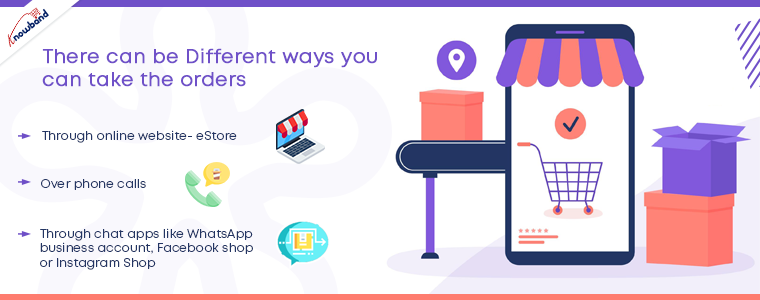
How to take orders for local delivery:
Through online website- eStore
Over phone calls (If your customers are known and limited)
Through chat apps
Set up a local eCommerce delivery website
Since you’re an established company, we’re not going to waste time telling you how to set up a website, as you probably already have one. Or if you are new to it then you can set up an online website on any of the eCommerce platforms. Our website development services are discussed in our previous article.
But it’s important to note that you need a webshop on your site, which means a place where customers can add your goods to a shopping cart, place their shipping address, and process payment.
Local delivery services can boost online sales
With local delivery, companies can give their local customers thoughtful shopping experiences and help drive sales and revenue. Here are some of the ways through which the Delivery Boy App can help businesses communicate with local customers and build a place for themselves within their communities.
At the local level, not only are consumers actively looking to support their local businesses to help maintain their neighborhoods and the economy. They are also interested in local shipping options because they offer attractive benefits.
Also, local delivery services offer a way to build a personalized brand experience. Customers who shop locally are looking for that personal touch, and since you can’t deliver it in-store, local delivery is a way to deliver it. You can use this to connect to existing customers and draw new customers.
Start to make deliveries
Adding local delivery services amid a global pandemic is not a common territory. Also with your past sales months for comparison, it’s hard to foresee how many customers will take you to your service. Some of our clients have seen business cut by half; others have actually seen revenue rise. But even though you do just 10 to 15 deliveries a day, you still need a schedule that your employees will obey. Here’s how you can make your new business plan work.
Add Product Availability Check by Zipcode
The Zipcode validator extension enables consumers to verify the availability of goods in any specific region by entering the zip code. This makes it easier for consumers to verify the availability of items in any region prior to buying.
With the aid of this product availability search by zip code extension, consumers can easily check the availability of the product at any location by entering their Zip code.
It gives consumers the ability to know the approximate date of delivery of the items. Customers do not need to go to the checkout page to find out about shipping availability. They will know the date of delivery of the product in advance from the respective product page.
We offer a handy Product Availability Check module to simplify both management and user experience. Check these out:
Main features of Product Availability Check by Zipcode:
Check the availability of goods in any specific region by entering the zip code.
Adds a block on the product page to encourage consumers to enter the zip code and verify the availability of the product.
Offers the admin to zip zone maps by uploading a CSV file
Show the number of days with the approximate shipping date if the product is available.
Make the Delivery management easy
Making on-time deliveries with a secured delivery system and timely updates keeps your brand in the good books of a customer. This is the end process of purchase and many brands fail to deliver on time.
To give hassle-free shipping and delivery experience, you can use Knowband’s Delivery Boy App. The Delivery Boy App allows the manager to register delivery boys, assign orders and keep track of the whole process. Delivery boys can accept or deny the orders.
If any store is using Knowband’s Mobile App, it is easy to link the two and the customer will be able to receive the order status notifications on their mobile app.
I hope you found this blog helpful to start local delivery services on your online store for the holiday season. During the final quarter of the year, businesses do see a spike in the sale, with that the delivery process becomes more complex. The apps like zip code, delivery boy, and hyperlocal marketplace make the entire process simple.
Not every time you purchase products by directly adding them to the cart and checking out immediately. You often save some products for final review and add them to your wish list. The term ‘wish list’ sounds fascinating. In eCommerce, users can add all the products they are liking and willing to buy sooner or later to their wish list. Users won’t have to add to their cart until they’re ready to check out.
There is a high cart abandonment rate for most e-commerce brands, but few know how to reduce it. Abandoned cart reminder email strategies were addressed in a previous blog post that surely works. In this article, you will learn how a wish list can improve conversions in your OpenCart store. You can also find out about the most popular products and categories of the store that you can use in making marketing strategies and inventory management.
What is a wish list?
The wish-list feature enables e-commerce clients to build a list of goods that they are not yet ready to purchase, but that they plan to buy for themselves or receive as a gift in the future. Wish lists provide shoppers with a convenient way to arrange the items they want, making it unnecessary for quick reminders to use the shopping cart.
Not only do well-built wish lists lower the rate of cart abandonment (because of shoppers), they help boost the site’s customer experience by making it easier for customers to purchase from you and inspiring others to do the same.
Why do you need a wish-list or save for later option in your eCommerce store?
Besides the obvious advantage of enhancing the shopping experience of the consumer, Wishlist has the potential to provide online retailers with a much broader, strategic value. A Wishlist provides an incentive for clients to save products “for later” if at that moment they do not commit to a purchase and find them easily once they return to your shop.
You will give your prospects a chance to save the items they will later show interest in.
They help you keep track of what your customers want.
They help you predict stock levels properly and manage inventory.
You can use the wishlist data to have targeted marketing
Easily assess the efficacy of your overall marketing activities by monitoring which goods end up on the wishlists of your customers.
Every Thing about OpenCart Wish List Module
1. Attractive front-end representation
The wish list display should be attractive and clean. The look and feel of the front-end of the OpenCart Advance Wish List Module are neat and clean. It has a direct call to action button for adding products to the cart. You can edit want the button color, font, and other details according to the theme.
2. Allows customer to maintain a private wish list:
The OpenCart Wish List Module acts as a handy way to remember the items that made it to the list, which is particularly important for major future events, such as weddings, new babies, housewarmings, etc. when assembling gift lists or drawing shopping lists. Mobile shoppers find this feature especially appealing because on a smaller screen it saves a lot of “browsing” time.
3. Top Wish-listed Product and Categories
From this point of view, you might be tempted to suggest that you do not need a wishlist because you already know which of your best-selling items are. The advanced OpenCart wishlist addon helps the store vendor to evaluate the product that is most requested or most common. The category/product review reports can be presented by the OpenCart store admin in the form of a graph.
4. Wish list module does Customer Analysis
The favorite product list addon of OpenCart helps the eCommerce merchant to evaluate the customer lists with the shortlisted product quantities and other details.
5. Order Analysis Report
An Order listing tab is offered by the OpenCart wishlist extension. It allows the store manager to analyze the ordered products that were on the wishlist of the customers.
Benefits of OpenCart Wish List Module:
To see what items consumers save for later and what items they buy, you will analyze the data, which will help you find the underlying problems that hamper your sales: do customers need more data? Are they abandoning carts due to product price? Will discounts and deals work for them?
Conclusion: It improves the overall customer experience and for the merchant, it provides them with the data like the products that are most popular and frequently added to the cart. Some products are most added but least purchased. In that case, you can see where it is going wrong? Here the product analysis report will help.
Most of the users believe that online payment methods are unsafe while shopping from an eCommerce store. As this involves sharing the details of payment cards, the majority of users find risk in transacting their product orders.
Knowband offers OpenCart Cash on Delivery with Fees extension which helps site admin to add a COD payment method at the checkout page for guests and registered users. Using this COD with Fee facility, the shopper has to pay an extra charge as a delivery service for that product. They have to pay the order cost when the product is delivered in hands by the merchants or sellers. This COD additional amount is decided by the site owner from the backend of this Opencart extension.
1.1 Striking Features of OpenCart Cash on Delivery with Fees Extension
OpenCart Cash on Delivery plugin offers many customizable features that can be set as per business requirements. No coding or technicalities are involved in the implementation and creating ‘N’ number of COD profiles from the backend interface. Let us explore the striking features of this COD module one by one.
OpenCart Cash on Delivery with Fees extension charges an extra amount from the customer as delivery fees for the product.
Cash on delivery fees extension for OpenCart integrates a pay on delivery option for your site products.
Customers can pay the product cost along with COD charges when they get the product delivered in their hands.
The site merchants can create an unlimited number of COD rules or profiles which can be modified and deleted as per requirements from the backend of this OpenCart cash on delivery facility module.
With OpenCart Cash on Delivery with the surcharge module, you can set the name of the payment profile.
The OpenCart COD option incorporated using this cash on delivery fees extension can be quickly enabled or disabled from the backend.
With OpenCart Cash on Delivery with the surcharge module, admin can specify different terms and conditions for every COD rule or condition.
Admin can enable or disable any of the COD profiles from the backend of this Cash on Delivery With Fee extension.
Admin can set the type and value for the COD fee charged from the customer using OpenCart CoD with the Fees module.
For percentage type COD charge, admin can set a base amount (with or without shipping ) on which the delivery charge is calculated.
With OpenCart cash on delivery with extra charges extension, admin can set a percentage amount which is calculated over the base amount.
With OpenCart Cash on Delivery with the surcharge module, the admin can specify the minimum and maximum order value upon which the COD will be calculated and charged from the customer.
With the help of OpenCart cash on delivery with extra charges extension, admin can enable COD with fee options for selected shipping or carrier methods.
This OpenCart COD with fee extension allows admin to select the location or country where they want to offer this cash on delivery with extra fee facility on product orders.
This COD with fee payment option integrated using OpenCart Cash on the Delivery plugin is shown to selected customer groups including guest users and customers.
With OpenCart CoD with the Fees module, an eCommerce site admin can choose a priority order or value for each of the COD profiles. The highest priority COD rule will be executed on the frontend.
Using OpenCart cash on delivery facility module, admin can also set initial order status for every COD profile.
OpenCart Cash on the Delivery plugin is multi-lingual compatible.
OpenCart cash on delivery with extra charges extension is multi-store compatible.
OpenCart Cash on Delivery with surcharge option is the browser and mobile-friendly.
2.0 Installation Guide of OpenCart Cash on Delivery with Surcharge Module
Purchase OpenCart Cash on Delivery with Fees extension from Knowband. You will receive these files after purchasing the OpenCart Module:
Source code of OpenCart CoD with Fees module in zipped file format.
User Manual of OpenCart CoD with Fees module.
Follow below-mentioned steps to install OpenCart Cash on Delivery with Fees extension on your online shop:
1. Unzip the received zip file. You will get the folders.
2. Copy all the folders of the zip file in the Root Directory of OpenCart setup via FTP manager.
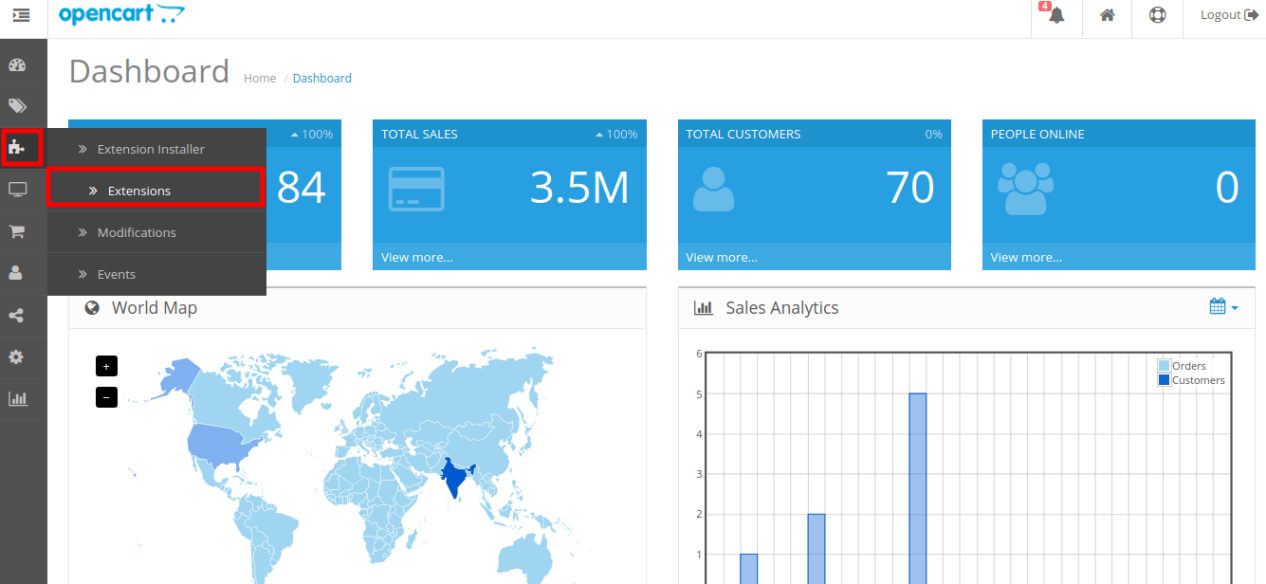
There will be a file named kbcodfee.ocmod.xml (In case of Openvar v3.0.x file name would be kbcodfee.ocmod.zip). Upload the same file from the page “Admin -> Extension -> Extension Installer -> upload”.
So, OpenCart CoD with Fees module is now successfully installed and ready to use at your store.
3.0 Admin Settings
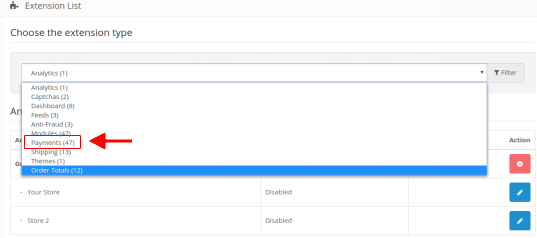
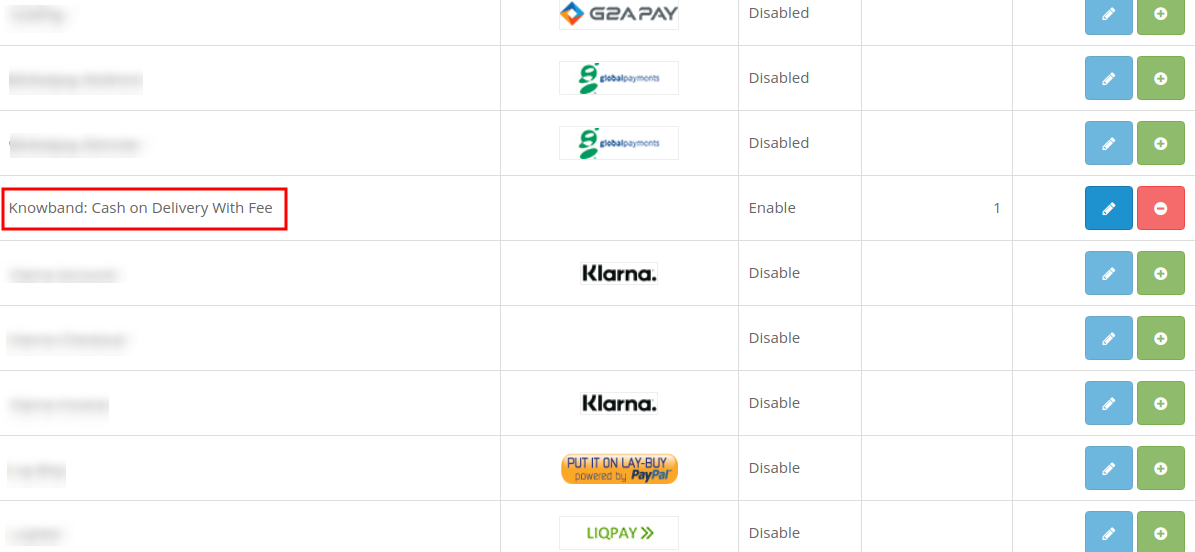
Just after the successful installation of OpenCart Cash on Delivery with Fees, you can create and configure the COD profiles as per your requirements. Navigate the settings in the given order: Admin Panel > Extensions > Payments > Knowband Cash on Delivery with Fee.
The simple to understand admin interface of OpenCart Cash on Delivery with Fees extension has been divided into two broad sections namely:
1. General Settings
2.Payment Profiles
Each of these sections have been discussed in detail below.
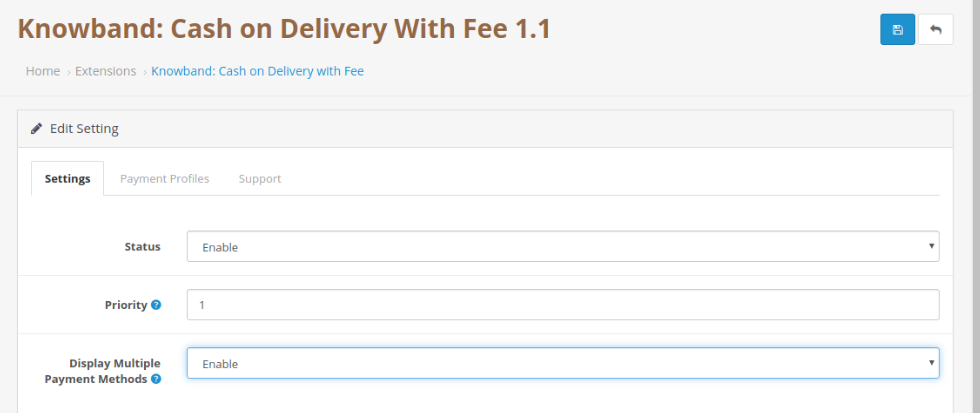
3.1 General Settings
The general settings of OpenCart cash on delivery facility module have been listed one by one.
Status: This option enables or disables the complete functionality of OpenCart Cash on Delivery plugin on the store.
Priority: This option allows you to set the priority of this module among other payment modules on the store.
3.2 Payment Profiles
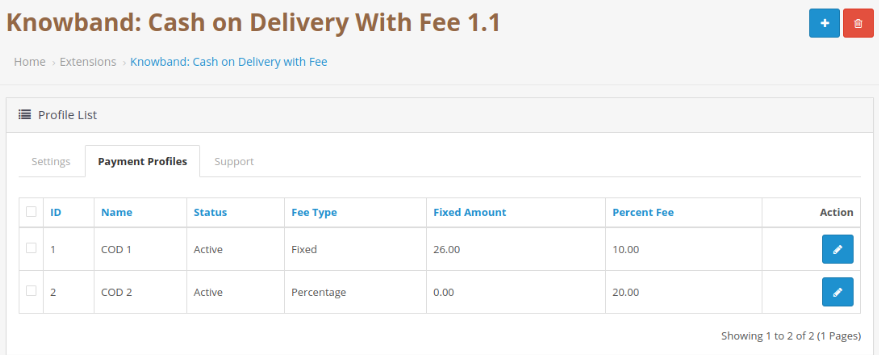
Using OpenCart Cash on Delivery with Fees, admin can create as many payment profiles for their website. The below image shows the list of existing COD profiles which can be modified by clicking the ”Edit” button corresponding to the listing.
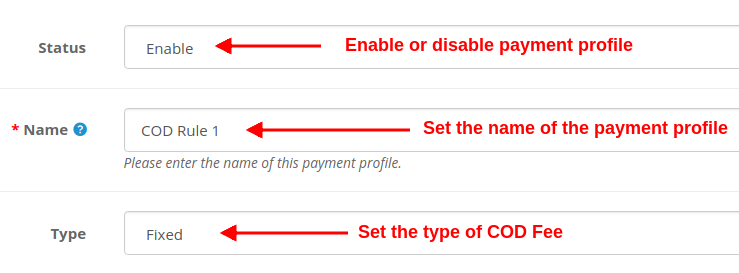
To add a new payment profile, click on the “+” button at the top right corner of admin panel. You will see the following fields as listed:
Status: Using this option, you can enable or disable the selected payment profile.
Name: This option will set the name for the payment profile.
Type: This option sets the type of COD fee charged from the customers. It can be fixed or percentage.
If the “Type” field is selected as Fixed, then the following field is shown.
Fixed Amount: This option sets the fixed COD fee amount which is charged from the customer upon product delivery. If the “Type” field is selected as a Percentage, then the following fields are shown.
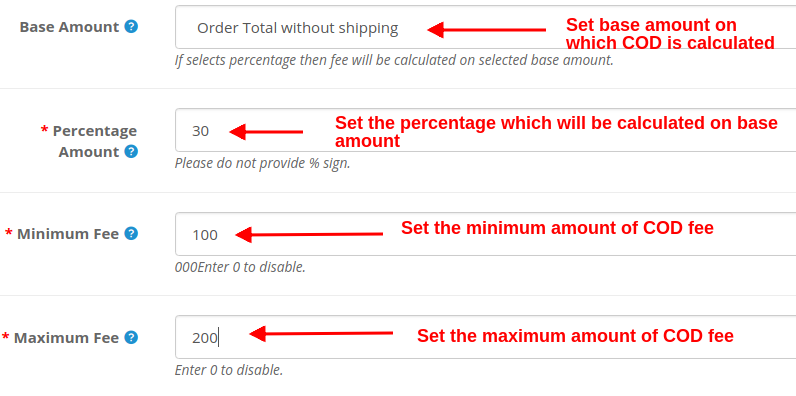
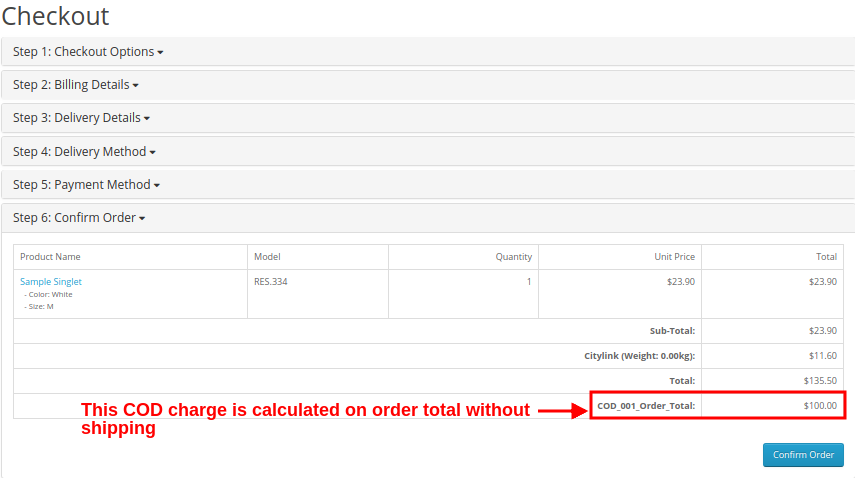
Base Amount: Select the base amount type on which the COD charge will be calculated. The two options are: Order Total and Order Total Without Shipping.
Percentage Amount: This option sets the percentage amount which is calculated over the base amount.
Minimum Fee: This option will set the minimum amount of COD fee which will be charged from the customer. Set this value 0 to disable.
Maximum Fee: This option will set the maximum amount of COD fee which will be charged from the customer. Set this value 0 to disable.
Apart from these settings offered by OpenCart Cash on Delivery with Fees, some more common settings are offered for setting up a payment profile. Check below.
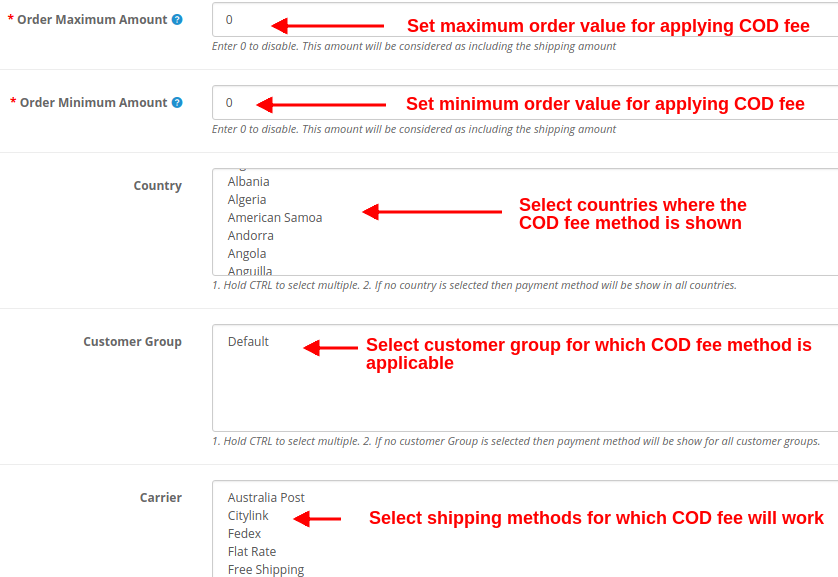
Order Maximum Amount: This option sets the maximum product order amount which is required to apply COD with fee facility. A customer cannot apply COD with fee facility on an order value above this Order Maximum Amount.
Note: Enter 0 to disable. This amount will be considered as including the shipping amount.
Order Minimum Amount: This option sets the minimum product order amount which is required to apply COD with fee facility. A customer cannot apply COD with fee facility on an order value below this Order Minimum Amount.
Note: Enter 0 to disable. This amount will be considered as including the shipping amount.
Country: Using this option, admin can show and provide the COD with fee facility in selected regions or country.
Note: Hold the CTRL button to select multiple countries. If no country is selected then COD with Fee payment method will be shown in all countries.
Customer Group: This option allows admin to select the customer groups where the Cash on Delivery with Fee mode is applicable. Guest and Registered users can avail of the benefits of COD with Fee facility.
Note: Hold the CTRL button to select multiple customer groups. If no customer Group is selected then COD with fee method will be shown to all customer groups.
Carrier: You can select the carrier or shipping methods for which the COD with Fee module will be shown.
Note: Hold the CTRL button to select multiple carriers. If no carrier is selected then the payment method will be shown for all carriers.
Initial Order Status: This option sets the initial order status for the selected COD rule.
Priority: This option sets the priority of the COD rule or profile.
Note: The highest priority rule is displayed on the front of the customers.
At last, click on the “Save” button at the top right corner of the admin interface in order to save the configured settings.
4.0 Front Interface
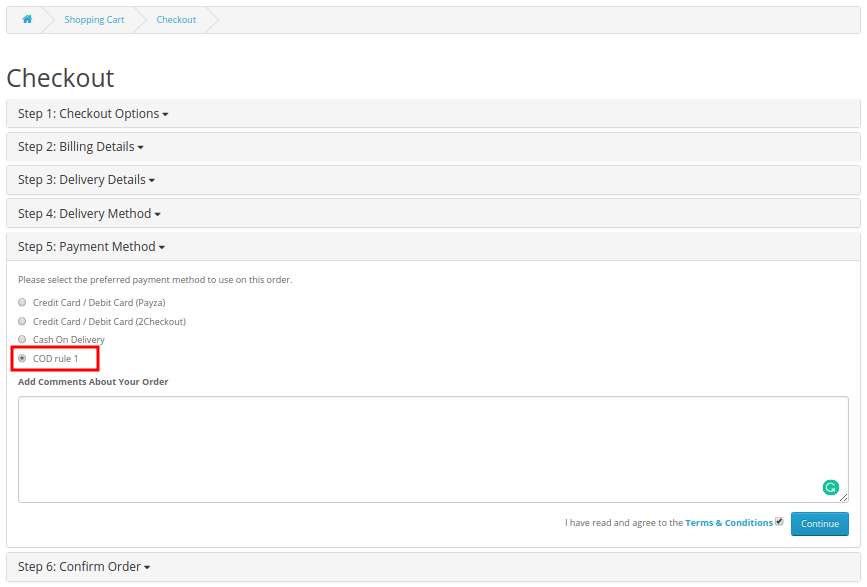
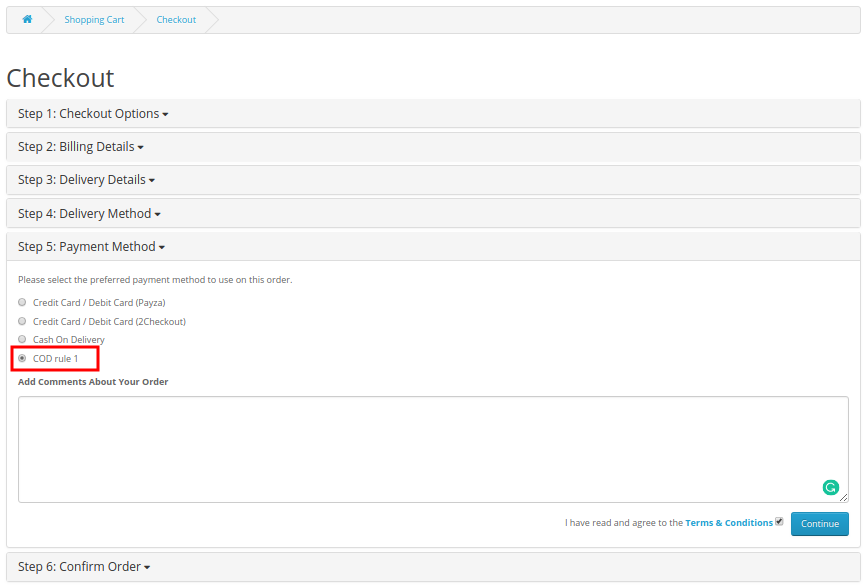
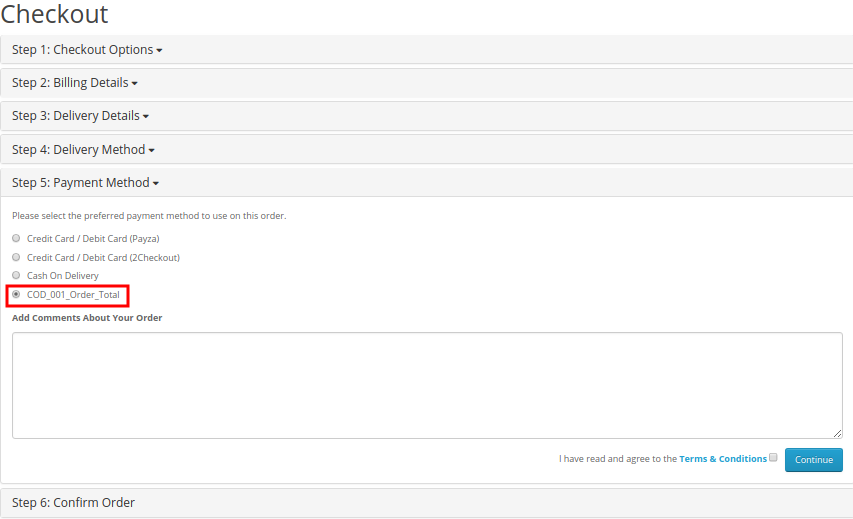
How can registered customers or guest users avail this facility? To use COD with additional charge facility on product orders, shoppers have to perform simple checkout for the product. They have to add the product to their cart and select the desired shipping method. Depending upon the type of shipping method selected by the user, OpenCart Cash on Delivery with Fees shows the payment methods as shown in the image below:
Now, as the customer will select the COD with fee option, they will be shown the total order cost along with the surcharge as shown in the image below:
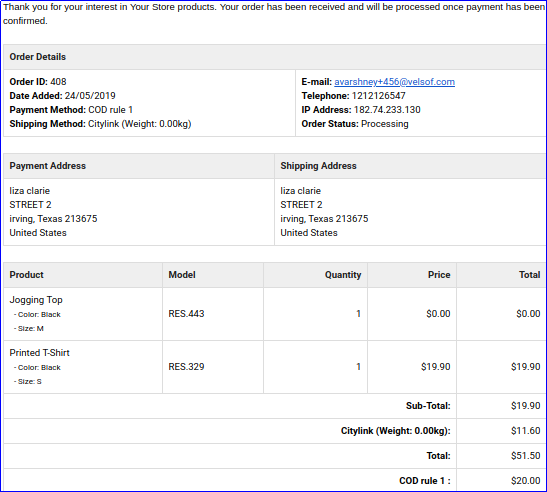
Now, as the customer will confirm their “COD with fee” order, then they will get a confirmation email detailing the order price details including the COD additional charge.
A) Fixed Type COD Price Rule
B) Percentage Type COD Price Rule
This way, the online merchant can offer a facility to pay at delivery time. Customers can easily pay the cash to the delivery person at the time of delivery. Most of the time customers do not trust the online store, especially while placing the first order. This way, the e-merchant can open doors for the first time buyers and those customers who don’t like paying the order amount online. OpenCart Cash on Delivery with Fees extension is highly customizable and offers the complete setup for offering cash on delivery option. The online merchant can create multiple payment profiles from the admin interface of this OpenCart Cash on Delivery plugin and set a fixed/percentage-based fee. The OpenCart Cash on Delivery with surcharge module is highly customizable and allows the store admin to select the countries, customer groups and carrier options for applying cash on delivery fees. The cash on delivery module with extra fee is mobile responsive, multi-lingual compatible, and SSL compatible also.
Check out our Tutorial Guides for the OpenCart Cash on Delivery with Fee Extension by KnowBand
These tutorials walk you through:
Installing the OpenCart Cash on Delivery with Fee Extension
Configuring COD fees for different payment options
Setting up minimum and maximum order amounts for COD
Managing fee rules based on customer groups or locations
Testing the checkout process with COD fees applied
These step-by-step guides are ideal for store owners who want an easy-to-follow, beginner-friendly approach to adding and managing COD fees without any technical hassle.
For more details about this OpenCart CoD with Fees module, visit here: