There are numerous eCommerce sites but not everyone is making significant gains in terms of product sales, site traffic and conversion rates. You may have wondered that why there is a huge disparity as some of the eCommerce stores like Amazon, eBay, Alibaba, Flipkart and such others are making billions of dollars while others are struggling hard to make sales and post profits. There is definitely something which they might be lacking or may not be doing correctly for making their presence felt in the international business scenario. Let us throw some light on these 5 site elements that can be a major “turn off” for your targeted customers and are affecting your sales activity drastically.
1. Absence of a logical and appealing headline-
Headlines are the first element that grabs the immediate attention of your targeted customers, so they needs to be eye catchy and engaging. If your heading seems interesting to your targeted customers, it will surely grab their attention and will help in boosting your eCommerce conversion rates significantly. You need to understand that “What starts well is what ends well”, so don’t take headings as lightly.
2. Inappropriate product margins-
Business entities are working with the sole intention of grabbing maximum sales and profit margins in order to stay active in this crucial competitive environment. Make a detailed analysis of your operating cost and other related expenses for pricing your product effectively for getting significant profit margins. If you can’t price your product effectively, you can’t win this decisive battle of conversion rates and product sales among your targeted customers. Moreover, there are eCommerce extensions like Magento Scratch Coupon, Magento Master Deal, PrestaShop Price Alert, OpenCart Make an Offer, OpenCart Review Incentive, OpenCart Push Cart Promotion, OpenCart Deal Timer and others from Knowband store that can help in improving your product sales, profit margins and conversion rates.
3. You are applying everything at the top of your page-
Your home page is not your “experimentation ground” where you can apply different site elements for testing their effectiveness among your site visitors. You need to include only relevant elements on the top part of your home page for getting instant customer attention. Based on the importance of your site elements, you need to decide whether your site elements needs to be above or below the fold for making maximum conversions and seamless site navigation. Further, there are PrestaShop addons like PrestaShop Custom CSS and JS, PrestaShop Maintenance page customizer and others that can help in effective organization and maintenance of your eCommerce store.
4. Presence of multiple options-
It is rightly said that “Too many cooks spoil the broth”, similarly availability of multiple options affects the decision making process to a great extent. Include only popular and relevant options in fields like shipping services, payment options and delivery time and other such factors in order to attract your customers and not distract them. It has been shown by several case studies and analytical reports that too much options are one of the prime reasons for low conversions and sales as they don’t allow visitors to take the required actions.
5. You are neglecting appealing product images and videos-
Simple plain texts are not appealing for everyone and there are numerous people who want more in the form of appealing images and informative videos. Store owners can drive huge sales and traffic if they are using eye catchy images and videos that are optimized and does not slow down the performance of your store. Apart from this, you can take the help of an effective eCommerce module development services that can help in improving the worth and appeal of your site content through numerous wonderful plugins.
It doesn’t matter whether you are a novice or experienced player in this eCommerce business segment, all these site elements can definitely affect your eCommerce business fortunes to a great extent. For making a strong impact in your business segment, you need to make drastic improvements in the following areas at the earnest level.
With time, online stores are losing their shine in terms of conversion rates and product sales due to the changing mindset of the targeted customers. The situation becomes even more challenging due to the presence of multiple eCommerce stores around the world. If not dealt on time, this could be really devastating for the long term growth and expansion of your eCommerce company. To take you out from this crunch situation, here are some of the wonderful OpenCart extensions from Knowband that can change the entire business scenario for your OpenCart store.
Getting customers registered on your site is often a head scratching experience as nobody is willing to share their personal credentials like email address without any valid reason. Keeping in mind this grave situation, OpenCart module development services have entrusted this difficult task to its dedicated team of module developers that has come up with flying colors in the form of OpenCart Auto Subscribe plugin. With the help of this module, you can effortlessly get your customers registered on your site while performing the checkout or registration based process. It allow store owners to register their customers easily by displaying simple popups or contact form on their site. Furthermore, the module consists of MailChimp software that can integrate the email addresses of your registered customers for an effective email promotional campaigns. If you are not sure about the might of email campaigns for your business growth, you need to check out this article.
For keeping your customers engaged to your OpenCart site, you need to persuade your site visitors for writing reviews about your products and services. You can use this OpenCart services to increase product reviews on your site and can offer incentives to your customers in return. This extension allow customized emails to be sent by the store owners for bringing more customers for higher conversions and product reviews. This module utilizes a completely new product reviewing system that has made sharing product reviews much easier and hassle free.
Customers often abandon a shopping cart due to the steep prices of products on an eCommerce store. But, soon this scenario is going to change as this OpenCart Scratch Coupon module offers exciting discount coupons to your targeted customers in order to keep them engaged to your site. It is equipped with amazing features like powerful reporting system, responsive mobile design, quick installation and configuration, coupon statistics, availability of fixed or percentage based discounts and such other functionalities that can effortlessly reduce shopping cart abandonments on your site.
Now, you can give your shoppers a reason to cheer by providing them a option to save their interested products into their wishlists in order to eliminate the product searching time that is involved when you are making the product purchase next time. This is truly an amazing plugin from Knowband that can effortlessly grab the instant attention of your targeted customers towards your eCommerce store. It provides store admin the freedom to check the wishlists of their site visitors along with the facility to reprice their available products on their site for improving their product sales and conversion rates. Along with other features like responsive mobile design, detailed analysis of the sales report, easy customization of the shopping cart page and other functionalities that has made it as one of the most bankable OpenCart extensions for your online store.
If abandoned customers are complaining about their inability to negotiate price on your site, this OpenCart services from Knowband is definitely the much needed respite for them. With this plugin, customers can send their price negotiation request to the store admin which can be accepted or rejected by them if it is inline with their product margin and product cost. Our OpenCart module development company has come up with some of the mind blowing features like responsive design, easy front end customization facility, seamless monitoring of the price negotiation request by store admin, multiple email bodies for various type of responses, one email ID for multiple requests of one customer and much more that makes this plugin truly an irresistible affair for your eCommerce business.
If your online store has been witnessing a slow surge in terms of conversion rates, product sales and site traffic, it is high time to embrace these superb OpenCart extensions from Knowband to take your eCommerce store to new heights. Apart from this, our OpenCart module development company also offers plugins for Magento and PrestaShop store owners. If you want more information about our eCommerce modules, just surf our website at knowband.
In this ever expanding world of eCommerce business, you can’t establish yourselves effectively if you are not having some great OpenCart Modules for your online store. With the cut throat competition and the changing customer moods and behavior, maintaining an effective business lead among your business rivals has become a brain storming session. You would not negate the importance of various eCommerce themes and extensions that can improve the functionality and performance of your OpenCart site to a great extent. Let us bring to you some of the mind blowing modules from our OpenCart module development services providing company, Knowband that can provide a complete turn around to your online store.
This amazing plugin is capable of bringing a revolution in eCommerce business as it has changed the way people used to search for a product on an eCommerce store. Now, people can search for a product based on various parameters like product category, manufacturer name, most sold items, most viewed items and other such metrics. With the help of this OpenCart Smart Sort Order plugin, store admin can now set the sorting orders for their products in any desired manner for facilitating faster searching. Furthermore, the plugin is compatible with various available themes and can work interruptedly on various devices like desktops, laptops, smartphones or tablets.
If you are losing product sales on your eCommerce store, here is the chance to get back with the introduction of this OpenCart Price Alert plugin. It has been a major ray of hope for numerous OpenCart store owners due to the accomplishment of the following goals.
It helps in encouraging store sales.
The module helps in boosting the revenue for your eCommerce store by providing important information about change in product pricing.
Helps in improving the engagement and loyalty of your targeted customers.
Gives a major boost to your social visibility and brand awareness among your targeted customers.
This OpenCart Push Cart Promotion module can help grab the instant attention of your targeted customers by showcasing the amazing shopping deals on your site for better conversions and product sales. Now, you can effortlessly create and manage mind blowing promotional deals for your eCommerce stores and this has made it as one of the wonderful OpenCart plugins. It can help you in managing the fixed and percentage wise discount, applicable products or categories for discount, view status of your promotional offers and other such functionalities to boost customer traffic, product sales and conversion rates.
Don’t worry if your shopping cart abandonments are increasing as things are about to change dramatically with this OpenCart Abandoned Cart module. It allows you to send repeated reminder emails to your abandoned customers for getting their attention back towards your store for better conversions and sales. With this plugin, you can add discount coupons on your store for encouraging customers to shop from your OpenCart site.
For all those store owners who are hoping for a whirl- wind change, just give a little attention to the wonderful OpenCart module development services of Knowband that can provide you brilliant OpenCart plugins for your store. Check out the next installment of this blog for enhancing the performance of your OpenCart store.
Online shoppers want to have a hassle free shopping experience that can encourage them to shop more and thus needs the support of an amazing eCommerce platform to accomplish the above task seamlessly. To give you respite in terms of the online shopping experience and increasing shopping cart abandonments, you need to make a transition to this PrestaShop platform ASAP. Here are some of the mind blowing reasons that will explain you the possible reasons for taking the help of an effective PrestaShop development services.
1. It provides an amazing shopping experience to your customers-
E-Commerce business is all about making the online shopping experience easier for your shoppers for increasing your product sales and conversion rates. This PrestaShop platform has revamped this whole shopping experience to a new high due to the presence of features like custom pricing, shipping settings, order tracking, easy product return management, conversion of guest account into the normal customer account and other such features.
2. Consists of seamless translation/localization services-
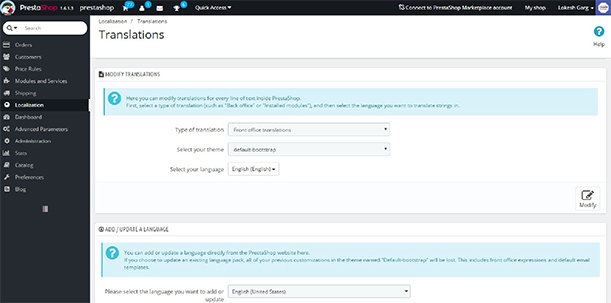
Due to the easy accessibility of the eCommerce sites from different parts of the world, customer base of the online stores has become much global in nature which has opened the new doors of opportunity and business. To add thrust in this area, this eCommerce platform provides the translation functionality in 41 languages and allow customers to choose their desired language. Apart from this, it provides the unlimited currencies along with the exchange rate synchronization, geolocation services, address format for the respective country of the customer and other such features.
3. Gives freedom to shop freely with added security features-
There are numerous instances of online forgery and theft that have raised the eyebrows over the security of these online payment processes. However, all this concern becomes irrelevant due to the PrestaShop development services due to various features and functionalities like PCI compliant, SSL support, secure admin, encryption techniques and other approaches that can ensure the security of your online payment.
4. Allow various types of analytics and reporting facility-
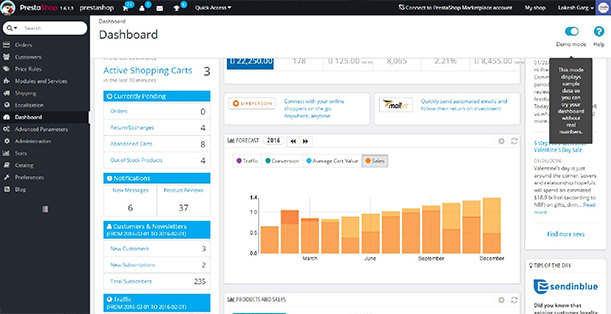
In order to improve your product sales and customer traffic on your site, you need to consistently track the performance of your online store. There are various amazing PrestaShop addons from Knowband like PrestaShop Page Visitor Counter module, PrestaShop Supercheckout Analytics Addon, PrestaShop Abandoned Cart plugin, PrestaShop Mobile Order Lookup extension that can help you in various crucial tasks like order tracking, tracking of site visitors, keeping a track on the abandoned customers, increasing conversion rates and other such information.
5. Facilitates easy switching, upgradation and migration-
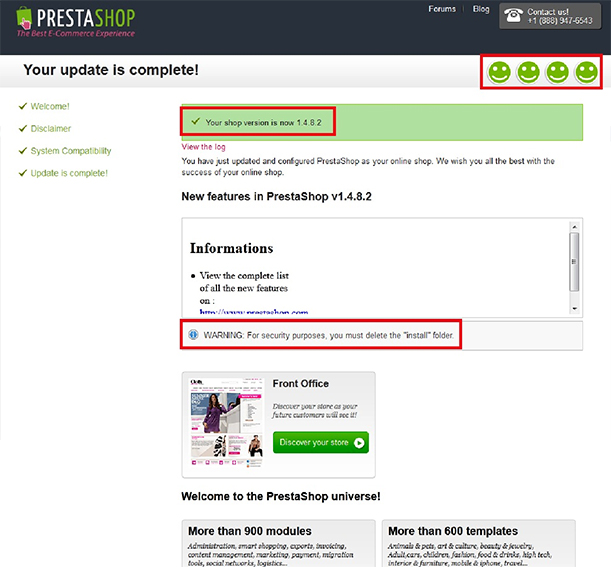
One of the USP of this amazing eCommerce platform is that it can be easily migrated from other eCommerce platforms. Thus, online store owners can effortlessly make the transition in this platform for making a significant change in their business fortunes. For ensuring a seamless transition, you can take the help of an effective PrestaShop development services or you can check out this helpful link.
6. Provides easy assistance through the help of community forums-
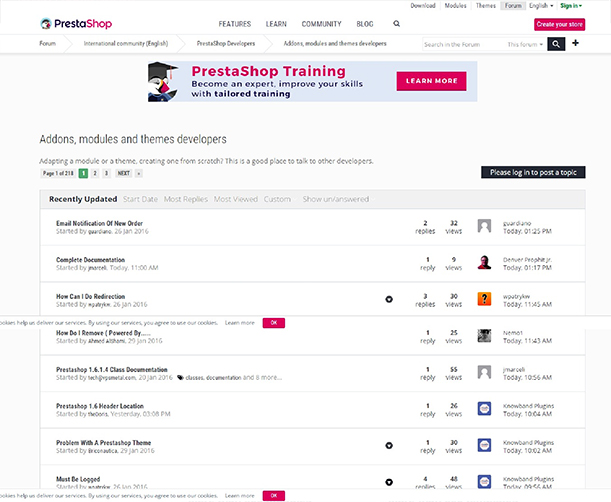
Every site owners want effective assurance in terns of the functionality so as to allow effective performance of your online store. But, this can be possible only if you are having the support of a PrestaShop platform on your side. This amazing eCommerce platform has the assistance of a wide supported global community of PrestaShop developers in the form of PrestaShop forums that is a brilliant source of help and reference. With the help of this global help support center, you will not stand a chance of being left alone in this competitive online business environment.
7. You can choose your platform in your native language with the help of this muti- lingual feature-
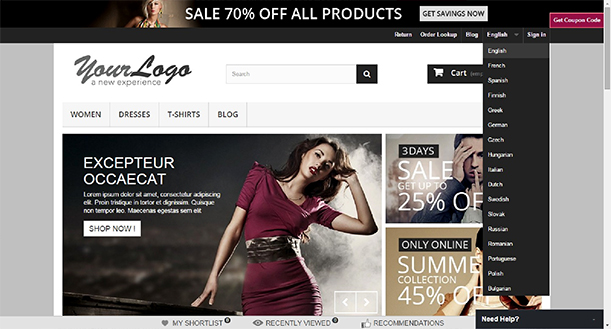
There are numerous global customers of this PrestaShop platform that have crossed the various geographical and linguistic barriers. This amazing platform is available in more than 41 languages for allowing the seamless translation services. If you want to install this eCommerce platform in your native language, you need to visit this helpful link.
Thus, by taking a quick look into these amazing features and functionalities, you don’t need any other reason to look out for an effective PrestaShop development services for that brilliant website. Once, you have your online store on this feature packed eCommerce platform, you can effortlessly make a higher surge in terms of conversion rates, product sales and site traffic.
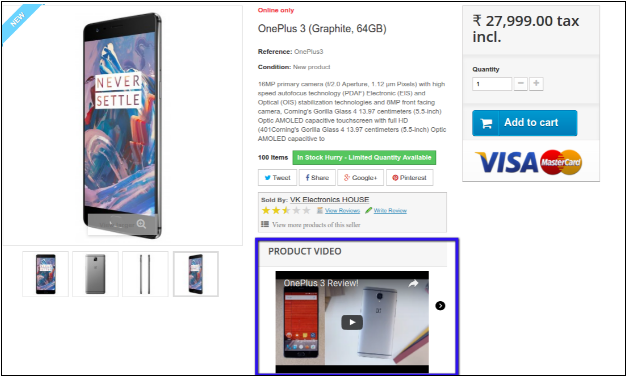
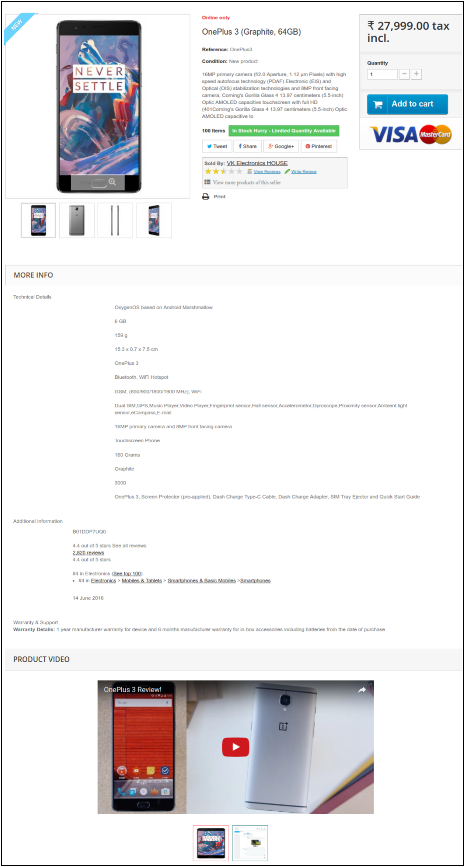
In the Present time, customers are demanding more details and specific information about the product that they want to purchase. Showing more and more details is also used as the selling point of view. This is one of the most important factors to provide the look and feel of the product to the customers. Knowband offers Prestashop Product Video module for the Prestashop store admin that allows him/her to add the product videos on their store’s product pages. This PrestaShop extension allows the sellers to present their products confidently that make the customers sure about their products.
This PrestaShop addon will provide an interface and functionality to the Prestashop eCommerce website admin to show their product pages with high-quality product videos from YouTube, Vimeo, and Daily Motion. The Prestashop Product Video addon is basically an plugin for PrestaShop eCommerce sites. As we know that, Product details are the very crucial part of any product page on the eCommerce stores. Products details significantly affect the sales of any items on an eCommerce store. That is why we have implemented this Product Video addon for PrestaShop sites where the site admins can add product videos on their product pages. This Prestashop extension will provide an interface and functionality to the site admins to embed their product pages with high-quality product videos from YouTube, Vimeo, and Daily Motion.
Here are some basic features of the Prestashop product video module:
It is very simple to install and configure this PrestaShop addon.
The eCommerce store admin can easily enable/disable this Prestashop product video addon.
The Prestashop youtube addon offers a simple and user-friendly interface.
No coding is required for uploading product videos.
The Prestashop product video upload module offers a hassle-free implementation.
This adding video extension is highly customizable.
The Prestashop Dailymotion addon offers multiple layouts and positions for showing product videos.
The e-merchant can add custom CSS and JS codes to customize the look and feel.
The Prestashop product video upload addon allows adding multiple videos on the product page.
The e-merchant can add videos from multiple platforms like YouTube, DailyMotion, and Vimeo.
This Prestashop Vimeo addon module is multi-store compatible.
The Prestashop video upload addon is compatible with SSL enabled stores.
The eCommerce store owner can show display controls also.
The Prestashop adding video plugin allows showing related videos also.
The admin can enable/disable auto-play video option anytime.
The store admin can insert the video link for showing the product video.
This Prestashop product video addon is mobile responsive also.
Here are some of the benefits which need to be highlighted:
Easy to implement: The best part of Prestashop product video addon is that it has simple and easy-to-use admin interface.
Confidence building: Product video creates more confidence about store’s products in the buyers.
Detailed Information: Customer gets specified information about that particular product.
Product reviews videos: eCommerce store admin can also include product review videos to provide product description details.
Customer engagement: With the help of product videos store admin can enhance customer engagement on the store.
Multiple Layouts: This Prestashop Product Video addon has a variety of layouts to select for the video.
Position Selection: Admin can select the position where he/she wants to show video. The position can be product footer or in product right column.
Auto-play option: Admin can Select whether to auto-play video on page load or not.
Real life view: Customer gets a real-life view and it clear all the confusion of customer about the product.
Steps for Installation
To install this Prestashop product video addon, please follow the following steps:
Add the Prestashop adding video folder under modules folder of your system.
After adding this addon folder, system will list the addon on module page under “front office feature”category as given below:
After installation of the Prestashop youtube addon, you need to configure it for the first use on your site.
Find out the Prestashop vimeo addon in the list of modules installed on your site.
Select “Configure” option given on the right side of the extension list.
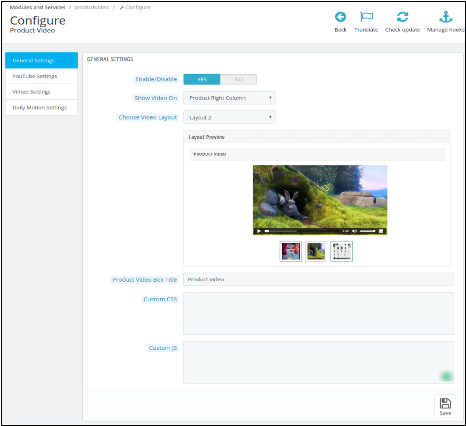
After clicking the Configure option you will see a window like the one mentioned below:
Enable/Disable: Click “Enable” to use the Prestashop Dailymotion addon on your site.
Show Video on: You can Select the position of the video.
Product Footer: Select this option if you want to show your product video in the footer of your product(s) page.
Product Right Column: Select this option if you want to show your product video in the Right Column of the product(s) page.
Choose Video Layout: Select the type of the layout or interface you want to show for your product video. Once you select any of the layout options, you will be able to see the preview of the layout.
Product Video Box Title: Give a title for your product video box.
Custom CSS and Custom JS: Modify the Look and feel of the product video on the product page by giving your custom CSS and custom JavaScript.
You can do further configurations of the three video sharing platforms that are implemented on this module.
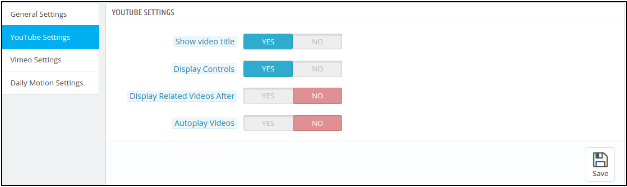
YouTube Settings:
Click on the YouTube Setting. You will be able to see a window like the image below:
Show Video Title: You can show the video title on the product page by clicking yes.
Display Controls: Choose yes, if you want to show the playback controls on the product video.
Display Related videos: Admin can control whether to show related videos on product page after one video or not.
Auto-play Videos: Select yes to auto-play the video once the product page is visited by a customer.
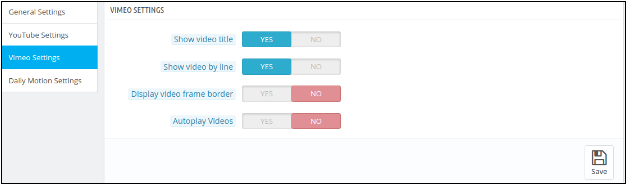
Vimeo Settings:
Click on Vimeo Setting. You will be able to see a window like the image below:
Show Video Title: You can show the video title on the product page by clicking yes.
Show Video By Line: Choose yes, if you want to show all your videos from the particular product line by line.
Display Video Frame Border: Select yes in order to show the border of the video frame.
Auto-play Videos: Select yes to auto-play the video once the product page is visited by a customer.
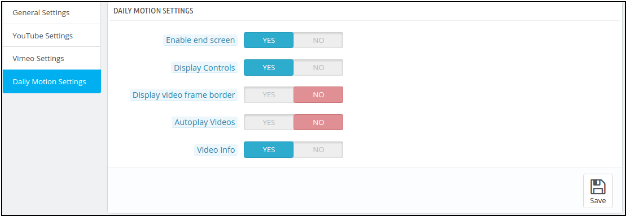
Configure Daily Motion:
Click on Daily Motion Setting. You will be able to see a window like the image below:
Enable end screen: Select yes to enable the end screen option.
Display Controls: Choose yes to show the playback controls on the video.
Display Video Frame Border: Choose yes, if you want to show the border of the video frame.
Auto-play Videos: Select yes to auto-play the video once the product page is visited by a customer.
Video Info: Choose yes to show the video information on the product video.
What will be the changes on Product Menu?
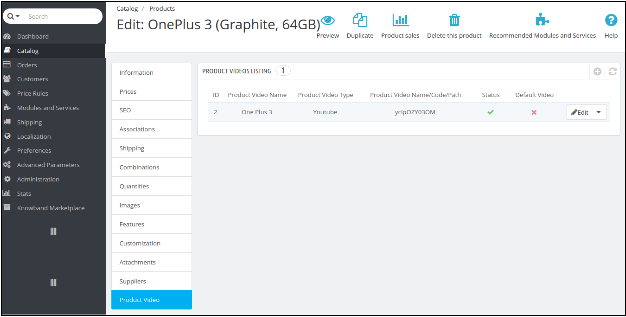
After the addon installation, a sub menu for the Product Video will be displayed in each product upload or product edit page as shown in the image below:
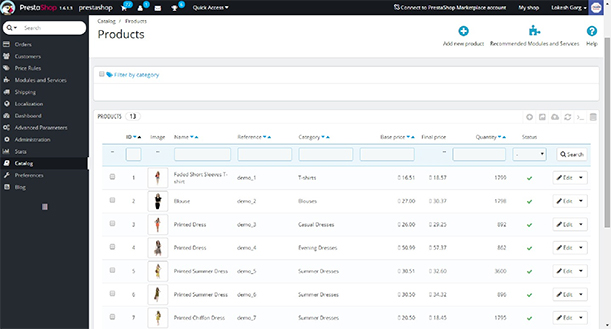
When the admin will go to the “catalog”, select “the products” option on Prestashop admin side and click “Edit” on any product listed there, then the system will open this window. Here the admin can:
1. Edit the already Added product Video(s).
OR
2. Add a video to a new product.
1. When Admin wants to Edit the already Added product Video(s):
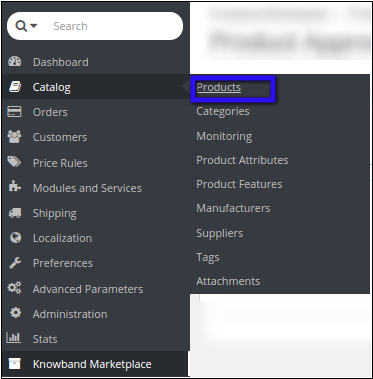
Go to the “Catalog”, then select “Products” using the PrestaShop menu tab.
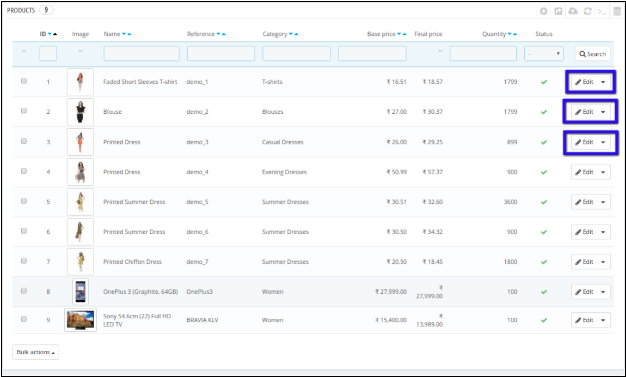
When you click the Products, a new window will open with the list of products.
Select the product in which you want to update or add a new video.
Select the Edit option and click on Product Video option given at the bottom of the menu. A list of products will appear. Here, you have to click on the “edit” option to get to the product video upload page.
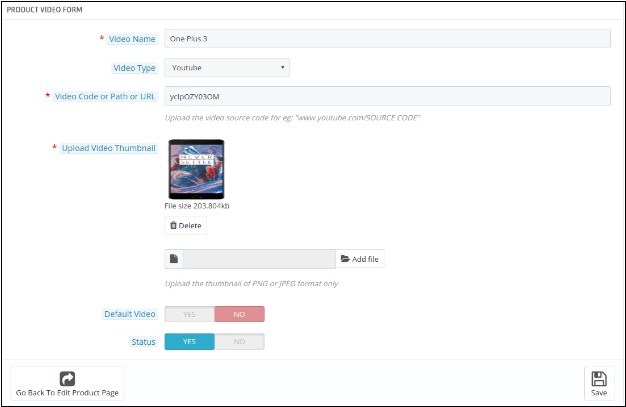
Video Name: Give a name to your product video.
Video Type: Select the type of video you want to attach. (YouTube, Vimeo, or Daily Motion)
Video Code or Path or URL: Give the URL of the video. You can give the YouTube, Vimeo, or Daily Motion link of the video.
Upload Video Thumbnail: Upload a thumbnail that will be shown on the video link on the product page.
Default: You can select the particular by default video which you want to show in case of more than one product videos.
Status: Here, you can enable or disable the video respectively.
NOTE: THIS MODULE IS ALSO COMPATIBLE WITH KNOWEBAND MARKETPLACE MODULE (v1.0.4) TO EDIT OR ADD NEW VIDEOS OF SELLER ADMIN CAN FOLLOW THE FOLLOEING STEPS.
1. Edit the already Added product Video(s).
OR
2. Add a video to a new product.
1. When Admin wants to add a new Video to a new product:
Follow all the steps as in the above section except in Step IV, you have to click on the Add new icon as given below in this screenshot below.
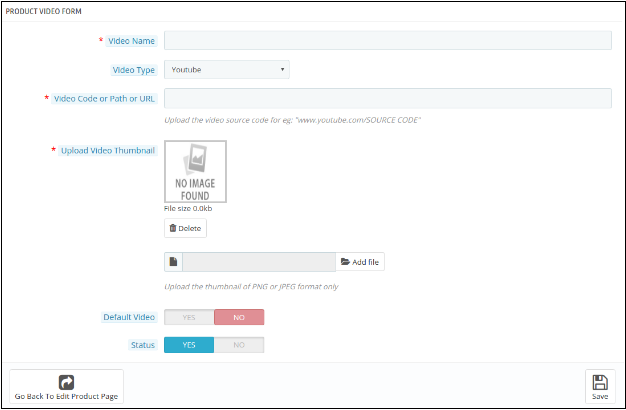
The similar window appears as in Step IV. Fill all the details as specified in the previous section. Refer to the screenshot below for better understanding.
Fill all the details and click Save to save your settings.
2. When Admin wants to Edit the already Added product Video(s):
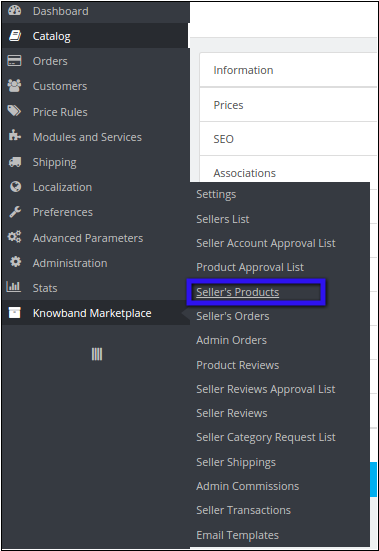
I. Navigate to Sellers products using the Knowband menu tab
II. After clicking Sellers Products, a new window appears with the list of sellers products.
III. Select the product in which you want to update or add a new video. Click on View menu on the right side of the product listing.
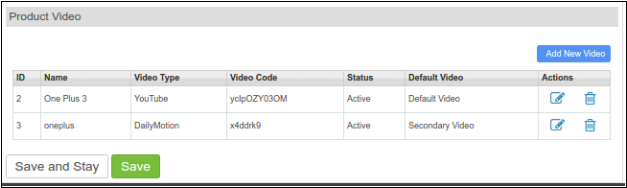
IV. A new window appears where you have to click on Product Video option given at the bottom of the menu. A list of products appears. Here you have to click on “edit” option to get to the product video upload page.
Menu Location
After installation, a menu will be displayed to the seller in the product upload or product edit page as shown in below screen:
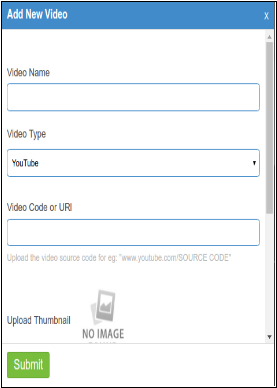
To add a new video the seller has to click on “Add New Video” option. A new Pop-up window appears as given below.
Video Name: The seller needs to give a name to the Product Video.
Video Type: Select the type of video is YouTube, Vimeo, or Daily Motion.
Video Code or URL: Give the link of the product video.
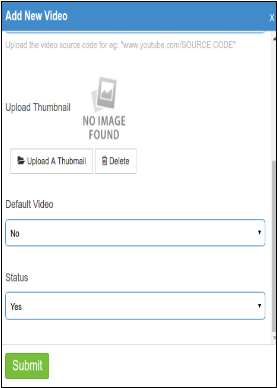
Upload Thumbnail: Upload Thumbnail image to show on the product page.
Default Video: If you are giving multiple Videos on a product, then you need to specify if your current video is to be shown as default video on the product page.
Status: Select the status as YES or NO to enable or disable the video.
Submit: Click submit to save your settings.
Front End Module
The Product video is shown to customer on a product page in two ways:
1. At the Footer, as shown in the screenshot below.
2. At the Right column of the product page as shown in the screenshot below:
PrestaShop, an Open source eCommerce platform has been received with great applause and red carpet welcome by numerous site owners for ensuring the effective performance of their eCommerce site. This feature packed platform was released way back in year 2007 and has since then powered up more than 100,000 active stores around the world. It has emerged as the wonderful option for improving your eCommerce business presence among your rivals. Let us explore more about the various features and functionalities that have emerged as the path breaking platform for your PrestaShop store.
1. Amazing product management-
Product management is one of the significant importance for every eCommerce store and can change the business fortunes of numerous sites around the world. Some of the mind blowing features that have changed the product management around the world are as follows:
Presence of unlimited categories, products and attributes.
Seamless comparison of the products.
Quantity/stock management for ensuring seamless product availability.
Supports cross- selling, product recommendations and customer reviews.
Consists of multiple images with lightbox and product image zoom feature.
2. Facilitates effective management of the store-
This PrestaShop platform has helped numerous store owners in ensuring the effective management of their online store for boosting their conversion rates, product sales and customer engagement. Let us explore some of its brilliant store management features that are as follows:
Easy customization of the store design with PrestaShop themes.
Supports presence of multiple employees with restricted permissions.
Generation of the customized invoices for the customers.
Addition of the affiliate program to boost sales and site traffic.
3. Seamless checkout functionality-
Most of the online stores are facing the problem of shopping cart abandonments that are killing their business growth and conversion rates. In order to avoid this tricky situation, PrestaShop offers the following checkout functionality which are:
Availability of one page or multi- page checkout.
Facility of Guest checkout.
Presence of gift messages/wrapping option.
Functionality to save shopping carts.
Apart from this, PrestaShop store owners can make tremendous improvement in the field of checkout by utilizing the services of this PrestaShop One Page checkout module from Knowband that simplifies the whole multi- page checkout process into a single page checkout.
4. Provides facility of multiple payment systems-
Multiple payment systems are very essential to boost the confidence of online shoppers on eCommerce stores as customers always want more freedom while making online payment. To cope up with this situation, PrestaShop store is equipped with numerous features like
Easy integration with different payment systems through the help of various PrestaShop addons.
Allows viewing of the tax depending upon the country, states and counties.
Presence of a payment gateway as per the selected currency.
5. Supports marketing efforts and programs-
Online marketing plays a crucial role in changing the business scenario for numerous eCommerce store owners. PrestaShop eCommerce platform has revamped the marketing efforts by providing a wide range of features such as
Facility of sending automated follow- up emails.
Provides discount coupons and vouchers to customers.
Supports the loyalty programme for boosting the site traffic and customer engagement.
Consists of Refer- a- Friend program for increasing customer attention and product sales.
Thus, for ensuring a rock- solid position in the eCommerce business, online store owners need to embrace this PrestaShop eCommerce platform that is packed with multiple eCommerce features and functionalities to drive your sales and conversion rates. For more stupendous growth among your rivals, stay tuned with the next installment of this article.
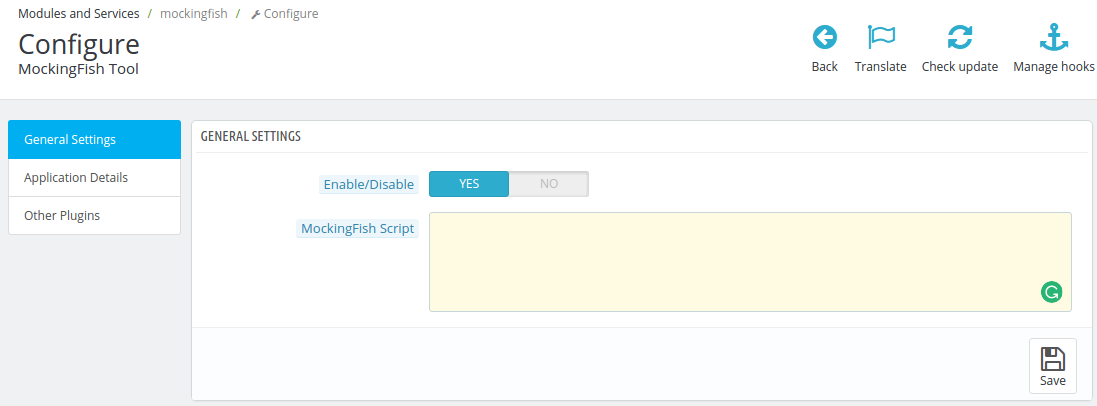
Enable/Disable: When enabled is selected module will insert added script in the front end.
MockingFish Script: This field will contain the script which needs to be inserted in website header. If you do not have any script, click on application details tab which lists down all steps to get MockingFish script.
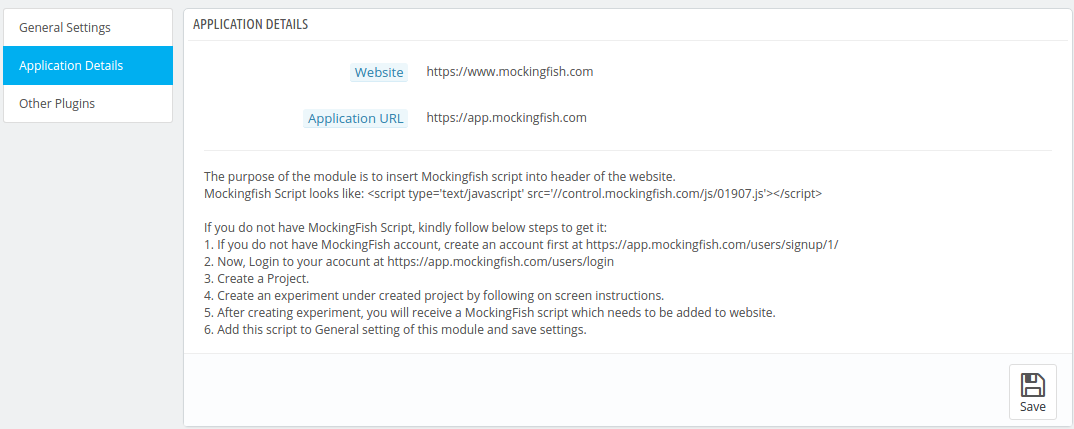
2. Application Details
This tab shows admin, the MockingFish website URLs and also list down steps to get MockingFish Script.
3. Other Plugins
This tab lead admin to our others plugins listing page on PrestaShop store.
1. Kopieren Sie den Spottmodulordner über FTP in Ihr root_directory / modules / Ihres Stores oder verwenden Sie die PrestaShop-Schnittstelle, um das Plugin hochzuladen.
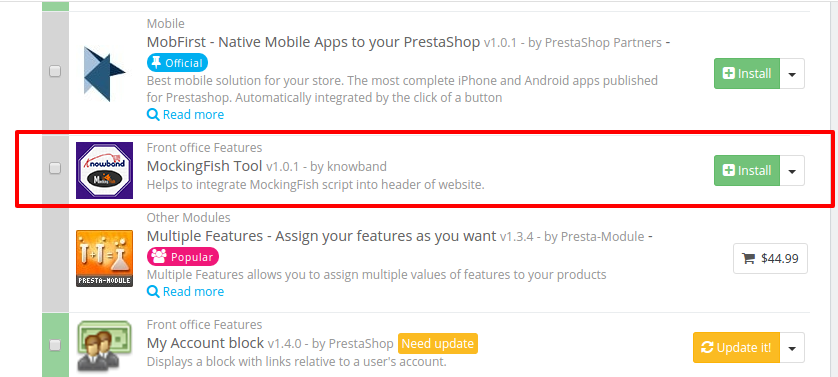
2. Nach dem Hochladen wird das Modul auf der Modullistenseite im Admin-Panel aufgelistet, wie unten gezeigt.
3. Wenn das Modul nicht auf der Seite mit den Modullisten angezeigt wird, suchen Sie es anhand des Filtermoduls mit folgenden Details:
Stichwort: Spottfisch
Autor: Knowband
Hinweis:
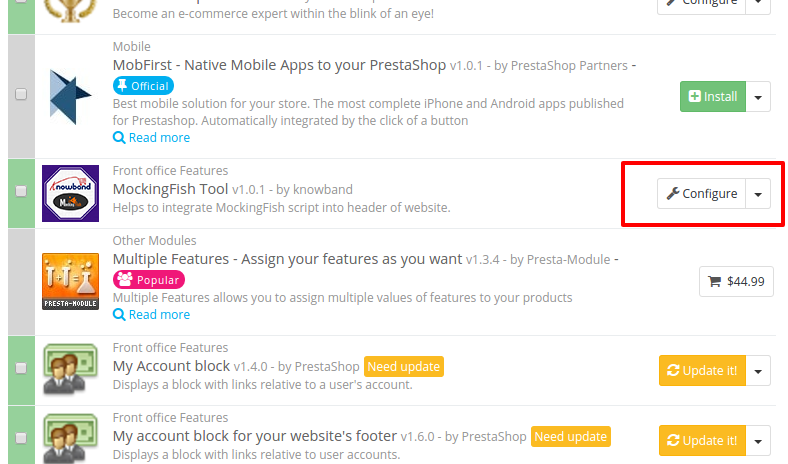
1. Installieren Sie das Modul und eine Konfigurationsschaltfläche befindet sich vor diesem Plugin auf der Modullistenseite, wie im folgenden Bildschirm gezeigt:
Aktivieren deaktivieren: Wenn diese Option aktiviert ist, fügt das Modul ein hinzugefügtes Skript in das Frontend ein.
MockingFish-Skript: Dieses Feld enthält das Skript, das in den Header der Website eingefügt werden muss. Wenn Sie kein Skript haben, klicken Sie auf die Registerkarte "Anwendungsdetails", in der alle Schritte aufgelistet sind, um das MockingFish-Skript zu erhalten.
2. Anwendungsdetails
Diese Registerkarte zeigt Admin, die MockingFish Website-URLs und listet auch die Schritte auf, um MockingFish Script zu erhalten.
3. Andere Plugins
Dieser Tab führt den Admin zu unserer anderen Plugins-Listing-Seite weiter PrestaShop zu speichern.
1. Copia la cartella del modulo mockingfish nella directory root_directory / modules / del tuo negozio tramite FTP o usa l'interfaccia di PrestaShop per caricare il plugin.
2. Dopo il caricamento, il modulo verrà elencato nella pagina di elenco dei moduli nel pannello di amministrazione come mostrato sotto la schermata.
3. Se il modulo non viene visualizzato nella pagina di elenco del modulo, cercarlo filtrando il modulo con i seguenti dettagli:
Parola chiave: mockingfish
Autore: Knowband
Nota:
1. Installa il modulo e un pulsante di configurazione sarà lì davanti a questo plugin nella pagina di elenco dei moduli come mostrato nella schermata seguente:
Manuale utente
Accedere Prestashop MockingFish Heatmap e strumento di test A / B modulo, fare clic sul pulsante di configurazione. Facendo clic, l'interfaccia del modulo verrà aperta e verrà visualizzata la seguente schermata come indicato di seguito:
Il back-end del modulo ha le schede 3:
Impostazioni generali
Dettagli dell'applicazione
Altri plugin
1. impostazioni generali
Questa scheda ha le seguenti due opzioni:
Attiva / Disattiva: Se abilitato è selezionato il modulo inserirà uno script aggiunto nel front-end.
Script MockingFish: Questo campo conterrà lo script che deve essere inserito nell'intestazione del sito web. Se non si dispone di uno script, fare clic sulla scheda dettagli dell'applicazione che elenca tutti i passaggi per ottenere lo script MockingFish.
2. Dettagli dell'applicazione
Questa scheda mostra admin, il MockingFish URL del sito Web e elenca anche i passaggi per ottenere MockingFish Script.
3. Altri plugin
Questa scheda indirizza la pagina di elenco dei plug-in degli altri su PrestaShop memorizzare.
Włącz / wyłącz: Po wybraniu opcji moduł wstawi dodany skrypt z przodu.
MockingFish Script: This field will contain the script which needs to be inserted in website header. If you do not have any script, click on application details tab which lists down all steps to get MockingFish script.
2. Application Details
This tab shows admin, the MockingFish website URLs and also list down steps to get MockingFish Script.
3. Other Plugins
This tab lead admin to our others plugins listing page on PrestaShop sklep.