Magento Store Locator Extension and Pickup- Benutzerhandbuch

1.0 Einführung

Online-Shop-Administrator kann jetzt die physischen Stores auf der Website anzeigen Magento Google Maps Store Locator und Abholung Erweiterung wird von Knowband angeboten. Mit dem voll funktionsfähigen Google Maps Store Locator-Plugin können Administratoren den Namen, den Speicherort, die Richtung, die Kontaktinformationen und die E-Mail-ID des Administrators anzeigen. Die Online-Benutzer können den Speicherort des Shops auf der Homepage der Website anzeigen oder auf den Link klicken, um Speicherorte anzuzeigen. Diese Erweiterung des Magento Store Locator zeigt auch das Timing des Stores an. Kunden können sich die Shopanweisungen ansehen und dort problemlos besuchen. Mit diesem Magento-Store-Locator und einer Abholerweiterung kann der Store-Administrator den Kunden eine Abholmöglichkeit in den Stores anbieten. Die Kunden können die Geschäftsdetails auf der Checkout-Seite anzeigen und das Geschäft für die Abholung auswählen. Der Administrator kann auch eine Gebühr für diese Abholmöglichkeit in den Geschäften erheben.

1.1-Grundfunktionen der Magento Store Locator-Erweiterung

  • Der Online-Shop-Besitzer kann den Kunden auf seiner Website mithilfe der Erweiterung "Google Maps Store Locator" die nächstgelegenen physischen Geschäfte anzeigen.
  • Der Geschäftsadministrator kann einen Google Map API-Schlüssel generieren und für die Google Map-Integration verwenden.
  • Die Kunden können die Richtung für jeden Store auf der Google-Karte auf der Website selbst ermitteln.
  • Mit dem Locator-Plugin von Google Maps Store können Sie das Google-Kartenmarkierungsbild und die Zoomstufe der Karte für eine einfache Navigation einstellen.
  • Der Besitzer des Magento-Shops kann den Shopnamen, die Kontaktnummer, die Arbeitszeit, die Adresse und die E-Mail-ID über die Administrationsoberfläche der Google Maps Store Locator-Erweiterung von Magento eingeben.
  • Mit dem Magento Store Locator-Plugin können Sie Entfernungseinheiten als Kilometer oder Meilen auswählen.
  • Der Online-Shopadministrator kann einen Link für die Filialfinder-Fußzeile anzeigen und auch den Text festlegen. Kunden können auf diesen Link klicken, um die Filialstandorte anzuzeigen.
  • Der Administrator kann die Erweiterung des Magento Store Locator problemlos installieren, konfigurieren und anpassen.
  • Das Magento Store Locator-Modul bietet eine benutzerfreundliche Oberfläche.
  • Mit der Magento Store Locator- und Pickup-Erweiterung können Sie ein Bild auf der Shop Locator-Startseite anzeigen.
  • Der Filialadministrator kann die Bereiche über die Administrationsoberfläche dieses Magento-Händlersuche- und Abholmoduls auswählen, um die Abholoption im Geschäft anzubieten.
  • Mit dem Magento Store Locator und dem Pickup-Plugin kann der Administrator die Abholung im Store anbieten.
  • Der Administrator kann auch einen Betrag in Rechnung stellen, der für die Abholung im Geschäft angeboten wird.
  • Mit dem Google Maps Store Locator-Modul von Magento können Sie unterschiedliche Abholmengen für verschiedene Stores einstellen.
  • Das In-Store-Pickup-Plugin von Magento ermöglicht das Hochladen von Store-Daten.
  • Die Kunden können die Excel-Datei von der Administrationsoberfläche dieses Magento-Pickup-Plugins hochladen.

2.0 Installation

Der Online-Shop-Händler kann das installieren Magento Filialfinder Erweiterung leicht durch folgende Schritte:

1. Der Administrator muss das Erweiterungspaket vom Knowband-Store herunterladen.

2. Nach dem Herunterladen des Erweiterungspakets erhält der Geschäftsinhaber eine komprimierte Datei. Entpacken Sie das Paket im Stammverzeichnis des Magento-Setups über den FTP-Manager (wie Filezilla oder WinSCP)

Installation Erweiterung des Magento-Händlers3. Die Erweiterung ist jetzt installiert und einsatzbereit. Wechseln Sie im Admin-Panel zu "System> Knowband-Erweiterungen> Magento Store Locator-Erweiterung".

Jetzt kann der Store-Administrator den Magento Store Locator und die Pickup-Erweiterung verwenden und konfigurieren.

3.0 Admin-Schnittstelle

Nach erfolgreicher Installation können Sie die Einstellungen auf den Store Locator auf der Front-End-Oberfläche anwenden. In der Admin-Benutzeroberfläche gibt es Anpassungsoptionen wie folgt:

  • Allgemeine Einstellungen
  • Store hinzufügen / bearbeiten

3.1 Allgemeine Einstellungen

In den allgemeinen Einstellungen gibt es Anpassungsoptionen für die Anzeige des Store Locators auf der Website. Die verschiedenen Felder werden unten gezeigt:
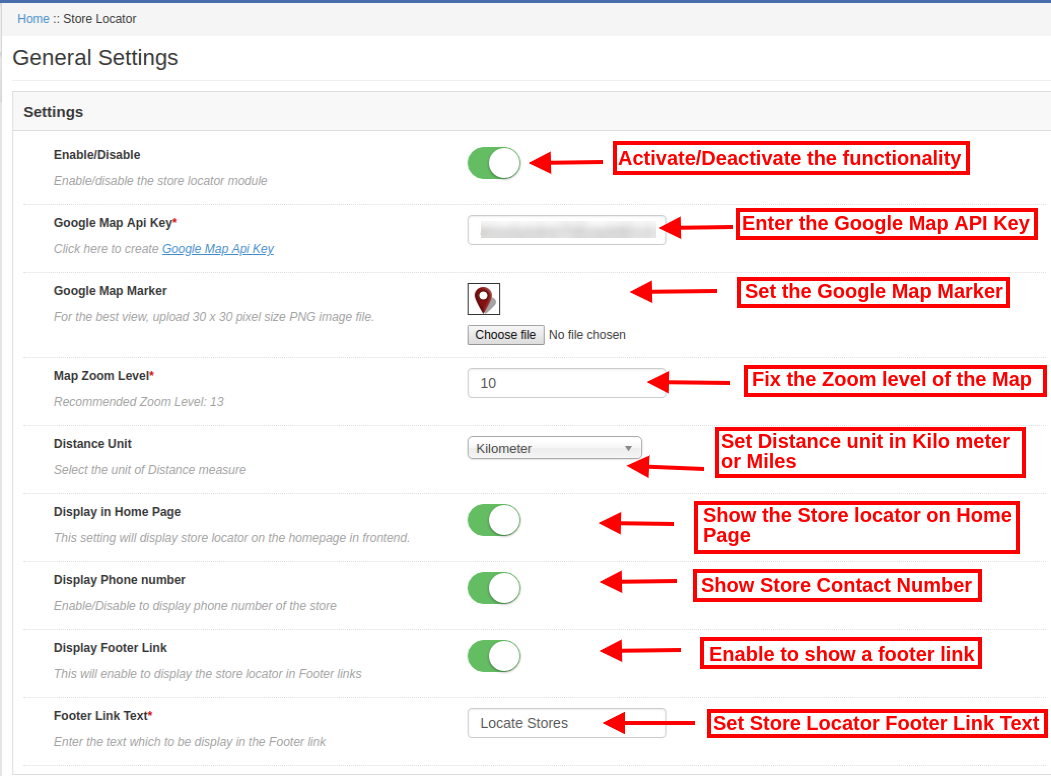
  • Aktivieren deaktivieren: Aktivieren oder deaktivieren Sie die Funktionalität über die Administrationsoberfläche dieses Magento Store Locators und der Abholerweiterung.
  • Google Map-API-Schlüssel: Geben Sie den Google-API-Schlüssel für die Einbindung der Google-Karte für die Anzeige der Geschäftsstandorte ein. In Abschnitt 3.1.1 finden Sie die Schritte zum Generieren des Google Map API-Schlüssels.
  • Google Map-Markierung: Legen Sie eine Google-Kartenmarkierung fest, um den Online-Nutzern der Website den genauen Speicherort anzuzeigen.
  • Karte Zoomstufe: Legt die Zoomstufe der Karte fest. Das Google Maps Store Locator-Modul von Magento empfiehlt dem Administrator, die Zoomstufe der Karte als 13 festzulegen.
  • Distanzeinheit: Sie können die Entfernungsmaßeinheit in Kilometern oder Meilen auswählen.
  • Anzeige auf der Startseite: Sie können diese Einstellung aktivieren, um den Store Locator auf der Startseite anzuzeigen.
  • Telefonnummer anzeigen: Aktivieren Sie die Option, wenn Sie die Kontaktnummer mit den Geschäftsdetails anzeigen möchten.
  • Link zur Fußzeile anzeigen: Aktivieren Sie die Menüoption für die Anzeige eines Links zur Filialfinder-Fußzeile auf der Website.
  • Fußzeilentext: Geben Sie den Text ein, der auf der Website angezeigt wird. Die Kunden können hier klicken, um Geschäftsstandorte anzuzeigen.
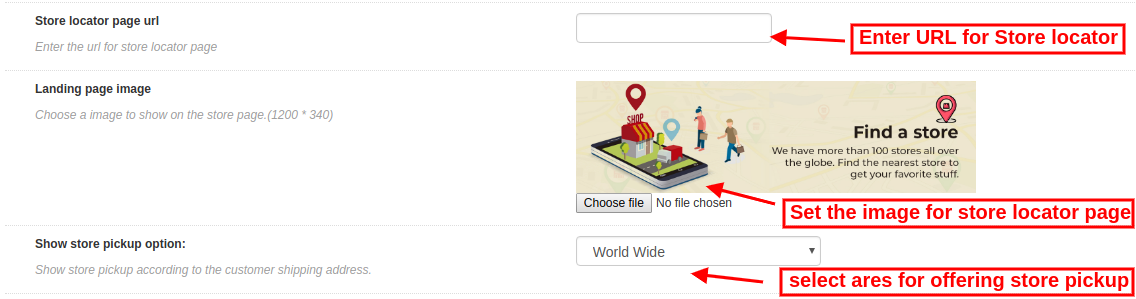
  • URL der Locator-Seite speichern: Hier kann der Store-Administrator die URL für die Store Locator-Seite eingeben.
  • Zielseitenbild: Wählen Sie ein Bild aus, das auf der Store Locator-Seite angezeigt werden soll.
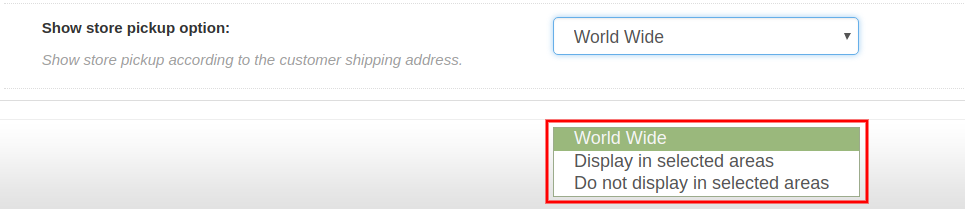
  • Option zur Abholung im Geschäft anzeigen: Der Administrator kann die Abholoption im Laden weltweit oder in ausgewählten Bereichen anzeigen. Dieses Magento Store Locator- und Pickup-Plugin bietet auch eine Option zum Auswählen der Bereiche, in denen der Administrator keine In-Store-Pickup-Funktion anbieten möchte.

3.1.1 So generieren Sie den Google Map API-Schlüssel

Zum Generieren des Google-API-Schlüssels müssen Sie folgende Schritte ausführen:

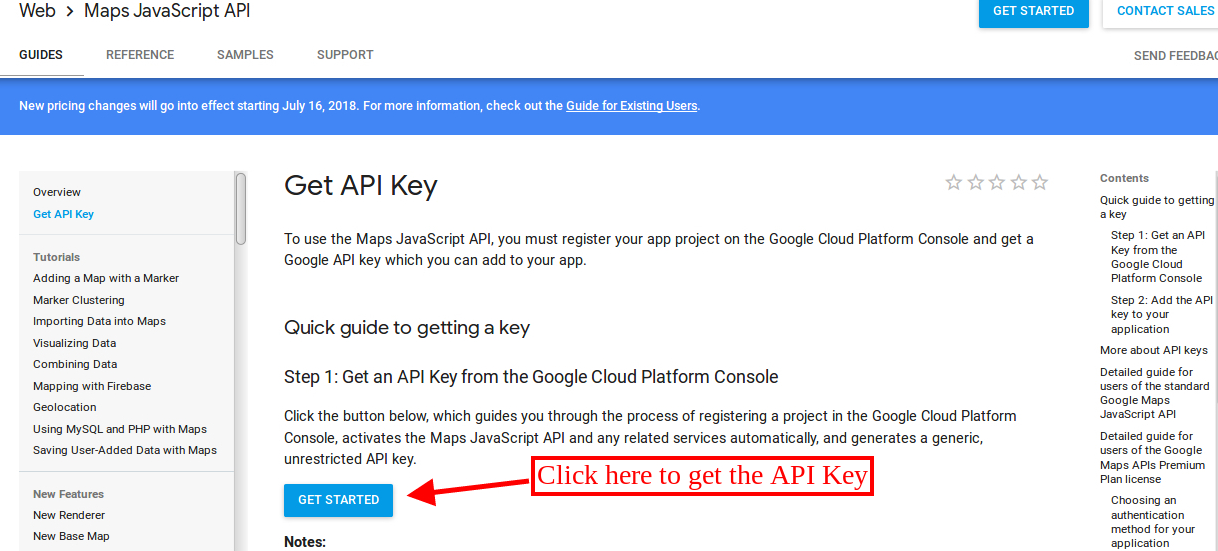
Klicken Sie zunächst auf den oben genannten Link.

  • Klicken Sie auf die Schaltfläche "Erste Schritte":Klicken Sie auf diese Schaltfläche, um den Google Map API-Schlüssel abzurufen.
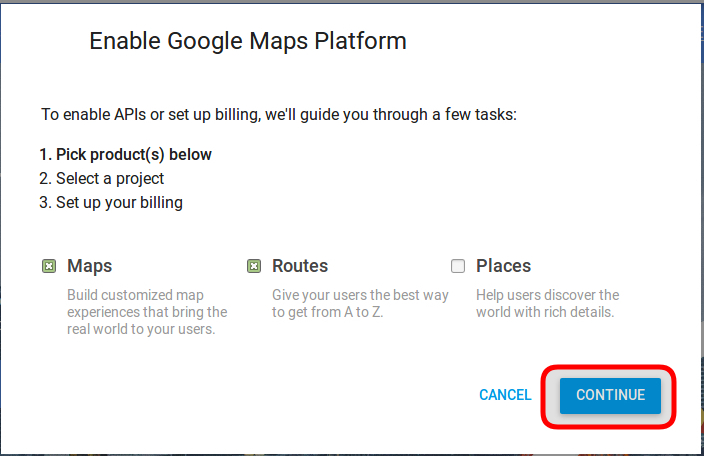
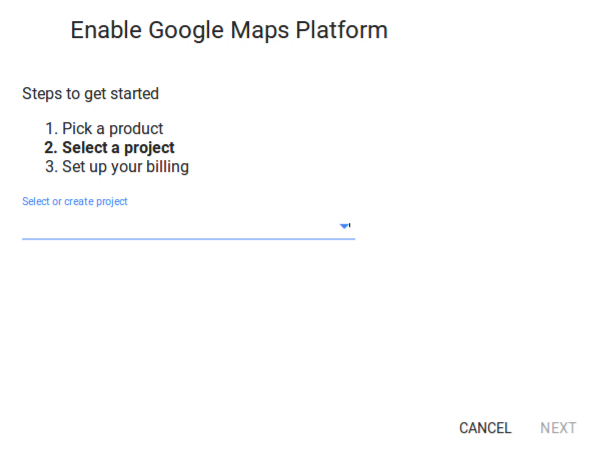
  • Abholung der Produkte:Nachdem Sie auf die Schaltfläche "Erste Schritte" geklickt haben, wird ein Popup-Fenster angezeigt.
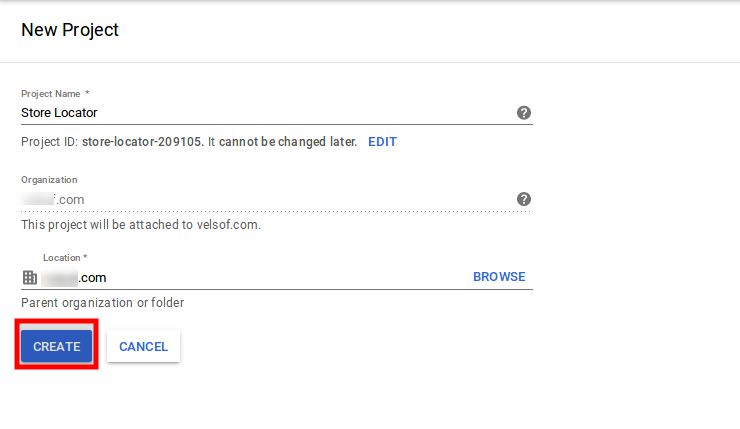
  • Projektauswahl:?Here, you can select or create a project.

1. Wählen Sie ein Projekt:
2. Erstellen Sie ein neues Projekt:
  • Richten Sie die Abrechnung ein:?After that, you need to set up the billing.
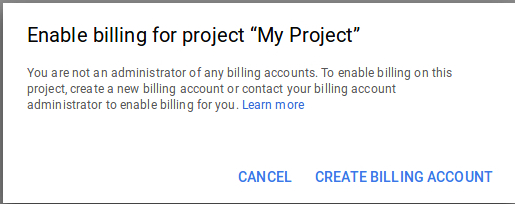
Nach der Abrechnung kann der Store-Administrator seinen Google Map API-Schlüssel erhalten.

Auf derAnmeldeinformationen SeiteSie können eine bekommenAPI-Schlüssel:
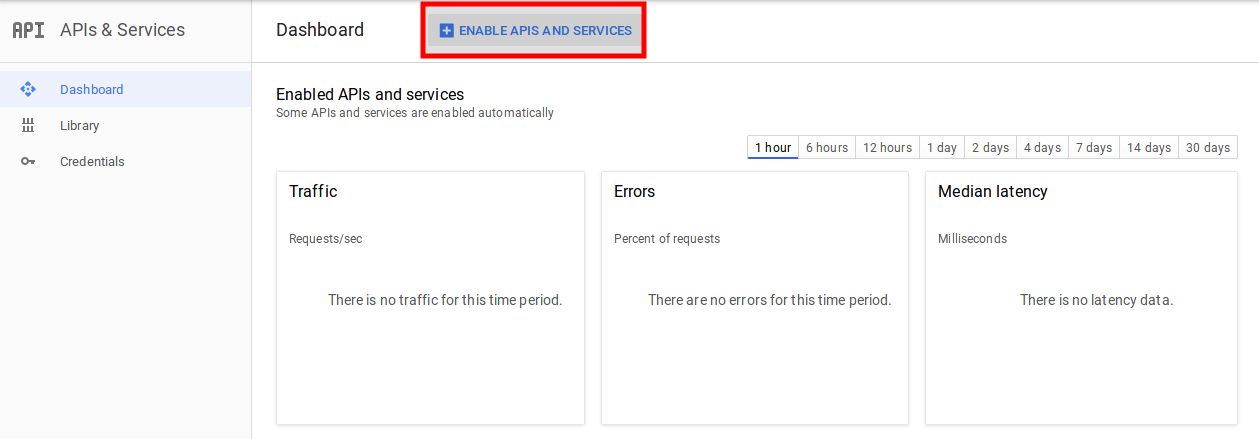
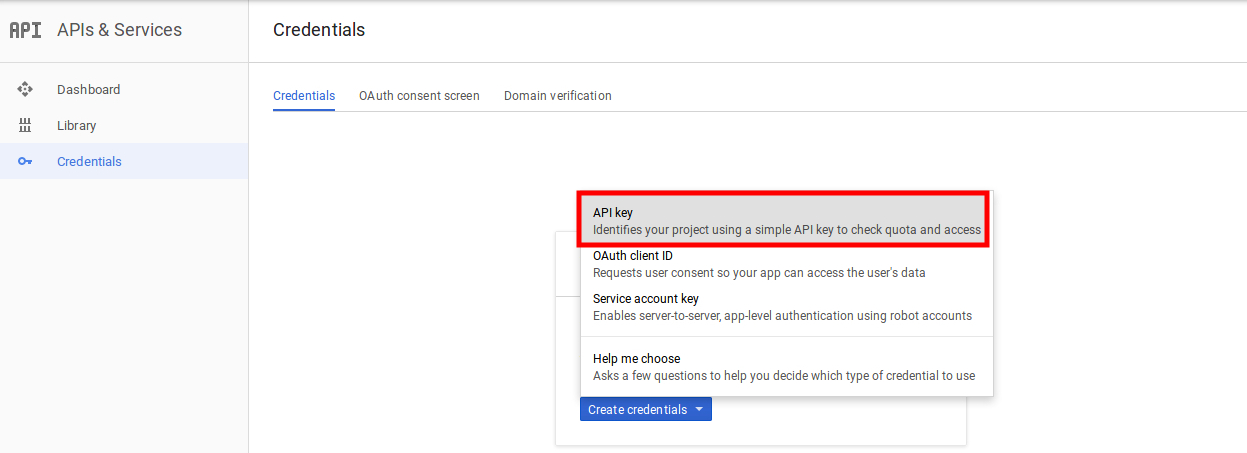
Der Geschäftsadministrator kann die API-Schlüsseloption auswählen:
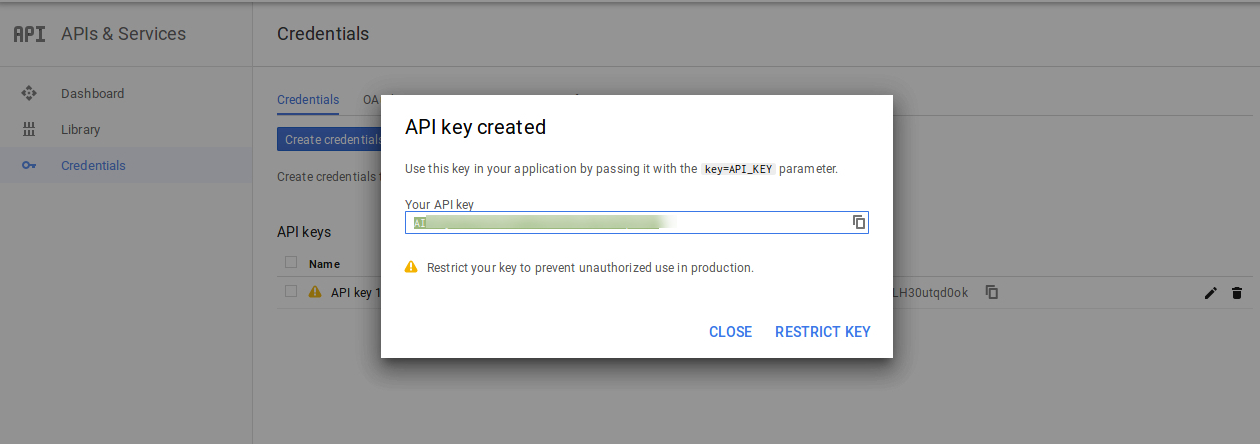
Der Administrator kann die Option zum Einschränken des Schlüssels im Dialogfeld auswählen, um eine Browsereinschränkung für den API-Schlüssel festzulegen.
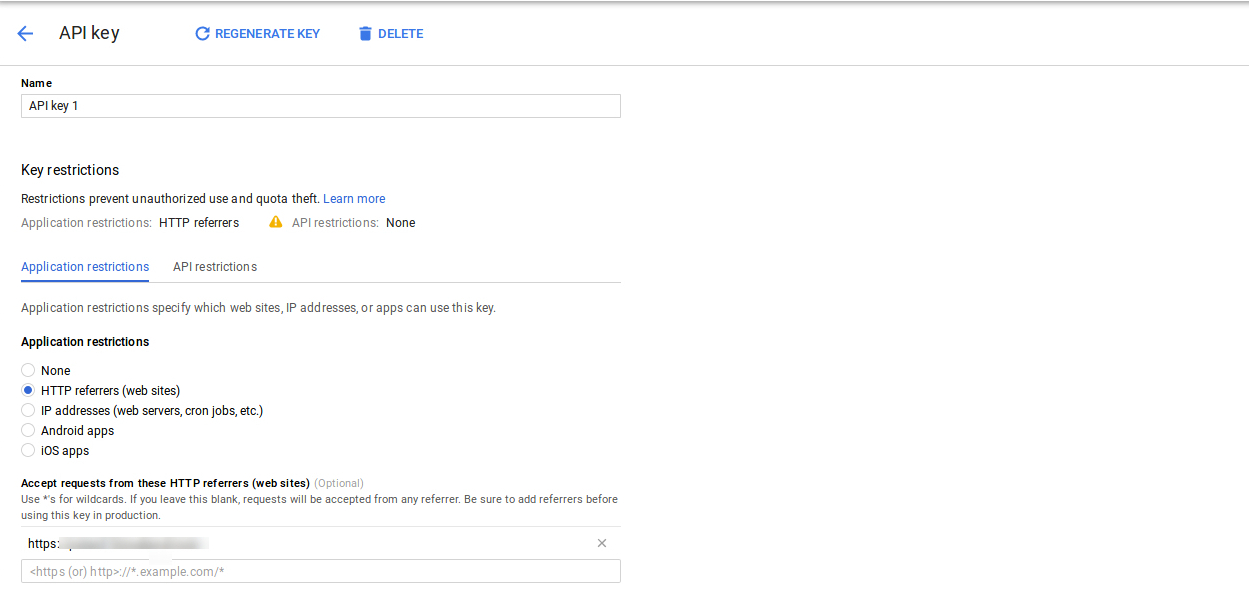
In demSchlüsseleinschränkung, Der Ladenadministrator kann auswählenHTTP-Verweise(Websites), befolgen Sie dann die Anweisungen auf dem Bildschirm, um Referrer festzulegen.
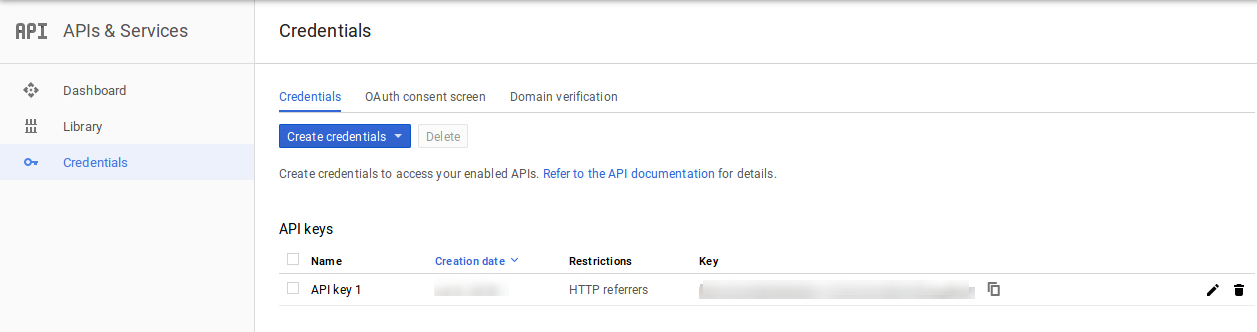
Auf diese Weise kann der Administrator den Google Map API-Schlüssel festlegen.
3.2 Store hinzufügen oder bearbeiten

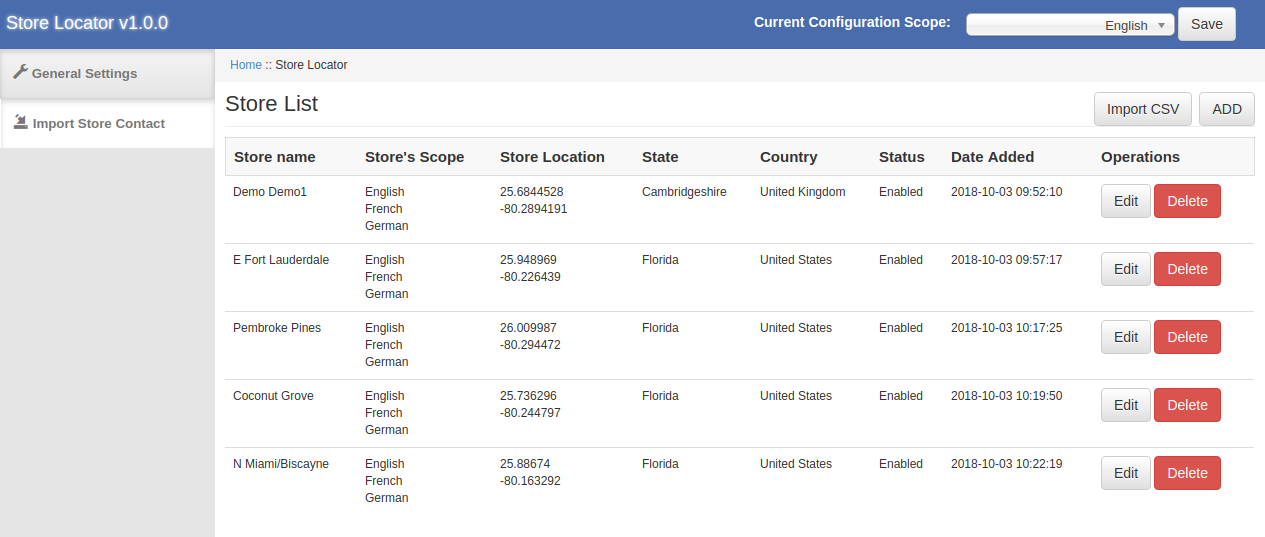
In diesem Menübereich wird eine Liste der verfügbaren Geschäfte angezeigt. Sie können neue Geschäftsdetails hinzufügen, die Geschäftsdetails bearbeiten und auch alle Geschäftsbereiche aus der Liste löschen. Der Abschnitt wird unten gezeigt:
3.2.1 Hinzufügen neuer Geschäftsdetails

Gehen Sie folgendermaßen vor, um neue Geschäftsdetails hinzuzufügen:
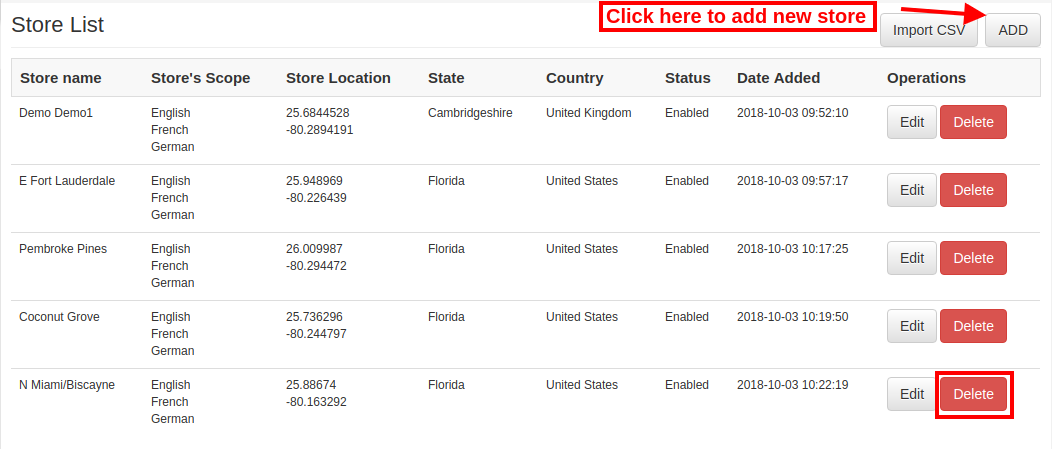
Klicken Sie zunächst auf die Schaltfläche "Hinzufügen", um einen neuen Speicher in der Liste hinzuzufügen.

Nach dem Klicken auf "hinzufügen" Mit der Schaltfläche können Sie einige Anpassungsoptionen auf der Administrationsoberfläche der Google Maps Store Locator-Erweiterung von Magento anzeigen.
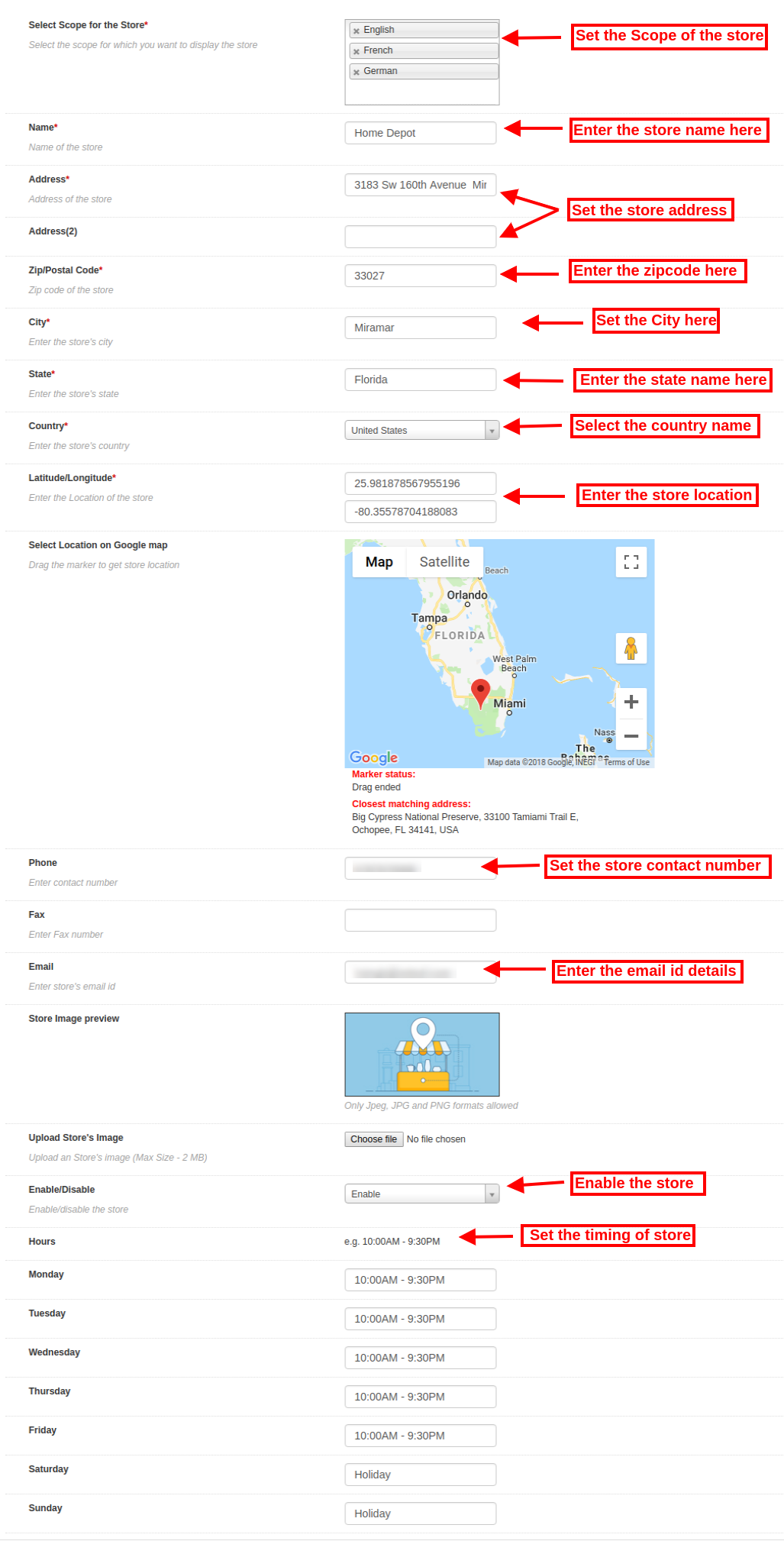
Nachfolgend die Anpassungsoptionen:

Das

  • Wählen Sie den Bereich für das Geschäft aus: Wählen Sie den Bereich aus, für den Sie diesen neuen Store anzeigen möchten.
  • Name: Hier können Sie den Namen Ihres Geschäfts hinzufügen.
  • Adresse und Adresse 2: Hier müssen Sie die Adresse des Geschäfts eingeben.
  • Zip / Postal Code: Geben Sie die Postleitzahl des Geschäfts ein.
  • Stadt: Geben Sie hier die Stadtdetails ein.
  • Bundesland/ Kanton: Geben Sie den Namen des Bundesstaates ein, in dem sich das Geschäft befindet.
  • Land: Wählen Sie den Ländernamen aus der Dropdown-Liste aus.
  • Breitengrad / Längengrad: Der Administrator kann hier den genauen Längen- und Breitengrad des Geschäfts eingeben.
  • Standort auf Google-Karte auswählen: Legen Sie den Speicherort auf der Google-Karte fest, indem Sie die Markierung an diesen Ort ziehen.
  • Webseite Der Händler kann die Website des Shops auch über die Administrationsoberfläche dieses In-Store-Pickup-Plugins von Magento aufrufen.
  • Telefon: Geben Sie hier die Kontaktdaten ein.
  • Fax: Geben Sie ggf. die Faxnummer ein.
  • E-Mail: Geben Sie hier die E-Mail-Adresse des Geschäfts ein.
  • Store Image Preview: Die Store-Vorschau sieht wie gezeigt aus.
  • Laden Sie das Bild des Shops hoch: Der Administrator kann hier das Abbild des Geschäfts eingeben.
  • Aktivieren deaktivieren: Der Administrator kann die Option zum Aktivieren oder Deaktivieren des Speichers auswählen.
  • Store-Abholung aktivieren: Der Geschäftsadministrator kann die Einstellung für die Abholoption für den Laden aktivieren oder deaktivieren.
  • Abholbetrag aktivieren: Der Administrator kann einen Betrag für das Angebot einer Abholung in den Filialen berechnen.
  • Abholungstyp: Der Administrator kann den Abholbetrag pro Produkt, pro Menge oder auf Basis der gesamten Bestellung berechnen.
  • Menge: Der Administrator kann den Betrag eingeben, den er für die Abholung berechnen möchte.
  • Öffnungszeiten: Der Administrator kann den Speicherzeitpunkt einfach über die Administrationsoberfläche dieser Google Maps Store Locator-Erweiterung von Magento eingeben.

3.2.2 So bearbeiten Sie die Geschäftsdetails

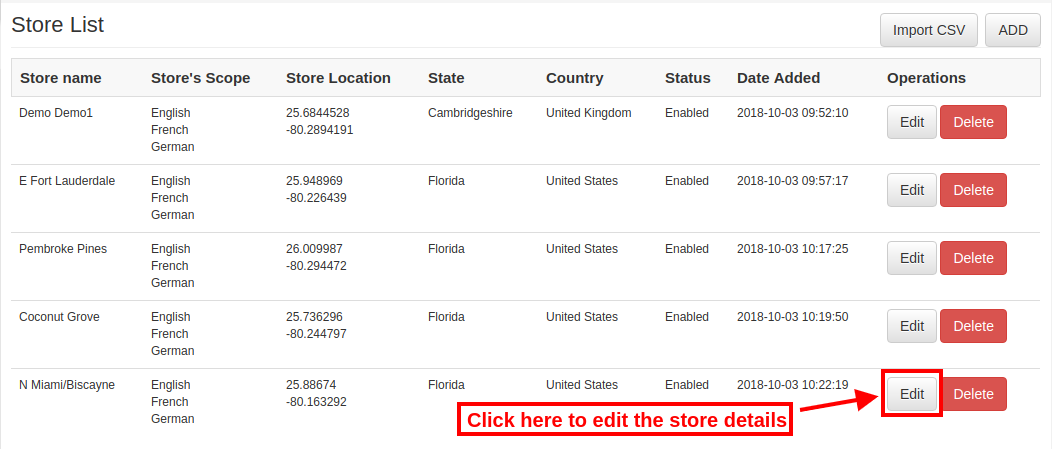
Der Geschäftsinhaber kann die Geschäftsdetails über die Administrationsoberfläche des Google Maps Store Locator-Moduls von Magento bearbeiten. Klicken Sie auf die Schaltfläche "Bearbeiten", um die Geschäftsdetails zu aktualisieren.
3.2.3 So löschen Sie die Geschäftsdetails

Klicken Sie auf die Schaltfläche "Löschen", um einen Store zu löschen. Danach wird der jeweilige Store nicht auf der Website angezeigt.
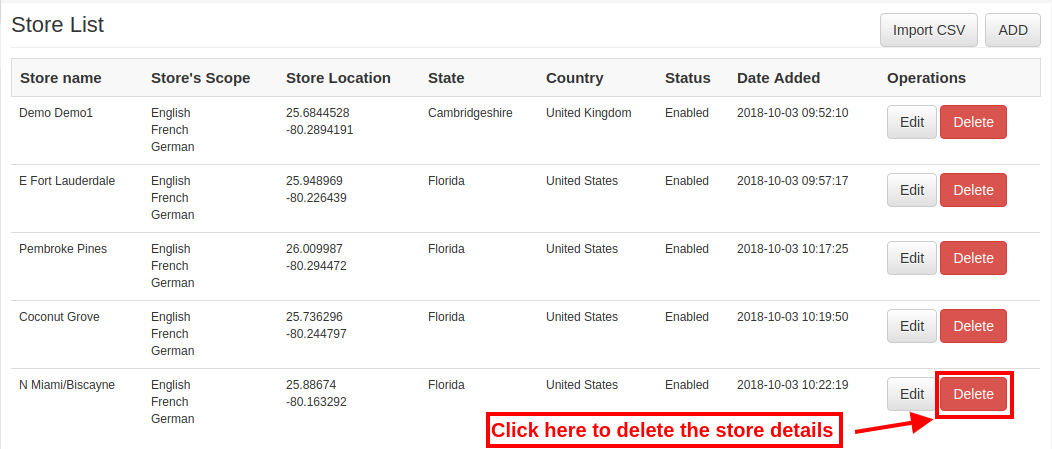
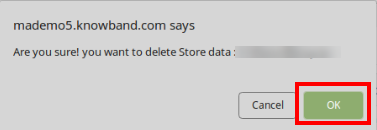
Wenn Sie auf die Schaltfläche "Löschen" klicken, wird auf derselben Seite ein Bestätigungsfenster angezeigt.

Der Administrator muss zur Bestätigung der Löschung auf die Schaltfläche "OK" klicken.
3.3 Excel importieren

Sie können auch eine Excel-Datei mit den Speicherdetails hochladen.

Das Magento Store Locator-Modul bietet eine einfache und problemlose Möglichkeit, Shop-Daten in großen Mengen hochzuladen.

Folgende Konfigurationsoptionen stehen in diesem Abschnitt zur Verfügung:

  • Wählen Sie den Bereich für das Geschäft aus: Wählen Sie den Umfang des Geschäfts aus. Sie können die Sprachen einzeln auswählen.
  • Excel-Datei: Der Administrator kann eine Excel-Datei hochladen, wenn er eine hat. Der Administrator kann auch eine Beispiel-Excel-Datei herunterladen und die Geschäftsdetails in demselben Format eingeben, das in der Excel-Datei verfügbar ist.
  • Datei hochladen: Der Administrator kann die Excel-Datei von hier aus hochladen.
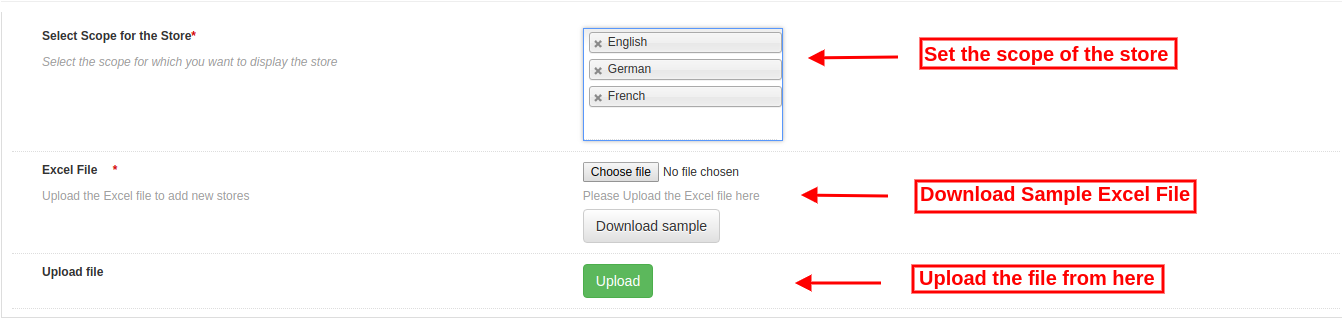
Danach werden auch die in der Excel-Datei verfügbaren Geschäftsinformationen im Geschäft angezeigt.

3.4 Store Abholung Globale Einstellung

Der Online-Shop-Administrator kann auch globale Einstellungen für die Abholung von Shops anwenden. Um globale Einstellungen zu übernehmen, gehen Sie zu System> Einstellungen (siehe unten):
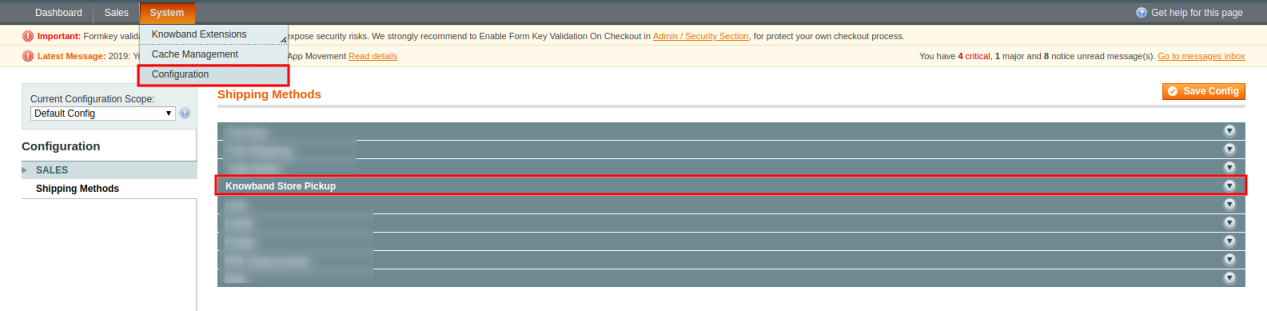
Hier sehen Sie die Option "Knowband Store Pickup". Nachdem Sie darauf geklickt haben, erhalten Sie einen Konfigurationsabschnitt.

Für die globalen Einstellungen erhalten Sie folgende Optionen:
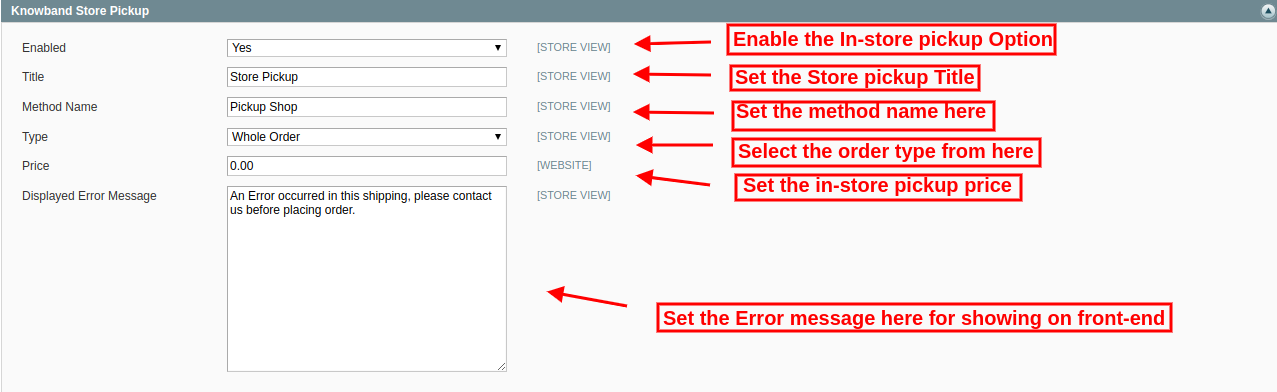
Freischalten: Aktivieren Sie die Store-Pickup-Option mit nur einem Klick.

Titel: Legen Sie die Funktion Titel der Ladenübernahme fest.

Methodenname: Legen Sie den Methodennamen gemäß der Anforderung fest.

Style: Legen Sie die Art der Abholung im Geschäft fest, die er aufladen möchte. Der Administrator kann aus den Produkten, der gesamten Bestellung und der Menge auswählen.

Preis: Legen Sie hier den Abholpreis im Laden fest.

Fehlermeldung anzeigen: Der Administrator kann einen Fehlertext festlegen, der im Front-End der Website angezeigt wird, falls bei der Abholung im Geschäft eine Abholung vorgenommen wird.

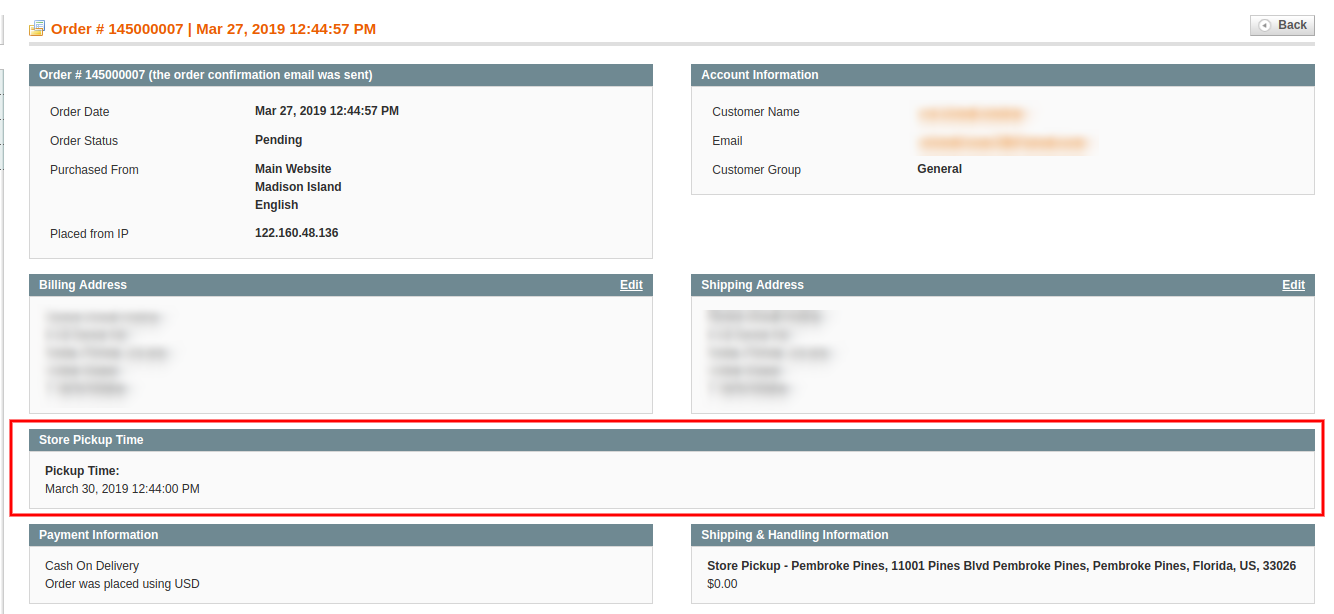
Der Administrator kann die auf Abholung basierenden Bestellungen im Geschäft über die Administratoroberfläche anzeigen:

Der Geschäftsadministrator kann die Informationen zur Abholzeit und zum Datum des Kunden über die Verwaltungsoberfläche anzeigen. Um den bevorzugten Liefertermin und -zeitpunkt anzuzeigen, kann der Administrator zum Bestellmenü gehen und auf die Option "Anzeigen" klicken. Hier kann der Geschäftsadministrator die Zeit- und Datumsdetails wie folgt anzeigen:
4.0-Benutzeroberfläche

Die Online-Benutzer können den Store Locator auf der Homepage der Website anzeigen. Sie können auch auf den Store Locator-Link klicken, um die Standorte der Stores anzuzeigen.
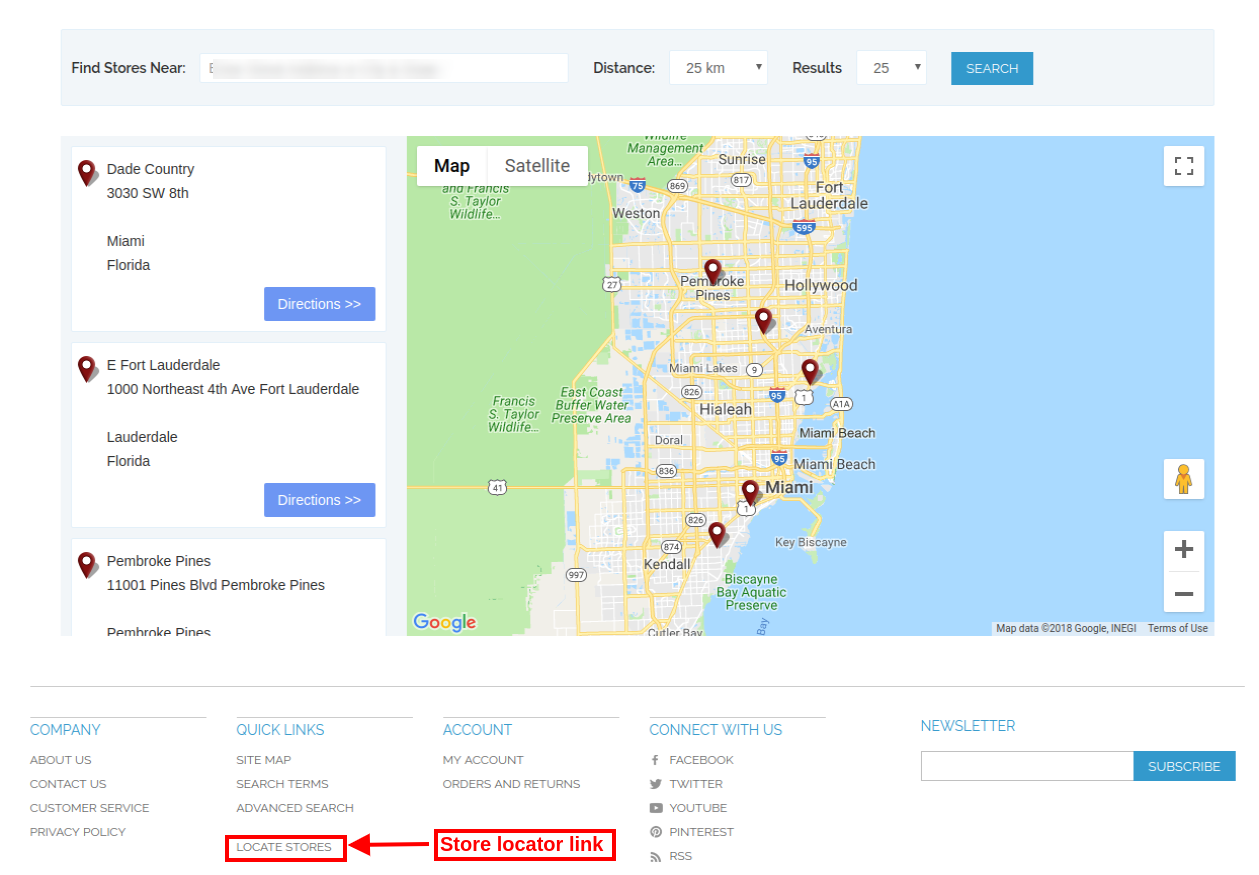
Die Online-Benutzer können den Ort und die Entfernung eingeben, um die nächstgelegenen Geschäfte anzuzeigen. Die Benutzer können auch die verfügbaren Geschäfte, die Geschäftsadresse und ihre Kontaktdaten anzeigen.
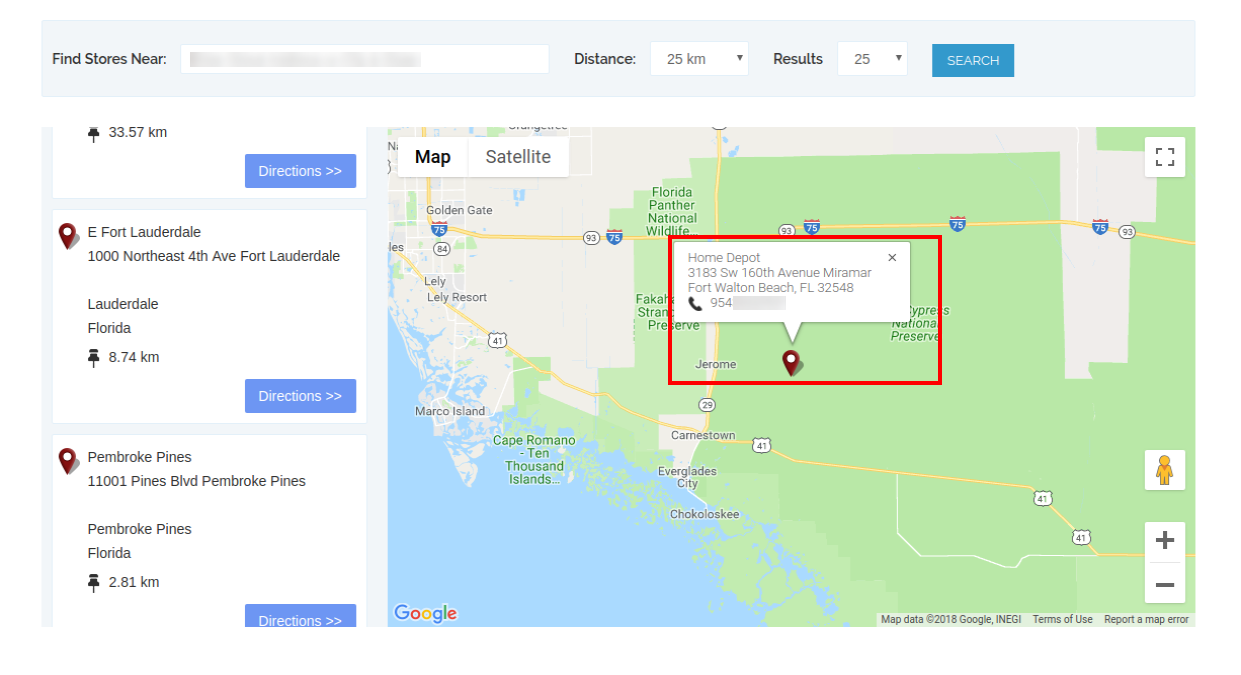
Für weitere Informationen können Kunden auf die Ladenliste klicken. Hier können sie Zeitvorgaben für das Laden erhalten und Anweisungen für die Verknüpfung geben.
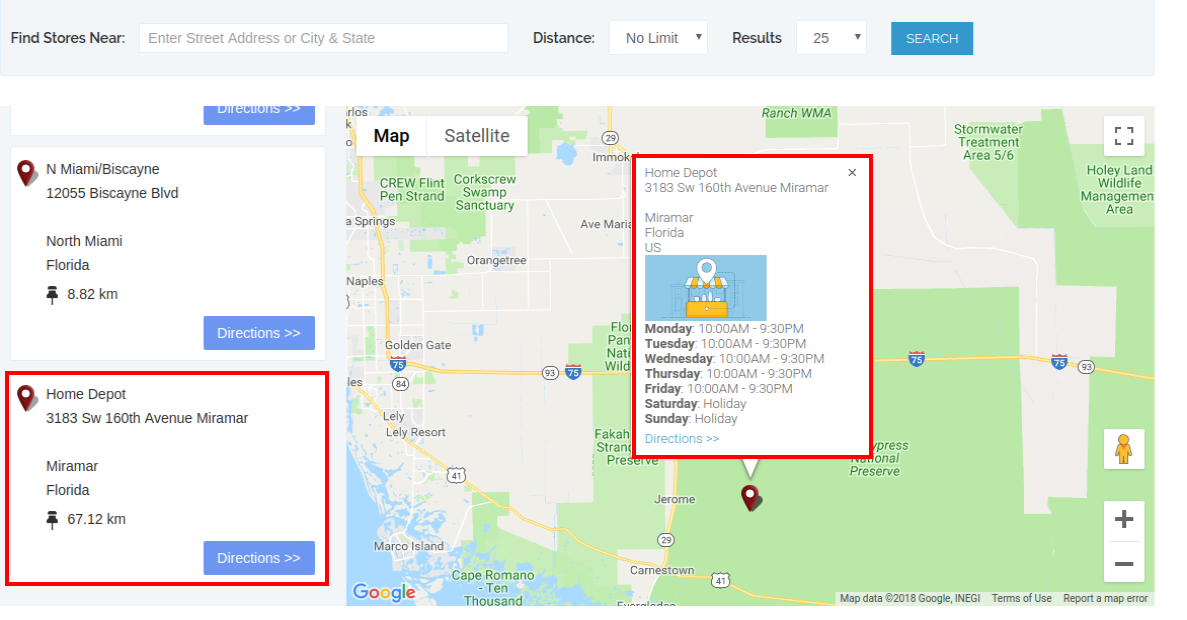
Die Store Locator-Seite sieht wie folgt aus:
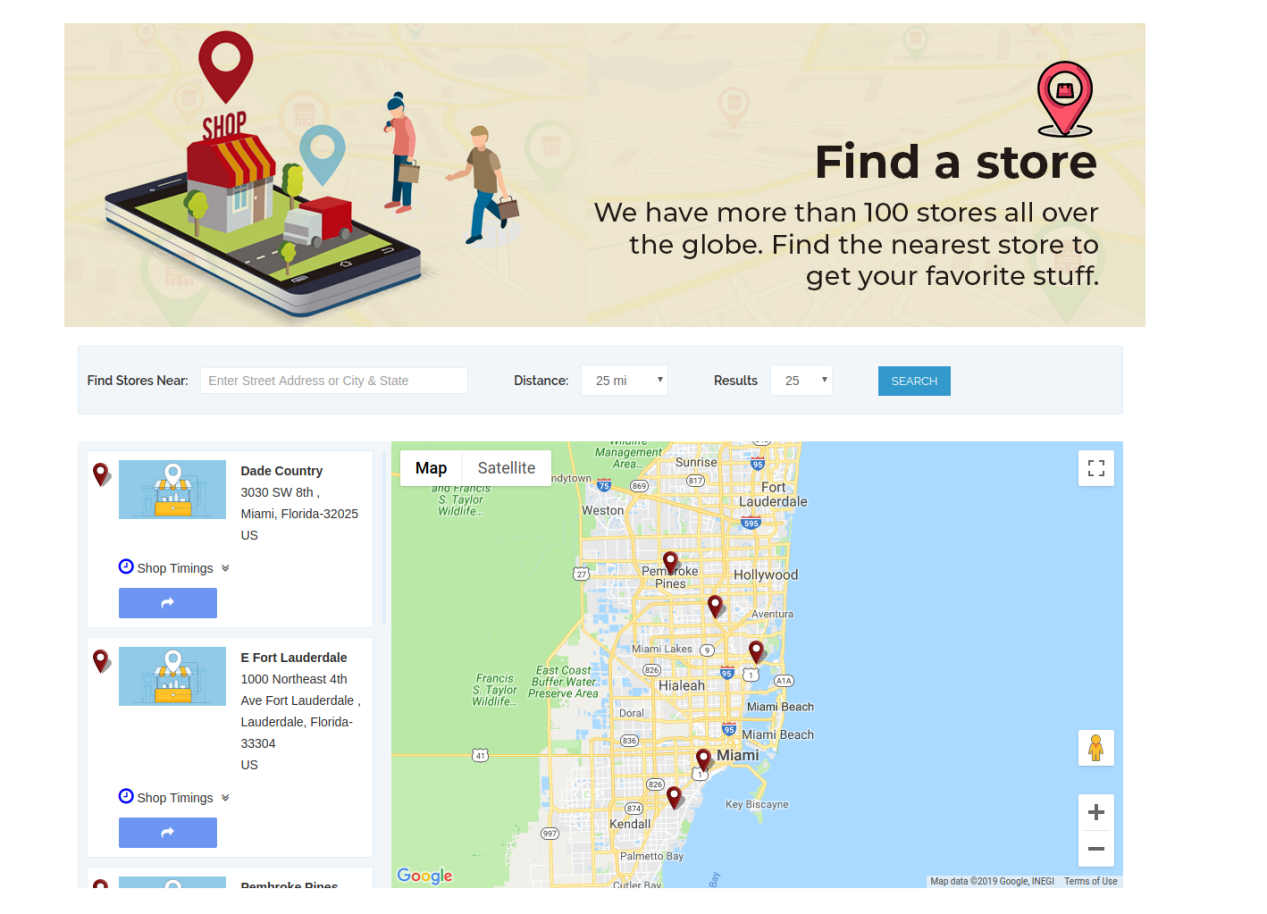
Kunden können die Abholoption im Geschäft auf der Checkout-Seite wie folgt anzeigen:
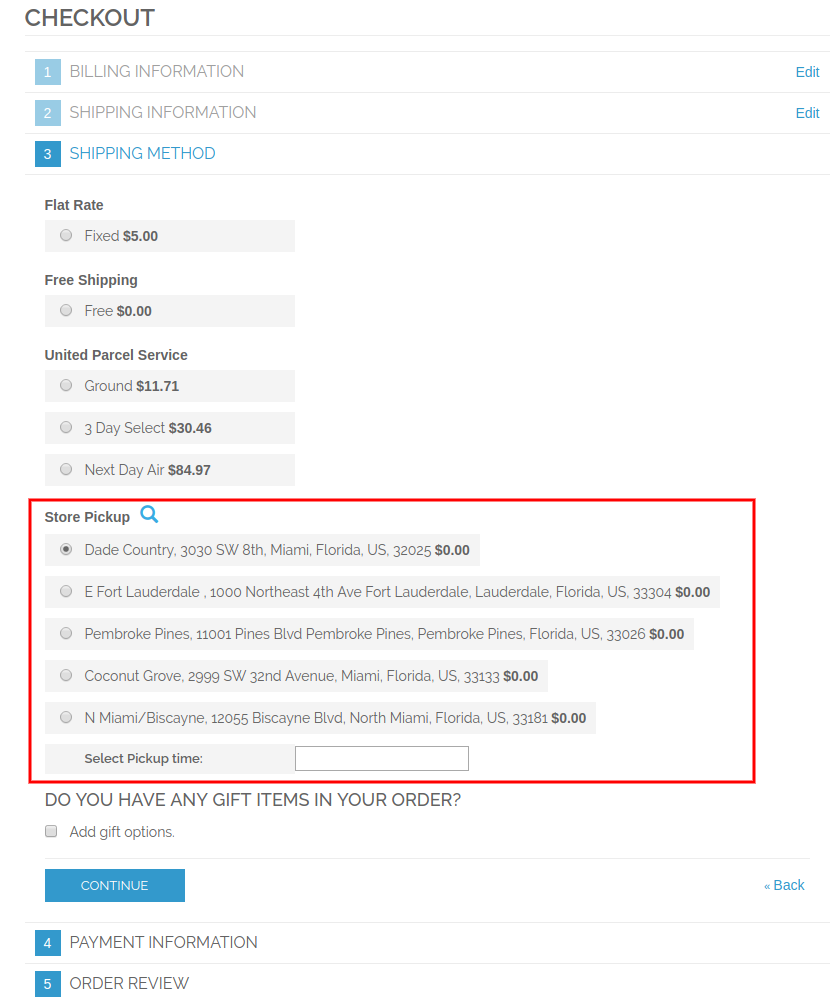
Kunden können auf das Symbol "Suchen" klicken, um die verfügbaren Geschäfte an ihrem nächstgelegenen Standort anzuzeigen. Sie können das bevorzugte Geschäft für die Abholung im Geschäft auswählen.
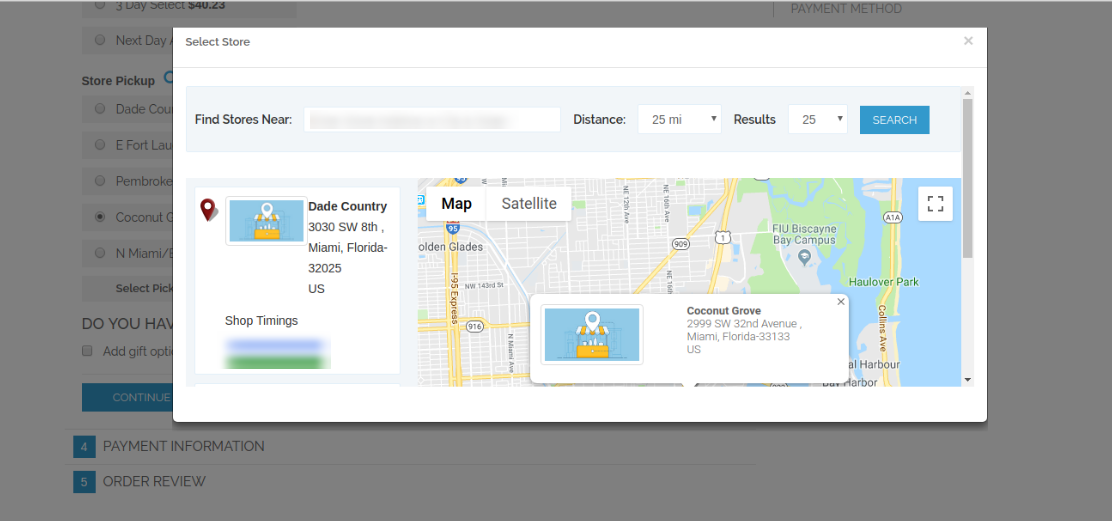
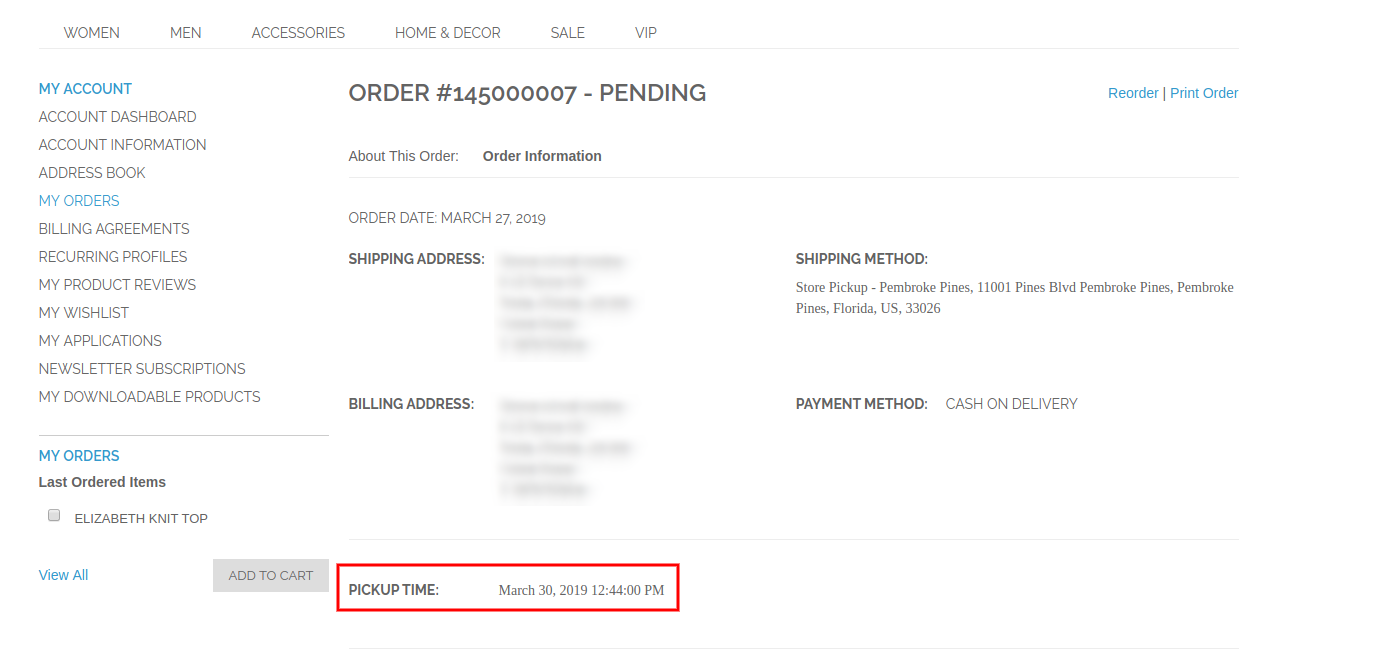
Kunden können die Laden- und Abholzeit auswählen. Die Kunden können jetzt das bestellte Produkt aus dem ausgewählten Geschäft auswählen, ohne Versandkosten zu zahlen. Nach der Bestellung können die Online-Kunden die Abholzeit der Filiale auf ihrer Rechnung und der Bestellhistorie einsehen.
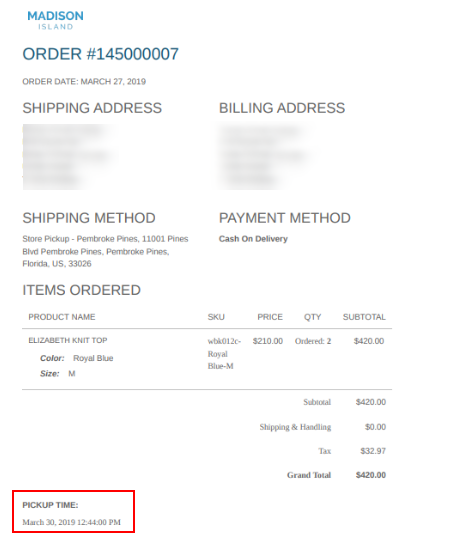
In den Bestelldetails können Kunden die Details zur Abholung in den Filialen wie folgt anzeigen:
Mit Hilfe dieser Google Maps Store Locator-Erweiterung von Magento kann der Administrator physische Shops auf der Website problemlos anzeigen.

Für weitere Informationen besuchen Sie bitte hier:

Google Maps Store Locator-Plugin-Produktseite.

Magento Google Maps Store Locator-Erweiterung Admin Demo-Link.

Magento Google Maps Store Locator-Modul Frontend-Demo.


Magento Store Locator Extension and Pickup- Manuale utente

1.0 Introduzione

L'amministratore del negozio online ora può visualizzare i negozi fisici sul sito Web utilizzando Localizzatore di Google Maps Magento Locator e ritiro estensione offerta da Knowband. Il plug-in di localizzatore di Google Maps Store completamente funzionale di Magento consente all'amministratore di visualizzare il nome del negozio, la posizione del negozio, la direzione, i dettagli di contatto e l'ID della posta. Gli utenti online possono visualizzare la posizione del negozio sulla homepage del sito Web o fare clic sul collegamento per visualizzare le posizioni dei negozi. Questa estensione di localizzatore di store Magento mostra anche i tempi del negozio. I clienti possono visualizzare le indicazioni del negozio e visitarle facilmente. Con questo localizzatore di punti Magento e l'estensione di ritiro, l'amministratore del negozio può offrire ai clienti un servizio di ritiro in negozio. I clienti possono visualizzare i dettagli del negozio nella pagina di pagamento e selezionare il negozio per il ritiro. L'amministratore può anche addebitare una commissione per questo servizio di ritiro in negozio.

1.1 Funzioni di base dell'estensione del localizzatore di Magento Store

  • Il proprietario del negozio online può mostrare i negozi fisici più vicini ai clienti sul loro sito Web utilizzando questa estensione di Google Maps Store Locator di Magento.
  • L'amministratore del negozio può generare una chiave API della mappa di Google e utilizzarla per l'integrazione con la mappa di Google.
  • I clienti possono ottenere la direzione per qualsiasi negozio sulla mappa di Google disponibile sul sito stesso.
  • Il plug-in Locator di Google Maps Store Magento consente di impostare l'immagine dell'indicatore della mappa di Google e il livello di zoom della mappa per una facile navigazione.
  • Il proprietario del negozio Magento può inserire il nome del negozio, il numero di contatto, l'orario di lavoro, l'indirizzo e l'ID della posta dall'interfaccia di amministrazione dell'estensione di Magento Google Maps Store Locator.
  • Il plugin Magento Store Locator consente di selezionare le unità di distanza come chilometri o miglia.
  • L'amministratore del negozio online può mostrare un link footer di store locator e anche impostare il suo testo, i clienti possono fare clic su questo link per visualizzare le posizioni del negozio.
  • L'amministratore può installare, configurare e personalizzare facilmente l'estensione Magento Store Locator senza problemi.
  • Il modulo Magento Store Locator offre un'interfaccia user-friendly.
  • Il localizzatore di Magento e l'estensione di ritiro consentono di mostrare un'immagine sulla pagina di destinazione dello store locator.
  • L'amministratore del negozio può selezionare le aree dall'interfaccia di amministrazione di questo Magento store locator e del modulo di ritiro per offrire l'opzione di ritiro in negozio.
  • Magento store locator e pickup plugin permettono all'amministratore di offrire un servizio di ritiro in negozio nel negozio.
  • L'amministratore può anche addebitare un importo per l'offerta di ritiro in negozio nel negozio.
  • Il modulo Localizzatore di Google Maps di Magento consente di impostare quantità di prelievo diverse per vari negozi.
  • Il plug-in di pickup in-store Magento consente di caricare i dettagli del negozio in blocco.
  • I clienti possono caricare file Excel dall'interfaccia di amministrazione di questo plug-in di raccolta Magento.

Installazione 2.0

Il commerciante del negozio online può installare il Estensione per lo store locator Magento facilmente seguendo questi passaggi:

1. L'amministratore deve scaricare il pacchetto di estensione dal negozio Knowband.

2. Dopo aver scaricato il pacchetto di estensione, il proprietario del negozio riceverà un file zippato. Decomprimere il pacchetto nella cartella principale di Magento setup tramite FTP manager (come Filezilla o WinSCP

3. L'estensione è ora installata e pronta per l'uso. Nel Pannello di amministrazione, vai su "Sistema> Estensioni di Knowband> Magento store locator extension".

Ora l'amministratore del negozio può ora utilizzare e configurare il localizzatore di punti Magento e l'estensione di ritiro.

3.0 Admin Interface

Dopo l'installazione riuscita, è possibile applicare le impostazioni per visualizzare lo store locator sull'interfaccia front-end. Nell'interfaccia di amministrazione, ci saranno opzioni di personalizzazione come mostrato di seguito:

  • Impostazioni generali
  • Aggiungi / modifica negozio

3.1 Impostazioni generali

Nelle impostazioni generali, ci sono opzioni di personalizzazione per la visualizzazione dello store locator sul sito web. i vari campi sono mostrati di seguito:

  • Attiva / Disattiva: Attiva o disattiva la funzionalità dall'interfaccia di amministrazione di questo store locator Magento e estensione di ritiro.
  • Chiave API Mappa Google: Inserisci la chiave dell'API di Google per incorporare la mappa di Google per mostrare le posizioni del negozio. Consulta la Sezione 3.1.1 per vedere i passaggi per generare la chiave API di Google Maps.
  • Google Map Marker: Imposta un indicatore di Google map per mostrare la posizione esatta del negozio agli utenti online sul sito web.
  • Livello di zoom della mappa: Imposta il livello di zoom della mappa. Il modulo Localizzatore di Google Maps Store Magento consiglia all'amministratore di impostare il livello di zoom della mappa come 13.
  • Unità di distanza: È possibile selezionare l'unità di misura della distanza in chilometri o miglia.
  • Mostra nella pagina iniziale: Puoi abilitare questa impostazione per mostrare lo store locator sulla homepage.
  • Visualizza numero di telefono: Abilitare l'opzione se si desidera visualizzare il numero di contatto con i dettagli del negozio.
  • Visualizza il link a piè di pagina: Abilita l'opzione di menu per la visualizzazione di un link footer di store locator sul sito web.
  • Testo del link a piè di pagina: Inserisci il testo che verrà visualizzato sul sito web. I clienti possono fare clic qui per visualizzare le posizioni dei negozi.

  • URL della pagina di localizzatore del negozio: Qui, l'amministratore del negozio può inserire l'URL per la pagina dello store locator.
  • Immagine della pagina di destinazione: Seleziona qualsiasi immagine da mostrare sulla pagina di localizzatore del negozio.
  • Mostra l'opzione di ritiro del negozio: L'amministratore può mostrare l'opzione di ritiro in negozio in tutto il mondo o aree selezionate. Questo plug-in di localizzatore e prelievo di Magento offre anche un'opzione per selezionare le aree in cui l'amministratore non vuole offrire la funzione di ritiro in negozio.

3.1.1 Come generare la chiave API di Google Maps

Per generare la chiave dell'API di Google, devi seguire questi passaggi:

Prima di tutto clicca sul link sopra indicato.

  • Fai clic sul pulsante "Inizia":Fai clic su questo pulsante per ottenere la chiave API della mappa di Google.

  • Ritirare i prodotti:Dopo aver fatto clic sul pulsante "Inizia", ​​verrà visualizzato un popup.

  • Selezione del progetto:?Here, you can select or create a project.

1. Seleziona un progetto:

2. Crea un nuovo progetto:

  • Imposta la fatturazione:?After that, you need to set up the billing.

Dopo la fatturazione, l'amministratore del negozio può ottenere la chiave API della mappa di Google.

SulPagina delle credenziali, puoi ottenere unChiave API:

L'amministratore del negozio può selezionare l'opzione chiave API:

L'amministratore può selezionare l'opzione chiave restrizione dalla finestra di dialogo per impostare una restrizione del browser sulla chiave API.

NelSezione di restrizione chiave, l'amministratore del negozio può selezionareReferrer HTTP(siti Web), quindi seguire le istruzioni visualizzate per impostare i referrer.

In questo modo l'amministratore può impostare la chiave API della mappa di Google.

3.2 Aggiungi o modifica negozio

In questa sezione del menu, ci sarà un elenco di negozi disponibili. È possibile aggiungere nuovi dettagli del negozio, modificare i dettagli del negozio ed eliminare qualsiasi negozio dall'elenco. La sezione è mostrata di seguito:

3.2.1 Come aggiungere un nuovo dettaglio del negozio

Per aggiungere un nuovo dettaglio del negozio, segui questi passaggi:

Prima di tutto fai clic sul pulsante "aggiungi" per aggiungere un nuovo negozio nell'elenco.

Dopo aver fatto clic su "Inserisci" pulsante, è possibile visualizzare alcune opzioni di personalizzazione nell'interfaccia di amministrazione dell'estensione di Google Maps Store Locator di Magento.

Di seguito le opzioni di personalizzazione:

Il

  • Seleziona l'ambito per il negozio: Selezionare l'ambito per il quale si desidera visualizzare questo nuovo negozio.
  • Nome e Cognome: Qui puoi aggiungere il nome del tuo negozio.
  • Indirizzo e indirizzo 2: Qui, è necessario inserire l'indirizzo del negozio.
  • Zip / Postal Code: Inserisci il codice postale del negozio.
  • Città: Inserisci qui i dettagli della città.
  • Stato: Immettere il nome dello stato in cui si trova il negozio.
  • Paese: Selezionare il nome del paese dall'elenco a discesa.
  • Latitudine Longitudine: L'amministratore può inserire la latitudine e la longitudine esatta del negozio qui.
  • Seleziona Posizione sulla mappa di Google: Imposta la posizione del negozio su Google map trascinando il marker in quella posizione.
  • Sito web: Il commerciante del negozio può anche accedere al sito Web del negozio dall'interfaccia di amministrazione di questo plug-in di pick-up Magento in-store.
  • Telefono: Inserisci qui i dettagli del contatto.
  • Fax: Inserire il numero di fax, se presente.
  • E-mail: Inserisci qui l'e-mail dell'archivio.
  • Store Image Preview: L'anteprima del negozio apparirà come mostrato.
  • Carica l'immagine del Negozio: L'amministratore può inserire l'immagine del negozio qui.
  • Attiva / Disattiva: L'amministratore può selezionare l'opzione per attivare o disattivare il negozio.
  • Abilita ritiro in negozio: L'amministratore del negozio può attivare o disattivare l'impostazione per l'opzione di ritiro del negozio.
  • Abilita l'importo di ritiro: L'amministratore può addebitare un importo per l'offerta di un servizio di ritiro in negozio.
  • Tipo di ritiro: L'amministratore può addebitare l'importo di ritiro per prodotto, per quantità o in base all'intero ordine.
  • Quantità: L'amministratore può inserire l'importo che desidera addebitare per il ritiro.
  • Ore: L'amministratore può inserire facilmente la tempistica dello store dall'interfaccia di amministrazione di questa estensione di Magento Google Maps Store Locator.

3.2.2 Come modificare i dettagli del negozio

Il proprietario del negozio può modificare i dettagli del negozio dall'interfaccia di amministrazione del modulo Localizzatore di Google Maps Store Magento. Fare clic sul pulsante "Modifica" per aggiornare i dettagli del negozio.

3.2.3 Come eliminare i dettagli del negozio

Fai clic sul pulsante "Elimina" per eliminare qualsiasi negozio. Successivamente, il particolare negozio non verrà visualizzato sul sito web.

Ci sarà un pop-up di conferma sulla stessa pagina, quando si fa clic sul pulsante Elimina.

L'amministratore deve cliccare sul pulsante "ok" per confermare la cancellazione.

3.3 Import Excel

Puoi anche caricare un file Excel con i dettagli del negozio in blocco.

Il modulo Magento Store Locator consente un modo semplice e senza problemi per caricare i dettagli del negozio in blocco.

Queste sono le opzioni di configurazione disponibili in questa sezione:

  • Seleziona l'ambito per il negozio: Seleziona l'ambito del negozio. È possibile selezionare le lingue una per una.
  • File Excel: L'amministratore può caricare un file Excel se ne ha uno. L'amministratore può anche scaricare un file Excel di esempio e inserire i dettagli del negozio nello stesso formato disponibile nel file Excel.
  • Caricare un file: L'amministratore può caricare il file Excel da qui.

Successivamente, i dettagli del negozio disponibili nel file Excel verranno visualizzati anche nel negozio.

3.4 Store Pickup Global Setting

L'amministratore del negozio online può anche applicare le impostazioni globali per il ritiro in negozio. Per applicare le impostazioni globali andare su Sistema> Impostazioni come mostrato di seguito:

Qui, vedrai l'opzione "Knowband Store Pickup". Dopo aver fatto clic su di esso, si otterrà una sezione di configurazione.

Per le Impostazioni globali avrai le seguenti opzioni:

Abilita: Abilita l'opzione di ritiro del negozio con un semplice clic.

Titolo: Impostare la funzionalità Title of Store Pickup.

Nome del metodo: Imposta il nome del metodo secondo il requisito.

Digitare: Impostare il tipo di ritiro in negozio da cui si desidera addebitare. L'amministratore può selezionare dai prodotti, l'intero ordine e la quantità.

Prezzo: Imposta il prezzo di ritiro in negozio da qui.

Visualizza messaggio di errore: L'amministratore può impostare il testo di errore da mostrare sul front-end del sito Web in caso di errore durante l'immissione dell'ordine di ritiro in negozio.

L'amministratore può visualizzare gli ordini basati sul ritiro in negozio dall'interfaccia di amministrazione:

L'amministratore del negozio può visualizzare le informazioni sull'orario e la data di ritiro dei clienti dall'interfaccia di amministrazione. Per visualizzare la data e l'ora di consegna preferite, l'amministratore può accedere al menu degli ordini e fare clic sull'opzione "visualizza". Qui, l'amministratore del negozio può visualizzare i dettagli di ora e data come mostrato di seguito:

Interfaccia utente 4.0

Gli utenti online possono visualizzare lo store locator sulla home page del sito Web. Possono anche fare clic sul link store locator per visualizzare le posizioni del negozio.

Gli utenti online possono inserire la posizione e la distanza per visualizzare i negozi più vicini. Gli utenti possono anche visualizzare i negozi disponibili, l'indirizzo del negozio e i dettagli del loro numero di contatto.

Per maggiori dettagli i clienti possono fare clic sulla lista dei negozi. Qui, possono ottenere i tempi di negozio e il collegamento per le direzioni.

La pagina dello store locator avrà il seguente aspetto:

I clienti possono visualizzare l'opzione di ritiro in negozio nella pagina di pagamento come mostrato di seguito:

I clienti possono fare clic sull'icona "Cerca" per visualizzare i negozi disponibili nella loro posizione più vicina. Possono selezionare il negozio preferito per il ritiro in negozio.

I clienti possono selezionare il negozio e il tempo di ritiro. I clienti possono ora prelevare il prodotto ordinato dal negozio selezionato senza pagare le spese di spedizione. Dopo aver effettuato l'ordine, i clienti online possono visualizzare il tempo di ritiro del negozio anche sulla fattura della fattura e sulla cronologia degli ordini.

Nei dettagli dell'ordine, i clienti possono visualizzare i dettagli di ritiro in negozio come mostrato di seguito:

Pertanto, con l'aiuto di questa estensione di Google Maps Store Locator di Magento, l'amministratore può mostrare facilmente gli archivi fisici sul sito web.

Per maggiori dettagli visita qui:

Pagina del prodotto di Magento Google Maps Store Locator.

Estensore di Google Maps Magento Estensore di Google Maps.

Demo front-end di Magento Google Maps Store Locator.


Rozszerzenie Magento Store Locator i Pickup-User Manual

1.0 Wprowadzenie

Administrator sklepu online może teraz wyświetlać fizyczne sklepy na stronie za pomocą Magento Google Maps Lokalizator sklepów i odbiór rozszerzenie oferowane przez Knowband. W pełni funkcjonalna wtyczka Magento Google Maps Store Locator umożliwia administratorowi wyświetlanie nazwy sklepu, lokalizacji sklepu, kierunku, danych kontaktowych i identyfikatora poczty. Użytkownicy online mogą wyświetlić lokalizację sklepu na stronie głównej witryny lub kliknąć link, aby wyświetlić lokalizacje sklepów. To rozszerzenie lokalizatora sklepu Magento wyświetla również czas przechowywania. Klienci mogą przeglądać wskazówki dotyczące sklepu i odwiedzać je łatwo. Dzięki temu lokalizatorowi i rozszerzeniu sklepu Magento administrator sklepu może zaoferować klientom odbiór w sklepie. Klienci mogą wyświetlić szczegóły sklepu na stronie kasy i wybrać sklep do odbioru. Administrator może również pobierać opłatę za tę usługę odbioru w sklepie.

1.1 Podstawowe funkcje rozszerzenia lokalizatora Magento Store

  • Właściciel sklepu internetowego może pokazać najbliższe sklepy fizyczne klientom w ich witrynie przy użyciu rozszerzenia lokalizacji Magento Google Maps Store.
  • Administrator sklepu może wygenerować klucz API mapy Google i użyć go do integracji z mapą Google.
  • Klienci mogą uzyskać wskazówki dotyczące dowolnego sklepu na mapie Google dostępnej na stronie.
  • Wtyczka Magento Google Maps Store Locator umożliwia ustawienie obrazu znacznika mapy Google i poziomu powiększenia mapy w celu ułatwienia nawigacji.
  • Właściciel sklepu Magento może wprowadzić nazwę sklepu, numer kontaktowy, godziny pracy, adres i identyfikator poczty z interfejsu administratora rozszerzenia lokalizacji Magento Google Maps Store.
  • Wtyczka Magento Store Locator umożliwia wybranie jednostek odległości w kilometrach lub milach.
  • Administrator sklepu internetowego może wyświetlić link do stopki lokalizatora sklepu, a także ustawić tekst, klienci mogą kliknąć ten link, aby wyświetlić lokalizacje sklepów.
  • Administrator może łatwo zainstalować, skonfigurować i dostosować rozszerzenie lokalizatora Magento Store bez żadnych kłopotów.
  • Moduł Magento Store Locator oferuje przyjazny dla użytkownika interfejs.
  • Lokalizator sklepu Magento i rozszerzenie odbioru umożliwiają pokazanie obrazu na stronie docelowej lokalizatora sklepu.
  • Administrator sklepu może wybrać obszary z interfejsu administratora tego lokalizatora sklepu i modułu odbioru Magento do oferowania opcji odbioru w sklepie.
  • Magento store locator i pickup plugin pozwalają administratorowi oferować w sklepie odbiór w sklepie.
  • Administrator może również pobierać opłatę za oferowanie w sklepie odbioru w sklepie.
  • Magento Google Maps Store Locator Module umożliwia ustawienie różnych ilości odbioru dla różnych sklepów.
  • Wtyczka Magento do odbioru w sklepie umożliwia zbiorcze przesyłanie szczegółów sklepu.
  • Klienci mogą przesłać plik Excel z interfejsu administratora tej wtyczki Magento.

Instalacja 2.0

Sprzedawca sklepu internetowego może zainstalować Rozszerzenie lokalizacji sklepu Magento łatwo, wykonując następujące kroki:

1. Administrator musi pobrać pakiet rozszerzeń ze sklepu Knowband.

2. Po pobraniu pakietu rozszerzeń właściciel sklepu otrzyma spakowany plik. Rozpakuj pakiet w folderze głównym instalacji Magento za pomocą menedżera FTP (np. Filezilla lub WinSCP

3. Rozszerzenie jest teraz zainstalowane i gotowe do użycia. W panelu administratora przejdź do "System> Knowband Extensions> Magento store locator extension".

Teraz administrator sklepu może teraz używać i konfigurować lokalizator sklepu Magento i rozszerzenie odbioru.

Interfejs administracyjny 3.0

Po pomyślnej instalacji można zastosować ustawienia, aby wyświetlić lokalizator sklepu w interfejsie front-end. W interfejsie administratora będą dostępne opcje dostosowywania, jak pokazano poniżej:

  • Ustawienia ogólne
  • Dodaj / Edytuj sklep

Ustawienia ogólne 3.1

W ustawieniach ogólnych dostępne są opcje dostosowywania wyświetlania lokalizatora sklepu na stronie internetowej. różne pola są pokazane poniżej:

  • Włącz / wyłącz: Aktywuj lub dezaktywuj funkcję z interfejsu administratora tego lokalizatora sklepu Magento i rozszerzenia odbioru.
  • Klucz API Map Google: Wprowadź klucz Google API, aby włączyć mapę Google do pokazania lokalizacji sklepu. Zapoznaj się z sekcją 3.1.1, aby zobaczyć kroki generowania klucza API Map Google.
  • Znacznik mapy Google: Ustaw znacznik mapy Google, by wyświetlał dokładną lokalizację sklepu użytkownikom online w witrynie.
  • Poziom powiększenia mapy: Ustaw poziom powiększenia mapy. Moduł lokalizacji Magento Google Maps Store zaleca administratorowi ustawienie poziomu powiększenia mapy jako 13.
  • Jednostka odległości: Możesz wybrać jednostkę miary odległości w kilometrach lub milach.
  • Wyświetl na stronie głównej: Możesz włączyć to ustawienie, aby wyświetlać lokalizator sklepu na stronie głównej.
  • Wyświetl numer telefonu: Włącz tę opcję, jeśli chcesz wyświetlić numer kontaktowy ze szczegółami sklepu.
  • Wyświetl link stopki: Włącz opcję menu wyświetlania łącza stopki lokalizatora sklepu na stronie internetowej.
  • Tekst linku stopki: Wprowadź tekst, który będzie wyświetlany na stronie internetowej. Klienci mogą kliknąć tutaj, aby wyświetlić lokalizacje sklepów.

  • Zapisz adres strony lokalizatora: Tutaj administrator sklepu może wprowadzić adres URL strony lokalizatora sklepu.
  • Obraz strony docelowej: Wybierz dowolny obraz do wyświetlenia na stronie lokalizatora sklepu.
  • Pokaż opcję odbioru sklepu: Administrator może pokazać opcję odbioru w sklepie na całym świecie lub wybranych obszarach. Ten plugin Magento z lokalizatorem sklepu i pickupem oferuje również opcję wyboru obszarów, w których administrator nie chce oferować w sklepie odbioru.

3.1.1 Jak wygenerować klucz API Map Google

Aby wygenerować klucz Google API, wykonaj następujące czynności:

Przede wszystkim kliknij na powyższy link.

  • Kliknij przycisk "Rozpocznij":Kliknij ten przycisk, aby uzyskać klucz API mapy Google.

  • Odbiór produktów:Po kliknięciu przycisku "Rozpocznij" wyświetli się okno podręczne.

  • Wybór projektu:?Here, you can select or create a project.

1. Wybierz projekt:

2. Utwórz nowy projekt:

  • Skonfiguruj rozliczenia:?After that, you need to set up the billing.

Po rozliczeniu administrator sklepu może uzyskać klucz API mapy Google.

NaStrona z danymi logowania, możesz dostaćKlucz API:

Administrator sklepu może wybrać opcję klucza API:

Administrator może wybrać opcję klucza ograniczenia w oknie dialogowym, aby ustawić ograniczenie przeglądarki dla klucza API.

wSekcja ograniczenia klucza administrator sklepu może wybraćOdsyłacze HTTP(strony internetowe), a następnie postępuj zgodnie z instrukcjami wyświetlanymi na ekranie, aby ustawić stronę odsyłającą.

W ten sposób administrator może ustawić klucz API mapy Google.

3.2 Dodaj lub edytuj sklep

W tej sekcji menu pojawi się lista dostępnych sklepów. Możesz dodać nowe szczegóły sklepu, edytować szczegóły sklepu, a także usunąć dowolny magazyn z listy. Sekcja jest pokazana poniżej:

3.2.1 Jak dodać nowe szczegóły sklepu

Aby dodać nowe szczegóły sklepu, wykonaj następujące kroki:

Przede wszystkim kliknij przycisk "dodaj", aby dodać nowy magazyn na liście.

Po kliknięciu "Dodaj" przycisk, możesz zobaczyć niektóre opcje dostosowywania w interfejsie administratora rozszerzenia Magento Google Maps Store Locator.

Poniżej wymienione opcje dostosowywania:

The

  • Wybierz zakres dla sklepu: Wybierz zakres, dla którego chcesz wyświetlić ten nowy magazyn.
  • Nazwa: Tutaj możesz dodać nazwę swojego sklepu.
  • Adres i adres 2: Tutaj musisz podać adres sklepu.
  • Zip / Postal Code: Wprowadź kod pocztowy sklepu.
  • Miasto: Wprowadź szczegóły dotyczące miasta tutaj.
  • Stan: Wprowadź nazwę stanu, w którym znajduje się sklep.
  • Kraj: Wybierz nazwę kraju z rozwijanej listy.
  • Długości i szerokości geograficznej: Administrator może tutaj wprowadzić dokładną szerokość i długość geograficzną sklepu.
  • Wybierz Lokalizacja na mapie Google: Ustaw lokalizację sklepu na mapie Google, przeciągając znacznik do tej lokalizacji.
  • Strona internetowa: Sprzedawca sklepu może również wejść na stronę sklepu z interfejsu administratora tej wtyczki Magento do odbioru w sklepie.
  • Telefon: Wprowadź dane kontaktowe tutaj.
  • Faks: Wprowadź numer faksu, jeśli taki istnieje.
  • e-mail: Wprowadź tutaj identyfikator e-mail sklepu.
  • Zapisz podgląd obrazu: Podgląd sklepu będzie wyglądał tak, jak pokazano.
  • Prześlij obraz sklepu: Administrator może wprowadzić tutaj obraz sklepu.
  • Włącz / wyłącz: Administrator może wybrać opcję aktywacji lub dezaktywacji sklepu.
  • Włącz odbiór ze sklepu: Administrator sklepu może aktywować lub dezaktywować ustawienie opcji pobierania sklepu.
  • Włącz kwotę odbioru: Administrator może naliczyć kwotę za oferowanie obiektu odbioru w sklepie.
  • Typ odbioru: Administrator może pobierać kwotę odbioru za produkt, za ilość lub na podstawie całego zamówienia.
  • Ilość: Administrator może wprowadzić kwotę, którą chce pobrać za usługę odbioru.
  • Godziny pracy: Administrator może łatwo wejść do sklepu z poziomu interfejsu administratora tego rozszerzenia Magento Google Maps Store.

3.2.2 Jak edytować szczegóły sklepu

Właściciel sklepu może edytować dane sklepu za pomocą interfejsu administratora modułu lokalizacyjnego Magento Google Maps Store. Kliknij przycisk "Edytuj", aby zaktualizować szczegóły sklepu.

3.2.3 Jak usunąć szczegóły sklepu

Kliknij przycisk "Usuń", aby usunąć dowolny sklep. Następnie określony sklep nie będzie wyświetlany na stronie internetowej.

Po kliknięciu przycisku usuwania pojawi się okienko z potwierdzeniem na tej samej stronie.

Administrator musi kliknąć przycisk „ok”, aby potwierdzić usunięcie.

3.3 Import Excel

Możesz także przesłać zbiorczo plik Excel ze szczegółami sklepu.

Moduł lokalizatora sklepu Magento umożliwia łatwy i bezproblemowy sposób przesyłania informacji o sklepie hurtowo.

Oto opcje konfiguracji dostępne w tej sekcji:

  • Wybierz zakres dla sklepu: Wybierz zakres sklepu. Możesz wybrać języki jeden po drugim.
  • Plik Excel: Administrator może przesłać plik Excela, jeśli go posiada. Administrator może również pobrać przykładowy plik Excel i wprowadzić szczegóły sklepu w tym samym formacie dostępnym w pliku Excel.
  • Przesyłanie pliku: Administrator może przesłać plik Excel stąd.

Następnie szczegóły sklepu dostępne w pliku Excel będą również wyświetlane w sklepie.

3.4 Store Pickup Global Setting

Administrator sklepu internetowego może również zastosować ustawienia globalne do odbioru w sklepie. Aby zastosować ustawienia globalne, przejdź do System> Ustawienia, jak pokazano poniżej:

Tutaj zobaczysz opcję „Knowband Store Pickup”. Po kliknięciu otrzymasz sekcję konfiguracji.

W przypadku ustawień globalnych otrzymasz wymienione poniżej opcje:

Włącz: Włącz opcję odbioru sklepu tylko jednym kliknięciem.

Tytuł: Ustaw tytuł funkcji pobierania sklepu.

Nazwa metody: Ustaw nazwę metody zgodnie z wymaganiem.

Rodzaj: Ustaw typ odbioru w sklepie, do którego chce ładować. Administrator może wybierać spośród produktów, całego zamówienia i ilości.

Cena: Ustaw tutaj cenę odbioru w sklepie.

Wyświetl komunikat o błędzie: Administrator może ustawić tekst błędu do wyświetlenia na stronie internetowej w przypadku jakiegokolwiek błędu podczas składania zamówienia w sklepie na podstawie odbioru.

Administrator może przeglądać zamówienia w sklepie w oparciu o interfejs administratora:

Administrator sklepu może wyświetlać informacje o czasie i dacie odbioru klientów z interfejsu administratora. Aby wyświetlić preferowaną datę i godzinę dostawy, administrator może przejść do menu zamówień i kliknąć opcję „zobacz”. Tutaj administrator sklepu może wyświetlić szczegóły dotyczące czasu i daty, jak pokazano poniżej:

Interfejs użytkownika 4.0

Użytkownicy online mogą wyświetlać lokalizator sklepu na stronie głównej witryny. Mogą również kliknąć link lokalizatora sklepu, aby wyświetlić lokalizacje sklepów.

Użytkownicy online mogą wprowadzić lokalizację i odległość, aby wyświetlić najbliższe sklepy. Użytkownicy mogą również przeglądać dostępne sklepy, adres sklepu i dane kontaktowe.

Aby uzyskać więcej informacji, klienci mogą kliknąć na liście sklepów. Tutaj mogą uzyskać czas przechowywania i link do wskazówek.

Strona lokalizatora sklepu będzie wyglądać tak, jak pokazano poniżej:

Klienci mogą wyświetlać opcję odbioru w sklepie na stronie kasy, jak pokazano poniżej:

Klienci mogą kliknąć ikonę „Szukaj”, aby wyświetlić dostępne sklepy w najbliższej lokalizacji. Mogą wybrać preferowany sklep do odbioru w sklepie.

Klienci mogą wybrać sklep i czas odbioru. Klienci mogą teraz wybrać zamówiony produkt z wybranego sklepu bez płacenia kosztów wysyłki. Po złożeniu zamówienia klienci online mogą zobaczyć czas odbioru sklepu na rachunku faktury i historii zamówień.

W szczegółach zamówienia klienci mogą zobaczyć szczegóły odbioru w sklepie, jak pokazano poniżej:

W ten sposób, za pomocą rozszerzenia Magento Google Locator Store, administrator może łatwo wyświetlać fizyczne sklepy na stronie.

Aby uzyskać więcej informacji, odwiedź tutaj:

Magento Google Maps Store Locator plugin Strona produktu.

Magento Google Maps Store Rozszerzenie lokalizatora Admin Demo link.

Magento Google Maps Store Moduł lokalizatora Demo z przodu.


Magento Store Locator Extension e Pickup – Manual do Usuário

1.0 Introdução

O administrador da loja on-line agora pode exibir as lojas físicas no site usando Magento Google Maps Store Locator e captador extensão oferecida pela Knowband. O plug-in totalmente funcional Magento Google Maps Store Locator permite que o administrador exiba o nome da loja, o local da loja, a direção, os detalhes de contato e o ID do correio. Os usuários on-line podem visualizar a localização da loja na página inicial do site ou clicar no link para visualizar os locais da loja. Essa extensão de localizador de loja Magento também exibe o tempo de armazenamento. Os clientes podem visualizar as instruções da loja e acessá-las facilmente. Com este localizador de lojas Magento e extensão de coleta, o administrador da loja pode oferecer aos clientes a facilidade de retirada na loja. Os clientes podem visualizar os detalhes da loja na página de checkout e selecionar a loja para retirada. O administrador também pode cobrar uma taxa por esse recurso de retirada na loja.

1.1 Funcionalidades Básicas da Extensão do Localizador de Loja Magento

  • O proprietário da loja on-line pode mostrar as lojas físicas mais próximas aos clientes em seus sites usando esta extensão Magento Google Maps Store Locator.
  • O administrador da loja pode gerar uma chave de API do Google Maps e usá-la para a integração do mapa do Google.
  • Os clientes podem obter a direção para qualquer loja no mapa do Google disponível no próprio site.
  • O plug-in Magento Google Maps Store Locator permite definir a imagem do marcador do Google e o nível de zoom do mapa para facilitar a navegação.
  • O dono da loja Magento pode inserir o nome da loja, número de contato, horário de trabalho, endereço e identificação de e-mail da interface de administração da extensão Magento Google Maps Store Locator.
  • O plugin Magento Store Locator permite selecionar unidades de distância como quilômetro ou milhas.
  • O administrador da loja on-line pode mostrar um link de rodapé do localizador de lojas e também definir seu texto. Os clientes podem clicar neste link para visualizar os locais da loja.
  • O Admin pode instalar, configurar e personalizar a extensão do Magento Store Locator facilmente sem qualquer aborrecimento.
  • O módulo Magento Store Locator oferece uma interface amigável.
  • O localizador de lojas Magento e a extensão de coleta permitem mostrar uma imagem na página de destino do localizador de lojas.
  • O administrador da loja pode selecionar as áreas da interface de administração deste localizador de lojas Magento e do módulo de recebimento para oferecer a opção de retirada na loja.
  • O localizador de lojas Magento e o plug-in de coleta permitem que o administrador ofereça um serviço de coleta na loja.
  • O administrador também pode cobrar um valor pela oferta de instalação de retirada na loja.
  • O Magento Google Maps Store Locator Module permite definir diferentes quantidades de coleta para várias lojas.
  • O plug-in de recebimento Magento na loja permite o envio de detalhes da loja em massa.
  • Os clientes podem fazer o upload do arquivo Excel a partir da interface de administração deste plug-in Magento.

Instalação 2.0

O comerciante da loja on-line pode instalar o Extensão do localizador de lojas Magento facilmente seguindo estes passos:

1. O administrador precisa baixar o pacote de extensão da loja Knowband.

2. Depois de baixar o pacote de extensão, o proprietário da loja receberá um arquivo compactado. Descompacte o pacote na pasta raiz da instalação do Magento via gerenciador FTP (como o Filezilla ou o WinSCP

3. A extensão está agora instalada e pronta para uso. No Painel de Administração, vá para "Sistema> Extensões de Banda de Conhecimento> Extensão do Localizador de Loja Magento".

Agora, o administrador da loja agora pode usar e configurar o localizador de lojas Magento e a extensão de recebimento.

Interface administrativa 3.0

Após a instalação bem-sucedida, você pode aplicar as configurações para exibir o localizador de lojas na interface front-end. Na interface de administração, haverá opções de personalização, conforme mostrado abaixo:

  • Configurações gerais
  • Adicionar / Editar Loja

Configurações gerais do 3.1

Em configurações gerais, existem opções de personalização para exibir o localizador de lojas no site. os vários campos são mostrados abaixo:

  • Habilitar desabilitar: Ative ou desative a funcionalidade da interface de administração deste localizador de lojas Magento e da extensão de recebimento.
  • Chave da API do Google Maps: Insira a chave da API do Google para incorporar o mapa do Google para mostrar os locais da loja. Consulte a Seção 3.1.1 para ver as etapas para gerar a chave da Google Map API.
  • Marcador de mapa do Google: Defina um marcador de mapa do Google para mostrar a localização exata da loja para os usuários on-line no site.
  • Nível de zoom do mapa: Definir o nível de zoom do mapa. O módulo Magento Google Maps Store Locator recomenda que o administrador defina o nível de zoom do mapa como 13.
  • Unidade de Distância: Você pode selecionar a unidade de medida de distância em quilômetros ou milhas.
  • Exibir na página inicial: Você pode ativar essa configuração para mostrar o localizador de lojas na página inicial.
  • Mostrar número de telefone: Ative a opção se quiser exibir o número de contato com os detalhes da loja.
  • Link de rodapé de exibição: Ative a opção de menu para exibir um link de rodapé do localizador de lojas no site.
  • Texto do link do rodapé: Digite o texto que será exibido no site. Os clientes podem clicar aqui para ver os locais das lojas.

  • URL da página do localizador de lojas: Aqui, o administrador da loja pode inserir o URL da página do localizador de lojas.
  • Imagem da página de destino: Selecione qualquer imagem para exibição na página do localizador de lojas.
  • Mostrar opção de retirada na loja: O administrador pode mostrar opções de coleta na loja em todo o mundo ou em áreas selecionadas. Este plugin de localizador e coleta de loja Magento também oferece uma opção para selecionar as áreas onde o administrador não deseja oferecer o recurso de retirada na loja.

3.1.1 Como gerar a chave da API do Google Map

Para gerar a chave da API do Google, você precisa seguir estas etapas:

Primeiro de tudo, clique no link acima mencionado.

  • Clique no botão "Começar":Clique neste botão para obter a chave da API do Google Maps.

  • Pegar os produtos:Depois de clicar no botão "Get Started", um pop-up será exibido.

  • Seleção de projetos:?Here, you can select or create a project.

1. Selecione um projeto:

2. Crie um novo projeto:

  • Configure o faturamento:?After that, you need to set up the billing.

Após o faturamento, o administrador da loja pode obter sua chave de API do Google Maps.

NoPágina de credenciais, você pode obter umChave API:

O administrador da loja pode selecionar a opção de chave de API:

O administrador pode selecionar a opção de restrição de chave na caixa de diálogo para definir uma restrição do navegador na chave da API.

NoSeção de restrição de chave, o administrador da loja pode selecionarReferenciadores HTTP(sites da Web), siga as instruções na tela para definir os referenciadores.

Dessa forma, o administrador pode definir a chave da API do Google Maps.

3.2 Adicionar ou Editar Loja

Nesta seção do menu, haverá uma lista de lojas disponíveis. Você pode adicionar novos detalhes da loja, editar os detalhes da loja e também excluir qualquer loja da lista. A seção é mostrada abaixo:

3.2.1 Como adicionar novos detalhes da loja

Para adicionar novos detalhes da loja, siga estas etapas:

Primeiro de tudo, clique no botão "Adicionar" para adicionar nova loja na lista.

Depois de clicar em "adicionar" botão, você pode ver algumas opções de personalização na interface de administração da extensão Magento Google Maps Store Locator.

Abaixo mencionadas as opções de personalização:

o

  • Selecione Escopo para a loja: Selecione o escopo para o qual você deseja exibir essa nova loja.
  • Nome: Aqui, você pode adicionar o nome da sua loja.
  • Endereço e endereço 2: Aqui, você precisa digitar o endereço da loja.
  • Zip / Postal Code: Digite o código postal da loja.
  • Cidade: Digite os detalhes da cidade aqui.
  • Estado: Digite o nome do estado onde a loja está localizada.
  • País: Selecione o nome do país na lista suspensa.
  • Latitude longitude: O administrador pode inserir a latitude e a longitude exatas da loja aqui.
  • Selecione Localização no mapa do Google: Defina o local da loja no mapa do Google, arrastando o marcador para esse local.
  • Site: O comerciante da loja também pode entrar no site da loja a partir da interface de administração deste plug-in de coleta na loja do Magento.
  • Telefone: Digite os detalhes do contato aqui.
  • fax: Digite o número do fax, se houver.
  • E-mail: Digite o ID do email da loja aqui.
  • Visualizar imagem da loja: A pré-visualização da loja terá a aparência mostrada.
  • Carregar imagem da loja: Admin pode entrar na imagem da loja aqui.
  • Habilitar desabilitar: Admin pode selecionar a opção para ativar ou desativar a loja.
  • Ativar coleta da loja: O administrador da loja pode ativar ou desativar a configuração para a opção de retirada na loja.
  • Ativar quantidade de coleta: O administrador pode cobrar uma quantia por oferecer um recurso de retirada na loja.
  • Tipo de retirada: O administrador pode cobrar o valor da coleta por produto, por quantidade ou nas bases de todo o pedido.
  • Valor: O administrador pode inserir o valor que deseja cobrar pelo local de coleta.
  • Horas: O administrador pode entrar no tempo da loja facilmente a partir da interface de administração desta extensão Magento Google Maps Store Locator.

3.2.2 Como editar os detalhes da loja

O proprietário da loja pode editar os detalhes da loja na interface de administração do módulo Magento Google Maps Store Locator. Clique no botão "Editar" para atualizar os detalhes da loja.

3.2.3 Como excluir os detalhes da loja

Clique no botão "Excluir" para excluir qualquer loja. Depois disso, a loja em particular não será exibida no site.

Haverá um pop-up de confirmação na mesma página, quando você clicar no botão Excluir.

O administrador precisa clicar no botão "ok" para confirmação de exclusão.

3.3 Import Excel

Você também pode fazer o upload de um arquivo do Excel com detalhes da loja em massa.

O módulo localizador de lojas Magento permite uma maneira fácil e livre de problemas para carregar os detalhes da loja em massa.

Estas são as opções de configuração disponíveis nesta seção:

  • Selecione Escopo para a loja: Selecione o escopo da loja. Você pode selecionar os idiomas um por um.
  • Arquivo Excel: Admin pode fazer o upload de um arquivo do Excel se ele tiver um. O administrador também pode baixar um arquivo de amostra do Excel e inserir os detalhes da loja no mesmo formato disponível no arquivo do Excel.
  • Subir arquivo: Admin pode fazer o upload do arquivo do Excel a partir daqui.

Depois disso, os detalhes da loja disponíveis no arquivo do Excel também serão exibidos na loja.

Configuração Global de Captura de Loja 3.4

O administrador da loja on-line também pode aplicar configurações globais para retirada da loja. Para aplicar as configurações globais, vá para Sistema> Configurações, conforme mostrado abaixo:

Aqui, você verá a opção "Captura da loja da Knowband". Depois de clicar nele, você receberá uma seção de configuração.

Para Configurações Globais, você terá as opções abaixo mencionadas:

Ativar: Ative a opção de retirada da loja apenas com um único clique.

Título: Defina o título da funcionalidade de retirada da loja.

Nome do Método: Defina o nome do método conforme o requisito.

Digitar: Defina o tipo de coleta na loja que ele deseja cobrar. Admin pode selecionar os produtos, todo o pedido e quantidade.

Preço: Defina o preço de retirada na loja aqui.

Exibir mensagem de erro: O administrador pode definir o texto do erro para exibição no front-end do site em caso de erro ao fazer o pedido baseado na coleta na loja.

O administrador pode visualizar os pedidos baseados na coleta na loja a partir da interface de administração:

O administrador da loja pode visualizar as informações de hora e data de coleta dos clientes na interface de administração. Para visualizar a data e hora de entrega preferidas, o administrador pode ir ao menu de pedidos e clicar na opção "visualizar". Aqui, o administrador da loja pode ver os detalhes da hora e da data, conforme mostrado abaixo:

Interface do usuário 4.0

Os usuários on-line podem visualizar o localizador de lojas na página inicial do site. Eles também podem clicar no link do localizador de lojas para visualizar os locais da loja.

Os usuários on-line podem inserir o local e a distância para visualizar as lojas mais próximas. Os usuários podem visualizar as lojas disponíveis, armazenar o endereço e os detalhes do número de contato também.

Para mais detalhes, os clientes podem clicar na lista de lojas. Aqui, eles podem obter o tempo de armazenamento e o link para as direções.

A página do localizador de lojas será exibida conforme mostrado abaixo:

Os clientes podem visualizar a opção de retirada na loja, na página de checkout, conforme mostrado abaixo:

Os clientes podem clicar no ícone "Pesquisar" para visualizar as lojas disponíveis no local mais próximo. Eles podem selecionar a loja preferida para retirada na loja.
Os clientes podem selecionar a loja e o horário de coleta. Os clientes podem agora escolher o produto pedido da loja selecionada sem pagar as despesas de envio. Depois de fazer o pedido, os clientes on-line também podem visualizar o horário de coleta da loja na fatura e no histórico de pedidos.

Nos detalhes do pedido, os clientes podem visualizar os detalhes de retirada na loja, conforme mostrado abaixo:

Assim, com a ajuda desta extensão Magento Google Maps Store Locator, o administrador pode mostrar facilmente lojas físicas no site.

Para mais detalhes, visite aqui:

Magento Google Maps Store Locator plugin Página do produto.

Magento Extensão do Google Maps Store Locator Admin Demo link.

Magento Google Maps Store Locator module Demonstração front-end.


Iterate through each element of JSON string in Android and iOS

Introduction

We will assume that we are going to take JSON string as input String and we will look into the process to access each element of JSON String in Android and iOS.

Android

String jsonString = "{\"animal\":\"Lion\", \"bird\":\"Sparrow\"}";
JSONObject jsonObject = new JSONObject(jsonString);
Iterator < ? > keys = jsonObject.keys();
while (keys.hasNext()) {
String key = (String) keys.next();
String value = jsonObject.getString(key);
// Here we get the value from the JSON String justify;
}

iOS

We convert the JSON string into JSON object using the extension given below

extension String {
func toJSONObject() -> Any? {
guard let data = self.data(using: .utf8, allowLossyConversion: false) else { return nil }
return try? JSONSerialization.jsonObject(with: data, options: .mutableContainers)
}
}

We use the above-mentioned extension as below-

let jsonString = "{\"animal\":\"Lion\", \"bird\":\"Sparrow\"}";
if let jsonObject = jsonString.toJSONObject() as? [String: String] {
for (key, value) in jsonObject {
print("\(key) : \(value)")
// Here we get all the keys and values from JSON string
}
}

Put Elements in Linear Fashion and at the Bottom of the Screen in Android

The best way to put any elements in a linear fashion in Android is to use LinearLayout. Specify the attribute ‘orientation‘ of the LinearLayout to ‘vertical‘.

Now any number of elements put inside the LinearLayout will be in vertical order.

To align the elements at the bottom of the screen, use ConstraintLayout and add constraints to the LinearLayout to attach it with the bottom of the screen.

Find the sample code below where there are two TextView(s) placed one below the other and the container LinearLayout is attached to the bottom of the screen.

<?xml version="1.0" encoding="utf-8"?>
<android.support.constraint.ConstraintLayout xmlns:android="https://schemas.android.com/apk/res/android"
xmlns:app="https://schemas.android.com/apk/res-auto"
xmlns:tools="https://schemas.android.com/tools"
android:layout_width="match_parent"
android:layout_height="match_parent"
tools:context=".MainActivity">

<LinearLayout
android:layout_width="match_parent"
android:layout_height="wrap_content"
android:orientation="vertical"
app:layout_constraintBottom_toBottomOf="parent"
app:layout_constraintEnd_toEndOf="parent"
app:layout_constraintStart_toStartOf="parent">

<TextView
android:id="@+id/element1"
android:layout_width="wrap_content"
android:layout_height="wrap_content"
android:text="This is element 1" />

<TextView
android:id="@+id/element2"
android:layout_width="match_parent"
android:layout_height="wrap_content"
android:text="This is element 2" />

</LinearLayout>

</android.support.constraint.ConstraintLayout>

How to Track Visitor’s Data on Magento?

Magento is one of the most powerful open source e-commerce platform based on PHP. One of its powerful features is user activity logging system. By using user’s data we can analyze the customers/visitors behaviour which ultimately helps in business. For example, if we know that the customers are frequently visiting a particular section of a category then you can run the campaign to increase the conversion rate in terms of an order placed on your Magento store.

Magento has a dedicated module Mage_Log to store the log of the customer/visitor.

It mainly stores the following data

1.Customers who logged in
2.Current Visitors
3.Past Visitors
4.Details like IP, First visit, Last visit etc

Two main tables in which data is stored are

1.log_customer
2.log_visitor

Every time a user visits the store the Magento generates a visitor_id and store it in a log_visitor table. When a registered customer visits the store using their credentials then a log_customer table is updated.

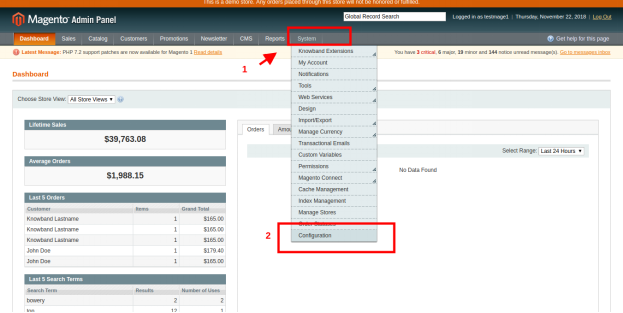
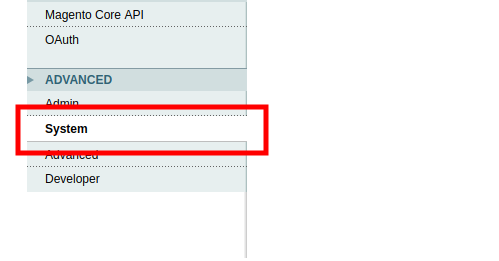
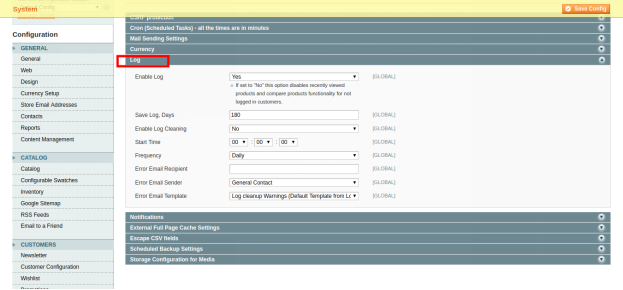
One can enable or disable logging option from Magento admin panel. Steps to do so are

Go to

System -> Configuration -> System -> Log

We can get visitor’s data using the following code

$visitor_data = Mage::getSingleton(‘core/session’)->getVisitorData();

Here $visitor_data will return an array of the customer/visitor information which is stored in the session

Array
(
[] =>
[server_addr] => 197777237
[remote_addr] => 197777237
[http_secure] =>
[http_host] => www.testmage1.com
[http_user_agent] => Mozilla/5.0 (X11; Linux x86_64) AppleWebKit/537.36 (KHTML, like Gecko) Chrome/68.0.3440.84 Safari/537.36
[http_accept_language] => en-US,en;q=0.9
[http_accept_charset] =>
[request_uri] => /test
[session_id] => njt3e2cc4g5c85o8gccnjs1ep3
[http_referer] =>
[first_visit_at] => 2018-11-22 14:42:15
[is_new_visitor] =>
[last_visit_at] => 2018-11-22 14:42:20
[visitor_id] => 19
)

If you need some specific data like the first visitor last visit time then you can use its model too

echo $firstVisitAt = Mage::getModel('log/visitor')->getFirstVisitAt();
echo $lastVisitAt = Mage::getModel('log/visitor')->getLastVisitAt();

Hope this will help you in tracking visitor’s data on your Magento store. Happy Coding:)

PrestaShop Website Decoration Effects Module- User Manual

1.0 Introduction

The online store owners can now decorate their stores for different occasions like Christmas, New Year or Valentine’s Day. In this winter season, set the themes according to the occasions and grab the customer’s focus and attention. Website decoration is one of the smartest strategies to optimize the UI of the site and keep the customers engaged in the store. The visual effects can make your site look better and occasion ready.

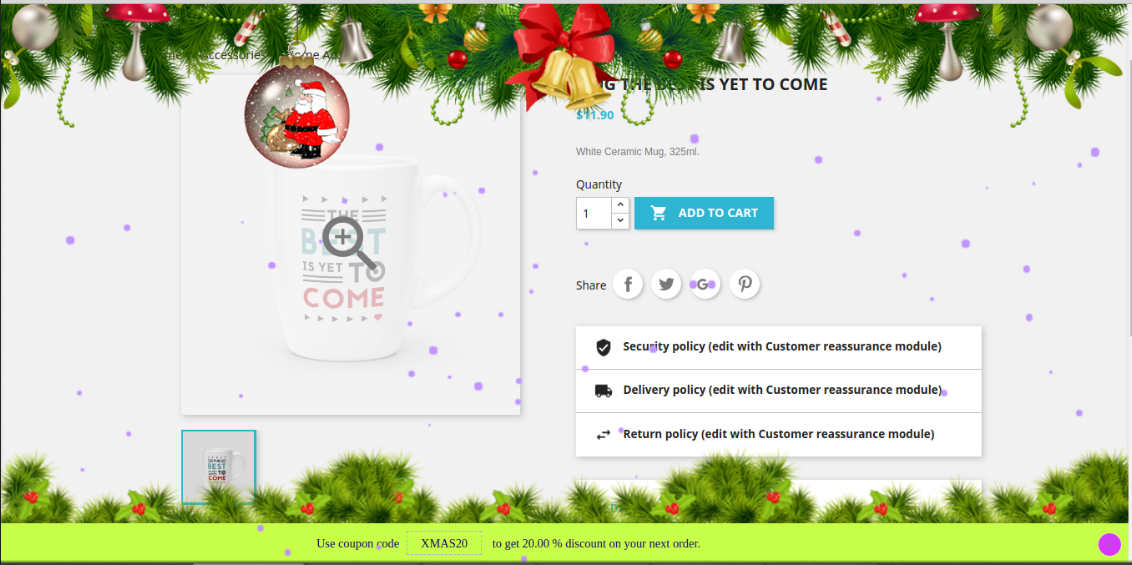
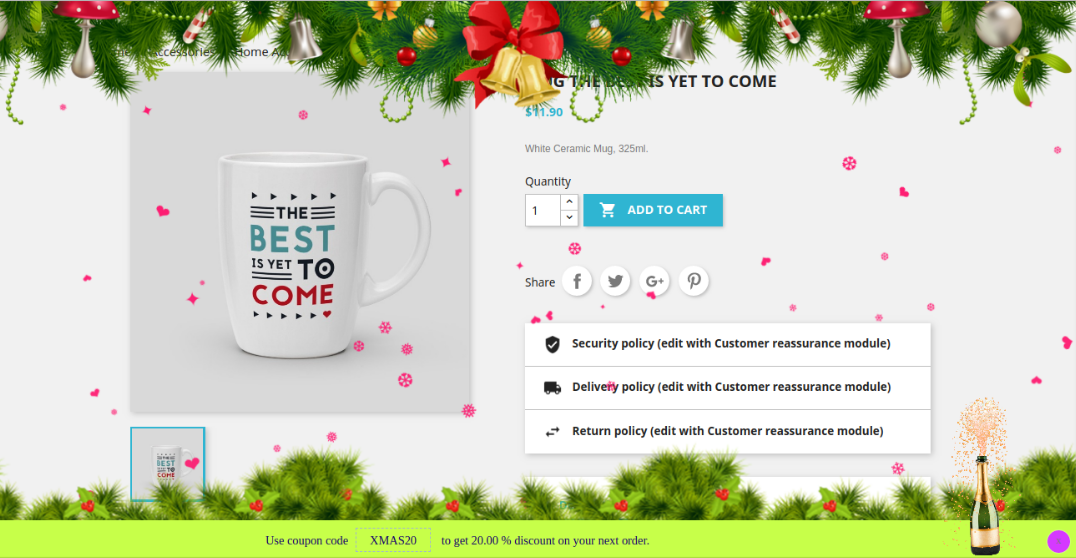
Knowband offers the PrestaShop Website Decoration Effects module which decorates the website with respect to different occasions. This way the store admin can create a positive first impression. The store merchant can customize the PrestaShop Website Decoration Effects plugin for any holiday like Christmas, New Year and many others. We have also added Extra effects for New Year.

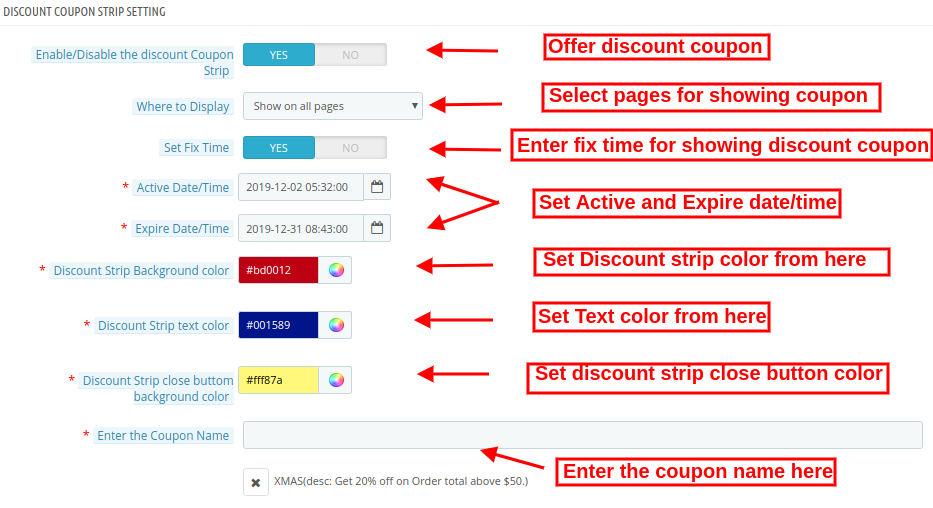
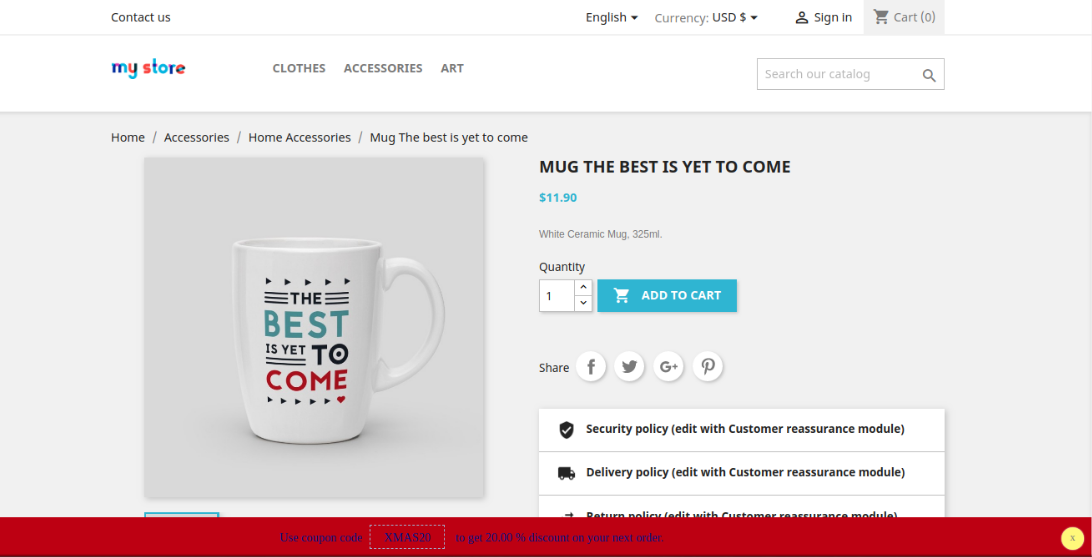
Now, the online store admin can also set up header, footer and random elements in the new version of our PrestaShop Website Decoration Effects module. Store merchants can show/hide snow effects. Now we offer multiple different decoration elements. The store merchant can set the elements according to the requirements. The updated PrestaShop Website Decoration Effects extension also allows showing customized elements from the admin interface. There is an option to show a discount coupon strip on selected website pages.

1.1 Features Offered by Advance Prestashop Christmas Effects Addon

  1. Using PrestaShop Website Decoration Effects addon, the online store admin can decorate the store as per the occasion like New year, Christmas and Valentine’s day.
  2. The PrestaShop Website Decoration Effects addon allows admin to show various snow effects, header elements, footer elements and random elements on all the website pages or selected website pages.
  3. The online merchant has an option to show or hide snow effects, display effects on a mobile device also and set the display frequency of these effects.
  4. The online store admin can also select a specific date and time duration for showing the special effects on the website pages.
  5. Four different snow effects are available for decorating the store. Admin can use any of it as per the requirements.
  6. In the second decoration effect, the online store merchant can show different shapes like heart, diamonds or other characters.
  7. Admin can show different header elements on the selected page and duration. There are 4 header elements from which admin can select any element. The PrestaShop Website Decoration Effects plugin also allows admin to add new elements.
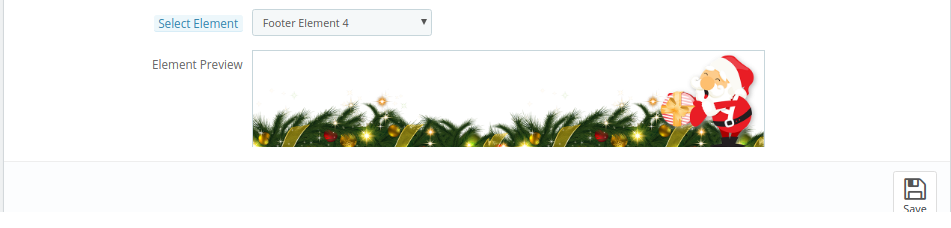
  8. Admin can show different footer elements on the selected page and duration. There are 8 footer elements available for decoration. The PrestaShop Website Decoration Effects plugin also allows admin to add new footer elements.
  9. The Special decoration effects plugin has some random elements for light decorations. Admin can set the element movement type as static or moving. The Snowflakes effect module allows the setting position of elements.
  10. The online merchant can show a discount coupon strip for showing discounts on occasions in a different way.
  11. Admin can also set the look and feel of a discount strip.

2.0 Steps for Installation

After purchasing the PrestaShop Website Decoration Effects addon from the store you’ll get these files:

1. A zipped file consists of the source code of this PrestaShop Website Decoration Effects addon.
2. User Manual

The store admin can follow these steps to install the PrestaShop Website Decoration Effects addon:

Follow these steps to install the PrestaShop Website Decoration Effects addon:

  • The admin needs to unzip the zipped file. This file includes some files and folders.
  • After that, the admin can copy the overall content of the folder and paste them into the “Modules” folder of the store’s directory.

The admin can follow the path – Root Directory/modules/.

3. As a store admin, you can install the PrestaShop Website Decoration Effects extension. You can find that in Store Admin -> Modules and Services. It would be shown as below –


Now, you just need to click on the “Install” button to install this PrestaShop Website Decoration Effects extension. A confirmation pop-up will be shown. Click on “Proceed with the installation” option. This step will install the PrestaShop Website Decoration Effects module and show notification – “Module(s) installed successfully”.

3.0 Admin Settings

The online store merchant can apply settings for showing special decoration effects from the admin section. Here, the admin can get these configuration settings:

  • General Settings
  • Header Element Settings
  • Footer Element Settings
  • Random Element Settings
  • Discount Coupon Settings

3.1 General Settings

In the General Settings tab, the online merchant can apply basic settings for showing decoration effects on the website front-end interface. These are the available customization options:

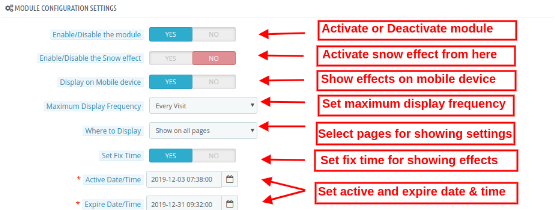
  • Enable/Disable the module: Toggle the button for activating or deactivating the PrestaShop Website Decoration Effects module.
  • Enable/Disable the Snow effect: Activate or Deactivate the settings to display/hide the snow effects on website pages.
  • Display on a mobile device: Admin can enable this tab for showing decoration effects on mobile devices.
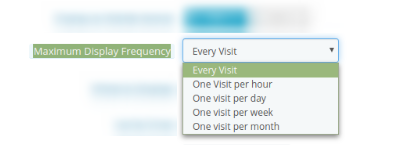
  • Maximum Display Frequency: Admin can set the frequency of showing decoration effects. Admin can show decoration effects on every visit of customers or one visit per hour/day/week/month.
  • Where to display: Admin can select the pages for showing/hiding decoration effects. The PrestaShop Website Decoration Effects module also allows showing decoration effects on all the pages.
  • Show on all pages: Select this if you want to display these decorative effects on all the website pages.
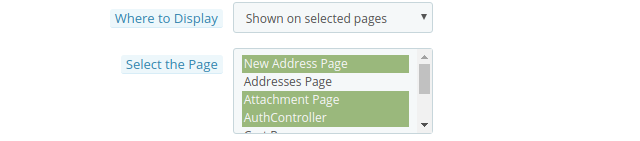
  • Show on selected pages: You can select this option if you want to display the effects on particular webpages of the sites. On selecting this option, a new customization menu will be displayed for selecting the pages.
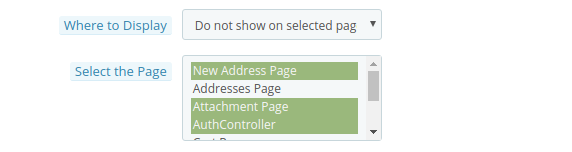
  • Do not show on selected pages: In this menu option, you need to select the pages on which you don’t want to display the snowflake effects.

While Enabling the snow Effects, Admin will get 4 available snow effects as shown below:

  • Select Snow Effect type: There are 4 snow effect types available in PrestaShop online store effects module. Admin can select the snow effects as per the requirements:

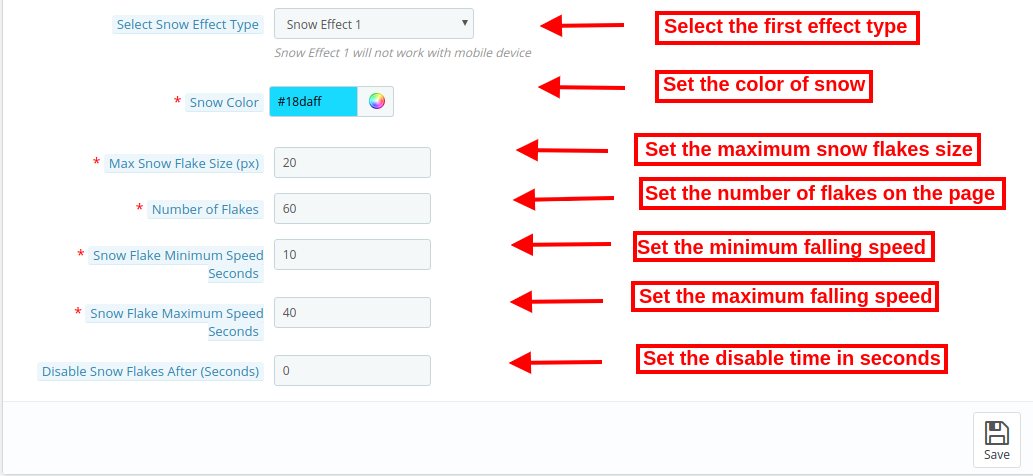
Snow Effect 1

On selecting Snow effect 1, you will get these customization options:

  • Snow color: There is a color picker tool by which you can set the color of the snow. In this effect, snowflakes will be displayed in the store.
  • Maximum snowflake size: In this menu option, you can set the maximum size of a snowflake. The PrestaShop Website Decoration Effects plugin will show the snowflakes as per the selected flake size.
  • Number of Flakes: Here, you can set the number of flakes for decorating the website. For dense effects, you can set a higher number but the recommended number of flakes is 25 according to the Advance PrestaShop Christmas Effects module.
  • Snowflake Minimum speed seconds: You can set the minimum speed of snowflakes in seconds.
  • Snowflake maximum speed seconds: Set the maximum snowflakes falling speed in seconds.
  • Disable snowflakes after: In this menu option, you can set the seconds after which you want to stop showing the snowflakes effect.

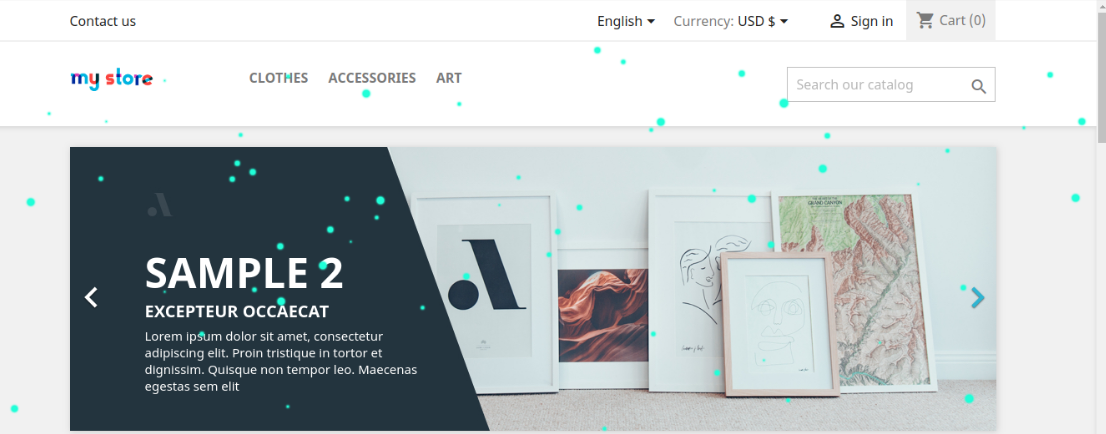
In the front-end interface the effect will look like the below-mentioned image:

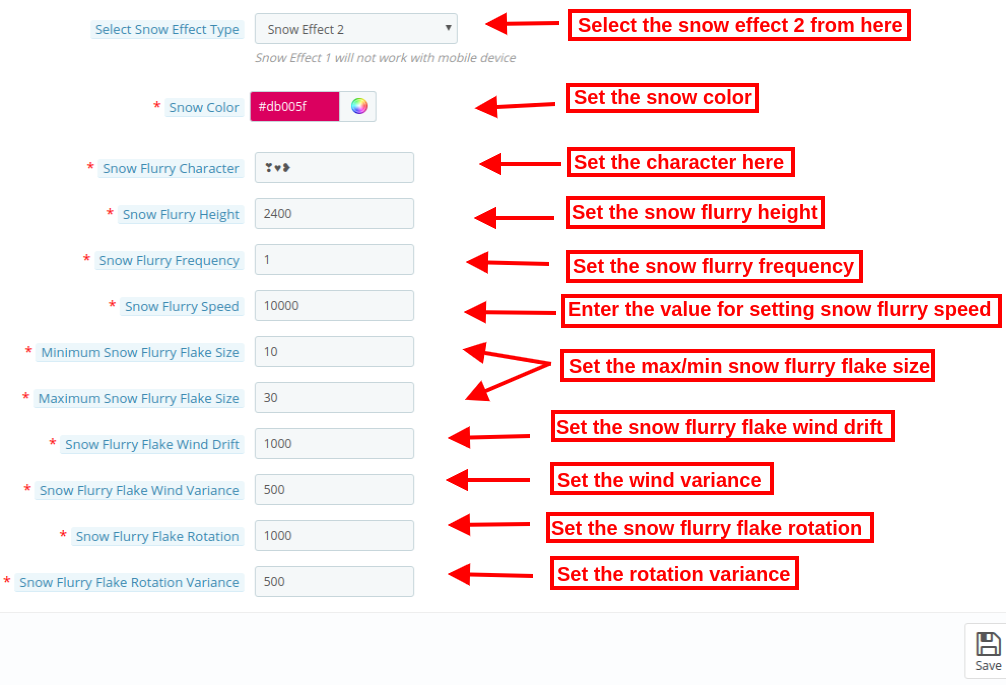
Snow Effect 2

There will be different customization options available in snow effect 2.

  • Snow color: You can select the color for the effects using the color picker tool.
  • Snow flurry characters: In this menu option, the store admin can enter any character. For example during Valentine’s Day, the admin can show roses or hearts (like ♥❥) for decorating the website. These shapes will fall down on the website pages.
  • Snow flurry height: Set the height of the flurry from the admin interface. Admin can set it (in pixels) to control the height for which the snow flurry will fall. The admin can increase the snow flurry height for showing it all over the page.
  • Snow Flurry Frequency: Set the frequency of generating new snow flurries on the website. The lower number will create more snow flurry.
  • Snow Flurry Speed: Set the falling speed of snow flurries. You can set a lower number for faster snow flurry falling speed.
  • Minimum Snow Flurry Flake Size: Here, you can set the smallest size of the snow flurry flakes.
  • Maximum snow flurry flake size: In this menu option, you can set the maximum size of snow flurry flake.
  • Snow Flurry Flake Wind Drift: This value will control how far each snow flurry will drift in pixels in the left direction. Admin can enter a negative number to make the flow on the right side of the page.
  • Snow Flurry Flake Wind Variance: This value will control the drift of every snow flurry flake using the wind drift as the base value. A lower value will create less drift.
  • Snow Flurry Flake rotation: This value controls how much a snow flurry flake will rotate in degrees while falling.
  • Snow Flurry Flake Rotation Variance: How much a flurry flake will rotate while it falls. A lower value will offer fewer random rotations.

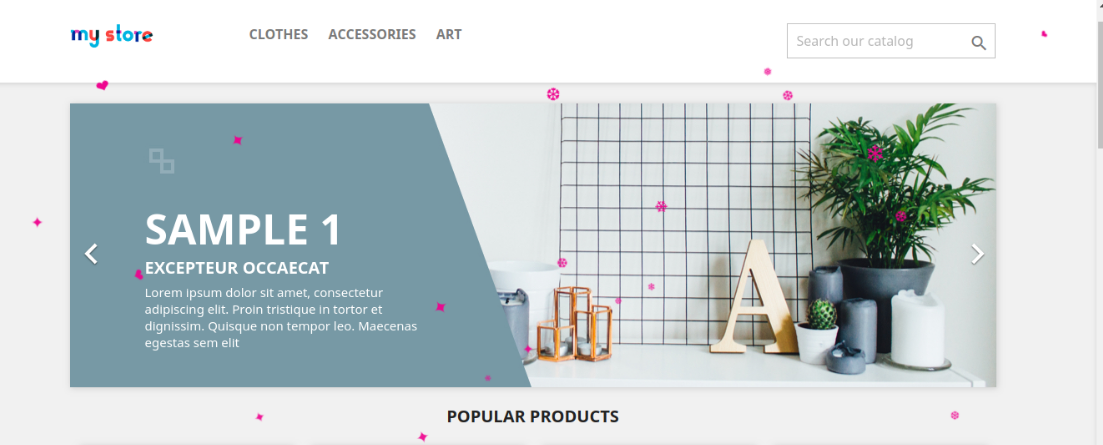
The effect will look as shown below:

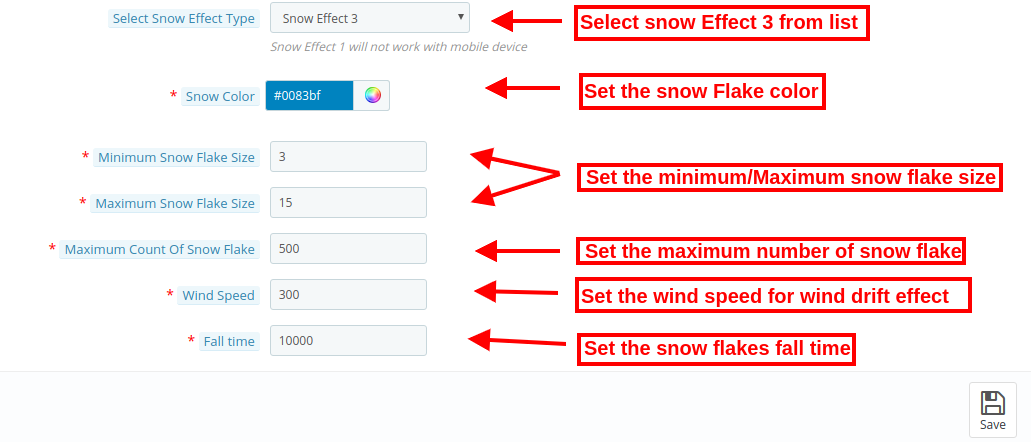
Snow Effect 3

In this effect, you will find the below-mentioned settings:

  • Snow color: There is a color picker tool by which you can set the color of the snow.
  • Minimum snowflake Size: Set the smallest size of the snowflakes from the admin interface of this Special decoration effects plugin.
  • Maximum snowflake size: In this menu option, you can set the maximum snowflake size.
  • Maximum count of snowflake: Set the maximum number of the snowflake from the admin interface of this PrestaShop Website Decoration Effects addon.
  • Wind Speed: Admin can set the wind speed value i.e., 300. The wind speed effect will show a wind drift in snowflakes. If the admin sets this value as 0, the snowflakes will fall in a straight line.
  • Fall time: Here, you can set the time taken by each snowflake. If admin sets the time 10,000 then the snowflakes will fall faster. For normal speed, the admin can set the lesser value as 1000.

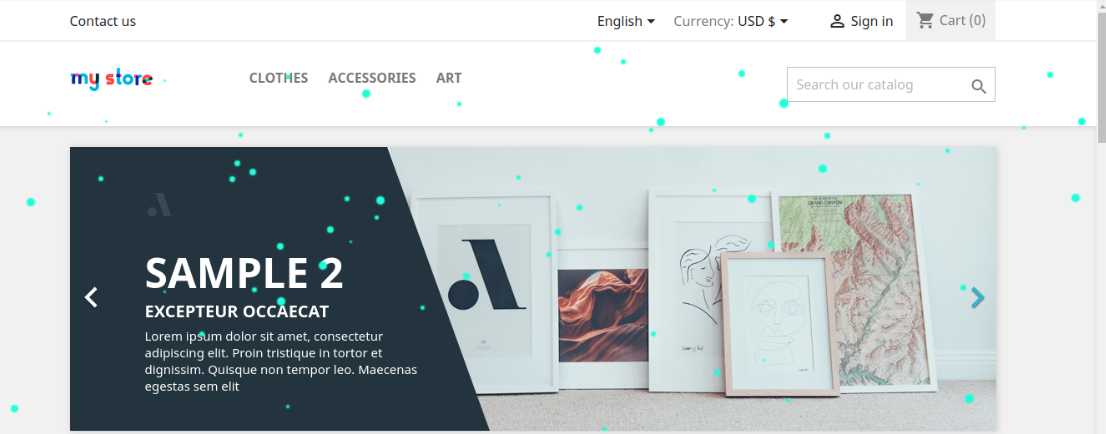
View the effects:

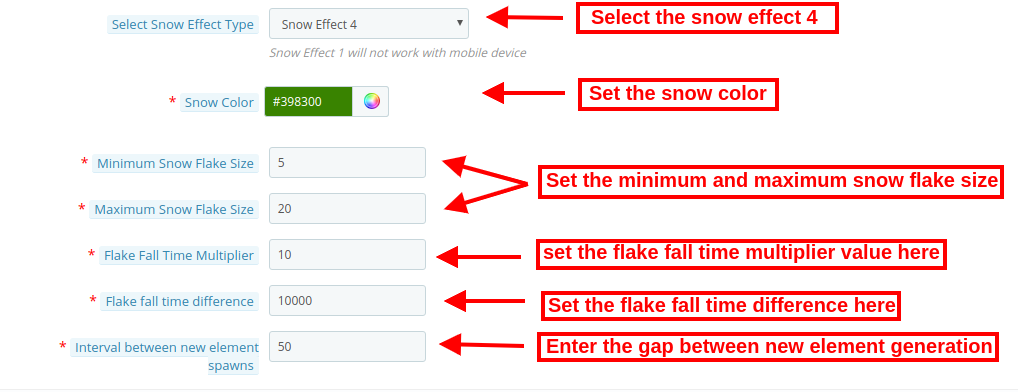
Snow Effect 4

  • Snow color: You can set the color of the snow using a color picker tool available in the PrestaShop Website Decoration Effects addon.
  • Minimum Snowflake Size: Set the smallest size of the snowflakes from the admin interface of this Special decoration effects plugin.
  • Maximum snowflake size: In this menu option, you can set the maximum snowflake size.
  • Flake falls time multiplier: Here, the store admin can enter the fall time multiplier value. The higher value will show a lower speed.
  • Flake fall time difference: Here, the admin can set the value of a difference between flakes to fall time.
  • Interval between new element spawn: The store admin can also set the difference value for the next element generation. If the value will be less, more flakes will display on the website pages.

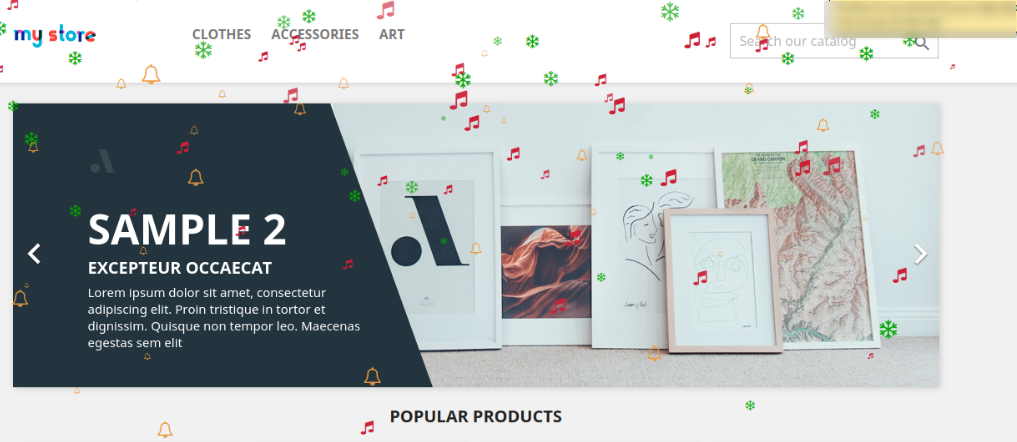
The effect will look as shown in the image below:

3.2 Header Element Settings

Apply header element settings and setup website header decorations:

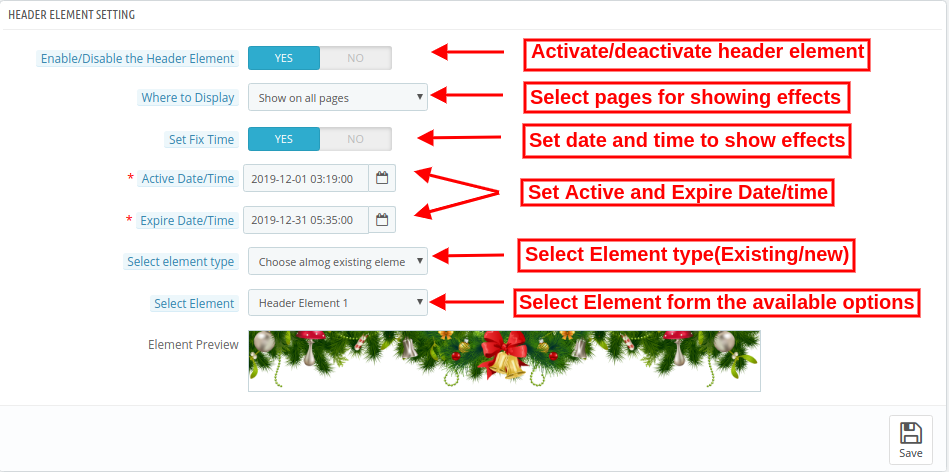
  • Enable/disable the header Elements: Activate or deactivate the option to show/hide header elements.
  • Where to display: Select the pages on which you want to show/hide header elements effect.
  • Set Fix Time: You can set a specific time for showing decorative effects.
  • Active Date/time: Set start time from here.
  • Expire Date/time: Enter expire date and time
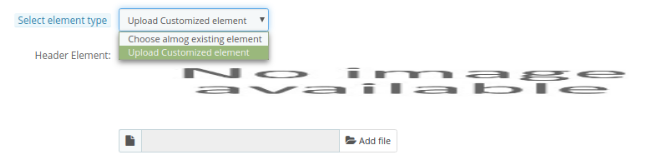
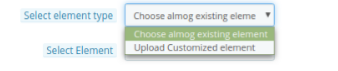
  • Select Element Type: Admin can select from available element types or upload customized elements.

  • Choose among existing elements: Admin can select from available elements.
  • Upload customized elements: Upload customized elements from the admin interface of this PrestaShop online store effects module.
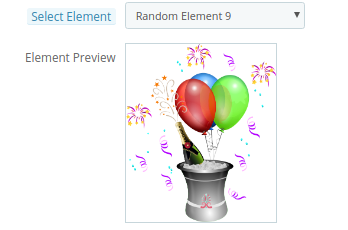
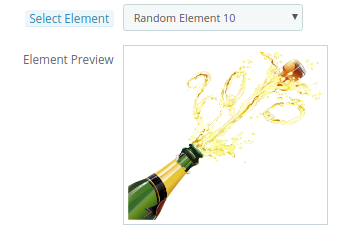
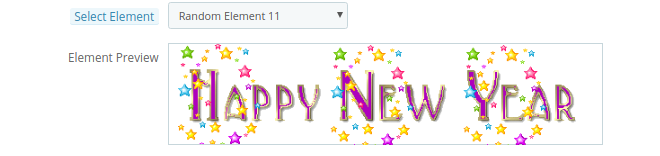
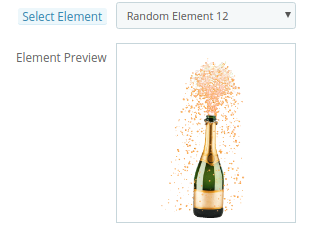
  • Select Element: Select from available header elements. These are the available elements.

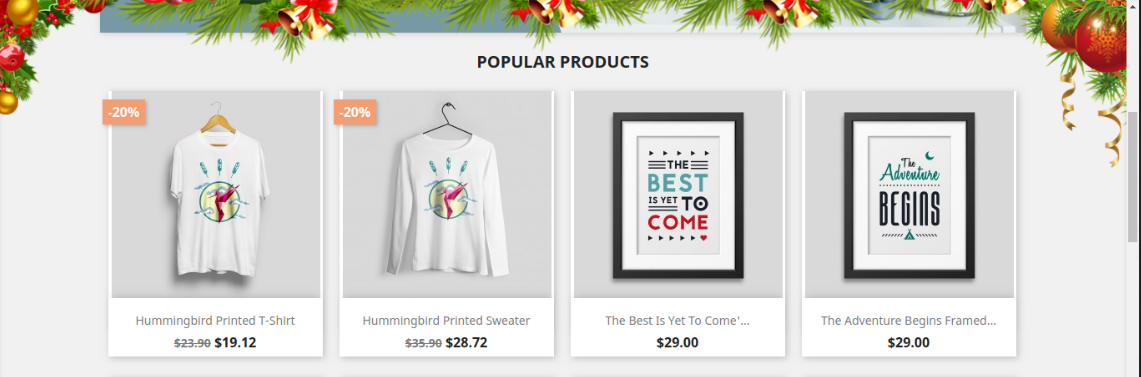
After applying these settings the store admin can view the impact on the website front-end interface.

3.3 Footer Element Settings

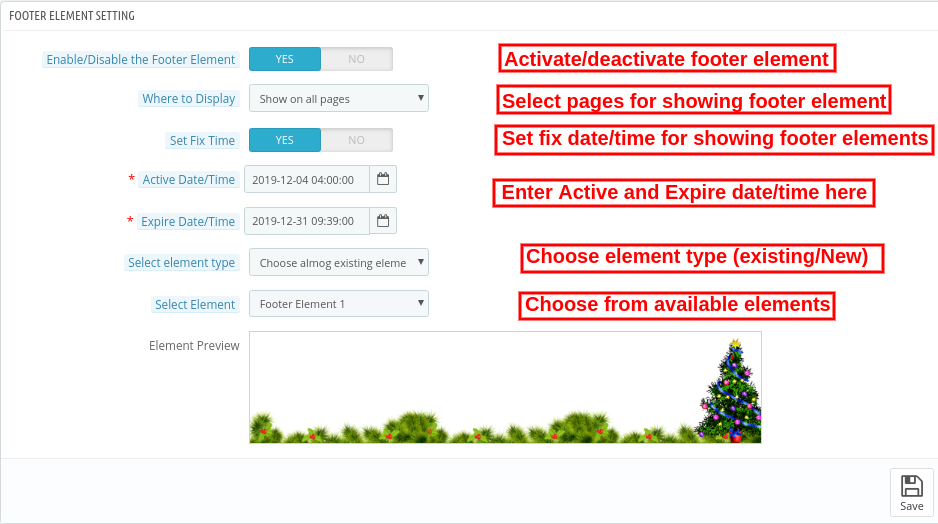
  • Enable/disable the Footer element: Activate or Deactivate the footer elements settings for showing/hiding footer decorations.
  • Where to display: Admin can either show footer decoration effects on alpages or show the effects on selective pages.
  • Set Fix Time: Admin can also set a specific time for showing header effects on the website.
  • Active Date/time: Enter start date and time here.
  • Expire Date/time: Set Expire date/time effects.
  • Select Element Type: Admin can select from available options and or upload new elements.

  • Choose among existing elements: Admin can select from available elements.
  • Upload customized elements: Admin can also upload new elements from the admin interface.
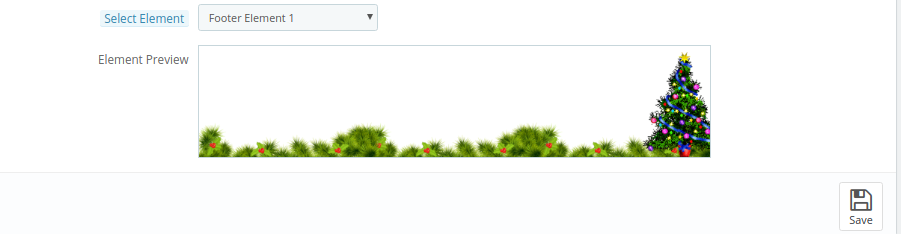
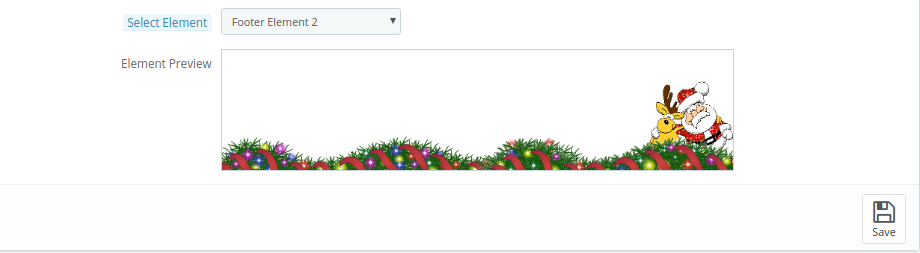
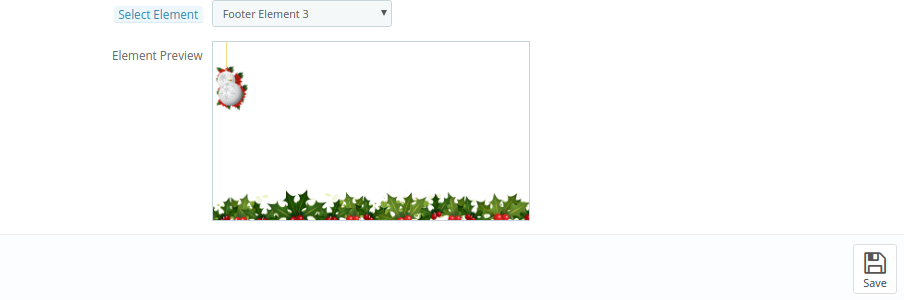
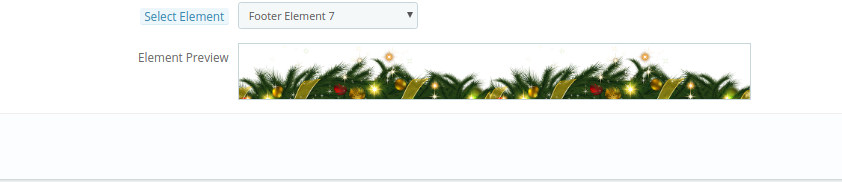
  • Select Element: Select from available header elements.

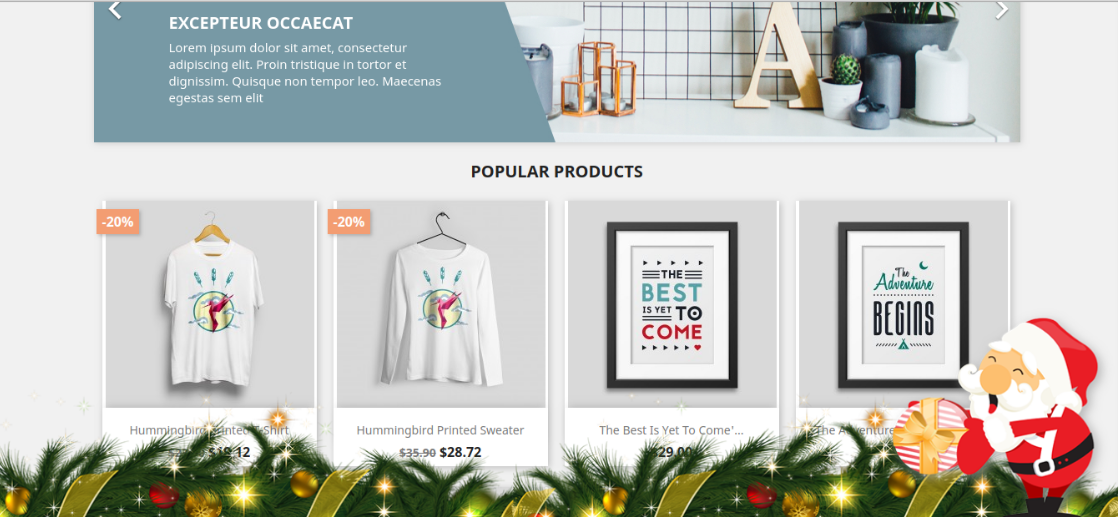
     The effect will look as shown below:

3.4 Random Element Settings

  • Enable/disable the Random Element: Admin can also show random decoration elements on the website front-end interface.
  • Where to display: Show on all the website pages or select pages for showing/hiding random elements.
  • Set Fix Time: Enter specific date/time on which you want to show random elements.
  • Active Date/time: Set start time here.
  • Expire Date/time: Set End date time here.
  • Select Element Type: Choose the element type as available or customize.

  • Choose among existing elements: As a store merchant, you can select from available elements.
  • Upload customized elements: You can also upload new elements from the admin interface.
  • Select Element: Select from available header elements.


  • Select Element movement Type: Set movement type static or dynamic.

  • Select moving random element direction: Set moving random element direction.


  • Select Static Random Element Position: Set static random element direction.

The impact of these random elements will be as shown below:

3.5 Discount Coupon Settings

The PrestaShop Website Decoration Effects plugin allows offering discount coupons on special occasions via an attractive footer bar interface.


  • Enable/Disable the Discount strip: Activate/deactivate this option to show a discount strip on the website front-end interface.
  • Where to display: Admin can select the pages on which he wants to show these discount coupons.
  • Set Fix time: Set a specific time for showing the discount coupon.
  • Active Date/time: Enter the start date/time here.
  • Expire Date/time: Enter the end date/time here.
  • Discount Strip Background color: Set the color for showing as a background color of discount strips.
  • Discount Strip text color: Set text color of the discount strip.
  • Discount strip close button background color: Set close button background color of the discount strip.
  • Enter the coupon Name: Enter the coupon name here.

4.0 Front-End Interface

The online store merchant can decorate the online store using the Advance PrestaShop Christmas Effects plugin. The online store merchant can customize the PrestaShop Snow Flurry effect addon according to the various occasions like Christmas, New Year and many others.

Different snow effects offer a variety of decorations. The online store visitors and the customer can view the decorated store.

Fist Snow Effect with Elements: Here, in the image, you can view the beautiful impact of first show effect. You can also set different header, footer and random elements as per your website theme.

Second Snow Effect with Elements: In the Second snow effect, admin can show characters and set the flowing speed and other effects related settings.

Third Snow Effect with Elements: In the third snow Effect, you can show snow flacks with different header and footer elements. Online users can view the discount strip.

Fourth Snow Effect with Elements: In the fourth effect, online users can view colorful snow flurries with the attractive header, footer and random elements.

This way, the online store merchant can decorate the website and attract online customers. There are multiple decoration options, admin can use various options on different occasions.

5.0 Tutorial Videos Of Prestashop Website Decorator Addon

Check out the latest tutorial video for the prestashop website decorator addon. This tutorial video contains the installation, configuration, including theme selections like snow flakes or snow flurr, date and timing of the scheduling of the theme, header element settings as well as footer element settings of the module.

For more Prestashop addons visit Knowband.

For more details, visit here:

Prestashop Website Decoration Effects plugin Product page Link

Get, Set, Sell! Save Big this Holiday with Knowband’s PrestaShop Module Packs: Part 2

Did you read our last blog about Knowband’s Prestashop Module Bundle you can save big this sale season? Well, the celebrations are not over yet! There’s more to come your way.

Committed to empowering your eCommerce site with standout features and functionalities, Knowband offers even more cost-effective Prestashop Module bundles. We unveil heavy discounts on Prestashop Addon packs. Avail the lucrative opportunity instant as the offers expire soon. Let us take a walk through the offerings of Knowband.

Mobile Pack – Mobile App, AMP, Order Look Up

In the mobile-centric shopping environment, you need to keep your store in sync with the requirements of the mobile-first users. This is when the outstanding and best-in-class extensions of our Mobile pack that are especially designed to cater the requirement of the mobile shoppers.

Prestashop AMP Extension

Prestashop Accelerated Mobile Pages Addon allows you to create accelerated mobile pages for the mobile sites. Along with reducing the load time of the webpages with AMP, here are some features that you get with the module.

  • Creates an alternative URL as per AMP format
  • Allows to display the best sellers, features products and new arrivals
  • Show social sharing option on the product page
  • Admin can display the banners on the mobile sites
  • Control over the look and feel of the AMP pages
  • Incorporate Google Analytic to track the report of the AMP pages

Prestashop Mobile Order Lookup Module

With Mobile Order Lookup Module for Prestashop, the store owners can offers an easy option for the customers to track their order status just by using their mobile number and order ID.

  • Enable Customers to view order status without logging in
  • Gives store admin the option to monitor the number of customers who viewed their order status
  • Simple customizable interface

Prestashop Mobile Login Plugin

PrestaShop Mobile Login module incorporates a feature that allows the customers to register in your site using their mobile number with SMS OTP verification. Features of the Prestashop module are listed below:

  • Admin can allow the customers to log in and register using their mobile number
  • Enables OTP verification
  • User-friendly admin interface for easy control
  • E-merchant can set the minimum and maximum length of the mobile number required

Do not let your competitors’ get better off you. Just go mobile by adding the above extensions in your cart. For a pack of 3 Prestashop extensions, you’ll get a handy discount of 15%. Apply the coupon code: MOBILE15 and avail the offer.

Customers’ Trust Booster Pack

Create a lasting and reliable relation with your customer with our Customer’s Trust Booster Pack. Seize the pack of exceptionally well-tailored pack of 3 extensions and boost your customer retention.

Prestashop Page Viewers Counter Extension

Showcase the number of store visitor are currently viewing a particular product with our Prestashop Page View Counter Addon and get the below-discussed features.

  • Both the customer and admin can view the number of current viewers
  • Admin can set the position of the counter
  • Customize the look and feel of the message text

Prestashop Product Sales Count Addon

Prestashop product sales count extension allows you to display the number of times a particular product was purchased, that is, the sale count of your site’s product.

  • Option to show sales count on the product pages
  • Custom CSS and JS option to customize the look and feel
  • Option to set a minimum sales count to show to the customers

Prestashop Website Testimonial Module

Add consumer-generated content in your site with our easy-to-use Prestashop customer testimonial extension. Here are other functionality offered by the addon.

  • Allows the customers to write testimonials and add images as well
  • Mobile-responsive interface
  • Can show the testimonials, Homepage, Left Column, and Right Column

No more coding required to add such features in your site. Just add the feature-rich Prestashop module bundle in your cart and get a discount of an additional 10% with the coupon code: TRUST10.

Coupon Code: TRUST10

Improved User Experience Pack – Infinite Scroll, Quick Login, Switch Language

Cater your customers efficaciously with a user-friendly front-end interface. Offering flat 15% on the Prestashop extensions bundle, Knowband makes sure that you hit your target accurately.

Prestashop Infinite Scroll Addon

Prestashop Endless Scroll Addon replaces page reloads and pagination system with an infinite scroll option that list all the products on the same page. Here are some of the pluses of using this addon:

  • Allows infinite scrolling on the pages with product listing throughout the site
  • Compatible with SEO friendly URLs
  • Adds ‘Load More’ feature to pause infinite scroll after a certain interval of pages
  • Adds ‘Go to Top’ link
  • Customize the look and feel of the front-end interface at a few button clicks

    👉Explore the Module with Our Video Guide

Prestashop Quick Login Popup Extension

Inbuilt Facebook and Google login feature of the Prestashop quick login popup module makes registration and store browsing effortless for your potential customer.

Prestashop Auto Switch Language and Currency Addon

Prestashop Auto Switch Language and Currency Module automatically detects the IP address of the store visitors and converts the website content into the native language of the visitors. Not just this, the currency is also changed into the respective currency of the place from where the site is being browsed.

Purchase all the extensions offered in this pack and apply the coupon code: BETTERUX15, to  get a flat discount of 15%.

Coupon Code: BETTERUX15

Shipping Options Pack

Offer the best-ever shipment to your customers and do not miss out on a single conversion. You can now this at budget-friendly prices with our Shipping Pack. Here are the plugins that you get along with the module bundle.

Prestashop Store Locator and Pickup Addon

The customers get an option to find the nearest store and also enables them to set the time period for product pick up with Prestashop store locator and pickup module. Listed below are additional benefits that you get with the module.

  • Easily activate the store locator and pickup functionality
  • Show the store locator on any page of the website
  • Display the path of the stores on Google map
  • Option for the customer to book pickup slot

Prestashop Preferred Delivery Time Module

Allow your customer to enter their preferred delivery date and time on the Checkout page with Knowband’s Preferred Delivery Time Addon for Prestashop.

Prestashop Shipping Cost by ZipCode Extension

Prestashop Shipping Cost by Zipcode module allows the store admin to apply different shipping cost based on postal codes of the customer. The seamless transaction boosts the chances of customer retention.

  • Add Zones with range of pincodes
  • Fix shipping cost for different zones at a button click
  • Restrict product delivery for a particular zone
  • Download shipping conditions

Prestashop Shipping Timer Module

Prestashop Shipping Timer Addon creates a sense of urgency in the minds of the store visitors and motivates them to place the order. The timer incorporated by the module displays the time limit within which the product will be delivered on the same day.

Prestashop COD with Fee Addon

Provide the option of cash on delivery to their online customers and charge an additional amount for the COD feature with our Prestashop COD with Fee Addon.

  • Effortlessly fix the terms and conditions
  • Set the fee for the cash on delivery feature
  • Create N number of COD conditions
  • Fix the minimum and maximum order limit for using COD option

If you add 4 out of the 5 Prestashop modules from the shipping pack, you’ll get a discount of 15%. In order avail the offer apply the coupon code: SHIP15.

However, if you purchase all the 5 module, you’ll get an alluring discount of 20% with the coupon code: SHIP20

Coupon Code: SHIP15  (For a pack of 4 modules)

Coupon Code: SHIP20  (For a pack of 4 modules)

Security Pack – reCaptcha, Private Shop, Block Spam

Ensure the security of your site in a cost-effective with our security pack and get a discount of 10%.

Prestashop Block Bot/User by IP, Country and User Agent Module

Prestashop Block Bot/User by IP, country or User Agent Addon is an effortless means to keep the malicious bots away from your site by blocking the access to your website for a particular user or bot.

  • Helps you ban the unwanted traffic from spam bots and users
  • Add the restriction by IP, Country or User Agent
  • Admin can even show the header and footer to the blocked users
  • The users can send a request for removing the banishment
  • The request is processed from the back-end

Prestashop Google reCaptcha Addon

Add Google reCaptcha in your Prestashop store without making any changes in the base of the site with Prestashop Google reCaptcha extension. The must-have features in the registration page and checkout page lets real people pass through with ease and protects the site from spammers and bots.

Incorporate these security checks in your site at a flat 10% off. Use the coupon code: SECURE10.

Coupon Code:SECURE10

Prestashop Android and iOS Mobile App Builder

This is not it! Our market-leader Prestashop Android and iOS Mobile App Builder  is now available only for $199. Create your own mobile store for both Android and iOS platforms with a handy discount of 50%. Here is the list of the features that you get along with the eCommerce mobile app.

  • Bundle of themes and fonts to choose from
  • Tablet and mobile responsive
  • Real-time synchronization
  • Multi-lingual and RTL support
  • All Payment and Shipping method compatibility
  • Social login option
  • Easy navigation
  • Voice search (For Android Users)
  • Wishlist
  • Zopim chat support
  • All Coupon and voucher support
  • One page checkout
  • Unlimited push notification
  • Order tracking

Make sure that you don’t miss out on the golden opportunity. Visit Knowband now and upgrade your site as per the present industry need and requirement.