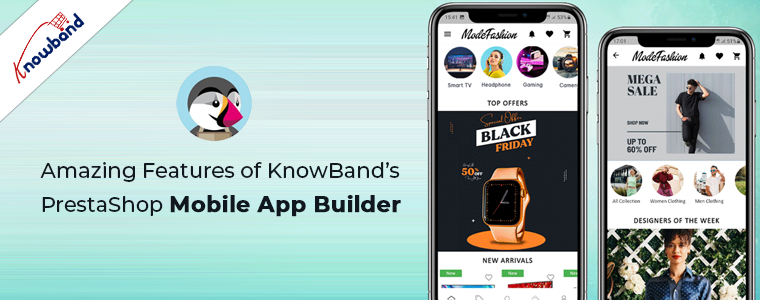
Amazing Features of KnowBand’s PrestaShop Mobile App Builder

Want to create apps for your PrestaShop website? We got a complete no-code App Builder for you!

There were times when PrestaShop Mobile Apps were only for big brands or flourished ones. E-commerce newbies & startups used to rely on their website only. But, time has changed now. Every PrestaShop website owner is looking forward to own mobile apps irrespective of their size. The Mobile Apps are playing a vital role in strengthening the brand & building a loyal customer base with minimal efforts. Every store owner is looking to grab this opportunity & grow their business on another level.

KnowBand, in this concern, has brought an automated solution with PrestaShop Mobile App Builder. It is a readymade framework designed to build native Android & iOS apps for your PrestaShop website without coding. The PrestaShop Mobile Apps are connected with your website in real-time. Moreover, the module provides complete backend panel control into your hands & thus you can manage the app functionalities with ease. Now let’s take a glance at some of the outstanding & sale-boosting features of PrestaShop Mobile App Builder:

1. Easy Installation:

Our PrestaShop Mobile App Builder is very easy to install & configure. All you need to do is to upload the zip file on your website & configure the backend panel from there.

2. Completely Native Mobile Apps

The performance of your PrestaShop Mobile App among worldwide mobile shoppers matters a lot as it would be a deciding factor for them to purchase or not. We all want shopping apps to be smooth & fast. The PrestaShop Mobile App Builder offers 100% native Android & iOS app which ensures hassle-free performance on all sorts of user’s devices.

Furthermore, the apps are built with the most advanced mobile app development technology Flutter, which ensures advanced compatibility and smooth user experience for the customers.

3. Customizable Home Screen Layout

The PrestaShop Mobile App Maker offers a dynamic home screen whose layout can be customized & configured from backend. The store admin can create & save multiple themes & festive based layouts in the backend. The positioning of various elements can be altered with just drag & drop feature.

4. Alluring Color & Font Options

Match your app colors & font styles with the website from backend panel of PrestaShop Mobile App Maker. Our Module allows you to choose theme color, background color, button color & button text color for your app.

5. Compatible with All Handheld Devices

Our PrestaShop Mobile App Creator provides error-prone & fully tested apps which run perfectly on all sorts of Android & iOS smartphone as well as tablets.

6. 100% Website & App Synchronization

Your PrestaShop Mobile Apps will be fully connected with your website & thus any change you make on the store will be reflected on the Mobile App in real-time.

7. Multi-lingual & RTL Support

The Mobile App Builder offers both multi-lingual & RTL writing support in the Android & iOS apps. The e-merchants can easily enhance the scope of their business worldwide.

8. Instant Login Options

The PrestaShop Mobile App Creator offers easy & quick options for user sign-in & registration. The mobile shoppers can login using Google, Facebook, Phone Number & Fingerprint verification. Moreover, the iOS App users can log in using Face ID which makes the login process hassle-free and simpler than ever.

9. Simplified Checkout

Few relevant details on a single screen of PrestaShop Mobile App Maker make the order submission easier for the users.

10. Shipping Methods Support
The PrestaShop Mobile App Supports all sorts of website shipping methods. This makes the trade between seller & buyer completely effortless.

11. All Product Type Support
The mobile apps for PrestaShop eCommerce website support all types of products on the Mobile Apps like single, bundled, grouped, configurable & virtual (downloadable) products.

12. Unlimited Push Notifications
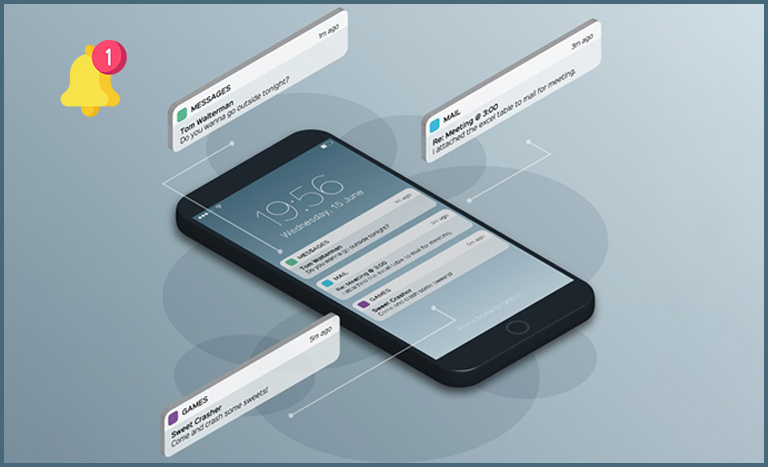
Sending push notifications to your app users about deals/offers/discounts would definitely grab their immediate attention & close more sales for your store. The PrestaShop Mobile App Maker offers the option to send push notifications on the apps from module backend. The store admin can send following sorts of notifications on the Apps:

Automated Order Creation Notification
Automated Order Status Update Notification
Automated Abandoned Cart Notification
Custom personalized Notification

Moreover, the users can check all the previous notifications in the newly added notification tab in the app. This will make sure your customers are up-to-date concerning all the offers and informational notifications.

13. 24*7 Chat Options
Keep your users close to you with the WhatsApp chat option in your PrestaShop Mobile Apps. The users can directly contact you regarding any query/concern & get assistance 24*7.

14. Mobile Coupons & Vouchers Support
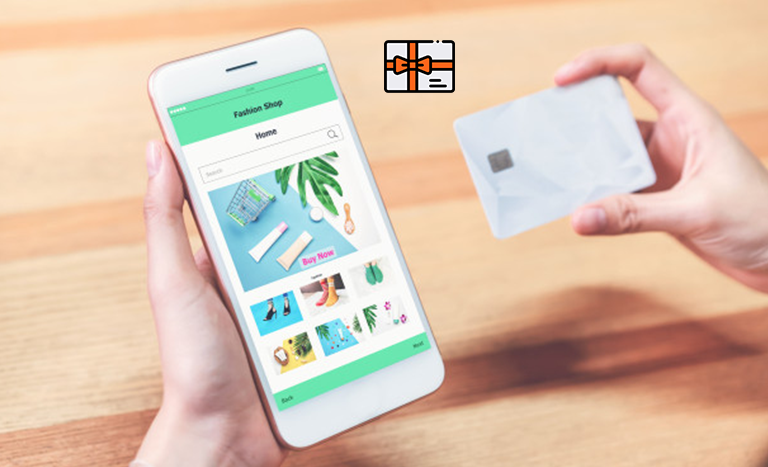
The PrestaShop Mobile App Maker offers support to all sorts of website coupons & vouchers on mobile apps as well. The amazing deals & discounted price would definitely keep the app users engaged & even compel them to re-visit app for more purchases.

15. Website Payment Experience on Mobile App
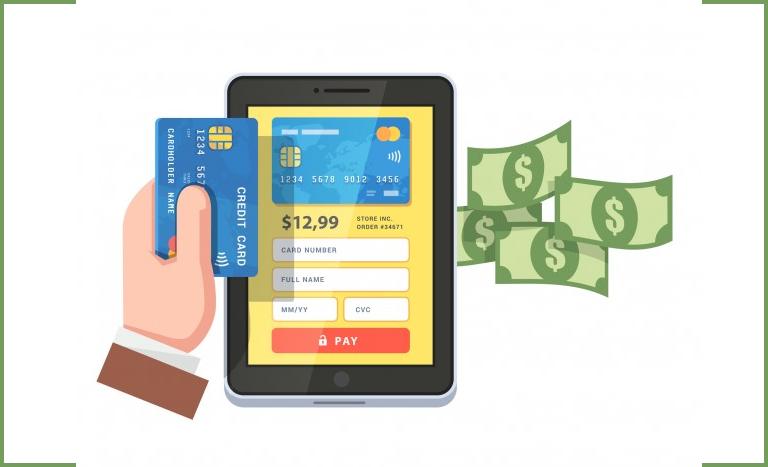
Offer the website payment experience on your PrestaShop Mobile App as well. The PrestaShop Mobile App Maker supports all sorts of website payment options on the mobile app.

16. New Payment Method Integration

The PrestaShop eCommerce Mobile App Creator comes with the flexibility to add new payment methods in the apps. All sorts of native payments can be integrated over a fair amount of fee.

17. Real-time Order Tracking
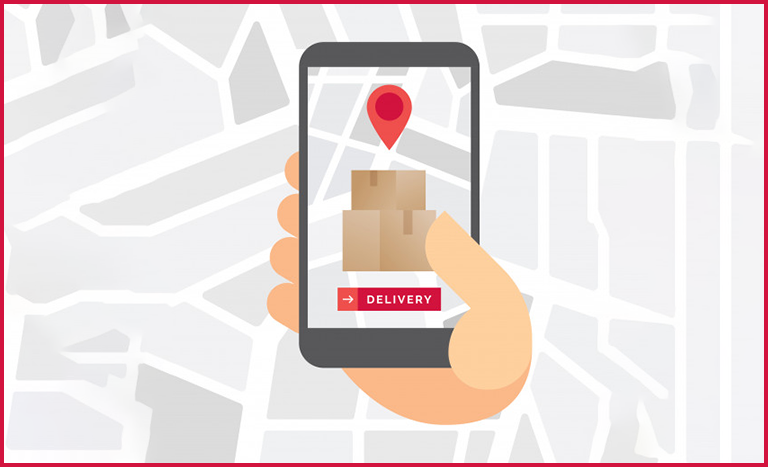
The Mobile Apps with PrestaShop Mobile App Creator offers effective real-time order tracking options. The updated status of previous order delivery gets updated in real time.

18. White Label Apps

The PrestaShop Mobile App Builder for Android & iOS allows the store owners to display the website logo on the header of the apps. This will make your app branded & popularize the same among worldwide mobile shoppers.

19. Social Sharing

The products from the app can be shared on multiple social networks by the users. It will grow the social reach of your store & lure potential leads.

20. Gamified E-Mail Subscription Pop-Up

Offer a gamified e-mail subscription pop-up on the mobile apps with an interactive spin-wheel interface. You need to install KnowBand’s PrestaShop Spin & Win module on your website.

21. Layered Navigation

The PrestaShop eCommerce Mobile App Maker makes the product search easier with multiple filters & sort options. The users wouldn’t face any issue while searching the right product.

22. Login-Sign up Pop-up:

The mobile apps encourage the customer to complete the login process in the app. The users can login via the login/sign-up pop-up available on the home screen of the app.
Furthermore, this not only ensure easy login process for the customers but also helps the E-merchants to get the customers’ emails for marketing purposes.

👉Explore the Module with Our Video Guide

5 eCommerce tips and tricks to ensure fast growth

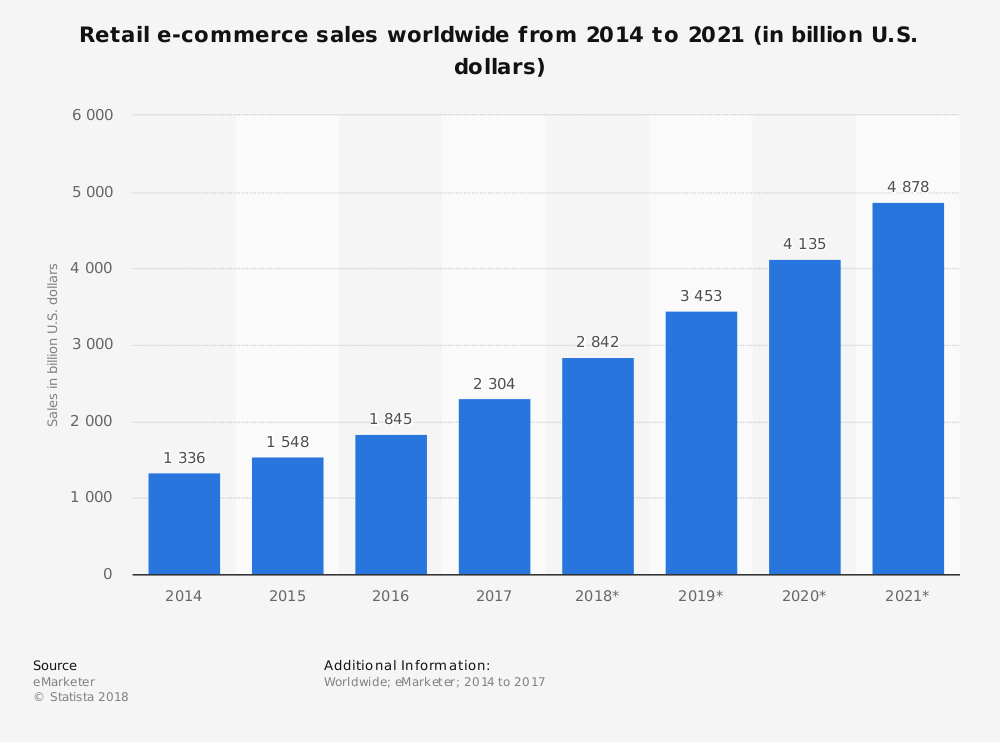
In this age of the digital world, awareness has become a prerequisite for every individual and all the industries are growing so rapidly that we never know what becomes trendy like how. The one such industry which has grown manifolds and thanks to the 4G Internet is the eCommerce industry. For those who are not aware of it, the eCommerce industry is one of the fastest growing industries all over the world. And the biggest gift given by this industry is the trend of online shopping ruling the world. Individuals from every corner of this globe are indulged in this process and saving their time and energy. According to Statista, e-retail revenues are projected to grow to 4.88 trillion US dollars in 2021.

However, rapid growth also brought huge competition between different eCommerce merchants. The increase in eCommerce businesses led to the competition heat up between these merchants. This made them responsible to keep pace with some new eCommerce trends especially those involving technical advances to shape consumer behavior.

Here are the 5 tips and tricks to ensure fast growth in eCommerce business:

1. Enhance video content and marketing:

Video marketing is one of the best and most popular ways of content marketing nowadays. As consumers love watching videos nowadays, it’s an easy and fun way to actively engage customers on your eCommerce website resulting in the upliftment of sales and revenues.

To overcome the competition, it’s the most beneficial way to improve your eCommerce growth and take it up to new heights of success. By embedding the videos from social media like youtube or adding video-based design elements, sellers can easily enhance their home page or product page which can attract more customers towards your store.

2. Serve Omnichannel consumers:

In today’s interconnected digital era, customers are searching for their favorite product on more than one online channel or Marketplace. According to Statista, Amazon accounted for 56.1 percent of the segment’s traffic, eBay accounted for 19.5% traffic, Walmart 3.8% and Etsy accounted for 3.5% of traffic. These numbers are clearly the resemblance of the crucial need to serve omnichannel consumers by marketing the products and services on all the available channels or Marketplaces.

Today, it’s easier than before to promote your brand or product online but before that, sellers need to turn their ideas into an eCommerce business. Just be sure to market your website on different platforms like social media, renowned marketplaces like Amazon, eBay, Etsy, Walmart as well as on small retail stores too. Never ever leave an opportunity to promote your brand store in any possible way. And no matter which channel you are selling, always sell genuine and reliable products to build customer’s trust in your brand and eCommerce store too. It will not only help you to increase customer traffic but also differentiate your eCommerce store with others.

3. Mark ways towards success with AI Chatbots:

If you want to give tough competition to other sellers, you can try your hands on the 24/7 assistance feature given by AI empowered chatbots. Customers love immediate response for their queries and chatbots are the perfect solution for this. Automated chatbots can resolve any kind of query of numerous customers at the same time. However, they can’t think outside the box, recognize misspelled words or evaluate incomplete queries as their creativity is limited by the code that created them.
But, thanks to these technological advancements as they have made these chatbots smart and sophisticated too. They are SSL compatible and multilingual too which helps you attain customer satisfaction in regional areas too. Therefore, it will increase the consumer traffic on your website leading to a lump sum amount of sales and revenues.
4. Voice search is a new boon:

It usually happens when customers are unable to write the correct spelling of their desired product and are unable to find it on the website. This leads to a decrease in the conversion rate of the website as the qualified leads also turn into non-qualified ones. Voice search is the new trend in these online stores as it helped many who were unable to write the correct spelling on the search tab. They can just simply speak the name of their product and it will be presented on their mobile screens.

According to Statista, 35 percent of users stated that they would consider purchasing food via their voice assistant in the future. Some latest gadgets for voice search like Google Play, Alexa by Amazon, Amazon Echo, etc. are some of the best innovations for eCommerce platforms. Many online store owners have already adopted the voice search functionality for their online eCommerce business. The advancement of voice search is an outgrowing opportunity when it comes to enhancing your SEO and this could also be enhanced by improving your product description on the website.

5. Safe and secure payment method:

When it comes to checkout, customers believe in a safe and secure checkout and payment method as there are many people who leave the cart abandoned due to the lack of trust which can end up losing potential customers. The final stage of online shopping should be smooth and simple as many people get frustrated due to the complex checkout process and payment gateways.

According to Statista, 69.23 percent of digital shopping carts and baskets were abandoned in the year 2017 and the purchase was not completed. Many times, it is due to the lack of trust in payment gateways on the checkout. So, if you want to improve the conversion rate of your website and want to be an extra edge over other competitors, be sure to provide a simple checkout process and secured payment options. You can apply PrestaShop one page checkout addon on your eCommerce store.

Final Verdict:

As the eCommerce industry continues to evolve, the most important responsibility is to provide a positive consumer shopping experience. Sellers should remain aware of the latest eCommerce trends which include omnichannel marketing, chatbots, video content and marketing, and a simplified checkout and payment process, and it will definitely help you to stand out from your eCommerce competitors.

Competition is at its peak and we have to overcome this. To remain an extra edge over others, KnowBand offers Marketplace integrators that enable sellers to integrate their eCommerce store to some renowned marketplaces like Etsy, eBay, Walmart, Google Shopping and Newegg. You can now list the products and the descriptions at a few button clicks. Thus, it becomes easier to update the details in bulk. Moreover, the attribute mapping becomes a cake-walk with the automated approach. So, integrate your eCommerce store and earn a huge chunk of profits.

Find more related articles here:

  1. Keys to successfully buy online and pick up in-store 
  2. 8 tips to drive more customers on a Marketplace
  3. 6 Summer Holiday eCommerce shipping mistakes to avoid
  4. 9 tips to help you sell more on Walmart Marketplace

PrestaShop Mobile App Builder Installation – Using FTP Details

If you are a PrestaShop website owner & module installation is hectic for you. Here’s is the simple & easy way to do the installation using your PrestaShop FTP details. Read the article for complete information.

Step 1: Get PrestaShop Mobile App Builder

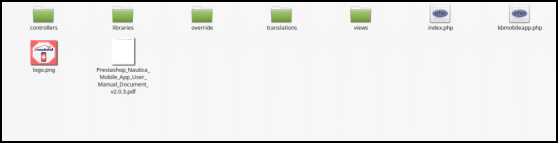
Purchase PrestaShop Mobile App Builder module from KnowBand store. You would get a zipped file containing the source code of the module. Unzip the file. You would get a file named “kbmobileapp”.

This folder contains the complete source code of the PrestaShop Mobile App Builder module as shown in the snapshot below:

Step 2: Move Source Code into Website Directory

Copy “kbmobileapp” folder into your store “modules” directory on the path – Root Directory/modules/.

Step 3: Install the Module

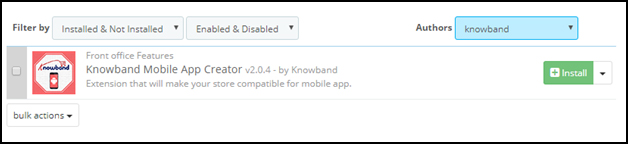
Now, the Prestashop mobile app builder addon is ready to be installed on your store and you can find that in Store Admin -> Modules and Services. It would be shown as below –

Step 4: Configure Module

Clicking on the “Install” button would display a confirmation pop-up. Tap “Proceed with the installation” & your module is installed successfully. Click configure & start using the backend of PrestaShop Mobile App Builder.

Thus, using your FTP details, you can install the module on your PrestaShop website with facile. Now, you can start using PrestaShop Mobile App Maker module. Hope this document proves helpful to you.

So, What’s Next?

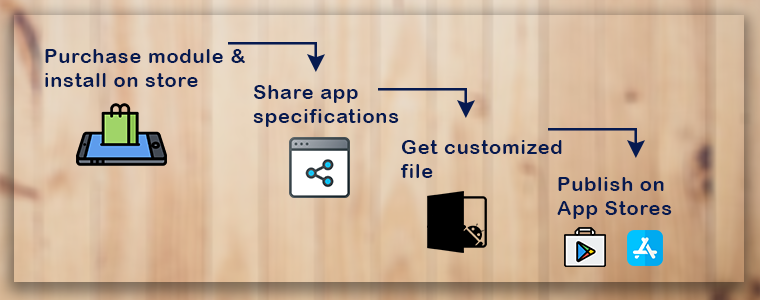
You have purchased the PrestaShop Mobile App Builder module & install the same on your website with the above-discussed process. Now, share the app requirements & specifications with our pre-requisites form & we would build & provide your apps in 1-2 days.

Proved helpful? There is another way as well to install the module. Have a look at the same:

PrestaShop Mobile App Builder Installation – Using Admin Details

PrestaShop Mobile App Builder Installation – Using Admin Credentials

This tutorial is intended with KnowBand’s PrestaShop Mobile App Builder installation on your website. All the e-merchants having their website on PrestaShop v1.6 & v1.7.

Well, installation of KnowBand’s PrestaShop Mobile App Builder on your PrestaShop website is just a matter of a few simple steps. Using your website back office admin details, you can install the module in a few minutes. Move on with the steps listed below:

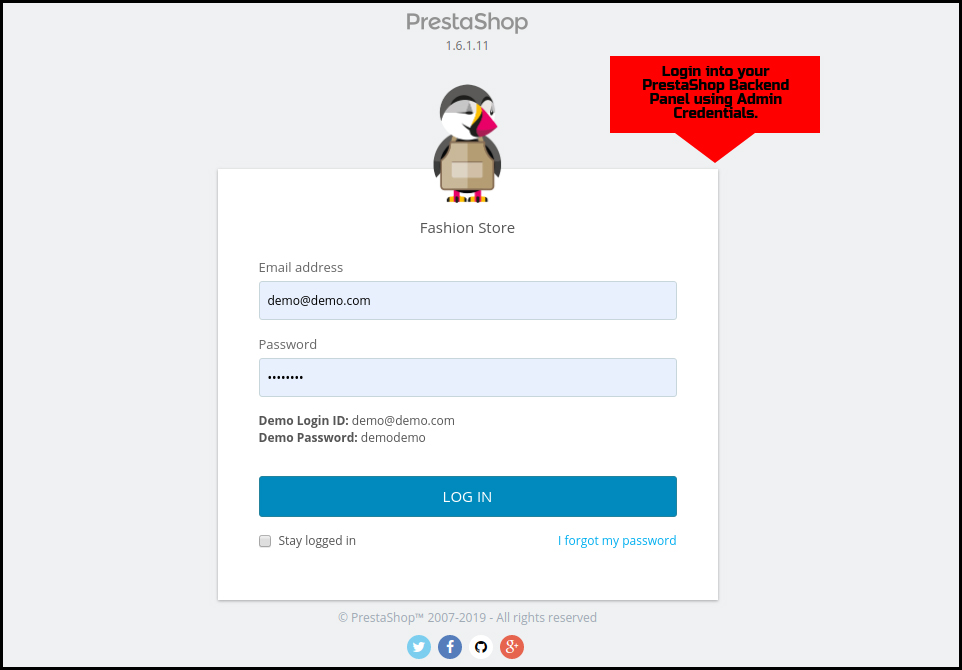
Step 1: Login Using Backend Details

Login to your PrestaShop website backend panel using your login details.

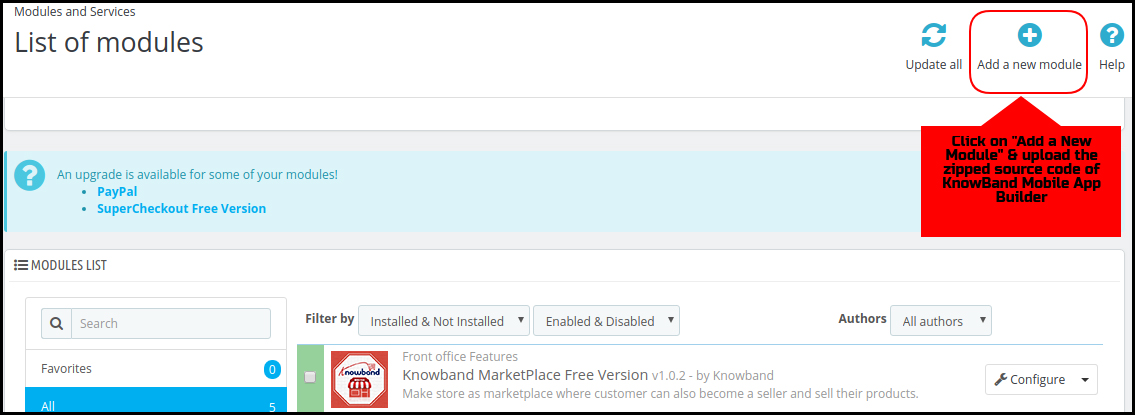
Step 2: Add Source Code on your Website

On the top-right corner, there is an option to “Add New Module”. Click & install the zipped source code of PrestaShop Mobile App Builder. You will get the required zip file once the module is purchased.

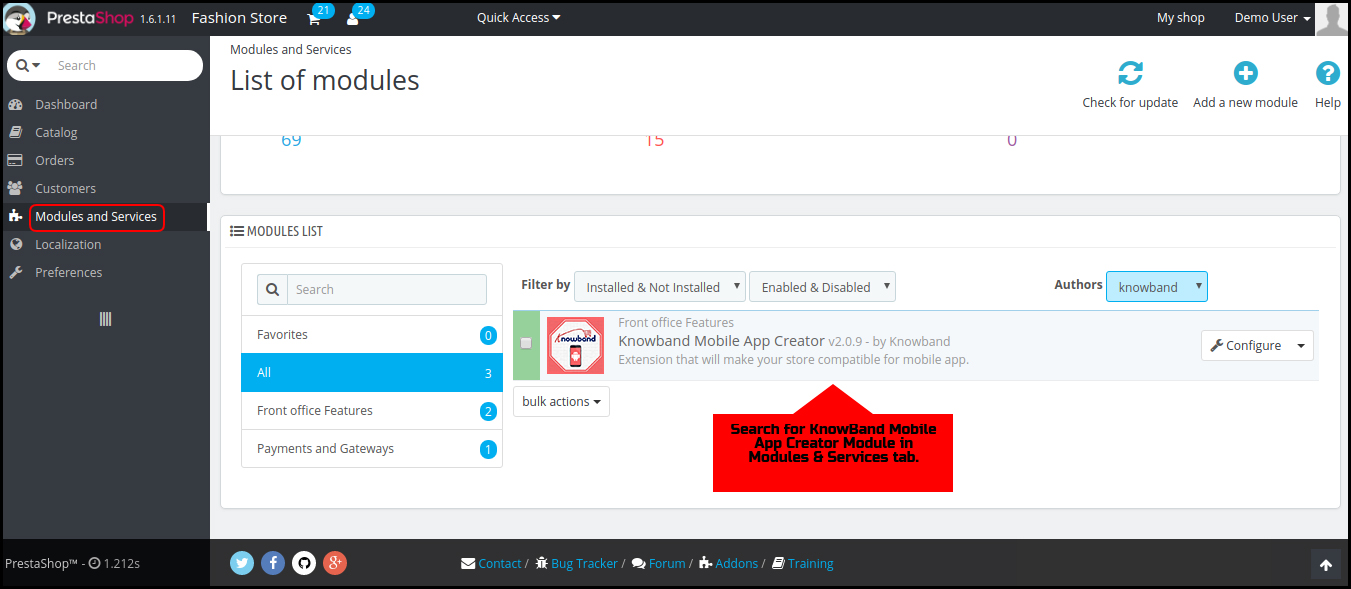
Step 3: Search for the Installed Module

Go to Modules & Services tab and search for KnowBand Mobile App Creator module.

Step 4: Configure the Module

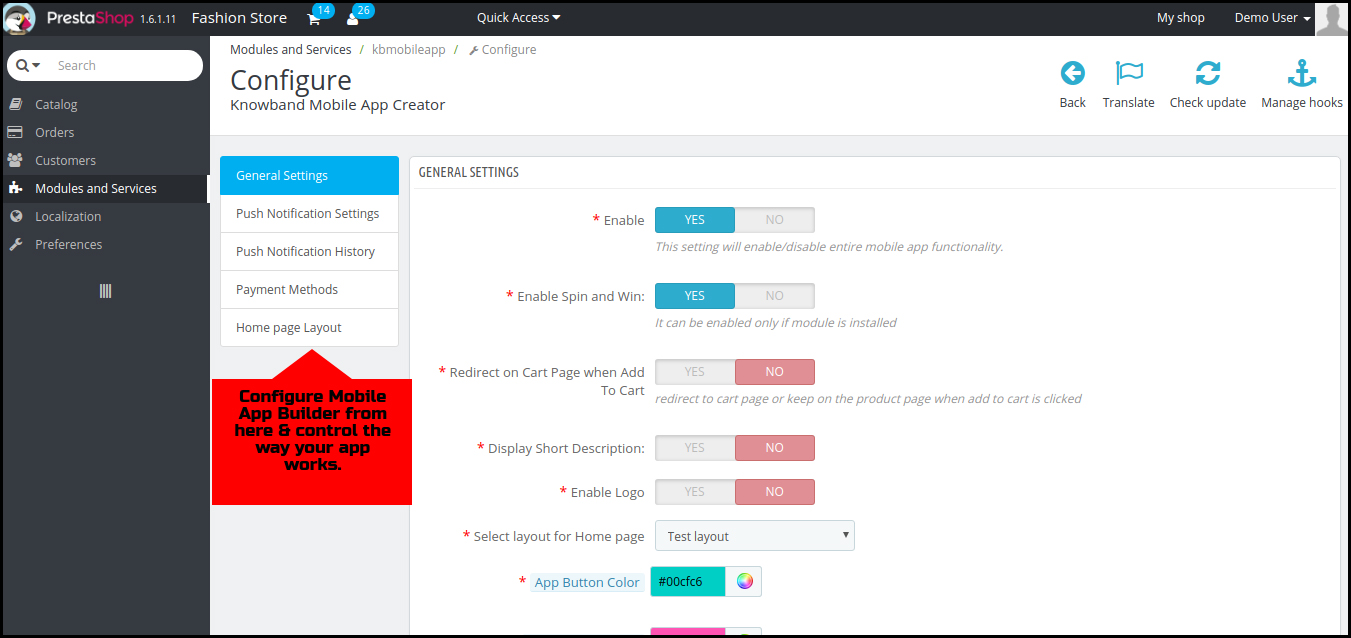
Click “Configure” & next screen would be of KnowBand Mobile App Builder.

That’s it! You have successfully installed the PrestaShop Mobile App Builder plugin on your store & ready to configure the same. Hope, this tutorial proves helpful to you.

Done! What’s Next?

Once you have successfully installed the PrestaShop Mobile App Builder plugin on your website, we would share a pre-requisites form with you. This form would gather all the specifications & requirements of your app for a better understanding of our developers. That’s it! Now, sit back & relax. We would get back to you with your app.

Liked Article? You can opt for module installation using PrestaShop website FTP details. Here is the link to the same:

PrestaShop Mobile App Builder Installation – Using FTP Details

Keys to successfully buy online and pickup in-store

The day to day advancement of eCommerce is not hidden anymore. Shoppers are comfortable buying online by sitting in their comfort zone and saving time and energy both. However, many shoppers believe in-store pickup of the product from their nearby store.

The demand of in store pickups as well as in store returns of online purchases is increasing rapidly. Being an eCommerce store owner, you should fulfil this demand to increase your significance in between customers. The fulfilment of customer expectations will drive you to the immense success by increasing your sales and revenues. However, it’s matter of to concern to tell that half of the online retailers are not interested in offering these capabilities to their beloved customers. Online retailers should try implementing the BOPIS factor on their website i.e Buy Online, Pickup, In-store.

Implementing this strategy will work but in addition to this, there are various tactics you need to apply to make this work successfully. So, before you imply BOPIS, you have to follow some major key factors to successfully enhance your online store.

1. It begins with on-site promotion:

As we all know, the best buy product is a eye-catcher in between customers. The consideration phase is the time where a product catches an eye of the customer presenting and compelling to try some other alternative for the same. By integrating BOPIS offer early in the browse experience i.e before consideration phase, it would attract customers and will transform it into best buy wisely which could lead sellers to gain good conversion rates.

2. Post sale emailing:

Whenever a customer chooses BOPIS mode at the time of purchase, a post sale email should be sent to customers with all the standard order details. But they should also include the information anticipating the needs of the customers such as (i) what they need to bring to retrieve their order, (ii) links to the address on maps, (iii) special parking info, and (iv) where to go inside the store. You can also include a photo or others visuals of what customers should seek to reach your store conveniently.

3. Availability of parking:

Almost everyone own cars nowadays. It’s pretty obvious that customers must head towards your store in their cars. It’s the responsibility of the store retailers to provide a convenient parking place to the customers. Convenient parking appeals time driven customers. Instead of spending money on billboard advertising, try to dig out a suitable parking area in a dense urban city.

4. Maintaining discipline in the store:

Who like chaos? Obviously no one. The physical store owner knows the importance of discipline in the store. Consumers had to stand in queue for hours to wait for their turn. The long queues are the result of distorted management of the store. BOPIS encourages for creating dedicated experiences for in-store pickup. The retailers can quickly retrieve the orders without diverting (and frustrating) sales associates. This helps in shortening of the queues and decreased the chaos in the store too.

5. Experimenting and Improving is the key to success:

The most obvious reason because of which the store do not imply in store pickup is the cost. It’s expensive to overhaul back-end logistics, retrofit stores, and train employees. A less obvious problem is the speed at which BOPIS is evolving. Many retailers struggle to find the best fit for them and their customers.
However, as this generation relies on innovation and advancement, you should keep experimenting and improve your store. Innovative companies are never afraid of experiments- emphasising their strengths to encourage in-store pickup shopping.
While in-store pickups do not burden sales associates, it basically increases the value of in-store visits. Customers can easily walk out just by taking their order without talking to the retailers or they can easily leave the product if they are not satisfied with it.

6. Innovative companies are advancing — emphasising the strengths of in-store shopping:

The companies who are constantly experimenting with their business strategies and are bringing out innovation in them are constantly stepping towards success. Sellers should try to provide some offers to lure more and more consumers towards your website. For example, sellers should give some cool offers and discounts to the consumers who opted for in store pickup. And if this strategy prove worthwhile, you can increase the use of this strategy for immense success.

Online returns is a boon in increasing sale nowadays. Returning in-store allowed sellers to change the product according to their size, fit or missteps of a well-intentioned gift giver.

Over to you:

In short, there are many ways to leverage in-store visits. As consumer expectations rise and the challenges from Amazon mount, look for more experimenting from retailers.

KnowBand offers store locator and pickup for different CMS platforms like PrestaShop, Magento, Magento 2 and OpenCart. The eCommerce store admin can allow the customers to find the store availability. The customers can find the nearest store and also pick up the product. The store pickup extension allows the admin to provide a pickup option to the customers. The e-merchant can show the store details on the Google map. The customers can also have the driving directions.

The Google Maps Store Locator plugin is highly customisable the admin can show the distance, contact number and store timing also. The in-store pickup module offers a user-friendly interface. The admin can easily configure this plugin on their eCommerce website without any hassle. Store pickup plugin offers multi-lingual compatibility too which enabled consumers who are comfortable with their regional languages only.

Find more articles out here:

  1. 8 tips to drive more customers on a Marketplace
  2. 6 Summer Holiday eCommerce shipping mistakes to avoid
  3. 7 ways to boost up your sales using Social Media

How to display price in all currencies on OpenCart Product Page?

Objectives of the blog

After reading this blog we will be able to display price in all currencies in the product page of OpenCart 3.x

Problem Statement

By default, OpenCart 3.x display price of the product into the currency set as default or chosen by the end user. And to display the price in all available currencies there will be few changes in the default or core files of OpenCart. (In case you do not want to change the core files then it can be done either through VqMod or OcMod.)

Requirement

We would need to modify the below-mentioned files to show the price of the product in all available currencies in the product page.

Procedure to solve the issue-

Follow the below-mentioned steps –

Open product.php from Catalog/Controller/Product and search for

$results =

$this->model_catalog_product->getProductImages($this->request->get['product_id

']);

2. And, add the following statement after that –

$currencies = $this->model_localisation_currency->getCurrencies();

3. Again find following code snippet in the same file –

if ($this->customer->isLogged() || !$this->config->get('config_customer_price')) {

   $data['price'] = $this->currency->format($this->tax->calculate($product_info['price'], $product_info['tax_class_id'], $this->config->get('config_tax')), $this->session->data['currency']);

} else {

   $data['price'] = false;

}

4. And replace it with –

$data['price'] = array(); 
if ($this->customer->isLogged() || !$this->config->get('config_customer_price')) {

   foreach ($currencies as $currency) {

       if ($currency['status']) {

           $data['price'][] = $this->currency->format($this->tax->calculate($product_info['price'], $product_info['tax_class_id'], $this->config->get('config_tax')), $currency['code']);

       }

    }

}

5. Open product.twig from catalog/view/theme/default/template/product and search for

<h2>{{ price }}</h2>

5. And replace it with –

{% for currency_price in price %} <h2>{{ currency_price }}</h2> {% endfor %}

Then, clear all Caches (ocmod cache, twig cache, vqmod cache)

That’s all.

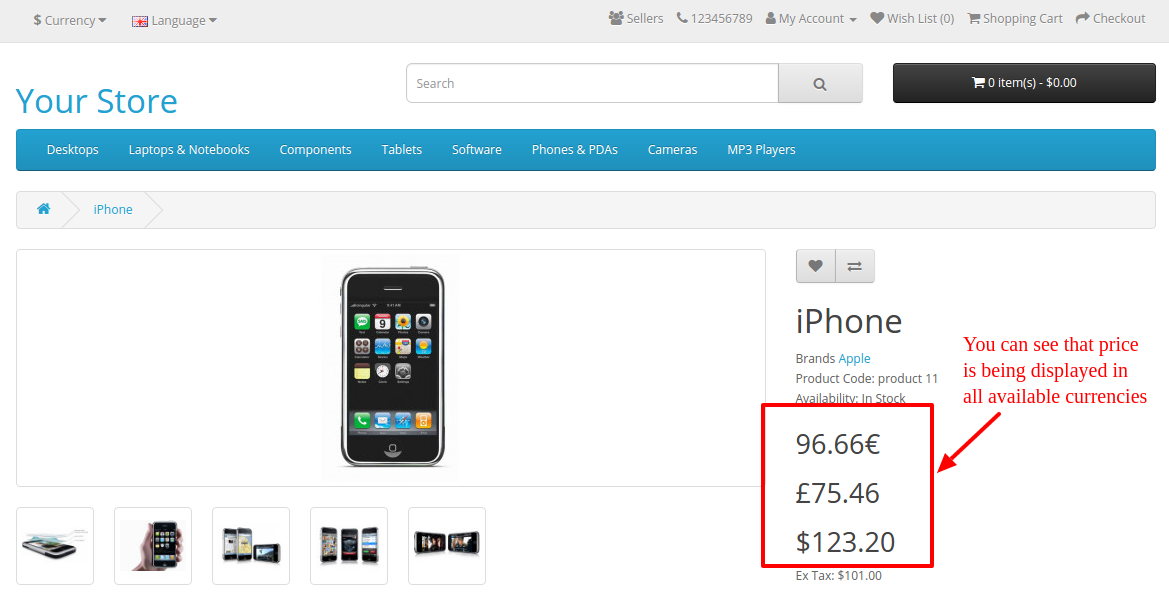
Refer the screenshot below after applying changes into the code –

Summary

After following the above procedure, you will be able to display the price in all available currencies in Product Page.

Xdebug Installation & Configuration – Part 1

Introduction

This document contains steps to install Xdebug and Configure it with Netbeans.

Steps to install Xdebug and Configure it with Netbeans

To install Xdebug and Configure it with Netbeans, steps are given below –

1. Install Xdebug for PHP by running following command in Linux environment

sudo apt-get install php5-xdebug

2. Setup Xdebug.ini for Linux

sudo vi /etc/php5/apache2/conf.d/20-xdebug.ini

Add the following lines –

xdebug.profiler_output_dir=/tmp
xdebug.profiler_output_name=cachegrind.out.%p
xdebug.profiler_enable_trigger=1
xdebug.profiler_enable=0
xdebug.remote_enable=true
xdebug.remote_host=127.0.0.1
xdebug.remote_port=9001
xdebug.remote_handler=dbgp
xdebug.remote_autostart=0

3. Restart Apache

sudo service apache2 restart

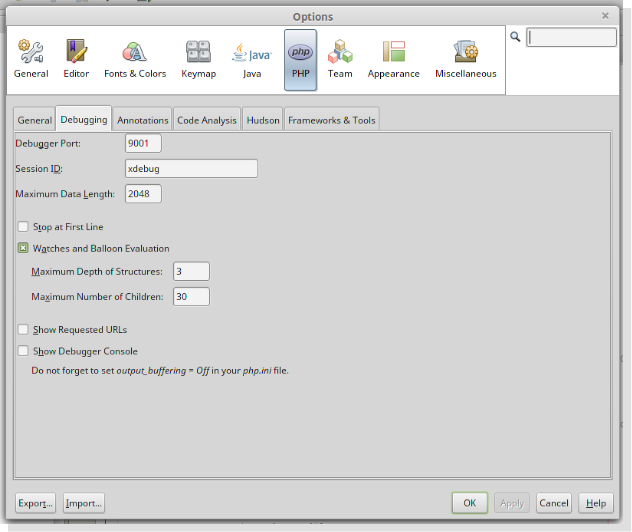
4. Now, configure Netbeans by following given steps below and shown in screenshot –

  • Go to Tools -> Options -> PHP -> Debugging
  • Set Debugging Port : 9001
  • Press OK button and then start debugging your project by CTRL + F5 or file by CTRL + SHIFT + F5

Video Tutorial:

Looks helpful? Also, read the other part of the article for complete & detailed information: 

Xdebug Installation & Configuration – Part 2

Xdebug Installation & Configuration using NetBeans – Part 2

Introduction

This document is all about the Xdebug installation & configure it with Netbeans in Windows.

How to debug through Xdebug in a project?

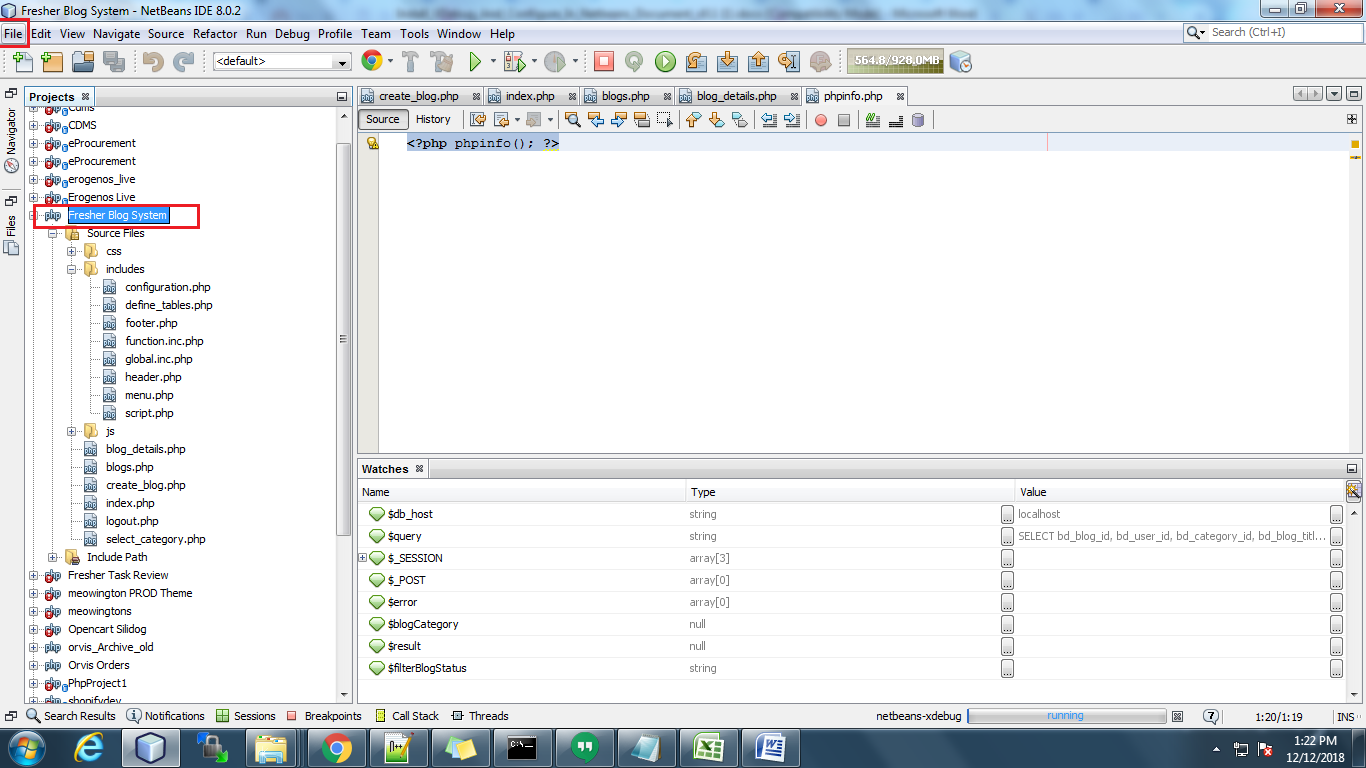
To debug through Xdebug you have to set up the project in Netbeans. Setup the Blog system project in NetBeans. After setting up the project in NetBeans select the project for which you want to debug. Now, go to the File menu in the top menu bar.

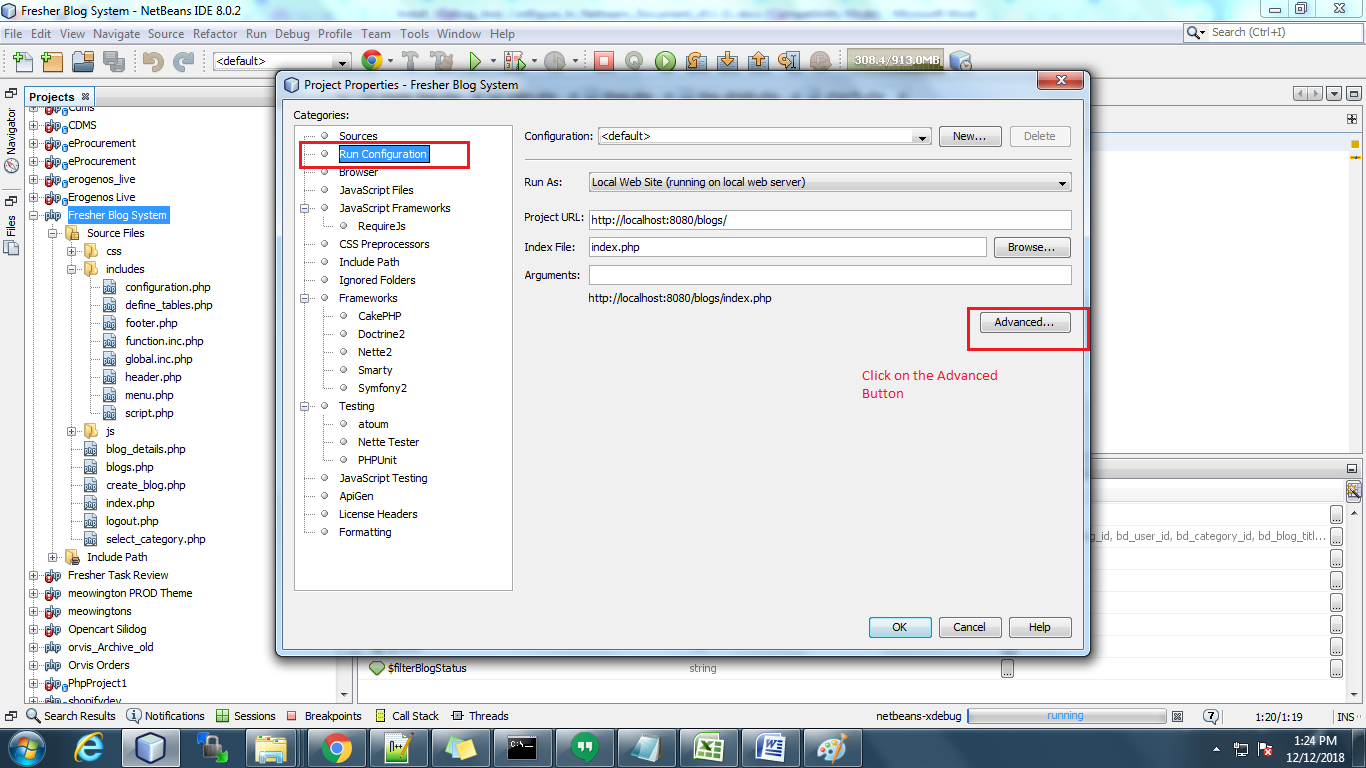
Then click on Project properties.

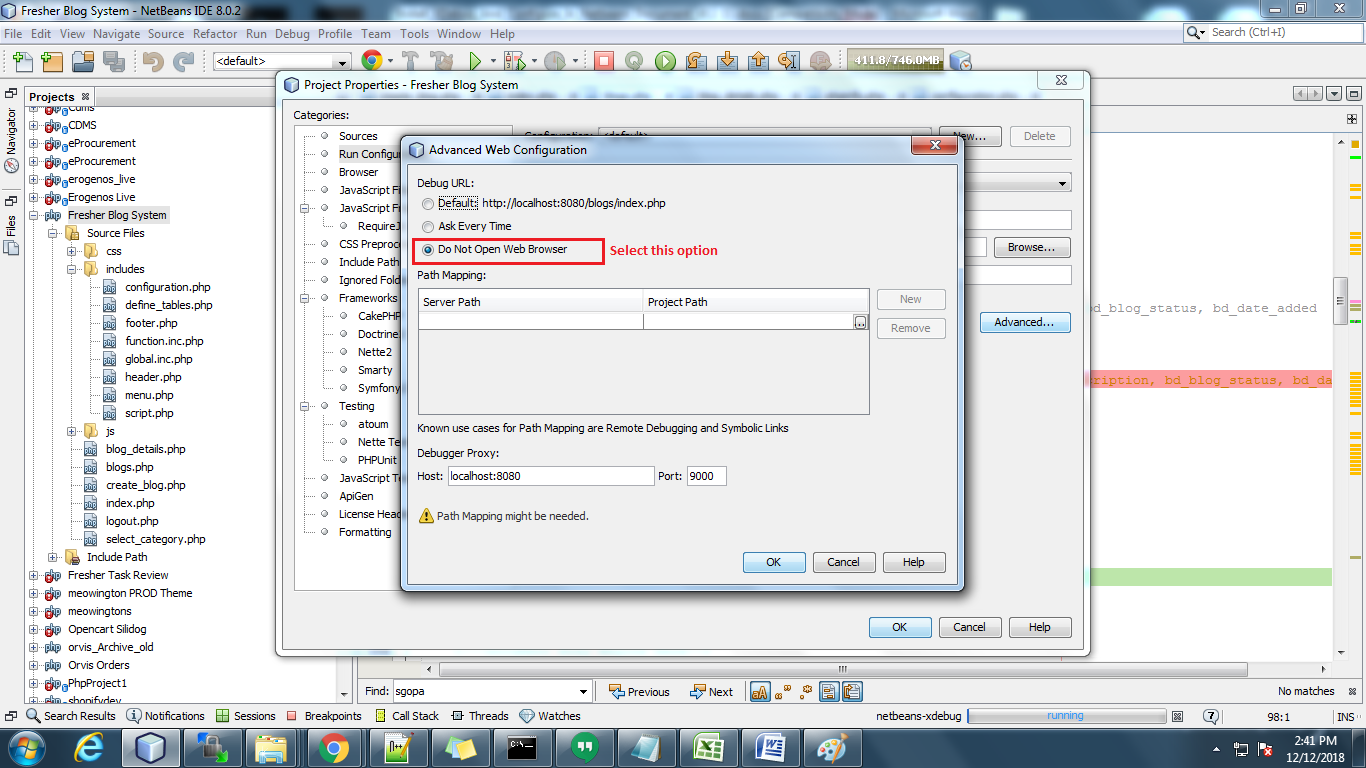
After clicking on this, a popup will open where you have to select the Run Configuration tab.

After clicking on this, a popup will open where you have to select the Run Configuration tab. Then you can see the Advanced button there. Click on this and select the “Do not Open Web  Browser” option and click on OK.

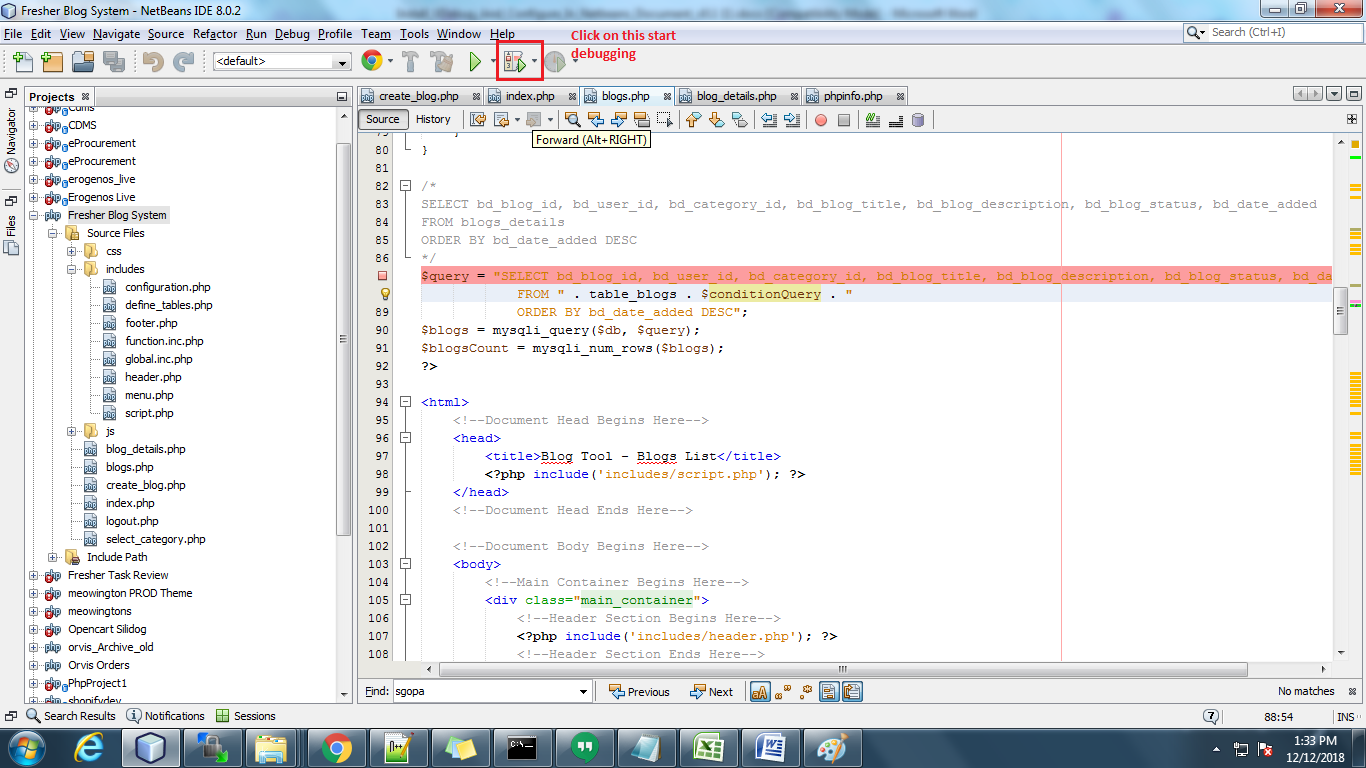
Now click on debugger to start debugging. Please see in screenshot. And before that you have to open the project in browser :
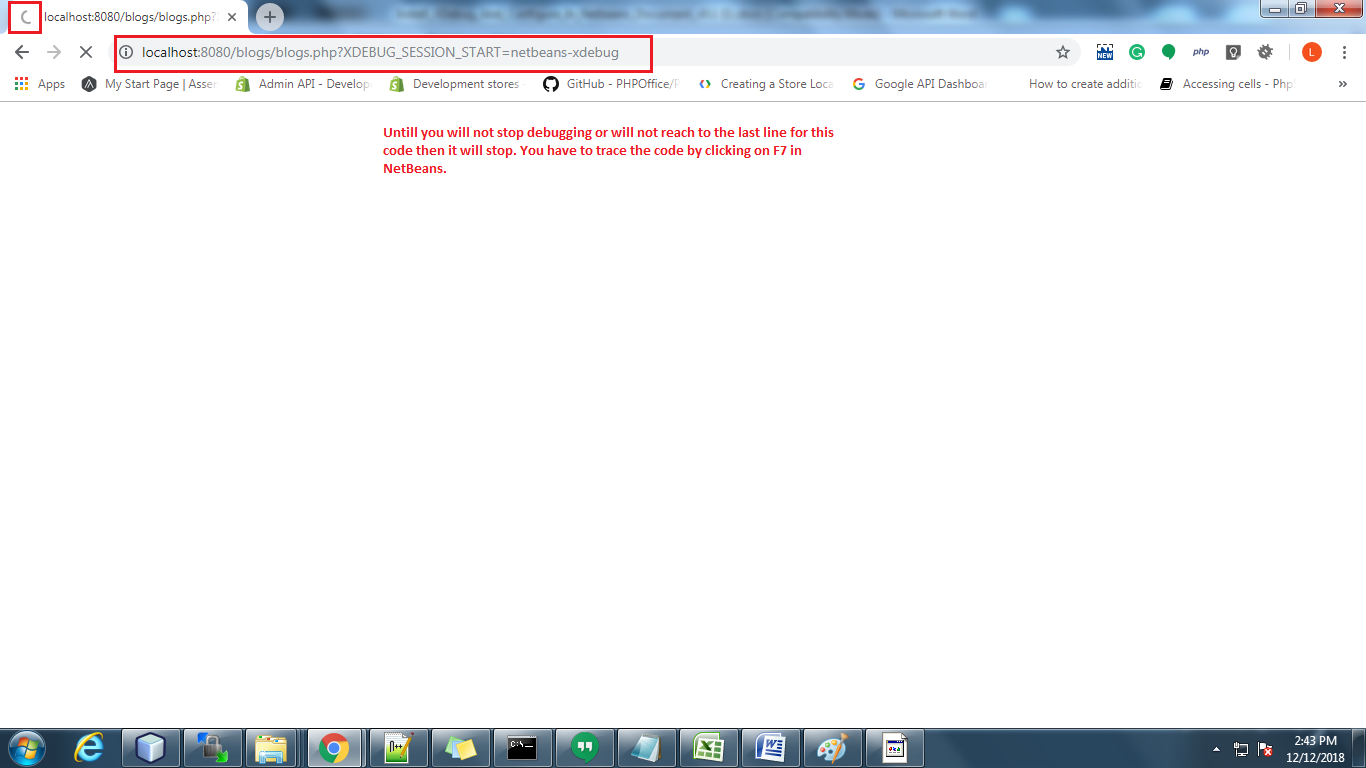
For example: https://localhost:8080/blogs/blogs.php?XDEBUG_SESSION_START=netbeans-xdebug
Note: The Highlighted part in the URL above is the xdebug session id. You have to pass it on the page which you want to debug.

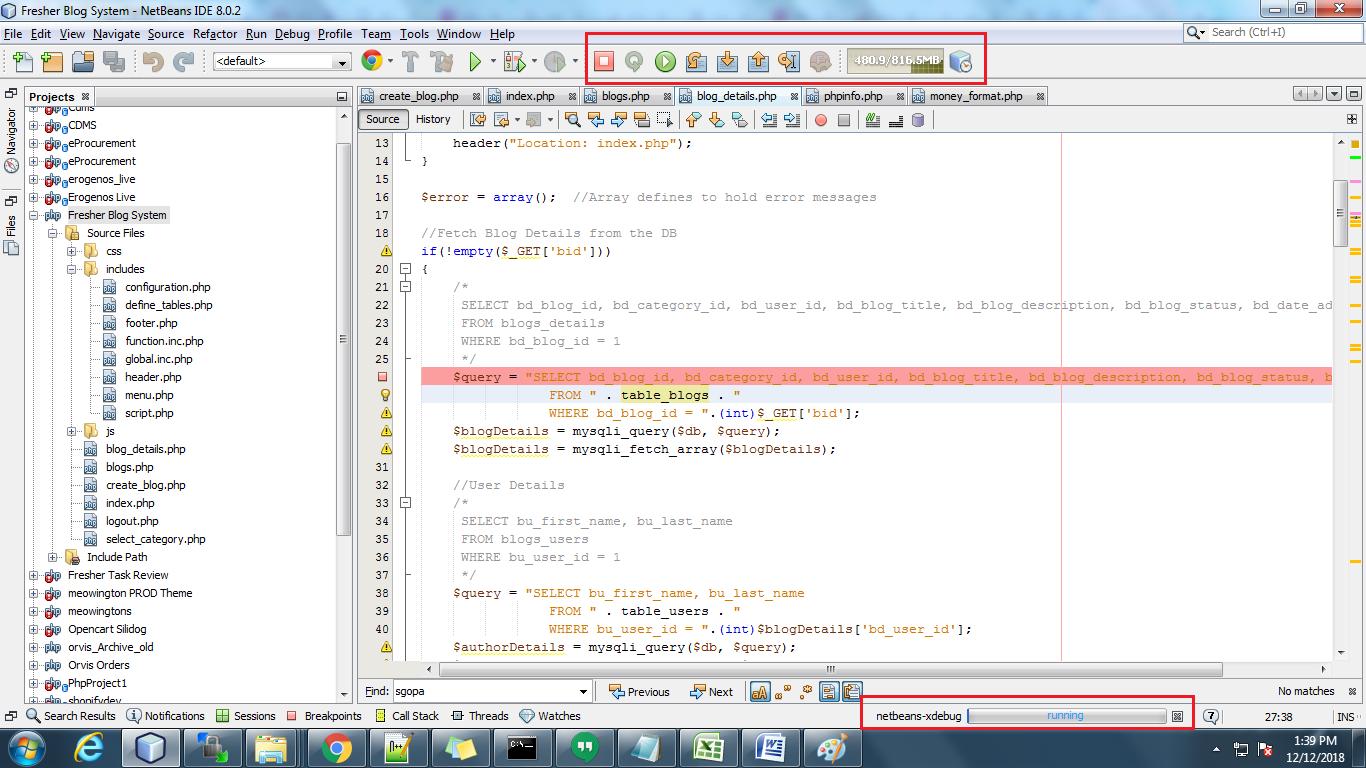
You can see the Xdebug in running state in below the NetBeans notification bar in the snapshot below:

Then you have to add a breakpoint in the code file. The code will stop at that point and you can check the values. You can trace the code by clicking on F7 in NetBeans.

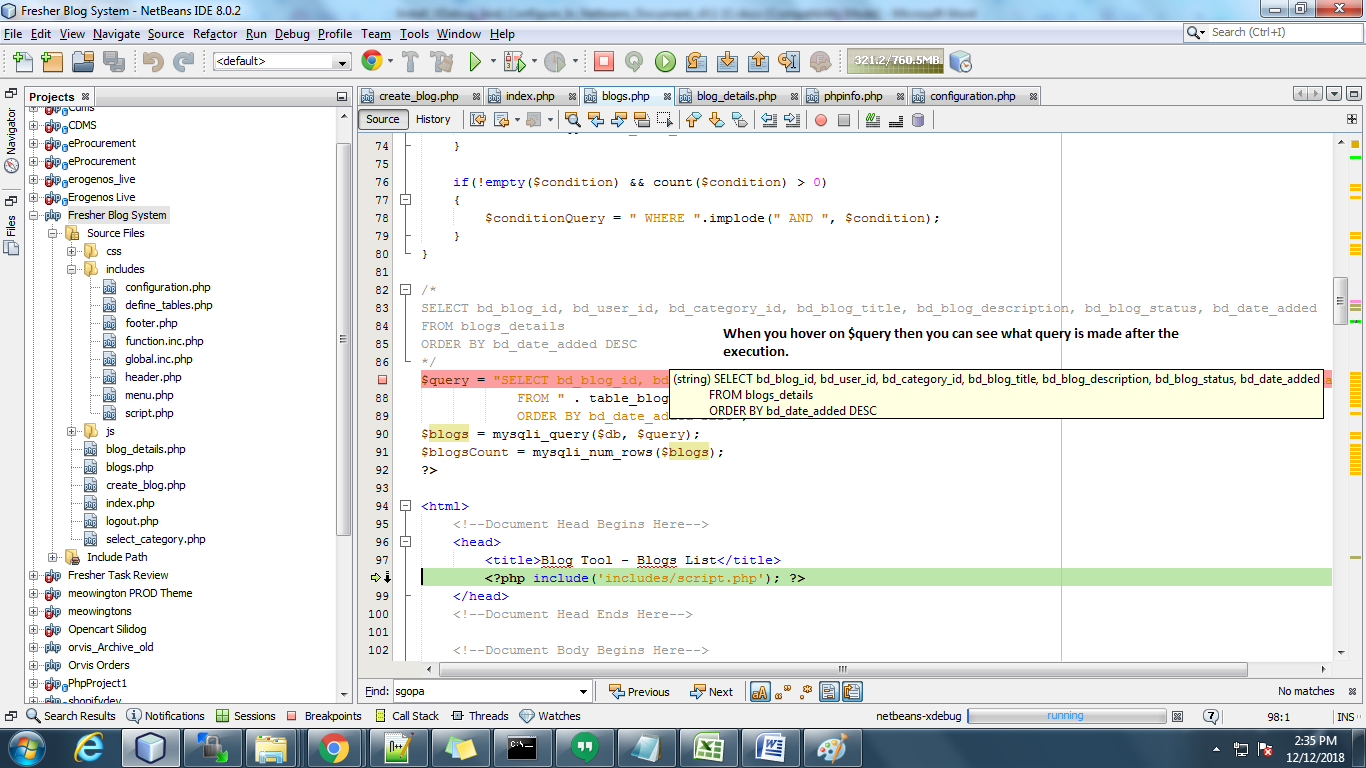
You can check the value of dynamic variables by hovering the variables. You can also add the variable in watch list.

Until you will not complete or reach the last line for the code which you are debugging, in the browser, it will stop. It just showed loading. After completing the debugging or closing the debugging session it will come to page ((in browser) which you are opening.

Watch the complete tutorial in the following video:

Looks helpful? Also, read the other part of the article for complete & detailed information: 

Xdebug Installation & Configuration – Part 1

How to print last executed query in CakePHP2?

Follow the following steps to print last executed query in CakePHP2:

To print last executed query:

Add below code in app_model.php file which is located at root/cake/libs/model.

public function getLastQuery() {
      Configure::write('debug', '2');
      $dbo = $this->getDatasource();
      $logs = $dbo->getLog();
      $lastLog = end($logs['log']);
      return $lastLog['query'];
}

Add below line in your model where you want print query.

$last_query = $this->ModelName->getLastQuery();

As we have saved last executed query in variable $last_query then use this to print last executed query.

Note: the above code will work only if your model extends appModel because we have defined function in app_model.php

To print all executed queries:

Write below code in model to display all queries which were executed in code:

$log = $this->Model->getDataSource()->getLog(false, false);
debug($log);

How to delete products from the Go Sport marketplace?

Objective of the blog:

After reading this blog, you will be able to understand how a seller can delete products from the Go Sport marketplace.

Methods to delete Products from the Go Sport marketplace

You can delete products from the Go Sport marketplace by two methods:
1.By deleting manually from merchant account

2.By Using Inventory Feed

1.0 Delete manually from merchant account

1. Login to the Go Sport merchant account (URL: https://gosport-prod.mirakl.net/shop/user/api).

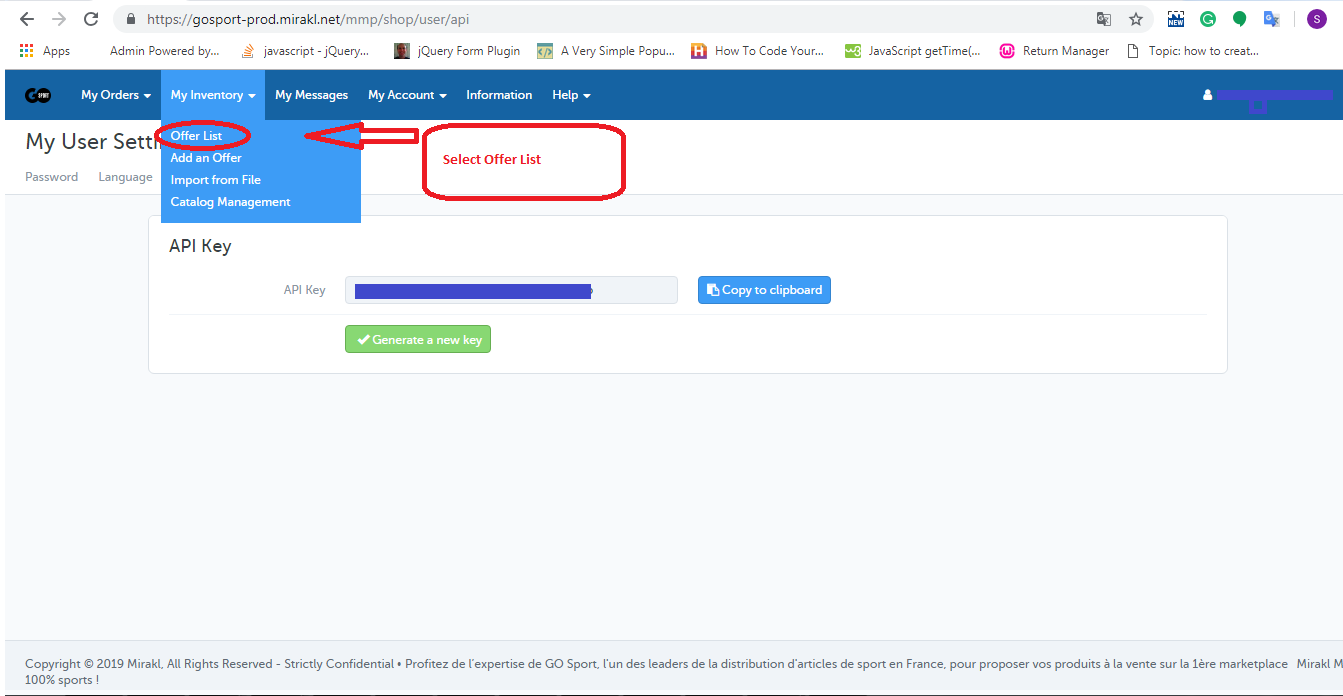
2. After logging you will need to select the offer list from the “My Inventory” tab as shown in the image given below:


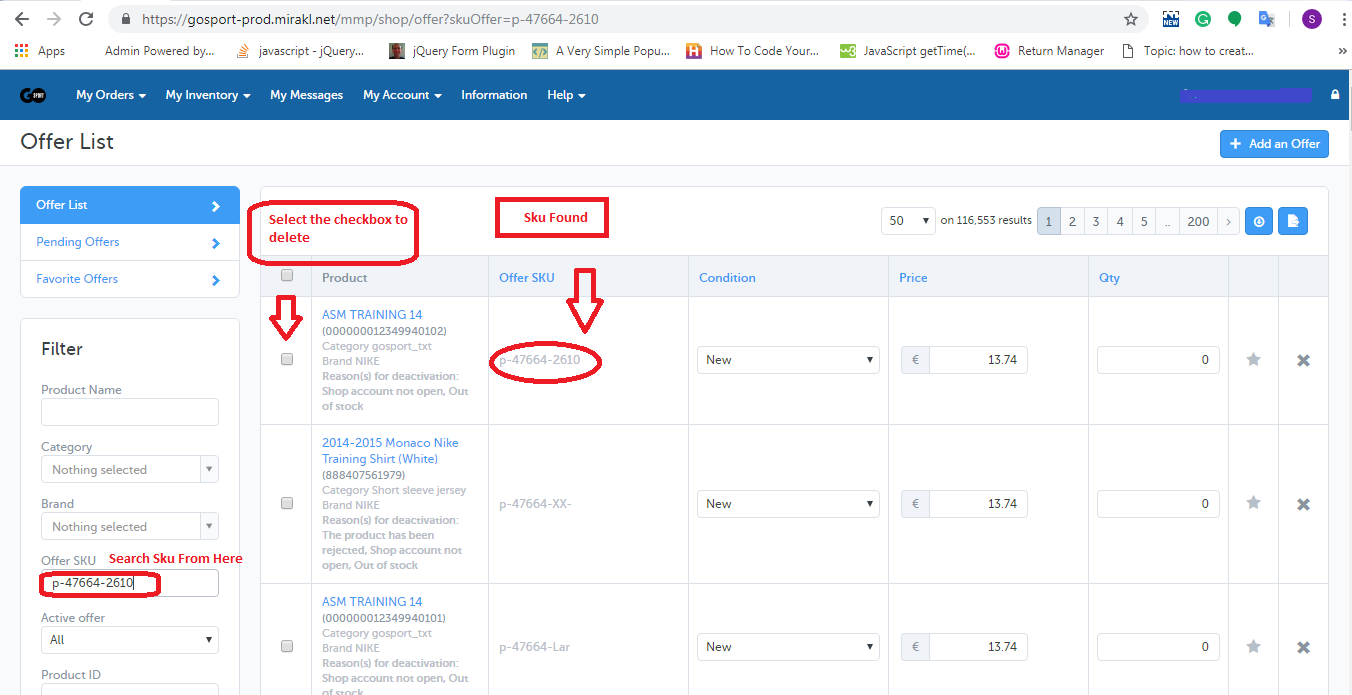
3. In the offer list page, you will need to search the SKU by using “Offer SKU” field and check the checkboxes corresponding to those SKU which you want to delete as shown in the image below.


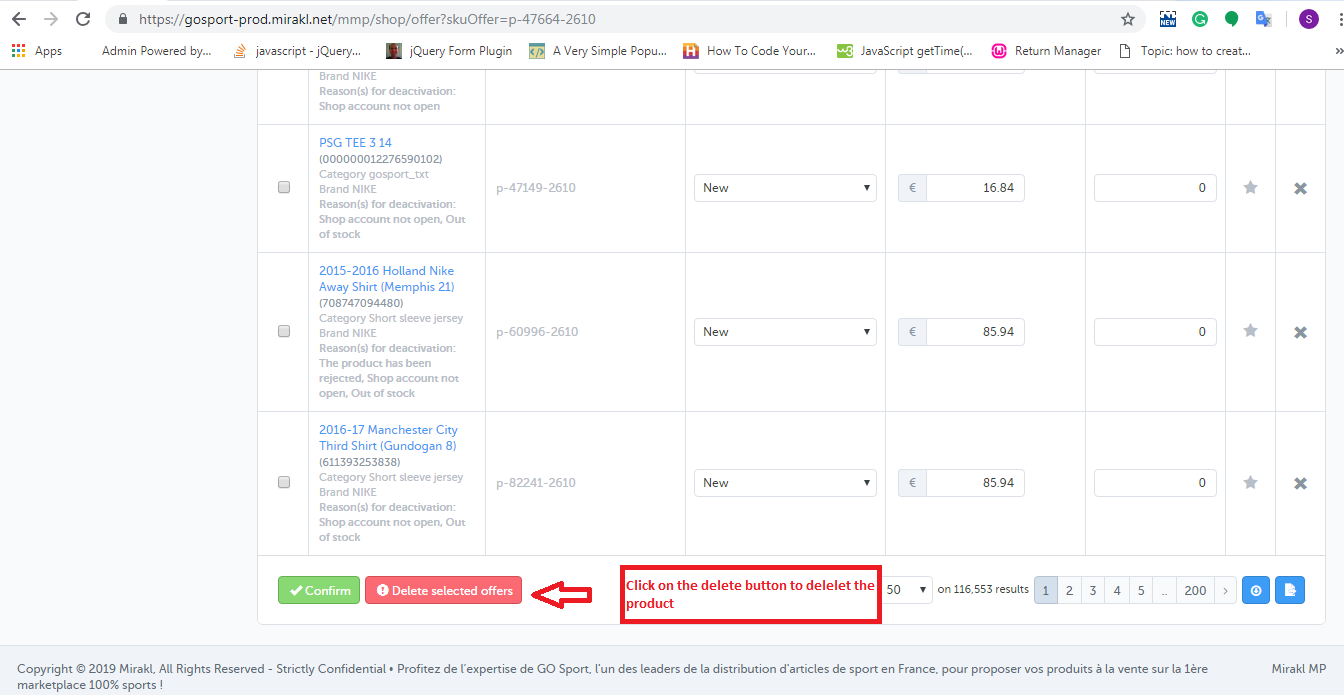
4. At the bottom of the page, you will find a button to delete the product as shown in the image below.

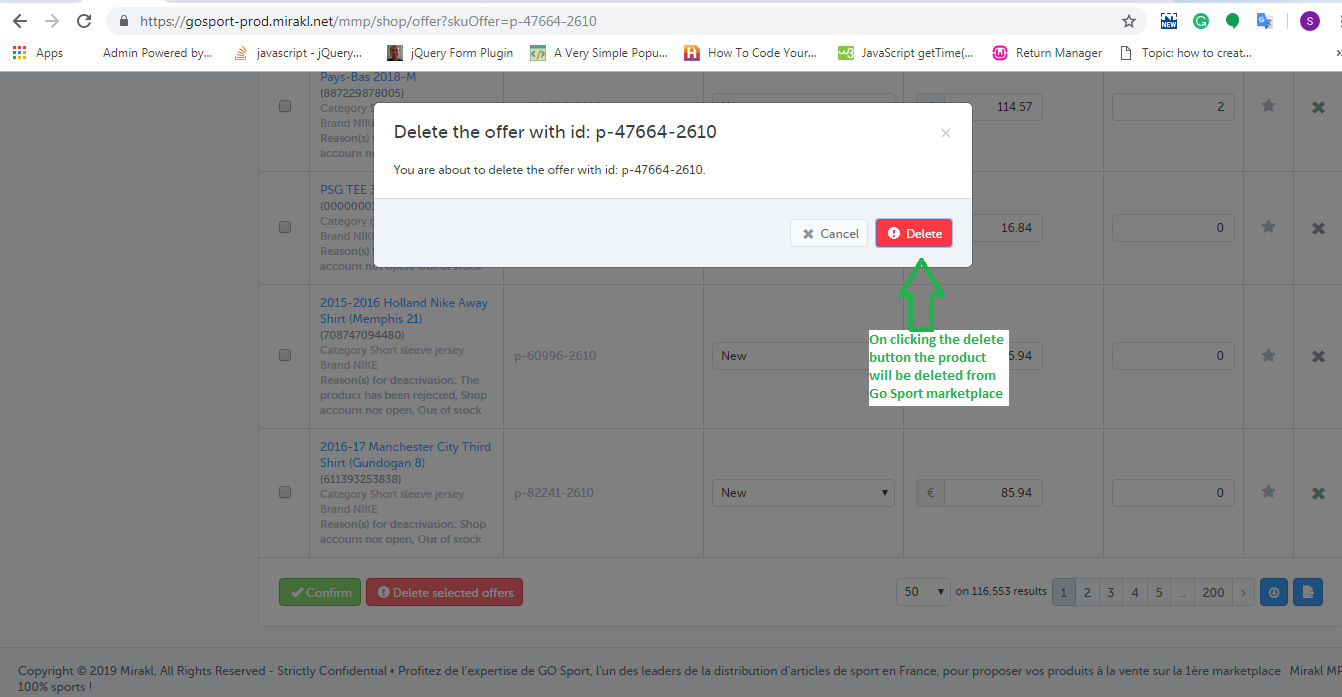
5. On clicking that button, a popup will be appeared on the screen which will show the list of SKUs that you have selected to delete and the button to delete those SKUs. This is shown in the image below:

2.0 Using Inventory Feed

You can delete the products in bulk from the Go Sport marketplace using inventory feed. You can download the sample inventory feed from the link given below:

Click Here to download inventory feed

In this feed, you need to fill the data in the following fields:

SKUs:  Enter the SKU which you want to delete

update-delete:  Enter “DELETE” in this column.
 
After creating the feed, you will need to upload the feed on the Go Sport merchant account. The steps are given below:

1. Login to the Go Sport merchant account (URL: https://gosport-prod.mirakl.net/shop/user/api).

2. After logging in, you will need to select the “Import From File” option from the “My Inventory” tab.

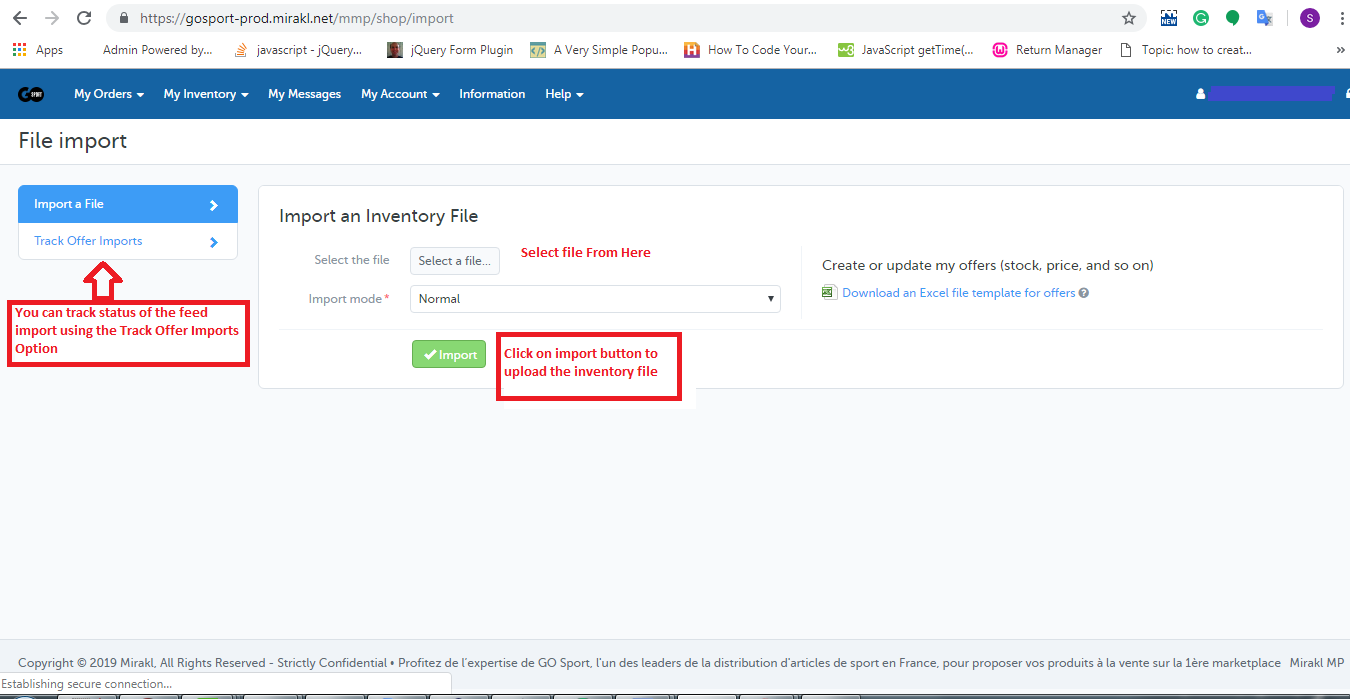
3. On the Import file page, you will need to upload the feed as shown in the image:

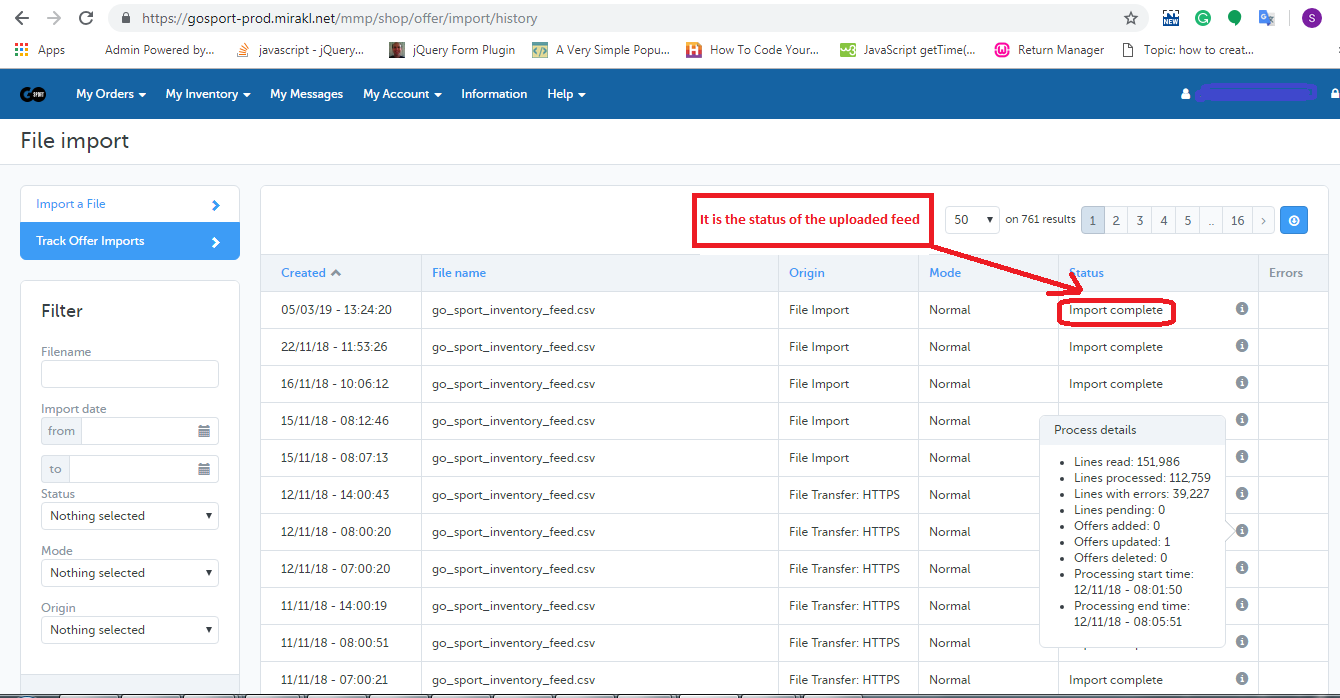
4. You can track the status of the uploaded feed using Track Offer Import Option as shown in the image given above. On clicking on the Track Offer Import option, a new page will be opened where you can check the status of the uploaded feed. If the feed is imported successfully then you can also check the processing status of the feed as shown in the image below:


Summary

After reading this document you (seller) can easily delete your products from the Go Sport marketplace.