

Xdebug Installation & Configuration – Part 1
This article has Xdebug installation & configuration with Netbeans. Read it & hopefully you will get the easiest way to install & configure Xdebug.
Introduction
This document contains steps to install Xdebug and Configure it with Netbeans.
Steps to install Xdebug and Configure it with Netbeans
To install Xdebug and Configure it with Netbeans, steps are given below –
1. Install Xdebug for PHP by running following command in Linux environment
sudo apt-get install php5-xdebug
2. Setup Xdebug.ini for Linux
sudo vi /etc/php5/apache2/conf.d/20-xdebug.ini
Add the following lines –
xdebug.profiler_output_dir=/tmp
xdebug.profiler_output_name=cachegrind.out.%p
xdebug.profiler_enable_trigger=1
xdebug.profiler_enable=0
xdebug.remote_enable=true
xdebug.remote_host=127.0.0.1
xdebug.remote_port=9001
xdebug.remote_handler=dbgp
xdebug.remote_autostart=0
3. Restart Apache
sudo service apache2 restart
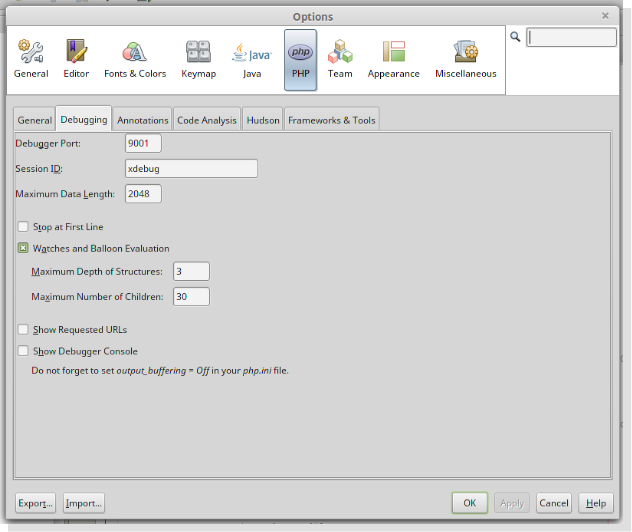
4. Now, configure Netbeans by following given steps below and shown in screenshot –
- Go to Tools -> Options -> PHP -> Debugging
- Set Debugging Port : 9001
- Press OK button and then start debugging your project by CTRL + F5 or file by CTRL + SHIFT + F5
Video Tutorial:
Looks helpful? Also, read the other part of the article for complete & detailed information:
Recent blogs
- Top 5 Abandoned Cart Recovery Modules for PrestaShop
- PrestaShop AI Chatbot Module by Knowband: Everything You Need to Know About the Latest Updates
- How to Use PrestaShop’s Override System Without Breaking Core
- Implementing Lazy Loading for Product Images in OpenCart
- Troubleshooting Common Errors After Upgrading to PrestaShop 9.x