Getting consistent, purchase-ready traffic to your store is hard. You can spend weeks fine-tuning your social ads or pouring money into influencer campaigns, and still not see the returns you were hoping for.
For stores built on PrestaShop or OpenCart, tapping into Google Shopping isn’t always easy. Introducing the PrestaShop Google Shopping Module and OpenCart Google Shopping Extension are built specifically to handle that connection, and from what merchants report, they do it well.
Not all website visitors are the same. Someone casually browsing is very different from someone who typed “buy waterproof hiking boots size 11” into Google. That second person is ready to buy, they just need to decide where.
Google Shopping puts your products in front of people like that. They’ve already made up their mind about what they want. Now they’re comparing prices and checking availability. That’s why Google Shopping tends to convert better than most other paid advertising options.
And because your product image, price, and store name show up before anyone even clicks, you’re only attracting people who are genuinely interested. For PrestaShop and OpenCart store owners who want to use their ad budget wisely, this kind of targeted traffic really helps.
🛍️ Also on PrestaShop?
Sync Smarter, Sell Faster: PrestaShop Google Shopping Integration Module by Knowband
Automatically sync your product catalog with Google Merchant Center, track performance with UTM parameters, and reach millions of high-intent shoppers.
The Knowband PrestaShop Google Shopping Module and the Knowband OpenCart Google Shopping Plugin were both developed to solve the same core problem: listing your product catalogue into Google Merchant Centre cleanly, accurately, and without constant manual work. And that problem is bigger than it sounds.
Feed management, when done manually, is a genuine headache. As the Prices change, Stock runs out, New variants get added it gets very difficult to synchronise all the changes to Google merchant. If your feed doesn’t reflect those changes quickly, you end up with disapproved products from Google, confused shoppers clicking on listings that are out of stock, and in worse cases, policy violations that can affect your entire Merchant Centre account.
Knowband’s Prestashop Google Shopping Integration Module solution handles all of that automatically, syncing price and inventory in real time, mapping categories correctly, and generating feeds that meet Google’s requirements without you having to manage it by hand.
Google Merchant Centre Integration: This Google Shopping Integrations connect your store to Google Merchant Centre through a straightforward setup process. Since no technical knowledge or coding is required, your product data syncs reliably.
Product Feed Generation: You can also generate a Google Shopping product feed in XML or CSV format. Furthermore, you can choose between real-time or scheduled updates, so your listings stay current while reducing manual work.
Category & Attribute Mapping Store admins can also map your store categories to Google Product Categories and match product attributes like GTIN, MPN, brand, availability, and condition. As a result, your products get approved faster and listed more accurately.
Multi-Country & Multi-Language Support You can set up separate feeds for different countries, languages, and currencies. Furthermore, this way, you can reach international audiences and run Google Shopping Ads across multiple markets with ease.
Start Selling on Etsy from Your Prestashop Store
Now selling on Etsy is easy with Knowband’s Prestashop Etsy Marketplace Module.
Cron-Based Synchronisation Using this Knowband Prestashop Google Shopping Module, schedule automatic feed updates via cron jobs to keep pricing, stock levels, and product details consistently accurate. Furthermore, this helps avoid disapproval caused by outdated information.
Product Filtering Store admins can also choose which products appear in your feed by filtering on category, price range, stock status, or specific product IDs. That way, only the right products get submitted to Google Shopping.
Final Thoughts
Google Shopping isn’t a magic solution, but it’s one of the more reliable growth channels available to eCommerce stores today, especially for merchants on PrestaShop and OpenCart who want to drive direct traffic without being tied to marketplace fees. The Knowband PrestaShop Google Shopping Module and Knowband OpenCart Google Shopping Plugin take care of the technical side of that equation: feed generation, real-time syncing, category mapping, and Merchant Centre compatibility.
From there, it’s about building on that foundation, optimising your product data, testing campaign structures, and paying attention to what the numbers are telling you. Done consistently, it’s the kind of channel that compounds. And for stores that are serious about growing on their own terms, that’s exactly what you want.
In today’s highly competitive eCommerce landscape, gaining visibility on Google Shopping can significantly boost your sales. Furthermore, Google Shopping serves as a vital platform for businesses to showcase their products to a wider audience. Thus, if you are a Prestashop store owner, integrating your store with Google Shopping becomes seamless with Knowband’s Prestashop Google Merchants Feeds Addon. This article will explore how this smart tool simplifies feed management while ensuring your products shine on Google Shopping.
Why Google Shopping Matters for Your Business?
Google Shopping is an effective platform for eCommerce businesses to reach potential customers searching for products. Furthermore, it provides users with a streamlined shopping experience by displaying product details like images, prices, and reviews directly on Google’s search results.
For Prestashop store owners, leveraging Google Shopping can lead to increased traffic, better visibility, and higher sales. However, managing Google Shopping feeds manually can be time-consuming and error-prone. This is where the Prestashop Google Shopping Integration Addon comes into play, offering a smarter and more efficient way to handle your product feeds.
The Prestashop Google Merchants Feeds Addon is a comprehensive solution designed to connect your Prestashop store with Google Merchant Center. It allows you to automate the process of syncing your product data with Google Shopping, ensuring your store’s inventory is always up to date.
Therefore, this powerful tool acts as a Prestashop Google Shopping Connector, bridging the gap between your store and Google Merchant Center. Whether you are looking for a Prestashop Free Google Marketplace Integration Module or a premium solution, this addon offers unmatched efficiency and ease of use.
Key Features of the Prestashop Google Merchants Feeds Addon!
Seamless Integration with Google Merchant Center:
The addon provides flawless Google Shopping Prestashop Integration, making it easy to synchronize your product data. Furthermore, with a few simple steps, you can set up the connection and start uploading your product feeds automatically.
Support for Multiple Languages and Currencies:
If your store caters to international customers, this addon ensures your feeds are optimized for various regions. Moreover, it supports multiple languages and currencies, ensuring global compatibility.
Automated Feed Updates:
Forget about manual updates! The addon automates the process of updating your product information, including pricing, stock levels, and descriptions, directly in Google Merchant Center.
Customizable Feed Options:
Tailor your Google Shopping feeds according to your requirements. Moreover, this Prestashop Google Shopping Integration Plugin allows you to include or exclude specific products and categories, ensuring only the relevant items are displayed.
Error-Free Synchronization:
With its reliable features, the addon eliminates common errors in product feeds. It leverages Prestashop Google Shopping API Integration to ensure smooth and accurate synchronization.
List Your Products on Google Merchant Console Effrotlessly
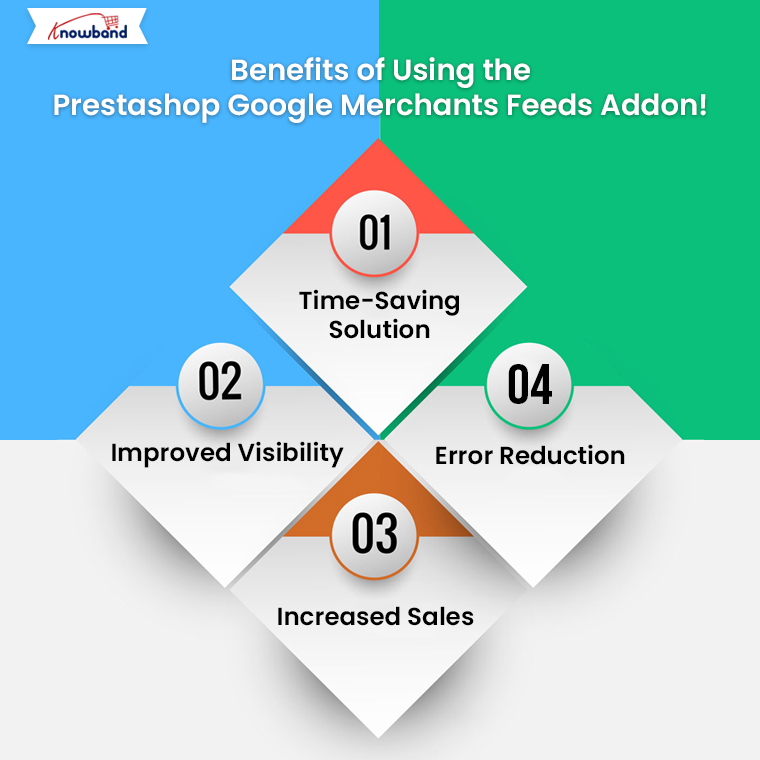
Benefits of Using the Prestashop Google Merchants Feeds Addon!
Time-Saving Solution: Managing Google Shopping feeds manually can be overwhelming. Furthermore, the Free Google Shopping Prestashop Integration Module automates this process, saving you valuable time.
Improved Visibility: By using this addon, you enhance your chances of ranking higher in Google Shopping results. Thus, the Prestashop Google Shopping Feed Integration ensures your product data is optimized for better visibility.
Increased Sales:A well-managed Google Shopping feed can attract more customers, ultimately driving higher sales. Therefore, this tool acts as a Prestashop Google Shopping Integrator, making your products more accessible to a larger audience.
Error Reduction:Manual feed management often leads to errors that can impact your visibility. With the Google Shopping Prestashop API Integration, you can ensure error-free and accurate data transfer.
Install the Addon:Download and install the module from Knowband. If you are looking for a Free Google Shopping Integration Module for Prestashop, some basic versions might meet your needs.
Connect to Google Merchant Center:Log in to your Google Merchant Center account and use the addon’s built-in features to establish a connection.
Configure Feed Settings:Customize your feed settings by selecting which products or categories to include. You can also schedule automated feed updates.
Sync Your Products:Once the setup is complete, sync your product data. The addon will handle the rest, ensuring your feeds are always updated.
Why Choose the Prestashop Google Merchants Feeds Addon?
There are several Prestashop Google Shopping Integration Extensions available, but Knowband’s addon stands out for its user-friendly interface, robust features, and unmatched reliability. Moreover, it caters to businesses of all sizes, offering a solution that is both effective and easy to use.
Additionally, for those looking for a Free Google Shopping Synchronization Module, this addon offers value that goes beyond its cost. It simplifies complex tasks, making it the go-to choice for Prestashop store owners.
Conclusion!
The Prestashop Google Merchants Feeds Addon is a smart and efficient way to manage your Google Shopping feeds. From seamless integration to automated updates, it covers all the essential aspects needed to boost your store’s visibility and sales on Google Shopping.
Whether you are new to Google Shopping or looking to streamline your current setup, this Prestashop Google Shopping Integration Addon by Knowband is the ultimate tool. Take advantage of this addon today and unlock the true potential of your Prestashop store!
Related Read: Simplify your Google Shopping feed management and reach more customers effortlessly.Read More
In today’s competitive eCommerce landscape, having your products listed on Google Shopping is essential to reaching a wider audience. For Prestashop store owners, integrating with the Google Merchant console has become easier and more efficient, thanks to the latest updates in the Prestashop Google Shopping Integration Addon by Knowband.
The Prestashop Google Merchant Console Feed Addon allows seamless synchronization between your Prestashop store and Google Merchant Center, helping you manage your product listings on Google Shopping with ease.
In this blog, we will explore the exciting new features in the Prestashop Google Shopping Integration Addon that make automating, customizing, and optimizing your feeds more streamlined than ever before.
Automatic Feed Upload on Google:
The Prestashop Google Shopping Integration Addon now comes with an “automatic feed upload on Google” feature. This enhancement enables store admins to choose between automatic and manual submission of product feeds. With this update, you can effortlessly automate feed uploads to the Google Merchant Center, ensuring that your product listings are always up to date.
If the automatic option is disabled, you can still manually upload feeds by copying the feed URL or downloading the feed in various formats, such as JSON, XML, or CSV. This flexibility gives you control over your feed submission process, depending on your preferences or requirements.
Furthermore, automating this process saves time, reduces human error, and ensures that your products are consistently synchronized with your Google Merchant Center account.
List Products on Google Merchant Console
Integrate Your Prestashop Store with Google Shopping Marketplace
Another major update in the Prestashop Google Shopping Integration Extension is the ability to copy or download the feed URL easily. With this feature, you can now quickly generate the feed URL or download the feed file in your preferred format—JSON, XML, or CSV. Furthermore, this addition enhances flexibility for merchants who prefer different methods for feed submission or want to manually handle their Google Shopping Prestashop Integration.
For instance, if you want to manually upload your feed to the Google Merchant Center, you can copy the feed URL or download the file and submit it at your convenience. The ability to choose between formats ensures that you can work in the format that best suits your business needs.
Product Type Selection:
Managing your Google Shopping feeds requires a high level of organization and customization. Therefore, the new Prestashop Google Shopping Integration Module now allows store admins to define product types within feed profiles. This feature is particularly useful for businesses with a wide range of products, as it enables them to categorize their products more effectively and optimize their visibility on Google Shopping.
With the ability to define product types, merchants can create tailored feed profiles for specific product categories, ensuring that they are presented accurately to potential customers. Moreover, this enhances the relevance of your Google Shopping listings and improves the chances of your products being found by the right audience.
Promotion ID for Tracking Performance:
Tracking the performance of your Google Shopping campaigns is crucial for optimizing your strategy. Knowband’s Prestashop Google Shopping Integrator has introduced a new “Promotion ID” section, allowing store admins to monitor and analyze the performance of their Google Merchant Center listings.
By using the Promotion ID, you can track clicks, impressions, and conversions for specific products or campaigns. This data is invaluable for making informed decisions about your marketing efforts and understanding which products are driving the most traffic and sales.
Furthermore, this feature provides deeper insights into your Google Shopping campaigns, helping you make data-driven decisions to improve performance and ROI.
Custom Product Level Specifications:
The Prestashop Google Shopping Integration Plugin now includes an option for custom product-level specifications. This new feature allows store admins to configure product specifications individually, rather than relying solely on universal feed specifications.
For businesses that sell a diverse range of products, this feature offers more control over how products are presented on Google Shopping. You can customize product attributes such as size, color, material, and more, ensuring that each product is listed with the most accurate and relevant details. This can lead to improved search results and better overall performance on Google Shopping.
With the ability to configure specifications at the product level, you can optimize your product listings for maximum visibility and relevance in search results, which can ultimately lead to higher conversion rates.
Conclusion:
The latest updates in the Prestashop Google Shopping Integration bring a range of powerful features designed to make managing your Google Shopping feeds easier, faster, and more efficient. From automating feed uploads and customizing product types to tracking campaign performance with Promotion IDs and configuring custom product specifications, these new tools offer unmatched flexibility and control.
Whether you’re new to Google Shopping or an experienced user, the Google Shopping Prestashop API Integration will help you streamline your feed management process and optimize your product listings for maximum impact. Best of all, if you’re looking for a free solution, you can explore the Prestashop Free Google Marketplace Integration Module, which offers many of these features with no added cost.
In today’s competitive eCommerce landscape, increasing visibility and driving traffic are essential for success. One of the most effective ways to achieve this is through Google Shopping. By integrating your Prestashop store with Google Shopping, you can display your products on Google’s search results, attracting more targeted traffic and boosting your sales.
If you’re using Prestashop, the process of integrating with Google Shopping is streamlined with Knowband’s Prestashop Google Shopping Connector. In this article, we’ll guide you through how this module can help you drive more traffic and sales for your Prestashop store.
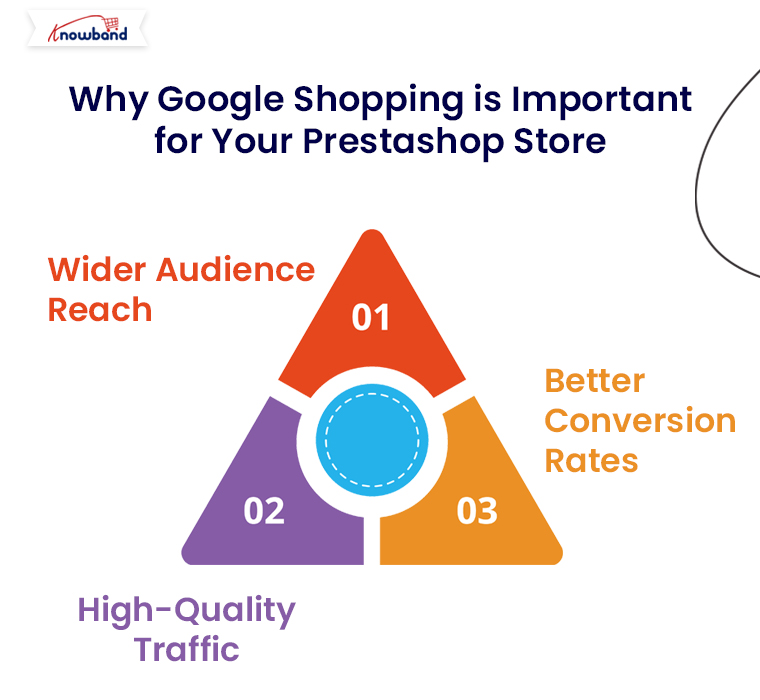
Why Google Shopping is Important for Your Prestashop Store:
Google Shopping allows eCommerce retailers to showcase their products directly on Google’s search results with high visibility. Here’s why this is a great opportunity for Prestashop store owners:
Wider Audience Reach:Google Shopping listings appear at the top of Google search results, giving your products greater exposure to a wide audience.
High-Quality Traffic:These ads are triggered by search queries, which ensures that users who see your ads are already interested in products like yours.
Better Conversion Rates: Google Shopping displays rich product information upfront, making it easier for customers to make purchase decisions and boosting conversion rates.
Now, let’s dive into how you can easily integrate Google Shopping into your Prestashop store using Knowband’s Google Shopping Connector.
The Knowband Google Shopping Connector for Prestashop is an advanced module designed to simplify the integration process between your Prestashop store and Google Merchant Center. This module automates the product feed creation and synchronization, ensuring that your products are always updated and displayed correctly on Google Shopping.
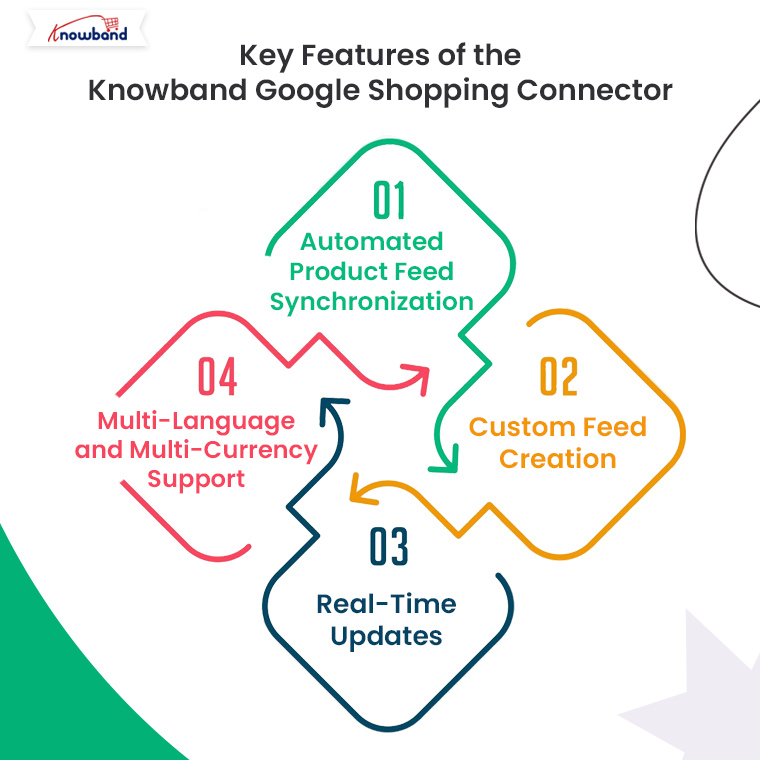
Key Features of the Knowband Google Shopping Connector:
Automated Product Feed Synchronization: No need to manually update your product listings. The module automatically syncs your Prestashop store’s product feed with Google Merchant Center.
Custom Feed Creation:You can create customized product feeds based on specific categories, product types, or attributes.
Real-Time Updates: The Prestashop Google Shopping module keeps your product data, including prices, stock levels, and descriptions, up-to-date on Google Shopping.
Multi-Language and Multi-Currency Support: If you run a global store, the module ensures that your products are displayed in multiple languages and currencies as per the customer’s location.
Knowband’s Prestashop Google Shopping Connector
Boost your PrestaShop store’s visibility with the Google Shopping Integration Plugin, streamlining product listings and enhancing your reach on Google Shopping.
How to Integrate Google Shopping with Prestashop Using Knowband’s Connector?
1. Install the Knowband Google Shopping Connector:
The first step is to purchase and install the Google Shopping Connector Module from the Knowband website. Here’s how you can do it:
Download the module from Knowband’s Google Shopping Connector page.
Log into your Prestashop back office.
Navigate to the Modules section and click on Add New Module.
Upload the module zip file and install it.
Once installed, the module will appear in your Prestashop admin panel, ready to configure.
2. Configure Google Merchant Center Account:
Before you can sync your products with Google Shopping, you need to set up your Google Merchant Center account. This is where your product feed will be sent.
Go to Google Merchant Center and create an account if you haven’t already.
Enter your business details, verify your website, and set up shipping and tax rules.
Now, link your Merchant Center account to your Google Ads account to start running Shopping campaigns.
3. Link Your Prestashop Store to Google Merchant Center via Knowband Connector:
Once your Google Merchant Center is set up, it’s time to connect it to your Prestashop store using the Knowband connector module. Follow these steps:
In the Prestashop admin panel, navigate to the Knowband Google Shopping Connector module settings.
Enter your Google Merchant Center credentials (Client ID and Secret Key) to establish a secure connection between your store and Merchant Center.
This secure integration ensures seamless synchronization of product data between your Prestashop store and Google Shopping.
4. Create and Customize Product Feeds:
With the connection established, you can now create your product feeds. The Knowband module allows you to tailor your feeds based on specific preferences:
Select Product Categories: Choose which product categories to include in your Google Shopping feed.
Filter Products by Attributes: You can filter products by price, availability, or custom attributes.
Feed Language and Currency:The module supports multi-language and multi-currency, ensuring your products are properly displayed for international customers.
Once you’ve customized the feed to your preferences, the module will automatically generate the product feed in a format compatible with Google Shopping.
5. Schedule Automatic Feed Updates:
To ensure that your product data is always up to date, the Knowband Google Shopping Connector allows you to schedule automatic feed updates. This is critical for keeping prices, stock levels, and other product information accurate on Google Shopping.
You can set the feed to update daily, weekly, or based on your store’s activity. This automation saves time and ensures that your Google Shopping ads reflect the latest product information.
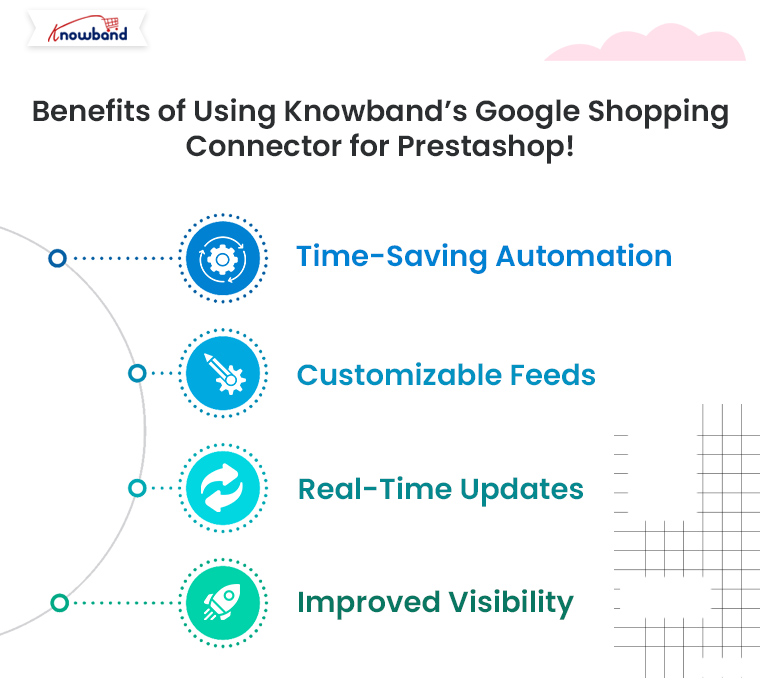
Benefits of Using Knowband’s Google Shopping Connector for Prestashop!
Integrating Google Shopping with your Prestashop store using Knowband’s connector module provides several advantages:
Time-Saving Automation: No need for manual updates. The module automatically syncs your product feed, saving time and reducing errors.
Customizable Feeds: Tailor your feeds according to specific categories, languages, and currencies.
Real-Time Updates:Ensure your product listings are always accurate with real-time synchronization between your store and Google Merchant Center.
Improved Visibility:Drive more traffic and boost sales by making your products visible to millions of potential customers through Google Shopping.
Conclusion!
Using Google Shopping to promote your Prestashop products is one of the best ways to boost traffic and sales. With Knowband’s Prestashop Google Shopping Connector, integrating your store with Google Shopping becomes a hassle-free process, allowing you to focus on optimizing your campaigns and increasing your revenue. Get started today and see how Google Shopping can transform your Prestashop store’s visibility and success.
Explore how this module helps you manage Google Shopping listings more efficiently and attract more customers.Read More
In this article, we will explore the Prestashop Google Shopping Integration Addon developed by Knowband, a leading provider of eCommerce plugins and modules. Google Shopping has become a vital platform for online retailers to showcase their products and reach a broader audience. Integrating your Prestashop store with Google Shopping can significantly enhance your visibility and increase sales. Let’s delve into the features, benefits, and steps to set up this powerful addon.
Introduction to Prestashop Google Shopping Integration Addon
Google Shopping is a specialized platform by Google that allows online merchants to display their products directly in the search results. It enables potential buyers to compare prices and make informed decisions without leaving the Google interface.
Understanding the Importance of Google Shopping for eCommerce
Google Shopping has gained immense popularity among online shoppers due to its visual appeal and ease of use. Integrating with Google Shopping opens up new avenues for online retailers to attract customers and drive sales.
Knowband’s Prestashop Google Shopping Integration Addon
Knowband’s Google Shopping Prestashop API Integration addon simplifies the process of integrating your Prestashop store with Google Shopping. Its user-friendly interface and powerful features make it an ideal choice for eCommerce store owners.
Key Features of the Addon
Easy installation and setup process.
Real-time synchronization of product data with Google.
Advanced mapping options for accurate categorization.
Automatic currency conversion for global reach.
Customizable product attributes for better control.
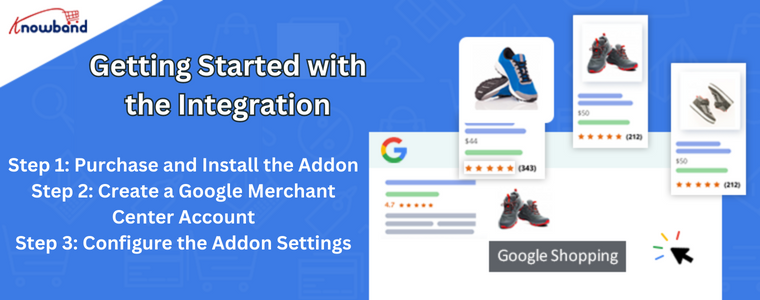
Getting Started with the Integration
To begin this integration process, follow the steps below:
Step 1: Purchase and Install the Addon
Visit the Knowband website, purchase the Google Shopping Integration Addon, and download the installation files. Then, install the addon in your Prestashop store.
Step 2: Create a Google Merchant Center Account
If you don’t have a Google Merchant Center account, sign up for one. The Merchant Center is where you manage your product data and monitor performance.
Step 3: Configure the Addon Settings
Navigate to the configuration panel of the addon and enter the necessary details, such as API keys and merchant ID, to establish a connection with Google.
Choose the target country and language for your product listings. This helps Google display your products to relevant audiences.
Step 2: Map Prestashop Categories to Google Product Categories
Accurate mapping of your Prestashop categories to Google product categories is crucial for visibility.
Step 3: Set Pricing and Shipping Information
Specify pricing and shipping details for each product, making it easier for shoppers to make decisions.
Step 4: Customize Product Data
Optimize product titles and descriptions to make them appealing to potential buyers.
Step 5: Synchronize Product Data
Initiate the synchronization process to ensure that your product data is up to date on Google Shopping.
Benefits of Using Prestashop Google Shopping Integration
Integrating your Prestashop store with Google Shopping offers various advantages:
Increased Product Visibility
Your products appear on Google’s search results page, giving them more exposure.
Targeted Audience Reach
Gain an edge over competitors by connecting with prospective customers actively seeking products like yours.
Automatic Product Updates
Product data is automatically updated on Google Shopping, reflecting real-time changes in your store.
Better Conversion Rates
Google Shopping visitors are more likely to convert as they have access to crucial product information upfront.
Tips for a Successful Google Shopping Integration
Follow these tips to make the most out of your Google Shopping integration:
Optimize Product Titles and Descriptions
Craft compelling titles and descriptions that are SEO-friendly and relevant to user queries.
Use High-Quality Product Images
High-quality images attract shoppers and increase the chances of conversion.
Implement Google Analytics for In-depth Analysis
Leverage Google Analytics to gain valuable insights into user behavior and refine your marketing strategy.
Common Challenges and Troubleshooting
Though the integration is seamless, you may encounter some common challenges:
Data Feed Errors
Ensure that your product feed adheres to Google’s specifications to avoid disapproval.
Disapproved Products
Address disapproved products by making necessary changes to meet Google’s guidelines.
Low Conversion Rates
Analyze your campaigns and product listings to identify areas for improvement.
Frequently Asked Questions (FAQs)
Q1: Can I use the addon for multiple Prestashop stores?
Yes, you can use the addon for multiple stores with a single purchase.
Q2: How frequently does the product data sync with Google Shopping?
Product data synchronizes in real-time, ensuring up-to-date listings on Google Shopping.
Q3: Will my products appear on Google Search as well?
Yes, integrating with Google Shopping can also improve your product visibility on Google Search.
Q4: Can I use the addon for specific product categories only?
Absolutely, you have the flexibility to choose specific categories for integration.
Q5: What is the cost of Knowband’s Prestashop Google Shopping Integration Addon?
The addon’s cost varies based on your store’s needs and requirements.
Conclusion
Integrating your Prestashop store with Google Shopping using Knowband’s Prestashop Google Shopping Integration Module can significantly enhance your online business’s success. The seamless integration, powerful features, and global reach offered by this addon empower online retailers to expand their customer base and boost sales. Embrace the power of Google Shopping today and witness your eCommerce journey reaching new heights.
Explore how this module helps you manage Google Shopping listings more efficiently and attract more customers.Read More
The Prestashop Google Shopping Integrator is a seamless way of displaying your products on Google Shopping. In fact, it helps you connect with the Google Merchant Center effortlessly. Have you ever thought of taking your products to Google Shopping? Do you have a Prestashop store? Well, you can easily do that now with the Prestashop Google Shopping Integration by Knowband.
Integrating your Prestashop store with Google Shopping is extremely easy. However, you can find it intimidating at first. If you are on the road of consideration, this blog will come in handy for you. Going further, in this blog, we will take a look at the whole process of setting up the Prestashop Google Shopping Integration Module.
Let us go forth and check the process out now. I am assuming you have already bought and installed the Prestashop Google Shopping Integrator in your store.
Connection setting of the Prestashop Google Shopping Feed Integration
Under this tab, you will be able to find 4 different connection settings. Further, they are:
Google Application Name: The name of the project will go in here.
Google Client ID: The client ID that you need to set up the connection between the store and Google Merchant.
The Google Client Secret: The client secret for the connection between the store and Google Merchant.
Google Merchant ID: The Google merchant ID goes here.
General Settings of the Prestashop Google Shopping Connector
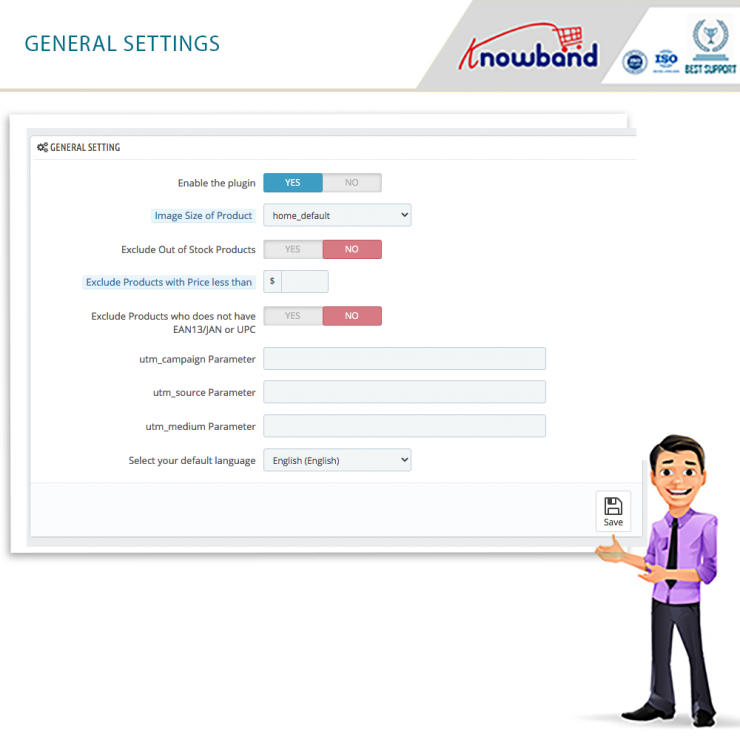
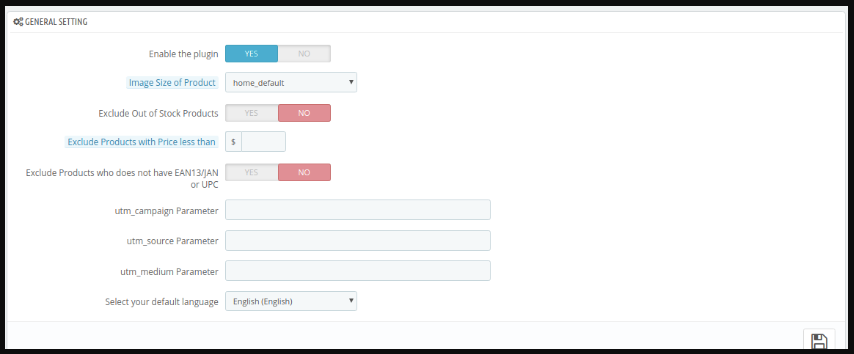
Enable/Disable the plugin
With this functionality, the admin can easily activate or deactivate the functionality of the plugin.
Image Size of the Product
There are two options under this setting by which the admin can decide the size of the product images on Google Shopping. Furthermore, they are Large or Default. Therefore he can choose which size of the product image will display on Google Shopping.
Exclusion of Products
The admin can seamlessly exclude a number of products from listing or displaying on the platform. They include the following:
Out of Stock Products
Products with Price less than
Products who does not have EAN13/JAN or UPC
Moreover, the setting also has the feature of UTM tracking and selecting the Default Language.
Profile Management settings of the Prestashop Google Shopping API Integration
In one of my blogs earlier, I have detailed the Profile Management tab of the Prestashop Google Shopping Integration Addon. Take a look here to understand it better. It is the tab where you can add the details like country, language, currency, Google Shopping category, store category, and so much more. Moreover, the admin can create as many profiles as he wants to with this setting.
Product Listing settings of the Google Shopping Prestashop Integration
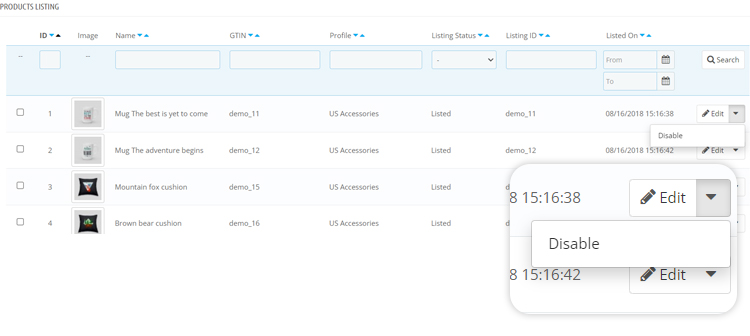
Under this tab of the Google Shopping Prestashop API Integration, the admin will be able to find all the products listed on the platform. Moreover, he will also be able to run the local sync for the products. In addition, there are options like Sync Products and Sync Product Status for syncing the products as well as the product status.
Furthermore, the admin can view all the products listed on Google Shopping. Moreover, with details like the product image, profile with which it was uploaded, and more. In fact, he can choose the products that he wants to disable from displaying on the platform.
Feed Management Settings of the Prestashop Google Shopping Integrator
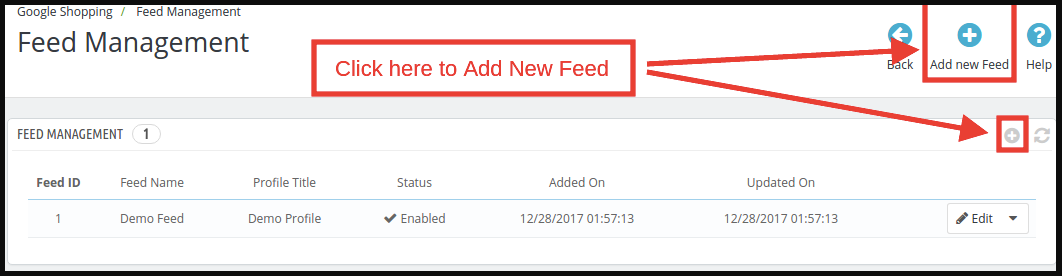
Under this tab of the Prestashop Google Shopping Integration, the admin can view, edit, or delete the feeds. Moreover, he can even add a new feed by clicking on the Add New button available in the tab. Going further, the Add New tab has a few options that will create a new feed. First, he has to select the profile with which he wants to create the feed. Furthermore, add a label to the feed. Then, the admin can schedule the feed upload from daily, weekly, or monthly. Last, he has to set the hour of the day for the feed.
Synchronization Settings of the Prestashop Google Shopping Integration Addon
This tab is specifically for the different synchronization settings of the Prestashop Google Shopping Integrator. Furthermore, he will also be able to run the local sync for the products. In addition, there are options like Sync Products and Sync Product Status for syncing the products as well as the product status. Moreover, this tab also has the CRON settings. It helps the automation of the synchronization. When the admin runs the cron, the products, feeds and the product status will sync automatically.
Audit Log of the Prestashop Google Shopping Connector
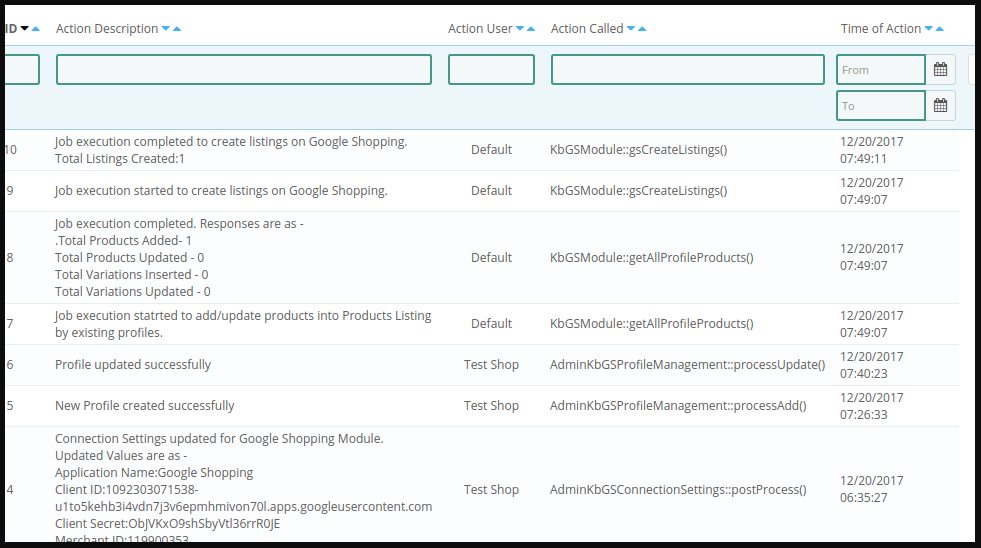
The admin can keep a watch on the different tasks that were performed using the Prestashop addon.
Therefore, these are the different settings available in the Prestashop Google Shopping Integrator by Knowband. I hope this helped you understand the whole setup process without any trouble. In case you still have a problem or a query, you can get in touch with us at support@knowband.com.
As an e-merchant, your basic aim is to attract shoppers and sell your products to them keeping the cost. You might have already integrated your business into the various online marketplaces and started to see the difference in your revenues.
Then came Google Shopping.
Before understanding how to sell on Google, you should understand what Google Shopping is, and then you can decide whether you want to be a part of the online marketplace or not.
What is Google Shopping?
Google Shopping is a shopping search engine that faithfully provides you options that you input in the search box by Google. Highly useful for the shoppers as they can effortlessly compare the products offered by multiple vendors across the globe.
Moreover, you would also find image results of the products you searched for from the various websites selling the same.
You can find the Shopping tab next to Images below the search bar or you can even go to https://www.google.com/shopping to find the products. Once you click on any of the products that are in front of you, you’d go straight to the vendor whose product it was.
How to sell on Google Shopping?
The very first step to start selling Google Shopping, you should sign up for Google’s Merchant Center. Once you sign up here, you’d be able to manage your product listings as well as upload your products manually to be specific about what to sell.
To confirm yourself as a seller, you’ll have to enter a few details including the URL of your website store name and where your business is based. After completion, Google will ask you to upload a file to your server to verify site ownership. Now, you can log into the Google Merchant Center.
After logging in, you may edit your listings, change your shipping information, and do anything else necessary to begin selling. The Merchant Center’s listings are categorized as “Feeds.” A store may have many feeds, such as one for normal items, one for seasonal products, another for things offered in foreign countries, and so on.
To add a feed:
Click on Products
Click on Feeds
Register a new feed
Name your feed and select the country
Enter product data
To sell products effectively, you should be spending some quality time entering product information into the Google system. Follow the guidelines provided by the search engine if you want to have better results. For example, fashion apparel would require you to input the sizes, color, fabric, and more whereas; the same does not apply to electronic items or home decor. A tedious task for sure, but it gives weight to your products.
Incorporate high-quality photos
When Google talks about using good-quality images on its websites, why would it not apply the same to its shopping store? Make sure that the product descriptions and the image correlate with each other. When you want the visitors to get attracted to the product, you have to invest in getting good quality images up on Google Shopping.
Divert the traffic
What makes an eCommerce business successful? When a customer can locate the product and buy it from your store. When you sell on Google Shopping, the opportunities for your sale increase. Google Shopping uses your product data, images, and AdWords campaigns to bring more traffic to your online store as well as generate higher revenues.
Now, you can also install and configure the Prestashop Google Shopping Integrator by Knowband to successfully sell on the platform. Further, the Prestashop Google Shopping Integration helps merchants in numerous ways. In fact, the plugin eases the whole setup and selling procedure. Following are the stunning features of the Prestashop Google Shopping Integration Addon. Furthermore, we will also see the benefits that the merchants have from using the Prestashop Google Shopping Integration Module.
Features of the Prestashop Google Shopping Integrator
The Prestashop module connects your Prestashop store to the Google Merchant Center. In fact, the process completes in no time and is painless too. Moreover, you don’t even need any coding or special knowledge for the same.
Admins can choose from a variety of languages when using Prestashop Google Shopping Connector. Moreover, the Prestashop plugin supports multiple stores.
In case the admin wants to rectify and adjust the picture size of the products on the platform he can do it. Further, he can easily do that from the backend of the Prestashop Google Shopping Feed Integration.
The Prestashop Google Shopping API Integration allows administrators to exclude certain goods from Google Shopping listings.
Out-of-stock items, products with a lower price than the defined price, and products without the set EAN13/JAN or UPC numbers can all be excluded by the administrator.
Prestashop Google Shopping API Integration allows you to create many profiles. Google Merchant Center classifications and characteristics are linkable to store classifications and features.
The mass upload of items to Google Merchant Center is possible via category and attribute mapping.
The store administrator can set up a feed management plan. Further, depending on which goods from the store are automatically published to Google Shopping.
The Google Shopping product is viewable by the administrator. In fact, the admin can edit, delete or renew the listed products.
The store’s products immediately synchronize with Knowband’s Prestashop Google Shopping.
The Google Shopping Prestashop Integration provides the product status from Google Shopping to the shop after syncing.
Cron execution and any errors encountered are trackable in the Audit log of the Prestashop Google Shopping Integration Addon.
Benefits of the Prestashop Google Shopping Integration Module
The ease of handling the plugin. In fact, using the user manual by Knowband comes in really helpful. In addition, the expertise that customer support provides makes everything easier.
The Prestashop Google Shopping Integration helps the admin handle everything from the backend of the store. Additionally, the admin does not have to juggle between the store and the platform.
The synchronization between the store and Google Shopping happens in real-time. Therefore, the admin needs not manually do it time and again. It simply happens without trying too hard.
Talking about the benefits, the features that we put forth in the blog serve as benefits as well. What do you think? They are helpful and beneficial for the administrator at the same time.
The Prestashop Google Shopping Integrator by Knowband is a must for merchants planning to sell on the platform. In fact, if they want to do it effortlessly, this is the right way to do it. What do you think of the Prestashop addon? If you have any requirements or queries, you can get in touch with us at support@knowband.com.
The Prestashop Google Shopping Integrator by Knowband is a must-have. Further, for merchants wanting to sell on the platform. In fact, the Prestashop Google Shopping Integration Addon helps them sell their wares efficiently. Using the plugin, the marketers can connect their stores with the Google Merchant Center in no time. Moreover, list their products and help them rank on Google. Going further, the customers can easily locate the items when they search for them.
The Prestashop Google Shopping Integration Module features a gamut of settings out of which Profiles Management is the first one. In fact, it is one of the most crucial ones as well. In this blog, we will take a look at the different settings under the Profile Management tab of the Prestashop Google Shopping Integration Plugin.
The different settings of the Profile Management tab of Prestashop Google Shopping Integrator
Add New Profile
Displayed as a ‘+’ icon, the merchant can add one or more profiles from this button. We will take a look at the different settings once you click the icon to add a new profile on Google.
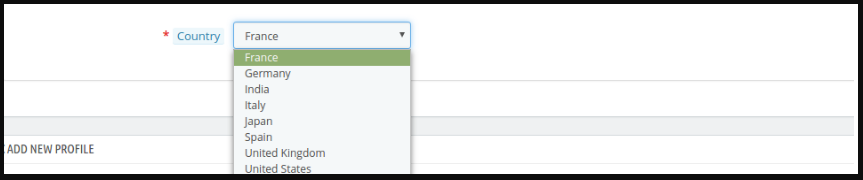
Country
In the latest version of the Prestashop Google Shopping Connector by Knowband, the merchant can choose the country. Further, there are three options available – the United States, the United Kingdom, and France. Once you choose the country, a few settings automatically change. They include Language and Currency.
Profile title
Under this tab, you can add a title for your profile. For instance, US accessories or France clothing, and more. Likewise, you can create numerous profiles with different titles as per the need. In fact, the marketer can do it using the Prestashop Google Shopping Feed Integration.
Google Shopping Category
Here, the merchant can select from the several options available in the drop-down menu. For instance, electronics, fashion, food supplies, software, media, and so many others. In fact, choose the category that is applicable to your products in that respective profile.
GTIN
Under this tab, the merchant has to add his Global Trade Item Number or GTIN. Furthermore, it is the unique and internationally recognized identifier for a product. The setting is a drop-down menu with Reference, UPC, and EAN13 as options. Therefore, you can choose the one that is applicable to you from the Google Shopping Prestashop Integration.
Under the setting, you also find a note. Kindly select the proper GTIN. GTIN should be of 0, 8, 12, or 14 digits (UPC, EAN, JAN, or ISBN). For more information, you can contact Google Support as well.
Customize the product title
Under this setting of the Prestashop Google Shopping API Integration, the merchant can easily add place-holders to their products. Moreover, customize the same as well. In fact, the setting has an image that helps you understand the different place-holders they can use.
Material
In this setting, the marketer can add the material of the product under this profile. Moreover, choose from the options available in the menu. They are Composition, Paper type, Color, Size, and Frame size. Therefore choose the one that fits your category.
Pattern
Under this alternative, the merchant can add the pattern of the product under this profile. Moreover, choose from the options available in the menu. They are Composition, Paper type, Color, Size, and Frame size. Therefore choose the one that fits your category.
Gender
Here, the merchant can choose the gender. The options in the Prestashop Google Shopping Integration Addon include Male, Female, and Unisex.
Age Group
Under this tab, the admin can add the age group from the drop-down menu. The options available include Newborn, Infant, Toddler, Kids, and Adult.
Adult Content
In case you are selling products that are for adults or 18+ only, you have to click ‘yes’. Likewise, if the products are for all, then click ‘no’ from the Prestashop Google Shopping Integrator.
Color
Select the color from the drop-down menu of the Prestashop Google Shopping Connector.
Size
Choose the size from the drop-down menu of the Prestashop Google Shopping Feed Integration by Knowband.
Size type
Determine the type of size from the menu. The options include Regular, Petite, Big& Tall, Plus, and Maternity.
Size system
Here, the merchant can choose from the various size systems available in the list. For instance, AU, BR, CN, DU, and so many others.
Product Shipping
This is practically the last setting under the Profile Management tab of Prestashop Google Shopping API Integration. Furthermore, he can select the shipping in this setting.
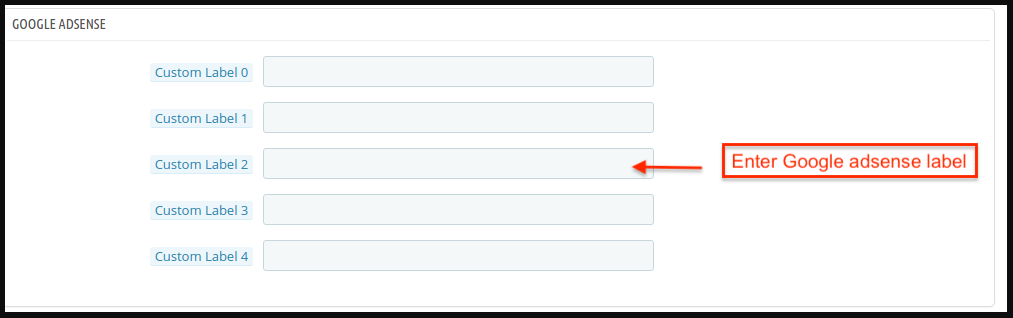
Going further, the tab of the Prestashop Google Shopping Integration Addon has a section for Google Adsense. This has different custom fields for the merchants.
Therefore, here we are with the profile management tab of the Prestashop Google Shopping Integrator. There are several other settings that we will cover in the same space. In case you want to try your hand at the settings, you can check out the demo version on the product page. Moreover, get in touch with us at support@knowband.com will your queries.
Prestashop Google Shopping Integration addon offers a way to upload the products of the store on Google Shopping. Further, displaying the product ads on the search result is one of the ways to get thousands of visitors to your site.
In fact, Google Shopping allows e-merchants to display its product on Google’s search result page. Further, it is powered by AdWords and Google Merchant Center. In fact, this is one of the ways to allow users to search for the products. Further, on online shopping websites. Moreover, compare prices between different vendors. Therefore, the Prestashop Google Shopping Integration makes it easier for store owners to display their products on Google’s SERP.
The Prestashop Google Shopping Integration module automatically syncs feed from the Prestashop store to the Google Merchant Center Account. Additionally, the store admin can sync the product status back to the store’s database. How? By executing cron in the back-end of the Google Shopping Prestashop Feed Synchronization plugin.
Features that Knowband’s Prestashop Google Shopping integrator offers are:
The Prestashop Google Shopping Integration addon automates the entire process of listing the products. Further, on Google Shopping from the eCommerce site.
The store admin can automatically update the product inventory between the two stores. In fact, this happens from the back-end of the Google Shopping Prestashop Integration extension.
The store admin gets an option to create an N number of profiles. Further, this happens in the back-end of the Prestashop module.
The profile-based upload allows the admin to list the products in bulk. Moreover, any changes in the product details happen by making changes in the profile. Further, this happens in the back-end of the Google Shopping Prestashop API integration addon.
The store admin gets an easy option to keep a track of the products listed in the Google merchant center. Further, in the ‘Product Listing’ tab of the Prestashop Google Shopping connector.
The expired products are renewable just by executing cron in the back-end of the Prestashop Shopping Integration plugin.
Prestashop Google Shopping Feed synchronization plugin even allows the admin to delete the products. In addition, view the errors that occurred while product listing.
Every time a cron executes, it creates a feed. Additionally, the status of the feed is visible from the backend of the Google Shopping Prestashop Integration plugin.
The real-time synchronization offered by the Prestashop Google Shopping Integration module makes tracking easier. Moreover, it also makes feed management easier for the store admin.
The status of the actions that the admin performs is visible in the audit log section. In fact, they’re available in the backend of the Google Shopping Prestashop Integrator.
What’s New in the Recent Updates!
[Important]Google Merchant API Update (July 1, 2026)
What Changed in PrestaShop Google Shopping Integration
The PrestaShop Google Shopping module has been updated to use the Google Merchant API for product synchronisation and your store authentication on Google Merchant, replacing the previous API integration of the Content API.
Why This Update Matters for Users Who Are Using Knowband’s Prestashop Google Shopping Integration
Improved reliability – Product sync with Google Merchant Centre is faster and more stable Modern authentication – Uses Google’s current API standards for connecting your store to Google Merchant Centre Continued compatibility – keeps the module aligned with Google’s supported integration methods, avoiding disruptions from older/deprecated APIs
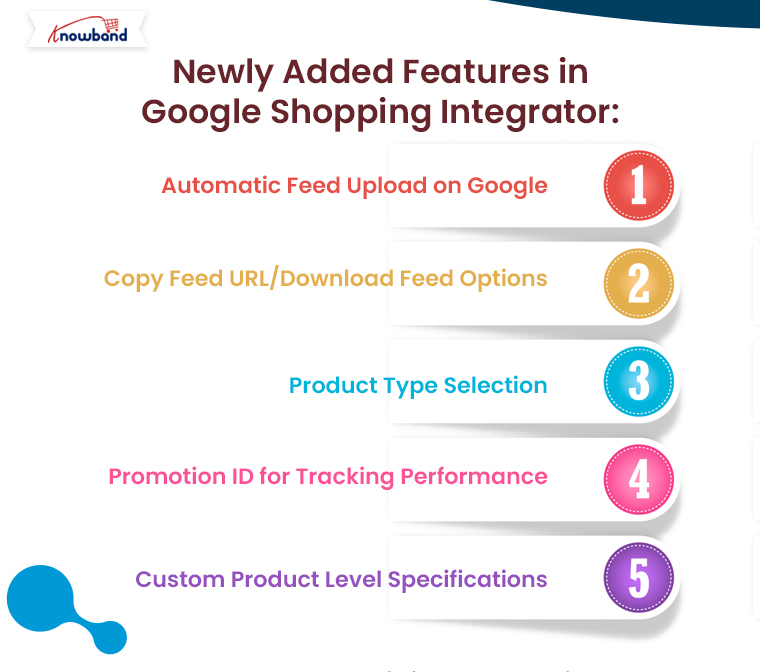
Automatic Feed Upload on Google: The new “automatic feed upload” button lets the store admin choose between automatic and manual feed submission. If disabled, feeds won’t sync automatically with Google Merchant. Instead, the admin can copy the feed URL or download the feed and manually submit it to Google Shopping.
Copy Feed URL/Download Feed: The updated Prestashop Google Shopping Integration addon includes features to copy the feed URL or download it in JSON, XML, or CSV formats. This gives admins flexibility in managing their merchant console feed.
Product Type Selection: Store admins can now specify product types within Feed Profiles, making feed management more flexible.
Promotion ID: To track the performance of listings in the Google Merchant console, we’ve added a Promotion ID section in the profile management tab of the Prestashop addon.
Custom Product-Level Specifications: Admins can list products using universal feed specifications or configure them at the product level, found under the product listing tab. This gives more control over how products are presented.
1.1. Project Objectives
Listed below are the project objectives:
1. The Prestashop Google Shopping Integration module installation and configuration.
2. The method of the Prestashop Google Shopping Integration extension connection with the Google Merchant Center.
3. The profile management, category mapping, and feed management.
4. Product listing and synchronization.
2.0 Installation
Purchase the Prestashop Google shopping integration plugin from the Knowband store. Further, you will get the zipped file along with the user manual. Moreover, please follow the below steps to install it:
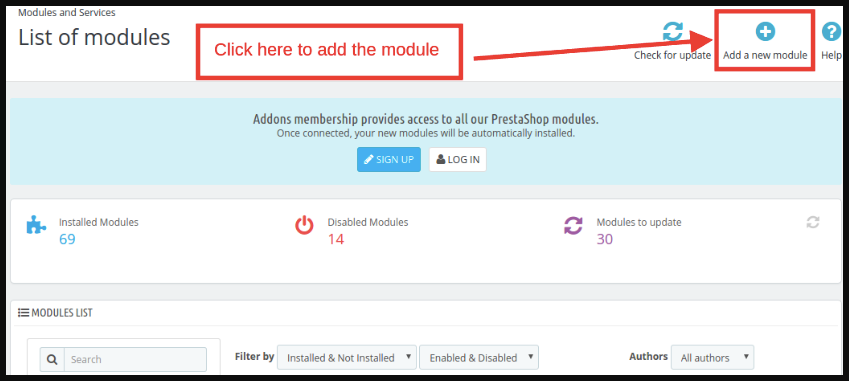
1: Go to the Module listing page and the “Add New Module” button.
2: Upload the downloaded zipped file of the module.
3: After uploading, the system will list the module on the module listing page as shown below screen:
4: Click on the install button. Further, the Google Shopping Prestashop Integration module will install in your Prestashop store.
Note: Please set the read/write permission on the module folder before installing the addon into the system.
3.0 Admin Interface
After installing the Prestashop Google Shopping Integration extension, it will list on the module listing page. Further, kindly see the screen below:
Now, the Prestashop Google Shopping Integration extension add-on is installed. Further, it will display 7 tabs in the main menu of the admin interface. In fact, each tab explains one by one in the next section.
3.1. Connection Setting
This section of the Prestashop plugin allows the store admin to connect their store with the Google Merchant. Here are the information fields that you need to mention for setting up the connection.
Automatic Upload Feed on Google: If you want to upload the feeds manually on the Google merchant console, keep this option disabled. Or, if you want to get the feeds managed automatically with APIs, enable this option and enter the other connection details.
Google Application Name: Enter the name of the project/application that you created for Google Shopping.
Google Client ID: Enter the Client ID that will authenticate the connection between the store and Google Merchant. By default empty but required field. (See Appendix A)
Google Client Secret: Enter the client’s secret to set up the connection. By default empty but required field. (See Appendix A)
Google Merchant ID: By default empty but required field. Here, you will provide the merchant ID of your Google merchant center account.
3.2. General Settings
This section of the Prestashop Google Shopping API integration allows the store admin to set up the basic features.
Enable the plugin: By default, this setting will be OFF. In fact, the Prestashop Google Shopping Integration module will sync the products to Google Shopping if this setting will be ON.
Image Size of Product: Select the size of the product from the drop-down list. Further, the admin can enter the image size option in the Main Menu -> Preference -> Images.
Exclude Out of Stock Products: If disabled, only the in-stock product will be displayed in Google search results. Additionally, enable the display of out-of-stock products.
Exclude Products with Price less than Enter a fixed amount. Further, the products below this amount will not display in the search results only.
Exclude Products that do not have EAN13/JAN or UPC: If the admin disables this, the products that don’t have the EAN13/JAN or UPC will not display.
utm_campaign Parameter, utm_source Parameter, utm_medium Parameter: Enter the UTM for tracking the traffic received via Google Shopping.
Select your default language: The module offers multi-lingual support. Further, select the default language from this section.
3.3. Profile Management
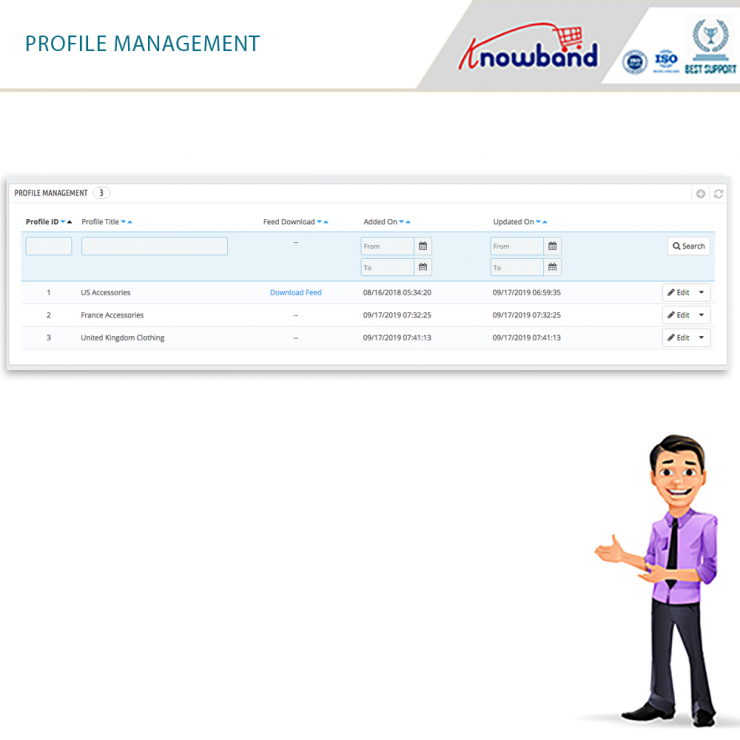
The admin can create, edit or delete profiles from this tab of the Prestashop Google Shopping Integration extension
3.3.1 How to Create a New Profile?
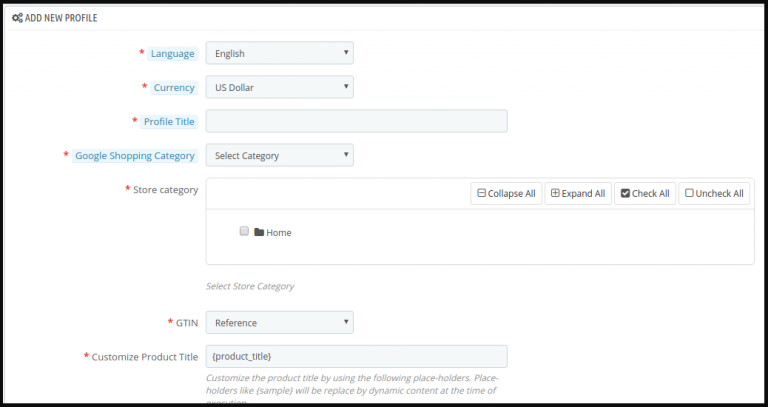
Click on the ‘Add New Profile’ or ‘+’ sign to create a new profile.
You’ll be redirected to the profile creation page of the Google Shopping Prestashop Integrator.
Select the Country from the drop-down list.
Language: Select the language for profile creation.
Currency: Select the desired currency for the selected location.
Project Title: Enter the name of the project.
Google Category: Select the Google category where you want to map the category of the store.
Store Category: Expand the category and check the categories that you want to map in Google Shopping.
GTIN: Here, you will map the product’s unique field. Further, the Prestashop Google Shopping Connector module can identify products according to the mapped attribute. In fact, you must also have to provide unique field mapping for product attributes as well. Furthermore, the various options to choose from include: Reference No., UPC, EAN13. Thus, the mapping can then be done based on the selected attribute.
Product Listing Method: The store admin can select the product listing method by Feed or by API under this section. If the feed is selected, the products will be updated at the time of the feed schedule. However, if the API is selected, all the products can be updated once the admin hit the synchronization cron.
Customize Product Title: Customize the product title by using the following place-holders.
{id_product} for Product ID
{product_title} for Product title
{manufacturer_name} for Manufacturer name
{supplier_name} for Supplier name
{reference} for Product Reference
{ean13} for Product EAN13
{short_description} for Product Short Description
{price} for Product Price
Place-holders like {sample} will be replaced by the dynamic content at the time of execution.
Product Type: Enter the product type in this text field.
Product Condition: Select the product condition.
Promotion ID: The Prestashop Google Shopping Connector provides the admin with the option to enter the Promotion ID in this text field. This can be used for tracking the performance of various Google events.
Material: Select the material of the product.
Pattern: Choose the pattern from the drop-down menu.
Gender: Select the Gender for which the product is intended. Further, the options are Male, Female, or Unisex.
Age Group: Select the age group that is expected to use the product.
Adult Content: Specify if the product has any adult content or not.
Color: Use the color attribute to describe your product’s color. Further, this information helps create accurate filters, which users can use to narrow search results.
Size: The size attribute describes the standardized size of your product. Your product ad will appear in the results that are filtered by size.
Size Type: The attribute describes the cut of your product. Further, the supported value for this field includes a variety. For instance, regular, petite, plus, big, tall, and others. Therefore, this helps create accurate filters.
Size System: With this attribute, you can explain which country’s sizing system your product uses.
Product Shipping: Select the shipping method for the particular product.
Google Adsense
Google Adsense refers to the campaign that you’ll run on Google Adwords. Further, Custom Labels, Custom Label 0 through Custom Label 4, allows you to create specific filters to use in your Shopping campaigns. In fact, use these filters for reporting and bidding on groups of products. Furthermore, the information you include in these attributes won’t be shown to users.
3.3.2 How to Edit the Existing Profile?
The created profile in the Prestashop Google Shopping Synchronization addon can be viewed in the admin interface. Further, click on ‘Edit’ to edit the profile. In fact, you can even enable/disable by changing the status as shown below.
The category mapped can even be viewed by clicking the ‘View Mapped Category’ button shown in the above image.
3.3.3 How to Edit the Mapped Category?
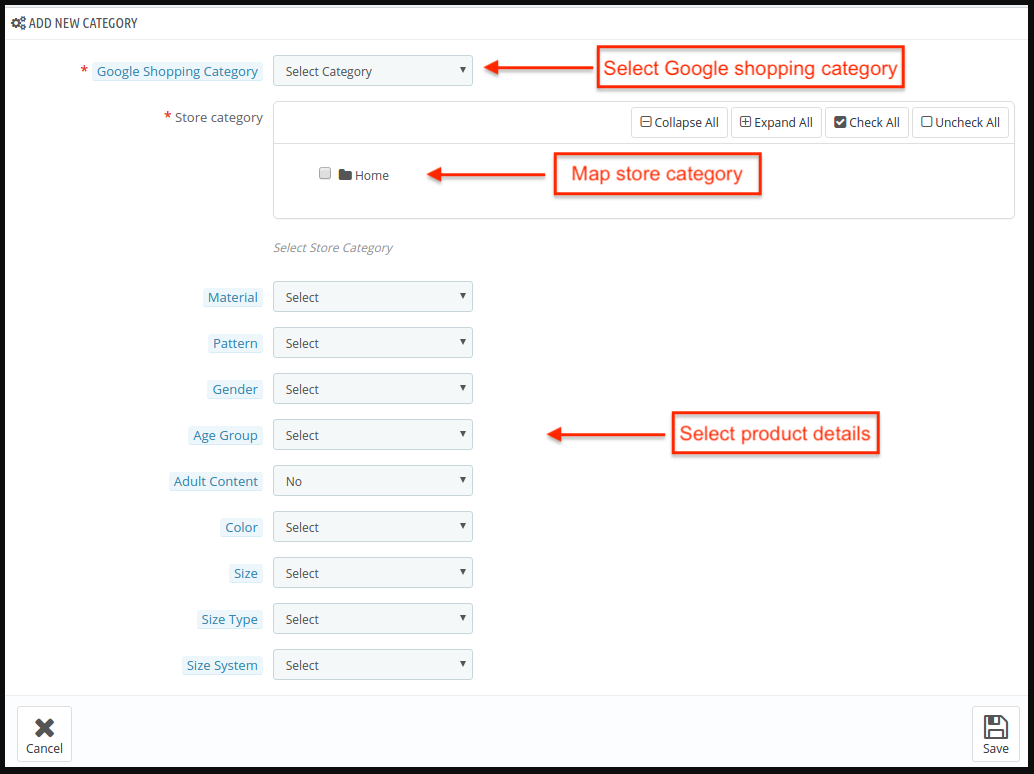
To map a new category, click on ‘Add New Category’.
Fill in the information as shown below:
Google Shopping Category: Select the category that you want to map.
Store Category: Select the category of your store that you want to map with the Google Shopping Category.
Material: Select the material of the products in the selected category.
Pattern: Choose the pattern from the drop-down menu.
Gender: Select the Gender for which the category is intended. Furthermore, the options are Male, Female, or Unisex.
Age Group: Select the age group that is expected to use the products of the category.
Adult Content: Specify if the category has any adult content or not.
Color: Use the color attribute to describe your product’s color. Further, this information helps create accurate filters, which users can use to narrow search results.
Size: The size attribute describes the standardized size of your products being mapped along with the category. In fact, your category ad will appear in the results that are filtered by size.
Size Type: The attribute describes the cut of your product of the category.
Size System: With this attribute, you can explain which country’s sizing system the product of the category uses.
The mapped category will be shown as below:
To edit the mapped category, click the ‘Edit’ button.
To delete the mapped category, click the ‘Delete’ button.
3.3.4 How to Download the Feed to Submit Manually on the Merchant Console?
The Prestashop Google Shopping provides the admin with the option to download and submit the feeds manually on the merchant console.
The store admin can export the feed in JSON, XML, and CSV format, providing enhanced control over feed submission.
3.4. Product Listing
The listed products can be viewed in this section. Further, the Google Shopping Prestashop Connector is shown in the image below.
The admin can remove the product by clicking on ‘Delete’.
The admin can view the Error that occurred while uploading the product.
The Renew button can relist the products whose listing has expired.
3.5. Feed Management
In this tab of the Google Shopping Prestashop Integrator, the admin will get the feature to configure a schedule on which the module can upload products on Google without any manual interference.
Click on the ‘Add New Feed’ or ‘+’ sign to create a new profile.
The configurations options in this tab of the Prestashop Google Shopping Integration addon are shown below:
Select Profile: The list will show the created profiles. Furthermore, select the one whose product you want to sync with Google shopping.
Feed Label: Enter the name of the Feed.
Feed Upload Schedule: Select the frequency when you want to upload the feed.
Set Hour: Select the number of hours in which you want to schedule the feed.
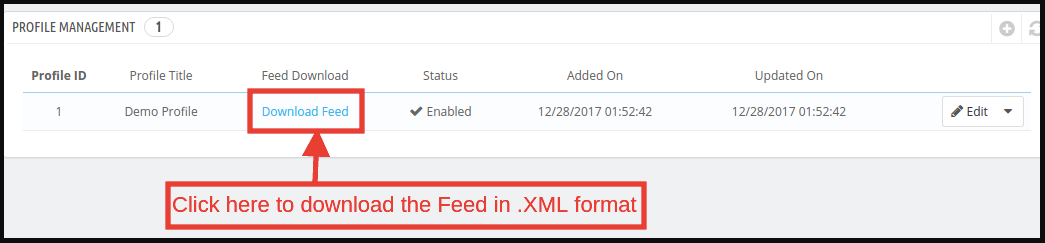
To download the created Feeds, go to Profile Management and click on ‘Download Feed’ as shown in the image below.
3.6. Synchronization
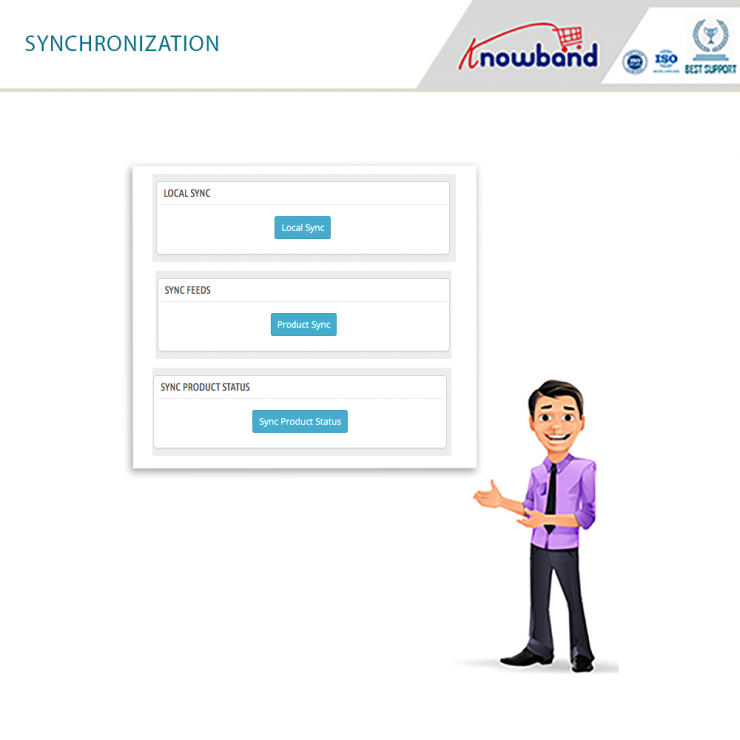
The Synchronization tab of the Prestashop Google Shopping Integration extension offers easy integration with the help of cron jobs. Additionally, the Prestashop Google Shopping Feed synchronization allows the admin to sync the feeds to Google Merchant. Moreover, syncs the product status back to the store.
Local Sync: This cron loads the products in the module’s local listing tab.
Sync Feed on Google Shopping: ‘Sync Feed’ cron will synchronize the feed on Google Shopping.
Sync Products Status from Google Shopping: This button can sync the product status from Google shopping to the web store.
3.7. Audit Log
The admin can view all the jobs running and the errors that occurred in the same. Furthermore, the status of the jobs is visible in this tab of the Prestashop Google Shopping Integration plugin.
4.0. Appendix
How to Create Google Shopping Account?
Before uploading your products on Google shopping, you must have your Google merchant account. In fact, if you don’t have then please follow the below URL:
Follow the instructions given on the above URL and create your account.
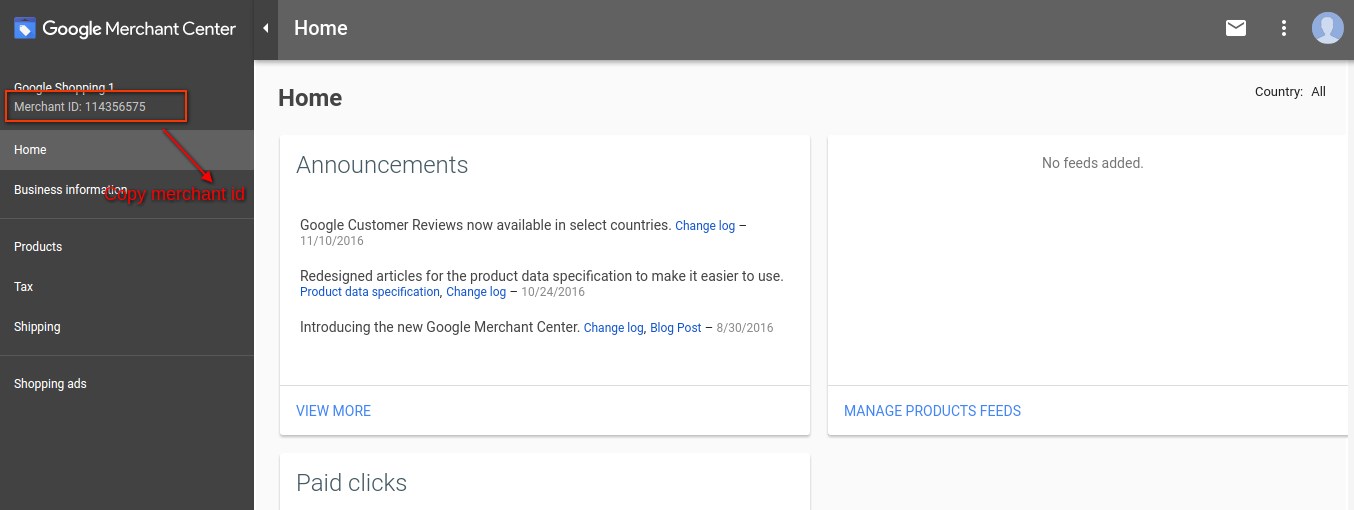
After creating your account, you will be redirected to your merchant center homepage as shown in below screen:
Copy your merchant id highlighted in the above screen and save it in module configurations.
After this, click on the Connect button so that your module gets integrated with your PrestaShop store, In addition, you will be able to fetch the report details.
Verify your Website for Google Merchant Account
This verification process is a compulsory process to upload your products to Google Shopping. In fact, if you do not verify your site then the module will not be able to upload products and may result in an error.
To verify your website, please follow the below instructions:
Step 1: Go to the “Business Information” tab in your Google Merchant Account.
Step 2: Under the “About Your Business” tab, provide the URL of your store. For instance, https://www.example.com. Save URL.
Step 3: After saving a website URL, Under the “Website” tab, click on the “Claim Your Website” link. In fact, this will show you the link to an HTML file. Hence, download this file. In addition, upload it to your root directory of the store.
Step 4: After uploading the HTML file, execute the URL given by Google in step 3.
Step 5: Click on the “Verify & Claim” link.
After this, you can fetch your products report under the product tab of your Merchant store.
How to get Client ID and Secret
To get a Google client id and secret you need to create a project in a Google developer account. In fact, please go to the below URL to sign in to the Google developer account.
https://console.developers.Google.com
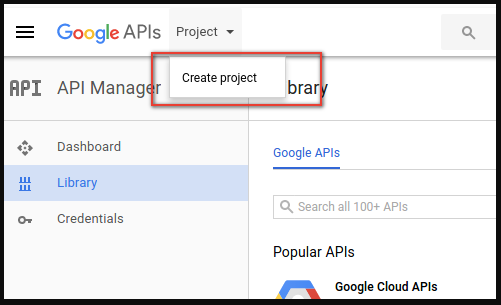
On the above URL, create a project by clicking the link shown in below screen:
1: Name your Project Name. Moreover, click on the “Create” link. In fact, after creating a project, Google will redirect to the same page and your new project will be selected.
2: Go to the library tab, search for “Content API for Shopping ”. Further, enable this API for this project.
3: Click on the “Credentials” tab. This tab will show 3 tabs.
4: Set your application name in “OAuth Consent Screen” and save it.
5: Click on the “Credentials” tab and click on the “Create Credentials” button.
6: After clicking the “Create Credentials” button, Google will be shown credentials type options. Therefore, choose “OAuth client ID”.
Step 7: Set application type as “Web Application”.
Step 8: Set the “Authorized Redirect URIs” field. Additionally, your redirect URI is given on the module configuration page. Further, please copy from there and paste it into this field.
Step 9: Click on the “Create” button. Further, after saving credentials, Google will generate the client id and secret for you. In fact, copy and paste them into the corresponding field in module configuration.
Note: For more detailed instructions, follow URL https://developers.Google.com/identity/sign-in/web/devconsole-project
Note: If you are getting an error while getting your refresh token. Further, please also try after “Allowing Less Secure App” in your Google account.
In fact, for more values, please follow the below URL and read the documentation: