Social Logins buttons on eCommerce sites can present retailers with a wealthy of opportunities if used rightly. Further, social logins are viewed as a required registration solution by 77% of users. According to studies, the 18-25 year (38 percent) and 25-35 year (33 percent) age groups are the most likely to use social logins.
Social login buttons come with various advantages, one of them is easy login and boost in consumer retention and visitation. In this blog, we will talk about other potential benefits of social login buttons in eCommerce.
Advantages of using social logins in eCommerce you must know
Customers get wide login options
If the business does not incorporate social login options, customers must register an account manually and log in to make purchases on the website. What about the use of social logins? Customers can choose and log in with the help of social networks with which they are already accustomed. Isn’t it true that having many options is preferable to having none?
Easily remember passwords and simplify authorization
One of the most significant benefits of social login is that it eliminates the need to memorize passwords. Customers find it irritating to have to create a new account and password every time they log in to another website. However, remembering all of the passwords for all of the accounts on those websites is a lot more difficult.
According to a survey, 86% of users are hesitant to create a new account simply because they don’t want to remember any more passwords.
Increase potential users
This feature is best for customers who abandon a purchase simply because they are having trouble creating an account or because they are lazy and find the processes to create an account to be tiring. As a result, easy account creation via social login aids businesses in growing their prospective client base by increasing the number of customers that create accounts.
Accuracy data gathering
When making accounts on websites, many people supply false personal information. They normally simply create an account to place a purchase because they don’t expect to return. This makes it harder for the company to gather data and assess customers. It is also more difficult to contact customers or send emails to notify and introduce products in the future.
When checking in using social login, however, the situation is different; all of the customer’s personal information is accurate. The company will then be able to tackle the difficulty mentioned above as well as have a reliable supply of client data.
Prestashop Social Loginizer Addon
Prestashop Social Loginizer Addon is one of the most useful modules for Prestashop store owners who want to improve their store’s user experience. Moreover, the addon results in higher sales and conversions.
Key benefits of Prestashop Social Loginizer Addon:
Store owners get a simple to use interface
The registration and login process becomes simple.
Store merchants receive the customized and mobile-friendly design.
14 different social login possibilities with the settings setup.
Offers both creating as well as tracking reports.
Social Login for Opencart
Installing Social Login for Opencart offers easy leads for your business that can be utilized for re-targeting as well as re-marketing to boost your online sales. Furthermore, the plugin permits your visitors to login with the assistance of social media networks. These even allow them to access your website swiftly and quickly. This addon even reduces online stores’ cart abandonment rate.
Key Features of Social Login for Opencart:
If the store admin allows customers, he/she can login using social login options.
With the assistance of the plugin, merchants can easily set up Facebook, Google, and Twitter and eight more social login options.
Boosts eCommerce store registrations.
Multiple stores are supported by the OpenCart Twitter Login plugin.
Compatible with a variety of themes.
Magento social loginizer
Magento Social Loginizer improves their store’s user experience hence it’s great for store merchants. Furthermore, the plugin helps in improving sales as well as conversions.
Key benefits of Magento Social Loginizer:
The plugin offers an easy interface.
The plugin provides easy registering as well as a logging-in process.
Provide mobile-friendly design as well as customized.
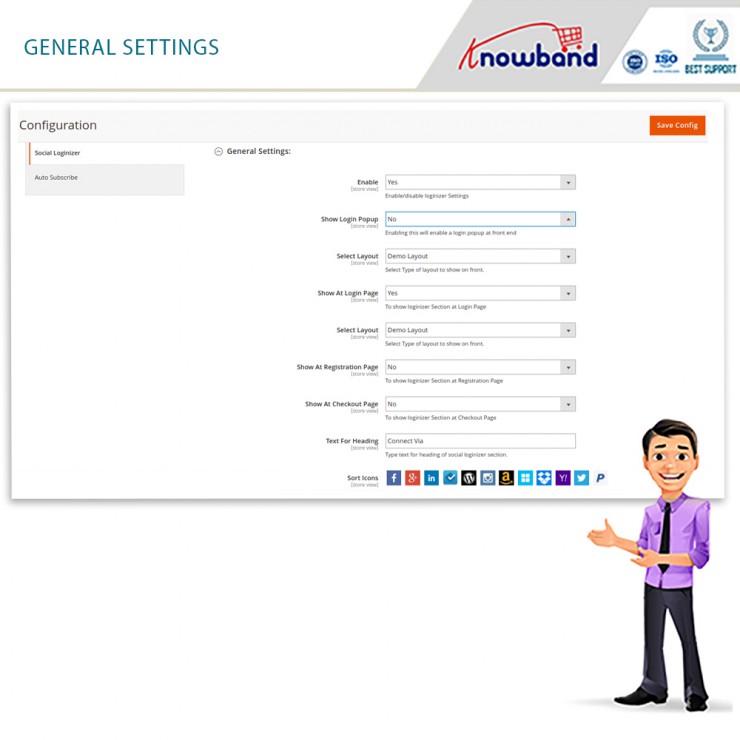
Each with its setup settings offers 15 different social login choices.
Offers a feature of creating and tracking reports.
Magento Social Loginizer (12 in 1)
Magento Social Loginizer (12 in 1) is a popular andbeneficial login/signup method these days is a social login. The addon enhances online user engagement by permitting users to join/login without having to create an account. Due to this add-on, clients don’t have to fill out a tedious form. Moreover, store admin can login easily and quickly by integrating social networking sites without any complicated implementation.
In case users already have social media accounts on Facebook, Twitter, LinkedIn, Instagram, and a variety of other networks can sign up immediately with this Magento 2 Social Media Login extension.
Key Features of Magento 2 Social Media Login Extension:
Provides online users with a simple login/signup mechanism.
Allows you to choose from a total of 12 Social login choices and each with its own set of customizable options.
Permit to generate and track social login/signup reports.
Allows customizing and styling the style and feel of the social login/signup buttons.
In case you face any difficulty, feel free to write us at support@knowband.com.
The most popular social networks are available in numerous languages and allow users to connect with friends or people from all over the world, regardless of geography, politics, or economics.
Social networking sites are predicted to have 3.96 billion users by 2022, and these numbers are expected to continue to rise as mobile device usage and mobile social networks gain momentum in previously neglected areas.
Another Statista report says, 73% of Internet users prefer social login over the long registration process. These figures are expected to climb in the future years, thus adding a social login option to your eCommerce site is advisable.
Social login is a quicker alternative to lengthy registration forms. You benefited from the social login in multiple ways, not just the conversion but you also get more precise data of clients and their interests that you can use in optimizing your marketing funnel. Let us discuss some of the benefits of Social Media Login and how it can help you in marketing and advertisement.
Why is Social login User’s Choice?
Registration or signup with a Social network is an easy, convenient, and seamless option.
Let’s dig into some numbers to better understand the inclination of users towards social networks.
Through a study it is found that 56% of customers use social verification to avoid filling out online registration forms; 43 percent said they did so because they couldn’t recall another user name and password.
Facebook is the most popular social media platform worldwide with 2.85 billion monthly active accounts. As Facebook owns four other social media platforms including Facebook (core platform), WhatsApp, Facebook Messenger, Instagram, 3,15 billion users are reported in the first quarter of 2021.
In the year 2016, 53% of users chose Facebook and 44% chose Google+ over other social media login options.
The next highest result at 25% was the people who like using the same identity on all of the devices and websites to achieve a more personalized experience.
Adding a plugin for social media login can be an opportunity for an eCommerce store owner to enhance the conversion rate. For an eCommerce store, you can always opt for a social Loginizer plugin.
How does Social Login Works?
What is the procedure for logging in with a social media account?
Login using your social media account is a straightforward process. You can complete the process in just three steps:
A login request is received at the social network provider’s end, which authenticates the user. Users must accept the app’s or site’s access rights at this point.
Next, the social provided will verify the profile and user identity to give the access to site or app.
The user opens an app or goes to a website and chooses their preferred social network. This is frequently in the form of a social login button or a link that says “Sign in with [Facebook/Google+].”
Customers can also opt for email notification or subscription to newsletters. Asking for their permission will keep you in their good books, and needful for GDPR compliance.
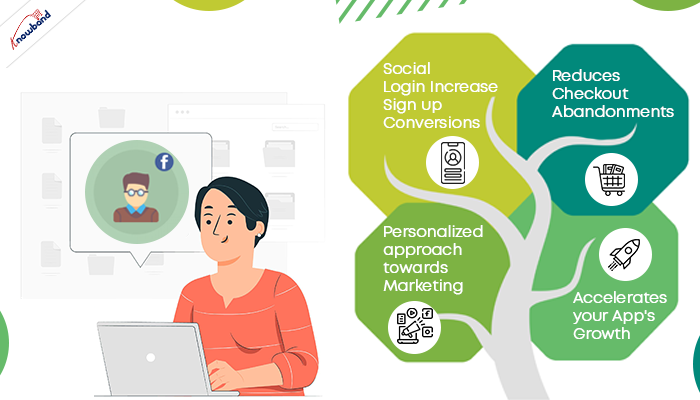
Social Login Reduces Abandoned Cart and Increase Sign up Conversions
How Social login does reduce the abandoned cart rate? When you force a customer to fill a complex registration form during checkout, it demotivates them. As a result, they leave your website without buying any products.
You can encourage your customer and influence their buying decision by giving them a user-friendly customer experience. For your eCommerce store, you can use one page check out incorporated with social media login options. One Page Checkout appears to be a simple and quick way to register and the one with the social login option is like the cherry on the cake.
More registration means more conversion results in less bounce rate and abandoned carts.
Role of Social Login into Personalized Marketing and Ads
Being a netizen, I like getting a personalized shopping experience. When a store treats me well, I definitely revisit them.
Ever wondered about the ads you see on your social media, why do they look so relevant?
While surfing your web browser you might have seen advertisements related to your search results. This happens because social media platforms use demographic data and location info to serve the content.
Social login helps businesses achieve that. It provides more consumer data that businesses can use to reach a particular audience in their social media marketing campaigns. These will include details such as name, email address, gender, age, location, personal interests, search history, etc. A study says that social network users will increase by up to 4.4 billion by 2025. This gives a great opportunity to eCommerce store owners to enhance the conversion rate by running strategic successful marketing campaigns.
How to Use Social Login to Accelerate the Growth of Your App and Website
The fastest approach to engage your users and develop your business is to employ social login. What’s often forgotten is how the top companies and products make social login work for them not only during sign-in but throughout the whole customer journey. They leverage user data to send personalize addicting notifications that keep users coming back to the app, consequently results in better engagement.
By providing multiple social login options on the mobile app, you get a chance to figure out which social network is more preferential.
Of course, personalization will be a key factor on Apps as well. As soon as a user login with social media on a mobile app, the provider immediately receives the demographic information of the client.
Then this data will help in personalizing the messages, push notifications, and even in tailoring your promotional emails. Push notifications can trigger conversions three times if you apply a user-centric approach.
KnowBand understands the demand for social login for clients hence Knowband’s mobile app builder has Facebook and Google+ login facility. You do not require any paid extension for login.
Whether you have a B2B enterprise app or the latest hot social consumer app, incorporating social login is one of the simplest ways to make every phase of the user lifecycle stickier and drive more growth.
How to get a Client ID and API details for Facebook, Google+, Twitter….?
People often face difficulty getting the API keys and App secret key. You can easily get the API key and App secret key in a few simple steps for your account by following the guidelines in our user manual. Using LinkedIn or Instagram sites as a social login alternative on your store is very useful with a high share of users.
At Knowband, we provide the free social loginizer module for Prestashop which allow you to enable the Google, Facebook and many more social logins.
Most popular social login Networks
Here is a brief introduction to the most acceptable in-demand login options:
Facebook: Facebook is one of the most popular social login options with the largest base of users which is 2.6 billion (Statistica report). With Facebook Loginizer by Knowband, you can easily add a Facebook login option to your eCommerce store.
Google+: This comes second in the race. People find goggle+ login easier than filling a long registration form. Add Google+ as a login option to your eCommerce store by following these guidelines.
Pinterest: Pinterest is a photo-sharing app with 200million users. Social login by Pinterest is quite popular.
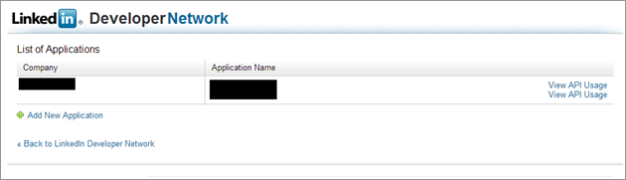
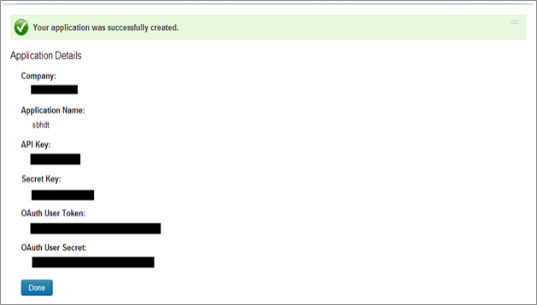
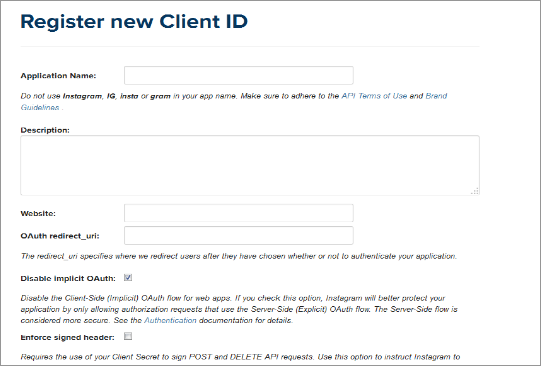
LinkedIn: How to set the API key for LinkedIn is the most frequently asked question for social login. You can do it in a few steps. Read the user manual to set your API and client-server details for social login.
KnowBand’s Social Login Plugin provides 15+ choices
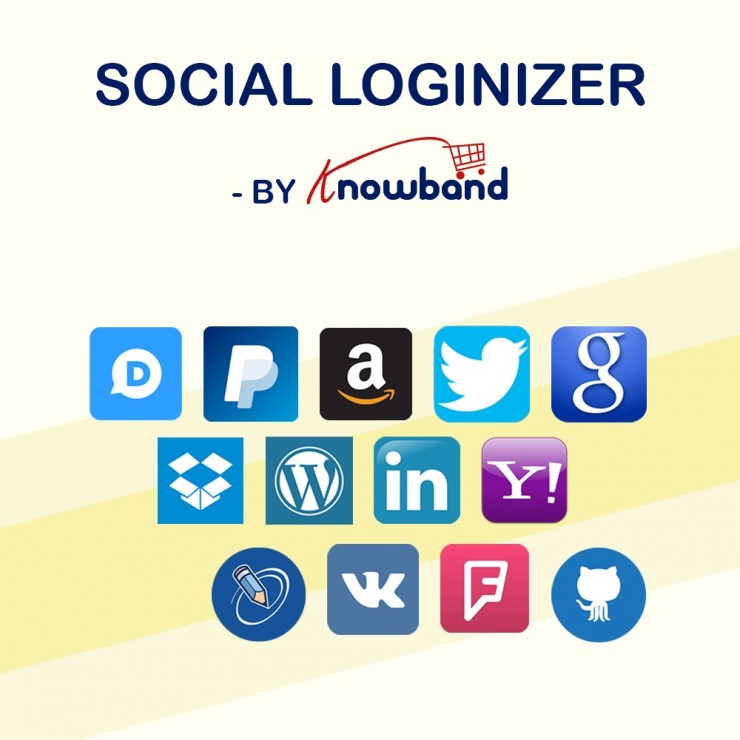
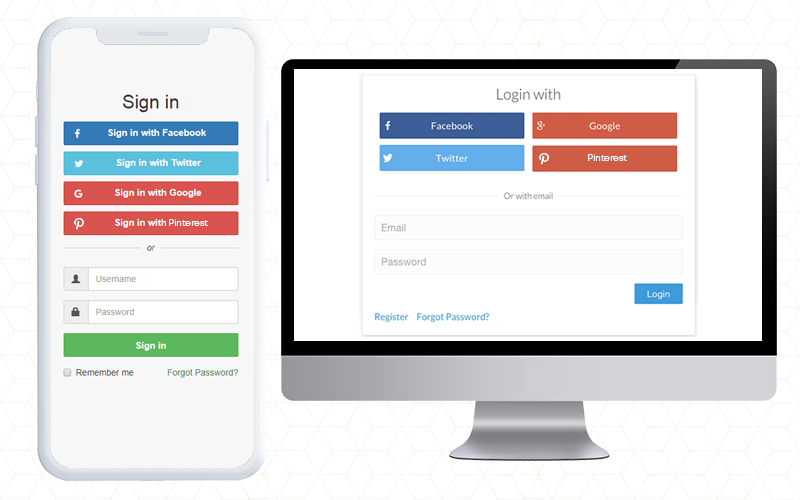
If you want to add social login options to your website, try the ‘Social Loginizer’ Module by ‘Knowband’. This module provides you with a range of social networking options. With this module, you get 15 social login options with Facebook login, Google login, Instagram login, Yahoo login, Vk login, PayPal login, Twitter login, Amazon login, Linkedin login, Foursquare login, Github login, Live login, Disqus login, Dropbox login, and WordPress login. Pick the ones you want and get ready.
As I mentioned, the mobile app builder is integrated with Facebook and Google+ login facility. In that same way, the One Page Checkout module also has Social login facility by Google+ and Facebook. Some of the extensions also provide PayPal login support.
You can check out the plugins for your eCommerce platform from Knowband. The Social Login addon is available for PrestaShop, OpenCart, Magento, and Magento platforms.
Introduction of Magento Social Login Extension by Knowband:
Magento Social Login Extension by Knowband allows users to login via their social accounts out of prvided 15. For example Facebook, Google Plus, Twitter, LinkedIn, Live, Yahoo, Instagram and many others. The Magento social login plugin is designed to simplify the logins for the users. By integrating social login plugin on your Magento store, you allow your visitors to login to your website with their existing social network accounts.
Steps For Installation of Magento Social Loginizer Extension:
Required Materials:
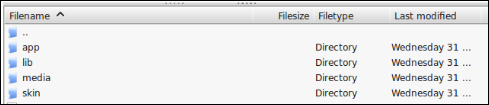
All files used by the extension.
FTP access to your website.
The connect manager is a useful tool for installing Magento extensions, but prefer hands-on method when it comes to installations. It feels more comfortable when you are personally in control of the process.
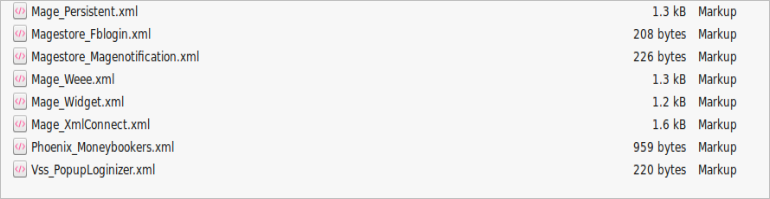
Do you see an app-code directory there, what about app-etc-modules? If you don’t see these directory paths and files contained within them, chances are that the extension download was faulty. Take a look at the package.xml file, this is the blueprint used by Magento Connect to arrange the files in the proper places. You may need to use this to ensure that everything is as it should be. Once you have reviewed the extension files you are ready to perform the last step. Using your ftp client, drag all of the files onto the store root of the magento instance.
Depending on the number of files in the Magento extension by Knowband, this may take a few moments. Now go to the admin console and click Flush Cache Storage. This is the requirement for any extension that adds pages to the admin console. Logging out and back in is also required to ensure that everything loads properly. If you cannot clear the cache via the admin console for any reason, you will need to clear the cache manually via your FTP client (see the first FAQ question for assistance). That is the final step. Congratulations on a successful installation.
Troubleshooting & FAQs
I loaded all files onto my Magento store, and now get a white screen for some or all of the admin console.
This is a fairly common problem, and 99% of the time it is cache related. If you can get to it, go to System->Cache Management and click Flush Cache Storage. This will ensure that everything cached by Magento is deleted and will to be regenerated. Log out and back in to complete the process.
If you are completely cut off from the admin console, navigate to the var-cache directory of your website. You should see a series of directories named mage*. Delete all of these directories (DO NOT DELETE var-cache). This is the equivalent of flushing the cache storage from the admin console.
I am receiving a Magento error when accessing certain pages. How can I debug this?
This question really deserves a blog post all to itself, but a good start would be to go into the errors directory of your store. Locate the local.xml.sample file and rename it local.xml. The next time you see the error detailed information will be provided explaining where the error took place. Dont forget to change this back when you are finished troubleshooting!
I have a critical error with my webstore and need to turn off an extension I cannot access the admin console. What do I do?
Go to the app-etc-modules directory and open the file that goes with your extension. The naming convention is generally DeveloperName_ExtensionName.xml. In this case it would be Velocity_SocialLoginizer.xml.
Look for the active tags in the file, change the value from true to false and save your changes. This tells Magento that the Magneto extension is disabled and not to run any code associated to it. Deleting the Magento cache is recommended (and most likely required) for this change to take effect.
User Guide
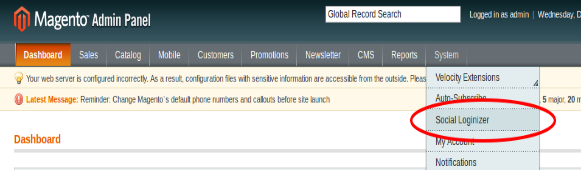
To excess Magento Social Loginizer plugin, Click on Social Loginizer Menu appearing in System Menu navigation menu as shown below.
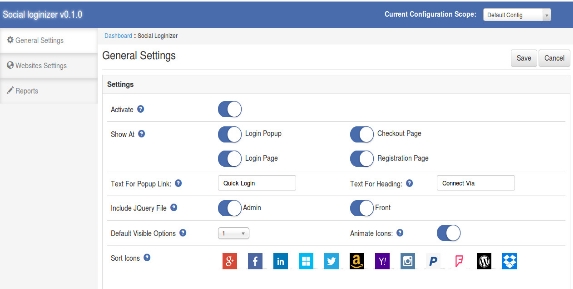
After clicking on Social Loginizer menu, the Magento social login plugin by Knowband will open. It contains navigational bar at the top, Tab menu at the left and in main content the first general setting tab will display.
General Settings Tab
General Settings:
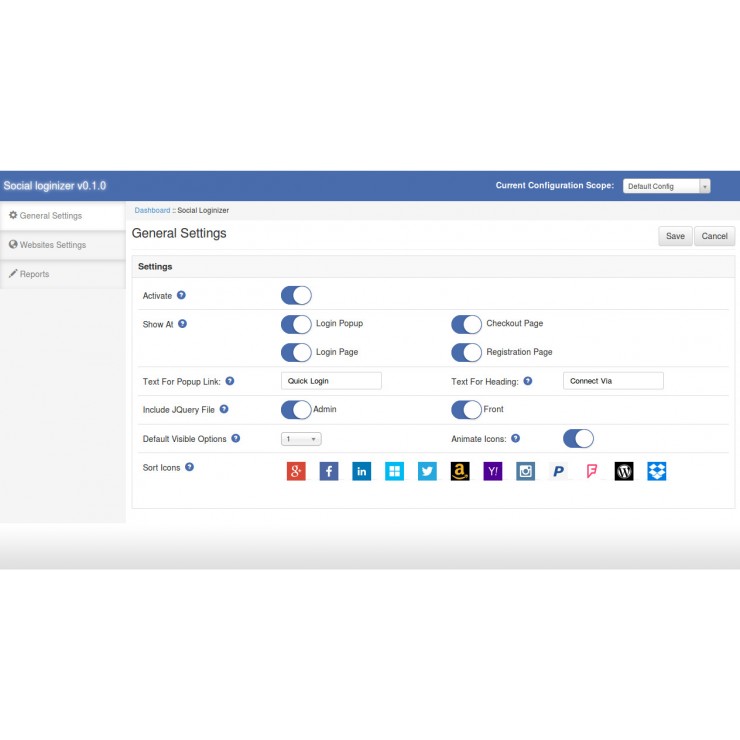
Active: To enable the Magento facebook login extension plugin, select enable present under the label Activate.
Show At :
Login Popup: To enable the login popup.
Checkout Page: To add Magento social media login plugin on checkout page.
Login Page: To add social login bar on login page.
Registration Page: To add Magento social login extension on registration page.
Test for Popup Link: Set the text for login popup link which will shown next to default login link of the Magento social login plugin.
Test for Heading: Set the text for heading of social media login plugin Magento which will shown on selected pages.
Include jQuery File: jQuery i.e. a javascript framework is required for this Magento plugin to work. Sometimes themes used in Magento already includes it but sometime they do not. If jquery is already included in your theme then deactivate else activate to include it.
Default Visible Option: Select the no. of social icons to be visible by default on Magento social media login extension.
NOTE : In Magento social login module, only small icons will be visible and only maximum 6 icons will be visible.
Animate Icons: Activate this option to turn on the animation effect on icons of Magento social login.
Sort Icons: This option of Magento social media login allow to sort the order of icons in which they will display at login bar and login popup.
Loginizer Settings Tab
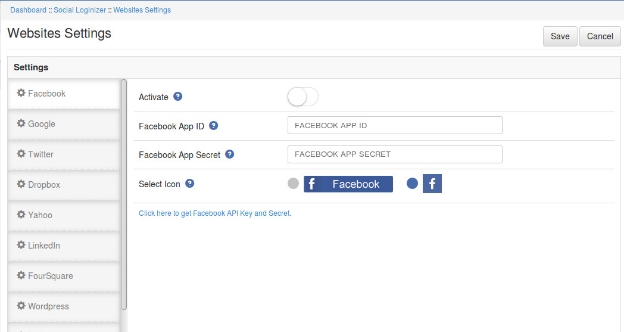
In this tab of Magento twitter login extension, you can save API key and Secret for each social website. There is a side bar listing all the websites. On click of any website its corresponding setting options will be shown. Below option there a link of corresponding website where you can create your application and get your client id and secret. In each website settings there will be following 4 options:
Website Settings:
Active: To enable the Magento social login, select enable present under the label Activate.
App ID (eg. for Facebook : Facebook App Id): In this field of Magento social media login, you need to enter your Application ID/Client ID/Consumer ID provide by corresponding website
App Secret (eg. for Facebook : Facebook App Secret): This field of Magento social login extension allows you to enter your Application Secret/Client Secret /Consumer Secret provide by corresponding website.
Select Icons: For each Magento social login, there are two kind of icons small and large. Select any one of the icon to show at social login bar.
Report Tab:
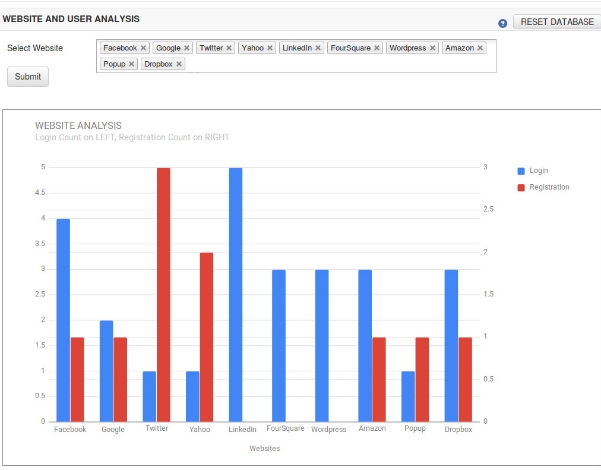
In this tab of Magento social login module, you can get graphical and tabular analytic data that will help you for analysis. There is a option of select website. On click of the option a dropdown listing all the websites will display choose websites and click on the submit button. That will create a graph for the selected website represent login and registration count for each selected websites.
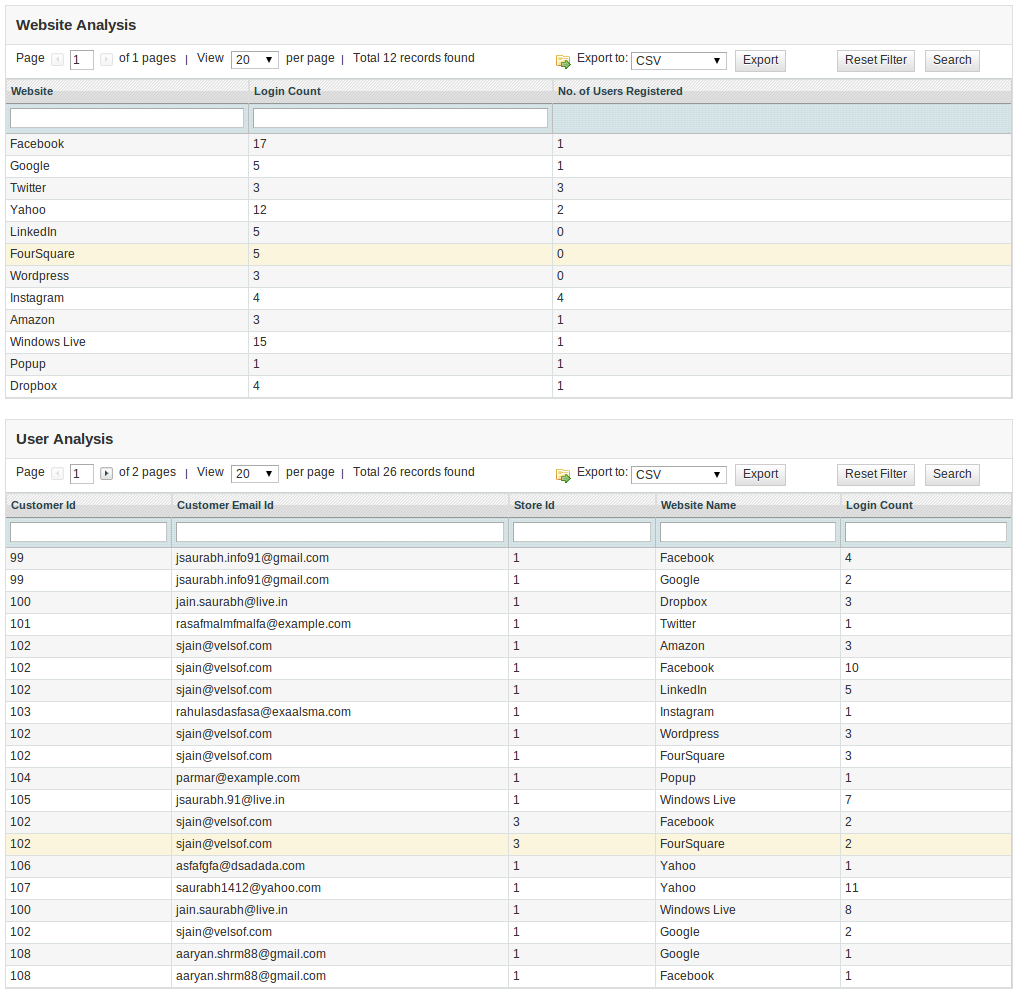
In the graph below, you can see the table for website analysis and another table for customer analysis data. The website analysis table show websites and their total login and registration count and the customer analysis table shows customer details and his login details (login count and website name).
At top right , there is button Reset Database. This option will delete all the login and registration data from database. This will not affect your core database table. It will clear records only from the table created by this magento social media login extension.
How To Set Redirect URL?
Let your website url be www.example.com.
If Url Rewrite is enabled in your website then redirect url will be
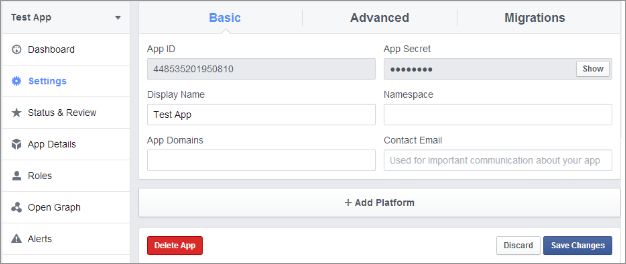
1. Go to Facebook Developers Website (https://developers.facebook.com) or click on link given top right of respective tab in module configuration page.
2. Click on Apps -> Create a new App.
3. Follow the instructions on the screen.
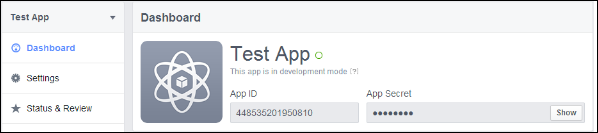
4. You will get the App ID and App Secret (Click Show button).
5. Now, go to Settings from left menu.
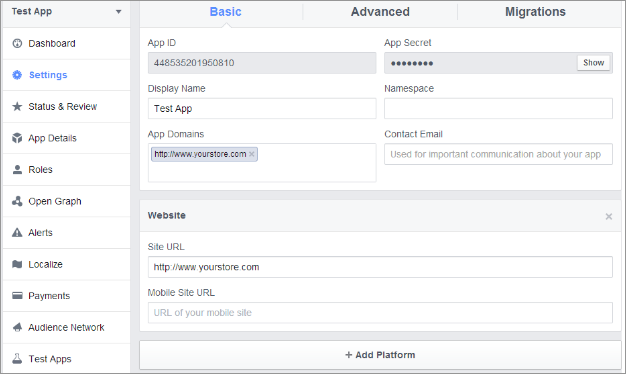
6. Click on Add Platform button.
7. Select Website.
8. Enter your App Domain and Site URL.
Application Type: Web Application.
Authorized JavaScript origins: Your store domain name. (https://www.example.com)
9. Click Save Changes button.
10. Now, go to Status & Review tab from left menu and make the Application Live.
How To Get Google App Details?
Steps:
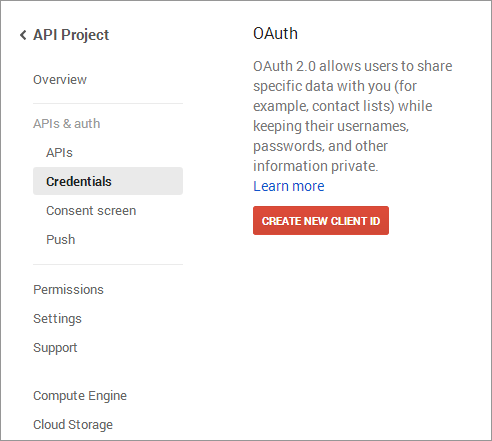
1. Go to Google Developers Console (https://code.google.com/apis/console)or click on link given top right of respective tab in module configuration page.
2. Now click Apps &Auth-> Credentials from left menu.
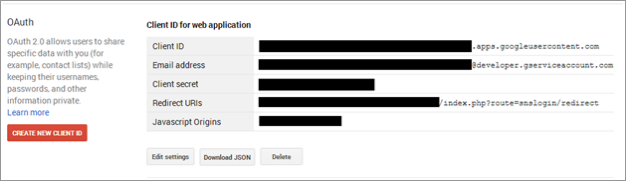
3. Click Create New Client ID button from the right panel of the screen.
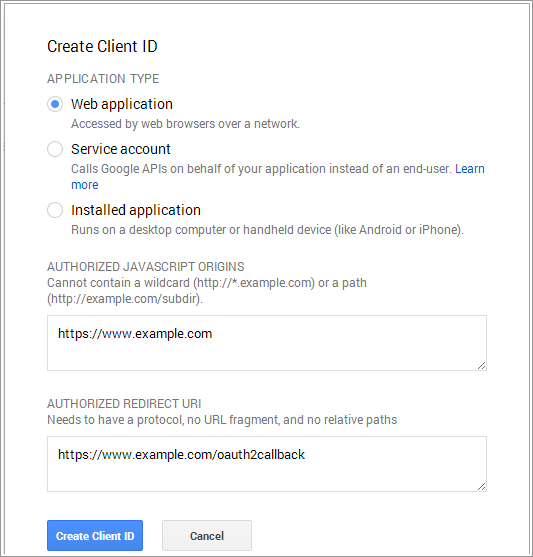
4. Fill the pop-up form with below details:
Application Type: Web Application.
Authorized JavaScript Origins: Your store domain name. (https://www.example.com)
5. Now click Create Client ID button to get your Client ID and Client Secret Key.
3. Fill the required details as per instructions. Home URL will be your Store URL.
4. Click Create Project button.
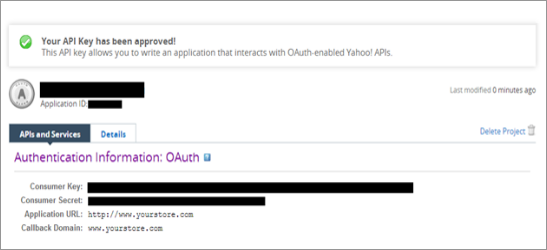
5. Copy your Consumer Key and Consumer Secret.
How To Get Amazon App Details?
Steps:
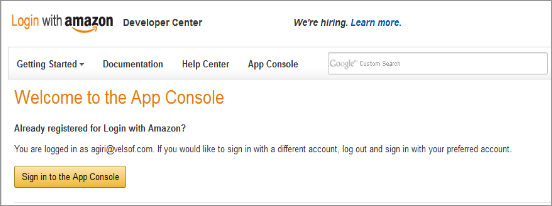
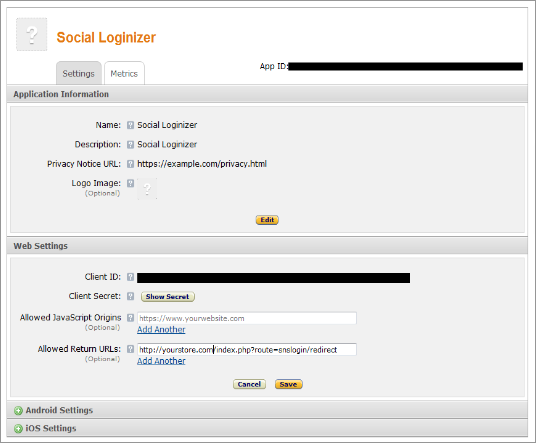
1. Go to Amazon Developer Network (https://login.amazon.com/manageApps) or click on link given top right of respective tab in module configuration page.
2. Click on Sign in to App Console button.
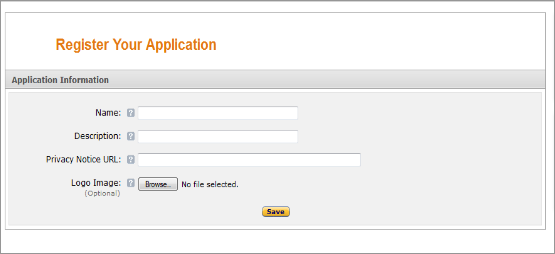
3. After successful login to App Console click on Register new application button in top right of page and you will be redirected to following page.
4. Enter Application Details as follows:
Name: Name of your Application.
Description: Description of your application.
Privacy Notice URL: Url of privacy policy page of your store.
5. Logo Image: Select optional logo image of your store.
6. Click Save button.
7. Now click on Web Settings to get your client id and secret.
8. Allowed Return URL : Loginizer redirect page URL of your store.
Note: To enable Amazon login into your website, your website must be secure with HTTPS otherwise Amazon login will not work.
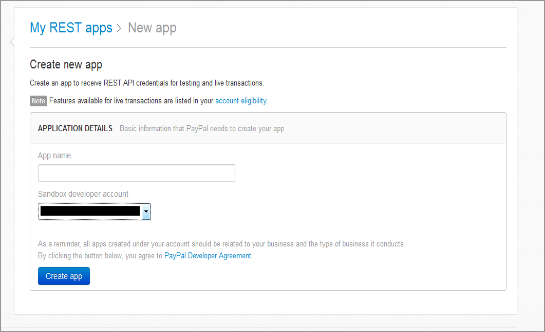
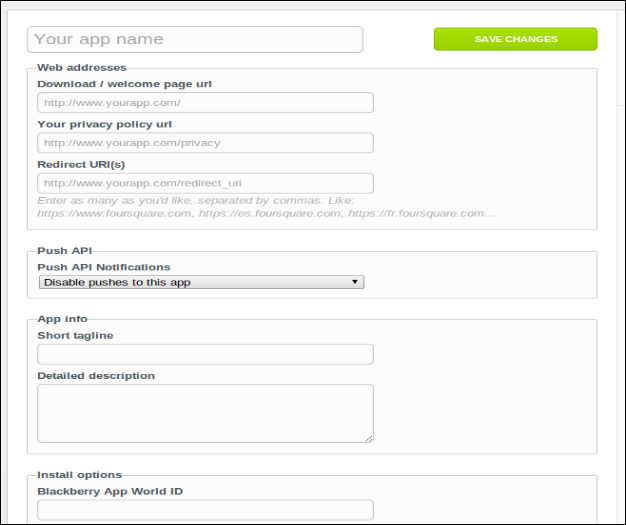
2. Click On the Create App button and provide a name for Application.
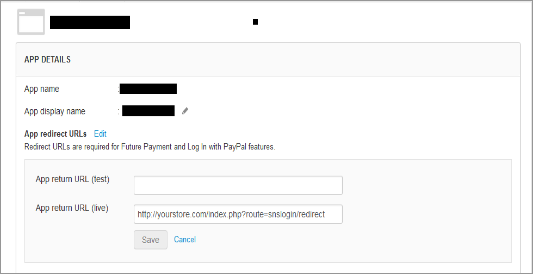
3. Fill up the details , set redirect url and save the settings.
4. Copy and paste the key and secret in plugin admin panel.
How To Get WordPress App Details?
Steps:
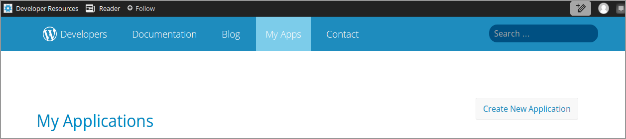
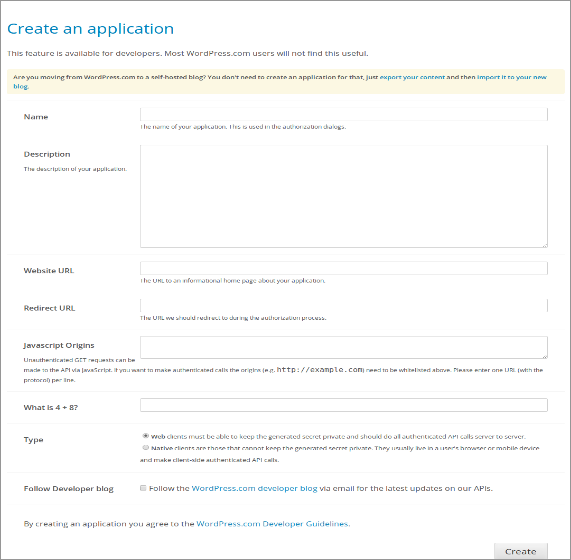
1. Go to WordPress Developer Website (https://developer.wordpress.com/apps/) or click on link given bottom of respective tab in module configuration page.
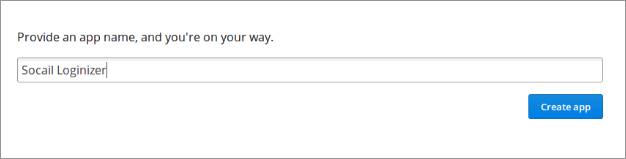
2. Click On the Create App button and provide a name for Application.
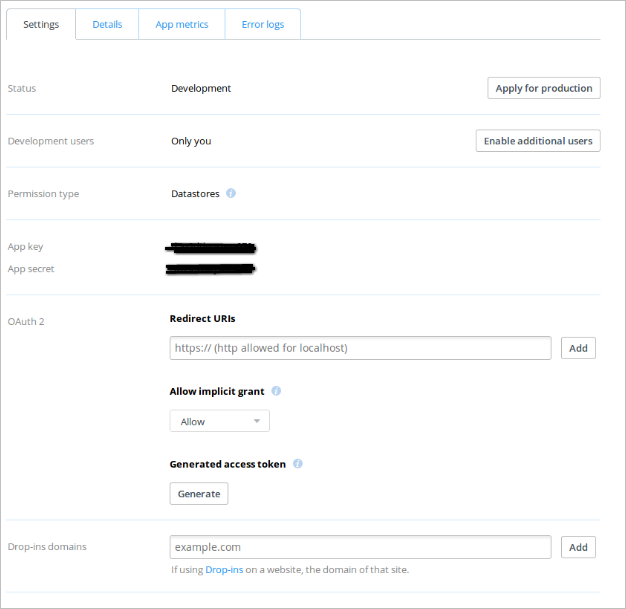
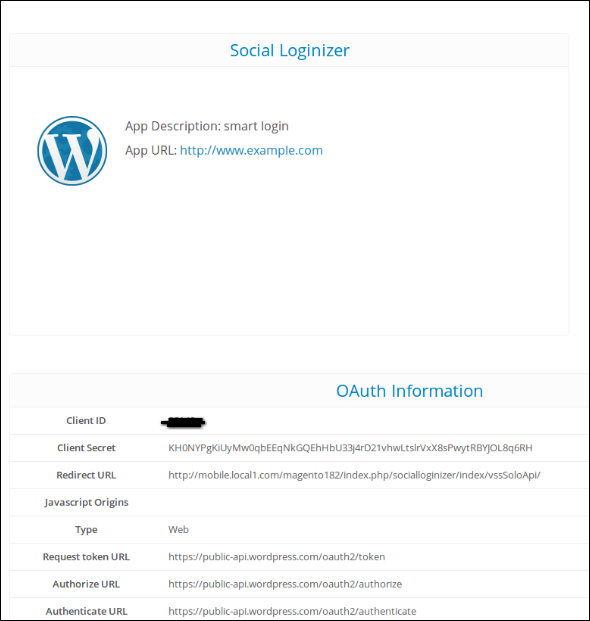
3. Fill up the details and save the application.
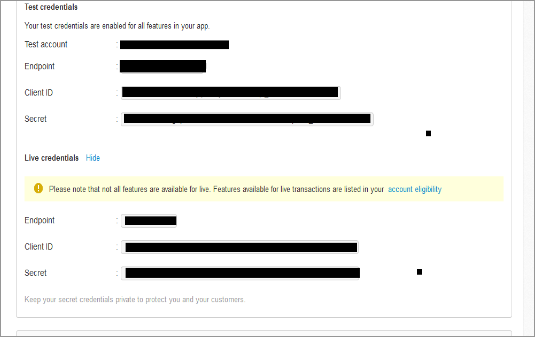
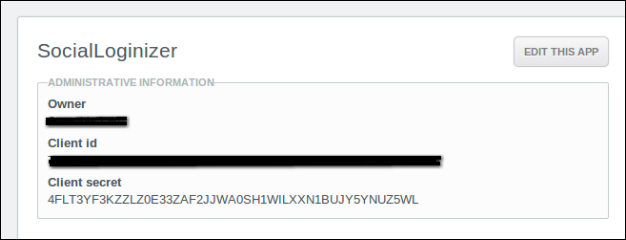
4. Copy and Paste the credentials in Magento extension admin console.