Module Produits associés à PrestaShop Automatic

1.0 Présentation

Le marchand en ligne peut désormais se concentrer sur les clients et améliorer les ventes sur le site Web en utilisant le module de vente croisée des produits PrestaShop. Offres Knowband PrestaShop Automatic Produits associés addon qui permet aux vendeurs en ligne d'afficher des produits connexes sur différentes pages du site Web. Cette extension de produit liée à l'avance offre une option pour définir des conditions spécifiques pour afficher des produits similaires appropriés sur chaque page.

L'administrateur peut définir les méthodes et les filtres pour afficher les produits en tant que produits similaires. L'addon de produit associé automatique de PrestaShop permet à l'administrateur d'afficher la colonne de produit associée à gauche, à droite ou au bas de la page. Les clients en ligne peuvent voir les produits similaires et obtenir le bon produit de leur choix. Ainsi, l'administrateur peut également améliorer les ventes et le taux de conversion.

Avantages 1.1 pour les commerçants

  1. Ce module de vente croisée de produits aide l'administrateur à augmenter la valeur moyenne du panier du client en affichant des produits similaires.
  2. Les chances de conversion sont plus grandes si un visiteur du magasin trouve le produit souhaité dans le bloc de produit similaire.
  3. L'administrateur du magasin peut afficher des produits similaires parfaits pour augmenter les ventes et offrir une meilleure expérience de magasin aux clients.
  4. Des modules de produits similaires permettent de définir la position du bloc de produit correspondant en fonction de leurs préférences.
  5. Il existe plusieurs conditions pour afficher des produits similaires de manière avancée.
  6. Ce module produit similaire à PrestaShop offre la possibilité de masquer les produits en rupture de stock et d’afficher uniquement les produits disponibles en tant que produits similaires.
  7. Avec l'aide de ce plugin de produits liés à PrestaShop, l'administrateur peut réduire le taux de rebond en engageant les clients.
  8. L'administrateur peut afficher les nouveaux arrivants en tant que produits similaires afin de promouvoir de nouveaux produits.
  9. L'e-commerçant peut montrer ces produits sur lesquels il veut attirer l'attention du client.

Fonctionnalités de 1.2 de l’extension PrestaShop Automatic Related Product

  1. L'administrateur peut afficher les produits associés sur différentes pages Web telles que la page d'accueil, les pages de produits, les pages de catégorie, la page du panier, les pages du fabricant et la page de confirmation de commande.
  2. L'administrateur a la possibilité d'afficher les produits disponibles en tant que produits connexes. Les produits en rupture de stock ne seront pas affichés en tant que produits connexes.
  3. Le vendeur en ligne peut saisir le titre de bloc de produit associé. Le module de produits liés à PrestaShop permet à l'administrateur de définir le titre du bloc dans différentes langues.
  4. L'extension de produit liée à l'avance de PrestaShop fournit différentes méthodes pour afficher les produits associés. Le commerçant peut afficher les produits les plus visités, les best-sellers, les nouveaux produits ou utiliser l'historique des utilisateurs pour afficher les produits associés.
  5. Le nombre maximum de produits associés à afficher sur différentes pages peut être fixé à partir de l'interface d'administration.
  6. L'addon des produits liés à PrestaShop permet à l'administrateur de définir la priorité de la méthode et différents filtres pour afficher les produits associés.
  7. L'addon des produits liés à PrestaShop est entièrement mobile.
  8. L'extension des produits associés est compatible avec plusieurs magasins et offre un support multilingue.

Étapes d'installation de 2.0

L'administrateur obtiendra les fichiers mentionnés ci-dessous après l'achat de l'add-on de produit lié automatique:

1. Le fichier compressé qui constitue le code source de cet addon de produit associé automatique.

2. Manuel utilisateur

Suivez les étapes ci-dessous pour installer l’addon Automatic Related Product:

  • L'administrateur doit décompresser le fichier compressé. Ce fichier comprend des fichiers et des dossiers.
  • Après cela, l'administrateur peut copier le contenu global du dossier et les coller dans le "Modules"dossier du répertoire du magasin. L'administrateur peut suivre le chemin Répertoire racine / modules /.

3. Maintenant, le propriétaire du magasin peut installer le Store Admin -> Modules et services. Il serait montré comme ci-dessous:
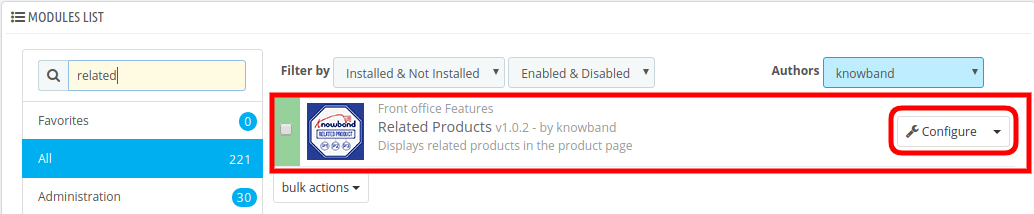
installation du module de produit lié à prestashop automatique

Il ne vous reste plus qu'à cliquer sur "installer"bouton pour installer facilement cet addon automatique de produit connexe. Une fenêtre de confirmation apparaîtra. Cliquez sur" Poursuivre avec l’installation ". Cette étape installera l’addon automatique de produit associé et affichera la notification. Module (s) installé avec succès“.

Interface d'administration 3.0

Il existe différentes options de personnalisation. L'administrateur du magasin peut appliquer les paramètres et afficher les produits similaires sur différentes pages du site Web. Voici les options de personnalisation:

  1. Réglages de base
  2. Paramètres de la page d'accueil
  3. Paramètres de la page du produit
  4. Catégorie Paramètres de page
  5. Paramètres de la page du panier
  6. Paramètres de la page du fabricant
  7. Paramètres de confirmation de commande

Paramètres de base de 3.1
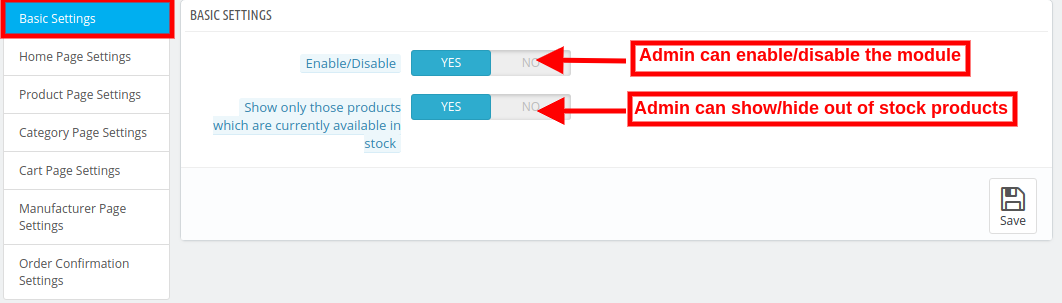
1. Activer désactiver: L'administrateur du magasin peut activer ou désactiver la fonctionnalité simplement en basculant le bouton.

2. N'afficher que les produits actuellement disponibles en stock: L'administrateur peut activer l'option de menu s'il souhaite afficher uniquement les produits en stock en tant que produits associés.

Paramètres de la page d'accueil de 3.2
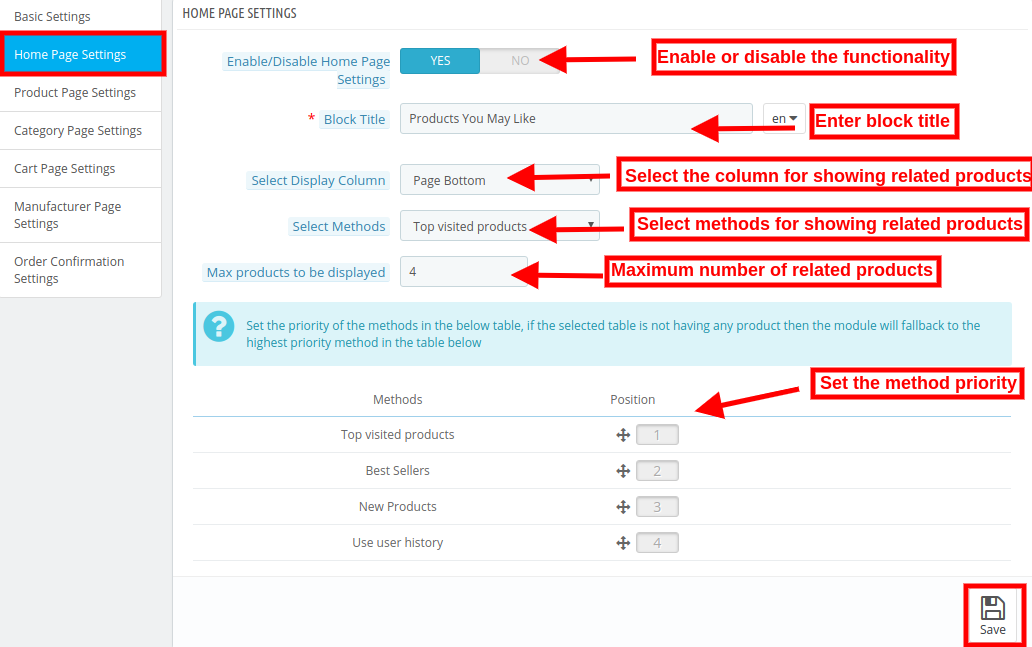
1. Activer / désactiver les paramètres de la page d'accueil: L'administrateur du magasin de commerce électronique peut activer ou désactiver les paramètres de la page d'accueil en cliquant sur cette option.

2. Titre du bloc: Le propriétaire du magasin peut saisir le titre du bloc de produits associé. L'addon du produit associé automatique de PrestaShop permet à l'administrateur du magasin d'entrer le titre du bloc dans différentes langues.

3. Sélectionnez Afficher la colonne: Le propriétaire du magasin peut afficher les produits associés dans différentes colonnes, telles que le bas de la page, la colonne de gauche ou la colonne de droite.

4. Sélectionnez les méthodes: Diverses méthodes sont disponibles, comme l'administrateur peut afficher les produits les plus visités, les best-sellers, les nouveaux produits, l'historique des utilisateurs.

5. Max produits à afficher: Le propriétaire du magasin peut définir le nombre maximum de produits à afficher sur la page d'accueil du site Web.

L'administrateur du magasin peut également définir la priorité des méthodes.

Paramètres de la page de produit 3.3
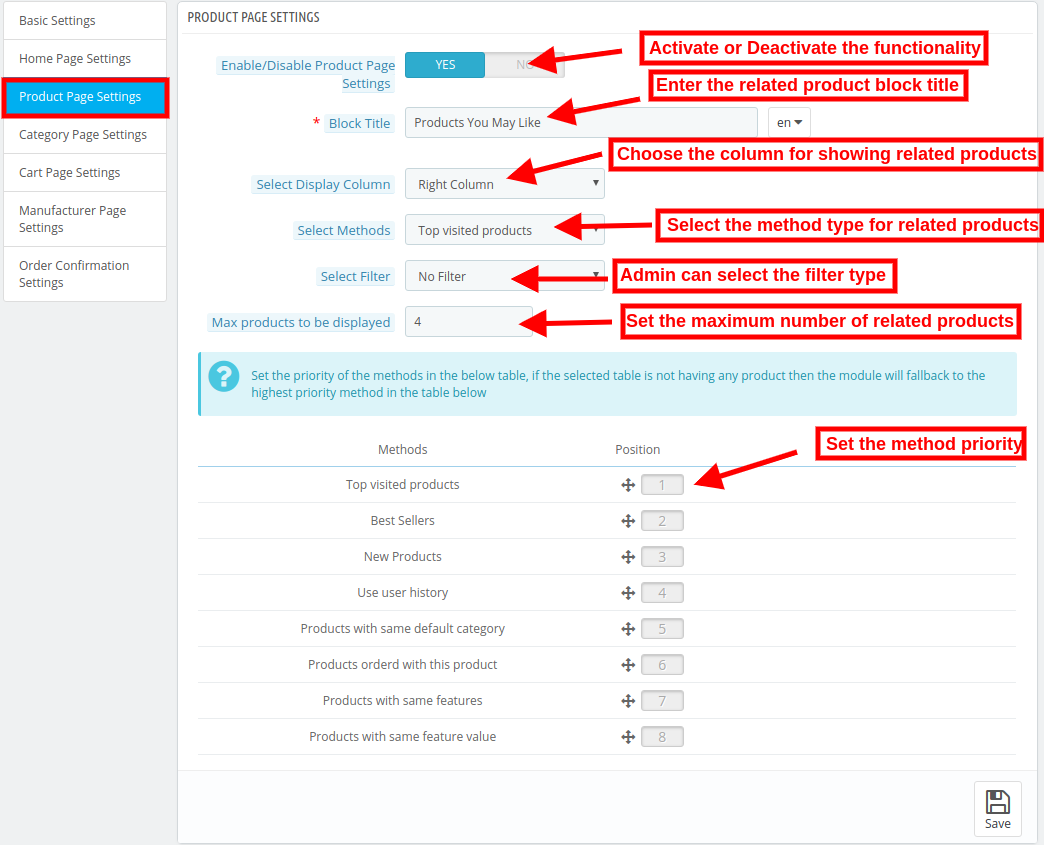
1. Activer / désactiver les paramètres de la page du produit: Le propriétaire du magasin peut activer ou désactiver les paramètres de la page du produit simplement en appuyant sur un bouton.

2. Titre du bloc: L'administrateur peut saisir le titre du bloc de produits associés dans différentes langues.

3. Sélectionnez Afficher la colonne: L'administrateur du magasin peut afficher les produits associés dans la colonne de gauche, la colonne de droite ou le bas de la page.

4. Méthode de sélection: L'administrateur peut sélectionner la méthode à afficher sur le front-end. Il existe différentes méthodes, telles que l'administrateur peut afficher les produits les plus visités, les best-sellers, les nouveaux produits, les produits basés sur l'historique, les produits avec la même catégorie par défaut, les produits avec la même fonctionnalité.

5. Sélectionnez Filtre: L'administrateur du magasin peut sélectionner le filtre en fonction duquel les produits à l'avant seront affichés. Ici, l'administrateur ne peut sélectionner aucun filtre, mot-clé ou attribut.

6. Max produits à afficher: L'administrateur peut sélectionner le nombre maximum de produits à afficher en tant que produits connexes.

L'administrateur du magasin peut définir la priorité des méthodes. S'il n'y a pas de produit sur la méthode de priorité supérieure, le module affichera le produit de la priorité inférieure.

Paramètres de la catégorie 3.4
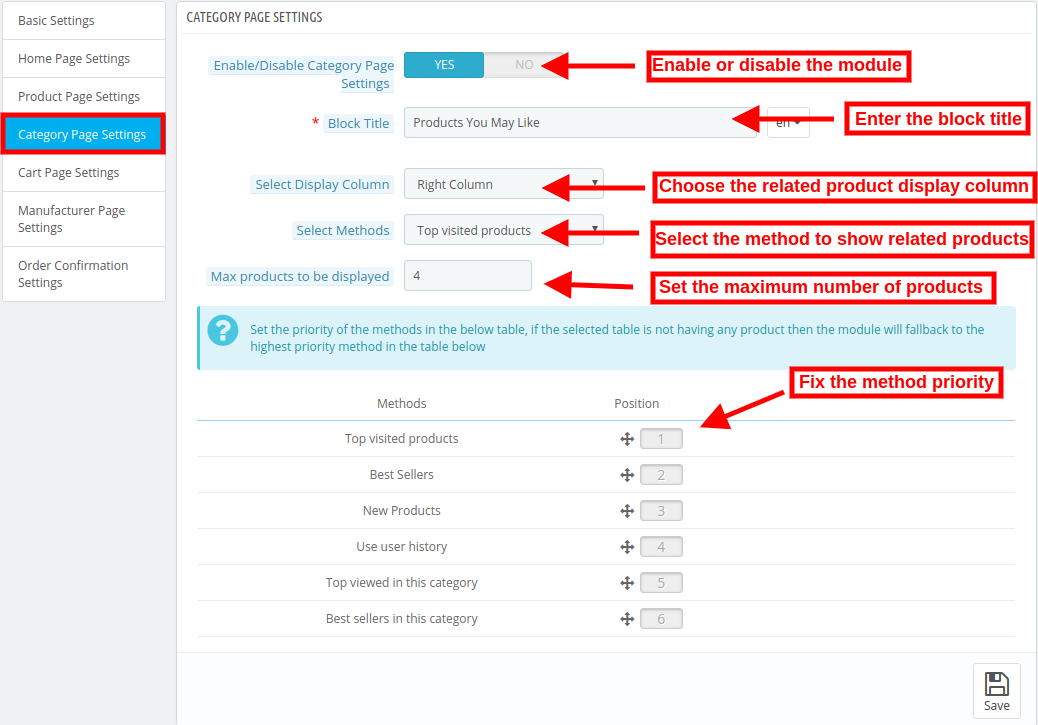
1. Activer / désactiver les paramètres de page de catégorie: L'administrateur du magasin peut activer ou désactiver les paramètres de page de catégorie à partir de l'interface d'administration.

2. Titre du bloc: L'extension de produit liée à l'avance de PrestaShop permet à l'administrateur de définir le titre du bloc de produits associé dans plusieurs langues.

3. Sélectionnez Afficher la colonne: L'extension de produit liée à l'avance de PrestaShop permet à l'administrateur d'afficher les produits associés dans différentes positions, telles que la colonne de gauche, la colonne de droite du produit ou le bas de la page.

4. Sélectionnez les méthodes: Il existe différentes méthodes pour sélectionner. L'administrateur peut afficher les produits connexes selon les meilleures ventes dans cette catégorie, les produits les plus consultés, les meilleures ventes, les nouveaux produits, l'historique des utilisateurs ou les articles les plus consultés dans cette catégorie.

5. Max produits à afficher: Le propriétaire de la boutique en ligne peut fixer le nombre maximum de produits à afficher sur la page de la catégorie.

L'administrateur du magasin peut également définir facilement la priorité de chaque méthode depuis l'interface d'administration. Le module choisit le produit de la méthode inférieure si aucun produit n'est disponible pour la méthode supérieure.

3.5 Paramètres de la page du panier
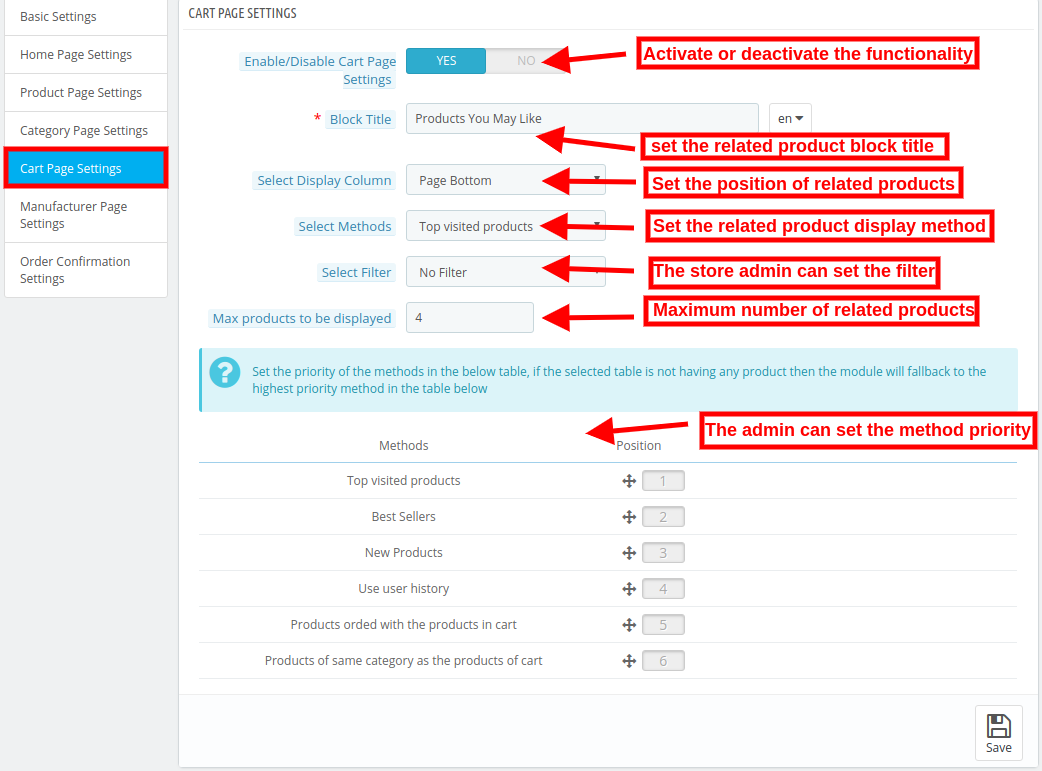
1. Activer / désactiver les paramètres de page de catégorie: L'administrateur du magasin peut activer ou désactiver les paramètres de la page du panier à partir de l'interface d'administration.

2. Titre du bloc: L'extension de produit liée à l'avance de PrestaShop permet à l'administrateur de définir le titre du bloc de produits associé dans plusieurs langues.

3. Sélectionnez Afficher la colonne: L’extension de produit liée à l’avance de PrestaShop permet à l’administrateur de montrer les produits associés dans diverses positions, comme dans

4. Sélectionnez les méthodes: Il existe différentes méthodes pour sélectionner. L'administrateur peut afficher les produits associés selon les meilleures ventes, les produits les plus visités, les nouveaux produits, l'historique des utilisateurs, les produits commandés avec les produits du panier, les produits de la même catégorie que les produits du panier.

5. Sélectionnez le filtre: L'administrateur du magasin ne peut afficher aucun filtre, mot-clé ou filtre d'attribut.

6. Max produits à afficher: L'administrateur peut fixer le nombre maximum de produits à afficher sur la page de catégorie.

L'administrateur du magasin peut également définir facilement la priorité de chaque méthode depuis l'interface d'administration. le module choisit le produit de la méthode inférieure si aucun produit n'est disponible avec la méthode supérieure.

Paramètres de la page du fabricant 3.6
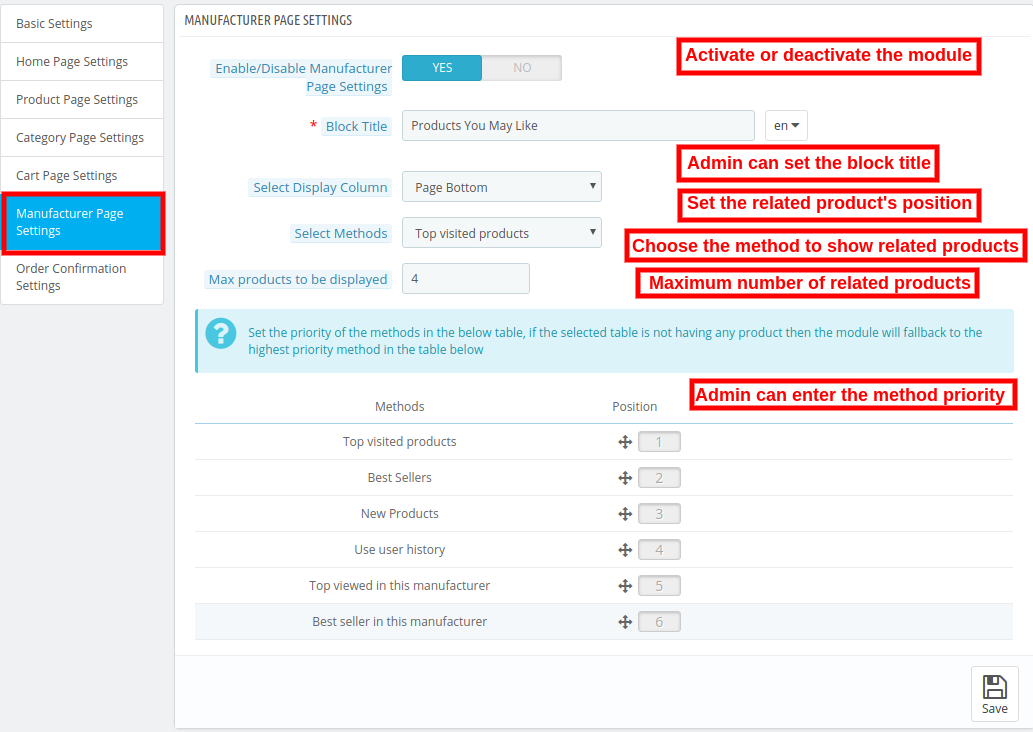
1. Activer / désactiver les paramètres de page du fabricant: L'administrateur du magasin peut activer ou désactiver les paramètres de la page du fabricant à partir de l'interface d'administration.

2. Titre du bloc: Le plugin des produits liés à PrestaShop permet à l'administrateur de définir le titre du bloc de produits associés dans plusieurs langues.

3. Sélectionnez Afficher la colonne: Le plugin de produits liés à PrestaShop permet à l'administrateur d'afficher les produits associés dans différentes positions, telles que la colonne de gauche, la colonne de droite du produit ou le bas de la page.

4. Sélectionnez les méthodes: Il existe différentes méthodes pour sélectionner. L'administrateur peut afficher les produits connexes conformément aux meilleures ventes, aux produits les plus visités, aux nouveaux produits, à l'historique des utilisateurs, au produit visualisé par ce fabricant, à la meilleure vente dans ce fabricant.

5. Max produits à afficher: L'administrateur peut fixer le nombre maximum de produits à afficher sur la page de catégorie.

L'administrateur du magasin peut également définir facilement la priorité de chaque méthode depuis l'interface d'administration. Le module choisit le produit de la méthode inférieure si aucun produit n'est disponible avec la méthode supérieure.

Paramètres de confirmation de commande 3.7
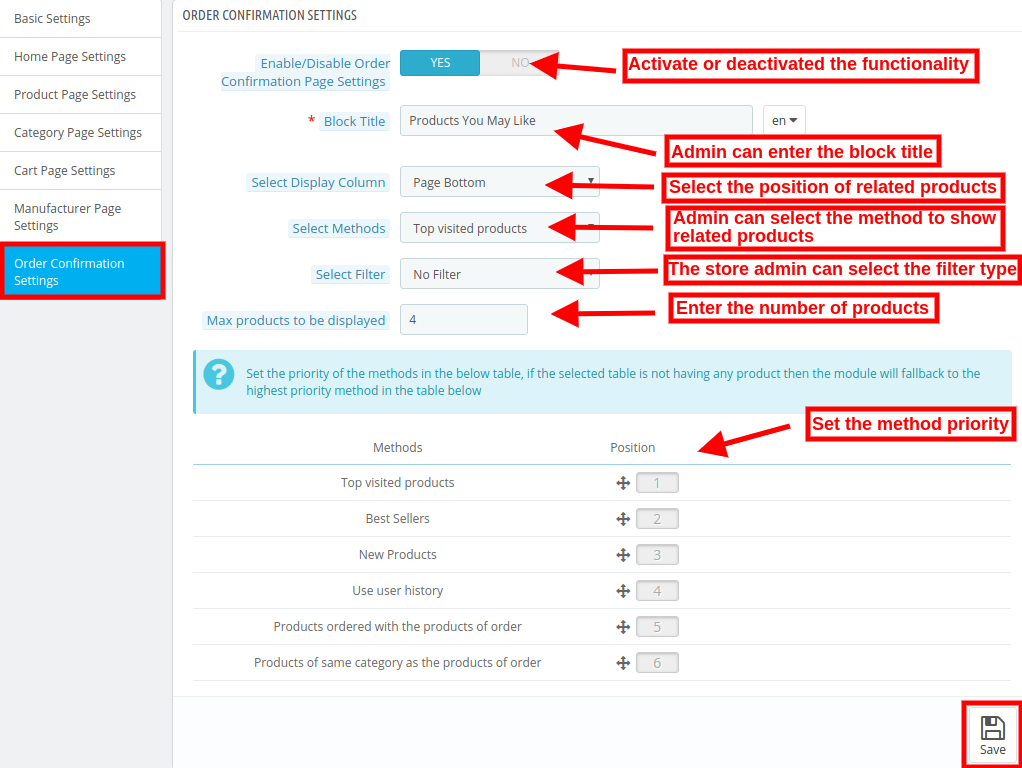
1. Activer / désactiver les paramètres de la page de confirmation de commande: L'administrateur du magasin peut activer ou désactiver les paramètres de la page de confirmation de commande à partir de l'interface d'administration.

2. Titre du bloc: Le module permet à l'administrateur de définir le titre du bloc de produits associé dans plusieurs langues.

3. Sélectionnez Afficher la colonne: Le module permet à l'administrateur d'afficher les produits associés dans différentes positions, telles que la colonne de gauche, la colonne de droite du produit ou le bas de la page.

4. Sélectionnez les méthodes: Il existe différentes méthodes pour sélectionner. L'administrateur peut afficher les produits associés selon les produits les plus visités, les meilleurs vendeurs, les nouveaux produits, utiliser l'historique des utilisateurs, les produits commandés avec les produits de commande et les produits de la même catégorie que les produits de commande.

5. Sélectionnez le filtre: L'administrateur du magasin peut sélectionner les filtres comme aucun filtre, mot-clé, attribut.

6. Max produits à afficher:?The admin can fix the maximum products count for displaying on the category page.

L'administrateur du magasin peut également définir facilement la priorité de chaque méthode depuis l'interface d'administration. le module choisit le produit de la méthode inférieure si aucun produit n'est disponible avec la méthode supérieure.

Interface frontale 4.0

Les clients peuvent voir les produits connexes comme indiqué dans les images mentionnées ci-dessous.

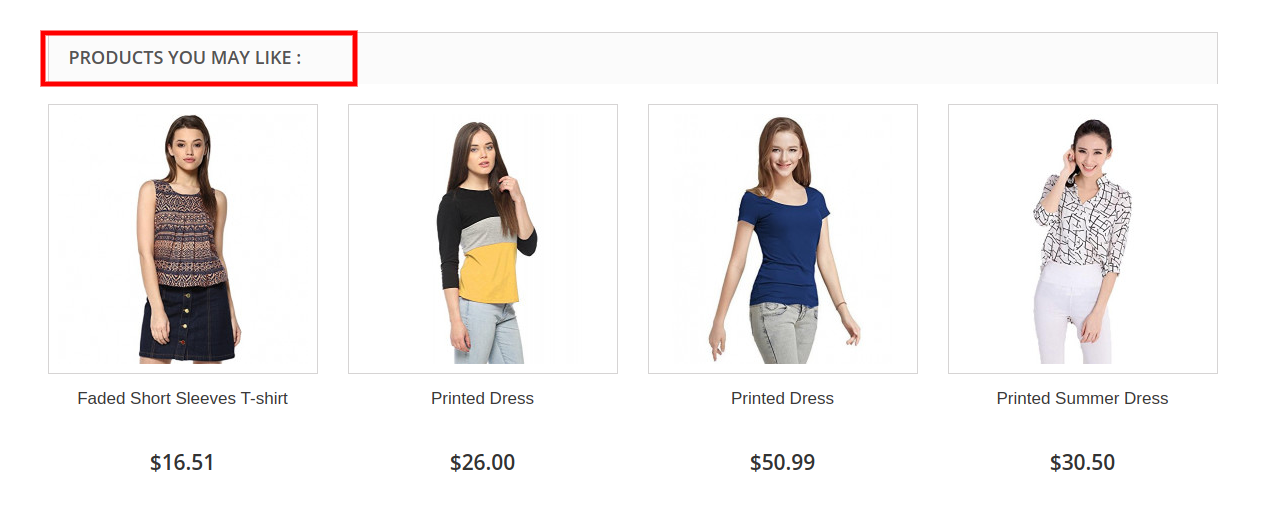
À la page d'accueil, les produits associés seront affichés comme l'image ci-dessous:
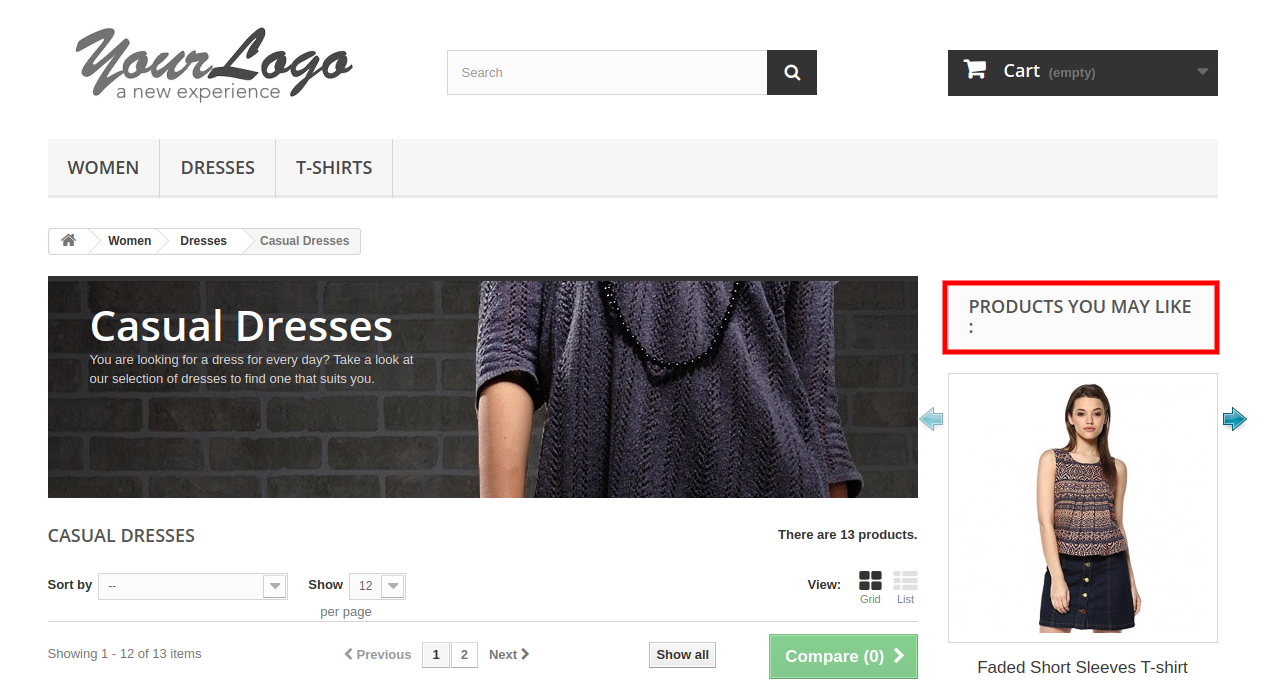
Les produits similaires seront affichés sur les pages de catégories comme indiqué ci-dessous:
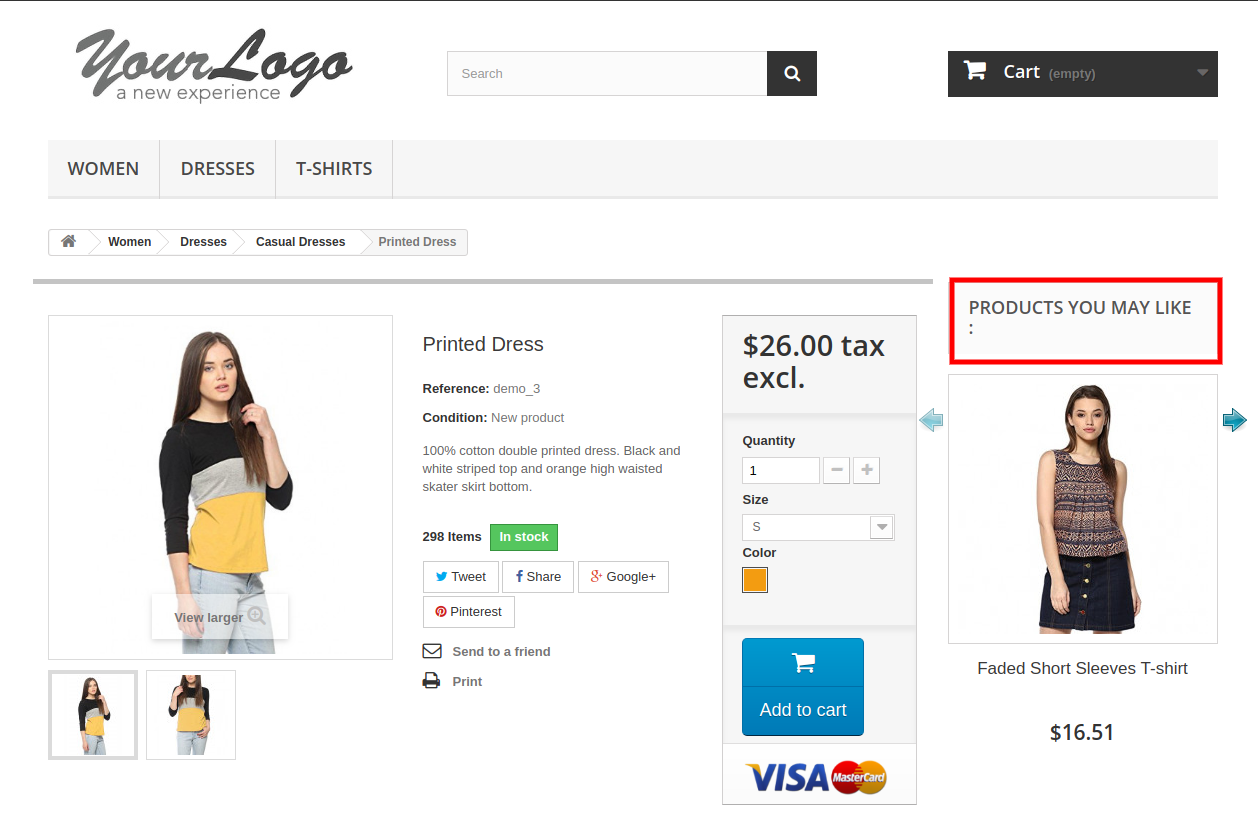
Les clients peuvent également consulter les produits associés sur la page du produit:
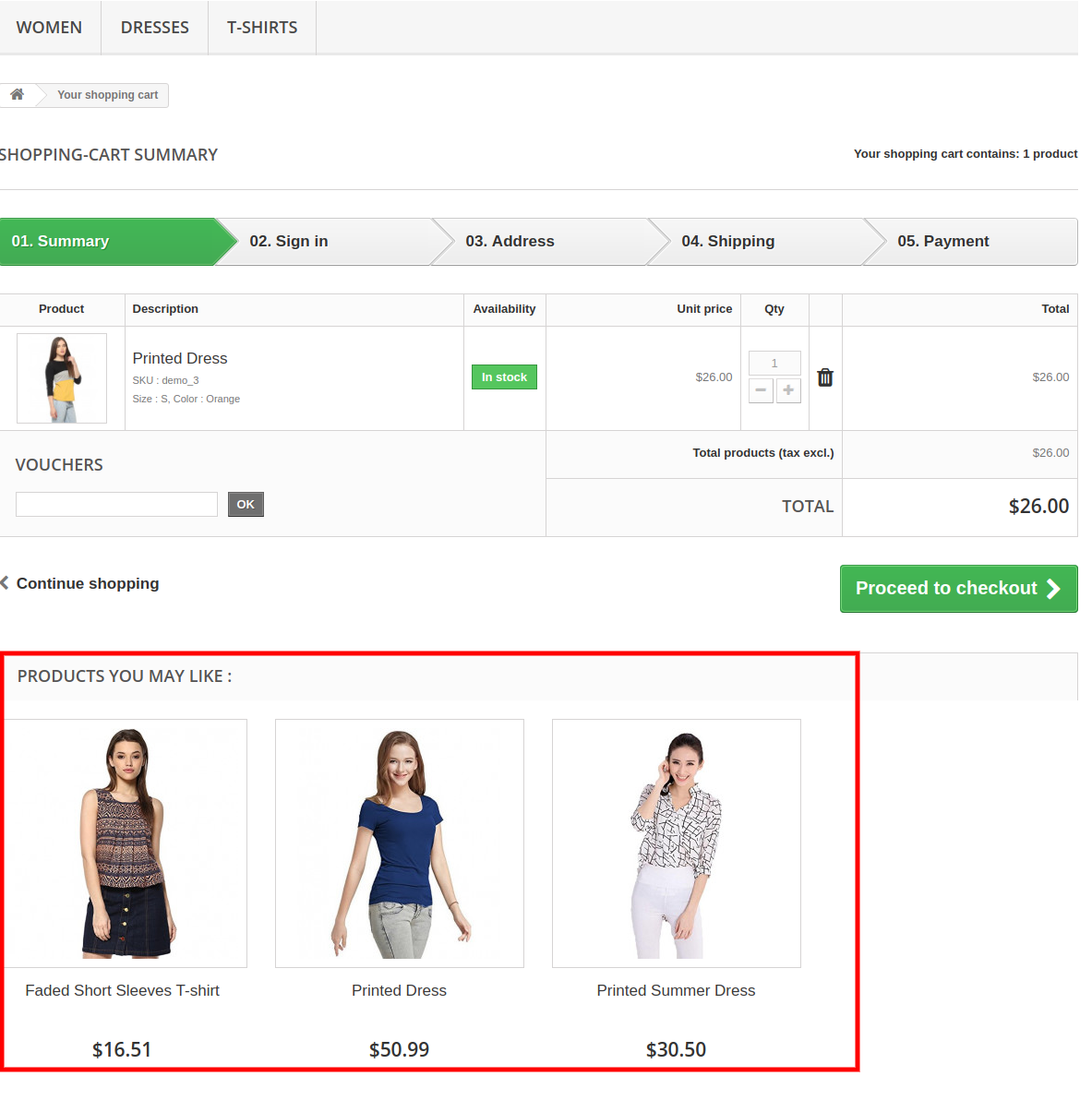
Les produits similaires s'afficheront sur la page du chariot comme indiqué ci-dessous:

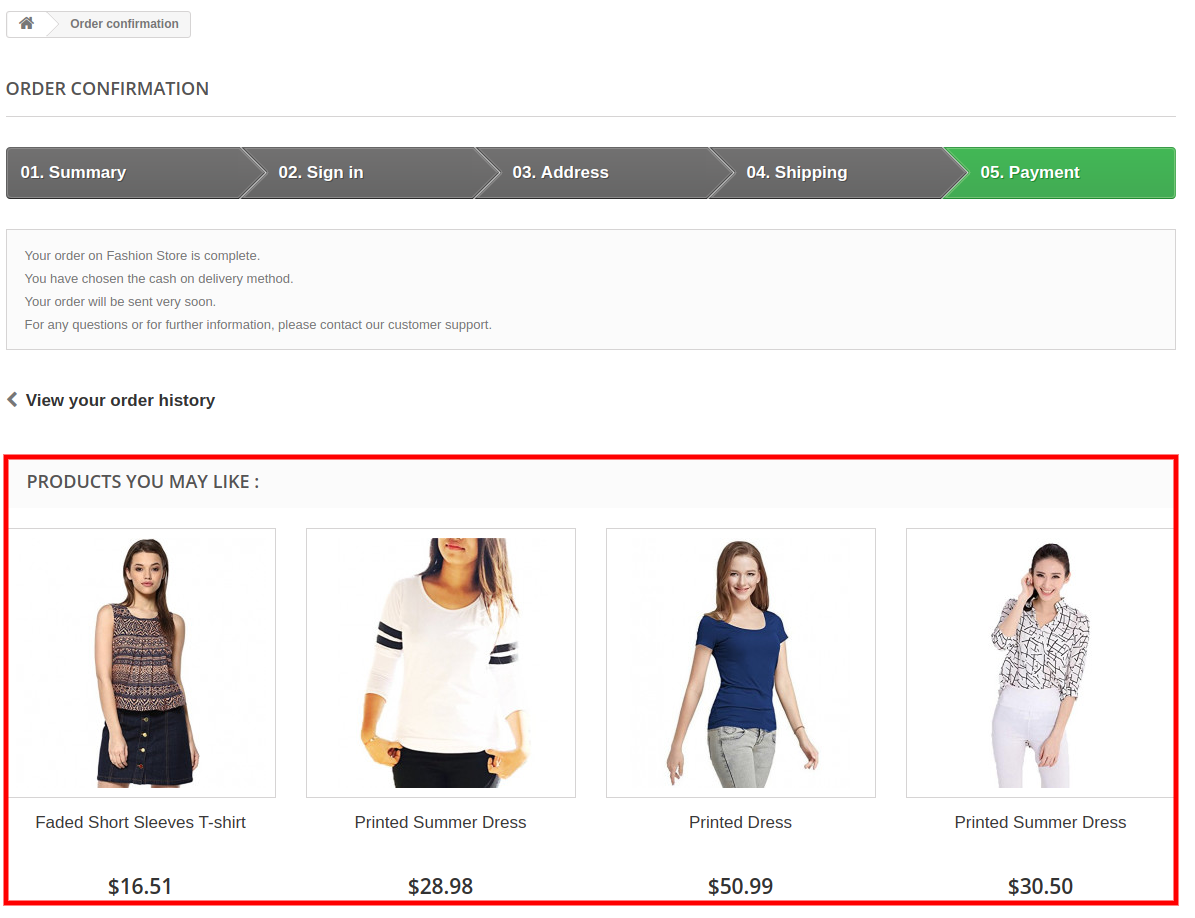
Les clients peuvent également visualiser le produit similaire sur la confirmation de commande. Page:
Pour plus PrestaShop Addons s'il vous plaît visitez Connaître.

Pour plus de détails s'il vous plaît visitez:

PrestaShop Lien produit automatique.

S'il vous plaît support@knowband.com pour toute requête ou demande de modification personnalisée selon vos besoins professionnels.

PrestaShop Automatic Verwandte Produkte Modul

1.0 Einführung

Der Online-Shop-Händler kann nun mit dem Produkt-Cross-Selling-Modul von PrestaShop den Fokus des Kunden auf sich ziehen und den Verkauf seiner Website verbessern. Know-how-Angebote PrestaShop Automatisches verwandtes Produkt Addon, das es den Online-Verkäufern ermöglicht, verwandte Produkte auf verschiedenen Webseiten anzuzeigen. Diese erweiterte Produkterweiterung bietet die Möglichkeit, spezifische Bedingungen für das Anzeigen entsprechender ähnlicher Produkte auf jeder Seite festzulegen.

Der Administrator kann die Methoden und Filter für die Anzeige der Produkte als ähnliche Produkte festlegen. Das PrestaShop-Zusatzprodukt für automatisches Produkt ermöglicht es dem Administrator, die zugehörige Produktspalte links, rechts oder unten anzuzeigen. Die Online-Kunden können die ähnlichen Produkte sehen und das richtige Produkt ihrer Wahl bekommen. Somit kann der Administrator auch die Umsatz- und Conversion-Rate verbessern.

1.1 Vorteile für Händler

  1. Dieses Produkt-Cross-Selling-Modul hilft dem Administrator, den durchschnittlichen Warenkorbwert des Kunden zu erhöhen, indem ähnliche Produkte angezeigt werden.
  2. Es gibt höhere Chancen auf Conversions, wenn ein Filialbesucher das gewünschte Produkt im ähnlichen Produktblock findet.
  3. Der Ladenadministrator kann perfekt ähnliche Produkte anzeigen, um den Umsatz zu steigern und den Kunden ein besseres Einkaufserlebnis zu bieten.
  4. Das Modul "Ähnliche Produkte" ermöglicht die Einstellung der Position des entsprechenden Produktblocks entsprechend ihrer Präferenz.
  5. Es sind mehrere Bedingungen verfügbar, um ähnliche Produkte auf fortschrittliche Weise anzuzeigen.
  6. Dieses PrestaShop-ähnliche Produktmodul bietet eine Option zum Ausblenden nicht vorrätiger Produkte und zum Anzeigen nur verfügbarer Produkte als ähnliche Produkte.
  7. Mit Hilfe dieses Plugins für PrestaShop-verwandte Produkte kann der Administrator die Absprungrate reduzieren, indem er die Kunden anspricht.
  8. Der Administrator kann Neuankömmlinge als ähnliche Produkte anzeigen, um neue Produkte zu bewerben.
  9. Der E-Merchant kann jene Produkte zeigen, auf die er die Aufmerksamkeit des Kunden lenken möchte.

1.2 Funktionen des PrestaShop Automatic Verwandte Produkt addon

  1. Der Administrator kann verwandte Produkte auf verschiedenen Websites wie Homepage, Produktseiten, Kategorieseiten, Warenkorbseite, Herstellerseiten und Bestellbestätigungsseite anzeigen.
  2. Der Administrator hat die Option, verfügbare Produkte als verwandte Produkte anzuzeigen. Die nicht vorrätigen Produkte werden nicht als verwandte Produkte angezeigt.
  3. Der Online-Verkäufer kann den zugehörigen Produktblocktitel eingeben. Mit dem PrestaShop-Modul für verwandte Produkte kann der Administrator den Blocktitel in verschiedenen Sprachen festlegen.
  4. Die erweiterte PrestaShop-Produkterweiterung bietet verschiedene Methoden zum Anzeigen der zugehörigen Produkte. Der Ladenhändler kann die am häufigsten besuchten Produkte, Bestseller, neue Produkte anzeigen oder die Benutzerhistorie zum Anzeigen der zugehörigen Produkte verwenden.
  5. Die maximale Anzahl der zugehörigen Produkte, die auf verschiedenen Seiten angezeigt werden sollen, kann über die Administratoroberfläche festgelegt werden.
  6. Mit dem PrestaShop-Addon für verwandte Produkte kann der Administrator die Methodenpriorität und verschiedene Filter für die Anzeige verwandter Produkte festlegen.
  7. Das PrestaShop-verwandte Produkt-Addon ist vollständig mobil responsiv.
  8. Verwandte Produkte Erweiterung ist Multi-Store-kompatibel und bietet mehrsprachige Unterstützung.

2.0 Installationsschritte

Der Administrator erhält die unten genannten Dateien nach dem Kauf des Add-ons für automatisches Produkt:

1. Die gezippte Datei, die den Quellcode dieses Add-Ins für automatisches verwandtes Produkt enthält.

2. Benutzerhandbuch

Befolgen Sie diese Schritte, um das Add-In für automatisches Produkt zu installieren:

  • Der Administrator muss die gezippte Datei entpacken. Diese Datei enthält einige Dateien und Ordner.
  • Danach kann der Administrator den gesamten Inhalt des Ordners kopieren und in den "Module"Ordner des Geschäftsverzeichnisses. Der Administrator kann dem Pfad folgen Stammverzeichnis / Module /.

3. Jetzt kann der Ladenbesitzer das installieren Store Admin -> Module und Dienste. Es würde wie folgt angezeigt:

Jetzt müssen Sie nur auf "klickeninstallieren"Klicken Sie auf diese Schaltfläche, um das Add-In für automatisches Produkt einfach zu installieren. Ein Bestätigungs-Popup wird angezeigt. Klicken Sie auf" Mit der Installation fortfahren ". Dieser Schritt installiert das Add-In für automatisches Produkt und zeigt Benachrichtigungen an Module wurden erfolgreich installiert“.

3.0 Admin-Schnittstelle

Es gibt verschiedene Anpassungsoptionen. Der Store-Administrator kann die Einstellungen übernehmen und ähnliche Produkte auf verschiedenen Webseiten anzeigen. Dies sind die Anpassungsoptionen:

  1. Grundeinstellungen
  2. Startseite Einstellungen
  3. Einstellungen der Produktseite
  4. Kategorieseiteneinstellungen
  5. Seiteneinstellungen für Einkaufswagen
  6. Hersteller Seiteneinstellungen
  7. Auftragsbestätigungseinstellungen

3.1 Grundeinstellungen

1. Aktivieren deaktivieren: Der Shop-Administrator kann die Funktionalität aktivieren oder deaktivieren, indem Sie einfach die Schaltfläche wechseln.

2. Zeige nur die Produkte, die momentan auf Lager sind: Der Administrator kann die Menüoption aktivieren, wenn er nur Produkte im Laden als verwandte Produkte anzeigen möchte.

3.2-Homepage-Einstellungen

1. Aktivieren / Deaktivieren der Homepage-Einstellungen: Der E-Commerce-Shop-Administrator kann die Homepage-Einstellungen aktivieren oder deaktivieren, indem er auf diese Option klickt.

2. Blocktitel: Der Geschäftsinhaber kann den Titel des zugehörigen Produktblocks eingeben. Mit dem Zusatz PrestaShop Automatic Related Product kann der Geschäftsadministrator den Blocktitel in verschiedenen Sprachen eingeben.

3. Wählen Sie Anzeigespalte: Der Geschäftsinhaber kann die zugehörigen Produkte in verschiedenen Spalten wie der Seitenunterseite, der linken Spalte oder der rechten Spalte anzeigen.

4. Wählen Sie Methoden: Verschiedene Methoden stehen zur Verfügung wie der Administrator kann Top besucht Produkte, Bestseller, neue Produkte, Benutzerhistorie zeigen.

5. Maximal anzuzeigende Produkte: Der Ladenbesitzer kann die maximale Anzahl der Produkte festlegen, die auf der Homepage der Website angezeigt werden.

Der Geschäftsadministrator kann auch die Priorität der Methoden festlegen.

3.3-Produktseiteneinstellungen

1. Produktseite Einstellungen aktivieren / deaktivieren: Der Ladenbesitzer kann die Einstellungen der Produktseite nur durch einen Knopfwechsel aktivieren oder deaktivieren.

2. Blocktitel: Der Administrator kann den Titel des entsprechenden Produktblocks in verschiedenen Sprachen eingeben.

3. Wählen Sie Spalte anzeigen: Der Shop-Administrator kann die zugehörigen Produkte in der linken, rechten oder unteren Seite anzeigen.

4. Wählen Sie Methode: Der Administrator kann die Methode auswählen, die im Frontend angezeigt werden soll. Es gibt verschiedene Methoden, wie der Administrator die meistbesuchten Produkte, Bestseller, neue Produkte, auf Benutzerhistorie basierende Produkte, Produkte mit derselben Standardkategorie, mit diesem Produkt bestellte Produkte, Produkte mit derselben Funktion und Produkte mit demselben Funktionswert anzeigen kann.

5. Wählen Sie Filter: Der Shop-Administrator kann den Filter auswählen, nach dem die Produkte im Vordergrund angezeigt werden. Hier kann der Administrator keinen Filter, Schlüsselwörter und Attribute auswählen.

6. Maximal anzuzeigende Produkte: Der Administrator kann die maximale Anzahl der Produkte auswählen, die als verwandte Produkte angezeigt werden sollen.

Der Geschäftsadministrator kann die Priorität der Methoden festlegen. Wenn auf der Methode mit höherer Priorität kein Produkt vorhanden ist, zeigt das Modul das Produkt mit der niedrigeren Priorität an.

3.4 Kategorie Seiteneinstellungen

1. Aktivieren / Deaktivieren der Kategorieseiteneinstellungen: Der Store-Administrator kann die Kategorieseiteneinstellungen über die Admin-Oberfläche aktivieren oder deaktivieren.

2. Blocktitel: Mit der erweiterten PrestaShop-Produkterweiterung kann der Administrator den Titel des zugehörigen Produktblocks in mehreren Sprachen festlegen.

3. Wählen Sie Anzeigespalte: Die mit PrestaShop Advance verbundene Produkterweiterung ermöglicht es dem Administrator, die zugehörigen Produkte in verschiedenen Positionen wie der linken Spalte, der rechten Spalte des Produkts oder der Seite unten anzuzeigen.

4. Wählen Sie Methoden: Es gibt verschiedene Methoden zur Auswahl. Der Administrator kann die zugehörigen Produkte als Bestseller in dieser Kategorie, Meistbesuchte Produkte, Bestseller, Neue Produkte, Nutzerhistorie oder Top in dieser Kategorie anzeigen.

5. Maximal anzuzeigende Produkte: Der Besitzer des Online-Shops kann die maximale Anzahl der Produkte für die Anzeige auf der Kategorieseite festlegen.

Der Store-Administrator kann die Priorität jeder Methode auch einfach über die Admin-Oberfläche festlegen. Das Modul wählt das Produkt aus der niedrigeren Methode aus, wenn auf der höheren Methode kein Produkt verfügbar ist.

3.5 Warenkorb Seiteneinstellungen

1. Aktivieren / Deaktivieren der Kategorieseiteneinstellungen: Der Geschäftsadministrator kann die Einstellungen für die Einkaufswagenseite über die Verwaltungsoberfläche aktivieren oder deaktivieren.

2. Blocktitel: Mit der erweiterten PrestaShop-Produkterweiterung kann der Administrator den Titel des zugehörigen Produktblocks in mehreren Sprachen festlegen.

3. Wählen Sie Anzeigespalte: Die erweiterte PrestaShop-Produkterweiterung ermöglicht es dem Administrator, die zugehörigen Produkte in verschiedenen Positionen wie in anzuzeigen

4. Wählen Sie Methoden: Es gibt verschiedene Methoden zur Auswahl. Der Administrator kann die verwandten Produkte als Bestseller, Top besuchte Produkte, neue Produkte, Benutzerhistorie, Produkte, die mit den Produkten im Warenkorb bestellt wurden, Produkte der gleichen Kategorie wie die Produkte des Warenkorbs anzeigen.

5. Wählen Sie den Filter: Der Geschäftsadministrator kann keinen Filter, Schlüsselwort- oder Attributfilter anzeigen.

6. Maximal anzuzeigende Produkte: Der Administrator kann die maximale Produktanzahl für die Anzeige auf der Kategorieseite festlegen.

Der Store-Administrator kann die Priorität jeder Methode auch einfach über die Admin-Oberfläche festlegen. Das Modul wählt das Produkt aus der niedrigeren Methode aus, wenn auf der höheren Methode kein Produkt verfügbar ist.

3.6 Manufacturer Seiteneinstellungen

1. Aktivieren / Deaktivieren der Seiteneinstellungen des Herstellers: Der Geschäftsadministrator kann die Einstellungen der Herstellerseite über die Administratorschnittstelle aktivieren oder deaktivieren.

2. Blocktitel: Das Plug-in PrestaShop related products ermöglicht dem Administrator, den Titel des zugehörigen Produktblocks in mehreren Sprachen festzulegen.

3. Wählen Sie Anzeigespalte: Das PrestaShop related products plugin ermöglicht es dem Administrator, die verwandten Produkte in verschiedenen Positionen wie der linken Spalte, der rechten Spalte des Produkts oder der Seite unten anzuzeigen.

4. Wählen Sie Methoden: Es gibt verschiedene Methoden zur Auswahl. Der Administrator kann die verwandten Produkte nach Bestseller, Meistbesuchte Produkte, Neue Produkte, Benutzungshistorie, Top gesehen von diesem Hersteller, Bestseller in diesem Hersteller zeigen.

5. Maximal anzuzeigende Produkte: Der Administrator kann die maximale Produktanzahl für die Anzeige auf der Kategorieseite festlegen.

Der Store-Administrator kann die Priorität jeder Methode auch einfach über die Admin-Oberfläche festlegen. Das Modul wählt das Produkt aus der niedrigeren Methode aus, wenn auf der höheren Methode kein Produkt verfügbar ist.

3.7 Bestellbestätigungseinstellungen

1. Aktivieren / Deaktivieren der Auftragsbestätigungsseite Einstellungen: Der Geschäftsadministrator kann die Einstellungen der Bestellbestätigungsseite über die Verwaltungsoberfläche aktivieren oder deaktivieren.

2. Blocktitel: Das Modul ermöglicht es dem Administrator, den Titel des zugehörigen Produktblocks in mehreren Sprachen festzulegen.

3. Wählen Sie Anzeigespalte: Das Modul ermöglicht es dem Administrator, die zugehörigen Produkte in verschiedenen Positionen wie der linken Spalte, der rechten Spalte des Produkts oder der Unterseite der Seite anzuzeigen.

4. Wählen Sie Methoden: Es gibt verschiedene Methoden zur Auswahl. Der Administrator kann die verwandten Produkte nach oben besuchte Produkte, Bestseller, neue Produkte, Benutzerhistorie, Produkte mit den Produkten der Bestellung und Produkte der gleichen Kategorie wie die Produkte der Bestellung angezeigt zeigen.

5. Wählen Sie den Filter: Der Store-Administrator kann die Filter wie kein Filter, Schlüsselwort, Attribut auswählen.

6. Maximal anzuzeigende Produkte:?The admin can fix the maximum products count for displaying on the category page.

Der Store-Administrator kann die Priorität jeder Methode auch einfach über die Admin-Oberfläche festlegen. Das Modul wählt das Produkt aus der niedrigeren Methode aus, wenn auf der höheren Methode kein Produkt verfügbar ist.

4.0-Front-End-Schnittstelle

Die Kunden können die verwandten Produkte wie in den unten genannten Bildern gezeigt sehen.

Auf der Startseite werden die zugehörigen Produkte wie unten abgebildet angezeigt:

Die ähnlichen Produkte werden auf Kategorieseiten wie folgt angezeigt:

Die Kunden können die zugehörigen Produkte auch auf der Produktseite anzeigen:

Die ähnlichen Produkte werden auf der Einkaufswagenseite wie folgt angezeigt:

Die Kunden können das ähnliche Produkt auf der Auftragsbestätigungsseite auch sehen:

Weitere PrestaShop Addons besuchen Sie bitte Knowband.

Für weitere Informationen besuchen Sie bitte:

PrestaShop Link für automatisches Produkt-Modul Produkt-Seite.

Bitte support@knowband.com für jede Abfrage oder benutzerdefinierte Änderungsanforderung gemäß Ihrer Geschäftsanforderung.

Modulo di prodotti correlati automatici PrestaShop

1.0 Introduzione

Il commerciante di negozi online può ora attirare l'attenzione del cliente e migliorare le vendite del sito web utilizzando il modulo di vendita incrociata del prodotto PrestaShop. Knowband offre Prodotto correlato automatico PrestaShop addon che consente ai venditori online di visualizzare prodotti correlati su varie pagine del sito. Questa estensione di prodotto relativa all'anticipo fornisce un'opzione per impostare condizioni specifiche per la presentazione di prodotti simili appropriati su ciascuna pagina.

L'amministratore può impostare i metodi e i filtri per la visualizzazione dei prodotti come prodotti simili. L'addon relativo al prodotto correlato automatico PrestaShop consente all'amministratore di mostrare la colonna del prodotto correlato a sinistra, a destra o in basso sulla pagina. I clienti online possono visualizzare i prodotti simili e ottenere il prodotto giusto a loro scelta. Pertanto, l'amministratore può anche migliorare le vendite e il tasso di conversione.

Vantaggi 1.1 per i commercianti

  1. Questo modulo di cross-selling del prodotto aiuta l'amministratore ad aumentare il valore medio del carrello del cliente mostrando prodotti simili.
  2. Ci sono maggiori possibilità di conversioni se un visitatore del negozio trova il prodotto desiderato nel blocco del prodotto simile.
  3. L'amministratore del negozio può visualizzare prodotti simili perfetti al fine di aumentare le vendite e offrire un'esperienza migliore ai clienti.
  4. Il modulo Prodotti simili consente di impostare la relativa posizione del blocco del prodotto in base alle proprie preferenze.
  5. Sono disponibili più condizioni per mostrare prodotti simili in modo avanzato.
  6. Questo modulo di prodotto simile a PrestaShop offre un'opzione per nascondere i prodotti non disponibili e mostrare solo i prodotti disponibili come prodotti simili.
  7. Con l'aiuto di questo plug-in relativo ai prodotti correlati a PrestaShop, l'amministratore può ridurre la frequenza di rimbalzo coinvolgendo i clienti.
  8. L'amministratore può mostrare nuovi arrivi come prodotti simili per promuovere nuovi prodotti.
  9. L'e-merchant può mostrare quei prodotti sui quali vuole attirare l'attenzione del cliente.

Caratteristiche 1.2 del componente aggiuntivo automatico relativo a PrestaShop

  1. L'amministratore può mostrare i prodotti correlati su varie pagine del sito web come homepage, pagine di prodotto, pagine di categoria, pagina del carrello, pagine del produttore e pagina di conferma dell'ordine.
  2. L'amministratore ha un'opzione per mostrare i prodotti disponibili come prodotti correlati. I prodotti esauriti non verranno visualizzati come prodotti correlati.
  3. Il venditore online può inserire il titolo del blocco prodotto correlato. Il modulo dei prodotti relativi a PrestaShop consente all'amministratore di impostare il titolo del blocco in varie lingue.
  4. L'estensione di prodotto relativa a PrestaShop in anticipo fornisce vari metodi per mostrare i prodotti correlati. Il commerciante del negozio può visualizzare i prodotti più visitati, i bestseller, i nuovi prodotti o utilizzare la cronologia utente per mostrare i prodotti correlati.
  5. Il numero massimo del prodotto correlato da visualizzare su pagine diverse può essere risolto dall'interfaccia di amministrazione.
  6. Il componente aggiuntivo di prodotti correlati a PrestaShop consente all'amministratore di impostare la priorità del metodo e diversi filtri per mostrare i prodotti correlati.
  7. L'addon dei prodotti correlati a PrestaShop è completamente mobile.
  8. L'estensione dei prodotti correlati è compatibile con più negozi e offre supporto multilingue.

2.0 Fasi di installazione

L'amministratore riceverà i seguenti file dopo aver acquistato l'addon relativo al prodotto correlato automatico:

1. Il file zippato che costituisce il codice sorgente di questo addon relativo al prodotto correlato automatico.

2. Manuale utente

Seguire questi passaggi per installare l'addon relativo al prodotto correlato automatico:

  • L'amministratore deve decomprimere il file zippato. Questo file include alcuni file e cartelle.
  • Successivamente, l'amministratore può copiare il contenuto generale della cartella e incollarli nel "moduli"cartella della directory del negozio. L'amministratore può seguire il percorso Directory di root / moduli /.

3. Ora, il proprietario del negozio può installare il Amministratore del negozio -> Moduli e servizi. Sarebbe mostrato come di seguito:

Ora devi solo cliccare su "Installazione"per installare facilmente questo addon relativo al prodotto correlato automatico.Verrà mostrato un pop-up di conferma.Fare clic sull'opzione" Procedi con l'installazione ".Questo passaggio installerà l'addon relativo al prodotto correlato automatico e mostrerà la notifica Modulo (i) installato con successo“.

3.0 Admin Interface

Ci sono varie opzioni di personalizzazione. L'amministratore del negozio può applicare le impostazioni e mostrare i prodotti simili su varie pagine del sito. Queste sono le opzioni di personalizzazione:

  1. Impostazioni di base
  2. Impostazioni della pagina iniziale
  3. Impostazioni della pagina del prodotto
  4. Impostazioni della categoria di pagina
  5. Impostazioni della pagina carrello
  6. Impostazioni pagina produttore
  7. Impostazioni di conferma dell'ordine

3.1 Impostazioni di base

1. Attiva / Disattiva: L'amministratore del negozio può attivare o disattivare la funzionalità semplicemente attivando il pulsante.

2. Mostra solo i prodotti attualmente disponibili in magazzino: L'amministratore può abilitare l'opzione di menu se vuole mostrare solo prodotti disponibili come prodotti correlati.

Impostazioni della pagina iniziale 3.2

1. Abilita / Disabilita le impostazioni della Home page: L'amministratore del negozio eCommerce può attivare o disattivare le impostazioni della homepage facendo clic su questa opzione.

2. Titolo del blocco: Il proprietario del negozio può inserire il titolo del blocco prodotti correlati. L'addon relativo al prodotto correlato automatico PrestaShop consente all'amministratore del negozio di inserire il titolo del blocco in diverse lingue.

3. Seleziona colonna display: Il proprietario del negozio può mostrare i prodotti correlati in varie colonne come pagina in basso, colonna sinistra o colonna destra.

4. Seleziona metodi: Sono disponibili vari metodi come l'amministratore può mostrare i prodotti più visitati, i bestseller, i nuovi prodotti, la cronologia degli utenti.

5. Prodotti massimi da visualizzare: Il proprietario del negozio può impostare il numero massimo di prodotti da mostrare sulla homepage del sito web.

L'amministratore del negozio può anche impostare la priorità dei metodi.

Impostazioni della pagina del prodotto 3.3

1. Abilita / disabilita le impostazioni della pagina del prodotto: Il proprietario del negozio può attivare o disattivare le impostazioni della pagina del prodotto semplicemente premendo un pulsante.

2. Titolo del blocco: L'amministratore può inserire il titolo del blocco prodotti correlati in varie lingue.

3. Seleziona la colonna Display: L'amministratore del negozio può mostrare i prodotti correlati sulla colonna sinistra, sulla colonna destra o sulla pagina inferiore.

4. Seleziona metodo: L'amministratore può selezionare il metodo che deve essere visualizzato sul front-end. Esistono vari metodi come l'amministratore può mostrare i prodotti più visitati, i bestseller, i nuovi prodotti, i prodotti basati sulla cronologia utente, i prodotti con la stessa categoria predefinita, i prodotti ordinati con questo prodotto, i prodotti con le stesse funzionalità e i prodotti con lo stesso valore.

5. Seleziona filtro: L'amministratore del negozio può selezionare il filtro in base al quale verranno visualizzati i prodotti nella parte anteriore. Qui, l'amministratore può selezionare nessun filtro, parole chiave e attributi.

6. Prodotti massimi da visualizzare: L'amministratore può selezionare il numero massimo di prodotti da visualizzare come prodotti correlati.

L'amministratore del negozio può impostare la priorità dei metodi. se non ci sono prodotti con il metodo con priorità più alta, il modulo mostrerà il prodotto dalla priorità più bassa.

Impostazioni della pagina categoria 3.4

1. Abilita / Disabilita impostazioni delle categorie di categorie: L'amministratore del negozio può abilitare o disabilitare le impostazioni della pagina della categoria dall'interfaccia di amministrazione.

2. Titolo del blocco: L'estensione di prodotto relativa a PrestaShop consente all'amministratore di impostare il titolo del blocco relativo ai prodotti in più lingue.

3. Seleziona colonna display: L'estensione di prodotto relativa all'anticipo PrestaShop consente all'amministratore di mostrare i prodotti correlati in varie posizioni, come la colonna di sinistra, la colonna di destra del prodotto o il fondo della pagina.

4. Seleziona metodi: Ci sono vari metodi tra cui scegliere. L'amministratore può mostrare i prodotti correlati secondo I più venduti in questa categoria, i prodotti più visitati, i più venduti, i nuovi prodotti, la cronologia degli utenti o I più visti in questa categoria.

5. Prodotti massimi da visualizzare: Il proprietario del negozio online può fissare il numero massimo di prodotti da visualizzare nella pagina della categoria.

L'amministratore del negozio può anche impostare facilmente la priorità di ogni metodo dall'interfaccia di amministrazione. Il modulo preleva il prodotto dal metodo inferiore se nessun prodotto sarà disponibile con il metodo più alto.

3.5 Impostazioni pagina carrello

1. Abilita / Disabilita impostazioni delle categorie di categorie: L'amministratore del negozio può abilitare o disabilitare le impostazioni della pagina del carrello dall'interfaccia di amministrazione.

2. Titolo del blocco: L'estensione di prodotto relativa a PrestaShop consente all'amministratore di impostare il titolo del blocco relativo ai prodotti in più lingue.

3. Seleziona colonna display: L'estensione di prodotto relativa all'anticipo PrestaShop consente all'amministratore di mostrare i prodotti correlati in varie posizioni come in

4. Seleziona metodi: Ci sono vari metodi tra cui scegliere. L'amministratore può mostrare i prodotti correlati come Bestseller, Prodotti più visitati, Nuovi prodotti, cronologia utente, Prodotti ordinati con i prodotti nel carrello, Prodotti della stessa categoria dei prodotti del carrello.

5. Seleziona filtro: L'amministratore del negozio può visualizzare nessun filtro, parola chiave o filtro degli attributi.

6. Prodotti massimi da visualizzare: l'amministratore può correggere il numero massimo di prodotti da visualizzare nella pagina della categoria.

L'amministratore del negozio può anche impostare facilmente la priorità di ogni metodo dall'interfaccia di amministrazione. il modulo preleva il prodotto dal metodo inferiore se nessun prodotto sarà disponibile con il metodo più alto.

Impostazioni pagina produttore 3.6

1. Abilita / Disabilita impostazioni pagina produttore: L'amministratore del negozio può abilitare o disabilitare le impostazioni della pagina del produttore dall'interfaccia di amministrazione.

2. Titolo del blocco: Il plug-in relativo ai prodotti correlati a PrestaShop consente all'amministratore di impostare il titolo del blocco dei prodotti correlati in più lingue.

3. Seleziona colonna display: Il plug-in relativo ai prodotti correlati a PrestaShop consente all'amministratore di mostrare i prodotti correlati in varie posizioni, come la colonna di sinistra, la colonna di destra del prodotto o il fondo della pagina.

4. Seleziona metodi: Ci sono vari metodi tra cui scegliere. L'amministratore può mostrare i prodotti correlati come Bestsellers, Prodotti più visitati, Nuovi prodotti, Usa cronologia utente, I più visti da questo produttore, Bestseller in questo produttore.

5. Prodotti massimi da visualizzare: l'amministratore può correggere il numero massimo di prodotti da visualizzare nella pagina della categoria.

L'amministratore del negozio può anche impostare facilmente la priorità di ogni metodo dall'interfaccia di amministrazione. il modulo sceglie il prodotto dal metodo più basso se nessun prodotto sarà disponibile con il metodo più alto.

Impostazioni di conferma dell'ordine 3.7

1. Abilita / Disabilita impostazioni della pagina di conferma dell'ordine: L'amministratore del negozio può abilitare o disabilitare le impostazioni della pagina di conferma dell'ordine dall'interfaccia di amministrazione.

2. Titolo del blocco: Il modulo consente all'amministratore di impostare il titolo del blocco relativo ai prodotti in più lingue.

3. Seleziona colonna display: Il modulo consente all'amministratore di mostrare i prodotti correlati in varie posizioni come la colonna di sinistra, la colonna di destra del prodotto o il fondo della pagina.

4. Seleziona metodi: Ci sono vari metodi tra cui scegliere. L'amministratore può mostrare i prodotti correlati secondo i prodotti Top visitati, i più venduti, i nuovi prodotti, la cronologia degli utenti, i prodotti ordinati con i prodotti dell'ordine e i prodotti della stessa categoria dei prodotti dell'ordine.

5. Seleziona filtro: L'amministratore del negozio può selezionare i filtri come nessun filtro, parola chiave, attributo.

6. Prodotti massimi da visualizzare:?The admin can fix the maximum products count for displaying on the category page.

L'amministratore del negozio può anche impostare facilmente la priorità di ogni metodo dall'interfaccia di amministrazione. il modulo preleva il prodotto dal metodo inferiore se nessun prodotto sarà disponibile con il metodo più alto.

Interfaccia 4.0 front-end

I clienti possono visualizzare i prodotti correlati come mostrato nelle immagini sotto menzionate.

Nella home page i prodotti correlati verranno visualizzati come nell'immagine seguente:

I prodotti simili verranno visualizzati nelle pagine delle categorie come mostrato di seguito:

I clienti possono anche visualizzare i prodotti correlati nella pagina del prodotto:

I prodotti simili verranno visualizzati nella Pagina carrello come mostrato di seguito:

I clienti possono anche visualizzare il prodotto simile nella pagina di conferma dell'ordine:

Per ulteriori Addons PrestaShop visitare il sito Knowband.

Per maggiori dettagli visita:

PrestaShop Link alla pagina di prodotto del modulo prodotto correlato automatico.

per favore support@knowband.com per qualsiasi richiesta o richiesta di modifica personalizzata in base ai requisiti aziendali.

Moduł PretalShop Automatic Related Products

1.0 Wprowadzenie

Kupiec sklepu internetowego może teraz skupić uwagę klienta i poprawić sprzedaż strony internetowej dzięki modułowi sprzedaży krzyżowej PrestaShop. Oferty Knowband Automatyczny produkt pokrewny PrestaShop dodatek, który umożliwia sprzedawcom internetowym wyświetlanie powiązanych produktów na różnych stronach internetowych. To rozszerzenie produktu związane z wyprzedzeniem umożliwia ustawienie określonych warunków wyświetlania odpowiednich podobnych produktów na każdej stronie.

Administrator może ustawić metody i filtry wyświetlania produktów jako podobnych produktów. Automatyczny dodatek do produktu pokrewnego PrestaShop pozwala administratorowi wyświetlać pokrewną kolumnę produktu po lewej, prawej lub na dole strony. Klienci online mogą przeglądać podobne produkty i wybrać odpowiedni produkt. W ten sposób administrator może również poprawić sprzedaż i współczynnik konwersji.

Korzyści 1.1 dla handlowców

  1. Ten moduł sprzedaży krzyżowej pomaga administratorowi zwiększyć średnią wartość koszyka klienta, pokazując podobne produkty.
  2. Istnieje większa szansa na konwersję, jeśli użytkownik sklepu znajdzie żądany produkt w podobnym bloku produktu.
  3. Administrator sklepu może wyświetlać perfekcyjnie podobne produkty, aby zwiększyć sprzedaż i zaoferować klientom lepsze wrażenia w sklepie.
  4. Moduł podobnych produktów umożliwia ustawienie odpowiedniej pozycji bloku produktu zgodnie z ich preferencjami.
  5. Dostępnych jest wiele warunków umożliwiających wyświetlanie podobnych produktów w sposób zaawansowany.
  6. Ten sam moduł produktu PrestaShop oferuje opcję ukrywania niedostępnych produktów i pokazywania tylko dostępnych produktów jako podobnych produktów.
  7. Dzięki tej wtyczce produktów pokrewnych PrestaShop administrator może zmniejszyć współczynnik odrzuceń, angażując klientów.
  8. Administrator może pokazywać nowo przybyłych jako podobne produkty w celu promowania nowych produktów.
  9. Sprzedawca może pokazać produkty, na które chce zwrócić uwagę klienta.

Cechy 1.2 automatycznego dodatku do produktu pokrewnego PrestaShop

  1. Administrator może wyświetlać powiązane produkty na różnych stronach internetowych, takich jak strona główna, strony produktów, strony kategorii, strona koszyka, strony producenta i strona potwierdzenia zamówienia.
  2. Administrator ma opcję wyświetlania dostępnych produktów jako powiązanych produktów. Produkty niedostępne w magazynie nie będą wyświetlane jako produkty powiązane.
  3. Sprzedawca internetowy może wprowadzić powiązany tytuł bloku produktu. Moduł produktów pokrewnych PrestaShop pozwala administratorowi ustawić tytuł bloku w różnych językach.
  4. Rozszerzenie produktów związanych z zaliczką PrestaShop zapewnia różne metody wyświetlania powiązanych produktów. Sprzedawca sklepu może wyświetlać najczęściej odwiedzane produkty, bestsellery, nowe produkty lub korzystać z historii użytkownika do wyświetlania powiązanych produktów.
  5. Maksymalna liczba powiązanych produktów do wyświetlenia na różnych stronach może być ustalona z poziomu interfejsu administratora.
  6. Dodatek do produktów pokrewnych PrestaShop pozwala administratorowi ustawić priorytet metody i różne filtry do wyświetlania powiązanych produktów.
  7. Dodatek do produktów pokrewnych PrestaShop jest w pełni mobilny.
  8. Rozszerzenie produktów pokrewnych jest kompatybilne z wieloma sklepami i oferuje wsparcie w wielu językach.

Etapy instalacji 2.0

Administrator otrzyma poniższe pliki po zakupie dodatku Automatyczny produkt powiązany:

1. Spakowany plik składający się z kodu źródłowego tego dodatku do automatycznego produktu pokrewnego.

2. Instrukcja obsługi

Wykonaj następujące kroki, aby zainstalować dodatek Automatyczny produkt powiązany:

  • Administrator musi rozpakować spakowany plik. Ten plik zawiera niektóre pliki i foldery.
  • Następnie administrator może skopiować ogólną zawartość folderu i wkleić je do "Moduły"folder katalogu sklepu. Administrator może podążać ścieżką Katalog główny / moduły /.

3. Teraz właściciel sklepu może zainstalować Store Admin -> Moduły i usługi. Zostanie to pokazane poniżej:

Teraz wystarczy kliknąć "zainstalować", aby łatwo zainstalować dodatek do Automatycznego Podobnego Produktu, pojawi się okienko z potwierdzeniem, kliknij opcję" Kontynuuj instalację ". W tym kroku zostanie zainstalowany dodatek do Automatycznego powiązanego produktu i powiadomienie Moduły zainstalowane pomyślnie“.

Interfejs administracyjny 3.0

Dostępne są różne opcje dostosowywania. Administrator sklepu może zastosować ustawienia i wyświetlić podobne produkty na różnych stronach internetowych. Oto opcje dostosowywania:

  1. Podstawowe ustawienia
  2. Ustawienia strony głównej
  3. Ustawienia strony produktu
  4. Ustawienia strony kategorii
  5. Ustawienia strony koszyka
  6. Ustawienia strony producenta
  7. Zamów ustawienia potwierdzenia

Podstawowe ustawienia 3.1

1. Włącz / wyłącz: Administrator sklepu może aktywować lub dezaktywować funkcjonalność po prostu przełączając przycisk.

2. Pokaż tylko te produkty, które są obecnie dostępne w magazynie: Administrator może włączyć opcję menu, jeśli chce wyświetlać tylko produkty w magazynie jako produkty powiązane.

Ustawienia strony głównej 3.2

1. Włącz / wyłącz ustawienia strony głównej: Administrator sklepu eCommerce może aktywować lub dezaktywować ustawienia strony domowej, klikając tę ​​opcję.

2. Tytuł bloku: Właściciel sklepu może wprowadzić tytuł powiązanego bloku produktów. Dodatek do produktu pokrewnego PrestaShop pozwala administratorowi sklepu na wpisanie tytułu bloku w różnych językach.

3. Wybierz wyświetl kolumnę: Właściciel sklepu może wyświetlać powiązane produkty w różnych kolumnach, np. Na dole strony, w lewej kolumnie lub w prawej kolumnie.

4. Wybierz metody: Dostępne są różne metody, takie jak administrator może wyświetlać najczęściej odwiedzane produkty, bestsellery, nowe produkty, historię użytkowników.

5. Maksymalne produkty do wyświetlenia: Właściciel sklepu może ustawić maksymalną liczbę produktów do wyświetlenia na stronie głównej witryny.

Administrator sklepu może również ustawić priorytet metod.

Ustawienia strony produktu 3.3

1. Włącz / wyłącz Ustawienia strony produktu: Właściciel sklepu może aktywować lub dezaktywować ustawienia strony produktu za pomocą przełącznika przycisku.

2. Tytuł bloku: Administrator może wprowadzić tytuł bloku powiązanych produktów w różnych językach.

3. Wybierz kolumnę Wyświetl: Administrator sklepu może wyświetlać powiązane produkty w lewej kolumnie, prawej kolumnie lub na dole strony.

4. Wybierz metodę: Administrator może wybrać metodę, która ma być wyświetlana na front-end. Istnieją różne metody, takie jak administrator może wyświetlać najczęściej odwiedzane produkty, bestsellery, nowe produkty, produkty oparte na historii użytkownika, produkty o tej samej kategorii domyślnej, produkty zamawiane z tym produktem, produkty o tej samej funkcji i produkty o tej samej wartości funkcji.

5. Wybierz filtr: Administrator sklepu może wybrać filtr, zgodnie z którym wyświetlane będą produkty z przodu. Tutaj administrator może wybrać filtr, słowa kluczowe i atrybut.

6. Maksymalne produkty do wyświetlenia: Administrator może wybrać maksymalną liczbę produktów do wyświetlenia jako produkty powiązane.

Administrator sklepu może ustawić priorytet metod. jeśli nie ma produktu w metodzie o wyższym priorytecie, moduł wyświetli produkt z niższym priorytetem.

Ustawienia strony kategorii 3.4

1. Włącz / wyłącz ustawienia strony kategorii: Administrator sklepu może włączyć lub wyłączyć ustawienia strony kategorii z poziomu interfejsu administratora.

2. Tytuł bloku: Rozszerzenie produktu związane z zaliczką PrestaShop umożliwia administratorowi ustawienie tytułu bloku powiązanych produktów w wielu językach.

3. Wybierz wyświetl kolumnę: Rozszerzenie produktu związane z zaliczką PrestaShop pozwala administratorowi wyświetlać powiązane produkty w różnych pozycjach, takich jak lewa kolumna, prawa kolumna produktu lub strona na dole.

4. Wybierz metody: Istnieją różne metody do wyboru. Administrator może wyświetlać powiązane produkty według Bestsellerów w tej kategorii, najczęściej odwiedzanych produktów, bestsellerów, nowych produktów, historii użytkownika lub Najlepiej oglądanych w tej kategorii.

5. Maksymalne produkty do wyświetlenia: Właściciel sklepu internetowego może ustalić maksymalną liczbę produktów do wyświetlania na stronie kategorii.

Administrator sklepu może również łatwo ustawić priorytet każdej metody z poziomu interfejsu administratora. Moduł wybiera produkt z niższej metody, jeśli żaden produkt nie będzie dostępny w wyższej metodzie.

Ustawienia strony koszyka 3.5

1. Włącz / wyłącz ustawienia strony kategorii: Administrator sklepu może włączyć lub wyłączyć ustawienia strony koszyka z poziomu interfejsu administratora.

2. Tytuł bloku: Rozszerzenie produktu związane z zaliczką PrestaShop umożliwia administratorowi ustawienie tytułu bloku powiązanych produktów w wielu językach.

3. Wybierz wyświetl kolumnę: Rozszerzenie produktu związane z zaliczką PrestaShop pozwala administratorowi wyświetlać powiązane produkty w różnych pozycjach, takich jak w

4. Wybierz metody: Istnieją różne metody do wyboru. Administrator może wyświetlać powiązane produkty według bestsellerów, najczęściej odwiedzanych produktów, nowych produktów, historii użytkownika, produktów zamawianych z produktami w koszyku, produktów tej samej kategorii co produkty koszyka.

5. Wybierz filtr: Administrator sklepu może nie wyświetlać filtru, słowa kluczowego lub filtru atrybutów.

6. Maksymalne produkty do wyświetlenia: administrator może ustalić maksymalną liczbę produktów do wyświetlania na stronie kategorii.

Administrator sklepu może również łatwo ustawić priorytet każdej metody z poziomu interfejsu administratora. moduł wybiera produkt z niższej metody, jeśli żaden produkt nie będzie dostępny w wyższej metodzie.

Ustawienia strony producenta 3.6

1. Włącz / wyłącz ustawienia strony producenta: Administrator sklepu może włączyć lub wyłączyć ustawienia strony producenta z poziomu interfejsu administratora.

2. Tytuł bloku: Wtyczka Powiązane produkty PrestaShop pozwala administratorowi ustawić tytuł powiązanych produktów w wielu językach.

3. Wybierz wyświetl kolumnę: Wtyczka produktów powiązanych PrestaShop pozwala administratorowi wyświetlać powiązane produkty w różnych pozycjach, takich jak lewa kolumna, prawa kolumna produktu lub strona na dole.

4. Wybierz metody: Istnieją różne metody do wyboru. Administrator może wyświetlać powiązane produkty według bestsellerów, najczęściej odwiedzanych produktów, nowych produktów, historii użytkowników, najlepszych oglądanych przez tego producenta, bestsellerów tego producenta.

5. Maksymalne produkty do wyświetlenia: administrator może ustalić maksymalną liczbę produktów do wyświetlania na stronie kategorii.

Administrator sklepu może również łatwo ustawić priorytet każdej metody z poziomu interfejsu administratora. moduł wybiera produkt z niższej metody, jeśli żaden produkt nie będzie dostępny w wyższej metodzie.

3.7 Ustawienia potwierdzenia zamówienia

1. Włącz / wyłącz Ustawienia strony potwierdzenia zamówienia: Administrator sklepu może włączyć lub wyłączyć ustawienia strony potwierdzenia zamówienia z poziomu interfejsu administratora.

2. Tytuł bloku: Moduł umożliwia administratorowi ustawienie tytułu bloku powiązanych produktów w wielu językach.

3. Wybierz wyświetl kolumnę: Moduł pozwala administratorowi wyświetlać powiązane produkty w różnych pozycjach, takich jak lewa kolumna, prawa kolumna produktu lub strona na dole.

4. Wybierz metody: Istnieją różne metody do wyboru. Administrator może wyświetlać powiązane produkty według najczęściej odwiedzanych produktów, bestsellerów, nowych produktów, historii użytkownika, produktów zamawianych z produktami zamawianymi i produktów tej samej kategorii co produkty zamówienia.

5. Wybierz filtr: Administrator sklepu może wybrać filtry, takie jak brak filtra, słowo kluczowe, atrybut.

6. Maksymalne produkty do wyświetlenia:?The admin can fix the maximum products count for displaying on the category page.

Administrator sklepu może również łatwo ustawić priorytet każdej metody z poziomu interfejsu administratora. moduł wybiera produkt z niższej metody, jeśli żaden produkt nie będzie dostępny w wyższej metodzie.

Interfejs przedni 4.0

Klienci mogą wyświetlać powiązane produkty, jak pokazano na poniższych obrazkach.

Na stronie głównej powiązane produkty będą wyświetlane jak na poniższym obrazku:

Podobne produkty będą wyświetlane na stronach kategorii, jak pokazano poniżej:

Klienci mogą również wyświetlać powiązane produkty na stronie produktu:

Podobne produkty zostaną wyświetlone na stronie koszyka, jak pokazano poniżej:

Klienci mogą również zobaczyć podobny produkt na stronie potwierdzenia zamówienia:

Aby uzyskać więcej PrestaShop Addons odwiedź Knowband.

Więcej szczegółów można znaleźć na stronie:

PrestaShop Automatyczny link do produktu link do strony produktu.

Proszę support@knowband.com dla dowolnego zapytania lub niestandardowej prośby o zmianę zgodnie z wymaganiami biznesowymi.

Módulo de Produtos Relacionados Automáticos PrestaShop

1.0 Introdução

O comerciante da loja on-line agora pode se concentrar no cliente e melhorar as vendas do site usando o módulo de venda cruzada de produtos PrestaShop. Ofertas Knowband PrestaShop Automático Produto Relacionado addon que permite que os vendedores on-line exibam produtos relacionados em várias páginas do site. Essa extensão de produto relacionada ao avanço fornece uma opção para definir condições específicas para mostrar produtos similares apropriados em cada página.

O administrador pode definir os métodos e filtros para exibir os produtos como produtos semelhantes. O addon PrestaShop Automatic Related Product permite que o administrador mostre a coluna do produto relacionado à esquerda, à direita ou na parte inferior da página. Os clientes on-line podem visualizar os produtos similares e obter o produto certo de sua escolha. Assim, o administrador pode melhorar as vendas e a taxa de conversão também.

Benefícios 1.1 para comerciantes

  1. Esse módulo de venda cruzada de produtos ajuda o administrador a aumentar o valor médio de carrinho do cliente, exibindo produtos semelhantes.
  2. Há maiores chances de conversões se um visitante da loja encontrar o produto desejado no bloco de produto similar.
  3. O administrador da loja pode exibir produtos similares perfeitos para aumentar as vendas e oferecer uma experiência de loja melhor aos clientes.
  4. Módulo de produtos similares permite definir a posição do bloco do produto relacionado de acordo com sua preferência.
  5. Existem várias condições disponíveis para mostrar produtos semelhantes de maneira avançada.
  6. Este módulo de produto semelhante da PrestaShop oferece uma opção para ocultar os produtos fora de estoque e mostrar apenas produtos disponíveis como produtos similares.
  7. Com a ajuda deste plug-in de produtos relacionados ao PrestaShop, o administrador pode reduzir a taxa de rejeição envolvendo os clientes.
  8. O administrador pode mostrar novos lançamentos como produtos semelhantes para promover novos produtos.
  9. O e-comerciante pode mostrar os produtos nos quais ele deseja atrair a atenção do cliente.

1.2 Recursos do addon de produto relacionado automático da PrestaShop

  1. O administrador pode mostrar produtos relacionados em várias páginas de websites, como página inicial, páginas de produtos, páginas de categorias, páginas de carrinho de compras, páginas de fabricantes e página de confirmação de pedidos.
  2. O administrador tem uma opção para mostrar produtos disponíveis como produtos relacionados. Os produtos esgotados não serão exibidos como produtos relacionados.
  3. O vendedor on-line pode inserir o título de bloco do produto relacionado. O módulo de produtos relacionados ao PrestaShop permite que o administrador defina o título do bloco em vários idiomas.
  4. A extensão de produtos relacionados ao avanço do PrestaShop fornece vários métodos para mostrar os produtos relacionados. O comerciante da loja pode exibir os principais produtos visitados, best-sellers, novos produtos ou usar o histórico do usuário para exibir os produtos relacionados.
  5. O número máximo de produtos relacionados a serem exibidos em páginas diferentes pode ser corrigido na interface administrativa.
  6. O addon de produtos relacionados ao PrestaShop permite que o administrador defina a prioridade do método e filtros diferentes para exibir produtos relacionados.
  7. O addon de produtos relacionados ao PrestaShop é totalmente móvel e responsivo.
  8. A extensão de produtos relacionados é compatível com várias lojas e oferece suporte multilíngüe.

Etapas de instalação do 2.0

O administrador receberá os arquivos abaixo mencionados após a compra do complemento Automatic Related Product:

1. O arquivo compactado que consiste no código-fonte desse complemento Automatic Related Product.

2. Manual do usuário

Siga estas etapas para instalar o complemento Automatic Related Product:

  • O administrador precisa descompactar o arquivo zipado. Este arquivo inclui alguns arquivos e pastas.
  • Depois disso, o administrador pode copiar o conteúdo geral da pasta e colá-los no "Módulos"pasta do diretório da loja. O administrador pode seguir o caminho Diretório Raiz / módulos /.

3. Agora, o dono da loja pode instalar o Administrador de Loja -> Módulos e Serviços. Seria mostrado como abaixo:

Agora você só precisa clicar em "Instalar"botão para instalar este addon Automatic Related Product facilmente. Um pop-up de confirmação será mostrado. Clique na opção" Continuar com a instalação ". Esta etapa irá instalar o addon Automatic Related Product e mostrar notificação Módulo (s) instalado (s) com sucesso“.

Interface administrativa 3.0

Existem várias opções de personalização. O administrador da loja pode aplicar as configurações e mostrar os produtos semelhantes em várias páginas do site. Estas são as opções de personalização:

  1. Basic Settings
  2. Configurações da página inicial
  3. Configurações da página do produto
  4. Configurações da página de categoria
  5. Configurações da página do carrinho
  6. Configurações da página do fabricante
  7. Configurações de confirmação de pedido

Configurações Básicas do 3.1

1. Habilitar desabilitar: O administrador da loja pode ativar ou desativar a funcionalidade apenas pressionando o botão.

2. Mostrar apenas os produtos atualmente disponíveis em estoque: O administrador pode ativar a opção de menu se desejar mostrar apenas produtos em estoque como produtos relacionados.

Configurações da Página Inicial do 3.2

1. Ativar / desativar as configurações da página inicial: O administrador da loja de comércio eletrônico pode ativar ou desativar as configurações da página inicial clicando nessa opção.

2. Título do bloco: O proprietário da loja pode inserir o título do bloco de produtos relacionados. O addon PrestaShop Automatic Related Product permite que o administrador da loja insira o título do bloco em diferentes idiomas.

3. Selecione Exibir Coluna: O proprietário da loja pode mostrar os produtos relacionados em várias colunas, como o canto inferior da página, a coluna da esquerda ou a coluna da direita.

4. Selecione Métodos: Vários métodos estão disponíveis, como o administrador pode mostrar os principais produtos visitados, best-sellers, novos produtos, histórico do usuário.

5. Produtos máximos a serem exibidos: O dono da loja pode definir o número máximo de produtos para mostrar na página inicial do site.

O administrador da loja também pode definir a prioridade dos métodos.

Configurações da Página do Produto 3.3

1. Ativar / desativar as configurações da página do produto: O dono da loja pode ativar ou desativar as configurações da página do produto apenas com um botão.

2. Título do bloco: O administrador pode inserir o título do bloco de produtos relacionados em vários idiomas.

3. Selecione a coluna Exibir: O administrador da loja pode mostrar os produtos relacionados na coluna da esquerda, na coluna da direita ou na parte inferior da página.

4. Selecione o método: O administrador pode selecionar o método que deve ser exibido no front-end. Existem vários métodos, como o administrador pode mostrar os produtos mais visitados, best-sellers, novos produtos, produtos baseados no histórico de usuários, produtos com mesma categoria padrão, produtos encomendados com este produto, produtos com o mesmo recurso e produtos com o mesmo valor de recurso.

5. Selecione o filtro: O administrador da loja pode selecionar o filtro de acordo com o qual os produtos na frente serão exibidos. Aqui, o administrador pode selecionar nenhum filtro, palavras-chave e atributo.

6. Produtos máximos a serem exibidos: O administrador pode selecionar o número máximo de produtos para exibir como produtos relacionados.

O administrador da loja pode definir a prioridade dos métodos. Se não houver produto no método de prioridade mais alta, o módulo mostrará o produto a partir da prioridade mais baixa.

Configurações da página de categoria 3.4

1. Ativar / desativar configurações de página de categoria: O administrador da loja pode ativar ou desativar as configurações da página da categoria na interface de administração.

2. Título do bloco: A extensão de produto relacionada ao PrestaShop permite que o administrador defina o título do bloco de produtos relacionados em vários idiomas.

3. Selecione Exibir Coluna: A extensão do produto relacionado ao avanço do PrestaShop permite que o administrador mostre os produtos relacionados em várias posições, como coluna da esquerda, coluna da direita do produto ou parte inferior da página.

4. Selecione Métodos: Existem vários métodos para selecionar. O administrador pode mostrar os produtos relacionados conforme os Mais Vendidos desta categoria, Produtos mais visitados, Mais Vendidos, Novos Produtos, histórico de usuários ou Mais vistos nesta categoria.

5. Produtos máximos a serem exibidos: O proprietário da loja on-line pode corrigir a contagem máxima de produtos para exibição na página da categoria.

O administrador da loja também pode definir a prioridade de cada método facilmente na interface de administração. O módulo seleciona o produto do método inferior, se nenhum produto estiver disponível no método superior.

Configurações da página de carrinho 3.5

1. Ativar / desativar configurações de página de categoria: O administrador da loja pode ativar ou desativar as configurações da página do carrinho na interface de administração.

2. Título do bloco: A extensão de produto relacionada ao PrestaShop permite que o administrador defina o título do bloco de produtos relacionados em vários idiomas.

3. Selecione Exibir Coluna: A extensão de produto relacionada ao PrestaShop permite que o administrador mostre os produtos relacionados em várias posições, como em

4. Selecione Métodos: Existem vários métodos para selecionar. O administrador pode mostrar os produtos relacionados de acordo com os Mais Vendidos, Produtos mais visitados, Novos Produtos, histórico do usuário, Produtos encomendados com os produtos no carrinho, Produtos da mesma categoria que os produtos do carrinho.

5. Selecione o filtro: O administrador da loja não pode exibir nenhum filtro, palavra-chave ou filtro de atributo.

6. Produtos máximos a serem exibidos: o administrador pode corrigir a contagem máxima de produtos para exibição na página da categoria.

O administrador da loja também pode definir a prioridade de cada método facilmente na interface de administração. o módulo seleciona o produto do método inferior, se nenhum produto estiver disponível no método superior.

Configurações da página do fabricante 3.6

1. Ativar / desativar configurações de página do fabricante: O administrador da loja pode ativar ou desativar as configurações da página do fabricante na interface de administração.

2. Título do bloco: O plug-in de produtos relacionados ao PrestaShop permite que o administrador defina o título do bloco de produtos relacionados em vários idiomas.

3. Selecione Exibir Coluna: O plug-in de produtos relacionados ao PrestaShop permite que o administrador mostre os produtos relacionados em várias posições, como a coluna da esquerda, a coluna direita do produto ou o fundo da página.

4. Selecione Métodos: Existem vários métodos para selecionar. O administrador pode mostrar os produtos relacionados de acordo com os Mais Vendidos, Produtos mais visitados, Novos Produtos, Usar histórico do usuário, Mais vistos por este fabricante, Mais vendidos neste fabricante.

5. Produtos máximos a serem exibidos: o administrador pode corrigir a contagem máxima de produtos para exibição na página da categoria.

O administrador da loja também pode definir a prioridade de cada método facilmente na interface de administração. o módulo escolhe o produto do método inferior se nenhum produto estiver disponível no método superior.

Configurações de confirmação de pedido 3.7

1. Ativar / desativar configurações de página de confirmação de pedido: O administrador da loja pode ativar ou desativar as configurações da Página de confirmação de pedido na interface de administração.

2. Título do bloco: O módulo permite que o administrador defina o título do bloco de produtos relacionados em vários idiomas.

3. Selecione Exibir Coluna: O módulo permite que o administrador mostre os produtos relacionados em várias posições, como coluna da esquerda, coluna da direita do produto ou parte inferior da página.

4. Selecione Métodos: Existem vários métodos para selecionar. O administrador pode mostrar os produtos relacionados de acordo com os produtos mais visitados, Best Sellers, Novos Produtos, Usar histórico do usuário, Produtos encomendados com os produtos do pedido e Produtos da mesma categoria dos produtos do pedido.

5. Selecione o filtro: O administrador da loja pode selecionar os filtros como nenhum filtro, palavra-chave, atributo.

6. Produtos máximos a serem exibidos:?The admin can fix the maximum products count for displaying on the category page.

O administrador da loja também pode definir a prioridade de cada método facilmente na interface de administração. o módulo seleciona o produto do método inferior, se nenhum produto estiver disponível no método superior.

Interface 4.0 Front-end

Os clientes podem visualizar os produtos relacionados, conforme mostrado nas imagens abaixo mencionadas.

Na página inicial, os produtos relacionados serão exibidos como a imagem abaixo:

Os produtos similares serão exibidos nas páginas da categoria, conforme mostrado abaixo:

Os clientes também podem visualizar os produtos relacionados na página do produto:

Os produtos semelhantes serão exibidos na Cart Cart, conforme mostrado abaixo:

Os clientes também podem visualizar o produto similar na confirmação do pedido.

Para mais Suplementos PrestaShop visite Banda de conhecimento.

Para mais detalhes, visite:

PrestaShop Link da página do produto Módulo de produto relacionado automático.

Por favor support@knowband.com para qualquer consulta ou solicitação de alteração personalizada de acordo com seus requisitos de negócios.

Prestashop Review Reminder and Incentive Addon- User Manual

1.0 Introduction

Product reviews are the best way to build the much-needed trust amongst the online shoppers. The eCommerce store owners can now provide compelling reasons to their customers to provide their reviews and rating. With the help of Prestashop Review Reminder and Incentive module, the e-merchants can now send their customer email reminders asking to share their feedback on the recent purchases. The customer gets lucrative discounts in return for the reviews. Thus, it provides a win-win situation for both the customers as well as the e-merchants.

The handy module allows the admin to keep a check on the reminder triggers as well as the incentives offered. The admin can set the timing when they want to send the reminder and fix the incentive criteria from the back-end. Even the email to be sent can be personalized in a matter of moment from the admin interface. Moreover, the PrestaShop review reminder and incentive addon offers an easy medium to approve/disapprove the reviews and ratings received from the end users. The users can even like/dislike the reviews that are posted on the website.

Note: The eCommerce store visitors and the customer can provide N number of reviews on any of the product. The restriction of the module is only on the review reminders and the incentive criteria. The customer will get only one incentive in return of the review on a particular product.

1.1 Project Objectives

The project objectives of PrestaShop review reminder module are listed below:

1. Configure the Smart review reminder module and set the incentive criteria. Personalize the email triggers from the backend.

2. Manage the reminder triggers and emails.

3. Exclude the product or category from the reminder and incentive criteria.

4. Moderate the status of the reviews before they are posted on the website.

5. Track the reviews and the incentives for the various products and categories.

2.0 Prestashop Review Reminder and Incentive Module Installation

Order the module from the our store. You will receive following files as listed below:

1. Zipped file with the source code of the module

2. User Manual

Follow the following steps to install this PrestaShop star rating extension:

  1. Unzip the zipped file. You’ll find a number of files and folders as shown below –
  2. Copy all the files and folders from unzipped folder and paste them into your store “Modules” directory on the path – Root Directory/modules/.
  3. You can find the Prestashop product review reminder module in Store Admin -> Modules and Services. You may even search the module with following details –

Keyword – Review Reminder and Incentive

Category – Front office Feature

Filter By – Installed & Not Installed / Enabled & Disabled

  1. Click on “Install” button to install the module. It would show a pop-up for your confirmation. Click on “Proceed with the installation” option. This step will install the module and show notification – “Module(s) installed successfully”.
  2. Once the installation is complete, you can proceed to configure the Prestashop product review reminder module as shown below:

3.0 Admin Interface

The store admin can now motivate their customers to give their reviews and ratings on the products purchased by them in few simple steps. Once the installation of PrestaShop review reminder and incentive addon is complete, the module can be easily configured from the back-end of the admin interface. The e-merchants gets following configuration options:

  • General Settings
  • Reminder Settings
  • Exclude Settings
  • Product Reviews
  • Reports

3.1 How to configure the module?

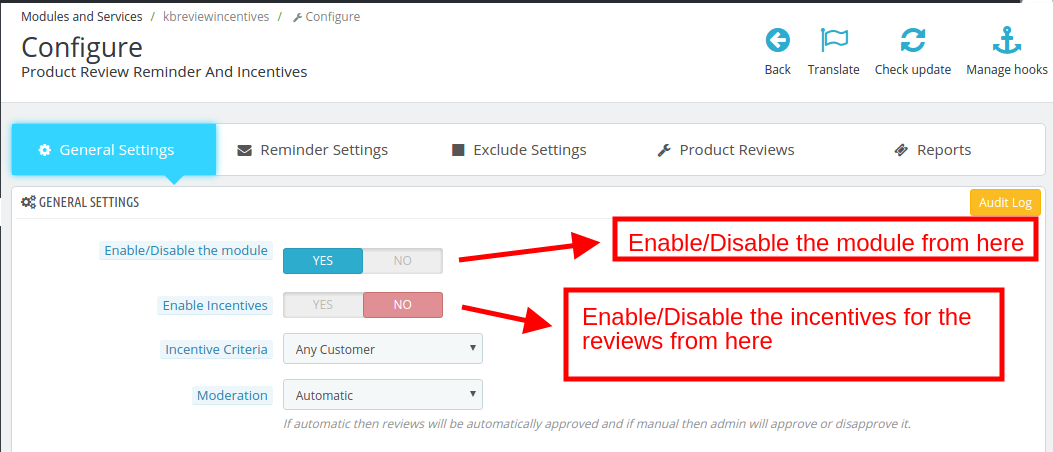
The very first step of the Prestashop product review reminder module configuration involves enabling/disabling it. This can be done from the back-end at a button click. In addition, the admin can even enable/disable the incentive being offered in return of the ratings as shown in the image below.

Once the incentive criteria is enabled, the admin can enter the desired amount for the same.

The incentive can be offered either to any of the store visitors or to the buyers of the site in particular. In case a buyer is selected, then, he/she should be the buyer of that particular product in order to get the incentive. The admin can choose any one from the drop-down list.

In addition, the admin can even approve or disapprove the review before they are posted on the website. For this, the Manual moderation rule is to be selected. If the moderation rule is automatic, then, the reviews of the customers will be automatically approved.

The admin interface of PrestaShop product review reminder and incentive module offers default email templates to the e-merchants. There are two types of email that can be sent to the customer.

  • When the review is approved, but they don’t get any incentive in return
  • When the review is posted on the website.
  • An apology mail to notify that the review was disapproved
  • The email with the notification that the review has been posted and the customer can view it by clicking on the link.

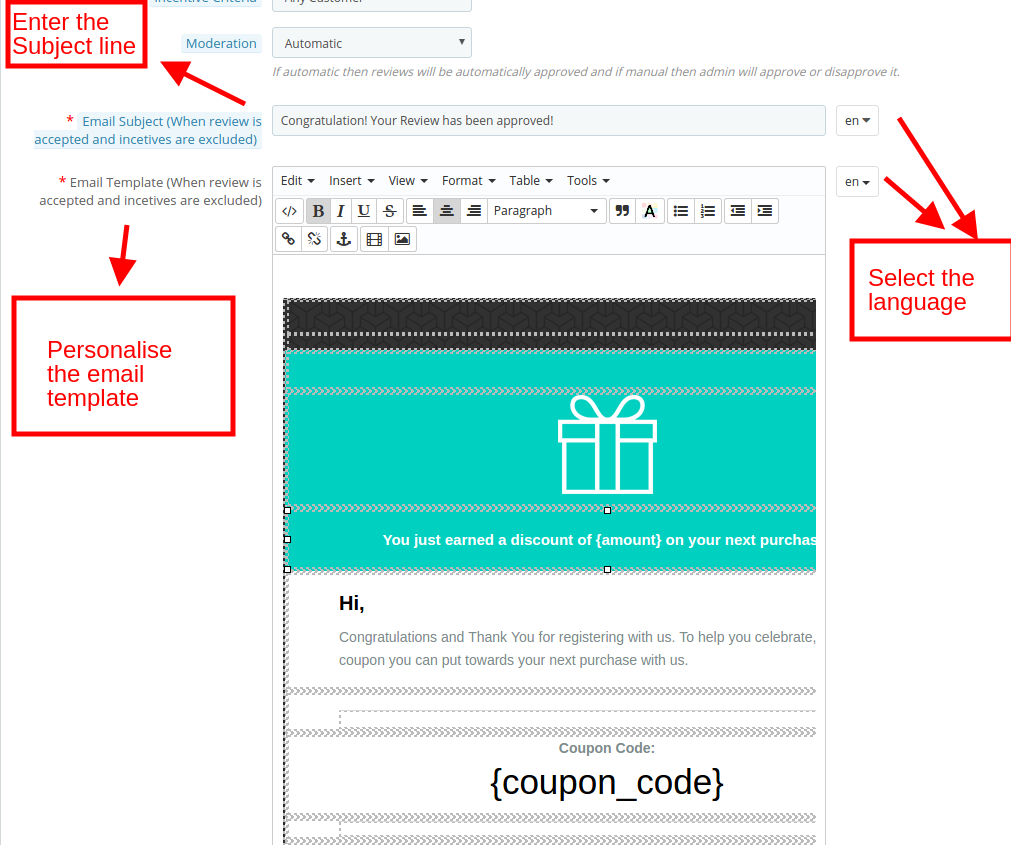
In each case, the admin can change the subject line of the email and personalize the template as required. The PrestaShop product review reminder and incentive module offers multi-lingual support. Thus, these changes can be done in multiple languages by selecting the desired one as shown in the image below:

3.2 How to Configure the Review Reminders?

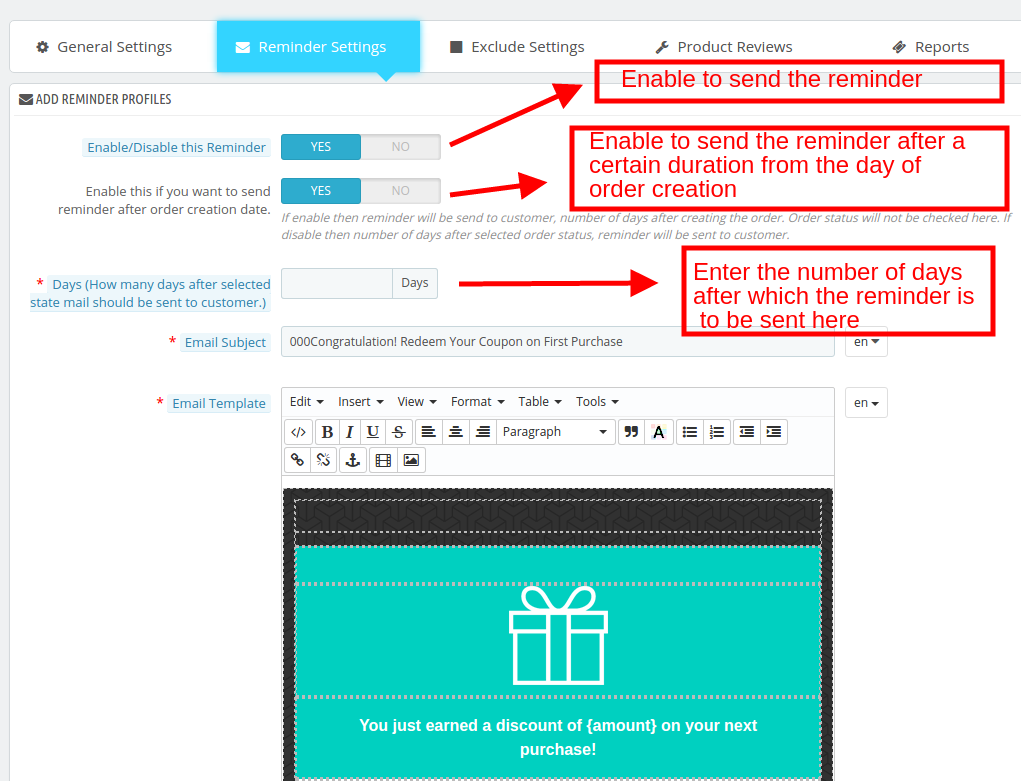
In order to send reminders to the customers for sending their reviews, the admin needs to enable this functionality from the back-end.

The admin can even send the reminder automatically after a certain duration from the day of order creation. The number of days after which the reminder is to be sent can be entered as shown in the image.

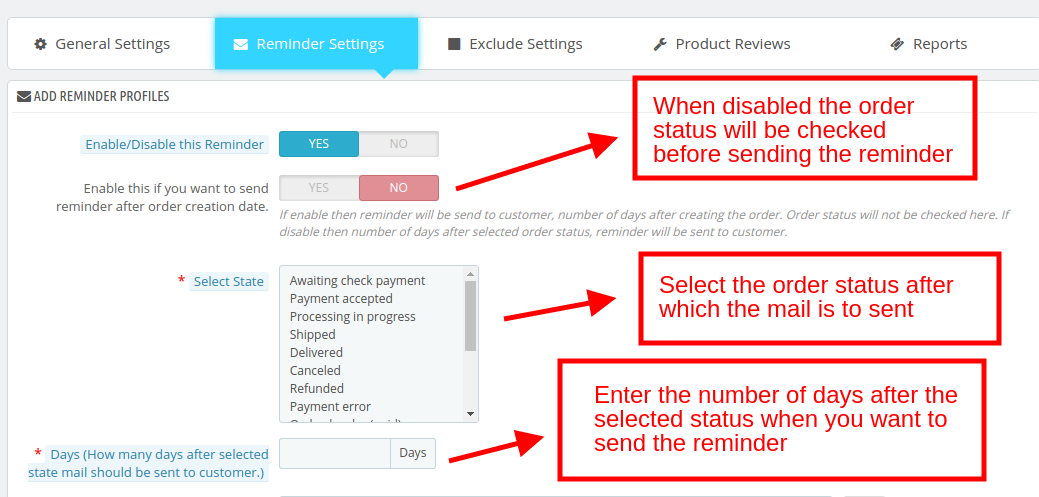
The admin can even select the order status after which he wants to send the reminder. For this, the above-mentioned functionality must be disabled. The admin can then select the order status. The number of days after which the mail is to be sent is entered. The module will check the order status and will send the mail after the prescribed duration.

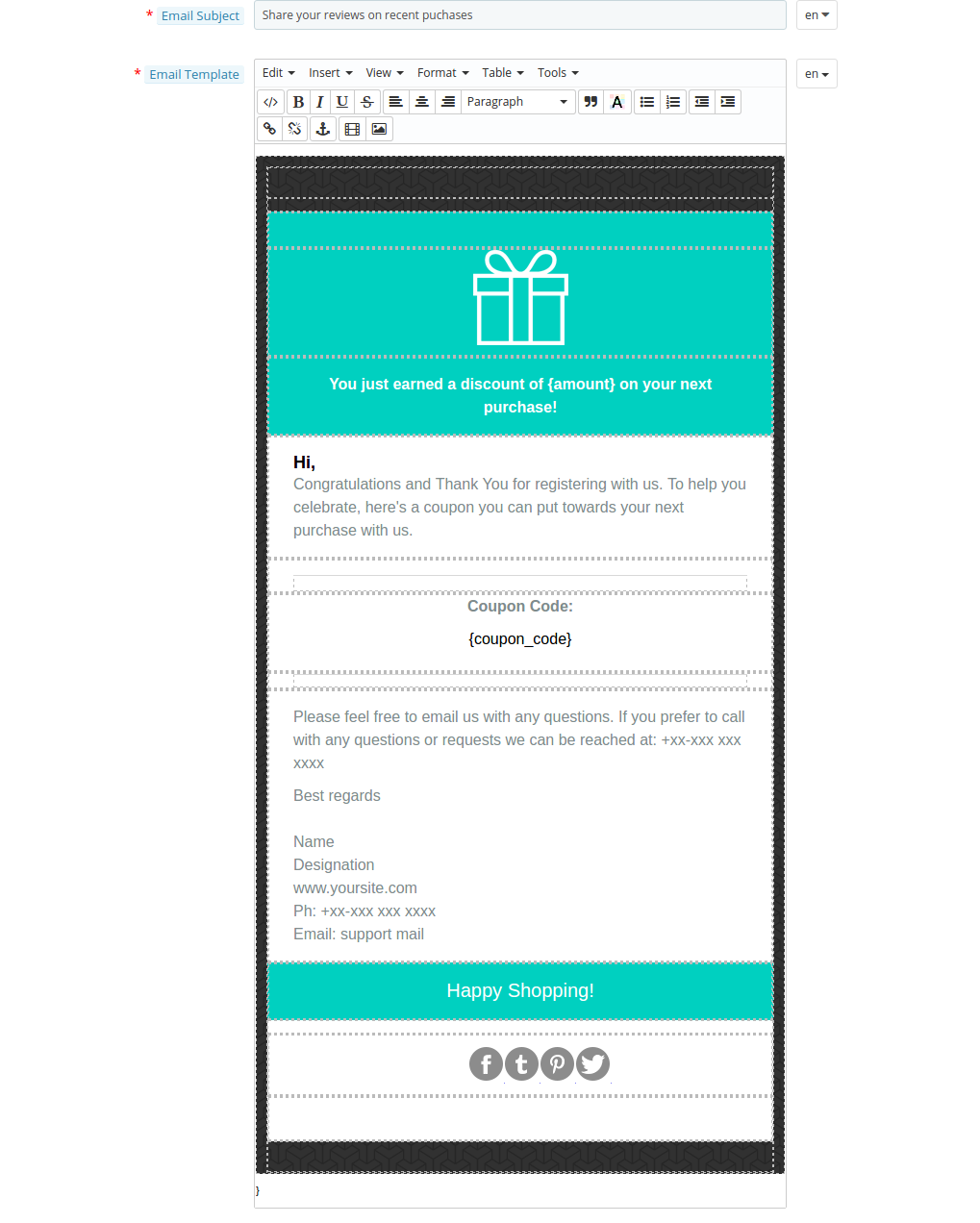
The email or the reminder trigger can be personalized from the back-end. The subject line as well as the content of the email can be changed and modified in multiple languages.

3.3 How to Exclude a Product or category from this functionality?

The reminder and incentive criteria can be included all the products and categories of the store. However, if the admin wants to exclude any of the product or category from the same, this can be done from the ‘Exclude Setting’ tab.

3.3.1 Exclude a Product

Go to the ‘Product’ tab and then click on the ‘+’ in order to add the product name that you want to exclude.

The products can be excluded easily by entering the name manually.

The selected item can seen in the list as shown below. The admin can even edit or delete the selected item.

3.3.2 Exclude a Category

Similarly, for the selecting the category, go to ‘+’ in the top right corner. Just expand the categories and check the ones that you want to exclude.

3.3 How to Approve or Disapprove a Review?

The customers can enter their reviews in the front-end of the website by entering their Name and Email IDs. In case the Moderation setting is Automatic, then, the review will be automatically posted on the website. However, if it’s Manual, then, it will be posted after the approval of the admin.

The admin can view the entire reviews in the back end.

These reviews can be edited or deleted at a button click.

The status of the Pending Reviews can be changed by clicking on the ‘Edit’ button. The status of the review can be selected as shown below.

In addition, the admin can even post the review with a bit of modification if they wish. He can change the Helpful Votes for the review along with the review incentive.

The PrestaShop review reminder and incentive addon even allows the store admin to differentiate between the fake reviewers and genuine customer reviews. The option of ‘Certified Buyer’ can be enabled for the genuine customers who posted their reviews on the product page.

3.4 How to Track the Reviews and Incentive?

The reviews and the incentives can be easily tracked from the admin interface.

The store owners can either track the reports of individual products, an entire category or the products of a particular manufacturer or supplier.

Select any one option and you can view the reviews received and the incentives offered.

3.5 How does the Audit Log works?

The Audit log of the admin interface keeps a track on all the email send to the customers and the status of the same. Click on the ‘Audit Log’ section as shown below and you can view the entire list of the email trigger send.

The email that was send to the customers along with the descriptions of it’s purpose and it’s status can be viewed as shown below.

4.0 Website UI

The link to enter the review will be sent to the customers in the mail. The customers can then enter their review and rating.

The review will then be posted on the product page after the approval of the admin and the prescribed incentive will be provided to the customer.

The review chart in the product page as shown in the below image allows the new customers to get an overview of the reviews of the product without actually reading each one of them. PrestaShop product review reminder and incentive module provides an insight to the store visitors of how many reviews were received and the overall rating of the same.

Magento Etsy Integration – Step by step guide to configure module

In this present era, being an eCommerce store owner is not a cake walk. They have to keep an eye on the competition growing everyday in this industry. So it’s really important to provide your business a platform in the form of marketplace which will help you to increase the sales of your eCommerce store.
Etsy is one of the most successful and renowned marketplaces which allow people to buy and sell products worldwide.

Knowband offers Etsy Magento Integration extension which provides an effective approach to integrate the Etsy marketplace with their Magento webstore. The Etsy Magento connector addon integrates your eCommerce store with the Etsy marketplace by using the Etsy API. After successful integration, you can update and list your products on the Etsy marketplace from the back-end of this integrator even without even visiting the marketplace.

Etsy Magento module allows sellers to upload products in bulk, thus reduce the chances of the errors which occur during manual listing.  Sellers have the feature to manage the inventory and orders from the Magento admin panel.

Etsy Marketplace Integration- Seller Account Setup

Please follow the procedure listed below to create an account on Etsy marketplace.

  1. Goto the link
  2. Click on the “Open your Etsy Shop” button
  3. Click on the “Register” tab
  4. Fill up all the required details in the registration form and click on “Register”. It would create your seller account and send a verification email to the provided email address.
  5. The verification email will contain a link which will redirect to the setup your shop preferences. Enter all the required details like – Shop Preferences and Name your shop, Stock your shop, How you will get paid and Set up Billing to open your seller account.

Etsy Marketplace Integration- Setup an App

You need to create an App on Etsy Marketplace to establish a connection between Magento Store and Etsy Seller Account. Please follow steps to create an App on Etsy –

  1. Go to the link (It would open a page where a form will be shown with few input fields as shown below)

Enter all the mandatory details in the form to register your App on Etsy marketplace and you can see your API details as below:

Admin Interface

Admin Panel Settings contains the 8 tabs for settings.

  1. General Settings
  2. Shipping
  3. Order Settings
  4. Profile Management
  5. Product Listing
  6. Order Listing
  7. Synchronization
  8. Audit Log

Steps to configure module:

General Settings:

  • Install the module and click on the General Settings tab to connect your Magento store with Etsy Marketplace

  • Enter all the required details in the General Settings field and follow the instructions.

Shipping Templates:

  • Now add shipping templates to enable shipping methods on Etsy Marketplace. Please refer to the next slide to see how to enter required details in Shipping Template fields.

  • Enter all the required details in the Etsy Shipping Templates.

  • Now add the shipping entries for the selected shipping template.

  • Enter all the required details in the shipping entries fields.

Order Setting:

  • Order Settings tab helps map store order statuses with Etsy Marketplace order statuses. This will be used for capturing orders details from Etsy Marketplace. For mapping the orders from the Etsy Marketplace to the Magento store, you need to execute the Order cron in the Synchronization tab.

Profile Management:

  • Now create a profile to list products to Etsy Marketplace. Sellers can create multiple profiles to sync the products in bulk with the option to select different shipping options.

Product Listing:

  • Admin can check the status of the listed products by clicking the “Product Listing” option.

Synchronization: 

  • Country/Region Synchronization: Before creating the shipping templates please make sure to sync the country/region by clicking the “Sync Countries/Regions” only after that countries and regions will be added to the database.
  • Shipping Template Synchronization: Before creating the New Profil please make sure to sync the shipping templates by clicking the “Sync Shipping Templates Listing” only after that shipping template entries will be visible in the profile’s shipping template section.
  • Products Synchronization: Make sure to Sync the products after creating a profile only after that selected products under the newly created profile will get listed on the Etsy store. Admin can also check the status of the listed products under the section “Product Listing”. All the listed products will show the status as “Listed”.
  • Product Variations Synchronization: To list the variation products to Etsy marketplace please make sure to click the “Sync Products Variations Listing” only after that variation products will get listed in the Etsy marketplace. Otherwise, these variations product will show the status as “Pending”. After successful sync listing status for these products will be changed to the Listed.
  • Orders Synchronization: Use the Sync Order Listing button to sync Etsy store orders to the Magento Admin. After successful synchronization, you can see the Etsy store order under the Order Listing tab.
  • Order Status Synchronization: Admin can modify the status of Etsy orders which have already synchronized to the Admin panel. On clicking the “Update Order Status on Etsy” order status will get updated on the Etsy store also.  
  • Language Synchronization: To add the product description in another language admin need to use the “Sync Translations“.

Order Listing:

  • To synchronize the Etsy marketplace orders to the Magento store admin panel first admin needs to synchronize the order listing as explained in the order synchronization above. After that, all the Etsy store order can be modified from the Magento store admin.

  • After modifying the order status for the orders synchronized to Magento admin panel, admin can update the order status for these Etsy orders by clicking the “Order Status Synchronization” option in the Synchronization tab.

Audit Log:

  • Admin can use the Audit Log tab to keep the track of the tasks performed.

By following the procedure explained above sellers can easily sale their Magento store products to the Etsy marketplace in a hassle-free manner.

Please click on the link below to purchase this Magento Etsy Marketplace Integration.

https://www.knowband.com/prestashop-etsy-marketplace-integration

For more details regarding the listing process and how this module works, please refer to the video below:

For any query regarding the module please feel free to contact us.

Why you should invest in mobile app?

In a world where there a lot of competition at every step, having a website isn’t going to get your revenues. You have to go ahead and do something that the market is looking for and also something by which customers can reach out to you. You might have optimized your website to be compatible with the smartphones but have you ever thought of having your business as an eCommerce mobile app? With the popularity of smartphones and tablets, your business will certainly new height ONLY if you keep certain things in mind. Whether you are a seller of a product or a service provider, you should be investing in a mobile app creator to build brand awareness and credibility among the customers.

Mobile apps are used for everything these days. Whether for internet surfing, making online payments, shopping, mobile recharges or anything else, a mobile app comes in very handy. Coming to the points where you get a clearer picture of why you should be investing in a mobile app, find them below.

The world has gone mobile

Can you deny the fact that the world has gone mobile? You won’t deny that the majority of shopping and browsing is generally done on smartphones. With the newer technologies available in smartphones, people have stopped spending a lot of time on laptops and desktops. If you take a look at the stats, you’d know the number of apps on Google Play, Apple App Store, and others has increased remarkably. This makes sense because people are going mobile and in order for companies to reach out to their potential customers, a mobile app is absolutely necessary. A smartphone makes a user’s life easy because one can access their favorite store at any point in time and from any place without thinking a lot. Everyone wants an easy approach to access your website through one click and mobile app is the optimum solution.

Excellent direct marketing channel

Investing in a mobile app maker will definitely cost you a lot in the beginning, but as a long-term investment, the benefits that you’ll have are countless. If you think of it as a one-time investment that goes in for directly marketing your business, you wouldn’t mind spending on a mobile app development once. If you already have a business that generates good revenue for you, this would be a building block that’ll add to your reach. With your buyers being able to connect with you through that app and shopping whenever they want without contemplating whether the product is available or not. Later on, they’ll spread the word around and it would add to the traffic and you never know when your conversion rate gets better with this.

Mobile payments are the new high

Do you carry a lot of cash with you so that you might just come across something that you like and buy it that very moment? In a world where security and safety are everything, mobile payments have made the lives of the commoners very easy. Now, with banks introducing newer technologies in order to provide safe transactions where users don’t have to share their personal information with anyone including their card details and they can make payments from anywhere.

A mobile app integrated with the common payment options would provide a sense of security to your customers. While the shoppers would feel safe with their details, the banks earn a handsome amount called as the transaction fees from the same.

Better connectivity with your customers

Your motive for your business apart from converting them is to keep them actively engaged with your site. When you design a mobile app that is responsive to added features like Lucky Wheel Plugin or Free Giveaways, you will be able to stay connected with your customers. Moreover, the conversion rate would increase in due time. From a customer’s perspective, all they want from an app is it provides a seamless experience with potential options that they’re looking for and payment methods that suit them.

If you look closely, you can stay connected with your customers through Push Notifications about the fabulous deals currently being offered to the shoppers. In fact, personalized offers and discount coupons are a part of mobile apps that make your customers return to you time and again. For example, Uber, Amazon, and other marketplaces send in notifications with the discount coupons for a limited period to convert their customers.

Maximum revenues and conversions


The first step of conversion is the moment the visitor downloads your mobile app and registers or logins with his credentials. If you are to believe Business of Apps, the global mobile app revenue in the year 2016 was $88 billion and the figures are sure to increase with time. Thanks to the offers and discounts offered by the stores.
Eventually, when the relationship between the user and the mobile app in terms of delivering what’s expected gets strong, you’ve earned yourself a returning customer.

Conclusion

It has become a common norm to have a mobile app when you look out to have a farther reach and better customer relationship. Stay ahead by going mobile with the help of a mobile app.

Related Stories:

Magento Etsy Integration Extension – User Manual

1.0 Introduction

Etsy Magento API Integration by KnowBand offers a smart solution to the e-merchants to start selling on the Etsy Marketplace. The store admin can effortlessly sync products to Etsy for the selected categories with the help of this Magento Etsy Integration plugin.

Etsy provides a marketplace specifically for the crafters. The Etsy Magento Integration extension is easy to understand and use. So, the merchants can now find a larger niche audience base with minimal effort by selling their product in the Marketplace.

1.1 Merchant Benefits offered by Magento Etsy integrator by Knowband:

  • The Etsy Magento API integrator offers real-time synchronization between the Magento store and the Etsy marketplace.
  • The connection between the two stores can be set-up in a few simple steps with the automated approach of the Magento Etsy integration module.
  • The Magento store admin can list the products in bulk by creating profiles in the back-end of Etsy Magento API Integration.
  • The store admin can easily manage the inventory by making changes in the profiles created in Etsy Magento integrator. The merchants can remove, relist or revise products by simply executing cron jobs in the back-end of Etsy Magento API integrator.
  • With the help of Magento Etsy integration extension, the store admin can even add shipping methods for the marketplace customers.
  • The Magento Etsy Connector makes it easier for the online merchants to keep track of the product listing.
  • The admin can sync the orders received from the marketplace with the orders of the Magento store just at a button click with Etsy Magento integration plugin.
  • These orders can be processed from the Magento store itself by raising the invoice. The change in the order status is synced with the marketplace via the automated approach of the Magento Etsy API integration module.
  • The Etsy Magento integrator makes it easier for the store admin to track the errors that occurred while product listing.
  • Etsy Magento API Integration makes it easier for the store admin to tap a larger audience base and manage the online transaction from a single interface.
  • Magento to Etsy synchronization is the easiest way to expand your online business with minimal hassle.

2.0 Installation of Magento Etsy Integration Extension

Follow the following steps for installing Magento Etsy API Integration:

  1. Download the extension package of Magento Etsy integration plugin from Knowband.
  2. Unzip the package in your root folder of Magento setup via FTP manager (like Filezilla or WinSCP – download here: https://filezilla-project.org/).
  3. In Admin Panel go to Etsy Marketplace in the main menu.

4. The Magento Etsy integrator is now ready for use.

This User Manual will guide the users through the Magento Etsy synchronization extension configuration and settings.

2.2 Etsy Marketplace Integration- Seller Account Setup

To start selling on Etsy Marketplace you need to have a seller account on Etsy. In this section, we are listing all the steps to create a seller account on Etsy. Please find them below –

  • Go to the link – https://www.etsy.com
  • Click on the “Sell on Etsy” button present at the top right corner.
  • Click on the “Register” button on the page you are visiting now. Refer to the screenshot given below.

  • Fill up the registration form and click on the “Register” button. It would create your seller account and send a verification email to the provided email address.

  • Now, it would also redirect you to another page as shown below.

  • Now, it is asking to set up your shop preferences. Complete all the highlighted sections – Shop Preferences and Name your shop, Stock your shop, How you will get paid and Set up Billing.

That is it.

2.2.1 Etsy Marketplace Integration- Setup an App

To start communication between Magento Store and Etsy Seller Account, you need to create an App on Etsy Marketplace. Following are the steps to create an App on Etsy –


  • Fill up the form and click on “Read Terms and Create App”. Please make sure that you left the “Inventory Management Compatibility” checkbox is checked.
  • It would ask to accept “terms and conditions”. Accept and click on the “Create App” button.
  • It would register your App on Etsy Marketplace and provide API details as shown below.

Note: “The term ‘Etsy’ is a trademark of Etsy, Inc. This application uses the Etsy API but is not endorsed or certified by Etsy, Inc.”

3.0 Admin Interface

Admin Panel Settings of Etsy Magento synchronization extension contains the 8 tabs for settings.

  1. General Settings
  2. Shipping
  3. Order Settings
  4. Profile Management
  5. Product Listing
  6. Existing Products Mapping
  7. Order Listing
  8. Synchronization
  9. Audit Log

3.1 General Settings

Magento Etsy API integrator allows the store admin to integrate their store in a few simple steps. General Settings tab includes the details of Etsy Marketplace API like API Key, Host, etc. Etsy API helps to connect the Magento store with the Etsy marketplace. The description of each input field is mentioned below:

1. Enabled

Admin gets the option to Enable/Disable the module by toggling the button. If enabled, the module and all its settings will be working on the store.

2. Etsy API Key

Enter the Etsy API Key which will authenticate the connection being established between the Magento store and Etsy Marketplace.

3. Etsy API Secret

Enter Etsy API Secret Key here. It is mandatory for authenticating the integration between the store and Etsy Marketplace.

4. Etsy Default Language

Select the default language to be used.

5. Languages to Sync

Magento Etsy connector offers multi-lingual support. Choose the language used for synchronizing the product. The selected language should be anything other than the default language.

6.Register Etsy Customers
Magento Etsy Integration Module allows the admin to register the list of customers who have placed their orders on the Etsy store.

7. Send Email to Etsy Customers
Enable this feature to send emails to the registered customers.

8.Email Subject( When Customer is registered on the store)
The subject of the emails sent to the registered customer can be customized from the backend of Magento Etsy Connector.

9.Email Template (When Customer is registered on the store)
Magento Etsy Integration Module offers admin the choice to customize the email templates as per his choice.

Click on the ‘Save Configuration’. ‘Connect’ button will appear when the changes are saved. Click on the “Connect” button to connect with the Etsy Marketplace. It would redirect admin to Etsy Marketplace to allow the App Access to the store. Click on the “Allow Access” button as shown below. The connection between the store and Etsy Marketplace will be established.

It would also redirect admin back to the same page of “General Settings” and show the “Disconnect” button instead of “Connect” as the connection has now been set up with Etsy Marketplace.

Note: Once the connection is set-up, you need to execute the Country/Region cron to sync the country list in the database. (See section 3.7.)

3.2 Shipping

The admin can manage the shipping options in the Shipping tab of the Etsy Magento integration plugin. In this section, the admin can create Shipping Templates that contain the various shipping details as per the need of the system.

3.2.1 How to add Shipping Templates?

Follow the steps mentioned below to add Shipping Template:

To create new templates, click on ‘Add New’ as shown below:

You’ll be redirected to the template creation page. Fill up the following input fields of form –

Shipping Template Title: Enter the Shipping Template Title here.

Origin Country: Choose a country from the list as an origin country of Shipment.

Primary Cost: Provide the primary cost of the shipment. You can set it only once.

Secondary Cost: Provide the shipping cost for each additional item. You can set it only once.

Minimum Processing Days: Provide the minimum number of days for processing the shipment.

Maximum Processing Days: Enter the maximum processing days for processing the shipment.

3.2.2 How to Edit/Delete the existing Shipping Templates?

The Shipping templates (if any) will be listed in the Shipping Template tab of the Etsy Magento integrator. Click on the “Edit or Delete” button as shown in the image:

3.2.3 How to add Shipping Template Entries Template?

Each Shipping Template can have multiple shipping entries to define shipping destinations and their respective costs according to the destinations. Etsy Magento integration extension allows you to set up only one shipping template entry for each destination country.

The shipping entries can be viewed by clicking on ‘View Shipping Entries’.

This will redirect you to the shipping entries page of the Magento Etsy integration plugin. The admin can view the entries here.

Click on the Add New Entries button to create new entries.

This will redirect you to the entry creation page.

While the Origin and Shipping Template Title will remain the same, the Destination type, Destination country, primary cost, and secondary shipping cost can be entered here.

The existing list can be viewed with the help of Magento Etsy integrator as shown below. To Edit/Delete the existing entries, click on ‘Edit’ and ‘Delete’ action respectively.

Note: Execute the Shipping Template cron from the back-end of the Magento Etsy API Integration to sync the entire shipping templates in the Etsy Marketplace. (See Section 3.7.)

3.3 Order Settings

Order Settings tab of Magento Etsy integration module helps to map store order statuses with Etsy Marketplace order statuses. This will be used for capturing order details from Etsy Marketplace. For mapping the orders from the Etsy Marketplace to the Magento store, you need to execute the Order cron in the Synchronization tab of Magento Etsy integrator. (See section 3.7.)

The various fields are discussed below:

Order Default State: Choose an order default status.

Order Paid State: Choose an ordered state for the paid orders placed on the Etsy marketplace.

Order Shipped Status: Choose an ordered state for the shipped orders on the Etsy marketplace.

Note –

The default status is the first status of the order when it is placed on the store.

Paid status means that payment for the order has been made and accepted.

Shipped status means that ordered items have been shipped.

3.4 Profile Management

The profile-based listing of Magento Etsy integration plugin makes it easier for the online merchants to manage the inventory. Profile Management tab of the Etsy Magento Integration module provides options to create N number of profiles for product listing. In this section, the admin can map attributes of Magento store products with the attributes of Etsy Marketplace. The admin can even map the categories of the Magento store with the categories of Etsy Marketplace. Magento Etsy integration extension offers many-to-one category mapping.

Once you click on ‘Add New’, you’ll be redirected to the profile creation page of Etsy Magento integrator. The various fields are discussed below:

Profile Title: Enter the profile name here.

Etsy Category: Choose an Etsy Marketplace Category to list the attributes.

Attribute Mapping: Map the selected Etsy Marketplace attributes to the store’s attributes. Select the ‘Size’, ‘Primary color’. This will help the list the products with variations.

Store Categories: Select the category of the store that you want to map with the selected category of the Etsy Marketplace. At a time multiple store categories can be selected.

Shipping Template: Choose a Shipping Template from the drop-down list. The customer can avail of the selected shipping options.

In case, if Shipping Templates are not being displayed, Run Synchronization -> Sync Shipping Templates

Etsy Currency: This currency should be the same as the currency of your Etsy Admin panel, you can check the Etsy currency in Finances -> Payment Settings -> Currency.

Customized Product Title: Customize the product title by using the following place-holders. Place-holders like {sample} will be replaced by dynamic content at the time of execution.

  • {id_product} for Product ID
  • {product_title} for Product title
  • {country_of_manufacture} for Country of Manufacturer
  • {sku} for Product SKU
  • {weight} for Product Weight
  • {short_description} for Product Short Description
  • {price} for Product Price

Tags: The Etsy search shows results if the word or phrase is available in the product title or tags. The store admin can add the tags for the entire category at the time of creating the profile. The Etsy Magento Integrator module allows the store admin to add the maximum 13 tags.

Materials: The Etsy Magento Integration module allows the store admin to sync the Materials used in the product. For example Ingredients, components, etc.

Price Type: The Etsy Magento Integration Module allows the store admin to list the product on Etsy Marketplace at a different price than the Magento store price. Admin can select the option to sync the Actual or Special rice from the Magento store. Admin also has the option to increase or decrease the product price based on the Fixed or Percentage basis.

Change price: The store admin has access to change the price of goods at the Etsy store. Enable the Change price feature to increase or decrease the price of products listed at Etsy in comparison to their actual price.

Type: Select whether you want to increase or decrease the product price.

Amount: Enter the amount value in this field.

Sync Property: Select the properties to sync with the Etsy Marketplace. This will work while updating the product and its variations

Enable to enter minimum quantity: If enabled, the quantity of the items will be restricted to the minimum amount filled the following text box.

Enable to enter maximum quantity: If enabled, the quantity of the items will be restricted to the maximum amount filled the following text box.

Is the product customizable?: Enable if the product is customizable.

Who Made: Specify who made the specific product. Select an option from the drop-down list.

When Made: Specify when this product was made.

Is Supply?: Specify if the product is the product is supply product or not.

Recipient: Select the Recipient of the product

Occasion: Specify the Occasion (if any) for which the product is intended.

3.5 Product Listing

This section of the Magento Etsy integration plugin shows the list of all the products listed on Etsy Marketplace with their statuses. To sync the product in the Etsy Marketplace, execute the Product Cron in the Synchronization tab of the Etsy Magento Integration module. (See section 3.7.)


One the product is listed and synchronized, the status of the product variations will appear pending. To list them, the admin will be required to execute the ‘Product Variation’ cron in the Synchronization tab of the Etsy Magento integration plugin. Once this is done, even those products will get listed.

Product Listing Renewal

This option offered by Magento Etsy integrator allows admin to renew product in case listing has expired on Etsy Marketplace. To renew the product, the admin can click on the “Renew” action corresponding to each product.

After setting up a product for renewal, action “Renew” will be replaced with “Halt” action. This action is used to stop product renewal in case needed.

Auto Renew

Admin can also set products at the “Auto Renew” option. This option will automatically renew a particular product.

Product Listing Deletion

This option of Etsy Magento integrator allows admin to delete product listing from Etsy Marketplace. Click on “Delete” action given corresponding to each product listing. After setting up a product for deletion, the action “Delete” will be replaced with “Relist” action.

View Error

The admin can view the error that occurred in listing the product. For this, click on ‘View Error’ action.

3.6 Existing Products Mapping

Under this tab, the admin would be able to view the list of existing mapped products on Etsy Marketplace. Admin can search a particular product by setting filters accordingly.

3.7 Order Listing

This tab of Magento Etsy connector shows the list of orders placed on Etsy Marketplace for the products of your eCommerce store listed on Etsy as shown in the screenshot below –

To sync the orders received from the Etsy Marketplace into your Magento store, you need to execute the Order Syncing cron in the Synchronization tab of Magento Etsy connector. (See section 3.7)

To check the order, click on ‘View’.

The admin gets to see the following details of each order.

It offers basic information like order date, status, billing and shipping address, payment information, gift options, item ordered, comments history.

The default order view page is shown below:

  1. Invoice: The admin can generate the invoice for the orders received from here. This will initiate the processing of the order. Execute the Update Order Status on Etsy cron and the status of that order will be updated in the Etsy Marketplace.
  2. Credit Memos: Change the status of the credit here.
  3. Shipments: The admin can update the shipment details, that is, the name of the shipment, date and the quantity of shipment.

3.8 Synchronization

The Magento Etsy integration module offers several synchronization options. This tab of the Etsy Magento integration extension synchronizes all the settings and options defined in the other tabs. The synchronization between Magento Store and Etsy Marketplace can be done by clicking the ‘Synchronize’ button.

The various crons offered by Magento Etsy Integration extension to synchronize content between Store and Etsy Marketplace are shown below –

3.8.1 How to sync Countries/Region on Etsy Marketplace?

Following are the steps to synchronize Countries/Region on Etsy Marketplace –

  • Go to the Etsy Marketplace ->Synchronization tab (Main Menu)
  • Click on the “Sync Countries/Region” button shown below.

It would perform following actions –

  • The cron will get all the countries with their country ID and ISO code and save it into the database.
  • Once the cron is executed, the countries and regions in the database will be visible in the Shipping Template tab as well.

3.8.2  How to sync Shipping Template on Etsy Marketplace?

Following are the steps to synchronize Shipping Templates on Etsy Marketplace –

  • Goto the Etsy Marketplace ->Synchronization tab (Main Menu)
  • Click on the “Sync Shipping Template” button shown below.

It would perform following actions –

  • It will add new shipping templates along with their Entries on Etsy.
  • It will update the modifications made in the Shipping Templates and their entries on Etsy
  • It will delete the shipping templates and their entries that were deleted from the store on Etsy.

3.8.3  How to sync Products on Etsy Marketplace?

Following are the steps to synchronize Products on Etsy Marketplace –

  • Goto the Etsy Marketplace ->Synchronization tab (Main Menu)
  • Click on the “Sync Products” button shown below.

It would perform following actions –

  • The cron will update the product list based on the profiles created into the system.
  • It will add products on the Etsy Marketplace with the respective product details (e.g. Price, Quantity, Image, etc.).
  • It will update the products on Etsy marketplace which are already listed
  • It will renew the expired products on Etsy Marketplace for the items in which ‘Renewal’ is enabled.
  • It will remove the products from Etsy Marketplace which are marked deleted on Store.
  • It updates the Listing Status of each product listed on Etsy Marketplace.

3.8.4  How to sync Products Variation on Etsy Marketplace?

Following are the steps to synchronize Products Variation on Etsy Marketplace –

  • Goto the Etsy Marketplace ->Synchronization tab (Main Menu)
  • Click on the “Sync Products Variation” button shown below.

It would perform following actions –

The cron execution will add Products Variations on Etsy Marketplace

It will update Products Variations which are already listed on Etsy Marketplace

It will remove the Products Variations on Etsy Marketplace that are marked as deleted on the Store.

3.8.5 How to sync  Etsy Non-mapped products?

Following are the steps to synchronize Etsy Non-Mapped products with your store–

  • Go to the Etsy Marketplace ->Synchronization tab (Main Menu)
  • Click on the “Sync Etsy Not-Mapped products” button shown below.

It would perform the following actions:

  • In case, if any product is not mapped with the store then, the same will be synchronized in the Etsy marketplace.

3.8.6  How to sync Order Listing from Etsy Marketplace?

Following are the steps to synchronize Orders from Etsy Marketplace –

  • Goto the Etsy Marketplace ->Synchronization tab (Main Menu)
  • Click on the “Sync Orders” button shown below.

It would perform following actions –

Once this cron is executed, it will get the Orders and Transaction details from the Etsy Marketplace.

It creates Shipping Carrier options into the store as per the details of the order coming from Etsy Marketplace

It creates Orders into the Magento store as per the details coming from the Etsy Marketplace and sets the order status as per the configuration settings updated in the “Order Settings” tab of this Magento Etsy Marketplace module.

3.8.7  How to sync Order Status on Etsy Marketplace?

Following are the steps to synchronize Orders Statusto Etsy Marketplace:

  • Goto the Etsy Marketplace ->Synchronization tab (Main Menu)
  • Click on the “Sync Order Status” button shown below.

It would perform following actions –

  • The cron checks if there is any status update recorded by the module for any Etsy Order. The updates are then synchronized accordingly.
  • It updates the Status of Orders as per the configuration settings modification in the “Order Settings” tab of the admin interface.

3.8.8  How to sync Language on Etsy Marketplace?

Following are the steps to synchronize Language to Etsy Marketplace:

  • Goto the Etsy Marketplace ->Synchronization tab (Main Menu)
  • Click on the “Sync Language” button shown below.

It would perform the following actions:

In case there are any product or category details in different languages, then, the same will be synchronized in the Etsy marketplace.

3.8.9 How to sync  Products Inventory/Price?

  • Goto the Etsy Marketplace ->Synchronization tab (Main Menu)
  • Click on the “Products Inventory/Price Synchronization” button shown below.

It would perform the following actions:

In case of any change in the inventory/price of the Magento store product then the admin needs to sync the updated price/inventory of the product to the Etsy marketplace. To make the entire process hassle-free the Products Inventory/Price Synchronization cron update the product price at the Etsy marketplace.

3.8.10 How to sync  Product  Images?

  • Goto the Etsy Marketplace ->Synchronization tab (Main Menu)
  • Click on the “Sync Product Images” button shown below.

It would perform the following actions:

  • Instead of updating the Products images individually on Etsy Marketplace, admin can update the same by running the Sync Product Images.

3.8.11 Full Magento Update Synchronization

  • Goto the Etsy Marketplace ->Synchronization tab (Main Menu)
  • Click on the “Products Inventory/Price Synchronization” button shown below.

It would perform the following actions:

Instead of running multiple crons to update the Products/Price/Inventory/Translation/Variation on Etsy admin can update the same by running the Full Magento Update on Etsy cron.

Note:

Once the synchronization is completed successfully, then, a message will be display – “Synchronization completed” else “Synchronization failed” will be flashed.

3.9 Audit Log

The Audit Log section of Magento Etsy integration plugin contains the entire list of the job that is running. The status of the same can be viewed here. The errors (if any) occurred while executing the jobs can be checked here.

Click Here to get Etsy Magento Integration Plugin

Click Here to view Admin Demo of Magento Etsy Integrator

Watch Plugin Video of Magento Etsy integration extension

iOS Mobile App Builder – Configuration

Introduction

We at Knowband are exceptionally skilled and proficient in converting your PrestaShop site into a wonderful feature packed mobile app for your targeted customers. You just have to specify your business requirements and expectations to our PrestaShop developers, rest will be assured by them. With our talent pool of programmers, designers, and other involved professionals, we can deliver a mobile app that closely matches your personal expectations and business requirements. If you are not sure about the utility of this mobile app for your PrestaShop store, let us throw some light on this amazing PrestaShop mobile app.

This is definitely one such mobile app that can take your eCommerce business to far off places. With the support of this PrestaShop mobile app, you can seamlessly target your multi-platform customers for your PrestaShop store for grabbing maximum sales and customer engagement. It can make your eCommerce business accessible to mobile based consumers in order to improve your chances of business growth and expansion. This mobile app lets PrestaShop store owners get their customized mobile app as per their business requirements and needs.

Working Process

In order to utilize the services of this mobile app, store owners have to implement the following steps:

Step 1. Once you purchase this module, download, install and enable the module on your store. This module enables communication between your mobile app and store.

Step 2. Contact us and share below requested details so that we can give generate your iOS app (IPA file) and can share it with you.

a. Splash image (1280×1920 png)

b. App icon (512×512 png)

c. Theme color (Blue, Orange, Green, Black)

d. Website URL

e. Website Name

f. Desired social login option name out of Facebook and Google.

g. GoogleInfo.plist file

h. Code snippet from Facebook developer console (Facebook App Id, Facebook App Name)

i. Provisioning Profiles (.mobileprovision files)

STEP 3. After receiving above requested information we will share an IPA file with you, which you can post on your “App Store” account so that your customers can download your app.

Read the document properly to know the process to get the required files.

Creating Facebook App

Prerequisites for creating Facebook App for iOS (Will be provided by Knowband)

  • App Package Name (com.example.xxxx)

Creating Facebook App

  • Go to https://developers.facebook.com/. If you have not registered yourself as a developer yet then Facebook will ask you to register as a developer. Simply register as a developer.
  • From the top navigation menu hover over My Apps.
  • Then click Add a New App.
  • Enter a display name for the app. This name will be displayed to the user when he/she use Facebook login.
  • Click on Create App ID. After verification, you will be redirected to the new page.
  • On that page select the Facebook login and click on Set Up option.

  • Then choose iOS and click on Next button until you reach on “Add your Bundle Identifier”step.
  • Enter the bundle identifier (Application Package Name) for the iOS app. Bundle identifier will be provided by Knowband). Click on “Save” and then click on “Continue” button.
  • Keep clicking on “Next” until you reach on “Configure Your info.plist” step.
  • On “Configure Your info.plist” step, click on “Copy Code” button and paste the text into a text file.

  • Click next till last step.

Making the App public

  • Now to make this App accessible to all, you need to make it public.
  • Now from the left menu, click on App Review.
  • Turn the switch next to ‘Do you want to make this app and all its live features available to the general public?’ to Yes.

  • Choose the category and click Confirm.

  • Now your App will be publicly available.
  • Please share the text you saved in text file (on “Configure Your info.plist” step) with Knowband. Make sure the text contains the following details –

<key>FacebookAppID</key>

<string>some_key</string>

<key>FacebookDisplayName</key>

<string>name_of_facebook_app_you_created</string>

Creating App IDs in Apple Developer Account

Prerequisites for creating App Id in Apple Developer Account (Will be provided by Knowband)

  • App Package Name (com.example.xxxx)
  • Package Name for Push Notification Service (com.example.xxxx.NauticaPrestashopNotificationServiceExtension)

Creating App Id in Apple developer account

  • Sign in to developer.apple.com/account, and click Certificates, IDs & Profiles.
  • Under Identifiers, select App IDs.
  • Click the Add button (+) in the upper-right corner.
  • Enter a name or description for the App ID in the Description field.

  • To create an explicit App ID, select Explicit App ID and enter the app’s bundle ID in the Bundle ID field.
  • Enter the bundle Id provided by Knowband (Enter App Package Name not the Package Name for Push Notification Service).

  • Select the corresponding checkboxes to enable the app services you want to use. Check the Push Notifications options as well.

  • Click Continue.
  • Review the registration information, and click Register.
  • Click Done.
  • Repeat all the steps for Package Name for Push Notification Service as well.
  • Now there will be two App IDs added in your account. One for App Package Name and Another one for Package Name for Push Notification Service.

Setting up Push Notification in Apple developer account

Prerequisites for creating App Id in Apple Developer Account (Will be provided by Knowband)

  • App Package Name (com.example.xxxx)

Setting up the App Id for Push notifications

  1. On “iOS App IDs” page. Look for the App ID you just created (The same as provided by Knowband). Press on it and you should see a drop down of Application Services.
  2. Scroll down until you reach the end of the drop down and you should see an “Edit” button. Press that.
  3. The “iOS App ID Settings” page will show up. Now, it is the time to generate the CSR (Certificate Signing Request) that will be used to generate SSL certificate. The CSR file can only be generated from MacBook. However, default CSR will be provided by Knowband butif you wish to generate your own CSR file, then read How to Generate CSR (Certificate Signing Request) using MacBook.
  4. Now that we have our CSR generated, it is ready to go back to the “Add iOS Certificate” page.
  5. Scroll down. Press continue, and then click “Choose file…” Select the CSR file you just saved on your hard drive.
  6. Next, click “continue”again. Then the web page should say “Your certificate is ready.”. Download the certificate by clicking on the blue download button.

  1. Again follow all the steps from the point 1 to 7 shown above for Production certificates instead of Development certificates.
  2. Now you will have two certificates (.cer) files one for development and another one for production.
  3. Now this is the time to generate the private key p.12 file. Again, this can be generated by Knowband after sharing the certificates files with usby you or you can also generate it at own end. Read How to generate private key file (.p12) using MacBook.
  4. Now you will have the private key file (.p12) for development and production environment.
  5. Save these files for now. You need to upload these files on Firebase developer console.

Exporting the provisioning profile for Code signing

Prerequisites for creating App Id in Apple Developer Account (Will be provided by Knowband)

  • App Package Name (com.example.xxxx)
  • Package Name for Push Notification Service (com.example.xxxx.NauticaPrestashopNotificationServiceExtension)

Exporting the Provisioning Profile

  • Click the Add button (+) in the upper-right corner.

  • Select App Store and click Continue.

  • Select the App ID from the drop down created in Creating App IDs in Apple Developer Account step. You can identify the App ID by name or description you set in Creating App IDs in Apple Developer Account step. (Select the App Package Name not the Package Name for Push Notification Service)

  • Click on Continue at the bottom of the page.
  • Select the certificate

  • Click Continue
  • Give a Profile Name and click Continue.

  • The you will see a success message saying “Your provisioning profile is ready”.
  • Click on the Download button to download the Provisioning profile in your System.

  • Repeat all the steps for Package Name for Push Notification Service as well.
  • Now you will have two Provisioning Profiles. One for App Package Name and Another one for Package Name for Push Notification Service.
  • You will have to share those two files (having extension as .mobileprovision) also with Knowband.

Creating a Project at Google Developers Console

Prerequisites for creating Google App for iOS (Will be provided by Knowband)

  • App Package Name (com.example.xxxx)

Creating Google Project

  • First, head over to https://firebase.google.com/. Sign in with your Google account to enter the console. If you don’t know how to switch to the console, there is a button at the very top right that says “Go to console.” Go ahead and click on that.

  • Once you are at the console, click on the “CREATE A NEW PROJECT” button. Give a name to your project and click the “CREATE A NEW PROJECT” button to proceed.

  • After that, you are redirected to the project overview page. Now click the “Add Firebase to your iOS” button. Enter the bundle ID provided by Knowband. Then click the “ADD APP” button.

  • Follow the on-screen instruction to download the GoogleInfo.plist file. We are going to need this file later.

  • Now lick “Continue” to proceed and click “Finish” to complete the configuration. You should then see your iOS app in the Firebase overview page.

  • Look for the setting icon at the top right. Click the settings icon > Project settings.

  • Select the Cloud Messaging tab.

  • Scroll down, and click the “Upload Certificate” button.

  • Then a pop should appear to ask you for your Development APNS certificate.
  • Click browse and choose your APNs certificate (i.e. .p12 file for development) that you prepared in “Setting up Push Notification in Apple developer account” section (we got two .p12 files in that step one for development and another one for production). Then click on Upload button. Similarly on Production APNs certificate section, upload the certificate for production (i.e. .p12 production file).
  • On same page, you can download the GoogleInfo.plist file (if not downloaded already). You will have to share the GoogleInfo.plist file to Knowband.

How to Generate CSR (Certificate Signing Request) using MacBook

  • It is time for us to create a “Client SSL Certificate.” This will allow our notification server (Firebase) to connect to the Apple Push Notification Service. Under Development SSL Certificate, press on the “Create Certificate…” button.
  • To generate a certificate, we would need a Certificate Signing Request (CSR) file from the Mac. We will get back to this page later, but now we need the CSR file.
  • To generate the CSR file see the steps shown below.
  • To generate a CSR file, press cmd + space and do a spotlight search for “Keychain Access.” Open Keychain Access, and go up to the menu to select Keychain Access > Certificate Assistant > Request a Certificate From a Certificate Authority…

  • A “Certificate Assistant” pop up should appear.

  • Fill in your email address and name. Choose “Saved to disk” and press Continue. Then save your CSR somewhere on your hard drive.

How to generate private key file (.p12) using MacBook.

  1. Double click on certificate (.cer) file and it will be automatically added in your keychain access certificates.
  2. Open up Keychain Access. Under the “My Certificates” category, you should see the certificate you just added. It should be called: Apple Development IOS Push Services: <your.bundle.id>
  3. Click the expand arrow to the left of the certificate’s name to reveal the private key option. Right click on the private key and press export.
  4. Once clicking Export, a pop up will prompt you to save your private key as a .p12 file. Go ahead and click save. Give some prefix as dev in the name to make sure that the file is for Development.
  5. Then leave the fields empty and click OK to confirm and a .p12 file will be saved on your device.


Enable Facebook login on the Firebase console

  • We need to enable the facebook login from the firebase account as well in order to make the functionality work.
  • First, go to the Facebook console then select the app you have created in “Creating Facebook App” step.
  • You will be redirected to the Dashboard.

  • There you will find App ID and App Secret
  • Then go to the Firebase console and select the Authentication tab from the left menu.
  • Go to “Sign-In Method” tab and enable the facebook from there.

  • You will have to enter the app secret and facebook id and then click on save button.


/***************************** End of document *******************************/