

OpenCart Backup and Restore Extension: Complete User Manual
Protect your store with a complete OpenCart backup and restore extension. Scheduled database backup, cloud backup on FTP or SFTP, Amazon S3 and S3-compatible storage like MinIO, Wasabi, and Google Cloud Storage
Ask any OpenCart store owner when they last backed up their database, and most will hesitate before answering. It’s not that people don’t care about their data. It’s just that backups sit at the bottom of the to-do list, right under “get to it eventually.” Then one bad update, one failed plugin install, or one hosting glitch happens, and suddenly there’s no way back. That’s exactly the gap this OpenCart backup and restore Extension is built to close.
Instead of relying on you to remember, this backup extension by Knowband is one of the best OpenCart backup extensions that turns automatic store backup into something that just happens in the background, quietly, on a schedule, without you lifting a finger once it’s set up. Think of it as insurance for your catalogue, your orders, your customer records, and everything else sitting in your OpenCart database.
This isn’t just a database tool either. It works as a full OpenCart store backup Extension, meaning it can grab your files, your images, your database, or all of it together, depending on what you need at that moment. On top of that, it comes with a proper restore engine and a standalone restore script, so even if your admin panel becomes unreachable for some reason, you still have a way back in. That combination, backup plus a reliable restore path, is really what disaster recovery for eCommerce is supposed to look like.
The rest of this manual walks through every screen, every setting, and every button in Knowband’s OpenCart backup and restore Extension, so you can set it up correctly the first time and troubleshoot with confidence if something looks off later.
Quick tip before you start: Read the General Settings section first. The CRON token and the restore password you set up there are needed for every scheduled backup and every restore you’ll ever run through this OpenCart restore Extension. Skipping that step now just means backtracking later.
2. Getting Familiar with the Admin Panel of Backup and Restore Plugin
Once installed through Extensions in your OpenCart admin, the module adds its own dashboard and a handful of tabs. We’ll go through each one, starting with the Dashboard, since that’s the screen you’ll actually look at most often.
2.1 Dashboard
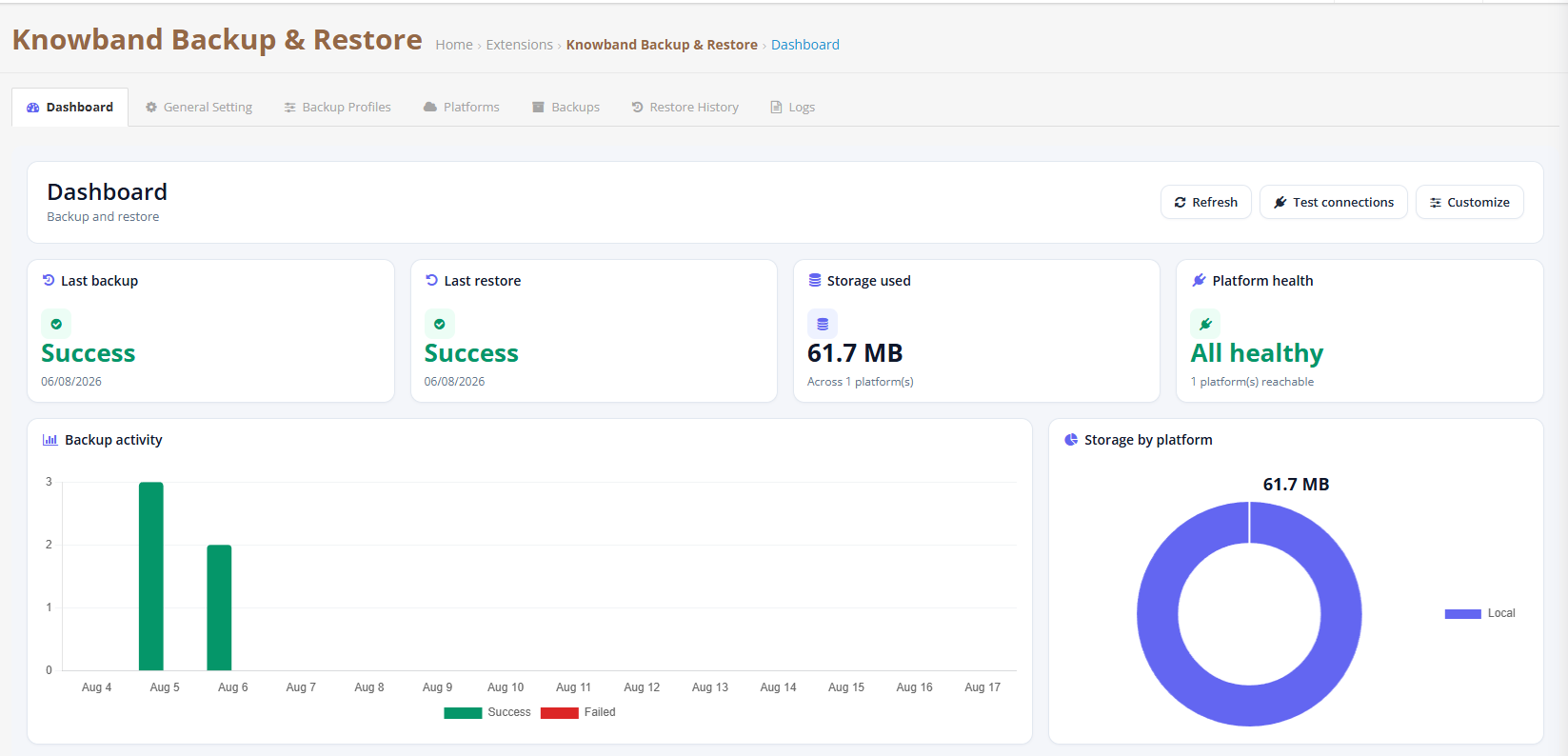
 The Dashboard exists to answer one question the moment you open it: is my store’s data actually protected right now, or not? You shouldn’t have to dig through logs to find out, so everything important is summarized right here.
Last Backup: Tells you whether the most recent backup job succeeded, failed, or is still running, along with the date, time, and how long it took.
Last Restore: Same idea, but for restores. This matters more than people think. You want to know a restore genuinely completed before you trust it, not just assume it worked.
Storage Used: Shows how much space your stored backups are eating up across every connected storage platform. Useful when you’re deciding whether it’s time to clean up old archives.
Platform Health: A quick status check across whatever storage destinations you’ve connected, local folder, FTP or SFTP, S3-compatible storage, or an OAuth-based cloud service. Each one is flagged as healthy or unreachable so problems don’t sit hidden until backup day.
Backup Activity: A simple view of how many backups ran over a given period, day by day, along with any that failed. Handy for spotting a pattern, like backups quietly failing every Sunday because of a server maintenance window.
Storage by Platform: Breaks down exactly how much space each connected storage destination is using. If your local server storage is filling up faster than expected, this is where you’d notice.
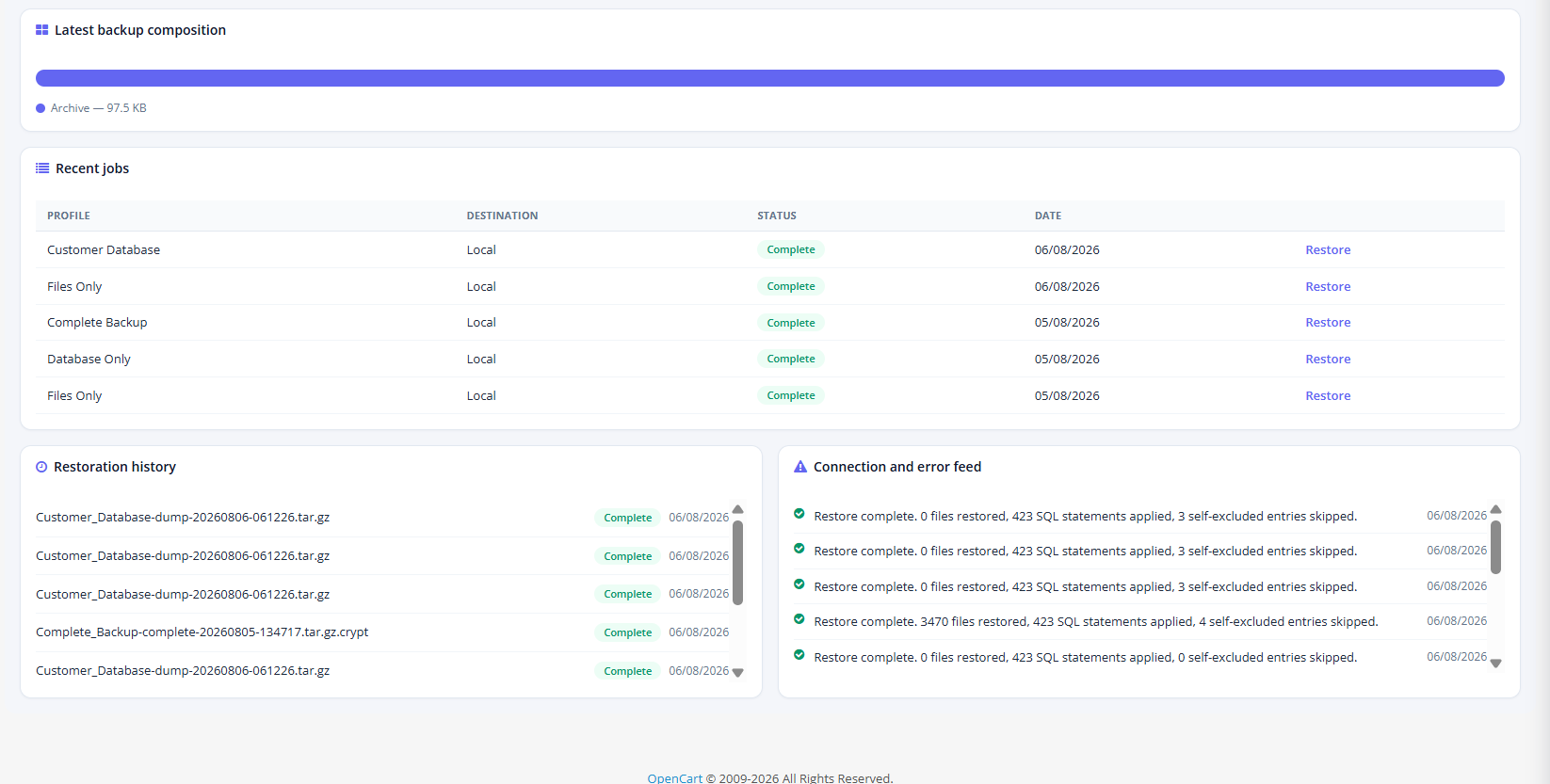
Latest Backup Composition: Shows what’s actually inside your most recent archive, database, images, other files, and roughly how big each piece is.
Recent Jobs: Lists your latest backup runs with quick Restore or Retry buttons right there, so if something failed overnight, you can act on it immediately instead of hunting through menus.
Restoration History: A snapshot of recent restore attempts, their outcome, and timing, so you can confirm at a glance whether a restore genuinely finished properly.
Connection and Error Feed: Live status and error messages as they happen. This alone often saves you a trip to the Logs tab, since you get the exact cause of a failure right there on the dashboard.
3. General Settings of the OpenCart backup and restore Extension
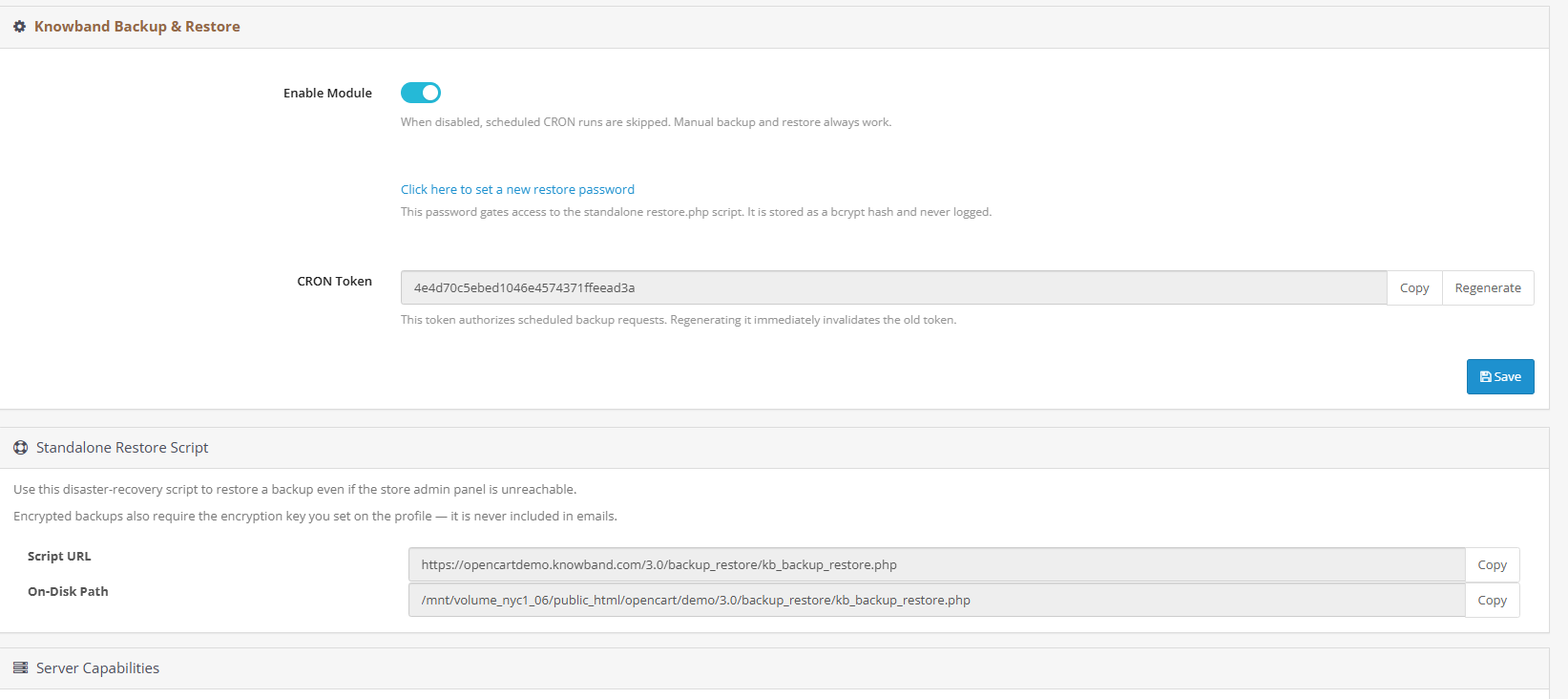
This is really the control center of the whole OpenCart backup Plugin. It decides whether the module runs at all, how your standalone restore script is protected, and what CRON command your host (or an external scheduler) needs to trigger scheduled runs.
Enable Module: A simple on/off switch. Turn it off and scheduled CRON jobs stop firing, though you can still run manual backups and restores from inside the admin panel whenever you like.
Restore Password: This protects the standalone restore script from being used by anyone who shouldn’t have access to it. It’s stored as a hashed value, never in plain text, and you’ll need it any time you restore your shop outside the normal admin interface.
CRON Secure Token: A unique token baked into every scheduled backup URL and command line trigger. Here’s the thing though, if you regenerate this token, every existing CRON job tied to the old one stops working. So the moment you regenerate it, go update every scheduler entry that references it. Don’t put that off.
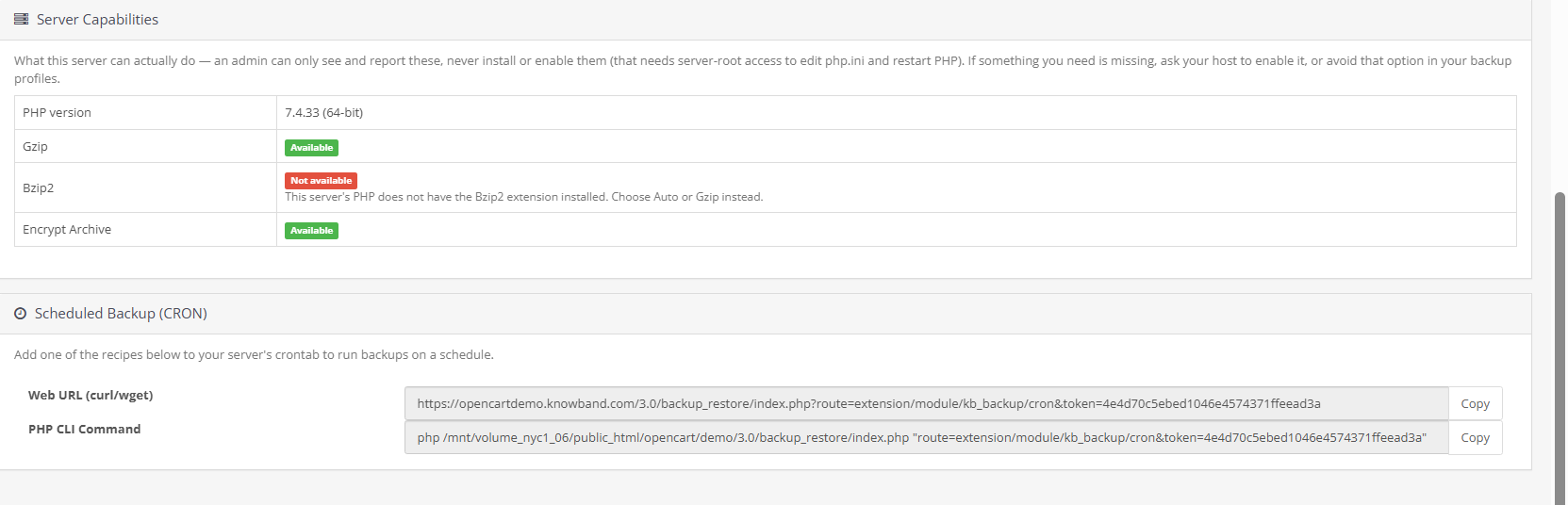
Standalone Restore Script: This gives you the direct URL and server file path for restoring your shop even when the OpenCart back office itself won’t load. As long as you know your restore password, you can restore your shop from this script alone, without needing to log into admin at all.
Scheduled Backup (CRON): Ready-made commands, web URL, PHP CLI, or shell script, that you copy straight into your hosting panel’s CRON manager or any external scheduler. One trigger runs every enabled backup profile in a single pass.
4. Backups Tab in Knowband’s OpenCart backup Manager
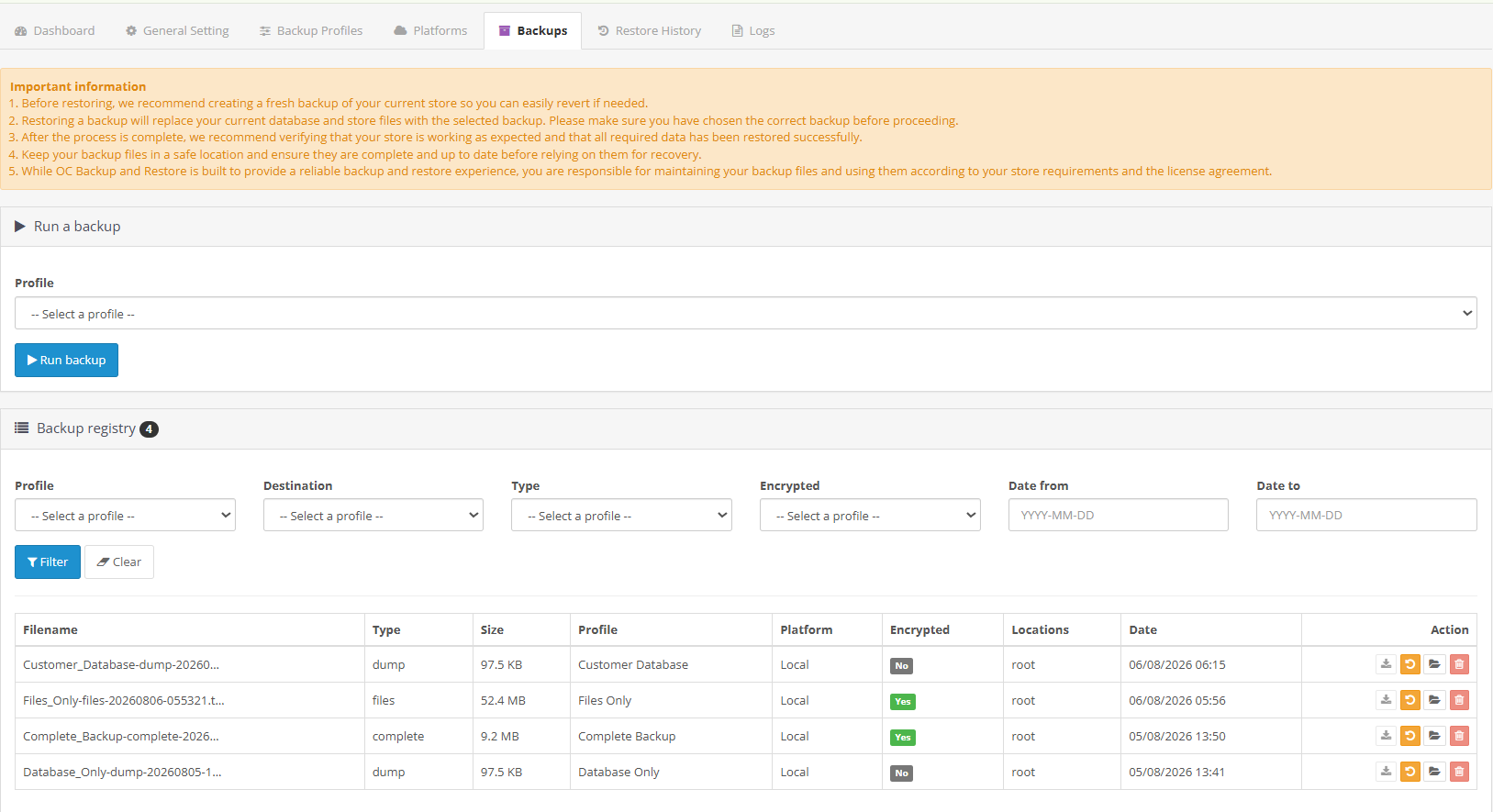
This is where you run a one-off backup outside your regular schedule, and where you review every archive the OpenCart database backup Extension has generated so far. Pick a profile from the dropdown, hit Run, and watch progress update live on the same screen, no page reload needed.
4.1 What You’ll See in the Backups Table
ID: An internal identifier used to link a restore action back to the exact archive it came from.
Filename: The actual file saved to disk, usually timestamped so backups never overwrite each other by accident (and it’ll carry a .crypt suffix if you’ve turned on encryption).
Type: Tells you whether it’s a database-only dump, a files-only backup, or a complete backup covering both, matching whatever the profile was set to do.
Size: The compressed size of the finished file.
Profile / Platform: Which saved profile created this backup, and which storage destination is currently holding it.
Encrypted: A simple Yes or No showing whether AES-256 encryption was applied before the archive was stored.
Locations: Shows the from and to file paths, which is genuinely useful for confirming a copy actually made it to your remote destination and isn’t just sitting in a local staging folder.
Date: When the backup finished, used for sorting and for whatever retention rules you’ve set on that storage platform.
5. Profiles
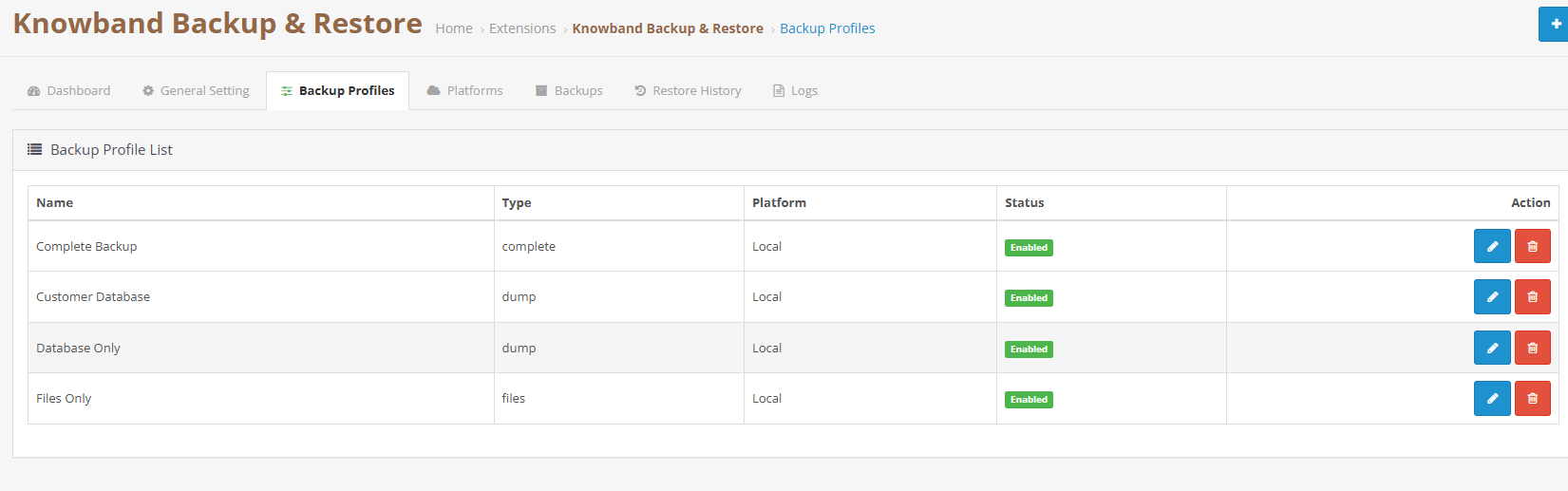
A profile is basically a saved recipe for how you want backups done. It stores what gets backed up, where it goes, and who gets notified when it’s done. You can build as many profiles as your store needs, one for a quick daily database snapshot, another for a full weekly files and database backup, whatever fits your workflow.
5.1 Setting Up a Profile
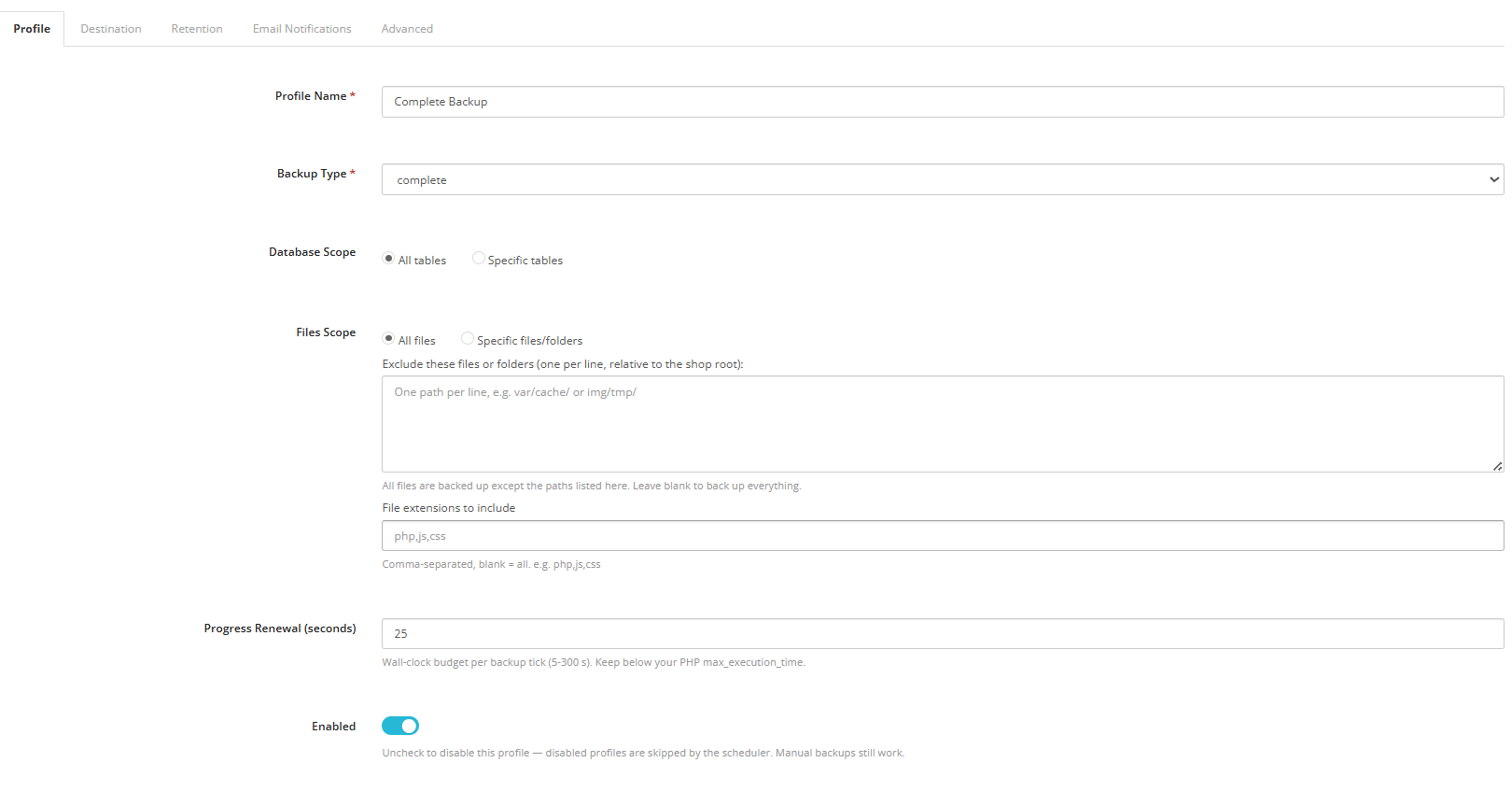
Profile Name: Whatever name helps you recognise this profile later, in the dashboard, the backups list, or the restore history.
Backup Type: Choose whether this profile grabs both database and files, database tables only, or just files and folders with no data at all.
Database Tables: You can back up every table in your OpenCart database, or pick specific ones if you only need, say, orders and customers, and don’t care about log tables cluttering the archive.
Files & Folders: Same idea. Back up everything, or select specific folders. There’s also an exclude list below for skipping things like cache directories or temp files that just add bulk without adding value.
Exclude These Files or Folders: List anything you want skipped, one entry per line, things like system/storage/cache/ or image/cache/. These get skipped even when “all files” is selected above.
File Extensions to Include: If you only want certain file types backed up (php, js, css, whatever), list them here. Leave it blank and every file type gets included.
Tick Budget (seconds): Big backups take time, so the process runs in short bursts called ticks. This setting controls how long each burst runs, somewhere between 5 and 300 seconds. Lower it on shared hosting that tends to time out scripts.
Status: Enable a profile so it runs automatically during CRON jobs, or disable it so it only runs when you manually trigger it. Either way, you can always start it by hand.
5.2 Destination

Pick a storage platform here. You will need to create the destination first under the Platforms tab before it shows up as an option in a profile.
5.3 Email Notifications
Email on Completion / Email on Error: Decide independently whether successful jobs, failed jobs, or both trigger a notification email.
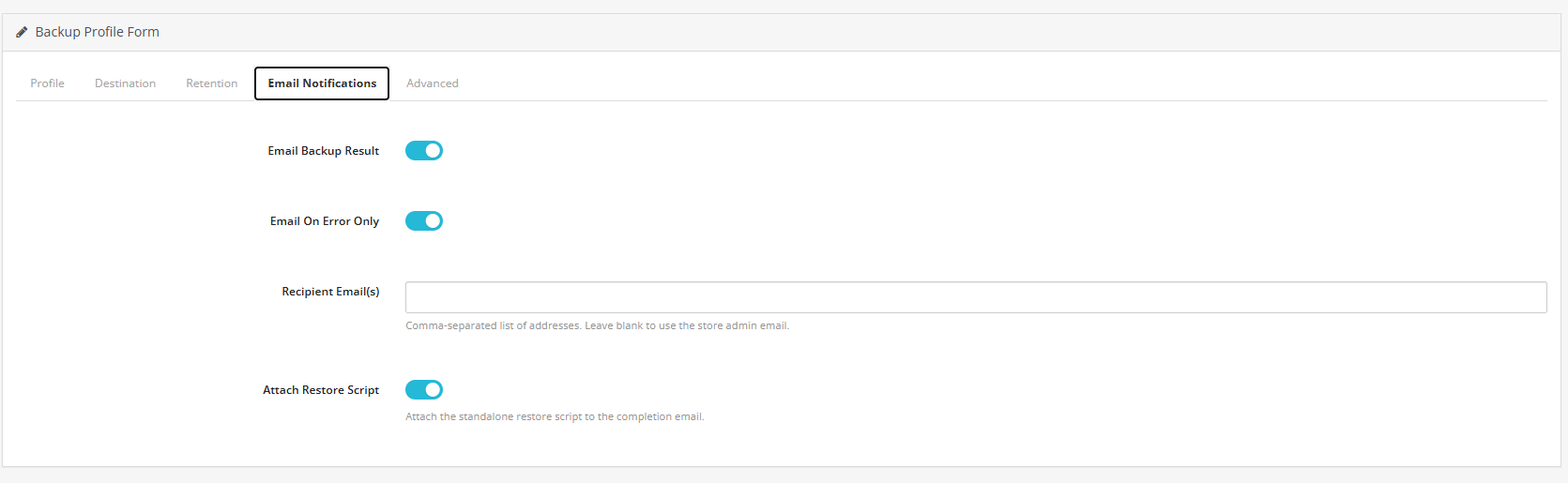
Send To: A comma-separated list of recipients. Leave it blank and it defaults to your store’s admin email address automatically.
Attach Restore Script: Turn this on and the standalone restore.php file gets attached to the completion email. That way, even if your server disappears entirely, you’ve still got a copy of the restore script sitting safely in your inbox.
5.4 Advanced Settings
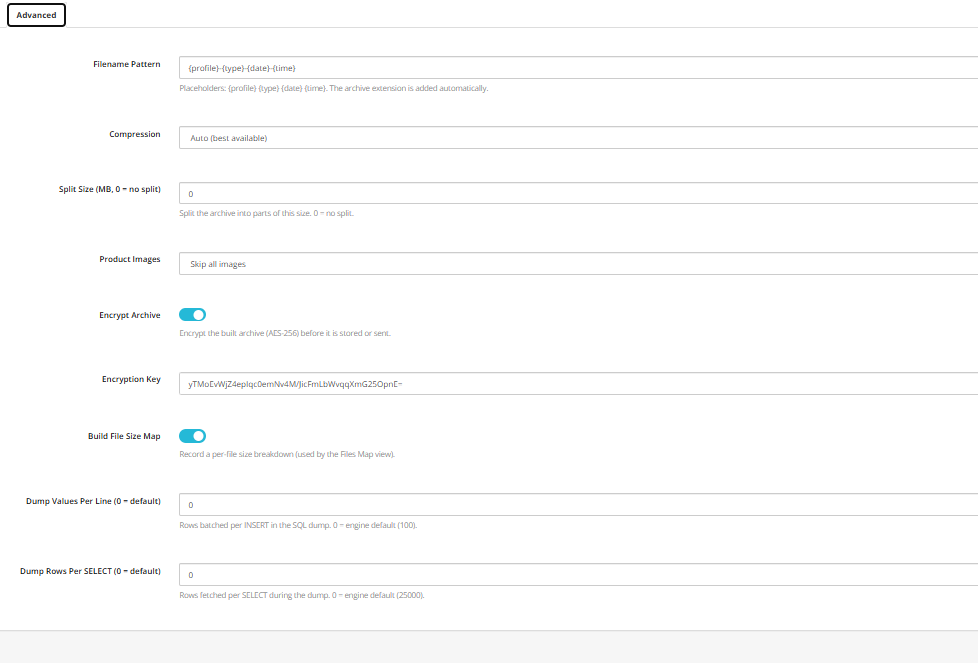
Backup Filename: Customize naming using placeholders like {date}, {time}, {datetime}, {type}, and {version}. Leave it blank for the default naming pattern. One thing worth noting: a fixed filename without {datetime} in it will overwrite the previous backup instead of creating a fresh one, so be careful there.
Compression: Choose Auto (it picks between bz2, gz, or none automatically) or lock it to a fixed format. This determines whether your final archive ends up as .tar.gz, .tar.bz2, or plain .tar.
Max Part Size (MB): Split large archives into smaller chunks of a set size. Set it to 0 and splitting is disabled entirely.
Product Images: Choose whether product and source images are included in the backup or left out.
Encrypt Archive: This is where the OpenCart cloud backup Extension really earns its keep. Turn this on and AES-256 encryption gets applied to the archive before it’s stored locally or shipped off to a remote platform.
Encryption Key: The key needed to decrypt and restore that specific backup. There’s genuinely no recovery option if you lose it, so store it somewhere safe, and definitely somewhere other than on the same server.
Build File Map: Records a per-file size breakdown, which powers a detailed file map view later, handy for auditing exactly what ended up in a given archive.
Dump Values Per Line: Controls how many rows get batched into each INSERT statement when the SQL dump is written.
Dump Rows Per Select: Sets the maximum number of rows pulled per SELECT during the dump, using cursor paging (default is 25000). Lower this on memory-constrained hosting if you’ve got some seriously large tables.
6. Platforms
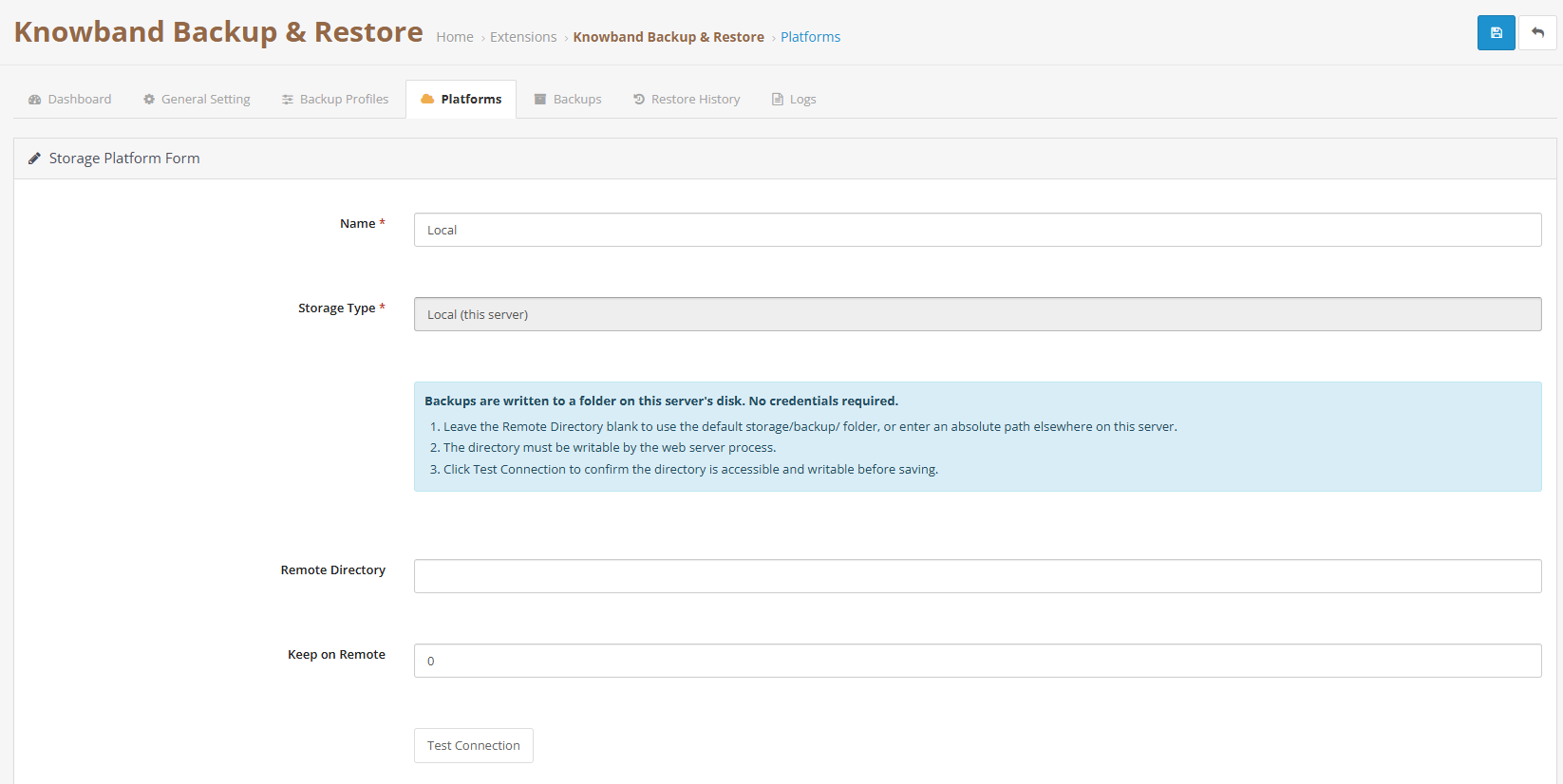
Platforms decide where your finished backups actually land. Local storage is fine as a starting point, but the real value of this OpenCart cloud backup Extension shows up once you connect something off-server, FTP or SFTP, an S3-compatible service (MinIO, Wasabi, Backblaze, Scaleway, take your pick), Google Cloud Storage, or an OAuth cloud provider like Google Drive, Dropbox, OneDrive, or Yandex.
Here’s the honest truth: keeping a copy away from your origin server is the single change that turns “I have backups” into actual disaster recovery for eCommerce. A backup sitting on the same server that just went down doesn’t help you much.
Platform Name: A friendly label used everywhere this platform gets referenced, in profiles, the backups table, and the dashboard’s health card.
Storage Type: Local folder, FTP/SFTP, an S3-compatible service, Google Cloud Storage, or an OAuth-based cloud provider.
Remote / Local Directory: The destination path for stored archives. It defaults to something like system/storage/backup/ if you leave it blank. Note that this field locks once the platform is created, so if you need a different path down the line, just set up a new platform rather than trying to edit this one.
Keep Remote Copies: The maximum number of archives this platform will retain. Set it to 0 and it keeps everything forever, which is convenient, but keep an eye on your available storage if you go that route.
7. Restore History
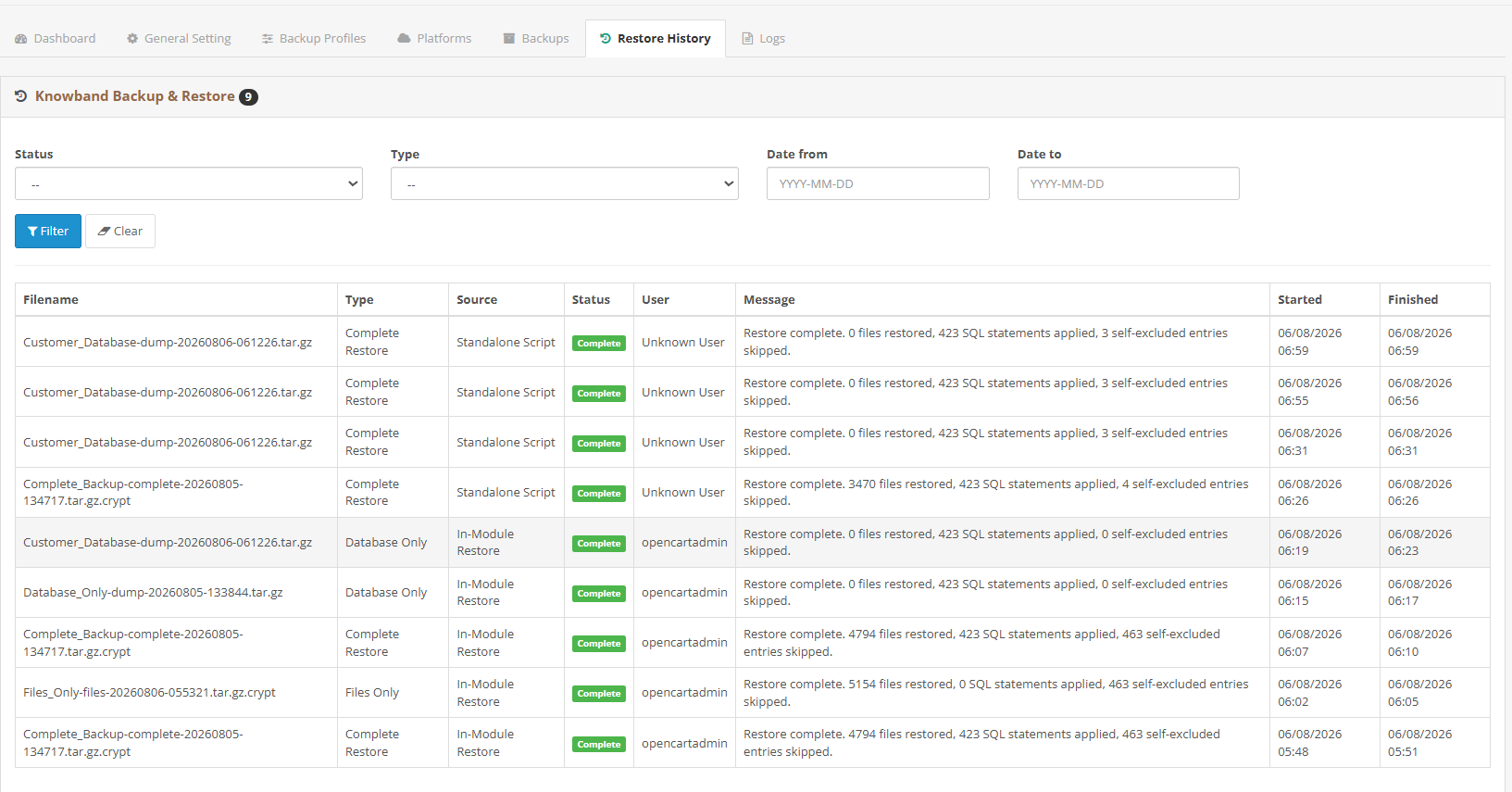
Every restore attempt gets logged here, successful or not, which matters most in the exact moment you’re actually trying to restore your shop under pressure. You shouldn’t have to trust that a restore “probably went fine.” This tab gives you a timestamped, per-file record instead.
ID / Filename / Type: Identifies the restore record and the exact archive that was restored, along with its type (Complete, Database, or Files only).
Source: Where the restore was triggered from. Usually it’s from inside the module itself, though the standalone restore script logs its attempts here too.
Status: Complete or Failed, showing the outcome of that particular attempt.
Launched By: The admin user who kicked off the restore. Useful for accountability on stores where multiple people have back-office access.
Started / Finished: Timestamps marking the operation from start to end, so you can work out exactly how long it took.
Message: The exact system message tied to that attempt, a permissions error on a specific folder if it failed, or a plain confirmation if everything went through fine.
8. Logs
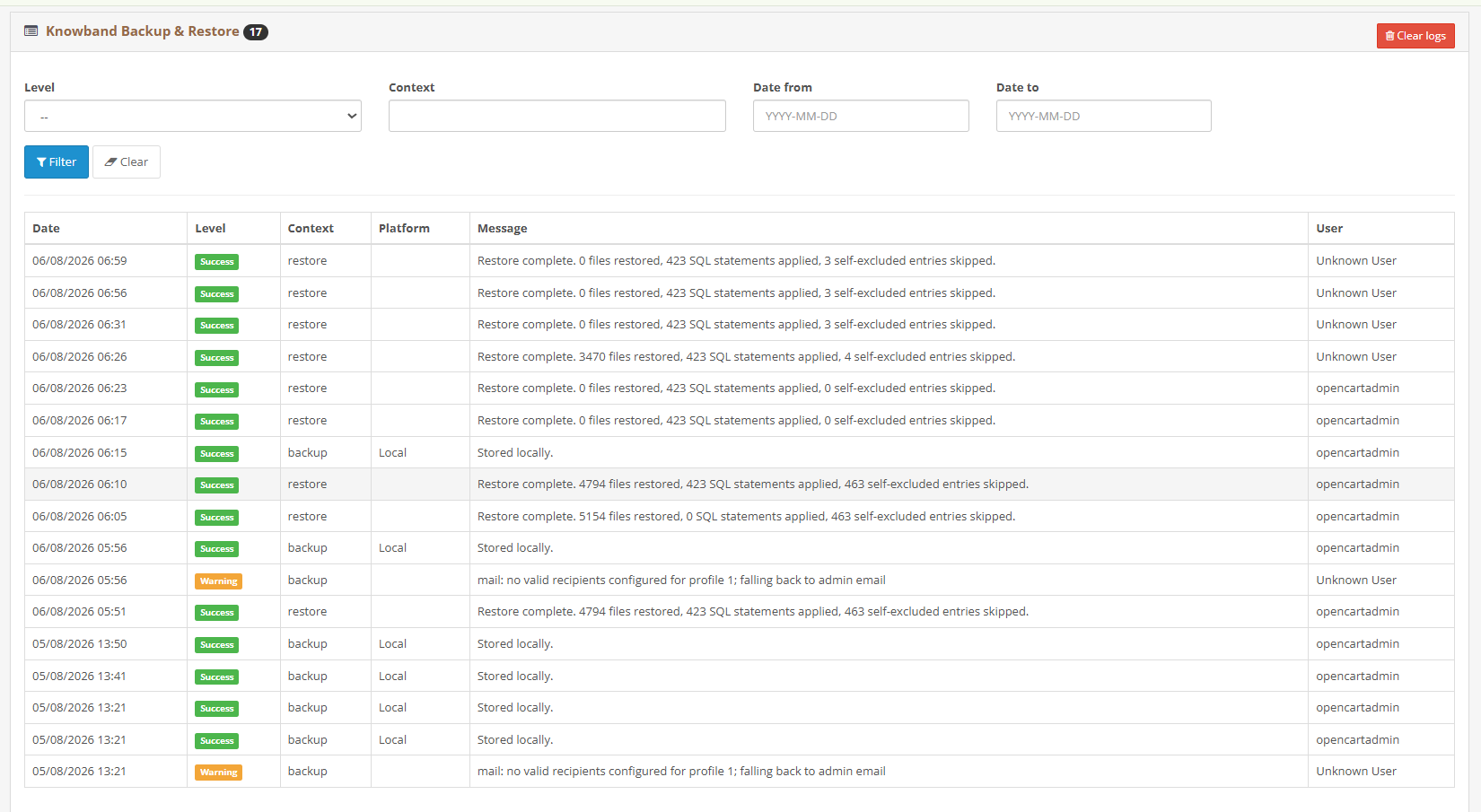
Whenever the Dashboard’s Connection and Error Feed doesn’t give you quite enough detail, this is the tab to check next. Every backup, every restore, and every connection test writes a row here, and you can filter by date, platform, type, and severity.
Date: The exact timestamp of the event.
Platform: Which storage platform this entry relates to, where applicable. It’ll be blank for events happening before a platform comes into play.
Type: The category of the underlying operation, local, ftp, or whatever connector type was involved.
Context: What action was actually being performed, backup, restore, or test_connection.
Level: Success or Error. Filtering by this alone clears out most of the noise when you’re scanning for a specific problem.
Message: The full, unfiltered system message, file paths, permission codes, network errors, whatever it is. Usually enough to figure out what went wrong without needing to escalate further.
9. Frequently Asked Questions
1. Does this replace my hosting provider’s backups?
Hosting-level backups are useful, but having your own Knowband’s OpenCart database backup Extension means you control the schedule, the retention, and where copies actually go, rather than relying entirely on your host’s policy.
2. Can I restore my shop if the admin panel won’t load?
In the OpenCart backup and Restore Extension as long as you have the restore password, you can restore your shop directly through restore.php without ever touching the admin panel.
3. What happens if I lose my encryption key?
There’s no way around it, unfortunately. If a backup was encrypted and the key is gone, that archive can’t be decrypted. Store the key somewhere separate from your server; a password manager works well.
4. How often should scheduled database backup run in OpenCart?
It really depends on how often your store changes. A high-order-volume store might want daily or even more frequent database backups, while a smaller catalogue-based store might be fine with weekly. The scheduling is flexible enough to handle either.
5. Is cloud storage necessary, or is local storage enough?
Local storage is better than nothing, but cloud backup for OpenCart gives you real protection if the server itself fails, gets hacked, or becomes inaccessible. For genuine OpenCart data protection, an off-server copy is worth setting up.
10. Conclusion
This manual has walked through every tab in Knowband’s OpenCart backup and restore Extension, from the Dashboard all the way through to Logs, and it’s worth bookmarking for whenever you’re setting up a new profile or troubleshooting a restore later on.
If you ever hit a scenario this manual doesn’t quite cover- an unusual storage provider, a permissions quirk specific to your host, or a restore that isn’t behaving the way you expect- checking the Logs tab first will usually get you most of the way to an answer before you need to reach out for further support.
In short, treat scheduled backups and off-server copies as routine maintenance, not an emergency scramble. Once that’s part of your normal workflow, OpenCart data protection stops being something you worry about and just becomes something that quietly runs in the background, exactly the way it should