Magento Walmart Canada Integrator-User Manual

1.0 Introduction

Magento Walmart Canada Integrator offered by Knowband is an interface to synchronize the Walmart Marketplace with the Magento store. By using the Walmart API Key(Walmart Consumer ID, Walmart Private Key and Consumer Channel Type) the eCommerce store admin can connect the Walmart Marketplace with Magento store. With the help of Magento Walmart Canada Integration Module, the store admin can upload the products. Inventories, orders and shipping method from the backend of store.
Walmart is one of the largest profit generating company and has shown remarkable growth in few years. With the help of Magento Walmart Canada Integration Extension, the online merchant can easily list the products at the Marketplace and sync the orders from the Walmart Marketplace by running Cron jobs from the admin panel. Selling products at the Walmart Marketplace will enhance the popularity of the seller products on a large scale.

1.1 Features of Walmart Canada Magento API Integrator.

Walmart Canada Magento Integrator can be effortlessly installed by the eCommerce store admin.Technical Knowledge of the admin is not required to configure the Walmart Canada Magento Connector as no source code modification is required from the admin end. The various features offered by the Magento Walmart Canada API Integrator are:

  1. Walmart Canada Integrator offers a real time synchronization.No manual synchronization is required by the admin to sync the details from the Marketplace with eCommerce store and vice-versa.
  2. Even a non-technical store owner can set up the connection between Walmart Marketplace and Magento store. Connection can be established within few clicks.
  3. N number of profiles can be created in the backend of Walmart Canada Magento API integrator.
  4. Profile based listing helps in bulk product upload.
  5. Magento Walmart Canada Integrator allows the admin to map the categories and attributes of the eCommerce store with the Walmart Marketplace.
  6. The store admin can make changes in the inventories by editing the profile from the backend of Magento Walmart Canada Integration Module.
  7. Product listed at the Marketplace can be monitored from the backend of Magento Walmart Canada Integration Extension.
  8. Products can be renewed and deleted by the admin as per his choice from the admin panel of Walmart Canada Magento Integrator.
  9. With the help of Walmart Canada Magento Connector, the online merchant can even add shipping methods at the Marketplace.
  10. Magento Walmart Canada API Integrator offers admin the chance to win the BuyBox. The online merchant can reprice the products to win the BuyBox.
  11. Orders received at the Walmart Marketplace gets listed in the backend of Magento Walmart Canada API Integrator. Order status can be updated by the admin can by synced at the Marketplace by running the Cron job.
  12. The Online Merchant can monitor the error occurred while listing the product from the backend of the Magento Walmfrom the Marketplace with eCommerce store and vice-versa.
  13. The sellers can easily manage the lag time from the backend of Magento Walmart Canada Integration Extension.

2.0 Installation

Follow the following steps for installing Magento Walmart Canada Integrator:

  • Download the Walmart Canada Magento Connector package from Knowband store.
  • Unzip the package in the root folder of Magento setup via FTP panel.
  • In the admin panel go to the Walmart CA Marketplace.
  • The Magento Walmart Canada Integration Module is now ready to use.

2.1 How to connect the Walmart Marketplace with the Magento store using Magento Walmart Canada Integration Extension

To configure the Walmart Canada Magento Integrator, store admin needs the Walmart API key. In order to obtain the Walmart Consumer ID, Walmart Private Key and Consumer Channel Type, the admin needs to follow the following steps:

2.2 Walmart Canada Magento Connector API Activation

The store admin can obtain the Walmart Consumer ID, Walmart Private Key, Consumer Channel Type and other related details by following these steps:

  1. Login to your Walmart Seller Account.
  2. Click on the setting icon and then click on the API option at the bottom of the dropdown.
  3. Click on the Consumer Id and Copy the ID for future use.
  4. Click on the Regenerate Key to generate the Secret Key. A popup will appear in front of you.
  5. Click on the “Yes,Regenerate Key” on the Popup.
  6. Copy Consumer ID, Walmart Private Key, Consumer Channel Type and paste them in the respective options in the General setting tab of the Magento Walmart Canada API Integrator.

3.0 Admin Interface of Magento Walmart Canada Integrator
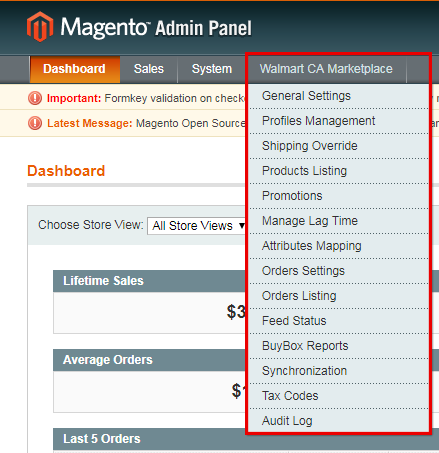
Admin-panel

Magento Walmart Canada Integrator offers a User-friendly interface. After installation, the Magento CA Marketplace will be visible at the top of the admin panel. Magento Walmart Canada Integrator offers 14 tabs in admin panel for setting purpose.

  • General Settings
  • Profile Management
  • Shipping Carrier Mapping
  • Promotions
  • Shipping Override
  • Product Listing
  • Attribute Mapping
  • Order Setting
  • Order listing
  • Feed Status
  • BuyBox Report
  • Manage Lag Time
  • Tax Report
  • Sales Report
  • Product Sales Report
  • Synchronization
  • Audit Log

3.1 General Settings

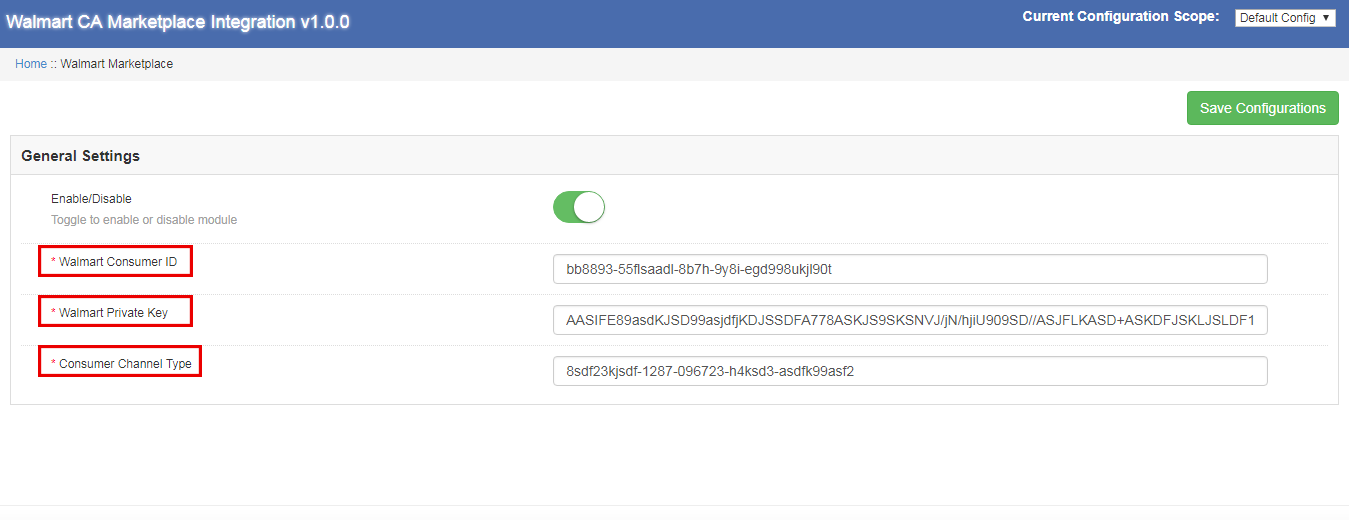
In order to connect the ecommerce store with the Walmart Marketplace, the admin needs to fill all the mandatory fields in the general setting tab of Magento Walmart Canada Integrator. The input fields are described below:

1.Enable/Disable
The online Merchant can enable/disable the Walmart Canada Magento API integrator with a single click.
2.Walmart Consumer ID
Paste here the Consumer Id copied while login in Walmart Seller Account.
3.Walmart Private Key
Enter the private Key obtained while login in Walmart Seller Account.
4.Consumer Channel Type
Enter the consumer Channel to authenticate the integration between the Magento store and the Walmart Marketplace.
Click on the “Save Configuration” button at the top right side to complete the connection process.

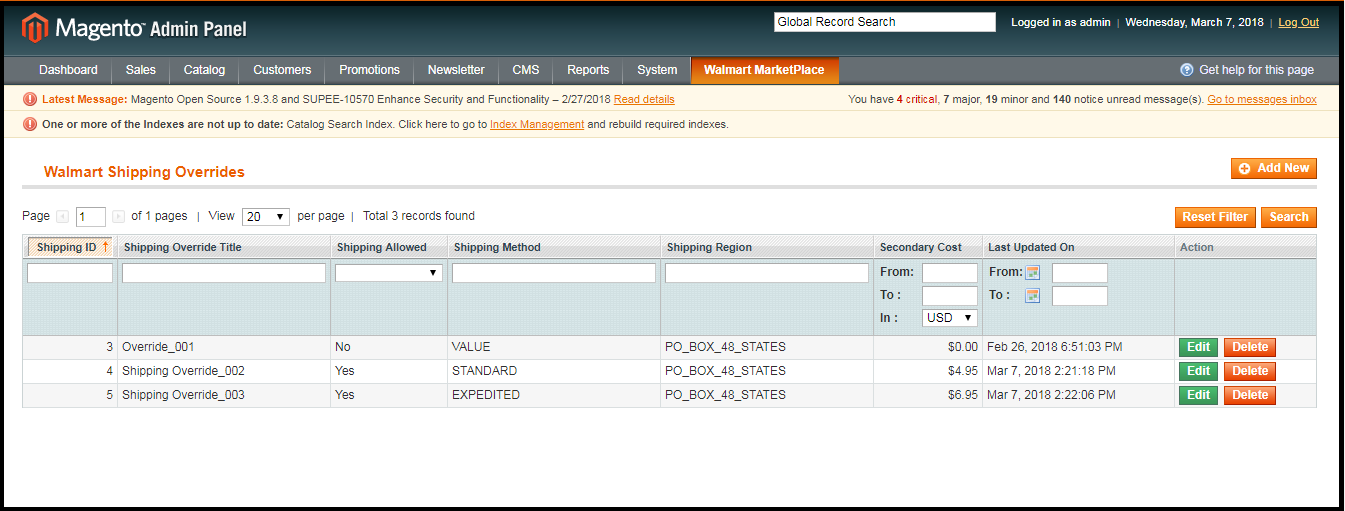
3.2 Shipping Override

Walmart Canada Magento API integrator offers admin the acess to manage the shipping options at the Walmart Marketplace from the backend of the store. In the section, admin can create, edit and delete the shipping override as per his choice.
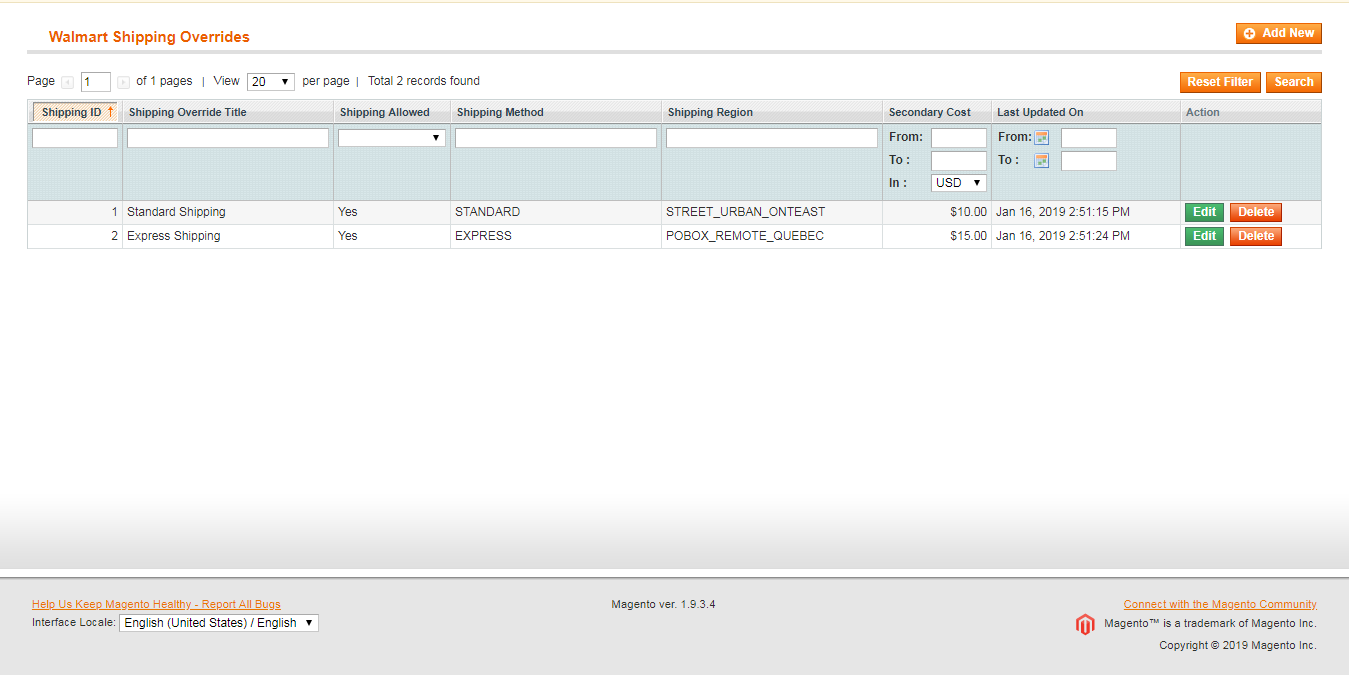
3.2.1 How to add a Shipping Template

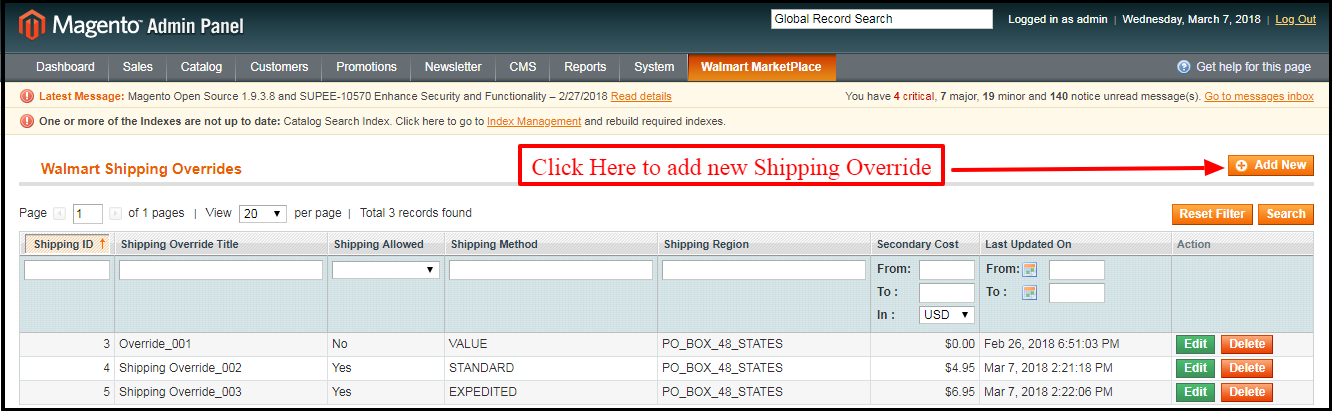
Click on the “Add New” button at the top right of the Shipping override section.
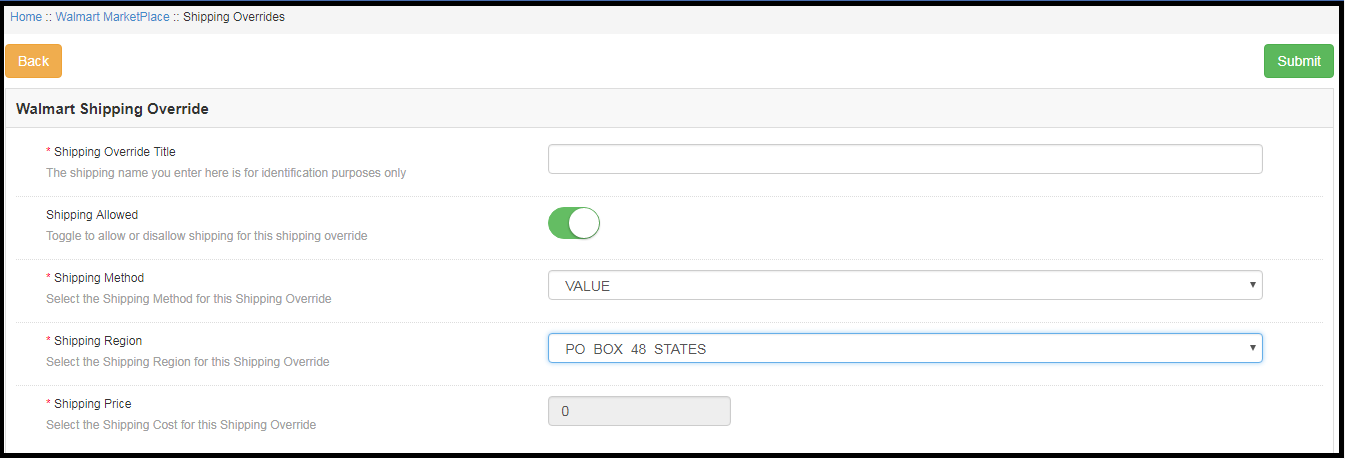
A new page will appear in front of you. Fill all the mandatory fields to create the the a shipping template:
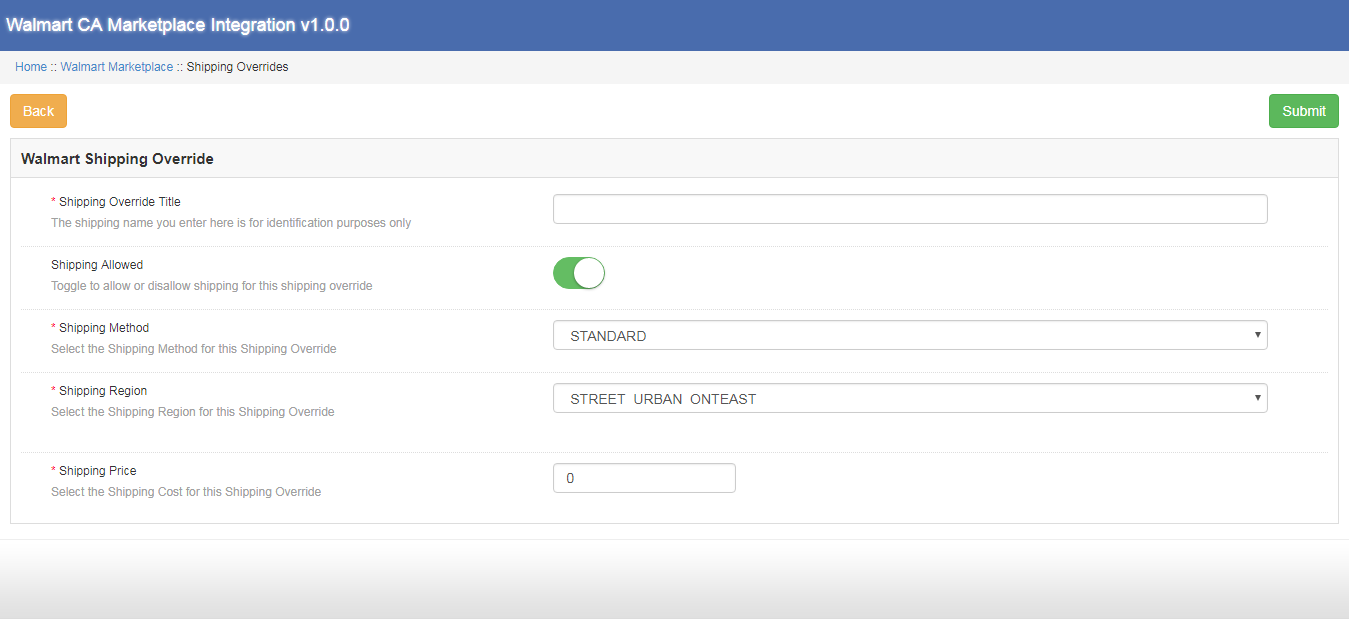
Shipping Override Title: Enter the shipping Override Title in this field.
Shipping Allowed: Admin can enable/ disable a shipping method with the click of a button.
Shipping Method: As per the requirement, admin can easily configure the shipping methods from the backend of Walmart Canada Magento API integrator. Shipping methods offered by the Walmart Canada Integrator are STANDARD and EXPRESS.

For further information on this, please refer to the following links:
https://marketplace.walmart.com/knowledgebase/articles/Article/Shipping-Standards-For-Marketplace-Sellers

Shipping Region: The online merchant can select the shipping region from the available choices.
Shipping Price: With Walmart Canada Magento API integrator the online merchant can set shipping price for various shipping regions and methods.

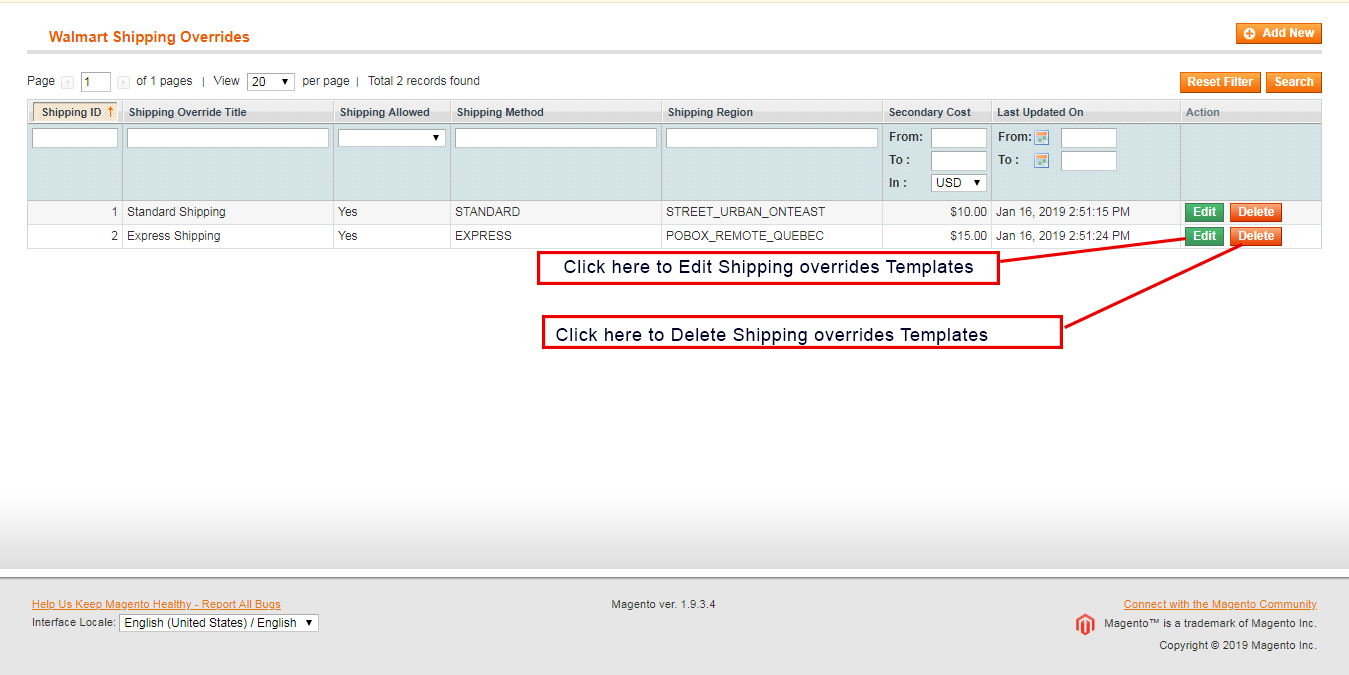
3.2.2 How to Edit and Delete the existing Shipping Override

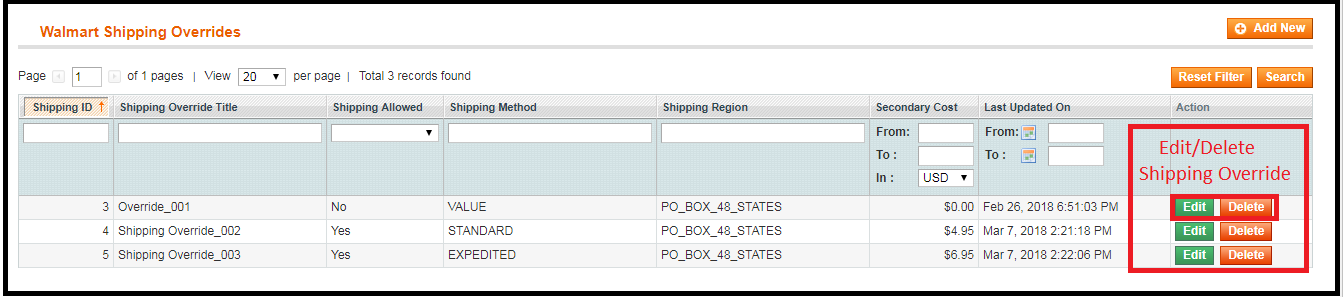
Shipping overrides will get listed in the Shipping Override section of the Walmart Canada Magento API integrator. Click on the delete/edit buttons on the right side of the existing entries to delete and edit respectively.
3.3 Attribute Mapping

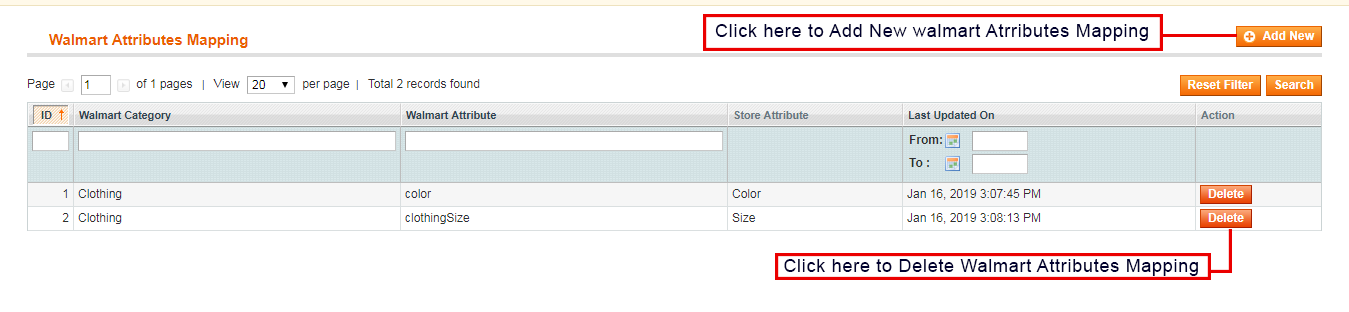
Attribute Mapping involves the mapping of the attributes of the eCommerce store with the attributes of the Marketplace. Attribute mapping helps in syncing the products from the store with the Marketplace. Attribute Mapping of the Walmart Canada Integrator helps in listing the products in an effortless way.
3.3.1 How to map the Attributes

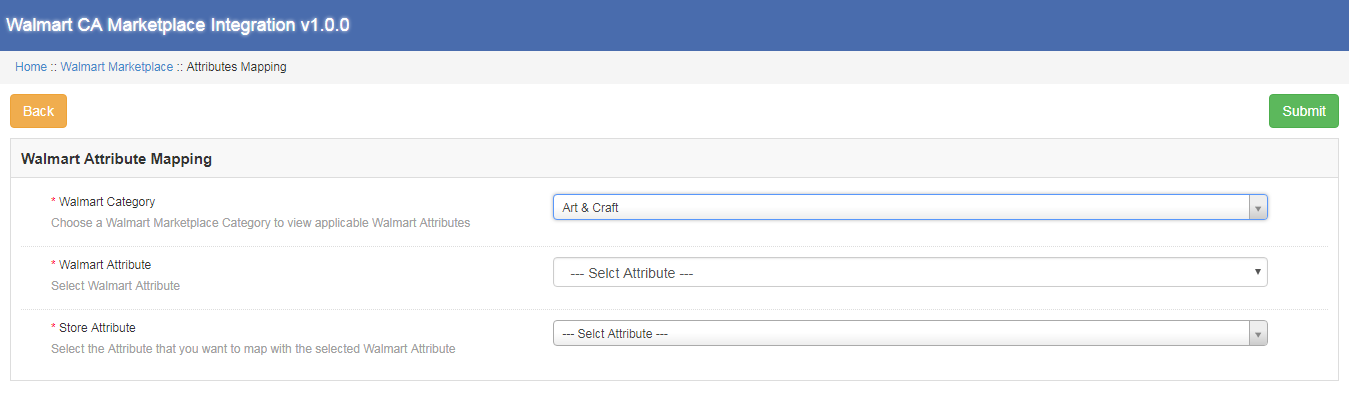
The Store admin has the access to add and delete attributes from the backend of Magento Walmart Canada API Integrator. Click on the “Add New” button the top right of the section and fill all the mandatory fields to successfully map the attributes of the eCommerce store with the Marketplace.
3.3.2 How to delete the mapped Attributes

With Walmart Canada Magento Connector, the store admin can delete the mapped attribute with few clicks. The store admin can delete the mapped attribute by clicking the “Delete” button along the right side of the existing mapped attribute.

3.4 Profile Management

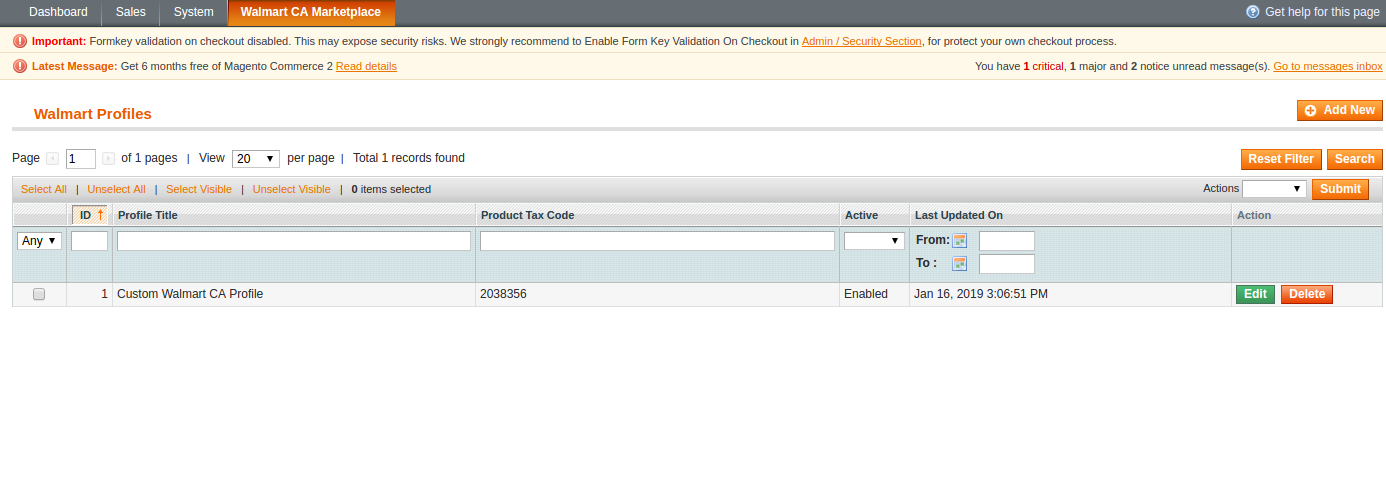
Unlimited profiles can be created, edited and deleted by the admin from the Walmart profile section of the Walmart Canada Magento Integrator. Profile based listing helps in bulk uploading of the products. Profile management section consists of two tabs: General settings and Profile Fields.
 

3.4.1 General Settings

With Magento Walmart Canada Integration Extension the store admin can map multiple categories of the eCommerce store with the categories of Magento Walmart. The store admin needs to fill all the mandatory details in the form to successfully submit the form. After filling all the details, the store admin needs to click on the “Submit Profile” at the top right side of the General setting section.

Profile Title: Enter a relevant name for the profile.
Store Language: The store admin needs to select the language available in the dropdown.
Walmart Category: The store admin needs to select the category type that he wants to map with the store category.
Store categories: With Magento Walmart Canada Integration Module, the store admin can select multiple categories for mapping with the category of the Walmart.
Custom Pricing: Custom pricing feature of the Magento Walmart Canada Integrator enables the admin to increase or decrease the product price at the Walmart with a fixed amount or percentage amount. Amount of price that admin wants to add or decrease is also set by the admin.
Barcode Identifier: With Walmart Canada Magento API integrator, the store admin can select the unique product field for the product. Barcode identifier will help to identify the product .
Product Brand Identifier: In this tab the admin needs to select the field having the value of product brand in your system.
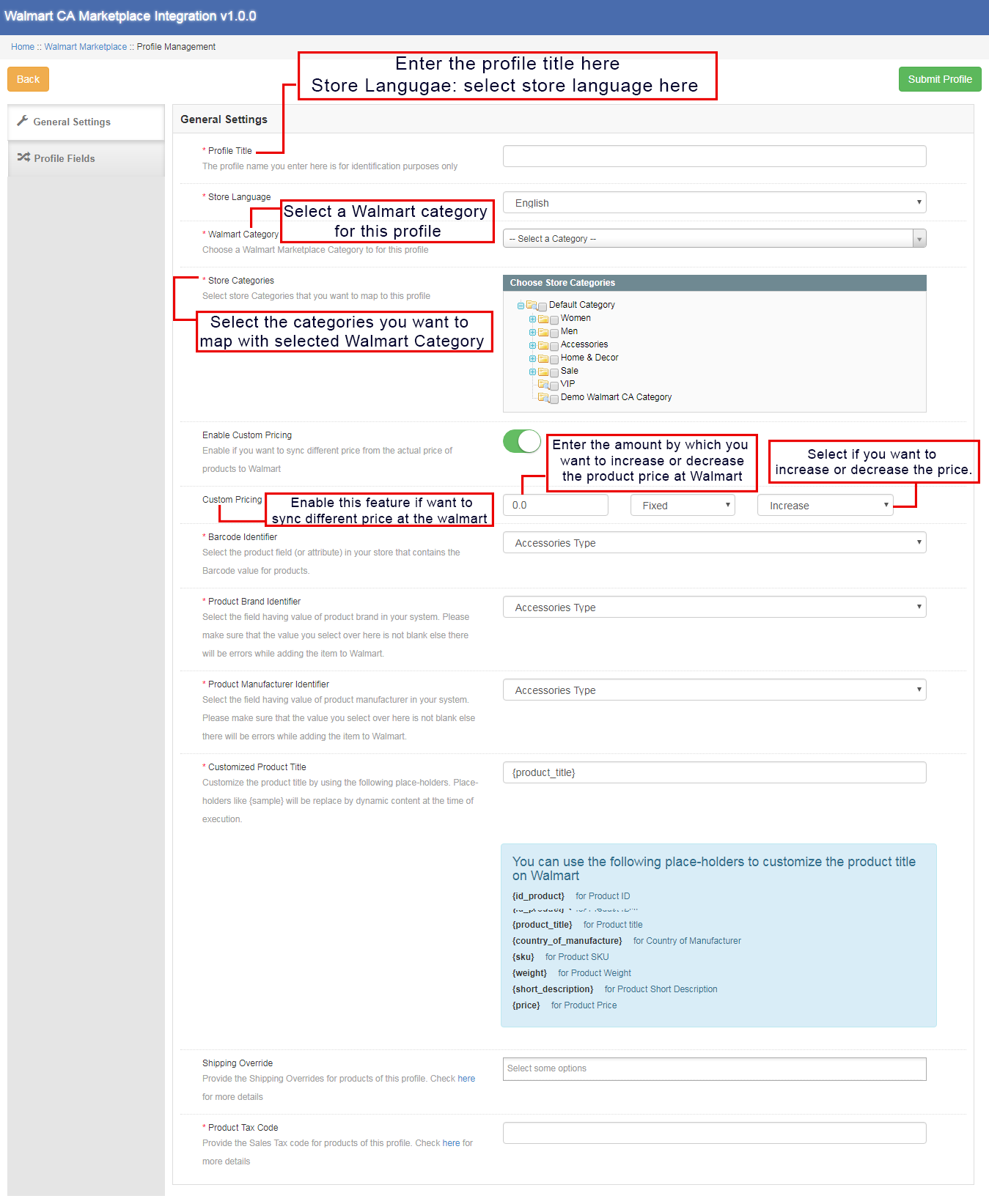
Product Manufacturer Identifier: With Magento Walmart Canada Integration Extension, the admin can select the field with value equal to the product manufacturer in your system.
Customized Product Title: The store admin has the access to customize the product title from the list of place holders available. Selected placeholder will replaced by the dynamic value at the time of execution. The various placeholders available are:
{id_product} for Product ID
{product_title}for product title
{country_of_manufacture} for Country of Manufacturer
{sku} for Product SKU
{weight} for Product Weight
{short_description}for Product Short Description
{price} for Product Price
Shipping Override: This field helps the admin to select the shipping overrides for products from the list of options available.
Product Tax Code: With Product Tax Code field, the admin can provide the sales tax code for the products of the current profile.

3.4.2 Profile Fields

On the basis of the selected Walmart category, the admin can provide the additional information and values of the products while submitting the profile from the backend of Walmart Canada Magento Integrator.
Admin needs to click the “Submit Profile” button to save all the product information.

3.5 Products Listing

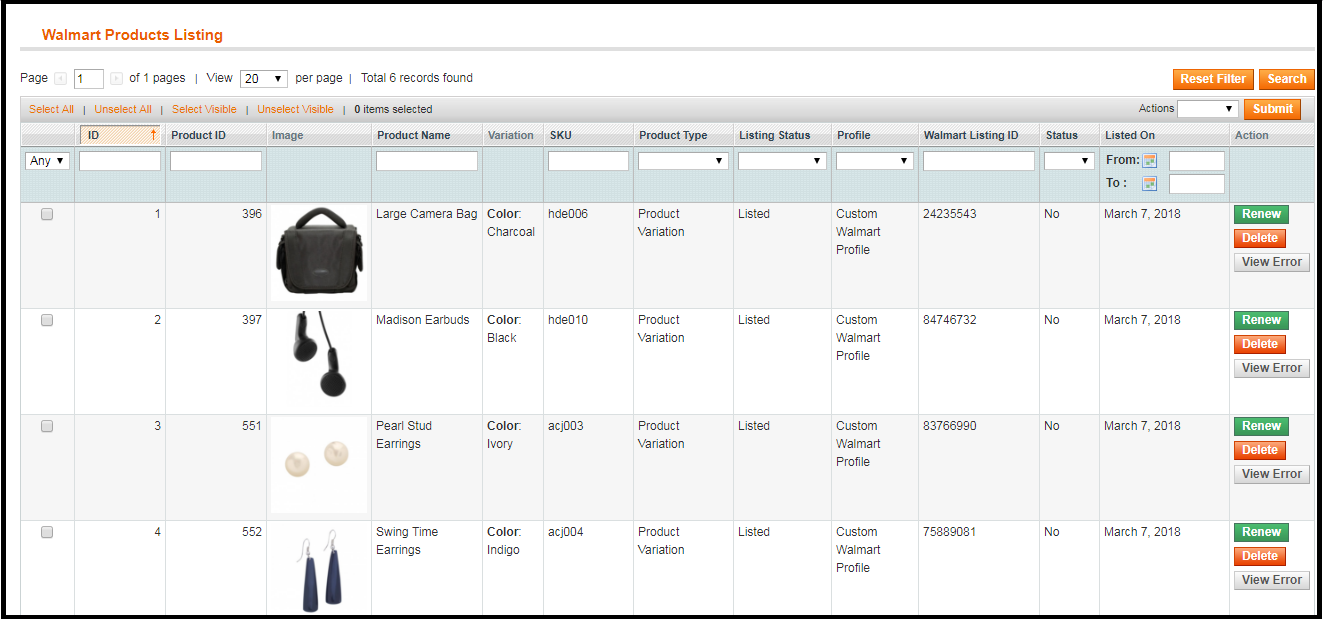
In Walmart Products listing tab, the admin can view the listed products at the Walmart Marketplace. Moreover Walmart Canada Magento Connector allows the admin to view the status of each product. In order to sync the products at the backend of the store, the admin needs to run the Cron job.
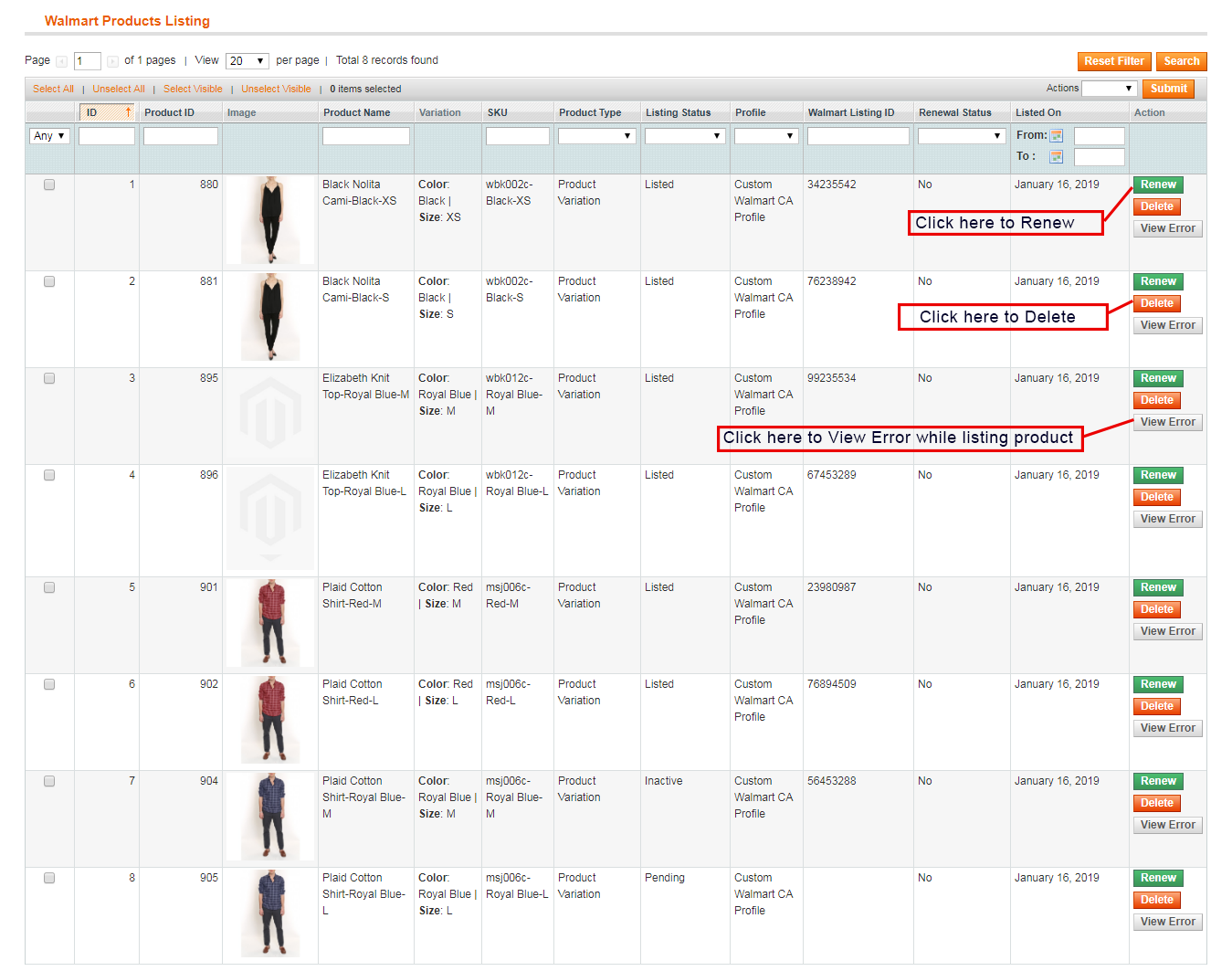
3.5.1 Renew a product

In case the product listing gets expired, the store admin can renew the product back at the Walmart Marketplace by clicking the “Renew” button next to the product. As soon as the product gets renewed, the button will be replaced by a “Halt” button.

3.5.2 Relist or Delete a product

If the admin wants to delete the product listed at the Walmart Marketplace, the store admin just needs to click the “Delete” button next to the product. At this time, Delete button will get replaced by the “Relist” button. The admin can relist the product back at the Walmart Marketplace by clicking the “Relist” button at the backend of the Walmart Canada Magento Integrator.

3.5.3 View Error

With Magento Walmart Canada API Integrator, the store admin can view the error occurred while listing the product. The store admin needs to click the “View Error” button to view the error.

3.6 Promotions

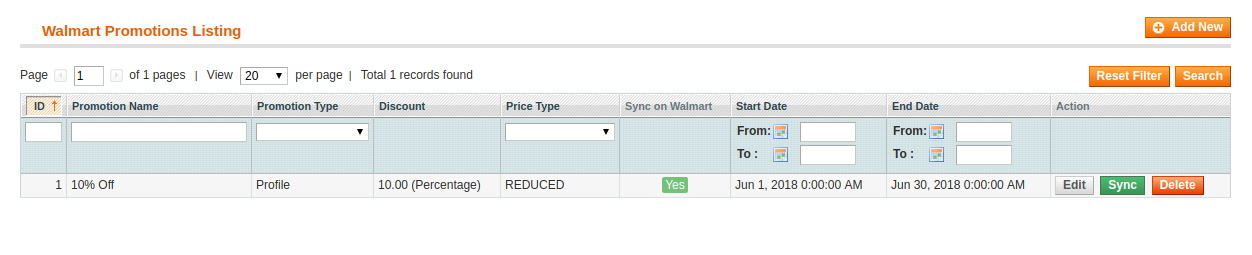
Various Promotional deals and offers can be run at the Walmart Marketplace from the backend of Magento Walmart Canada API Integrator. With the help of Walmart Canada Integrator, the store admin can run clearance and reduced price deals at the Walmart Marketplace.
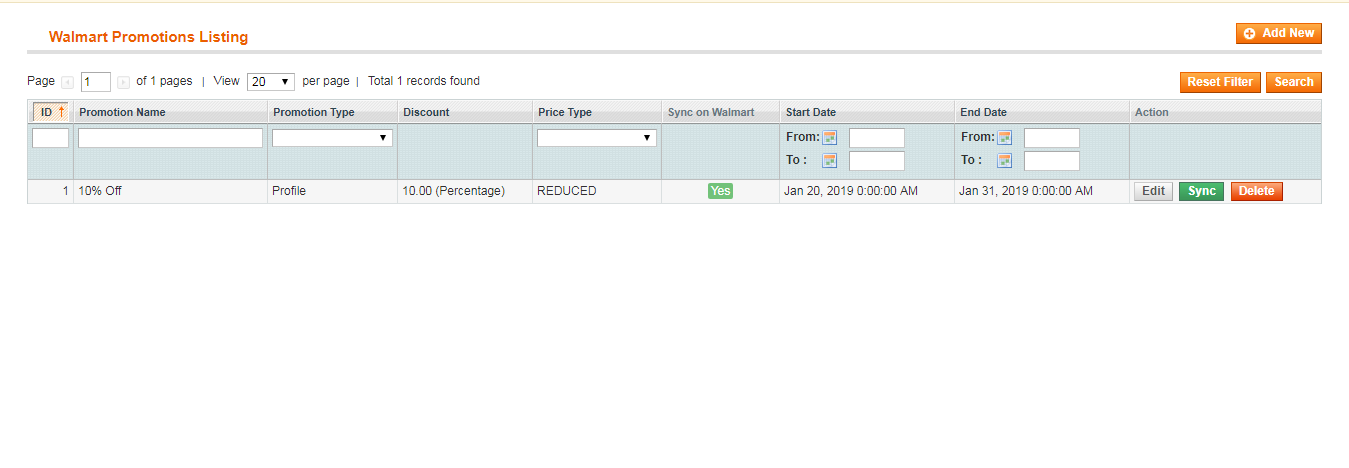
3.6.1 How to create a New Promotion

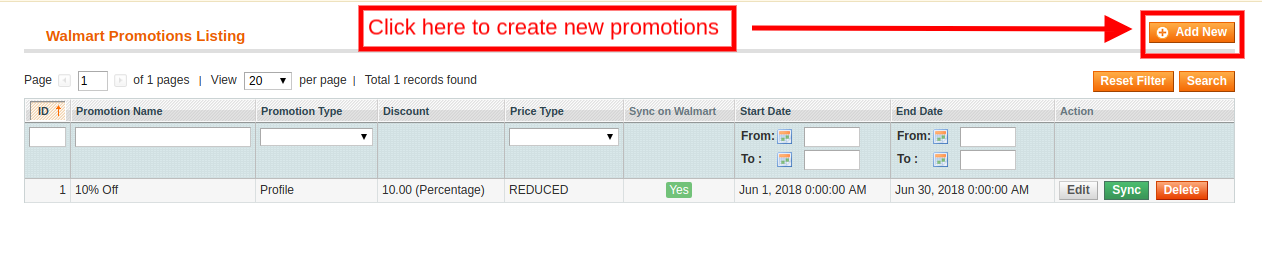
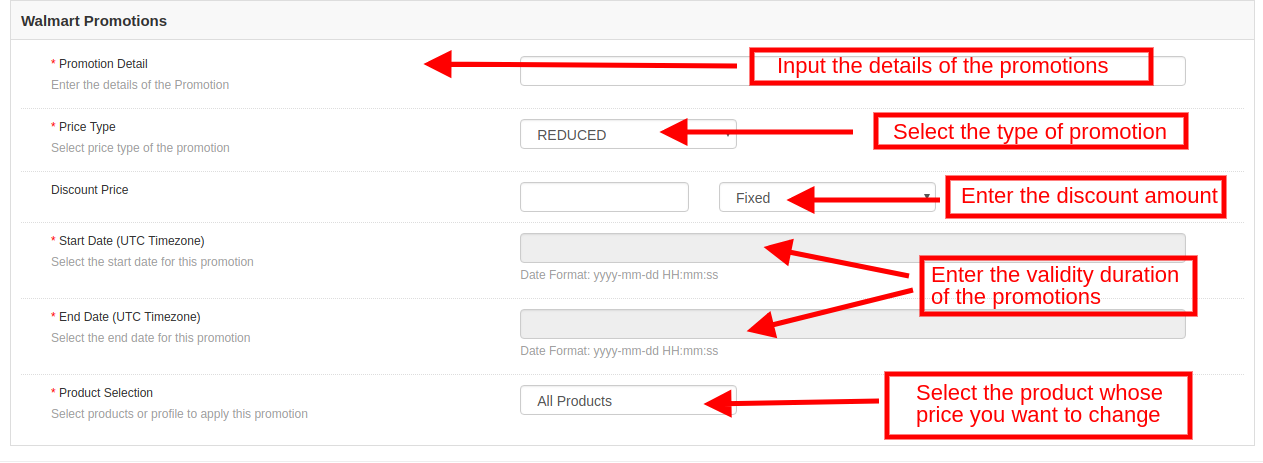
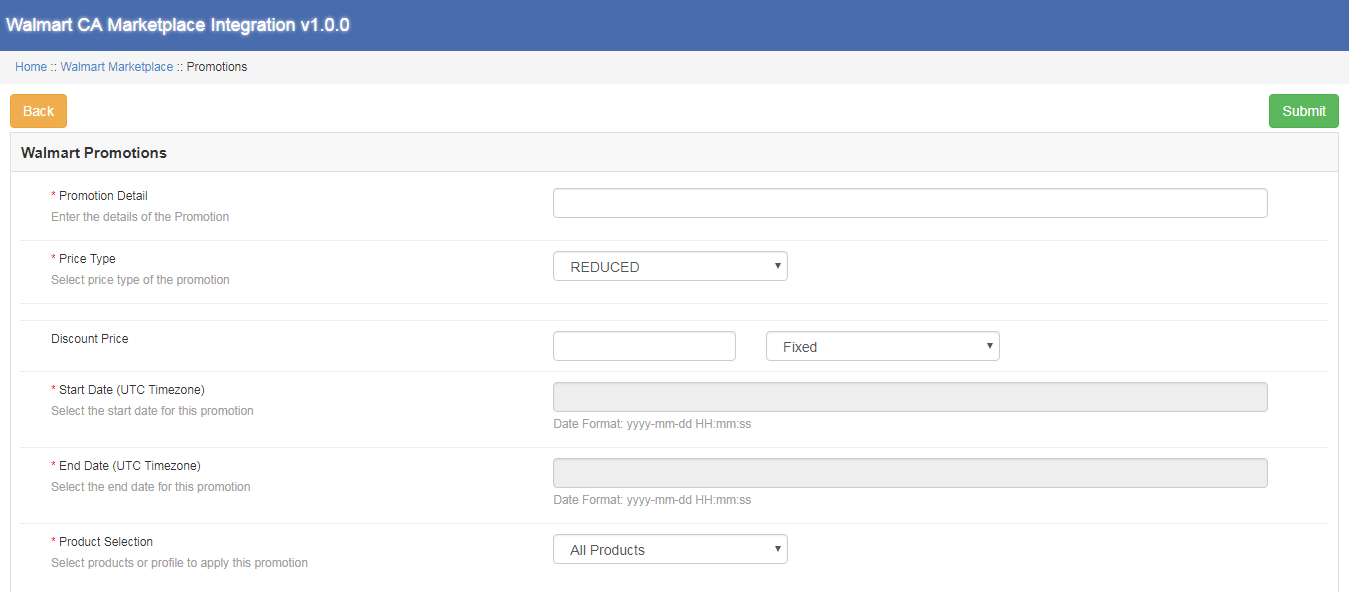
The eCommerce store owner needs to click on the “Add New” button at the right side of the Walmart Promotions Listing section. As the admin clicks on the button, a new page will open in front of them. Fill all the mandatory fields in the displayed page.

Promotion Detail: Here enter the promotion details.
Price Type: The store admin can select the promotion type here. Admin can run a clearance and reduced promotion at the Walmart.
Discount Price: Here admin is supposed to enter the discount amount on the deals.
Start Date and End Date(UTC Timezone): Here enter the time duration during which the promotion will run at the Walmart Marketplace.
Product Selection: Admin can select the products or profiles on which he wants to offer the promotion.
3.6.2 How to Edit or Delete a Promotion

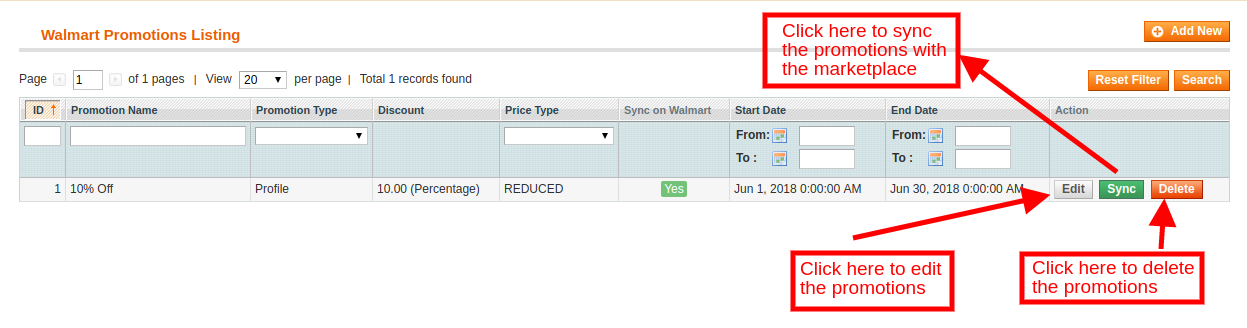
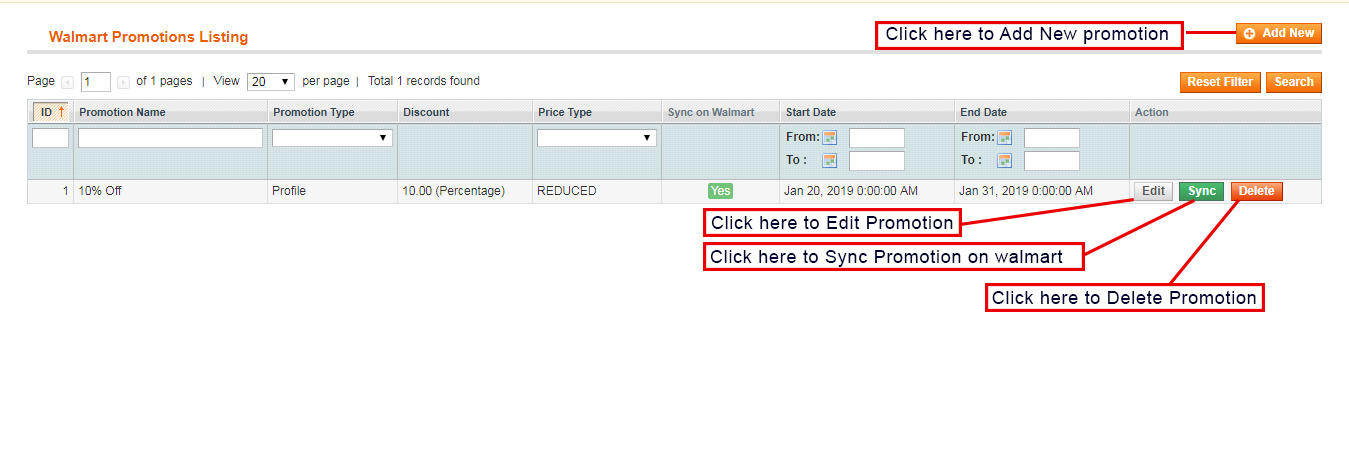
The store admin can edit and delete any existing promotion from the backend. Click the “Edit” and “Delete” button to perform the respective function.“Sync” button next to the promotion is used to sync the promotion at the Marketplace.
3.7 Manage Lag Time

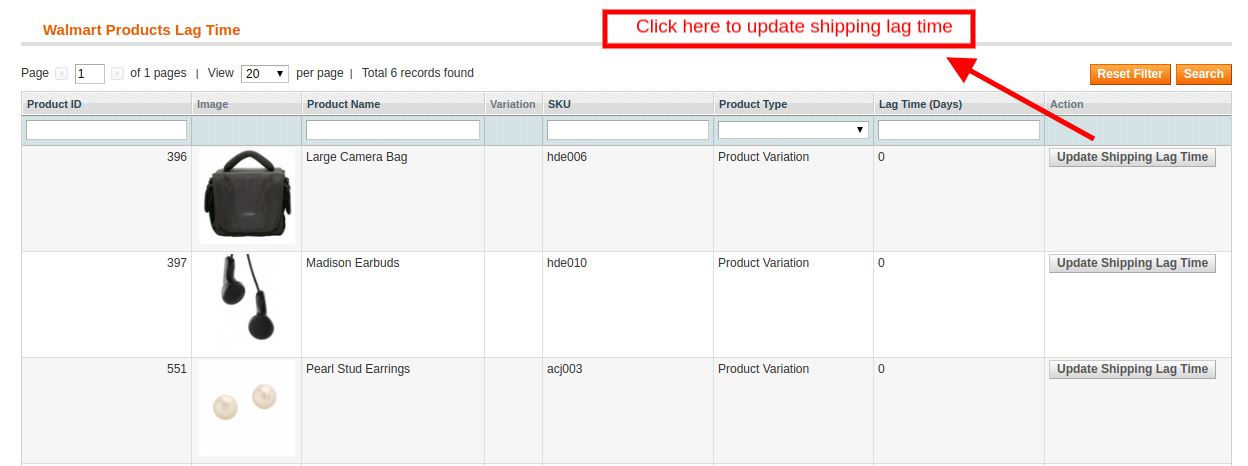
The store admin can update the Lag time from the backend of the Magento Walmart Canada API Integrator. Lag time is used to avoid any shipping delay. Click on the “Update Shipping Lag Time” button to update the Lag Time.
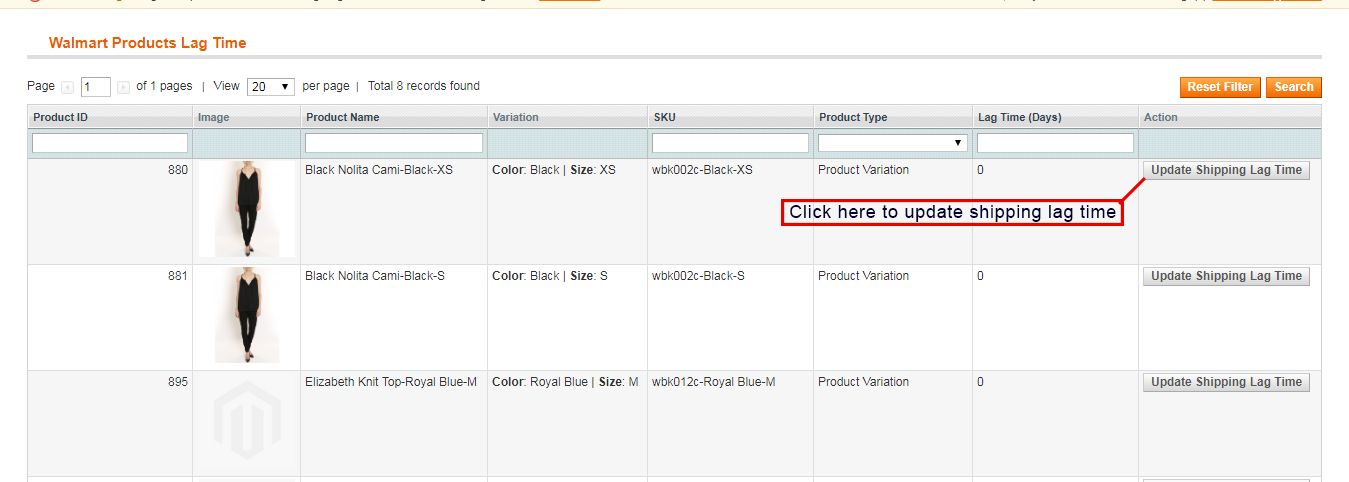
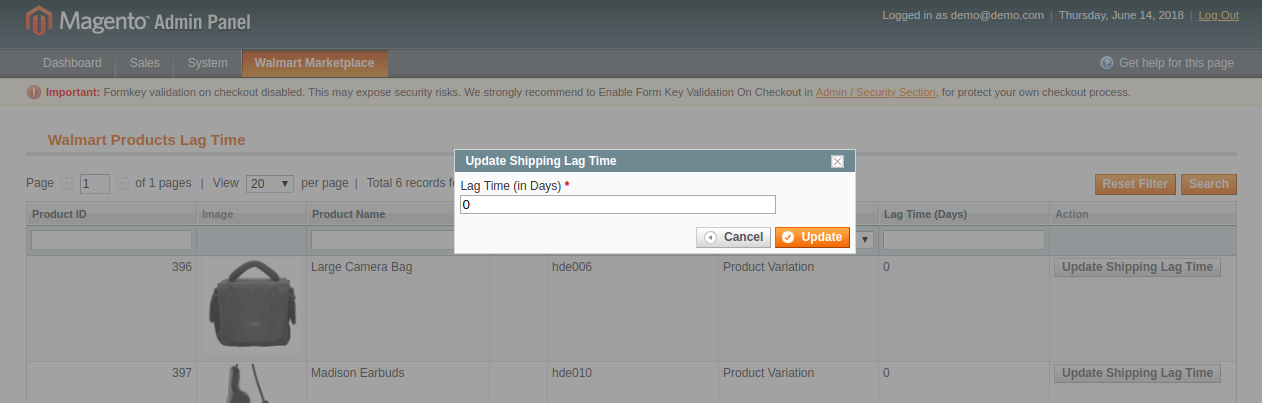
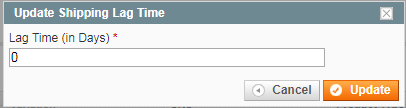
A new popup dialog will appear in front you. Enter the Lag time in days and click on the “Update” button. This will update the Shipping Lag Time at the Walmart Marketplace.
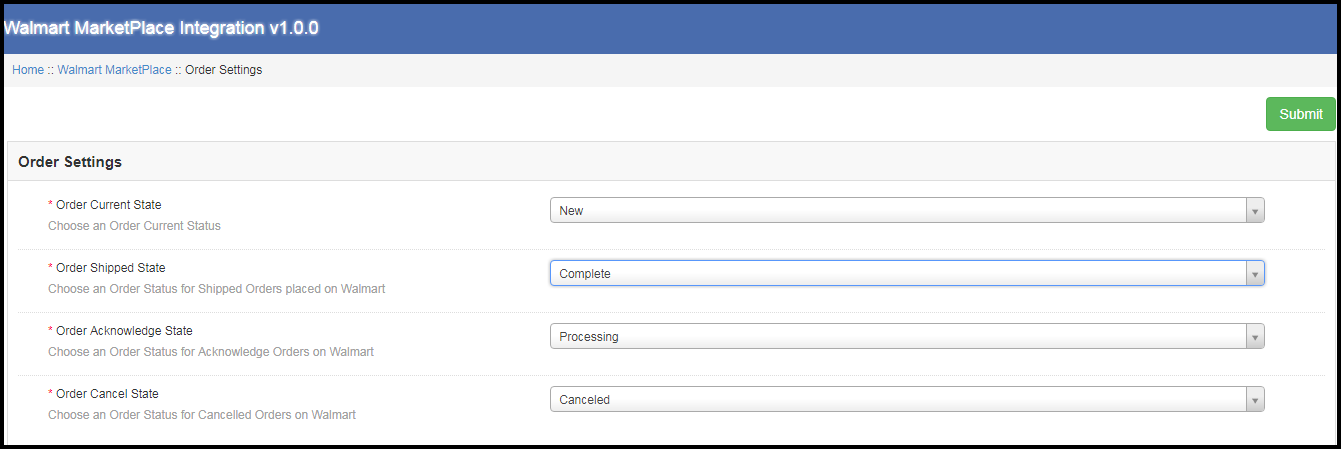
3.8 Order Settings

In Magento Walmart Canada API Integrator, order setting tab can be used to map the order status at the store with the Walmart Marketplace. Cron jobs can be used to sync the order status at the Walmart Marketplace.
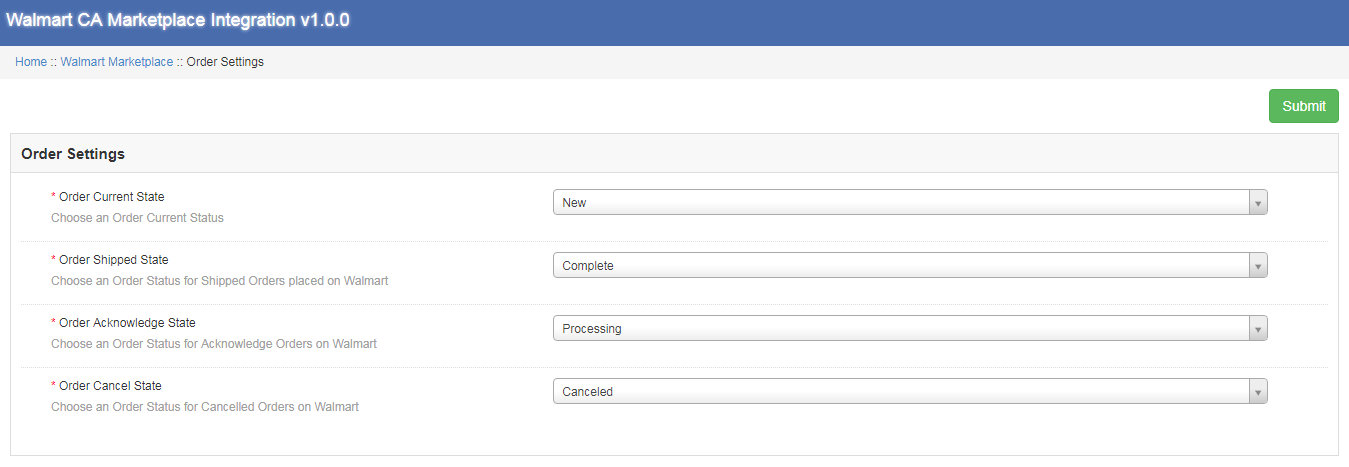
The various fields available at the Order Settings are:

Order Current State: Admin can Choose order Current Status here.
Order Shipped State: Admin can choose the order status for the shipped Orders placed at Walmart.
Order Acknowledge State: This field allows the admin to select the order state for the Acknowledge orders at Walmart store.
Order Cancel State: Select the order state for cancelled order at Walmart store.

3.9 Orders Listing

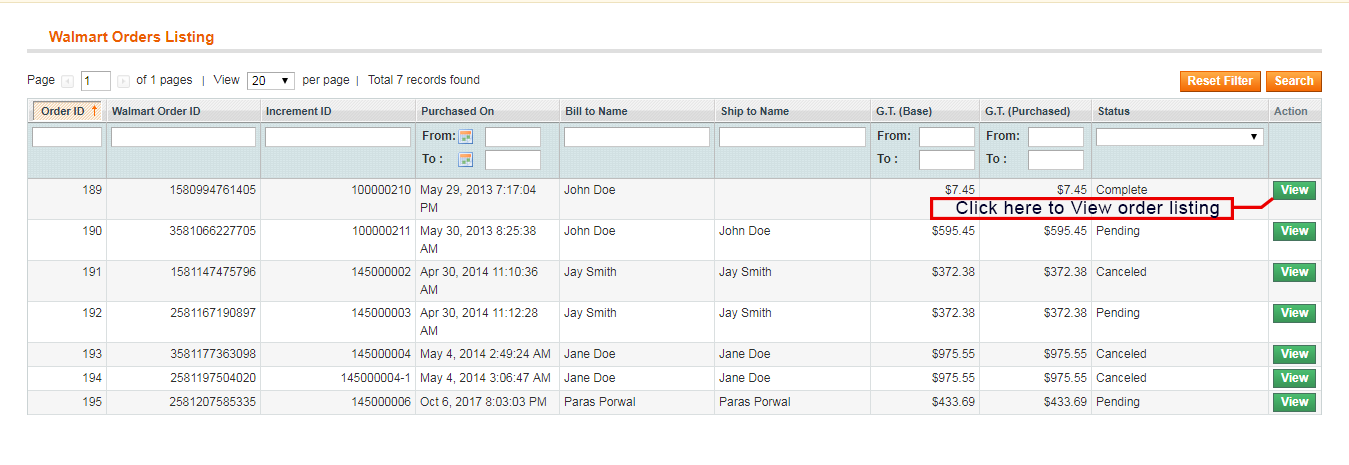
Order received at the Walmart gets listed at the backend of Walmart Canada Magento Connector.Admin needs to run the “Sync Order” tab to sync the orders from Walmart. To process the order, click on the “View” button next to the order received.
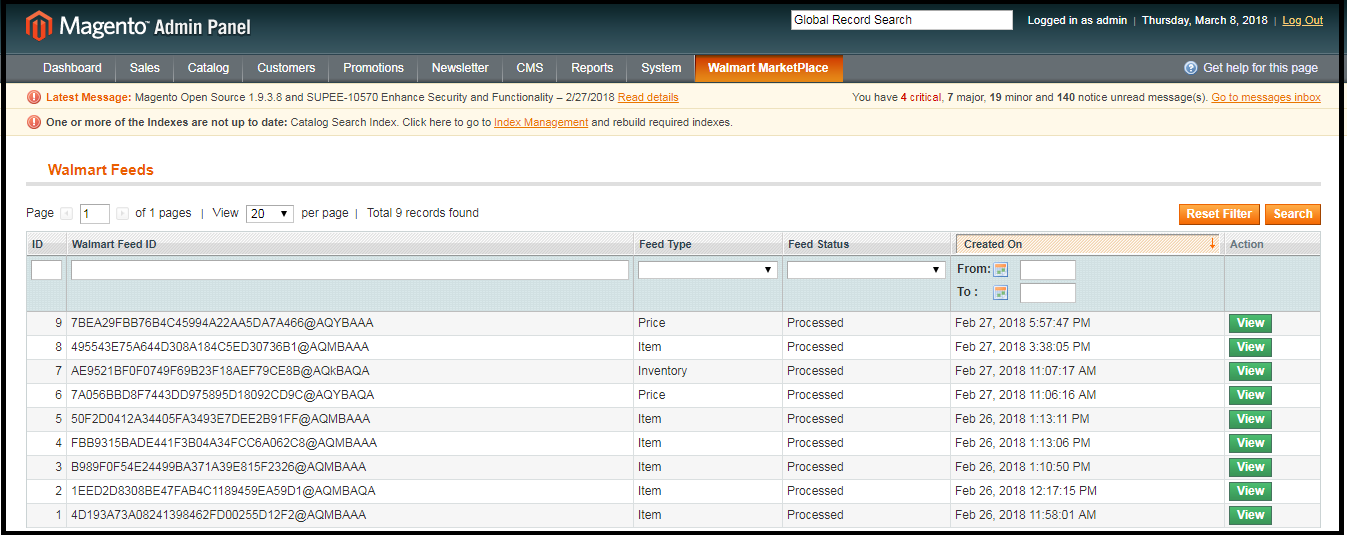
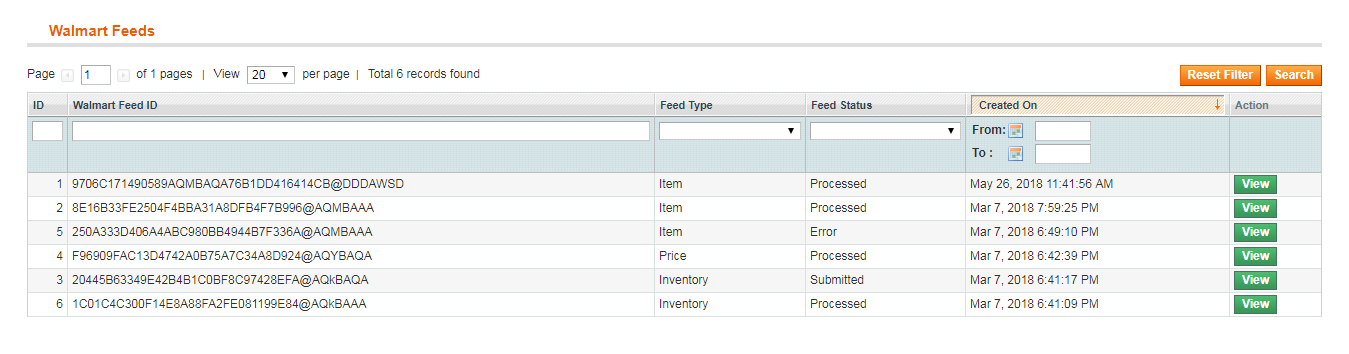
3.10 Feed Status

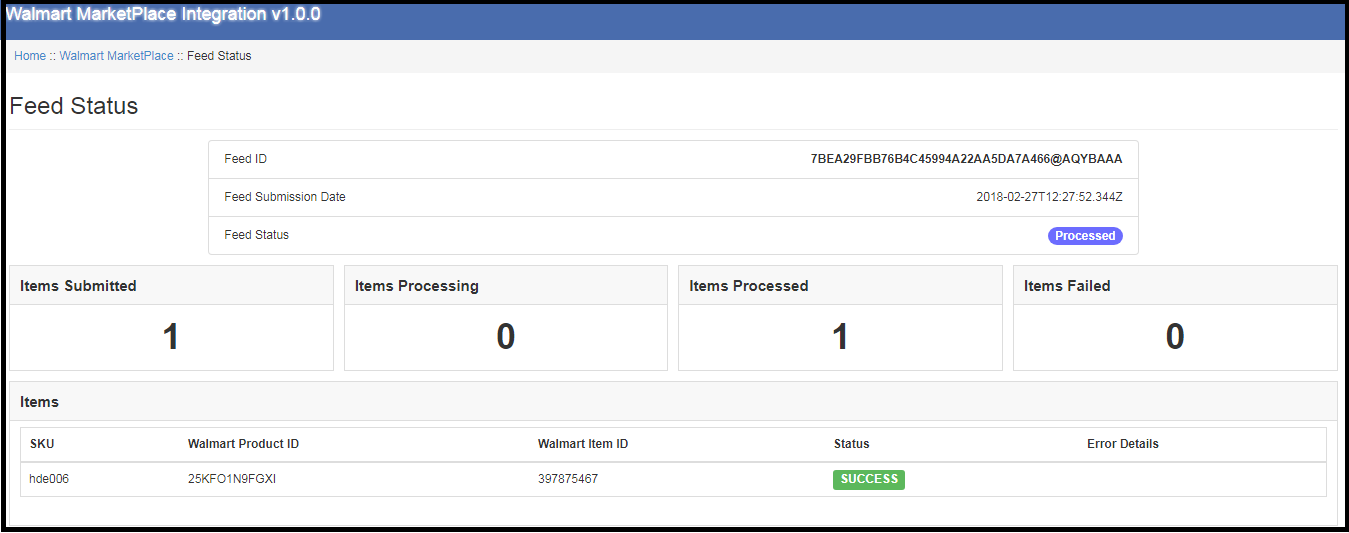
Multiple Cron Jobs can be run from the admin panel of the Walmart Canada Integrator. Every time a Cron is run, a feed gets created in the Walmart Feeds section. Complete detail of the feed can be viewed by clicking the “View” button next to the respective feed.
3.11 BuyBox Reports

Multiple Cron Jobs can be run from the admin panel of the
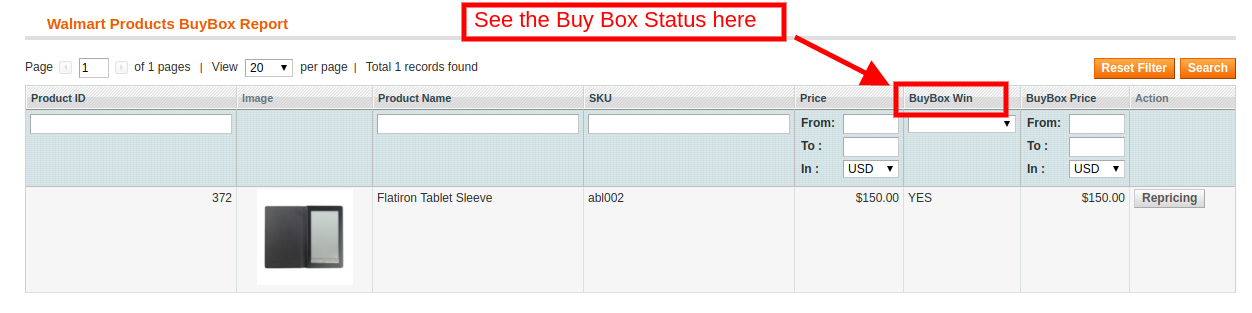
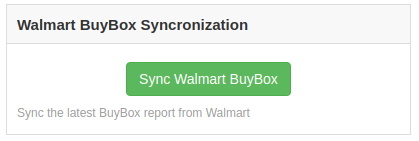
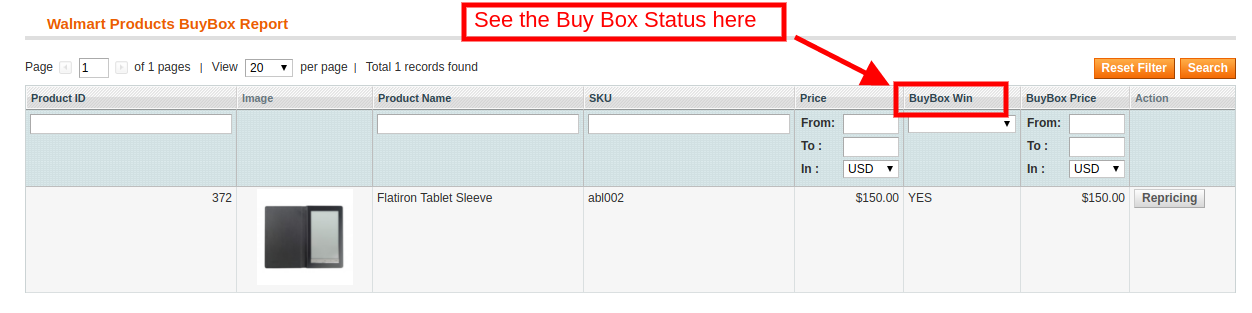
By clicking the “Sync Walmart BuyBox” button, cron job will be run to fetch the BuyBox report from the Walmart Marketplace. It might be possible that multiple competitors will be selling the same product at different price value. BuyBox report obtained will help the admin to compare the price of a product with the competitors product price.
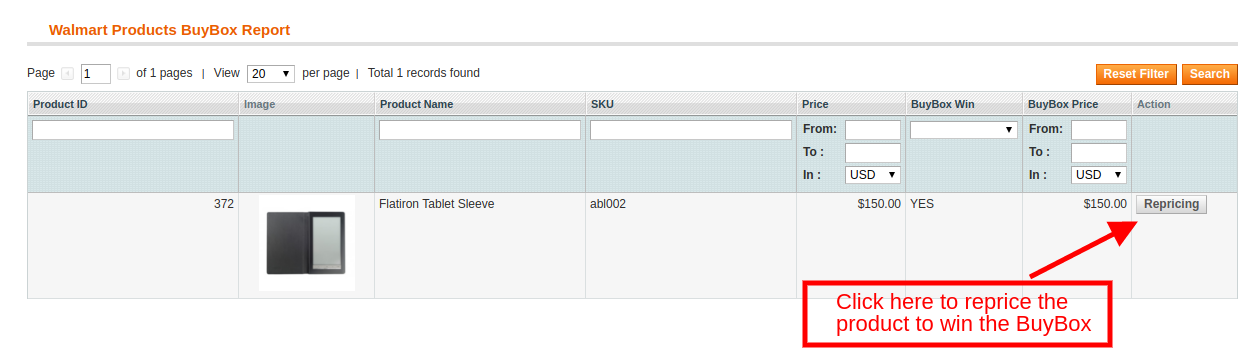
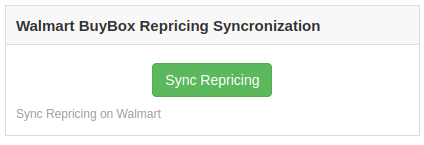
With Multiple Cron Jobs can be run from the admin panel of the, admin can reprice the product value to win the BuyBox. Updated price can be synced at the Walmart by clicking the “Sync Repricing” in the Walmart synchronization section of Walmart Canada Magento Connector.
3.12 Synchronization

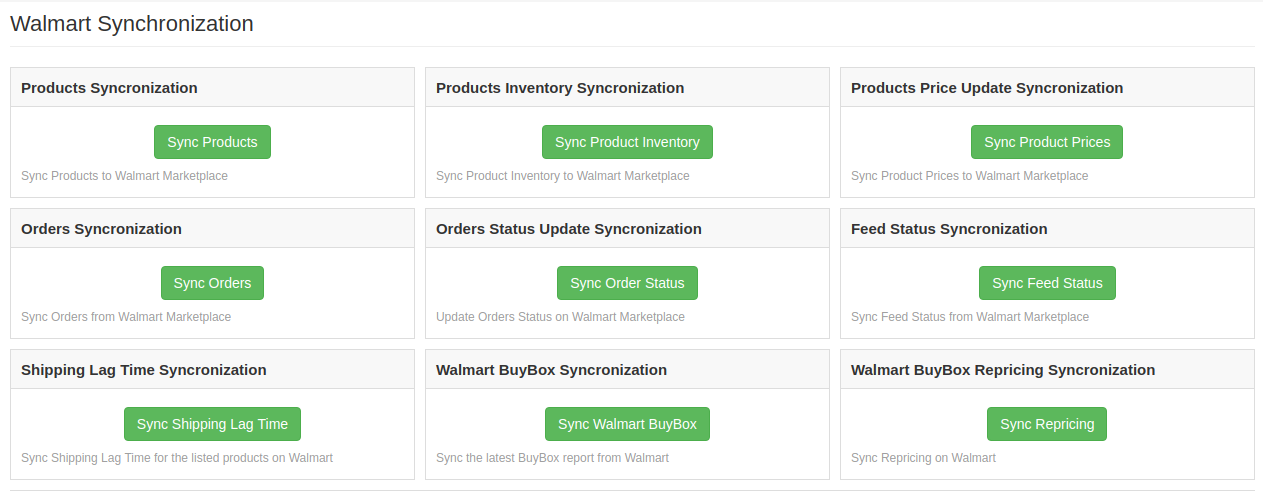
Walmart Synchronization section plays an important role in establishing the connection between the Walmart Marketplace and the store. Multiple cron jobs can be run to sync all the settings and changes from the Walmart store with the eCommerce store.
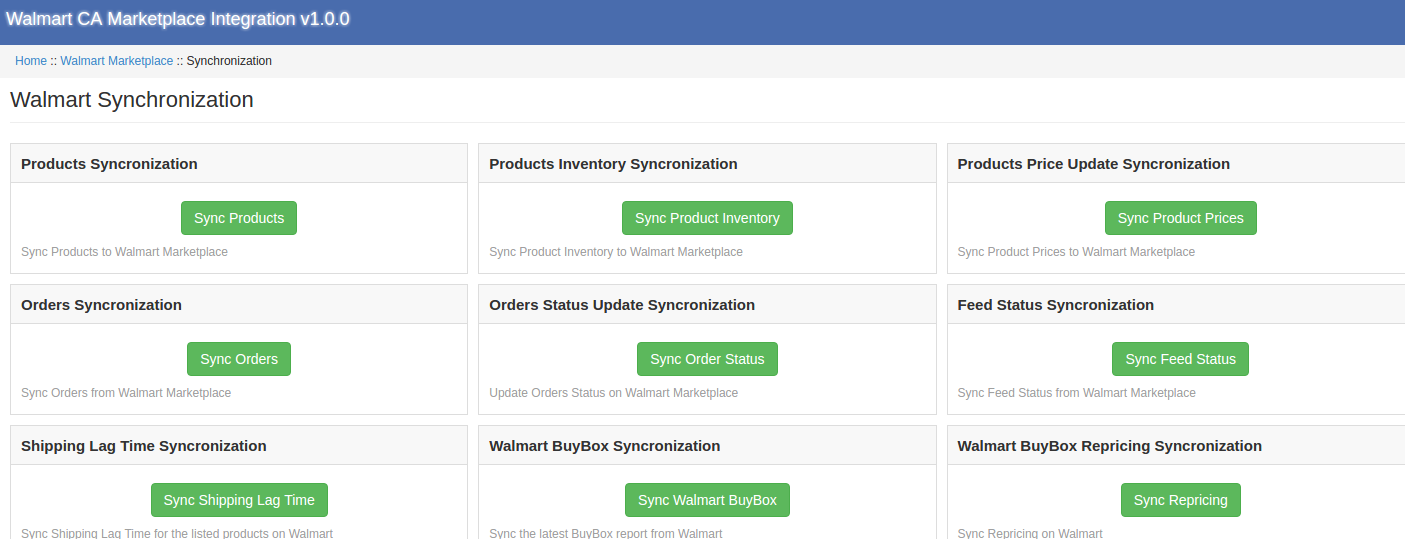

The various Cron jobs run to synchronize the settings and changes are as under:

Sync Products: This button helps the admin to sync all the product listed at the backend of Walmart Canada Magento API integrator to sync at the Walmart Marketplace. The cron job will add products with their mandatory product details at the Walmart Marketplace.
Sync Product Inventory: The following cron job is run to sync the quantity of the product at the Walmart Marketplace.
Sync Product Price: The following button will sync the updated product price at the Walmart.

Sync Orders: The following cron job will be used to sync orders from the Walmart Marketplace with the eCommerce store.
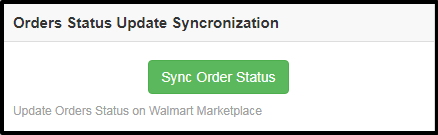
Sync Order Status: Updated order status can be synced at the Walmart Marketplace by running the Sync Order Status from the backend of Magento Walmart Canada Integration Extension.
Sync Feed Status: Feed status can be synced at the Magento store by running the following cron job.
Sync Shipping Lag Time: Lag time in days on shipping orders can be synced at the Walmart Marketplace by running the Cron Jobs.
Sync Walmart BuyBox: BuyBox report can be downloadable from the Walmart store by running the following Cron job. BuyBox report will help the admin to compare product price of various competitors.
Sync Repricing: Repriced value of products to win the BuyBox can be synced at the Walmart Marketplace by running the following Cron job.

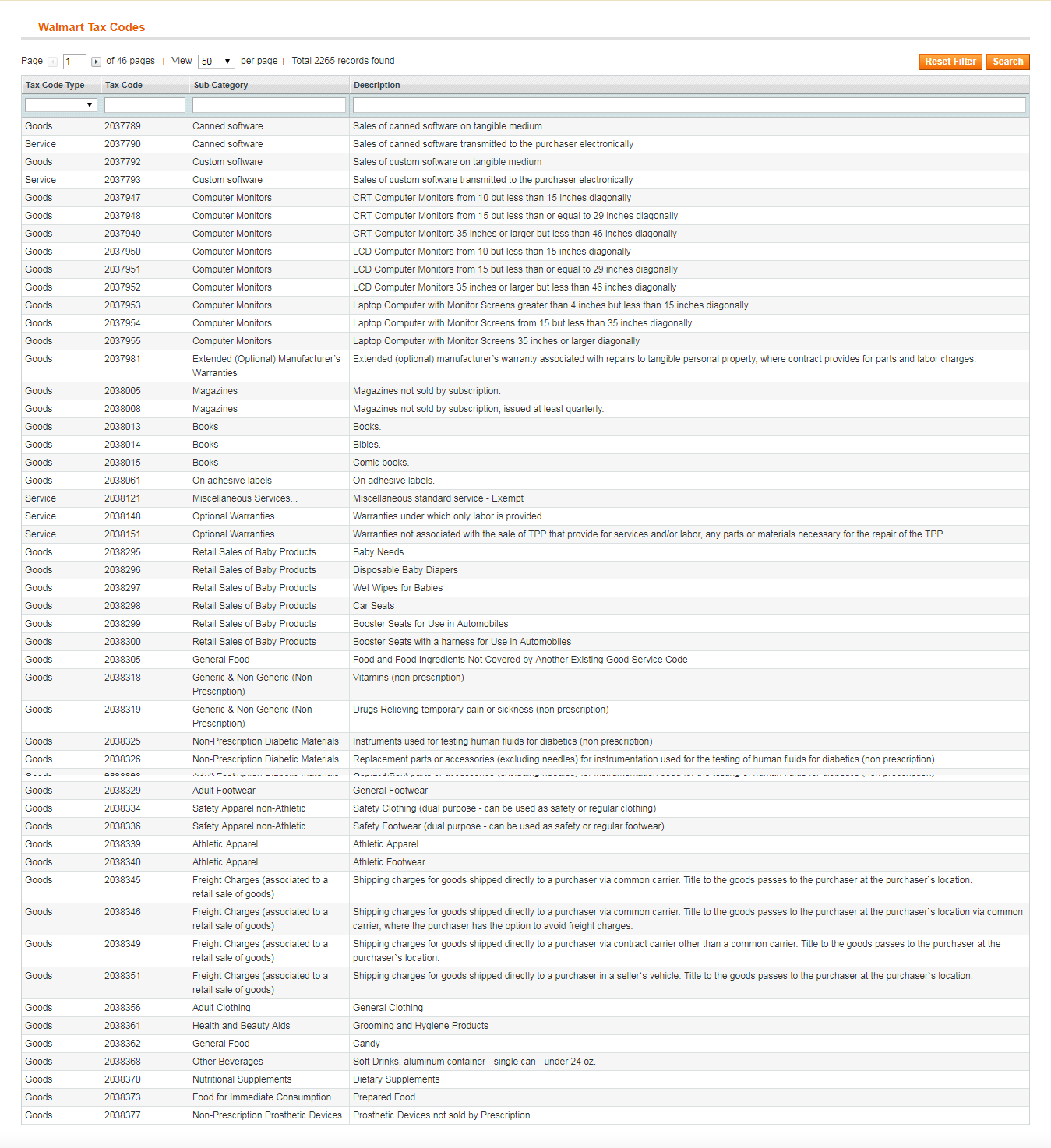
3.13 Tax Code

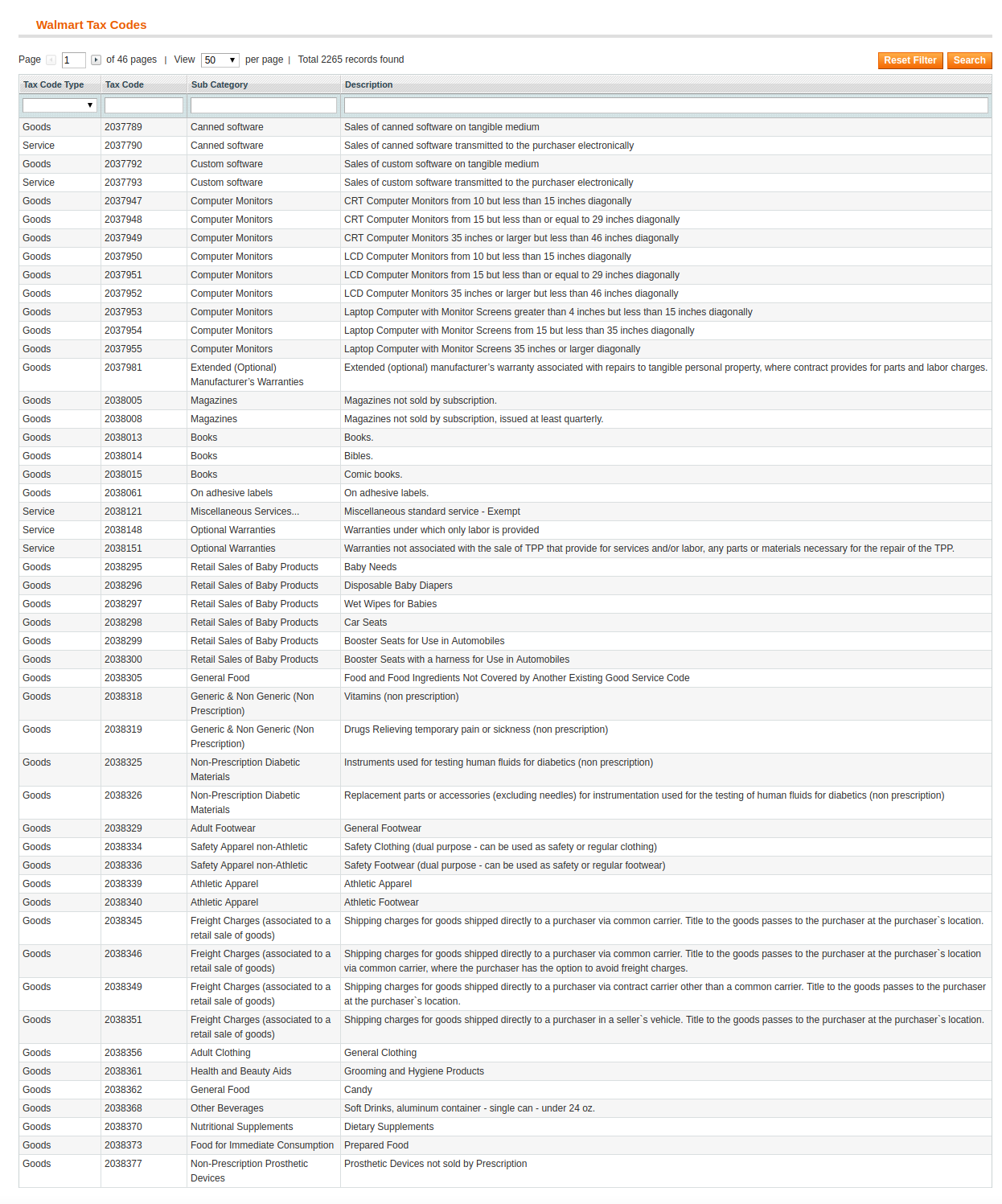
Tax code section of Walmart Canada Magento Integrator enables the admin to view the tax code of the products in bulk. The online merchant can easily view the tax code of the inventories.
3.14 Audit Log

Tax code section of Walmart Canada Magento Integrator enables the admin to view the tax code of the products in bulk. The online merchant can easily view the tax code of the inventories.
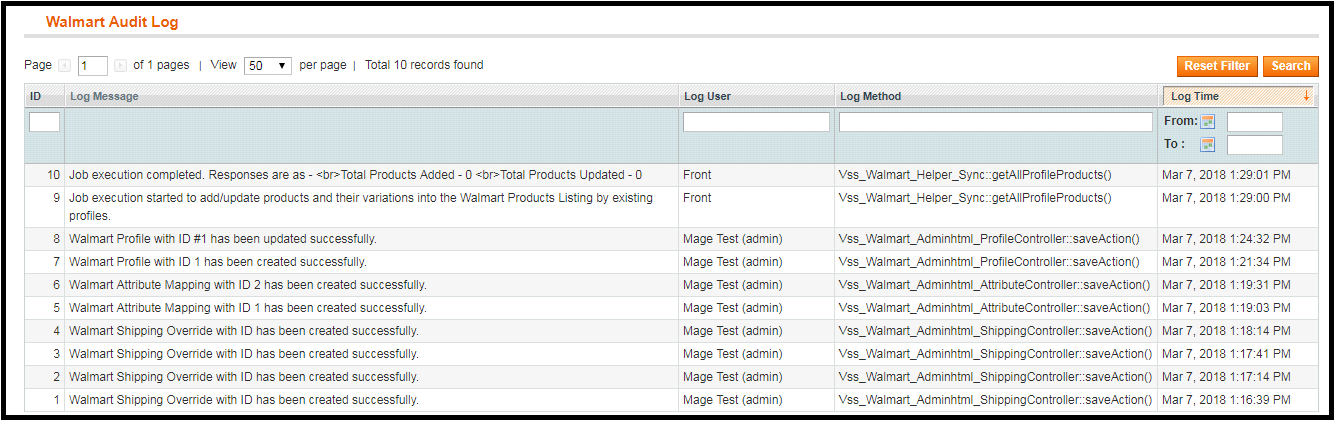
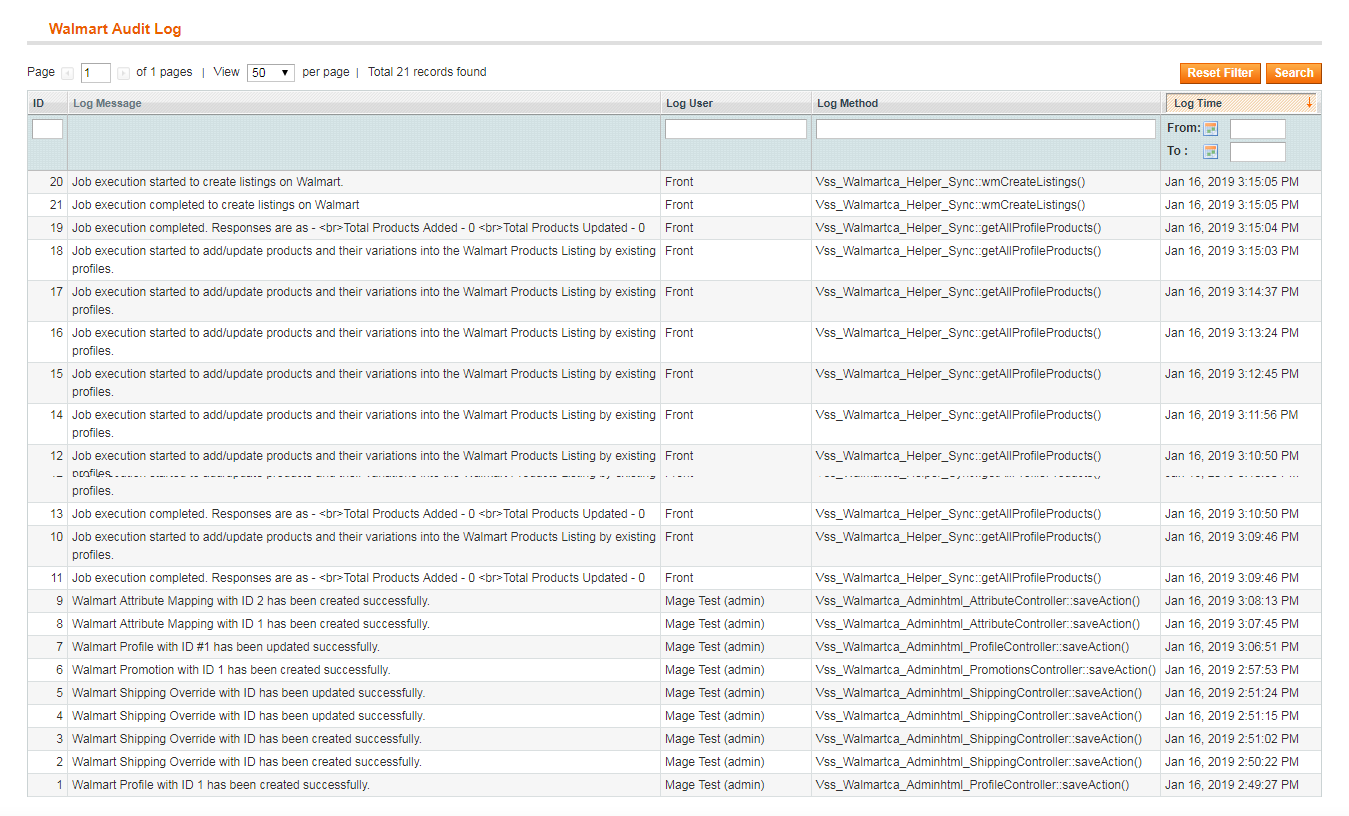
All the Cron jobs executed can be viewed from the Audit Log section of the Magento Walmart Canada Integration Extension. Admin can easily view the status of each Cron job from the Walmart Audit Log section.
For further information, refer to the following links:

 Magento Walmart Canada Integration

Walmart Canada Magento API integrator Admin Demo


Magento Walmart Integration – User Manual
1.0 Introduction

Knowband offers the Magento Walmart Integration extension to help the Magento store owners synchronize their eCommerce store with the Walmart marketplace. The Magento Walmart connector module integrates the eCommerce store with the Walmart marketplace by using the Walmart API (Walmart Consumer ID, Walmart Private Key, and Consumer Channel Type). After successful integration, the sellers can easily synchronize the products, inventory, shipping templates, product pricing to the Walmart marketplace from the back-end of the Magento Walmart Integration module.

Today, marketplaces are playing a vital role in the growth of e-commerce. Amazon, eBay, Etsy, Jet.com, Walmart, Wish, Newegg are some of the well-known platforms. In recent years several new marketplaces have entered in the completion and these marketplaces have a good potential to drive the competition. Walmart is one of the most popular marketplaces and allows people from around the globe to buy and sell from walmart.com.

1.1 Seller Benefits of Magento Walmart Integration plugin:

  • The Walmart Magento API integrator offers real-time synchronization between the Magento store and the Walmart marketplace.
  • The connection between the Walmart marketplace and Magento store can be set-up in a few simple steps with the help of Magento Walmart API integrator. The Magento store admin can list the products in bulk based on the profile.
  • The store admin can easily manage the inventory by making changes in the profile created in the Magento Walmart Integration module.
  • The merchants can easily renew or delete products from the admin interface of the Magento Walmart Integration module itself.
  • With the help of Magento Walmart Marketplace integration module, the store admin can even add shipping methods for the marketplace customers.
  • The Magento Walmart Connector makes it easier for online merchants to keep track of the product listing.
  • The admin can sync the orders received from the Walmart marketplace with the orders of the Magento store by executing cron in the back-end of the Magento Walmart Integration extension.
  • These orders can be processed from the Magento store itself. The change in the order status is synced with the marketplace at a button click in the synchronization tab of the Magento Walmart Integration extension.
  • The Walmart Magento integrator makes it easier for the store admin to track the errors that occurred while product listing.

2.0 Installation

Follow the following steps for installing Walmart Magento Marketplace integration extension:
1. Download the package.
2. Unzip the package in your root folder of Magento setup via FTP manager
3. In Admin Panel go to Walmart Marketplace in the main menu.

4. The Magento – Walmart Marketplace integrator is now ready for use.

This User Manual will guide the users through the Magento extension configuration and settings.

2.1 How to configure Walmart Magento Integration extension?

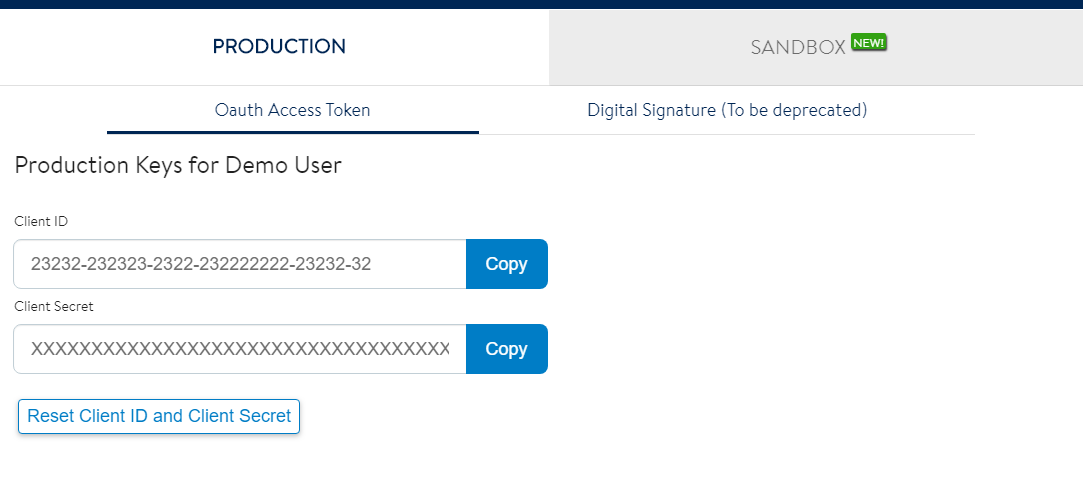
To configure the Walmart Marketplace Integrator, store admin needs to get the Client ID and Client Secret. In order to obtain Walmart Client ID, and Client Secret, follow the process given below:

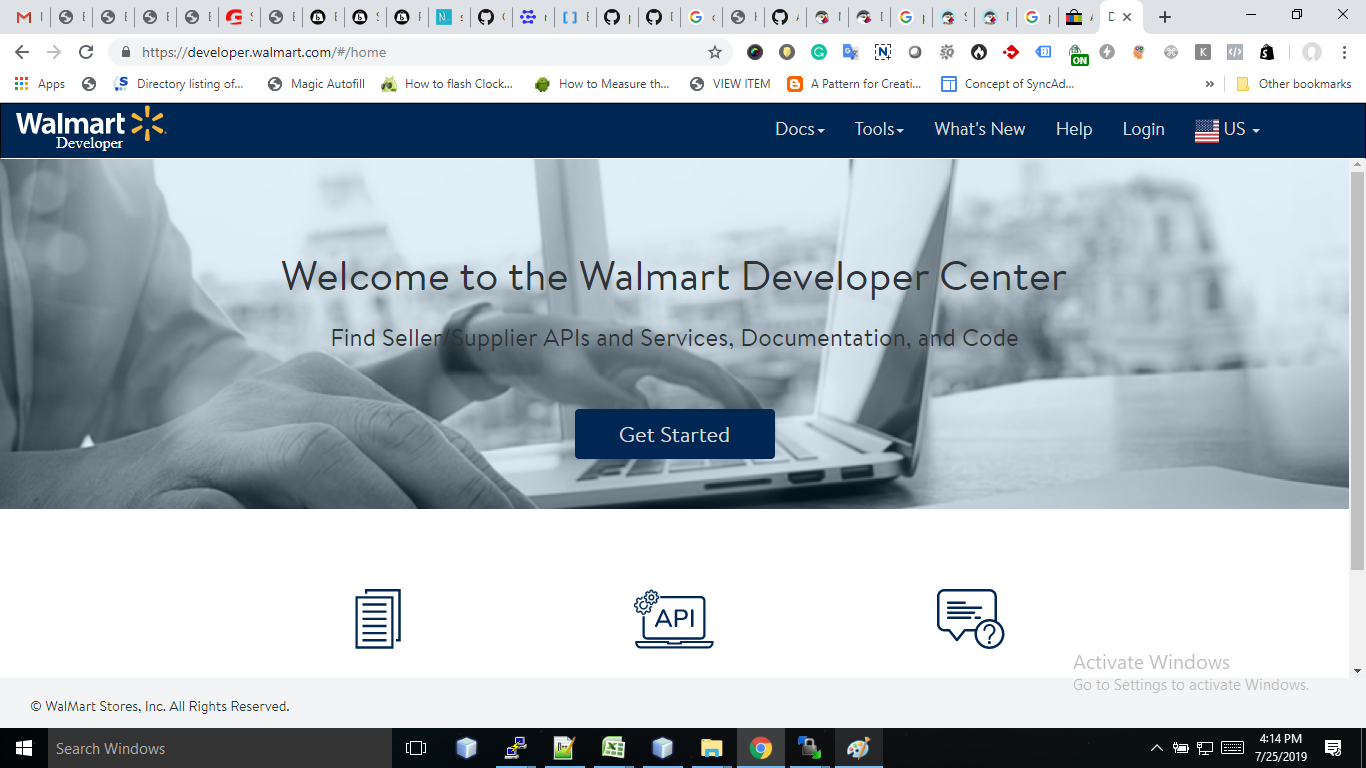
1. Go to https://developer.walmart.com/

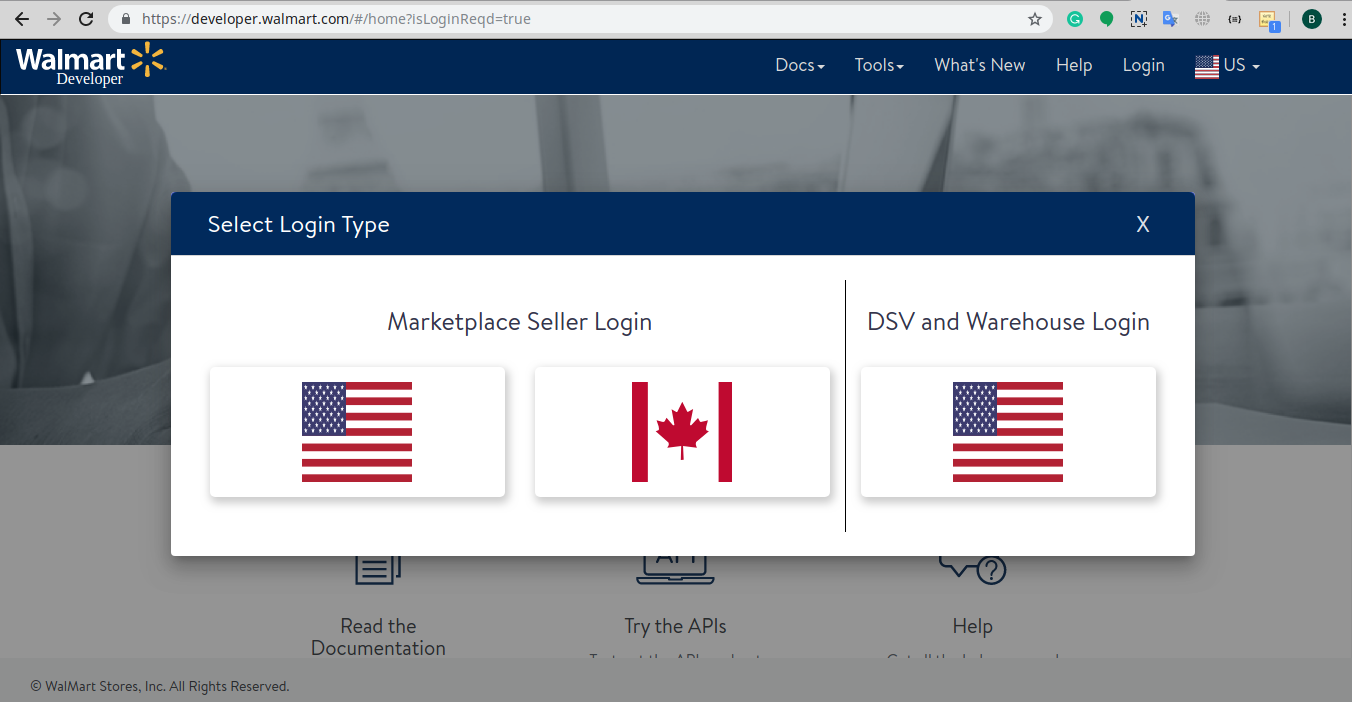
2. Select the Login type.

3. Log in using your Credentials.

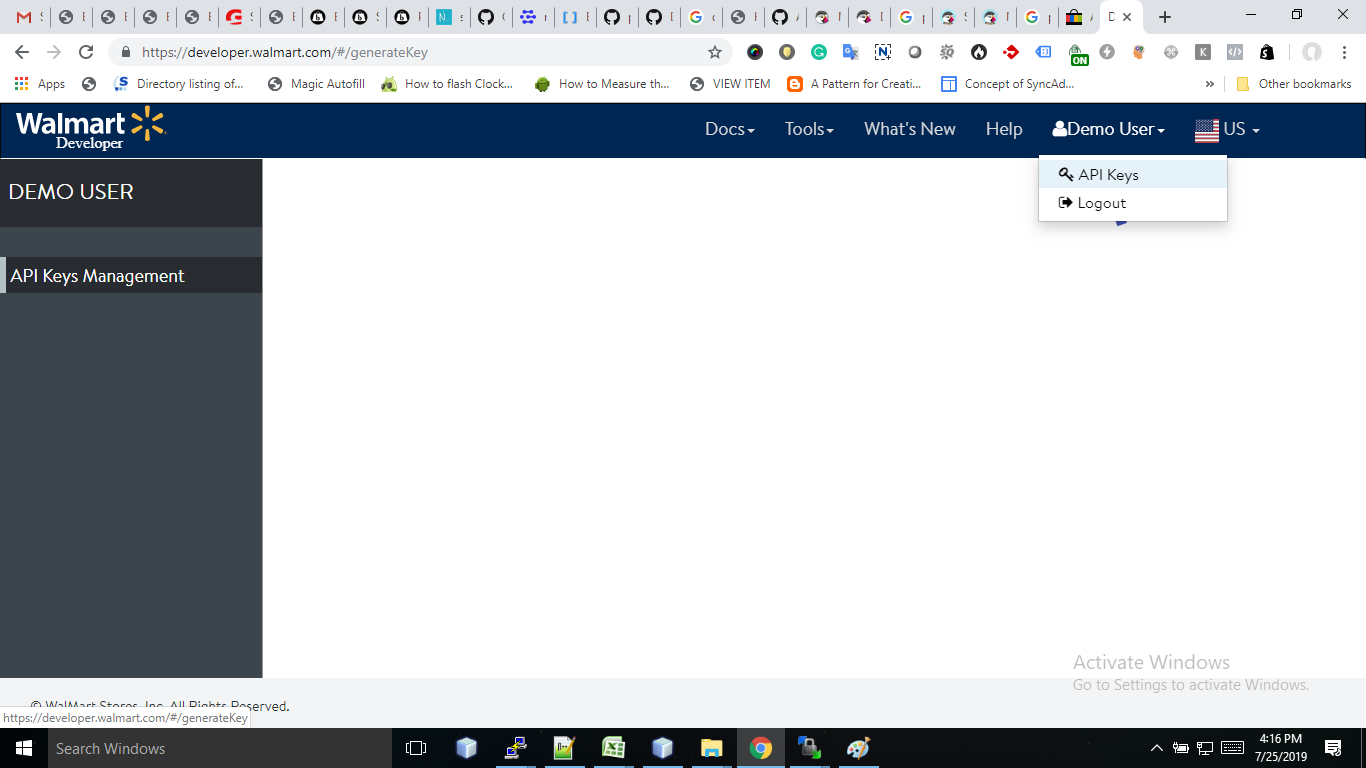
4. Click on your account and select “API Keys“.

5. Now you can get the New “Client ID” and “Client Secret” from here.

3.0    Admin Interface

Walmart Magento Integration plugin has a user-friendly interface. The configuration settings can be managed via the admin interface. After installation, store admin can find the “Walmart Integration module” at the top menu of the admin panel.  Admin Panel Settings of Magento Walmart Integration module contains the 10 tabs for settings.

  1. General Settings
  2. Profiles Management
  3. Shipping Override
  4. Products Listing
  5. Promotions
  6. Manage Lag Time
  7. Attributes Mapping
  8. Orders Settings
  9. Orders Listing
  10. Feed Status
  11. BuyBox Reports
  12. Synchronization
  13. Tax Code
  14. Audit Log

3.1 General Settings

Magento Walmart API integrator allows the store admin to integrate their store in a few simple steps. General Settings tab includes the details of Walmart store API details like Consumer ID, Private Key, and Channel Type. Walmart API helps to connect the Magento store with the Walmart marketplace. The description of each input field is mentioned below:

1. Enable/Disable: Admin gets the option to Enable/Disable the integrator by toggling the button. If enabled, the Walmart Marketplace Integrator and all its settings will be working on the store.

2. Walmart Client ID: Enter the Walmart Client ID that will authenticate the connection being established between the store and Walmart Marketplace.

3. Walmart Client Secret: Enter the Walmart Client Secret in the field to complete the setup.

3.2 Profile Management

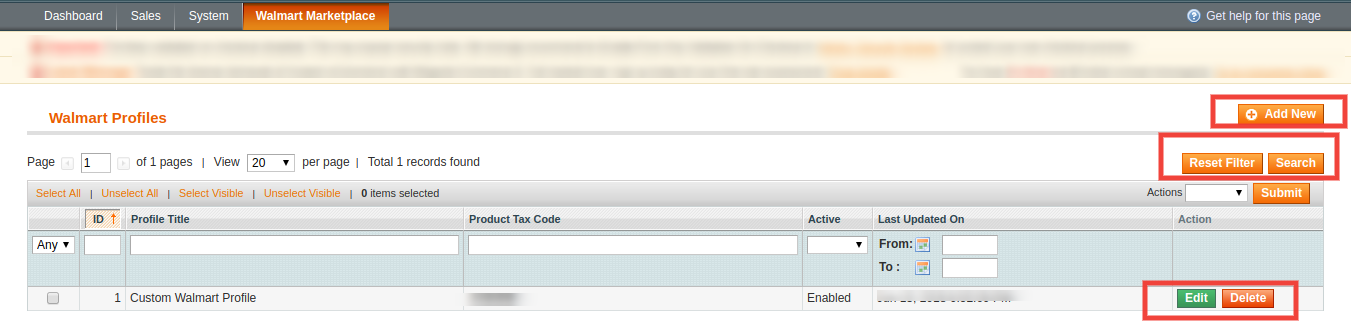
The profile Management tab provides options to list the product on the Walmart marketplace. In this section, the admin will be able to map Magento store product attributes and categories to Walmart store under the Walmart store product attributes and category. Admin can add new profiles just by clicking on the “Add New” button. The profile Management section of Walmart Magento Integration extension is consist of 2 tabs – General Settings and Profile Fields.

3.2.1 General Settings

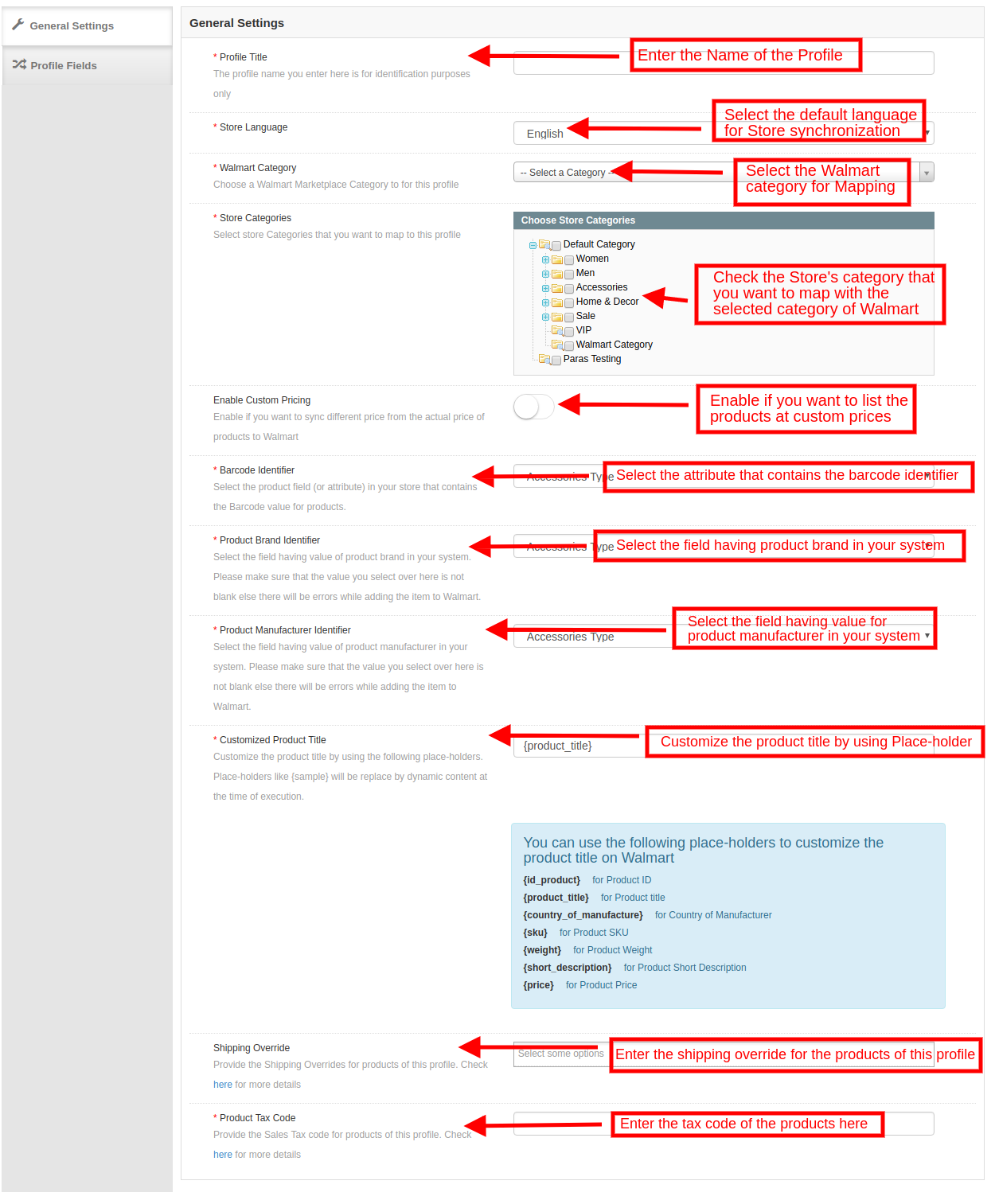
Magento Walmart Integration extension allows the store admin to select multiple store categories to sync with the one Walmart category. It is mandatory to enter all the required details as per the instructions are given in the below screenshot. After entering all the details click on the Save button at the top of the form.

  • Profile Title: Enter a unique name for the profile.
  • Store Language: Select the Language for the store from the drop-down list.
  • Walmart Category: Select the Walmart category where you want to map the Magento store category. Admin can select the Walmart Category from the drop-down list.
  • Store Categories: Select the category of the Magento store that you want to map in the category of Walmart.
  • Custom Pricing: Enable this button if you want to list the products at walmart.com at custom prices or at a different price from that of the eCommerce store. If enabled, the admin gets an option to change the prices as shown in the image below:

Select whether you want to increase or decrease the cost of the products.
Select whether you want to increase/decrease the price by a fixed amount or percentage amount.
Enter the fixed or percentage amount by which you want to change the price of the products.

Barcode Identifier: This is the unique field of the product. Select anyone from the dropdown list, so that, the

Magento Walmart Integration extension can identify the product according to the mapped attribute. The various place-holders are listed below.

Product Brand Identifier: Select the Product brand identifier from the drop-down. Select the field having a value of product brand in your system. This is a mandatory field to list the products on Walmart.
Product Manufacturer Identifier: Select the Product manufacturer identifier from the drop-down. Select the field having the value of a product manufacturer in your system. This is a mandatory field to list the products on Walmart.
Customized Product Title: Product title can be customized by using the pre-defined placeholders.

  • {id_product} for Product ID
  • {product_title} for Product title
  • {country_of_manufacture} for Country of Manufacturer
  • {sku} for Product SKU
  • {weight} for Product Weight
  • {short_description} for Product Short Description
  • {price} for Product Price

Shipping Override: This is an optional field. Select the shipping options from the list provided. This section includes the entire shipping overrides added in the Shipping Override tab.
Product Tax Code: Enter the product tax code in this section.

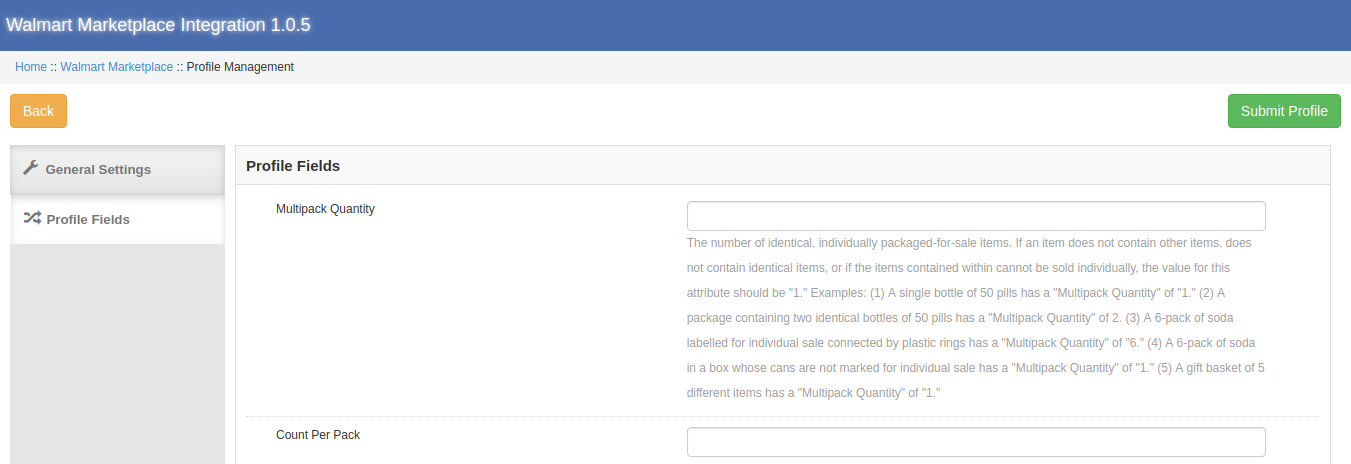
3.4.2 Profile Fields
As per the selected Walmart category, additional product information and variation products can be listed by using the Profile Fields tab of the Magento Walmart Integration plugin.

3.3 Shipping Overrides

The admin can manage the shipping options for the Walmart marketplace in the Shipping Overrides tab of Magento Walmart connector extension. In this section of the Magento Walmart Integration, the admin can create Shipping overrides which contains the various shipping details as per the need of the system.

3.3.1 How to add Shipping Templates?

Follow the steps mentioned below to add Shipping Overrides:
To create a new shipping override, click on ‘Add New’ as shown below:

You’ll be redirected to the Shipping Override creation page. Fill up the following input fields of form –

Shipping Override Title: Enter the Shipping Override Title here.
Shipping Allowed: Admin can enable or disable a shipping method by using the toggle button.
Shipping Method: Walmart allows 6 types of shipping methods. Admin can easily configure the shipping methods as per the requirement from the admin panel of the Walmart Integration module. Shipping methods offered by Walmart are – VALUE, STANDARD, EXPEDITED, FREIGHT, ONE_DAY, FRIGHT_WITH_WHITE_GLOVE.

Kindly refer to the below article for the details:
https://marketplace.walmart.com/knowledgebase/articles/Article/Shipping-Standards-For-Marketplace-Sellers

Shipping Region: Admin can select the shipping region from here.

Shipping Price: As per the selected shipping method and shipping region admin can set the shipping cost for the different shipping methods and regions.

3.3.2 How to Edit/Delete the existing Shipping Override?

The Shipping Override (if any) will be listed in the Shipping Override tab of the Walmart Magento API integrator. Click on the “Edit or Delete” button as shown in the image to delete/modify a shipping override.

The existing Shipping Overrides can be viewed as shown in the image above. To Edit/Delete the existing entries, click on ‘Edit’ and ‘Delete’ action respectively.

3.4 Products Listing

This section of the Magento Walmart Integration shows the list of all the products listed on Walmart Marketplace with their statuses. To sync the product in the Walmart Marketplace, execute the Product Cron in the Synchronization tab of the Walmart API Integration module.

3.4.1 Product Listing Renewal
This option allows admin to renew product in case listing has expired on Walmart Marketplace. To renew the product, the admin can click on the “Renew” action corresponding to each product.

After setting up a product for renewal, action “Renew” will be replaced with “Halt” action. This action is used to stop product renewal in case needed.

3.4.2 Product Listing Deletion

This option allows admin to delete product listing from Walmart Marketplace. Click on “Delete” action given corresponding to each product listing. After setting up a product for deletion, the action “Delete” will be replaced with “Relist” action.

3.4.3 View Error
The admin can view the error that occurred in listing the product. For this, click on ‘View Error’ action.

3.5 Promotions

The Walmart Magento integrator allows the admin to create promotional deals and display the same at walmart.com. The created promotions will be listed in this tab as shown in the image below:

3.5.1 How to add New Promotions?

To create new promotions, click on the ‘Add New’ option at the top right corner of the Magento Walmart connector as shown in the image below:

As you click on the link, you will be redirected to the promotion creation page. The various fields of the tab are discussed below:

Promotion Detail: Enter the details of the promotional that you are offering to the Walmart marketplace in this section.
Price Type: Select the type of price that you are incorporating from the drop-down menu.
Discount Price: Enter the amount of discount that you are offering. It may be a fixed amount or a percentage amount. Select the discount type from the drop-down menu.
Start Date and End Date (UTC Timezone): Enter the duration during which promotion will be active.
Product Selection: Select the product in which you want to offer the promotion.

3.5.2 How to Edit/Delete Promotions?

The admin gets an option to edit or delete the created promotions at a button. Click the Edit or Delete button corresponding to each promotion for the same.

The admin can even sync the promotions with the marketplace by clicking the sync button as shown in the image below:

3.6 Manage Lag Time

The admin can easily fix and manage the lag time of the products with ease. To fix the lag time, click on the Update Lag Time button as shown in the image below:


As you click on the link, a popup will appear as shown below:

Enter the lag time in days and click on the update button. This will update the shipping lag time at walmart.com.

3.7 Attribute Mapping

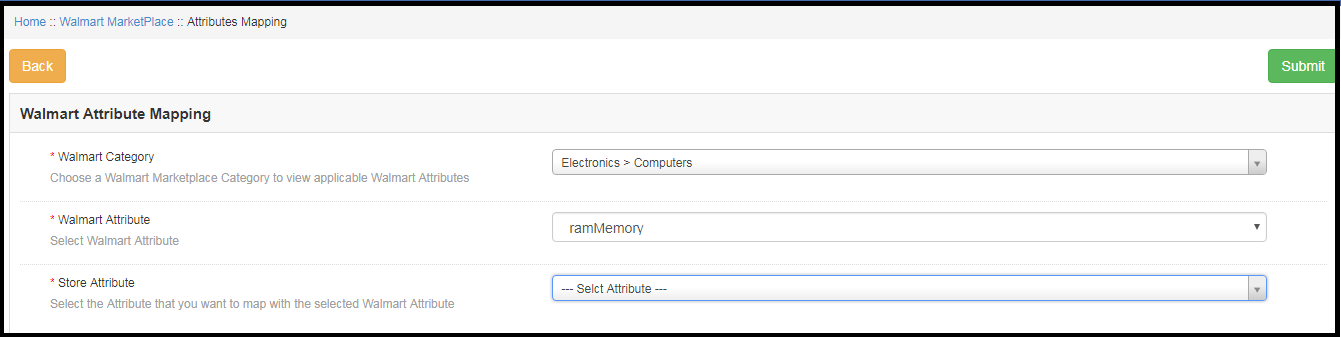
Attribute mapping tab of the Magento Walmart integration module allows admin to map the Magento store attributes with the Walmart marketplace. Mapping of the Magento store attributes with the Walmart attributes is required to make the listing process easy, so that these attributes can be mapped with the products during the profile creation. Please refer to the below screenshot-

3.7.1 How to Map Attributes

Click on the Attribute Mapping tab of the Walmart Magento Integration module, it will redirect to a new page as shown in the screenshot above. Now click on the (+) Add New button on the top of the page. It will open a new page with the option to select the Walmart category and as per the selected Walmart category Walmart attributes will appear in the drop-down list of the Walmart Attributes field. Admin can map the store attributes with the Walmart attributes by using this interface. Admin can add store attributes as per requirement from the Magento store admin panel. Please refer to the below screenshot-

3.7.2 How to Delete Mapped Attributes

To delete mapped attributes click on the Delete button given next to the mapped attributes on the Walmart Attribute Mapping tab

3.8 Order Settings

Order Settings tab of Magento Walmart integration module helps to map store order statuses with Walmart Marketplace order statuses. This will be used for capturing order details from Walmart Marketplace. For mapping the orders from the Walmart Marketplace to the Magento store, you need to execute the Order cron in the Synchronization tab. (See section 3.9.)

The various fields are discussed below:
Order Current State: Choose an order default status from the drop-down.
Order Shipped State: Choose an ordered state for the shipped orders placed on the Walmart marketplace. Select the order status from the drop-down list.
Order Acknowledge State: After syncing the orders to the Magento store, the admin needs to acknowledge the order so that next time only a newly placed order will be downloaded to the Magento store.
Order Cancel State: In case of order cancellation admin can sync the order status by using the Order Cancel state.
Note – Once the status of the order is changed in the Magento store, run the ‘Update Order Status to Walmart’ cron. This will sync all the changes to the marketplace.

3.9 Order Listing

The orders received from the Walmart store can be sync to the Walmart store under the Order Listing tab of the admin interface of the Magento Walmart API Integration. For this, the store owner needs to run the ‘Sync Order Listing from Walmart’ cron from the Synchronization tab. (See Section 3.9)

Once the cron is executed, the entire orders will be synced to the Magento store. These orders can then be processed by clicking on the ‘View’ button as shown below.

3.10. Feed Status

Every time a cron is executed, a Feed will be created in this tab as shown in this tab of Magento Walmart Integration. The status of the feeds can be seen by clicking on the ‘View’ button.

On clicking the View button, you’ll be redirected to the feed status detail page.

3.11. BuyBox Report

The store owners can obtain the BuyBox report by executing cron in the back-end of the Magento Walmart integrator.
Refer to Section 3.12, to sync the Buy Box report from the walmart.com.
You can view the status of the Buy Box from the obtained report.

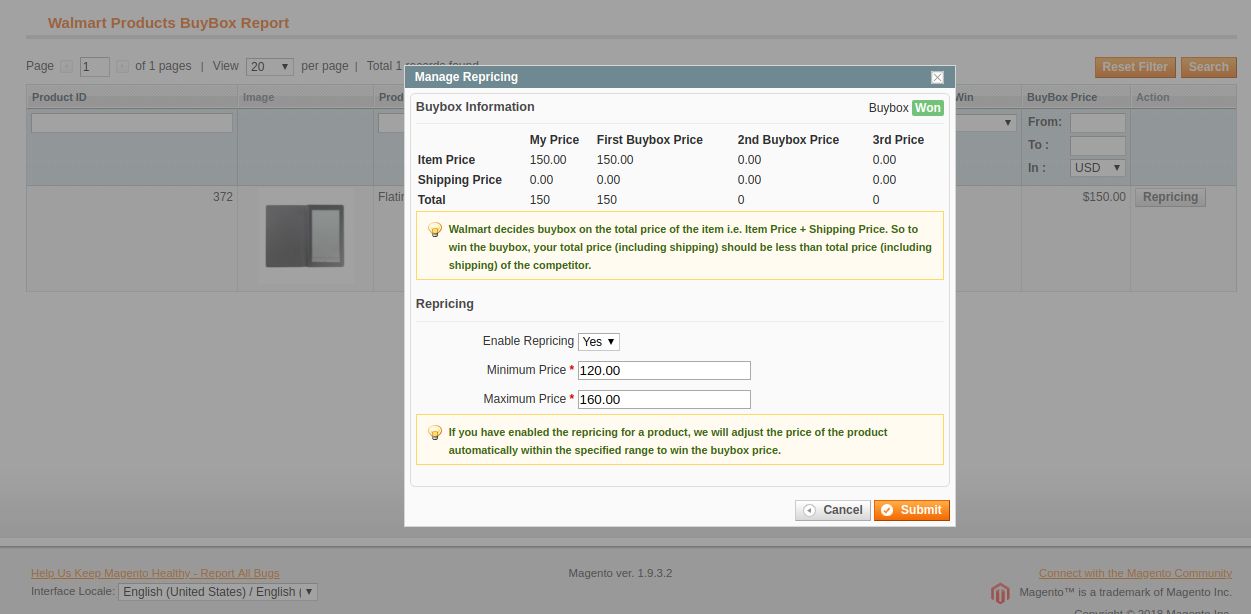
The Walmart Magento integrator even offers an option to reprise the products to the store admin to win the Buy Box.
To reprice the product, click on the ‘Repricing’ option corresponding to the respective product as shown in the image below:

As you click here, a popup will appear. Here are the fields offered in the popup.
Enable Repricing: Select ‘Yes’ from the drop-down menu if you want to reprice the product.
Minimum and Maximum Price: Enter the minimum and maximum price of the product in the respective sections.


Once the repricing is done, sync the same with the marketplace by executing cron in the back-end of the Magento Walmart API integrator. (See section 3.12)

3.12. Synchronization

This tab synchronizes all the settings and changes done in the other tabs of the Magento Walmart Marketplace Integration Module. The synchronization between the Magento Store and Walmart Marketplace and vice-versa can be done from the ‘Synchronization‘ tab.

The various cron jobs to synchronize the settings between Magento Store and Walmart Marketplace are shown below –

3.12.1 How to sync Products from Magento store to Walmart Marketplace?

The product listed in the Products Listings tab of the Magento Walmart Marketplace Integration extension will be synced to the Walmart marketplace by clicking on ‘Sync Products’.

It would perform following actions –

  • The cron will list the products to the Walmart marketplace.
  • It will add products on the Walmart Marketplace with the mandatory product details like Description, Price, Quantity, Image, etc.

3.12.2 How to sync Inventory to Walmart Marketplace?
The product quantity can be updated on the Walmart Marketplace by executing the ‘Sync Product Inventory’ cron from the Magento Walmart Integration module.

This action will update the quantity of each product listed on Walmart Marketplace.

3.12.3 How to sync the price of the products to Walmart Marketplace?

The Sync product price cron allows the store admin to sync the updated product prices to the Walmart marketplace.

3.12.4 How to sync Order Listing from Walmart Marketplace?

The orders received from the Walmart Marketplace can be synced to the Magento store by executing ‘Sync Orders’ cron.

This cron will sync the Orders from Walmart Marketplace to Magento store.

3.12.5 How to Update Order Status in Walmart Marketplace?

The ‘Sync Order Status’ cron will update the order status as per the changes made from the Magento store on the Walmart marketplace.

3.12.6 How to Synchronize Feed Status?

To sync the Feed Status to Magento store admin need to execute the ‘Sync Feed Status’ cron.

3.12.7 How to Synchronize the Shipping Lag Time?

Click on ‘Sync Shipping Lag Time’ of the synchronization tab of Walmart Magento API integrator. This will sync the respective lag time of the products with walmart.com.

3.12.8 How to Synchronize the Buy Box status from Walmart?

The admin can sync the buy box status from Walmart with Magento Walmart connector by click on ‘Sync Walmart BuyBox’. This will update the status of the BuyBox for the respective products.

3.12.9 How to Synchronize the Buy Box status from Walmart?

The admin can reprice the products and sync the revised products at the marketplace by executing ‘Sync Repricing’ cron.

3.13 Tax Code

The Walmart Magento connector allows the admin to manage the tax code of the products in bulk. The Tax Code section of Magento Walmart’s synchronization extension enables the e-merchants the view the tax of the products in the inventory in bulk.

3.14 Audit Log

The admin can view all the jobs that occurred in the Audit Log tab of the Magento Walmart Integration extension. The status of the jobs can be viewed in this tab.

Watch how Magento Walmart Integrator by Knowband works

Moreover, Knowband has also come up with a new integrator exclusively for Walmart Canada. With Magento Walmart Canada Integrator, store owners can connect their Magento store with Walmart Canada.

Some Related Blogs: