“Instagram Hashtags are a key to boosting your brand presence on the world’s second-largest social media platform after Facebook (Excluding YouTube and WhatsApp). In this article, we will cover the role of Instagram Hashtags; why they are important, and how to use hashtags in your Instagram posts to achieve productive results.
Hashtags play a major role in your social media marketing strategy. Some of the popular social media platforms where hashtags are of supreme value are Instagram and Twitter. Though you will see people or brands using hashtags on other social platforms as well like Facebook and LinkedIn, they are not as effective as they are on the former two platforms.
What are Hashtags?
A hashtag, denoted by the number or symbol # (hash) is a tag that is used to highlight or add a label to a specific topic, content, or theme. It basically forms a category for all the content falling under a particular hashtag.
For example, in a Brazil vs Argentina Football match, you would find people using hashtags like #BRAvARG or #ARGvBRA. These hashtags will become a thread for people to have a discussion on that match.
With the latest update of Instagram, you get a maximum limit of 30 hashtags for each post. Along with that, a user can also tag 20 people in their posts.
Why Instagram Hashtags are Important in 2021?
What role do Instagram hashtags play in your marketing? How can they be an invaluable asset for your business promotion on the Instagram platform? Let’s try to find out.
1. Instagram Hashtags help to Build Brand Awareness
The most effective use of Instagram hashtags is to build brand awareness. The primary reason for setting up an Instagram business account is to make the users of that platform aware of your Brand. And to make that happen, you need to make use of hashtags and create your own brand hashtags as well. This is important because if your hashtag contains your brand name, it will appear in the search results when users are searching for something related to your brand.
2. To Increase Product Visibility
Instagram hashtags help a lot in marketing. They provide you with a wide organic reach and can help you promote your brand products in front of a huge Instagram audience, thus increasing your product visibility.
While hashtags might seem interesting, they would not be of any use if they are not relevant. Searches on Instagram are based on Hashtags only. When posting about a product, use Hashtags that you think would display your post in the search results. Think from a user’s point of view, what would they be searching that could make your post appear on the search results.
3. Instagram Hashtags Generate High User Engagement
A study suggests that Instagram posts that contain hashtags achieve 13% higher engagement than posts without hashtags. And the reason is obvious. The more people who see your post, the more interaction you will get. And with higher user engagement, you will get more followers for your Brand.
4. Instagram Hashtags can be helpful for your Marketing Campaigns
Marketing campaigns that focus on user-generated content are completely based on hashtags.
Many popular brands have utilized the power of hashtags for branding. Coca Cola launched a “Share a Coke” campaign in 2011 where they asked people to share their coke moments by using the hashtag #ShareaCoke. The campaign was a huge hit.
You can create similar campaigns for your brand and go viral overnight on the Instagram platform. No paid advertising can beat this kind of promotion.
But it isn’t as easy as it said, especially for a new brand. Prepare a roadmap on how can you make your campaign successful. Most importantly, provide some freebies or gift vouchers in return. If people are not going to get benefited, it would hardly arise their interest.
5. To be Ahead of your Competitors
Know who your competitors are, track what they are doing, what they advertise, what kind of hashtags do they use. This will give you an insight into your competitors and you can analyze their strong points and weak points to make your brand look better than them. Learn what works best for you and what doesn’t. Moreover, hashtags keep changing, so keep a check on the latest trending Instagram hashtags.
Few things that you don’t know about the hashtags
At some point, you may observe that your hashtags aren’t working. Here are some reasons why this happens:
You are using hashtags that are irrelevant to your posts
You’re using banned hashtags
Maybe you are using the same hashtags every time
You’re choosing hashtags that are too broad
You’re using hashtags that are too competitive
Avoid making these mistakes when planning on your hashtags before making any of your next Instagram posts live.
Final Word
If you want to get noticed by the Instagram community, start using hashtags, and use them in the right way so that your content is presented in front of the right audience.
Do you know, you can fetch Instagram content on your e-commerce website as well? Yes, you heard it right. If you own an eCommerce store on the OpenCart, Magento, or Magento 2 platform, you can get this feature by using Instagram Shop Gallery.
Instagram Shop Gallery extension will add an attractive Instagram Gallery section to your website. With the help of this extension, you can display your own Instagram account images and images based on hashtags, and then you can tag or mention your store products on the fetched images, similar to Instagram Shoppable Posts. Do give this a try.
If you have any more points to add to this article, do let me know by dropping a comment below. I would like to know your take as well on the Instagram hashtags.
According to the stats collected by Hootsuite, 1 billion people use Instagram every month, and around 130 million Instagram users tap on a shopping post. Brands use Instagram shopping posts to showcase their products and drive more sales. An Instagram Shop allows Instagram users to look for the desired product by visiting the brand page. The products are tagged on the images and users are redirected to the website to complete the checkout. In fact, with Instagram’s latest checkout feature, people can now purchase products directly from Instagram without having to close the app or getting redirected to the original store.
With Instagram shopping posts, you can make your followers aware of your products and guide them towards an easy purchase. Ensure you are using the Instagram shopping costs effectively, which means using high-quality product images, attractive captions, proper hashtags, and a perfectly timed sales pitch.
In this article, I will provide you a guide to set up your Instagram shop, brief you on how to add product tags to your Instagram posts and how you can drive more sales with Instagram shopping posts.
What are Instagram Shopping posts?
An Instagram shopping post contains product tags that make it easier for Instagram users to browse those products and make a purchase. They make the shopping path easy for the followers.
Many e-commerce retailers have even integrated their Instagram business account on their website and created a similar kind of Instagram Shop. KnowBand offers an Instagram Shop Gallery extension that fetches your Instagram account images or Instagram hashtags on your eCommerce store and helps you link your store products to the fetched Instagram content. The extension is currently available for OpenCart, Magento and Magento 2. Check them out.
You need to go through a few steps before you can share a shoppable post.
1. Instagram has approved 46 countries to avail the features of Instagram shopping. Hence, your location should be in those 46.
2. You must have a business profile on Instagram that sells physical products.
3. Your Instagram business profile must be associated with a Facebook catalog for your products.
To create a catalog for your products, you need to add a Shop section to your Facebook page. Then go to your business manager account, create a new or add an existing catalog that you would like to use for Instagram shopping.
4. Once you have followed all the steps, Instagram will review your account. This can take a couple of days.
5. After your account gets approved, you can start adding product tags to your Instagram posts.
How to add product tags to your Instagram posts?
The process to add product tags to your Instagram posts is pretty simple. You just need to select the picture, write your caption, use suitable hashtags. Just when you are about to finish, you will see the option of “Tag Products”.
Now, search for the product name that you want to tag in your post and add it. You can add up to 5 tags on your post.
Once it is done, you are ready to share your first Instagram shopping post.
How to drive sales with Instagram shopping posts?
1. Use High-quality pictures
The quality of your images decides the interest of the user in the products. No matter how amazing your product is, a bad quality image will not encourage a user to go for the purchase. Get your products photoshoot from a professional photographer for an amazing response from the followers.
2. Use Proper Hashtags
Optimize your Instagram shopping posts by using proper hashtags, which clearly define your products so that when people start searching for that term, your product appears on the search results. This gives a wide organic reach to your Instagram shopping posts. In addition to this, when a user follows a hashtag, your product visibility increases. More visibility creates more chances for sales.
3. Make sure the tags are attached to the right products
Attaching irrelevant tags to the products can mislead your followers and leave a bad impression. It can break the credibility.
4. Use Instagram stories to increase user engagement
Instagram stories are the latest trend. Brands use stories to attract the attention of followers. An Instagram story ensures that your followers do not miss any important announcement if in case they have skipped the post.
Conclusion
Instagram is currently one of the most engaging social media networks for users. Brands should not ignore its popularity. Instagram shopping posts look promising to reach out to potential customers. Such features provide businesses an excellent opportunity to attract Instagram users and convert them into potential buyers.
Create an Instagram Shop section on your e-commerce store as well. This works well to fetch user-generated content by using Hashtags and increases your brand awareness if you are running a marketing campaign.
Create a beautiful Instagram Gallery for your eCommerce store with Knowband’s Magento Instagram Shop Gallery Extension and boost the visitor engagement with your store. This Magento Instagram Shop Extension is an effective method to market your store products and thereby improving your site sales. With the highest user engagement, Instagram is been popularly used for branding business products and services. Likewise, you can also give the Instagram look and feel to your website to appeal the new and returning visitors at your online shop. This Instagram module for Magento builds your Instagram business profile and improves the user experience at your store.
1.1 Striking Features of Magento Instagram Shop Gallery Extension
This Instagram Shop Gallery Extension from Knowband is feature-rich extension offering you customizable features that can be configured without any technical knowledge. Let us quickly check the complete features of this Magento Instagram product tag feed module.
1. Magento Instagram Shop Gallery Extension incorporates an Instagram Shop Gallery at your eCommerce store.
2. With Magento Instagram Shop Extension, you can specify the particular tags to fetch the Instagram images and display them sorted into Instagram Gallery.
3. With Magento Instagram Integration Extension, you can filter fetched images by total images, approved images or images with shop products. The filtered results are shown on the website front.
4. The complete Instagram Image Gallery can be enabled or disabled from the back-office.
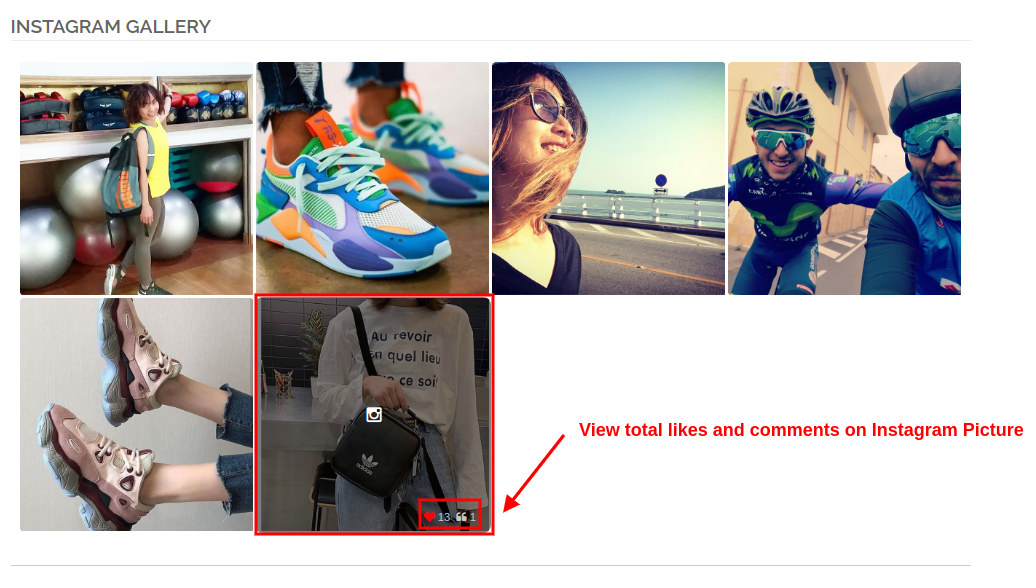
5. With Magento Instagram Shop Gallery Extension, you can show the likes and comments as the customer points over any of the Instagram Image
6. You can show or hide the main Instagram Gallery page from the backend of this Magento Instagram extension.
7. You can show or hide the Instagram Shop Gallery link in the footer section of the eCommerce website.
8. Instagram Gallery extension for Magento gives an option to set the title for Instagram Shop Gallery Page.
9. With Magento Instagram Module, you can show selected images on the main Instagram page which can be total photos, approved ones, having related images or having both approved and related images.
10. With Magento Instagram Shop Extension, you have the option to limit the number of images that can be shown on the Instagram Shop page.
11. You can even set a desired URL page key for this main Instagram Shop page.
12. You can create unlimited Instagram galleries with Magento Instagram product tag feed module which can be modified and deleted as required.
13. With Magento Instagram Shop Gallery Extension, you can set title, image limit and image visibility for the particular Instagram gallery.
14. You have the option to show or hide the selected image gallery on the main Instagram Shop page.
15. Magento Instagram product tag feed module allows you to set Instagram gallery visibility at different locations of different site pages.
16. You can add ‘N’ images to an Instagram gallery which can be edited or deleted anytime from the back-office of this Magento Instagram Integration Extension.
17. With Magento Instagram Shop Extension, you can set a sort order for the images in a Instagram Gallery.
18. Magento Instagram module allows you map and pin any site products with the Instagram image.
1.2 Technology for Development
Language: PHP Frame Work: Magento
2.0 Installation Guide for Magento Instagram Shop Gallery
1. Once after purchasing Magento Instagram Shop Gallery Extension from the Knowband store, you will get the following files on your registered email.
Source code file of Magento Instagram Shop Extension in zipped file format.
User Manual of Instagram Shop Gallery Extension.
Download the files.
2. Unzip the package in the root folder of your Magento setup via FTP manager (like Filezilla or WinSCP – download here: https://filezilla-project.org/). You’ll find the files and folders as shown in the image below:
The Magento Instagram Shop Gallery Extension is now installed for your store and is ready to configure without any coding hassles.
3.0 Admin Interface of Magento Instagram Shop Gallery Extension
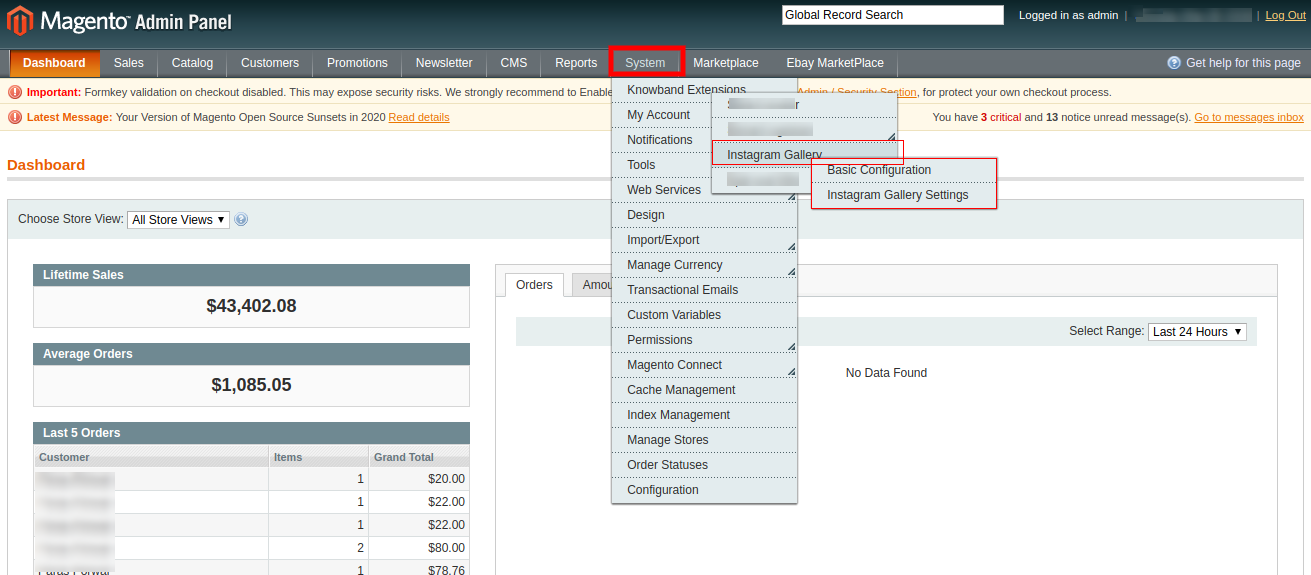
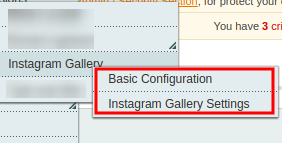
Once you have successfully installed Magento Instagram Gallery Module on your website, you can display unlimited Instagram image posts at different pages of your store as required. Further, to configure this Magento Instagram module, navigate the module settings in the given order: Admin Panel > System> Knowband Extensions > Instagram Gallery
The easy to understand admin interface of Magento Instagram product tag feed plugin has been divided into two broad sections as:
Each of these sections has been discussed in detail below.
3.1 Basic Configuration Settings
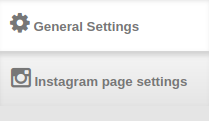
The configuration settings of this Magento Instagram Shop Extension is sub-divided into two sections as:
1.General Settings
2.Instagram Page Settings
Each of this sub-section has been discussed in the next section 3.1.1 and 3.1.2
3.1.1 General Settings
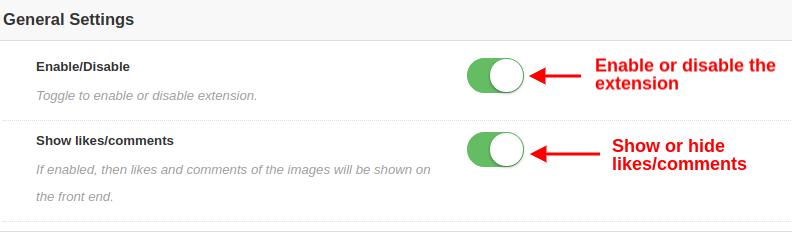
In the general settings of the Instagram Shop Gallery for Magento, you will get the following configuration options as given below:
Enable/Disable: With this button, you can easily enable or disable the whole functionality of Magento Instagram Integration Module for your eCommerce store.
Show Likes/Comments: Using this option, you can enable or disable the likes and comments for any Instagram feed. If enabled, the likes and comments for the particular post will be visible on the frontend to the customers.
3.1.2 Instagram Page Settings
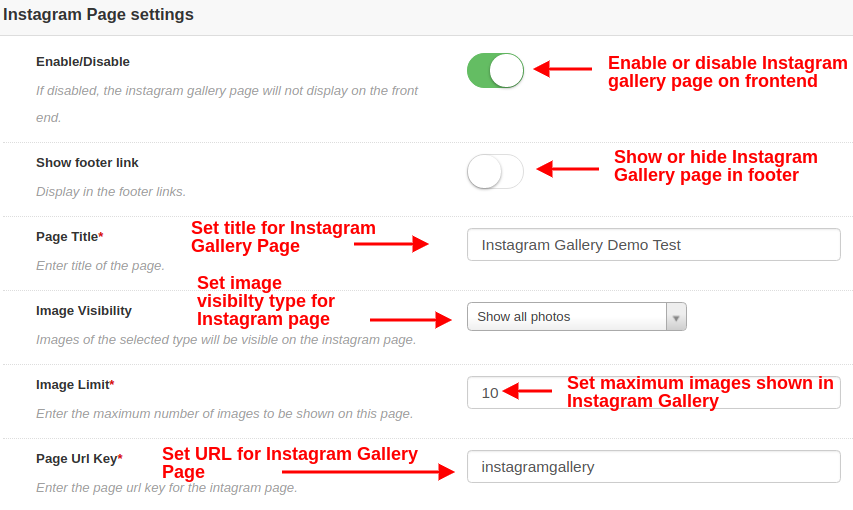
Under this section of Magento Instagram Integration Extension, you can configure the settings of main Instagram Page which will display all the fetched Instagram images at your store.
Enable/Disable: This option will enable or disable the main Instagram Gallery Page shown at the frontend of the website.
Show Footer Link: With this option, you can show or hide the Instagram page link in the footer section of website. If enabled, the Instagram gallery link is shown in the footer section of website.
Page Title: This option will allow you to set a desired title for the Instagram Shop Gallery Page.
Image Visibility: This option decides which category of images will be shown on the main Instagram page. You can set any image type out of these four options:
a. Show all photos
b. Only approved
c. Have related product
d. Approved and related product
Note: The total images can be managed from the “Gallery Settings” discussed in next section 3.2
Image Limit: With this option, you can set the maximum number of images which will be shown on the Instagram Gallery page.
Page Url Key: Using this option, you can set a custom URL key for the Instagram Shop Gallery Page.
3.2 Gallery Settings
The total Instagram images which are displayed at the front of the website can be configured and managed from this section of Magento Instagram Module. You can fetch as many images using different tags and create different Instagram Galleries. You also have the option to edit the settings of the Instagram gallery. You can manage the related products which will be shown with each of the Instagram Images.
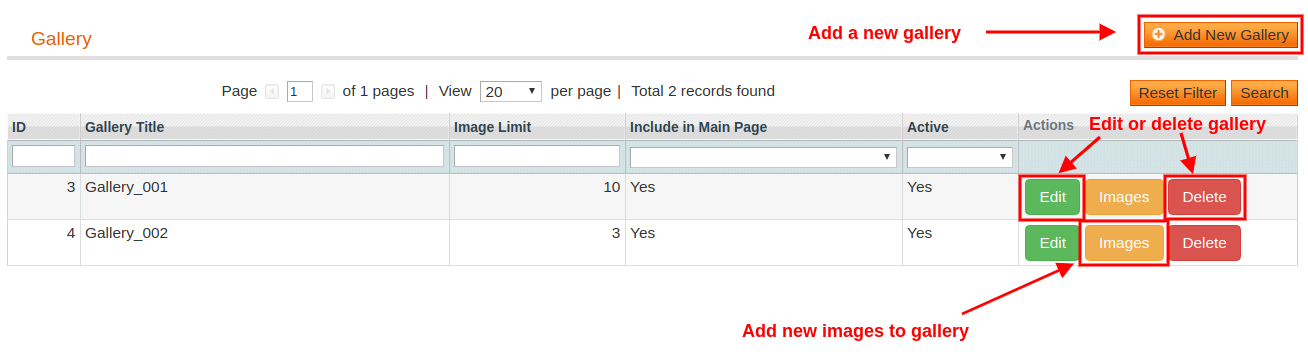
The below interface gives you a list of existing Instagram Gallery which can be edited or deleted. You can edit the existing images or you can add new images to the Instagram gallery.
From this interface, you can perform the following set of actions:
3.2.1 Add a New Gallery
To add a new gallery, click on “Add New” button at the top right corner of the screen.
Enable/Disable: This option will enable or disable the selected Instagram gallery.
Gallery Title: With this option, you can set the desired title for the gallery.
Image Visibility: With this option, the images of the selected type will be shown on the frontend of the website.
Image Limit: Using this option, you can set a maximum number of image limit which will be shown in the gallery.
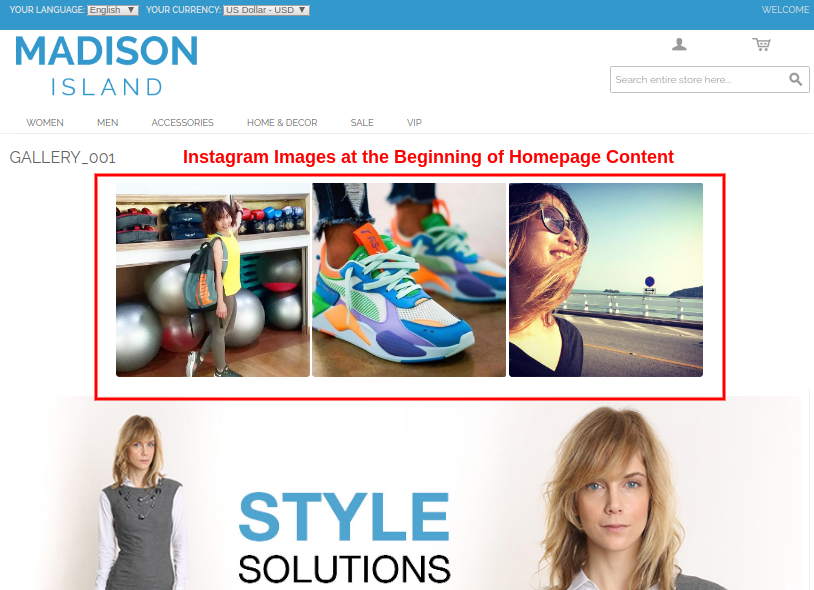
Include in Main Page: You can enable this toggle field if you want this gallery to be shown at the main Instagram page on the front.
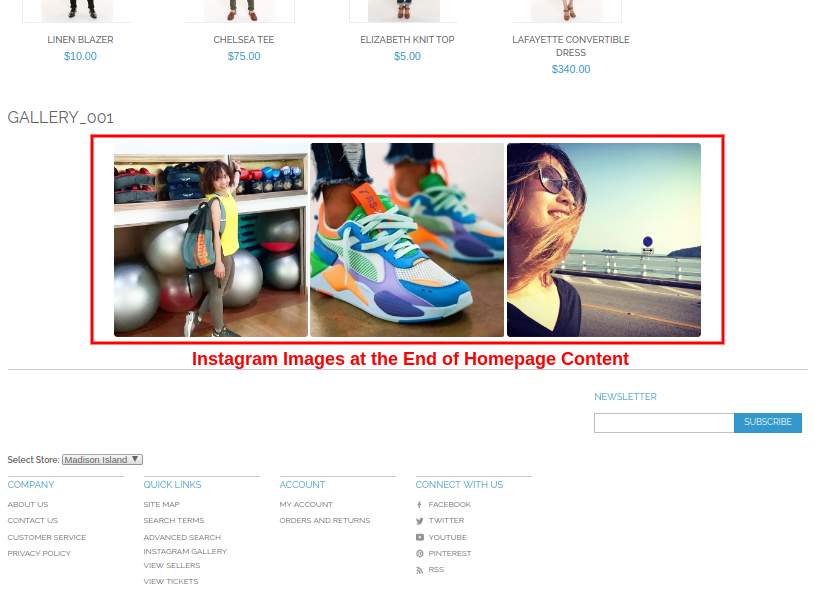
Page Visibility: This option helps you can set visibility of Instagram gallery on various pages at different locations. Simply Click on Add button to display this gallery on different pages.
3.2.2 Edit the Existing Gallery Settings
Now if you want to edit the existing settings of the gallery, click the “Edit” button corresponding to the gallery you want to configure.
Enable/Disable: You can toggle this button to enable or disable the Instagram gallery.
Gallery Title: This option allows you to set a custom title for the Instagram gallery.
Image Visibility: With this option, you can select the visibility type for the images shown on the frontend.
Image Limit: Using this option, you can set the maximum number limit of images for this gallery.
Include in Main Page: By enabling this toggle field, you can add this gallery on the main Instagram page at front.
Page Visibility: With this option, you can set visibility of Instagram gallery on various pages and on different locations. Simply Click on Add button to display this gallery on different pages.
3.2.3 Add and Edit Images
You can add as many Instagram images to a gallery by clicking on the “Images” button corresponding to the gallery.
The above screen shows you a list of existing Instagram gallery images. You can add new images, modify or delete the existing images.
Note: Deleting an image is easy, you just have to click the “Delete” button corresponding to the image.
3.2.3.1 Add New Image
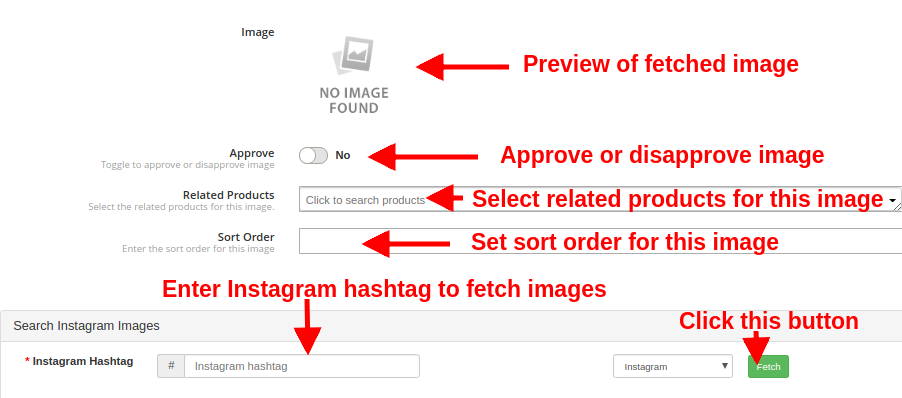
To add a new image to the Instagram Gallery, click on “Add New Image” button at the top right side of admin panel and fill the following fields:
Image: This option will allow you to check the preview of the fetched Instagram image.
Approve: With this option, you can approve or disapprove the selected Instagram image.
Related Products: With this option. You can select the related site products that you want to pin with that Instagram image.
Sort Order: This option lets you set the sort order of image on the Instagram gallery page.
Instagram Hashtag: Enter the Instagram hashtag to find or fetch the relevant images and then click on “Fetch” button.
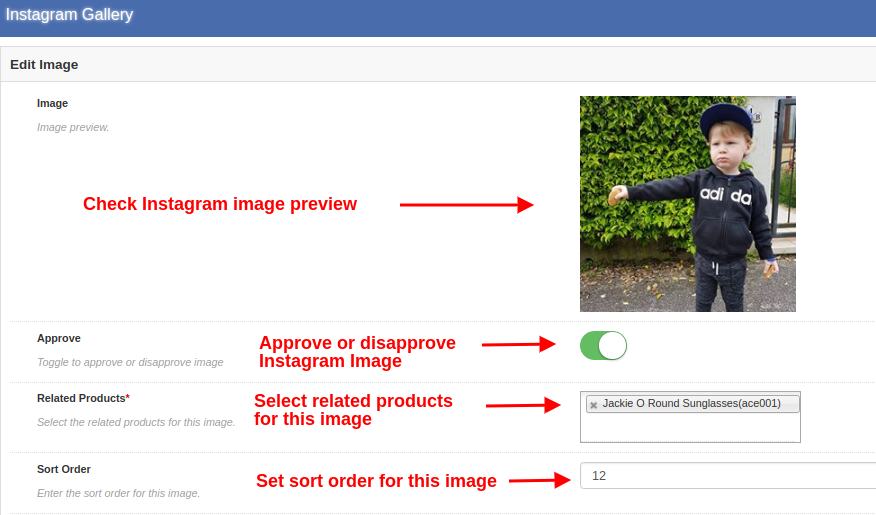
3.2.3.2 Edit an existing image
Image: This option lets you check the preview for the fetched Instagram image.Approve: With this option, you can approve or disapprove the image.
Related Products: This option allows you to select the related products that you want to show for that image.
Sort Order: This option lets you set the sort order of image.
3.2.4 Delete the Existing Gallery
Deleting a gallery is simple, you just have to click the “Delete” button corresponding to the desired Instagram gallery as shown in the image below:
4.0 Front Interface of Instagram Gallery Module for Magento
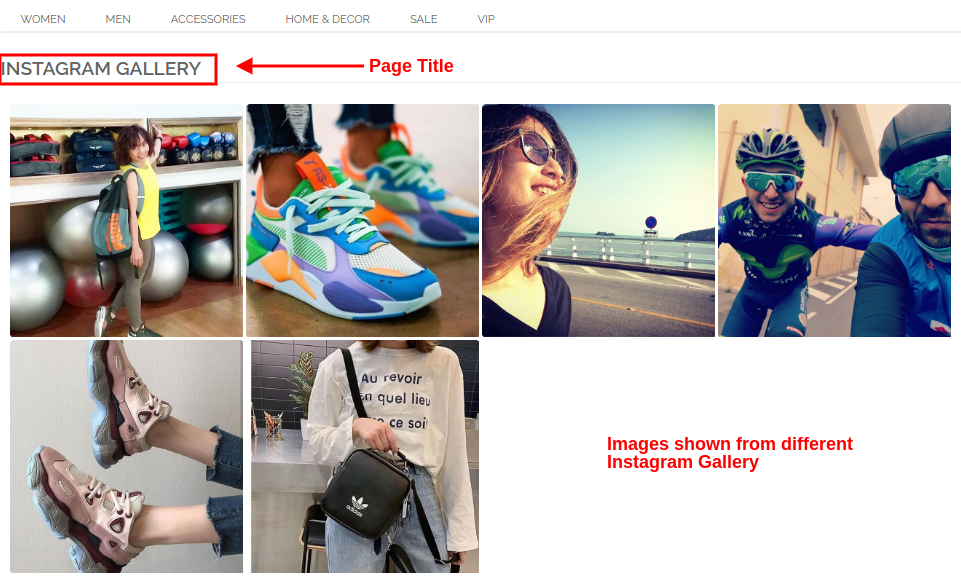
A) Instagram Shop Page
Customers will see this Instagram Gallery option in the footer section of the website.
Upon clicking the tab, they will be redirected to the Instagram Shop Page with URL key as:
“https://yourstore.com/mage1934/index.php/instagramgallery/”
This URL can be defined as per your own site needs. The Instagram Shop Gallery looks like in the image below:
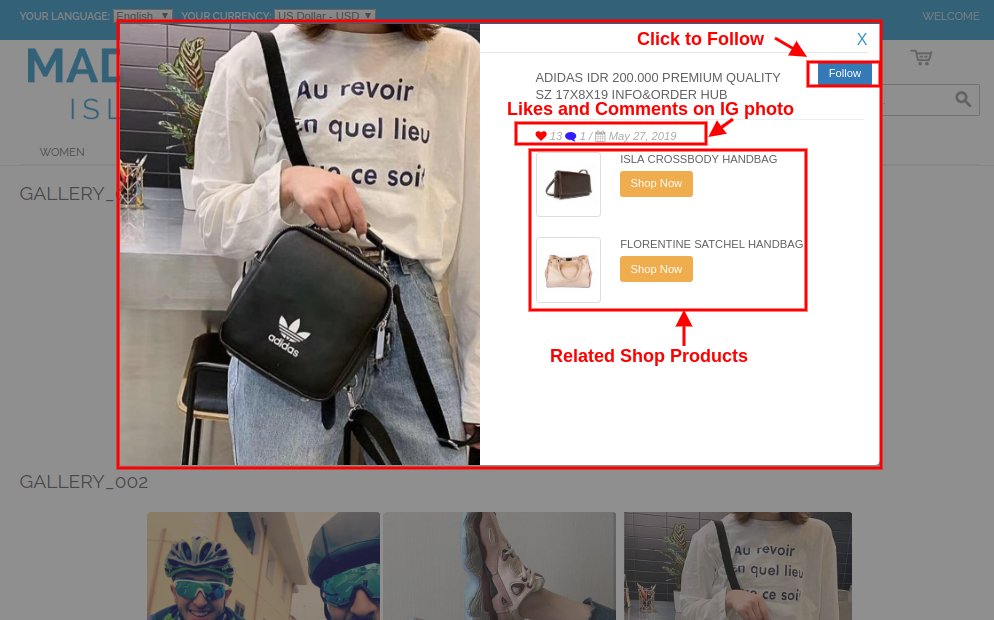
B) Likes and Comments for Instagram Image
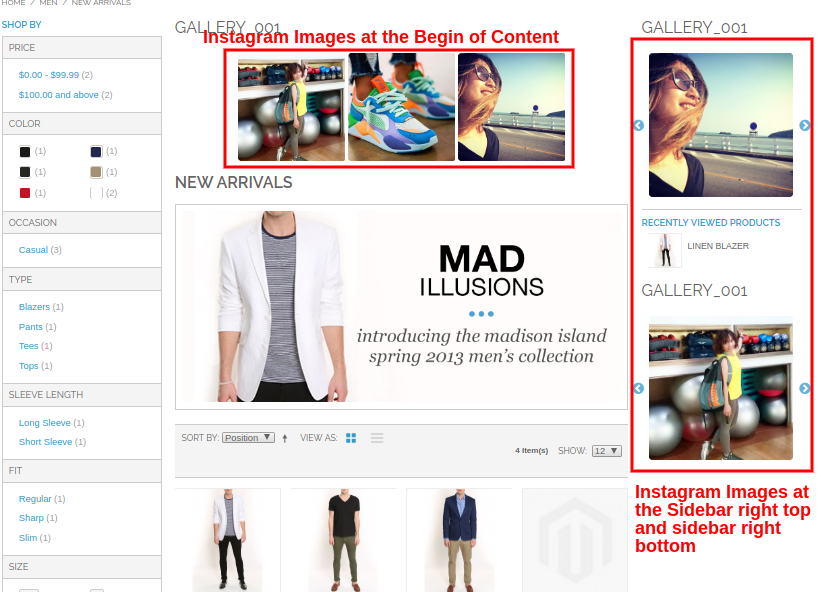
C) Show Instagram Gallery on Homepage
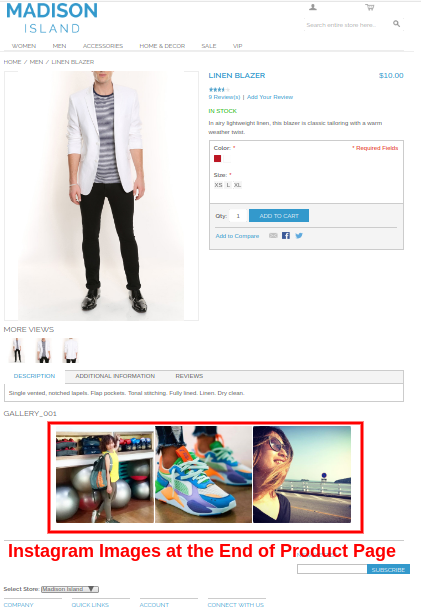
D) Show Instagram Gallery on Product Pages
E) Show Instagram Gallery on Category Pages
On clicking any of the images, customers will see the following image popup.
This way, the online store admin can show Instagram images on website pages without any hassle. The eCommerce store merchant can attract online users by showing eye-catchy Instagram photos. The online merchant can easily implement Magento Instagram Shop Extension and showcase Instagram images on website. The Shop on your Instagram gallery module shows a specific Instagram gallery page on the website. The online users can click on footer link and visit the Instagram gallery page. This way, the online merchant can reduce bounce rate easily. The Magento Instagram product tag feed module is highly customizable and allows the online users to view related products on clicking any specific page. The online merchant can add and showcase unlimited Instagram images.
The eCommerce store admin can show Instagram image on different website pages at desired position. The Magento Instagram Shop Gallery Extension is mobile responsive and offers smooth functioning. The online users can click on any Instagram image and view likes, comments and posting date details easily. The online merchant can also promote products by mapping the products as related products. This way admin can also increase website sales easily using this Magento Instagram module.
Knowband is one of the most reputed names in the field of plugin development. We provide best plugins for platforms like – Magento,Prestashop, OpenCart and