1.0 Introduction
If you already own a Magento store, you can now start selling your shop’s products to the Facebook community as well. Whether you want to showcase your products on the social platform or you want to drive Facebook audience to your store, you can simply accomplish it by setting up a Facebook Shop. Magento Facebook Store Extension integrates your online store with the Facebook page in just a few clicks and allows you to showcase your products on the Facebook business page.
Connect & Sell to over 2 Billion+ Facebook users with the help of Magento FB Store extension. Store merchants can effortlessly customize the Facebook store product catalog to showcase the best products and offers they would like to sell on Facebook. Using Magento Facebook Shop extension, they can add desired products from the Magento store on their FB Store page and style up the page interface to make it look attractive to the Facebook users. The potential customers can view the store products direct from the FB Shop page and can shop for the desired products by clicking ‘Add to Cart’ button. Clicking the button will redirect them to your Magento store.
1.1 Striking Features of Magento FB store Integration for merchants
The ease in install and configuration of Magento FB Shop extension eliminates the need for any coding efforts, so the store admins can implement FB store on their Magento website without any assistance. Moreover, Magento Facebook shop integration offers other numerous features to the merchant that are listed below:
- Magento FB Store extension lets you integrate your online shop with your Facebook page which requires a Facebook App ID to setup connection with Facebook.
- Admin can use the Google Analytics feature to gain the insight of their Facebook Shop page performance using Magento Facebook store extension.
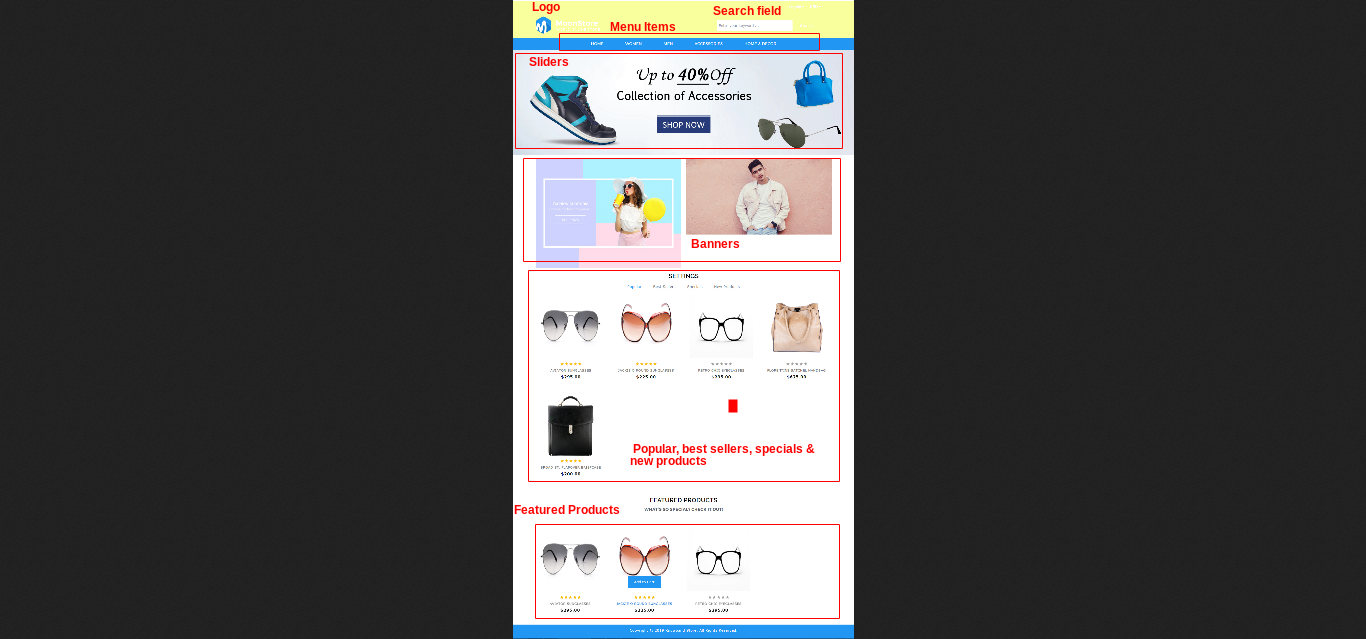
- With Magento Facebook Shop extension, admin can change the look and feel of the Facebook Store by adding a logo image, multiple sliders, banners on the FB Store Homepage.
- Additionally, admin can even set a theme color and font color for their FB Store page.
- Magento Facebook Store Integration module allows admin to show popular, best sellers, specials and new products on their FB Store page.
- Store merchants can even add a footer to their FB Store to add a store appeal.
- Magento Facebook Store Setup adds a search field at the top of FB page which allows the customers to search for a particular product and service.
- With Magento Facebook Integration extension, Admin can easily select the menu items for the configurable navigation bar present at the top of the FB store.
- Using Magento FB shop integration module, Admin can also set featured products and featured categories on Homepage of their Facebook business page.
1.2 Magento FB Shop Benefits to Customer
- Magento FB Store extension offers the ease of browsing and shopping to the customers for the store products while accessing their Facebook account.
- The ‘Add to Cart’ button added using Magento Facebook Integration extension automatically redirects the customers to the Magento eCommerce store.
1.3 Technology for Development
Language: PHP
Frame Work: Magento
2.0 Installation Guide for Magento Facebook Store Extension
The store admin can follow these simple steps for installing the Magento FB Store extension:
1. First of all download the extension package from the Knowband store.
2. You will get a zipped file containing the source code and user manual. Unzip the package on the root folder of your Magento setup via FTP manager (like Filezilla or WinSCP – download here: https://filezilla-project.org/). You’ll find the files and folders as shown in the image below:
The extension is now installed and ready for use. Now the store admin can now use and configure the Magento Facebook integration extension.
3.0 Admin Interface of Magento FB Store extension
Just after successful installation of Magento Facebook Store Setup on the Magento site, you can configure the FB Store module as per your needs. In the Admin Panel, go to System > Knowband Extensions > Facebook Store.
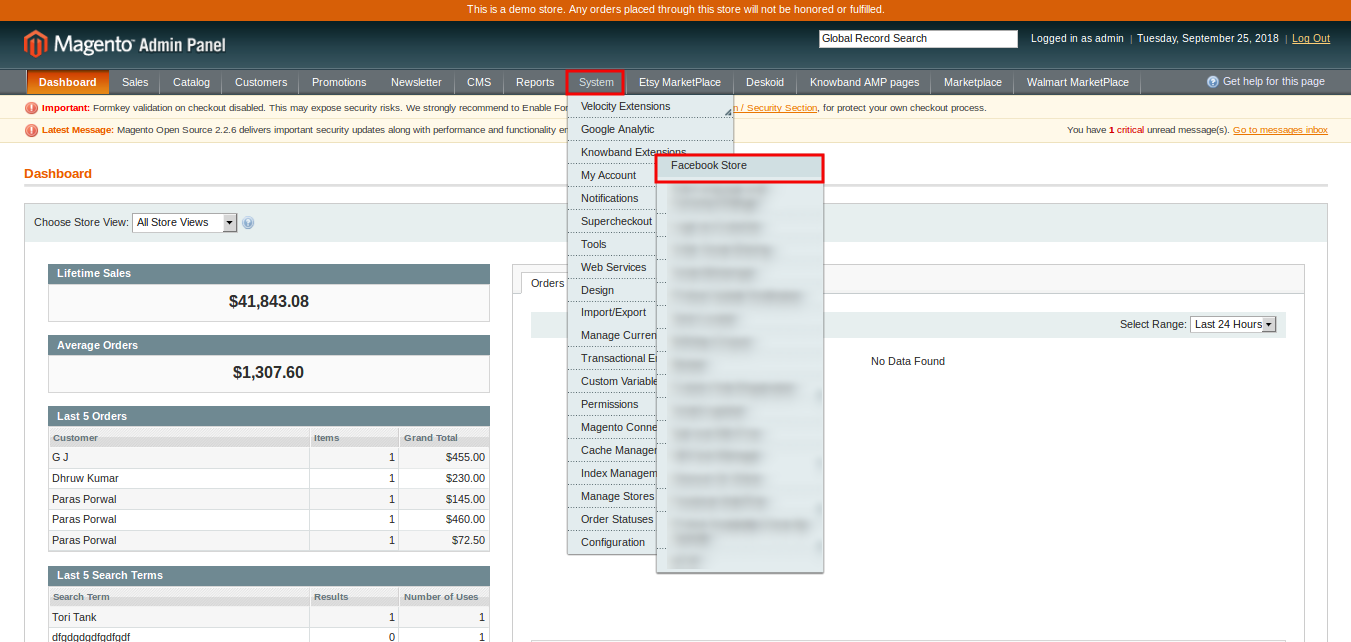
This Knowband extension offers you the following sections:
- General Settings
- Content Settings
- Product Settings
- Sliders Settings
- Banners Settings
- Facebook Store
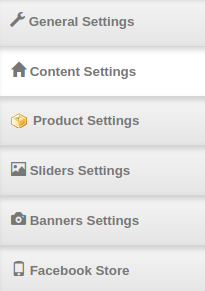
Each Tab of the Magento FB store extension are discussed below:
3.1 General Settings
On clicking on the General Settings tab, you will see the following options as given below:
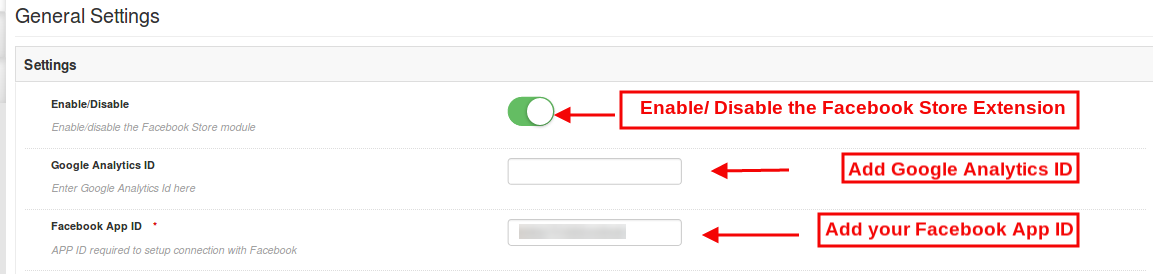
Initially, the above fields are set to their default values.
- Enable/Disable: Initially, Magento Facebook Shop extension is enabled, you can disable its functionality by turning OFF this setting.
- Google Analytics ID: You can enter the Google Analytics ID in this section and track the traffic and performance of your Facebook shop in Google Analytics.
- Facebook App ID: Input the Facebook App ID required to setup connection with the Facebook. Admin can generate Facebook ID and add it to their Facebook Store. Refer the section 3.1.1 to obtain the Facebook App ID.
After this, click on the “Save” button shown at the top right corner of admin panel to save the module settings.
3.1.1 Steps to generate Facebook app ID
In order to generate Facebook app id please follow these steps:
- First of all log-in to the Facebook account and go to the link mentioned here: https://developers.Facebook.com/
- Go to “MY APPS” and click on the ”ADD NEW APP” option.
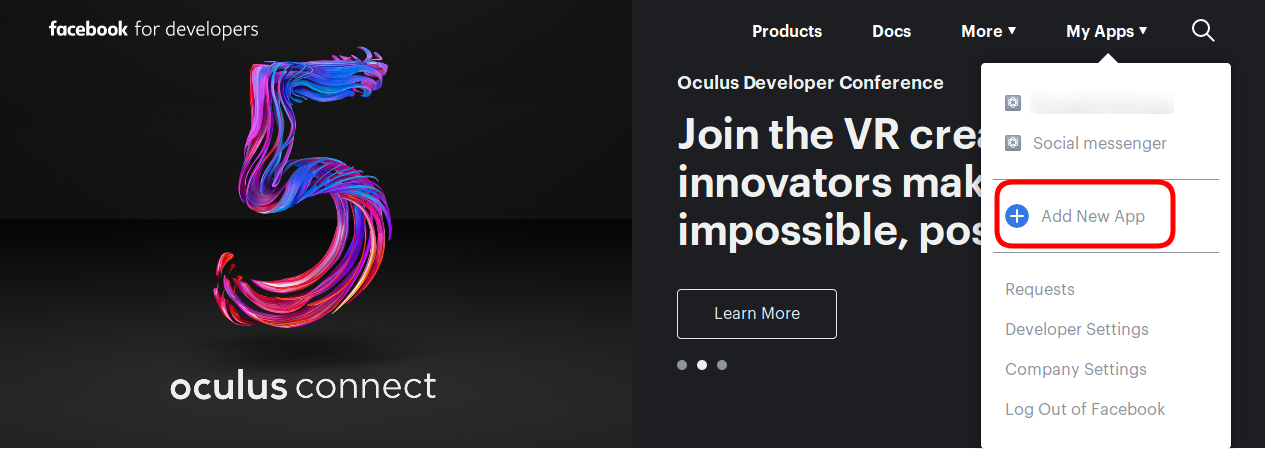
- Enter the details in “Display Name” and “contact email ID”. After that, click on the “Create APP ID” button.
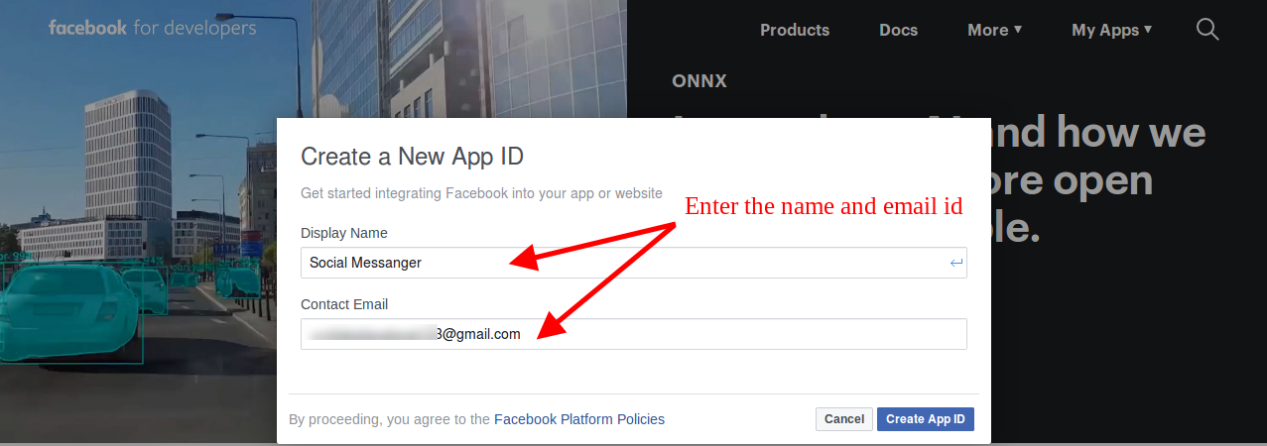
- After clicking the “create app id” button, go to the “Settings” and then select “Basic” option. Here, the store admin can view the APP ID. The admin needs to copy this Facebook app id and copy to the admin interface app id option.
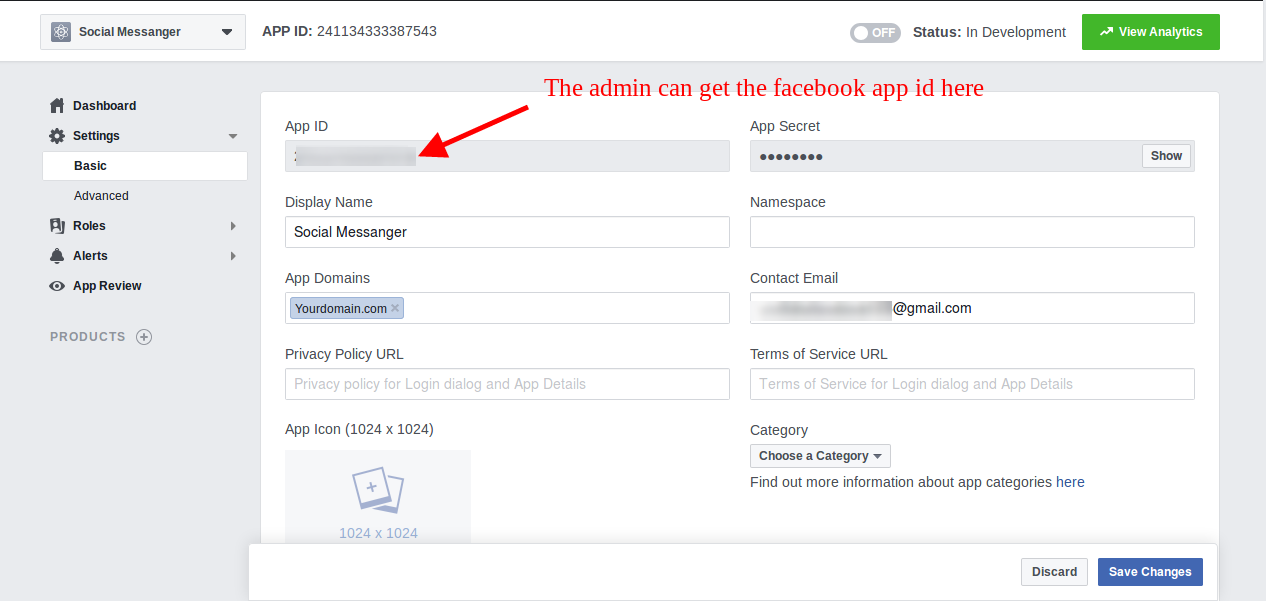
- Admin can insert the App Domain. After that click on the “save changes” option.
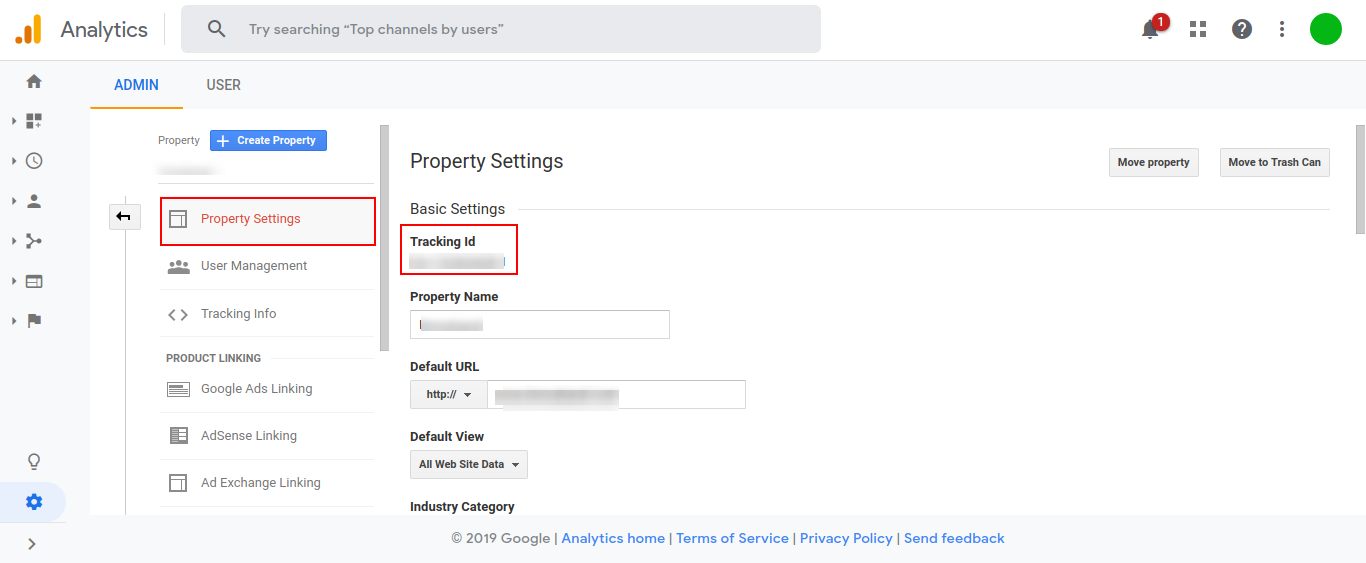
3.1.2 Steps to Find your Google Analytics ID
To find the Google Analytics ID:
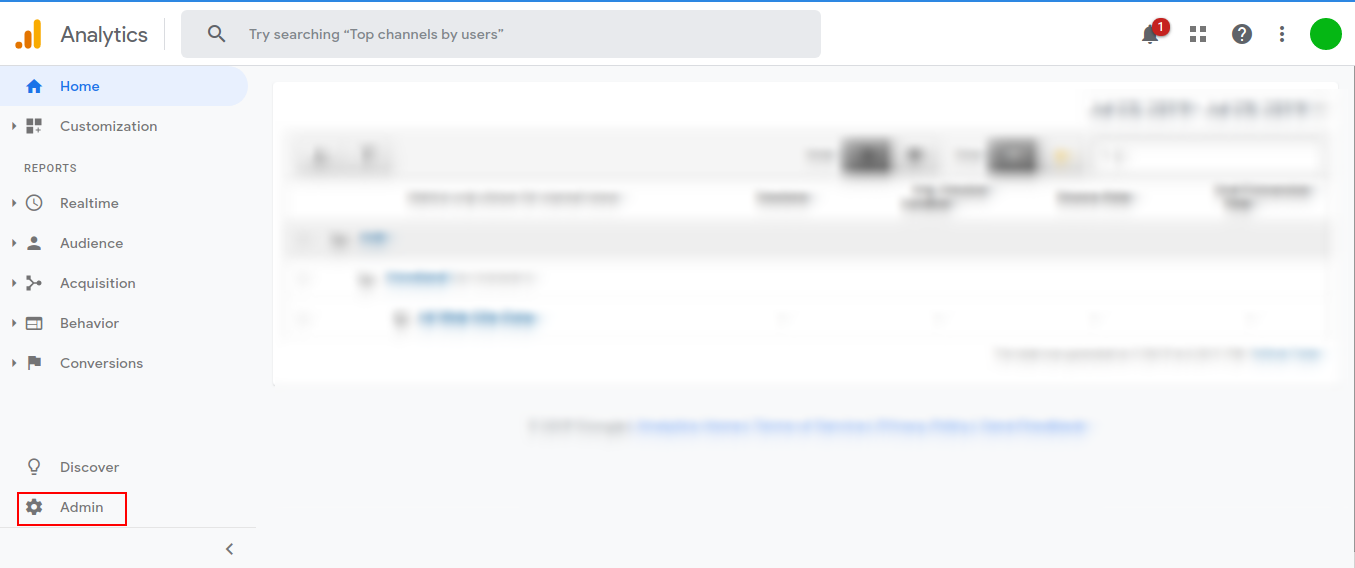
- Sign in to your Analytics account.
- Click on Admin on the left column.
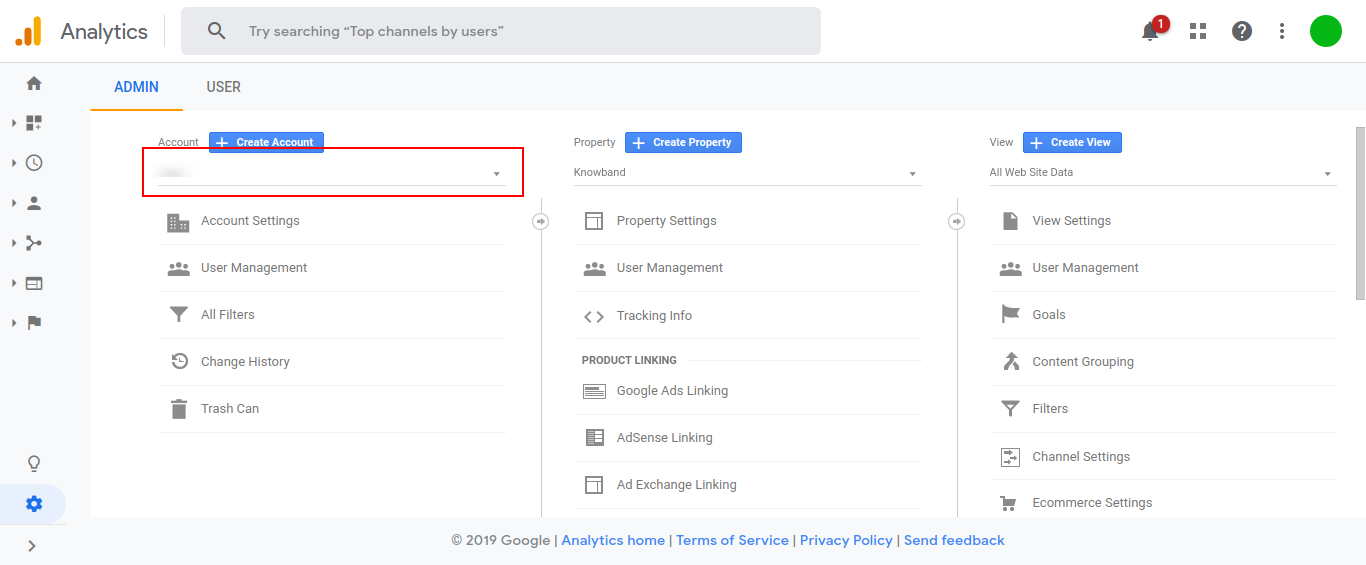
- Select an account from the menu in the ACCOUNT column.
- Select a property from the menu in the PROPERTY column.
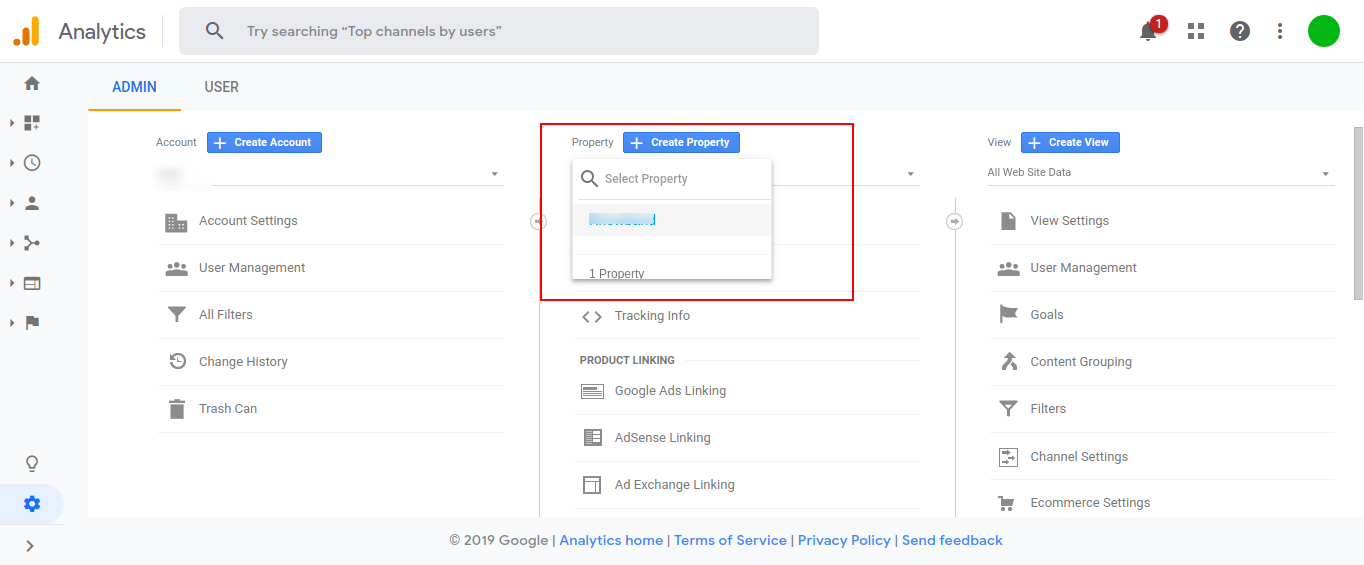
- Under PROPERTY, click Tracking Info > Tracking Code. Your Google Analytics ID is displayed at the top of the page.
3.2 Content Settings
The various fields of this section of Magento Facebook store extension are mentioned below.
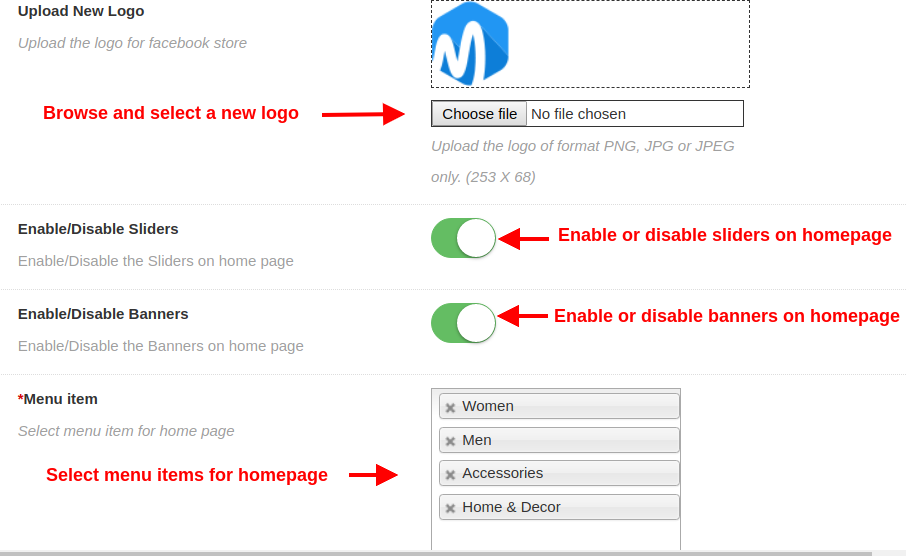
- Upload New Logo: Admin can set a custom logo for their Facebook Store by uploading the logo image of format PNG, JPG, or JPEG only.
- Enable/Disable Sliders: Admin can enable or disable the slider images shown on the Facebook store page.
- Enable/Disable Banners: Admin can enable or disable the banner images shown on the Facebook store page.
- Menu Item: Admin can select the menu items that will be displayed on the FB shop.
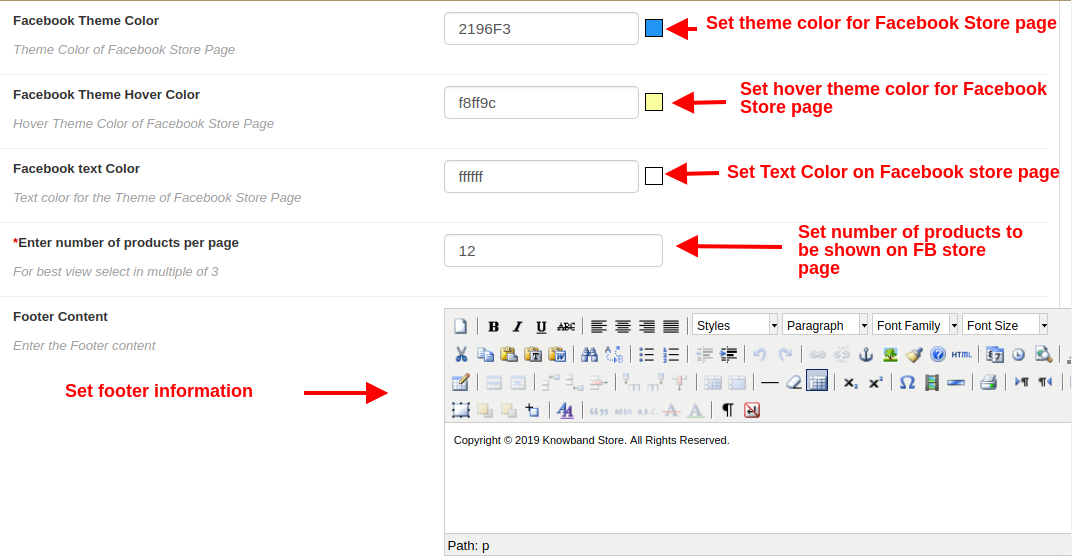
- Facebook Theme Color: Using this option of Magento Facebook store extension, admin can set the theme color for their Facebook Store.
- Facebook Theme Hover Color: With this option, admin can set the theme hover color for their Facebook Store.
- Facebook Text Color: Admin can even set the font color for the text displayed on Facebook Shop page.
- Enter Number of Products per Page: Admin can specify the count of products which will be displayed on the Facebook store page.
- Footer Content: Admin can specify the Footer content which is to be displayed at the bottom of the Facebook Store.
3.3 Product Settings
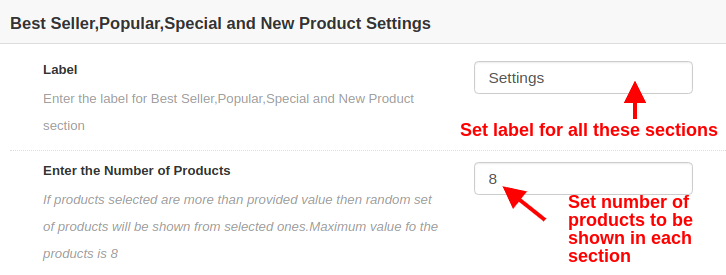
- Label: Admin can enter the label for displaying bestseller, popular, special, and new products on the Homepage.
- Enter the number of products: Admin can set the number of products which will be displayed in each section of products.
FOR BEST SELLER PRODUCTS
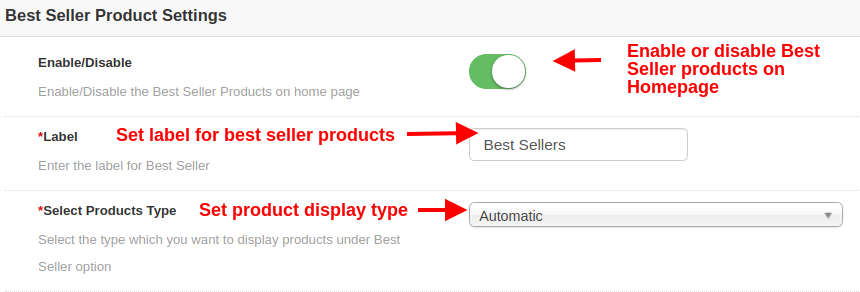
- Enable/Disable: This option will enable or disable the Best Seller products on Homepage.
- Label: This option sets the label for displaying Best Seller products on Homepage.
- Select Products Type: This option selects the product display type as automatic or manual. If automatic is selected then random products will be shown from Best Seller category of the website.
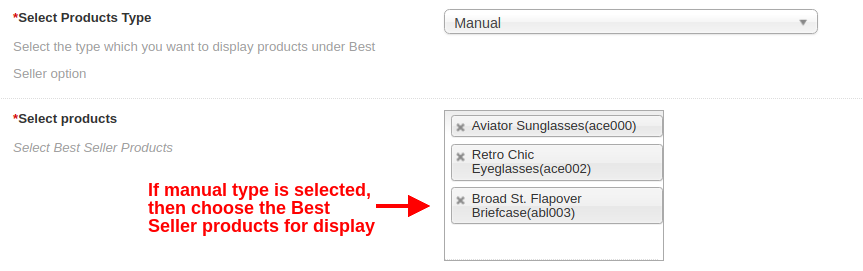
- Select Products Type: If this option is selected as manual, then the products selected below will be shown on the Homepage under Best Seller section.
- Select Products: Using this option, admin can choose the desired products shown as Best Seller products.
FOR NEW PRODUCTS
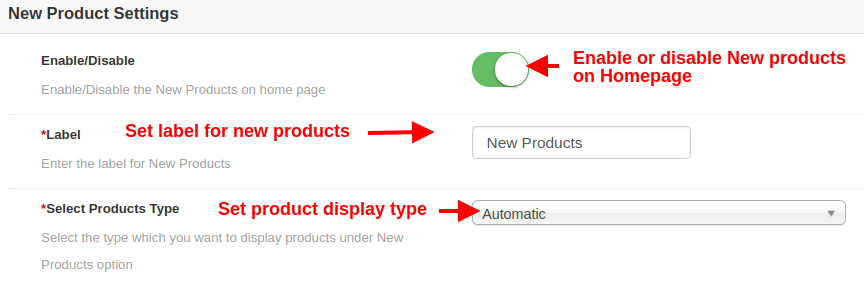
- Enable/Disable: This option will enable or disable the New products on Homepage.
- Label: This option sets the label for displaying New products on Homepage.
- Select Products Type: This option selects the product display type as automatic or manual. If automatic is selected then random products will be shown from New products category of the website.
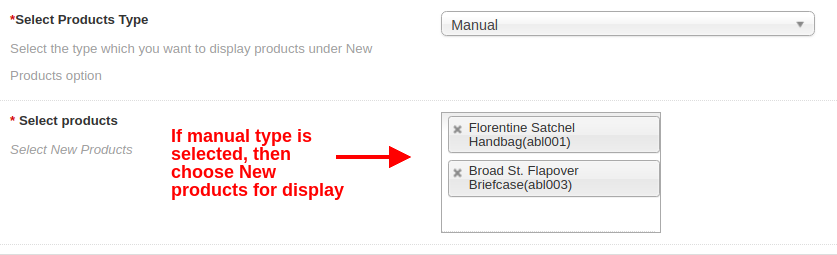
- Select Products Type: If this option is selected as manual, then the products selected below will be shown on the Homepage under New Products section.
- Select Products: Using this option, admin can choose the desired products shown as New products.
FOR POPULAR PRODUCTS
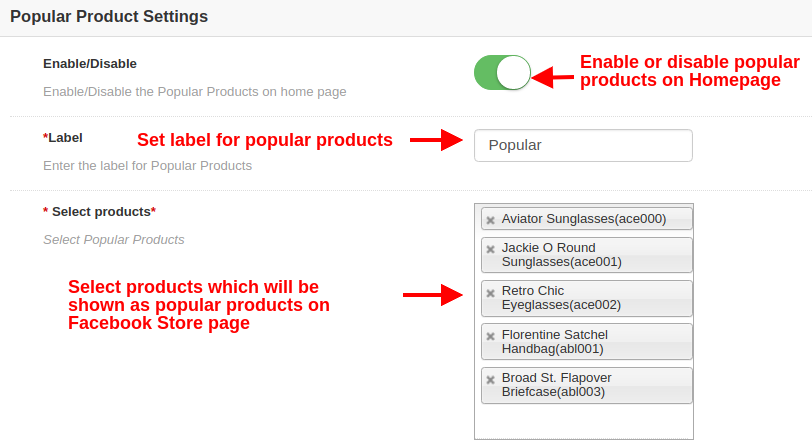
- Enable/Disable: This option will enable or disable the popular products on Homepage.
- Label: This option sets the label for displaying popular products on Homepage.
- Select Products: Using this option, admin can choose the desired products to show as Popular products on Homepage.
FOR SPECIAL PRODUCTS
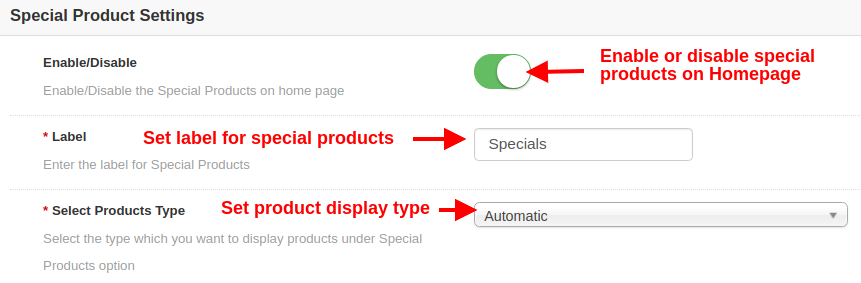
- Enable/Disable: This option will enable or disable the Special products on Homepage.
- Label: This option sets the label for displaying Special products on Homepage.
- Select Products Type: This option selects the product display type as automatic or manual. If automatic is selected then random products will be shown from Special products category of the website.
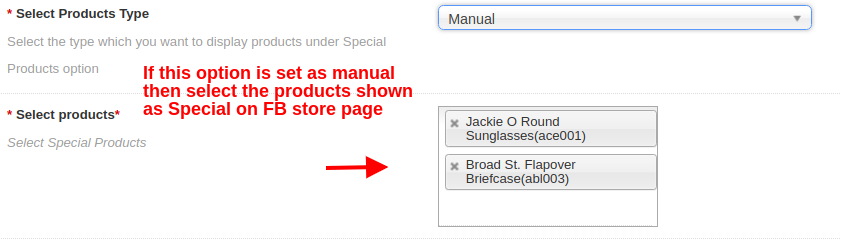
- Select Products Type: If this option is selected as manual, then the products selected below will be shown on the Homepage under Special Products section.
- Select Products: Using this option, admin can choose the desired products shown as Special products.
FOR FEATURED PRODUCTS
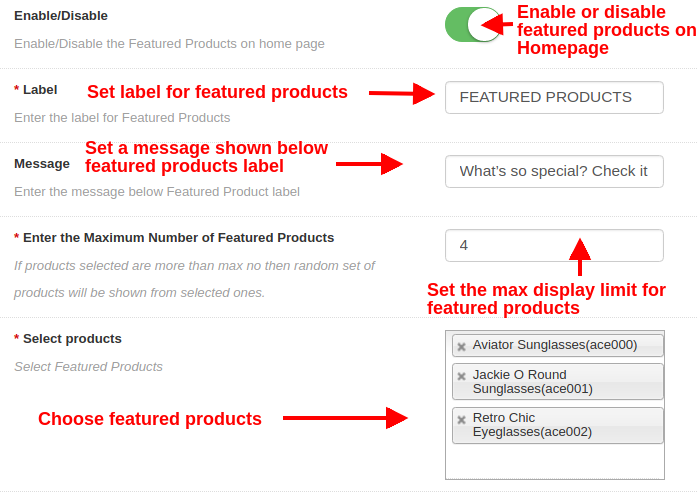
- Enable/Disable: This option will enable or disable the featured products on Homepage.
- Label: This option sets the label for displaying featured products on Homepage.
- Message: This option sets a message shown below featured products label.
- Enter the Maximum Number of Featured Products: With this option, you can set the maximum display limit for featured products.
- Select Products: Using this option, admin can choose the desired products they want to show as featured products on Homepage.
3.4 Slider Settings
From this section, you can add and show as many sliders on the Facebook store homepage. These sliders are shown on the top of the Facebook store page. Below screen shows a list of existing sliders, there are shown randomly on the FB store homepage. You can either delete each of the sliders or can modify their settings by clicking on the “Edit” and “Delete” buttons respectively.
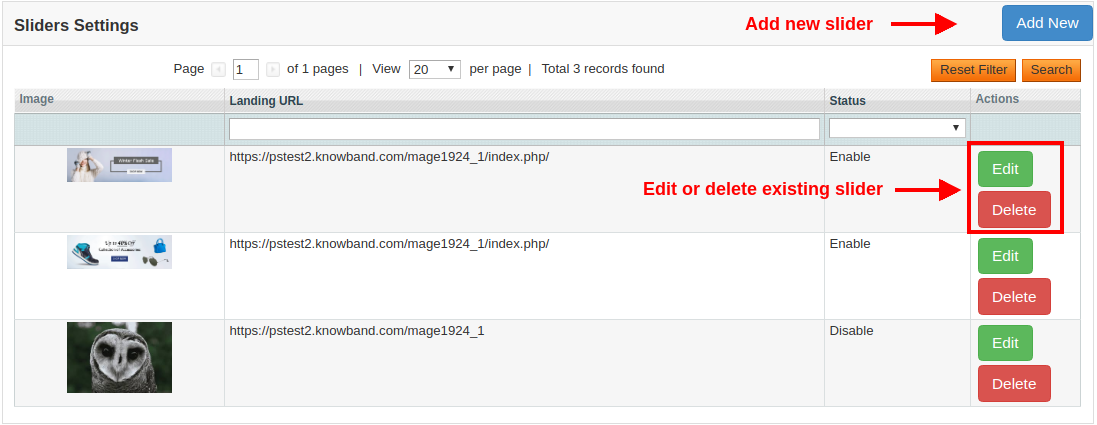
To add a new slider, click on the “Add New” button at the top right side of the admin screen. It will show the following configuration options: 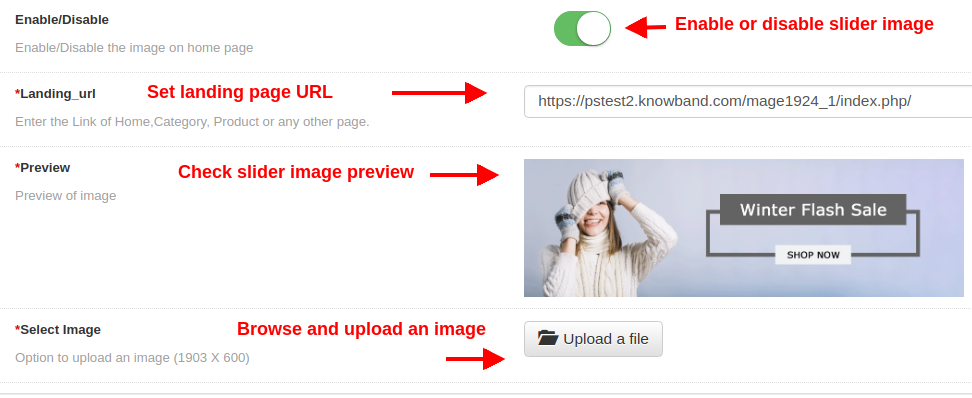
- Enable/Disable: This option enables or disables the slider image on the FB store homepage.
- Landing URL: By this option, admin can set a link of Homepage, Product Page, Category Page or any other page of the website. On clicking this slider image, the customer will be redirected to the specific link.
- Preview: This option shows the preview of the image which is selected from the below option.
- Select Image: This option allows the admin to browse and upload any image as a slider image.
3.5 Banner Settings
From this section, you can add and show as many banners on the Facebook store homepage. These banners are shown just below the sliders on the Facebook store page. Below screen shows a list of existing banner images. You can modify their settings by clicking on the “Edit” button corresponding to the record.
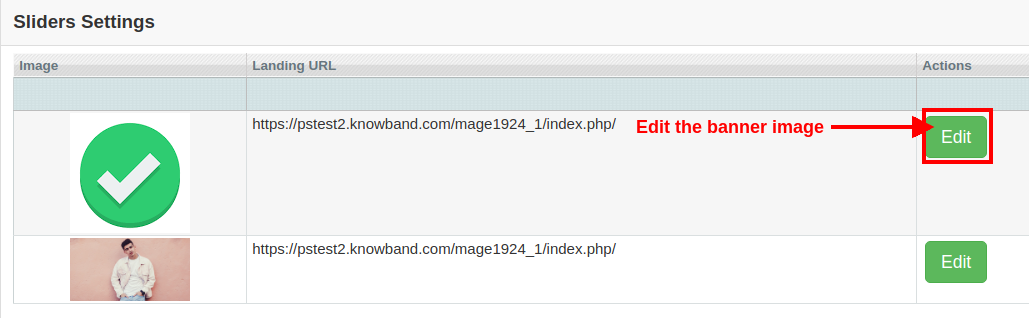
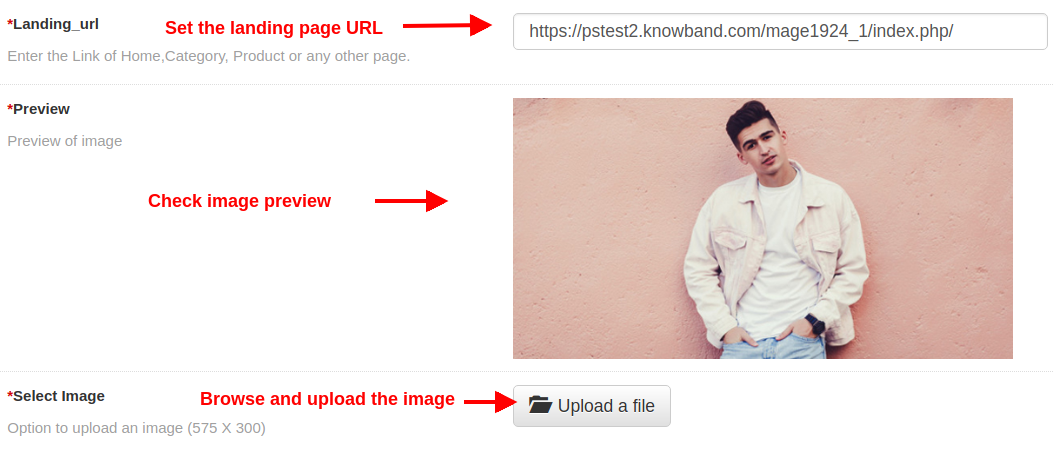
- Landing URL: By this option, admin can set a link of Homepage, Product Page, Category Page or any other page of the website. On clicking this banner image, the customer will be redirected to the specific link.
- Preview: This option shows the preview of the image which is selected from the below option.
- Select Image: This option allows the admin to browse and upload any image as a banner image.
4.0 Front Interface of Magento Facebook Store Integration Module
Once after setting up the Facebook App ID and the configuration settings, your customers can find the Facebook shop tab in your Facebook account.
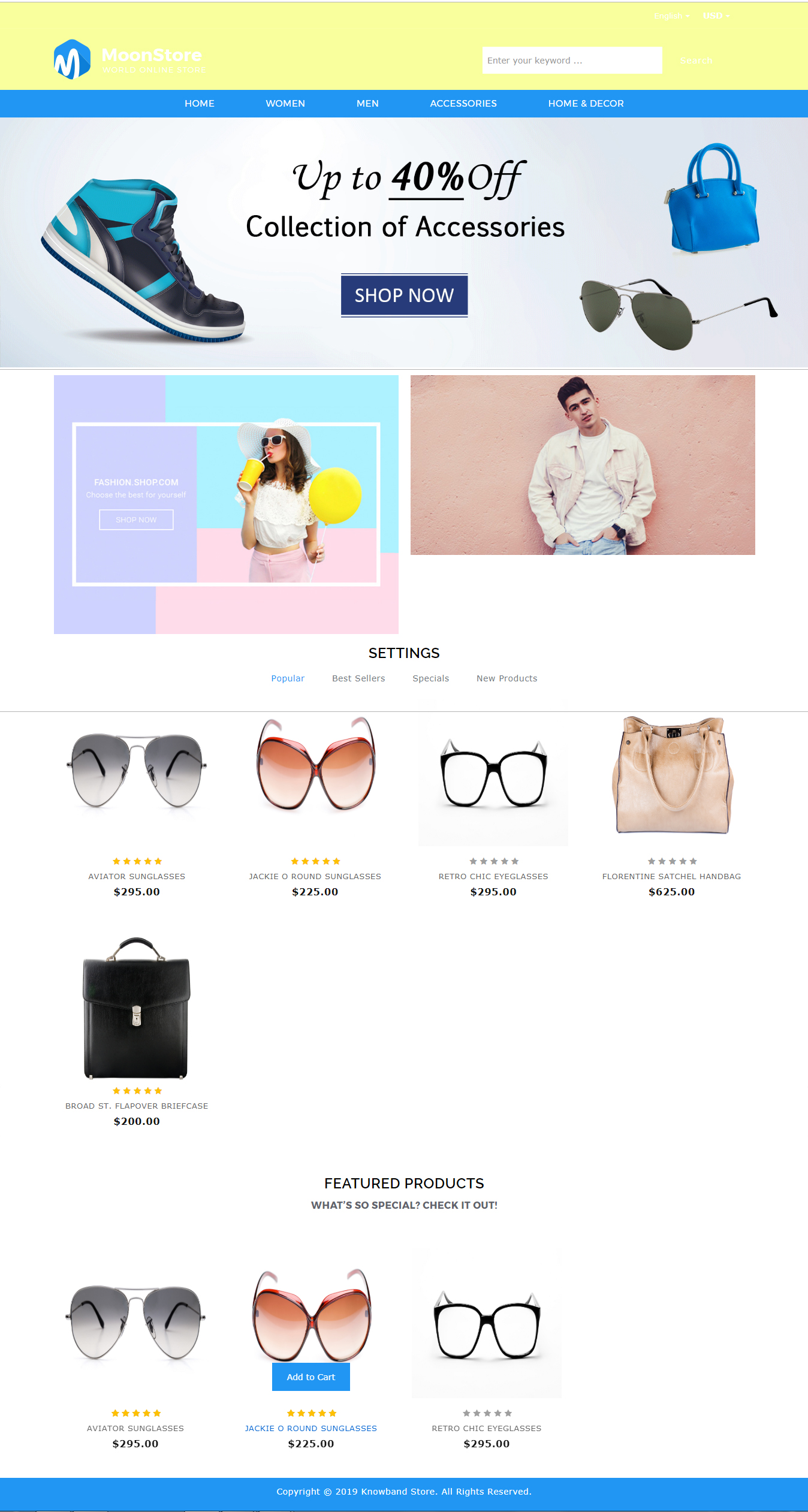
Below screenshot gives you complete understanding about different elements of FB Store page.
Find below more details about this Magento Facebook Store Extension:
Magento Facebook Store Extension Link
Please contact us at support@knowband.com for any query or custom change request as per your business requirement.