Magento Private Shop Extension- User Manual

1.0 Introduction

Knowband offers Magento Private shop Extension, which allows the online store admin to make the overall store as a private shop or apply the settings to mark website pages, product pages and category as private. The online store admin can make the store private and control the sales easily. This way, the online store admin can restrict the customers to login/register in the store to view the store or specific section.

The customer can privatize the store or the selective parts of the store in order to manage sales to the selective customer’s group. The Magento Private shop plugin allows privatizing overall store or specific products/category pages. Only registered/logged in customers can view the products or visit the website after store privatization.

1.1 Basic Features of this Magento Private Shop Extension

  1. The online store owner can make the overall store or selected store section as a private store by using this Magento Private shop Extension.
  2. As a store admin, you can force the online users to login/register for accessing the store.
  3. The Restrict categories and products allow managing the look and feel of the login/signup page easily without any complication.
  4. The online store admin can enable or disable the approval option of the newly registered account. The customers cannot access the store after validation if admin enables this setting.
  5. The Magento private sales module allows the admin to enable the settings for allowing Google to crawl and index the private shop pages.
  6. The Restrict categories and products addon allow the admin to modify the login/signup title text.
  7. The store admin can set the position of the login/signup form. The admin can select left, right or center position.
  8. The store owner can enable or disable signup option from the admin interface of this Magento private store extension.
  9. The admin can set login/signup form background. The Magento private sales module allows setting image, color and video as a form background.
  10. Entire shop or any specific selection of the store can be set as a private section.
  11. Admin can allow the customers to access private shop by setting their IP addresses. These IP addresses have permission to access private store without any restriction.
  12. The Magento Private shop extension offers multi-lingual support.
  13. The store admin can verify the newly registered customers from the admin interface of this Magento Private shop module.

2.0 Installation

The online store merchant can install the Magento Private shop Extension easily by following these steps:

1. Admin needs to download the extension package from the Knowband store.

2. After downloading the extension package, the store owner will get a zipped file. Unzip the package on the root folder of Magento setup via FTP manager (like Filezilla or WinSCP – download here: https://filezilla-project.org/). The admin will find the files and folders as shown in the image below:

Installation of Restrict categories and products module

3. The extension is now installed and ready for use. In the Admin Panel, go to “System > Knowband Extensions >Magento Private shop Extension”.

Now the store admin can now use and configure the Magento Private Shop Extension.

3.0 User Manual

After the successful installation, you can view the below-mentioned configuration options. Magento Private Shop Extension offers these customization options:

  • General Settings
  • Access Settings

3.1 General Settings

In this Customization option, you can apply the settings to set the look and feel of login/registration form.
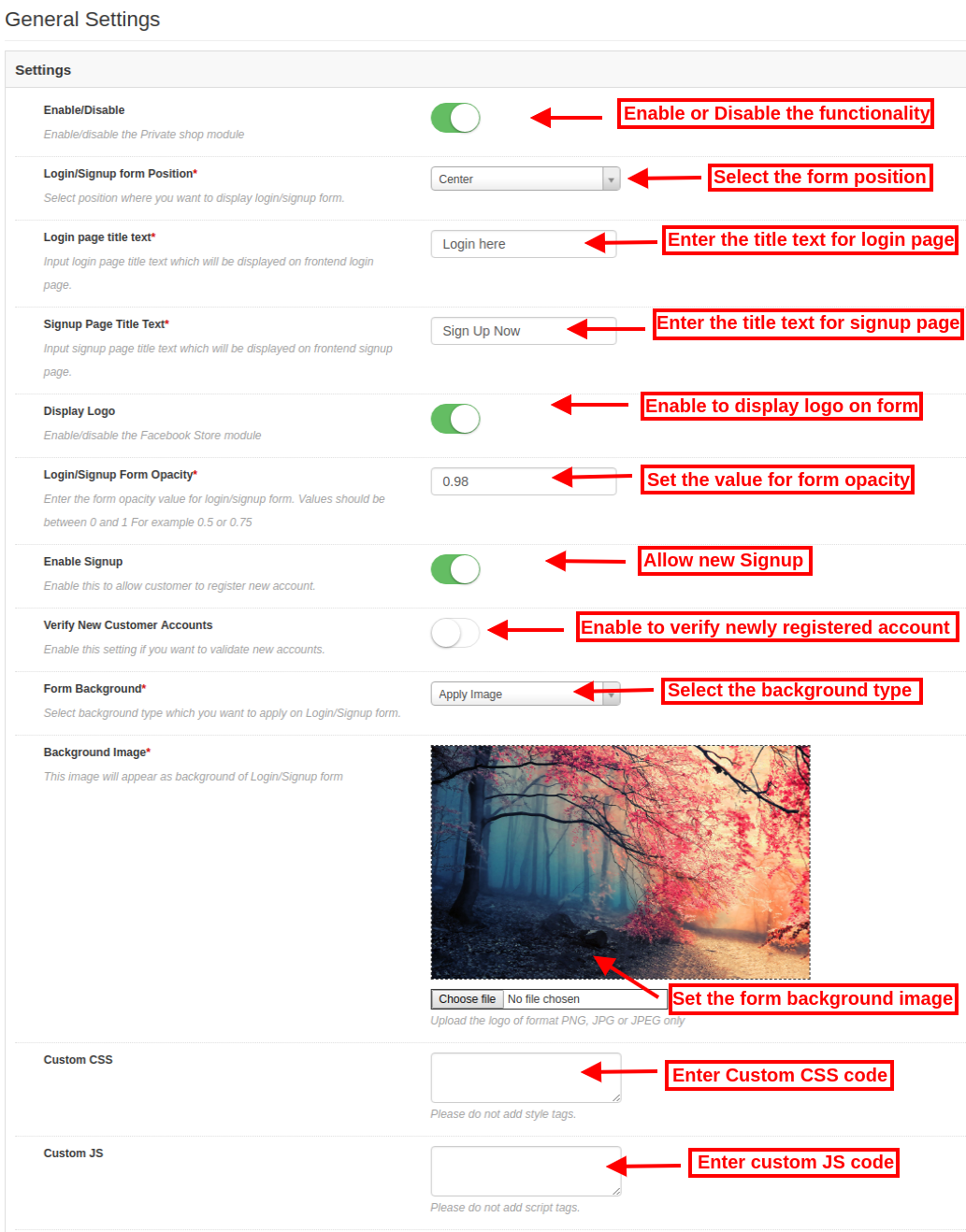
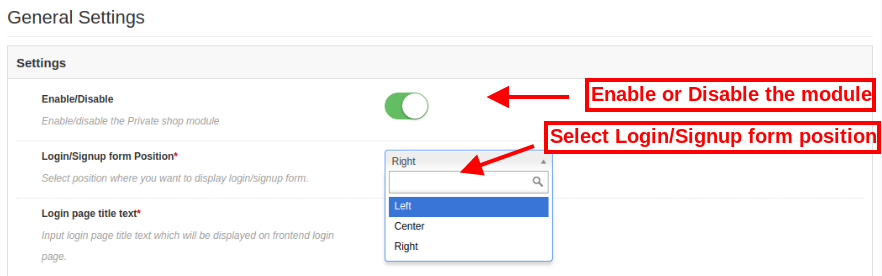
  • Enable/Disable: Click here to activate or deactivate the Magento Private shop Extension functionality.
  • Login/Signup Form Position: Select the form position left, right or center from the drop-down list.
  • Login Page Title Text: Enter the text of the login page here. This text will be displayed as a title of the login page.
  • Signup Page Title Text: Set the title text of signup page.
  • Display Logo: Enable or disable the settings for showing or hiding the logo on login/signup form.
  • Login/Signup Form Opacity: Enter the value for login/signup form. This value should be between 0 and 1.
  • Enable Signup: Enable or disable this option in order to allow/deny new signup.
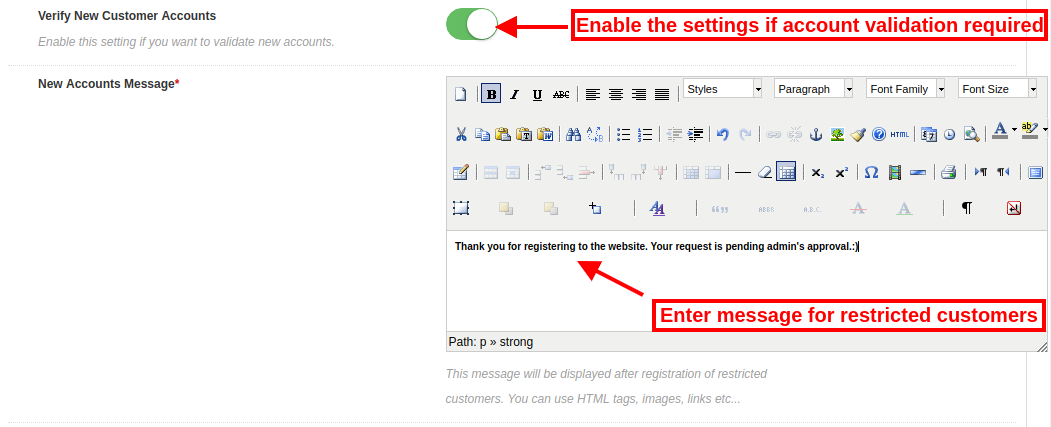
  • Verifying new Customer Account: Enable the settings if you want to validate newly registered customers. If you disable this option, then the new private customers can access the store easily without any verification.
    • New Account Message: Enter the message for newly registered customers. The Restrict categories and products module allows adding text, HTML tags, images, and links.
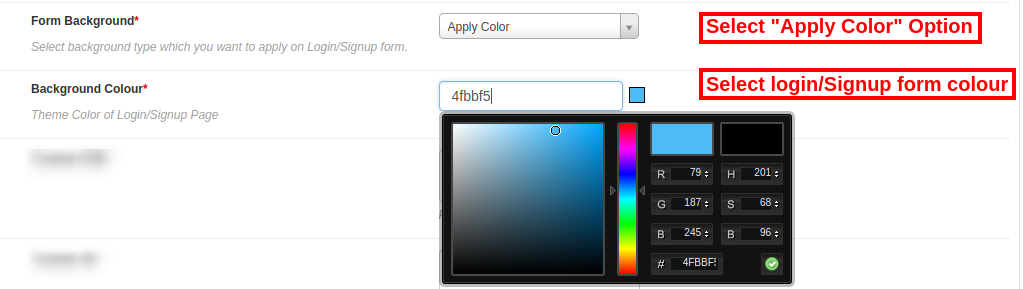
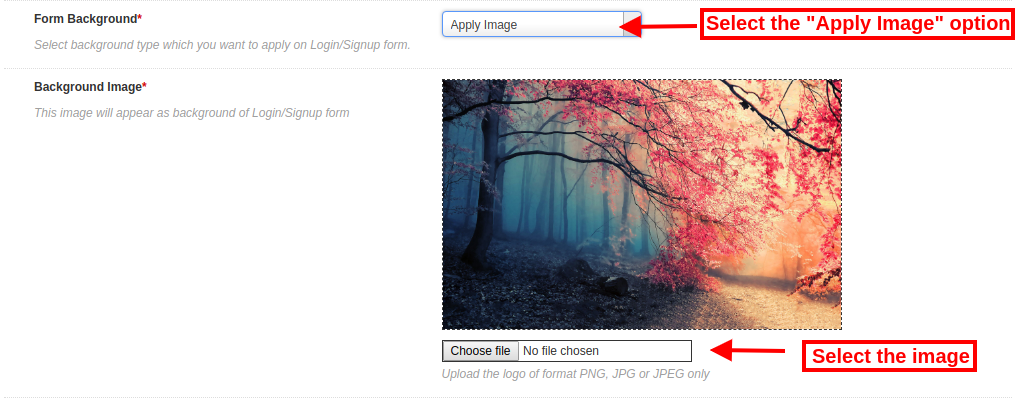
  • Form Background: Select the background type of login or sign/up form. You can select from the drop-down options to apply image, apply color or apply video on the form background.
  • Apply color: Set the login/signup form background color. Private Shop Magento module offers a color picker tool for easy color selection.
  • Background image: Select the image for showing as a login/signup form background image.
  • Apply YouTube: Enter the Youtube video link here to display it as a login/registration form background.

  • Custom CSS and JS: Enter custom CSS and JS code for more look and field customization.

3.2 Access Settings

In access setting customization option, the store admin can set the store accessibility. As a store owner, you can privatize the overall website or selected portion of the store.

Privatize Shop type: Select the type of store privatization. The Restrict categories and products extension allows selecting “complete shop” option or “only selected” option.

3.2.1 While Selecting Complete Shop
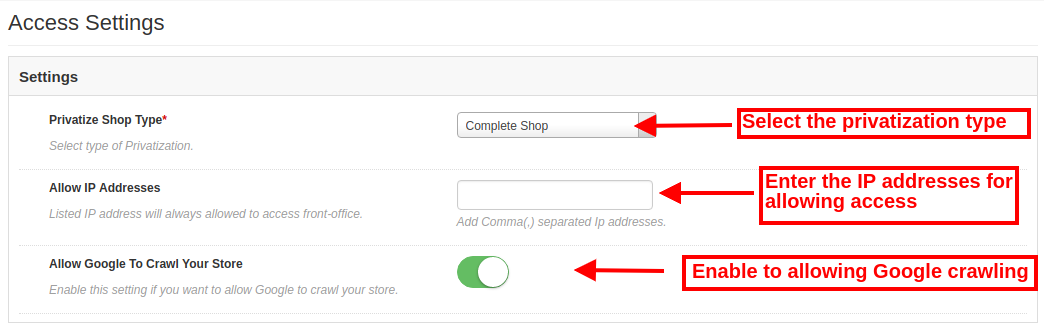
  • Allow IP addresses: Enter the IP address here. These listed IP addresses will be allowed to access front-office every time.
  • Allow Google to Crawl Your Store: Enable the settings for allowing Google to crawl the private store.

3.2.2 While Selecting “Only Selected” Option
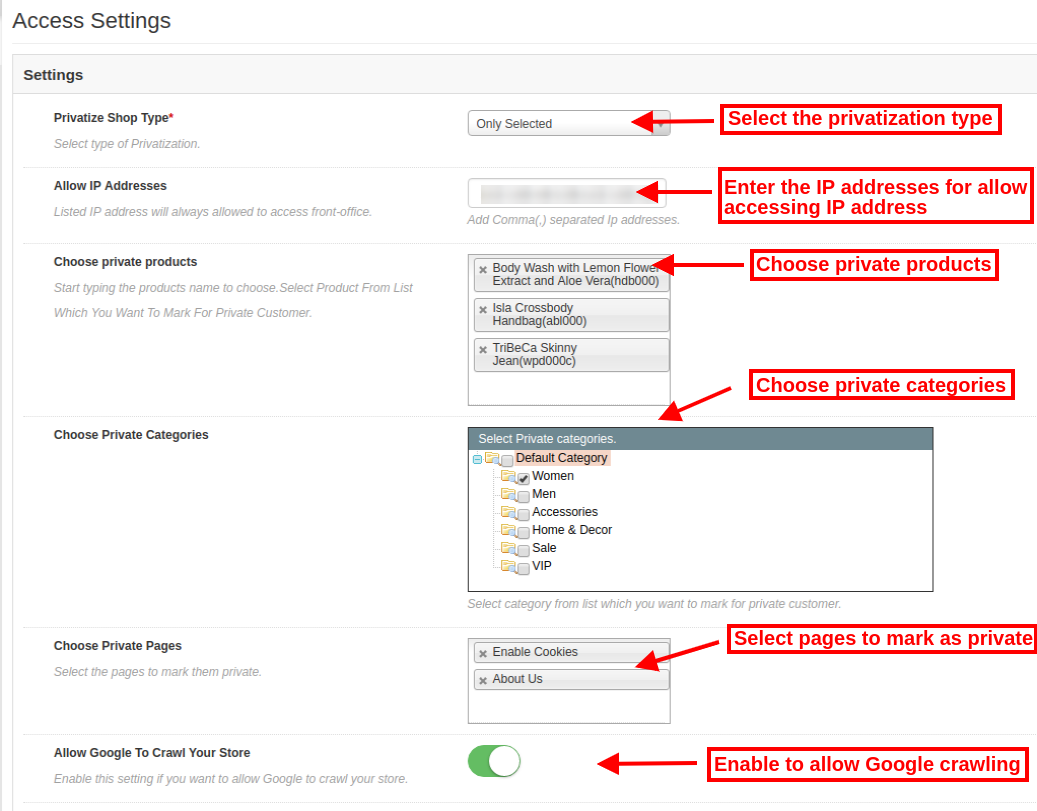
  • Allow IP addresses: Enter the IP address and separate it using comma(,)separator. The listed IP addresses will be allowed to access the private section of the store.
  • Choose Private Products: Select the products which you want to list as private products.
  • Choose Private categories: Select the categories which you want to make private.
  • Choose Private pages: Choose the pages to mark as private.

Allow Google to Crawl Your Store: Enable or disable the settings for allowing or disallowing Google crawling.

3.3 Manage Customers

The store owner can manage the private customers through this “Manage customers” Section. The online store merchant can allow the newly registered customers by following these steps:

Click on the “Manage customers” menu option. After clicking on this menu option, the below-mentioned list will be displayed:
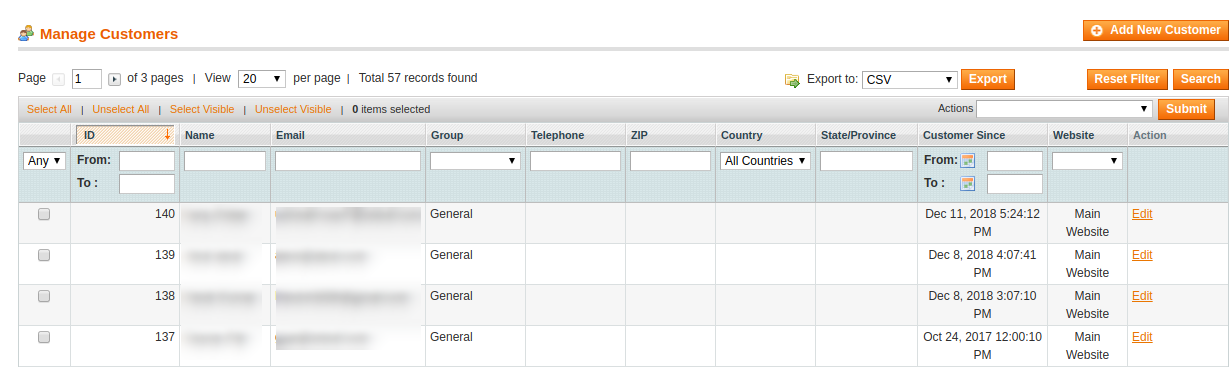
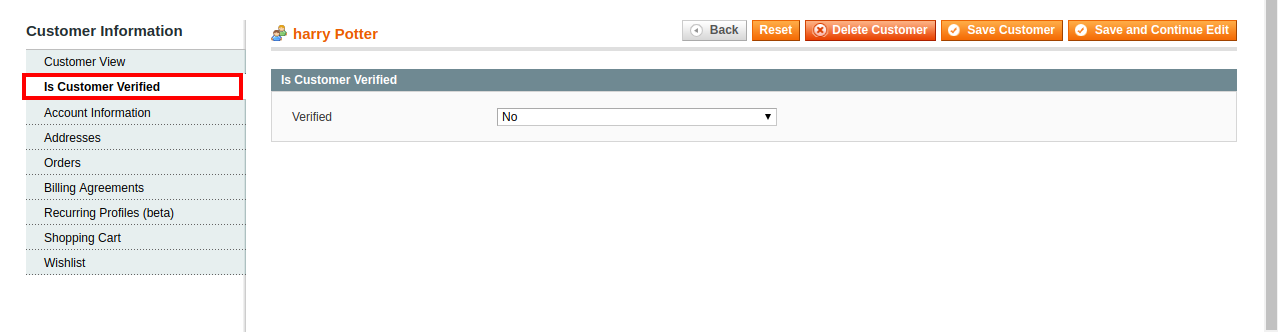
Click on the edit option in order to verify the newly registered customer account. Initially, the status will be “not verified”.
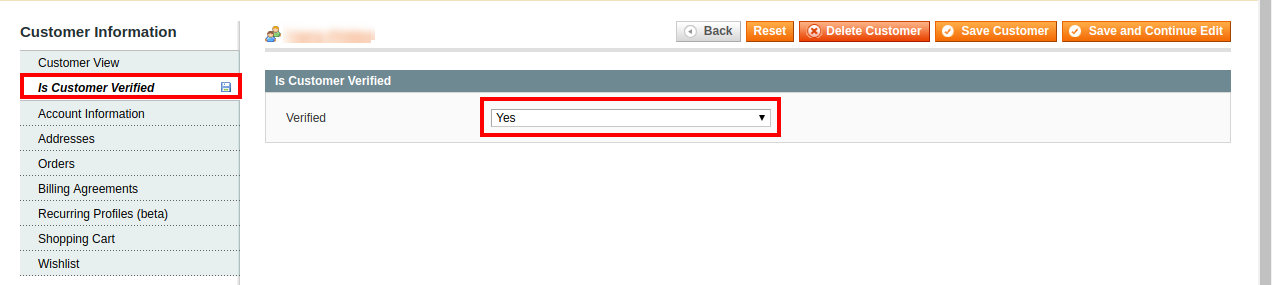
As a store admin, you can change the status. Now the newly registered account is verified.
After successful verification, the customers can access the private store.

4.0 Front-end Interface

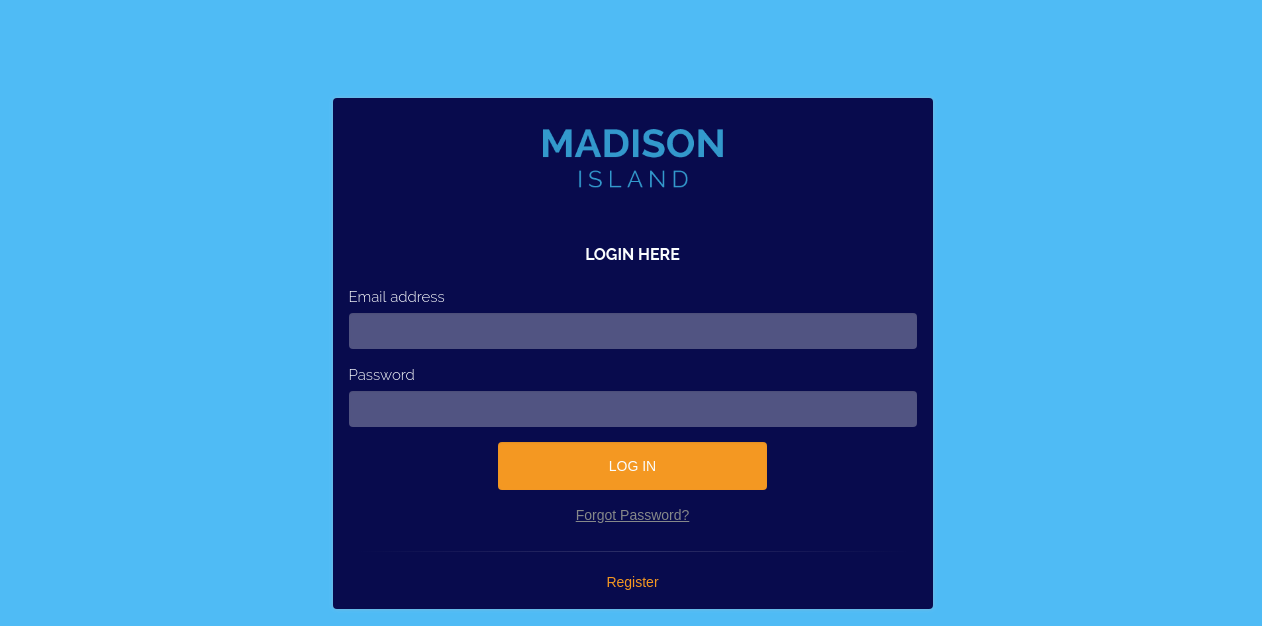
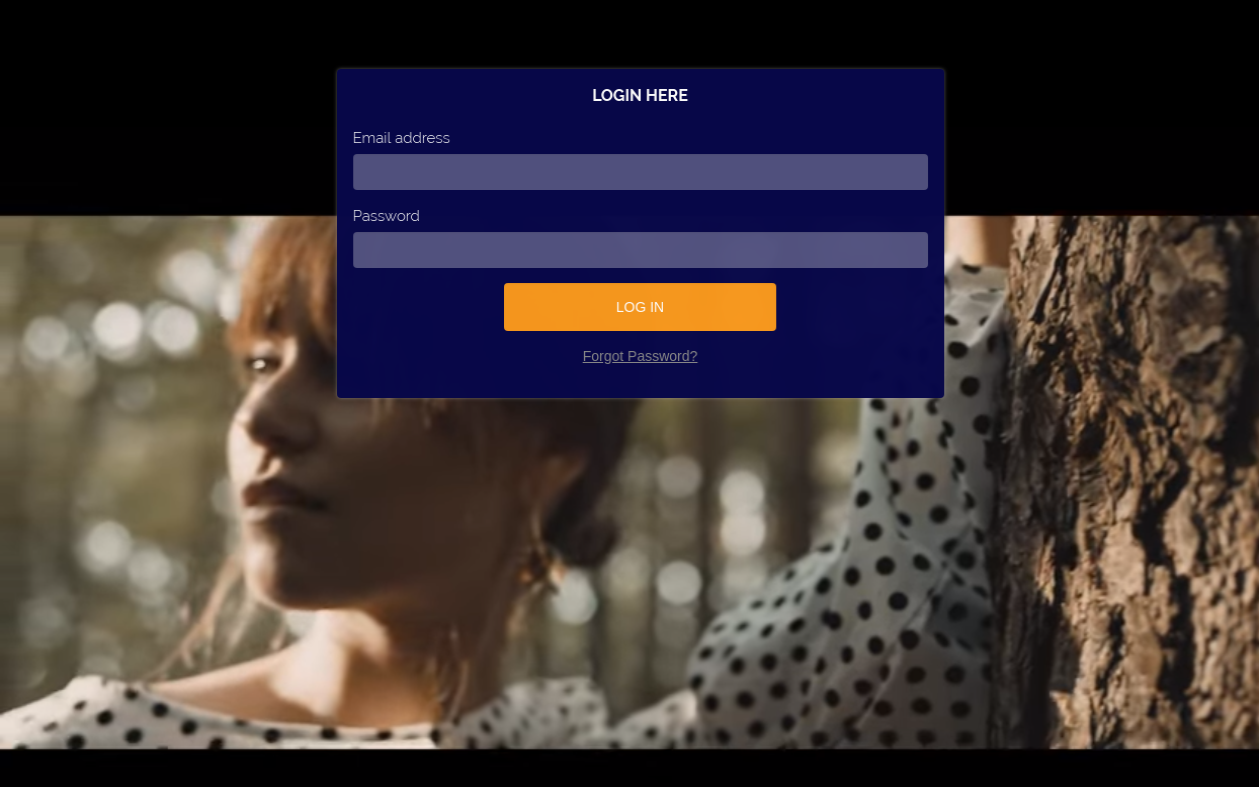
The online users can view the login/signup page on the website front-end interface. The customers can login or register the website for viewing the products.

While selecting image background the front-end interface will look like the below-mentioned image:
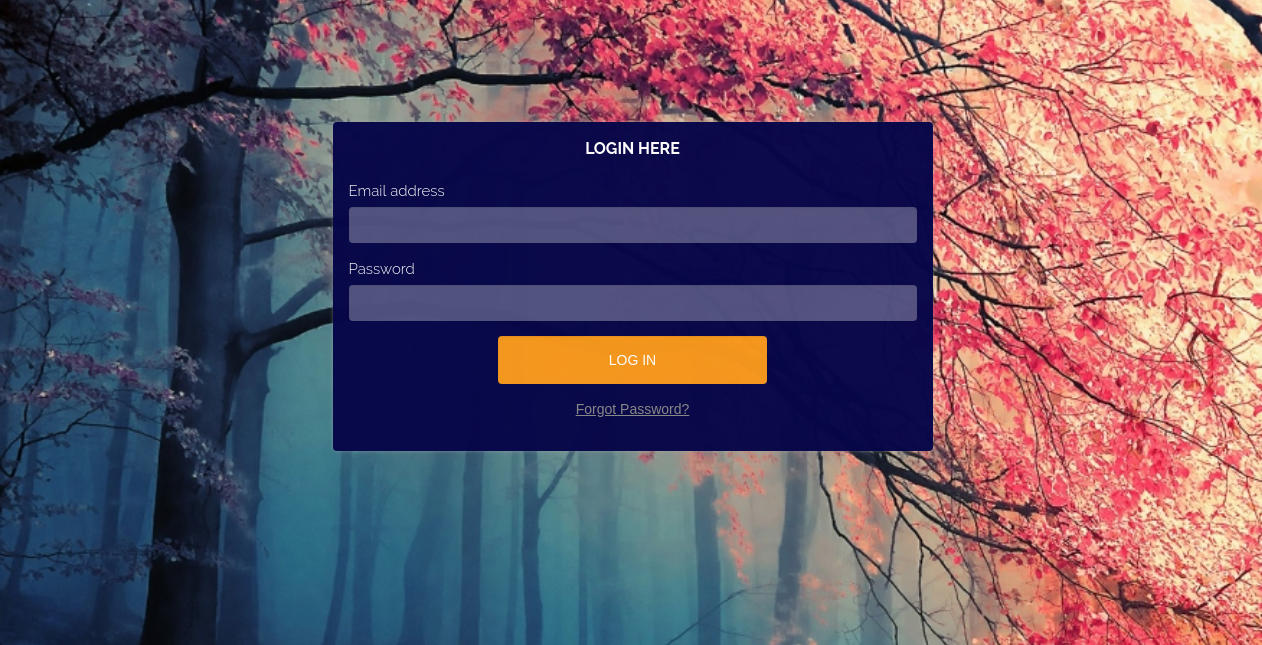
While selecting a color as login/registration page background, the front-end interface will look like the below-mentioned image:
If admin set any video as a login/signup page background, then the front-end interface will look like the below-mentioned image:
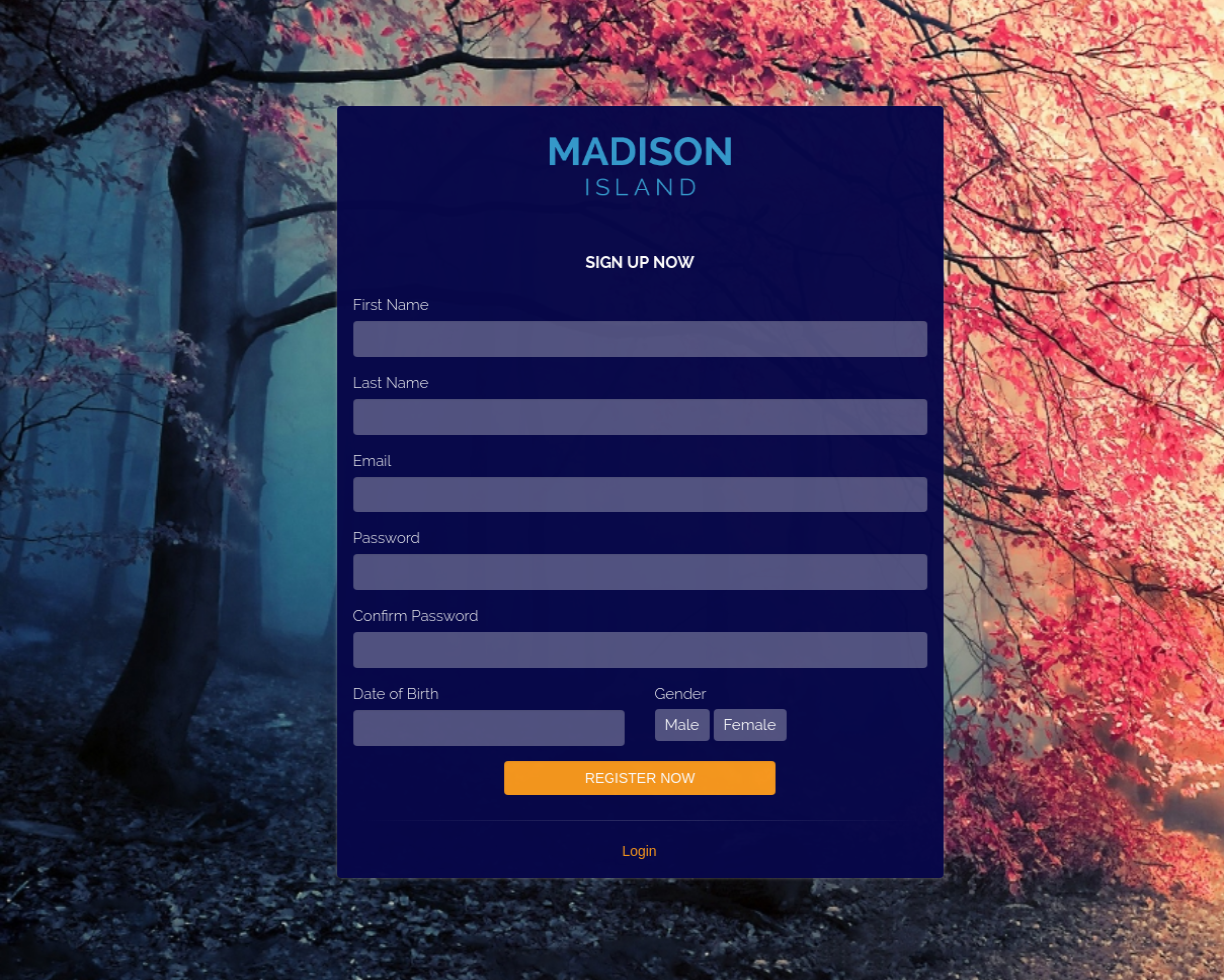
New customers can click on the “Register” option and enter the details in the below-mentioned registration form:
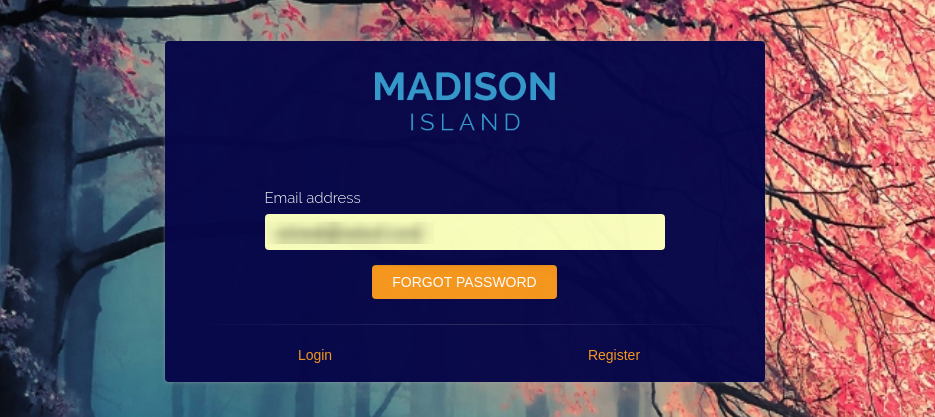
Online users can click on the “Forget password” button in case of the missing password. The users can enter their registered email address and get the password reset link on the registered email id.
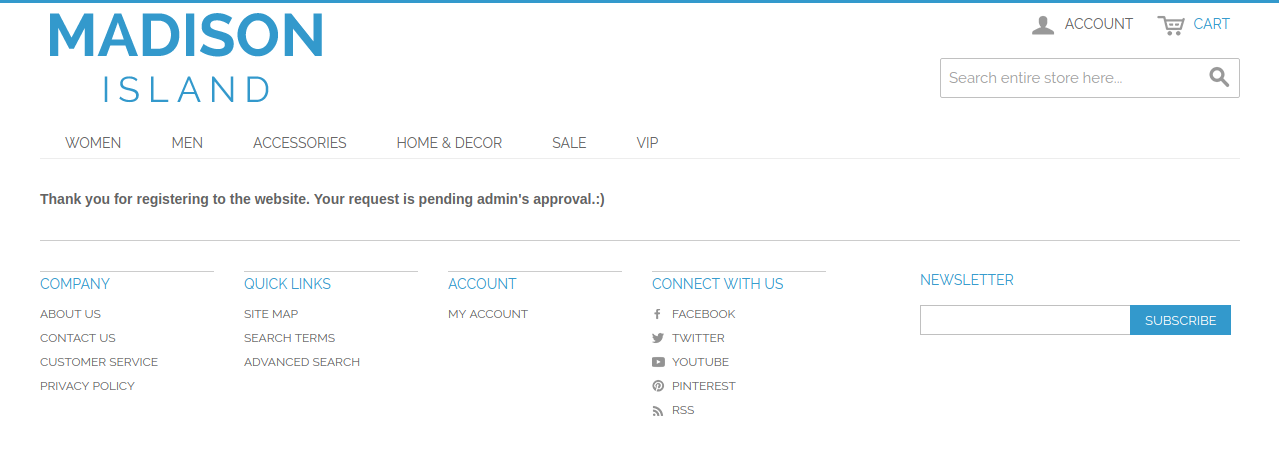
The customers can view this message before validation of the newly registered account.

Magento Age Verification Popup Extension by Knowband – User Manual

1.0 Introduction

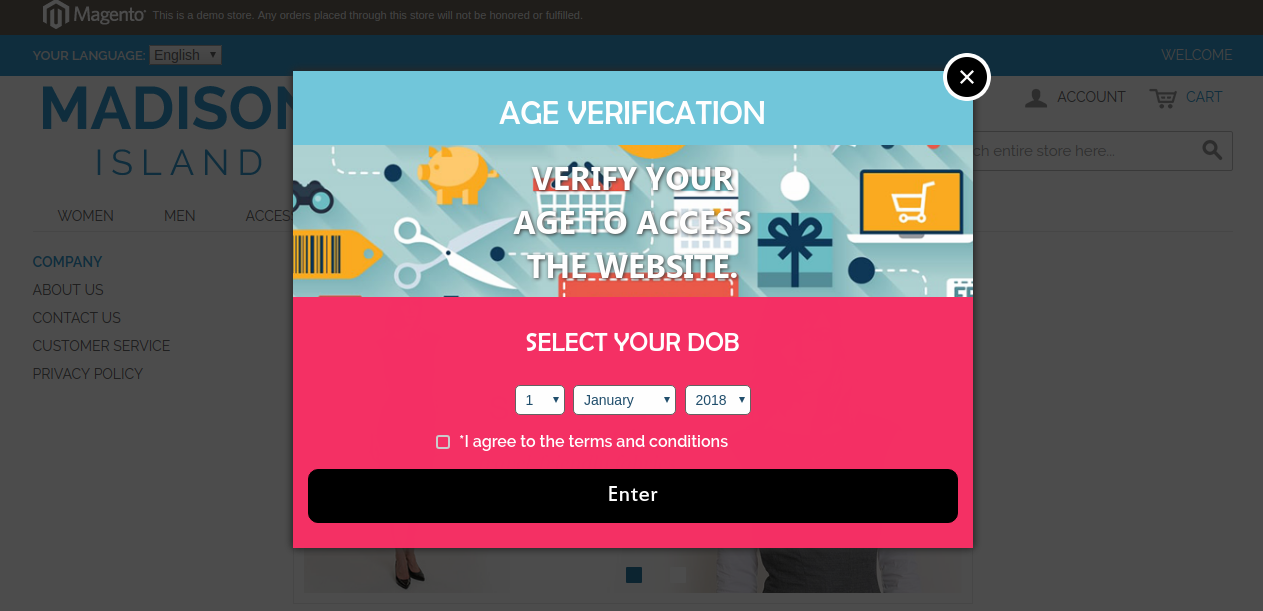
Knowband’s Magento age verification popup module prompts up an age verification popup on the website front and asks the user to verify their age and agree to the stated terms and conditions to access the website. Magento 18+ verification extension provides a seamless way of age verification to the customers for granting access to the website. With the help of Magento Age Gate Pop-Up, e-merchants can easily carry out adult verification check on their store visitors.
This age verification Magento extension by Knowband gets the user consent of the appropriate ages before letting them browse the website. This means that underage visitors are strictly prohibited from accessing the website. So, the e-merchants who had their website containing adult content are recommended to implement this popup 18+ Magento module.

1.1 Striking Features of Magento Age Verification module for merchants

This age verify Magento module is fully customizable and provides you multiple features that are easily configurable from the backend interface without requiring any coding knowledge. The various striking features of the popup 18+ module have been listed below.

  • Magento age verification module triggers an age verification popup on the frontend that requires the age of the user followed by a user consent checkbox for granting them access to the website.
  • Magento 18+ verification extension offers multiple themes for the age verification popup that are randomly displayed to the store visitors.
  • Magento Age Gate Pop-Up extension offers flexibility in enabling and disabling the DOB field shown over the age gate popup. If the DOB field setting is disabled then the user doesn’t require to verify their age for accessing the website.
  • The store admin can also edit the different texts displayed over the age verification popup. This includes DOB field title and short description for the 18+ verification popup window.
  • Using this Magento 18+ verification extension, admin can redirect the customers to a specific URL as they close the age verify popup window.
  • Admin can restrict the age required for entering the website with the help of Magento verification popup module.
  • Magento age verification module displays a terms and conditions checkbox which asks for user’s consent to access the website.
  • The content shown on Terms and Conditions page can be configured with Magento verification popup extension.
  • The front appearance of Magento age verification popup is customizable in accordance to website theme.
  • Admin can even show a logo for the selected theme on the 18+ age gate popup.
  • Magento Age Gate Pop-Up extension supports multiple languages.
  • Magento age verification popup extension offers a mobile responsive interface to the mobile and tablet users.

1.2 Technology for Development

Language: PHP
Frame Work: Magento

2.0 Installation Guide for Magento Age Verification Popup

The store admin can follow these simple steps for installing the Magento 18+ verification extension on their store:

1.First of all download the extension package from the Knowband store.
2.You will get a zipped file containing the source code and user manual. Unzip the package on the root folder of your Magento setup via FTP manager (like Filezilla or WinSCP – download here: https://filezilla-project.org/). You’ll find the files and folders as shown in the image below:

The extension is now installed and ready for use. Now the store admin can now use and configure the age verification module.

3.0 Admin Interface of Magento Age Verification Module

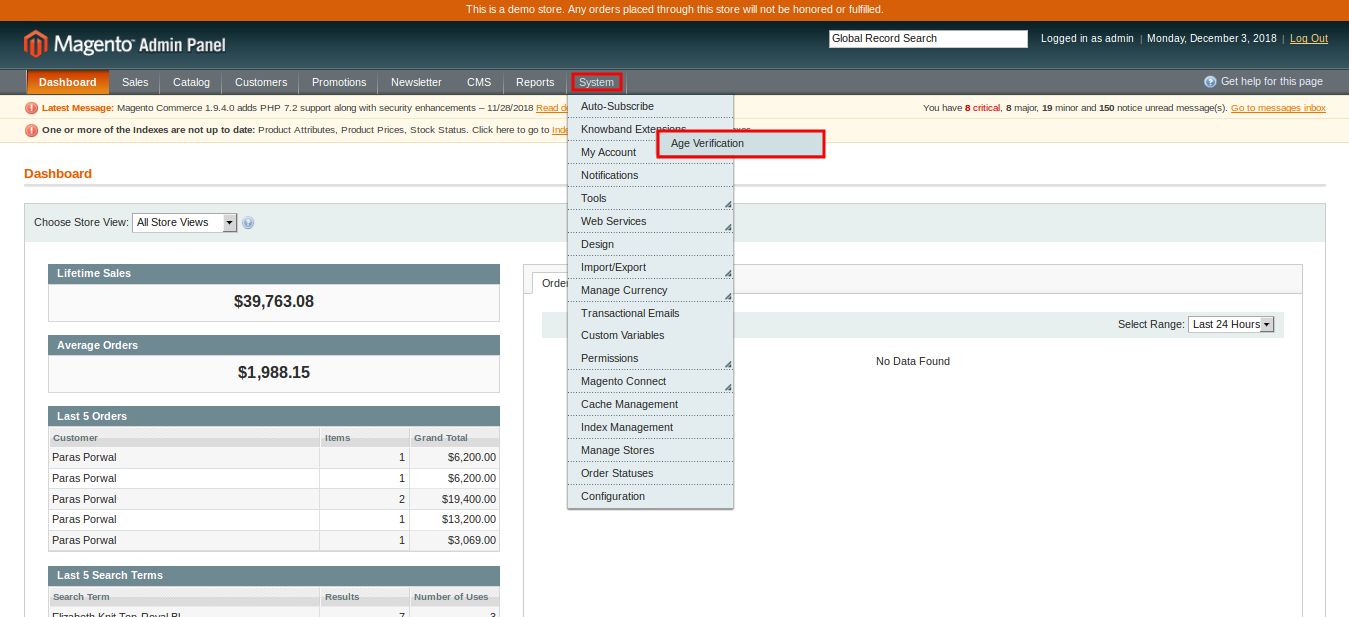
Just after successful installation of Magento 18+ verification extension on the Magento site, you can configure this popup 18+ module as per your needs. In the Admin Panel, go to System > Knowband Extensions > Age Verification.

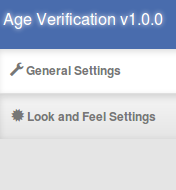
This Knowband extension offers you the following sections.

1.General Settings
2.Look and Feel Settings

Each Tab of the Magento age verification popup module are discussed below:

3.1 General Settings

On clicking on the General Settings tab, you will see the following configuration options:

Initially the above fields are set to their default values.

1. Enable the extension: You can easily enable or disable the functionality of Magento age verification module by toggling the switch provided at the backend panel.
2. Display DOB field: You can enable or disable DOB field displayed on the frontend. If this setting is disabled then the visitors can access the website without any age verification process.
3. Popup Title: You can set a title for the age verification popup window with Magento 18+ verification extension.
4. Popup Description: You can also display some short note over the Magento age verification popup plugin to make it informative for the store visitors.
5. Form Title: You can also set a custom title displayed over the DOB field.
6. Redirect URL: Admin can set a redirect URL using this Magento Age Gate Pop-Up extension. As the user close the age verification popup, they are redirected to this specified URL.
7. Allowed Age: You can easily fix or restrict the age below which the visitors cannot access the website.


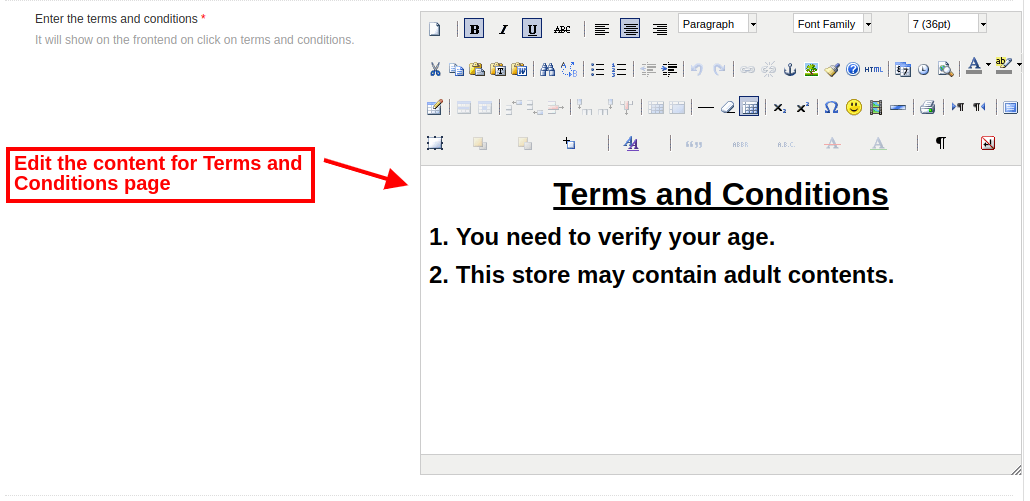
8. Enter Terms and Conditions: This setting of age verification Magento module allows you to configure the content of terms and conditions page displayed to the user.
After this, click on the “Save” button shown at the top right corner of admin panel to save the module settings.

3.2 Look and Feel Settings

The various fields of this section of age verification extension are mentioned below.

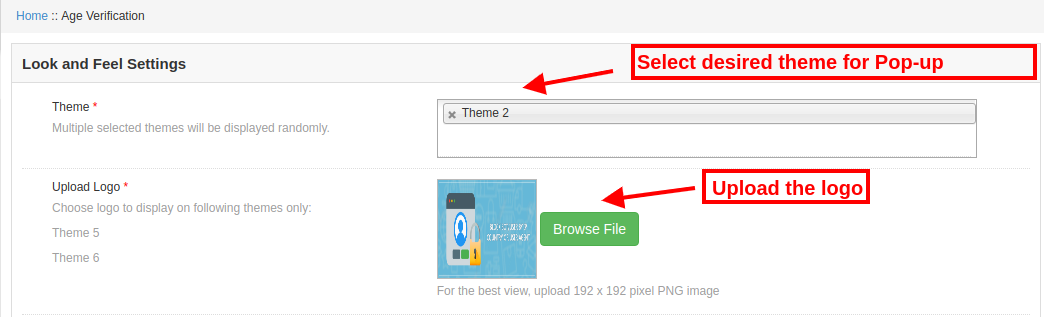
1.Theme: Admin can set a desired theme for the Magento verification popup which fits to the website theme and appearance. The selected themes will be randomly displayed to the store visitor.

2.Upload Logo: Using Magento 18+ verification extension, admin can set a custom logo for the age gate popup by uploading the logo image of format PNG, JPG, or JPEG only.

4.0 Front Interface of Magento Age Verification module

Once after you have configured the general settings and look-feel settings of popup 18+ Magento module, your customers will see a age verification popup on the website front. If they close the popup window, then they are redirected to some specific URL which has been set from the backend. This Magento age verification popup ask the user to select their age and agree to the specified terms and conditions in order to access the website content.

PrestaShop Dynamic Pricing addon- User Manual

1.0 Introduction

Knowband offers PrestaShop Dynamic Pricing module which provides a facility to the store admin to calculate the dynamic prices of any product without any hassle. The online store merchant can allow the customers to customize their order and set product quantity accordingly.

The PrestaShop Dynamic Price management addon automatically calculates the exact customization cost according to the rules applied by the store admin. The Prestashop Customization Price Calculator is a highly customizable and fully-featured module that offers hassle-free rule creation for applying dynamic pricing.

1.1 Features of PrestaShop Dynamic Pricing addon

  • Admin can set the maximum and minimum customization price value easily from the admin interface of this PrestaShop Dynamic Product Pricing.
  • The PrestaShop Dynamic Pricing extension allows the admin to display or hide the weight and quantity input option from the product page.
  • Admin can enable the settings to multiply the price and weight by quantity, in this case, the price and weight will be double if the customer selects product quantity 2.
  • The store admin can add, delete, update the dynamic pricing rule easily from the admin interface of this PrestaShop Dynamic Product Pricing module.
  • PrestaShop Dynamic Product Pricing module allows setting the priority of dynamic pricing rules.
  • Multiple fields can be selected from the drop-down list available in the PrestaShop Dynamic Price management admin interface.
  • The admin can not use Color Picker, Divider, Date, Text, Text Area fields in any formula.
  • If the admin deleted any field which was used in any formula, then he has to create a new formula without including that field.
  • The newly created field will be available for creating price, weight and quantity formulas.
  • Admin can separately create price, weight and quantity formulas from the admin interface of the Prestashop Customization Price Calculator module.
  • Admin can create any kind of formula using the various operators.
  • After creating a formula, the admin needs to map the rule with products, categories, manufacturers and suppliers.
  • After rule mapping, the formulas will be applicable to that particular product, category, manufacturer and supplier.
  • Customers can view the customization price, weight and quantity easily on the same customization page.

2.0 Steps for Installation of PrestaShop Dynamic Pricing

Admin will get these files after purchasing this PrestaShop Dynamic Price management from the Knowband website:

1. The zipped file consists of the source code of the PrestaShop Dynamic Product Pricing module.

2. User Manual of this PrestaShop Dynamic Product Pricing addon.

Follow these steps to install the PrestaShop Dynamic Pricing plugin:

First of all, unzip the zipped file which includes some files and folders.

After that, copy the overall content of the folder and paste it into the “Modules” folder of the store’s directory. The admin can follow the path – Root Directory/modules/.

3. Now you can install the PrestaShop Dynamic Pricing addon. You can find that in Store Admin -> Modules and Services. It would be shown as below –

Click on the “Install” button to install the Prestashop Customization Price Calculator extension. A confirmation pop-up will be shown. Click on “Proceed with the installation” option. This step will install the Prestashop Customization Price Calculator plugin and show notification – “Module(s) installed successfully”.

3.0 Admin Settings

In the admin interface, some customization options are available by which the admin can set the dynamic pricing on the website.
The admin will get these customization options for settings:

  • Basic Settings
  • Dynamic Pricing Rules

3.1 Basic Settings

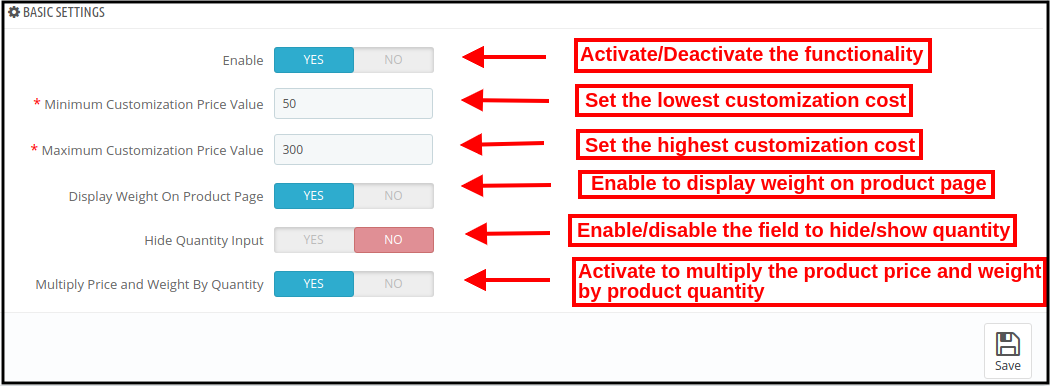
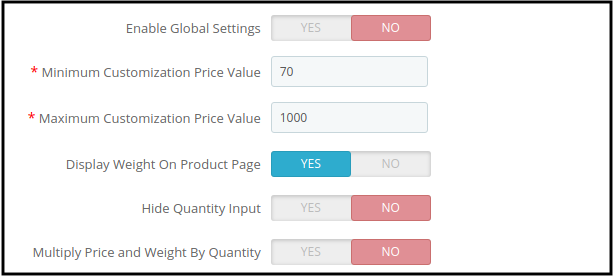
In Basic settings, you will get customization options as shown below:

  • Enable: Activate or deactivate the functionality of the PrestaShop Dynamic Pricing module easily just by toggling the button.
  • Minimum Customization Price Value: Set the lowest customization cost here. This will be the minimum customization cost for the customers.
  • Maximum Customization Price Value: Fix the highest customization cost in this menu option. The customization cost cannot be more than this value.
  • Display Weight on Product Page: You can enable the settings for showing the weight on the product page of the website. The customers can view the “customization weight” details on the product page.
  • Hide Quantity Input: Enable this field if you don’t want the customers to set the product quantity. If you want to allow the customers to set order quantity, then, disable the “hide quantity input” settings from the admin interface of this Prestashop Customization Price Calculator addon.
  • Multiple Price and Weight By quantity: Enable the settings to multiply the price and weight by quantity. For example, if the customer selects 1 product that costs 20$ and weighs 8 Kg and sets the quantity as 2, then, the price will automatically change to 40$ and the weight will be 16 kg automatically.

3.2 Dynamic Pricing Rules

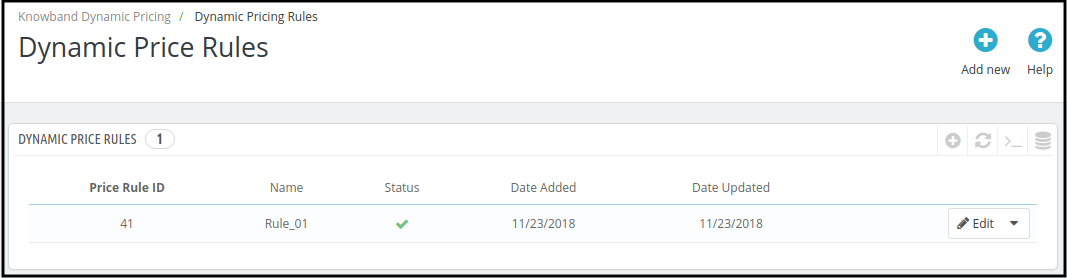
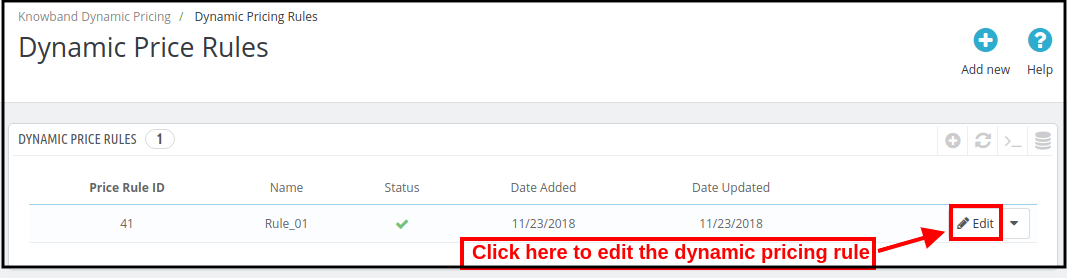
The dynamic pricing rule section displays the list of dynamic pricing rules. One can view the price rule ID, rule name, status, rule creation date and rule update date. Here, the admin can add a new dynamic pricing rule, update any rule or delete the dynamic pricing rule easily.

3.2.1 How to Add a new Dynamic Pricing Rule?

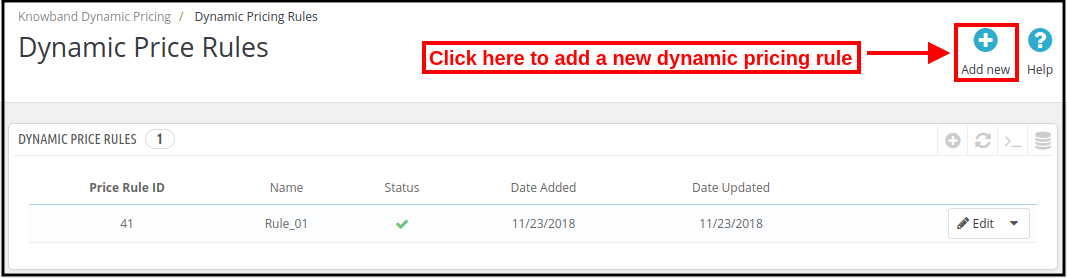
For adding a new dynamic price rule, click on the “Add new” button available Right side on the top of the page as shown below:

After clicking on the “Add new” button, you will view multiple customization options. The customization settings are shown in 4.0 section.

3.2.2 How to Update Dynamic Pricing Rule?

For updating the dynamic price rules, you can click on the edit button as shown below:

3.2.3 How to delete Dynamic Pricing Rule?

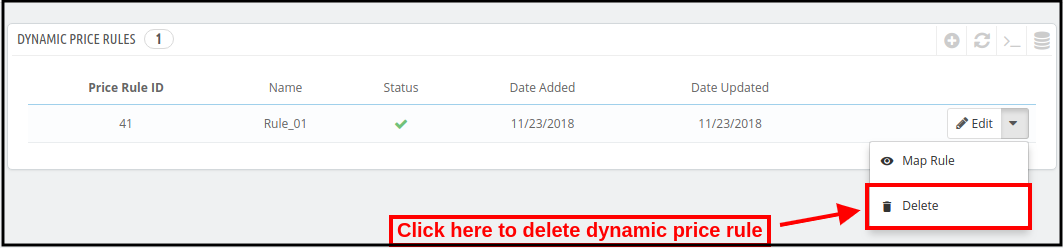
Click on the “delete” button for removing any dynamic price rule.

4.0 Dynamic Price Rule Customization

Admin needs to click on the “Add New” button to add a new dynamic price rule as discussed in section 3.2.1. After clicking on this button, the admin can view these customization options:

  • Dynamic Price Rule General Settings
  • Fields
  • Price Formula
  • Weight Formula
  • Quantity Formula

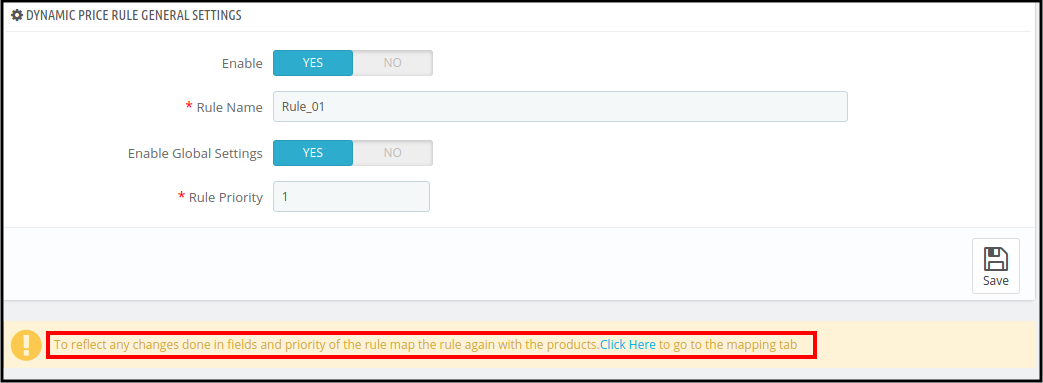
4.1 Dynamic Price Rule General Settings

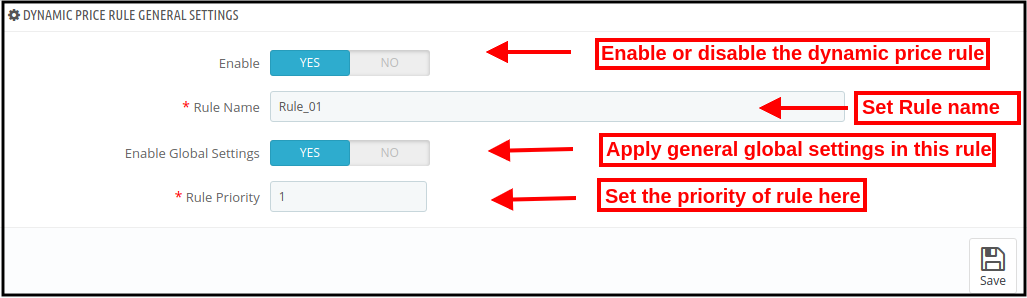
For adding a new dynamic price rule, the admin needs to apply settings as described below:

  • Enable: Enable the option to activate this dynamic pricing rule.
  • Rule Name: Set the name of the rule here.
  • Enable Global Settings: Apply the globally declared settings by enabling this option. If you want to apply different settings, then, enable this option. Similar options will display which will be applied to this rule only.

  • Rule Priority: Set the priority of this new rule from the admin interface of this PrestaShop Dynamic Pricing plugin.

4.2 Fields

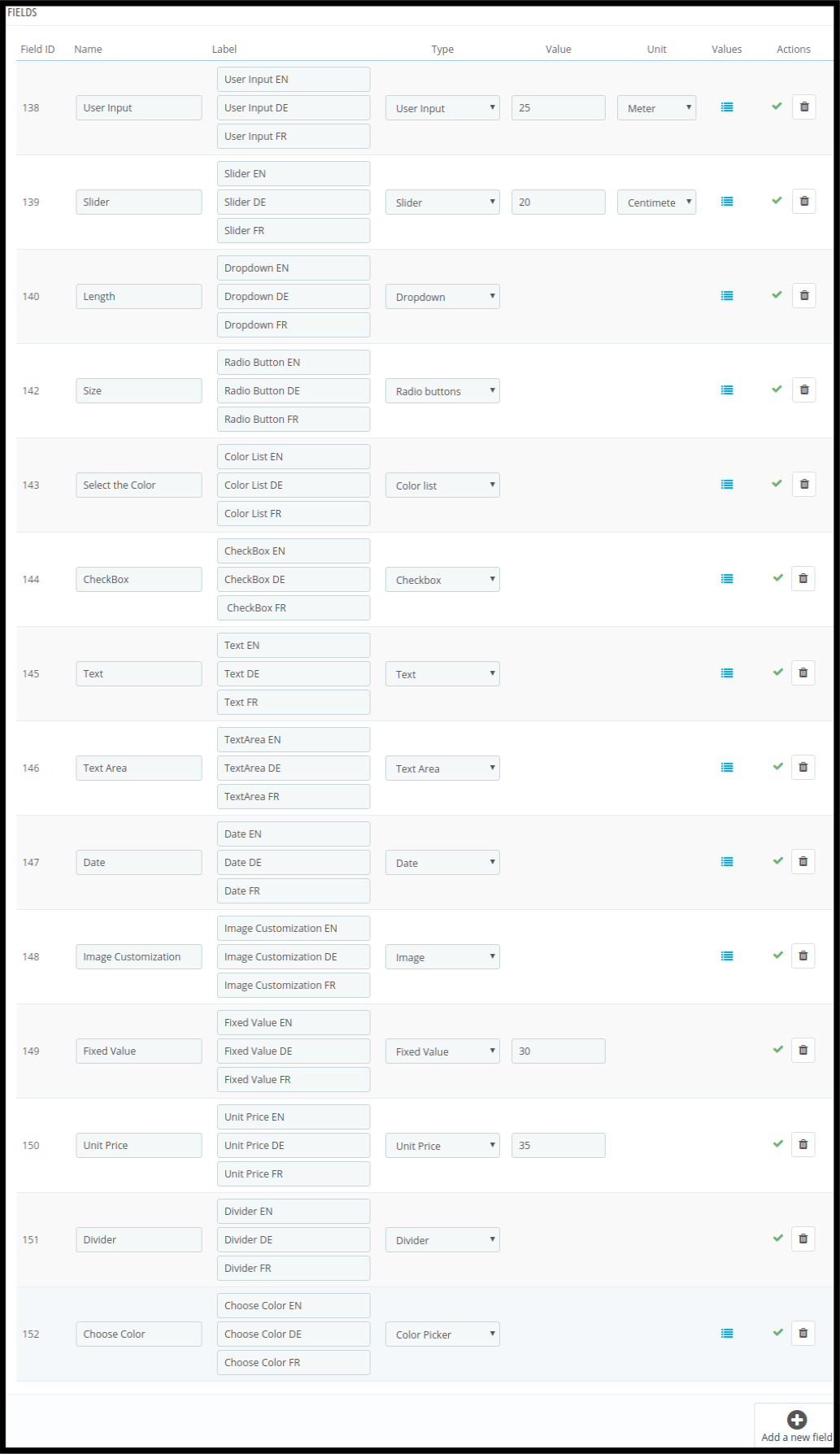
In this section, the admin can create different fields for settings the dynamic pricing rules. There are multiple field types available in this PrestaShop Dynamic Product Pricing rule.

  1. User Input
  2. Slider
  3. Dropdown
  4. Radio buttons
  5. Color list
  6. Checkbox
  7. Text
  8. Textarea
  9. Date
  10. Image
  11. Fixed Value
  12. Unit Price
  13. Divider
  14. Color picker

Admin can select field type easily from the admin interface and customize the fields accordingly.

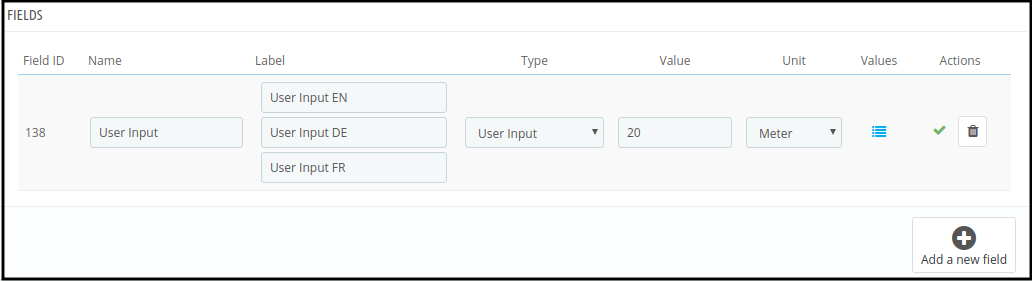
4.2.1 User input Field

  • Name: Enter the name of the field here.
  • Label: Set the label in different languages.
  • Type: Select the User Input field from the drop-down list.
  • Value: Set the default value of the slider.
  • Unit: Select unit, i.e., Centimeter, Meter, Kilogram, Gram.
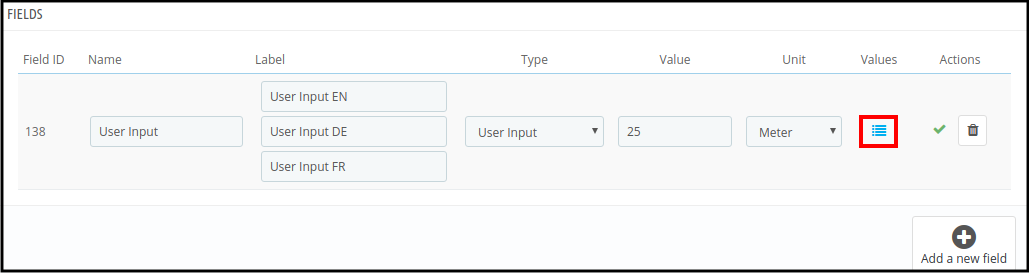
  • Values: Set the values of the user input field. For setting the field values, click on the below-mentioned option:

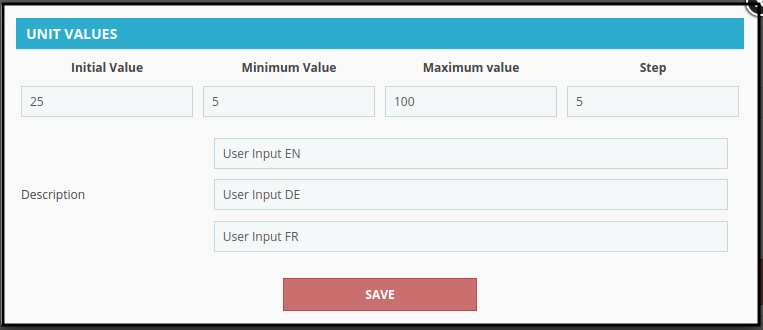
After clicking on this option, the admin can view a pop-up as shown below:

Now admin needs to enter these details as required in the popup shown above:

1. Initial value: This will be the default field value.

2. Minimum value: This will be the lowest value of the input field. There will be an error message on the product page If the customer enters any lower value.

3. Maximum value: Enter the maximum field value. The customer cannot enter the larger number.

5. Step: Admin can enter the steps with every click. If the value is 10 then after the next step the value will be 15 in the above-mentioned case.

6. Description: Admin needs to enter field descriptions in different languages. It is mandatory to enter a description in each field.

  • Actions: Click on the “X” to enable this field. You can also delete this field by clicking on “bin”.

After enabling the field, it will look like the below-mentioned image:

Now, this field is enabled and can be used in formulas.

4.2.2 Slider Field

Slider field settings are the same as input field settings. The admin can follow the same steps to create the slider field. After set-up the field will look as below:

4.2.3 DropDown Field

You can select DropDown Field in which the customers can select their choice.

Settings are the same as the above-discussed field setting.

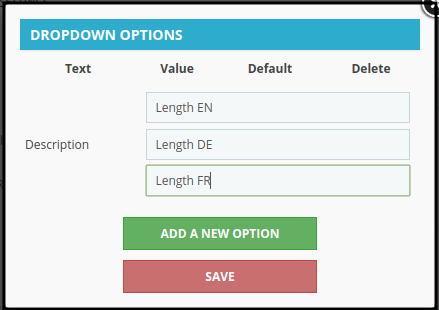
On clicking the values option, this pop-up will be shown on the same page. You can enter the dropdown field description and click on the “Add a New Option” button.

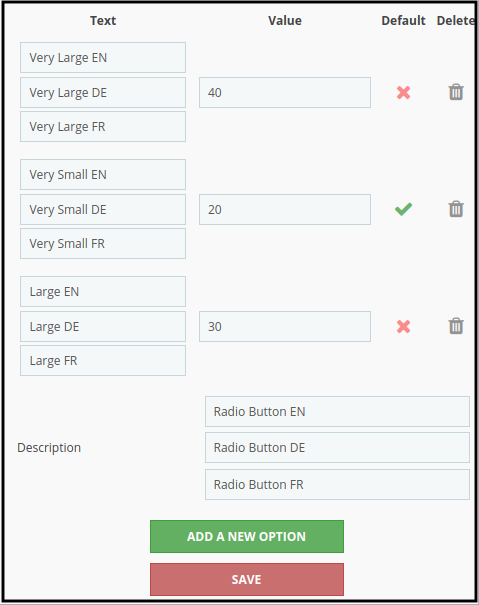
After Clicking on the “Add a New Option” button, you can view these options:

  • Text: Enter the drop-down list options in different languages.
  • Value: Enter the value for every dropdown option. This will be the customization cost for that option.
  • Default: You can make any of the options as a default.
  • Delete: You can delete any of the dropdown options anytime.

4.2.4 Radio Buttons Field

Radio buttons field setting is the same as drop-down field settings. The admin can select this Radio button field and set the name, label and field description.


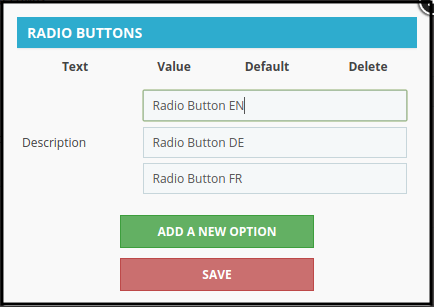
In the pop-up page, the admin can enter the field description and also add new options.

After clicking on the “Add a New Option”, the admin can enter new options and set their values. You can also make a value as the default value.

4.2.5 Color List

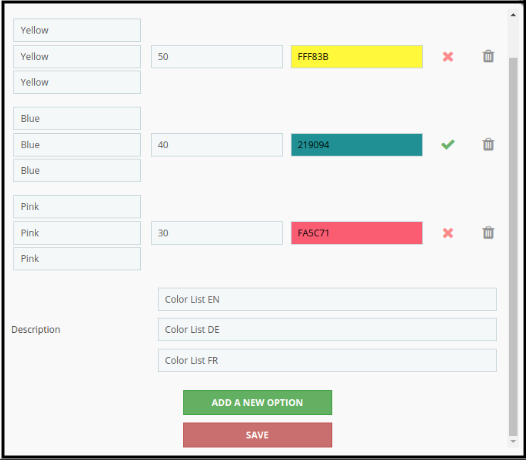
In this colour list field, the admin can set the prices for colour selection. After setting field names and labels in different languages, the admin can click on the value icon for value settings.

On clicking the value icon, a pop-up will open where you can enter the field description and add a new option. Admin can set different values for various colours and also make colour the default colour.

4.2.6 Checkbox

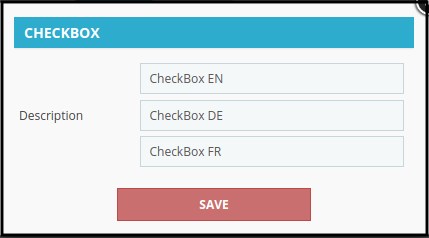
Select the checkbox field from the drop-down list, enter the field name and label. After clicking on the value section, the admin can set the description of this field.

Now, the admin can enable this field from the admin interface of this PrestaShop Dynamic Pricing plugin.


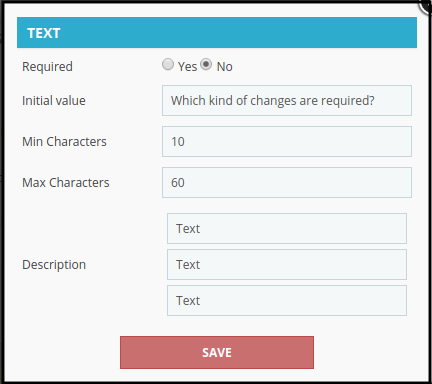
4.2.7 Text

This field setting is also the same as other fields.

After clicking on the value icon, a pop-up will open where you can set these menu options:

  • Required: Admin can make this field a mandatory field.
  • Initial Value: Admin can enter the field’s initial value here. It can be a character or numeric value.
  • Min Characters: Enter the minimum characters required in this field.
  • Max Characters: Set the maximum characters required in this field.
  • Description: Enter the field description in different languages.

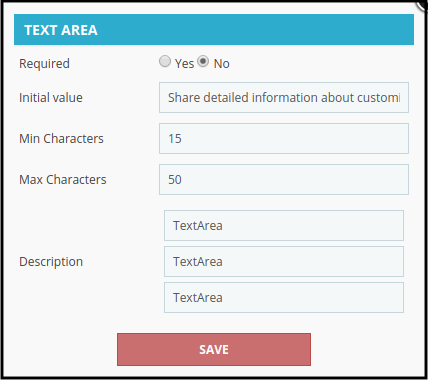
4.2.8 Text Area

Text area field settings are similar to text field settings. Admin can apply the settings for getting detailed information.

Admin can enable the field from the admin interface of the PrestaShop Dynamic Pricing addon.


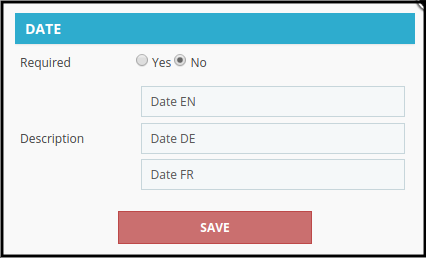
4.2.9 Date

Select the date field from the drop-down list.

After clicking the value button, the admin can set the field description and make it a required field.

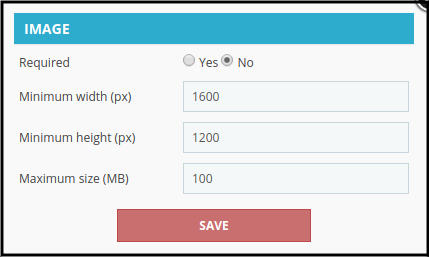
4.2.10 Image

Admin can select the image field and apply the settings accordingly.

On clicking the value, the admin can make the field a required field.
Admin can also set the minimum and maximum width along with the maximum size settings.

4.2.11 Fixed Value

Admin can select the fixed value field. It is very easy to set field name, label and field value from the admin interface. The admin can set the fixed value that he wants to use in the formula.

4.2.12 Unit Price

Admin can set the unit price value after selecting this field from the drop-down list available on the admin interface of this PrestaShop Dynamic Price management module. Admin can set per piece price.

4.2.13 Divider

Admin can show a divider by selecting a divider field from the admin interface of this Prestashop Customization Price Calculator addon. This field will divide the page into two parts.

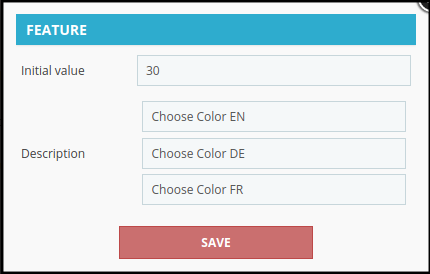
4.2.14 Color picker

Admin can select the color picker field from the drop-down list. The color picker will display below the divider.

Click on the value button for setting the initial value and description of the color picker field. Save the settings and enable the field from the admin interface of this Prestashop Customization Price Calculator module.

The overall list will look as shown below:

Before formula description, you need to know these points:

1. Color Picker, Divider, Date, Text, Text Area fields will not work in any formula.

2. If you delete any field which was included in any formula, then you have to create a new formula without including that field.

4.3 Price Formula

Admin can create a formula for price calculation from the admin interface of this PrestaShop Dynamic Product Price module.

There are +,-,(,),/ and * signs available for calculation.

Admin can also clear the formula and create a new one.

After the formula, setting click on the “save this formula” button.

This formula will calculate the customization cost and show this on the website.

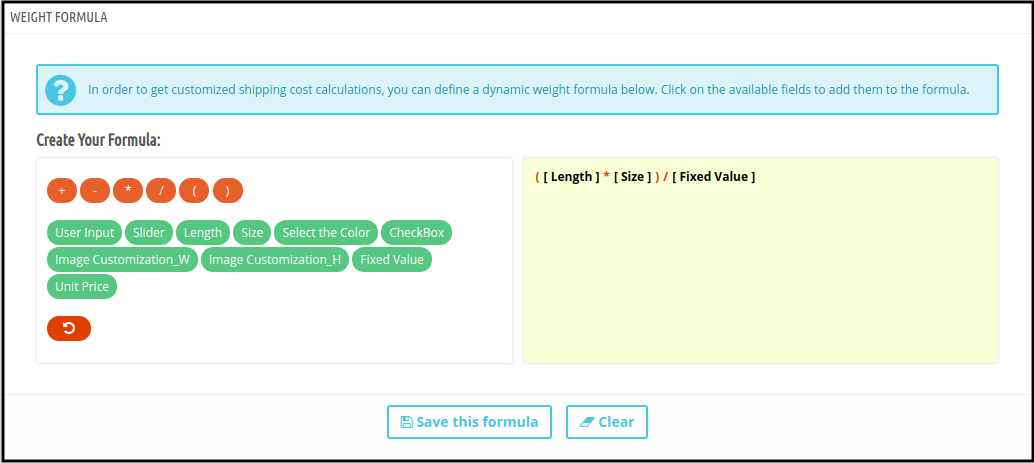
4.4 Weight Formula

This formula will calculate the total customization weight on every customization.


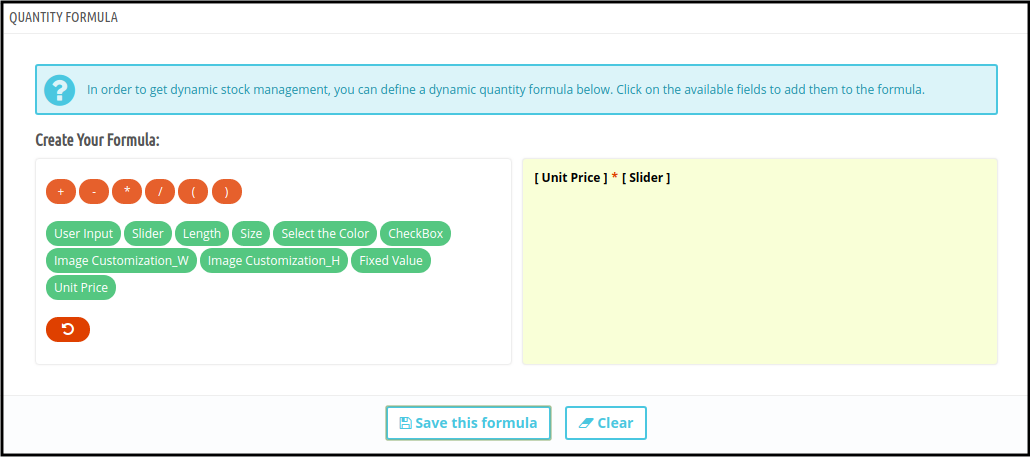
4.5 Quantity Formula

This functionality is available for setting the quantity from the admin interface. Once the admin sets the quantity, the customer can not change the quantity of the products.

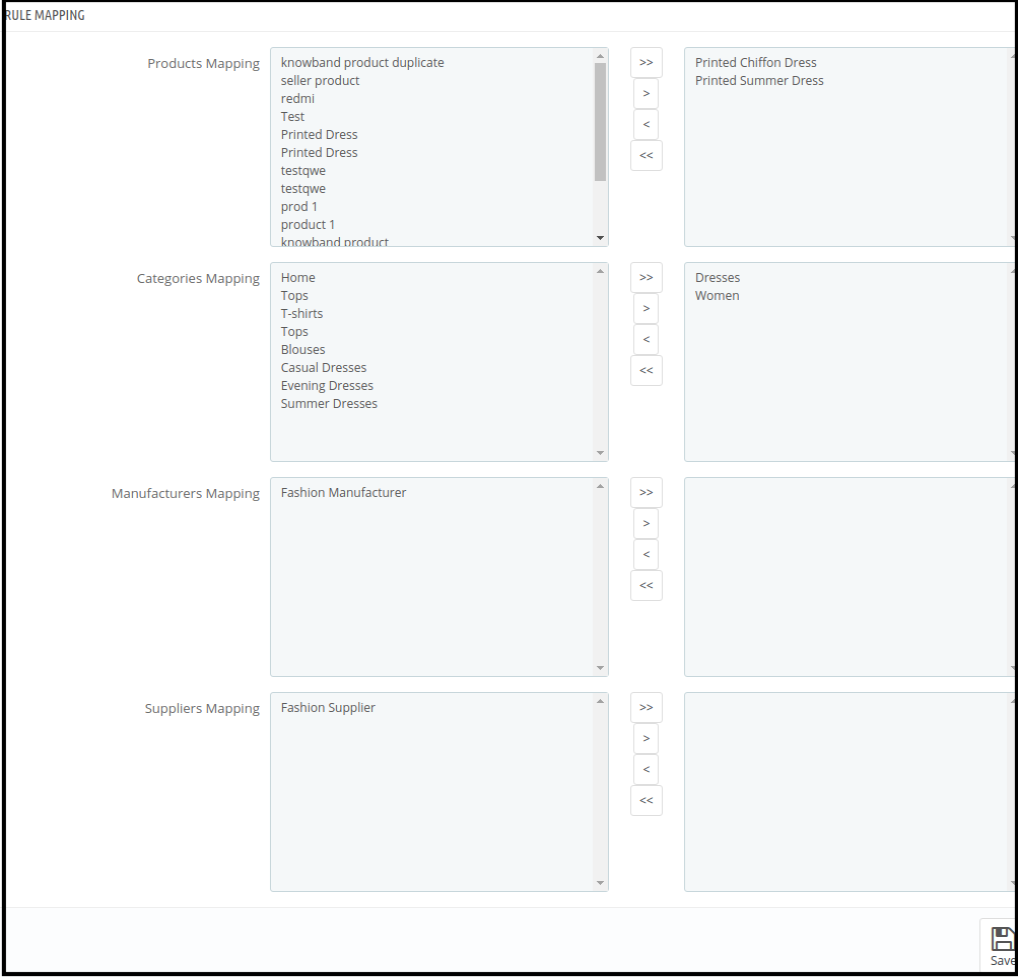
After setting the formula, the admin needs to map the categories, products, manufacturers and suppliers. This rule will be applied to those categories, products, manufacturers and suppliers on which admin map it.

After clicking on the link, this page will open:

Select the category, product, manufacturer and supplier that you want to map with this rule. Click on the > button for mapping and < sign for removing it. For moving all the categories, product, manufacturer and supplier, click on the >> and << button.

The store admin needs to save these mapping settings every time.

5.0 Front-end Interface

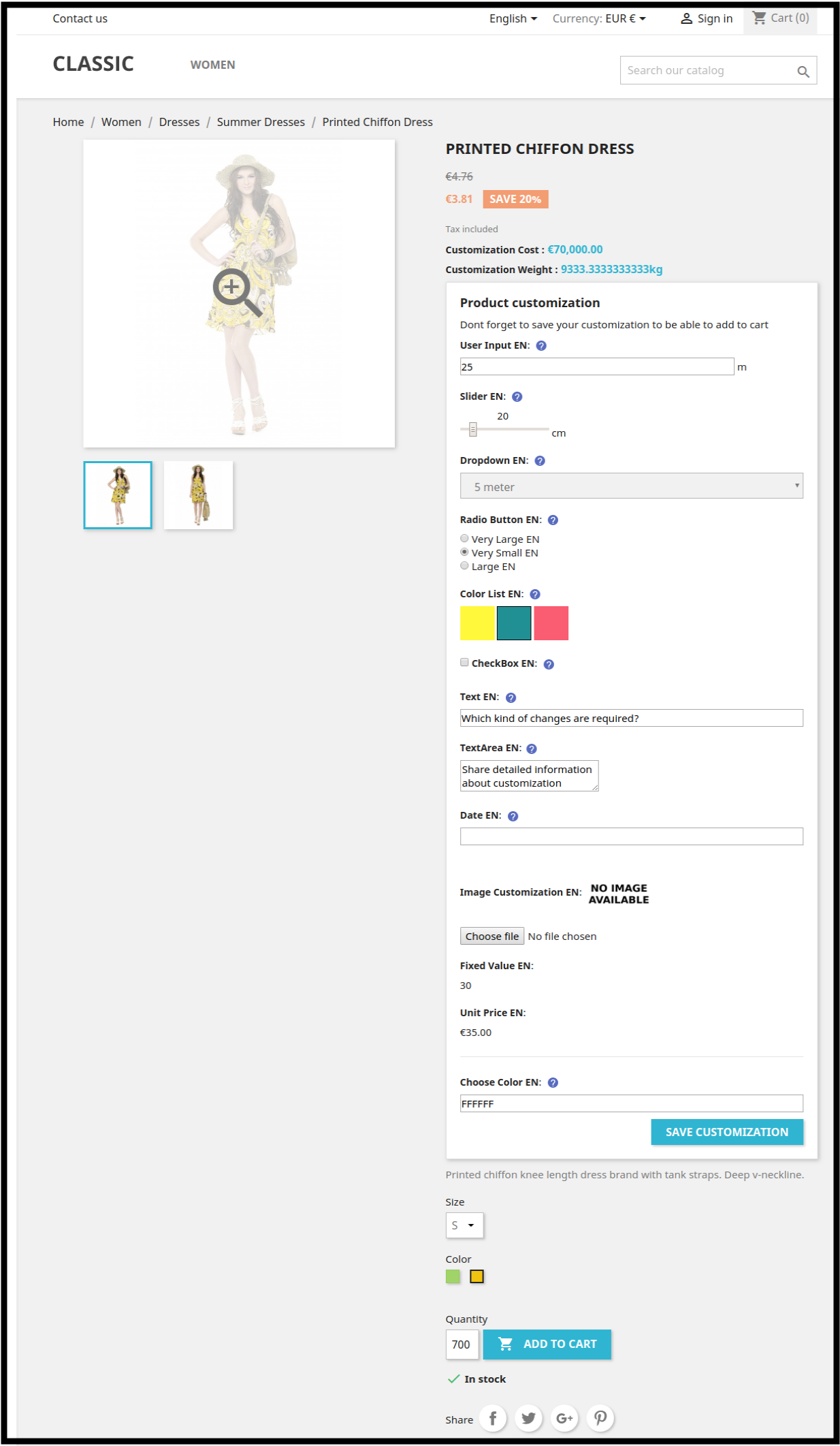
After formula set-up, the store will display as shown below:

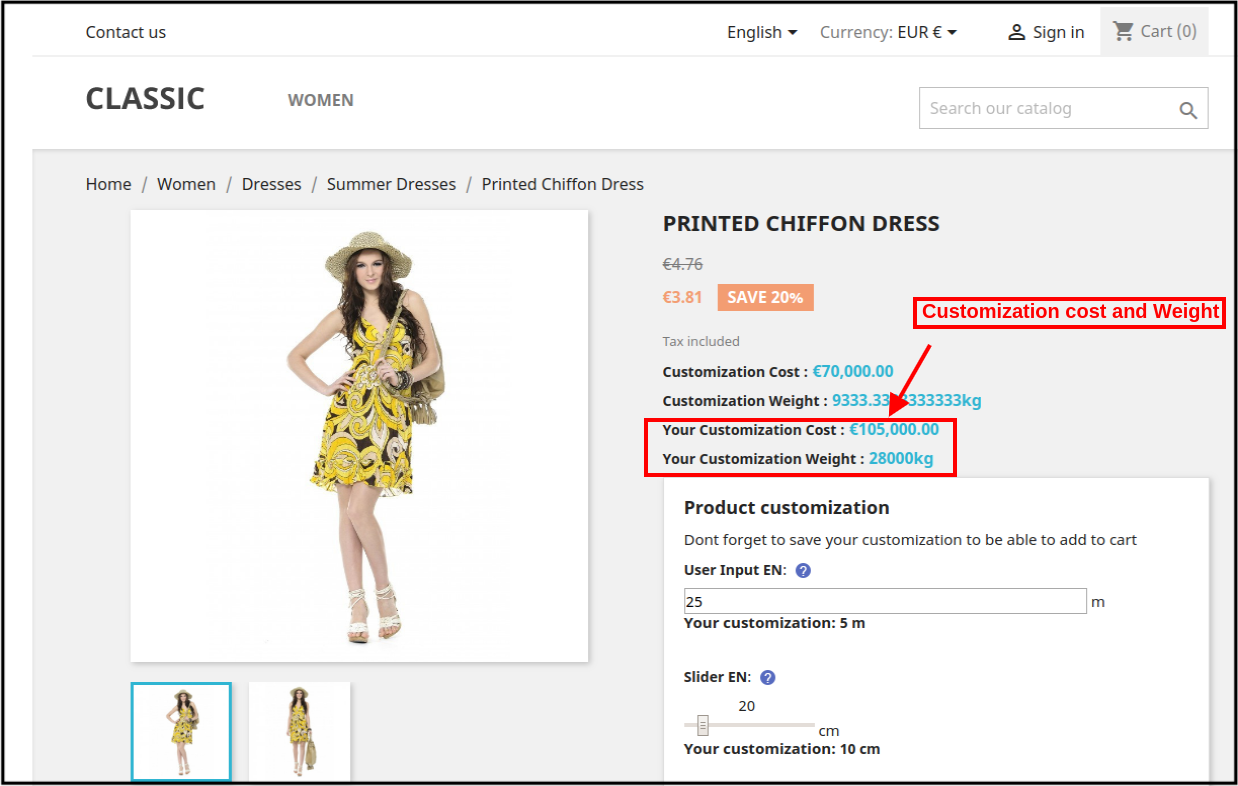
After customers customization, the customization cost will be calculated automatically.

After cost and weight calculation, the values will be set to their default value.

Admin can set the rule priority from the admin interface of this Prestashop Customization Price Calculator module.

It is mandatory to save the rule mapping settings every time.

This way the customers can view their product customization cost on the same product page easily and there is no need to calculate the cost every time. If any store admin is selling products that need required dimensions input from the user i.e wallpapers, flooring tiles, handloom products so the store merchant can use this PrestaShop Dynamic Pricing extension offered by Knowband. The best thing is that the admin needs to apply formulas a single time from the admin interface.

For more details about this PrestaShop Dynamic Pricing module, visit here:

PrestaShop Dynamic Price management module Product page Link

Admin Demo Link of PrestaShop Dynamic Pricing addon

Front-end Demo of PrestaShop Dynamic Pricing addon

Video of PrestaShop Dynamic Pricing addon

Prestashop Customization Price Calculator Module Addon Store Link

How to Read data from local JSON file in Swift?

Introduction

We will assume that we want to have a JSON file added inside our project and want to access its data in swift language.

Code

You can create a JSON file in Xcode by going to File > New File > Empty and giving the file any name (eg. example.json). The file will be added and then we can add a JSON String in the file. i.e. –

{“animal”:”Lion”, “bird”:”Sparrow”}

You can add the above-mentioned String directly into the JSON file that we created.

The following function can be used to read the JSON data from the JSON file so that it can be accessed in Swift –

  static func readJSONFromFile(fileName: String) -&gt; Any?
    {
        var json: Any?
        if let path = Bundle.main.path(forResource: fileName, ofType: "json") {
            do {
                let fileUrl = URL(fileURLWithPath: path)
                // Getting data from JSON file using the file URL
                let data = try Data(contentsOf: fileUrl, options: .mappedIfSafe)
                json = try? JSONSerialization.jsonObject(with: data)
            } catch {
                // Handle error here
            }
        }
        return json
    }

<strong>Recommended Read: </strong><a href="https://www.knowband.com/blog/tutorials/iterate-element-json-string-android-ios/">Iterate through each element of JSON string in Android and iOS</a>

Recommended Read: How to Migrate Magento Store From Localhost To Server?

How to Migrate Magento Store From Localhost To Server?

After creating your dream Magento store on localhost when its time to move it to production server sometimes people get nervous. Its a piece of cake and we will help you in migrating your Magento store from localhost to production server.

Prerequisite

1. Working domain
2. Production ready for Magento

Working domain

By working domain means the domain on which you are going to host your store. For example https://mademo1.knowband.com

Production ready for Magento

It means there should be all the elements properly setup on the server which is required for a Magento to run. If you need any help regarding that then you can check the link https://www.knowband.com/blog/magento-tutorials/install-magento-using-command-line/

Steps for Migration

1. Export your localhost database

Export your localhost Magento store database. There are two ways of doing it

A) Via PhpMyAdmin
B) CLI

My personal favorite is via command line interface(CLI) as it is faster than the former one. We will see each way one by one.

a)PhpMyAdmin

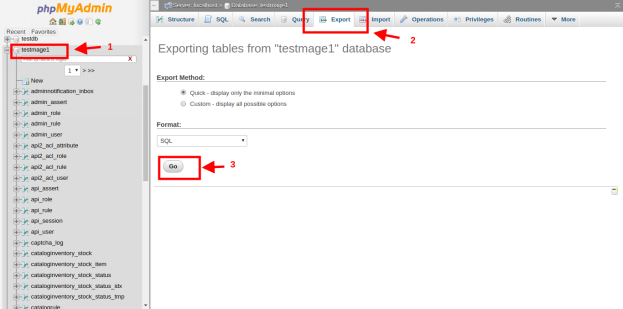
Login to you PhpMyAdmin and go to your database. There you will see option “Export” in the header. Here “testmage1” is the name of my database.

Check the below image for reference

b) CLI

CLI or command line interface is better than PhpMyAdmin as it is faster.

mysqldump -u root -p testmage1 > database_name.sql

Put the name of you database in the place of testmage1. This command will create the dump of your database with the name database_name.sql

2. Compress and upload your Magento files

After the database has been exported now its time to compress your Magento store files. Create the zip of all the files of your store. This way it will be easy to upload it on the server. Now open Filezilla and upload the zipped file over the server and extract it in the required folder.

3. Import Database

Now its time to import your database on your production. Now again there are two ways of doing it

a) PhpMyAdmin

Login to your PhpMyAdmin of production and create an empty database with the same name as on your localhost. After creating a database you will see “Import” option in the header.

Check Image for reference.

After clicking on the Import browser you file as shown in the image and click on GO. This will take a few minutes and your database will be imported.

b) CLI

For importing database via CLI you need to upload your database file via FTP and login to your server via terminal. Use following command to import the database

mysql -u username -p database_name < file.sql

Here database_name is the name of the database in which your file will be imported and file.sql is the file which you are importing.

4. Modify local.xml

Now we need to modify our local.xml file so that our Magento can access the database. Open Magento_Root/app/etc/local.xml
In it search for <connection> node.

<host><![CDATA[host_name]]></host>
<username><![CDATA[db_user_name]]></username>
<password><![CDATA[db_password]]></password>
<dbname><![CDATA[database_name]]></dbname>

Update these tags as per the production configuration. Your database connectivity is done now.

5. Update domain name

Now its time to make entry of domain name in the database. Open table core_config_data and update your domain in

1.web/unsecure/base_url
2.web/secure/base_url
as shown in the image.

6. Flush Cache

Now its time to refresh your cache as there might be some cache from your localhost machine. To refresh your cache go to

Magento_Root/var/cache

This folder contains your cache. Delete all the files and directory of this folder.

Now you are all set. Your Magento store has been successfully migrated from localhost to production server. Go to your web browser and enter your domain in address base and hit enter. Your website will open as it was in your localhost.

Bottomline

These are the steps to migrate your localhost Magento store to the production server. Always keep backup of your code and database in case anything goes wrong. If your website is not opening properly then go through the above-mentioned steps again and check if you missed anything. Happy Coding:)

How to send push notification from server?

What are push notifications?

Push notifications are the messages that are pushed to mobile from another platform than the receiving device. Let us consider any mobile app either closed or open. We get some notification from server irrespective of the app is open/closed/minimised. The only condition is that the app should be installed. In such case, we trigger notifications from web server say Firebase. We are pushing the notifications to mobile app from server. Hence these are called push notification.

Firebase provides us API(s) that can be triggered to send the push notification to any device.

Sending Push Notification using Firebase

We can trigger below API provided by the Firebase to send a push notification to any device.

API URL :

https://fcm.googleapis.com/fcm/send

Headers :

Content-Type:application/json

Authorization:key=AAAAR8kVIU:APA91bGaZe_uSKd2EtATPVoIUFGW6E3EwzcfsurUtjMIMIsxdTICC2Wl4BDtiWVupueBaJoQbb1JjAjDDEhDEWXWf3Cp_WXBAO1LkOUwtYPnj7XjeEFW1jqhzW8J1g1IwLinL42t8u

Body :

{
"to":"fqU6X2UAdiI:APA91bEHIZ2MwdsTdIW3_Sk_hvH9ZHbbbzJln4A8n6gYyYH71V5dlxazxWWejcafEOEIHc1mvwxauVodIOgdXrSiaxU0mfyPTKWr47k-8SwlyY30_Mxh8NTA2winTE16JO-KbajD",
"priority":"high",
"mutable_content":true,
"content_available":true,
"notification":{
"title":"Sample title",
"body":"Sample Body Sample Body"
},
"data":{
"title":"Title Title",
"body":"Sample body Sample Body",
"image":"Image Link",
"description":"Sample Description"
}
}

Cost-effective Promotional Ideas to Drive more Conversions

You don’t close a sale, you open a relationship if you want to build a long-term, successful enterprise.

The battle over the clientele acquisition is increasing with every passing year. However, it is not just the saturation of the industry, but consumer-centric market that is adding insult to the injury. In the cut-throat competition, every e-retailer must have been in a situation where marketing creativity seems to sap away. In an era, where your prospective customers are empowered with awareness and technology, the conventional tactics of “spray and pray” might not always work.

If you are on the boat where most of your promotional strategies seem to be falling flat, then, at the drop of a hat, I would suggest you to stick to the basics of marketing. According to a report shared by Hubspot, almost 25% of marketers don’t know whether their efforts truly affect the outcome of a conversion. The best way to deal with such uncertainties is to take a step back and continually evaluate the 7 P’s of marketing. These 7 P’s are:

  1. Product
  2. Price
  3. Place
  4. Promotion
  5. Packaging
  6. Positioning
  7. People

With close reference these inevitable aspects of marketing, the blog brings forth some of the the promotional ideas that can help you amp-up the sales of your eCommerce site.

Product

1. Instead of price-cut, consider offering product/service upgrade

The discounts and price-cuts might not always intrigue the customers as the options are ample. When every site is ready to offer the products at best-ever and competitive prices, you need to think out-of-the-box. Offering a product upgrade or any additional functionality at the same price can definitely help you find the much-required competitive edge. In case, you offer services, offering a $99 service at $70 can get you some instant conversions.

2. Bundled products/services

Offering packaged or bundled product/service another way to convert the value-oriented customers. Giving more at the same price to the customer can both encourage them to buy and clear your inventory.

3. Upsell and Cross-sell

Highlight the complementary products that the customers are more likely to need after the purchase of a particular item. Keep the customers engaged by showing off the product upgrades and their better versions.

4. Evaluate the product’s life-cycle

Knowing your product well is the very first thing that you need to consider before marketing it. Study the product well and determine when it is more likely to worn out. This is when you can go for a upsell. Contact your customers and offer them easy upgrade as well as product fixes.

Price

5. Bulk Buying

Point-of-Sale Discounts, that is amount-off or percent-off discount sometimes fail to get enough conversions for you. This is when you get into the shoes of your customers and think differently. The key is the convey better value at lower cost. Volume purchases is one form of price promotion that can trigger some purchase intentions. The BOGO, or buy-one-get-one-free, is always a hit amongst the online shoppers.

6. Special Event Pricing

Linking a price discount to a holiday or advertised sale day always makes the customers to flock and avail the temporary benefits. Offering price-cut fir a long time period may reduce the impact eventually. So, if you want to steal your competitors’ thunder, then, keep surprising your prospective customers. These special sales can help clear out old stock as well.

Place

7. Spot the place where your customers’ hangout online

Just creating an over-the-top promotion or marketing campaign is not enough. You need to showcase your offerings to the right audience base. Thus, figuring out where your target customer hangs out online is important. Social media advertisements is a must for the e-retailers. At the same time, finding out is which social media platform is popular among your customers is even more important. So, make sure that you are marketing your promotional ideas on the right platform.
8. Right offer at the right place

The basic mantra of marketing, “Providing the right product to the right person at the place.”, applies here to. Figure out the places from where you can redirect the customers back to your online store. Do not let the customers find the deadlock from where they can leave the site. For instance, offering coupon codes or discounts or related products on the order success page can help you boost customer retention. There are Better thank you page extensions available for platforms like Prestashop, Magento and others for incorporating such features at your site.

9. Place the deals at the right place

Even in your site, there are places where the customer engages more. Do a heatmap test of your site and find out those key areas. Display your promotional deals in the areas of the web pages that are attracting more attention of the store visitors. Discover the visitors’ scan pattern on your site and place the CTAs at the places that witness more user interaction.

Promotion

10. Personalized Promotions

94% of customers and marketing professionals said that personalization is extremely important when it comes to promotions. Not just this, even in email marketing, personalized subject line are 26% more likely to be opened. In addition, as per reports, over 78% of consumers will only engage offers if they have been personalized. The number speaks for themselves and now you what difference personalization can make in your marketing campaign.

11. Create a sense of urgency

With multiple online stores operating at an arm-distance, most of the users visit your site for window shopping. Thus, the chances of procrastination is higher. Creating a sense of urgency and motivate the store visitors to instantly come to a purchase decision. Flash sales with countdown timer showcases aesthetically pleasing call to action with an expiration date. So, if you have a Prestashop-based shopping site and are looking to add the flash sale option in your site, then, Knowband’s Prestashop Flash Sale module can help you out.

12. Gamified ways of giveaways

In the consumer-centric environment, a 10% discount might not intrigue the customers all the time. However, offering a huge discount may not be a feasible option all the time. Why not offer the same discount in an alluring way. Incorporating gamified interfaces that offers the conventional giveaways in a fun way is one of the options to reap result within budget. The spin and win exit popup extension for Prestashop, Magento, Magento 2, OpenCart, WooCommerce for the respective platforms incorporates a roulette-type addictive interface that can make the usual offering attractive for the online shoppers.

Packaging

13. Creative Packaging

Create packaging that adds new value. For instance, eco-friendly packaging is really attracting the attention of the new-age shoppers. Make sure that the packaging is more functional and the same is highlighted in the promotional deals.

Positioning

“Great communicators have an appreciation for positioning. They understand the people they’re trying to reach and what they can and can’t hear. They send their message in through an open door rather than trying to push it through a wall.” – John Kotter

Product positioning happens to be one of the key aspects when it comes to making the full use of your promotional deals. Here are some of the tips in this respect.

14. Value Proposition

Even though you have identified your customer base and are targeting the correct demographics, the possibility of customer retention and acquisition is not assured. Your potential customers can dismiss your product in a matter of moment if they don’t perceive any value. So, this holidays instead of just pushing on the discount factor, try to showcase the most valuable aspect of your product. Moreover, instead of just promising best-ever offers, look for ways to promise and deliver on that value.

15. Highlight the user-generated contents

Your competitors will be at their toes when it comes to offering discounts. In the competitive ecosystem, you need to find the edge. The user generated content, such as reviews, ratings, customer testimonial. When the shoppers compare cost online, it is the rating of the products that will motivate them to choose your product over others.

16. Create the Trust Factor

Offering warranty and guarantee can help you inspire confidence in buyers. You can highlights your integrity with it. Along with this, easy return policy boosts the chances of turning your store visitor into a paying customers. Offer free trial of your product. This is one of the ways to make the potential buyers can become more acquainted with it.

People

Customer/people are the king in the eCommerce industry. Hence, your promotional strategies should not just focus on the target, but on the people. Sales will happen automatically. Here’s how you can do it:

17. Offer Loyalty Points

Reward the loyalty of your existing customer and provide them with reasons to return back to your store. Prestashop Reward point module is one of the ways of doing this.

18. Make your customers your undercover marketers

Spreading the word-of-mouth with the help of your existing customers is the best way to promote your brand. Offer incentives in return of the referring your site to the customers. This will benefit both your brand as well as the customer. For the Prestashop store owners, this is easy as Prestashop Affiliate and Referral Addon can help you incorporate the functionality with making any code changes.

Over to you

Sometimes all you need is to stick to the basics in order to give your business a promotional boost. Thank to the technological advancements, you can now add innovation and take the conventional promotional ideas to new heights.

Magento Store Locator and Pickup Extension- User Manual

1.0 Introduction

Online store admin can now display the physical stores on the website using Magento Google Maps Store Locator and pickup extension offered by Knowband. The fully functional Magento Google Maps Store Locator plugin allows the admin to display store name, store location, direction, contact details and mail id. The online users can view the location of the store on the website homepage or click on the link to view store locations. This Magento store locator extension also displays the store timing. Customers can view the store directions and visit there easily.
With this Magento store locator and pickup extension, the store admin can offer in-store pickup facility to the customers. The customers can view store details on the checkout page and select the store for pickup. Admin can also charge a fee for this in-store pickup facility.

1.1 Basic Features of Magento Store locator and pickup extension

  • The online store owner can show nearest physical stores to the customers on their website using this Magento Google Maps Store Locator extension.
  • The store admin can generate a Google map API key and use it for Google map integration.
  • The customers can get the direction for any store on Google map available on the website itself.
  • The Magento Google Maps Store Locator plugin allows setting Google map marker image and map zoom level for easy navigation.
  • The Magento store owner can enter the store name, contact number, working hours, address and mail id from the admin interface of Magento Google Maps Store Locator extension.
  • The Magento Store Locator plugin allows selecting distance units as kilometer or miles.
  • The online store admin can show a store locator footer link and also set it’s text, customers can click on this link to view the store locations.
  • Admin can install, configure and customize the Magento Store Locator extension easily without any hassle.
  • The Magento Store Locator module offers a user-friendly interface.
  • The Magento store locator and pickup extension allows showing an image on store locator landing page.
  • The store admin can select the areas from the admin interface of this Magento store locator and pickup module for offering in-store pickup option.
  • Magento store locator and pickup plugin allows the admin to offer in-store pickup facility on the store.
  • Admin can also charge an amount for offering in-store pickup facility on the store.
  • Magento Google Maps Store Locator Module allows setting different pickup amount for various stores.
  • Magento in-store pickup plugin allows uploading store details in bulk.
  • The customers can upload Excel file from the admin interface of this Magento pick-up plugin.

2.0 Installation

The online store merchant can install the Magento store locator extension easily by following these steps:

1. Admin needs to download the extension package from the Knowband store.

2. After downloading the extension package, the store owner will get a zipped file. Unzip the package on the root folder of Magento setup via FTP manager (like Filezilla or WinSCP – download here: https://filezilla-project.org/). The admin will find the files and folders as shown in the image below:

3. The extension is now installed and ready for use. In the Admin Panel, go to “System > Knowband Extensions >Magento store locator extension”.

Now the store admin can now use and configure the Magento store locator and pickup extension.

3.0 Admin Interface

After Successful installation, you can apply the settings to display store locator on the front-end interface. In the admin interface, there will be customization options as shown below:

  • General Settings
  • Add/Edit Store

3.1 General Settings

In general settings, there are customization options for displaying the store locator on the website. the various fields are shown below:

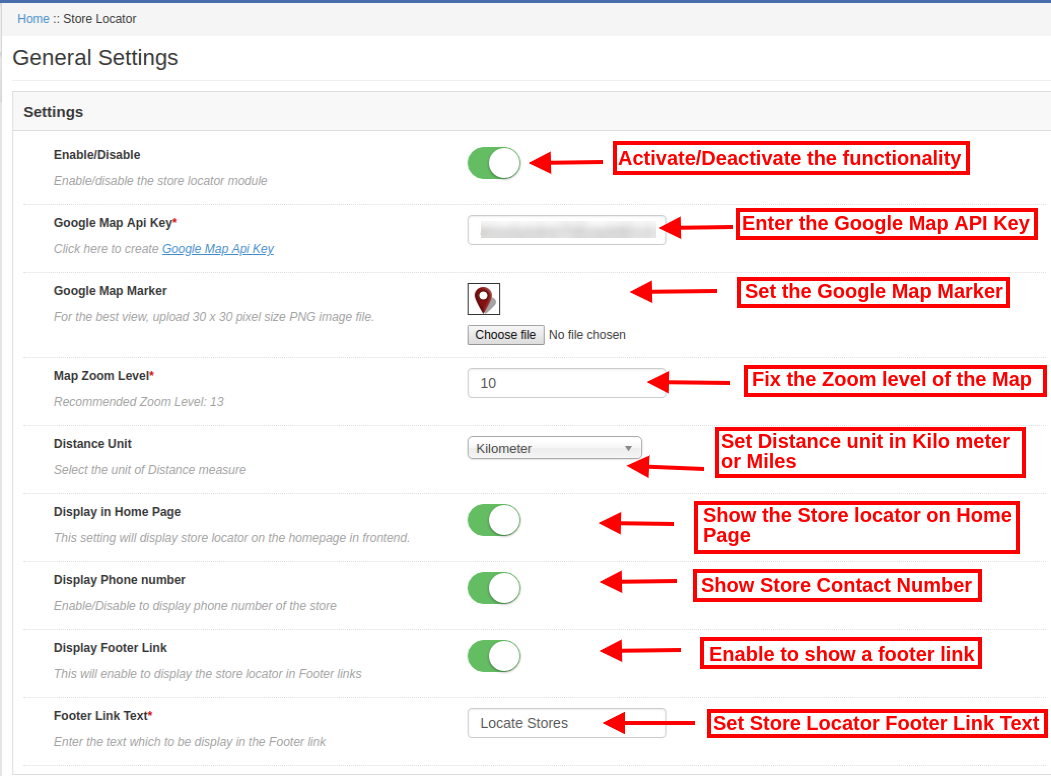
  • Enable/Disable: Activate or deactivate the functionality from the admin interface of this Magento store locator and pickup extension.
  • Google Map API Key: Enter the Google API key for incorporating Google map for showing the store locations. Refer Section 3.1.1 to see the steps to generate Google Map API key.
  • Google Map Marker: Set a Google map marker for showing exact store location to the online users on the website.
  • Map Zoom Level: Set the zoom level of the map. The Magento Google Maps Store Locator module recommends the admin to set map zoom level as 13.
  • Distance Unit: You can select the unit of distance measure in kilometers or miles.
  • Display in Home page: You can enable this setting for showing store locator on the homepage.
  • Display Phone number: Enable the option if you want to display contact number with the store details.
  • Display Footer link: Enable the menu option for displaying a store locator footer link on the website.
  • Footer link text: Enter the text which will display on the website. The customers can click here to view store locations.

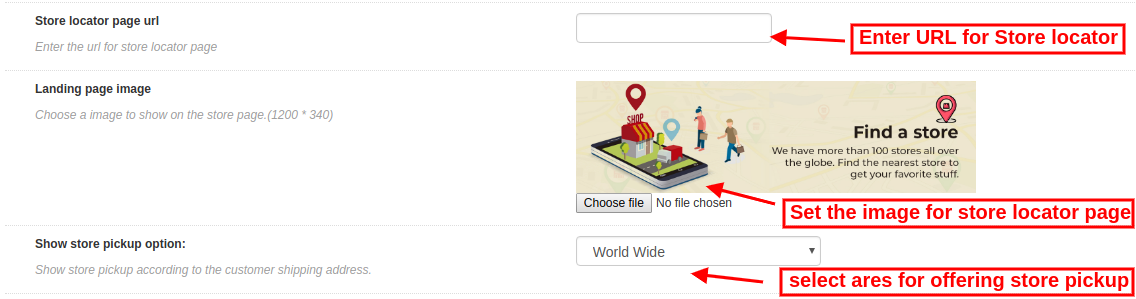
  • Store locator page URL: Here, the store admin can enter the URL for store locator page.
  • Landing page image: Select any image for showing on the store locator page.
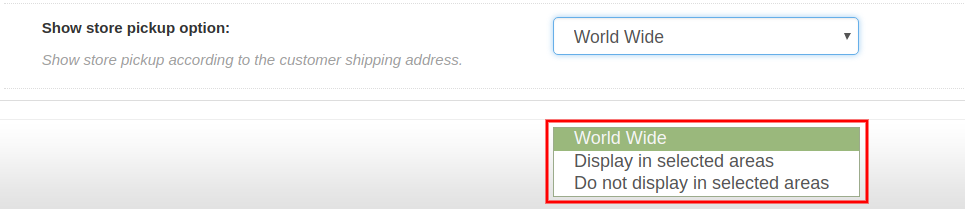
  • Show store pickup option: Admin can show in-store pickup option worldwide or selected areas. This Magento store locator and pickup plugin also provides an option to select the areas where admin doesn’t want to offer in-store pickup facility.

3.1.1 How to generate the Google Map API key

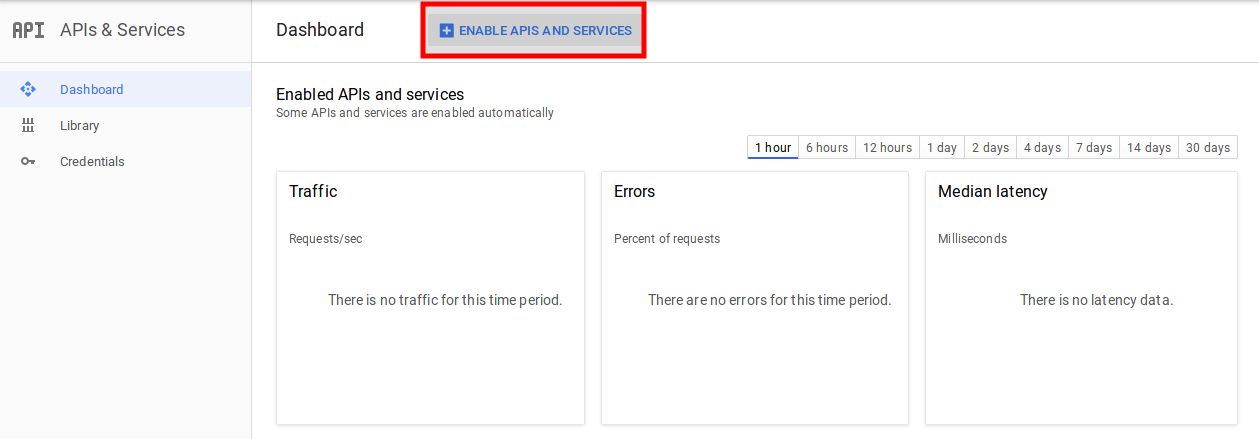
For generating the Google API key, you need to follow these steps:

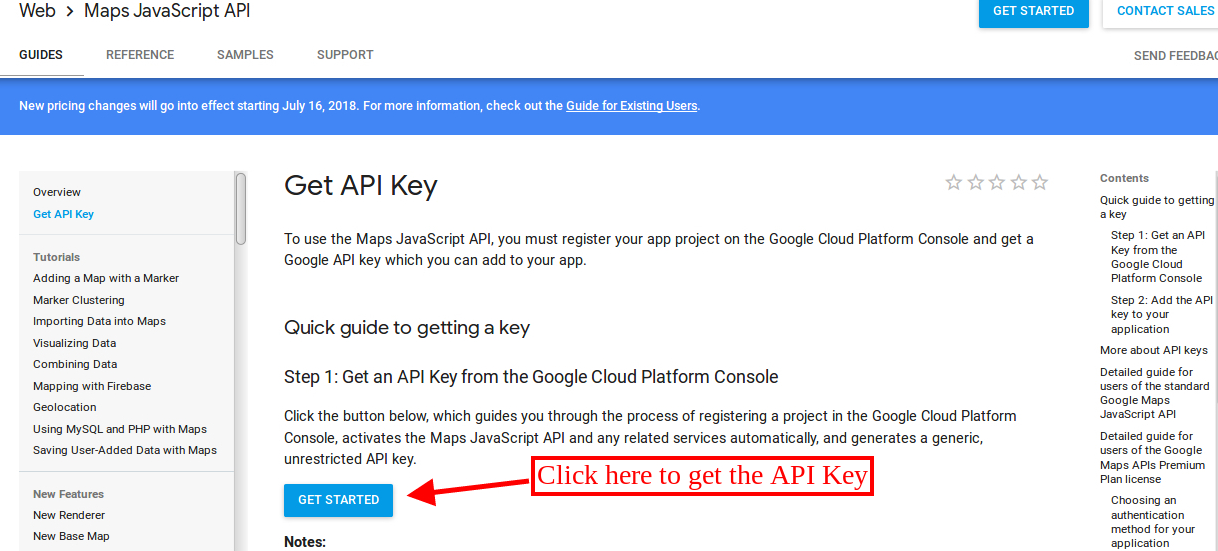
First of all click on the above mentioned link.

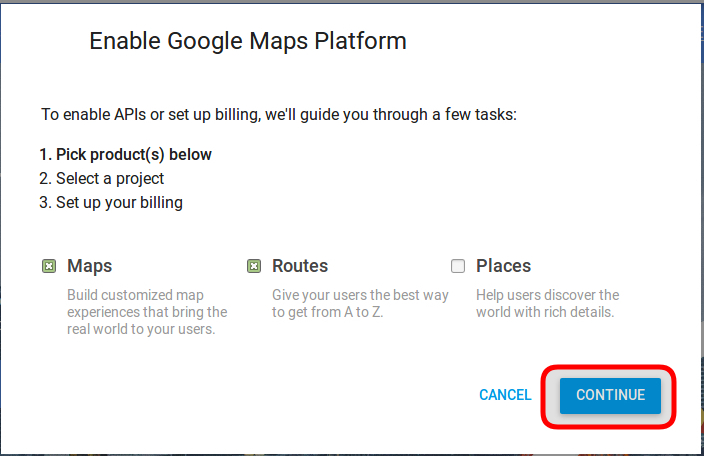
  • Click on the “Get Started” button: Click on this button to get Google map API key.

  • Pickup the products: After clicking on the “Get Started” button, a pop-up will display.

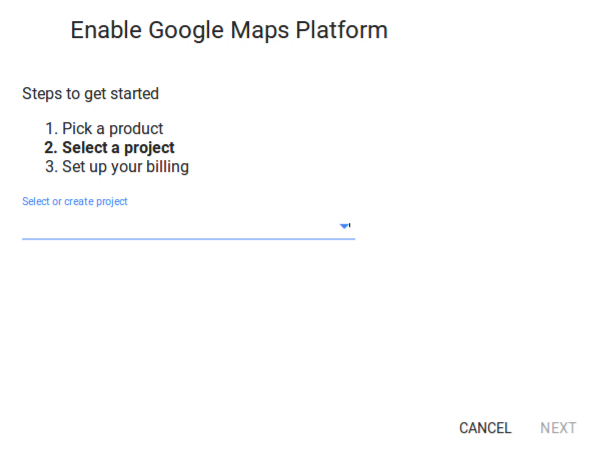
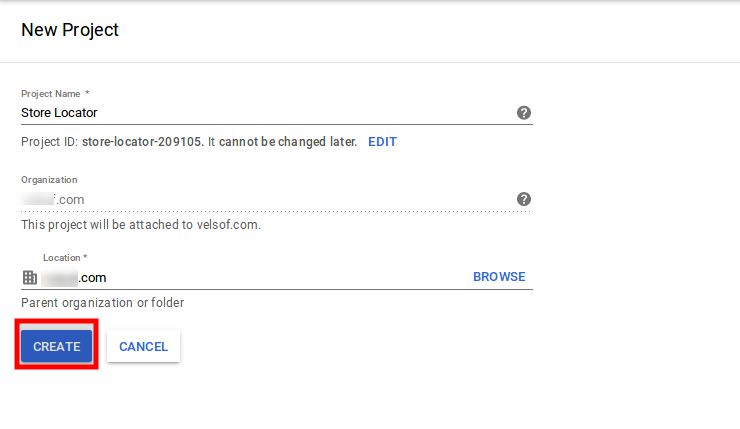
  • Project selection: Here, you can select or create a project.

1. Select a project:

2. Create a new project:

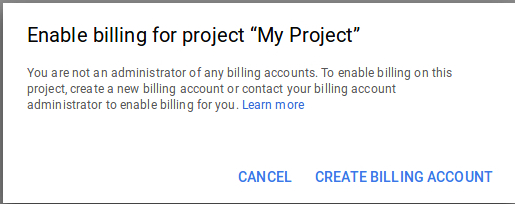
  • Setup the billing: After that, you need to set up the billing.

After billing the store admin can get their Google map API key.

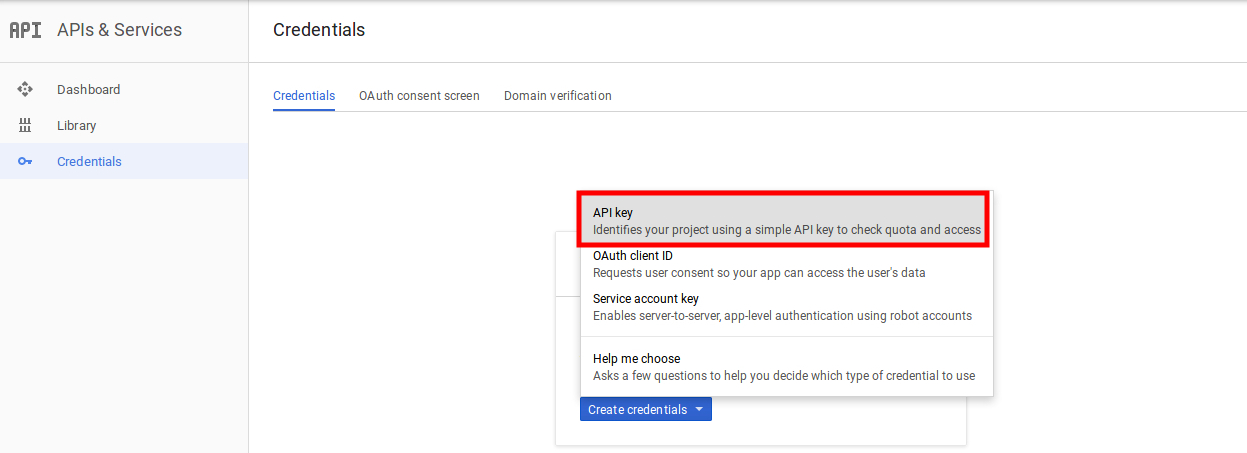
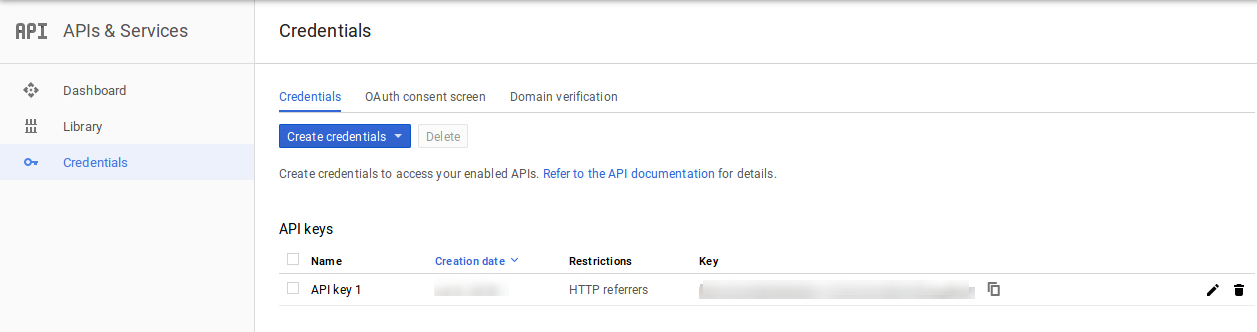
On the Credentials page, you can get an API key:

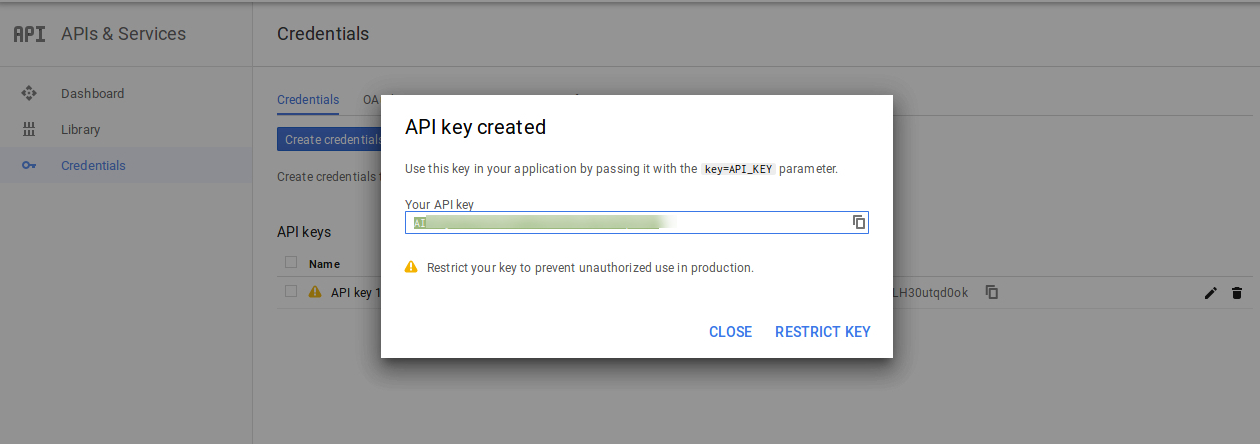
The store admin can select the API key option:

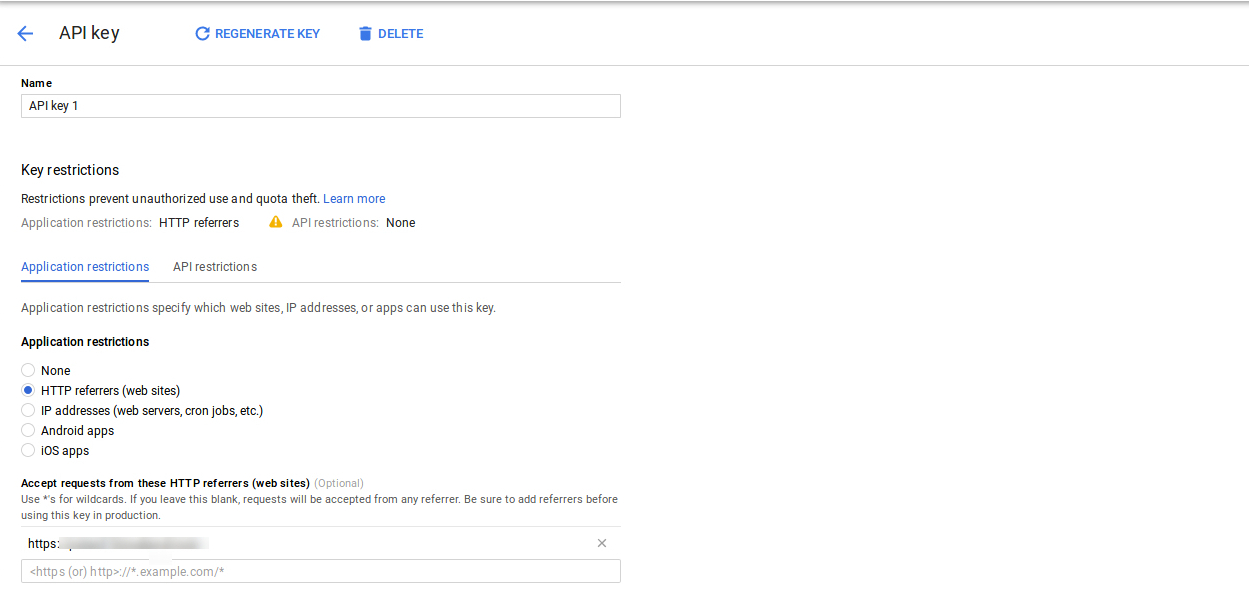
The admin can select the restrict key option from the dialog box to set a browser restriction on the API key.

In the Key restriction section, the store admin can select HTTP referrers (web sites), then follow the on-screen instructions to set referrers.

This way the admin can set the Google map API key.

3.2 Add or Edit Store

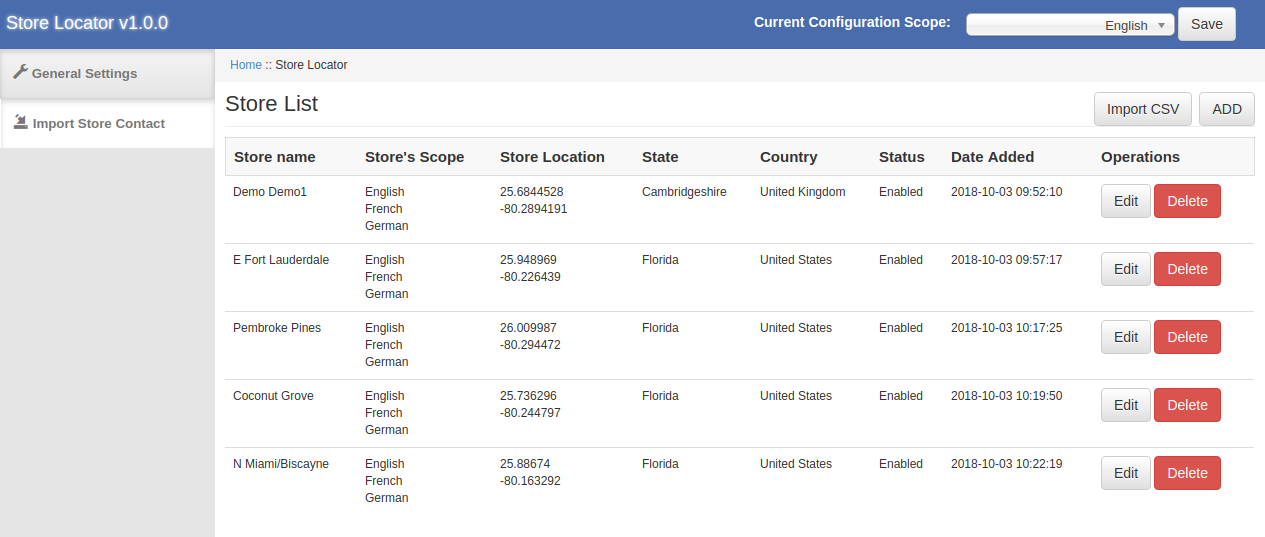
In this Menu section, there will be a list of available stores. You can add new store details, edit the store details and also delete any store from the list. The section is shown below:

3.2.1 How to Add a new store details

In order to add a new store details, follow these steps:

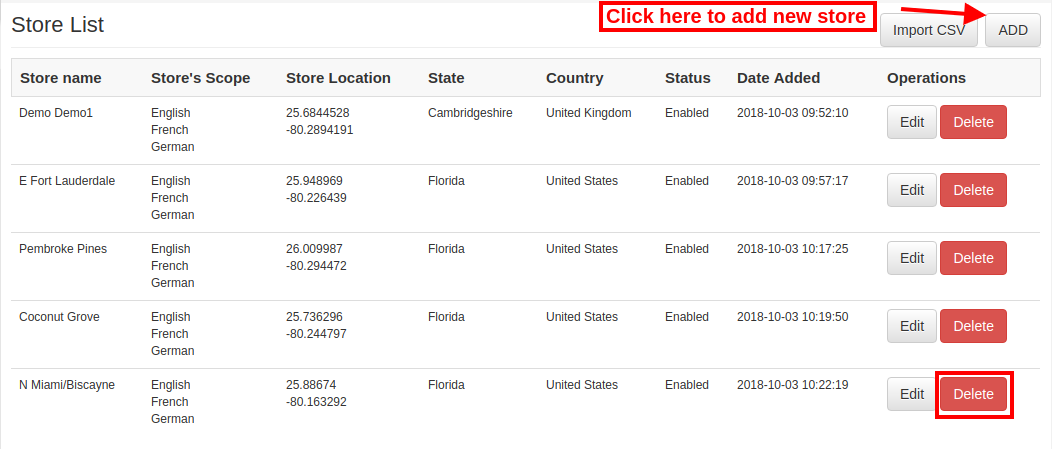
First of all click on “add” button in order to add new store in the list.

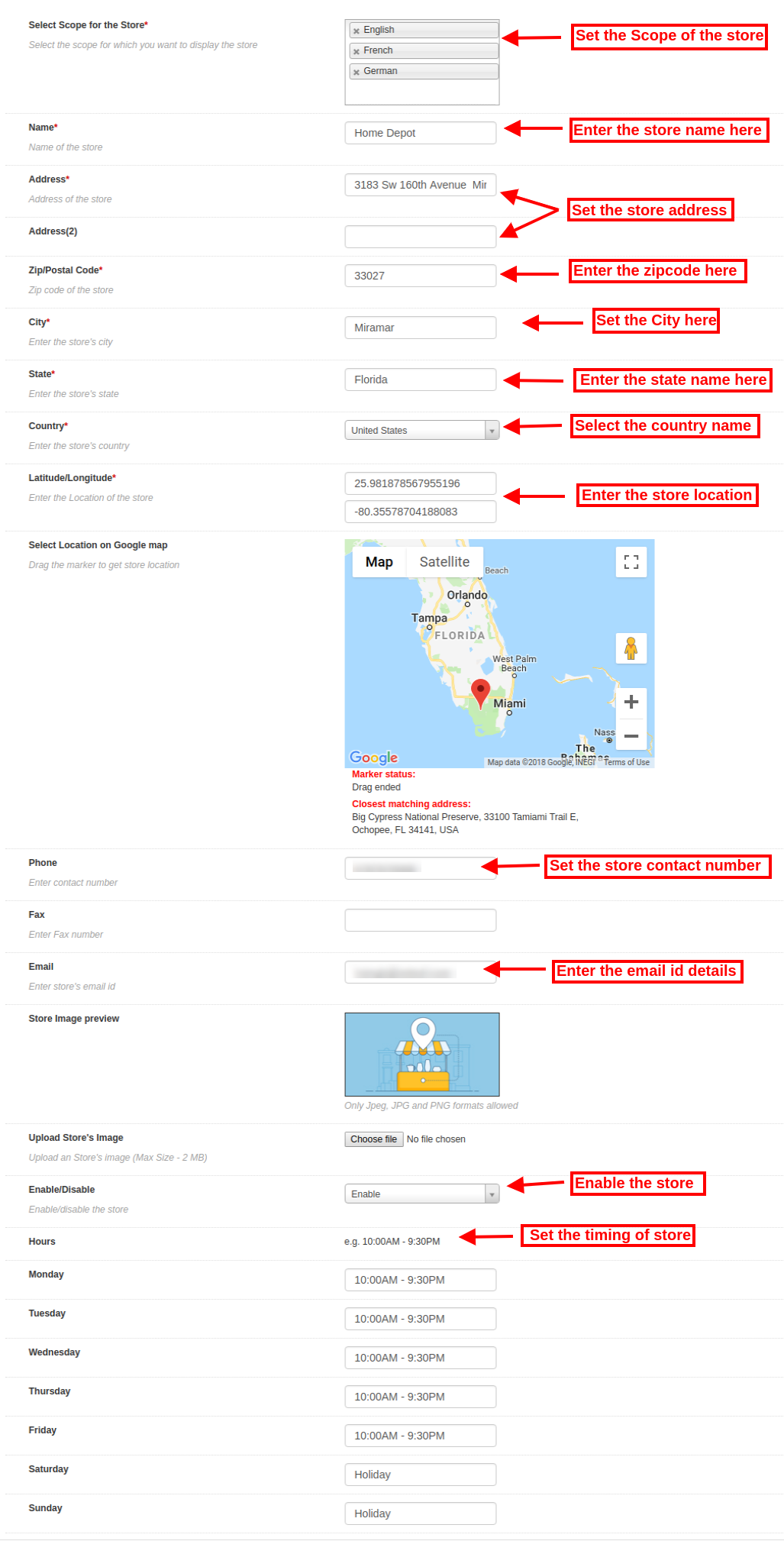
After clicking on “add” button, you can view some customization options on the admin interface of Magento Google Maps Store Locator extension.

Below-mentioned the customization options:

The store admin can set the store details easily from the admin interface of this Magento store locatorand pickup extension.

  • Select Scope for the store: Select the scope for which you want to display this new store.
  • Name: Here, you can add the name of your store.
  • Address and Address 2: Here, you need to enter address of the store.
  • Zip/Postal Code: Enter the Zip code of the store.
  • City: Enter the city details here.
  • State: Enter the state name where the store is located.
  • Country: Select the country name from the drop-down list.
  • Latitude/Longitude: Admin can enter the exact latitude and longitude of the store here.
  • Select Location on Google map: Set the store location on Google map by dragging the marker to that location.
  • Website: The store merchant can also enter the website of the store from the admin interface of this Magento in-store pickup plugin.
  • Phone: Enter the contact details here.
  • Fax: Enter the fax number if any.
  • Email: Enter the store email id here.
  • Store Image Preview: The store preview will look as shown.
  • Upload Store’s image: Admin can enter store image here.
  • Enable/Disable: Admin can select the option to activate or deactivate the store.
  • Enable Store Pickup: The store admin can activate or deactivate the setting for store pickup option.
  • Enable pickup amount: Admin can charge an amount for offering an in-store pickup facility.
  • Pickup type: Admin can charge pickup amount per product, per quantity or on the bases of the whole order.
  • Amount: Admin can enter the amount which he wants to charge for pickup facility.
  • Hours: Admin can enter the store timing easily from the admin interface of this Magento Google Maps Store Locator extension.

3.2.2 How to Edit the store details

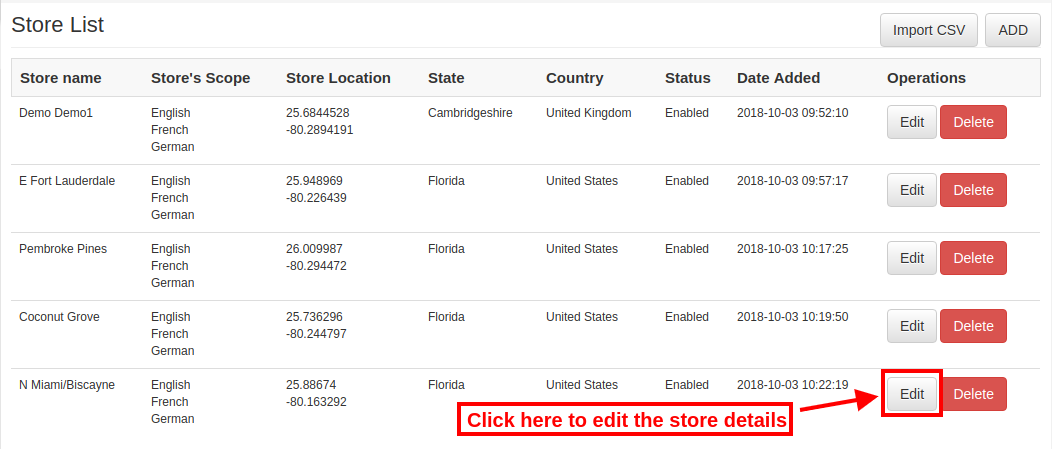
The store owner can edit the store details from the admin interface of the Magento Google Maps Store Locator module. Click on the “Edit” button for updating the store details.

3.2.3 How to Delete the store details

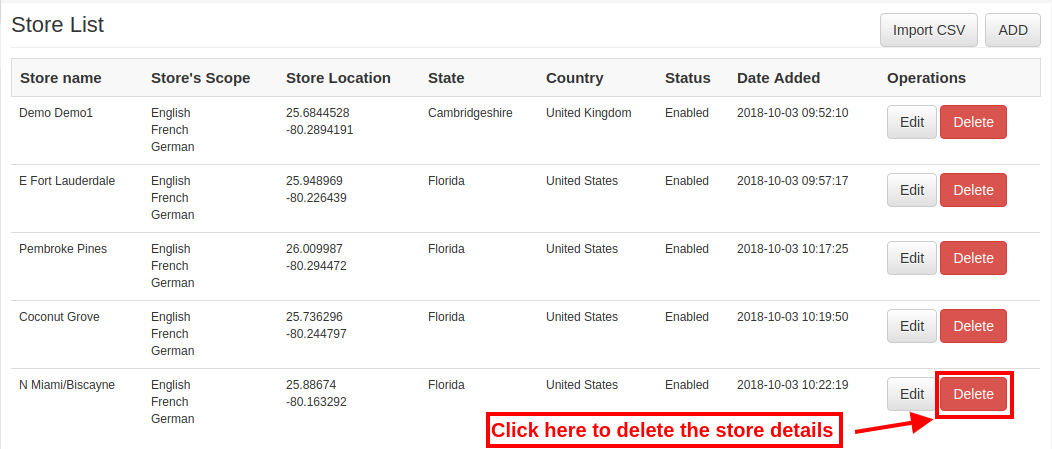
Click on the “Delete” button for deleting any store. After that, the particular store will not be displayed on the website.

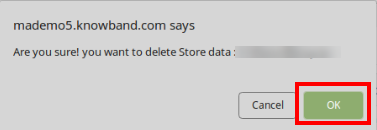
There will be a confirmation pop-up on the same page, when you click on the delete button.

Admin needs to click on the “ok” button for deletion confirmation.

3.3 Import Excel

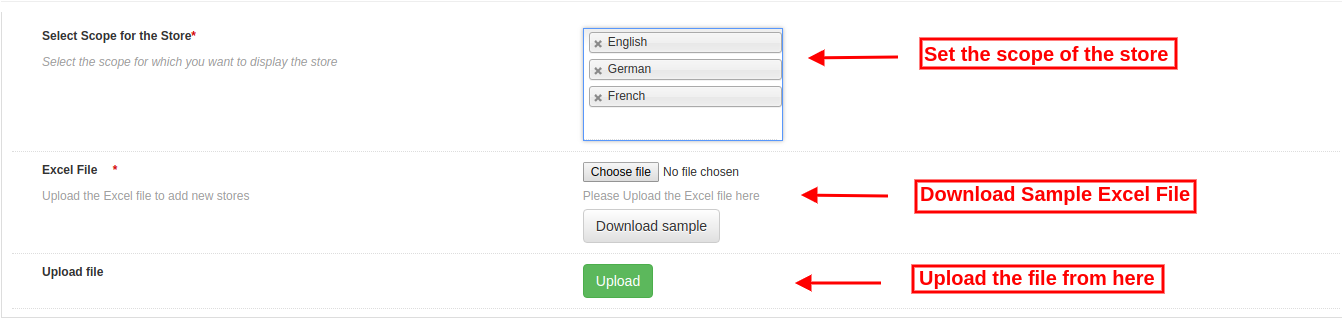
You can also upload an Excel file with store details in bulk.

The Magento store locator module allows an easy and hassle-free way to upload store details in bulk.

These are the configuration options available in this section:

  • Select Scope for the store: Select the scope of the store. You can select the languages one by one.
  • Excel File: Admin can upload an Excel file if he has one. Admin can also download a Sample Excel file and enter the store details in the same format available in Excel file.
  • Upload File: Admin can upload the Excel file from here.

After that, the store details available in the Excel file will display in the store also.

3.4 Store Pickup Global Setting

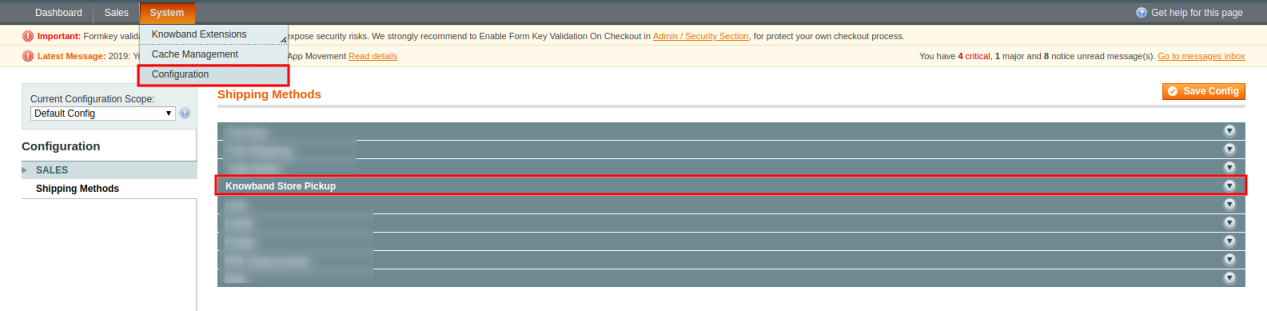
The online store admin can also apply Global settings for Store pickup. For applying global settings go to System>Settings as shown below:

Here, you will see “Knowband Store Pickup” option. After clicking on it, you will get a configuration section.

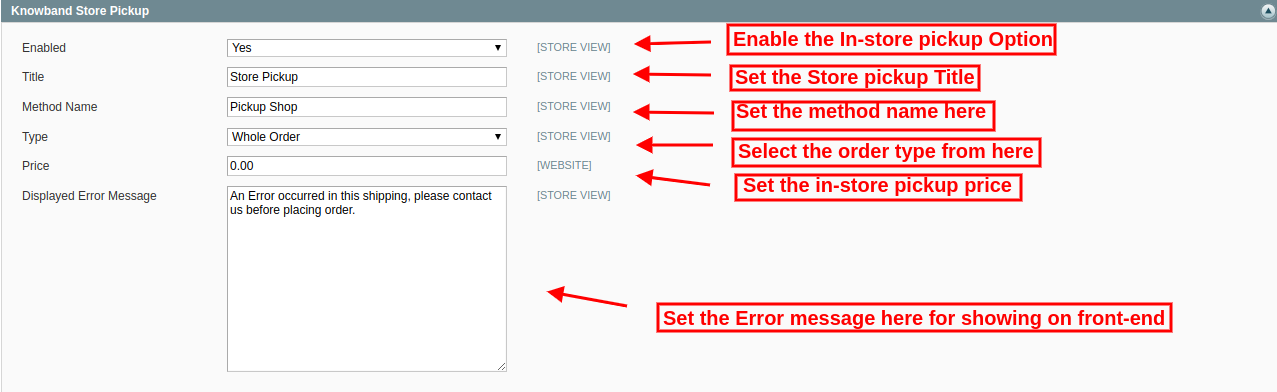
For Global Settings you will get below-mentioned options:

Enable: Enable store pickup option just by a single click.

Title: Set the Title of Store Pickup functionality.

Method Name: Set the method name as per the requirement.

Type: Set the In-store pickup type fro which he wants to charge . Admin can select from the products, whole order and quantity.

Price: Set the in-store pickup price from here.

Display Error Message: Admin can set error text for showing on the website front-end in case of any error while placing in-store pickup based order.

Admin can view in-store pickup based orders from the admin interface:

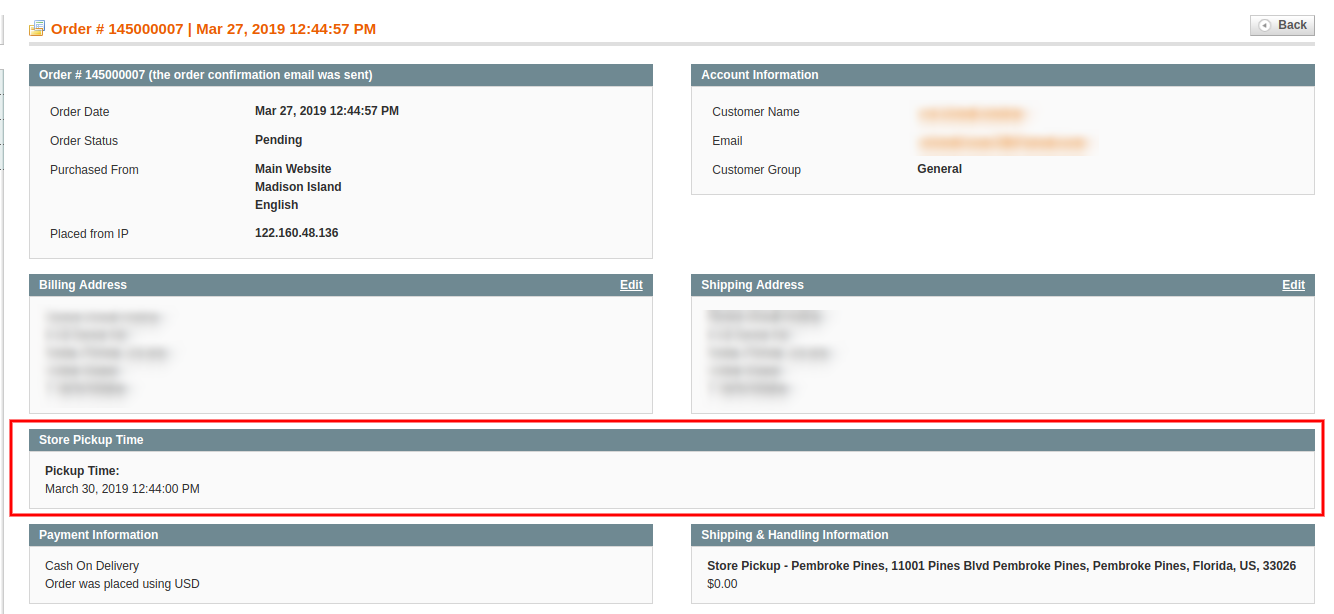
The store admin can view the customers pickup time and date information from the admin interface. For viewing the preferred delivery date and time, the admin can go to orders menu and click on the “view” option. Here, the store admin can view the time and date details as shown below:

4.0 User Interface

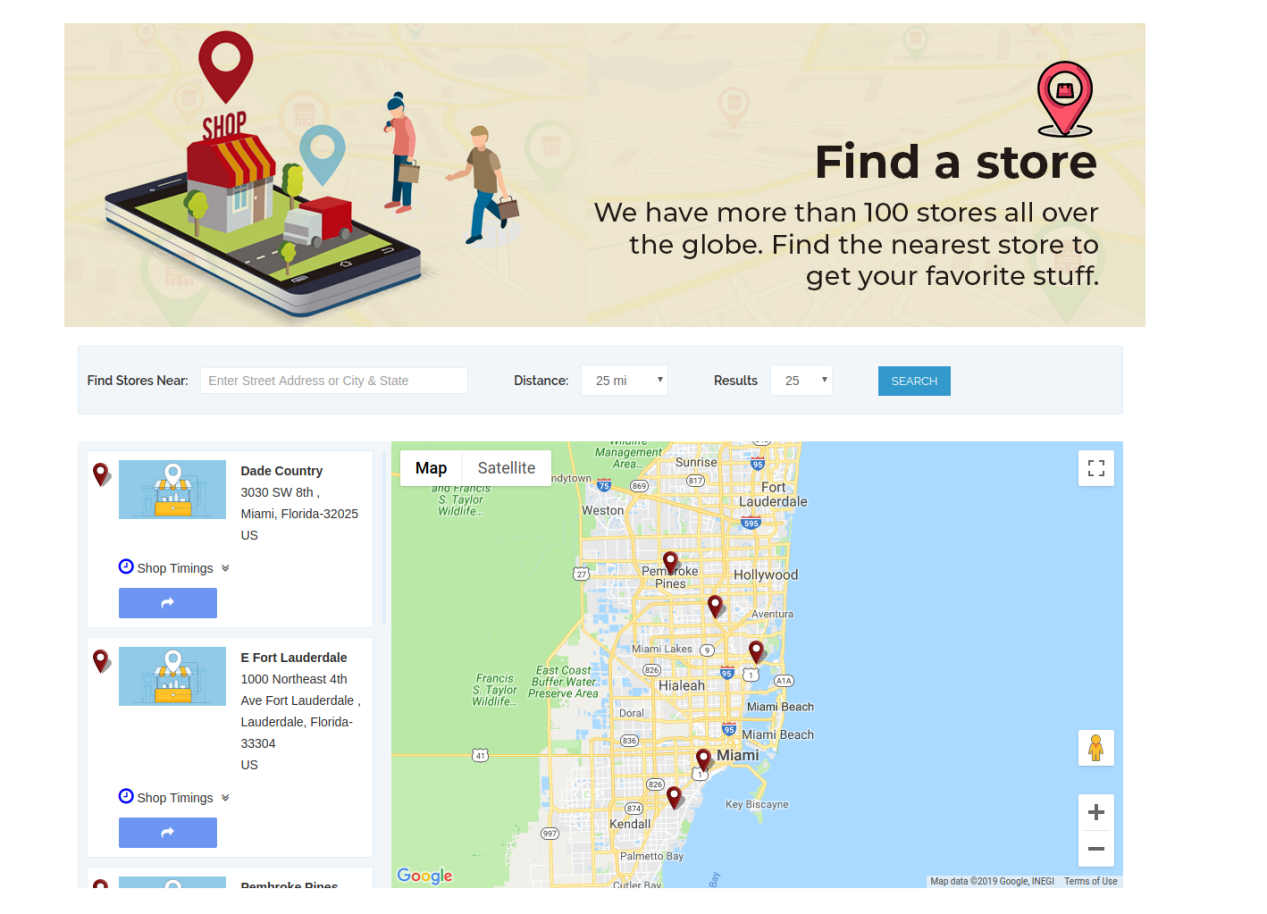
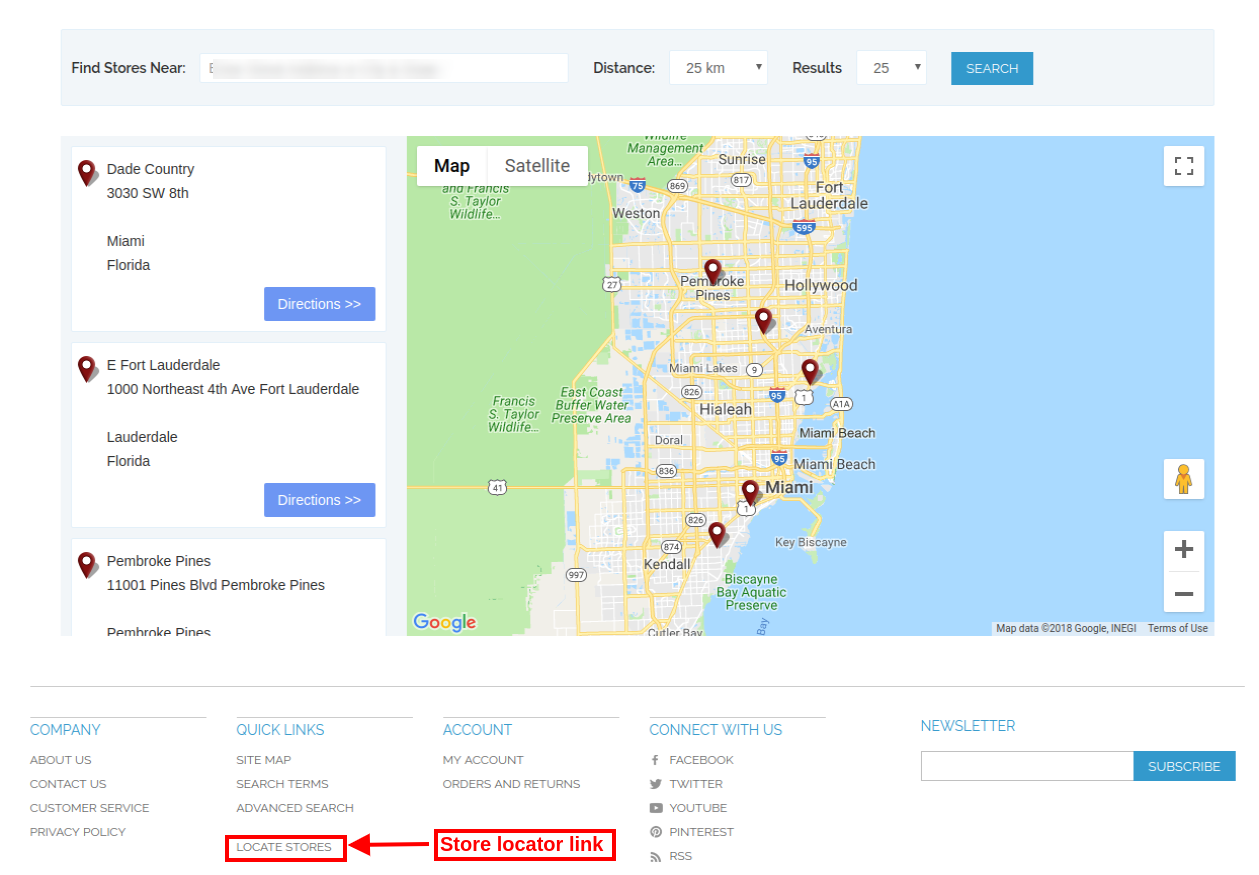
The online users can view the store locator on the website home page. They can also click on the store locator link for viewing the store locations.

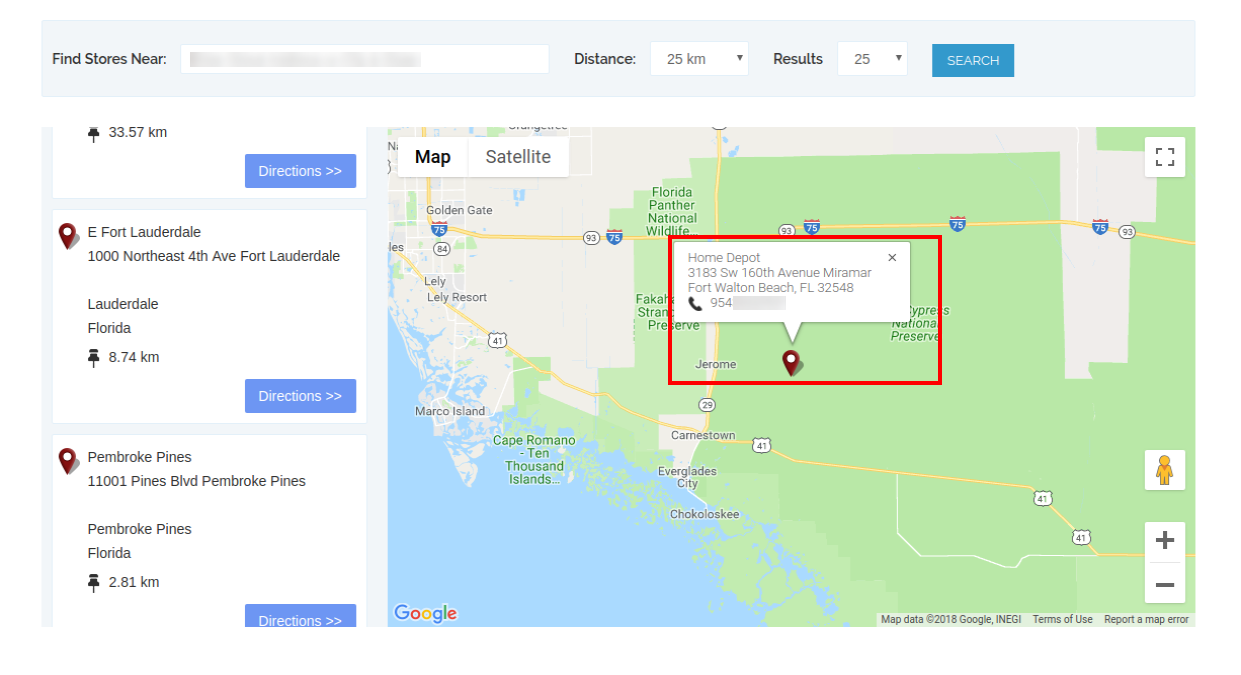
The online users can enter the location and distance for viewing nearest stores. The users can view the available stores, store address and their contact number details also.

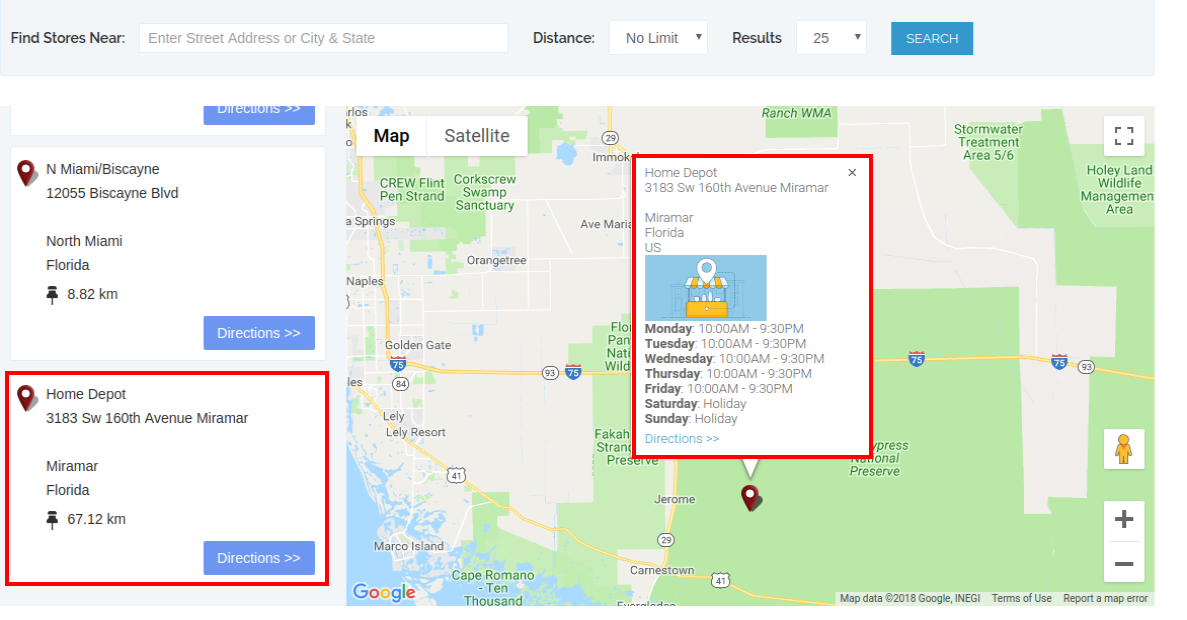
For more details customers can click on the store list. Here, they can get store timing and link for directions.

The store locator page will look as shown below:

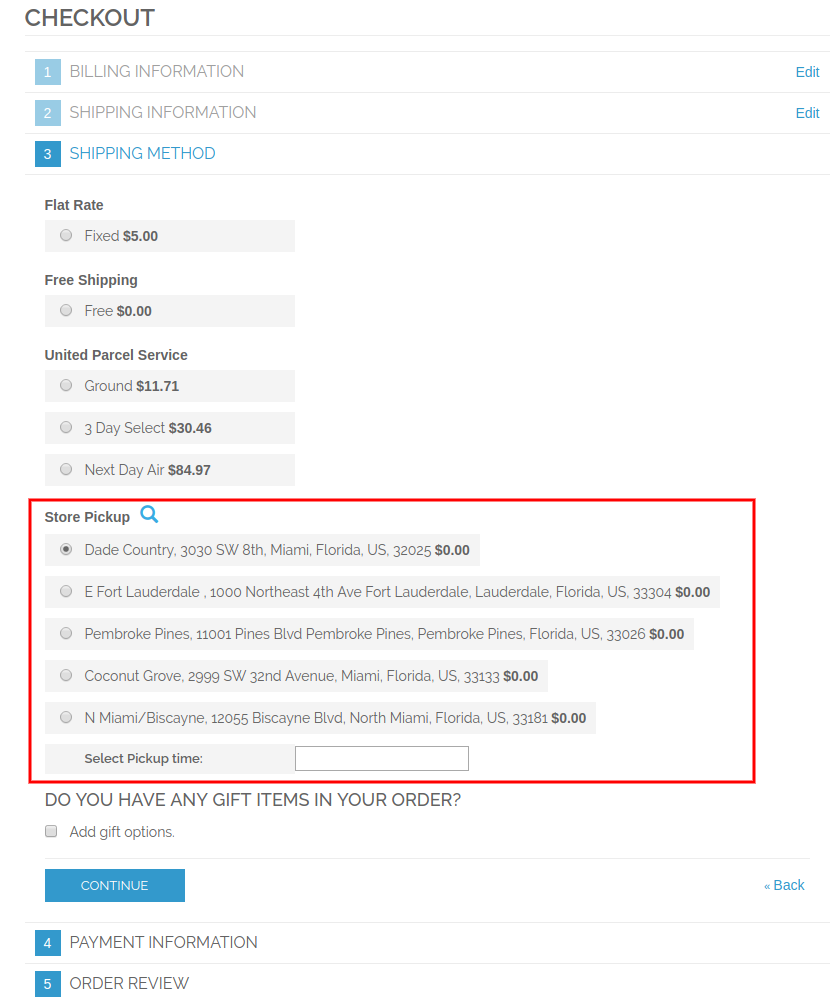
Customers can view in-store pickup option on the checkout page as shown below:

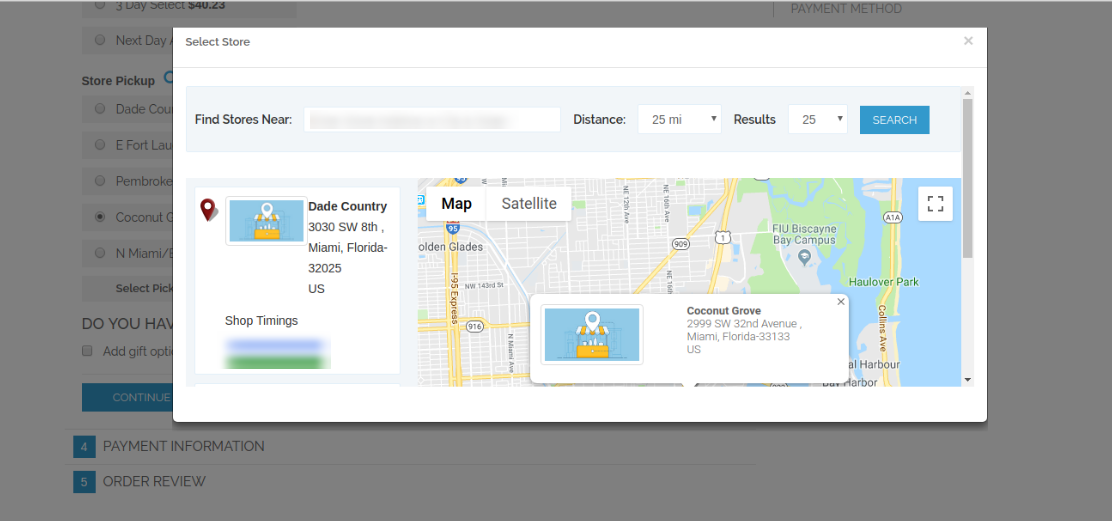
Customers can click on the “Search” icon for viewing the available stores in their nearest location. They can select the preferred store for in-store pickup.

Customers can select the store and pickup time. The customers can now pick the ordered product from the selected store without paying shipping charges.

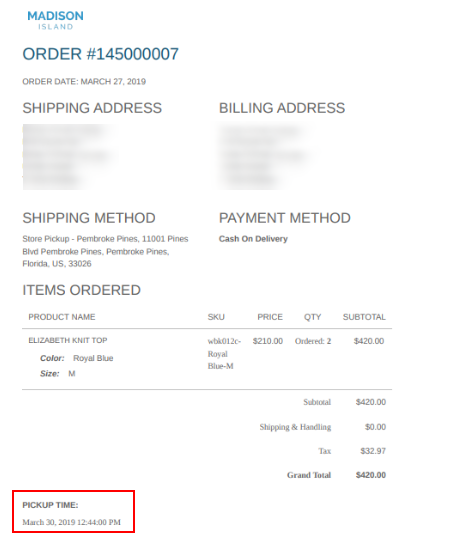
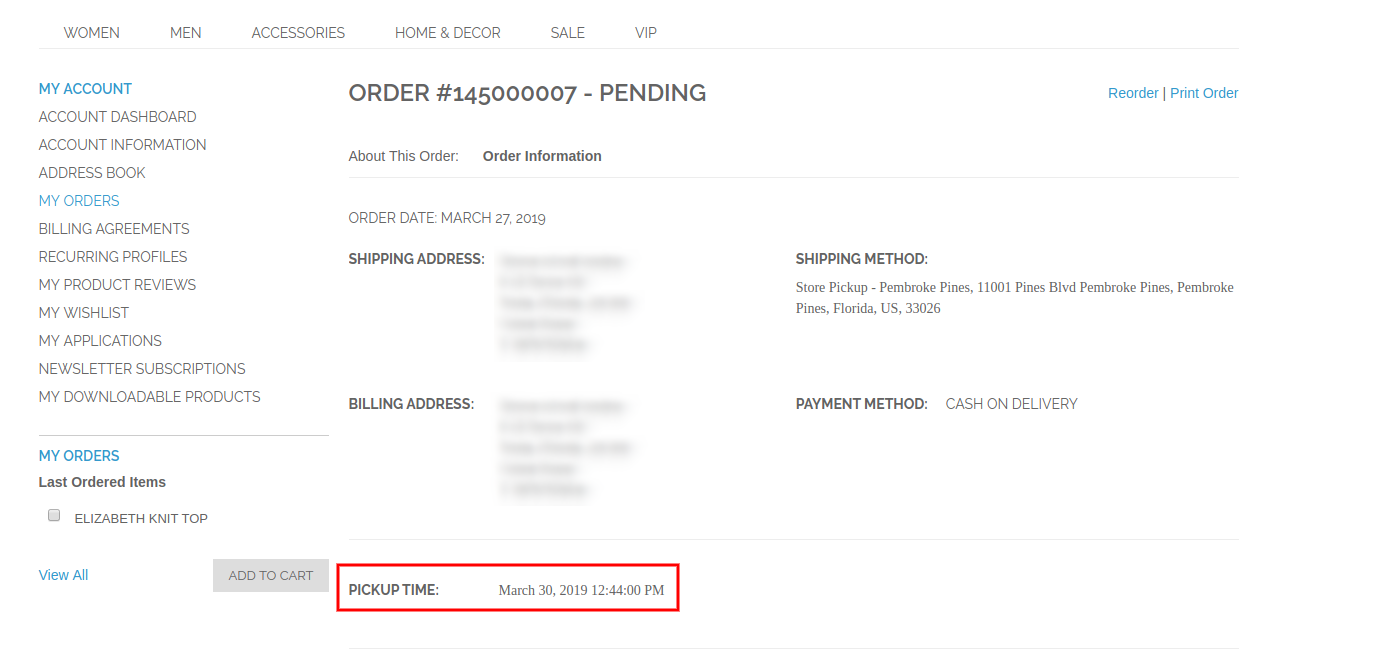
After placing the order, the online customers can view the store pickup time on their invoice bill and order history also.

On the order details, customers can view the in-store pickup details as shown below:

Thus, with the help of this Magento Google Maps Store Locator extension, admin can show physical stores on the website easily. Admin can also offer in-store pickup facility on the store. Customers can easily select the nearest store for order pickup and get the product from that store.

For more details please visit here:

Magento Google Maps Store Locator plugin Product page.

Magento Google Maps Store Locator extension Admin Demo link.

Magento Google Maps Store Locator module Front-end Demo.

Manual de usuario de recogida y recogida del localizador de tiendas Magento

1.0 Introducción

El administrador de la tienda en línea ahora puede mostrar las tiendas físicas en el sitio web usando Magento Google Maps Store Locator y recogida Extensión ofrecida por Knowband. El complemento del localizador de tiendas Magento Google Maps, totalmente funcional, permite al administrador mostrar el nombre de la tienda, la ubicación de la tienda, la dirección, los detalles de contacto y la identificación del correo. Los usuarios en línea pueden ver la ubicación de la tienda en la página de inicio del sitio web o hacer clic en el enlace para ver las ubicaciones de las tiendas. Esta extensión del localizador de tiendas Magento también muestra el tiempo de la tienda. Los clientes pueden ver las instrucciones de la tienda y visitar allí fácilmente. Con este localizador de tienda Magento y la extensión de recolección, el administrador de la tienda puede ofrecer a los clientes un servicio de recolección en la tienda. Los clientes pueden ver los detalles de la tienda en la página de pago y seleccionar la tienda para la recolección. El administrador también puede cobrar una tarifa por este servicio de recolección en la tienda.

Características básicas de 1.1 de la extensión del localizador de Magento Store

  • El propietario de la tienda en línea puede mostrar las tiendas físicas más cercanas a los clientes en su sitio web utilizando esta extensión de Magento Google Maps Store Locator.
  • El administrador de la tienda puede generar una clave API de Google map y utilizarla para la integración de Google Maps.
  • Los clientes pueden obtener la dirección de cualquier tienda en el mapa de Google disponible en el propio sitio web.
  • El complemento Localizador de Google Maps Store de Magento permite configurar la imagen de marcador de mapa de Google y el nivel de zoom del mapa para una fácil navegación.
  • El propietario de la tienda Magento puede ingresar el nombre de la tienda, el número de contacto, las horas de trabajo, la dirección y la identificación del correo desde la interfaz de administración de la extensión del Localizador de la tienda de Google Maps de Magento.
  • El plugin Magento Store Locator permite seleccionar unidades de distancia como kilómetros o millas.
  • El administrador de la tienda en línea puede mostrar un enlace del pie de página del localizador de la tienda y también establecer su texto, los clientes pueden hacer clic en este enlace para ver las ubicaciones de la tienda.
  • El administrador puede instalar, configurar y personalizar la extensión del Localizador de tiendas Magento fácilmente sin ningún problema.
  • El módulo Magento Store Locator ofrece una interfaz fácil de usar.
  • El localizador de tiendas Magento y la extensión de recolección permiten mostrar una imagen en la página de destino del localizador de tiendas.
  • El administrador de la tienda puede seleccionar las áreas de la interfaz de administración de este localizador de tienda Magento y el módulo de recolección para ofrecer la opción de recolección en la tienda.
  • El localizador de la tienda Magento y el complemento de recolección le permiten al administrador ofrecer el servicio de recolección en la tienda.
  • El administrador también puede cobrar una cantidad por ofrecer un servicio de recolección en la tienda.
  • El módulo del localizador de tiendas de Google Maps de Magento permite configurar diferentes cantidades de recolección para varias tiendas.
  • El complemento de recogida en la tienda de Magento permite cargar los detalles de la tienda de forma masiva.
  • Los clientes pueden cargar un archivo de Excel desde la interfaz de administración de este complemento de recolección de Magento.

Instalación 2.0

El comerciante de la tienda en línea puede instalar el Extensión del localizador de tiendas Magento fácilmente siguiendo estos pasos:

1. El administrador necesita descargar el paquete de extensión de la tienda Knowband.

2. Después de descargar el paquete de extensión, el propietario de la tienda obtendrá un archivo comprimido. Descomprima el paquete en la carpeta raíz de la configuración de Magento a través del administrador de FTP (como Filezilla o WinSCP)

3. La extensión ya está instalada y lista para su uso. En el Panel de administración, vaya a "Sistema> Extensiones de Knowband> Extensión del localizador de tiendas Magento".

Ahora el administrador de la tienda ahora puede usar y configurar el localizador de tienda Magento y la extensión de recolección.

Interfaz de administración 3.0

Después de la instalación exitosa, puede aplicar la configuración para mostrar el localizador de tiendas en la interfaz de usuario. En la interfaz de administración, habrá opciones de personalización como se muestra a continuación:

  • Ajustes generales
  • Añadir / Editar tienda

Configuración general de 3.1

En la configuración general, hay opciones de personalización para mostrar el localizador de tiendas en el sitio web. Los diferentes campos se muestran a continuación:

  • Habilitar deshabilitar: Active o desactive la funcionalidad desde la interfaz de administración de este localizador de tiendas Magento y la extensión de recolección.
  • Clave de la API de Google Map: Ingrese la clave de la API de Google para incorporar el mapa de Google para mostrar las ubicaciones de las tiendas. Consulte la Sección 3.1.1 para ver los pasos para generar la clave API de Google Map.
  • Google Map Marker: Configure un marcador de mapa de Google para mostrar la ubicación exacta de la tienda para los usuarios en línea en el sitio web.
  • Nivel de zoom del mapa: Establecer el nivel de zoom del mapa. El módulo Localizador de la tienda de Google Maps de Magento recomienda al administrador configurar el nivel de zoom del mapa como 13.
  • Unidad de distancia: Puede seleccionar la unidad de medida de la distancia en kilómetros o millas.
  • Mostrar en la página de inicio: Puede habilitar esta configuración para mostrar el localizador de tiendas en la página de inicio.
  • Mostrar número de teléfono: Habilite la opción si desea mostrar el número de contacto con los detalles de la tienda.
  • Mostrar enlace de pie de página: Habilite la opción de menú para mostrar un enlace del pie de página del localizador de tiendas en el sitio web.
  • Texto del enlace al pie de página: Introduzca el texto que se mostrará en el sitio web. Los clientes pueden hacer clic aquí para ver las ubicaciones de las tiendas.

  • URL de la página del localizador de tiendas: Aquí, el administrador de la tienda puede ingresar la URL para la página del localizador de tiendas.
  • Imagen de la página de destino: Seleccione cualquier imagen para mostrar en la página del localizador de tiendas.
  • Mostrar opción de recogida en la tienda: El administrador puede mostrar la opción de recogida en la tienda en todo el mundo o áreas seleccionadas. Este localizador de magento de la tienda y el complemento de recolección también ofrece una opción para seleccionar las áreas donde el administrador no quiere ofrecer el servicio de recolección en la tienda.

3.1.1 Cómo generar la clave API de Google Map

Para generar la clave API de Google, debe seguir estos pasos:

En primer lugar, haga clic en el enlace mencionado anteriormente.

  • Haga clic en el botón "Comenzar":Haga clic en este botón para obtener la clave API de Google map.

  • Recoger los productos:Después de hacer clic en el botón "Comenzar", aparecerá una ventana emergente.

  • Selección de proyecto:?Here, you can select or create a project.

1. Seleccione un proyecto:

2. Crea un nuevo proyecto:

  • Configura la facturación:?After that, you need to set up the billing.

Después de facturar, el administrador de la tienda puede obtener su clave API de mapa de Google.

Sobre elPágina de credenciales, puedes conseguir unClave API:

El administrador de la tienda puede seleccionar la opción clave de API:

El administrador puede seleccionar la opción restringir clave en el cuadro de diálogo para establecer una restricción del navegador en la clave API.

En elSección de restricción de clave, el administrador de la tienda puede seleccionarReferencias HTTP(sitios web), luego siga las instrucciones en pantalla para establecer referencias.

De esta forma, el administrador puede configurar la clave de la API del mapa de Google.

3.2 Añadir o Editar Tienda

En esta sección del menú, habrá una lista de tiendas disponibles. Puede agregar nuevos detalles de la tienda, editar los detalles de la tienda y también eliminar cualquier tienda de la lista. La sección se muestra a continuación:

3.2.1 Cómo agregar una nueva tienda de detalles

Para agregar los detalles de una nueva tienda, siga estos pasos:

En primer lugar, haga clic en el botón "agregar" para agregar una nueva tienda en la lista.

Después de hacer clic en "añadir" botón, puede ver algunas opciones de personalización en la interfaz de administración de Magento Google Maps Store Locator extensión.

Abajo mencionamos las opciones de personalización:

los

  • Seleccione el alcance para la tienda: Seleccione el ámbito para el que desea mostrar esta nueva tienda.
  • Nombre: Aquí, puedes agregar el nombre de tu tienda.
  • Dirección y dirección 2: Aquí, debe introducir la dirección de la tienda.
  • Código Postal: Introduzca el código postal de la tienda.
  • Ciudad: Introduzca los detalles de la ciudad aquí.
  • Estado: Ingrese el nombre del estado donde se encuentra la tienda.
  • País: Seleccione el nombre del país de la lista desplegable.
  • Latitud longitud: El administrador puede ingresar la latitud y longitud exactas de la tienda aquí.
  • Seleccione la ubicación en el mapa de Google: Establezca la ubicación de la tienda en el mapa de Google arrastrando el marcador a esa ubicación.
  • Sitio web: El comerciante de la tienda también puede ingresar al sitio web de la tienda desde la interfaz de administración de este complemento de recolección en la tienda de Magento.
  • Teléfono: Introduzca los datos de contacto aquí.
  • Numero de Fax: Introduzca el número de fax si lo hubiera.
  • Correo electrónico: Introduzca la ID del correo electrónico de la tienda aquí.
  • Vista previa de la imagen de la tienda: La vista previa de la tienda se verá como se muestra.
  • Subir imagen de la tienda: El administrador puede ingresar la imagen de la tienda aquí.
  • Habilitar deshabilitar: El administrador puede seleccionar la opción para activar o desactivar la tienda.
  • Habilitar recolección de la tienda: El administrador de la tienda puede activar o desactivar la configuración para la opción de recogida en la tienda.
  • Habilitar cantidad de recogida: El administrador puede cobrar una cantidad por ofrecer un servicio de recolección en la tienda.
  • Tipo de recogida: El administrador puede cobrar la cantidad de recolección por producto, por cantidad o sobre la base de todo el pedido.
  • Cantidad: El administrador puede ingresar la cantidad que desea cobrar por el servicio de recolección.
  • Horario: El administrador puede ingresar en el tiempo de la tienda fácilmente desde la interfaz de administración de esta extensión del Localizador de tiendas de Google Maps de Magento.

3.2.2 Cómo editar los detalles de la tienda

El propietario de la tienda puede editar los detalles de la tienda desde la interfaz de administración del módulo Localizador de tiendas de Google Maps de Magento. Haga clic en el botón "Editar" para actualizar los detalles de la tienda.

3.2.3 Cómo borrar los detalles de la tienda

Haga clic en el botón "Eliminar" para eliminar cualquier tienda. Después de eso, la tienda en particular no se mostrará en el sitio web.

Habrá una ventana emergente de confirmación en la misma página, cuando haga clic en el botón Eliminar.

El administrador debe hacer clic en el botón "Aceptar" para confirmar la eliminación.

3.3 Importar Excel

También puede cargar un archivo de Excel con los detalles de la tienda de forma masiva.

El módulo del localizador de tiendas de Magento permite una forma fácil y sin complicaciones de cargar los detalles de la tienda de forma masiva.

Estas son las opciones de configuración disponibles en esta sección:

  • Seleccione el alcance para la tienda: Seleccione el alcance de la tienda. Puede seleccionar los idiomas uno por uno.
  • Archivo Excel: El administrador puede cargar un archivo de Excel si tiene uno. El administrador también puede descargar un archivo de muestra de Excel e ingresar los detalles de la tienda en el mismo formato disponible en el archivo de Excel.
  • Subir archivo: El administrador puede cargar el archivo de Excel desde aquí.

Después de eso, los detalles de la tienda disponibles en el archivo de Excel también se mostrarán en la tienda.

Configuración global de recogida en tienda 3.4

El administrador de la tienda en línea también puede aplicar la configuración global para la recolección en la tienda. Para aplicar la configuración global, vaya a Sistema> Configuración como se muestra a continuación:

Aquí, verás la opción "Recoger en la tienda de Knowband". Después de hacer clic en él, obtendrá una sección de configuración.

Para la configuración global obtendrá las opciones mencionadas a continuación:

Activar: Habilite la opción de recoger en la tienda con un solo clic.

Cargo: Establecer el título de la funcionalidad de recogida en tienda.

Nombre del método: Establecer el nombre del método según el requisito.

Tipo: Establezca el tipo de recogida en la tienda para que él quiera cargar. El administrador puede seleccionar entre los productos, el pedido completo y la cantidad.

Precio: Establezca el precio de recogida en la tienda desde aquí.

Mostrar mensaje de error: El administrador puede configurar el texto de error para mostrarlo en el front-end del sitio web en caso de que se produzca algún error al realizar el pedido en la tienda.

El administrador puede ver los pedidos basados ​​en recolección en la tienda desde la interfaz de administración:

El administrador de la tienda puede ver la información de fecha y hora de recolección de los clientes desde la interfaz de administración. Para ver la fecha y hora de entrega preferida, el administrador puede ir al menú de pedidos y hacer clic en la opción "ver". Aquí, el administrador de la tienda puede ver los detalles de hora y fecha como se muestra a continuación:

Interfaz de usuario 4.0

Los usuarios en línea pueden ver el localizador de tiendas en la página de inicio del sitio web. También pueden hacer clic en el enlace del localizador de tiendas para ver las ubicaciones de las tiendas.

Los usuarios en línea pueden ingresar la ubicación y la distancia para ver las tiendas más cercanas. Los usuarios también pueden ver las tiendas disponibles, la dirección de la tienda y los detalles de su número de contacto.

Para más detalles, los clientes pueden hacer clic en la lista de tiendas. Aquí, pueden obtener el tiempo de la tienda y un enlace para las direcciones.

La página del localizador de tiendas se verá como se muestra a continuación:

Los clientes pueden ver la opción de recogida en la tienda en la página de pago como se muestra a continuación:

Los clientes pueden hacer clic en el icono "Buscar" para ver las tiendas disponibles en su ubicación más cercana. Pueden seleccionar la tienda preferida para la recolección en la tienda.

Los clientes pueden seleccionar la tienda y la hora de recogida. Los clientes ahora pueden elegir el producto solicitado de la tienda seleccionada sin pagar los gastos de envío. Después de realizar el pedido, los clientes en línea pueden ver la hora de recogida de la tienda en su factura e historial de pedidos también.

En los detalles del pedido, los clientes pueden ver los detalles de recolección en la tienda como se muestra a continuación:

Por lo tanto, con la ayuda de esta extensión de Magento Google Maps Store Locator, el administrador puede mostrar las tiendas físicas en el sitio web fácilmente.

Para más detalles por favor visite aquí:

Página del producto Magento Google Maps Store Locator.

Magento Google Maps Store Locator extensión Admin Demo link.

Demostración de front-end del módulo Localizador de la tienda de Google Maps de Magento.


Magento Store Locator Extension and Pickup – Manuel utilisateur

1.0 Présentation

L’administrateur du magasin en ligne peut maintenant afficher les magasins physiques sur le site Web à l’aide de Magento Google Maps Store Locator et ramassage extension offerte par Knowband. Le plugin Magento Google Maps Store Locator entièrement fonctionnel permet à l’administrateur d’afficher le nom du magasin, son emplacement, sa direction, ses coordonnées et son identifiant de messagerie. Les utilisateurs en ligne peuvent afficher l'emplacement du magasin sur la page d'accueil du site Web ou cliquer sur le lien pour afficher l'emplacement des magasins. Cette extension de localisateur de magasins Magento affiche également le minutage du magasin. Les clients peuvent voir les instructions du magasin et y visiter facilement. Grâce à cette extension de localisateur et de ramassage Magento, l’administrateur du magasin peut offrir aux clients un service de ramassage en magasin. Les clients peuvent afficher les détails du magasin sur la page de paiement et sélectionner le magasin pour le ramassage. L'administrateur peut également facturer des frais pour cette installation de ramassage en magasin.

Fonctionnalités de base de 1.1 de l'extension de localisateur Magento Store

  • Le propriétaire de la boutique en ligne peut afficher les magasins physiques les plus proches des clients sur son site Web à l'aide de cette extension Magento Google Maps Store Locator.
  • L'administrateur du magasin peut générer une clé API Google Map et l'utiliser pour l'intégration Google Map.
  • Les clients peuvent obtenir la direction de n’importe quel magasin sur la carte Google disponible sur le site Web lui-même.
  • Le plugin Magento Google Maps Store Locator permet de définir l’image de marqueur de carte Google et le niveau de zoom de la carte pour faciliter la navigation.
  • Le propriétaire de la boutique Magento peut entrer le nom de la boutique, le numéro de téléphone, les heures de travail, l'adresse et l'identifiant du courrier depuis l'interface d'administration de l'extension Magento Google Maps Store Locator.
  • Le plugin Magento Store Locator permet de sélectionner des unités de distance en kilomètres ou en miles.
  • L'administrateur de la boutique en ligne peut afficher un lien de pied de page de localisateur de magasin et définir son texte. Les clients peuvent cliquer sur ce lien pour afficher les emplacements des magasins.
  • L’administrateur peut installer, configurer et personnaliser facilement l’extension Magento Store Locator sans aucun problème.
  • Le module Magento Store Locator offre une interface conviviale.
  • Le localisateur de magasins Magento et l’extension de collecte permettent d’afficher une image sur la page de destination du localisateur de magasins.
  • L'administrateur du magasin peut sélectionner les zones à partir de l'interface d'administration de ce module de localisation et de récupération de magasin Magento afin de proposer une option de ramassage en magasin.
  • Le plug-in de localisation et de ramassage de magasin Magento permet à l’administrateur d’offrir une fonction de ramassage en magasin sur le magasin.
  • L'administrateur peut également facturer un montant pour offrir une installation de ramassage en magasin dans le magasin.
  • Le module de localisation de magasins Google Maps de Magento permet de définir différentes quantités de ramassage pour différents magasins.
  • Le plug-in de collecte en magasin de Magento permet de télécharger en bloc les détails d'un magasin.
  • Les clients peuvent télécharger un fichier Excel à partir de l'interface d'administration de ce plugin de collecte Magento.

Installation de 2.0

Le marchand de la boutique en ligne peut installer le Extension de localisateur de magasins Magento facilement en suivant ces étapes:

1. L'administrateur doit télécharger le package d'extension à partir du magasin Knowband.

2. Après avoir téléchargé le package d'extension, le propriétaire du magasin recevra un fichier compressé. Décompressez le package dans le dossier racine de la configuration de Magento via un gestionnaire FTP (comme Filezilla ou WinSCP).

3. L'extension est maintenant installée et prête à être utilisée. Dans le panneau d'administration, sélectionnez "Système> Extensions Knowband> Extension du localisateur de magasin Magento".

L'administrateur de la boutique peut maintenant utiliser et configurer le localisateur de boutique Magento et l'extension de ramassage.

Interface d'administration 3.0

Après une installation réussie, vous pouvez appliquer les paramètres pour afficher le localisateur de magasins sur l'interface frontale. Dans l'interface d'administration, il y aura des options de personnalisation comme indiqué ci-dessous:

  • Paramètres généraux
  • Ajouter / Modifier un magasin

Paramètres généraux 3.1

Dans les paramètres généraux, il existe des options de personnalisation pour afficher le localisateur de magasin sur le site Web. les différents champs sont indiqués ci-dessous:

  • Activer désactiver: Activez ou désactivez la fonctionnalité à partir de l'interface d'administration de cette extension de localisateur de magasin Magento.
  • Clé d'API Google Map: Entrez la clé de l'API Google pour intégrer Google Map afin d'indiquer les emplacements des magasins. Reportez-vous à la section 3.1.1 pour connaître les étapes permettant de générer une clé API Google Map.
  • Google Map Marker: Définissez un marqueur de carte Google pour afficher l'emplacement exact du magasin aux utilisateurs en ligne sur le site Web.
  • Niveau de zoom de la carte: Définissez le niveau de zoom de la carte. Le module de localisation de Google Maps Store de Magento recommande à l’administrateur de définir le niveau de zoom de la carte sur 13.
  • Unité de distance: Vous pouvez sélectionner l’unité de mesure de distance en kilomètres ou en miles.
  • Afficher dans la page d'accueil: Vous pouvez activer ce paramètre pour afficher le localisateur de magasin sur la page d'accueil.
  • Afficher le numéro de téléphone: Activez cette option si vous souhaitez afficher le numéro de contact avec les détails du magasin.
  • Afficher le lien de pied de page: Activez l'option de menu pour afficher un lien de pied de page de localisateur de magasin sur le site Web.
  • Texte du lien de pied de page: Entrez le texte qui s'affichera sur le site. Les clients peuvent cliquer ici pour voir les emplacements des magasins.

  • URL de la page de localisateur de magasin: Ici, l’administrateur du magasin peut entrer l’URL de la page de localisateur de magasin.
  • Image de la page de destination: Sélectionnez une image à afficher sur la page de localisation du magasin.
  • Afficher l'option de ramassage en magasin: L’administrateur peut afficher l’option de ramassage en magasin dans le monde entier ou dans des zones sélectionnées. Ce plugin de localisateur et d’acquisition de magasin Magento offre également une option permettant de sélectionner les zones dans lesquelles l’administrateur ne souhaite pas offrir la fonction de ramassage en magasin.

3.1.1 Comment générer la clé de l'API Google Map

Pour générer la clé Google API, procédez comme suit:

Tout d'abord, cliquez sur le lien mentionné ci-dessus.

  • Cliquez sur le bouton "Get Started":Cliquez sur ce bouton pour obtenir la clé de l'API Google Map.

  • Ramassez les produits:Après avoir cliqué sur le bouton "Commencer", une fenêtre contextuelle s’affiche.

  • Sélection du projet:?Here, you can select or create a project.

1. Sélectionnez un projet:

2. Créez un nouveau projet:

  • Configurez la facturation:?After that, you need to set up the billing.

Après la facturation, l'administrateur du magasin peut obtenir sa clé API Google Map.

Sur lePage d'informations d'identification, vous pouvez obtenir unClé API:

L'administrateur du magasin peut sélectionner l'option de clé API:

L'administrateur peut sélectionner l'option de clé de restriction dans la boîte de dialogue pour définir une restriction de navigateur sur la clé API.

dans leSection de restriction de clé, l'administrateur du magasin peut choisirRéférents HTTP(sites Web), puis suivez les instructions à l'écran pour définir des référents.

De cette façon, l'administrateur peut définir la clé de l'API Google Map.

3.2 Ajouter ou modifier un magasin

Dans cette section du menu, il y aura une liste des magasins disponibles. Vous pouvez ajouter de nouveaux détails sur le magasin, modifier les détails du magasin et supprimer tout magasin de la liste. La section est montrée ci-dessous:

3.2.1 Comment ajouter un nouveau magasin

Afin d'ajouter un nouveau détail de magasin, procédez comme suit:

Tout d'abord, cliquez sur le bouton "Ajouter" pour ajouter un nouveau magasin dans la liste.

Après avoir cliqué sur "ajouter" bouton, vous pouvez afficher certaines options de personnalisation sur l'interface d'administration de l'extension de localisateur de Google Maps Store Magento.

Ci-dessous mentionné les options de personnalisation:

le

  • Sélectionnez Scope pour le magasin: Sélectionnez la portée pour laquelle vous souhaitez afficher ce nouveau magasin.
  • Nom: Ici, vous pouvez ajouter le nom de votre magasin.
  • Adresse et adresse 2: Ici, vous devez entrer l'adresse du magasin.
  • Zip / code postal: Entrez le code postal du magasin.
  • Ville: Entrez les détails de la ville ici.
  • Etat: Entrez le nom de l'état où se trouve le magasin.
  • Pays: Sélectionnez le nom du pays dans la liste déroulante.
  • Latitude Longitude: L'administrateur peut entrer la latitude et la longitude exactes du magasin ici.
  • Sélectionnez une position sur la carte Google: Définissez l'emplacement du magasin sur la carte Google en faisant glisser le marqueur vers cet emplacement.
  • Site internet : Le commerçant peut également accéder au site Web du magasin à partir de l'interface d'administration de ce plug-in de collecte en magasin de Magento.
  • Téléphone: Entrez les coordonnées ici.
  • Fax: Entrez le numéro de fax s'il y en a un.
  • Email: Entrez l'id email du magasin ici.
  • Store Image Preview: L'aperçu du magasin ressemblera à l'illustration.
  • Télécharger l'image du magasin: L'administrateur peut entrer l'image du magasin ici.
  • Activer désactiver: L'administrateur peut sélectionner l'option d'activation ou de désactivation du magasin.
  • Activer le ramassage en magasin: L'administrateur du magasin peut activer ou désactiver le paramètre pour l'option de ramassage en magasin.
  • Activer le montant du ramassage: L'administrateur peut facturer un montant pour offrir une installation de ramassage en magasin.
  • Type de ramassage: L'administrateur peut facturer le montant du ramassage par produit, par quantité ou sur les bases de la commande entière.
  • Montant: L'administrateur peut saisir le montant qu'il souhaite facturer pour la fonction de ramassage.
  • Heures d'ouverture: L’administrateur peut entrer facilement le minutage du magasin à partir de l’interface administrateur de cette extension du localisateur de magasins Google Maps dans Magento.

3.2.2 Comment modifier les détails de la boutique

Le propriétaire du magasin peut modifier les détails du magasin à partir de l'interface d'administration du module de localisateur de magasins Google Maps dans Magento. Cliquez sur le bouton "Modifier" pour mettre à jour les détails du magasin.

3.2.3 Comment supprimer les détails de la boutique

Cliquez sur le bouton "Supprimer" pour supprimer n'importe quel magasin. Après cela, le magasin en question ne sera pas affiché sur le site Web.

Il y aura une fenêtre de confirmation sur la même page, lorsque vous cliquez sur le bouton Supprimer.

L’administrateur doit cliquer sur le bouton "ok" pour confirmer la suppression.

3.3 Import Excel

Vous pouvez également télécharger un fichier Excel avec des détails de magasin en vrac.

Le module de localisation de magasins Magento permet de télécharger facilement et en détail les détails de la boutique en toute simplicité.

Voici les options de configuration disponibles dans cette section:

  • Sélectionnez Scope pour le magasin: Sélectionnez l'étendue du magasin. Vous pouvez sélectionner les langues une par une.
  • Fichier Excel: L'administrateur peut télécharger un fichier Excel s'il en a un. L'administrateur peut également télécharger un exemple de fichier Excel et entrer les détails de la boutique dans le même format que celui disponible dans le fichier Excel.
  • Téléverser un fichier: L'administrateur peut télécharger le fichier Excel à partir d'ici.

Après cela, les détails du magasin disponibles dans le fichier Excel s'afficheront également dans le magasin.

Paramètre global de collecte en magasin 3.4

L'administrateur de la boutique en ligne peut également appliquer les paramètres globaux pour le ramassage en magasin. Pour appliquer les paramètres globaux, sélectionnez Système> Paramètres comme indiqué ci-dessous:

Ici, vous verrez l'option "Collecte de magasin Knowband". Après avoir cliqué dessus, vous obtiendrez une section de configuration.

Pour les paramètres globaux, vous obtiendrez les options ci-dessous:

Activer: Activer l'option de prise de magasin en un seul clic.

Titre: Définissez le titre de la fonctionnalité de ramassage en magasin.

Nom de la méthode: Définissez le nom de la méthode selon l'exigence.

Type: Définissez le type de collecte en magasin qu'il souhaite charger. L'administrateur peut choisir parmi les produits, la commande entière et la quantité.

Prix: Définissez le prix de ramassage en magasin à partir d'ici.

Afficher le message d'erreur: L'administrateur peut définir un texte d'erreur à afficher sur le site Web en cas d'erreur lors de la passation de la commande en magasin.

L'administrateur peut visualiser les commandes en magasin prises en charge à partir de l'interface d'administration:

L'administrateur du magasin peut afficher l'heure de prise en charge des clients et les informations relatives à la date à partir de l'interface d'administration. Pour afficher la date et l'heure de livraison souhaitées, l'administrateur peut accéder au menu des commandes et cliquer sur l'option "Afficher". Ici, l’administrateur du magasin peut voir l’heure et la date comme indiqué ci-dessous:

Interface utilisateur 4.0

Les utilisateurs en ligne peuvent afficher le localisateur de magasin sur la page d'accueil du site. Ils peuvent également cliquer sur le lien de recherche de magasin pour afficher les emplacements des magasins.

Les utilisateurs en ligne peuvent entrer l'emplacement et la distance pour visualiser les magasins les plus proches. Les utilisateurs peuvent également consulter les magasins disponibles, leur adresse et les détails de leur numéro de contact.

Pour plus de détails, les clients peuvent cliquer sur la liste des magasins. Ici, ils peuvent obtenir le temps de magasin et un lien pour les directions.

La page de localisation de magasin se présentera comme indiqué ci-dessous:

Les clients peuvent afficher l'option de ramassage en magasin sur la page de paiement, comme indiqué ci-dessous:

Les clients peuvent cliquer sur l'icône "Rechercher" pour afficher les magasins disponibles dans l'emplacement le plus proche. Ils peuvent sélectionner le magasin préféré pour le ramassage en magasin.

Les clients peuvent sélectionner le magasin et l'heure de ramassage. Les clients peuvent désormais choisir le produit commandé dans le magasin sélectionné sans payer de frais d'expédition. Après avoir passé la commande, les clients en ligne peuvent également consulter l'heure de ramassage en magasin sur leur facture et l'historique des commandes.

Sur les détails de la commande, les clients peuvent voir les détails du ramassage en magasin, comme indiqué ci-dessous:

Ainsi, avec l’aide de cette extension Magento Google Maps Store Locator, l’administrateur peut facilement afficher les magasins physiques sur le site Web.

Pour plus de détails s'il vous plaît visitez ici:

Magento Google Maps Store Locator plugin Page du produit.

Magento Google Maps Store Locator extension Démo de l'administrateur.

Module de localisation de magasins Google Maps dans Magento Démonstration frontale.