

PrestaShop SEO Checker by Knowband: User Guide
Check your sitemap, robots.txt and llms.txt from one dashboard. Knowband’s free PrestaShop SEO checker finds technical SEO issues fast.
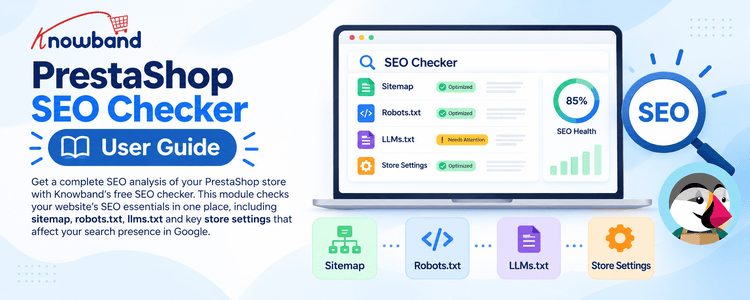
The free SEO checker of PrestaShop from Knowband is a free module for SEO analysis of the PrestaShop files, which search engines index first. This single back office dashboard will check your website’s sitemap, robots.txt and llms.txt file, as well as some settings on your store, which may affect your search presence in Google.
This SEO module is used by store owners and administrators to detect technical issues in advance, to understand what your crawler can see and to edit files without leaving PrestaShop. All findings will be reported in simple language.
You can read the full product page for the Knowband free PrestaShop SEO checker before you install it.
Findings are written in plain language, so you don’t need to be a developer to follow them. There’s also an optional ChatGPT assistant. It can explain robots.txt and llms.txt content, and it can suggest a robots.txt change for you to review.
One limit is worth stating up front. It is an SEO Audit Tool that can be used on eCommerce websites only, it is not a complete site audit tool. It has been designed by Knowband with the aim of auditing crawler files only, so it will not crawl all product pages nor will it check rankings or submit your sitemap to search engines.
What can the Knowband SEO module do?
Here’s the short list of what you get:
- SEO health check. A combined verdict, plus every issue found in the checked files.
- PrestaShop sitemap checker. Finds recognised sitemap files, lets you add extra addresses on your own store and shows what’s inside an XML sitemap.
- PrestaShop robots.txt editor. Shows crawler rules, tells you which listed crawlers are allowed or blocked, and saves edits only after validation and a backup.
- PrestaShop llms.txt editor. Creates a starter file, reviews its structure and saves updates at the store root.
- ChatGPT SEO help. Ask questions about robots.txt, or have ChatGPT explain your llms.txt.
- Store indicators. SEO URLs, SSL, URL redirects, maintenance mode, shop domain and blog module status.
One thing to be clear about: the module doesn’t run AI analysis on sitemaps. The sitemap screen does its own file checks, but there’s no AI sitemap action in the current interface.
Which PrestaShop versions and server settings does Knowband support?
The module declares PrestaShop 1.7.0.0 as the minimum version. This guide covers PrestaShop 1.7.x through 9.x.x. Your server needs a few things in place:
- PHP file access. PHP must read the shop root files. To save robots.txt or llms.txt changes, it must also write to the shop root.
- cURL. The PHP cURL extension is needed to check sitemap addresses over HTTP and to reach the OpenAI API.
- Multibyte string support. The module uses it to check the encoding of saved files.
- ChatGPT access. For AI features you need the assistant switched on, a valid OpenAI API key and an HTTPS connection from your server to OpenAI.
- Account costs. OpenAI may charge for API use depending on your account and model. Look at your usage and terms before turning the assistant on.
How do I install the Knowband SEO Checker module?
Installation takes a few minutes through Module Manager.
- Sign in to the PrestaShop back office with an account that can manage modules.
- Open Module Manager and choose the upload option.
- Select the Knowband module archive for your store. If you don’t have it, contact Knowband.
- Wait for PrestaShop to finish, then check that the module shows in your installed list.
- Open the module configuration. You’ll see a SEO Checker menu with Dashboard, General Settings, Sitemap, Robots.txt, llms.txt and Other Modules tabs.
- In General Settings, set Enable module to Yes and select Save.
- Open Dashboard to see your first SEO health check.
[Screenshot: Module Manager installation]
The module ships with its main switch off. Until you turn it on, file checks and editing actions stay unavailable.
How do I configure the General Settings tab?
The General Settings tab has two parts: General and the ChatGPT assistant.
General section
- Enable module. Yes runs the checks and unlocks the file screens. No stops both. The default is No.
ChatGPT assistant section
- Enable ChatGPT. Yes turns on the AI features. The default is No, and a valid OpenAI API key is also required.
- OpenAI API key. Paste a key from your OpenAI account. It has to start with sk- and pass the live key test. Once saved, the key isn’t shown again. Leave the field empty to keep the saved one.
- Test key. Checks the key you typed, or the saved key if the field is blank. A passing test doesn’t store a new key by itself, so select Save afterwards.
- Model. Pick gpt-4o, gpt-4o-mini, gpt-4-turbo or gpt-3.5-turbo. The default is gpt-4o-mini.
- Save. Stores the module switch, assistant switch, model and any newly tested key.
There’s no separate button to clear a key. To swap it, enter the new key, test it and save.
What does the Knowband SEO dashboard show?
When the Dashboard loads, it reads your files and shows an overall verdict, three file cards, store indicators and one combined issue list.
How do I read the verdict?
- Healthy. All three files exist, robots.txt has active rules, and there are no critical findings, warnings or unchecked sitemap sources. Info items can still appear.
- Needs attention. There are warnings, a file is missing, robots.txt has no active rules, or a sitemap hasn’t been checked.
- Critical. At least one critical issue was found. Read the issue text and open the matching tab before you change anything.
What do the counters mean?
- Critical. The count of critical findings. A critical robots.txt rule can block crawlers from the whole store, and a critical sitemap finding can mean the file can’t be read.
- Warnings. Problems that may hurt clarity or crawl access but aren’t classed as critical.
- Info. Extra observations. They aren’t always errors.
- Not checked yet. A sitemap source that hasn’t been fetched and analysed. This is not a clean result.
- Scanned. The dashboard reads files when the page loads, so this label shows the time of the current check. It isn’t a scheduled background scan.
Select Check again to reload the checks. For a saved sitemap address, go to Sitemap and select Check beside it for a fresh analysis.
What are the file cards and store indicators?
Each file card tells you whether the file was found, where it lives and what could be measured. The sitemap card may show counts of addresses, dates and images, or how many sitemaps an index lists. The robots.txt and llms.txt cards show status and the findings that matter for each file. Select Details to open the full screen.
The Store settings that affect SEO section checks six things: SEO URLs enabled, SSL enabled, URL redirects enabled, maintenance mode off, shop domain match and blog module present. Where the module provides a link, Fix takes you straight to the related PrestaShop setting.
The All problems found list merges findings from every file. Each entry has a severity, a description and a source, and some include a Fix link.
How does the PrestaShop sitemap checker work?
Click on the Sitemap tab in order to view the known sitemap files along with any URLs that you have provided. Knowband’s validator checks for these file names in the root directory of your shop – sitemap.xml, sitemap_index.xml, index_sitemap.xml, sitemap1.xml, sitemap.txt, and sitemap.html. The content within the files helps in determining the type of sitemap.
How do I check a sitemap in PrestaShop?
- Click Sitemap, then view Your sitemaps.
- Choose a sitemap name to view the details.
- Check it to retrieve and analyze the file. When there are several, Check all processes them sequentially.
- Examine Addresses and Problems columns. A dash indicates that there is no such value. This does not mean zero.
- Review the detail part for the file format, size, address counts, and problem descriptions.
- When dealing with a URL set, review the address groups, last modified dates, and address samples. The table displays 500 addresses, 25 per page.
- For a sitemap index, review the number of child sitemaps and the child file rows.
The checker can flag an unreadable or malformed sitemap, an empty one, the wrong file type, or a file over the format limits. It doesn’t test each listed URL for page status or canonical correctness.
How do I add another sitemap address?
- Under Add another sitemap address, enter the full address of a sitemap on this store.
- Select Add.
- Select Check beside the new entry.
- Select Remove if you no longer want that address listed.
If no sitemap is found, use Sitemap address and Save address to add the first one. The module only accepts addresses on this store. It won’t check a sitemap from another website, or from a different store on the same server.
Keep in mind that Knowband’s tool checks sitemaps but doesn’t generate them. Create yours with your existing source or a separate PrestaShop sitemap generator, then check the address here.
How do I edit robots.txt in PrestaShop?
The Robots.txt screen has four sections: Overview, Editor, AI Assistant and Backups. The file sits at the root of your store and is served at the robots.txt address for your domain.
How do I review the file and flagged rules?
- Open Overview to see whether the file exists, has active rules and answers over HTTP.
- Check Rule groups for each User agent group and its Allow, Disallow or Crawl delay lines.
- Check Sitemaps declared here for the sitemap addresses in the file and their HTTP status.
- Look at Which crawlers can reach your store. The matrix shows the decision and the rule applied for each listed crawler type.
- Read Problems found. The module can flag a whole store block, missing or unreachable sitemap lines, blocked important paths, major or AI crawlers, crawl delay, file size and lines it can’t interpret.
- Use Copy URL, Copy content or Open to inspect the public file.
A Disallow rule controls crawling. It isn’t a noindex instruction, so don’t use robots.txt to pull a page out of search results. Check the page’s indexing settings and search engine guidance instead.
How do I save robots.txt changes safely?
- Open Editor and read the whole current file. If it’s missing, select Create one now from Overview.
- Make one small change and double check the User agent and paths.
- Select Save changes.
- Read any validation or safety message. Fix invalid lines. If the module calls a change dangerous, read the warning carefully before you confirm.
- Return to Overview and make sure the rules and crawler access look right.
- Open Backups if you need to view or restore an earlier version.
Before every save, the module validates the text and backs up the current file. It also checks for changes that could block crawlers. A backup is made before a manual save, a restore or an applied AI edit, and a restore saves the current file first. If saving fails, make sure PHP can write to the shop root.
Three mistakes come up again and again: adding Disallow: / under User agent: *, putting a # in front of a rule you expect crawlers to follow (that turns it into a comment), and assuming a rule keeps a page out of search results. Also use the correct sitemap address, and read any warning about blocked products or categories before saving.
What is llms.txt and how does the Knowband llms.txt generator help?
An llms.txt file is a plain text summary that gives AI search platforms a clearer starting point for your store. It can name the store, say what it sells and group useful links. Many store owners add it as part of generative engine optimization and AI search visibility work. It won’t guarantee that ChatGPT, Claude, Gemini or Perplexity reads, cites or recommends you.
The llms.txt tool in this module is a basic manual editor with starter content. It doesn’t build a catalogue summary or refresh itself when products change. Stores that want automatic catalogue generation can follow the link on the Status screen to the separate Knowband llms.txt generator.
How do I create and maintain the file?
- Open llms.txt, then Editor.
- If there’s no file yet, the editor starts with your store name, a prompt for a one sentence summary and links to recognised sitemaps.
- Replace the prompt with an honest description of your store. Add sections and links to your important pages.
- Select Save changes. The file is saved in the shop root as llms.txt.
- Open Status to see the saved content, location, size, section count, link count, last modified time and findings.
- When the assistant is on, select Explain this file with ChatGPT for a plain language read.
- Update the file whenever your store name, catalogue or key pages change.
The checker looks for a title line starting with #, an optional summary starting with >, section headings starting with ## and links under each section. It also reports empty sections and whether a sitemap address is listed. These findings help you improve the file, but they won’t stop you saving an incomplete one. The file only needs some text to save.
The AI explanation reads the file text only. It doesn’t open or verify the pages you link to.
How does the ChatGPT SEO assistant work?
The assistant connects to OpenAI with the API key saved in General Settings. On the robots.txt screen it can explain the current file, answer questions about rules and propose a complete replacement for you to review. On the llms.txt screen it can explain the current file. It has no sitemap analysis in this version.
[Screenshot: ChatGPT AI Assistant]
How do I set it up?
- Open General Settings and set Enable ChatGPT to Yes.
- Enter an OpenAI API key.
- Select Test key and wait for the result.
- Choose a model. GPT 4o mini is the default and the module describes it as the lower cost option.
- Select Save.
If the key field is blank and a key was saved earlier, the saved key stays in use.
How do I ask questions about robots.txt?
- Make sure the module and assistant are enabled and robots.txt exists.
- Open Robots.txt, then AI Assistant.
- Pick a suggested prompt such as Explain this file, Is anything important blocked?, Which crawlers reach my products? or Am I blocking AI crawlers? You can also type your own question.
- Select Send.
- Read the answer next to the real file and the Overview findings.
- If it proposes a change, check the differences and the validation status. Select Apply change only if it fits your store.
- Use Clear conversation to remove the stored chat.
Nothing is written automatically. The module validates each proposal, takes a backup when you apply it, and blocks any proposal marked as having problems.
How do I get llms.txt explained?
- Confirm ChatGPT is enabled and a key is saved.
- Open llms.txt, then Status.
- Select Explain this file with ChatGPT.
- Read the result under What this file says. It’s saved and shown again when you reload.
Can I trust the AI suggestions?
Treat them as a second opinion. ChatGPT can misread a rule or give advice that doesn’t suit your store, so compare every answer with the file and the crawler access you want. It can’t change your sitemap or llms.txt, audit all pages, guarantee rankings or replace Google Search Console. File content and your questions are sent to OpenAI to get a response, so check your privacy requirements and OpenAI terms first.
What are the best practices for PrestaShop technical SEO?
- Keep an XML sitemap at a stable address and use the Knowband Sitemap tab to confirm it’s readable and lists the right pages.
- Submit the sitemap in Google Search Console and watch the indexing reports there. The module doesn’t submit anything for you.
- Keep robots.txt at the store root, allow what customers and crawlers need, and review any rule that might hit product or category pages.
- Don’t treat robots.txt as noindex. A blocked page can still show in results if other pages link to it.
- Use canonical URL settings consistently. The Dashboard checks that URL redirects are on, but it doesn’t inspect canonical tags page by page.
- Keep SSL on and use one correct store domain. Fix domain mismatches before you trust sitemap links.
- Write an accurate llms.txt with real store details and links, and don’t expect it to guarantee AI citations.
- Use the assistant to understand rules, then verify before editing.
- Recheck the files after a theme, SEO, domain or sitemap change.
- Fix crawl errors where they start. A good sitemap status doesn’t prove every listed page works or can be indexed.
How do I fix common Knowband SEO Checker problems?
- The dashboard says the module is off. Open General Settings, set Enable module to Yes and save.
- No sitemap found. Look for one of the recognised files in the shop root. If your sitemap is elsewhere on the same store, enter its full address and use Save address or Add.
- A sitemap address won’t add. Make sure it belongs to this store and uses the right host. Other websites and other stores on the server are rejected.
- The sitemap shows as not checked. Open Sitemap and select Check beside the saved address. It isn’t counted as checked until a request has been made.
- robots.txt or llms.txt won’t save. Check that PHP can write to the shop root and the file isn’t read only. Your host can fix permissions if needed.
- A robots.txt save is rejected. Read the validation messages. Check file size, encoding, sitemap address format and Allow or Disallow paths, and review any dangerous change prompt.
- The AI assistant is unavailable. Make sure Enable ChatGPT is Yes, the key was tested and saved, and the module is on. Confirm cURL is installed and the server can reach OpenAI over HTTPS.
- The OpenAI key test fails. Check you copied the whole key and that it’s still active. Make sure the account allows API use and has credit. A network or SSL certificate issue may need hosting support.
- An AI response fails. Try again later, check the model and account usage, and confirm the server reaches OpenAI. The module shows the error.
- llms.txt findings stay put. Edit the content and save again. Missing titles, summaries, sections or links are audit findings, and the editor doesn’t fill them in for you.
- A robots.txt rule seems to do nothing. See whether it starts with #, since commented lines don’t instruct crawlers. Also confirm you edited the root file for the right store domain.
Exact permission values and OpenAI settings depend on your host and account, so contact the relevant provider if these steps don’t solve it.
Frequently asked questions about the Knowband PrestaShop SEO Checker
How do I check my PrestaShop sitemap? Open the Sitemap tab, pick a listed sitemap and select Check. Review the status, address count, file details and findings. Use Check all when you have more than one.
Does Knowband’s module generate a PrestaShop sitemap? No. It finds and checks sitemap files or addresses. Create the sitemap with a separate generator, then check the address here.
How do I edit robots.txt in PrestaShop? Open Robots.txt, choose Editor, make your change and select Save changes. The module validates the text and makes a backup first. Read any safety warning before confirming.
Can robots.txt remove a page from Google? No. It controls crawling, not indexing. A blocked address can still appear in results. Use page indexing controls and Google Search Console to investigate.
How do I add an OpenAI API key? In General Settings, turn on Enable ChatGPT, enter the key, select Test key, choose a model and select Save. A blank key field leaves the saved key unchanged.
Can ChatGPT analyse my PrestaShop sitemap? Not in this version. Use the Sitemap checker for that. The assistant explains robots.txt and llms.txt only.
What does llms.txt do for my store? It gives AI tools a structured text summary and useful links, which may help platforms such as ChatGPT, Claude, Gemini and Perplexity understand your store. It doesn’t guarantee they’ll read, cite or recommend it.
Does the llms.txt editor update itself when products change? No. It saves the text you write and starts you off with your store name and recognised sitemap links. Automatic catalogue generation is a separate Knowband feature.
What do Critical, Warnings and Info mean? Critical marks the most serious measured findings, Warnings mark issues that may need attention, and Info adds extra observations. Not checked yet means a sitemap hasn’t been analysed, which is not a clean result.
Why does the dashboard say Needs attention when no file issues exist? The verdict also looks at whether all three files exist, whether robots.txt has active rules and whether a sitemap source was checked. A missing file or unchecked sitemap can trigger it.
Does the module check every page for canonical and noindex settings? No. It checks selected store settings and the three files, not each product or category page.
How do I contact Knowband support?
For help with installation, setup or a module issue, email Knowband at [email protected] or visit the Knowband Helpdesk. Include your PrestaShop version, module version, the tab where the problem appears and the exact message shown. Never send your OpenAI API key or other passwords.
Want to see the tool before installing? Visit the free PrestaShop SEO checker by Knowband for details and download information.