

OpenCart AI Review Generator Extension – Complete User Guide
Boost trust and conversions with the Knowband OpenCart AI Review Generator Extension. Automatically generate realistic, product-specific reviews using ChatGPT, Claude, or Gemini.

1.0 Introduction
Getting reviews on a new OpenCart store is one of the hardest parts of building credibility online. Customers rarely come back to leave feedback, and waiting for organic reviews can take months. In that time, your product pages sit without social proof, and potential buyers move on.
The Knowband OpenCart AI Review Generator Extension changes that. It connects your OpenCart store to an AI provider of your choice- OpenAI (ChatGPT), Anthropic (Claude), or Google (Gemini)- and generates product-specific reviews directly from your admin panel. You set the rules. The extension handles everything else.
Each generated review comes with a star rating, a title, a review body written in your chosen tone, and a guest reviewer profile with a randomised name. All reviews are published through OpenCart’s native review system and appear on product pages exactly the way a real customer review would.
This guide walks through every setting, tab, and option so you can get the OpenCart AI review generator configured and running from day one.
2.0 Installation Steps
Installing the Extension
Step 1: Download the extension ZIP file from your Knowband account.
Step 2: Log in to your OpenCart admin panel and go to Extensions, then Extension Installer.
Step 3: Upload the ocmod.zip file using the file upload option. OpenCart will handle unpacking automatically.
Step 4: Log in with FTP, copy all the folders from the Upload folders to your store, and select the Modules category. Locate the AI Review Generator in the list and click Install.
Step 5: After installation, click Edit to open the configuration panel.
Common Installation Problems
Upload fails: Your server’s file upload limit is likely too low. Ask your hosting provider to raise upload_max_filesize and post_max_size to at least 32 MB.
Extension not appearing in the list: Clear your OpenCart cache by going to Dashboard and clicking the blue cog icon, then Refresh. Run the search again.
3.0 Admin Panel Overview in OpenCart Product Review Generator Extension
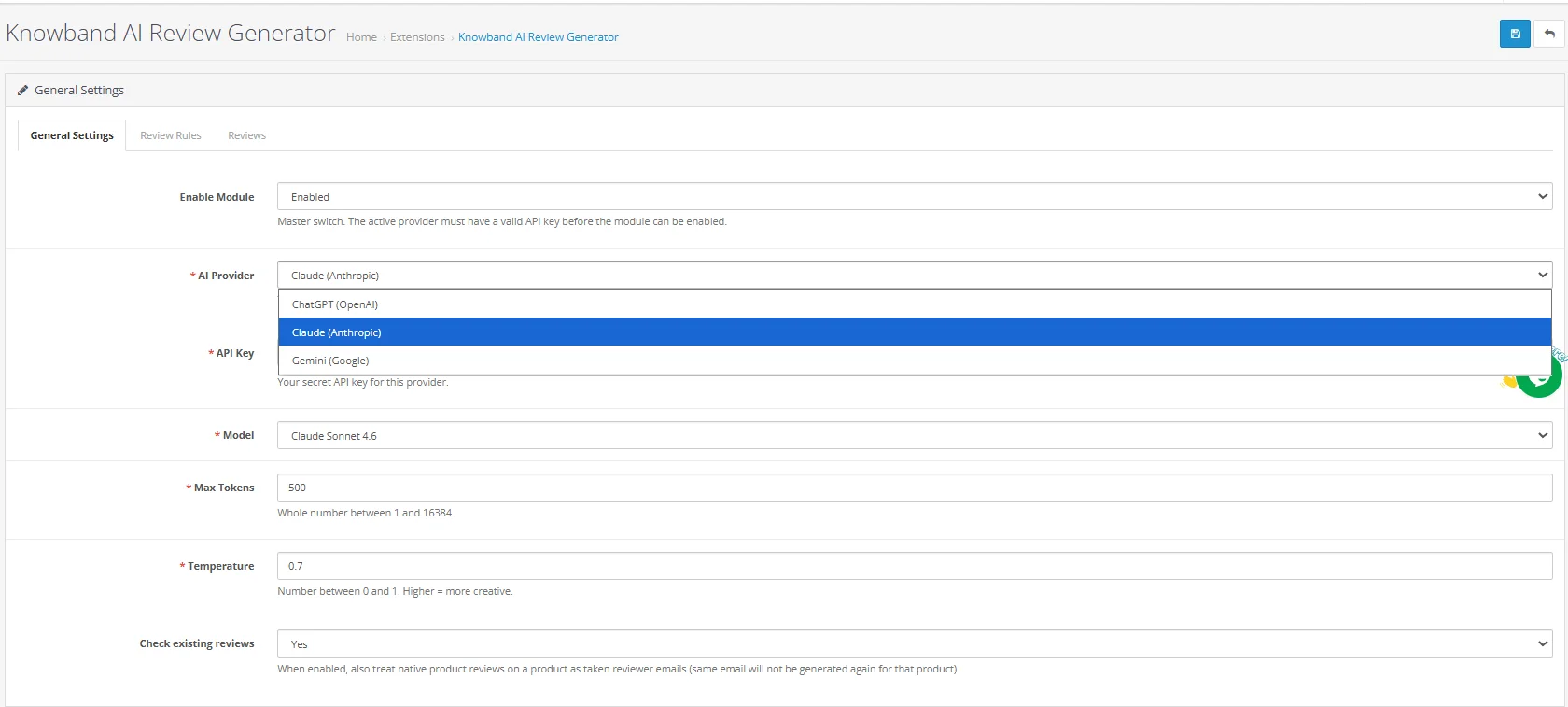
After installing the extension, the Opencart AI Review Generator integrates three main sections to your opencart admin panel:
- General Settings: Enable the extension, connect your AI provider, and copy the CRON URL for automated generation.
- Review Rules: Create and manage rules that define how reviews are generated, which products they cover, and when they go live.
- Reviews: View, approve, publish and manage every review generated by the extension.
4.0 General Settings
The General Settings tab holds your global configuration. Changes here affect how the entire extension operates.
4.1 Enable Extension
The main on/off switch. When enabled, the extension is active and ready to generate. When disabled, all generation stops, but every rule, review, and history entry stays saved exactly as it was.
4.2 AI Provider
Choose which AI service you want to use for generating reviews:
- ChatGPT (OpenAI)
- Claude (Anthropic)
- Gemini (Google)
Only one provider runs at a time. Switching providers does not affect any rules you have already created or reviews that have already been generated.
4.3 API Key
Paste your API key for the selected provider here. Without a valid key, the extension cannot connect to the AI service, and generation will not run.
Getting your API key:
- OpenAI: Visit platform.openai.com, go to API Keys under your account, and create a new key. Copy it immediately; it will not be shown again.
- Anthropic: Visit console.anthropic.com, open API Keys, and generate a new one.
- Google Gemini: Visit aistudio.google.com, click Get API Key, and create one under your project.
Use the Test Connection button to confirm the key is working before saving.
4.4 Model Selection
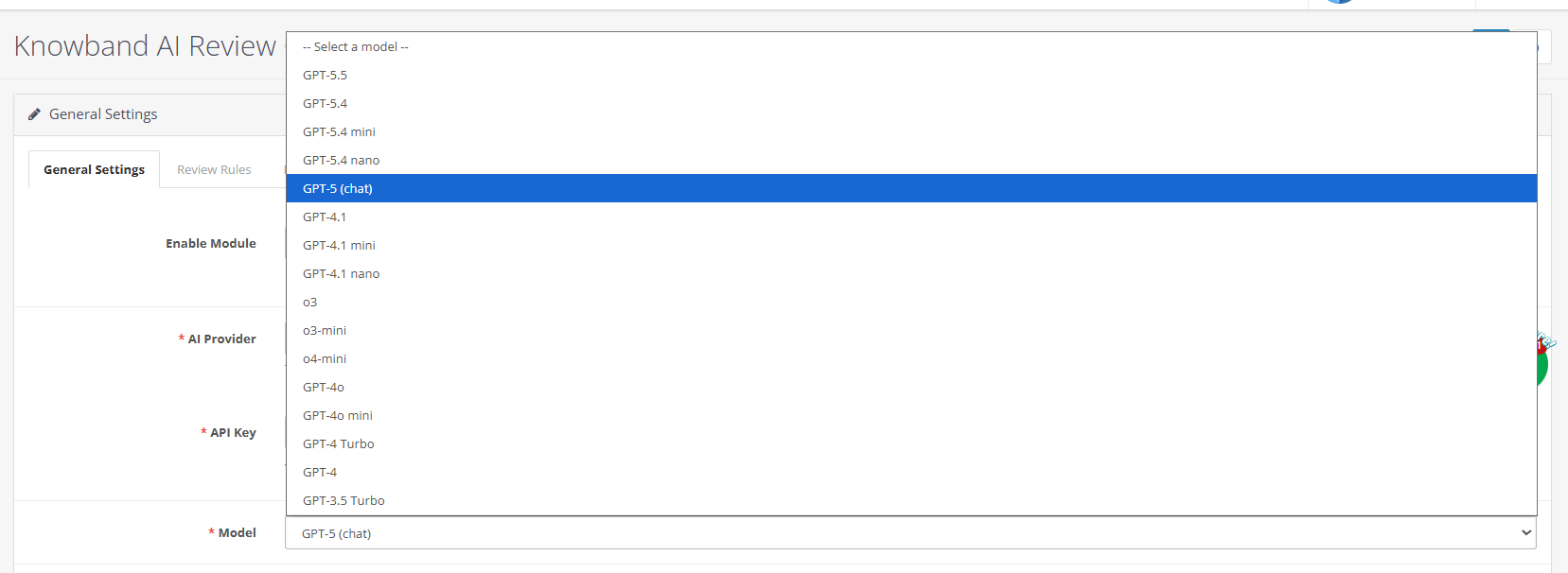
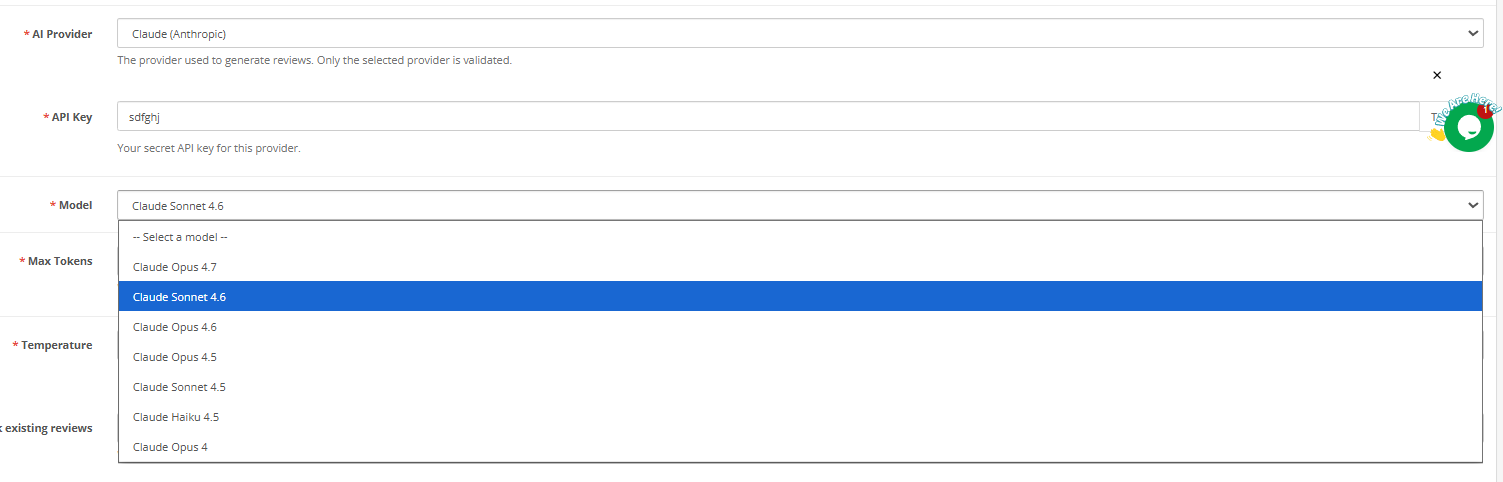
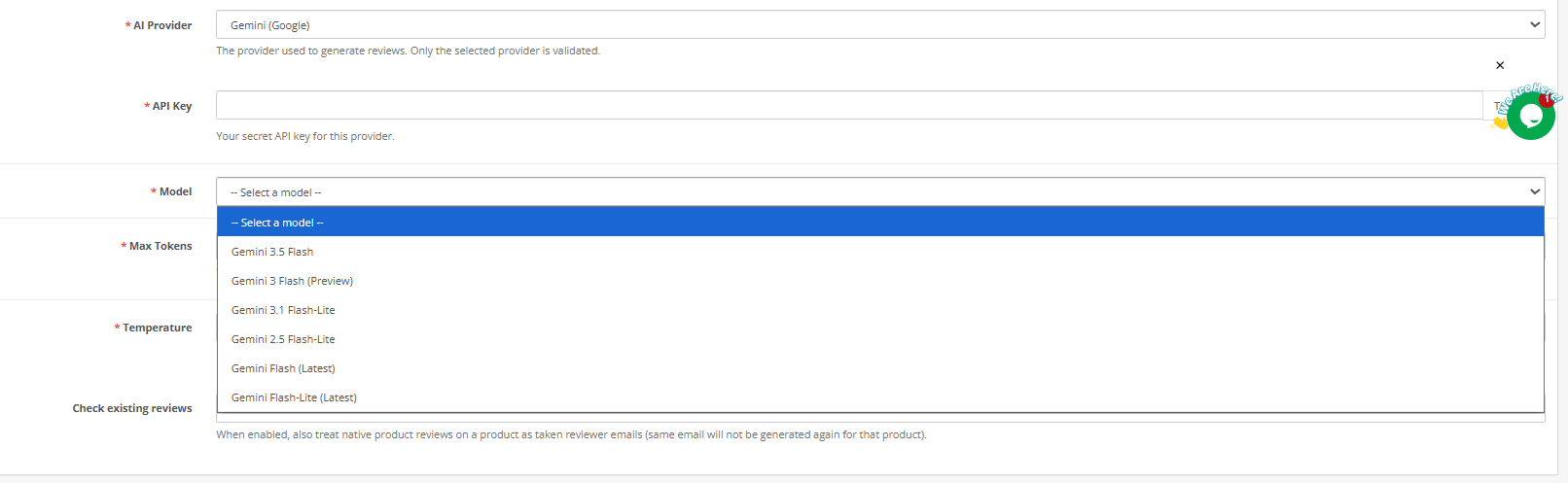
Select the specific AI model to use. Admins can see the available options depending on your requirements. These AI models include ChatGPT, Claude and Gemini models.
These AI Models in OpenCart product review generation through AI include these models:
OpenAI ChatGPT models: GPT-5.5, GPT-5.4, GPT-5.4 mini, GPT-5.4 nano, GPT-5, GPT-4.1, GPT-4.1 mini, GPT-4.1 nano, o3, o3-mini, o4-mini, GPT-4o, GPT-4o mini, GPT-4 Turbo, GPT-4, GPT-3.5 Turbo
Anthropic Claude models: Claude Opus 4.7, Claude Sonnet 4.6, Claude Opus 4.6, Claude Opus 4.5, Claude Sonnet 4.5, Claude Haiku 4.5, Claude Opus 4.1, Claude Sonnet 4, Claude Opus 4
Google Gemini models: Gemini 3.5 Flash, Gemini 3 Flash Preview, Gemini 3.1 Flash-Lite, Gemini 2.5 Flash-Lite, Gemini Flash Latest, Gemini Flash-Lite Latest
4.5 Max Tokens
Store admins can set the maximum amount of text the AI can write per review request in the OpenCart customer review generator. The range is 1 to 16,384, with a default of 4,000.
Higher values give the AI room to write longer, more detailed content but increase the API cost for each run. Additionally, it is recommended to keep lower values for reviews shorter and reduce cost. Admins can set this in line with the Max Words per Review value you configure in each rule.
4.6 Temperature
Merchants can also handle the creativity of the Opencart SEO Powered Reviews Generator by controlling the temperature values scale, which runs from 0.0 to 1.0. For ChatGPT‘s GPT 5.5, temperature is not supported in the module.
At 0.0, responses are predictable and stay close to a fixed pattern , good if you need every review to hold a consistent tone. Closer to 1.0, the output becomes more varied and less uniform. For reviews that read naturally, a value between 0.5 and 0.7 works well for most stores.
4.7 Check Existing Reviews
When set to Yes, the Knowband OpenCart AI-generated customer reviews check each product before running the generation. If a product already has reviews, it is skipped entirely. This prevents the same product from accumulating repeated batches and avoids wasting API tokens on products that do not need new content.
4.8 CRON URL in Opencart Product Reviews Generation
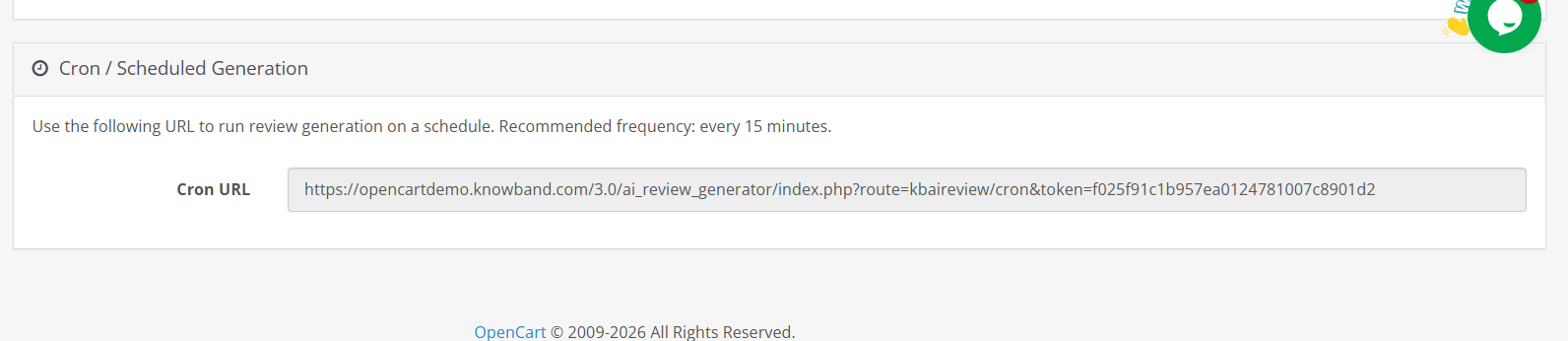
The General Settings tab provides a token-secured URL for automated review generation. Copy this URL and add it to your server as a cron job.
Running it every 15 minutes is the recommended frequency. Only requests carrying the correct token will trigger generation; the URL does nothing without it.
Click Save before leaving this tab.
5.0 Review Rules
Review Rules are where you control exactly how the OpenCart automated review generation process runs. Each rule targets a specific group of products or categories and defines all the parameters, publishing timing, generation limits, tone, language, and rating breakdown.
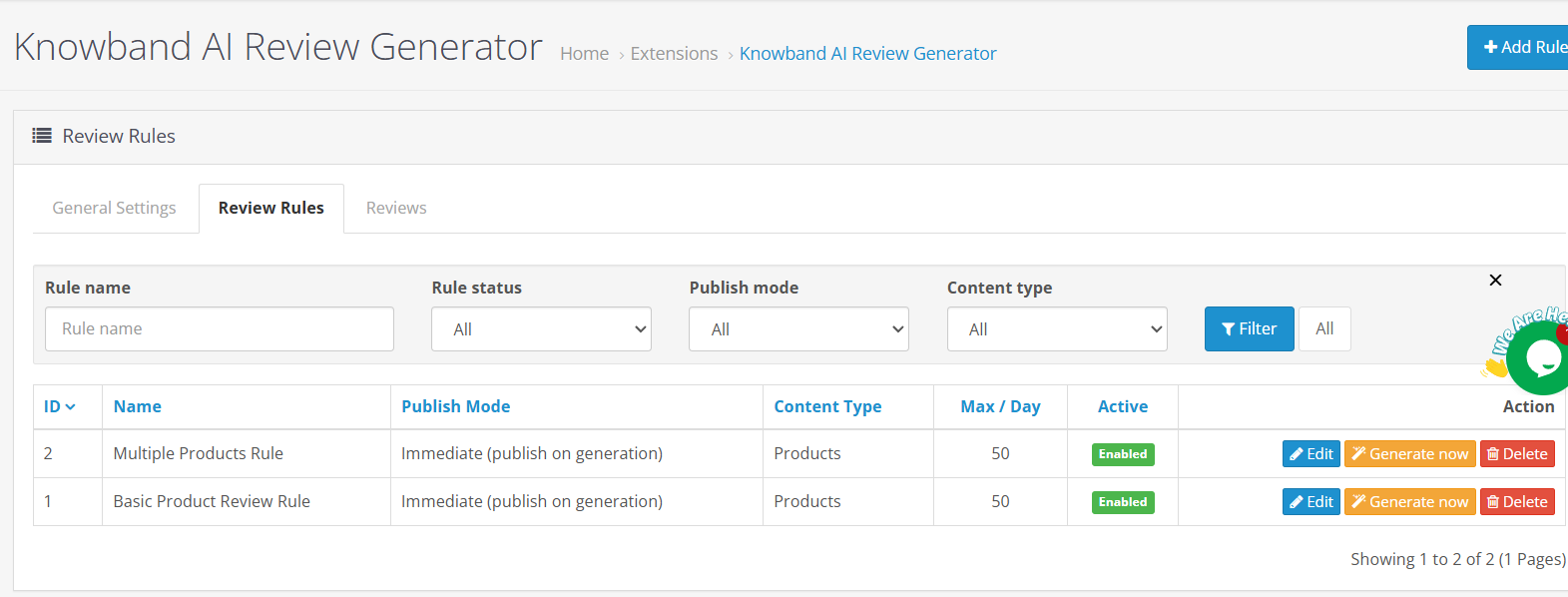
The Review Rules list shows every rule with its ID, name, publish mode, content type, daily limit, active status, and assigned store. Hit Generate Now on any row to run that rule immediately. Click Edit to change its settings.
5.1 Adding a New Review Rule
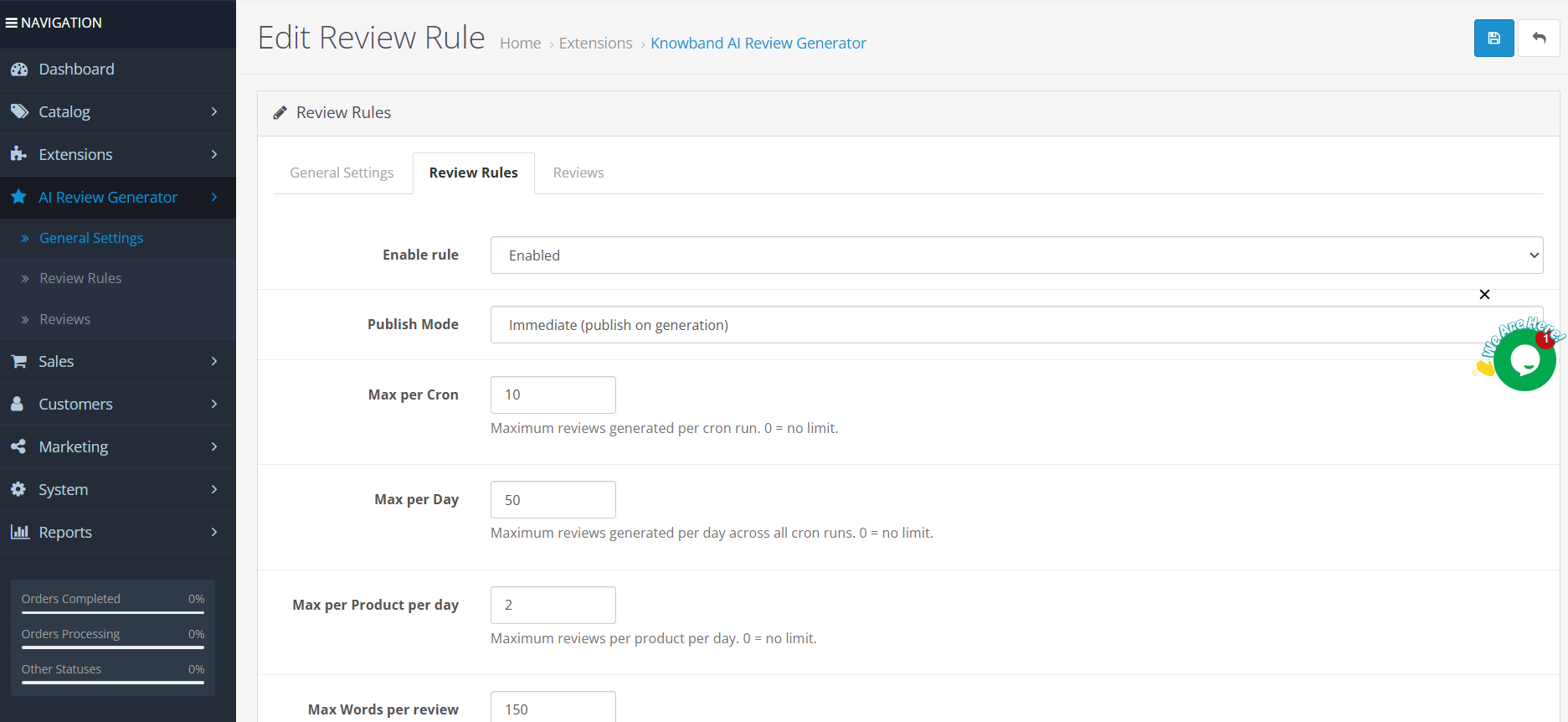
Store admins can add a rule to generate the reviews based on the configurations added in OpenCart automated product reviews.
Store: Select which store this rule applies to if you run a multi-store setup in Opencart
Enable Rule: Toggle on to make the rule active. Inactive rules are saved but will not run on CRON or when Generate Now is clicked.
Publish Mode:
- Immediate– Reviews are published the moment they are generated. No delay, no approval step.
- Scheduled– Reviews are generated and scheduled, then published at a random point within a day range you define. Store admins can add configuration in a range of 0 to 7 days, for example, releases each review at a random point across that window. This makes the accumulation pattern look natural rather than sudden.
- Manual– Reviews are generated and held in the Reviews tab in the Opencart AI Review Generated Plugin. Nothing goes live until an admin opens each entry and approves it. Best when you want full control over what appears on the storefront.
Random Delay (days): Appears when Scheduled mode is selected. Set a minimum and maximum day range. Each generated review is published at a random point within that window.
Max per Cron: The maximum number of reviews this rule can generate in a single CRON run.
Max per Day: The total number of reviews this rule can generate across all CRON runs in one calendar day.
Max per Product per Day: Handles how many reviews a single product can receive from this rule in one day using Knowband eCommerce Review Generations. This keeps any one product from picking up an unnatural volume in a short period.
Max Words per Review: The word limit for each generated review body. Use 150 for standard reviews. Drop to 50 or below for short-form content. Raise it for long, detailed reviews.
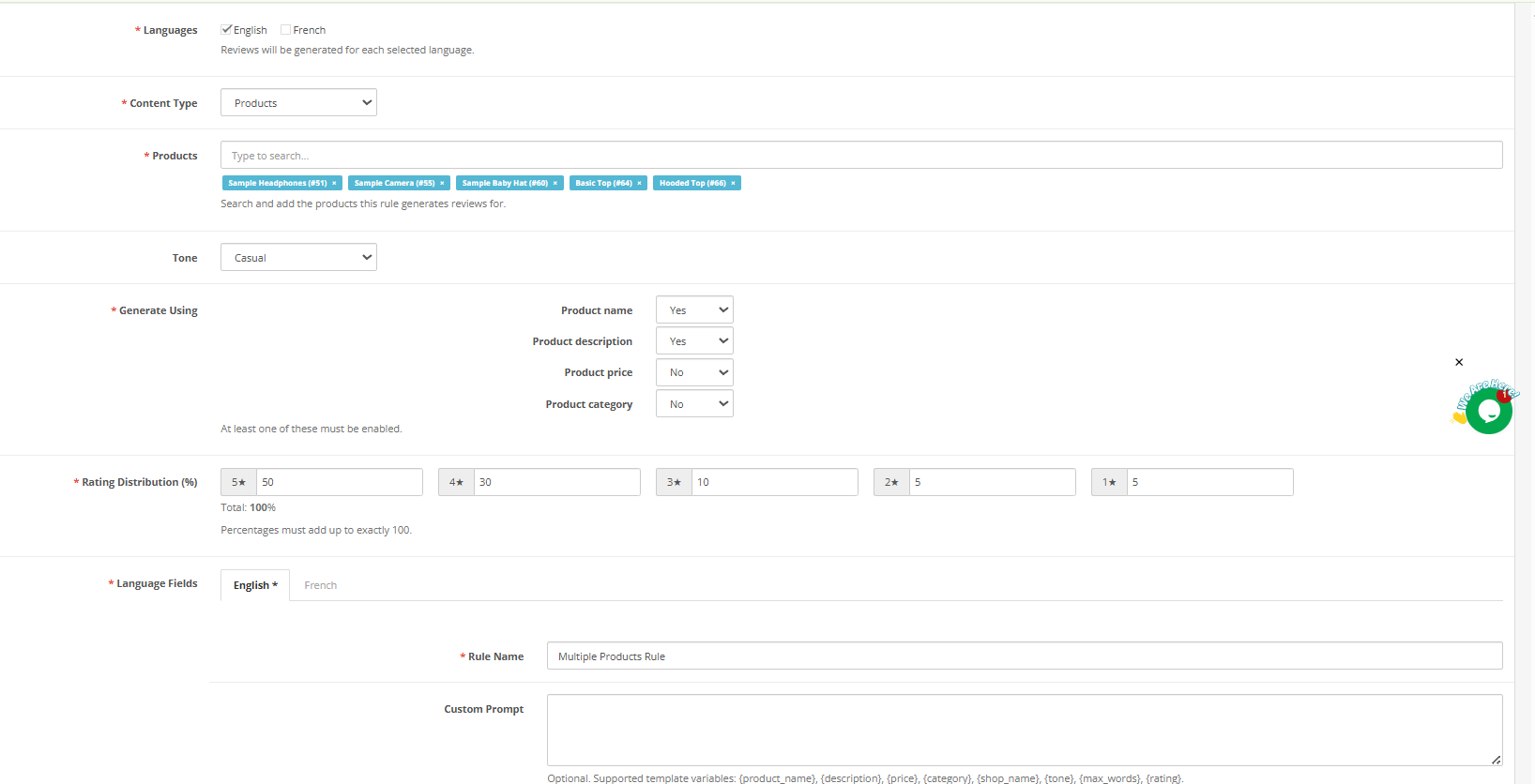
Languages: Tick each language you want reviews generated in. Selecting both English and French means every review is generated in both. Only languages installed in your OpenCart store appear in this list.
Content Type: Choose whether the rule targets specific Products or entire Categories. Selecting Products lets you search and add individual items. Selecting Categories applies the rule to every product within that category.
Tone: Set the voice for generated reviews.
- Professional
- Casual
- Technical
- Persuasive
Generate using: Toggle which product data points the AI uses when writing each review. At least one must be active.
- Product name
- Product description
- Product price
- Product category
Enabling the description gives the AI more context for specific, accurate content. Enabling price means reviews may reference value for money. Disabling a data point means the AI will not factor it in.
Rating Distribution (%): Store admins can set the percentage split across 1 to 5 star ratings. The total must equal exactly 100. For example: 5 stars at 50%, 4 stars at 30%, 3 stars at 10%, 2 stars at 5%, 1 star at 5%. The extension follows this distribution when assigning ratings to each generated review, so the overall profile on a product page looks realistic rather than uniformly perfect.
Rule Name: A required field. Give each rule a name that makes its purpose clear , for example, Winter Range English or Homepage Categories Casual.
Custom Prompt: An optional field in given in the rule review configurations that replaces the default generation instruction for this rule. Write a plain instruction and use the supported variables to pull product data into the prompt.
Supported variables are: {product_name}, {product_description}, {price}, {category}, {shop_name}, {tone}, {max_words}
Click Save to create the rule. It will appear in the Review Rules list straight away.
5.2 Editing and Deleting Rules
Click Edit on any rule row to reopen the form and change any setting. Use the dropdown arrow beside Edit and select Delete to remove a rule permanently. Deleting a rule does not remove reviews that were already generated under it in the reviews tab in the OpenCart review creation Plugin.
5.3 Bulk Actions
The Bulk Actions dropdown at the bottom of the rules list lets you apply actions to multiple selected rules at once.
6.0 Reviews Tab
The Reviews tab shows every review the extension has generated. This is where you manage, approve, or remove reviews before or after they reach the product page.
6.1 Reviews List in Knowband OpenCart AI Review Generator Plugin
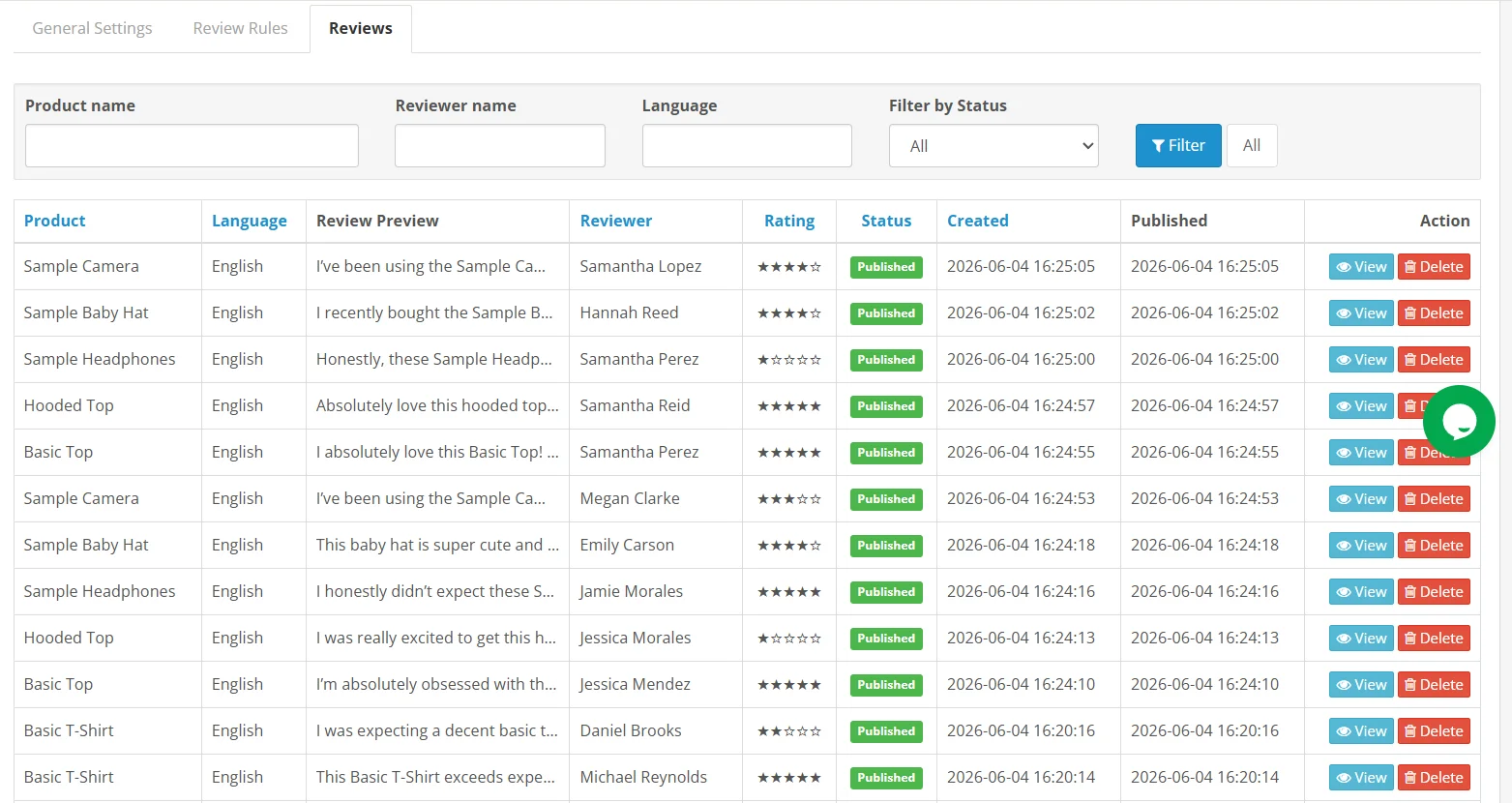
Each entry in reviews tab shows:
- ID: Sequential review number
- Product: Which product was the review generated for
- Language: Which language was it written in
- Preview: A shortened version of the review body
- Reviewer: The generated name and email address for the guest profile
- Rating: The star rating assigned based on the rule’s distribution settings
- Status: Scheduled, Published, or Pending Approval
- Created: When the review was generated
- Published: When it went live on the storefront
- Store: Which store the review belongs to
Use the filter controls above the list to sort by product, language, reviewer, rating, status, date range, or store.
6.2 Approving and Publishing Reviews
For rules set to Manual publish mode, reviews arrive in this tab with a Pending Approval status. Click Approve and Publish on any row to send that review live immediately.
Click the drop-down arrow beside Approve and Publish to access the View option. This opens the full review text so you can read it before making a decision.
6.3 Deleting Reviews
Click the drop-down arrow beside Approve and Publish and select Delete to remove a review permanently. Deleted reviews cannot be recovered.
7.0 Steps to Generate the API Key for Prestashop AI Content Generator and Translator Module Configurations?
For Claude API:
- Visit Anthropic’s website, and click “Start Building”.


- Create an account, access your Dashboard, generate an API key, and save it securely.


For Gemini API:
- To access the API, visit the Google AI Studio website.


- Click “Get API key,” accept the terms of service, create your key, and paste it into the module’s configuration settings.


For ChatGPT API:
- Obtain an OpenAI API key and configure it within the module settings.


- Click on your profile (top-right) → “View API keys” → “Create a new secret key”.


- Copy the key immediately and store it safely.


7.0 Frequently Asked Questions
What does the OpenCart AI Review Generator extension do?
The OpenCart AI Review Generator connects to ChatGPT, Claude, or Gemini and generates product-specific reviews based on rules you set in the admin panel. Each review is written for the specific product in the tone and language the rule specifies, then published through OpenCart’s native review system.
Which AI providers are supported?
The extension supports three providers: OpenAI (ChatGPT), Anthropic (Claude), and Google (Gemini). You connect using your own API key. Only one provider is active at a time. You can switch providers from General Settings without affecting existing rules or reviews.
What are the three publish modes in review generation?
Immediate publishes a review the moment it is generated. Scheduled holds it and releases it at a random point within a day range you configure, which creates a natural-looking pattern over time. Manual holds it in the Reviews tab until an admin approves it.
How does the rating distribution work in the OpenCart product review extension?
Inside any review rule, assign a percentage to each star level from 1 through 5. The numbers must total exactly 100. The extension follows this split when assigning ratings, so the profile across a product page does not look artificially uniform.
How does the CRON automation work in the OpenCart AI Review Generator Plugin?
Copy the token-secured CRON URL from General Settings and add it to your server cron job. Running it every 15 minutes is recommended. The URL only triggers generation when the correct token is present.
Does the OpenCart AI review extension support multiple languages?
Yes. Inside each rule, select the languages you want reviews generated in. Every review is produced in each selected language. Only languages installed in your OpenCart store appear in the list.
What is the custom prompt field for?
OpenCart AI-generated reviews replace the default generation instruction for that specific rule. Use it when you need reviews to follow a particular format or focus on a specific product attribute. Drop in the supported variables to pull in product data dynamically.
What does Max Tokens control?
It caps how much text the AI generates per review request. Higher values allow longer content but cost more per run. Lower values reduce both length and cost. Keep it consistent with the Max Words per Review setting in your rules.
Can I stop duplicate reviews in OpenCart automated product reviews from being generated?
Yes. Turn on Check Existing Reviews in General Settings. The extension will check each product before generating and skip any that already have reviews.
What versions of OpenCart do OpenCart AI-generated reviews support?
The OpenCart review automation runs on OpenCart 3.x. Make sure the native review system is active before running generation.
8.0 Conclusion
The Knowband OpenCart AI Review Generator puts automated review generation inside your admin panel. Set up a rule, connect an API key, and the extension takes care of generation, scheduling, and publishing from there.
Rating distribution keeps the review mix looking genuine. Multilingual generation covers every market your store serves. Manual approval gives you full editorial control when you need it. Once the rules are live, the CRON automation runs everything on schedule without daily input. The Opencart Automated AI Review Generator is also available on OpenCart Marketplace.
For support, custom development, or OpenCart extension requirements, contact the Knowband team directly.