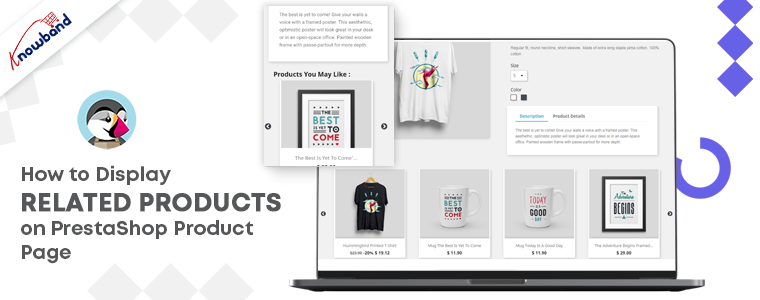
Looking for the finest ways to upsell or cross-sell to customers? Add related products on your PrestaShop website pages. It’s not simply a nice-to-have feature for your e-commerce site; it’s an essential aspect of the sales process. To make your business marketing strategy work well, you can give a shot to upsell and cross-sell. This technique works for every business, be it a small company or an eCommerce like Amazon. If you are not sure, how to display related products on the product page, shopping cart, or various website pages, I will recommend you to add the PrestaShop Automatic Related Product Module to your PrestaShop storefront.
Discover about PrestaShop Automatic related product module
There are several methods for displaying related products on multiple pages. The PrestaShop-related products module can be configured by the store administrator to meet the needs.
Features of PrestaShop Automatic Related Product addon:
With the aid of PrestaShop Automatic Related Products module, display related products automatically on:
Homepage
Product pages
Category pages
Cart pages
Manufacturer page
Purchase confirmation pages
Store owners can display the most relevant products and can only include available products.
The PrestaShop-related products module allows customizing the title of the related product block in a variety of languages.
Easy positioning of the related products. Show related products in the left column, right column, or at the bottom of the page.
The store manager can choose how to display the related products. Showcase the most popular products, best sellers, new items, or by using user history.
The PrestaShop automatic related product addon allows the manager to show a list of specific products on the related product list.
There is an attribute, keyword filter, that can be specified for particular pages.
Set the maximum number of linked products that can be displayed on various pages.
The PrestaShop-related products module allows specifying the priority mechanism to display related products.
If no related products exist for the first priority requirement, the module will go on to the next level of priority.
How store owners get benefited by showing Recommended Products?
PrestaShop Automatic related product addon has several advantages.
Cross-sell by displaying related products
On the homepage, product pages, category pages, cart pages, manufacturer sites, and purchase confirmation pages; this related product extension displays the related items. Showing a mobile cover when a customer is buying a new mobile phone increases the chances of purchase. This is how cross-selling works.
Several filters to achieve the relevancy
Display only available and in-stock products as related items. Select the method for displaying related products, such as
Top-visited products
Bestsellers
New items
Displaying relevant goods based on user history
Hide out-of-stock from recommended products
Showing a product that is ‘out of stock’ will create a negative impact on your prospect. To save yourself from this situation, you can now hide out-of-stock items from the related product list. After all, customer experience is your priority.
PrestaShop related product module reduce bounce rate
This may happen that a customer does not find the right product while exploring your website. They even get confused about what is best to have. Show related products on the product page to help them find what they were looking for.
Increase average cart value on your PrestaShop store
Customers can buy more things if they look at the products that are similar to the ones they have picked. To improve sales, the administrator can show excellent identical products.
Mobile responsive and compatibility check
The module is responsive to all the devices like mobile phones, tablets, and desktops. Every user can see related products in every browser automatically. The PrestaShoprelated product module is highly compatible with all other Prestashop themes. Multistore compatibility, multi-lingual compatibility, and SSL compatibility are some of the plus points.
Conclusion: It is easy to install and can be a major game-changer if used as a cross-selling tool. It emphasizes the look of the product page and other website pages. Display related products anywhere on the website. To the left, right, or on the bottom of the website page. The PrestaShop Related Product addon maximizes the engagement rate on your store and reduces bounce rate.
So, how long are you going to wait? Now is the time to get this cross-selling solution and take your earnings to the next level.
The online store merchant can now grab customer’s focus and improve website sales by using PrestaShop product cross-selling module. Knowband offers PrestaShop Automatic Related Product addon which allows the online sellers to display related products on various website pages. This advance related product extension provides an option to set specific conditions for showing appropriate similar products on each page.
The store admin can set the methods and filters for displaying the products as similar products. The PrestaShop Automatic Related Product addon allows the admin to show the related product column on the left, right or page bottom. Online customers can view similar products and get the right product of their choice. Thus, the admin can improve sales and conversion rate also just by using this Prestashop Automatic Related Product addon.
What’s New in V2.0.1.
Random product display: Now you can showcase your products in a more dynamic way by displaying them in random orders with Prestashop Related Product Addon.
Related products on super-checkout: We have added related products on the super-checkout page to increase cross-selling opportunities.
Sorting functionality for related products: You can now sort related products by various criteria, such as price or popularity, name, etc.
Brand slider on the home page: Now, the Presta admins can also add brand sliders on the home page to highlight your brand and products.
Multiple tabs on the home page: You can now organize your products better by displaying them on multiple tabs, such as top products, new products, best products, and user history products.
Customization options for slider: Prestashop sellers can customize the slider’s background color, height, width, and other settings to match your website’s design.
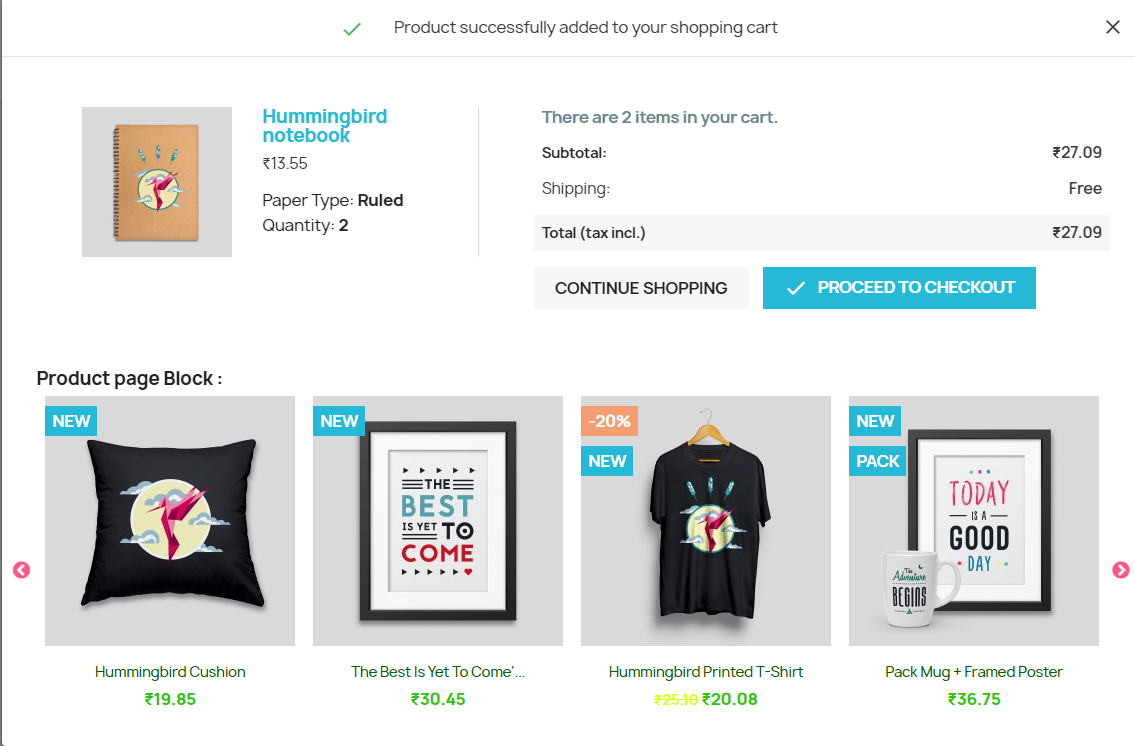
Related products on add to cart popup: We have added related products on the add-to-cart popup to increase upselling opportunities.
Additional methods on product and category pages: You can now display discounted products, products with the same brand, and rule-based related products on the product page, and child categories, same category feature products, subcategories new products, and rule-based related products on the category page.
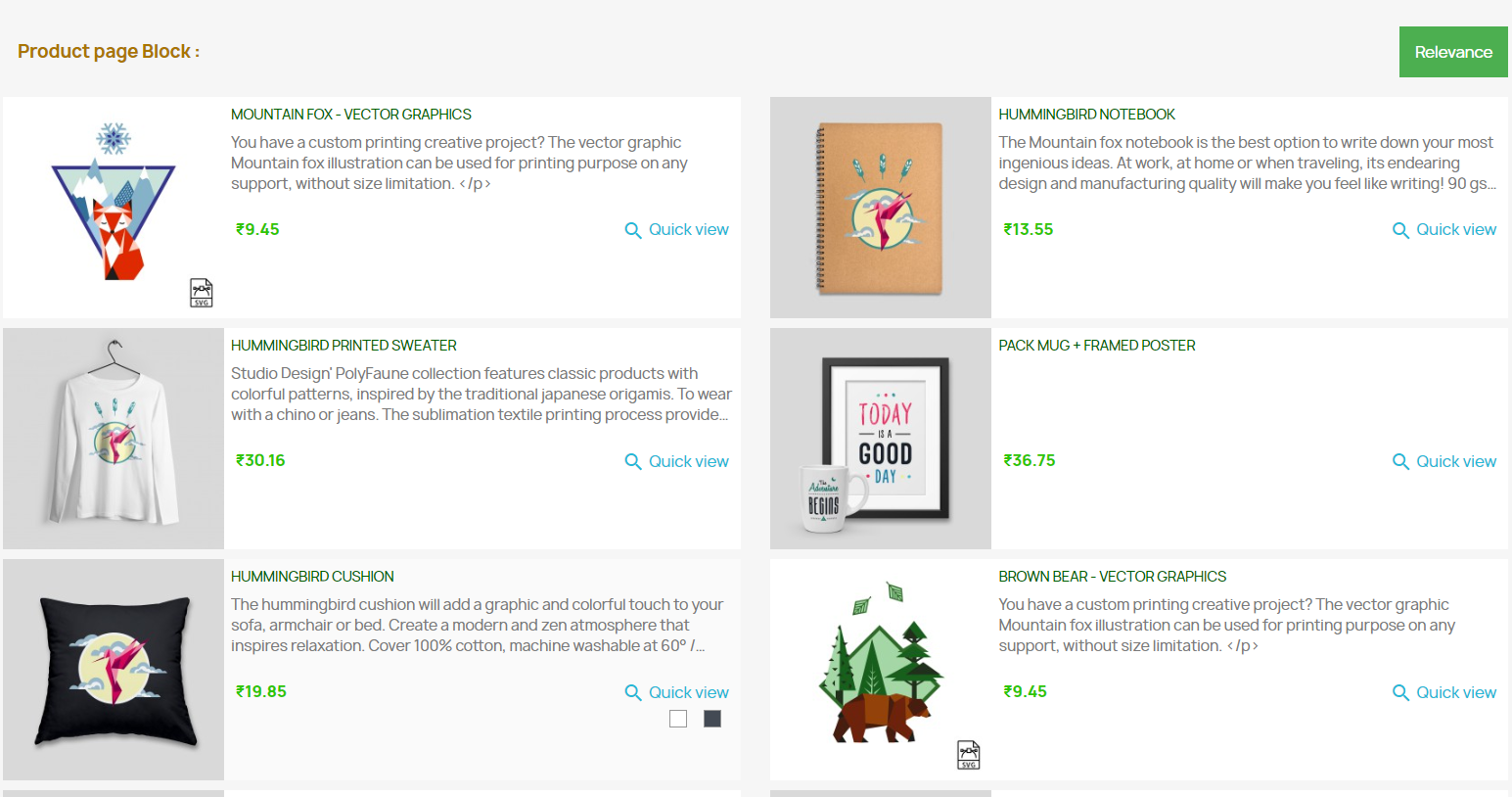
Flexible display options for related products: You can choose to display related products either in a slider view or a 2-column list view.
Prestashop-related product module is now compatible with Prestashop v8.0.x.
1.1 Benefits for Merchants
This Prestashop product cross-selling module helps the admin to increase the customer’s average cart value by showing similar products.
There are higher chances of conversions if a store visitor finds the desired product in a similar product block.
The store admin can display perfect similar products in order to increase sales and offer a better store experience to the customers.
PrestaShop Similar products module allows setting the related product block position according to their preference.
There are multiple conditions available for showing similar products in an advanced way.
This PrestaShop alike product module provides an option to hide the out-of-stock products and show only available products as similar products.
With the help of this PrestaShop-related products plugin, the admin can reduce the bounce rate by engaging the customers.
Prestashop related products module allows the eCommerce store admin to show new arrivals as similar products in order to promote new products.
The e-merchant can show those products on which he wants to grab the customer’s attention. The Prestashop Automatic Related Product module allows the eCommerce store admin to display the related products on different website pages.
Compatible with Prestashop v8.0.x.
1.2 Features of the PrestaShop Automatic Related Product Addon
Admin can show related products on various website pages like homepage, product pages, category pages, cart page, manufacturer pages and order confirmation page with the help of this Prestashop product cross-selling addon.
The admin has the option to show available products as related products. The out of stock products won’t be displayed as related products. The Prestashop similar products addon provides an option to show only in-stock products in the related products list.
The online seller can enter a related product block title. The PrestaShop related products module allows the admin to set block titles in various languages.
The PrestaShop advance related product extension provides various methods for showing the related products. The store merchant can display top-visited products, bestsellers, and new products or use user history for showing the related products.
The maximum number of the related product to display on different pages can be fixed from the admin interface of this Prestashop similar products addon.
The PrestaShop related products addon allows the admin to set the method priority and different filters for showing related products.
The PrestaShop related products addon is fully mobile responsive.
Related products extension is multi-store compatible and offers multi-lingual support.
2.0 Installation Steps
The admin will get the below-mentioned files after purchasing the Automatic Related Product addon:
1. The zipped file that consists of the source code of this Automatic Related Product addon.
2. User Manual
Follow these steps to install the Prestashop Automatic Related Product addon:
The admin needs to unzip the zipped file. This file includes some files and folders.
After that, admin can copy the overall content of the folder and paste them into the “Modules” folder of the store’s directory. The admin can follow the path – Root Directory/modules/.
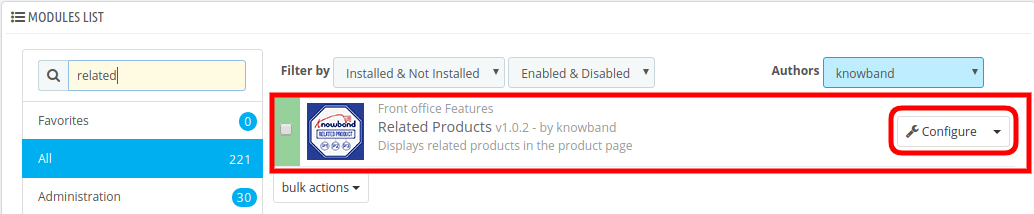
3. Now, the store owner can install the Automatic Related Product addon. As an eCommerce store owner, you can find that in Store Admin -> Modules and Services. It would be shown as below:
Now you just need to click on “Install” button to install this Prestashop Automatic Related Product addon easily. A confirmation pop-up will be shown. Click on “Proceed with the installation” option. This step will install the Automatic Related Product addon and show notification – “Module(s) installed successfully”.
3.0 Admin Interface
There are various customization options. The store admin can apply the settings and show the similar products on various website pages. These are the customization options:
Basic Settings
Home Page Settings
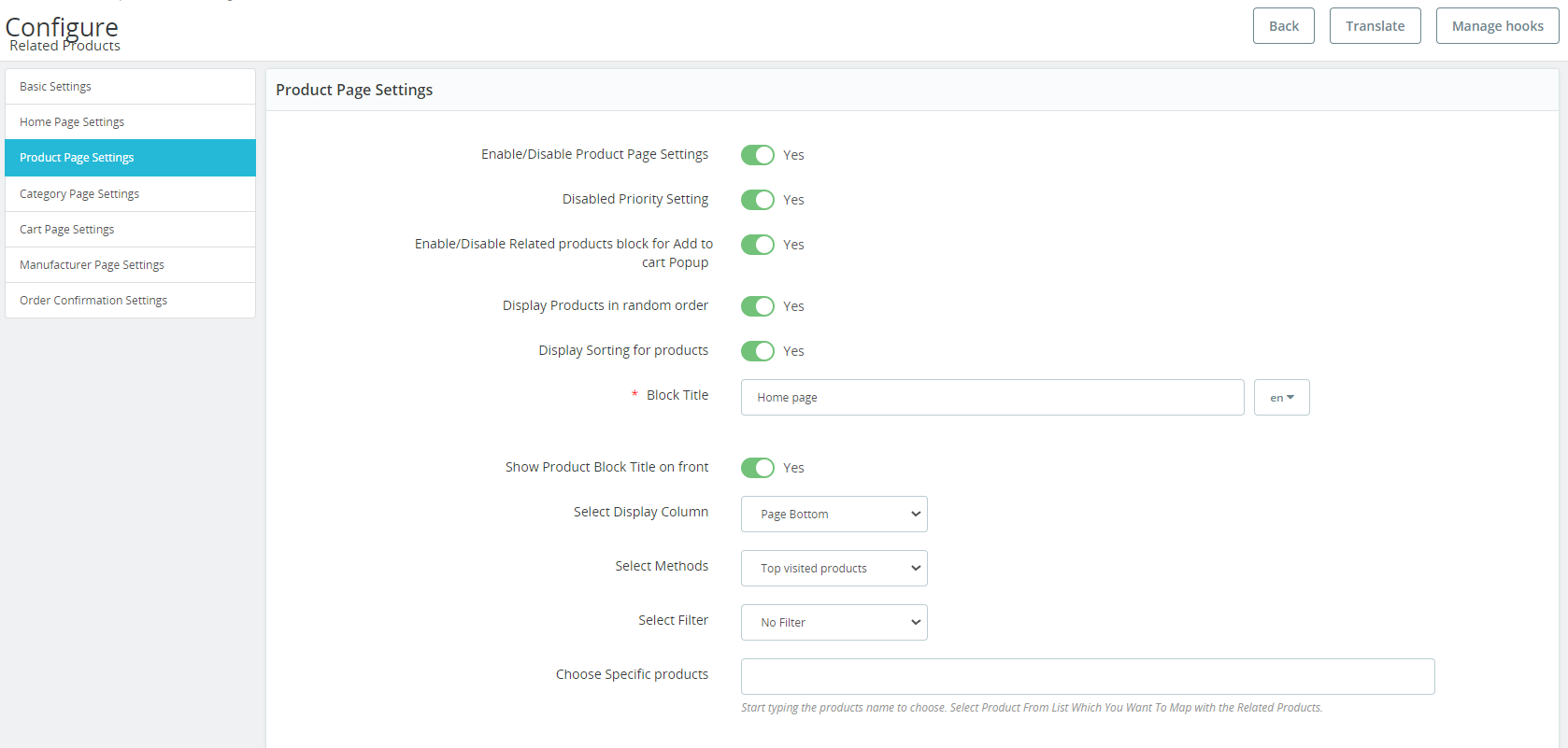
Product Page Settings
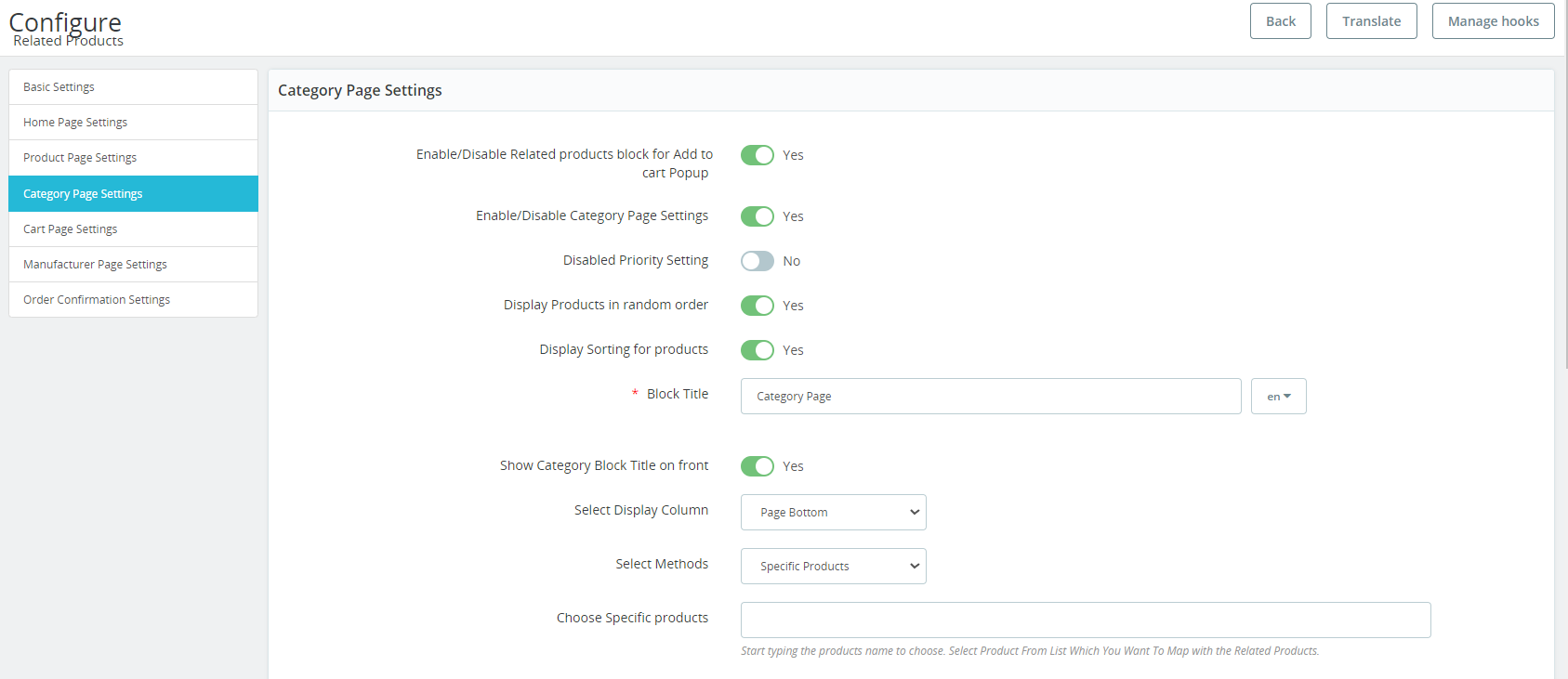
Category Page Settings
Cart Page Settings
Manufacturer Page Settings
Order Confirmation Settings
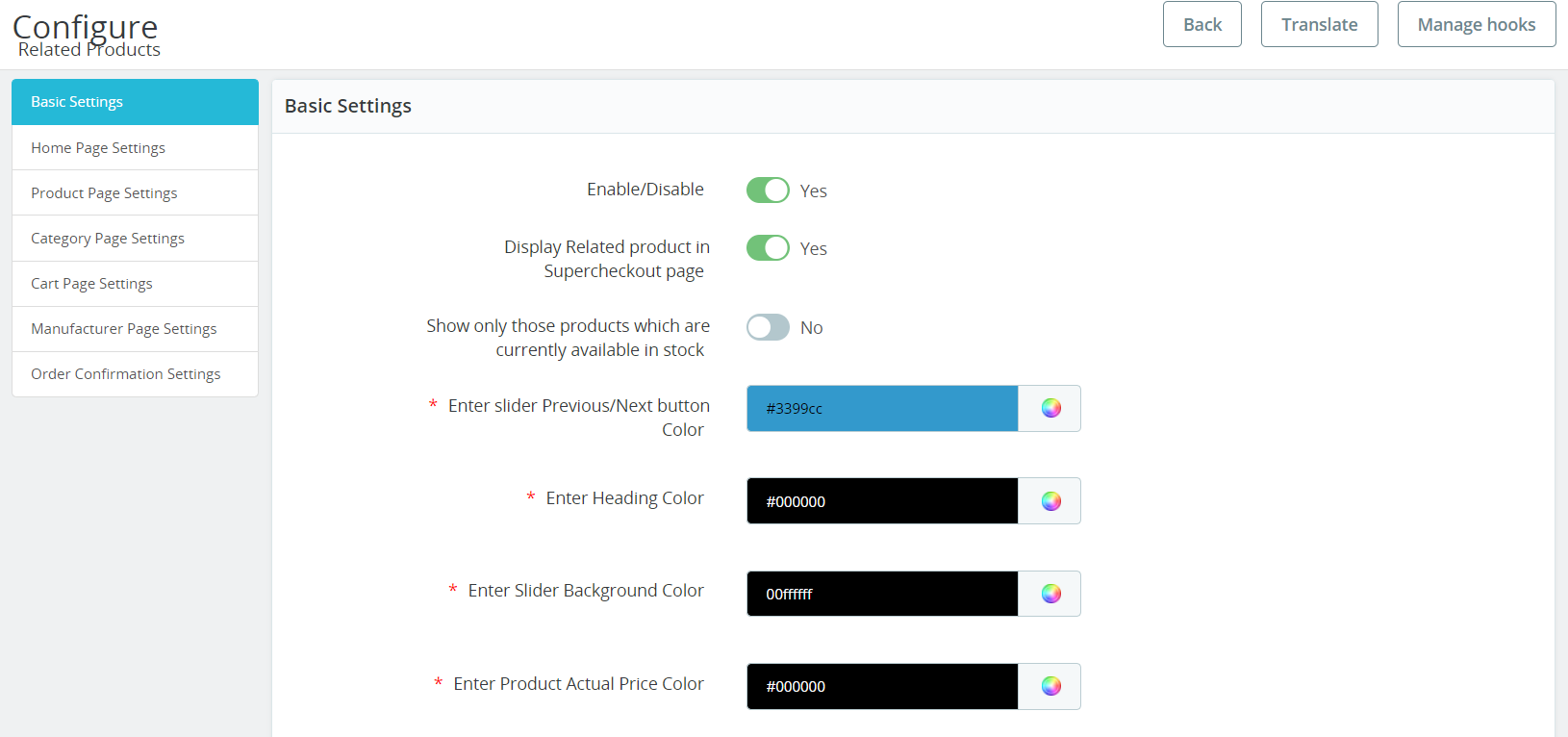
3.1 Basic Settings
1. Enable/Disable: The store admin can activate or deactivate the functionality just by toggling the button. The Prestashop similar products addon can be activated or deactivated easily from the admin interface.
2. Display Related Products on the Super checkout Page: With the help of this option, the admins can show/hide related products on the One Page checkout page. Not only it will help the customers to get a better UI but also will help in cross-sales.
3. Show only those products which are currently available in stock: The e-Commerce store admin can enable the menu option if he wants to show only in-stock products as related products. Prestashop Automatic Related Product addon provides an option to show all the products or in-stock products as related products.
4. Enter Slider Previous/Next Button Color: You can choose the button color of the previous/next button (for the product slider only).
5. Enter Heading Color: With the following option, the admins can change the related product text heading color.
6. Enter Slider Background color: The following option will manage the slider’s background color.
7. Enter the Product’s Actual Price Color: From here, you can easily manage the color of the actual prices of related products.
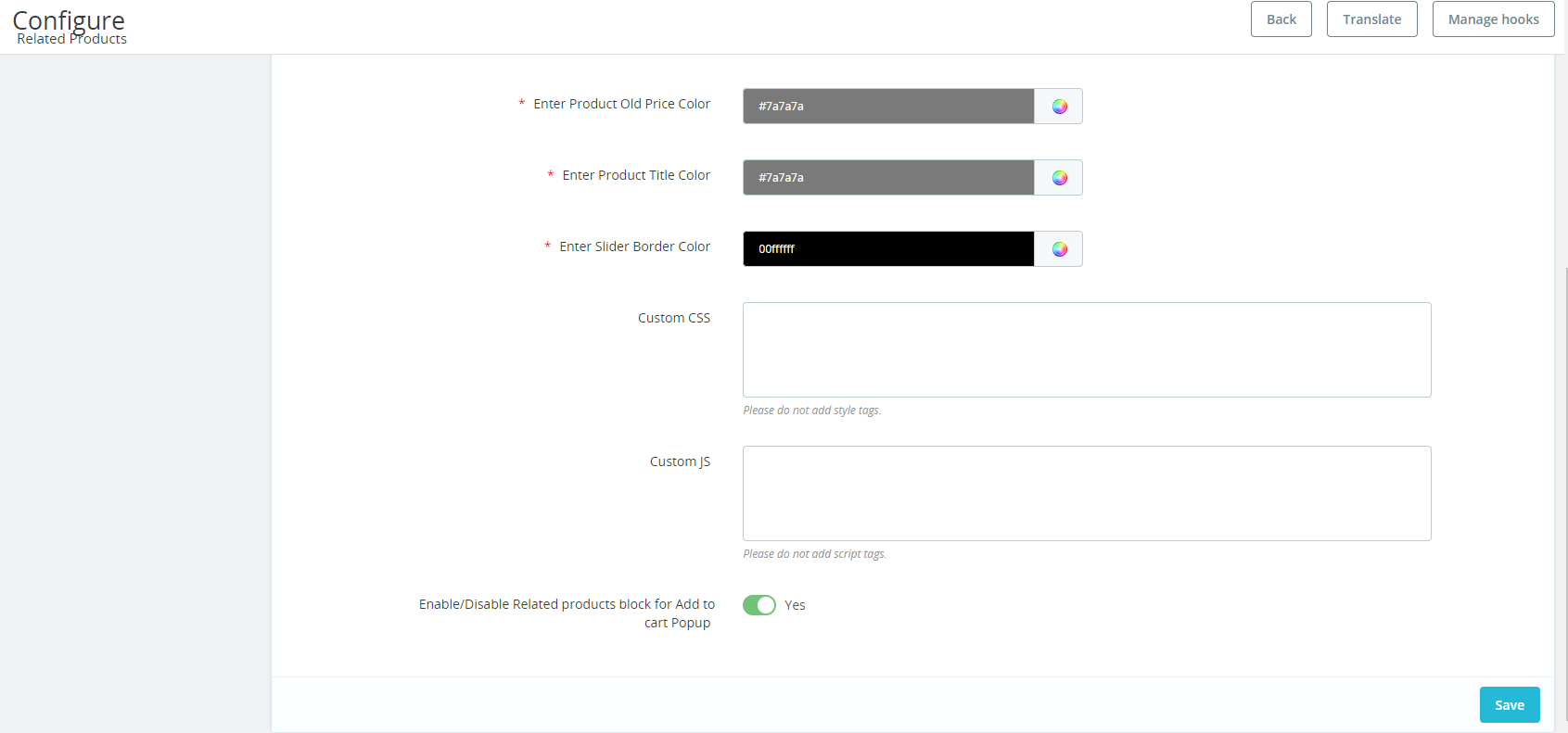
8. Enter product’s Old Price color: The following option can be used for changing the color of the old price of related products.
9. Enter Product Title Color: You can manage the product title’s color from the following option.
10. Enter Slider Border Color: The following option will manage the Related Products slider’s border color.
11. Custom CSS: Now, Prestashop Related product module allows the Prestashop admins to add customized CSS for making their related product blog sound. While adding custom CSS, the admins cannot include the style tag in the same.
12. Custom JS: In case you want to add custom JavaScript, you can add the same in the following text field. Also, the Prestashop admins cannot include JS tags in the following text field.
3.2 Home Page Settings
1. Display Related Product in List View (with 2 Columns): If you enable the following option then instead of slider view, the related products will appear in the list view.
2. Enable/Disable Brand Slider on Home Page: You can show/hide the brand slider on the home page (only if enabled).
3. Enable/Disable Homepage settings: The eCommerce store admin can activate or deactivate the homepage settings by clicking on this option from the admin interface Prestashop-related products module.
4. Enable/Disable Multitab for Home Page: If Enabled then a Multitab with Top Visited products, New products, Best seller Products, and User History Products are displayed instead of the Home Page Slider.
5. Select Methods: In the following option, the admins can add the methods based on which they want to show top sellers, new, or most visited products.
6. Disabled Priority Settings: The admins can enable/disable the priority settings with the help of the following button.
7. Display Products in Random order: If you will enable the following button, the related products will appear in a random order every time.
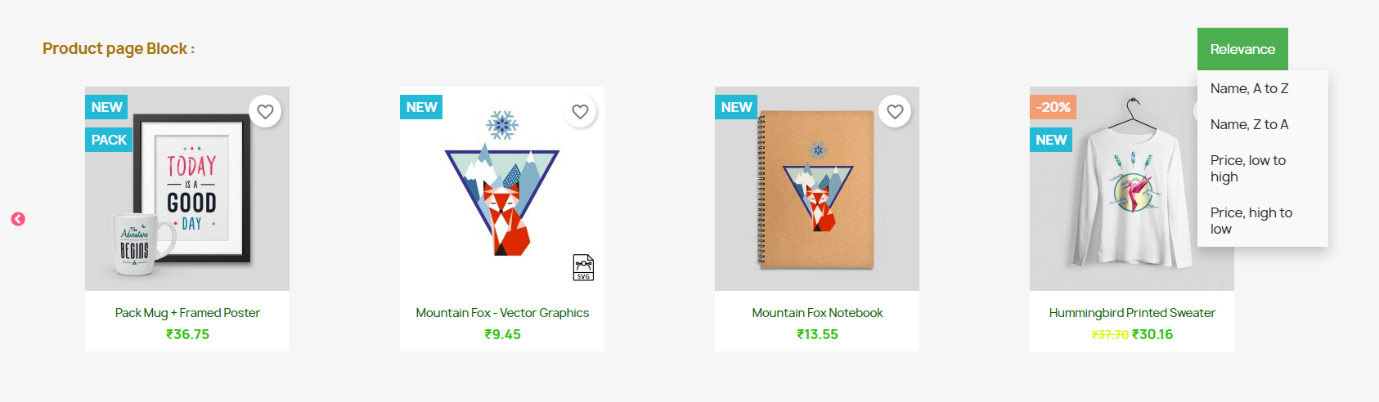
8. Display Sorting for Products: If the following option is enabled, the customers will get the sorting options on the related product slider.
9. Block Title: You can enter the name of the title that will appear on the front end (home page) above related products.
10. Show Home Block Title on Front: The admins can show/hide the home block title on the front end with the following button.
11. Select Display Column: Select the column in which the related products need to be displayed. Here, you can choose if you want to show the products on the page bottom, left column, or right column.
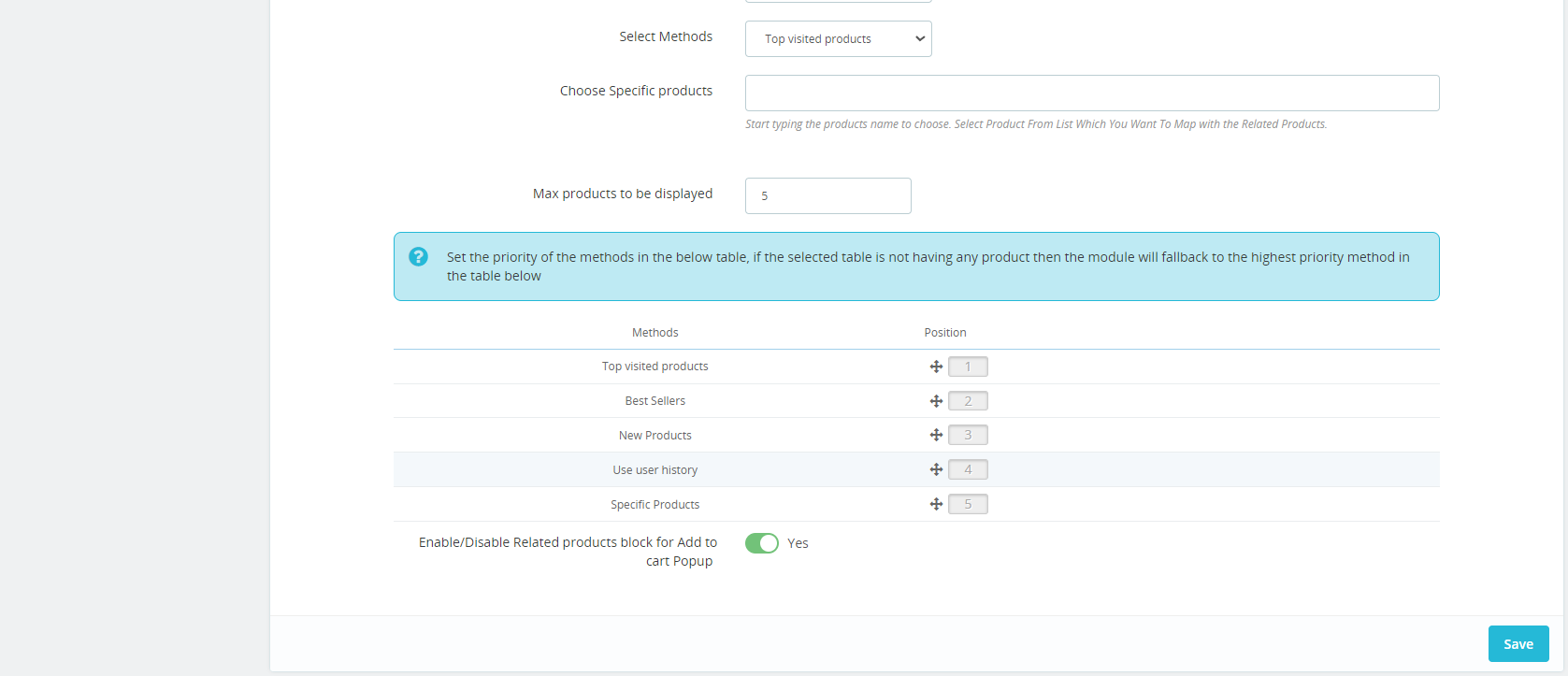
12. Select Methods: In the following option, the admins can add the methods based on which they want to show top sellers, new, or most visited products.
13. Choose Specific Products: Here you can map all the products that you want to add as related products on the front end. Once you will start typing the name, you can find all the suggestions related to the entered text.
14. Max Products to be Displayed: The Prestashop retailers can enter the maximum number of related products they want to show on the front end.
The store admin can also set the priority of the methods. The related product of higher priority will be selected first.
3.3 Product Page Settings
1. Enable/disable Product Page Settings: The store owner can activate or deactivate the product page settings just by a button toggle.
2. Disabled Priority Setting: The admins can enable/disable priority settings from here.
3. Enable/Disable Related products Block for Add to Cart Pop up: If the following option is enabled, the related product blog will appear on the pop-up while adding the product to the cart.
4. Display products in random order: Knowband Prestashop Related products module allows the admins to display/hide products in random order. The admins can simply manage the same from this particular button.
5. Display Sorting for Products: If the following option is enabled, the customers will get the sorting options on the related product slider on the product page.
6. Block Title: From this option, the admin can manage the block title for the related products on the product page.
7. Show Product Block Title on Front: This option will show/hide the Home Block title on the front for the product page only.
8. Select Display Column: Select the column in which the related products need to be displayed. Here, you can choose if you want to show the products on the page bottom, left column, or right column.
9. Select Methods: In the following option, the admins can add the methods based on which they want to show top sellers, new, or most visited products.
10. Select Filter: Select the filter based on which the products on the front will be displayed.
11. Choose Specific Order: Here you can map all the products that you want to add as related products on the front end. Once you will start typing the name, you can find all the suggestions related to the entered text.
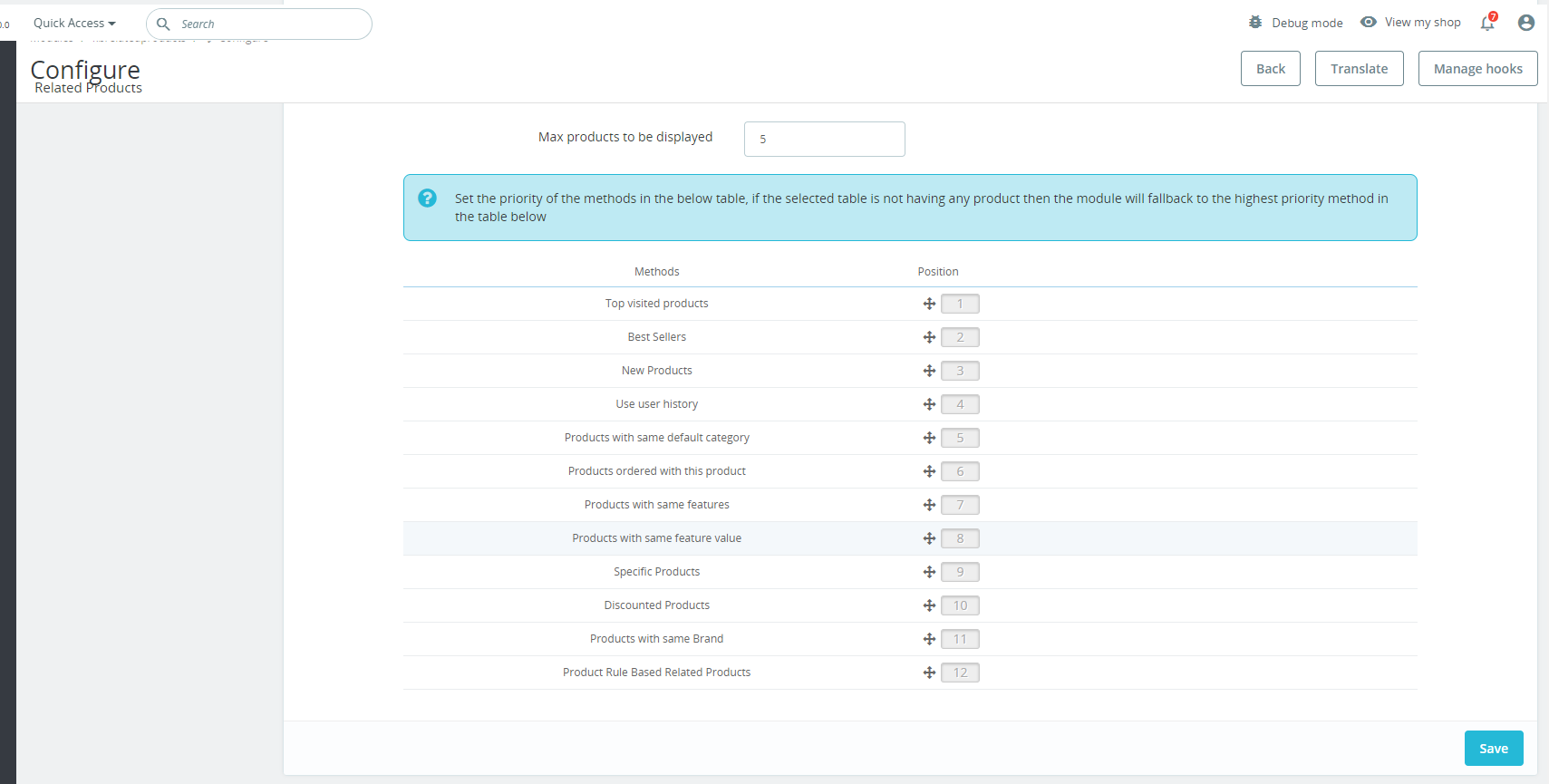
12. Max products to be displayed: Admin can select the maximum number of products to display as related products.
The store admin can set the priority of the methods. if there is no product on the higher priority method, then the Prestashop product cross-selling module will show the product from the lower priority.
3.4 Category Page Settings
1. Enable/Disable Related Products Block for Add to Cart Popup: If the following option is enabled, the related product blog will appear on the pop-up while adding the product to the cart.
2. Enable/Disable Category Page Settings: The store admin can enable or disable the category page settings from the admin interface.
3. Disabled Priority Setting: The admins can enable/disable priority settings for the category page from this particular option.
4. Display Products in Random Order: In case you want to show random related products every time, you can keep this option enabled.
5. Display Sorting for Products: If the following option is enabled, the customers will get the sorting options on the related product slider.
6. Block Title: With the help of this particular text field, the admins can manage the block title for the related products on the category page.
7. Show Category Block Title on the Front: Show/hide the home block title on the front for category pages with this option.
8. Select Display Column: You can manage the display column from this option. Further, you can select the options such as bottom, column left, and column right for showing the related products title.
9. Select Methods: The Prestashop admins can manage the methods based on what they want to show the related products. For example, the admin can select methods for most visited products, top-selling products, new products, or products from categories or subcategories, etc.
10. Choose Specific Products: Here you can map all the products that you want to add as related products on the front end. Once you will start typing the name, you can find all the suggestions related to the entered text.
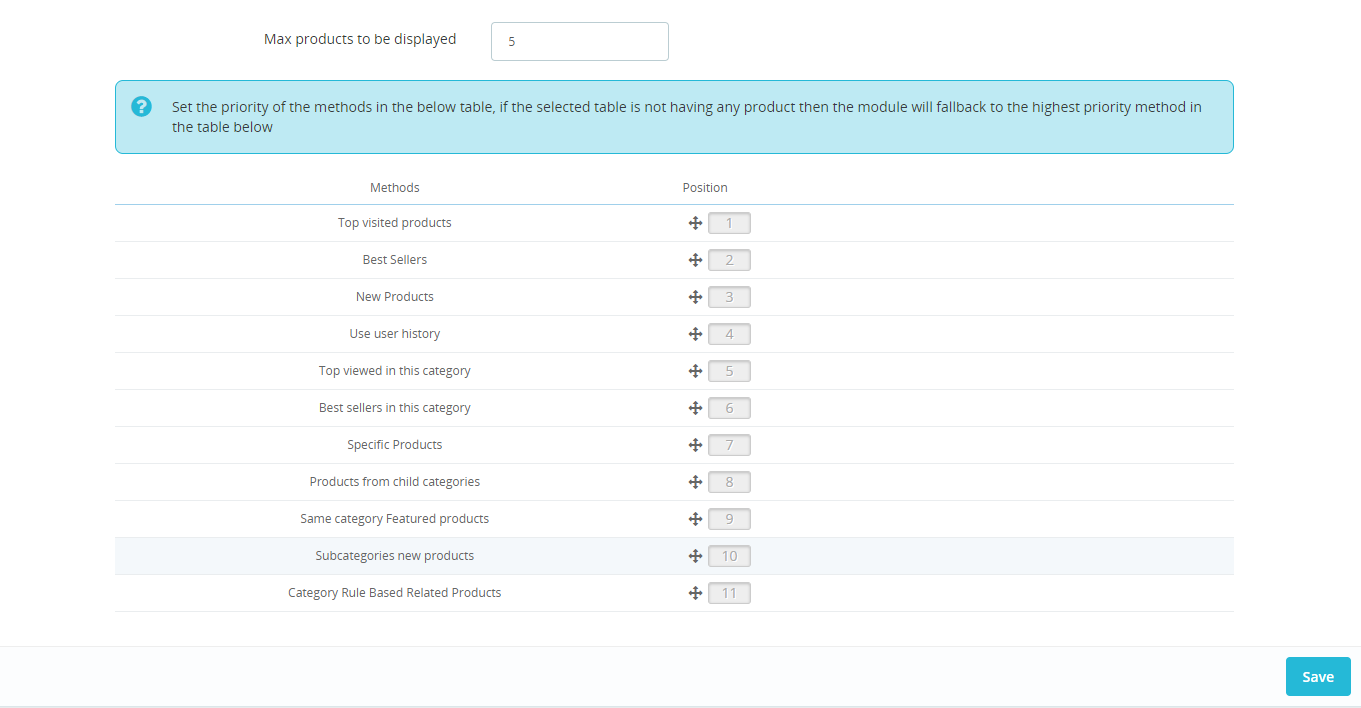
11. Max Products to be Displayed: You can enter the maximum number of the related products you want to display on the category page.
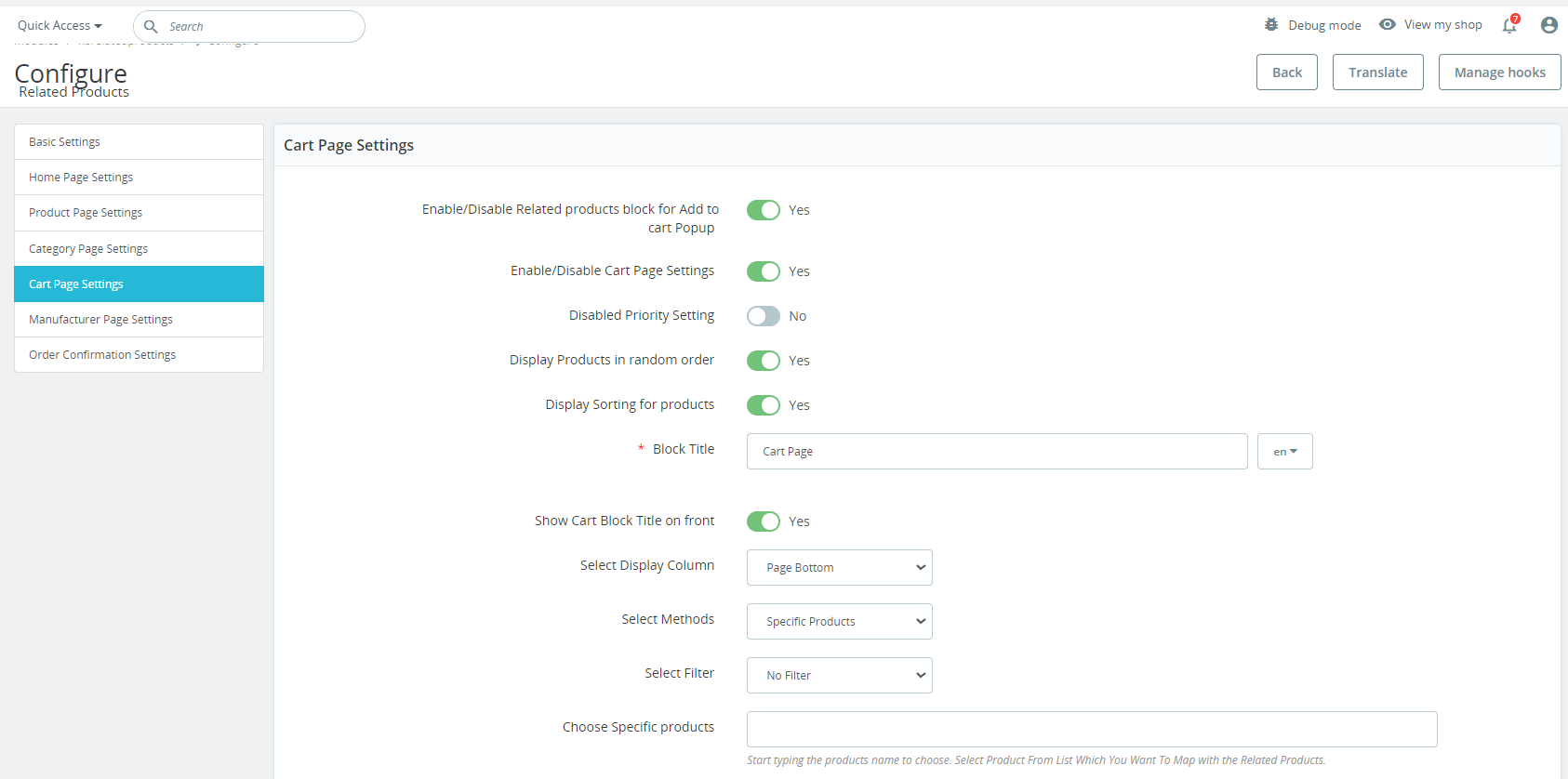
3.5 Cart Page Settings
1. Enable/Disable Related Products block for add to cart popup: If the following setting is enabled, the related products will appear on the add-to-cart pop-up.
2. Enable/Disable Cart Page Setting: This button will enable/disable the related products on the cart page.
3. Disabled Priority Setting: Like cart page settings, this option can be used for making the priority setting work.
4. Display Products in Random Order: In case you want to show off the related products in random order, you can use this particular option.
5. Display Sorting for Products: If you enable this option, the users can sort the products on the slider.
6. Block Title: The admin can manage the related products block title for the cart page from this particular text field.
7. Show Cart Block Title on Front: From here, the admin can show/hide the cart block title on the front end.
8. Select Display Column: You can choose and manage the location of the related product blog from this option.
9. Select Display Column: You can manage the display column from this option. Further, you can select the options such as bottom, column left, and column right for showing the related products title.
10. Select Methods: The Prestashop admins can manage the methods based on what they want to show the related products. For example, the admin can select methods for most visited products, top-selling products, new products, or products from categories or subcategories, etc.
11. Choose Specific Products: Here you can map all the products that you want to add as related products on the front end. Once you will start typing the name, you can find all the suggestions related to the entered text.
12. Max products to be displayed: the admin can fix the maximum products count for displaying on the category page.
The store admin can also set the priority of every method easily from the admin interface. the Prestashop related products module picks the product from the lower method if no product will be available on the higher method.
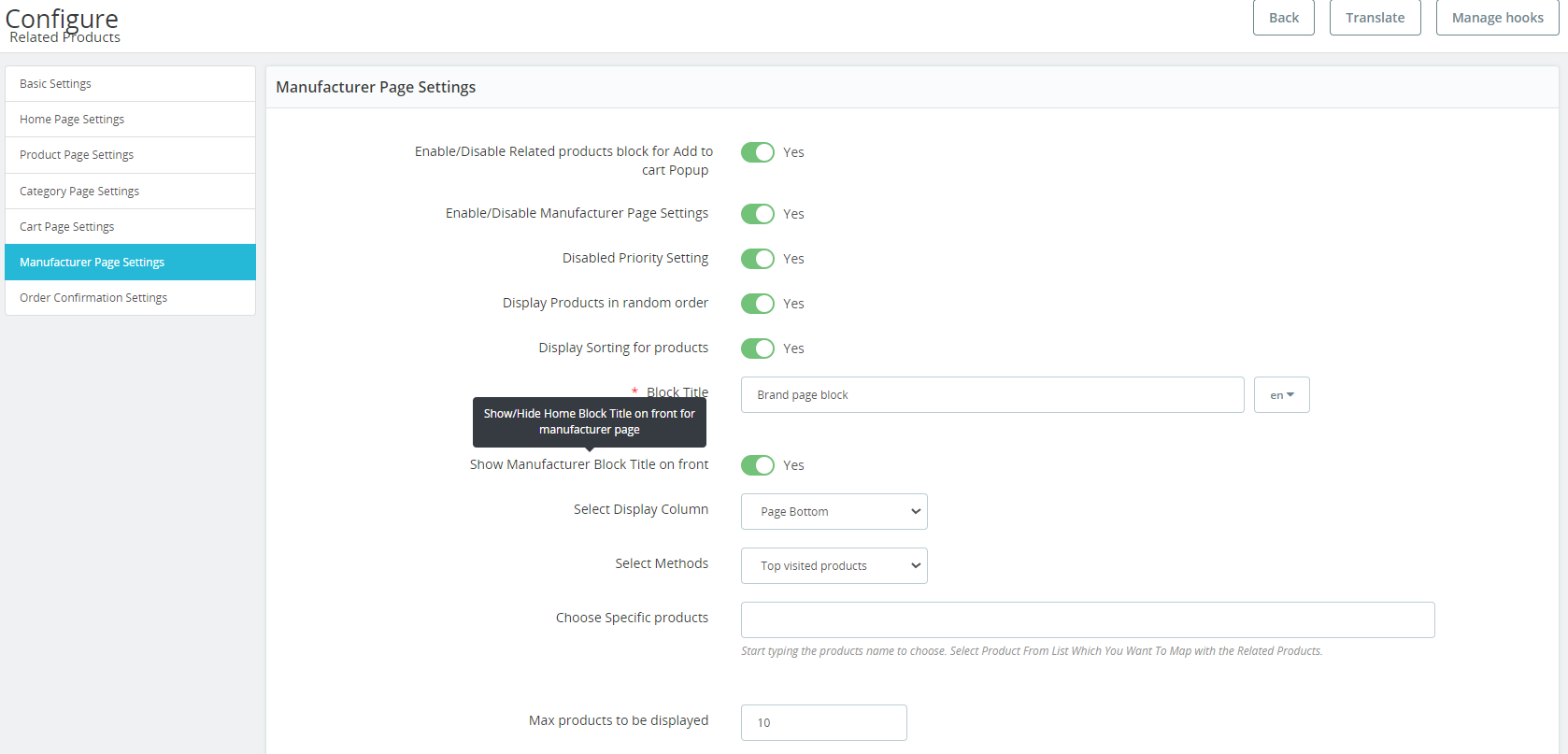
3.6 Manufacturer Page Settings
1. Enable/Disable Related Products Block for add to cart pop-up: If the following setting is enabled, the related products will appear on the add-to-cart pop-up on the manufacturer page.
2. Enable/Disable manufacturer Page Settings: The store admin can enable or disable the manufacturer page settings from the admin interface of this Prestashop alike product addon.
3. Disabled Priority Setting: This option can be used for making the priority setting enabled or disabled.
4. Display Products in Random Order: In case you want to show off the related products in random order to your visitors, you can use this particular option. If this option is enabled, all the related products will appear in random form every time.
5. Display Sorting for Products: If you enable this option, the users can sort the products on the related product slider.
6. Block Title: The PrestaShop related products plugin allows the admin to set the related products block title in multiple languages.
7. Show Manufacturer Block Title on front: This feature lets the admin to enable or disable the module tab heading and also the heading text can be customized.
8. Select Display Column: The PrestaShop related products plugin allows the admin to show the related products in various positions like the left column, the right column of product or page bottom.
9. Select Methods: There are various methods to select from. The admin can show the related products as per Bestsellers, Top visited products, New Products, Use user history, Top viewed by this manufacturer, Bestseller in this manufacturer.
10. Choose Specific Products: For this option, you can add specific products just by entering the name and the related products will appear based on the same.
11. Max products to be displayed: The Prestashop related products addon allows the store admin to fix the maximum products count for displaying on the category page.
The store admin can also set the priority of every method easily from the admin interface. the Prestashop product cross-selling module picks the product from the lower method if no product will be available on the higher method.
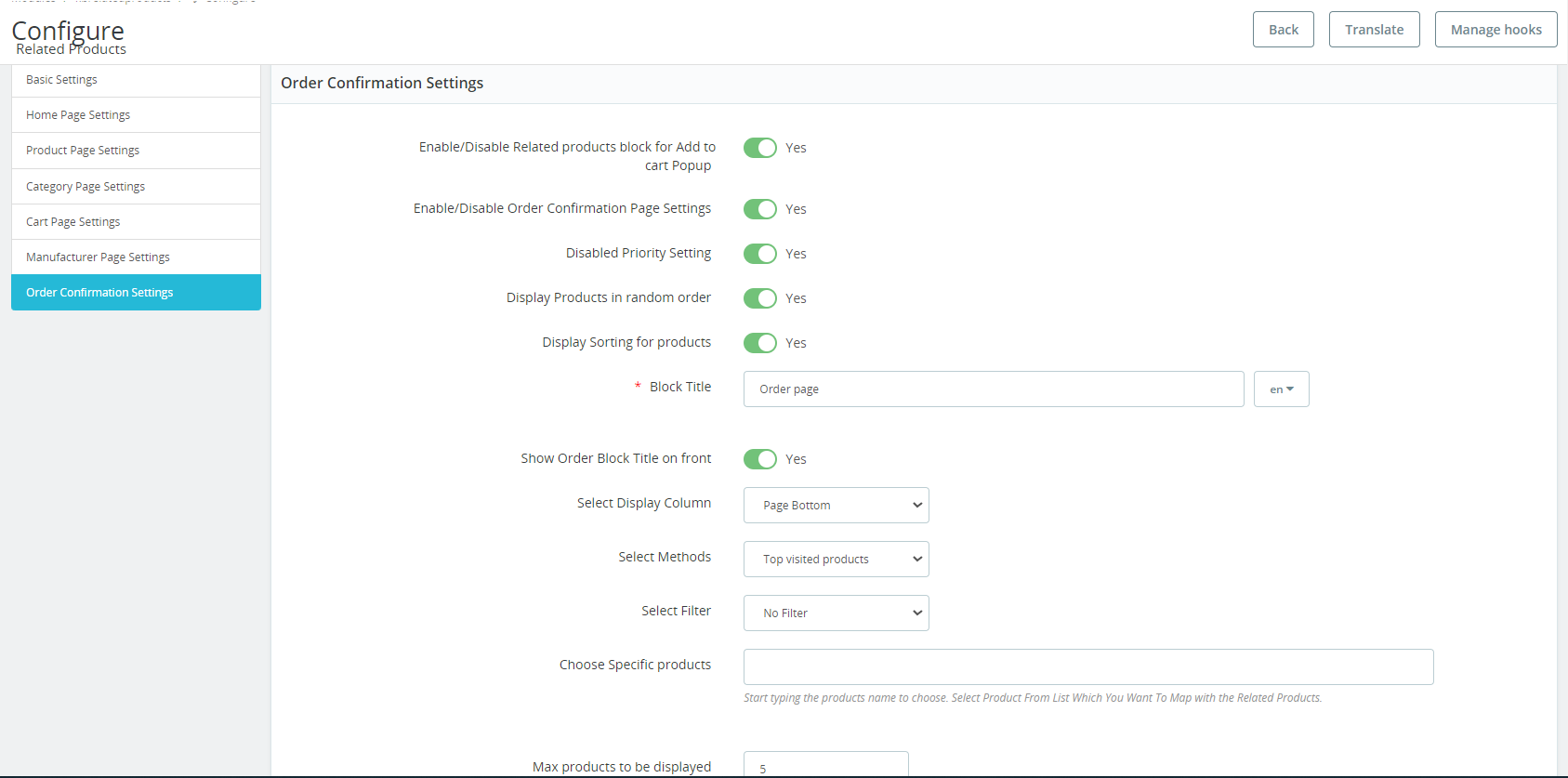
3.7 Order Confirmation Settings
1. Enable/Disable Related Products Block for Add to Cart Pop-Up: If you have enabled the following setting, the related products will appear on the add-to-cart pop-up on the Order Confirmation page.
2. Enable/Disable Order Confirmation Page Settings: The store admin can enable or disable the Order Confirmation Page settings from the admin interface.
3. Disabled Priority Setting: The admin can enable/disable priority settings from here.
4. Display Products in Random Order: Using this option, the admins can show related products in random order to the visitors. If this option is enabled, all the related products will appear in random form every time.
5. Display Sorting for Products: If you enable this option, the users can sort the products on the related product slider.
6. Block Title: The Prestashop related products plugin allows the admin to set the related products block title in multiple languages.
7. Show Order Block Title on front: This feature lets the admin to enable or disable the module tab heading and also the heading text can be customized.
8. Select Display Column: The Prestashop related products addon allows the admin to show the related products in various positions like the left column, the right column of product or page bottom.
9. Select Methods: There are various methods to select from. The admin can show the related products as per Top visited products, Best Sellers, New Products, Use user history, Products ordered with the products of order and Products of the same category as the products of the order.
10. Select filter: The store admin can select the filters like no filter, keyword, attribute.
11. Choose Specific Products: For this option, you can add specific products just by entering the name and the related products will appear based on the same.
12. Max products to be displayed: The admin can fix the maximum products count for displaying on the category page. The store admin can also set the priority of every method easily from the admin interface. The Prestashop Automatic Related Product addon picks the product from the lower method if no product will be available on the higher method.
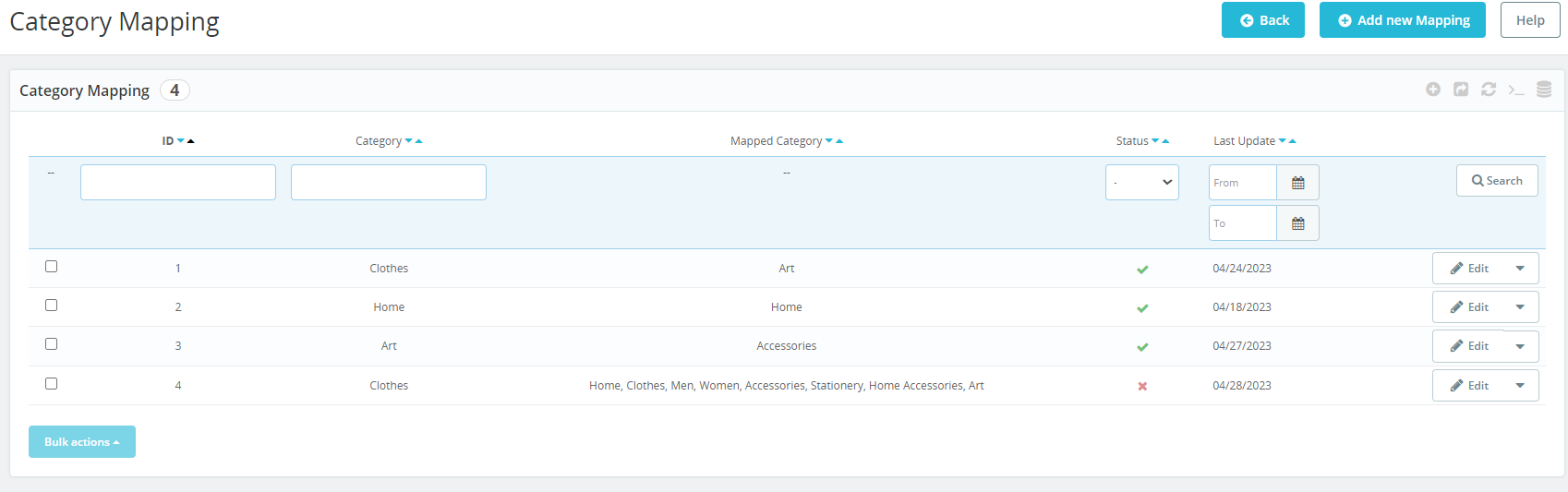
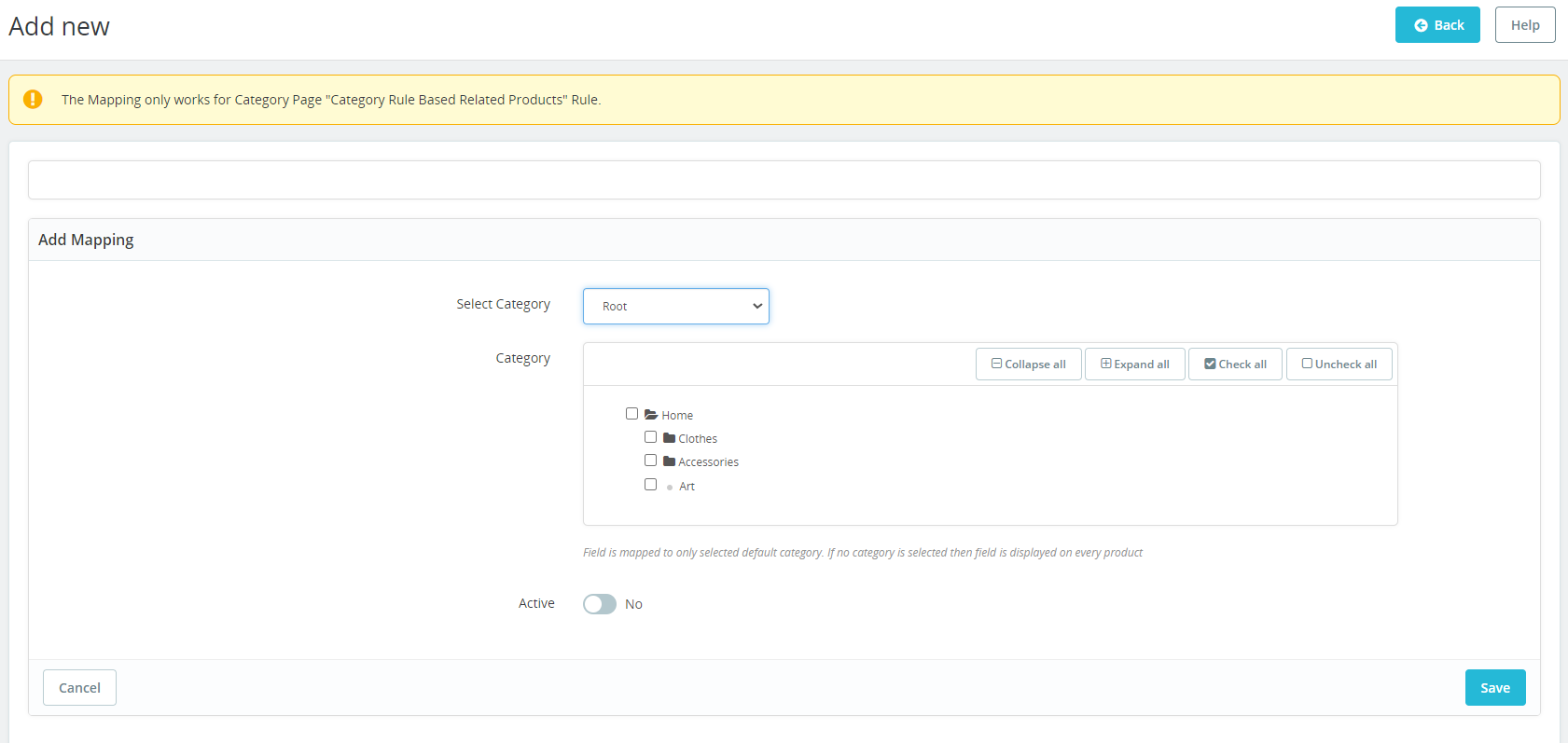
Category Mapping:
Store Admin can Create, Edit and Delete new Category rules under the Category Mapping tab.
After clicking on the Add new Mapping button, a new mapping form will be open with following fields :
The admin has the ability to create rules for category pages by mapping multiple categories to a specific category. This means that on the designated category page, all products from the mapped categories will be displayed. This provides greater control and flexibility to the admin in curating product displays and enhancing the user experience on the website.
4.0 Front-end Interface
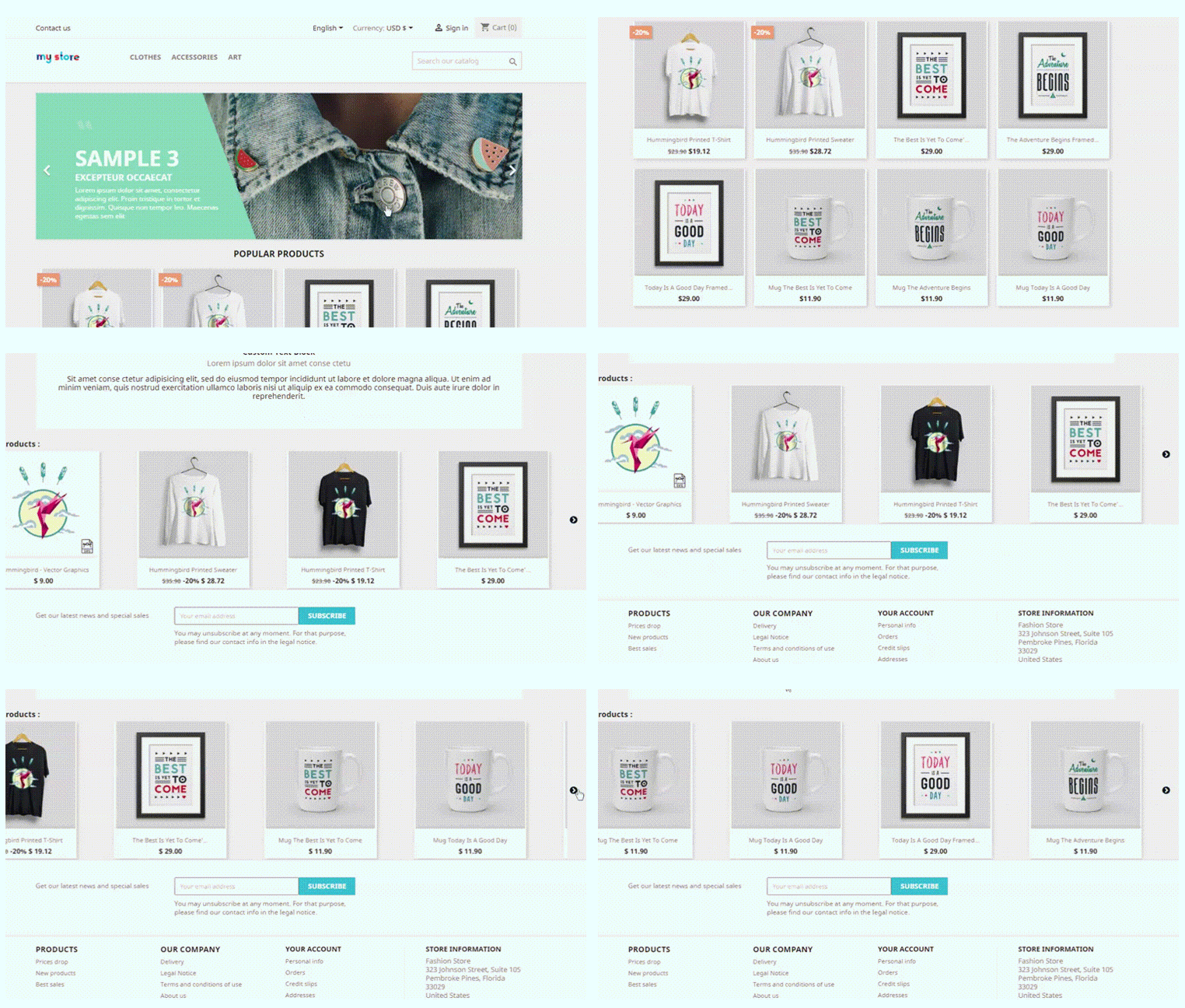
The customers can view the related products as shown in the below-mentioned images.
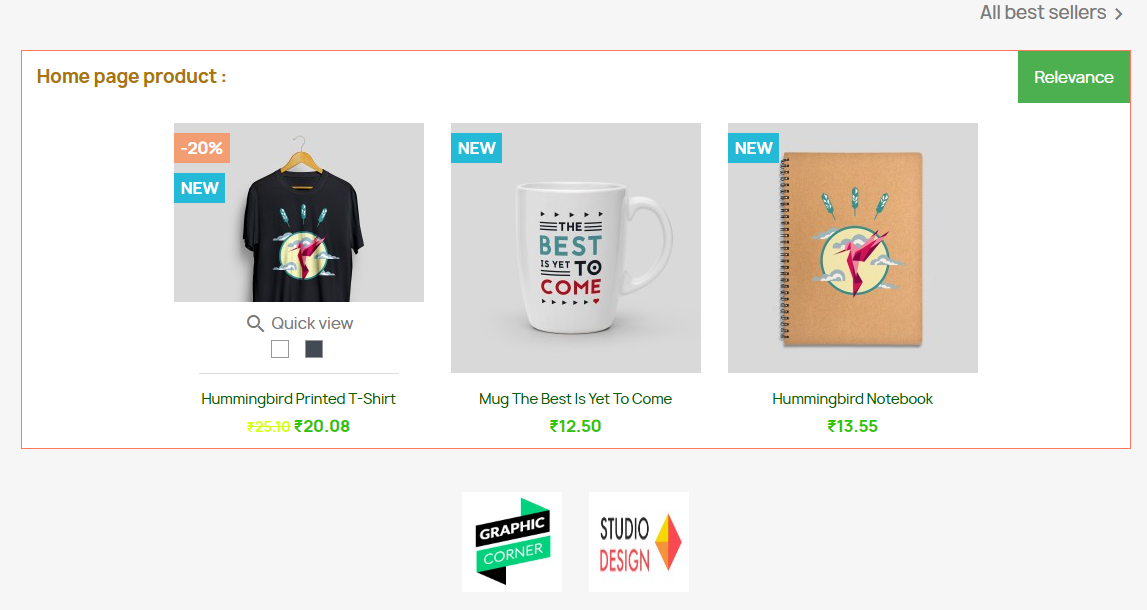
At the home page the related products will be displayed like the below image:
The customers can also view the related products on the product page:
Similar products will display on add to cart pop up too:
This way, the online store admin can showcase related products on different website pages like homepage, product pages, category pages, cart page, manufacturer page and order confirmation pages also. This way, the e-merchant can grab the customers attention on those products which he wants them to purchase. The Prestashop Automatic Related Product module allows the eCommerce store admin to implement this functionality to showcase related products on the website pages without any code changes. The eCommerce store admin can configure this Prestashop similar products addon according to their requirements and showcase the related products on the website pages easily. The customers can also view the related products and select the best one for themselves. The Prestashop similar products addon shows related products which increase the cart value of the customers.