What are different ways of reducing Post-Holiday Returns?

It is very essential to reduce post-holiday returns. Industry, sales channel, product type, and how to return data are collected and counted all affecting return rates. Further, the younger customers are driving the trend according to the reports. The reason is, they see internet purchases as rentals. Moreover, returns might rapidly undo your holiday success if you don’t account for them and discover:

  1. Sales are lower than expected
  2. Converted fewer clients than the originally
  3. Compared to sales cost and profit margins, sales cost is higher and profit margins are lower.

Therefore, in this blog, we will be discussing ways of reducing holiday returns and automating the returns process. However, before that, we will understand why it’s important to reduce the returns?

Why it’s important to reduce the returns?

The first step is to analyze why do people are returning products as this will give you valuable insights and even make you understand the real problem. Furthermore, it is to everyone’s best advantage to reduce the number of returns you receive. 

You might not be aware but lesser returns can save a lot of money on replacement items, shipping, as well as other factors. Moreover, it provides a better as well as efficient customer experience which is again good for eCommerce business. As a result, trust is created between your business and potential buyers.  

Henceforth, keeping the rate of return lower can result in better business. 

What are the ways of reducing returns?

  • Begin with quality control

The first way that helps in reducing post-holiday returns is “Begining with quality control”. Furthermore, 23% of returns happen as companies ship an incorrect item. Mis-ship happens usually when businesses grow.

Being a small retailer, you can wrap as well as send every order. It would be great if you double-check the order before shipping. When you adopt a hands-on approach, it’s easy to ensure that shipments are proper. Whereas larger businesses can opt for automation that can help you in resolving the issues. Furthermore, the Inventory management software includes a warehouse management feature that helps in reducing the number of returns your receive. 

  • High-Quality Photos

High-quality photos can even help in reducing post-holiday returns. Furthermore, such photos help customers understand the product better. Make sure you take pictures from different angles to make customers understand each feature of the product. 

In case you are not good at photography, feel free to hire a professional photographer. Money spent on getting good pictures will pay for itself with a reduced return rate. 

  • Better Product Descriptions

Writing better product descriptions can help customers understand the product well. Speaking about better product descriptions, make sure you include everything about the product. For example, if you have been selling furniture, make sure your product descriptions consist of measurement of the product, color, and material. This way customers can decide better and this will create transparency which is liked by customers a lot. 

  • Represent Sizing Correctly

Products that do not fit are one of the most common reasons for returns in the apparel industry. Because online buyers can’t try on garments before buying them, it’s understandable that products be returned because they don’t fit.

With the assistance of resources like size software and sizing charts, you may limit the number of returns you receive due to sizing concerns.

Knowband Modules assist in reducing post-holiday returns

Knowband, known as an eCommerce solution provider and module development company. Furthermore, Knowband has earned a reputation for offering efficient development services and post-sales support. Moreover, it offers a boost to your business by offering best-in-class plugins for different eCommerce platforms such as Magento, Prestashop, OpenCart, Shopify, and others. 

Knowband even offers some great modules for reducing post-holiday returns as well as reading the specifications of these modules helps in reducing the chances of return.

Module 1: Product size chart
The product size chart module helps in reducing post-holiday returns. Knowband offers this module for different eCommerce platforms such as:

Prestashop Addons

Magento 2 ® Extensions

Magento ® Extensions

Opencart Extension

Module 2: Product Video

The product video module is highly beneficial for eCommerce businesses. This helps customers to understand the product better. As a result, the return chances get reduced. Knowband even offers the module for different eCommerce platforms:

Magento 2 ® Extensions

Magento ® Extensions

OpenCart Extensions

Prestashop Addons

Module 3: Gift Card

Digital Gift Cards are a blessing for eCommerce stores. These enable customers to purchase accordingly from the specific store. Gift cards even provide freedom to permit them to purchase what they need. Furthermore, this offers the satisfaction of having gifted well.

PrestaShop Addons

Opencart Extensions

Magento 2 ® Extensions

Magento ® Extensions

Module 4: Product Review

Product review also helps customers make decisions better and feel more confident. Furthermore, the more reviews you have, the more confident a customer is that they’re making the right choice. Reviews can also assist a store’s internet visibility.

Product Review Reminder And Incentives – Prestashop Addons

Review Reminder And Incentives – Magento 2 ® Extensions

Review Reminder And Incentives – Magento ® Extensions

Final Note

Analyzing as well as testing your approach to returns and ways of measuring up to your peers is a great way of generating a return on your post-holiday returns. Along with that, another way of generating a return on post-holiday returns is by utilizing these modules.

In case you face trouble, feel free to write us at support@knowband.com

6 Amazing OpenCart Extensions for Product Page Optimization

When a user lands on your website in search of a product, it is primarily the product page that gives them a push to go for the purchase. Although for a conversion to take place, every element from the beginning till the end is vital. But the product page is the primary focus, and this is why product page optimization is highly important.

If the product page does not look appealing, informative and standardized, the prospect might give up the purchase idea and look for that product on your competitor’s store.

Understanding the importance of optimized product pages, here are the 6 OpenCart Extensions that will help you with product page optimization. Check them out.

1. OpenCart Product Video Extension

What could be a better way to help a prospect in his/her purchase than showing them an informative video of that product? Shoppers have plenty of doubts roaming around their head when purchasing a product online.

Besides product images, a product video eliminates those doubts to a great extent and helps you gain more trust of consumers.

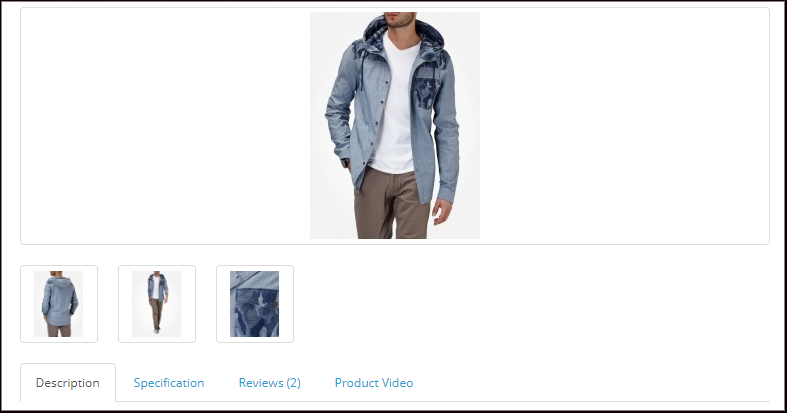
OpenCart Product Video extension adds a “Product Video” tab on your product pages, hence allowing customers to have a look at the product video before purchasing the desired product. You can integrate videos to your OpenCart website effortlessly from multiple platforms likes YouTube, Dailymotion, and Vimeo.

Related: 4 Benefits that Highlight the Importance of Product Videos in eCommerce

2. OpenCart Product Size Chart Extension

One of the major reasons why customers return clothing items is the incorrect product size. Not having an idea of the accurate product size often leads to customers ordering an incorrect sized product. In fact, different eCommerce websites have different length measures for particular size type. An L-sized t-shirt would not necessarily be of the same size everywhere.

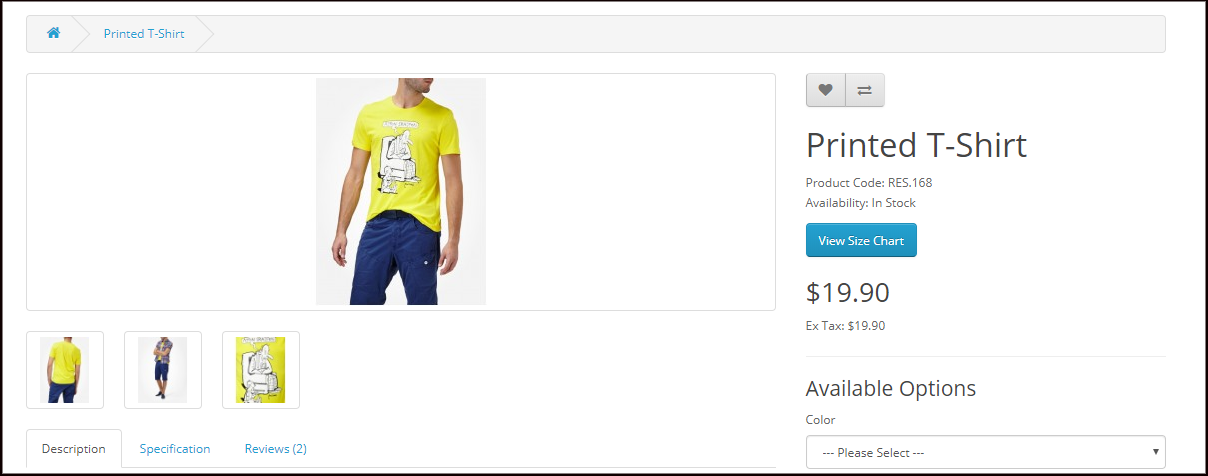
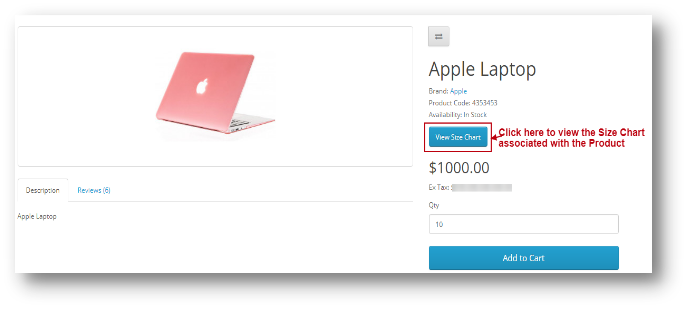
OpenCart Product Size Chart extension adds a “View Size Chart” tab on your product pages through which users can confirm which size product would fit them the best. From the back-end, you can specify the measurements of a particular size type.

3. OpenCart Product Designer/Customizer Extension

Product customization has been in the trend for quite a few years now. Many online shoppers look to purchase customized products. In fact, today, there are entire businesses set up on product customization.

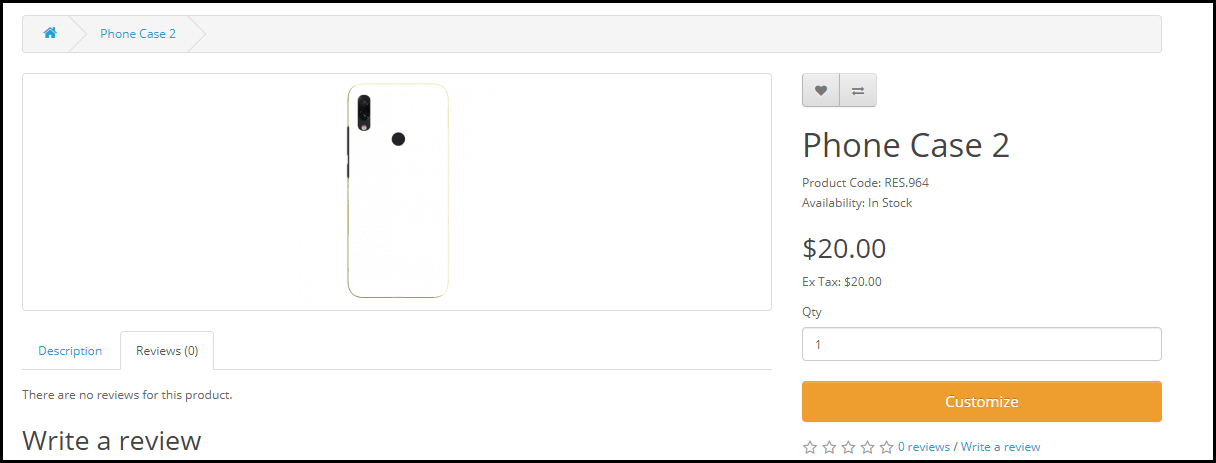
OpenCart Product Designer/Customizer extension adds a “Customize” tab on your product pages with the help of which a user can personalize a product as per their needs and desire. The configurations for this module can be modified from the back-end including setting up the customization price as well.

Related: 5 Benefits of Product Customization

4. OpenCart Product Availability Check by Zip Code Extension

Let customers check whether a particular product is eligible for delivery or not, at their desired location, right on the product page.

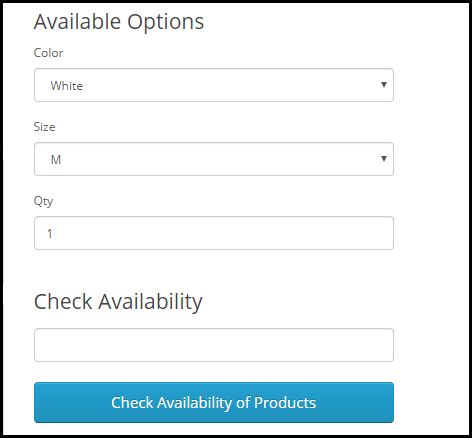
With the help of OpenCart Product Availability Check by Zip Code extension, also called as OpenCart Zip Code Validator, the buyer can check whether the product is available for delivery at their location or not by simply specifying the area zip code. The module adds a “Check Availability of Products” tab on your product pages.

If unavailable, it will display that the product is not available at the specified zip code.

5. OpenCart Advance Wish List/ Save for Later Extension

Let shoppers save a product for later if they do not want to purchase it at that particular moment. With OpenCart Advance Wish List/ Save for Later extension, you can allow your prospects to add the products in their saved items list.

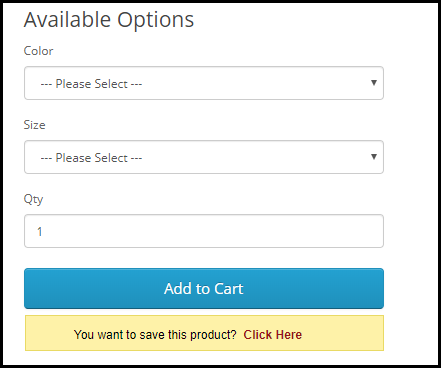
The module adds an option right below the “Add to Cart” button to make customers save that product. As a result, whenever the prospect returns and decides to make the purchase, they can simply view that product from their saved items.

This gives you an idea of the customer’s requirements and you can approach them later and help them purchase that product.

6. OpenCart Review Incentive Extension

Product Reviews highly matter for any online business. They not only influence the buying decision of the future customers but also help businesses get feedback about the product quality as well as the issues customers are facing with it. Brands do reach out to customers and ask them to review the product they recently purchased, but not many customers take it seriously.

With OpenCart Review Incentive Extension, you can encourage customers to leave a review on the products and reward them with exciting incentives for every successful (approved) review. You can set the incentive value, review reminder date and do much more through OpenCart Review Incentive Extension.

Related: Why Product Reviews are Important in eCommerce?

Final Word

Do whatever it takes to make your product pages user-friendly. Take the help of these 6 OpenCart Extensions for product page optimization and make the purchase experience of your visitors better than ever.

If you need any assistance in any of the above-mentioned OpenCart Extensions, reach out to us at support@knowband.com
OpenCart Product Size Chart Extension-User Manual

1.0 Introduction

Managing an ecommerce website isn’t easy. Competition is fierce, technology is ever-changing, and there’s no other position in the company that gets as much advice from well-meaning peer ‘experts’ (anyone who’s watched a webinar on conversion optimization) or gets as much daily scrutiny as the ecommerce manager.

Every part of the site must be consistently tested and optimized. Every word of copy must do the job it’s there to do. And something as simple as the configuration of an online sizing chart can either pull customers in or drive them away.

The ecommerce manager must balance all of it.

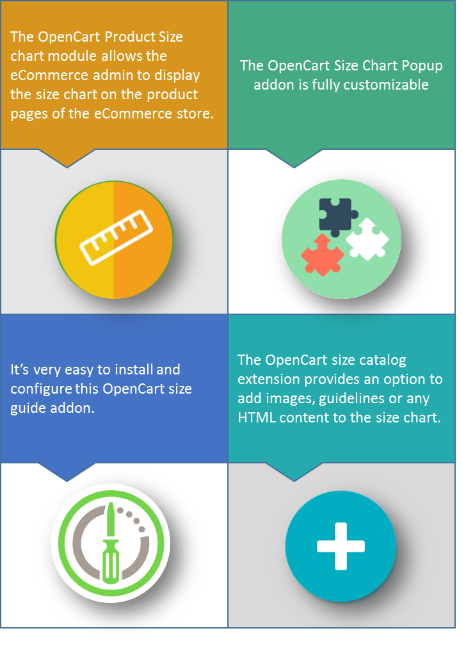
The OpenCart Product size chart Module by Knowband is a Size Chart creating module for OpenCart. Using this extension, the merchant can show the different types of size charts for each category, product, and manufacturers available on his/her store.

The eCommerce store admin can assign the chart to a particular product or products of a particular category or products of a particular manufacturer. Thus with the help of this OpenCart Product Size chart Extension, the eCommerce store owner can easily resolve the size-related issues of the store customers.

Why is the online sizing chart so important?

  • The majority of returns for ecommerce apparel items are due to the customer not being satisfied with the fit.
  • This article isn’t for online clothing store managers only, though. Many items require a fit of one type or another – sleeping bags, fishing rods, furniture… all need to fit the buyer.
  • We’ve already mentioned that high return rates can often be traced directly to sizing issues. Uncertainty about the fit is why many would-be online customers opt to drive to the store and try an item on before purchasing.
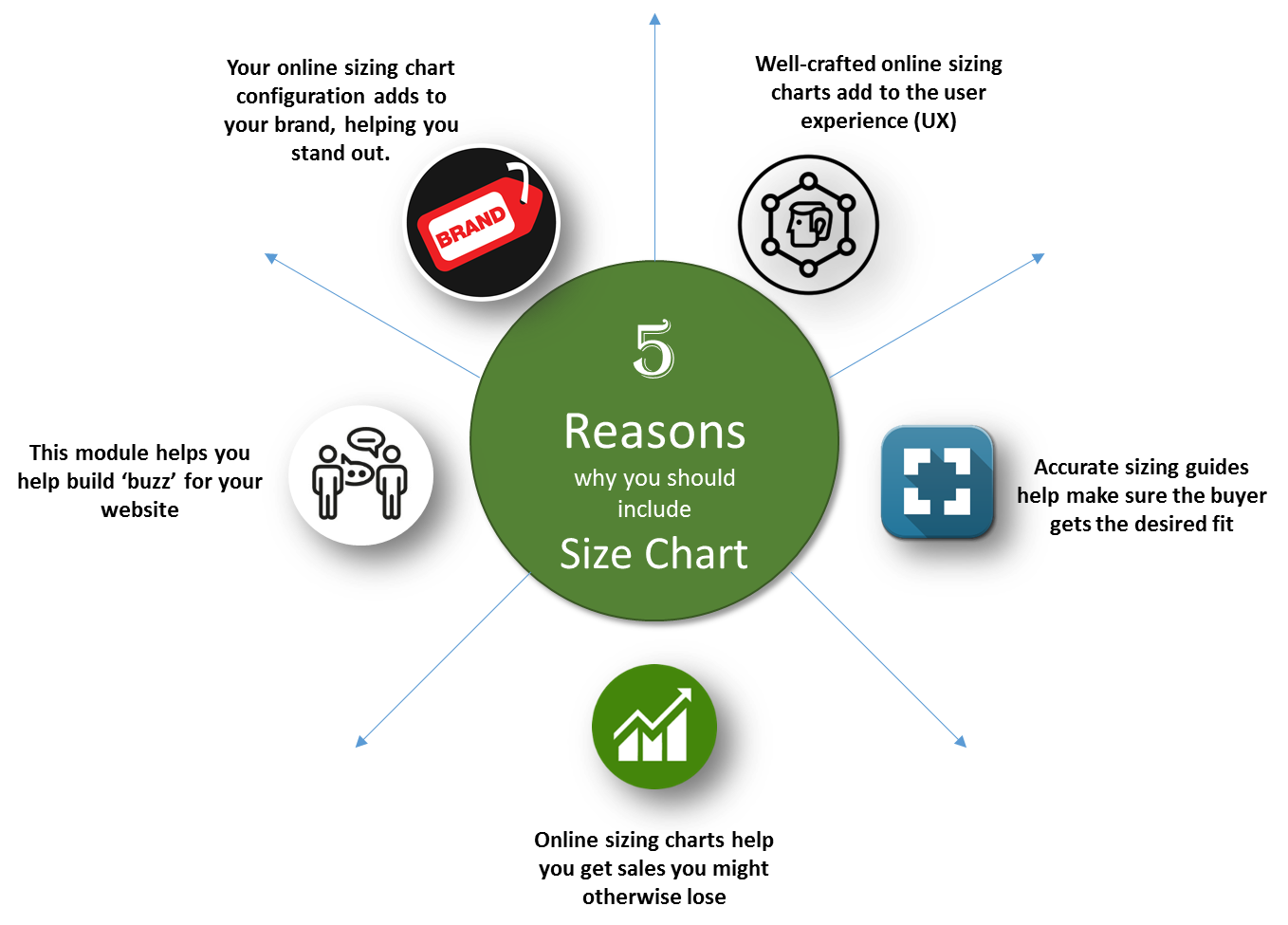
  • Here are our top five reasons why ecommerce managers should pay close attention to how their sizing information is presented:

1.1 Features


2.0 Installation Guide

Before starting the installation process, you have to buy the OpenCart Product size chart Extension by the Knowband store. Once purchased, you will receive the following files on your registered email.

  • Source code of OpenCart Product size chart Extensionmodule in zipped file format.
  • User Manual of OpenCart Product size chart Extensionmodule.

Now in order to install this OpenCart Product size chart Extensionmodule on your online shop, follow the given steps:

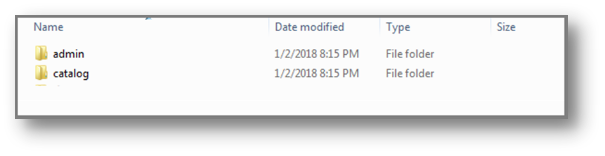
Step 1: Unzip the zip file. You will get the folders as shown in the image below:

Step 2: Copy all the folders of the zip file in the Root Directory of OpenCart setup via FTP manager.

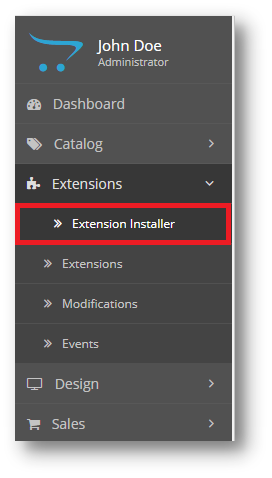
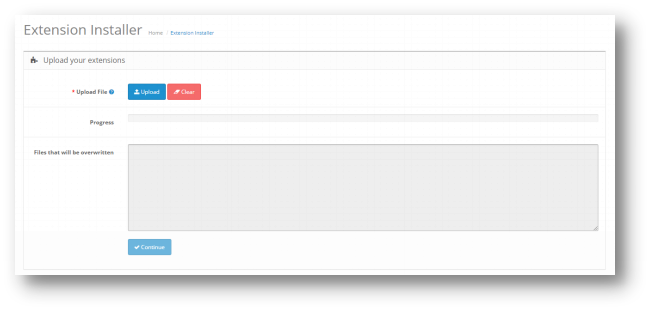
Step 3: There is a file name kbproductsizechart.ocmod.zip (for OC>=3.0) or kbproductsizechart.ocmod.xml (for OC < 3.0). You need to install this file in the following Location:

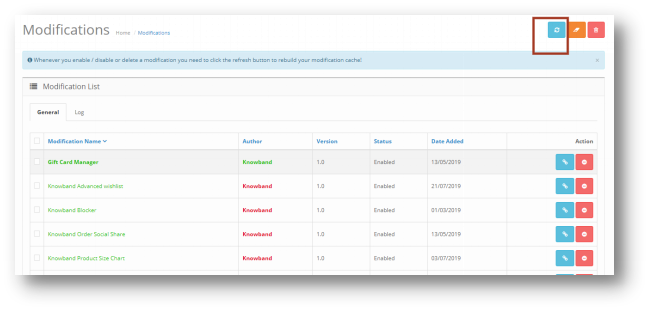
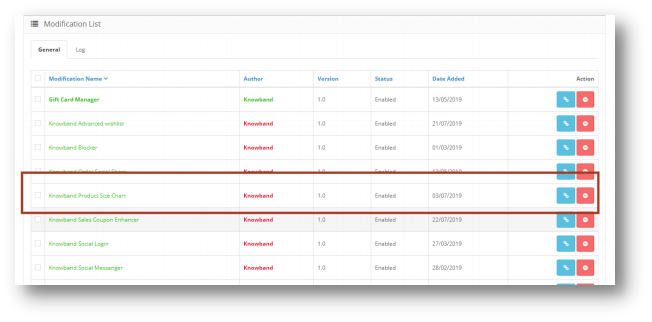
Step 4: After Installation you need to select this file and refresh Modifications:


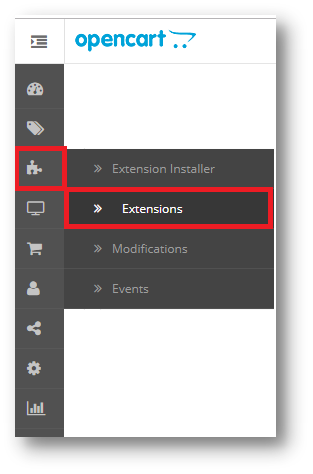
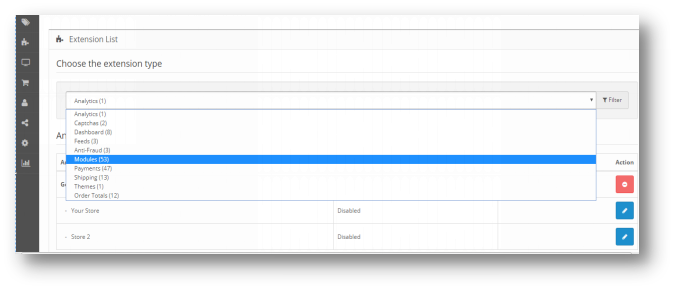
So, OpenCart Product size chart Extension plugin is now successfully installed and is ready to use at your store. Go to the admin menu and click on the extensions. Choose the Extension Type as Modules. You will find a list of modules. Select the OpenCart Product size chart Extension

3.0 Admin Interface of OpenCart Product size chart Module

To configure the Size guide module for OpenCart, Navigate the settings in the following order:

Admin Panel > Extensions >Modules>Knowband Product Size Chart


The Admin Interface of OpenCart size catalog Extensionis divided into 6 Tabs:

  • General Settings
  • Attribute Sets
  • Charts
  • Manufacturer Chart
  • Product Chart
  • Support

3.0.1 General Settings

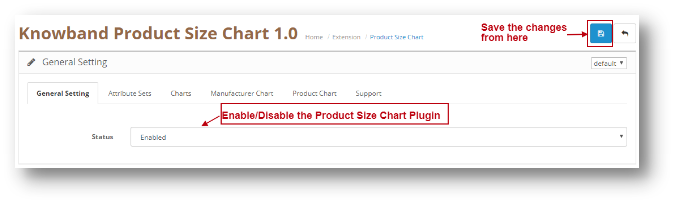
This setting will have an Option to enable/disable the plugin. The page will look like as shown below:

3.0.2 Attribute Sets

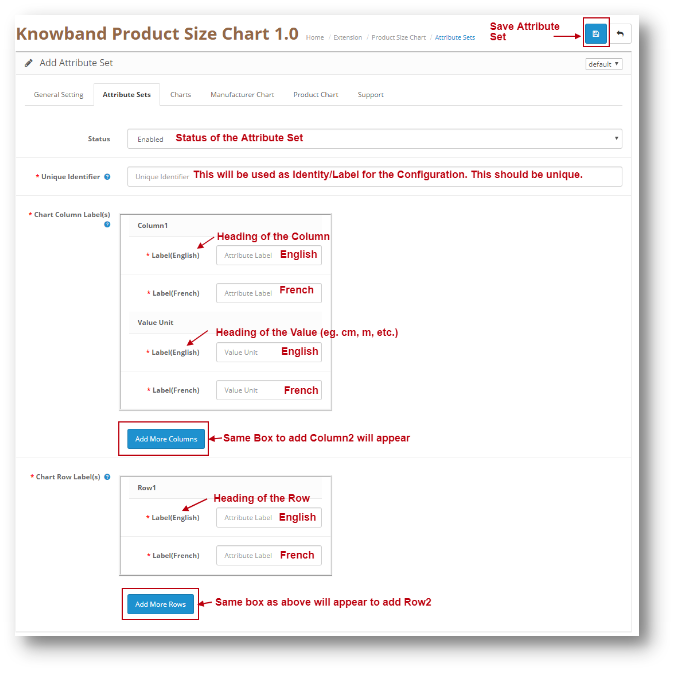
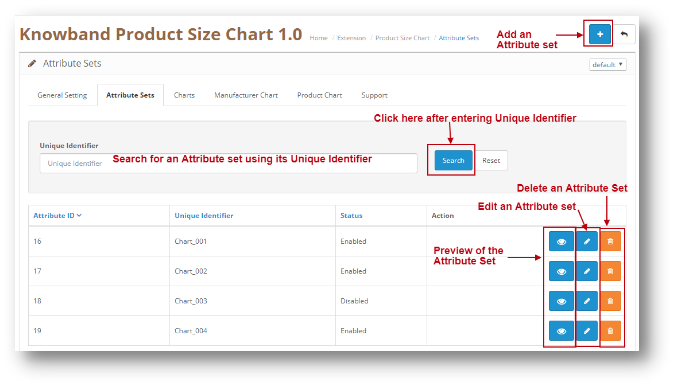
Through this setting of OpenCart Size chart table extension, you can add a New Attribute Set or make changes in the Existing Attribute Set’s Columns and Rows. The screen will look like as shown below:

  • Edit an Attribute set: You can Edit an existing Attribute set using the Edit option. The screens for Editing Attribute Set will be same as Adding an Attribute Set. The only difference will be that Edit will have the fields already filled.
  • Delete an Attribute Set: You can delete an Attribute Set by clicking on the ‘Trash’ Icon. A pop up will show up asking for the Confirmation. You can click yes and the Attribute will be deleted.
  • Add an Attribute Set: You can add an Attribute Set by Clicking on the option provided on the Top of the Page. The following screen will show up:

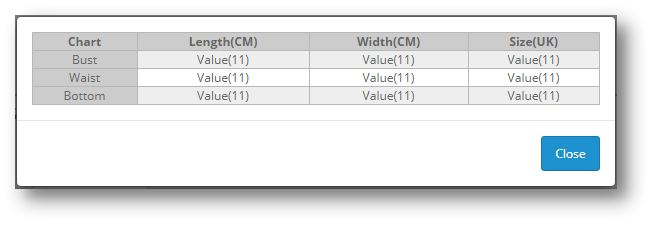
  • Preview of the Attribute Set: When clicking on the ‘Eye’ (Preview) Icon, the preview of the Attribute Set will be shown as a Pop Up. The Pop up will look like as shown below:

3.0.3 Charts

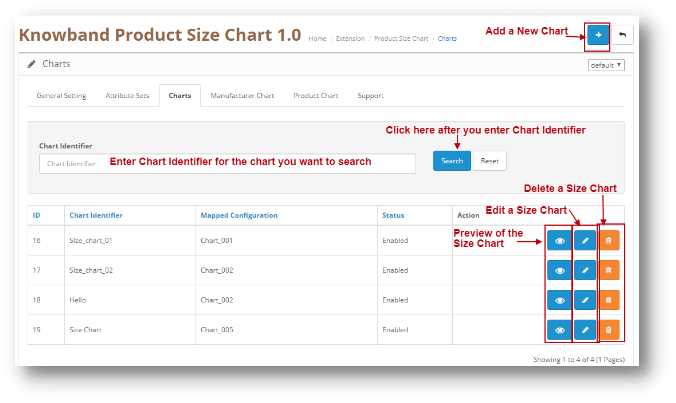
Through this setting of OpenCart Size chart table extension, you can add a New Size Chart or make changes in the Existing Size chart Columns and Rows Values. The screen will look like as shown below:

  • Edit a Chart: You can Edit an existing Chart using the Edit option. The screens for Editing Chart will be same as Adding a New Chart. The only difference will be that Edit will have the fields already filled.
  • Delete a Chart: You can delete a Chart by clicking on the ‘Trash’ Icon. A pop up will show up asking for the Confirmation. You can click yes and the Chart will be deleted.
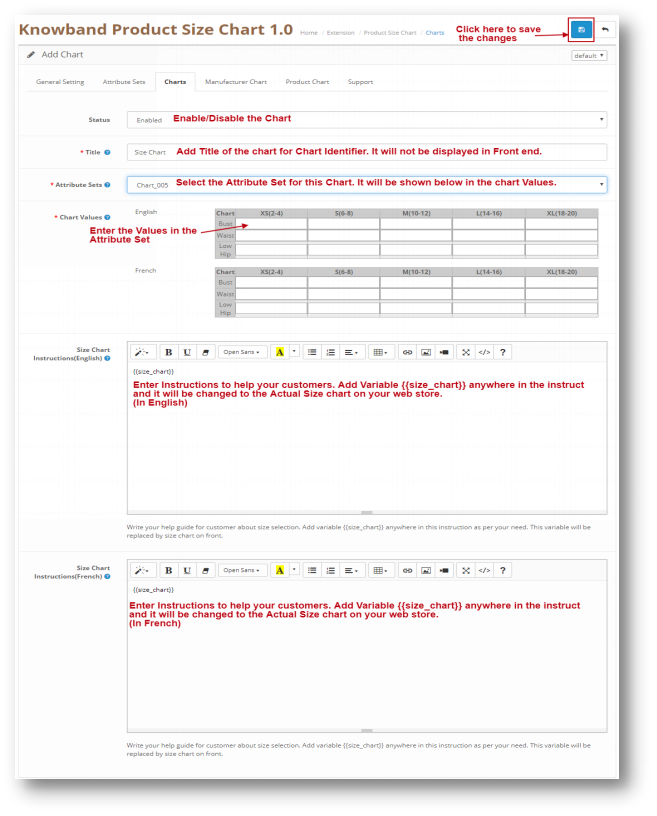
  • Add a Size Chart: You can add a Size Chart by Clicking on the option provided on the Top of the Page. The following screen will show up:

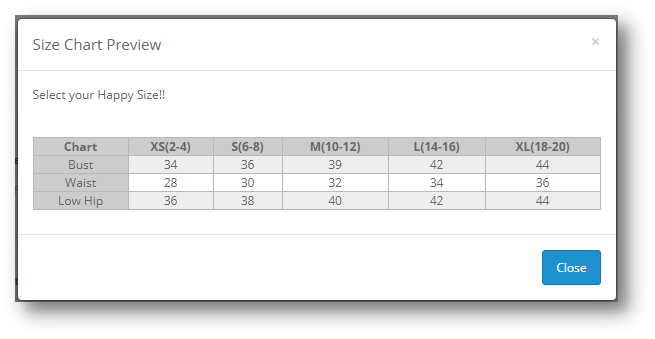
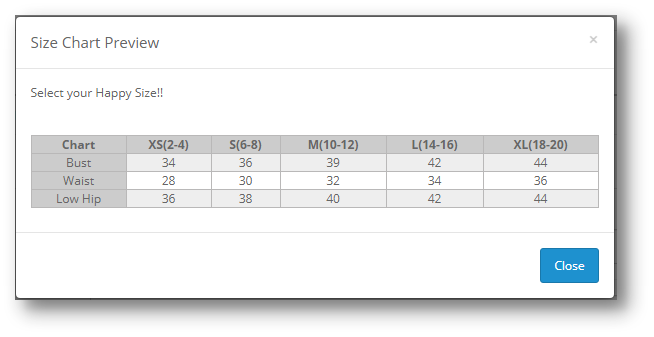
  • Preview of the Size Chart: When clicking on the ‘Eye’ (Preview) Icon, the preview of the Size Chart will be shown as a Pop Up. The Pop up will look like as shown below:

3.0.4 Manufacturer Chart

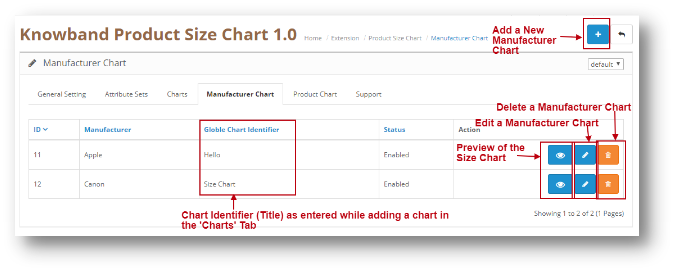
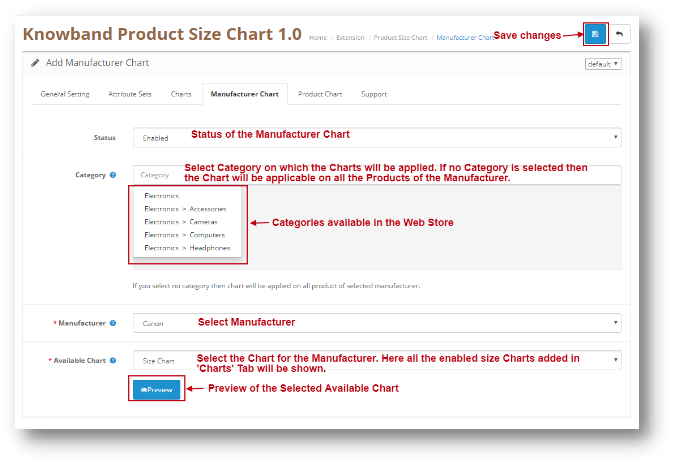
This setting of OpenCart Size chart table extension shows the charts which are mapped to different manufacturers. To add a new entry, the admin can click on the add icon appearing on the right side of the table. The Manufacturer Tab will look like as shown below:

  • Edit a Manufacturer Chart: You can Edit an existing ManufacturerChart using the Edit option. The screens for Editing ManufacturerChart will be same as Adding a New ManufacturerChart. The only difference will be that Edit will have the fields already filled.
  • Delete a Manufacturer Chart: You can delete a ManufacturerChart by clicking on the ‘Trash’ Icon. A pop up will show up asking for the Confirmation. You can click yes and the ManufacturerChart will be deleted.
  • Add a Manufacturer Chart: You can add a ManufacturerChart by Clicking on the option provided on the Top of the Page. The following screen will show up:


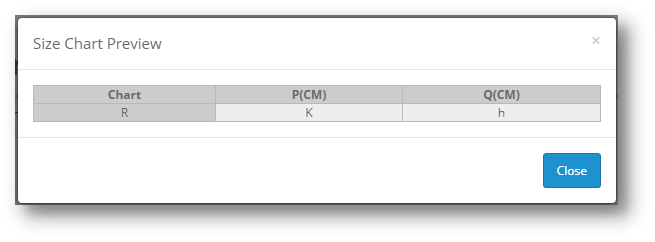
  • Preview of the Manufacturer Chart: When clicking on the ‘Eye’ (Preview) Icon, the preview of the Manufacturer Chart will be shown as a Pop Up. The Pop up will look like as shown below:

**Note – If a Product has a Manufacturer Chart mapped with them and the Store Admin also mapped a Product Chart with it, then the Product chart will be given highest Priority. Thus Product Chart mapped with the Product will be shown in the Web store to the User.

3.0.5 Product Chart

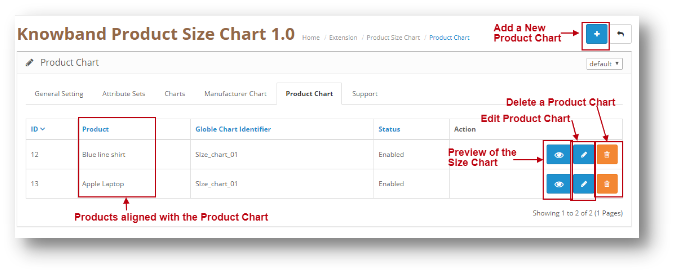
This setting of OpenCart Size chart table extension shows the charts which are mapped to different Products. To add a new entry, the admin can click on the add icon appearing on the right side of the table. The Product Chart Tab will look like as shown below:

  • Edit a Product Chart: You can Edit an existing ProductChart using the Edit option. The screens for Editing ProductChart will be same as Adding a New ProductChart. The only difference will be that Edit will have the fields already filled.
  • Delete a Product Chart: You can delete a ProductChart by clicking on the ‘Trash’ Icon. A pop up will show up asking for the Confirmation. You can click yes and the ProductChart will be deleted.
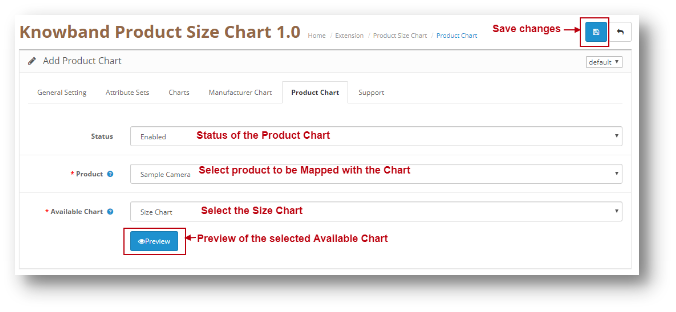
  • Add a Product Chart: You can add a ProductChart by Clicking on the option provided on the Top of the Page. The following screen will show up:

  • Preview of the Manufacturer Chart: When clicking on the ‘Eye’ (Preview) Icon, the preview of the ManufacturerChart will be shown as a Pop Up. The Pop up will look like as shown below:


**Note – If a Product has a Manufacturer Chart mapped with them and the Store Admin also mapped a Product Chart with it, then the Product chart will be given highest Priority. Thus Product Chart mapped with the Product will be shown in the Web store to the User.

3.0.6 Support

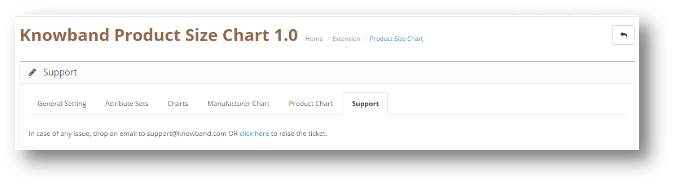
If you need any Support, then drop an email to support@knowband.com OR click here to raise the ticket.
4.0 User Interface of OpenCart Product size chart Module

The Product Page will look like as shown below:


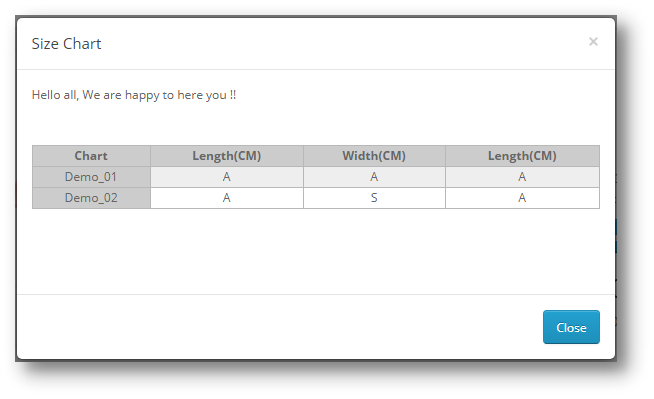
Once you click on the ‘View Size Chart’, the following pop up of the Size Chart will be shown to the User.