OpenCart is one of the easiest and most relevant platforms for building an eCommerce website. If you are looking for a platform with fewer coding and technical skills requirements, you will find OpenCart useful. Not only does OpenCart allow you to choose shop themes, but online sellers can also find the platform open for custom developments. Along with custom developments, the sellers can also take advantage of a vast variety of Extensions. Furthermore, the OpenCart Extensions offer the easiest and most ready-to-use solution for customizations.
A Quick Overview of Some of the Must-Have OpenCart Extensions
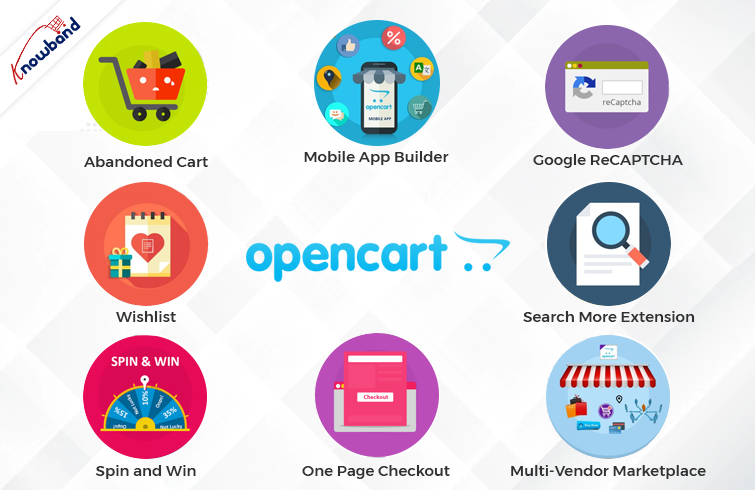
OpenCart Spin and Win
As a well-said quote indicates, the first impression that matters. The same thing applies to online shops. As soon as the customer visits the shop, he starts evaluating various aspects.
Thus, it becomes most important to offer a warm welcome to the visitors. To make things simple, Knowband provides Spin and Win OpenCart plugins for the seller. What the OpenCart Spin and Win Extension do, is show a gamified pop-up on the first screen of your store. Moreover, by entering their email addresses, online visitors can also win exciting offers and discounts. Further, the admins can set the gravity for prices from the backend of their Knowband OpenCart Spin and Win Plugin.
OpenCart Wishlist
A wishlist is a basic and must-have feature of every online business. The reason is that wishlists are quite helpful for narrowing down the favorite items and the same for later orders.
Likewise, Knowband offers the Wishlist Extension for OpenCart as a single-time payment option. If you are looking for an easy-to-use and configured OpenCart Wishlist Extension is the one.
OpenCart Abandoned Cart Notification
Usually, customers add their favorite products to the cart and somehow cancel their order. The term is called “cart abandonment.” Likewise, there are always huge chances of turning abandoned carts into real orders.
With the help of the Knowband OpenCart Abandoned Cart Notification Extension, the admins can send follow-up emails to the customers. Also, the admins can remind the buyers of their abandoned carts.
Thus, you are looking for quite-sounding OpenCart plugins for your shop. You should always put the OpenCart Follow-up Email Extension on your OpenCart Plugins list.
Mobile Apps for the OpenCart Store
Selling from a single platform is not enough in the competitive online business market. What the market demands is mobile apps while going online shopping.
Not only do mobile apps attract users for purchases, but they also play a huge marketing role through Push Notifications. Likewise, Android and iOS Mobile App Maker for OpenCart is a solution for creating Android and iOS mobile apps for your online store.
Moreover, the Mobile App Maker OpenCart Extension will allow OpenCart merchants to get their apps live within 2-3 business days. Hence, if you are looking for a special next-level plugin, the Knowband OpenCart Mobile App Builder is the easiest solution.
Google ReCAPTCHA
When starting an OpenCart business, security is one of the most important factors. Spamming and abuse are quite common these days for online e-commerce businesses.
Assuring security, Knowband Google ReCAPTCHA comes with a human verification system. Moreover, you can also choose the verification system before the customer passes the verification. Knowband ReCAPTCHA is the no-code easiest way to protect your store against spammers.
OpenCart Search More Extension
There are a large number of visitors who are not aware of the actual product names. But in the end, they visit your store with the strong intention of finding what they need.
At Knowband, we have designed an OpenCart Search Auto Suggest Extension for sellers. Moreover, having the Search Auto Suggest OpenCart Plugin on board will allow the visitors to see an auto suggestion. As well as related search results in no time.
Visitors can not only find their desired items by entering a few alphabets. But the Auto Search OpenCart Plugins present related products below the search bar on your OpenCart store.
OpenCart Multi-Vendor Marketplace Extension
Have you ever wondered what the reason behind the success of major marketplaces is? It’s the wide product categories. Online OpenCart sellers can also turn their single-seller store into a multi-vendor marketplace. Moreover, the OpenCart sellers can add an extra income source to their business. How? By generating commission from the sellers.
For example, the Knowband OpenCart Multi-Vendor Marketplace Extension allows store admins to get a per-sale commission. Moreover, they can define the desired commission rate from the listed sellers.
Along with per sales commission, the Multi-Seller Marketplace OpenCart Extension offers seller admin ticket management. With the OpenCart Marketplace Module, it is easy to handle all the seller queries at ease.
OpenCart One Page Check-Out:
The Tedious checkout process is one of the major reasons that stand for cart abandonment. Usually, customers find filling details in one after the other pages.
The providing the most simplified checkout process ever, Knowband has designed OpenCart One Page Checkout Plugin. With the help of the Knowband One Page Checkout Extension, online retailers can design a page where they can receive every single detail for orders.
Likewise, customers will not have to go through a long checkout process. Rather, they can find all the details box on a single page while visiting the OpenCart shop.
In the End,
With remarkable consistency, we are offering eCommerce plugins for the last 12 years. In this incredible journey, Knowband has achieved various tags and rewards. For instance, we earned OpenCart Super Hero Level Expertise, Hero Seller, and many more. We not only offer pre-tailored OpenCart modules but also always welcome any sort of custom development on your online site.
Furthermore, we are also available at our official email address, support@knowband.com. Feel free to connect for a quick discussion in case of any queries or suggestions.
No wonder we all spend a lot of time on online shopping. While looking at gadget usage, we are much more reliable on mobile apps as compared to desktop websites. All the marketplaces have mobile apps for users, be it Amazon, eBay, or ETSY. The apps we use to shop from Amazon or eBay are not native mobile apps, rather they have added extensions to their websites.
This is one of the cost-effective and reliable ways to create a marketplace mobile app. Adding a mobile app builder extension could help you build your marketplace mobile app effortlessly. KnowBand’s Advanced marketplace with a mobile app builder can help you create a marketplace application for platforms like PrestaShop, Opencart, and Magento. All your website data will be in real-time synchronization with the mobile app.
Introduction to a Marketplace
A marketplace involves three entities, the marketplace owner, sellers, and customers. When creating a marketplace for your brand or as your startup business, make sure you clearly understand the reliability of each of the three entities on the other two.
Without a customer base, sellers won’t come to your marketplace and with limited products and sellers, your marketplace will struggle for organic traffic. The Chicken and Egg Problem of the marketplace is not new! We have examined the pain points of the marketplace and curated this blog that you might like.
There are several key benefits of an online marketplace for all, admin, seller, and customers.
To earn profits, every marketplace follows different business models. This creates room for more revenue through different channels. You can either earn commissions from the sellers or take membership charges or sell products from your brand. A marketplace is a place for earning money while you sleep.
What is mobile marketplaces app?
Simply defined, mobile marketplaces are programs created exclusively for simple and convenient buying on a mobile device (e.g. smartphone or tablet). They should not be confused with independent retail apps. The independent retail apps are the native apps that are specially created for mobile devices but the marketplace mobile apps like Amazon are extensions of the marketplace website.
Why do we need a Marketplace Mobile App?
Only in the United States of America, e-commerce accounts for roughly 10% of retail sales, with that figure expected to climb by around 15% per year.
In the United States alone, retail e-commerce sales totaled 156 billion dollars in 2017. Furthermore, 82 percent of internet users in the United States said they’ve used their smartphones to make purchases.
Retail e-commerce sales worldwide reached 4.28 trillion dollars in 2020, with e-retail revenues expected to reach 5.4 trillion dollars in 2022.
A study suggests Amazon app users spent an average of 12.843 billion minutes per month in the app, compared to 2.352 billion minutes per month on the Amazon mobile site.
These days, the online market is at its pinnacle. Many entrepreneurs and retailers are considering developing their own marketplace app as the need for online marketplaces grows. It may be one reason that you are reading this article.
I’ll go through a few key points that will assist you in developing an online marketplace Mobile application.
Advanced Multi-vendor Marketplace Combo Pack
The Advanced Multi-vendor Marketplace includes the Mobile App for marketplace customers that give access toproducts and inventories of multiple sellers. It will be in real time-synch with the marketplace created by KnowBand’s Marketplace module.
Give Customers a Joyful Shopping Experience with Marketplace Mobile App.
Customers can now buy services and products online using their smartphones and shopping applications. You need a responsive mobile application for your marketplace as well. It’s not enough to have a website to stand out from the crowd.
Don’t be concerned! The Advanced Marketplace Module by KnowBand is a one-stop solution. With the advanced solution, you get the marketplace module and the mobile app for your customers. The mobile app plugin is simple to use, and KnowBand professionals will assist you in creating a tailored marketplace mobile app.
Save months that you spend on coding
App development might take anywhere from three to nine months, depending on the app’s complexity and the structure of your marketplace. You won’t have to wait any longer with this ready-made solution, because the app will be ready to launch in a couple of days.
Available for both iOS and Android
React Native was used to creating the app. As a result, it’s compatible with both iOS and Android, allowing you to reach a wide range of mobile customers.
Real-time synchronization
The eCommerce Mobile App inventory and the eCommerce website inventory are properly synchronized. The shop manager does not need to make any additional effort while using the Advance Marketplace Mobile App solution.
Marketplace Mobile App Features:
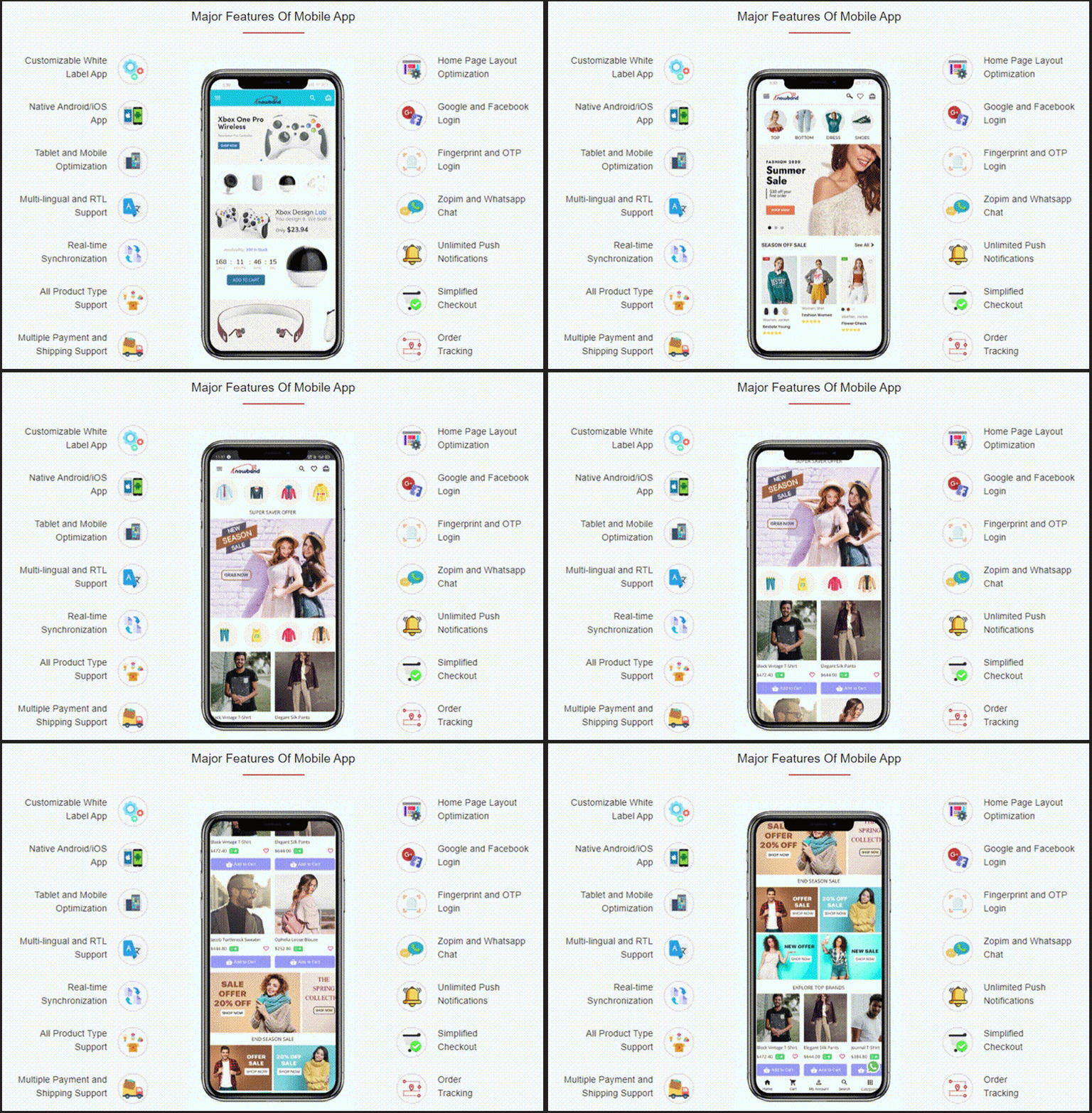
Whitelabel for branding
Your company’s name and logo will appear throughout the app. KnowBand’s logo will not be visible to your customers. It allows you to change the color and theme of the marketplace mobile application.
Customers get easy access to products
It is easy to find products with basic search and voice search options. Customers can locate a product in various categories from the left menu or the category button.
Layout Switching
The marketplace mobile app also allows customers to switch the layout of the product page. It offers complete freedom to sort and filter the search results.
Shop from sellers profile
It also provides easy access to seller profiles and their shop from the app. Customers can check out the individual merchant store.
Send Push Notifications
Push notifications are the best way to increase customer retention. However, sending messages keeps them informed and engaged with your app.
Support via live chat
The Zopim (Zendesk) and WhatsApp chat functionalities are supported by the Marketplace App Maker. This feature allows customers to communicate with the business administrator 24 hours a day, seven days a week.
Quick login and Checkout Process
It also assures secured payment and shipping. The Marketplace mobile app has several login choices like social media, email login, OTP verification login, or using the fingerprint sensor. Besides this, the app supports all the payment and shipping methods you have been using in your marketplace.
Cost-Effective Solution
The Marketplace module and mobile app builder advanced solution is available at a pocket-friendly cost when compared to the cost involved in making an app from scratch. Also, there are various discounts available on the KnowBand store.
Multi-vendor marketplace with a plethora of options
Let us understand the working of the marketplace module as it is the platform where the admin and seller will manage everything from inventories to shipping.
The Multivendor Marketplace’s Key Features:
Separate Admin Panel and Seller Dashboard
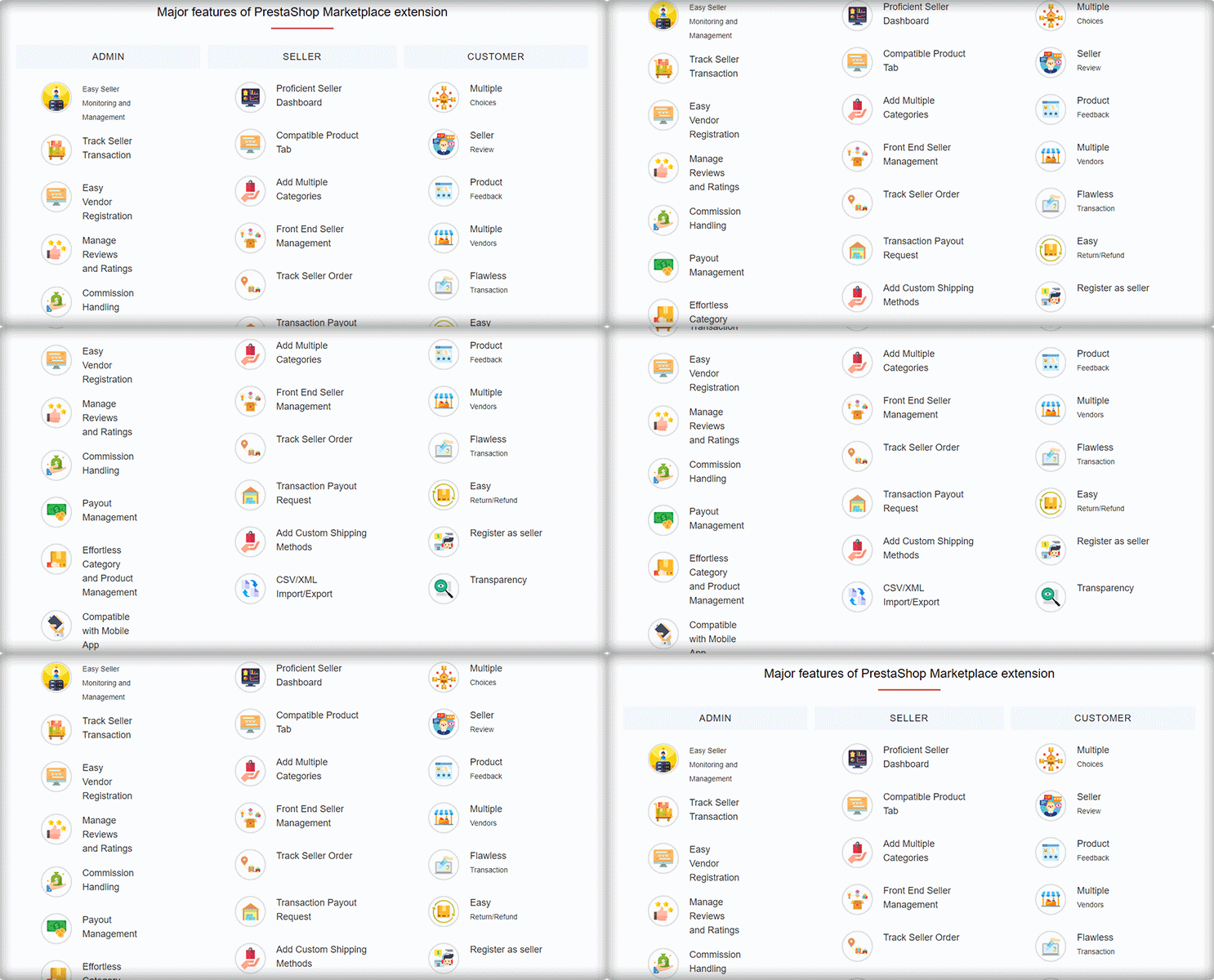
Managing a marketplace is a daunting task for the admin as well as for the sellers. The KnowBand’s Marketplace extension has a distinct admin panel and a functional seller dashboard is a part of various marketplace extensions (PrestaShop, Magento, and OpenCart).
The marketplace admin has complete control over the seller’s operations. Every step in the process, from seller registration to shipping, can be monitored by the store admin. As a result, the process will be transparent.
The UI of the marketplace admin panel is technically advance and makes the configuration process breeze.
Quick Seller Registration
Sellers can join the marketplace by registering on the website. Store administrators can set commission rates and allow vendors to request additional product listings with KnowBand’s Multivendor Marketplace.
Track seller’s activities
Along with this, the Marketplace module allows administrators to keep track of vendor information and records. The eCommerce retailer can even see the commission history of the vendor.
Easy Inventory Management-
For an eCommerce merchant, inventory management is a time-consuming process and difficult as well. The Multi-Vendor Marketplace makes inventory management and maintenance a breeze for store managers. It has a bulk upload feature for product listings.
Detailed Reports
Business Analysis is equally important. For better understanding, the admin of the marketplace can analyze the order reports, category request data, payout request data, seller’s orders, seller and product review sheet, etc. These data will help the store owner to plan out the marketplace marketing strategies.
There are thousands of features that the marketplace plugin offers. Click here to know more about the admin panel settings, benefits, and seller functionalities.
The Marketplace App in Action
Check out some live demos of the Marketplace Mobile App Builder which are developed using KnowBand’s Advanced Marketplace Combo Pack.
You can contact the KnowBand expert team at support@knowband.com for marketplace development or eCommerce website solutions. We’ve been assisting clients all over the world for the past 12 years and counting. Let us know what you need and we’ll take care of the rest.
The OpenCart-based eCommerce store owners can now create an online marketplace like Etsy and eBay with Knowband’s OpenCart Marketplace plugin. Further, just install the OpenCart Multi vendor Marketplace plugin in your store. Moreover, this will enable multi-seller functionality at your site. Third-party sellers can easily register and list their products on the site. The various aspects of the store management rest in the hands of the site admin. Thus, the seller’s profile, category request, products, and review approval happen from the back-end of the OpenCart Multi seller marketplace extension.
1.1 Admin Benefits of OpenCart Marketplace Extension
The various admin benefits of Knowband’s OpenCart Multi-vendor marketplace plugin are mentioned below:
The store admin can easily convert their single-vendor eCommerce site into a whole new and fully-functional marketplace with the help of Etsy clone for OpenCart.
The OpenCart Multi vendor Marketplace plugin supports all types of products including simple, configurable, and bundled.
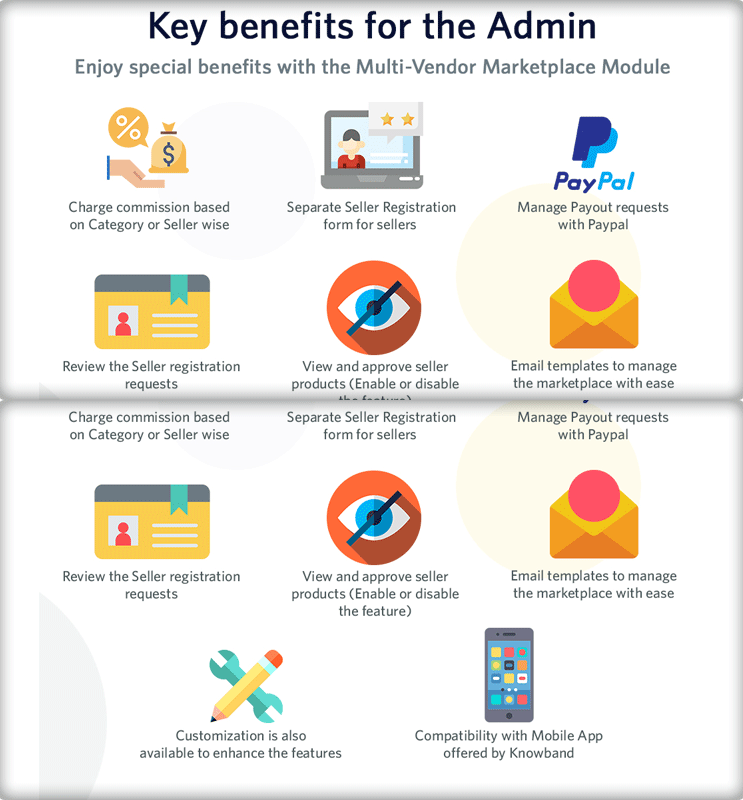
The OpenCart multi-seller marketplace plugin enables the admin to set the global as well as the category-based commission to be charged to the sellers.
The store owner can easily monitor the seller’s profile and products being posted at the site. They can easily approve/disapprove the seller’s profile from the admin interface of the OpenCart Multi-vendor Marketplace plugin.
The admin can even assign the categories to the sellers. Additionally, the vendors can send a category request to the admin. These requests are processed by the store admin from the back-end of the OpenCart Multi seller Marketplace extension.
The OpenCart Marketplace Module allows the store admin to enable/disable the review/rating option from the site. If enabled, the customers can give reviews for the products as well as the sellers.
OpenCart Multi-vendor Marketplace plugin offers custom shipping options. If this feature is enabled, the sellers can add their own shipping methods.
The OpenCart Marketplace Plugin offers easy tracking of sales report and overall transaction of the site.
The store admin gets 24 default email templates to keep the sellers notified about the various aspects.
1.2 Seller Benefits of OpenCart Multi-Vendor Marketplace Extension
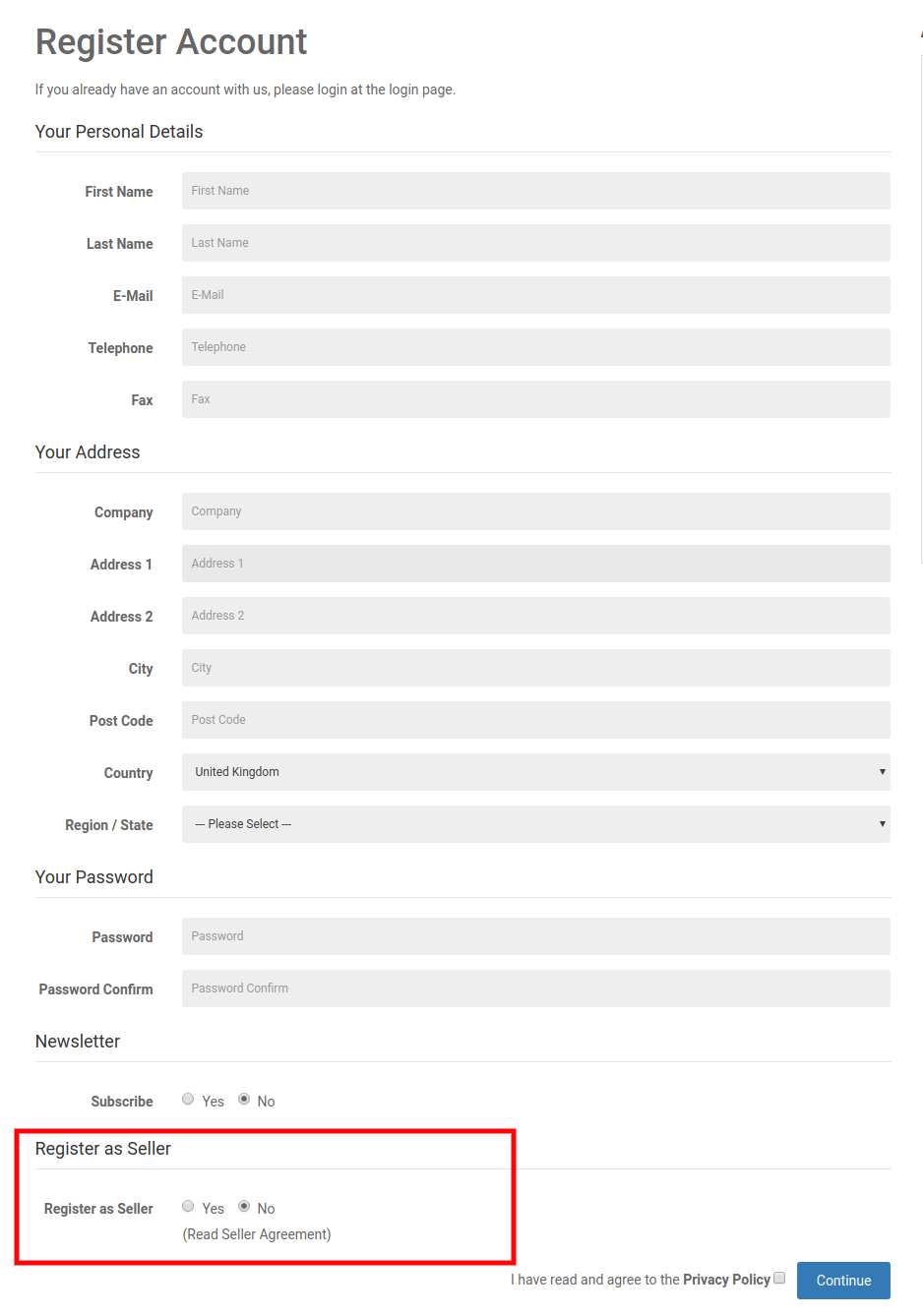
The third-party vendors can easily register as a seller at the site just by filling out a form.
Once the account approves, the sellers can list their products at the site from their dashboard.
The sellers can add banners, shop logos, and metadata from their dashboards. The vendors can easily make an SEO-friendly URL for their shop.
The sellers even get an option to track the overall transaction and sales report from the dashboard with ease.
The sellers get an option to add category requests. The admin can approve/disapprove their request from the back-end of the OpenCart Marketplace Extension.
If enabled from the admin panel of the OpenCart Multi seller Marketplace module, the sellers can even add their own shipping methods.
1.3 Customer Benefits of OpenCart Multi-seller Marketplace Extension
The store visitors can now choose the ideal products from a wider range of product options.
The online shoppers can view the seller’s profile on the products page. Further, only if the admin allows it.
The customers even get an option to give their reviews for the products as well as the seller.
Customers can easily contact the sellers of the product from the seller account page and raise a ticket for their queries and issues.
1.4 New Features in OpenCart Multi vendor Marketplace plugin:
Improved Admin UI: It has a dynamic and functional new admin UI for effortless management.
A new Seller Custom Form: A new custom field is available to the backend of the Multi vendor marketplace. It allows the admin to create a separate registration form for the sellers.
Now admin can allow sellers to display the seller and admin details on the invoice.
To choose the order status for which commission/earning will be calculated a field in the admin panel is now available. Previous earning was being calculated on all the order status i.e. Cancelled, Returned, etc.
Admin can decide order status options for sellers which they can use for the customer orders.
An option is now available in the admin panel to enable/ disable the sellers. All the products will be removed automatically from OpenCart Marketplace if a seller is disabled by the admin.
Admin assigns the products to the individual seller.
OpenCart Marketplace extension allows the admin to register any customer as a seller.
OpenCart Marketplace Product page and admin UI
2. Installation of OpenCart Marketplace Plugin
Purchase the OpenCart Multi-vendor Marketplace Module from the Knowband store. You’ll get the following files:
Zipped File containing the source code of the module
User Manual
Follow the steps mentioned below in order to install the open cart Multi vendor Marketplace plugin in your store:
Unzip the zipped file. The vqmod must be installed, otherwise, the plugin will not work. You’ll get the folders as shown in the image below:
Copy all the files and folders of the zip file in the Root Directory of the site.
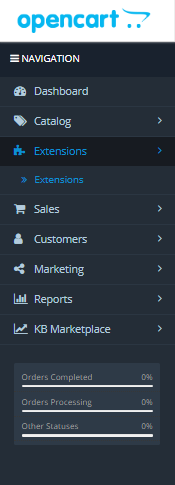
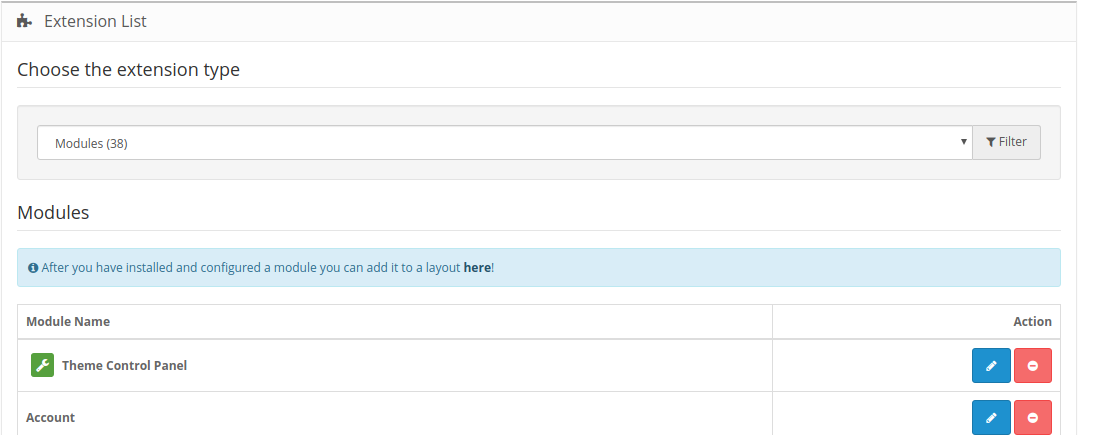
The admin can find the OpenCart Multi-Seller Marketplace extension at the path Admin Panel -> Extensions. Install the module by clicking on the ‘Install’ button corresponding to the module.
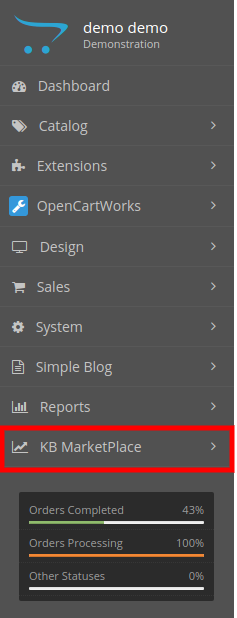
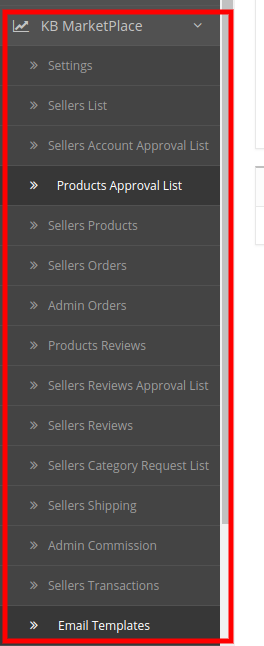
The OpenCart Marketplace plugin is now installed and is ready to use. Go to Admin -> Main Menu -> KB MarketPlace as shown in the image below:
3. Admin Panel
The OpenCart Multi-vendor Marketplace plugin offers multiple options for the configuration and management of the online marketplace.
After that, click on the edit option of the KnowBand Marketplace.
There are 6 main menus in the configuration settings:
3.1 Setting
3.2 Sellers
3.3 Products
3.4 Orders
3.5 Commissions
3.6 Support
All the six main menus are discussed below in detail:
3.1 Settings
The various fields of this menu of the OpenCart Multi-vendor Marketplace plugin are discussed below:
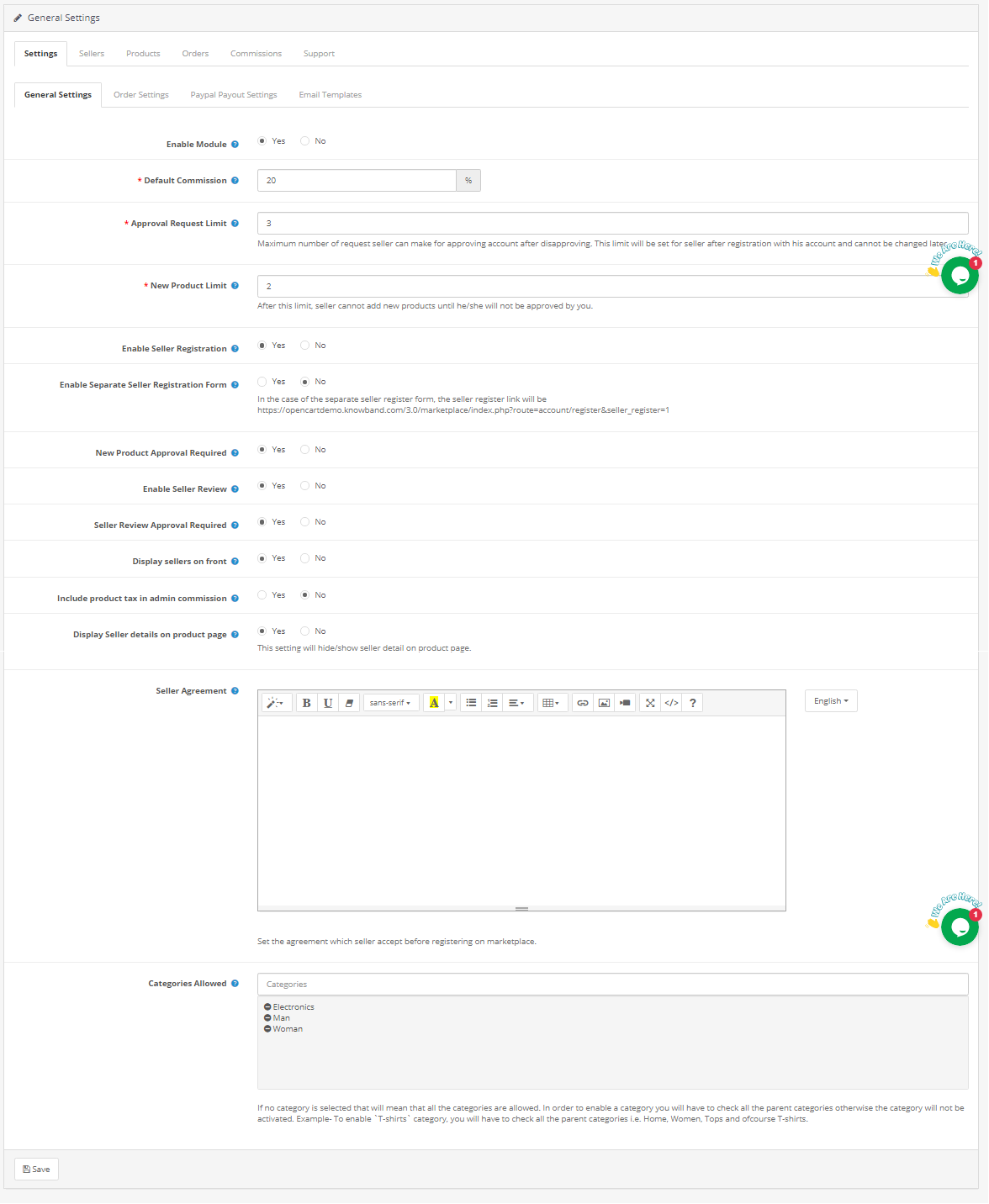
3.1.1 General settings
Enable Module: Toggle the button to “enable” the module on the website.
Default Commission: Set the commission to be charged to the sellers here. The percentage amount as specified by the admin here will be applicable to all the marketplace sellers by default.
Approval Request Limit: The store admin can approve/disapprove the seller’s account from the back-end of the OpenCart Multi vendor Marketplace plugin. The sellers can send a request for account approval. The admin can set the maximum number of requests that the seller can send in this section.
New Product Limit: Fix the maximum number of new products that a seller can list in the marketplace.
Enable Seller Registration: Select ‘yes’ in order to enable the third-party seller registration.
Enable Separate seller registration form: Select ‘yes’ in order to enable the separate seller registration form.
New Product Approval Required: If he selects ‘Yes’, then, the approval of the admin will be required to list the product at the site.
Enable Seller Review: Select ‘Yes’ if you want to enable the seller review option in the front-end.
Seller Review Approval Required: If this feature is enabled, then, the review will be posted in the front-end only after the approval of the store admin.
Display Sellers on the front: Enable to display the list of the sellers in the front-end of the website.
Include Product Tax in Admin Commission: If he selects ‘Yes ’, then, product tax will be included in the admin commission.
Display Seller Details on Product Page: Enable this option to display the seller’s details on the product page of the website.
Seller Agreement: Specify the terms and conditions for the sellers in this section. The agreement details as mentioned here display in the front-end of OpenCart Multi-seller Marketplace.
Categories that the admin allows: The admin can select the category that they want to assign to the sellers in this section.
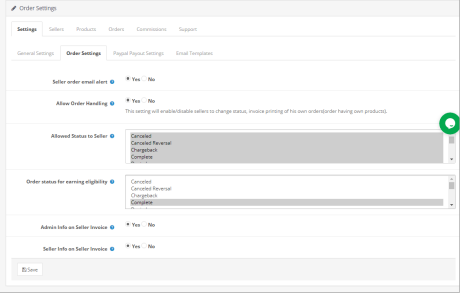
3.1.2 Order Settings:
Seller order email alert: If he selects ‘Yes’, then, an automated email will be sent to the vendors every time the order of their product is received.
Allow Order Handling: If he selects ‘Yes’, then, the sellers can handle the orders received on their products. They can process the orders and change the order status.
Allowed Status to Seller: Order statuses that are okay for sellers to update the order. It includes Cancelled, Cancelled Reversal, Chargeback, Complete, denied, processing, failed, expired, etc.
Order Status for Earning Eligibility: Order status assigned to the sellers only for which they will receive the Payouts or they will get the earnings only for the assigned order status such as complete, shipped, voided, etc. Admin can choose from the options mentioned in dropbox.
Admin Info on seller invoice: Select yes or no for sending a system-generated email to the seller on the new order.
Seller Info on seller invoice: Select yes or no for sending a system-generated email to the seller on the new order.
3.1.3 PayPal Payout Settings
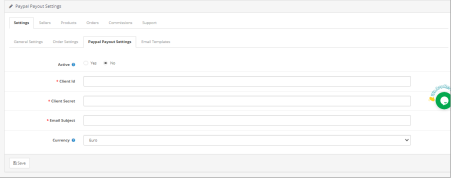
Opencart Multi-Vendor Marketplace plugin offers admin access to set the PayPal Payout Settings from the backend of the store. Admin needs to activate the setting and fill the Client ID, Client Secret key, Paypal Email Subject, and Paypal Currency in the backend of the store.
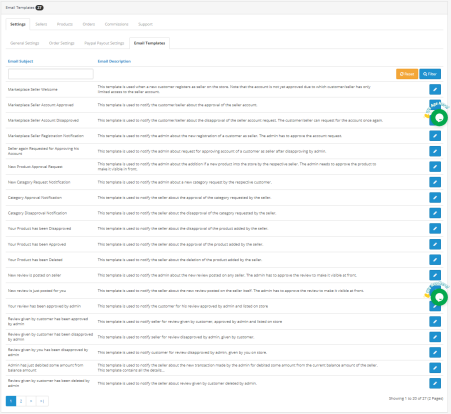
3.1.4 Email Templates
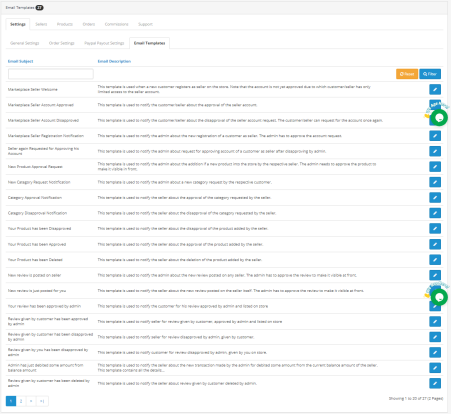
The OpenCart Multi seller marketplace plugin offers 24 pre-designed email templates for various scenarios. The store admin can even edit the templates if required by clicking on the Edit button.
3.2 Sellers
3.2.1 Sellers Setting
This page of the OpenCart Multi-vendor Marketplace extension has a list of all the sellers that the store owner approves. The admin can view the list of the sellers whose accounts he approves from the Seller Account Approval List tab of the OpenCart Multi seller Marketplace extension.
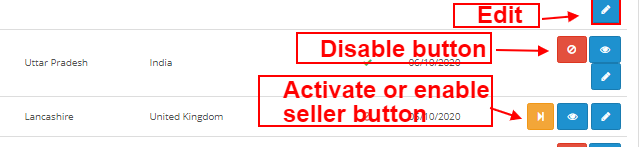
Admin can enable/disable the seller from the buttons shown below.
How to Edit Seller’s Account?
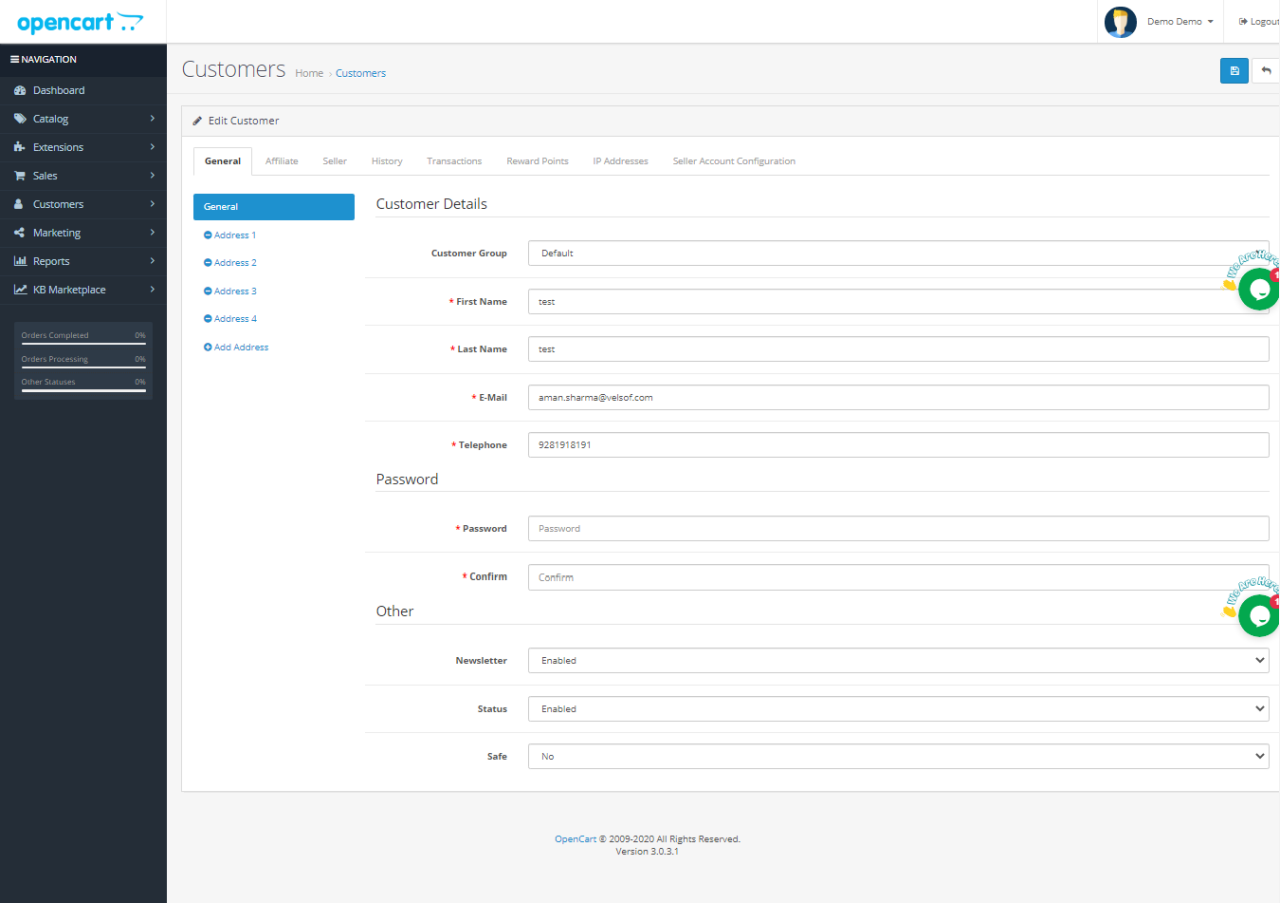
The admin can even edit the profile of the vendors from the back-end of the OpenCart Multi vendor Marketplace plugin. In order to edit the same, click on the Edit button. This will redirect you to an interface of the OpenCart multi-seller marketplace extension where you can make the required changes.
3.2.1.1 General
Customer Detail: Admin can edit all the basic details of sellers on the Customers Setting Page. This includes Customer group, Name, email address, contact information, etc.
Password: Admin can set the password for the seller.
Other: It includes more settings for Newsletter subscription, Enable/Disable the seller, and categorizing the seller as safe.
Multiple Addresses: the OpenCart Multi-Vendor Marketplace allows the admin to add one or more addresses to the seller’s account.
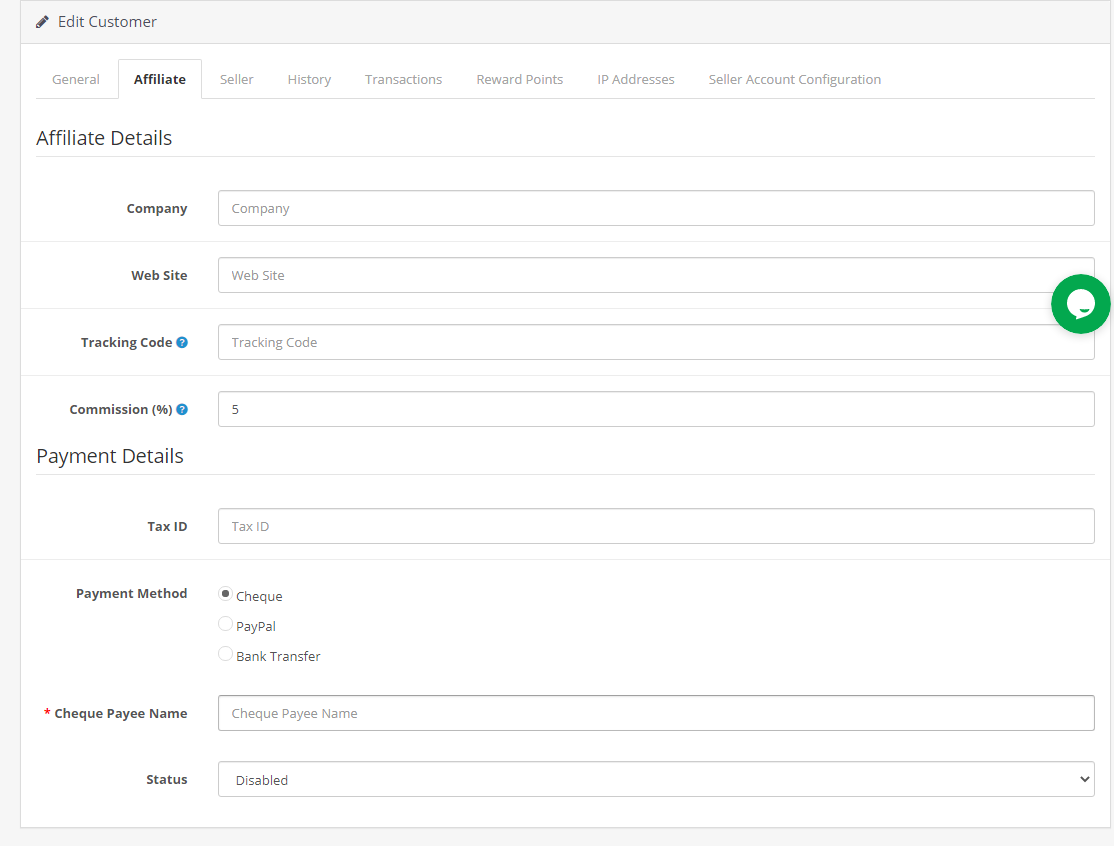
3.2.1.2 Affiliate
Admin can add affiliate Details in the Affiliate setting.
Affiliate Details: All the information such as Company Name, Website, Tracking code, Commission Percentage.
Payment Details: The admin can add or select the tax ID and Payment Methods. In fact, the payment methods that are indexed in the extension are Cheque, PayPal, and bank transfer.
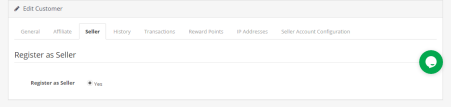
3.2.1.3 Seller
Admin can register the company as a seller by selecting the Yes button.
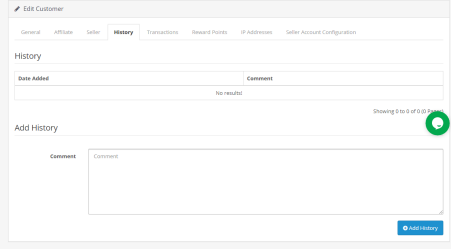
3.2.1.4 History
History: Seller history and comments will display here.
Add History: Admin can add comments for the seller in the History section which will display on History Table.
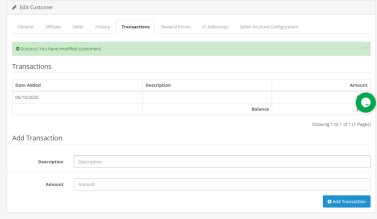
3.2.1.5 Transaction
Transactions: All the transactions will be shown here for the particular seller.
Add Transaction: The store owner even gets an option to add a transaction by clicking on the ‘Add New Transaction’.
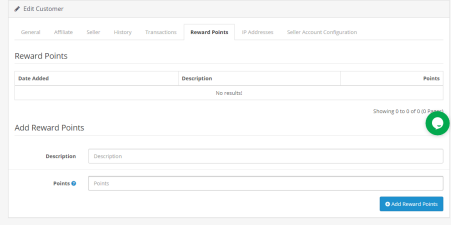
3.2.1.6 Reward Points
If the admin wants to reward the seller then he/she can add the reward description and points in this section of the Sellers setting.
Reward Points: A table showing all the reward points given to the seller by the admin will display here.
Add Reward Points: Admin can add new reward points by clicking on the ‘Add Reward Points’ button.
The window will display as shown below:
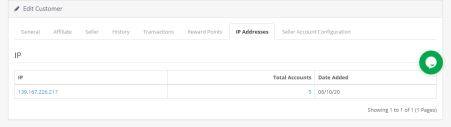
3.2.1.7 IP Address
The IP address of the seller and the number of accounts registered will display here.
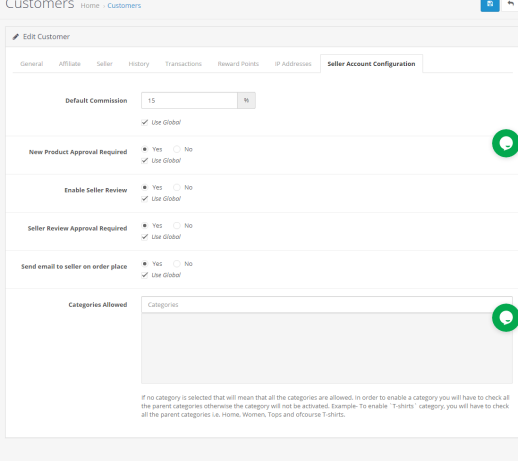
3.2.1.8 Seller Account configuration
OpenCart Multi-vendor Marketplace extension allows admin to set the commission amount for individual sellers.
Default commission: Admin can add the commission details in the Seller Account Configuration setting.
New Product Approval required: Select Yes if the admin wants to approve the new product and select no otherwise.
Enable Seller Review: Yes/No buttons are given to enable/disable seller reviews.
Seller Review Approval Required: If this feature is enabled, then, the review will be posted in the front-end only after the approval of the store admin.
Send email to seller on order place: If enabled then an auto-trigger mail will be sent to admin with the default email template.
Categories that the admin allows: Admin can assign categories to the seller. Sellers can only sell products from the allotted categories.
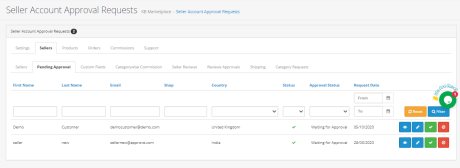
3.2.2 Pending Approval
The third-party vendors can fill up the form in order to create a seller account at the site. The seller’s profile will list in this tab of the OpenCart Multi-vendor Marketplace Plugin for approval as shown in the image below:
How to Approve/Disapprove the Seller’s Account?
The admin can approve the seller’s account at a button click from the back-end of the OpenCart Marketplace module.
Just click on the approve or disapprove button corresponding to each seller account. On clicking on the Approve button, a pop-up will display asking for permission to approve or disapprove the seller account.
Once the seller’s profile approves, the same will list in the ‘Seller List’ tab of the OpenCart Multi-vendor Marketplace module.
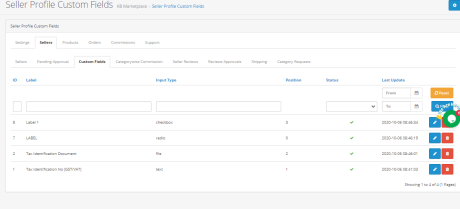
3.2.3 Custom Fields
(New)Admin can add a custom field for seller profile. This setting allows the admin to add one or more fields on the seller page to collect extra information from the seller.
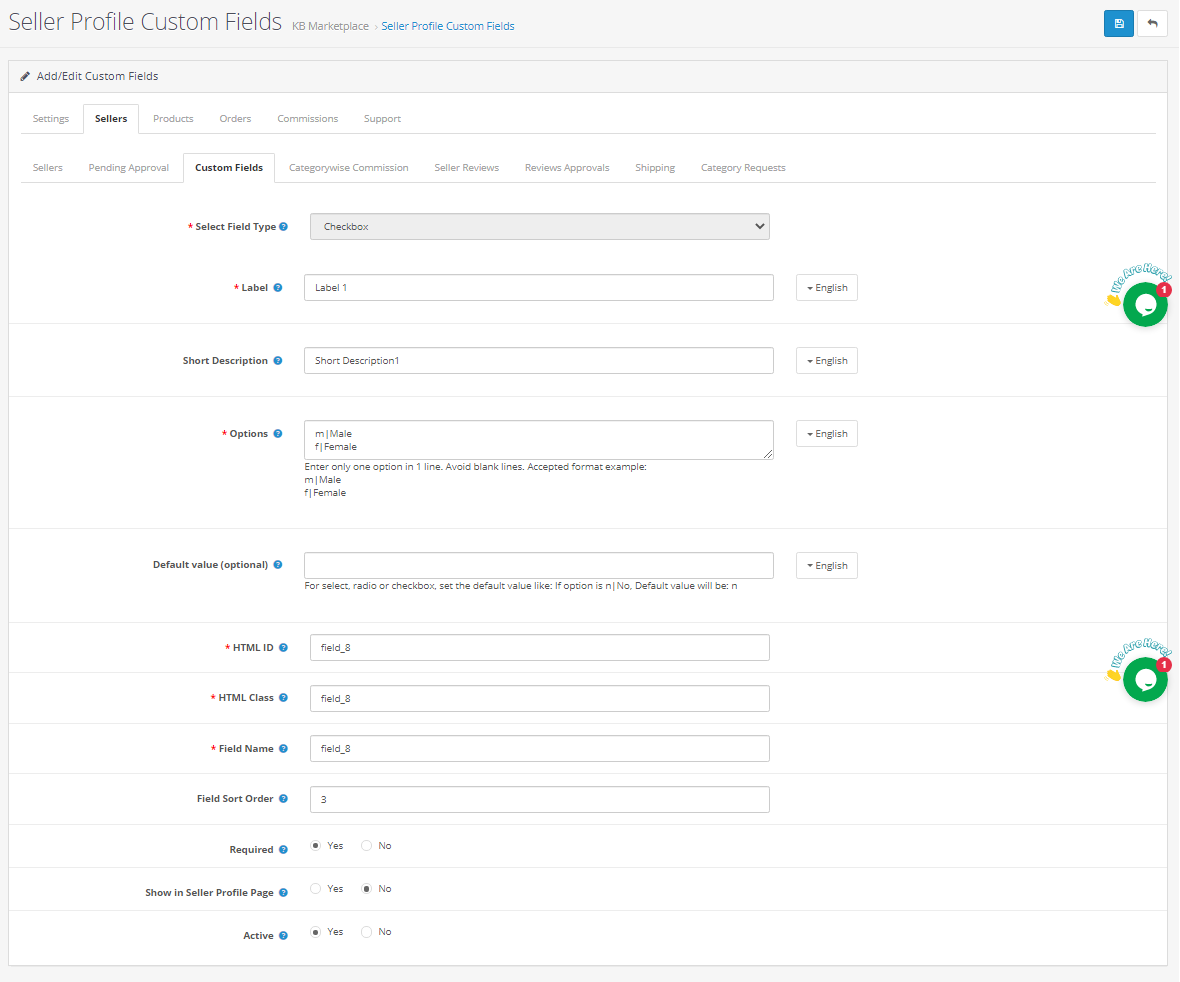
Click on the edit button for adding or updating the custom fields. On clicking the ‘edit button’, the following window will appear:
Select Field Type: Select the field type as a checkbox
Label: Add the field name which will display on the front end of the seller dashboard.
Short Description: Add the short description for the field
Options: Add the options for the field like Male, female, or Yes, No as the accepted format mentioned in the field.
HTML Details: Add HTML ID and HTML class here.
Add New Field Details: like field name, field sort order etc.
Required: Set the field as optional or mandatory
Show in seller profile page: Select Yes if the field is to display on Seller Profile Page otherwise select no.
Active: Activate or deactivate the field by selecting yes or no options.
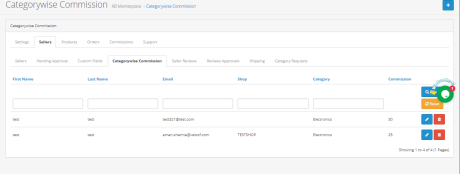
3.2.4 Category wise commission
With the Opencart Multi-Seller Marketplace plugin, the store admin gets access to set the commission category-wise. Admin can easily view the total earning, total commission for a particular category in Category Wise Commission. Category wise commission for the particular seller will display here as shown below:
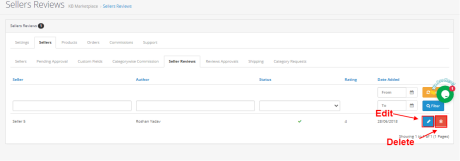
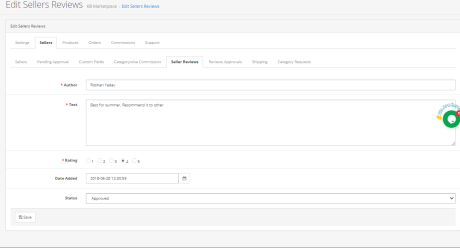
3.2.5 Seller Review
Admin can see the seller reviews and edit them from the backend if required.
The admin can add the author details, Text, update ratings, change the date of the review.
Admin can approve or disapprove the review from the status field.
3.2.6 Reviews Approval
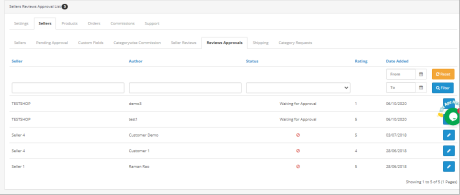
The list of approved and disapproved seller reviews will display here. If the admin click on the edit button then he will be directed to a new page.
Store Admin can add the author details, Text, update ratings, change the date of the review.
Status: Admin can approve or disapprove the review.
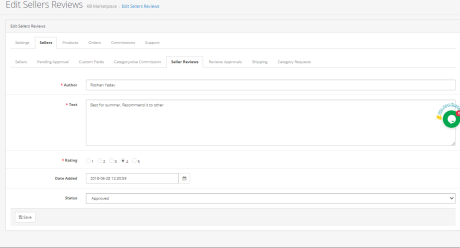
The various fields of this interface are discussed below:
Author: The name of the reviewer will be shown here. The admin can change the name if required.
Text: The review entered by the customer will be shown here. The store owner can edit the review if required.
Rating: This section will by default show the rating given by the customer. The admin can even change the rating.
Review Date is available: The date when the review is available will display here.
Status: Enable or disable the review from here. If the admin enables it, the review will display on the product page.
3.2.7 Shipping
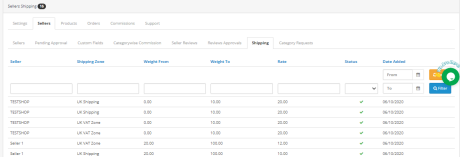
Seller’s shipping information can be reviewed by the admin from the backend of the OpenCart Multi-vendor Marketplace. The OpenCart Multi-seller Marketplace extension comes with custom shipping options wherein the sellers can add their own shipping methods. If this feature is enabled by the store admin from the Settings Tab of the OpenCart Multi-vendor Marketplace module, then, the sellers can add their shipping methods.
The shipping templates available by the sellers will list in the Sellers Shipping tab of the OpenCart Multi vendor Marketplace plugin. All the orders shipping details like shipping zone, weight, Rate, and status will display on this page as shown below:
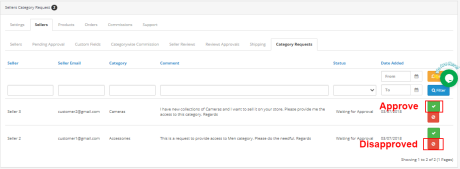
3.2.8 Category Requests
The admin assigns the category to the third-party seller for listing the products. The sellers can even request the admin to add a new category from their Dashboard. The category requests sent by the sellers will list in the Seller Category Request tab of the OpenCart Multi-Vendor Marketplace extension as shown in the image below:
3.3 Products
3.3.1 Seller Products
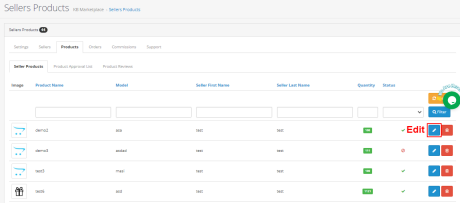
The admin approves the products from the back-end of the OpenCart Multi-vendor Marketplace extension. Further, they will list in the Sellers Products tab.
OpenCart Multi vendor Marketplace plugin- Sellers products
3.5.1 How to edit/remove the details of the products?
The store owner can edit or delete the product details of the sellers if required. Click on the ‘Edit’ or ‘Delete’ button respectively.
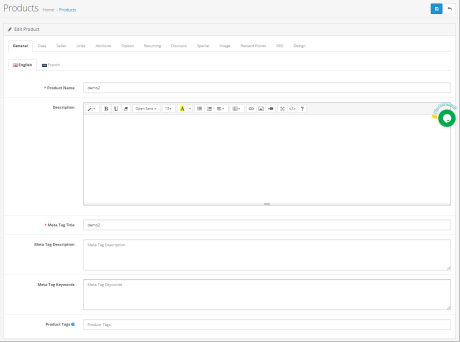
3.3.1.1 General
Add a general product description in the General setting tab of the product.
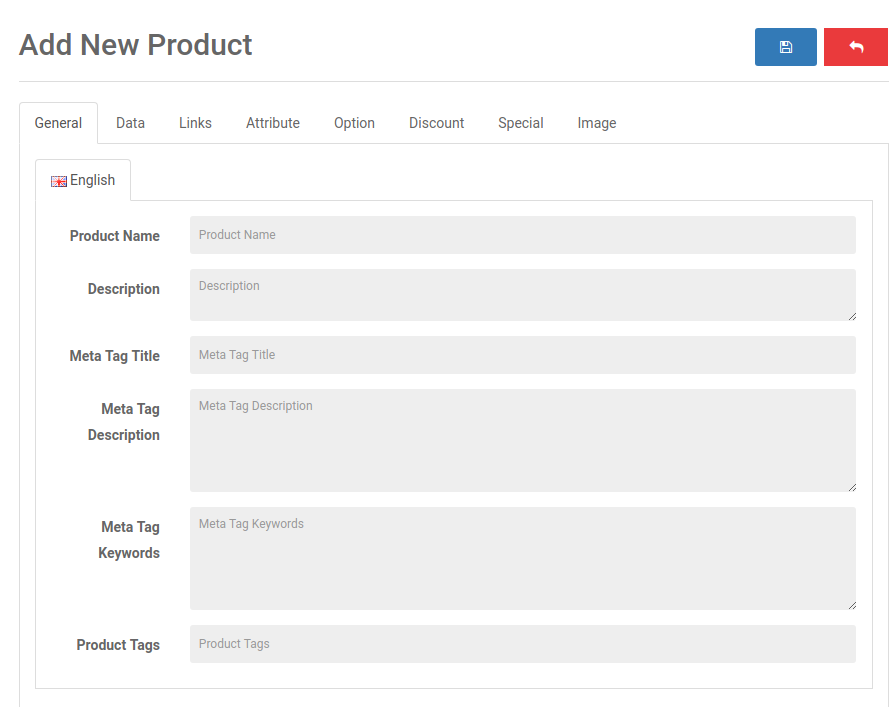
Product Name: Add product Name in this field.
Product Description: Add the product description in the description field.
Meta Tag Title: Enter the Meta tag here.
Listing Meta Description: Enter the Meta description of the website here.
Meta tag Keywords: Enter the meta keywords in this section. Enter the tags and separate them with comma.
Product Tags: Add all the product tags here.
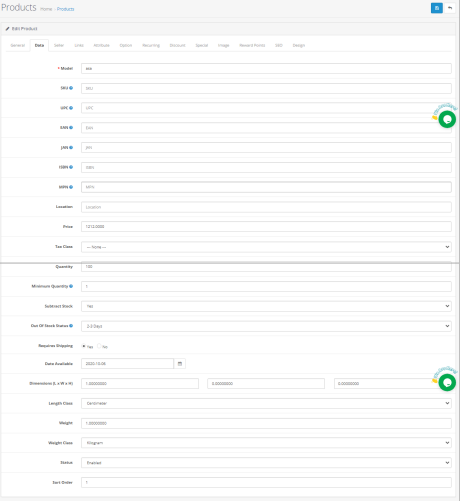
3.3.1.2 Data
In the data section of Product description, the admin have to fill the details like Model, Product codes like SKU, UPC, EAN number, JAN, ISBN and MPN, Location details, Product price, Tax class, Quantity, Minimum quantity, Stock status, Shopping charges requirements, dimensions, weight etc.
3.3.1.3 Seller
Select the seller from the given seller’s list.
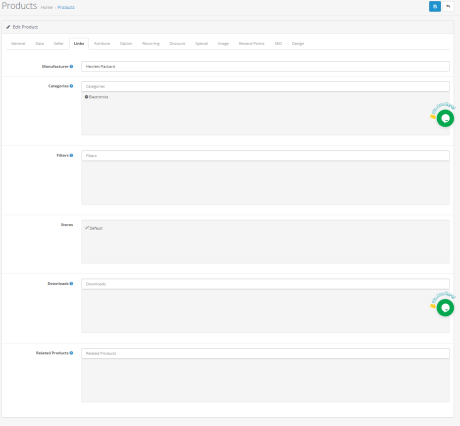
3.3.1.4 Links
Add details like manufacturers, categories, filters, stores, related product, etc.
3.3.1.5 Attributes
Admin can add product attributes in English and French.
3.3.1.6 Option
If required then a product option will be available from this section.
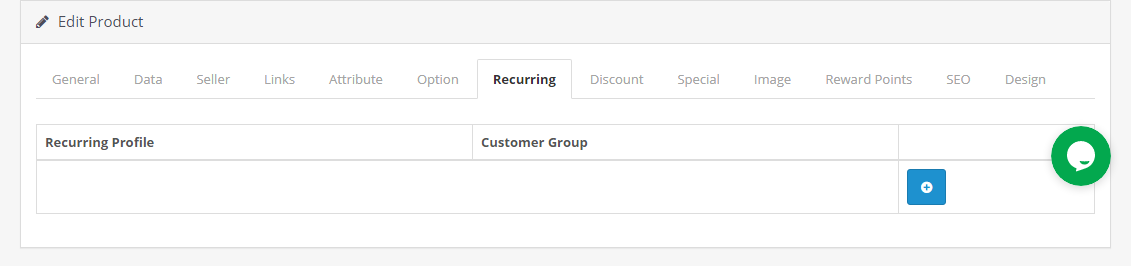
3.3.1.7 Recurring
From this section, addition of recurring profiles will happen.
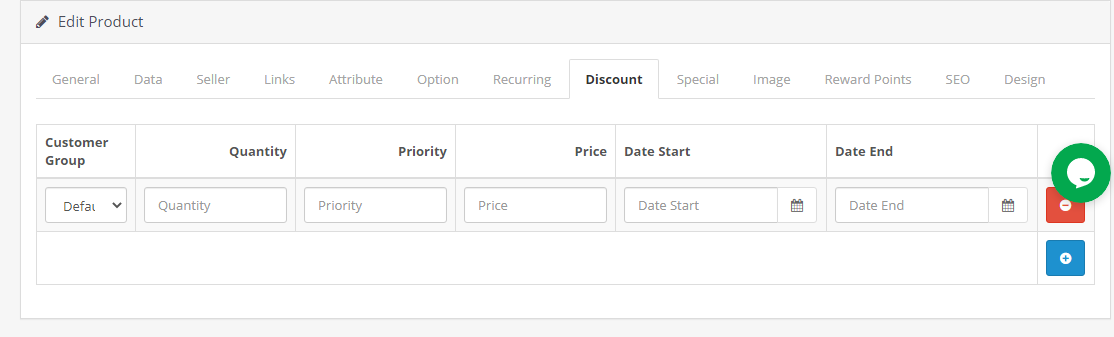
3.3.1.8 Discount
The discount details on the particular product will display here.
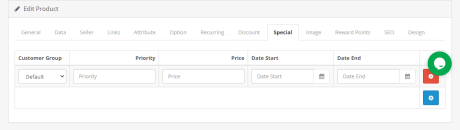
3.3.1.9 Special
Admin can set the product on priority for a period by adding start date and end date.
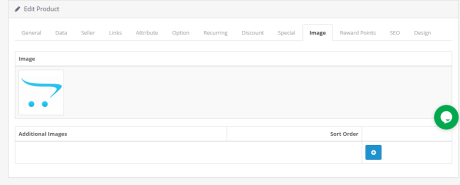
3.3.1.10 Image
Upload the Image of the product here. Addition of one or more images can happen with order to display.
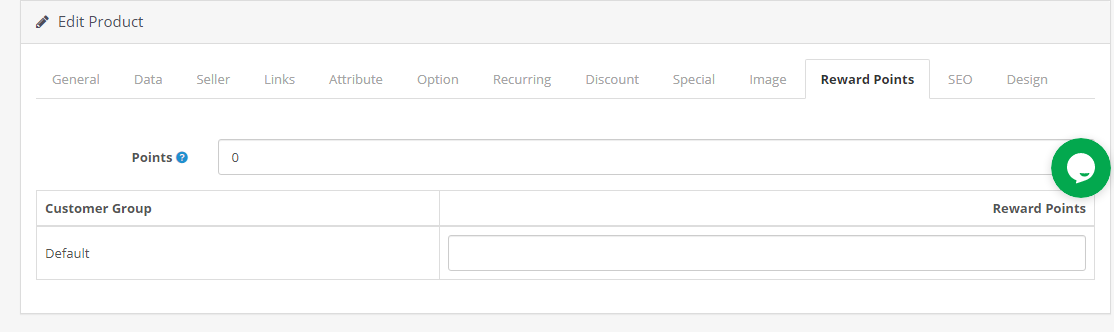
3.3.1.11 Reward Points
Admin can add a minimum number of points needed to buy this product.
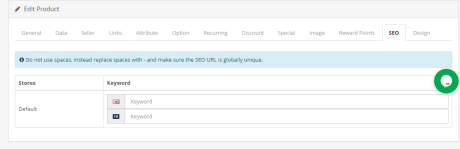
3.3.1.12 SEO
Add SEO for the product here.
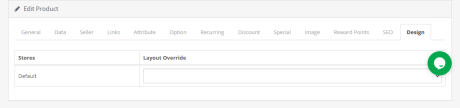
3.3.1.13 Design
From this design section, sellers can choose the layout design.
3.3.2 Product Approval List
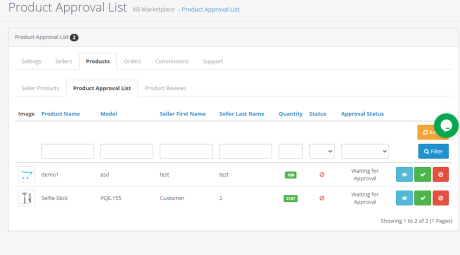
The third-party vendors can list their product from the dashboard of their profile. The products put in from the dashboard list in this tab of the OpenCart Multi-vendor marketplace module for approval. Admin approval is required only if this feature is enabled. The store admin can, then, approve or disapprove the product at a button click.
The products put in by the sellers will list in the Product Approval List tab of the OpenCart Multi seller Marketplace module as shown in the image below:
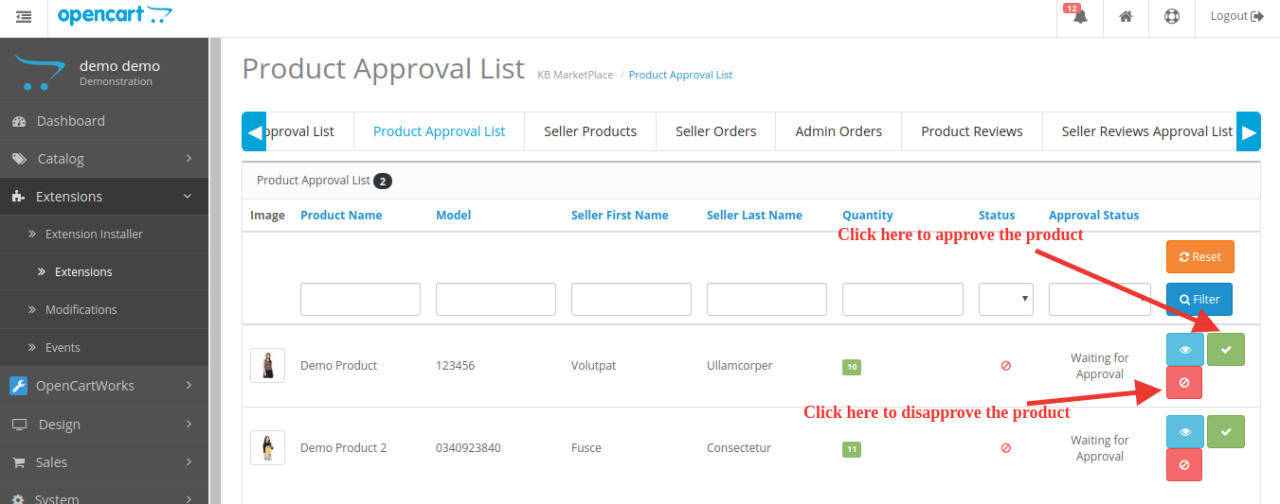
The admin can approve or disapprove of the products by clicking on the respective button corresponding to each product. Refer to the image below:
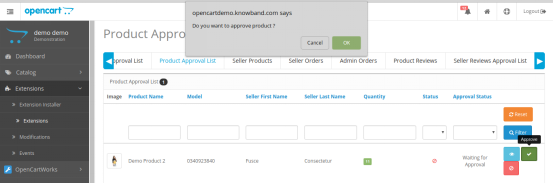
Once the Approve or Disapprove button is clicked, a pop-up will display with the message “Do you want to approve product?”
3.3.3 Product Reviews
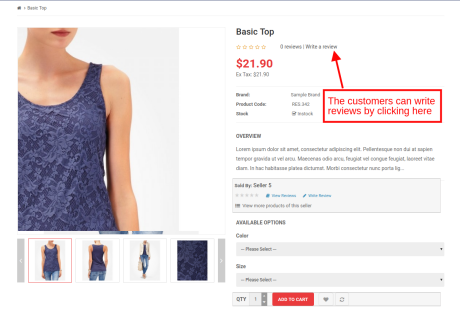
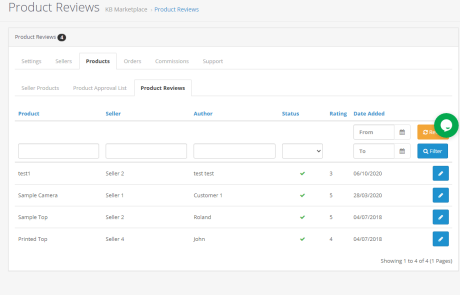
The customers can give ratings and write reviews for the products if this feature is enabled from the back-end of the OpenCart marketplace plugin. If enabled, the customers can leave their reviews by clicking on ‘Write a Review’.
The reviews written in the front-end will list in the back-end of the OpenCart Multi-vendor Marketplace plugin as shown in the image below:
Click on the ‘Edit’ button to edit or approve the product reviews. This will redirect you to the review edition page of the OpenCart Multi-vendor Marketplace module.
3.4 Orders
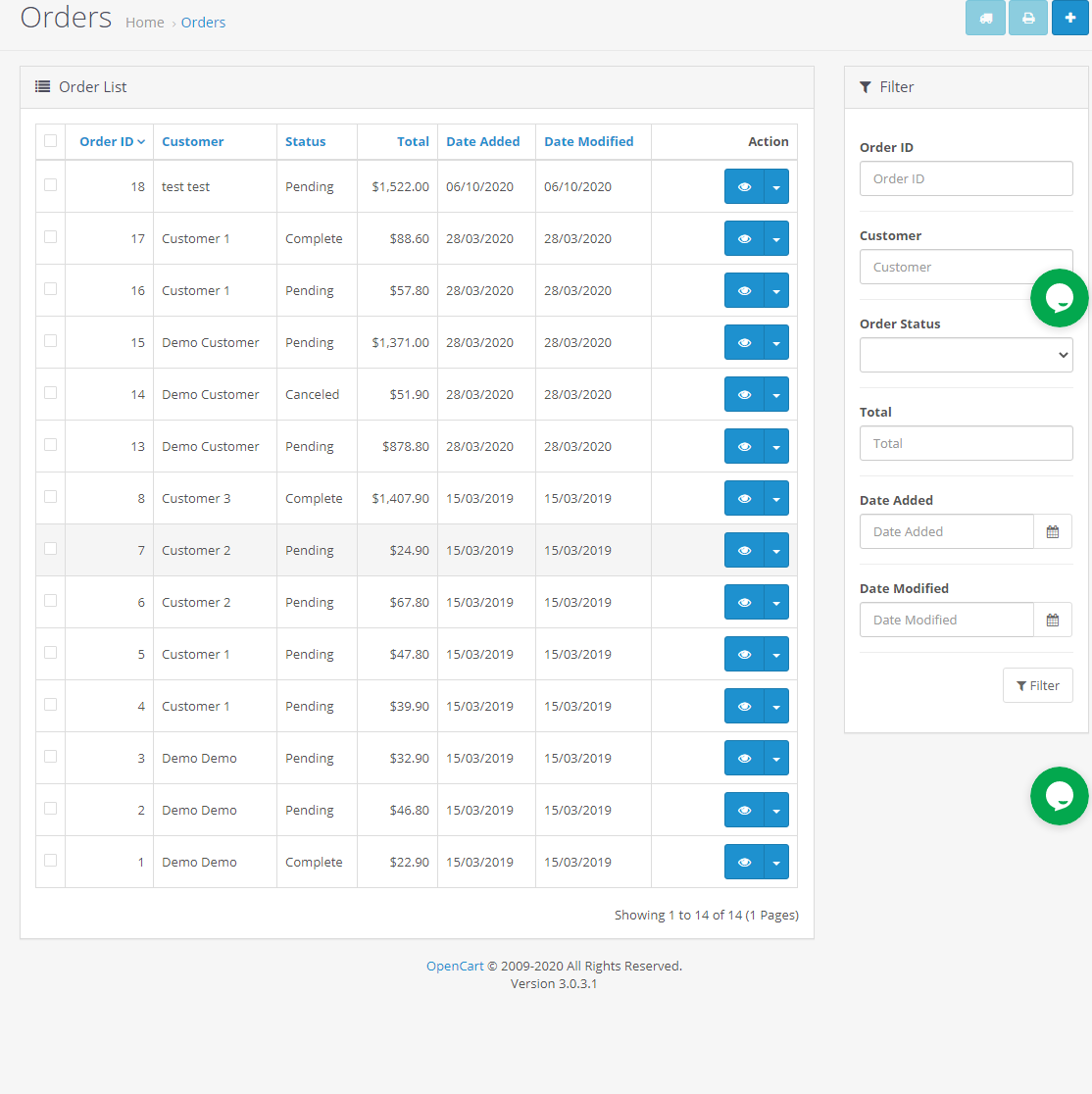
OpenCart store admin can view the list of all the orders here.
3.4.1 Seller Orders
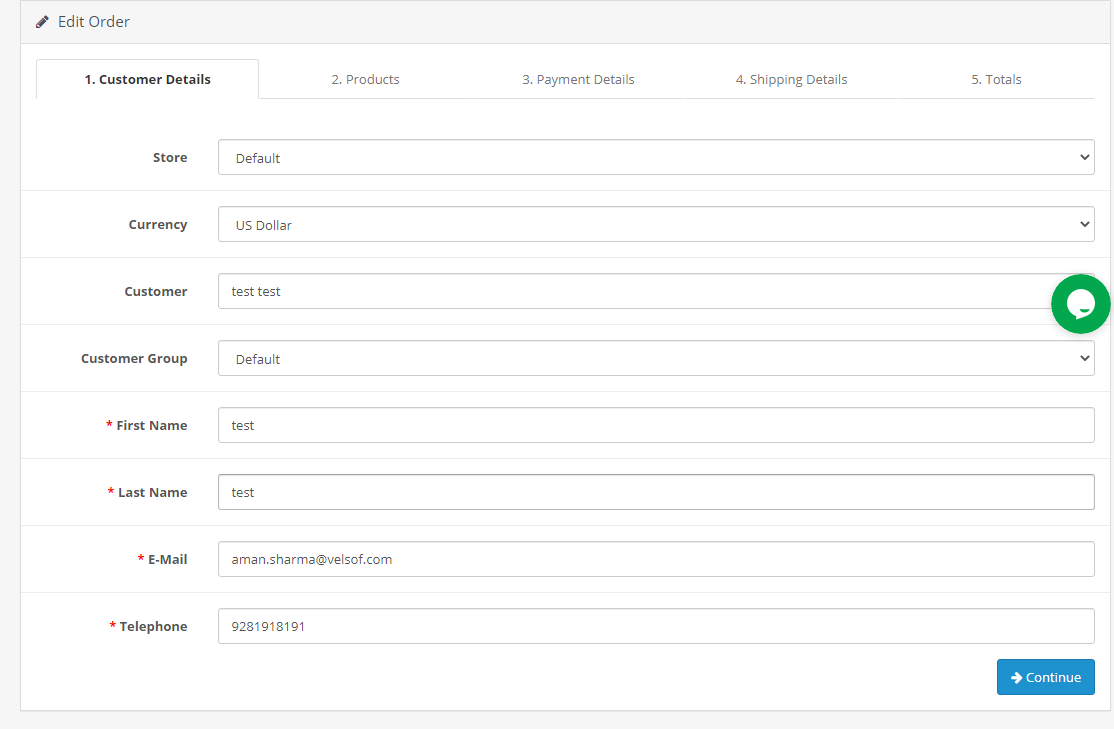
The orders received on the seller’s product will list in the tab of the OpenCart Multi seller marketplace plugin. The store admin can view or edit the orders by clicking on the View and Edit buttons respectively.
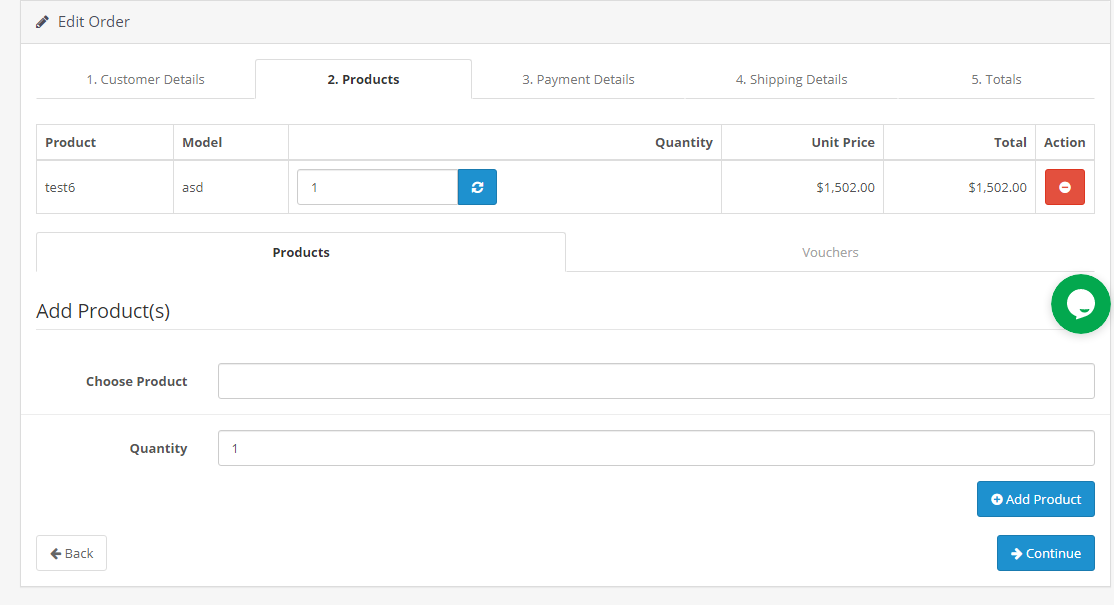
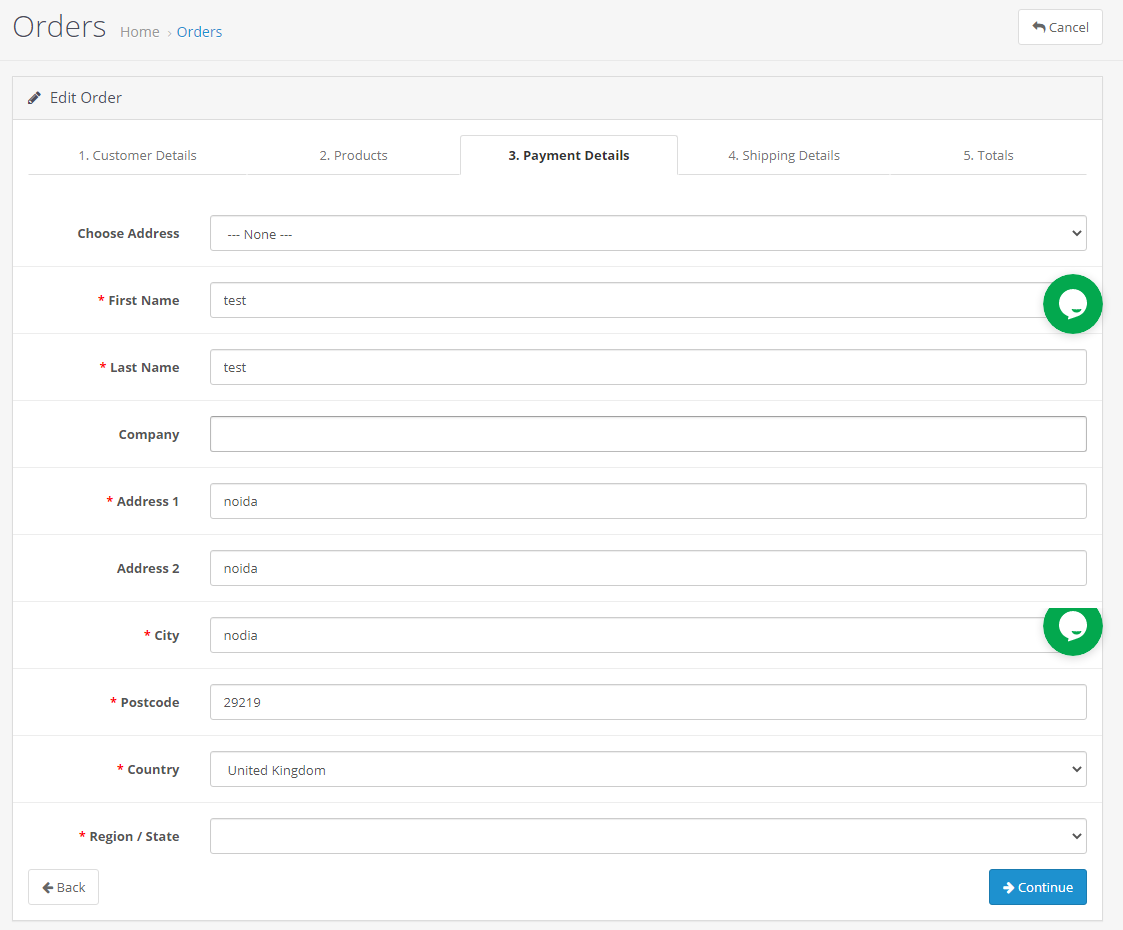
The following window will display if admin clicks the edit button. Admin can make the changes in all the fields as required.
3.6.1 Customer Details
From this section, admin can add their customer’s details.
3.6.2 Products
From this section, admin can add their products details.
3.6.3 Payment Details
From this section, admin can add their payment details.
3.6.4 Shipping Details
From this section, the admin can add their shipping details.
3.6.5 Totals
From this section, the admin can add the details of their total.
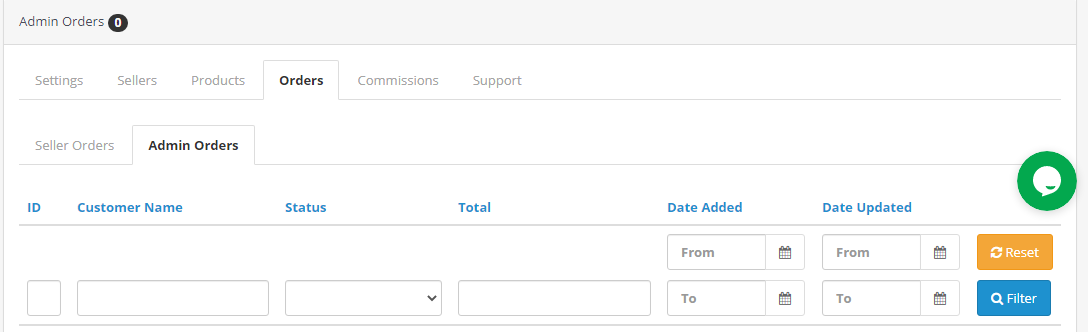
3.4.2 Admin Orders
The admin can track the order details of their products in the Admin Order tab of the OpenCart Multi seller marketplace extension.
3.5 Commissions
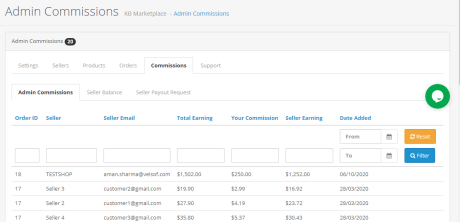
3.5.1 Admin commission
The admin can view the commission earned from the marketplace in this tab of the OpenCart Multi-vendor Marketplace Plugin. The store owner gets an option to view the earnings of the seller and total earnings.
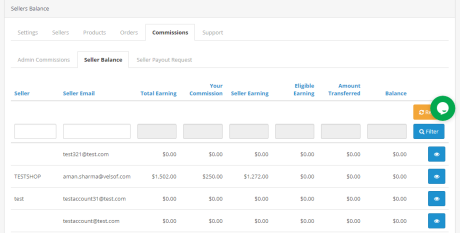
3.5.2 Seller Balance
The store admin even gets an option to view the transaction of the sellers. The admin can see the Seller Balance History as well as Transaction History in this tab of the OpenCart Multi seller Marketplace plugin.
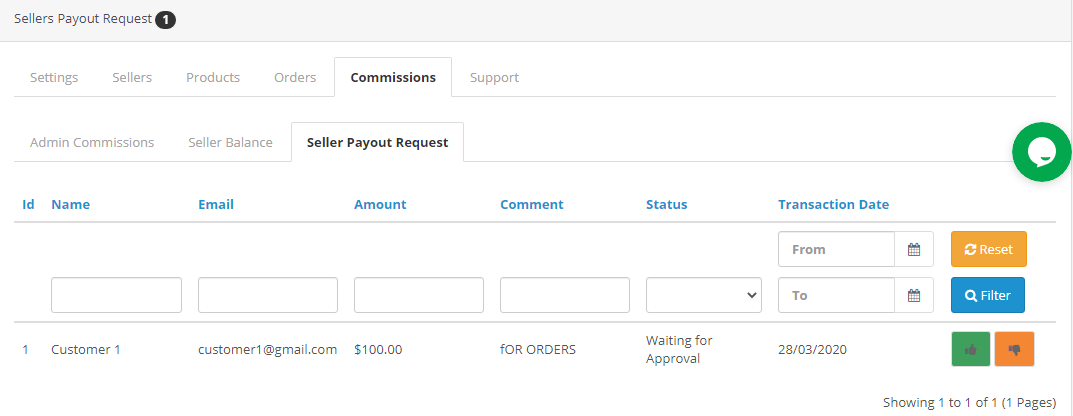
3.5.3 Seller Payout Request
Payout Request sent by the sellers can be viewed by the admin from the backend of the Sellers Payout Request. Admin can approve/ disapprove the payout request with a few clicks. Once the admin clicks on the “Approve” button a pop window as shown in the figure will appear.
When the admin will click on the “Disapprove” button, a dialog box with a comment field will appear. Once the admin clicks the submit button after filling the comment fields, the request will disapprove.
3.6 Support
This tab is used to find the user manual of the Opencart multi-seller Marketplace Module and also to raise a support ticket for any kind of queries and issues.
4.0 Front-end UI
Once the OpenCart Multi vendor Marketplace plugin is successfully installed at the OpenCart store, third-party vendors can fill a simple form and open-up their online shop. For easy management of the shop, the seller gets access to their dashboard.
4.1 Seller Registration
The third-party vendors can easily register as a seller of the site by filling a simple registration form. In order to register as a seller, select ‘Yes’ in the Register as Seller section of the form.
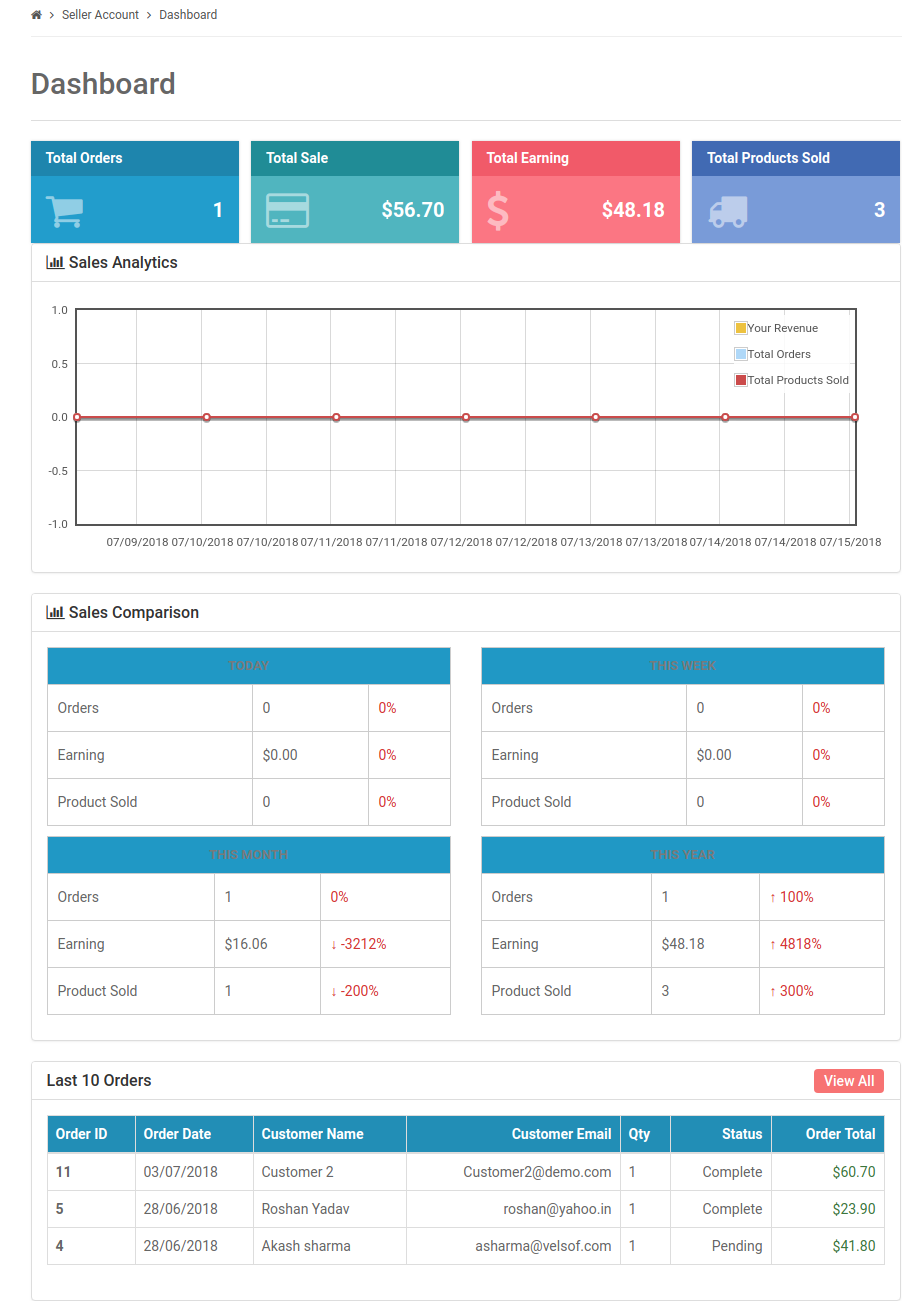
4.2 Seller Dashboard
Once the registration is complete and the seller’s account approves from the back-end of the OpenCart multi-seller Marketplace plugin, the seller gets access to the Dashboard.
They can view the entire sales report and order details.
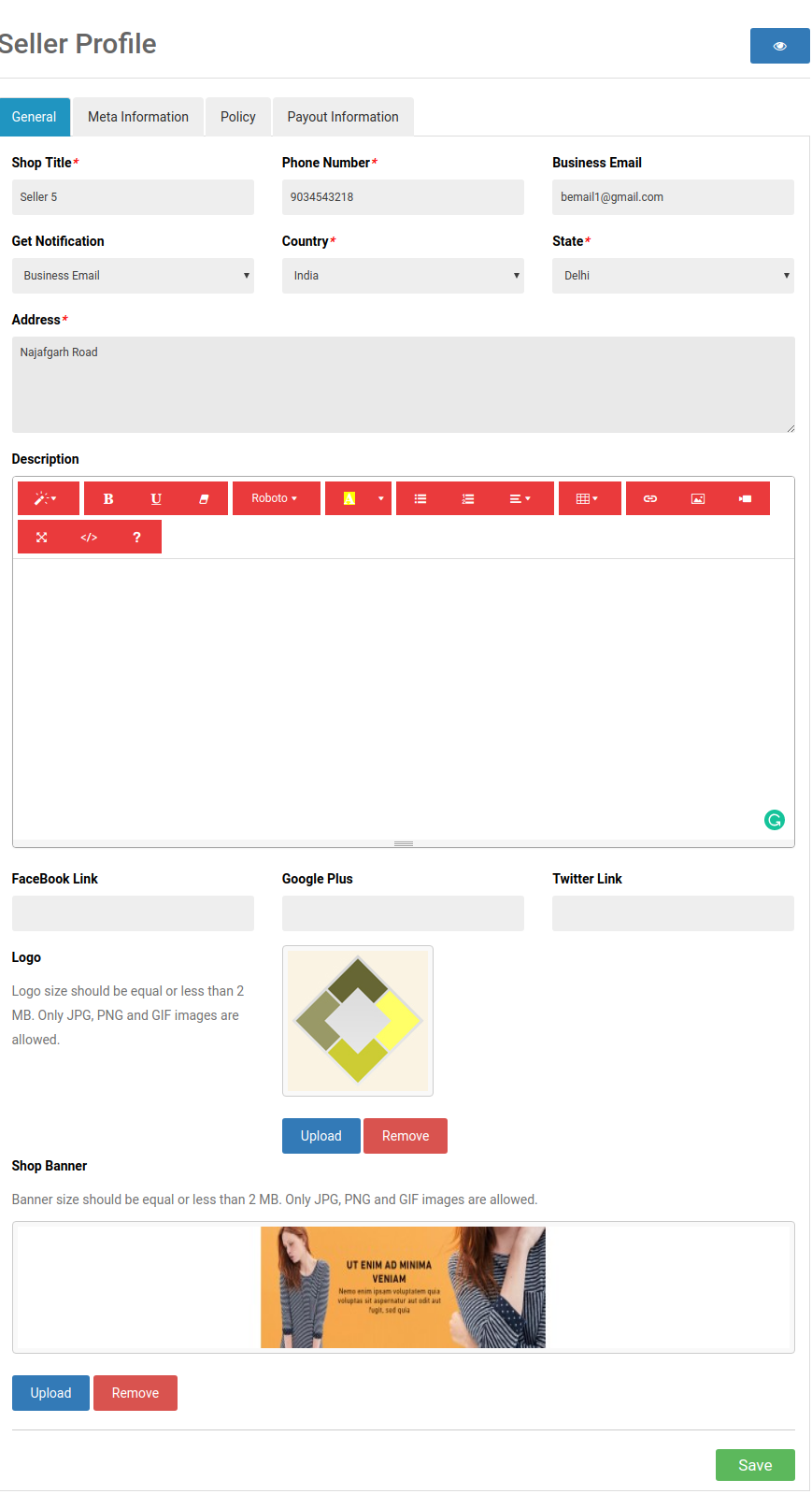
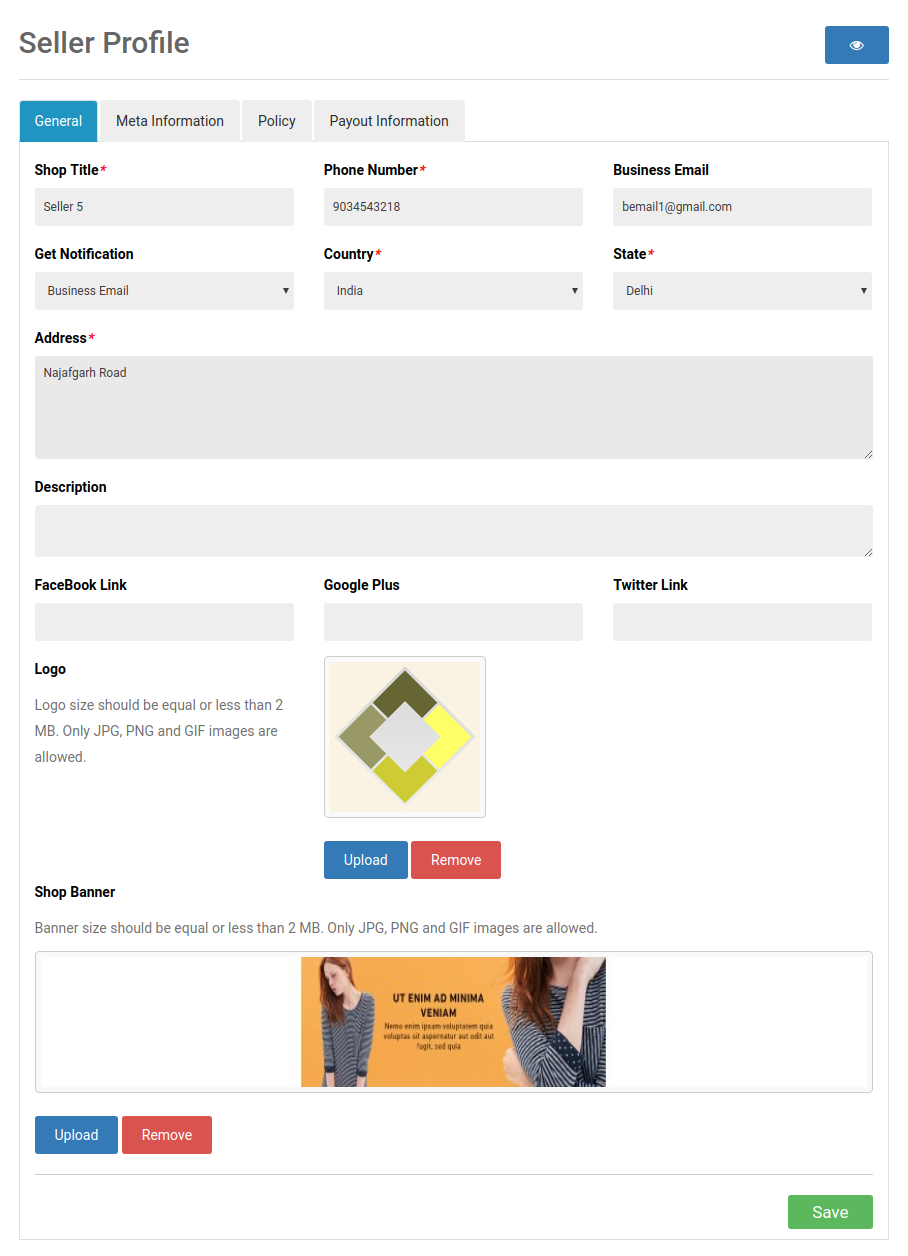
4.2.1 Seller’s Profile
The sellers can edit their profile and personalize their shop from this tab of the dashboard.
4.2.2 Seller’s Product
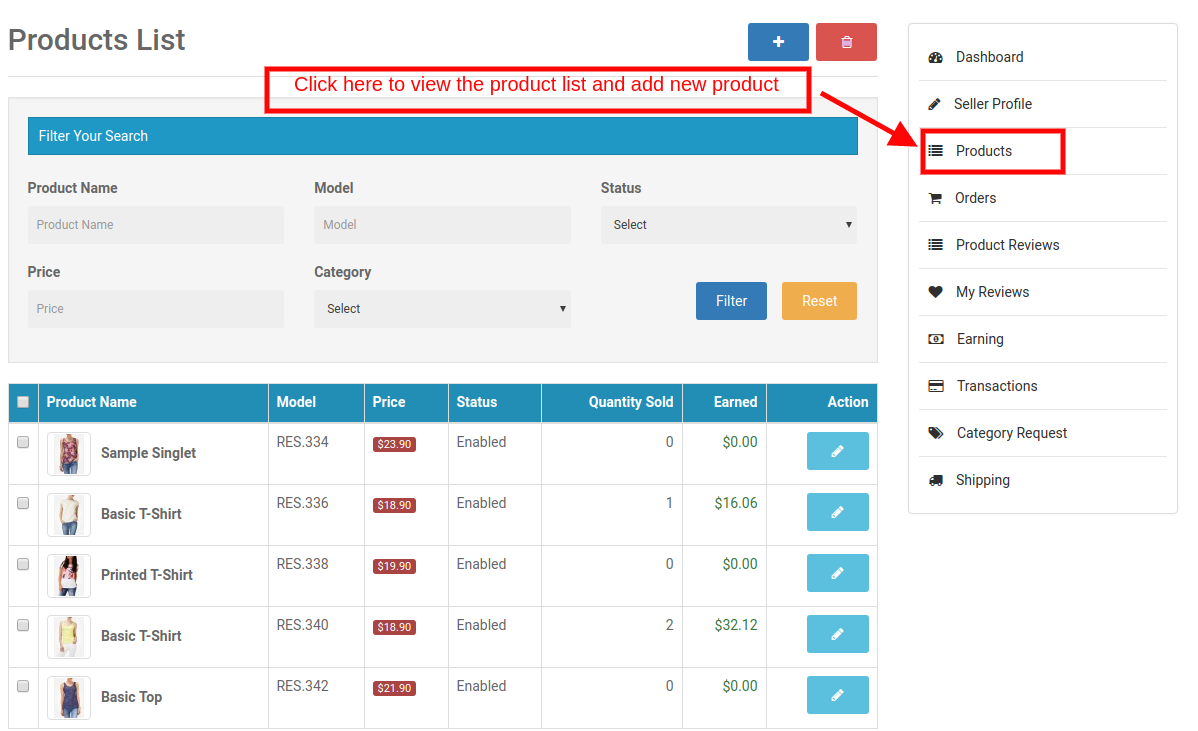
The sellers can follow the path mentioned below in order to add a new product.
Go to My Account -> Dashboard -> Products
The list products display in this tab of the seller’s Dashboard.
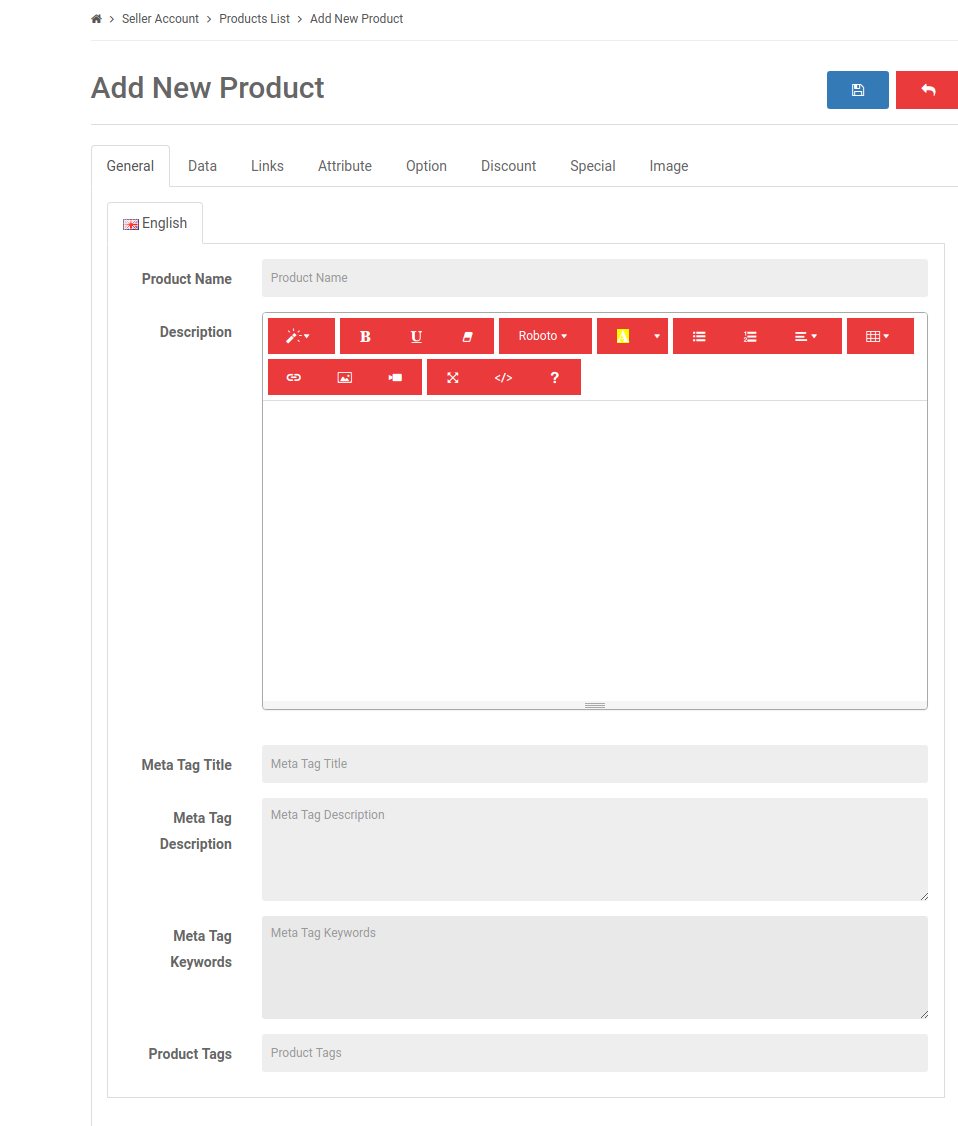
In order to add a new product click on the ‘+’ sign at the top right portion.
This will redirect you to the ‘Add New Product’ page. Fill up the required detail in order to add the product.
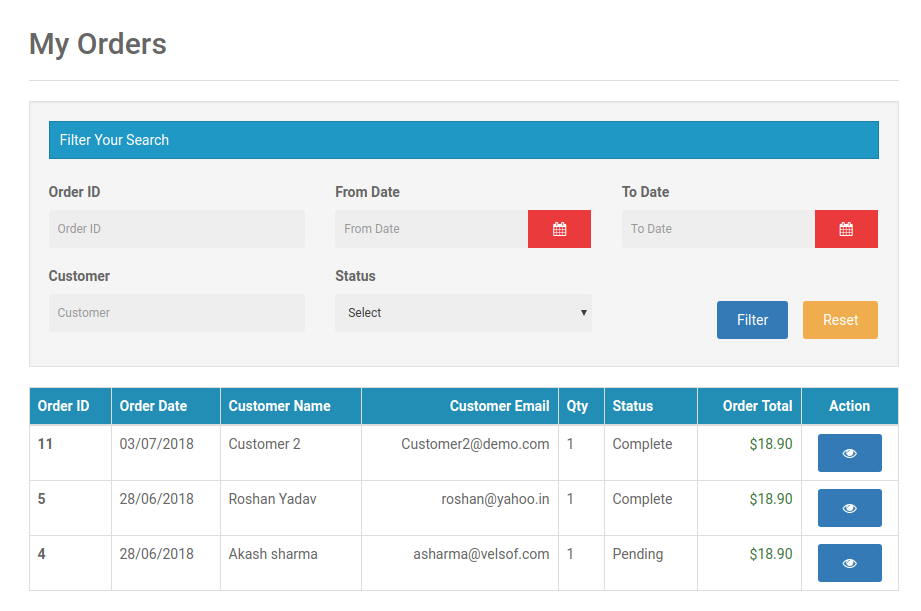
4.2.3 Order
The sellers can view their orders and related details in this tab of the Dashboard.
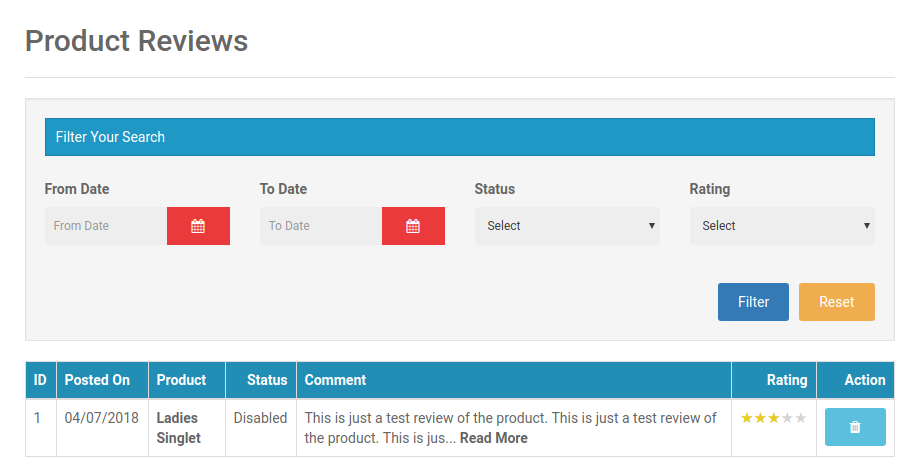
4.2.4 Product Reviews
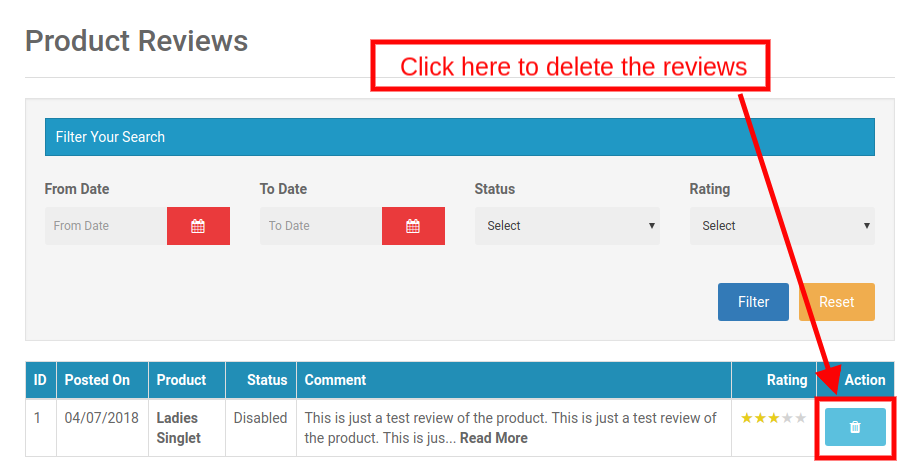
The sellers can view the review received on their product in the Product Review Tab of their Dashboard. All the reviews received will list as shown in the image below:
4.2.4.1 How can the sellers delete the Product Reviews?
Even the sellers get an option to delete the reviews. This happens by clicking on the ‘Delete’ button corresponding to each review.
4.2.5 My Reviews
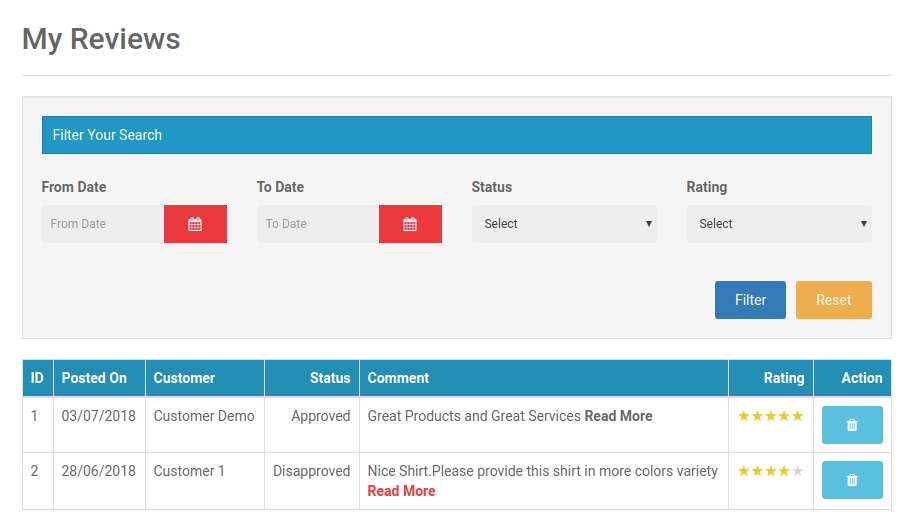
The tab of the seller’s dashboard lists out the reviews received on their profile.
OpenCart Multi vendor Marketplace plugin- My reviews
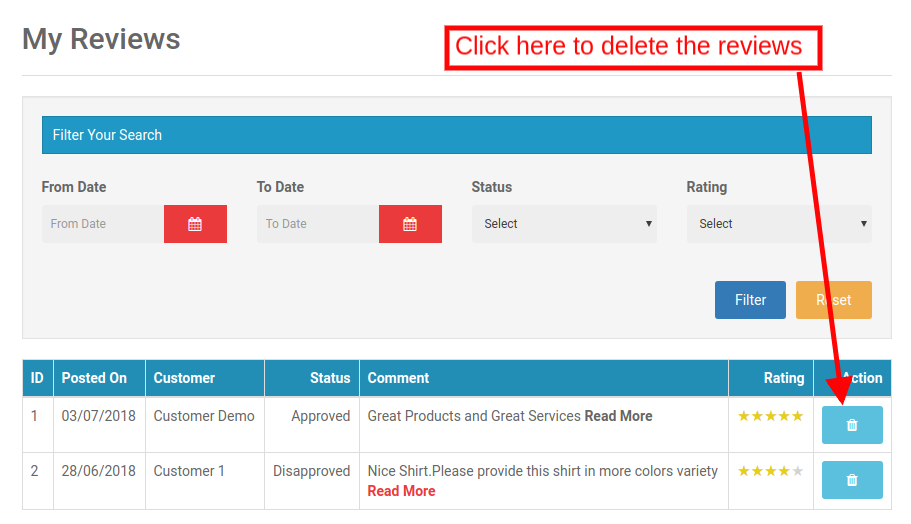
4.2.5.1 How can the Sellers Delete the Reviews on their Profile?
The sellers can even delete their profile reviews if required. This happens by clicking on the ‘Delete’ button corresponding to each review.
4.2.6 Earnings
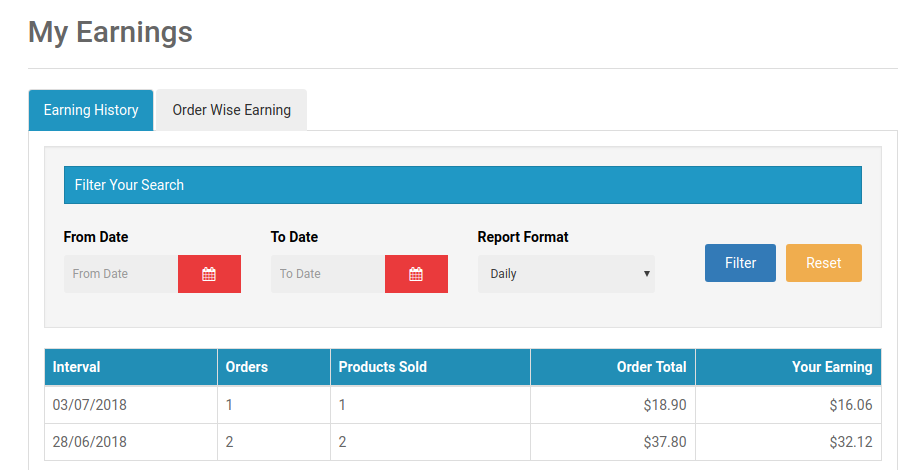
The total earnings of the seller can be viewed in this tab. The vendors can filter the results as per requirement.
The total earning history will display as shown below:
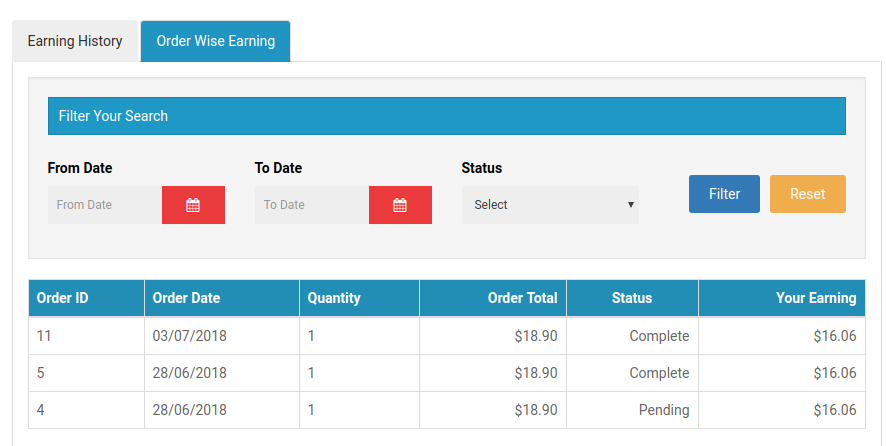
The sellers can even view the order-wise earning as shown below:
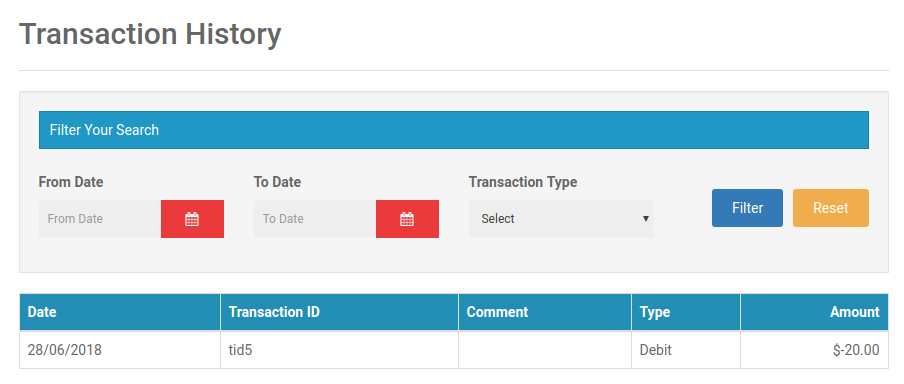
4.2.6 Transactions
The seller can view their entire transaction history in this tab. The amount debited or credited in their account can be viewed here.
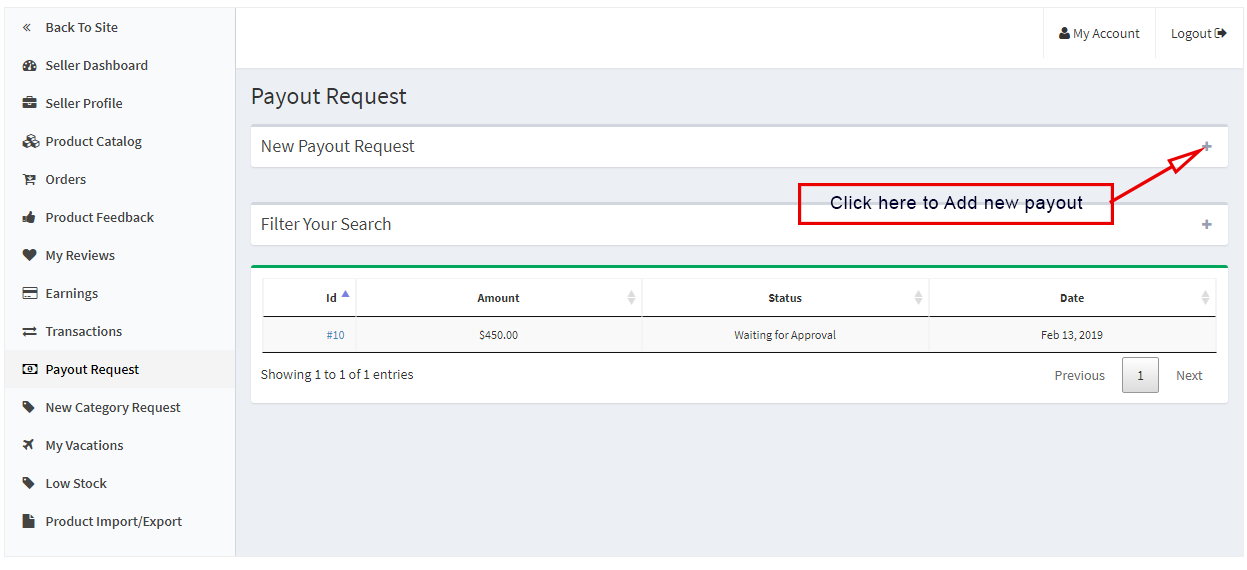
4.2.7 Payout Request
Sellers can view the list of payout request sent to the admin from the Payout Request tab. For a new payout request sellers need to fill the payout amount and reason and send it to the admin for approval.
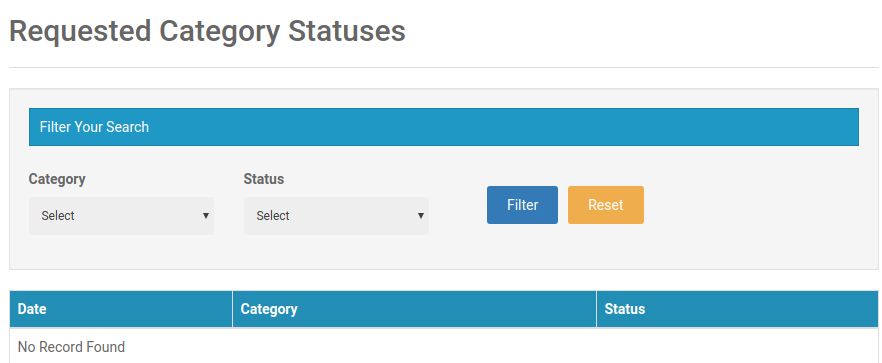
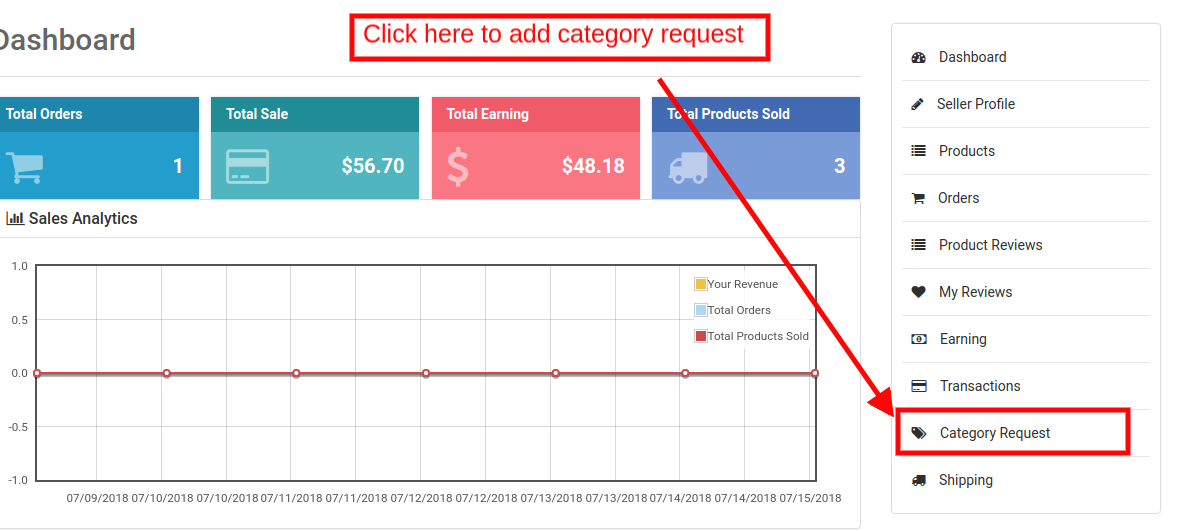
4.2.8 Category Request
The sellers can view the categories assigned to them. Additionally, they can even send a category request to the store admin. In order to send category request, go to the Dashboard -> Category Request
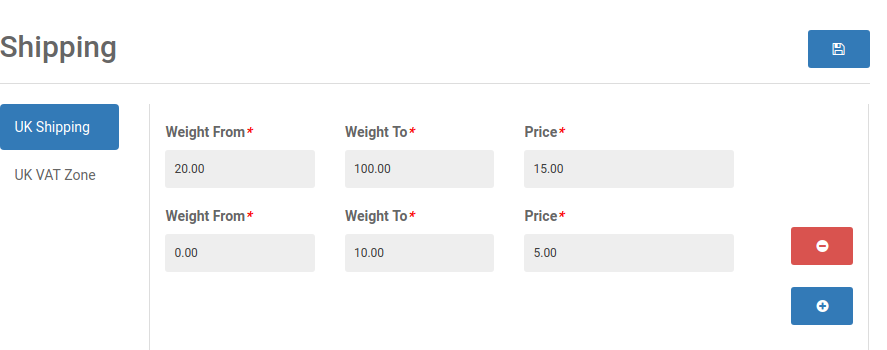
4.2.9 Shipping
The sellers can view the shipping process as in the screenshot below:
4.2.10 Product Import
With the help of the product import feature, sellers can add products in bulk. They have to download the template for products upload and just fill in the information of their products and upload again to list the products in bulk.
Product Return:
The seller can see the product return list here. The seller can add a filter to search for the product returned or requested for the product return.
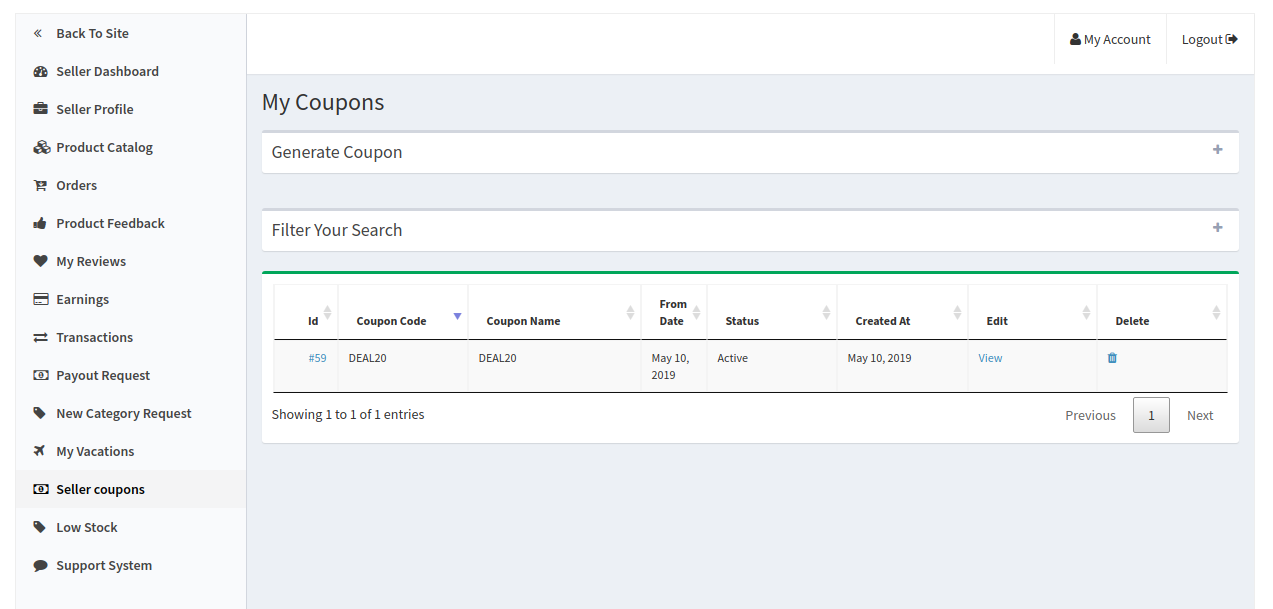
4.2.11 Seller Coupons
Using this feature seller’s can generate coupons for their customers. Sellers can use different variations for creating their coupons like users per coupon, coupon type etc.
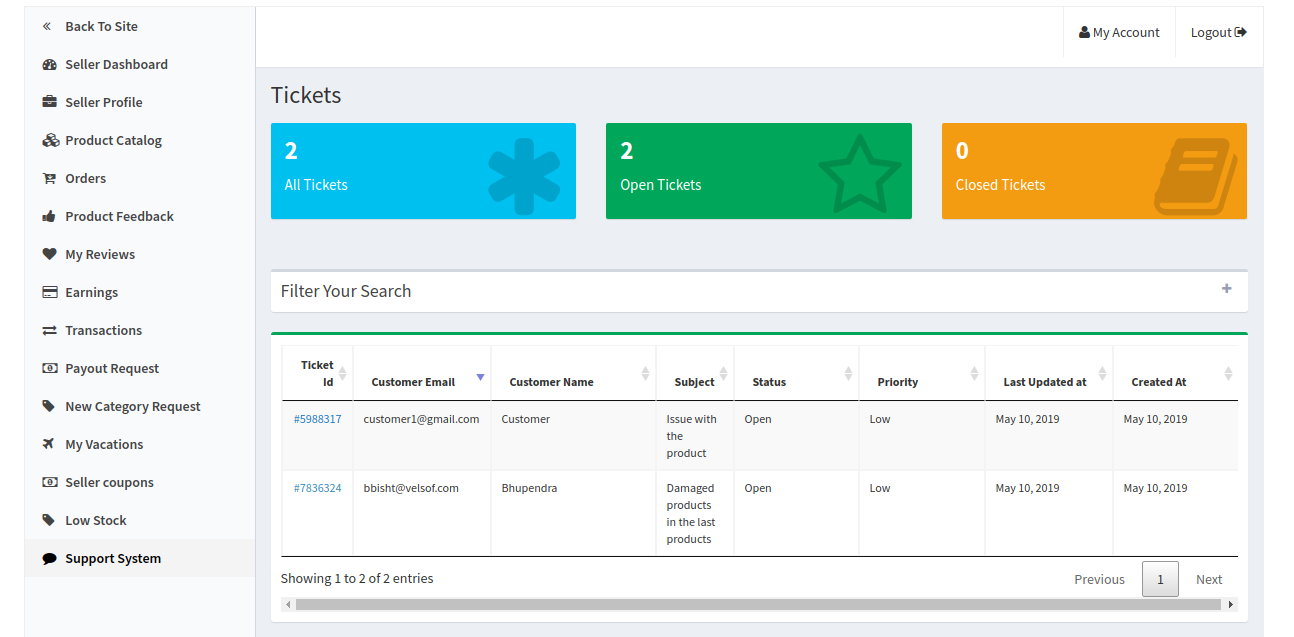
4.2.12 Support System
This feature allows the sellers to view the queries of their customers in the form of tickets. When the seller clicks on the Ticket ID they are able to see the full detail about the query and even reply and change the status of the query.