The most awaited shopping season of the year is here! Black Friday and Cyber Monday (BFCM) are not just about deals for customers—they’re golden opportunities for eCommerce businesses to skyrocket sales. At Knowband, we are thrilled to offer an exclusive FLAT 30% OFF on our carefully curated holiday essential modules. Furthermore, these addons are designed to help Prestashop, Opencart, WooCommerce, and Magento 2 stores maximize customer engagement and drive conversions this holiday season.
Here’s how our top-performing modules can enhance your store during BFCM and beyond.
Spin and Win Entry-Exit Pop-Up Addon:
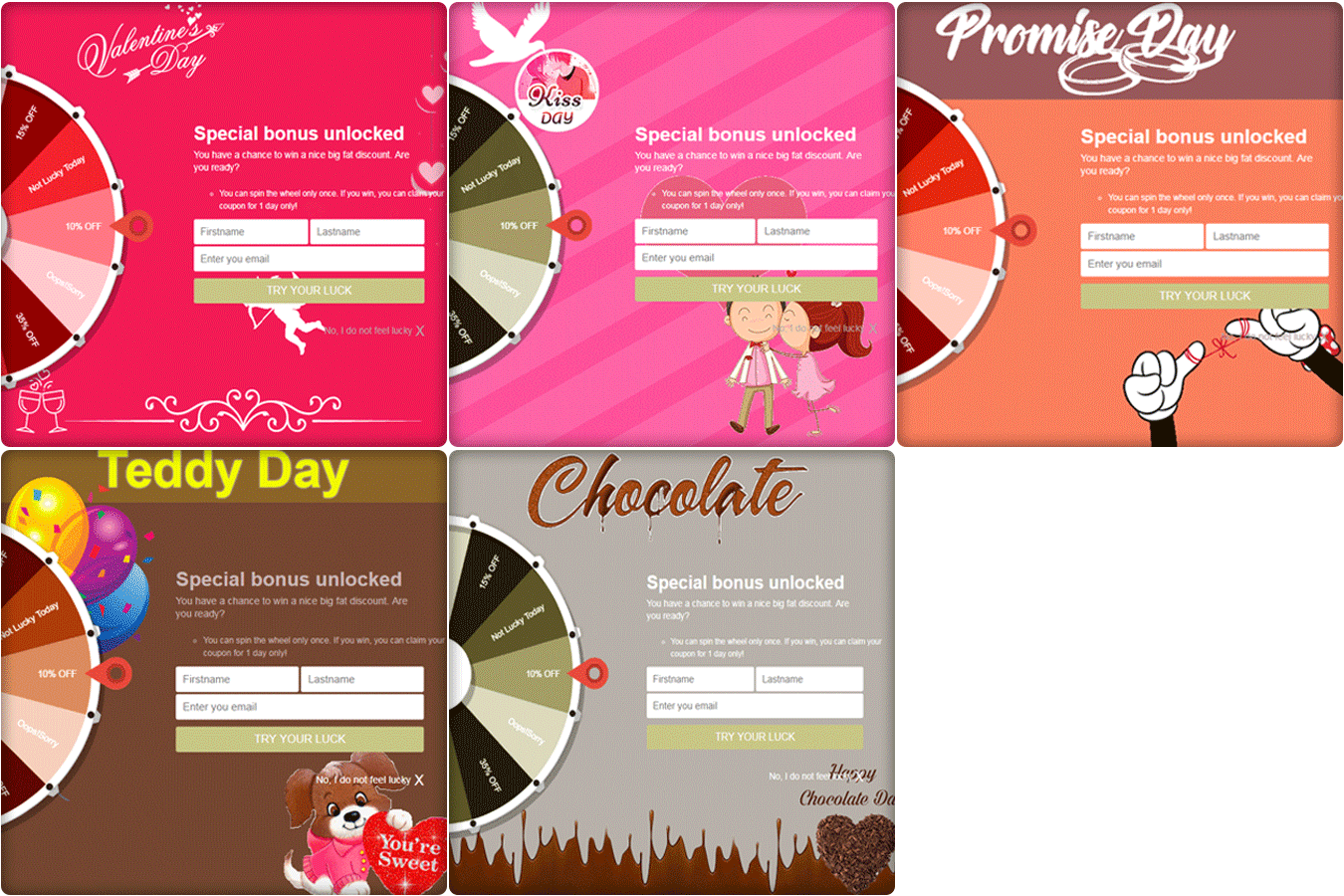
Engaging customers is key during BFCM, and nothing grabs attention quite like the Spin and Win Entry-Exit Pop-Up Addon for Prestashop and other eCommerce platforms. This gamified pop-up tool keeps visitors hooked while helping you grow your email list and offer enticing discounts.
Benefits of Spin and Win:
Boost Customer Interaction: Create a fun and interactive experience for your visitors.
Reduce Exit Rates: Show a pop-up when a user tries to leave the site and entice them with a special offer.
Increase Conversions: Use personalized discounts and offers to convert casual visitors into loyal customers.
Thus, by integrating this module, your store can capture more leads and drive sales while keeping the shopping experience entertaining and festive.
Website Decoration Effect:
Give your online store a festive vibe with the Website Decoration Effect Addon. First impressions matter, and the Website decoration effect module for Prestashop and Opencart allows you to add a touch of holiday magic to your website without any coding knowledge.
Why You Need Website Decoration Effect:
Holiday-Themed Customizations: Add snowflakes, Christmas lights, and other holiday decorations to your site effortlessly.
Improve User Experience: A visually festive store can create a memorable shopping experience, encouraging customers to browse and buy more.
No Technical Hassle: Simply install the module, and you’re ready to decorate your store in minutes.
A well-decorated store isn’t just visually appealing—it sets the mood for holiday shopping and keeps customers engaged.
Gift Card Manager Extension:
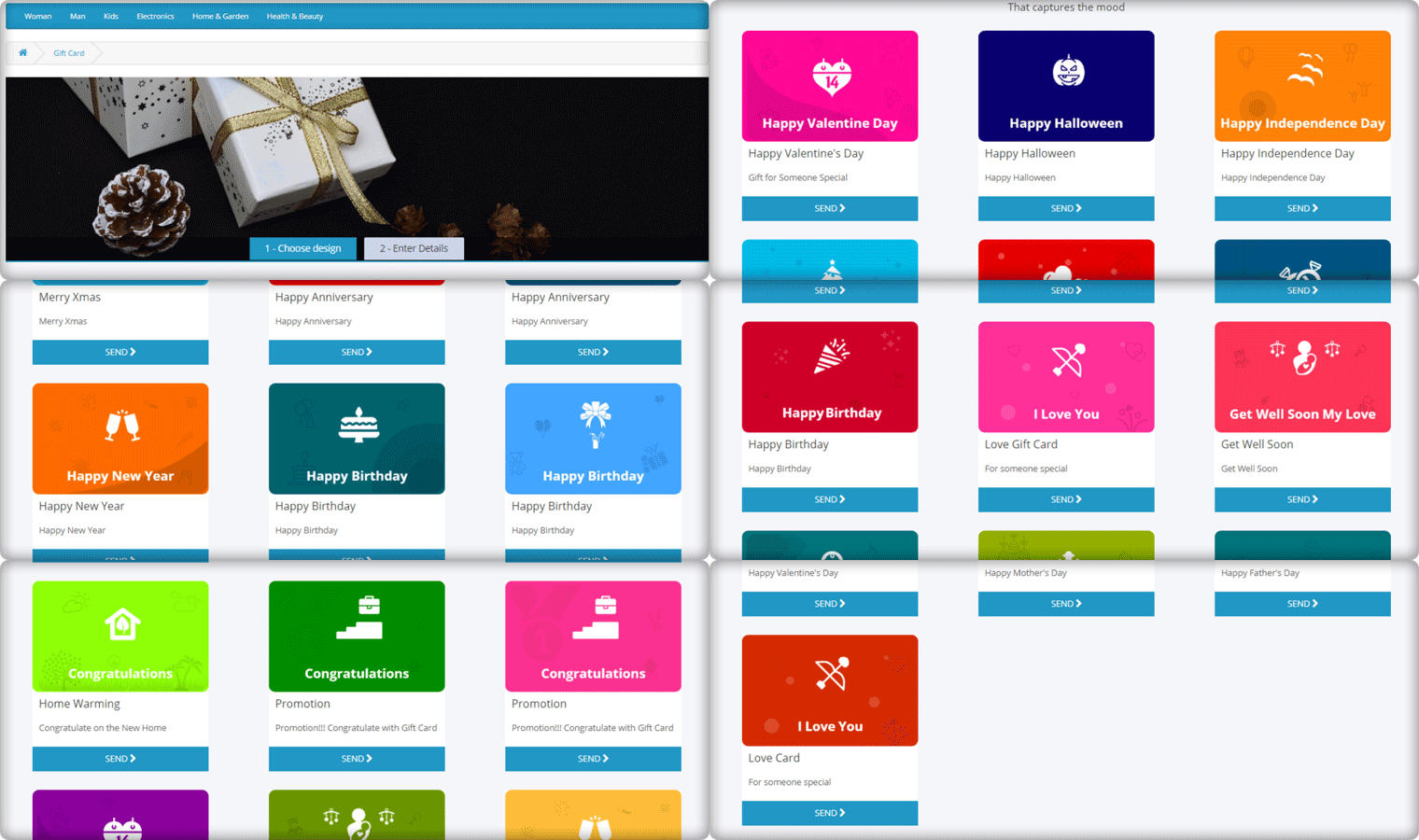
Gift cards are a must-have feature during the holiday season, making the Gift Card Manager Addon an essential tool for any eCommerce store. Therefore, with gift cards being one of the most popular choices for last-minute shoppers, this addon helps you tap into a lucrative revenue stream.
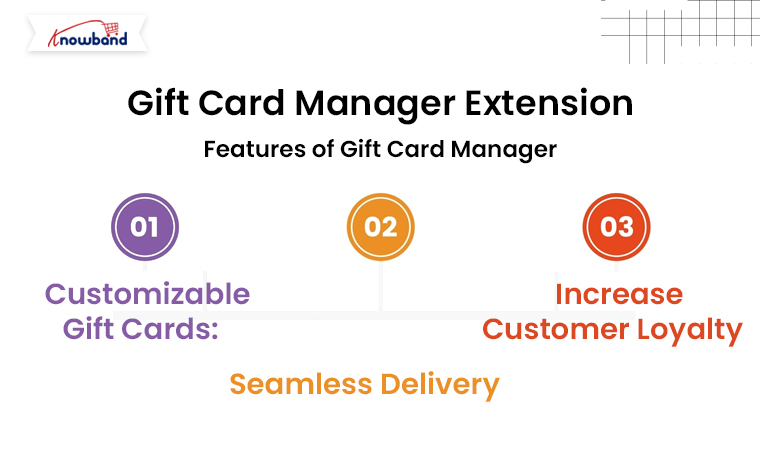
Features of Gift Card Manager:
Customizable Gift Cards: Allow customers to personalize gift cards with custom messages, designs, and amounts.
Seamless Delivery: Send gift cards via email or let customers download them instantly.
Increase Customer Loyalty: Gift cards encourage repeat visits and word-of-mouth referrals.
By offering digital gift cards, you can provide convenience to your shoppers while securing sales during BFCM.
Abandoned Cart Serial Reminder Addon:
Every eCommerce store owner knows the pain of abandoned carts. This powerful tool sends automated email reminders to users who leave items in their carts, urging them to complete their purchases.
Why Use Abandoned Cart Reminder Addon?
Automated Follow-Ups: Send timely reminders via email, encouraging customers to return to their carts.
Customizable Templates: Tailor your email content to match your brand and include personalized discounts to entice users.
Increase Revenue: Recover up to 30% of abandoned carts with targeted messaging.
This module is a game-changer during high-traffic periods like BFCM, ensuring you don’t lose out on potential sales.
Why Choose Knowband During BFCM?
Knowband has built a reputation for offering user-friendly, feature-rich eCommerce extensions that enhance store performance. Here’s why our tools are perfect for your BFCM strategy:
Ease of Use: No technical expertise is needed to install and use our modules.
Responsive Support: Our team is always ready to help you make the most of your investment.
Proven Results: Thousands of stores have seen success with Knowband’s extensions.
Don’t Miss Out: Grab FLAT 30% OFF on Knowband’s Holiday Essentials
This BFCM, makes your eCommerce store the ultimate shopping destination with our holiday essential modules. With a FLAT 30% OFF, now is the perfect time to invest in tools that can help you attract, engage, and retain more customers.
Final Words!
Black Friday and Cyber Monday are your golden opportunities to boost revenue, and Knowband is here to help. Furthermore, our holiday essential extensions are designed to simplify your operations, enhance customer experience, and maximize sales during the busiest shopping season of the year.
Don’t wait—this limited-time offer is your chance to level up your eCommerce store. Visit Knowband today and take advantage of our 30% OFF BFCM Sale!
When we were little, we all remember receiving gifts for special occasions such as birthdays or holidays such as Christmas. However, as time passes, so do people’s preferences. It’s impossible to forecast what someone will like these days, given the enormous array of options accessible both online and offline. A Gift Card from any business or brand is one of the top gift options these days.
How does Gift Card work for eCommerce?
A gift card is a type of payment that may be used to make purchases at the eCommerce store that issued it.
If you buy a gift card from Starbucks or Amazon, you or the recipient can only spend it at the store that issued the card.
Digital gift cards can be used from anywhere and if it belongs to an eCommerce store, then anyone with the card can make a purchase and use it.
Perks of selling a digital Gift Card
Customers find it a more convenient gift option. Gift cards can be physical (i.e., a plastic card) or digital (i.e., a digital file). Digital gift cards do not have a physical form; instead, you are given a unique gift code number that you may use to make purchases at online stores. The most common type of gift card is still physical cards, although this is projected to alter shortly.
Knowband’s Digital Gift cards are tailored for eCommerce and allow sellers to use them as Physical as well as the digital card. Scroll down for real-life examples of OpenCart Digital Gift card managers and explore more.
Why do customers like giving gift cards?
Purchasing a Gift Card, whether for a wedding or a birthday, is a very straightforward process. In truth, purchasing a Gift Card on the internet requires very little work. The procedure is simple and convenient, and it saves you time when purchasing a gift.
People who receive gift cards have the option of purchasing whatever they choose.
Sending gift cards physically or digitally is far less expensive than mailing items.
When shopping with gift cards during peak sale times, the individual getting the gift card can get more bangs for their cash.
Unlike getting a gift and having to go to great lengths to return it, redeeming a Gift Card is a breeze. Offline cards and vouchers must be redeemed in person, but online/digital cards and vouchers can be used with a few mouse clicks. Hence, Gift Cards become even more appealing.
How OpenCart Sellers can sell Gift Cards on their website?
Step by step guide to install and customize the Opencart Gift Card Manager Extension before making it live:
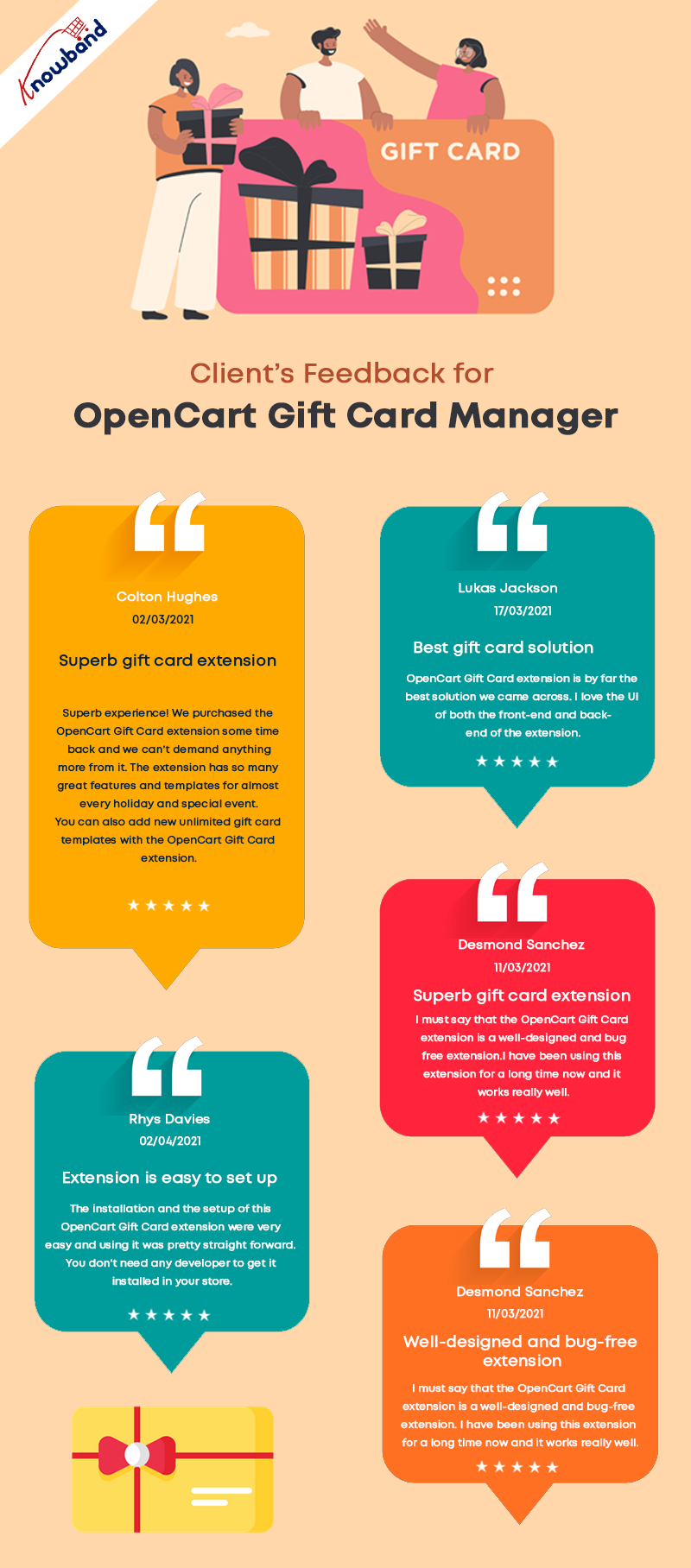
Seller’s Feedback on KnowBand’s Gift Card
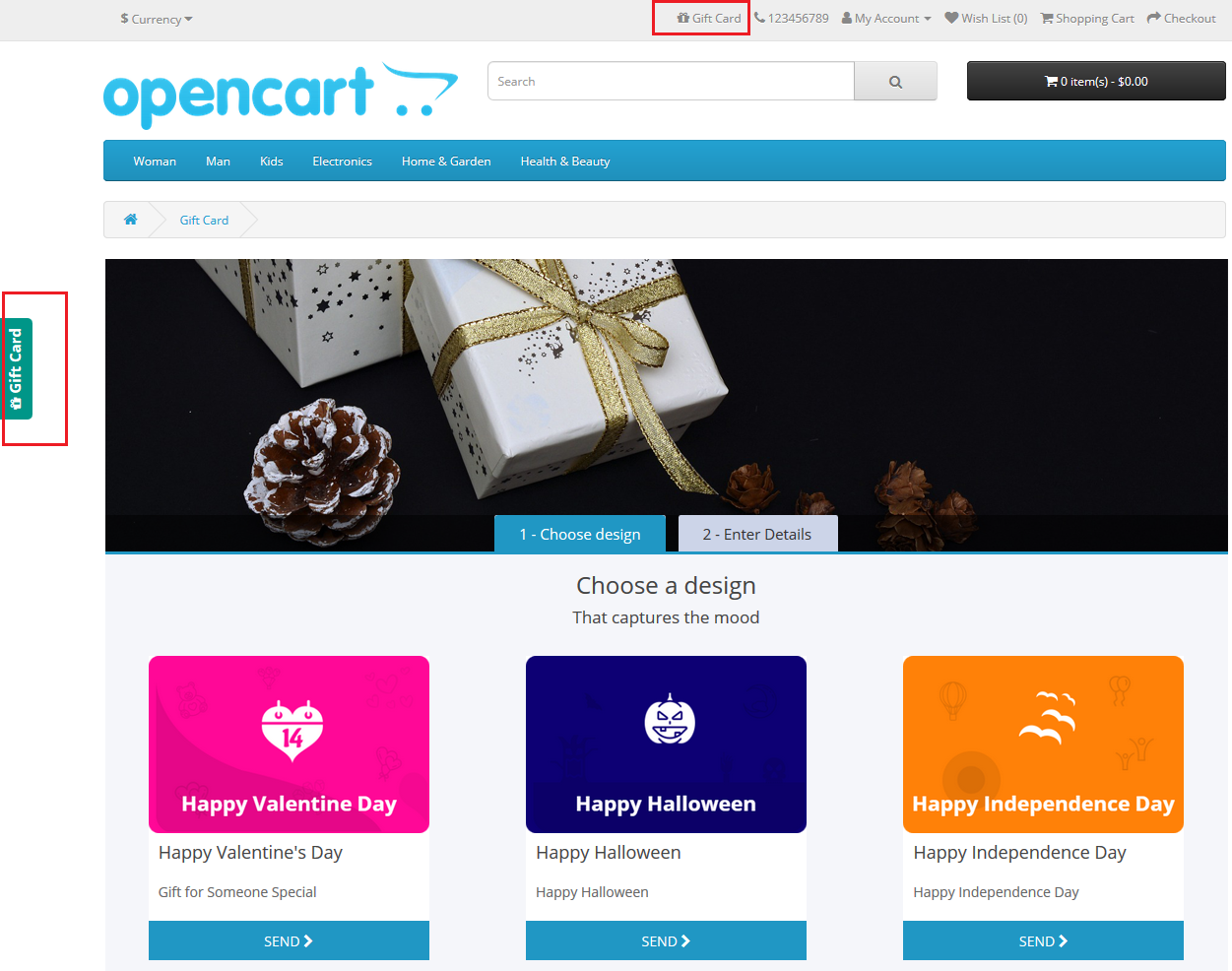
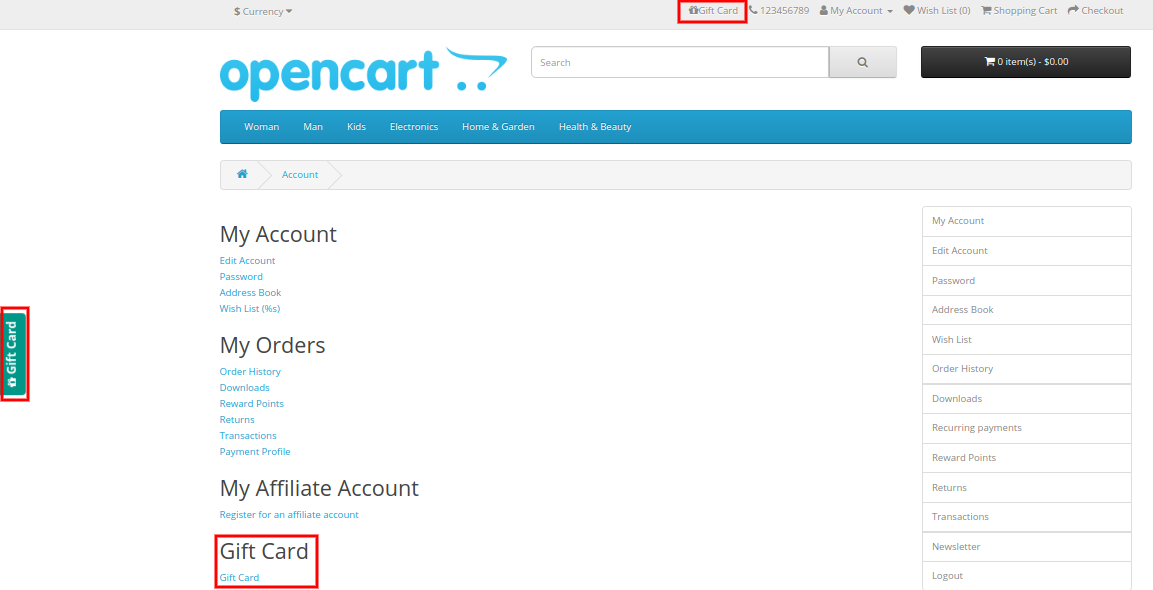
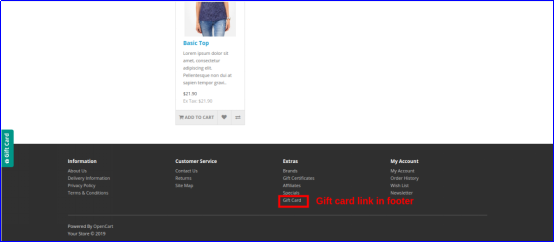
The OpenCart Gift Card Manage extension allows you to display the gift card link in a variety of locations to draw attention to it. It can be placed in the website’s header, footer, or center-left. The Gift Card link can also be found in the My Account section.
What customization is possible and how you can use it in your eCommerce OpenCart store is explained in detail.
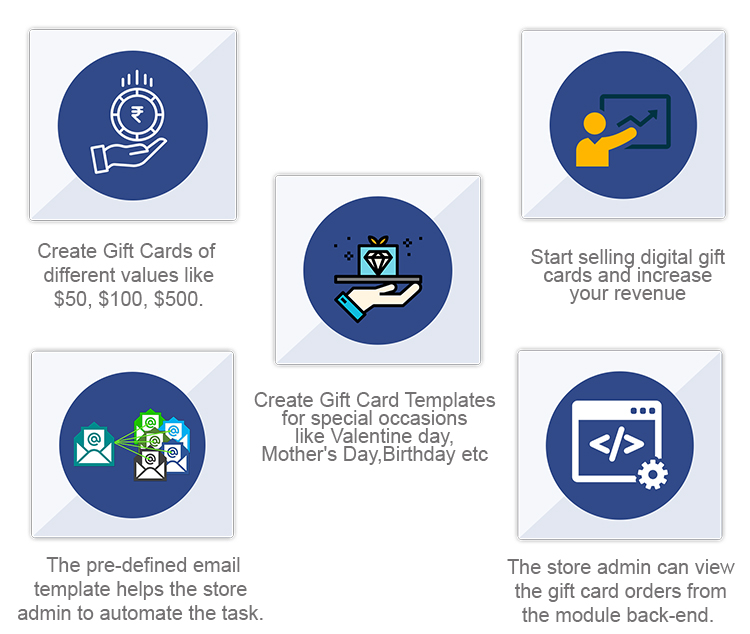
Offer Gift Cards for a Variety of Occasions
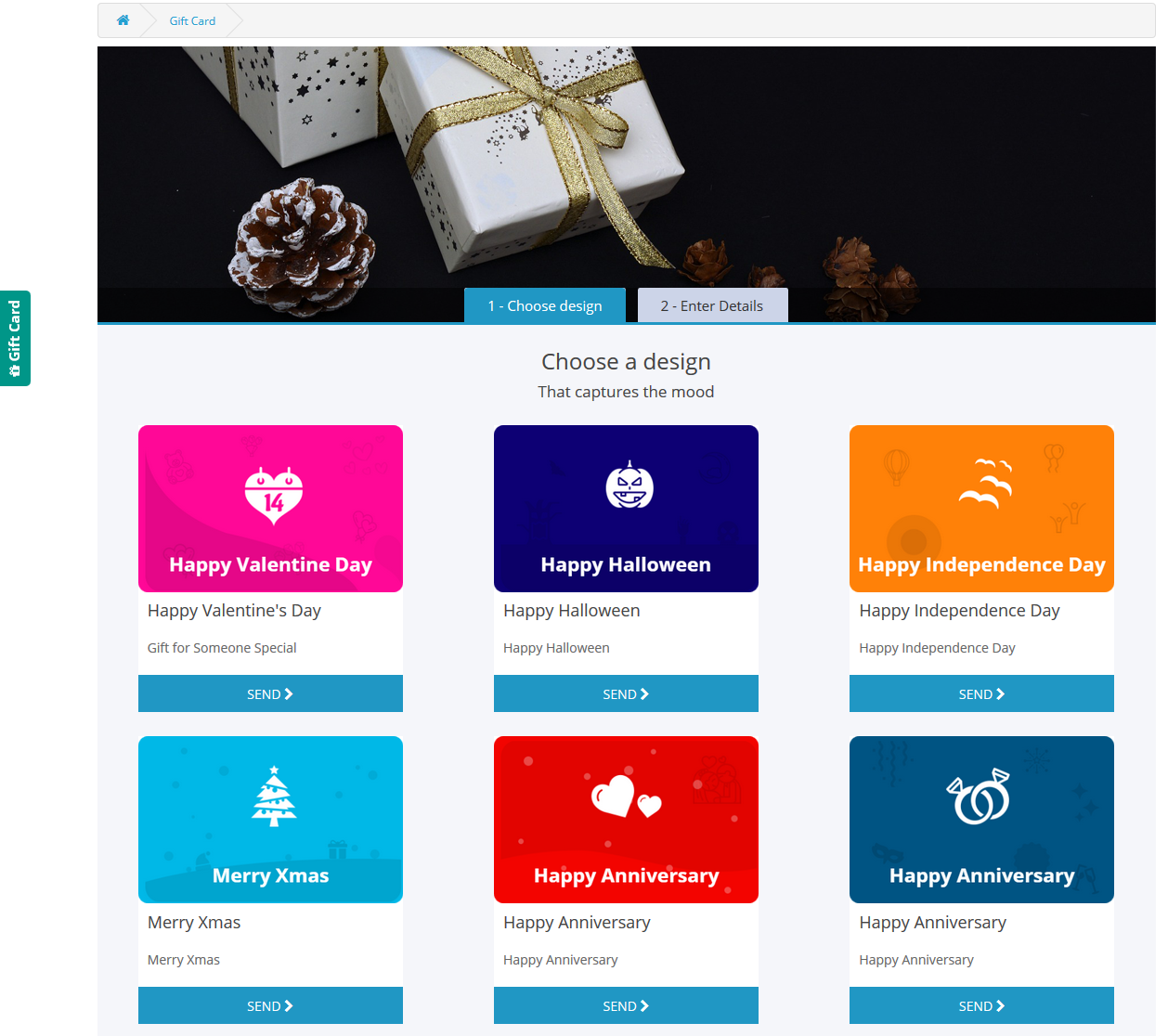
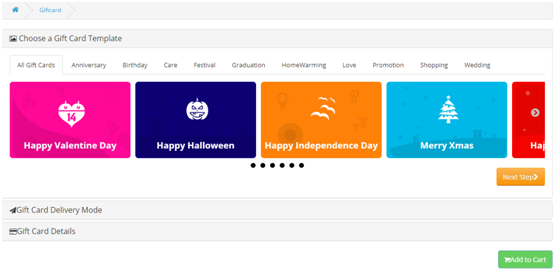
The Gift Card module has gift card templates for a variety of holidays and events, including Valentine’s Day, Halloween, Christmas, New Year’s Eve, Birthday, Anniversary, Father’s Day, Mother’s Day, and so on. You can make changes to the existing Gift Card templates as well as create new ones.
Image Printed Gift Cards are unique
With the OpenCart gift card manager, you can allow customers to create image gift cards by uploading a photo. Such gift cards will have a personal touch and will make the receiver feel more attached. Gift Card extension is also compatible with the Opencart Journal theme.
Custom Price Gift Cards for different budgets
The OpenCart Gift Voucher extension allows you to create gift cards with a fixed value or a range of values. You can set the value for which gift cards are accessible when the fixed amount status is activated, for example, 100, 200, or 500. You can select the minimum and maximum gift card amounts for which a user can shop if this option is deactivated.
Allow virtual gift cards to be sent.
Customers would be able to send the gift card to the recipient’s email address if this option was enabled. This can be done for each and every gift card.
Allow actual delivery of gift cards.
Customers would be able to mail the gift card to the recipient’s home address if this option was enabled. Each form of gift card might have its own functionality.
Use it to create your brand identity
A gift card prefix is typically made to promote a brand. You can also establish a prefix for your gift cards, which will be used in all of your gift card codes.
Custom email for virtual gift card delivery
You can create an eye-catching subject line and customize the email content to your liking. Email templates are available in the upgraded version for sending an email notification to gift card senders as well as to print the card.
Select the Date and time to send the email
Specify the gift card order status on which the gift card will be given to the recipient. You can choose from a variety of order statuses to choose which order state the gift card will be sent to the recipient. Customers would also be able to print the coupon based on the order status they chose.
Mention Eligibility Criteria and Validity date
You can select a minimum gift card delivery gap between placing a purchase and receiving it with the OpenCart Gift Card Manager plugin.
Allow for the download of a Gift Card in PDF format.
You may provide clients the opportunity to download the gift card in PDF format using OpenCart Gift Card Manager. You can customize the PDF content as well as the gift card pdf prefix.
Keep track of your gift card purchases.
The OpenCart Gift Card extension allows you to keep track of the status of your gift cards orders. You may look up client information; verify the gift card’s expiration date, and much more.
Support for Cron
Because CRON is supported on your site server, the gift card can be sent to the addressee right away without the need to run any CRON files.
Real-life examples of Gift Card Manager on OpenCart stores
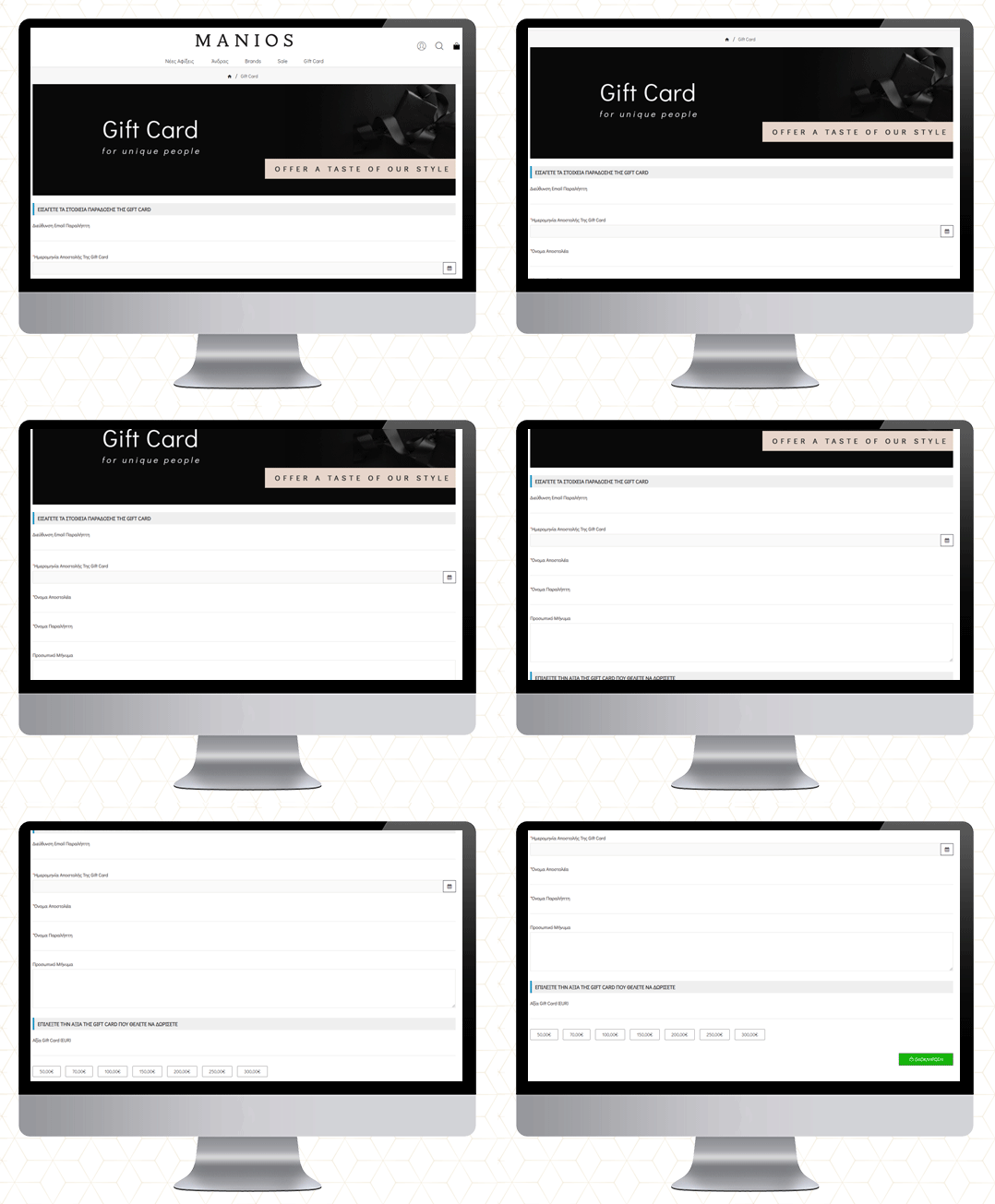
MANIOS Men’s Clothing
The MANIOS is a clothing brand for men and it delivers products in Greece and Cyprus. The website is built on the OpenCart platform. MANIOS believes in customer satisfaction. They have been using Gift Card Manager on their OpenCart store to deliver a great shopping experience to their customers.
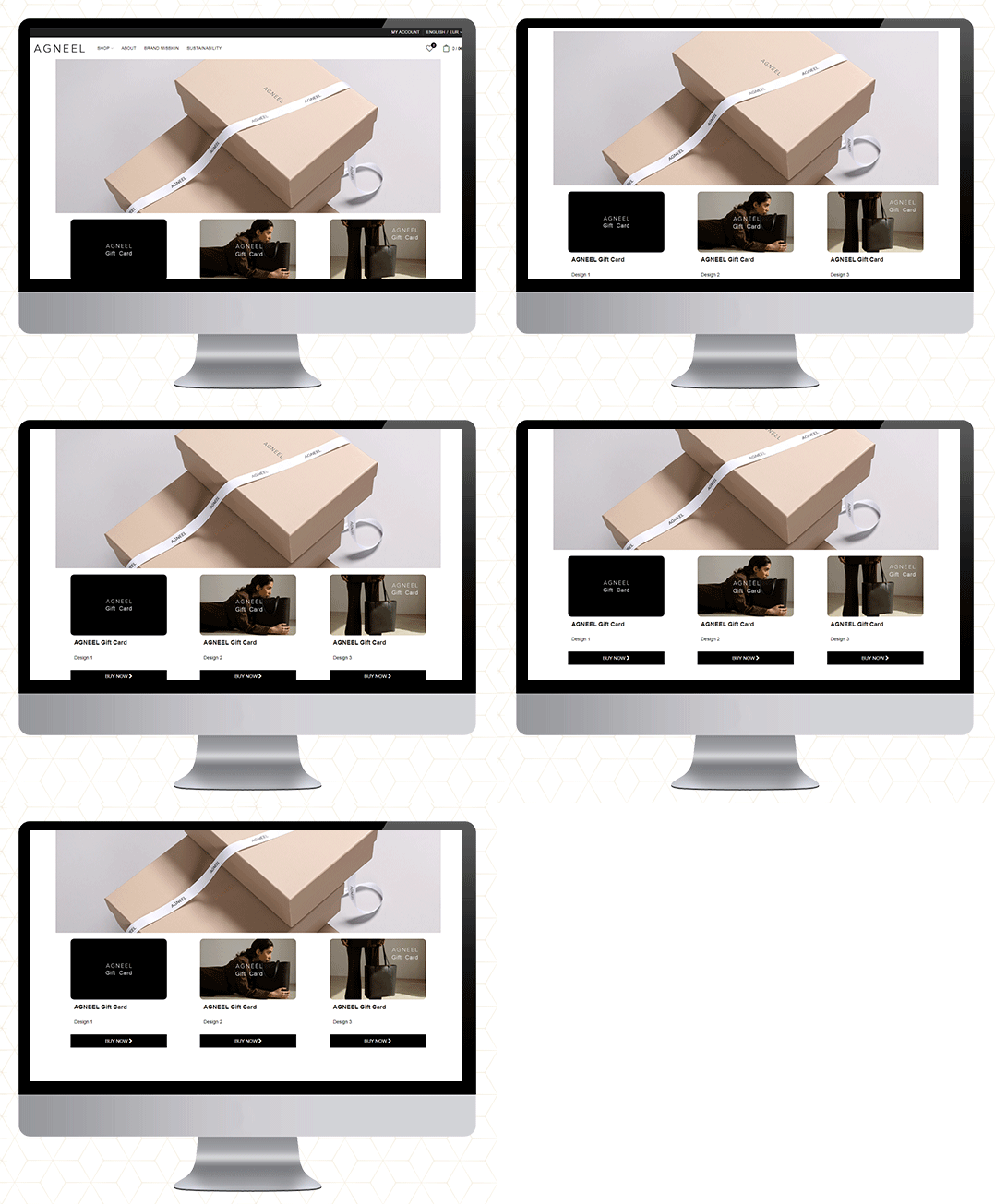
AGNEEL Handbags
A luxury leather handbag brand delivering in Berlin, Europe. They are also using the OpenCart Gift Card Manager on their website. They have created some custom gift cards with attractive images.
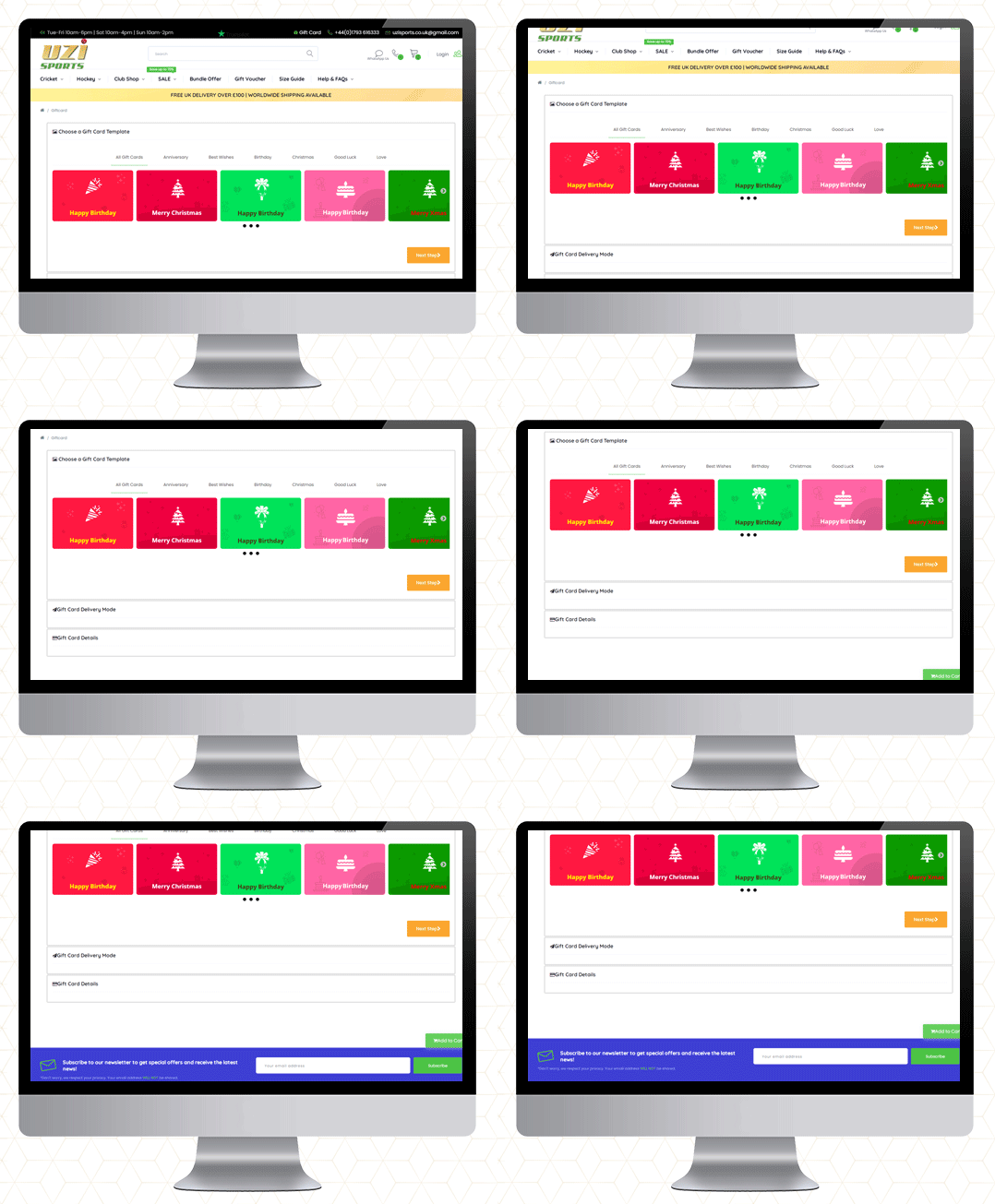
UZI Sports
UZI Sports is one of the UK’s Hockey & Cricket equipment stores and approved suppliers of major cricket and Hockey equipment brands. Moreover, they are experts in providing custom sportswear across the country. They also use the OpenCart Gift Card Manager plugin.
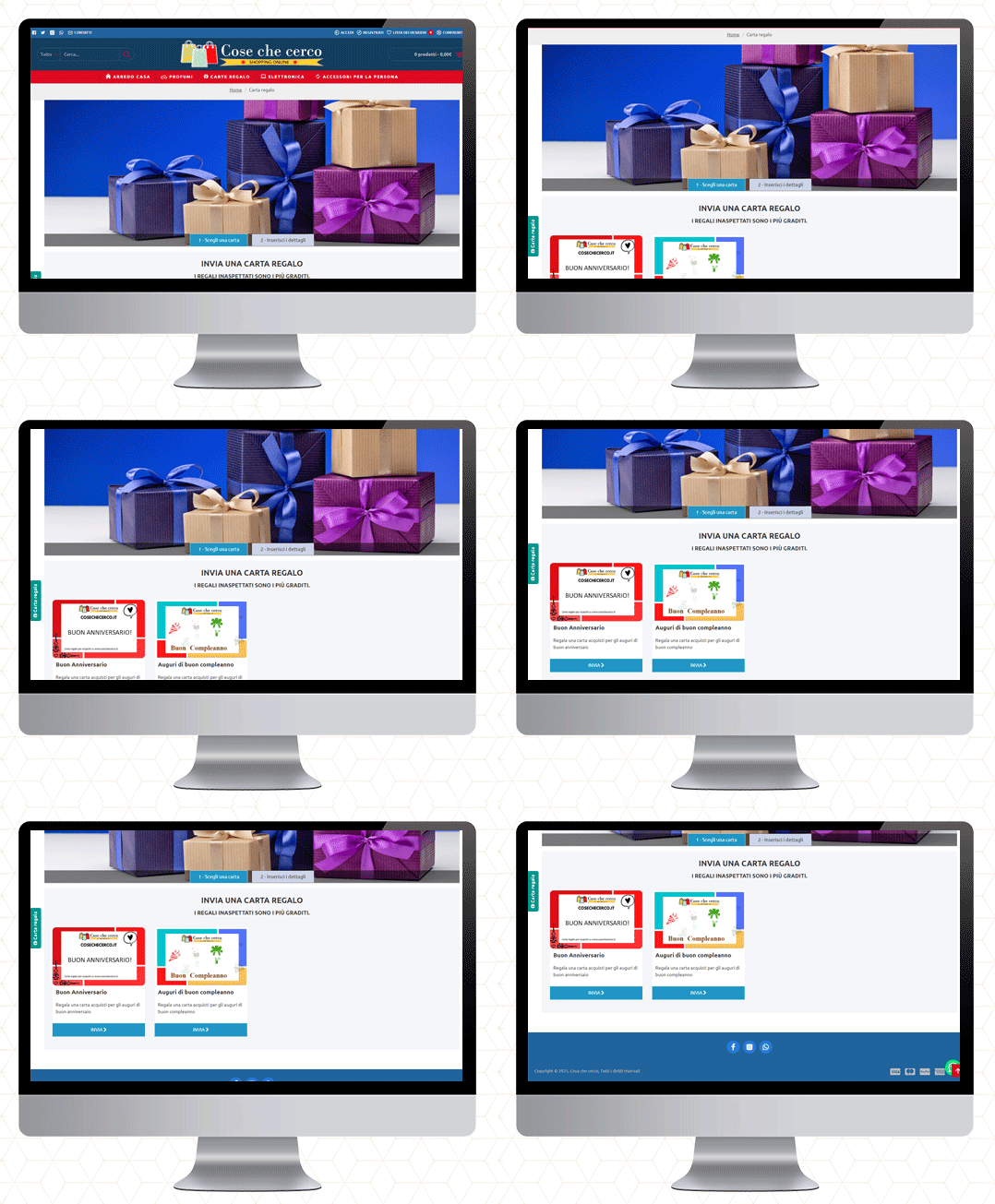
Cose che cero
They deliver in Italy. You will find furniture, perfumes, electronics, and a wide variety of accessories. The gift cards are also available on their website.
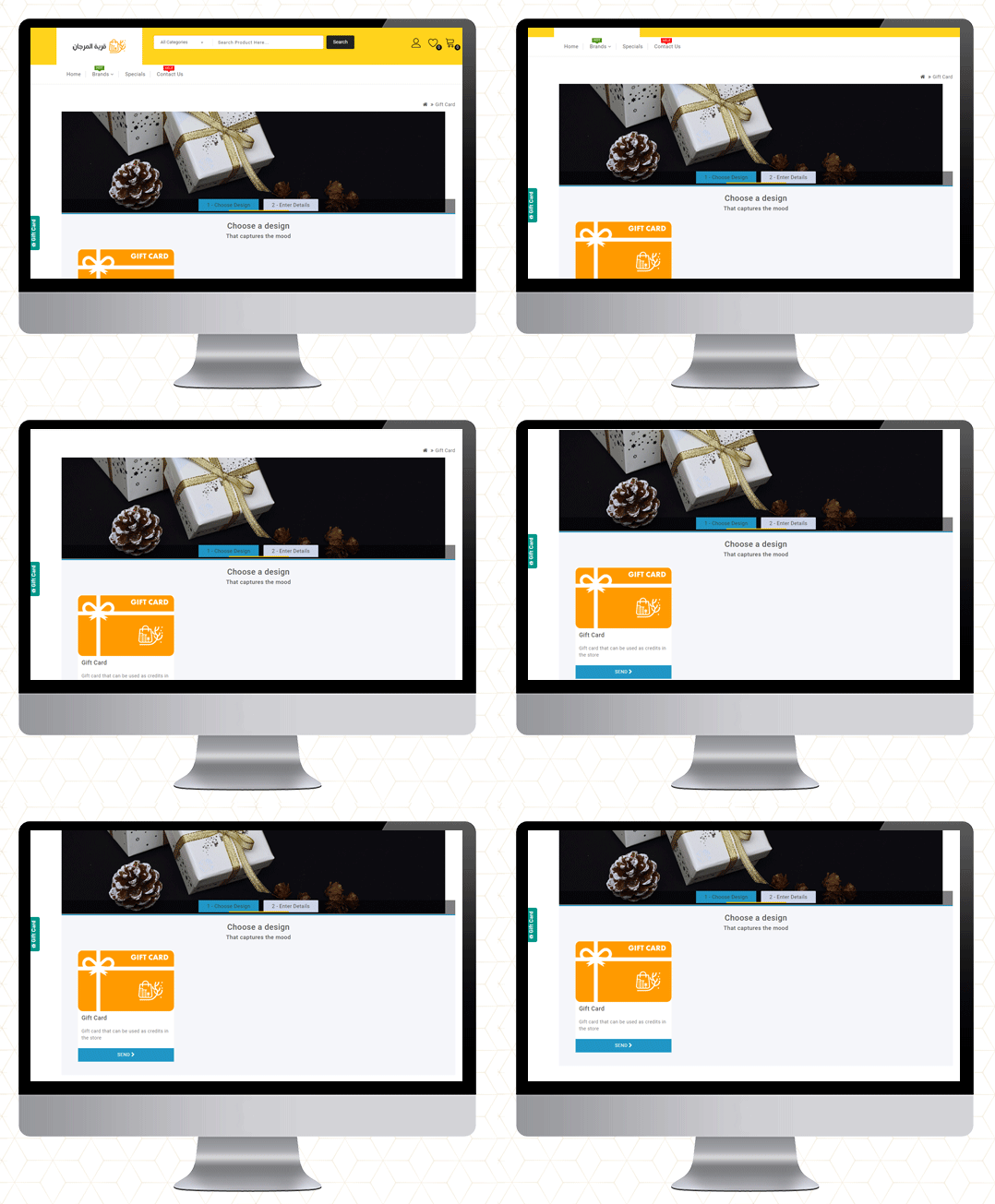
QMarjan
Al-Murjan store always strives to provide your needs at reasonable prices. Their location is in the beloved city of Qatif. They deliver in all regions. To improve the shopping experience as well as for customer acquisition, the Opencart Gift Card Manager is live on their store too.
Final Thoughts
Gift cards are similar to any other type of gift. Consider the person you’re gifting the card to and their likes and dislikes before making your selection. Make an effort to choose a card that will be liked and used.
So, if you’ve never considered a Gift Card as a product in your store, this guide will explain why they’re ideal.
If you want to start selling an e-Gift Card on your OpenCart store, go here to get started!
More information on KnowBand’s Digital Gift Card can be found here.
Check out the Video for OpenCart Gift Card Manager
The week of love is just around the corner. On one hand where the love birds would be searching a perfect gift for their partner, Brands, on the other hand, would love to make their shopping experience better and smoother.
Have you done your preparations for Valentine’s Day? Is your marketing strategy ready to be implemented? Well, even if you haven’t, it is still not too late.
OpenCart Extensions for Valentine’s Day
If you have a website on the OpenCart platform, here are the 7 must-have OpenCart extensions that you can consider implementing on your website to catch the spirit of Valentine’s Day. Check them out.
1. OpenCart Gift Card Extension
Gift Cards purchases are seen in high numbers during Valentine’s week and there is no doubt shoppers would be looking for some Valentine’s theme-based Gift Cards on your website too. Reduce this hassle with OpenCart Gift Card Extension.
The Gift Card module adds a gift card section on your OpenCart website and provides you with pre-existing gift card templates for multiple occasions including Valentine’s Day. It allows the users to print personalized gift card by uploading a custom image. You can customize these templates, add new ones, and do many more customization with the help of this OpenCart Gift Card Extension.
2. OpenCart Spin and Win Extension
How about giving your visitors Valentine’s feel as soon as they enter your website? The OpenCart Spin and Win extension has multiple themes designed for Chocolate Day, Hug Day, Rose Day, Kiss Day, Promise Day, Propose Day, Teddy Day, and Valentine’s Day, to give your popup an amazing look.
The Spin and Win Popup extension adds a gamified Spin 2 win wheel on your website. Besides keeping Valentine’s feel, it tends to generate higher user engagement, helps you grow your email list, and boosts your conversions.
It lets you encourage your visitors to spin the wheel and earn some enticing discounts.
This OpenCart module helps you set a countdown timer on the front end of your website for your upcoming sales so that your store visitors are very well aware of the commencement of your sales day and do not miss out on it later.
It is a perfect module to highlight your future sale offers without disturbing the user experience. By implementing this module on your OpenCart website, you can expect an increase in your sales when the actual sale season starts.
4. OpenCart One Page Checkout
Though this might make you think as to how one page checkout can be helpful during Valentine’s, it is something that you should definitely consider using.
Many cart abandonments take place due to a long and complicated checkout process. And you can lose out on huge conversions when the visitors count on your store is high but they are not making past the checkout page.
Remove the multi-step checkout barrier with the simple OpenCart One Page Checkout. The extension puts all the checkout fields on a single page and helps your prospects take a quick exit. A user can fill the entire checkout related information in any particular order and check out quickly.
Guest checkout, Social login, checkout field customization, multiple shipping and payment modes support are some of the amazing features of OpenCart One Page Checkout.
5. Print-on-demand Products
Print-on-demand services provide an alternative way to bypass inventory management time, investment, and risk, letting you go from creating to selling custom items at a fraction of the cost.
You can put your original spin on everyday items and sell them online, from t-shirts to posters, backpacks to books.
You can always graduate from using a print on demand platform to keeping your inventory if one of your online business ideas pans out and you start making a large number of sales or continue to use these services while exploring new ways to expand your audience.
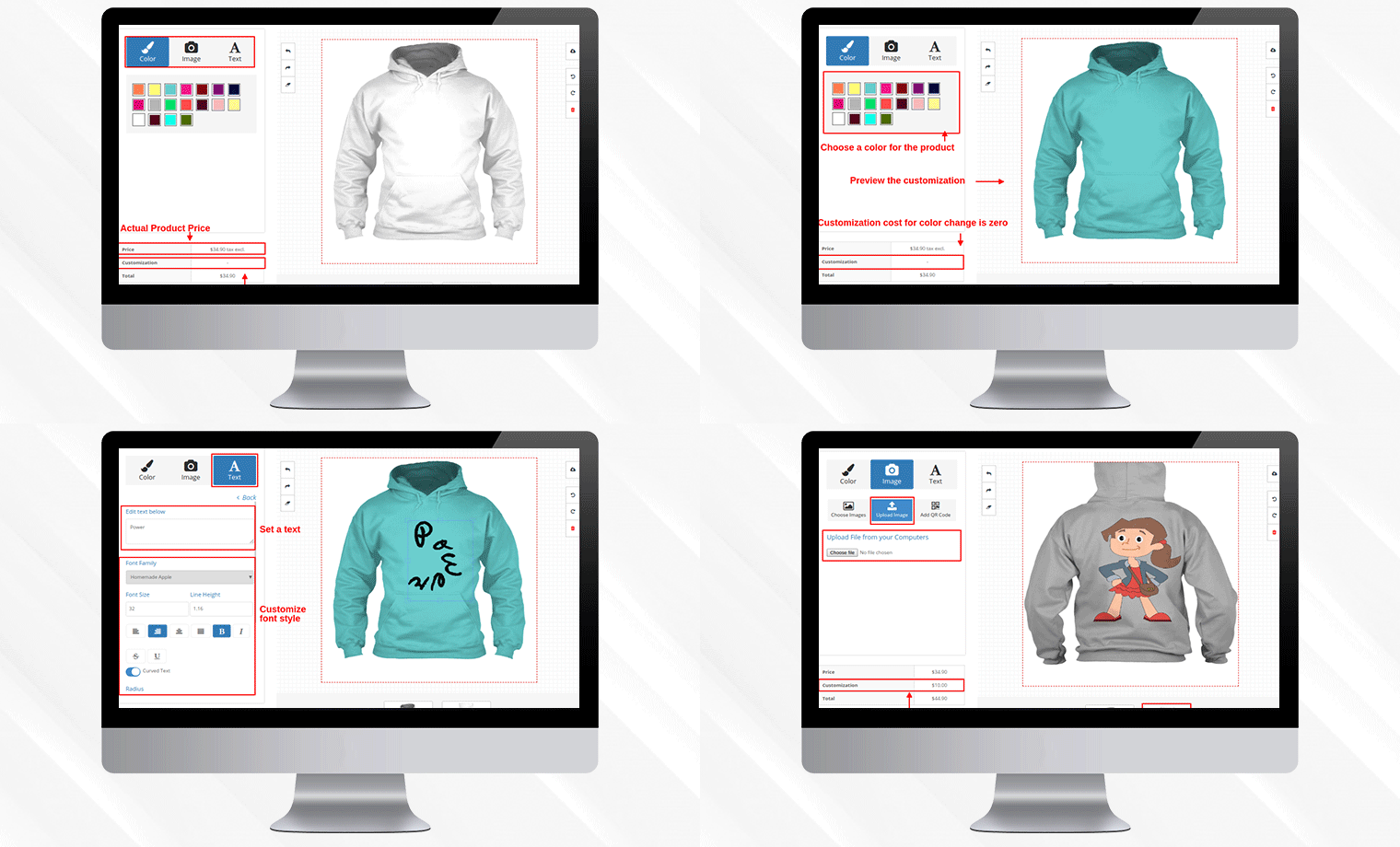
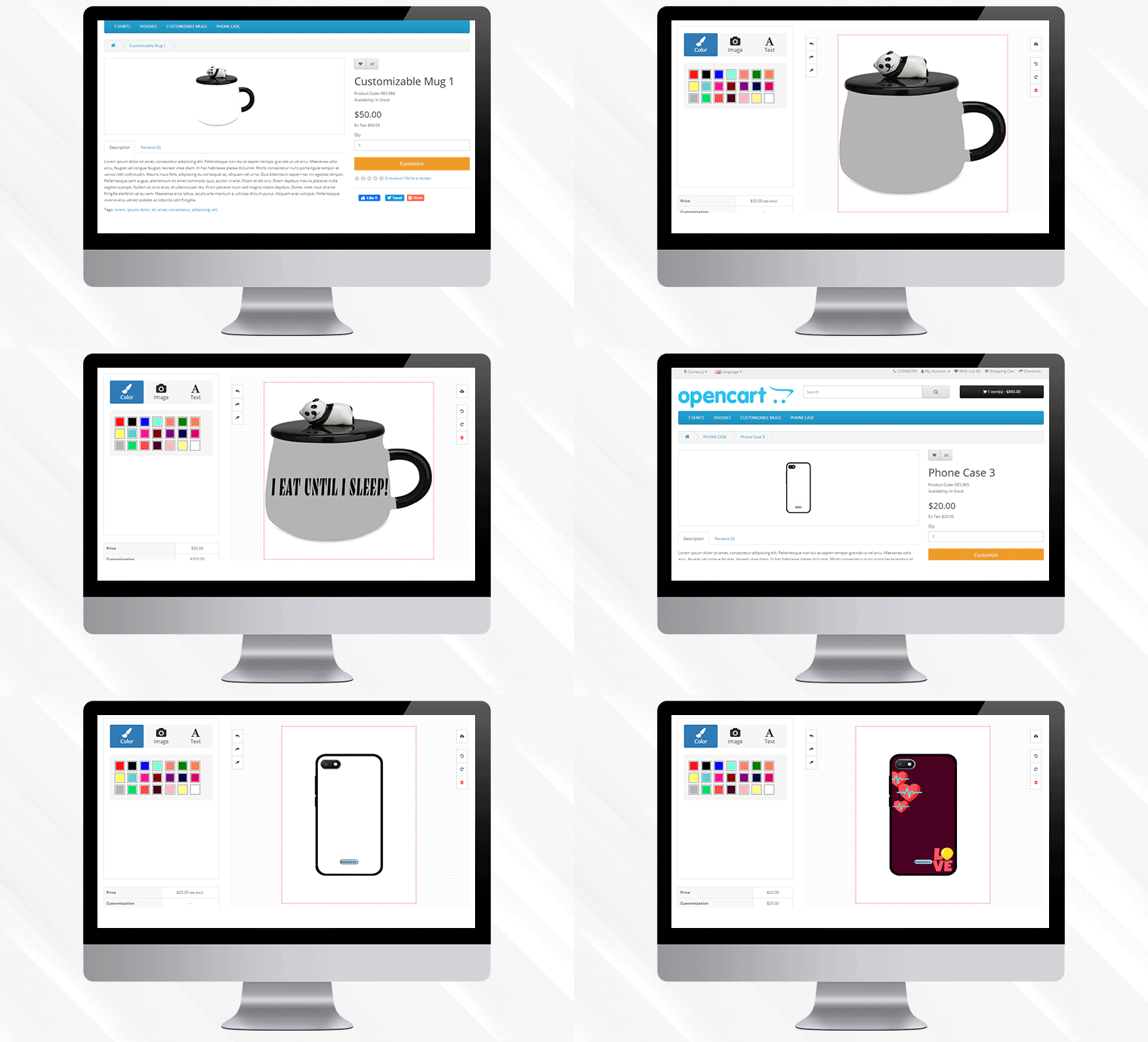
This Valentine’s Day, to achieve this you can add a Product Customization Module to your eCommerce store. The users surprise their loved ones with custom, personalized gift items. The choice is yours!
6. OpenCart Preferred Delivery Time Extension
There will be many last-minute shoppers on your store this Valentine who would want to order an item and get it as soon as possible or at a specific date and time. Make this possible for those shoppers with OpenCart Preferred Delivery Time extension.
Through this module, shoppers can specify the date and time on which they want to get their order delivered. They can choose their preferred delivery time on the checkout page. This would prove very beneficial to those users who want to receive a product at a certain occasion and at a certain time.
From the backend configurations, you can make certain changes in the module functionality.
7. OpenCart Cash on Delivery with Fee Extension
With OpenCart Cash on Delivery with Fee extension, you can ask your customers to pay an additional fee when they choose COD option on the payment page. The cash on delivery method is the widely adopted payment method as the majority of the shoppers do not like paying the product price until it reaches them.
The extension helps customers feel more secure and relaxed as they do not need to worry about sharing their card details online.
Over to You
Make the best of this Valentine’s week with these 7 OpenCart Extensions. You will surely witness a boost in your conversions.
If you face any issue with any of these modules or need any kind of assistance, reach out to us at support@knowband.com
Gift Cards or eCards have been always special and appealing to everyone as they suit every customer’s needs. Be it a Birthday, Wedding Anniversary, New Year or some other special occasion finding a gift for their loved ones is a big task for online customers. Your customers are unknown about the likes and dislikes of their loved ones. Moreover, giving a cash amount seems to be unreal and emotionless. Gift Cards are one smart and convenient way to make your customers feel happy and special.
So, what’s the best way to offer personalized gift cards to your store customers? OpenCart Gift Card Manager Extension by Knowband allows admin to sell gift cards in their online shop. With OpenCart send gift card extension, they can create and sell multiple gift cards based on different occasions in their store. The store customers can buy these gift cards and gift them to their relatives or friends. Moreover, lower return rates of the gift cards are another benefit for the store admin.
Open Cart Gift Card Manager helps you provide your customers with several occasion-based gift cards. Knowband OpenCart Gift Card Manager can set up a gift card section on the OpenCart website to promote digital gifting. The store owner can create several Gift Cards with gift card managers for special occasions such as Birthdays, Weddings, Valentine’s Day, Friendship Day, Father’s Day, etc. so that consumers should pick gift cards for their loved ones as desired. The customers can select the options like printing the gift card or sending it via email.
The Digital Gift Card plugin makes gifting simpler and more enjoyable. Finalizing a gift was time-consuming earlier, but now with a gift card manager, it can happen in minutes.
Benefits of Opencart Gift Card Manager for the eCommerce store owner:
Brings a new customer to your store
Lower return rates and increased retention
Generate revenue in advance of sales
More convenient with simplified predefined email templates
Fully Mobile Responsive
Benefits for Customer:
The customer who finds selecting a product difficult doesn’t have to spend extra time finalizing the gift. The OpenCart Gift card extension saves extra effort and time.
With the Knowband OpenCart gift card manager, they can get a gift card for every occasion.
The Knowband Gift Card manager comes with an easy admin panel and Sets the luring design and texts for Gift Card.
1.1 What’s New In this Updated Version of Gift Card Manager v1.3
The latest version of the Gift Card Manager Extension for OpenCart offers new enhanced features that will help the store admin to create the Gift Cards with ease. This new version of the OpenCart gift card plugin comes with some attractive features which increase the user experience. Let’s check out what’s new in the updated version:
With this OpenCart Gift card manager plugin, the eCommerce store owner can easily incorporate the gift card functionality into their online store.
Improved UI of the front end will enhance the customer experience. The gift card manager extension lets the admin show the Gift Card as products on the category page for both desktop and mobile.
OpenCart Gift card manager has the functionality of uploading personalized images from the front end to send the same in the gift card. The plugin allows the customer to create a custom gift card by uploading the desired image
With this new version, the functionality of uploading customizes catchy images from the backend to create gift cards. Further, this feature of the Gift card manager extension will help the store admin to create gift cards for local events. In addition, these images are usable as the background for Gift Card.
Opencart Gift card manager plugin has Interesting and descriptive email templates. Templates cannot only reduce the workload but make you feel less stressed. With the Open cart gift card manager installed an email notification will be sent to the recipient, sender, and customer when the gift card order comes in.
A Gift Card template will be sent to the customer through email if the customer has not uploaded a personalized image from the front end else personalized image will be sent through email.
Customers can choose the day and time for the delivery of physical gift cards as well as the virtual gift card via mail. The new version of the OpenCart Gift Card Manager allows the store admin to run the Cron manually.
A button corresponding to each order for resending the Gift Card is available.
With this new version of the Opencart Gift Card Manager Extension, the admin can add title and description to the Gift Card template. This title and description along with the image will be visible to the customer.
The new version is mobile responsive.
Opencart Gift card manager is easy to use and install.
1.2 Distinct features of OpenCart Gift Card Manager Extension:
OpenCard Gift Card Manager Plugin comes with some striking features which give better UX and handy customizable options to the store admin.
Customers can purchase or send gift card vouchers from the store.
OpenCart Send Gift Card extension gives the flexibility to create unlimited gift cards for the store based on various occasions like Birthdays, anniversaries, New Year, Christmas, or any other special event.
The admin can promote the Gift Cards by showing the Gift Card in the header section, footer section, or the left side of the webpage.
OpenCart Gift Card system gives an option to set the Gift Card delivery gap in several days.
OpenCart Gift Card Manager Plugin allows online store merchants to add a unique prefix code to the gift voucher.
Using Gift Card extension the admin can set the appropriate order status for the Gift Card orders. The Gift Card will deliver to the specified recipient only after the order status changes to the defined status.
OpenCart Gift Card Extension supports multi-lingual and multi-store compatibility.
OpenCart gift card Manager helps store admin monitor all gift card purchases. In particular, the admin can see the order information corresponding to the orders.
Buyers must specify the value of the gift card, the name of the sender, the name of the recipient, and the email address of the recipient for the delivery of the gift card.
The OpenCart gift card templates can be mapped to any category by defining or adding relevant keywords to them.
The eCommerce store owner can send an email notification to customers who have opted for the “Print by Yourself” option. A separate email template is available to submit an email update. That way, an online store admin will send an email update to a gift card sender.
The online store merchant can show a fixed amount of gift cards for the customers. Admin can make multiple fixed amount gift cards with OpenCart gift card manager and separate them using a comma.
OpenCart Gift Card Manager Extension allows online merchants to fix minimum and maximum gift card value from the admin interface of the gift card manager plugin. The online users need to purchase a gift card of more than a minimum and less than the maximum value
2.0 How to Install Gift Card extension?
This module comes with an easy installation process. Before starting the installation process, you have to buy the Gift Card Module for the OpenCart store from the Knowband store. Once purchased, you will receive the following files on your registered email.
Source code file of OpenCart Gift Card Extension in zipped file format.
User Manual of OpenCart Gift Card module.
Now in order to install the OpenCart Gift Card vouchers on your website, follow the given steps:
Unzip the zip file. You will get the folders as shown in the image below
Copy all the folders of the zip file in the Root Directory of OpenCart setup via FTP manager.
So, the OpenCart Gift Cards manager is now successfully installed and is ready to use at your online store.
3.0 Admin Interface of OpenCart Gift Card Manager Extension
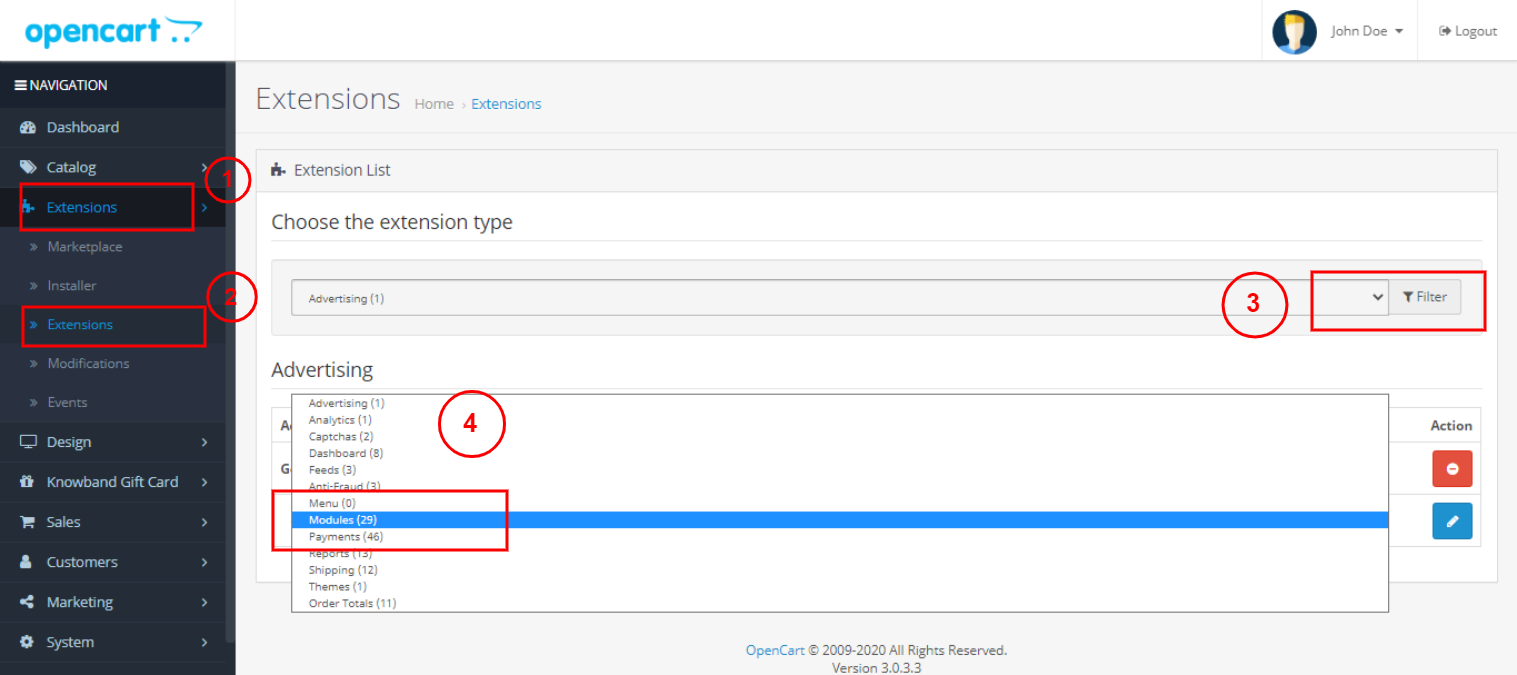
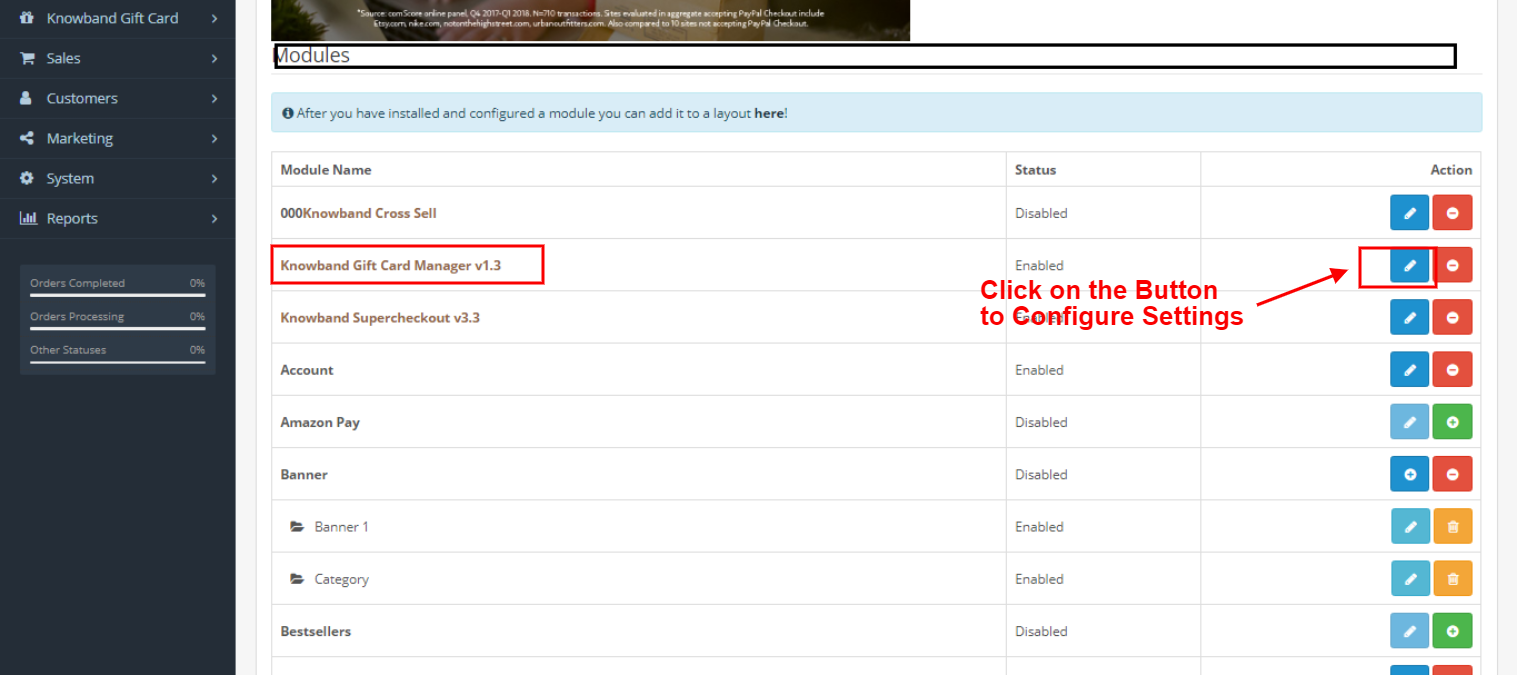
After installing OpenCart Gift Card Manager v1.3 in the OpenCart store, the store owner can make the changes without any hassles. Navigate the settings in the given order: Admin Panel > Extensions >Modules > Gift Card Manager.
The knowband gift card manager module configuration page will display the following tabs to configure the module as desired.
Module Configuration
Gift Card Template
The Gift Card Images
Gift Card Orders
Each interface is in the form of a tab, and each tab contains some basic settings that changes as required. Each tab will be discussed below.
3.1 Module Configuration
How to configure Gift Card Manager for open Cart? OpenCart Gift Card Manager Module Configuration settings consist of the following four parts, as discussed below:
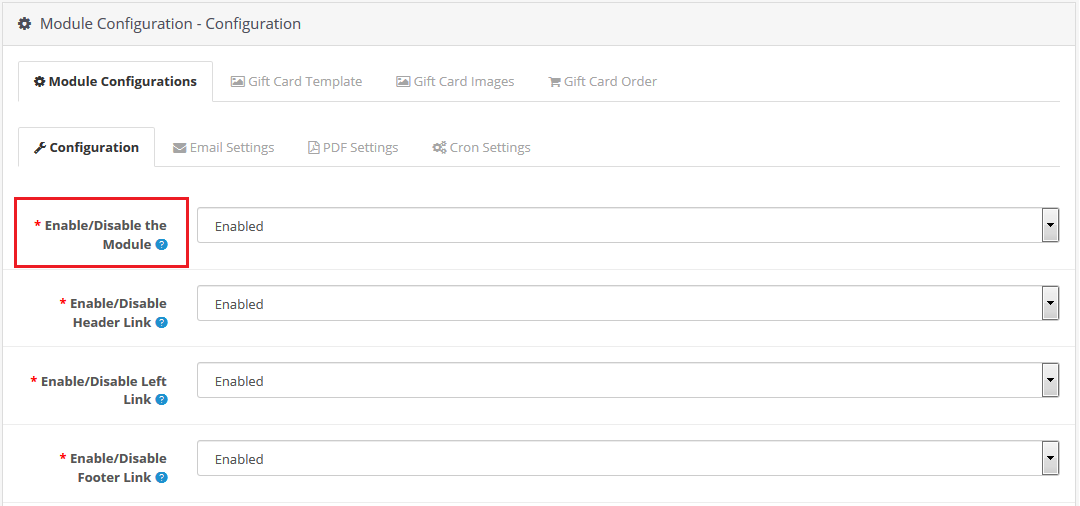
3.1.1 Configuration
Enable/Disable Module: Enable or disable the gift card feature of your shop.
Enable/Disable Header Link: Show or hide the gift card link in the header section of the website. By showing the Gift Card link in the header, you can bring it to the attention of the store visitors.
Enable/Disable Left Link: Enable or Disable gift card link in the left section of the website. A direct call to the Gift Card Action button will be shown on the storefront. It will help you encourage the selling of gift cards.
Enable/Disable Footer Link: This allows the admin to show or hide the gift card link in the footer section of the site.
Enable/Disable My Account Link: With this button, the admin can show or hide the gift card link in the My Account section of the site. This will help store owners to show the gift card options to the visitors.
Enable/Disable Personalised photo: This option allows the admin to hide or show the functionality of uploading personalized images from the front end to send the same in the gift card.
Gift Card Prefix: This option helps the admin to set the gift card voucher code prefix. The admin enters the code in a ‘Store_Name- * * *’ format. Admin can use this as a branding suffix. The store owner will advertise the store by using its business name as a prefix.
Gift Card Code Order Status: This button sets the status of the store orders when the gift card delivers to the respective customer. If the order status is set as ‘Complete’, the gift card will be sent to the customer once the purchase of the gift card has been completed on-site.
Minimum Gift Card Delivery Gap: Using this tab, the store administrator can determine the minimum duration of time on which the order comes in. Moreover, the day on which the gift card delivers. Thus, this value is only applicable to the option Send by Email.
Fixed Amount Status: The online store merchant can activate or deactivate this option if he or she wants to display a fixed amount drop-down list. The admin can allow the customers to send the gift cards of their desired amount. Store Admin can set the minimum and maximum amount for the Gift Card.
Fixed amount: The admin can add multiple values and separate the same by a comma.
Max amount: The online merchant can set the maximum amount which is acceptable for a gift card by the OpenCart gift card manager. This function will work only if fixed amount status functionality will disable.
Min Amount: The store admin can set a minimum amount for the card purchase. The customer cannot buy a gift card lesser than that amount.
3.1.2 Email Settings
With OpenCard Gift Card Manager a gift card can be sent to the recipient via email. You can customize this email template. When the gift voucher email is sent another email will be sent to receive, and the sender will receive an acknowledgment email. All the email templates are customizable.
Recipient email Subject: The subject line of the gift voucher code email sent to the receiver are customizable.
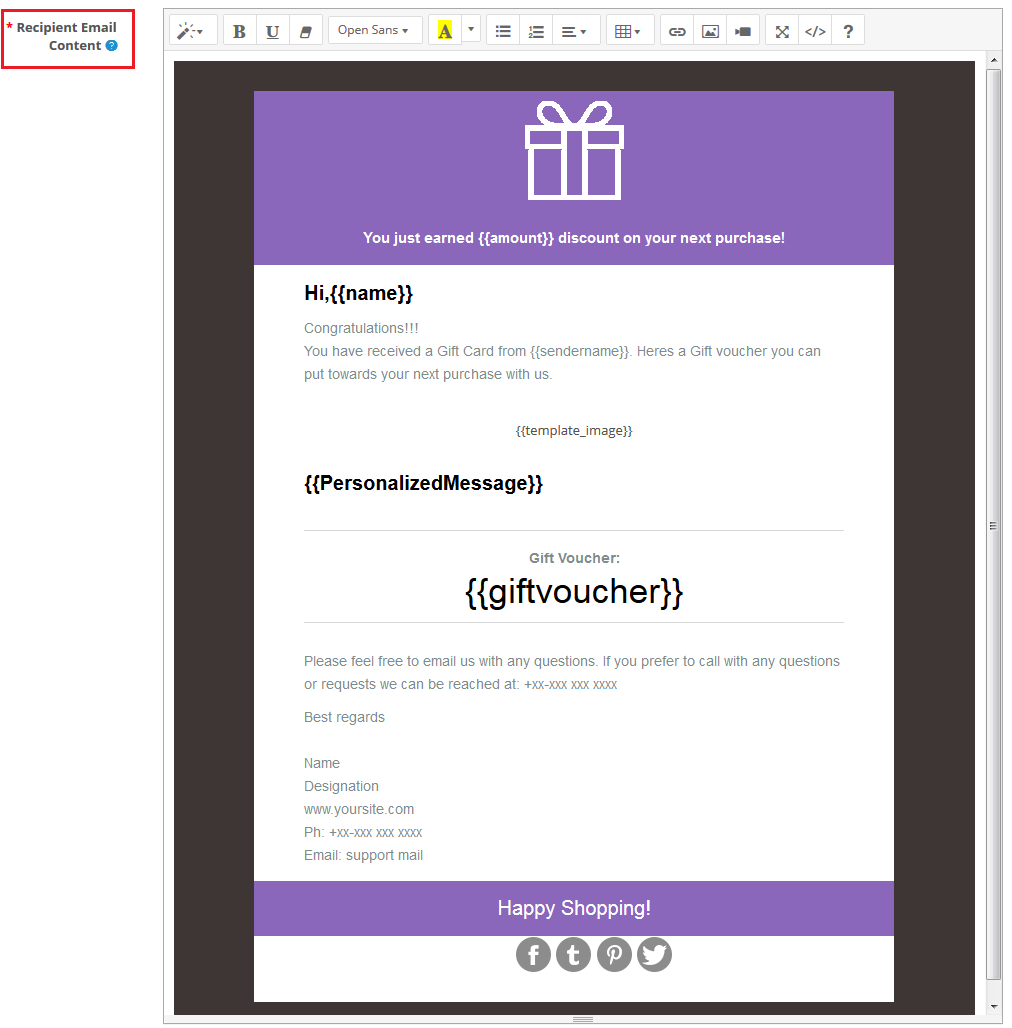
Recipient Email Content: OpenCart Gift Card Manager allows eCommerce store owners to customize the contents of the gift voucher email code which will be sent to the recipient.
Sender email Subject: An acknowledgment email is received at the end of the sender upon the successful delivery of the gift voucher code. The subject line of the sender’s acknowledgment email is changeable by the admin.
Sender email Content: The content for the sender acknowledgment email customizable by the store admin.
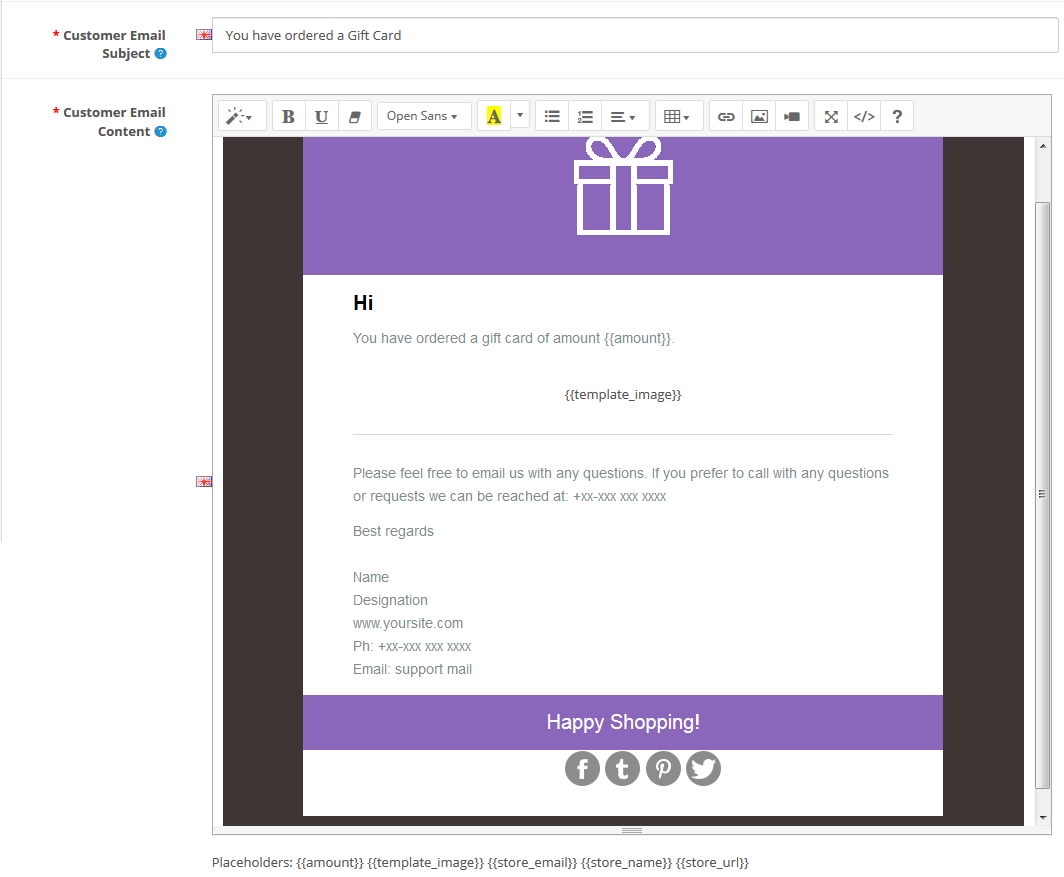
Customer email Subject: Admin can alter the subject line of the email and modify the email template.
Customer email Content: The online store administrator will send an email notification to online shoppers who have chosen the “Print by yourself” option.
3.1.3 PDF Settings
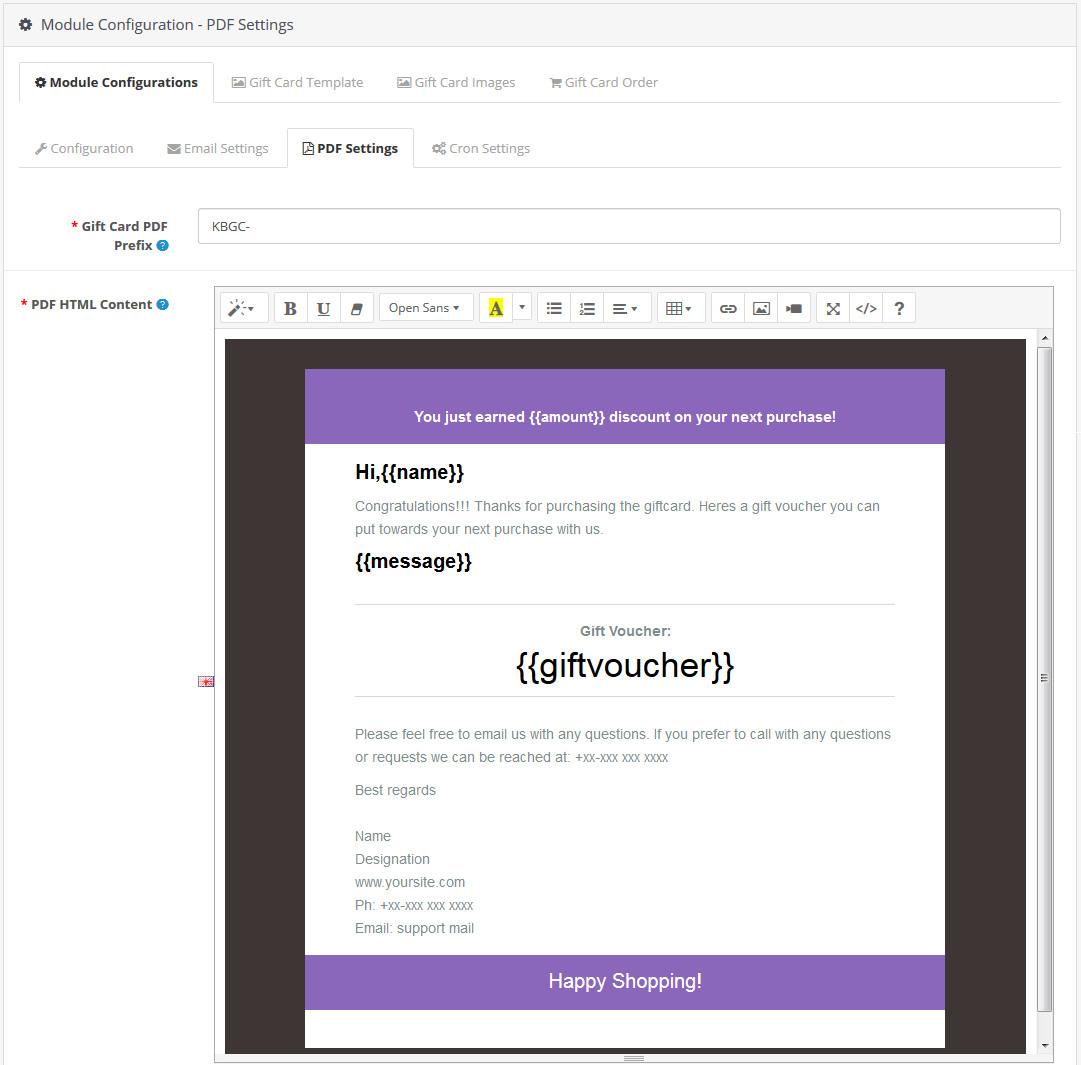
The purchaser of the gift voucher will print the OpenCart gift voucher in PDF format. The administrator will modify the contents of the PDF file.
Gift Card PDF Prefix: This option allows you to set the PDF gift card prefix code attached to the document.
PDF HTML Content: You can modify or customize the contents of the PDF file as per business requirements. This template is in HTML format so you can easily add text, photos, or links to it. This PDF material can also publish in English, French, and other languages.
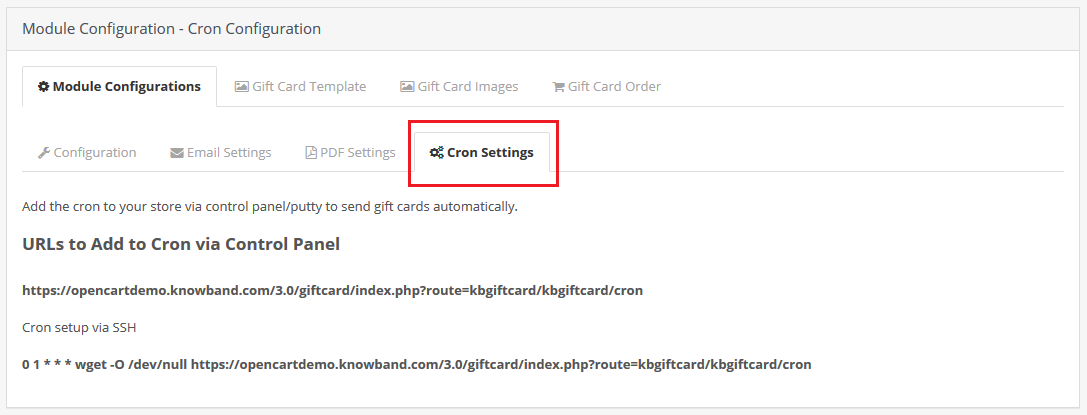
3.1.4 Cron Setting
The OpenCart Gift Card manager Module supports cron features. Admin can run cron manually or automatically after a specified period of time. A button is available for this functionality.
Add the cron to your store via the Control Panel to send gift cards automatically.
3.2 The Gift Card Template
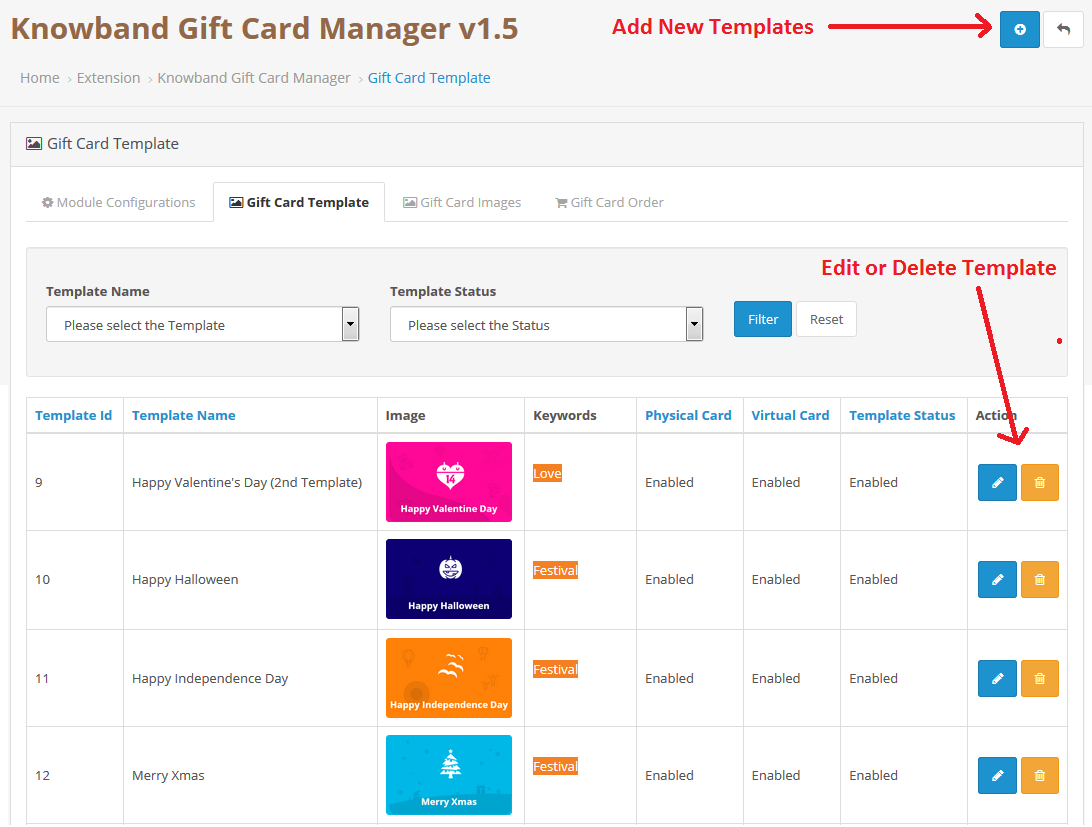
To build new gift card templates using the OpenCart gift card module, go to the Gift Card design tab of the admin panel. Click the ‘Add New Template’ button or the ‘+’ sign on the top right of the OpenCart gift card screen. You can see the following settings to create a new gift card template for your store.
Add New Templates or Edit/Delete the Templates:
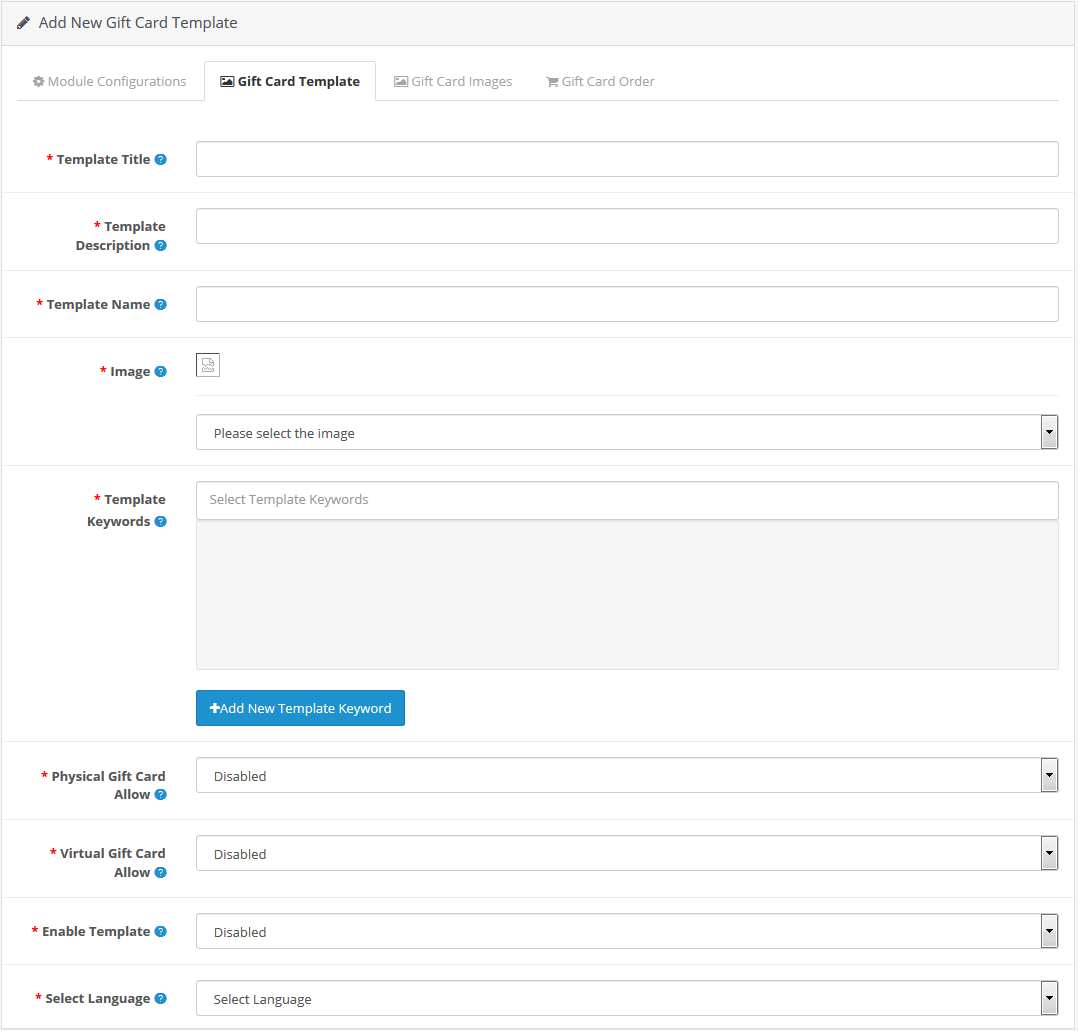
Add New Gift Card Template:
Template Title: This is a new feature in this latest version of OpenCart Gift Card Manager which allows admin to add the template title.
Template Description: Now admin can add the description for the Gift Card which he or she wants to display on the front end.
Name of the template: This option allows the admin to set a unique name for the gift card template that defines a particular template.
Image: This option of the OpenCart Gift Card Plugin allows the admin to pick a gift card picture or model that will display at the front end of the shop. When selecting an image, only the images produced will display in the drop-down list.
Template Keywords: This choice lets you map the gift card design to a specific category. It can be achieved by choosing the appropriate tags/keywords for the gift card template. If you want to place the gift card template in a new category, you can first add the keyword and map the template to it. Just press the “Add new keyword template” button.
Physical Gift Card Allow: This option allows the OpenCart admin to activate or deactivate the physical gift card for this template.
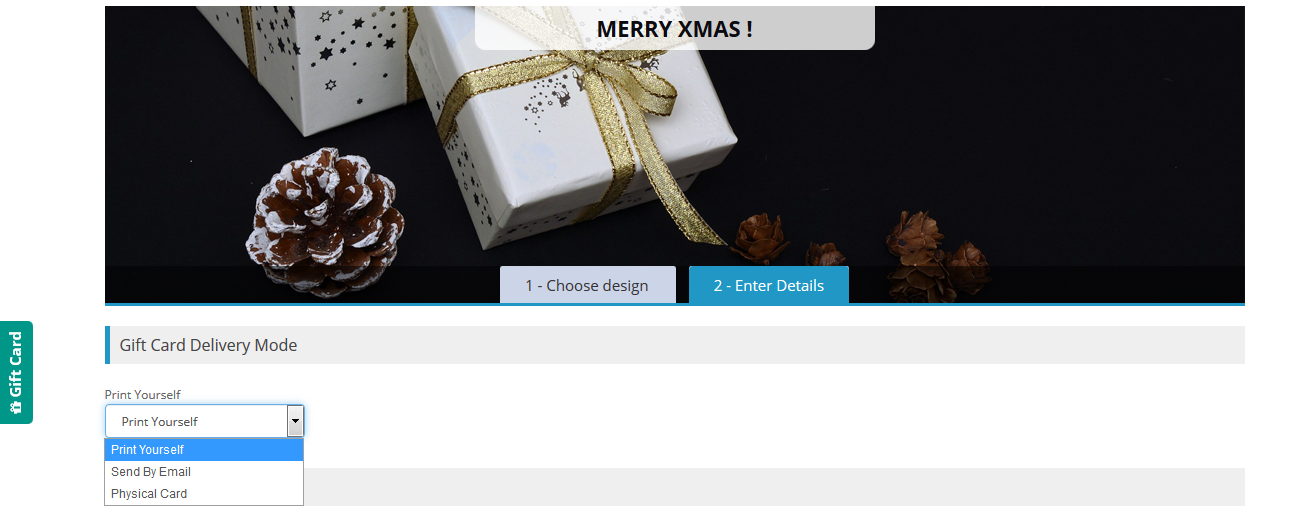
Virtual Gift Card Allow: You can activate or disable e-cards for both the recipient and yourself. This means that when you activate the virtual card option, customers will see three options on their front page, namely “Print Yourself”, “Send by Email”, and “Physical Card”.
Enable Template: This option easily activates or deactivates the template from OpenCart Store.
Select Language: The admin will pick the language of the template from the drop-down list.
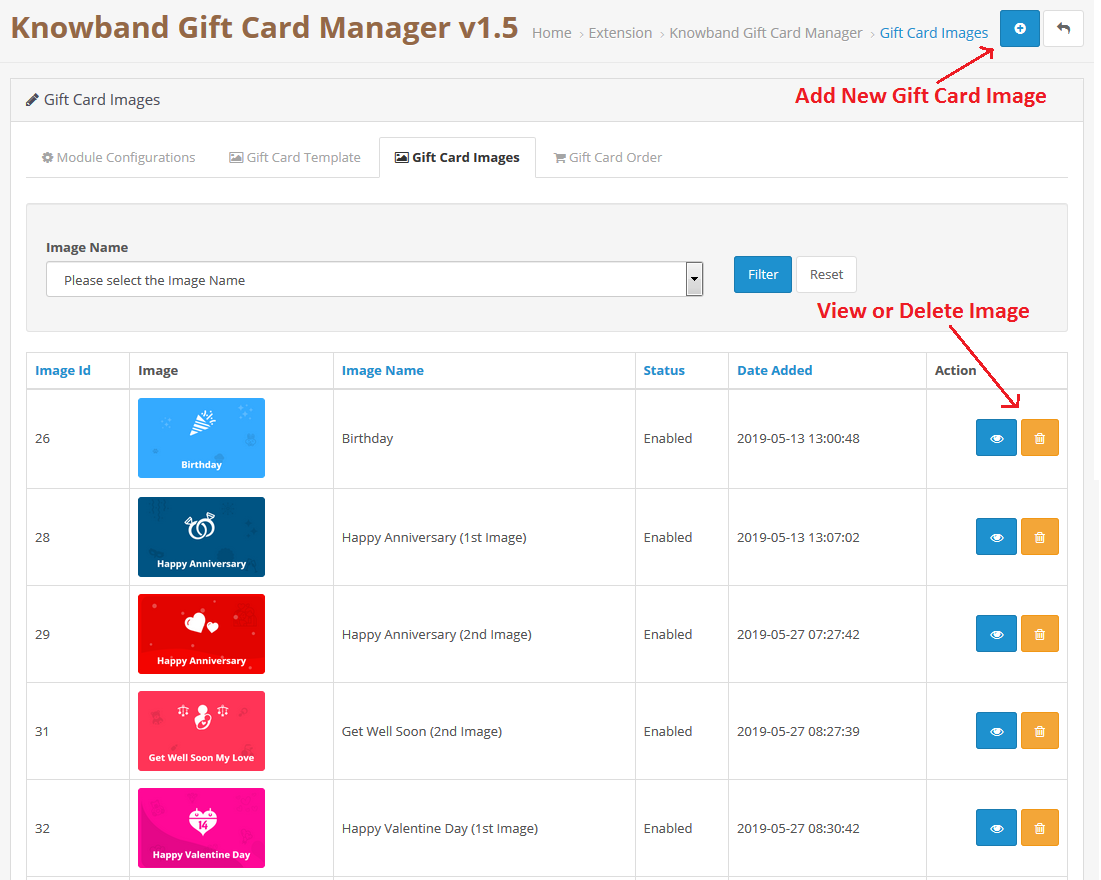
3.3 The Gift Card Images
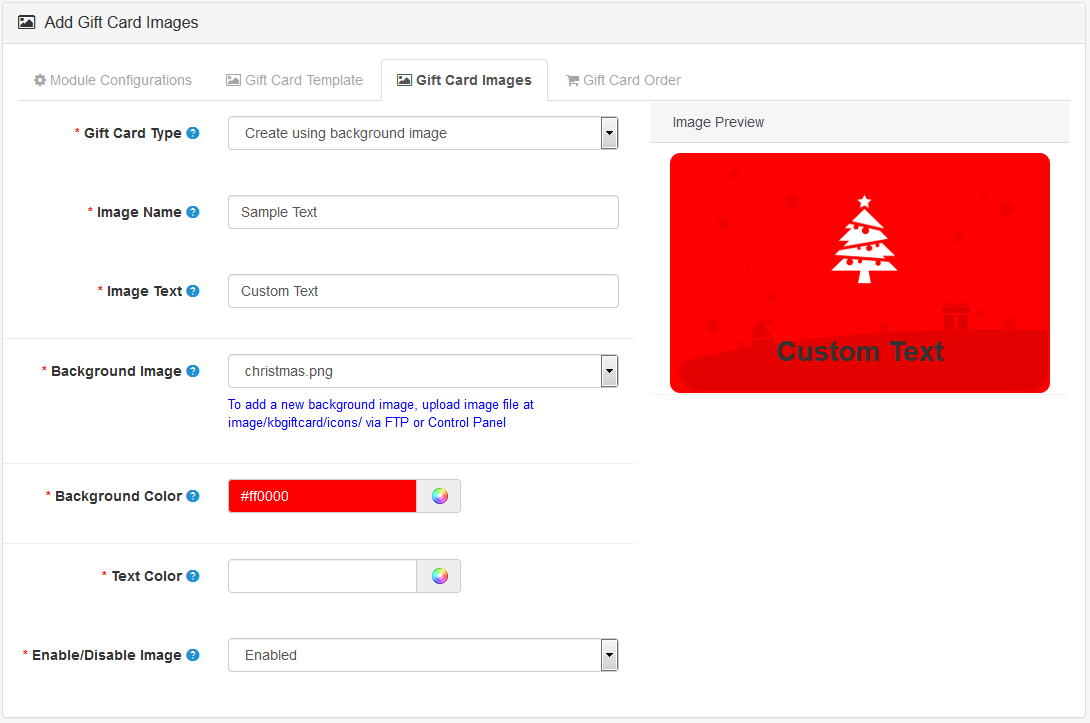
Pictures for various occasions are pre-uploaded at the back end of the OpenCart gift card manager. The admin can select an occasion-based image when building a gift card template. In addition, the store owner needs to set the following configuration settings to attach a new gift card to the store.
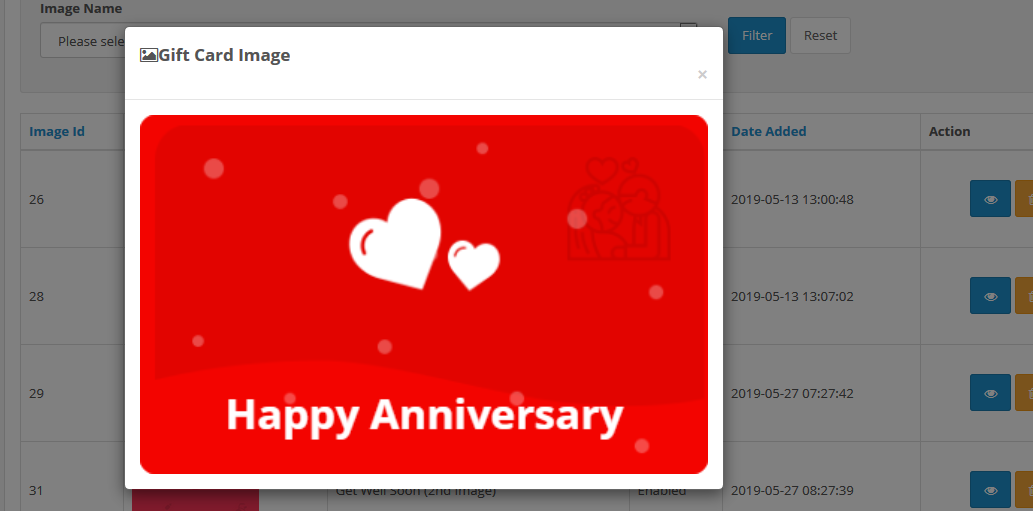
View Gift Card Image:
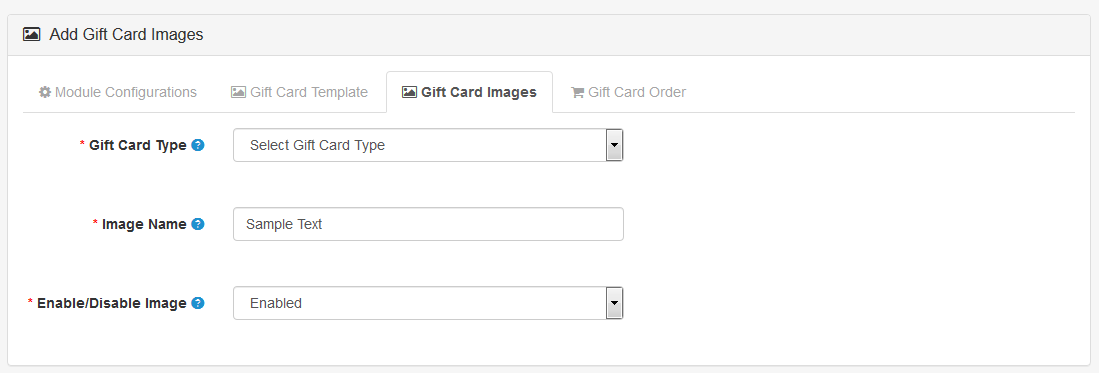
Add Gift Card Images:
Select the add product button available in the upper right corner. You will head to a new page where you can add new Gift card Images.
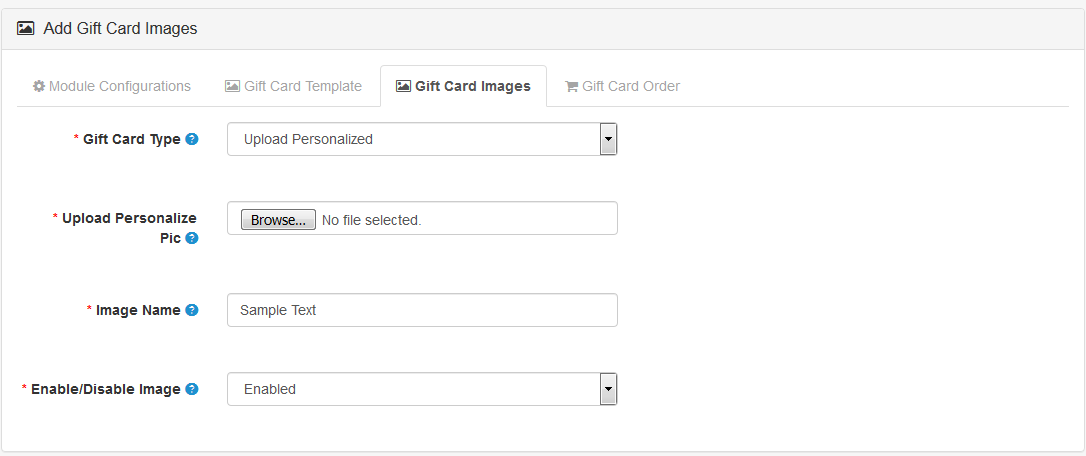
Gift Card Type: The store admin can upload a personalized gift card image to make the gift card more attractive.
Image Name: This feature is to add a name to the Image. This name is for recognition purposes of the admin and this won’t display on the front end.
Enable/Disable Image: With this button, the store owner can show or hide the particular Image from the front end.
Gift Card Image section of OpenCart Gift card Manager has two more options
Upload Personalised Gift Card Image:
Create Using Background Image:
Save the settings before moving to the next setting section.
3.4 The Gift Voucher Orders
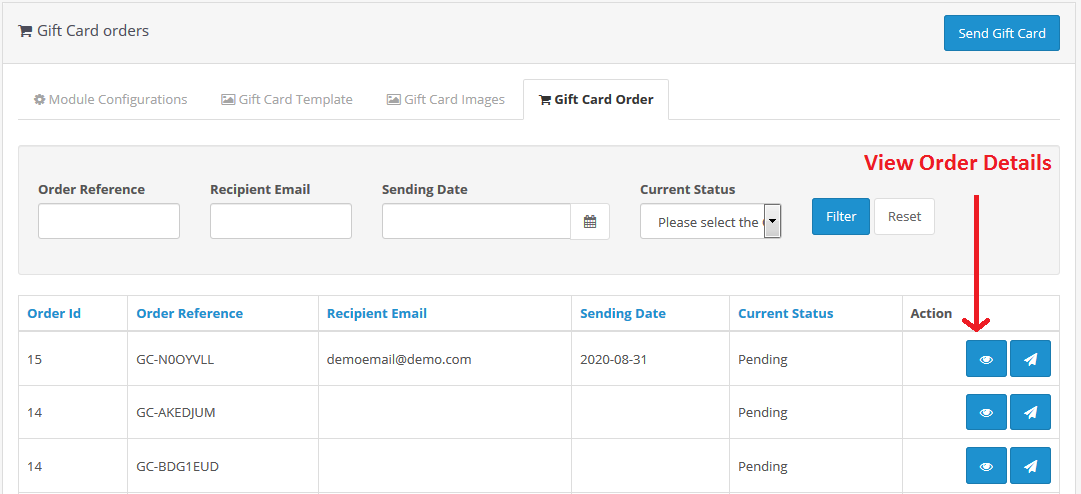
For the admin interface Gift Card Order section is very important. Here admin can track the details of the orders of Gift Cards.
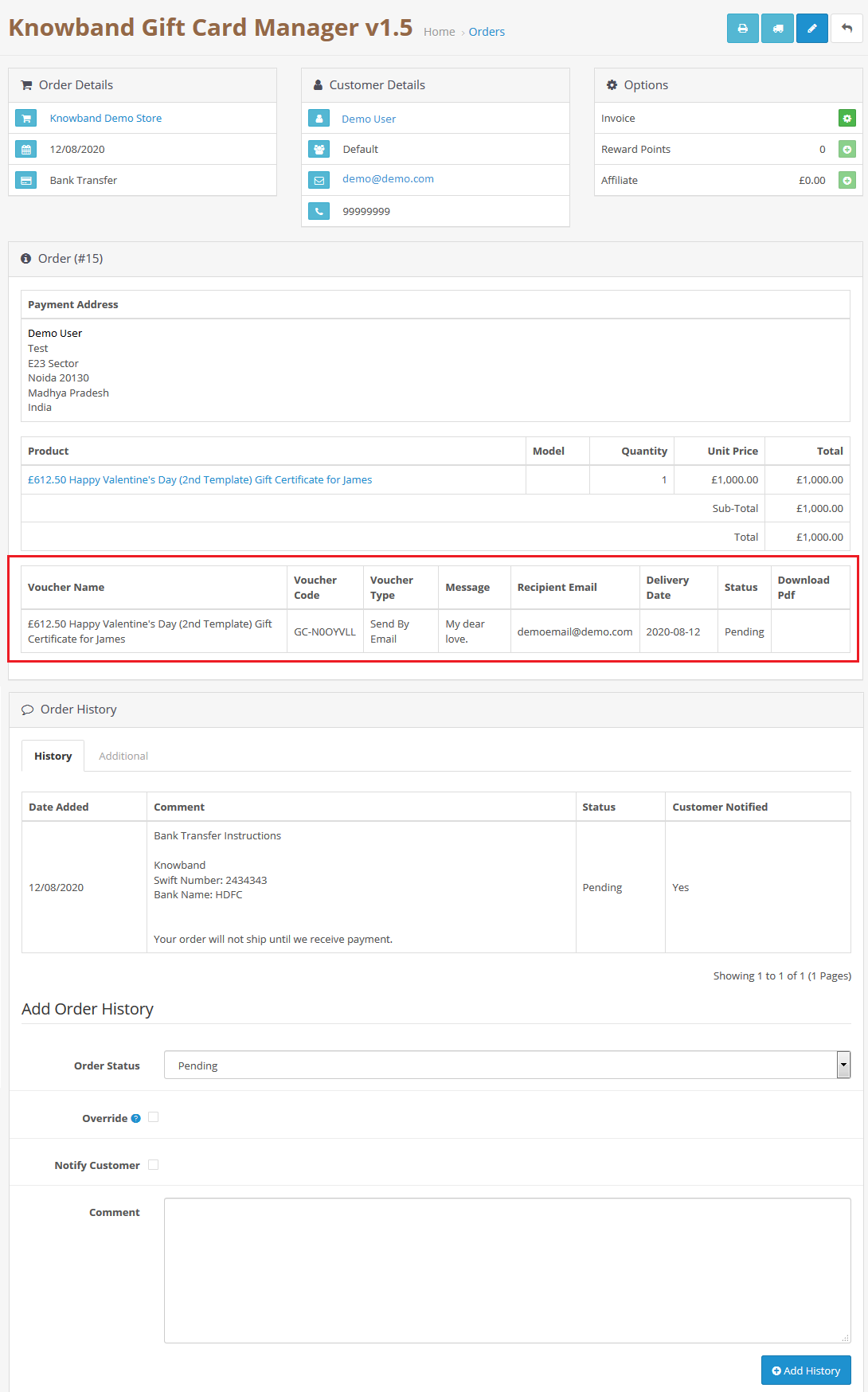
Under the Gift Card Order tab of the Gift Card Manager, the administrator can monitor the entire list of orders received for gift cards. It displays the e-mail address of the recipient, the date of the shipment, and the status of the gift cards.
In this section, you will find all the details about the order. Go to the ‘Display’ button in the right section of the ‘Gift Card Order’ page.
View the Gift voucher Orders:
4.0 Front Interface
4.1 Different positions of gift card link
a) The gift card link is shown at the left and header sections.
b) The gift card link is shown in the footer section.
4.2 How to Purchase a Gift card?
Click on the Gift Card Button from any of the above-mentioned tabs. Customer will head to Gift card Page
Choose Design: Select a design for your card according to the occasion from the options available.
Choose an option for the Gift Card Delivery Mode
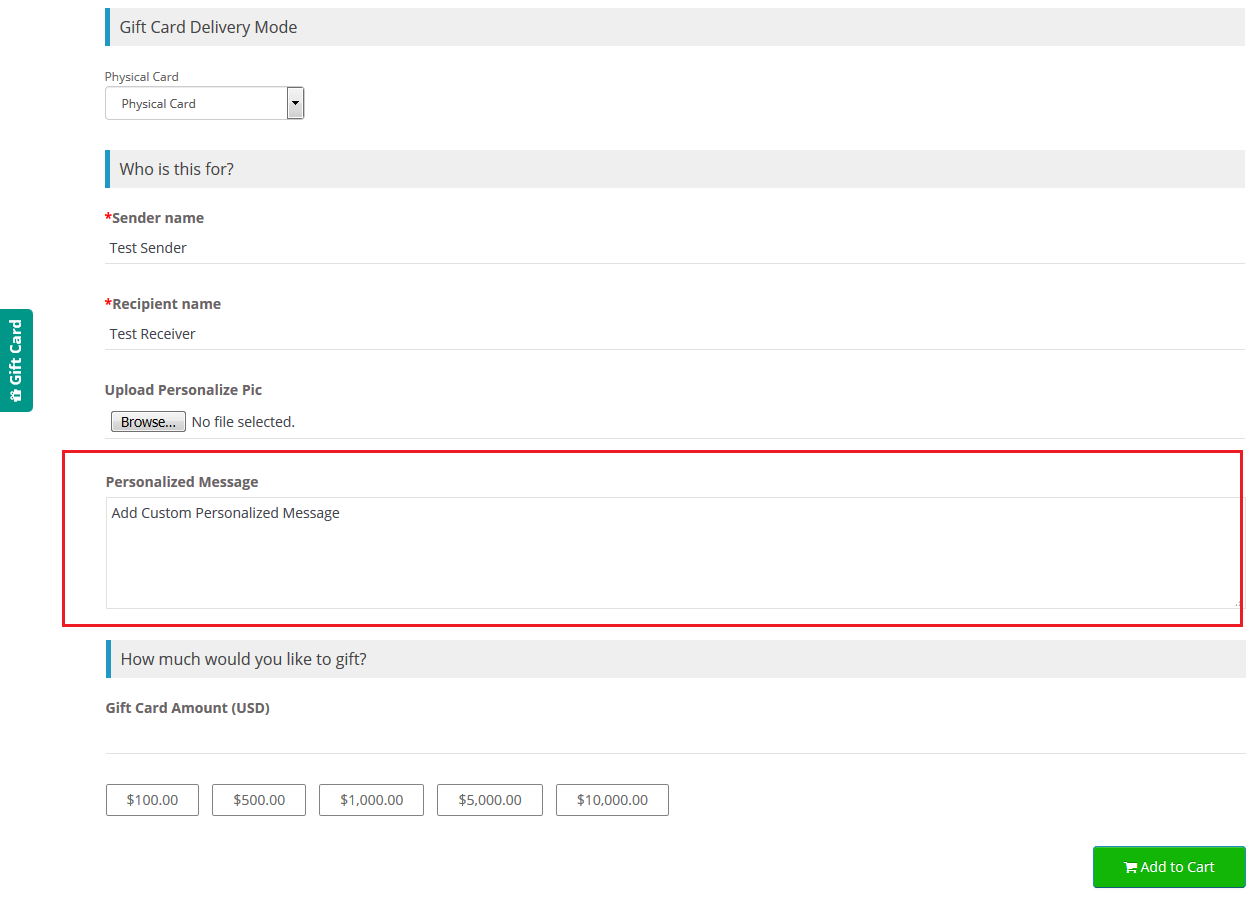
4.2.1 Print Your self
From(Name): Enter the name of the sender
To(Name): Enter the name of the receiver
Upload Personalize Pic (Choose File): With the OpenCart Gift card manager, the Customer can choose a personalized Image that will be shown on the card.
Personalize message: A personalized message can be written by the customer.
How much would you like to gift?
Gift Card Amount: Customer can put an amount which needs to be gifted.
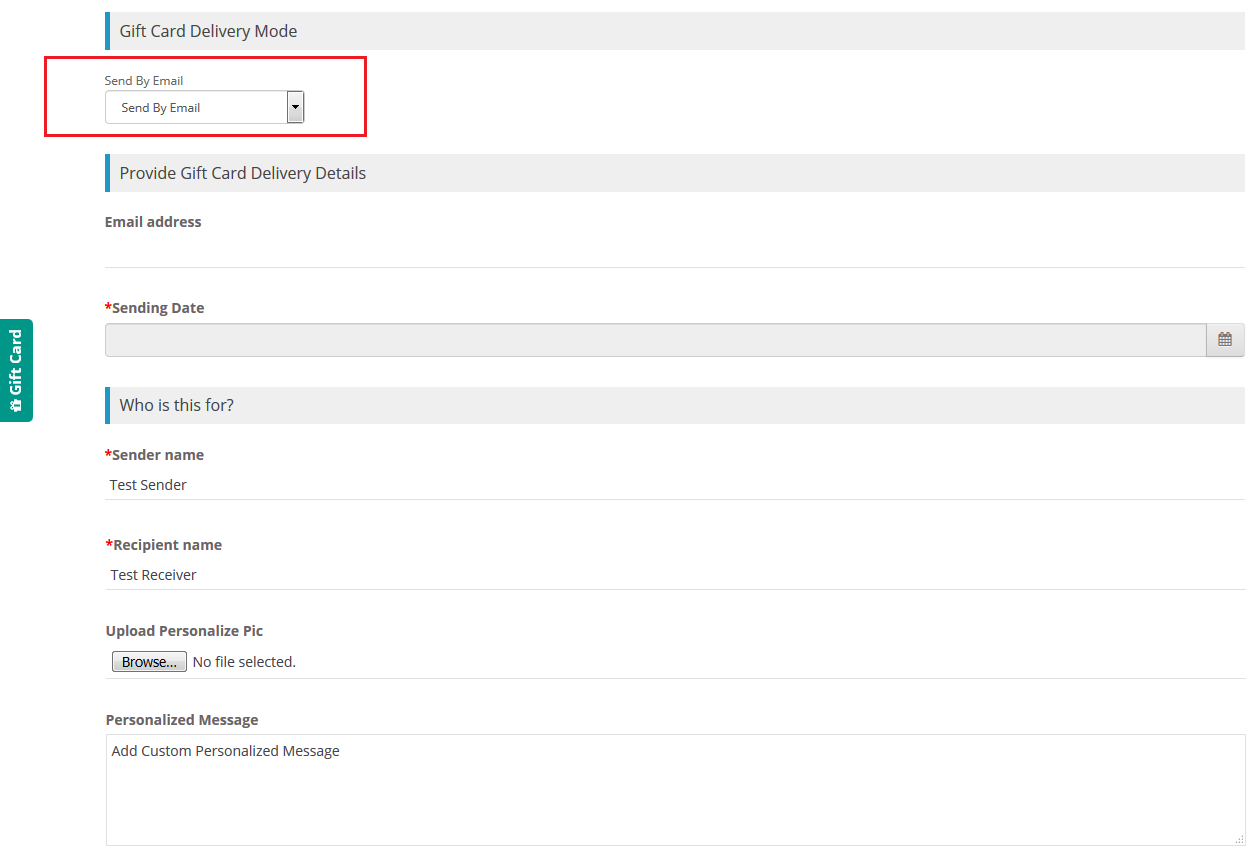
4.2.2 Send By Email
Provide Gift Car Delivery Details
Email Address: Enter the email address of the receiver
Sending Date: Add sending date of the Gift Card Notification email
From(Name): Enter the name of the sender
To(Name): Enter the name of the receiver
Upload Personalize Pic (Choose File): With the OpenCart Gift card manager, the Customer can choose a personalized Image that will be shown on the card.
Personalize message: A personalized message can be written by the customer.
How much would you like to gift?
Gift Card Amount: Customer can put an amount which needs to be gifted.
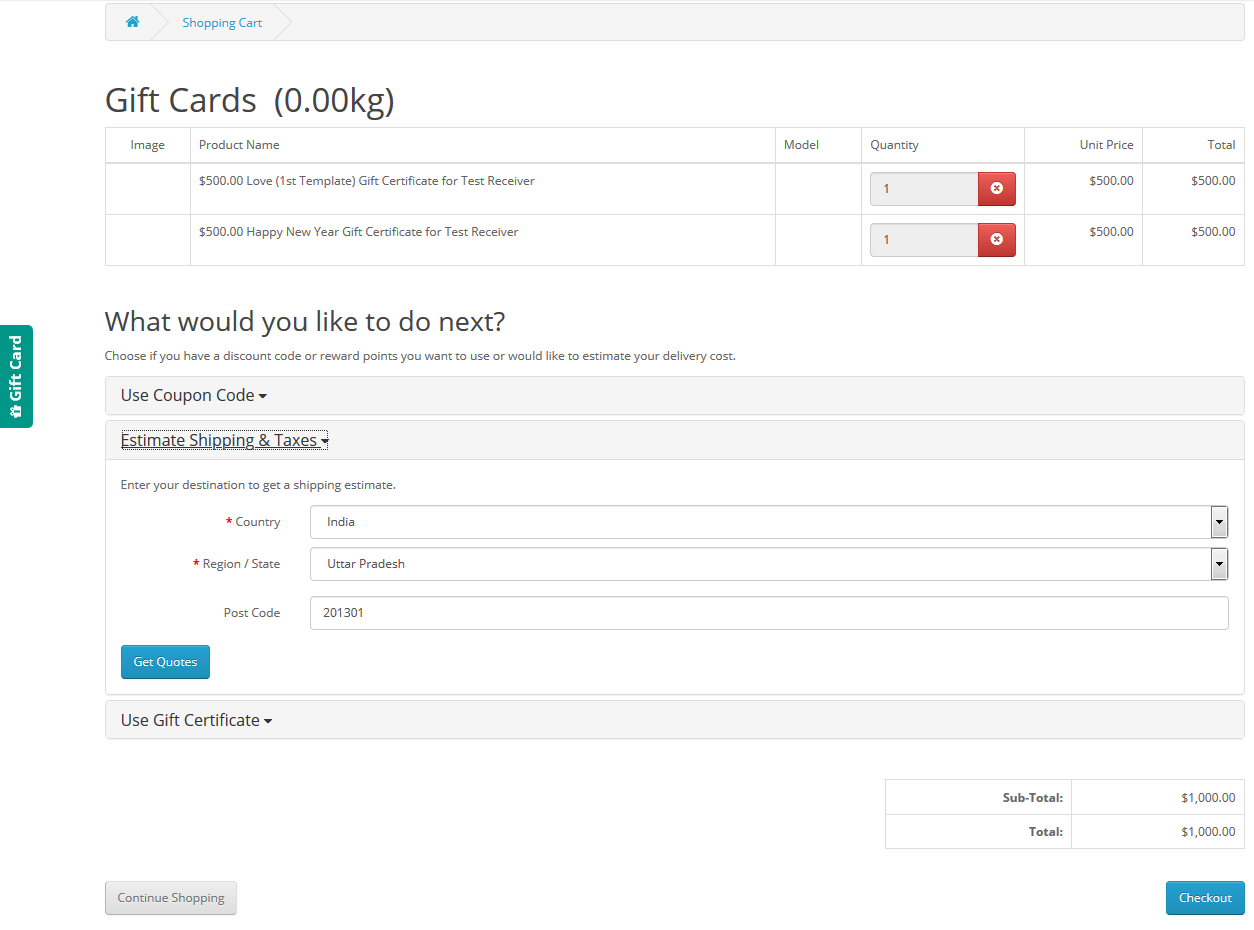
Now you can add the Gift card to your Cart.
4.2.3 Physical card
From(Name): Enter the name of the sender
To(Name): Enter the name of the receiver
Upload Personalize Pic (Choose File): With the OpenCart Gift card manager, the Customer can choose a personalized Image that will be shown on the card.
Personalize message: A personalized message can be written by the customer.
How much would you like to gift?
Gift Card Amount:Customer can put an amount which needs to be gifted.
4.3 Add gift card to shopping cart
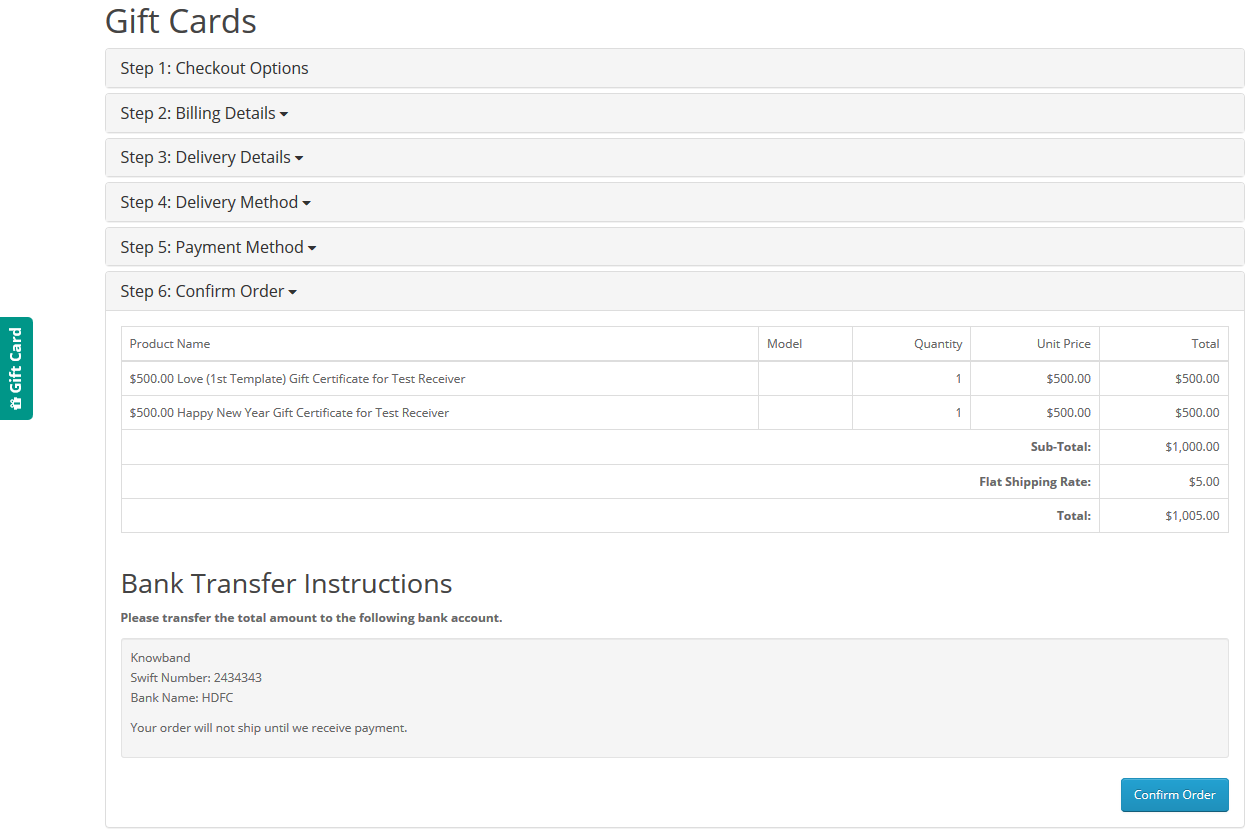
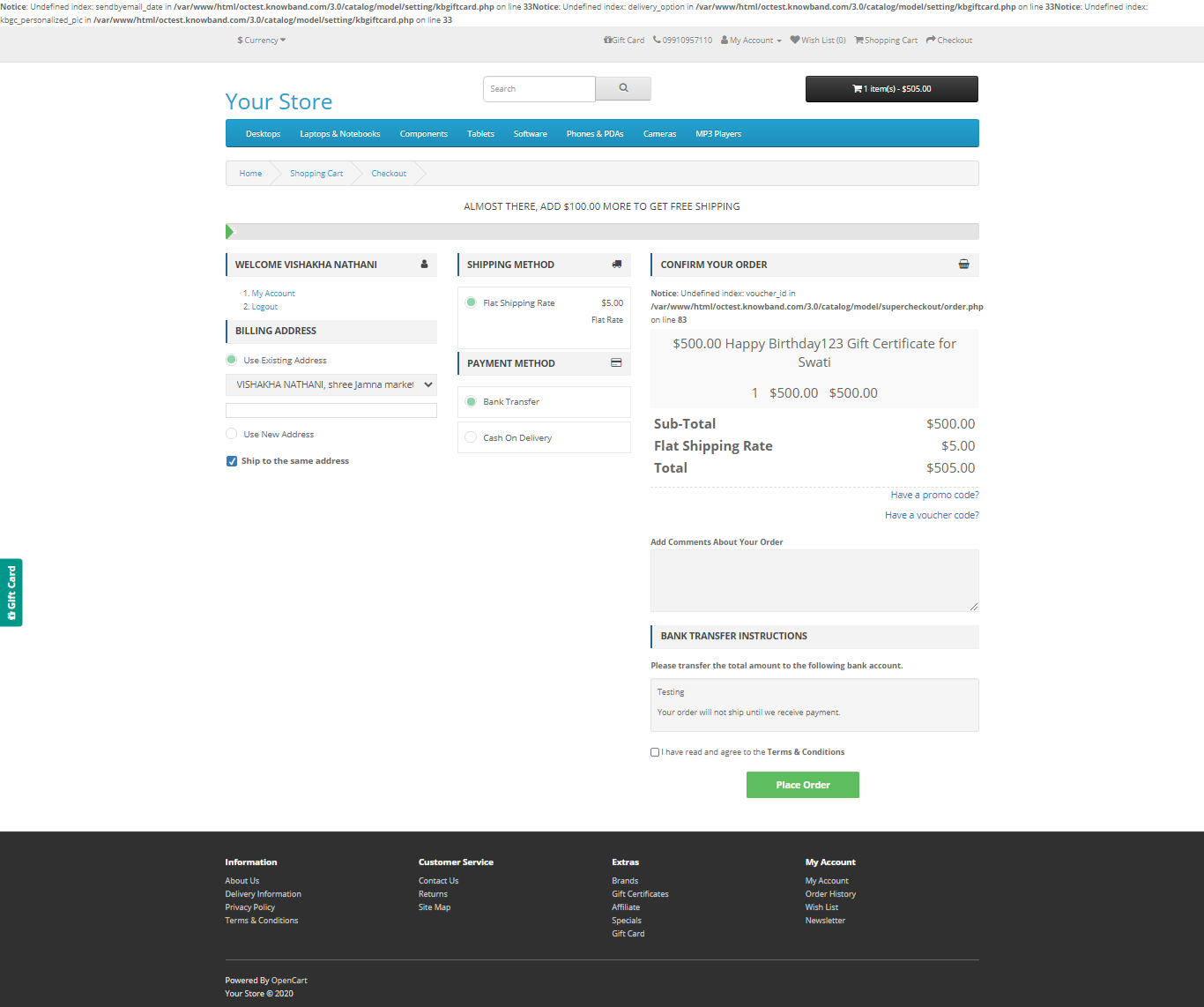
4.4 Steps before Checkout
By clicking on the Place order button, the customer can place the order.
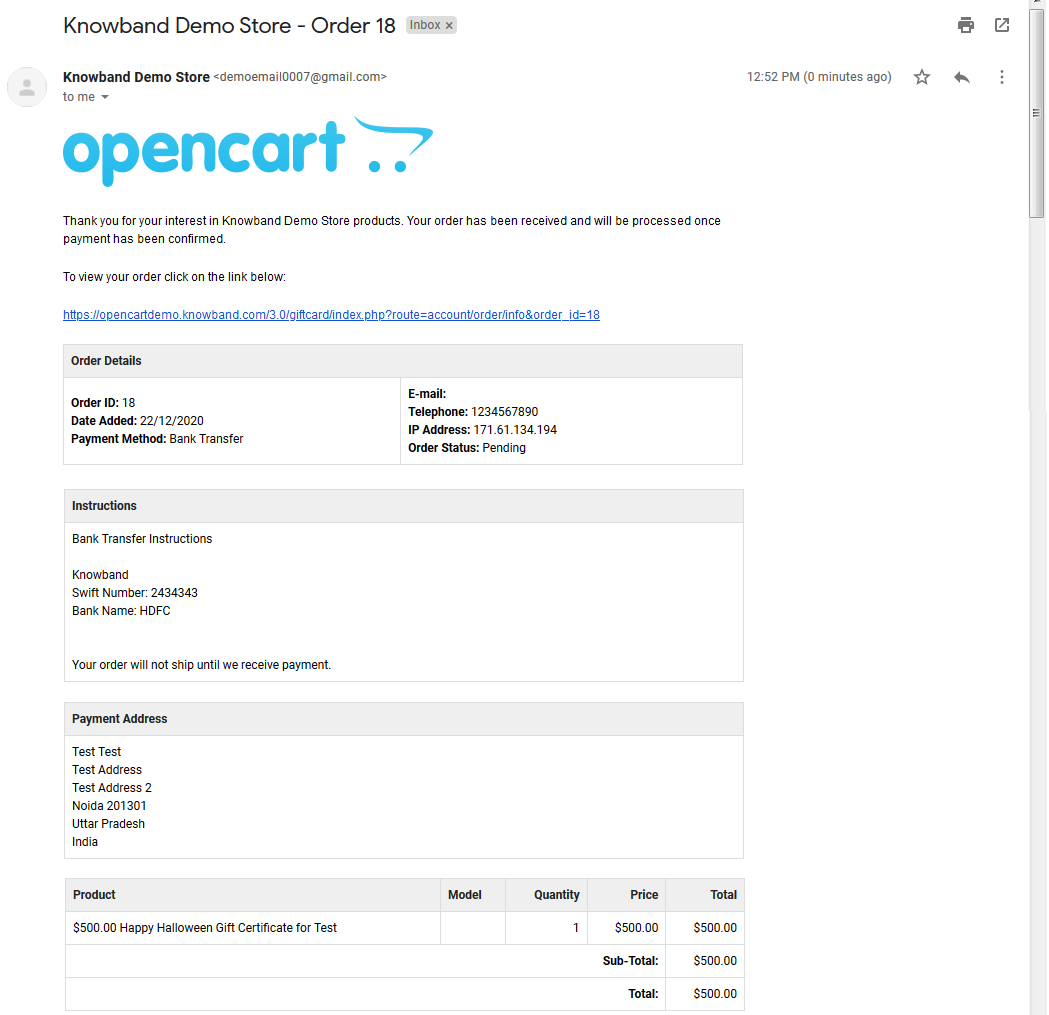
Customers will receive an email after the successful Order Placement.
This way the online store admin can easily allow the customers to share gift cards with their friends and family person. There are so many templates for different occasions, that online users can select the gift card and send it. The OpenCart gift card manager extension provides smooth functioning and multi-lingual compatibility. The Gift Card Module for OpenCart shows the gift card link in multiple sections for the customer’s ease. The online merchant can increase profit by offering a gift card to the customers.
Check Tutorial Guides for the OpenCart Gift Card Manager
These videos walk you through:
Installing the OpenCart Gift Card Manager Extension
Setting up basic gift card settings
Creating gift card products in your store
Managing gift card designs, amounts, and delivery options
Tracking gift card orders and usage
These tutorials are perfect for beginners who want a clear, step-by-step guide without any technical jargon.
For more details about this OpenCart gift card vouchers plugin, please visit here: