A gift card or gift certificate is a card with prepaid funds that a customer can use for a variety of purchases in a certain store. They are frequently distributed by merchants to cultivate customer loyalty and promote their business. Physical gift cards issued in a storefront by a retailer are one option, as are online-purchased eGift cards. Nowadays, everyone utilizes digital gift cards for a variety of purposes, and they are a very popular trend.
The eGift cards are available for purchase on a business website, and their usage is online or physically in the store. Gift vouchers offer the simplest and most practical means for eCommerce companies to incorporate gift cards into their product offerings.
Importance of Gift Cards
Gift vouchers are one of the best options for your customers to give to someone they love. Gift certificates can boost revenue for your company at any time of year, particularly during the holidays. They are also a quick sale strategy used by companies. Whether your company sells gift cards already or you’d like more information about how to include them in your inventory, we can help. With a gift card management strategy, you can hand off all the work to a dependable software solution. This leads to eliminating any administrative duties and the chance for human error. Each party benefits, so everyone wins. There are advantages for your company as well as the visitors.
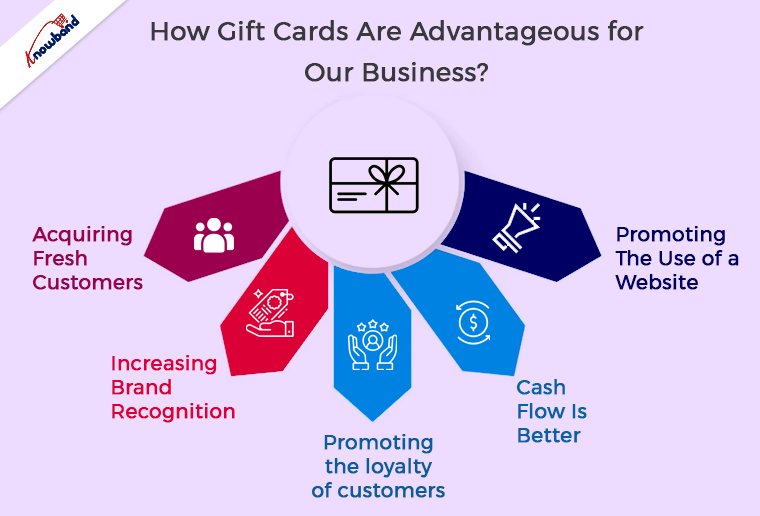
Advantages of Gift Cards
1. Acquiring Fresh Customers
You can attract new consumers by offering them gift cards. This occurs when your regular customers buy gift cards for their close friends or relatives. Attracting new customers who might not otherwise have visited your store, this aids in the expansion of your customer base.
Gift card donations to charities and participation in community fundraising activities are additional ways to expand your business. Because the recipients are likely to spend more money in your store. Moreover, this will not only help you establish yourself as a business owner who cares about and supports your community but also increase sales.
2. Increasing Brand Recognition
When recipients open their wallets, gift cards serve as an ever-present advertisement for your business. It is so because they have your company’s name, logo, and message. Given that they provide a strong incentive to visit your store or website, gift cards are among the most affordable marketing strategies you can deploy. The gift certificate purchaser also represents your brand as an ambassador. It is a suggestion to the recipient that they bought the card.
3. Promoting the loyalty of customers
In particular, firms give gift voucher incentives to their loyal users around the holidays. They do so because gift cards are an effective strategy to boost consumer loyalty and attract repetitive business. By providing a complimentary $5 gift certificate to consumers who buy $50 worth of gift cards, for instance, you can boost loyalty.
Such a bonus item not only works wonders to get customers to spend more and increase gift card sales, but it also works wonders to attract return business. To speed up sluggish sales, especially following the holidays, you could temporarily provide additional gift vouchers.
4.Cash Flow Is Better
For the gift vouchers payment is complete right away. When a customer buys a gift card instead of having to wait for a special occasion like the recipient’s birthday. Your company would see a cheaper overall cost of goods if the receiver did not use the gift card or simply used a portion of the remaining balance. The option of cash on delivery is not present and gift cards are not provided without any transaction to the company.
5. Promoting The Use of a Website
With the advent of eGift cards, paper certificates and plastic gift cards are gradually becoming obsolete. People prefer online or digital gift vouchers over physical gift cards as their handling is easy.
Gift certificates can be quickly purchased via your website and then sent by email to the recipient rather than having someone visit your business. The gift vouchers are easy to use and redeem on various stores and websites.
They offer a variety of conveniences and can help customers avoid visiting your store, especially those who are buying last-minute gifts. Increased website traffic results from this.
In the End
In this article, we were discussing the benefits of Gift cards benefits for an eCommerce business. Kindly let us know if you need any such features and their implementation in your store and we will assist you for the same. Also, we assist with the custom developments as per the requirement of the business. We can discuss the needs for custom developments at support@knowband.com. If you need any assistance with the issues related to our modules then we are here to assist you.
With Father’s Day just around the corner, website owners would be looking to prepare their store accordingly to capture high sales on the occasion. If you have an eCommerce website on the OpenCart platform and are also looking to boost Father’s Day sales, you can consider using the below-mentioned 8 OpenCart extensions.
1. Spin and Win
OpenCart Spin and Win module displays a gamified popup to your visitors as soon as they enter your website. Coming with multiple occasional themes, it lets you personalize the popup for the Father’s Day occasion as well.
Users get to spin the wheel and earn some exciting rewards but they need to provide their name and email address before they could spin it. This helps you grow your email subscribers and boosts user engagement.
Besides, by offering rewards which are usually the discount code, customers can be encouraged to shop by using the coupon code on the checkout. This increases your conversion rate.
You can make certain customizations to the popup and adjust the display settings as per your requirements.
2. Gift Card Manager
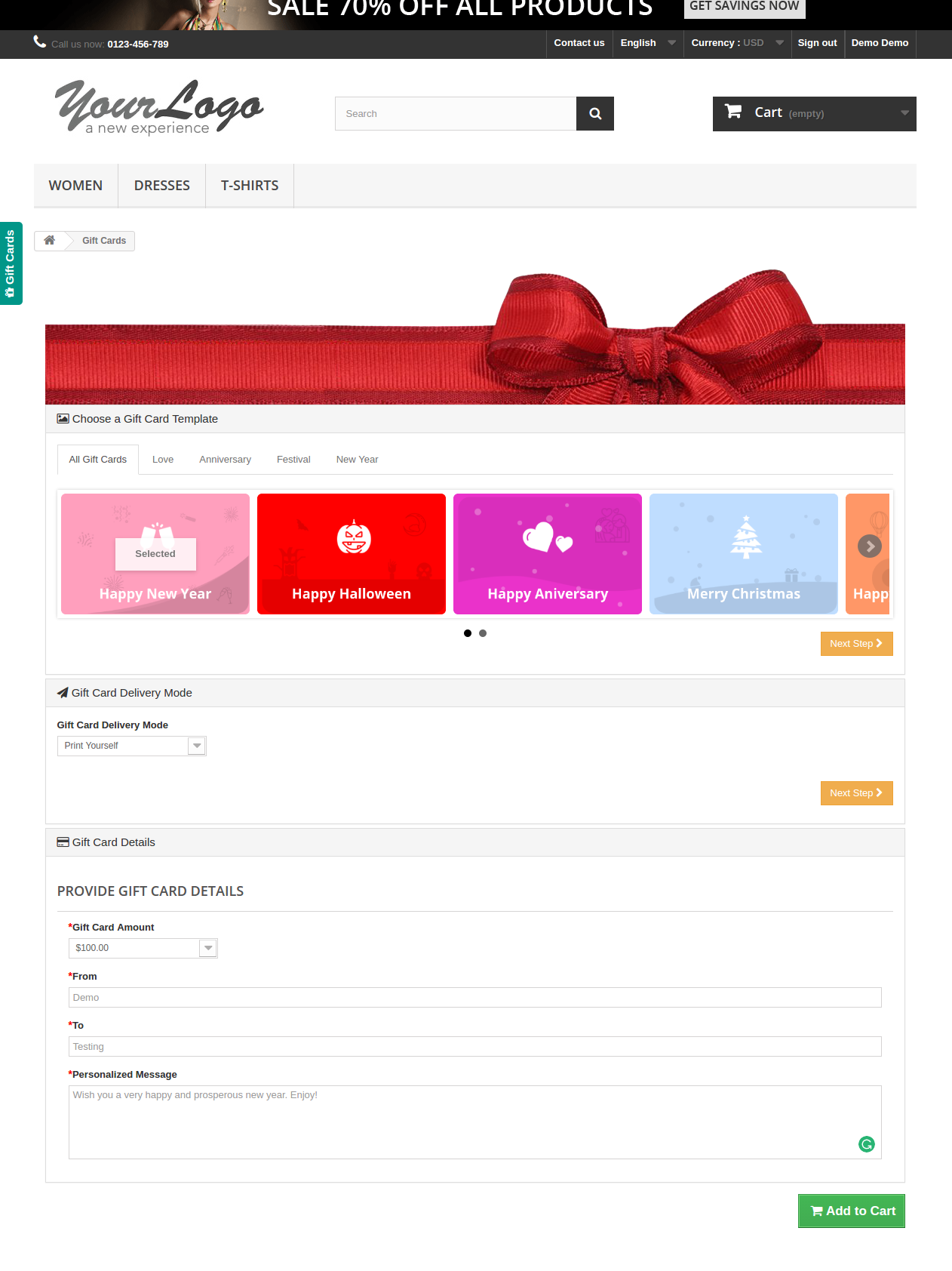
OpenCart Gift Card Manager adds a gift card section on your website and offers multiple pre-existing gift card templates for various occasions like Halloween, Christmas, New Year, etc. Similarly, you can create gift cards for Father’s Day too and boost sales.
Many online shoppers who find shopping a tedious task would find it comfortable to quickly purchase a gift card rather than spending hours in deciding what to gift.
You can create gift cards of different price values so that customers can purchase a gift card according to their budget. The module offers various customization features and also lets you track gift card orders.
3. Countdown Sales Timer
OpenCart Countdown Sales Timer extension places a timer on the header of your website through which your store visitors are informed about the upcoming sale. You can make use of this module to highlight Father’s Day sale as well.
A countdown timer keeps reminding customers how much time is left before the sale begins and creates an urgency to purchase. The look and feel of the timer can be customized and you can display it on multiple web pages.
4. Abandoned Cart
OpenCart Abandoned Cart extension helps you track the abandoned carts on your store and recover lost sales. The module provides you with an opportunity to convert the abandoned cart users into customers.
With many customers coming to your store on Father’s Day sale, you will surely witness a few abandoned carts. Failing to convert them could result in a loss in sales.
Thanks to the Abandoned Cart extension using which you can create an abandoned cart alert (setting a duration after which the cart is automatically marked abandoned) and remind those users about the pending items in their cart and even persuade them to complete the purchase by offering a discount code inside the email.
5. Price Alert
Many online shoppers would be hoping to see a price drop on some products during Father’s Day sale. With OpenCart Price Alert extension, you can ask customers to subscribe to price alert so that they are immediately informed and do not miss out on the opportunity to grab the product whenever the product price drops below.
This module helps you drive those users to your website and boost sales. So if you are looking to bring down the product price a bit on this Father’s Day, this extension would be of great help.
6. One Page Checkout
Customers crave convenience, and convenience at the checkout page is vital else it may lead to cart abandonment. Consumers do not like websites that offer a troublesome checkout experience. This is why it would be ideal to change your default checkout process with One Page Checkout for the coming Father’s Day.
OpenCart One Page Checkout extension simplifies your checkout process by converting the multi-step checkout process into a single page checkout. It offers various features such as Guest Checkout, Social Login, Multiple Layouts, Multiple Payment methods and Shipping support. Besides, it provides you with certain customization options to make your checkout smooth and user-friendly.
7. Accelerated Mobile Pages
Most of the consumers prefer mobile devices to shop online and your store is no exception. You will witness a majority of the traffic coming from hand-held devices on this Father’s Day. If your website takes time to load on mobiles, it can severely affect your conversions. This is where AMP proves beneficial.
OpenCart Accelerated Mobile Pages (AMP) extension converts the normal mobile pages of your website into AMP pages. It offers faster loading of web pages and reduces bounce rate by a significant margin.
The module aims to enhance the browsing/shopping experience of your mobile users and can make an impact on your sales.
8. Preferred Delivery Time
OpenCart Preferred Delivery is a perfect extension for the users who want to receive the product on a specific day.
There will be many customers who would want to receive their order specifically on Father’s Day. For such customers, you can place a preferred delivery tab on the checkout page where they can specify the desired date and time slot on which they want their product to get delivered. This ensures customers that their product reaches them at the right time.
For any kind of query or assistance with the above-mentioned modules, you can contact us at support@knowband.com and our support team will try to resolve your concerns to the earliest.
1.0 Introduction Magento Gift Card Manager Extension.
Gift cards have become a major factor of eCommerce businesses. Knowband provides the Magento Gift Cart Manager Extension that allows the Magento store owner to offer gift cards to their customers. Magento gift voucher extension is a module that enables the admin to acquire new online consumers while retaining the existing customers.
This Magento gift card extension by Knowband gives the flexibility to a customer to buy the gift card online and send the Gift voucher to their friends via email on a specific date and time. The online shoppers can order the gift cards for the special occasions for their near and dear ones.
1.1 Features of the Magento Gift Card Manager Extension
By using the Magento gift card manager extension, the eCommerce store merchant can offer the e-gift card option to their store visitors.
Magento store owner can place the link for Gift Card anywhere in the front-end of the website.
Knowband’s Magento send gift card manager extension allows the admin to fix the minimum duration within which the gift card is delivered to the end-user after the order for the same is placed.
Magento gift card module by Knowband enables the admin to set the prefix for the Gift card.
With the help of Magento gift voucher extension, the online store owners can customize the readymade email template subject and content as per desires.
Magento gift card extension by Knowband offers the PDF customization option to the admin where they can change the Gift card prefix and content.
The Store admin can run the cron for implementing the changes automatically.
Magento gift card extension by Knowband allows the store admin to add, edit or delete the gift card template.
The online merchants can add the N number of gift card templates for various occasions including Anniversary, Birthdays, Holidays or any other special event. The default gift card designs or templates can be edited, disabled or deleted as required.
The store admin even gets an option to keep a track on the orders received for the gift card from the back-end of the Magento gift card manager extension.
Magento gift voucher extension helps the admin to increase the customer retention.
Knowband’s Magento send gift card extension is easy to install and configure.
Magento gift card extension is fully mobile responsive.
1.2 Magento Gift Card Manager Benefits for Customers:
1. Magento Gift card extension by Knowband save the valuable time of the customers. They can get the gift cards for the different occasion in case they are finding it hard to choose a tangible gift from the store.
2. The gift card option incorporated by Magento gift card module by Knowband is best for those customers who find it hard to select a gift for any occasion.
2.0 Installation
After purchasing the Magento gift card module from the store and you’ll get following files.
1. The zipped file that consists of the source code of the module
2. User Manual
Follow the following steps to install the Magento gift card manager extension:
1. The folder structure of the Gift Card Manager.
2. Copy all the folders of the zipped file and paste them into Magento root directory and clear the cash cache (if enabled).
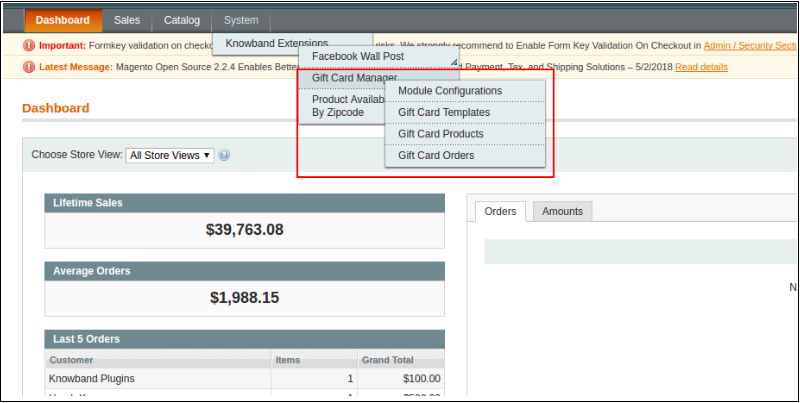
3. You will be able to find the “Gift Card Manager” option inside the “System > Knowband Extensions > Gift Card Manager”.
4. You can now configure the Magento Gift Card Manager as per your requirements and check its working in the front end.
3.0 Admin Panel
After installing Magento Gift Card Manager Extension in the Magento store, the admin gets a number of configuration options. There are following sections available to admin interface:
1. Module Configuration
2. Gift Card Template
3. Gift Card Products
4. Gift Card Orders
Let us discuss the various customization options of Magento gift voucher extension.
3.1.1 Module Configuration
The Module configuration tab of Magento gift card manager module by Knowband offers the basic configuration options to the store admin. The Module Configuration tab is discussed below.
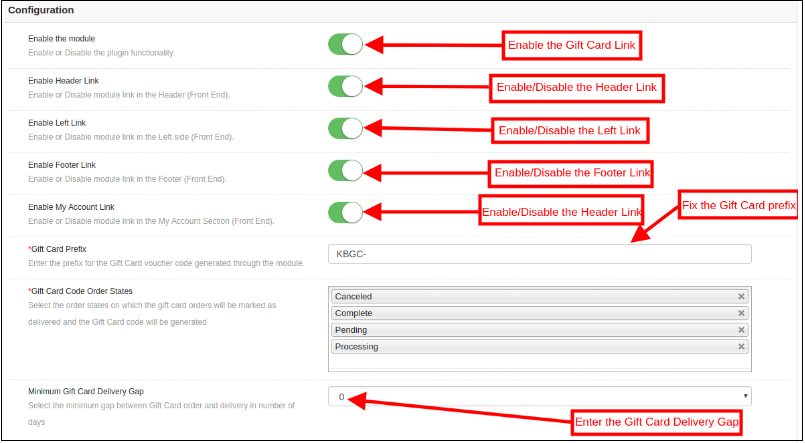
1. Enable the module: Initially, this Magento Gift voucher extension is disabled. The store admin can enable this option and offers their customer Gift card option. This can be done by toggling the button as shown below.
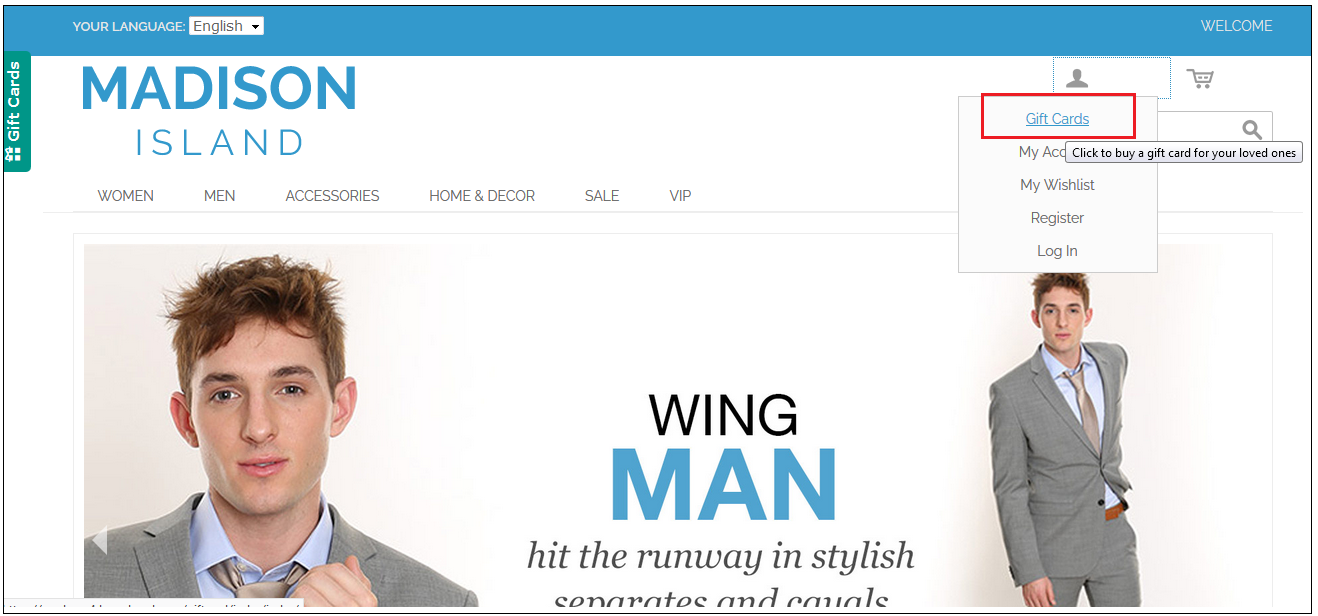
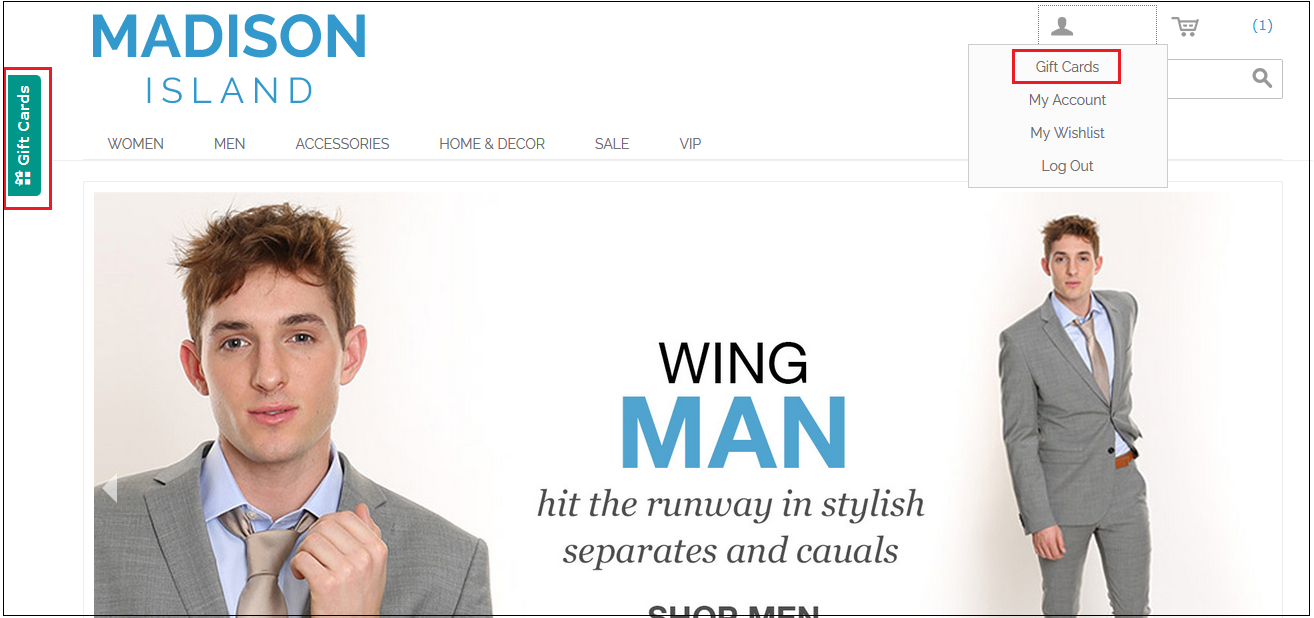
2. Enable Header Link: The Store admin can enable the button to display the gift card link in the header of the webpage.
Front End Preview:
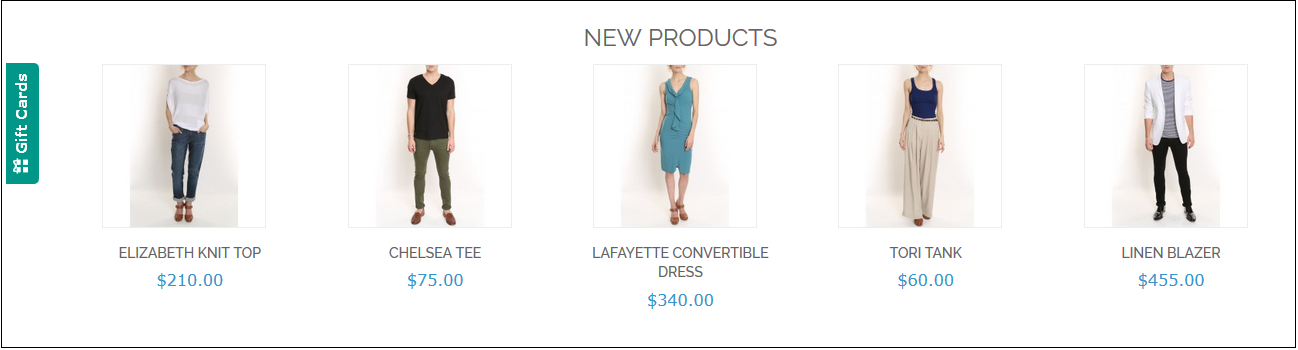
3. Enable Left Link: In this section, the online retailer can enable the display of the link on the left side of the site.
4. Enable Footer Link: The admin can enable the display of the Gift cards link at the footer of the site.
Front End Preview:
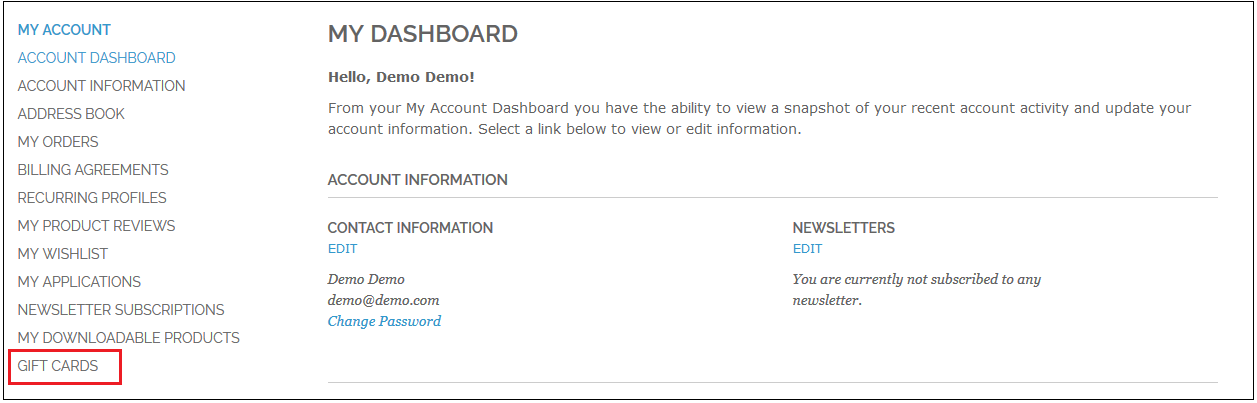
5. Enable My Account Link: The admin can enable the Gift card link in My Account page.
Front End Preview:
6. Gift Card Prefix: With this option of Magento gift card extension, the admin can set the prefix for the voucher code of the pre-paid gift card from here. For example, the code can be entered in the format KBGC – ******
7. Gift Card order Status: The admin gets an option to select the status of the orders.
8. Minimum Gift Card Delivery Gap: Knowband Magento gift voucher allows the store admin can specify the minimum duration of the day when the order was placed and day of the gift card delivery.
3.1.2 Email Setting
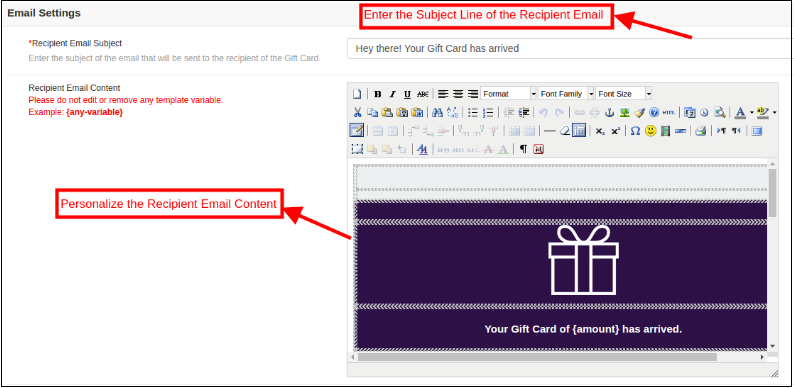
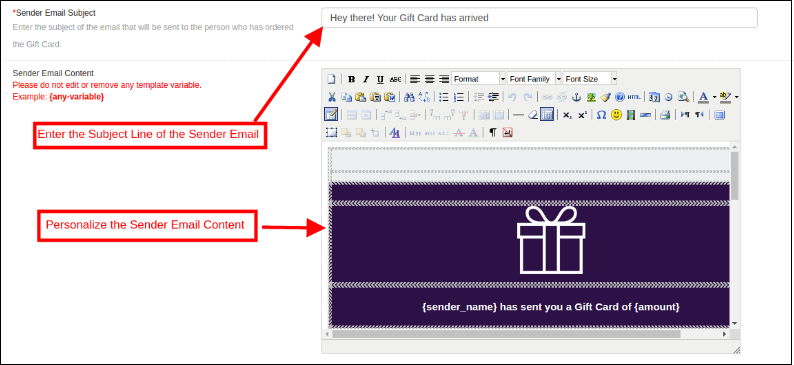
In this tab, the admin can customize the gift card email template as desires. This Magento gift card extension by Knowband offers default email templates. The entire email right from the subject line to the content can be edited and personalized as per the requirement.
This Magento gift card manager extension offers the two Email templates option.
Recipient Email Template
Sender Email Template
Recipient Email Template: In this section, the store admin can enter the subject line of the email and content as per the requirement.
Sender Email Content: In this section of Magento gift card extension, the store merchant can customize the email content as per the business requirement.
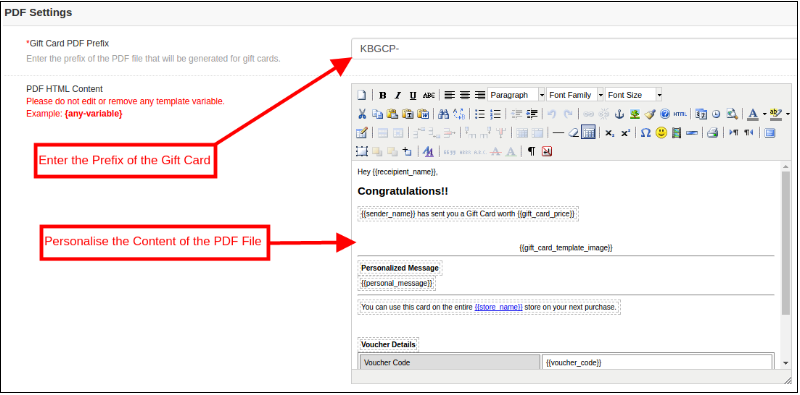
3.1.3 PDF Setting
The admin can enable the customers to download the gift card in PDF format. Magento gift voucher module offers the PDF Settings option to the admin. The buyer can print the gift cards in PDF format with the help of Magento gift card manager module. The admin can change the Gift Card prefix and PDF content from the back-end and the changes will be reflected in the PDF.
3.1.4 Cron Setting
The admin can execute the cron manually by clicking on the button shown in the image below.
Or else, the eCommerce store admin can enable automatic execution of the cron option by toggling the button as shown below.
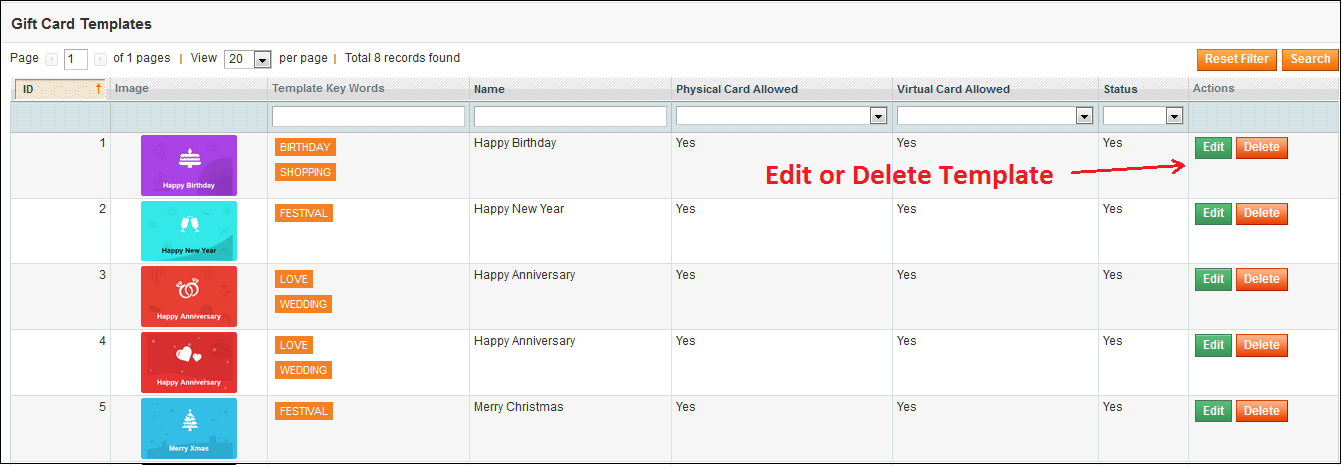
3.2 Gift Card Template
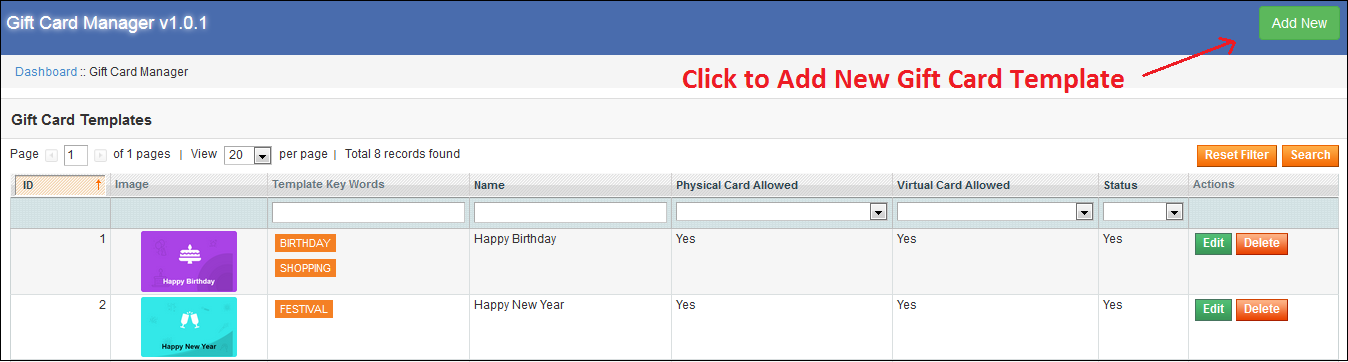
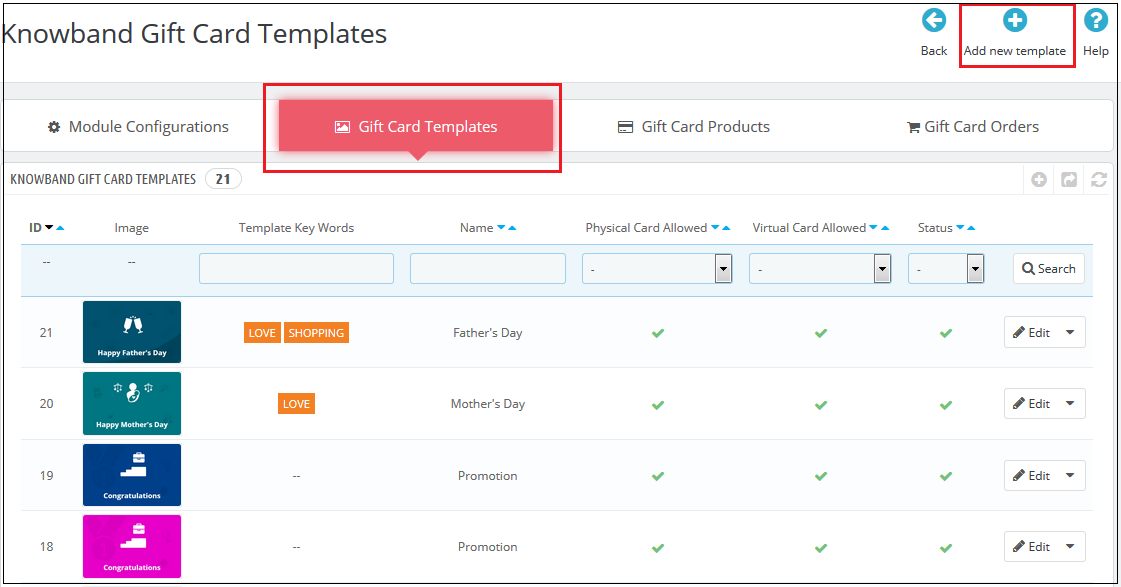
This tab lists out the default Gift card template. Admin can customize these Gift card template as per their desire. Other than this, the store merchant can edit or delete the Gift card template.
3.2.1 How to Edit and Delete Gift Card Template?
The admin even gets an option to edit the template or delete it. This can be done by clicking on the Edit or Delete button respectively as shown below:
3.2.2 How to Add New Gift Card?
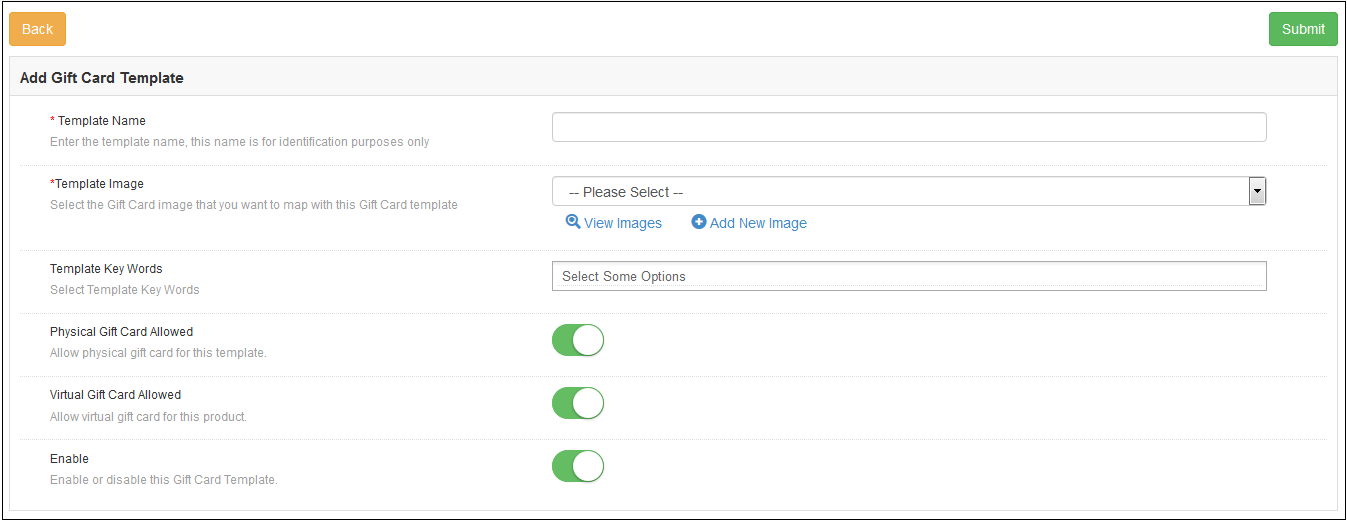
In order to create the new templates for the Magento gift card manager extension, go to the Gift Card template tab and then click on ‘Add New’ option at the top right side of the module.
Fill-up the information in order to create the template as shown in the image:
1. Template Name: In this section of Magento send gift card extension, enter the name of the Gift Card template.
2. Template Image: The admin can select the image or the layout of the gift cards that will be shown in the front-end of the eCommerce site.
The images for the various occasions can be saved in the back-end of the Magento gift card manager extension by Knowband.
3.2.3 How to customize the template of the gift card?
3.2.4 View Gift Card Template Images
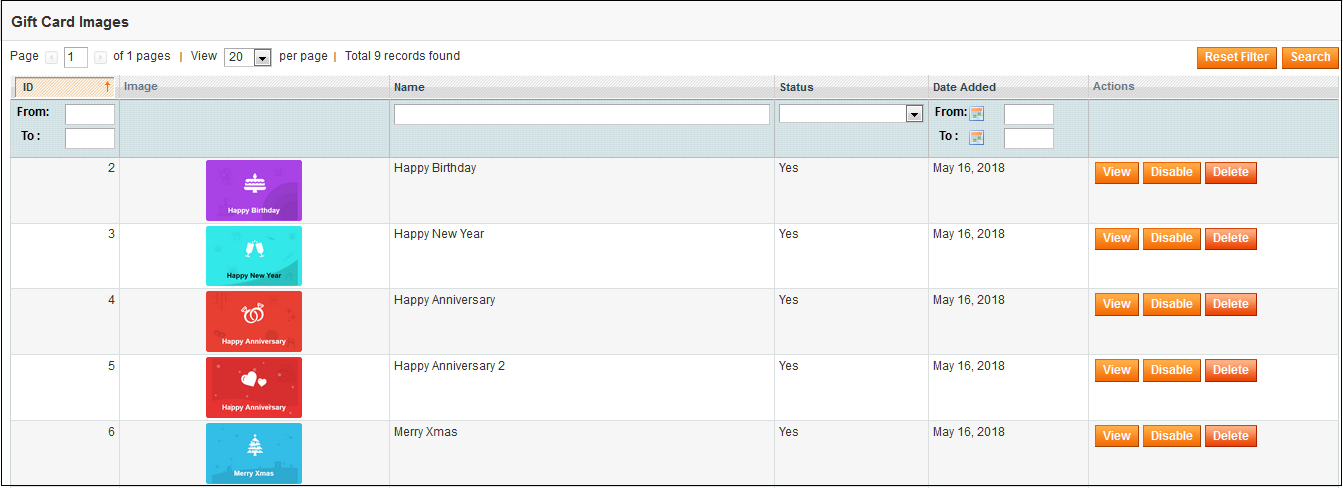
The store admin can even view the images for the various events has been saved or can create a new image for the same.
As you click on the ‘View Images’ you’ll be redirected to the page below.
The list showcases the entire images that were created and saved. You can view the complete image or even delete it if required.
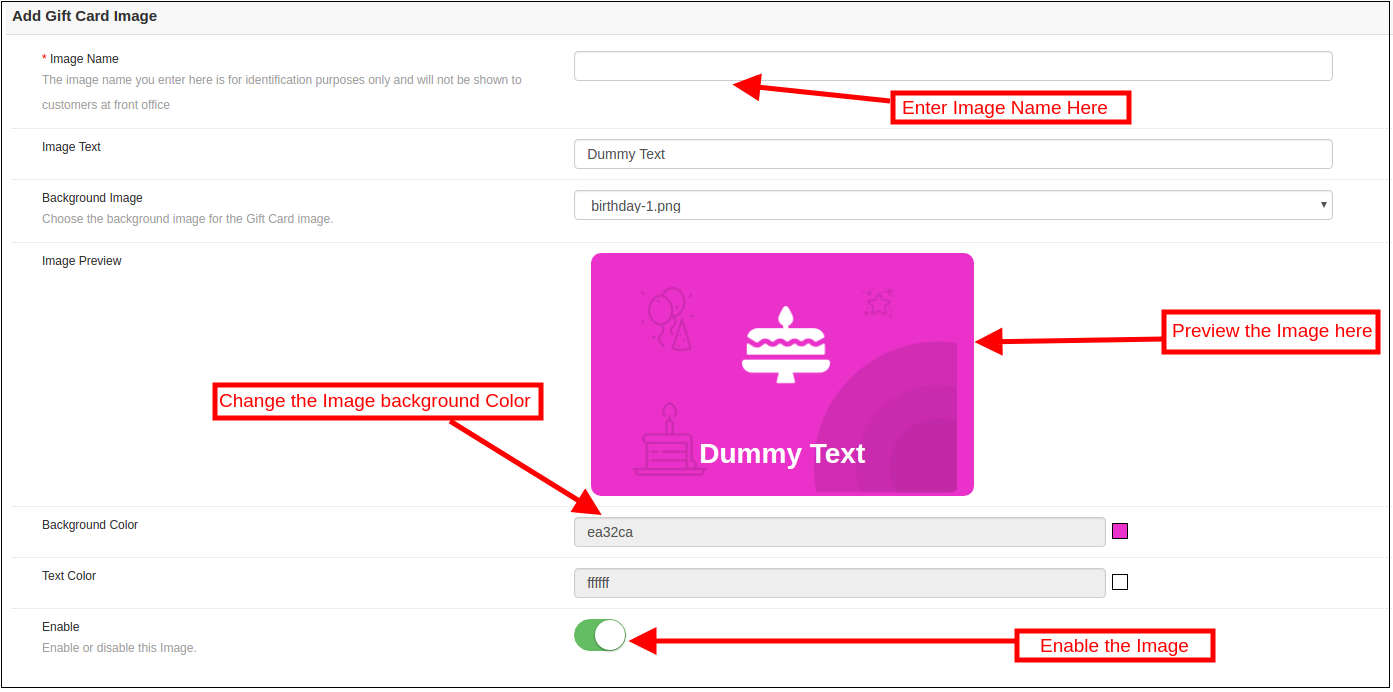
In order to create new images, click ‘Add New Image’ as shown below.
3.2.2 Add Gift Card Template Image
You can enter the image name and the text of the image to be shown on the gift card. Even the background image and color, as well as font color, can be changed at a button click. Preview the final image before making it live on the website.
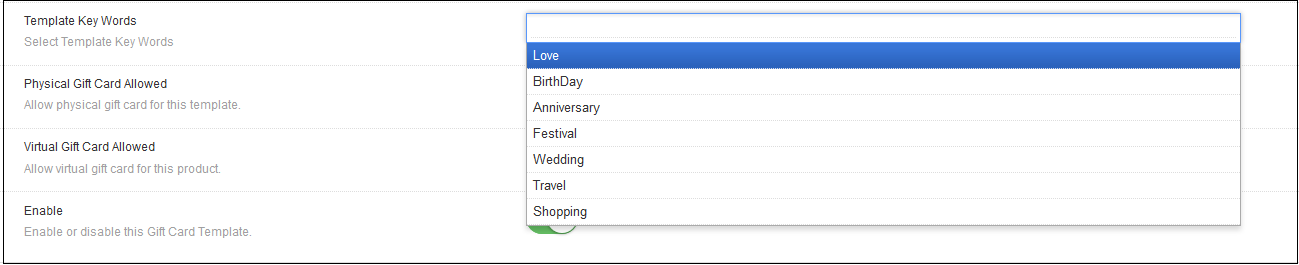
3.Template Keywords: The Magento gift card extension allows the admin to select the keywords of the gift cards.
4. Physical Gift Card Allowed: Enable this button if you want to offer the gift cards in physical form. If this functionality is enabled, then, the admin can allow the customers to send the gift card in physical form to the recipient.
5. Virtual Gift Card Allowed: The online retailer can enable the Virtual gift card functionality. This will allow the customers to download the e-cards.
6. Enable: Toggle this button to enable or disable the Gift card template.
3.3 Gift Card Product
Magento gift card template allows the e-merchants to customize the pre-paid gift card products in few simple steps.
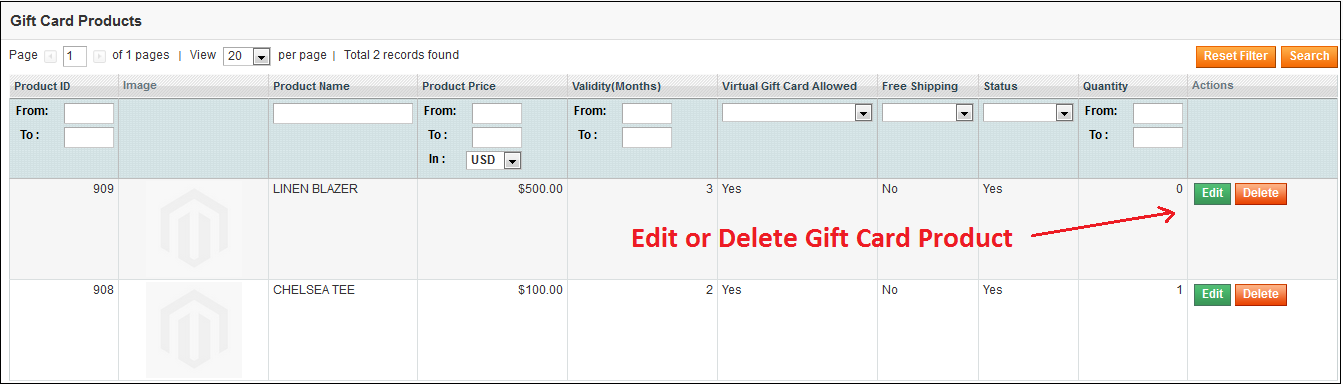
3.3.1 How to Edit and Delete Gift Card Product?
The admin even gets an option to edit/delete the gift card product from the section shown below:
3.3.2 How to Add New Gift Card Product?
In order to create the new gift card product for the Magento gift card manager extension, go to the Gift Card template tab, then, click the ‘Add New’ option at the top right side of the module.
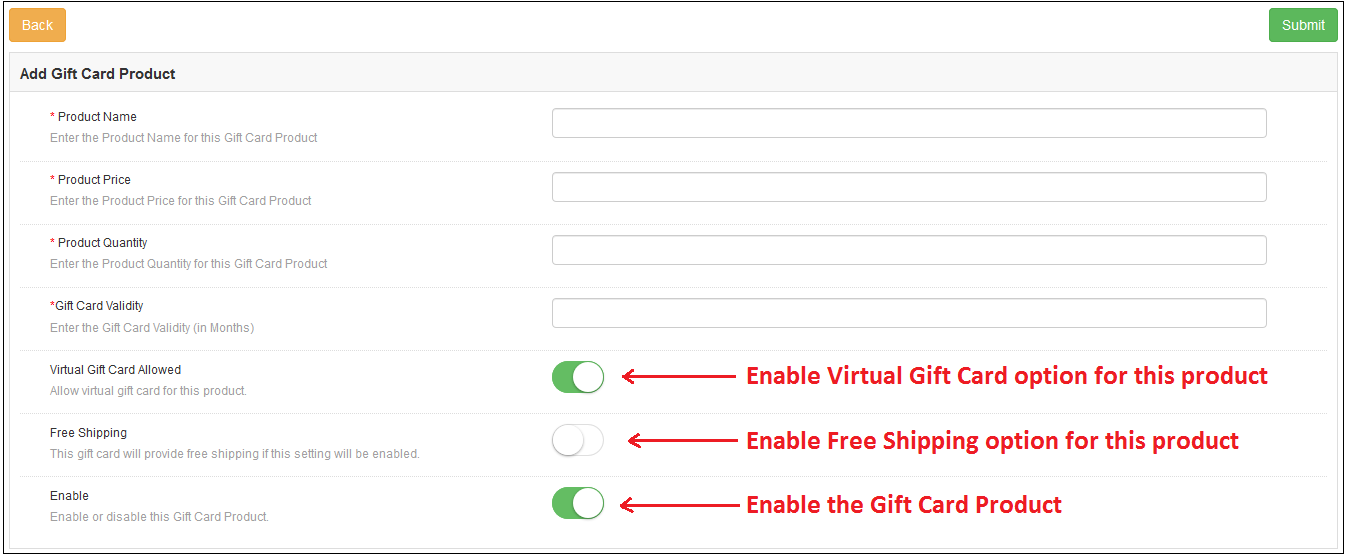
Listed below is the information that you need to provide for creating the product.
Product Name: Enter the name of the product here. It can be Happy Anniversary, Happy Birthday, Merry Christmas or any other.
Product Price: Enter the amount allowed in the gift card in this section.
Product Quality: Enter the product quality of this gift card product.
Gift Card Validity: The validity period in months of the gift card can be entered here.
Virtual Gift Card Allowed: Enable e-card by switching on the button.
Free Shipping: The eCommerce seller can even allow free shipping to the customer.
Enable: Gift Card Product can be enabled or disabled from here.
3.4 Gift Card Orders
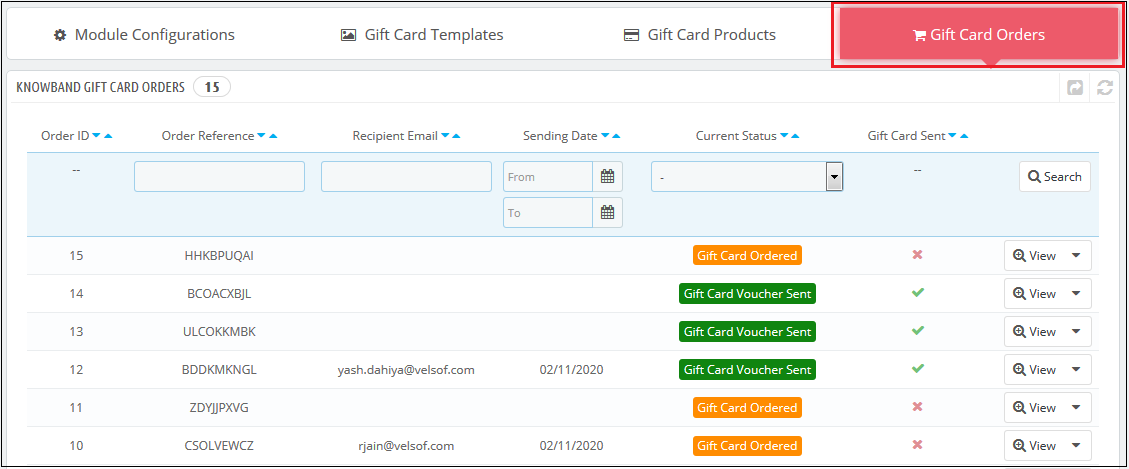
The Gift Card Order tab provides the entire list of the orders received for the gift cards. It involves the recipient email, date of sending as well as the status of the gift cards.
In the ‘Gift Card Order’ tab go to the ‘View’ button in the right section. In this section shows the entire information about the order.
4.0 Website UI
The links to the gift cards page can be viewed in the front end as opted by the store admin.
Once the store visitors click on the link, they will be redirected to the gift card page of the site.
Now, the Customer can buy the gift card and add the product to the shopping cart and proceed to the checkout page. The gift card will then be sent to the receiver.
For more details about this Magento Gift Voucher extension, you can visit here:
The digital gift card is a pleasant commodity to buy, sell, and receive! Whoever bought the digital gift card, saves time, fuel, and efforts to find the right thing to gift. Whoever receives it, find lucky enough to save from getting the wrong thing. Finally, whoever sells it, find cash upfront for an unsold thing! If you are looking for a perfect e-gift card addon, then, KnowBand PrestaShop gift card manager module helps you send the gift card to anyone without any hassle. With easy customer acquisition, the e-merchants can now double their revenue
The PrestaShop gift card manager Addon by Knowband allows the PrestaShop store owners to manage the gift cards according to the need. This PrestaShop gift card voucher addon is an effortless way to engage more customers with the website. The pre-paid vouchers can help the e-merchants aid the purchase intention of the store visitors and easily convert them into paying leads.
This PrestaShop gift card addon gives the flexibility to a customer to buy the gift card online and send Gift vouchers to friends via email on a specific date and time. The sender can print a gift card for giving it in person. It provides the functionality to create a personalized image gift card. Online shoppers can order gift cards for special occasions for their near and dear ones.
How Gift Card can help you to boost sales in your store?
81% of online buyers prefer to buy a gift card for a birthday, anniversary, holiday season, or festival.
38% of adults buy a gift voucher for a friend’s birthday.
One of the biggest selling days of the gift card is Father’s Day. In contrast, only 24,7% of moms wish to get a gift card for Mother’s Day, putting above homemade stuff, greeting cards, and dinner.
12% of buyers will buy gift cards for Wedding wishes and presents.
These are major facts that can prove the importance of the Gift card.
Prestashop gift card addon by Knowband has rich functionality that can help the admin to increase the revenue by selling gift cards.
1.1 Benefits for merchant
The store owner can increase customer engagement and the number of potential buyers on his/her PrestaShop store as well as boost their revenue. The following are the benefits for the merchant:
The store admin can add multiple gift cards in a matter of moments from the backend of the PrestaShop gift card addon.
PrestaShop gift manager addon by Knowband allows the store admin to set the card amount, validity period and other conditions that can be set from the backend of the PrestaShop send gift card module.
The PrestaShop store admin even gets easy options to change and edit the look and feel of the cards that will be shown in the front-end.
With the help of the PrestaShop gift voucher addon, the store admin can easily add the gift card templates according to the need.
The orders for the gift cards is trackable at a button click from the admin interface of the PrestaShop gift card manager module.
Knowband PrestaShop gift card addon enables the store merchant to show the gift card buttons on which page they want to show.
Even the email template for sending the gift cards and its PDF format to the recipient is customizable in a few easy steps from the backend of the PrestaShop gift card addon.
This PrestaShop send gift card module increases conversions especially for occasions like holidays.
PrestaShop Gift Card Manager addon by Knowband allows you to earn more revenue, get new customers by sending online gift cards, and offer discounts on the vouchers.
1.2 Benefits of customer
Customers can easily buy a gift card for their loved ones.
This PrestaShop gift card module by Knowband is best for those customers who are helpless for selecting a gift.
Customers can send a gift card with a custom image that the sender can upload while making the gift card purchase.
PrestaShop gift card add-ons allow online buyers to send the gift cards to their loved ones on the desired date and time.
The receiver of the Gift Card can redeem the amount partially while purchasing in the store.
2.0 Installation
After purchasing the PrestaShop gift card module from the store and you’ll get the following files.
1. The zipped file that consists of the source code of the module
2. User Manual
Follow the following steps to install the PrestaShop gift card manager extension:
Extract the “kbgiftcard.zip” zip file.
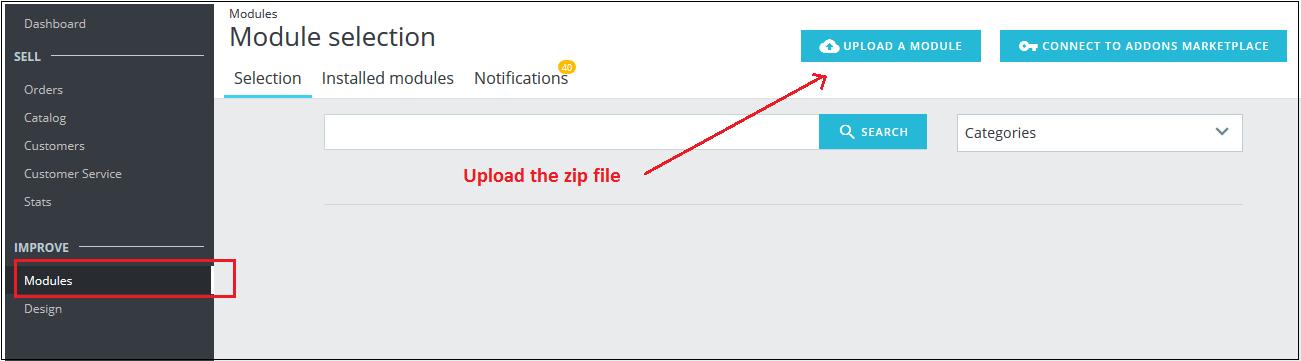
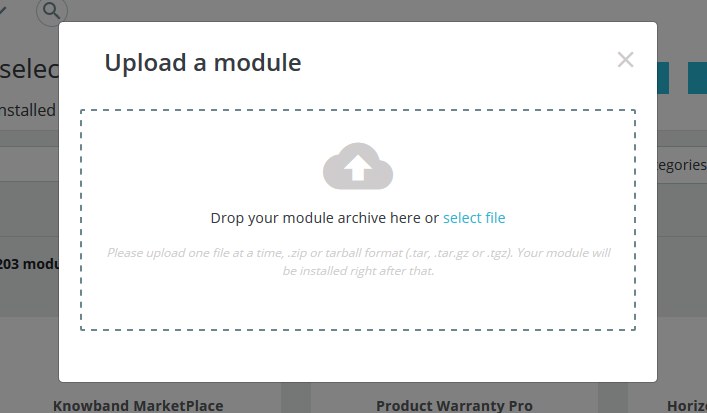
Go to the “Modules” section and click on the “Upload a Module” button. Select the “kbgiftcard.zip” file.
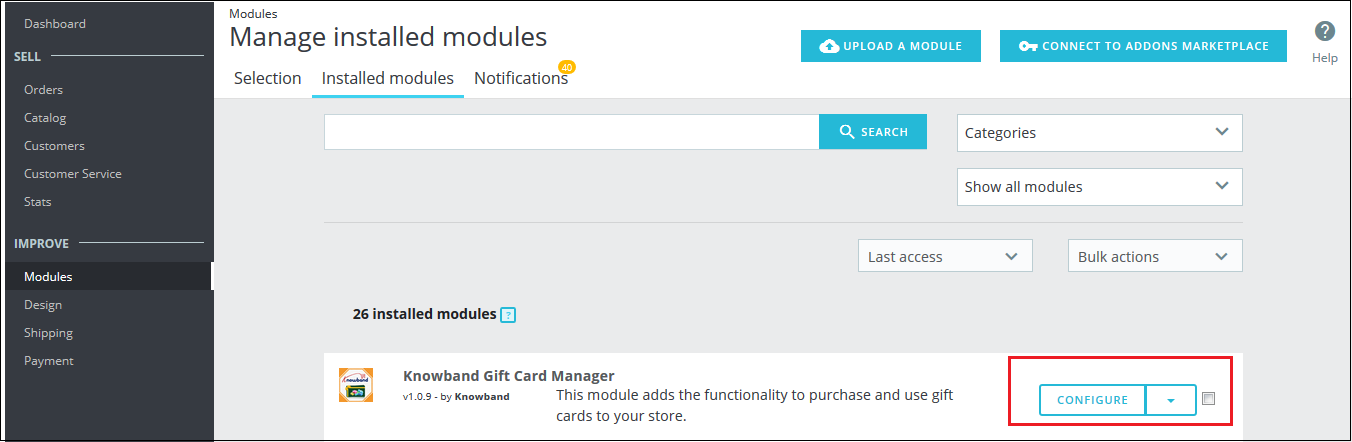
The PrestaShop gift card module is now ready for configuration. You can find that in Store Admin -> Modules. It would be shown as below –
You may even search for the module in the admin modules list by using the following details –
Keyword – Gift Card Manager
Category – Pricing and Promotion
Filter By – Installed & Not Installed / Enabled & Disabled
3.0 Admin Interface
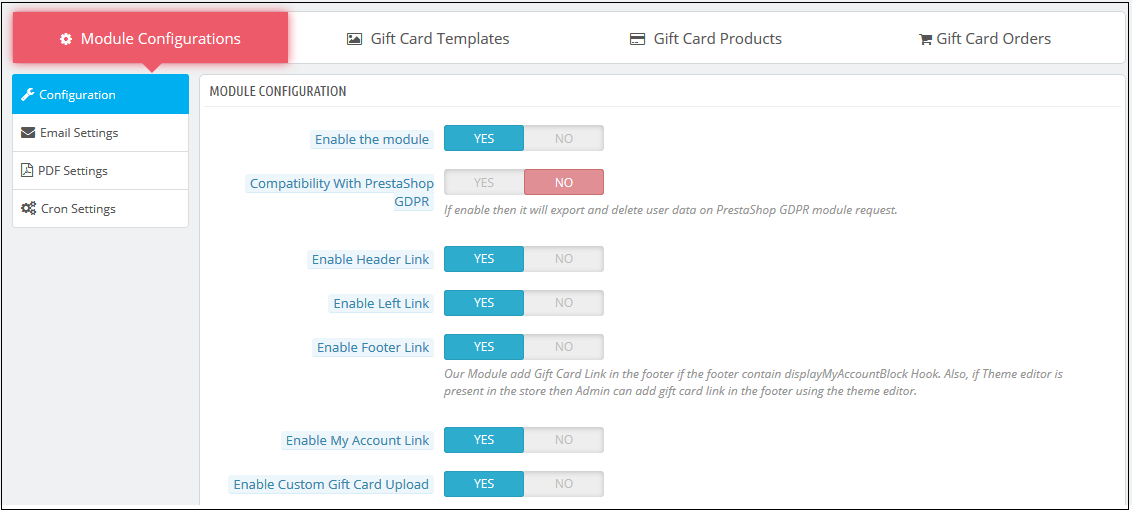
The admin can enable and configure the PrestaShop Gift Card module by Knowband easily in a few simple steps. The admin interface of the addon has four customization options. They are below:
Module Configuration
Gift Card Templates
The Gift Card Products
Gift Card Orders
The various options are below in detail:
3.1 Module Configuration
The ‘Module configuration’ tab of the PrestaShop gift voucher addon offers the four features to admin that are below:
Configuration
Email Settings
PDF Settings
Cron Settings
The following features are available in detail below:
3.1.1 Configuration Tab
When the admin comes to the configuration tab of the PrestaShop gift card extension. The configuration tab shows the multiple features that are shown below:
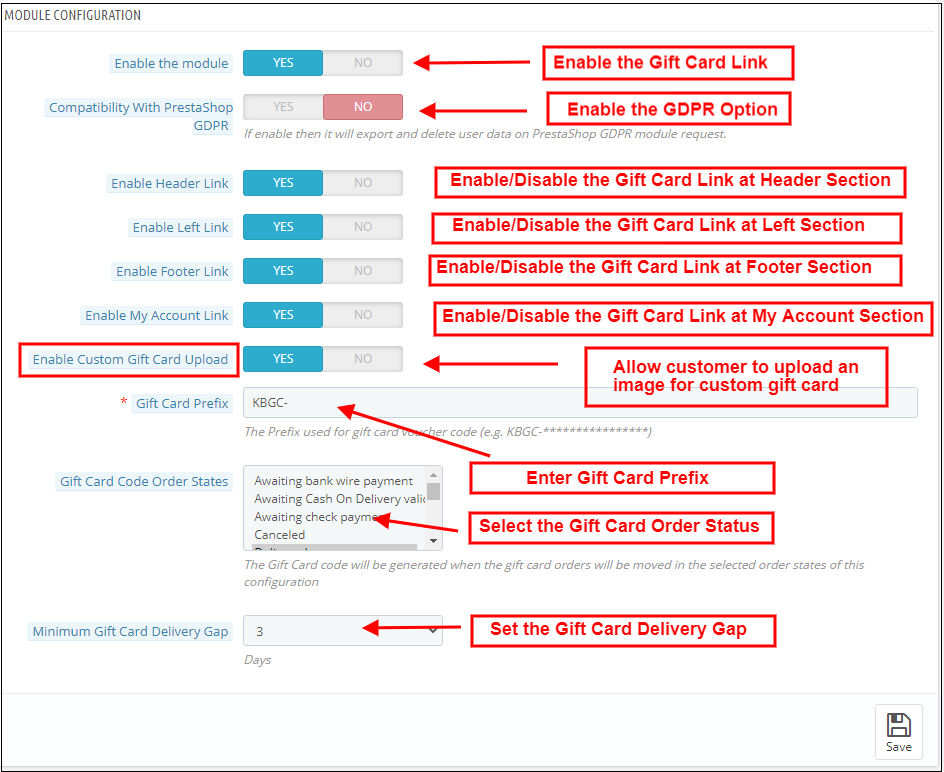
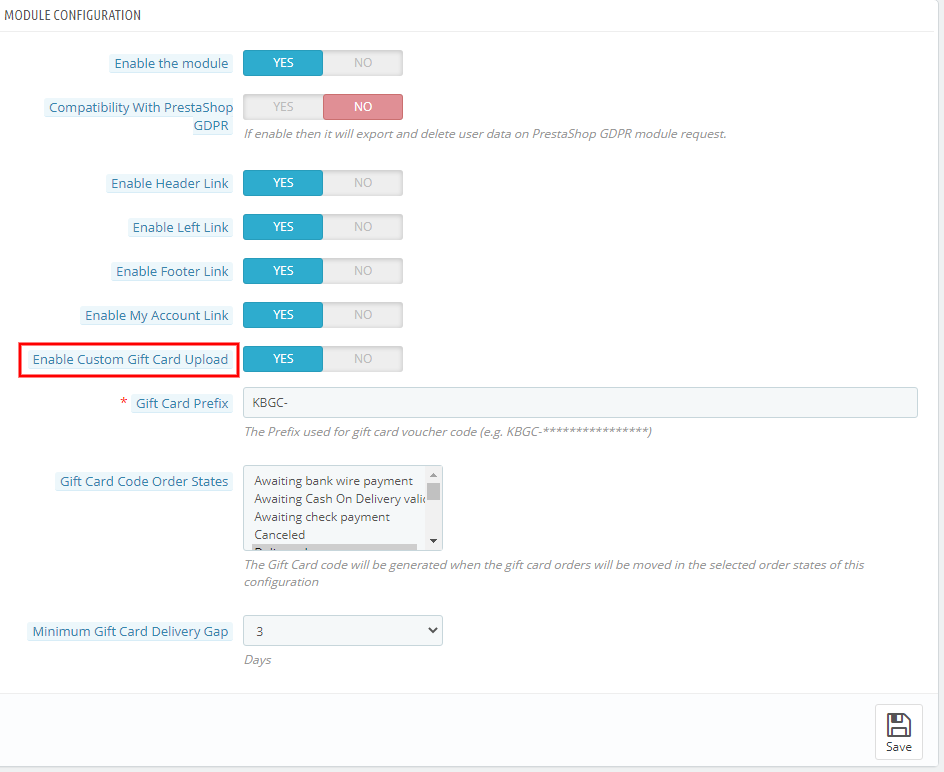
1. Enable the module: When the admin comes to the configuration tab of the PrestaShop gift voucher addon, he/she needs to enable the same from the backend. This happens with a button toggle as shown below.
2. Compatibility with PrestaShop GDPR: If the admin enables the settings, then the customers can access their GDPR rights to delete or export the customer data from their store
Note: If you are using the official GDPR module then you must need to enable this setting. The main purpose of this feature is to export and delete user data on the PrestaShop GDPR module request. It is also compatible with PrestaShop GDPR Module developed by Knowband.
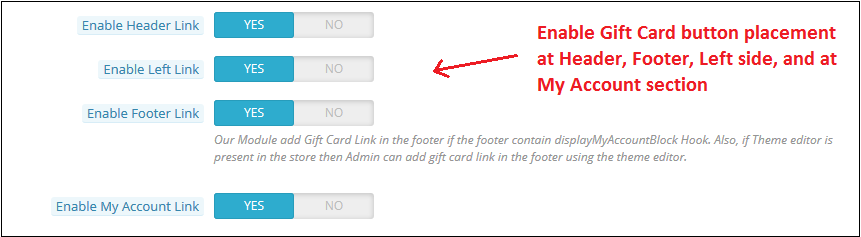
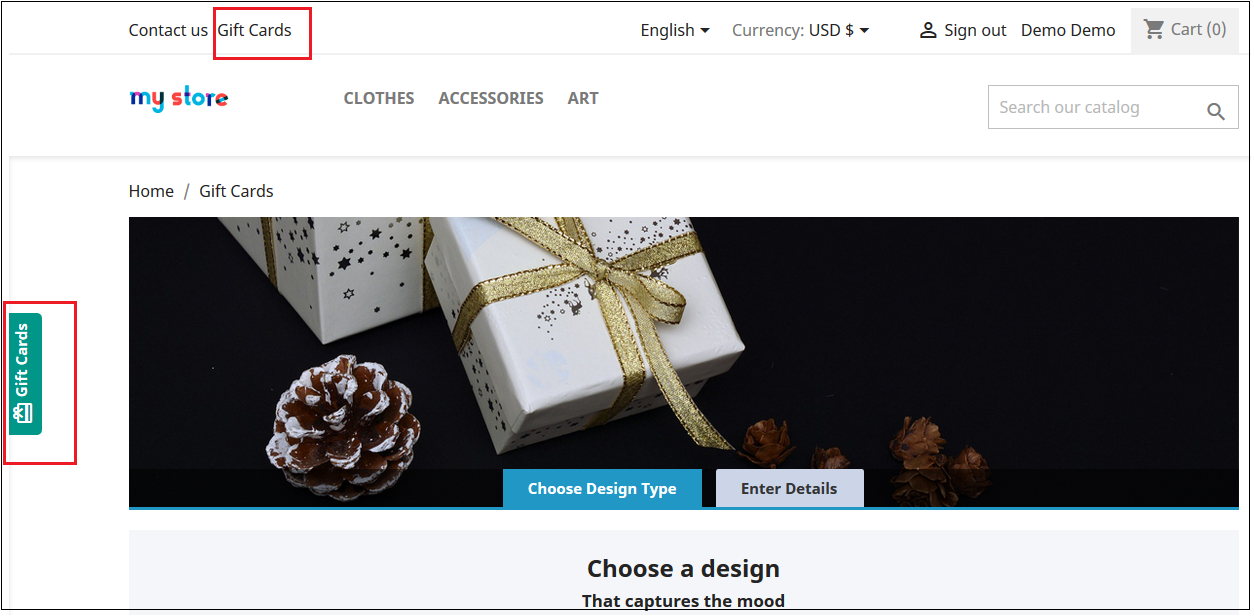
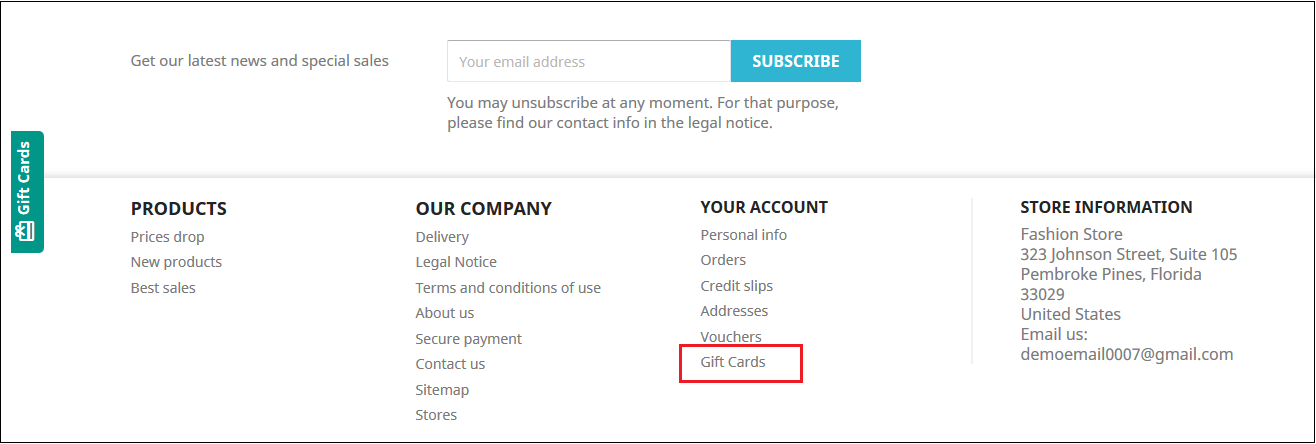
The link to the eCommerce gift cards can place on the web pages as per the requirement. The admin can enable or disable the link at the header or footer. It is placeable at the left side of the website where the visitors pay maximum attention. In addition, the option to redirect the customers to the ‘Gift card page’ can be provided in the ‘My Account’ page of the registered customers.
The links will be shown in the front-end of the website as shown below:
In the header & At the left side of the web page
In the footer
My Account Page
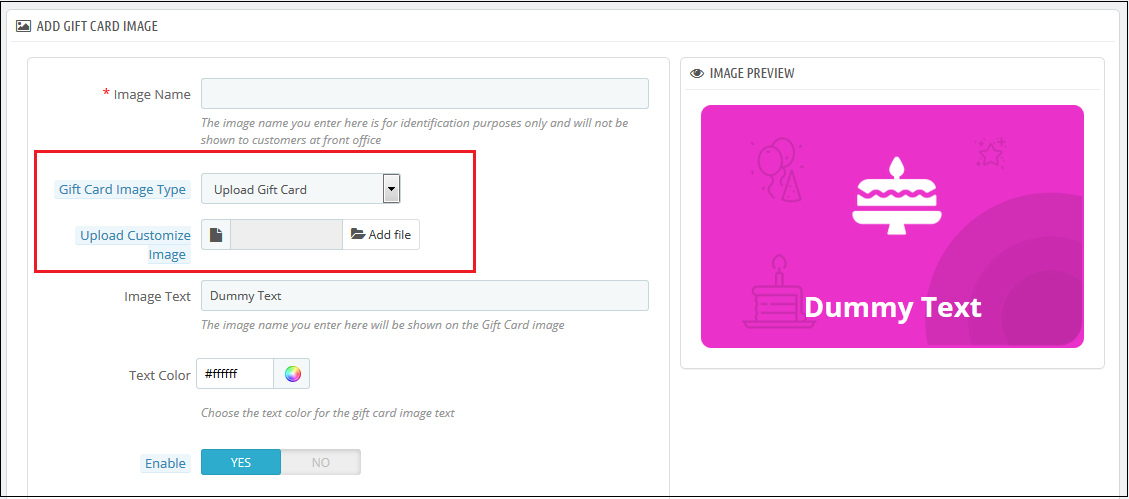
3. Enable Custom Gift Card Upload: If the admin enables this, the Gift Card Module allows users to upload an image to personalize a custom Gift cards.
4. Gift Card Prefix: In this option PrestaShop gift card addon the admin can set the prefix for the voucher code of the pre-paid gift card from here. The code enters in the format KBGC – ******
5. Gift Card order Status: The admin gets an option to select the status of the orders. The gift card code will be generated when the order is moved in any of the selected order states.
6. Minimum Gift Card Delivery Gap: The PrestaShop gift voucher allows the store admin to specify the minimum duration of the day. Further, when the order places and the day of the gift card delivery.
3.1.2 Email Setting
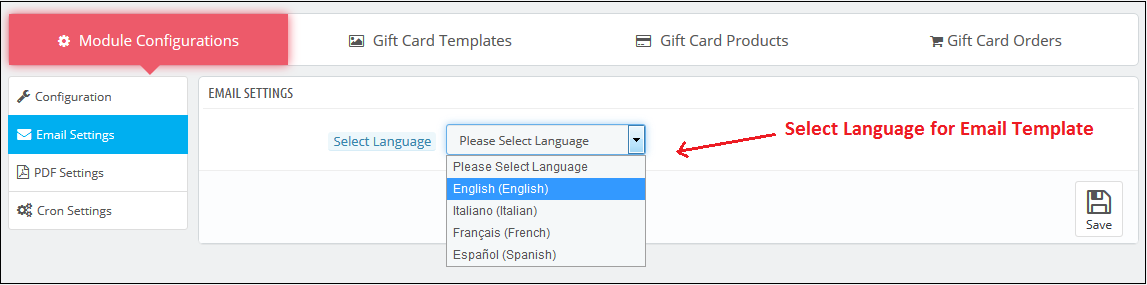
The customer gets an option to print the gift cards or else they can be sent to the receiver via email. The PrestaShop gift card module by Knowband offers default email templates that can be personalized as per the requirement of the store admin.
In addition, the PrestaShop gift voucher module offers multi-lingual support. The emails can be sent in various languages. The admin can select the desired language from the drop-down list.
Once the language is selected, the entire email right from the subject line to the content can be edited and personalized as per the requirement.
3.1.3 PDF Setting
The buyer can print the PrestaShop gift voucher module in PDF format. The PDF file of the Gift voucher can be printed in different languages. The admin can edit the content of the file. The changes made in the backend will be reflected in the PDF.
The admin needs to select the language as done in the email settings.
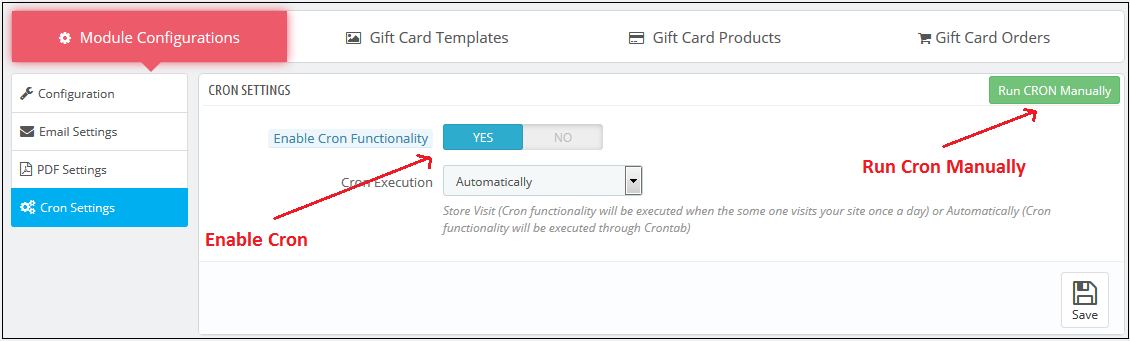
3.1.4 Cron Setting
You can add the Cron to your store via the control panel to send gift card vouchers automatically.
3.2 How to customize the template of the gift card?
3.2.1 Add New Gift Card Template
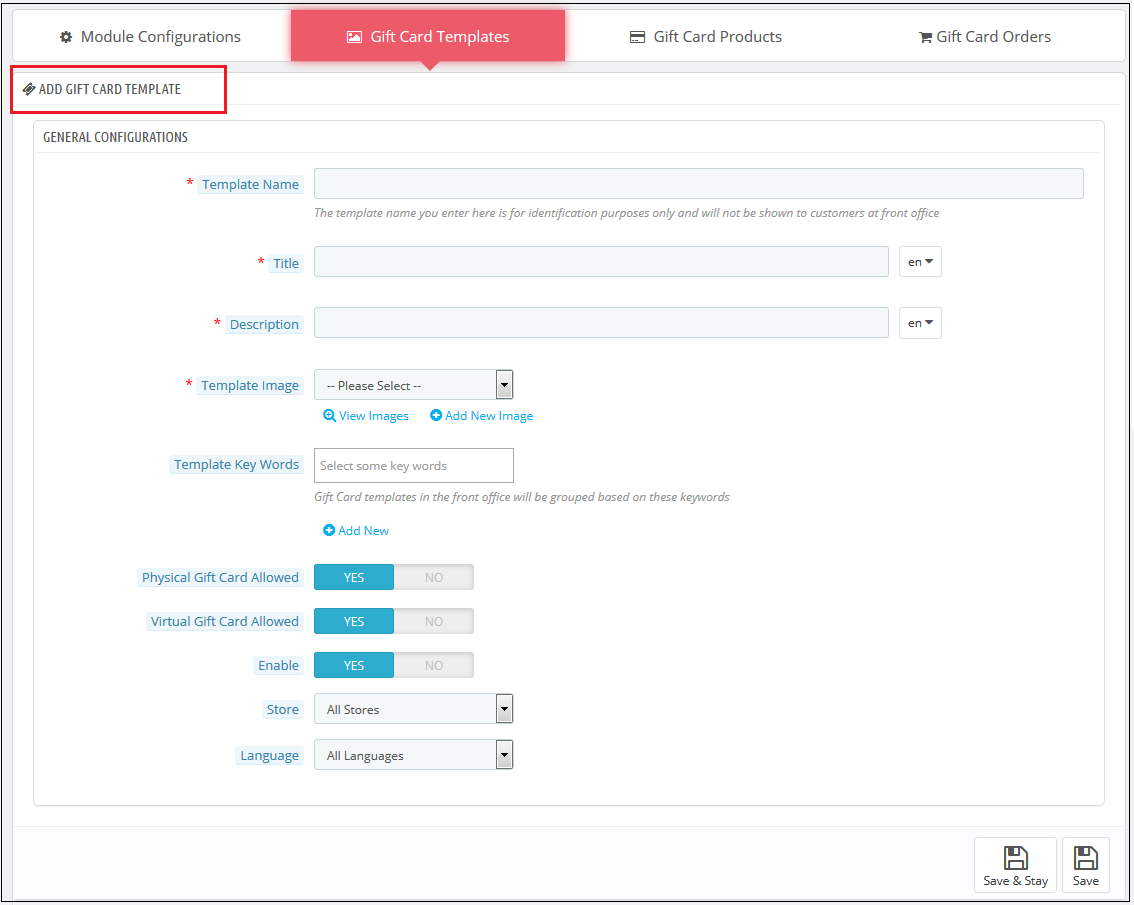
To create the new templates for the PrestaShop gift card manager addon, go to the Gift Card template tab and then click the ‘Add New Template’ option or ‘+’ sign at the top right side of the module.
Fill up the information to create the template as shown in the image:
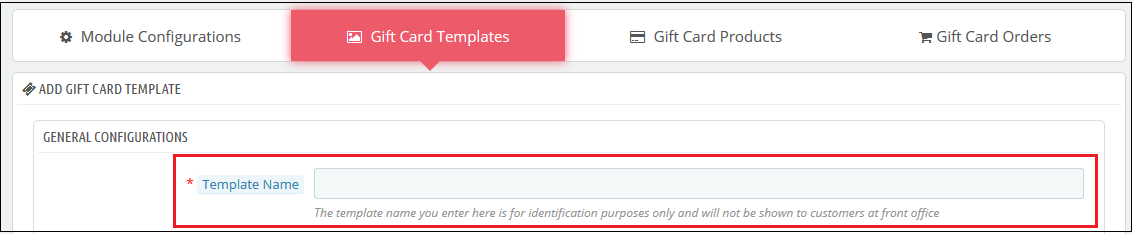
1. Template Name: The PrestaShop send gift card addon allows the store admin to name the template in this section.
2. Title and Description: With PrestaShop Gift Card Module, the admin can add a title and description for the Gift Card template.
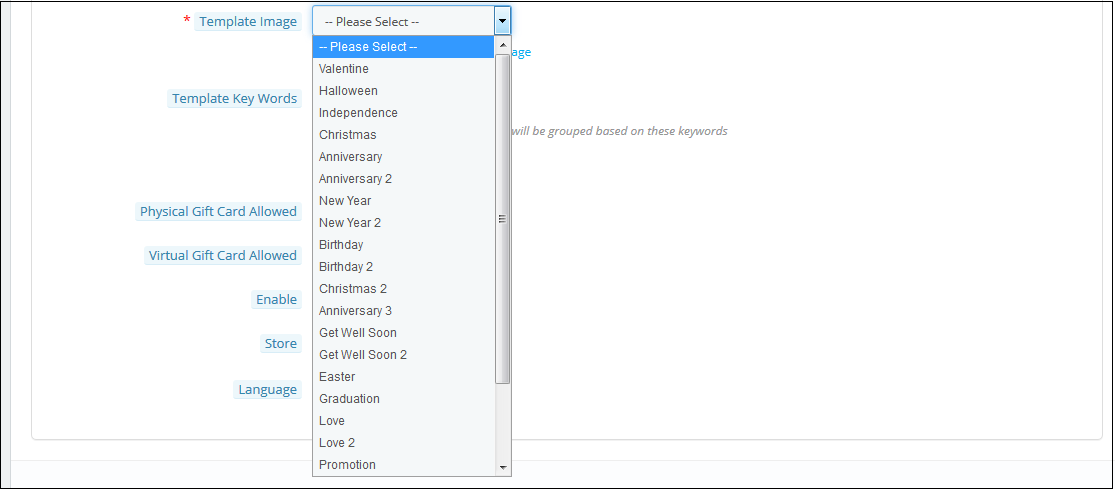
3. Template Image: The admin can select the image or the layout of the gift cards that will be shown in the front-end of the eCommerce site.
The images for the various occasions can be saved in the back-end of the PrestaShop gift card addon. The admin selects the occasion to find the image as shown below:
The store admin can even view the images for the various events that have been saved or can create a new image for the same.
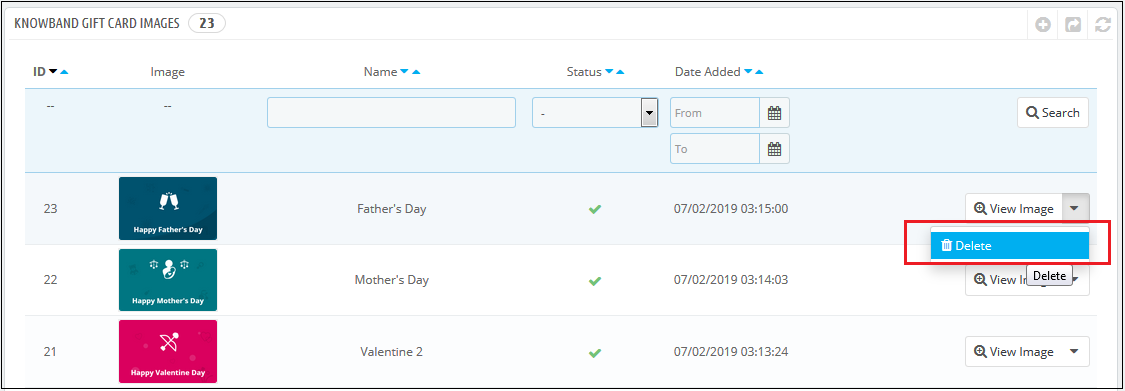
As you click on the ‘View Image’, you’ll head to the page below.
The list showcases the entire images that were created and saved. You can view the complete image or even delete it if is necessary.
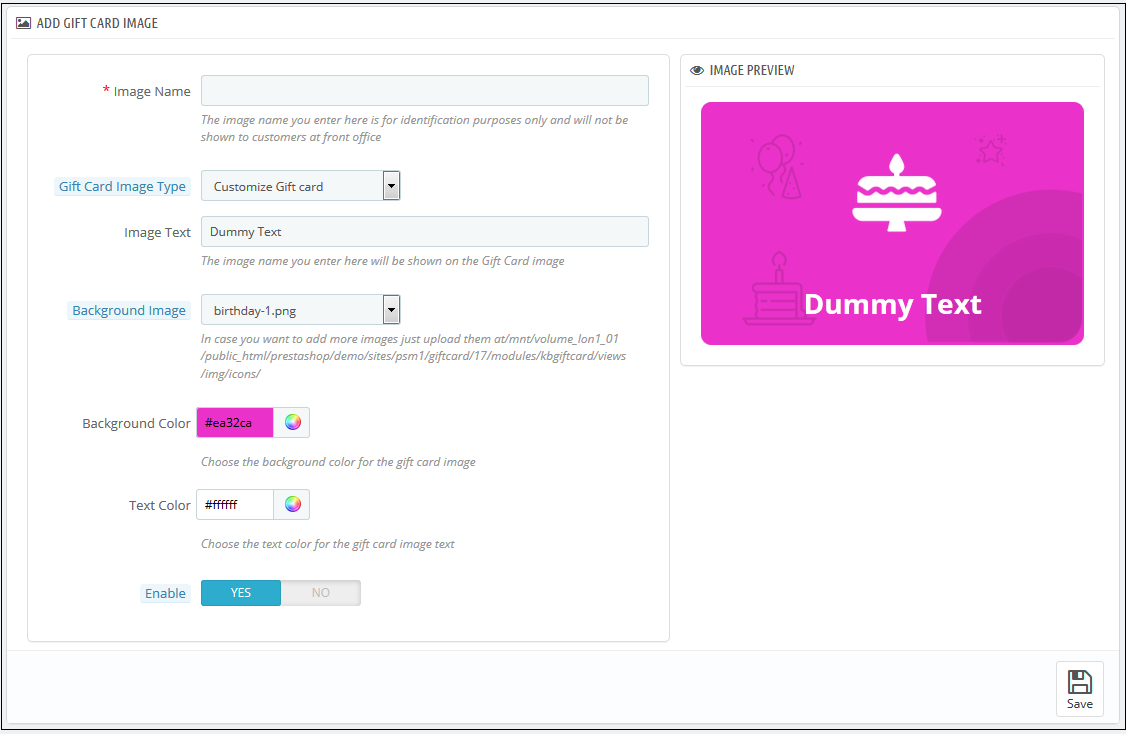
To create new images, click ‘Add New Image’ as shown below. The admin can choose a Gift Card Image Type. The store admin can customize the gift card or upload custom images also.
You can enter the image name and the text of the image to be shown on the gift card. Even the background image and color, as well as font color, can be changed at a button click. Preview the final image before making it live on the website.
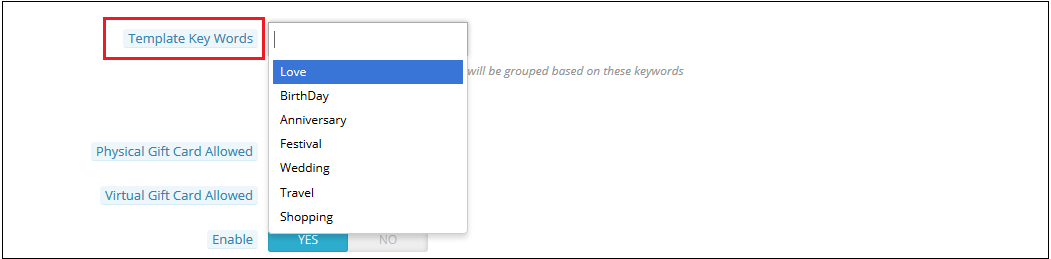
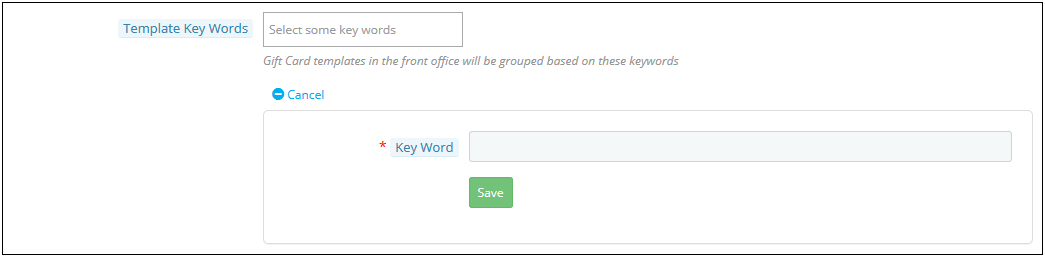
4. Template Keywords: The keywords of the gift cards can be selected from the list as shown below.
To create new keywords, click on ‘Add New’.
The admin can enter the keywords and save them here.
5. Physical Gift Card Allowed: The PrestaShop gift card manager addon by Knowband allows the store admin to enable the physical gift card for this template.
6. Virtual Gift Card Allowed: The functionality will allow the e-cards.
7. Enable: The functionality can enable or disable the template.
8. Stores: The PrestaShop gift voucher module is multi-store compatible. The admin can either enable the functionality in all the stores or can select anyone from the drop-down list.
9. Languages: The admin can select the desired language for the template from the drop-down list.
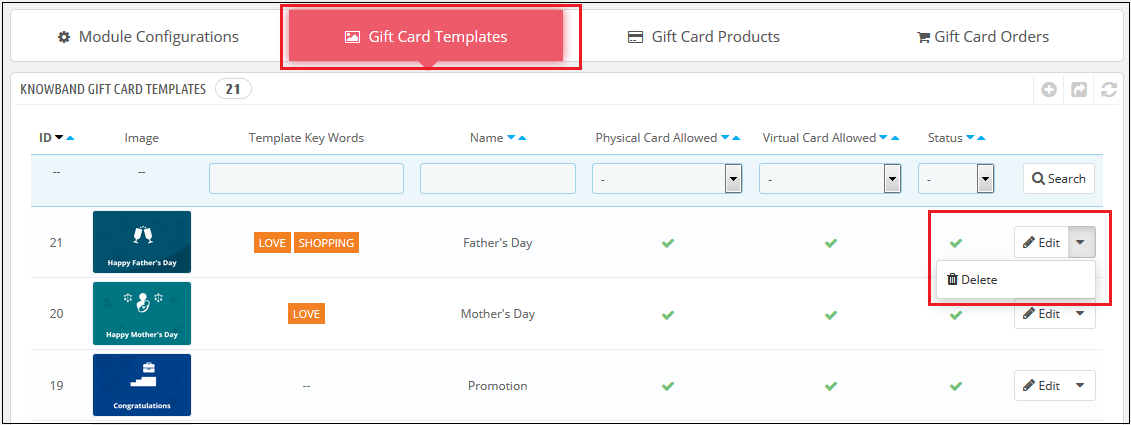
3.2.2 Edit Gift Card Template
The admin even gets an option to edit the template or delete from the section shown below:
3.3 How to customize the gift cards product?
3.3.1 Create New Conditions for the gift vouchers
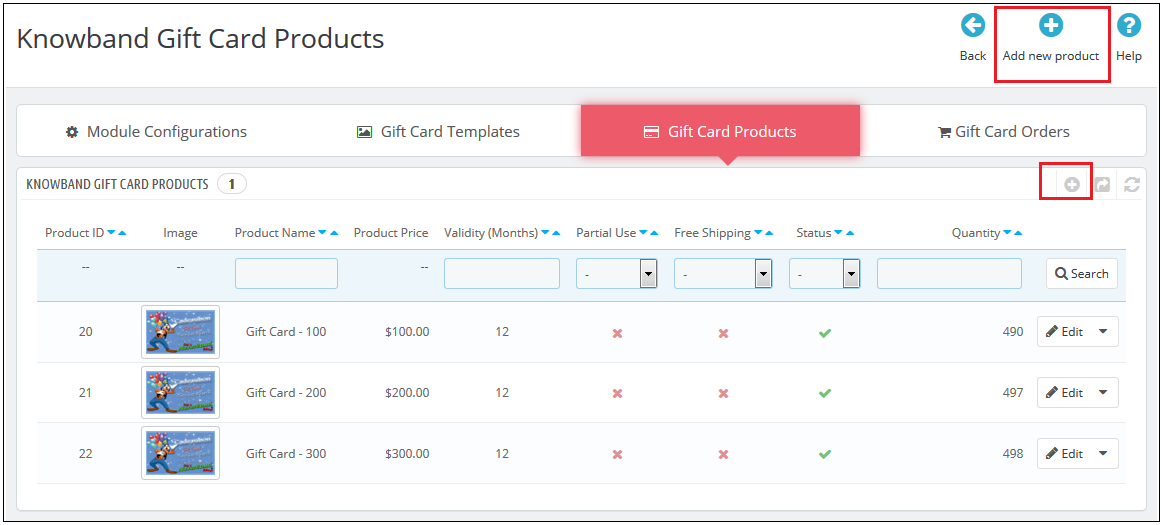
The e-merchants can customize the pre-paid gift card products in a few simple steps.
In the ‘Gift Card Product’ tab go to the ‘Add New Product’ or click on the ‘+’ sign in the top right section.
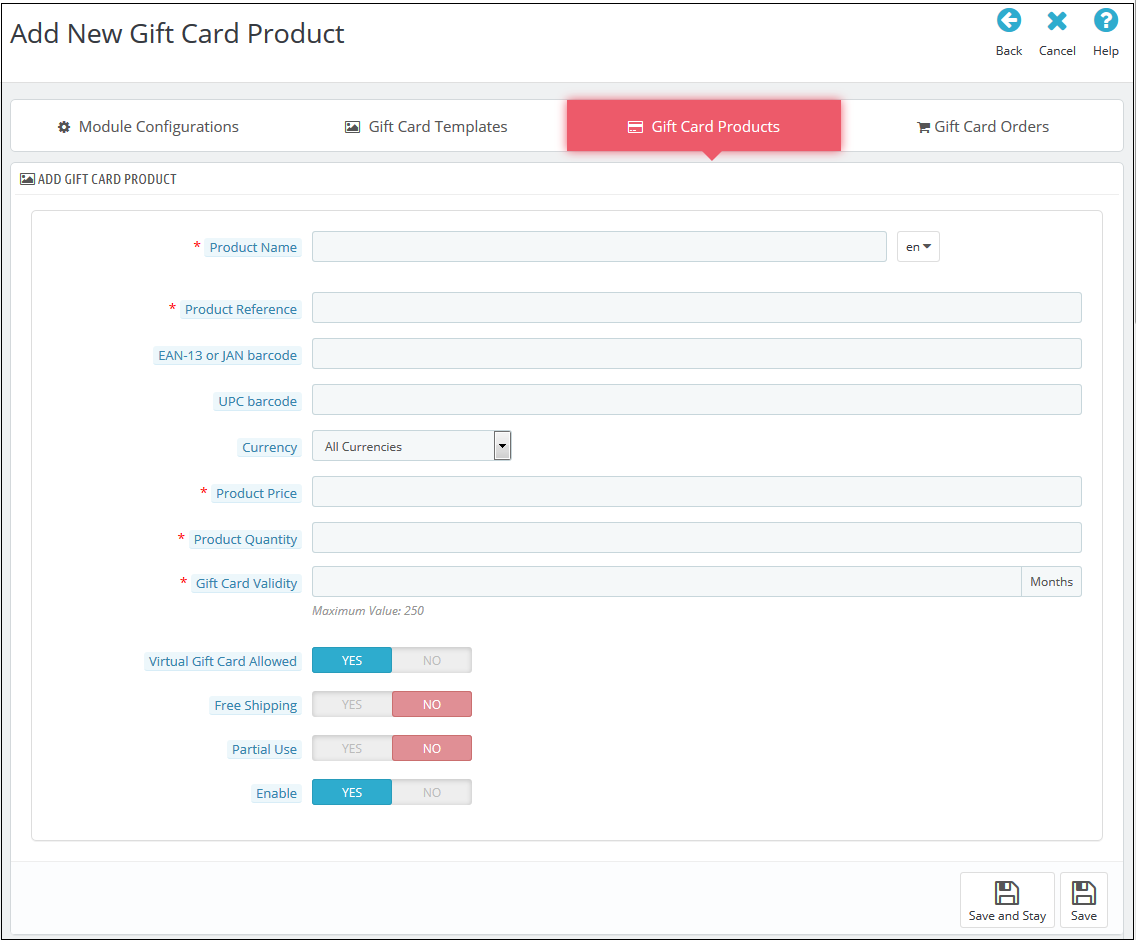
Below is the information that you need to provide for creating the product.
Product Name: Enter the name of the product here. It can be Happy Anniversary, Happy Birthday, Merry Christmas, or any other.
Product Reference: This includes the unique reference id. The admin can enter the internal reference code as per the requirement.
EAN-13 or JAN barcode: This product code is widely used internationally, but is specifically included for Europe and Japan. It is a super-set of UPC code and will be acceptable in North America.
UPC barcode: This product code is acceptable in almost all countries.
Currency: The admin can select the currency for the card from the drop-down list.
Product Price: The gift card amount enters here.
Gift Card Validity: The validity period in months of the gift card enters here.
Virtual Gift Card Allowed: Enable e-card by switching on the button.
Partial Use: The eCommerce seller can even allow partial use of the voucher amount.
Enable: The admin can enable or disable the PrestaShop gift voucher module from here.
3.3 Track the order for the gift cards of the site
The Gift Card Order tab provides the entire list of the orders received for the gift cards. It involves the recipient email, date of sending as well as the status of the gift cards.
In the ‘Gift Card Order’ tab go to the ‘View’ button in the right section. This section shows the entire information about the order.
4.0 Website UI
The links to the gift cards page can be viewed in the front end as opted by the store admin. Once the store visitors click on the link, they will head to the gift card page of the site.
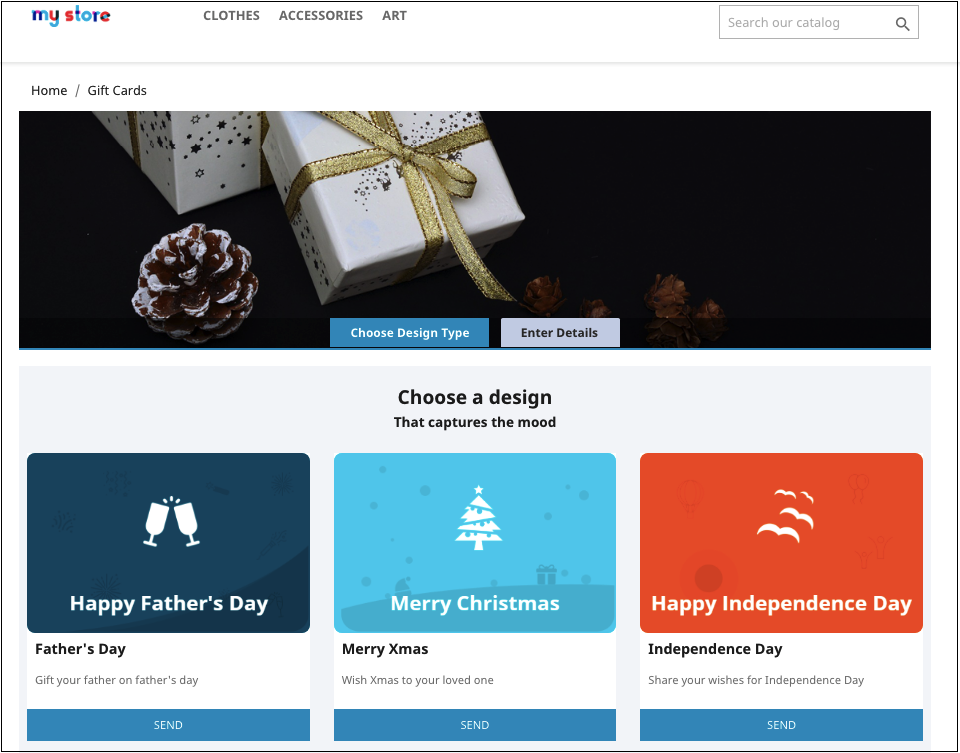
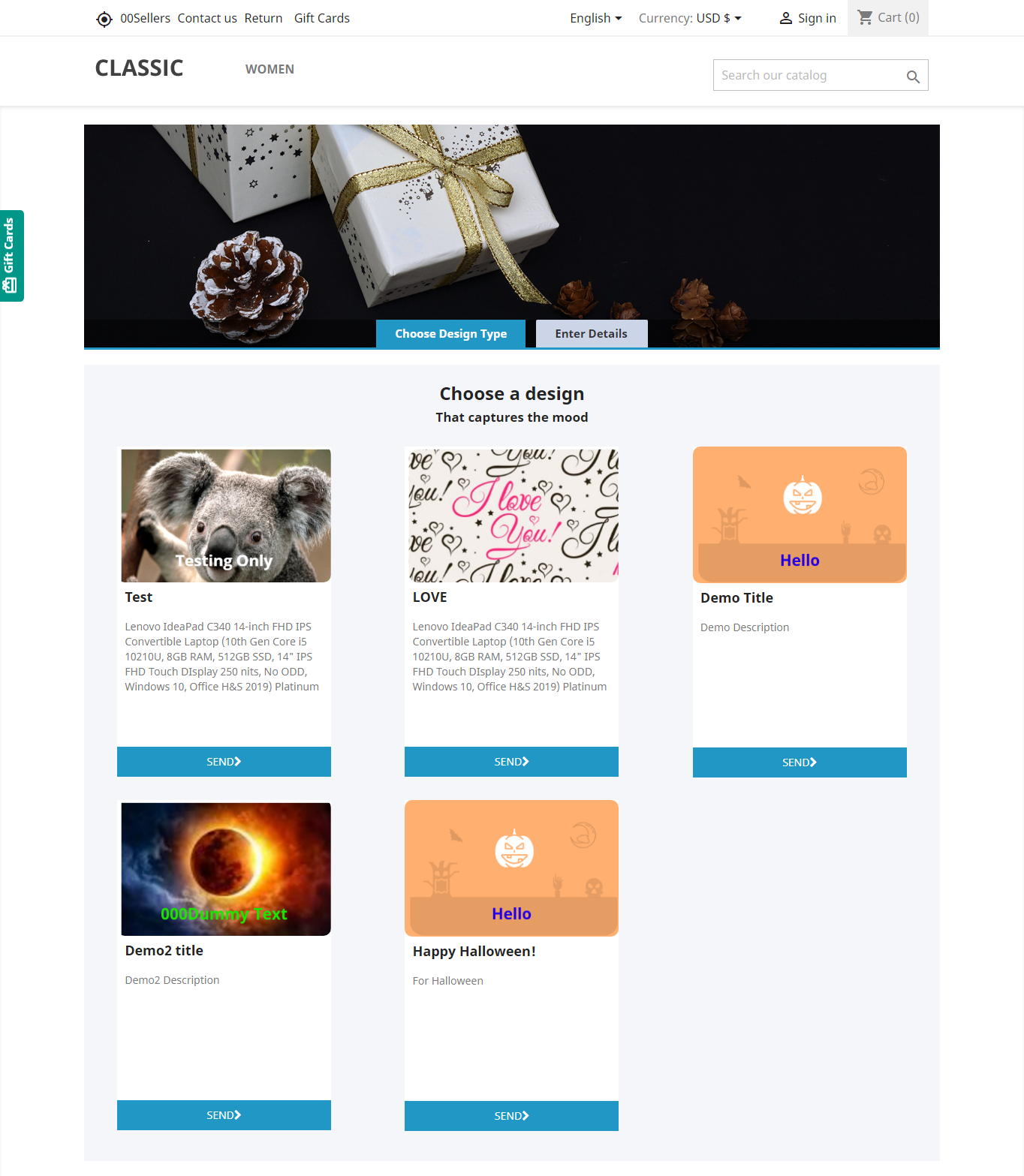
The PrestaShop gift card manager addon by Knowband is the front-end of the website will be shown very similarly to the image below:
Shopping for the same is easy. The customers can select the card for different occasions. For instance, he chooses the Happy Halloween card. All he needs to do is to click on the Send button of the card.
The customer will head to the ‘Enter Details’ page where he can add all the needful details.
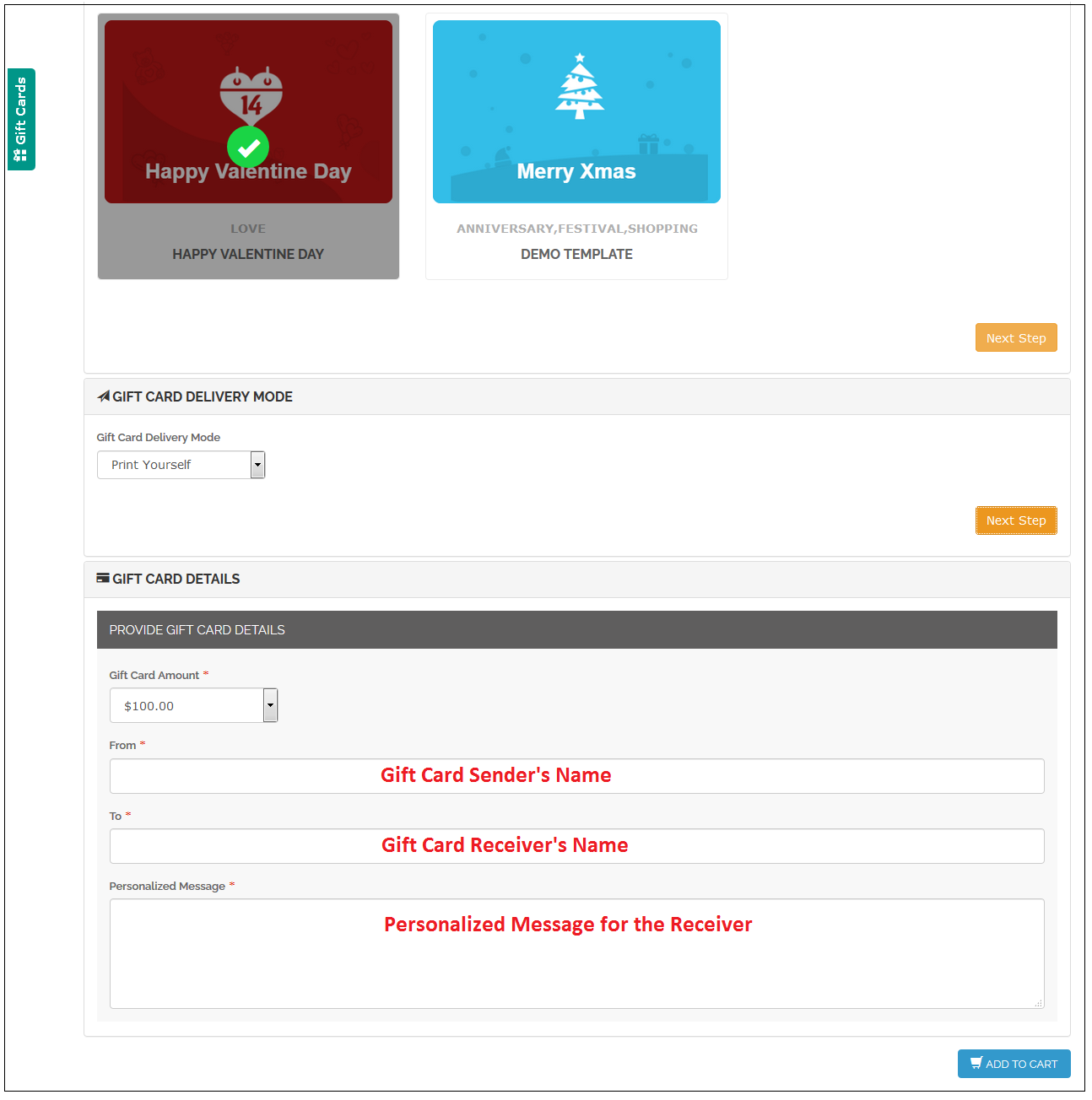
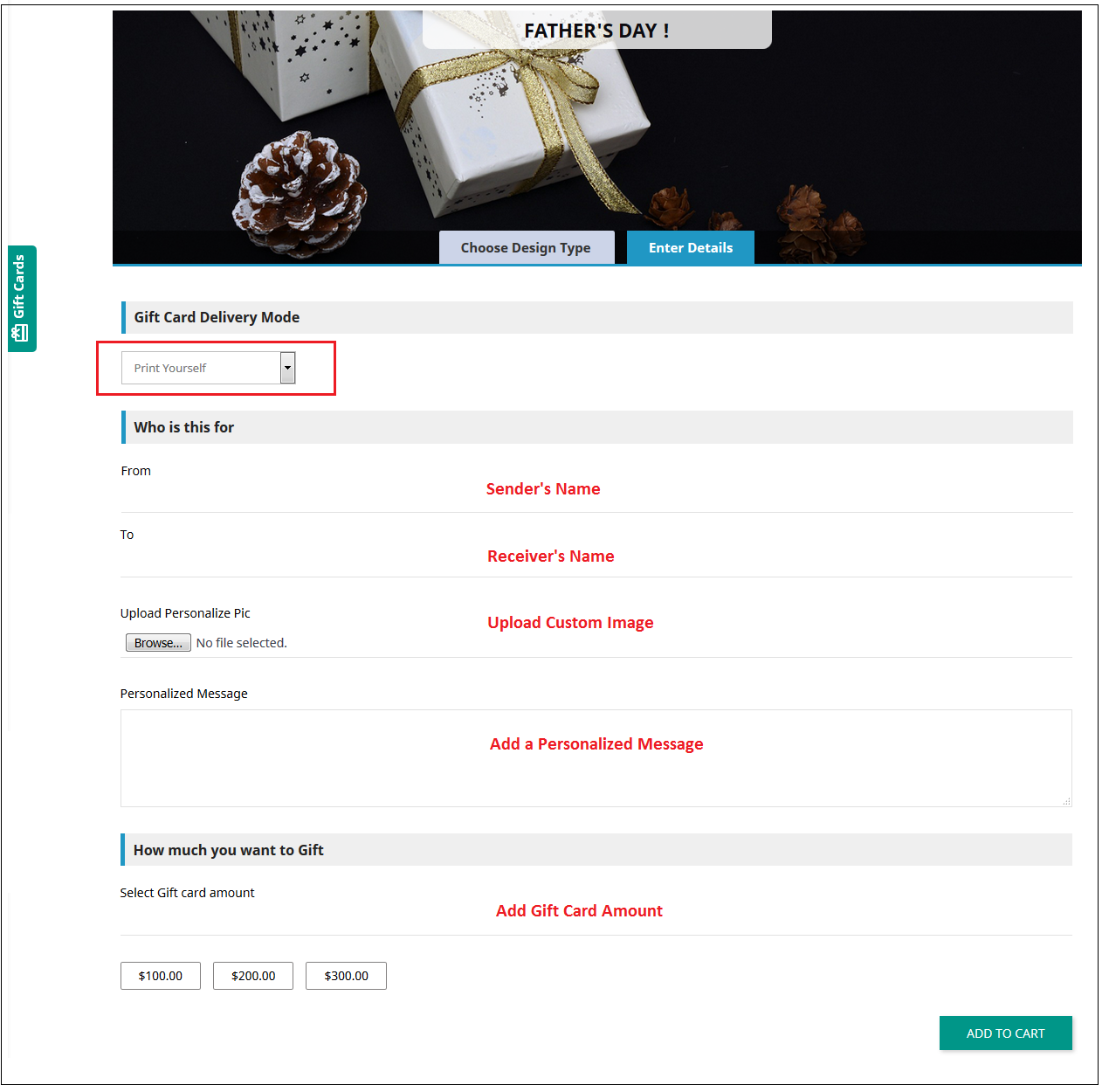
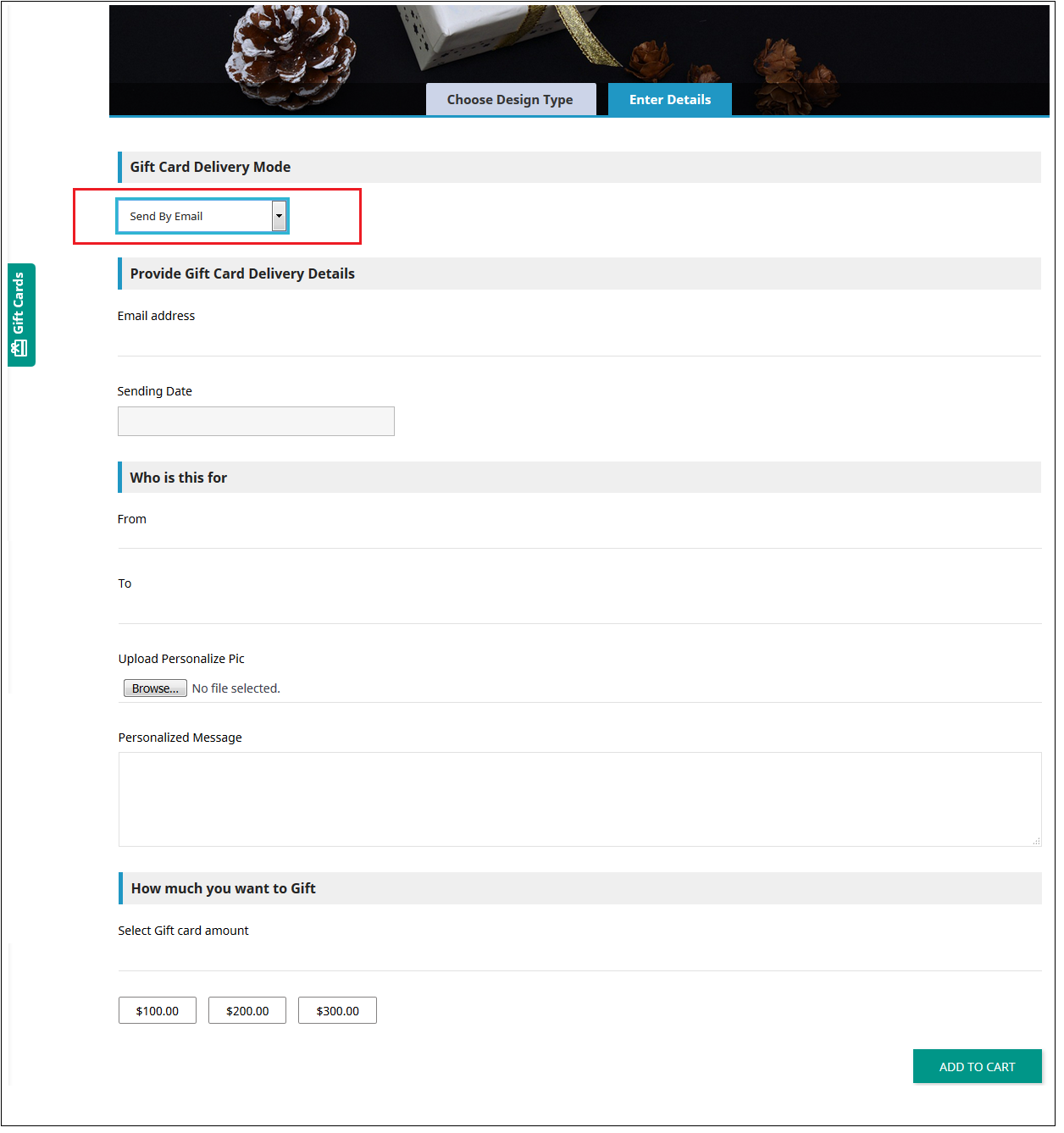
He can print the card or send it via email. The sender and receiver names along with the message can be mentioned in the section as shown below.
Upload Image: The sender can upload a custom image for a Personalised Gift Card.
Print By Yourself: Insert the details to print the gift card.
Send via email: Add the email address of the receiver, upload a custom image, and a note for your loved one.
Add the product to the shopping cart and proceed to the checkout page. The gift card will then be sent to the receiver.
Now you want to buy gift cards for your near and dear ones this PrestaShop addon is a way to connect with you with just one click. KnowBand PrestaShop Gift Card Module helps you engage more customers to your store.
Tutorial: Watch the Video Guide
To help you set up and use the PrestaShop Gift Card Manager Module, we have created a detailed YouTube tutorial. The video explains the installation process, configuration options, and how to manage gift cards step by step.