Get fully Flutter Android & iOS apps for your WooCommerce website & start selling your products on Mobile Apps!
1.0 Introduction

This is the user manual for WooCommerce Mobile App Builder’s cutting-edge and ready-made Flutter mobile app solution. This eCommerce website plugin was created and expertly crafted to help you create flawless and feature-rich Android and iOS shopping apps.
1.1 Introduction to WooCommerce Mobile App Builder
The most sophisticated and automated way to expand your online business to mobile platforms is with the WooCommerce Mobile App Builder. It turns your entire website into a mobile app with features and enables you to sell products on mobile devices in addition to the traditional website. The app’s features and operation perfectly mirror those of the website and are compatible with both Android and iPhone devices.
The pre-configured framework used by our WooCommerce Mobile App Builder was created by experts and professionals to create two Flutter eCommerce apps (Android and iOS). The apps can bring every item in your store to the user’s fingertips and increase sales and revenue. Therefore, this is your best opportunity if you are a WooCommerce store merchant looking for a complete mobile app solution. To get complete information on WooCommerce Mobile App Development, read the article in its entirety.
Additionally, the Multi-vendor Marketplace plugin is fully compatible with our WooCommerce Mobile App Builder extension. The same Mobile Apps can be used to access the entire marketplace listing. Even better, we provide a bundle that includes both WooCommerce Advanced Marketplace With Mobile App and WooCommerce Multi-Vendor Marketplace.
Moreover, You would be persuaded to choose this Flutter app solution if you considered the following advantages of WooCommerce Mobile App Maker:
- A mobile app solution with no coding.
- A welcoming administrative panel with full access.
- Free assistance for three months
- Completely Flutter remedies (Android & iOS)
- Synchronization of your apps and website at all times
- Extremely flexible in terms of design and operation.
- Uses practical marketing tools to boost user engagement.
- Increases your store’s revenue and traffic.
Top Qualities of the WooCommerce Mobile App Builder:
The following is a list of some of the major features that your apps with WooCommerce Mobile App Builder will include:
- The layout of the home screen can be changed (Complete Flexibility)
- Store Identities
- (24/7) WhatsApp Chat Support
- OTP and fingerprint login for both tablets and smartphones with Google and Facebook
- Support iOS 9 and subsequent iOS versions, as well as Android 4.2, and up versions support.
- automatic inventory updates.
- Numerous Font & Color Options
- bilingual and RTL (Right To Left)
- Support All Product Types
- Support Multi-currency
- Support Website Shipping Method Supported on Apps
- Support Website Payment Method
- Push Notifications indefinite
- Options for Product Social Sharing
- Numerous options for sorting and filtering
- Wishlist Functionality
- Internet coupons or vouchers backed by apps.
- Checkout Screen with Fewer Details
- Live Order Monitoring
- Unbroken Accordion Menu
- Clear-cut Category & Product Screen
Latest Version Updates in WooCommerce Mobile Apps:


With an integrated “Add To Cart” button for products on the Home & Category screen, the WooCommerce Mobile App has been made more usable for online shoppers. By simply tapping the cart button, users can quickly add products to the cart.
The category screen of mobile apps also features an Add To Cart button. Users only need to scroll to the bottom of the page to browse the products and keep adding items to their shopping cart by tapping the Add To Cart button.
A) App Reviews for Products
Our WooCommerce Mobile App is currently compatible with WooCommerce’s built-in Product Comments module. The user can now post product reviews on the website, and those reviews will also show up on the app. The user has access to both read and write reviews on the app.
b) Related App Store Products
The Automatic Related Products module is now compatible with the WooCommerce Mobile App Builder. On the product page of the website and mobile app, related products can be shown. This compatibility can be a wonderful tool for your company to increase cross-selling.
C) Deep Linking: A deep linking feature is built into the WooCommerce Mobile App. Now, when a link is shared, the user will be taken to the application rather than the website. Installing the app on the mobile device is the only requirement. The user will even be directed to the appropriate app screen by the shared link.
D) Accessibility in Offline Mode: With this extension, eCommerce mobile apps will now function even when there is no internet connection. Users are able to browse any time the pages that were loaded while the internet was active. Products, categories, the cart screen, etc.
–> Explore WooCommerce GDPR Module
E) Spin & Win (Gamified Email Subscription) Compatibility:


The WooCommerce Spin & Win extension is also compatible with the WooCommerce Mobile App Creator. On the web store, a spin-wheel interactive pop-up that can be scheduled for entry or exit display is provided by the gamified email subscription pop-up. The same pop-up will now be automatically displayed on the apps thanks to this integration. The extension only needs to be installed on your website.
F) Video Banner Elements: Knowband’s WooCommerce Mobile App Builder now supports video banners on the home page. Store admins can upload videos directly or embed YouTube videos, making the home page more visually appealing and improving the user experience.
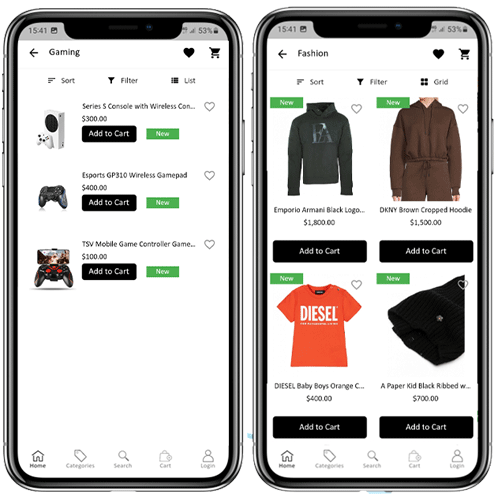
G) List/Grid View: Knowband’s WooCommerce 2 Native Mobile App Builder for Android and iOS allows app users to easily switch between list and grid views while browsing products. This feature improves the shopping experience by providing a flexible and attractive way to explore products. Users can toggle between views using the list/grid button on the product listing pages.
H) Automated Banner Sliders: The latest Knowband Magento 2 Mobile App Builder includes an automated banner slider feature. Store admins can easily set the sliding interval from the module’s backend. This is especially helpful for “Banner Horizontal Sliders” on the home page, allowing admins to add both video and image banners for a more dynamic and engaging display.


I) Enhanced Review Section: The Knowband mobile app features an improved review section. Approved reviews are displayed with a better user interface, offering a more visually appealing and seamless experience for both Android and iOS users.
–> Investigate the WooCommerce Spin Win Module
This is not the end of the list. Learn more about the features in-depth from this page.
2.0 Demo of the WooCommerce mobile app
KnowBand is aware of your hesitation to use the solution and has provided all owners of eCommerce stores with a free demo in order to allay your worries. The merchants can see their store operating on our demo apps as well as our demo store operating on mobile devices.
2.1 Check Out Our Demo Store for Apps
Want to see the features of the eCommerce app? In order for you to explore the app and see all of its features, we have integrated our demo store with it. Just adhere to the guidelines below:
Step 1: Your mobile device can be used to download and install the Nautica WooCommerce Mobile App. The following are links to download trial versions of the following apps:
Apple App Store – https://testflight.apple.com/join/mrvIRLfw
Google Play Store- https://play.google.com/store/apps/details?id=com.velsof.woocommercegenericapp
Secondly, the Click the view demo button after launching the Nautica WooCommerce App.
I’m done now! On the demo app, you will see our demo store operating. You can browse it, test out every feature, place orders, etc.
Note: Click here to access the KnowBand Mobile App Builder Admin Panel on our demo store.
2.2 Watch Your Store Operate with Demo Apps
Not content? Do you wish to test the demo apps on your store? We have everything covered for you, though. On our demo app, you can also experience your store, and at no cost. You only need to follow these 3 steps to achieve the same results:
- Install the FREE WooCommerce Mobile App Builder plugin on your store as the first step.
- Install the Demo Apps on your mobile device in step 2 (links are in the previous section). Open the app and type in the store URL.
- Click “View Your Store” to begin using demo apps to explore your store.
- Type your store’s URL into the box that appears.
For instance, see https://www.example.com/
Note: No APK or IPA files will be provided with this module; this Free version of Mobile App Builder is only for demonstration purposes. You must buy the WooCommerce Mobile App Builder’s paid version in order to obtain your own APK/IPA files.
3.0 Create a mobile WooCommerce app in 3 easy steps
We hope you enjoyed the WooCommerce Mobile Apps demo and discovered what you were looking for. So now is the perfect time to add a pair of Flutter apps to your store. An eCommerce mobile app can be created in the most straightforward manner possible. Your app will be ready in just 3 easy steps and 1-2 working days.
First, add the module to your website.
Install WooCommerce Mobile App Builder on your store after downloading it.
Step 2: Share the details of your application
Use our prerequisites form to share your app’s specifications.
Step 3: In 1-2 days, receive your apps
Our knowledgeable and experienced developers create your apps precisely in accordance with the shared details. In 1-2 days, we would reply with APK/IPA files.
Note: These APK/IPA files can be published on the appropriate app stores.
Still a problem? Tell us, and we’ll help you publish the apps. Furthermore, you can contact us at support@knowband.com if you have any questions or suggestions.
4. Installation of Module
You will receive the files listed below once you have purchased the WooCommerce Mobile App Builder module:
1. ZIP-formatted compressed file (contains the source code of the addon)
2. User Guide
You can now continue the installation process in one of the two ways listed below:
Details of module installation via FTP
Installing a module using admin details
5.0 Screens for the admin panel
It’s time to set up the WooCommerce Mobile App Creator’s Admin Panel after it has been successfully installed on your website. You will see the following tab with user-friendly interfaces as soon as you select the “Configure” option on the KnowBand Mobile App Builder. Let’s eliminate each one individually.
5.1 General settings:
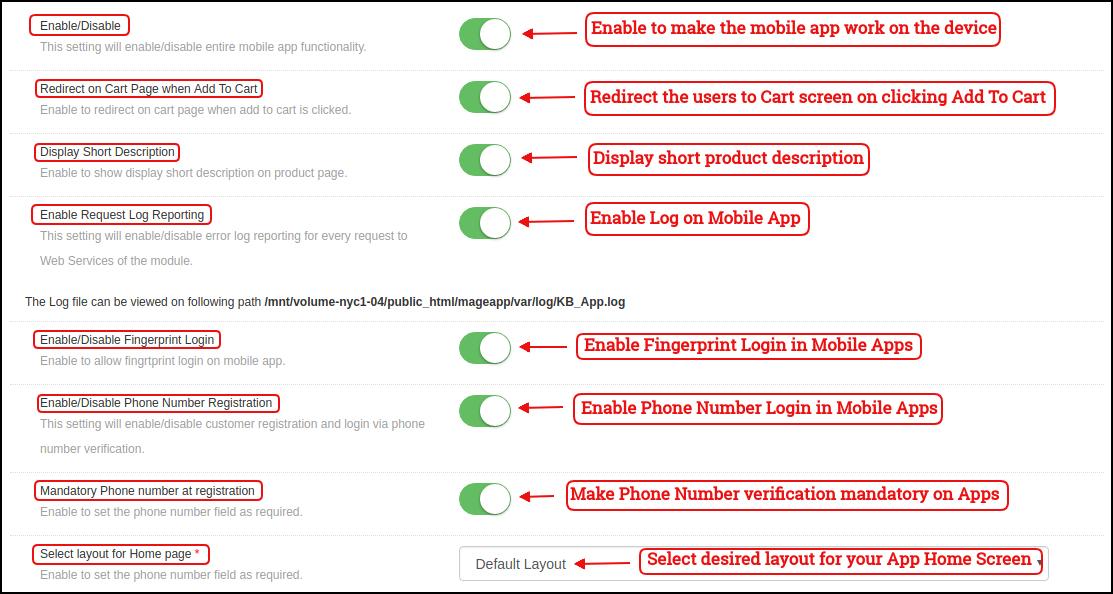
The settings needed for users’ devices to run your mobile app are all covered under the General Setting tab. This tab has every generalized option required to sync the app.


A) Enable Plugin: To make your mobile app functional on users’ devices, enable the WooCommerce Mobile App Creator plugin.
B) Enable Spin and Win: When any user opens the app, enable the display of a gamified spin-wheel pop-up on the home screen. It can be used to provide discounts and deals in exchange for their email addresses, which are then used for marketing. The Spin and Win module from Knowband must be installed on your website in order for this functionality to function.
The Spin and Win Module will only function if the plugin has been installed in your store end.
C) Redirect on Cart Page when Add To Cart: This feature enables you to manage the “Add To Cart” button’s navigation. When a user taps the Add To Cart button, you have the option of sending them to the shopping cart or keeping them on the product page. This increases the likelihood of making additional purchases.
D) Display Short Description: Allow the short description of the product to appear on the product screen alongside the full description and other information.

E) Choose Layout: Pick the Home Page Layout you want for your WooCommerce app. According to different holidays and themes, you can create a variety of home screen layouts in the backend and use them as needed for your store.
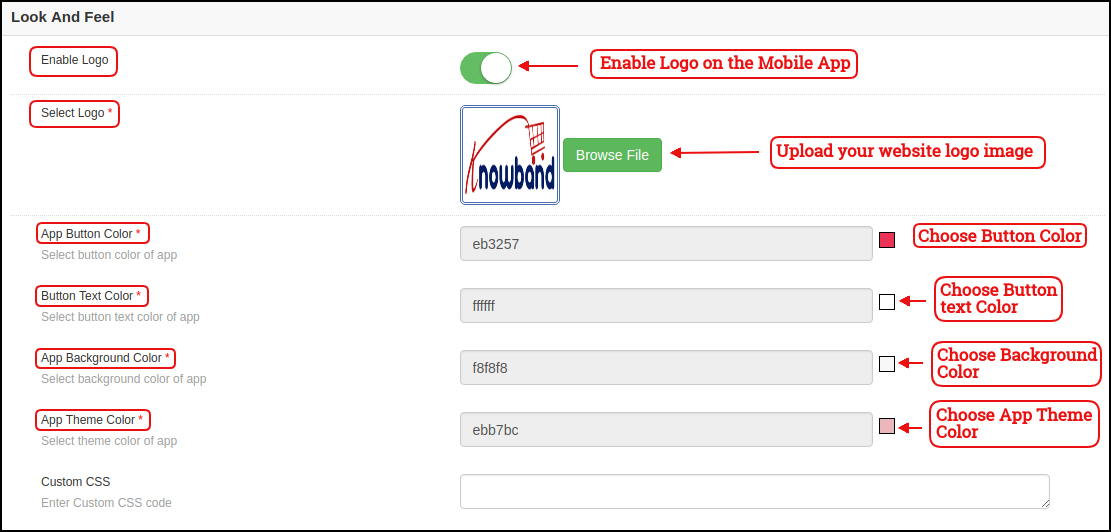
Choose the preferred button color for your WooCommerce Mobile App under Option
F) App Theme Color: Pick your WooCommerce Mobile App’s preferred theme color.
G) Logo image: Put your store’s logo on the app’s top header by uploading it. This helped your brand gain recognition among global mobile customer s.
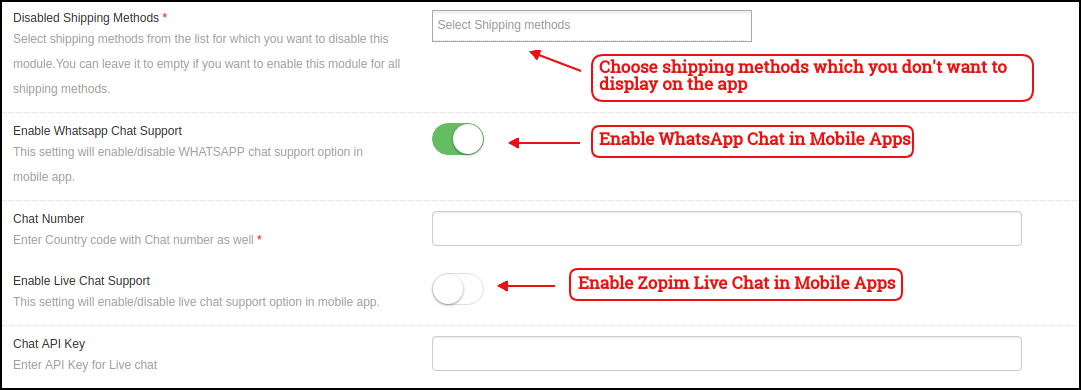
H) Disabled Shipping Methods: Select the shipping options you want to be hidden from the WooCommerce Mobile App.
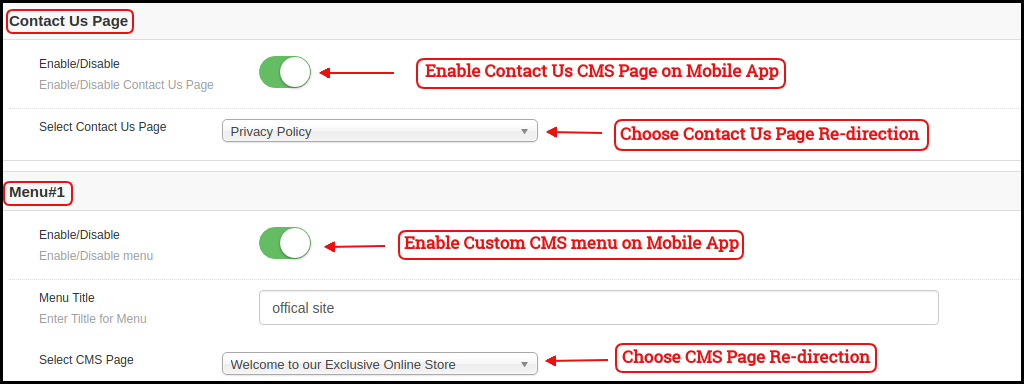
I) Enabled CMS Pages: Select the CMS pages you want to appear on mobile apps.
J) Enable Request Log Reporting: Enable the log feature on mobile apps to learn more about any unusual behavior exhibited by your app.
K) Enable WhatsApp Chat Support: On your WooCommerce Mobile Apps, enable the WhatsApp chat option. Your WhatsApp number entered in the backend can be used by users to get in touch with you directly.
L) Enable/disable Phone Number Registration: In your WooCommerce Mobile App, enable the Phone Number login option and enable OTP authentication for your users.
M) Enable URL encoding for Image Links: Turn on this feature to allow the app to support characters other than ASCII.
N) Show Add to Cart Button on Product Block: The admin can show/hide the “add to cart” button for the product listing pages with the help of this button.


O) Enable Notification List Feature: The button allows the admin to enable the notification listing features for the app users. If this option is disabled, the notification tab will not appear in the app.


P) Enable Sign In Login Popup: The admin can enable or disable the login/sign-up pop-up for the new customers with this option.
5.2 Settings for Push Notifications
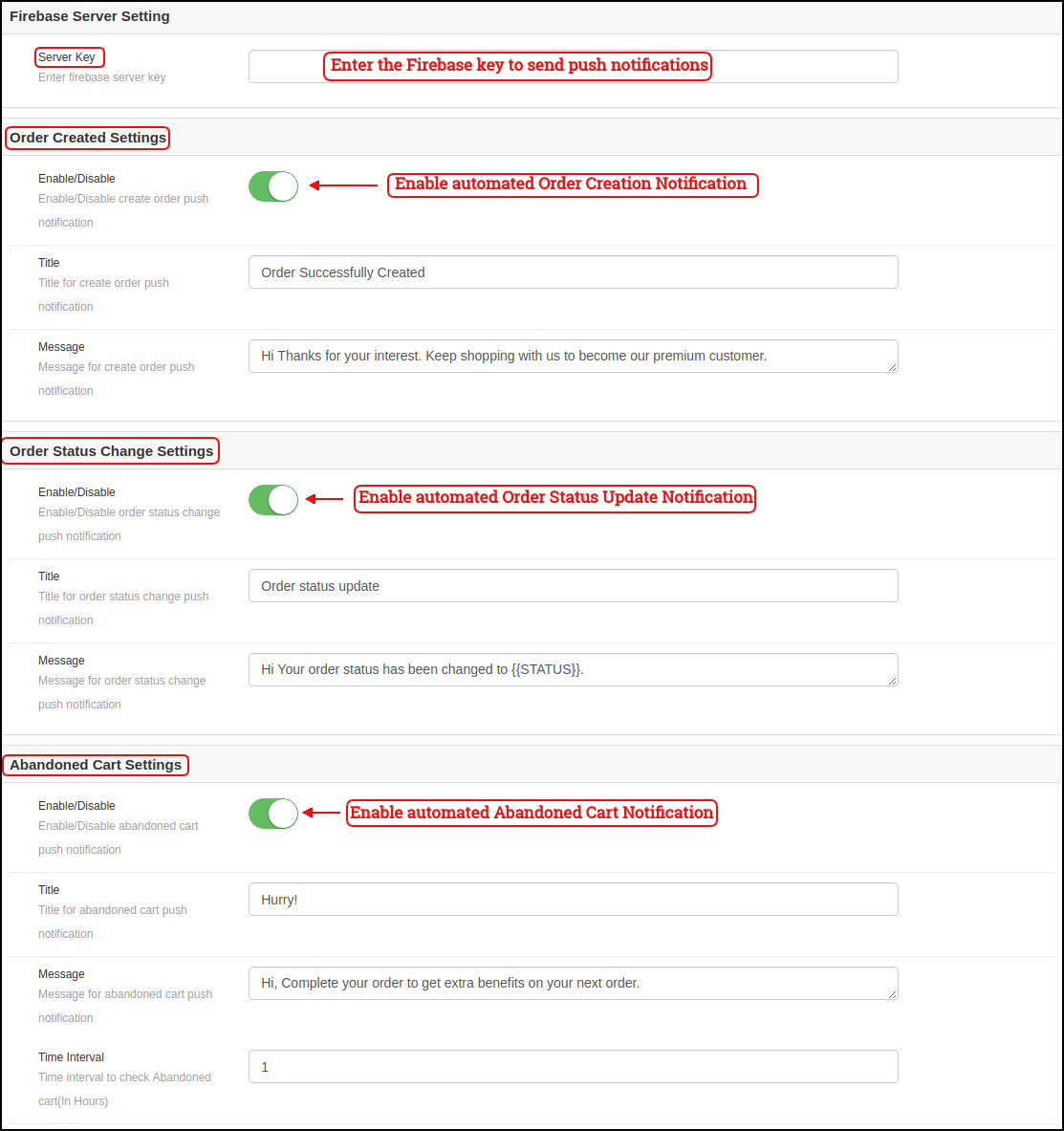
The Google Primary Services for the Push Notification to Mobile Devices are used by the WooCommerce Mobile App Creator for Android and iOS to harness the power of push notifications. It provides this practical marketing tool to increase sales by grabbing users’ attention right away. With the help of your WooCommerce Mobile App, you can easily highlight your current specials and offers. WooCommerce Mobile App Maker offers both automated and customized notifications.


A) Service Account JSON: With the deprecation of the traditional Firebase push messaging API, it has been replaced by a Service Account JSON file. In this section, admins can configure the JSON file from their Firebase account. You can either set it up yourself, or we can provide the Service Account JSON file during the app creation process for your convenience.
B) Order Creation Notification Enable/Disable: Enable/Disable automated Push Notification sent to app users upon successful order creation.
–> Title and Message for Push Notification: To create an order successfully, enter the title and message in the push notification setting.
C) Order Status Changed Notification: Users of the app can choose whether to receive automated Push Notifications when their previous order’s delivery status changes.
-> Title and Message for Push Notification: Enter the title and message whenever the delivery status of an earlier order is updated on the push notification setting.
D) Enable/Disable Abandoned Cart Notification: Enable/Disable automated push notifications that are sent to users whose carts have been abandoned but no successful purchase has been made.
Enter the title and message for the push notification sent to app users who have abandoned their carts.
E) Time Interval: The amount of time (in hours) between which app users who have abandoned their carts without making a purchase will receive Push Notifications.
5.3 History of Push Notifications
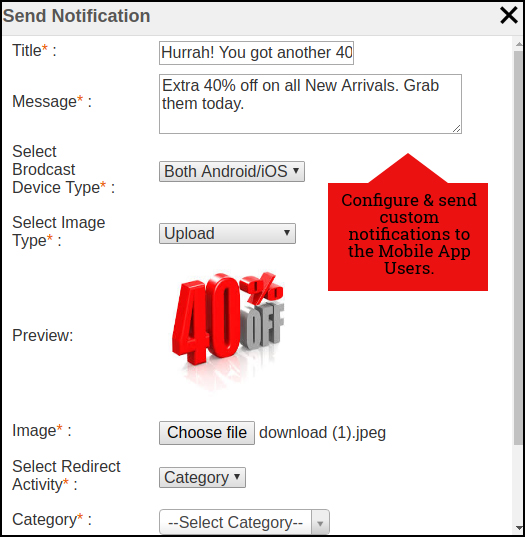
This tab includes a history of each type of push notification that was sent to a user with relevant information. The retailer has access to all previously sent notifications. Additionally, a custom notification created in the backend can be sent to the users using this tab. Through manually sent notifications, you can easily inform customers about any information or discounts pertaining to the store.
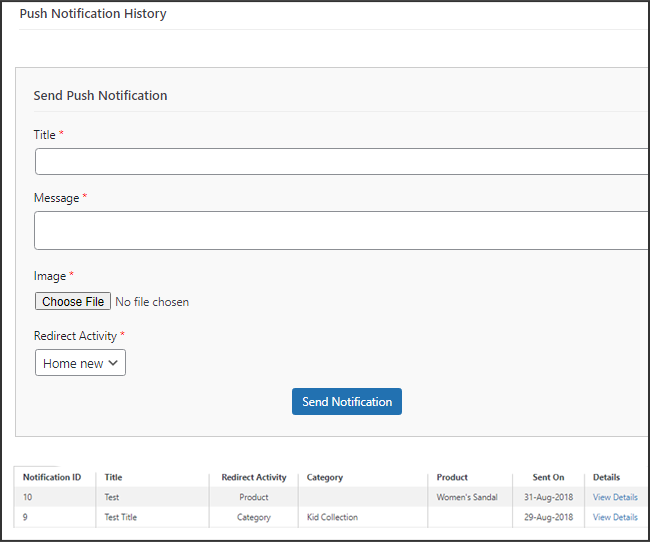

Send Notification: You can choose to manually send a notification to app users using this option. According to the screenshot below, you can customize the notification’s title, message, landing page, image, etc.
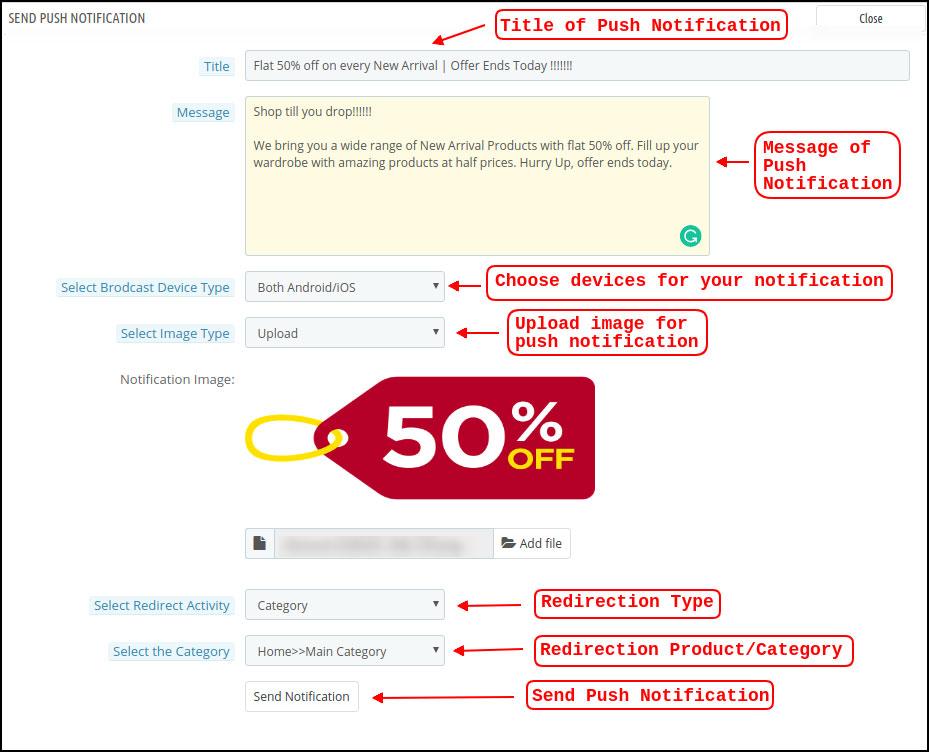

a) Push Notification Title: This is the name of the manual Push Notification you will be sending to app users.
b) Push Notification Message: The text of your manual notification that needs to be sent to app users.
c) Device Type: You can specify which users on Android, iOS, or both platforms you want to receive your manual push notification.
d) Image Type: You are able to upload the banner or image you want to use to support your notification. The banner image can be used directly through a URL or uploaded.
e) Notification Image: The store administrator is given the opportunity to preview the notification image and assess how it will appear on users’ apps.
The actual URL of the notification image that will be sent to app users is listed under item f.
f) Redirection Activity: Here, you can select from the Home Screen, Any Category, or Any Product to redirect your notification. Your users will be directed to whatever you specify when they tap the push notification.
g) Choose the Category/Product: For your notification, you can select any relevant category/product screen.
h) Send Notification: After creating and previewing your notification, it’s time to send it to your apps.
5.4 Payment Procedures
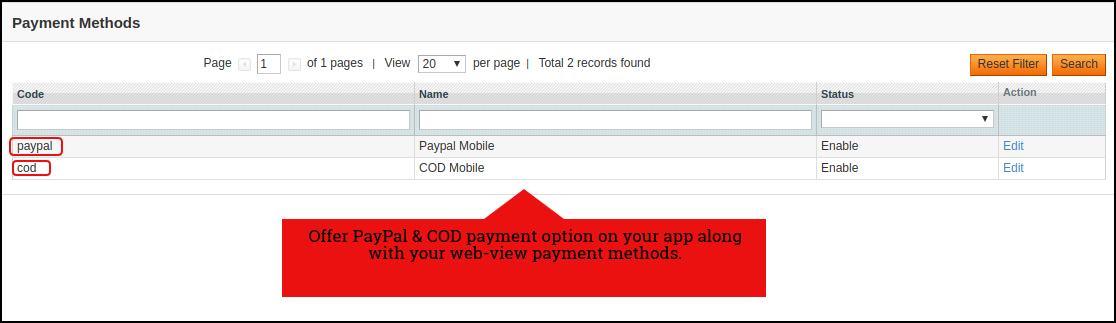
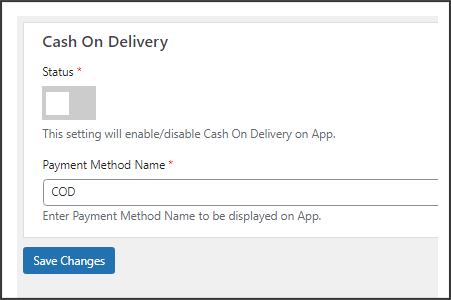
All types of website payment methods are supported by the WooCommerce Mobile App Creator for Android & iOS apps. It also includes the option for COD payments and the flexibility to include additional Web-View payment methods.
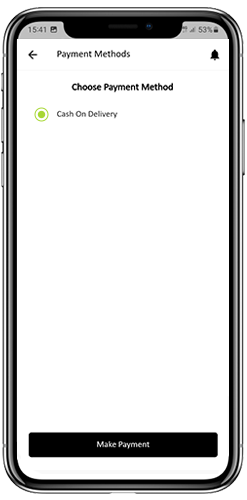
In our mobile app, the only available payment option is cash on delivery by default. Disable the COD method from the module’s back end, though, if you want to add the same payment methods as on your WooCommerce store. All of the payment options that are available on your website will work as intended in your mobile apps after the COD method is disabled.
.

5.5.1 Home Page Design
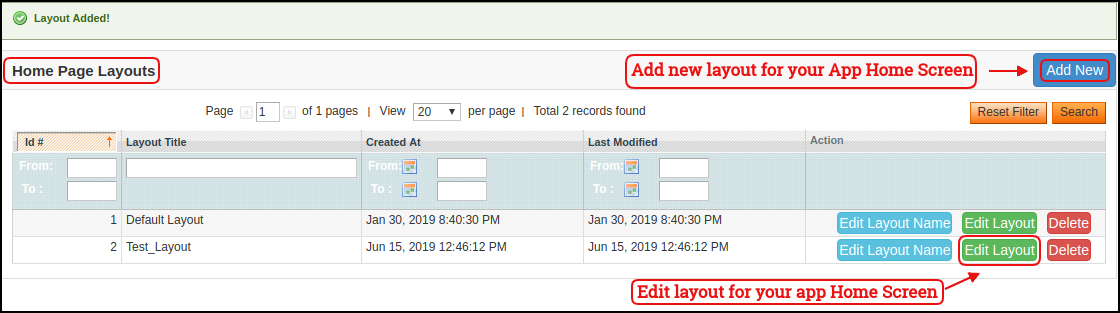
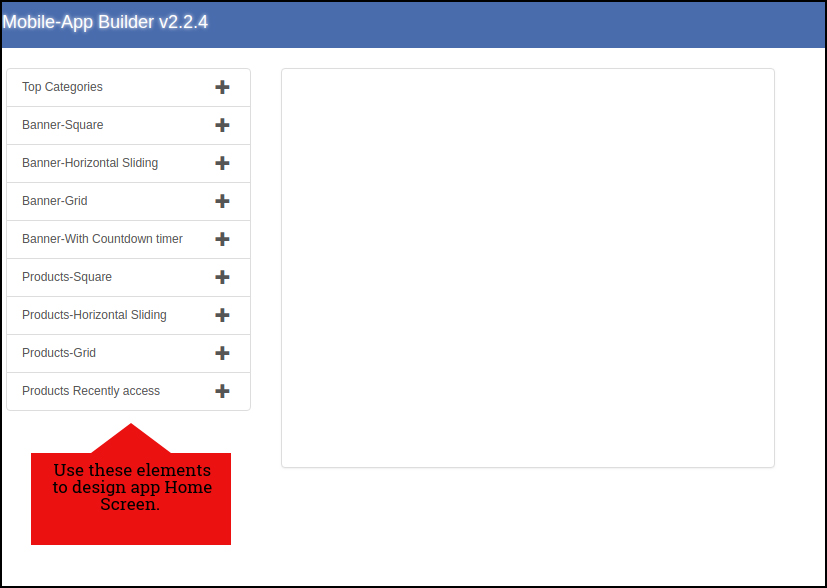
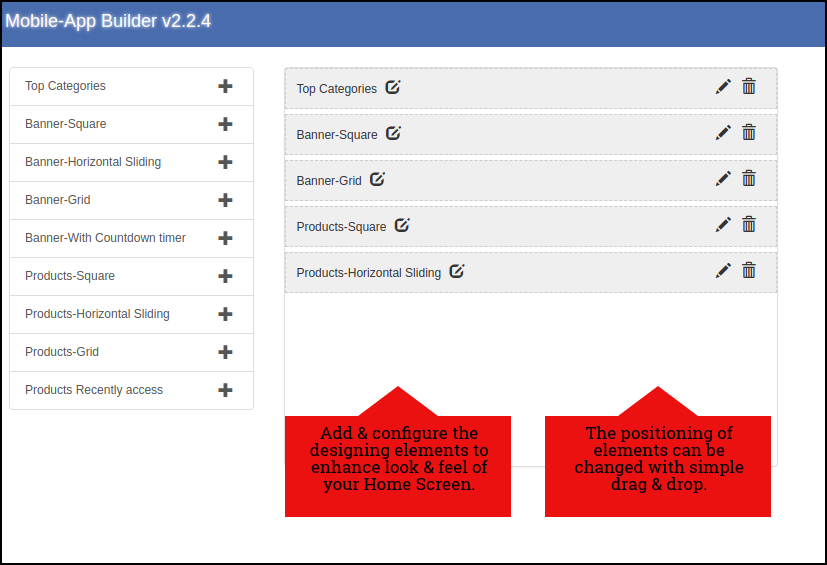
The WooCommerce Mobile App Builder plugin’s ability to design and create multiple home screen layouts using different designing attributes and elements is one of its most amazing features. As can be seen in the screenshot below, this tab contains a list of home screen layout that has been previously configured using different themes & fonts:
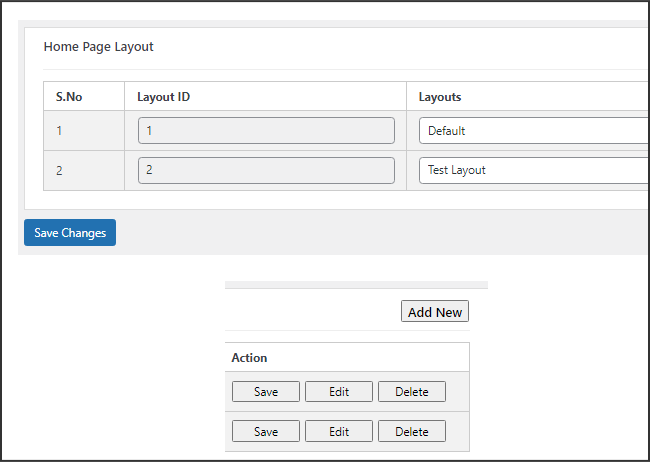

The following elements are available in the back-end to configure the home page layouts:
- Top categories
- Square Banner
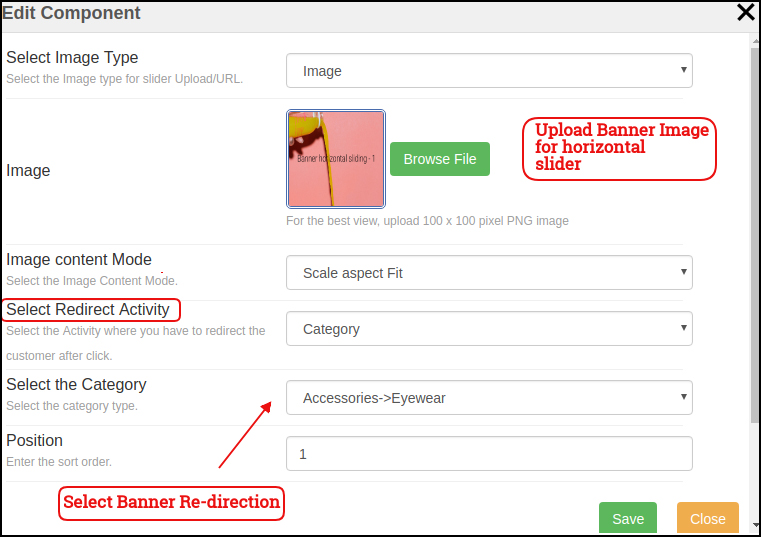
- Horizontal Sliding Banner
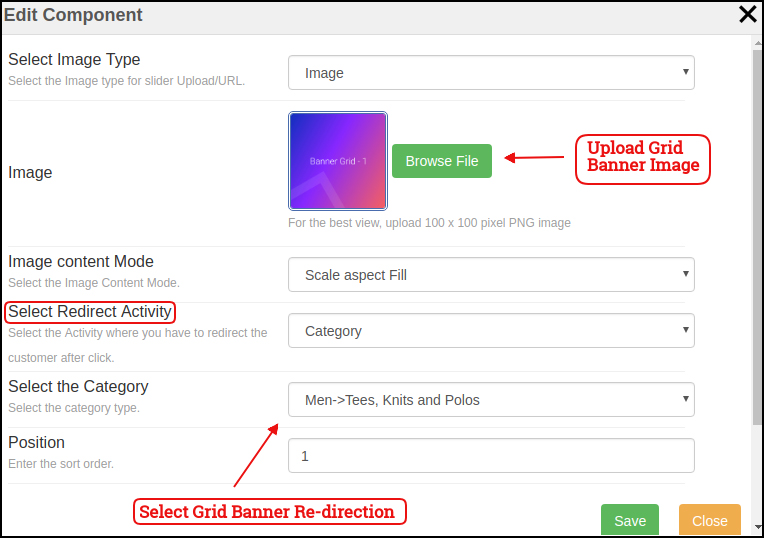
- Grid Banners
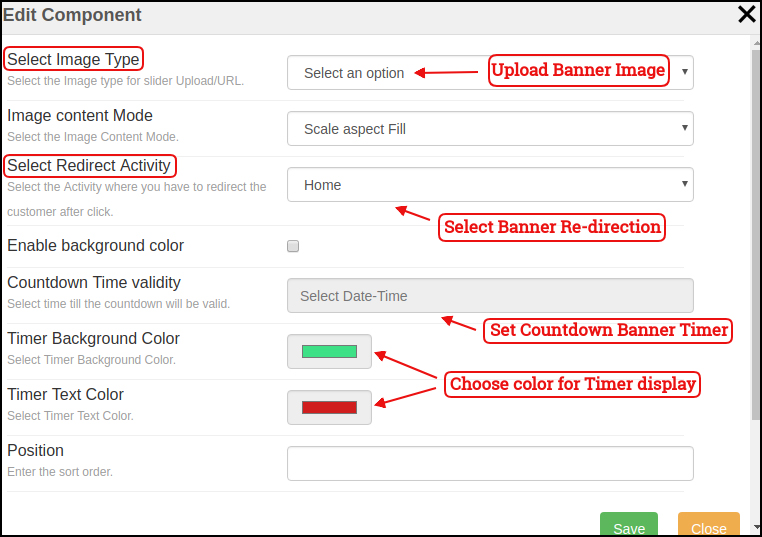
- Countdown Banner
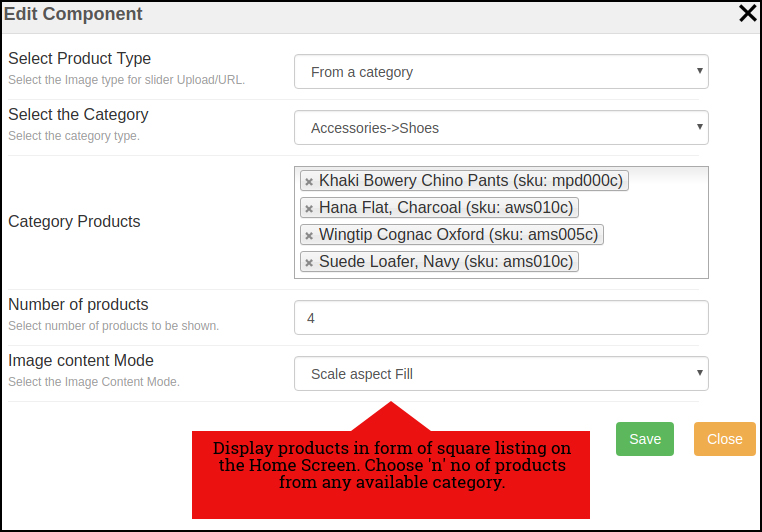
- Grid Products
- Horizontal Sliding Products
- Recently Accessed Products
- Add YouTube videos/upload videos on the home page layout.
- Login/sign-up pop-up for the non-logged-in users.
- Add custom banners with custom dimensions.
Any of these attributes can be set up by the store merchant and used to create and save multiple layouts. These layouts can be utilized based on the theme and specifications. Additionally, using just a drag and drop functionality, different elements’ positions can be changed.

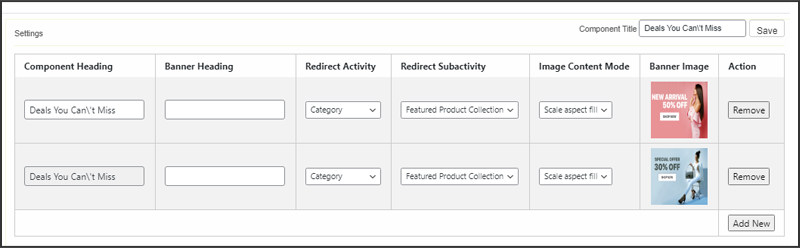

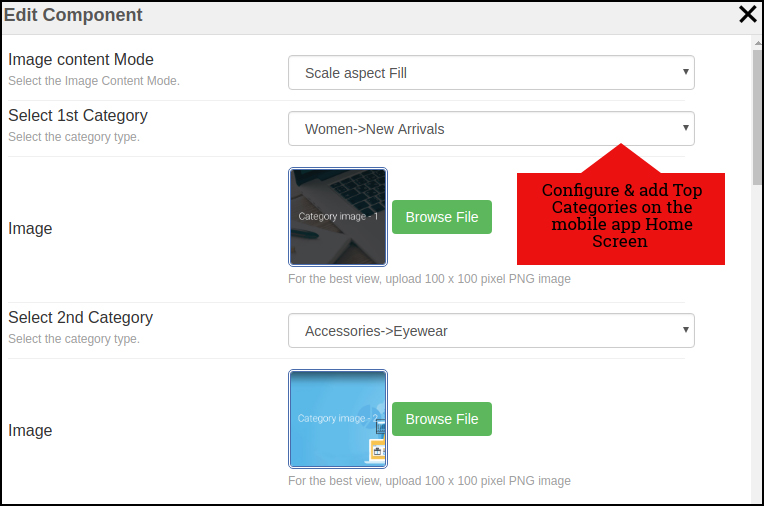
Top Categories:
Top categories can be configured, including their image and landing categories or products, and are shown as small squares on the home screen. Maximum categories available through the WooCommerce Mobile App Maker are 8, with a minimum of 4 required.
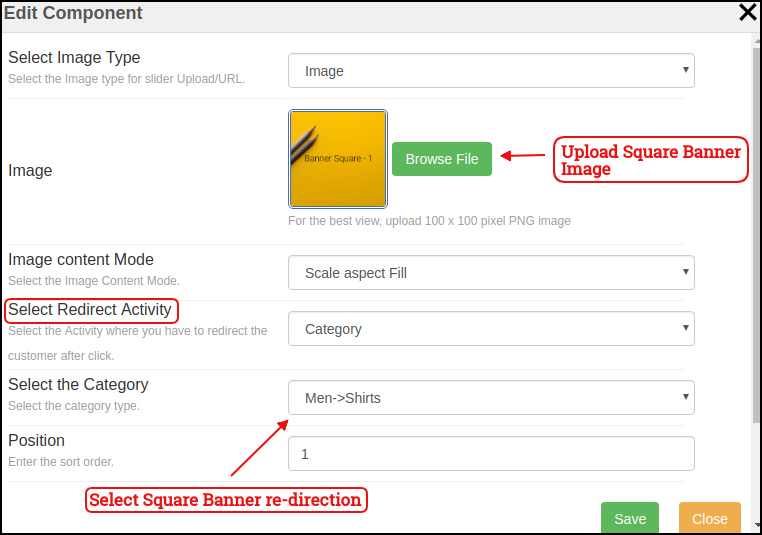
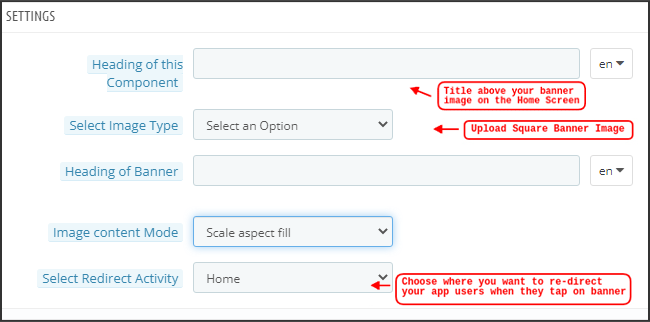
Square Banner:
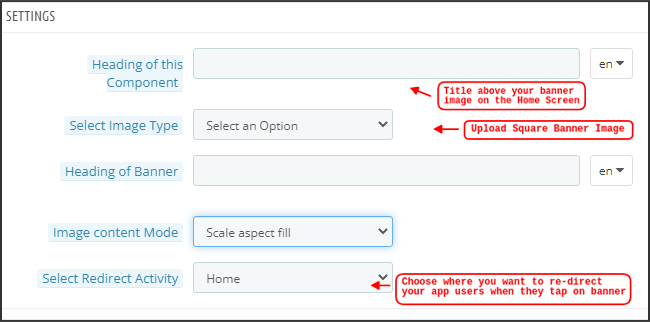
Top categories can be configured, including their image and landing categories or products, and are shown as small squares on the home screen. Maximum categories available through the WooCommerce Mobile App Maker are 8, with a minimum of 4 required.
In the recent updates, we have also provided the option to showcase different videos with the YouTube Video/Video Upload section added in the “Select Image Type” section.

Horizontal Sliding Banner:
These rectangular sliding doors are available and fully customizable from the backend. Like banner squares, the admin can also highlight the banner sliders by adding video elements. Furthermore, now the admin can get the option to enter the time that he wants to set for the automated banner sliding.


Grid Banners:
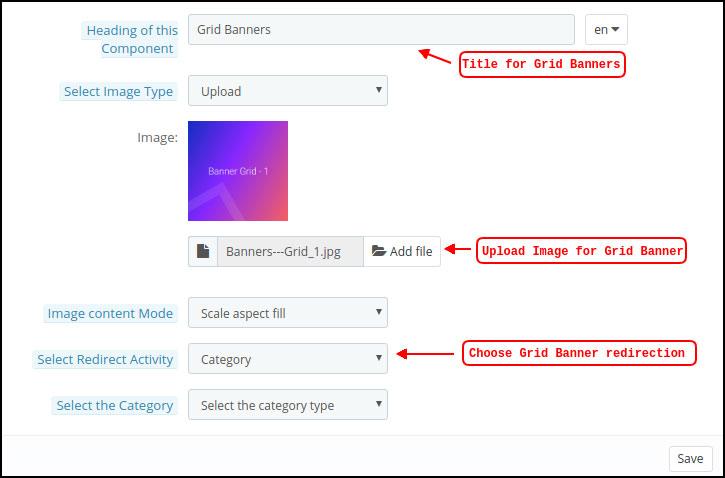
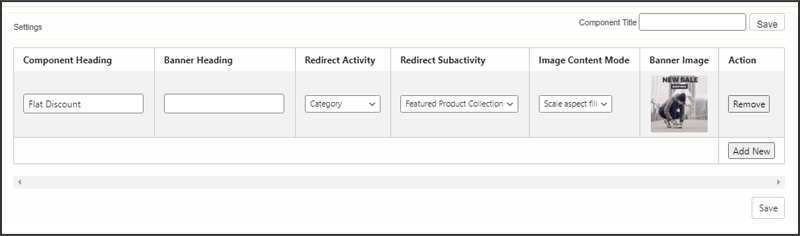
These are square-shaped banners that are listed in a grid format on the home screen. On the home screen, you can place as many banners as you like. You can also change the landing page’s image as needed.


Countdown Timer Banner:
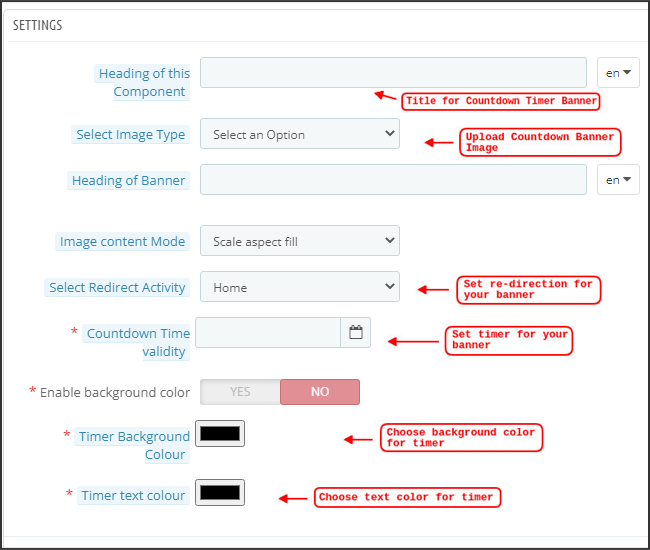
A countdown timer is available on the banner provided by the WooCommerce Mobile App Builder. You can choose the landing page and banner image, as well as set a timer for when you want to display the banner. The banner will automatically disappear when the timer expires.

Square Products:
Regarding banners, the WooCommerce Mobile App Creator provides products to show as square listings on the home screen.
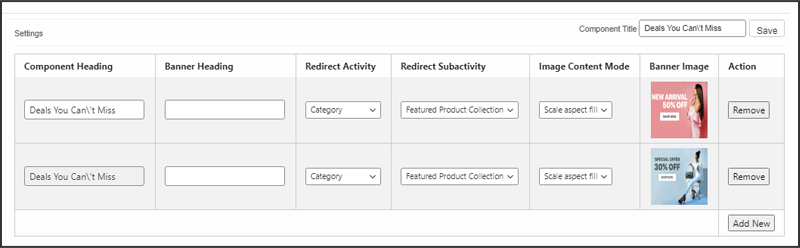
Horizontal Sliding Products
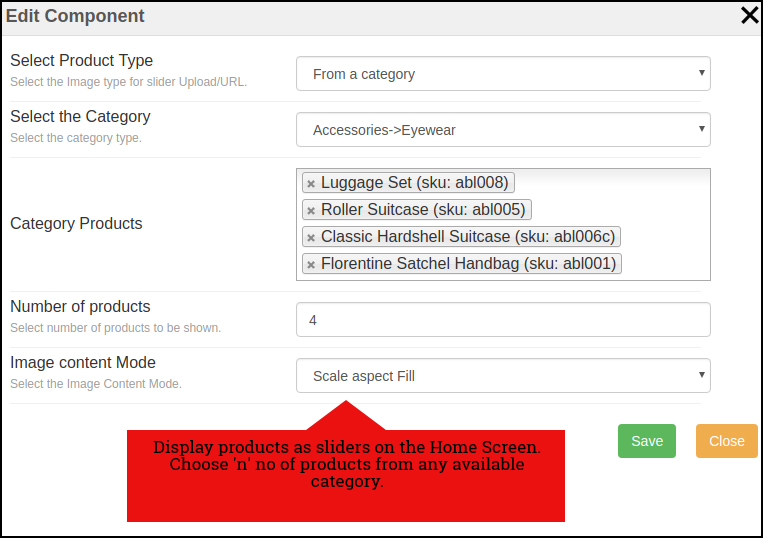
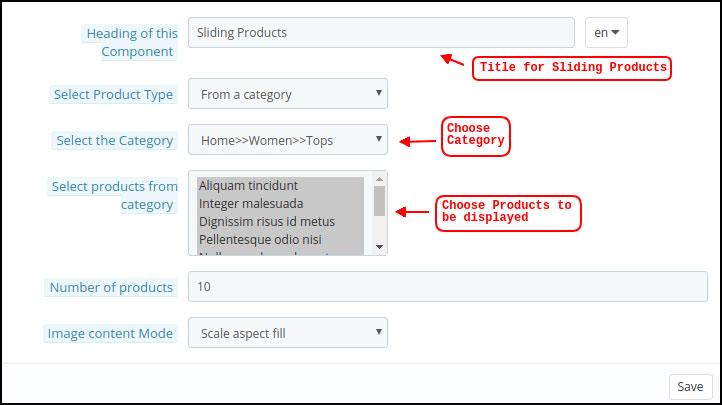
The products can be added as horizontal sliders. The products chosen may fall under any one particular category or may be highlighted as Best Sellers, Featured Products, etc.

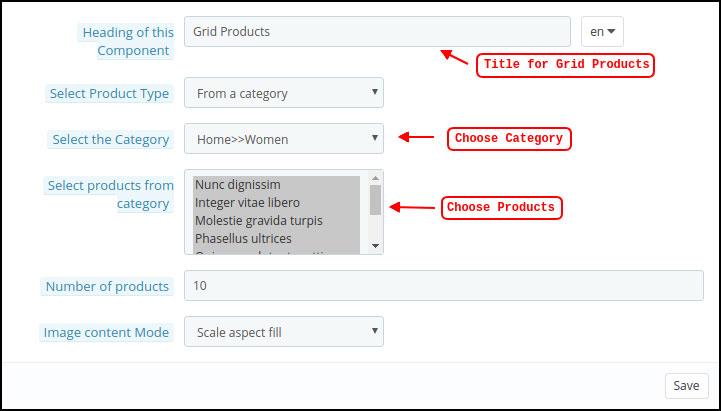
Grid Products:
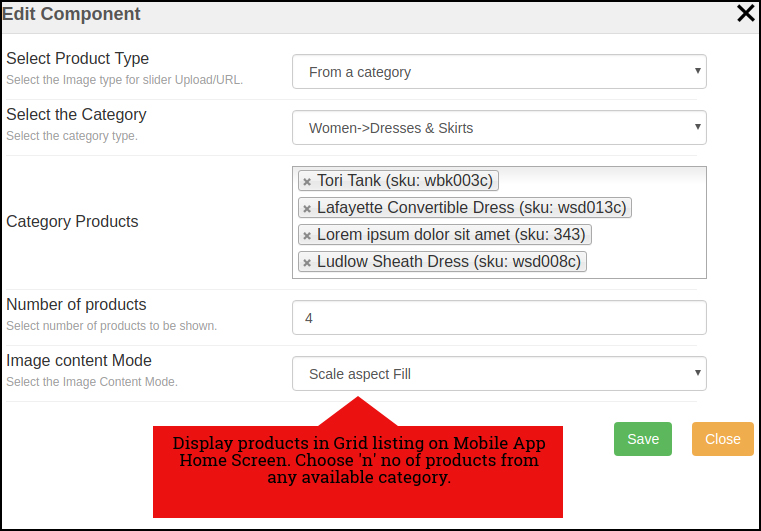
Grid listings of the products can also be added to the home screen. Any category can be used to select the goods.

Products Recently Viewed: The WooCommerce Mobile App Creator offers the recent tab element, which shows the most recent products the user has viewed. To display the element on your home screen, simply include it in your layout.
Sign-Up Pop-Up: Capturing visitors’ emails is a major challenge in eCommerce. To simplify this, the latest version of the Magento 2 Mobile App Builder includes a login/sign-up pop-up feature. Store admins can add a pop-up that appears for non-logged-in customers, making it easier to collect emails by offering simple login options and increasing the chances of email opt-ins.
Note: When designing a layout in the backend panel, the store administrator can add up to 20 elements.
6.0 Screens for Mobile Apps
6.1 Home Screen
Your WooCommerce Mobile App’s Home screen will be exactly how you want it to be. You have complete creative control over how to design and create a home screen with the WooCommerce Mobile App Maker. You can create user-friendly home screen layouts using a variety of banners (Square, Grid, Sliding), products (Square, Grid, Sliding), countdown timer banners, and recent products tabs in the backend.
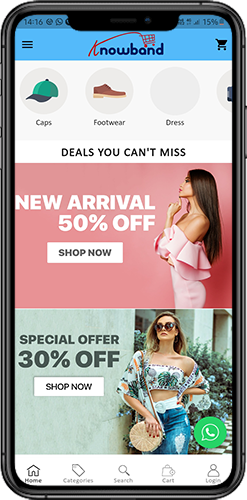


Additionally, different design elements’ placements can be changed based on the situation.
1. Dynamic Layouts: You can create and save different layouts in the backend and reuse them for different events and festivals by using a variety of elements. Your app’s home screen can be created and customized dynamically.
2. Brand Logo: The WooCommerce Mobile App’s top header’s left-middle section displays your store’s logo. The logo can be enabled or disabled, as well as having its image changed, from the module backend.
3. Search: The search feature enables mobile app users to find what they’re looking for quickly and easily. The WooCommerce Mobile App offers two ways to search for products: On the WooCommerce Mobile App’s bottom tab bar layout, there is a search option.
–> Text: Users of your app can search for desired products by entering a few relevant keywords. The WooCommerce Mobile App will display results for that keyword that are pertinent.
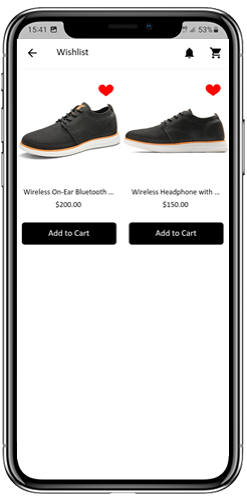
4. Wishlist Bag: The wishlist bag, which contains all bookmarked products, is visible on the top header of your WooCommerce Mobile App. Users of the app can store their wishlist items in a bag for potential future purchases.
5. Shopping Cart: The Shopping Cart can be found on the app’s home screen in the top-right corner.
The users can get to know about the products added to their cart right from there.
6. WhatsApp:
A live seller-buyer chat option can be found at the bottom right of the home screen. Customers who use your mobile app can easily and directly message you with any questions, and you can answer them right away.
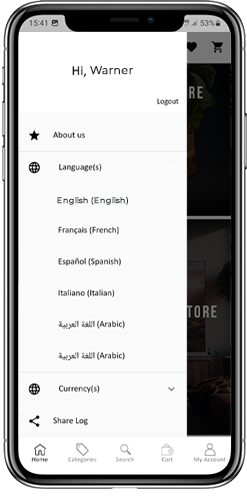
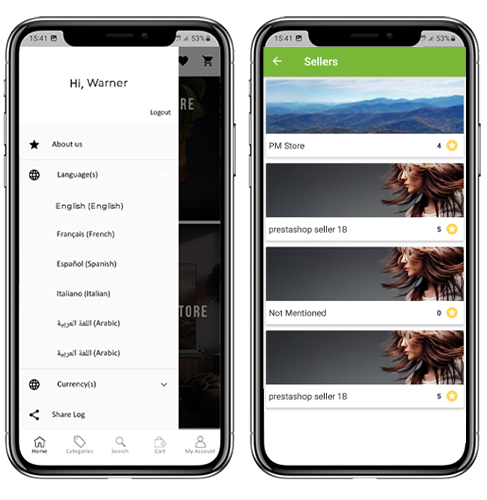
6.2.1 An Accordion Menu (Navigation Bar)
On the website, there are WooCommerce Mobile Apps for Android & iOS that have been developed with accurate product categorization. Mobile shoppers can browse a variety of products with ease. The Accordion Menu is also available for all CMS pages. It offers the following alternatives:


1. My Account
All user data, including personal details, shipping addresses, and order details, can be found on the My Account screen. The customers have access to all of their information and can update both their login credentials and personal information.
2. Categories
These categories match those on your website exactly. For easy browsing, you can map them appropriately and provide a 3-level categorization to app users.
3. CMS Pages
Here, a variety of CMS pages from your website, including About Us, Contact Us, Terms & Conditions, etc., are displayed. From the WooCommerce Mobile App Builder backend, you can select the one you want to be shown on the mobile app.
4. Language
Your users can view the WooCommerce Mobile app in their native language using the language selection option.
5. Currencies(s)
The WooCommerce Mobile App also shows all currencies that are offered on your e-commerce website. Customers can view and buy products for the price in the currency of their choice.
6. Sign in/Sign out
This option makes it simple for your users to log in and out of the WooCommerce Mobile App.
6.3 Category Screen:
Your WooCommerce Mobile App includes all of the associated categories, parent categories, and subcategories. The category screen is created with minimal clutter in
1.Two fundamental views:
Grid and List. In every listing, the product name, image, price, and discount are shown along with a button to add them to your wishlist bag. Layered navigation on mobile apps created with the WooCommerce Mobile App Builder makes finding products much easier. The category screens offer the following choices:

2. Sort:

Customers can choose the preferred order for sorting the category product pricing using this option. Your apps have two sorting options: Price: Low to High and Price: High to Low.
3. Filter:
The users can filter out the products using various selection options provided under the filter tab.
6.4 Product Screen:
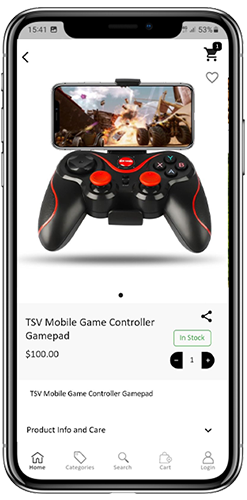
Your WooCommerce Mobile App’s product screen is straightforward and interesting. Along with the name and price, various images of the same item are displayed. Depending on inventory status, the product availability is also indicated as “In Stock” or “Out Of Stock”. It includes the next additional items.
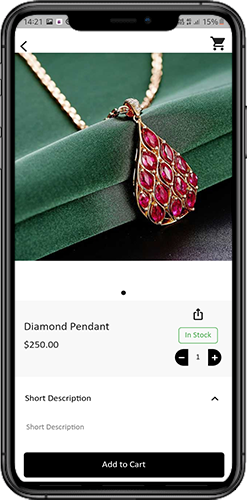
Product Options: This screen shows all available options for the product, including size, color, and so forth. The product choices here match those on the website.
2. Brief Description
Users can quickly decide after reading the brief description of your product.
3. Product Details and Care
This page displays all of the product information that is listed on the website. Users of the app can access this page for detailed product information.
4. Add To Wishlist: By tapping “Add To Wishlist” on the left bottom of the product screen, users of the mobile app can directly bookmark the product.
5. Add To Cart: As the name implies, clicking the “Add To Cart” button adds the product directly to the shopping cart, allowing users to continue with the transaction.
6. Product Social Sharing
On this screen, you have the option to share your product on various social networks, including Bluetooth and email. Users of the app can invite many users to your app by sharing the products with their friends and family on various social media platforms.
6.6 Login Screen
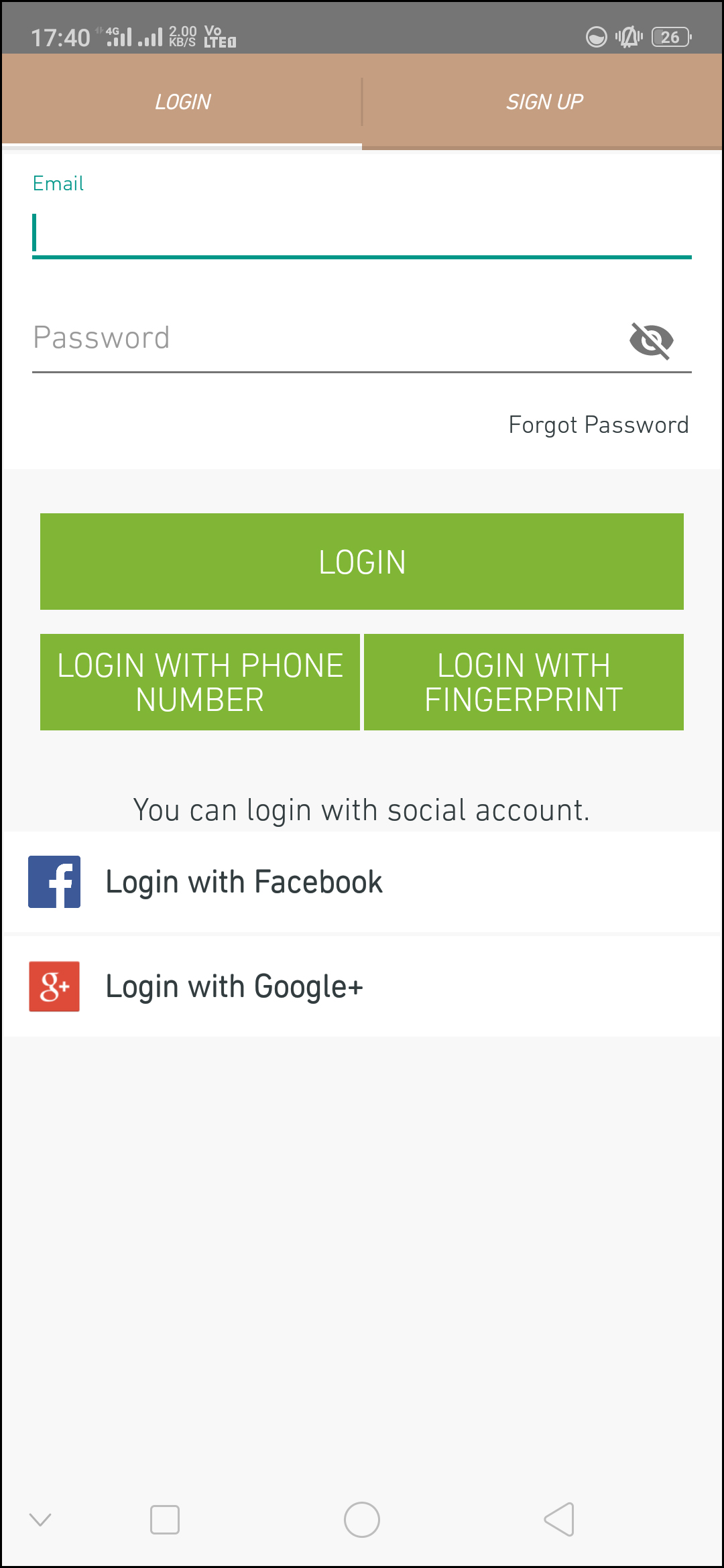
The WooCommerce Mobile App Creator streamlines the sign-in/registration process and provides a variety of one-tap login options:
1. Login
Using their email addresses as sign-in credentials, app users can authenticate and access apps.
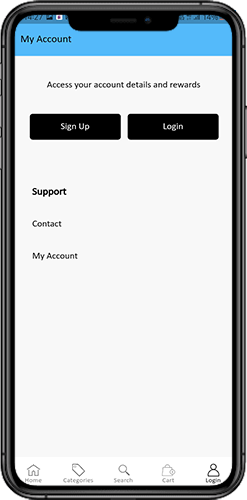
2. Register
The mobile app allows all new app users to register and create an account on the store. Only pertinent information is requested on the WooCommerce Mobile App sign-up form.
3. Use Phone Number to Log In
The easier and more reliable phone number login option that your mobile app offers makes it simpler for users to login and verify their OTP.
4. Use your fingerprint to log in
Additionally, your users have the option of using fingerprint authentication to sign in. Users can now quickly access apps thanks to this.
5. Login with Facebook
Users can access the app by logging in with their Facebook credentials.
6. Login with Google
The users can log in to the app using their GoogleAccount within no time.
7. Shopping Cart Screen:
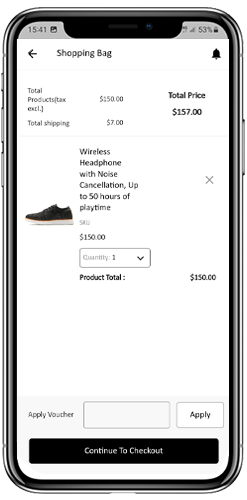
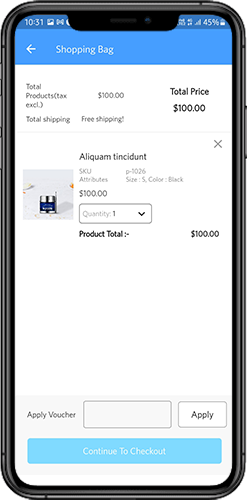
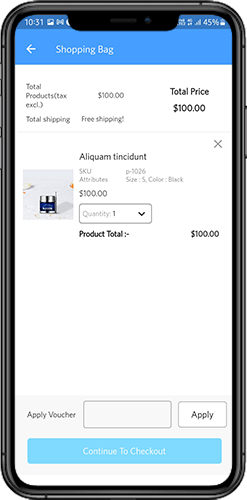
All of the items in your shopping cart are displayed on the WooCommerce Mobile App’s shopping cart screen. The product’s name, quantity, total price, and shipping cost are all visible to app users.
1.Use Voucher
By entering active coupons and vouchers that are currently active on your website, this option enables users to receive discounts and offers.
2. The full product cost
Users can access this page to view the full cost of their shopping bag. It is automatically updated whenever there is a change in the quantity of a product or an addition.
3. Revision of Product Quantity
With the “Update Quantity” option, app users can even change the product quantity.
4. Remove the item
Users of the app can easily remove a product from their cart by selecting “Remove” from the menu.
6. Continue To Checkout
By selecting “Continue To Checkout,” front-end mobile app users can continue to the checkout & payment screens. On the checkout screen, they will receive a redirect.
6.8 Checkout Process
The checkout process in the WooCommerce mobile app Builder is made simple. In the mobile app’s checkout process, front-end users have the option to choose the shipping details, billing details, order numbers, order comments, and so forth.
Orders can be placed using just a few easy steps on the Android and iOS apps.
1. Customers can choose and add the desired item to their shopping carts. When the shopping bag is clicked, the user can also choose the desired product quantity. Users of the mobile front-end app can also view the total number of products and shipping costs.
At the bottom of the same page, the customer can also choose to use any coupon or coupon code.
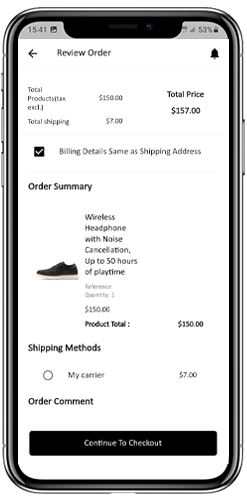
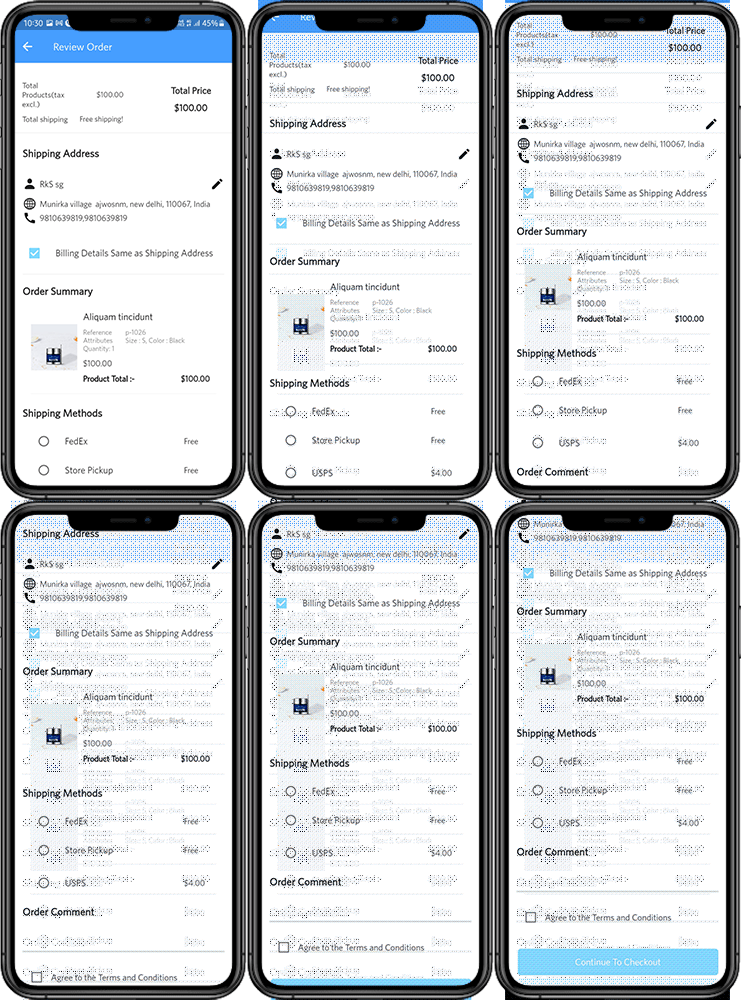
2. The user can review the order and see several details after selecting the Continue to Checkout option. such as the cost of the product, the cost of shipping, the shipping address (which can be changed on the same page), the order summary (the number of products), the total cost, and so forth.
On the same page, the customer can also choose their preferred method of shipping. The order comment option that appears at the bottom of the screen allows the user to also include any special requests or requirements.
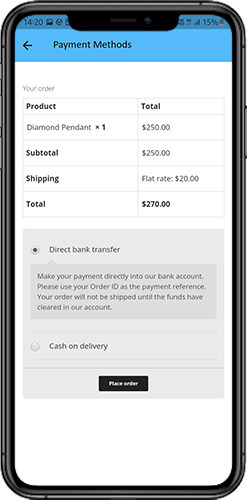
Users can choose from all of the website’s payment options on this screen. The shopping app includes a cash-on-delivery option as a standard form of payment.
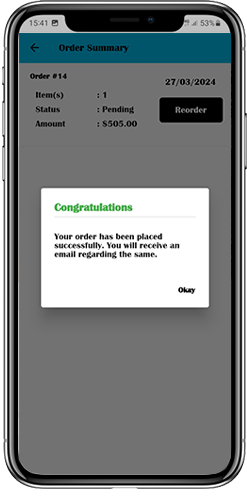
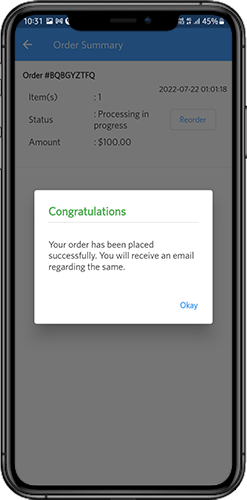
The user will be taken to the order summary screen after completing the payment activity. where the customer can view the status, cost, and other information regarding their orders. Users of the front-end mobile apps will receive the order confirmation popup messages on their mobile phone screens as well.
6.9 My Account Screen
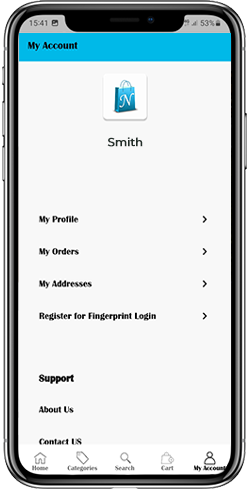
Users of the Android/iOS eCommerce app can view all account information, including a history of previous orders, on the My Account screen. The following options are available on the My Account screen:
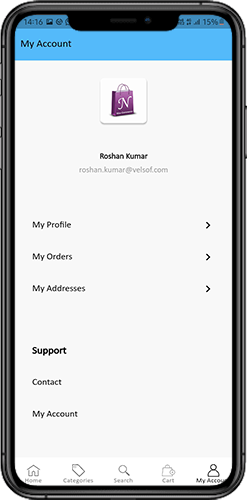
- Order History
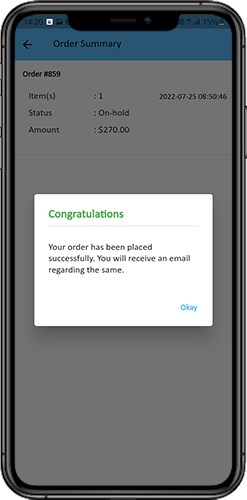
The users learn all the details of the earlier-placed order. The date the order was submitted, the order number, the price, and the delivery status are all visible to the users screen.
2. Update Profile:
Users can also update their previously saved profile information, such as their first or last name, phone number, and password.
3. Delivery Address (s)
Users of the app have access to the full list of saved shipping addresses. From here, you can also add a new shipping address.
4. Order Details:
The complete list of previously placed app orders is available to app users.
5. Reorder function
By selecting the “Reorder” button, you can directly reorder a product. By pressing a single button, all previous orders will be added to the cart.
6.10 Order Detail Screen
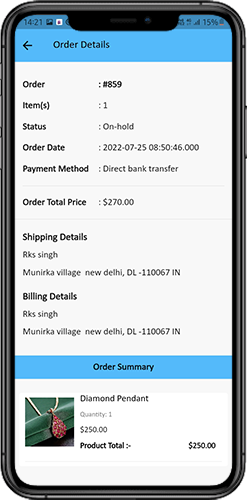
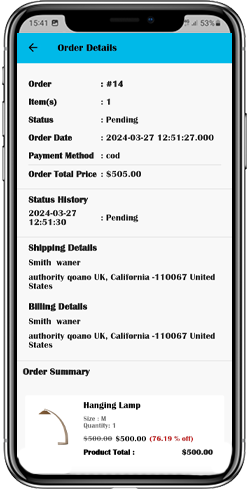
The WooCommerce eCommerce App’s order details screen shows every aspect of the order, including the shipping address, a summary of the products, the shipping and payment options, and the total cost. From this screen, users can even follow the delivery of previously placed orders.
7.0 Video Tutorials