

Troubleshooting Common Errors After Upgrading to PrestaShop 9.x
Fix common PrestaShop 9 upgrade errors including 500 error, module conflicts, admin login issues, cache problems, and autoupgrade failures.

Upgrading to PrestaShop 9.x is a major move. However, it often comes with a set of frustrating errors that can catch you off guard. Some issues are minor. Others can take your store completely offline. Whether you are a developer or a store owner, this guide will help you identify and fix the most common problems quickly.
1. HTTP 500 Error: White Screen of Death
This is the most common error after an upgrade. Your site shows a blank white page. Nothing loads, and no error message appears. Also known as the White Screen of Death.
It usually happens for one of two reasons. Either a hidden PHP error is crashing the site, or your server is running an incompatible PHP version.
Step 1: Enable Debug Mode
You cannot fix what you cannot see. Therefore, the first step is to turn on Debug Mode.
Via FTP: Go to /config/defines.inc.php. Find the line define(‘PS_MODE_DEV’, false); and change value from false to true. Save the file.
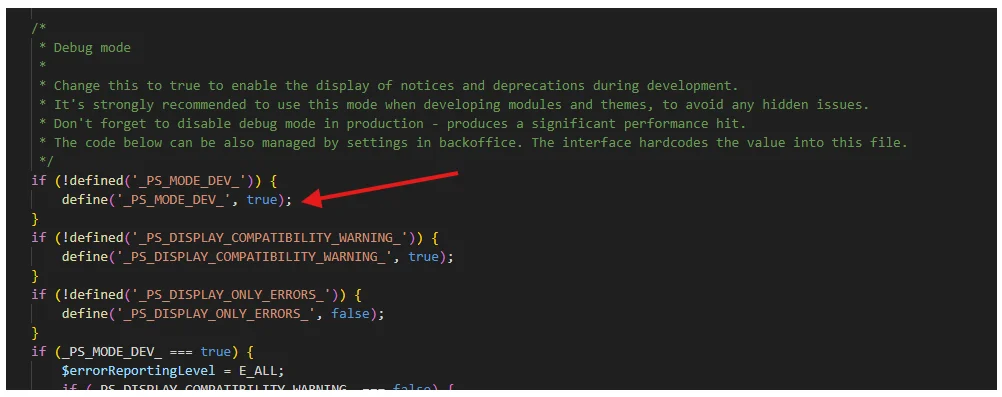
Via phpMyAdmin: Open the ps_configuration table. Find PS_DEV_MODE and set its value to 1. After that, refresh your site. The real error will now appear on screen.
Step 2: Read the Error Carefully
Once the error is visible, look for clues. If it points to a module path like /modules/somename/, that module is the cause. If it mentions a PHP class or function, it is likely a compatibility issue. Note down all the errors before making any changes.
Step 3: Check Server Error Logs
Some errors only appear in server logs, even with Debug Mode on. Go to cPanel and open the Error Logs section. Look at the most recent entries. They will tell you exactly which file caused the crash.
2. PHP Version Incompatibility
PrestaShop 9.x only runs on PHP 8.1, 8.2, or 8.3. If your server is still on PHP 7.4 or PHP 8.0, the site will crash right after the upgrade. This is one of the most overlooked causes of the White Screen of Death.
How to Fix It
Log into cPanel and go to “Select PHP Version.” Change the PHP version to PHP 8.1, 8.2, or 8.3 and save. Next, check your PHP extensions. PrestaShop 9 specifically needs the intl and gd extensions. Make sure both are enabled. Without them, certain features will break even if the site loads.
Which version should you pick? PHP 8.2 is the most stable choice. It offers good performance and broad module compatibility. Therefore, start with 8.2 unless you have a specific reason to go higher.
3. Stuck Cache and Broken Layouts
Sometimes the site loads after the upgrade, but something looks wrong. Buttons do not click. Images are missing. The layout looks completely different from before.
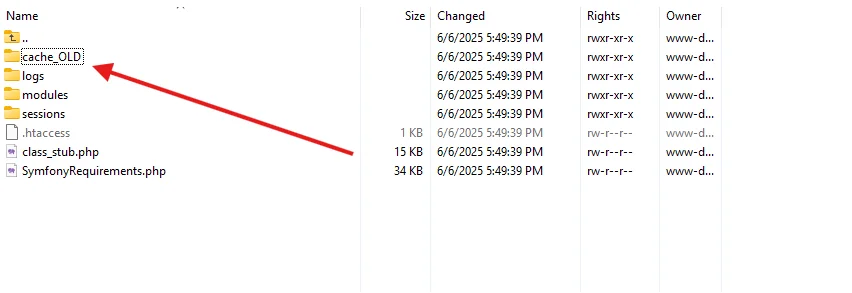
Locate the /var/ folder after launching your FTP client. Locate the cache folder, then rename it cache_old. As a result, on the subsequent refresh, PrestaShop will automatically create a new cache. Immediately thereafter, the layout should be back to normal.
Method A: Rename the Cache Folder
Open your FTP client and go to the /var/ folder. Find the cache folder and rename it to cache_old. PrestaShop will consequently build a fresh cache automatically on the next refresh. The layout should return to normal right after that.
Method B: Clear Cache via SSH
If you have SSH access, run this command for a more thorough cleanup:
rm -rf var/cache/*
Also, press Ctrl+F5 in your browser after clearing the server cache. Otherwise, you may still see the old cached version stored locally.
4. “Something Went Wrong” During Autoupgrade
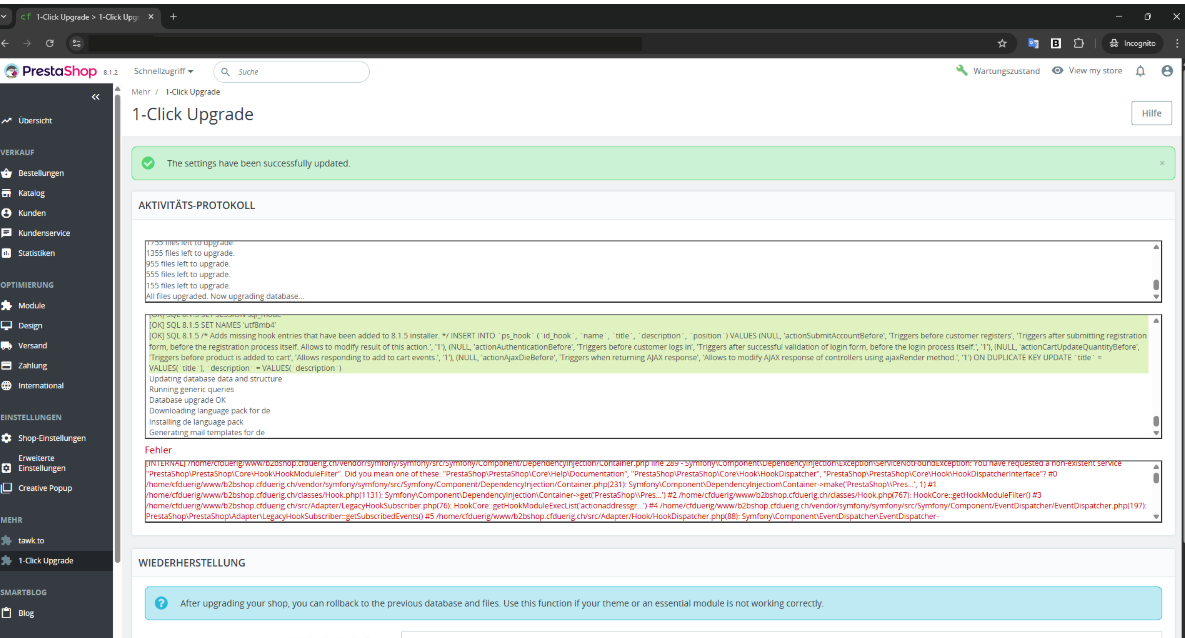
Many store owners start the autoupgrade and watch it fail halfway. The process stops and shows a vague message. No clear reason is given. This is a known issue reported multiple times in the official PrestaShop GitHub repository.
In most cases, it comes down to one of the following causes.
Cause 1: PHP Symlinks Are Disabled
PHP symlinks are used by PrestaShop 9 when it comes to file extraction. By default, a lot of shared hosting companies turn off this feature. Consequently, the upgrade becomes stuck and is unable to finish.
Fix: Speak with your hosting company and request that they activate the symlink PHP feature. Consider performing the upgrade on a VPS, where you have complete control over PHP settings, if they are unable to do this.
Cause 2: Old Update Assistant Module
Running the store upgrade with an outdated Update Assistant module is another common cause of failure. Therefore, always download and install the latest version before starting.
Cause 3: Insufficient Server Resources
The upgrade process is resource-heavy. If your server has low memory or a strict PHP execution time limit, the process will time out. Ask your host to temporarily increase the PHP max_execution_time and memory_limit values before you try again.
Before anything else — always back up. Export your database and download all files via FTP first. If the upgrade fails, you can then restore everything without losing data.
5. Module Errors and Symfony Exceptions

PrestaShop 9.x moved to Symfony 6.4 and removed a large amount of legacy code. Because of this, many modules that worked on PrestaShop 8.x stop working on version 9. This is especially common with custom payment gateways, local shipping modules, and older banner plugins.
Method A: Disable the Module via FTP
Since the back office may also be broken, you cannot always use the Module Manager. Instead, go to your /modules/ folder via FTP. Find the broken module folder and rename it by adding _OFF at the end. For example, rename my-slider to my-slider_OFF. PrestaShop will no longer load it. After that, refresh your site. It should load normally again.
Method B: Reset via Database
If you need the module to stay active, try resetting it. Open phpMyAdmin and after that go to the ps_module table. Delete the row for that module. Then go to the Modules page in your back office. PrestaShop will treat it as a fresh installation. This sometimes clears the conflict.
6. Cannot Access the Admin Panel
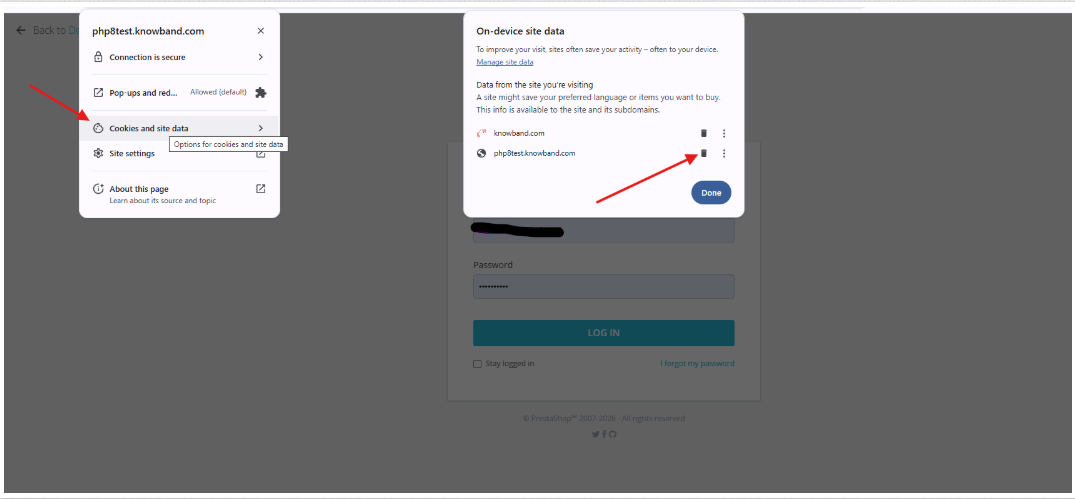
After upgrading, the login page may keep refreshing with no error shown. This is usually caused by corrupted cookies or a broken URL configuration.
Fix 1: Clear all browser cookies and try logging in again.
Fix 2: Open phpMyAdmin and check the ps_shop_url table. Make sure the domain and physical_uri fields match your current site address. For example, if you moved from a subfolder to the main domain, update physical_uri to / instead of /shop/.
Fix 3: Rename your .htaccess file to .htaccess_old via FTP. Then go to Shop Parameters > Traffic and SEO. Toggle Friendly URL off, save, then turn it back on and save again. PrestaShop will consequently generate a clean new file.
7. 404 Errors on Products or Categories
This is one of the most damaging issues from an SEO perspective. PrestaShop 9 changed the default URL structure for product pages. In older versions, URLs included the category name, for example /men-clothing/blue-shirt.html. In PrestaShop 9, the category is removed by default. The URL becomes simply /blue-shirt.html.
As a result, all your old URLs stop working. Furthermore, PrestaShop does not set up automatic redirects. Google has already indexed your old URLs, so if they return 404, you could lose a significant amount of organic traffic.
How to Fix It
First, export all your old product URLs from Google Search Console or your old sitemap. Then go to Shop Parameters > Traffic and SEO. By sending your current SEO value to the new URL, a 301 redirect notifies Google that the page has been permanently moved. Finally, to speed up the indexation of new URLs, submit your updated sitemap to Google Search Console.
8. Theme Compatibility Issues
Older themes may look broken or fail to load after upgrading. PrestaShop 9 made major front-end changes. As a result, many themes built for version 8.x are not compatible anymore. If your theme is affected, switch to the default Hummingbird theme temporarily. Then contact your developer for an update. If the theme is no longer maintained, migrating to a PrestaShop 9-native theme is the better long-term solution.
Final Thoughts
Most PrestaShop 9.x upgrade errors come back to three things: outdated modules, cache problems, and PHP configuration. Therefore, always start with Debug Mode to identify the root cause. Then work through the relevant fixes above one by one. Above all, take a full backup before making any major changes. That one step can save you hours of stressful recovery work.
Knowband offers professional PrestaShop development and upgrade services to ensure a smooth transition without disrupting your store operations. From resolving 500 errors and Symfony exceptions to fixing module conflicts and optimizing performance, our experienced team provides complete technical support tailored to your business needs.
Whether you need help with troubleshooting, module customization, or a full store upgrade, Knowband is here to help you get your store back on track quickly and securely.
Contact our team at [email protected] today to ensure a seamless PrestaShop 9 upgrade experience.
- Best PrestaShop SEO Module: 10 Must-Have Features to Improve Rankings
- Three Recovery Emails Recover 37% More Carts Than One: Building the Right PrestaShop Abandoned Cart Sequence
- How to Create an SEO-Friendly Blog in PrestaShop: A Practical Guide to Content, SEO & AI Search
- How to Turn Your OpenCart Blog Into a Revenue-Generating Content Strategy
- Integrating a Custom Payment Gateway in PrestaShop: Technical Requirements, API Flow, and Real-World OPC Challenges