Spring Global (Spring Omni) Error: Resource Not Found

While creating a shipment using Spring Omni, you might get an error in response such as mentioned below:

[status] => 404
[code] => 10002
[title] => Resource Not Found
[detail] => One or more of the regions resource could not be found.

We got this error while sending the following request to create the shipment:

'{
  "data": {
    "type": "shipments",
    "attributes": {
      "recipient_address": {
        "street_1": "4363 N 55TH ST",
        "street_2": "Marylebone",
        "street_number": 221,
        "postal_code": "53216-1201",
        "city": "MILWAUKEE",
        "region_code": "WI",
        "country_code": "US",
        "first_name": "Sherlock",
        "last_name": "Holmes",
        "company": "Attn",
        "email": "Aparajita.singh@abc.com",
        "phone_number": "1234567890"
      },
      "return_address": {
        "street_1": "Baker Street",
        "street_2": "Marylebone",
        "street_number": 221,
        "street_number_suffix": "B",
        "postal_code": "NW1 6XE",
        "city": "London",
        "region_code": "ENG",
        "country_code": "GB",
        "first_name": "Sherlock",
        "last_name": "Holmes",
        "company": "Holmes Investigations",
        "email": "Aparajita.singh@abc.com",
        "phone_number": ""
      },
      "sender_address": {
        "street_1": "Baker Street",
        "street_2": "Marylebone",
        "street_number": 221,
        "street_number_suffix": "B",
        "postal_code": "NW1 6XE",
        "city": "London",
        "region_code": "ENG",
        "country_code": "GB",
        "first_name": "Sherlock",
        "last_name": "Holmes",
        "company": "Holmes Investigations",
        "email": "Aparajita.singh@abc.com",
        "phone_number": ""
      },
      "description": "Order #8008135",
      "physical_properties": {
        "height": 150,
        "width": 300,
        "length": 500,
        "volume": 22.5,
        "weight": 100
      },
      "items": [
        {
          "sku": "123456789",
          "description": "OnePlus X",
          "item_value": {
            "amount": 995,
            "currency": "EUR"
          },
          "quantity": 2,
          "hs_code": "8517.12.00",
          "origin_country_code": "GB",
          "item_weight": 135
        }
      ],
      "customs": {
        "content_type": "merchandise",
        "invoice_number": "9000",
        "non_delivery": "return",
        "incoterm": "DAP",
        "license_number": "218532158",
        "certificate_number": "12122121"
      },
      "register_at": 0
    },
    "relationships": {
      "shop": {
        "data": {
          "type": "shops",
          "id": "1a9414f0-24ef-4008-b6ad-9a75e27a879e"
        }
      },
      "service": {
        "data": {
          "type": "services",
          "id": "05aeb5e9-90be-4ec7-94c9-1a0949262577"
        }
      }
    }
  }
}'

When we asked Spring Global for the reason of this error, they replied that the problem here is “The region which is not recognized as they do not have regions for the USA set up yet”. Simply omitting the region should fix this problem.

The below JSON should work:

'{
  "data": {
    "type": "shipments",
    "attributes": {
      "recipient_address": {
        "street_1": "4363 N 55TH ST",
        "street_2": "Marylebone",
        "street_number": 221,
        "postal_code": "53216-1201",
        "city": "MILWAUKEE",
        "country_code": "US",
        "first_name": "Sherlock",
        "last_name": "Holmes",
        "company": "Attn",
        "email": "Aparajita.singh@abc.com",
        "phone_number": "1234567890"
      },
      "return_address": {
        "street_1": "Baker Street",
        "street_2": "Marylebone",
        "street_number": 221,
        "street_number_suffix": "B",
        "postal_code": "NW1 6XE",
        "city": "London",
        "region_code": "ENG",
        "country_code": "GB",
        "first_name": "Sherlock",
        "last_name": "Holmes",
        "company": "Holmes Investigations",
        "email": "Aparajita.singh@abc.com",
        "phone_number": ""
      },
      "sender_address": {
        "street_1": "Baker Street",
        "street_2": "Marylebone",
        "street_number": 221,
        "street_number_suffix": "B",
        "postal_code": "NW1 6XE",
        "city": "London",
        "region_code": "ENG",
        "country_code": "GB",
        "first_name": "Sherlock",
        "last_name": "Holmes",
        "company": "Holmes Investigations",
        "email": "Aparajita.singh@abc.com",
        "phone_number": ""
      },
      "description": "Order #8008135",
      "physical_properties": {
        "height": 150,
        "width": 300,
        "length": 500,
        "volume": 22.5,
        "weight": 100
      },
      "items": [
        {
          "sku": "123456789",
          "description": "OnePlus X",
          "item_value": {
            "amount": 995,
            "currency": "EUR"
          },
          "quantity": 2,
          "hs_code": "8517.12.00",
          "origin_country_code": "GB",
          "item_weight": 135
        }
      ],
      "customs": {
        "content_type": "merchandise",
        "invoice_number": "9000",
        "non_delivery": "return",
        "incoterm": "DAP",
        "license_number": "218532158",
        "certificate_number": "12122121"
      },
      "register_at": 0
    },
    "relationships": {
      "shop": {
        "data": {
          "type": "shops",
          "id": "1a9414f0-24ef-4008-b6ad-9a75e27a879e"
        }
      },
      "service": {
        "data": {
          "type": "services",
          "id": "05aeb5e9-90be-4ec7-94c9-1a0949262577"
        }
      }
    }
  }
}'

Please visit here for related information:

Spring Global (Spring Omni) Error: The property phone_number is required

Spring Omni Manifest

Spring Global (Spring Omni) Error: Shipment is not being Registered

Spring Global (Spring Omni): Billing Concept

Spring Global (Spring Omni) Error: Getting Blank Response While Fetching Label
Spring Global (Spring Omni) Error: Getting Blank Response While Fetching Label

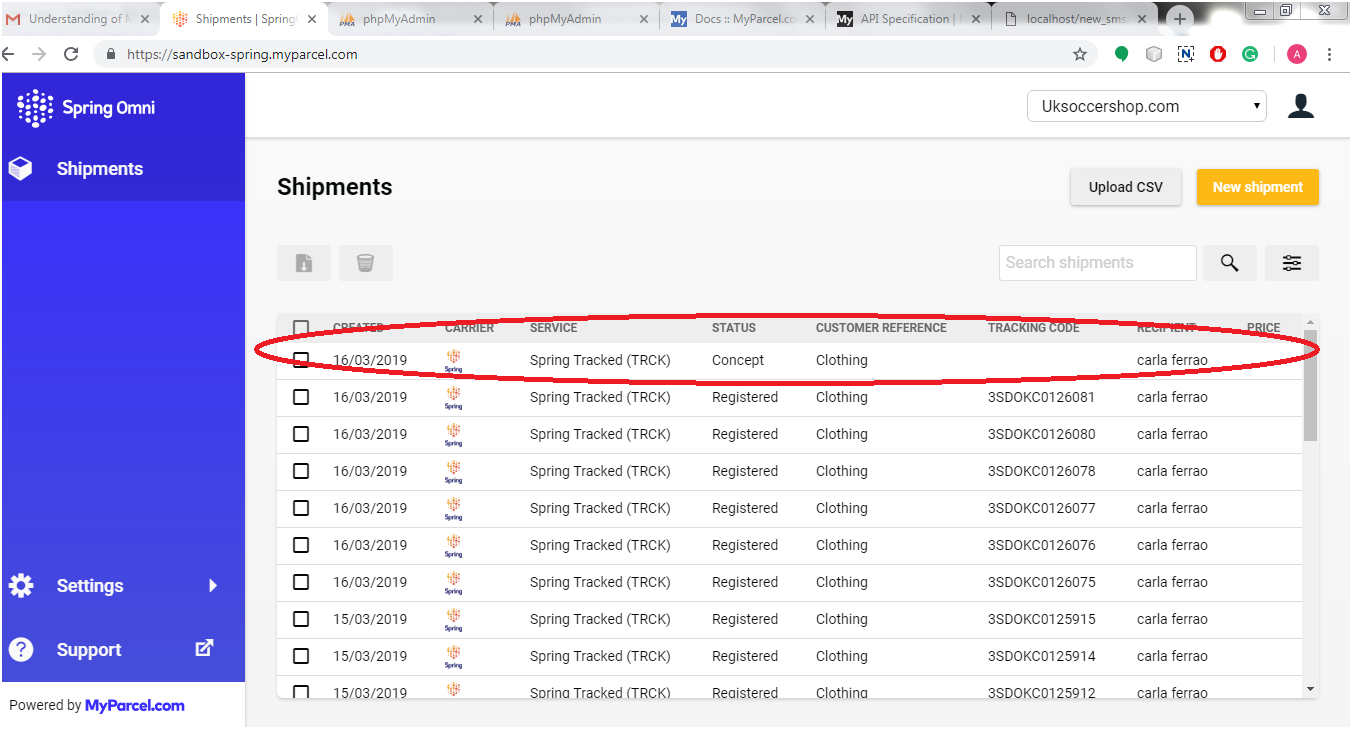
We were facing an issue while we tried to create a shipment (Using /shipments API) and after that we were fetching the label (Using /shipments/{shipment_id}/files API). The issue was that we got blank response. When we checked Shipments on the back office, it looked like below screenshot:

Blank Response

When we clicked on the shipment (with status = “concept”), we got a message as “The shipment was created, but has not been registered with the carrier (yet).”

When we understood the concept of this new shipment creation process in Spring Omni, we come to know that in Spring Global, We need to register a shipment instead of only creating the shipment before fetching the label corresponding to the shipment. There are two possible scenarios for registering a shipment:

  1. Create the shipment and register as well at the same time
  2. Create the shipment but register it at a given specific time i.e. in future

1. To register a shipment instantly

While sending the create shipment request, we need to send the “register_at” parameter value as 0 or past time (UNIX timestamp) in the request data. Kindly refer the below code for the same:

{
  "data": {
    "type": "shipments",
    "attributes": {
      "recipient_address": {
        "street_1": "Baker Street",
        "street_2": "Marylebone",
        "street_number": 221,
        "street_number_suffix": "B",
        "postal_code": "NW1 6XE",
        "city": "London",
        "region_code": "ENG",
        "country_code": "GB",
        "first_name": "Sherlock",
        "last_name": "Holmes",
        "company": "Holmes Investigations",
        "email": "s.holmes@holmesinvestigations.com",
        "phone_number": "+31 234 567 890"
      },
      "return_address": {
        "street_1": "Baker Street",
        "street_2": "Marylebone",
        "street_number": 221,
        "street_number_suffix": "B",
        "postal_code": "NW1 6XE",
        "city": "London",
        "region_code": "ENG",
        "country_code": "GB",
        "first_name": "Sherlock",
        "last_name": "Holmes",
        "company": "Holmes Investigations",
        "email": "s.holmes@holmesinvestigations.com",
        "phone_number": "+31 234 567 890"
      },
      "sender_address": {
        "street_1": "Baker Street",
        "street_2": "Marylebone",
        "street_number": 221,
        "street_number_suffix": "B",
        "postal_code": "NW1 6XE",
        "city": "London",
        "region_code": "ENG",
        "country_code": "GB",
        "first_name": "Sherlock",
        "last_name": "Holmes",
        "company": "Holmes Investigations",
        "email": "s.holmes@holmesinvestigations.com",
        "phone_number": "+31 234 567 890"
      },
      "pickup_location": {
        "code": "205604",
        "address": {
          "street_1": "Baker Street",
          "street_2": "Marylebone",
          "street_number": 221,
          "street_number_suffix": "B",
          "postal_code": "NW1 6XE",
          "city": "London",
          "region_code": "ENG",
          "country_code": "GB",
          "first_name": "Sherlock",
          "last_name": "Holmes",
          "company": "Holmes Investigations",
          "email": "s.holmes@holmesinvestigations.com",
          "phone_number": "+31 234 567 890"
        }
      },
      "description": "Order #8008135",
      "physical_properties": {
        "height": 150,
        "width": 300,
        "length": 500,
        "volume": 22.5,
        "weight": 5000
      },
      "items": [
        {
          "sku": "123456789",
          "description": "OnePlus X",
          "item_value": {
            "amount": 995,
            "currency": "EUR"
          },
          "quantity": 2,
          "hs_code": "8517.12.00",
          "origin_country_code": "GB",
          "item_weight": 135
        }
      ],
      "customs": {
        "content_type": "merchandise",
        "invoice_number": "9000",
        "non_delivery": "return",
        "incoterm": "DAP",
        "license_number": "218532158",
        "certificate_number": "12122121"
      },
      "register_at": 0
    },
    "relationships": {
      "service_options": {
        "data": [
          {
            "type": "service-options",
            "id": "4c675b1a-516c-4410-abff-d237fd45bcd0"
          }
        ]
      },
      "shop": {
        "data": {
          "type": "shops",
          "id": "35eddf50-1d84-47a3-8479-6bfda729cd99"
        }
      },
      "service": {
        "data": {
          "type": "services",
          "id": "175a235f-aff5-4e44-87b5-3657b75c1deb"
        }
      },
      "contract": {
        "data": {
          "type": "contracts",
          "id": "2cb32706-5762-4b96-9212-327e6afaeeff"
        }
      }
    }
  }
}

If we send the register_at value as current timestamp then we might get some delay in registering the shipment, So Spring Global has suggested us to send the register_at value as 0 so that the time will be considered in past and the shipment will be registered as soon as possible. Since the shipment will be registered now, we won’t be able to delete/edit the same.

2. Register a shipment in future time

If we want to edit/delete the shipment after creating the one, then we just need to register the shipment in future or at a given specific time. To register a shipment in future time, let’s say after 5 hours of shipment creation, simply pass the “register_at” value as future timestamp of five hours on basis of current time. Now we will be able to edit/delete the shipment till 5 hours but won’t be able to fetch the label and commercial invoice. At the given timestamp, the shipment will be registered automatically and we will be able to fetch the label and commercial invoice after the given time.

So these are the two ways to register the shipment. We can use both on basis of our requirement.

Please visit here for related information:

Spring Global (Spring Omni) Error: The property phone_number is required

Spring Omni Manifest

Spring Global (Spring Omni) Error: Shipment is not being Registered

Spring Global (Spring Omni): Billing Concept

Spring Global (Spring Omni) Error: Resource Not Found

DHL Issue: The destination location is invalid. Please check the data

The logistics sector’s global leader is DHL. Specializing in transportation, courier services, and international shipping.

While booking shipment on DHL using API (In our case, the delivery country was “Ireland”), we got an error in response to the capability request. The error was “The destination location is invalid. Please check the data“.

Solution:  

For this issue, we raised a ticket on DHL, and in response, they replied as below:

When requesting capabilities, it is important to provide complete and quality address data. It is necessary to determine accurate routing information and capabilities for the origin and destination. The following might be the reason for the error:

  1. It might be possible that there are more than one city with the same name in different suburbs. So to get a successful response, we need to add suburbs in destination address specially, for deliver country “Ireland”.
  2. For the destination countries, which do not have any zip codes, city name must be spelled accurately. For example, there is no city called NORTH ROAD in IE, the actual city is called M50 NORTH ROAD.

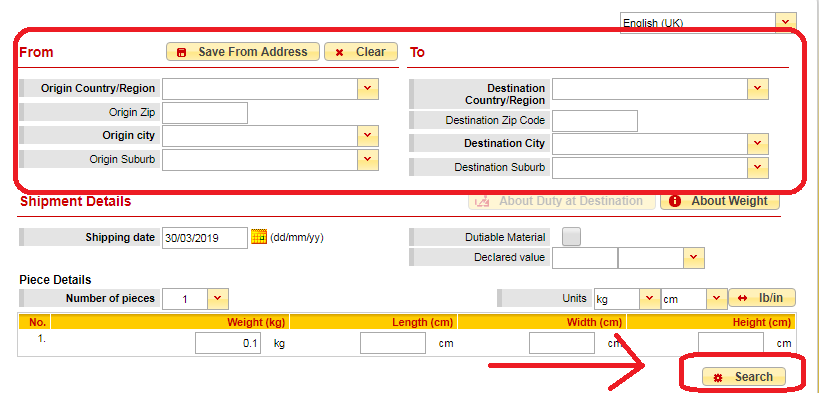
From this response, we were not clear about the validation of address means how do we know that the address is correct or not or the city name is correct or not. For example, if we are sending the city name as “Co. Dublin” in the create shipment request, we get an error of Invalid Location. So we have raised a ticket again to know how we can validate address and in response, DHL suggested a tool named DHL Capability Tool (https://dct.dhl.com/). Just enter the sender and destination address in the form and click on search button as shown in the screen shot below:

This tool will give the result if the address is valid or not. So if you are getting any error regarding location, you can validate address using this capability tool.

Knowband is proving One Page Checkout modules for eCommerce stores that are compatible with DHL. This is available for all major CMS platforms like Prestashop, Opencart, Magento, and Magento 2.

One Page checkout is a must-have for an eCommerce store as it helps in greater conversion rate, reduced abandoned cart rate, and ease of checkout for the user. Find what customers are saying about this module below:


Please take a look here for more info:

Password Protection with htaccess

Introduction

It is always a good idea to add password protection to any of the folders/webpages of your website if you want to restrict access on them. The method for applying the same is more important. We can use PHP for authorizing the information on each page, but that doesn’t protect your images or any other media, does it? So we can use another method known as htaccess password protection or htaccess authentication. It is reliable and much easier.

Objective

This blog help you know about how to restrict the access to the website from unauthorized users.

Please follow the steps mentioned below:

Step 1. To use htaccess password protection we need to create two files in the directory in which you want to restrict access:-

1) .htaccess file
2) .htpasswd file

Step 2. Add the following code in .htaccess file that you have created in step 1.

The .htaccess Code

AuthType Basic
AuthName"No Access"
AuthUserFile C:/wamp64/www/test_project/self_stitch/.htpasswd
require valid-user

Note: You can replace “C:/wamp64/www/test_project/” with your own directory structure.

The above code (directives) is described below:

i.) AuthType

From AuthType directive you can select the method that is used to authenticate the user.

ii.) AuthName

Replace “No Access” to any name as per your requirement. This name will be displayed in the alert box, when the user attempts to open a htaccess protected page.

The AuthName directive sets the domain to be used in the authentication.

Once a client has passed the authentication in the “No Access” zone, then there is no need to enter the password to access any other file in the same zone on the same server. Therefore, to prevent a user from entering the password again and again by letting multiple restricted areas to share the same domain.

iii.) AuthUserFile

  • You need to add your .htpasswd path in place of “C:/wamp64/www/test_project/self_stitch/.htpasswd”.
  • The “AuthUserFile” value is always specific to your host configuration.
  • If you don’t know what the value should be, do a phpinfo() and check the DOCUMENT_ROOT value.
  • For this you just need to add the line “<?php phpinfo(); ?>” in phpinfo.php file. You can find phpinfo.php file at your root folder (www for localhost) and then run the phpinfo.php file on the browser. For Example, on localhost, run localhost/phpinfo.php

NOTE:

1. To password protect more than one file in the same folder, just create more <Files></Files> blocks within the same .htaccess file – for example:

AuthUserFile /full/path/to/.htpasswd
AuthType Basic
AuthName "My Secret Page"

<Files "mypage.html">
Require valid-user
</Files>

<Files "myotherpage.html">
Require valid-user
</Files>

2. To Allow only the specific types of files to be accessed by the users, you need to add the following code:

AuthUserFile /full/path/to/.htpasswd
AuthType Basic
AuthName "My Secret Page"

# deny *everything*
<FilesMatch ".*">
Order Allow,Deny
Deny from all
</FilesMatch>

# Allowing just *certain* necessary files:
<FilesMatch ".*\.(php|html|css|js|JS|CSS)$">
Order Allow,Deny
Allow from all
</FilesMatch>

Here, first we are restricting access to everything using <FilesMatch “.*”> and after that we are allowing only certain files (php, html,css,js) to be accessed using <FilesMatch “.*\.(php|html|css|js|JS|CSS)$”>

Our example does not allow access to other files for eg. .jpg, .png, etc.
You can also allow access from a specific IP address using “allow from 12.34.56.78” instead of using “allow from all“.

3. To add htaccess password for only the specific types of files you need to add the following code:

AuthType Basic
AuthName "restricted area"
AuthUserFile C:/wamp64/www/test_project/self_stitch/.htpasswd

# but now allow just *certain* necessary files:
<FilesMatch ".*\.(txt)$">
require valid-user
</FilesMatch>

Using the above code all the files will be accessed without a password but the files with extension .txt will need username and password to be accessed.

4. If you need to apply htaccess password for all the files except one than add the folllowing code:

AuthType Basic
AuthName "restricted area"
AuthUserFile C:/wamp64/www/test_project/self_stitch/.htpasswd

<FilesMatch ".*">
Require valid-user
</FilesMatch>

# but now allow just *certain* necessary files:
<FilesMatch ".*\.(txt)$">
Require all granted
</FilesMatch>

In the above example, except .txt files all the other files will need the username and password to be accessed.

iv.) require

The line “require valid-user” means that any user specified in your .htpasswd (ie, password) file will be able to access your website.

If your password file contains many users, but you only want specific users (Like John and Pamela) to be able to access the website then, change the “require valid-user” to:
“require user John Pamela”
Step 3. Add the username and password in .htpasswd file as described below:

The .htpasswd Code

john:$apr1$DObQIej5$0ZmEaLN42GEz/XJEiJXh9.

i.) The .htpasswd file contains the usernames and passwords of allowed users.

ii.) The passwords are encrypted using MD5 for security purposes.

iii.) As you can see above, only 1 user is allowed i.e. john with the password:

Actual password: egypt4721

Encrypted password: $apr1$DObQIej5$0ZmEaLN42GEz/XJEiJXh9.(encrypted using MD5).

iv.) To generate .htpasswd file use the link given below:

https://www.htaccesstools.com/htaccess-authentication/

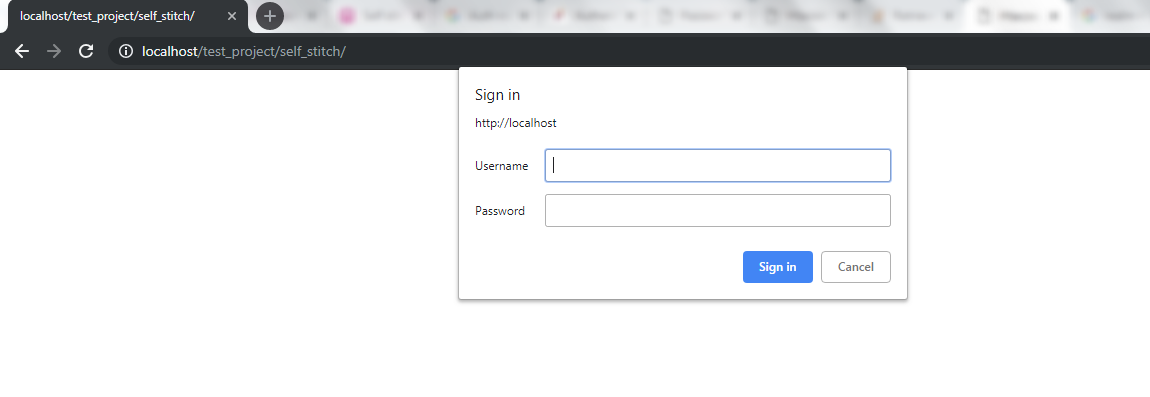
After creating .htaccess and .htpasswd file in the directory you want to protect, an alert will be displayed when you open your website. Please refer to the screenshot below:


Click Here to download a sample project with .htaccess password protected.